# Event Scheduling
Plan and organise training sessions effortlessly. This feature ensures employees have access to the right opportunities for growth and development at the right time.
# Chapter 1: Introduction to Event Scheduling
# Overview of Event Scheduling
[](https://signature.signifyhr.co.za/uploads/images/gallery/2025-02/emW3hfMrZ1yIDMUv-signify-header.png)
The **Event Scheduling** module sits at the operational centre of how structured learning, training, and development activities are delivered within an organisation.
> While other modules in the system define *what* needs to happen, **Event Scheduling** is responsible for *making it happen in practice* by coordinating people, resources, and timelines in a controlled, trackable way.
**Event Scheduling** is designed as a central coordination tool for:
- training sessions,
- workshops,
- onboarding programmes, and
- assessments.
It enables administrators to **configure** foundational data, **create** and schedule events, **assign** facilitators, **manage** bookings, and **track** attendance and completion outcomes.
What distinguishes it from a simple calendar tool is its integration with organisational structures. Events are linked to **people groups**, **approval workflows**, **costing structures**, and **learning records**, ensuring that each event is not only scheduled but also governed, measured, and aligned with business objectives.
**Event Scheduling** serves as the **bridge between strategy and execution** within the HR ecosystem. It connects:
- **strategic intent** (performance and compliance requirements),
- **structured learning design** (learning management), and
- **operational delivery** (actual events and attendance).
Let's see how it fits into the employee development lifecycle.
[](https://signature.signifyhr.co.za/uploads/images/gallery/2026-05/r1yHvoqN5q8bCT9Q-event-scheduling-audience.png)
#### Role in the employee development lifecycle
Within the employee development lifecycle, **Event Scheduling** serves as the **execution layer**.
- **Identify needs**:
- Skills gaps and development requirements are typically identified through performance reviews, compliance requirements, or strategic initiatives.
- **Define learning interventions**:
- Learning programmes or training interventions are designed and structured, often within a Learning Management context.
- **Deliver learning**:
- This is where **Event Scheduling** becomes critical. It translates planned interventions into scheduled sessions with defined attendees, facilitators, and logistics.
- **Track participation and outcomes**:
- Attendance, completion status, and competency are recorded and fed back into employee records.
- **Evaluate and improve**:
- Event data supports reporting, helping to refine future development initiatives.
Without **Event Scheduling**, there is a gap between planning and delivery, making it difficult to ensure that development activities take place and are properly tracked. So, how does it integrate with the rest of the SignifyHR system? Let us take a look.
#### How it connects to other modules
##### Learning Management
The **Learning Management** module specifies training content, curricula, and learning pathways. **Event Scheduling** implements these by:
- Scheduling instructor-led or blended learning sessions
- Linking events to training interventions
- Recording attendance and completion as learning records
> **Learning Management** answers *what should be learned*, while **Event Scheduling** answers *when, where, how, and by whom it is delivered*.
For more information, visit our book on the **[Learning Management](https://signature.signifyhr.co.za/books/learning-management "Learning Management")** module.
##### Performance Management
**Performance Management** identifies development needs through appraisals, goals, and feedback. **Event Scheduling** supports this by:
- Enabling targeted training for underperformance or growth areas
- Assigning employees to relevant events based on performance outcomes
- Providing completion and competency data to feed back into performance reviews
For more information, visit our book on the **[Performance Management](https://signature.signifyhr.co.za/books/performance-management-sq2 "Performance Management")** module.
##### People Management
The **People Management** module provides the structural data, such as employees, reporting lines, and permissions. **Event Scheduling** uses this by:
- Assigning attendees using people groups or organisational criteria
- Enabling manager approval workflows for event bookings
- Linking facilitators, coordinators, and attendees to real employee profiles
For more information, visit our book on the **[People Management](https://signature.signifyhr.co.za/books/people-management-d8c "People Management")** module.
[](https://signature.signifyhr.co.za/uploads/images/gallery/2025-02/ZOt8yZwhbiGx2d6U-signify-footer.png)
# Purpose of the Module
[](https://signature.signifyhr.co.za/uploads/images/gallery/2025-02/emW3hfMrZ1yIDMUv-signify-header.png)
The **Event Scheduling** module can be used as the backbone of a company’s learning and development strategy. Instead of managing training informally, organisations can formalise everything from **course planning** to **attendance tracking** and **competency outcomes**. HR or employee development teams can schedule recurring programmes, segment employees into targeted groups, and monitor completion and competence levels. This allows companies to:
- Identify **skills gaps**,
- Ensure **compliance training** is completed, and
- Build a more measurable and accountable approach to **employee development**.
Beyond training, the module can serve as a central **coordination** tool for structured **events**, such as workshops, onboarding sessions, or internal initiatives. Companies can manage **venues**, **facilitators**, **approvals**, and **attendance** in one place, reducing administrative overhead and duplication. Booking workflows, waitlists, and capacity limits help organisations optimise **resource allocation**, prevent overbooking, and ensure the right people attend the right events at the right time.
Moreover, the **Event Scheduling** module enables organisations to move from fragmented event management to a **data-driven** model. With **centralised records** of attendance, costs, and completion status, companies gain visibility into participation trends and return on investment. Leaders can **assess** which programmes are effective, which are underutilised, and where improvements are needed. Over time, this supports better **decision-making**, more efficient **budgeting**, and stronger **alignment** between events and business objectives.
[](https://signature.signifyhr.co.za/uploads/images/gallery/2025-02/ZOt8yZwhbiGx2d6U-signify-footer.png)
# Key Features of the Module
[](https://signature.signifyhr.co.za/uploads/images/gallery/2025-02/emW3hfMrZ1yIDMUv-signify-header.png)
### Event management
#### Event creation and administration
- Events can be linked to **training interventions** or free-text entries.
- **Coordinators**, **facilitators**, and **training providers** can be assigned to specific events.
- - For more information on these roles, see the [**Administrator, Coordinator, and Facilitator Roles**](https://signature.signifyhr.co.za/books/event-scheduling/page/administrator-coordinator-and-facilitator-roles).
- Events can consist of **multiple sessions**, including multi-day events.
- - Attendance is recorded per session.
- Sessions can be copied to multiple days.
- Both **in-person** and **virtual events** can be created and managed.
- Events can be **edited** after they have been created.
#### Attendee management and booking control
- Event attendees can be added **individually** or using pre-defined **people groups**.
- **Workflows** can be set up to assist with **event registrations** and **approvals**.
- - Integration with HR process workflows for approvals.
- Manager-based or administrator-based approval flows.
- Alignment with reporting lines for decision-making.
- Participation is easily managed through **attendee limits**, **waitlists**, and **booking deadlines**.
- - Easily add additional attendees, even after an event has been created.
#### Calendar integration and self-service functionality
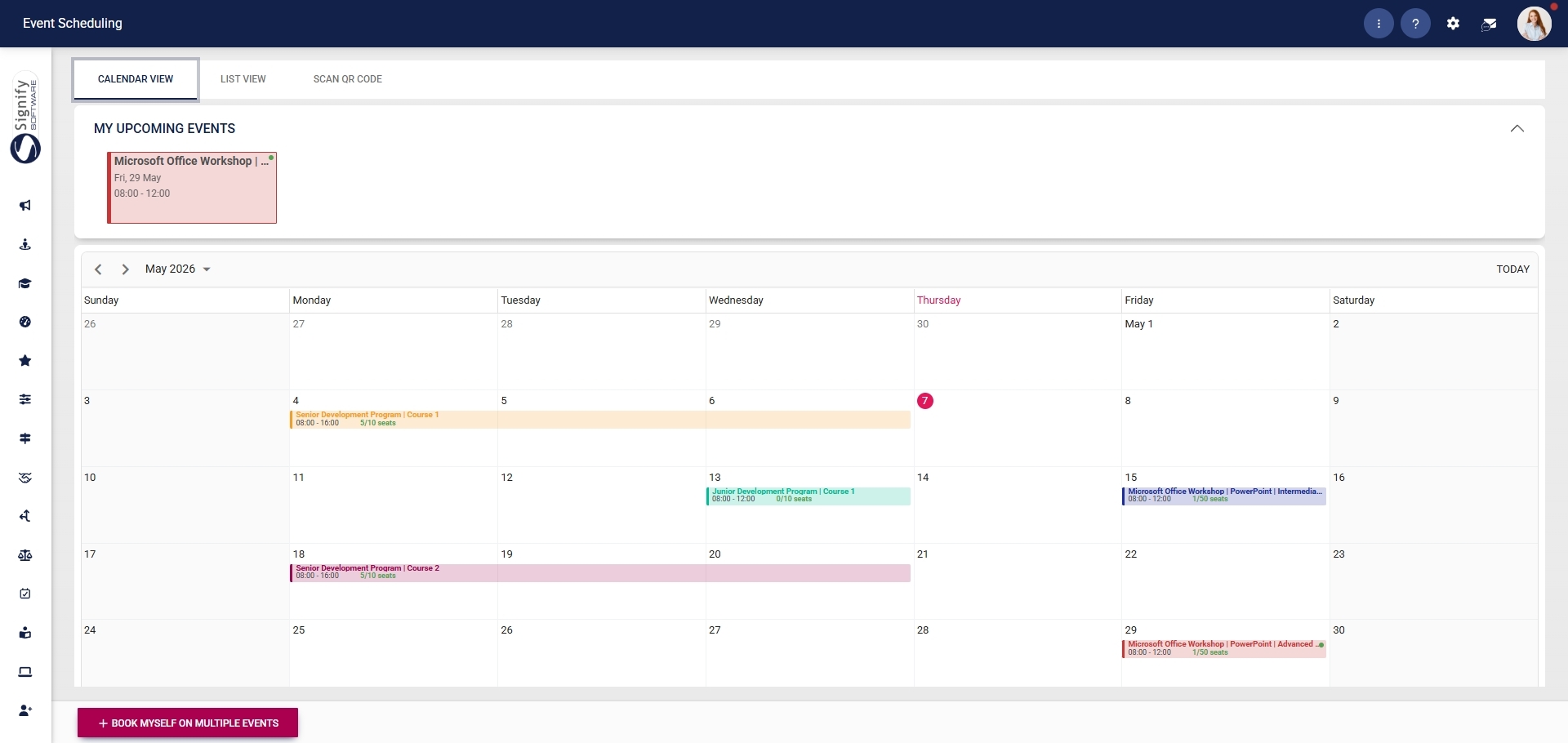
- A **calendar view** of all scheduled events allows users to stay up to date on upcoming events.
- The **self-service booking** interface, using a calendar, allows attendees to sign up for events.
- Events can be configured to determine who can **view** and **book** them.
- Attendees can easily log their attendance by scanning unique **QR codes**.
[](https://signature.signifyhr.co.za/uploads/images/gallery/2026-05/Ljz50DrNPWMv3UJT-5c6aae6b-2a22-4da1-b56f-6c124f512d9b.png)
### Record-keeping and reporting
#### Costing and financial tracking
- **Cost structures** can be linked to events to ensure efficient budgeting.
- - Resource allocation is optimised, and the administrative burden is lightened.
- Event administrators can **allocate costs** per attendee or distribute them across attendees.
- Billing details, invoice references, and payment status are recorded to support better decision-making.
#### Attendance and completion tracking
- **Attendance** can be recorded per session, with multiple status options.
- Attendees' progress is tracked in terms of **overall completion** and **competency** outcomes.
- The module supports partial and final attendance **updates**.
- - Attendance data can be edited and updated to maintain data integrity.
- Attendance registers can be **exported** for reporting, ensuring an accountable approach to employee development.
- - Historical attendance records are easily accessible.
- Full audit trails of attendee participation are kept for compliance and reporting purposes.
[](https://signature.signifyhr.co.za/uploads/images/gallery/2025-02/ZOt8yZwhbiGx2d6U-signify-footer.png)
# Chapter 2: Roles and Permissions
# Administrator, Coordinator, and Facilitator Roles
[](https://signature.signifyhr.co.za/uploads/images/gallery/2025-02/emW3hfMrZ1yIDMUv-signify-header.png)
In the **Event Scheduling** module, the roles of **Event Administrator**, **Coordinator**, and **Facilitator** operate at different levels of responsibility, but they work together to ensure that events are successfully planned, delivered, and recorded.
In practical terms:
- The **Event Administrator** ensures the event exists and is properly managed in the system,
- The **Coordinator** ensures it is properly organised, and
- The **Facilitator** ensures it delivers value to attendees.
Let us look at some key differences in their roles.
#### Event Administrator
The Event Administrator operates at a **system and governance level**. This role is responsible for configuring and managing the module itself, rather than running the event on the ground.
The Event Administrator is responsible for the following:
- Activating the module and assigning permissions
- Configuring master data such as venues, categories, and people groups
- Creating and managing events in the system
- Controlling bookings, approvals, and workflows
- Capturing attendance, completion status, and costs
- Maintaining records for reporting, compliance, and audits
#### Coordinator
The Coordinator operates at both the **planning and operational levels**. This role focuses on making sure the event is properly arranged and runs smoothly from a logistical perspective.
The Coordinator plays an important role in the following tasks:
- Organising event details, including the schedule, venue, and setup
- Overseeing arrangements before and during the event
- Ensuring everything is in place for the session to run smoothly
- May view reports or historical data only if they have been given access to the **[Report Builder](https://signature.signifyhr.co.za/books/report-builder-u80 "Report Builder")** module.
#### Facilitator
The Facilitator operates at a **delivery and interaction level**. This role is responsible for running the session and engaging with attendees.
Facilitators are responsible for the following:
- Leading the session or training
- Guiding discussions and activities
- Keeping the session on track
- Ensuring learning or event objectives are achieved
To see how these roles integrate into the **Event Scheduling** module, please read the section explaining [**How Event Scheduling Works**](https://signature.signifyhr.co.za/books/event-scheduling/page/how-event-scheduling-works "How Event Scheduling Works").
[](https://signature.signifyhr.co.za/uploads/images/gallery/2025-02/ZOt8yZwhbiGx2d6U-signify-footer.png)
# Employee and Managerial Roles
[](https://signature.signifyhr.co.za/uploads/images/gallery/2025-02/emW3hfMrZ1yIDMUv-signify-header.png)
While the event administrator, coordinator, and facilitator roles support different stages of the event lifecycle, from setup to delivery to tracking, the process is carried out through the involvement of managers and employees, who drive participation and governance.
- The **event administrator** configures the module, creates events, and manages bookings and data.
- The **coordinator** then ensures that all logistical arrangements are in place.
- The **facilitator** delivers the event and engages attendees during each session.
- **Employees** interact with the process by discovering events, submitting booking requests, and attending sessions.
- **Managers** provide oversight by approving or declining bookings where required.
Together, these roles form a continuous lifecycle in which events are **planned**, **approved**, **delivered**, **attended**, and ultimately **recorded**.
Let us explore the roles of managers and employees in more detail.
#### Employees
Employees are primarily the **module's attendees** or **end users** of the **Event Scheduling** module. They can view events that have been made visible on the end-user calendar, book themselves onto events, and submit a booking request with a motivation. If approval is not required, their booking is confirmed immediately. If approval is required, the booking remains in an **Awaiting Approval** state until it is actioned. Once successfully booked, they also receive a QR code by email that can be used for attendance scanning.
Employees **cannot** configure the module, manage master data, create events, assign permissions, record attendance, or approve other people’s bookings. Those tasks belong to administrators and workflow approvers. Employees can only book events that are activated for booking and visible in the calendar.
#### Managers
Managers can act as **approvers** when an event booking requires manager approval. If manager approval is enabled, the request is sent to the person’s training manager, provided the reporting line has been populated. Managers then use the system's **HR Processes** functionality to approve or decline it.
Managers **are not** responsible for setting up the module, creating events, configuring master data, or capturing attendance unless they have also been given administrator rights. In other words, being a manager grants approval authority within the workflow but not full administrative control of the module. Additionally, managers may view reports or historical data only if they have been given access to the **[Report Builder](https://signature.signifyhr.co.za/books/report-builder-u80 "Report Builder")** module.
#### In simple terms
Employees can **request and attend** events. Managers can **review and approve or decline** those requests when approval is required. Administrators do everything else, including setup, event creation, attendance management, and overall module administration.
[](https://signature.signifyhr.co.za/uploads/images/gallery/2025-02/ZOt8yZwhbiGx2d6U-signify-footer.png)
# How Event Scheduling Works
[](https://signature.signifyhr.co.za/uploads/images/gallery/2025-02/emW3hfMrZ1yIDMUv-signify-header.png)
Based on the guide and the role definitions we have already established, **Event Scheduling** operates as a controlled lifecycle that progresses from setup to booking to delivery to attendance capture and finally to completion reporting. The exact flow depends on whether the event requires administrator approval, manager approval, or no approval at all.
Let us take a look at each of the following scenarios you may encounter when using the **Event Scheduling** module, and the roles played by the administrator, coordinator, facilitator, manager, and employee:
- An event that requires an **administrator's approval**.
- An event that requires the **manager's approval**.
- An event where **no approval** is required.
## Administrator approval is required
**Scenario:** A company creates an internal development session, but only an Event Scheduling Administrator may approve attendance requests.
##### The administrator prepares the module and event.
The administrator activates the module if needed, ensures the right permissions are in place, configures the master data, and creates the event in Event Scheduling. They set the event status to confirmed, add the relevant sessions, link the training intervention if required, and make the event visible on the calendar so employees can book it. They also set the requirement for administrator approval.
##### The coordinator prepares the event operationally.
The coordinator ensures the practical arrangements are in place, including the venue, room, timing, session setup, and any logistical details to be managed before the event.
##### The facilitator prepares to deliver the session.
The facilitator is assigned to the session and focuses on delivery, ensuring the content, discussion, and participant engagement are ready for the session date.
##### The employee submits a booking request.
The employee sees the event in the calendar, clicks to book, and submits a booking request with the required motivation. Because approval is required, the booking does not go through immediately and remains pending.
##### The administrator reviews the request.
The Event Scheduling Administrator checks the request and either approves or declines it. If approved, the employee is added to the attendee list. If declined, the employee is not booked onto the event.
##### The event takes place.
The coordinator supports logistics on the day, while the facilitator runs the session. If the event uses QR codes, a booked attendee can scan the code to log their attendance.
##### The administrator records attendance and completion.
After the session, the administrator updates per-session attendance, records the overall completion status, and captures competency information where applicable. If there are costs, they can also be recorded against attendees.
##### **Responsibilities in this story**
- **Administrator:** creates the event, configures approval, approves or declines bookings, records attendance and completion, and maintains the event record.
- **Coordinator:** manages the practical setup and logistics.
- **Facilitator:** delivers the event.
- **Employee:** submits a booking request and attends once approved.
- **Manager:** not involved in the approval path in this scenario.
## Manager approval is required
**Scenario:** A compliance or development event must be approved by the employee's training manager before the employee may attend.
##### The administrator configures the event and workflow.
The administrator sets up the event in Event Scheduling, ensures the relevant training intervention and master data are in place, and links the booking process to an HR workflow that requires manager approval. The guide notes that the training manager reporting line must be populated for each person for this to work correctly.
##### The coordinator prepares the logistics.
The coordinator ensures the venue, room, sessions, and event details are ready. If the event runs over more than one day, multiple sessions can be created.
##### The facilitator is assigned to lead the event.
The facilitator is linked to the session and prepares to host and guide the event flow.
##### The employee submits a booking request.
The employee books themselves onto the event from the calendar view and selects a motivation from the master data list. Because manager approval is required, the request's status is Awaiting Approval.
##### The manager receives the request and decides.
The manager finds the request in the HR Processes approval queue and either approves or declines it. If approved, the employee becomes a confirmed attendee. If declined, the booking does not proceed.
##### The event is delivered.
The coordinator handles the operational side, the facilitator runs the session, and the employee attends once approved. QR codes may be used to help record attendance once the person is booked.
##### The administrator completes the administrative follow-up.
The administrator updates attendance records per session, captures overall completion status, and can view historical attendance or export the attendance register.
##### **Responsibilities in this story**
- **Administrator:** sets up the event, configures manager approval, monitors the event record, and updates attendance and completion data.
- **Coordinator:** ensures the logistics are ready.
- **Facilitator:** delivers the event and guides participant interaction.
- **Manager:** reviews booking requests and approves or declines them.
- **Employee:** submits the request, waits for approval, and attends after approval.
## No approval is required
**Scenario:** A workshop is open to the relevant audience and does not require approval before booking.
##### The administrator creates the event and opens it for booking.
The administrator sets up the event, selects the sessions, adds the relevant master data, and enables the option that makes the event visible on the end-user calendar. No approval workflow is assigned.
##### The coordinator organises the event logistics.
The coordinator ensures the venue, room, timing, and arrangements are ready.
##### The facilitator prepares for delivery.
The facilitator is assigned to the event and gets ready to run the session on the scheduled date.
##### The employee books immediately.
The employee sees the event in the calendar, clicks to book, selects a motivation if required, and submits the booking. Because no approval is required, the booking is confirmed straight away.
##### The employee receives the normal event communications.
Once booked, the employee may receive the QR code email and any other notifications configured for the event.
##### The event is delivered, and attendance is captured.
The coordinator manages the operational side, the facilitator leads the event, and the administrator captures attendance and completion afterwards. Attendance can be recorded session by session, and the system can show historical attendance and completion status.
##### **Responsibilities in this story**
- **Administrator:** creates the event, makes it available for direct booking, and records attendance and completion afterwards.
- **Coordinator:** handles practical event setup.
- **Facilitator:** delivers the event.
- **Employee:** books directly and attends.
- **Manager:** not involved unless the organisation later chooses to add approval requirements.
[](https://signature.signifyhr.co.za/uploads/images/gallery/2025-02/ZOt8yZwhbiGx2d6U-signify-footer.png)
# Chapter 3: Setup and Configuration of Event Scheduling
# Prerequisites for this Module
[](https://signature.signifyhr.co.za/uploads/images/gallery/2025-02/emW3hfMrZ1yIDMUv-signify-header.png)
Before implementing the **Event Scheduling** module, the **People Management** module must be configured. Follow the guides in the **[People Management](https://signature.signifyhr.co.za/books/people-management-d8c "People Management")** book to ensure you have:
- Created an organisational structure,
- Imported users,
- Configured user roles and permissions, and
- Completed users' reporting lines.
[](https://signature.signifyhr.co.za/uploads/images/gallery/2025-02/ZOt8yZwhbiGx2d6U-signify-footer.png)
# Event Scheduling Implementation Guide
[](https://signature.signifyhr.co.za/uploads/images/gallery/2025-02/emW3hfMrZ1yIDMUv-signify-header.png)
This guide focuses on the **Event Scheduling** module and the features available to administrators.
Beyond training, the module can serve as a **central coordination tool** for structured events, such as workshops, onboarding sessions, or internal initiatives.
- Companies can **manage venues**, **facilitators**, **approvals**, and **attendance** in one place, reducing administrative overhead and duplication.
- HR or employee development teams can schedule recurring **programmes**, segment employees into **targeted groups**, and **monitor completion** and **competence** levels.
By following the outlined procedures, administrators can:
- Configure the **Event Scheduling** module and permissions,
- Set up the master data required,
- Create and manage events, and
- Record attendance and completion.
Before you can configure and use the **Event Scheduling** module, you must activate the module and assign the required user permissions.
#### Activate the Event Scheduling module
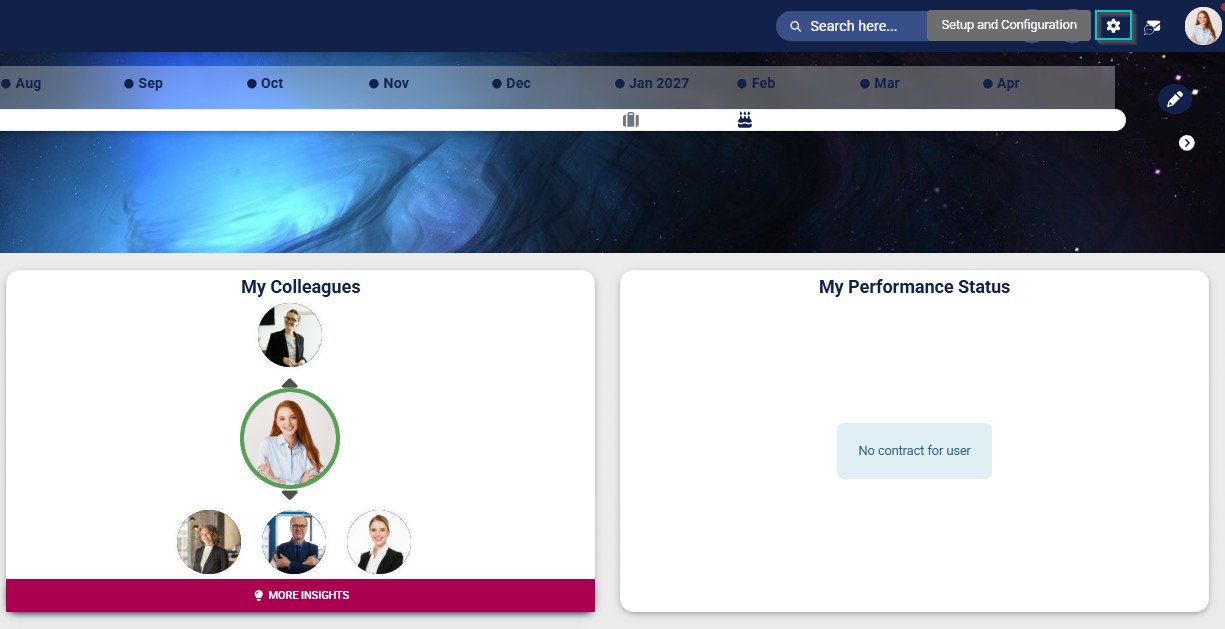
- Click the **gear icon** to access the **Setup and Configuration** menu.
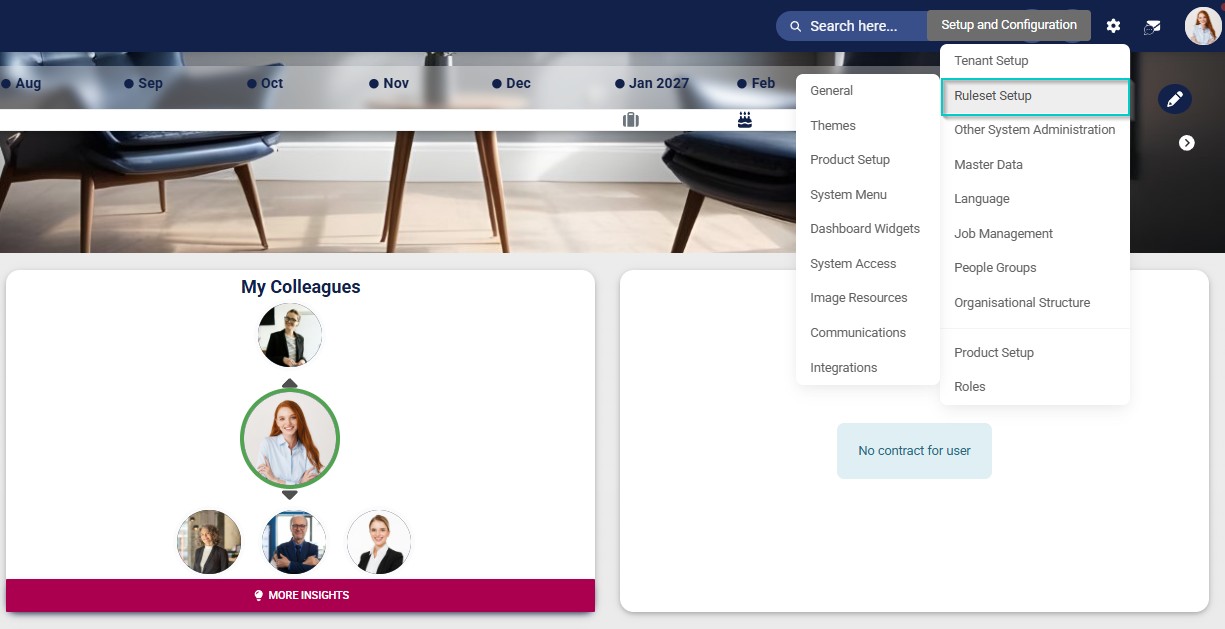
- Click **Ruleset Setup**.
- Select the **ruleset you would like to update.
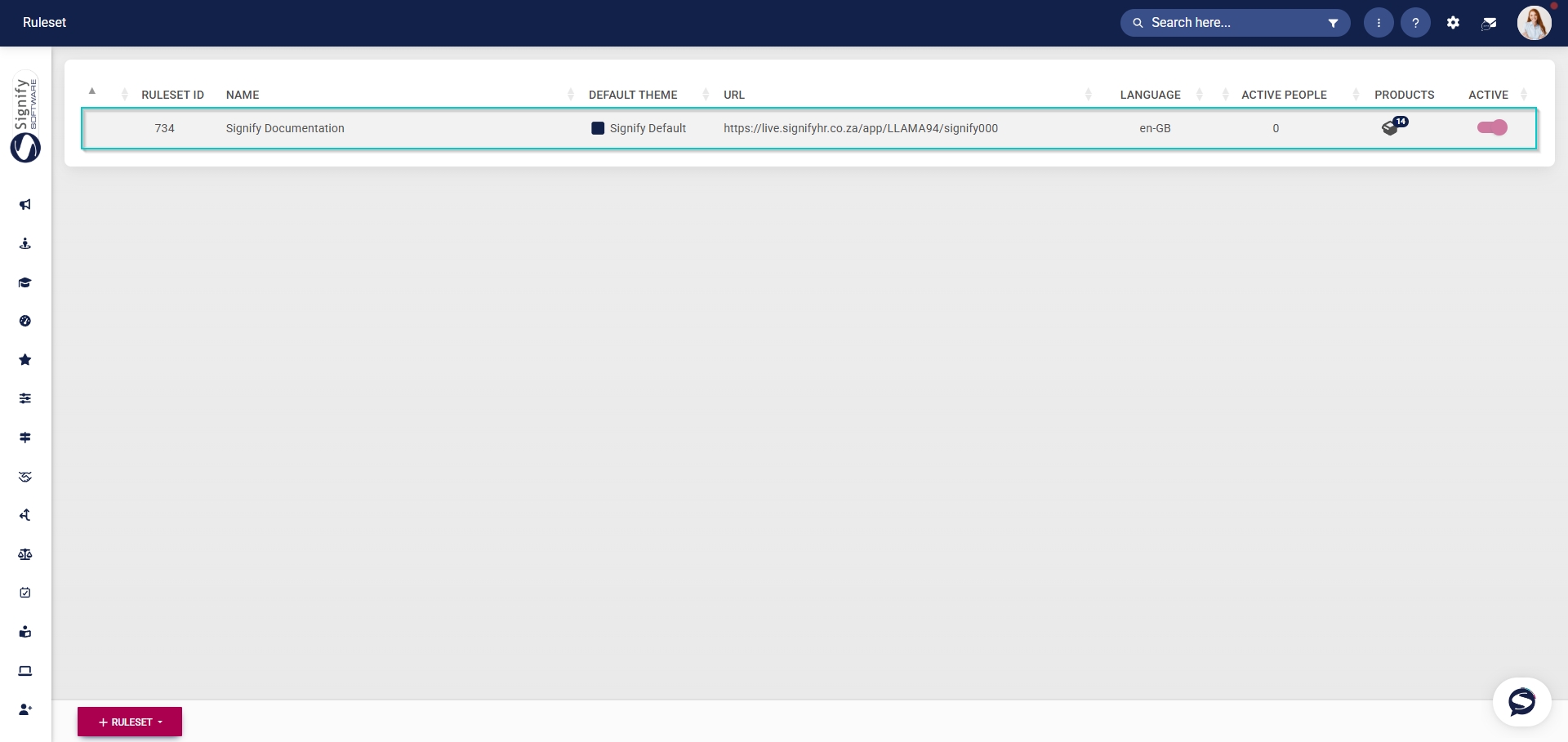
- Navigate to the **Products tab.
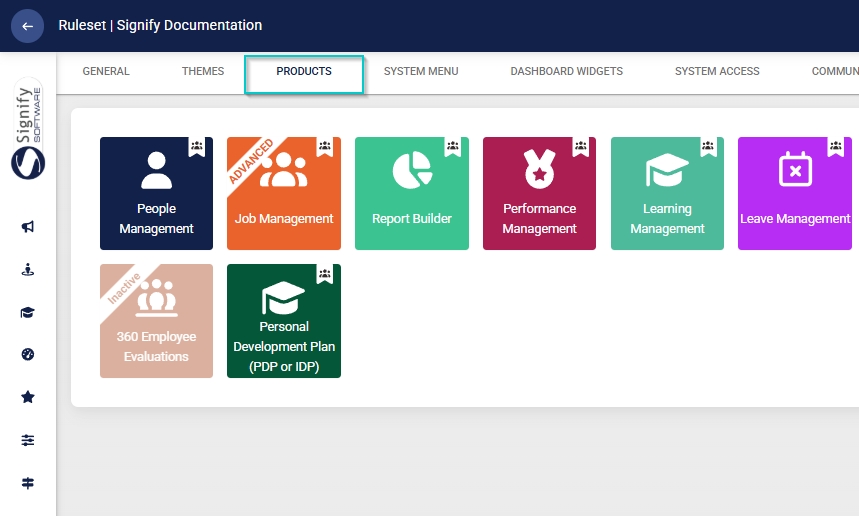
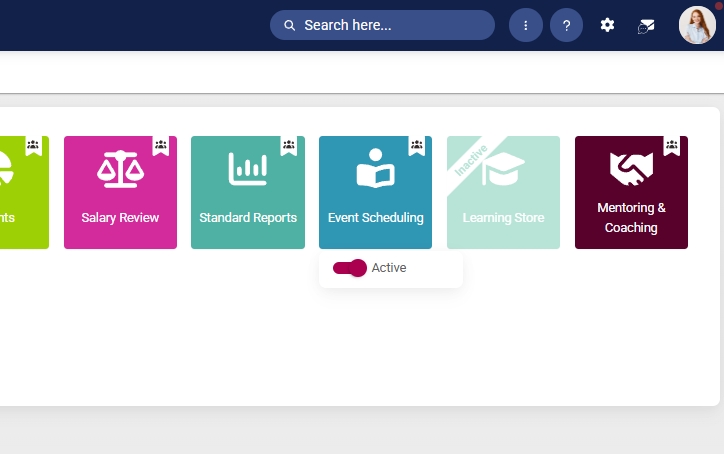
- Click on the **Event Scheduling product card, then click the **toggle button** to set the product’s status to **Active**.
#### Add Event Scheduling to the system menu
- Click the **gear icon** to access the **Setup and Configuration** menu.

- Click **Ruleset Setup**.

- Select the **ruleset you would like to update.

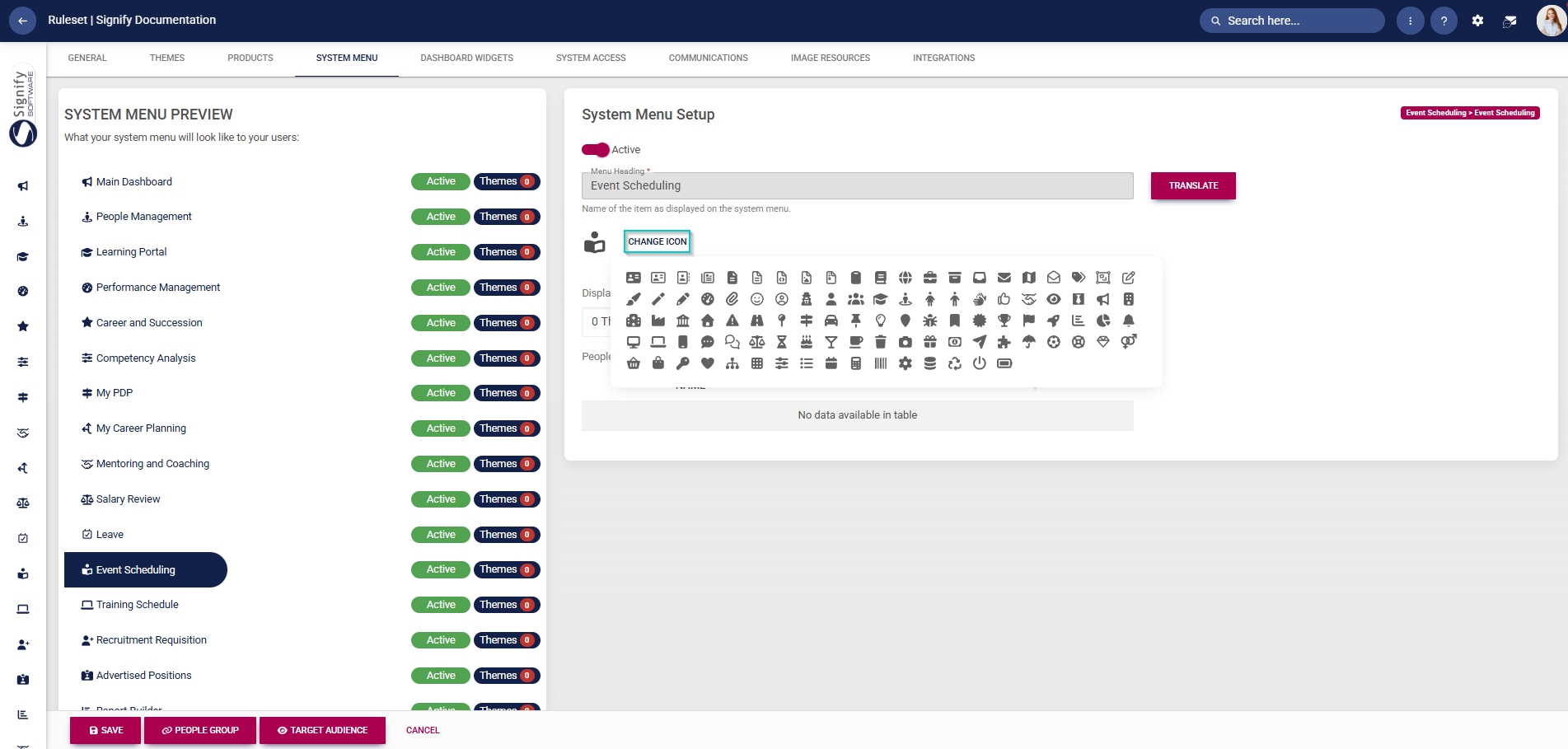
- Navigate to the **System Menu** tab.
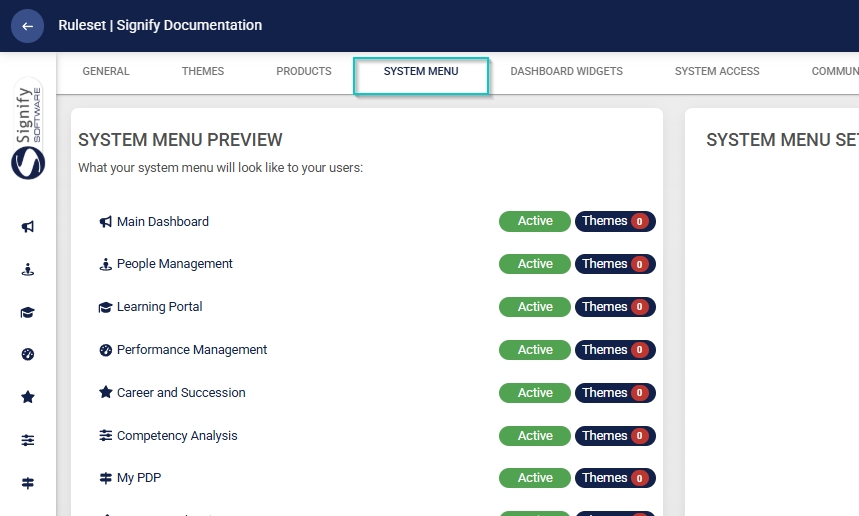
- Click the **Event Scheduling** menu item in the system menu preview.
- Click the **toggle** **button** to set the system menu item’s status to **Active**.
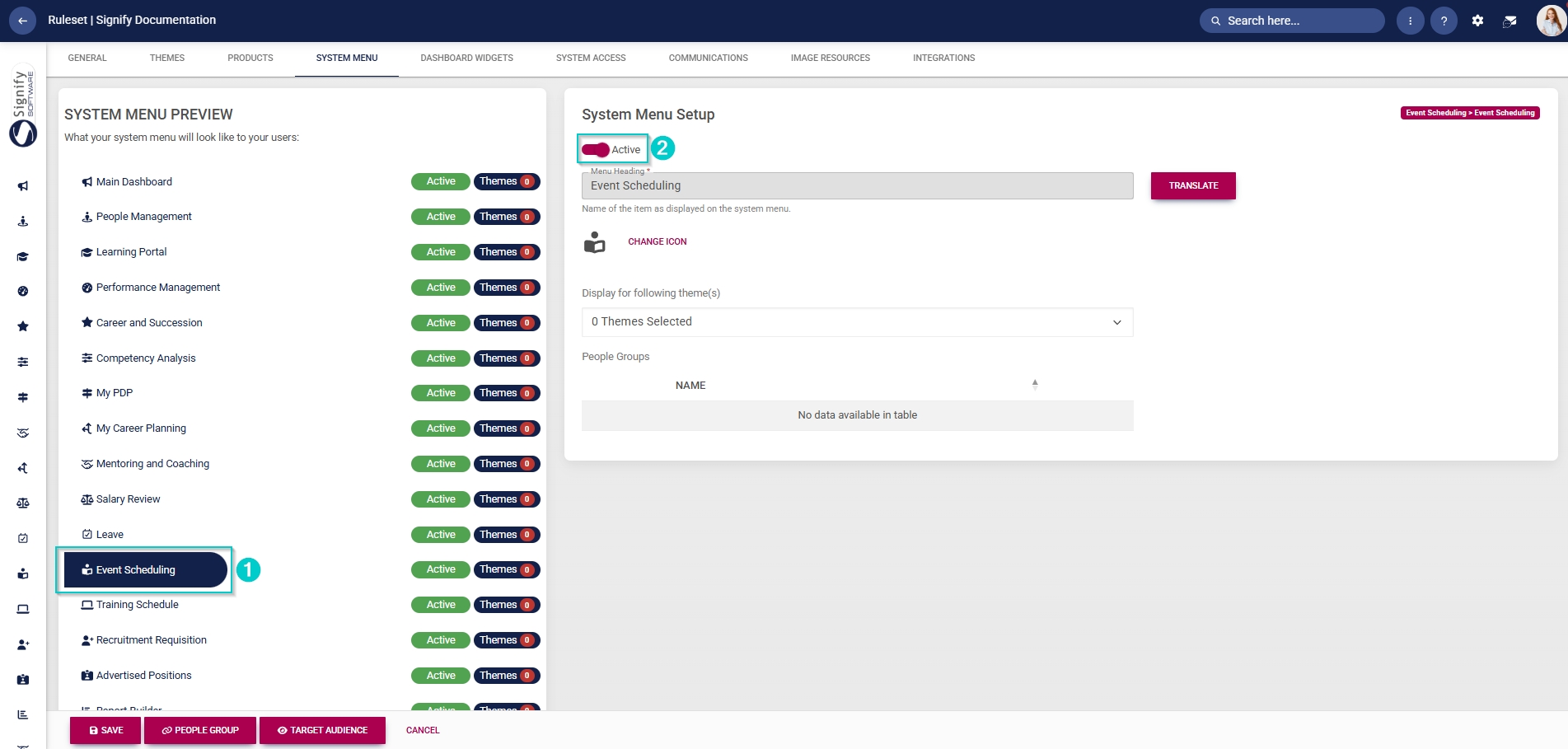
- You can select an icon for the **Event Scheduling** module by clicking **CHANGE ICON**.
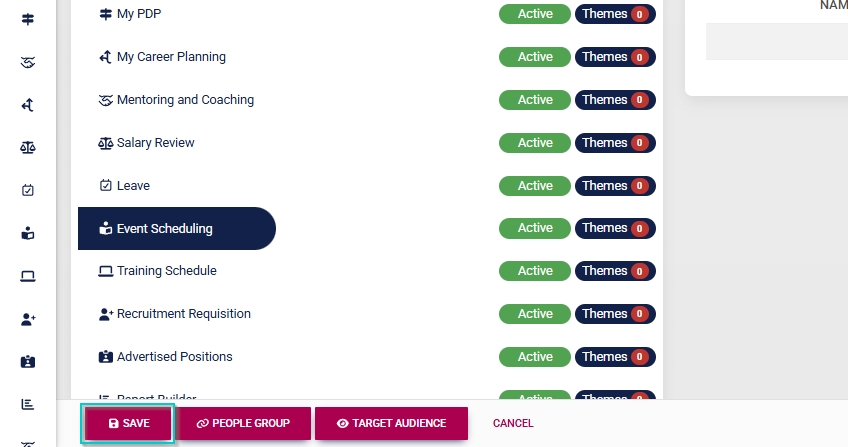
- Click **SAVE** to continue or **CANCEL** to discard your changes.
#### Assign the Event Scheduling administrator permission
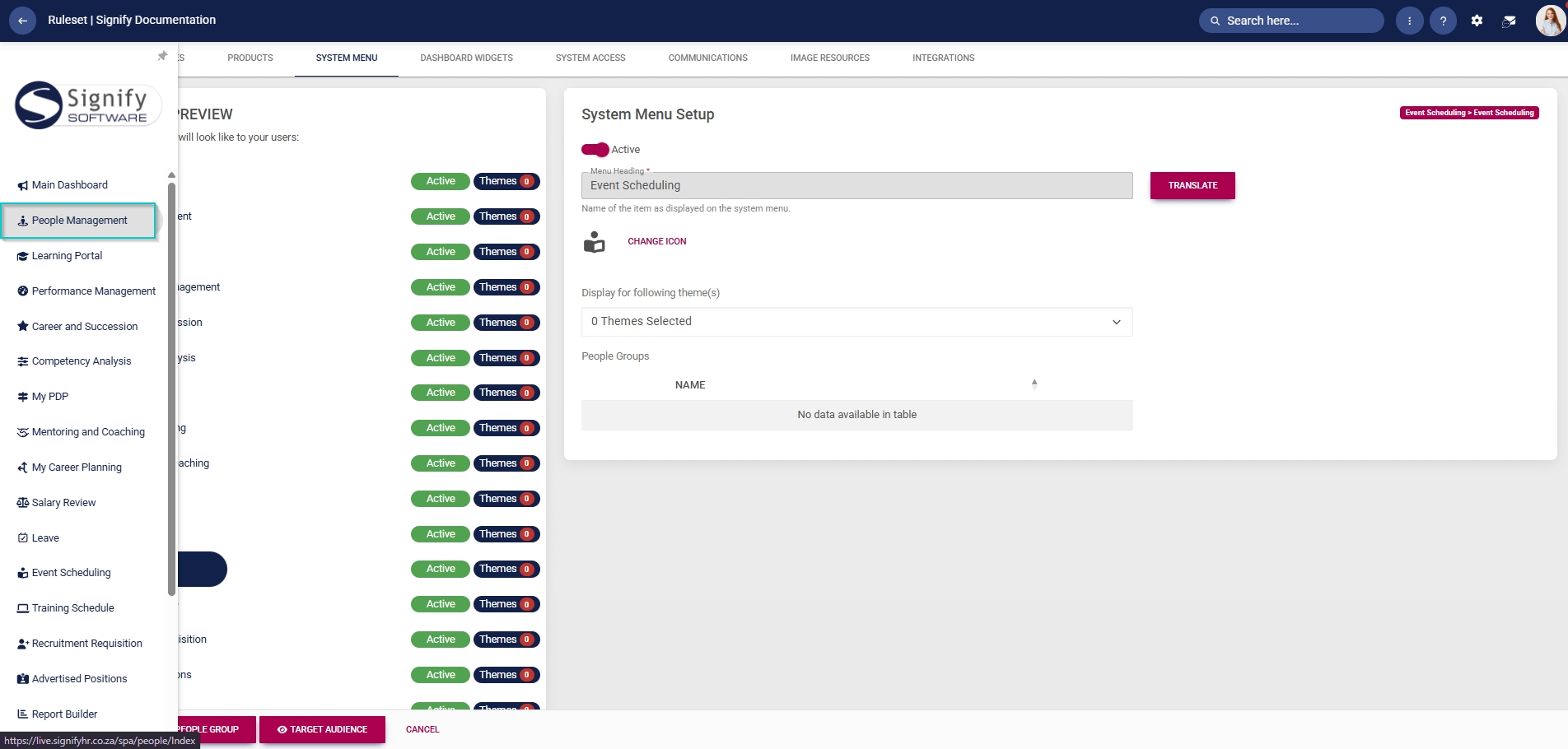
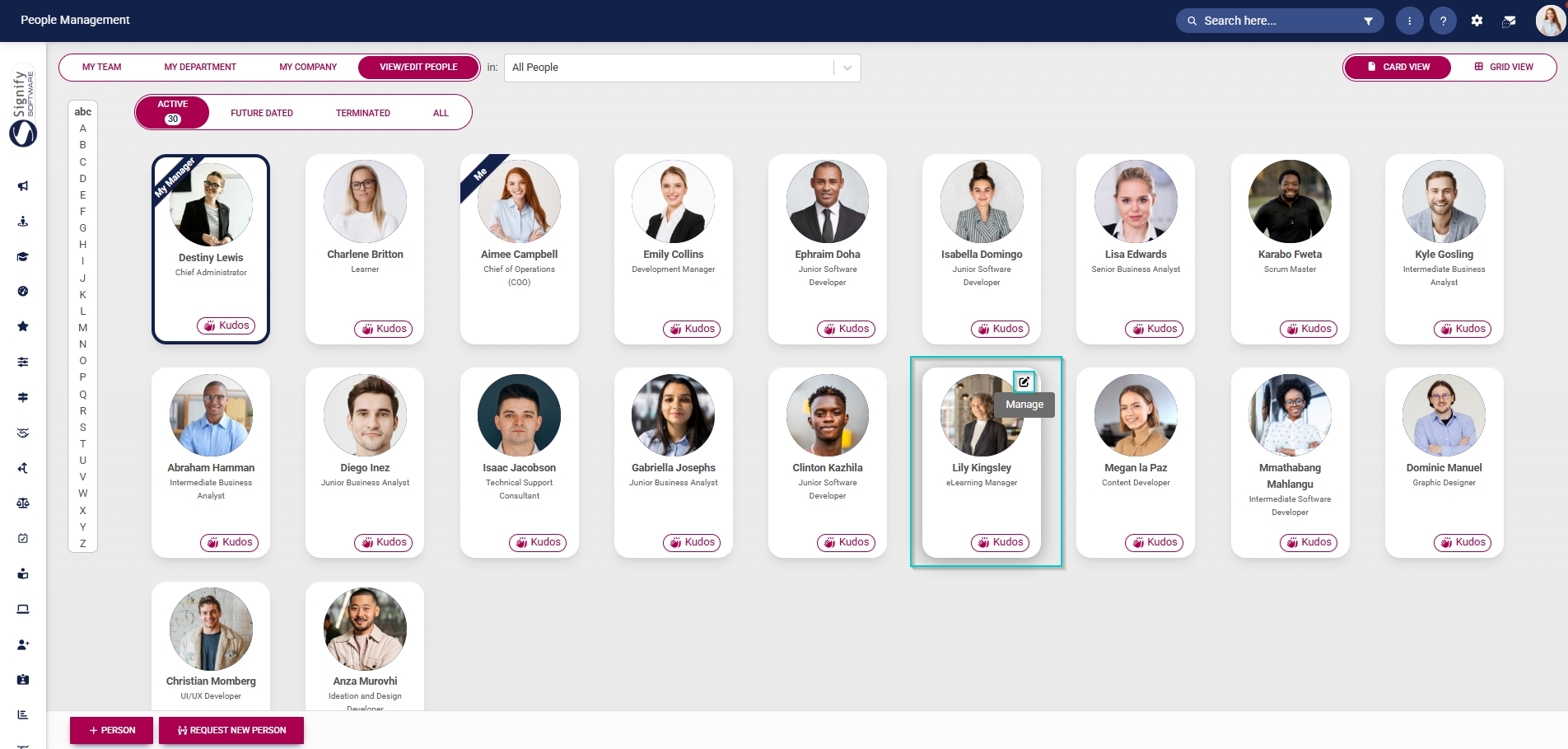
- Hover over the **sidebar** menu, then click **People Management**.
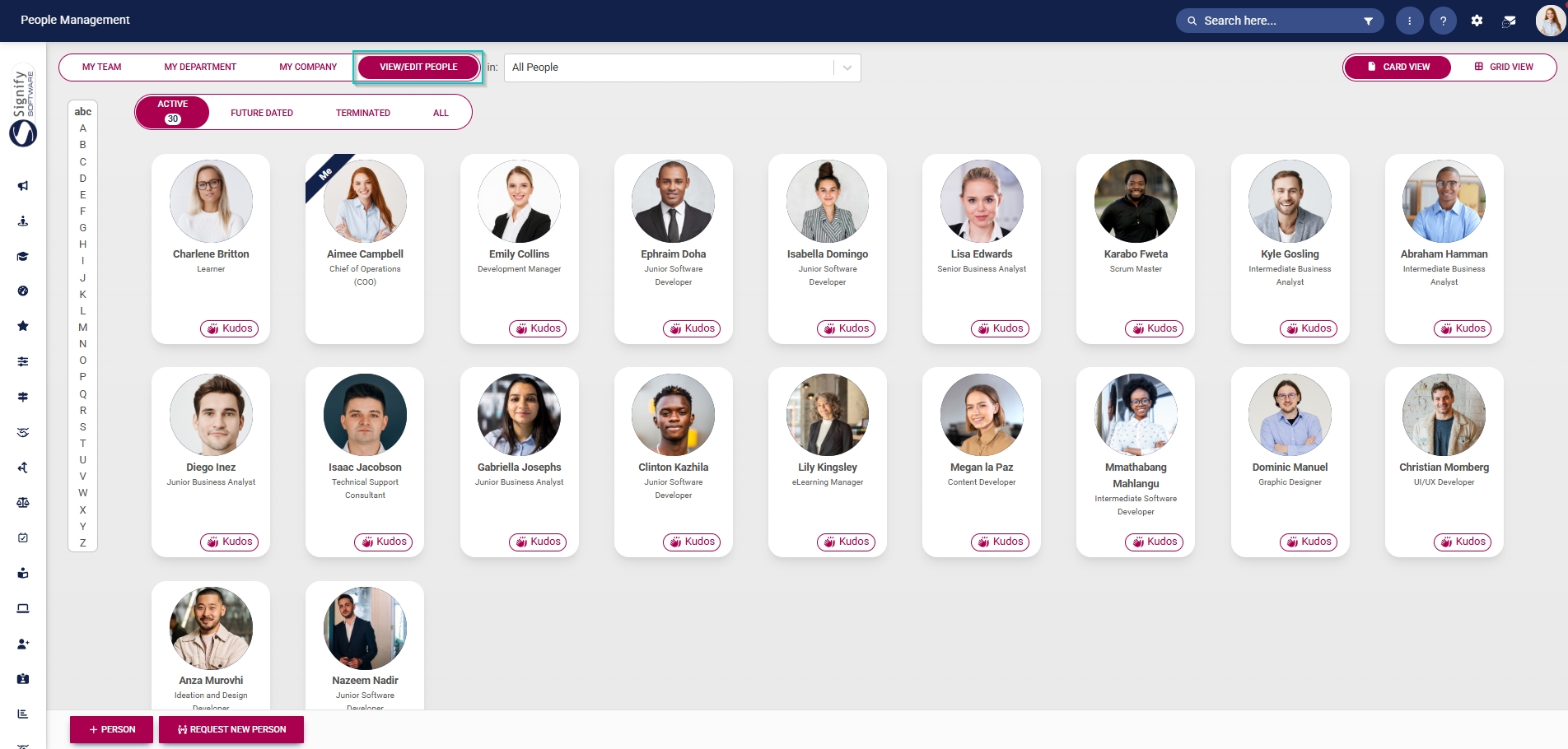
- Click to navigate to the **View/Edit People** tab.
- Click the **pencil icon** to manage the person whose profile you want to edit.
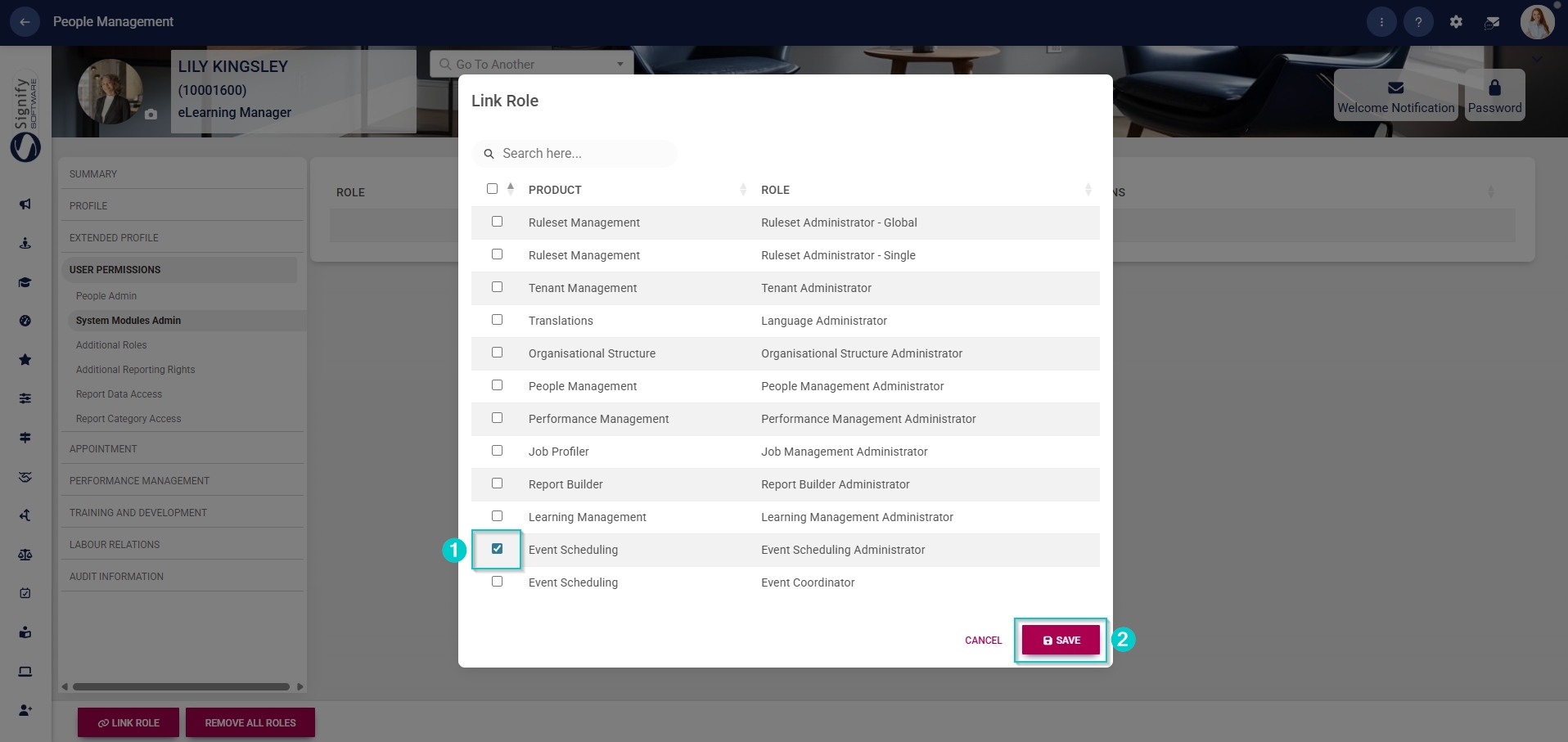
- In the **left-hand menu**, navigate to **User Permissions**, then click **System Modules Admin**.
- Click the **LINK ROLE** button.

- Tick the **checkbox next to Event Scheduling** in the table to assign the Event Scheduling administrator role to the user.
- Click **SAVE** to continue or **CANCEL** to discard your changes.
#### Update the Master Data Library
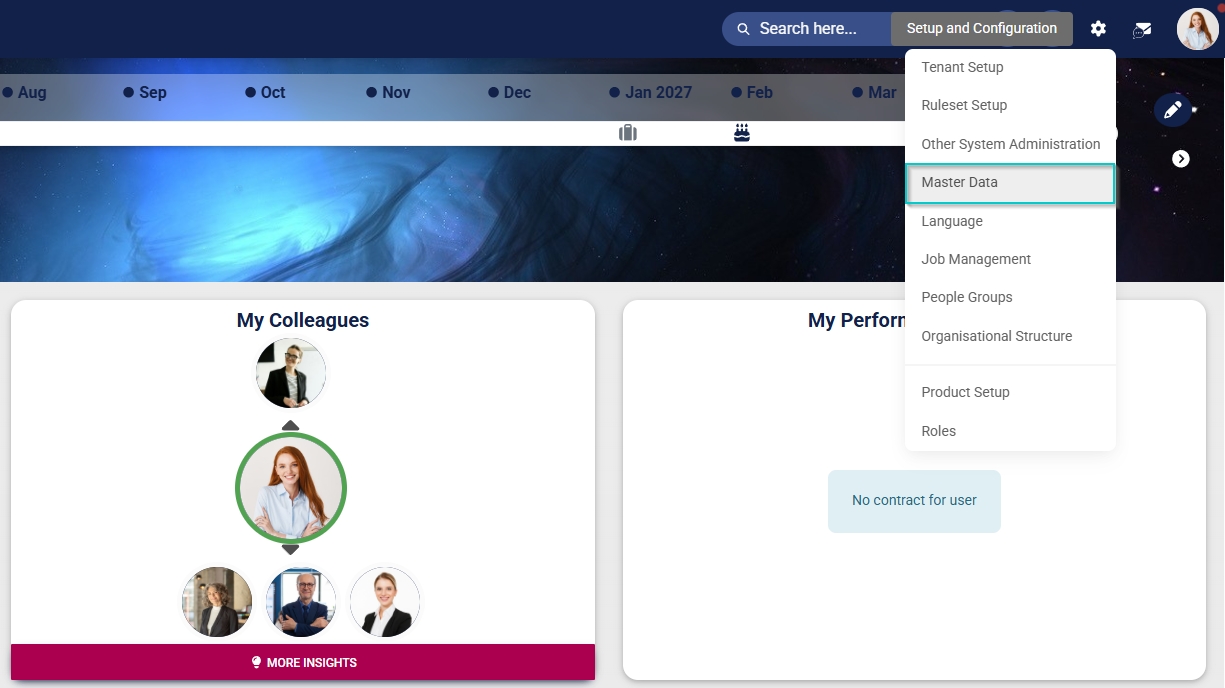
- Click the **gear icon** to access the **Setup and Configuration** menu.

- Click **Master Data**.
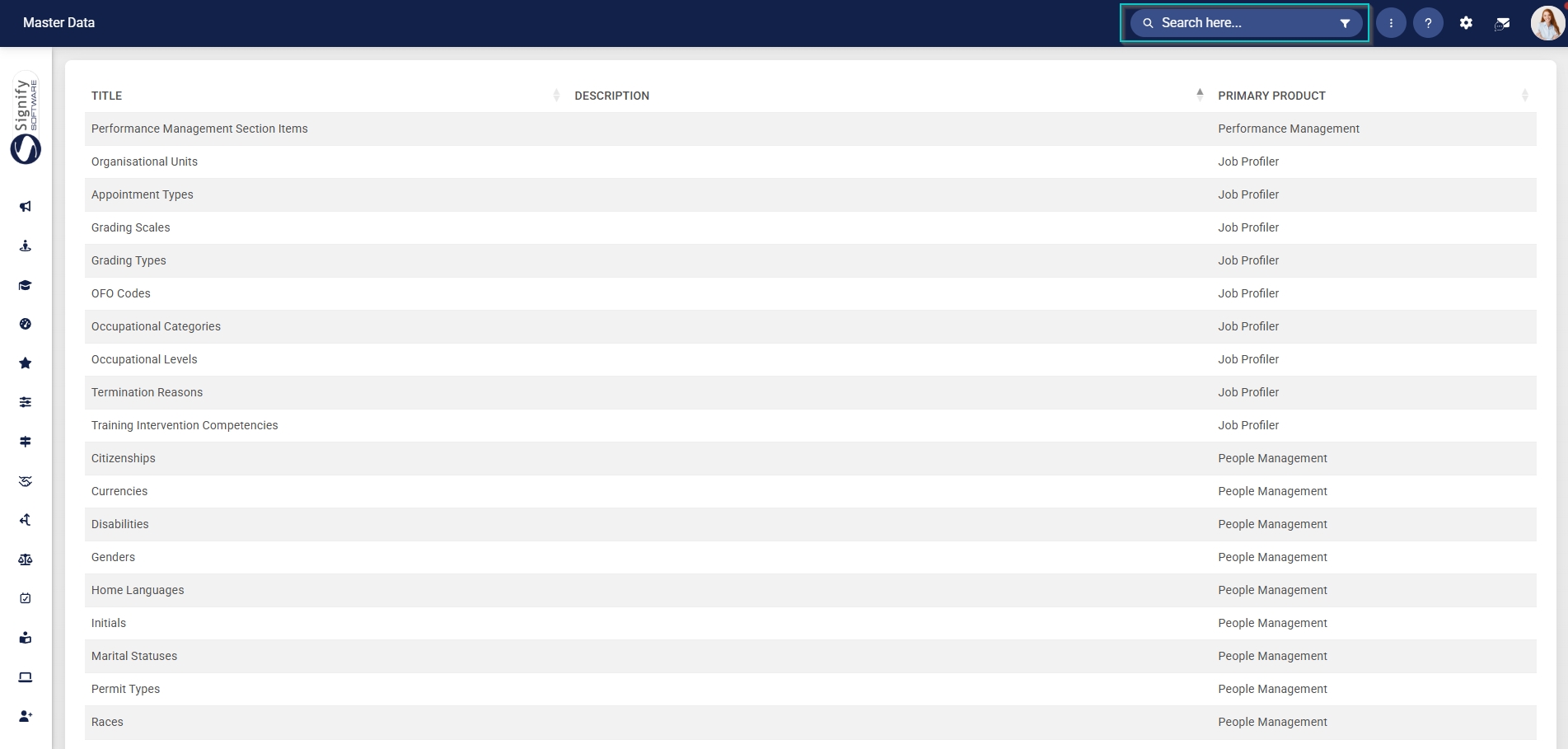
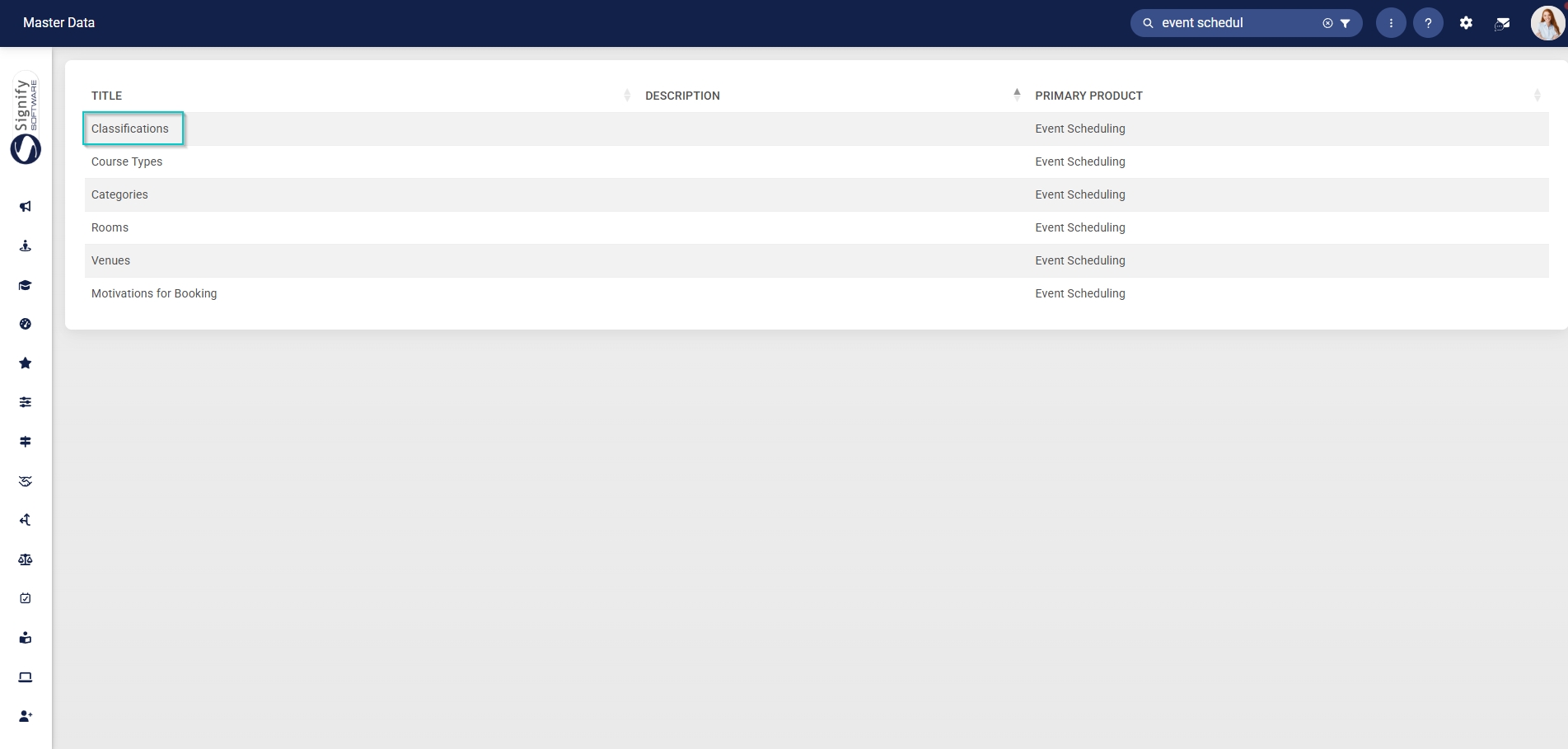
- The **Master Data Library lists the categories for which administrators can create master data. Use the **search bar** at the top of the screen to filter the search results by **Event Scheduling**.
##### Classifications
- Click on the **Classifications** category to continue.
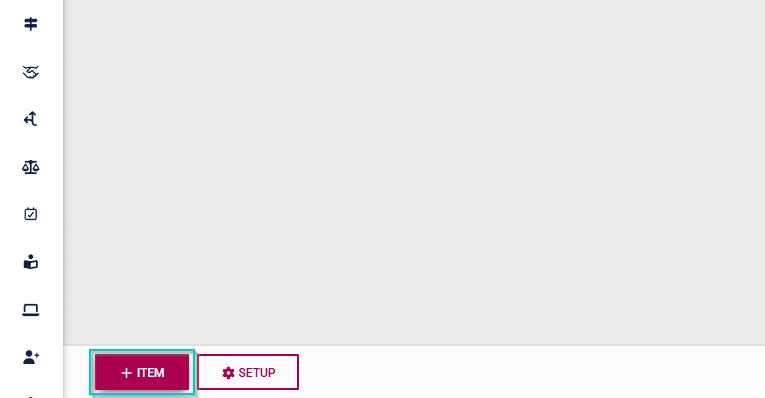
- To add a new master data item, click on **+ITEM**.
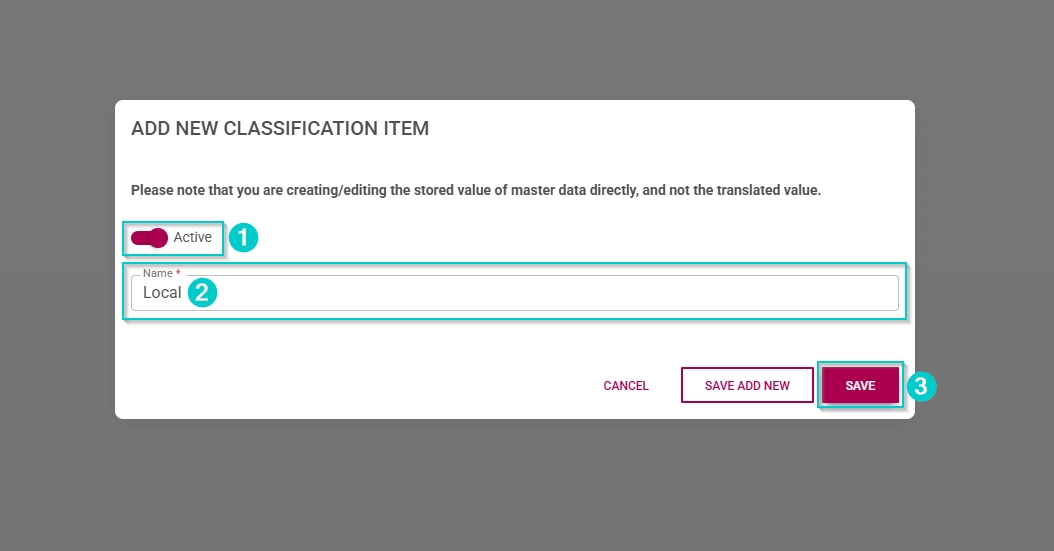
- Click the **toggle** **button** to set the classification’s status to **Active**.
- Enter a name for the classification.
- Click **SAVE** when you are finished, **SAVE ADD NEW** to add another master data item or click **CANCEL** to discard your edits.
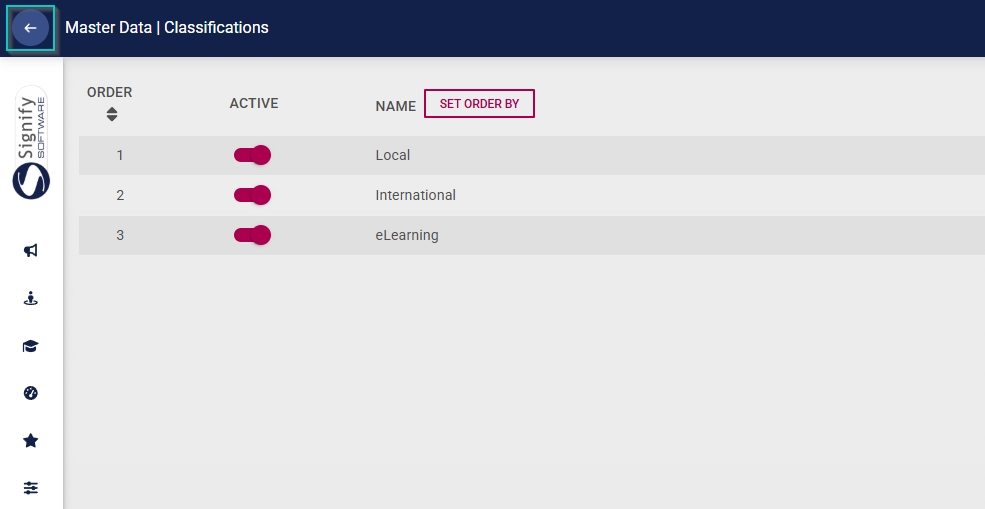
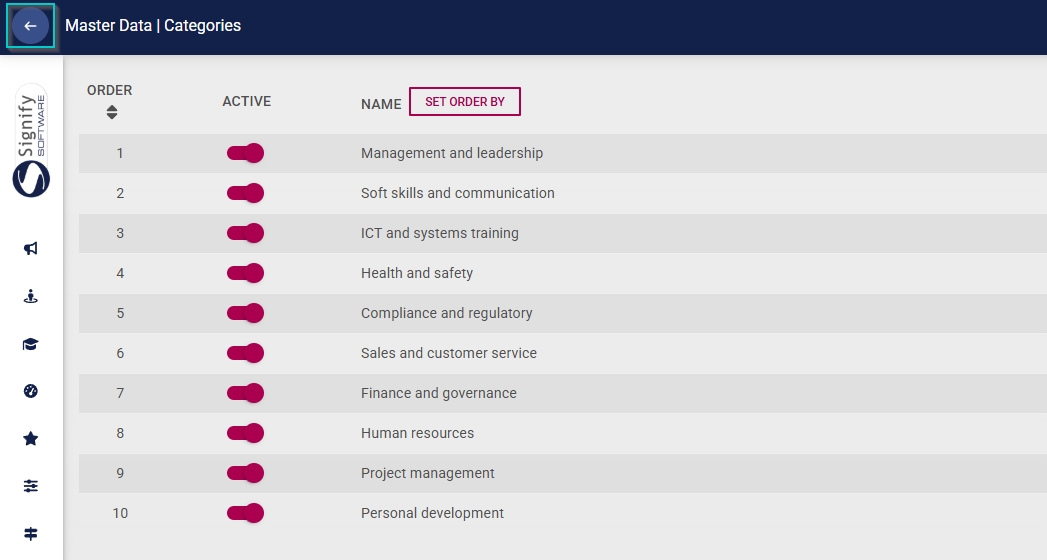
- Click the **back arrow** to navigate back to the **Master Data Library** once you are finished.
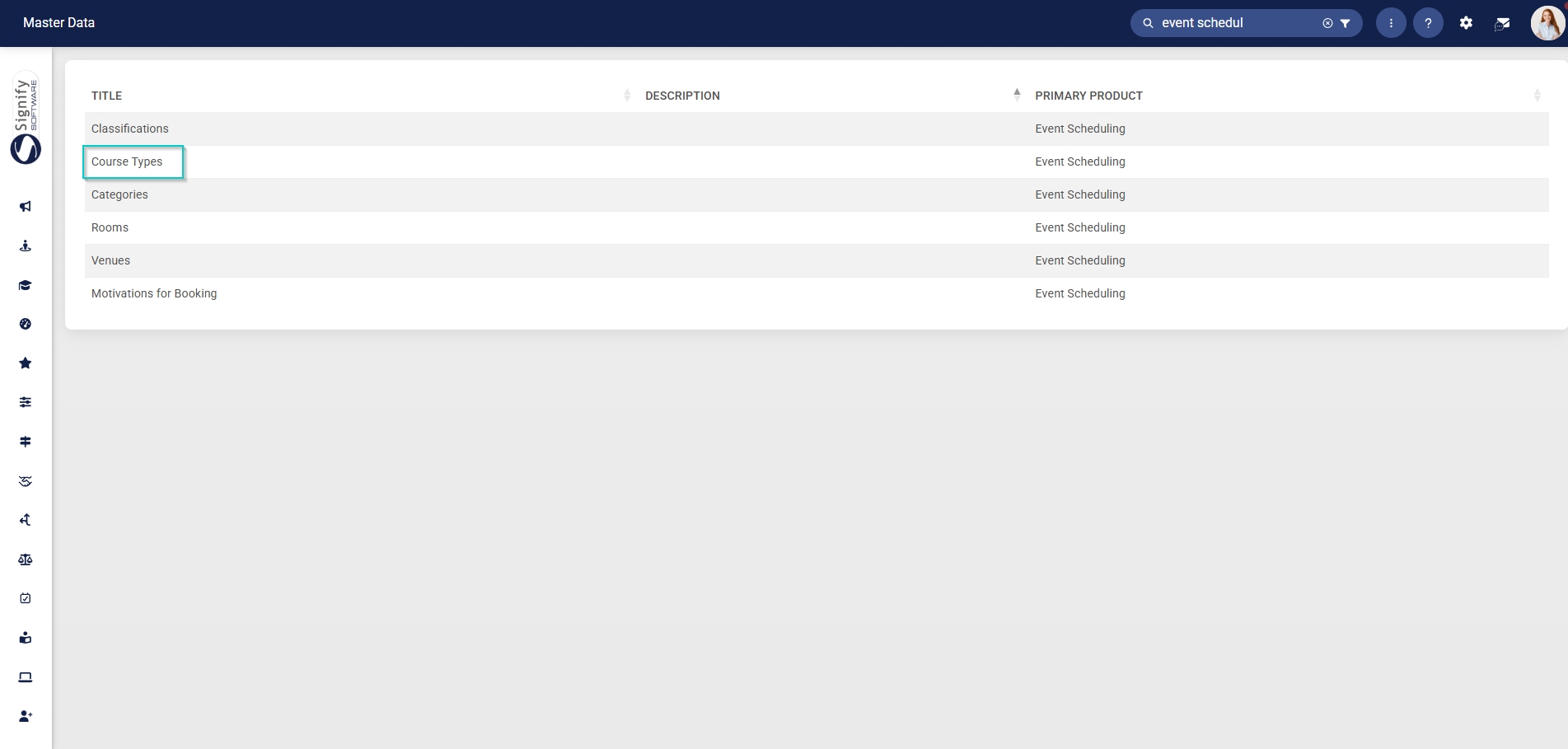
##### Course Types
- Click on the **Course Types** category to continue.
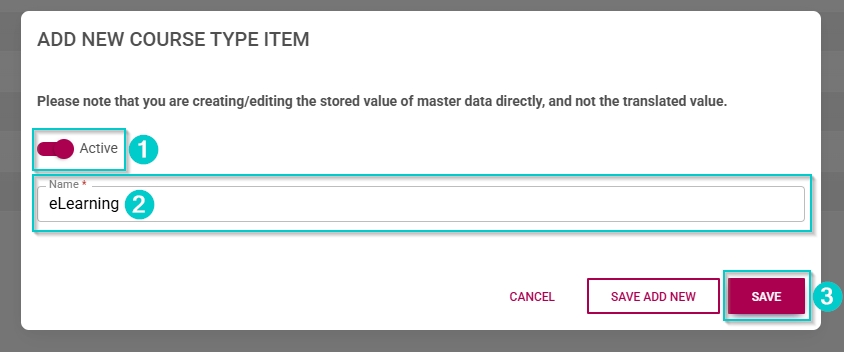
- To add a new master data item, click on **+ITEM**.

- Click the **toggle** **button** to set the course type’s status to **Active**.
- Enter a name for the course type.
- Click **SAVE** when you are finished, **SAVE ADD NEW** to add another master data item or click **CANCEL** to discard your edits.
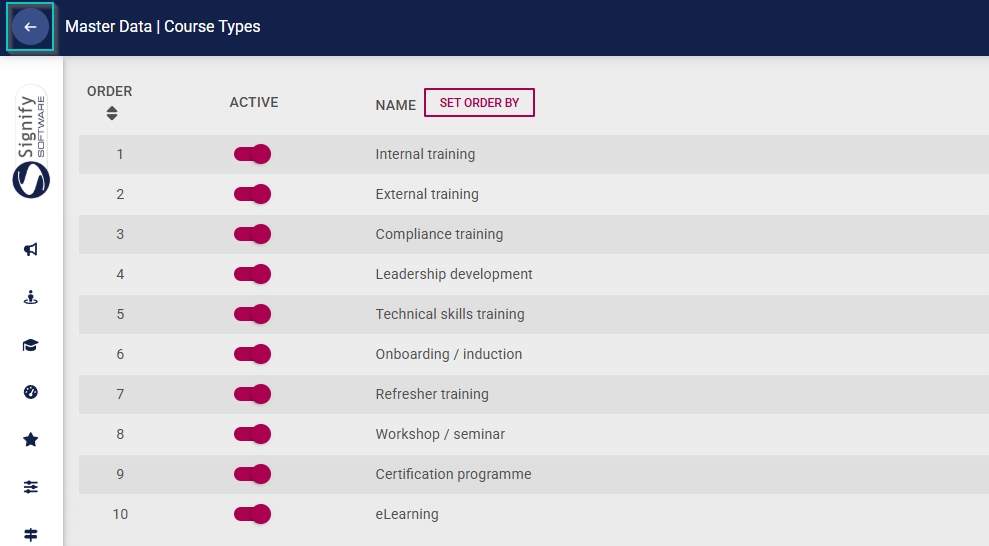
- Click the **back arrow** to navigate back to the **Master Data Library** once you are finished.
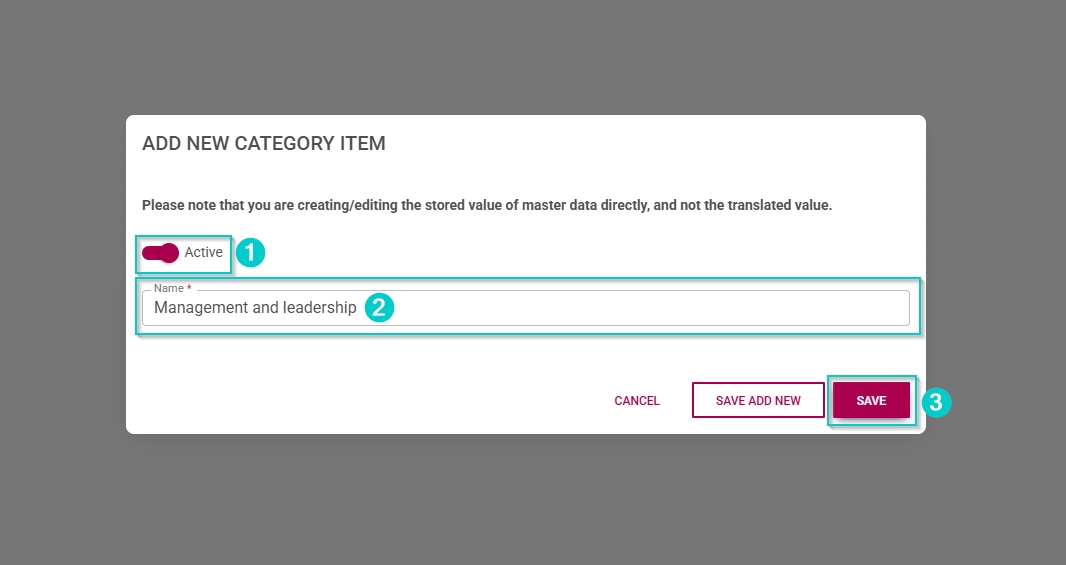
##### Categories
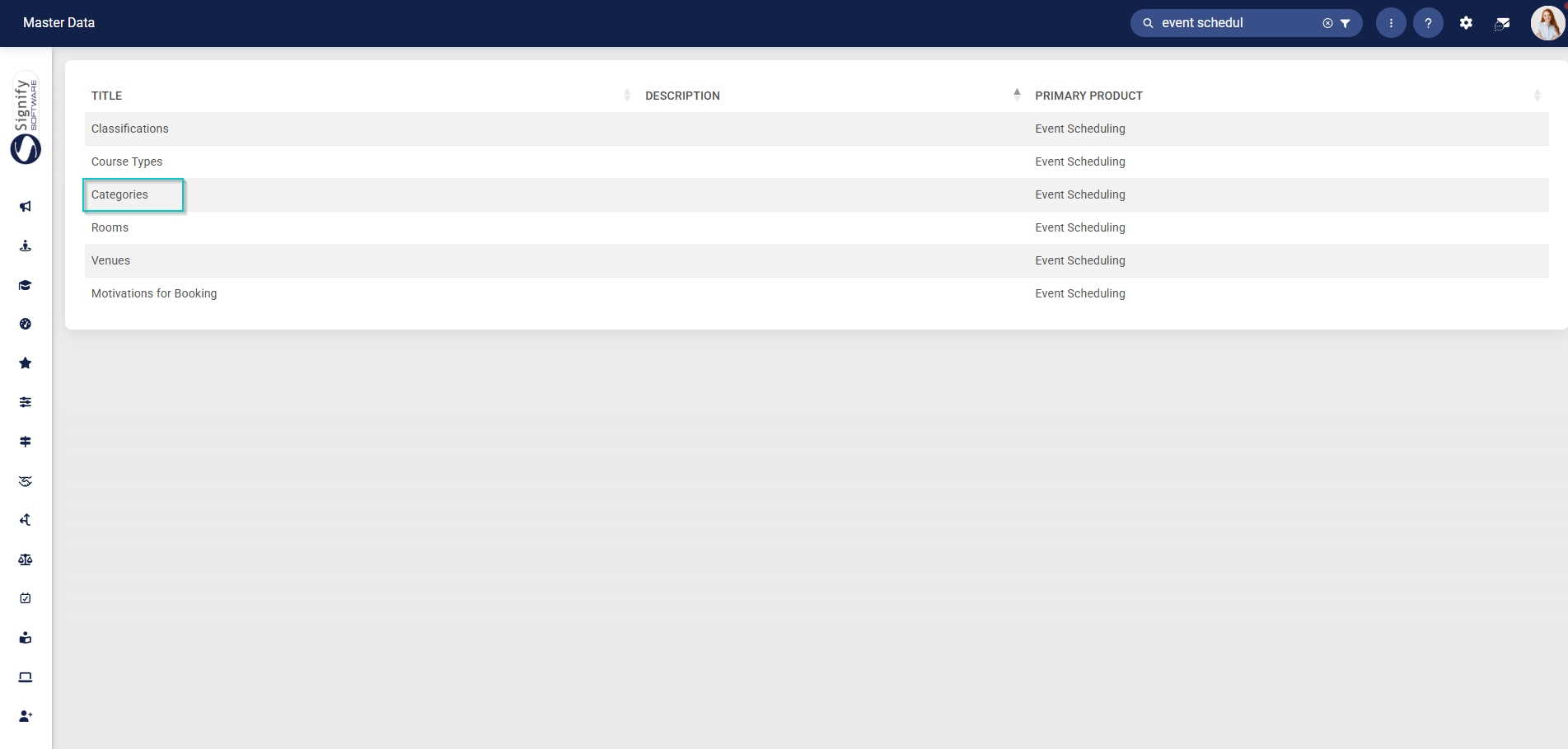
- Click on the **Categories** category to continue.
- To add a new master data item, click on **+ITEM**.

- Click the **toggle** **button** to set the category’s status to **Active**.
- Enter a name for the category.
- Click **SAVE** when you are finished, **SAVE ADD NEW** to add another master data item or click **CANCEL** to discard your edits.
- Click the **back arrow** to navigate back to the **Master Data Library** once you are finished.
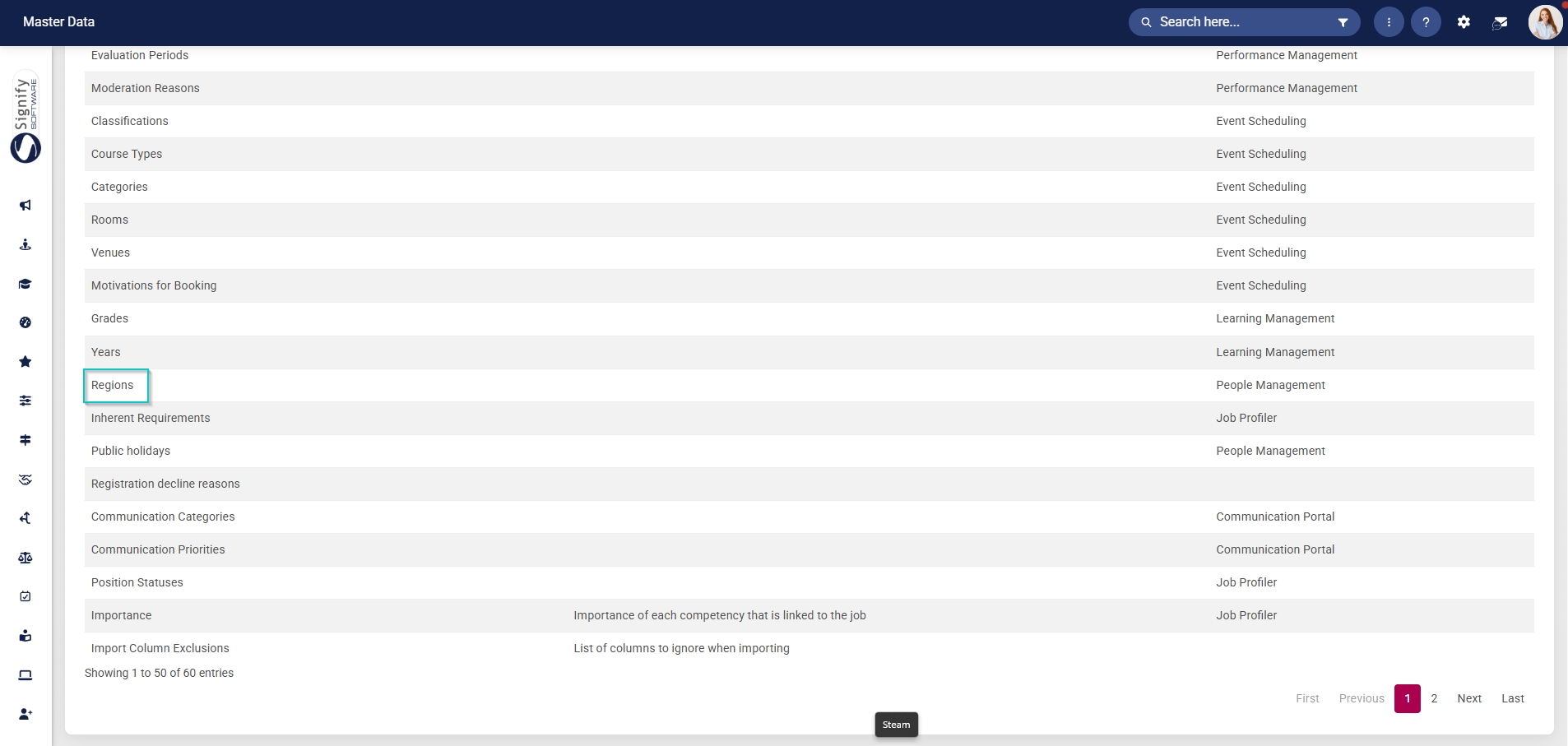
##### Regions
- Click on the **Regions** category to continue.
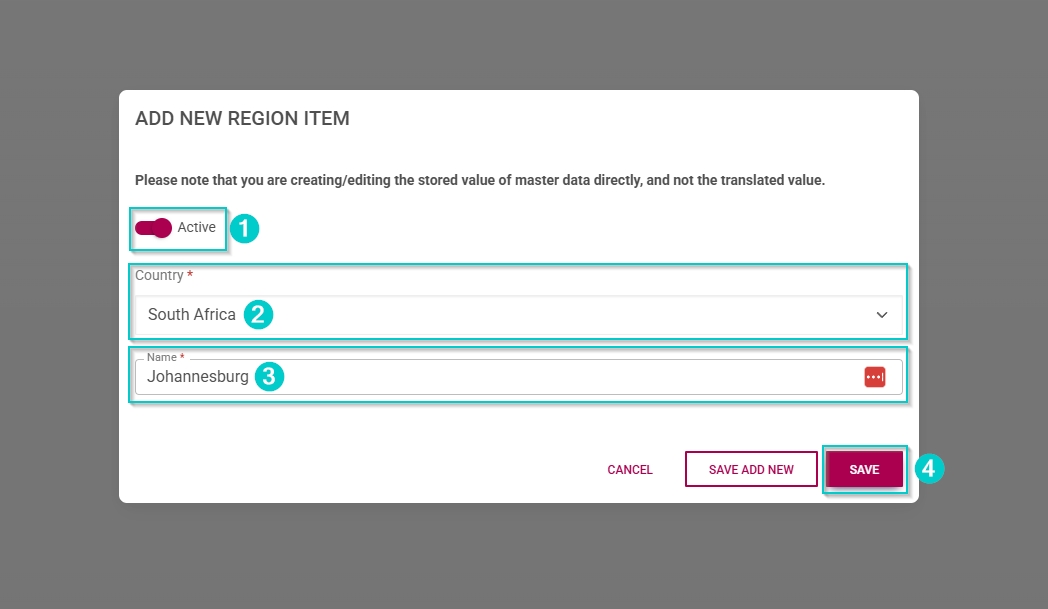
- To add a new master data item, click on **+ITEM**.

- Click the **toggle** **button** to set the region’s status to **Active**.
- Select the country from the **drop-down menu**.
- Enter a name for the region.
- Click **SAVE** when you are finished, **SAVE ADD NEW** to add another master data item or click **CANCEL** to discard your edits.
- Click the **back arrow** to navigate back to the **Master Data Library** once you are finished.

##### Venues
- Click on the **Venues** category to continue.
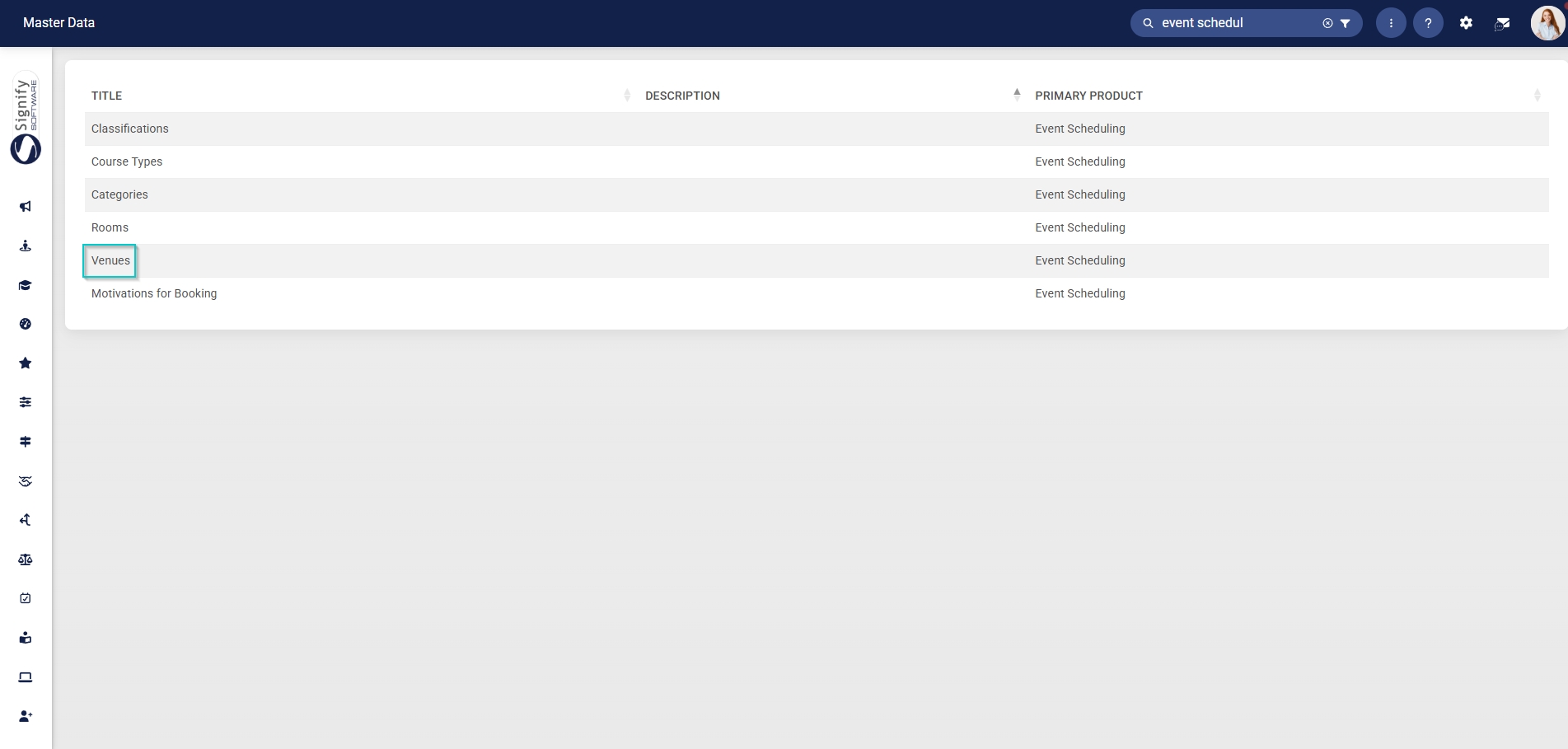
- To add a new master data item, click on **+ITEM**.

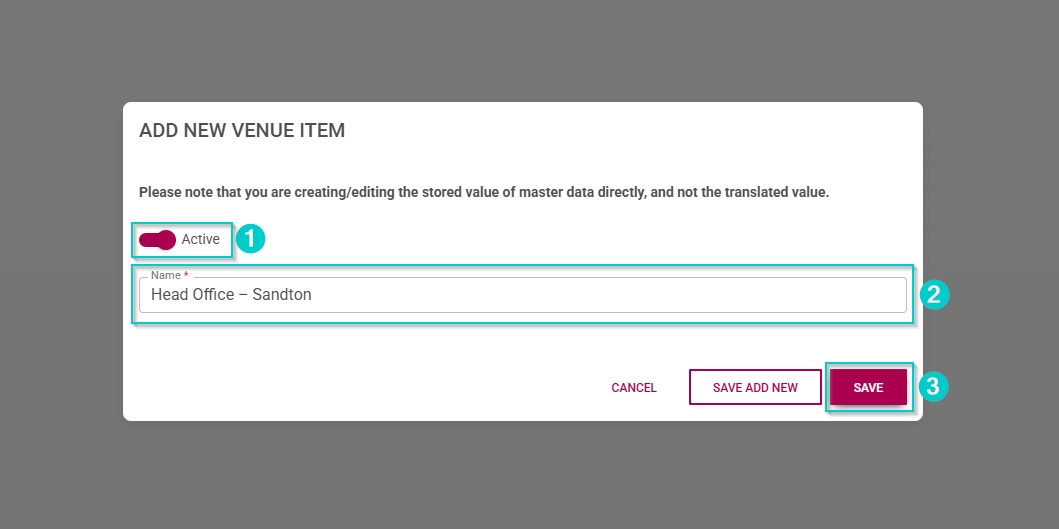
- Click the **toggle** **button** to set the venue’s status to **Active**.
- Enter a name for the venue.
- Click **SAVE** when you are finished, **SAVE ADD NEW** to add another master data item or click **CANCEL** to discard your edits.
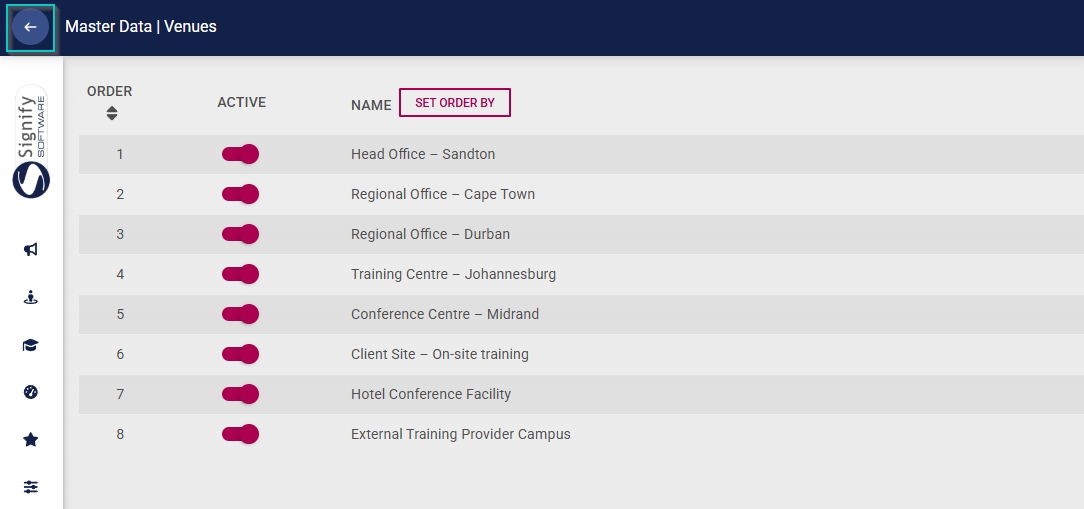
- Click the **back arrow** to navigate back to the **Master Data Library** once you are finished.
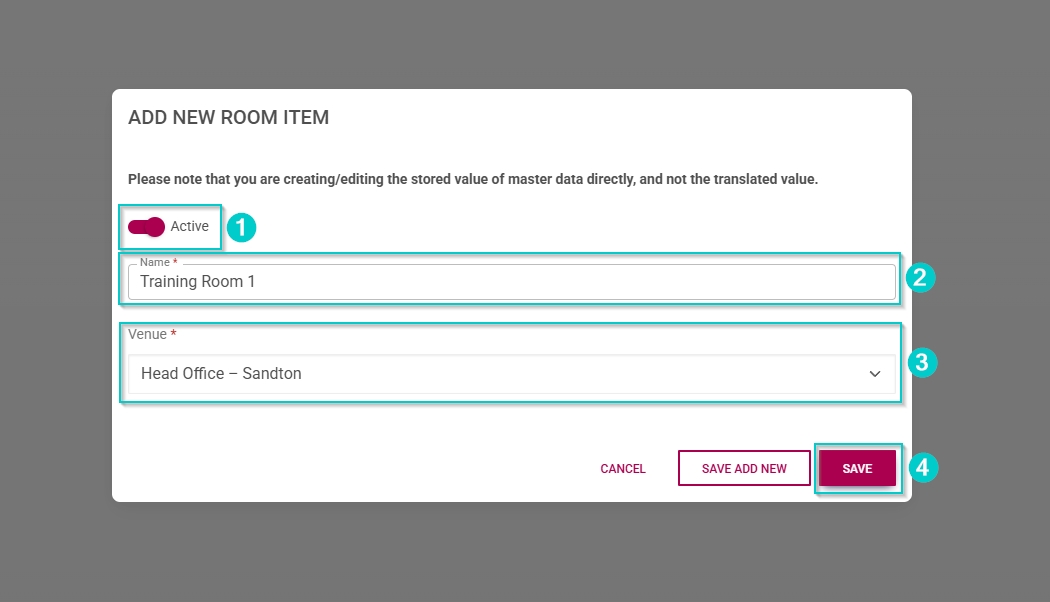
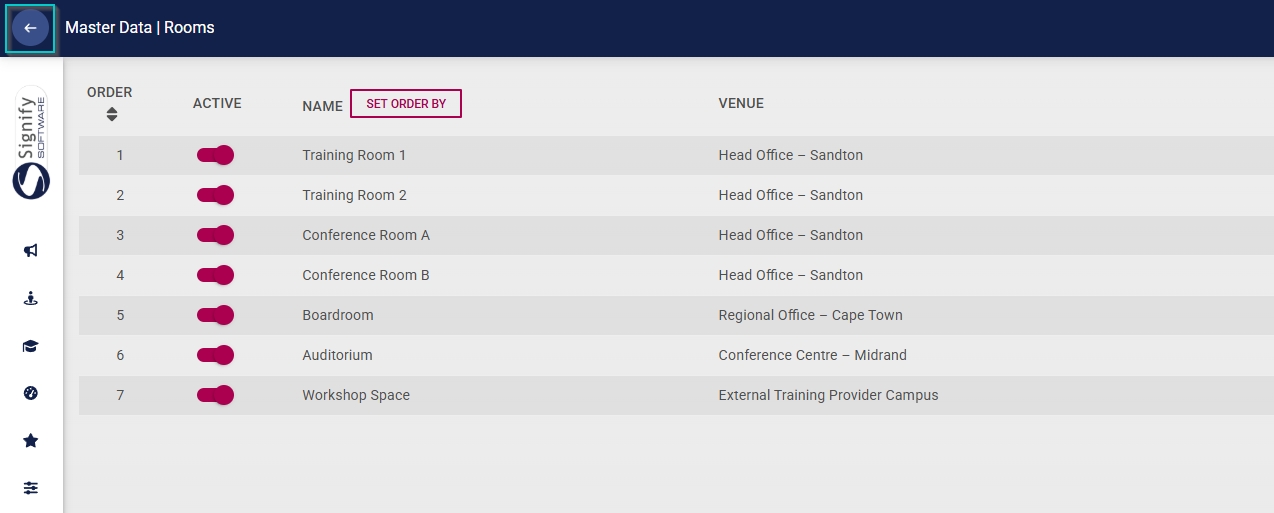
##### Rooms
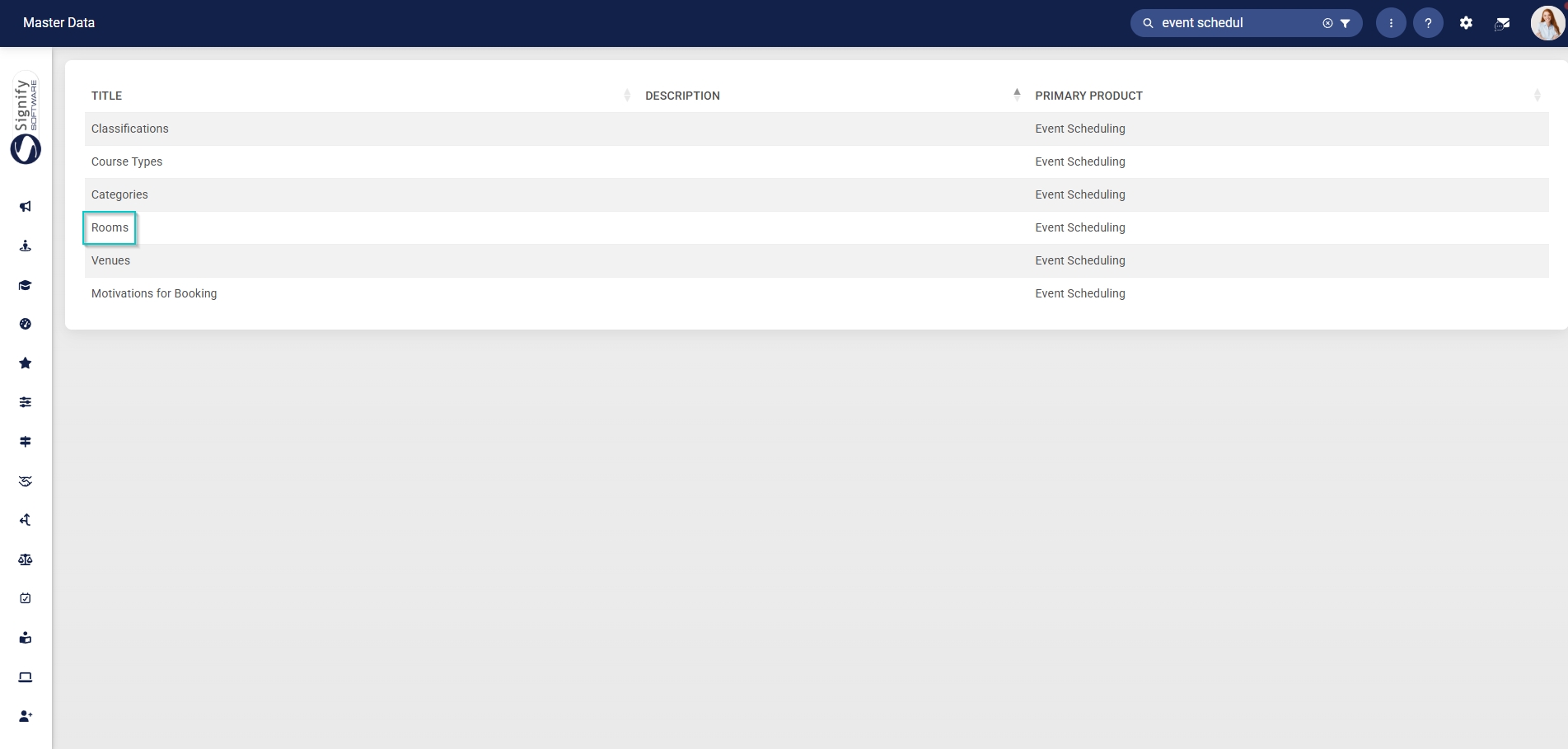
Rooms are linked to venues; therefore, you should first compile the **Venues** master data items before you can add rooms.
- Click on the **Rooms category to continue.
- To add a new master data item, click on **+ITEM**.

- Click the **toggle** **button** to set the room’s status to **Active**.
- Enter a name for the room.
- Select the venue from the **drop-down menu**.
- Click **SAVE** when you are finished, **SAVE ADD NEW** to add another master data item or click **CANCEL** to discard your edits.
- Click the **back arrow** to navigate back to the **Master Data Library** once you are finished.
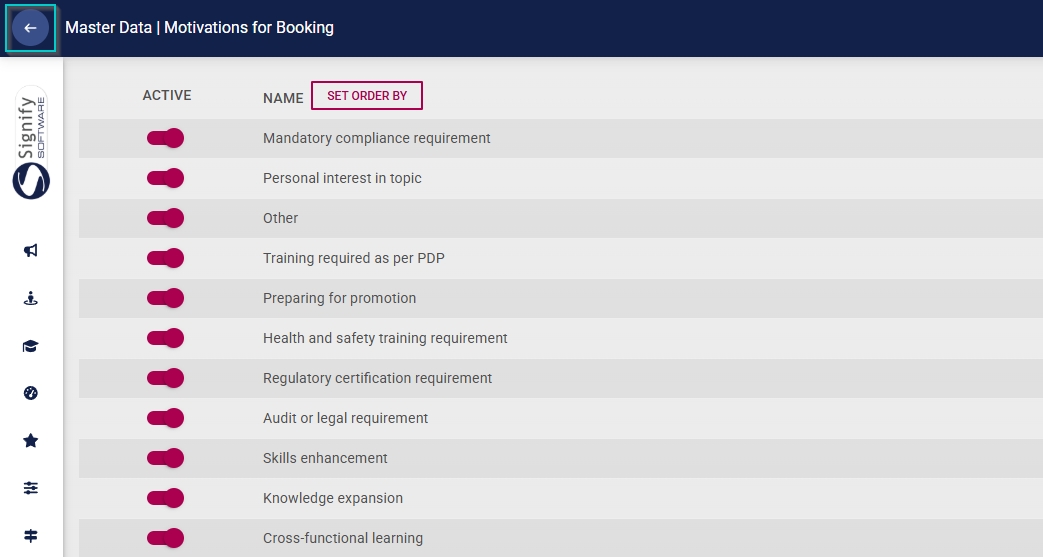
##### Motivations for Booking
- Click on the **Motivations for Booking** category to continue.
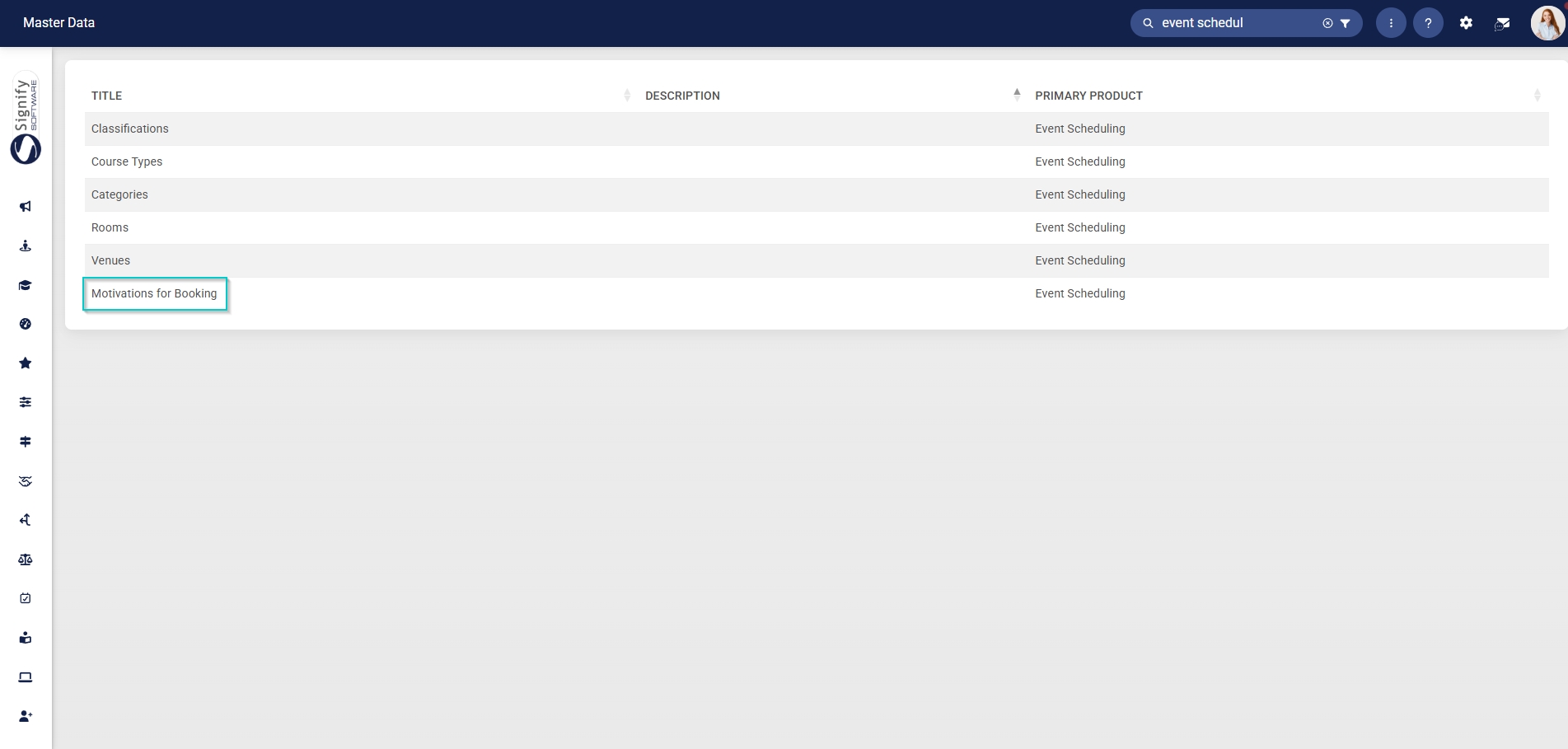
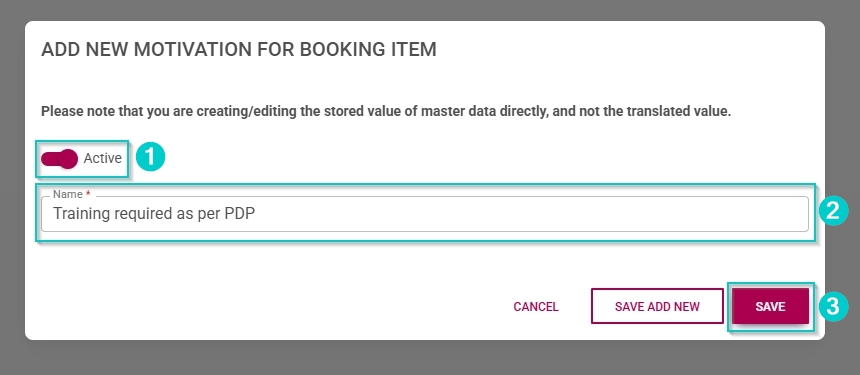
- To add a new master data item, click on **+ITEM**.

- Click the **toggle** **button** to set the item’s status to **Active**.
- Enter a name for the item.
- Click **SAVE** when you are finished, **SAVE ADD NEW** to add another master data item or click **CANCEL** to discard your edits.
- Click the **back arrow** to navigate back to the **Master Data Library** once you are finished.
#### Create people groups
A target audience, or a **People Group**, can be created to identify users based on specific criteria.
##### Create people groups for coordinators
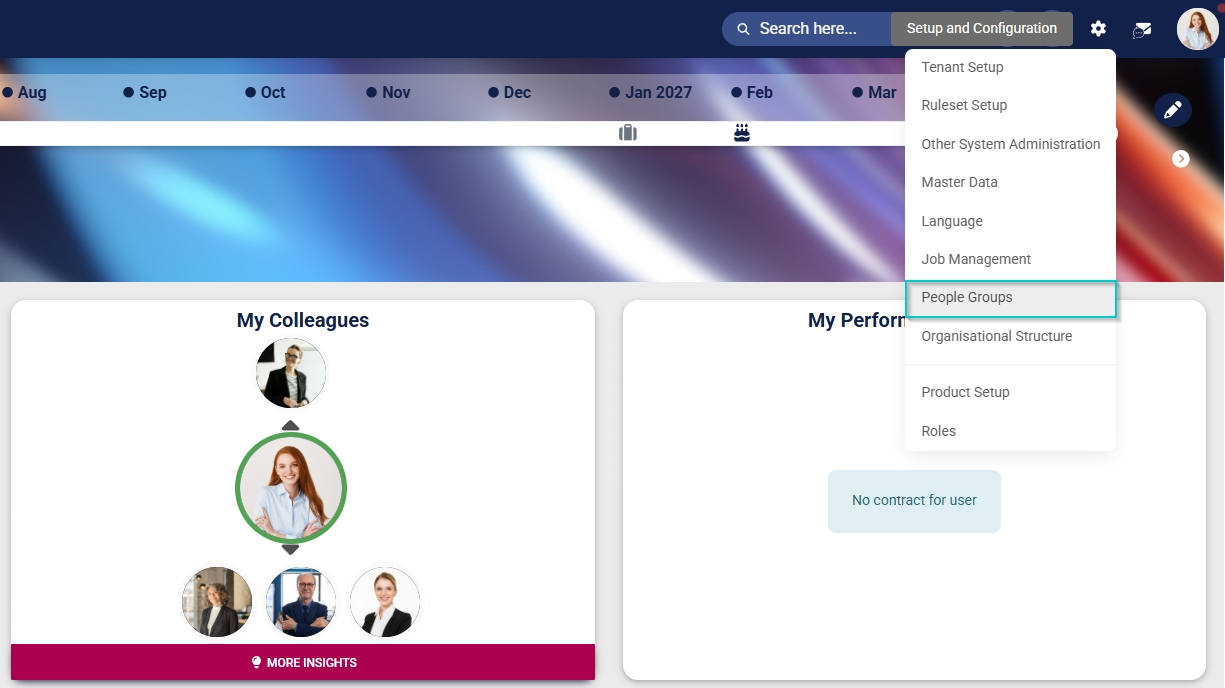
- Click the **gear icon** to access the **Setup and Configuration** menu.

- Click **People Groups**.
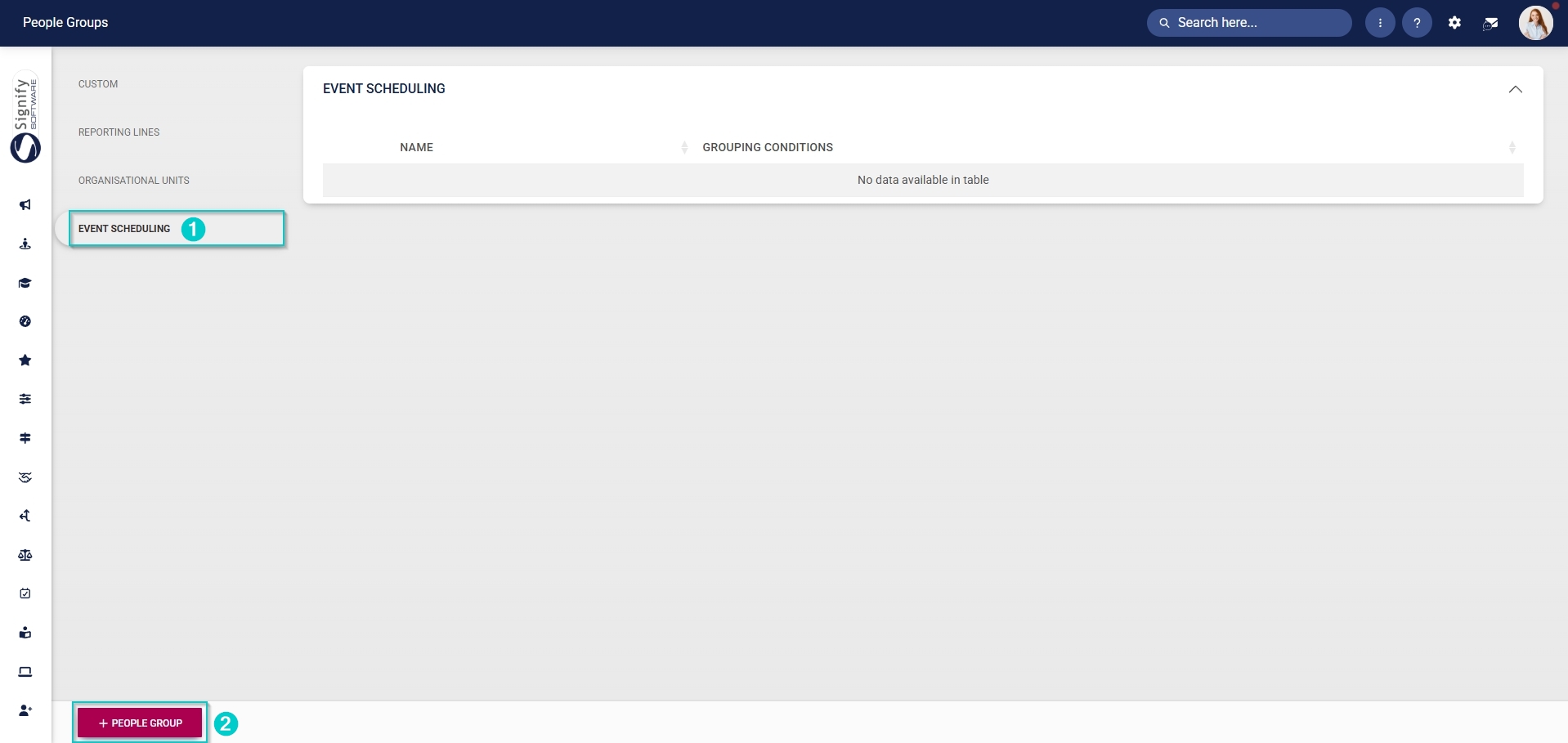
- In the **left-hand menu**, navigate to **Event Scheduling**, then click **+PEOPLE GROUP**.
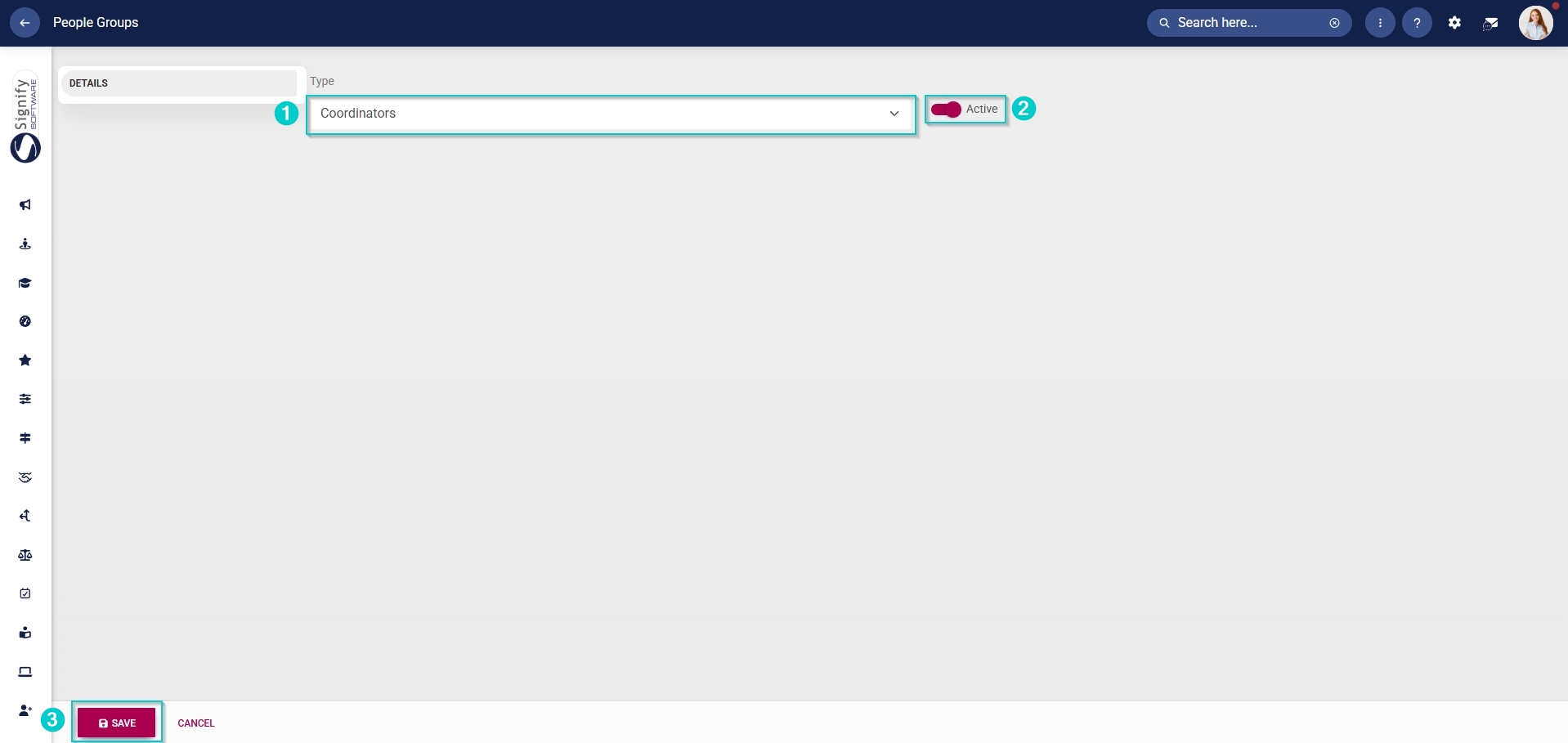
- From the **drop-down menu**, select **Coordinators**.
- Click the **toggle** **button** to set the status to **Active**.
- Click **SAVE** when you are finished or click **CANCEL** to discard your edits.
- Once the people group for coordinators has been created, you can select the people to add to it. In the **left-hand menu**, click to navigate to the **Included section.
- - Click **People** to add individuals, then click **PEOPLE**.
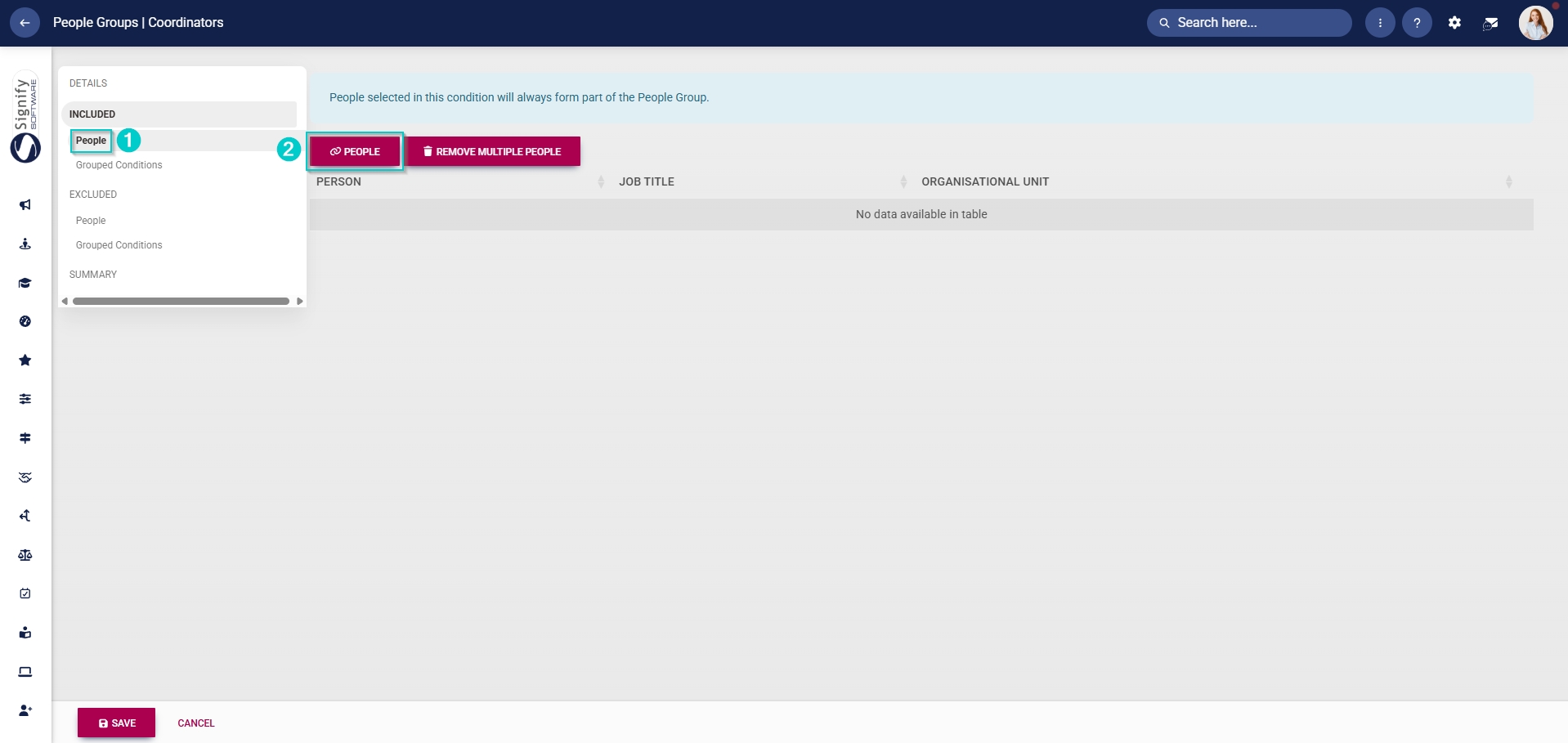
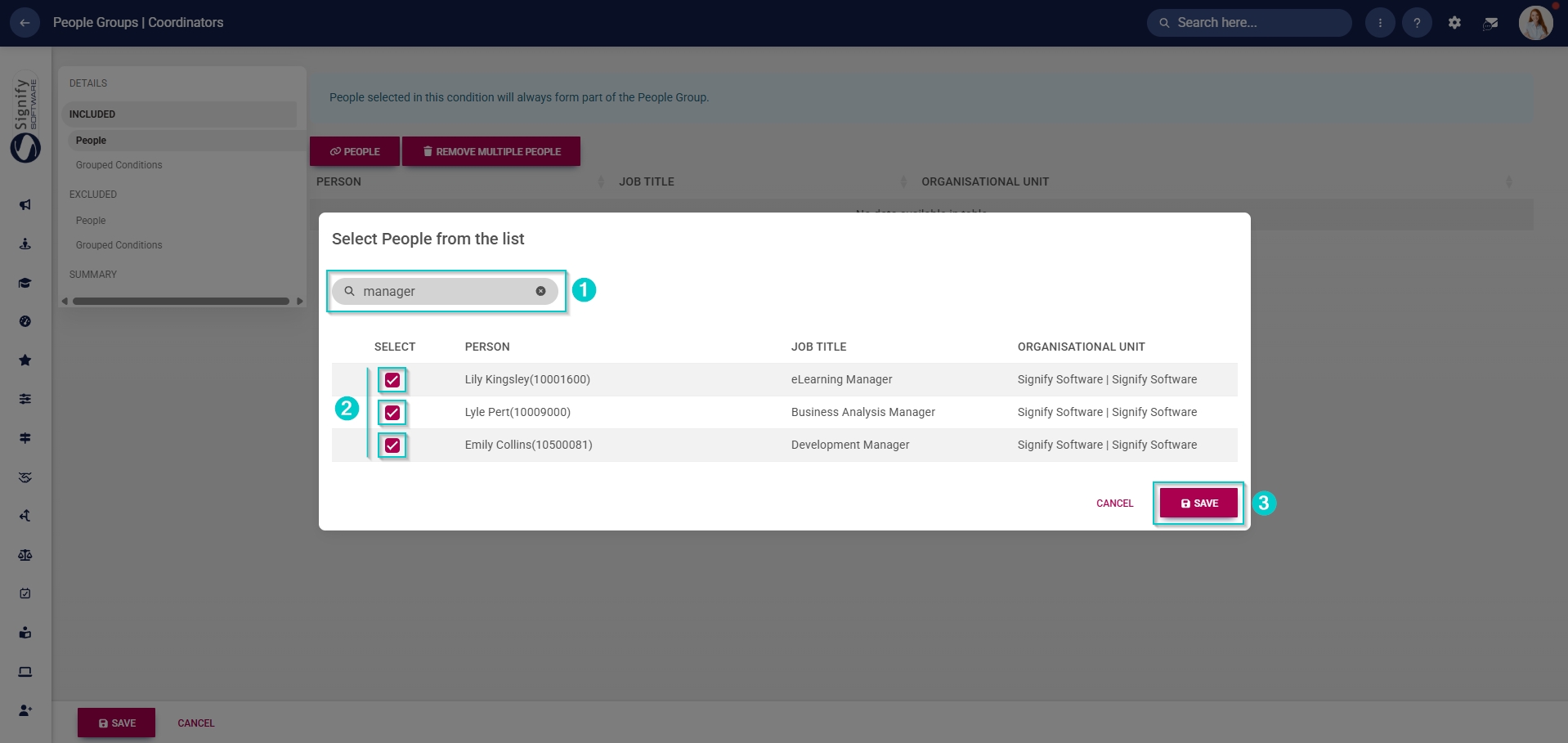
- - - Use the **search bar** to search for a specific person, job title, or organisational unit.
- Select the individuals from the list by ticking the **checkbox** next to a person’s name.
- Click **SAVE** when you are finished or click **CANCEL** to discard your edits.
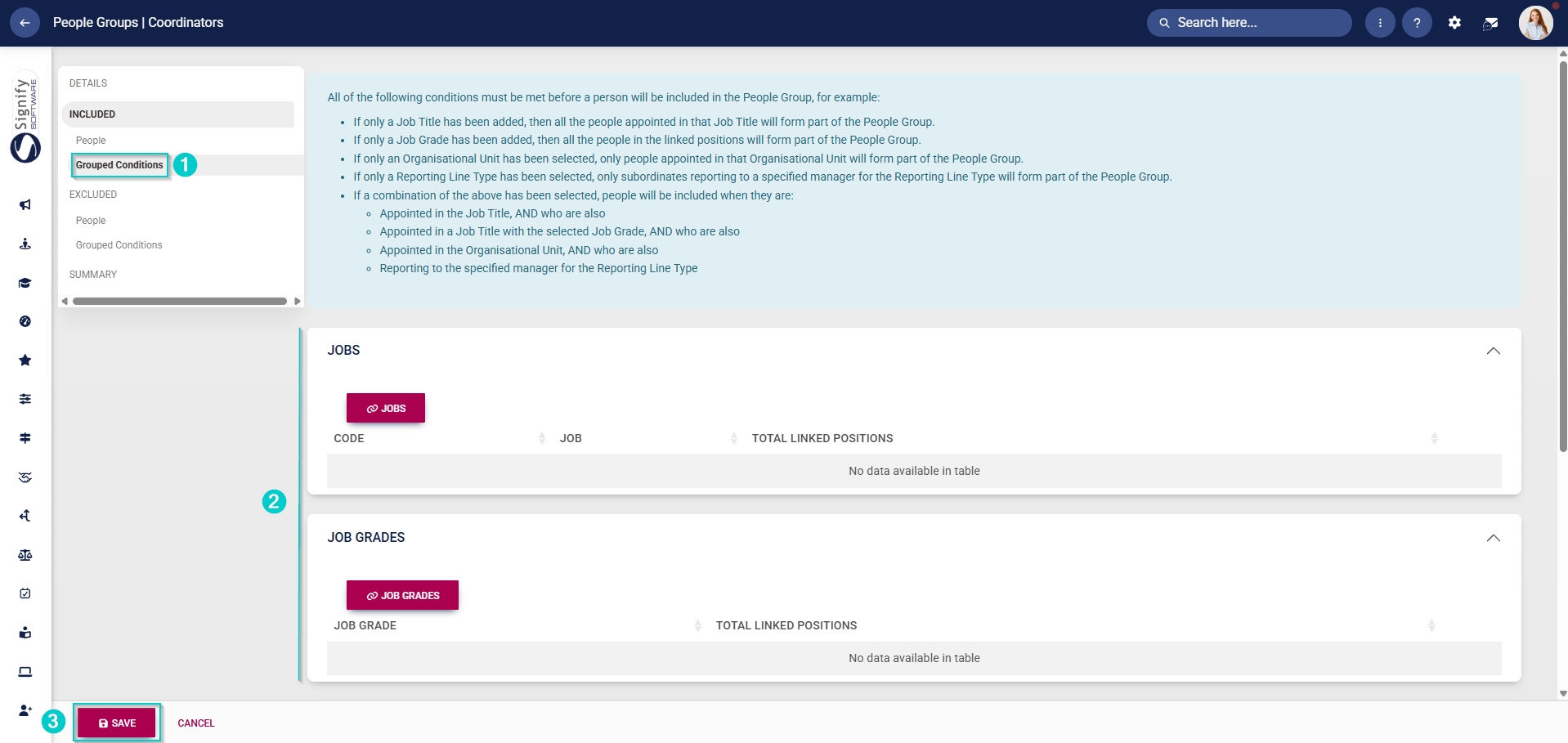
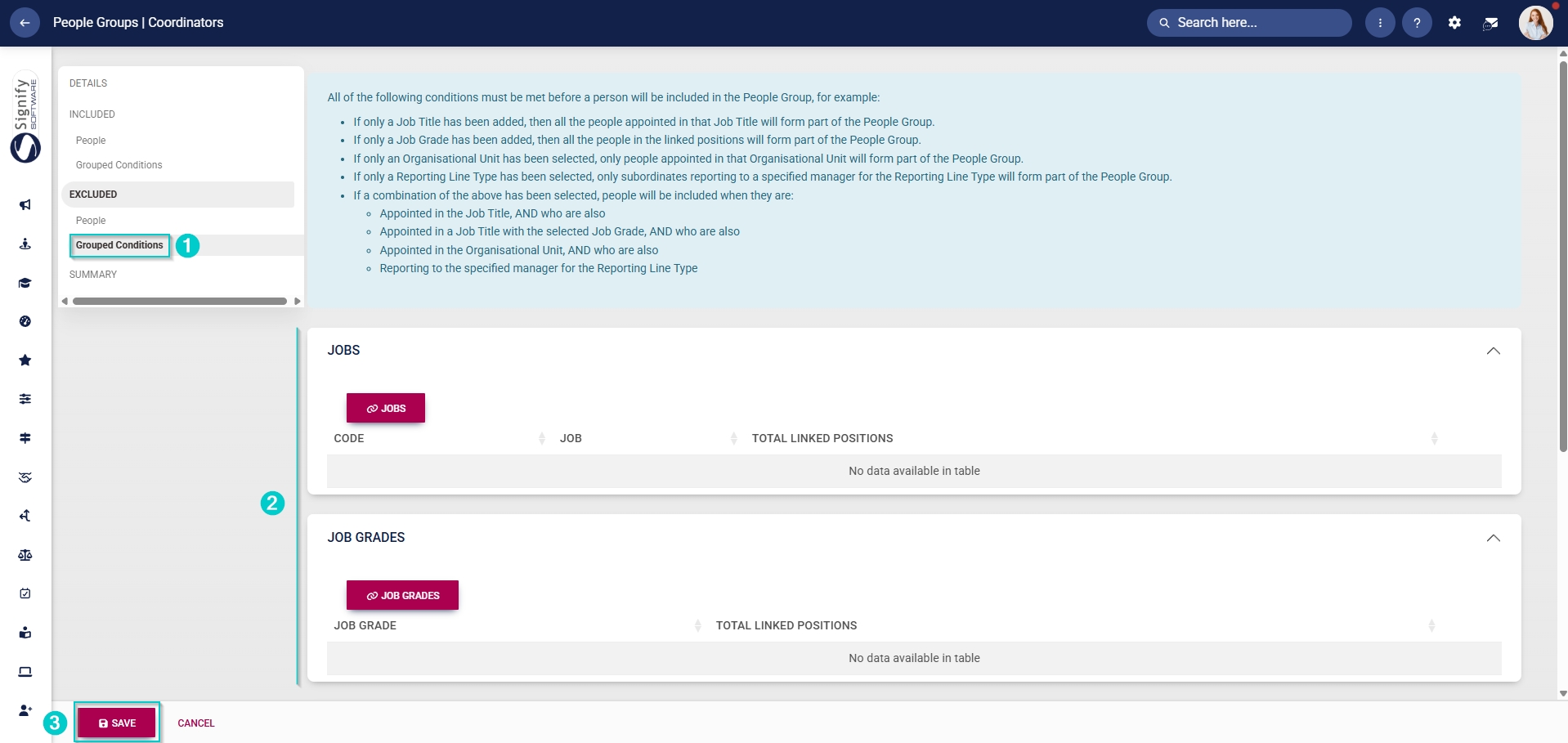
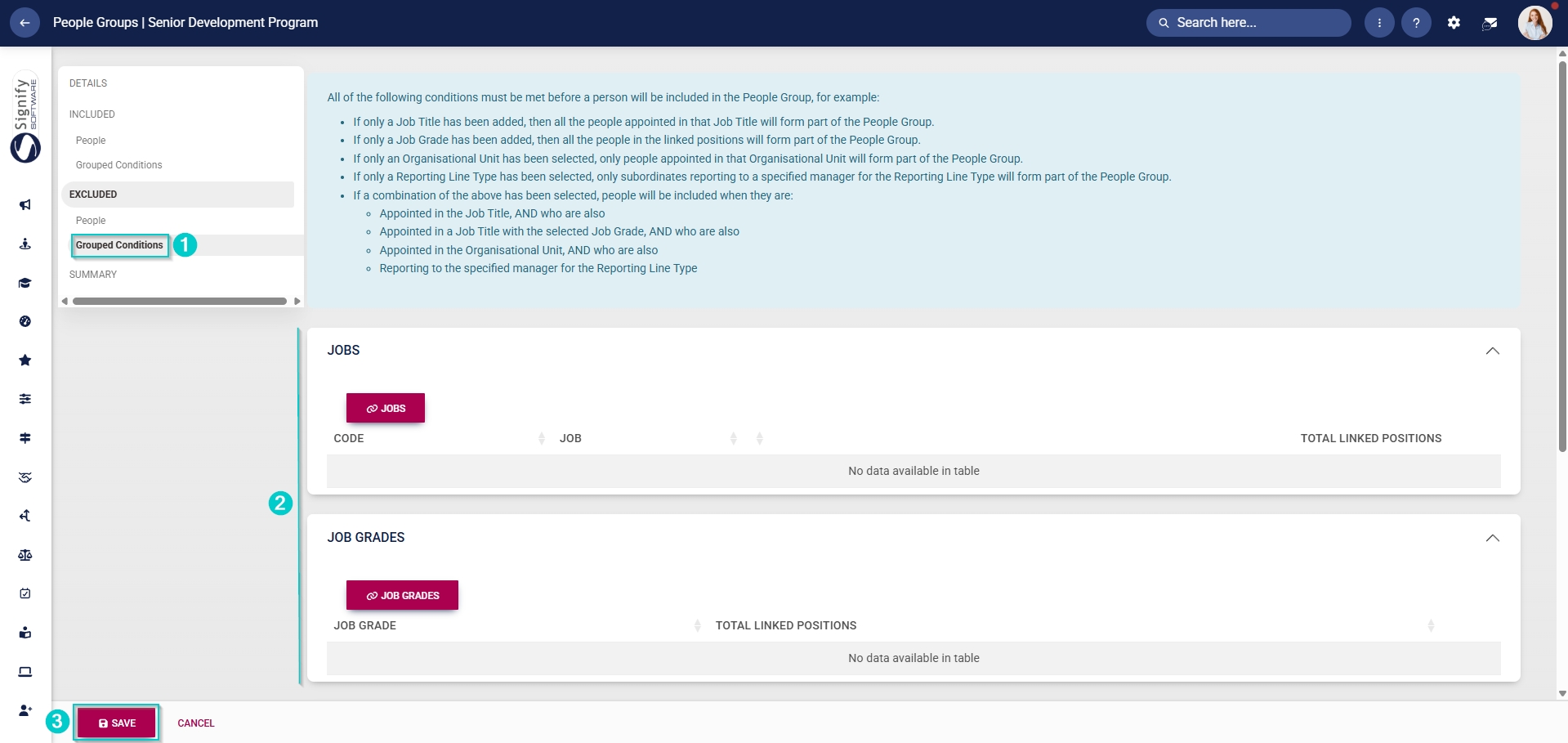
- - - Alternatively, click **Grouped Conditions** to add groups of people based on criteria such as job titles, organisational nodes, etc.
- Click **SAVE** when you are finished or click **CANCEL** to discard your edits.
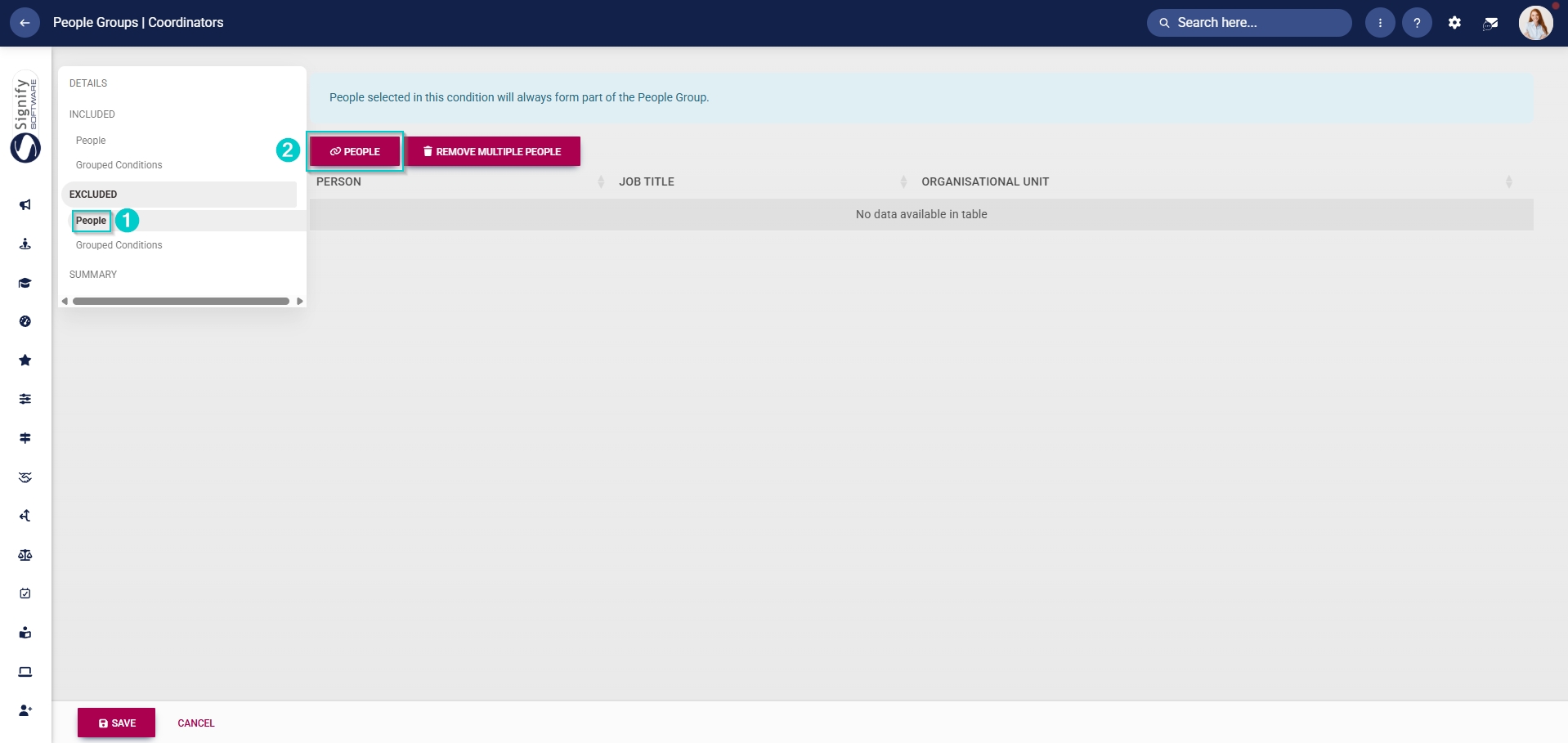
- Additionally, you can select the people to exclude from this group. In the **left-hand menu**, click to navigate to the **Excluded** section.
- - Click **People** to exclude individuals, then click **PEOPLE**.
- Select the people you would like to exclude.
- Click **SAVE** when you are finished or click **CANCEL** to discard your edits.
- - - Click **Grouped Conditions** to exclude groups of people based on criteria such as job titles, organisational nodes, etc.
- Click **SAVE** when you are finished or click **CANCEL** to discard your edits.
##### Create people groups for facilitators
- Click the **gear icon** to access the **Setup and Configuration** menu.

- Click **People Groups**.

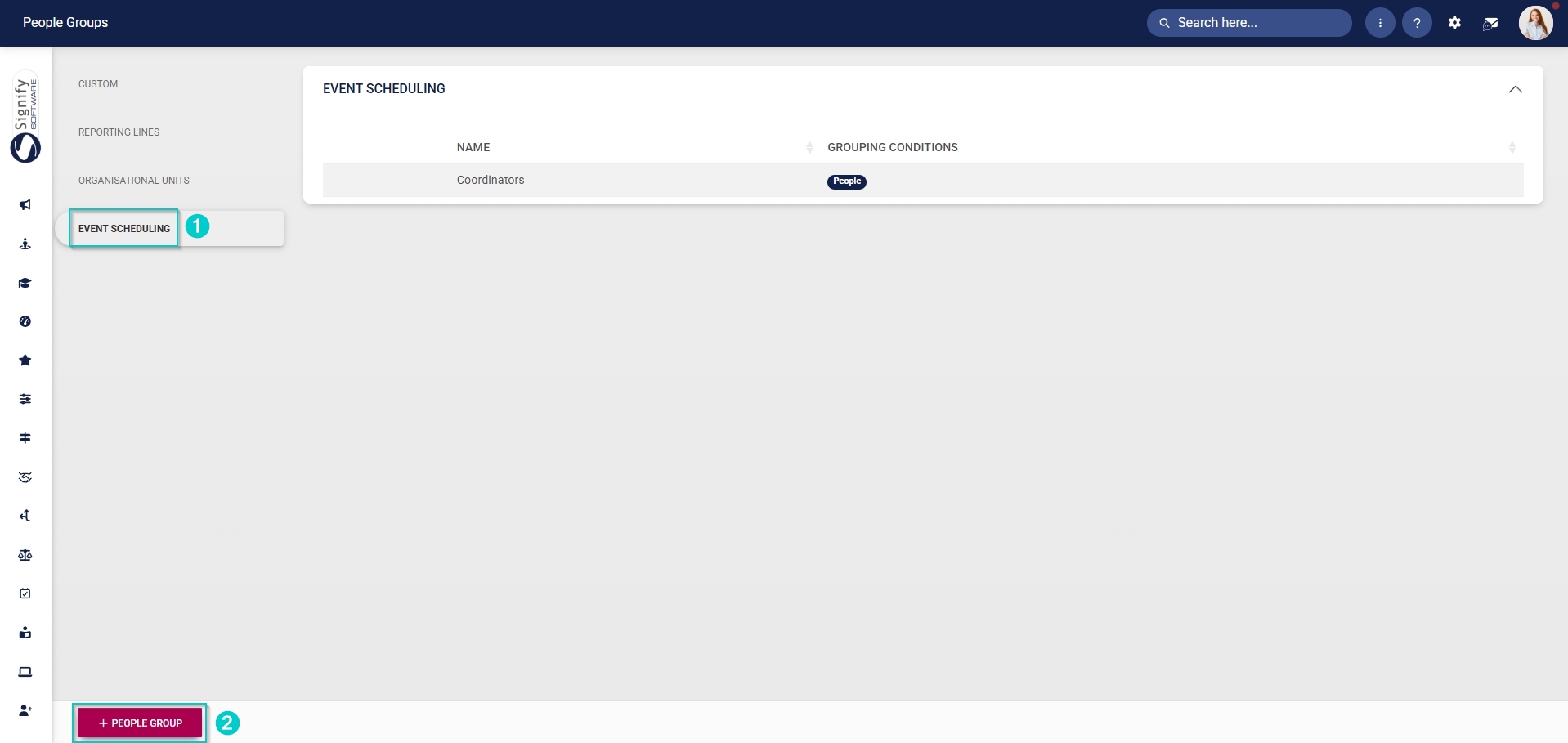
- In the **left-hand menu**, navigate to **Event Scheduling**, then click **+PEOPLE GROUP**.
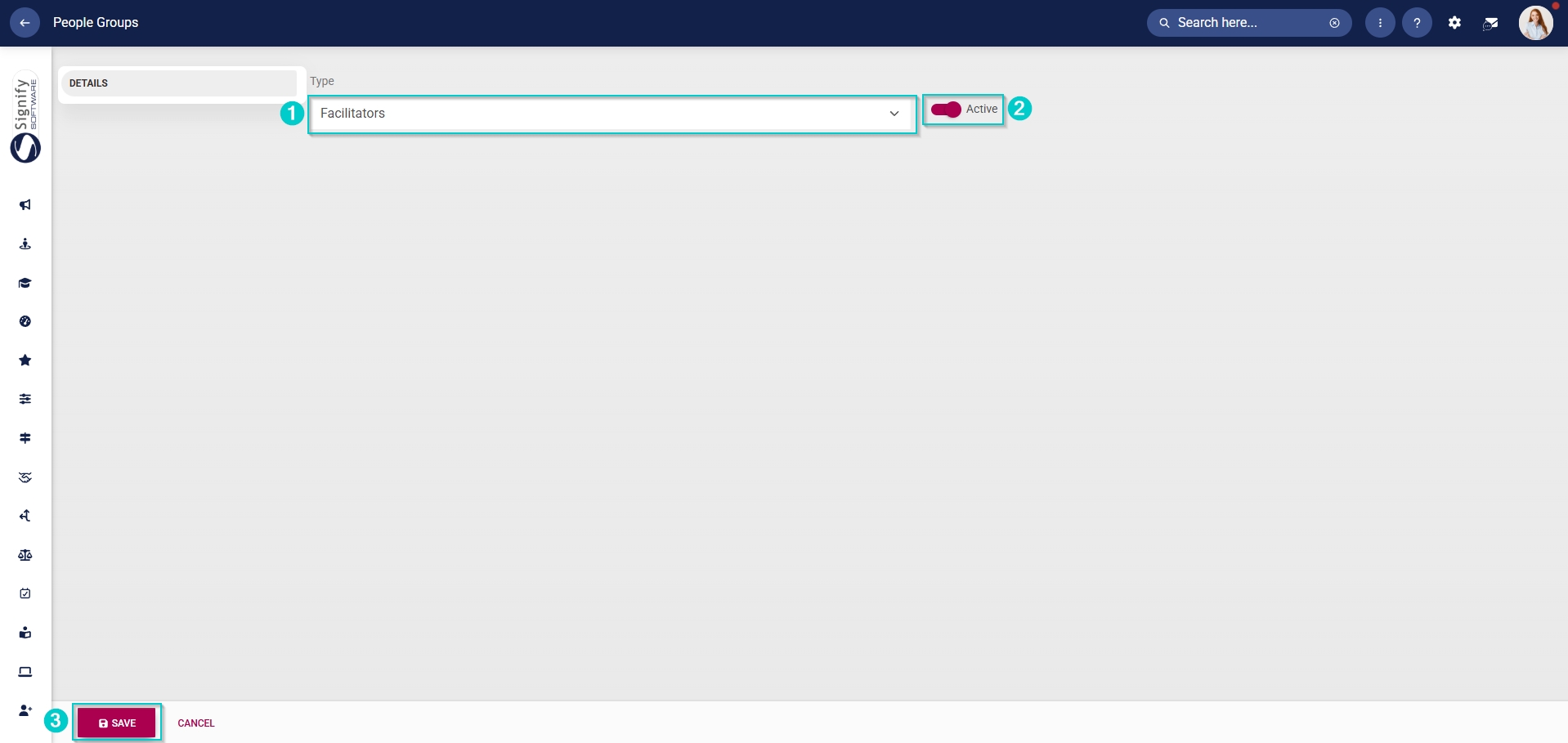
- From the **drop-down menu**, select **Facilitators**.
- Click the **toggle** **button** to set the status to **Active**.
- Click **SAVE** when you are finished or click **CANCEL** to discard your edits.
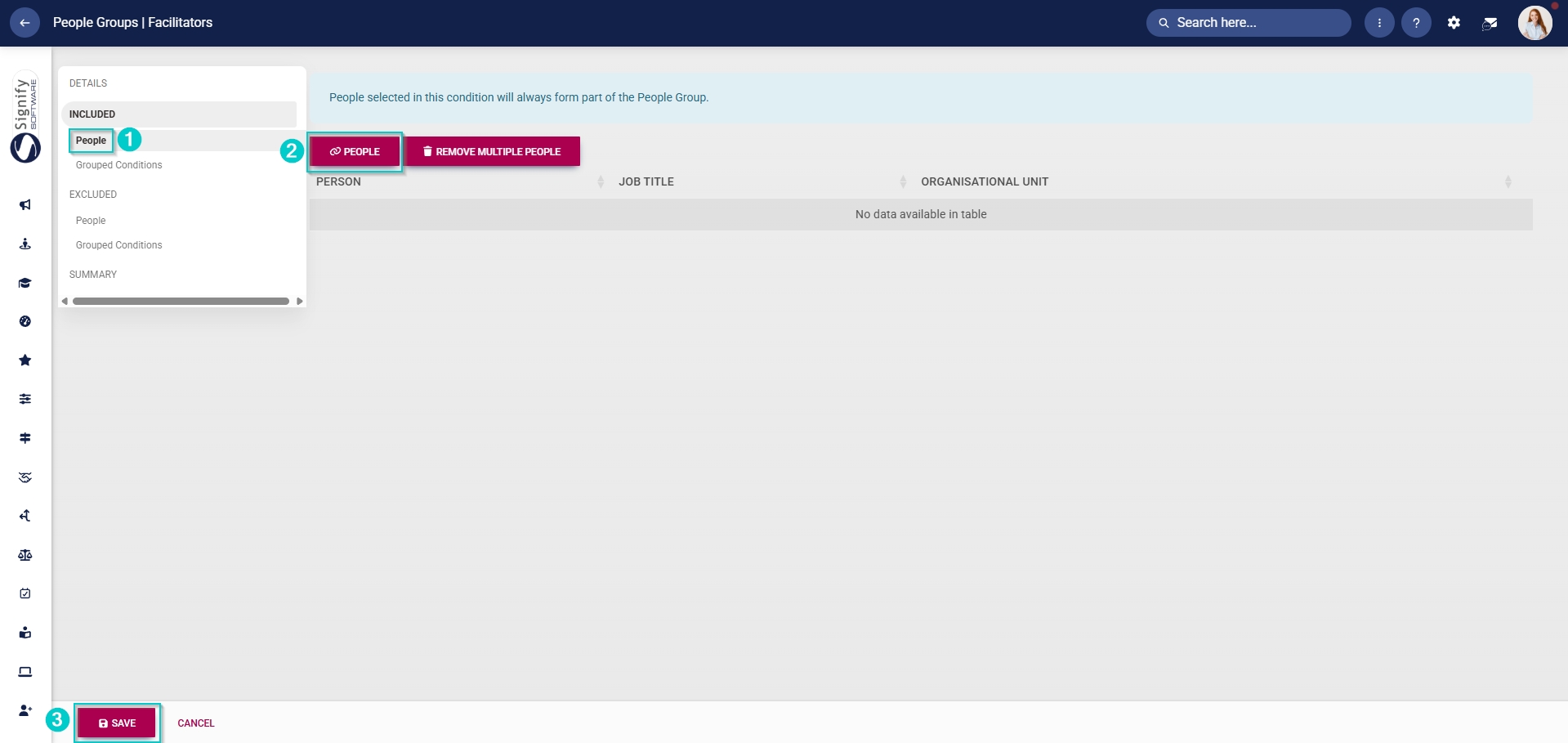
- Once the people group for facilitators has been created, you can select the people to add to it. In the **left-hand menu**, click to navigate to the **Included** section.
- - Click **People** to include individuals, then click **PEOPLE**.
- Select the people you would like to include.
- Click **SAVE** when you are finished or click **CANCEL** to discard your edits.
- - - Alternatively, click **Grouped Conditions** to add groups of people based on criteria such as job titles, organisational nodes, etc.
- Click **SAVE** when you are finished or click **CANCEL** to discard your edits.
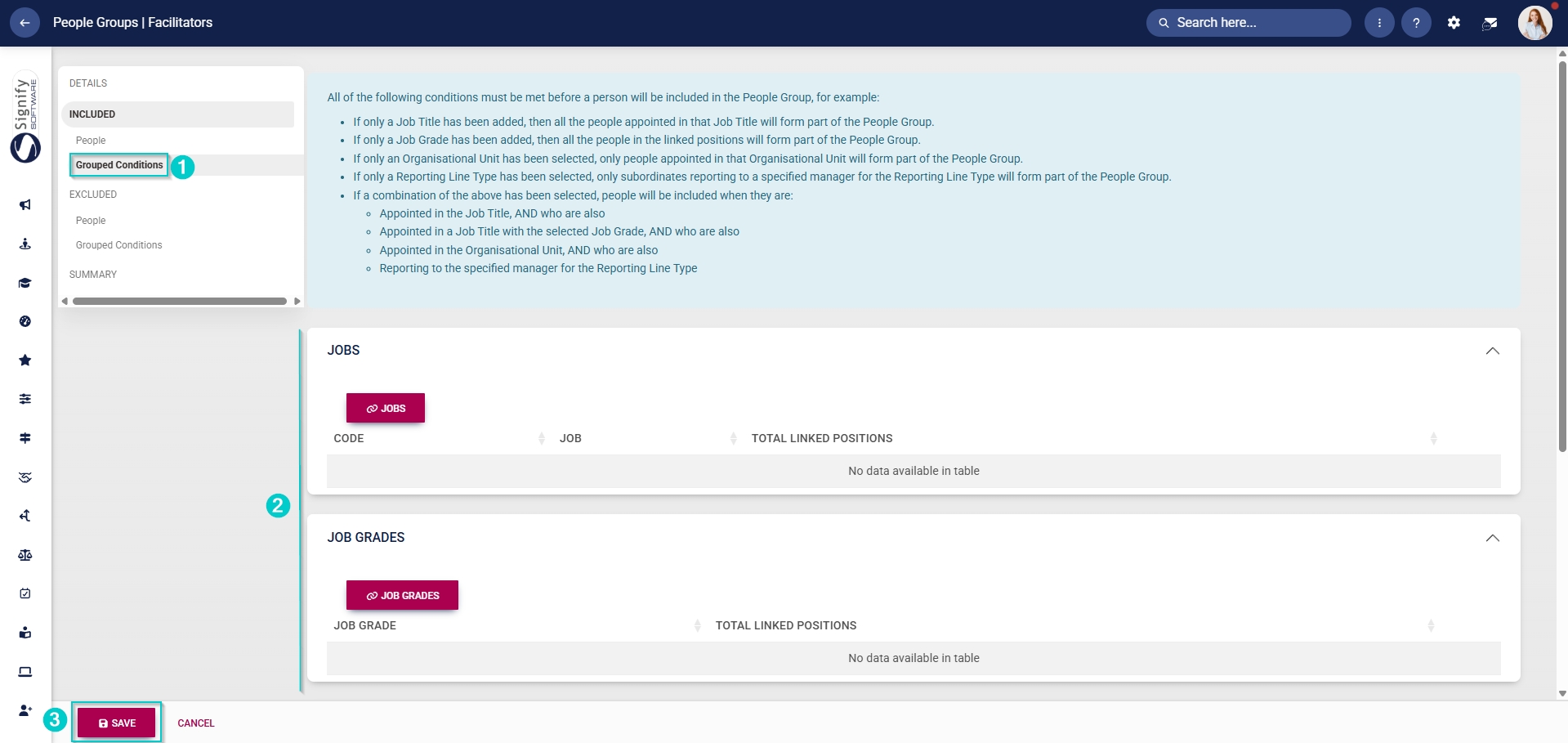
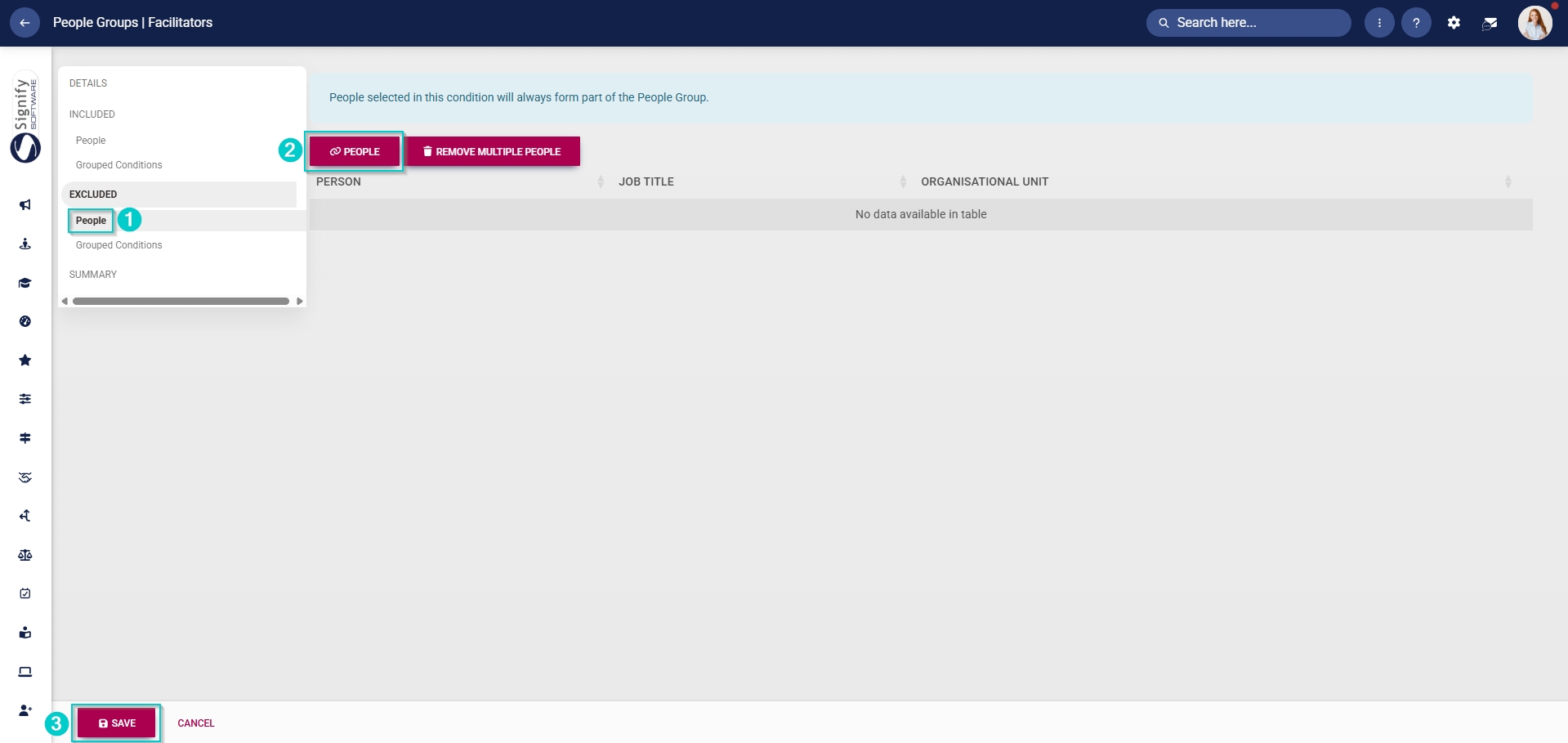
- Alternatively, you can select the people to exclude from this group. In the **left-hand menu**, click to navigate to the **Excluded** section.
- - Click **People** to exclude individuals, then click **PEOPLE**.
- Select the people you would like to exclude.
- Click **SAVE** when you are finished or click **CANCEL** to discard your edits.
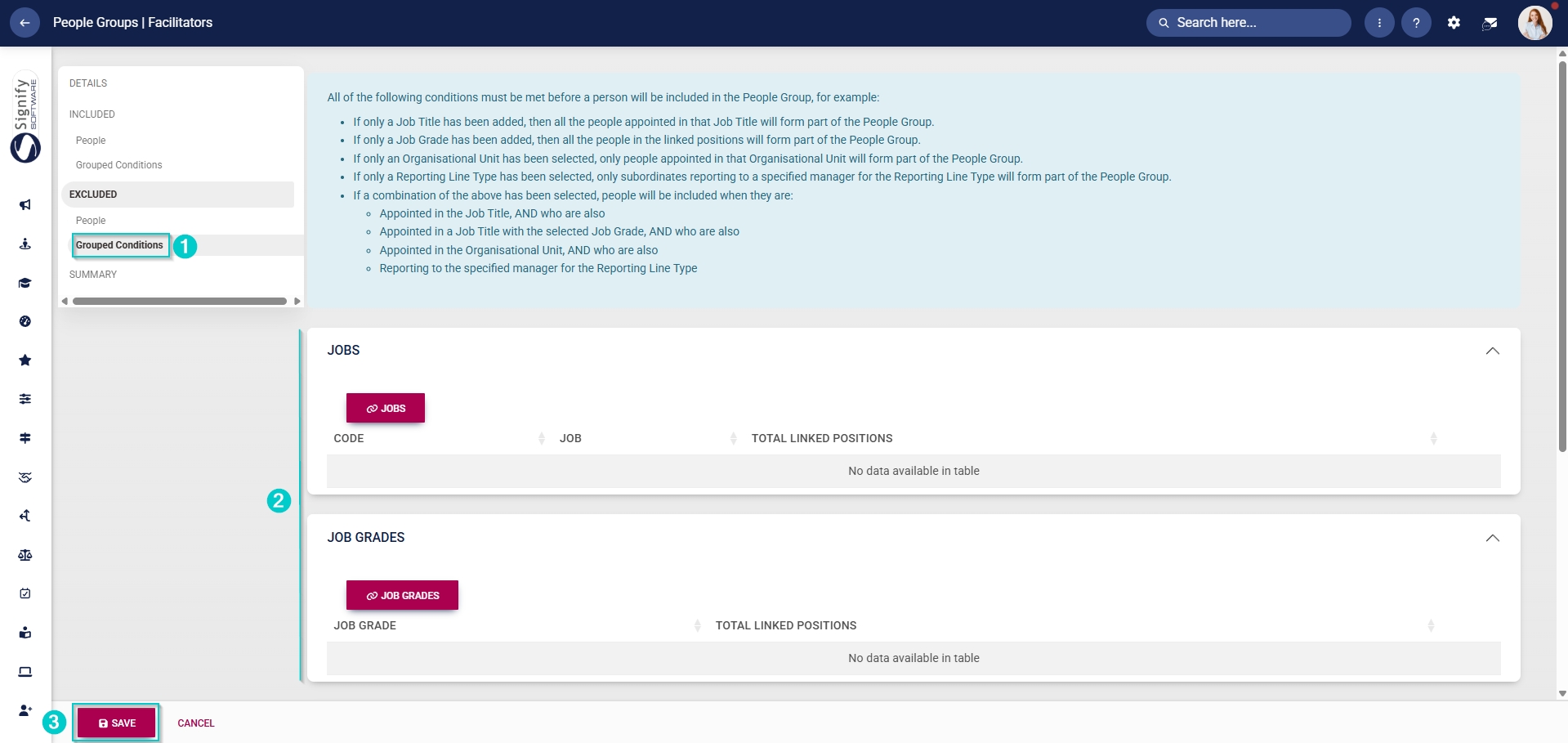
- - - Click **Grouped Conditions** to exclude groups of people based on criteria such as job titles, organisational nodes, etc.
- Click **SAVE** when you are finished or click **CANCEL** to discard your edits.
##### Create custom people groups for attendees
- Click the **gear icon** to access the **Setup and Configuration** menu.

- Click **People Groups**.

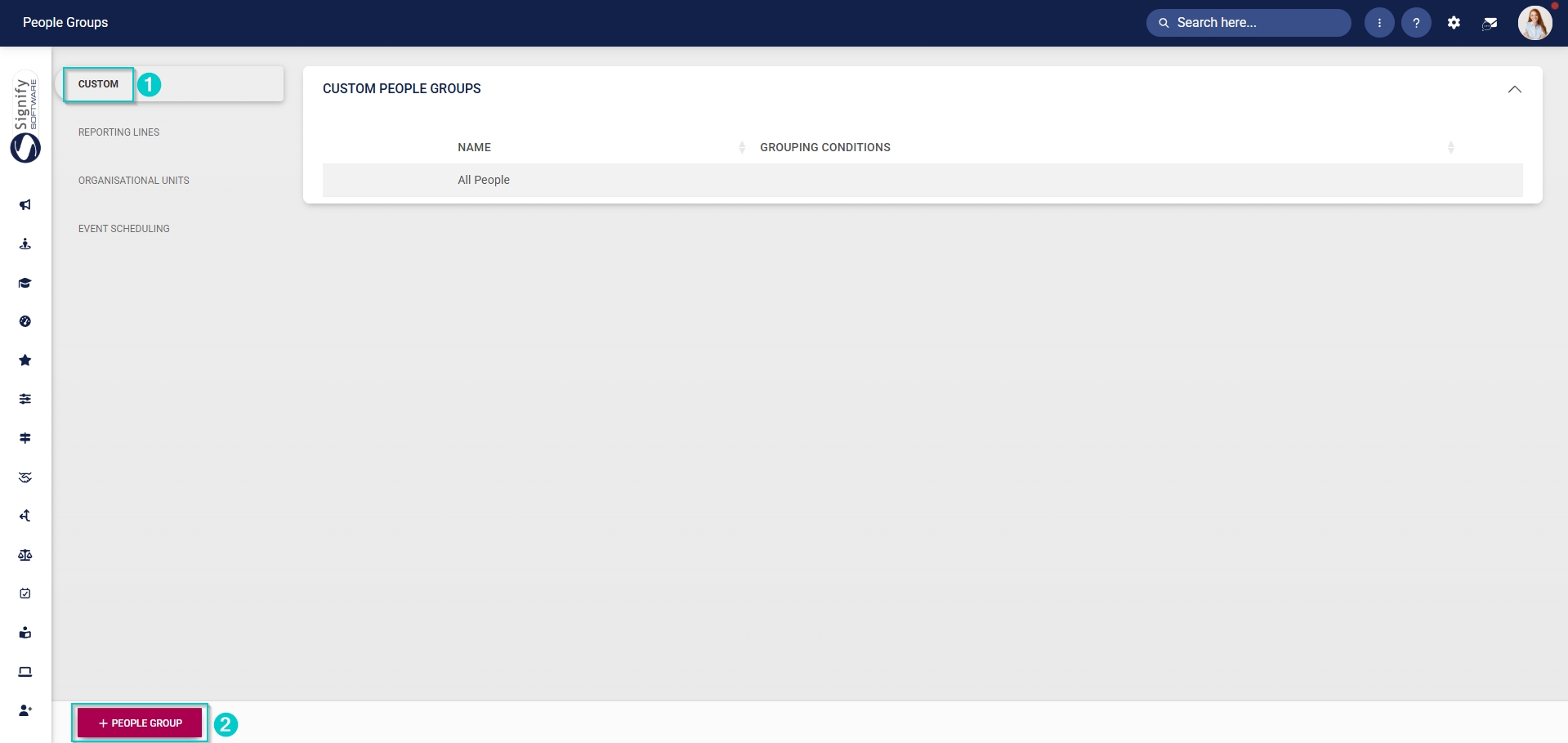
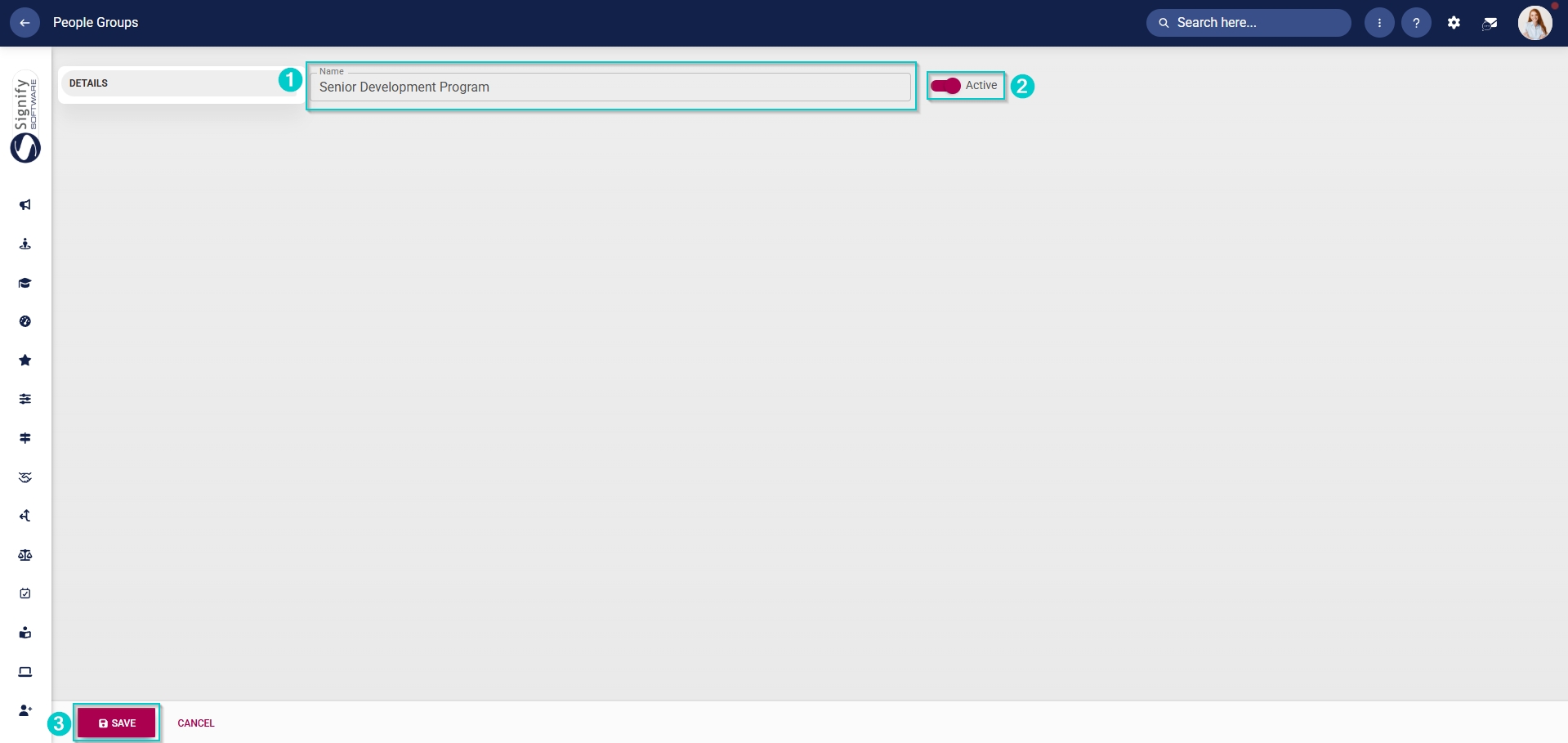
- In the **left-hand menu**, navigate to **Custom**, then click **+PEOPLE GROUP**.
- Enter a descriptive name for the group of attendees.
- Click the **toggle** **button** to set the status to **Active**.
- Click **SAVE** when you are finished or click **CANCEL** to discard your edits.
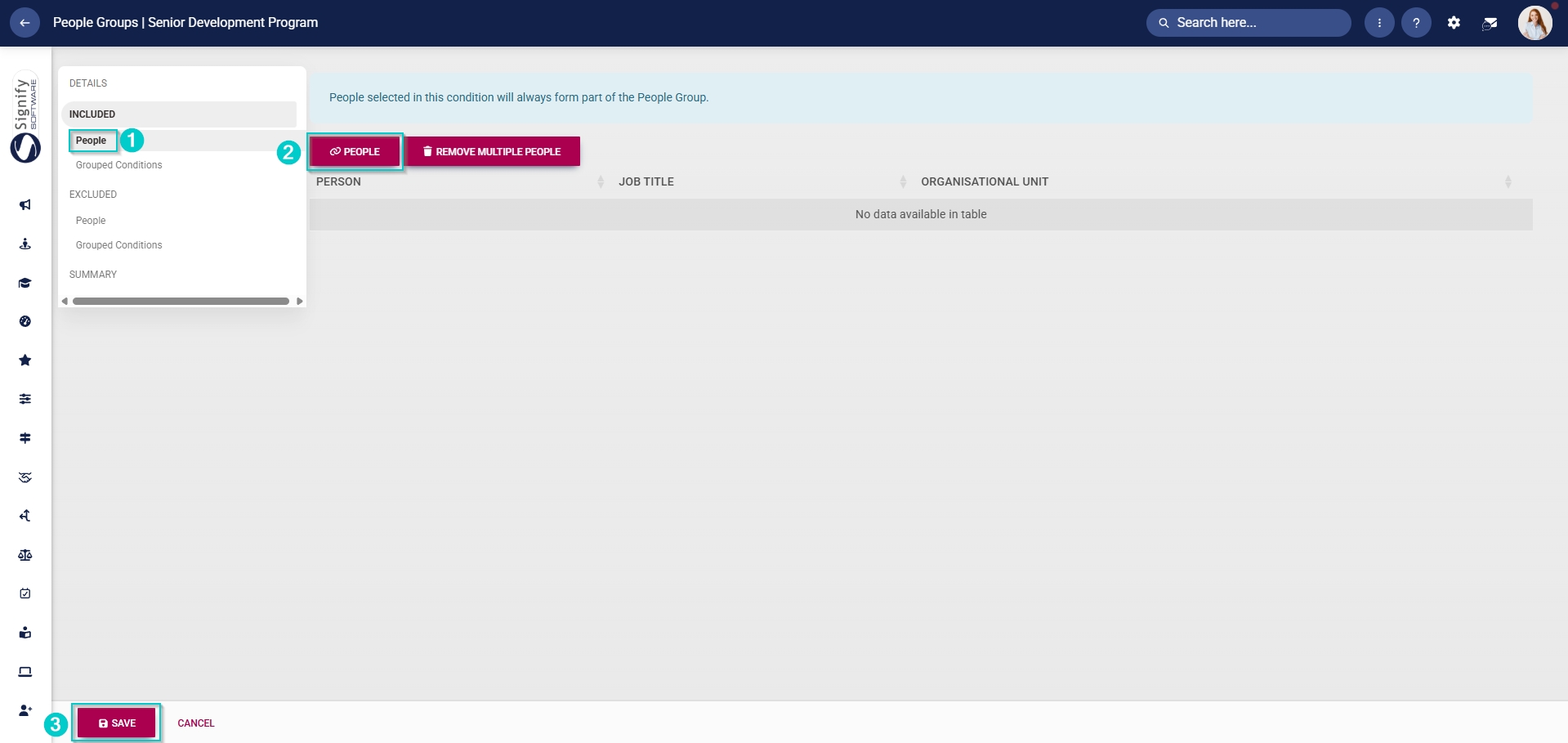
- Once the people group for attendees has been created, you can select the people to add to it. In the **left-hand menu**, click to navigate to the **Included section.
- - Click **People** to add individuals, then click **PEOPLE**.
- Select the people you would like to add.
- Click **SAVE** when you are finished or click **CANCEL** to discard your edits.
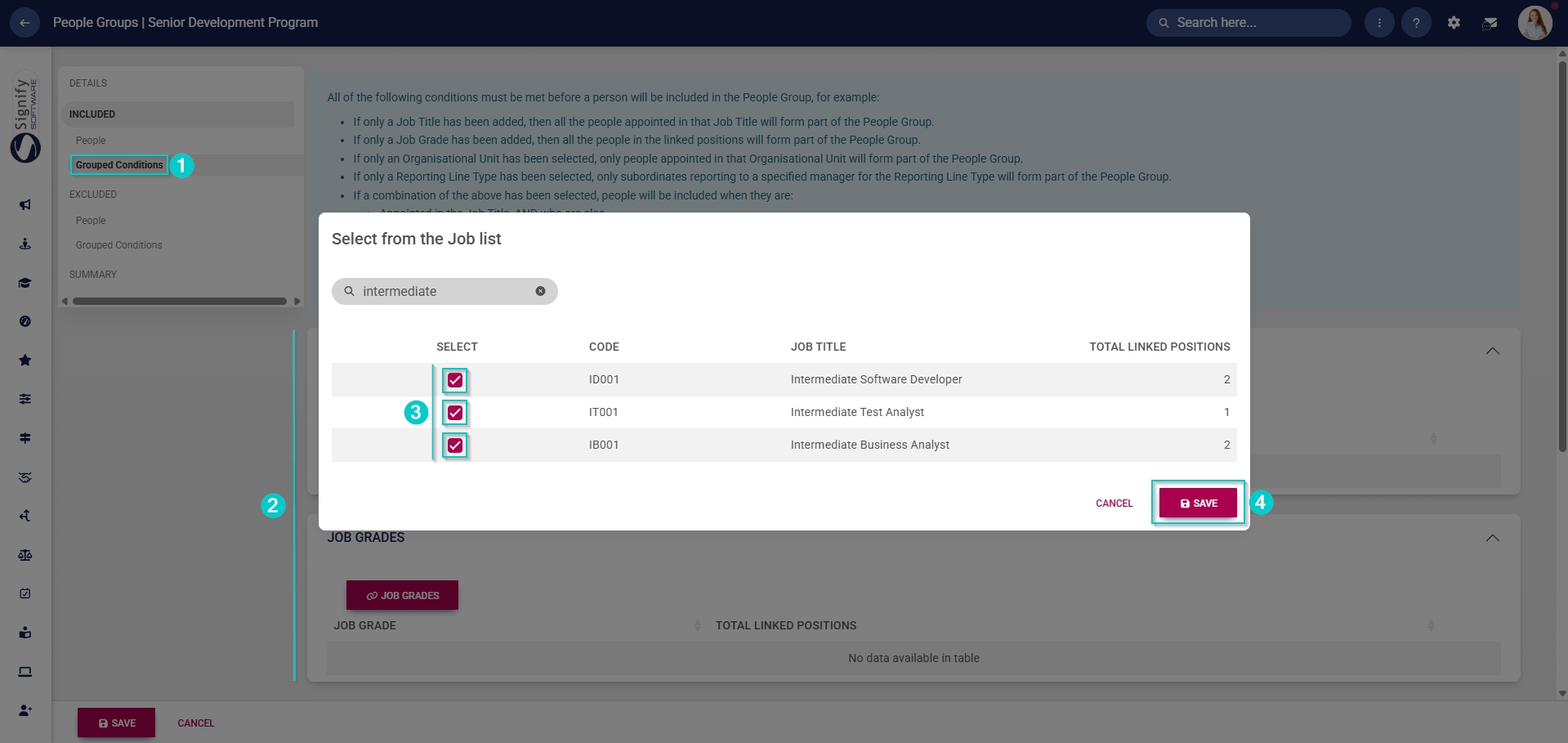
- - - Click **Grouped Conditions** to add groups of people based on criteria such as job titles, organisational nodes, etc.
- Click **SAVE** when you are finished or click **CANCEL** to discard your edits.
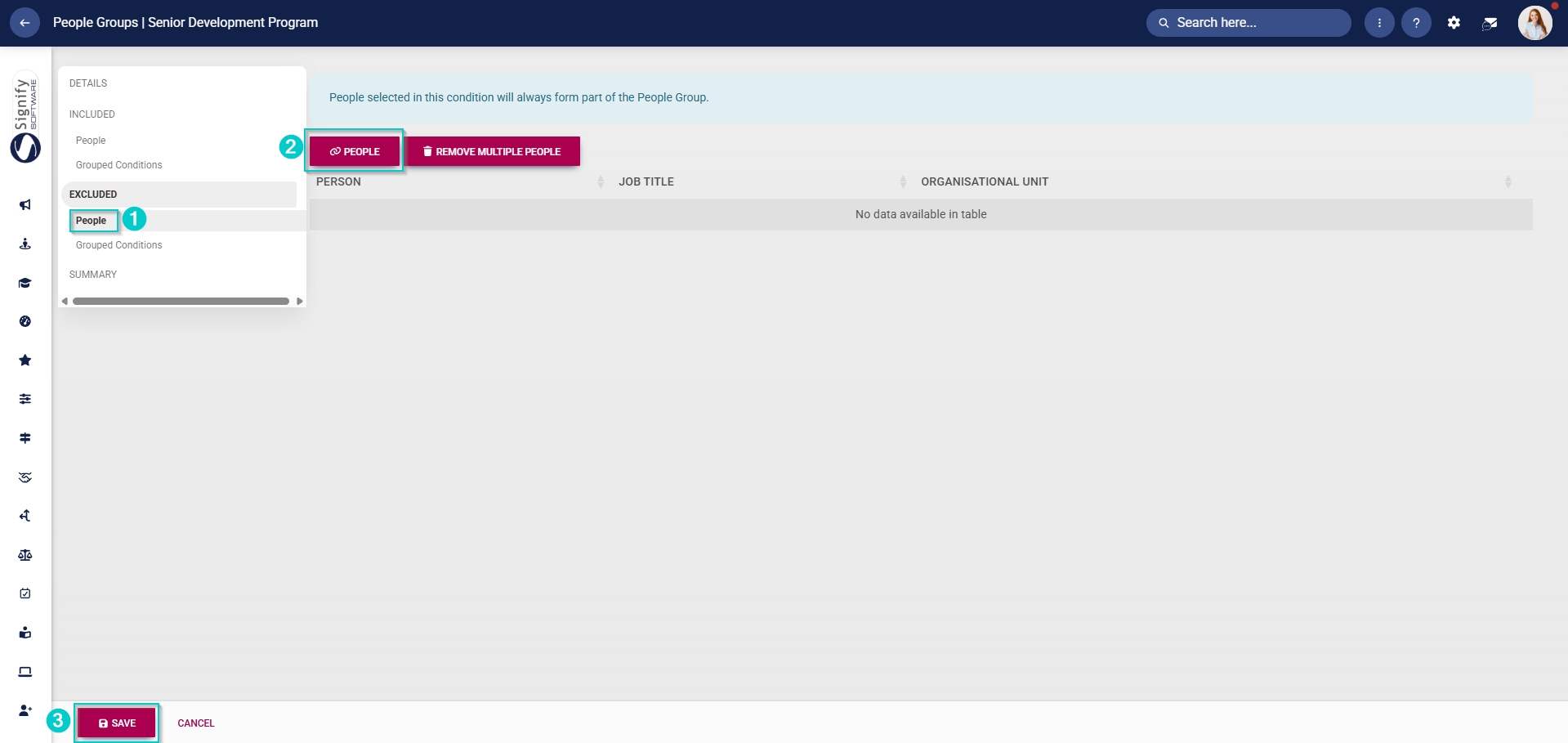
- Alternatively, you can select the people to exclude from this group. In the **left-hand menu**, click to navigate to the **Excluded** section.
- - Click **People** to exclude individuals, then click **PEOPLE**.
- Select the people you would like to exclude.
- Click **SAVE** when you are finished or click **CANCEL** to discard your edits.
- - - Click **Grouped Conditions** to exclude groups of people based on criteria such as job titles, organisational nodes, etc.
- Click **SAVE** when you are finished or click **CANCEL** to discard your edits.
#### Set up approval workflows
Should an event require a manager’s approval, an administrator can configure an **approval workflow**.
- Click the **gear icon** to access the **Setup and Configuration** menu.

- Click **Ruleset Setup**.

- Select the **ruleset** you would like to update.

- Navigate to the **Products** tab.

- Click on the **People Management** product card, then click **Product Setup.**
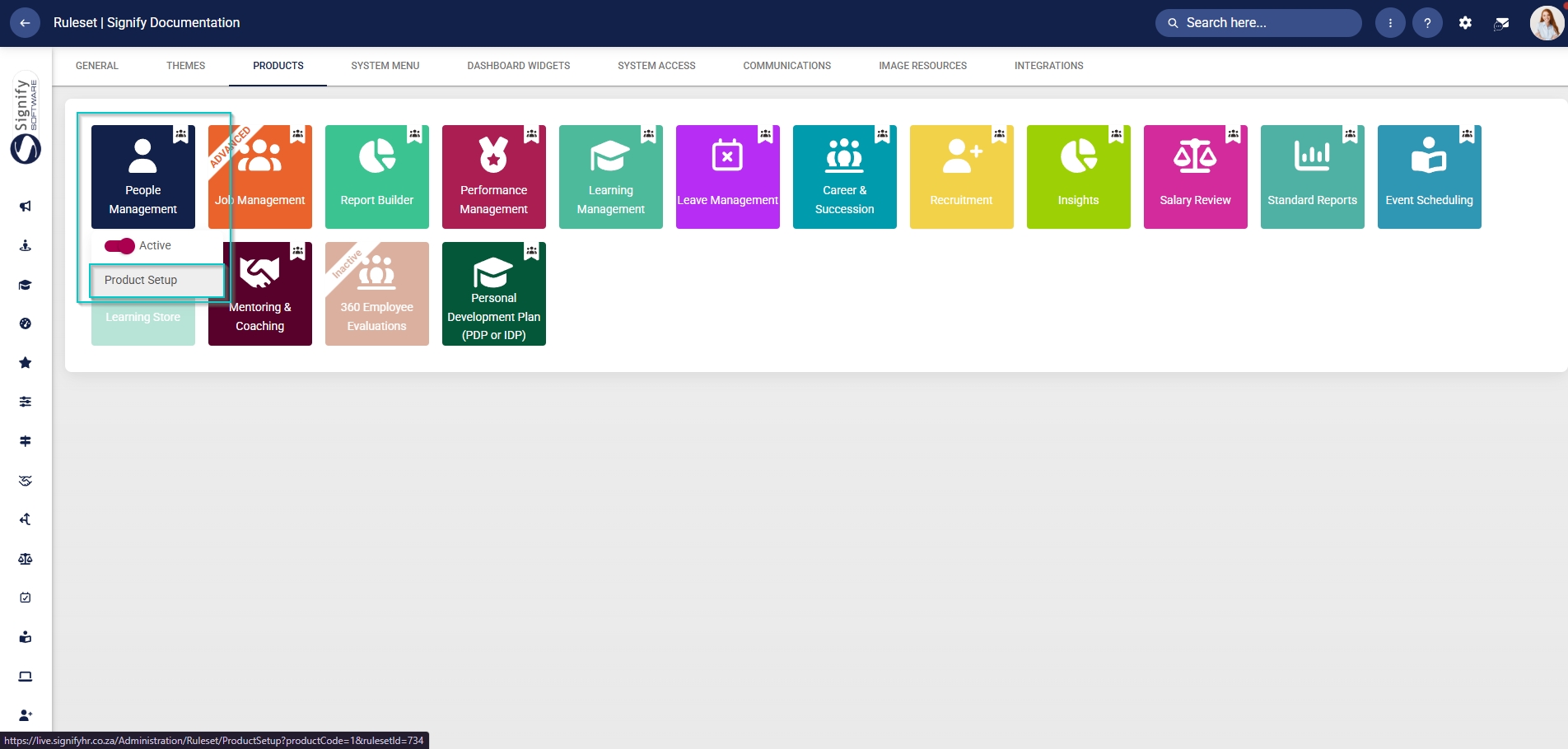
- Navigate to the **HR Processes** tab, then click **+PROCESS FLOW.**
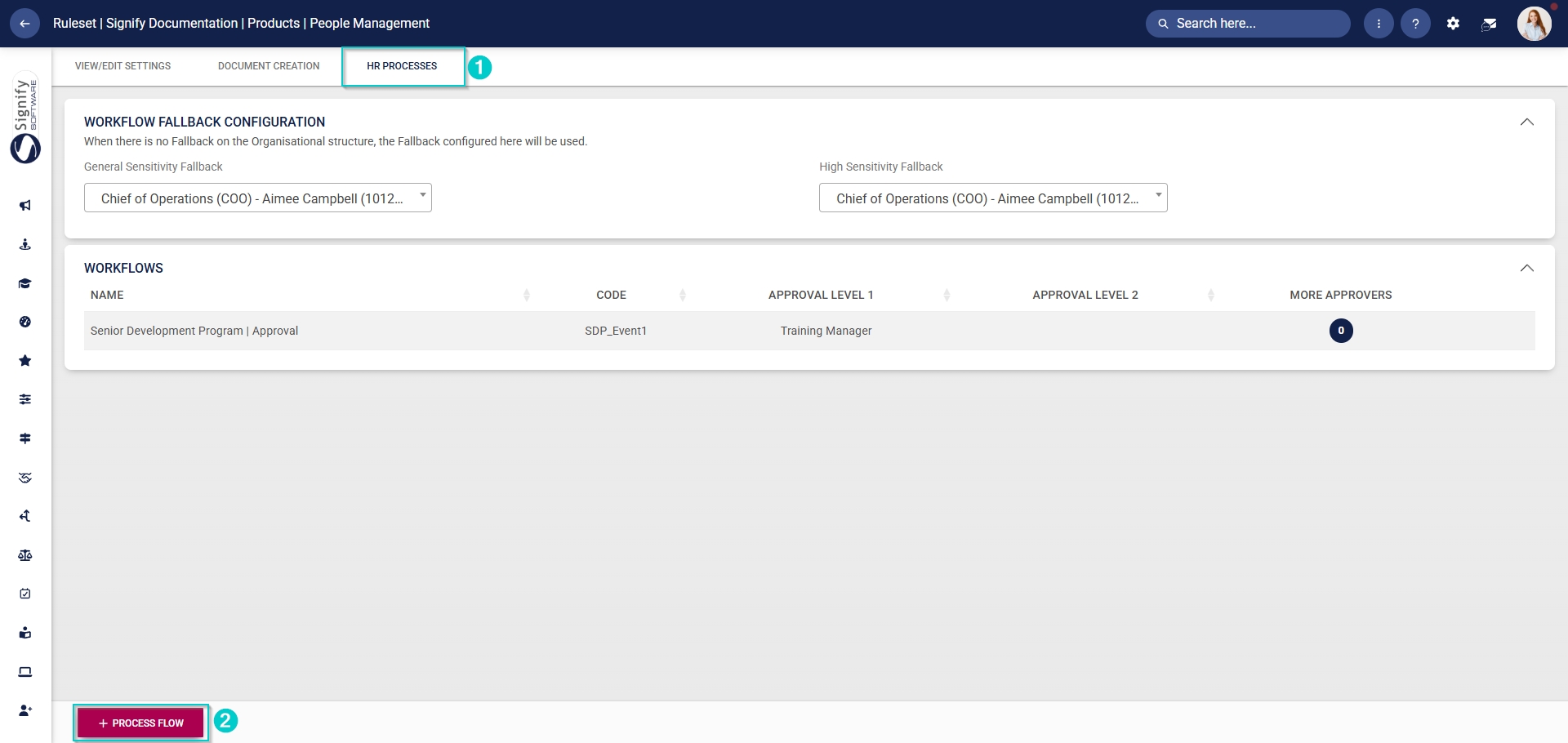
- Enter the **name** and the **code** for the process flow.
- Select the **workflow sensitivity fallback** from the **drop-down menu.**
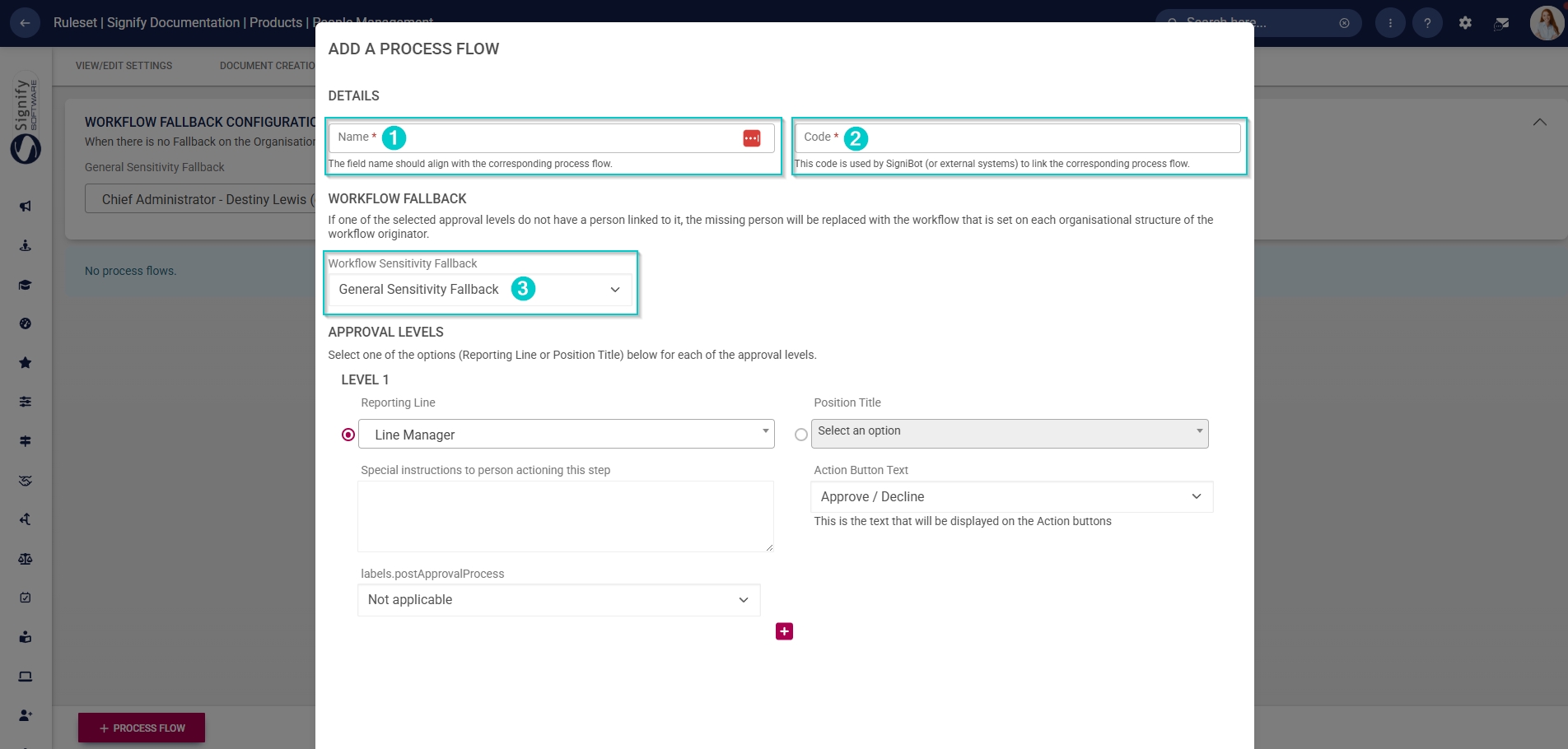
- From the **drop-down menu,** select the **reporting line** associated with the manager responsible for this approval workflow.
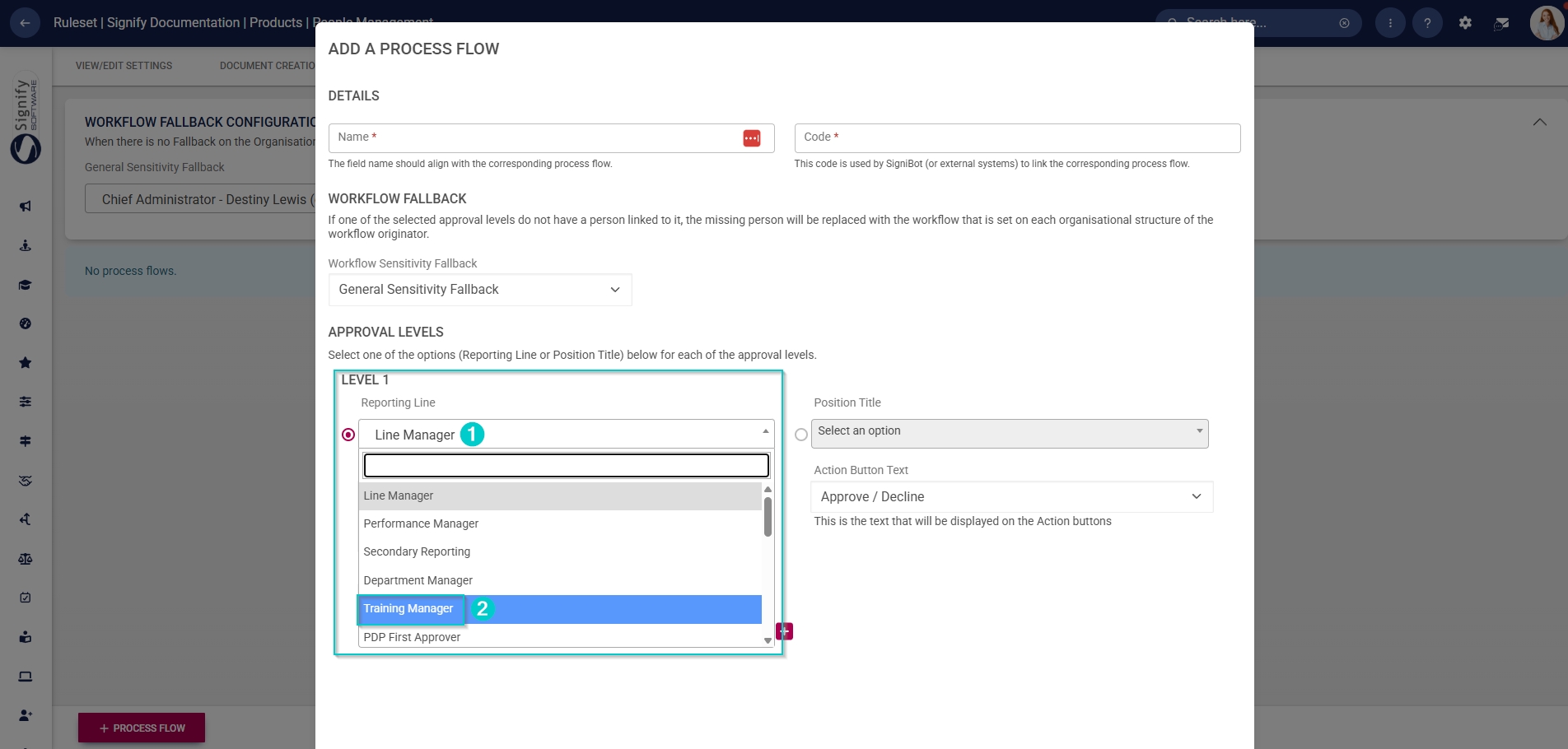
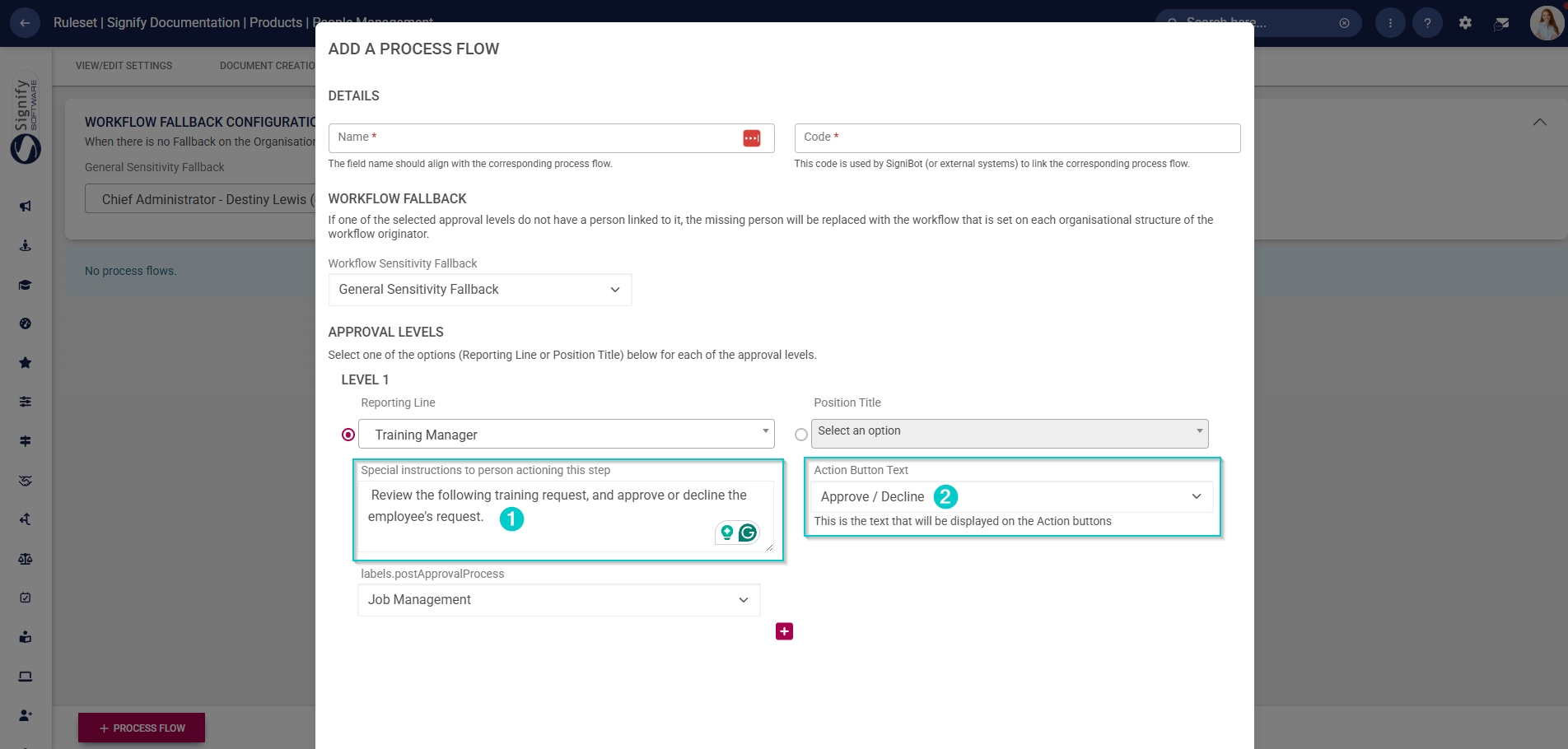
- If required, add **special instructions** which will be displayed once the manager receives training requests for this event.
- Using the **drop-down menu,** select the **text** to display on the **action buttons** on the training request.
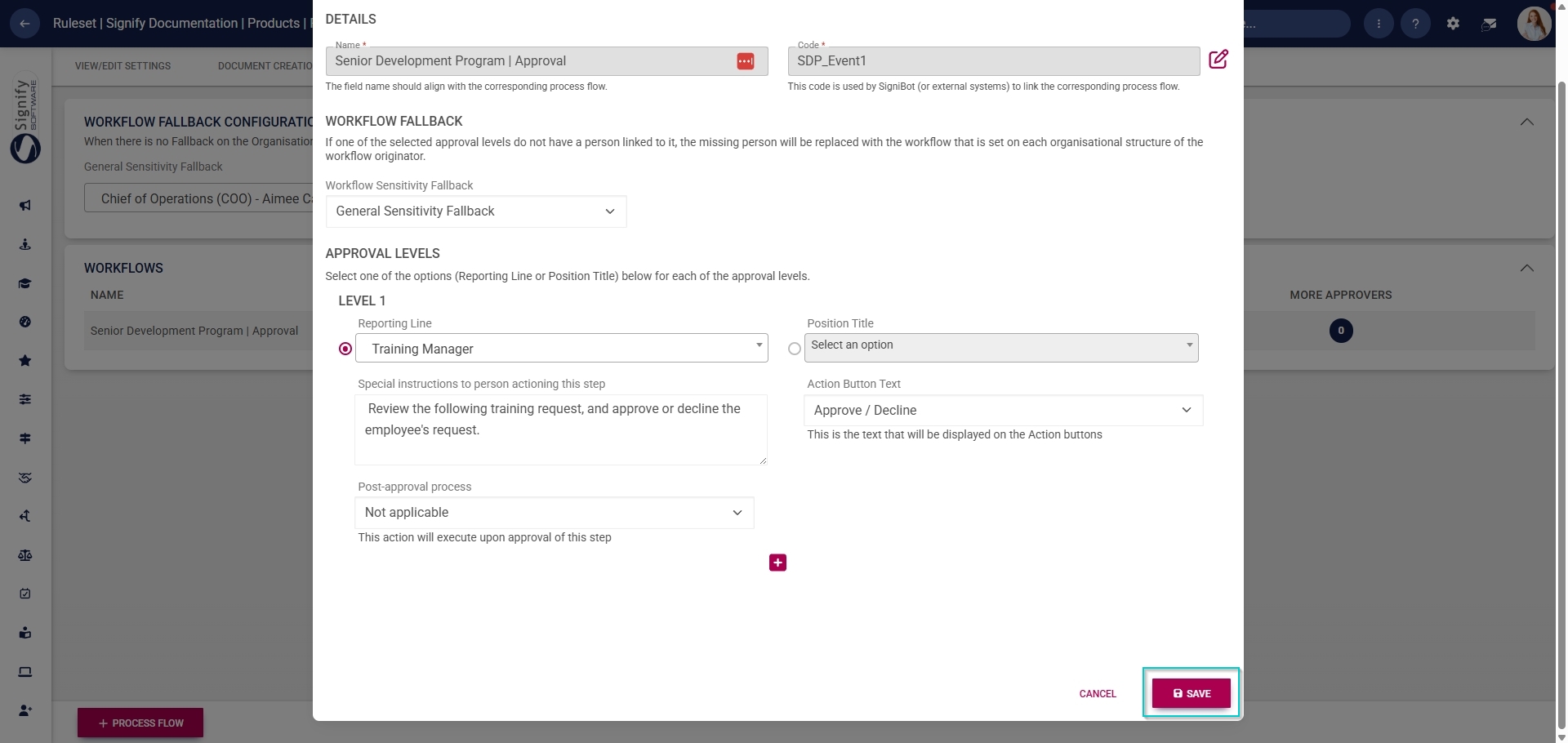
- Click **SAVE** when you are finished or click **CANCEL** to discard your edits.
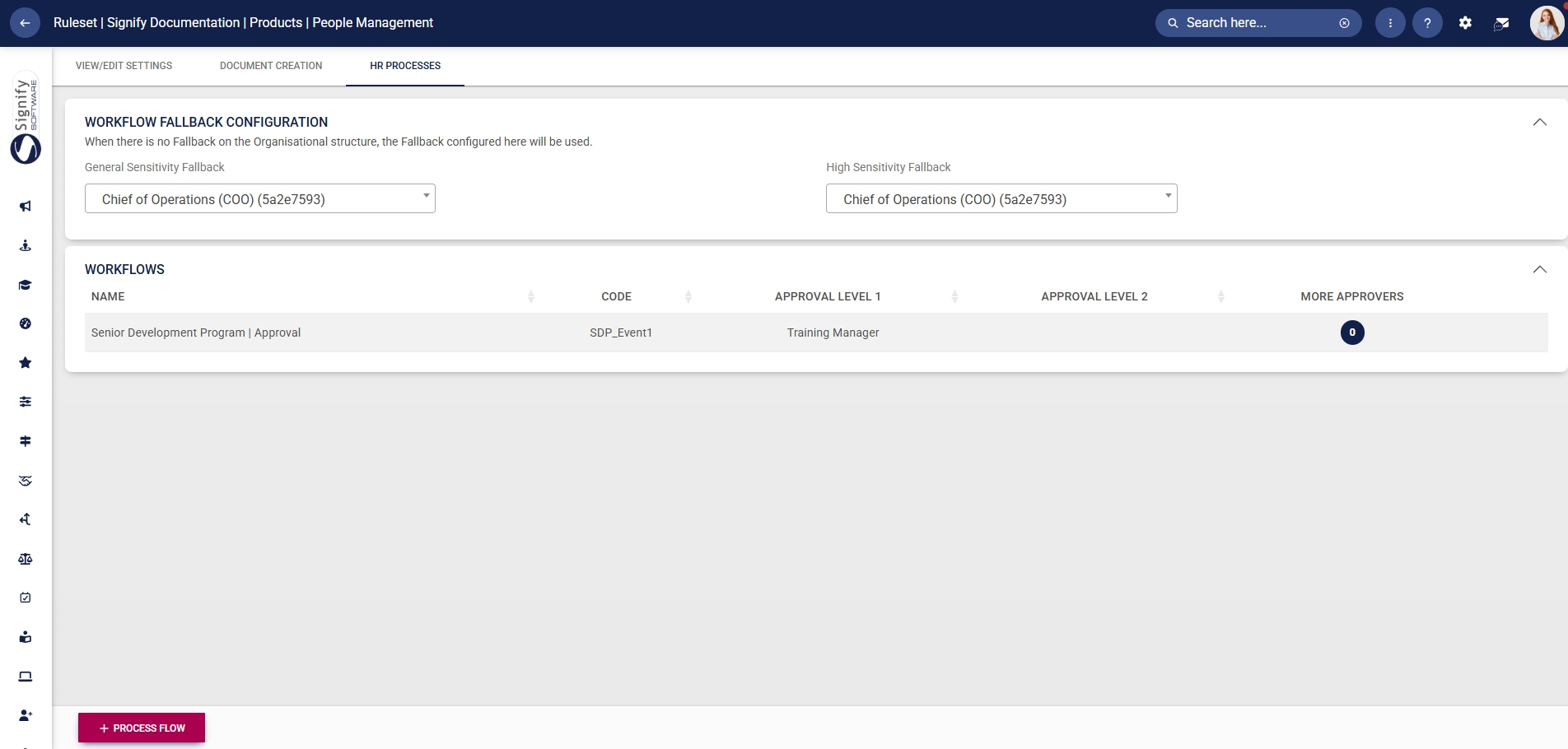
- The new workflow will be displayed in the **Workflows** table.
#### Create training interventions
If an event should be logged to the attendee’s training history, a **training intervention** should be linked to it. However, before creating the event, the training intervention needs to be added to the **Training Intervention Library**.
- Click the **gear icon** to access the **Setup and Configuration** menu.

- Click **Other System Administration**.
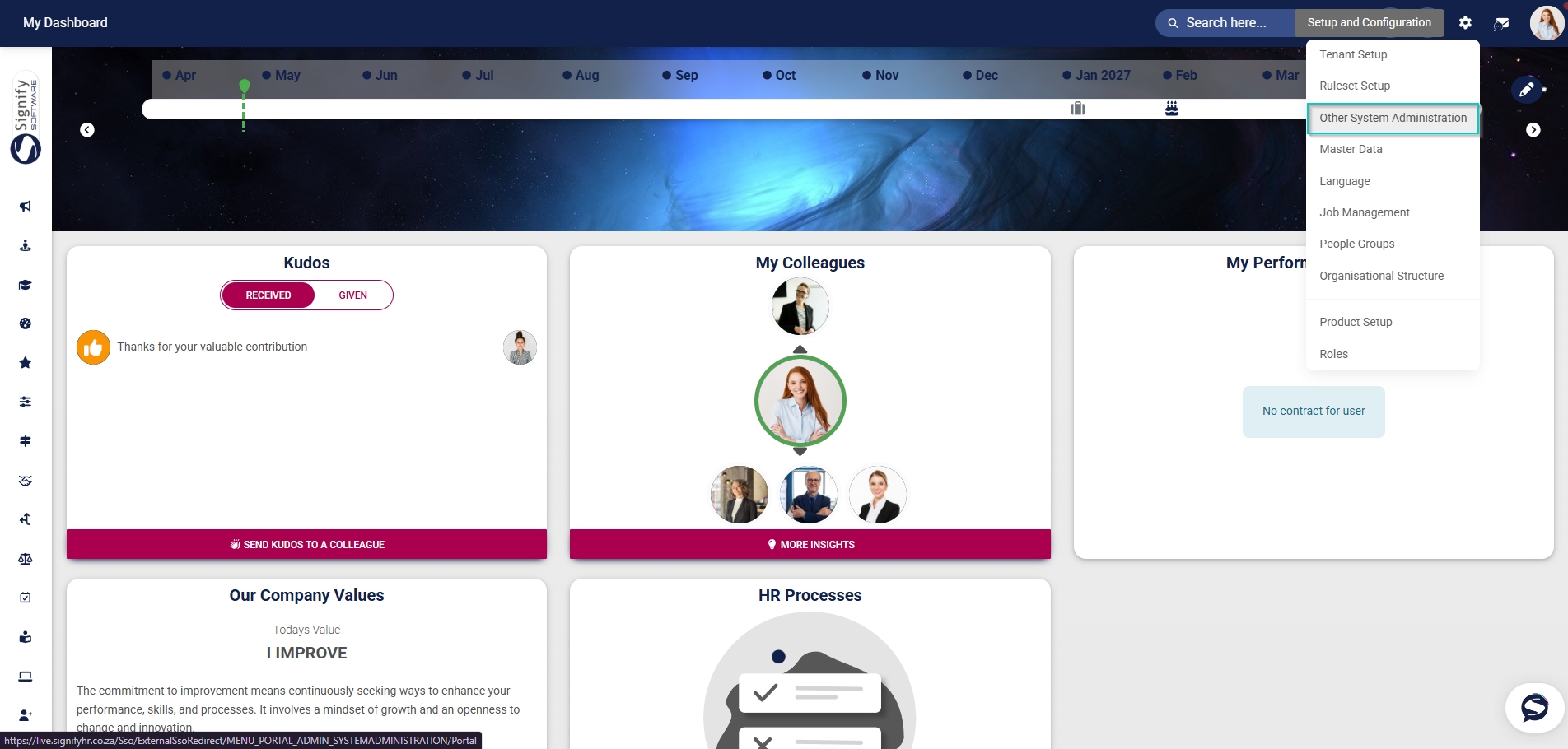
- In the new tab that opens, click **Training Interventions** in the **Training Scheduling** block.
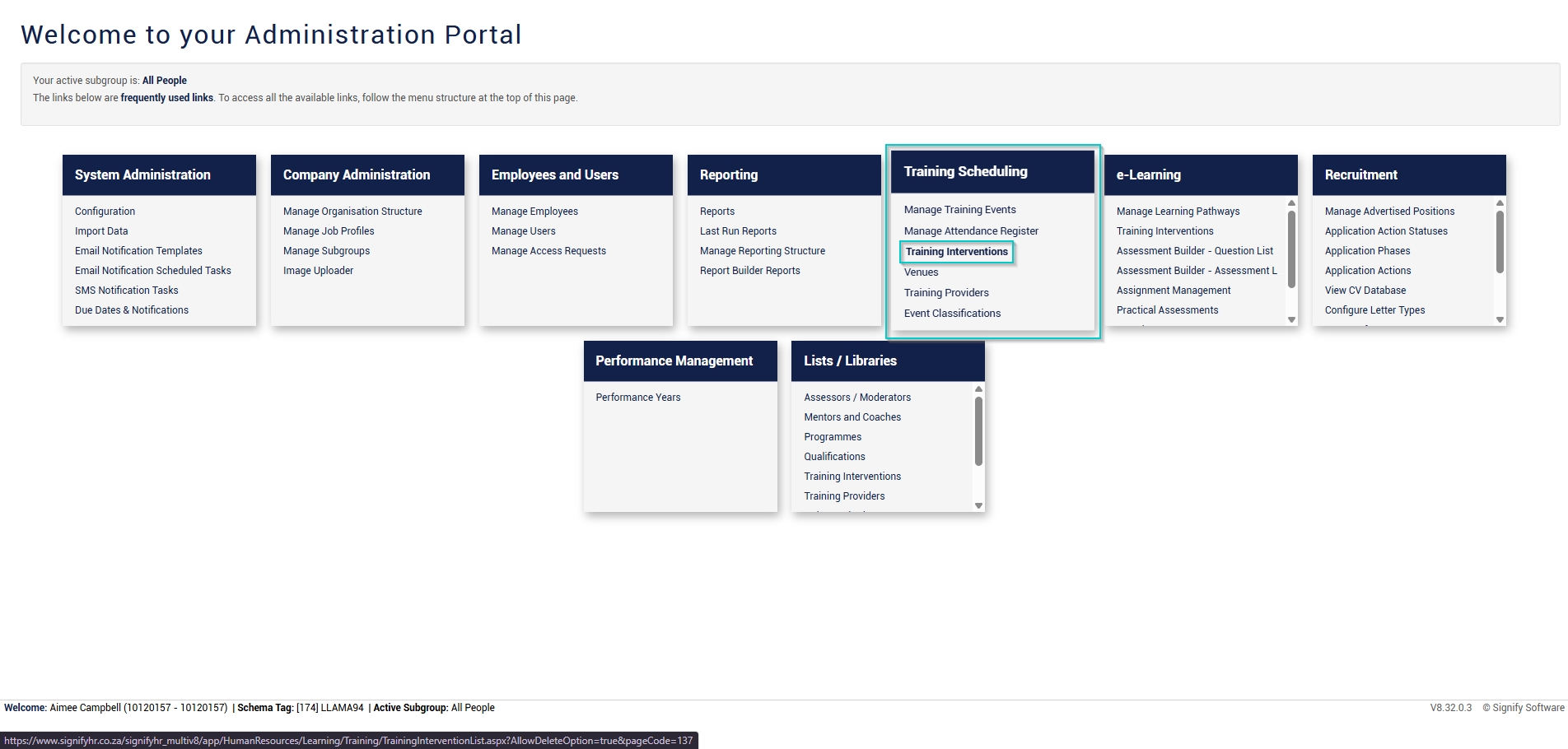
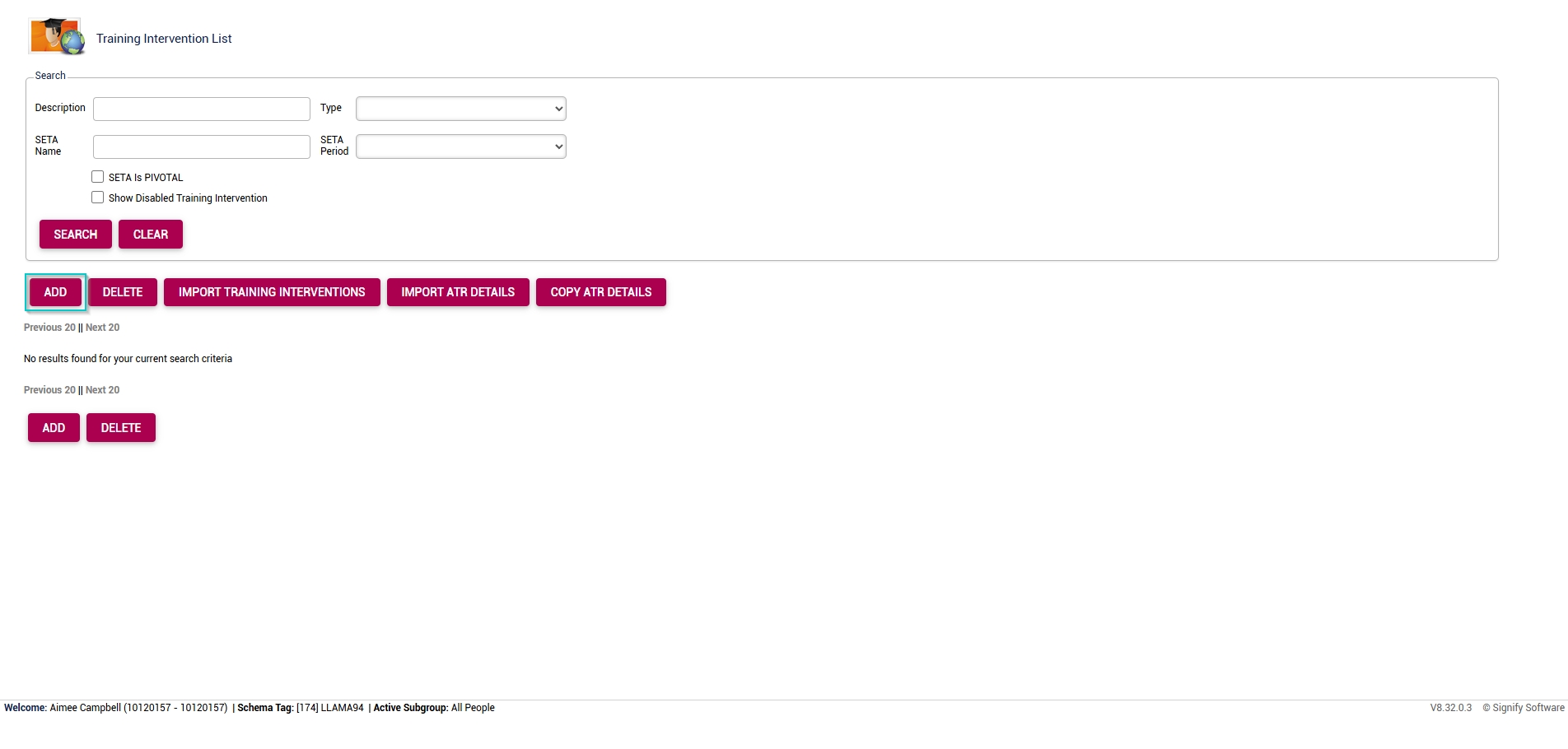
- The **Training Intervention Library** will open in a new tab. To add a new training intervention, click **ADD**.
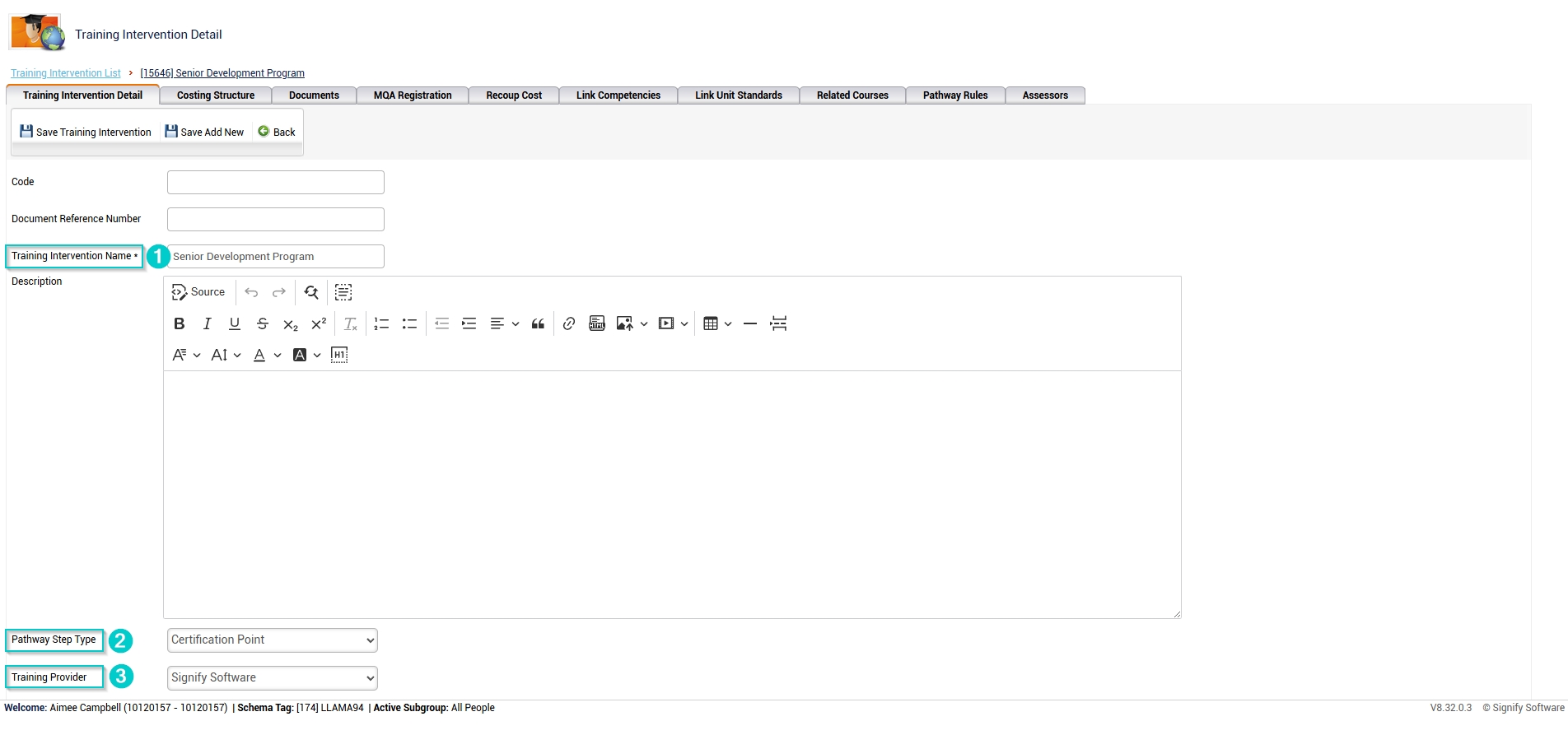
- Complete the **details** for the course’s training intervention. Please note that all the fields marked with an asterisk (\*) are compulsory.
- - Fill in the name, then select the pathway step type and training provider (if applicable) from the **drop-down menus**.
- - - Select the learning type, nature of learning, training classification, training category, and skills priority from the **drop-down menus**.
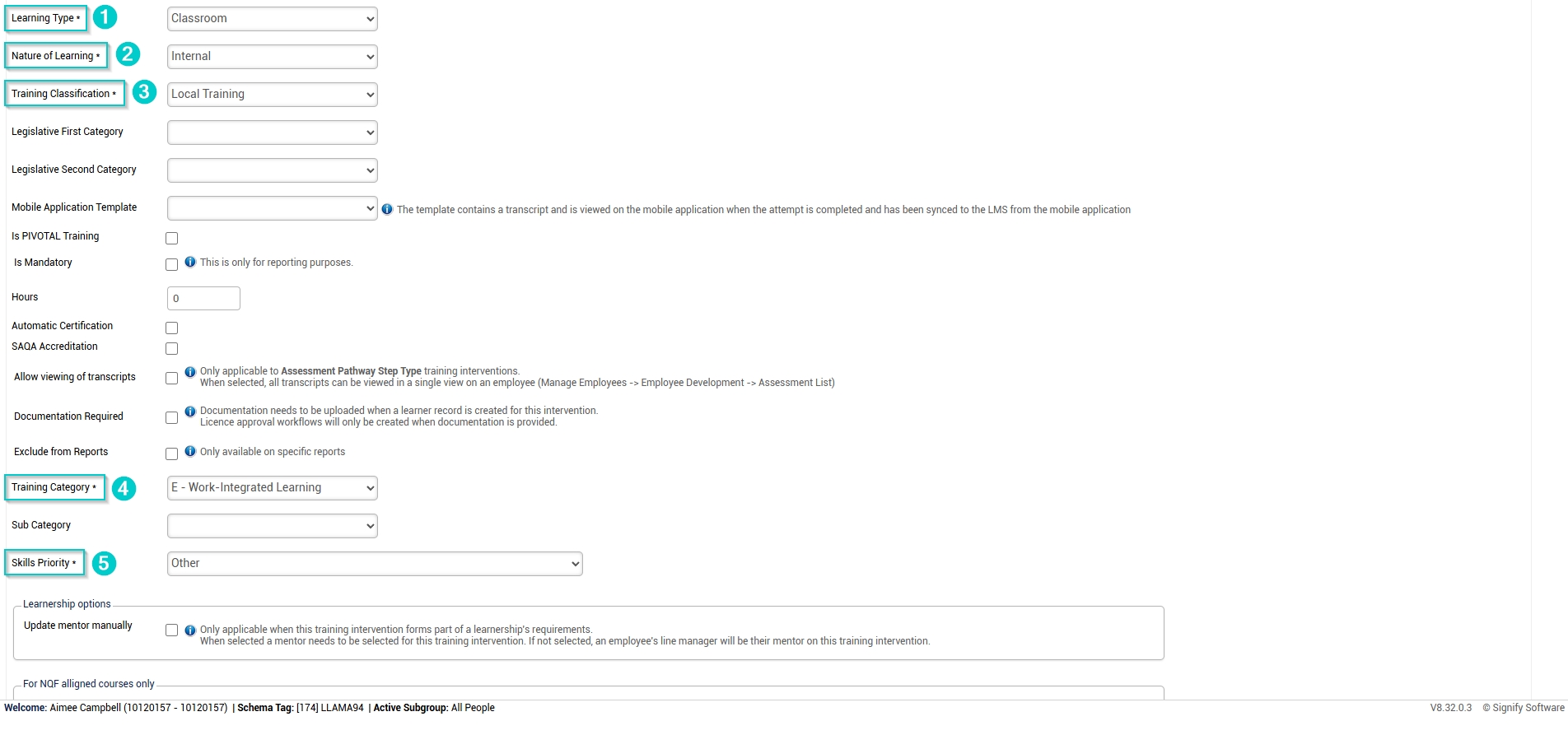
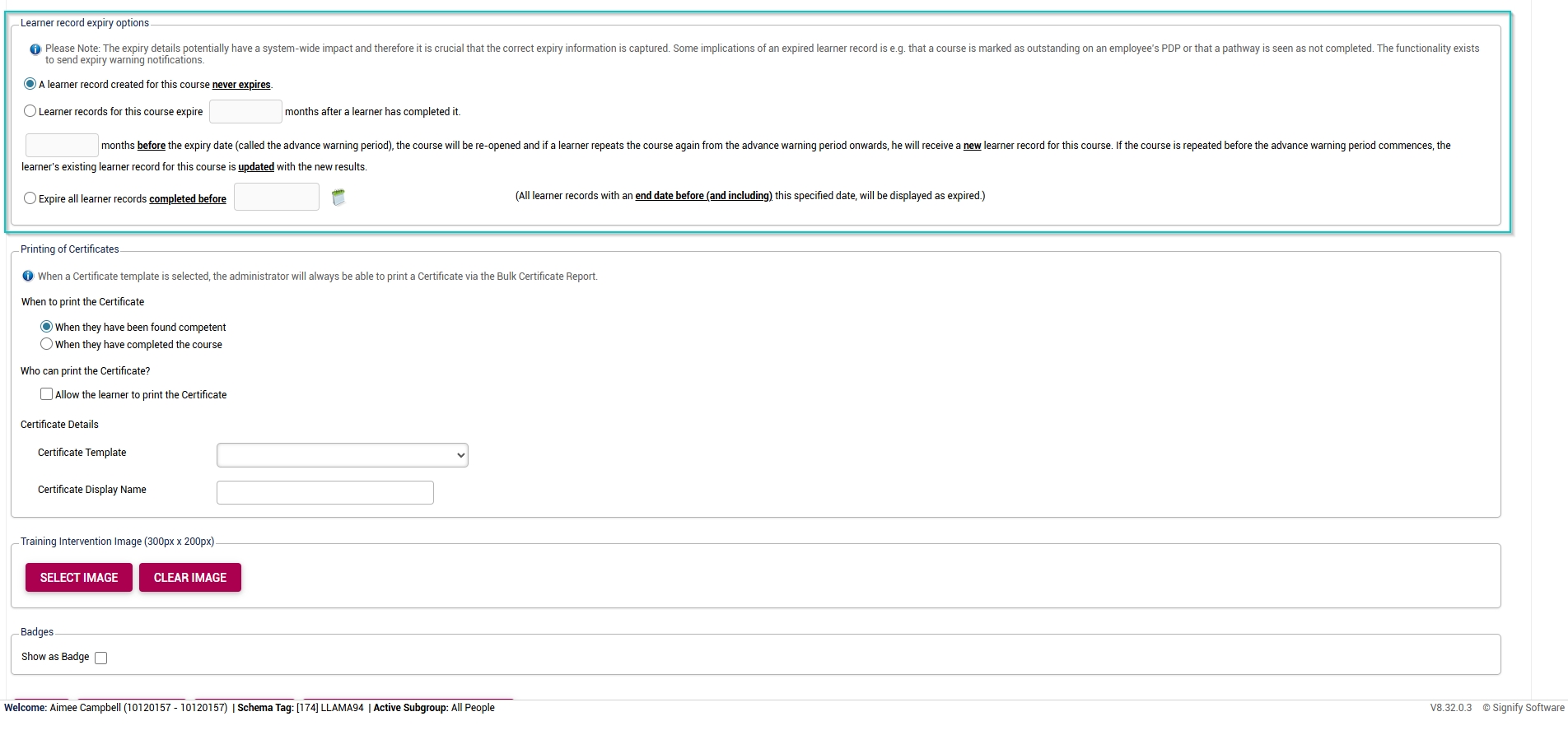
- - - If required for compliance purposes, select when the learner record will expire.
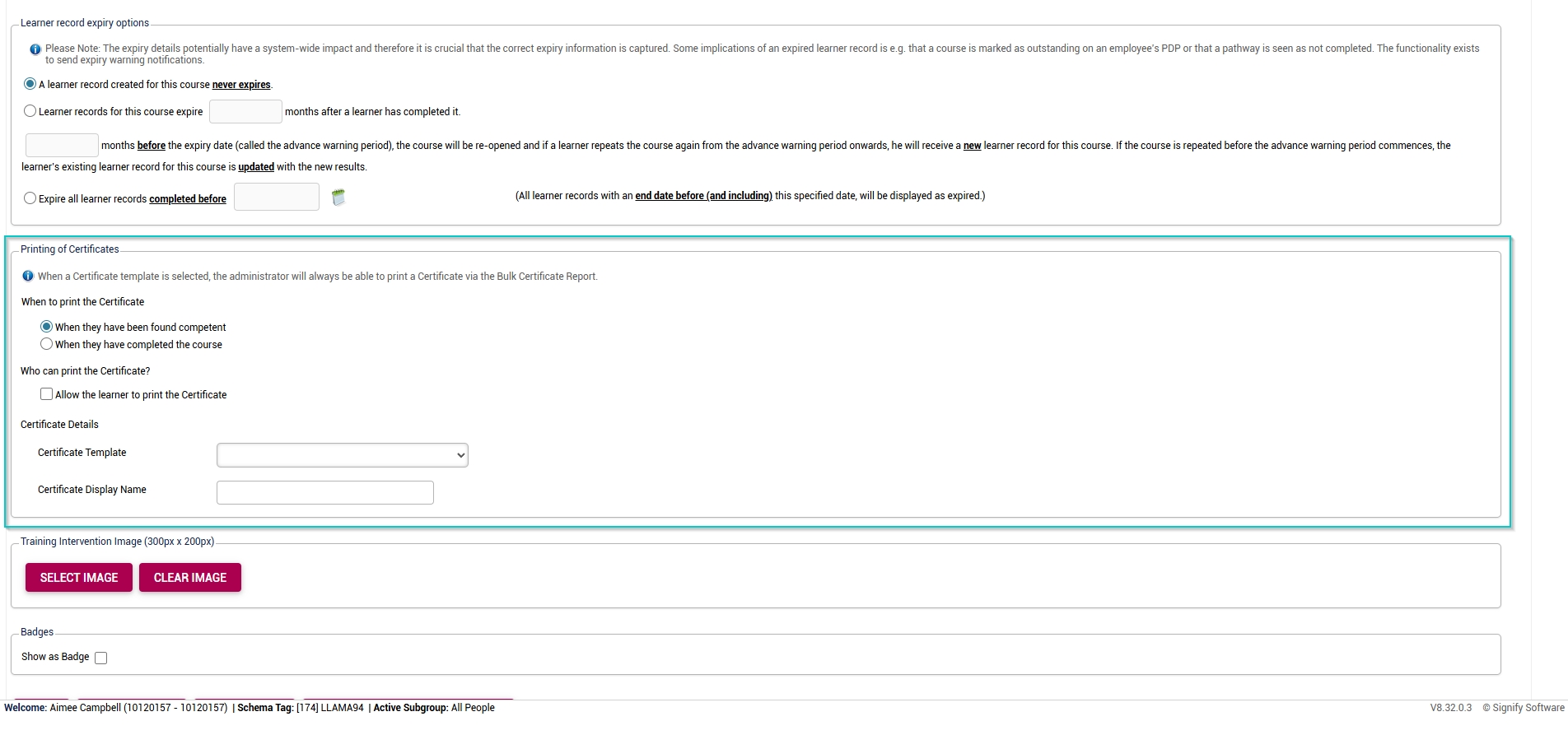
- - - Configure certificate printing for the course (if required).
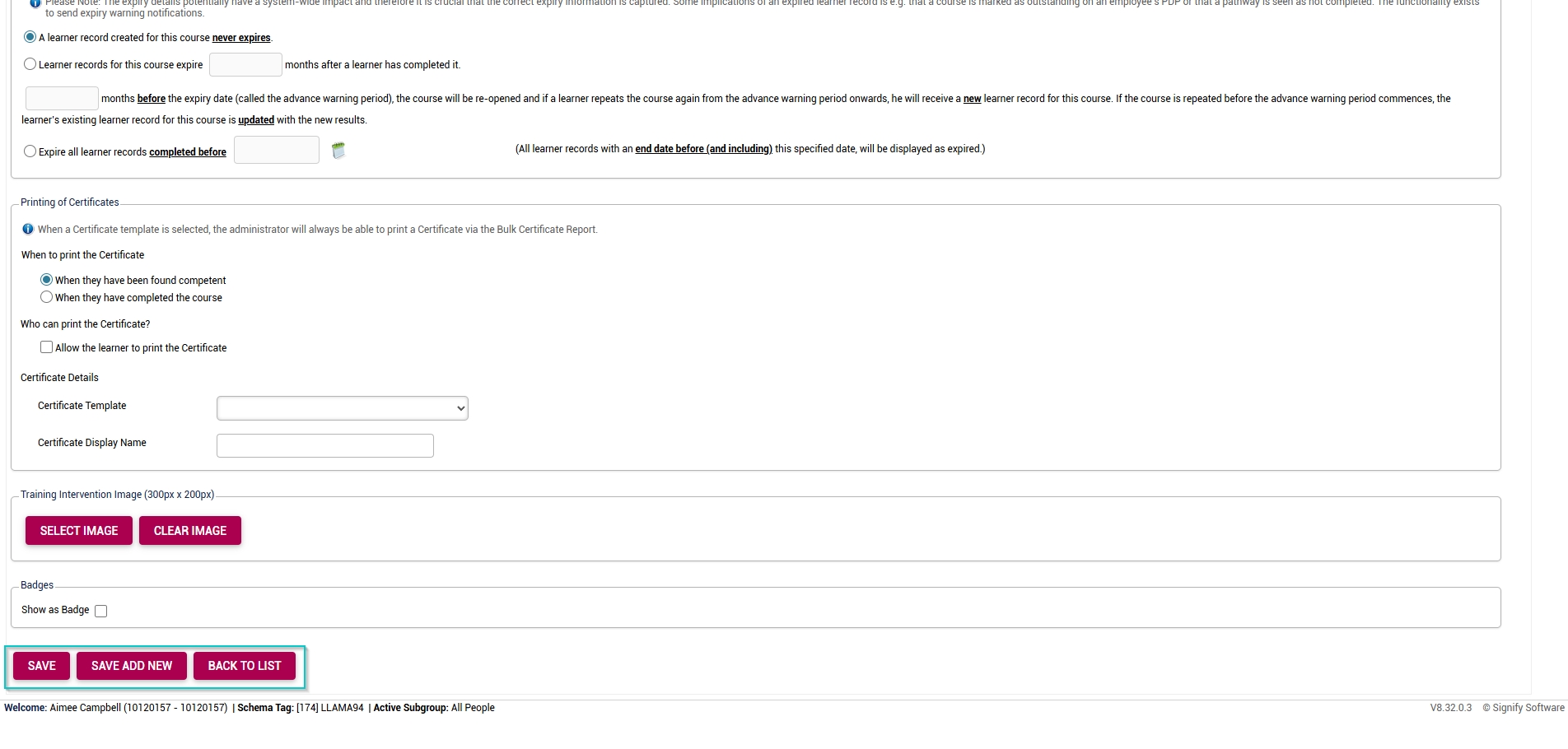
- - - At the bottom of the screen, click **SAVE** when you are finished, **SAVE ADD NEW** to add another training intervention, or **BACK TO LIST** to return to the **Training Intervention Library**.
#### Success!
Congratulations! You have successfully implemented the **Event Scheduling** module. For more details on how to use the module, view the next chapter: **[C](https://signature.signifyhr.co.za/books/people-management-d8c/chapter/chapter-4-using-the-people-management-module "Using the People Management module")[hapter 4: Using the Event Scheduling module](https://signature.signifyhr.co.za/books/event-scheduling/chapter/chapter-4-using-the-event-scheduling-module "Using the Event Scheduling module")**.
[](https://signature.signifyhr.co.za/uploads/images/gallery/2025-02/ZOt8yZwhbiGx2d6U-signify-footer.png)
# Chapter 4: Using the Event Scheduling Module
# Add Event Details
[](https://signature.signifyhr.co.za/uploads/images/gallery/2025-02/emW3hfMrZ1yIDMUv-signify-header.png)
- Hover over the **sidebar** menu, then click **Event Scheduling**.

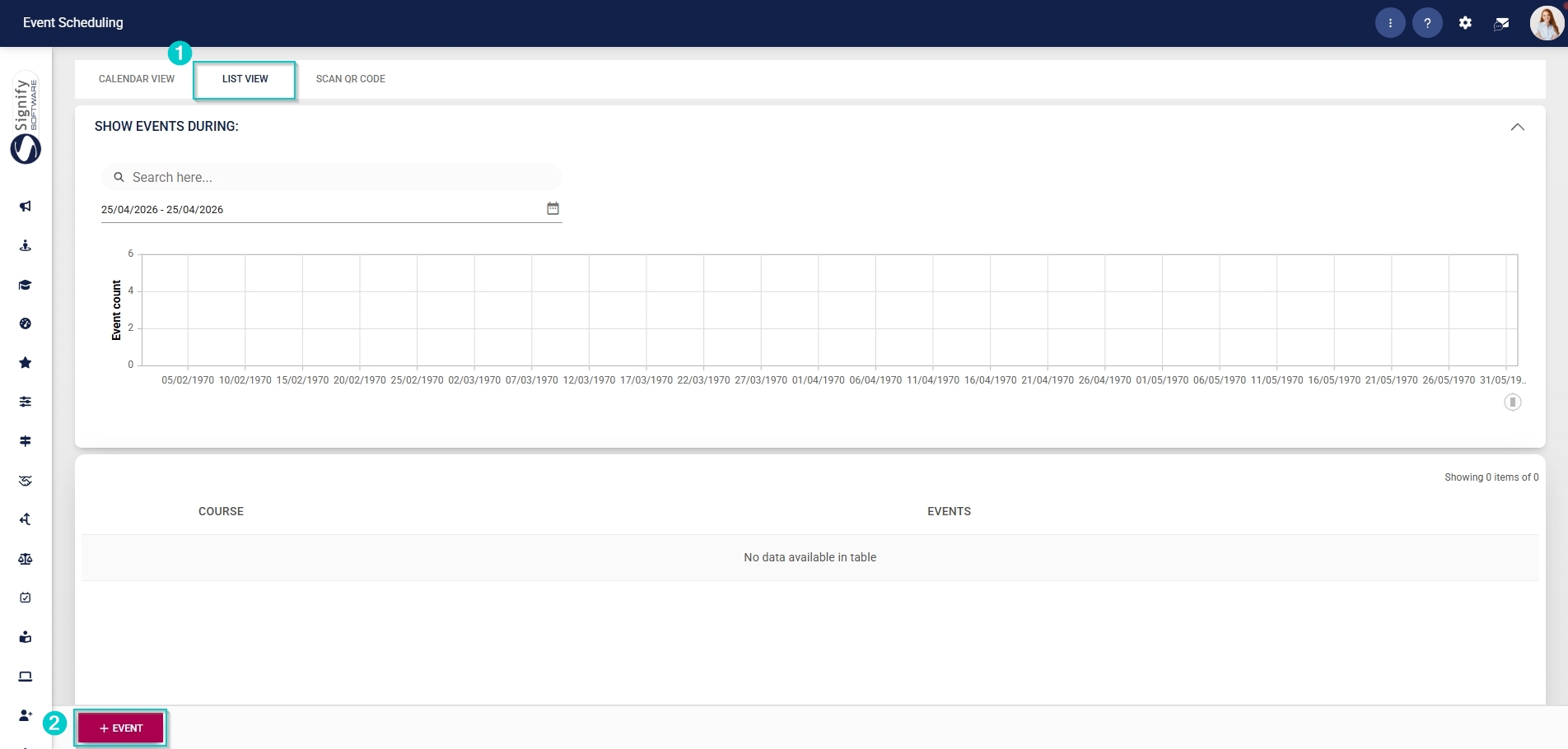
- Click to navigate to the **List View** tab, then click **+EVENT**.
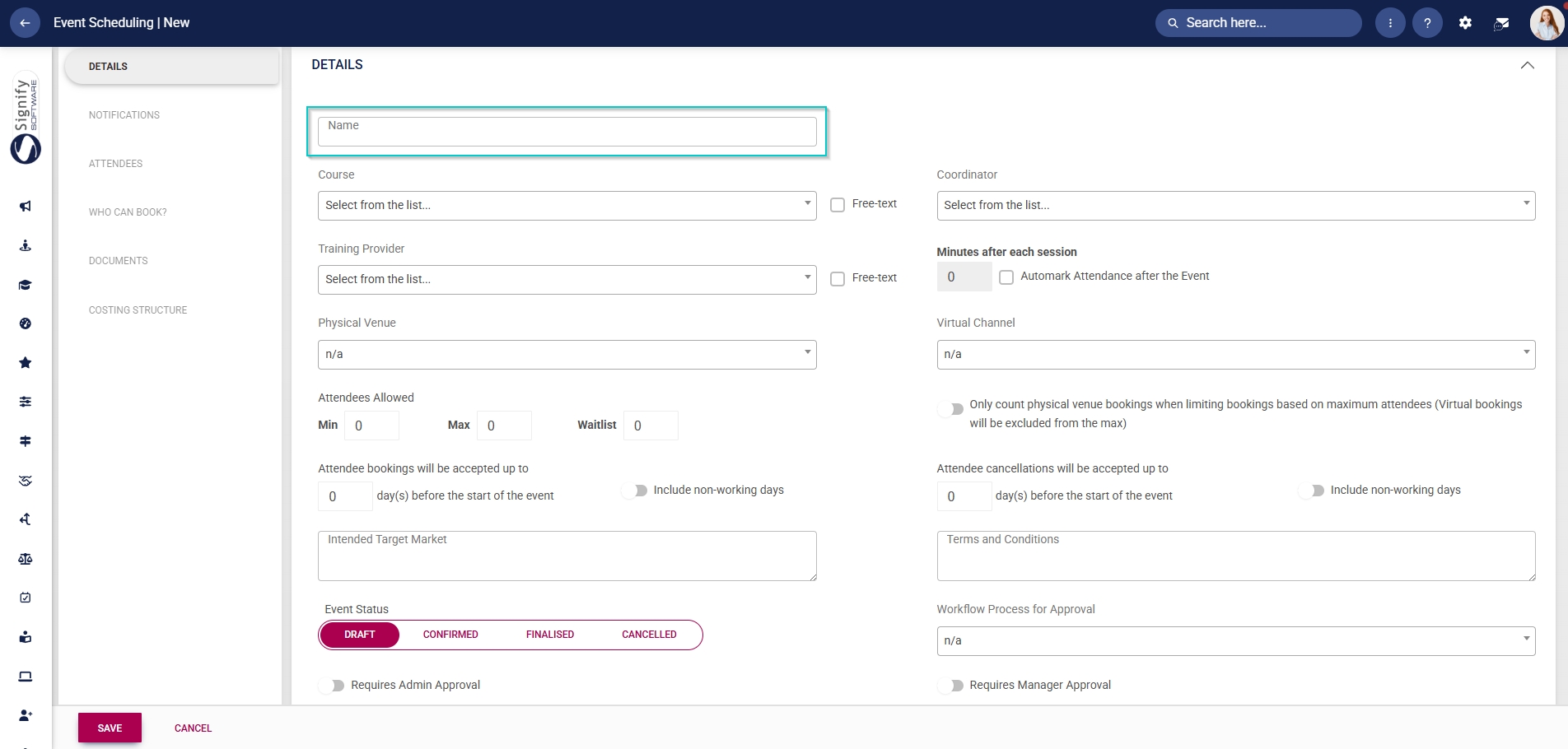
- Enter a **name** for the event.
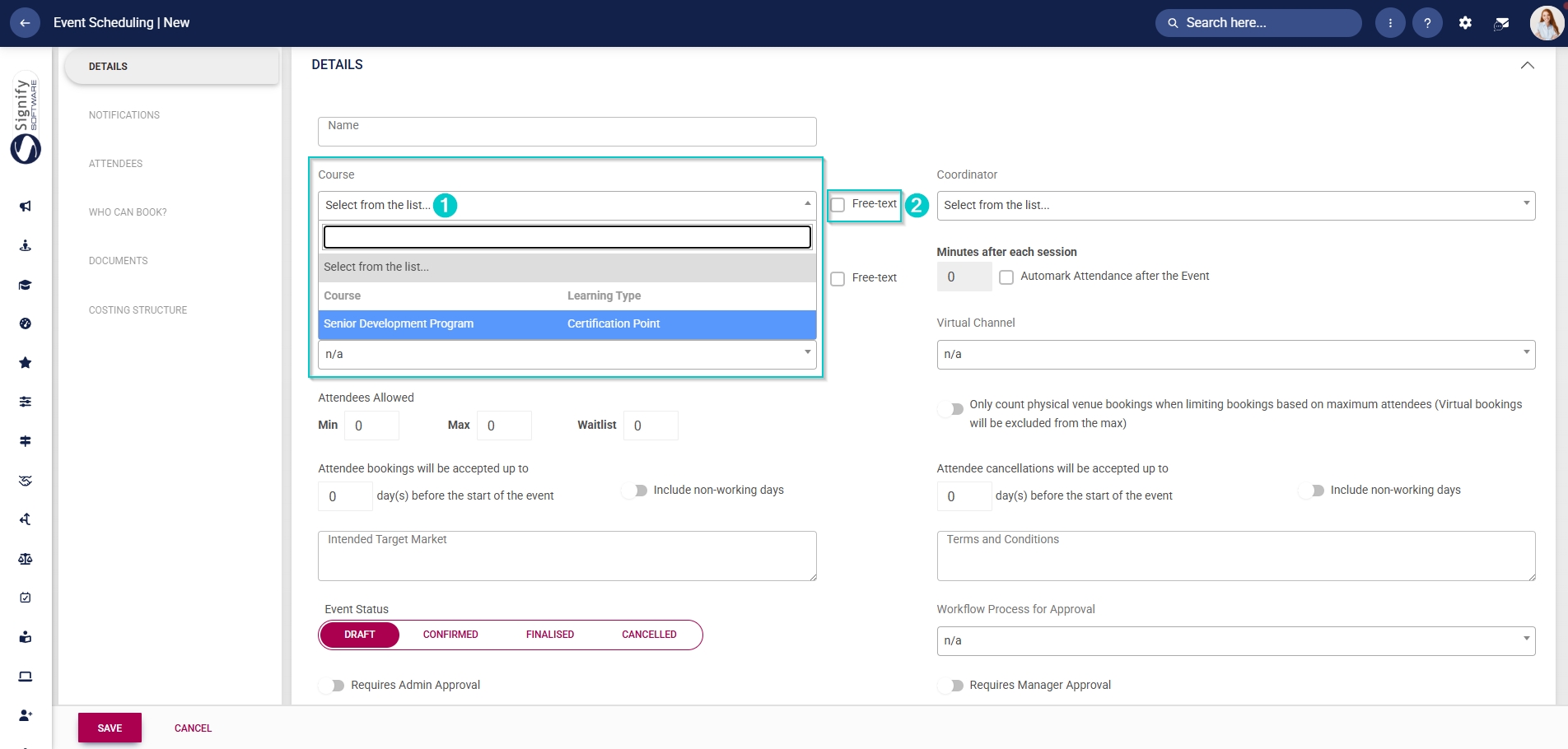
- To create a learner record for attendees, link a **training intervention** from the **Training Intervention Library** using the Course field. If a learner record should not be created, provide a name for the course and tick the **Free text checkbox**.
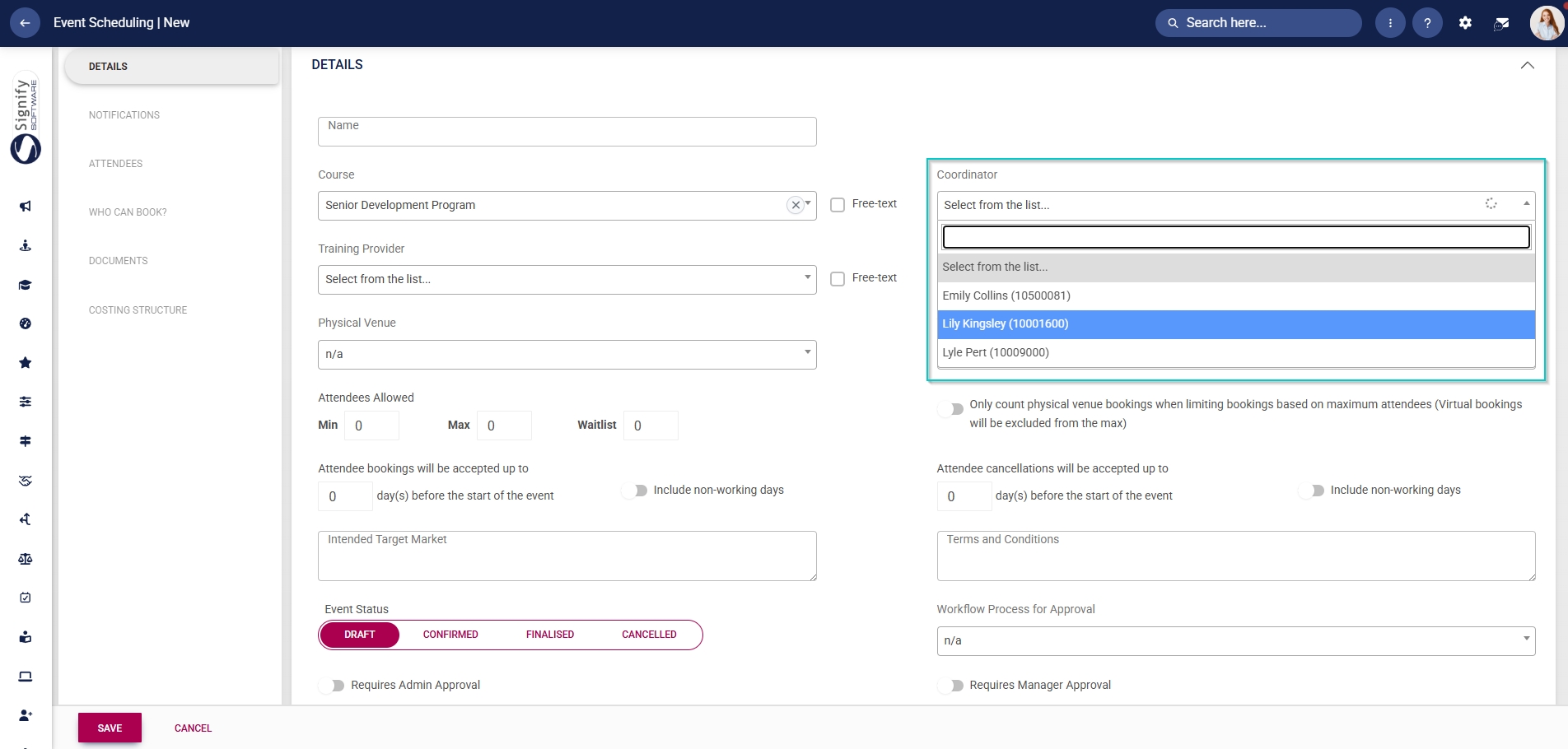
- From the **dropdown menu**, select the event’s **coordinator**.
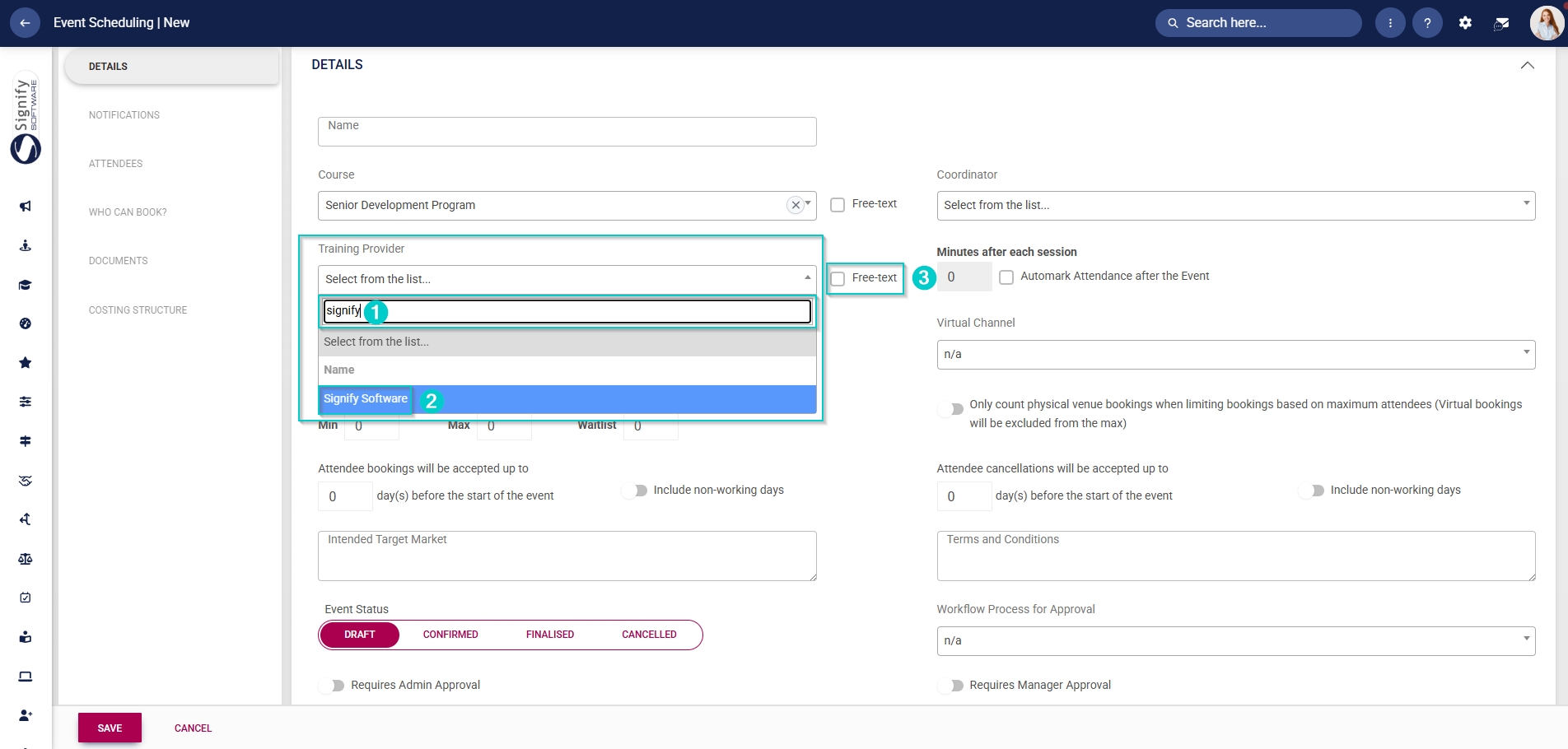
- From the **drop-down menu**, select the event’s **training provider**.
- Use the **search bar** to easily find the training provider in the list of dropdown menu items, then click on the training provider’s name.
- If the training provider is not listed in the **Master Data Library**, provide a name for the training provider and tick the **Free text checkbox**.
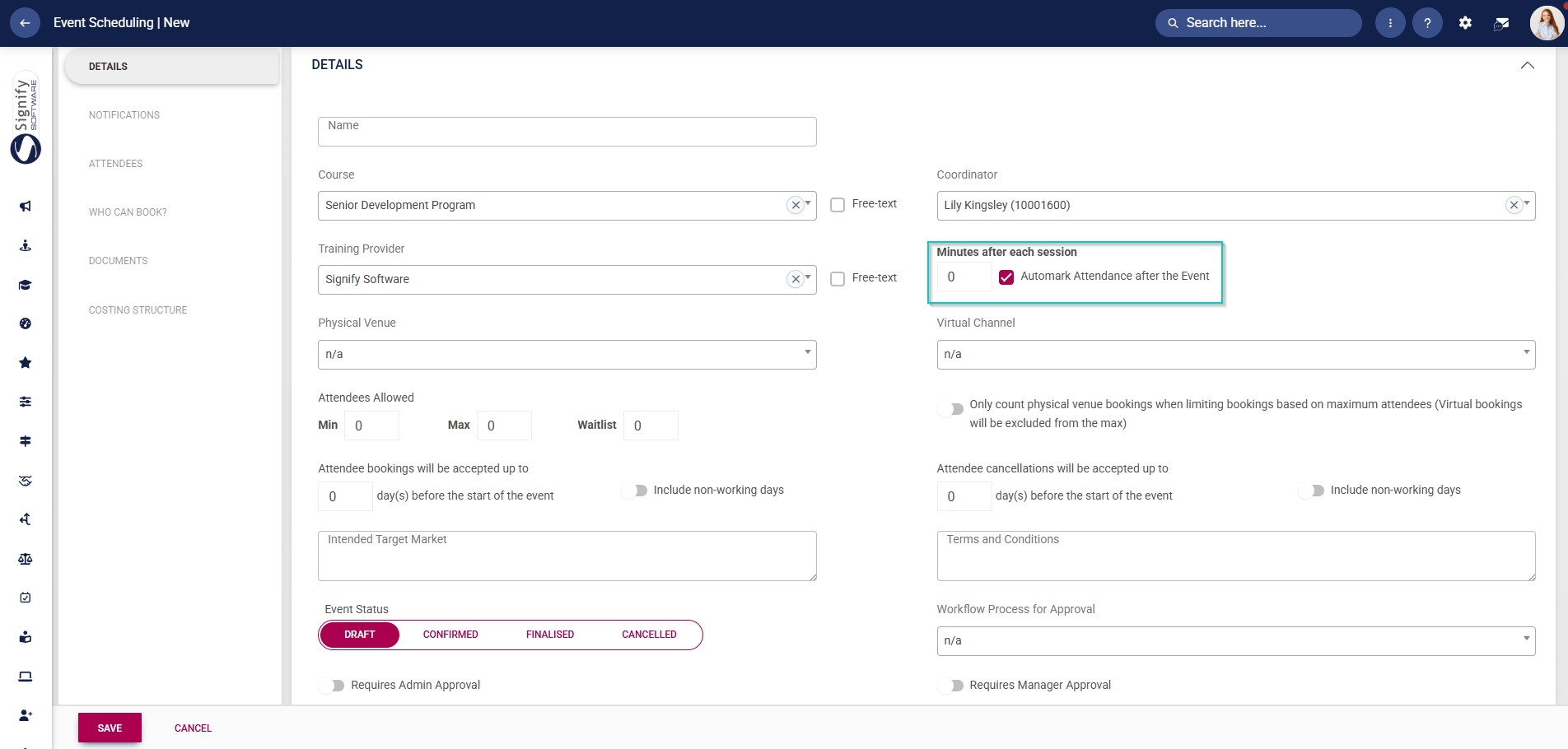
- Attendance can be automatically marked by selecting the number of minutes after each session. To do this, tick the **Automark Attendance after the Event checkbox**.
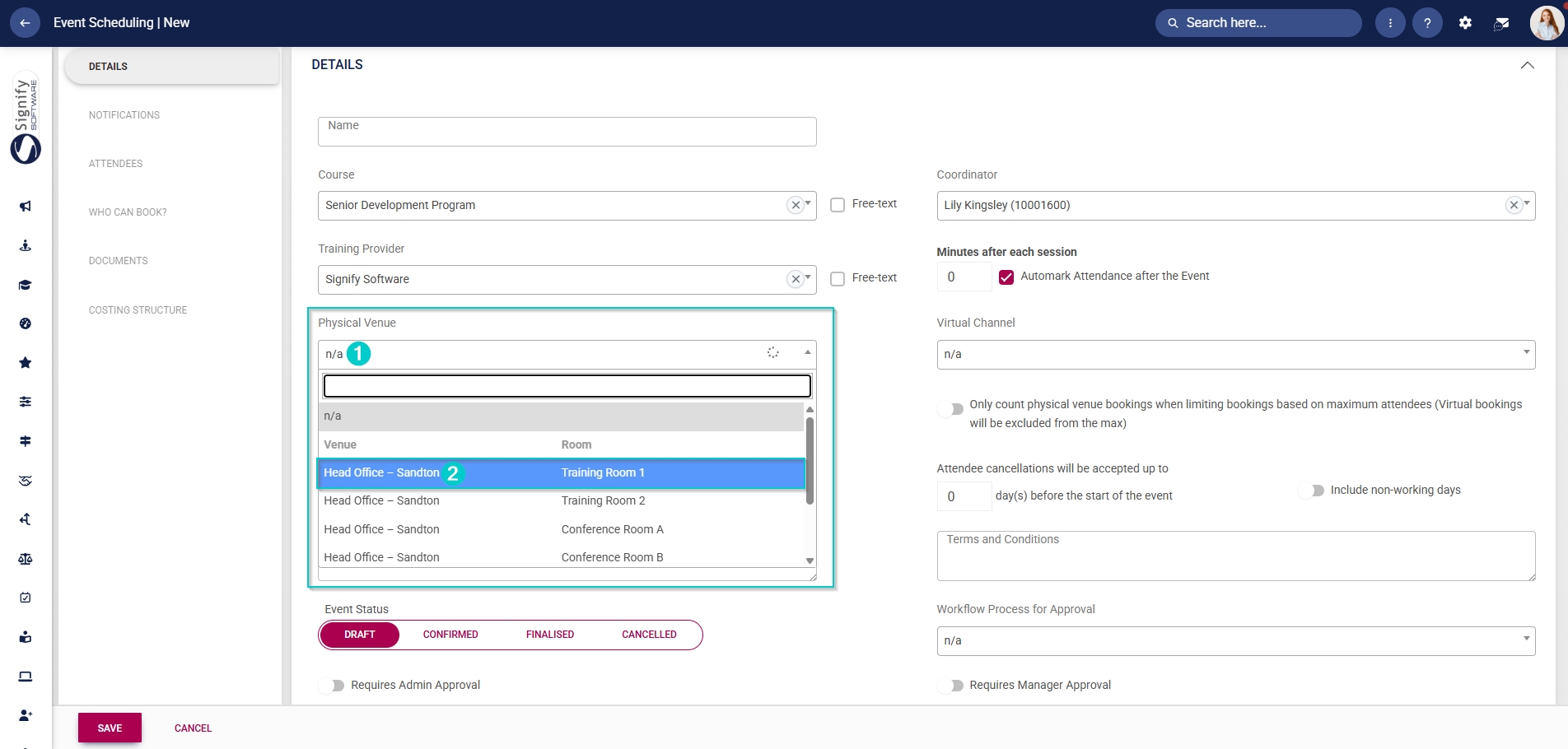
- From the dropdown menu, select the physical **venue** and the **room**.
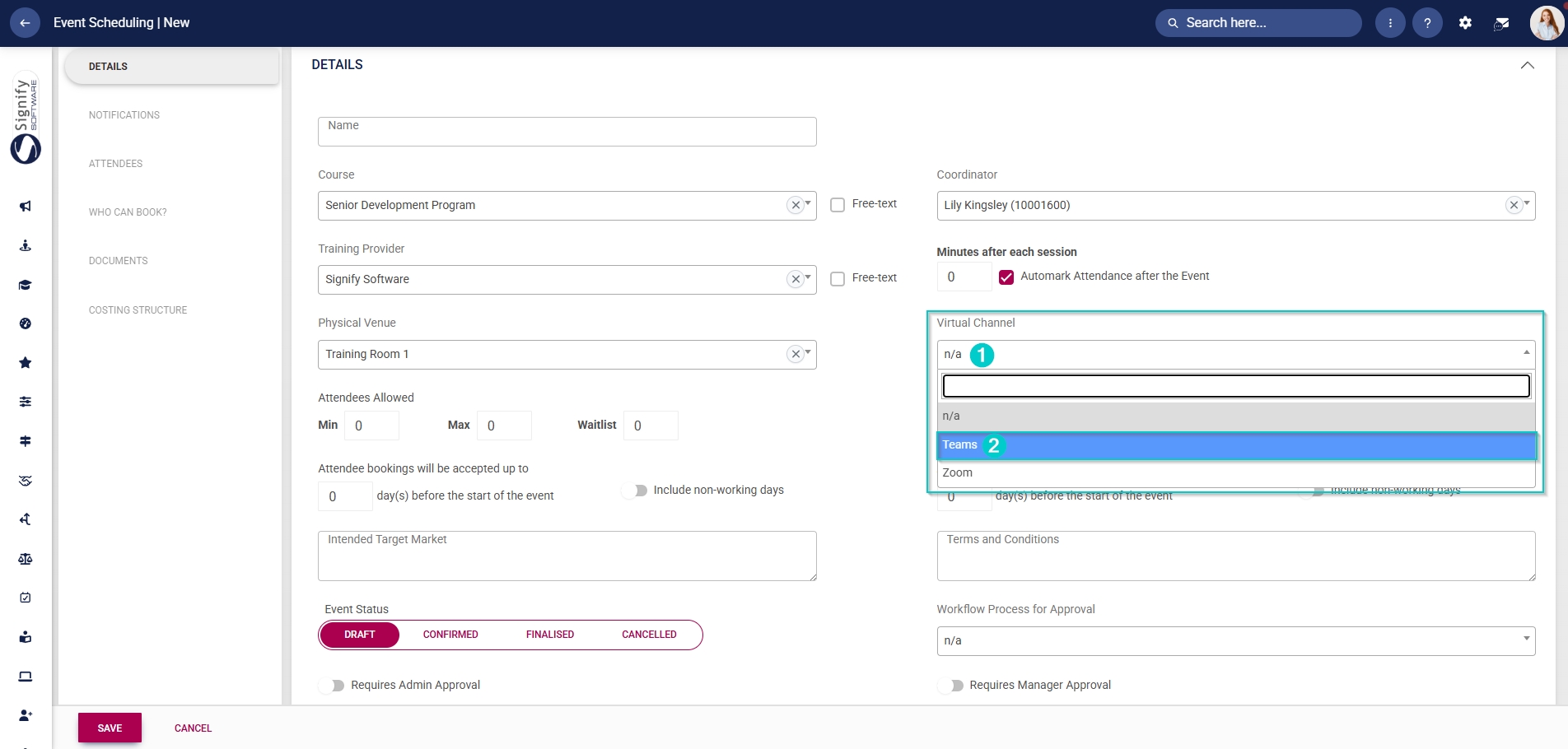
- **Virtual channels**, such as Teams or Zoom, can be selected from the **drop-down menu** to present this event online.
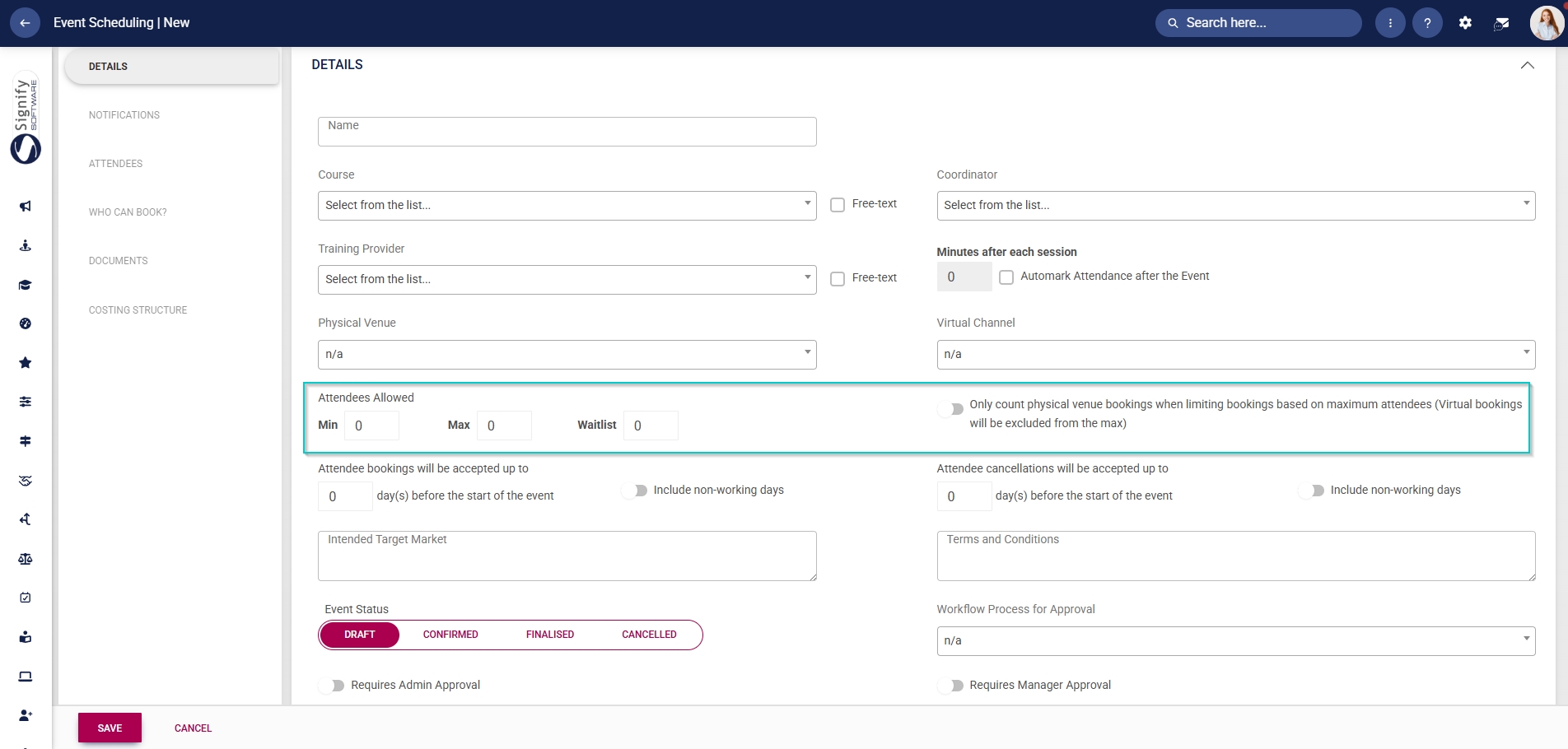
- Enter the **minimum** and **maximum** number of attendees allowed, as well as the number of **waitlist** spots for this event.
- Click the **toggle** **button** to count only physical venue bookings when considering booking limits for an event.
- Configure the booking and cancellation deadlines.
- Enter the number of days before the event during which **bookings** will be accepted.
- Click the **toggle** **button** to set the status to include non-working days.
- Enter the number of days before the event during which **cancellations** will be accepted.
- Click the **toggle** **button** to set the status to include non-working days.

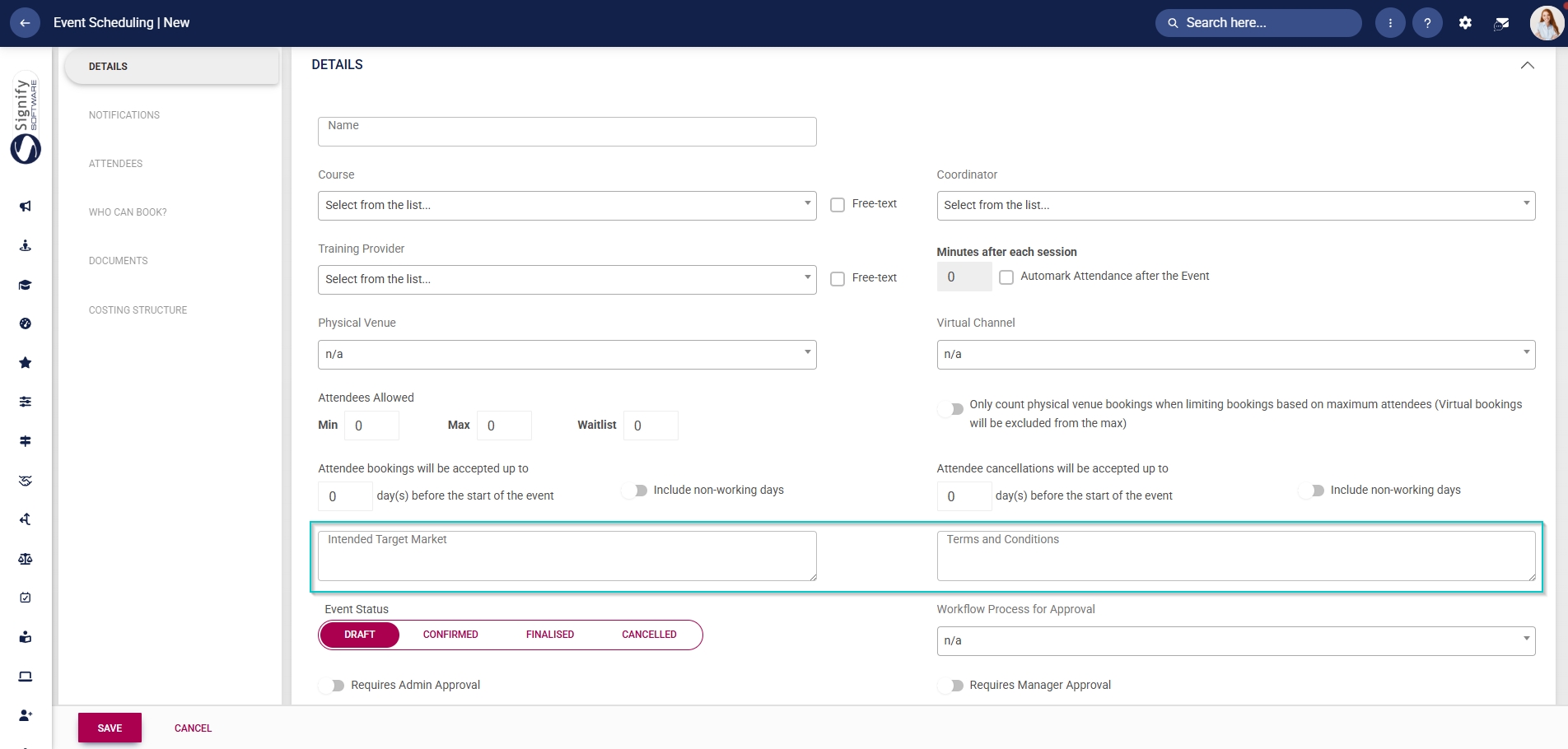
- Use the text boxes to describe the **intended target market** for this event and to list any **terms and conditions**.
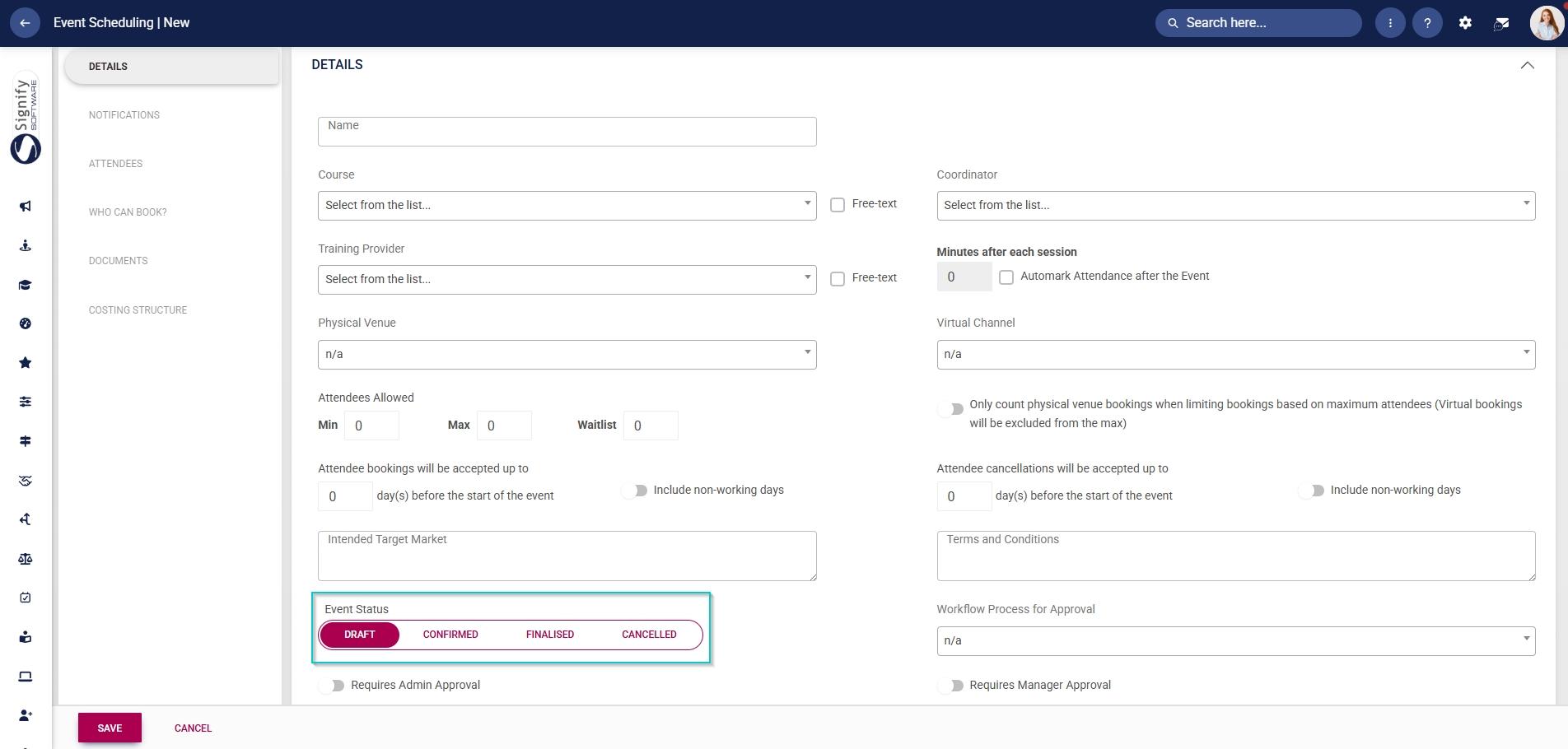
- Select the **event status**, such as Draft, Confirmed, Finalised, or Cancelled.
- Only confirmed events will be displayed in the Calendar view.
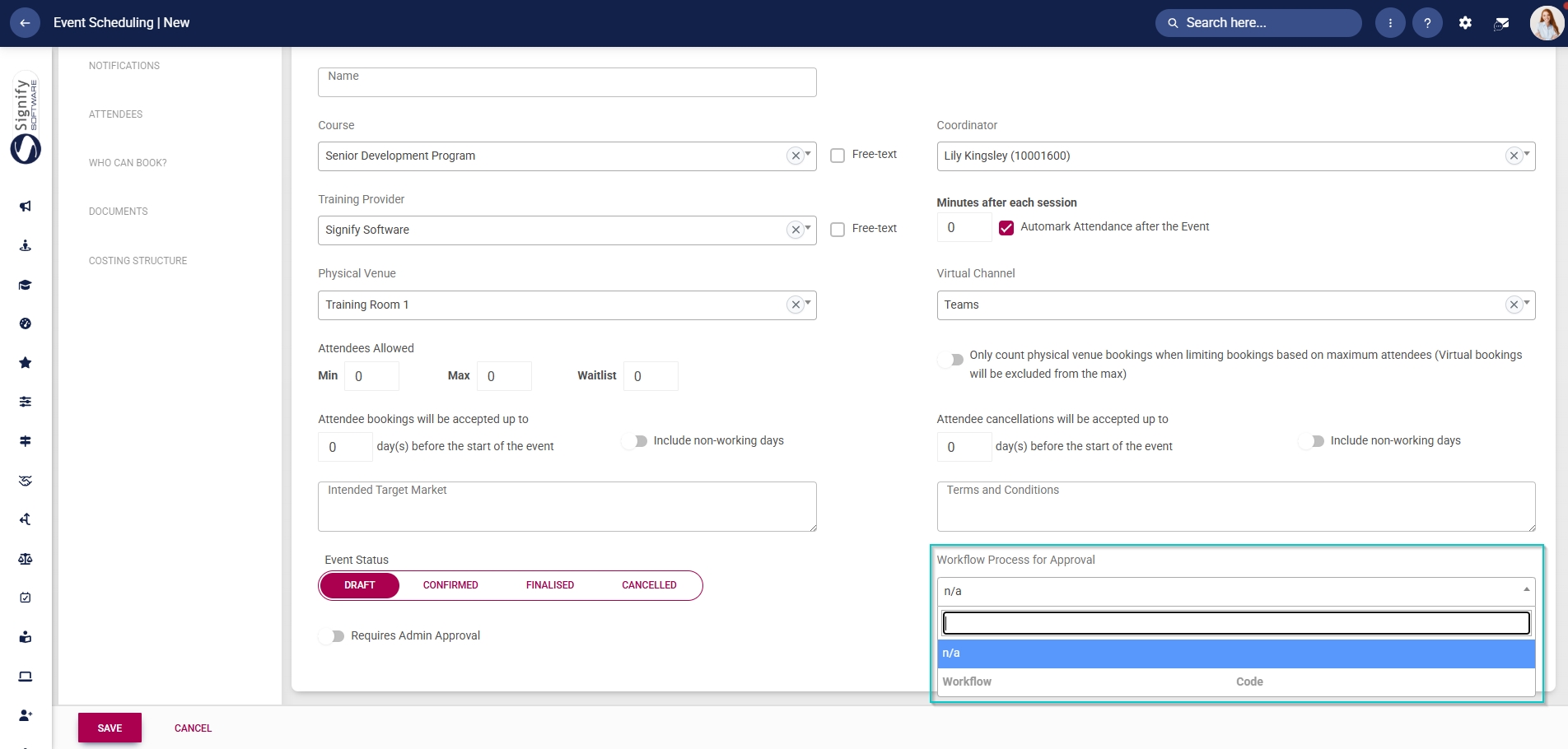
- Use the **drop-down menu** to select a pre-configured workflow process for the event’s approvals.
- Click the **toggle** **button** to set the status to require administrator approval.
- If an administrator’s approval is required, any event scheduling administrator can approve an attendee’s registration request.
- Click the **toggle** **to set the status to require manager** approval.
- If a manager’s approval is required, then the employee’s training manager will be notified. Event scheduling administrators can override manager approvals.
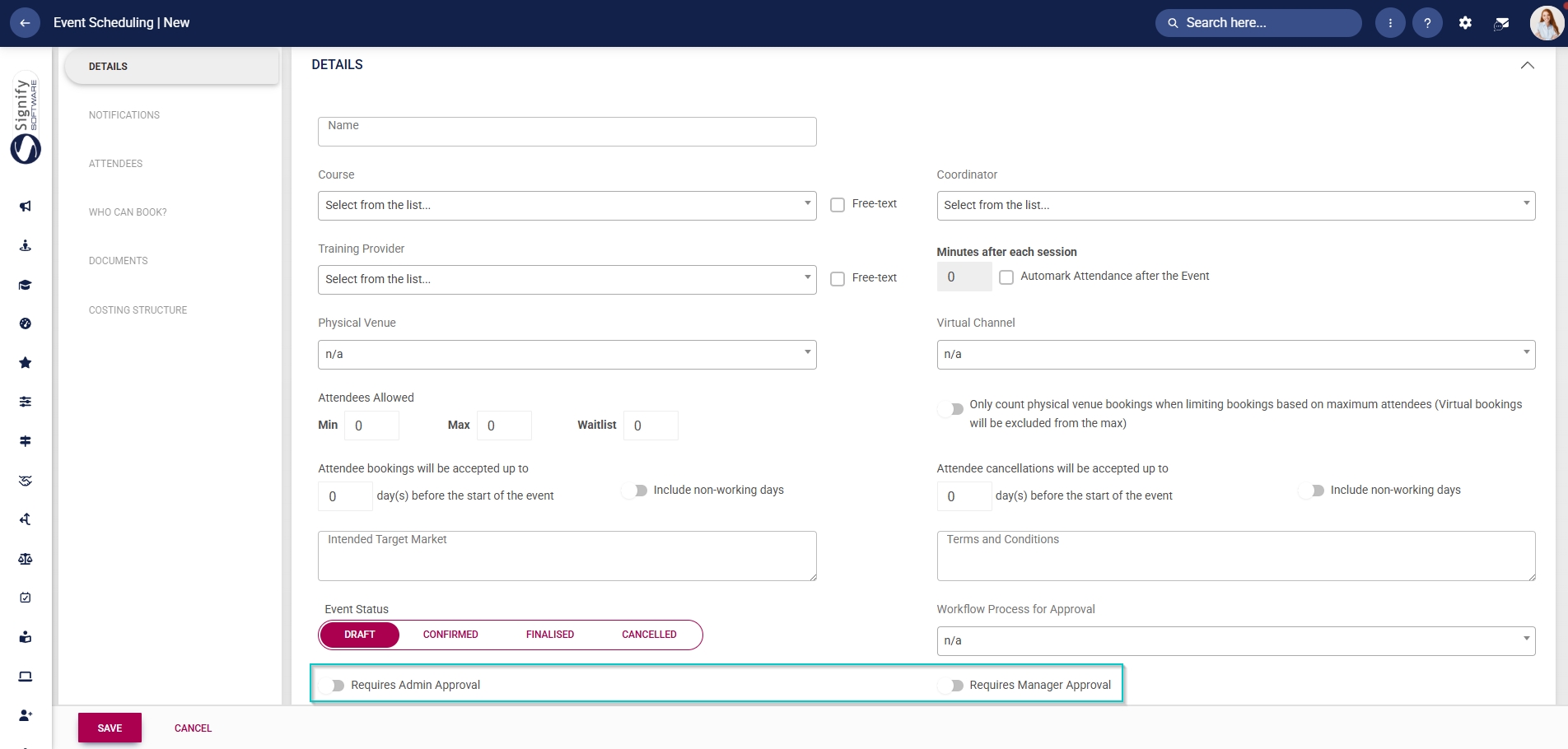
- Choose the **date**, **time range**, and **facilitators** for the event. Multiple facilitators can be selected for a single event.
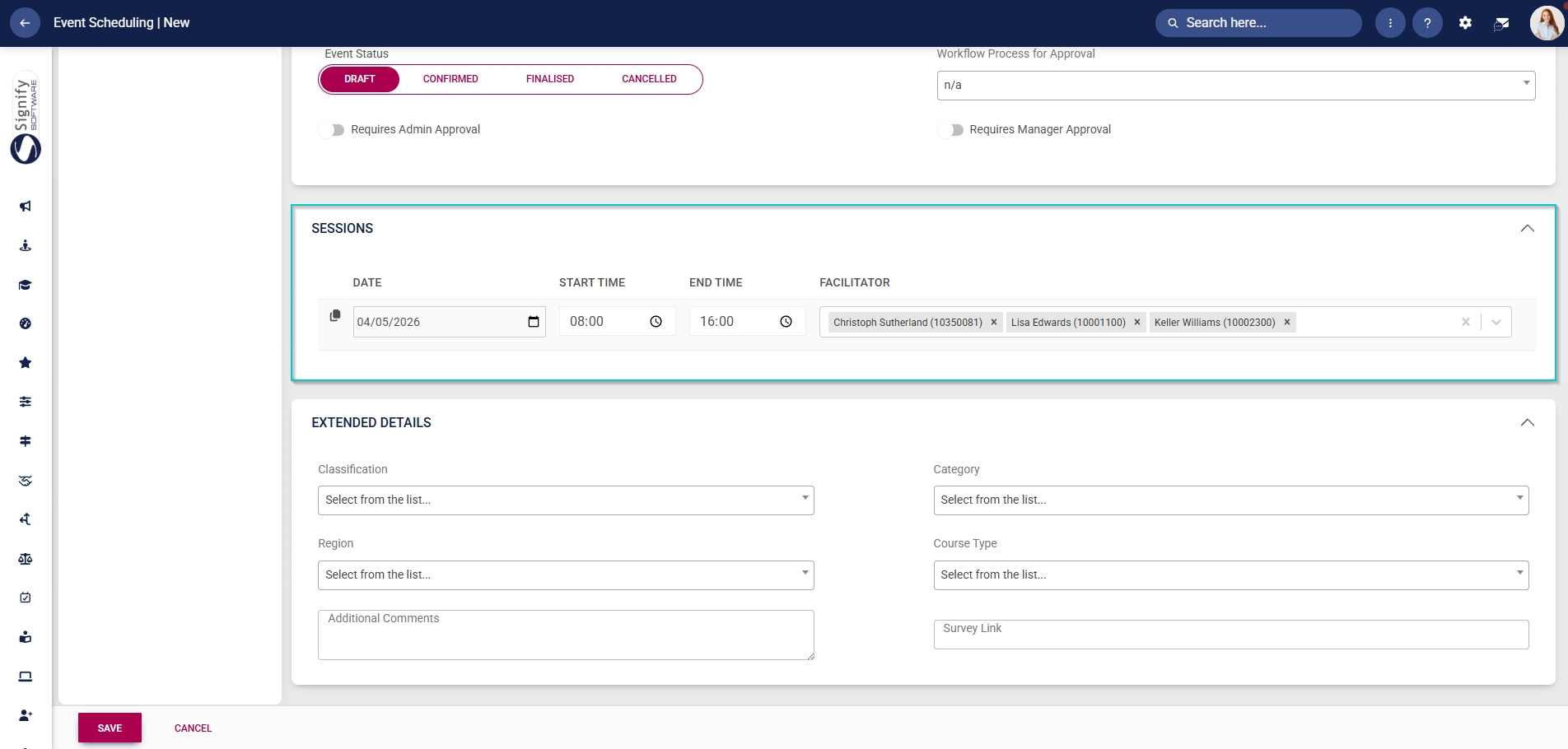
- If the event spans over multiple days, another session can be added by clicking on the **copy icon**.
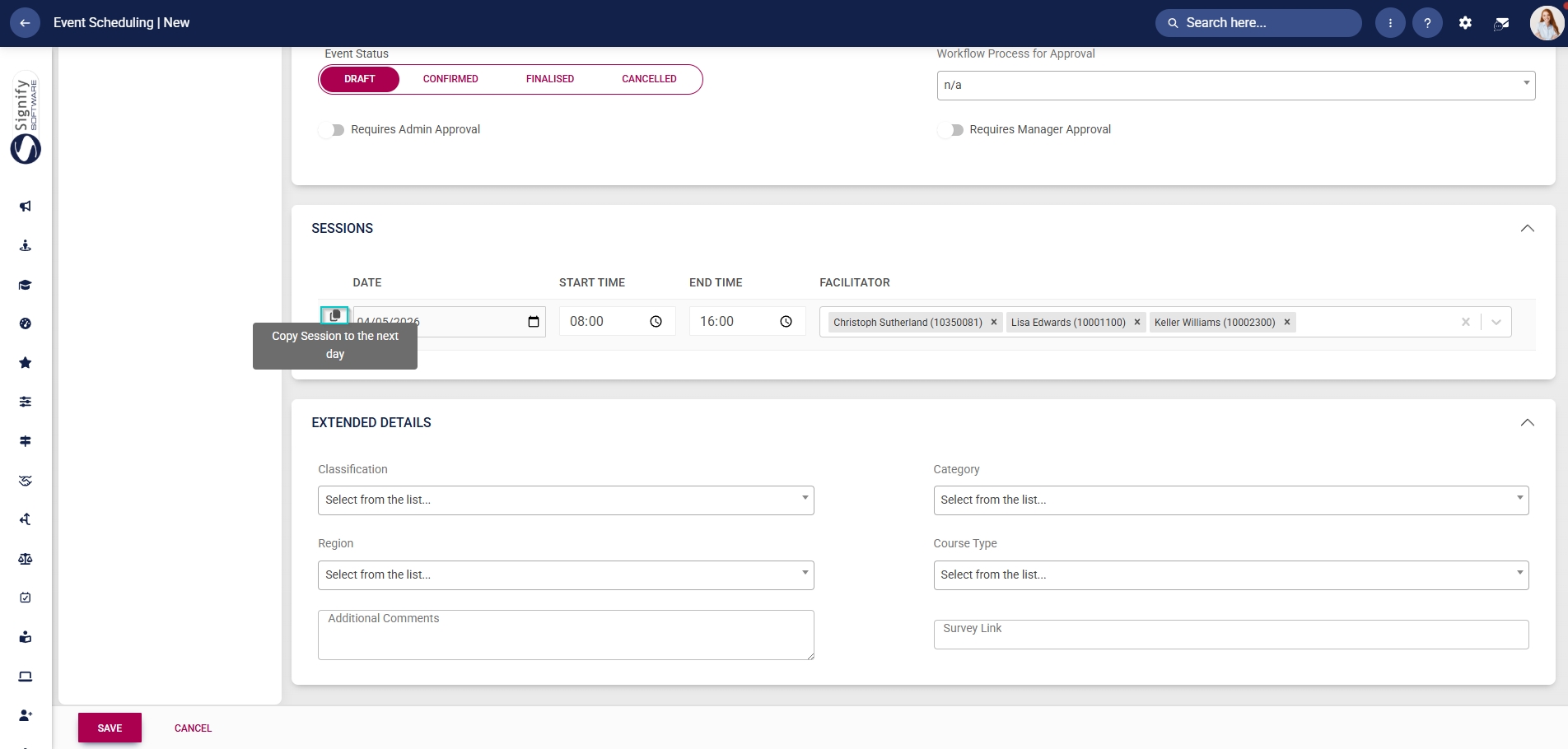
- To delete a session, click the **dustbin icon**.
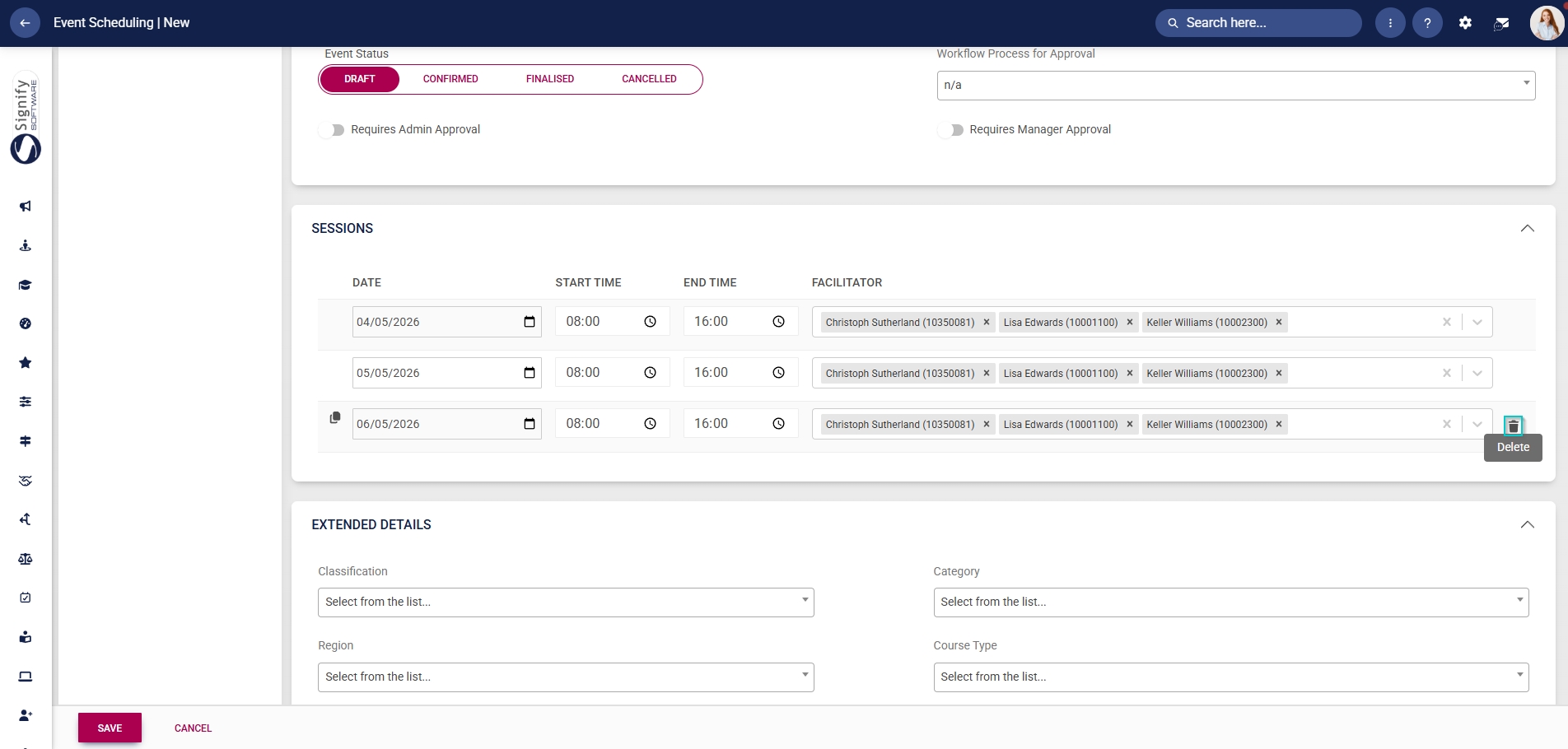
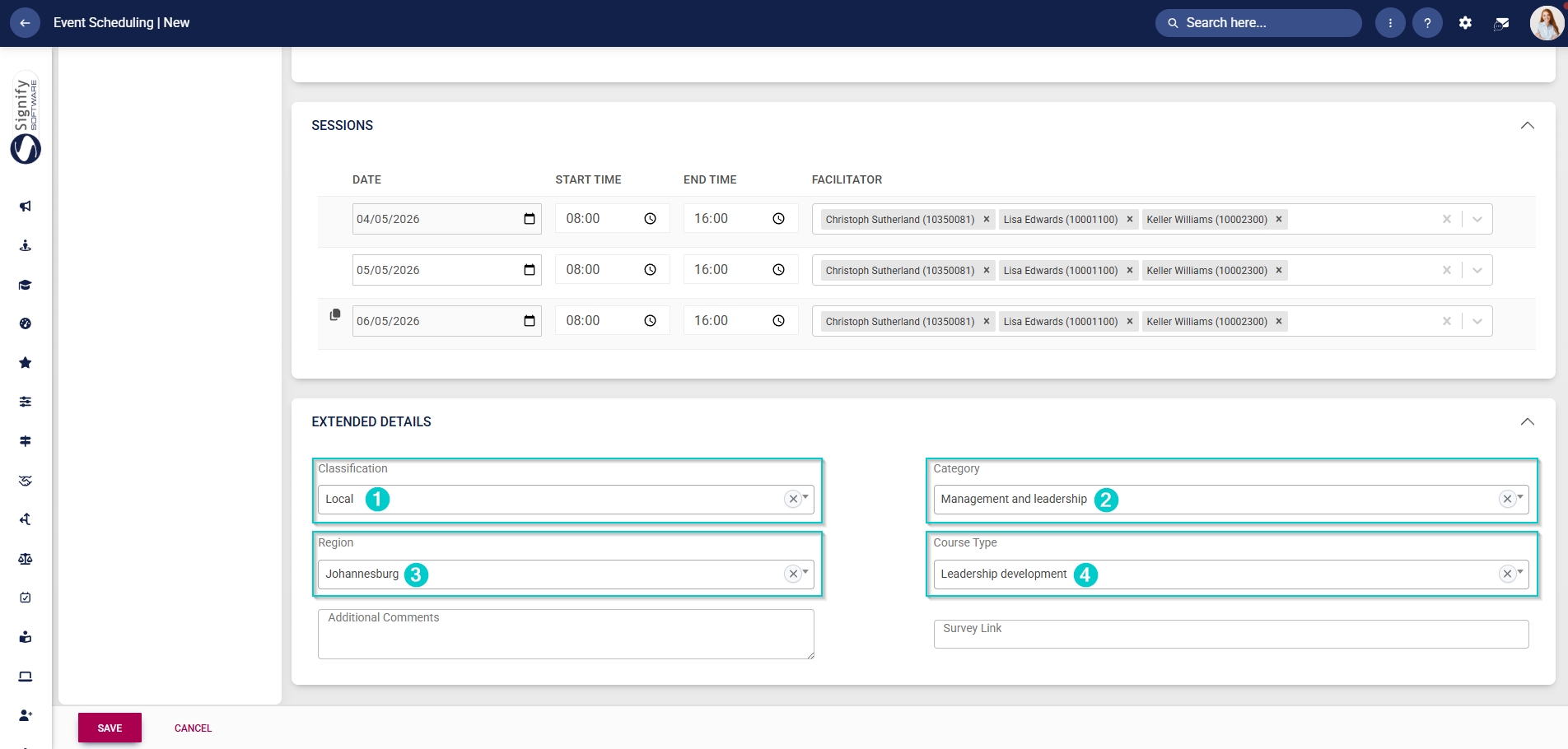
- Additional details about the event can be captured in the **Extended Details** section. From the **drop-down menus**, select Classification, Category, Region, and Course Type (which administrators previously configured as master data).
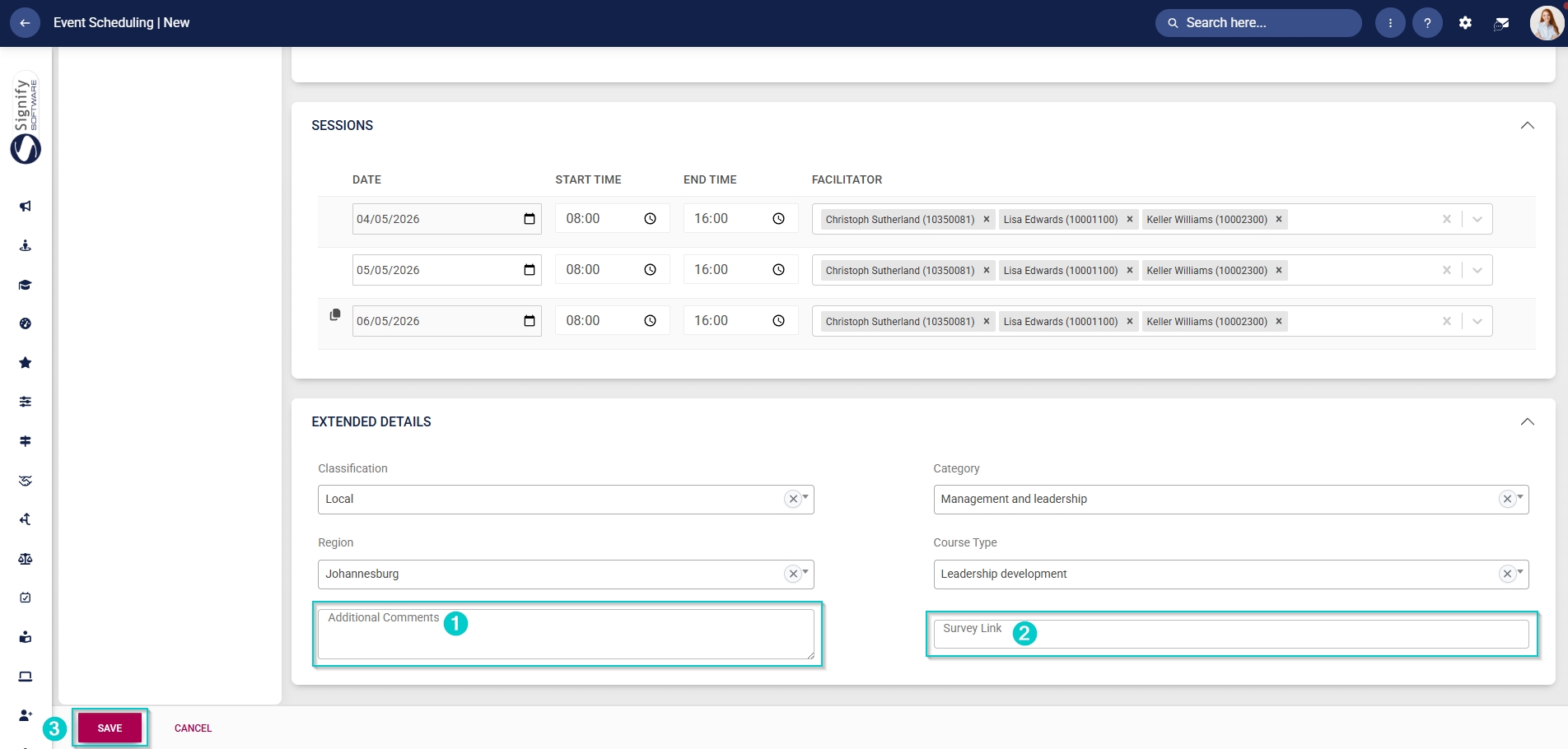
- Additional **comments** about the event can be entered in the text box.
- An external URL can be provided for attendees to complete a **survey**.
- Click **SAVE** when you are finished or click **CANCEL** to discard your edits.
[](https://signature.signifyhr.co.za/uploads/images/gallery/2025-02/ZOt8yZwhbiGx2d6U-signify-footer.png)
# Configure Event Notifications
[](https://signature.signifyhr.co.za/uploads/images/gallery/2025-02/emW3hfMrZ1yIDMUv-signify-header.png)
- Hover over the **sidebar** menu, then click **Event Scheduling**.

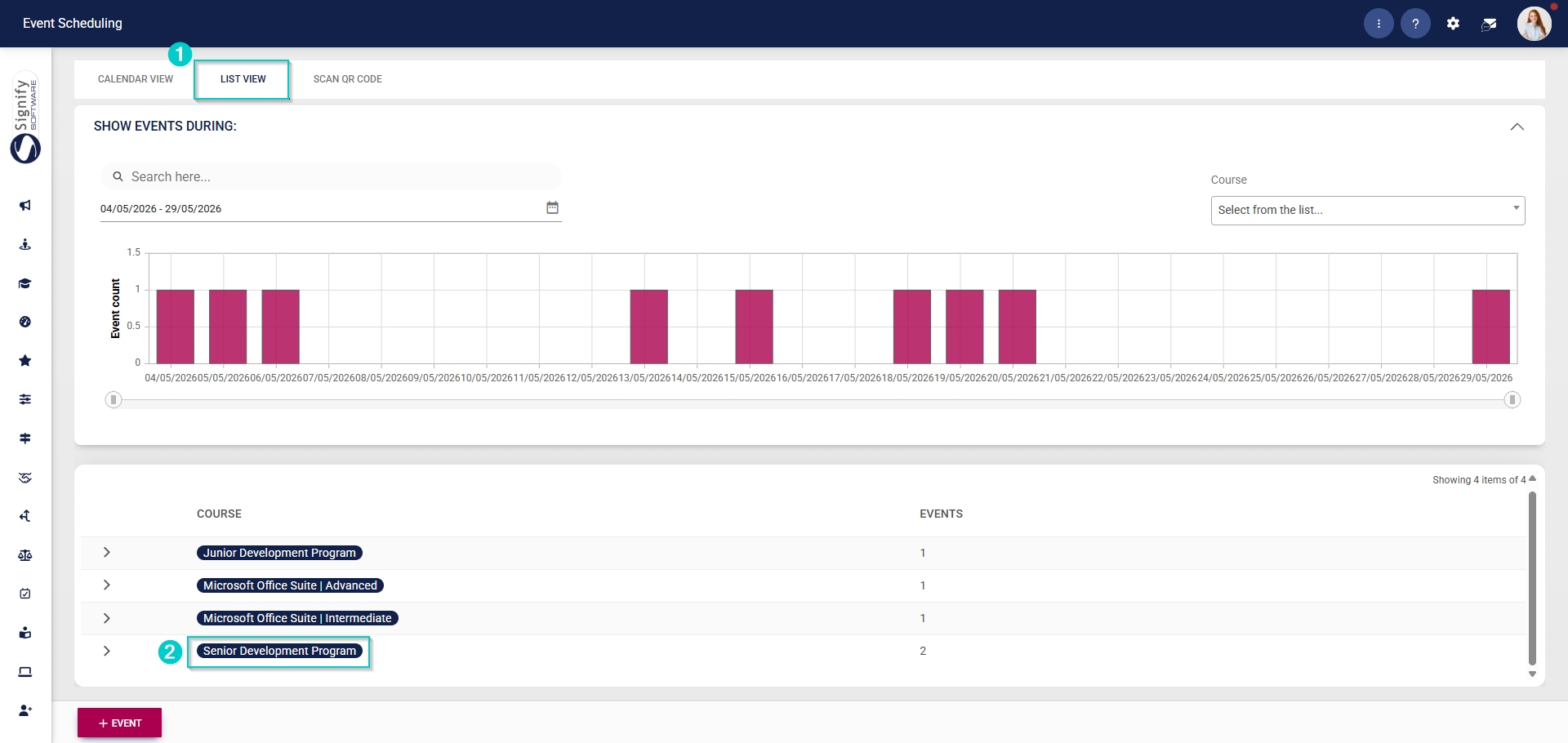
- Navigate to the **List View** tab and expand the **course** you would like to edit by clicking on its name.
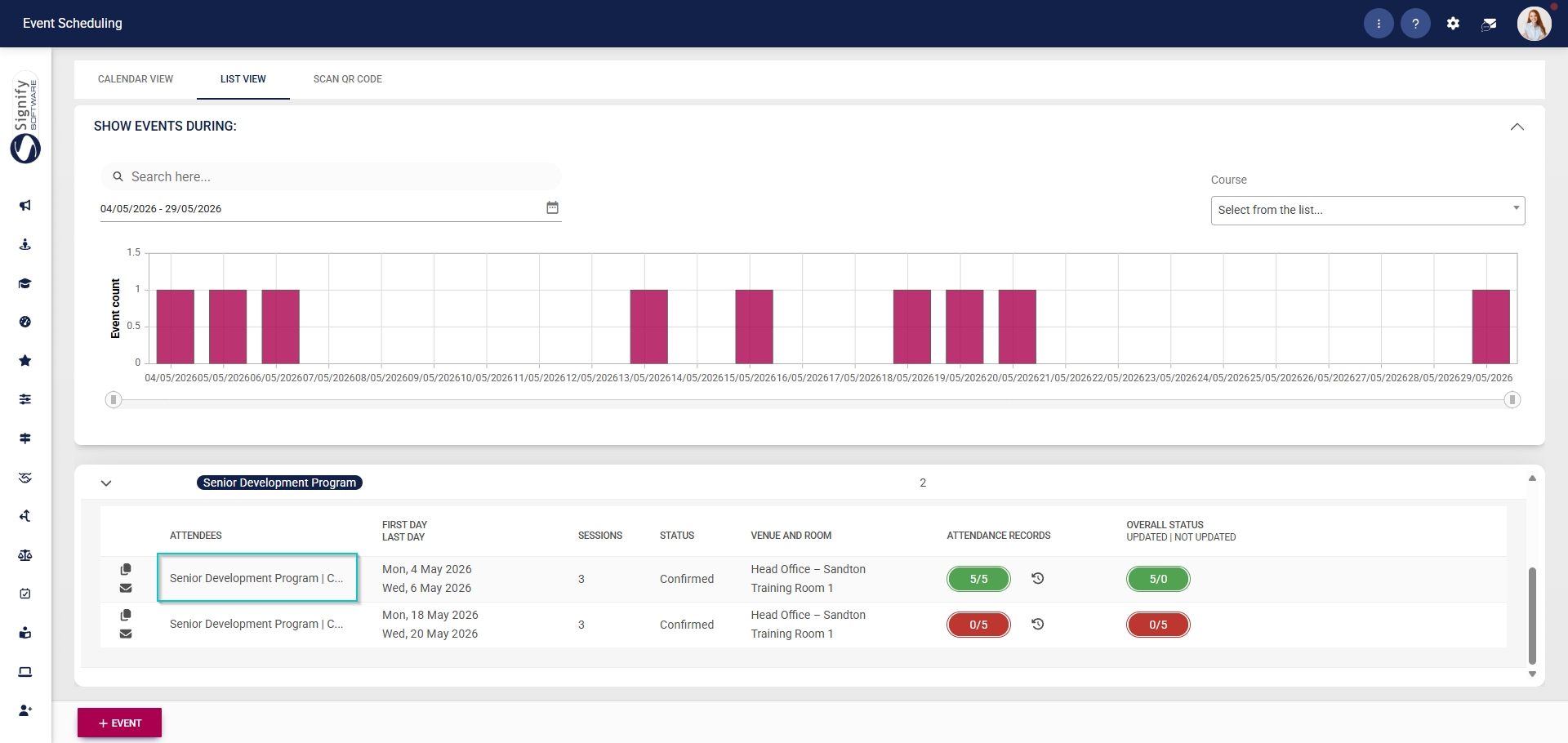
- Click on the **name** of the event you would like to edit.
- In the **left-hand menu**, click **Notifications**.
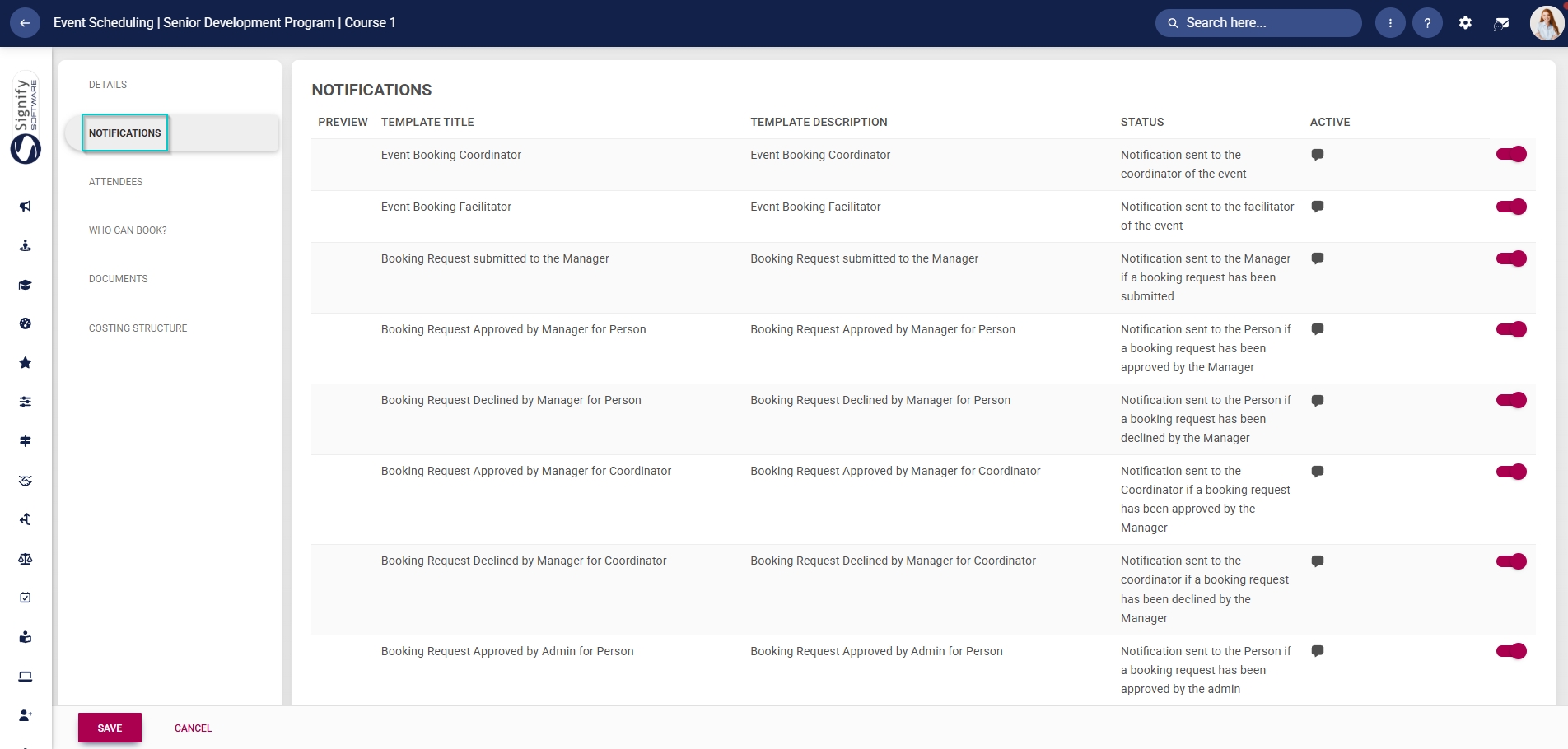
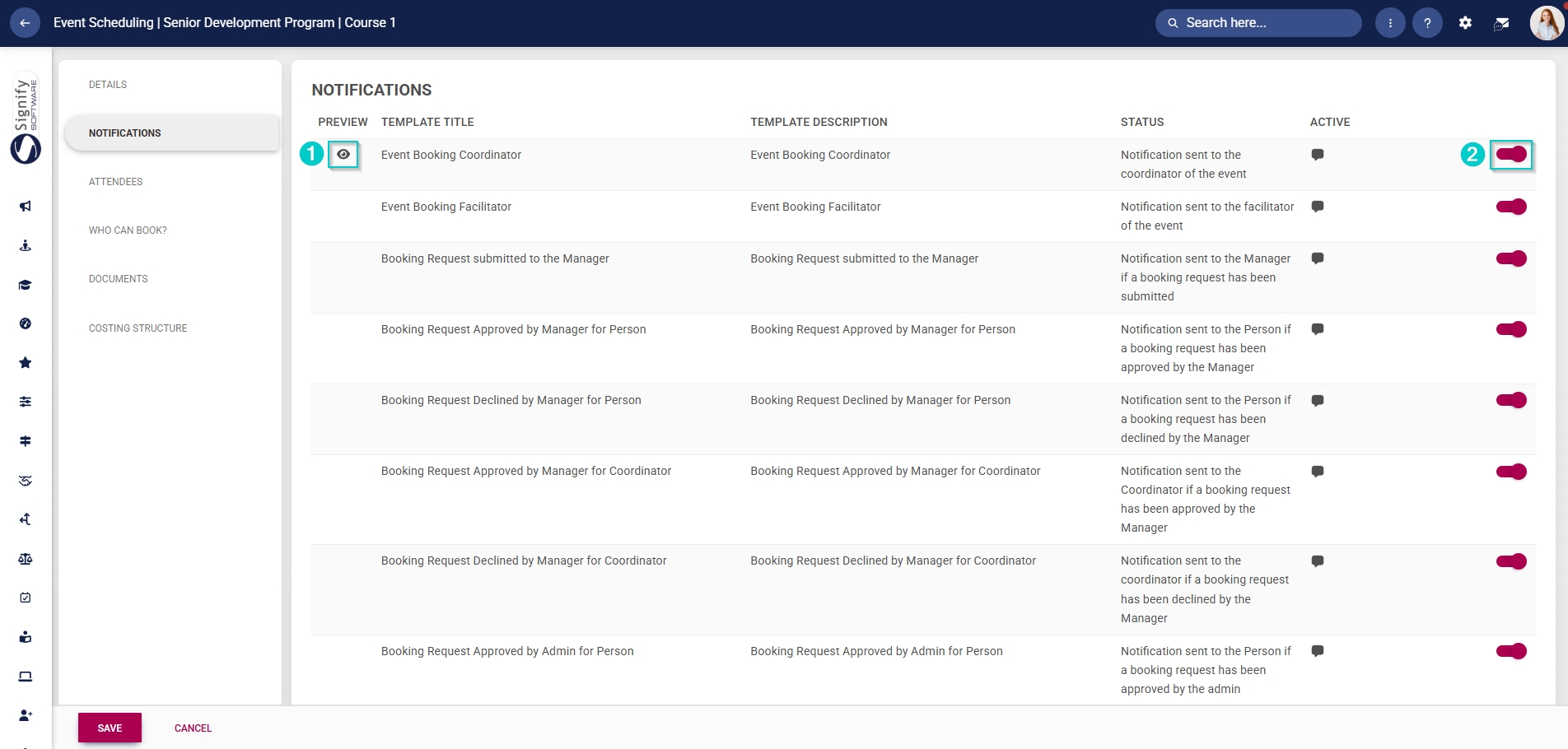
- Email templates linked to **Event Scheduling** will be listed in the table.
- Templates can be previewed by clicking the **view icon**.
- Click the **toggle** **button** to set the template’s status to **Active**.
[](https://signature.signifyhr.co.za/uploads/images/gallery/2025-02/ZOt8yZwhbiGx2d6U-signify-footer.png)
# Add Attendees
[](https://signature.signifyhr.co.za/uploads/images/gallery/2025-02/emW3hfMrZ1yIDMUv-signify-header.png)
- Hover over the **sidebar** menu, then click **Event Scheduling**.

- Navigate to the **List View** tab and expand the **course** you would like to edit by clicking on its name.

- Click on the **name** of the event you would like to edit.

- In the **left-hand menu**, click **Attendees**.
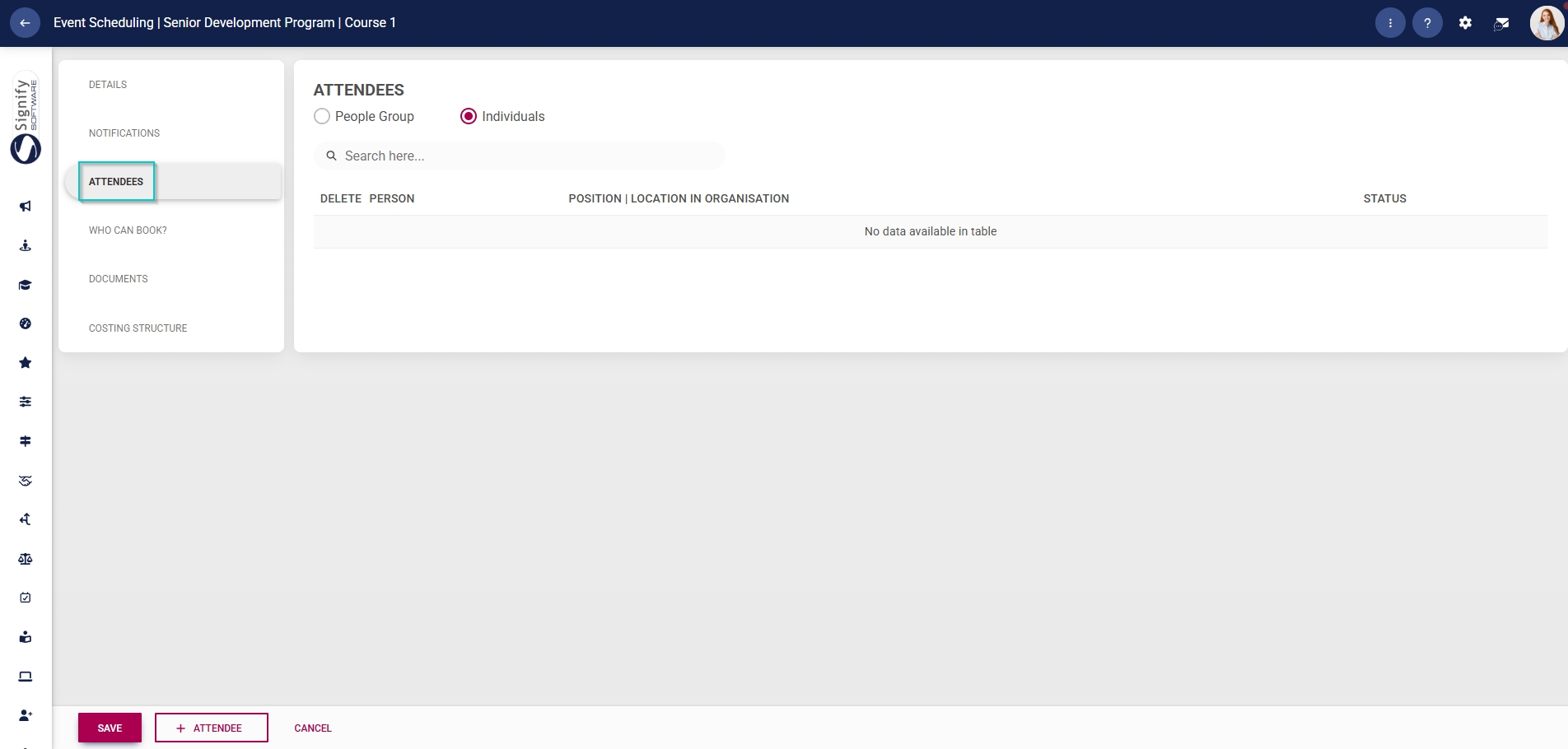
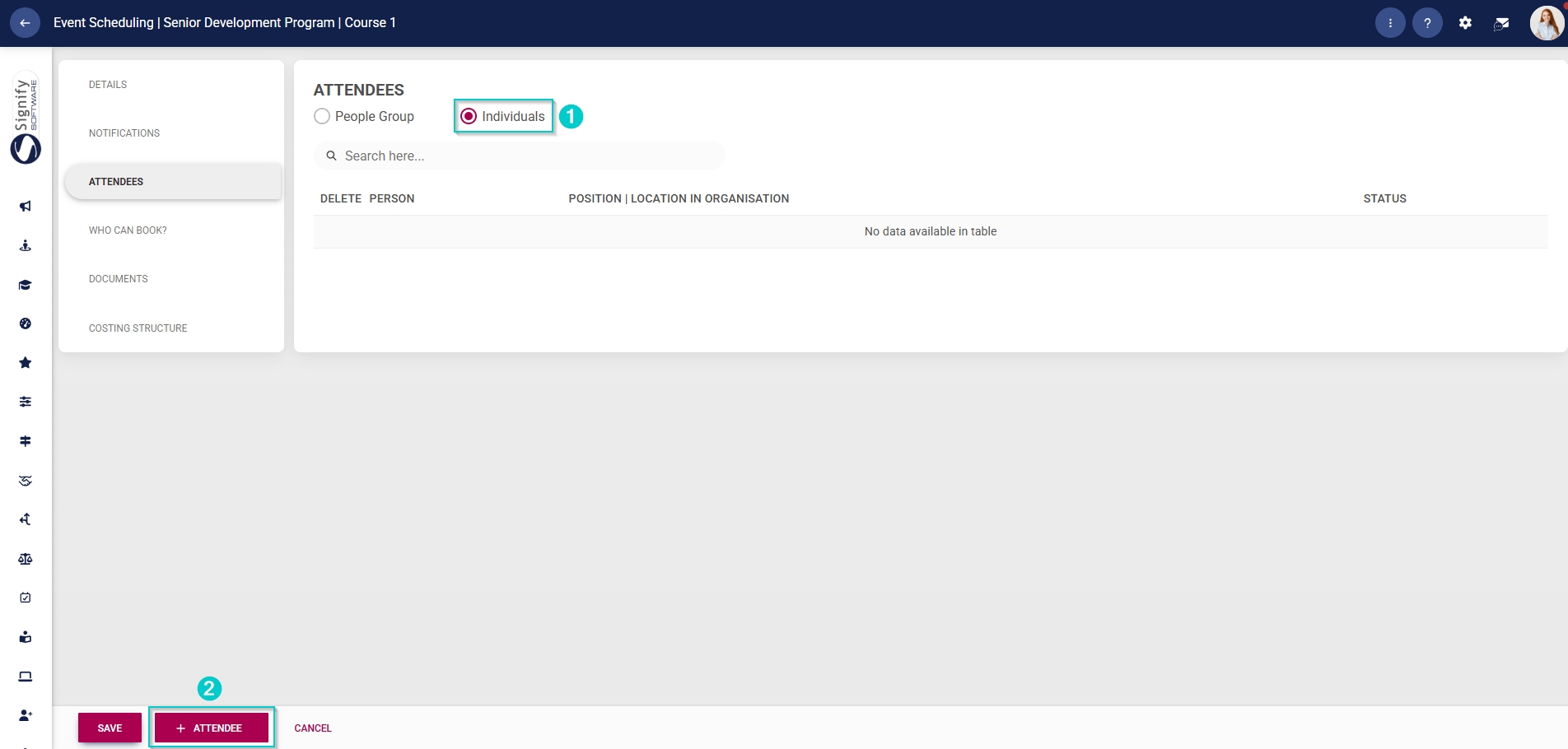
- Use the radio buttons to select people groups or individuals to link.
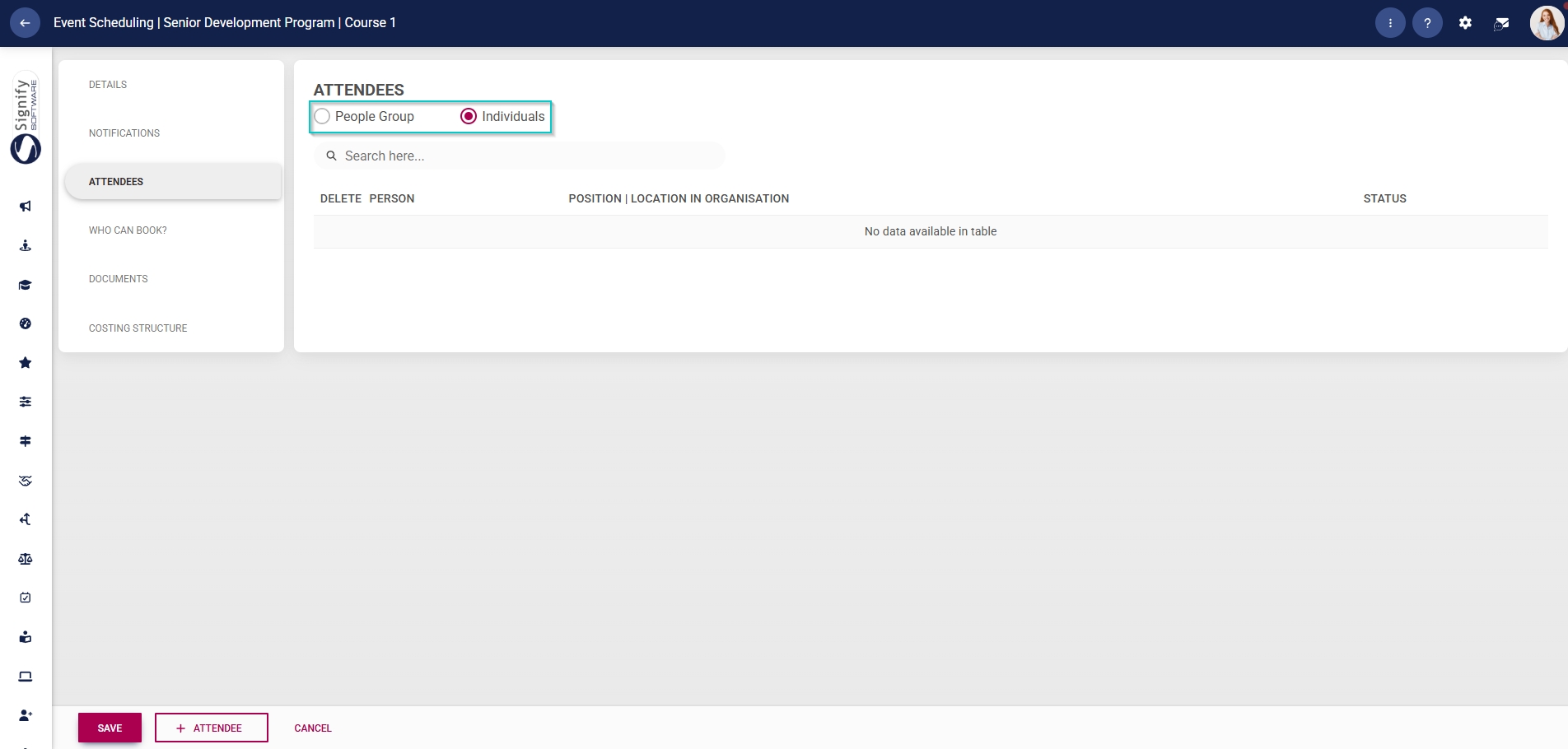
- To add individual attendees, click **+ATTENDEE**.
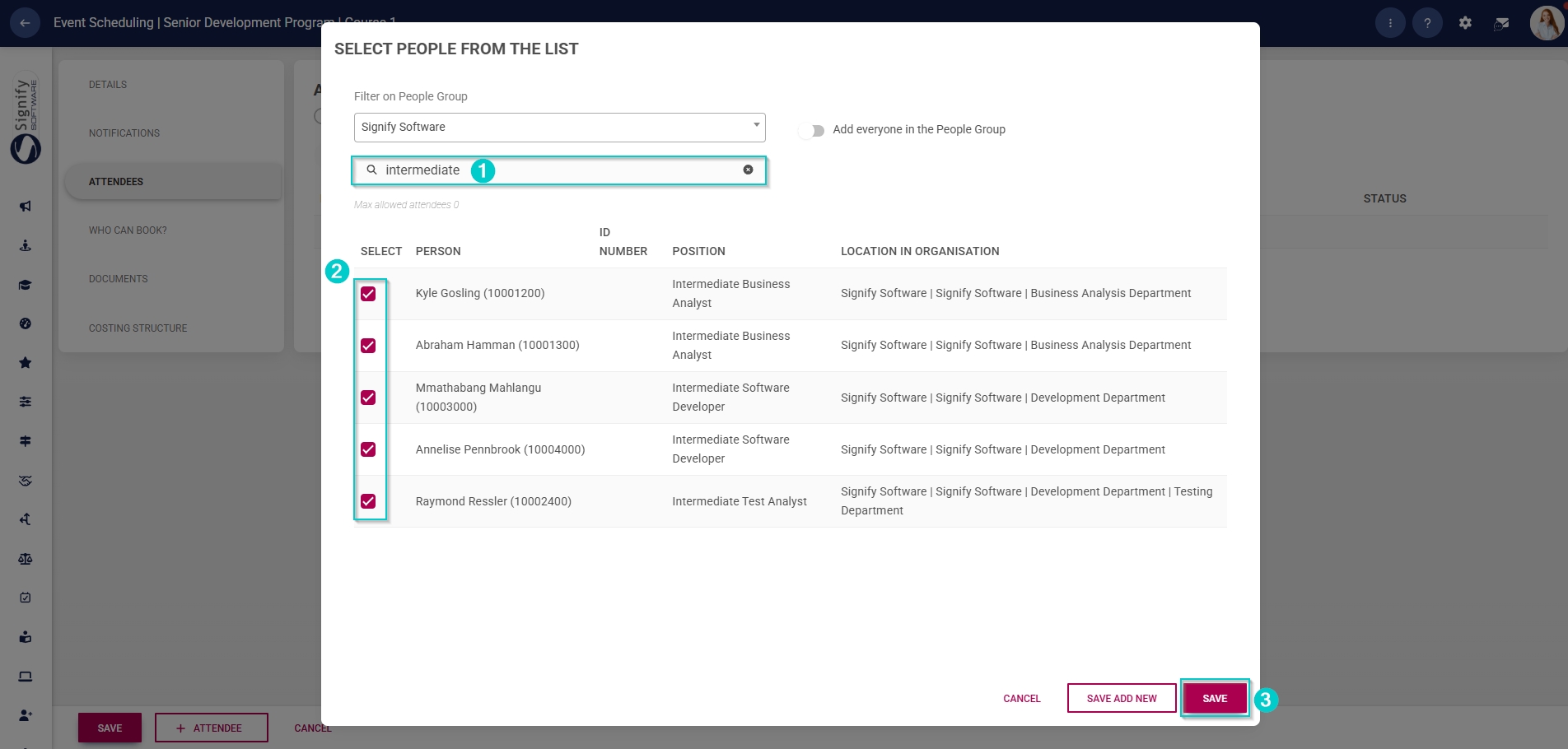
- In the pop-up window, select the people group from the **dropdown menu** to filter people.
- Click the **toggle** **button** to add everyone in the people group.

- Use the **search bar** to find a specific person, job position, or location within the organisation.
- Use the **checkboxes** next to the names to select the required attendees.
- Click **SAVE** when you are finished, SAVE ADD NEW** to add another attendee or click **CANCEL** to discard your edits.
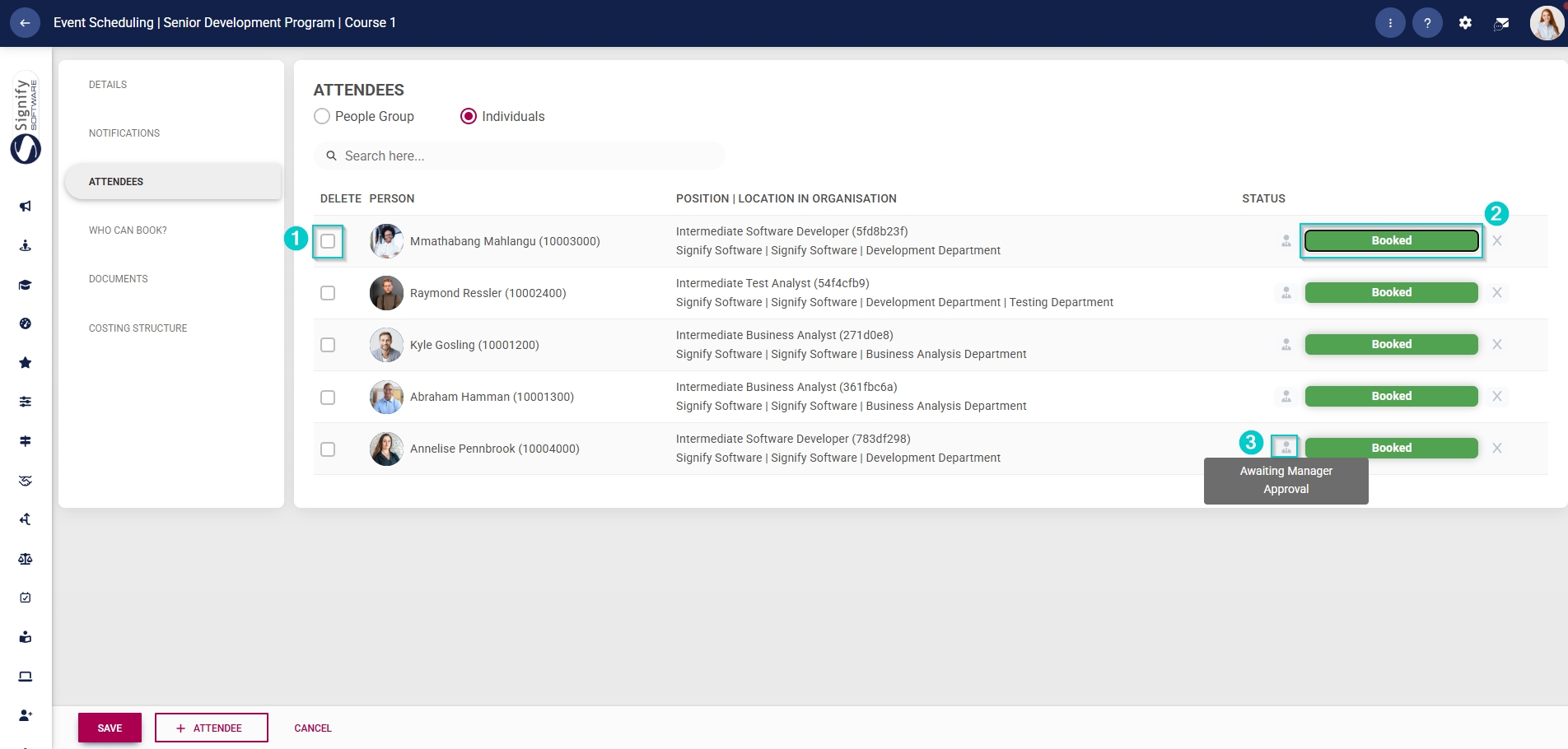
- The selected attendees will appear in the table.
- To **delete** an attendee, tick the **checkbox** next to their name. If you click **SAVE**, the selected attendees will be deleted.
- The status of the attendee's booking is shown in the right column.
- If an approval workflow is linked to this event, the status will include an icon to show that the attendee's booking is awaiting an administrator's or manager's approval.
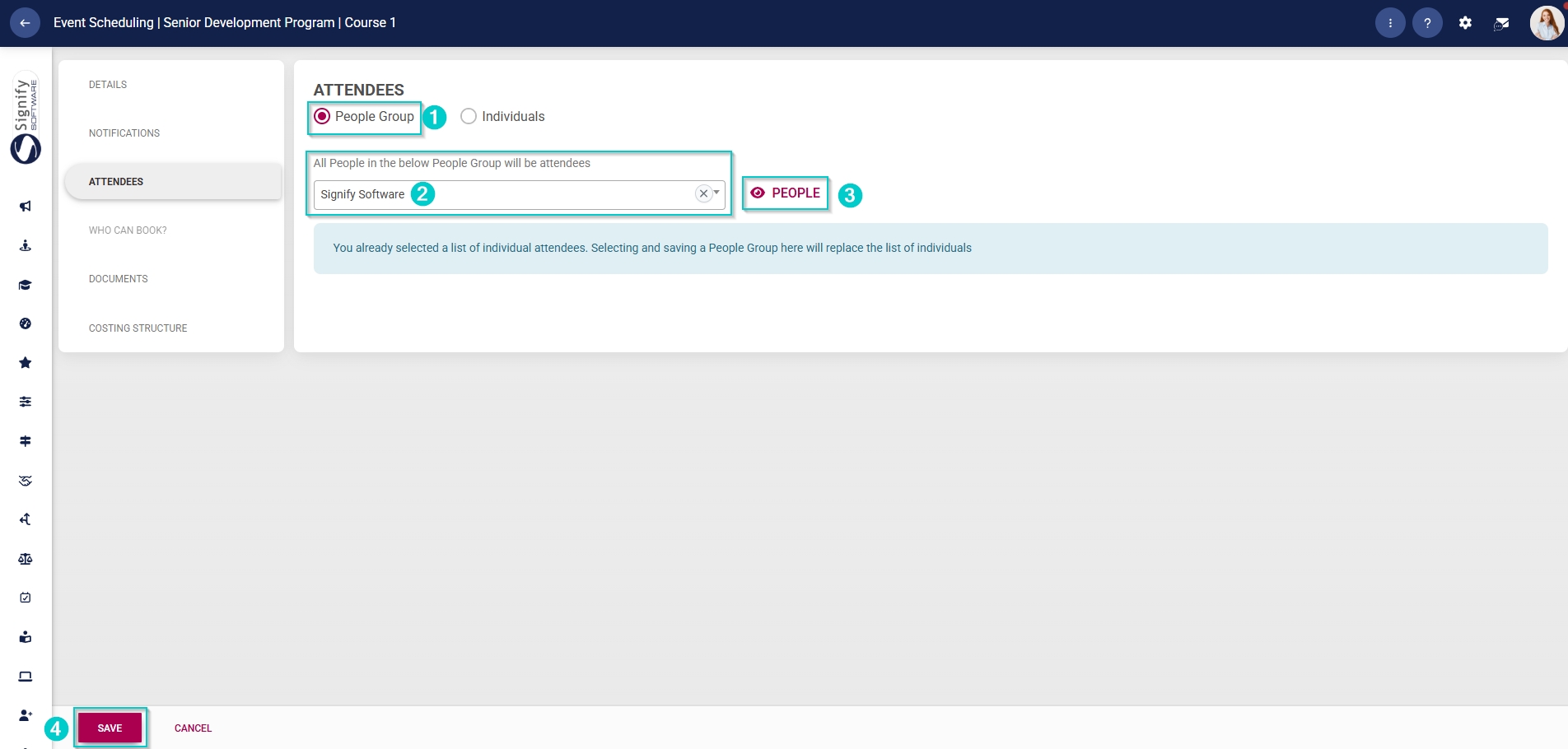
- To add a group of people, select the custom people group you have previously created from the **dropdown menu**.
- Click the **view icon** to view the people in the people group.
- Please note that if you have already added individual attendees, adding an attendee people group will replace the list of individual attendees.
- To add an attendee when using the **People Group** option, you will need to update the people group as described earlier.
- Click **SAVE** when you are finished or click **CANCEL** to discard your edits.
[](https://signature.signifyhr.co.za/uploads/images/gallery/2025-02/ZOt8yZwhbiGx2d6U-signify-footer.png)
# Configure Who Can Book
[](https://signature.signifyhr.co.za/uploads/images/gallery/2025-02/emW3hfMrZ1yIDMUv-signify-header.png)
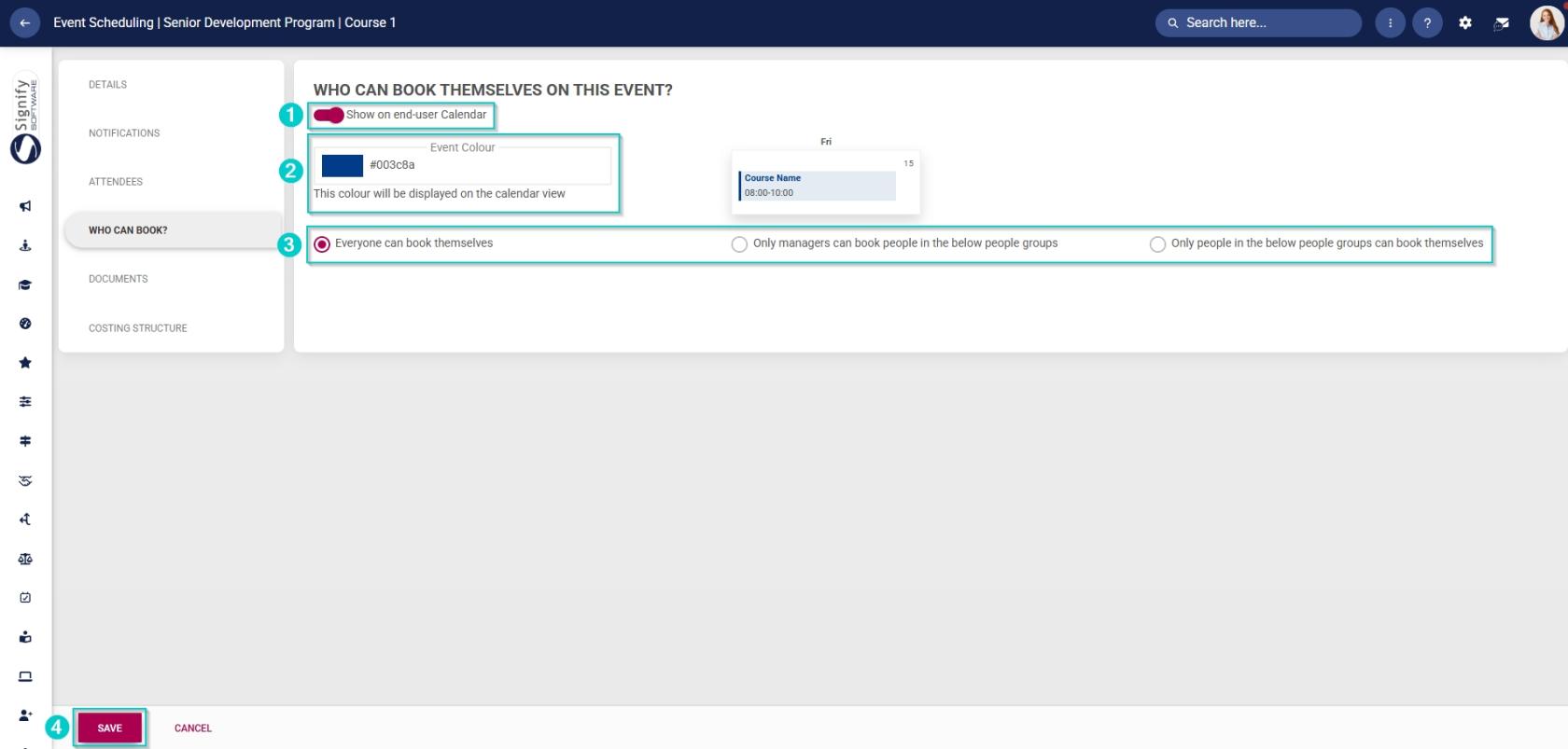
If the attendees selected for the event (in the previous step) are individuals, you can use the **Who Can Book** tab to configure employee self-service for bookings.
- Hover over the **sidebar** menu, then click **Event Scheduling**.

- Navigate to the **List View** tab and expand the **course** you would like to edit by clicking on its name.

- Click on the **name** of the event you would like to edit.

- In the **left-hand menu**, click **Who Can Book**.
- Click the **toggle** **button** to set the status to display the event on end users’ calendars.
- Select a **colour** for this event.
- Use the radio buttons to choose who can book themselves on this event:
- Everyone can book themselves, or
- Managers can book from the people groups listed below, or
- People from the selected people groups can book themselves.
- Click **SAVE** when you are finished or click **CANCEL** to discard your edits.
[](https://signature.signifyhr.co.za/uploads/images/gallery/2026-05/WgHyG3CQxVwhPfmg-es-create-event-wcb-calendar-event-details.jpg)
[](https://signature.signifyhr.co.za/uploads/images/gallery/2025-02/ZOt8yZwhbiGx2d6U-signify-footer.png)
# Upload Documents to an Event
[](https://signature.signifyhr.co.za/uploads/images/gallery/2025-02/emW3hfMrZ1yIDMUv-signify-header.png)
- Hover over the **sidebar** menu, then click **Event Scheduling**.

- Navigate to the **List View** tab and expand the **course** you would like to edit by clicking on its name.

- Click on the **name** of the event you would like to edit.

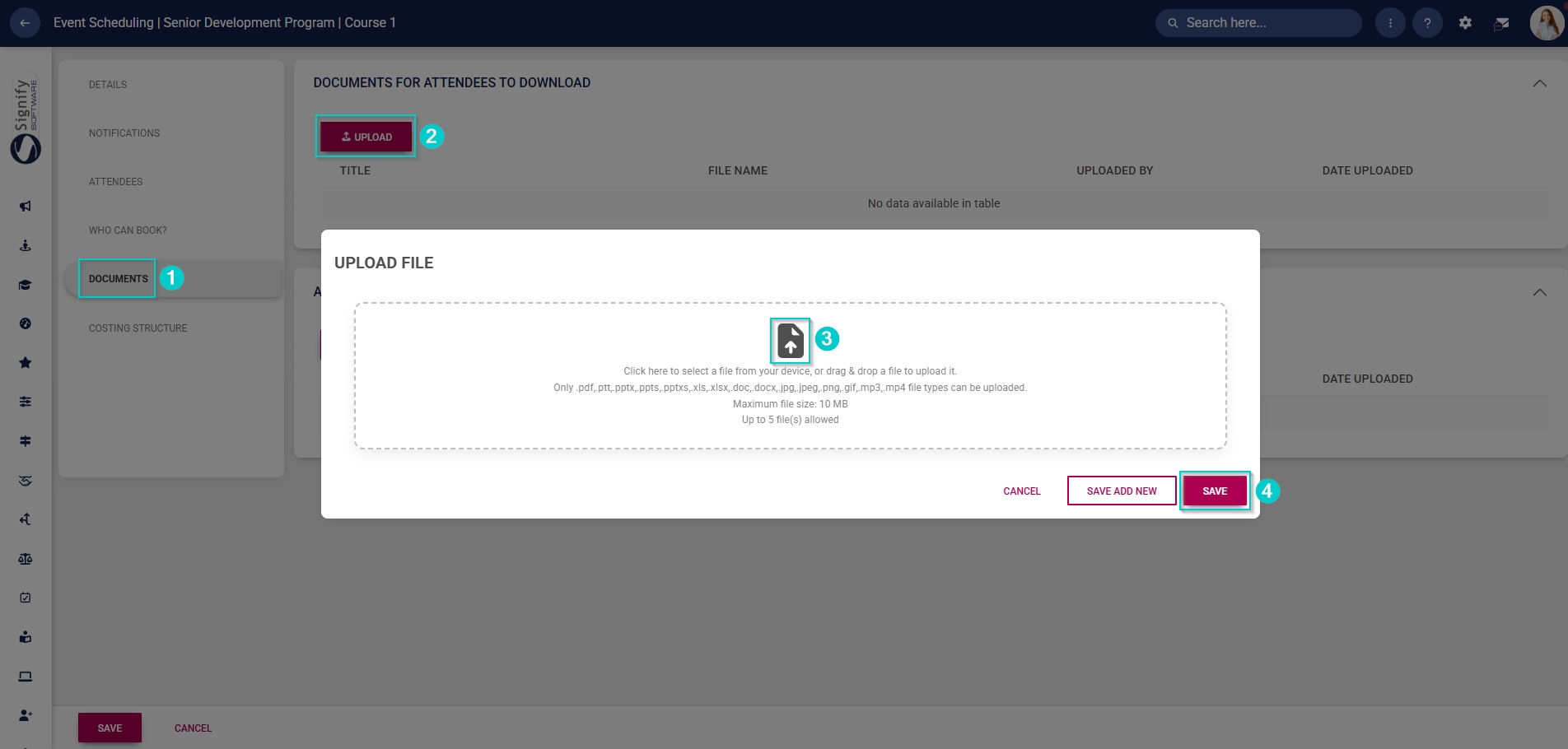
- In the **left-hand menu**, click **Documents**.
- Click **UPLOAD** to link a file to this event so attendees can download it.
- Choose the file you would like to upload.
- Click **SAVE** when you are finished, SAVE ADD NEW** to add another file (up to five files allowed) or click **CANCEL** to discard your edits.
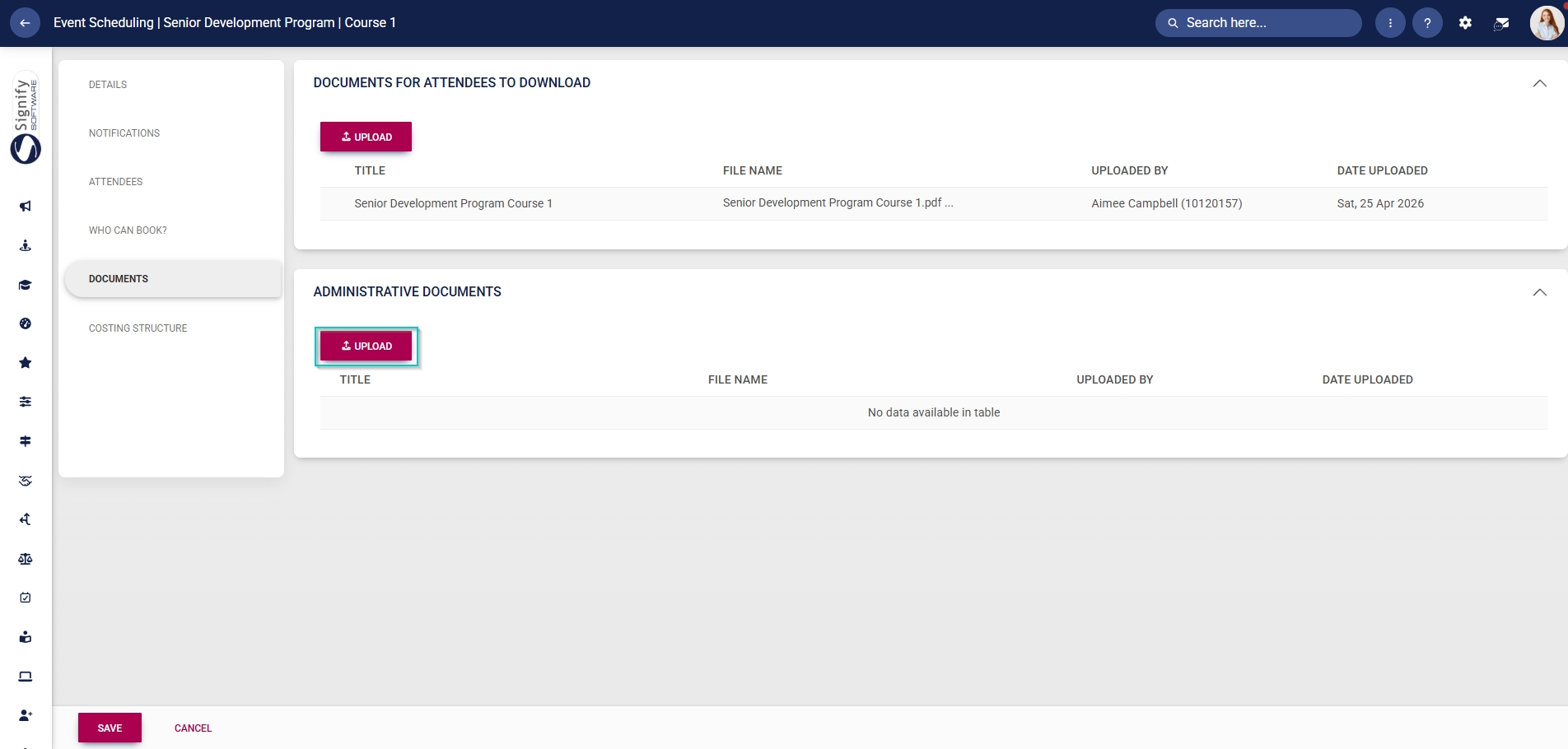
- Click **UPLOAD** to link a file to this event so facilitators or coordinators can download it. This document is not visible to attendees.
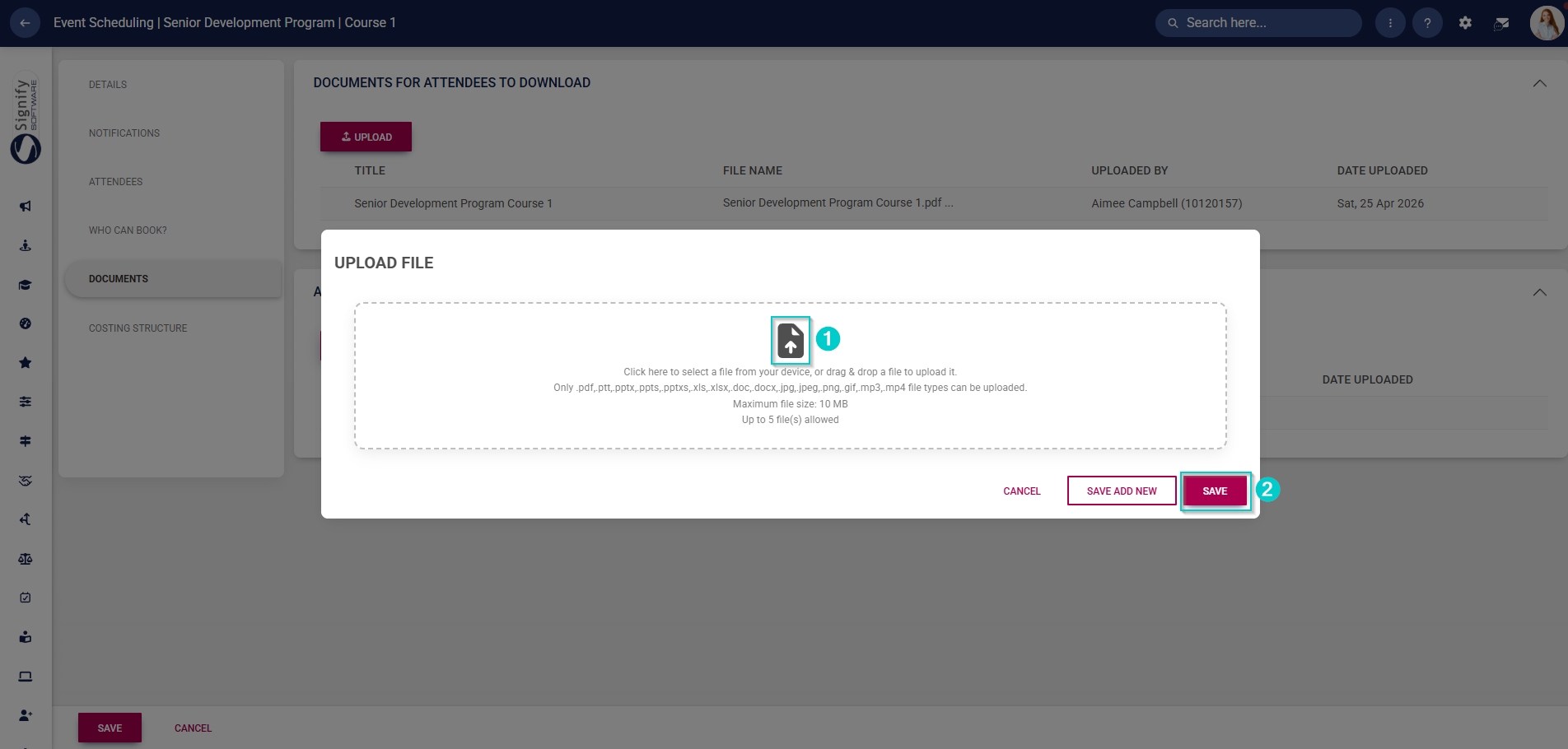
- Choose the file you would like to upload. Please note that up to five files are allowed.
- Click **SAVE** when you are finished, SAVE ADD NEW** to add another file or click **CANCEL** to discard your edits.
[](https://signature.signifyhr.co.za/uploads/images/gallery/2025-02/ZOt8yZwhbiGx2d6U-signify-footer.png)
# Configure Costing Structures
[](https://signature.signifyhr.co.za/uploads/images/gallery/2025-02/emW3hfMrZ1yIDMUv-signify-header.png)
Administrators can add costing structures to events. The cost description categories are specified on the linked training intervention. The costs are then defined using the **Event Scheduling** module.
#### Add costs to the training intervention
- Click the **gear icon** to access the **Setup and Configuration** menu.

- Click **Other System Administration**.

- In the new tab that opens, click **Training Interventions** in the **Training Scheduling** block.

- The **Training Intervention Library** will open in a new tab. Select the **training intervention** you have created for this event.
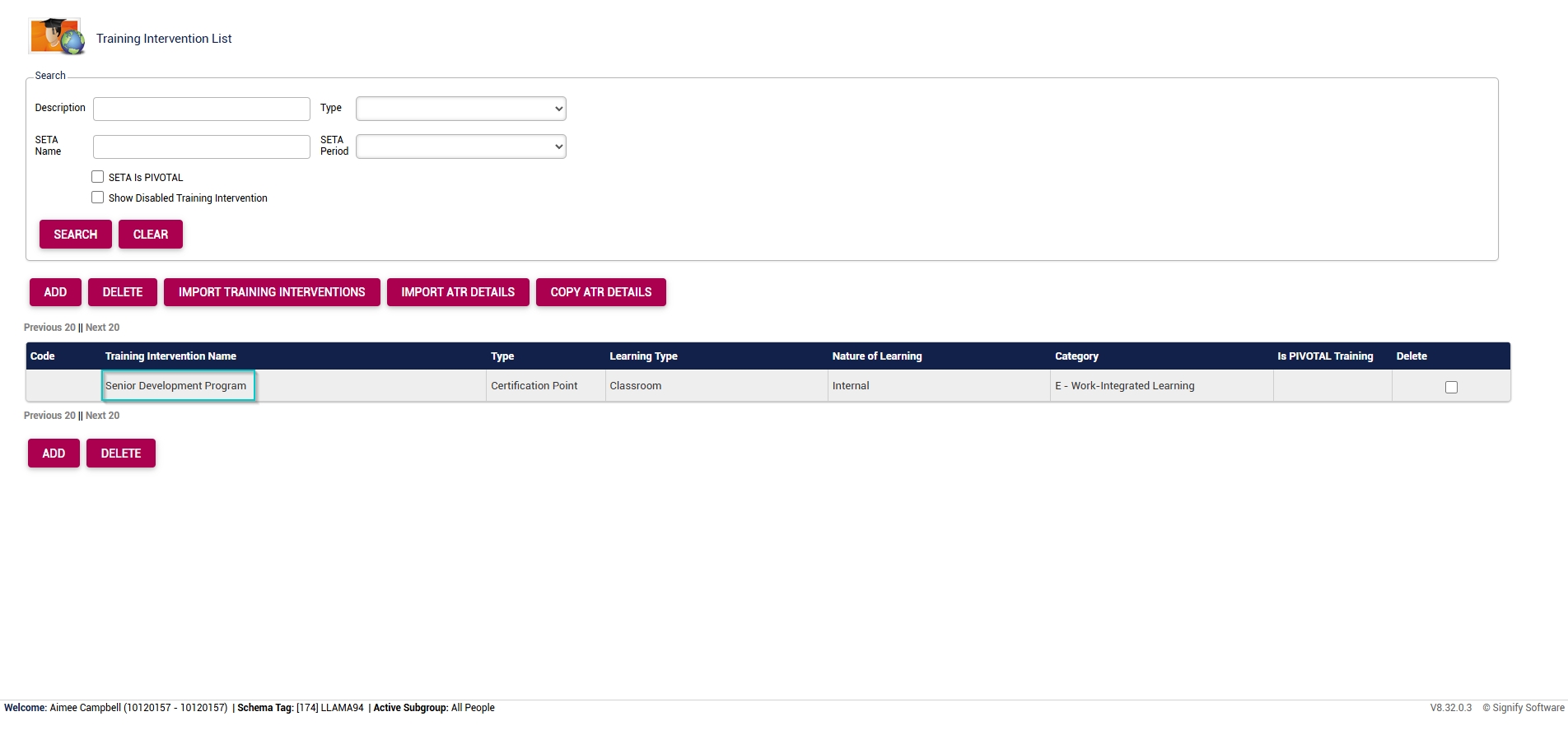
- Navigate to the **Costing Structure** tab, then click **ADD**.
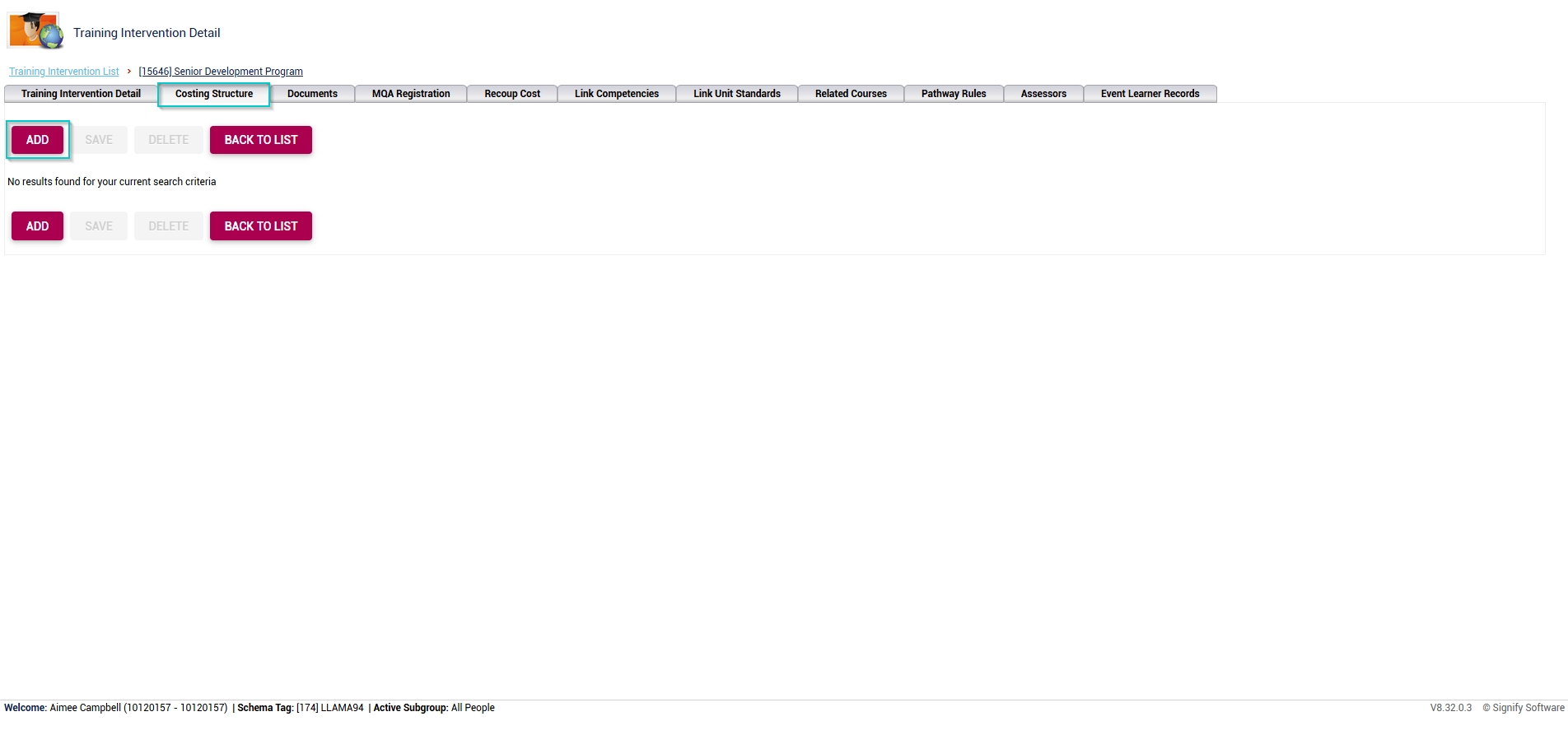
- In the pop-up window, click **ADD** to add default cost items.
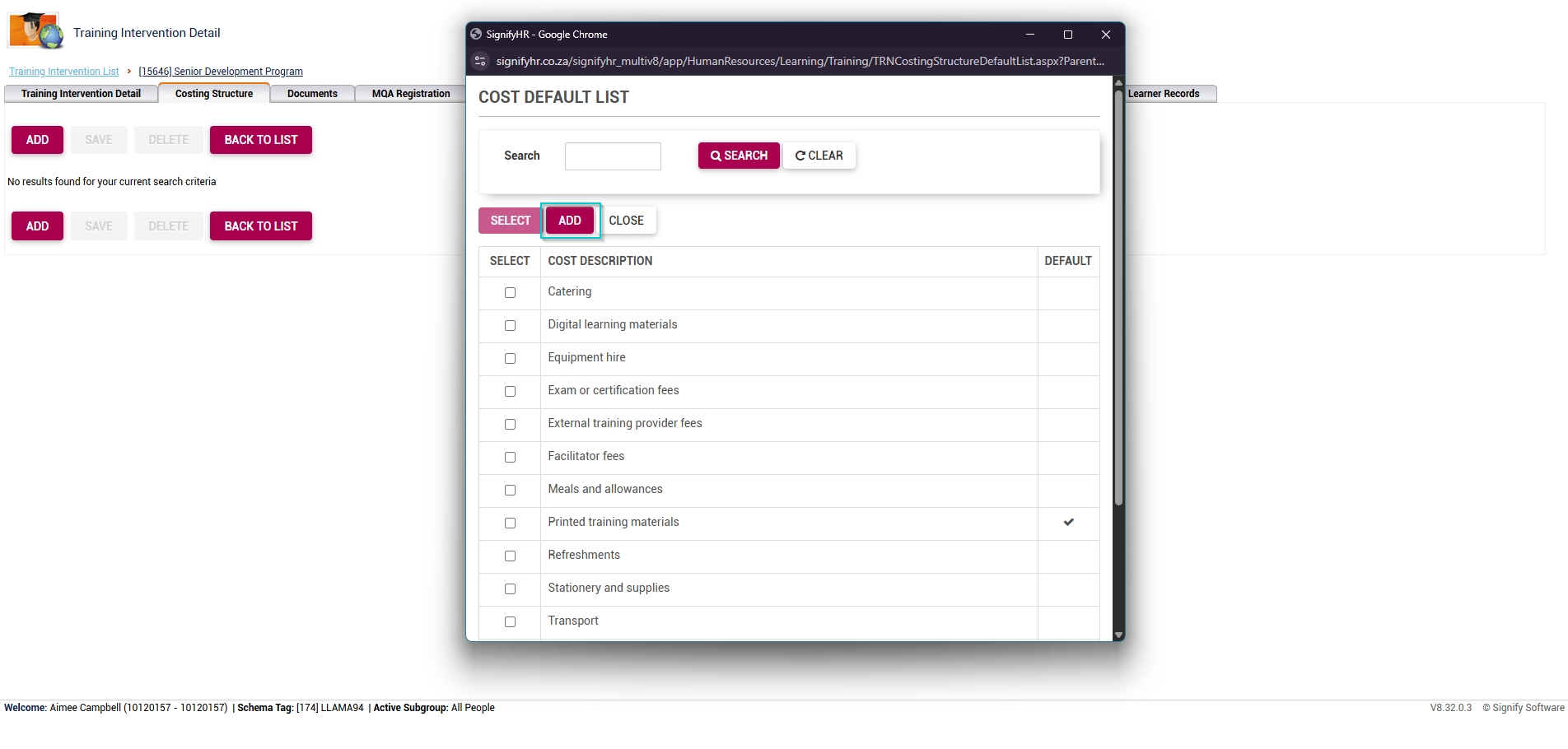
- Once the costing structure detail window loads, fill in the **cost description**.
- If the cost item should be a default item, tick the **checkbox**.
- Click **SAVE** when you are finished, SAVE ADD NEW** to add another item or click **CANCEL** to discard your edits.
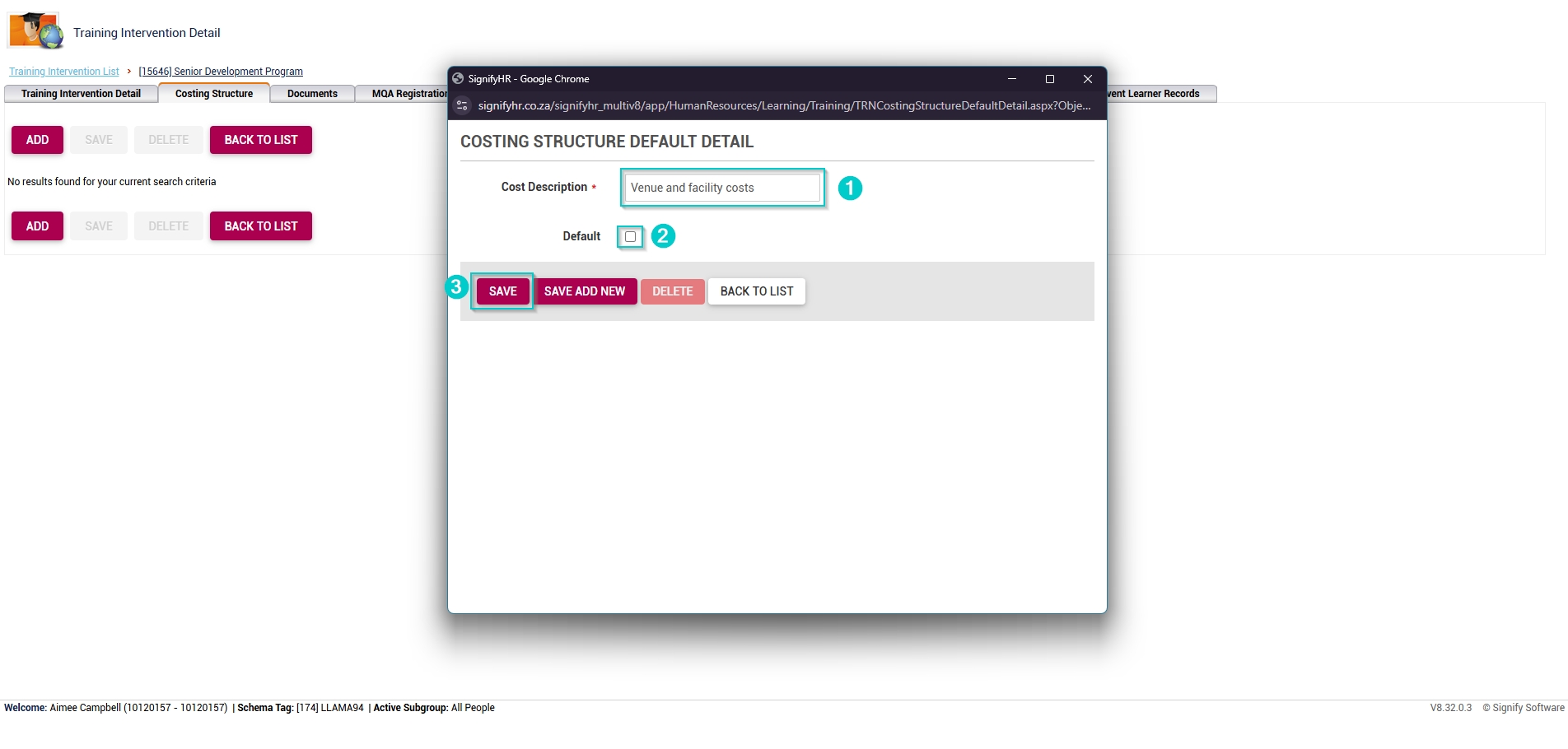
- Choose which costs to link to the event by ticking the **checkbox** next to each cost item.
- When you have selected all the relevant costs, click **SELECT**.
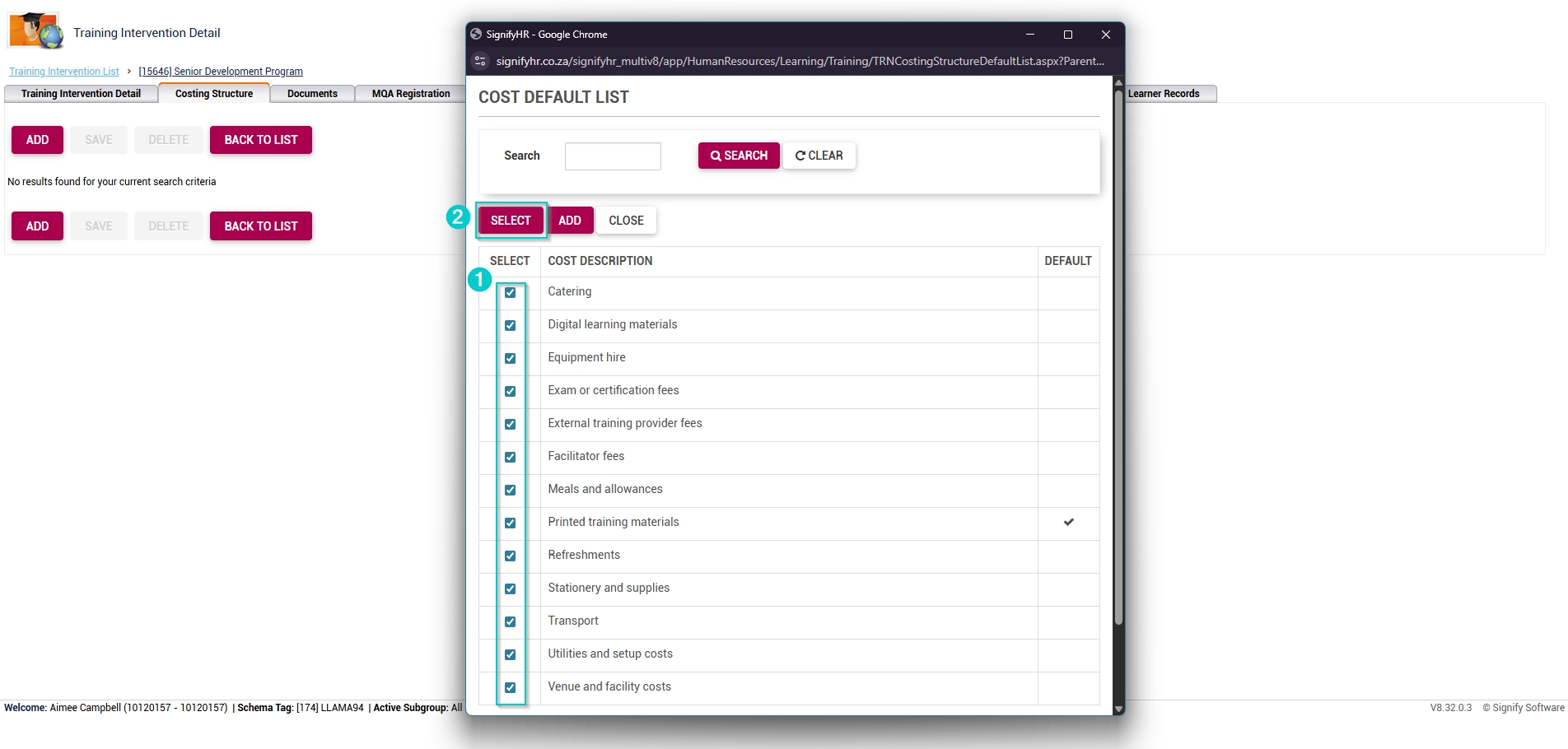
- For each cost item, add the **cost amount**.
- Tick the **checkboxes** if the cost should change per attendee, and if the cost item is editable.
- Once you are finished, click **SAVE**.

#### Add costs to the event
- Hover over the **sidebar** menu, then click **Event Scheduling**.

- Navigate to the **List View** tab and expand the **course** you would like to edit by clicking on its name.

- Click on the **name** of the event you would like to edit.

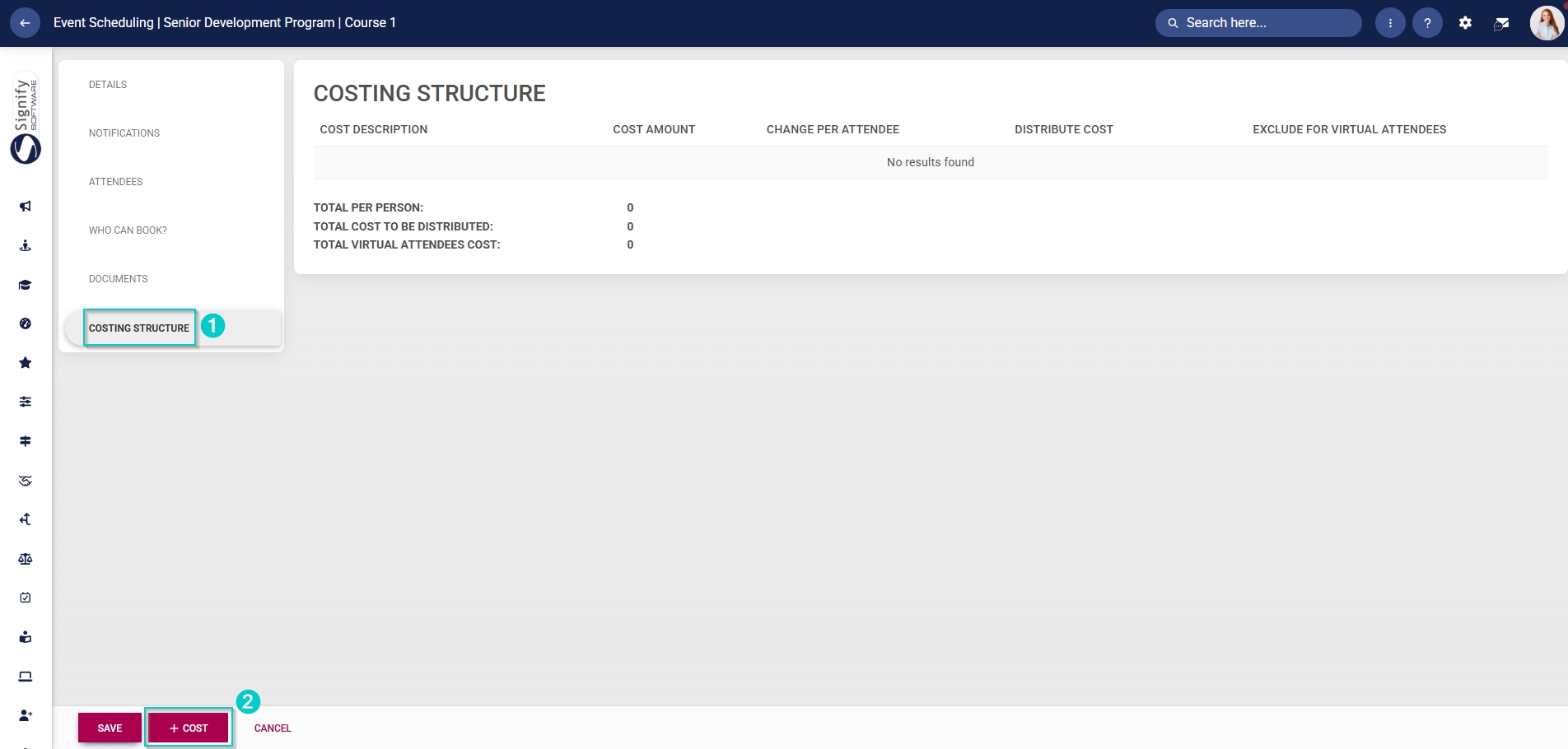
- In the **left-hand menu**, click **Costing Structure**. Click **+COST** to link costs to this event.
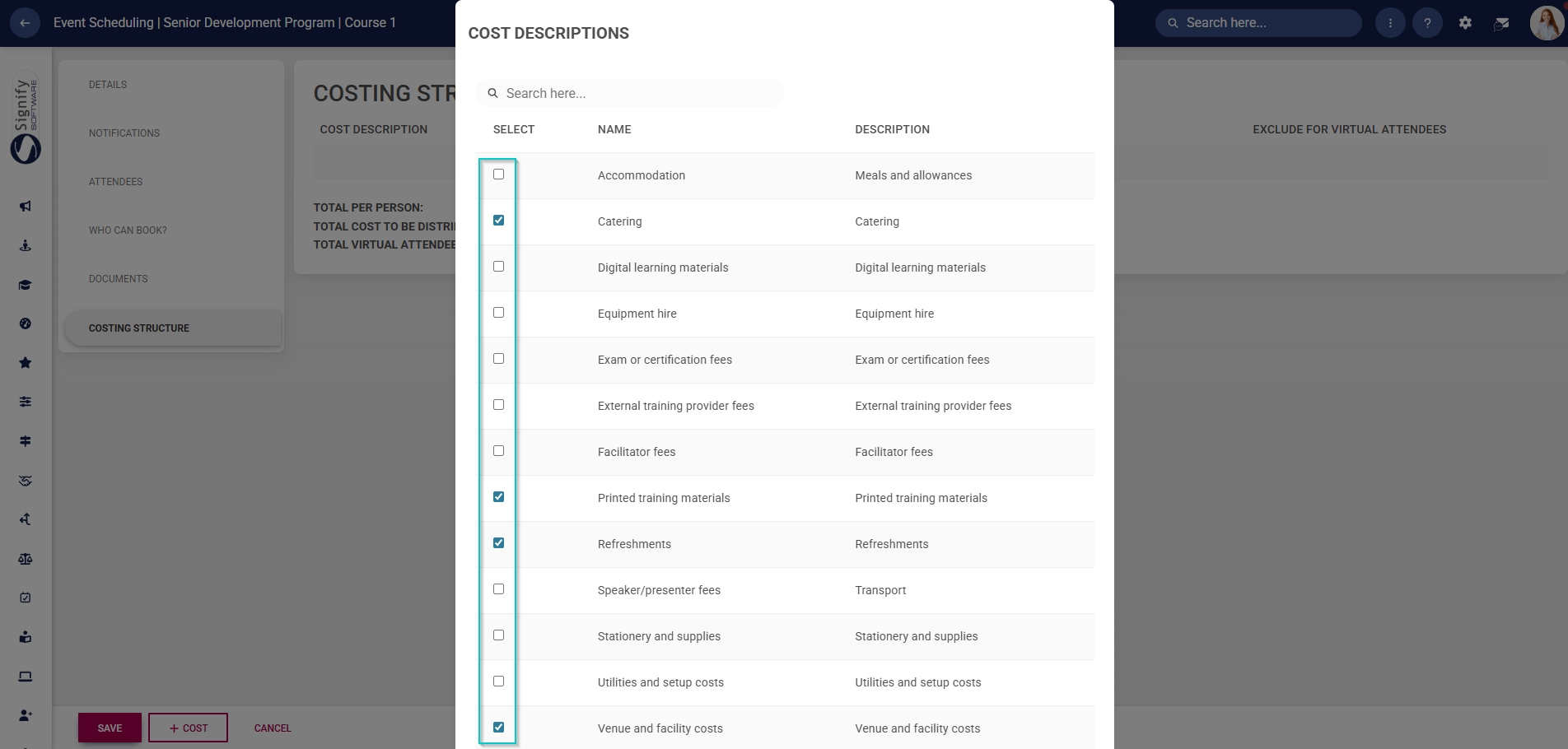
- Use the **checkboxes** to link the applicable cost descriptions to the event.
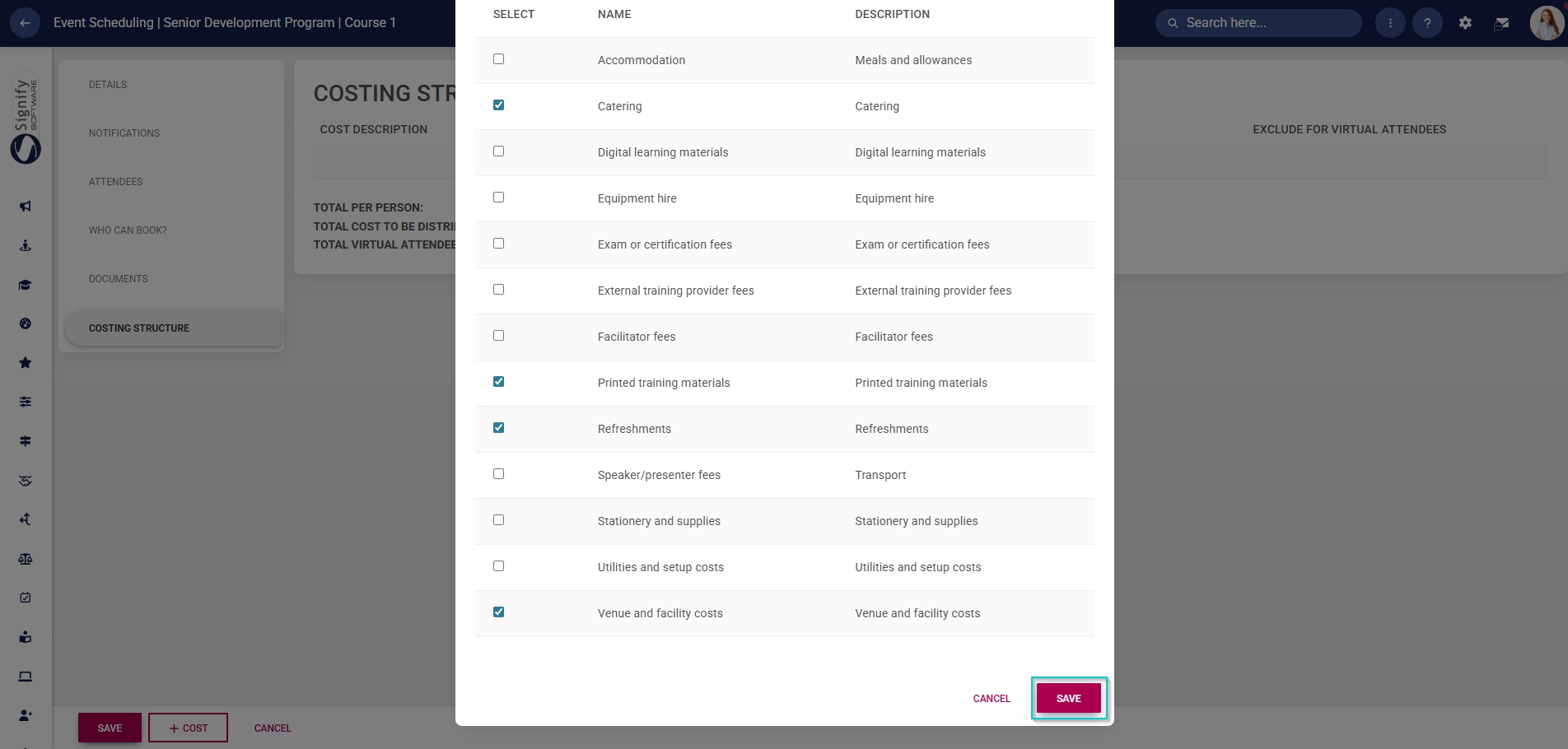
- Click **SAVE** when you are finished or click **CANCEL** to discard your edits.
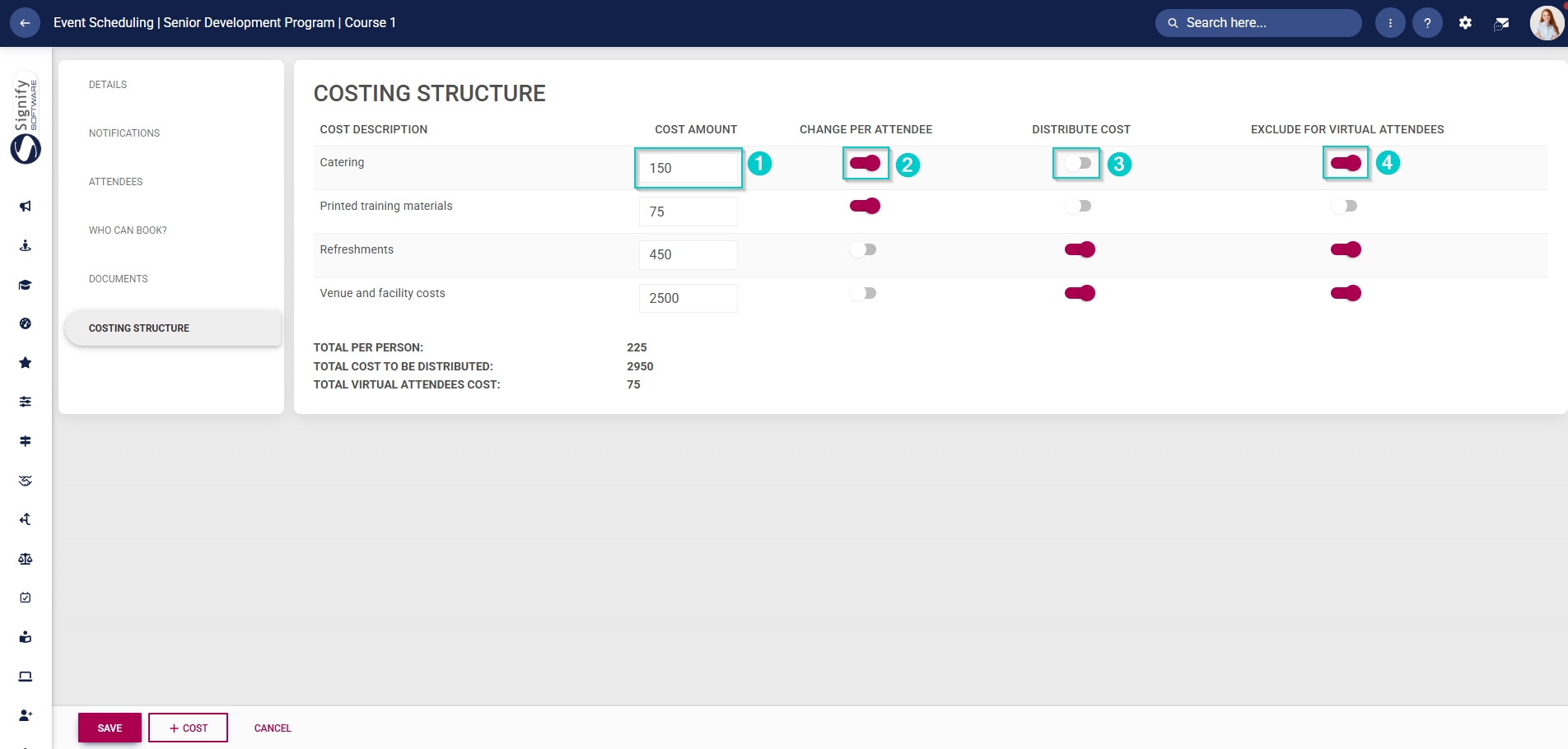
- The cost descriptions will be listed in the **Costing Structure** table. Each cost description item can be edited:
- Enter the cost amount.
- Click the **toggle** **button** to change the cost per attendee.
- Click the **toggle button** to set the cost distribution to be evenly distributed across all attendees.
- Click the **toggle** **button** to set the status to exclude the cost for virtual attendees.
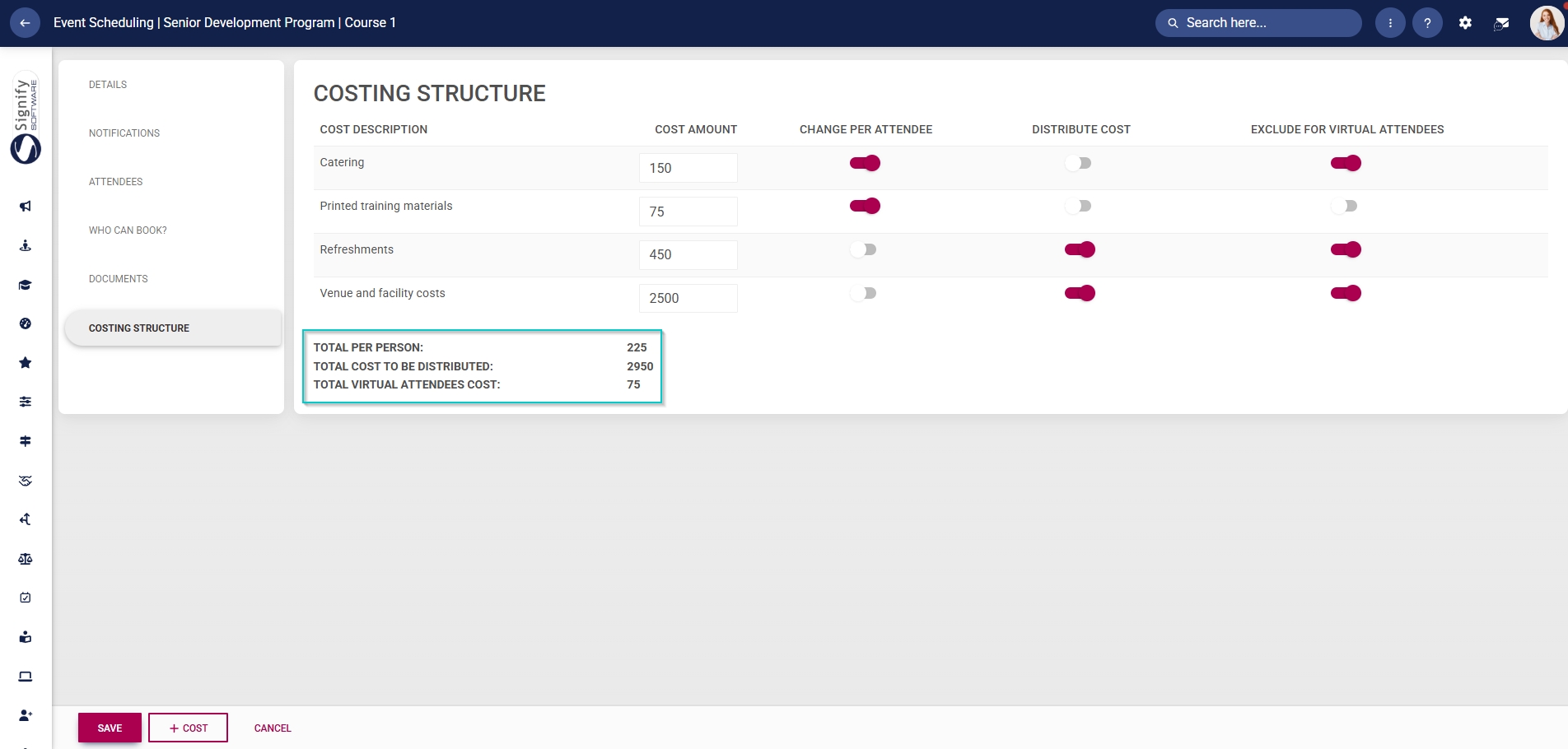
- In the costing structure **summary** section, the costs per person and per virtual attendee will be listed, along with the total cost for this event.
[](https://signature.signifyhr.co.za/uploads/images/gallery/2025-02/ZOt8yZwhbiGx2d6U-signify-footer.png)
# Update Attendance for Events
[](https://signature.signifyhr.co.za/uploads/images/gallery/2025-02/emW3hfMrZ1yIDMUv-signify-header.png)
Attendance can be updated for each attendee at each event.
- Hover over the **sidebar** menu, then click **Event Scheduling**.

- Navigate to the **List View** tab.
- Expand the event for which you would like to update attendance.

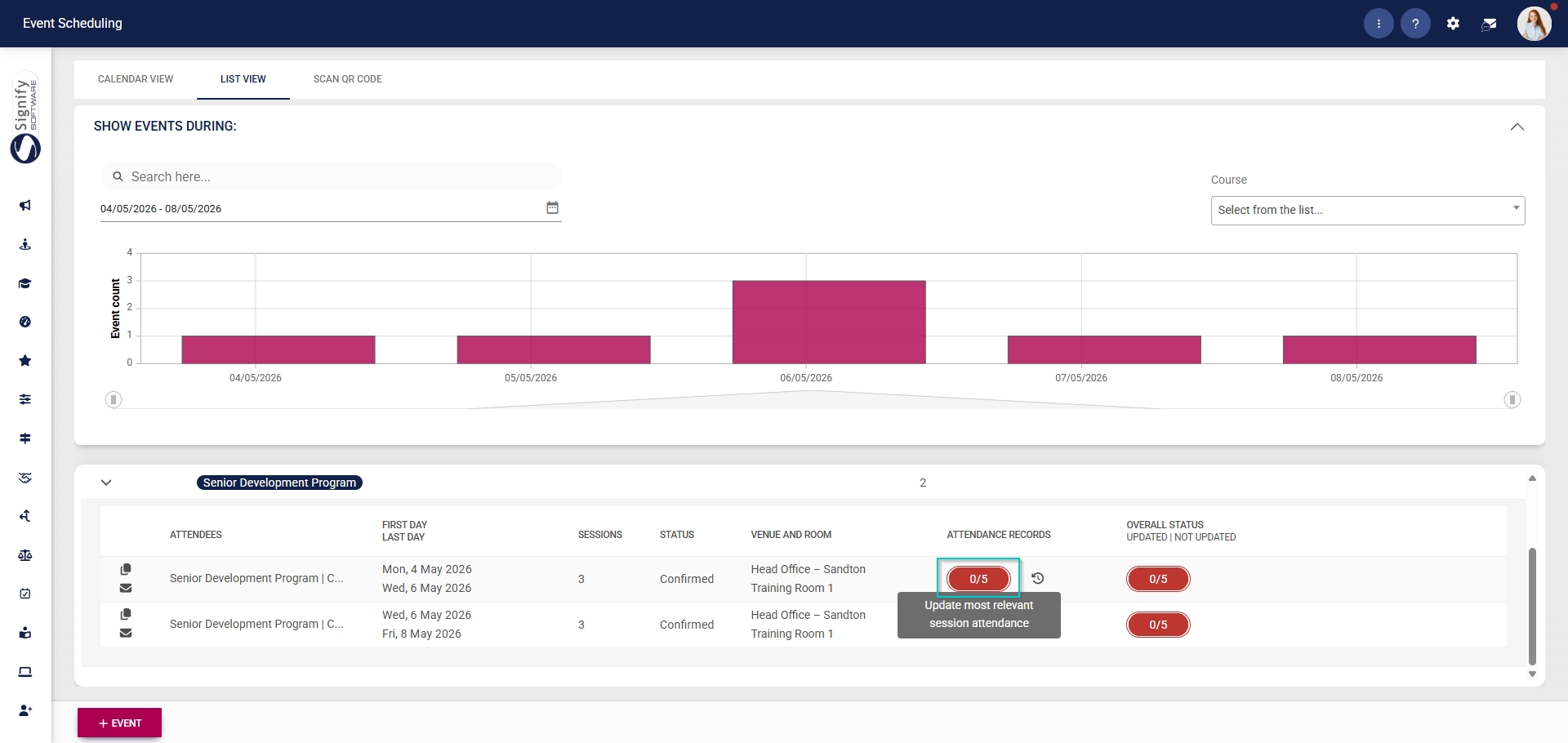
- Click to access the **attendance records** for the event.
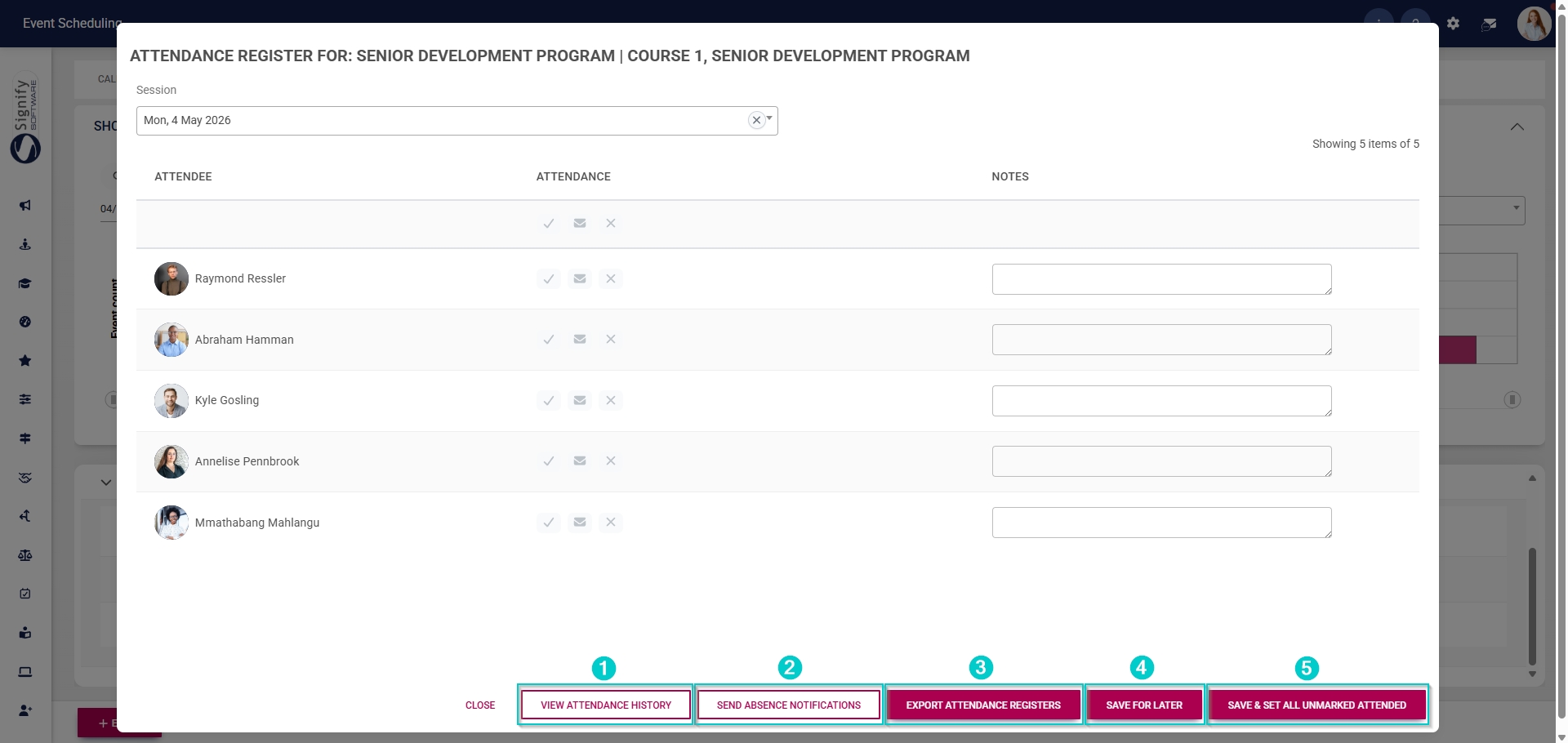
- From the pop-up window, select the session from the **dropdown menu**.
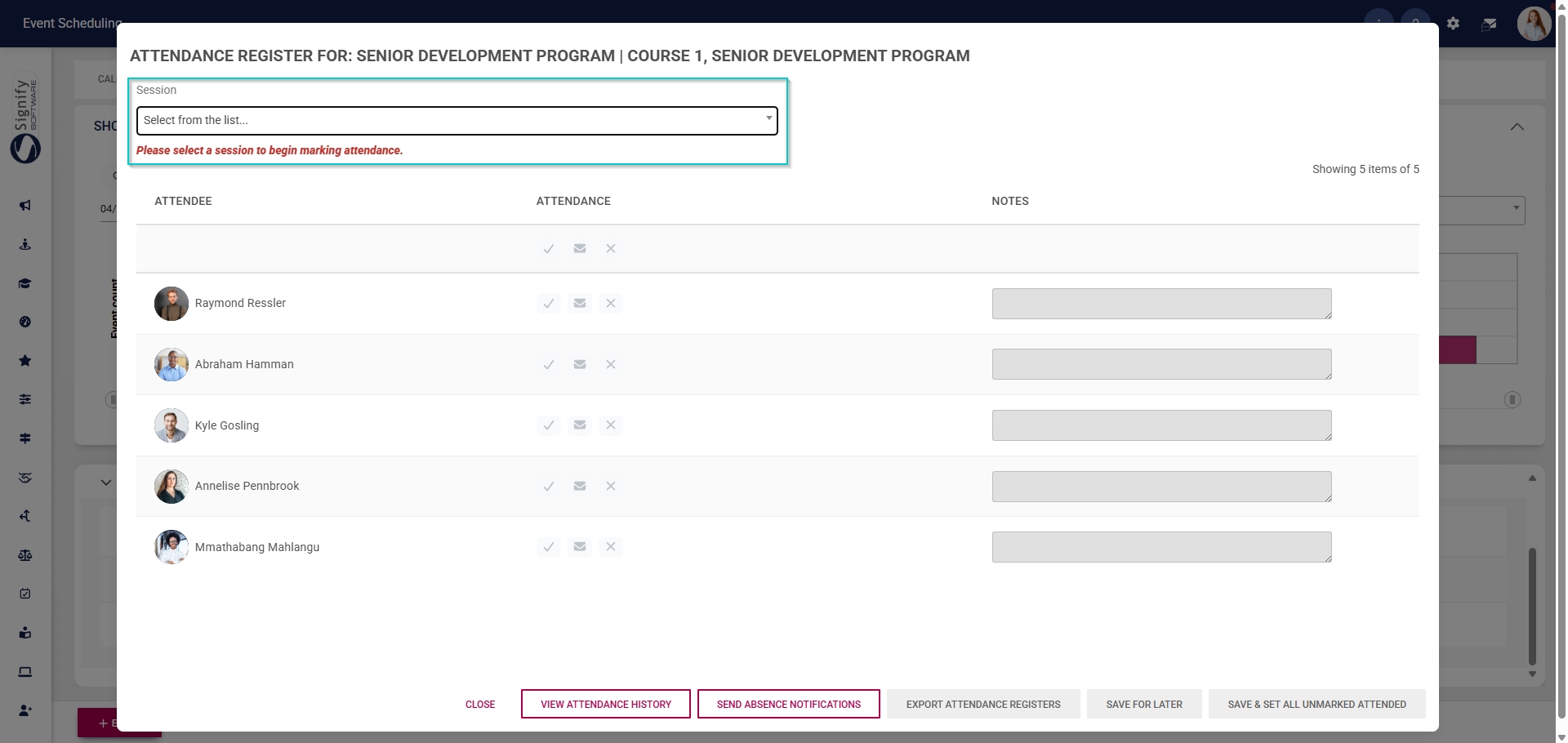
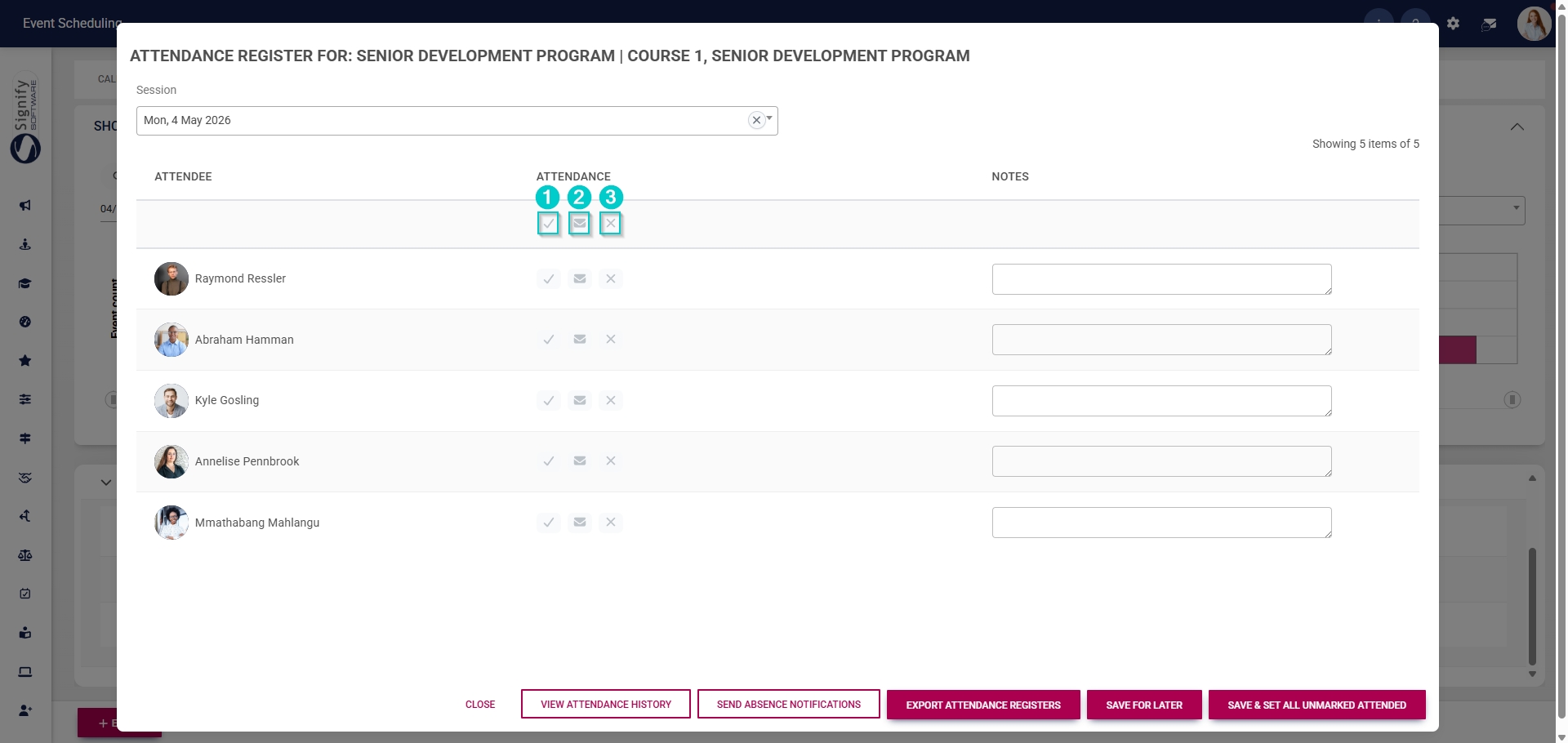
- Use the icons below the **Attendance** heading to update attendance for all attendees.
- Click the **tick icon** to mark all attendees as **Attended**.
- Click the **envelope icon** to mark all attendees as **Absent with an excuse**.
- Click the **cross icon** to mark all attendees as **Absent**.
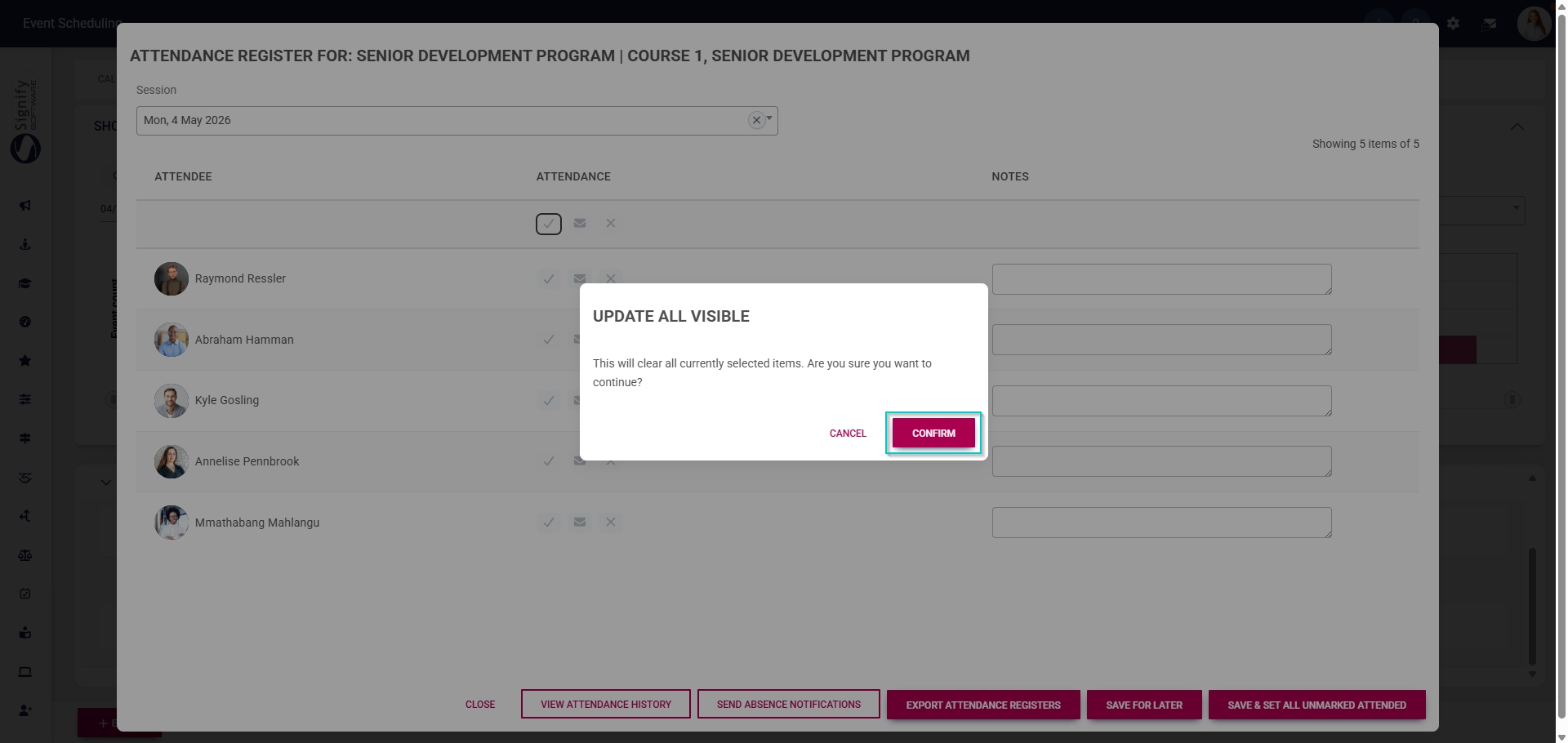
- Click **CONFIRM** to proceed or **CANCEL** to discard your changes.
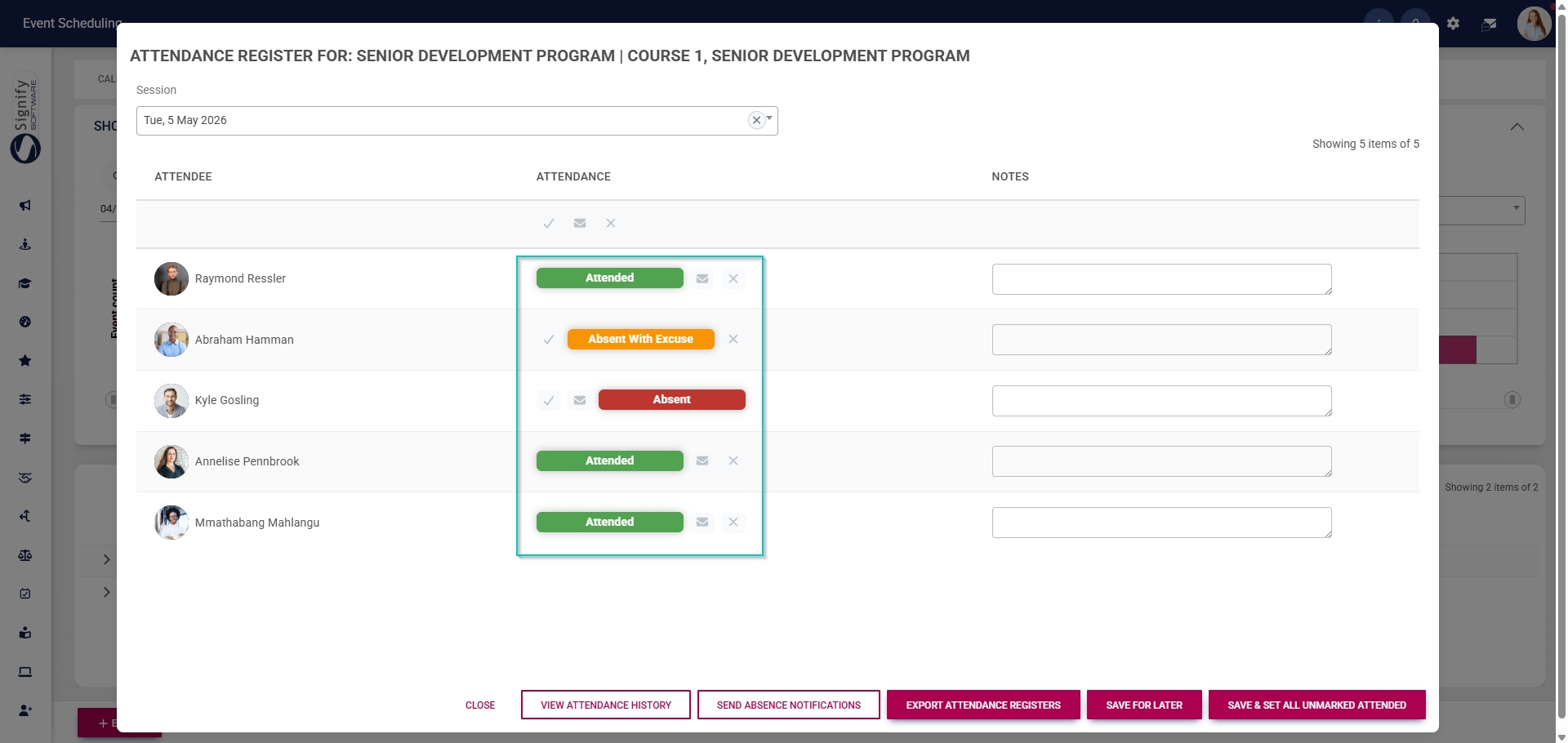
- Alternatively, update each attendee’s attendance status individually by clicking the icons in the **Attendance** column next to their name.
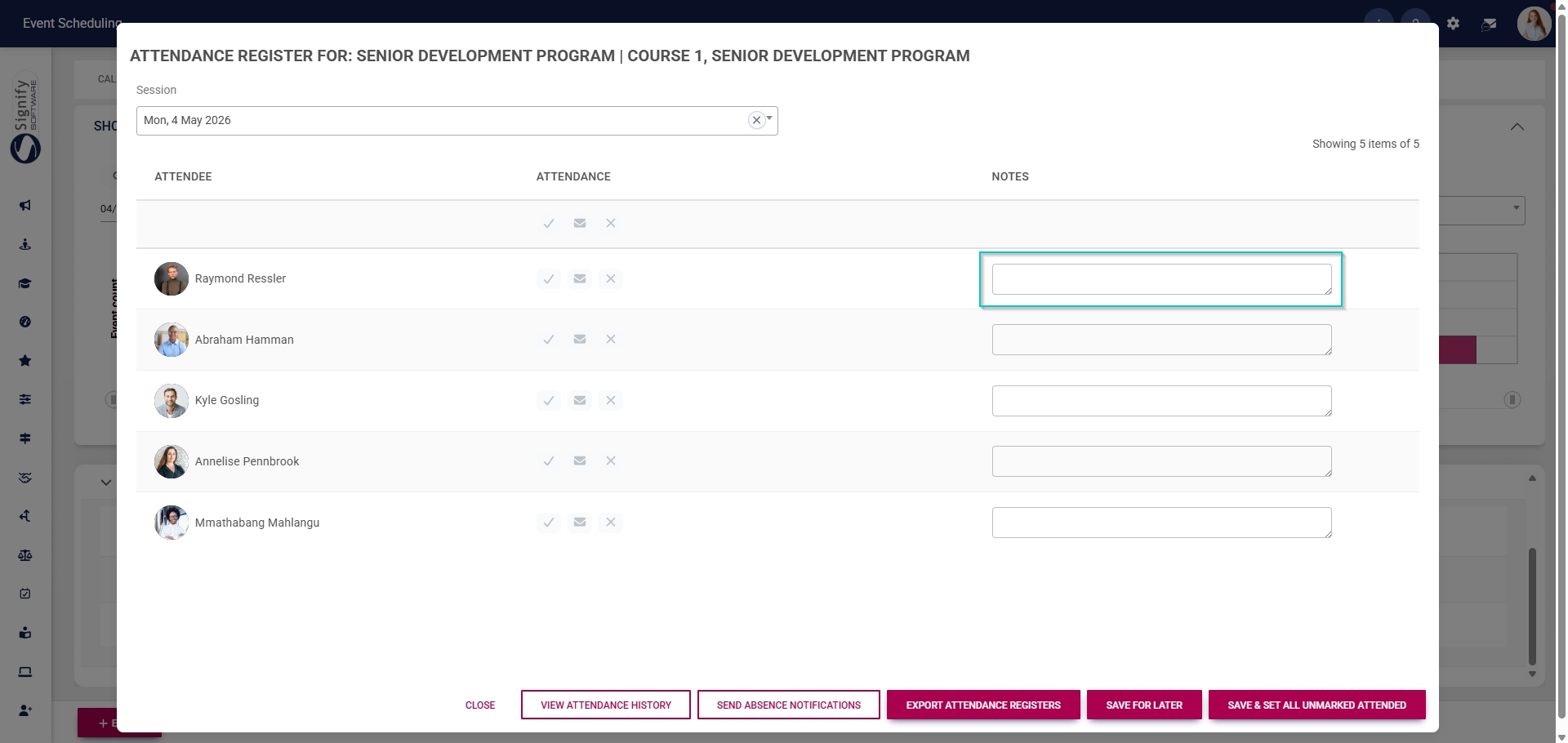
- Optionally, **notes** about the session can be added for each attendee.
- The buttons at the bottom of the pop-up window have the following functions:
- Click **VIEW ATTENDANCE HISTORY** to view the attendance register for each session in the event.
- Click **SEND ABSENCE NOTIFICATIONS** to notify absent attendees of missed sessions.
- Click **EXPORT ATTENDANCE REGISTERS** to export attendance registers to an Excel document.
- Click **SAVE FOR LATER** to save your changes.
- Click **SAVE & SET ALL UNMARKED ATTENDED** to save your changes and set all unmarked records to **Attended**.
[](https://signature.signifyhr.co.za/uploads/images/gallery/2025-02/ZOt8yZwhbiGx2d6U-signify-footer.png)
# Update Attendees' Overall Completion Status
[](https://signature.signifyhr.co.za/uploads/images/gallery/2025-02/emW3hfMrZ1yIDMUv-signify-header.png)
Attendees’ overall completion status can be updated for each event.
- Hover over the **sidebar** menu, then click **Event Scheduling**.

- Navigate to the **List View** tab.
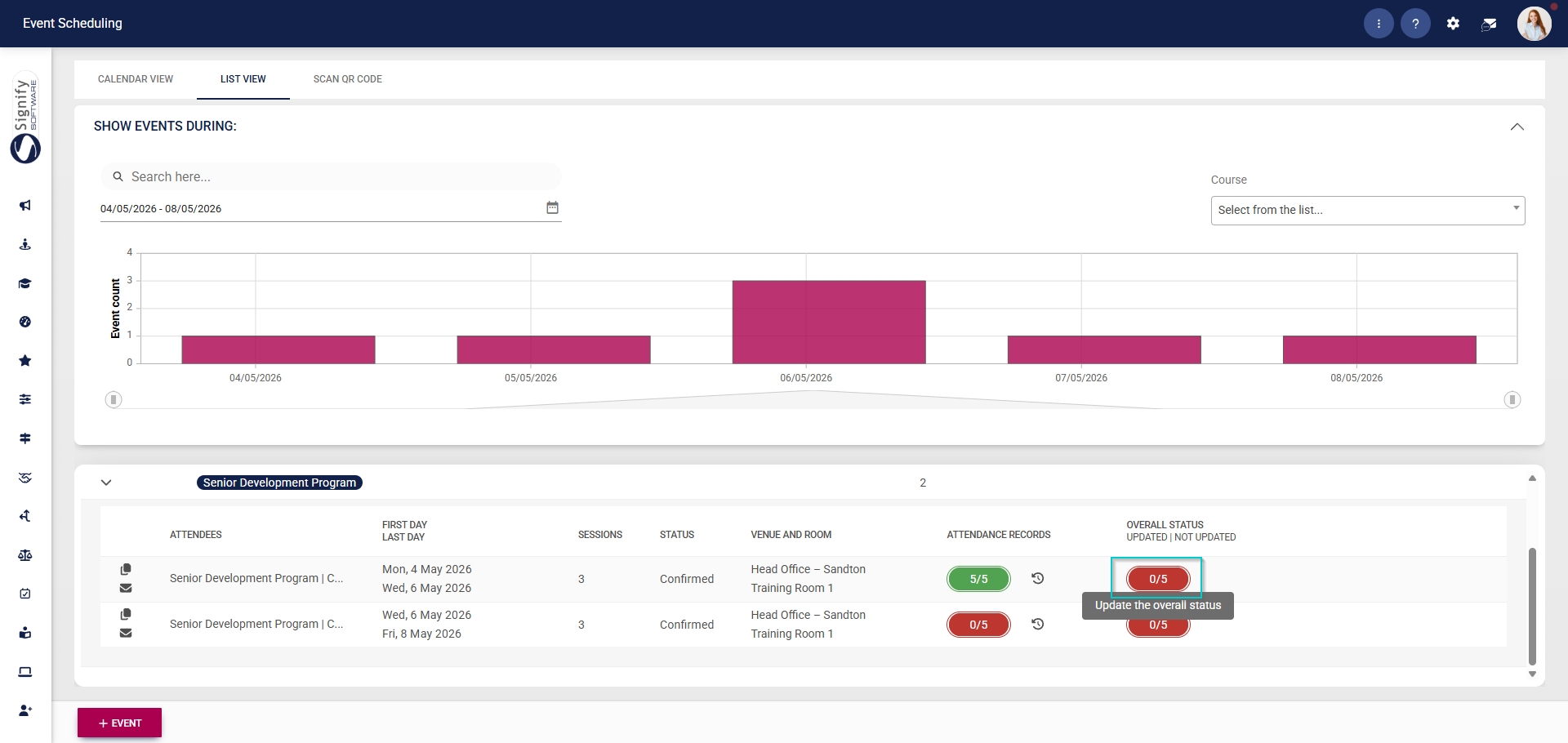
- Expand the event for which you would like to update the overall completion status.

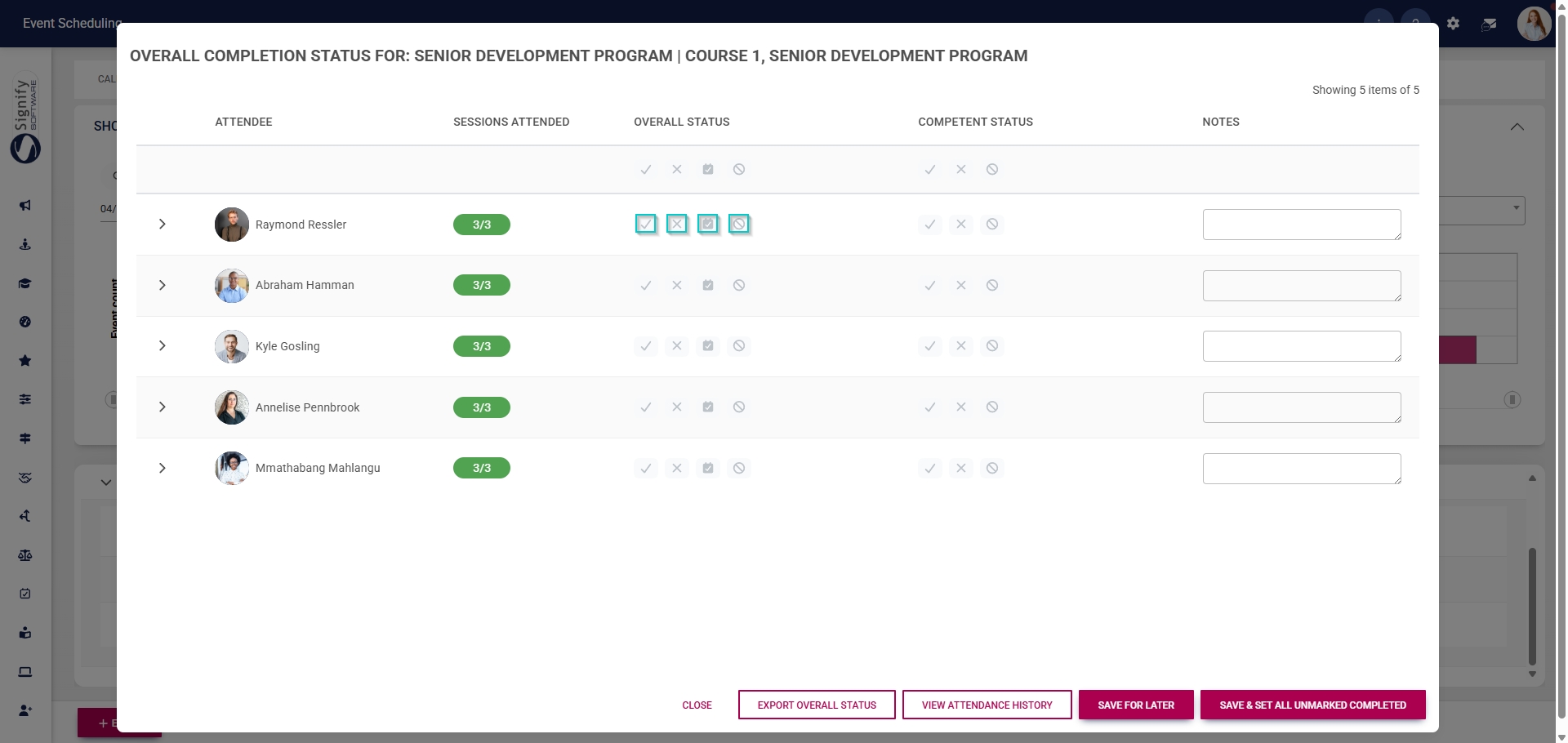
- Click to access the **overall status** for the event.
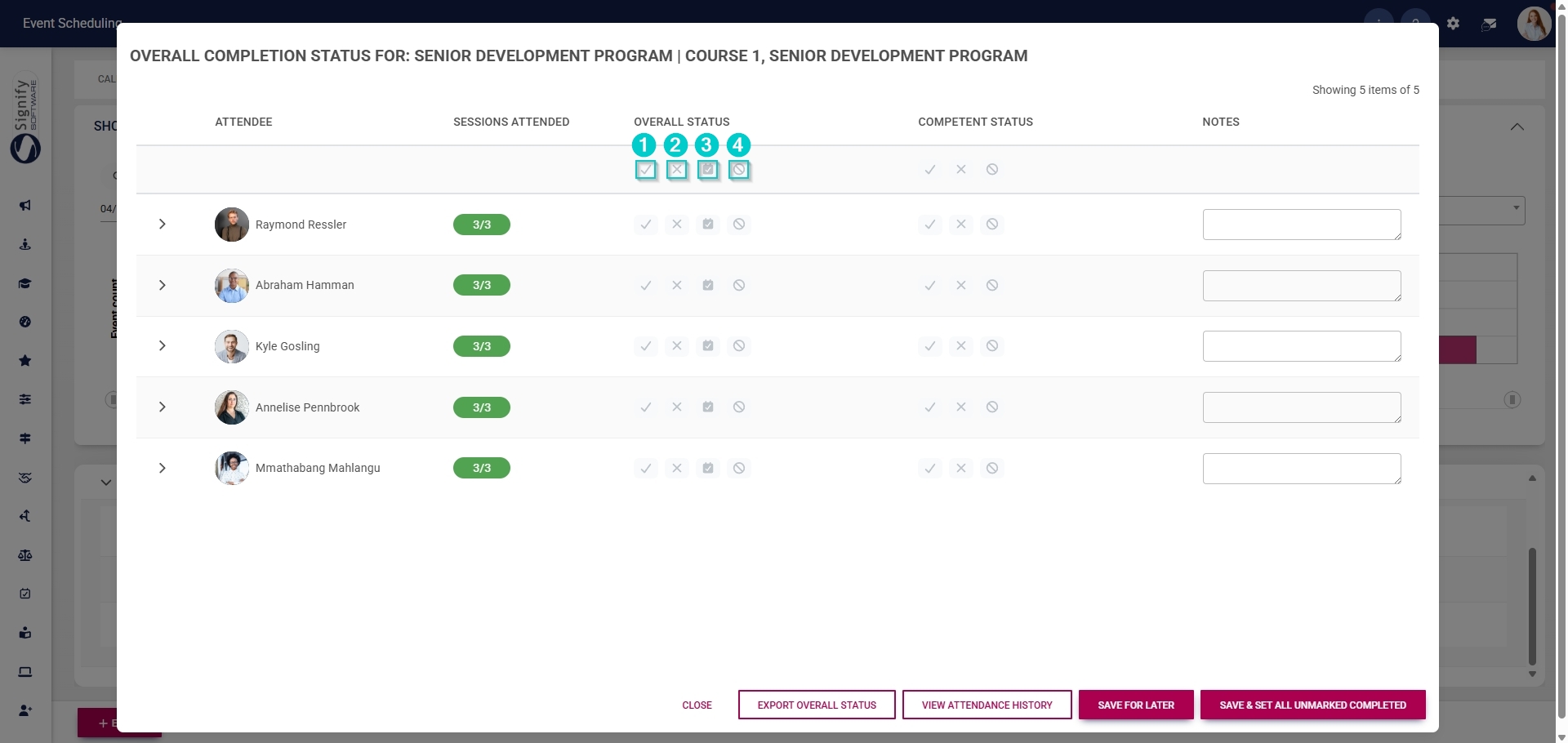
- Use the icons under the **Overall Status heading to update the status for all the attendees.
- Click the **tick icon** to mark all attendees’ statuses as **Completed**.
- Click the **cross icon** to mark all attendees’ statuses as **Not** **Completed**.
- Click the **calendar icon** to mark all attendees’ statuses as **Rescheduled**.
- Click the **cancel icon** to mark all attendees’ statuses as **Cancelled**.
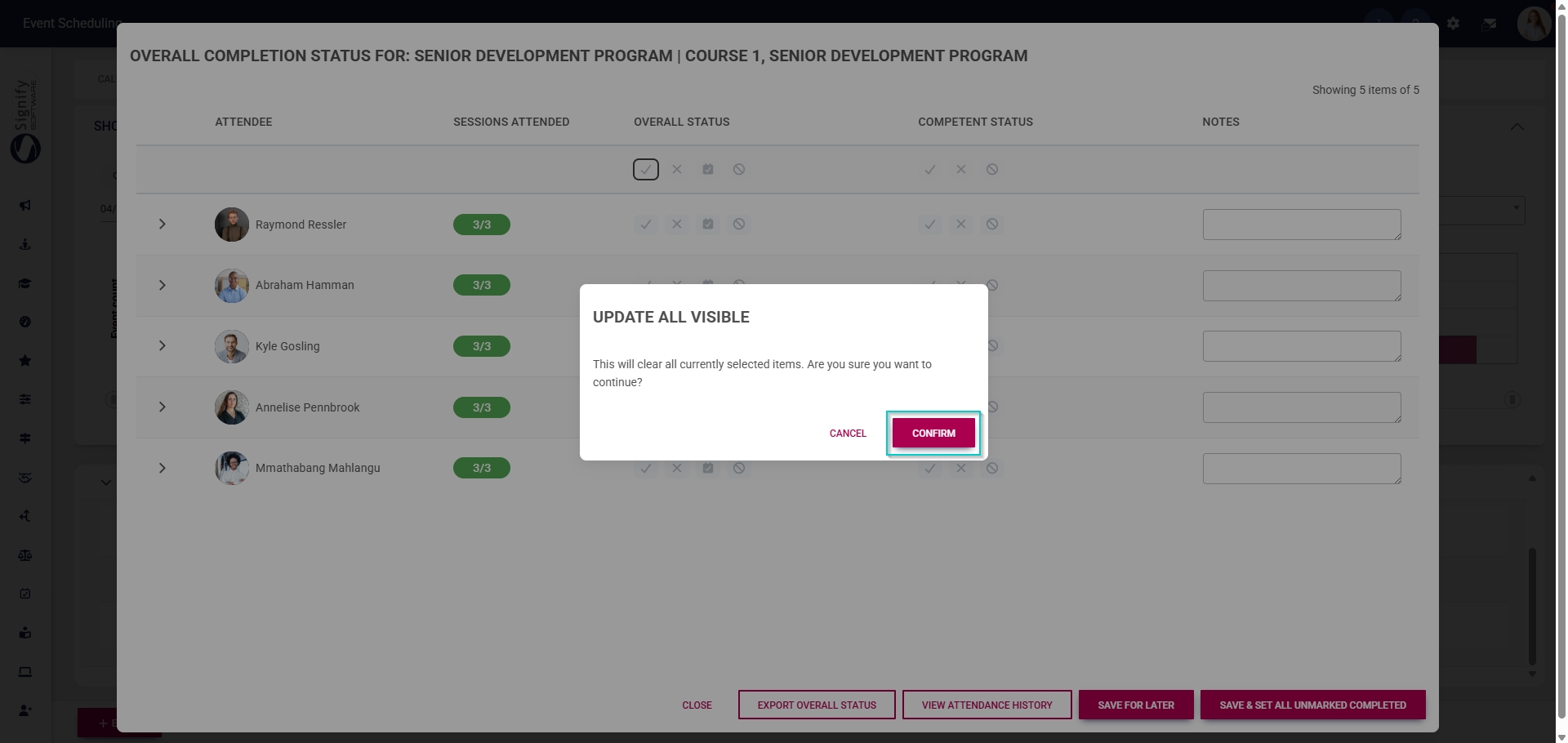
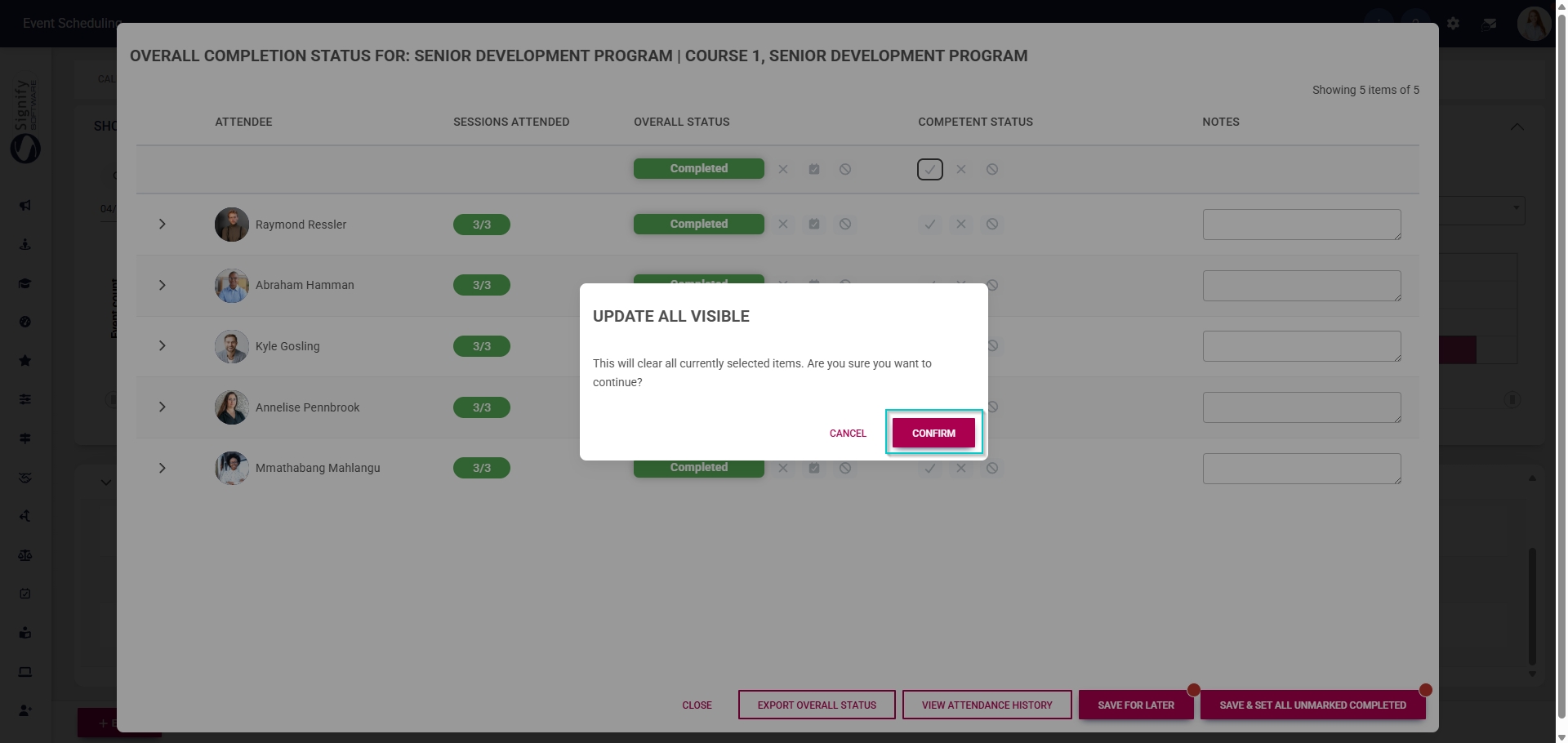
- Click **CONFIRM** to proceed or **CANCEL** to discard your changes.
- Alternatively, update each attendee’s overall completion status individually by clicking the icons in the **Overall Status column next to their name.
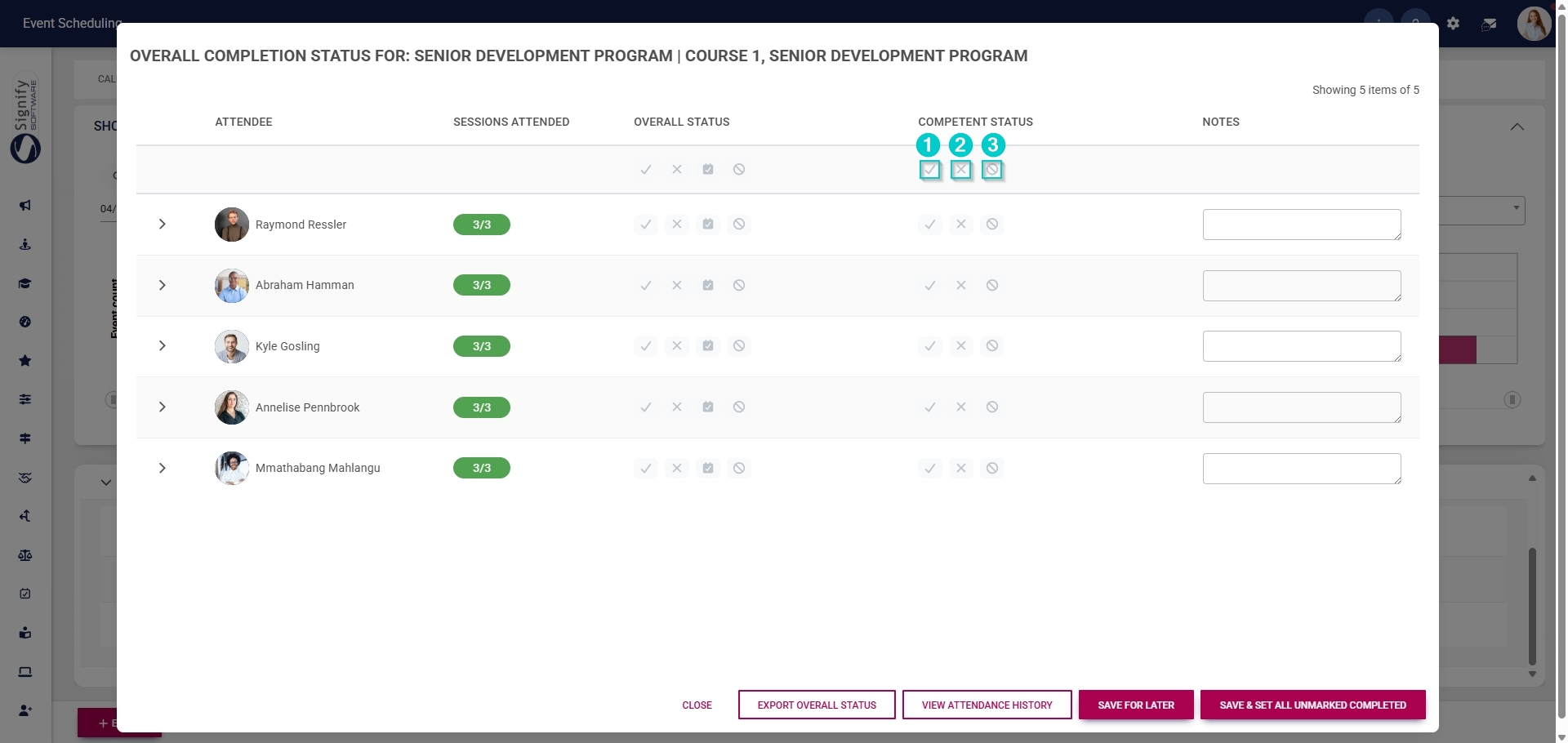
- Use the icons under the **Competent Status** heading to update the competency for all the attendees.
- Click the **tick icon** to mark all attendees’ statuses as **Competent**.
- Click the **cross icon** to mark all attendees’ statuses as **Not Yet Competent**.
- Click the **cancel icon** to mark all attendees’ statuses as **Not Applicable**.
- Click **CONFIRM** to proceed or **CANCEL** to discard your changes.
- Optionally, **notes** about the event can be added for each attendee.

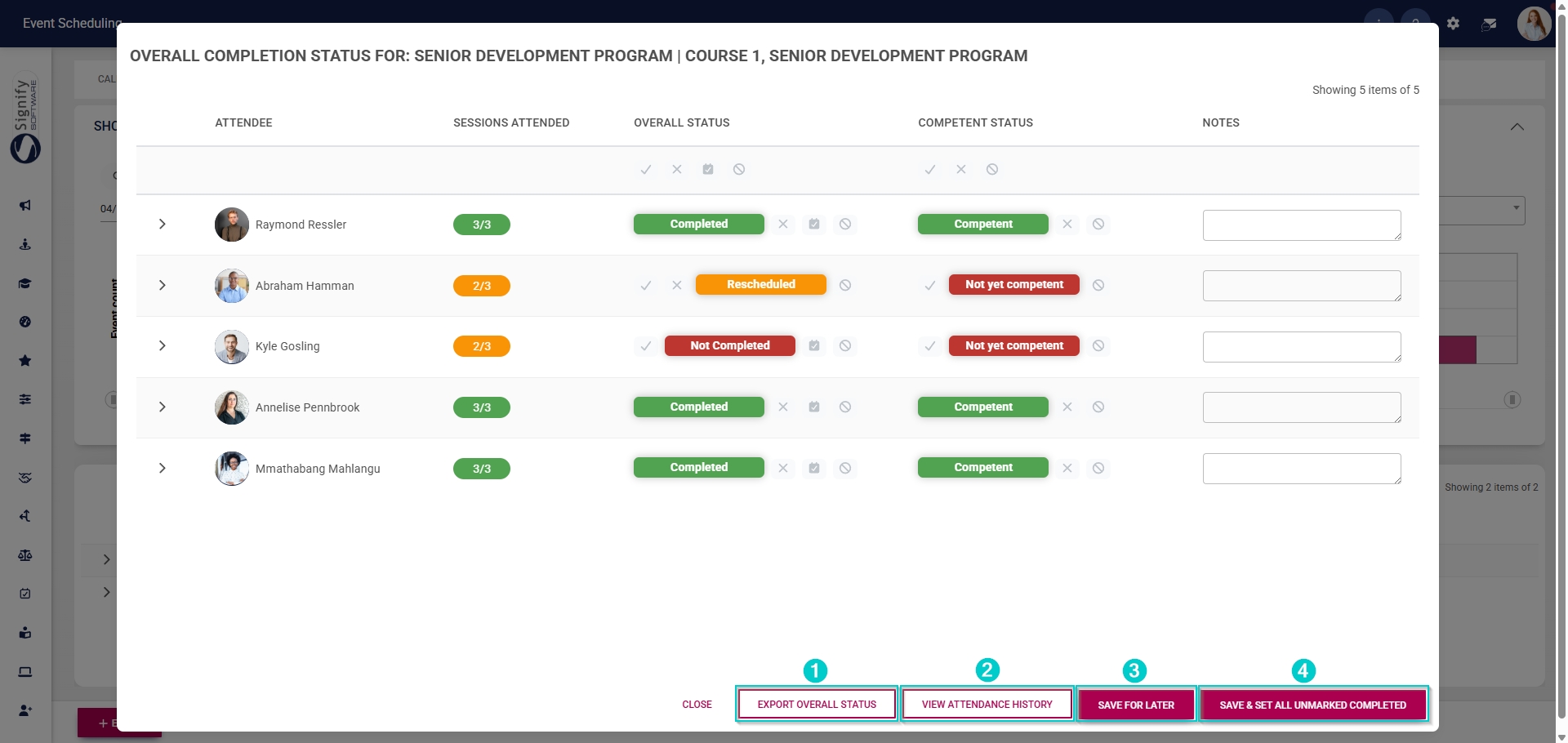
- The buttons at the bottom of the pop-up window have the following functions:
- Click **EXPORT OVERALL STATUS to export the overall completion status of all attendees to an Excel document.
- Click **VIEW ATTENDANCE HISTORY** to view the attendance register for the event.
- Click **SAVE FOR LATER** to save your changes.
- Click **SAVE & SET ALL UNMARKED COMPLETED to save your changes and set all unmarked records to **Completed**.
[](https://signature.signifyhr.co.za/uploads/images/gallery/2025-02/ZOt8yZwhbiGx2d6U-signify-footer.png)
# View Costs per Attendee
[](https://signature.signifyhr.co.za/uploads/images/gallery/2025-02/emW3hfMrZ1yIDMUv-signify-header.png)
- Hover over the **sidebar** menu, then click **Event Scheduling**.

- Navigate to the **List View** tab.
- Expand the event for which you would like to view the per-attendee costs.

- Click to access the **overall status** for the event.
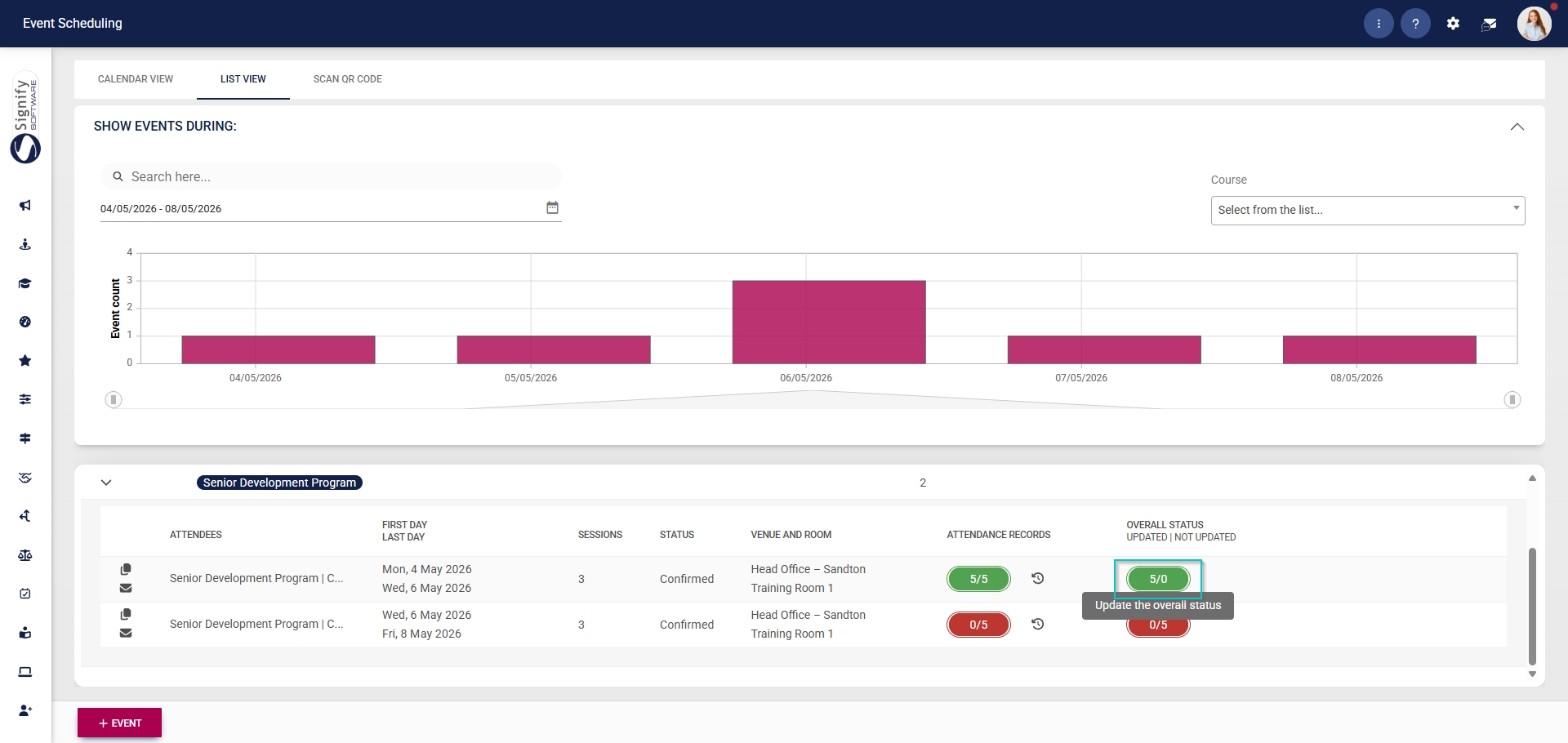
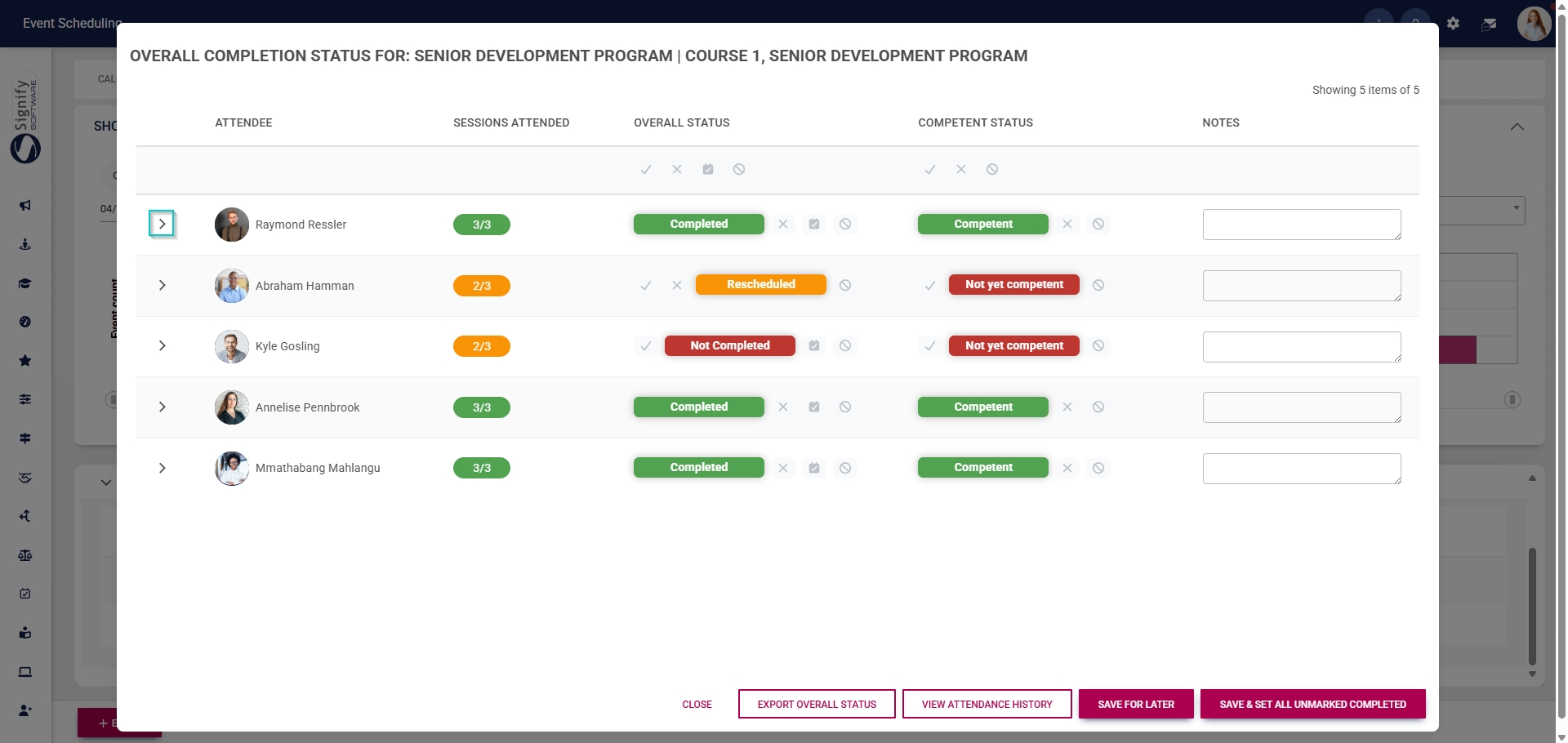
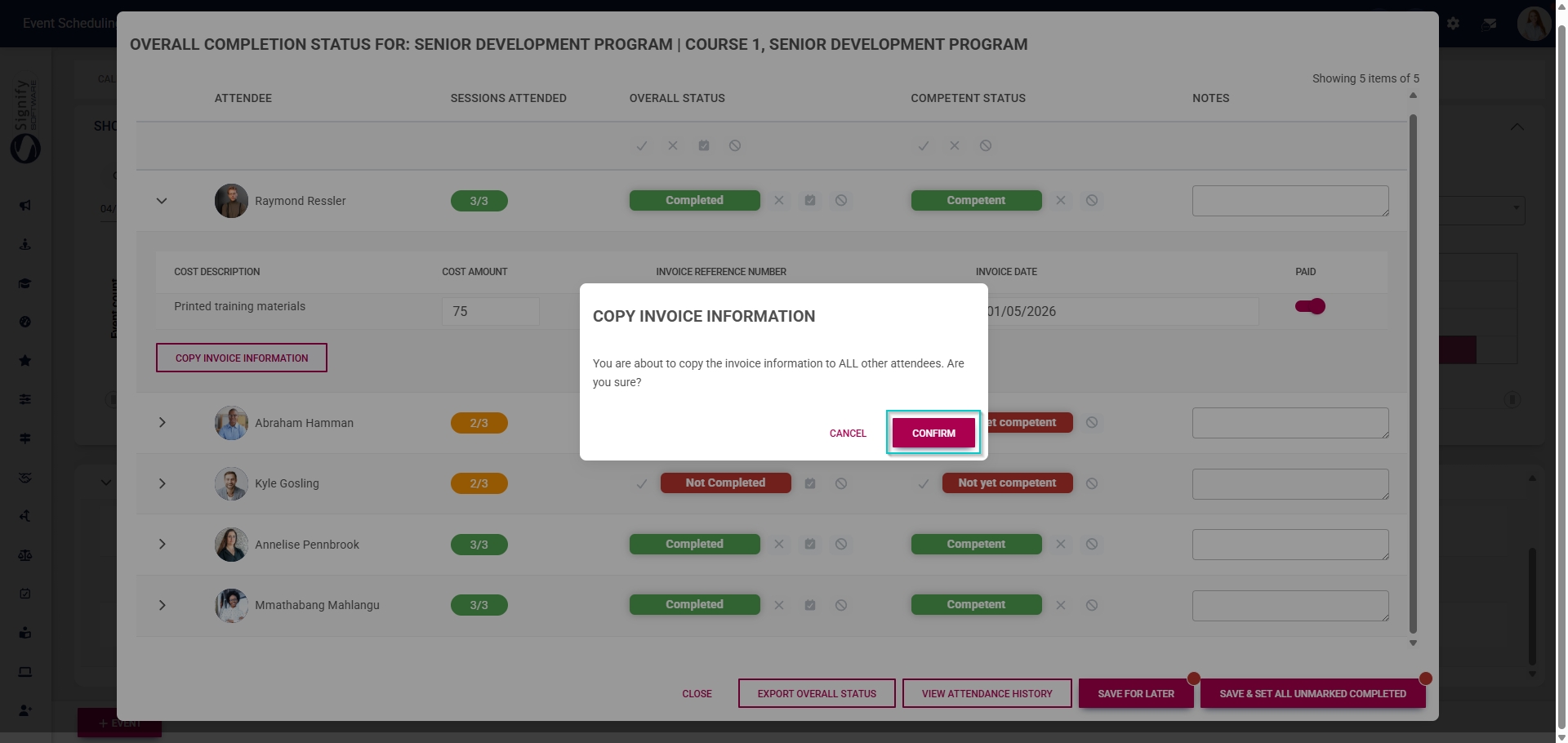
- Click the **arrow icon** next to an attendee’s name to expand their event record.
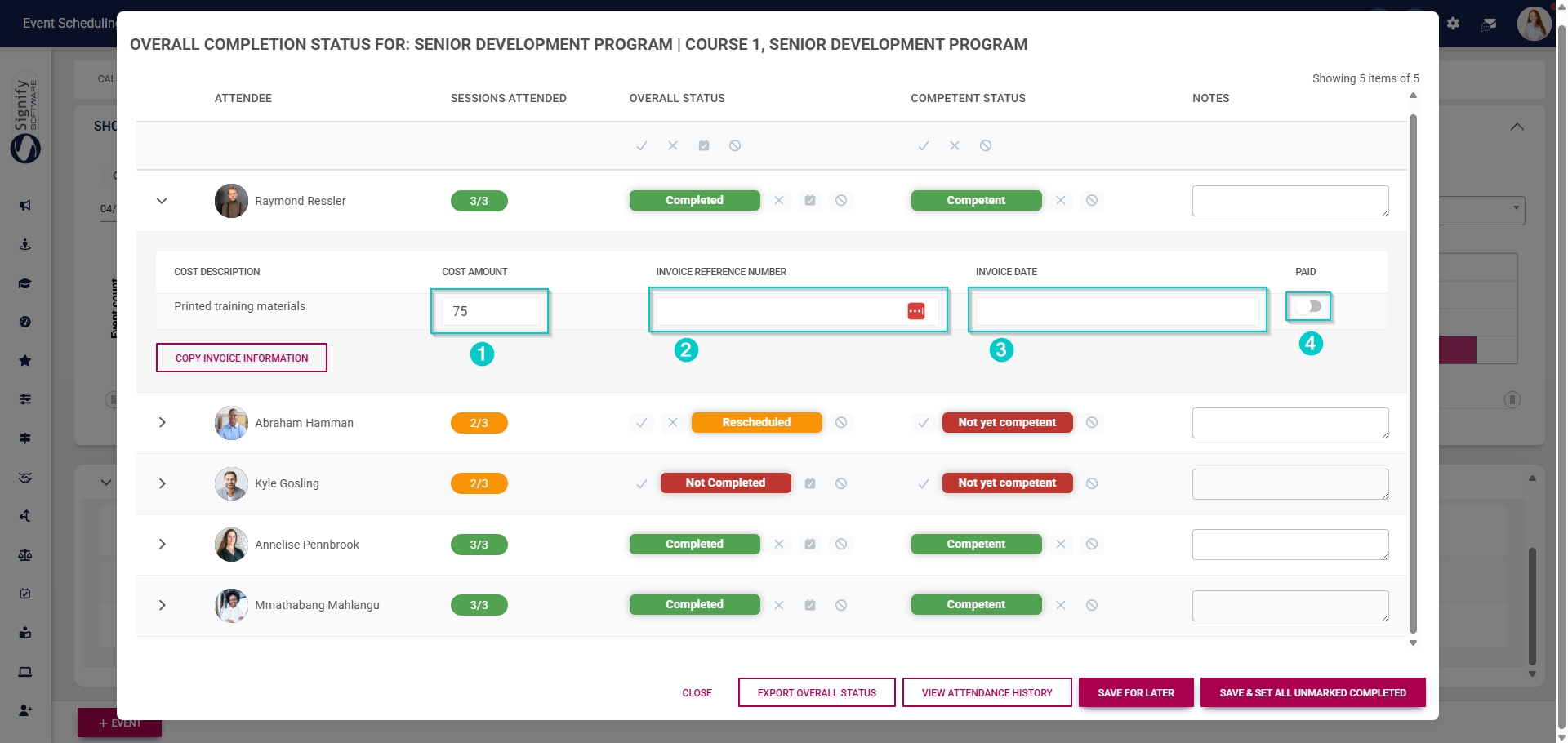
- The costs linked to the attendee are listed.
- Costs **distributed** to all attendees during event configuration cannot be edited.
- Costs **charged per attendee** during event configuration can be edited.
- **Invoice reference numbers** and **invoice dates** can be recorded.
- Click the **toggle** button to set the cost’s status to **Paid**.
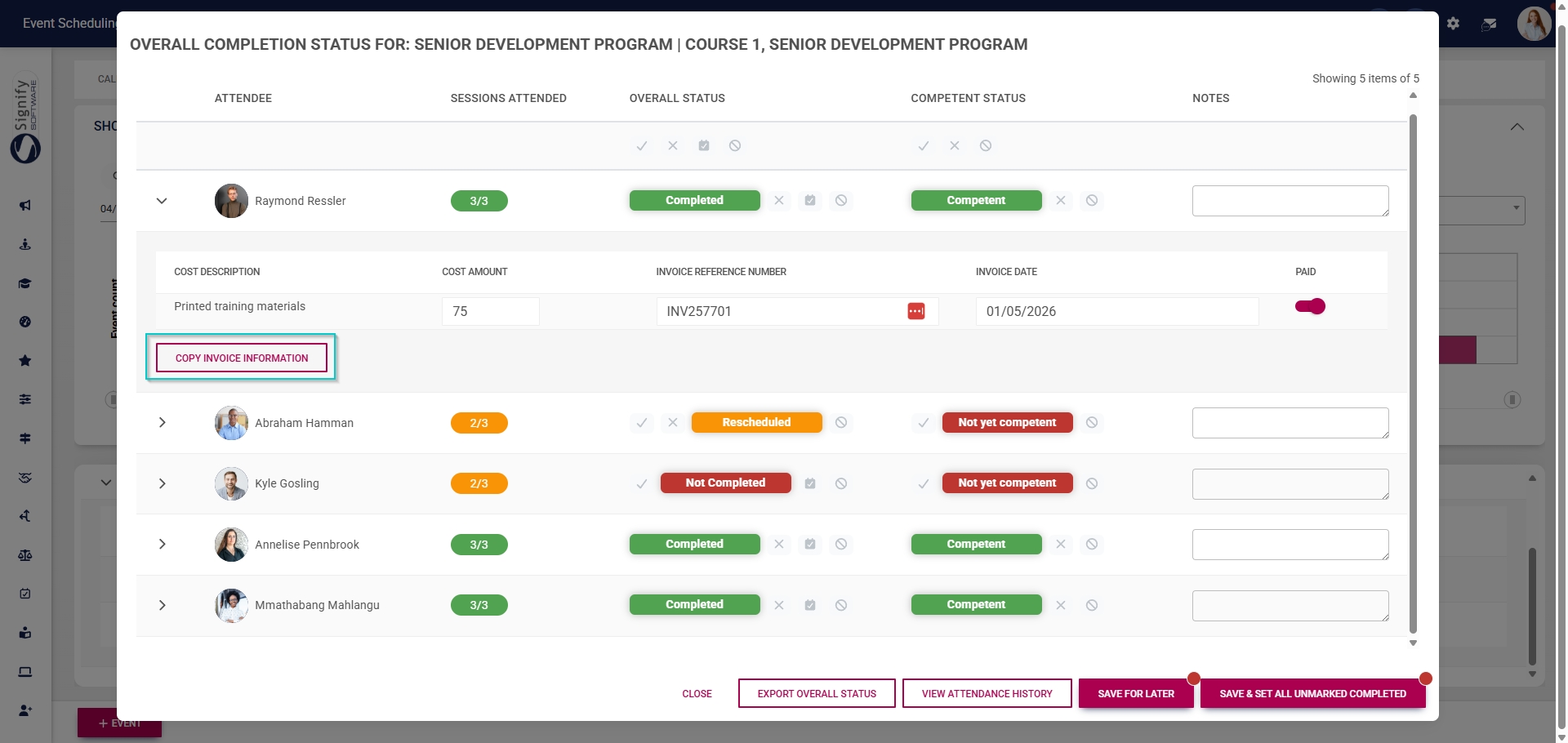
- The invoice information can be copied to all the other attendees by clicking **COPY INVOICE INFORMATION**.
- Click **CONFIRM** to proceed or **CANCEL** to discard your changes.
[](https://signature.signifyhr.co.za/uploads/images/gallery/2025-02/ZOt8yZwhbiGx2d6U-signify-footer.png)
# View Historical Attendance
[](https://signature.signifyhr.co.za/uploads/images/gallery/2025-02/emW3hfMrZ1yIDMUv-signify-header.png)
- Hover over the **sidebar** menu, then click **Event Scheduling**.

- Navigate to the **List View** tab.
- Expand the event you would like to view the attendance history for.

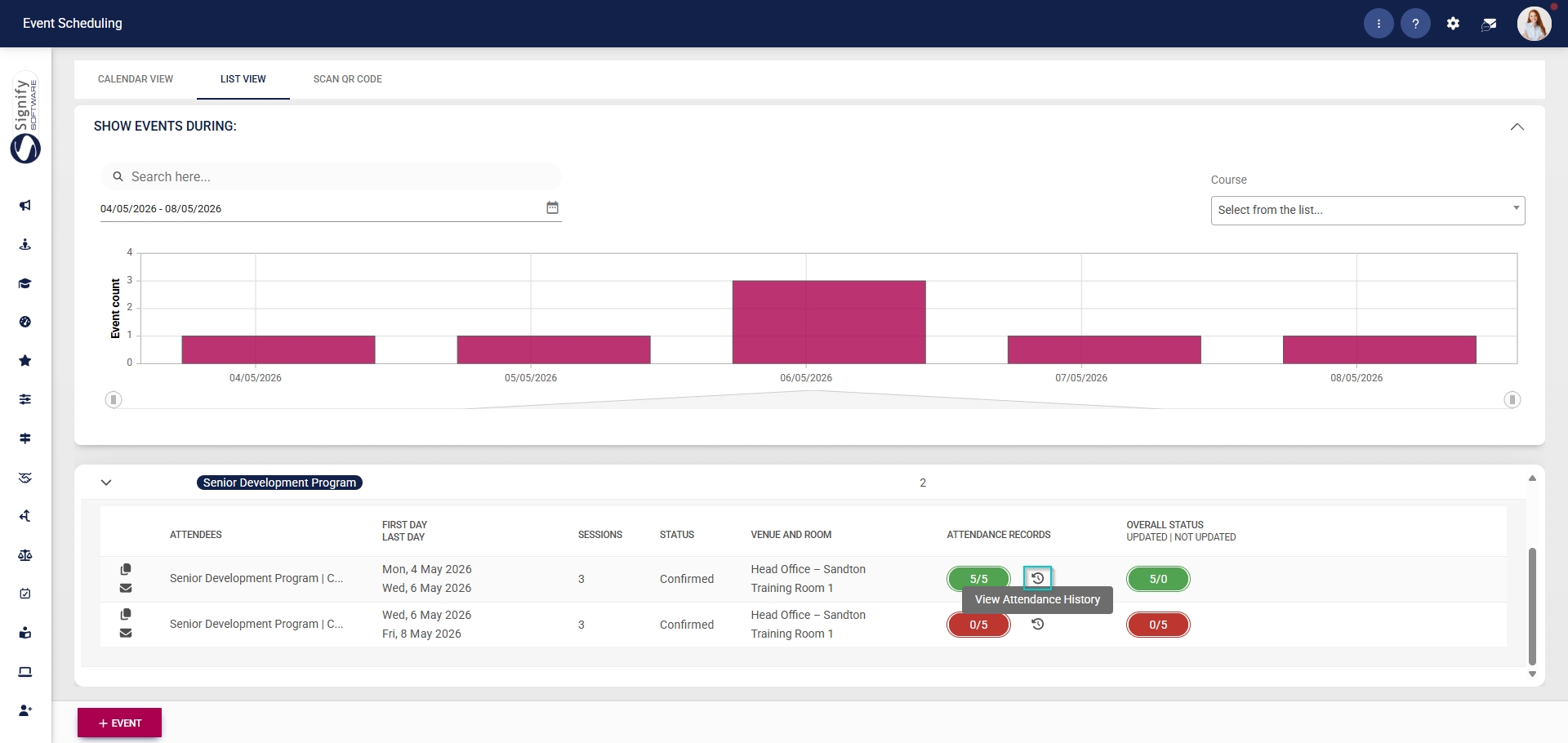
- Click the **history icon** to view the event's **attendance history**.
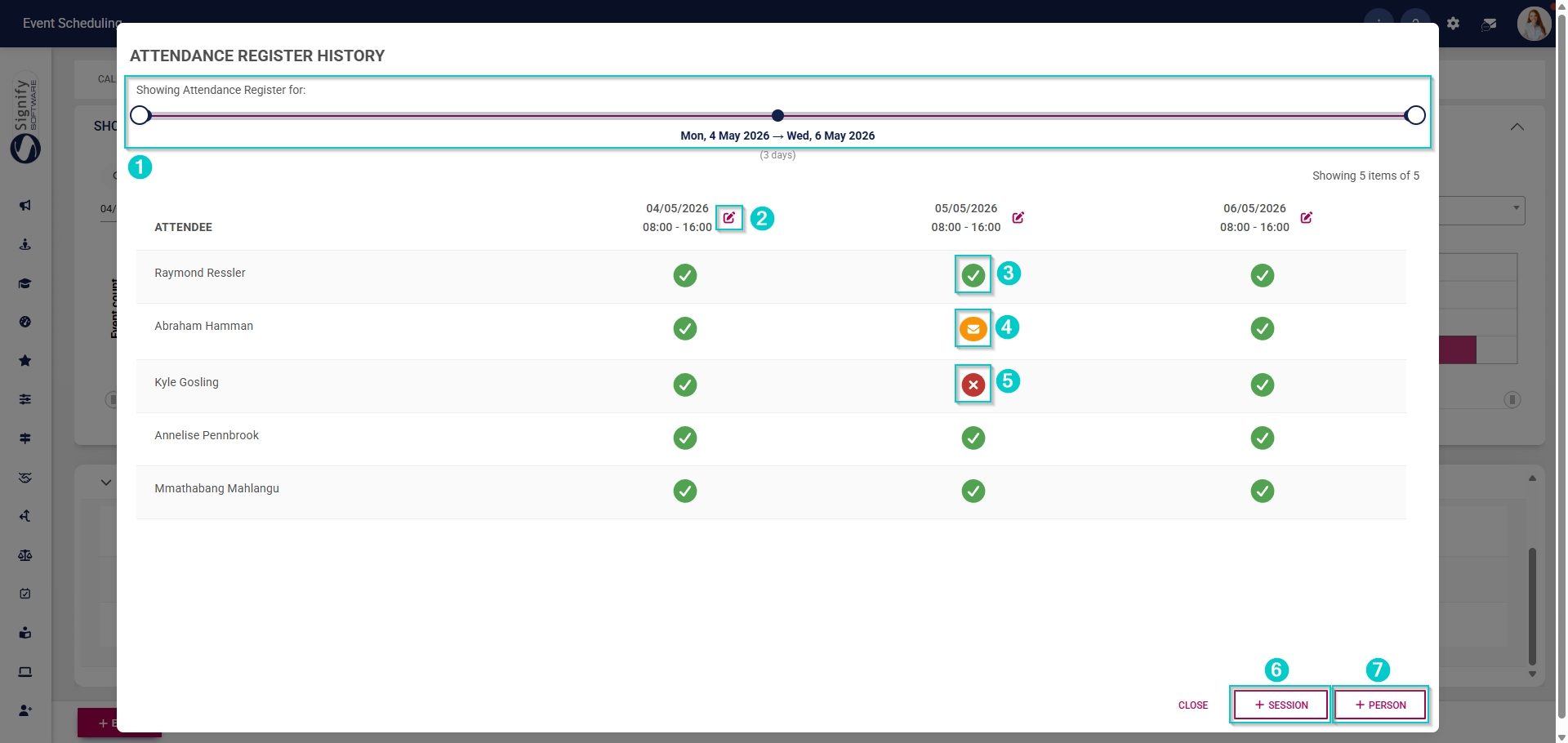
- The pop-up window displays the **attendance history** for the event, with the following features:
- Use the **sliders** at the top of the window to filter the attendance history by dates.
- Click on the **pencil icon** to edit the attendance for a specific session.
- Attendees who attended the event are marked with a **green tick icon**.
- Attendees who were absent with an excuse are marked with a **yellow tick icon**.
- Attendees who were absent without an excuse are marked with a **red tick icon**.
- Click **+SESSION** to navigate to the event configuration screen, where you can add another session.
- Click **+ATTENDEE** to navigate to the attendee list, where you can add more attendees.
[](https://signature.signifyhr.co.za/uploads/images/gallery/2025-02/ZOt8yZwhbiGx2d6U-signify-footer.png)
# How to Book Myself on an Event
[](https://signature.signifyhr.co.za/uploads/images/gallery/2025-02/emW3hfMrZ1yIDMUv-signify-header.png)
Employees can use the self-booking service to book themselves on open events.
- Hover over the **sidebar** menu, then click **Event Scheduling**.
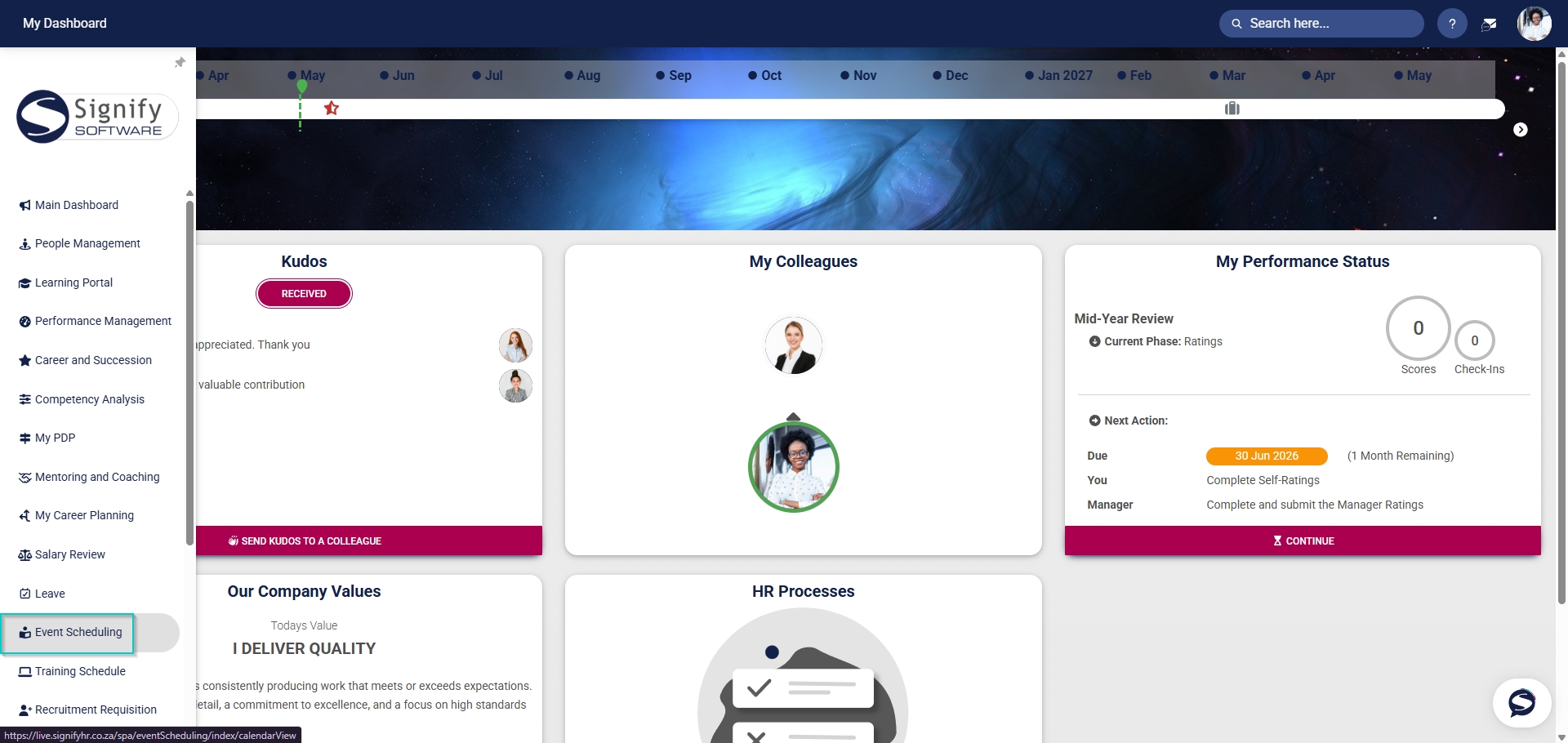
- When on the **Calendar View** tab, click **+BOOK MYSELF ON MULTIPLE EVENTS**.
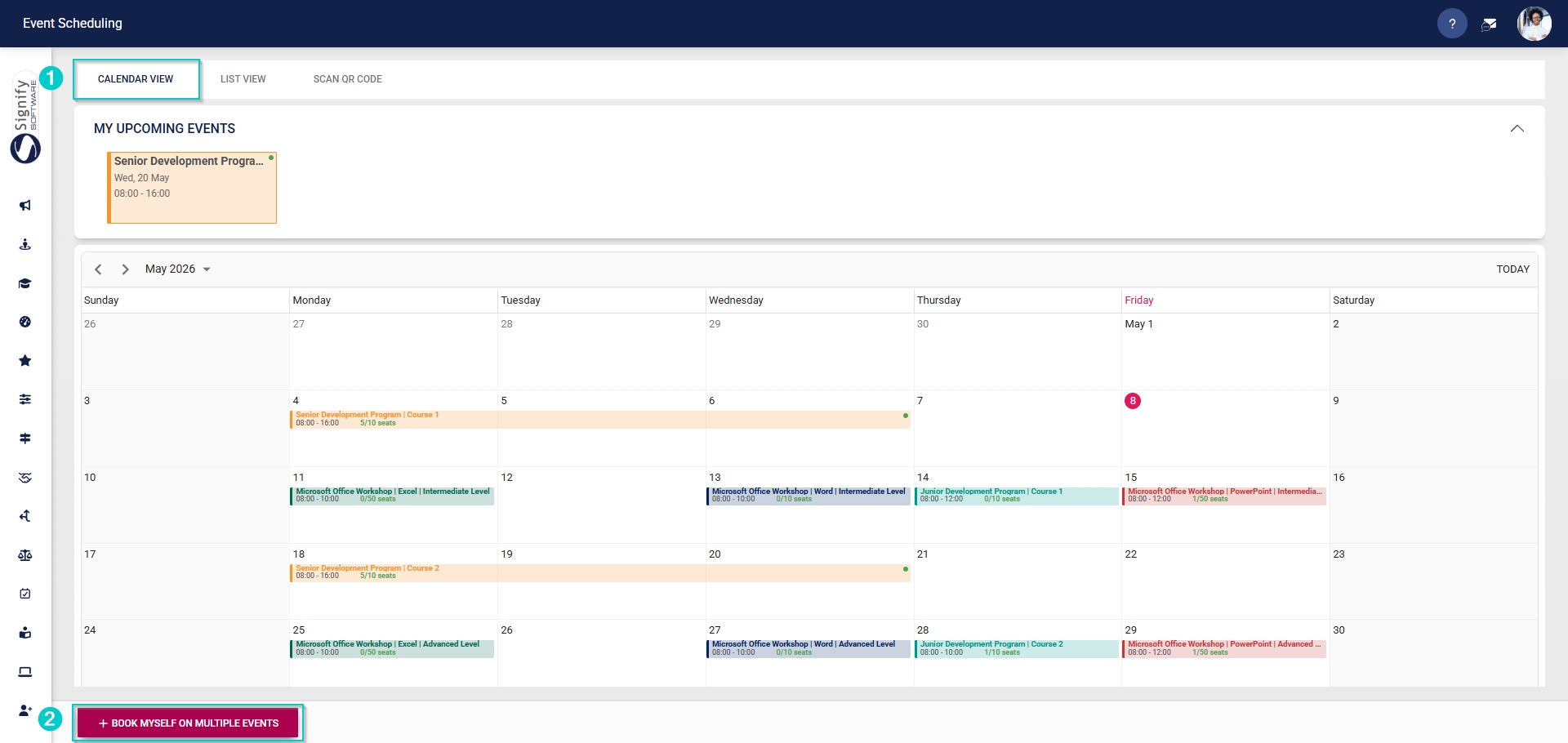
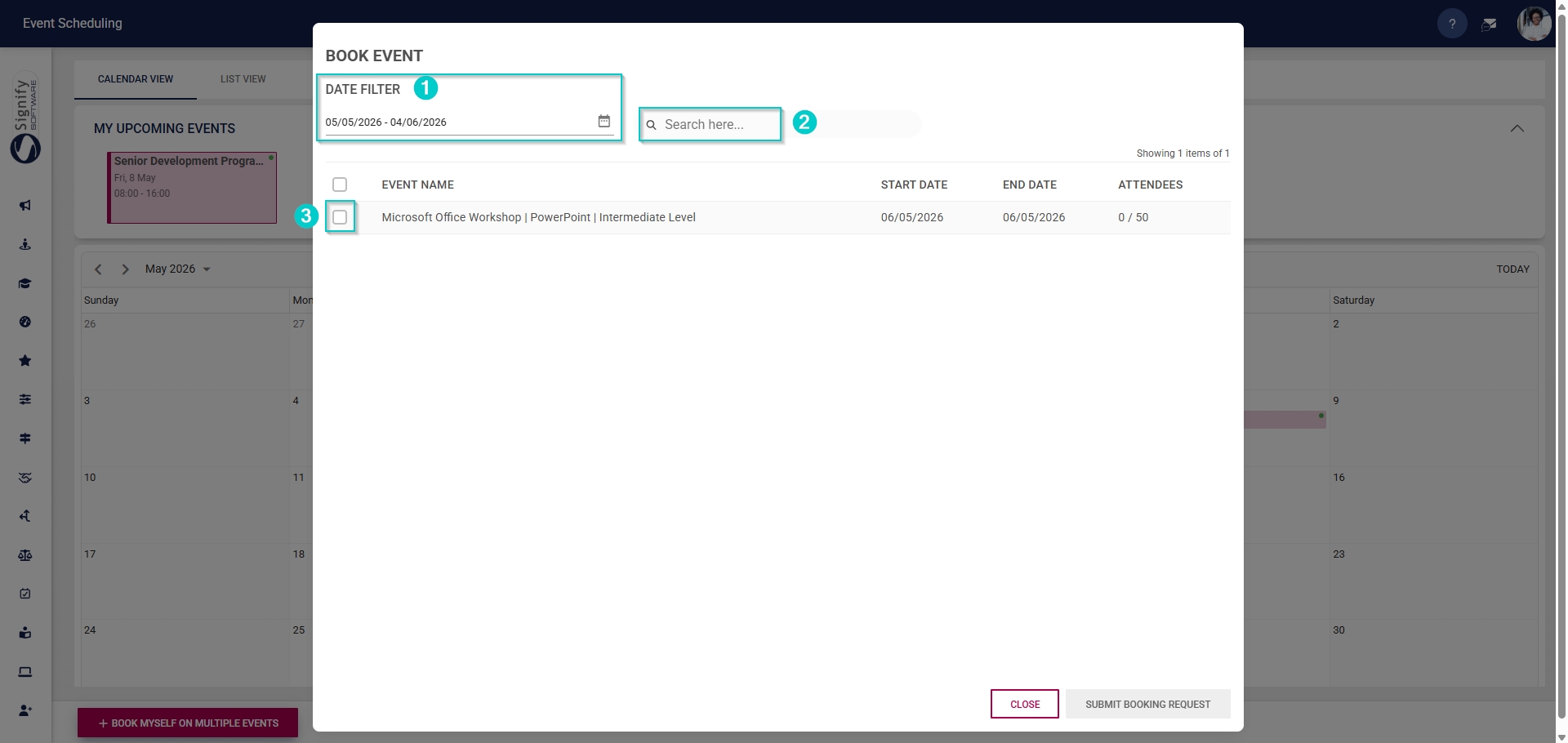
- Use the **date filter** to view events within a specific date range. Click the **calendar icon** to change the date range.
- Use the **search bar** to search for a specific event by name.
- Tick the **checkbox** next to an event to book yourself on that event.
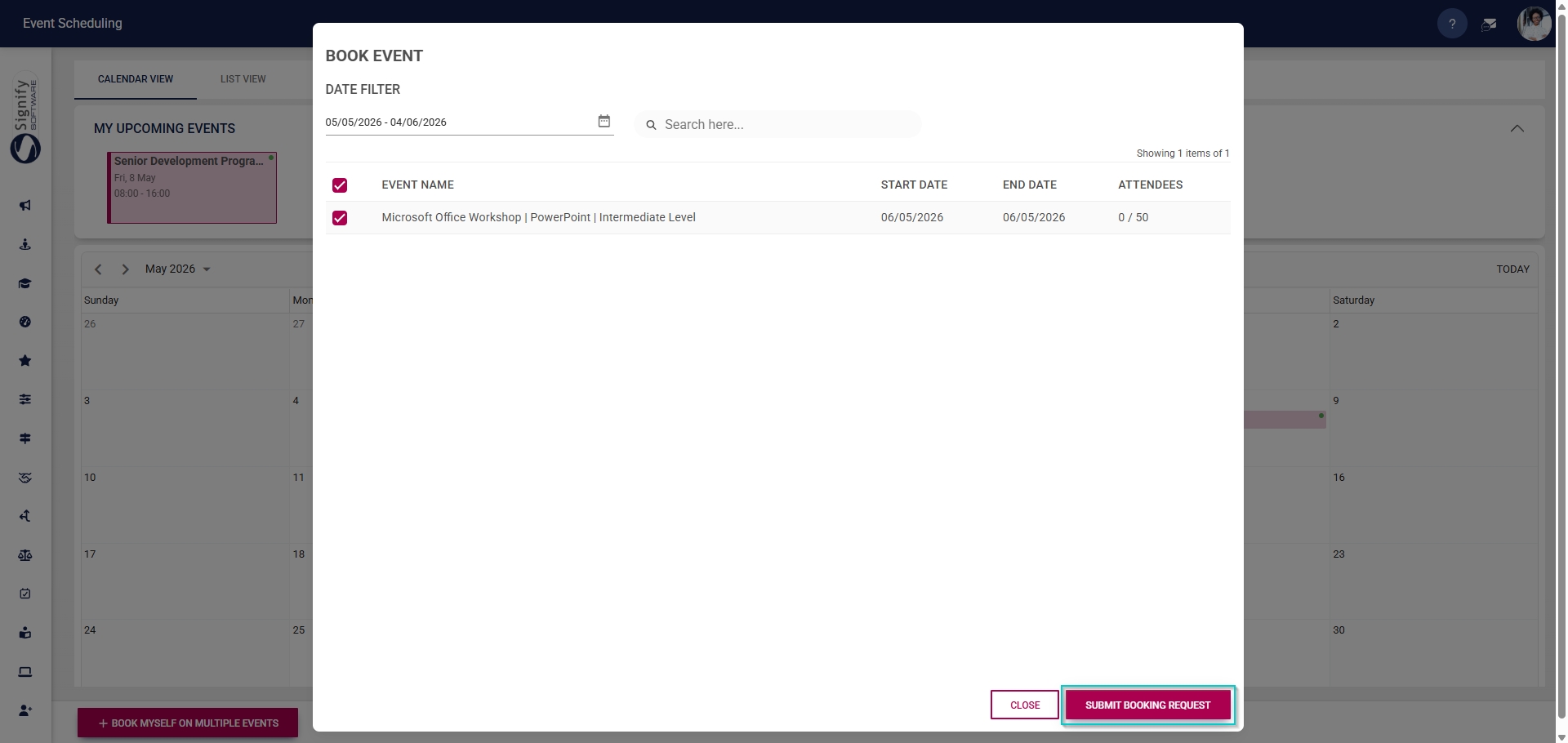
- Once an event has been selected, click **SUBMIT BOOKING REQUEST** to continue.
- If the employee has a **conflicting booking**, the system will display a pop-up window warning them of the overlap.
- To proceed with registering for the new event, first cancel the existing booking or choose a different timeslot.
- Click **CONTINUE** to proceed.

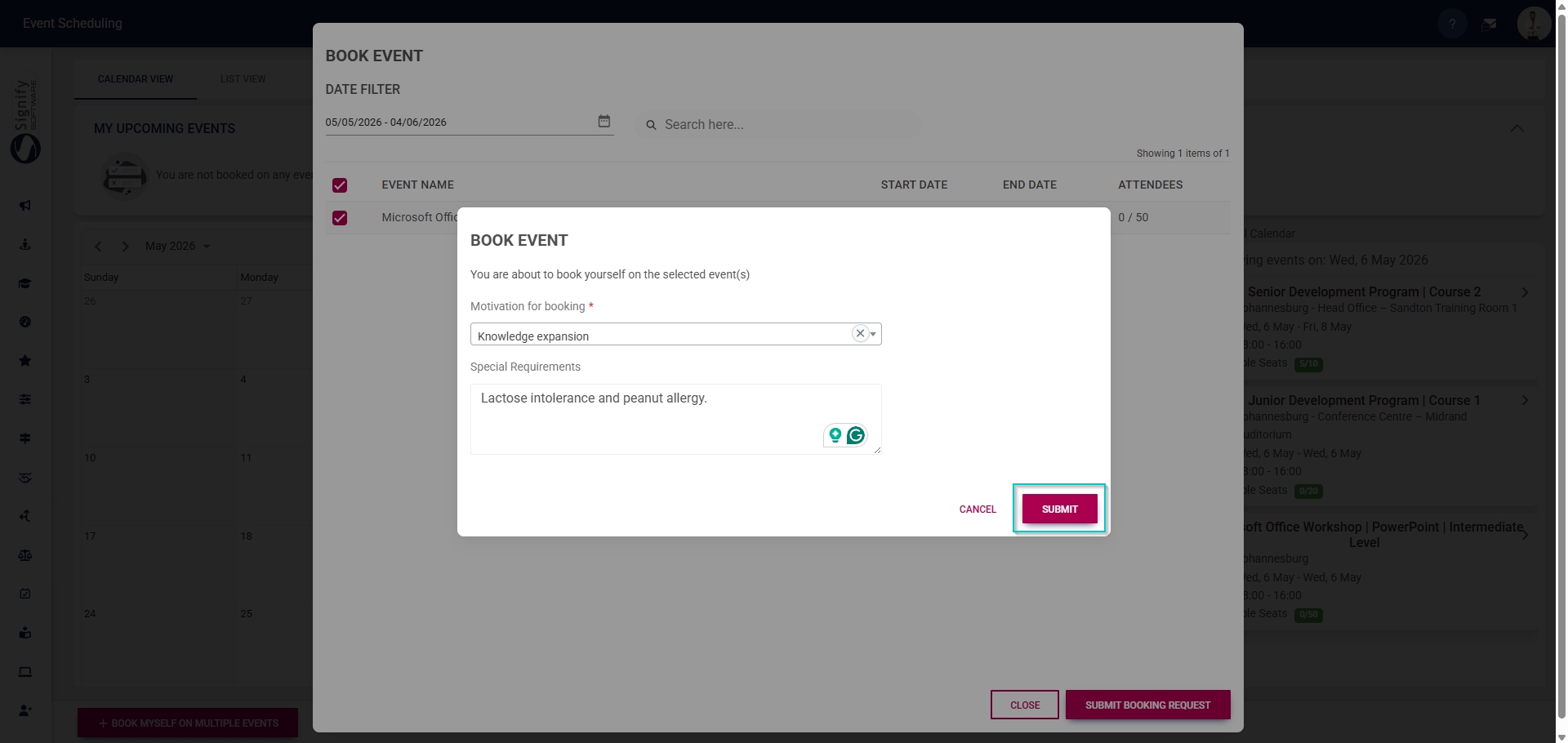
- If the employee has no conflicting bookings, the **booking motivation** pop-up window will appear.
- Select the **motivation for booking** from the **dropdown menu** and fill in any **special requirements**.
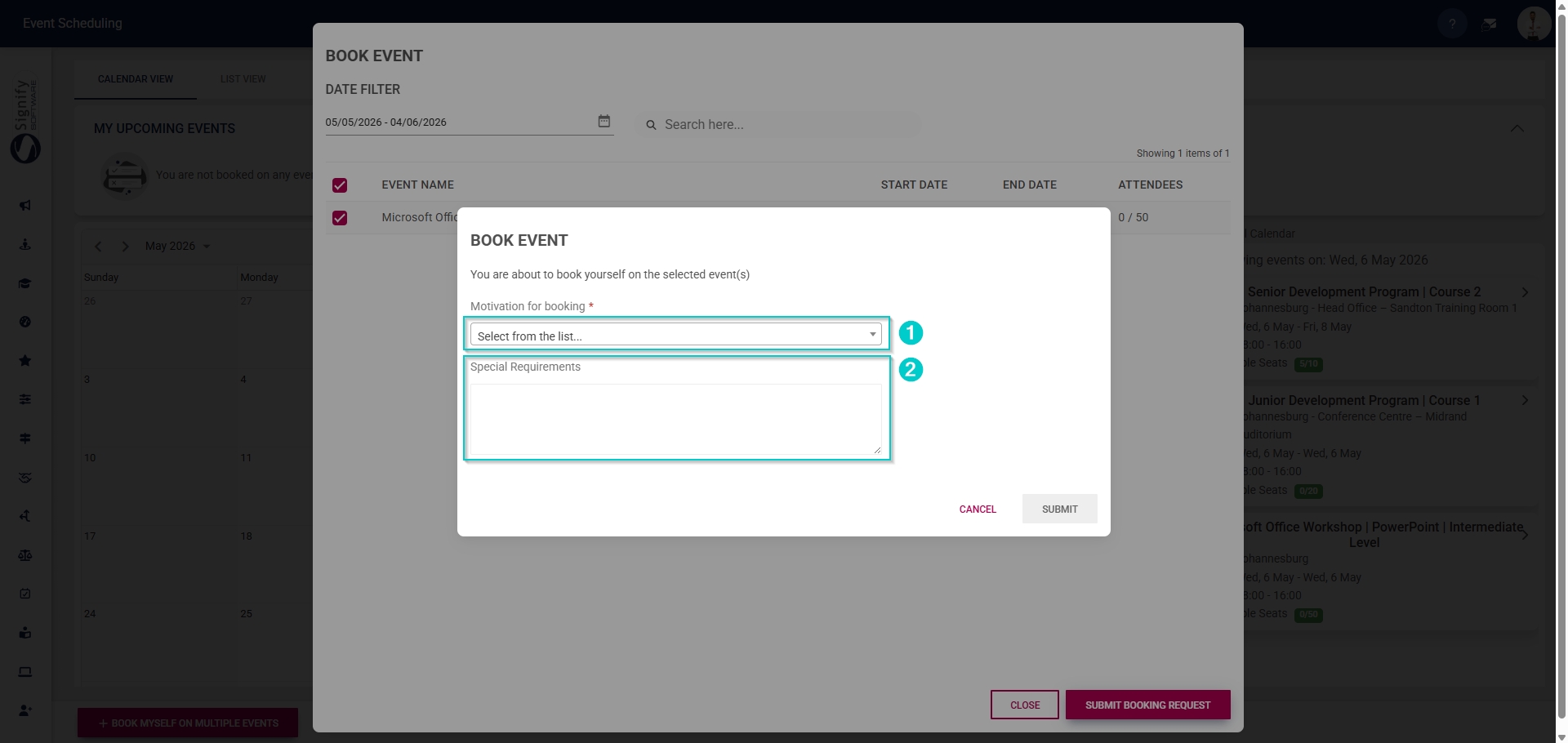
- Click **SUBMIT when you are finished or click **CANCEL** to discard your edits.
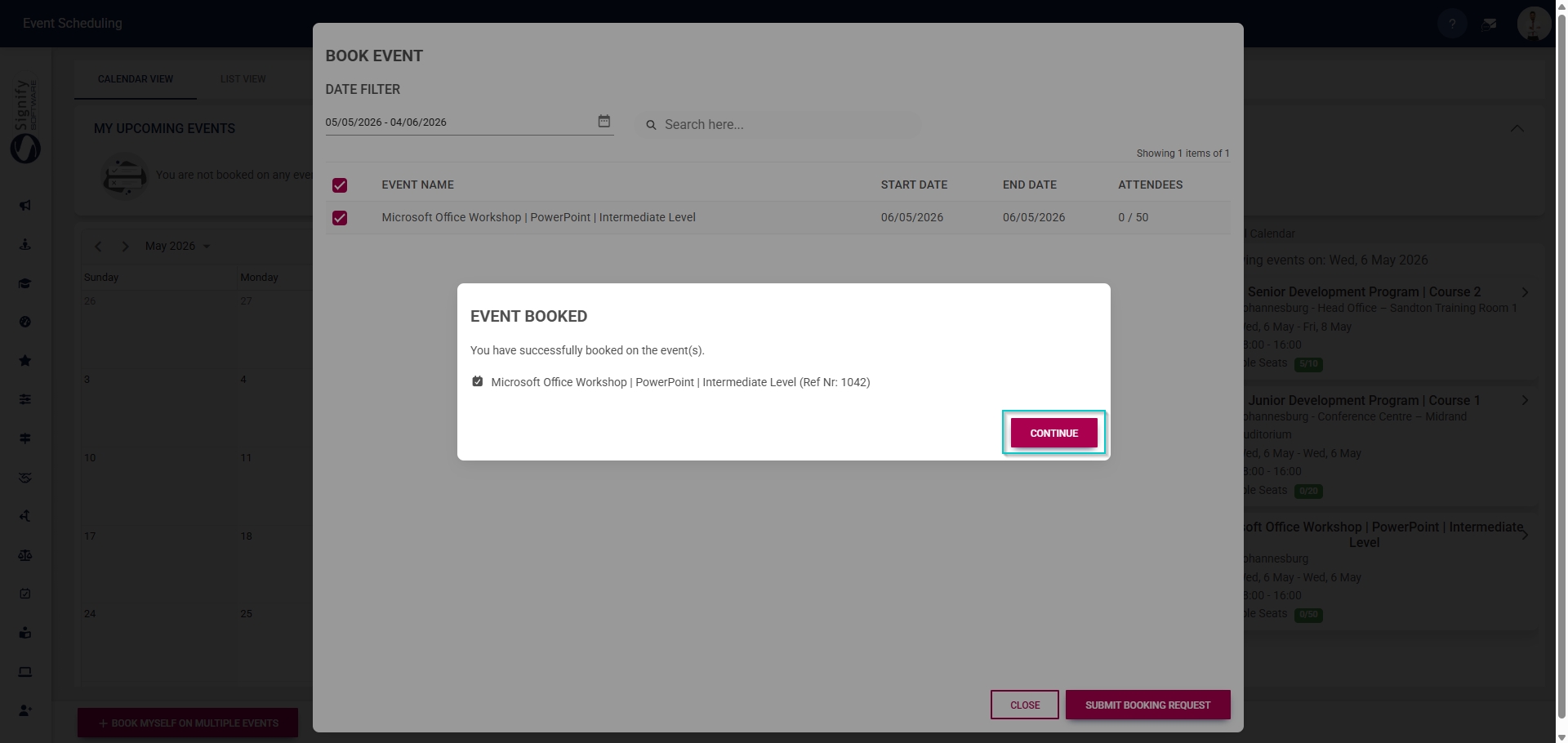
- A pop-up message will confirm that you have successfully booked yourself for the event.
- Click **CONTINUE** to proceed.
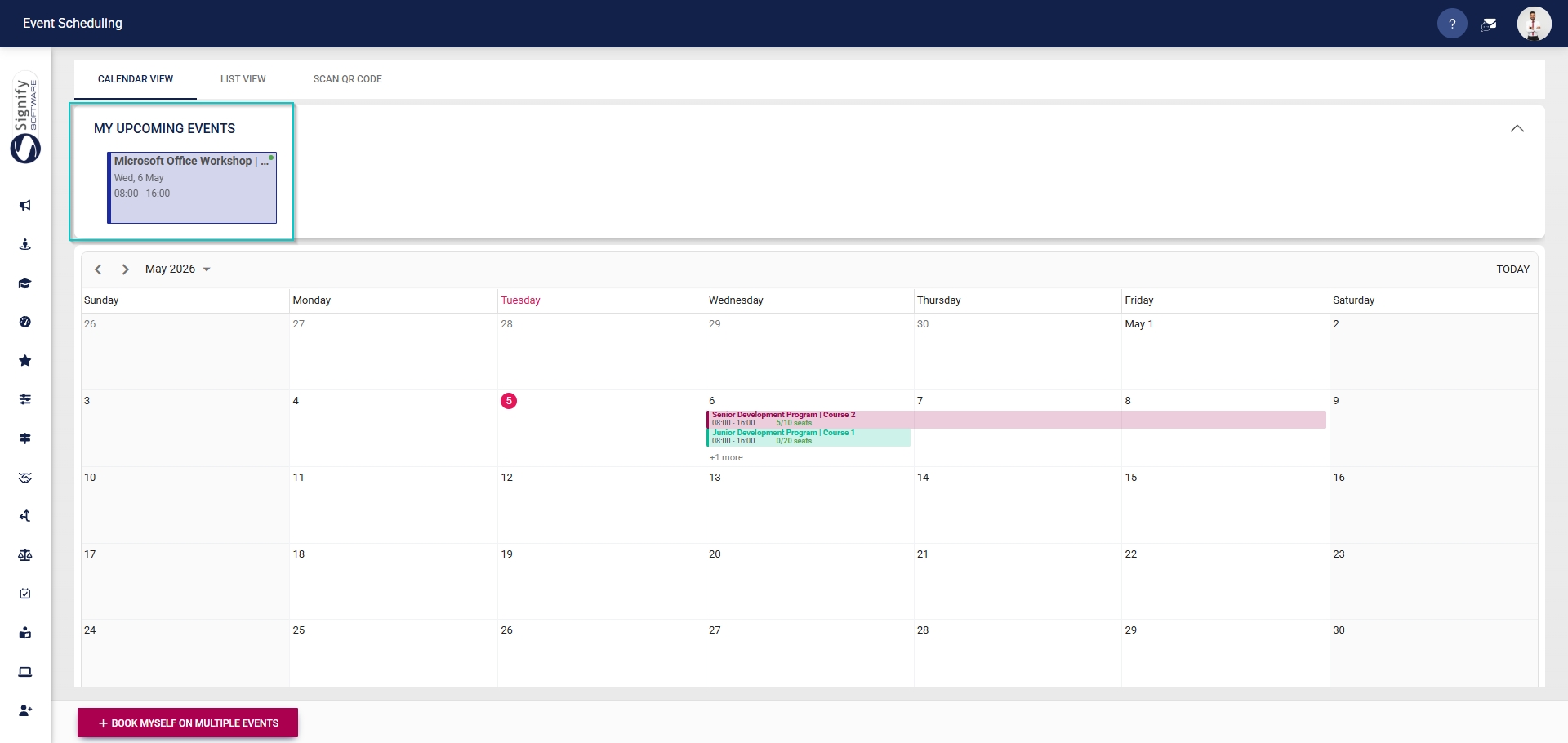
- The new event will show in the **My Upcoming Events** section.
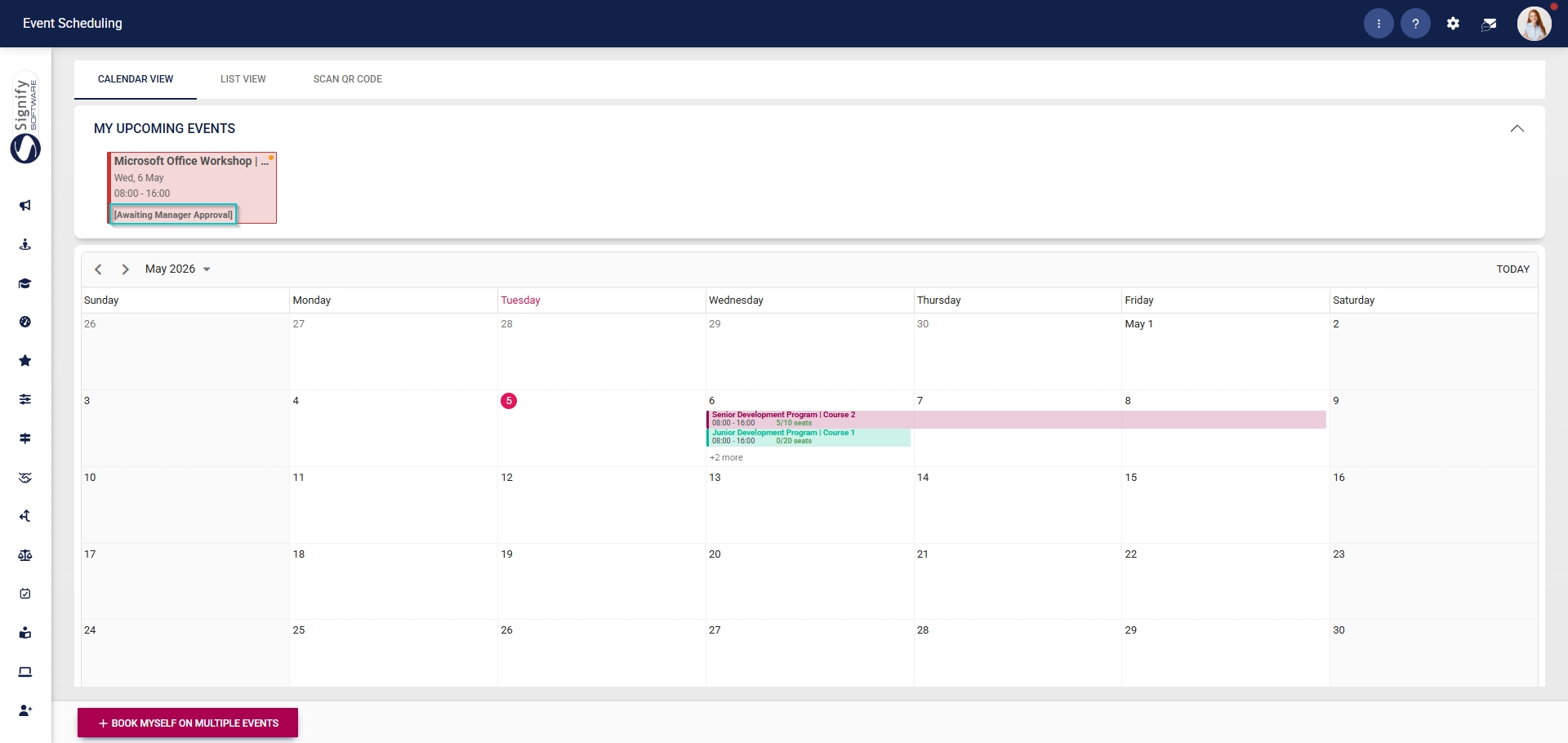
- If an employee has requested to attend an event that requires **approval**, the event card will show the system as **Awaiting Manager Approval**.
[](https://signature.signifyhr.co.za/uploads/images/gallery/2025-02/ZOt8yZwhbiGx2d6U-signify-footer.png)
# How to do Approvals
[](https://signature.signifyhr.co.za/uploads/images/gallery/2025-02/emW3hfMrZ1yIDMUv-signify-header.png)
#### Manager approvals
Some events require manager approval for attendees.
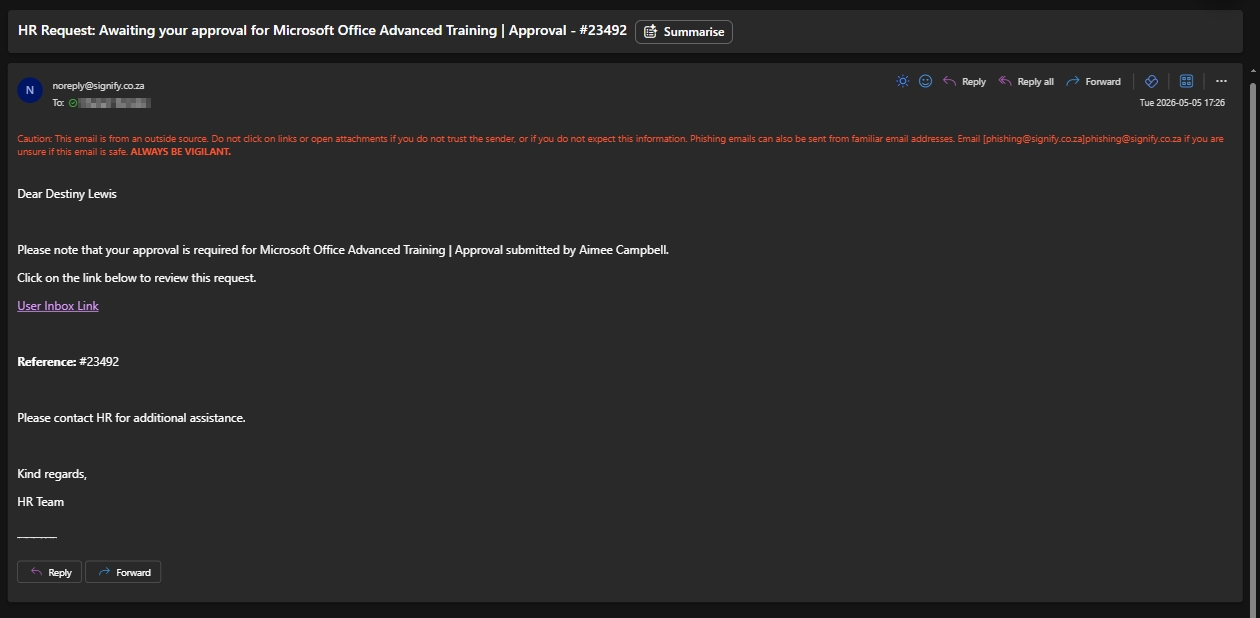
- Upon submitting a request to attend an event, the attendee’s **manager** will be notified by **email**.
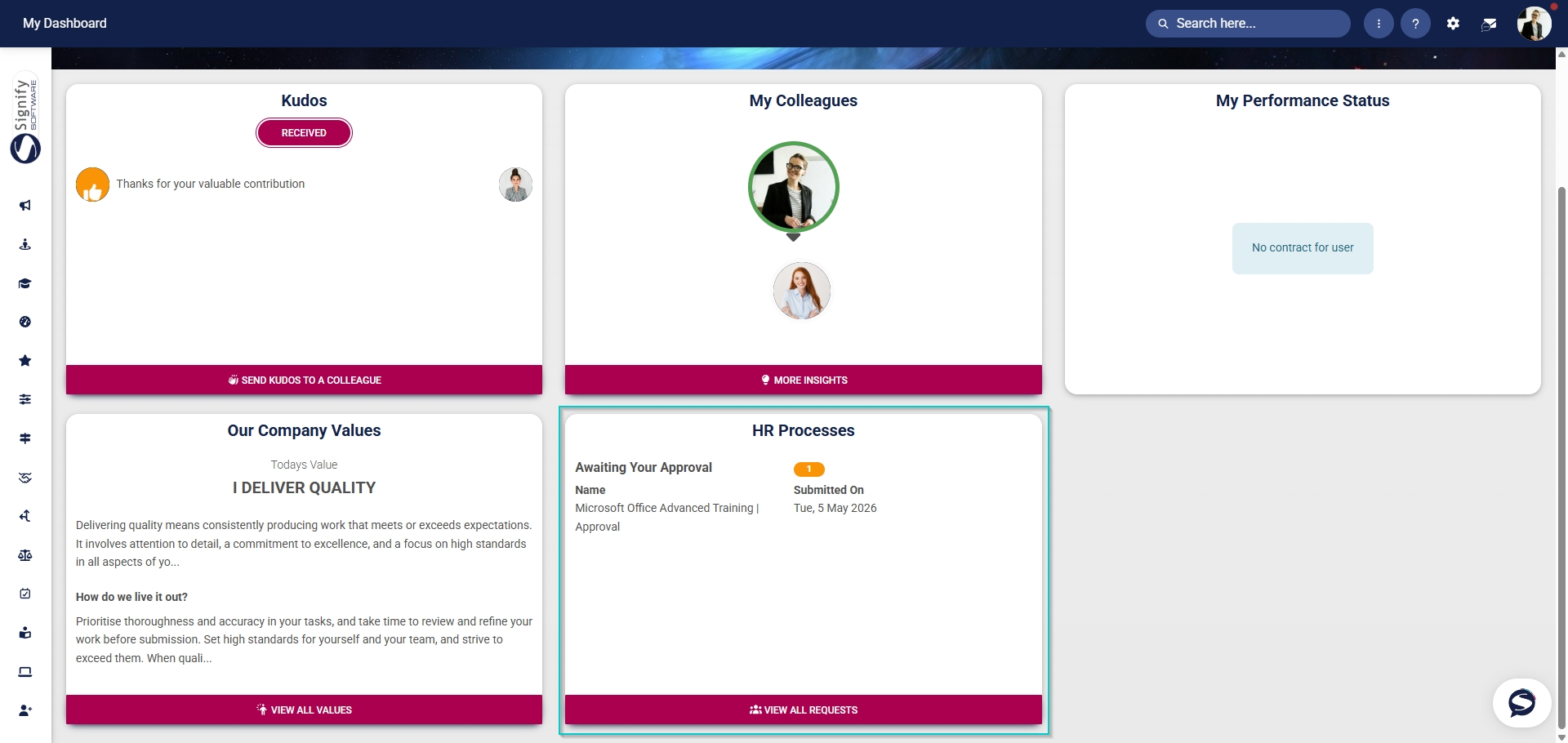
- Additionally, when navigating to the **Dashboard**, the manager will see a new request on the **HR Processes widget** if it has been enabled.
- Click **VIEW ALL REQUESTS** to proceed.
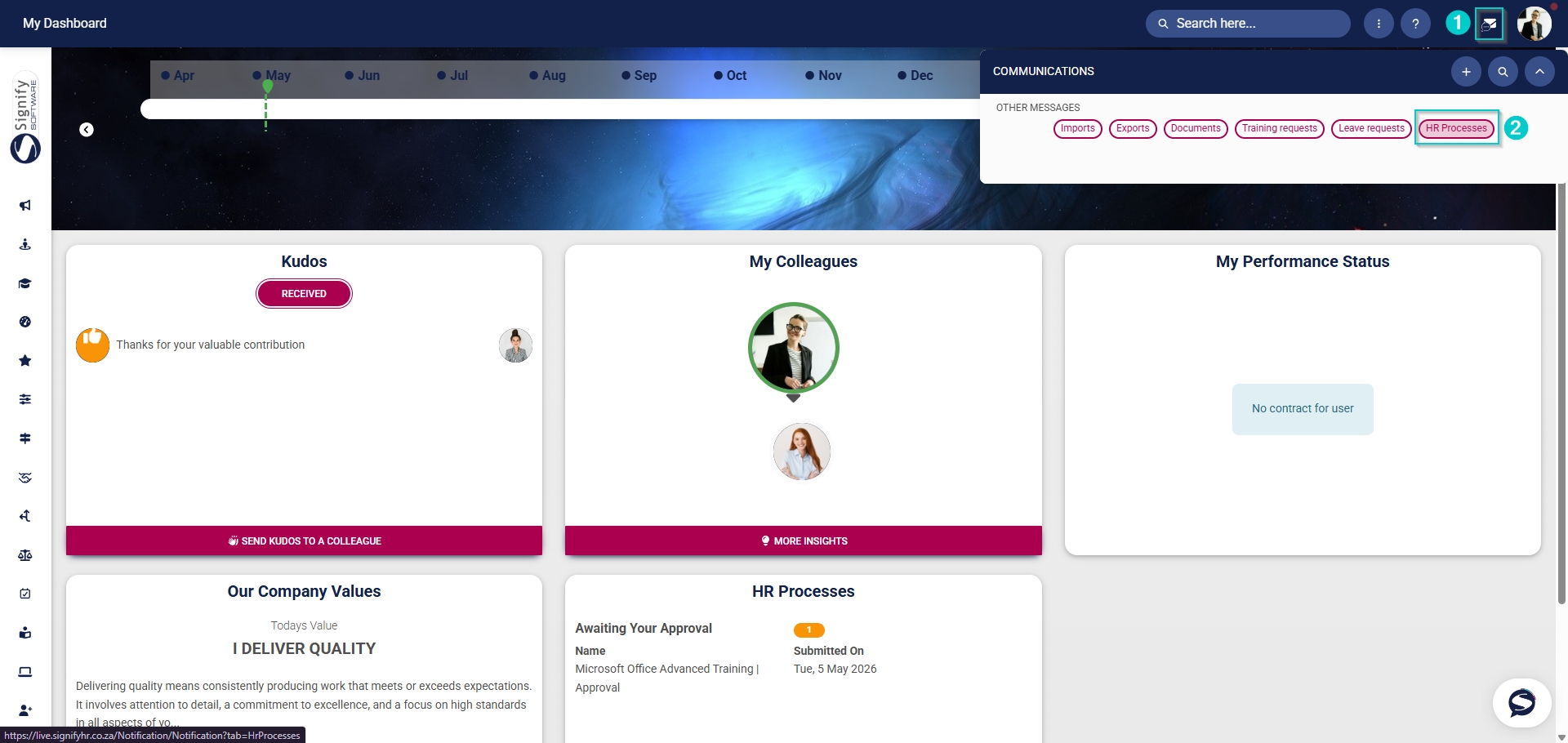
- Alternatively, the manager can access training requests by clicking the **envelope icon** to open their **System Inbox**.
- Click on **HR Processes** to continue.
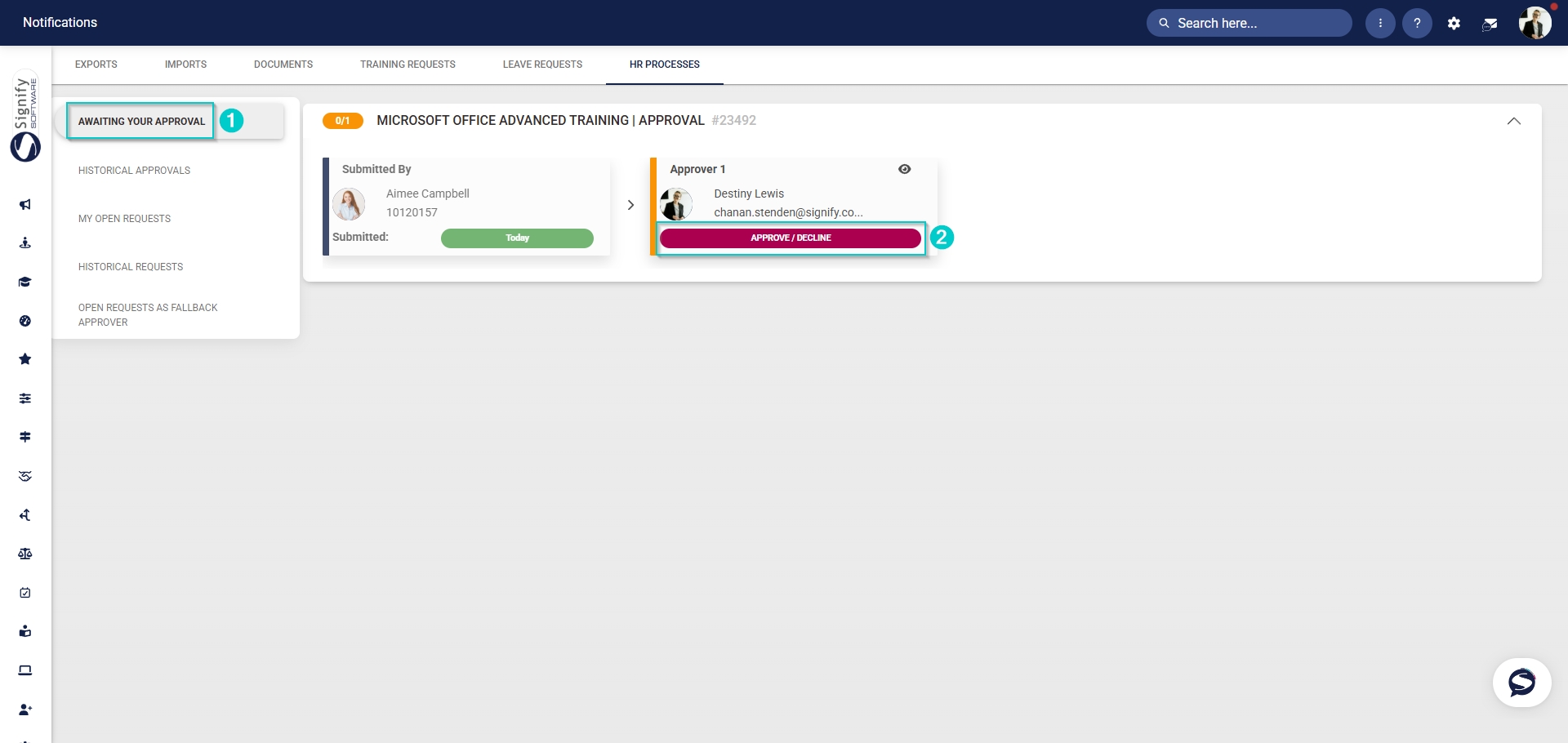
- The **HR Processes** feature of the **System Inbox** will open.
- In the **left-hand menu**, click **AWAITING YOUR APPROVAL** to view open requests.
- Find the employee’s training request, then click **APPROVE/DECLINE**.
- In the pop-up window, the request details will appear.
- The **event details** will display, including the event name and start and end dates.
- The manager can add **notes** about the request.
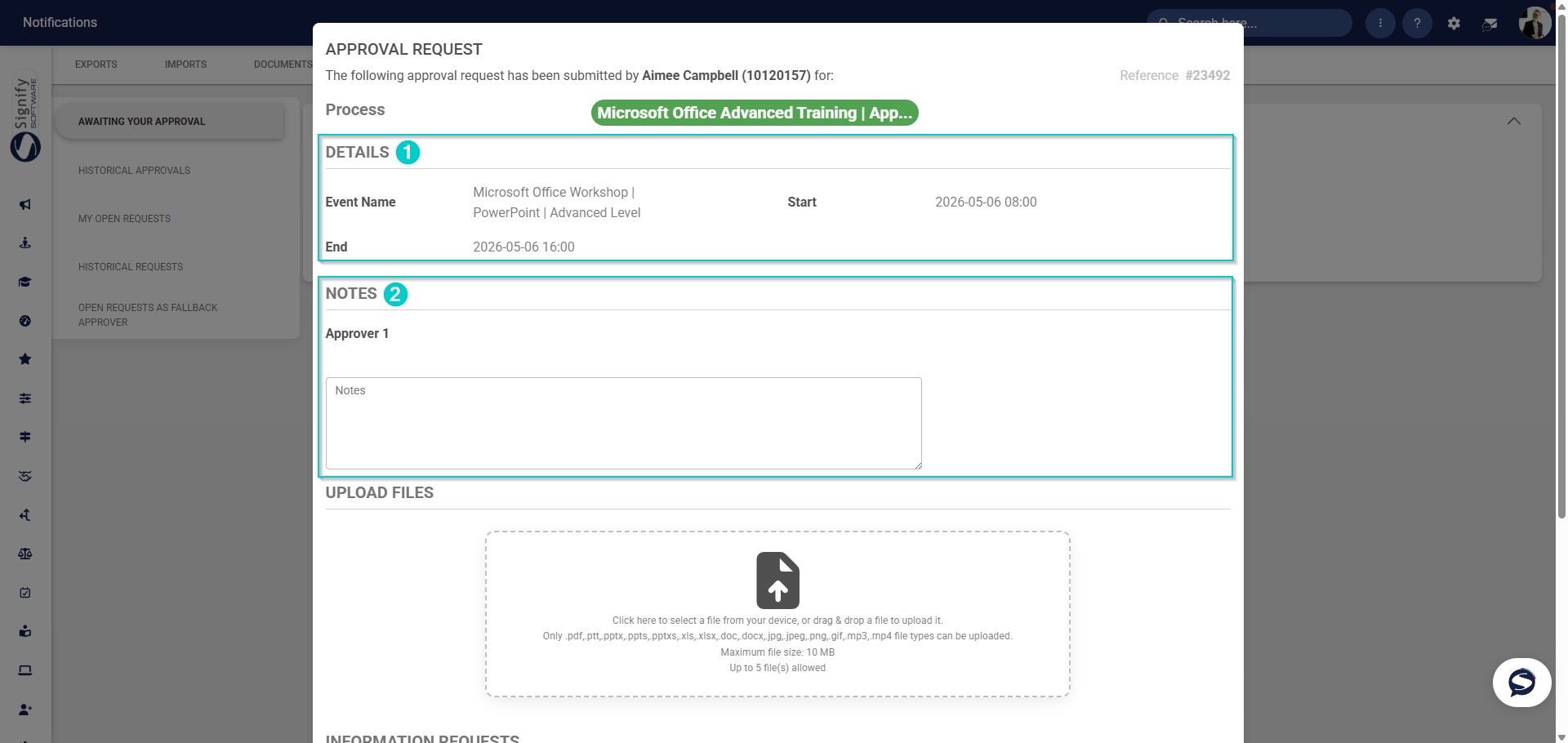
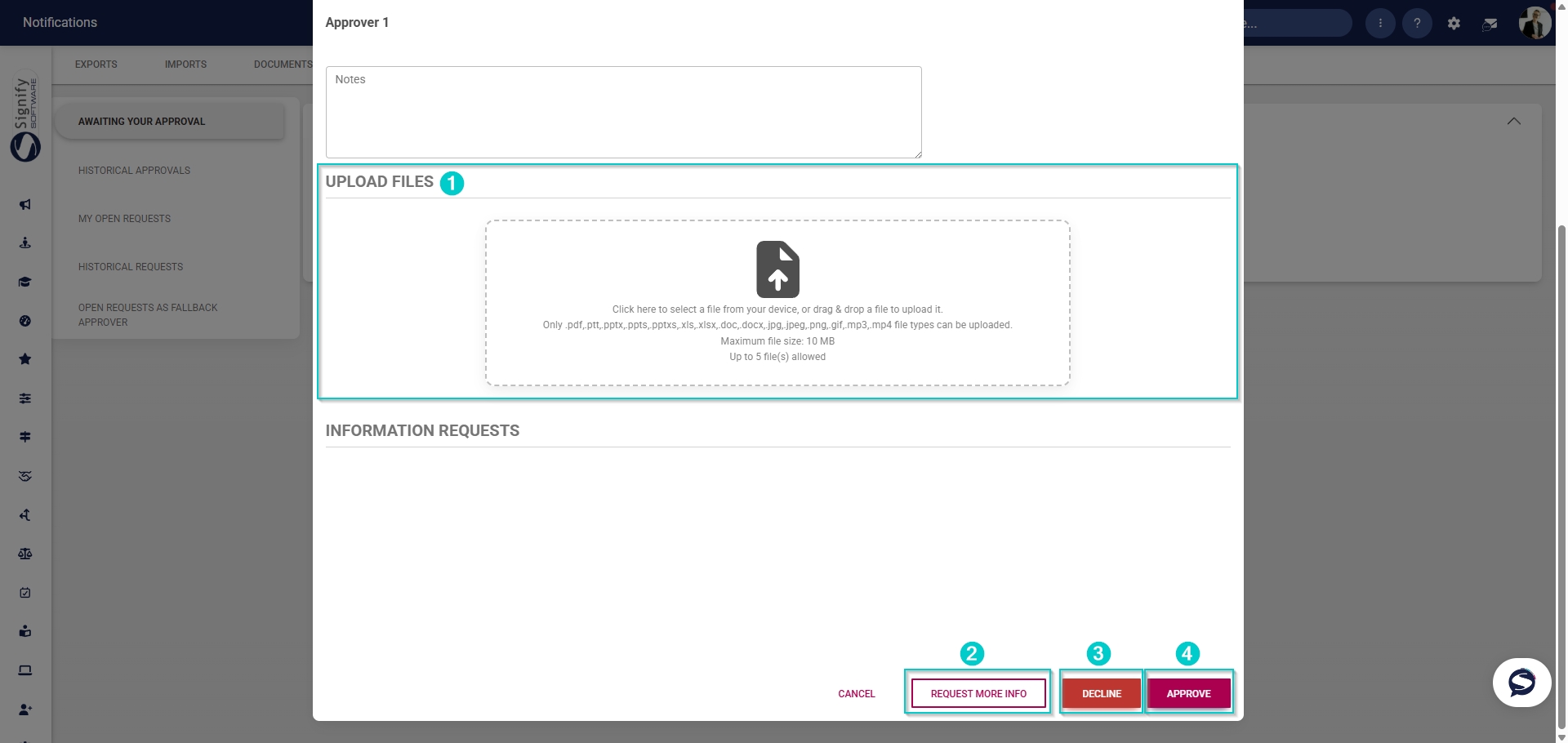
- - The manager can **upload files** from their device.
- Using the buttons at the bottom of the pop-up window, the manager can:
- Click **REQUEST MORE INFO** to obtain more information about the training request from the employee.
- Click **DECLINE** to deny the employee’s training request.
- Click **APPROVE** to allow the employee to attend the event.
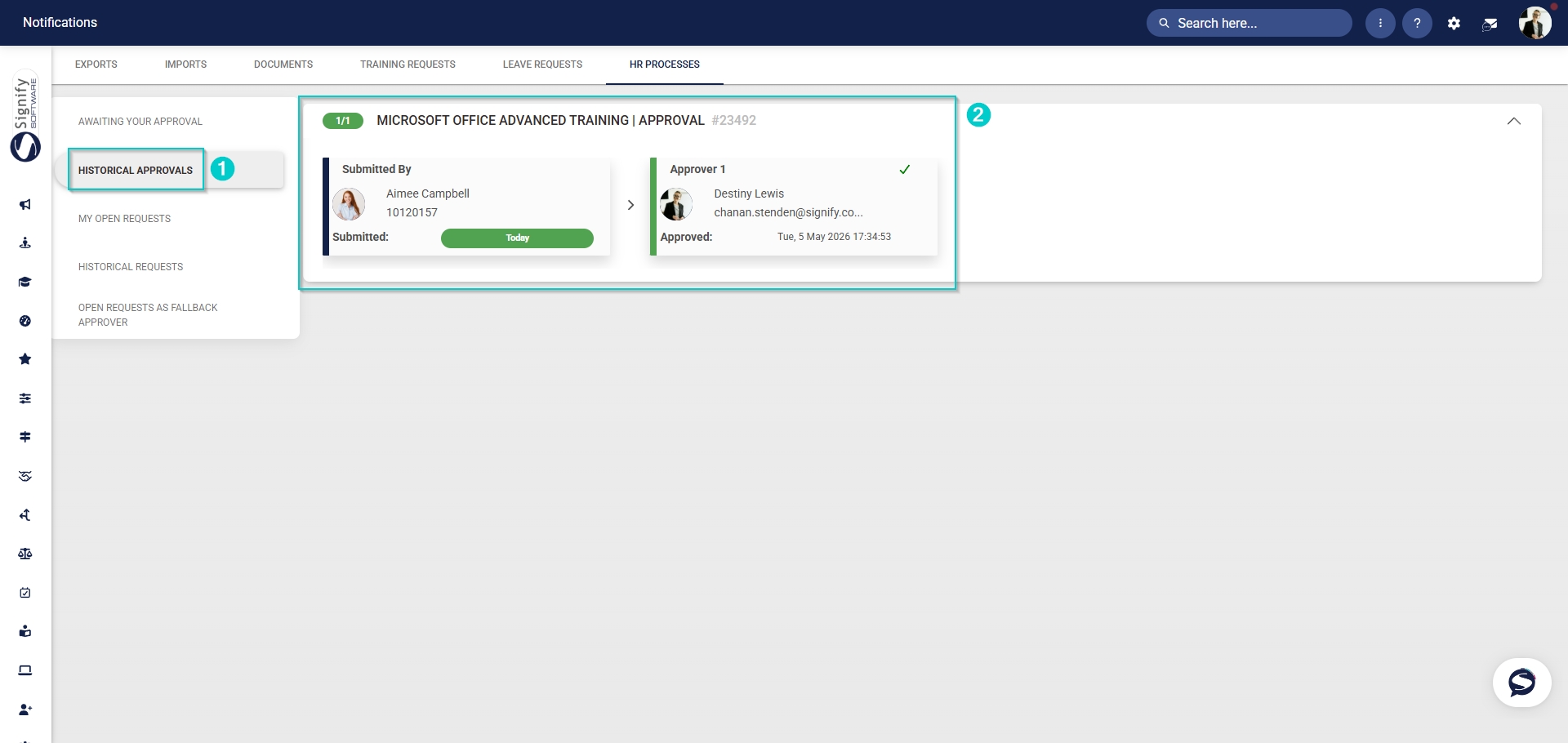
- The manager can navigate to **Historical Approvals** using the **left-hand menu**. Here, details about past requests can be viewed.
#### Administrator approvals
Some events require an event administrator's approval for attendees.
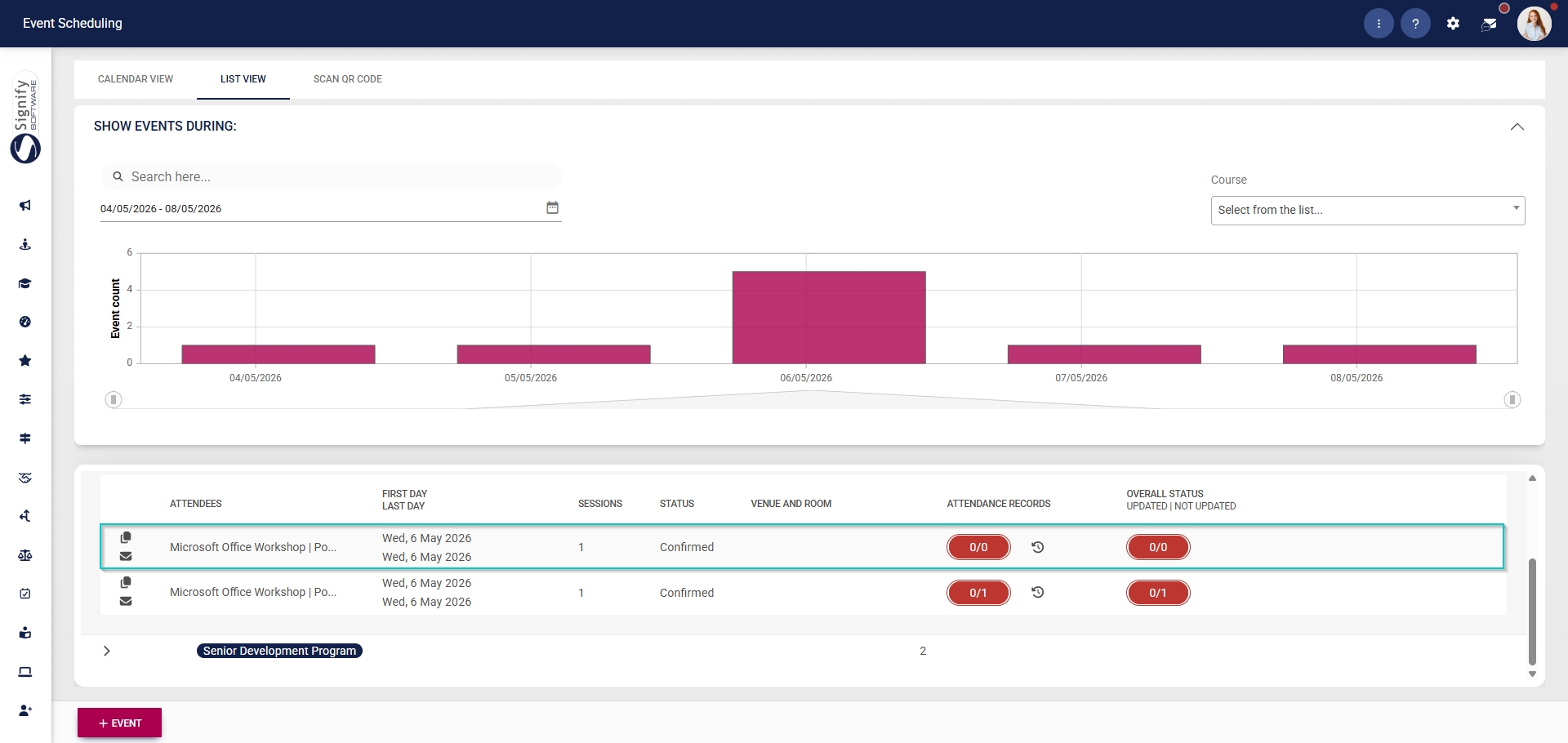
- Hover over the **sidebar** menu, then click **Event Scheduling**.

- Navigate to the **List View** tab.
- Expand the event for which you would like to manage administrator approvals.

- Click on the event’s **name** to navigate to its configuration settings.
- In the **left-hand menu**, click **Attendees**.
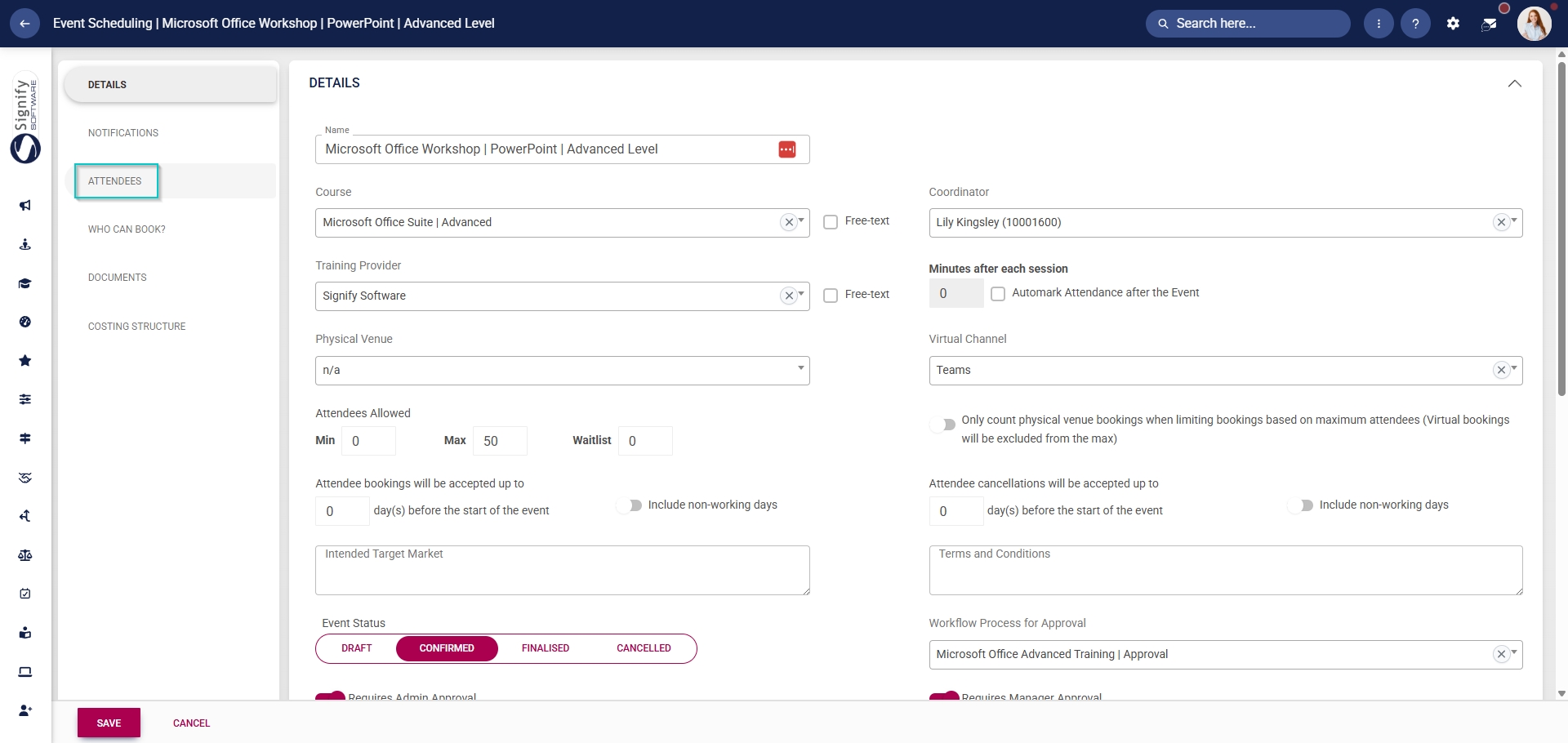
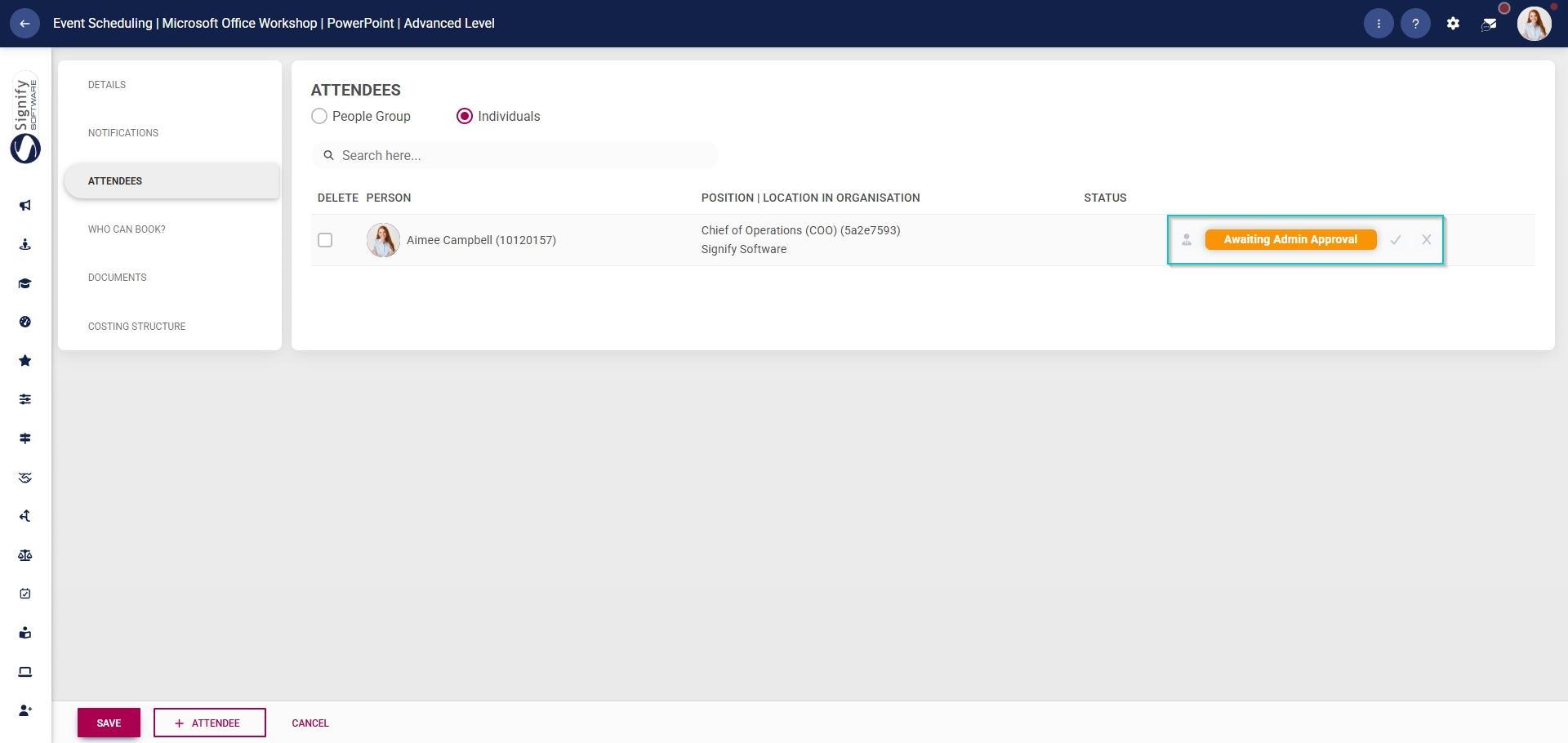
- The **status** of the attendee will show **Awaiting Admin approval**.
- Click the **tick** **icon** to approve the employee’s request.
- Click the **cross** **icons** to decline this request.
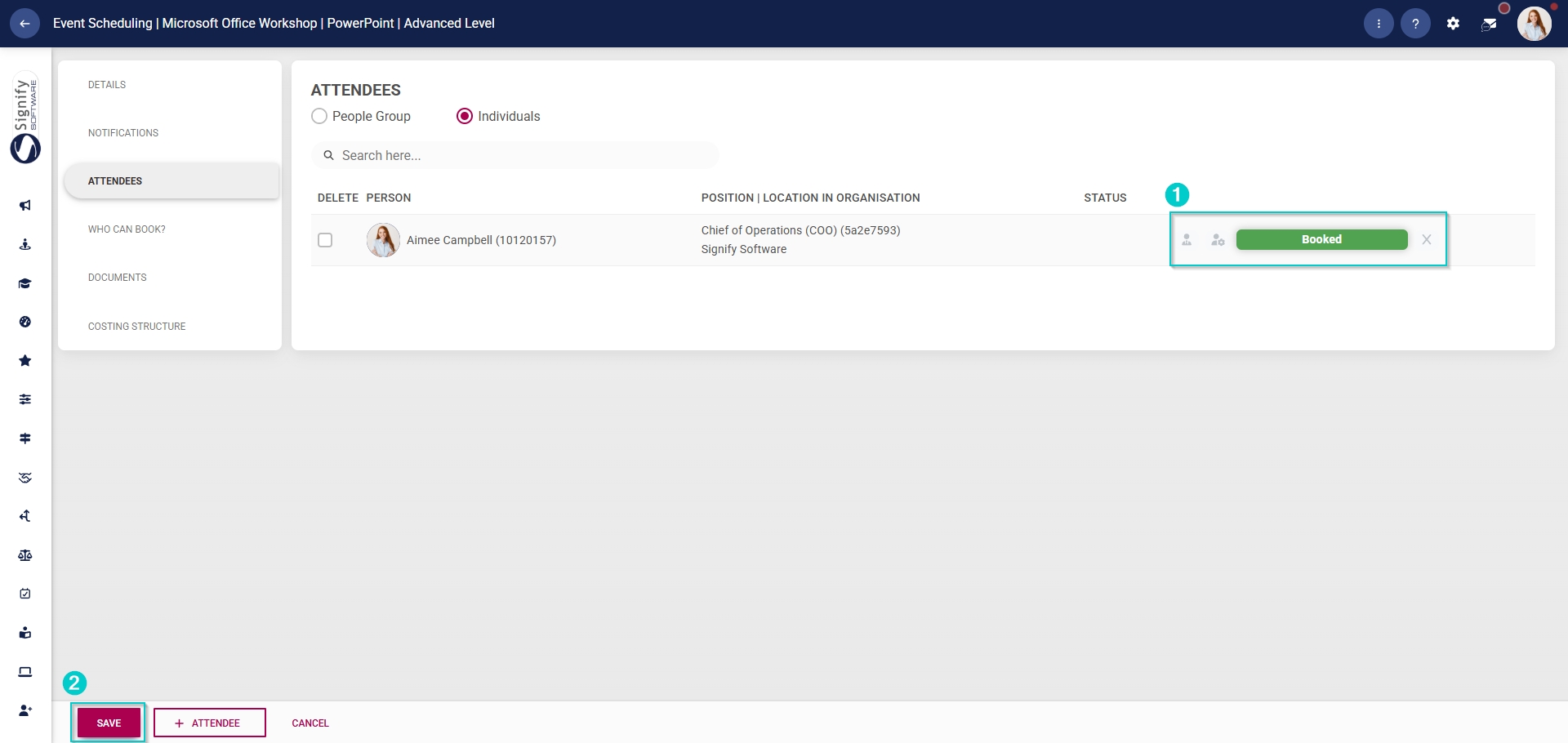
- The attendee’s status will change depending on the icon you click.
- To proceed, click **SAVE**.
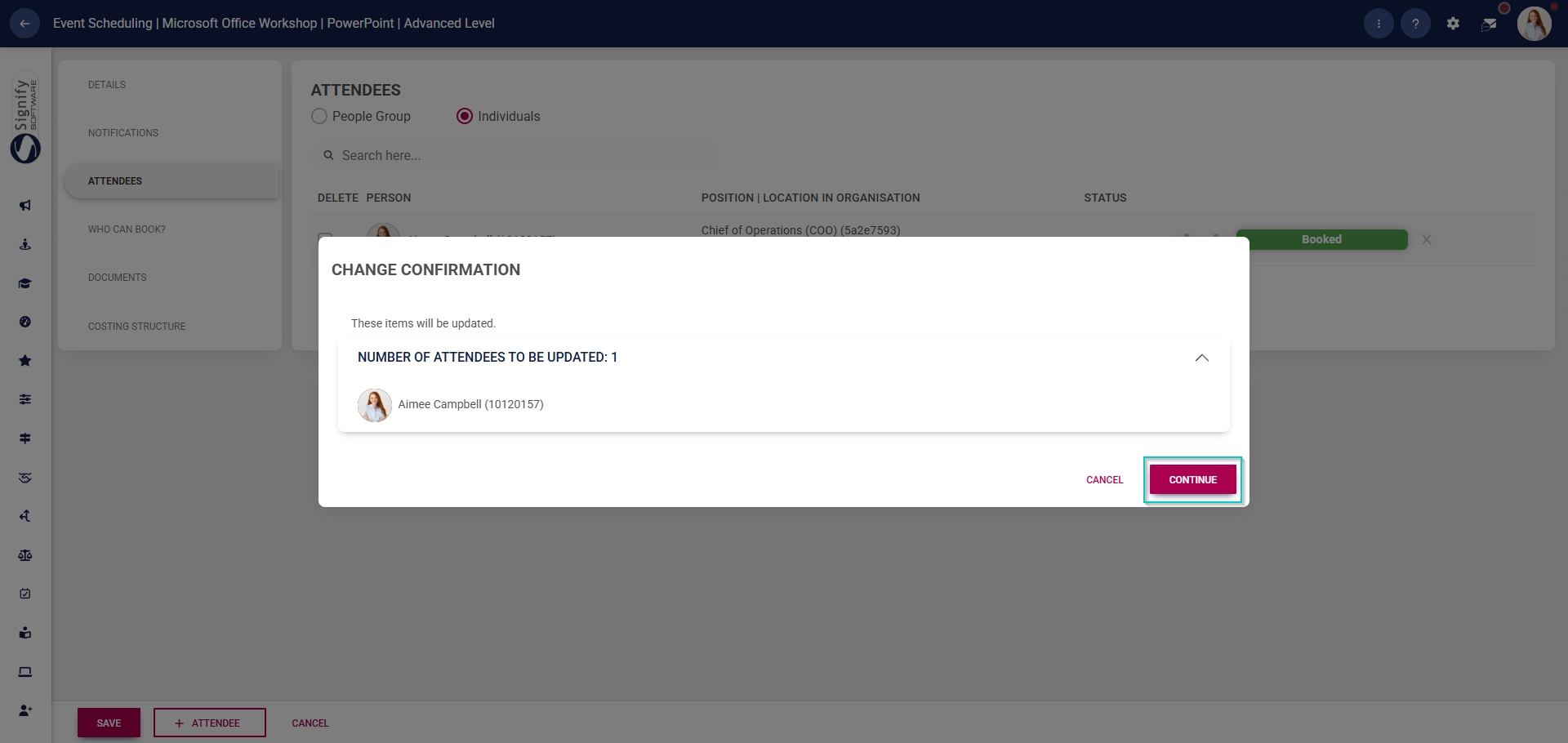
- A pop-up message will ask you to confirm these changes. Click **CONTINUE** to proceed or click **CANCEL** to discard your changes.
[](https://signature.signifyhr.co.za/uploads/images/gallery/2025-02/ZOt8yZwhbiGx2d6U-signify-footer.png)
# Using the Calendar View
[](https://signature.signifyhr.co.za/uploads/images/gallery/2025-02/emW3hfMrZ1yIDMUv-signify-header.png)
The following section demonstrates what end users see in the **Event Scheduling** module.
- Hover over the **sidebar** menu, then click **Event Scheduling**.

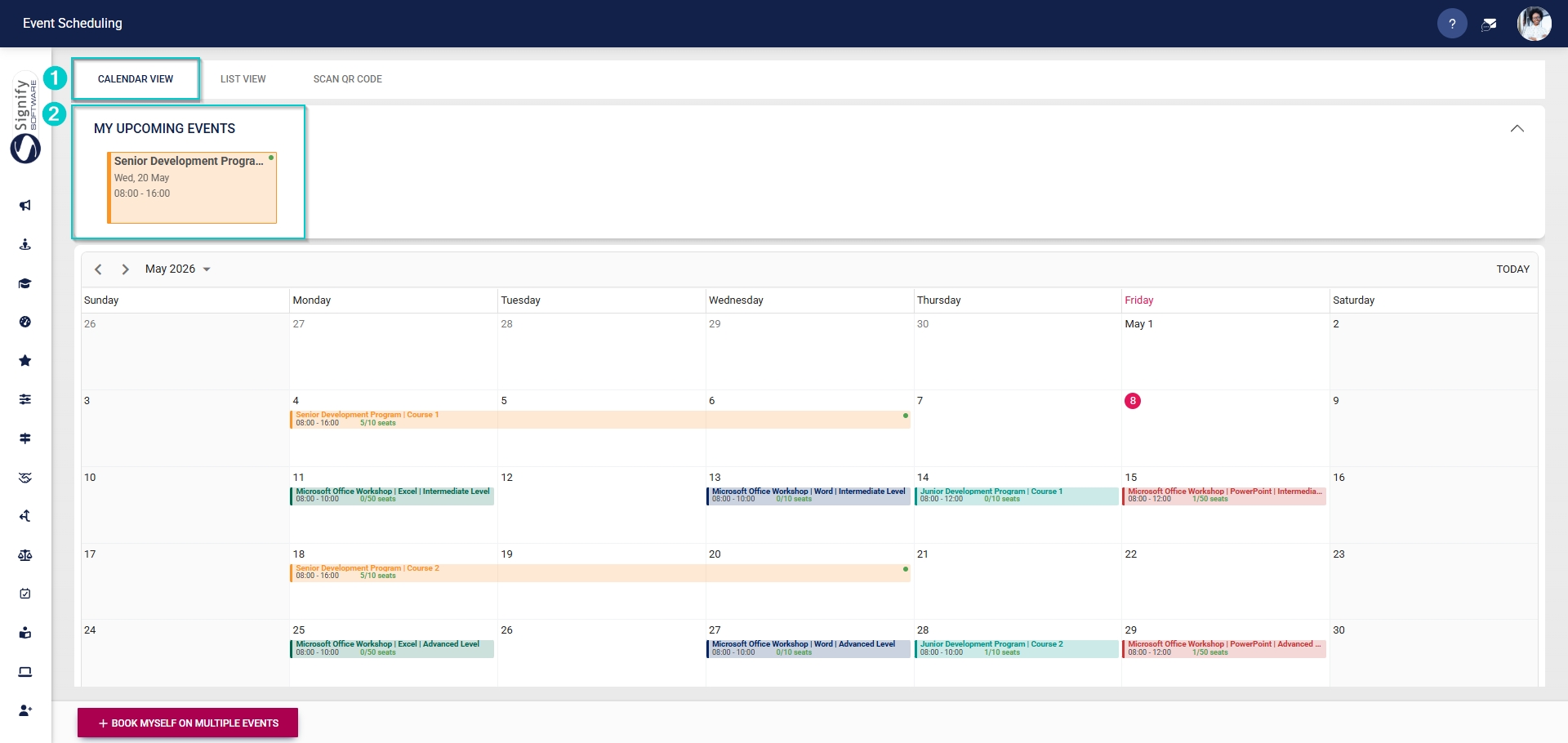
- The **Calendar View** tab will open. If an employee has been booked for an event, the event details will show in the **My Upcoming Events** section.
- Click on the event card for more information.
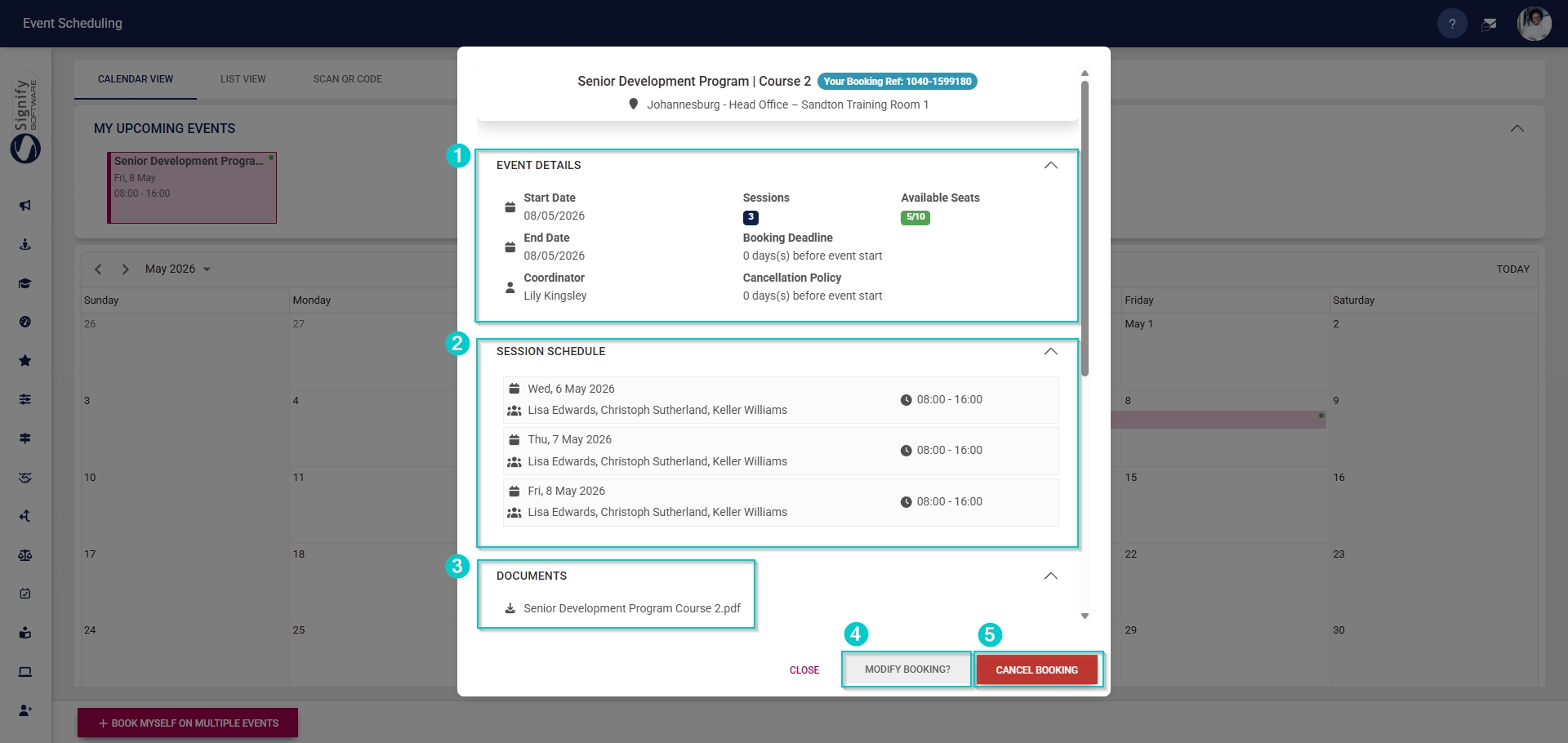
- A pop-up window will display information about the event, such as:
- **Event details**, including the:
- start date,
- end date,
- number of sessions,
- available seats, and
- the event coordinator’s name.
- The **session schedule**, including the:
- dates,
- start and end times, and
- the facilitators’ names.
- Downloadable content, such as **documents**, is specifically for attendees.
- Attendees can update their booking by clicking **MODIFY BOOKING**.
- An event booking can be cancelled by clicking **CANCEL BOOKING**.
- Click **CLOSE** to return to the calendar.
- The **left** and **right** **arrow icons**, as well as the **date dropdown menu**, can be used to view past or future events.

[](https://signature.signifyhr.co.za/uploads/images/gallery/2025-02/ZOt8yZwhbiGx2d6U-signify-footer.png)
# Using the List View
[](https://signature.signifyhr.co.za/uploads/images/gallery/2025-02/emW3hfMrZ1yIDMUv-signify-header.png)
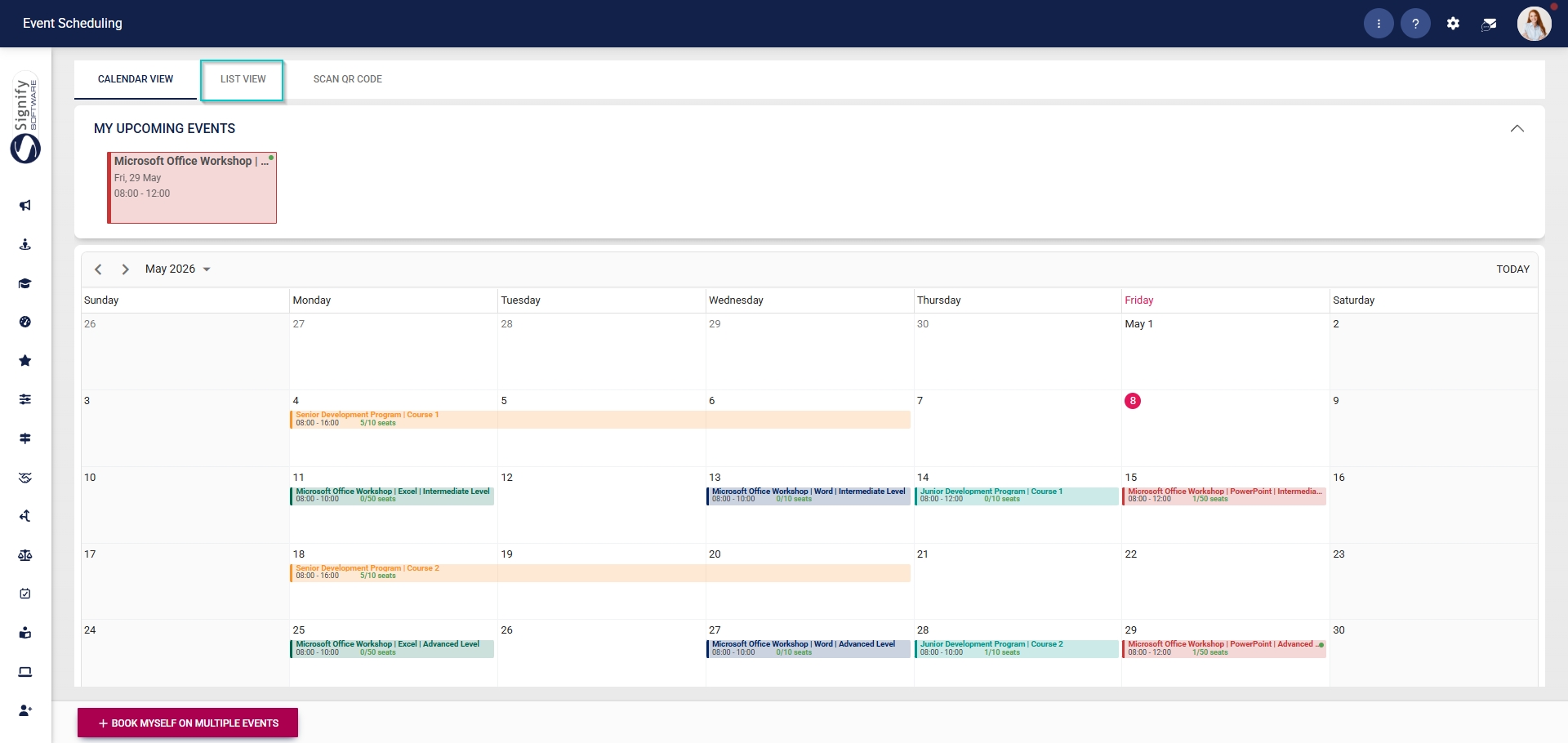
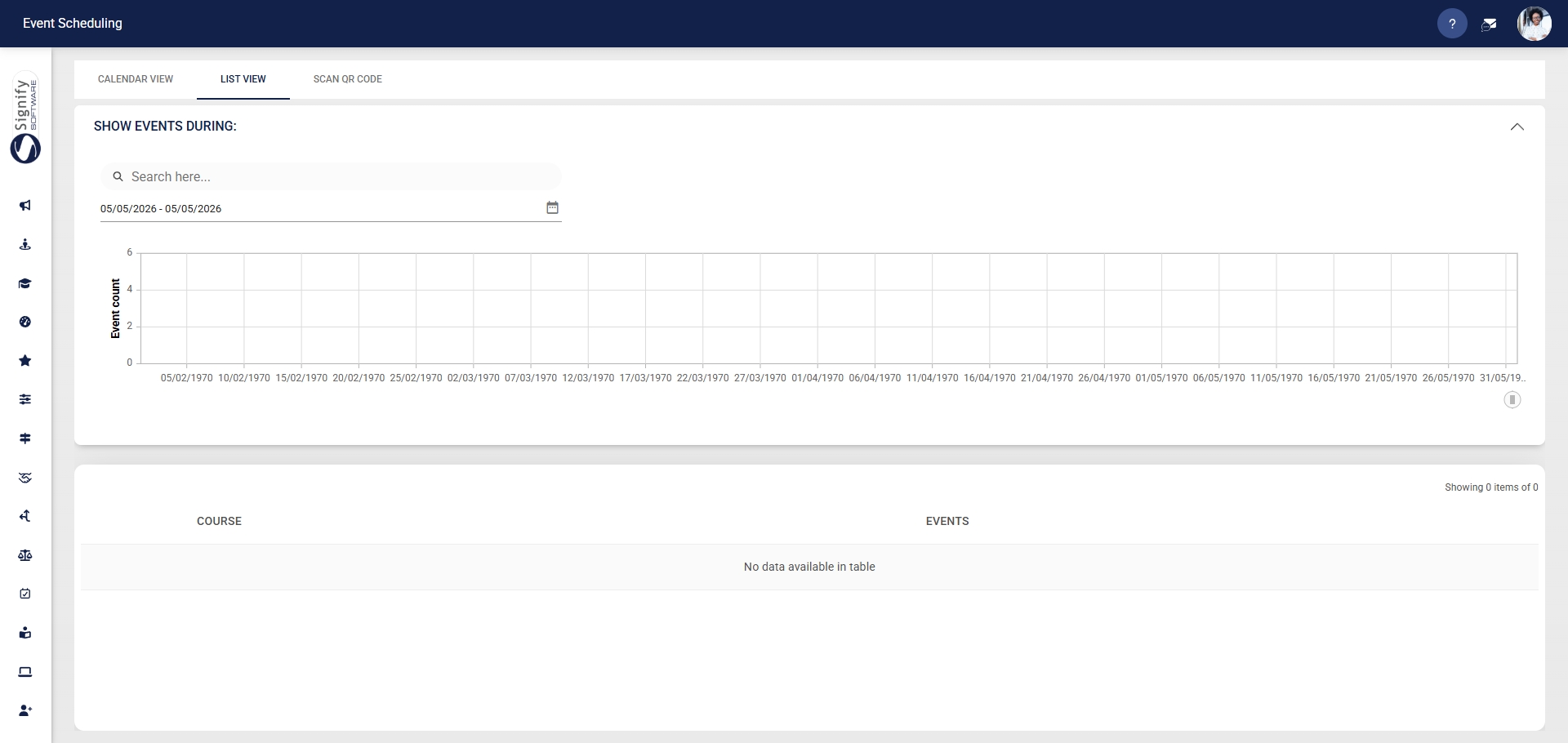
- Hover over the **sidebar** menu, then click **Event Scheduling**.

- Click to navigate to the **List View** tab.
- This page shows all events within your date range filter.
- Use the **search bar** to search for specific courses or events.
- Use the **calendar icon** to change the date range filter.
- Courses can be selected using the **dropdown menu**.
- Courses are grouped by **Training Intervention** name.
- The number of events linked to the training intervention is shown in the **Events** column.
- Administrators can click the **+EVENT** button to create a new event.
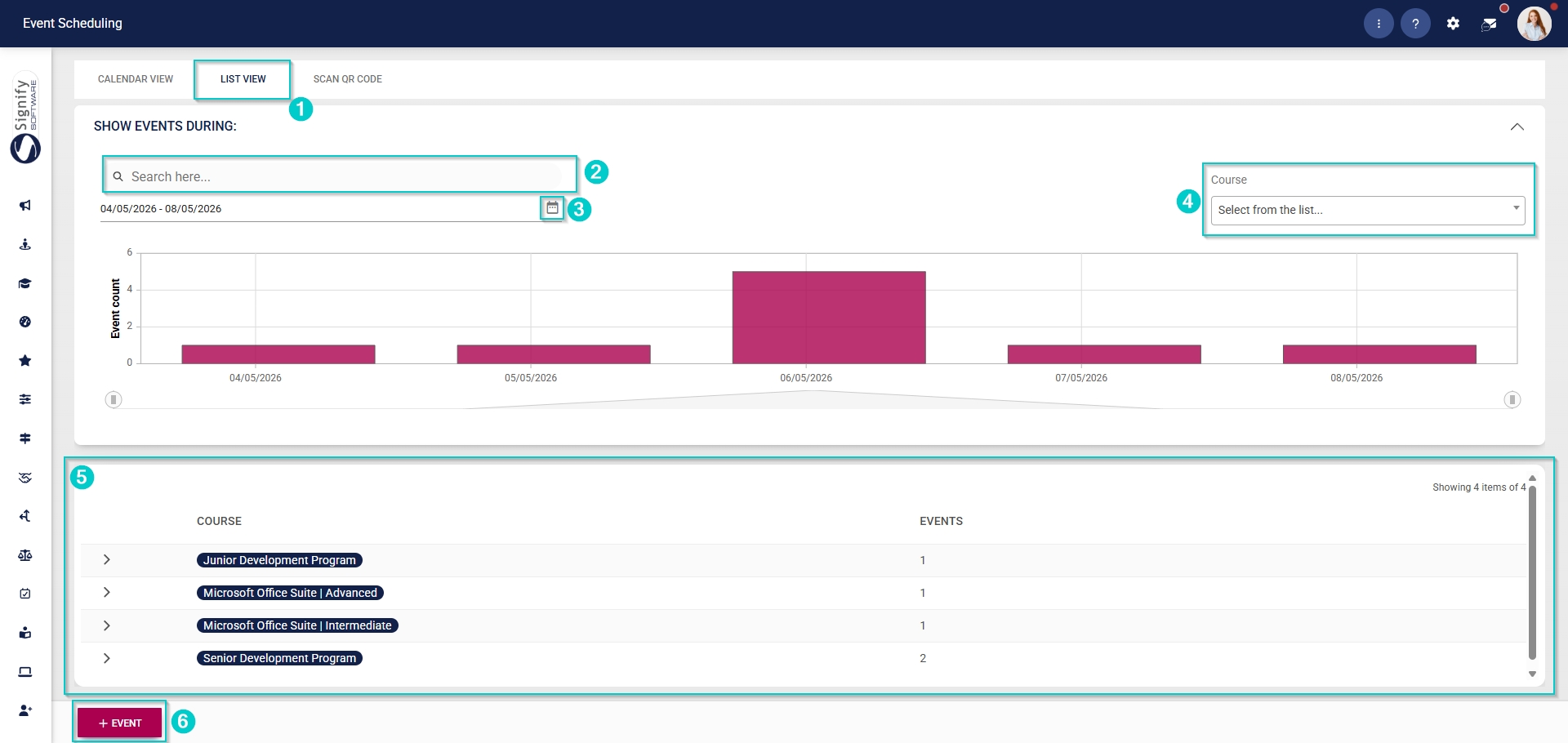
- Employees and non-administrators will view only the events they have been added to and free-to-book events. They are not able to create new events.
[](https://signature.signifyhr.co.za/uploads/images/gallery/2025-02/ZOt8yZwhbiGx2d6U-signify-footer.png)
# Scan QR Codes for Events
[](https://signature.signifyhr.co.za/uploads/images/gallery/2025-02/emW3hfMrZ1yIDMUv-signify-header.png)
The QR code scanning feature lets event attendees quickly log their attendance.
- Hover over the **sidebar** menu, then click **Event Scheduling**.

- Click to navigate to the **Scan QR Code** tab.
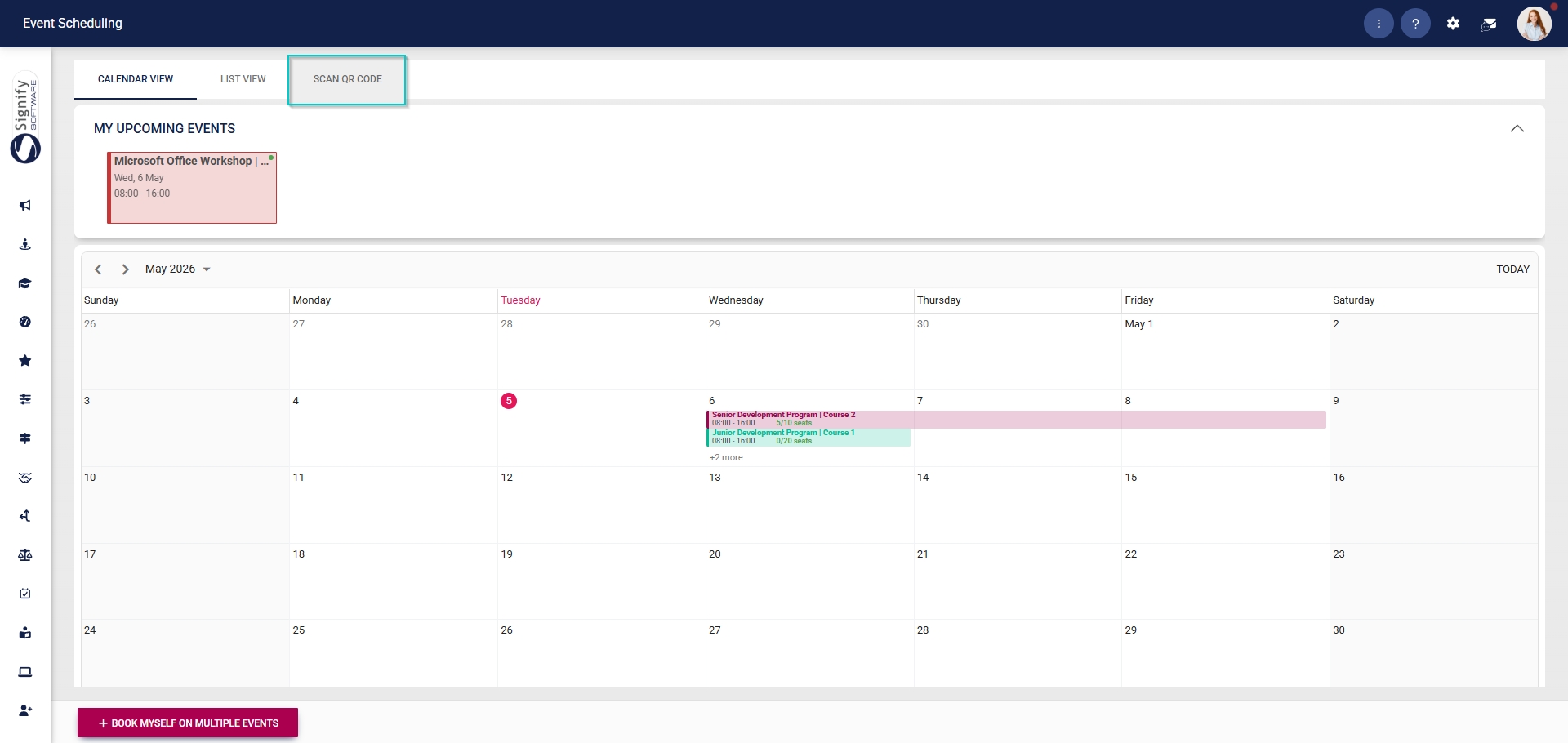
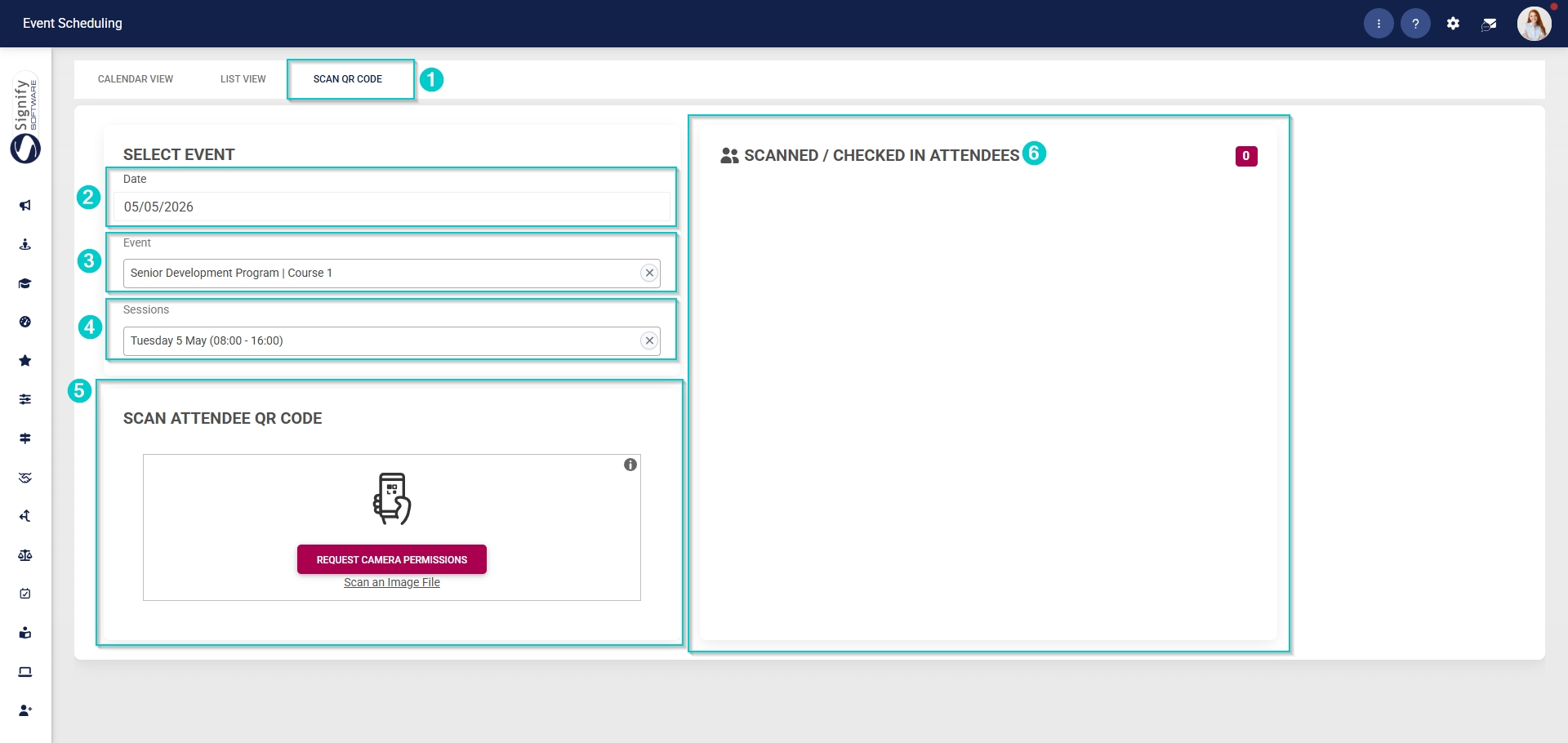
- Once an attendee has been booked on an event, they will receive an email containing a unique QR code. The QR code can be scanned to confirm the attendee’s attendance at events.
- Use the **date filter** to find the correct event.
- Select the event from the **dropdown menu**.
- Select the **session** you would like to update your attendance for from the **dropdown menu**.
- Use your phone to scan the **QR code**.
- Attendees who have successfully scanned in will be displayed in the block on the right.
[](https://signature.signifyhr.co.za/uploads/images/gallery/2025-02/ZOt8yZwhbiGx2d6U-signify-footer.png)
# Chapter 5: FAQs
# FAQs for Managers and Employees
[](https://signature.signifyhr.co.za/uploads/images/gallery/2025-02/emW3hfMrZ1yIDMUv-signify-header.png)
#### FAQs for Managers
How do I find the training requests that need my approval?
##### **How do I find the training requests that need my approval?**
Training requests can be found through the **HR Processes** widget on the **Dashboard** when it is enabled, or through the envelope icon in the **System Inbox**. From there, open the **HR Processes** module and review the requests waiting for your approval.
The employee’s manager is also notified by email when approval is required. The email contains a link to the training request on the **HR Processes** module.
What does it mean when a request is waiting for my approval?
##### **What does it mean when a request is waiting for my approval?**
It means an employee has submitted a booking request for an event that requires manager approval. The request is pending your review before the employee can attend.
What information do I get before I approve or decline a request?
##### **What information do I get before I approve or decline a request?**
The approval screen shows the event details, including the event name, start and end dates, and the session schedule. You can also add notes and upload files if needed.
Using the **REQUEST MORE INFO** button on the approval screen, you can ask the employee for additional information before approving or declining the request.
How do I approve or decline training requests?
##### **How do I approve or decline training requests?**
From the System Inbox, open the **HR Processes** module. Go to **Awaiting Your Approval**, and select **APPROVE/DECLINE** to process the request.
Once you approve the request, the employee may attend the event, and the booking is moved forward in the system. If you decline the request, the employee will not be approved for that event.
If the **HR Processes** widget is enabled on the **Dashboard,** you can navigate directly to the **HR Processes** module.
How do I view historical approval requests I handled before?
##### **How do I view historical approval requests I handled before?**
Historical approvals can be accessed from the left-hand menu in the **HR Processes** module.
Do I need to be an Event Scheduling administrator to approve requests?
##### **Do I need to be an Event Scheduling administrator to approve requests?**
No – a line manager with the relevant managerial rights can handle manager approvals without being a system administrator. Some events require manager approval, some require administrator approval, and some may require both.
Can an administrator override my decision?
##### **Can an administrator override my decision?**
Yes, Event Scheduling administrators can override manager approvals.
Can I attach notes or supporting documents to my approval decision?
##### **Can I attach notes or supporting documents to my approval decision?**
Yes, the approval screen allows the manager to add notes about the request. Additionally, managers can upload files from their devices in the approval pop-up window.
What if the employee has already booked something else at the same time?
##### **What if the employee has already booked something else at the same time?**
The system warns employees about conflicting bookings when they try to register for a new event. This suggests that you should review the request carefully to check for timing conflicts.
Can I book employees onto events myself?
##### **Can I book employees onto events myself?**
Yes, managers can book employees from specified people groups onto events.
Can I view attendance or completion status for my team after the event?
##### **Can I view attendance or completion status for my team after the event?**
If a manager has the required access rights, they can pull an attendance report for an event. Additionally, a completion and compliance report can be pulled once an event is completed.
How do I find events that I can book onto?
##### **How do I find events that I can book onto?**
Employees can access available events through the Calendar View or List View in the **Event Scheduling** module. They can view upcoming events, session dates, event details, and booking availability directly from these views.
Why can I see some events but not others?
##### **Why can I see some events but not others?**
Employees only see events they have been linked to, events that are open for booking, or events they already have access to through configured booking permissions.
Why can’t I book onto a specific event?
##### **Why can’t I book onto a specific event?**
There are several possible reasons:
- The event may require manager approval, administrator approval, or both.
- Booking deadlines may have passed.
- The event could already be full. If there is an active waitlist with available spots, you will be added to it.
- The event may not be available to your people group.
What happens after I request to book onto an event?
##### **What happens after I request to book onto an event?**
Depending on the event configuration, your booking may either be confirmed immediately or routed for approval. If approval is required, the request will be sent to your manager, an Event Scheduling administrator, or both. You can view the event details on the Calendar View and download any available documents.
How do I know whether my booking has been approved?
##### **How do I know whether my booking has been approved?**
Email notifications are used throughout the booking and approval process. You will receive an email notifying you that the manager has approved or declined your booking request. Additionally, you can view the booking status in the **Event Scheduling** module.
Can I cancel or reschedule my own booking if I can no longer attend?
##### **Can I cancel or reschedule my own booking if I can no longer attend?**
Yes. Employees can use the **CANCEL BOOKING** option from the event details screen, or click **MODIFY BOOKING** to choose another slot (if available).
What happens if I try to book onto two overlapping events?
##### **What happens if I try to book onto two overlapping events?**
The system warns you when an event overlaps with another booking in your calendar. When this happens, you must either cancel the conflicting booking or select a different event timeslot.
Can I book onto more than one event at the same time?
##### **Can I book onto more than one event at the same time?**
Yes. On the Calendar View, there is a **BOOK MYSELF ON MULTIPLE EVENTS** option that allows employees to submit bookings for multiple events.
How do I get more information about an event?
##### **How do I get more information about an event?**
The event details include venue and session information. Events can take place in physical venues, rooms, or via virtual channels such as Teams or Zoom. The session start and end times, as well as the event date, are also included in the event details. For more information, you can contact the event coordinator.
What documents can I download from an event?
##### **What documents can I download from an event?**
Employees can download attendee-facing documents that administrators upload to the event. Documents such as venue directions, training materials, event programs, and other informative materials can be downloaded from the event details section.
How is attendance recorded for an event?
##### **How is attendance recorded for an event?**
Attendance can be captured manually by administrators or through QR code scanning.
What is the difference between attendance, completion, and competency?
##### **What is the difference between attendance, completion, and competency?**
**Attendance**
Attendance refers to whether a learner or attendee was present for a scheduled training event or session. Attendance simply confirms participation in the event and does not indicate whether the learner successfully completed the training or demonstrated competency.
**Completion**
Completion status refers to the overall outcome of a learner’s participation in a training event or course. It indicates whether the learner successfully completed the event requirements and may include statuses such as Completed, Not Completed, Cancelled, or Rescheduled. Completion status focuses on the learner’s progress and outcome rather than just their presence.
**Competency**
Competency status refers to whether a learner has demonstrated the required level of knowledge, skill, or capability linked to the training intervention. Competency is usually assessed against defined criteria and may include statuses such as Competent, Not Yet Competent, or Not Applicable. Competency status measures ability and proficiency, not attendance or course completion alone.
What do I need to switch on before the Event Scheduling module works?
##### **What do I need to switch on before the Event Scheduling module works?**
The module must be activated in Ruleset Setup under the Products tab, and the **Event Scheduling** item must also be activated in the System Menu tab. The correct administrator permission must then be assigned to the relevant user.
Why can users still not see Event Scheduling after I activated the product?
##### **Why can users still not see Event Scheduling after I activated the product?**
The product activation alone is not enough. The **Event Scheduling** menu item must also be activated in the System Menu tab, and the user must have the appropriate permission assigned in **People Management**.
Where do I assign the Event Scheduling administrator role?
##### **Where do I assign the Event Scheduling administrator role?**
Open **People Management**, go to View/Edit People, edit the required person’s profile, open User Permissions, select System Modules Admin, and link the Event Scheduling role.
What master data should be prepared before I start creating events?
##### **What master data should be prepared before I start creating events?**
Administrators should prepare classifications, course types, categories, regions, venues, rooms, and motivations for booking in the **Master Data Library**.
Why do I need to set up venues before rooms?
##### **Why do I need to set up venues before rooms?**
Rooms are linked to venues, so venue master data must exist before rooms can be added.
Can I activate or deactivate master data items later?
##### **Can I activate or deactivate master data items later?**
Yes. The master data screens include toggle buttons that allow administrators to set items to Active or manage them as needed.
When should I create People Groups rather than select people one by one?
##### **When should I create People Groups rather than select people one by one?**
**People Groups** should be used when the audience needs to be managed as a defined group, such as coordinators, facilitators, or a custom attendee audience. This is more practical than building the audience from scratch each time.
Grouped Conditions is a way to include or exclude people based on criteria such as job titles or organisational nodes.
What happens if I add a People Group after I have already linked individual attendees?
##### **What happens if I add a People Group after I have already linked individual attendees?**
Adding a People Group replaces the list of individual attendees already added to the event. It is best to ensure those individual attendees are part of the People Group. This can be done by opening the Setup and Configuration menu, navigating to People Groups, and editing the People Group linked to the event.
How do I decide whether an event should be linked to a training intervention?
##### **How do I decide whether an event should be linked to a training intervention?**
If the event should create a learner record, link it to a training intervention from the **Training Intervention Library.** If a learner record is not required, use the Free text option.
Can I create an event without a training provider in master data?
##### **Can I create an event without a training provider in master data?**
Yes. If the provider does not exist in the **Master Data Library**, the administrator can enter a free-text provider name.
Can one event contain multiple sessions?
##### **Can one event contain multiple sessions?**
Yes. Events can have multiple sessions, and additional sessions can be added by copying an existing one.
Can multiple facilitators be assigned to one event?
##### **Can multiple facilitators be assigned to one event?**
Yes. When creating or editing an event, multiple facilitators can be selected.
Can Event Scheduling support both physical and virtual events?
##### **Can Event Scheduling support both physical and virtual events?**
Yes. Physical venues and rooms can be selected, and virtual channels such as Teams or Zoom can also be configured.
How do booking and cancellation deadlines work?
##### **How do booking and cancellation deadlines work?**
Administrators can set the number of days before the event during which bookings and cancellations are allowed, and choose whether non-working days are included.
Can I require approval before an attendee can book or attend?
##### **Can I require approval before an attendee can book or attend?**
Yes. Events can be configured to require administrator approval, manager approval, or both.
What is the practical difference between manager approval and administrator approval?
##### **What is the practical difference between manager approval and administrator approval?**
Manager approval sends the request to the employee’s training manager. Administrator approval allows an Event Scheduling administrator to approve the booking request. Event Scheduling administrators can override manager approvals.
How will managers know there is a request waiting for them?
##### **How will managers know there is a request waiting for them?**
When an employee makes an event booking, managers are notified by email. They can also access requests through the **HR Processes** widget on the Dashboard or through the System Inbox.
Where do I configure event notifications?
##### **Where do I configure event notifications?**
Open the Notifications section in the event setup. Email templates linked to **Event Scheduling** are listed there and can be activated or previewed.
Can I upload different documents for attendees and for facilitators?
##### **Can I upload different documents for attendees and for facilitators?**
Yes. Documents can be uploaded for attendees, and separate documents can be uploaded for facilitators or coordinators, with the latter not being visible to attendees.
How do I know whether an attendee is waiting for approval?
##### **How do I know whether an attendee is waiting for approval?**
In the Attendees section, the booking status indicates whether the attendee is awaiting approval from an administrator or a manager. Event Scheduling administrators can approve or decline requests by clicking on the status icons in the Attendees section.
How does attendance get recorded?
##### **How does attendance get recorded?**
Attendance can be updated manually by an administrator per session or via QR code scanning if that process is in use.
The attendance screen includes icons that allow the administrator to mark all attendees in a session at once.
What is the difference between attendance, overall completion, and competency status?
##### **What is the difference between attendance, overall completion, and competency status?**
Attendance records whether the person attended the session. Overall completion status records whether the event outcome was Completed, Not Completed, Rescheduled, or Cancelled. Competency status records whether the attendee is Competent, Not Yet Competent, or Not Applicable.
Can I export attendance and completion information?
##### **Can I export attendance and completion information?**
Yes. Export options are available for attendance registers and overall completion status.
How do costs work in Event Scheduling?
##### **How do costs work in Event Scheduling?**
Costing structures can be added to the event. Cost descriptions are linked through the training intervention, and then costs can be applied to the event and attendee records. Cost items can be configured as per-attendee, evenly distributed across attendees, or excluded for virtual attendees. Invoice reference numbers and invoice dates can be recorded in the costs-per-attendee area.
What does the Who Can Book tab control?
##### **What does the Who Can Book tab control?**
It controls whether the event appears on end-users’ calendars and who is allowed to book themselves on the event.
Options are provided that allow everyone to book, managers to book from specific people groups, or people from selected people groups to book themselves.
How do I know whether an event is visible to employees?
##### **How do I know whether an event is visible to employees?**
Visibility depends on the event status, booking configuration, and Who Can Book settings. The guide also indicates that confirmed events appear in Calendar View.