# Learning Management

Streamline online learning with a robust platform for managing courses, tracking progress, and ensuring employees develop the skills needed to excel in their roles.

# Chapter 1: Introduction to Learning Management

Continuous learning is essential for both individual growth and organisational success. The **Learning Management** module provides a structured platform for managing training programmes, tracking employee development, and ensuring compliance with required learning initiatives. By centralising learning activities, this module enhances accessibility, automates administrative tasks, and supports skill development across the company.

With features such as course enrolment, progress tracking, and certification management, the **Learning Management** module empowers employees to take charge of their professional development while providing managers and administrators with the tools to monitor and optimise learning outcomes. Whether used for onboarding, upskilling, or compliance training, this module ensures that learning is efficient, engaging, and aligned with business objectives.

This chapter introduces the purpose, key benefits, and functionality of the **Learning Management** module. It sets the stage for a deeper exploration of how different users interact with the system, how it is configured, and best practices for maximising its effectiveness.

# Overview of Learning Management

[![Signify Header.png](https://signature.signifyhr.co.za/uploads/images/gallery/2025-02/scaled-1680-/emW3hfMrZ1yIDMUv-signify-header.png)](https://signature.signifyhr.co.za/uploads/images/gallery/2025-02/emW3hfMrZ1yIDMUv-signify-header.png)

Effectively managing learning and development is essential to building a knowledgeable, compliant, and high-performing workforce. The **Learning Management** module is designed to streamline training administration by providing tools to efficiently create, organise, distribute, and monitor learning content and activities.

The **Learning Management** module supports a wide range of learning approaches, including:

- self-paced eLearning,
- instructor-led training,
- blended learning,
- assessments,
- certifications, and
- academic learning environments.

It enables organisations to structure training content into interactive learning pathways, assign learning to specific target audiences, and track learner progress through every stage of the learning journey.

The module provides **administrators**, **facilitators**, and **educators** with centralised tools to manage the following:

- Learning content libraries
- SCORM and xAPI content
- Assessments
- Training interventions
- Learner records
- Attendance registers
- Marksheets
- Academic reporting

**Learners** can access training material, complete assessments, download supporting documents, participate in workshops, and monitor their own development through the Learning Portal.

The **Learning Management** module integrates smoothly with other system components such as **[People Management](https://signature.signifyhr.co.za/books/people-management-d8c "People Management"), [Job Management](https://signature.signifyhr.co.za/books/job-profiling-and-competency-analyser "Job Profiling and Competency Analyser"), [Performance Management](https://signature.signifyhr.co.za/books/performance-management-sq2 "Performance Management"),** and **[Event Scheduling](https://signature.signifyhr.co.za/books/event-scheduling "Event Scheduling").** This integration forms a connected learning ecosystem that facilitates compliance, workforce development, academic oversight, and organisational growth.

This chapter provides a detailed overview of the **Learning Management** module, highlighting its key features, benefits, and role within the broader HR and development environment. By understanding the module’s core functionality, users can confidently manage learning processes, improve training outcomes, and create engaging, structured learning experiences for employees, students, and other learners.

**[![LM Infographic - Overview of LM.png](https://signature.signifyhr.co.za/uploads/images/gallery/2026-05/scaled-1680-/CfbIKErKwajKOvdv-lm-infographic-overview-of-lm.png)](https://signature.signifyhr.co.za/uploads/images/gallery/2026-05/CfbIKErKwajKOvdv-lm-infographic-overview-of-lm.png)**

[![Signify Footer.png](https://signature.signifyhr.co.za/uploads/images/gallery/2025-02/scaled-1680-/ZOt8yZwhbiGx2d6U-signify-footer.png)](https://signature.signifyhr.co.za/uploads/images/gallery/2025-02/ZOt8yZwhbiGx2d6U-signify-footer.png)

# Purpose of the Module

[![Signify Header.png](https://signature.signifyhr.co.za/uploads/images/gallery/2025-02/scaled-1680-/emW3hfMrZ1yIDMUv-signify-header.png)](https://signature.signifyhr.co.za/uploads/images/gallery/2025-02/emW3hfMrZ1yIDMUv-signify-header.png)

The **Learning Management** module provides a fully integrated framework for managing **organisational learning, training delivery, learner engagement,** and **academic development.** It combines:

- Centralised learning content and pathway management,
- Structured training administration and learner tracking,
- SCORM and interactive eLearning support,
- Assessment, assignment, and certification management,
- Target audience and learning group management,
- Training intervention and learner record integration,
- Academic and workforce development functionality, and
- Reporting, compliance, and progress monitoring tools.

This enables organisations, educators, and administrators to manage learning activities in a **structured, scalable,** and **efficient** manner while providing learners with **trackable** learning experiences.

The **Learning Management** module supports a wide range of training and educational requirements, including:

- Corporate training,
- Onboarding,
- Compliance learning,
- Skills development,
- Blended learning,
- Online schooling, and
- Certification programmes.

We will discuss the key features of the **Learning Management** module in the next part of this book.

[![LM Infographic - Purpose of LM.png](https://signature.signifyhr.co.za/uploads/images/gallery/2026-05/scaled-1680-/wPeo3qLF5GJudKuq-lm-infographic-purpose-of-lm.png)](https://signature.signifyhr.co.za/uploads/images/gallery/2026-05/wPeo3qLF5GJudKuq-lm-infographic-purpose-of-lm.png)

[![Signify Footer.png](https://signature.signifyhr.co.za/uploads/images/gallery/2025-02/scaled-1680-/ZOt8yZwhbiGx2d6U-signify-footer.png)](https://signature.signifyhr.co.za/uploads/images/gallery/2025-02/ZOt8yZwhbiGx2d6U-signify-footer.png)

# Key Features of the Module

[![Signify Header.png](https://signature.signifyhr.co.za/uploads/images/gallery/2025-02/scaled-1680-/emW3hfMrZ1yIDMUv-signify-header.png)](https://signature.signifyhr.co.za/uploads/images/gallery/2025-02/emW3hfMrZ1yIDMUv-signify-header.png)

The **Learning Management** module includes several powerful features that support structured learning delivery, learner engagement, training administration, and academic management. We will explore these features in more detail below.

#### The **Learning Portal**

The **Learning Portal** serves as the central access point for all learning activities within the organisation. Learners can search for and access pathways, eLearning programmes, assessments, training history, development plans, reports, and other learning resources from a single, user-friendly environment.

The portal provides a streamlined and engaging learning experience while giving administrators access to advanced configuration and management functionality.

[![LM Overview of pathways.jpg](https://signature.signifyhr.co.za/uploads/images/gallery/2026-05/scaled-1680-/8DqMZAPXxnGvFqba-lm-overview-of-pathways.jpg)](https://signature.signifyhr.co.za/uploads/images/gallery/2026-05/8DqMZAPXxnGvFqba-lm-overview-of-pathways.jpg)

#### Structured learning pathways

The pathway functionality allows organisations to build interactive learning journeys using structured learning steps and configurable workflows. Administrators can create customised pathways that guide learners through content in a logical sequence.

Pathways can include:

- SCORM and xAPI content,
- Documents and learning guides,
- Online assessments,
- Practical assessments,
- Assignments,
- Workshops and event bookings,
- Videos and multimedia,
- Acceptance and compliance acknowledgements,
- User input and feedback steps, and
- Certification points.

[![LM Pathway example.jpg](https://signature.signifyhr.co.za/uploads/images/gallery/2026-05/scaled-1680-/EPv18OVHUlTxudKP-lm-pathway-example.jpg)](https://signature.signifyhr.co.za/uploads/images/gallery/2026-05/EPv18OVHUlTxudKP-lm-pathway-example.jpg)

#### SCORM and interactive eLearning support

The **Learning Management** module supports SCORM and xAPI learning content, enabling organisations to upload and deliver interactive eLearning directly within the system.

Administrators can:

- Upload SCORM packages,
- Configure attempt limits,
- Track learner progress and scores,
- Log training records automatically,
- Link content to pathways, and
- Monitor learner registrations and completion activity.

[![LM Learning Content Library.jpg](https://signature.signifyhr.co.za/uploads/images/gallery/2026-05/scaled-1680-/YCjMUoTu7PzpjBjA-lm-learning-content-library.jpg)](https://signature.signifyhr.co.za/uploads/images/gallery/2026-05/YCjMUoTu7PzpjBjA-lm-learning-content-library.jpg)

#### Assessments and learner evaluations

The module includes integrated assessment functionality that supports knowledge validation, learner evaluations, and academic grading processes.

Administrators and educators can:

- Create and manage assessments,
- Configure answer groups,
- Import assessments from Excel,
- Track assessment attempts,
- Automate scoring processes,
- Configure moderated marks, and
- Generate learner and assessment reports.

[![LM Assessment example.jpg](https://signature.signifyhr.co.za/uploads/images/gallery/2026-05/scaled-1680-/eGAWwoOB4HC63Mk1-lm-assessment-example.jpg)](https://signature.signifyhr.co.za/uploads/images/gallery/2026-05/eGAWwoOB4HC63Mk1-lm-assessment-example.jpg)

#### Target audiences and people group management

Learning content can be assigned to specific audiences using target audiences and people groups. This ensures that only relevant learners can access specific pathways, programmes, or academic subjects.

Target audiences can be based on:

- Employees,
- Organisational units,
- Departments,
- Classes,
- Grades,
- People groups, or
- Other organisational criteria.

[![LM People groups example.jpg](https://signature.signifyhr.co.za/uploads/images/gallery/2026-05/scaled-1680-/dSwAKAjWZhvDZ5g5-lm-people-groups-example.jpg)](https://signature.signifyhr.co.za/uploads/images/gallery/2026-05/dSwAKAjWZhvDZ5g5-lm-people-groups-example.jpg)

#### Training intervention and learner record integration

The module integrates directly with training interventions and learner records to create a complete audit trail of learning activities and achievements.

Learning activities can automatically:

- Create learner records,
- Log certifications,
- Track attendance,
- Record assessment outcomes,
- Capture learner acknowledgements, and
- Maintain historical training information.

[![LM Training Intervention Library example.jpg](https://signature.signifyhr.co.za/uploads/images/gallery/2026-05/scaled-1680-/78fzPCsvsPENA3i9-lm-training-intervention-library-example.jpg)](https://signature.signifyhr.co.za/uploads/images/gallery/2026-05/78fzPCsvsPENA3i9-lm-training-intervention-library-example.jpg)

#### Online school and academic environment

The **Online School** environment extends the **Learning Management** module into a fully functional academic management solution.

Features include:

- Subject and curriculum management,
- Academic cycles and grading structures,
- Attendance registers,
- Marksheets,
- Report cards,
- Academic comments,
- Class notes,
- Teacher and facilitator management, and
- Student performance tracking.

[![LM Online School example.jpg](https://signature.signifyhr.co.za/uploads/images/gallery/2026-05/scaled-1680-/Jtf1zcMpi1p4qcjL-lm-online-school-example.jpg)](https://signature.signifyhr.co.za/uploads/images/gallery/2026-05/Jtf1zcMpi1p4qcjL-lm-online-school-example.jpg)

#### Flexible learning administration

Administrators have access to powerful tools that simplify learning management processes across the organisation.

These include:

- Learning content libraries,
- Pathway duplication,
- Pathway versioning and editing,
- Prerequisite management,
- Learner progress monitoring,
- User pathway maintenance,
- Rollback functionality,
- Bulk imports,
- Reporting tools, and
- Centralised configuration settings.

[![LM Overview of pathways 2.jpg](https://signature.signifyhr.co.za/uploads/images/gallery/2026-05/scaled-1680-/xr2AGlOtvzxzrlmJ-lm-overview-of-pathways-2.jpg)](https://signature.signifyhr.co.za/uploads/images/gallery/2026-05/xr2AGlOtvzxzrlmJ-lm-overview-of-pathways-2.jpg)

#### Learning engagement and learner experience

The module is designed to create an engaging and intuitive learning experience for learners.

Learners can:

- Access content from a central portal,
- Track their own progress,
- Download learning material,
- Complete assessments,
- Attend workshops,
- Take class notes,
- View certifications and training history, and
- Follow structured learning journeys at their own pace.

[![LM Achievements example.jpg](https://signature.signifyhr.co.za/uploads/images/gallery/2026-05/scaled-1680-/f471ThEiJxg9UpNq-lm-achievements-example.jpg)](https://signature.signifyhr.co.za/uploads/images/gallery/2026-05/f471ThEiJxg9UpNq-lm-achievements-example.jpg)

#### Governance, reporting, and compliance support

The **Learning Management** module includes governance and reporting capabilities that help organisations maintain oversight and accountability across all learning activities.

This includes:

- Audit tracking,
- Learner progress monitoring,
- Assessment reporting,
- Attendance tracking,
- Academic reporting,
- Certification tracking,
- Training history management, and
- Configurable administrative controls.

[![LM Pathway preview example.jpg](https://signature.signifyhr.co.za/uploads/images/gallery/2026-05/scaled-1680-/bXt8iQcpqWuZ1wyY-lm-pathway-preview-example.jpg)](https://signature.signifyhr.co.za/uploads/images/gallery/2026-05/bXt8iQcpqWuZ1wyY-lm-pathway-preview-example.jpg)

[![Signify Footer.png](https://signature.signifyhr.co.za/uploads/images/gallery/2025-02/scaled-1680-/ZOt8yZwhbiGx2d6U-signify-footer.png)](https://signature.signifyhr.co.za/uploads/images/gallery/2025-02/ZOt8yZwhbiGx2d6U-signify-footer.png)

# Chapter 2: Roles and Permissions

Effective use of the **Learning Management** module requires clear role definitions to ensure smooth operation and accountability. Each user type within the system has distinct responsibilities, from assigning and managing courses to completing required training.

Administrators oversee system configuration, create learning paths, and manage compliance-related training requirements. Learners, on the other hand, are responsible for enrolling in courses, tracking their learning progress, and completing assigned training within deadlines.

This chapter defines the key roles within the **Learning Management** module, outlining their responsibilities and how they interact with the system. A clear understanding of these roles ensures seamless learning management and maximises the module’s effectiveness.

# Administrator Roles

[![Signify Header.png](https://signature.signifyhr.co.za/uploads/images/gallery/2025-02/scaled-1680-/emW3hfMrZ1yIDMUv-signify-header.png)](https://signature.signifyhr.co.za/uploads/images/gallery/2025-02/emW3hfMrZ1yIDMUv-signify-header.png)

A learning administrator’s role within the **Learning Management** module is strategic, operational, and governance-driven, focused on managing learning content, learner engagement, training records, and the overall learning environment.

#### Manage learning pathways and content

Create, structure, and maintain learning pathways, categories, and eLearning content.

This includes:

- Building learning pathways,
- Adding and editing pathway steps,
- Managing pathway structures and categories,
- Uploading documents, videos, and learning resources, and
- Publishing learning content to the Learning Portal.

#### Manage SCORM and interactive learning content

Upload, configure, maintain, and monitor SCORM and xAPI learning content within the **Learning Content Library**.

This may include:

- Uploading SCORM packages,
- Configuring learner attempt limits,
- Linking SCORM content to pathways,
- Managing active and inactive learning content,
- Tracking learner registrations and completion activity, and
- Maintaining interactive eLearning resources.

#### Configure assessments and training activities

Manage assessments, assignments, workshops, certifications, and training interventions to support structured learning and competency development.

This includes:

- Creating and importing assessments,
- Managing assessment settings and answer groups,
- Configuring certification points,
- Linking workshops and training events to pathways,
- Creating training interventions, and
- Managing learner evaluation processes.

[![LM Overview of pathways - Administrator view.jpg](https://signature.signifyhr.co.za/uploads/images/gallery/2026-05/scaled-1680-/l2D8tWTIwtQi7XZj-lm-overview-of-pathways-administrator-view.jpg)](https://signature.signifyhr.co.za/uploads/images/gallery/2026-05/l2D8tWTIwtQi7XZj-lm-overview-of-pathways-administrator-view.jpg)

#### Monitor learner progress and engagement

Track learner participation, pathway progress, assessment outcomes, attendance, and completion activity across the learning environment.

Learning administrators can:

- Review learner progress reports,
- Monitor pathway completion,
- Track assessment attempts and results,
- View attendance registers,
- Manage learner records, and
- Identify learners requiring support or intervention.

#### Manage target audiences and learning access

Control which learners have access to specific pathways, programmes, courses, or academic subjects through target audiences and people groups.

This includes:

- Creating and maintaining people groups,
- Assigning pathways to target audiences,
- Managing class or group allocations,
- Controlling visibility of learning content, and
- Supporting secure and role-based learning access.

#### Support compliance and learner record management

Ensure that learner records, certifications, acknowledgements, and training history remain accurate, traceable, and aligned with organisational or academic requirements.

This may include:

- Logging learner activities,
- Managing training interventions,
- Maintaining certification records,
- Supporting audit and compliance processes,
- Managing pathway rollback functionality, and
- Ensuring accurate learner reporting.

#### Configure academic and online school environments

Within academic or online school environments, learning administrators support the setup and maintenance of educational structures and reporting systems.

This includes:

- Configuring subjects, grades, cycles, and years,
- Managing marksheets and academic reports,
- Supporting attendance management,
- Managing facilitators and educators,
- Configuring report card comments, and
- Supporting student performance tracking.

[![LM Administrator discussion.jpg](https://signature.signifyhr.co.za/uploads/images/gallery/2026-05/scaled-1680-/6dA17Ss29VmCAPVF-lm-administrator-discussion.jpg)](https://signature.signifyhr.co.za/uploads/images/gallery/2026-05/6dA17Ss29VmCAPVF-lm-administrator-discussion.jpg)

#### Maintain learning standards and governance

Ensure that learning content and training processes follow organisational standards, governance requirements, and best practices.

This includes:

- Standardising naming conventions,
- Maintaining consistent pathway design,
- Managing prerequisite logic,
- Supporting content quality assurance,
- Monitoring pathway publication status, and
- Ensuring training content remains current and relevant.

#### Support learners and facilitators

Provide guidance and operational support to learners, facilitators, managers, educators, and other stakeholders using the **Learning Management** module.

This may include:

- Assisting with pathway access,
- Troubleshooting learner issues,
- Supporting content updates,
- Managing permissions,
- Providing administrative guidance, and
- Assisting with reporting and learning analytics.

[![LM Infographic - Administrators.png](https://signature.signifyhr.co.za/uploads/images/gallery/2026-05/scaled-1680-/vnzBbc3hNsWjXxxV-lm-infographic-administrators.png)](https://signature.signifyhr.co.za/uploads/images/gallery/2026-05/vnzBbc3hNsWjXxxV-lm-infographic-administrators.png)

[![Signify Footer.png](https://signature.signifyhr.co.za/uploads/images/gallery/2025-02/scaled-1680-/ZOt8yZwhbiGx2d6U-signify-footer.png)](https://signature.signifyhr.co.za/uploads/images/gallery/2025-02/ZOt8yZwhbiGx2d6U-signify-footer.png)

# Learner Roles

[![Signify Header.png](https://signature.signifyhr.co.za/uploads/images/gallery/2025-02/scaled-1680-/emW3hfMrZ1yIDMUv-signify-header.png)](https://signature.signifyhr.co.za/uploads/images/gallery/2025-02/emW3hfMrZ1yIDMUv-signify-header.png)

A learner’s role within the **Learning Management** module is interactive, self-directed, and development-focused, centred around participating in learning activities, completing training requirements, and tracking personal progress.

#### Access learning content and pathways

Learners use the **Learning Portal** to access training material, eLearning pathways, academic subjects, and development programmes assigned to them.

They can:

- Search for learning content,
- Access published pathways,
- Open eLearning programmes,
- Navigate structured learning journeys, and
- Participate in assigned training activities.

[![LM Overview of pathways.jpg](https://signature.signifyhr.co.za/uploads/images/gallery/2026-05/scaled-1680-/8DqMZAPXxnGvFqba-lm-overview-of-pathways.jpg)](https://signature.signifyhr.co.za/uploads/images/gallery/2026-05/8DqMZAPXxnGvFqba-lm-overview-of-pathways.jpg)

#### Complete learning activities

Learners engage with the various pathway steps and activities configured by administrators.

Depending on the pathway setup, learners may:

- Complete SCORM or interactive eLearning modules,
- Download and study documents,
- Watch videos,
- Attend workshops or training events,
- Submit assignments,
- Complete online or practical assessments,
- Provide responses or feedback,
- Accept terms and conditions, and
- Achieve certification points or milestones.

#### Track personal learning progress

The **Learning Management** module allows learners to monitor their own progress and training activity throughout their learning journey.

Learners can:

- View pathway progress,
- Monitor completed and outstanding activities,
- Access learner records,
- Review assessment outcomes,
- View certifications and training history, and
- Track personal development achievements.

#### Participate in assessments and evaluations

Learners complete assessments, quizzes, assignments, and evaluations to demonstrate understanding and competency.

This may include:

- Online assessments,
- Practical evaluations,
- Assignment submissions,
- Workshop participation,
- Academic activities, and
- Certification requirements.

#### Engage in self-directed learning

The module supports flexible, self-paced learning, enabling learners to complete training in line with organisational requirements and personal schedules.

Learners can:

- Access content remotely,
- Return to incomplete pathways,
- Redo permitted activities,
- Study supporting material at their own pace, and
- Continue learning across multiple devices and sessions.

[![LM Group discussion.jpg](https://signature.signifyhr.co.za/uploads/images/gallery/2026-05/scaled-1680-/yg9gTDZ1neEPRPot-lm-group-discussion.jpg)](https://signature.signifyhr.co.za/uploads/images/gallery/2026-05/yg9gTDZ1neEPRPot-lm-group-discussion.jpg)

#### Participate in academic and online school environments

Within the **Online School** environment, learners can participate in structured academic activities and engage in classroom activities.

This includes:

- Accessing subject pathways,
- Completing academic assessments,
- Viewing marks and progress,
- Tracking attendance,
- Accessing report cards,
- Taking private class notes, and
- Participating in virtual classroom activities.

#### Maintain learner accountability and compliance

Learners play an important role in ensuring that mandatory learning activities, compliance training, acknowledgements, and certifications are completed accurately and on time.

This includes:

- Completing required training,
- Acknowledging policies and procedures,
- Meeting assessment requirements,
- Participating in scheduled learning activities, and
- Maintaining up-to-date learner records through participation.

#### Engage with facilitators and learning processes

Depending on the learning environment, learners may interact with facilitators, educators, managers, or administrators throughout the learning process.

This may include:

- Receiving feedback,
- Participating in facilitated training,
- Submitting coursework or assignments,
- Attending workshops or classes, and
- Communicating through pathway activities or learning interactions.

[![LM Infographic - Learners.png](https://signature.signifyhr.co.za/uploads/images/gallery/2026-05/scaled-1680-/PkbU1WNVEHIoWUky-lm-infographic-learners.png)](https://signature.signifyhr.co.za/uploads/images/gallery/2026-05/PkbU1WNVEHIoWUky-lm-infographic-learners.png)

[![Signify Footer.png](https://signature.signifyhr.co.za/uploads/images/gallery/2025-02/scaled-1680-/ZOt8yZwhbiGx2d6U-signify-footer.png)](https://signature.signifyhr.co.za/uploads/images/gallery/2025-02/ZOt8yZwhbiGx2d6U-signify-footer.png)

# How Learning Management Works

[![Signify Header.png](https://signature.signifyhr.co.za/uploads/images/gallery/2025-02/scaled-1680-/emW3hfMrZ1yIDMUv-signify-header.png)](https://signature.signifyhr.co.za/uploads/images/gallery/2025-02/emW3hfMrZ1yIDMUv-signify-header.png)

**Learning Management** is a connected ecosystem that supports creating, delivering, managing, and tracking learning activities across an organisation or academic setting.

**Administrators** establish and oversee the learning framework by **designing** pathways, **setting up** learning materials, **handling** assessments, **assigning** target groups, and **keeping** learner records up to date.

The module uses **pathways** as the foundation of the learning experience. A pathway is a structured **sequence of learning steps** designed to guide learners toward a specific **outcome,** such as completing onboarding, achieving a certification, attending training, completing compliance requirements, or participating in academic learning activities.

Administrators organise these pathways into structured **categories** and control how learners access them by **target audience** or **academic class.** This ensures that learning content is delivered to the correct individuals while maintaining governance and visibility across the learning environment.

**Learners** then interact with the learning environment by **accessing** pathways, **completing** training activities, **participating** in assessments, and **progressing** through structured learning journeys.

Learners access these pathways through the **Learning Portal**, where they can complete activities, monitor progress, review their **training history,** and learn at their own pace. As learners complete pathway activities, the system automatically tracks progress, logs learner records, records certifications, and updates assessment outcomes where applicable.

The relationship between the Learning Administrator and the learner is **collaborative** and **interdependent.**

**[![LM Infographic - How learners and administrators collaborate.png](https://signature.signifyhr.co.za/uploads/images/gallery/2026-05/hd8oQsIWHEZFls9E-lm-infographic-how-learners-and-administrators-collaborate.png)](https://signature.signifyhr.co.za/uploads/images/gallery/2026-05/dlqKb3IuZHMjpfyL-lm-infographic-how-learners-and-administrators-collaborate.png)**

**Learning Administrators** are responsible for:

- Designing and maintaining the learning environment,
- Managing learning content and pathways,
- Configuring assessments and training activities,
- Monitoring learner participation and progress,
- Managing learner access and permissions,
- Supporting compliance and reporting requirements, and
- Ensuring learning content remains accurate, engaging, and relevant.

**Learners** are responsible for:

- Participating in assigned learning activities,
- Completing required pathway steps,
- Engaging with learning material and assessments,
- Monitoring their own progress and development,
- Meeting compliance or academic requirements, and
- Contributing to successful learning outcomes through active participation.

[![LM Infographic - How learners and administrators work together.png](https://signature.signifyhr.co.za/uploads/images/gallery/2026-05/scaled-1680-/YL5SRnsfi5QLYAhc-lm-infographic-how-learners-and-administrators-work-together.png)](https://signature.signifyhr.co.za/uploads/images/gallery/2026-05/YL5SRnsfi5QLYAhc-lm-infographic-how-learners-and-administrators-work-together.png)

To learn more about implementing the **Learning Management** module, proceed to the next chapter.

[![Signify Footer.png](https://signature.signifyhr.co.za/uploads/images/gallery/2025-02/scaled-1680-/ZOt8yZwhbiGx2d6U-signify-footer.png)](https://signature.signifyhr.co.za/uploads/images/gallery/2025-02/ZOt8yZwhbiGx2d6U-signify-footer.png)

# Chapter 3: Setup and Configuration of Learning Management

Before users can take full advantage of the **Learning Management** module, it must be properly configured to align with company learning strategies and operational requirements. This involves setting up course libraries, defining user permissions, and integrating learning pathways that support professional development.

System administrators are responsible for ensuring the module is structured correctly, including the creation of course categories, defining learning paths, and setting up automated notifications. Additionally, customisation options allow companies to tailor training content, establish reporting structures, and configure compliance tracking to meet industry standards.

Beyond traditional corporate learning, the **Learning Management** module includes an **online school** functionality, enabling system administrators to create a fully digital academic environment. This feature allows organisations to structure the online school environment in a way that mimics formal education, with academic cycles, online classes, marksheets, and progress tracking.

This chapter provides a step-by-step guide to setting up the **Learning Management** module, covering essential configurations that ensure a smooth learning experience for all users. A well-implemented setup lays the foundation for a robust and scalable learning environment.

# Prerequisites for this Module

[![Signify Header.png](https://signature.signifyhr.co.za/uploads/images/gallery/2025-02/scaled-1680-/emW3hfMrZ1yIDMUv-signify-header.png)](https://signature.signifyhr.co.za/uploads/images/gallery/2025-02/emW3hfMrZ1yIDMUv-signify-header.png)

Before implementing the **Learning Management** module, the **People Management** module must be configured. Follow the guides in the **[People Management](https://signature.signifyhr.co.za/books/people-management-d8c "People Management")** book to ensure you have:

- Created an organisational structure,
- Imported users,
- Configured user roles and permissions, and
- Completed users' reporting lines.

[![Signify Footer.png](https://signature.signifyhr.co.za/uploads/images/gallery/2025-02/scaled-1680-/ZOt8yZwhbiGx2d6U-signify-footer.png)](https://signature.signifyhr.co.za/uploads/images/gallery/2025-02/ZOt8yZwhbiGx2d6U-signify-footer.png)

# Learning Management: eLearning Implementation Guide

[![Signify Header.png](https://signature.signifyhr.co.za/uploads/images/gallery/2025-02/scaled-1680-/emW3hfMrZ1yIDMUv-signify-header.png)](https://signature.signifyhr.co.za/uploads/images/gallery/2025-02/emW3hfMrZ1yIDMUv-signify-header.png)

#### Activate the Learning Management module

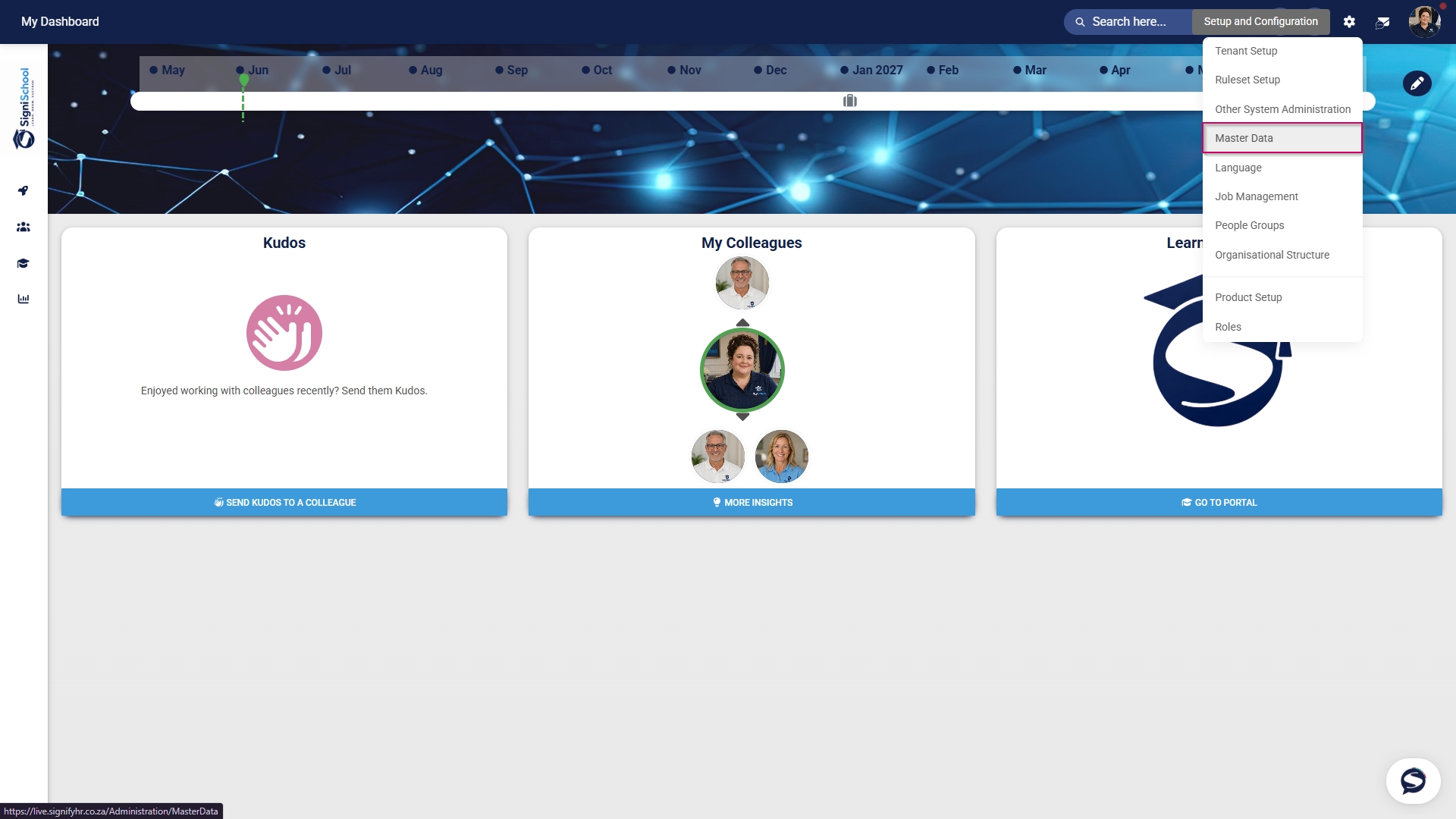
- Click the **gear icon** to access the **Setup and Configuration** menu.

![ES Setup and configuration menu.jpg](https://signature.signifyhr.co.za/uploads/images/gallery/2026-05/QODEfvIyUnjd7MDl-es-setup-and-configuration-menu.jpg)

- Click **Ruleset Setup**.

![ES Setup and configuration menu - Ruleset setup.jpg](https://signature.signifyhr.co.za/uploads/images/gallery/2026-05/pbrryyY3qSbFPZo7-es-setup-and-configuration-menu-ruleset-setup.jpg)

- Select the **ruleset you would like to update.

![ES Setup and configuration menu - Ruleset setup - Select ruleset.jpg](https://signature.signifyhr.co.za/uploads/images/gallery/2026-05/q4zJLoOyieURcGGC-es-setup-and-configuration-menu-ruleset-setup-select-ruleset.jpg)

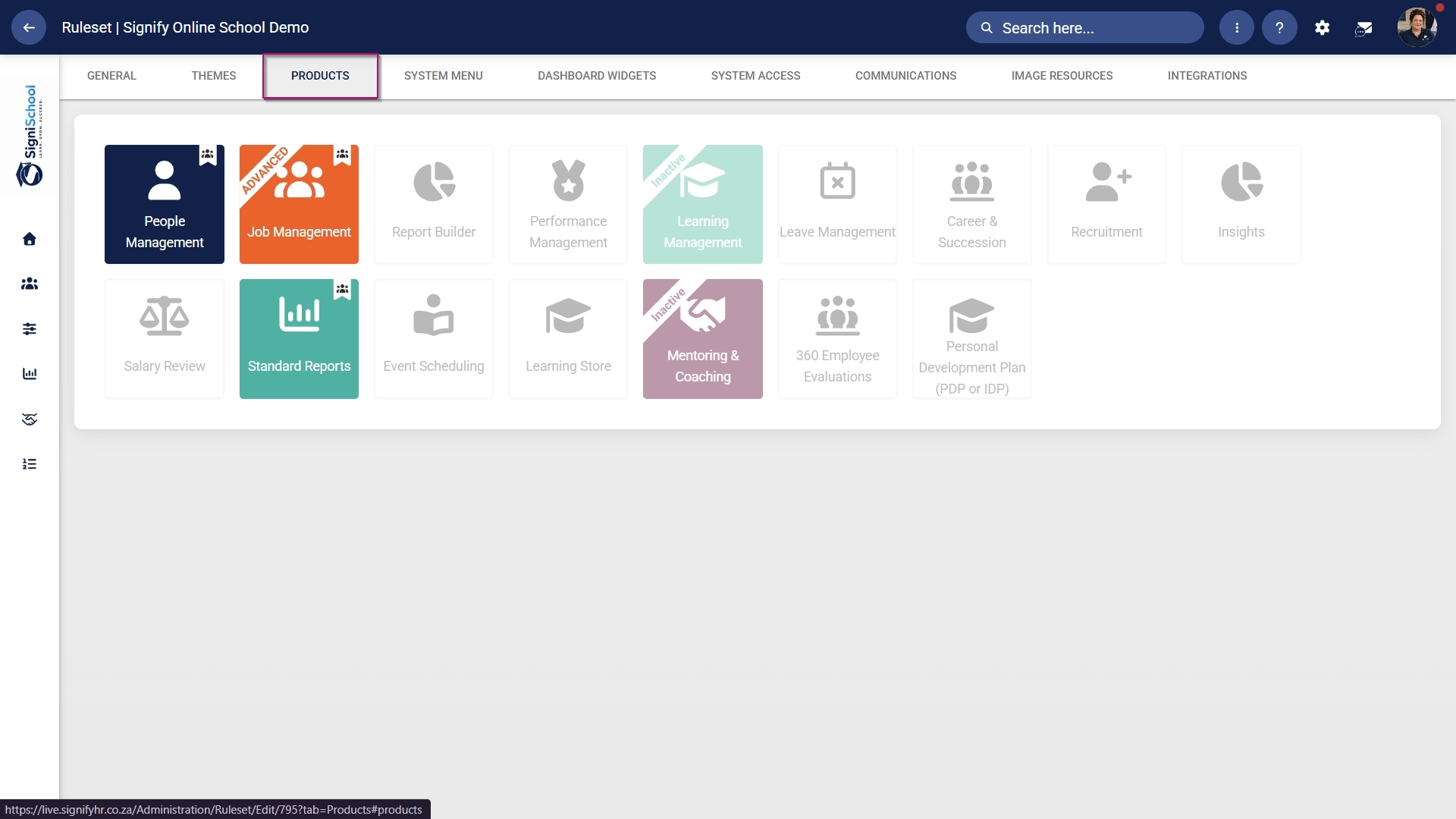
- Navigate to the **Products tab.

![ES Products tab.jpg](https://signature.signifyhr.co.za/uploads/images/gallery/2026-05/0KQ81oK42R2OgzCz-es-products-tab.jpg)

- Click on the **Learning Management product card, then click the **toggle button** to set the product’s status to **Active**.

[![LM Products tab - LM Product Card - Activate.jpg](https://signature.signifyhr.co.za/uploads/images/gallery/2026-05/scaled-1680-/BgK1kyVp94Qa9Ghu-lm-products-tab-lm-product-card-activate.jpg)](https://signature.signifyhr.co.za/uploads/images/gallery/2026-05/BgK1kyVp94Qa9Ghu-lm-products-tab-lm-product-card-activate.jpg)

#### Add Learning Management to the system menu

- Click the **gear icon** to access the **Setup and Configuration** menu.

![ES Setup and configuration menu.jpg](https://signature.signifyhr.co.za/uploads/images/gallery/2026-05/QODEfvIyUnjd7MDl-es-setup-and-configuration-menu.jpg)

- Click **Ruleset Setup**.

![ES Setup and configuration menu - Ruleset setup.jpg](https://signature.signifyhr.co.za/uploads/images/gallery/2026-05/pbrryyY3qSbFPZo7-es-setup-and-configuration-menu-ruleset-setup.jpg)

- Select the **ruleset you would like to update.

![ES Setup and configuration menu - Ruleset setup - Select ruleset.jpg](https://signature.signifyhr.co.za/uploads/images/gallery/2026-05/q4zJLoOyieURcGGC-es-setup-and-configuration-menu-ruleset-setup-select-ruleset.jpg)

- Navigate to the **System Menu** tab.

![ES System menu tab.jpg](https://signature.signifyhr.co.za/uploads/images/gallery/2026-05/Fzx7vrjqJh38T4dL-es-system-menu-tab.jpg)

- Click the **Learning Portal** menu item in the system menu preview.
- Click the **toggle** **button** to set the system menu item’s status to **Active**.

![LM System menu item.jpg](https://signature.signifyhr.co.za/uploads/images/gallery/2026-05/m5F1JLTg0nB4Zvst-lm-system-menu-item.jpg)

- You can select an icon for the **Learning Management** module by clicking **CHANGE ICON**.

![LM System menu item - Change icon.jpg](https://signature.signifyhr.co.za/uploads/images/gallery/2026-05/E9VEgdce8sLR5FWz-lm-system-menu-item-change-icon.jpg)

- Click **SAVE** to continue or **CANCEL** to discard your changes.

![LM System menu item - Save.jpg](https://signature.signifyhr.co.za/uploads/images/gallery/2026-05/Cg0iR1lbHiAL7jXr-lm-system-menu-item-save.jpg)

#### Assign the Learning Management administrator permission

- Hover over the **sidebar** menu, then click **People Management**.

![LM People Management Sidebar menu item.jpg](https://signature.signifyhr.co.za/uploads/images/gallery/2026-05/4JoXfi6SP9rYNuMf-lm-people-management-sidebar-menu-item.jpg)

- Click to navigate to the **View/Edit People** tab.

![ES People Management - View or Edit People tab.jpg](https://signature.signifyhr.co.za/uploads/images/gallery/2026-05/6ivwJg201Y1FlbD5-es-people-management-view-or-edit-people-tab.jpg)

- Click the **pencil icon** to manage the profile of the person you want to edit.

![ES People Management - Profile card - Manage.jpg](https://signature.signifyhr.co.za/uploads/images/gallery/2026-05/YiBa82bKN0IIEfoA-es-people-management-profile-card-manage.jpg)

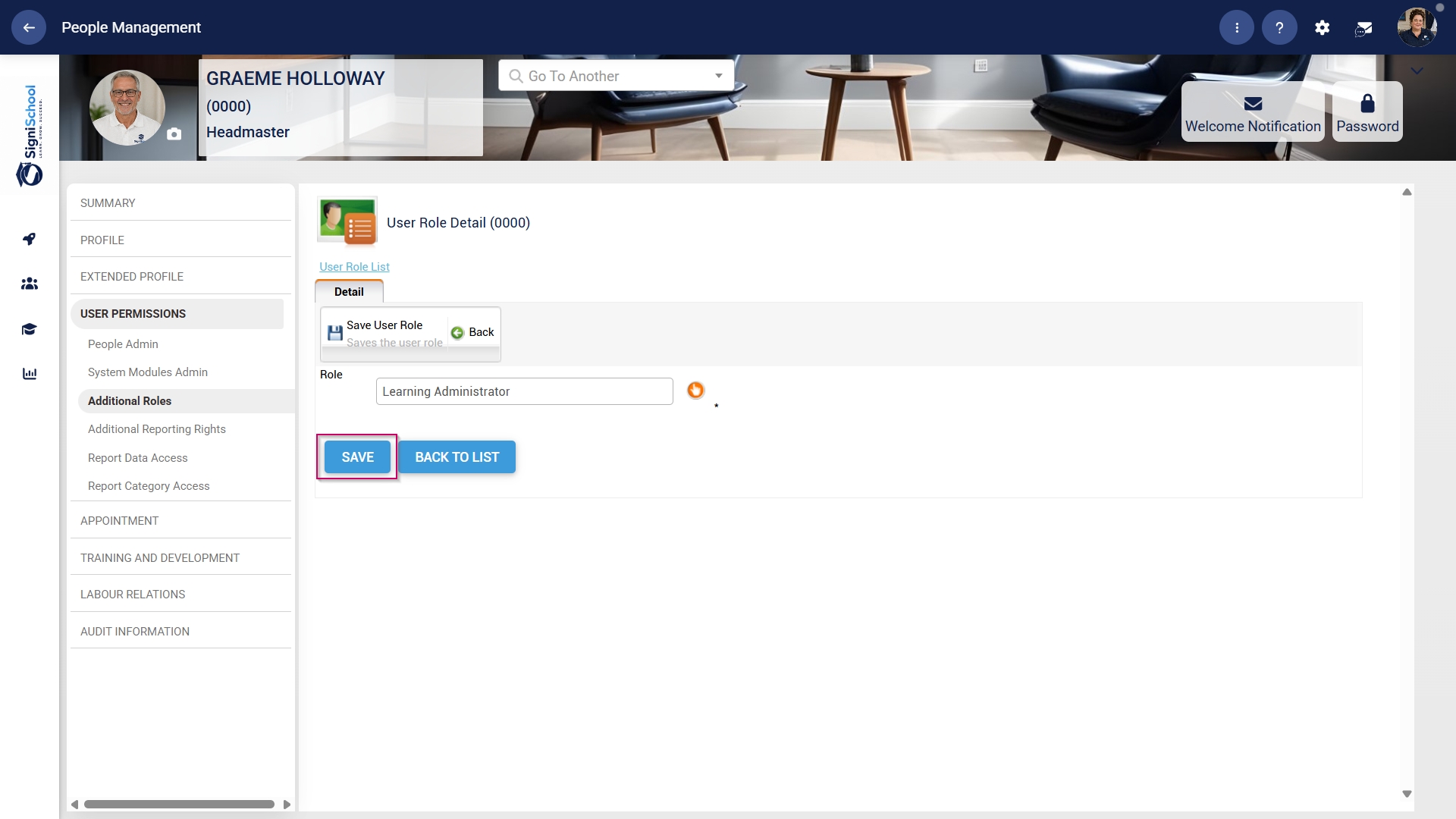
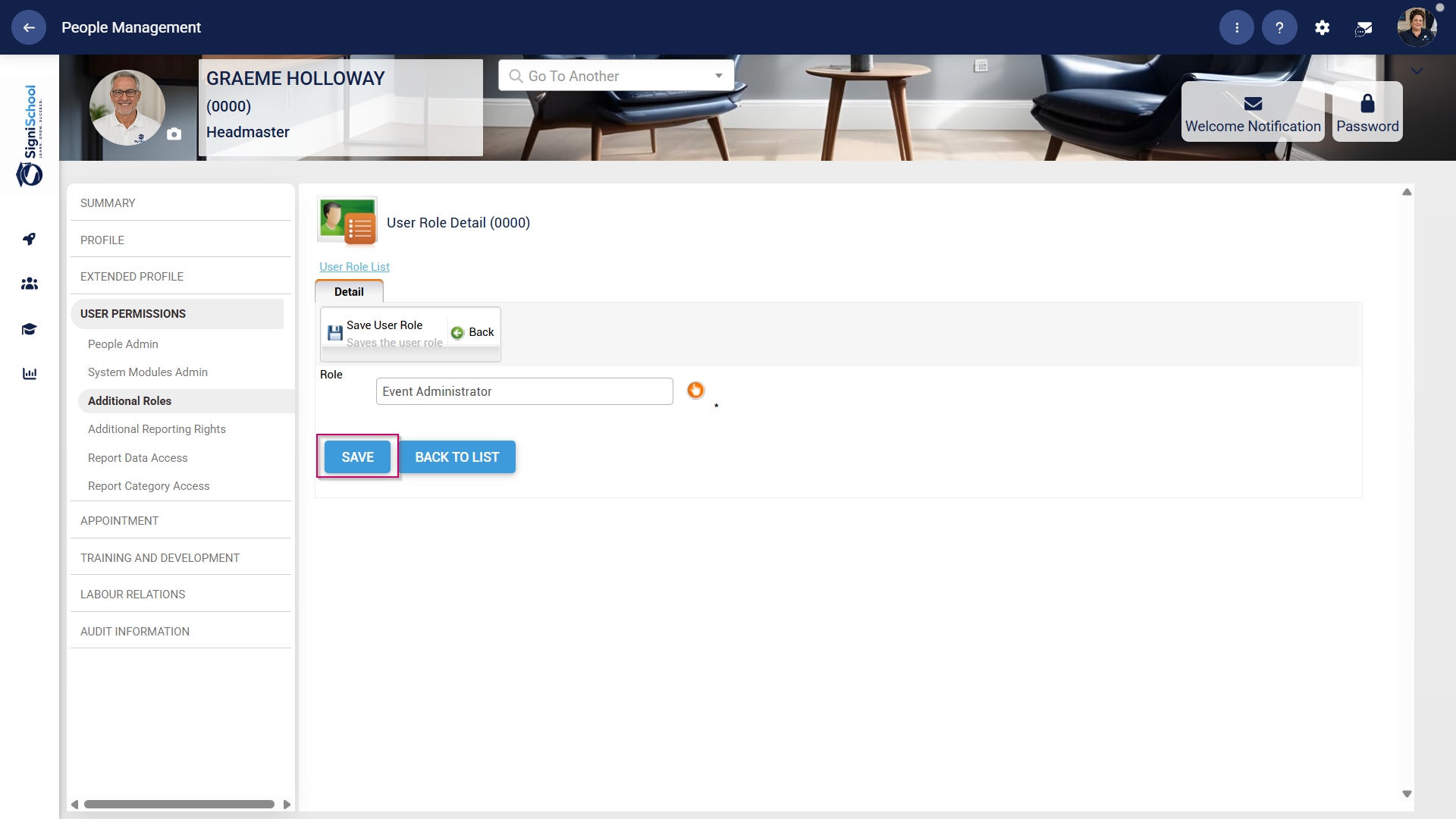
- In the **left-hand menu**, navigate to **User Permissions**, then click **System Modules Admin**.
- Click the **LINK ROLE** button.

![LM People Management - Profile - User permissions.jpg](https://signature.signifyhr.co.za/uploads/images/gallery/2026-05/cbOEY7RSkHhbPgaD-lm-people-management-profile-user-permissions.jpg)

- Tick the **checkbox next to Learning Management** in the table to assign the Learning Management administrator role to the user.
- Click **SAVE** to continue or **CANCEL** to discard your changes.

![LM People Management - Profile - User permissions - LM.jpg](https://signature.signifyhr.co.za/uploads/images/gallery/2026-05/LFjksxevjPGDbYSl-lm-people-management-profile-user-permissions-lm.jpg)

#### Create people groups

- Click the **gear icon** to access the **Setup and Configuration** menu.

![LM OS Setup and configuration menu.jpg](https://signature.signifyhr.co.za/uploads/images/gallery/2026-05/OolVb4vG1kGknZ88-lm-os-setup-and-configuration-menu.jpg)

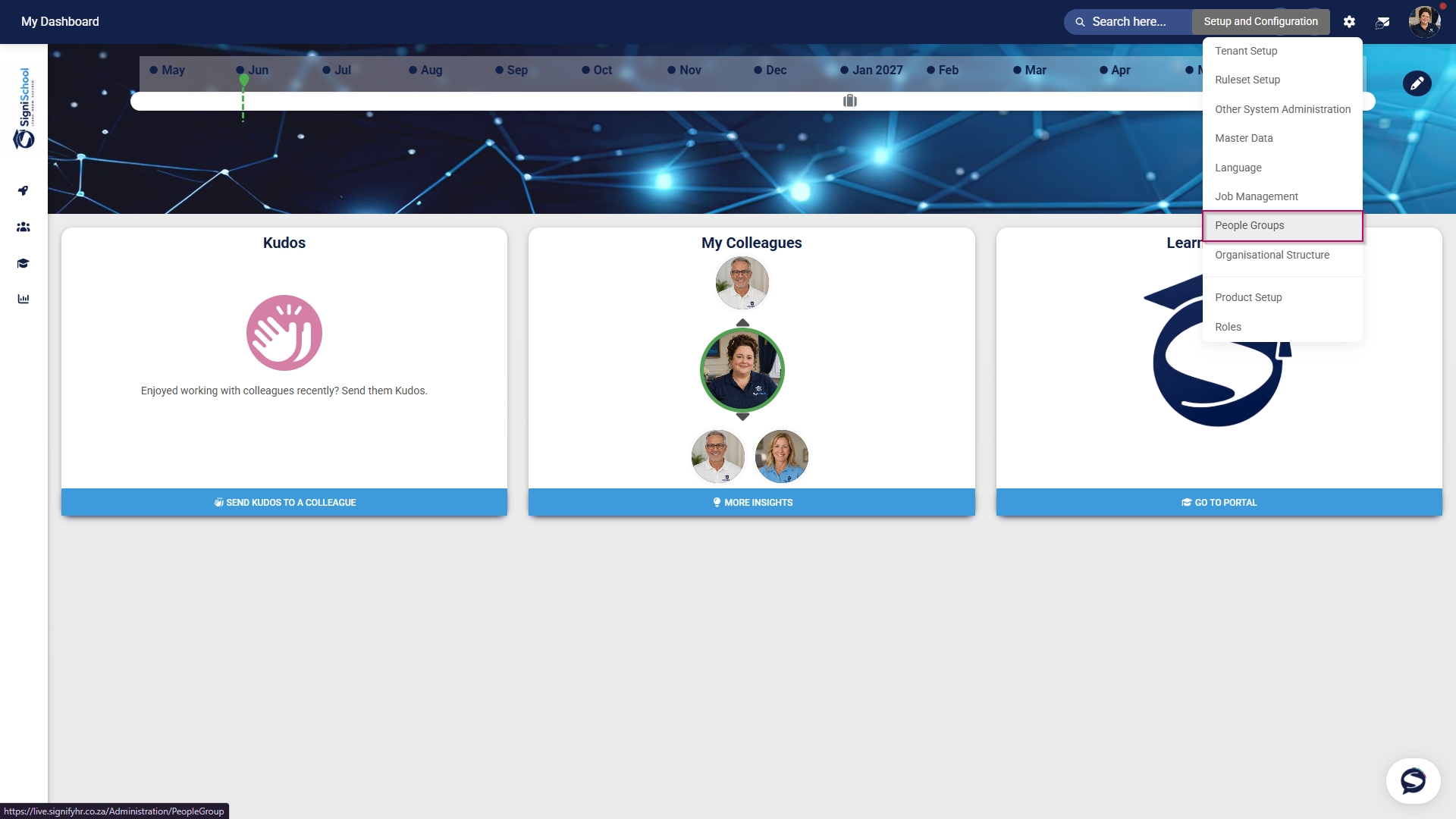
- Click **People Groups**.

![LM OS Setup and configuration menu - People Groups.jpg](https://signature.signifyhr.co.za/uploads/images/gallery/2026-06/nOhU8eJJoD70DLZP-lm-os-setup-and-configuration-menu-people-groups.jpg)

- In the **left-hand menu**, navigate to **Custom**, then click **+PEOPLE GROUP**.

![LM OS People Groups - Add.jpg](https://signature.signifyhr.co.za/uploads/images/gallery/2026-06/H5nGU4aA0WiOCFyF-lm-os-people-groups-add.jpg)

- Enter a descriptive name for the people group.
- Click the **toggle** **button** to set the status to **Active**.
- Click **SAVE** when you are finished or click **CANCEL** to discard your edits.

![LM OS People Groups - Add - Add new.jpg](https://signature.signifyhr.co.za/uploads/images/gallery/2026-06/kM9PWMtIzcq94hiU-lm-os-people-groups-add-add-new.jpg)

- Once the people group has been created, you can select the people to add to it.

##### Included: Individuals

- In the **left-hand menu**, click to navigate to the **Included section, then click **People** to add individuals.
- Click the **PEOPLE** button.

![LM OS People Groups - Add - Included people.jpg](https://signature.signifyhr.co.za/uploads/images/gallery/2026-06/a3dimEWgHQ1MeTTB-lm-os-people-groups-add-included-people.jpg)

- Use the **search bar** to find a person based on their name, surname, username, or job title.
- Tick the **checkbox** to select a person.

![LM OS People Groups - Add - Included people - Select.jpg](https://signature.signifyhr.co.za/uploads/images/gallery/2026-06/RoWVYABHHxajOCQF-lm-os-people-groups-add-included-people-select.jpg)

- Click **SAVE** when you are finished or click **CANCEL** to discard your edits.

![LM OS People Groups - Add - Included people - Select - Save.jpg](https://signature.signifyhr.co.za/uploads/images/gallery/2026-06/ex93gXc5DfU9pFAz-lm-os-people-groups-add-included-people-select-save.jpg)

- Review the users added to your people group, then click **SAVE** when you are finished or click **CANCEL** to discard your edits.

![LM OS People Groups - Add - Included people - Save.jpg](https://signature.signifyhr.co.za/uploads/images/gallery/2026-06/K8dLYJWX3qeEIXuy-lm-os-people-groups-add-included-people-save.jpg)

##### Included: Grouped conditions

- Click **Grouped Conditions** to add groups of people based on criteria such as job titles, organisational nodes, etc.
- Click **SAVE** when you are finished or click **CANCEL** to discard your edits.

![LM OS People Groups - Add - Included grouped conditions.jpg](https://signature.signifyhr.co.za/uploads/images/gallery/2026-06/gIxWuHqBXFGgOxsO-lm-os-people-groups-add-included-grouped-conditions.jpg)

##### Included: Individuals

- In the **left-hand menu**, click to navigate to **People** in the **Excluded** section. 
    - - Click the **PEOPLE** button.
        - Select the people you would like to exclude.
        - Click **SAVE** when you are finished or click **CANCEL** to discard your edits.

![LM OS People Groups - Add - Excluded people.jpg](https://signature.signifyhr.co.za/uploads/images/gallery/2026-06/6wVeb66WSOM3Cq0J-lm-os-people-groups-add-excluded-people.jpg)

##### Excluded: Grouped conditions

- Click **Grouped Conditions** to exclude groups of people based on criteria such as job titles, organisational nodes, etc.
- Click **SAVE** when you are finished or click **CANCEL** to discard your edits.

![LM OS People Groups - Add - Excluded grouped conditions.jpg](https://signature.signifyhr.co.za/uploads/images/gallery/2026-06/010chNXvTskr2GcJ-lm-os-people-groups-add-excluded-grouped-conditions.jpg)

##### Summary

- In the **left-hand menu**, click Summary to view all the users included in your people group.

![LM OS People Groups - Add - Summary.jpg](https://signature.signifyhr.co.za/uploads/images/gallery/2026-06/mLPcNgAbjkg3HY3A-lm-os-people-groups-add-summary.jpg)

**<span style="color: rgb(171, 0, 79);">The people groups take some time to synchronise on the system once they're created. This can take anywhere from 10 minutes to 12 hours, depending on the number of changes.</span>**

- To synchronise the newly-created or updated people groups manually, follow the steps in the next section.

#### Manually syncing people groups

- Click the **gear icon** to access the **Setup and Configuration** menu.

![LM OS Setup and configuration menu.jpg](https://signature.signifyhr.co.za/uploads/images/gallery/2026-05/OolVb4vG1kGknZ88-lm-os-setup-and-configuration-menu.jpg)

- Click **Ruleset Setup**.

![LM OS Setup and configuration menu - Ruleset setup.jpg](https://signature.signifyhr.co.za/uploads/images/gallery/2026-05/G8n6077uSByiSZlf-lm-os-setup-and-configuration-menu-ruleset-setup.jpg)

- Select the **ruleset you would like to update.

![LM OS Setup and configuration menu - Ruleset setup - Select ruleset.jpg](https://signature.signifyhr.co.za/uploads/images/gallery/2026-05/rfnTwwjc6K4u3af7-lm-os-setup-and-configuration-menu-ruleset-setup-select-ruleset.jpg)

- Navigate to the **Integrations** tab.

![LM OS Ruleset Setup - Integrations.jpg](https://signature.signifyhr.co.za/uploads/images/gallery/2026-06/sI3aNIzPAzERVUv8-lm-os-ruleset-setup-integrations.jpg)

- Scroll down to the **Bulk Additional Service Imports – Push** section.
- For the **People group import** function, you have two options when synchronising manually: 
    - - Click **REQUEST ALL DATA** to synchronise all the people groups. 
            - - This is a **time-consuming** operation because all the people groups' data is overwritten and synchronised from scratch.

<span style="color: #ab004f;">**Please be very careful when selecting this option, as it can affect system performance and speed, particularly during business hours.**</span>

- - - Click **REQUEST RECENT CHANGES** to synchronise only recent changes to your people groups. 
            - - This is a **time-efficient** option because only the changes are synchronised, and the previous data remains unchanged.

[![LM OS Ruleset Setup - Integrations - People Groups.jpg](https://signature.signifyhr.co.za/uploads/images/gallery/2026-06/scaled-1680-/Bb38pMRhJCqMIfcF-lm-os-ruleset-setup-integrations-people-groups.jpg)](https://signature.signifyhr.co.za/uploads/images/gallery/2026-06/Bb38pMRhJCqMIfcF-lm-os-ruleset-setup-integrations-people-groups.jpg)

- Once you have selected a synchronisation method, a **message** will appear stating that the import has been requested. You can monitor the synchronisation progress by navigating to your **System Inbox**.

[![LM OS Ruleset Setup - Integrations - People Groups - Manual Sync - Message.jpg](https://signature.signifyhr.co.za/uploads/images/gallery/2026-06/scaled-1680-/9GiaCYLAyKB2kUWF-lm-os-ruleset-setup-integrations-people-groups-manual-sync-message.jpg)](https://signature.signifyhr.co.za/uploads/images/gallery/2026-06/9GiaCYLAyKB2kUWF-lm-os-ruleset-setup-integrations-people-groups-manual-sync-message.jpg)

- Click the **envelope icon** at the top of your screen to navigate to your **System Inbox**, then click **Imports**.

[![LM OS Ruleset Setup - Integrations - People Groups - Manual Sync - Inbox.jpg](https://signature.signifyhr.co.za/uploads/images/gallery/2026-06/YRXXilnI31OnO0Uy-lm-os-ruleset-setup-integrations-people-groups-manual-sync-inbox.jpg)](https://signature.signifyhr.co.za/uploads/images/gallery/2026-06/9GiaCYLAyKB2kUWF-lm-os-ruleset-setup-integrations-people-groups-manual-sync-message.jpg)

- You can monitor the **status** of your **imports** and **system processes** here: 
    - - **Staged** means the task has been added to the queue and will begin once the current tasks have been completed.
        - **Started** means the task is currently running.
        - **Completed with Errors** means the task has been completed, although only partially, due to detected errors.
        - **Completed means the task has been successfully executed.
        - **Failed** means the task could not be completed.

[![LM OS Ruleset Setup - Integrations - People Groups - Manual Sync - Inbox - Success.jpg](https://signature.signifyhr.co.za/uploads/images/gallery/2026-06/YFukbCU93sA36XvG-lm-os-ruleset-setup-integrations-people-groups-manual-sync-inbox-success.jpg)](https://signature.signifyhr.co.za/uploads/images/gallery/2026-06/9GiaCYLAyKB2kUWF-lm-os-ruleset-setup-integrations-people-groups-manual-sync-message.jpg)

- For a **Completed with Errors** or **Failed** task, you can download an Excel document with a breakdown of the errors. 
    - - Click on the **kebab icon** next to the task.
        - Click **Export Errors**.
        - Review the errors, then re-attempt the task using the steps above.

[![LM OS Ruleset Setup - Integrations - People Groups - Manual Sync - Inbox - Failure.jpg](https://signature.signifyhr.co.za/uploads/images/gallery/2026-06/WpLPKm1j2TT78LkF-lm-os-ruleset-setup-integrations-people-groups-manual-sync-inbox-failure.jpg)](https://signature.signifyhr.co.za/uploads/images/gallery/2026-06/9GiaCYLAyKB2kUWF-lm-os-ruleset-setup-integrations-people-groups-manual-sync-message.jpg)

####  

#### Add training interventions

**Training interventions** are used to track a learner's academic progress. Each learning activity or assessment will have its own training intervention. Training interventions can be created in two ways:

- **Manually** through the **training intervention builder**
- **Automatically** through the **training intervention import functionality**

Both methods will be shown below.

##### Method 1: Add training interventions manually

- Hover over the **sidebar** menu, then click **Learning Portal**.

![LM OS Training Interventions - Learning Portal.jpg](https://signature.signifyhr.co.za/uploads/images/gallery/2026-06/WJKJe1Zzm8kFQvvE-lm-os-training-interventions-learning-portal.jpg)

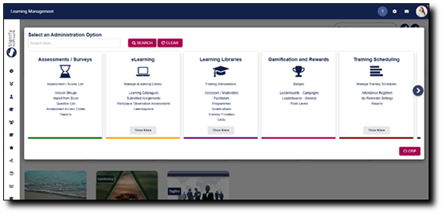
- Click the **spanner icon** to access the system's **Administration** menu.

![LM OS Training Interventions - Learning Portal - System Administration.jpg](https://signature.signifyhr.co.za/uploads/images/gallery/2026-06/BXkbbFgqwvJpw3b9-lm-os-training-interventions-learning-portal-system-administration.jpg)

- On the **Learning Libraries** card, click **Training Interventions**.

![LM OS Training Interventions - Learning Portal - System Admin Menu - Training Interventions.jpg](https://signature.signifyhr.co.za/uploads/images/gallery/2026-06/s9x9cGbhMmfxCMa8-lm-os-training-interventions-learning-portal-system-admin-menu-training-interventions.jpg)

- The **Training Intervention Library** will open. This is where training interventions can be created, edited, or deleted. To add a new training intervention, click **ADD**.

![LM OS Training Interventions - Learning Portal - System Admin Menu - Training Intervention Library - Add.jpg](https://signature.signifyhr.co.za/uploads/images/gallery/2026-06/EWbLQO4wqUpgxf8S-lm-os-training-interventions-learning-portal-system-admin-menu-training-intervention-library-add.jpg)

- The training intervention editing screen will open. 
    - - **Please note that all the fields marked with an asterisk (\*) are required.**
        - For our example, we will only fill out the necessary fields, but you can add more details if desired.

**<span style="color: rgb(171, 0, 79);">It is recommended to use a naming convention to standardise the training interventions. This ensures it is easy to maintain the data integrity of the Training Intervention Library while also improving the quality of system report outputs.</span>**

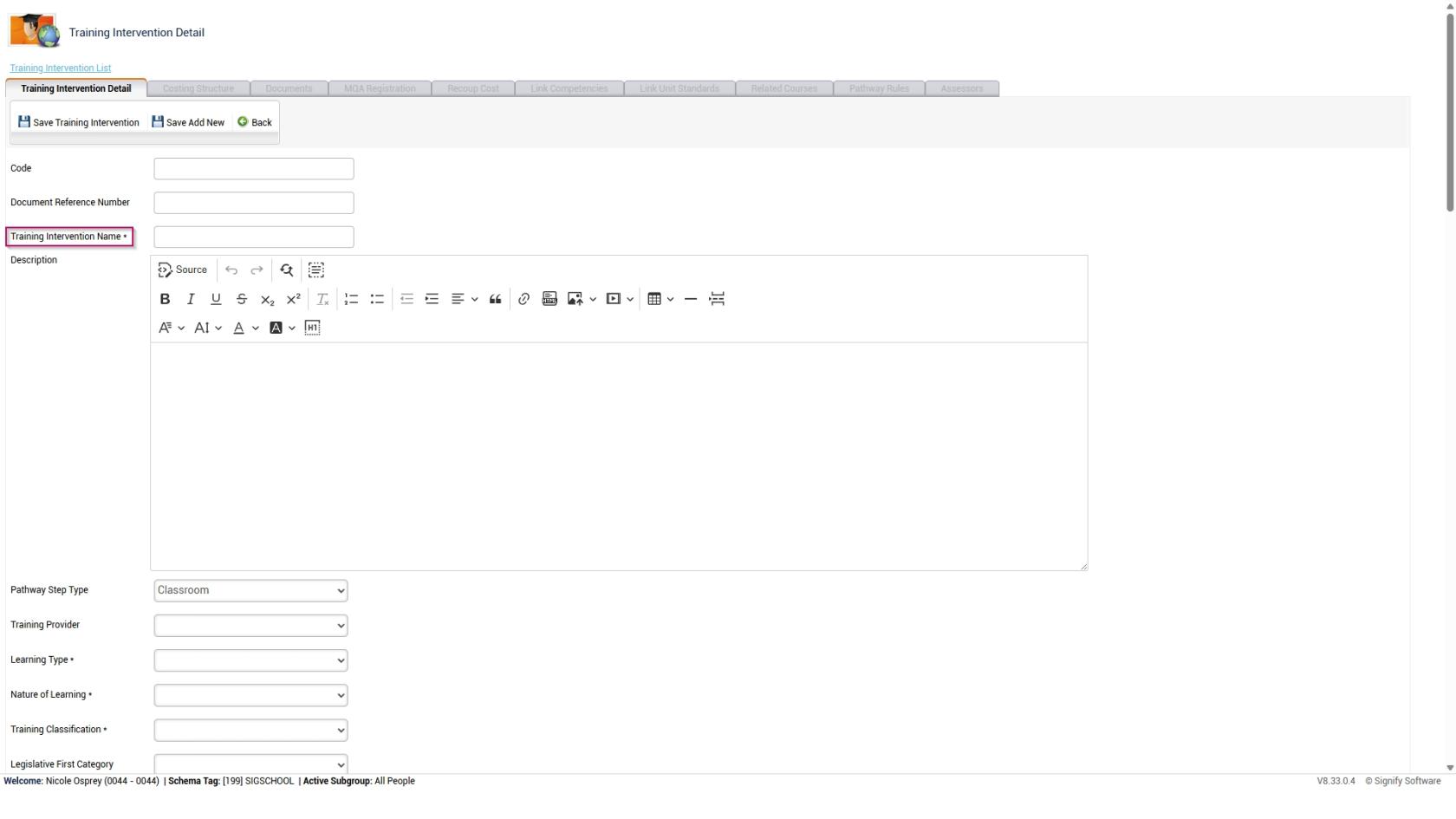
- Add an appropriate **name** for the training intervention.

<span style="color: rgb(0, 0, 0);">[![LM OS Training Interventions - Learning Portal - System Admin Menu - Training Intervention Library - Add new training intervention part 1.jpg](https://signature.signifyhr.co.za/uploads/images/gallery/2026-06/scaled-1680-/5zzaPLMNRGYJchaI-lm-os-training-interventions-learning-portal-system-admin-menu-training-intervention-library-add-new-training-intervention-part-1.jpg)](https://signature.signifyhr.co.za/uploads/images/gallery/2026-06/5zzaPLMNRGYJchaI-lm-os-training-interventions-learning-portal-system-admin-menu-training-intervention-library-add-new-training)</span>

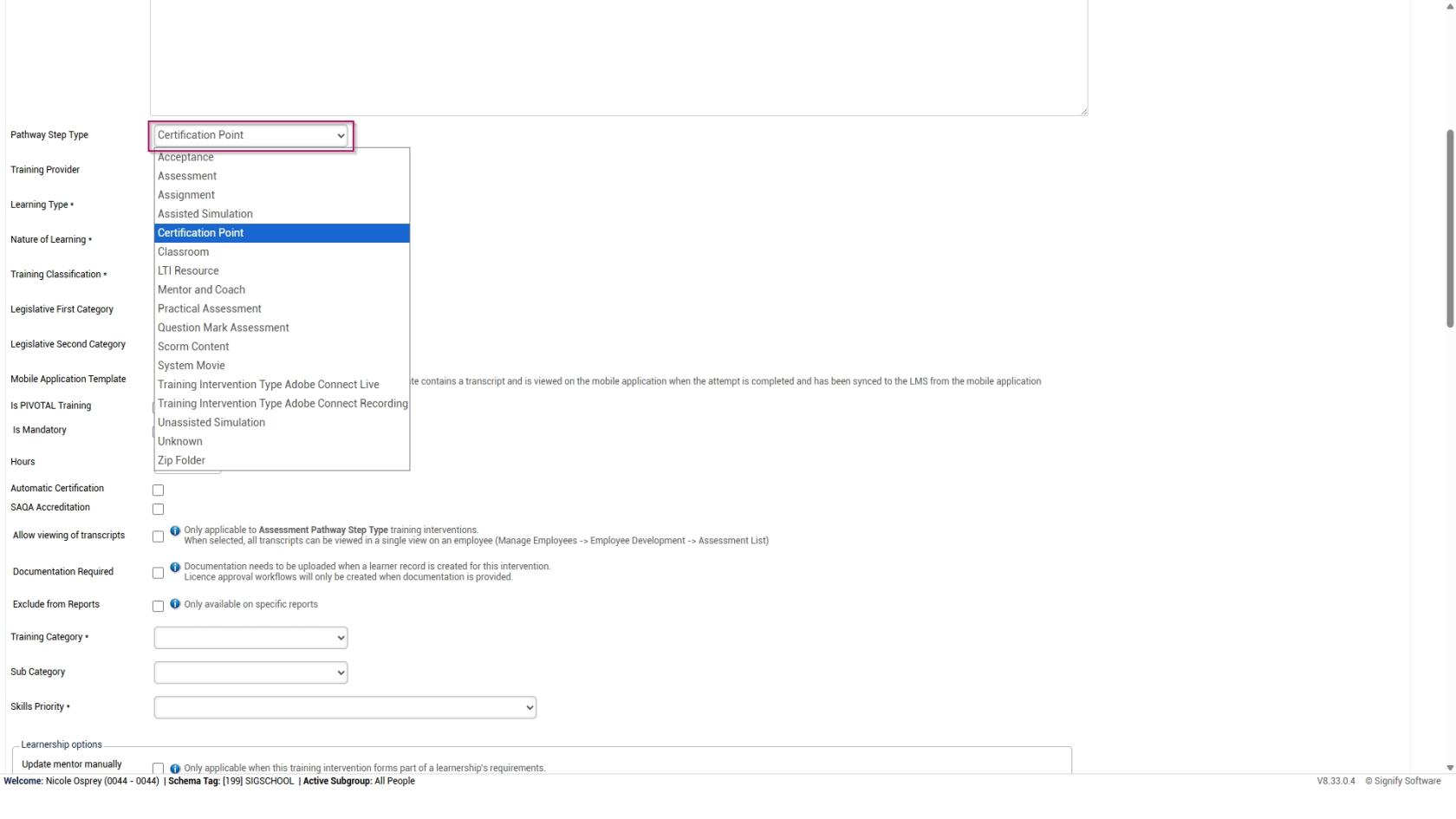
- <span style="color: rgb(0, 0, 0);">Select the **type** of training intervention from the **Pathway Step Type drop-down menu**.</span>

<span style="color: rgb(0, 0, 0);">[![LM OS Training Interventions - Learning Portal - System Admin Menu - Training Intervention Library - Add new training intervention part 2.jpg](https://signature.signifyhr.co.za/uploads/images/gallery/2026-06/scaled-1680-/41qXNepDG6t0s8gS-lm-os-training-interventions-learning-portal-system-admin-menu-training-intervention-library-add-new-training-intervention-part-2.jpg)](https://signature.signifyhr.co.za/uploads/images/gallery/2026-06/41qXNepDG6t0s8gS-lm-os-training-interventions-learning-portal-system-admin-menu-training-intervention-library-add-new-training)</span>

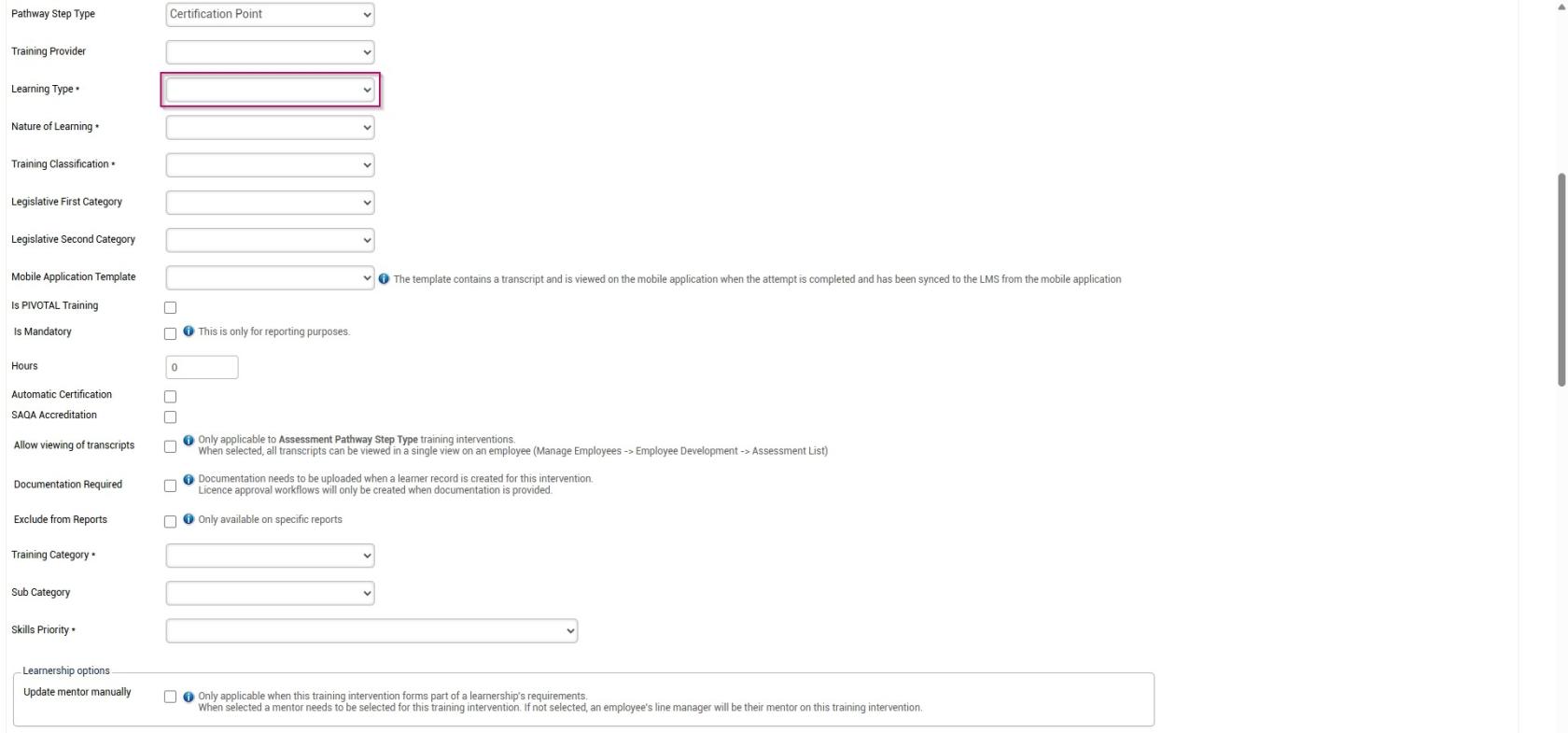
- <span style="color: rgb(0, 0, 0);">Select the **Learning Type** from the **drop-down menu**.</span>

<span style="color: rgb(0, 0, 0);">[![LM OS Training Interventions - Learning Portal - System Admin Menu - Training Intervention Library - Add new training intervention part 3.jpg](https://signature.signifyhr.co.za/uploads/images/gallery/2026-06/scaled-1680-/2xL1s8SUIDFGEtu1-lm-os-training-interventions-learning-portal-system-admin-menu-training-intervention-library-add-new-training-intervention-part-3.jpg)](https://signature.signifyhr.co.za/uploads/images/gallery/2026-06/2xL1s8SUIDFGEtu1-lm-os-training-interventions-learning-portal-system-admin-menu-training-intervention-library-add-new-training)</span>

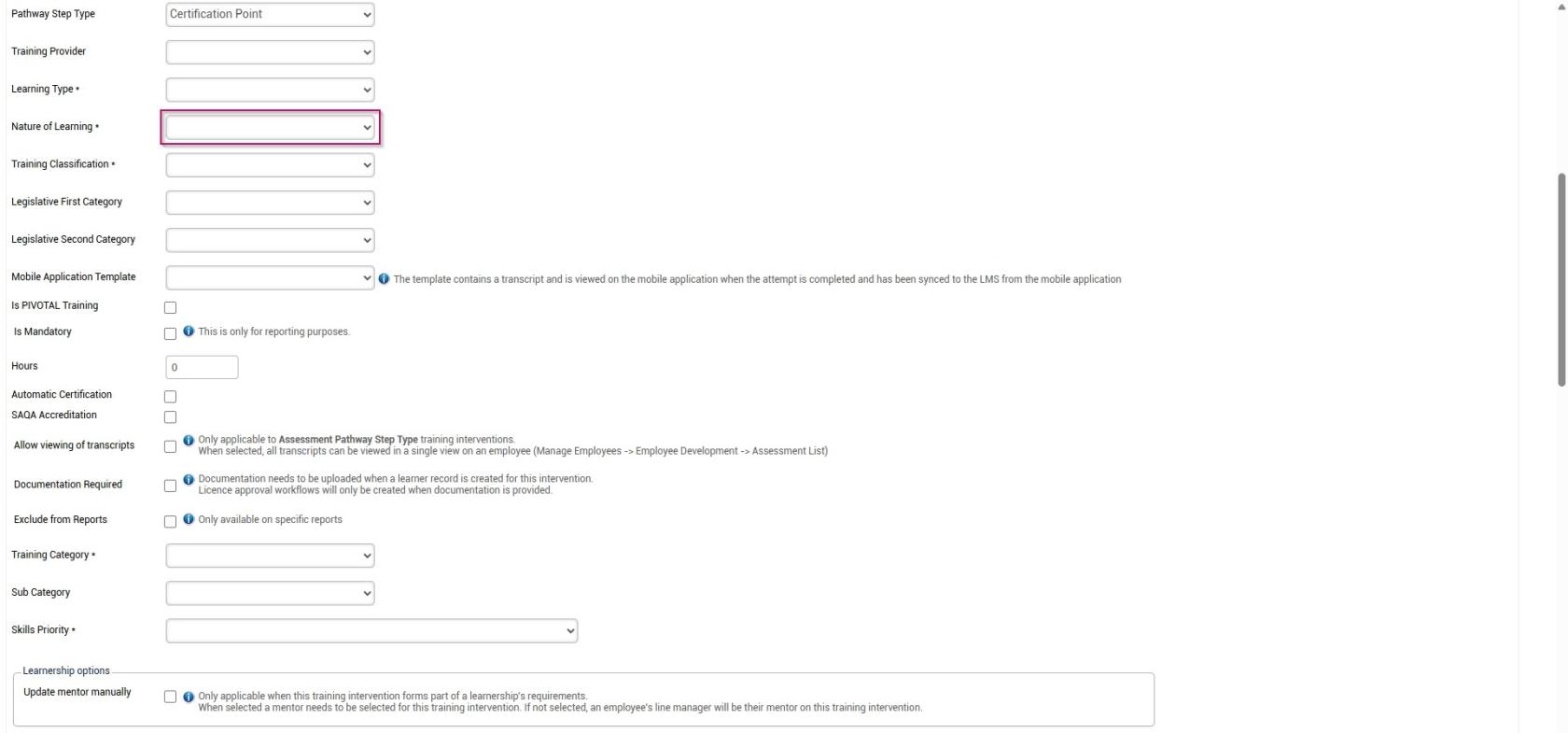
- <span style="color: rgb(0, 0, 0);">Select the **Nature of Learning** from the **drop-down menu**.</span>

[![LM OS Training Interventions - Learning Portal - System Admin Menu - Training Intervention Library - Add new training intervention part 4.jpg](https://signature.signifyhr.co.za/uploads/images/gallery/2026-06/scaled-1680-/KQEEMMFD7MGa6AwI-lm-os-training-interventions-learning-portal-system-admin-menu-training-intervention-library-add-new-training-intervention-part-4.jpg)](https://signature.signifyhr.co.za/uploads/images/gallery/2026-06/KQEEMMFD7MGa6AwI-lm-os-training-interventions-learning-portal-system-admin-menu-training-intervention-library-add-new-training)

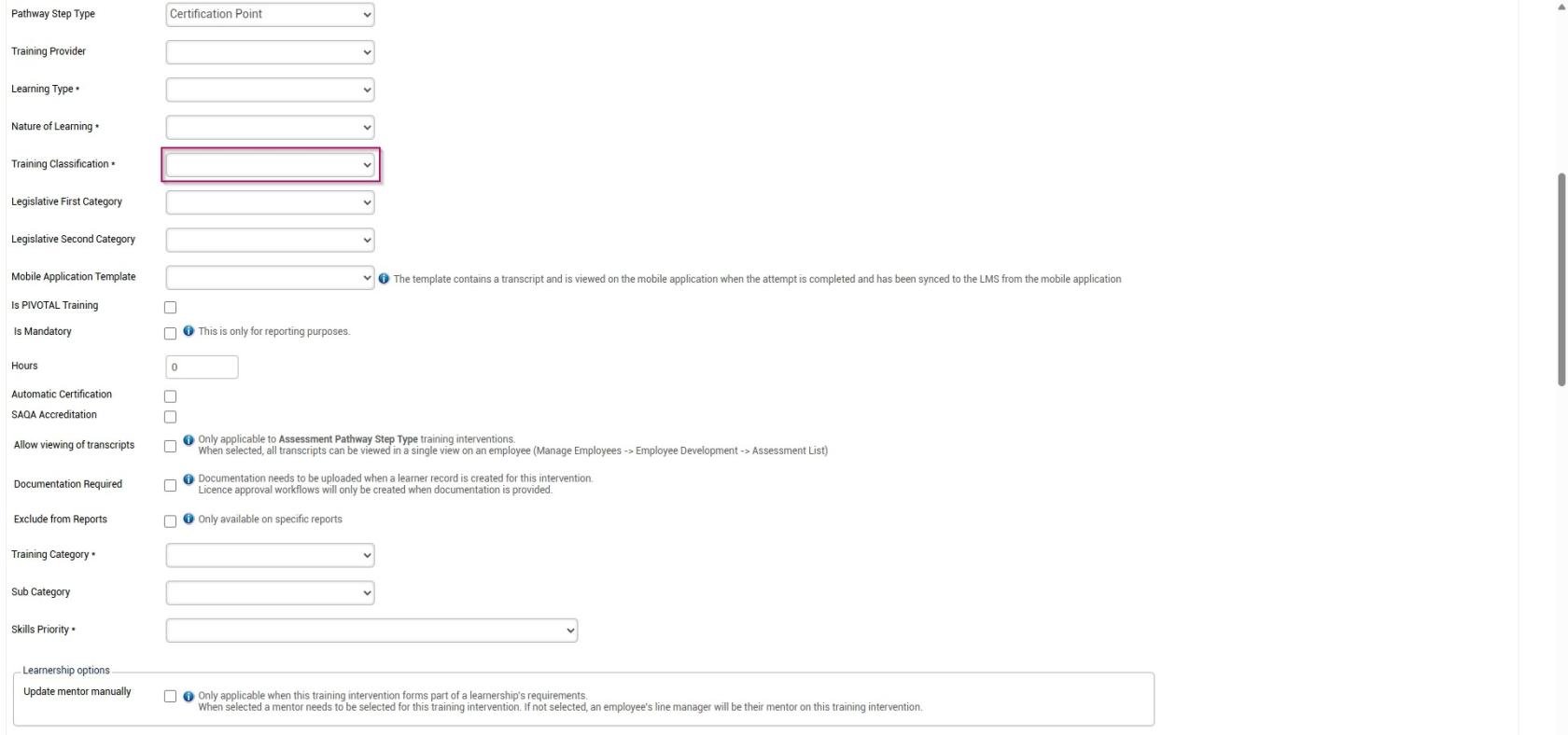
- <span style="color: rgb(0, 0, 0);">Select the **Training Classification** from the **drop-down menu**.</span>

<span style="color: rgb(0, 0, 0);">[![LM OS Training Interventions - Learning Portal - System Admin Menu - Training Intervention Library - Add new training intervention part 5.jpg](https://signature.signifyhr.co.za/uploads/images/gallery/2026-06/scaled-1680-/i40MfyX6QmeNikNt-lm-os-training-interventions-learning-portal-system-admin-menu-training-intervention-library-add-new-training-intervention-part-5.jpg)](https://signature.signifyhr.co.za/uploads/images/gallery/2026-06/i40MfyX6QmeNikNt-lm-os-training-interventions-learning-portal-system-admin-menu-training-intervention-library-add-new-training)</span>

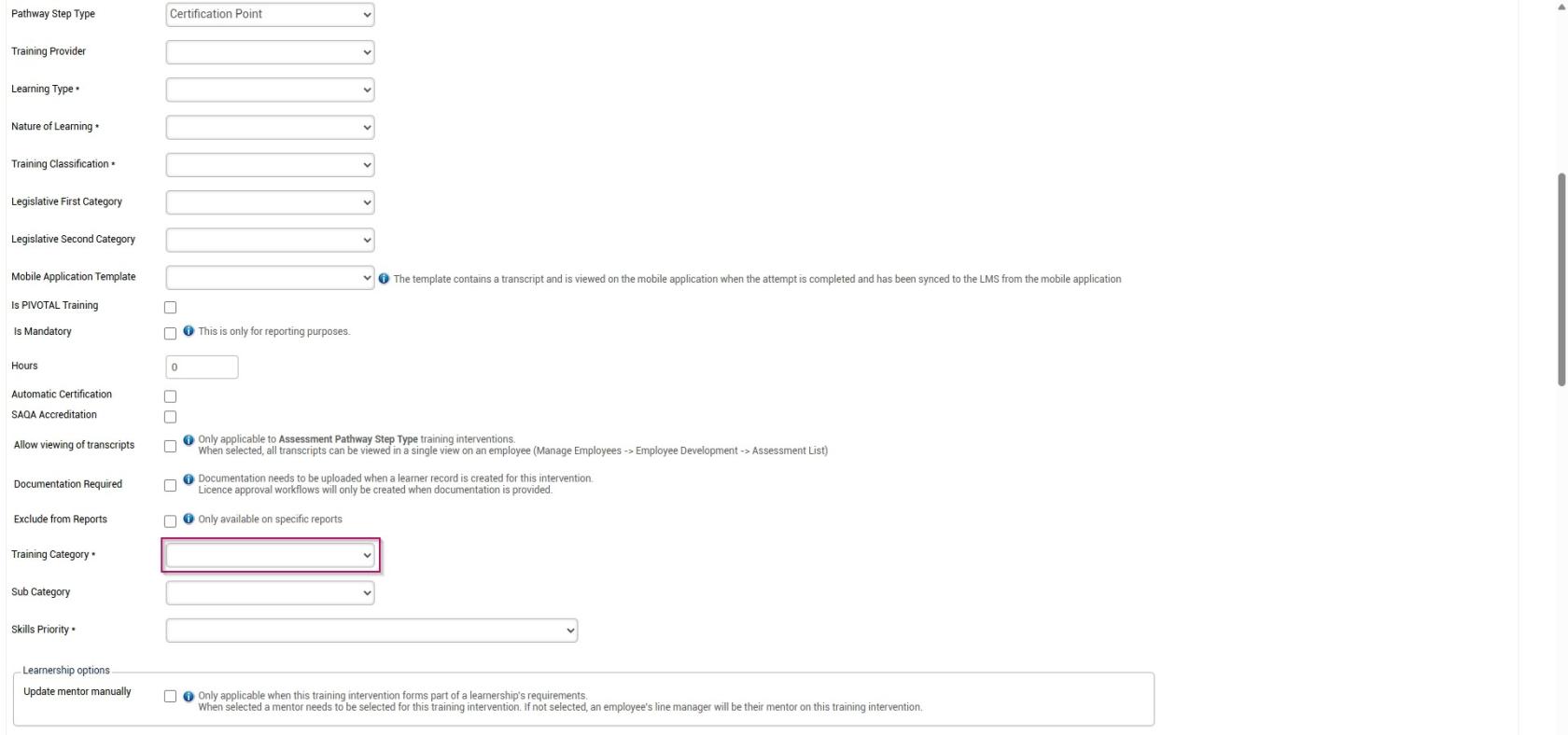
- <span style="color: rgb(0, 0, 0);">Select the **Training Category** from the **drop-down menu**.</span>

<span style="color: rgb(0, 0, 0);">[![LM OS Training Interventions - Learning Portal - System Admin Menu - Training Intervention Library - Add new training intervention part 6.jpg](https://signature.signifyhr.co.za/uploads/images/gallery/2026-06/scaled-1680-/0wwAO33DfkirK7Fc-lm-os-training-interventions-learning-portal-system-admin-menu-training-intervention-library-add-new-training-intervention-part-6.jpg)](https://signature.signifyhr.co.za/uploads/images/gallery/2026-06/0wwAO33DfkirK7Fc-lm-os-training-interventions-learning-portal-system-admin-menu-training-intervention-library-add-new-training)</span>

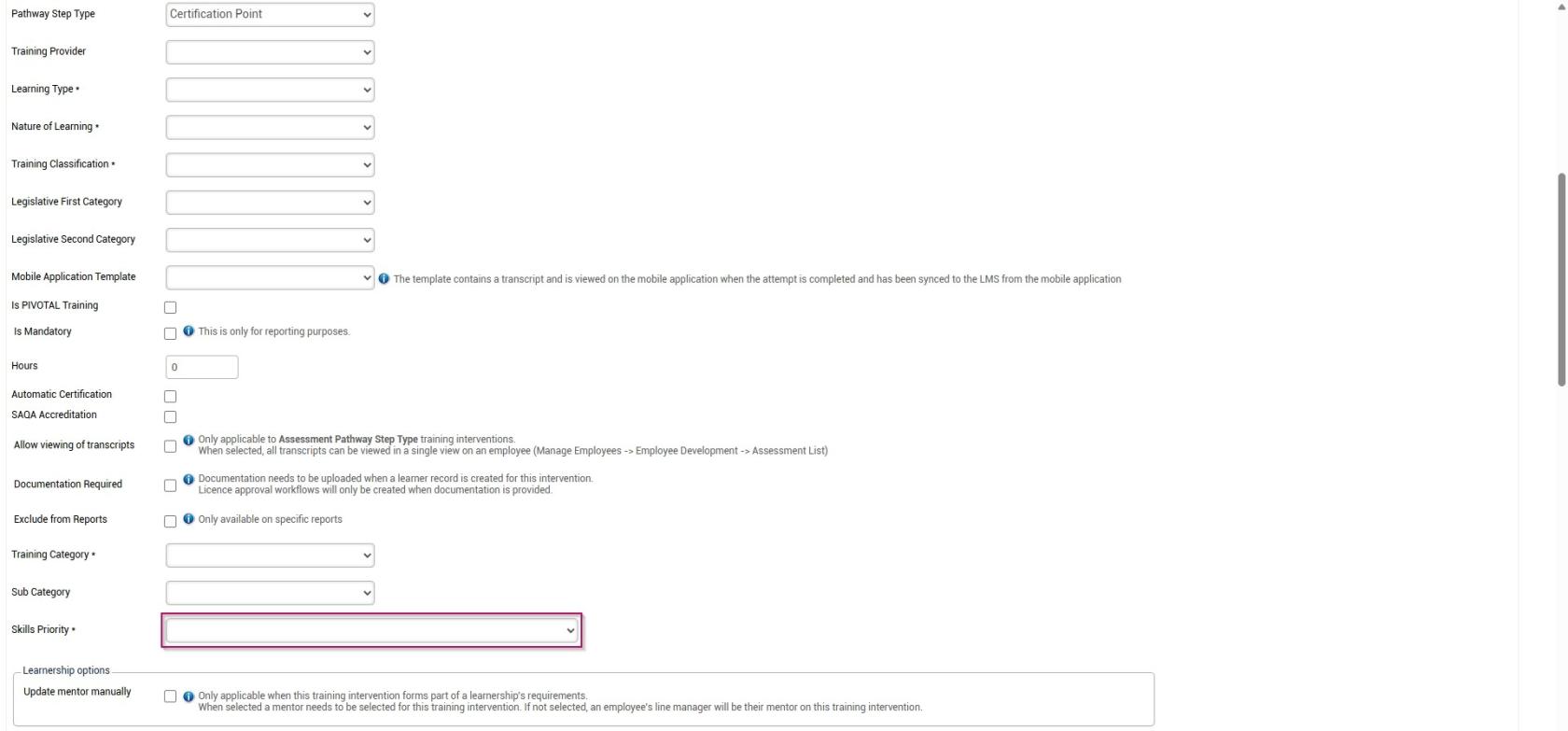
- <span style="color: rgb(0, 0, 0);">Select the **Skills Priority** from the **drop-down menu**.</span>

<span style="color: rgb(0, 0, 0);">[![LM OS Training Interventions - Learning Portal - System Admin Menu - Training Intervention Library - Add new training intervention part 7.jpg](https://signature.signifyhr.co.za/uploads/images/gallery/2026-06/scaled-1680-/XRopIaThT5AexlDH-lm-os-training-interventions-learning-portal-system-admin-menu-training-intervention-library-add-new-training-intervention-part-7.jpg)](https://signature.signifyhr.co.za/uploads/images/gallery/2026-06/XRopIaThT5AexlDH-lm-os-training-interventions-learning-portal-system-admin-menu-training-intervention-library-add-new-training)</span>

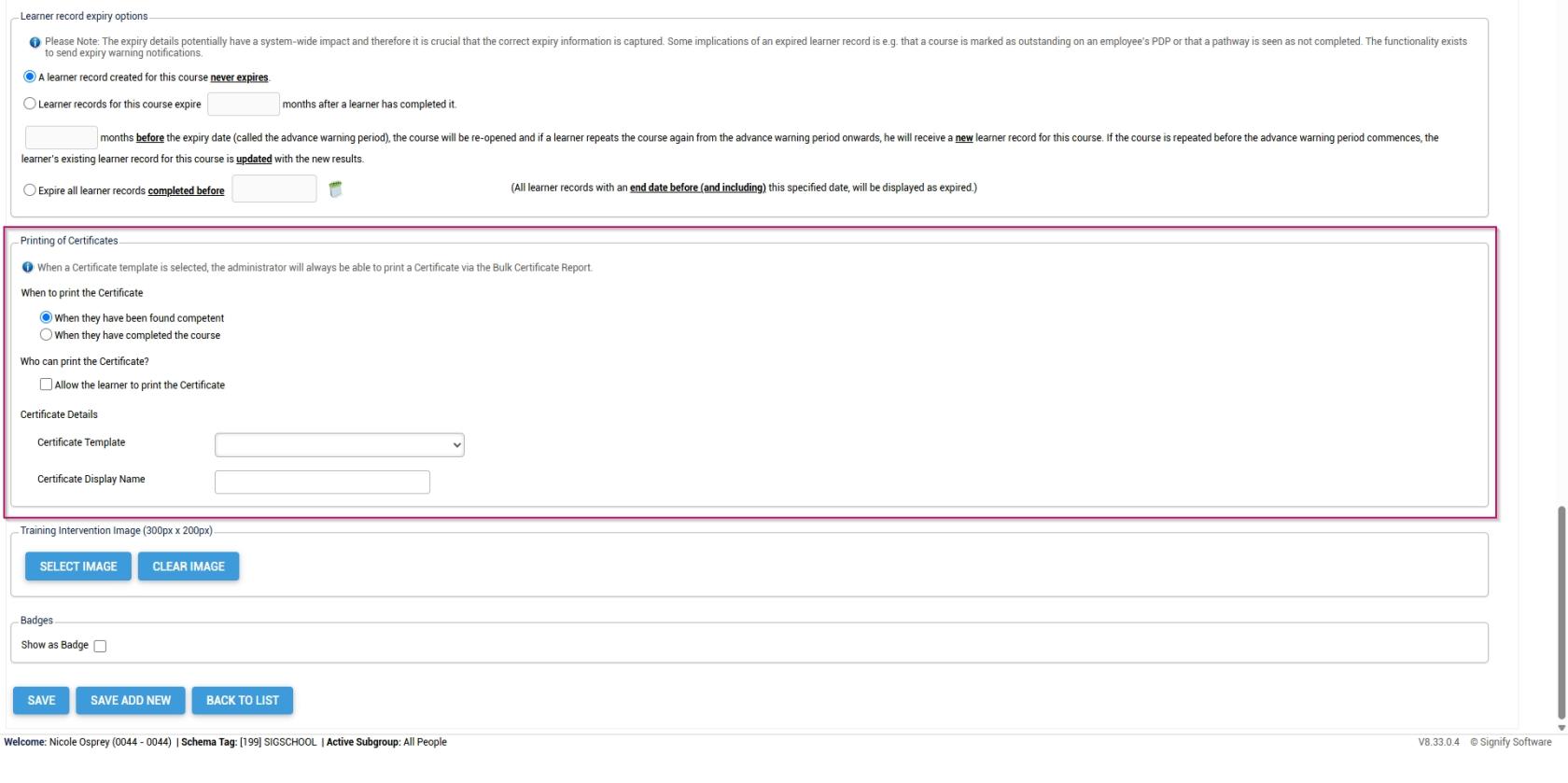
- <span style="color: rgb(0, 0, 0);">Configure the settings for the expiry of **learner records**.</span>

[![LM OS Training Interventions - Learning Portal - System Admin Menu - Training Intervention Library - Add new training intervention part 8.jpg](https://signature.signifyhr.co.za/uploads/images/gallery/2026-06/scaled-1680-/KwSRT5J8cyet018z-lm-os-training-interventions-learning-portal-system-admin-menu-training-intervention-library-add-new-training-intervention-part-8.jpg)](https://signature.signifyhr.co.za/uploads/images/gallery/2026-06/KwSRT5J8cyet018z-lm-os-training-interventions-learning-portal-system-admin-menu-training-intervention-library-add-new-training)

- <span style="color: rgb(0, 0, 0);">Configure the settings for the printing of **certificates**.</span>

<span style="color: rgb(0, 0, 0);">[![LM OS Training Interventions - Learning Portal - System Admin Menu - Training Intervention Library - Add new training intervention part 9.jpg](https://signature.signifyhr.co.za/uploads/images/gallery/2026-06/scaled-1680-/D1bj8CU1wskJeUds-lm-os-training-interventions-learning-portal-system-admin-menu-training-intervention-library-add-new-training-intervention-part-9.jpg)](https://signature.signifyhr.co.za/uploads/images/gallery/2026-06/D1bj8CU1wskJeUds-lm-os-training-interventions-learning-portal-system-admin-menu-training-intervention-library-add-new-training)</span>

- If you employ a **gamification** strategy in your learning environment, you can display a completed course as a **badge** and assign **points** for **leaderboard** tracking.

[![LM OS Training Interventions - Learning Portal - System Admin Menu - Training Intervention Library - Add new training intervention part 10.jpg](https://signature.signifyhr.co.za/uploads/images/gallery/2026-06/scaled-1680-/etrXXAbdNv6oMfDf-lm-os-training-interventions-learning-portal-system-admin-menu-training-intervention-library-add-new-training-intervention-part-10.jpg)](https://signature.signifyhr.co.za/uploads/images/gallery/2026-06/etrXXAbdNv6oMfDf-lm-os-training-interventions-learning-portal-system-admin-menu-training-intervention-library-add-new-training)

- Click **SAVE** when you are finished, **SAVE ADD NEW** to add another training intervention or click **BACK TO LIST** to discard your edits.

[![LM OS Training Interventions - Learning Portal - System Admin Menu - Training Intervention Library - Add new training intervention part 11.jpg](https://signature.signifyhr.co.za/uploads/images/gallery/2026-06/scaled-1680-/FplnJg2n8BlTuzcD-lm-os-training-interventions-learning-portal-system-admin-menu-training-intervention-library-add-new-training-intervention-part-11.jpg)](https://signature.signifyhr.co.za/uploads/images/gallery/2026-06/FplnJg2n8BlTuzcD-lm-os-training-interventions-learning-portal-system-admin-menu-training-intervention-library-add-new-training)

##### Method 2: Add training interventions using the import

- Hover over the **sidebar** menu, then click **Learning Portal**.

![LM OS Training Interventions - Learning Portal.jpg](https://signature.signifyhr.co.za/uploads/images/gallery/2026-06/WJKJe1Zzm8kFQvvE-lm-os-training-interventions-learning-portal.jpg)

- Click the **spanner icon** to access the system's **Administration** menu.

![LM OS Training Interventions - Learning Portal - System Administration.jpg](https://signature.signifyhr.co.za/uploads/images/gallery/2026-06/BXkbbFgqwvJpw3b9-lm-os-training-interventions-learning-portal-system-administration.jpg)

- On the **Learning Libraries** card, click **Training Interventions**.

![LM OS Training Interventions - Learning Portal - System Admin Menu - Training Interventions.jpg](https://signature.signifyhr.co.za/uploads/images/gallery/2026-06/s9x9cGbhMmfxCMa8-lm-os-training-interventions-learning-portal-system-admin-menu-training-interventions.jpg)

- The **Training Intervention Library** will open. This is where training interventions can be created, edited, or deleted. Click **IMPORT TRAINING INTERVENTIONS** to begin.

![LM OS Training Interventions - Learning Portal - System Admin Menu - Training Intervention Library - Import.jpg](https://signature.signifyhr.co.za/uploads/images/gallery/2026-06/2pWiX5Lx8fOQBWx4-lm-os-training-interventions-learning-portal-system-admin-menu-training-intervention-library-import.jpg)

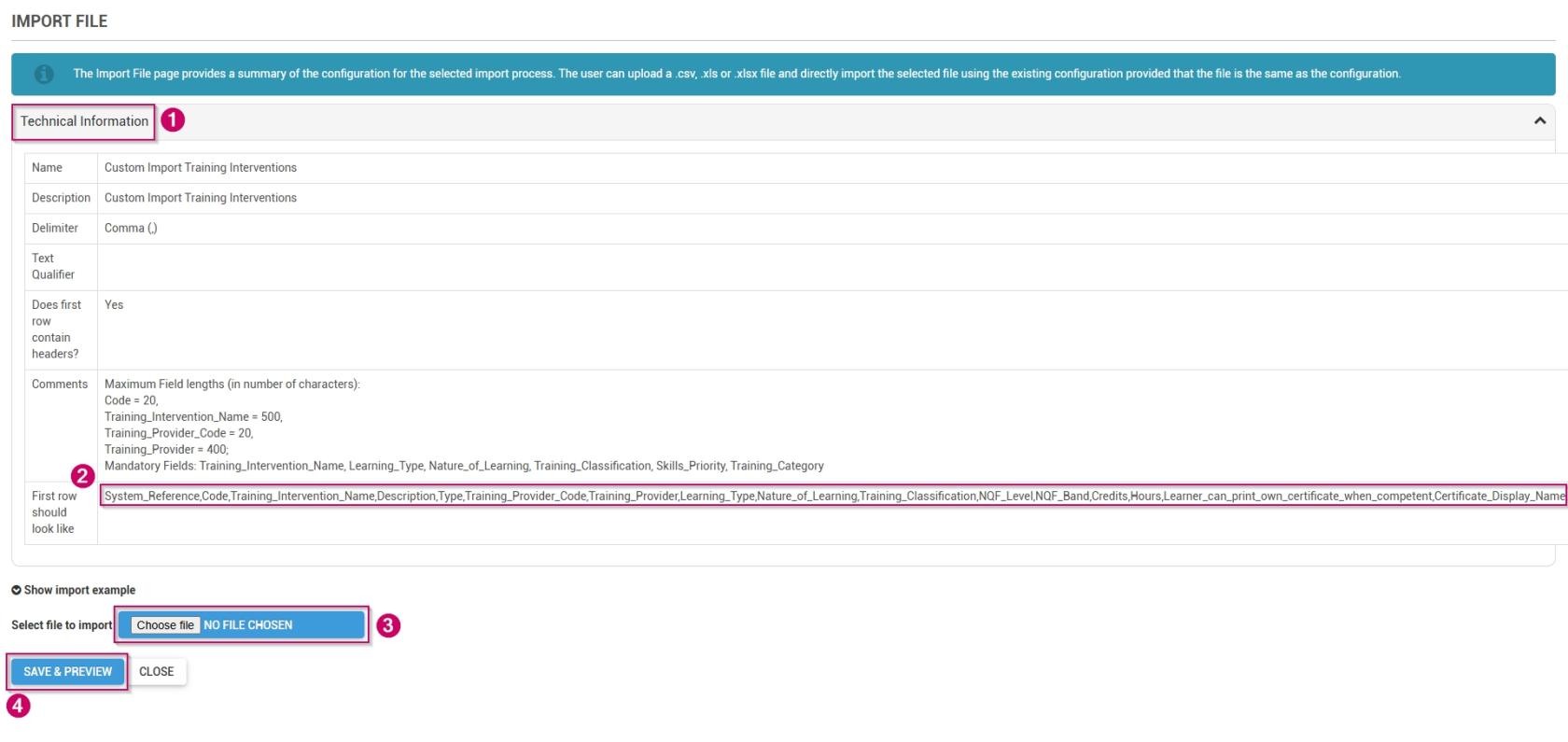
- Click on the **Technical Information** section.  
    
    - - Take note of the maximum field lengths for each category.
- Copy the data in the section titled **First row should look like**. 
    - - Use this data to construct a training intervention import file.
        - For more information and a step-by-step guide on how to do this, go to the next section: **[Create a custom Training Intervention file in Excel](#bkmrk-create-a-custom-trai "Create a custom Training Intervention file in Excel")**.
- Once you have populated your training intervention document, click **CHOOSE FILE** to upload your import file as a .csv, .xls, or .xlsx.
- Click **SAVE &amp; PREVIEW**.

[![LM OS Training Interventions - Learning Portal - System Admin Menu - Training Intervention Library - Import training intervention screen.jpg](https://signature.signifyhr.co.za/uploads/images/gallery/2026-06/scaled-1680-/jpYTZOgSHIqgQTSz-lm-os-training-interventions-learning-portal-system-admin-menu-training-intervention-library-import-training-intervention-screen.jpg)](https://signature.signifyhr.co.za/uploads/images/gallery/2026-06/jpYTZOgSHIqgQTSz-lm-os-training-interventions-learning-portal-system-admin-menu-training-intervention-library-import-training-)

- Review the preview of your data import. If the data appears correct, tick the **checkbox** to confirm it.
- You are now ready to kick off the import. 
    - - You can execute a **mock import** to ensure all the data displays correctly. This is recommended for very large import files. To do this, click **EXECUTE MOCK IMPORT**.
        - If the data is ready to be imported, click **EXECUTE IMPORT**.

[![LM OS Training Interventions - Learning Portal - System Admin Menu - Create training intervention file - Preview.jpg](https://signature.signifyhr.co.za/uploads/images/gallery/2026-06/gef5Pk2Cvp57bzBa-lm-os-training-interventions-learning-portal-system-admin-menu-create-training-intervention-file-preview.jpg)](https://signature.signifyhr.co.za/uploads/images/gallery/2026-06/jpYTZOgSHIqgQTSz-lm-os-training-interventions-learning-portal-system-admin-menu-training-intervention-library-import-training-)

- Your **Training Intervention Library** is now populated with your new training interventions. If you do not see your training interventions, please refresh your browser window.

[![LM OS Training Interventions - Learning Portal - System Admin Menu - Training intervention library completre.jpg](https://signature.signifyhr.co.za/uploads/images/gallery/2026-06/scaled-1680-/cG1rQl2JtlqTyi9J-lm-os-training-interventions-learning-portal-system-admin-menu-training-intervention-library-completre.jpg)](https://signature.signifyhr.co.za/uploads/images/gallery/2026-06/cG1rQl2JtlqTyi9J-lm-os-training-interventions-learning-portal-system-admin-menu-training-intervention-library-completre.jpg)

##### Create a custom Training Intervention file in Excel

- Copy the following information to your clipboard:

<p class="callout info">System\_Reference,Code,Training\_Intervention\_Name,Description,Type,Training\_Provider\_Code,Training\_Provider,Learning\_Type,Nature\_of\_Learning,Training\_Classification,NQF\_Level,NQF\_Band,Credits,Hours,Learner\_can\_print\_own\_certificate\_when\_competent,Certificate\_Display\_Name,Training\_Scheduling\_Category,Participants\_Min,Participants\_Max,Outcomes,Skills\_Priority,Prerequisite,Training\_Category,Log\_to\_Learner\_Record,Learner\_Record\_Never\_Expires,Advanced\_Warning\_Period,Expire\_All\_Learner\_Records\_Completed\_Before,Learner\_Records\_Expiry,Exclude\_From\_Reports,WSP\_ATR\_Category,PTP\_PTR\_Category,DocumentationRequired,AllowViewingTranscripts,IsPivotalTraining,IsMandatory,Mobile\_Application\_Template,Automatic\_Certification,SAQA\_Accredited,Update\_Mentor\_Manually,ImageUrl,BadgeUrl,ShowBadgeWhen,MinPoints,MaxPoints,MinScore,MaxScore,BadgeExpiryMonths,BadgeShowScoreDistributionGraph,BadgeShowLeaderboard  
</p>

- Open the **Excel** application and create a new **workbook**.
- Paste the information into the first cell of the new workbook.

[![LM OS Training Interventions - Learning Portal - System Admin Menu - Create training intervention file - Paste.jpg](https://signature.signifyhr.co.za/uploads/images/gallery/2026-06/scaled-1680-/9CpQdujRPW1qxcus-lm-os-training-interventions-learning-portal-system-admin-menu-create-training-intervention-file-paste.jpg)](https://signature.signifyhr.co.za/uploads/images/gallery/2026-06/9CpQdujRPW1qxcus-lm-os-training-interventions-learning-portal-system-admin-menu-create-training-intervention-file-paste.jpg)
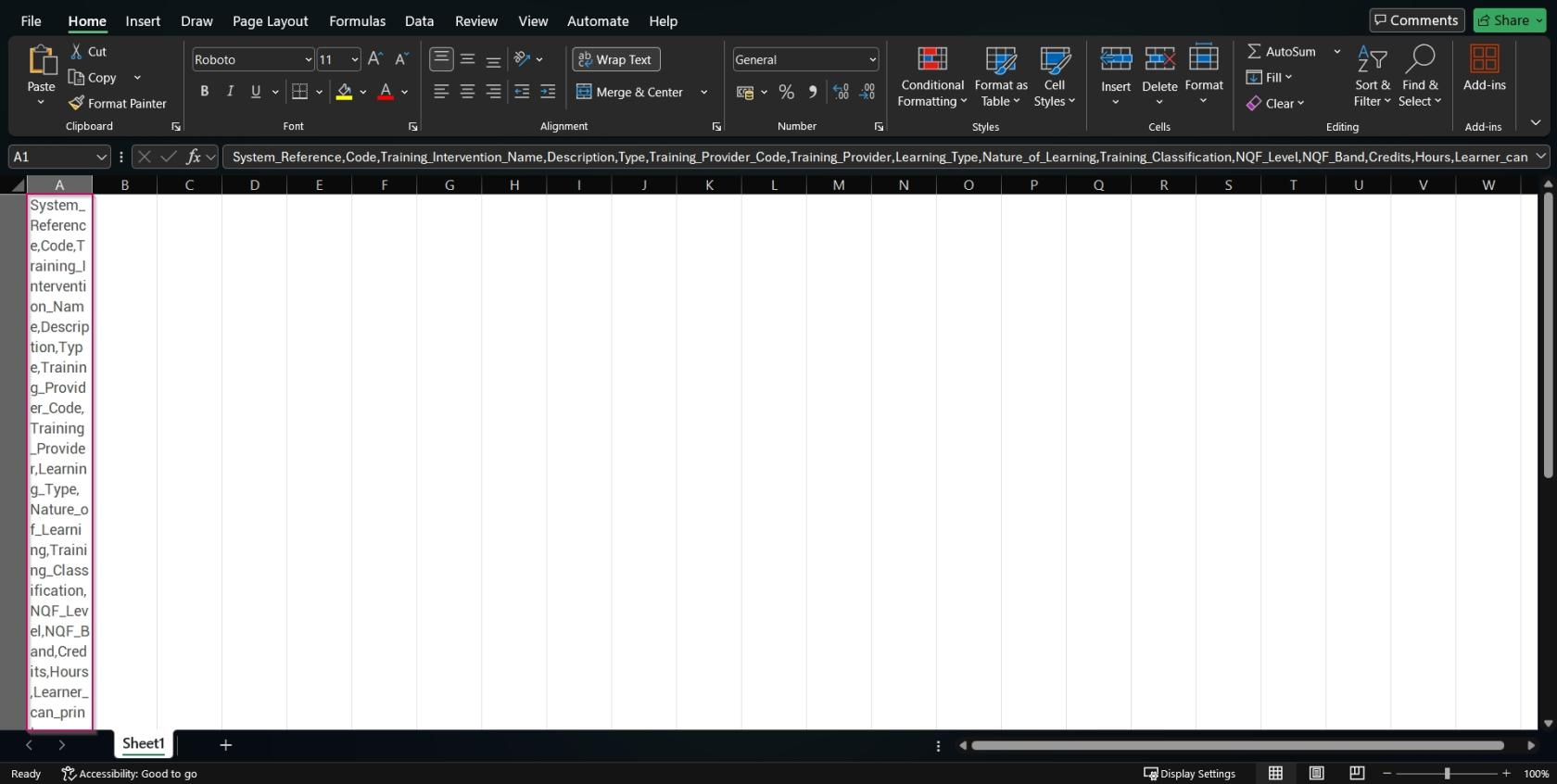
- Ensuring the first cell is selected, navigate to the **Data** tab. Click the **Text to Columns** option in the **Data Tools** section.

[![LM OS Training Interventions - Learning Portal - System Admin Menu - Create training intervention file - Data.jpg](https://signature.signifyhr.co.za/uploads/images/gallery/2026-06/scaled-1680-/h91DcvYGHnyA1MHA-lm-os-training-interventions-learning-portal-system-admin-menu-create-training-intervention-file-data.jpg)](https://signature.signifyhr.co.za/uploads/images/gallery/2026-06/h91DcvYGHnyA1MHA-lm-os-training-interventions-learning-portal-system-admin-menu-create-training-intervention-file-data.jpg)
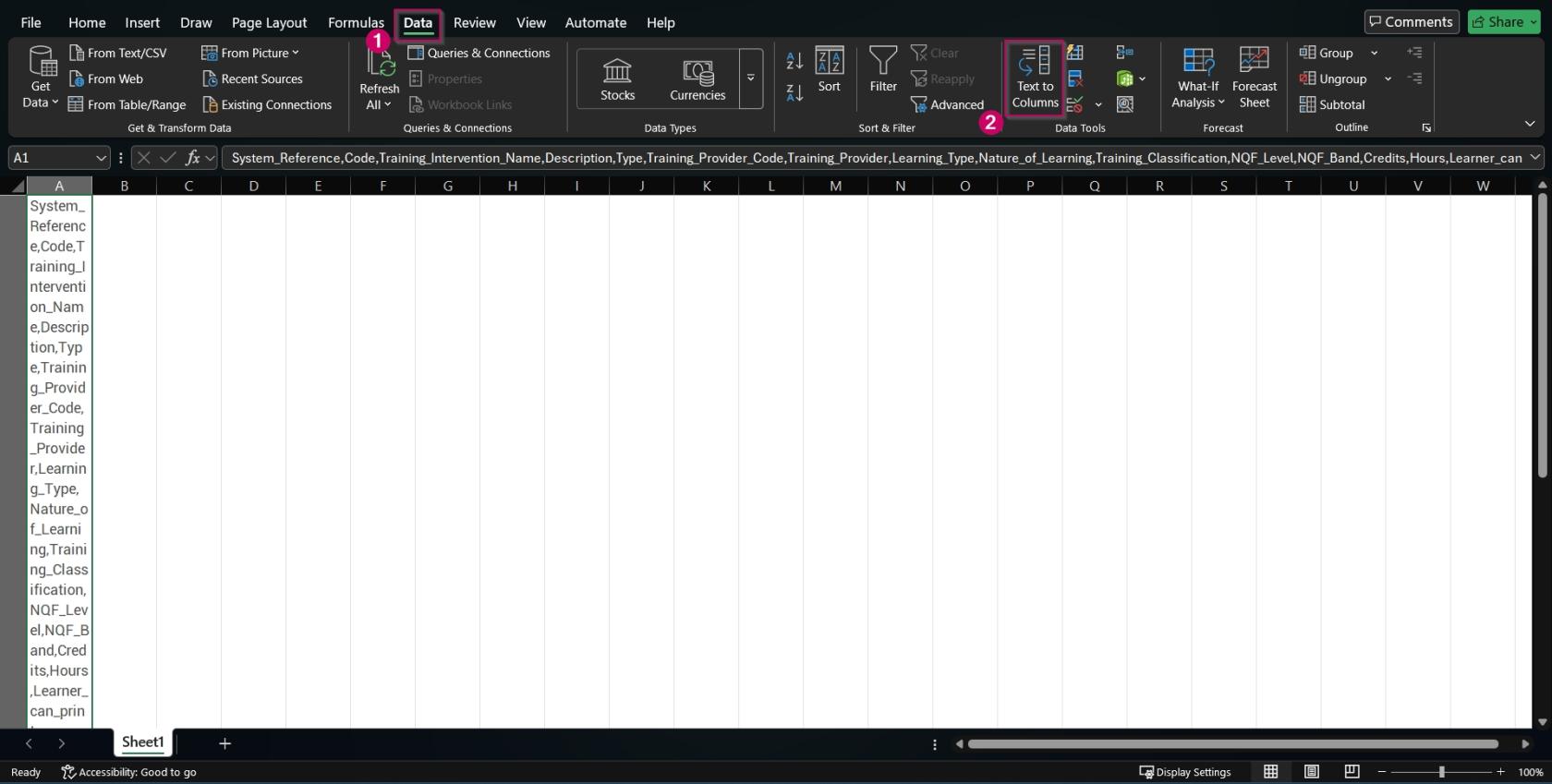
- The **Convert Text to Columns Wizard** will pop up. Click the **Delimited radio button**, then click **Next**.

[![LM OS Training Interventions - Learning Portal - System Admin Menu - Create training intervention file - Wizard.jpg](https://signature.signifyhr.co.za/uploads/images/gallery/2026-06/XIVyonI4iDyS9zjT-lm-os-training-interventions-learning-portal-system-admin-menu-create-training-intervention-file-wizard.jpg)](https://signature.signifyhr.co.za/uploads/images/gallery/2026-06/h91DcvYGHnyA1MHA-lm-os-training-interventions-learning-portal-system-admin-menu-create-training-intervention-file-data.jpg)

- In the **Delimiters** section, ensure **ONLY** the **Comma checkbox** is ticked, then click **Next**.

[![LM OS Training Interventions - Learning Portal - System Admin Menu - Create training intervention file - Comma.jpg](https://signature.signifyhr.co.za/uploads/images/gallery/2026-06/6MMe5noj0u1OBVZp-lm-os-training-interventions-learning-portal-system-admin-menu-create-training-intervention-file-comma.jpg)](https://signature.signifyhr.co.za/uploads/images/gallery/2026-06/h91DcvYGHnyA1MHA-lm-os-training-interventions-learning-portal-system-admin-menu-create-training-intervention-file-data.jpg)
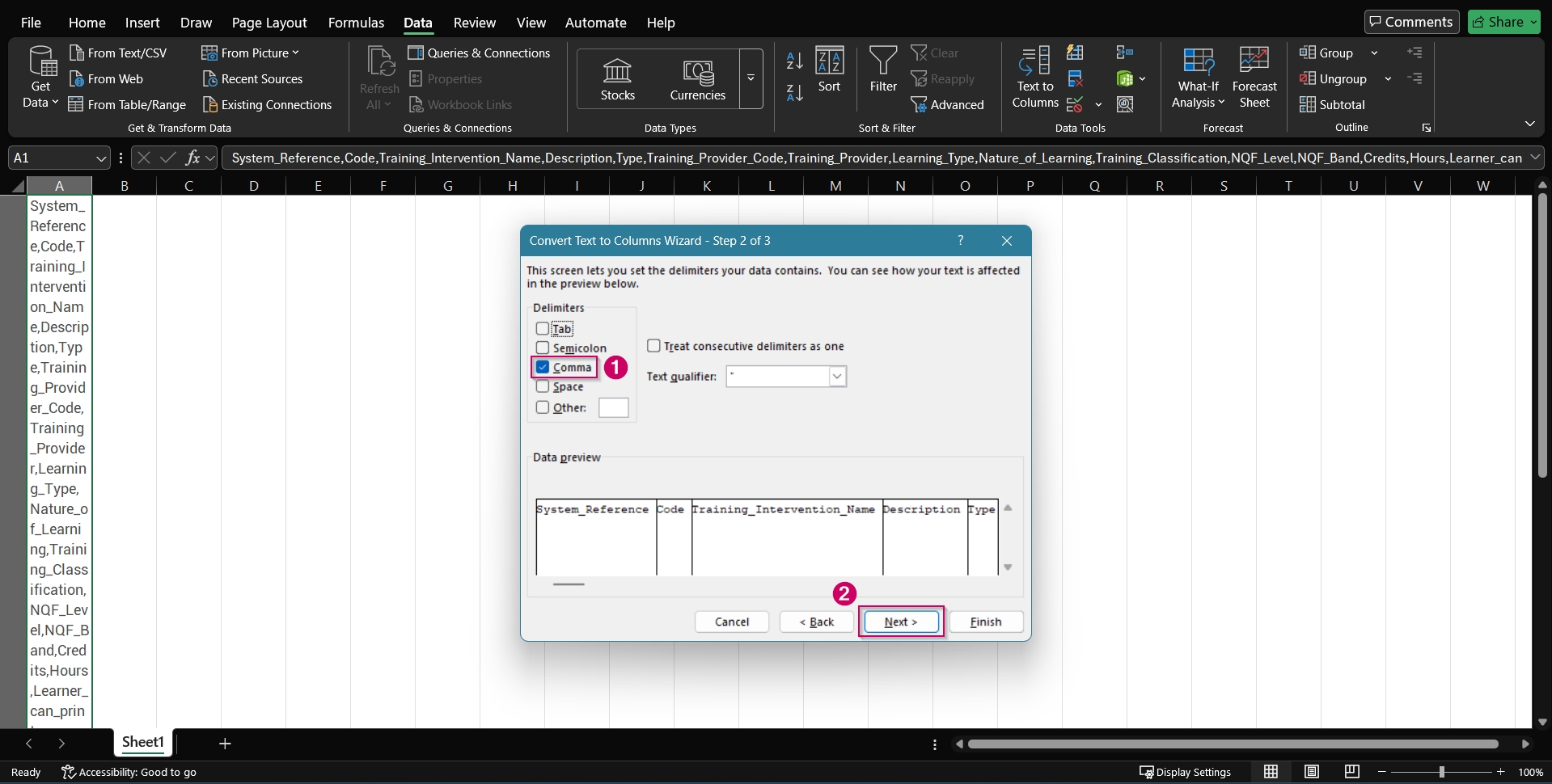
- Click **Finish**.

[![LM OS Training Interventions - Learning Portal - System Admin Menu - Create training intervention file - Finish.jpg](https://signature.signifyhr.co.za/uploads/images/gallery/2026-06/scaled-1680-/DdbkfjUtVe7CptZX-lm-os-training-interventions-learning-portal-system-admin-menu-create-training-intervention-file-finish.jpg)](https://signature.signifyhr.co.za/uploads/images/gallery/2026-06/DdbkfjUtVe7CptZX-lm-os-training-interventions-learning-portal-system-admin-menu-create-training-intervention-file-finish.jpg)
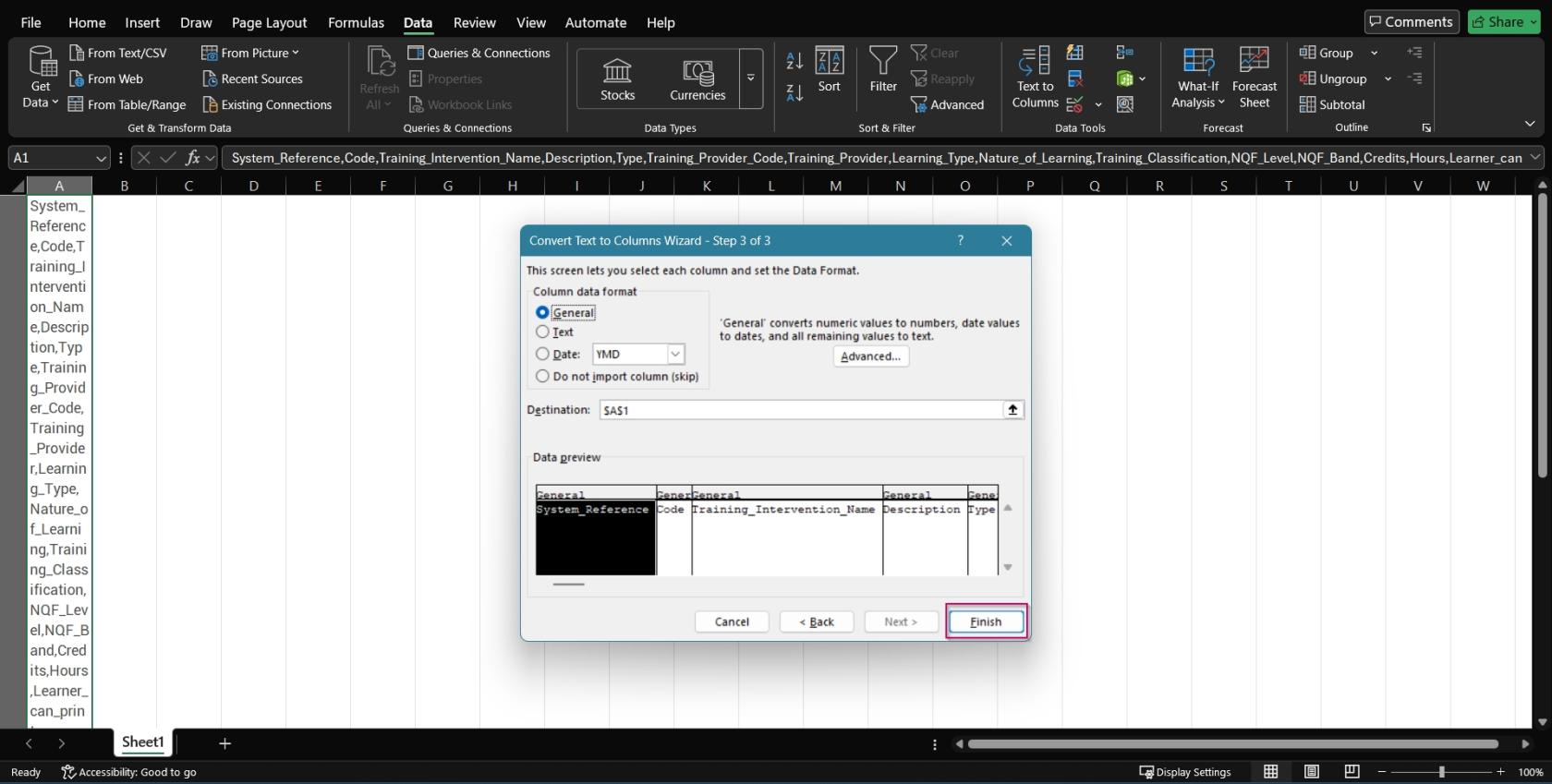
- Your file is now ready to be populated.

[![LM OS Training Interventions - Learning Portal - System Admin Menu - Create training intervention file - Done.jpg](https://signature.signifyhr.co.za/uploads/images/gallery/2026-06/scaled-1680-/p5eXChbulqpjvuUM-lm-os-training-interventions-learning-portal-system-admin-menu-create-training-intervention-file-done.jpg)](https://signature.signifyhr.co.za/uploads/images/gallery/2026-06/p5eXChbulqpjvuUM-lm-os-training-interventions-learning-portal-system-admin-menu-create-training-intervention-file-done.jpg)
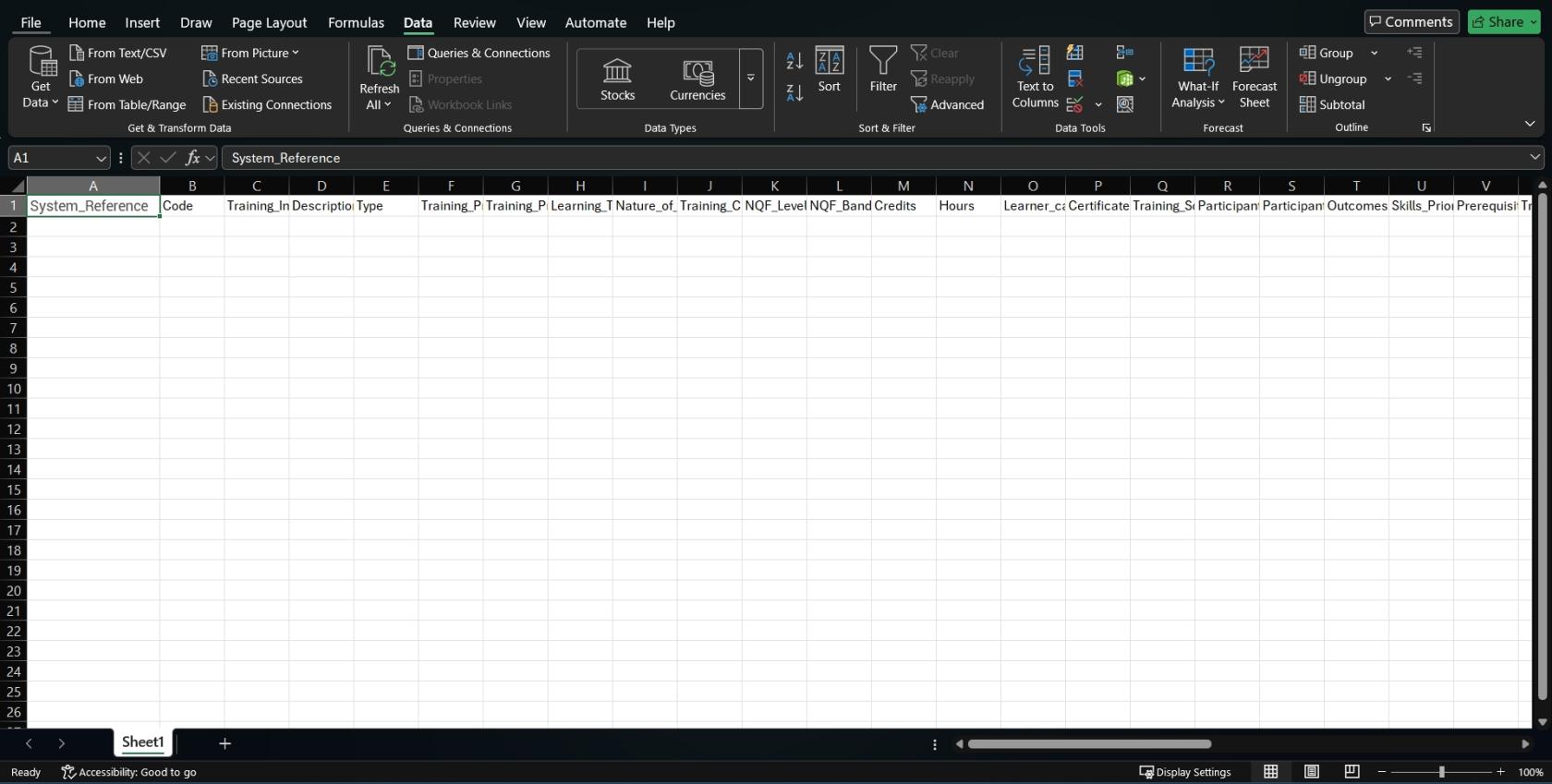
- Please do not enter any data into the System\_Reference or Code columns, as these will be updated automatically.
- Save the **Excel workbook as a .csv, .xls, or .xlsx file, then use it to import training interventions.

####  

#### Create learning pathways

##### Starting with pathways

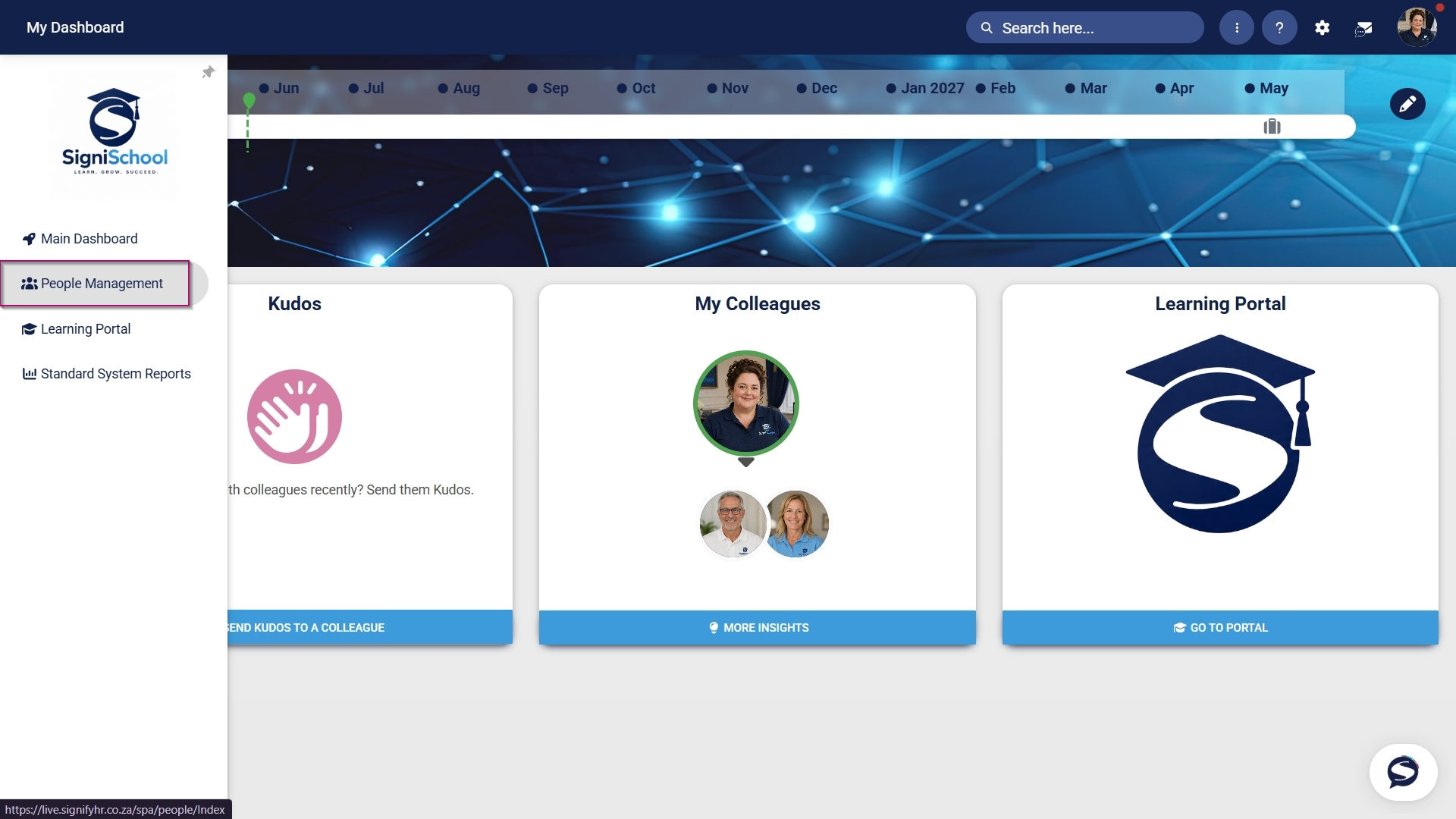
- Hover over the **sidebar** menu, then click **Learning Portal**.
![LM OS People Management Sidebar menu item.jpg](https://signature.signifyhr.co.za/uploads/images/gallery/2026-05/u7JWepx5gEgRanrj-lm-os-people-management-sidebar-menu-item.jpg)

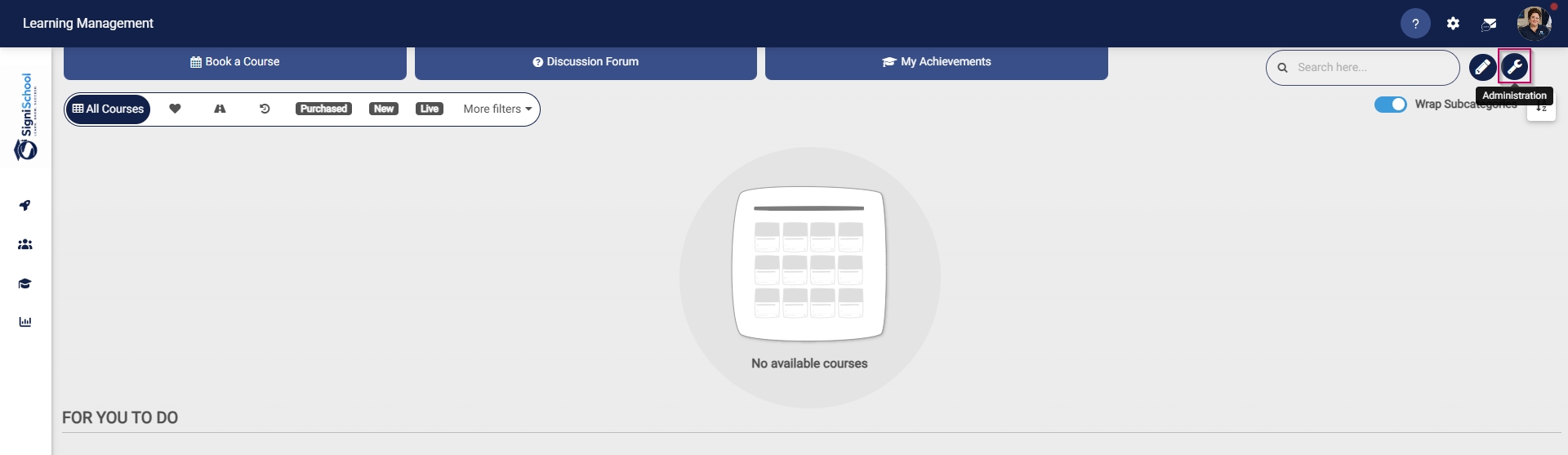
- Click the **spanner icon** to access the system's **Administration** menu.
![LM OS Training Interventions - Learning Portal - System Administration.jpg](https://signature.signifyhr.co.za/uploads/images/gallery/2026-06/BXkbbFgqwvJpw3b9-lm-os-training-interventions-learning-portal-system-administration.jpg)

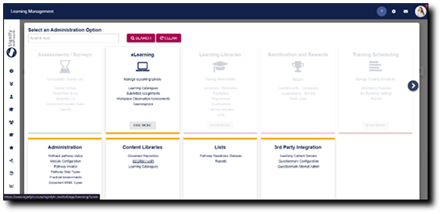
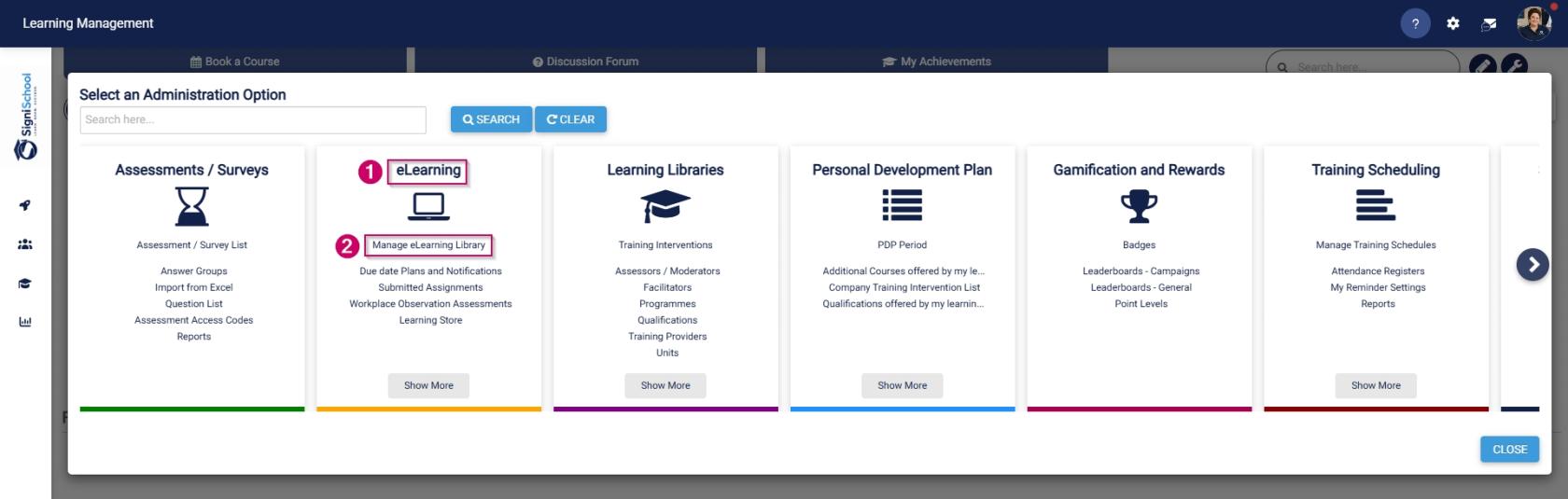
- On the **eLearning card, click **Manage eLearning Library**.

[![LM OS Build Pathways - Manage eLearning Library.jpg](https://signature.signifyhr.co.za/uploads/images/gallery/2026-06/scaled-1680-/ZaXOHRKkVOdWIOFL-lm-os-build-pathways-manage-elearning-library.jpg)](https://signature.signifyhr.co.za/uploads/images/gallery/2026-06/ZaXOHRKkVOdWIOFL-lm-os-build-pathways-manage-elearning-library.jpg)
- The **Pathways Tree View** screen will open in a new tab.
- Click **ADD MAIN CATEGORY**.

[![LM OS Build Pathways - Manage eLearning Library - Start.jpg](https://signature.signifyhr.co.za/uploads/images/gallery/2026-06/scaled-1680-/5wf4qOurso6sHsqv-lm-os-build-pathways-manage-elearning-library-start.jpg)](https://signature.signifyhr.co.za/uploads/images/gallery/2026-06/5wf4qOurso6sHsqv-lm-os-build-pathways-manage-elearning-library-start.jpg)
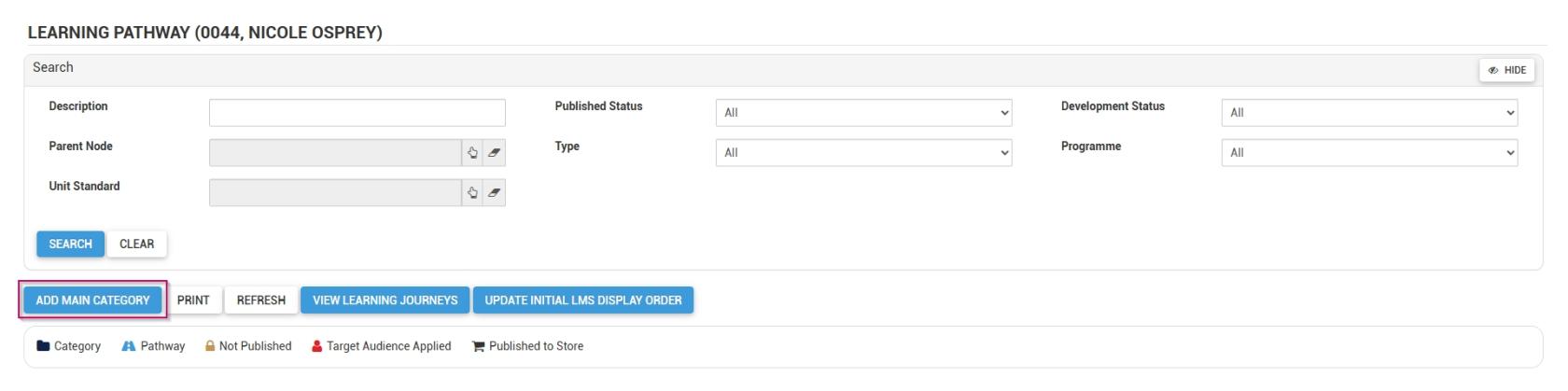
- Add a **name** for the category.
- Optionally, add a short description for the category.
- From the **drop-down menu**, select the **published status** as **Publish to this Ruleset only**.
- From the **drop-down menu**, select **Can be Published** to set the **development status**.
- Choose an **image** for the category. When adding your own image, ensure the aspect ratio is 300 by 200 px and that it is in .png, .jpg, or .gif format.
- If the main category should display on the **Learning Portal**, tick the **Show as shortcut on LMS portal checkbox.**
    - - **Please be aware that selecting a main category on the Learning Portal and checking this box for related pathways in that category may lead to duplicate entries appearing on the Learning Portal screen.**
        - If the main category appears on the **Learning Portal**, its pathways are accessible through the drill-down feature, so there's no need to tick this checkbox for those pathways.
        - It is recommended to try out this feature to determine the most effective way for you.
- Click **SAVE** when you are finished or click **BACK TO LIST** to discard your edits.

[![LM OS Build Pathways - Manage eLearning Library - Add main category.jpg](https://signature.signifyhr.co.za/uploads/images/gallery/2026-06/scaled-1680-/CYnHi4ocx7qknplL-lm-os-build-pathways-manage-elearning-library-add-main-category.jpg)](https://signature.signifyhr.co.za/uploads/images/gallery/2026-06/CYnHi4ocx7qknplL-lm-os-build-pathways-manage-elearning-library-add-main-category.jpg)

- A **new pathway** can be added to this category in two ways: 
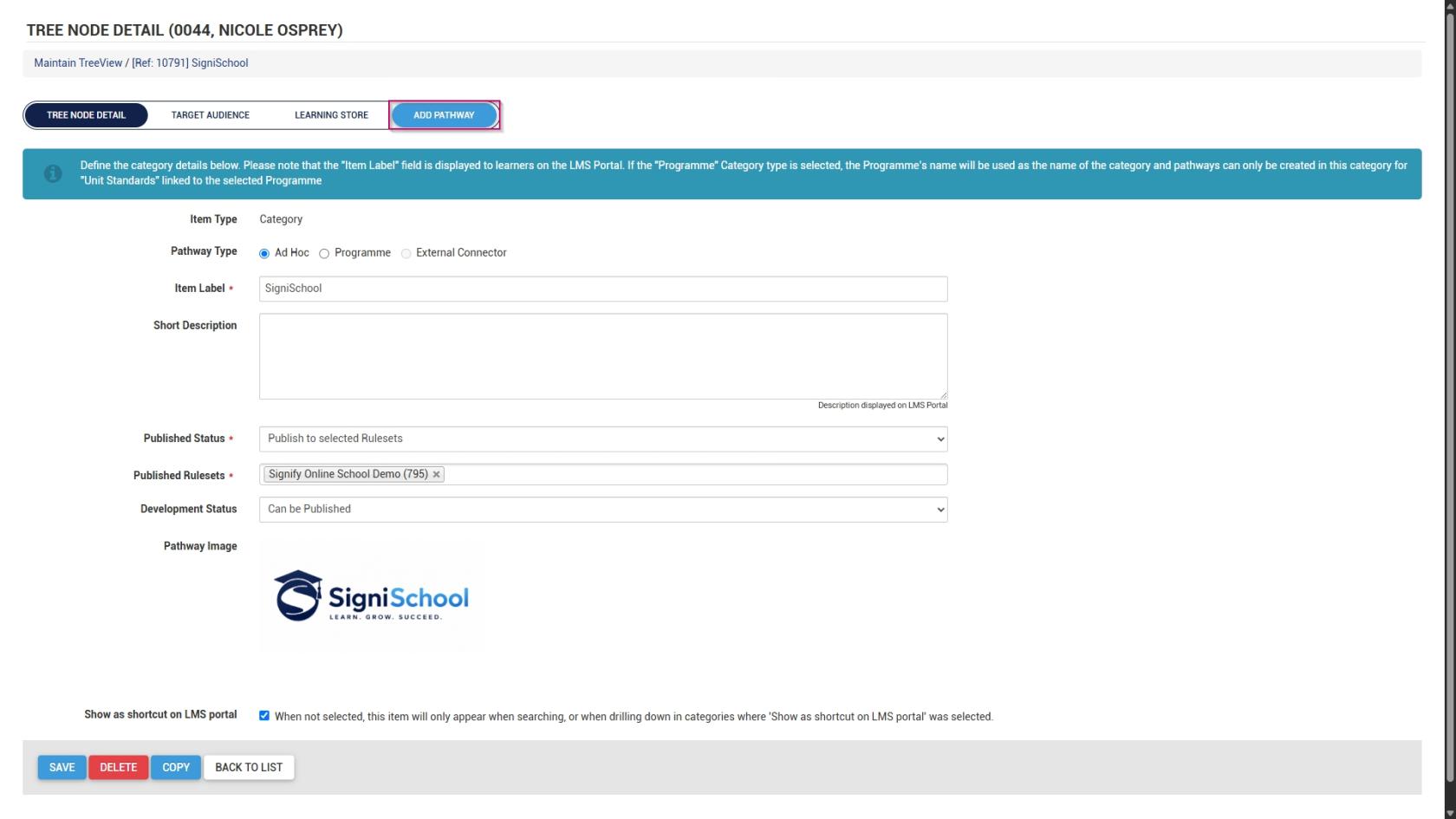
    - - Scroll to the top of the screen after the save is complete, then click **ADD PATHWAY**.

[![LM OS Build Pathways - Manage eLearning Library - Main Category - Add pathway.jpg](https://signature.signifyhr.co.za/uploads/images/gallery/2026-06/scaled-1680-/R9rNxu83q0blaEVa-lm-os-build-pathways-manage-elearning-library-main-category-add-pathway.jpg)](https://signature.signifyhr.co.za/uploads/images/gallery/2026-06/R9rNxu83q0blaEVa-lm-os-build-pathways-manage-elearning-library-main-category-add-pathway.jpg)
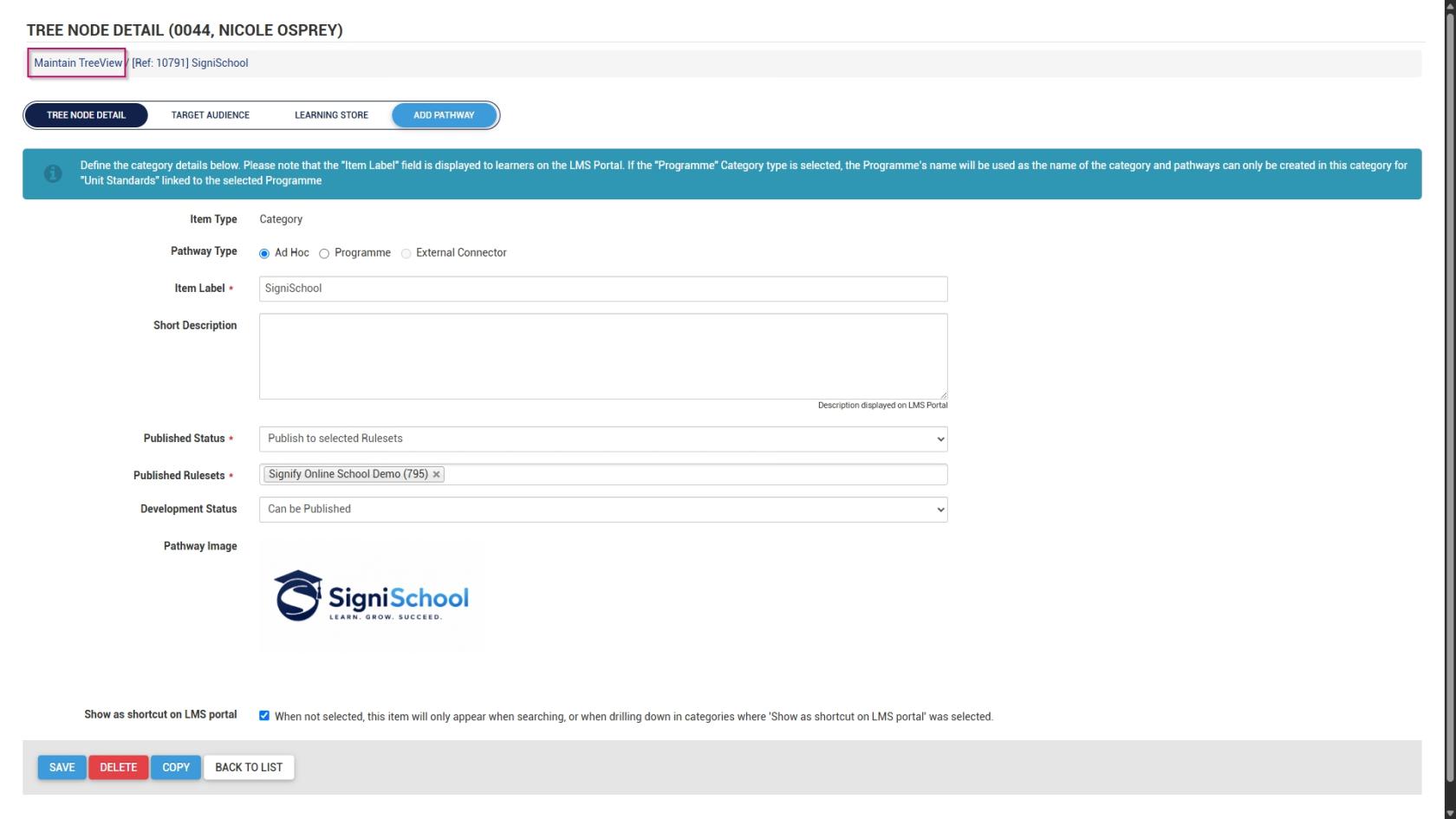
- - - Alternatively, click **Maintain TreeView** at the top of the screen to return to the **Pathways Tree View**.

[![LM OS Build Pathways - Manage eLearning Library - Add main category - Back to TreeView.jpg](https://signature.signifyhr.co.za/uploads/images/gallery/2026-06/scaled-1680-/iH1d0JLDmHaGRKNw-lm-os-build-pathways-manage-elearning-library-add-main-category-back-to-treeview.jpg)](https://signature.signifyhr.co.za/uploads/images/gallery/2026-06/iH1d0JLDmHaGRKNw-lm-os-build-pathways-manage-elearning-library-add-main-category-back-to-treeview.jpg)
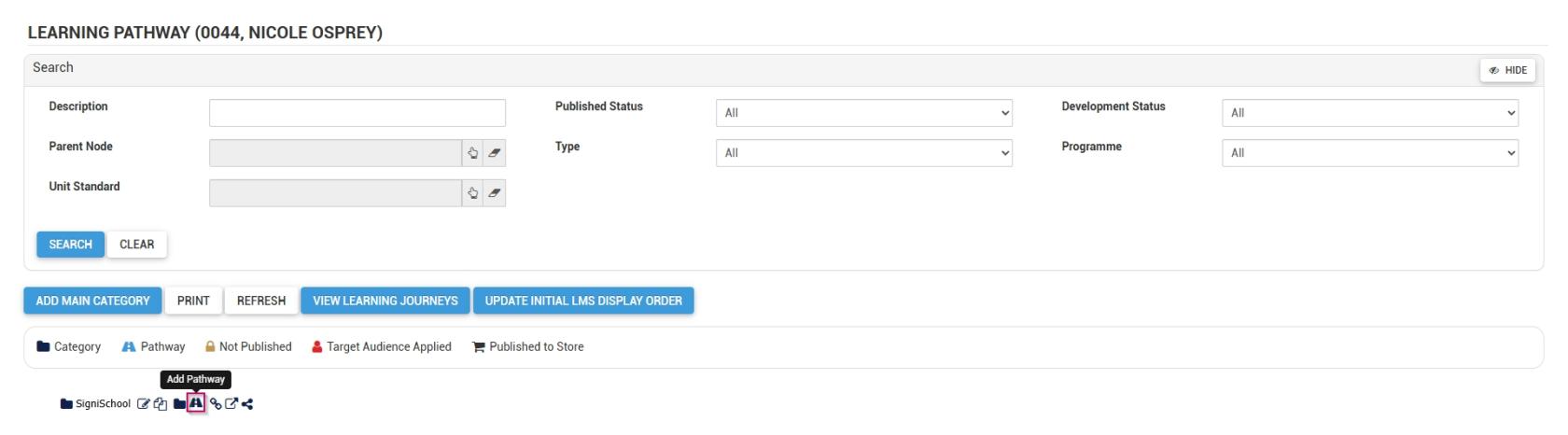
- - - Click the **pathway icon** next to the main category's name to add a new pathway.

[![LM OS Build Pathways - Manage eLearning Library - Add pathway.jpg](https://signature.signifyhr.co.za/uploads/images/gallery/2026-06/scaled-1680-/nTQvwsyb1oNiy5mM-lm-os-build-pathways-manage-elearning-library-add-pathway.jpg)](https://signature.signifyhr.co.za/uploads/images/gallery/2026-06/nTQvwsyb1oNiy5mM-lm-os-build-pathways-manage-elearning-library-add-pathway.jpg)
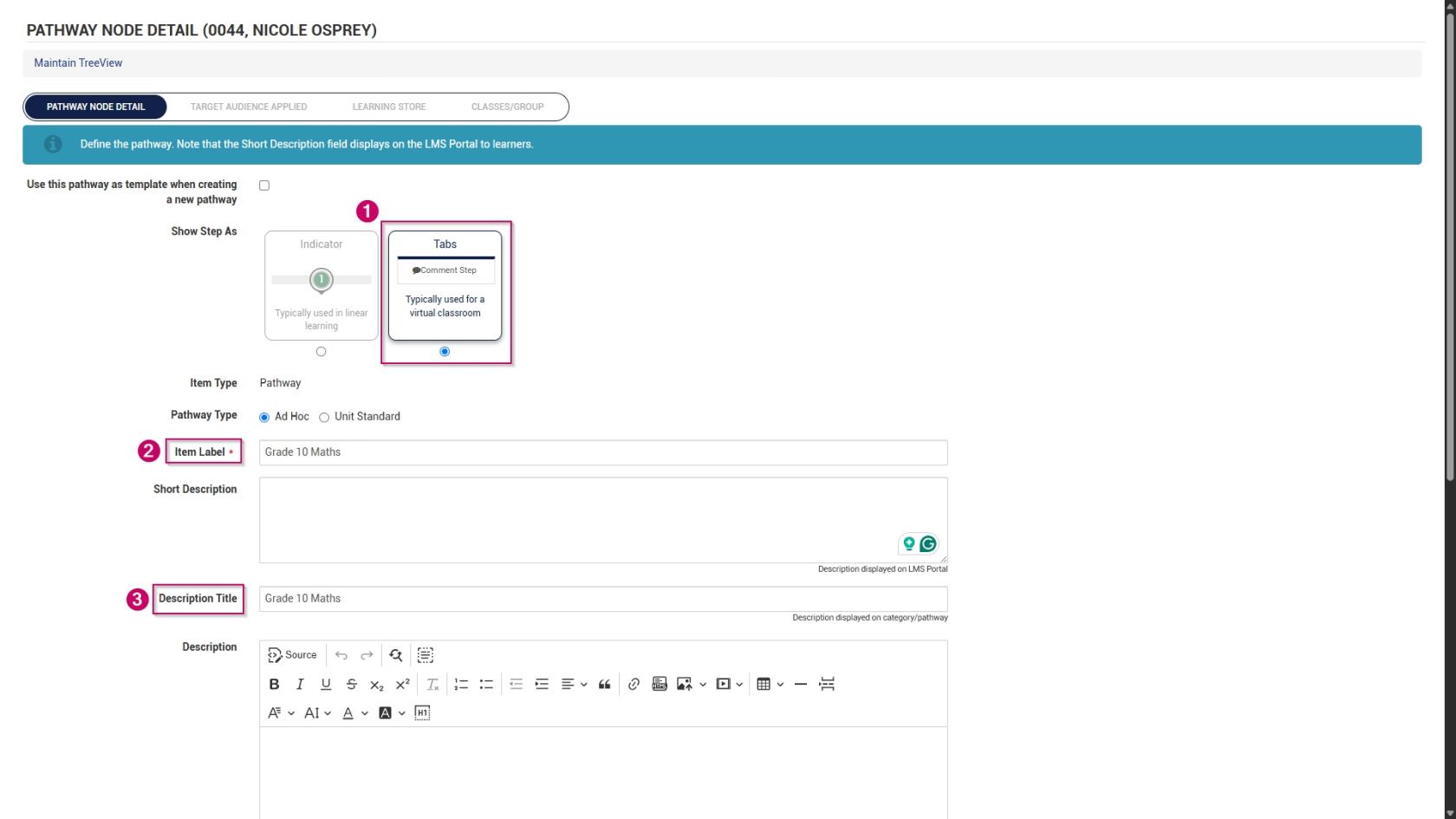
- The **pathway details** screen will open.
- Choose how the pathway steps should be displayed: 
    - - **Indicators** are used for linear learning.
        - **Tabs** are ideal for a virtual classroom or online school environment.
        - For our example, we will be using tabs.
- Add the pathway **name** to the **item label** text field.
- Optionally, add a short description for the pathway.
- Add a **description title**.
- Optionally, add a longer description for the pathway.

[![LM OS Build Pathways - Manage eLearning Library - Add pathway details.jpg](https://signature.signifyhr.co.za/uploads/images/gallery/2026-06/scaled-1680-/VuatgFXgxpkECq9o-lm-os-build-pathways-manage-elearning-library-add-pathway-details.jpg)](https://signature.signifyhr.co.za/uploads/images/gallery/2026-06/VuatgFXgxpkECq9o-lm-os-build-pathways-manage-elearning-library-add-pathway-details.jpg)
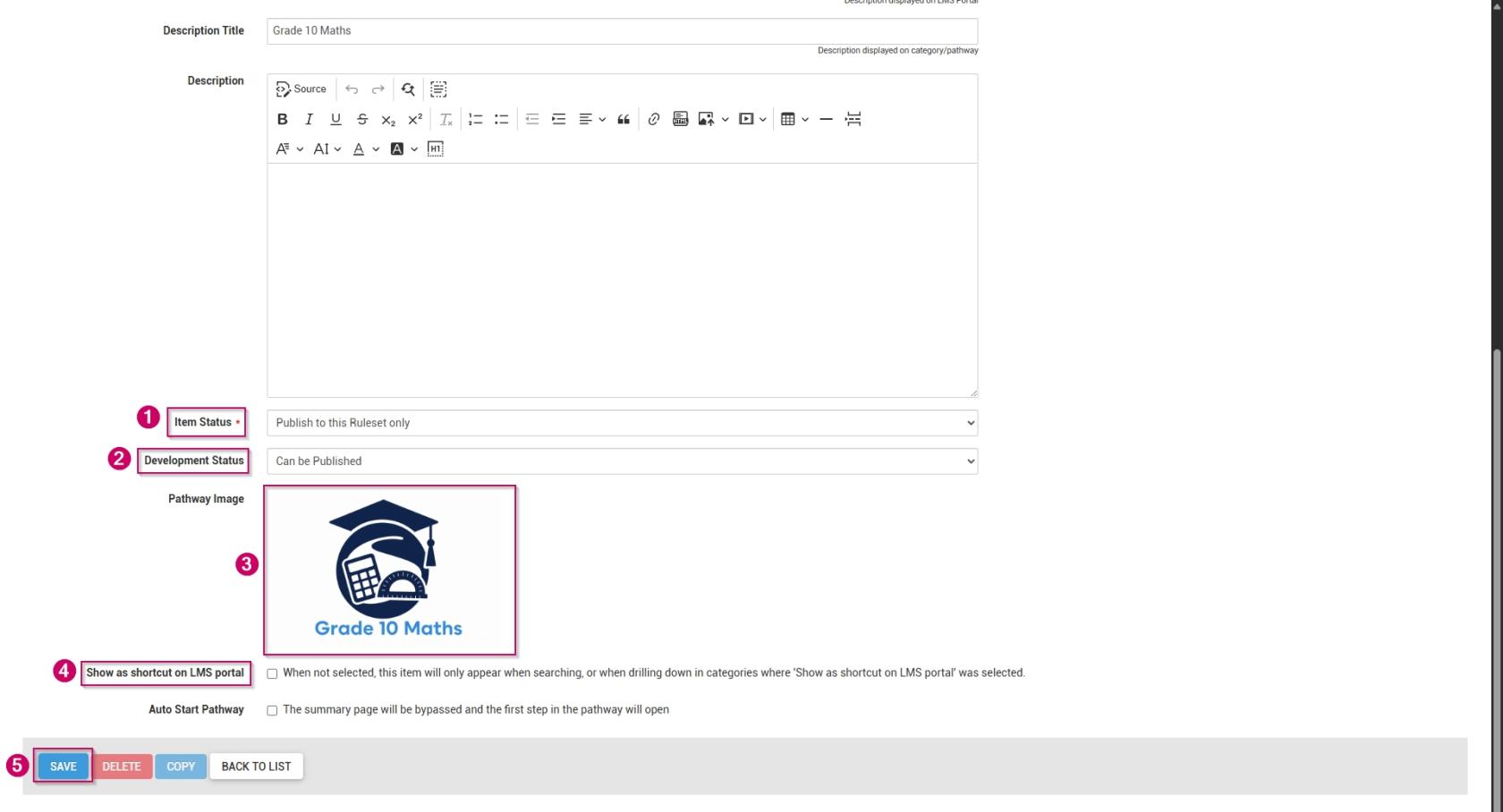
- From the **drop-down menu**, select the **item status** as **Publish to this Ruleset only**.
- From the **drop-down menu**, select **Can be Published** to set the **development status**.
- Choose a **pathway image** for the pathway. When adding your own image, ensure the aspect ratio is 300 by 200 px and that it is in .png, .jpg, or .gif format.
- If the main category should display on the **Learning Portal**, tick the **Show as shortcut on LMS portal checkbox**.
- Optionally, tick the **Auto Start Pathway checkbox** to skip the summary page when learners start the pathway.
- Click **SAVE** when you are finished or click **BACK TO LIST** to discard your edits.

[![LM OS Build Pathways - Manage eLearning Library - Add pathway details (continued).jpg](https://signature.signifyhr.co.za/uploads/images/gallery/2026-06/scaled-1680-/Nxc5SjHdqK5zircf-lm-os-build-pathways-manage-elearning-library-add-pathway-details-continued.jpg)](https://signature.signifyhr.co.za/uploads/images/gallery/2026-06/Nxc5SjHdqK5zircf-lm-os-build-pathways-manage-elearning-library-add-pathway-details-continued.jpg)
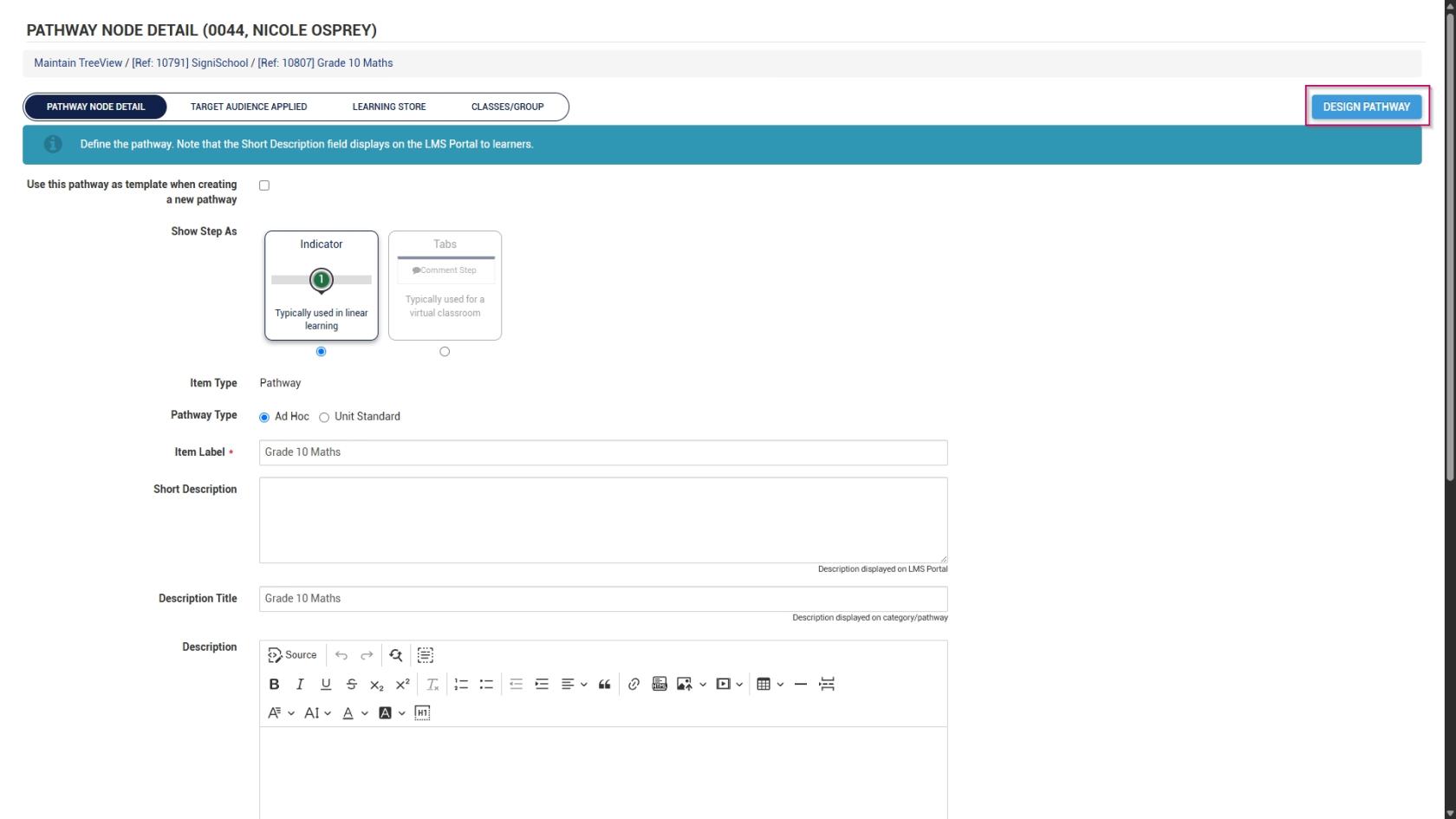
- Scroll to the top of the screen after the save is complete, then click **DESIGN PATHWAY**.

[![LM OS Build Pathways - Manage eLearning Library - Add pathway - Design pathway.jpg](https://signature.signifyhr.co.za/uploads/images/gallery/2026-06/scaled-1680-/rshqQzjkWWmNcdE0-lm-os-build-pathways-manage-elearning-library-add-pathway-design-pathway.jpg)](https://signature.signifyhr.co.za/uploads/images/gallery/2026-06/rshqQzjkWWmNcdE0-lm-os-build-pathways-manage-elearning-library-add-pathway-design-pathway.jpg)
- This overview explains how to set up **learning pathways** for an online school. We will create the following steps, which are mainly used in an eLearning environment:  
    
    - - Comment
        - Document (Download)
        - Acceptance
        - SCORM/xAPI
        - Assessment (Online)
        - Assignment (Upload)
        - Certification point
        - Class/Group
- Feel free to include any additional step types not covered in this guide.

##### Comment

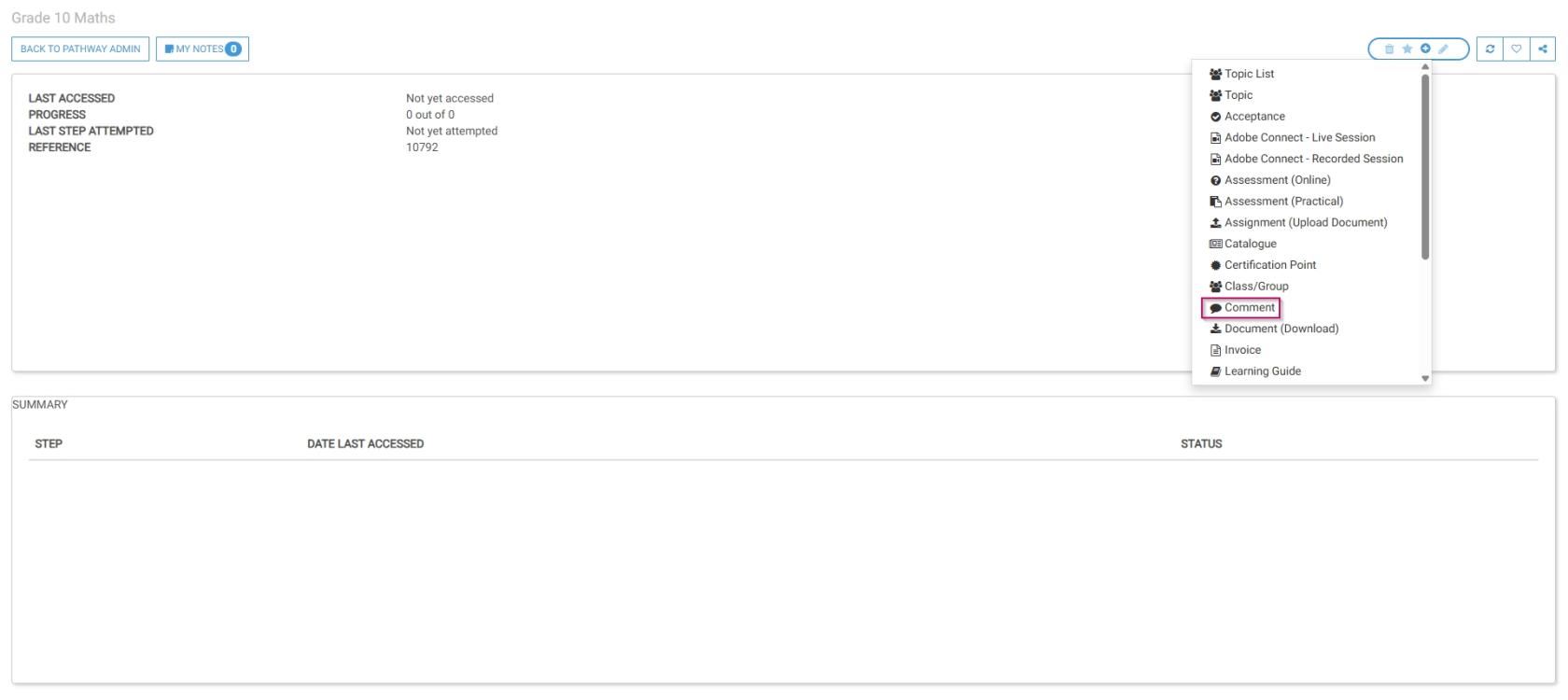
- The pathway design screen will open. Select **Comment** from the menu.

[![LM OS Build Pathways - Manage eLearning Library - Design pathway - Add step.jpg](https://signature.signifyhr.co.za/uploads/images/gallery/2026-06/scaled-1680-/wSC61UfCIZOJyfr4-lm-os-build-pathways-manage-elearning-library-design-pathway-add-step.jpg)](https://signature.signifyhr.co.za/uploads/images/gallery/2026-06/wSC61UfCIZOJyfr4-lm-os-build-pathways-manage-elearning-library-design-pathway-add-step.jpg)
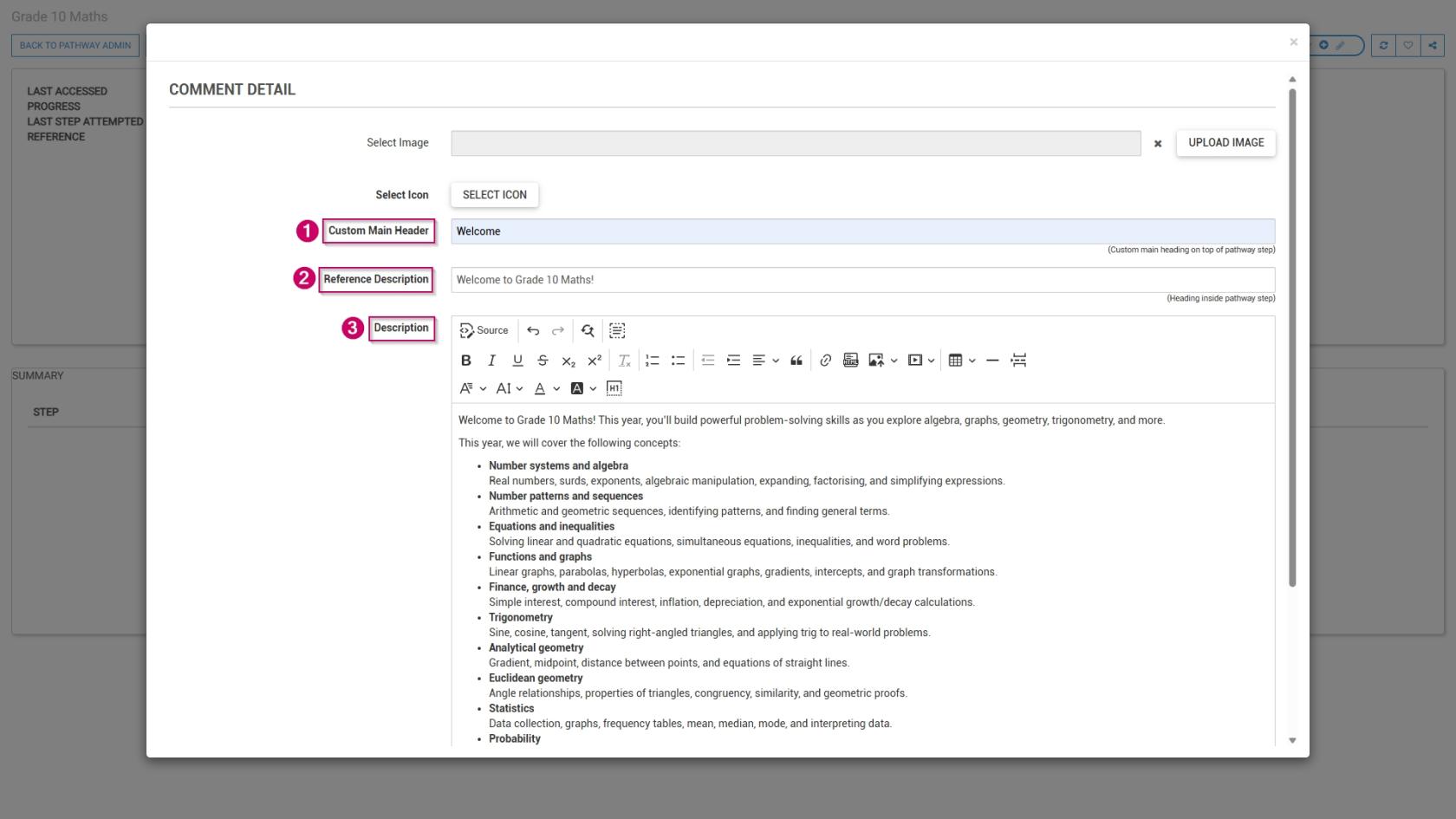
- Optionally, select an **image** or a custom **icon** for your step.
- Add a **main header**, or title, for this step.
- Add a **subheading** to the **Reference Description** field.
- Add a **description** for this step.

[![LM OS Build Pathways - Manage eLearning Library - Design pathway - Add step - Comment.jpg](https://signature.signifyhr.co.za/uploads/images/gallery/2026-06/scaled-1680-/1RMF7RfM8IURHNcj-lm-os-build-pathways-manage-elearning-library-design-pathway-add-step-comment.jpg)](https://signature.signifyhr.co.za/uploads/images/gallery/2026-06/1RMF7RfM8IURHNcj-lm-os-build-pathways-manage-elearning-library-design-pathway-add-step-comment.jpg)
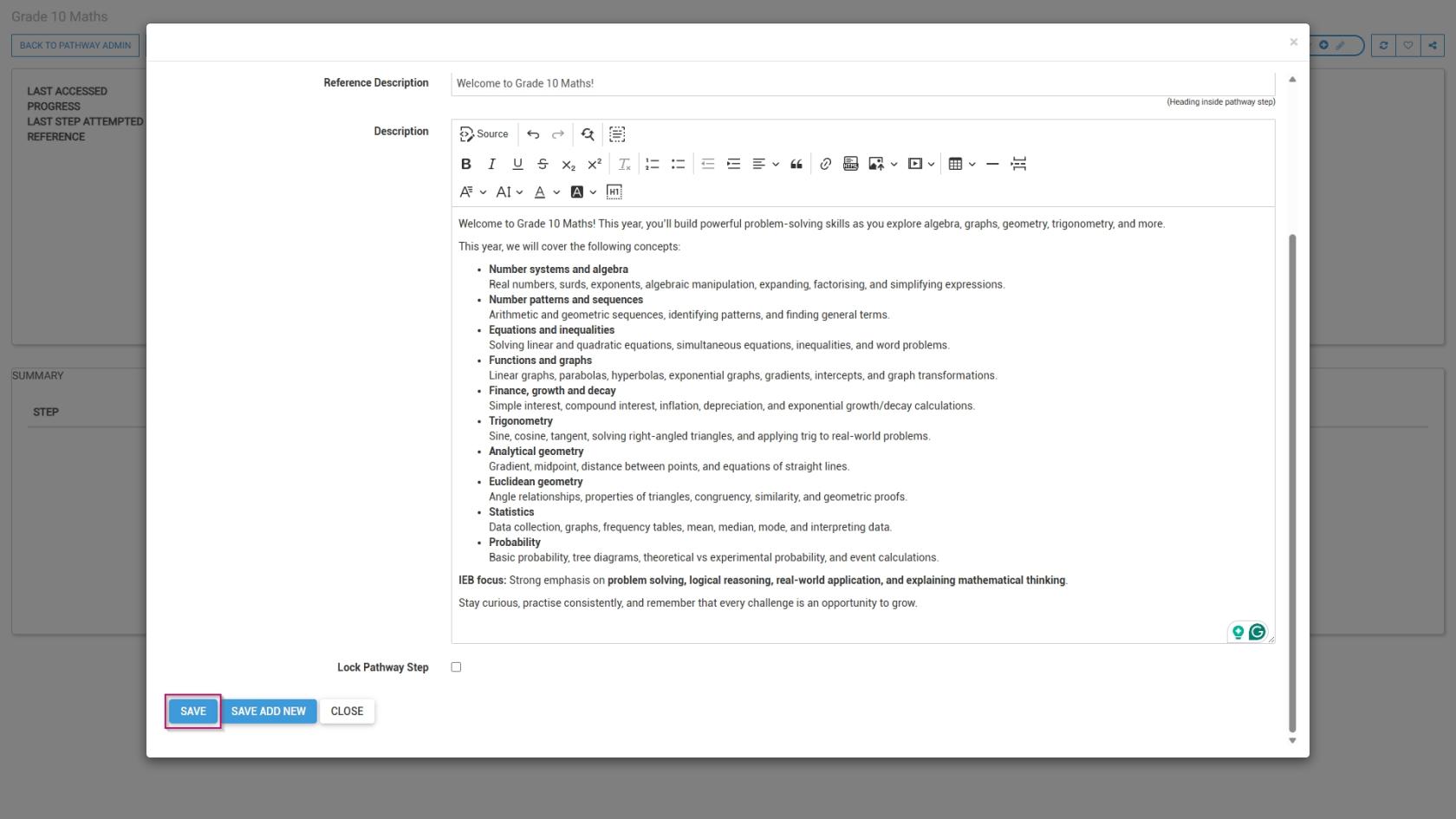
- Click **SAVE** when you are finished, **SAVE ADD NEW** to add another comment step or click **CANCEL** to discard your edits.

[![LM OS Build Pathways - Manage eLearning Library - Design pathway - Add step - Comment save.jpg](https://signature.signifyhr.co.za/uploads/images/gallery/2026-06/scaled-1680-/NGOCXHwTlYmxIBkI-lm-os-build-pathways-manage-elearning-library-design-pathway-add-step-comment-save.jpg)](https://signature.signifyhr.co.za/uploads/images/gallery/2026-06/NGOCXHwTlYmxIBkI-lm-os-build-pathways-manage-elearning-library-design-pathway-add-step-comment-save.jpg)
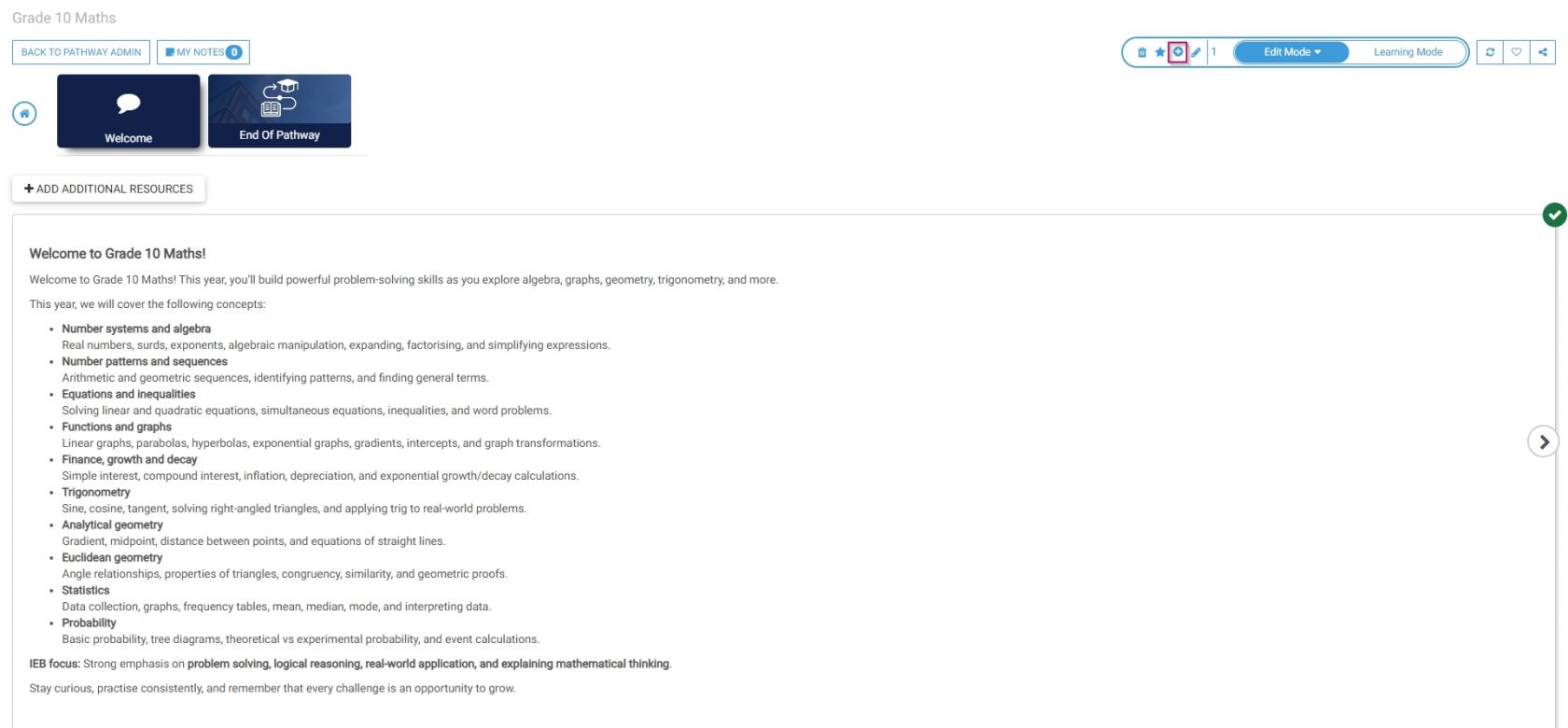
- The comment step has been successfully added to the pathway.
- To add an additional step, click the **plus icon**.

[![LM OS Build Pathways - Manage eLearning Library - Design pathway - Add next step.jpg](https://signature.signifyhr.co.za/uploads/images/gallery/2026-06/scaled-1680-/P9U6U7n76JtoWCXk-lm-os-build-pathways-manage-elearning-library-design-pathway-add-next-step.jpg)](https://signature.signifyhr.co.za/uploads/images/gallery/2026-06/P9U6U7n76JtoWCXk-lm-os-build-pathways-manage-elearning-library-design-pathway-add-next-step.jpg)
##### Document (Download)

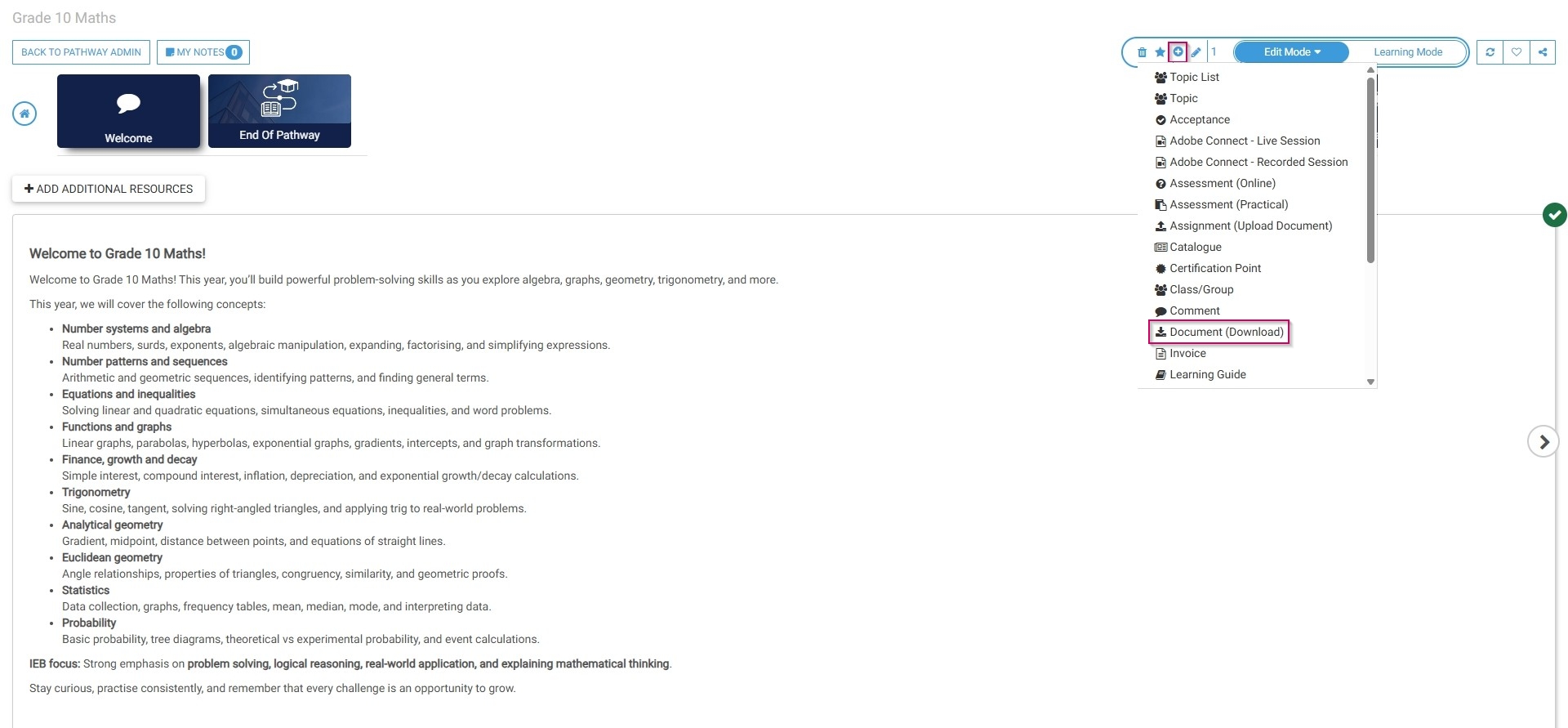
- Select **Document (Download)** from the menu.

[![LM OS Build Pathways - Manage eLearning Library - Design pathway - Document download - Add.jpg](https://signature.signifyhr.co.za/uploads/images/gallery/2026-06/GSRz7o7Y6G4GDzrR-lm-os-build-pathways-manage-elearning-library-design-pathway-document-download-add.jpg)](https://signature.signifyhr.co.za/uploads/images/gallery/2026-06/wSC61UfCIZOJyfr4-lm-os-build-pathways-manage-elearning-library-design-pathway-add-step.jpg)
- Optionally, select an **image** or a custom **icon** for your step.
- Add a **main header**, or title, for this step.
- Add a **subheading** to the **Reference Description** field.
- Choose a **file** from your computer for users to download.
- Tick the **checkbox if you would like the document to appear in this step.
- Add a **description** for this step.

[![LM OS Build Pathways - Manage eLearning Library - Design pathway - Document download.jpg](https://signature.signifyhr.co.za/uploads/images/gallery/2026-06/ML3QmPp0xMnX4O5m-lm-os-build-pathways-manage-elearning-library-design-pathway-document-download.jpg)](https://signature.signifyhr.co.za/uploads/images/gallery/2026-06/1RMF7RfM8IURHNcj-lm-os-build-pathways-manage-elearning-library-design-pathway-add-step-comment.jpg)
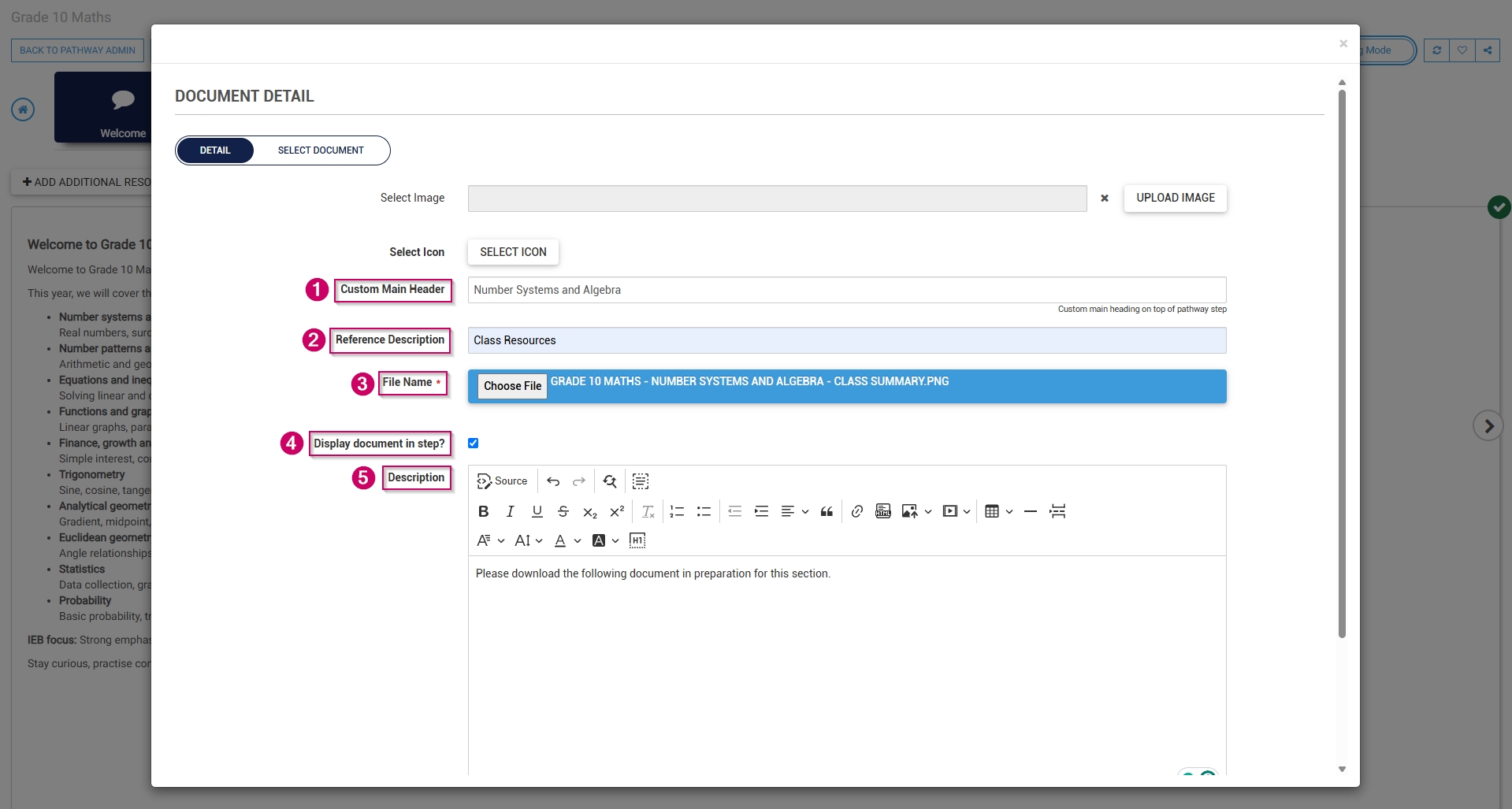
- Click **SAVE** when you are finished, **SAVE ADD NEW** to add another document download step or click **CLOSE** to discard your edits.

[![LM OS Build Pathways - Manage eLearning Library - Design pathway - Document download - Save.jpg](https://signature.signifyhr.co.za/uploads/images/gallery/2026-06/yuGxwbTOzQRvOawW-lm-os-build-pathways-manage-elearning-library-design-pathway-document-download-save.jpg)](https://signature.signifyhr.co.za/uploads/images/gallery/2026-06/NGOCXHwTlYmxIBkI-lm-os-build-pathways-manage-elearning-library-design-pathway-add-step-comment-save.jpg)
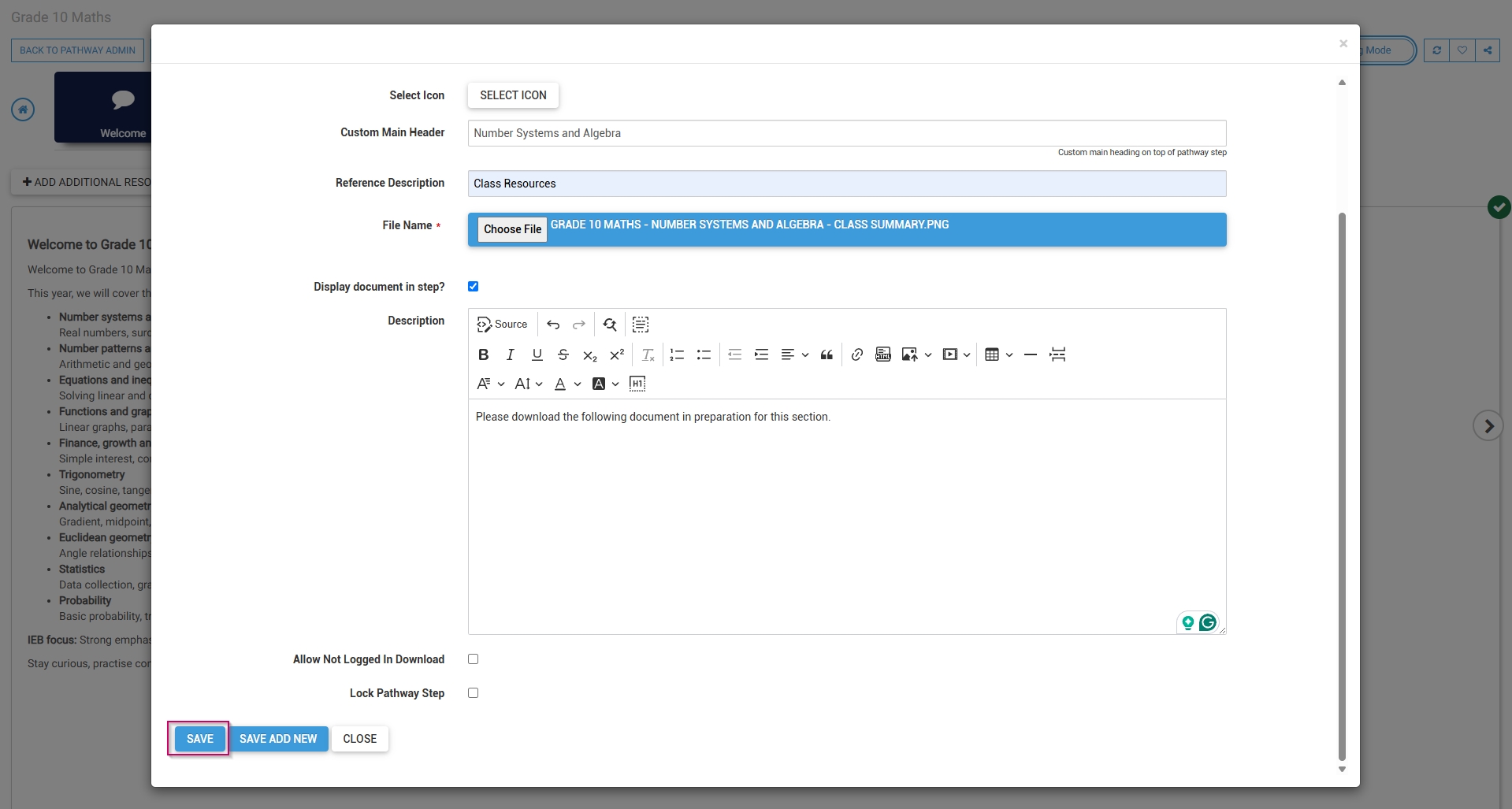
- The document download step has been successfully added to the pathway.

##### Acceptance  


- Select **Acceptance** from the menu.

[![LM OS Build Pathways - Manage eLearning Library - Design pathway - Acceptance.jpg](https://signature.signifyhr.co.za/uploads/images/gallery/2026-06/IY66IzXpNx53v4E9-lm-os-build-pathways-manage-elearning-library-design-pathway-acceptance.jpg)](https://signature.signifyhr.co.za/uploads/images/gallery/2026-06/wSC61UfCIZOJyfr4-lm-os-build-pathways-manage-elearning-library-design-pathway-add-step.jpg)
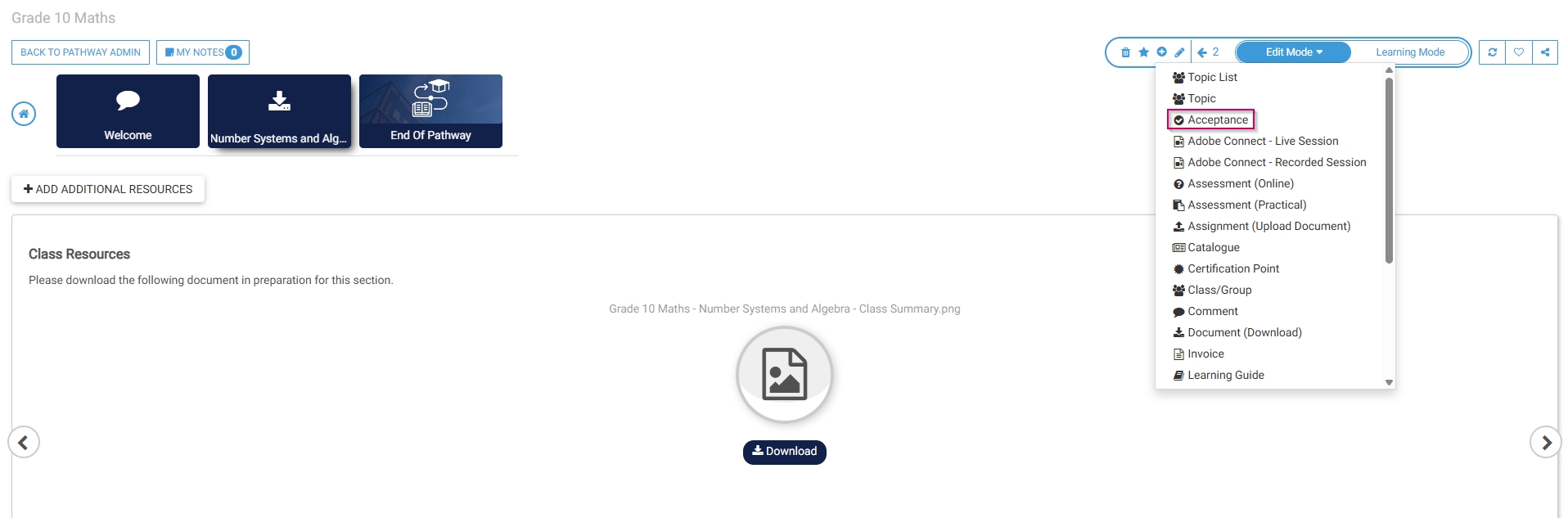
- Optionally, select an **image** or a custom **icon** for your step.
- Add a **main header**, or title, for this step.
- Add a **subheading** to the **Reference Description** field.
- Add an **acceptance title**, which will display next to the tickbox learners are required to tick for this step.
- Add a **description** for this step.

[![LM OS Build Pathways - Manage eLearning Library - Design pathway - Acceptance - Details.jpg](https://signature.signifyhr.co.za/uploads/images/gallery/2026-06/gH77RlZfTpKU1BLY-lm-os-build-pathways-manage-elearning-library-design-pathway-acceptance-details.jpg)](https://signature.signifyhr.co.za/uploads/images/gallery/2026-06/1RMF7RfM8IURHNcj-lm-os-build-pathways-manage-elearning-library-design-pathway-add-step-comment.jpg)
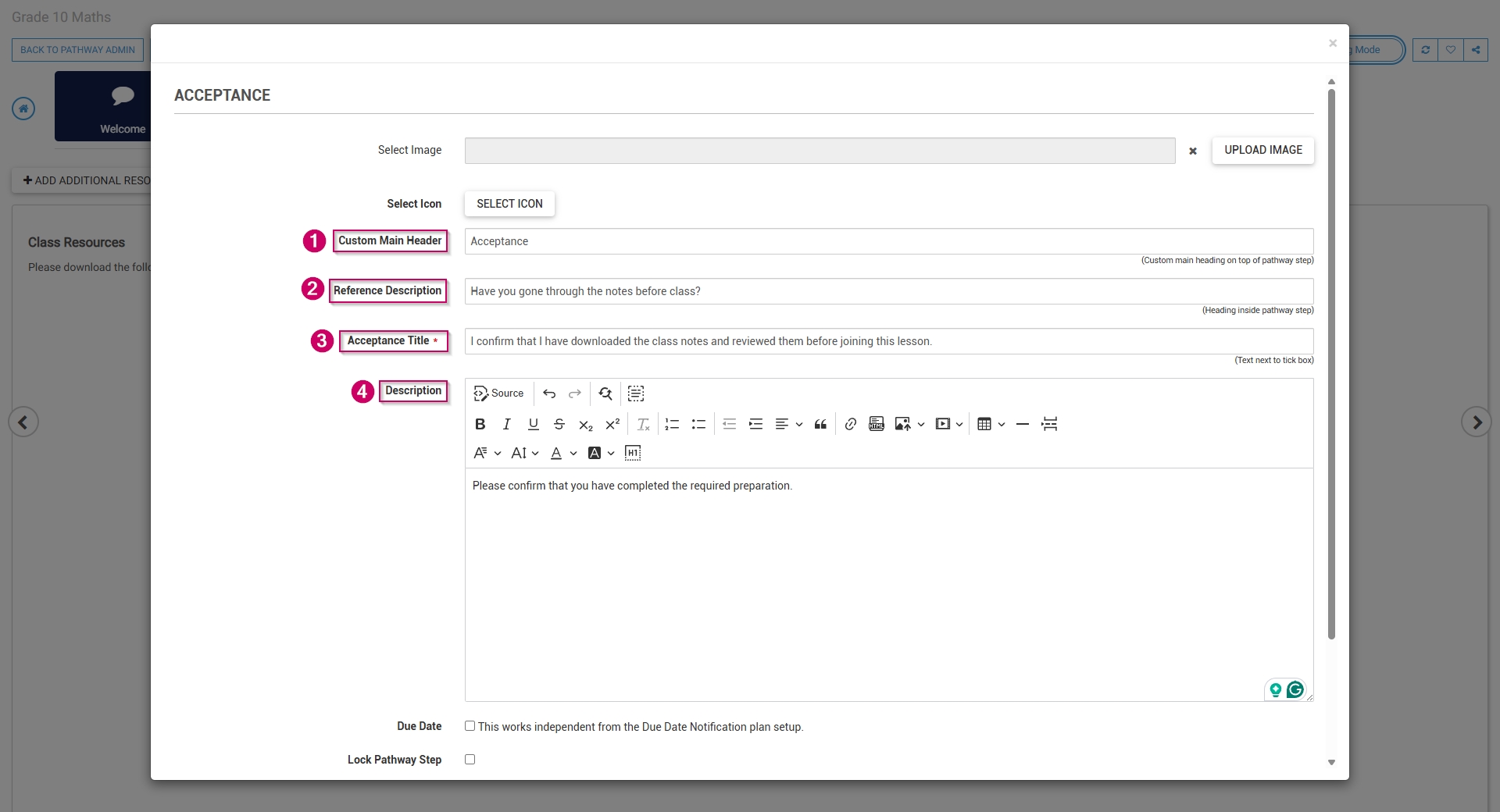
- To log this step in the **learner's record**, check the **box,** then click the **hand icon** to select a **training intervention** to associate with this step.

[![LM OS Build Pathways - Manage eLearning Library - Design pathway - Acceptance - Details (continued).jpg](https://signature.signifyhr.co.za/uploads/images/gallery/2026-06/scaled-1680-/4TxkuqaUsfugmmtL-lm-os-build-pathways-manage-elearning-library-design-pathway-acceptance-details-continued.jpg)](https://signature.signifyhr.co.za/uploads/images/gallery/2026-06/4TxkuqaUsfugmmtL-lm-os-build-pathways-manage-elearning-library-design-pathway-acceptance-details-continued.jpg)
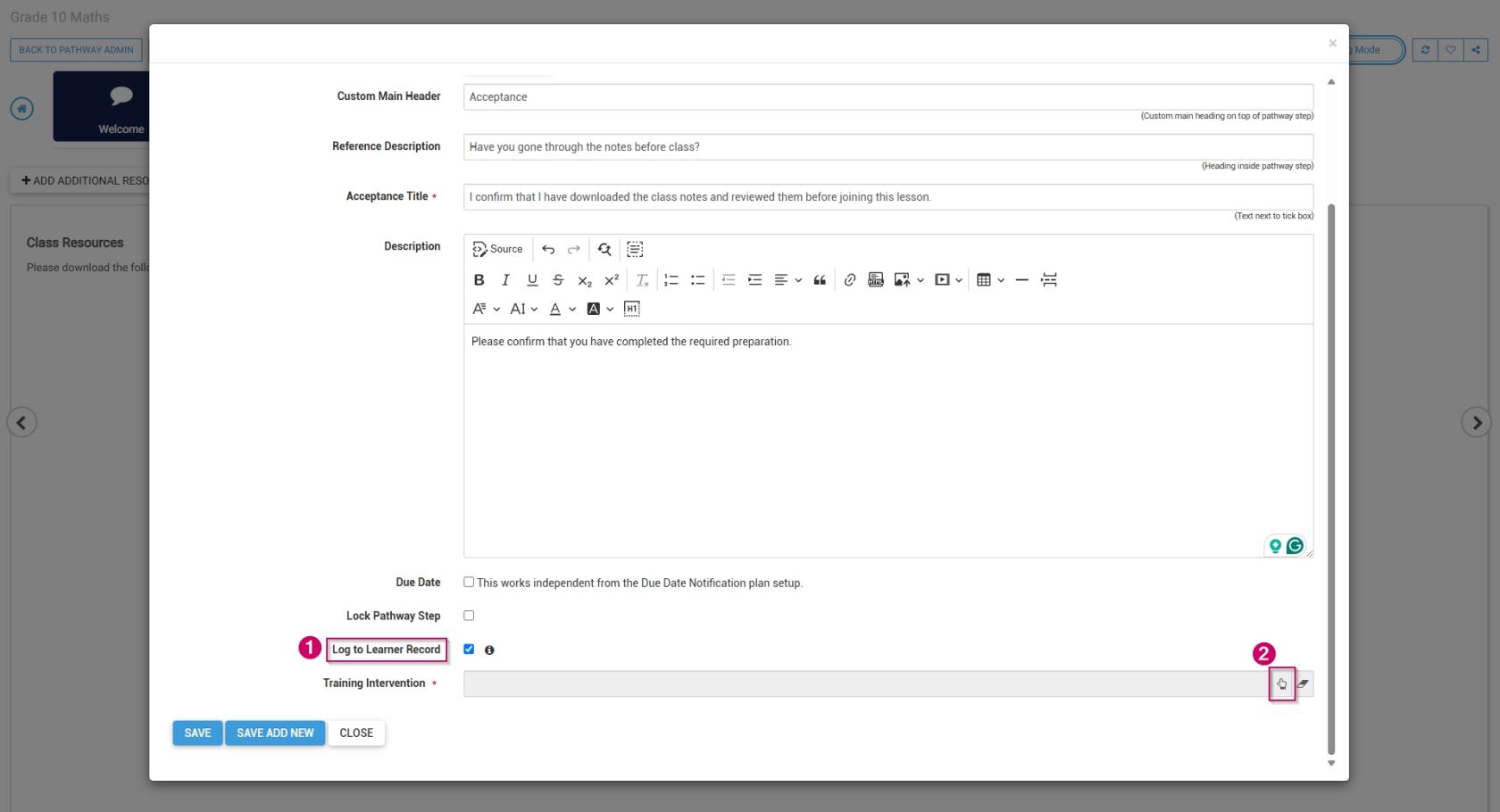
- Select the **training intervention**, then click **SELECT**.

[![LM OS Build Pathways - Manage eLearning Library - Design pathway - Acceptance - Details (continued) - Select.jpg](https://signature.signifyhr.co.za/uploads/images/gallery/2026-06/scaled-1680-/ssB4yv74B9rhu7S6-lm-os-build-pathways-manage-elearning-library-design-pathway-acceptance-details-continued-select.jpg)](https://signature.signifyhr.co.za/uploads/images/gallery/2026-06/ssB4yv74B9rhu7S6-lm-os-build-pathways-manage-elearning-library-design-pathway-acceptance-details-continued-select.jpg)
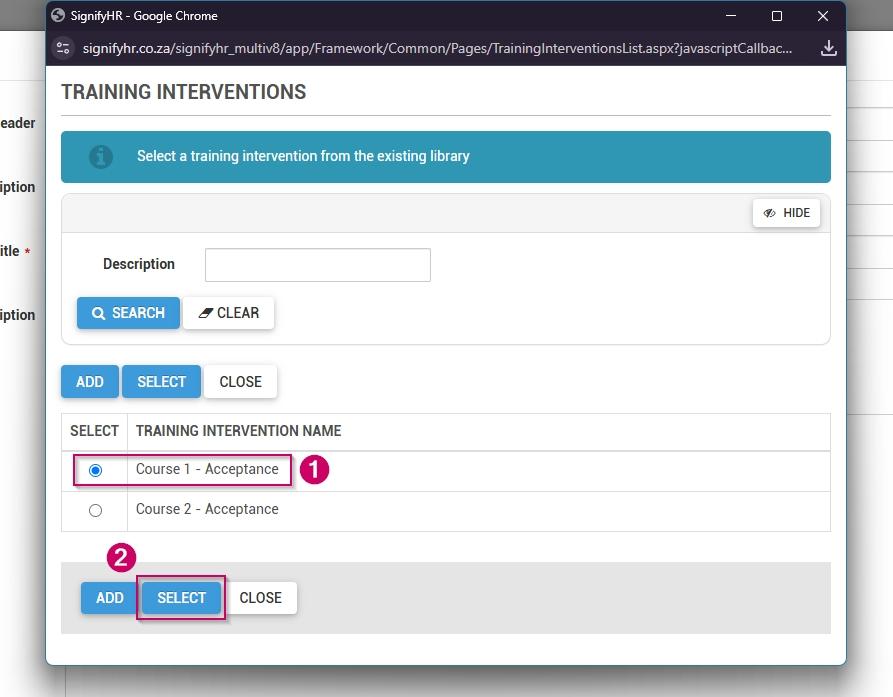
- Click **SAVE** when you are finished, **SAVE ADD NEW** to add another acceptance step or click **CLOSE** to discard your edits.

[![LM OS Build Pathways - Manage eLearning Library - Design pathway - Acceptance - Save.jpg](https://signature.signifyhr.co.za/uploads/images/gallery/2026-06/qQ3e39IocUK2Zyn1-lm-os-build-pathways-manage-elearning-library-design-pathway-acceptance-save.jpg)](https://signature.signifyhr.co.za/uploads/images/gallery/2026-06/NGOCXHwTlYmxIBkI-lm-os-build-pathways-manage-elearning-library-design-pathway-add-step-comment-save.jpg)
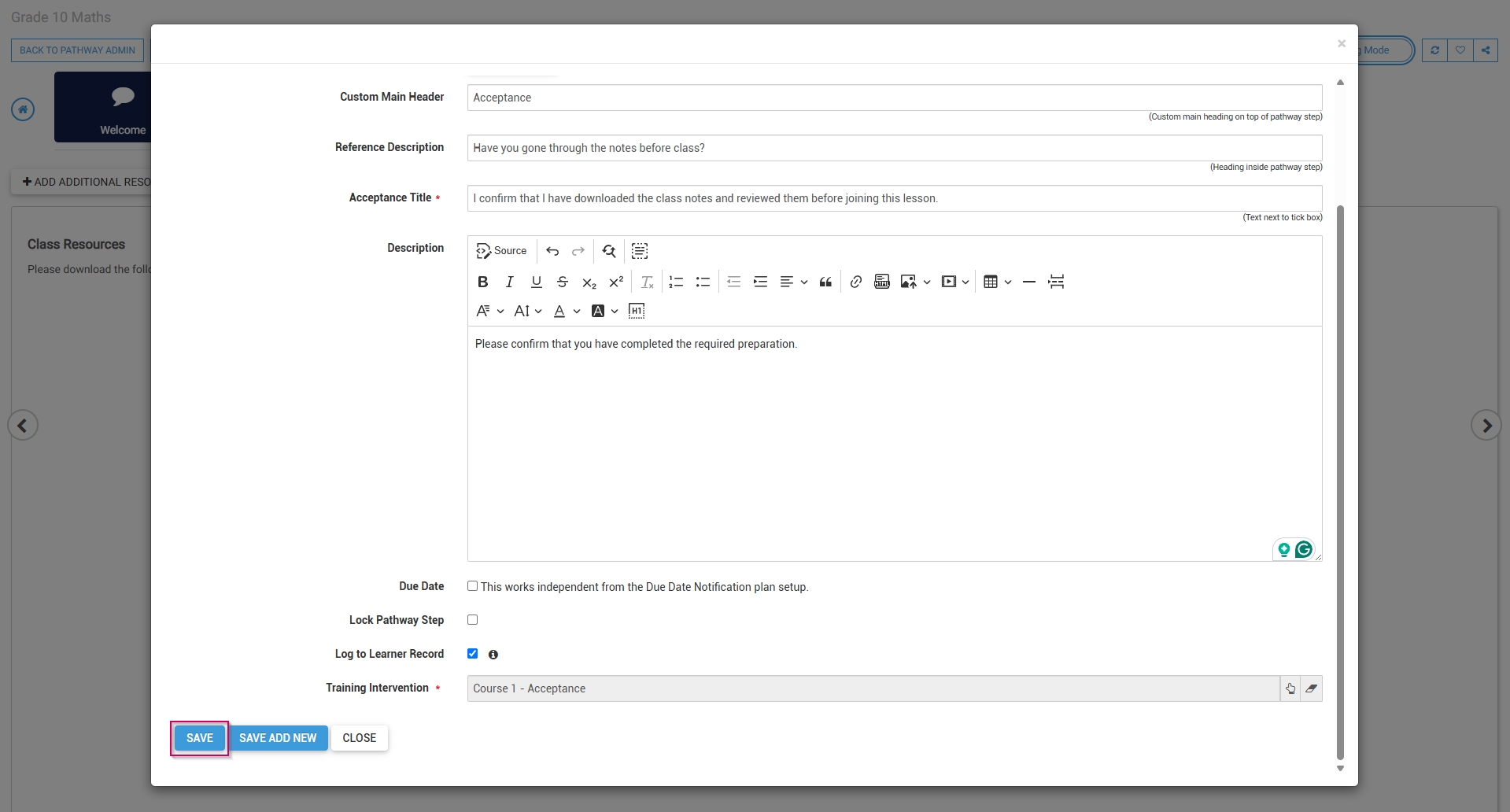
- The acceptance step has been successfully added to the pathway.

##### SCORM/xAPI

- Select **SCORM/xAPI** from the menu.

[![LM OS Build Pathways - Manage eLearning Library - Design pathway - SCORM xAPI - Add.jpg](https://signature.signifyhr.co.za/uploads/images/gallery/2026-06/YwhzHcFn9zIwH7vl-lm-os-build-pathways-manage-elearning-library-design-pathway-scorm-xapi-add.jpg)](https://signature.signifyhr.co.za/uploads/images/gallery/2026-06/wSC61UfCIZOJyfr4-lm-os-build-pathways-manage-elearning-library-design-pathway-add-step.jpg)
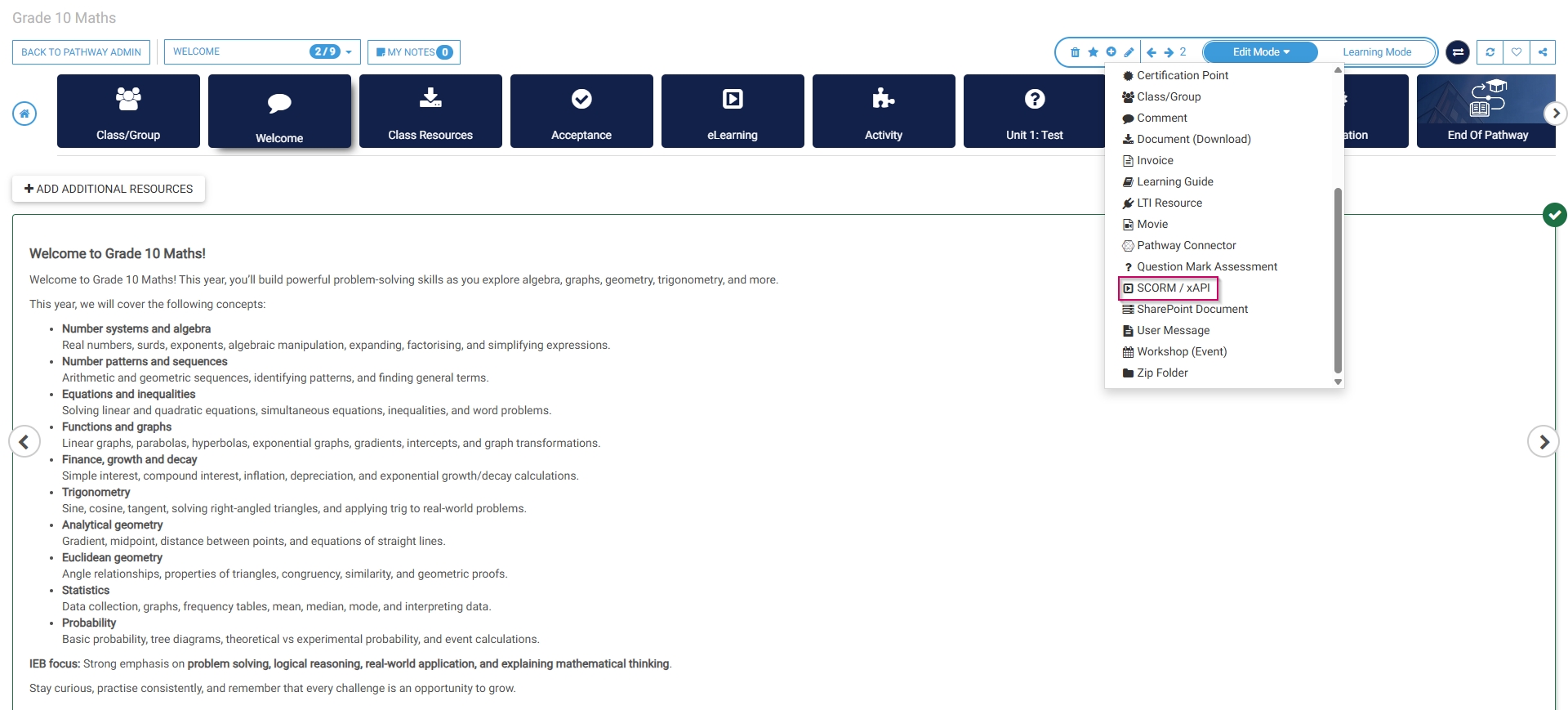
- Optionally, select an **image** or a custom **icon** for your step.
- Add a **name** for this step in the **Step Header** field.
- Add a **description header** for this step.
- Optionally, add a **description**.
- Select a **SCORM file** to add to this step by clicking the **upload icon** next to the **Course** field. The SCORM wizard will open.

[![LM OS Build Pathways - Manage eLearning Library - Design pathway - SCORM step - Details (continued).jpg](https://signature.signifyhr.co.za/uploads/images/gallery/2026-06/scaled-1680-/SQeE1n9ju8aCCIk1-lm-os-build-pathways-manage-elearning-library-design-pathway-scorm-step-details-continued.jpg)](https://signature.signifyhr.co.za/uploads/images/gallery/2026-06/SQeE1n9ju8aCCIk1-lm-os-build-pathways-manage-elearning-library-design-pathway-scorm-step-details-continued.jpg)
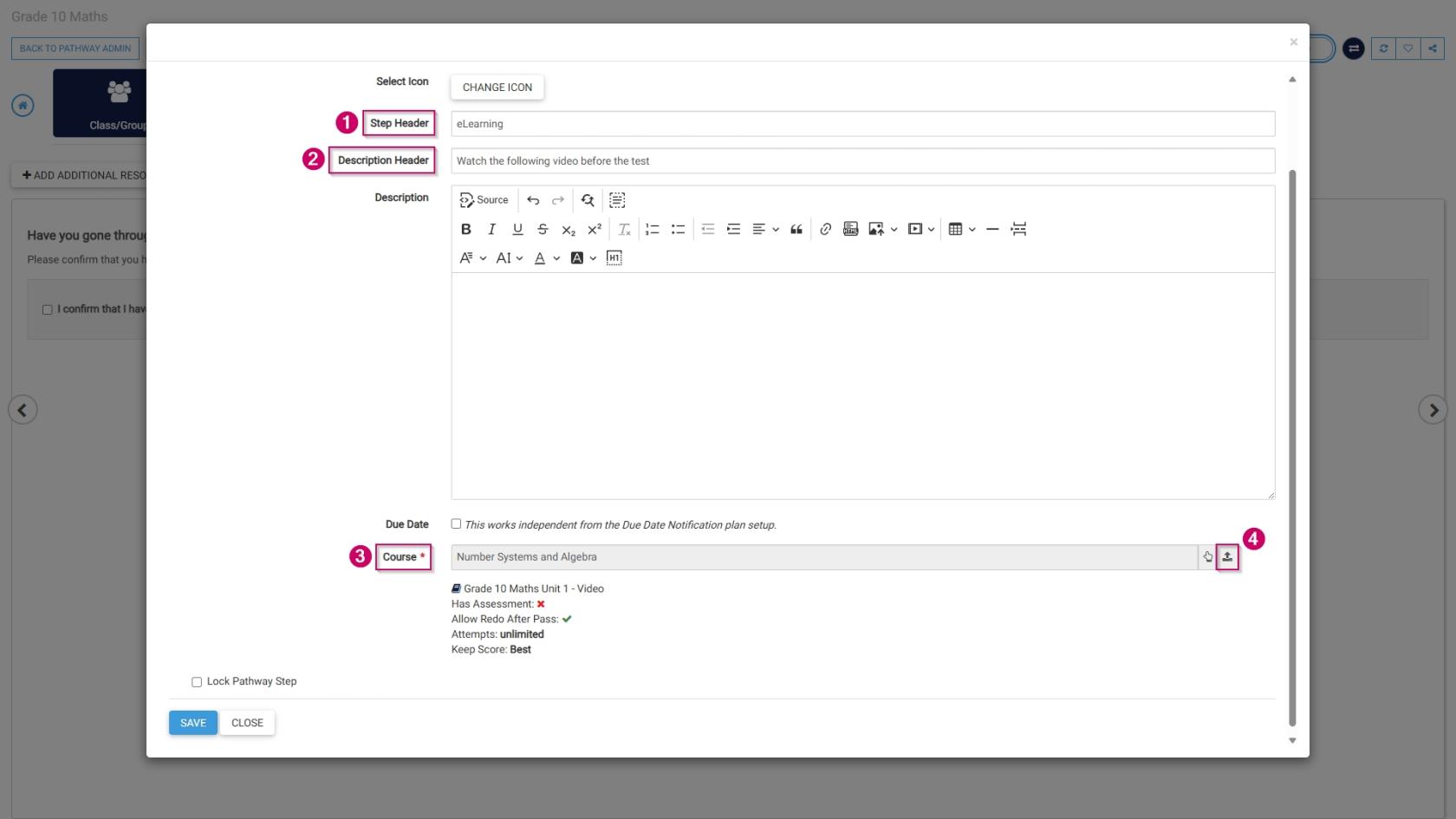
- Select the **radio button** next to **SCORM** in the **Learning Content Type** section.
- Add a **name** for this step.
- Select a **training intervention** from the **Training Intervention Library** using the **hand icon**. 
    - - Alternatively, tick the **checkbox** to automatically create a training intervention for this step.
        - If using standardised naming conventions, ensure the **name** field complies with those standards.
- Choose a **SCORM file** from your computer in a .zip format.
- Customise how the **SCORM** activity will be set up: 
    - - Tick the **checkbox** if the file has an **assessment**.
        - Tick the **checkbox** if the learner can **redo** the SCORM activity.
        - Set the maximum number of **attempts**.
        - Choose which **score** to keep.
        - Tick the **checkbox** if the **transcript** should be made available to the learner.
        - Tick the **checkbox** if the SCORM file is **active** and ready for publication.
- Click **SAVE AND UPLOAD** to continue or **CLOSE** to discard your edits.

[![LM OS Build Pathways - Manage eLearning Library - Design pathway - SCORM step - Details (continued...).jpg](https://signature.signifyhr.co.za/uploads/images/gallery/2026-06/4ACULNc84aNn0FVk-lm-os-build-pathways-manage-elearning-library-design-pathway-scorm-step-details-continued.jpg)](https://signature.signifyhr.co.za/uploads/images/gallery/2026-06/1RMF7RfM8IURHNcj-lm-os-build-pathways-manage-elearning-library-design-pathway-add-step-comment.jpg)
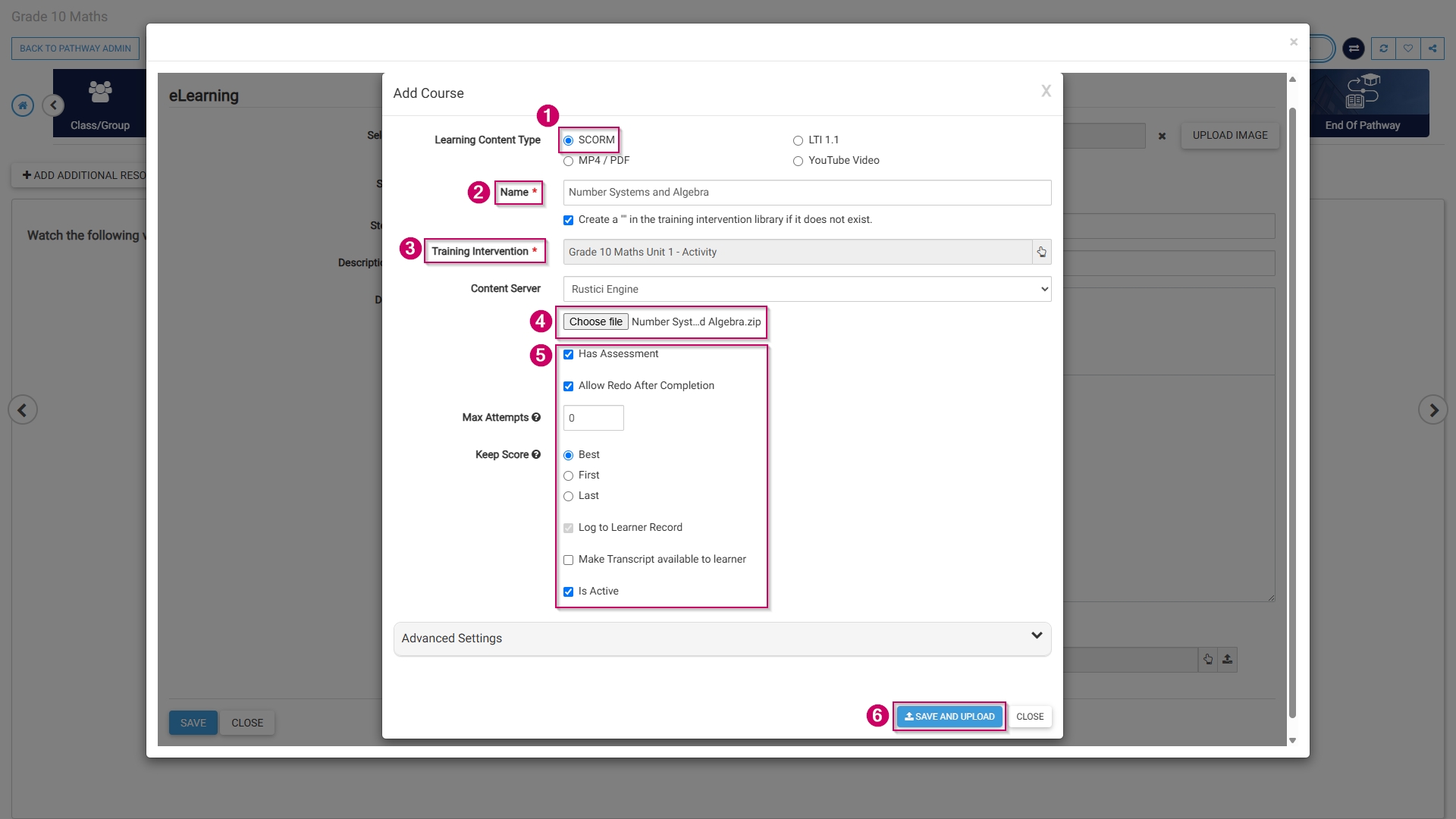
- The SCORM step has been successfully added to the pathway.
- These same steps can be used to add: 
    - - MP4 files,
        - PDFs, or
        - YouTube videos.

##### Assessment (Online)

- Select **Assessment (Online)** from the menu.

[![LM OS Build Pathways - Manage eLearning Library - Design pathway - Assessment.jpg](https://signature.signifyhr.co.za/uploads/images/gallery/2026-06/D8BJ0MJHBgSri0Ky-lm-os-build-pathways-manage-elearning-library-design-pathway-assessment.jpg)](https://signature.signifyhr.co.za/uploads/images/gallery/2026-06/wSC61UfCIZOJyfr4-lm-os-build-pathways-manage-elearning-library-design-pathway-add-step.jpg)
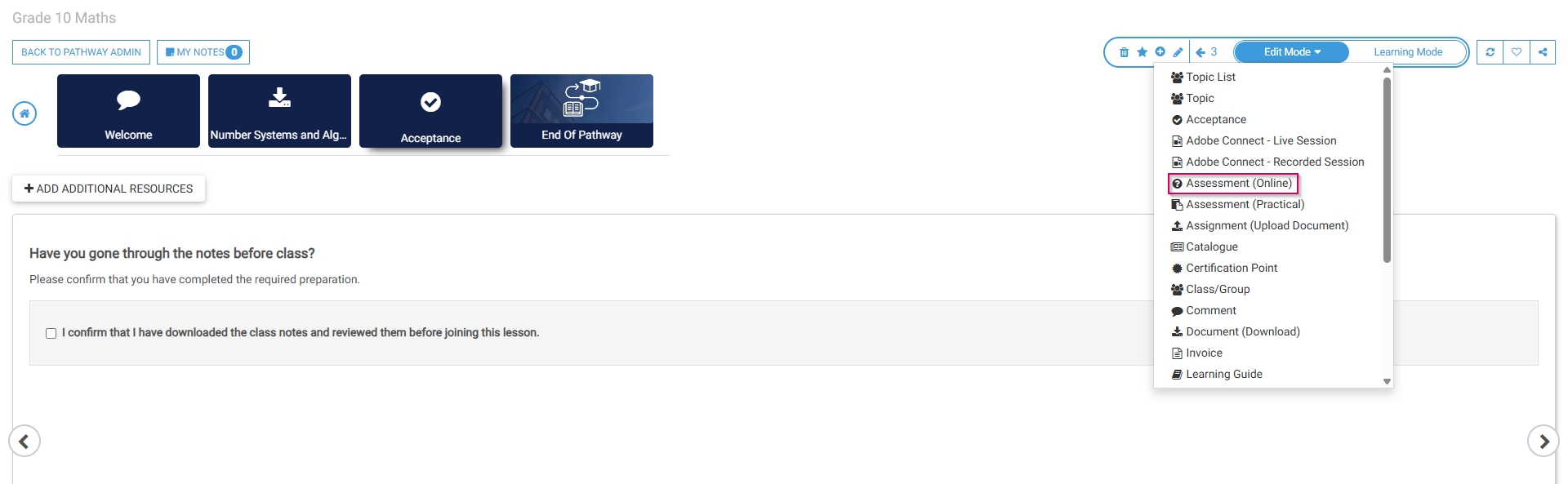
- Optionally, select an **image** or a custom **icon** for your step.
- Add a **main header**, or title, for this step.
- Link a pre-loaded **assessment** to this step by clicking the **hand icon**.
- Add a **description** for this step.
- Click **SAVE** when you are finished, **SAVE ADD NEW** to add another assessment step or click **CLOSE** to discard your edits.

[![LM OS Build Pathways - Manage eLearning Library - Design pathway - Assessment - Details.jpg](https://signature.signifyhr.co.za/uploads/images/gallery/2026-06/KvlBtctN72QUk2Er-lm-os-build-pathways-manage-elearning-library-design-pathway-assessment-details.jpg)](https://signature.signifyhr.co.za/uploads/images/gallery/2026-06/1RMF7RfM8IURHNcj-lm-os-build-pathways-manage-elearning-library-design-pathway-add-step-comment.jpg)
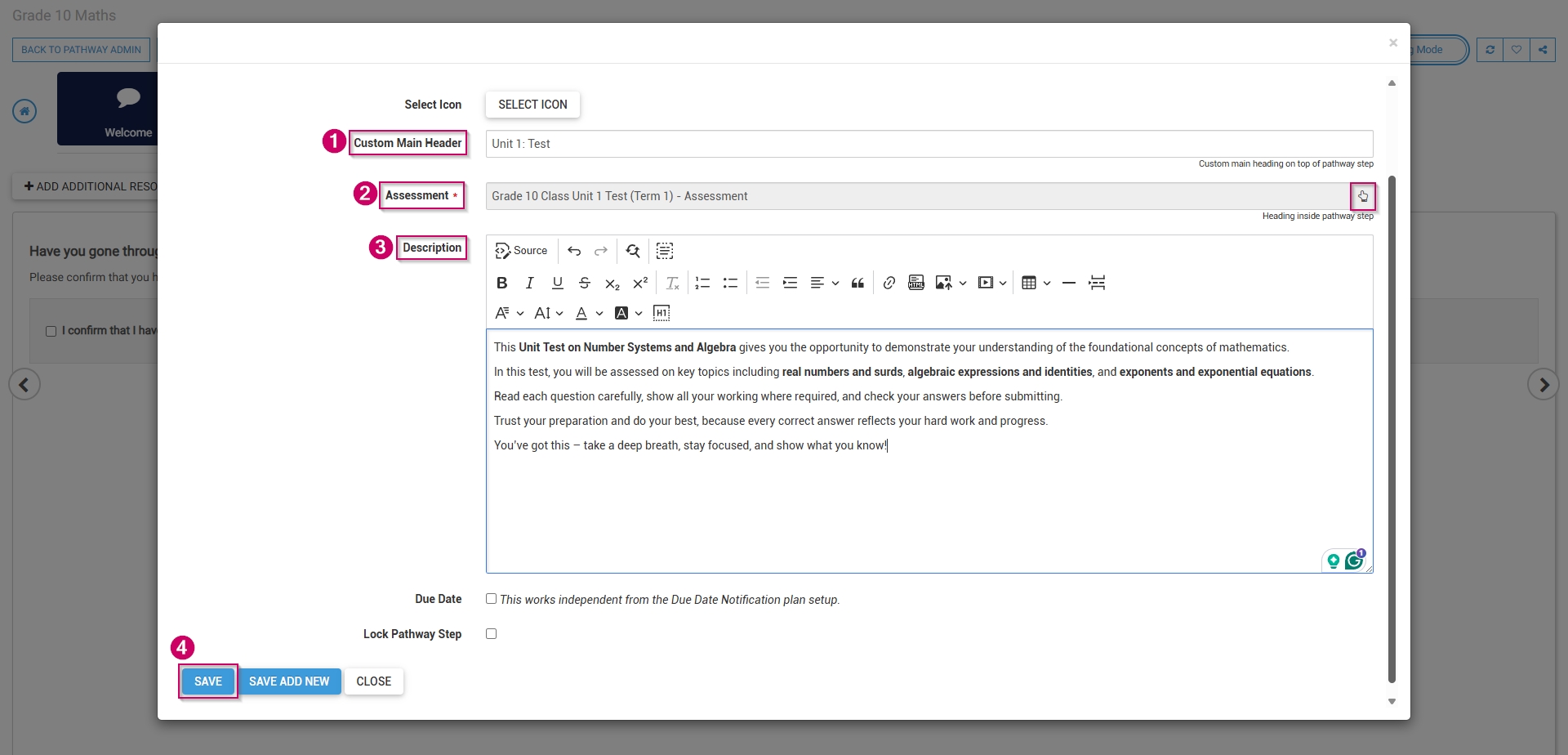
- The assessment step has been successfully added to the pathway.

##### Assignment (Upload Document)

- Select **Assignment (Upload Document)** from the menu.

[![LM OS Build Pathways - Manage eLearning Library - Design pathway - Upload Document.jpg](https://signature.signifyhr.co.za/uploads/images/gallery/2026-06/jbYXGlRQYp7mdsXa-lm-os-build-pathways-manage-elearning-library-design-pathway-upload-document.jpg)](https://signature.signifyhr.co.za/uploads/images/gallery/2026-06/wSC61UfCIZOJyfr4-lm-os-build-pathways-manage-elearning-library-design-pathway-add-step.jpg)
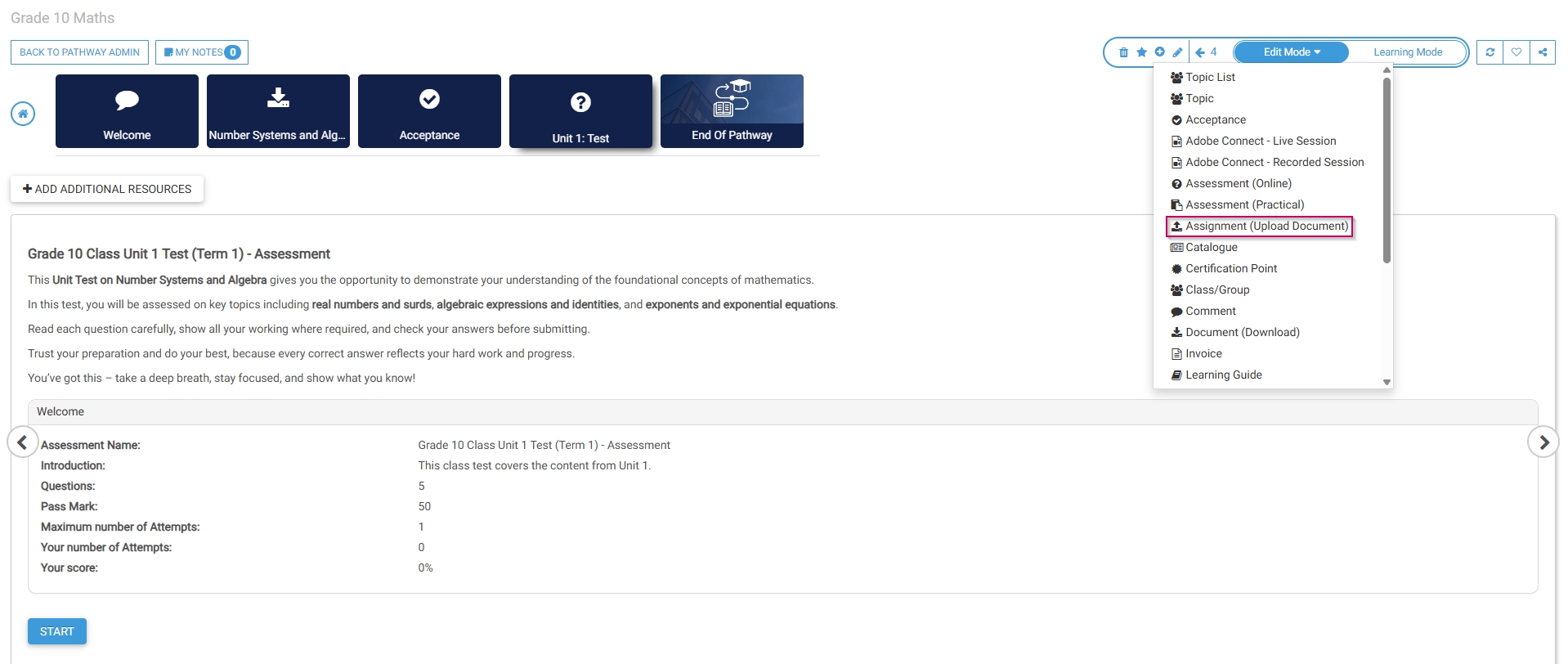
- Optionally, select an **image** or a custom **icon** for your step.
- Add a **main header**, or title, for this step.
- Add a **heading** for this step.
- Add a **description** for this step.
- To log this step in the **learner's record**, check the **box,** then click the **hand icon** to select a **training intervention** to associate with this step.

[![LM OS Build Pathways - Manage eLearning Library - Design pathway - Upload Document - Details.jpg](https://signature.signifyhr.co.za/uploads/images/gallery/2026-06/9M5zANneyO7srkRX-lm-os-build-pathways-manage-elearning-library-design-pathway-upload-document-details.jpg)](https://signature.signifyhr.co.za/uploads/images/gallery/2026-06/4TxkuqaUsfugmmtL-lm-os-build-pathways-manage-elearning-library-design-pathway-acceptance-details-continued.jpg)
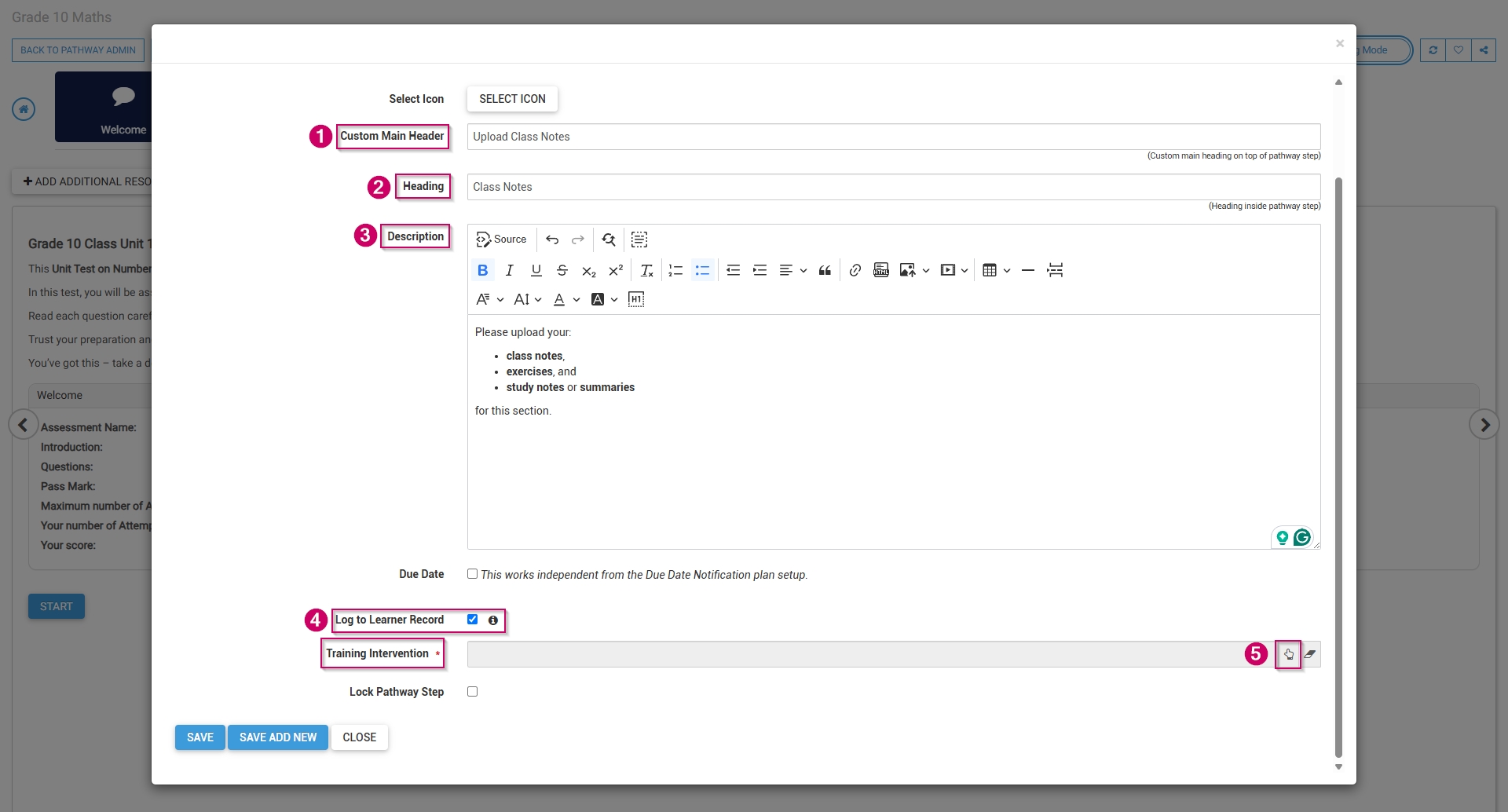
- Select the **training intervention**, then click **SELECT**.

[![LM OS Build Pathways - Manage eLearning Library - Design pathway - Upload Document - Details - Select TI.jpg](https://signature.signifyhr.co.za/uploads/images/gallery/2026-06/cf9EtB7LfuyuhWpN-lm-os-build-pathways-manage-elearning-library-design-pathway-upload-document-details-select-ti.jpg)](https://signature.signifyhr.co.za/uploads/images/gallery/2026-06/ssB4yv74B9rhu7S6-lm-os-build-pathways-manage-elearning-library-design-pathway-acceptance-details-continued-select.jpg)
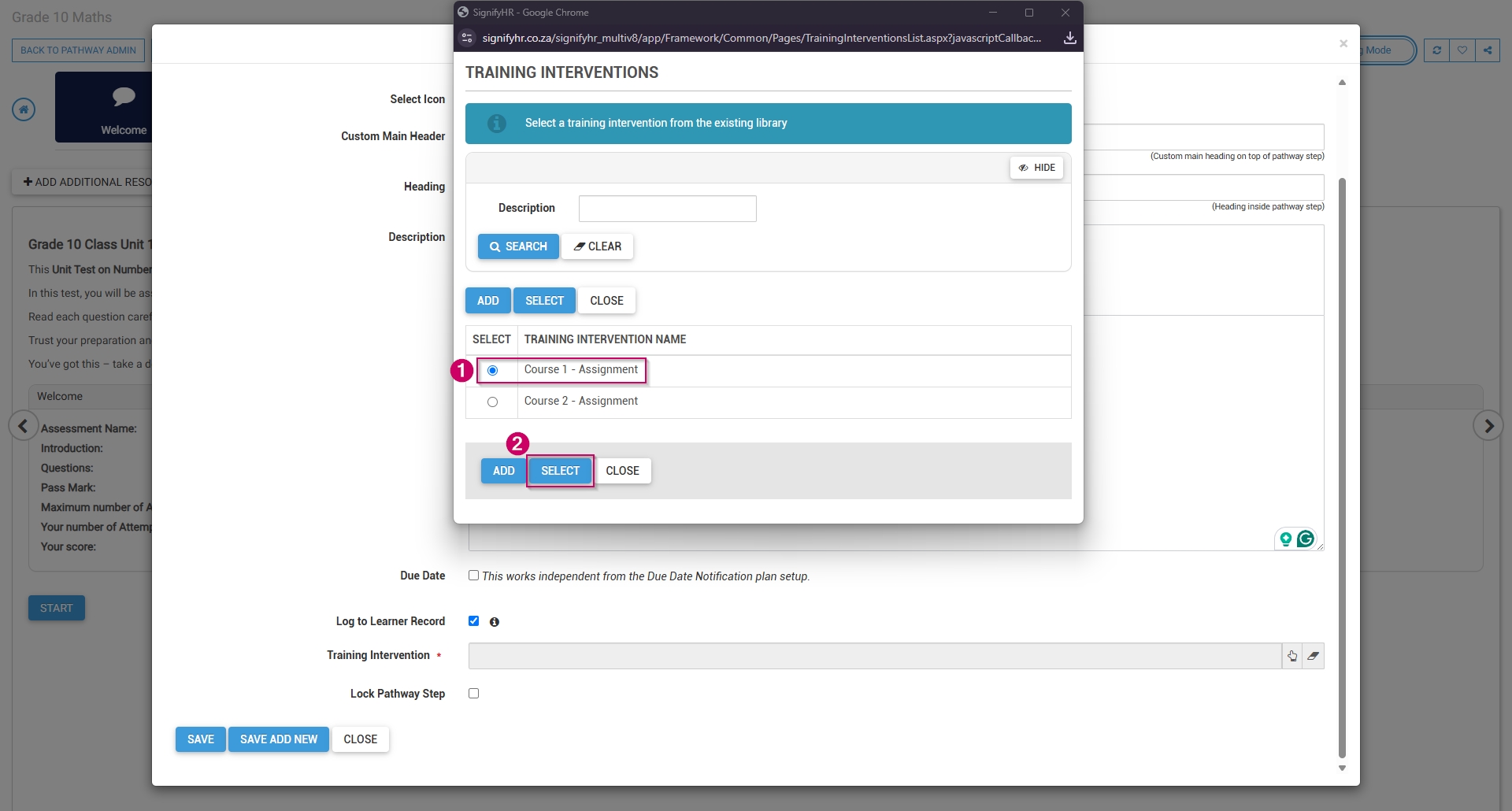
- Click **SAVE** when you are finished, **SAVE ADD NEW** to add another assignment upload step or click **CLOSE** to discard your edits.

[![LM OS Build Pathways - Manage eLearning Library - Design pathway - Upload Document - Details - Save.jpg](https://signature.signifyhr.co.za/uploads/images/gallery/2026-06/Rm4jE0qy6f4PPCtR-lm-os-build-pathways-manage-elearning-library-design-pathway-upload-document-details-save.jpg)](https://signature.signifyhr.co.za/uploads/images/gallery/2026-06/NGOCXHwTlYmxIBkI-lm-os-build-pathways-manage-elearning-library-design-pathway-add-step-comment-save.jpg)
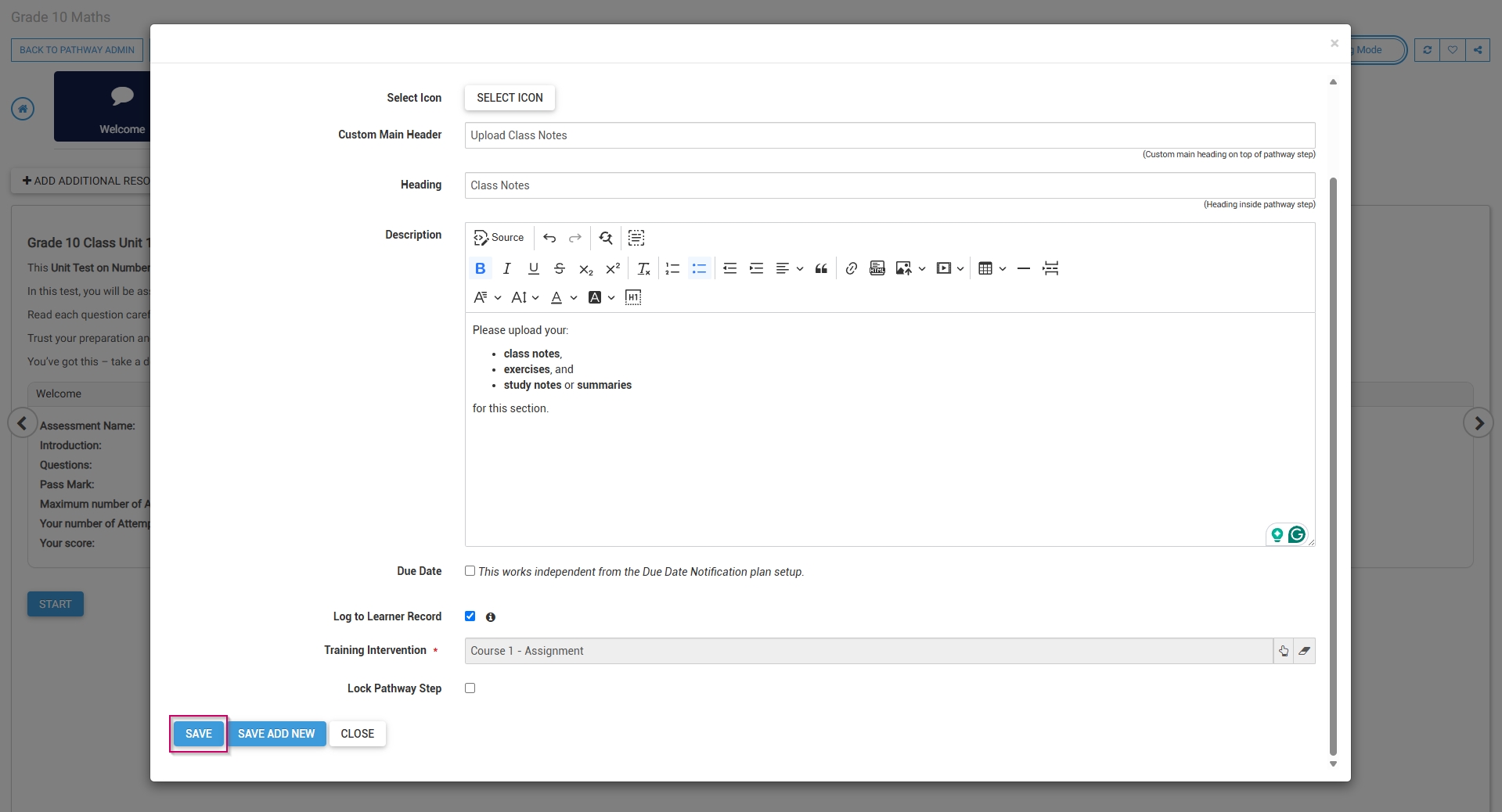
- The assignment upload step has been successfully added to the pathway.

##### Certification point

- Select **Certification Point** from the menu.

[![LM OS Build Pathways - Manage eLearning Library - Design pathway - Certification Point.jpg](https://signature.signifyhr.co.za/uploads/images/gallery/2026-06/tP388iLhLpV0Zewo-lm-os-build-pathways-manage-elearning-library-design-pathway-certification-point.jpg)](https://signature.signifyhr.co.za/uploads/images/gallery/2026-06/wSC61UfCIZOJyfr4-lm-os-build-pathways-manage-elearning-library-design-pathway-add-step.jpg)
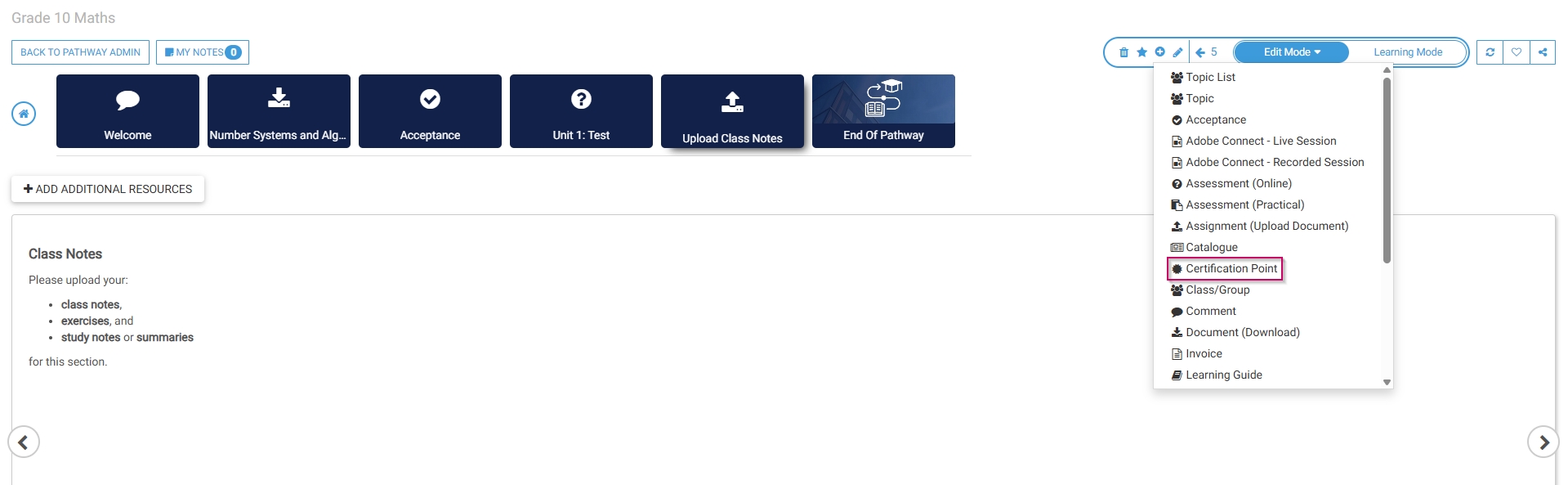
- Optionally, select an **image** or a custom **icon** for your step.
- Add a **main header**, or title, for this step.
- Add a certification point **name**.
- Add a **description** for this step.

[![LM OS Build Pathways - Manage eLearning Library - Design pathway - Certification Point - Details.jpg](https://signature.signifyhr.co.za/uploads/images/gallery/2026-06/OiPytcr2jUx694ql-lm-os-build-pathways-manage-elearning-library-design-pathway-certification-point-details.jpg)](https://signature.signifyhr.co.za/uploads/images/gallery/2026-06/1RMF7RfM8IURHNcj-lm-os-build-pathways-manage-elearning-library-design-pathway-add-step-comment.jpg)
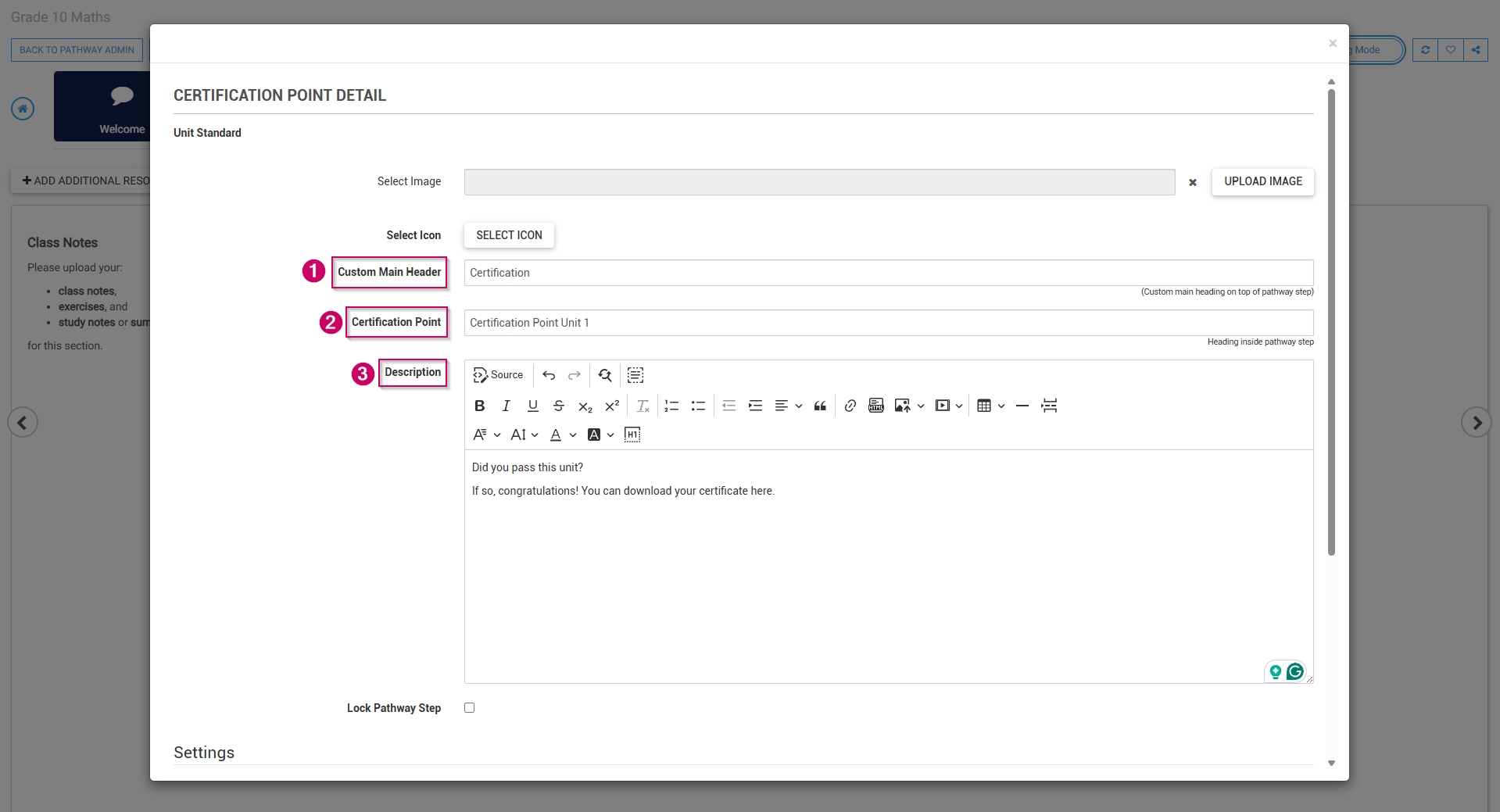
- To log this step in the **learner's record**, check the **box,** then click the **hand icon** to select a **training intervention** to associate with this step.

[![LM OS Build Pathways - Manage eLearning Library - Design pathway - Certification Point - Details (continued).jpg](https://signature.signifyhr.co.za/uploads/images/gallery/2026-06/4fwOiDOL5YTDDQHX-lm-os-build-pathways-manage-elearning-library-design-pathway-certification-point-details-continued.jpg)](https://signature.signifyhr.co.za/uploads/images/gallery/2026-06/4TxkuqaUsfugmmtL-lm-os-build-pathways-manage-elearning-library-design-pathway-acceptance-details-continued.jpg)
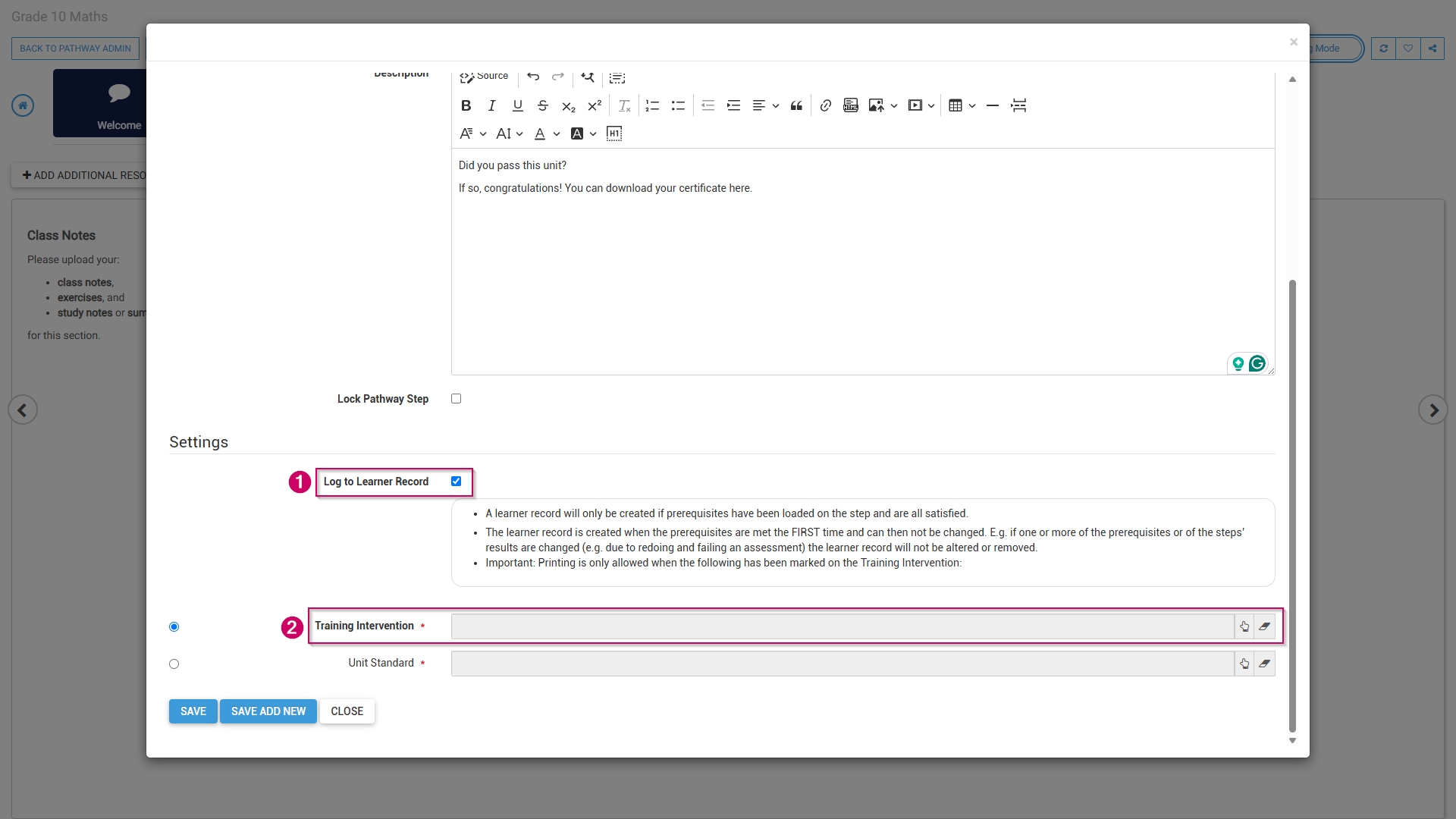
- Select the **training intervention**, then click **SELECT**.

[![LM OS Build Pathways - Manage eLearning Library - Design pathway - Certification Point - Select TI.jpg](https://signature.signifyhr.co.za/uploads/images/gallery/2026-06/otrUpIVyEYOBFEQY-lm-os-build-pathways-manage-elearning-library-design-pathway-certification-point-select-ti.jpg)](https://signature.signifyhr.co.za/uploads/images/gallery/2026-06/ssB4yv74B9rhu7S6-lm-os-build-pathways-manage-elearning-library-design-pathway-acceptance-details-continued-select.jpg)

- Click **SAVE** when you are finished, **SAVE ADD NEW** to add another certification point step or click **CLOSE** to discard your edits.

[![LM OS Build Pathways - Manage eLearning Library - Design pathway - Certification Point - Save.jpg](https://signature.signifyhr.co.za/uploads/images/gallery/2026-06/i0RbN3bF2qG2VhUg-lm-os-build-pathways-manage-elearning-library-design-pathway-certification-point-save.jpg)](https://signature.signifyhr.co.za/uploads/images/gallery/2026-06/NGOCXHwTlYmxIBkI-lm-os-build-pathways-manage-elearning-library-design-pathway-add-step-comment-save.jpg)
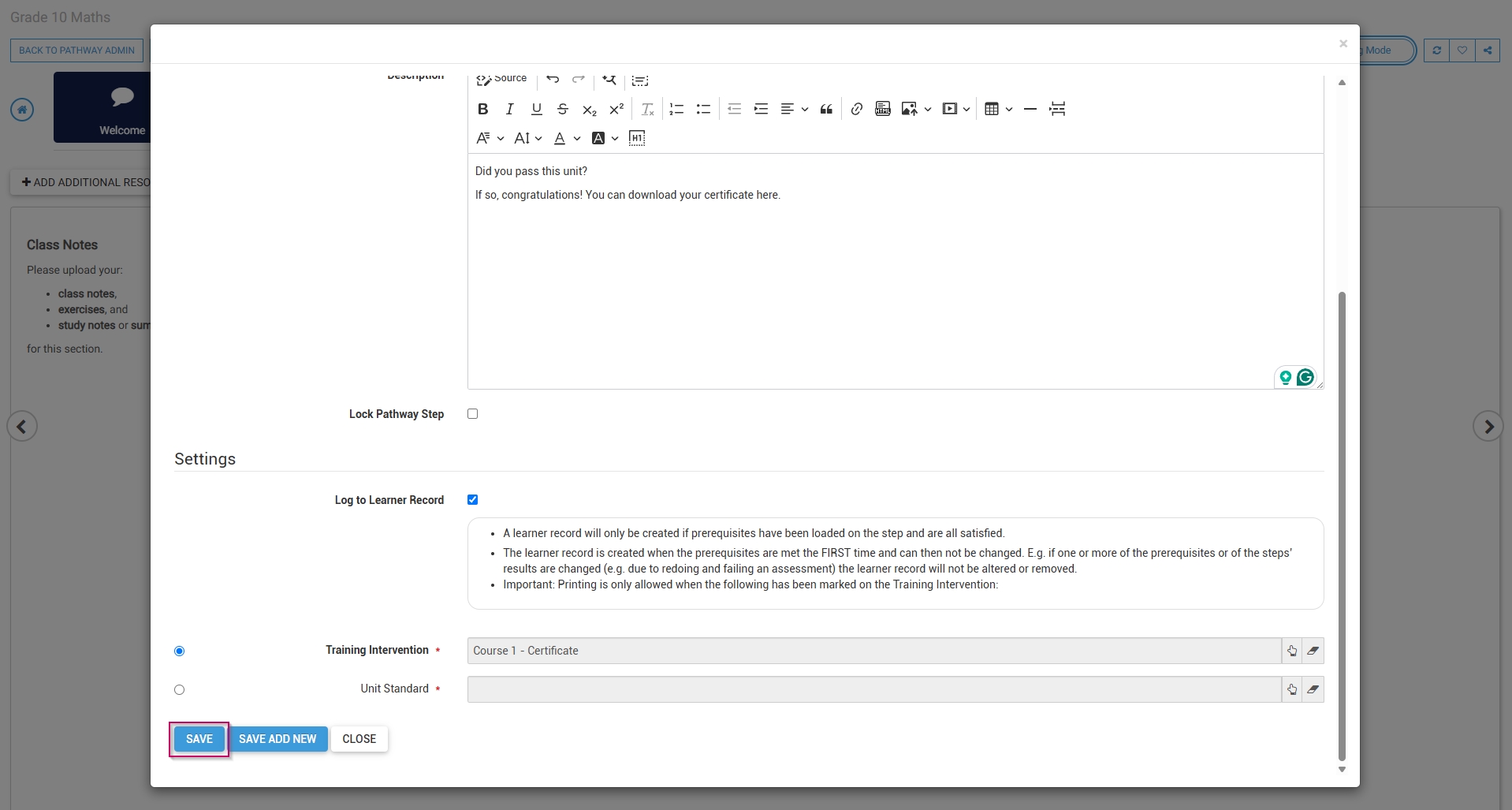
- To maintain **prerequisites** for this certification point, click **YES**.

[![LM OS Build Pathways - Manage eLearning Library - Design pathway - Certification Point - Prerequisites.jpg](https://signature.signifyhr.co.za/uploads/images/gallery/2026-06/scaled-1680-/MSNZjdaTTiLzkjYZ-lm-os-build-pathways-manage-elearning-library-design-pathway-certification-point-prerequisites.jpg)](https://signature.signifyhr.co.za/uploads/images/gallery/2026-06/MSNZjdaTTiLzkjYZ-lm-os-build-pathways-manage-elearning-library-design-pathway-certification-point-prerequisites.jpg)
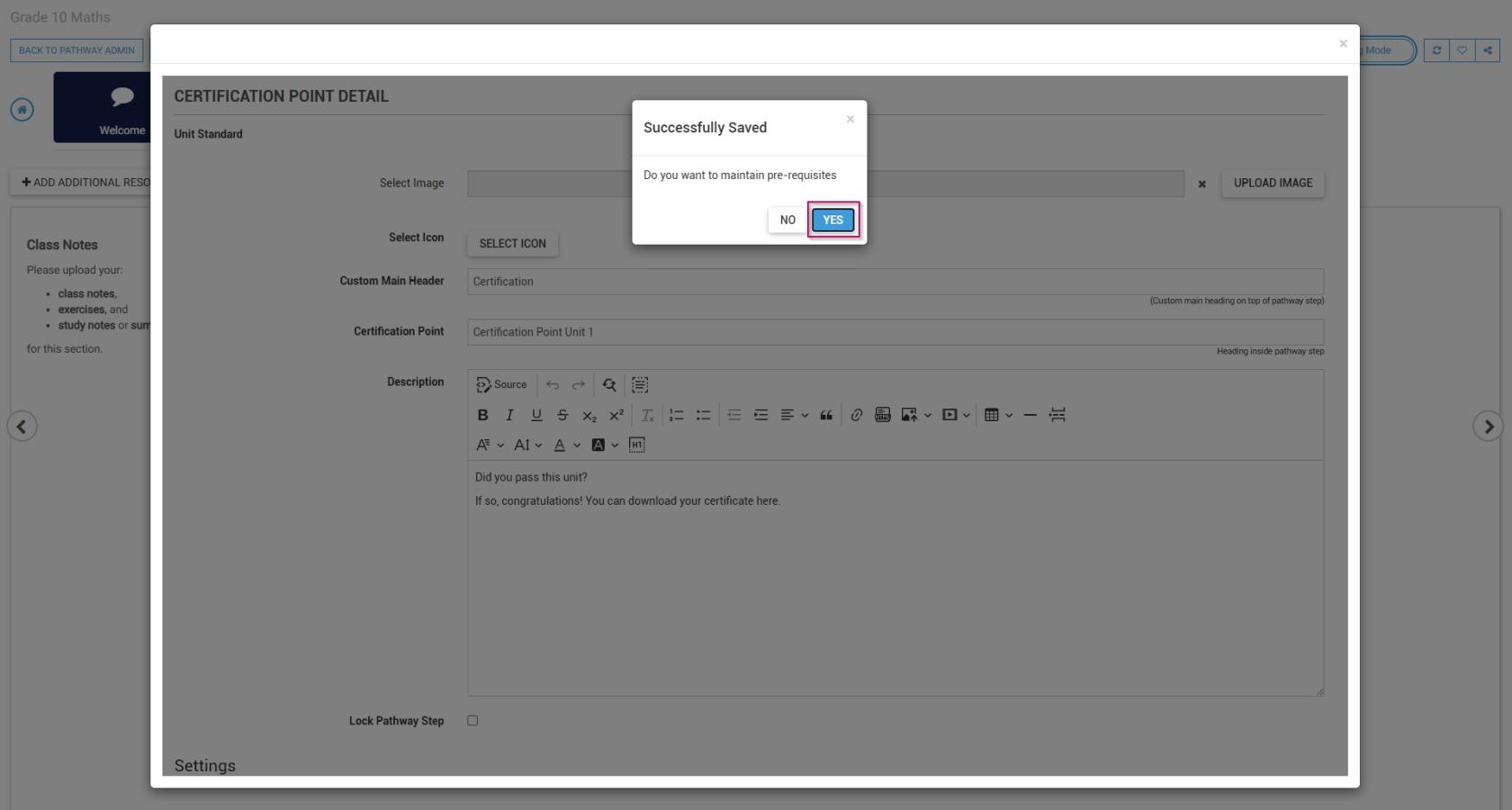
- Click **ADD** to select steps from the pathway to add as prerequisites.

[![LM OS Build Pathways - Manage eLearning Library - Design pathway - Certification Point - Prerequisites - Add.jpg](https://signature.signifyhr.co.za/uploads/images/gallery/2026-06/scaled-1680-/Dr3irOlfwyN1vH2Z-lm-os-build-pathways-manage-elearning-library-design-pathway-certification-point-prerequisites-add.jpg)](https://signature.signifyhr.co.za/uploads/images/gallery/2026-06/Dr3irOlfwyN1vH2Z-lm-os-build-pathways-manage-elearning-library-design-pathway-certification-point-prerequisites-add.jpg)
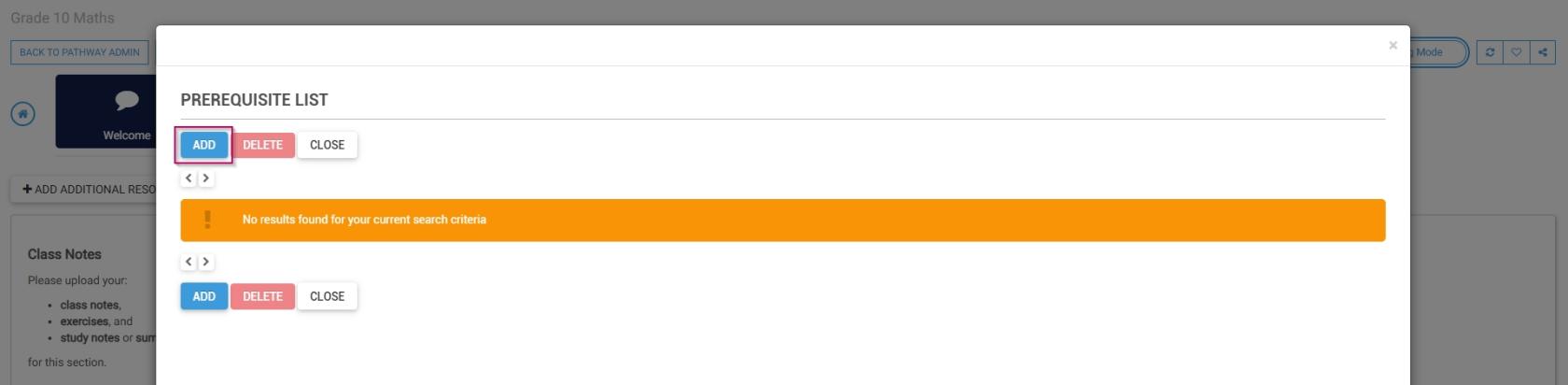
- From the **drop-down menu**, select a **pathway item**.
- Select the **status** required to achieve this prerequisite.
- Click **SAVE** when you are finished, **SAVE ADD NEW** to add another prerequisite, or click **CLOSE** to discard your edits.
- The certification point step has been successfully added to the pathway.

[![LM OS Build Pathways - Manage eLearning Library - Design pathway - Completed.jpg](https://signature.signifyhr.co.za/uploads/images/gallery/2026-06/scaled-1680-/qnMkg6IDM5DcpC5G-lm-os-build-pathways-manage-elearning-library-design-pathway-completed.jpg)](https://signature.signifyhr.co.za/uploads/images/gallery/2026-06/qnMkg6IDM5DcpC5G-lm-os-build-pathways-manage-elearning-library-design-pathway-completed.jpg)
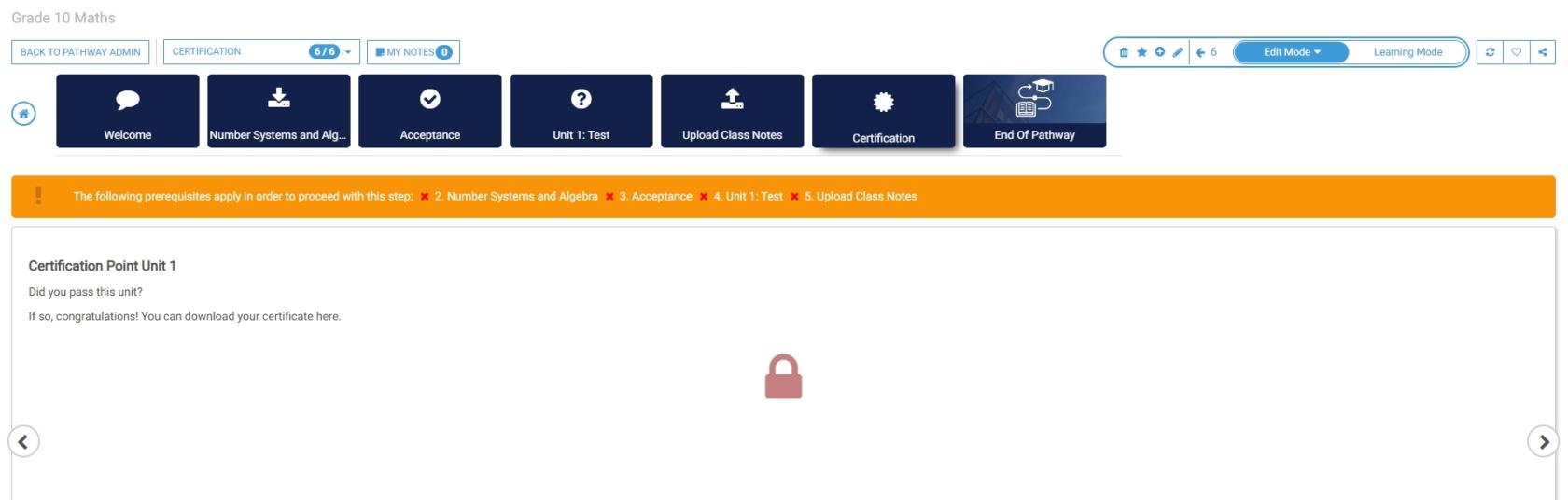
####  

#### Pathway features

##### Edit mode

- When editing a pathway, click **Edit Mode**.

[![LM OS Build Pathways - Edit mode.jpg](https://signature.signifyhr.co.za/uploads/images/gallery/2026-06/scaled-1680-/8URl2HVv5E0p8o8m-lm-os-build-pathways-edit-mode.jpg)](https://signature.signifyhr.co.za/uploads/images/gallery/2026-06/8URl2HVv5E0p8o8m-lm-os-build-pathways-edit-mode.jpg)
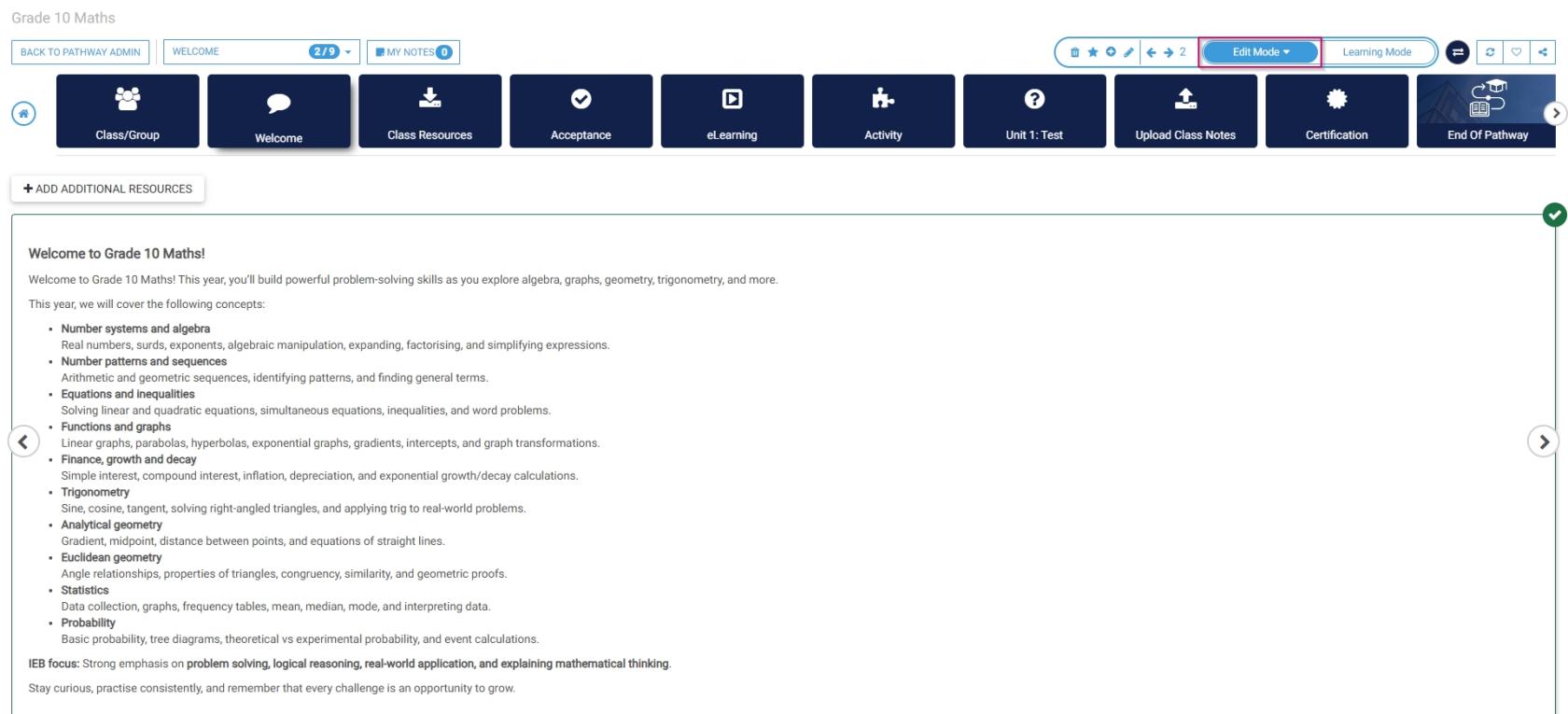
- Click the **dustbin icon** to **delete** the current pathway step.

[![LM OS Build Pathways - Manage eLearning Library - Design pathway - Delete step.jpg](https://signature.signifyhr.co.za/uploads/images/gallery/2026-06/scaled-1680-/M8wn1H7ZfnsuS1NG-lm-os-build-pathways-manage-elearning-library-design-pathway-delete-step.jpg)](https://signature.signifyhr.co.za/uploads/images/gallery/2026-06/M8wn1H7ZfnsuS1NG-lm-os-build-pathways-manage-elearning-library-design-pathway-delete-step.jpg)
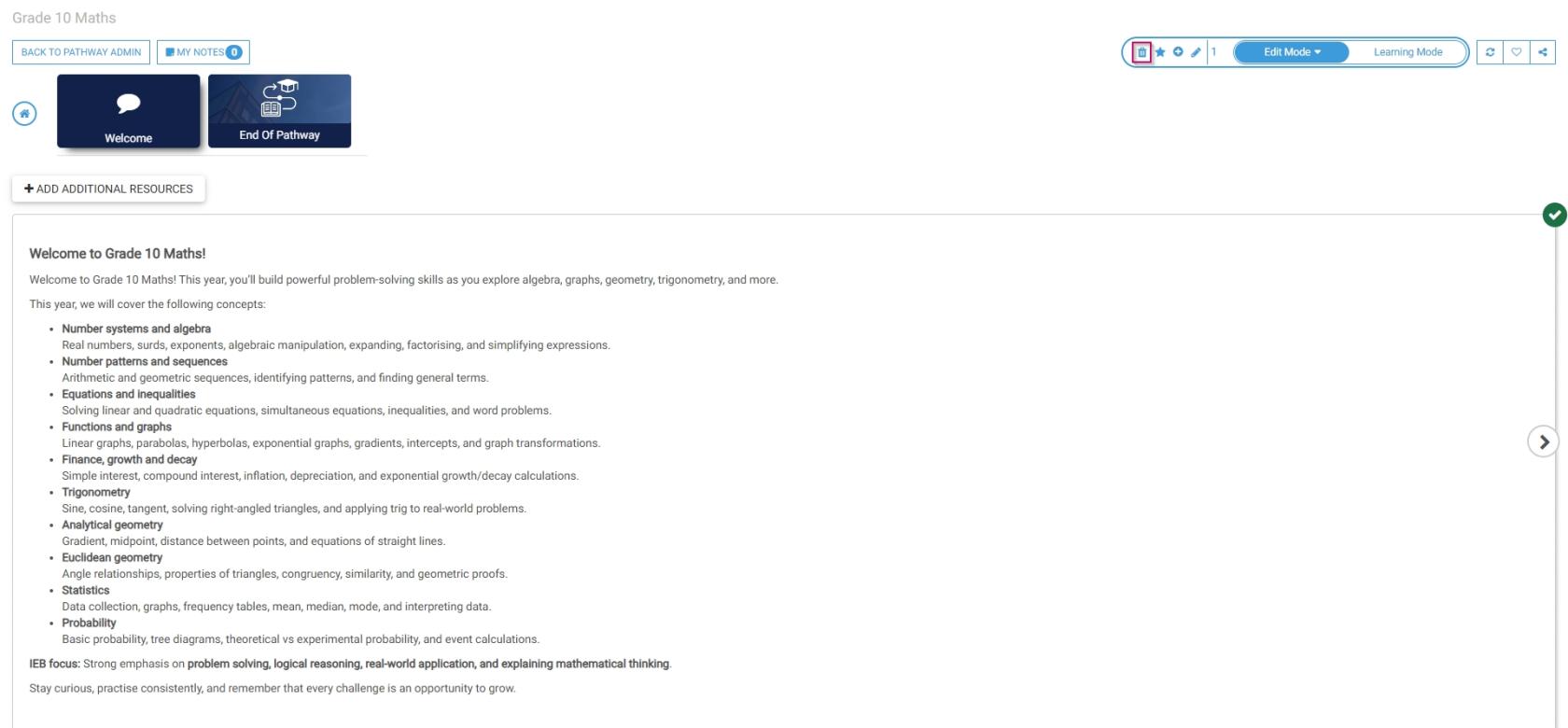
- Click the **star icon** to add **prerequisites** to this pathway step.

[![LM OS Build Pathways - Manage eLearning Library - Design pathway - Add prerequisites to step.jpg](https://signature.signifyhr.co.za/uploads/images/gallery/2026-06/scaled-1680-/0YdpmyLrDVX0D4xs-lm-os-build-pathways-manage-elearning-library-design-pathway-add-prerequisites-to-step.jpg)](https://signature.signifyhr.co.za/uploads/images/gallery/2026-06/0YdpmyLrDVX0D4xs-lm-os-build-pathways-manage-elearning-library-design-pathway-add-prerequisites-to-step.jpg)
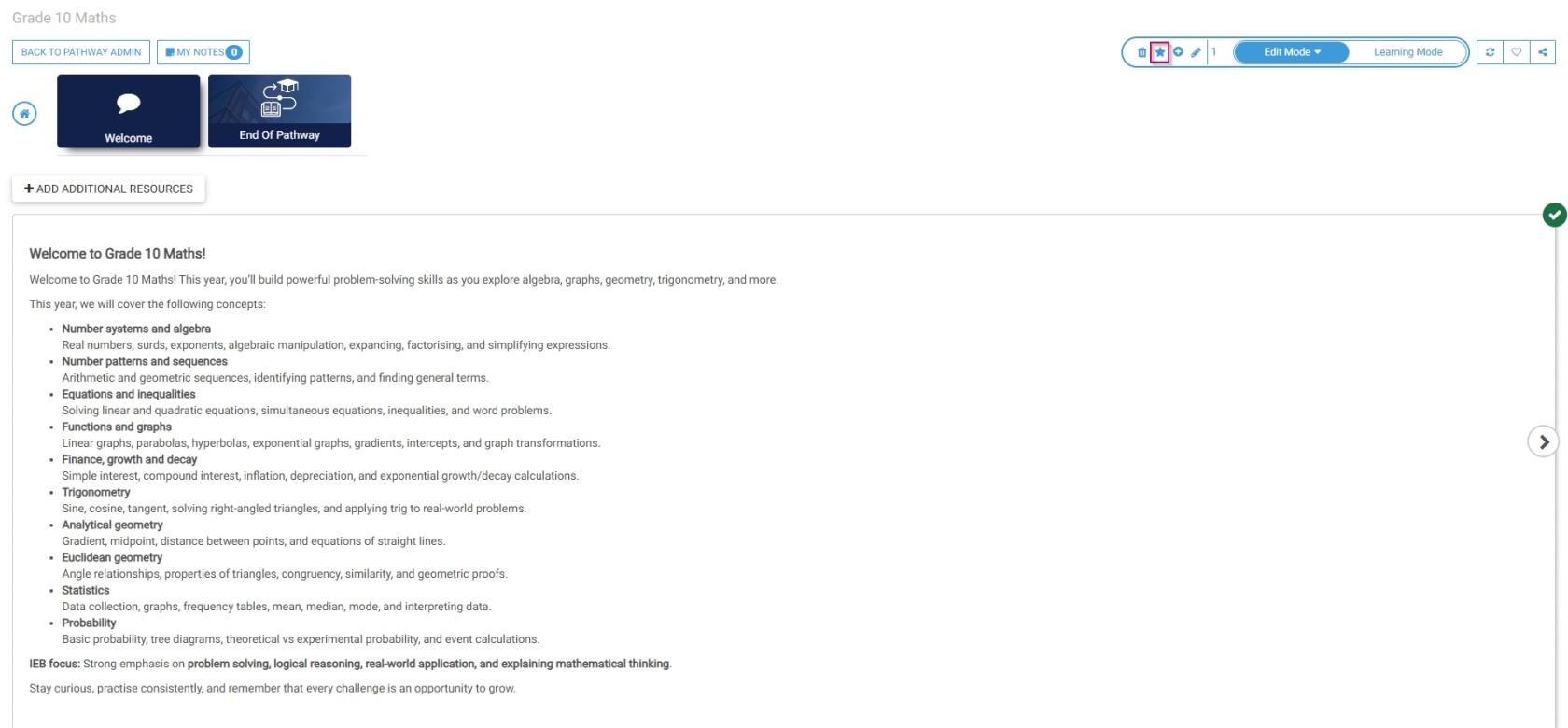
- Click the **plus icon** to **add** another pathway step after the current one.

[![LM OS Build Pathways - Manage eLearning Library - Design pathway - Add next step.jpg](https://signature.signifyhr.co.za/uploads/images/gallery/2026-06/scaled-1680-/P9U6U7n76JtoWCXk-lm-os-build-pathways-manage-elearning-library-design-pathway-add-next-step.jpg)](https://signature.signifyhr.co.za/uploads/images/gallery/2026-06/P9U6U7n76JtoWCXk-lm-os-build-pathways-manage-elearning-library-design-pathway-add-next-step.jpg)

- Click the **pencil icon** to **edit** the current pathway step.

[![LM OS Build Pathways - Manage eLearning Library - Design pathway - Edit step.jpg](https://signature.signifyhr.co.za/uploads/images/gallery/2026-06/scaled-1680-/MLYl3CRNIW9jKDbm-lm-os-build-pathways-manage-elearning-library-design-pathway-edit-step.jpg)](https://signature.signifyhr.co.za/uploads/images/gallery/2026-06/MLYl3CRNIW9jKDbm-lm-os-build-pathways-manage-elearning-library-design-pathway-edit-step.jpg)
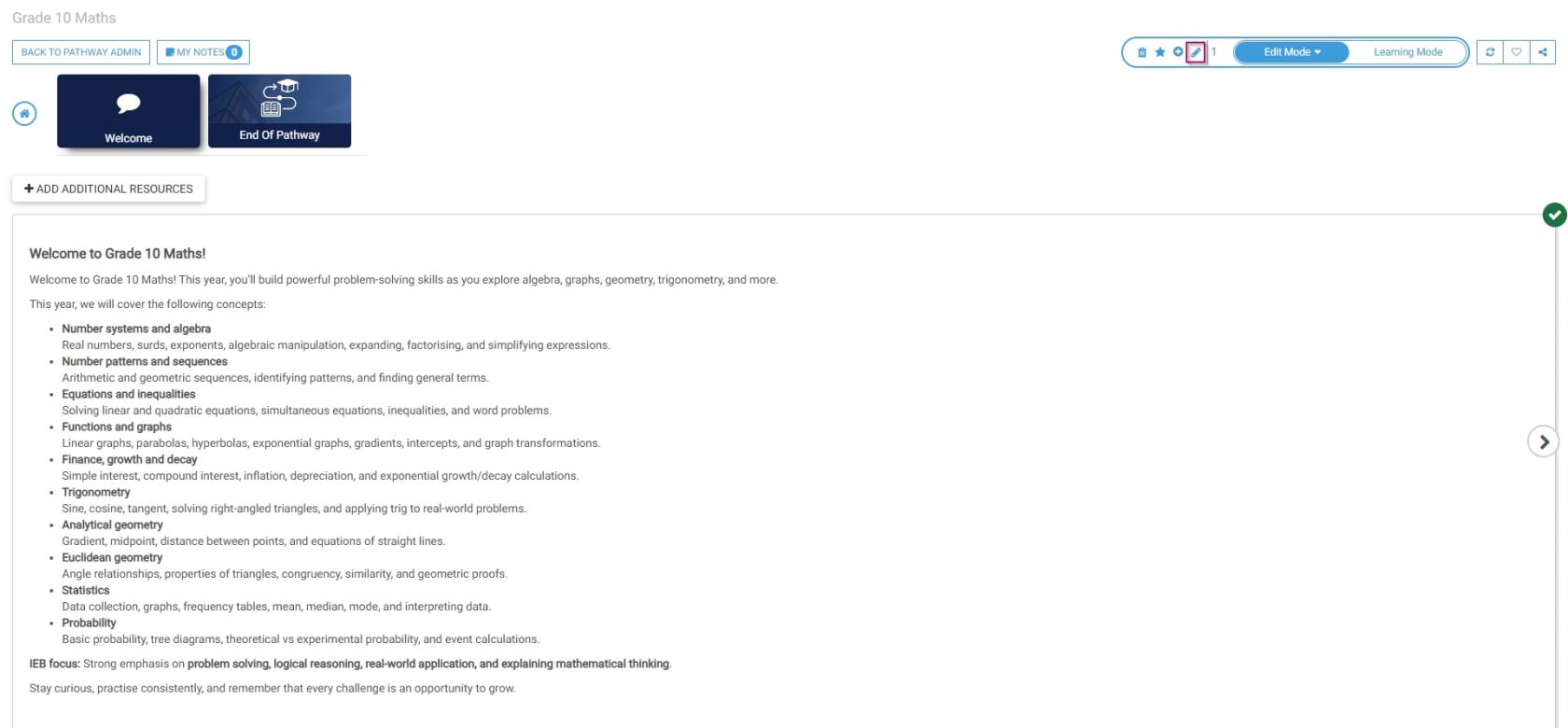
##### Learning mode

- To preview the pathway as a learner, click **Learning Mode**.

[![LM OS Build Pathways - Learning mode.jpg](https://signature.signifyhr.co.za/uploads/images/gallery/2026-06/OIm7mxVRv889YYCw-lm-os-build-pathways-learning-mode.jpg)](https://signature.signifyhr.co.za/uploads/images/gallery/2026-06/8URl2HVv5E0p8o8m-lm-os-build-pathways-edit-mode.jpg)
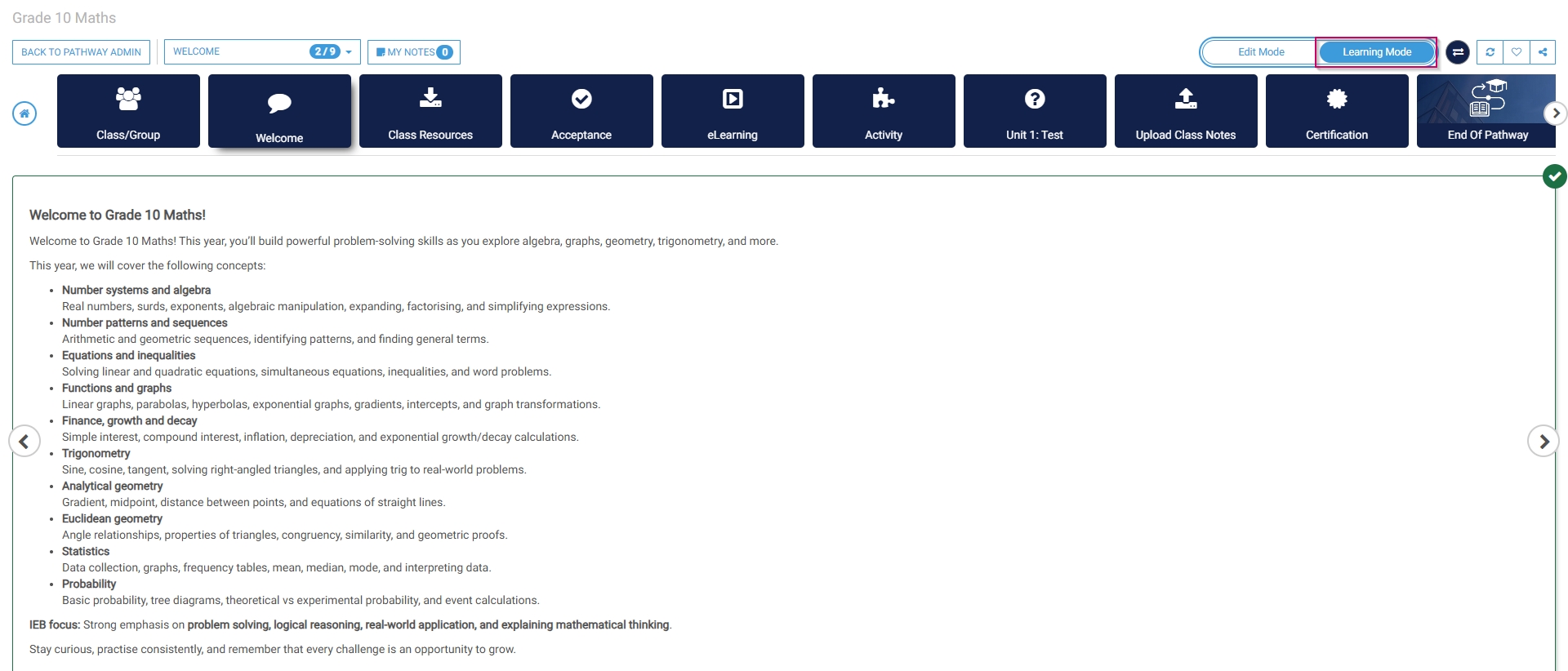
[![Signify Footer.png](https://signature.signifyhr.co.za/uploads/images/gallery/2025-02/scaled-1680-/ZOt8yZwhbiGx2d6U-signify-footer.png)](https://signature.signifyhr.co.za/uploads/images/gallery/2025-02/ZOt8yZwhbiGx2d6U-signify-footer.png)

# Learning Management: Online School Implementation Guide

[![Signify Header.png](https://signature.signifyhr.co.za/uploads/images/gallery/2025-02/scaled-1680-/emW3hfMrZ1yIDMUv-signify-header.png)](https://signature.signifyhr.co.za/uploads/images/gallery/2025-02/emW3hfMrZ1yIDMUv-signify-header.png)

#### Activate the Learning Management module

- Click the **gear icon** to access the **Setup and Configuration** menu.
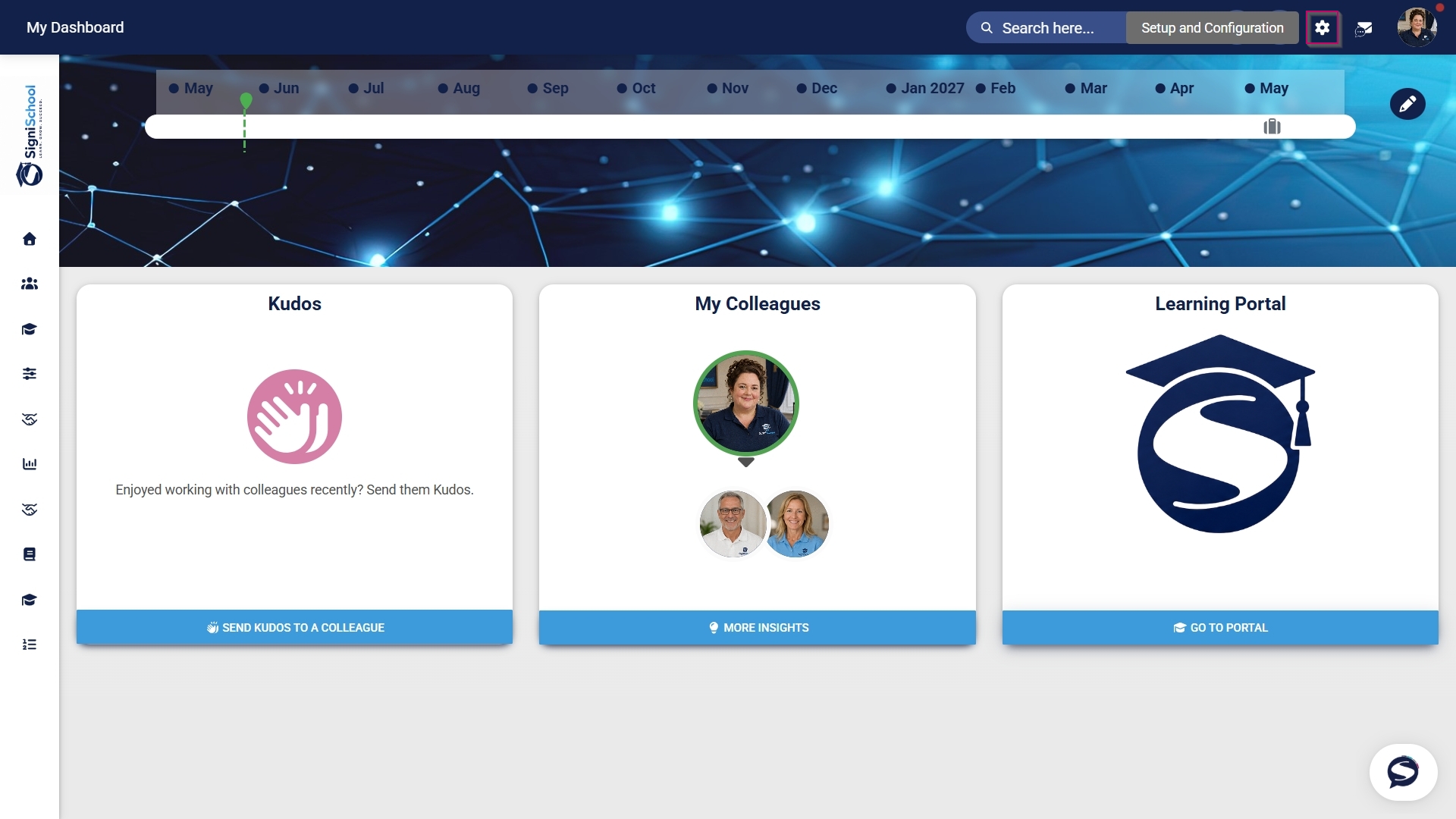
![LM OS Setup and configuration menu.jpg](https://signature.signifyhr.co.za/uploads/images/gallery/2026-05/OolVb4vG1kGknZ88-lm-os-setup-and-configuration-menu.jpg)

- Click **Ruleset Setup**.

![LM OS Setup and configuration menu - Ruleset setup.jpg](https://signature.signifyhr.co.za/uploads/images/gallery/2026-05/G8n6077uSByiSZlf-lm-os-setup-and-configuration-menu-ruleset-setup.jpg)

- Select the **ruleset you would like to update.
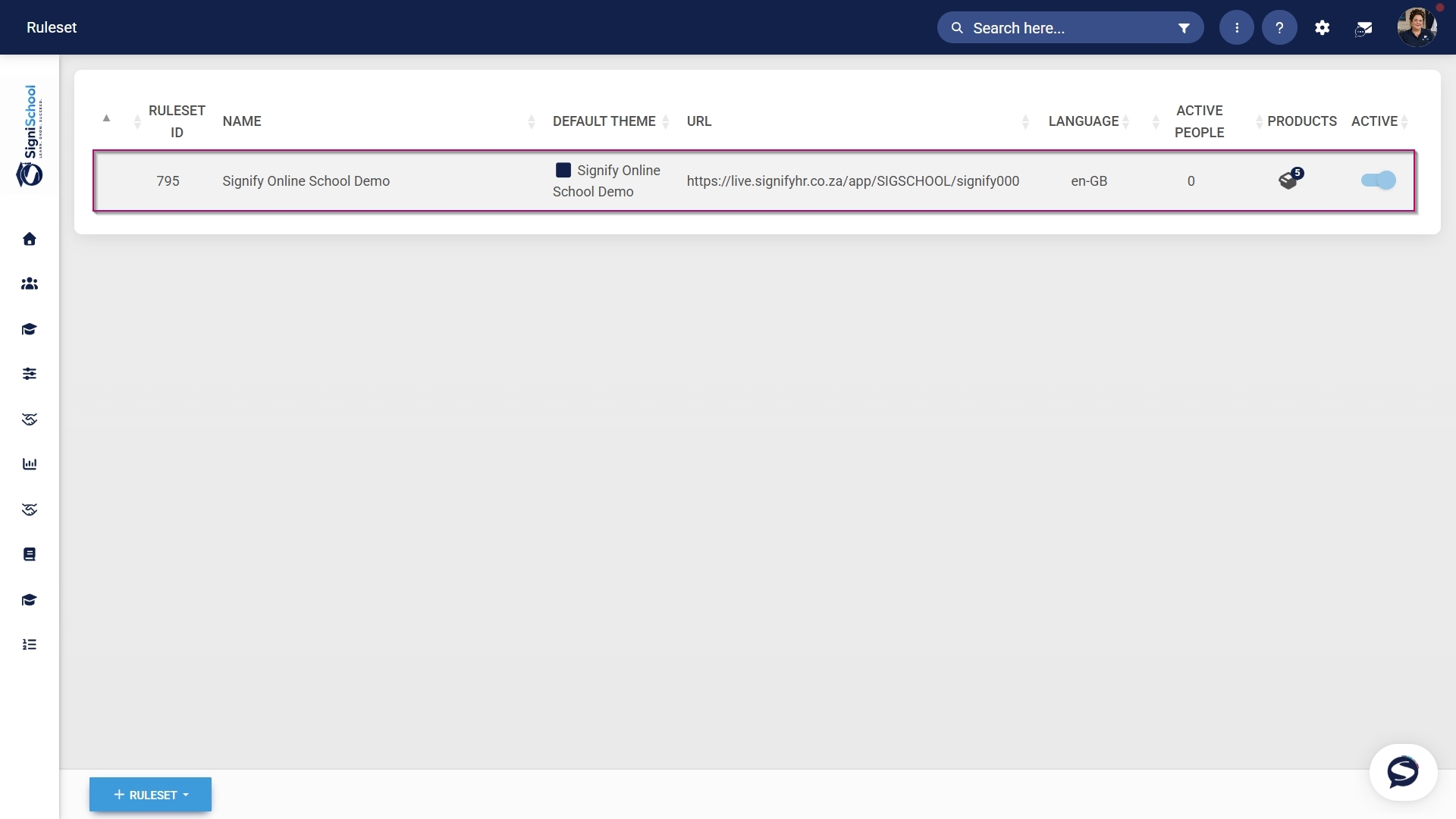
![LM OS Setup and configuration menu - Ruleset setup - Select ruleset.jpg](https://signature.signifyhr.co.za/uploads/images/gallery/2026-05/rfnTwwjc6K4u3af7-lm-os-setup-and-configuration-menu-ruleset-setup-select-ruleset.jpg)

- Navigate to the **Products tab.

![LM OS Products tab.jpg](https://signature.signifyhr.co.za/uploads/images/gallery/2026-05/QWGG0dzhs3GPkEWa-lm-os-products-tab.jpg)

- Click on the **Learning Management product card, then click the **toggle button** to set the product’s status to **Active**.

[![LM OS Products tab - LM Product Card - Activate.jpg](https://signature.signifyhr.co.za/uploads/images/gallery/2026-05/aidcBOBFroceK1GX-lm-os-products-tab-lm-product-card-activate.jpg)](https://signature.signifyhr.co.za/uploads/images/gallery/2026-05/BgK1kyVp94Qa9Ghu-lm-products-tab-lm-product-card-activate.jpg)
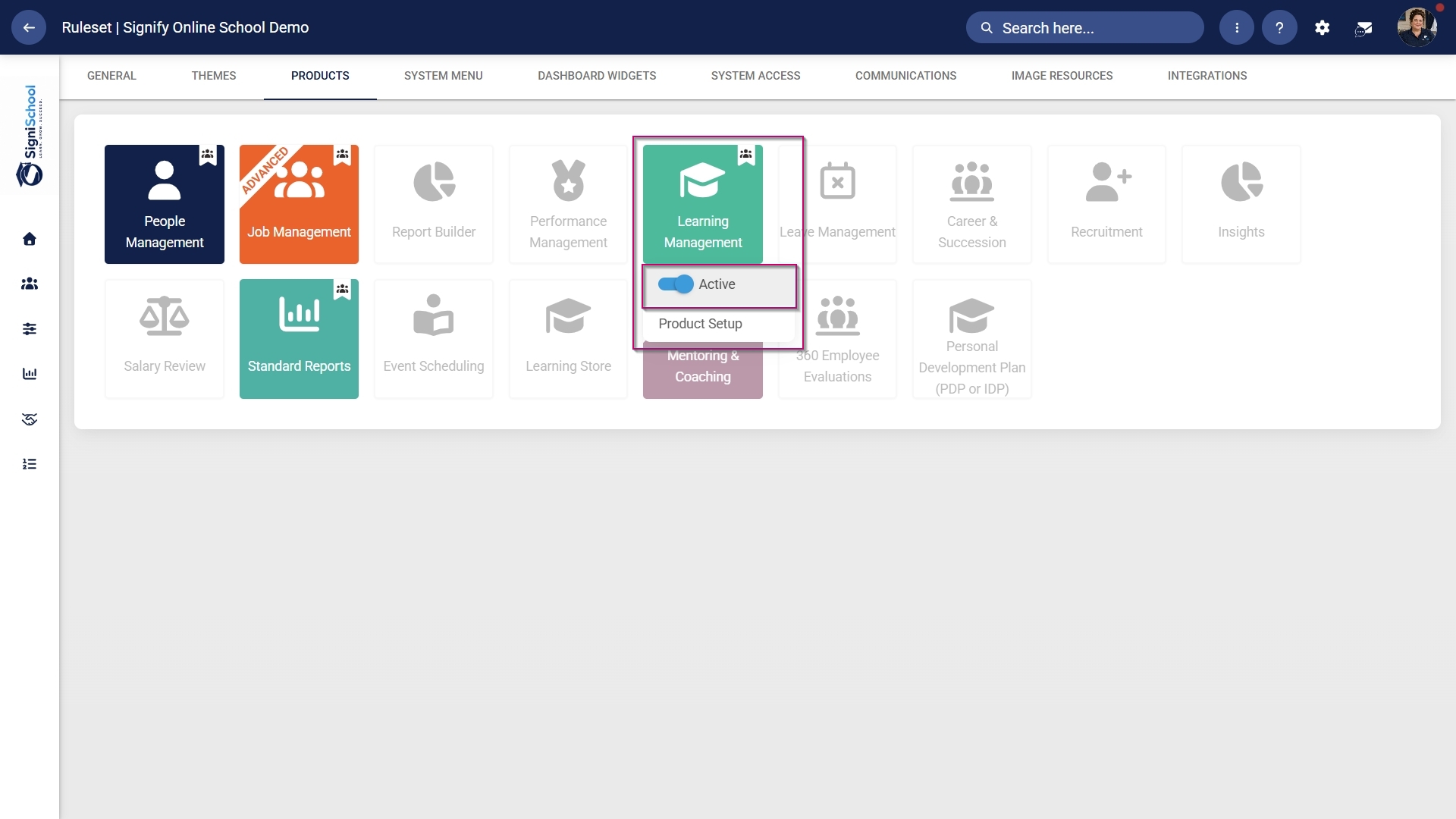
#### Add Learning Management to the system menu

- Click the **gear icon** to access the **Setup and Configuration** menu.

![LM OS Setup and configuration menu.jpg](https://signature.signifyhr.co.za/uploads/images/gallery/2026-05/OolVb4vG1kGknZ88-lm-os-setup-and-configuration-menu.jpg)

- Click **Ruleset Setup**.

![LM OS Setup and configuration menu - Ruleset setup.jpg](https://signature.signifyhr.co.za/uploads/images/gallery/2026-05/G8n6077uSByiSZlf-lm-os-setup-and-configuration-menu-ruleset-setup.jpg)

- Select the **ruleset you would like to update.

![LM OS Setup and configuration menu - Ruleset setup - Select ruleset.jpg](https://signature.signifyhr.co.za/uploads/images/gallery/2026-05/rfnTwwjc6K4u3af7-lm-os-setup-and-configuration-menu-ruleset-setup-select-ruleset.jpg)

- Navigate to the **System Menu** tab.
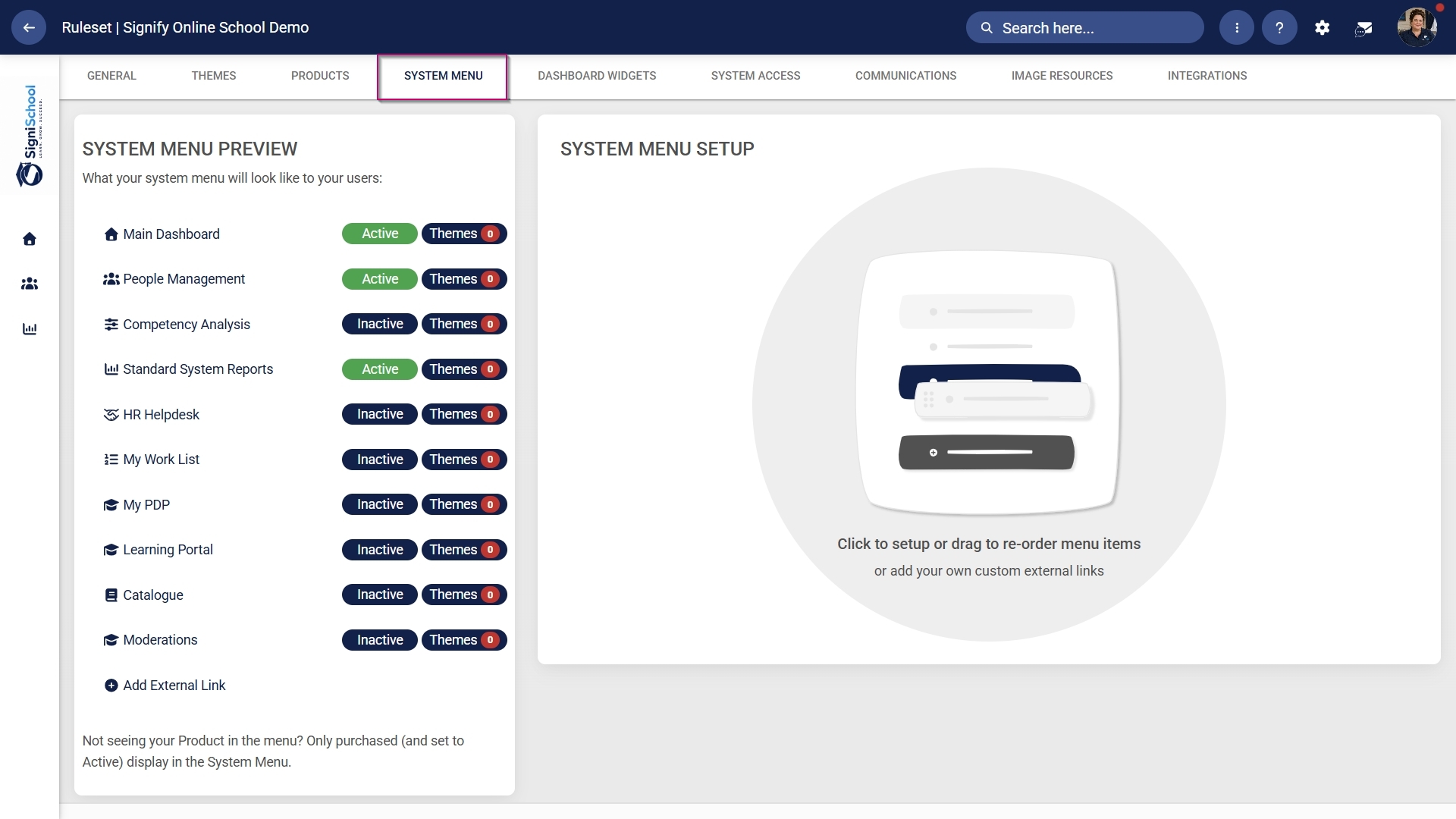
![LM OS System menu tab.jpg](https://signature.signifyhr.co.za/uploads/images/gallery/2026-05/8VD2zibkT0ZTgJin-lm-os-system-menu-tab.jpg)

- Click the **Learning Portal** menu item in the system menu preview.
- Click the **toggle** **button** to set the system menu item’s status to **Active**.
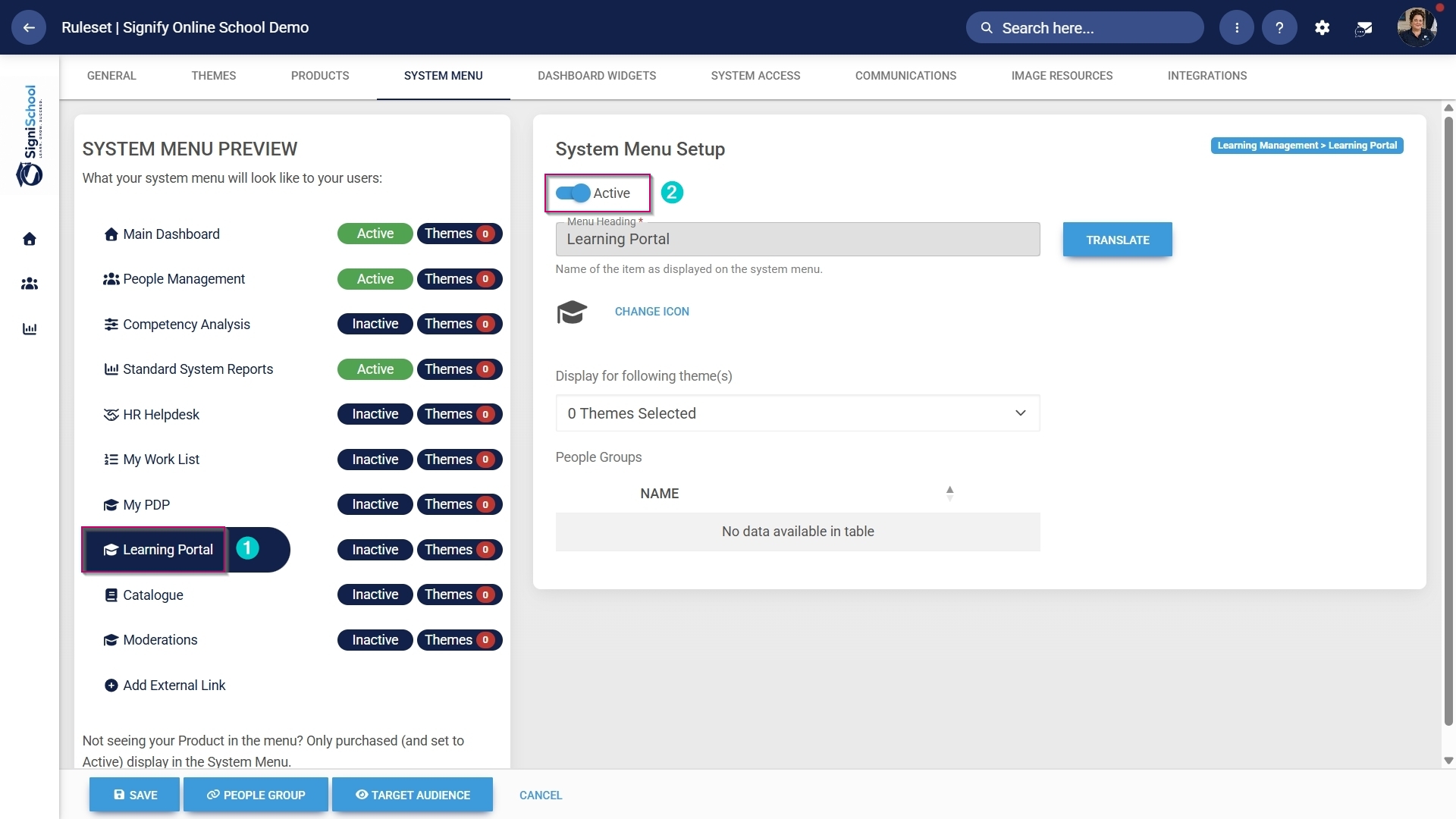
![LM OS System menu item.jpg](https://signature.signifyhr.co.za/uploads/images/gallery/2026-05/H55zoCtrtBum9Zkm-lm-os-system-menu-item.jpg)

- You can select an icon for the **Learning Management** module by clicking **CHANGE ICON**.
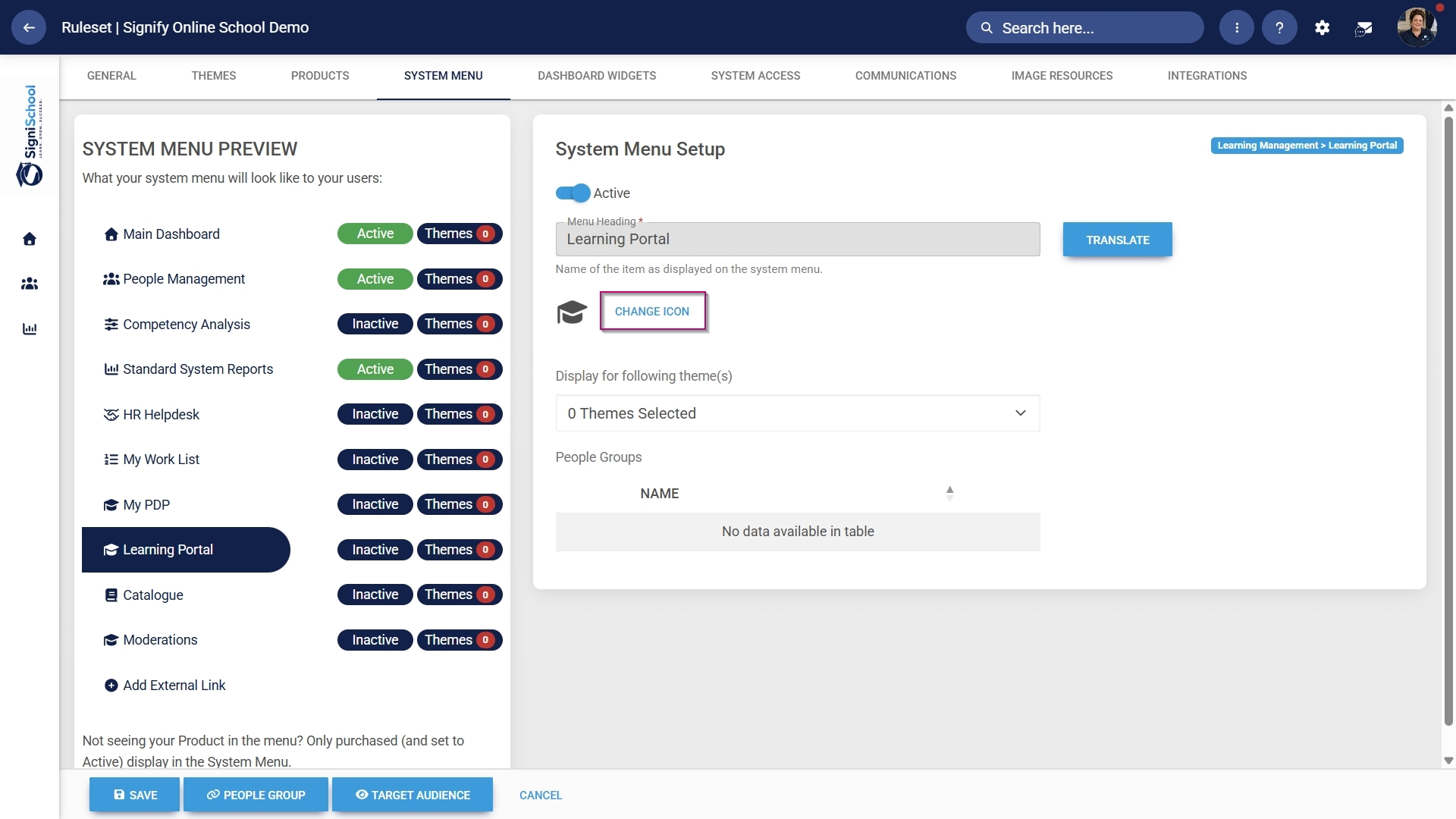
![LM OS System menu item - Change icon.jpg](https://signature.signifyhr.co.za/uploads/images/gallery/2026-05/vBice9t8RrVCwypq-lm-os-system-menu-item-change-icon.jpg)

- Click **SAVE** to continue or **CANCEL** to discard your changes.
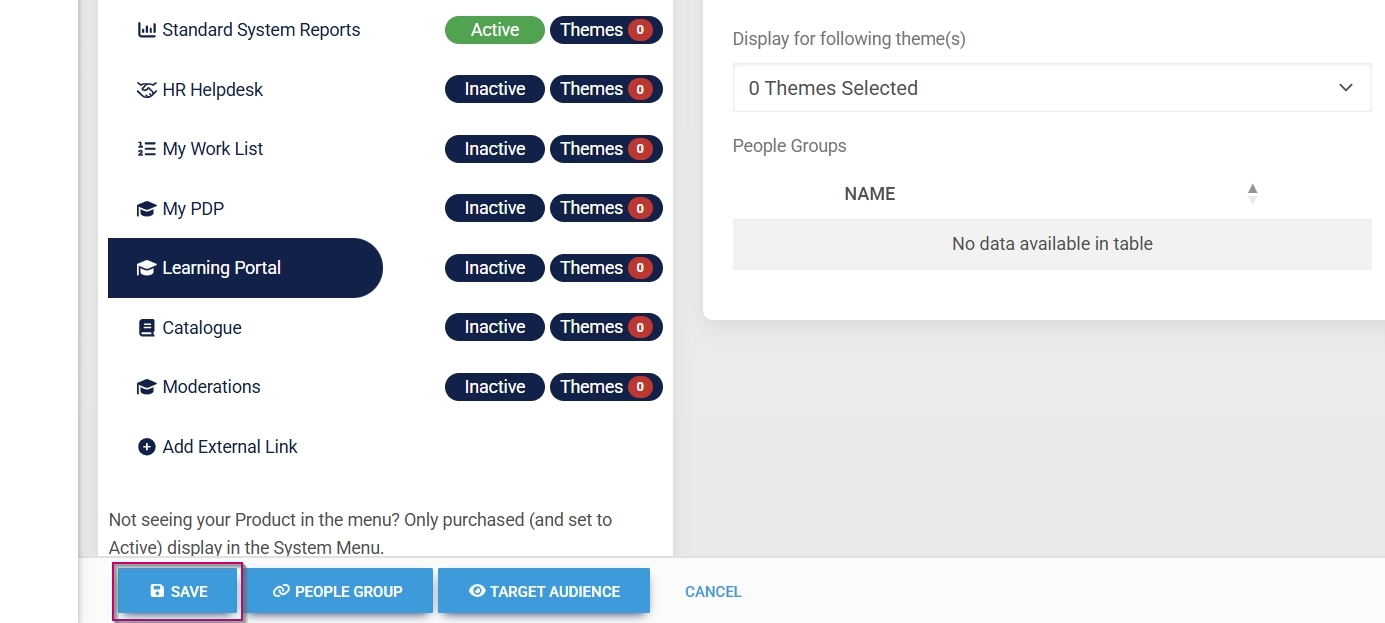
![LM OS System menu item - Save.jpg](https://signature.signifyhr.co.za/uploads/images/gallery/2026-05/zF6E1MYMnw8cVuz6-lm-os-system-menu-item-save.jpg)

#### Assign the Learning Management administrator permission

- Hover over the **sidebar** menu, then click **People Management**.

![LM OS People Management Sidebar menu item.jpg](https://signature.signifyhr.co.za/uploads/images/gallery/2026-05/u7JWepx5gEgRanrj-lm-os-people-management-sidebar-menu-item.jpg)

- Click to navigate to the **View/Edit People** tab.
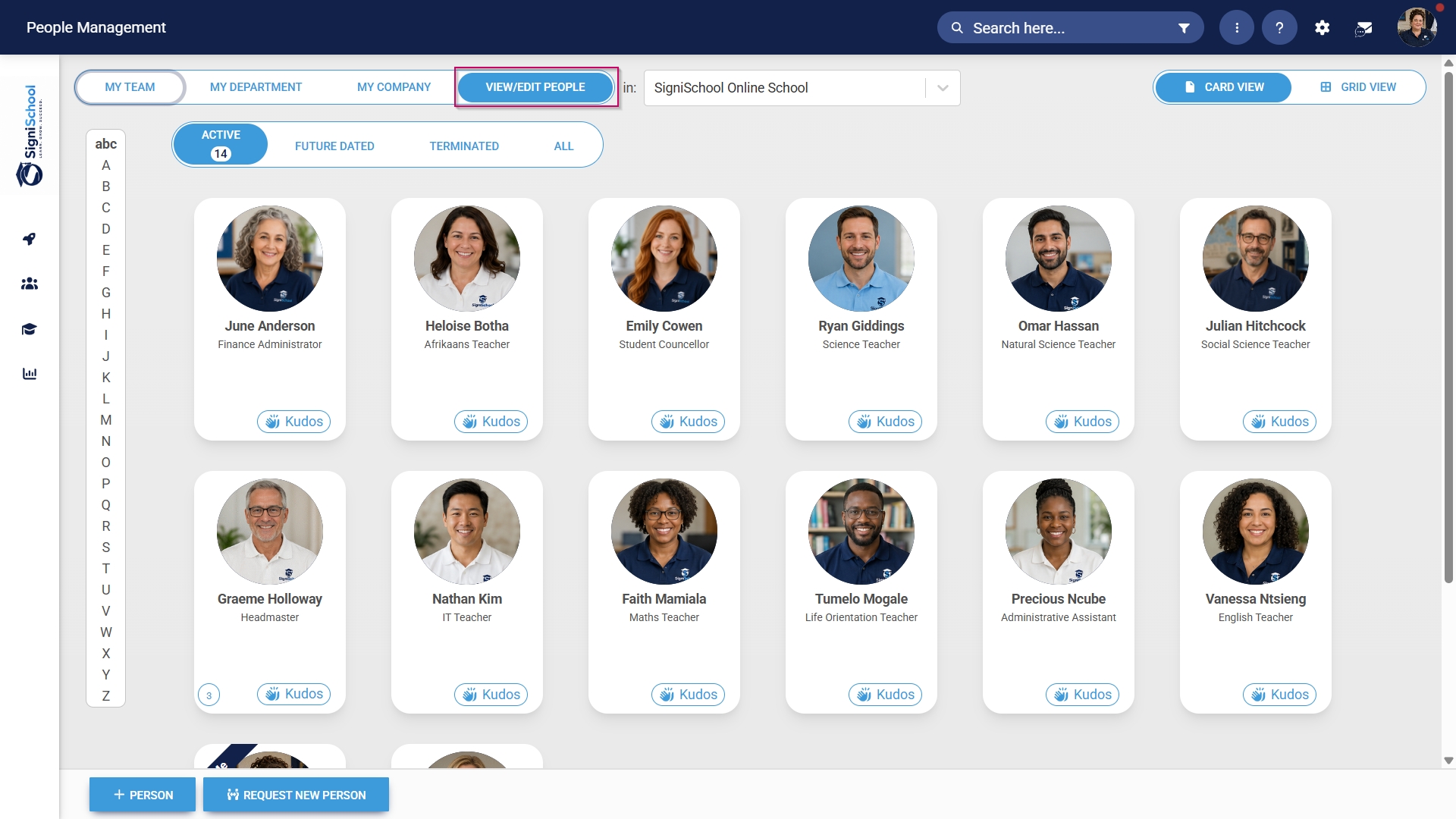
![LM OS People Management - View or Edit People tab.jpg](https://signature.signifyhr.co.za/uploads/images/gallery/2026-05/0UIEKZEkkMvBEN4K-lm-os-people-management-view-or-edit-people-tab.jpg)

- Click the **pencil icon** to manage the profile of the person you want to edit.
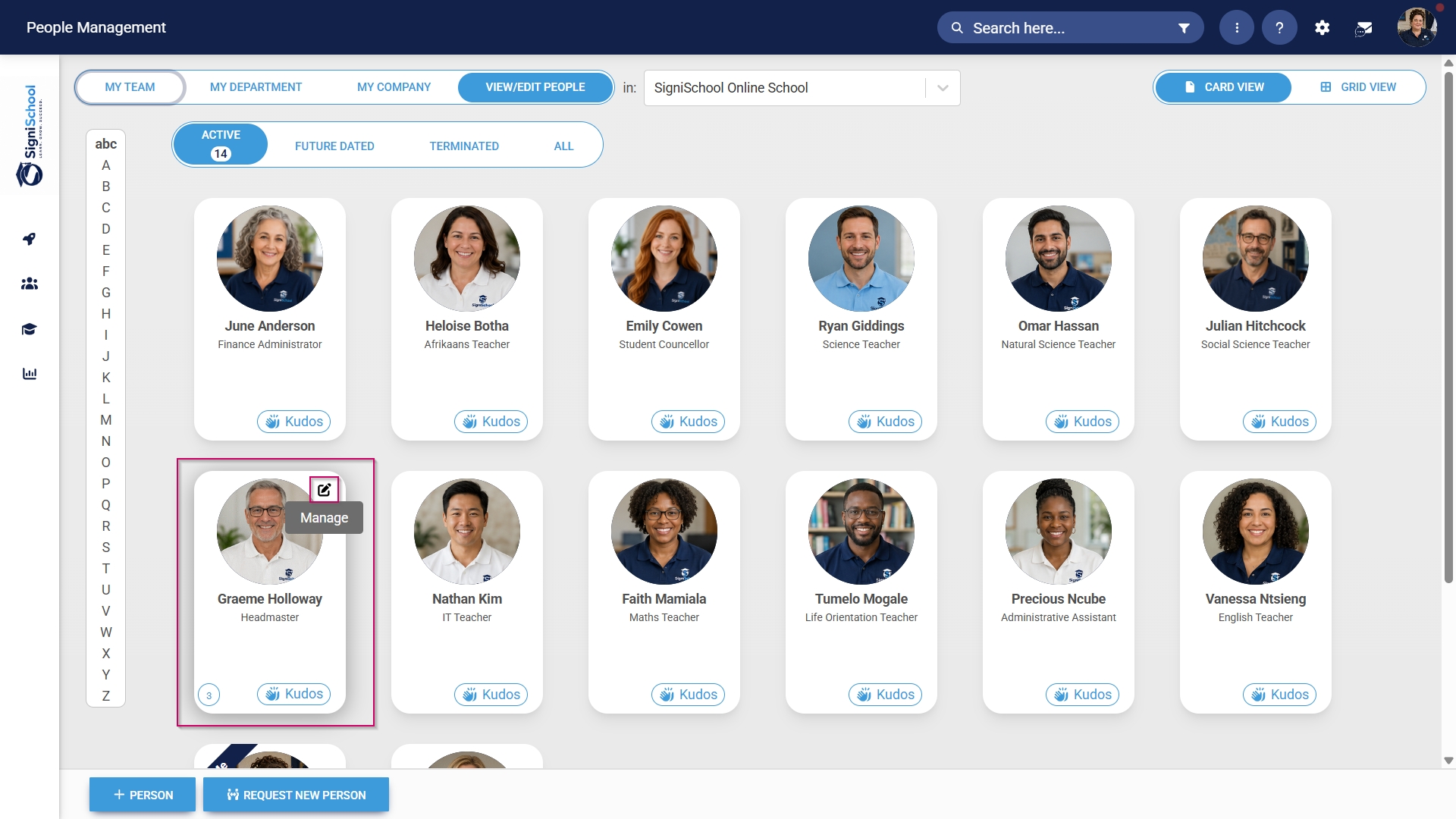
![LM OS People Management - Profile card - Manage.jpg](https://signature.signifyhr.co.za/uploads/images/gallery/2026-05/URsSabUfx4MWEY9I-lm-os-people-management-profile-card-manage.jpg)

- In the **left-hand menu**, navigate to **User Permissions**, then click **System Modules Admin**.
- Click the **LINK ROLE** button.
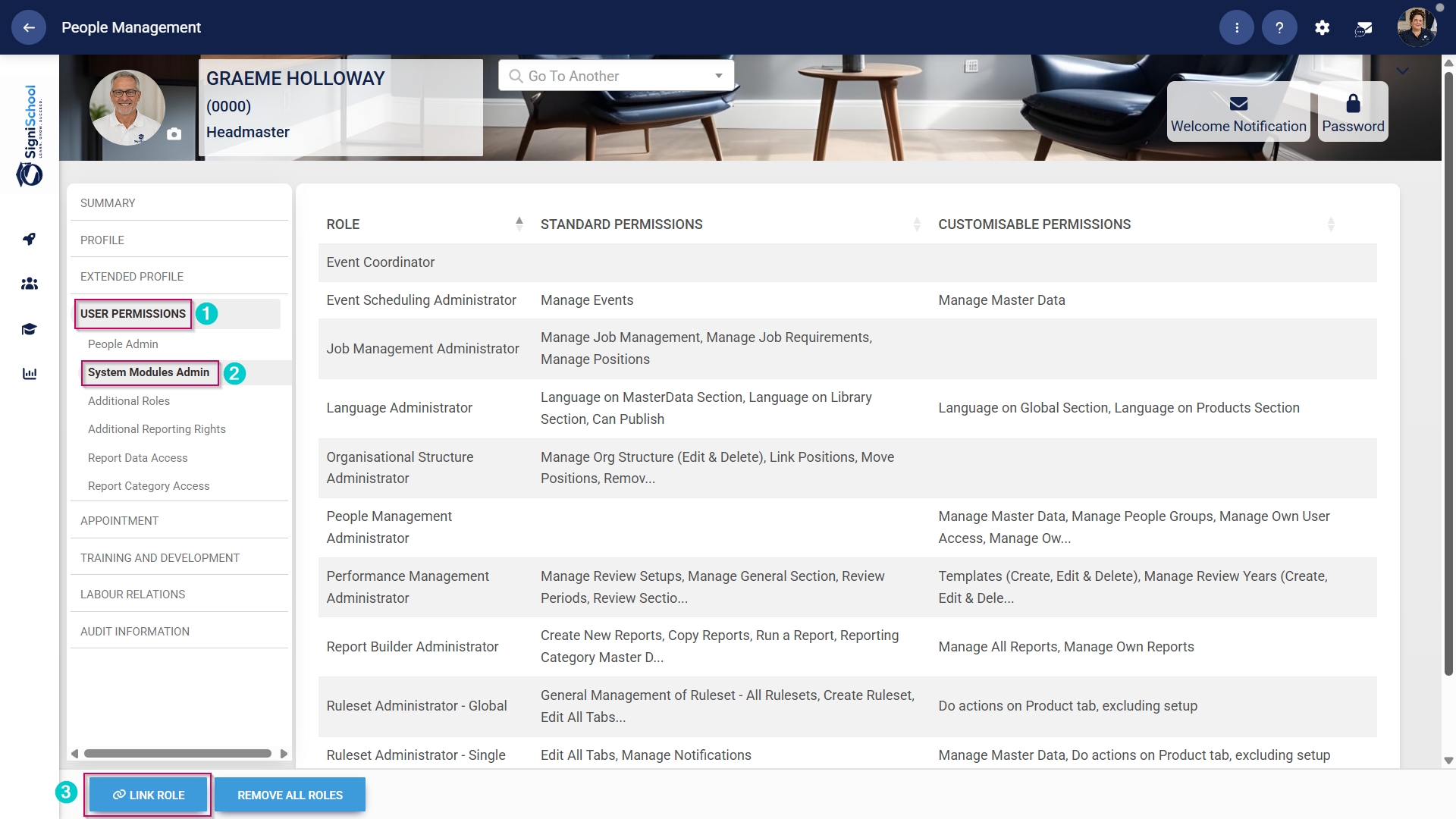
![LM OS People Management - Profile - User permissions.jpg](https://signature.signifyhr.co.za/uploads/images/gallery/2026-05/OrWvNh0Xk2QwWJ8p-lm-os-people-management-profile-user-permissions.jpg)

- Tick the **checkbox next to Learning Management** in the table to assign the Learning Management administrator role to the user.
- Click **SAVE** to continue or **CANCEL** to discard your changes.

![LM OS People Management - Profile - User permissions - LM.jpg](https://signature.signifyhr.co.za/uploads/images/gallery/2026-05/s4cYUK80ZyMWM96y-lm-os-people-management-profile-user-permissions-lm.jpg)

#### Enable the Import from Excel functionality

When using the Assessment Builder tool to create online assessments, the Import from Excel feature must be enabled.

- Hover over the **sidebar** menu, then click **People Management**.

![LM OS People Management Sidebar menu item.jpg](https://signature.signifyhr.co.za/uploads/images/gallery/2026-05/u7JWepx5gEgRanrj-lm-os-people-management-sidebar-menu-item.jpg)

- Click to navigate to the **View/Edit People** tab.

![LM OS People Management - View or Edit People tab.jpg](https://signature.signifyhr.co.za/uploads/images/gallery/2026-05/0UIEKZEkkMvBEN4K-lm-os-people-management-view-or-edit-people-tab.jpg)

- Click the **pencil icon** to manage the profile of the person you want to edit.

![LM OS People Management - Profile card - Manage.jpg](https://signature.signifyhr.co.za/uploads/images/gallery/2026-05/URsSabUfx4MWEY9I-lm-os-people-management-profile-card-manage.jpg)

- In the **left-hand menu**, navigate to **User Permissions**, then click **Additional Roles**.
- Click the **ADD** button.
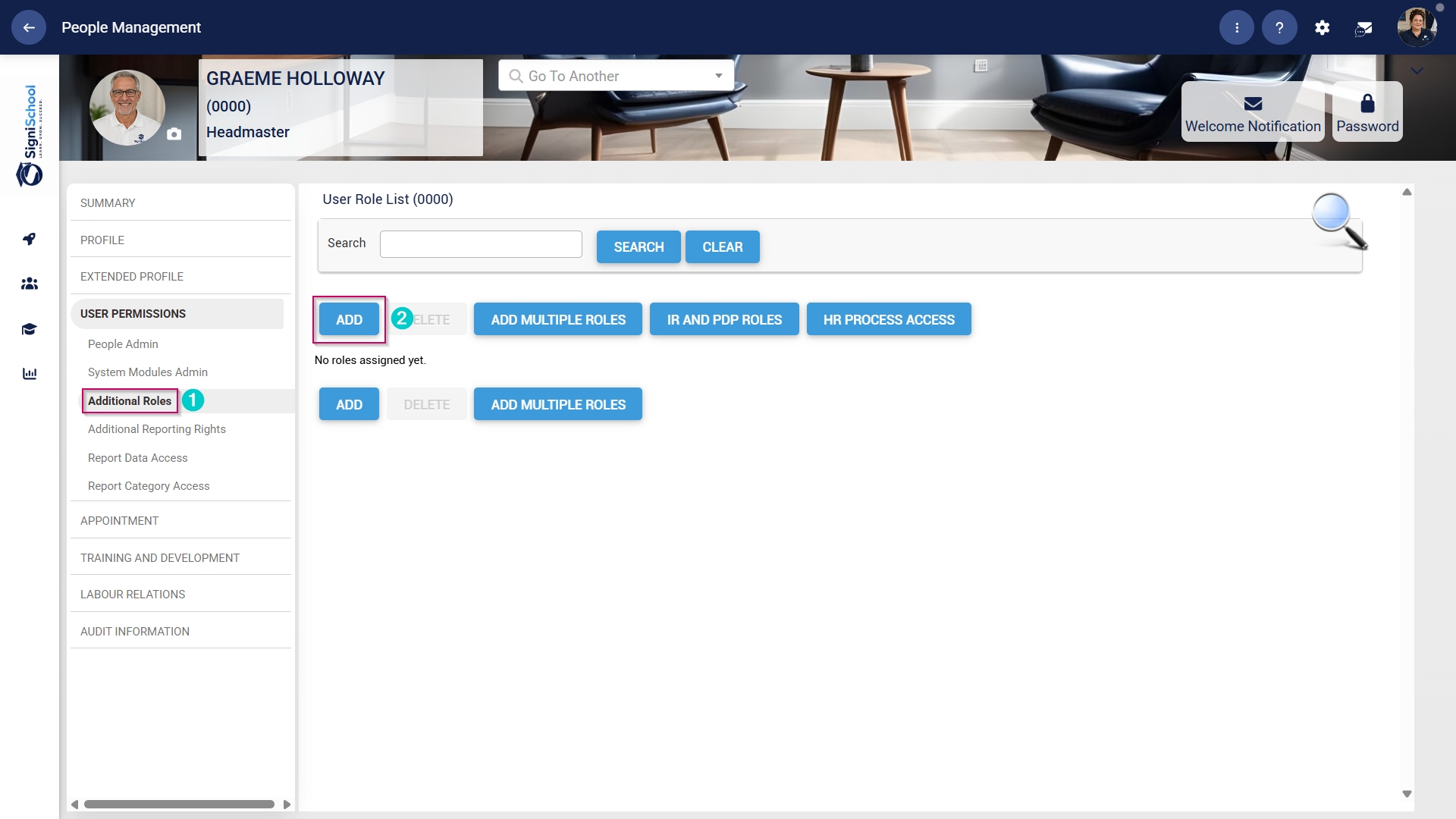
![LM OS People Management - Profile - Additional Roles - Add.jpg](https://signature.signifyhr.co.za/uploads/images/gallery/2026-05/pmXvxt7sRsoCWQfm-lm-os-people-management-profile-additional-roles-add.jpg)

- Click the **hand icon** to select a role.
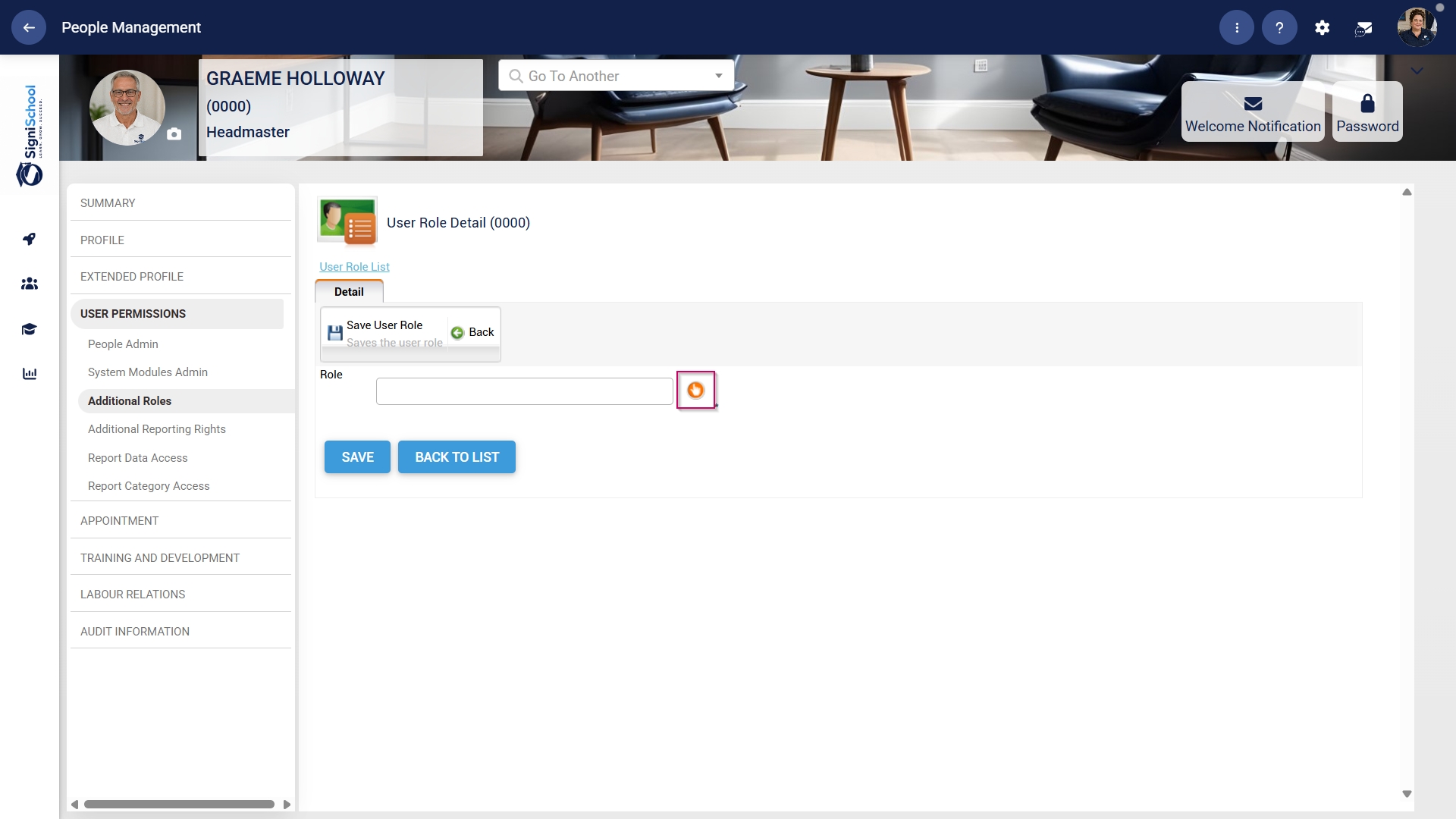
![LM OS People Management - Profile - Additional Roles - Select Role.jpg](https://signature.signifyhr.co.za/uploads/images/gallery/2026-05/wQrdyYOGavifR64z-lm-os-people-management-profile-additional-roles-select-role.jpg)

- Use the **search bar** to search for the Learning Administrator role.
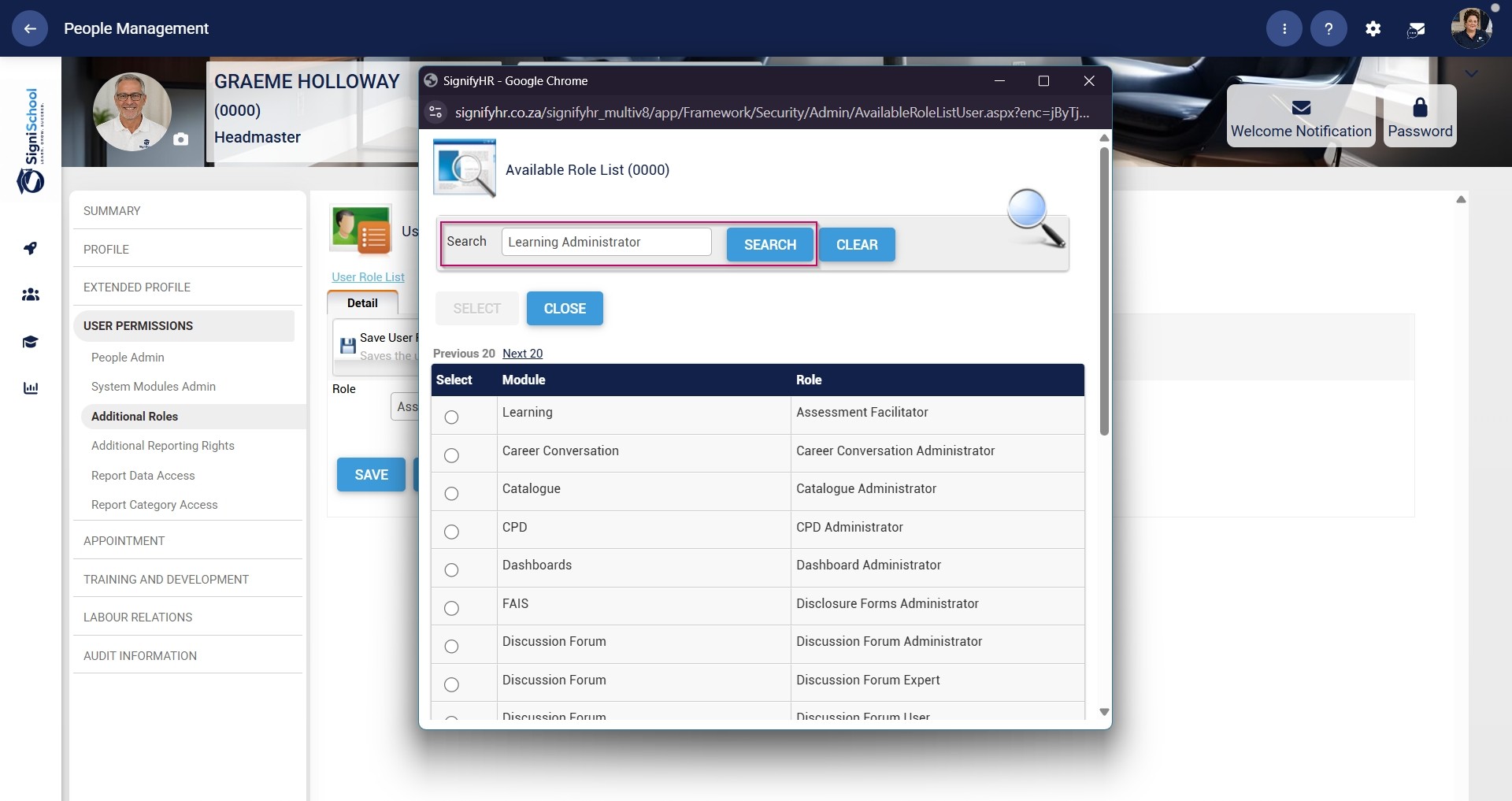
![LM OS People Management - Profile - Additional Roles - Search Learning Admin Role.jpg](https://signature.signifyhr.co.za/uploads/images/gallery/2026-05/1GNsqHsNkALdjOPN-lm-os-people-management-profile-additional-roles-search-learning-admin-role.jpg)

- Select the Learning Administrator role, then confirm your choice by clicking the **SELECT** button.
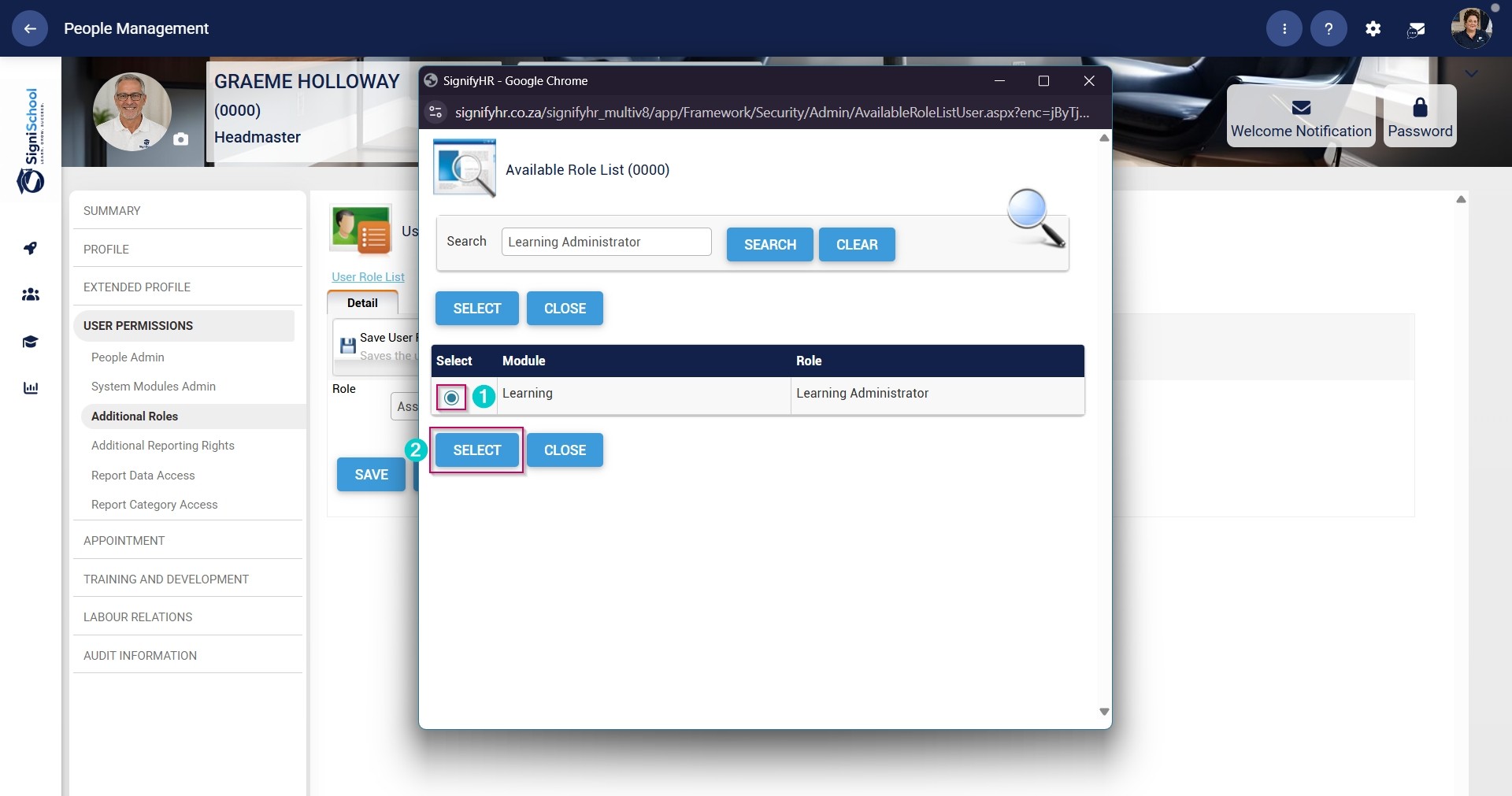
![LM OS People Management - Profile - Additional Roles - Select Learning Admin Role.jpg](https://signature.signifyhr.co.za/uploads/images/gallery/2026-05/7cUOb0lZA4y8W2mj-lm-os-people-management-profile-additional-roles-select-learning-admin-role.jpg)

- Click the **SAVE** button.

![LM OS People Management - Profile - Additional Roles - Save Learning Admin Role.jpg](https://signature.signifyhr.co.za/uploads/images/gallery/2026-05/ZEJisUU8Adz7RXPu-lm-os-people-management-profile-additional-roles-save-learning-admin-role.jpg)

- Click **CHECK ALL to assign all Learning Administrator permissions to the user.

![LM OS People Management - Profile - Additional Roles - Check All.jpg](https://signature.signifyhr.co.za/uploads/images/gallery/2026-05/JhQBOaPUj0lrVSkj-lm-os-people-management-profile-additional-roles-check-all.jpg)

- Ensure the **checkbox** next to **Import From Excel** is ticked.
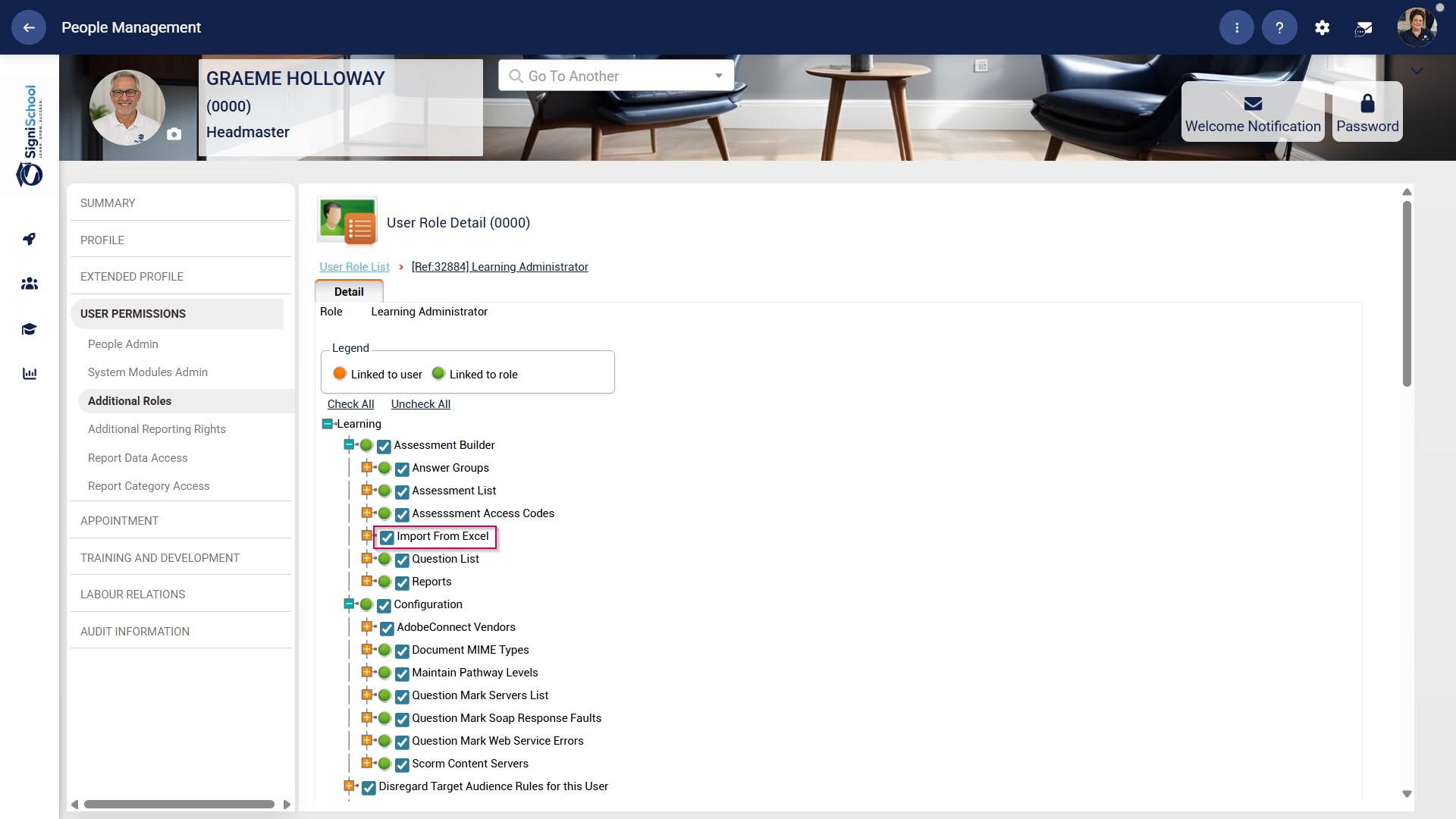
![LM OS People Management - Profile - Additional Roles - Check Import from Excel is ticked.jpg](https://signature.signifyhr.co.za/uploads/images/gallery/2026-05/HewCOP5nsye52TiW-lm-os-people-management-profile-additional-roles-check-import-from-excel-is-ticked.jpg)

- Click **SAVE** to continue or **BACK TO LIST** to discard your changes.
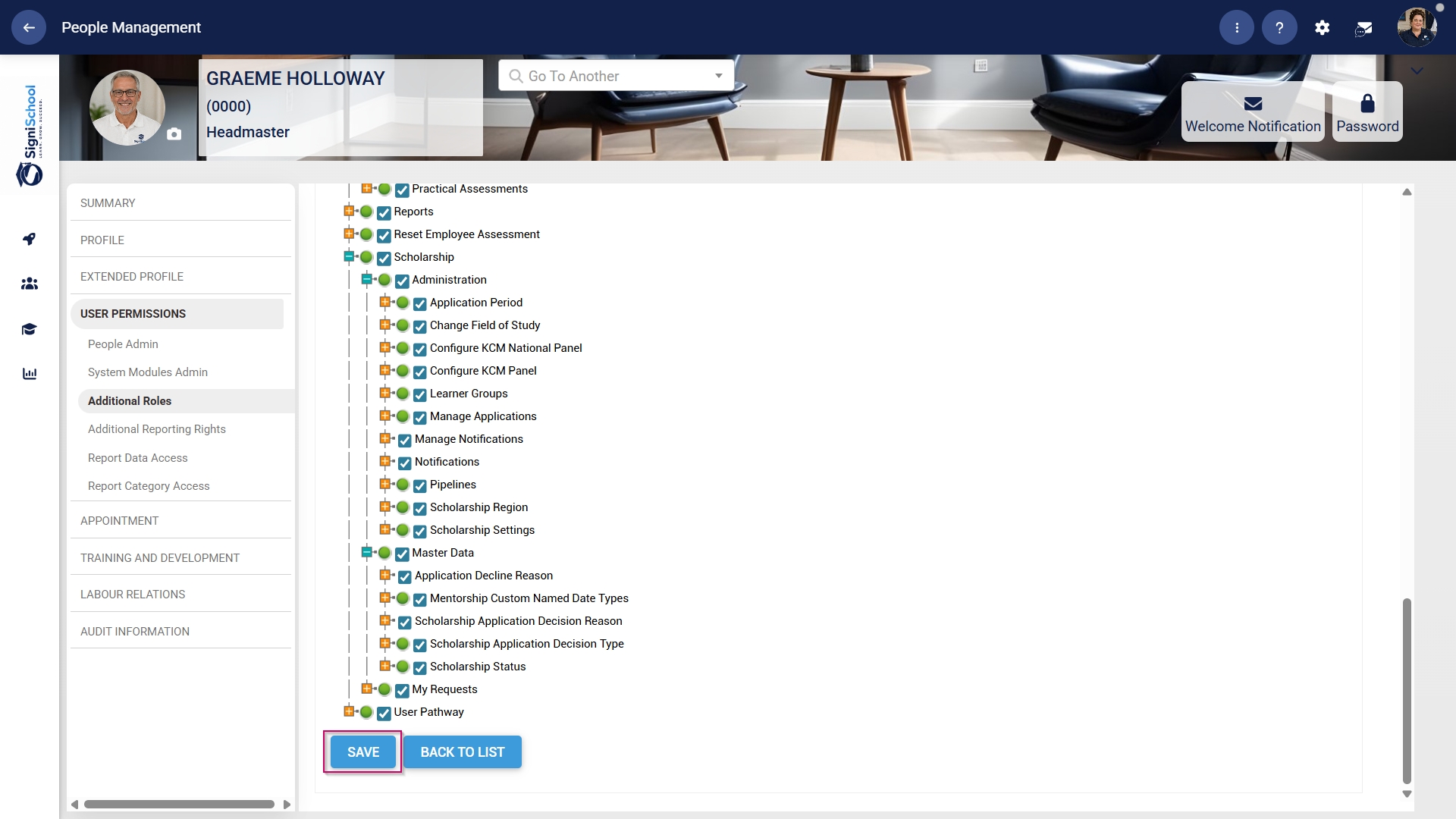
![LM OS People Management - Profile - Additional Roles - Save.jpg](https://signature.signifyhr.co.za/uploads/images/gallery/2026-05/qAni6xUAmYK7oqyg-lm-os-people-management-profile-additional-roles-save.jpg)

#### Allow access to the Training Intervention Library

When building pathways, the Learning Administrator needs access to the Training Intervention Library.

- Hover over the **sidebar** menu, then click **People Management**.

![LM OS People Management Sidebar menu item.jpg](https://signature.signifyhr.co.za/uploads/images/gallery/2026-05/u7JWepx5gEgRanrj-lm-os-people-management-sidebar-menu-item.jpg)

- Click to navigate to the **View/Edit People** tab.

![LM OS People Management - View or Edit People tab.jpg](https://signature.signifyhr.co.za/uploads/images/gallery/2026-05/0UIEKZEkkMvBEN4K-lm-os-people-management-view-or-edit-people-tab.jpg)

- Click the **pencil icon** to manage the profile of the person you want to edit.

![LM OS People Management - Profile card - Manage.jpg](https://signature.signifyhr.co.za/uploads/images/gallery/2026-05/URsSabUfx4MWEY9I-lm-os-people-management-profile-card-manage.jpg)

- In the **left-hand menu**, navigate to **User Permissions**, then click **Additional Roles**.
- Click the **ADD** button.

![LM OS People Management - Profile - Additional Roles - Add.jpg](https://signature.signifyhr.co.za/uploads/images/gallery/2026-05/pmXvxt7sRsoCWQfm-lm-os-people-management-profile-additional-roles-add.jpg)

- Click the **hand icon** to select a role.

![LM OS People Management - Profile - Additional Roles - Select Role.jpg](https://signature.signifyhr.co.za/uploads/images/gallery/2026-05/wQrdyYOGavifR64z-lm-os-people-management-profile-additional-roles-select-role.jpg)

- Scroll down to the Event Administrator role and click the **radio button** to select it.
- Click the **SELECT** button.
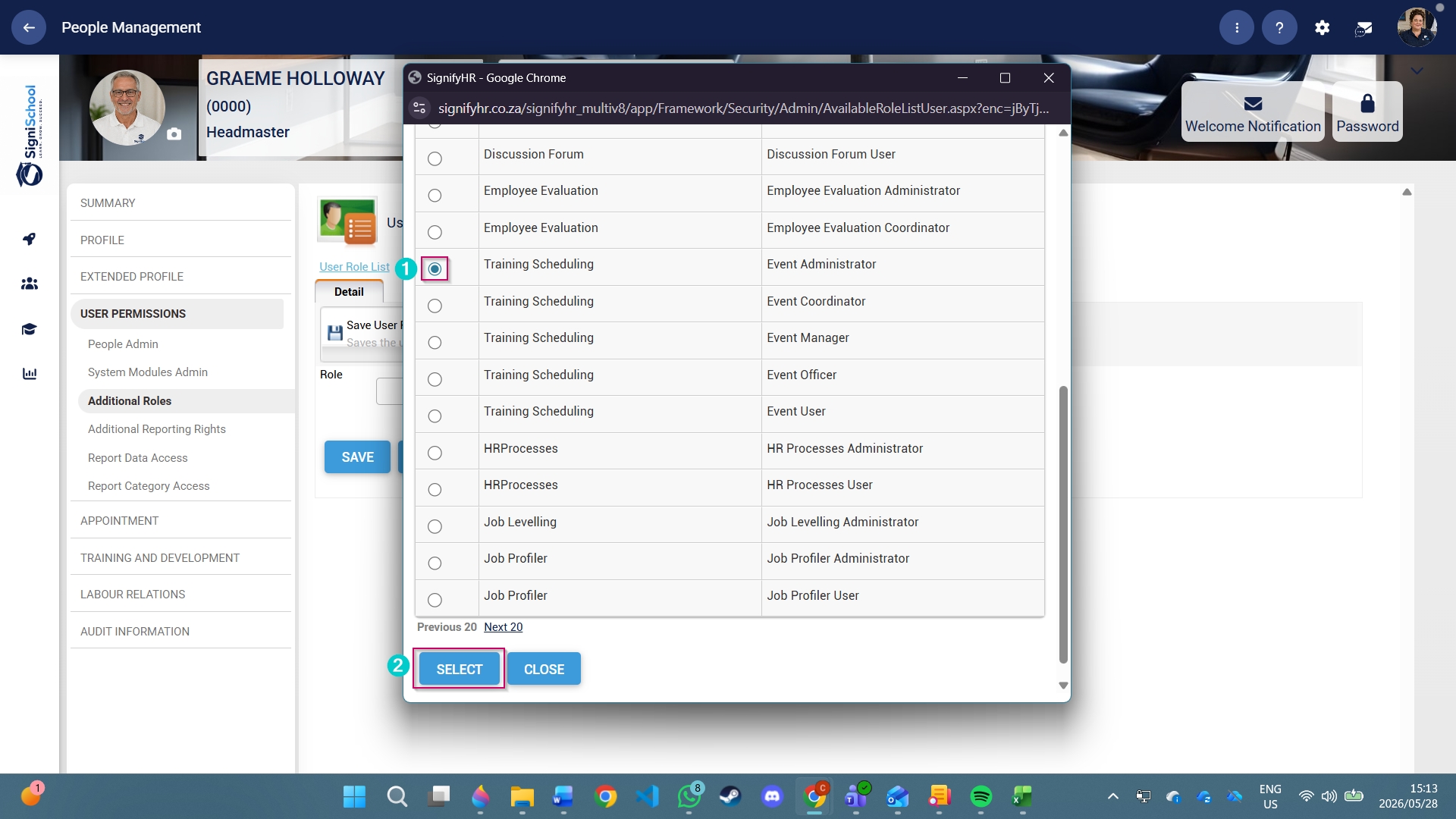
![LM OS People Management - Profile - Additional Roles - Select and Save Event Admin Role.jpg](https://signature.signifyhr.co.za/uploads/images/gallery/2026-05/SBsuKsPsxurR3U2c-lm-os-people-management-profile-additional-roles-select-and-save-event-admin-role.jpg)

- Click the **SAVE** button.

![LM OS People Management - Profile - Additional Roles - Save Event Admin Role.jpg](https://signature.signifyhr.co.za/uploads/images/gallery/2026-05/8z5AfWXnzMFCQblL-lm-os-people-management-profile-additional-roles-save-event-admin-role.jpg)

- Scroll down to the Master Data section, and ensure the **checkbox** next to the Training Intervention permission is ticked.
- Click **SAVE** to continue or **BACK TO LIST** to discard your changes.
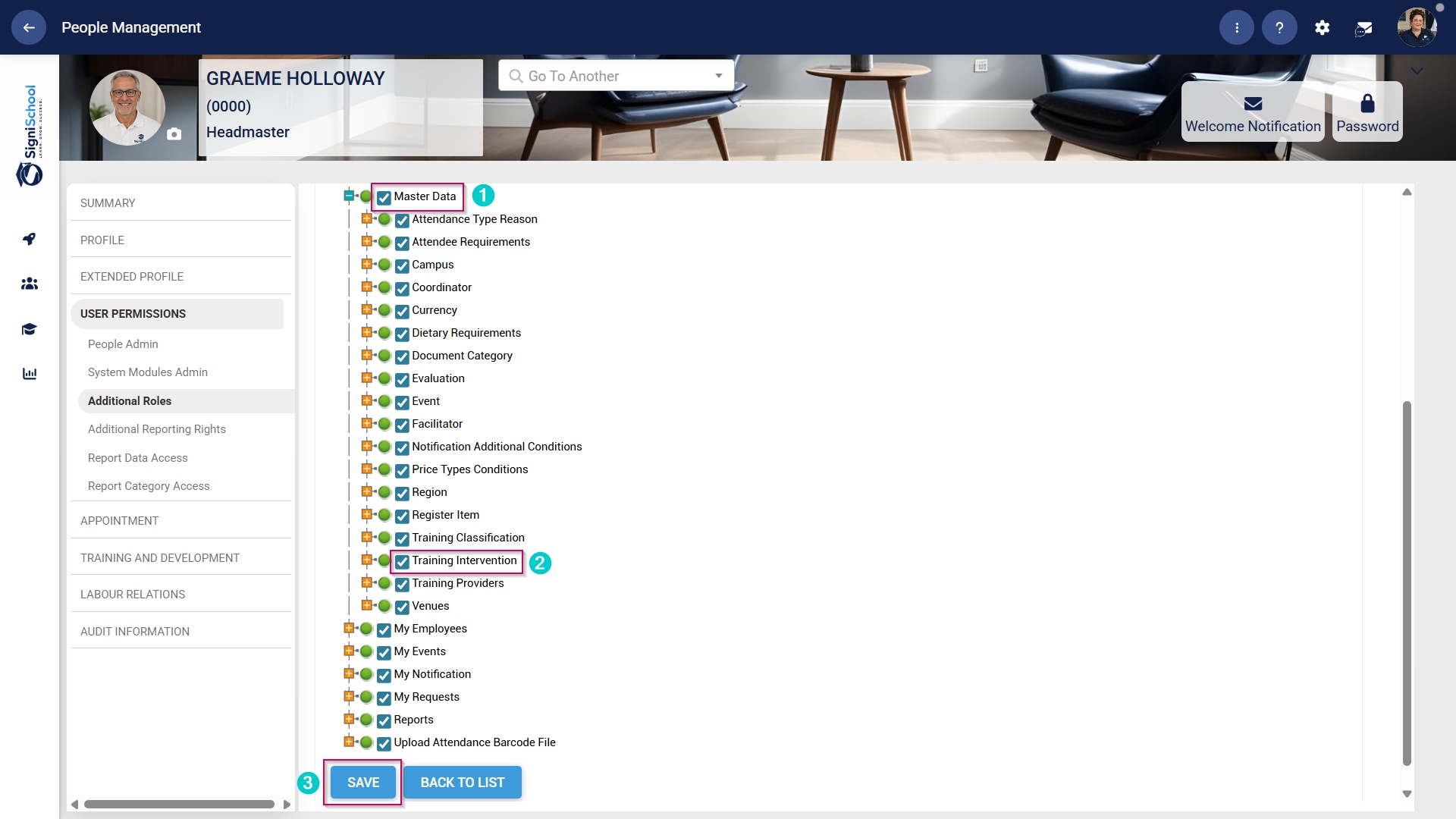
![LM OS People Management - Profile - Additional Roles - Check Training Interventions is ticked.jpg](https://signature.signifyhr.co.za/uploads/images/gallery/2026-05/nxNgXfgQsGFF7ysG-lm-os-people-management-profile-additional-roles-check-training-interventions-is-ticked.jpg)


#### Update the Master Data Library

- Click the **gear icon** to access the **Setup and Configuration** menu.

![LM OS Setup and configuration menu.jpg](https://signature.signifyhr.co.za/uploads/images/gallery/2026-05/OolVb4vG1kGknZ88-lm-os-setup-and-configuration-menu.jpg)

- Click **Master Data**.

![LM OS Setup and configuration menu - Master Data.jpg](https://signature.signifyhr.co.za/uploads/images/gallery/2026-06/QneW60Ico9IsSbxP-lm-os-setup-and-configuration-menu-master-data.jpg)

- The **Master Data Library lists the categories for which administrators can create master data. Use the **search bar** at the top of the screen to filter the search results by **Learning Management**.
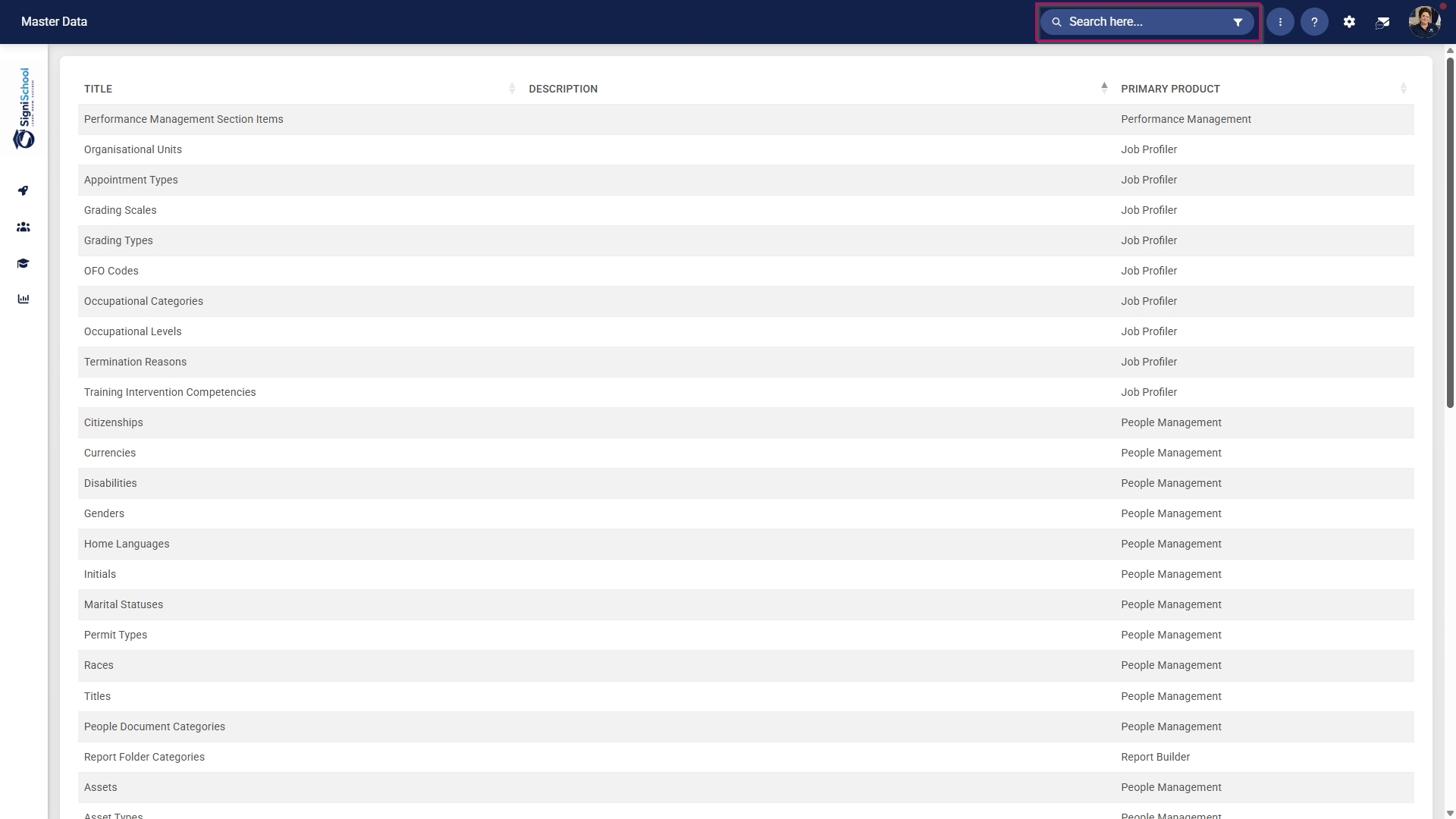
![LM OS Master Data Library - Overview.jpg](https://signature.signifyhr.co.za/uploads/images/gallery/2026-06/DMWJoYPTxoVY8SE5-lm-os-master-data-library-overview.jpg)


##### Configure cycles

- Click on the **Cycles** category to continue.
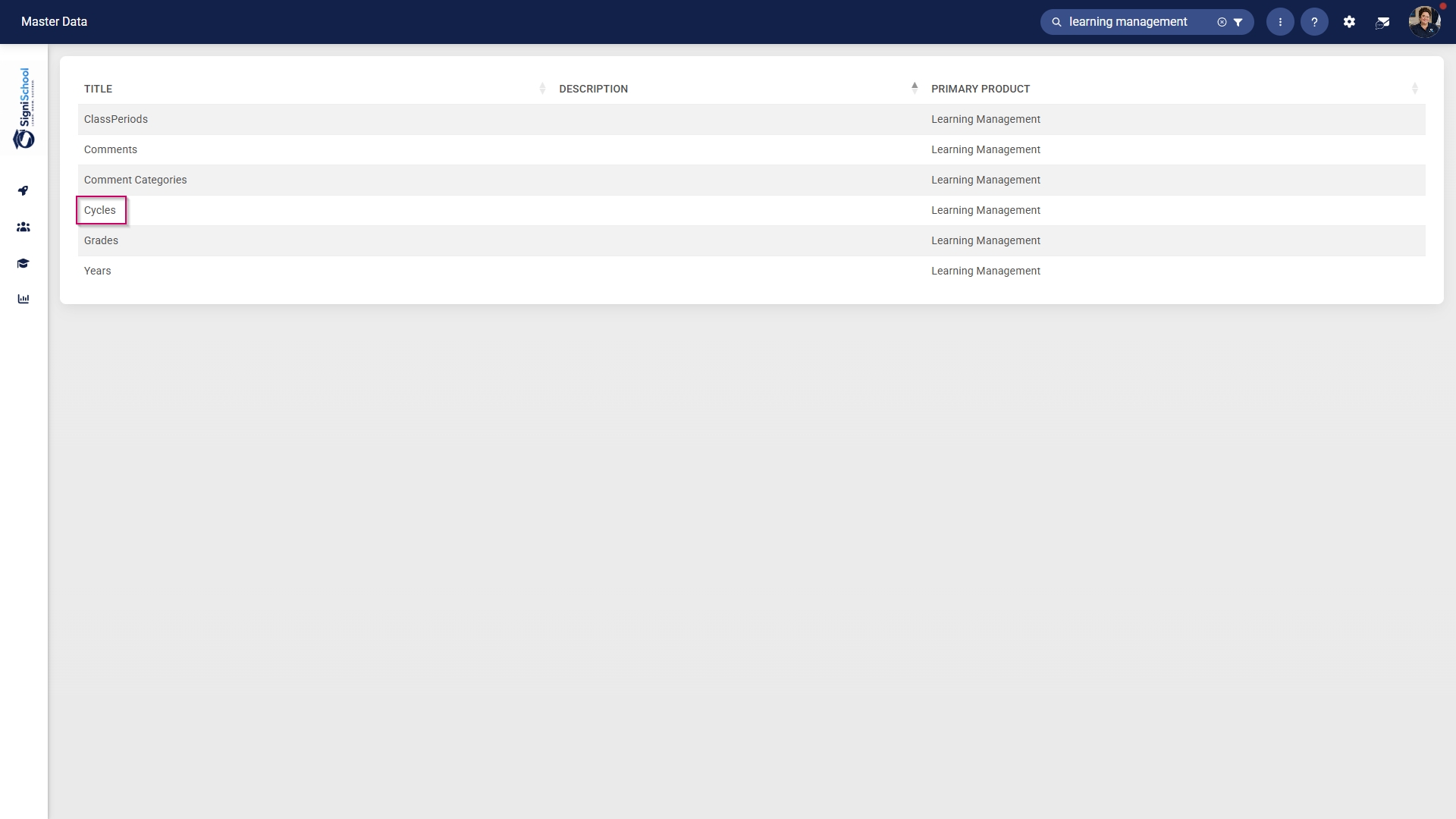
![LM OS Master Data Library - Cycles.jpg](https://signature.signifyhr.co.za/uploads/images/gallery/2026-06/s882QFvOwrifkhhA-lm-os-master-data-library-cycles.jpg)

- To add a new master data item, click on **+ITEM**.
![LM OS Master Data Library - Add item.jpg](https://signature.signifyhr.co.za/uploads/images/gallery/2026-06/ZZkJ7Dpq9DMfgwjt-lm-os-master-data-library-add-item.jpg)

- Click the **toggle** **button** to set the cycle's status to **Active**.
- Enter a name for the cycle.
- Enter an alias for the cycle in the primary language.
- Enter an alias for the cycle in the secondary language.
- Click **SAVE** when you are finished, **SAVE ADD NEW** to add another master data item or click **CANCEL** to discard your edits.
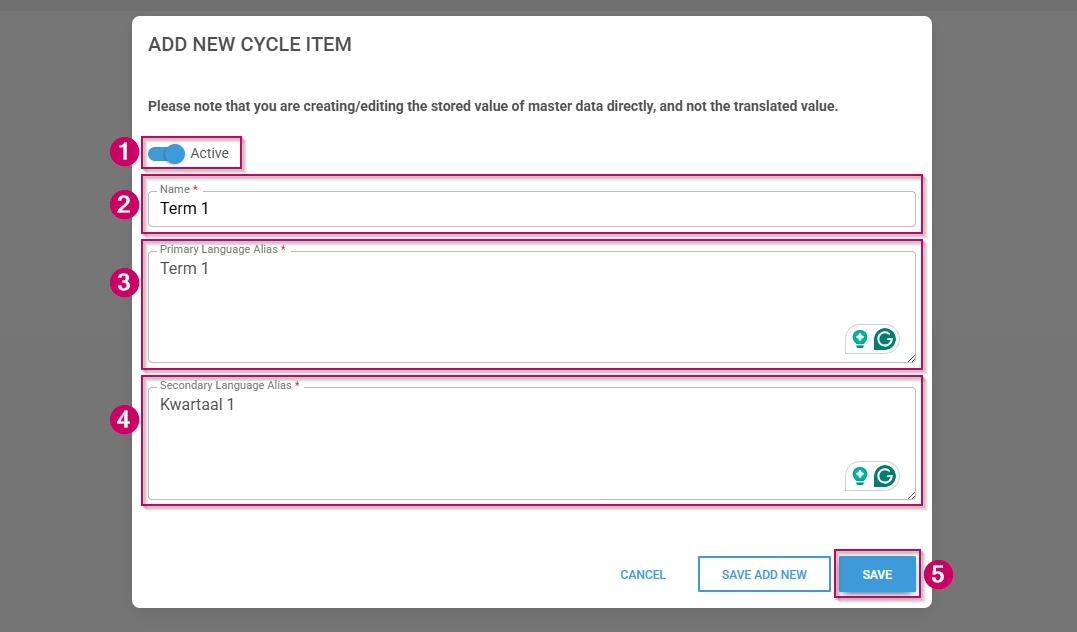
![LM OS Master Data Library - Cycles - Add.jpg](https://signature.signifyhr.co.za/uploads/images/gallery/2026-06/en5XwkujnEMZreuy-lm-os-master-data-library-cycles-add.jpg)

- Click the **back arrow** to navigate back to the **Master Data Library** once you are finished.
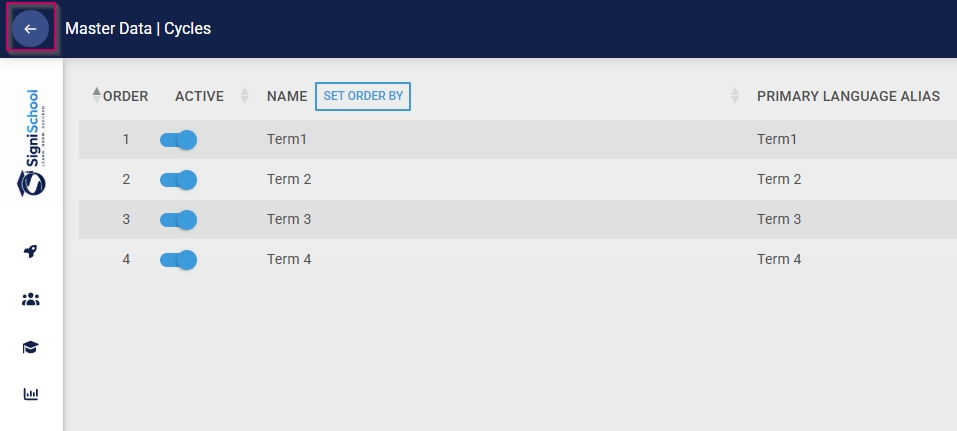
![LM OS Master Data Library - Cycles - Back.jpg](https://signature.signifyhr.co.za/uploads/images/gallery/2026-06/nS5vAVzhFzFDgoqf-lm-os-master-data-library-cycles-back.jpg)

##### Configure grades

- Click on the **Grades** category to continue.
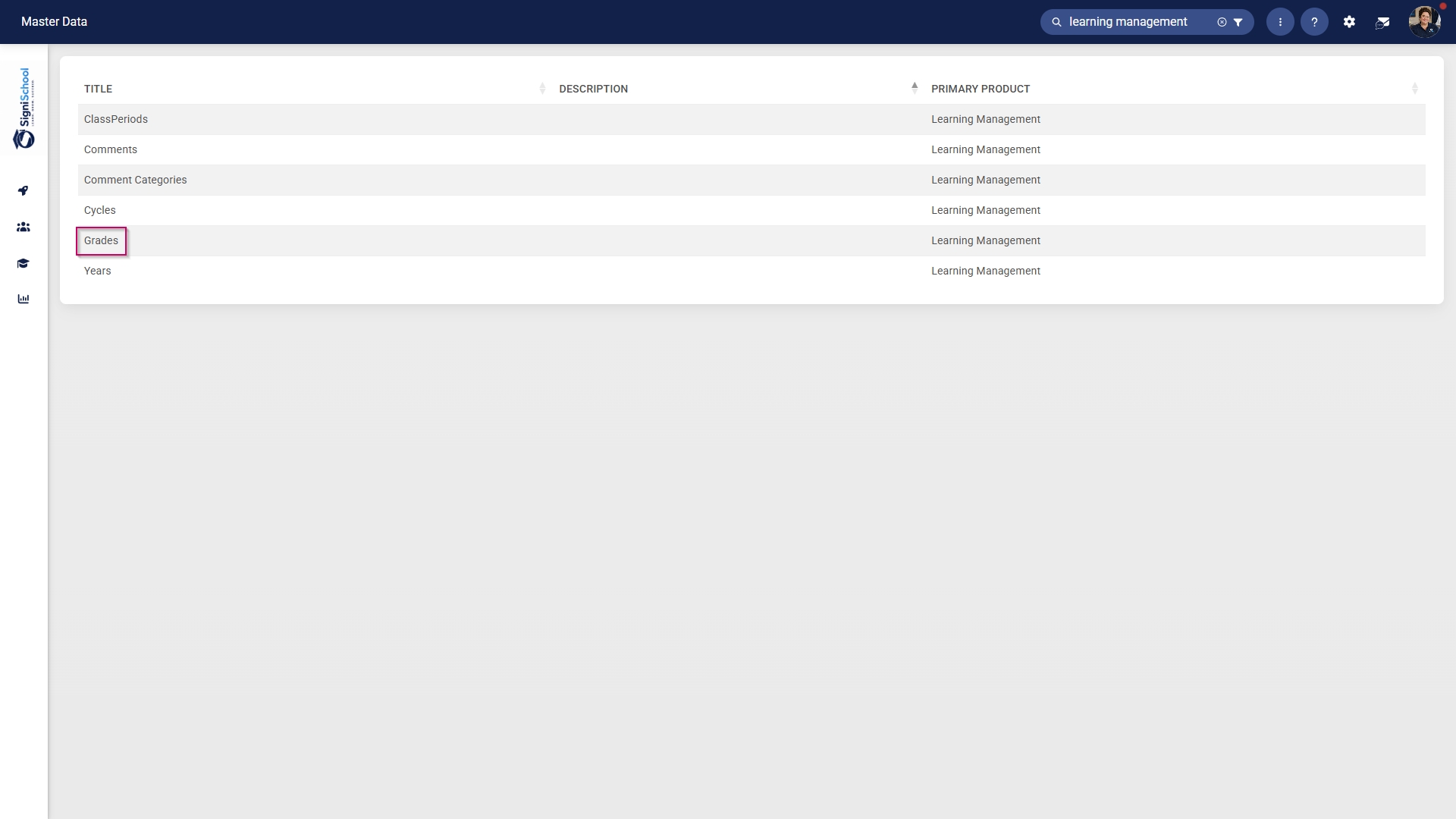
![LM OS Master Data Library - Grades.jpg](https://signature.signifyhr.co.za/uploads/images/gallery/2026-06/4fxiuhVt6KT1lsQ4-lm-os-master-data-library-grades.jpg)

- To add a new master data item, click on **+ITEM**.

![LM OS Master Data Library - Add item.jpg](https://signature.signifyhr.co.za/uploads/images/gallery/2026-06/ZZkJ7Dpq9DMfgwjt-lm-os-master-data-library-add-item.jpg)

- Click the **toggle** **button** to set the grade's status to **Active**.
- Enter a short description for the grade.
- Enter a name for the grade.
- Enter an alias for the grade in the primary language.
- Enter an alias for the grade in the secondary language.
- Click **SAVE** when you are finished, **SAVE ADD NEW** to add another master data item or click **CANCEL** to discard your edits.
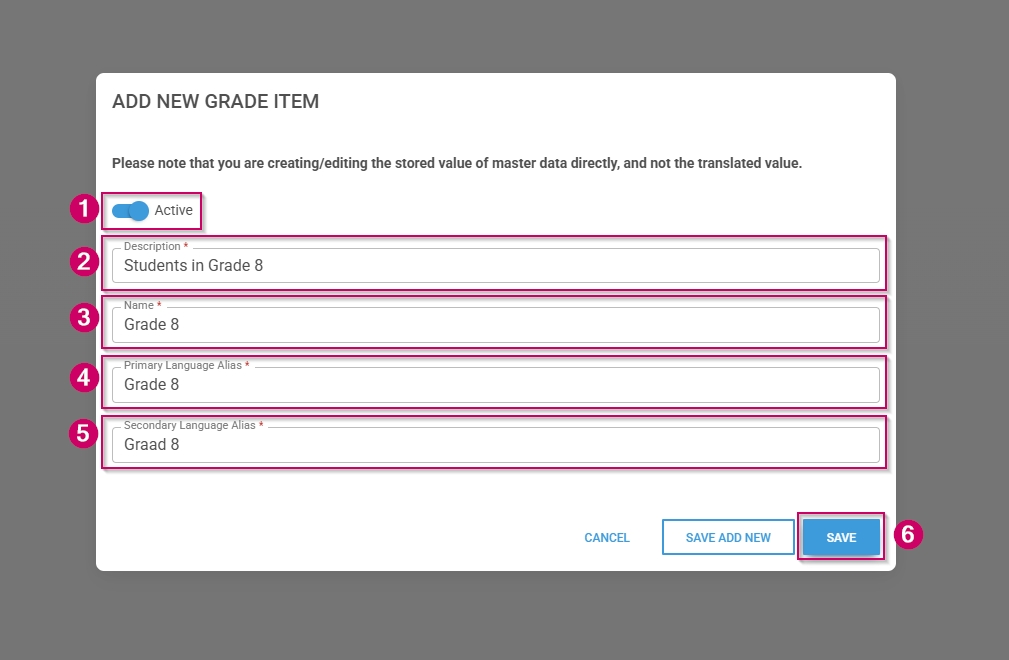
![LM OS Master Data Library - Grades - Add.jpg](https://signature.signifyhr.co.za/uploads/images/gallery/2026-06/d0g8lRfC9mY3IhwY-lm-os-master-data-library-grades-add.jpg)

- Click the **back arrow** to navigate back to the **Master Data Library** once you are finished.

![LM OS Master Data Library - Grades - Back.jpg](https://signature.signifyhr.co.za/uploads/images/gallery/2026-06/dYDWICWxpM8hAfja-lm-os-master-data-library-grades-back.jpg)

##### Configure years

- Click on the **Years** category to continue.
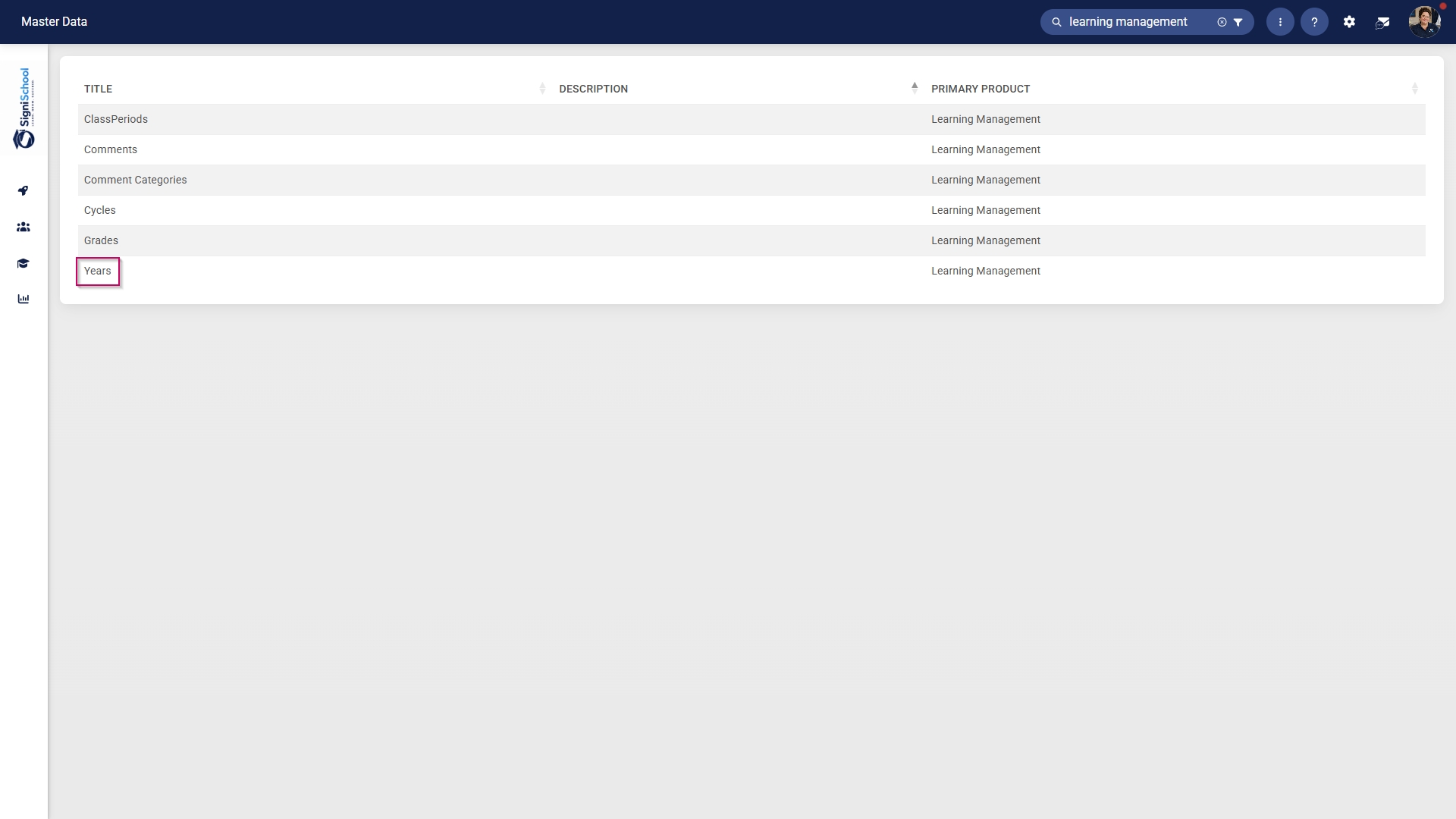
![LM OS Master Data Library - Years.jpg](https://signature.signifyhr.co.za/uploads/images/gallery/2026-06/eq09DRAArCQx4CgK-lm-os-master-data-library-years.jpg)

- To add a new master data item, click on **+ITEM**.

![LM OS Master Data Library - Add item.jpg](https://signature.signifyhr.co.za/uploads/images/gallery/2026-06/ZZkJ7Dpq9DMfgwjt-lm-os-master-data-library-add-item.jpg)

- Click the **toggle** **button** to set the year's status to **Active**.
- Enter an end date for the year.
- Enter a name for the year.
- Enter a start date for the year.
- Click **SAVE** when you are finished, **SAVE ADD NEW** to add another master data item or click **CANCEL** to discard your edits.
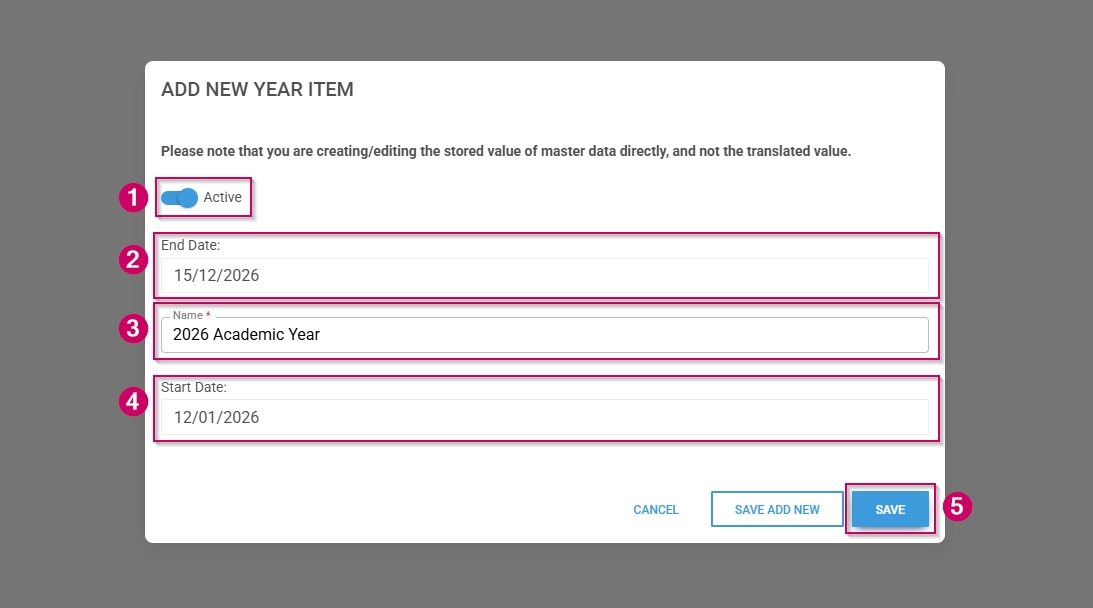
![LM OS Master Data Library - Years - Add.jpg](https://signature.signifyhr.co.za/uploads/images/gallery/2026-06/p6IOIikRXi0PN3wi-lm-os-master-data-library-years-add.jpg)

- Click the **back arrow** to navigate back to the **Master Data Library** once you are finished.
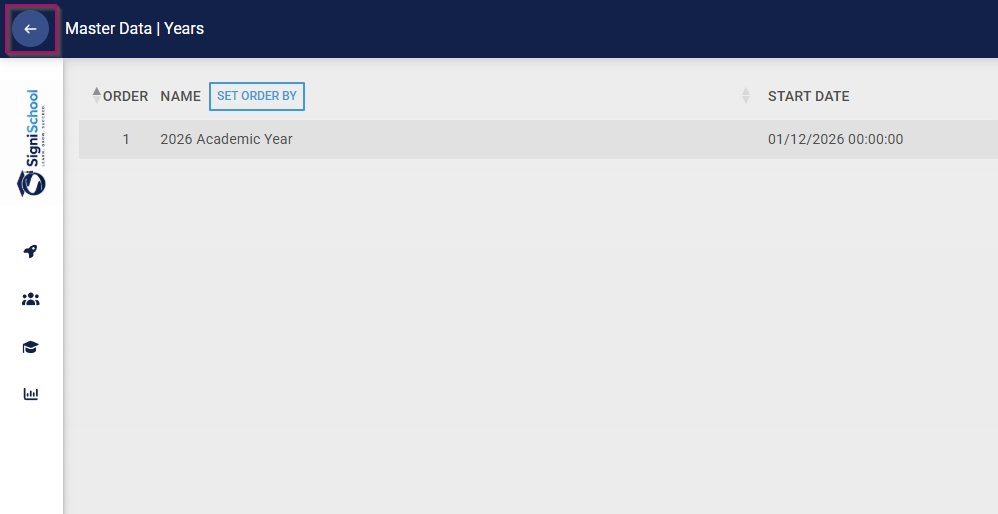
![LM OS Master Data Library - Years - Back.jpg](https://signature.signifyhr.co.za/uploads/images/gallery/2026-06/cQa0UyKDO4WhR7Hw-lm-os-master-data-library-years-back.jpg)

##### Configure class periods

- Click on the **ClassPeriods** category to continue.

![LM OS Master Data Library - Class Periods.jpg](https://signature.signifyhr.co.za/uploads/images/gallery/2026-06/lHGEqqpXZgCsFyCS-lm-os-master-data-library-class-periods.jpg)

- To add a new master data item, click on **+ITEM**.

![LM OS Master Data Library - Add item.jpg](https://signature.signifyhr.co.za/uploads/images/gallery/2026-06/ZZkJ7Dpq9DMfgwjt-lm-os-master-data-library-add-item.jpg)

- Click the **toggle** **button** to set the class period's status to **Active**.
- Enter an end time for the period.
- Add a name for the period.
- Enter a start time for the period.
- Click **SAVE** when you are finished, **SAVE ADD NEW** to add another master data item or click **CANCEL** to discard your edits.
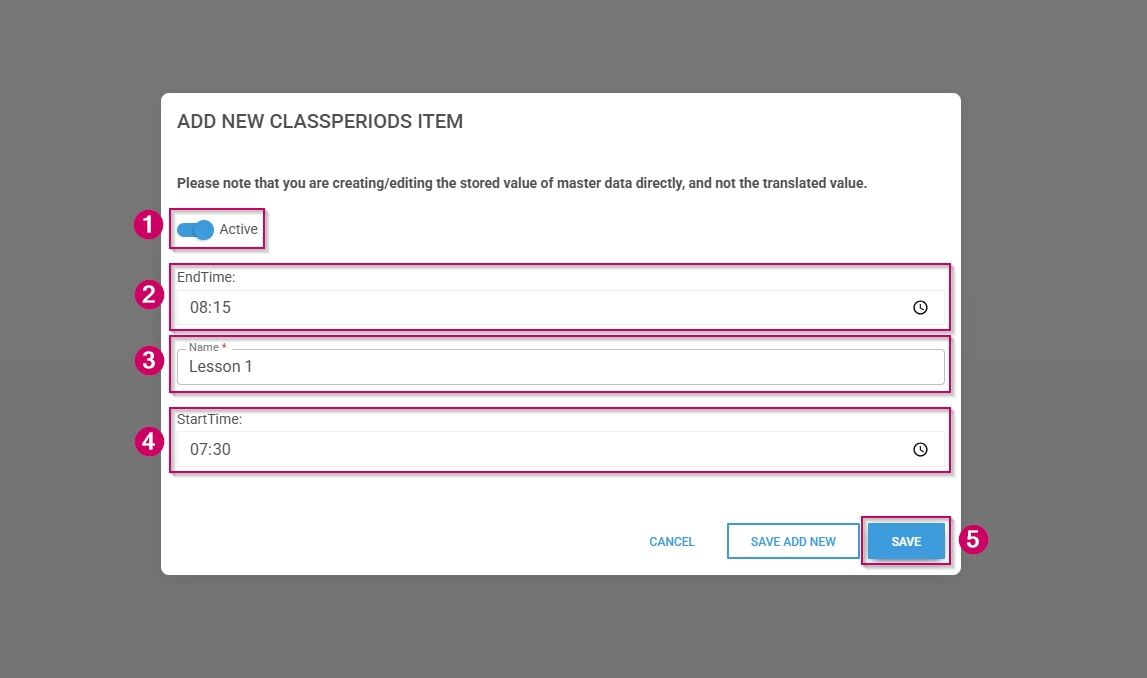
![LM OS Master Data Library - Class Periods - Add.jpg](https://signature.signifyhr.co.za/uploads/images/gallery/2026-06/DoHLPL3TzySKhRgU-lm-os-master-data-library-class-periods-add.jpg)

- Click the **back arrow** to navigate back to the **Master Data Library** once you are finished.
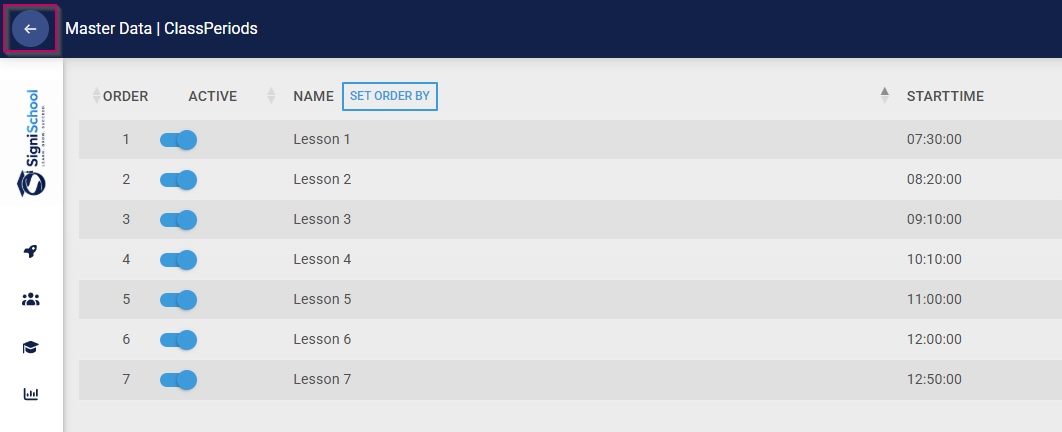
![LM OS Master Data Library - Class Periods - Back.jpg](https://signature.signifyhr.co.za/uploads/images/gallery/2026-06/2hecibDbtSZbfkoB-lm-os-master-data-library-class-periods-back.jpg)

##### Configure comment categories

- Click on the **Comment Categories** category to continue.
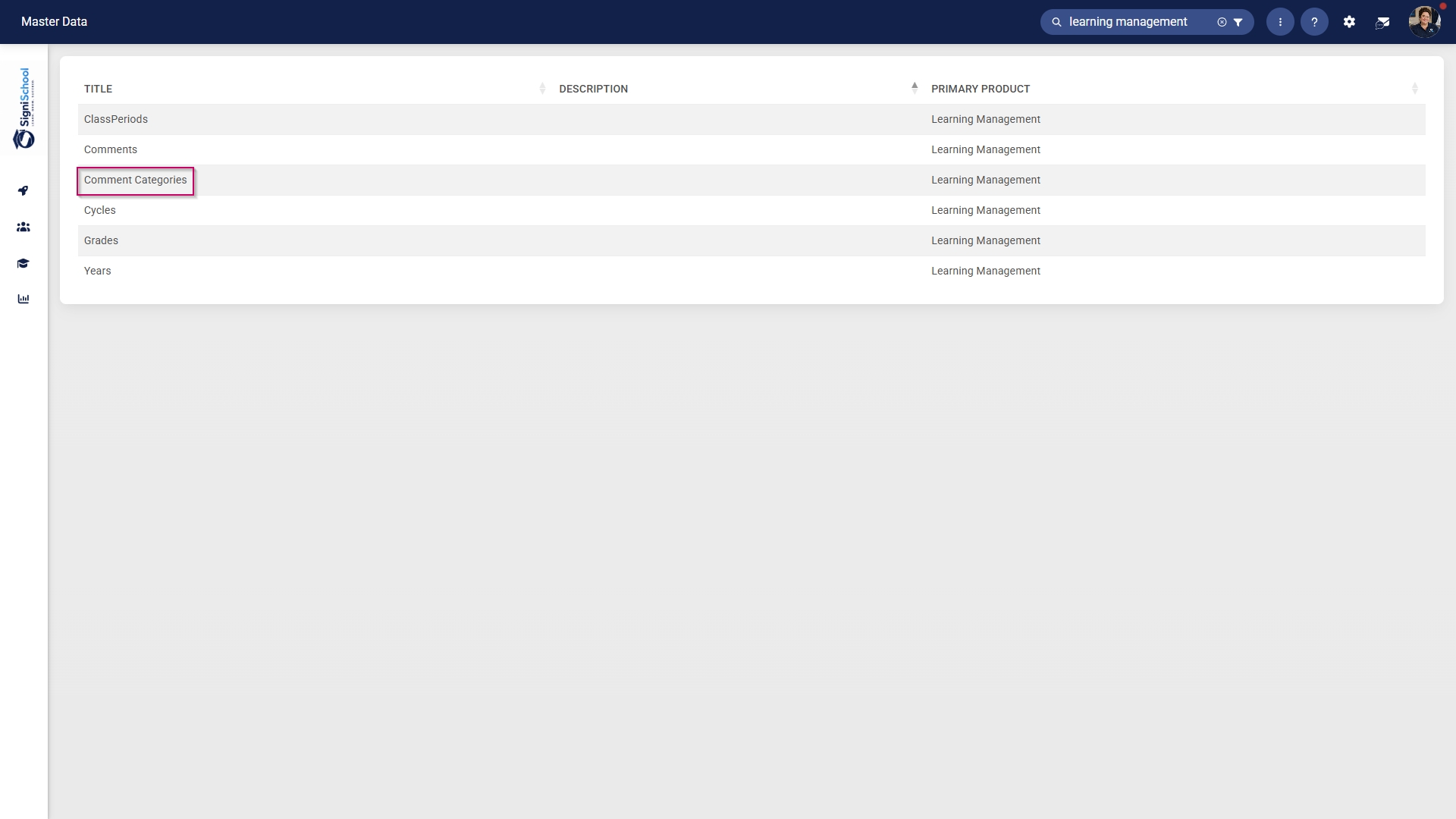
![LM OS Master Data Library - Comment Categories.jpg](https://signature.signifyhr.co.za/uploads/images/gallery/2026-06/4b98q79JQXvYvhIS-lm-os-master-data-library-comment-categories.jpg)

- To add a new master data item, click on **+ITEM**.

![LM OS Master Data Library - Add item.jpg](https://signature.signifyhr.co.za/uploads/images/gallery/2026-06/ZZkJ7Dpq9DMfgwjt-lm-os-master-data-library-add-item.jpg)

- Click the **toggle** **button** to set the comment category's status to **Active**.
- Enter a name for the comment category.
- Click **SAVE** when you are finished, **SAVE ADD NEW** to add another master data item or click **CANCEL** to discard your edits.
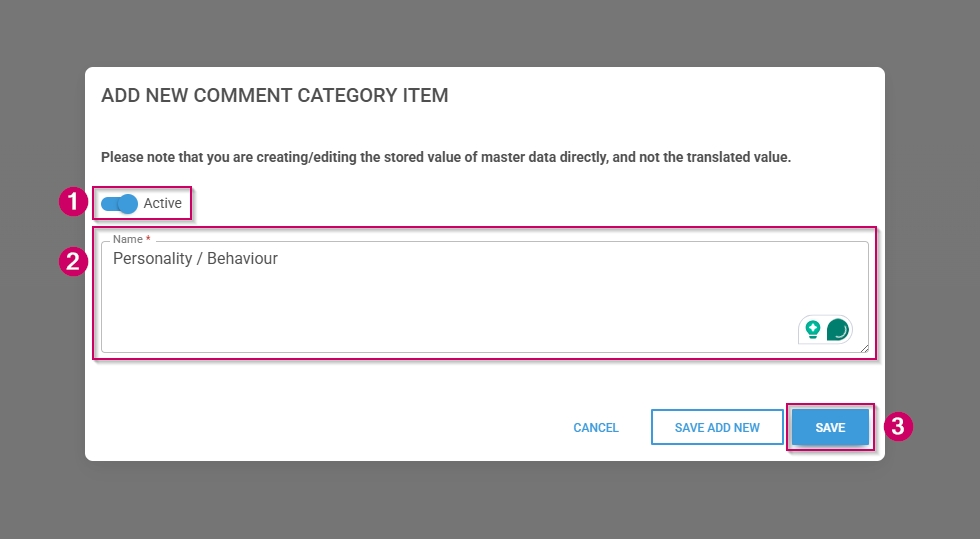
![LM OS Master Data Library - Comment Categories - Add.jpg](https://signature.signifyhr.co.za/uploads/images/gallery/2026-06/eh7NJn3aG2Fkqe0b-lm-os-master-data-library-comment-categories-add.jpg)

- Click the **back arrow** to navigate back to the **Master Data Library** once you are finished.
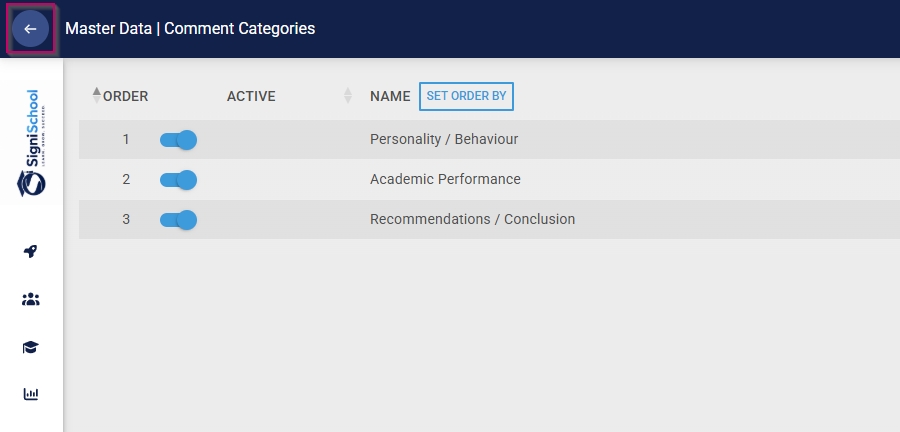
![LM OS Master Data Library - Comment Categories - Back.jpg](https://signature.signifyhr.co.za/uploads/images/gallery/2026-06/xpXna6b3IiD1aVT2-lm-os-master-data-library-comment-categories-back.jpg)

##### Configure academic report comments

- Click on the **Comments** category to continue.
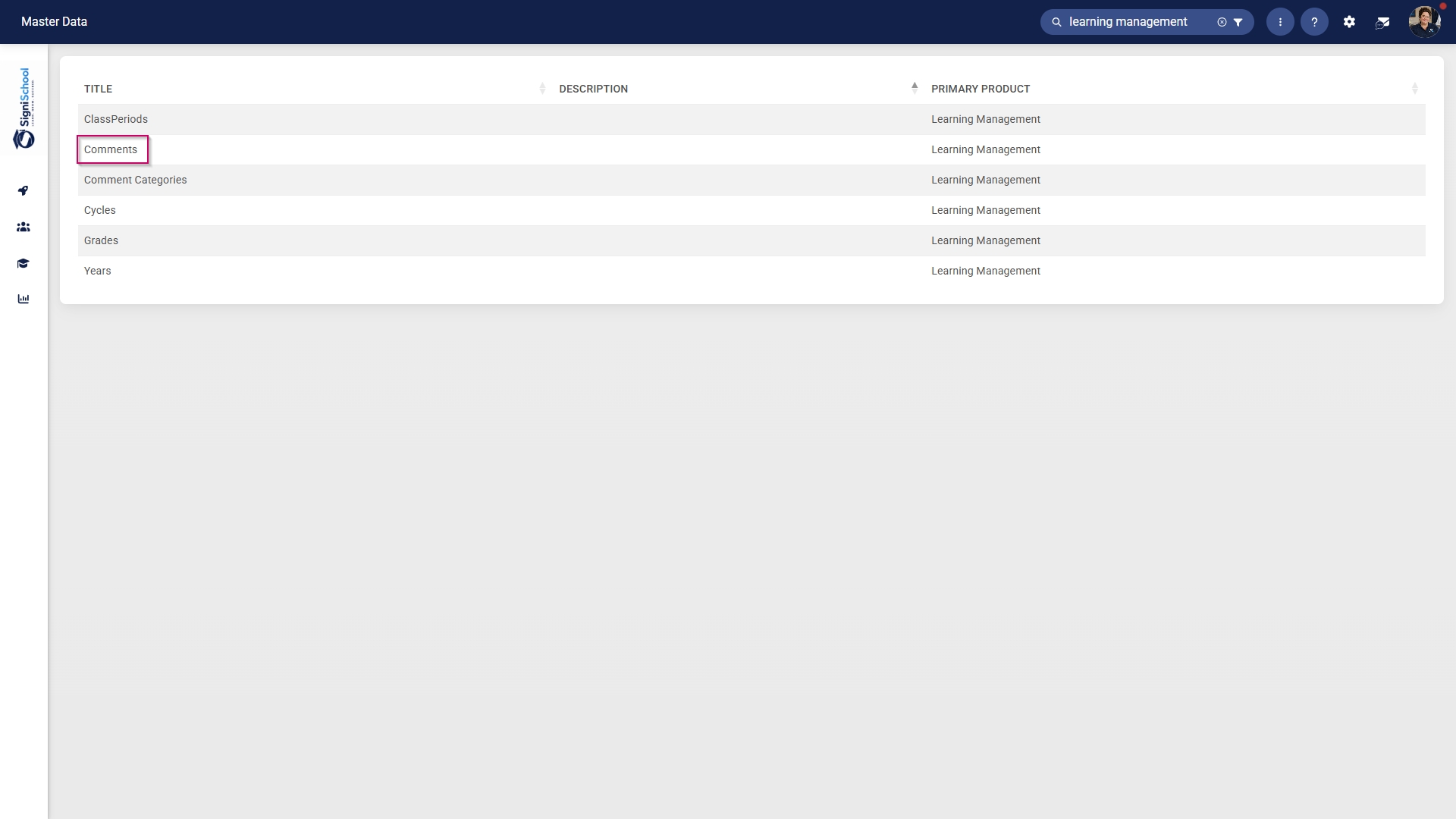
![LM OS Master Data Library - Comments.jpg](https://signature.signifyhr.co.za/uploads/images/gallery/2026-06/41aUbOj9yhBDUklb-lm-os-master-data-library-comments.jpg)

- To add a new master data item, click on **+ITEM**.

![LM OS Master Data Library - Add item.jpg](https://signature.signifyhr.co.za/uploads/images/gallery/2026-06/ZZkJ7Dpq9DMfgwjt-lm-os-master-data-library-add-item.jpg)

- From the **drop-down menu**, select the comment category.
- From the **drop-down menu**, select the comment type.
- Enter a comment in the primary language.
- Enter a comment in the secondary language.
- Click **SAVE** when you are finished, **SAVE ADD NEW** to add another master data item or click **CANCEL** to discard your edits.
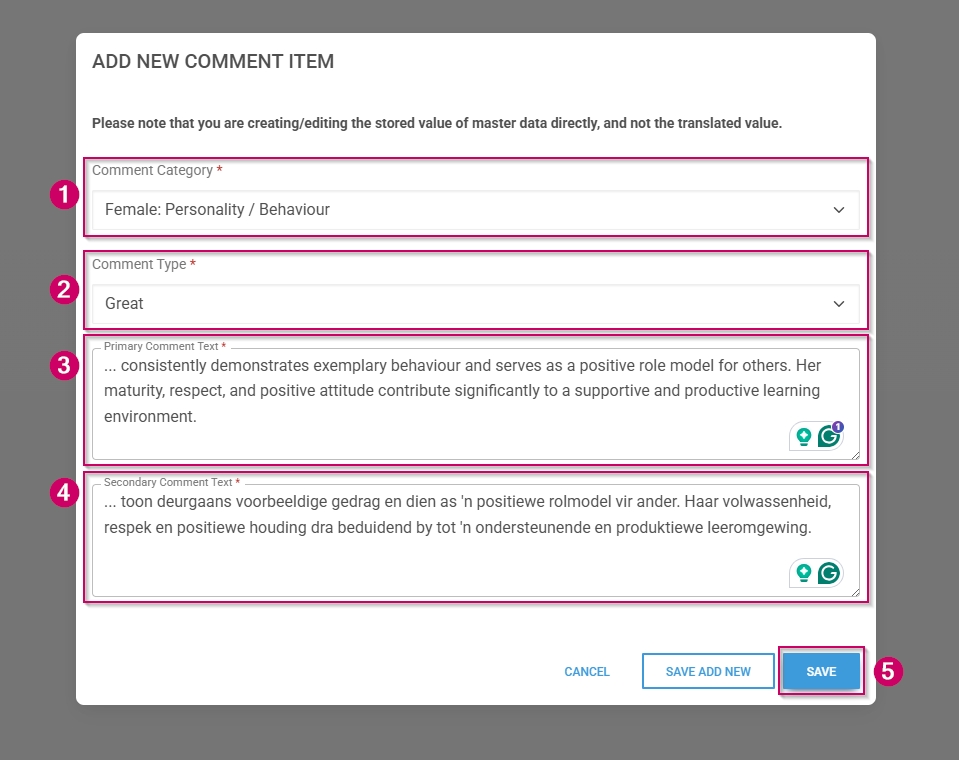
![LM OS Master Data Library - Comments - Add.jpg](https://signature.signifyhr.co.za/uploads/images/gallery/2026-06/e5yhwXSznXaOpLI5-lm-os-master-data-library-comments-add.jpg)

- **Please note: Using an ellipsis (...) serves as a placeholder for the learner's name.**
- Click the **back arrow** to navigate back to the **Master Data Library** once you are finished.
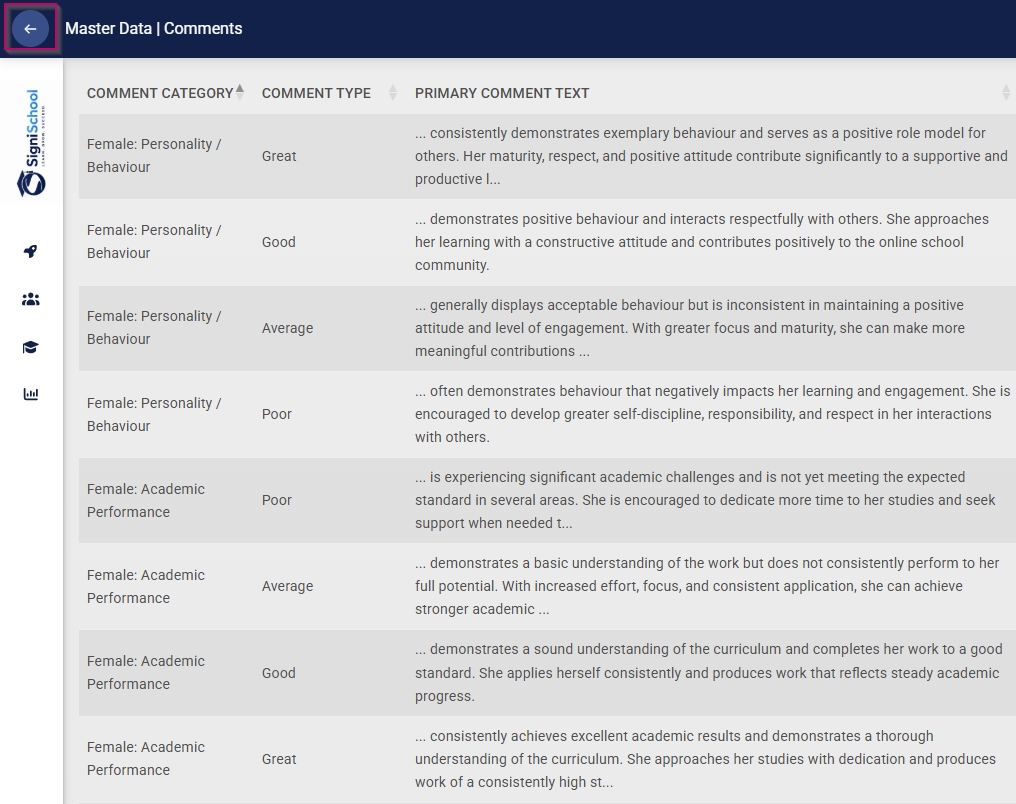
![LM OS Master Data Library - Comments - Back.jpg](https://signature.signifyhr.co.za/uploads/images/gallery/2026-06/2mNNvf8B2kBrEFod-lm-os-master-data-library-comments-back.jpg)


#### Create people groups

- Click the **gear icon** to access the **Setup and Configuration** menu.

![LM OS Setup and configuration menu.jpg](https://signature.signifyhr.co.za/uploads/images/gallery/2026-05/OolVb4vG1kGknZ88-lm-os-setup-and-configuration-menu.jpg)

- Click **People Groups**.

![LM OS Setup and configuration menu - People Groups.jpg](https://signature.signifyhr.co.za/uploads/images/gallery/2026-06/nOhU8eJJoD70DLZP-lm-os-setup-and-configuration-menu-people-groups.jpg)

- In the **left-hand menu**, navigate to **Custom**, then click **+PEOPLE GROUP**.
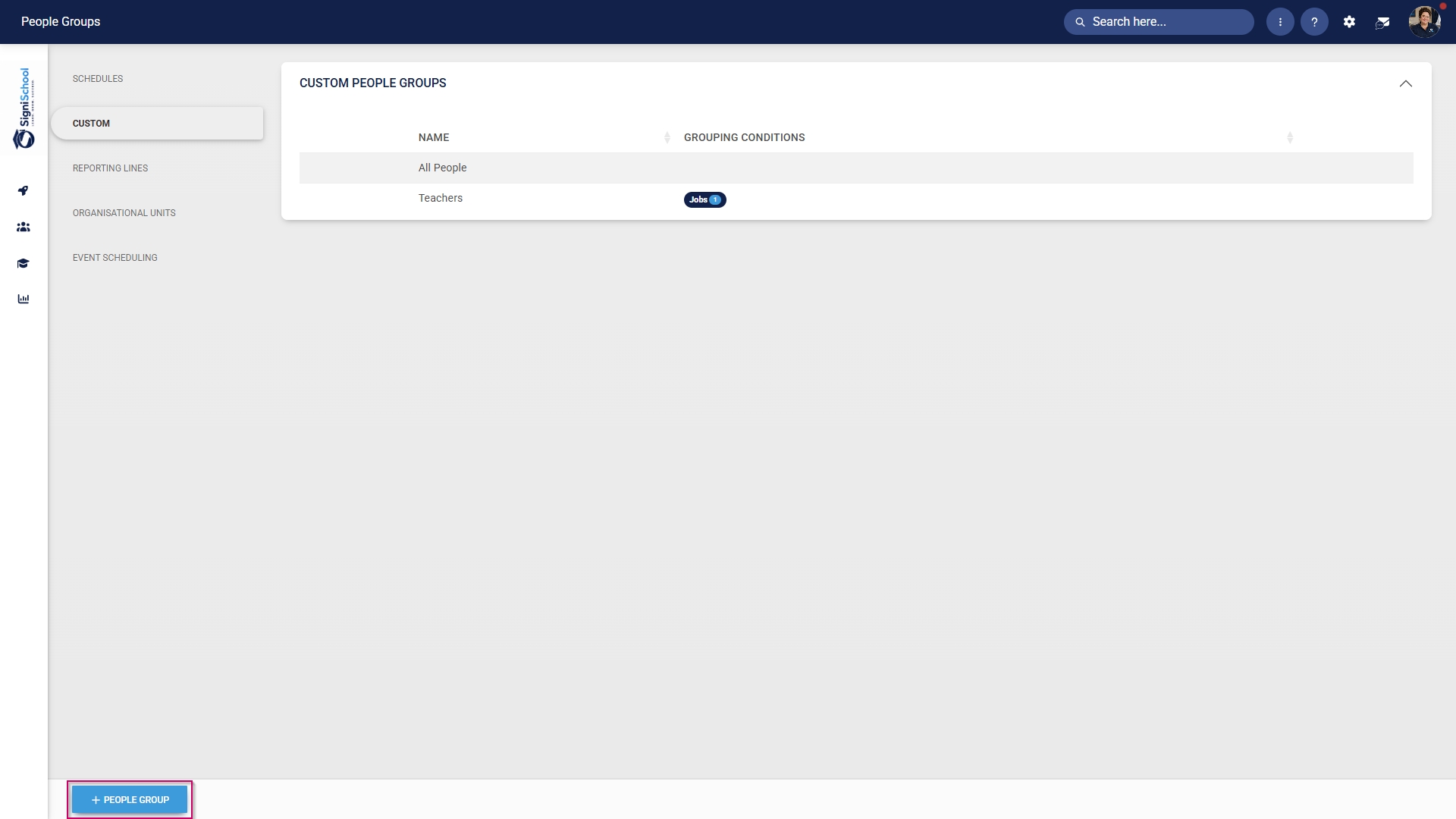
![LM OS People Groups - Add.jpg](https://signature.signifyhr.co.za/uploads/images/gallery/2026-06/H5nGU4aA0WiOCFyF-lm-os-people-groups-add.jpg)

- Enter a descriptive name for the people group.
- Click the **toggle** **button** to set the status to **Active**.
- Click **SAVE** when you are finished or click **CANCEL** to discard your edits.
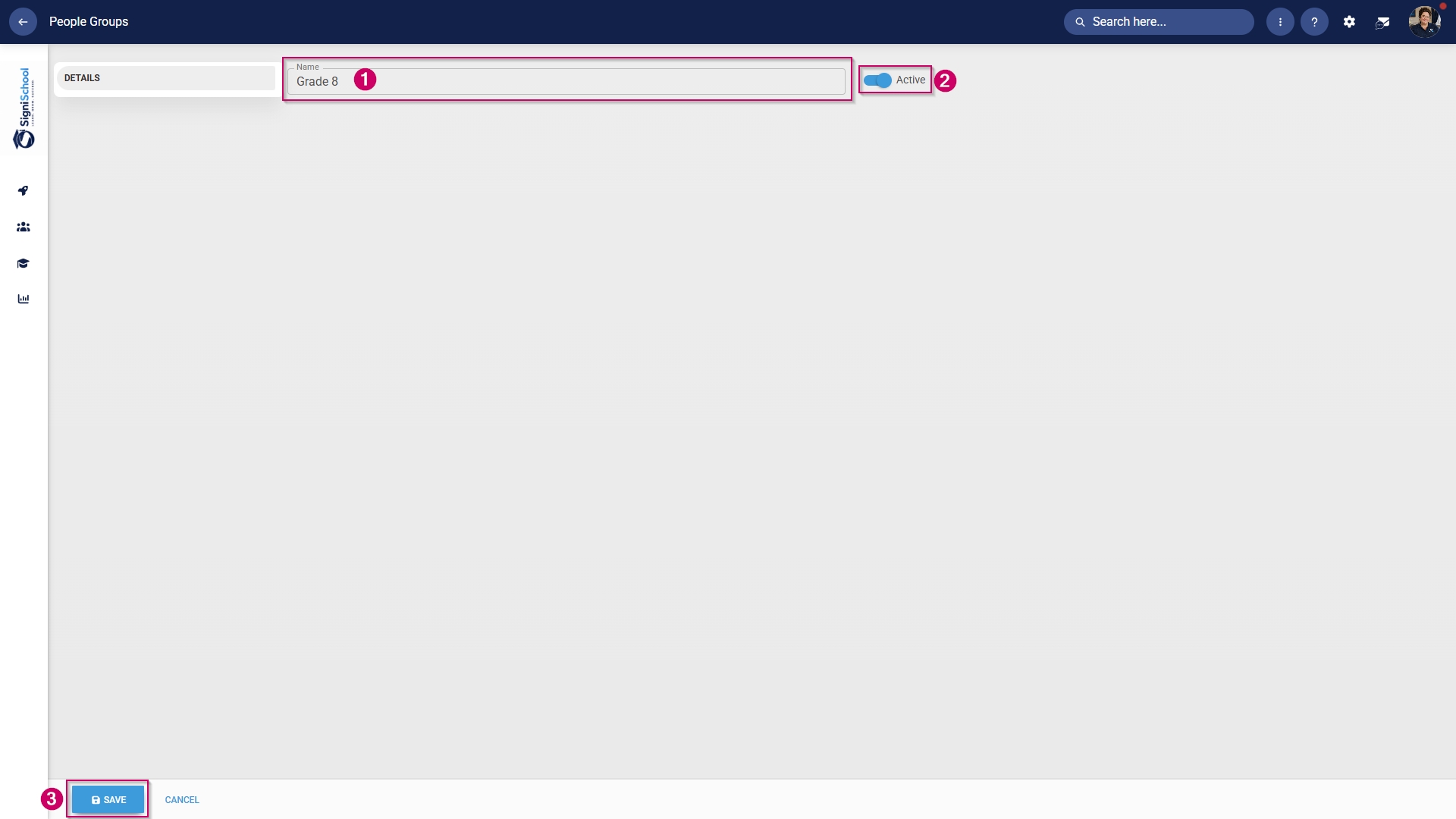
![LM OS People Groups - Add - Add new.jpg](https://signature.signifyhr.co.za/uploads/images/gallery/2026-06/kM9PWMtIzcq94hiU-lm-os-people-groups-add-add-new.jpg)

- Once the people group has been created, you can select the people to add to it.

##### Included: Individuals

- In the **left-hand menu**, click to navigate to the **Included section, then click **People** to add individuals.
- Click the **PEOPLE** button.
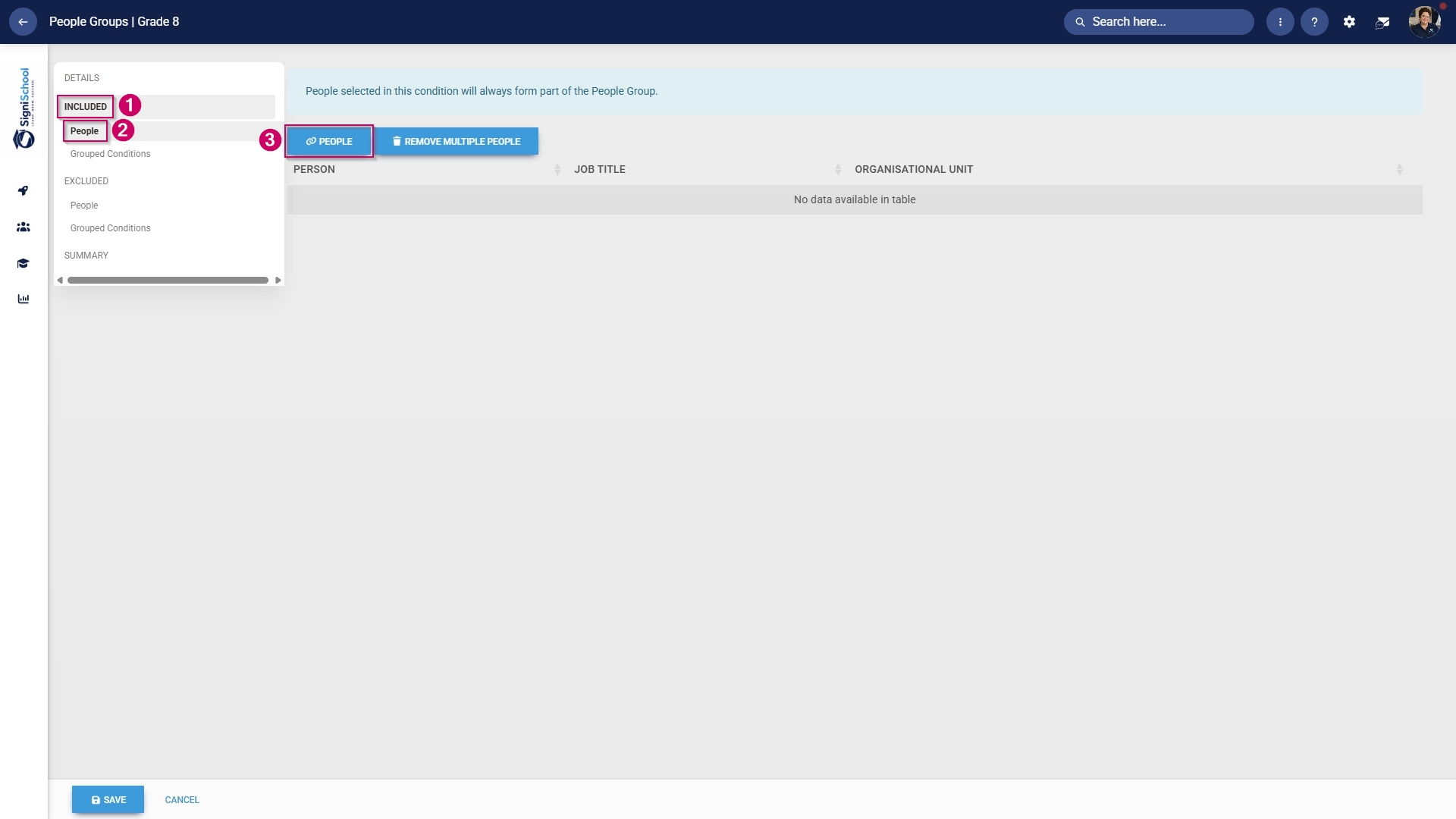
![LM OS People Groups - Add - Included people.jpg](https://signature.signifyhr.co.za/uploads/images/gallery/2026-06/a3dimEWgHQ1MeTTB-lm-os-people-groups-add-included-people.jpg)

- Use the **search bar** to find a person based on their name, surname, username, or job title.
- Tick the **checkbox** to select a person.

![LM OS People Groups - Add - Included people - Select.jpg](https://signature.signifyhr.co.za/uploads/images/gallery/2026-06/RoWVYABHHxajOCQF-lm-os-people-groups-add-included-people-select.jpg)

- Click **SAVE** when you are finished or click **CANCEL** to discard your edits.
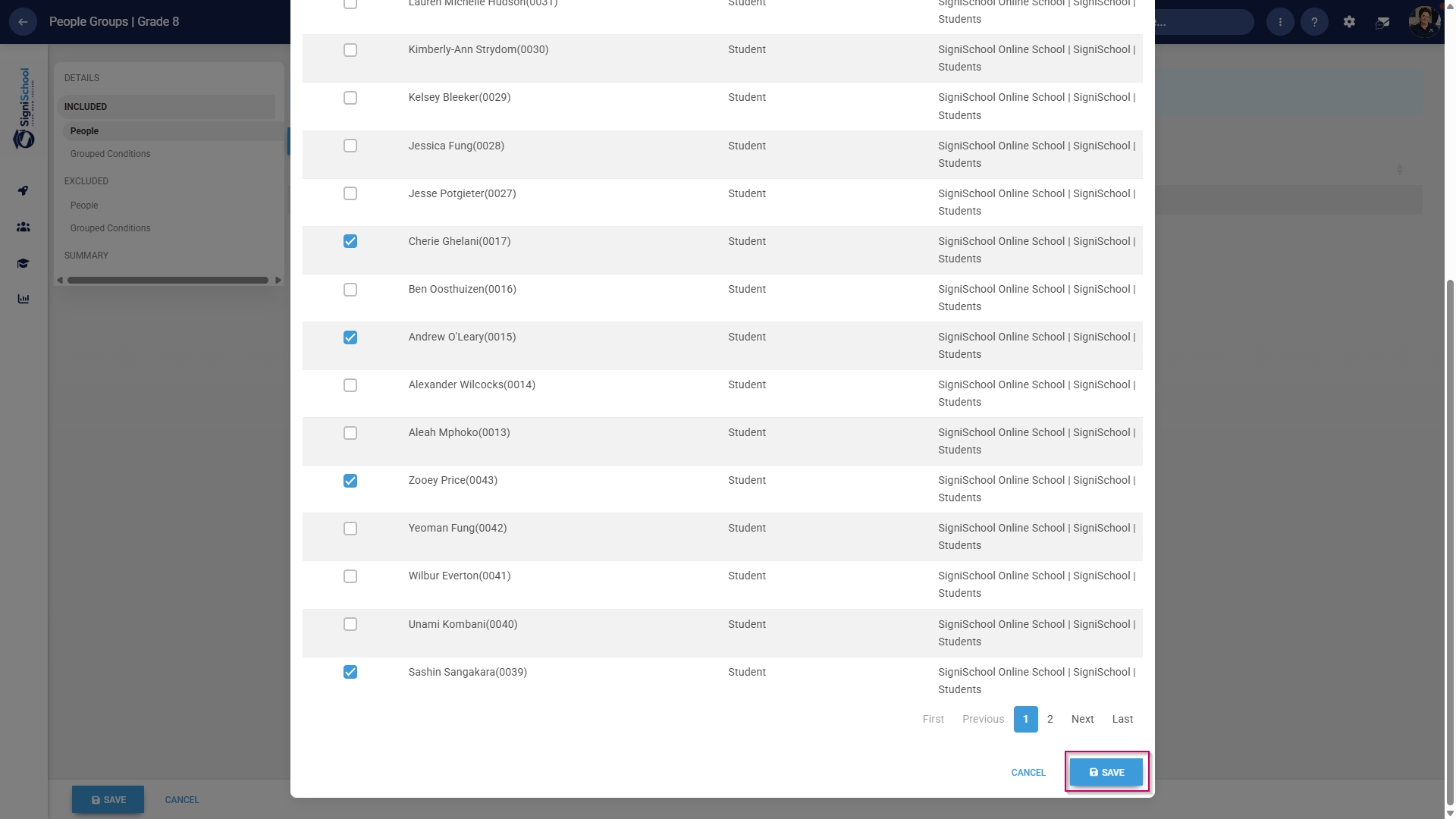
![LM OS People Groups - Add - Included people - Select - Save.jpg](https://signature.signifyhr.co.za/uploads/images/gallery/2026-06/ex93gXc5DfU9pFAz-lm-os-people-groups-add-included-people-select-save.jpg)

- Review the users added to your people group, then click **SAVE** when you are finished or click **CANCEL** to discard your edits.
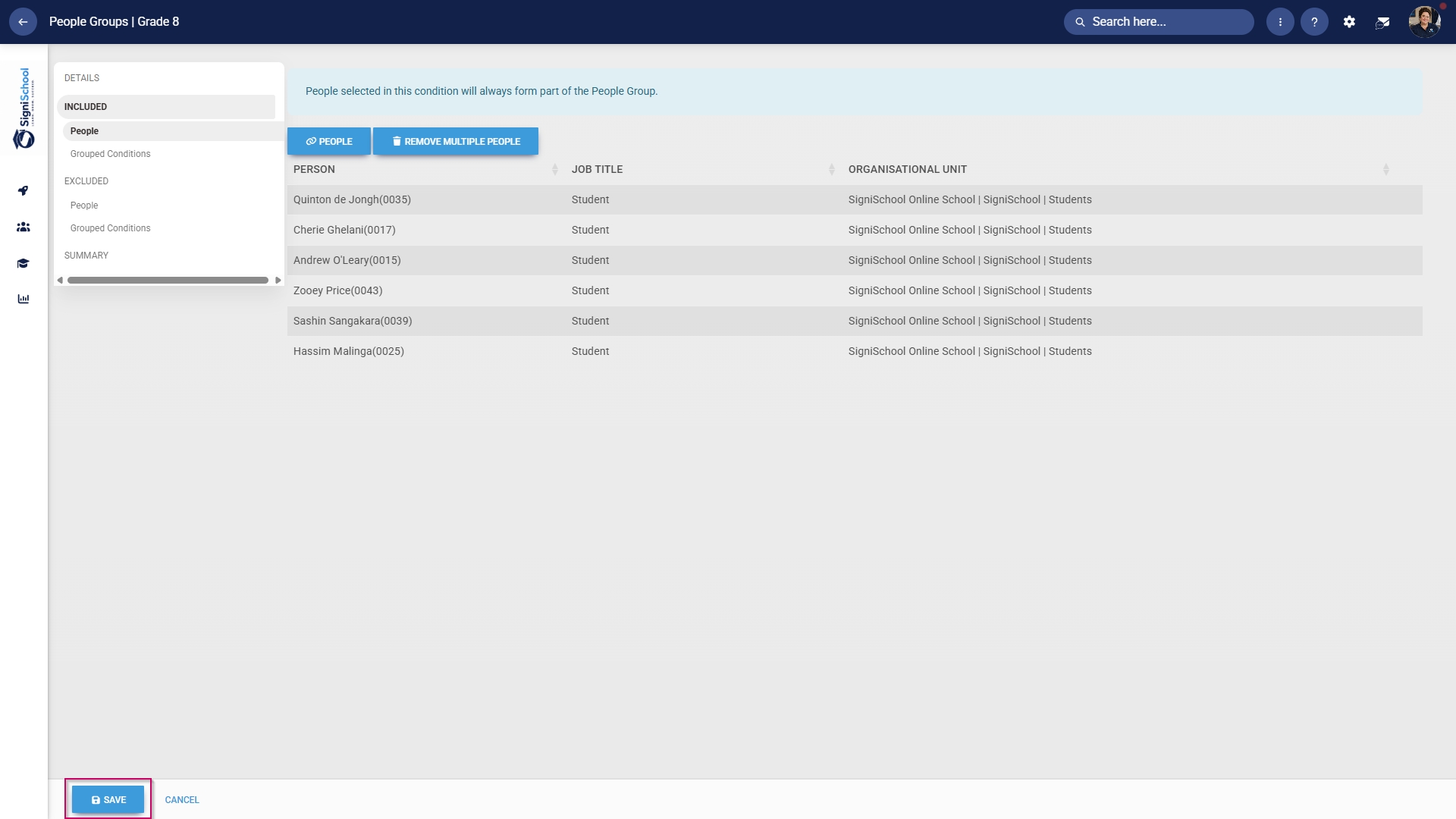
![LM OS People Groups - Add - Included people - Save.jpg](https://signature.signifyhr.co.za/uploads/images/gallery/2026-06/K8dLYJWX3qeEIXuy-lm-os-people-groups-add-included-people-save.jpg)

##### Included: Grouped conditions

- Click **Grouped Conditions** to add groups of people based on criteria such as job titles, organisational nodes, etc.
- Click **SAVE** when you are finished or click **CANCEL** to discard your edits.
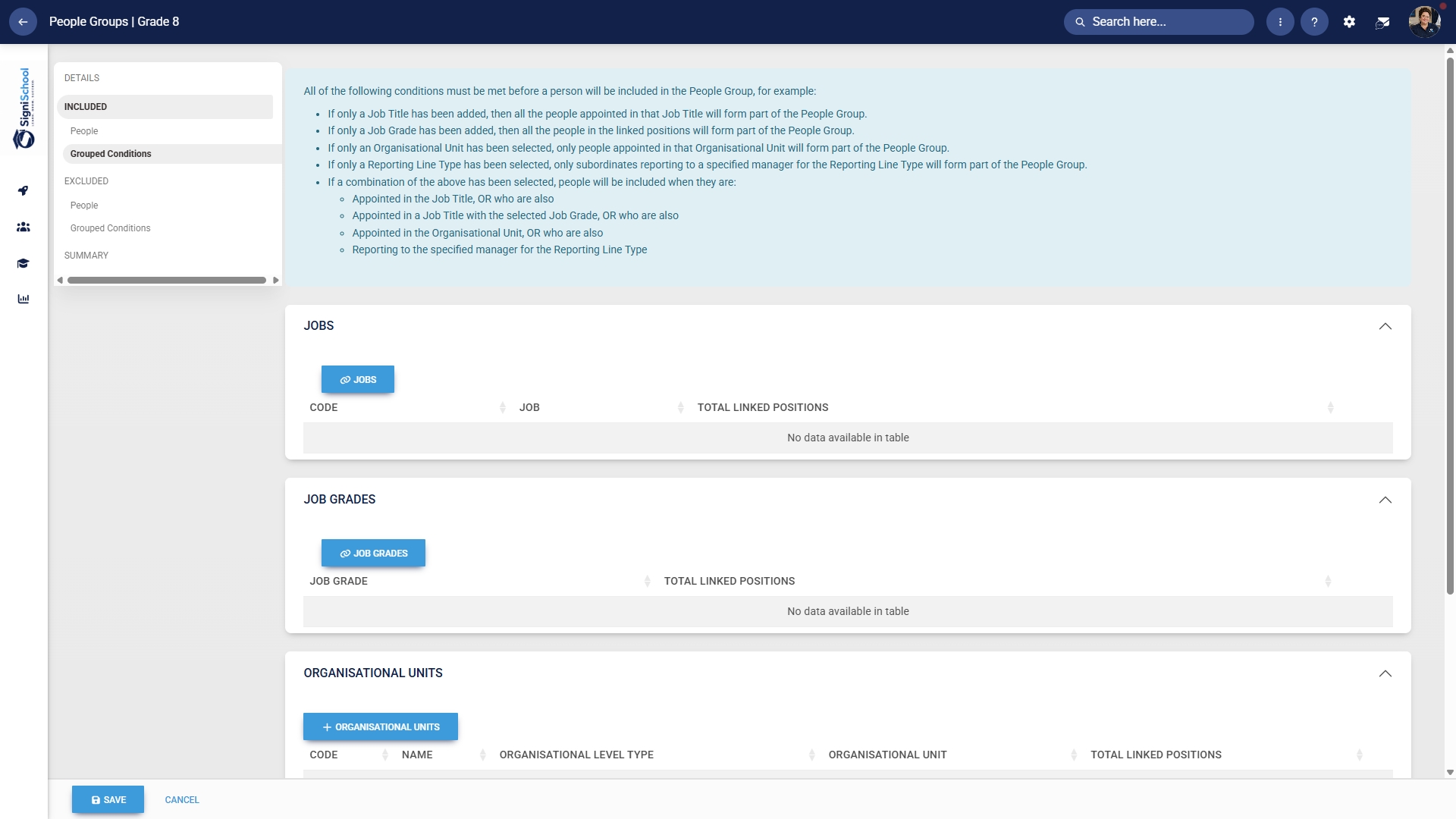
![LM OS People Groups - Add - Included grouped conditions.jpg](https://signature.signifyhr.co.za/uploads/images/gallery/2026-06/gIxWuHqBXFGgOxsO-lm-os-people-groups-add-included-grouped-conditions.jpg)

##### Included: Individuals

- In the **left-hand menu**, click to navigate to **People** in the **Excluded** section. 
    - - Click the **PEOPLE** button.
        - Select the people you would like to exclude.
        - Click **SAVE** when you are finished or click **CANCEL** to discard your edits.

![LM OS People Groups - Add - Excluded people.jpg](https://signature.signifyhr.co.za/uploads/images/gallery/2026-06/6wVeb66WSOM3Cq0J-lm-os-people-groups-add-excluded-people.jpg)

##### Excluded: Grouped conditions

- Click **Grouped Conditions** to exclude groups of people based on criteria such as job titles, organisational nodes, etc.
- Click **SAVE** when you are finished or click **CANCEL** to discard your edits.
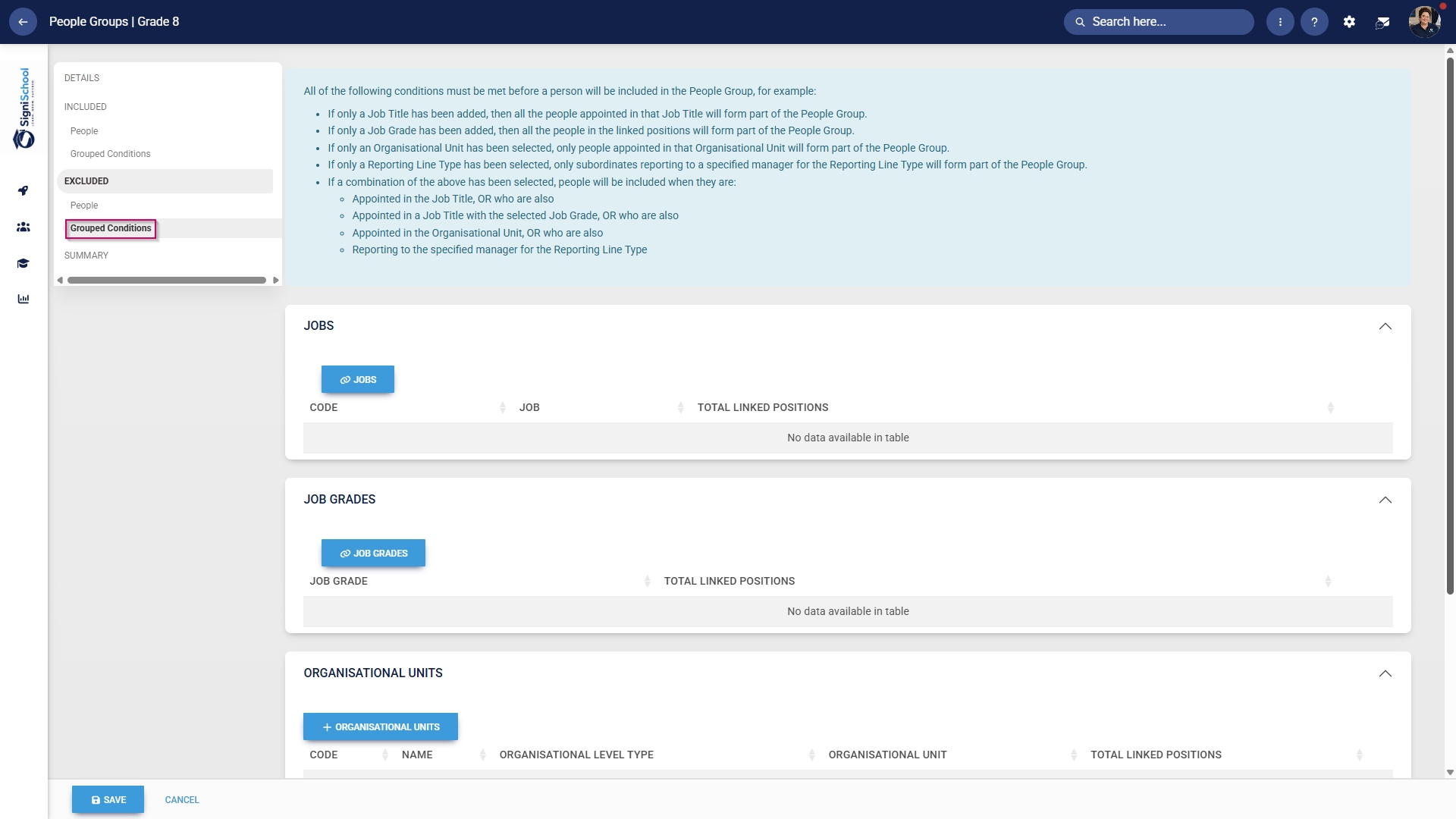
![LM OS People Groups - Add - Excluded grouped conditions.jpg](https://signature.signifyhr.co.za/uploads/images/gallery/2026-06/010chNXvTskr2GcJ-lm-os-people-groups-add-excluded-grouped-conditions.jpg)

##### Summary

- In the **left-hand menu**, click Summary to view all the users included in your people group.
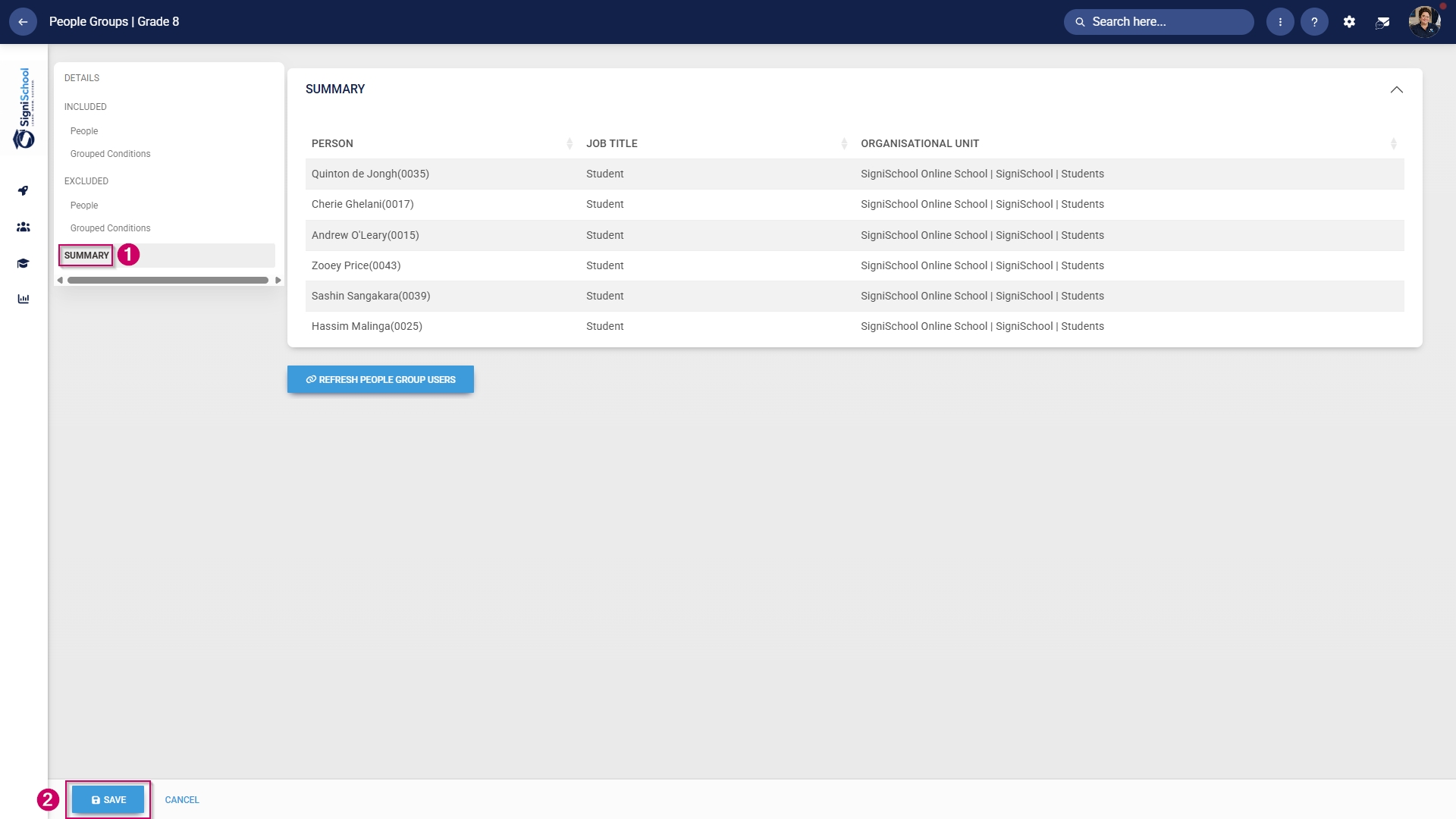
![LM OS People Groups - Add - Summary.jpg](https://signature.signifyhr.co.za/uploads/images/gallery/2026-06/mLPcNgAbjkg3HY3A-lm-os-people-groups-add-summary.jpg)

- > The people groups take some time to synchronise on the system once they're created. This can take anywhere from **10 minutes to 12 hours**, depending on the number of changes.
- To synchronise the newly-created or updated people groups manually, follow the steps in the next section.

#### Manually syncing people groups

- Click the **gear icon** to access the **Setup and Configuration** menu.

![LM OS Setup and configuration menu.jpg](https://signature.signifyhr.co.za/uploads/images/gallery/2026-05/OolVb4vG1kGknZ88-lm-os-setup-and-configuration-menu.jpg)

- Click **Ruleset Setup**.

![LM OS Setup and configuration menu - Ruleset setup.jpg](https://signature.signifyhr.co.za/uploads/images/gallery/2026-05/G8n6077uSByiSZlf-lm-os-setup-and-configuration-menu-ruleset-setup.jpg)

- Select the **ruleset you would like to update.

![LM OS Setup and configuration menu - Ruleset setup - Select ruleset.jpg](https://signature.signifyhr.co.za/uploads/images/gallery/2026-05/rfnTwwjc6K4u3af7-lm-os-setup-and-configuration-menu-ruleset-setup-select-ruleset.jpg)

- Navigate to the **Integrations** tab.
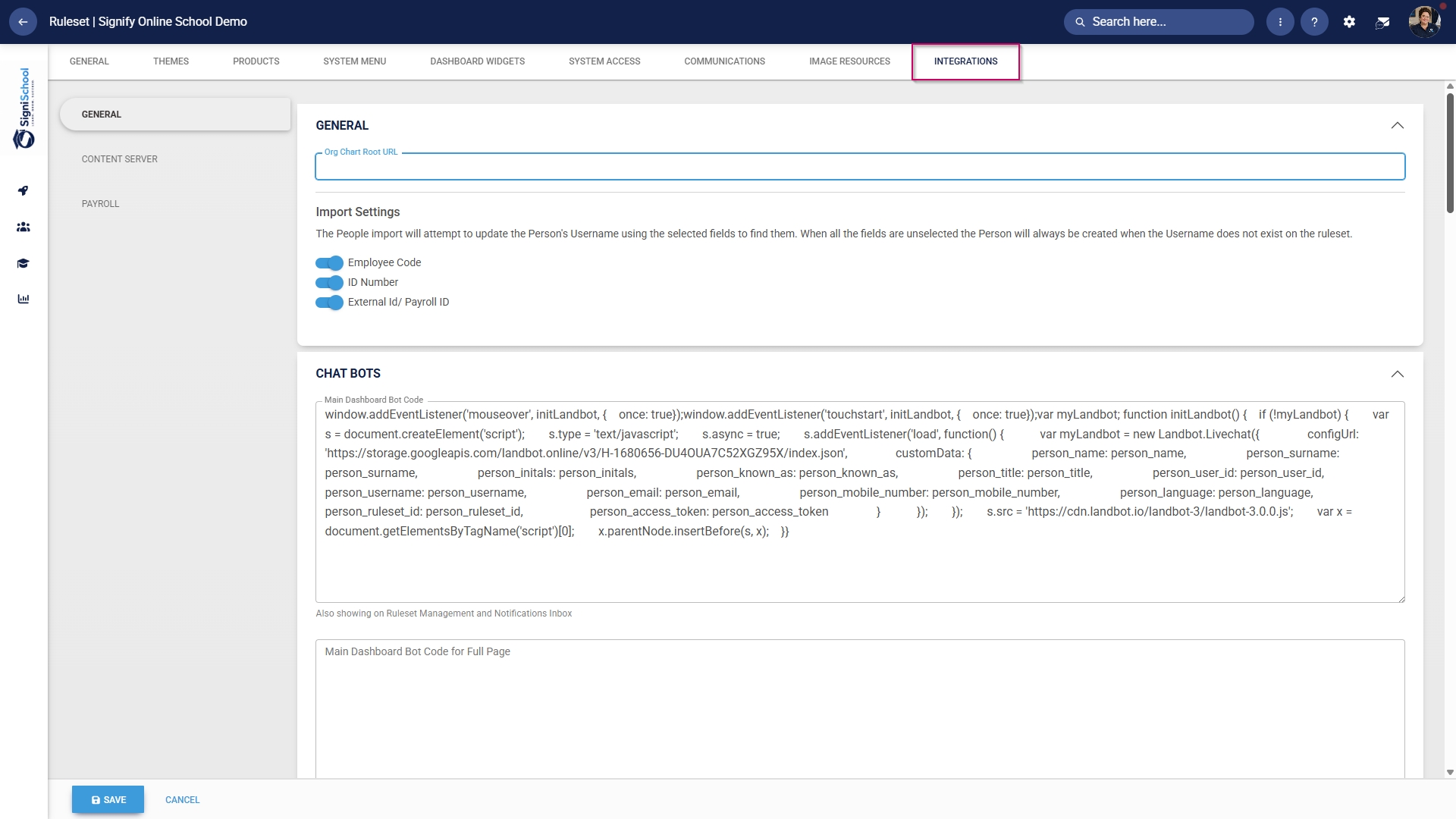
![LM OS Ruleset Setup - Integrations.jpg](https://signature.signifyhr.co.za/uploads/images/gallery/2026-06/sI3aNIzPAzERVUv8-lm-os-ruleset-setup-integrations.jpg)

- Scroll down to the **Bulk Additional Service Imports – Push** section.
- For the **People group import** function, you have two options when synchronising manually: 
    - - Click **REQUEST ALL DATA** to synchronise all the people groups. 
            - - This is a **time-consuming** operation because all the people groups' data is overwritten and synchronised from scratch.

<span style="color: #ab004f;">**Please be very careful when selecting this option, as it can affect system performance and speed, particularly during business hours.**</span>

- - - Click **REQUEST RECENT CHANGES** to synchronise only recent changes to your people groups. 
            - - This is a **time-efficient** option because only the changes are synchronised, and the previous data remains unchanged.

[![LM OS Ruleset Setup - Integrations - People Groups.jpg](https://signature.signifyhr.co.za/uploads/images/gallery/2026-06/scaled-1680-/Bb38pMRhJCqMIfcF-lm-os-ruleset-setup-integrations-people-groups.jpg)](https://signature.signifyhr.co.za/uploads/images/gallery/2026-06/Bb38pMRhJCqMIfcF-lm-os-ruleset-setup-integrations-people-groups.jpg)
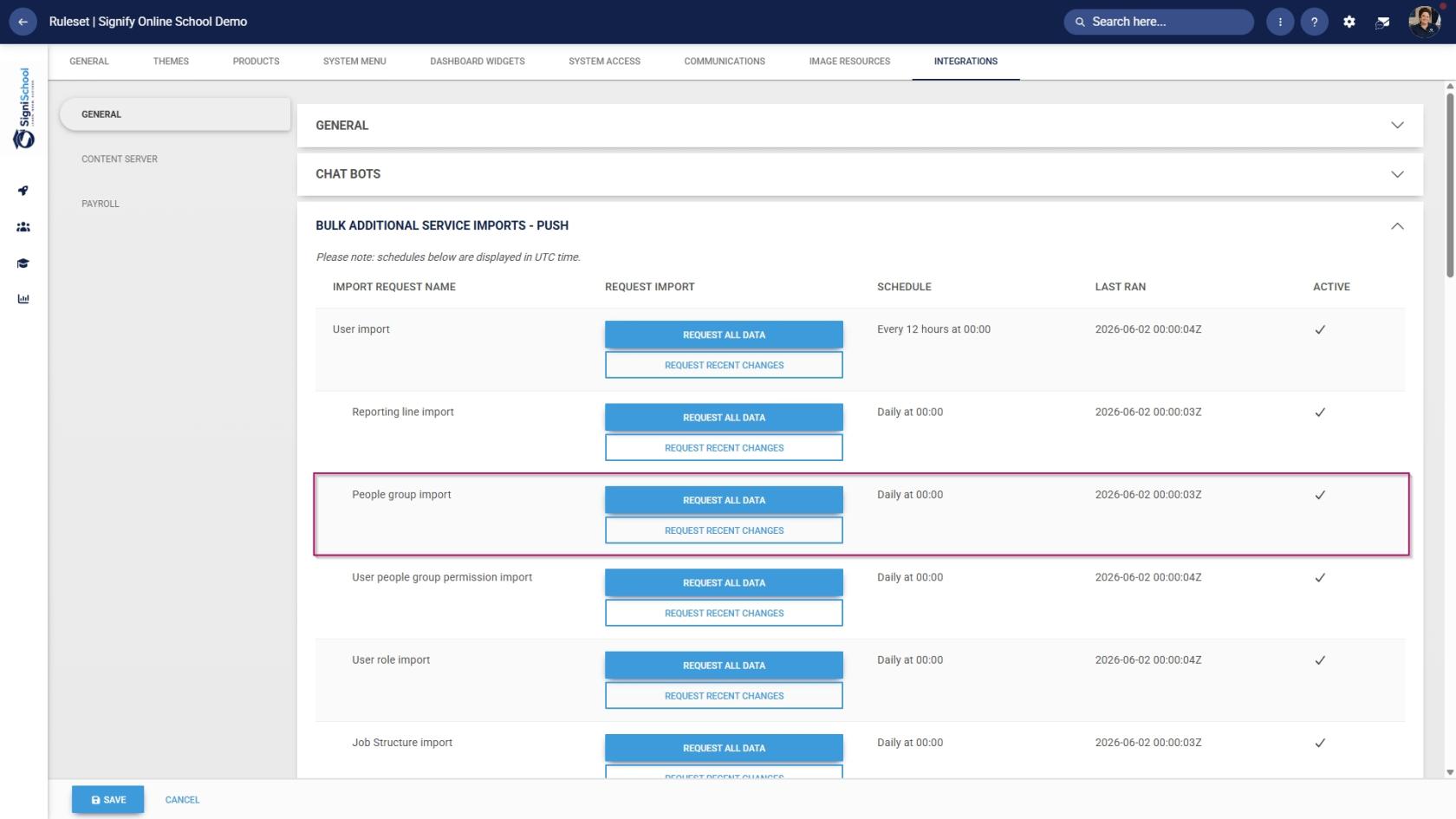
- Once you have selected a synchronisation method, a **message** will appear stating that the import has been requested. You can monitor the synchronisation progress by navigating to your **System Inbox**.

[![LM OS Ruleset Setup - Integrations - People Groups - Manual Sync - Message.jpg](https://signature.signifyhr.co.za/uploads/images/gallery/2026-06/scaled-1680-/9GiaCYLAyKB2kUWF-lm-os-ruleset-setup-integrations-people-groups-manual-sync-message.jpg)](https://signature.signifyhr.co.za/uploads/images/gallery/2026-06/9GiaCYLAyKB2kUWF-lm-os-ruleset-setup-integrations-people-groups-manual-sync-message.jpg)
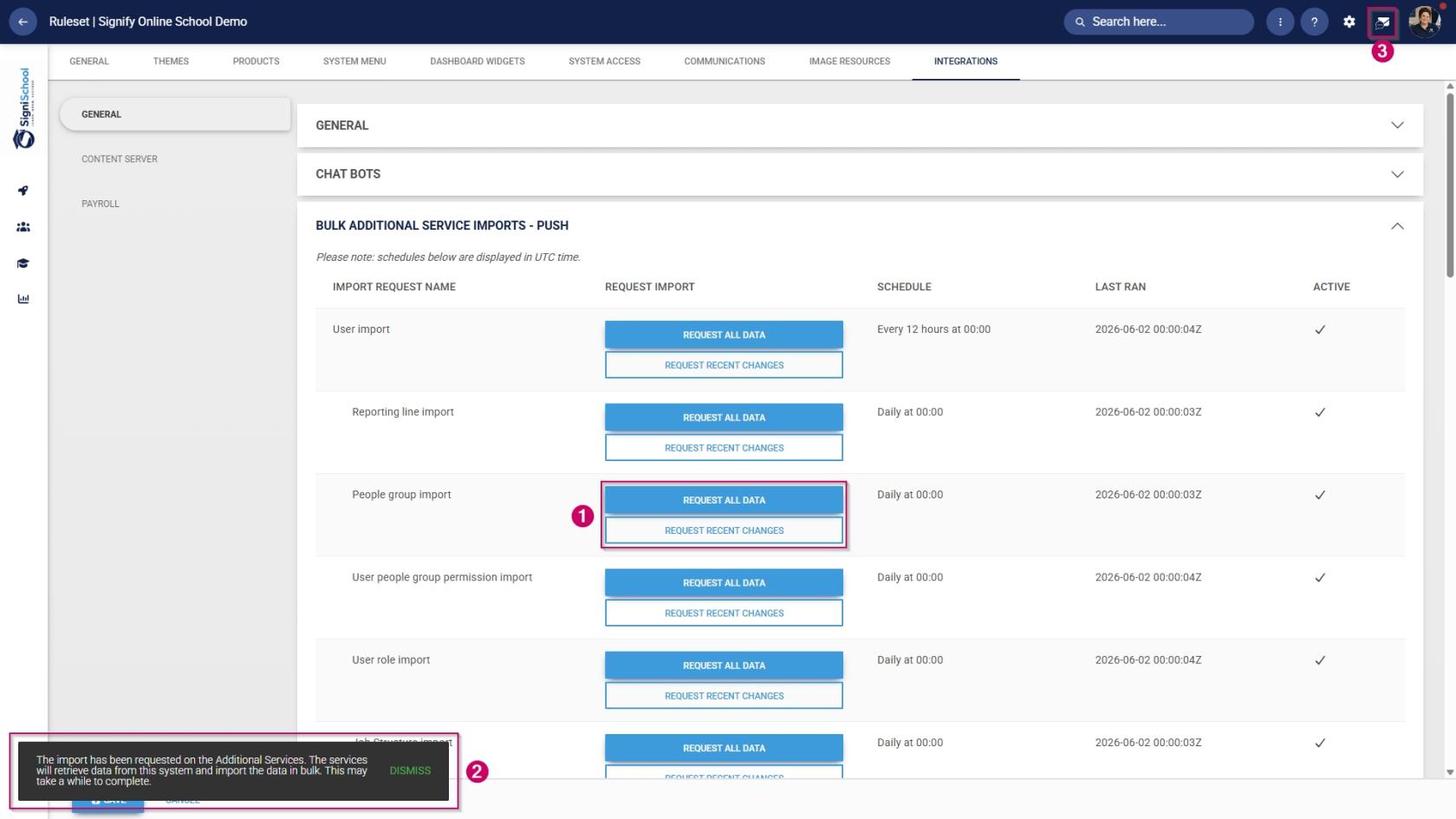
- Click the **envelope icon** at the top of your screen to navigate to your **System Inbox**, then click **Imports**.

[![LM OS Ruleset Setup - Integrations - People Groups - Manual Sync - Inbox.jpg](https://signature.signifyhr.co.za/uploads/images/gallery/2026-06/YRXXilnI31OnO0Uy-lm-os-ruleset-setup-integrations-people-groups-manual-sync-inbox.jpg)](https://signature.signifyhr.co.za/uploads/images/gallery/2026-06/9GiaCYLAyKB2kUWF-lm-os-ruleset-setup-integrations-people-groups-manual-sync-message.jpg)
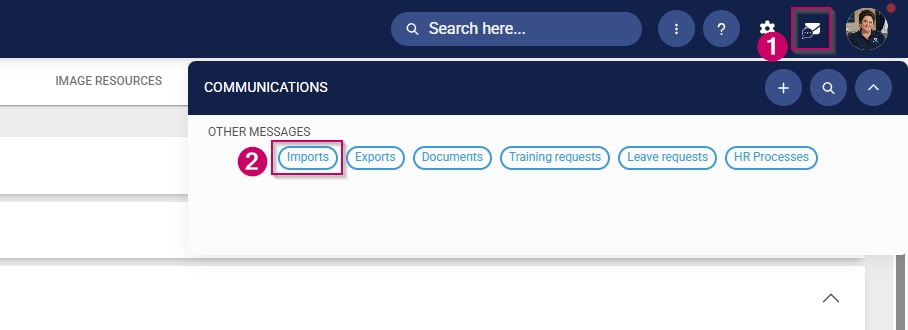
- You can monitor the **status** of your **imports** and **system processes** here: 
    - - **Staged** means the task has been added to the queue and will begin once the current tasks have been completed.
        - **Started** means the task is currently running.
        - **Completed with Errors** means the task has been completed, although only partially, due to detected errors.
        - **Completed means the task has been successfully executed.
        - **Failed** means the task could not be completed.

[![LM OS Ruleset Setup - Integrations - People Groups - Manual Sync - Inbox - Success.jpg](https://signature.signifyhr.co.za/uploads/images/gallery/2026-06/YFukbCU93sA36XvG-lm-os-ruleset-setup-integrations-people-groups-manual-sync-inbox-success.jpg)](https://signature.signifyhr.co.za/uploads/images/gallery/2026-06/9GiaCYLAyKB2kUWF-lm-os-ruleset-setup-integrations-people-groups-manual-sync-message.jpg)
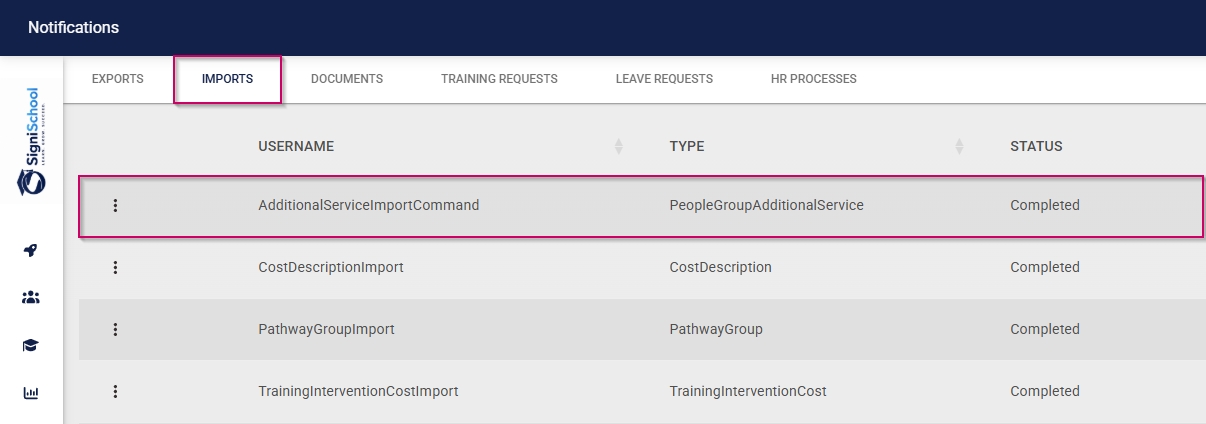
- For a **Completed with Errors** or **Failed** task, you can download an Excel document with a breakdown of the errors. 
    - - Click on the **kebab icon** next to the task.
        - Click **Export Errors**.
        - Review the errors, then re-attempt the task using the steps above.

[![LM OS Ruleset Setup - Integrations - People Groups - Manual Sync - Inbox - Failure.jpg](https://signature.signifyhr.co.za/uploads/images/gallery/2026-06/WpLPKm1j2TT78LkF-lm-os-ruleset-setup-integrations-people-groups-manual-sync-inbox-failure.jpg)](https://signature.signifyhr.co.za/uploads/images/gallery/2026-06/9GiaCYLAyKB2kUWF-lm-os-ruleset-setup-integrations-people-groups-manual-sync-message.jpg)
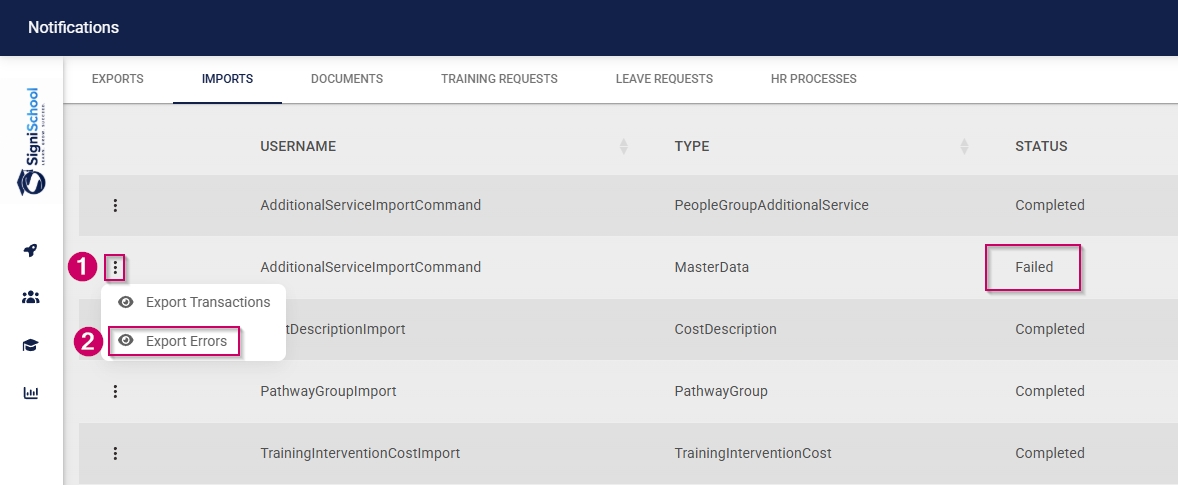
#### Add training interventions

**Training interventions** are used to track a learner's academic progress. Each learning activity or assessment will have its own training intervention. Training interventions can be created in two ways:

- Manually through the training intervention builder
- Automatically through the training intervention import functionality

Both methods will be shown below.

##### Method 1: Add training interventions manually

- Hover over the **sidebar** menu, then click **Learning Portal**.
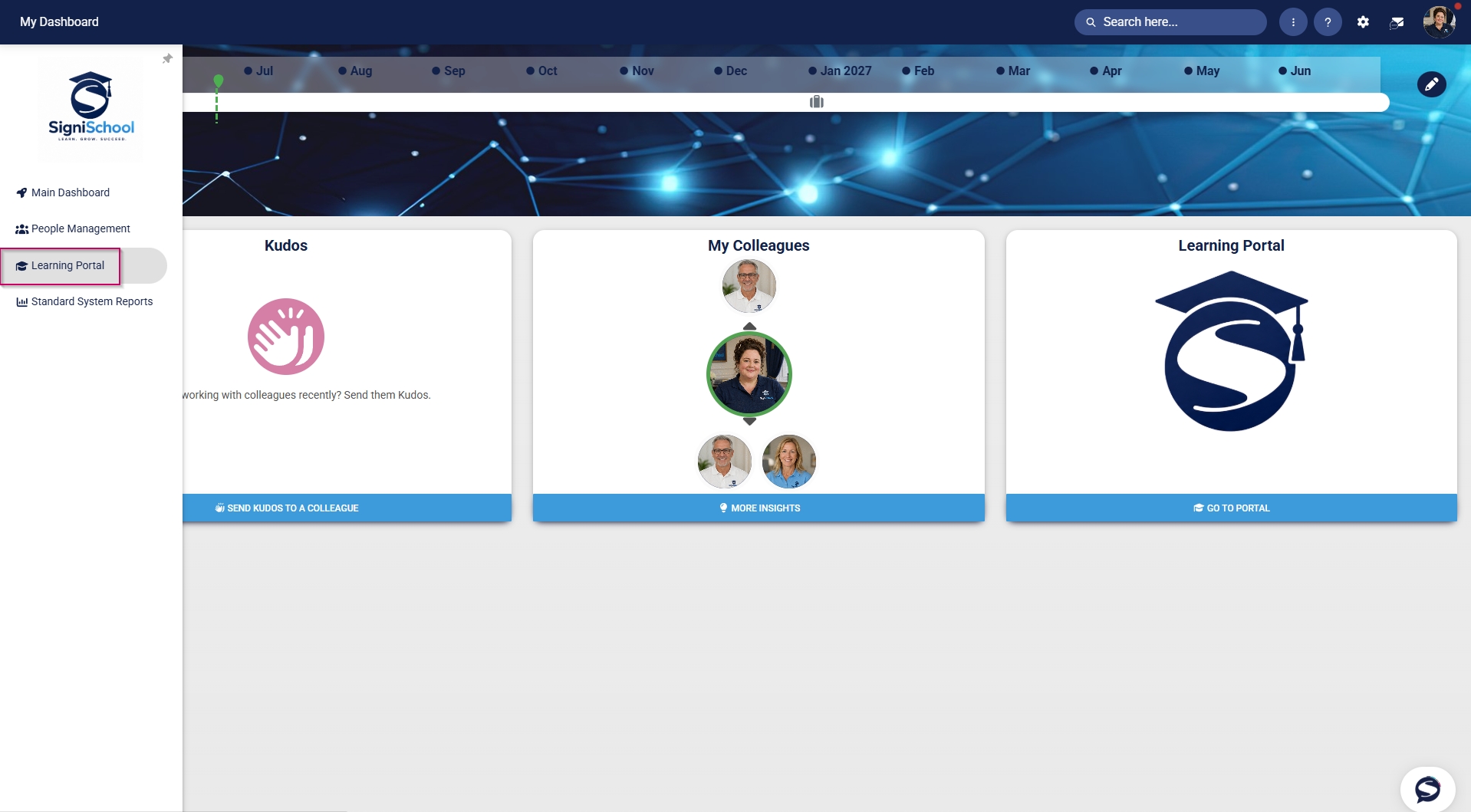
![LM OS Training Interventions - Learning Portal.jpg](https://signature.signifyhr.co.za/uploads/images/gallery/2026-06/WJKJe1Zzm8kFQvvE-lm-os-training-interventions-learning-portal.jpg)

- Click the **spanner icon** to access the system's **Administration** menu.

![LM OS Training Interventions - Learning Portal - System Administration.jpg](https://signature.signifyhr.co.za/uploads/images/gallery/2026-06/BXkbbFgqwvJpw3b9-lm-os-training-interventions-learning-portal-system-administration.jpg)

- On the **Learning Libraries** card, click **Training Interventions**.
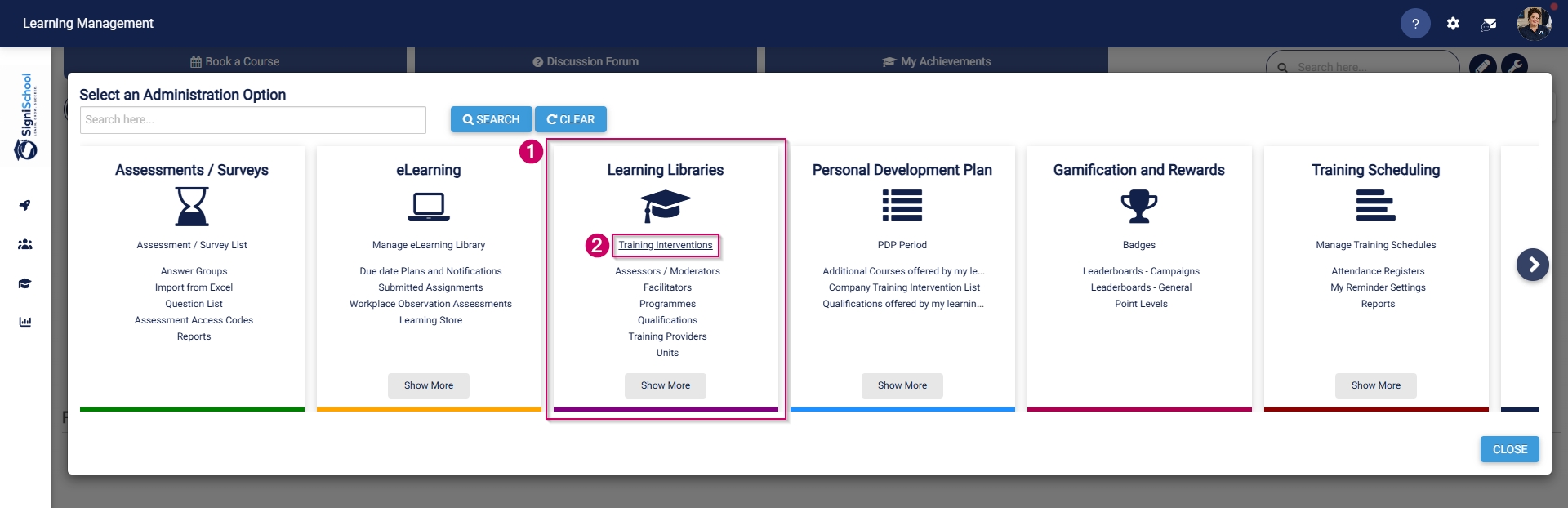
![LM OS Training Interventions - Learning Portal - System Admin Menu - Training Interventions.jpg](https://signature.signifyhr.co.za/uploads/images/gallery/2026-06/s9x9cGbhMmfxCMa8-lm-os-training-interventions-learning-portal-system-admin-menu-training-interventions.jpg)

- The **Training Intervention Library** will open. This is where training interventions can be created, edited, or deleted. To add a new training intervention, click **ADD**.
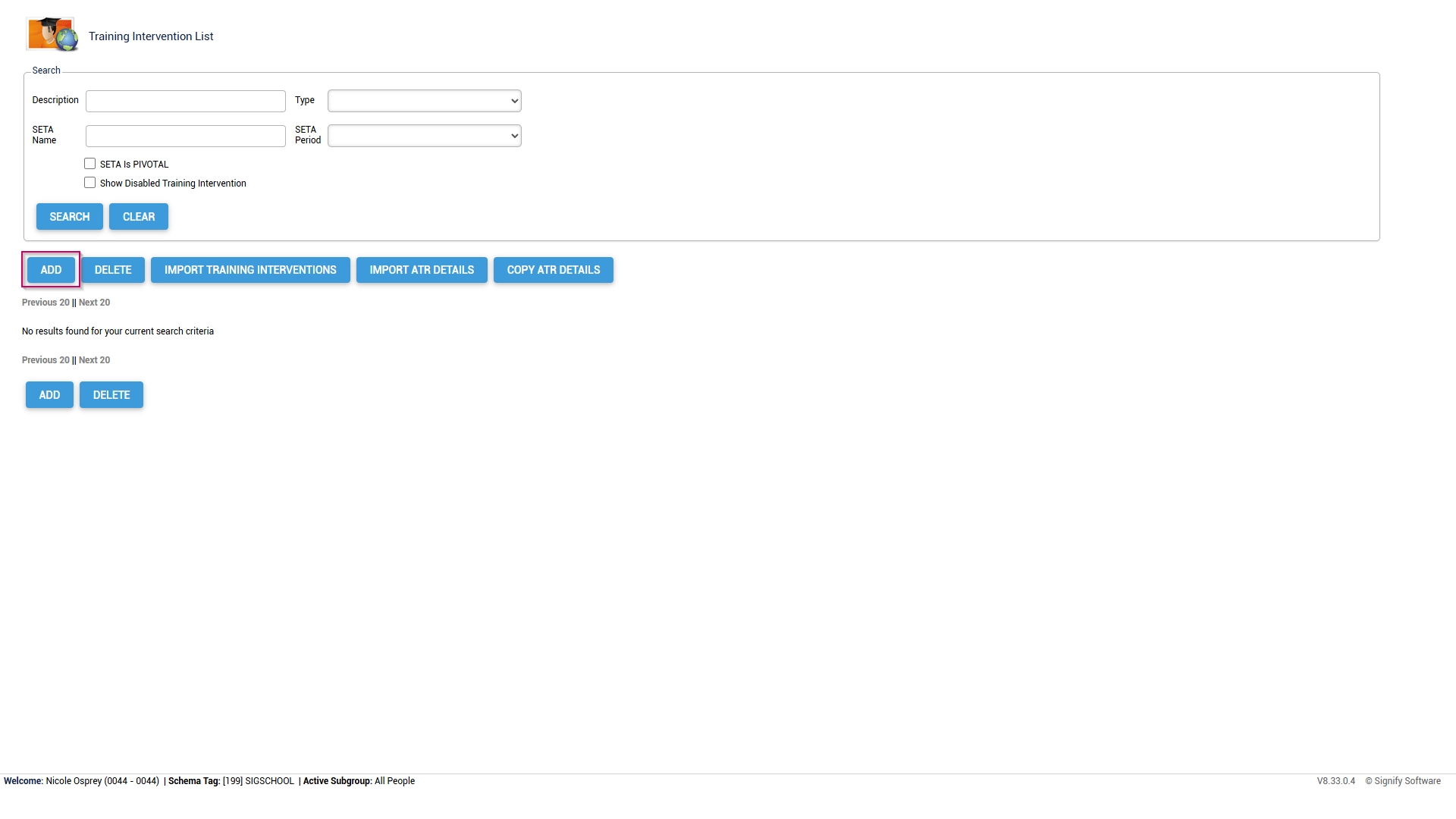
![LM OS Training Interventions - Learning Portal - System Admin Menu - Training Intervention Library - Add.jpg](https://signature.signifyhr.co.za/uploads/images/gallery/2026-06/EWbLQO4wqUpgxf8S-lm-os-training-interventions-learning-portal-system-admin-menu-training-intervention-library-add.jpg)

- The training intervention editing screen will open. 
    - - **Please note that all the fields marked with an asterisk (\*) are required.**
        - For our example, we will only fill out the necessary fields, but you can add more details if desired.

**<span style="color: rgb(171, 0, 79);">It is recommended to use a naming convention to standardise the training interventions. This ensures it is easy to maintain the data integrity of the Training Intervention Library while also improving the quality of system report outputs.</span>**

- Add an appropriate **name** for the training intervention.

<span style="color: rgb(0, 0, 0);">[![LM OS Training Interventions - Learning Portal - System Admin Menu - Training Intervention Library - Add new training intervention part 1.jpg](https://signature.signifyhr.co.za/uploads/images/gallery/2026-06/scaled-1680-/5zzaPLMNRGYJchaI-lm-os-training-interventions-learning-portal-system-admin-menu-training-intervention-library-add-new-training-intervention-part-1.jpg)](https://signature.signifyhr.co.za/uploads/images/gallery/2026-06/5zzaPLMNRGYJchaI-lm-os-training-interventions-learning-portal-system-admin-menu-training-intervention-library-add-new-training)</span>

- <span style="color: rgb(0, 0, 0);">Select the **type** of training intervention from the **Pathway Step Type drop-down menu**.</span>

<span style="color: rgb(0, 0, 0);">[![LM OS Training Interventions - Learning Portal - System Admin Menu - Training Intervention Library - Add new training intervention part 2.jpg](https://signature.signifyhr.co.za/uploads/images/gallery/2026-06/scaled-1680-/41qXNepDG6t0s8gS-lm-os-training-interventions-learning-portal-system-admin-menu-training-intervention-library-add-new-training-intervention-part-2.jpg)](https://signature.signifyhr.co.za/uploads/images/gallery/2026-06/41qXNepDG6t0s8gS-lm-os-training-interventions-learning-portal-system-admin-menu-training-intervention-library-add-new-training)</span>

- <span style="color: rgb(0, 0, 0);">Select the **Learning Type** from the **drop-down menu**.</span>

<span style="color: rgb(0, 0, 0);">[![LM OS Training Interventions - Learning Portal - System Admin Menu - Training Intervention Library - Add new training intervention part 3.jpg](https://signature.signifyhr.co.za/uploads/images/gallery/2026-06/scaled-1680-/2xL1s8SUIDFGEtu1-lm-os-training-interventions-learning-portal-system-admin-menu-training-intervention-library-add-new-training-intervention-part-3.jpg)](https://signature.signifyhr.co.za/uploads/images/gallery/2026-06/2xL1s8SUIDFGEtu1-lm-os-training-interventions-learning-portal-system-admin-menu-training-intervention-library-add-new-training)</span>

- <span style="color: rgb(0, 0, 0);">Select the **Nature of Learning** from the **drop-down menu**.</span>

[![LM OS Training Interventions - Learning Portal - System Admin Menu - Training Intervention Library - Add new training intervention part 4.jpg](https://signature.signifyhr.co.za/uploads/images/gallery/2026-06/scaled-1680-/KQEEMMFD7MGa6AwI-lm-os-training-interventions-learning-portal-system-admin-menu-training-intervention-library-add-new-training-intervention-part-4.jpg)](https://signature.signifyhr.co.za/uploads/images/gallery/2026-06/KQEEMMFD7MGa6AwI-lm-os-training-interventions-learning-portal-system-admin-menu-training-intervention-library-add-new-training)

- <span style="color: rgb(0, 0, 0);">Select the **Training Classification** from the **drop-down menu**.</span>

<span style="color: rgb(0, 0, 0);">[![LM OS Training Interventions - Learning Portal - System Admin Menu - Training Intervention Library - Add new training intervention part 5.jpg](https://signature.signifyhr.co.za/uploads/images/gallery/2026-06/scaled-1680-/i40MfyX6QmeNikNt-lm-os-training-interventions-learning-portal-system-admin-menu-training-intervention-library-add-new-training-intervention-part-5.jpg)](https://signature.signifyhr.co.za/uploads/images/gallery/2026-06/i40MfyX6QmeNikNt-lm-os-training-interventions-learning-portal-system-admin-menu-training-intervention-library-add-new-training)</span>

- <span style="color: rgb(0, 0, 0);">Select the **Training Category** from the **drop-down menu**.</span>

<span style="color: rgb(0, 0, 0);">[![LM OS Training Interventions - Learning Portal - System Admin Menu - Training Intervention Library - Add new training intervention part 6.jpg](https://signature.signifyhr.co.za/uploads/images/gallery/2026-06/scaled-1680-/0wwAO33DfkirK7Fc-lm-os-training-interventions-learning-portal-system-admin-menu-training-intervention-library-add-new-training-intervention-part-6.jpg)](https://signature.signifyhr.co.za/uploads/images/gallery/2026-06/0wwAO33DfkirK7Fc-lm-os-training-interventions-learning-portal-system-admin-menu-training-intervention-library-add-new-training)</span>

- <span style="color: rgb(0, 0, 0);">Select the **Skills Priority** from the **drop-down menu**.</span>

<span style="color: rgb(0, 0, 0);">[![LM OS Training Interventions - Learning Portal - System Admin Menu - Training Intervention Library - Add new training intervention part 7.jpg](https://signature.signifyhr.co.za/uploads/images/gallery/2026-06/scaled-1680-/XRopIaThT5AexlDH-lm-os-training-interventions-learning-portal-system-admin-menu-training-intervention-library-add-new-training-intervention-part-7.jpg)](https://signature.signifyhr.co.za/uploads/images/gallery/2026-06/XRopIaThT5AexlDH-lm-os-training-interventions-learning-portal-system-admin-menu-training-intervention-library-add-new-training)</span>

- <span style="color: rgb(0, 0, 0);">Configure the settings for the expiry of **learner records**.</span>

[![LM OS Training Interventions - Learning Portal - System Admin Menu - Training Intervention Library - Add new training intervention part 8.jpg](https://signature.signifyhr.co.za/uploads/images/gallery/2026-06/scaled-1680-/KwSRT5J8cyet018z-lm-os-training-interventions-learning-portal-system-admin-menu-training-intervention-library-add-new-training-intervention-part-8.jpg)](https://signature.signifyhr.co.za/uploads/images/gallery/2026-06/KwSRT5J8cyet018z-lm-os-training-interventions-learning-portal-system-admin-menu-training-intervention-library-add-new-training)

- <span style="color: rgb(0, 0, 0);">Configure the settings for the printing of **certificates**.</span>

<span style="color: rgb(0, 0, 0);">[![LM OS Training Interventions - Learning Portal - System Admin Menu - Training Intervention Library - Add new training intervention part 9.jpg](https://signature.signifyhr.co.za/uploads/images/gallery/2026-06/scaled-1680-/D1bj8CU1wskJeUds-lm-os-training-interventions-learning-portal-system-admin-menu-training-intervention-library-add-new-training-intervention-part-9.jpg)](https://signature.signifyhr.co.za/uploads/images/gallery/2026-06/D1bj8CU1wskJeUds-lm-os-training-interventions-learning-portal-system-admin-menu-training-intervention-library-add-new-training)</span>

- If you employ a **gamification** strategy in your learning environment, you can display a completed course as a **badge** and assign **points** for **leaderboard** tracking.

[![LM OS Training Interventions - Learning Portal - System Admin Menu - Training Intervention Library - Add new training intervention part 10.jpg](https://signature.signifyhr.co.za/uploads/images/gallery/2026-06/scaled-1680-/etrXXAbdNv6oMfDf-lm-os-training-interventions-learning-portal-system-admin-menu-training-intervention-library-add-new-training-intervention-part-10.jpg)](https://signature.signifyhr.co.za/uploads/images/gallery/2026-06/etrXXAbdNv6oMfDf-lm-os-training-interventions-learning-portal-system-admin-menu-training-intervention-library-add-new-training)
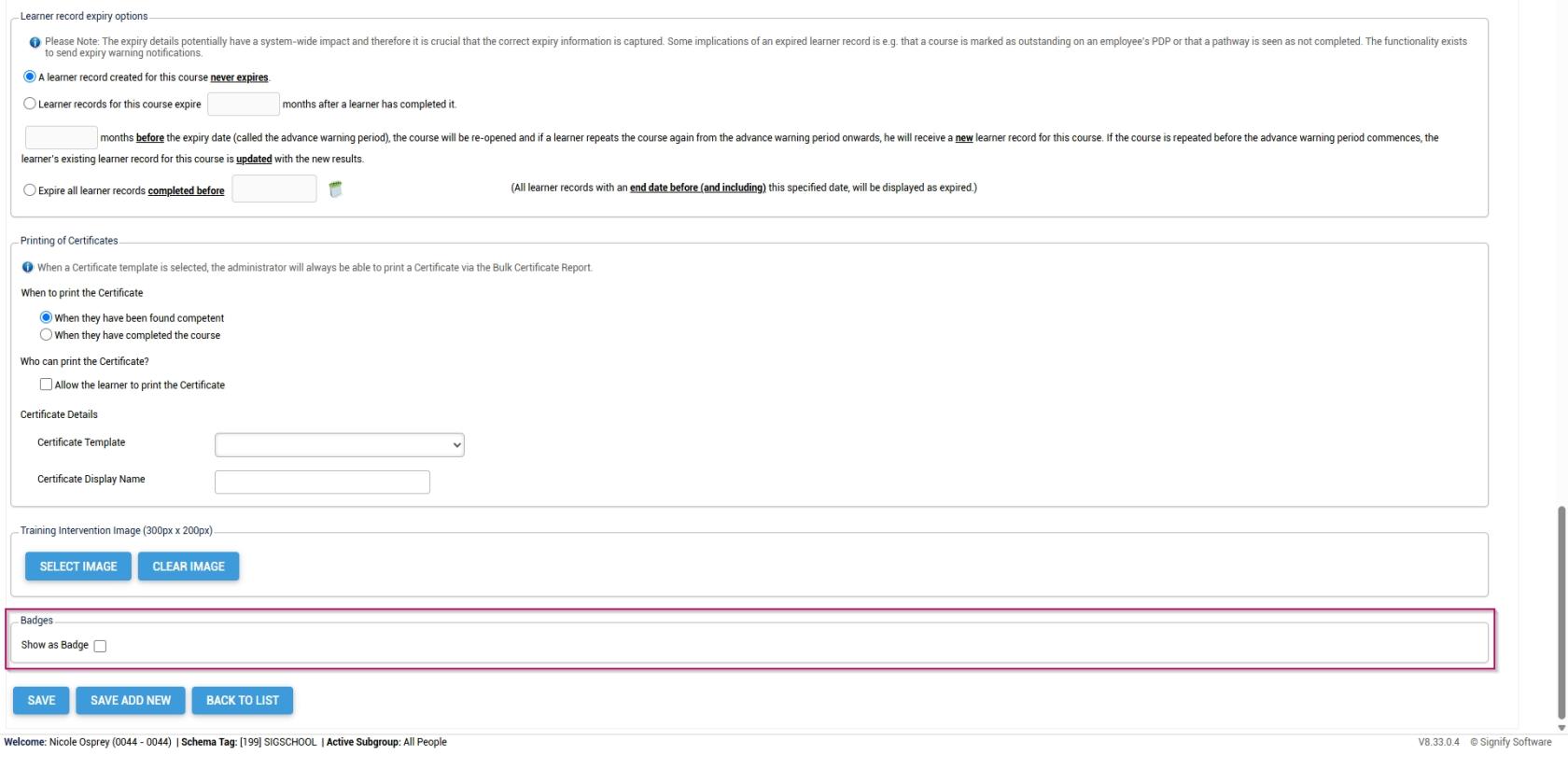
- Click **SAVE** when you are finished, **SAVE ADD NEW** to add another training intervention or click **BACK TO LIST** to discard your edits.

[![LM OS Training Interventions - Learning Portal - System Admin Menu - Training Intervention Library - Add new training intervention part 11.jpg](https://signature.signifyhr.co.za/uploads/images/gallery/2026-06/scaled-1680-/FplnJg2n8BlTuzcD-lm-os-training-interventions-learning-portal-system-admin-menu-training-intervention-library-add-new-training-intervention-part-11.jpg)](https://signature.signifyhr.co.za/uploads/images/gallery/2026-06/FplnJg2n8BlTuzcD-lm-os-training-interventions-learning-portal-system-admin-menu-training-intervention-library-add-new-training)
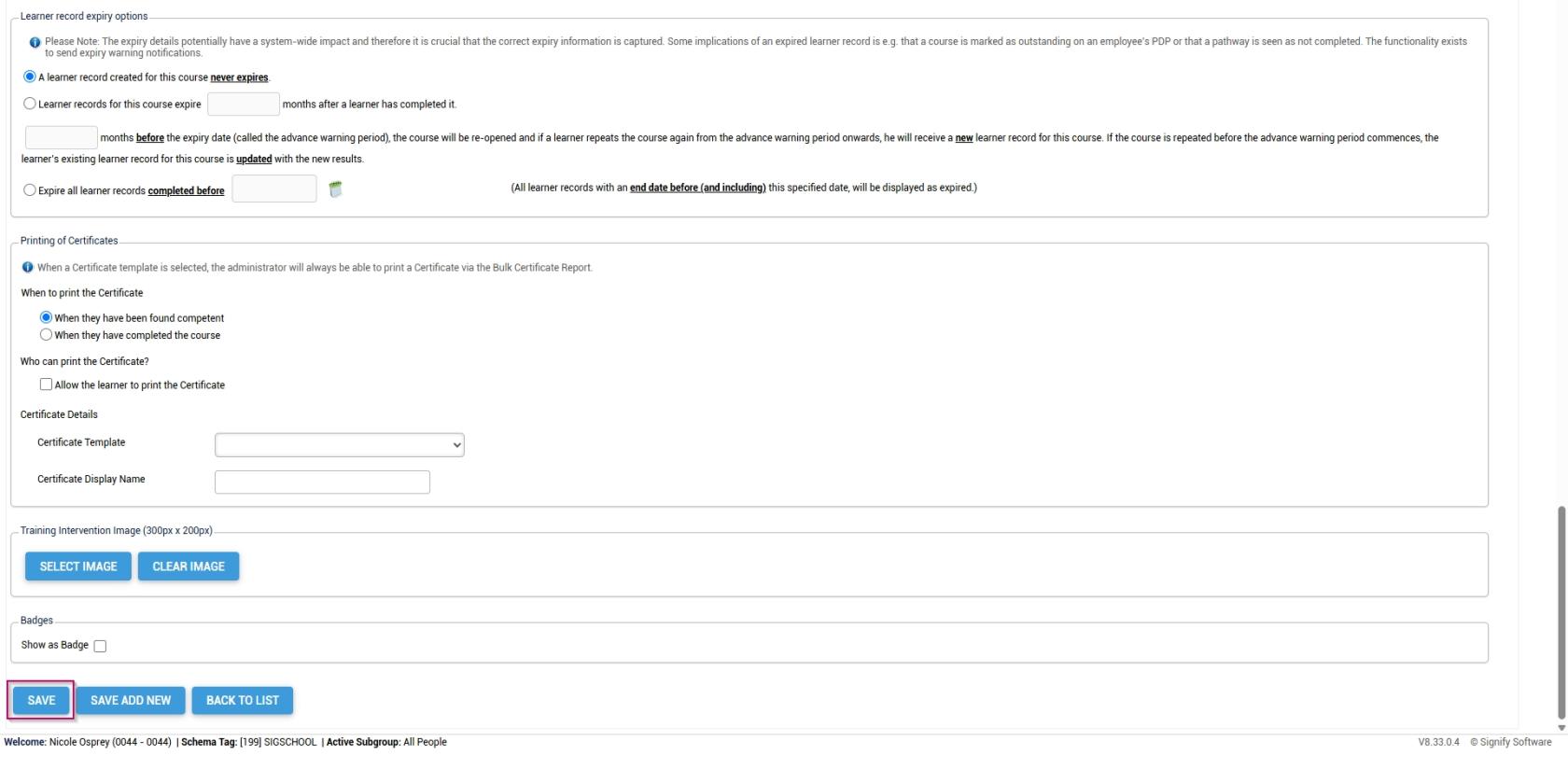
##### Method 2: Add training interventions using the import

- Hover over the **sidebar** menu, then click **Learning Portal**.

![LM OS Training Interventions - Learning Portal.jpg](https://signature.signifyhr.co.za/uploads/images/gallery/2026-06/WJKJe1Zzm8kFQvvE-lm-os-training-interventions-learning-portal.jpg)

- Click the **spanner icon** to access the system's **Administration** menu.

![LM OS Training Interventions - Learning Portal - System Administration.jpg](https://signature.signifyhr.co.za/uploads/images/gallery/2026-06/BXkbbFgqwvJpw3b9-lm-os-training-interventions-learning-portal-system-administration.jpg)

- On the **Learning Libraries** card, click **Training Interventions**.

![LM OS Training Interventions - Learning Portal - System Admin Menu - Training Interventions.jpg](https://signature.signifyhr.co.za/uploads/images/gallery/2026-06/s9x9cGbhMmfxCMa8-lm-os-training-interventions-learning-portal-system-admin-menu-training-interventions.jpg)

- The **Training Intervention Library** will open. This is where training interventions can be created, edited, or deleted. Click **IMPORT TRAINING INTERVENTIONS** to begin.
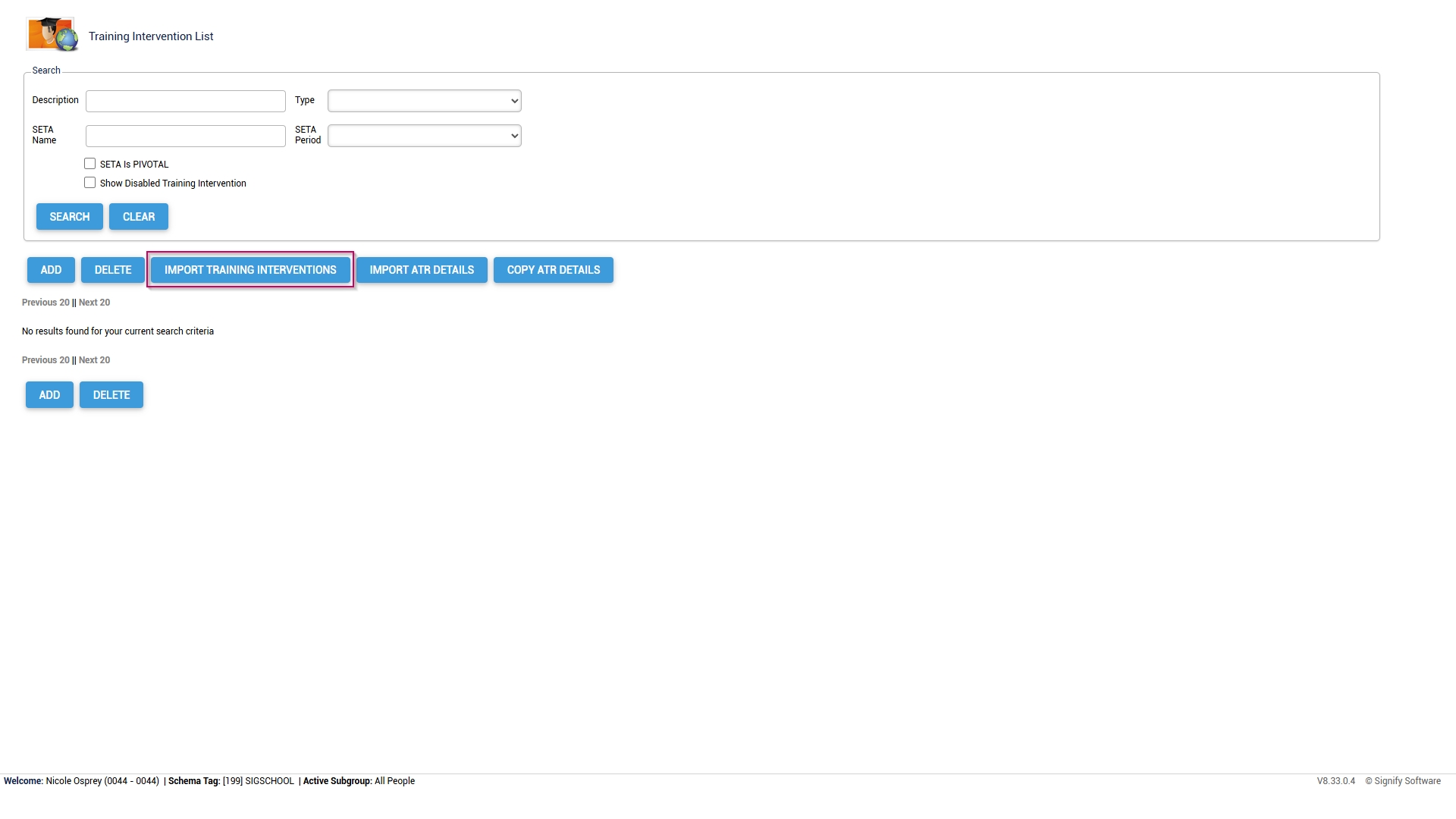
![LM OS Training Interventions - Learning Portal - System Admin Menu - Training Intervention Library - Import.jpg](https://signature.signifyhr.co.za/uploads/images/gallery/2026-06/2pWiX5Lx8fOQBWx4-lm-os-training-interventions-learning-portal-system-admin-menu-training-intervention-library-import.jpg)

- Click on the **Technical Information** section.  
    
    - - Take note of the maximum field lengths for each category.
- Copy the data in the section titled **First row should look like**. 
    - - Use this data to construct a training intervention import file.
        - For more information and a step-by-step guide on how to do this, go to the next section: **[Create a custom Training Intervention file in Excel](#bkmrk-create-a-custom-trai "Create a custom Training Intervention file in Excel")**.
- Once you have populated your training intervention document, click **CHOOSE FILE** to upload your import file as a .csv, .xls, or .xlsx.
- Click **SAVE &amp; PREVIEW**.

[![LM OS Training Interventions - Learning Portal - System Admin Menu - Training Intervention Library - Import training intervention screen.jpg](https://signature.signifyhr.co.za/uploads/images/gallery/2026-06/scaled-1680-/jpYTZOgSHIqgQTSz-lm-os-training-interventions-learning-portal-system-admin-menu-training-intervention-library-import-training-intervention-screen.jpg)](https://signature.signifyhr.co.za/uploads/images/gallery/2026-06/jpYTZOgSHIqgQTSz-lm-os-training-interventions-learning-portal-system-admin-menu-training-intervention-library-import-training-)

- Review the preview of your data import. If the data appears correct, tick the **checkbox** to confirm it.
- You are now ready to kick off the import. 
    - - You can execute a **mock import** to ensure all the data displays correctly. This is recommended for very large import files. To do this, click **EXECUTE MOCK IMPORT**.
        - If the data is ready to be imported, click **EXECUTE IMPORT**.

[![LM OS Training Interventions - Learning Portal - System Admin Menu - Create training intervention file - Preview.jpg](https://signature.signifyhr.co.za/uploads/images/gallery/2026-06/gef5Pk2Cvp57bzBa-lm-os-training-interventions-learning-portal-system-admin-menu-create-training-intervention-file-preview.jpg)](https://signature.signifyhr.co.za/uploads/images/gallery/2026-06/jpYTZOgSHIqgQTSz-lm-os-training-interventions-learning-portal-system-admin-menu-training-intervention-library-import-training-)
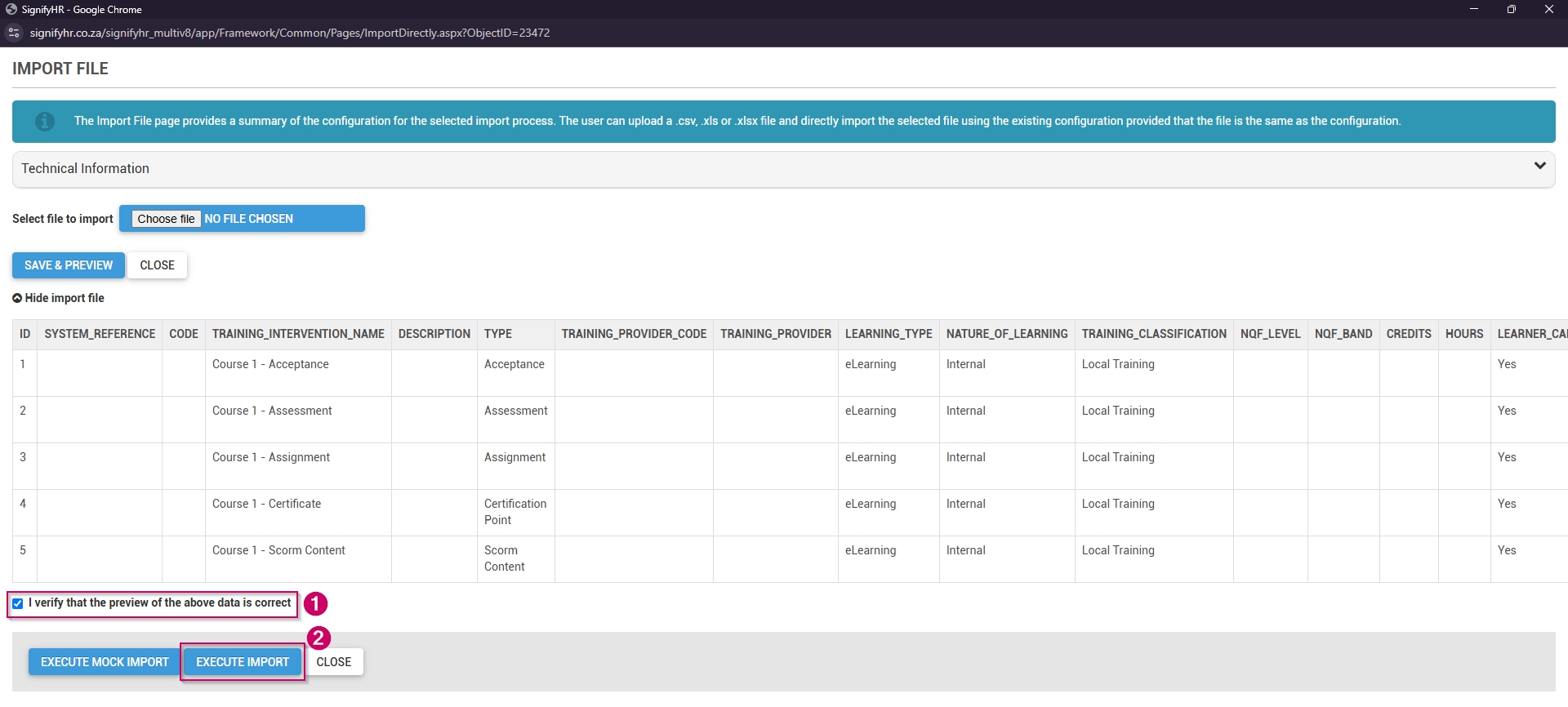
- Your **Training Intervention Library** is now populated with your new training interventions. If you do not see your training interventions, please refresh your browser window.

[![LM OS Training Interventions - Learning Portal - System Admin Menu - Training intervention library completre.jpg](https://signature.signifyhr.co.za/uploads/images/gallery/2026-06/scaled-1680-/cG1rQl2JtlqTyi9J-lm-os-training-interventions-learning-portal-system-admin-menu-training-intervention-library-completre.jpg)](https://signature.signifyhr.co.za/uploads/images/gallery/2026-06/cG1rQl2JtlqTyi9J-lm-os-training-interventions-learning-portal-system-admin-menu-training-intervention-library-completre.jpg)
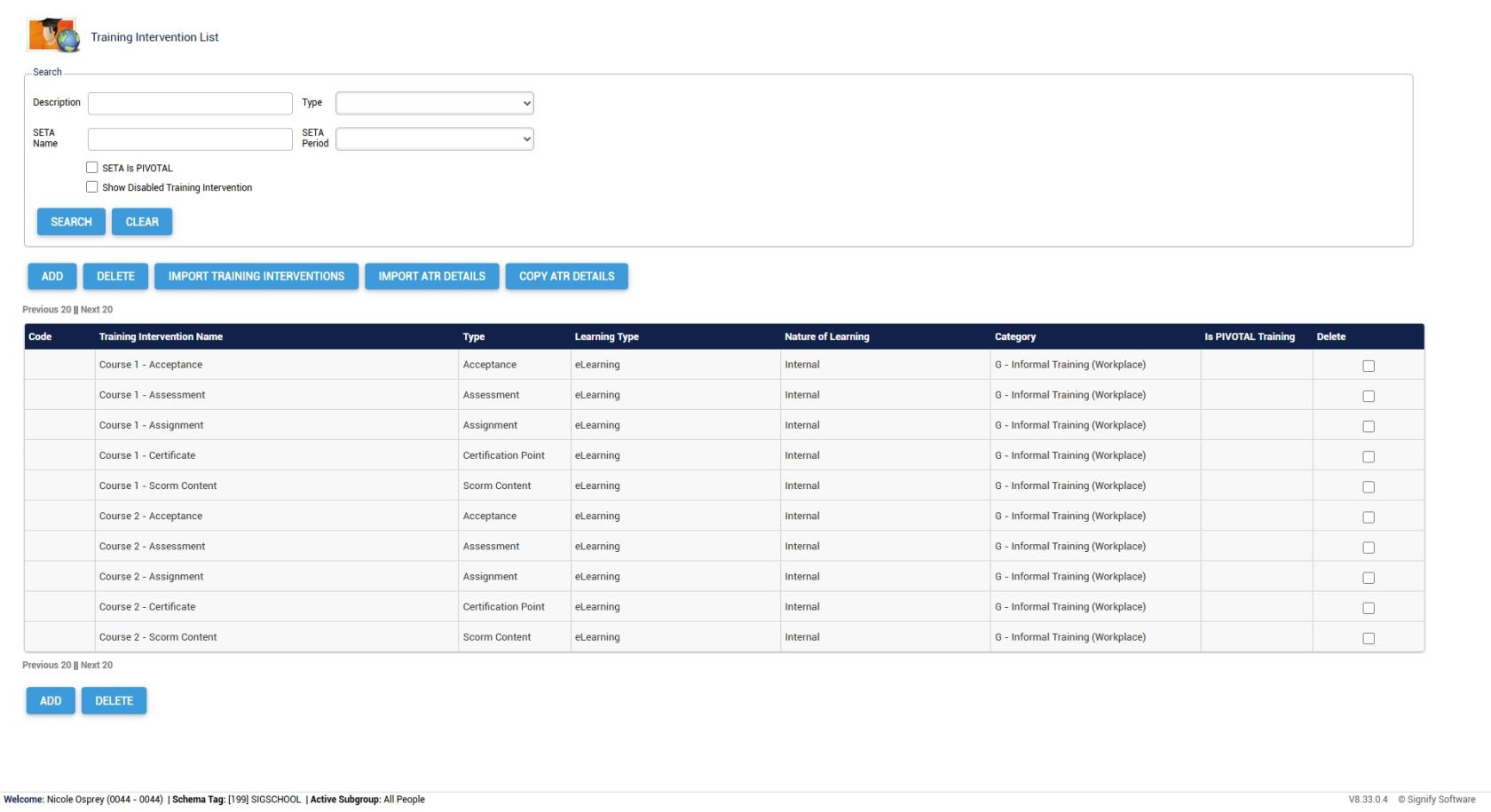
##### Create a custom Training Intervention file in Excel

- Copy the following information to your clipboard:

<p class="callout info">System\_Reference,Code,Training\_Intervention\_Name,Description,Type,Training\_Provider\_Code,Training\_Provider,Learning\_Type,Nature\_of\_Learning,Training\_Classification,NQF\_Level,NQF\_Band,Credits,Hours,Learner\_can\_print\_own\_certificate\_when\_competent,Certificate\_Display\_Name,Training\_Scheduling\_Category,Participants\_Min,Participants\_Max,Outcomes,Skills\_Priority,Prerequisite,Training\_Category,Log\_to\_Learner\_Record,Learner\_Record\_Never\_Expires,Advanced\_Warning\_Period,Expire\_All\_Learner\_Records\_Completed\_Before,Learner\_Records\_Expiry,Exclude\_From\_Reports,WSP\_ATR\_Category,PTP\_PTR\_Category,DocumentationRequired,AllowViewingTranscripts,IsPivotalTraining,IsMandatory,Mobile\_Application\_Template,Automatic\_Certification,SAQA\_Accredited,Update\_Mentor\_Manually,ImageUrl,BadgeUrl,ShowBadgeWhen,MinPoints,MaxPoints,MinScore,MaxScore,BadgeExpiryMonths,BadgeShowScoreDistributionGraph,BadgeShowLeaderboard  
</p>

- Open the **Excel** application and create a new **workbook**.
- Paste the information into the first cell of the new workbook.

[![LM OS Training Interventions - Learning Portal - System Admin Menu - Create training intervention file - Paste.jpg](https://signature.signifyhr.co.za/uploads/images/gallery/2026-06/scaled-1680-/9CpQdujRPW1qxcus-lm-os-training-interventions-learning-portal-system-admin-menu-create-training-intervention-file-paste.jpg)](https://signature.signifyhr.co.za/uploads/images/gallery/2026-06/9CpQdujRPW1qxcus-lm-os-training-interventions-learning-portal-system-admin-menu-create-training-intervention-file-paste.jpg)

- Ensuring the first cell is selected, navigate to the **Data** tab. Click the **Text to Columns** option in the **Data Tools** section.

[![LM OS Training Interventions - Learning Portal - System Admin Menu - Create training intervention file - Data.jpg](https://signature.signifyhr.co.za/uploads/images/gallery/2026-06/scaled-1680-/h91DcvYGHnyA1MHA-lm-os-training-interventions-learning-portal-system-admin-menu-create-training-intervention-file-data.jpg)](https://signature.signifyhr.co.za/uploads/images/gallery/2026-06/h91DcvYGHnyA1MHA-lm-os-training-interventions-learning-portal-system-admin-menu-create-training-intervention-file-data.jpg)

- The **Convert Text to Columns Wizard** will pop up. Click the **Delimited radio button**, then click **Next**.

[![LM OS Training Interventions - Learning Portal - System Admin Menu - Create training intervention file - Wizard.jpg](https://signature.signifyhr.co.za/uploads/images/gallery/2026-06/XIVyonI4iDyS9zjT-lm-os-training-interventions-learning-portal-system-admin-menu-create-training-intervention-file-wizard.jpg)](https://signature.signifyhr.co.za/uploads/images/gallery/2026-06/h91DcvYGHnyA1MHA-lm-os-training-interventions-learning-portal-system-admin-menu-create-training-intervention-file-data.jpg)

- In the **Delimiters** section, ensure **ONLY** the **Comma checkbox** is ticked, then click **Next**.

[![LM OS Training Interventions - Learning Portal - System Admin Menu - Create training intervention file - Comma.jpg](https://signature.signifyhr.co.za/uploads/images/gallery/2026-06/6MMe5noj0u1OBVZp-lm-os-training-interventions-learning-portal-system-admin-menu-create-training-intervention-file-comma.jpg)](https://signature.signifyhr.co.za/uploads/images/gallery/2026-06/h91DcvYGHnyA1MHA-lm-os-training-interventions-learning-portal-system-admin-menu-create-training-intervention-file-data.jpg)

- Click **Finish**.

[![LM OS Training Interventions - Learning Portal - System Admin Menu - Create training intervention file - Finish.jpg](https://signature.signifyhr.co.za/uploads/images/gallery/2026-06/scaled-1680-/DdbkfjUtVe7CptZX-lm-os-training-interventions-learning-portal-system-admin-menu-create-training-intervention-file-finish.jpg)](https://signature.signifyhr.co.za/uploads/images/gallery/2026-06/DdbkfjUtVe7CptZX-lm-os-training-interventions-learning-portal-system-admin-menu-create-training-intervention-file-finish.jpg)

- Your file is now ready to be populated.

[![LM OS Training Interventions - Learning Portal - System Admin Menu - Create training intervention file - Done.jpg](https://signature.signifyhr.co.za/uploads/images/gallery/2026-06/scaled-1680-/p5eXChbulqpjvuUM-lm-os-training-interventions-learning-portal-system-admin-menu-create-training-intervention-file-done.jpg)](https://signature.signifyhr.co.za/uploads/images/gallery/2026-06/p5eXChbulqpjvuUM-lm-os-training-interventions-learning-portal-system-admin-menu-create-training-intervention-file-done.jpg)

- Please do not enter any data into the System\_Reference or Code columns, as these will be updated automatically.
- Save the **Excel workbook as a .csv, .xls, or .xlsx file, then use it to import training interventions.

#### Importing assessments

For this example, we will import assessments into the system. For more information on building assessments using the **Assessment Builder** module, please refer to the **[Assessment Builder](https://signature.signifyhr.co.za/books/assessment-builder-EUM "Assessment Builder")** guide.

- Hover over the **sidebar** menu, then click **Learning Portal**.

![LM OS Training Interventions - Learning Portal.jpg](https://signature.signifyhr.co.za/uploads/images/gallery/2026-06/WJKJe1Zzm8kFQvvE-lm-os-training-interventions-learning-portal.jpg)

- Click the **spanner icon** to access the system's **Administration** menu.

![LM OS Training Interventions - Learning Portal - System Administration.jpg](https://signature.signifyhr.co.za/uploads/images/gallery/2026-06/BXkbbFgqwvJpw3b9-lm-os-training-interventions-learning-portal-system-administration.jpg)

- On the **Assessments/Surveys** card, click **Assessment/Survey List**.

[![LM OS Assessments - Assessment Survey List.jpg](https://signature.signifyhr.co.za/uploads/images/gallery/2026-06/scaled-1680-/7pSDMujzcEN8YHuJ-lm-os-assessments-assessment-survey-list.jpg)](https://signature.signifyhr.co.za/uploads/images/gallery/2026-06/7pSDMujzcEN8YHuJ-lm-os-assessments-assessment-survey-list.jpg)
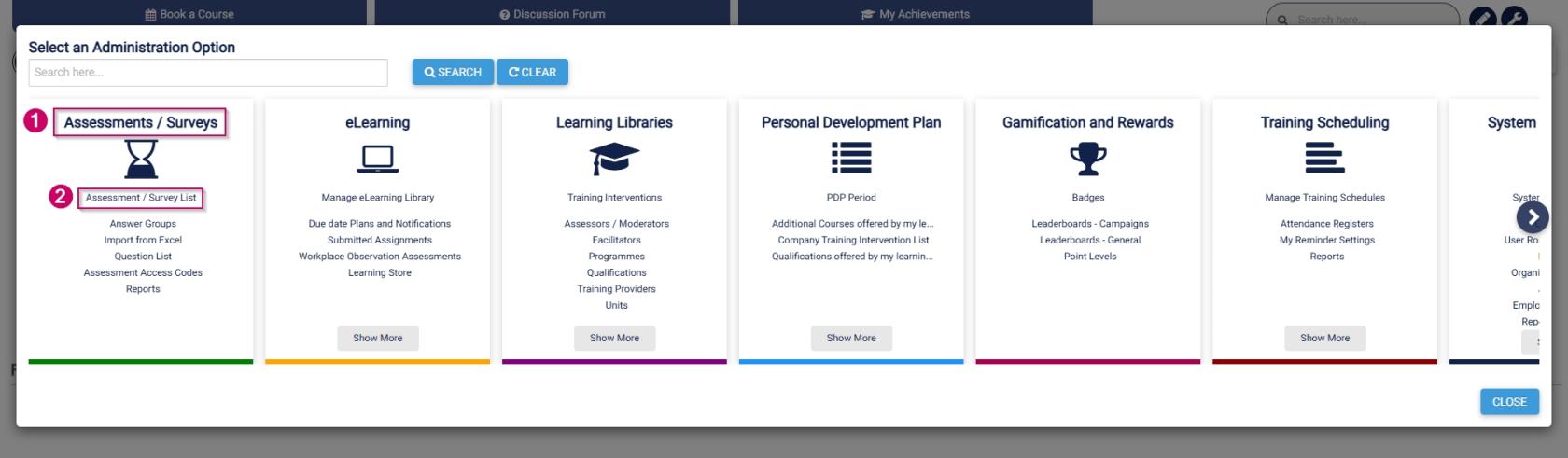
- The **assessment management** screen will open in a new tab.
- Click on **eAssess Assessments**, then click the **ADD ASSESSMENT CATEGORY** button.

[![LM OS Assessments - Assessment Survey List - Add Asessment Category.jpg](https://signature.signifyhr.co.za/uploads/images/gallery/2026-06/scaled-1680-/SK30KqJ80uuPnQA5-lm-os-assessments-assessment-survey-list-add-asessment-category.jpg)](https://signature.signifyhr.co.za/uploads/images/gallery/2026-06/SK30KqJ80uuPnQA5-lm-os-assessments-assessment-survey-list-add-asessment-category.jpg)
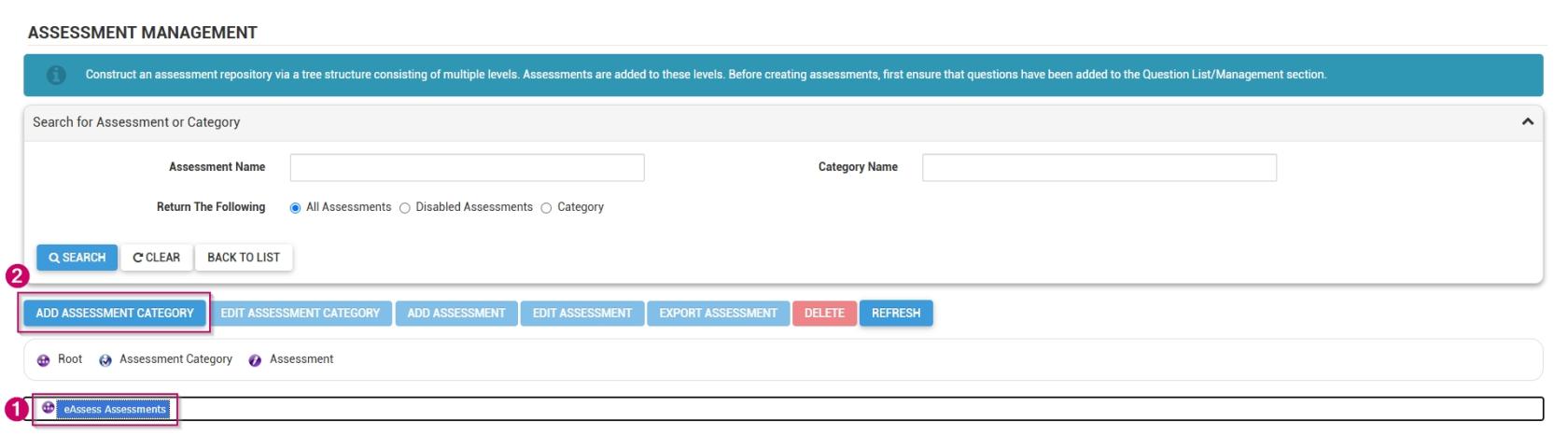
- Add a **name** for the assessment category.
- Click **SAVE** when you are finished, **SAVE ADD NEW** to add another assessment category, or click **CANCEL** to discard your edits.

[![LM OS Assessments - Assessment Survey List - Add Asessment Category - Add.jpg](https://signature.signifyhr.co.za/uploads/images/gallery/2026-06/scaled-1680-/24O5pfmvWaUwb3L2-lm-os-assessments-assessment-survey-list-add-asessment-category-add.jpg)](https://signature.signifyhr.co.za/uploads/images/gallery/2026-06/24O5pfmvWaUwb3L2-lm-os-assessments-assessment-survey-list-add-asessment-category-add.jpg)
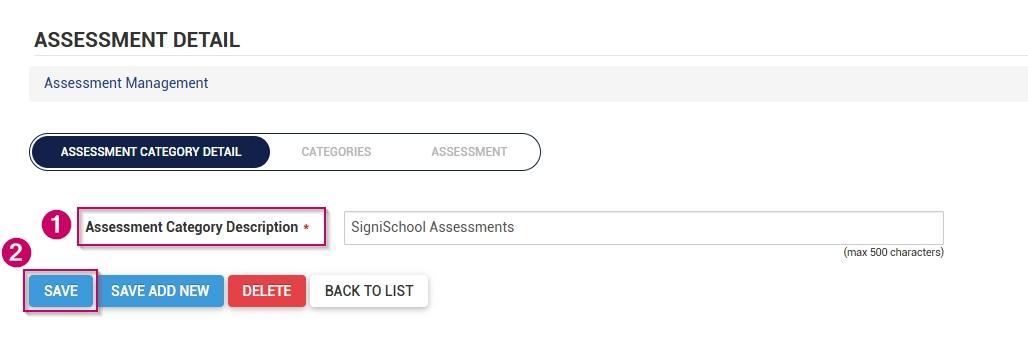
- The new category has been added to the **assessment management** list.

[![LM OS Assessments - Assessment Survey List - Add Asessment Category - Complete.jpg](https://signature.signifyhr.co.za/uploads/images/gallery/2026-06/scaled-1680-/VyNHw7P60yAq3dPI-lm-os-assessments-assessment-survey-list-add-asessment-category-complete.jpg)](https://signature.signifyhr.co.za/uploads/images/gallery/2026-06/VyNHw7P60yAq3dPI-lm-os-assessments-assessment-survey-list-add-asessment-category-complete.jpg)
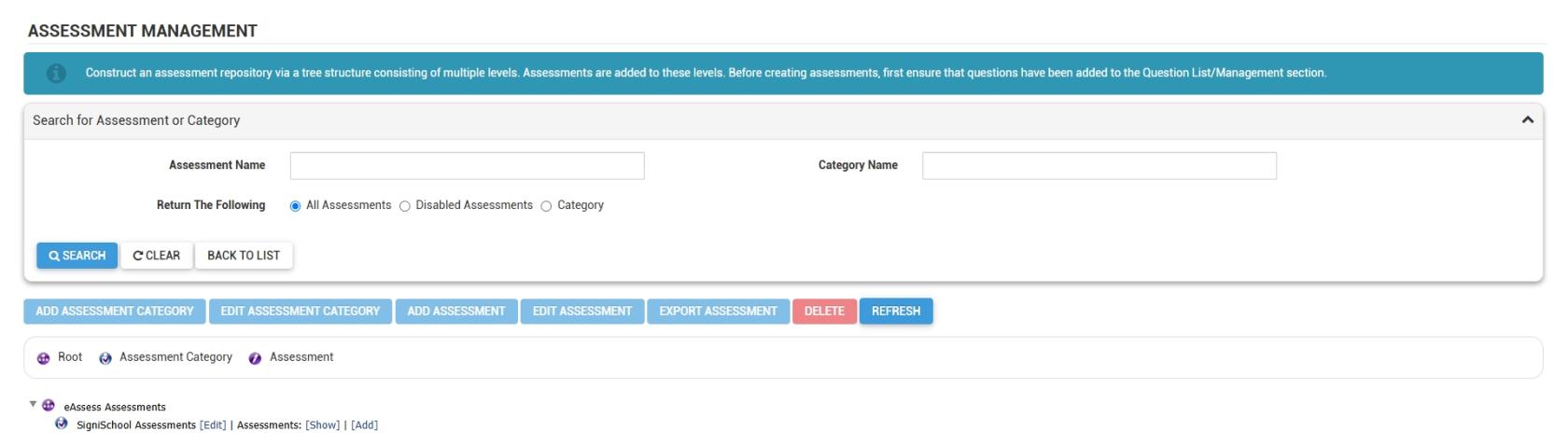
- Close the tab and return to the **Learning Portal** tab.
- On the **Assessments/Surveys** card, click **Question List**.

[![LM OS Assessments - Question List.jpg](https://signature.signifyhr.co.za/uploads/images/gallery/2026-06/CojhVzkgaDeIrVFH-lm-os-assessments-question-list.jpg)](https://signature.signifyhr.co.za/uploads/images/gallery/2026-06/7pSDMujzcEN8YHuJ-lm-os-assessments-assessment-survey-list.jpg)
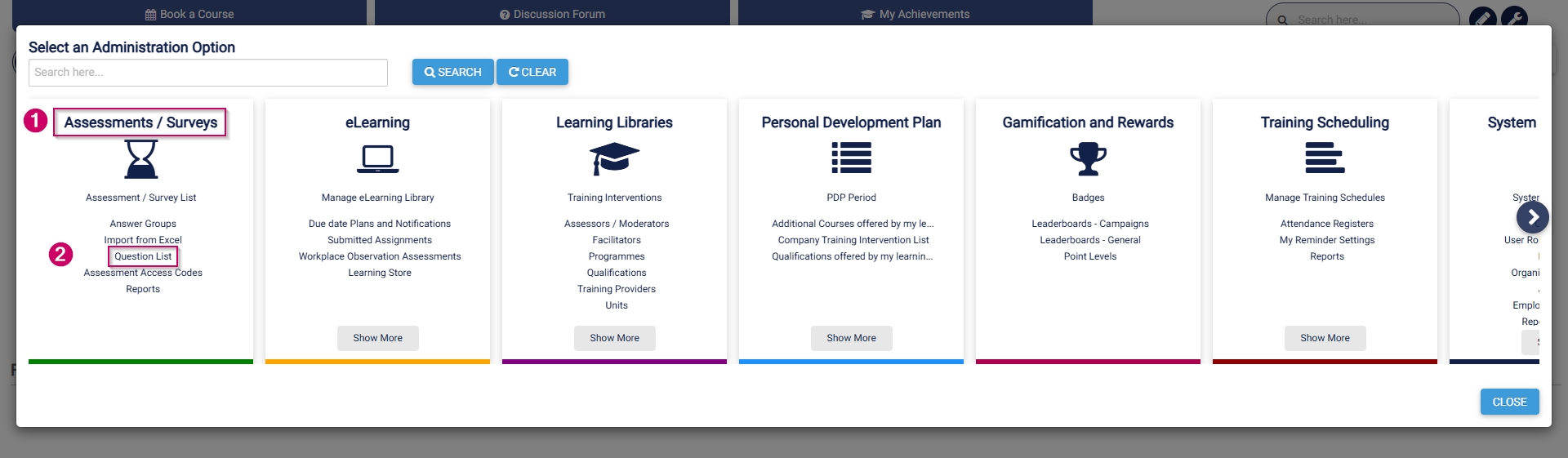
- The **question management** screen will open in a new tab.
- Click on **eAssess Questions**, then click the **ADD CATEGORY** button.

[![LM OS Assessments - Question List - Add Questions Category.jpg](https://signature.signifyhr.co.za/uploads/images/gallery/2026-06/5pqP473KmdLRWDZc-lm-os-assessments-question-list-add-questions-category.jpg)](https://signature.signifyhr.co.za/uploads/images/gallery/2026-06/SK30KqJ80uuPnQA5-lm-os-assessments-assessment-survey-list-add-asessment-category.jpg)

- Add a **name** for the question category.
- Click **SAVE** when you are finished, **SAVE ADD NEW** to add another question category, or click **CANCEL** to discard your edits.

[![LM OS Assessments - Question List - Add Questions Category - Add.jpg](https://signature.signifyhr.co.za/uploads/images/gallery/2026-06/5DJI5JWOH94jwqW7-lm-os-assessments-question-list-add-questions-category-add.jpg)](https://signature.signifyhr.co.za/uploads/images/gallery/2026-06/24O5pfmvWaUwb3L2-lm-os-assessments-assessment-survey-list-add-asessment-category-add.jpg)

- The new category has been added to the **question management** list.

[![LM OS Assessments - Question List - Add Question Category - Complete.jpg](https://signature.signifyhr.co.za/uploads/images/gallery/2026-06/ttgQxP9dhFWRh28r-lm-os-assessments-question-list-add-question-category-complete.jpg)](https://signature.signifyhr.co.za/uploads/images/gallery/2026-06/VyNHw7P60yAq3dPI-lm-os-assessments-assessment-survey-list-add-asessment-category-complete.jpg)

- Close the tab and return to the **Learning Portal** tab.
- On the **Assessments/Surveys** card, click **Import from Excel**.

[![LM OS Assessments - Import from Excel.jpg](https://signature.signifyhr.co.za/uploads/images/gallery/2026-06/tf6x75n0XnQQ7HpC-lm-os-assessments-import-from-excel.jpg)](https://signature.signifyhr.co.za/uploads/images/gallery/2026-06/7pSDMujzcEN8YHuJ-lm-os-assessments-assessment-survey-list.jpg)
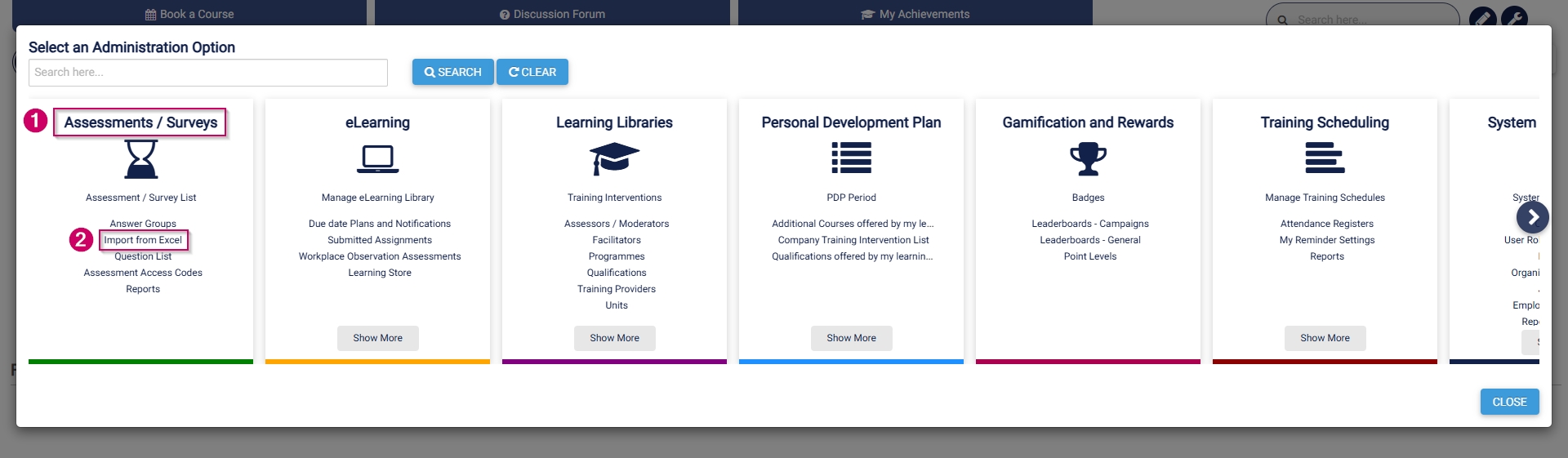
- The **Excel import** screen will open in a new tab.
- Click on **BROWSE**.

[![LM OS Import from Excel - Browse.jpg](https://signature.signifyhr.co.za/uploads/images/gallery/2026-06/obYpjXuv44Q97MoW-lm-os-import-from-excel-browse.jpg)](https://signature.signifyhr.co.za/uploads/images/gallery/2026-06/SK30KqJ80uuPnQA5-lm-os-assessments-assessment-survey-list-add-asessment-category.jpg)

- Click **DOWNLOAD TEMPLATE** to populate, or click **DOWNLOAD EXAMPLE** to view an assessment example file.

[![LM OS Import from Excel - Browse - Download template file.jpg](https://signature.signifyhr.co.za/uploads/images/gallery/2026-06/bVcPDSF8DM8F4Vn8-lm-os-import-from-excel-browse-download-template-file.jpg)](https://signature.signifyhr.co.za/uploads/images/gallery/2026-06/24O5pfmvWaUwb3L2-lm-os-assessments-assessment-survey-list-add-asessment-category-add.jpg)
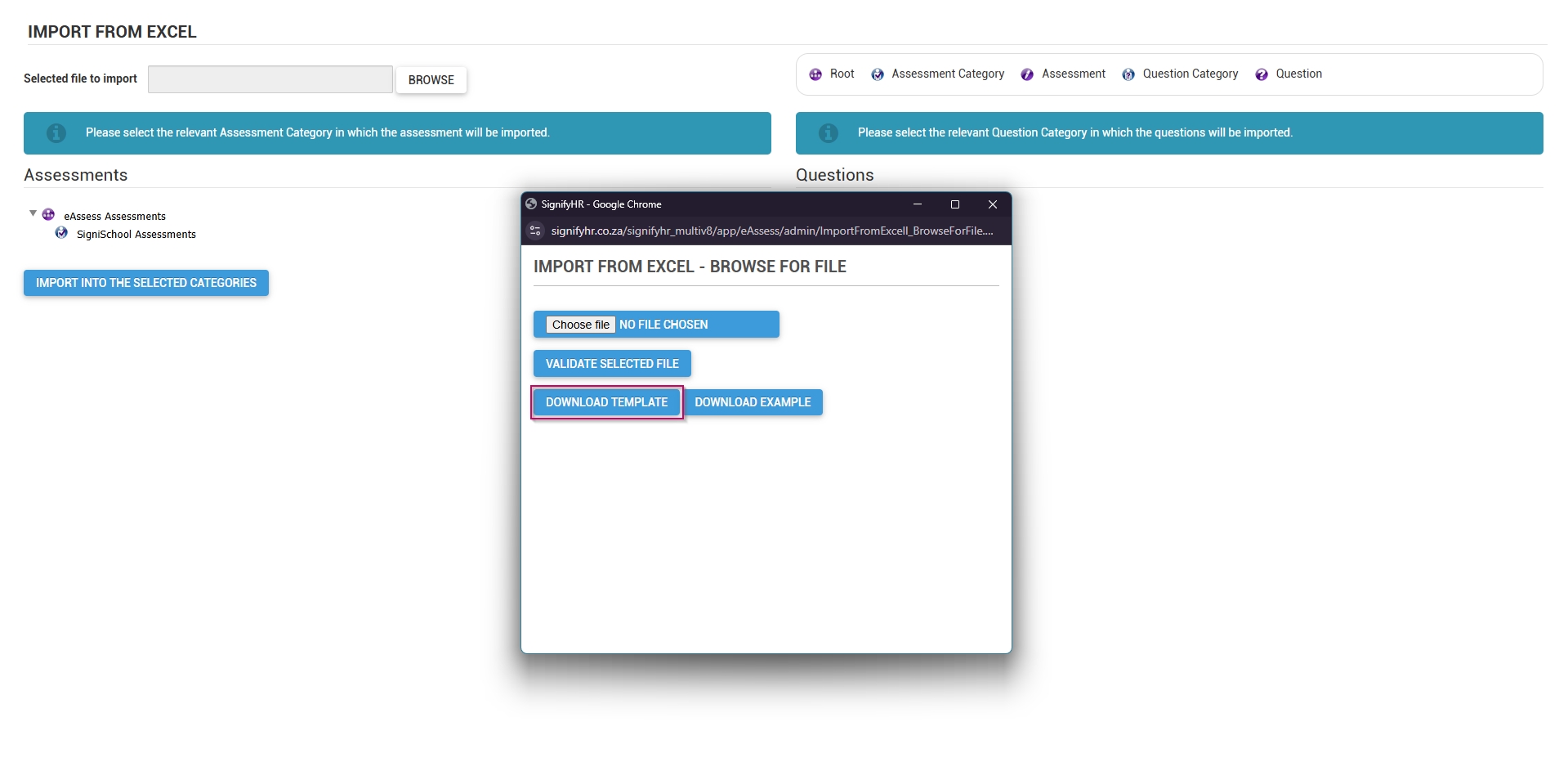
- Populate the file with the questions for your assessment. Please keep the following in mind: 
    - - Ensure the **Activity** name in column B is exactly the same as the **AssessmentName** in column Y.
        - For **single-selection questions,** ensure that only one correct answer is assigned a score.
        - For **multiple-selection questions**, ensure the question score in column AJ equals the sum of all correct answers.
        - For the **match column A with B questions**, ensure each answer is assigned a score, and that column AS is populated with a statement.
        - If options should be **randomised**, ensure the answer order for each option is 0 in column AY.
        - When providing **standard feedback** (in column AV), ensure that each option has feedback. Adding feedback to one option will not apply it to the others.
        - Should your **import fail**, download the error export file, and check the feedback provided in the **Status** column (column AZ). Follow the instructions to correct the assessment, then re-upload the file.
- Click **CHOOSE FILE** to upload your assessment, then click **VALIDATE SELECTED FILE**.

[![LM OS Import from Excel - Browse - Upload file.jpg](https://signature.signifyhr.co.za/uploads/images/gallery/2026-06/scaled-1680-/un7J6RKMWbhZDx4O-lm-os-import-from-excel-browse-upload-file.jpg)](https://signature.signifyhr.co.za/uploads/images/gallery/2026-06/un7J6RKMWbhZDx4O-lm-os-import-from-excel-browse-upload-file.jpg)
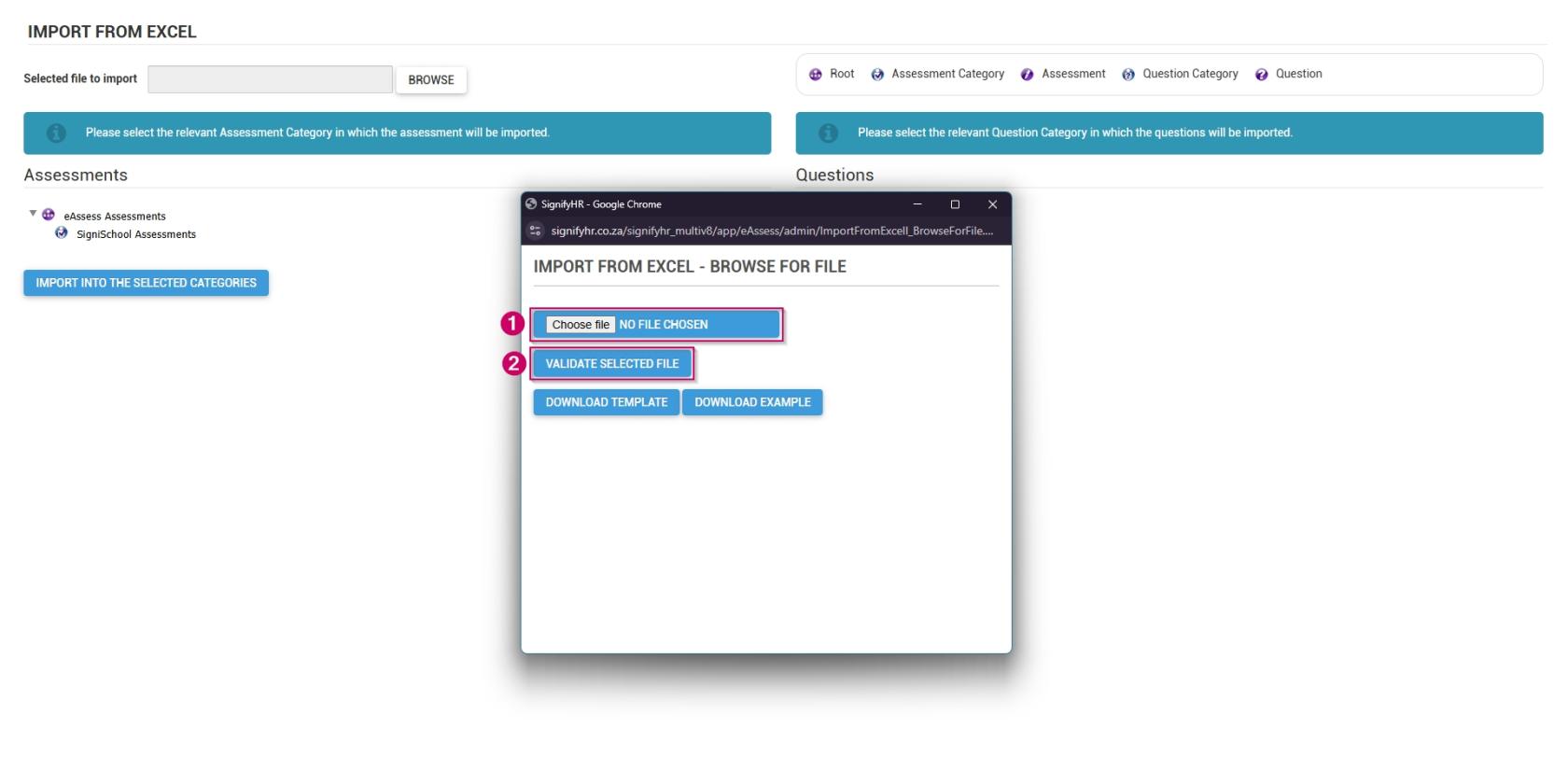
- If the validation is successful, click **OK** to proceed.

[![LM OS Import from Excel - Browse - Upload file - Validation successful.jpg](https://signature.signifyhr.co.za/uploads/images/gallery/2026-06/scaled-1680-/LTZ40X2xjVe3pGUv-lm-os-import-from-excel-browse-upload-file-validation-successful.jpg)](https://signature.signifyhr.co.za/uploads/images/gallery/2026-06/LTZ40X2xjVe3pGUv-lm-os-import-from-excel-browse-upload-file-validation-successful.jpg)

- Click the **assessment category** and the **question category** to which the assessment should be added.
- Click **IMPORT INTO THE SELECTED CATEGORIES**.

[![LM OS Import from Excel - Select categories and import assessment.jpg](https://signature.signifyhr.co.za/uploads/images/gallery/2026-06/scaled-1680-/gc097ZFZBvHtKqpC-lm-os-import-from-excel-select-categories-and-import-assessment.jpg)](https://signature.signifyhr.co.za/uploads/images/gallery/2026-06/gc097ZFZBvHtKqpC-lm-os-import-from-excel-select-categories-and-import-assessment.jpg)
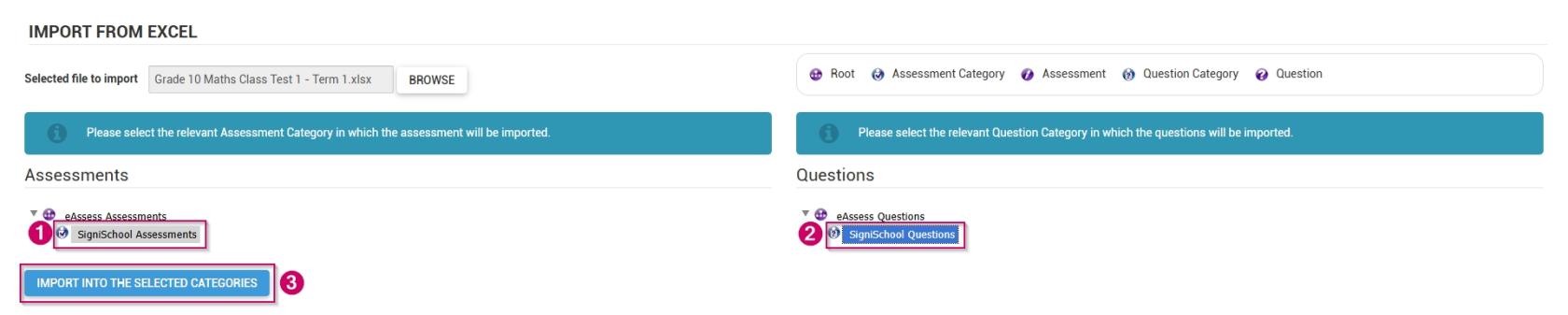
- On the warning message, click **OK** to proceed.

[![LM OS Import from Excel - Select categories and import assessment v- Confirm.jpg](https://signature.signifyhr.co.za/uploads/images/gallery/2026-06/scaled-1680-/bCwptbxIlJuLSFB3-lm-os-import-from-excel-select-categories-and-import-assessment-v-confirm.jpg)](https://signature.signifyhr.co.za/uploads/images/gallery/2026-06/bCwptbxIlJuLSFB3-lm-os-import-from-excel-select-categories-and-import-assessment-v-confirm.jpg)
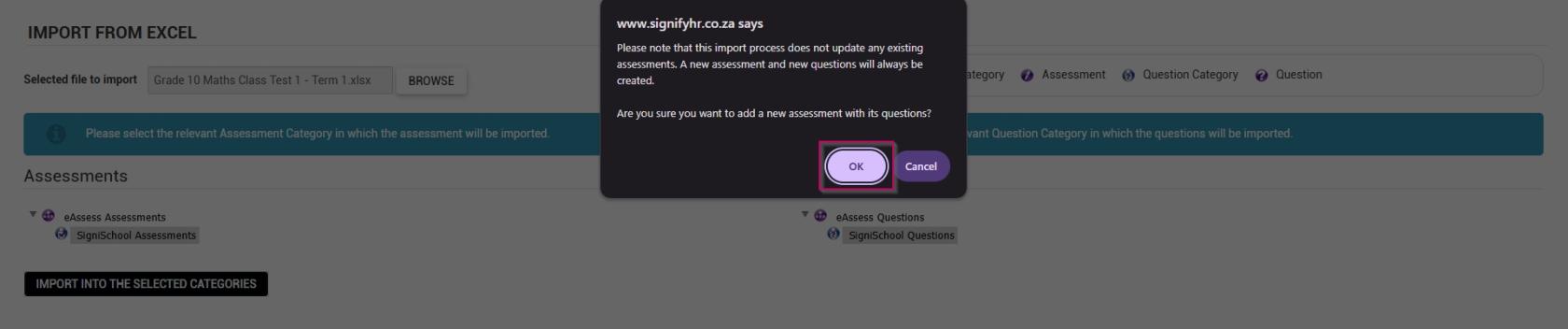
- If the import is successful, click **OK** to proceed.

[![LM OS Import from Excel - Select categories and import assessment - Success.jpg](https://signature.signifyhr.co.za/uploads/images/gallery/2026-06/scaled-1680-/5bOCQy75H2w1ftdJ-lm-os-import-from-excel-select-categories-and-import-assessment-success.jpg)](https://signature.signifyhr.co.za/uploads/images/gallery/2026-06/5bOCQy75H2w1ftdJ-lm-os-import-from-excel-select-categories-and-import-assessment-success.jpg)
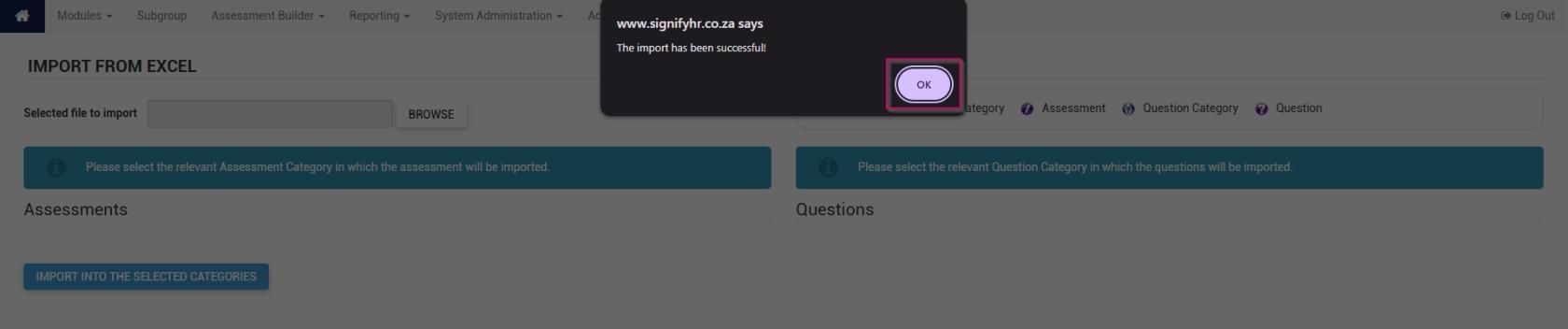
- The new assessment has been added to the system.

[![LM OS Import from Excel - Select categories and import assessment - Complete.jpg](https://signature.signifyhr.co.za/uploads/images/gallery/2026-06/ztUAZoEwh9g3b4bT-lm-os-import-from-excel-select-categories-and-import-assessment-complete.jpg)](https://signature.signifyhr.co.za/uploads/images/gallery/2026-06/VyNHw7P60yAq3dPI-lm-os-assessments-assessment-survey-list-add-asessment-category-complete.jpg)
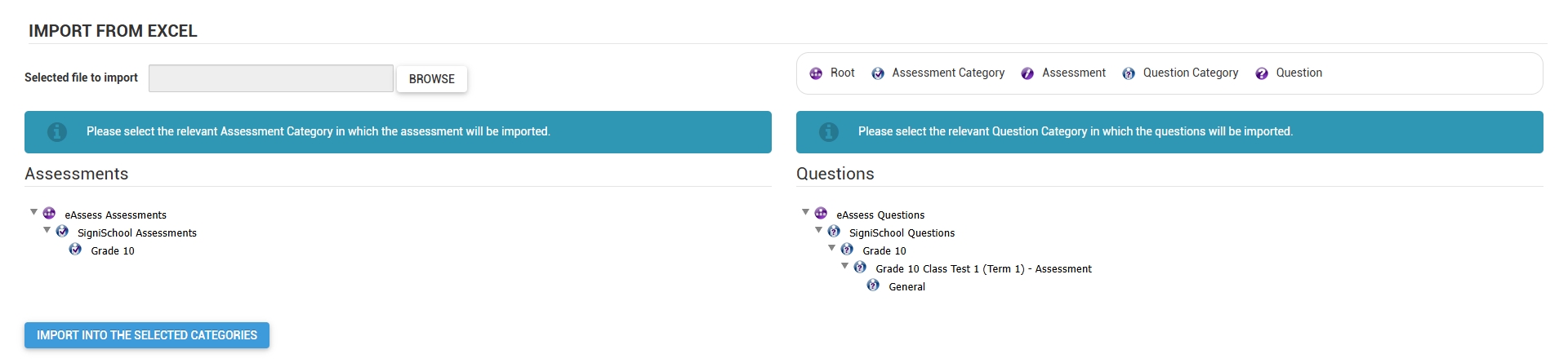
#### Create learning pathways

##### Starting with pathways

- Hover over the **sidebar** menu, then click **Learning Portal**.

![LM OS People Management Sidebar menu item.jpg](https://signature.signifyhr.co.za/uploads/images/gallery/2026-05/u7JWepx5gEgRanrj-lm-os-people-management-sidebar-menu-item.jpg)

- Click the **spanner icon** to access the system's **Administration** menu.

![LM OS Training Interventions - Learning Portal - System Administration.jpg](https://signature.signifyhr.co.za/uploads/images/gallery/2026-06/BXkbbFgqwvJpw3b9-lm-os-training-interventions-learning-portal-system-administration.jpg)

- On the **eLearning card, click **Manage eLearning Library**.

[![LM OS Build Pathways - Manage eLearning Library.jpg](https://signature.signifyhr.co.za/uploads/images/gallery/2026-06/scaled-1680-/ZaXOHRKkVOdWIOFL-lm-os-build-pathways-manage-elearning-library.jpg)](https://signature.signifyhr.co.za/uploads/images/gallery/2026-06/ZaXOHRKkVOdWIOFL-lm-os-build-pathways-manage-elearning-library.jpg)

- The **Pathways Tree View** screen will open in a new tab.
- Click **ADD MAIN CATEGORY**.

[![LM OS Build Pathways - Manage eLearning Library - Start.jpg](https://signature.signifyhr.co.za/uploads/images/gallery/2026-06/scaled-1680-/5wf4qOurso6sHsqv-lm-os-build-pathways-manage-elearning-library-start.jpg)](https://signature.signifyhr.co.za/uploads/images/gallery/2026-06/5wf4qOurso6sHsqv-lm-os-build-pathways-manage-elearning-library-start.jpg)

- Add a **name** for the category.
- Optionally, add a short description for the category.
- From the **drop-down menu**, select the **published status** as **Publish to this Ruleset only**.
- From the **drop-down menu**, select **Can be Published** to set the **development status**.
- Choose an **image** for the category. When adding your own image, ensure the aspect ratio is 300 by 200 px and that it is in .png, .jpg, or .gif format.
- If the main category should display on the **Learning Portal**, tick the **Show as shortcut on LMS portal checkbox.**
    - - **Please be aware that selecting a main category on the Learning Portal and checking this box for related pathways in that category may lead to duplicate entries appearing on the Learning Portal screen.**
        - If the main category appears on the **Learning Portal**, its pathways are accessible through the drill-down feature, so there's no need to tick this checkbox for those pathways.
        - It is recommended to try out this feature to determine the most effective way for you.
- Click **SAVE** when you are finished or click **BACK TO LIST** to discard your edits.

[![LM OS Build Pathways - Manage eLearning Library - Add main category.jpg](https://signature.signifyhr.co.za/uploads/images/gallery/2026-06/scaled-1680-/CYnHi4ocx7qknplL-lm-os-build-pathways-manage-elearning-library-add-main-category.jpg)](https://signature.signifyhr.co.za/uploads/images/gallery/2026-06/CYnHi4ocx7qknplL-lm-os-build-pathways-manage-elearning-library-add-main-category.jpg)

- A **new pathway** can be added to this category in two ways: 
    - - Scroll to the top of the screen after the save is complete, then click **ADD PATHWAY**.

[![LM OS Build Pathways - Manage eLearning Library - Main Category - Add pathway.jpg](https://signature.signifyhr.co.za/uploads/images/gallery/2026-06/scaled-1680-/R9rNxu83q0blaEVa-lm-os-build-pathways-manage-elearning-library-main-category-add-pathway.jpg)](https://signature.signifyhr.co.za/uploads/images/gallery/2026-06/R9rNxu83q0blaEVa-lm-os-build-pathways-manage-elearning-library-main-category-add-pathway.jpg)

- - - Alternatively, click **Maintain TreeView** at the top of the screen to return to the **Pathways Tree View**.

[![LM OS Build Pathways - Manage eLearning Library - Add main category - Back to TreeView.jpg](https://signature.signifyhr.co.za/uploads/images/gallery/2026-06/scaled-1680-/iH1d0JLDmHaGRKNw-lm-os-build-pathways-manage-elearning-library-add-main-category-back-to-treeview.jpg)](https://signature.signifyhr.co.za/uploads/images/gallery/2026-06/iH1d0JLDmHaGRKNw-lm-os-build-pathways-manage-elearning-library-add-main-category-back-to-treeview.jpg)

- - - Click the **pathway icon** next to the main category's name to add a new pathway.

[![LM OS Build Pathways - Manage eLearning Library - Add pathway.jpg](https://signature.signifyhr.co.za/uploads/images/gallery/2026-06/scaled-1680-/nTQvwsyb1oNiy5mM-lm-os-build-pathways-manage-elearning-library-add-pathway.jpg)](https://signature.signifyhr.co.za/uploads/images/gallery/2026-06/nTQvwsyb1oNiy5mM-lm-os-build-pathways-manage-elearning-library-add-pathway.jpg)

- The **pathway details** screen will open.
- Choose how the pathway steps should be displayed: 
    - - **Indicators** are used for linear learning.
        - **Tabs** are ideal for a virtual classroom or online school environment.
        - For our example, we will be using tabs.
- Add the pathway **name** to the **item label** text field.
- Optionally, add a short description for the pathway.
- Add a **description title**.
- Optionally, add a longer description for the pathway.

[![LM OS Build Pathways - Manage eLearning Library - Add pathway details.jpg](https://signature.signifyhr.co.za/uploads/images/gallery/2026-06/scaled-1680-/VuatgFXgxpkECq9o-lm-os-build-pathways-manage-elearning-library-add-pathway-details.jpg)](https://signature.signifyhr.co.za/uploads/images/gallery/2026-06/VuatgFXgxpkECq9o-lm-os-build-pathways-manage-elearning-library-add-pathway-details.jpg)

- From the **drop-down menu**, select the **item status** as **Publish to this Ruleset only**.
- From the **drop-down menu**, select **Can be Published** to set the **development status**.
- Choose a **pathway image** for the pathway. When adding your own image, ensure the aspect ratio is 300 by 200 px and that it is in .png, .jpg, or .gif format.
- If the main category should display on the **Learning Portal**, tick the **Show as shortcut on LMS portal checkbox**.
- Optionally, tick the **Auto Start Pathway checkbox** to skip the summary page when learners start the pathway.
- Click **SAVE** when you are finished or click **BACK TO LIST** to discard your edits.

[![LM OS Build Pathways - Manage eLearning Library - Add pathway details (continued).jpg](https://signature.signifyhr.co.za/uploads/images/gallery/2026-06/scaled-1680-/Nxc5SjHdqK5zircf-lm-os-build-pathways-manage-elearning-library-add-pathway-details-continued.jpg)](https://signature.signifyhr.co.za/uploads/images/gallery/2026-06/Nxc5SjHdqK5zircf-lm-os-build-pathways-manage-elearning-library-add-pathway-details-continued.jpg)

- Scroll to the top of the screen after the save is complete, then click **DESIGN PATHWAY**.

[![LM OS Build Pathways - Manage eLearning Library - Add pathway - Design pathway.jpg](https://signature.signifyhr.co.za/uploads/images/gallery/2026-06/scaled-1680-/rshqQzjkWWmNcdE0-lm-os-build-pathways-manage-elearning-library-add-pathway-design-pathway.jpg)](https://signature.signifyhr.co.za/uploads/images/gallery/2026-06/rshqQzjkWWmNcdE0-lm-os-build-pathways-manage-elearning-library-add-pathway-design-pathway.jpg)

- This overview explains how to set up **learning pathways** for an online school. We will create the following steps, which are mainly used in an eLearning environment:  
    
    - - Comment
        - Document (Download)
        - Acceptance
        - SCORM/xAPI
        - Assessment (Online)
        - Assignment (Upload)
        - Certification point
        - Class/Group
- Feel free to include any additional step types not covered in this guide.

##### Comment

- The pathway design screen will open. Select **Comment** from the menu.

[![LM OS Build Pathways - Manage eLearning Library - Design pathway - Add step.jpg](https://signature.signifyhr.co.za/uploads/images/gallery/2026-06/scaled-1680-/wSC61UfCIZOJyfr4-lm-os-build-pathways-manage-elearning-library-design-pathway-add-step.jpg)](https://signature.signifyhr.co.za/uploads/images/gallery/2026-06/wSC61UfCIZOJyfr4-lm-os-build-pathways-manage-elearning-library-design-pathway-add-step.jpg)

- Optionally, select an **image** or a custom **icon** for your step.
- Add a **main header**, or title, for this step.
- Add a **subheading** to the **Reference Description** field.
- Add a **description** for this step.

[![LM OS Build Pathways - Manage eLearning Library - Design pathway - Add step - Comment.jpg](https://signature.signifyhr.co.za/uploads/images/gallery/2026-06/scaled-1680-/1RMF7RfM8IURHNcj-lm-os-build-pathways-manage-elearning-library-design-pathway-add-step-comment.jpg)](https://signature.signifyhr.co.za/uploads/images/gallery/2026-06/1RMF7RfM8IURHNcj-lm-os-build-pathways-manage-elearning-library-design-pathway-add-step-comment.jpg)

- Click **SAVE** when you are finished, **SAVE ADD NEW** to add another comment step or click **CANCEL** to discard your edits.

[![LM OS Build Pathways - Manage eLearning Library - Design pathway - Add step - Comment save.jpg](https://signature.signifyhr.co.za/uploads/images/gallery/2026-06/scaled-1680-/NGOCXHwTlYmxIBkI-lm-os-build-pathways-manage-elearning-library-design-pathway-add-step-comment-save.jpg)](https://signature.signifyhr.co.za/uploads/images/gallery/2026-06/NGOCXHwTlYmxIBkI-lm-os-build-pathways-manage-elearning-library-design-pathway-add-step-comment-save.jpg)

- The comment step has been successfully added to the pathway.
- To add an additional step, click the **plus icon**.

[![LM OS Build Pathways - Manage eLearning Library - Design pathway - Add next step.jpg](https://signature.signifyhr.co.za/uploads/images/gallery/2026-06/scaled-1680-/P9U6U7n76JtoWCXk-lm-os-build-pathways-manage-elearning-library-design-pathway-add-next-step.jpg)](https://signature.signifyhr.co.za/uploads/images/gallery/2026-06/P9U6U7n76JtoWCXk-lm-os-build-pathways-manage-elearning-library-design-pathway-add-next-step.jpg)

##### Document (Download)

- Select **Document (Download)** from the menu.

[![LM OS Build Pathways - Manage eLearning Library - Design pathway - Document download - Add.jpg](https://signature.signifyhr.co.za/uploads/images/gallery/2026-06/GSRz7o7Y6G4GDzrR-lm-os-build-pathways-manage-elearning-library-design-pathway-document-download-add.jpg)](https://signature.signifyhr.co.za/uploads/images/gallery/2026-06/wSC61UfCIZOJyfr4-lm-os-build-pathways-manage-elearning-library-design-pathway-add-step.jpg)

- Optionally, select an **image** or a custom **icon** for your step.
- Add a **main header**, or title, for this step.
- Add a **subheading** to the **Reference Description** field.
- Choose a **file** from your computer for users to download.
- Tick the **checkbox if you would like the document to appear in this step.
- Add a **description** for this step.

[![LM OS Build Pathways - Manage eLearning Library - Design pathway - Document download.jpg](https://signature.signifyhr.co.za/uploads/images/gallery/2026-06/ML3QmPp0xMnX4O5m-lm-os-build-pathways-manage-elearning-library-design-pathway-document-download.jpg)](https://signature.signifyhr.co.za/uploads/images/gallery/2026-06/1RMF7RfM8IURHNcj-lm-os-build-pathways-manage-elearning-library-design-pathway-add-step-comment.jpg)

- Click **SAVE** when you are finished, **SAVE ADD NEW** to add another document download step or click **CLOSE** to discard your edits.

[![LM OS Build Pathways - Manage eLearning Library - Design pathway - Document download - Save.jpg](https://signature.signifyhr.co.za/uploads/images/gallery/2026-06/yuGxwbTOzQRvOawW-lm-os-build-pathways-manage-elearning-library-design-pathway-document-download-save.jpg)](https://signature.signifyhr.co.za/uploads/images/gallery/2026-06/NGOCXHwTlYmxIBkI-lm-os-build-pathways-manage-elearning-library-design-pathway-add-step-comment-save.jpg)

- The document download step has been successfully added to the pathway.

##### Acceptance  


- Select **Acceptance** from the menu.

[![LM OS Build Pathways - Manage eLearning Library - Design pathway - Acceptance.jpg](https://signature.signifyhr.co.za/uploads/images/gallery/2026-06/IY66IzXpNx53v4E9-lm-os-build-pathways-manage-elearning-library-design-pathway-acceptance.jpg)](https://signature.signifyhr.co.za/uploads/images/gallery/2026-06/wSC61UfCIZOJyfr4-lm-os-build-pathways-manage-elearning-library-design-pathway-add-step.jpg)

- Optionally, select an **image** or a custom **icon** for your step.
- Add a **main header**, or title, for this step.
- Add a **subheading** to the **Reference Description** field.
- Add an **acceptance title**, which will display next to the tickbox learners are required to tick for this step.
- Add a **description** for this step.

[![LM OS Build Pathways - Manage eLearning Library - Design pathway - Acceptance - Details.jpg](https://signature.signifyhr.co.za/uploads/images/gallery/2026-06/gH77RlZfTpKU1BLY-lm-os-build-pathways-manage-elearning-library-design-pathway-acceptance-details.jpg)](https://signature.signifyhr.co.za/uploads/images/gallery/2026-06/1RMF7RfM8IURHNcj-lm-os-build-pathways-manage-elearning-library-design-pathway-add-step-comment.jpg)

- To log this step in the **learner's record**, check the **box,** then click the **hand icon** to select a **training intervention** to associate with this step.

[![LM OS Build Pathways - Manage eLearning Library - Design pathway - Acceptance - Details (continued).jpg](https://signature.signifyhr.co.za/uploads/images/gallery/2026-06/scaled-1680-/4TxkuqaUsfugmmtL-lm-os-build-pathways-manage-elearning-library-design-pathway-acceptance-details-continued.jpg)](https://signature.signifyhr.co.za/uploads/images/gallery/2026-06/4TxkuqaUsfugmmtL-lm-os-build-pathways-manage-elearning-library-design-pathway-acceptance-details-continued.jpg)

- Select the **training intervention**, then click **SELECT**.

[![LM OS Build Pathways - Manage eLearning Library - Design pathway - Acceptance - Details (continued) - Select.jpg](https://signature.signifyhr.co.za/uploads/images/gallery/2026-06/scaled-1680-/ssB4yv74B9rhu7S6-lm-os-build-pathways-manage-elearning-library-design-pathway-acceptance-details-continued-select.jpg)](https://signature.signifyhr.co.za/uploads/images/gallery/2026-06/ssB4yv74B9rhu7S6-lm-os-build-pathways-manage-elearning-library-design-pathway-acceptance-details-continued-select.jpg)

- Click **SAVE** when you are finished, **SAVE ADD NEW** to add another acceptance step or click **CLOSE** to discard your edits.

[![LM OS Build Pathways - Manage eLearning Library - Design pathway - Acceptance - Save.jpg](https://signature.signifyhr.co.za/uploads/images/gallery/2026-06/qQ3e39IocUK2Zyn1-lm-os-build-pathways-manage-elearning-library-design-pathway-acceptance-save.jpg)](https://signature.signifyhr.co.za/uploads/images/gallery/2026-06/NGOCXHwTlYmxIBkI-lm-os-build-pathways-manage-elearning-library-design-pathway-add-step-comment-save.jpg)

- The acceptance step has been successfully added to the pathway.

##### SCORM/xAPI

- Select **SCORM/xAPI** from the menu.

[![LM OS Build Pathways - Manage eLearning Library - Design pathway - SCORM xAPI - Add.jpg](https://signature.signifyhr.co.za/uploads/images/gallery/2026-06/YwhzHcFn9zIwH7vl-lm-os-build-pathways-manage-elearning-library-design-pathway-scorm-xapi-add.jpg)](https://signature.signifyhr.co.za/uploads/images/gallery/2026-06/wSC61UfCIZOJyfr4-lm-os-build-pathways-manage-elearning-library-design-pathway-add-step.jpg)

- Optionally, select an **image** or a custom **icon** for your step.
- Add a **name** for this step in the **Step Header** field.
- Add a **description header** for this step.
- Optionally, add a **description**.
- Select a **SCORM file** to add to this step by clicking the **upload icon** next to the **Course** field. The SCORM wizard will open.

[![LM OS Build Pathways - Manage eLearning Library - Design pathway - SCORM step - Details (continued).jpg](https://signature.signifyhr.co.za/uploads/images/gallery/2026-06/scaled-1680-/SQeE1n9ju8aCCIk1-lm-os-build-pathways-manage-elearning-library-design-pathway-scorm-step-details-continued.jpg)](https://signature.signifyhr.co.za/uploads/images/gallery/2026-06/SQeE1n9ju8aCCIk1-lm-os-build-pathways-manage-elearning-library-design-pathway-scorm-step-details-continued.jpg)

- Select the **radio button** next to **SCORM** in the **Learning Content Type** section.
- Add a **name** for this step.
- Select a **training intervention** from the **Training Intervention Library** using the **hand icon**. 
    - - Alternatively, tick the **checkbox** to automatically create a training intervention for this step.
        - If using standardised naming conventions, ensure the **name** field complies with those standards.
- Choose a **SCORM file** from your computer in a .zip format.
- Customise how the **SCORM** activity will be set up: 
    - - Tick the **checkbox** if the file has an **assessment**.
        - Tick the **checkbox** if the learner can **redo** the SCORM activity.
        - Set the maximum number of **attempts**.
        - Choose which **score** to keep.
        - Tick the **checkbox** if the **transcript** should be made available to the learner.
        - Tick the **checkbox** if the SCORM file is **active** and ready for publication.
- Click **SAVE AND UPLOAD** to continue or **CLOSE** to discard your edits.

[![LM OS Build Pathways - Manage eLearning Library - Design pathway - SCORM step - Details (continued...).jpg](https://signature.signifyhr.co.za/uploads/images/gallery/2026-06/4ACULNc84aNn0FVk-lm-os-build-pathways-manage-elearning-library-design-pathway-scorm-step-details-continued.jpg)](https://signature.signifyhr.co.za/uploads/images/gallery/2026-06/1RMF7RfM8IURHNcj-lm-os-build-pathways-manage-elearning-library-design-pathway-add-step-comment.jpg)

- The SCORM step has been successfully added to the pathway.
- These same steps can be used to add: 
    - - MP4 files,
        - PDFs, or
        - YouTube videos.

##### Assessment (Online)

- Select **Assessment (Online)** from the menu.

[![LM OS Build Pathways - Manage eLearning Library - Design pathway - Assessment.jpg](https://signature.signifyhr.co.za/uploads/images/gallery/2026-06/D8BJ0MJHBgSri0Ky-lm-os-build-pathways-manage-elearning-library-design-pathway-assessment.jpg)](https://signature.signifyhr.co.za/uploads/images/gallery/2026-06/wSC61UfCIZOJyfr4-lm-os-build-pathways-manage-elearning-library-design-pathway-add-step.jpg)

- Optionally, select an **image** or a custom **icon** for your step.
- Add a **main header**, or title, for this step.
- Link a pre-loaded **assessment** to this step by clicking the **hand icon**.
- Add a **description** for this step.
- Click **SAVE** when you are finished, **SAVE ADD NEW** to add another assessment step or click **CLOSE** to discard your edits.

[![LM OS Build Pathways - Manage eLearning Library - Design pathway - Assessment - Details.jpg](https://signature.signifyhr.co.za/uploads/images/gallery/2026-06/KvlBtctN72QUk2Er-lm-os-build-pathways-manage-elearning-library-design-pathway-assessment-details.jpg)](https://signature.signifyhr.co.za/uploads/images/gallery/2026-06/1RMF7RfM8IURHNcj-lm-os-build-pathways-manage-elearning-library-design-pathway-add-step-comment.jpg)

- The assessment step has been successfully added to the pathway.

##### Assignment (Upload Document)

- Select **Assignment (Upload Document)** from the menu.

[![LM OS Build Pathways - Manage eLearning Library - Design pathway - Upload Document.jpg](https://signature.signifyhr.co.za/uploads/images/gallery/2026-06/jbYXGlRQYp7mdsXa-lm-os-build-pathways-manage-elearning-library-design-pathway-upload-document.jpg)](https://signature.signifyhr.co.za/uploads/images/gallery/2026-06/wSC61UfCIZOJyfr4-lm-os-build-pathways-manage-elearning-library-design-pathway-add-step.jpg)

- Optionally, select an **image** or a custom **icon** for your step.
- Add a **main header**, or title, for this step.
- Add a **heading** for this step.
- Add a **description** for this step.
- To log this step in the **learner's record**, check the **box,** then click the **hand icon** to select a **training intervention** to associate with this step.

[![LM OS Build Pathways - Manage eLearning Library - Design pathway - Upload Document - Details.jpg](https://signature.signifyhr.co.za/uploads/images/gallery/2026-06/9M5zANneyO7srkRX-lm-os-build-pathways-manage-elearning-library-design-pathway-upload-document-details.jpg)](https://signature.signifyhr.co.za/uploads/images/gallery/2026-06/4TxkuqaUsfugmmtL-lm-os-build-pathways-manage-elearning-library-design-pathway-acceptance-details-continued.jpg)

- Select the **training intervention**, then click **SELECT**.

[![LM OS Build Pathways - Manage eLearning Library - Design pathway - Upload Document - Details - Select TI.jpg](https://signature.signifyhr.co.za/uploads/images/gallery/2026-06/cf9EtB7LfuyuhWpN-lm-os-build-pathways-manage-elearning-library-design-pathway-upload-document-details-select-ti.jpg)](https://signature.signifyhr.co.za/uploads/images/gallery/2026-06/ssB4yv74B9rhu7S6-lm-os-build-pathways-manage-elearning-library-design-pathway-acceptance-details-continued-select.jpg)

- Click **SAVE** when you are finished, **SAVE ADD NEW** to add another assignment upload step or click **CLOSE** to discard your edits.

[![LM OS Build Pathways - Manage eLearning Library - Design pathway - Upload Document - Details - Save.jpg](https://signature.signifyhr.co.za/uploads/images/gallery/2026-06/Rm4jE0qy6f4PPCtR-lm-os-build-pathways-manage-elearning-library-design-pathway-upload-document-details-save.jpg)](https://signature.signifyhr.co.za/uploads/images/gallery/2026-06/NGOCXHwTlYmxIBkI-lm-os-build-pathways-manage-elearning-library-design-pathway-add-step-comment-save.jpg)

- The assignment upload step has been successfully added to the pathway.

##### Certification point

- Select **Certification Point** from the menu.

[![LM OS Build Pathways - Manage eLearning Library - Design pathway - Certification Point.jpg](https://signature.signifyhr.co.za/uploads/images/gallery/2026-06/tP388iLhLpV0Zewo-lm-os-build-pathways-manage-elearning-library-design-pathway-certification-point.jpg)](https://signature.signifyhr.co.za/uploads/images/gallery/2026-06/wSC61UfCIZOJyfr4-lm-os-build-pathways-manage-elearning-library-design-pathway-add-step.jpg)

- Optionally, select an **image** or a custom **icon** for your step.
- Add a **main header**, or title, for this step.
- Add a certification point **name**.
- Add a **description** for this step.

[![LM OS Build Pathways - Manage eLearning Library - Design pathway - Certification Point - Details.jpg](https://signature.signifyhr.co.za/uploads/images/gallery/2026-06/OiPytcr2jUx694ql-lm-os-build-pathways-manage-elearning-library-design-pathway-certification-point-details.jpg)](https://signature.signifyhr.co.za/uploads/images/gallery/2026-06/1RMF7RfM8IURHNcj-lm-os-build-pathways-manage-elearning-library-design-pathway-add-step-comment.jpg)

- To log this step in the **learner's record**, check the **box,** then click the **hand icon** to select a **training intervention** to associate with this step.

[![LM OS Build Pathways - Manage eLearning Library - Design pathway - Certification Point - Details (continued).jpg](https://signature.signifyhr.co.za/uploads/images/gallery/2026-06/4fwOiDOL5YTDDQHX-lm-os-build-pathways-manage-elearning-library-design-pathway-certification-point-details-continued.jpg)](https://signature.signifyhr.co.za/uploads/images/gallery/2026-06/4TxkuqaUsfugmmtL-lm-os-build-pathways-manage-elearning-library-design-pathway-acceptance-details-continued.jpg)

- Select the **training intervention**, then click **SELECT**.

[![LM OS Build Pathways - Manage eLearning Library - Design pathway - Certification Point - Select TI.jpg](https://signature.signifyhr.co.za/uploads/images/gallery/2026-06/otrUpIVyEYOBFEQY-lm-os-build-pathways-manage-elearning-library-design-pathway-certification-point-select-ti.jpg)](https://signature.signifyhr.co.za/uploads/images/gallery/2026-06/ssB4yv74B9rhu7S6-lm-os-build-pathways-manage-elearning-library-design-pathway-acceptance-details-continued-select.jpg)

- Click **SAVE** when you are finished, **SAVE ADD NEW** to add another certification point step or click **CLOSE** to discard your edits.

[![LM OS Build Pathways - Manage eLearning Library - Design pathway - Certification Point - Save.jpg](https://signature.signifyhr.co.za/uploads/images/gallery/2026-06/i0RbN3bF2qG2VhUg-lm-os-build-pathways-manage-elearning-library-design-pathway-certification-point-save.jpg)](https://signature.signifyhr.co.za/uploads/images/gallery/2026-06/NGOCXHwTlYmxIBkI-lm-os-build-pathways-manage-elearning-library-design-pathway-add-step-comment-save.jpg)

- To maintain **prerequisites** for this certification point, click **YES**.

[![LM OS Build Pathways - Manage eLearning Library - Design pathway - Certification Point - Prerequisites.jpg](https://signature.signifyhr.co.za/uploads/images/gallery/2026-06/scaled-1680-/MSNZjdaTTiLzkjYZ-lm-os-build-pathways-manage-elearning-library-design-pathway-certification-point-prerequisites.jpg)](https://signature.signifyhr.co.za/uploads/images/gallery/2026-06/MSNZjdaTTiLzkjYZ-lm-os-build-pathways-manage-elearning-library-design-pathway-certification-point-prerequisites.jpg)

- Click **ADD** to select steps from the pathway to add as prerequisites.

[![LM OS Build Pathways - Manage eLearning Library - Design pathway - Certification Point - Prerequisites - Add.jpg](https://signature.signifyhr.co.za/uploads/images/gallery/2026-06/scaled-1680-/Dr3irOlfwyN1vH2Z-lm-os-build-pathways-manage-elearning-library-design-pathway-certification-point-prerequisites-add.jpg)](https://signature.signifyhr.co.za/uploads/images/gallery/2026-06/Dr3irOlfwyN1vH2Z-lm-os-build-pathways-manage-elearning-library-design-pathway-certification-point-prerequisites-add.jpg)

- From the **drop-down menu**, select a **pathway item**.
- Select the **status** required to achieve this prerequisite.
- Click **SAVE** when you are finished, **SAVE ADD NEW** to add another prerequisite, or click **CLOSE** to discard your edits.
- The certification point step has been successfully added to the pathway.

[![LM OS Build Pathways - Manage eLearning Library - Design pathway - Completed.jpg](https://signature.signifyhr.co.za/uploads/images/gallery/2026-06/scaled-1680-/qnMkg6IDM5DcpC5G-lm-os-build-pathways-manage-elearning-library-design-pathway-completed.jpg)](https://signature.signifyhr.co.za/uploads/images/gallery/2026-06/qnMkg6IDM5DcpC5G-lm-os-build-pathways-manage-elearning-library-design-pathway-completed.jpg)

##### Class/Group

This step can be added only after the class or group has been linked to the pathway. Click **[here](https://signature.signifyhr.co.za/books/learning-management/page/learning-management-online-school-implementation-guide#bkmrk-add-a-class "Add a Class")** for a guide to implementing this before you start.

- Select **Class/Group** from the menu.

[![LM OS Build Pathways - Manage eLearning Library - Design pathway - Class or Group.jpg](https://signature.signifyhr.co.za/uploads/images/gallery/2026-06/YlZrpuvjxxjBL0OI-lm-os-build-pathways-manage-elearning-library-design-pathway-class-or-group.jpg)](https://signature.signifyhr.co.za/uploads/images/gallery/2026-06/wSC61UfCIZOJyfr4-lm-os-build-pathways-manage-elearning-library-design-pathway-add-step.jpg)
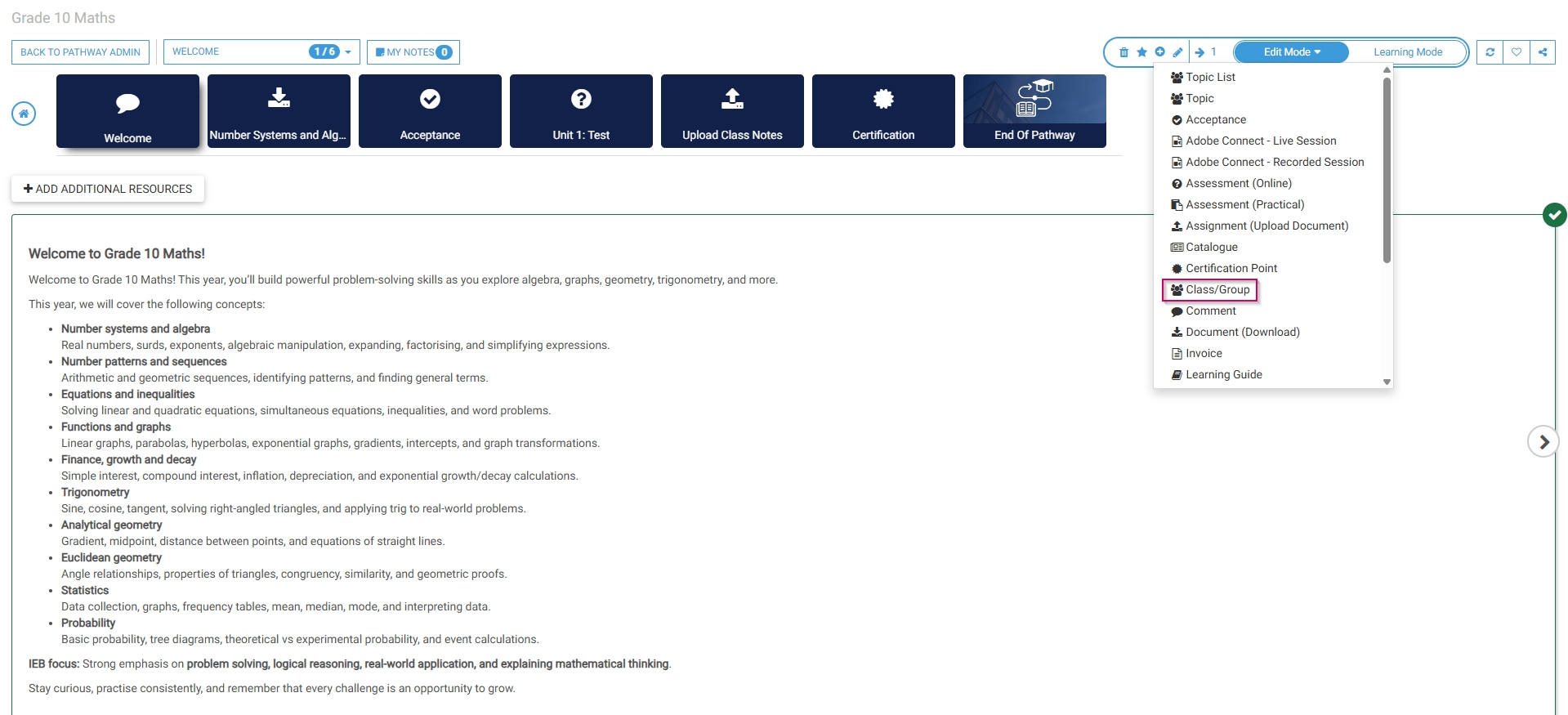
- Optionally, select an **image** or a custom **icon** for your step.
- Add a **step header**, or title, for this step.
- Add a **subheading** to the **description header** field.
- Add a **description** for this step.
- Click **SAVE** when you are finished or click **CLOSE** to discard your edits.

[![LM OS Build Pathways - Manage eLearning Library - Design pathway - Class or Group - Add.jpg](https://signature.signifyhr.co.za/uploads/images/gallery/2026-06/s1tMYeAAKOhGWwej-lm-os-build-pathways-manage-elearning-library-design-pathway-class-or-group-add.jpg)](https://signature.signifyhr.co.za/uploads/images/gallery/2026-06/1RMF7RfM8IURHNcj-lm-os-build-pathways-manage-elearning-library-design-pathway-add-step-comment.jpg)

- The class/group step has been successfully added to the pathway.

[![LM OS Build Pathways - Manage eLearning Library - Design pathway - Class or Group - Success.jpg](https://signature.signifyhr.co.za/uploads/images/gallery/2026-06/scaled-1680-/09T14lNfYAiewYN3-lm-os-build-pathways-manage-elearning-library-design-pathway-class-or-group-success.jpg)](https://signature.signifyhr.co.za/uploads/images/gallery/2026-06/09T14lNfYAiewYN3-lm-os-build-pathways-manage-elearning-library-design-pathway-class-or-group-success.jpg)
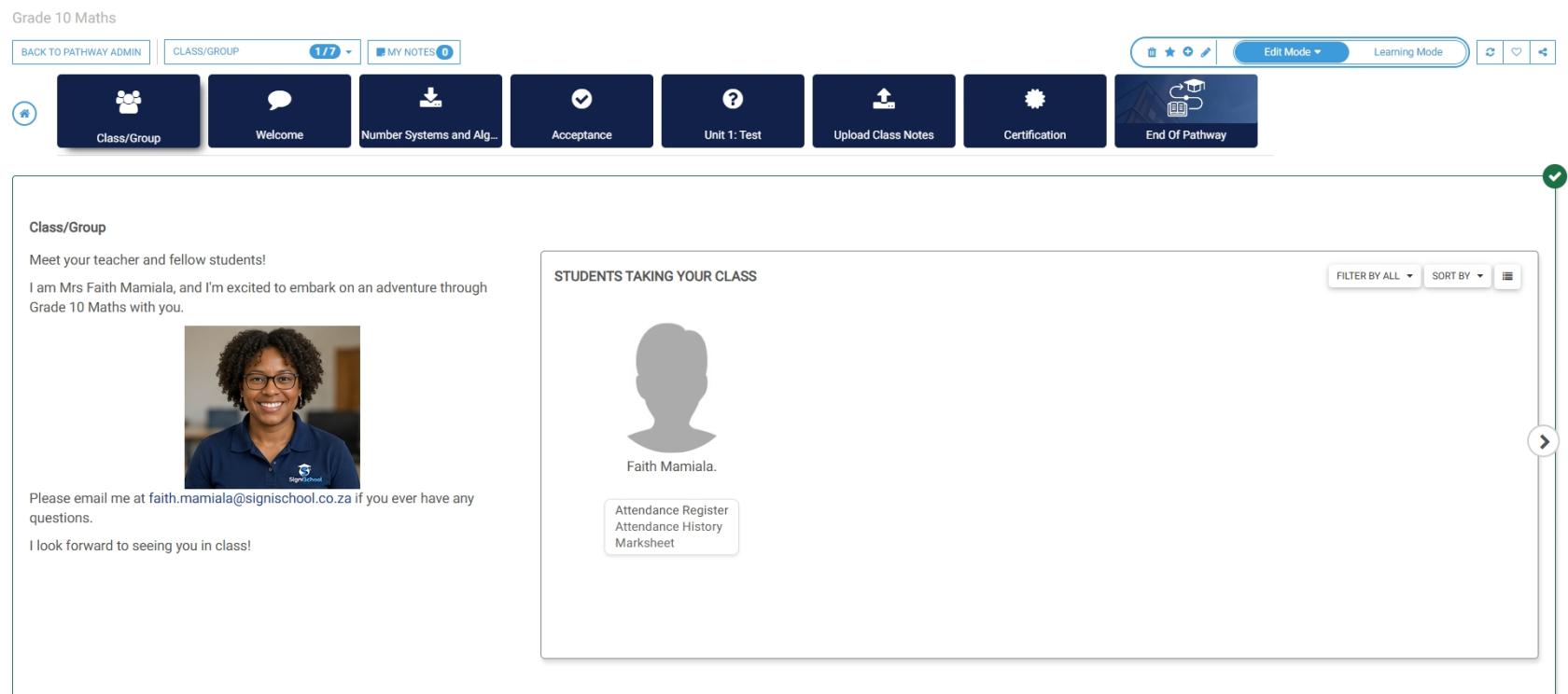
#### Add a class

- Navigate to the **pathway** you would like to link a class or group to.
- Go to the **CLASSES/GROUPS** tab, then click **ADD.**

**[![LM OS Add Class - Classes tab.jpg](https://signature.signifyhr.co.za/uploads/images/gallery/2026-06/scaled-1680-/9CSsQ9XpUcJ212Ii-lm-os-add-class-classes-tab.jpg)](https://signature.signifyhr.co.za/uploads/images/gallery/2026-06/9CSsQ9XpUcJ212Ii-lm-os-add-class-classes-tab.jpg)**
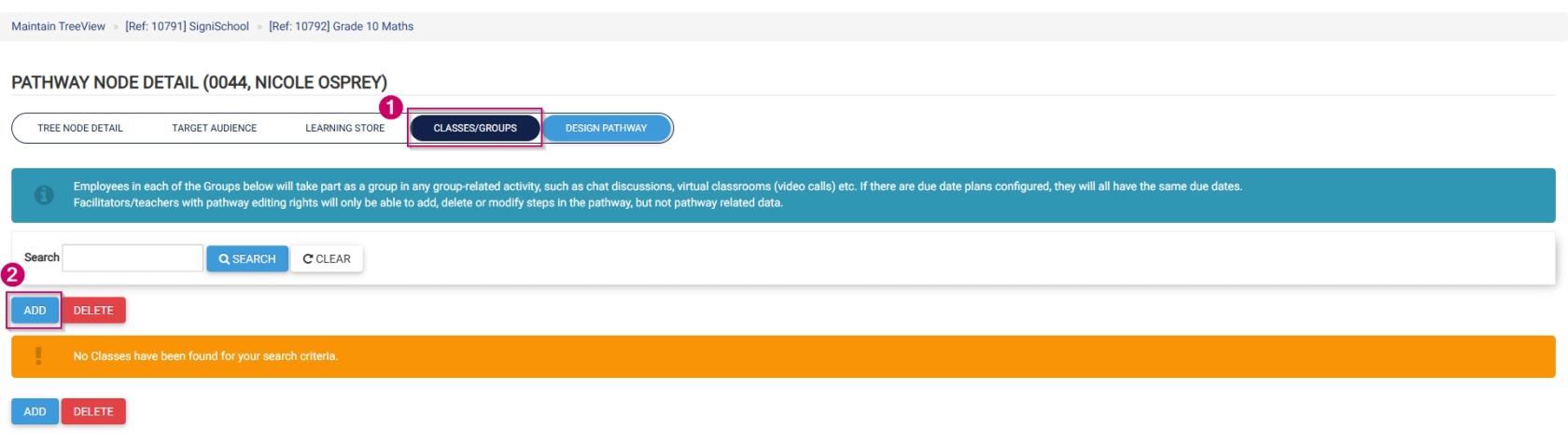
- Use the **hand icon** to select a **custom people group** that was set up in previous steps.
- Select a **facilitator or teacher** using the **hand icon**.
- Tick the **checkbox** if the facilitator/teacher can edit the pathway.
- Click **SAVE** when you are finished or click **CANCEL** to discard your edits.

[![LM OS Add Class - Class details.jpg](https://signature.signifyhr.co.za/uploads/images/gallery/2026-06/scaled-1680-/oQNJlOgUPTK9dCRl-lm-os-add-class-class-details.jpg)](https://signature.signifyhr.co.za/uploads/images/gallery/2026-06/oQNJlOgUPTK9dCRl-lm-os-add-class-class-details.jpg)
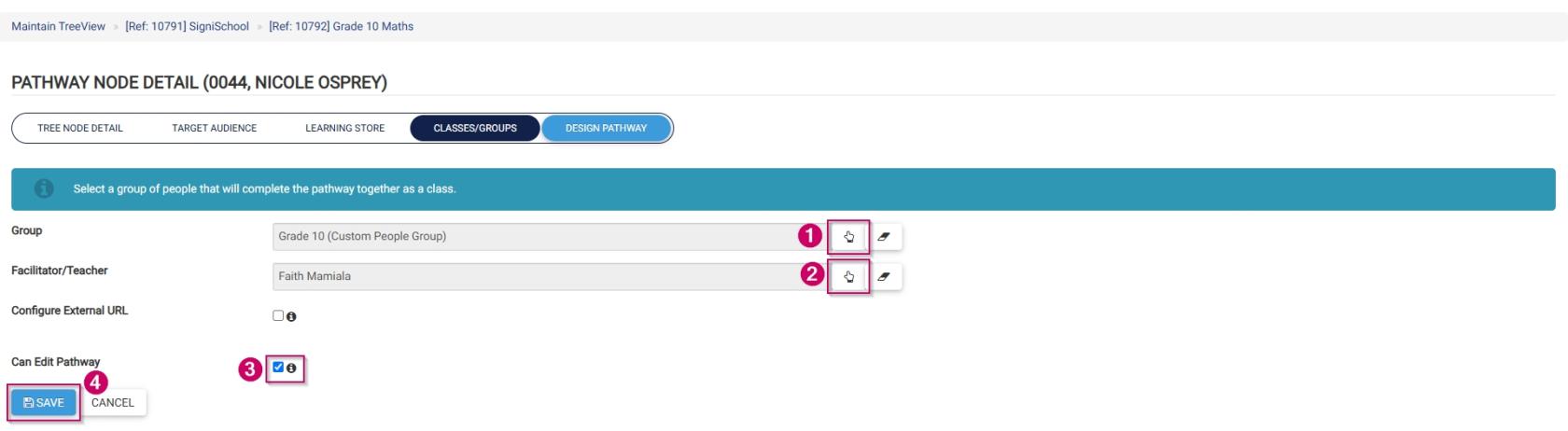
- Click **CONFIRM** to ensure the target audience for this pathway is refreshed.

[![LM OS Add Class - Class details - Warning.jpg](https://signature.signifyhr.co.za/uploads/images/gallery/2026-06/scaled-1680-/XMQWuq5lMJzUe5sM-lm-os-add-class-class-details-warning.jpg)](https://signature.signifyhr.co.za/uploads/images/gallery/2026-06/XMQWuq5lMJzUe5sM-lm-os-add-class-class-details-warning.jpg)
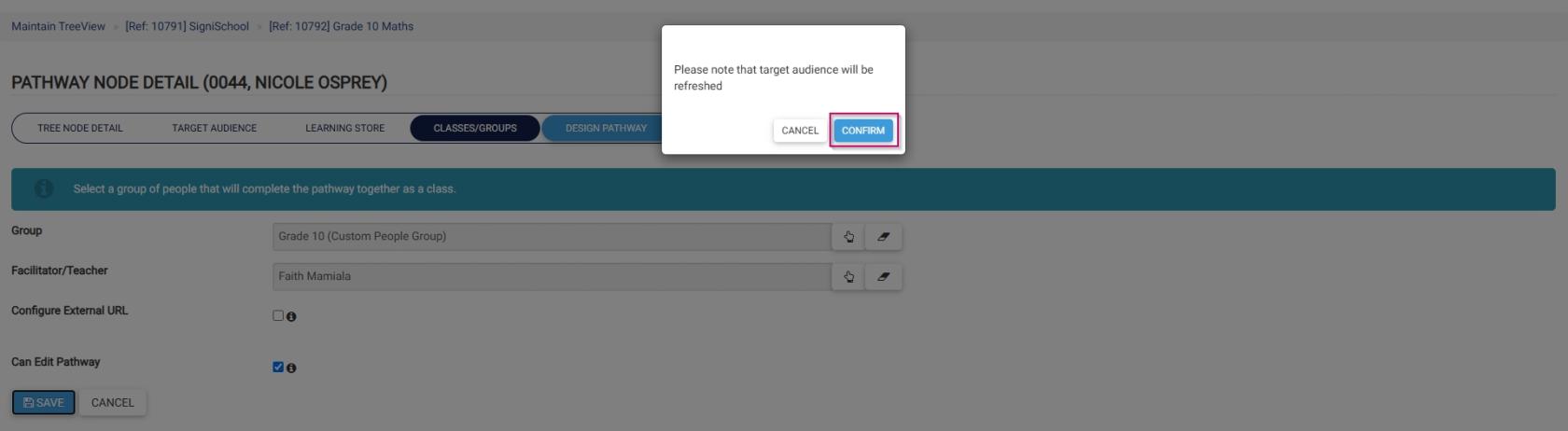
#### Create subject

- Click the **gear icon** to access the **Setup and Configuration** menu.

![LM OS Setup and configuration menu.jpg](https://signature.signifyhr.co.za/uploads/images/gallery/2026-05/OolVb4vG1kGknZ88-lm-os-setup-and-configuration-menu.jpg)

- Click **Ruleset Setup**.

![LM OS Setup and configuration menu - Ruleset setup.jpg](https://signature.signifyhr.co.za/uploads/images/gallery/2026-05/G8n6077uSByiSZlf-lm-os-setup-and-configuration-menu-ruleset-setup.jpg)

- Select the **ruleset you would like to update.

![LM OS Setup and configuration menu - Ruleset setup - Select ruleset.jpg](https://signature.signifyhr.co.za/uploads/images/gallery/2026-05/rfnTwwjc6K4u3af7-lm-os-setup-and-configuration-menu-ruleset-setup-select-ruleset.jpg)

- Navigate to the **Products tab.

![LM OS Products tab.jpg](https://signature.signifyhr.co.za/uploads/images/gallery/2026-05/QWGG0dzhs3GPkEWa-lm-os-products-tab.jpg)

- Click on the **Learning Management product card, then click **Product Setup**.

[![LM OS Products tab - LM Product Card - Product Setup.jpg](https://signature.signifyhr.co.za/uploads/images/gallery/2026-05/Paat2JkEnqO46Cmi-lm-os-products-tab-lm-product-card-product-setup.jpg)](https://signature.signifyhr.co.za/uploads/images/gallery/2026-05/BgK1kyVp94Qa9Ghu-lm-products-tab-lm-product-card-activate.jpg)
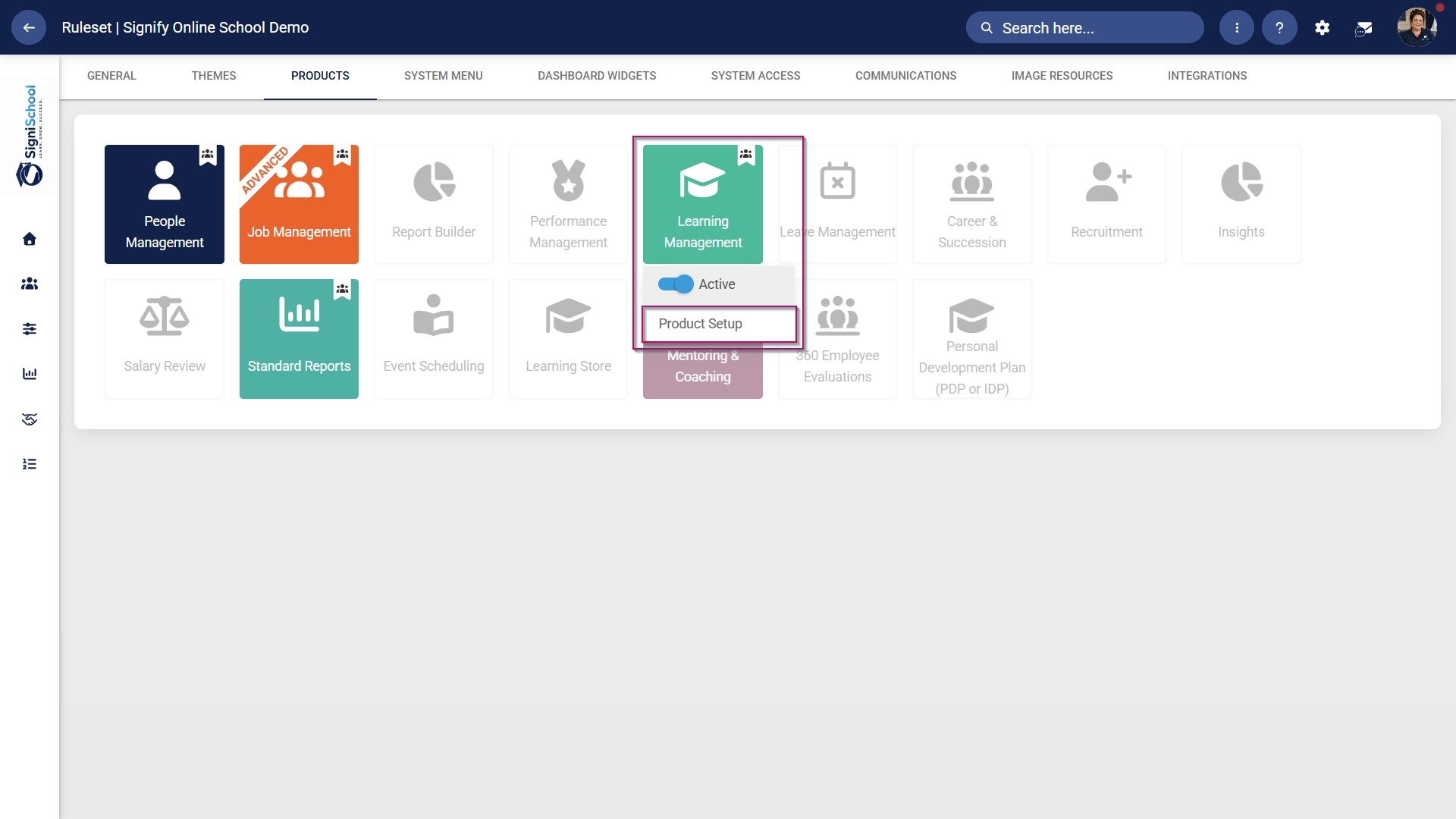
- Click **+SUBJECT**.

[![LM OS Add Subject - Add new.jpg](https://signature.signifyhr.co.za/uploads/images/gallery/2026-06/scaled-1680-/TmIXpIioPp4jhRK6-lm-os-add-subject-add-new.jpg)](https://signature.signifyhr.co.za/uploads/images/gallery/2026-06/TmIXpIioPp4jhRK6-lm-os-add-subject-add-new.jpg)
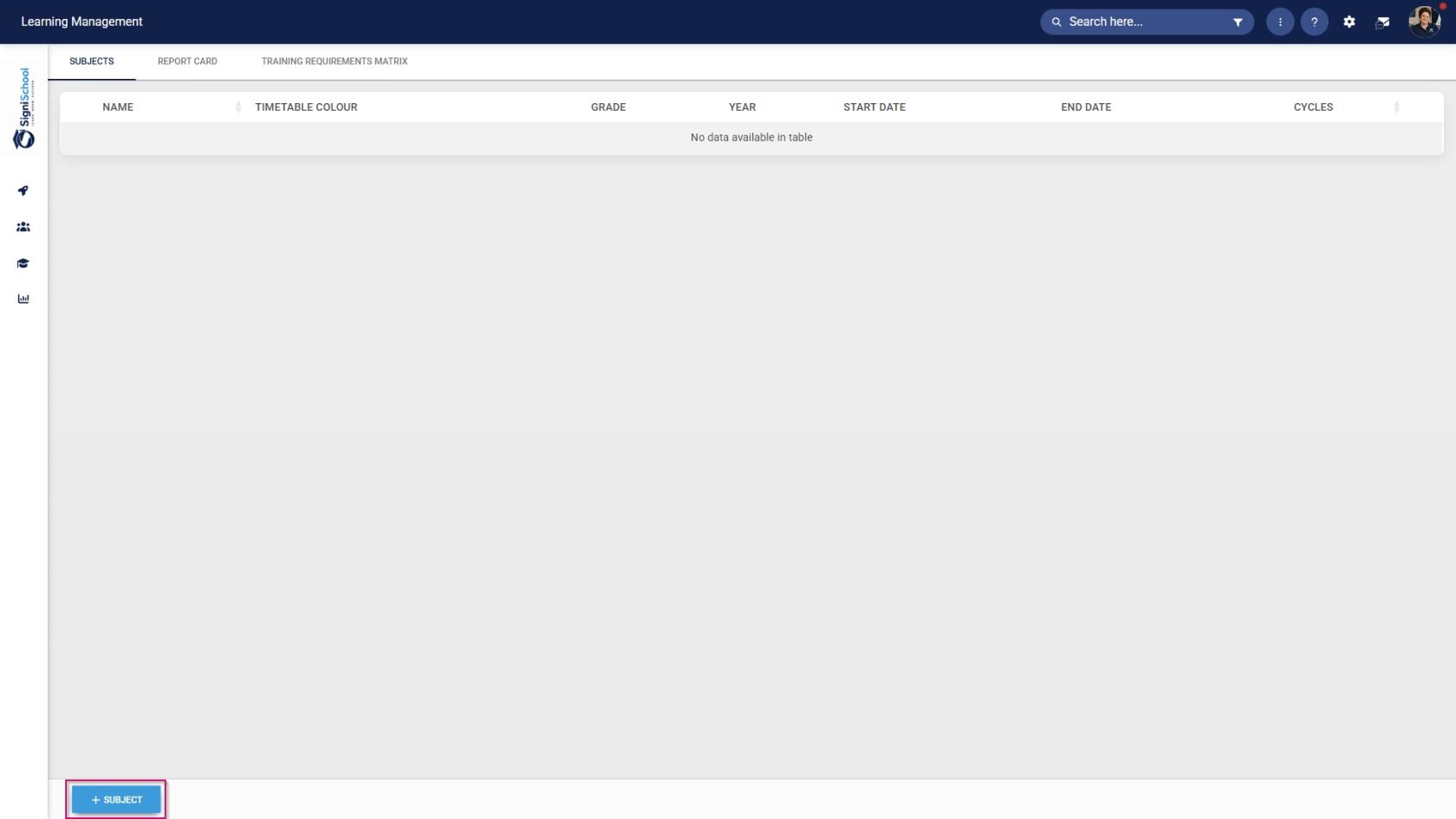
- Add a **name** for this subject.
- Select the **academic year** from the **drop-down menu**.
- Select the **grade** from the **drop-down menu**.
- Provide a **primary** and **secondary** **language alias** for the subject.
- Select a **pass mark** for the subject.
- Use the **colour picker** to choose a **colour** for this subject, which will appear on the timetable.
- Link the **subject** to a **pathway's class/group**.
- Click **SAVE** when you are finished or click **CANCEL** to discard your edits.

[![LM OS Add Subject - Add new - Subject details.jpg](https://signature.signifyhr.co.za/uploads/images/gallery/2026-06/scaled-1680-/Wm6xA6xfsqlZfRJb-lm-os-add-subject-add-new-subject-details.jpg)](https://signature.signifyhr.co.za/uploads/images/gallery/2026-06/Wm6xA6xfsqlZfRJb-lm-os-add-subject-add-new-subject-details.jpg)

- Click **+CYCLE** to add a new academic cycle to the subject.

[![LM OS Add Subject - Add new - Add cycle.jpg](https://signature.signifyhr.co.za/uploads/images/gallery/2026-06/scaled-1680-/RZPuXdqBoubfkiKL-lm-os-add-subject-add-new-add-cycle.jpg)](https://signature.signifyhr.co.za/uploads/images/gallery/2026-06/RZPuXdqBoubfkiKL-lm-os-add-subject-add-new-add-cycle.jpg)
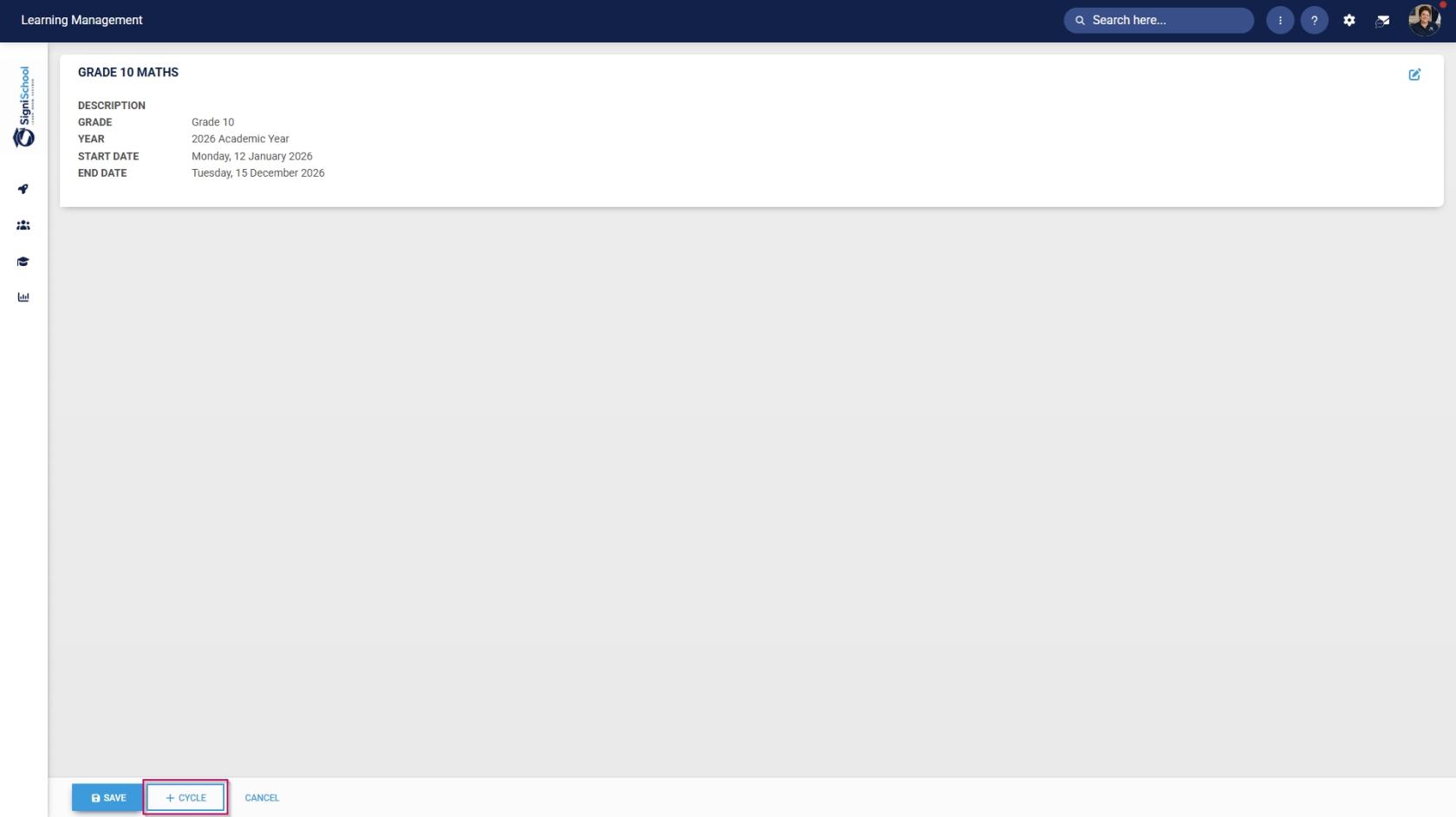
- Add a **name** for this cycle.
- Select the **start and end dates** for the cycle.
- Provide a **weight**.
- Use the **drop-down menu** to select a training intervention (it must be a certification point) to link to this term.
- Click **SAVE** when you are finished or click **CANCEL** to discard your edits.

[![LM OS Add Subject - Add new - Add cycle - Details.jpg](https://signature.signifyhr.co.za/uploads/images/gallery/2026-06/scaled-1680-/JV9anXsGVBO7lcNV-lm-os-add-subject-add-new-add-cycle-details.jpg)](https://signature.signifyhr.co.za/uploads/images/gallery/2026-06/JV9anXsGVBO7lcNV-lm-os-add-subject-add-new-add-cycle-details.jpg)
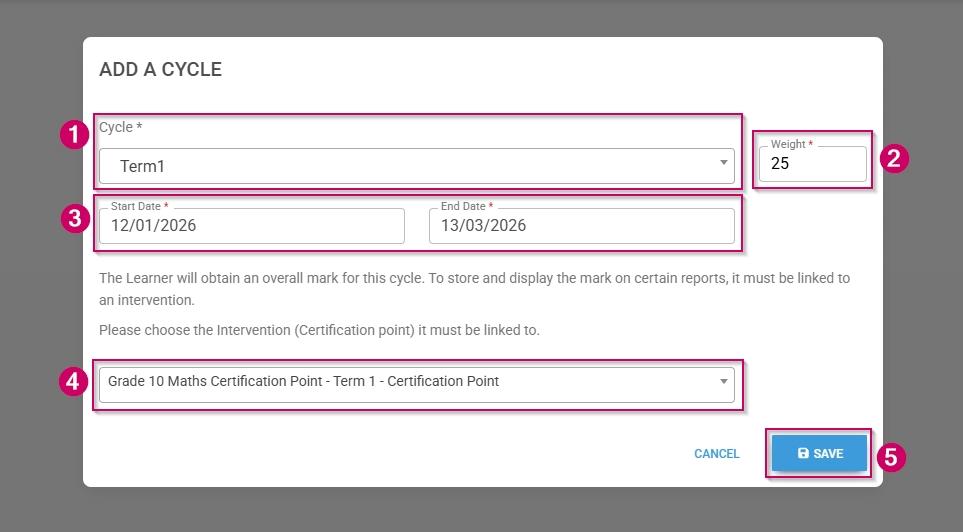
- Click the **plus icon** to construct a subject plan for this cycle.

[![LM OS Add Subject - Add new - Add cycle - Build term plan.jpg](https://signature.signifyhr.co.za/uploads/images/gallery/2026-06/scaled-1680-/4B4cuhjQjlfrSJC0-lm-os-add-subject-add-new-add-cycle-build-term-plan.jpg)](https://signature.signifyhr.co.za/uploads/images/gallery/2026-06/4B4cuhjQjlfrSJC0-lm-os-add-subject-add-new-add-cycle-build-term-plan.jpg)
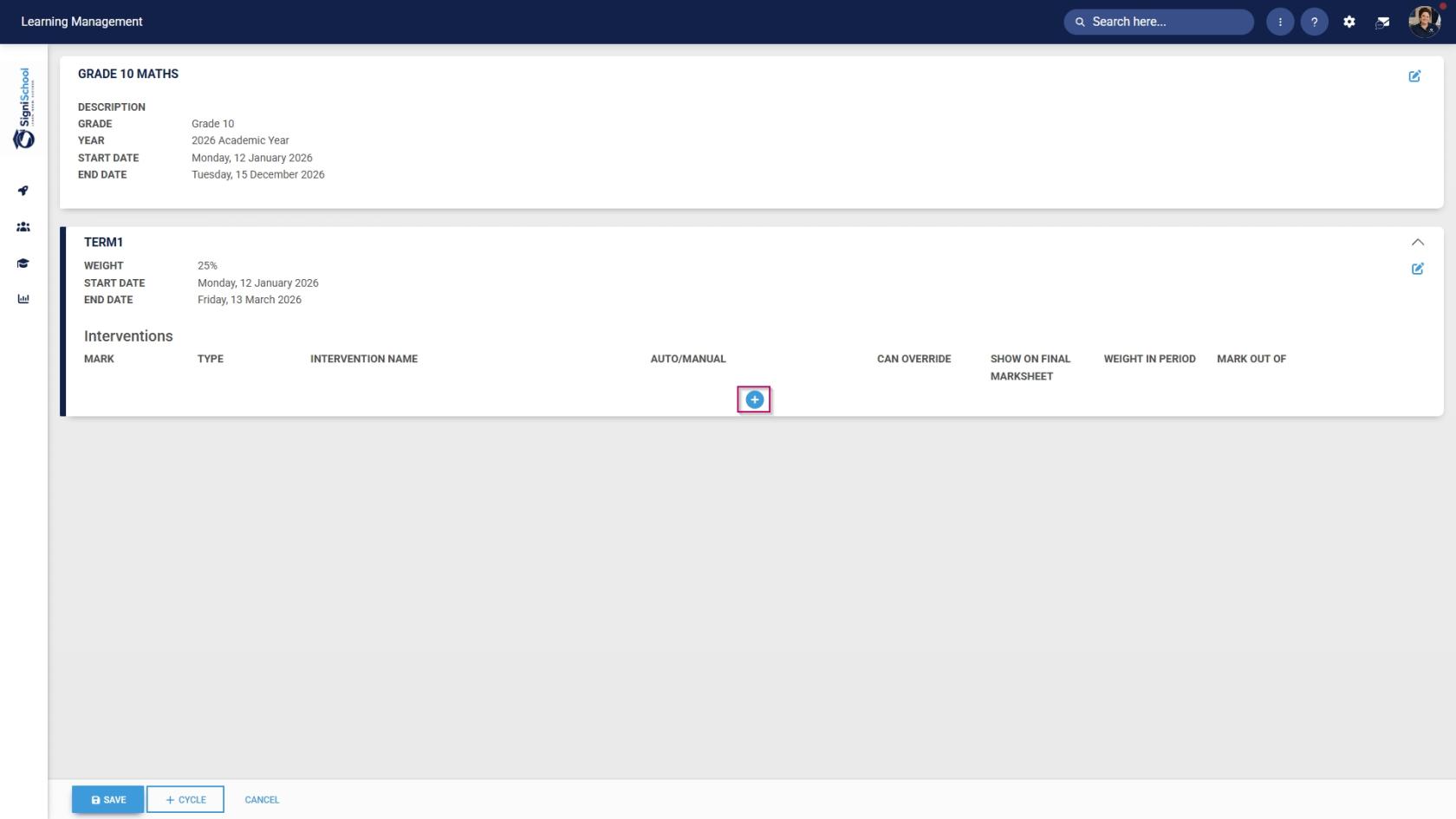
- Add a **mark** for the academic activity.
- The **type** will be automatically populated based on your **training intervention**.
- Select a **training intervention** from the **drop-down menu**.
- Choose whether the academic activity will be **auto-marked** or marked **manually** by a teacher or facilitator.
- Choose whether administrators can **override** the student's mark.
- Choose whether the academic activity will **show** on the **final marksheet**.
- Provide a **weight** for the academic activity within this cycle.
- Provide a **mark** used to grade this activity.
- If you would like to remove an academic activity, click the **dustbin icon**.

[![LM OS Add Subject - Add new - Add cycle - Build term plan - Add interventions.jpg](https://signature.signifyhr.co.za/uploads/images/gallery/2026-06/scaled-1680-/yr5L3hXipNMo63rG-lm-os-add-subject-add-new-add-cycle-build-term-plan-add-interventions.jpg)](https://signature.signifyhr.co.za/uploads/images/gallery/2026-06/yr5L3hXipNMo63rG-lm-os-add-subject-add-new-add-cycle-build-term-plan-add-interventions.jpg)
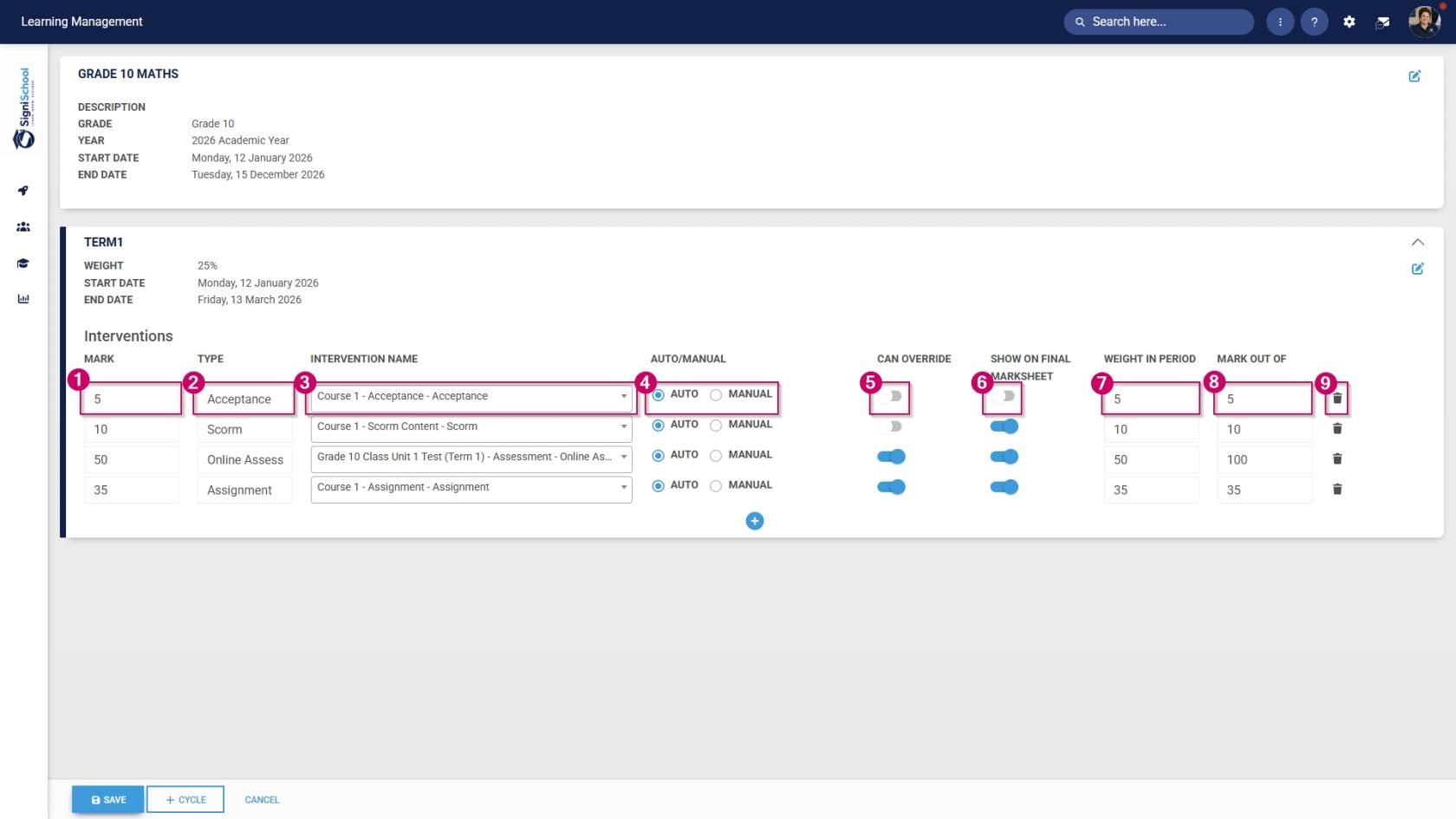
- Click **SAVE** when you are finished, **+CYCLE** to add another academic term, or **CANCEL** to discard your changes.

[![LM OS Add Subject - Add new - Add cycle - Build term plan - Save.jpg](https://signature.signifyhr.co.za/uploads/images/gallery/2026-06/scaled-1680-/kWjZk3rQMT6Kplb4-lm-os-add-subject-add-new-add-cycle-build-term-plan-save.jpg)](https://signature.signifyhr.co.za/uploads/images/gallery/2026-06/kWjZk3rQMT6Kplb4-lm-os-add-subject-add-new-add-cycle-build-term-plan-save.jpg)
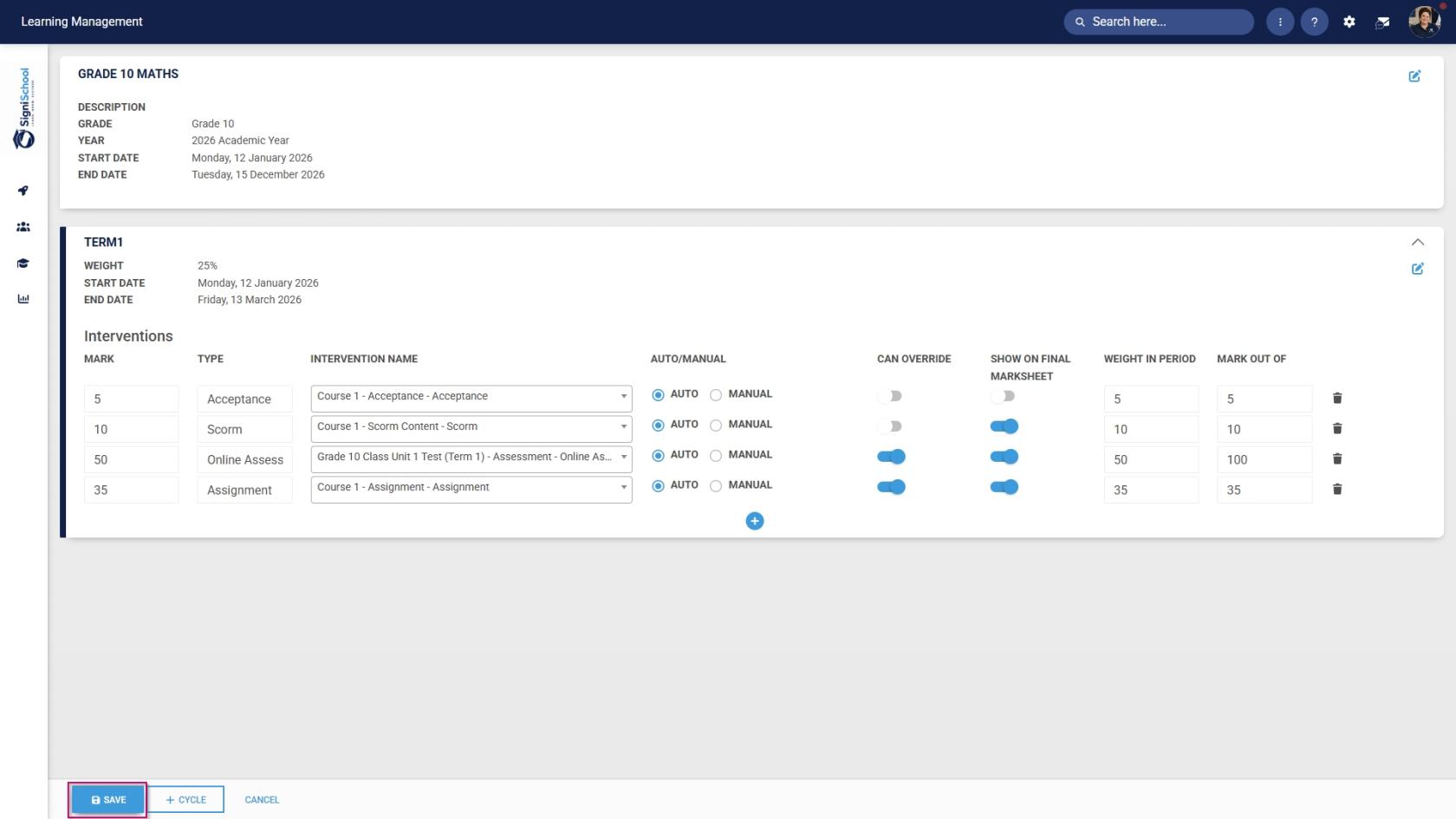
#### Pathway features

##### Edit mode

- When editing a pathway, click **Edit Mode**.

[![LM OS Build Pathways - Edit mode.jpg](https://signature.signifyhr.co.za/uploads/images/gallery/2026-06/scaled-1680-/8URl2HVv5E0p8o8m-lm-os-build-pathways-edit-mode.jpg)](https://signature.signifyhr.co.za/uploads/images/gallery/2026-06/8URl2HVv5E0p8o8m-lm-os-build-pathways-edit-mode.jpg)

- Click the **dustbin icon** to **delete** the current pathway step.

[![LM OS Build Pathways - Manage eLearning Library - Design pathway - Delete step.jpg](https://signature.signifyhr.co.za/uploads/images/gallery/2026-06/scaled-1680-/M8wn1H7ZfnsuS1NG-lm-os-build-pathways-manage-elearning-library-design-pathway-delete-step.jpg)](https://signature.signifyhr.co.za/uploads/images/gallery/2026-06/M8wn1H7ZfnsuS1NG-lm-os-build-pathways-manage-elearning-library-design-pathway-delete-step.jpg)

- Click the **star icon** to add **prerequisites** to this pathway step.

[![LM OS Build Pathways - Manage eLearning Library - Design pathway - Add prerequisites to step.jpg](https://signature.signifyhr.co.za/uploads/images/gallery/2026-06/scaled-1680-/0YdpmyLrDVX0D4xs-lm-os-build-pathways-manage-elearning-library-design-pathway-add-prerequisites-to-step.jpg)](https://signature.signifyhr.co.za/uploads/images/gallery/2026-06/0YdpmyLrDVX0D4xs-lm-os-build-pathways-manage-elearning-library-design-pathway-add-prerequisites-to-step.jpg)

- Click the **plus icon** to **add** another pathway step after the current one.

[![LM OS Build Pathways - Manage eLearning Library - Design pathway - Add next step.jpg](https://signature.signifyhr.co.za/uploads/images/gallery/2026-06/scaled-1680-/P9U6U7n76JtoWCXk-lm-os-build-pathways-manage-elearning-library-design-pathway-add-next-step.jpg)](https://signature.signifyhr.co.za/uploads/images/gallery/2026-06/P9U6U7n76JtoWCXk-lm-os-build-pathways-manage-elearning-library-design-pathway-add-next-step.jpg)

- Click the **pencil icon** to **edit** the current pathway step.

[![LM OS Build Pathways - Manage eLearning Library - Design pathway - Edit step.jpg](https://signature.signifyhr.co.za/uploads/images/gallery/2026-06/scaled-1680-/MLYl3CRNIW9jKDbm-lm-os-build-pathways-manage-elearning-library-design-pathway-edit-step.jpg)](https://signature.signifyhr.co.za/uploads/images/gallery/2026-06/MLYl3CRNIW9jKDbm-lm-os-build-pathways-manage-elearning-library-design-pathway-edit-step.jpg)

##### Learning mode

- To preview the pathway as a learner, click **Learning Mode**.

[![LM OS Build Pathways - Learning mode.jpg](https://signature.signifyhr.co.za/uploads/images/gallery/2026-06/OIm7mxVRv889YYCw-lm-os-build-pathways-learning-mode.jpg)](https://signature.signifyhr.co.za/uploads/images/gallery/2026-06/8URl2HVv5E0p8o8m-lm-os-build-pathways-edit-mode.jpg)

##### Attendance register

- Navigate to the **Class/Group** step of the pathway.

[![LM OS Build Pathways - Manage eLearning Library - Design pathway - Class or Group step.jpg](https://signature.signifyhr.co.za/uploads/images/gallery/2026-06/scaled-1680-/RsgN8QYwKJtCJa3c-lm-os-build-pathways-manage-elearning-library-design-pathway-class-or-group-step.jpg)](https://signature.signifyhr.co.za/uploads/images/gallery/2026-06/RsgN8QYwKJtCJa3c-lm-os-build-pathways-manage-elearning-library-design-pathway-class-or-group-step.jpg)
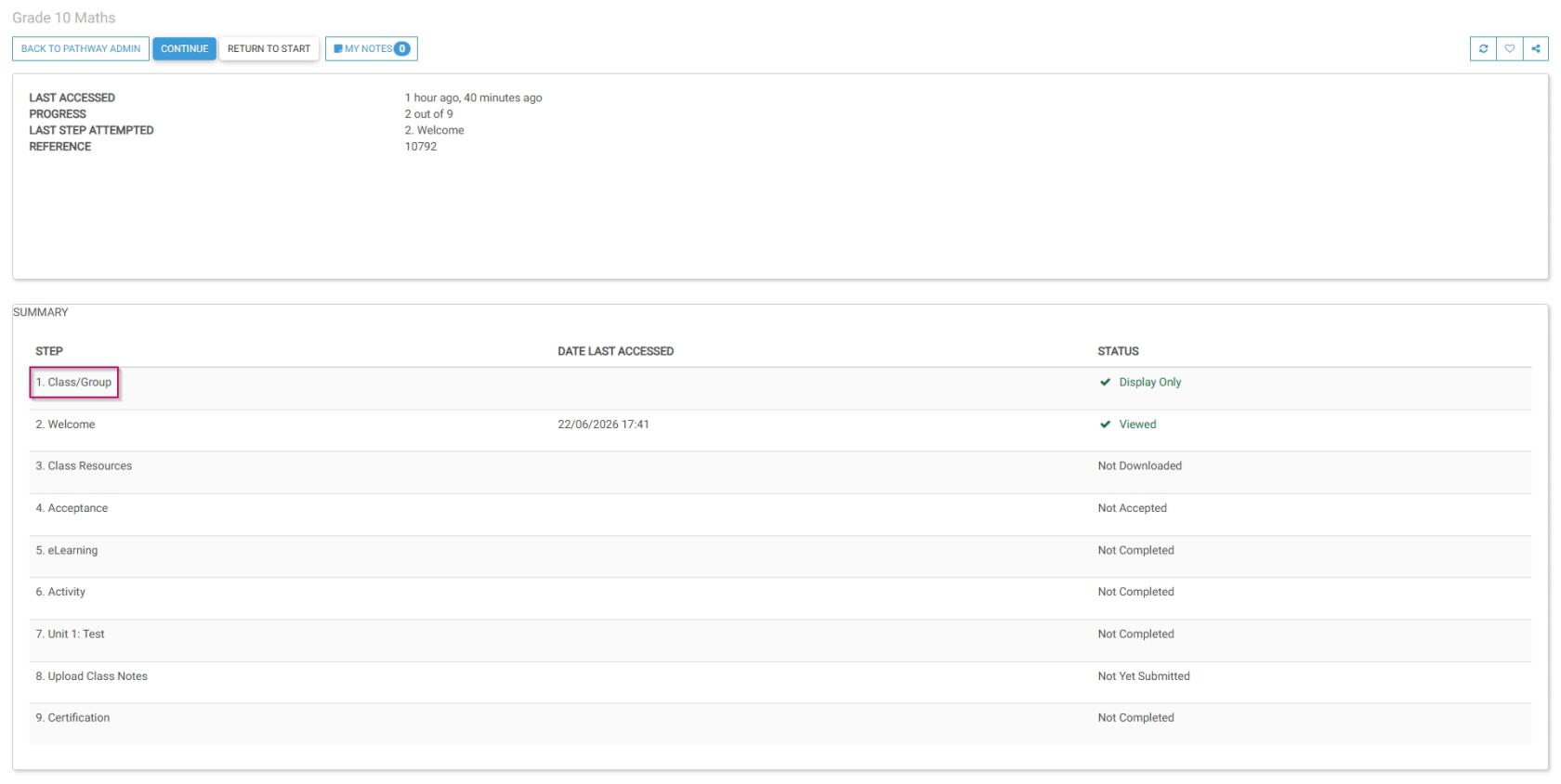
- Click **Attendance Register**. The attendance register will open in a new tab.

[![LM OS Build Pathways - Manage eLearning Library - Design pathway - Class or Group - Attendance Register.jpg](https://signature.signifyhr.co.za/uploads/images/gallery/2026-06/scaled-1680-/PX1wHRwyNDiEiPa1-lm-os-build-pathways-manage-elearning-library-design-pathway-class-or-group-attendance-register.jpg)](https://signature.signifyhr.co.za/uploads/images/gallery/2026-06/PX1wHRwyNDiEiPa1-lm-os-build-pathways-manage-elearning-library-design-pathway-class-or-group-attendance-register.jpg)
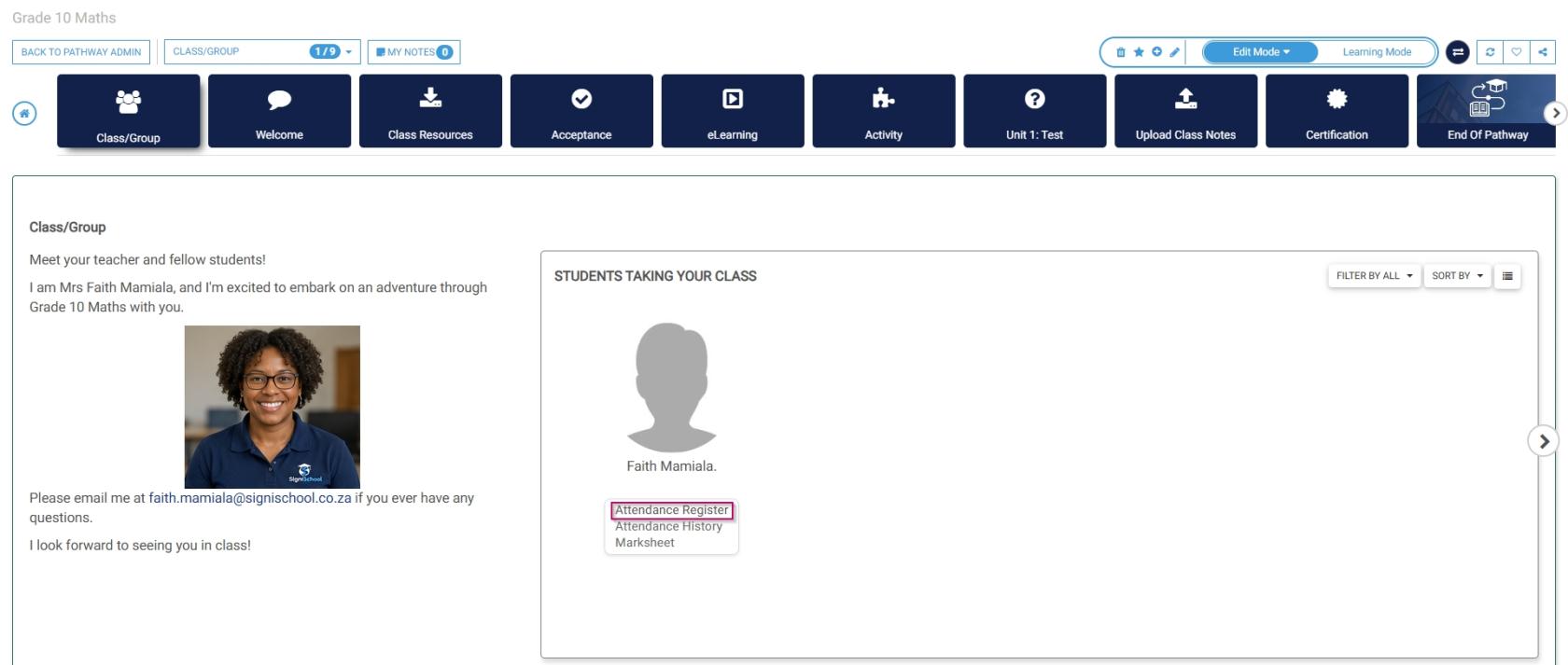
- Select the **date** the class took place.
- Select the **lesson** during which the class took place.
- Mark students as: 
    - - **Attended**
        - **Absent With Excuse**
        - **Absent**
- Send out an **absence notification** by clicking the **envelope icon**.
- Click **SAVE** when you are finished, then click **CLOSE TAB**.

[![LM OS Attendance Register.jpg](https://signature.signifyhr.co.za/uploads/images/gallery/2026-06/scaled-1680-/V158hOdWA3AjKaOe-lm-os-attendance-register.jpg)](https://signature.signifyhr.co.za/uploads/images/gallery/2026-06/V158hOdWA3AjKaOe-lm-os-attendance-register.jpg)
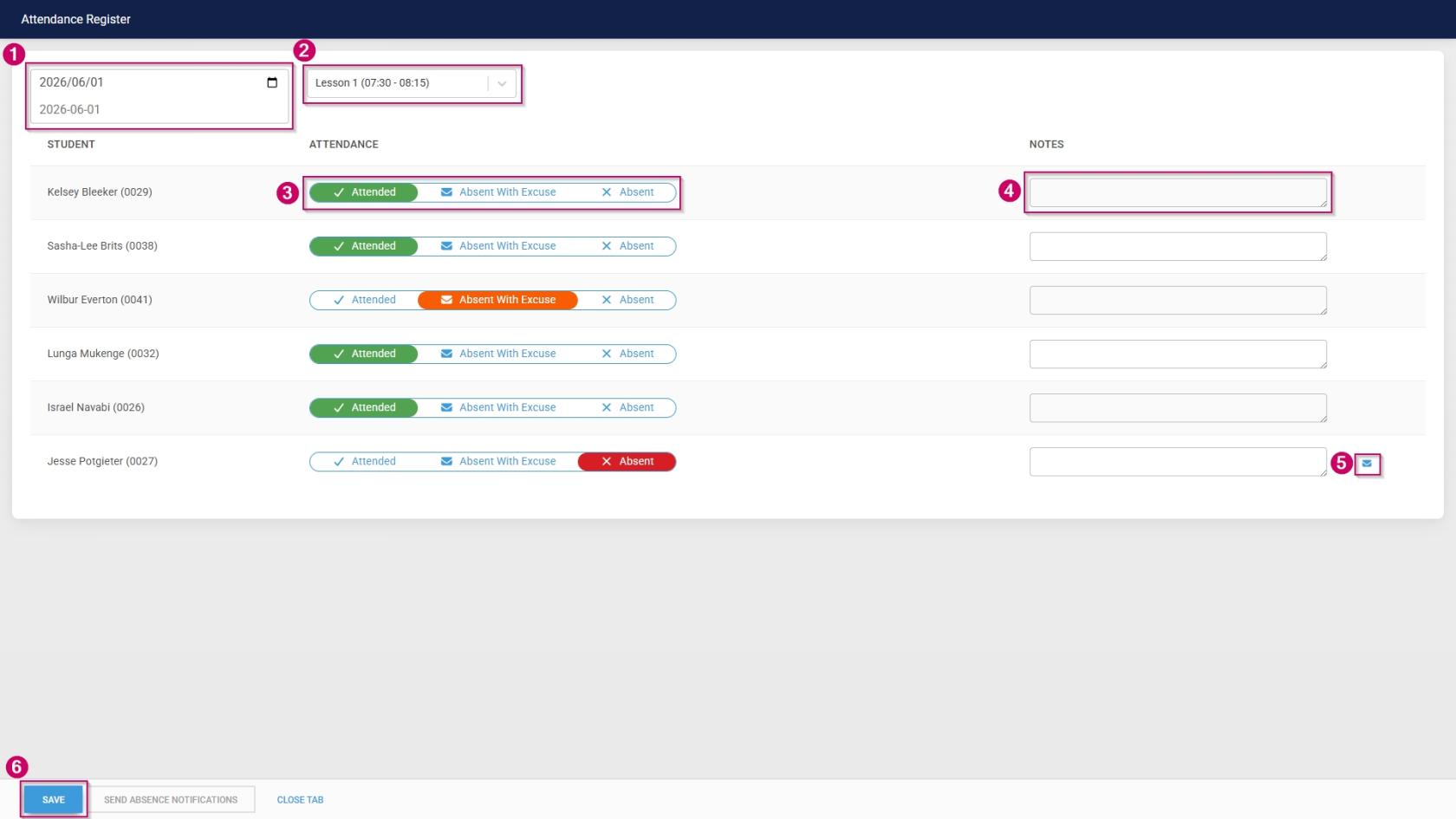
##### Attendance history

- Navigate to the **Class/Group** step of the pathway.

[![LM OS Build Pathways - Manage eLearning Library - Design pathway - Class or Group step.jpg](https://signature.signifyhr.co.za/uploads/images/gallery/2026-06/scaled-1680-/RsgN8QYwKJtCJa3c-lm-os-build-pathways-manage-elearning-library-design-pathway-class-or-group-step.jpg)](https://signature.signifyhr.co.za/uploads/images/gallery/2026-06/RsgN8QYwKJtCJa3c-lm-os-build-pathways-manage-elearning-library-design-pathway-class-or-group-step.jpg)

- Click **Attendance History**. The attendance history will open in a new tab.

[![LM OS Build Pathways - Manage eLearning Library - Design pathway - Class or Group - Attendance History.jpg](https://signature.signifyhr.co.za/uploads/images/gallery/2026-06/BHfVXkicX4gk7hEE-lm-os-build-pathways-manage-elearning-library-design-pathway-class-or-group-attendance-history.jpg)](https://signature.signifyhr.co.za/uploads/images/gallery/2026-06/PX1wHRwyNDiEiPa1-lm-os-build-pathways-manage-elearning-library-design-pathway-class-or-group-attendance-register.jpg)
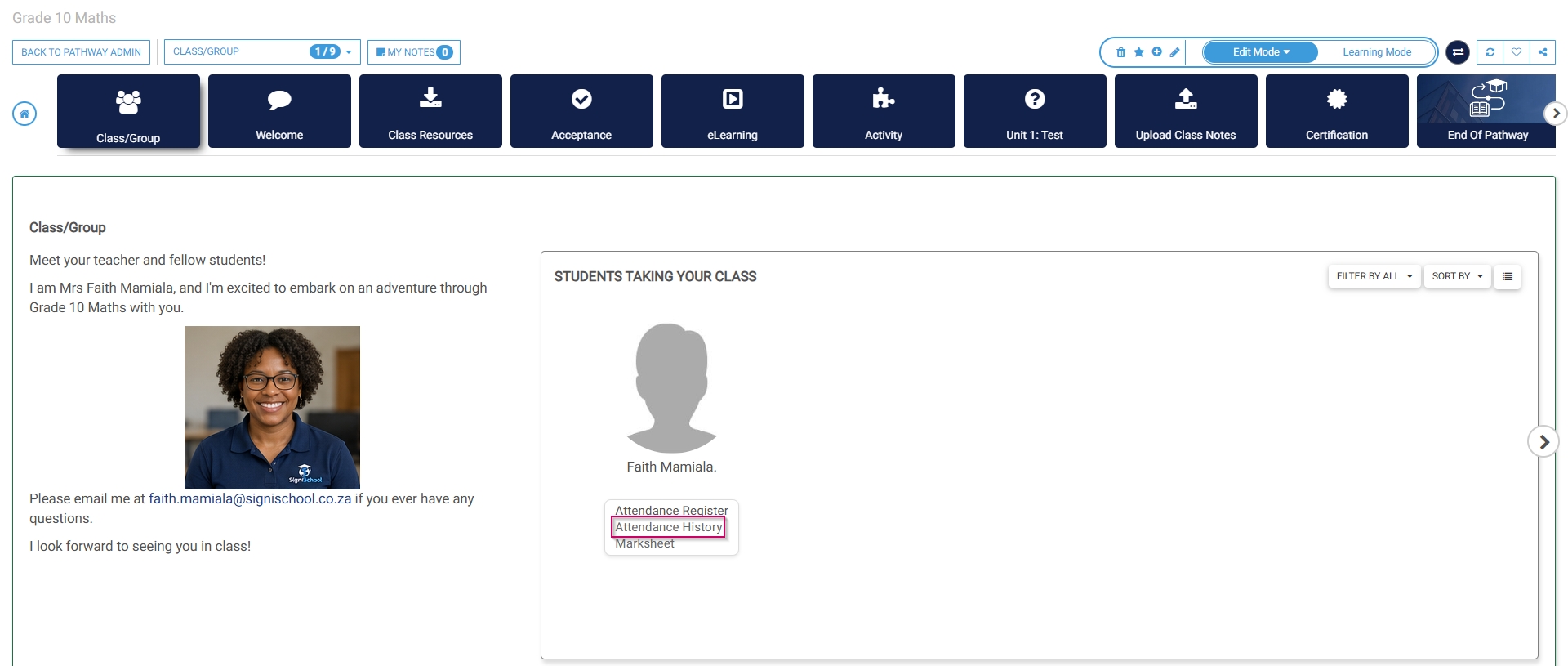
- Select the **date range to filter the attendance history.
- Click the **pencil icon** to **edit** attendance for a particular day.
- Click **CLOSE TAB** when you are finished.

[![LM OS Attendance History.jpg](https://signature.signifyhr.co.za/uploads/images/gallery/2026-06/lTIQsEWwqP17vttt-lm-os-attendance-history.jpg)](https://signature.signifyhr.co.za/uploads/images/gallery/2026-06/V158hOdWA3AjKaOe-lm-os-attendance-register.jpg)
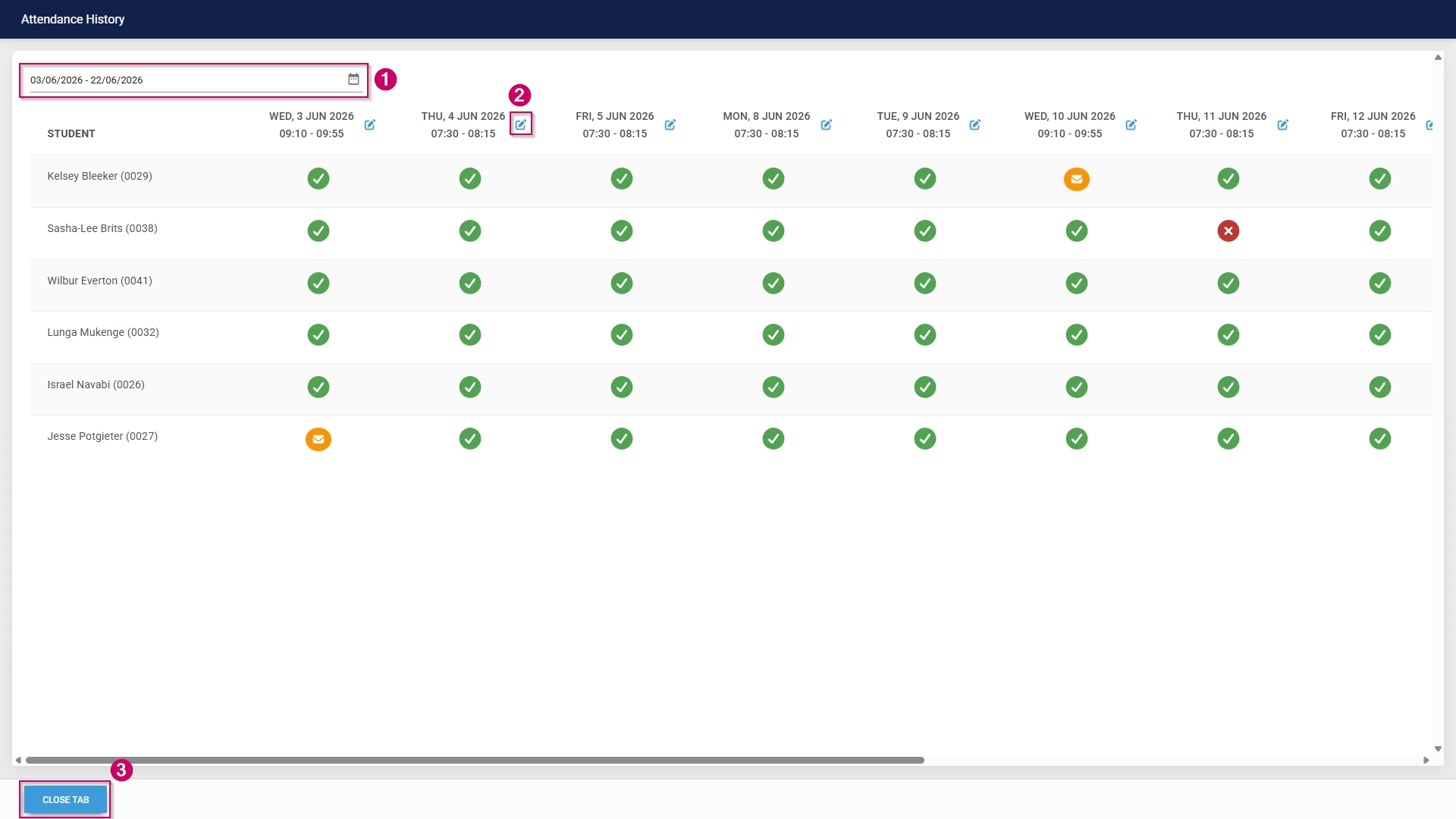
##### Marksheet

- Navigate to the **Class/Group** step of the pathway.

[![LM OS Build Pathways - Manage eLearning Library - Design pathway - Class or Group step.jpg](https://signature.signifyhr.co.za/uploads/images/gallery/2026-06/scaled-1680-/RsgN8QYwKJtCJa3c-lm-os-build-pathways-manage-elearning-library-design-pathway-class-or-group-step.jpg)](https://signature.signifyhr.co.za/uploads/images/gallery/2026-06/RsgN8QYwKJtCJa3c-lm-os-build-pathways-manage-elearning-library-design-pathway-class-or-group-step.jpg)

- Click **Marksheet**. The marksheet will open in a new tab.

[![LM OS Build Pathways - Manage eLearning Library - Design pathway - Class or Group - Marksheet.jpg](https://signature.signifyhr.co.za/uploads/images/gallery/2026-06/2STJjRwmN9tEEzyG-lm-os-build-pathways-manage-elearning-library-design-pathway-class-or-group-marksheet.jpg)](https://signature.signifyhr.co.za/uploads/images/gallery/2026-06/PX1wHRwyNDiEiPa1-lm-os-build-pathways-manage-elearning-library-design-pathway-class-or-group-attendance-register.jpg)
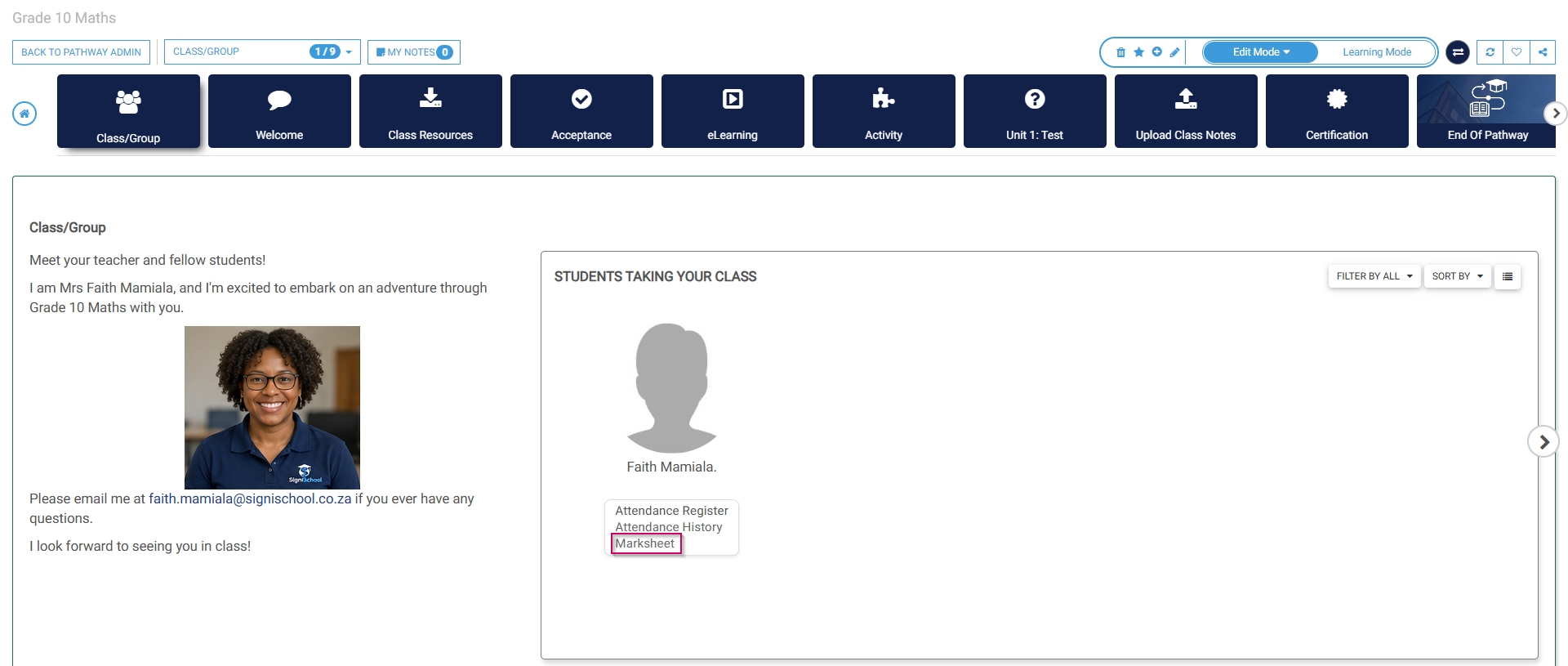
- Educators can update the learner's marks using the Excel-like functionality. Take note of the **legend** to aid in interpreting the marksheet.
- **Toggle** to **publish** the learner's marks for an academic activity and prevent further uploads.
- Enter the **student's mark** in the columns.
- Double-click to add a **comment** in either the **primary** or **secondary language**.
- Click **SAVE** when you are finished.

[![LM OS Marksheet.jpg](https://signature.signifyhr.co.za/uploads/images/gallery/2026-06/scaled-1680-/gyS4tiv6yjGNzdxL-lm-os-marksheet.jpg)](https://signature.signifyhr.co.za/uploads/images/gallery/2026-06/gyS4tiv6yjGNzdxL-lm-os-marksheet.jpg)
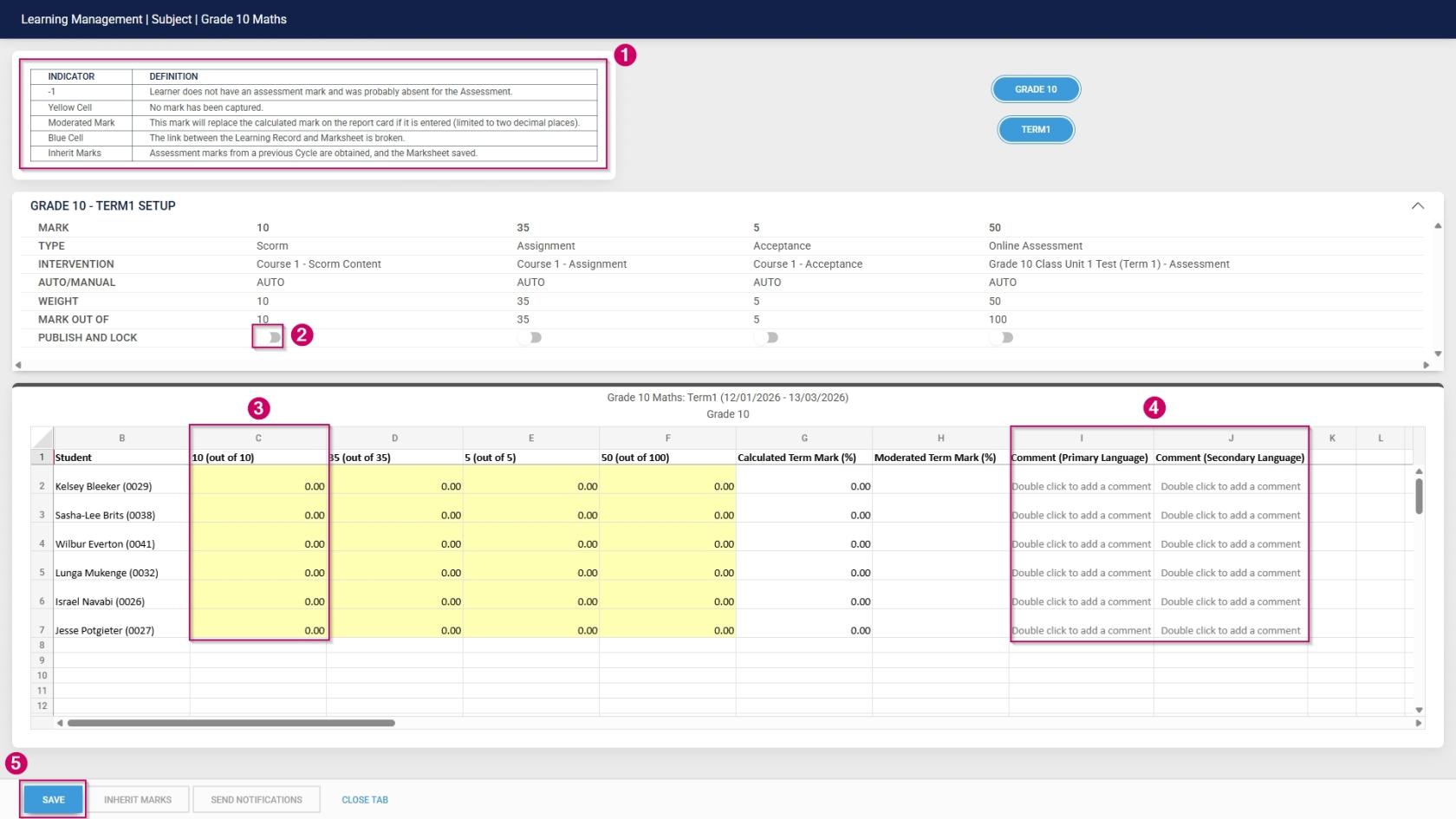
[![Signify Footer.png](https://signature.signifyhr.co.za/uploads/images/gallery/2025-02/scaled-1680-/ZOt8yZwhbiGx2d6U-signify-footer.png)](https://signature.signifyhr.co.za/uploads/images/gallery/2025-02/ZOt8yZwhbiGx2d6U-signify-footer.png)

# Chapter 4: Using the Learning Management Module

Once the **Learning Management** module is configured, users need to understand how to navigate its features effectively. This chapter provides a practical guide to using the module, covering everything from course enrolment to tracking progress and generating reports.

Learners can browse available courses, enrol in training programmes, complete assessments, and earn certifications. Facilitators and Moderators can conduct training, review a learner's progress, and provide feedback on assessments. Administrators, meanwhile, can create and manage courses, monitor overall engagement, and ensure compliance with learning requirements.

By mastering the module’s core functions, users can maximise learning opportunities, improve workforce skills, and ensure continuous professional development. This chapter equips users with the knowledge to efficiently engage with the system, making learning both structured and accessible.

# Create a Category

[![Signify Header.png](https://signature.signifyhr.co.za/uploads/images/gallery/2025-02/scaled-1680-/emW3hfMrZ1yIDMUv-signify-header.png)](https://signature.signifyhr.co.za/uploads/images/gallery/2025-02/emW3hfMrZ1yIDMUv-signify-header.png)

- Hover over the **sidebar** menu, then click **Learning Portal**.

![LM OS People Management Sidebar menu item.jpg](https://signature.signifyhr.co.za/uploads/images/gallery/2026-05/u7JWepx5gEgRanrj-lm-os-people-management-sidebar-menu-item.jpg)

- Click the **spanner icon** to access the system's **Administration** menu.

![LM OS Training Interventions - Learning Portal - System Administration.jpg](https://signature.signifyhr.co.za/uploads/images/gallery/2026-06/BXkbbFgqwvJpw3b9-lm-os-training-interventions-learning-portal-system-administration.jpg)

- On the **eLearning card, click **Manage eLearning Library**.

[![LM OS Build Pathways - Manage eLearning Library.jpg](https://signature.signifyhr.co.za/uploads/images/gallery/2026-06/scaled-1680-/ZaXOHRKkVOdWIOFL-lm-os-build-pathways-manage-elearning-library.jpg)](https://signature.signifyhr.co.za/uploads/images/gallery/2026-06/ZaXOHRKkVOdWIOFL-lm-os-build-pathways-manage-elearning-library.jpg)

- The **Pathways Tree View** screen will open in a new tab.
- Click **ADD MAIN CATEGORY**.

[![LM OS Build Pathways - Manage eLearning Library - Start.jpg](https://signature.signifyhr.co.za/uploads/images/gallery/2026-06/scaled-1680-/5wf4qOurso6sHsqv-lm-os-build-pathways-manage-elearning-library-start.jpg)](https://signature.signifyhr.co.za/uploads/images/gallery/2026-06/5wf4qOurso6sHsqv-lm-os-build-pathways-manage-elearning-library-start.jpg)

- Add a **name** for the category.
- Optionally, add a short description for the category.
- From the **drop-down menu**, select the **published status** as **Publish to this Ruleset only**.
- From the **drop-down menu**, select **Can be Published** to set the **development status**.
- Choose an **image** for the category. When adding your own image, ensure the aspect ratio is 300 by 200 px and that it is in .png, .jpg, or .gif format.
- If the main category should display on the **Learning Portal**, tick the **Show as shortcut on LMS portal checkbox.**
    - - **Please be aware that selecting a main category on the Learning Portal and checking this box for related pathways in that category may lead to duplicate entries appearing on the Learning Portal screen.**
        - If the main category appears on the **Learning Portal**, its pathways are accessible through the drill-down feature, so there's no need to tick this checkbox for those pathways.
        - It is recommended to try out this feature to determine the most effective way for you.
- Click **SAVE** when you are finished or click **BACK TO LIST** to discard your edits.

[![LM OS Build Pathways - Manage eLearning Library - Add main category.jpg](https://signature.signifyhr.co.za/uploads/images/gallery/2026-06/scaled-1680-/CYnHi4ocx7qknplL-lm-os-build-pathways-manage-elearning-library-add-main-category.jpg)](https://signature.signifyhr.co.za/uploads/images/gallery/2026-06/CYnHi4ocx7qknplL-lm-os-build-pathways-manage-elearning-library-add-main-category.jpg)

[![Signify Footer.png](https://signature.signifyhr.co.za/uploads/images/gallery/2025-02/scaled-1680-/ZOt8yZwhbiGx2d6U-signify-footer.png)](https://signature.signifyhr.co.za/uploads/images/gallery/2025-02/ZOt8yZwhbiGx2d6U-signify-footer.png)

# Create a Pathway

[![Signify Header.png](https://signature.signifyhr.co.za/uploads/images/gallery/2025-02/scaled-1680-/emW3hfMrZ1yIDMUv-signify-header.png)](https://signature.signifyhr.co.za/uploads/images/gallery/2025-02/emW3hfMrZ1yIDMUv-signify-header.png)

- Hover over the **sidebar** menu, then click **Learning Portal**.

![LM OS People Management Sidebar menu item.jpg](https://signature.signifyhr.co.za/uploads/images/gallery/2026-05/u7JWepx5gEgRanrj-lm-os-people-management-sidebar-menu-item.jpg)

- Click the **spanner icon** to access the system's **Administration** menu.

![LM OS Training Interventions - Learning Portal - System Administration.jpg](https://signature.signifyhr.co.za/uploads/images/gallery/2026-06/BXkbbFgqwvJpw3b9-lm-os-training-interventions-learning-portal-system-administration.jpg)

- On the **eLearning card, click **Manage eLearning Library**.

[![LM OS Build Pathways - Manage eLearning Library.jpg](https://signature.signifyhr.co.za/uploads/images/gallery/2026-06/scaled-1680-/ZaXOHRKkVOdWIOFL-lm-os-build-pathways-manage-elearning-library.jpg)](https://signature.signifyhr.co.za/uploads/images/gallery/2026-06/ZaXOHRKkVOdWIOFL-lm-os-build-pathways-manage-elearning-library.jpg)

- The **Pathways Tree View** screen will open in a new tab.
- Click the **pathway icon** next to the main category's name to add a new pathway.

[![LM OS Build Pathways - Manage eLearning Library - Add pathway.jpg](https://signature.signifyhr.co.za/uploads/images/gallery/2026-06/scaled-1680-/nTQvwsyb1oNiy5mM-lm-os-build-pathways-manage-elearning-library-add-pathway.jpg)](https://signature.signifyhr.co.za/uploads/images/gallery/2026-06/nTQvwsyb1oNiy5mM-lm-os-build-pathways-manage-elearning-library-add-pathway.jpg)

- The **pathway details** screen will open.
- Choose how the pathway steps should be displayed: 
    - - **Indicators** are used for linear learning.
        - **Tabs** are ideal for a virtual classroom or online school environment.
        - For our example, we will be using tabs.
- Add the pathway **name** to the **item label** text field.
- Optionally, add a short description for the pathway.
- Add a **description title**.
- Optionally, add a longer description for the pathway.

[![LM OS Build Pathways - Manage eLearning Library - Add pathway details.jpg](https://signature.signifyhr.co.za/uploads/images/gallery/2026-06/scaled-1680-/VuatgFXgxpkECq9o-lm-os-build-pathways-manage-elearning-library-add-pathway-details.jpg)](https://signature.signifyhr.co.za/uploads/images/gallery/2026-06/VuatgFXgxpkECq9o-lm-os-build-pathways-manage-elearning-library-add-pathway-details.jpg)

- From the **drop-down menu**, select the **item status** as **Publish to this Ruleset only**.
- From the **drop-down menu**, select **Can be Published** to set the **development status**.
- Choose a **pathway image** for the pathway. When adding your own image, ensure the aspect ratio is 300 by 200 px and that it is in .png, .jpg, or .gif format.
- If the main category should display on the **Learning Portal**, tick the **Show as shortcut on LMS portal checkbox**.
- Optionally, tick the **Auto Start Pathway checkbox** to skip the summary page when learners start the pathway.
- Click **SAVE** when you are finished or click **BACK TO LIST** to discard your edits.

[![LM OS Build Pathways - Manage eLearning Library - Add pathway details (continued).jpg](https://signature.signifyhr.co.za/uploads/images/gallery/2026-06/scaled-1680-/Nxc5SjHdqK5zircf-lm-os-build-pathways-manage-elearning-library-add-pathway-details-continued.jpg)](https://signature.signifyhr.co.za/uploads/images/gallery/2026-06/Nxc5SjHdqK5zircf-lm-os-build-pathways-manage-elearning-library-add-pathway-details-continued.jpg)

[![Signify Footer.png](https://signature.signifyhr.co.za/uploads/images/gallery/2025-02/scaled-1680-/ZOt8yZwhbiGx2d6U-signify-footer.png)](https://signature.signifyhr.co.za/uploads/images/gallery/2025-02/ZOt8yZwhbiGx2d6U-signify-footer.png)

# Create an Assessment

[![Signify Header.png](https://signature.signifyhr.co.za/uploads/images/gallery/2025-02/scaled-1680-/emW3hfMrZ1yIDMUv-signify-header.png)](https://signature.signifyhr.co.za/uploads/images/gallery/2025-02/emW3hfMrZ1yIDMUv-signify-header.png)

For this example, we will import assessments into the system. For more information on building assessments using the **Assessment Builder** module, please refer to the **[Assessment Builder](https://signature.signifyhr.co.za/books/assessment-builder-EUM "Assessment Builder")** guide.

- Hover over the **sidebar** menu, then click **Learning Portal**.

![LM OS Training Interventions - Learning Portal.jpg](https://signature.signifyhr.co.za/uploads/images/gallery/2026-06/WJKJe1Zzm8kFQvvE-lm-os-training-interventions-learning-portal.jpg)

- Click the **spanner icon** to access the system's **Administration** menu.

![LM OS Training Interventions - Learning Portal - System Administration.jpg](https://signature.signifyhr.co.za/uploads/images/gallery/2026-06/BXkbbFgqwvJpw3b9-lm-os-training-interventions-learning-portal-system-administration.jpg)

- On the **Assessments/Surveys** card, click **Assessment/Survey List**.

[![LM OS Assessments - Assessment Survey List.jpg](https://signature.signifyhr.co.za/uploads/images/gallery/2026-06/scaled-1680-/7pSDMujzcEN8YHuJ-lm-os-assessments-assessment-survey-list.jpg)](https://signature.signifyhr.co.za/uploads/images/gallery/2026-06/7pSDMujzcEN8YHuJ-lm-os-assessments-assessment-survey-list.jpg)

- The **assessment management** screen will open in a new tab.
- Click on **eAssess Assessments**, then click the **ADD ASSESSMENT CATEGORY** button.

[![LM OS Assessments - Assessment Survey List - Add Asessment Category.jpg](https://signature.signifyhr.co.za/uploads/images/gallery/2026-06/scaled-1680-/SK30KqJ80uuPnQA5-lm-os-assessments-assessment-survey-list-add-asessment-category.jpg)](https://signature.signifyhr.co.za/uploads/images/gallery/2026-06/SK30KqJ80uuPnQA5-lm-os-assessments-assessment-survey-list-add-asessment-category.jpg)

- Add a **name** for the assessment category.
- Click **SAVE** when you are finished, **SAVE ADD NEW** to add another assessment category, or click **CANCEL** to discard your edits.

[![LM OS Assessments - Assessment Survey List - Add Asessment Category - Add.jpg](https://signature.signifyhr.co.za/uploads/images/gallery/2026-06/scaled-1680-/24O5pfmvWaUwb3L2-lm-os-assessments-assessment-survey-list-add-asessment-category-add.jpg)](https://signature.signifyhr.co.za/uploads/images/gallery/2026-06/24O5pfmvWaUwb3L2-lm-os-assessments-assessment-survey-list-add-asessment-category-add.jpg)

- The new category has been added to the **assessment management** list.

[![LM OS Assessments - Assessment Survey List - Add Asessment Category - Complete.jpg](https://signature.signifyhr.co.za/uploads/images/gallery/2026-06/scaled-1680-/VyNHw7P60yAq3dPI-lm-os-assessments-assessment-survey-list-add-asessment-category-complete.jpg)](https://signature.signifyhr.co.za/uploads/images/gallery/2026-06/VyNHw7P60yAq3dPI-lm-os-assessments-assessment-survey-list-add-asessment-category-complete.jpg)

- Close the tab and return to the **Learning Portal** tab.
- On the **Assessments/Surveys** card, click **Question List**.

[![LM OS Assessments - Question List.jpg](https://signature.signifyhr.co.za/uploads/images/gallery/2026-06/CojhVzkgaDeIrVFH-lm-os-assessments-question-list.jpg)](https://signature.signifyhr.co.za/uploads/images/gallery/2026-06/7pSDMujzcEN8YHuJ-lm-os-assessments-assessment-survey-list.jpg)

- The **question management** screen will open in a new tab.
- Click on **eAssess Questions**, then click the **ADD CATEGORY** button.

[![LM OS Assessments - Question List - Add Questions Category.jpg](https://signature.signifyhr.co.za/uploads/images/gallery/2026-06/5pqP473KmdLRWDZc-lm-os-assessments-question-list-add-questions-category.jpg)](https://signature.signifyhr.co.za/uploads/images/gallery/2026-06/SK30KqJ80uuPnQA5-lm-os-assessments-assessment-survey-list-add-asessment-category.jpg)

- Add a **name** for the question category.
- Click **SAVE** when you are finished, **SAVE ADD NEW** to add another question category, or click **CANCEL** to discard your edits.

[![LM OS Assessments - Question List - Add Questions Category - Add.jpg](https://signature.signifyhr.co.za/uploads/images/gallery/2026-06/5DJI5JWOH94jwqW7-lm-os-assessments-question-list-add-questions-category-add.jpg)](https://signature.signifyhr.co.za/uploads/images/gallery/2026-06/24O5pfmvWaUwb3L2-lm-os-assessments-assessment-survey-list-add-asessment-category-add.jpg)

- The new category has been added to the **question management** list.

[![LM OS Assessments - Question List - Add Question Category - Complete.jpg](https://signature.signifyhr.co.za/uploads/images/gallery/2026-06/ttgQxP9dhFWRh28r-lm-os-assessments-question-list-add-question-category-complete.jpg)](https://signature.signifyhr.co.za/uploads/images/gallery/2026-06/VyNHw7P60yAq3dPI-lm-os-assessments-assessment-survey-list-add-asessment-category-complete.jpg)

- Close the tab and return to the **Learning Portal** tab.
- On the **Assessments/Surveys** card, click **Import from Excel**.

[![LM OS Assessments - Import from Excel.jpg](https://signature.signifyhr.co.za/uploads/images/gallery/2026-06/tf6x75n0XnQQ7HpC-lm-os-assessments-import-from-excel.jpg)](https://signature.signifyhr.co.za/uploads/images/gallery/2026-06/7pSDMujzcEN8YHuJ-lm-os-assessments-assessment-survey-list.jpg)

- The **Excel import** screen will open in a new tab.
- Click on **BROWSE**.

[![LM OS Import from Excel - Browse.jpg](https://signature.signifyhr.co.za/uploads/images/gallery/2026-06/obYpjXuv44Q97MoW-lm-os-import-from-excel-browse.jpg)](https://signature.signifyhr.co.za/uploads/images/gallery/2026-06/SK30KqJ80uuPnQA5-lm-os-assessments-assessment-survey-list-add-asessment-category.jpg)

- Click **DOWNLOAD TEMPLATE** to populate, or click **DOWNLOAD EXAMPLE** to view an assessment example file.

[![LM OS Import from Excel - Browse - Download template file.jpg](https://signature.signifyhr.co.za/uploads/images/gallery/2026-06/bVcPDSF8DM8F4Vn8-lm-os-import-from-excel-browse-download-template-file.jpg)](https://signature.signifyhr.co.za/uploads/images/gallery/2026-06/24O5pfmvWaUwb3L2-lm-os-assessments-assessment-survey-list-add-asessment-category-add.jpg)

- Populate the file with the questions for your assessment. Please keep the following in mind: 
    - - Ensure the **Activity** name in column B is exactly the same as the **AssessmentName** in column Y.
        - For **single-selection questions,** ensure that only one correct answer is assigned a score.
        - For **multiple-selection questions**, ensure the question score in column AJ equals the sum of all correct answers.
        - For the **match column A with B questions**, ensure each answer is assigned a score, and that column AS is populated with a statement.
        - If options should be **randomised**, ensure the answer order for each option is 0 in column AY.
        - When providing **standard feedback** (in column AV), ensure that each option has feedback. Adding feedback to one option will not apply it to the others.
        - Should your **import fail**, download the error export file, and check the feedback provided in the **Status** column (column AZ). Follow the instructions to correct the assessment, then re-upload the file.
- Click **CHOOSE FILE** to upload your assessment, then click **VALIDATE SELECTED FILE**.

[![LM OS Import from Excel - Browse - Upload file.jpg](https://signature.signifyhr.co.za/uploads/images/gallery/2026-06/scaled-1680-/un7J6RKMWbhZDx4O-lm-os-import-from-excel-browse-upload-file.jpg)](https://signature.signifyhr.co.za/uploads/images/gallery/2026-06/un7J6RKMWbhZDx4O-lm-os-import-from-excel-browse-upload-file.jpg)

- If the validation is successful, click **OK** to proceed.

[![LM OS Import from Excel - Browse - Upload file - Validation successful.jpg](https://signature.signifyhr.co.za/uploads/images/gallery/2026-06/scaled-1680-/LTZ40X2xjVe3pGUv-lm-os-import-from-excel-browse-upload-file-validation-successful.jpg)](https://signature.signifyhr.co.za/uploads/images/gallery/2026-06/LTZ40X2xjVe3pGUv-lm-os-import-from-excel-browse-upload-file-validation-successful.jpg)

- Click the **assessment category** and the **question category** to which the assessment should be added.
- Click **IMPORT INTO THE SELECTED CATEGORIES**.

[![LM OS Import from Excel - Select categories and import assessment.jpg](https://signature.signifyhr.co.za/uploads/images/gallery/2026-06/scaled-1680-/gc097ZFZBvHtKqpC-lm-os-import-from-excel-select-categories-and-import-assessment.jpg)](https://signature.signifyhr.co.za/uploads/images/gallery/2026-06/gc097ZFZBvHtKqpC-lm-os-import-from-excel-select-categories-and-import-assessment.jpg)

- On the warning message, click **OK** to proceed.

[![LM OS Import from Excel - Select categories and import assessment v- Confirm.jpg](https://signature.signifyhr.co.za/uploads/images/gallery/2026-06/scaled-1680-/bCwptbxIlJuLSFB3-lm-os-import-from-excel-select-categories-and-import-assessment-v-confirm.jpg)](https://signature.signifyhr.co.za/uploads/images/gallery/2026-06/bCwptbxIlJuLSFB3-lm-os-import-from-excel-select-categories-and-import-assessment-v-confirm.jpg)

- If the import is successful, click **OK** to proceed.

[![LM OS Import from Excel - Select categories and import assessment - Success.jpg](https://signature.signifyhr.co.za/uploads/images/gallery/2026-06/scaled-1680-/5bOCQy75H2w1ftdJ-lm-os-import-from-excel-select-categories-and-import-assessment-success.jpg)](https://signature.signifyhr.co.za/uploads/images/gallery/2026-06/5bOCQy75H2w1ftdJ-lm-os-import-from-excel-select-categories-and-import-assessment-success.jpg)

- The new assessment has been added to the system.

[![LM OS Import from Excel - Select categories and import assessment - Complete.jpg](https://signature.signifyhr.co.za/uploads/images/gallery/2026-06/ztUAZoEwh9g3b4bT-lm-os-import-from-excel-select-categories-and-import-assessment-complete.jpg)](https://signature.signifyhr.co.za/uploads/images/gallery/2026-06/VyNHw7P60yAq3dPI-lm-os-assessments-assessment-survey-list-add-asessment-category-complete.jpg)

[![Signify Footer.png](https://signature.signifyhr.co.za/uploads/images/gallery/2025-02/scaled-1680-/ZOt8yZwhbiGx2d6U-signify-footer.png)](https://signature.signifyhr.co.za/uploads/images/gallery/2025-02/ZOt8yZwhbiGx2d6U-signify-footer.png)

# Build a Pathway

[![Signify Header.png](https://signature.signifyhr.co.za/uploads/images/gallery/2025-02/scaled-1680-/emW3hfMrZ1yIDMUv-signify-header.png)](https://signature.signifyhr.co.za/uploads/images/gallery/2025-02/emW3hfMrZ1yIDMUv-signify-header.png)

##### Starting with pathways

- Hover over the **sidebar** menu, then click **Learning Portal**.

![LM OS People Management Sidebar menu item.jpg](https://signature.signifyhr.co.za/uploads/images/gallery/2026-05/u7JWepx5gEgRanrj-lm-os-people-management-sidebar-menu-item.jpg)

- Click the **spanner icon** to access the system's **Administration** menu.

![LM OS Training Interventions - Learning Portal - System Administration.jpg](https://signature.signifyhr.co.za/uploads/images/gallery/2026-06/BXkbbFgqwvJpw3b9-lm-os-training-interventions-learning-portal-system-administration.jpg)

- On the **eLearning card, click **Manage eLearning Library**.

[![LM OS Build Pathways - Manage eLearning Library.jpg](https://signature.signifyhr.co.za/uploads/images/gallery/2026-06/scaled-1680-/ZaXOHRKkVOdWIOFL-lm-os-build-pathways-manage-elearning-library.jpg)](https://signature.signifyhr.co.za/uploads/images/gallery/2026-06/ZaXOHRKkVOdWIOFL-lm-os-build-pathways-manage-elearning-library.jpg)

- The **Pathways Tree View** screen will open in a new tab.
- Click **ADD MAIN CATEGORY**.

[![LM OS Build Pathways - Manage eLearning Library - Start.jpg](https://signature.signifyhr.co.za/uploads/images/gallery/2026-06/scaled-1680-/5wf4qOurso6sHsqv-lm-os-build-pathways-manage-elearning-library-start.jpg)](https://signature.signifyhr.co.za/uploads/images/gallery/2026-06/5wf4qOurso6sHsqv-lm-os-build-pathways-manage-elearning-library-start.jpg)

- Add a **name** for the category.
- Optionally, add a short description for the category.
- From the **drop-down menu**, select the **published status** as **Publish to this Ruleset only**.
- From the **drop-down menu**, select **Can be Published** to set the **development status**.
- Choose an **image** for the category. When adding your own image, ensure the aspect ratio is 300 by 200 px and that it is in .png, .jpg, or .gif format.
- If the main category should display on the **Learning Portal**, tick the **Show as shortcut on LMS portal checkbox.**
    - - **Please be aware that selecting a main category on the Learning Portal and checking this box for related pathways in that category may lead to duplicate entries appearing on the Learning Portal screen.**
        - If the main category appears on the **Learning Portal**, its pathways are accessible through the drill-down feature, so there's no need to tick this checkbox for those pathways.
        - It is recommended to try out this feature to determine the most effective way for you.
- Click **SAVE** when you are finished or click **BACK TO LIST** to discard your edits.

[![LM OS Build Pathways - Manage eLearning Library - Add main category.jpg](https://signature.signifyhr.co.za/uploads/images/gallery/2026-06/scaled-1680-/CYnHi4ocx7qknplL-lm-os-build-pathways-manage-elearning-library-add-main-category.jpg)](https://signature.signifyhr.co.za/uploads/images/gallery/2026-06/CYnHi4ocx7qknplL-lm-os-build-pathways-manage-elearning-library-add-main-category.jpg)

- A **new pathway** can be added to this category in two ways: 
    - - Scroll to the top of the screen after the save is complete, then click **ADD PATHWAY**.

[![LM OS Build Pathways - Manage eLearning Library - Main Category - Add pathway.jpg](https://signature.signifyhr.co.za/uploads/images/gallery/2026-06/scaled-1680-/R9rNxu83q0blaEVa-lm-os-build-pathways-manage-elearning-library-main-category-add-pathway.jpg)](https://signature.signifyhr.co.za/uploads/images/gallery/2026-06/R9rNxu83q0blaEVa-lm-os-build-pathways-manage-elearning-library-main-category-add-pathway.jpg)

- - - Alternatively, click **Maintain TreeView** at the top of the screen to return to the **Pathways Tree View**.

[![LM OS Build Pathways - Manage eLearning Library - Add main category - Back to TreeView.jpg](https://signature.signifyhr.co.za/uploads/images/gallery/2026-06/scaled-1680-/iH1d0JLDmHaGRKNw-lm-os-build-pathways-manage-elearning-library-add-main-category-back-to-treeview.jpg)](https://signature.signifyhr.co.za/uploads/images/gallery/2026-06/iH1d0JLDmHaGRKNw-lm-os-build-pathways-manage-elearning-library-add-main-category-back-to-treeview.jpg)

- - - Click the **pathway icon** next to the main category's name to add a new pathway.

[![LM OS Build Pathways - Manage eLearning Library - Add pathway.jpg](https://signature.signifyhr.co.za/uploads/images/gallery/2026-06/scaled-1680-/nTQvwsyb1oNiy5mM-lm-os-build-pathways-manage-elearning-library-add-pathway.jpg)](https://signature.signifyhr.co.za/uploads/images/gallery/2026-06/nTQvwsyb1oNiy5mM-lm-os-build-pathways-manage-elearning-library-add-pathway.jpg)

- The **pathway details** screen will open.
- Choose how the pathway steps should be displayed: 
    - - **Indicators** are used for linear learning.
        - **Tabs** are ideal for a virtual classroom or online school environment.
        - For our example, we will be using tabs.
- Add the pathway **name** to the **item label** text field.
- Optionally, add a short description for the pathway.
- Add a **description title**.
- Optionally, add a longer description for the pathway.

[![LM OS Build Pathways - Manage eLearning Library - Add pathway details.jpg](https://signature.signifyhr.co.za/uploads/images/gallery/2026-06/scaled-1680-/VuatgFXgxpkECq9o-lm-os-build-pathways-manage-elearning-library-add-pathway-details.jpg)](https://signature.signifyhr.co.za/uploads/images/gallery/2026-06/VuatgFXgxpkECq9o-lm-os-build-pathways-manage-elearning-library-add-pathway-details.jpg)

- From the **drop-down menu**, select the **item status** as **Publish to this Ruleset only**.
- From the **drop-down menu**, select **Can be Published** to set the **development status**.
- Choose a **pathway image** for the pathway. When adding your own image, ensure the aspect ratio is 300 by 200 px and that it is in .png, .jpg, or .gif format.
- If the main category should display on the **Learning Portal**, tick the **Show as shortcut on LMS portal checkbox**.
- Optionally, tick the **Auto Start Pathway checkbox** to skip the summary page when learners start the pathway.
- Click **SAVE** when you are finished or click **BACK TO LIST** to discard your edits.

[![LM OS Build Pathways - Manage eLearning Library - Add pathway details (continued).jpg](https://signature.signifyhr.co.za/uploads/images/gallery/2026-06/scaled-1680-/Nxc5SjHdqK5zircf-lm-os-build-pathways-manage-elearning-library-add-pathway-details-continued.jpg)](https://signature.signifyhr.co.za/uploads/images/gallery/2026-06/Nxc5SjHdqK5zircf-lm-os-build-pathways-manage-elearning-library-add-pathway-details-continued.jpg)

- Scroll to the top of the screen after the save is complete, then click **DESIGN PATHWAY**.

[![LM OS Build Pathways - Manage eLearning Library - Add pathway - Design pathway.jpg](https://signature.signifyhr.co.za/uploads/images/gallery/2026-06/scaled-1680-/rshqQzjkWWmNcdE0-lm-os-build-pathways-manage-elearning-library-add-pathway-design-pathway.jpg)](https://signature.signifyhr.co.za/uploads/images/gallery/2026-06/rshqQzjkWWmNcdE0-lm-os-build-pathways-manage-elearning-library-add-pathway-design-pathway.jpg)

- This overview explains how to set up **learning pathways** for an online school. We will create the following steps, which are mainly used in an eLearning environment:  
    
    - - Comment
        - Document (Download)
        - Acceptance
        - SCORM/xAPI
        - Assessment (Online)
        - Assignment (Upload)
        - Certification point
        - Class/Group
- Feel free to include any additional step types not covered in this guide.

##### Comment

- The pathway design screen will open. Select **Comment** from the menu.

[![LM OS Build Pathways - Manage eLearning Library - Design pathway - Add step.jpg](https://signature.signifyhr.co.za/uploads/images/gallery/2026-06/scaled-1680-/wSC61UfCIZOJyfr4-lm-os-build-pathways-manage-elearning-library-design-pathway-add-step.jpg)](https://signature.signifyhr.co.za/uploads/images/gallery/2026-06/wSC61UfCIZOJyfr4-lm-os-build-pathways-manage-elearning-library-design-pathway-add-step.jpg)

- Optionally, select an **image** or a custom **icon** for your step.
- Add a **main header**, or title, for this step.
- Add a **subheading** to the **Reference Description** field.
- Add a **description** for this step.

[![LM OS Build Pathways - Manage eLearning Library - Design pathway - Add step - Comment.jpg](https://signature.signifyhr.co.za/uploads/images/gallery/2026-06/scaled-1680-/1RMF7RfM8IURHNcj-lm-os-build-pathways-manage-elearning-library-design-pathway-add-step-comment.jpg)](https://signature.signifyhr.co.za/uploads/images/gallery/2026-06/1RMF7RfM8IURHNcj-lm-os-build-pathways-manage-elearning-library-design-pathway-add-step-comment.jpg)

- Click **SAVE** when you are finished, **SAVE ADD NEW** to add another comment step or click **CANCEL** to discard your edits.

[![LM OS Build Pathways - Manage eLearning Library - Design pathway - Add step - Comment save.jpg](https://signature.signifyhr.co.za/uploads/images/gallery/2026-06/scaled-1680-/NGOCXHwTlYmxIBkI-lm-os-build-pathways-manage-elearning-library-design-pathway-add-step-comment-save.jpg)](https://signature.signifyhr.co.za/uploads/images/gallery/2026-06/NGOCXHwTlYmxIBkI-lm-os-build-pathways-manage-elearning-library-design-pathway-add-step-comment-save.jpg)

- The comment step has been successfully added to the pathway.
- To add an additional step, click the **plus icon**.

[![LM OS Build Pathways - Manage eLearning Library - Design pathway - Add next step.jpg](https://signature.signifyhr.co.za/uploads/images/gallery/2026-06/scaled-1680-/P9U6U7n76JtoWCXk-lm-os-build-pathways-manage-elearning-library-design-pathway-add-next-step.jpg)](https://signature.signifyhr.co.za/uploads/images/gallery/2026-06/P9U6U7n76JtoWCXk-lm-os-build-pathways-manage-elearning-library-design-pathway-add-next-step.jpg)

##### Document (Download)

- Select **Document (Download)** from the menu.

[![LM OS Build Pathways - Manage eLearning Library - Design pathway - Document download - Add.jpg](https://signature.signifyhr.co.za/uploads/images/gallery/2026-06/GSRz7o7Y6G4GDzrR-lm-os-build-pathways-manage-elearning-library-design-pathway-document-download-add.jpg)](https://signature.signifyhr.co.za/uploads/images/gallery/2026-06/wSC61UfCIZOJyfr4-lm-os-build-pathways-manage-elearning-library-design-pathway-add-step.jpg)

- Optionally, select an **image** or a custom **icon** for your step.
- Add a **main header**, or title, for this step.
- Add a **subheading** to the **Reference Description** field.
- Choose a **file** from your computer for users to download.
- Tick the **checkbox if you would like the document to appear in this step.
- Add a **description** for this step.

[![LM OS Build Pathways - Manage eLearning Library - Design pathway - Document download.jpg](https://signature.signifyhr.co.za/uploads/images/gallery/2026-06/ML3QmPp0xMnX4O5m-lm-os-build-pathways-manage-elearning-library-design-pathway-document-download.jpg)](https://signature.signifyhr.co.za/uploads/images/gallery/2026-06/1RMF7RfM8IURHNcj-lm-os-build-pathways-manage-elearning-library-design-pathway-add-step-comment.jpg)

- Click **SAVE** when you are finished, **SAVE ADD NEW** to add another document download step or click **CLOSE** to discard your edits.

[![LM OS Build Pathways - Manage eLearning Library - Design pathway - Document download - Save.jpg](https://signature.signifyhr.co.za/uploads/images/gallery/2026-06/yuGxwbTOzQRvOawW-lm-os-build-pathways-manage-elearning-library-design-pathway-document-download-save.jpg)](https://signature.signifyhr.co.za/uploads/images/gallery/2026-06/NGOCXHwTlYmxIBkI-lm-os-build-pathways-manage-elearning-library-design-pathway-add-step-comment-save.jpg)

- The document download step has been successfully added to the pathway.

##### Acceptance  


- Select **Acceptance** from the menu.

[![LM OS Build Pathways - Manage eLearning Library - Design pathway - Acceptance.jpg](https://signature.signifyhr.co.za/uploads/images/gallery/2026-06/IY66IzXpNx53v4E9-lm-os-build-pathways-manage-elearning-library-design-pathway-acceptance.jpg)](https://signature.signifyhr.co.za/uploads/images/gallery/2026-06/wSC61UfCIZOJyfr4-lm-os-build-pathways-manage-elearning-library-design-pathway-add-step.jpg)

- Optionally, select an **image** or a custom **icon** for your step.
- Add a **main header**, or title, for this step.
- Add a **subheading** to the **Reference Description** field.
- Add an **acceptance title**, which will display next to the tickbox learners are required to tick for this step.
- Add a **description** for this step.

[![LM OS Build Pathways - Manage eLearning Library - Design pathway - Acceptance - Details.jpg](https://signature.signifyhr.co.za/uploads/images/gallery/2026-06/gH77RlZfTpKU1BLY-lm-os-build-pathways-manage-elearning-library-design-pathway-acceptance-details.jpg)](https://signature.signifyhr.co.za/uploads/images/gallery/2026-06/1RMF7RfM8IURHNcj-lm-os-build-pathways-manage-elearning-library-design-pathway-add-step-comment.jpg)

- To log this step in the **learner's record**, check the **box,** then click the **hand icon** to select a **training intervention** to associate with this step.

[![LM OS Build Pathways - Manage eLearning Library - Design pathway - Acceptance - Details (continued).jpg](https://signature.signifyhr.co.za/uploads/images/gallery/2026-06/scaled-1680-/4TxkuqaUsfugmmtL-lm-os-build-pathways-manage-elearning-library-design-pathway-acceptance-details-continued.jpg)](https://signature.signifyhr.co.za/uploads/images/gallery/2026-06/4TxkuqaUsfugmmtL-lm-os-build-pathways-manage-elearning-library-design-pathway-acceptance-details-continued.jpg)

- Select the **training intervention**, then click **SELECT**.

[![LM OS Build Pathways - Manage eLearning Library - Design pathway - Acceptance - Details (continued) - Select.jpg](https://signature.signifyhr.co.za/uploads/images/gallery/2026-06/scaled-1680-/ssB4yv74B9rhu7S6-lm-os-build-pathways-manage-elearning-library-design-pathway-acceptance-details-continued-select.jpg)](https://signature.signifyhr.co.za/uploads/images/gallery/2026-06/ssB4yv74B9rhu7S6-lm-os-build-pathways-manage-elearning-library-design-pathway-acceptance-details-continued-select.jpg)

- Click **SAVE** when you are finished, **SAVE ADD NEW** to add another acceptance step or click **CLOSE** to discard your edits.

[![LM OS Build Pathways - Manage eLearning Library - Design pathway - Acceptance - Save.jpg](https://signature.signifyhr.co.za/uploads/images/gallery/2026-06/qQ3e39IocUK2Zyn1-lm-os-build-pathways-manage-elearning-library-design-pathway-acceptance-save.jpg)](https://signature.signifyhr.co.za/uploads/images/gallery/2026-06/NGOCXHwTlYmxIBkI-lm-os-build-pathways-manage-elearning-library-design-pathway-add-step-comment-save.jpg)

- The acceptance step has been successfully added to the pathway.

##### SCORM/xAPI

- Select **SCORM/xAPI** from the menu.

[![LM OS Build Pathways - Manage eLearning Library - Design pathway - SCORM xAPI - Add.jpg](https://signature.signifyhr.co.za/uploads/images/gallery/2026-06/YwhzHcFn9zIwH7vl-lm-os-build-pathways-manage-elearning-library-design-pathway-scorm-xapi-add.jpg)](https://signature.signifyhr.co.za/uploads/images/gallery/2026-06/wSC61UfCIZOJyfr4-lm-os-build-pathways-manage-elearning-library-design-pathway-add-step.jpg)

- Optionally, select an **image** or a custom **icon** for your step.
- Add a **name** for this step in the **Step Header** field.
- Add a **description header** for this step.
- Optionally, add a **description**.
- Select a **SCORM file** to add to this step by clicking the **upload icon** next to the **Course** field. The SCORM wizard will open.

[![LM OS Build Pathways - Manage eLearning Library - Design pathway - SCORM step - Details (continued).jpg](https://signature.signifyhr.co.za/uploads/images/gallery/2026-06/scaled-1680-/SQeE1n9ju8aCCIk1-lm-os-build-pathways-manage-elearning-library-design-pathway-scorm-step-details-continued.jpg)](https://signature.signifyhr.co.za/uploads/images/gallery/2026-06/SQeE1n9ju8aCCIk1-lm-os-build-pathways-manage-elearning-library-design-pathway-scorm-step-details-continued.jpg)

- Select the **radio button** next to **SCORM** in the **Learning Content Type** section.
- Add a **name** for this step.
- Select a **training intervention** from the **Training Intervention Library** using the **hand icon**. 
    - - Alternatively, tick the **checkbox** to automatically create a training intervention for this step.
        - If using standardised naming conventions, ensure the **name** field complies with those standards.
- Choose a **SCORM file** from your computer in a .zip format.
- Customise how the **SCORM** activity will be set up: 
    - - Tick the **checkbox** if the file has an **assessment**.
        - Tick the **checkbox** if the learner can **redo** the SCORM activity.
        - Set the maximum number of **attempts**.
        - Choose which **score** to keep.
        - Tick the **checkbox** if the **transcript** should be made available to the learner.
        - Tick the **checkbox** if the SCORM file is **active** and ready for publication.
- Click **SAVE AND UPLOAD** to continue or **CLOSE** to discard your edits.

[![LM OS Build Pathways - Manage eLearning Library - Design pathway - SCORM step - Details (continued...).jpg](https://signature.signifyhr.co.za/uploads/images/gallery/2026-06/4ACULNc84aNn0FVk-lm-os-build-pathways-manage-elearning-library-design-pathway-scorm-step-details-continued.jpg)](https://signature.signifyhr.co.za/uploads/images/gallery/2026-06/1RMF7RfM8IURHNcj-lm-os-build-pathways-manage-elearning-library-design-pathway-add-step-comment.jpg)

- The SCORM step has been successfully added to the pathway.
- These same steps can be used to add: 
    - - MP4 files,
        - PDFs, or
        - YouTube videos.

##### Assessment (Online)

- Select **Assessment (Online)** from the menu.

[![LM OS Build Pathways - Manage eLearning Library - Design pathway - Assessment.jpg](https://signature.signifyhr.co.za/uploads/images/gallery/2026-06/D8BJ0MJHBgSri0Ky-lm-os-build-pathways-manage-elearning-library-design-pathway-assessment.jpg)](https://signature.signifyhr.co.za/uploads/images/gallery/2026-06/wSC61UfCIZOJyfr4-lm-os-build-pathways-manage-elearning-library-design-pathway-add-step.jpg)

- Optionally, select an **image** or a custom **icon** for your step.
- Add a **main header**, or title, for this step.
- Link a pre-loaded **assessment** to this step by clicking the **hand icon**.
- Add a **description** for this step.
- Click **SAVE** when you are finished, **SAVE ADD NEW** to add another assessment step or click **CLOSE** to discard your edits.

[![LM OS Build Pathways - Manage eLearning Library - Design pathway - Assessment - Details.jpg](https://signature.signifyhr.co.za/uploads/images/gallery/2026-06/KvlBtctN72QUk2Er-lm-os-build-pathways-manage-elearning-library-design-pathway-assessment-details.jpg)](https://signature.signifyhr.co.za/uploads/images/gallery/2026-06/1RMF7RfM8IURHNcj-lm-os-build-pathways-manage-elearning-library-design-pathway-add-step-comment.jpg)

- The assessment step has been successfully added to the pathway.

##### Assignment (Upload Document)

- Select **Assignment (Upload Document)** from the menu.

[![LM OS Build Pathways - Manage eLearning Library - Design pathway - Upload Document.jpg](https://signature.signifyhr.co.za/uploads/images/gallery/2026-06/jbYXGlRQYp7mdsXa-lm-os-build-pathways-manage-elearning-library-design-pathway-upload-document.jpg)](https://signature.signifyhr.co.za/uploads/images/gallery/2026-06/wSC61UfCIZOJyfr4-lm-os-build-pathways-manage-elearning-library-design-pathway-add-step.jpg)

- Optionally, select an **image** or a custom **icon** for your step.
- Add a **main header**, or title, for this step.
- Add a **heading** for this step.
- Add a **description** for this step.
- To log this step in the **learner's record**, check the **box,** then click the **hand icon** to select a **training intervention** to associate with this step.

[![LM OS Build Pathways - Manage eLearning Library - Design pathway - Upload Document - Details.jpg](https://signature.signifyhr.co.za/uploads/images/gallery/2026-06/9M5zANneyO7srkRX-lm-os-build-pathways-manage-elearning-library-design-pathway-upload-document-details.jpg)](https://signature.signifyhr.co.za/uploads/images/gallery/2026-06/4TxkuqaUsfugmmtL-lm-os-build-pathways-manage-elearning-library-design-pathway-acceptance-details-continued.jpg)

- Select the **training intervention**, then click **SELECT**.

[![LM OS Build Pathways - Manage eLearning Library - Design pathway - Upload Document - Details - Select TI.jpg](https://signature.signifyhr.co.za/uploads/images/gallery/2026-06/cf9EtB7LfuyuhWpN-lm-os-build-pathways-manage-elearning-library-design-pathway-upload-document-details-select-ti.jpg)](https://signature.signifyhr.co.za/uploads/images/gallery/2026-06/ssB4yv74B9rhu7S6-lm-os-build-pathways-manage-elearning-library-design-pathway-acceptance-details-continued-select.jpg)

- Click **SAVE** when you are finished, **SAVE ADD NEW** to add another assignment upload step or click **CLOSE** to discard your edits.

[![LM OS Build Pathways - Manage eLearning Library - Design pathway - Upload Document - Details - Save.jpg](https://signature.signifyhr.co.za/uploads/images/gallery/2026-06/Rm4jE0qy6f4PPCtR-lm-os-build-pathways-manage-elearning-library-design-pathway-upload-document-details-save.jpg)](https://signature.signifyhr.co.za/uploads/images/gallery/2026-06/NGOCXHwTlYmxIBkI-lm-os-build-pathways-manage-elearning-library-design-pathway-add-step-comment-save.jpg)

- The assignment upload step has been successfully added to the pathway.

##### Certification point

- Select **Certification Point** from the menu.

[![LM OS Build Pathways - Manage eLearning Library - Design pathway - Certification Point.jpg](https://signature.signifyhr.co.za/uploads/images/gallery/2026-06/tP388iLhLpV0Zewo-lm-os-build-pathways-manage-elearning-library-design-pathway-certification-point.jpg)](https://signature.signifyhr.co.za/uploads/images/gallery/2026-06/wSC61UfCIZOJyfr4-lm-os-build-pathways-manage-elearning-library-design-pathway-add-step.jpg)

- Optionally, select an **image** or a custom **icon** for your step.
- Add a **main header**, or title, for this step.
- Add a certification point **name**.
- Add a **description** for this step.

[![LM OS Build Pathways - Manage eLearning Library - Design pathway - Certification Point - Details.jpg](https://signature.signifyhr.co.za/uploads/images/gallery/2026-06/OiPytcr2jUx694ql-lm-os-build-pathways-manage-elearning-library-design-pathway-certification-point-details.jpg)](https://signature.signifyhr.co.za/uploads/images/gallery/2026-06/1RMF7RfM8IURHNcj-lm-os-build-pathways-manage-elearning-library-design-pathway-add-step-comment.jpg)

- To log this step in the **learner's record**, check the **box,** then click the **hand icon** to select a **training intervention** to associate with this step.

[![LM OS Build Pathways - Manage eLearning Library - Design pathway - Certification Point - Details (continued).jpg](https://signature.signifyhr.co.za/uploads/images/gallery/2026-06/4fwOiDOL5YTDDQHX-lm-os-build-pathways-manage-elearning-library-design-pathway-certification-point-details-continued.jpg)](https://signature.signifyhr.co.za/uploads/images/gallery/2026-06/4TxkuqaUsfugmmtL-lm-os-build-pathways-manage-elearning-library-design-pathway-acceptance-details-continued.jpg)

- Select the **training intervention**, then click **SELECT**.

[![LM OS Build Pathways - Manage eLearning Library - Design pathway - Certification Point - Select TI.jpg](https://signature.signifyhr.co.za/uploads/images/gallery/2026-06/otrUpIVyEYOBFEQY-lm-os-build-pathways-manage-elearning-library-design-pathway-certification-point-select-ti.jpg)](https://signature.signifyhr.co.za/uploads/images/gallery/2026-06/ssB4yv74B9rhu7S6-lm-os-build-pathways-manage-elearning-library-design-pathway-acceptance-details-continued-select.jpg)

- Click **SAVE** when you are finished, **SAVE ADD NEW** to add another certification point step or click **CLOSE** to discard your edits.

[![LM OS Build Pathways - Manage eLearning Library - Design pathway - Certification Point - Save.jpg](https://signature.signifyhr.co.za/uploads/images/gallery/2026-06/i0RbN3bF2qG2VhUg-lm-os-build-pathways-manage-elearning-library-design-pathway-certification-point-save.jpg)](https://signature.signifyhr.co.za/uploads/images/gallery/2026-06/NGOCXHwTlYmxIBkI-lm-os-build-pathways-manage-elearning-library-design-pathway-add-step-comment-save.jpg)

- To maintain **prerequisites** for this certification point, click **YES**.

[![LM OS Build Pathways - Manage eLearning Library - Design pathway - Certification Point - Prerequisites.jpg](https://signature.signifyhr.co.za/uploads/images/gallery/2026-06/scaled-1680-/MSNZjdaTTiLzkjYZ-lm-os-build-pathways-manage-elearning-library-design-pathway-certification-point-prerequisites.jpg)](https://signature.signifyhr.co.za/uploads/images/gallery/2026-06/MSNZjdaTTiLzkjYZ-lm-os-build-pathways-manage-elearning-library-design-pathway-certification-point-prerequisites.jpg)

- Click **ADD** to select steps from the pathway to add as prerequisites.

[![LM OS Build Pathways - Manage eLearning Library - Design pathway - Certification Point - Prerequisites - Add.jpg](https://signature.signifyhr.co.za/uploads/images/gallery/2026-06/scaled-1680-/Dr3irOlfwyN1vH2Z-lm-os-build-pathways-manage-elearning-library-design-pathway-certification-point-prerequisites-add.jpg)](https://signature.signifyhr.co.za/uploads/images/gallery/2026-06/Dr3irOlfwyN1vH2Z-lm-os-build-pathways-manage-elearning-library-design-pathway-certification-point-prerequisites-add.jpg)

- From the **drop-down menu**, select a **pathway item**.
- Select the **status** required to achieve this prerequisite.
- Click **SAVE** when you are finished, **SAVE ADD NEW** to add another prerequisite, or click **CLOSE** to discard your edits.
- The certification point step has been successfully added to the pathway.

[![LM OS Build Pathways - Manage eLearning Library - Design pathway - Completed.jpg](https://signature.signifyhr.co.za/uploads/images/gallery/2026-06/scaled-1680-/qnMkg6IDM5DcpC5G-lm-os-build-pathways-manage-elearning-library-design-pathway-completed.jpg)](https://signature.signifyhr.co.za/uploads/images/gallery/2026-06/qnMkg6IDM5DcpC5G-lm-os-build-pathways-manage-elearning-library-design-pathway-completed.jpg)

[![Signify Footer.png](https://signature.signifyhr.co.za/uploads/images/gallery/2025-02/scaled-1680-/ZOt8yZwhbiGx2d6U-signify-footer.png)](https://signature.signifyhr.co.za/uploads/images/gallery/2025-02/ZOt8yZwhbiGx2d6U-signify-footer.png)

# Add a Training Intervention

[![Signify Header.png](https://signature.signifyhr.co.za/uploads/images/gallery/2025-02/scaled-1680-/emW3hfMrZ1yIDMUv-signify-header.png)](https://signature.signifyhr.co.za/uploads/images/gallery/2025-02/emW3hfMrZ1yIDMUv-signify-header.png)

**Training interventions** are used to track a learner's academic progress. Each learning activity or assessment will have its own training intervention. Training interventions can be created in two ways:

- Manually through the training intervention builder
- Automatically through the training intervention import functionality

Both methods will be shown below.

#### Method 1: Add training interventions manually

- Hover over the **sidebar** menu, then click **Learning Portal**.

![LM OS Training Interventions - Learning Portal.jpg](https://signature.signifyhr.co.za/uploads/images/gallery/2026-06/WJKJe1Zzm8kFQvvE-lm-os-training-interventions-learning-portal.jpg)

- Click the **spanner icon** to access the system's **Administration** menu.

![LM OS Training Interventions - Learning Portal - System Administration.jpg](https://signature.signifyhr.co.za/uploads/images/gallery/2026-06/BXkbbFgqwvJpw3b9-lm-os-training-interventions-learning-portal-system-administration.jpg)

- On the **Learning Libraries** card, click **Training Interventions**.

![LM OS Training Interventions - Learning Portal - System Admin Menu - Training Interventions.jpg](https://signature.signifyhr.co.za/uploads/images/gallery/2026-06/s9x9cGbhMmfxCMa8-lm-os-training-interventions-learning-portal-system-admin-menu-training-interventions.jpg)

- The **Training Intervention Library** will open. This is where training interventions can be created, edited, or deleted. To add a new training intervention, click **ADD**.

![LM OS Training Interventions - Learning Portal - System Admin Menu - Training Intervention Library - Add.jpg](https://signature.signifyhr.co.za/uploads/images/gallery/2026-06/EWbLQO4wqUpgxf8S-lm-os-training-interventions-learning-portal-system-admin-menu-training-intervention-library-add.jpg)

- The training intervention editing screen will open. 
    - - **Please note that all the fields marked with an asterisk (\*) are required.**
        - For our example, we will only fill out the necessary fields, but you can add more details if desired.

**<span style="color: rgb(171, 0, 79);">It is recommended to use a naming convention to standardise the training interventions. This ensures it is easy to maintain the data integrity of the Training Intervention Library while also improving the quality of system report outputs.</span>**

- Add an appropriate **name** for the training intervention.

<span style="color: rgb(0, 0, 0);">[![LM OS Training Interventions - Learning Portal - System Admin Menu - Training Intervention Library - Add new training intervention part 1.jpg](https://signature.signifyhr.co.za/uploads/images/gallery/2026-06/scaled-1680-/5zzaPLMNRGYJchaI-lm-os-training-interventions-learning-portal-system-admin-menu-training-intervention-library-add-new-training-intervention-part-1.jpg)](https://signature.signifyhr.co.za/uploads/images/gallery/2026-06/5zzaPLMNRGYJchaI-lm-os-training-interventions-learning-portal-system-admin-menu-training-intervention-library-add-new-training)</span>

- <span style="color: rgb(0, 0, 0);">Select the **type** of training intervention from the **Pathway Step Type drop-down menu**.</span>

<span style="color: rgb(0, 0, 0);">[![LM OS Training Interventions - Learning Portal - System Admin Menu - Training Intervention Library - Add new training intervention part 2.jpg](https://signature.signifyhr.co.za/uploads/images/gallery/2026-06/scaled-1680-/41qXNepDG6t0s8gS-lm-os-training-interventions-learning-portal-system-admin-menu-training-intervention-library-add-new-training-intervention-part-2.jpg)](https://signature.signifyhr.co.za/uploads/images/gallery/2026-06/41qXNepDG6t0s8gS-lm-os-training-interventions-learning-portal-system-admin-menu-training-intervention-library-add-new-training)</span>

- <span style="color: rgb(0, 0, 0);">Select the **Learning Type** from the **drop-down menu**.</span>

<span style="color: rgb(0, 0, 0);">[![LM OS Training Interventions - Learning Portal - System Admin Menu - Training Intervention Library - Add new training intervention part 3.jpg](https://signature.signifyhr.co.za/uploads/images/gallery/2026-06/scaled-1680-/2xL1s8SUIDFGEtu1-lm-os-training-interventions-learning-portal-system-admin-menu-training-intervention-library-add-new-training-intervention-part-3.jpg)](https://signature.signifyhr.co.za/uploads/images/gallery/2026-06/2xL1s8SUIDFGEtu1-lm-os-training-interventions-learning-portal-system-admin-menu-training-intervention-library-add-new-training)</span>

- <span style="color: rgb(0, 0, 0);">Select the **Nature of Learning** from the **drop-down menu**.</span>

[![LM OS Training Interventions - Learning Portal - System Admin Menu - Training Intervention Library - Add new training intervention part 4.jpg](https://signature.signifyhr.co.za/uploads/images/gallery/2026-06/scaled-1680-/KQEEMMFD7MGa6AwI-lm-os-training-interventions-learning-portal-system-admin-menu-training-intervention-library-add-new-training-intervention-part-4.jpg)](https://signature.signifyhr.co.za/uploads/images/gallery/2026-06/KQEEMMFD7MGa6AwI-lm-os-training-interventions-learning-portal-system-admin-menu-training-intervention-library-add-new-training)

- <span style="color: rgb(0, 0, 0);">Select the **Training Classification** from the **drop-down menu**.</span>

<span style="color: rgb(0, 0, 0);">[![LM OS Training Interventions - Learning Portal - System Admin Menu - Training Intervention Library - Add new training intervention part 5.jpg](https://signature.signifyhr.co.za/uploads/images/gallery/2026-06/scaled-1680-/i40MfyX6QmeNikNt-lm-os-training-interventions-learning-portal-system-admin-menu-training-intervention-library-add-new-training-intervention-part-5.jpg)](https://signature.signifyhr.co.za/uploads/images/gallery/2026-06/i40MfyX6QmeNikNt-lm-os-training-interventions-learning-portal-system-admin-menu-training-intervention-library-add-new-training)</span>

- <span style="color: rgb(0, 0, 0);">Select the **Training Category** from the **drop-down menu**.</span>

<span style="color: rgb(0, 0, 0);">[![LM OS Training Interventions - Learning Portal - System Admin Menu - Training Intervention Library - Add new training intervention part 6.jpg](https://signature.signifyhr.co.za/uploads/images/gallery/2026-06/scaled-1680-/0wwAO33DfkirK7Fc-lm-os-training-interventions-learning-portal-system-admin-menu-training-intervention-library-add-new-training-intervention-part-6.jpg)](https://signature.signifyhr.co.za/uploads/images/gallery/2026-06/0wwAO33DfkirK7Fc-lm-os-training-interventions-learning-portal-system-admin-menu-training-intervention-library-add-new-training)</span>

- <span style="color: rgb(0, 0, 0);">Select the **Skills Priority** from the **drop-down menu**.</span>

<span style="color: rgb(0, 0, 0);">[![LM OS Training Interventions - Learning Portal - System Admin Menu - Training Intervention Library - Add new training intervention part 7.jpg](https://signature.signifyhr.co.za/uploads/images/gallery/2026-06/scaled-1680-/XRopIaThT5AexlDH-lm-os-training-interventions-learning-portal-system-admin-menu-training-intervention-library-add-new-training-intervention-part-7.jpg)](https://signature.signifyhr.co.za/uploads/images/gallery/2026-06/XRopIaThT5AexlDH-lm-os-training-interventions-learning-portal-system-admin-menu-training-intervention-library-add-new-training)</span>

- <span style="color: rgb(0, 0, 0);">Configure the settings for the expiry of **learner records**.</span>

[![LM OS Training Interventions - Learning Portal - System Admin Menu - Training Intervention Library - Add new training intervention part 8.jpg](https://signature.signifyhr.co.za/uploads/images/gallery/2026-06/scaled-1680-/KwSRT5J8cyet018z-lm-os-training-interventions-learning-portal-system-admin-menu-training-intervention-library-add-new-training-intervention-part-8.jpg)](https://signature.signifyhr.co.za/uploads/images/gallery/2026-06/KwSRT5J8cyet018z-lm-os-training-interventions-learning-portal-system-admin-menu-training-intervention-library-add-new-training)

- <span style="color: rgb(0, 0, 0);">Configure the settings for the printing of **certificates**.</span>

<span style="color: rgb(0, 0, 0);">[![LM OS Training Interventions - Learning Portal - System Admin Menu - Training Intervention Library - Add new training intervention part 9.jpg](https://signature.signifyhr.co.za/uploads/images/gallery/2026-06/scaled-1680-/D1bj8CU1wskJeUds-lm-os-training-interventions-learning-portal-system-admin-menu-training-intervention-library-add-new-training-intervention-part-9.jpg)](https://signature.signifyhr.co.za/uploads/images/gallery/2026-06/D1bj8CU1wskJeUds-lm-os-training-interventions-learning-portal-system-admin-menu-training-intervention-library-add-new-training)</span>

- If you employ a **gamification** strategy in your learning environment, you can display a completed course as a **badge** and assign **points** for **leaderboard** tracking.

[![LM OS Training Interventions - Learning Portal - System Admin Menu - Training Intervention Library - Add new training intervention part 10.jpg](https://signature.signifyhr.co.za/uploads/images/gallery/2026-06/scaled-1680-/etrXXAbdNv6oMfDf-lm-os-training-interventions-learning-portal-system-admin-menu-training-intervention-library-add-new-training-intervention-part-10.jpg)](https://signature.signifyhr.co.za/uploads/images/gallery/2026-06/etrXXAbdNv6oMfDf-lm-os-training-interventions-learning-portal-system-admin-menu-training-intervention-library-add-new-training)

- Click **SAVE** when you are finished, **SAVE ADD NEW** to add another training intervention or click **BACK TO LIST** to discard your edits.

[![LM OS Training Interventions - Learning Portal - System Admin Menu - Training Intervention Library - Add new training intervention part 11.jpg](https://signature.signifyhr.co.za/uploads/images/gallery/2026-06/scaled-1680-/FplnJg2n8BlTuzcD-lm-os-training-interventions-learning-portal-system-admin-menu-training-intervention-library-add-new-training-intervention-part-11.jpg)](https://signature.signifyhr.co.za/uploads/images/gallery/2026-06/FplnJg2n8BlTuzcD-lm-os-training-interventions-learning-portal-system-admin-menu-training-intervention-library-add-new-training)

#### Method 2: Add training interventions using the import

- Hover over the **sidebar** menu, then click **Learning Portal**.

![LM OS Training Interventions - Learning Portal.jpg](https://signature.signifyhr.co.za/uploads/images/gallery/2026-06/WJKJe1Zzm8kFQvvE-lm-os-training-interventions-learning-portal.jpg)

- Click the **spanner icon** to access the system's **Administration** menu.

![LM OS Training Interventions - Learning Portal - System Administration.jpg](https://signature.signifyhr.co.za/uploads/images/gallery/2026-06/BXkbbFgqwvJpw3b9-lm-os-training-interventions-learning-portal-system-administration.jpg)

- On the **Learning Libraries** card, click **Training Interventions**.

![LM OS Training Interventions - Learning Portal - System Admin Menu - Training Interventions.jpg](https://signature.signifyhr.co.za/uploads/images/gallery/2026-06/s9x9cGbhMmfxCMa8-lm-os-training-interventions-learning-portal-system-admin-menu-training-interventions.jpg)

- The **Training Intervention Library** will open. This is where training interventions can be created, edited, or deleted. Click **IMPORT TRAINING INTERVENTIONS** to begin.

![LM OS Training Interventions - Learning Portal - System Admin Menu - Training Intervention Library - Import.jpg](https://signature.signifyhr.co.za/uploads/images/gallery/2026-06/2pWiX5Lx8fOQBWx4-lm-os-training-interventions-learning-portal-system-admin-menu-training-intervention-library-import.jpg)

- Click on the **Technical Information** section.  
    
    - - Take note of the maximum field lengths for each category.
- Copy the data in the section titled **First row should look like**. 
    - - Use this data to construct a training intervention import file.
        - For more information and a step-by-step guide on how to do this, go to the next section: **[Create a custom Training Intervention file in Excel](#bkmrk-create-a-custom-trai "Create a custom Training Intervention file in Excel")**.
- Once you have populated your training intervention document, click **CHOOSE FILE** to upload your import file as a .csv, .xls, or .xlsx.
- Click **SAVE &amp; PREVIEW**.

[![LM OS Training Interventions - Learning Portal - System Admin Menu - Training Intervention Library - Import training intervention screen.jpg](https://signature.signifyhr.co.za/uploads/images/gallery/2026-06/scaled-1680-/jpYTZOgSHIqgQTSz-lm-os-training-interventions-learning-portal-system-admin-menu-training-intervention-library-import-training-intervention-screen.jpg)](https://signature.signifyhr.co.za/uploads/images/gallery/2026-06/jpYTZOgSHIqgQTSz-lm-os-training-interventions-learning-portal-system-admin-menu-training-intervention-library-import-training-)

- Review the preview of your data import. If the data appears correct, tick the **checkbox** to confirm it.
- You are now ready to kick off the import. 
    - - You can execute a **mock import** to ensure all the data displays correctly. This is recommended for very large import files. To do this, click **EXECUTE MOCK IMPORT**.
        - If the data is ready to be imported, click **EXECUTE IMPORT**.

[![LM OS Training Interventions - Learning Portal - System Admin Menu - Create training intervention file - Preview.jpg](https://signature.signifyhr.co.za/uploads/images/gallery/2026-06/gef5Pk2Cvp57bzBa-lm-os-training-interventions-learning-portal-system-admin-menu-create-training-intervention-file-preview.jpg)](https://signature.signifyhr.co.za/uploads/images/gallery/2026-06/jpYTZOgSHIqgQTSz-lm-os-training-interventions-learning-portal-system-admin-menu-training-intervention-library-import-training-)

- Your **Training Intervention Library** is now populated with your new training interventions. If you do not see your training interventions, please refresh your browser window.

[![LM OS Training Interventions - Learning Portal - System Admin Menu - Training intervention library completre.jpg](https://signature.signifyhr.co.za/uploads/images/gallery/2026-06/scaled-1680-/cG1rQl2JtlqTyi9J-lm-os-training-interventions-learning-portal-system-admin-menu-training-intervention-library-completre.jpg)](https://signature.signifyhr.co.za/uploads/images/gallery/2026-06/cG1rQl2JtlqTyi9J-lm-os-training-interventions-learning-portal-system-admin-menu-training-intervention-library-completre.jpg)

##### Create a custom Training Intervention file in Excel

- Copy the following information to your clipboard:

<p class="callout info">System\_Reference,Code,Training\_Intervention\_Name,Description,Type,Training\_Provider\_Code,Training\_Provider,Learning\_Type,Nature\_of\_Learning,Training\_Classification,NQF\_Level,NQF\_Band,Credits,Hours,Learner\_can\_print\_own\_certificate\_when\_competent,Certificate\_Display\_Name,Training\_Scheduling\_Category,Participants\_Min,Participants\_Max,Outcomes,Skills\_Priority,Prerequisite,Training\_Category,Log\_to\_Learner\_Record,Learner\_Record\_Never\_Expires,Advanced\_Warning\_Period,Expire\_All\_Learner\_Records\_Completed\_Before,Learner\_Records\_Expiry,Exclude\_From\_Reports,WSP\_ATR\_Category,PTP\_PTR\_Category,DocumentationRequired,AllowViewingTranscripts,IsPivotalTraining,IsMandatory,Mobile\_Application\_Template,Automatic\_Certification,SAQA\_Accredited,Update\_Mentor\_Manually,ImageUrl,BadgeUrl,ShowBadgeWhen,MinPoints,MaxPoints,MinScore,MaxScore,BadgeExpiryMonths,BadgeShowScoreDistributionGraph,BadgeShowLeaderboard  
</p>

- Open the **Excel** application and create a new **workbook**.
- Paste the information into the first cell of the new workbook.

[![LM OS Training Interventions - Learning Portal - System Admin Menu - Create training intervention file - Paste.jpg](https://signature.signifyhr.co.za/uploads/images/gallery/2026-06/scaled-1680-/9CpQdujRPW1qxcus-lm-os-training-interventions-learning-portal-system-admin-menu-create-training-intervention-file-paste.jpg)](https://signature.signifyhr.co.za/uploads/images/gallery/2026-06/9CpQdujRPW1qxcus-lm-os-training-interventions-learning-portal-system-admin-menu-create-training-intervention-file-paste.jpg)

- Ensuring the first cell is selected, navigate to the **Data** tab. Click the **Text to Columns** option in the **Data Tools** section.

[![LM OS Training Interventions - Learning Portal - System Admin Menu - Create training intervention file - Data.jpg](https://signature.signifyhr.co.za/uploads/images/gallery/2026-06/scaled-1680-/h91DcvYGHnyA1MHA-lm-os-training-interventions-learning-portal-system-admin-menu-create-training-intervention-file-data.jpg)](https://signature.signifyhr.co.za/uploads/images/gallery/2026-06/h91DcvYGHnyA1MHA-lm-os-training-interventions-learning-portal-system-admin-menu-create-training-intervention-file-data.jpg)

- The **Convert Text to Columns Wizard** will pop up. Click the **Delimited radio button**, then click **Next**.

[![LM OS Training Interventions - Learning Portal - System Admin Menu - Create training intervention file - Wizard.jpg](https://signature.signifyhr.co.za/uploads/images/gallery/2026-06/XIVyonI4iDyS9zjT-lm-os-training-interventions-learning-portal-system-admin-menu-create-training-intervention-file-wizard.jpg)](https://signature.signifyhr.co.za/uploads/images/gallery/2026-06/h91DcvYGHnyA1MHA-lm-os-training-interventions-learning-portal-system-admin-menu-create-training-intervention-file-data.jpg)

- In the **Delimiters** section, ensure **ONLY** the **Comma checkbox** is ticked, then click **Next**.

[![LM OS Training Interventions - Learning Portal - System Admin Menu - Create training intervention file - Comma.jpg](https://signature.signifyhr.co.za/uploads/images/gallery/2026-06/6MMe5noj0u1OBVZp-lm-os-training-interventions-learning-portal-system-admin-menu-create-training-intervention-file-comma.jpg)](https://signature.signifyhr.co.za/uploads/images/gallery/2026-06/h91DcvYGHnyA1MHA-lm-os-training-interventions-learning-portal-system-admin-menu-create-training-intervention-file-data.jpg)

- Click **Finish**.

[![LM OS Training Interventions - Learning Portal - System Admin Menu - Create training intervention file - Finish.jpg](https://signature.signifyhr.co.za/uploads/images/gallery/2026-06/scaled-1680-/DdbkfjUtVe7CptZX-lm-os-training-interventions-learning-portal-system-admin-menu-create-training-intervention-file-finish.jpg)](https://signature.signifyhr.co.za/uploads/images/gallery/2026-06/DdbkfjUtVe7CptZX-lm-os-training-interventions-learning-portal-system-admin-menu-create-training-intervention-file-finish.jpg)

- Your file is now ready to be populated.

[![LM OS Training Interventions - Learning Portal - System Admin Menu - Create training intervention file - Done.jpg](https://signature.signifyhr.co.za/uploads/images/gallery/2026-06/scaled-1680-/p5eXChbulqpjvuUM-lm-os-training-interventions-learning-portal-system-admin-menu-create-training-intervention-file-done.jpg)](https://signature.signifyhr.co.za/uploads/images/gallery/2026-06/p5eXChbulqpjvuUM-lm-os-training-interventions-learning-portal-system-admin-menu-create-training-intervention-file-done.jpg)

- Please do not enter any data into the System\_Reference or Code columns, as these will be updated automatically.
- Save the **Excel workbook as a .csv, .xls, or .xlsx file, then use it to import training interventions.

[![Signify Footer.png](https://signature.signifyhr.co.za/uploads/images/gallery/2025-02/scaled-1680-/ZOt8yZwhbiGx2d6U-signify-footer.png)](https://signature.signifyhr.co.za/uploads/images/gallery/2025-02/ZOt8yZwhbiGx2d6U-signify-footer.png)

# Use the SCORM Library

<span lang="EN-GB" style="mso-bidi-font-weight: bold; mso-bidi-font-style: italic;">SCORM and xAPI are files that allow interactive eLearning content to be easily uploaded to a Learning Management System (LMS). SCORM files are packaged into zip files to ensure the eLearning content imports and launches correctly.</span>

<span lang="EN-GB" style="mso-bidi-font-weight: bold; mso-bidi-font-style: italic;">A Learning Content Library is provided on the SignifyHR platform, which allows administrators to:</span>

- <span lang="EN-GB" style="mso-bidi-font-weight: bold; mso-bidi-font-style: italic;">Upload new eLearning content, and</span>
- <span lang="EN-GB" style="mso-bidi-font-weight: bold; mso-bidi-font-style: italic;">Update or remove existing content.</span>

<span lang="EN-GB" style="mso-bidi-font-weight: bold; mso-bidi-font-style: italic;">This guide will show both methods.</span>

<span lang="EN-GB" style="mso-bidi-font-weight: bold; mso-bidi-font-style: italic;"> </span>

<span lang="EN-GB" style="mso-bidi-font-weight: bold; mso-bidi-font-style: italic;"><span lang="EN-GB" style="mso-no-proof: yes;">![](https://signature.signifyhr.co.za/uploads/images/gallery/2025-12/J7d5ZRqmamC84IRi-embedded-image-hnwsxwoi.png)</span> </span>

<span lang="EN-GB" style="mso-bidi-font-weight: bold; mso-bidi-font-style: italic;"> </span>

##### <a name="_Toc204590753"></a><span lang="EN-GB" style="text-transform: none;">UPLOAD SCORMs</span>

<span lang="EN-GB" style="mso-bidi-font-weight: bold; mso-bidi-font-style: italic;">It is essential to note that the blue circles in the screenshots indicate where you must click on the screen.</span>

<span lang="EN-GB" style="mso-fareast-font-family: 'Open Sans Light'; mso-fareast-theme-font: major-latin;"><span style="mso-list: Ignore;">1.<span style="font: 7.0pt 'Times New Roman';"> </span></span></span><span lang="EN-GB">Log in to the system using the URL, username, and password provided to you.</span>

<span lang="EN-GB" style="mso-fareast-font-family: 'Open Sans Light'; mso-fareast-theme-font: major-latin;"><span style="mso-list: Ignore;">2.<span style="font: 7.0pt 'Times New Roman';"> </span></span></span><span lang="EN-GB">Click to navigate to the **Learning Portal**.</span>

<span style="mso-ignore: vglayout; position: absolute; z-index: 251699712; left: 0px; margin-left: 217px; margin-top: 354px; width: 26px; height: 26px;">  
</span><span lang="EN-GB" style="mso-no-proof: yes;">![](https://signature.signifyhr.co.za/uploads/images/gallery/2025-12/I5UhmbeQeMm57tGP-embedded-image-9uhudyut.png)</span>

<span lang="EN-GB" style="mso-fareast-font-family: 'Open Sans Light'; mso-fareast-theme-font: major-latin;"><span style="mso-list: Ignore;">3.<span style="font: 7.0pt 'Times New Roman';"> </span></span></span><span lang="EN-GB">Click the spanner icon to access the **System Administration** menu. </span>

<span style="mso-ignore: vglayout; position: absolute; z-index: 251807232; left: 0px; margin-left: 575px; margin-top: 329px; width: 25px; height: 26px;">![](file:///C:/Users/cstenden/AppData/Local/Temp/msohtmlclip1/01/clip_image006.png)</span><span lang="EN-GB" style="mso-no-proof: yes;">![](https://signature.signifyhr.co.za/uploads/images/gallery/2025-12/Yz1yqKvp3DaWVugo-embedded-image-mmlkypvu.png)</span>

<a name="_Hlk187316285"></a><span lang="EN-GB" style="mso-fareast-font-family: 'Open Sans Light'; mso-fareast-theme-font: major-latin;"><span style="mso-list: Ignore;">4.<span style="font: 7.0pt 'Times New Roman';"> </span></span></span><span lang="EN-GB">Click on **Show More** under the **eLearning** menu.</span>

<span style="mso-ignore: vglayout; position: absolute; z-index: 251734528; left: 0px; margin-left: 307px; margin-top: 484px; width: 26px; height: 26px;">  
</span><span style="mso-bookmark: _Hlk187316285;"><span lang="EN-GB" style="mso-no-proof: yes;">![](https://signature.signifyhr.co.za/uploads/images/gallery/2025-12/8lB6aQZm5U6MnuJU-embedded-image-tdmvsee4.png)</span></span><span style="mso-bookmark: _Hlk187316285;"><span lang="EN-GB"> </span></span>

<span style="mso-bookmark: _Hlk187316285;"><span lang="EN-GB" style="mso-fareast-font-family: 'Open Sans Light'; mso-fareast-theme-font: major-latin;"><span style="mso-list: Ignore;">5.<span style="font: 7.0pt 'Times New Roman';"> </span></span></span><span lang="EN-GB">Click on **SCORM / xAPI** under the **Content Libraries** menu.</span></span>

<span style="mso-ignore: vglayout; position: absolute; z-index: 251809280; left: 0px; margin-left: 307px; margin-top: 597px; width: 26px; height: 26px;">  
</span><span style="mso-bookmark: _Hlk187316285;"><span lang="EN-GB" style="mso-no-proof: yes;">![](https://signature.signifyhr.co.za/uploads/images/gallery/2025-12/Q1zbFZtaaovQSE3f-embedded-image-b5qh7wni.png)</span></span>

<span style="mso-bookmark: _Hlk187316285;"><span lang="EN-GB" style="mso-fareast-font-family: 'Open Sans Light'; mso-fareast-theme-font: major-latin;"><span style="mso-list: Ignore;">6.<span style="font: 7.0pt 'Times New Roman';"> </span></span></span><span lang="EN-GB">The Learning Content Library stores and organises all the eLearning content that has been uploaded onto the system. </span></span>

<p class="callout info"><span style="mso-bookmark: _Hlk187316285;"><span lang="EN-GB">You can search for a specific SCORM file by using the panel at the top of the page. Filter search results using specific search criteria, such as categories or whether they have been linked to a pathway. </span></span></p>

<span style="mso-bookmark: _Hlk187316285;"><span lang="EN-GB">To add a new SCORM file, click on **Add Content**.</span></span>

<span style="mso-ignore: vglayout; position: absolute; z-index: 251811328; left: 0px; margin-left: 191px; margin-top: 551px; width: 25px; height: 26px;">  
</span><span style="mso-bookmark: _Hlk187316285;"><span lang="EN-GB" style="mso-no-proof: yes;">![](https://signature.signifyhr.co.za/uploads/images/gallery/2025-12/O4uiD0G5lzcYfpwu-embedded-image-nkrqkhuj.png)</span></span>

<span style="mso-bookmark: _Hlk187316285;"><span lang="EN-GB" style="mso-fareast-font-family: 'Open Sans Light'; mso-fareast-theme-font: major-latin;"><span style="mso-list: Ignore;">7.<span style="font: 7.0pt 'Times New Roman';"> </span></span></span><span lang="EN-GB">Select a SCORM zip file from your local storage by clicking **Choose File**.</span></span>

<span style="mso-ignore: vglayout; position: absolute; z-index: 251825664; left: 0px; margin-left: 336px; margin-top: 669px; width: 25px; height: 25px;">  
</span><span style="mso-bookmark: _Hlk187316285;"><span lang="EN-GB" style="mso-no-proof: yes;">![](https://signature.signifyhr.co.za/uploads/images/gallery/2025-12/mz0wTqLMpEvFRdwa-embedded-image-mnyhpzxg.png)</span></span><span style="mso-bookmark: _Hlk187316285;"><span lang="EN-GB"> </span></span>

<span style="mso-bookmark: _Hlk187316285;"><span lang="EN-GB" style="mso-fareast-font-family: 'Open Sans Light'; mso-fareast-theme-font: major-latin;"><span style="mso-list: Ignore;">8.<span style="font: 7.0pt 'Times New Roman';"> </span></span></span><span lang="EN-GB">Populate the fields with the SCORM’s information, such as the</span></span>

- <span style="mso-bookmark: _Hlk187316285;"><span lang="EN-GB">Learning content type,</span></span>
- <span style="mso-bookmark: _Hlk187316285;"><span lang="EN-GB">Name of the SCORM,</span></span>
- <span style="mso-bookmark: _Hlk187316285;"><span lang="EN-GB">Content server, and</span></span>
- <span style="mso-bookmark: _Hlk187316285;"><span lang="EN-GB">Maximum number of attempts.</span></span>

<span style="mso-bookmark: _Hlk187316285;"><span lang="EN-GB" style="mso-fareast-font-family: 'Open Sans Light'; mso-fareast-theme-font: major-latin;"><span style="mso-list: Ignore;"><span style="font: 7.0pt 'Times New Roman';"> </span></span></span></span>You can also select checkboxes, which will:

- <span style="mso-bookmark: _Hlk187316285;"><span lang="EN-GB">Create a training intervention with the same title as the SCORM in the Training Intervention library if one does not exist already.</span></span>
- <span style="mso-bookmark: _Hlk187316285;"><span lang="EN-GB">Log this eLearning activity to the person’s learner record.</span></span>
- <span style="mso-bookmark: _Hlk187316285;"><span lang="EN-GB">Show whether the activity contains an assessment.</span></span>
- <span style="mso-bookmark: _Hlk187316285;"><span lang="EN-GB">Make the transcript available to the person.</span></span>
- <span style="mso-bookmark: _Hlk187316285;"><span lang="EN-GB">Allow the person to redo the activity.</span></span>
- <span style="mso-bookmark: _Hlk187316285;"><span lang="EN-GB">Mark the SCORM as active.</span></span>

<span style="mso-bookmark: _Hlk187316285;"><span lang="EN-GB">Click **Save and Upload** when you are finished or click **Close** to discard your edits.</span></span>

<span style="mso-bookmark: _Hlk187316285;"><span lang="EN-GB" style="mso-no-proof: yes;">![](https://signature.signifyhr.co.za/uploads/images/gallery/2025-12/8DaPhhk2673KwMh5-embedded-image-xgspza92.png)</span></span>

<span style="mso-bookmark: _Hlk187316285;"><span lang="EN-GB" style="mso-fareast-font-family: 'Open Sans Light'; mso-fareast-theme-font: major-latin;"><span style="mso-list: Ignore;">9.<span style="font: 7.0pt 'Times New Roman';"> </span></span></span><span lang="EN-GB">If you have selected the checkbox that logs the eLearning activity to the person’s learner record, you can select the training intervention by clicking on the hand icon.</span></span>

<span style="mso-ignore: vglayout; position: absolute; z-index: 251701760; left: 0px; margin-left: 493px; margin-top: 874px; width: 26px; height: 26px;">  
</span><span style="mso-bookmark: _Hlk187316285;"><span lang="EN-GB" style="mso-no-proof: yes;">![](https://signature.signifyhr.co.za/uploads/images/gallery/2025-12/ShAV8NeapWnZ5GII-embedded-image-sf4dmjmb.png)</span></span>

<span style="mso-bookmark: _Hlk187316285;"><span lang="EN-GB" style="mso-no-proof: yes;"></span></span><span style="mso-bookmark: _Hlk187316285;"><span lang="EN-GB">Select the training intervention from the training intervention library, or click **Add** to add a new training intervention.</span></span>

<span style="mso-bookmark: _Hlk187316285;"><span lang="EN-GB" style="mso-no-proof: yes;">![](https://signature.signifyhr.co.za/uploads/images/gallery/2025-12/TflECLYdIFcUKwYT-embedded-image-wqmib3a1.png)</span></span>

<span style="mso-bookmark: _Hlk187316285;"><span lang="EN-GB">Once you have selected the training intervention, click **Save and Upload** or click **Close** to discard your edits. </span></span><span style="mso-bookmark: _Hlk187316285;"><span lang="EN-US" style="mso-ansi-language: EN-US;">The SCORM file is now ready to be linked to a pathway.</span></span>
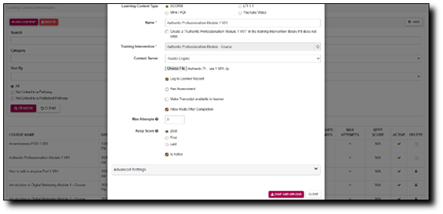
<span style="mso-bookmark: _Hlk187316285;"><span lang="EN-GB" style="mso-no-proof: yes;">![](https://signature.signifyhr.co.za/uploads/images/gallery/2025-12/0lhW0q7qPGrTDpi5-embedded-image-j8fiihxl.png)</span></span>

<span lang="EN-GB"> </span>

##### <a name="_Toc204590754"></a><span lang="EN-GB" style="text-transform: none;">UPDATE OR REMOVE SCORMs</span>

<span lang="EN-GB" style="mso-bidi-font-weight: bold; mso-bidi-font-style: italic;">It is essential to note that the blue circles in the screenshots indicate where you must click on the screen.</span>

<span lang="EN-GB" style="mso-fareast-font-family: 'Open Sans Light'; mso-fareast-theme-font: major-latin;"><span style="mso-list: Ignore;">1.<span style="font: 7.0pt 'Times New Roman';"> </span></span></span><span lang="EN-GB">Click to navigate to the **Learning Portal**.</span>

<span style="mso-ignore: vglayout; position: absolute; z-index: 251813376; left: 0px; margin-left: 217px; margin-top: 1123px; width: 26px; height: 26px;">  
</span><span lang="EN-GB" style="mso-no-proof: yes;">![](https://signature.signifyhr.co.za/uploads/images/gallery/2025-12/w3vpFAsxReEdYAd9-embedded-image-softwlcw.png)</span>

<span lang="EN-GB" style="mso-fareast-font-family: 'Open Sans Light'; mso-fareast-theme-font: major-latin;"><span style="mso-list: Ignore;">2.<span style="font: 7.0pt 'Times New Roman';"> </span></span></span><span lang="EN-GB">Click the spanner icon to access the **System Administration** menu. </span>
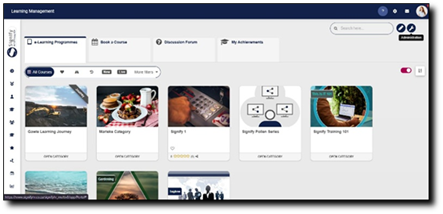
<span style="mso-ignore: vglayout; position: absolute; z-index: 251817472; left: 0px; margin-left: 575px; margin-top: 1098px; width: 25px; height: 26px;">  
</span><span lang="EN-GB" style="mso-no-proof: yes;">![](https://signature.signifyhr.co.za/uploads/images/gallery/2025-12/3yX5Q5p1WTy2pvsp-embedded-image-woeaetsp.png)</span>

<span lang="EN-GB" style="mso-fareast-font-family: 'Open Sans Light'; mso-fareast-theme-font: major-latin;"><span style="mso-list: Ignore;">3.<span style="font: 7.0pt 'Times New Roman';"> </span></span></span><span lang="EN-GB">Click on **Show More** under the **eLearning** menu.</span>

<span style="mso-ignore: vglayout; position: absolute; z-index: 251815424; left: 0px; margin-left: 307px; margin-top: 1254px; width: 26px; height: 25px;">  
</span><span lang="EN-GB" style="mso-no-proof: yes;">![](https://signature.signifyhr.co.za/uploads/images/gallery/2025-12/chVQdePQBgzjEMue-embedded-image-fgnacjtl.png)</span>

<span lang="EN-GB" style="mso-fareast-font-family: 'Open Sans Light'; mso-fareast-theme-font: major-latin;"><span style="mso-list: Ignore;">4.<span style="font: 7.0pt 'Times New Roman';"> </span></span></span><span lang="EN-GB">Click on **SCORM / xAPI** on the **Content Libraries** menu.</span>

<span style="mso-ignore: vglayout; position: absolute; z-index: 251818496; left: 0px; margin-left: 308px; margin-top: 1344px; width: 26px; height: 25px;">  
</span><span lang="EN-GB" style="mso-no-proof: yes;">![](https://signature.signifyhr.co.za/uploads/images/gallery/2025-12/CaAnwYoqcmpcS4tN-embedded-image-lbm6btpi.png)</span>

<span lang="EN-GB" style="mso-fareast-font-family: 'Open Sans Light'; mso-fareast-theme-font: major-latin;"><span style="mso-list: Ignore;">5.<span style="font: 7.0pt 'Times New Roman';"> </span></span></span><span lang="EN-GB">The table provides an overview of the information linked to each SCORM, such as:</span>

- <span lang="EN-GB">the date added, </span>
- <span lang="EN-GB">training intervention linked, </span>
- <span lang="EN-GB">number of registrations, and </span>
- <span lang="EN-GB">number of pathways to which it is linked.</span>

Administrators can also get an overview of the settings for each file, such as:

- <span lang="EN-GB">the status, </span>
- <span lang="EN-GB">maximum number of attempts, and </span>
- <span lang="EN-GB">which score to log to keep.</span>

Click on a SCORM file to edit.

<span style="mso-ignore: vglayout; position: absolute; z-index: 251819520; left: 0px; margin-left: 186px; margin-top: 1411px; width: 26px; height: 26px;">  
</span><span lang="EN-GB" style="mso-no-proof: yes;">![](https://signature.signifyhr.co.za/uploads/images/gallery/2025-12/bUwvnNrAkoW9Rwqg-embedded-image-wxgdpvf8.png)</span>

<span lang="EN-GB" style="mso-fareast-font-family: 'Open Sans Light'; mso-fareast-theme-font: major-latin;"><span style="mso-list: Ignore;">6.<span style="font: 7.0pt 'Times New Roman';"> </span></span></span><span lang="EN-GB">Click **Preview** to preview the eLearning file. </span>
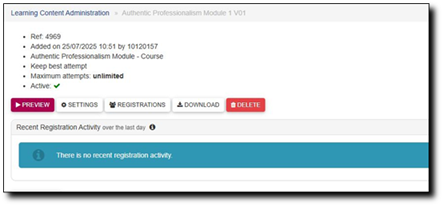
<span style="mso-ignore: vglayout; position: absolute; z-index: 251821568; left: 0px; margin-left: 199px; margin-top: 1481px; width: 26px; height: 26px;">  
</span><span lang="EN-GB" style="mso-no-proof: yes;">![](https://signature.signifyhr.co.za/uploads/images/gallery/2025-12/bYkJXkYZZSTOiPbS-embedded-image-afeji0t0.png)</span><span lang="EN-GB"> </span>

<span lang="EN-GB" style="mso-fareast-font-family: 'Open Sans Light'; mso-fareast-theme-font: major-latin;"><span style="mso-list: Ignore;">7.<span style="font: 7.0pt 'Times New Roman';"> </span></span></span><span lang="EN-GB">Click **Settings** to update the SCORM’s settings, such as </span>

- <span lang="EN-GB">maximum number of attempts, </span>
- <span lang="EN-GB">which score to keep, and </span>
- <span lang="EN-GB">whether the SCORM is active or not. </span>

<span lang="EN-GB" style="mso-no-proof: yes;">![](https://signature.signifyhr.co.za/uploads/images/gallery/2025-12/7uxtcsD0IKAxbeKz-embedded-image-a83tcyhw.png)</span>

<span lang="EN-GB" style="mso-fareast-font-family: 'Open Sans Light'; mso-fareast-theme-font: major-latin;"><span style="mso-list: Ignore;">8.<span style="font: 7.0pt 'Times New Roman';"> </span></span></span><span lang="EN-GB">Click **Registrations** to view the people that have attempted the SCORM. </span>
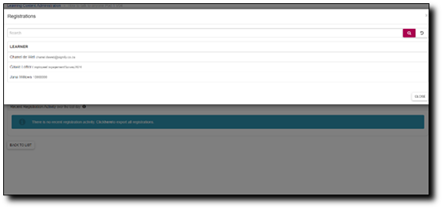
<span lang="EN-GB" style="mso-no-proof: yes;">![](https://signature.signifyhr.co.za/uploads/images/gallery/2025-12/2WeN0N3aSvsrBhFn-embedded-image-o1gh1v2q.png)</span>

<span lang="EN-GB" style="mso-fareast-font-family: 'Open Sans Light'; mso-fareast-theme-font: major-latin;"><span style="mso-list: Ignore;">9.<span style="font: 7.0pt 'Times New Roman';"> </span></span></span><span lang="EN-GB">Click **Download** to save a local version of the file. </span>
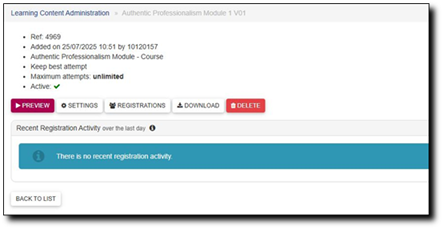
<span style="mso-ignore: vglayout; position: absolute; z-index: 251823616; left: 0px; margin-left: 364px; margin-top: 1723px; width: 26px; height: 25px;">  
</span><span lang="EN-GB" style="mso-no-proof: yes;">![A screenshot of a computer

AI-generated content may be incorrect.](https://signature.signifyhr.co.za/uploads/images/gallery/2025-12/0UIM0gHhN58mr1tk-embedded-image-nepadiv5.png)</span> <span lang="EN-GB"> </span>

<span lang="EN-GB" style="mso-fareast-font-family: 'Open Sans Light'; mso-fareast-theme-font: major-latin;"><span style="mso-list: Ignore;">10.<span style="font: 7.0pt 'Times New Roman';"> </span></span></span><span lang="EN-GB">Click **Delete** to remove the file from the Learning Content Library, then click **Confirm** to complete the deletion.</span>

<span style="mso-ignore: vglayout; position: absolute; z-index: 251827712; left: 0px; margin-left: 671px; margin-top: 1765px; width: 26px; height: 26px;">  
</span><span lang="EN-GB" style="mso-no-proof: yes;">![](https://signature.signifyhr.co.za/uploads/images/gallery/2025-12/YXuLwFE6plCHCcBp-embedded-image-fdsyoerv.png)</span>

<p class="callout warning">**<span lang="EN-GB">Please note, only a SCORM that is not linked to a pathway can be deleted. </span>**</p>

<span lang="EN-GB" style="mso-fareast-font-family: 'Open Sans Light'; mso-fareast-theme-font: major-latin;"><span style="mso-list: Ignore;">11.<span style="font: 7.0pt 'Times New Roman';"> </span></span></span><span lang="EN-GB">From the Learning Content Library screen, checkboxes can be ticked to delete multiple SCORMs at a time. </span><span lang="EN-GB">Click **Delete** to complete the deletion.</span><span lang="EN-GB" style="mso-no-proof: yes;"></span>

<span lang="EN-GB" style="mso-no-proof: yes;">![A screenshot of a computer

AI-generated content may be incorrect.](https://signature.signifyhr.co.za/uploads/images/gallery/2025-12/2JIvq3PcEHb3mgo3-embedded-image-dct5omoe.png)</span>

<p class="callout warning">**<span lang="EN-GB">Please note that only SCORMs that are not linked to a pathway can be deleted. </span>**</p>

# Create a People Group

[![Signify Header.png](https://signature.signifyhr.co.za/uploads/images/gallery/2025-02/scaled-1680-/emW3hfMrZ1yIDMUv-signify-header.png)](https://signature.signifyhr.co.za/uploads/images/gallery/2025-02/emW3hfMrZ1yIDMUv-signify-header.png)

#### Create people groups

- Click the **gear icon** to access the **Setup and Configuration** menu.

![LM OS Setup and configuration menu.jpg](https://signature.signifyhr.co.za/uploads/images/gallery/2026-05/OolVb4vG1kGknZ88-lm-os-setup-and-configuration-menu.jpg)

- Click **People Groups**.

![LM OS Setup and configuration menu - People Groups.jpg](https://signature.signifyhr.co.za/uploads/images/gallery/2026-06/nOhU8eJJoD70DLZP-lm-os-setup-and-configuration-menu-people-groups.jpg)

- In the **left-hand menu**, navigate to **Custom**, then click **+PEOPLE GROUP**.

![LM OS People Groups - Add.jpg](https://signature.signifyhr.co.za/uploads/images/gallery/2026-06/H5nGU4aA0WiOCFyF-lm-os-people-groups-add.jpg)

- Enter a descriptive name for the people group.
- Click the **toggle** **button** to set the status to **Active**.
- Click **SAVE** when you are finished or click **CANCEL** to discard your edits.

![LM OS People Groups - Add - Add new.jpg](https://signature.signifyhr.co.za/uploads/images/gallery/2026-06/kM9PWMtIzcq94hiU-lm-os-people-groups-add-add-new.jpg)

- Once the people group has been created, you can select the people to add to it.

##### Included: Individuals

- In the **left-hand menu**, click to navigate to the **Included section, then click **People** to add individuals.
- Click the **PEOPLE** button.

![LM OS People Groups - Add - Included people.jpg](https://signature.signifyhr.co.za/uploads/images/gallery/2026-06/a3dimEWgHQ1MeTTB-lm-os-people-groups-add-included-people.jpg)

- Use the **search bar** to find a person based on their name, surname, username, or job title.
- Tick the **checkbox** to select a person.

![LM OS People Groups - Add - Included people - Select.jpg](https://signature.signifyhr.co.za/uploads/images/gallery/2026-06/RoWVYABHHxajOCQF-lm-os-people-groups-add-included-people-select.jpg)

- Click **SAVE** when you are finished or click **CANCEL** to discard your edits.

![LM OS People Groups - Add - Included people - Select - Save.jpg](https://signature.signifyhr.co.za/uploads/images/gallery/2026-06/ex93gXc5DfU9pFAz-lm-os-people-groups-add-included-people-select-save.jpg)

- Review the users added to your people group, then click **SAVE** when you are finished or click **CANCEL** to discard your edits.

![LM OS People Groups - Add - Included people - Save.jpg](https://signature.signifyhr.co.za/uploads/images/gallery/2026-06/K8dLYJWX3qeEIXuy-lm-os-people-groups-add-included-people-save.jpg)

##### Included: Grouped conditions

- Click **Grouped Conditions** to add groups of people based on criteria such as job titles, organisational nodes, etc.
- Click **SAVE** when you are finished or click **CANCEL** to discard your edits.

![LM OS People Groups - Add - Included grouped conditions.jpg](https://signature.signifyhr.co.za/uploads/images/gallery/2026-06/gIxWuHqBXFGgOxsO-lm-os-people-groups-add-included-grouped-conditions.jpg)

##### Included: Individuals

- In the **left-hand menu**, click to navigate to **People** in the **Excluded** section. 
    - - Click the **PEOPLE** button.
        - Select the people you would like to exclude.
        - Click **SAVE** when you are finished or click **CANCEL** to discard your edits.

![LM OS People Groups - Add - Excluded people.jpg](https://signature.signifyhr.co.za/uploads/images/gallery/2026-06/6wVeb66WSOM3Cq0J-lm-os-people-groups-add-excluded-people.jpg)

##### Excluded: Grouped conditions

- Click **Grouped Conditions** to exclude groups of people based on criteria such as job titles, organisational nodes, etc.
- Click **SAVE** when you are finished or click **CANCEL** to discard your edits.

![LM OS People Groups - Add - Excluded grouped conditions.jpg](https://signature.signifyhr.co.za/uploads/images/gallery/2026-06/010chNXvTskr2GcJ-lm-os-people-groups-add-excluded-grouped-conditions.jpg)

##### Summary

- In the **left-hand menu**, click Summary to view all the users included in your people group.

![LM OS People Groups - Add - Summary.jpg](https://signature.signifyhr.co.za/uploads/images/gallery/2026-06/mLPcNgAbjkg3HY3A-lm-os-people-groups-add-summary.jpg)

- > The people groups take some time to synchronise on the system once they're created. This can take anywhere from **10 minutes to 12 hours**, depending on the number of changes.
- To synchronise the newly-created or updated people groups manually, follow the steps in the next section.

#### Manually syncing people groups

- Click the **gear icon** to access the **Setup and Configuration** menu.

![LM OS Setup and configuration menu.jpg](https://signature.signifyhr.co.za/uploads/images/gallery/2026-05/OolVb4vG1kGknZ88-lm-os-setup-and-configuration-menu.jpg)

- Click **Ruleset Setup**.

![LM OS Setup and configuration menu - Ruleset setup.jpg](https://signature.signifyhr.co.za/uploads/images/gallery/2026-05/G8n6077uSByiSZlf-lm-os-setup-and-configuration-menu-ruleset-setup.jpg)

- Select the **ruleset you would like to update.

![LM OS Setup and configuration menu - Ruleset setup - Select ruleset.jpg](https://signature.signifyhr.co.za/uploads/images/gallery/2026-05/rfnTwwjc6K4u3af7-lm-os-setup-and-configuration-menu-ruleset-setup-select-ruleset.jpg)

- Navigate to the **Integrations** tab.

![LM OS Ruleset Setup - Integrations.jpg](https://signature.signifyhr.co.za/uploads/images/gallery/2026-06/sI3aNIzPAzERVUv8-lm-os-ruleset-setup-integrations.jpg)

- Scroll down to the **Bulk Additional Service Imports – Push** section.
- For the **People group import** function, you have two options when synchronising manually: 
    - - Click **REQUEST ALL DATA** to synchronise all the people groups. 
            - - This is a **time-consuming** operation because all the people groups' data is overwritten and synchronised from scratch.

**Please be very careful when selecting this option, as it can affect system performance and speed, particularly during business hours.**

- - - Click **REQUEST RECENT CHANGES** to synchronise only recent changes to your people groups. 
            - - This is a **time-efficient** option because only the changes are synchronised, and the previous data remains unchanged.

[![LM OS Ruleset Setup - Integrations - People Groups.jpg](https://signature.signifyhr.co.za/uploads/images/gallery/2026-06/scaled-1680-/Bb38pMRhJCqMIfcF-lm-os-ruleset-setup-integrations-people-groups.jpg)](https://signature.signifyhr.co.za/uploads/images/gallery/2026-06/Bb38pMRhJCqMIfcF-lm-os-ruleset-setup-integrations-people-groups.jpg)

- Once you have selected a synchronisation method, a **message** will appear stating that the import has been requested. You can monitor the synchronisation progress by navigating to your **System Inbox**.

[![LM OS Ruleset Setup - Integrations - People Groups - Manual Sync - Message.jpg](https://signature.signifyhr.co.za/uploads/images/gallery/2026-06/scaled-1680-/9GiaCYLAyKB2kUWF-lm-os-ruleset-setup-integrations-people-groups-manual-sync-message.jpg)](https://signature.signifyhr.co.za/uploads/images/gallery/2026-06/9GiaCYLAyKB2kUWF-lm-os-ruleset-setup-integrations-people-groups-manual-sync-message.jpg)

- Click the **envelope icon** at the top of your screen to navigate to your **System Inbox**, then click **Imports**.

[![LM OS Ruleset Setup - Integrations - People Groups - Manual Sync - Inbox.jpg](https://signature.signifyhr.co.za/uploads/images/gallery/2026-06/YRXXilnI31OnO0Uy-lm-os-ruleset-setup-integrations-people-groups-manual-sync-inbox.jpg)](https://signature.signifyhr.co.za/uploads/images/gallery/2026-06/9GiaCYLAyKB2kUWF-lm-os-ruleset-setup-integrations-people-groups-manual-sync-message.jpg)

- You can monitor the **status** of your **imports** and **system processes** here: 
    - - **Staged** means the task has been added to the queue and will begin once the current tasks have been completed.
        - **Started** means the task is currently running.
        - **Completed with Errors** means the task has been completed, although only partially, due to detected errors.
        - **Completed means the task has been successfully executed.
        - **Failed** means the task could not be completed.

[![LM OS Ruleset Setup - Integrations - People Groups - Manual Sync - Inbox - Success.jpg](https://signature.signifyhr.co.za/uploads/images/gallery/2026-06/YFukbCU93sA36XvG-lm-os-ruleset-setup-integrations-people-groups-manual-sync-inbox-success.jpg)](https://signature.signifyhr.co.za/uploads/images/gallery/2026-06/9GiaCYLAyKB2kUWF-lm-os-ruleset-setup-integrations-people-groups-manual-sync-message.jpg)

- For a **Completed with Errors** or **Failed** task, you can download an Excel document with a breakdown of the errors. 
    - - Click on the **kebab icon** next to the task.
        - Click **Export Errors**.
        - Review the errors, then re-attempt the task using the steps above.

[![LM OS Ruleset Setup - Integrations - People Groups - Manual Sync - Inbox - Failure.jpg](https://signature.signifyhr.co.za/uploads/images/gallery/2026-06/WpLPKm1j2TT78LkF-lm-os-ruleset-setup-integrations-people-groups-manual-sync-inbox-failure.jpg)](https://signature.signifyhr.co.za/uploads/images/gallery/2026-06/9GiaCYLAyKB2kUWF-lm-os-ruleset-setup-integrations-people-groups-manual-sync-message.jpg)

[![Signify Footer.png](https://signature.signifyhr.co.za/uploads/images/gallery/2025-02/scaled-1680-/ZOt8yZwhbiGx2d6U-signify-footer.png)](https://signature.signifyhr.co.za/uploads/images/gallery/2025-02/ZOt8yZwhbiGx2d6U-signify-footer.png)

# Add a Target Audience

[![Signify Header.png](https://signature.signifyhr.co.za/uploads/images/gallery/2025-02/scaled-1680-/emW3hfMrZ1yIDMUv-signify-header.png)](https://signature.signifyhr.co.za/uploads/images/gallery/2025-02/emW3hfMrZ1yIDMUv-signify-header.png)

- Hover over the **sidebar** menu, then click **Learning Portal**.

![LM OS People Management Sidebar menu item.jpg](https://signature.signifyhr.co.za/uploads/images/gallery/2026-05/u7JWepx5gEgRanrj-lm-os-people-management-sidebar-menu-item.jpg)

- Click the **spanner icon** to access the system's **Administration** menu.

![LM OS Training Interventions - Learning Portal - System Administration.jpg](https://signature.signifyhr.co.za/uploads/images/gallery/2026-06/BXkbbFgqwvJpw3b9-lm-os-training-interventions-learning-portal-system-administration.jpg)

- On the **eLearning card, click **Manage eLearning Library**.

[![LM OS Build Pathways - Manage eLearning Library.jpg](https://signature.signifyhr.co.za/uploads/images/gallery/2026-06/scaled-1680-/ZaXOHRKkVOdWIOFL-lm-os-build-pathways-manage-elearning-library.jpg)](https://signature.signifyhr.co.za/uploads/images/gallery/2026-06/ZaXOHRKkVOdWIOFL-lm-os-build-pathways-manage-elearning-library.jpg)

- The **Pathways Tree View** screen will open in a new tab.
- Navigate to the **pathway** you would like to add a target audience for.

[![LM OS Build Pathways - Manage eLearning Library - Edit Pathway.jpg](https://signature.signifyhr.co.za/uploads/images/gallery/2026-06/scaled-1680-/fugB8xeceDQmWQ2z-lm-os-build-pathways-manage-elearning-library-edit-pathway.jpg)](https://signature.signifyhr.co.za/uploads/images/gallery/2026-06/fugB8xeceDQmWQ2z-lm-os-build-pathways-manage-elearning-library-edit-pathway.jpg)
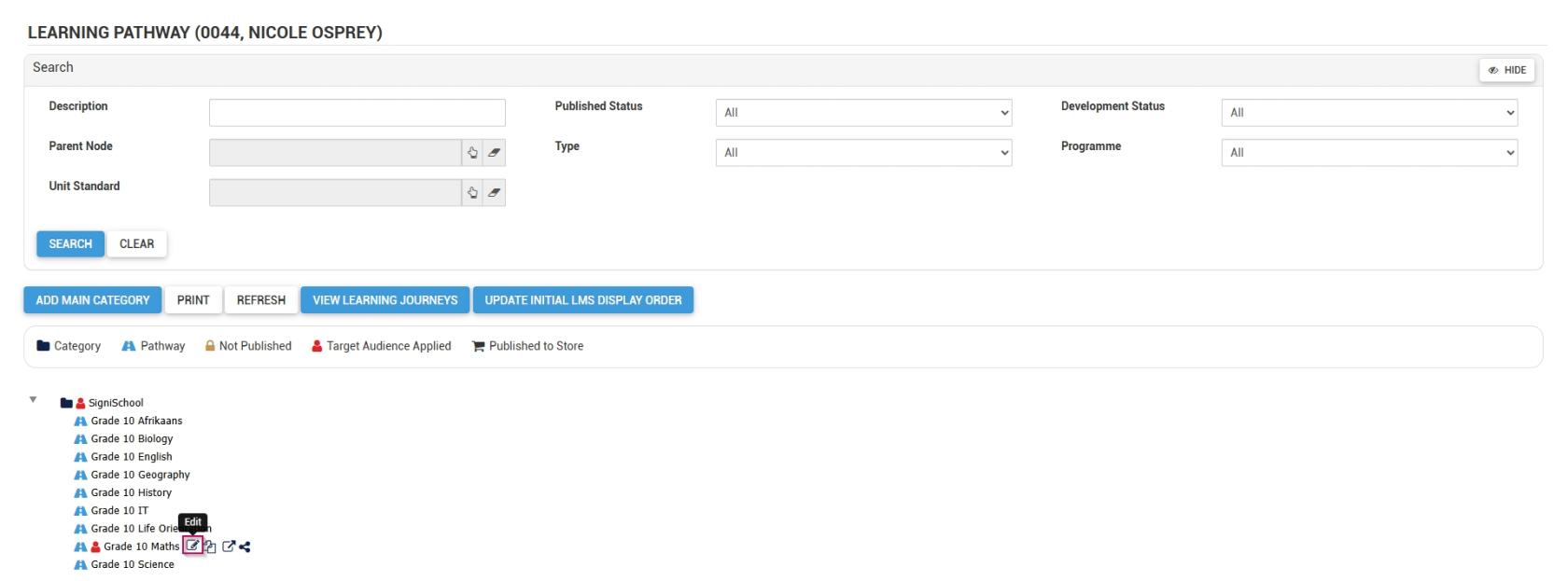
- Go to the **TARGET AUDIENCE** tab.

**[![LM OS Build Pathways - Manage eLearning Library - Edit - Target Audience.jpg](https://signature.signifyhr.co.za/uploads/images/gallery/2026-06/HSKdqRyRhA2aXq4q-lm-os-build-pathways-manage-elearning-library-edit-target-audience.jpg)](https://signature.signifyhr.co.za/uploads/images/gallery/2026-06/9CSsQ9XpUcJ212Ii-lm-os-add-class-classes-tab.jpg)**
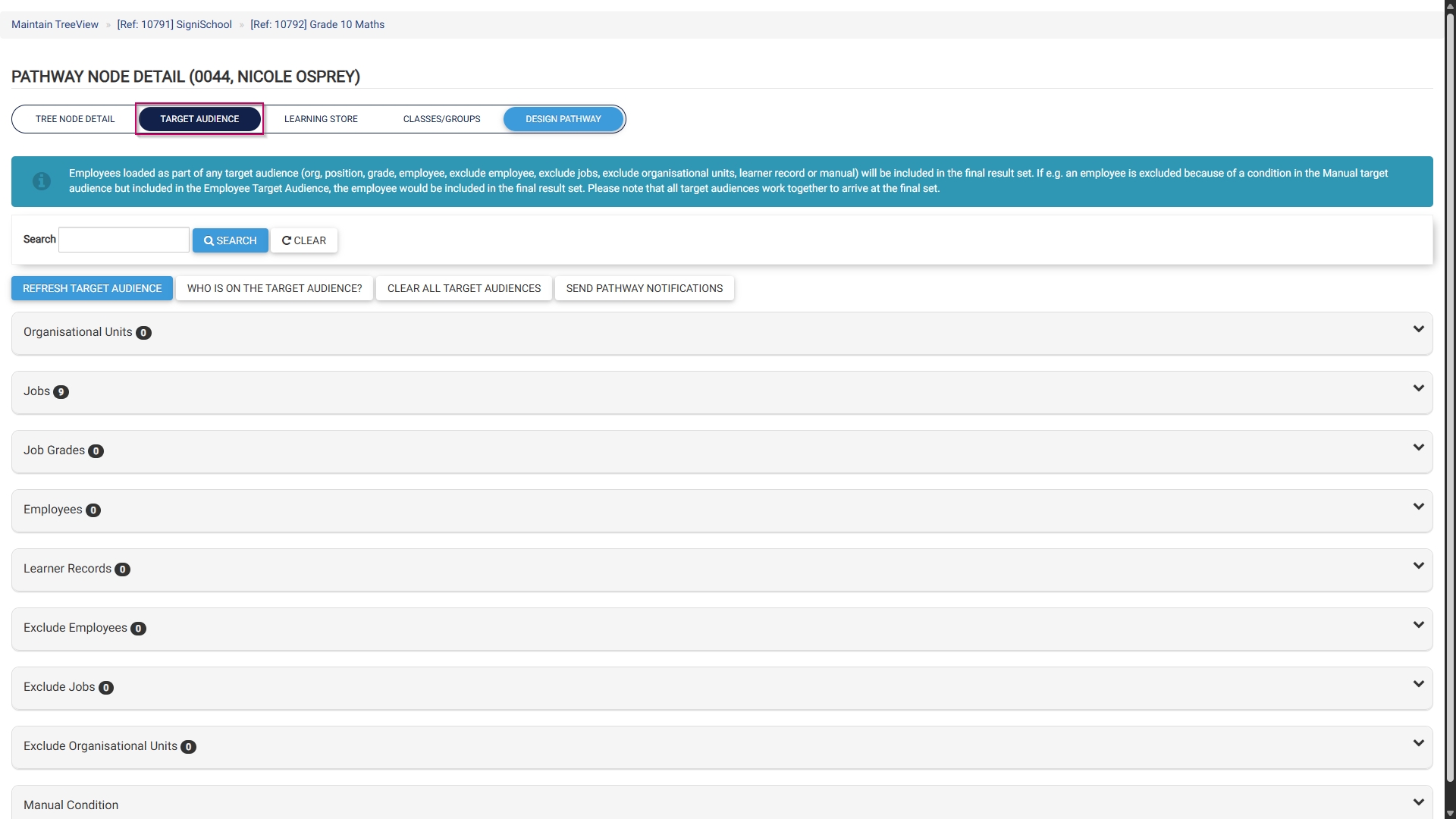
- Add a **target audience** based on one (or a combination of) the following conditions: 
    - - Organisational units
        - Jobs
        - Job grades
        - Employees
        - Learner records
        - Excluded employees
        - Excluded jobs
        - Excluded organisational units
        - Manual conditions

[![Signify Footer.png](https://signature.signifyhr.co.za/uploads/images/gallery/2025-02/scaled-1680-/ZOt8yZwhbiGx2d6U-signify-footer.png)](https://signature.signifyhr.co.za/uploads/images/gallery/2025-02/ZOt8yZwhbiGx2d6U-signify-footer.png)

# Create a Cycle

[![Signify Header.png](https://signature.signifyhr.co.za/uploads/images/gallery/2025-02/scaled-1680-/emW3hfMrZ1yIDMUv-signify-header.png)](https://signature.signifyhr.co.za/uploads/images/gallery/2025-02/emW3hfMrZ1yIDMUv-signify-header.png)

- Click the **gear icon** to access the **Setup and Configuration** menu.

![LM OS Setup and configuration menu.jpg](https://signature.signifyhr.co.za/uploads/images/gallery/2026-05/OolVb4vG1kGknZ88-lm-os-setup-and-configuration-menu.jpg)

- Click **Master Data**.

![LM OS Setup and configuration menu - Master Data.jpg](https://signature.signifyhr.co.za/uploads/images/gallery/2026-06/QneW60Ico9IsSbxP-lm-os-setup-and-configuration-menu-master-data.jpg)

- The **Master Data Library lists the categories for which administrators can create master data. Use the **search bar** at the top of the screen to filter the search results by **Learning Management**.

![LM OS Master Data Library - Overview.jpg](https://signature.signifyhr.co.za/uploads/images/gallery/2026-06/DMWJoYPTxoVY8SE5-lm-os-master-data-library-overview.jpg)


- Click on the **Cycles** category to continue.

![LM OS Master Data Library - Cycles.jpg](https://signature.signifyhr.co.za/uploads/images/gallery/2026-06/s882QFvOwrifkhhA-lm-os-master-data-library-cycles.jpg)

- To add a new master data item, click on **+ITEM**.

![LM OS Master Data Library - Add item.jpg](https://signature.signifyhr.co.za/uploads/images/gallery/2026-06/ZZkJ7Dpq9DMfgwjt-lm-os-master-data-library-add-item.jpg)

- Click the **toggle** **button** to set the cycle's status to **Active**.
- Enter a name for the cycle.
- Enter an alias for the cycle in the primary language.
- Enter an alias for the cycle in the secondary language.
- Click **SAVE** when you are finished, **SAVE ADD NEW** to add another master data item or click **CANCEL** to discard your edits.

![LM OS Master Data Library - Cycles - Add.jpg](https://signature.signifyhr.co.za/uploads/images/gallery/2026-06/en5XwkujnEMZreuy-lm-os-master-data-library-cycles-add.jpg)

- Click the **back arrow** to navigate back to the **Master Data Library** once you are finished.

![LM OS Master Data Library - Cycles - Back.jpg](https://signature.signifyhr.co.za/uploads/images/gallery/2026-06/nS5vAVzhFzFDgoqf-lm-os-master-data-library-cycles-back.jpg)

[![Signify Footer.png](https://signature.signifyhr.co.za/uploads/images/gallery/2025-02/scaled-1680-/ZOt8yZwhbiGx2d6U-signify-footer.png)](https://signature.signifyhr.co.za/uploads/images/gallery/2025-02/ZOt8yZwhbiGx2d6U-signify-footer.png)

# Create Class Periods

[![Signify Header.png](https://signature.signifyhr.co.za/uploads/images/gallery/2025-02/scaled-1680-/emW3hfMrZ1yIDMUv-signify-header.png)](https://signature.signifyhr.co.za/uploads/images/gallery/2025-02/emW3hfMrZ1yIDMUv-signify-header.png)

- Click the **gear icon** to access the **Setup and Configuration** menu.

![LM OS Setup and configuration menu.jpg](https://signature.signifyhr.co.za/uploads/images/gallery/2026-05/OolVb4vG1kGknZ88-lm-os-setup-and-configuration-menu.jpg)

- Click **Master Data**.

![LM OS Setup and configuration menu - Master Data.jpg](https://signature.signifyhr.co.za/uploads/images/gallery/2026-06/QneW60Ico9IsSbxP-lm-os-setup-and-configuration-menu-master-data.jpg)

- The **Master Data Library lists the categories for which administrators can create master data. Use the **search bar** at the top of the screen to filter the search results by **Learning Management**.

![LM OS Master Data Library - Overview.jpg](https://signature.signifyhr.co.za/uploads/images/gallery/2026-06/DMWJoYPTxoVY8SE5-lm-os-master-data-library-overview.jpg)


- Click on the **ClassPeriods** category to continue.

![LM OS Master Data Library - Class Periods.jpg](https://signature.signifyhr.co.za/uploads/images/gallery/2026-06/lHGEqqpXZgCsFyCS-lm-os-master-data-library-class-periods.jpg)

- To add a new master data item, click on **+ITEM**.

![LM OS Master Data Library - Add item.jpg](https://signature.signifyhr.co.za/uploads/images/gallery/2026-06/ZZkJ7Dpq9DMfgwjt-lm-os-master-data-library-add-item.jpg)

- Click the **toggle** **button** to set the class period's status to **Active**.
- Enter an end time for the period.
- Add a name for the period.
- Enter a start time for the period.
- Click **SAVE** when you are finished, **SAVE ADD NEW** to add another master data item or click **CANCEL** to discard your edits.

![LM OS Master Data Library - Class Periods - Add.jpg](https://signature.signifyhr.co.za/uploads/images/gallery/2026-06/DoHLPL3TzySKhRgU-lm-os-master-data-library-class-periods-add.jpg)

- Click the **back arrow** to navigate back to the **Master Data Library** once you are finished.

![LM OS Master Data Library - Class Periods - Back.jpg](https://signature.signifyhr.co.za/uploads/images/gallery/2026-06/2hecibDbtSZbfkoB-lm-os-master-data-library-class-periods-back.jpg)

[![Signify Footer.png](https://signature.signifyhr.co.za/uploads/images/gallery/2025-02/scaled-1680-/ZOt8yZwhbiGx2d6U-signify-footer.png)](https://signature.signifyhr.co.za/uploads/images/gallery/2025-02/ZOt8yZwhbiGx2d6U-signify-footer.png)

# Configure Comment Categories

[![Signify Header.png](https://signature.signifyhr.co.za/uploads/images/gallery/2025-02/scaled-1680-/emW3hfMrZ1yIDMUv-signify-header.png)](https://signature.signifyhr.co.za/uploads/images/gallery/2025-02/emW3hfMrZ1yIDMUv-signify-header.png)

- Click the **gear icon** to access the **Setup and Configuration** menu.

![LM OS Setup and configuration menu.jpg](https://signature.signifyhr.co.za/uploads/images/gallery/2026-05/OolVb4vG1kGknZ88-lm-os-setup-and-configuration-menu.jpg)

- Click **Master Data**.

![LM OS Setup and configuration menu - Master Data.jpg](https://signature.signifyhr.co.za/uploads/images/gallery/2026-06/QneW60Ico9IsSbxP-lm-os-setup-and-configuration-menu-master-data.jpg)

- The **Master Data Library lists the categories for which administrators can create master data. Use the **search bar** at the top of the screen to filter the search results by **Learning Management**.

![LM OS Master Data Library - Overview.jpg](https://signature.signifyhr.co.za/uploads/images/gallery/2026-06/DMWJoYPTxoVY8SE5-lm-os-master-data-library-overview.jpg)


- Click on the **Comment Categories** category to continue.

![LM OS Master Data Library - Comment Categories.jpg](https://signature.signifyhr.co.za/uploads/images/gallery/2026-06/4b98q79JQXvYvhIS-lm-os-master-data-library-comment-categories.jpg)

- To add a new master data item, click on **+ITEM**.

![LM OS Master Data Library - Add item.jpg](https://signature.signifyhr.co.za/uploads/images/gallery/2026-06/ZZkJ7Dpq9DMfgwjt-lm-os-master-data-library-add-item.jpg)

- Click the **toggle** **button** to set the comment category's status to **Active**.
- Enter a name for the comment category.
- Click **SAVE** when you are finished, **SAVE ADD NEW** to add another master data item or click **CANCEL** to discard your edits.

![LM OS Master Data Library - Comment Categories - Add.jpg](https://signature.signifyhr.co.za/uploads/images/gallery/2026-06/eh7NJn3aG2Fkqe0b-lm-os-master-data-library-comment-categories-add.jpg)

- Click the **back arrow** to navigate back to the **Master Data Library** once you are finished.

![LM OS Master Data Library - Comment Categories - Back.jpg](https://signature.signifyhr.co.za/uploads/images/gallery/2026-06/xpXna6b3IiD1aVT2-lm-os-master-data-library-comment-categories-back.jpg)

[![Signify Footer.png](https://signature.signifyhr.co.za/uploads/images/gallery/2025-02/scaled-1680-/ZOt8yZwhbiGx2d6U-signify-footer.png)](https://signature.signifyhr.co.za/uploads/images/gallery/2025-02/ZOt8yZwhbiGx2d6U-signify-footer.png)

# Compile Academic Report Comments

[![Signify Header.png](https://signature.signifyhr.co.za/uploads/images/gallery/2025-02/scaled-1680-/emW3hfMrZ1yIDMUv-signify-header.png)](https://signature.signifyhr.co.za/uploads/images/gallery/2025-02/emW3hfMrZ1yIDMUv-signify-header.png)

- Click the **gear icon** to access the **Setup and Configuration** menu.

![LM OS Setup and configuration menu.jpg](https://signature.signifyhr.co.za/uploads/images/gallery/2026-05/OolVb4vG1kGknZ88-lm-os-setup-and-configuration-menu.jpg)

- Click **Master Data**.

![LM OS Setup and configuration menu - Master Data.jpg](https://signature.signifyhr.co.za/uploads/images/gallery/2026-06/QneW60Ico9IsSbxP-lm-os-setup-and-configuration-menu-master-data.jpg)

- The **Master Data Library lists the categories for which administrators can create master data. Use the **search bar** at the top of the screen to filter the search results by **Learning Management**.

![LM OS Master Data Library - Overview.jpg](https://signature.signifyhr.co.za/uploads/images/gallery/2026-06/DMWJoYPTxoVY8SE5-lm-os-master-data-library-overview.jpg)


- Click on the **Comments** category to continue.

![LM OS Master Data Library - Comments.jpg](https://signature.signifyhr.co.za/uploads/images/gallery/2026-06/41aUbOj9yhBDUklb-lm-os-master-data-library-comments.jpg)

- To add a new master data item, click on **+ITEM**.

![LM OS Master Data Library - Add item.jpg](https://signature.signifyhr.co.za/uploads/images/gallery/2026-06/ZZkJ7Dpq9DMfgwjt-lm-os-master-data-library-add-item.jpg)

- From the **drop-down menu**, select the comment category.
- From the **drop-down menu**, select the comment type.
- Enter a comment in the primary language.
- Enter a comment in the secondary language.
- Click **SAVE** when you are finished, **SAVE ADD NEW** to add another master data item or click **CANCEL** to discard your edits.

![LM OS Master Data Library - Comments - Add.jpg](https://signature.signifyhr.co.za/uploads/images/gallery/2026-06/e5yhwXSznXaOpLI5-lm-os-master-data-library-comments-add.jpg)

- **Please note: Using an ellipsis (...) serves as a placeholder for the learner's name.**
- Click the **back arrow** to navigate back to the **Master Data Library** once you are finished.

![LM OS Master Data Library - Comments - Back.jpg](https://signature.signifyhr.co.za/uploads/images/gallery/2026-06/2mNNvf8B2kBrEFod-lm-os-master-data-library-comments-back.jpg)

[![Signify Footer.png](https://signature.signifyhr.co.za/uploads/images/gallery/2025-02/scaled-1680-/ZOt8yZwhbiGx2d6U-signify-footer.png)](https://signature.signifyhr.co.za/uploads/images/gallery/2025-02/ZOt8yZwhbiGx2d6U-signify-footer.png)

# Create a Subject

[![Signify Header.png](https://signature.signifyhr.co.za/uploads/images/gallery/2025-02/scaled-1680-/emW3hfMrZ1yIDMUv-signify-header.png)](https://signature.signifyhr.co.za/uploads/images/gallery/2025-02/emW3hfMrZ1yIDMUv-signify-header.png)

- Click the **gear icon** to access the **Setup and Configuration** menu.

![LM OS Setup and configuration menu.jpg](https://signature.signifyhr.co.za/uploads/images/gallery/2026-05/OolVb4vG1kGknZ88-lm-os-setup-and-configuration-menu.jpg)

- Click **Ruleset Setup**.

![LM OS Setup and configuration menu - Ruleset setup.jpg](https://signature.signifyhr.co.za/uploads/images/gallery/2026-05/G8n6077uSByiSZlf-lm-os-setup-and-configuration-menu-ruleset-setup.jpg)

- Select the **ruleset you would like to update.

![LM OS Setup and configuration menu - Ruleset setup - Select ruleset.jpg](https://signature.signifyhr.co.za/uploads/images/gallery/2026-05/rfnTwwjc6K4u3af7-lm-os-setup-and-configuration-menu-ruleset-setup-select-ruleset.jpg)

- Navigate to the **Products tab.

![LM OS Products tab.jpg](https://signature.signifyhr.co.za/uploads/images/gallery/2026-05/QWGG0dzhs3GPkEWa-lm-os-products-tab.jpg)

- Click on the **Learning Management product card, then click **Product Setup**.

[![LM OS Products tab - LM Product Card - Product Setup.jpg](https://signature.signifyhr.co.za/uploads/images/gallery/2026-05/Paat2JkEnqO46Cmi-lm-os-products-tab-lm-product-card-product-setup.jpg)](https://signature.signifyhr.co.za/uploads/images/gallery/2026-05/BgK1kyVp94Qa9Ghu-lm-products-tab-lm-product-card-activate.jpg)

- Click **+SUBJECT**.

[![LM OS Add Subject - Add new.jpg](https://signature.signifyhr.co.za/uploads/images/gallery/2026-06/scaled-1680-/TmIXpIioPp4jhRK6-lm-os-add-subject-add-new.jpg)](https://signature.signifyhr.co.za/uploads/images/gallery/2026-06/TmIXpIioPp4jhRK6-lm-os-add-subject-add-new.jpg)

- Add a **name** for this subject.
- Select the **academic year** from the **drop-down menu**.
- Select the **grade** from the **drop-down menu**.
- Provide a **primary** and **secondary** **language alias** for the subject.
- Select a **pass mark** for the subject.
- Use the **colour picker** to choose a **colour** for this subject, which will appear on the timetable.
- Link the **subject** to a **pathway's class/group**.
- Click **SAVE** when you are finished or click **CANCEL** to discard your edits.

[![LM OS Add Subject - Add new - Subject details.jpg](https://signature.signifyhr.co.za/uploads/images/gallery/2026-06/scaled-1680-/Wm6xA6xfsqlZfRJb-lm-os-add-subject-add-new-subject-details.jpg)](https://signature.signifyhr.co.za/uploads/images/gallery/2026-06/Wm6xA6xfsqlZfRJb-lm-os-add-subject-add-new-subject-details.jpg)

- Click **+CYCLE** to add a new academic cycle to the subject.

[![LM OS Add Subject - Add new - Add cycle.jpg](https://signature.signifyhr.co.za/uploads/images/gallery/2026-06/scaled-1680-/RZPuXdqBoubfkiKL-lm-os-add-subject-add-new-add-cycle.jpg)](https://signature.signifyhr.co.za/uploads/images/gallery/2026-06/RZPuXdqBoubfkiKL-lm-os-add-subject-add-new-add-cycle.jpg)

- Add a **name** for this cycle.
- Select the **start and end dates** for the cycle.
- Provide a **weight**.
- Use the **drop-down menu** to select a training intervention (it must be a certification point) to link to this term.
- Click **SAVE** when you are finished or click **CANCEL** to discard your edits.

[![LM OS Add Subject - Add new - Add cycle - Details.jpg](https://signature.signifyhr.co.za/uploads/images/gallery/2026-06/scaled-1680-/JV9anXsGVBO7lcNV-lm-os-add-subject-add-new-add-cycle-details.jpg)](https://signature.signifyhr.co.za/uploads/images/gallery/2026-06/JV9anXsGVBO7lcNV-lm-os-add-subject-add-new-add-cycle-details.jpg)

- Click the **plus icon** to construct a subject plan for this cycle.

[![LM OS Add Subject - Add new - Add cycle - Build term plan.jpg](https://signature.signifyhr.co.za/uploads/images/gallery/2026-06/scaled-1680-/4B4cuhjQjlfrSJC0-lm-os-add-subject-add-new-add-cycle-build-term-plan.jpg)](https://signature.signifyhr.co.za/uploads/images/gallery/2026-06/4B4cuhjQjlfrSJC0-lm-os-add-subject-add-new-add-cycle-build-term-plan.jpg)

- Add a **mark** for the academic activity.
- The **type** will be automatically populated based on your **training intervention**.
- Select a **training intervention** from the **drop-down menu**.
- Choose whether the academic activity will be **auto-marked** or marked **manually** by a teacher or facilitator.
- Choose whether administrators can **override** the student's mark.
- Choose whether the academic activity will **show** on the **final marksheet**.
- Provide a **weight** for the academic activity within this cycle.
- Provide a **mark** used to grade this activity.
- If you would like to remove an academic activity, click the **dustbin icon**.

[![LM OS Add Subject - Add new - Add cycle - Build term plan - Add interventions.jpg](https://signature.signifyhr.co.za/uploads/images/gallery/2026-06/scaled-1680-/yr5L3hXipNMo63rG-lm-os-add-subject-add-new-add-cycle-build-term-plan-add-interventions.jpg)](https://signature.signifyhr.co.za/uploads/images/gallery/2026-06/yr5L3hXipNMo63rG-lm-os-add-subject-add-new-add-cycle-build-term-plan-add-interventions.jpg)

- Click **SAVE** when you are finished, **+CYCLE** to add another academic term, or **CANCEL** to discard your changes.

[![LM OS Add Subject - Add new - Add cycle - Build term plan - Save.jpg](https://signature.signifyhr.co.za/uploads/images/gallery/2026-06/scaled-1680-/kWjZk3rQMT6Kplb4-lm-os-add-subject-add-new-add-cycle-build-term-plan-save.jpg)](https://signature.signifyhr.co.za/uploads/images/gallery/2026-06/kWjZk3rQMT6Kplb4-lm-os-add-subject-add-new-add-cycle-build-term-plan-save.jpg)

[![Signify Footer.png](https://signature.signifyhr.co.za/uploads/images/gallery/2025-02/scaled-1680-/ZOt8yZwhbiGx2d6U-signify-footer.png)](https://signature.signifyhr.co.za/uploads/images/gallery/2025-02/ZOt8yZwhbiGx2d6U-signify-footer.png)

# View the Attendance Register

[![Signify Header.png](https://signature.signifyhr.co.za/uploads/images/gallery/2025-02/scaled-1680-/emW3hfMrZ1yIDMUv-signify-header.png)](https://signature.signifyhr.co.za/uploads/images/gallery/2025-02/emW3hfMrZ1yIDMUv-signify-header.png)

- Hover over the **sidebar** menu, then click **Learning Portal**.

![LM OS People Management Sidebar menu item.jpg](https://signature.signifyhr.co.za/uploads/images/gallery/2026-05/u7JWepx5gEgRanrj-lm-os-people-management-sidebar-menu-item.jpg)

- Click the **spanner icon** to access the system's **Administration** menu.

![LM OS Training Interventions - Learning Portal - System Administration.jpg](https://signature.signifyhr.co.za/uploads/images/gallery/2026-06/BXkbbFgqwvJpw3b9-lm-os-training-interventions-learning-portal-system-administration.jpg)

- On the **eLearning card, click **Manage eLearning Library**.

[![LM OS Build Pathways - Manage eLearning Library.jpg](https://signature.signifyhr.co.za/uploads/images/gallery/2026-06/scaled-1680-/ZaXOHRKkVOdWIOFL-lm-os-build-pathways-manage-elearning-library.jpg)](https://signature.signifyhr.co.za/uploads/images/gallery/2026-06/ZaXOHRKkVOdWIOFL-lm-os-build-pathways-manage-elearning-library.jpg)

- The **Pathways Tree View** screen will open in a new tab.
- Click to **edit** a pathway.

[![LM OS Build Pathways - Manage eLearning Library - Edit Pathway.jpg](https://signature.signifyhr.co.za/uploads/images/gallery/2026-06/scaled-1680-/fugB8xeceDQmWQ2z-lm-os-build-pathways-manage-elearning-library-edit-pathway.jpg)](https://signature.signifyhr.co.za/uploads/images/gallery/2026-06/fugB8xeceDQmWQ2z-lm-os-build-pathways-manage-elearning-library-edit-pathway.jpg)

- At the top of the screen, click **DESIGN PATHWAY**.

[![LM OS Build Pathways - Manage eLearning Library - Edit - Design Pathway.jpg](https://signature.signifyhr.co.za/uploads/images/gallery/2026-06/scaled-1680-/JSJG8yFneiO7sPEO-lm-os-build-pathways-manage-elearning-library-edit-design-pathway.jpg)](https://signature.signifyhr.co.za/uploads/images/gallery/2026-06/JSJG8yFneiO7sPEO-lm-os-build-pathways-manage-elearning-library-edit-design-pathway.jpg)
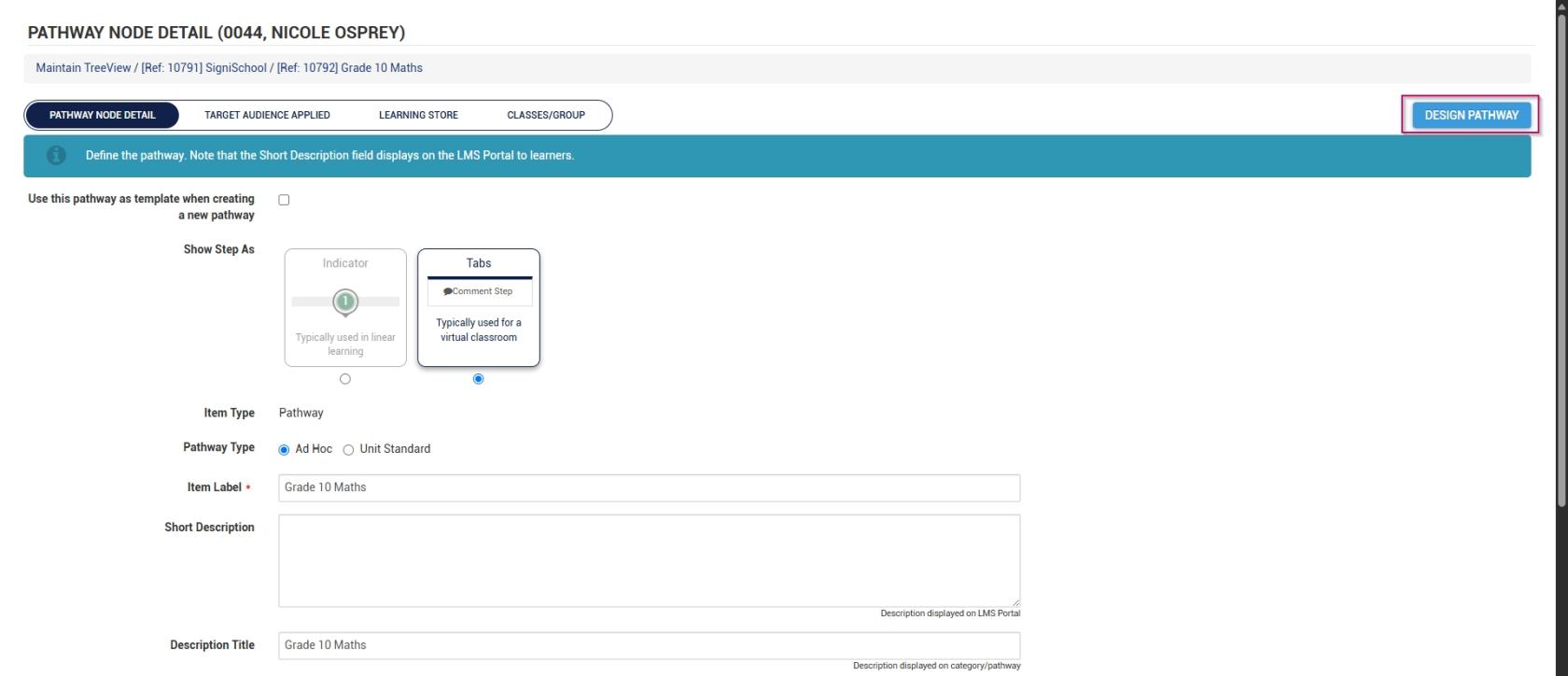
- Navigate to the **Class/Group** step of the pathway.

[![LM OS Build Pathways - Manage eLearning Library - Design pathway - Class or Group step.jpg](https://signature.signifyhr.co.za/uploads/images/gallery/2026-06/scaled-1680-/RsgN8QYwKJtCJa3c-lm-os-build-pathways-manage-elearning-library-design-pathway-class-or-group-step.jpg)](https://signature.signifyhr.co.za/uploads/images/gallery/2026-06/RsgN8QYwKJtCJa3c-lm-os-build-pathways-manage-elearning-library-design-pathway-class-or-group-step.jpg)

- Click **Attendance Register**. The attendance register will open in a new tab.

[![LM OS Build Pathways - Manage eLearning Library - Design pathway - Class or Group - Attendance Register.jpg](https://signature.signifyhr.co.za/uploads/images/gallery/2026-06/scaled-1680-/PX1wHRwyNDiEiPa1-lm-os-build-pathways-manage-elearning-library-design-pathway-class-or-group-attendance-register.jpg)](https://signature.signifyhr.co.za/uploads/images/gallery/2026-06/PX1wHRwyNDiEiPa1-lm-os-build-pathways-manage-elearning-library-design-pathway-class-or-group-attendance-register.jpg)

- Select the **date** the class took place.
- Select the **lesson** during which the class took place.
- Mark students as: 
    - - **Attended**
        - **Absent With Excuse**
        - **Absent**
- Send out an **absence notification** by clicking the **envelope icon**.
- Click **SAVE** when you are finished, then click **CLOSE TAB**.

[![LM OS Attendance Register.jpg](https://signature.signifyhr.co.za/uploads/images/gallery/2026-06/scaled-1680-/V158hOdWA3AjKaOe-lm-os-attendance-register.jpg)](https://signature.signifyhr.co.za/uploads/images/gallery/2026-06/V158hOdWA3AjKaOe-lm-os-attendance-register.jpg)

[![Signify Footer.png](https://signature.signifyhr.co.za/uploads/images/gallery/2025-02/scaled-1680-/ZOt8yZwhbiGx2d6U-signify-footer.png)](https://signature.signifyhr.co.za/uploads/images/gallery/2025-02/ZOt8yZwhbiGx2d6U-signify-footer.png)

# View the Marksheet

[![Signify Header.png](https://signature.signifyhr.co.za/uploads/images/gallery/2025-02/scaled-1680-/emW3hfMrZ1yIDMUv-signify-header.png)](https://signature.signifyhr.co.za/uploads/images/gallery/2025-02/emW3hfMrZ1yIDMUv-signify-header.png)

- Hover over the **sidebar** menu, then click **Learning Portal**.

![LM OS People Management Sidebar menu item.jpg](https://signature.signifyhr.co.za/uploads/images/gallery/2026-05/u7JWepx5gEgRanrj-lm-os-people-management-sidebar-menu-item.jpg)

- Click the **spanner icon** to access the system's **Administration** menu.

![LM OS Training Interventions - Learning Portal - System Administration.jpg](https://signature.signifyhr.co.za/uploads/images/gallery/2026-06/BXkbbFgqwvJpw3b9-lm-os-training-interventions-learning-portal-system-administration.jpg)

- On the **eLearning card, click **Manage eLearning Library**.

[![LM OS Build Pathways - Manage eLearning Library.jpg](https://signature.signifyhr.co.za/uploads/images/gallery/2026-06/scaled-1680-/ZaXOHRKkVOdWIOFL-lm-os-build-pathways-manage-elearning-library.jpg)](https://signature.signifyhr.co.za/uploads/images/gallery/2026-06/ZaXOHRKkVOdWIOFL-lm-os-build-pathways-manage-elearning-library.jpg)

- The **Pathways Tree View** screen will open in a new tab.
- Click to **edit** a pathway.

[![LM OS Build Pathways - Manage eLearning Library - Edit Pathway.jpg](https://signature.signifyhr.co.za/uploads/images/gallery/2026-06/scaled-1680-/fugB8xeceDQmWQ2z-lm-os-build-pathways-manage-elearning-library-edit-pathway.jpg)](https://signature.signifyhr.co.za/uploads/images/gallery/2026-06/fugB8xeceDQmWQ2z-lm-os-build-pathways-manage-elearning-library-edit-pathway.jpg)

- At the top of the screen, click **DESIGN PATHWAY**.

[![LM OS Build Pathways - Manage eLearning Library - Edit - Design Pathway.jpg](https://signature.signifyhr.co.za/uploads/images/gallery/2026-06/scaled-1680-/JSJG8yFneiO7sPEO-lm-os-build-pathways-manage-elearning-library-edit-design-pathway.jpg)](https://signature.signifyhr.co.za/uploads/images/gallery/2026-06/JSJG8yFneiO7sPEO-lm-os-build-pathways-manage-elearning-library-edit-design-pathway.jpg)

- Navigate to the **Class/Group** step of the pathway.

[![LM OS Build Pathways - Manage eLearning Library - Design pathway - Class or Group step.jpg](https://signature.signifyhr.co.za/uploads/images/gallery/2026-06/scaled-1680-/RsgN8QYwKJtCJa3c-lm-os-build-pathways-manage-elearning-library-design-pathway-class-or-group-step.jpg)](https://signature.signifyhr.co.za/uploads/images/gallery/2026-06/RsgN8QYwKJtCJa3c-lm-os-build-pathways-manage-elearning-library-design-pathway-class-or-group-step.jpg)

- Click **Marksheet**. The marksheet will open in a new tab.

[![LM OS Build Pathways - Manage eLearning Library - Design pathway - Class or Group - Marksheet.jpg](https://signature.signifyhr.co.za/uploads/images/gallery/2026-06/2STJjRwmN9tEEzyG-lm-os-build-pathways-manage-elearning-library-design-pathway-class-or-group-marksheet.jpg)](https://signature.signifyhr.co.za/uploads/images/gallery/2026-06/PX1wHRwyNDiEiPa1-lm-os-build-pathways-manage-elearning-library-design-pathway-class-or-group-attendance-register.jpg)

- Educators can update the learner's marks using the Excel-like functionality. Take note of the **legend** to aid in interpreting the marksheet.
- **Toggle** to **publish** the learner's marks for an academic activity and prevent further uploads.
- Enter the **student's mark** in the columns.
- Double-click to add a **comment** in either the **primary** or **secondary language**.
- Click **SAVE** when you are finished.

[![LM OS Marksheet.jpg](https://signature.signifyhr.co.za/uploads/images/gallery/2026-06/scaled-1680-/gyS4tiv6yjGNzdxL-lm-os-marksheet.jpg)](https://signature.signifyhr.co.za/uploads/images/gallery/2026-06/gyS4tiv6yjGNzdxL-lm-os-marksheet.jpg)

[![Signify Footer.png](https://signature.signifyhr.co.za/uploads/images/gallery/2025-02/scaled-1680-/ZOt8yZwhbiGx2d6U-signify-footer.png)](https://signature.signifyhr.co.za/uploads/images/gallery/2025-02/ZOt8yZwhbiGx2d6U-signify-footer.png)

# Chapter 5: FAQs

<span>As with any system, users of the </span>**Learning Management**<span> module may encounter common challenges or require clarification on certain features. This chapter compiles frequently asked questions from learners and administrators to provide quick and practical solutions.</span>

Topics covered include troubleshooting enrolment issues, understanding course completion requirements, managing user access, and interpreting learning analytics. Addressing these questions upfront ensures that users can navigate the module with confidence and resolve issues efficiently.

<span>By providing clear answers to frequently asked questions, this chapter serves as a helpful resource for users at all levels, enhancing their overall experience with the </span>**Learning Management**<span> module.</span>

# FAQs for Administrators

[![Signify Header.png](https://signature.signifyhr.co.za/uploads/images/gallery/2025-02/scaled-1680-/emW3hfMrZ1yIDMUv-signify-header.png)](https://signature.signifyhr.co.za/uploads/images/gallery/2025-02/emW3hfMrZ1yIDMUv-signify-header.png)

<details id="bkmrk-what-is-the-purpose-"><summary>What is the purpose of the Learning Management module?</summary>

\##### \*\*What is the purpose of the Learning Management module?\*\* The \*\*Learning Management\*\* module provides a centralised platform for managing organisational learning, training delivery, learner engagement, and academic development. It enables administrators to create structured learning journeys, assign learning content, track learner progress, and maintain training records for compliance and reporting purposes.

</details><details id="bkmrk-how-do-i-activate-th"><summary>How do I activate the Learning Management module?</summary>

\##### \*\*How do I activate the Learning Management module?\*\* Navigate to \*\*Setup and Configuration\*\*, then open \*\*Ruleset Setup\*\* and select the relevant ruleset. Open the \*\*Products\*\* tab, locate the \*\*Learning Management\*\* product card, and set its status to \*\*Active\*\*.

</details><details id="bkmrk-why-can-users-not-se"><summary>Why can users not see the Learning Portal?</summary>

\##### \*\*Why can users not see the Learning Portal?\*\* There are several possible reasons why users cannot see the Learning Portal. - The Learning Management product may not be active. - The \*\*Learning Portal\*\* system menu item may be disabled. - The user may not have the required permissions. Check each of these configuration settings before troubleshooting further.

</details><details id="bkmrk-what-permissions-doe"><summary>What permissions does a Learning Administrator need?</summary>

\##### \*\*What permissions does a Learning Administrator need?\*\* A Learning Administrator requires permissions to manage learning content, pathways, assessments, learner records, and reporting. Typical permissions include access to: - Learning Management administration - Import from Excel - Training Intervention Library - People group management - Reporting tools

</details><details id="bkmrk-what-is-a-learning-p"><summary>What is a learning pathway?</summary>

\##### \*\*What is a learning pathway?\*\* A learning pathway is a structured sequence of learning activities designed to guide learners through content in a logical order. Pathways may include eLearning modules, documents, videos, assignments, assessments, workshops, acknowledgements, and certification milestones.

</details><details id="bkmrk-what-types-of-conten"><summary>What types of content can be added to a pathway?</summary>

\##### \*\*What types of content can be added to a pathway?\*\* Pathways can include a wide variety of learning activities, such as: - SCORM or xAPI content - Documents and guides - Videos - Online assessments - Practical assessments - Assignments - Workshops - Feedback steps - Certification points

</details><details id="bkmrk-what-is-scorm-conten"><summary>What is SCORM content?</summary>

\##### \*\*What is SCORM content?\*\* \*\*SCORM\*\* is a standard format used for interactive eLearning content. SCORM packages allow the system to track learner progress, completion status, scores, time spent, and assessment attempts automatically.

</details><details id="bkmrk-why-can-i-not-import"><summary>Why can I not import assessments from Excel?</summary>

\##### \*\*Why can I not import assessments from Excel?\*\* The most common reason is that the \*\*Import from Excel\*\* permission has not been enabled for your user profile. This permission must be assigned under \*\*Additional Roles\*\* within \*\*People Management\*\*.

</details><details id="bkmrk-what-are-training-in"><summary>What are training interventions?</summary>

\##### \*\*What are training interventions?\*\* Training interventions are records used to track learning activities and learner progress. Each course, assessment, workshop, or learning activity can be linked to a training intervention to create an auditable learner record.

</details><details id="bkmrk-why-do-i-need-access"><summary>Why do I need access to the Training Intervention Library?</summary>

\##### \*\*Why do I need access to the Training Intervention Library?\*\* Access to the \*\*Training Intervention Library\*\* allows administrators to create, manage, and link training interventions to pathways. This is essential for learner tracking, compliance reporting, and maintaining accurate training records.

</details><details id="bkmrk-what-are-people-grou"><summary>What are people groups?</summary>

\##### \*\*What are people groups?\*\* People groups are custom groups of users used to manage learning access and assignments. Examples include departments, grades, classes, teams, or organisational units.

</details><details id="bkmrk-why-should-i-use-peo"><summary>Why should I use people groups?</summary>

\##### \*\*Why should I use people groups?\*\* People groups make bulk assignment easier and reduce administrative effort. Instead of assigning a pathway to learners individually, administrators can assign it to an entire group at once.

</details><details id="bkmrk-what-are-target-audi"><summary>What are target audiences?</summary>

\##### \*\*What are target audiences?\*\* Target audiences determine which learners can access specific pathways, programmes, or academic content. Target audiences can be based on employees, departments, grades, classes, organisational nodes, or people groups.

</details><details id="bkmrk-why-can-learners-not"><summary>Why can learners not access assigned content?</summary>

\##### \*\*Why can learners not access assigned content?\*\* There are several possible reasons: - The pathway may not be published - The learner may not belong to the correct target audience - The people group may not have synchronised yet - The learner’s permissions may be restricted

</details><details id="bkmrk-how-long-do-people-g"><summary>How long do people groups take to synchronise?</summary>

\##### \*\*How long do people groups take to synchronise?\*\* People groups may take between \*\*10 minutes and 12 hours\*\* to synchronise. The duration depends on the number of users and the volume of changes waiting to be processed.

</details><details id="bkmrk-can-i-manually-synch"><summary>Can I manually synchronise people groups?</summary>

\##### \*\*Can I manually synchronise people groups?\*\* Yes. Administrators can manually synchronise people groups through \*\*Ruleset Setup\*\* under the \*\*Integrations\*\* tab. You can synchronise either all data or only recent changes.

</details><details id="bkmrk-what-is-the-differen"><summary>What is the difference between Request All Data and Request Recent Changes?</summary>

\##### \*\*What is the difference between Request All Data and Request Recent Changes?\*\* \*\*Request All Data\*\* synchronises all people group data from scratch. This is resource-intensive and may affect system performance. \*\*Request Recent Changes\*\* synchronises only recent updates, making it faster and more efficient for everyday use.

</details><details id="bkmrk-where-can-i-monitor-"><summary>Where can I monitor synchronisation progress?</summary>

\##### \*\*Where can I monitor synchronisation progress?\*\* Synchronisation progress can be monitored in the \*\*System Inbox\*\* under \*\*Imports\*\*. Statuses include: - \*\*Staged\*\* - \*\*Started\*\* - \*\*Completed\*\* - \*\*Completed with Errors\*\* - \*\*Failed\*\*

</details><details id="bkmrk-what-should-i-do-if-"><summary>What should I do if a synchronisation fails?</summary>

\##### \*\*What should I do if a synchronisation fails?\*\* If a synchronisation fails, open the failed import in the \*\*System Inbox\*\* and export the error report. Review the Excel error breakdown, correct the issues, and retry the synchronisation.

</details><details id="bkmrk-what-master-data-sho"><summary>What master data should be configured for Online School?</summary>

\##### \*\*What master data should be configured for Online School?\*\* Administrators typically need to configure: - Cycles - Grades - Years - Class periods - Comment categories - Academic report comments These structures support academic reporting and learner management.

</details><details id="bkmrk-what-are-cycles%3F-%23%23%23"><summary>What are cycles?</summary>

\##### \*\*What are cycles?\*\* Cycles represent reporting or academic periods. Examples include \*\*Term 1\*\*, \*\*Semester 1\*\*, or \*\*Quarter 3\*\*. They help organise academic reporting and performance tracking.

</details><details id="bkmrk-what-are-class-perio"><summary>What are class periods?</summary>

\##### \*\*What are class periods?\*\* Class periods define scheduled teaching blocks within the timetable. For example, \*\*Period 1\*\* may run from \*\*08:00 to 08:45\*\*, while \*\*Period 2\*\* runs from \*\*08:50 to 09:35\*\*.

</details><details id="bkmrk-how-do-academic-repo"><summary>How do academic report comments work?</summary>

\##### \*\*How do academic report comments work?\*\* Academic report comments are reusable comments stored in master data for report generation. Each comment includes a category, comment type, and multilingual text. An ellipsis (\*\*...\*\*) can be used as a placeholder for the learner’s name.

</details><details id="bkmrk-what-reports-are-ava"><summary>What reports are available in the module?</summary>

\##### \*\*What reports are available in the module?\*\* The module provides access to various reports for monitoring learner progress and compliance. These include: - Learner progress reports - Assessment reports - Attendance registers - Certification reports - Compliance reports - Academic performance reports

</details><details id="bkmrk-what-is-rollback-fun"><summary>What is rollback functionality?</summary>

\##### \*\*What is rollback functionality?\*\* Rollback functionality allows administrators to move a learner back to a previous step in a pathway. This is useful when learners need to repeat training, retake assessments, or complete missed requirements.

</details><details id="bkmrk-what-is-the-primary-"><summary>What is the primary responsibility of a Learning Administrator?</summary>

\##### \*\*What is the primary responsibility of a Learning Administrator?\*\* A Learning Administrator is responsible for managing the overall learning environment. This includes creating content, configuring pathways, managing learner access, monitoring progress, maintaining records, and ensuring learning processes remain compliant and effective.

</details>[![Signify Footer.png](https://signature.signifyhr.co.za/uploads/images/gallery/2025-02/scaled-1680-/ZOt8yZwhbiGx2d6U-signify-footer.png)](https://signature.signifyhr.co.za/uploads/images/gallery/2025-02/ZOt8yZwhbiGx2d6U-signify-footer.png)

# FAQs for Learners

[![Signify Header.png](https://signature.signifyhr.co.za/uploads/images/gallery/2025-02/scaled-1680-/emW3hfMrZ1yIDMUv-signify-header.png)](https://signature.signifyhr.co.za/uploads/images/gallery/2025-02/emW3hfMrZ1yIDMUv-signify-header.png)

<details id="bkmrk-what-is-the-learning"><summary>What is the Learning Portal?</summary>

\##### \*\*What is the Learning Portal?\*\* The \*\*Learning Portal\*\* is your main learning dashboard within the system. It is where you access all learning content, academic subjects, training programmes, and assigned activities. Using the portal, you can browse learning content, open assigned pathways, complete assessments, view certifications, and track your progress.

</details><details id="bkmrk-how-do-i-access-my-l"><summary>How do I access my learning content?</summary>

\##### \*\*How do I access my learning content?\*\* Log in to the system and open the \*\*Learning Portal\*\* from the system menu. From there, you can search for content, open available pathways, access assigned courses, view academic subjects, and resume incomplete learning activities.

</details><details id="bkmrk-what-is-a-learning-p"><summary>What is a learning pathway?</summary>

\##### \*\*What is a learning pathway?\*\* A learning pathway is a structured learning journey made up of different activities arranged in a specific sequence. A pathway may include eLearning modules, documents, videos, assignments, assessments, workshops, practical evaluations, and certification steps.

</details><details id="bkmrk-why-can-i-not-see-a-"><summary>Why can I not see a pathway I was assigned?</summary>

\##### \*\*Why can I not see a pathway I was assigned?\*\* There are several possible reasons: - You were not added to the correct target audience - The pathway has not been published - Your people group has not synchronised yet - Your access permissions may be restricted If the issue continues, contact your Learning Administrator.

</details><details id="bkmrk-can-i-search-for-cou"><summary>Can I search for courses myself?</summary>

\##### \*\*Can I search for courses myself?\*\* Yes. The Learning Portal allows you to search for learning programmes, courses, pathways, academic content, and training resources. Some content may only be visible if it has been specifically assigned to you.

</details><details id="bkmrk-what-types-of-learni"><summary>What types of learning activities can I complete?</summary>

\##### \*\*What types of learning activities can I complete?\*\* Depending on your programme, you may complete activities such as: - SCORM eLearning modules - Reading documents - Watching videos - Online assessments - Practical assessments - Assignments - Workshops or live sessions - Policy acknowledgements - Feedback forms

</details><details id="bkmrk-what-is-scorm-conten"><summary>What is SCORM content?</summary>

\##### \*\*What is SCORM content?\*\* SCORM content is interactive digital learning material. It often includes slides, animations, audio, video, interactive quizzes, and simulations. Unlike static documents, SCORM content tracks your progress automatically.

</details><details id="bkmrk-does-the-system-save"><summary>Does the system save my progress automatically?</summary>

\##### \*\*Does the system save my progress automatically?\*\* Yes, in most cases. The system typically saves your last accessed step, completion progress, assessment attempts, scores, and certifications earned.

</details><details id="bkmrk-can-i-continue-a-cou"><summary>Can I continue a course later?</summary>

\##### \*\*Can I continue a course later?\*\* Yes. The system supports self-paced learning, allowing you to pause and continue later from where you left off. This makes learning flexible around your schedule.

</details><details id="bkmrk-can-i-access-learnin"><summary>Can I access learning on different devices?</summary>

\##### \*\*Can I access learning on different devices?\*\* Yes. Depending on your organisation’s setup, you may access the system using: - Desktop computers - Laptops - Tablets - Mobile devices Your progress remains linked to your learner profile.

</details><details id="bkmrk-what-happens-when-i-"><summary>What happens when I complete an activity?</summary>

\##### \*\*What happens when I complete an activity?\*\* Once completed, the system may automatically: - Mark the activity as complete - Unlock the next step - Update pathway progress - Record assessment results - Award certification points Some activities may require educator or administrator approval.

</details><details id="bkmrk-how-do-assessments-w"><summary>How do assessments work?</summary>

\##### \*\*How do assessments work?\*\* Assessments are used to test your knowledge or skills. They may include multiple choice questions, true/false questions, matching questions, written responses, or practical evaluations.

</details><details id="bkmrk-how-many-times-can-i"><summary>How many times can I attempt an assessment?</summary>

\##### \*\*How many times can I attempt an assessment?\*\* That depends on administrator settings. Some assessments allow unlimited attempts, while others may allow only one or a limited number of attempts.

</details><details id="bkmrk-can-i-redo-a-failed-"><summary>Can I redo a failed assessment?</summary>

\##### \*\*Can I redo a failed assessment?\*\* Possibly. Whether you can retry depends on the assessment rules, pathway settings, and administrator permissions. If retries are not allowed, contact your educator or administrator.

</details><details id="bkmrk-how-do-i-know-if-i-p"><summary>How do I know if I passed an assessment?</summary>

\##### \*\*How do I know if I passed an assessment?\*\* After submission, you may see: - Your score - Pass/fail result - Correct answers (if enabled) - Feedback comments Some results are immediate, while manually graded assessments may take longer.

</details><details id="bkmrk-can-i-submit-assignm"><summary>Can I submit assignments through the system?</summary>

\##### \*\*Can I submit assignments through the system?\*\* Yes. If assignments are enabled, you may be required to upload documents, submit written responses, attach project files, or complete coursework. Always ensure you submit before the deadline.

</details><details id="bkmrk-what-happens-if-i-mi"><summary>What happens if I miss a deadline?</summary>

\##### \*\*What happens if I miss a deadline?\*\* Missing a deadline may result in: - Locked submissions - Incomplete pathway progress - Failed activity status - Delayed certification Some administrators may reopen activities for late submissions.

</details><details id="bkmrk-can-i-download-study"><summary>Can I download study materials?</summary>

\##### \*\*Can I download study materials?\*\* Yes. Many pathways include downloadable resources such as PDFs, guides, worksheets, notes, and reference documents to support your learning.

</details><details id="bkmrk-can-i-attend-live-wo"><summary>Can I attend live workshops or classes?</summary>

\##### \*\*Can I attend live workshops or classes?\*\* Yes, if your pathway includes scheduled events. These may include workshops, virtual classes, facilitated training, or academic lessons. Attendance may be tracked as part of your learner record.

</details><details id="bkmrk-can-i-interact-with-"><summary>Can I interact with teachers or facilitators?</summary>

\##### \*\*Can I interact with teachers or facilitators?\*\* Yes. Depending on the learning environment, you may receive feedback, ask questions, submit coursework, participate in classes, and engage in learning activities with facilitators.

</details><details id="bkmrk-how-do-i-track-my-pr"><summary>How do I track my progress?</summary>

\##### \*\*How do I track my progress?\*\* The Learning Portal allows you to monitor: - Completed activities - Outstanding activities - Pathway progress - Assessment results - Attendance - Certifications earned This helps you stay on track with your learning journey.

</details><details id="bkmrk-what-does-%E2%80%9Cnot-compl"><summary>What does “Not Completed” mean?</summary>

\##### \*\*What does “Not Completed” mean?\*\* “Not Completed” usually means one of the following: - You have not started the activity - You started but did not finish - Required steps are incomplete - An assessment was not passed - Submission is awaiting review Open the activity to check what is still outstanding.

</details><details id="bkmrk-what-are-certificati"><summary>What are certifications?</summary>

\##### \*\*What are certifications?\*\* Certifications are records showing that you successfully completed specific training or learning requirements. They may represent course completion, compliance training, skills certification, or academic achievement.

</details><details id="bkmrk-where-can-i-see-my-c"><summary>Where can I see my certificates?</summary>

\##### \*\*Where can I see my certificates?\*\* You can usually view certificates and training history in the \*\*Learning Portal\*\*. This section shows completed courses, certifications earned, and completion dates.

</details><details id="bkmrk-can-i-view-my-traini"><summary>Can I view my training history?</summary>

\##### \*\*Can I view my training history?\*\* Yes. Your training history includes completed learning activities, assessment results, workshops attended, certifications, and historical progress records.

</details><details id="bkmrk-what-if-my-progress-"><summary>What if my progress is not updating?</summary>

\##### \*\*What if my progress is not updating?\*\* Possible causes include: - Activity was not fully completed - Internet connection interruption - SCORM content was not closed properly - System synchronisation delay - Temporary system issue Try refreshing the page or logging in again. If the issue continues, contact support.

</details><details id="bkmrk-why-is-an-activity-l"><summary>Why is an activity locked?</summary>

\##### \*\*Why is an activity locked?\*\* Activities may be locked because: - A prerequisite step is incomplete - The pathway is sequential - You failed a required assessment - Access dates have not started yet Complete earlier steps first to unlock later activities.

</details><details id="bkmrk-can-i-take-private-c"><summary>Can I take private class notes?</summary>

\##### \*\*Can I take private class notes?\*\* Yes, in the \*\*Online School\*\* environment. You may keep private notes for lessons, revision, study reminders, and personal observations to help with academic organisation.

</details><details id="bkmrk-can-i-view-my-marks-"><summary>Can I view my marks and report cards?</summary>

\##### \*\*Can I view my marks and report cards?\*\* Yes, if you are part of the \*\*Online School\*\* environment. You may be able to view marksheets, assessment marks, academic progress, report cards, and teacher comments.

</details><details id="bkmrk-can-i-view-my-attend"><summary>Can I view my attendance?</summary>

\##### \*\*Can I view my attendance?\*\* Yes. If attendance tracking is enabled, you can view attendance records for classes, workshops, training events, and academic sessions.

</details><details id="bkmrk-what-if-i-need-help%3F"><summary>What if I need help?</summary>

\##### \*\*What if I need help?\*\* If you experience issues such as missing content, locked pathways, assessment problems, incorrect progress, or login issues, contact one of the following: - Learning Administrator - Educator - Facilitator - System support team They can help resolve both technical and learning-related issues.

</details><details id="bkmrk-what-is-my-role-as-a"><summary>What is my role as a learner?</summary>

\##### \*\*What is my role as a learner?\*\* Your role is to actively participate in your learning journey. This includes completing assigned activities, meeting deadlines, participating in assessments, engaging with facilitators, and tracking your own progress. The system is designed to support self-directed learning, but your success depends on active participation.

</details>[![Signify Footer.png](https://signature.signifyhr.co.za/uploads/images/gallery/2025-02/scaled-1680-/ZOt8yZwhbiGx2d6U-signify-footer.png)](https://signature.signifyhr.co.za/uploads/images/gallery/2025-02/ZOt8yZwhbiGx2d6U-signify-footer.png)

# Chapter 6: Glossary

For users who need additional information, this chapter serves as a centralised resource hub. By consolidating all essential reference materials in one place, this chapter ensures users have easy access to the information they need, thereby supporting efficient learning management and system use.

# Glossary

![Signify Header](https://signature.signifyhr.co.za/uploads/images/gallery/2025-02/scaled-1680-/emW3hfMrZ1yIDMUv-signify-header.png)

##### Attendance record

An attendance record is used to track whether a learner attended a scheduled learning session, class, workshop, or training event. Learning administrators use attendance records to monitor participation, update attendance statuses, and maintain historical records for reporting and compliance purposes.

##### Assessment

An assessment is an activity used to evaluate a learner’s knowledge, understanding, or competency. Assessments may include multiple-choice questions, written responses, practical evaluations, quizzes, or assignments.

##### Certification

A certification is an achievement awarded to a learner after successfully completing specific learning requirements. Certifications may represent course completion, compliance training, skills development, or academic achievements.

##### Class period

A class period is a scheduled teaching block within an academic timetable. Each period has a defined start and end time and helps structure attendance tracking, timetable management, and academic scheduling.

##### Comment category

A comment category is a grouping used to organise academic report comments. Examples may include behaviour, academic performance, participation, or effort.

##### Cycle

A cycle refers to an academic or reporting period, such as a term, semester, or quarter. Cycles help structure learner reporting, marksheets, and academic progress tracking.

##### Facilitator

A facilitator is the person responsible for guiding learners through a learning activity, workshop, or course. Facilitators may teach lessons, lead discussions, assess learners, and provide feedback.

##### Grade

A grade is a level within an academic structure that groups learners by year of study or academic progression, such as Grade 8 or Grade 10.

##### Learning content

Learning content refers to all materials used within the Learning Management module, including videos, documents, SCORM packages, presentations, assessments, and assignments.

##### Learning pathway

A learning pathway is a structured sequence of learning activities designed to guide learners through content in a logical order. Pathways may include eLearning modules, documents, assessments, workshops, and certification steps.

##### Learning Portal

The Learning Portal is the central access point for all learning activities. It allows users to search for courses, complete pathways, view certifications, track progress, and participate in academic activities.

##### Marksheet

A marksheet is a record of learner marks or assessment scores within the academic environment. It helps educators and administrators track learner performance over time.

##### Master data

Master data is the core reference information used throughout the module. Examples include grades, cycles, years, class periods, categories, and report comments. Master data ensures consistency and standardisation.

##### People group

A people group is a defined collection of users used to manage access to learning and assignments. Groups may be created based on departments, classes, grades, organisational nodes, or custom conditions.

##### Prerequisite

A prerequisite is a requirement that must be completed before a learner can access another activity or pathway step. Prerequisites help enforce a structured learning progression.

##### Progress tracking

Progress tracking is the monitoring of a learner’s advancement through assigned learning activities. It includes completed steps, outstanding activities, assessment results, and certifications.

##### Report card

A report card is a formal academic report showing learner performance, marks, attendance, and educator comments over a reporting cycle.

##### Rollback

Rollback is a feature that allows administrators to move a learner back to a previous step in a pathway. This is useful when a learner needs to repeat training or retake an assessment.

##### SCORM

SCORM (Sharable Content Object Reference Model) is a standard format for interactive eLearning content. SCORM packages allow the system to automatically track learner progress, scores, attempts, and completion status.

##### Session

A session is a scheduled occurrence of a learning activity, class, or workshop with a specific date and time. Courses may include multiple sessions.

##### Target audience

A target audience defines which learners can access specific pathways, programmes, courses, or academic content. Target audiences may be based on departments, grades, classes, or people groups.

##### Training intervention

A training intervention is the learning item or course linked to a pathway or event. It allows the system to generate learner records and track formal learning history.

##### xAPI

xAPI (Experience API) is a learning technology standard used to track a wide range of learning experiences, including online, offline, mobile, and practical learning activities.

##### Year

A year is an academic period defined by a start date and an end date. Academic years help organise reporting structures, learner progression, and timetable planning.

![Signify Footer](https://signature.signifyhr.co.za/uploads/images/gallery/2025-02/scaled-1680-/ZOt8yZwhbiGx2d6U-signify-footer.png)