View the Marksheet

- Hover over the sidebar menu, then click Learning Portal.

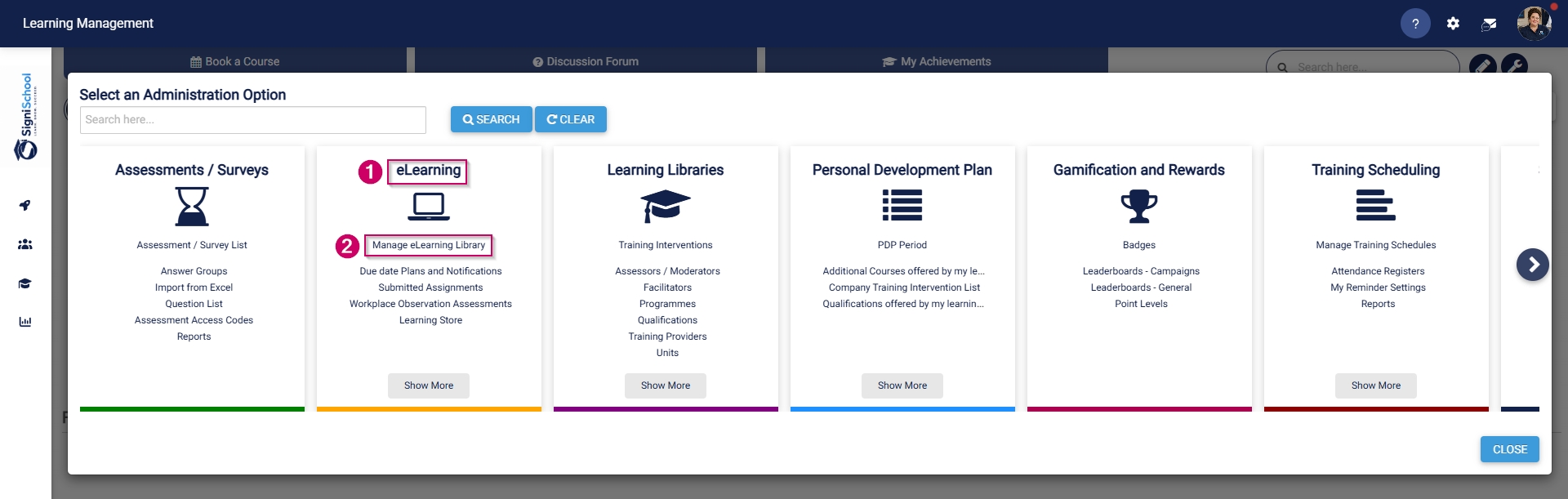
- Click the spanner icon to access the system's Administration menu.

- On the eLearning card, click Manage eLearning Library.
- The Pathways Tree View screen will open in a new tab.
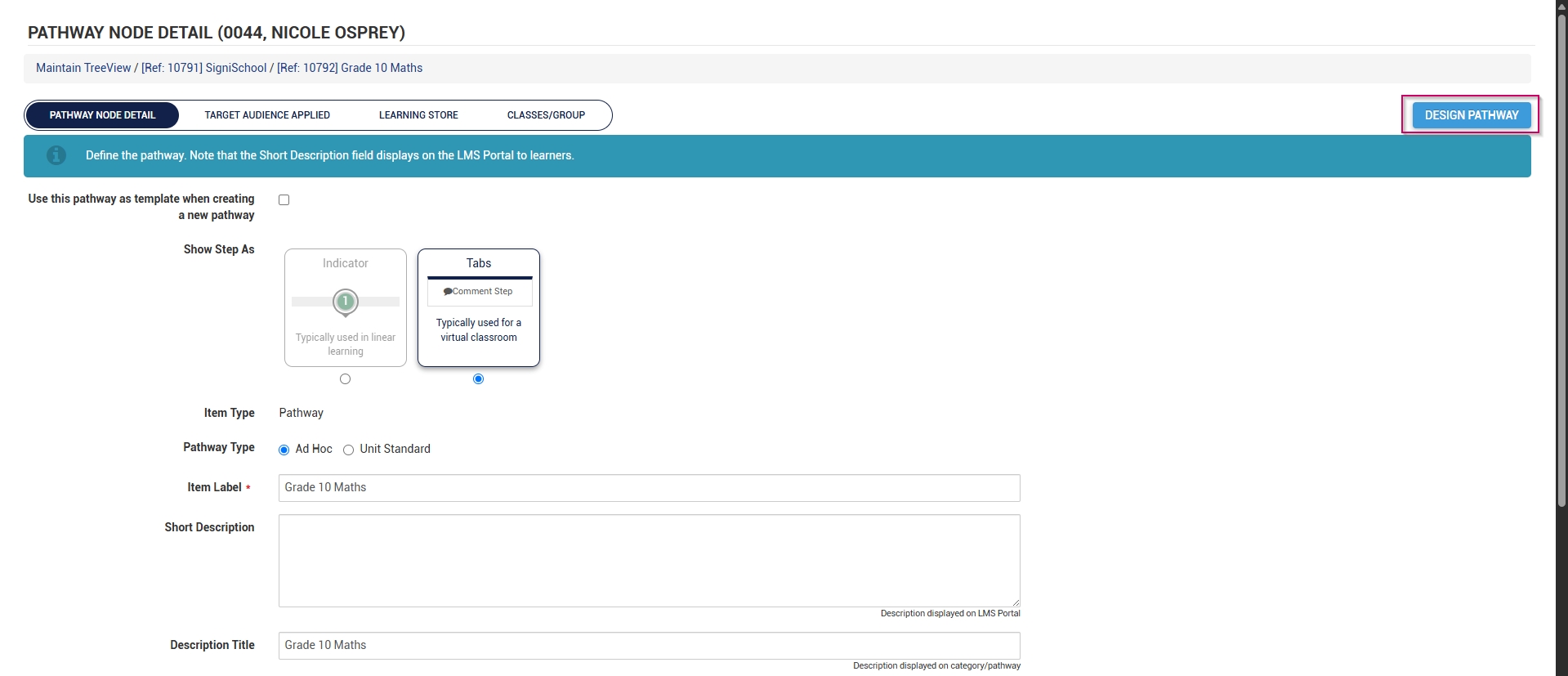
- Click to edit a pathway.

- At the top of the screen, click DESIGN PATHWAY.
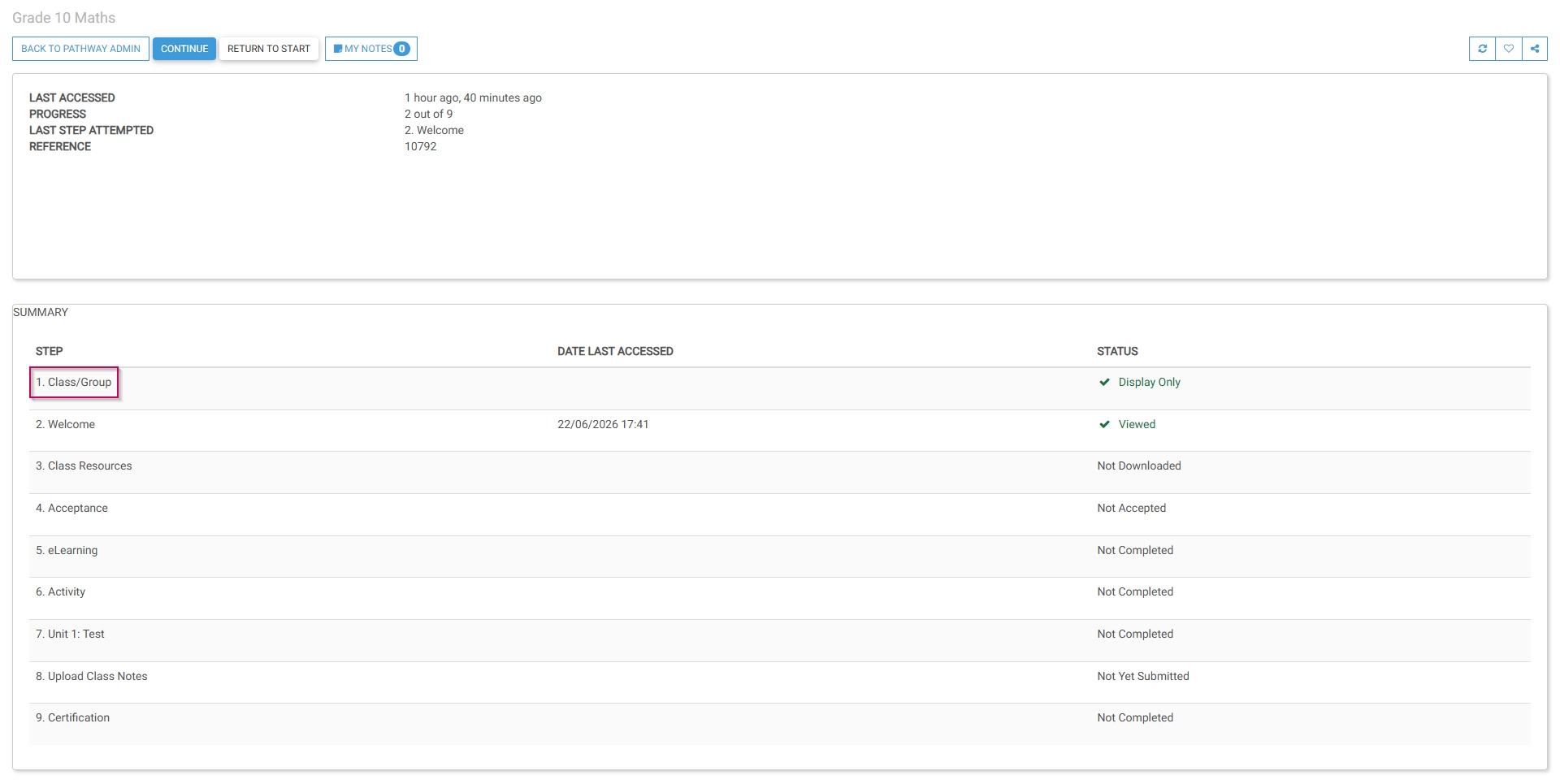
- Click Marksheet. The marksheet will open in a new tab.
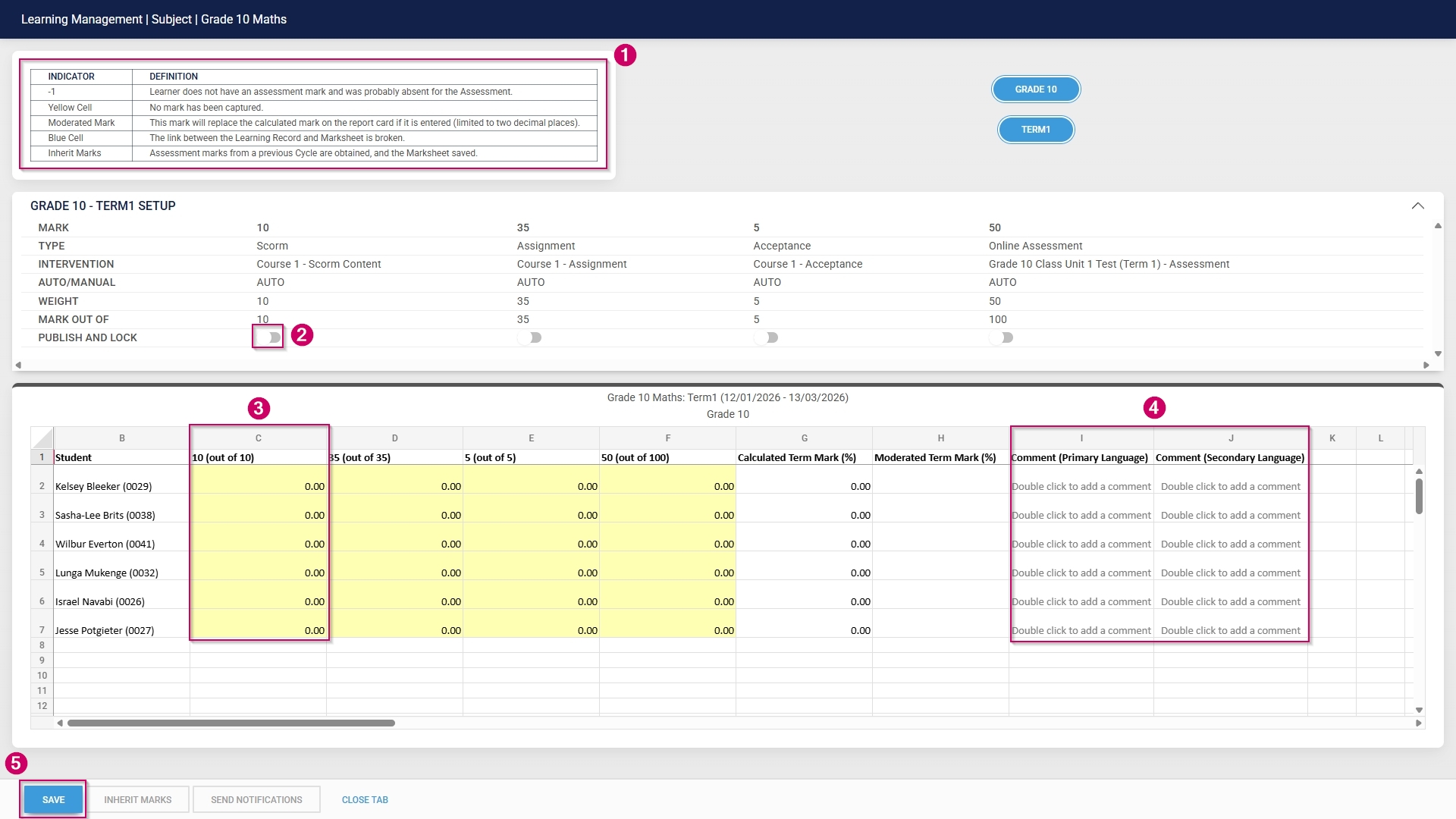
- Educators can update the learner's marks using the Excel-like functionality. Take note of the legend to aid in interpreting the marksheet.
- Toggle to publish the learner's marks for an academic activity and prevent further uploads.
- Enter the student's mark in the columns.
- Double-click to add a comment in either the primary or secondary language.
- Click SAVE when you are finished.