# Employee Perspective

The employee has the ability to request leave from the Leave Portal. The leave history, summary, calendar and leave balance are available for the employee to view.

## <svg aria-label="Heading anchor" enable-background="new 0 0 20 20" height="16" role="img" viewbox="0 0 20 20" width="16" xmlns="http://www.w3.org/2000/svg"></svg>Leave Portal

The Leave Portal can be accessed under the Main Menu | Leave.

<div data-article-id="740868" data-workflow="false" id="bkmrk-"><div data-article-id="740868" data-workflow="false"><div data-role="steps-container"><div data-step-uuid="beb5de3c-65f6-4032-bc7e-cdeec636127d">  
</div></div></div></div>As seen below, the various sections can be found on the Leave Portal.

<div data-article-id="740868" data-workflow="false" id="bkmrk--0"><div data-article-id="740868" data-workflow="false"><div data-role="steps-container"><div data-step-uuid="beb5de3c-65f6-4032-bc7e-cdeec636127d"><div>[![leave image 1.JPG](https://signature.signifyhr.co.za/uploads/images/gallery/2024-08/scaled-1680-/upVPY5mjvGk9vuxM-leave-image-1.JPG)](https://signature.signifyhr.co.za/uploads/images/gallery/2024-08/upVPY5mjvGk9vuxM-leave-image-1.JPG)</div><div>![](https://media.screensteps.com/image_assets/assets/002/432/737/original/59438e04-2424-4904-9eb2-152eb48909a1.png)</div></div></div></div></div>Each item will be discussed next.

### <svg aria-label="Heading anchor" enable-background="new 0 0 20 20" height="16" role="img" viewbox="0 0 20 20" width="16" xmlns="http://www.w3.org/2000/svg"></svg>1. Book Leave

Employees needing to apply for leave can book leave themselves and managers can approve the leave submitted by their employees. The process in applying for leave is very intuitive and user-friendly.

Navigate to the **+** Book Leave icon and click on it.

The **+** Book Leave consists of sections. Some sections are informational and others needs to be completed. These sections are:

<div data-article-id="740868" data-workflow="false" id="bkmrk-your-current-availab"><div data-article-id="740868" data-workflow="false"><div data-role="steps-container"><div data-step-uuid="beb5de3c-65f6-4032-bc7e-cdeec636127d"><div data-step-uuid="43052909-986d-46a5-87bf-b647cb8045ab"><div>- Your current available leave balances
- Indicate the type of leave you would like to request
- Leave Details
- Supporting Documentation

</div><div data-step-uuid="34ad6a1a-a872-409e-925a-04944d9240c6">  
</div></div></div></div></div></div>#### <svg aria-label="Heading anchor" enable-background="new 0 0 20 20" height="16" role="img" viewbox="0 0 20 20" width="16" xmlns="http://www.w3.org/2000/svg"></svg>1.1 Your current available leave balances

In this section, all leave balances that are applicable to the employee are displayed here:

<div data-article-id="740868" data-workflow="false" id="bkmrk--1"><div data-article-id="740868" data-workflow="false"><div data-article-id="740868" data-workflow="false"><div data-role="steps-container"><div data-step-uuid="beb5de3c-65f6-4032-bc7e-cdeec636127d"><div data-step-uuid="43052909-986d-46a5-87bf-b647cb8045ab"><div data-step-uuid="34ad6a1a-a872-409e-925a-04944d9240c6">  
</div></div></div></div></div></div></div>[![image-1616935693616.png](https://signature.signifyhr.co.za/uploads/images/gallery/2021-03/scaled-1680-/eCqCsJ9A4ReaRyNy-image-1616935693616.png)](https://signature.signifyhr.co.za/uploads/images/gallery/2021-03/eCqCsJ9A4ReaRyNy-image-1616935693616.png)

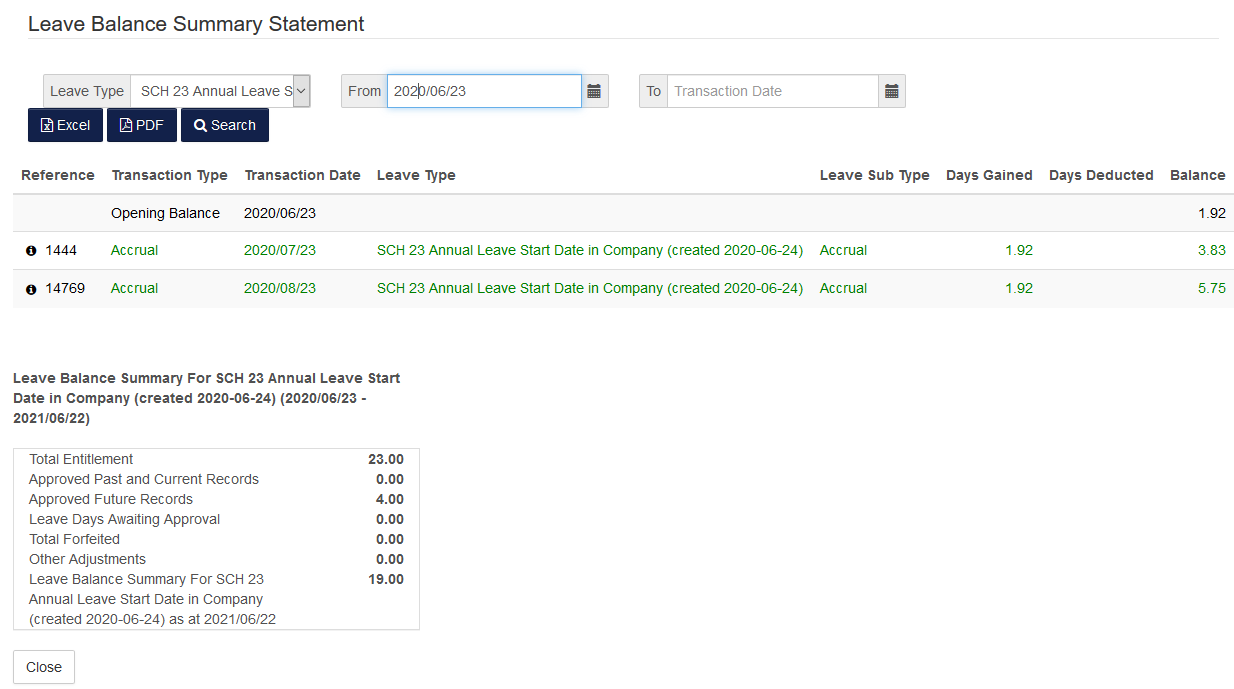
<div data-article-id="740868" data-workflow="false" id="bkmrk--3"><div data-article-id="740868" data-workflow="false"><div data-role="steps-container"><div data-step-uuid="beb5de3c-65f6-4032-bc7e-cdeec636127d"><div data-step-uuid="43052909-986d-46a5-87bf-b647cb8045ab"></div></div></div></div></div>Each employee will be able to view their own leave balance statement to indicate what transactions have occurred on a specific leave type for a specified period.

The employee's leave balance statement can be viewed by selecting the *View Balance Statement/s* button:

<div data-article-id="740868" data-workflow="false" id="bkmrk--4"><div data-article-id="740868" data-workflow="false"><div data-article-id="740868" data-workflow="false"><div data-role="steps-container"><div data-step-uuid="beb5de3c-65f6-4032-bc7e-cdeec636127d"><div data-step-uuid="43052909-986d-46a5-87bf-b647cb8045ab"></div></div></div></div></div></div>[![image-1616935705444.png](https://signature.signifyhr.co.za/uploads/images/gallery/2021-03/scaled-1680-/m6rWqCtEiTwyBBN0-image-1616935705444.png)](https://signature.signifyhr.co.za/uploads/images/gallery/2021-03/m6rWqCtEiTwyBBN0-image-1616935705444.png)

The employee have the option to export the leave balance summary statement information to either Excel/PDF.![](https://media.screensteps.com/image_assets/assets/003/779/509/original/5.PNG)

The *Leave Balance Summary Statement* provides a summary of the Leave Balance for the selected leave type for the current leave cycle.

<div data-article-id="740868" data-workflow="false" id="bkmrk--8"><div data-article-id="740868" data-workflow="false"><div data-role="steps-container"><div data-step-uuid="beb5de3c-65f6-4032-bc7e-cdeec636127d"><div data-step-uuid="43052909-986d-46a5-87bf-b647cb8045ab"><div data-step-uuid="34ad6a1a-a872-409e-925a-04944d9240c6"><div>![](https://media.screensteps.com/image_assets/assets/003/779/508/original/4.PNG)</div></div></div></div></div></div></div>#### <svg aria-label="Heading anchor" enable-background="new 0 0 20 20" height="16" role="img" viewbox="0 0 20 20" width="16" xmlns="http://www.w3.org/2000/svg"></svg>1.2 Indicate the type of leave you would like to request

Here the employee chooses the type of leave he wants to apply for.

[![image.png](https://signature.signifyhr.co.za/uploads/images/gallery/2024-08/scaled-1680-/eNViK7NLwMwmosfK-image.png)](https://signature.signifyhr.co.za/uploads/images/gallery/2024-08/eNViK7NLwMwmosfK-image.png)
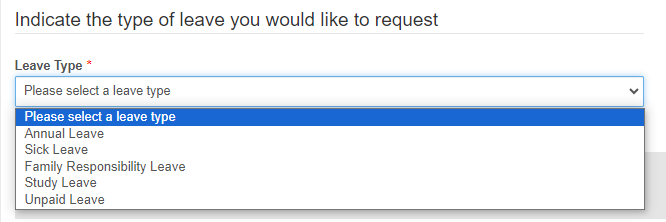
<div data-article-id="740868" data-workflow="false" id="bkmrk--9"><div data-article-id="740868" data-workflow="false"><div data-role="steps-container"><div data-step-uuid="beb5de3c-65f6-4032-bc7e-cdeec636127d"><div data-step-uuid="43052909-986d-46a5-87bf-b647cb8045ab"></div></div></div></div></div>Once the Leave Type is selected, the employee has the option to select the booking type for example, Full day, Half day or Short time

[![image.png](https://signature.signifyhr.co.za/uploads/images/gallery/2024-08/scaled-1680-/KY0JAcvxL8PdPERg-image.png)](https://signature.signifyhr.co.za/uploads/images/gallery/2024-08/KY0JAcvxL8PdPERg-image.png)

<div data-article-id="740868" data-workflow="false" id="bkmrk--10"><div data-article-id="740868" data-workflow="false"><div data-role="steps-container"><div data-step-uuid="beb5de3c-65f6-4032-bc7e-cdeec636127d"></div></div></div></div>#### <svg aria-label="Heading anchor" enable-background="new 0 0 20 20" height="16" role="img" viewbox="0 0 20 20" width="16" xmlns="http://www.w3.org/2000/svg"></svg>1.3 Leave Details

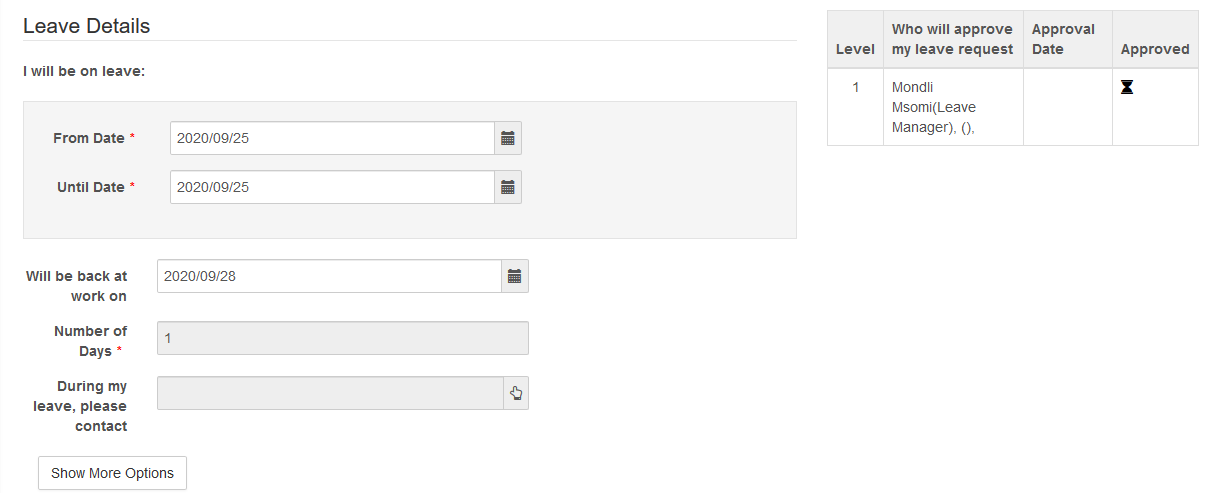
Here, the employee specify the leave details such as the reason applying for leave, which date the employee is applying for leave, when the employee will be back at work and who to contact while on leave.

On the right, the employee can see who will be approving the leave applied for.

[![image-1616935720227.png](https://signature.signifyhr.co.za/uploads/images/gallery/2021-03/scaled-1680-/5JaPR2gdclurrrld-image-1616935720227.png)](https://signature.signifyhr.co.za/uploads/images/gallery/2021-03/5JaPR2gdclurrrld-image-1616935720227.png)
<div data-article-id="740868" data-workflow="false" id="bkmrk--13"><div data-article-id="740868" data-workflow="false"><div data-role="steps-container"><div data-step-uuid="beb5de3c-65f6-4032-bc7e-cdeec636127d"></div></div></div></div>#### <svg aria-label="Heading anchor" enable-background="new 0 0 20 20" height="16" role="img" viewbox="0 0 20 20" width="16" xmlns="http://www.w3.org/2000/svg"></svg>1.4 Supporting Documentation

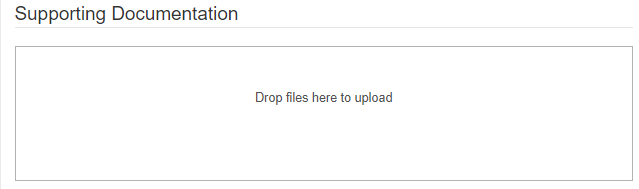
If applying for Sick Leave, Family Responsibility etc., the supporting documentation can be uploaded.

[![image.png](https://signature.signifyhr.co.za/uploads/images/gallery/2024-08/scaled-1680-/IU9RIBSiMZ3uiUlF-image.png)](https://signature.signifyhr.co.za/uploads/images/gallery/2024-08/IU9RIBSiMZ3uiUlF-image.png)
<div data-article-id="740868" data-workflow="false" id="bkmrk--14"><div data-article-id="740868" data-workflow="false"><div data-role="steps-container"><div data-step-uuid="beb5de3c-65f6-4032-bc7e-cdeec636127d"></div></div></div></div>### <svg aria-label="Heading anchor" enable-background="new 0 0 20 20" height="16" role="img" viewbox="0 0 20 20" width="16" xmlns="http://www.w3.org/2000/svg"></svg>2. My History

Employees needs to have a history of all leave applied for. This can be seen under My History.

The leave history section shows all the employee's leave history and requests which still needs to be actioned.

Leave requests can be viewed or cancelled.

<div data-article-id="740868" data-workflow="false" id="bkmrk--15"><div data-article-id="740868" data-workflow="false"><div data-article-id="740868" data-workflow="false"><div data-role="steps-container"><div data-step-uuid="beb5de3c-65f6-4032-bc7e-cdeec636127d"><div data-step-uuid="60c41581-801e-4eae-b8e9-062825be97ed"><div>  
</div></div></div></div></div></div></div>[![image-1616935733714.png](https://signature.signifyhr.co.za/uploads/images/gallery/2021-03/scaled-1680-/bKE0RWv15KGBq2kU-image-1616935733714.png)](https://signature.signifyhr.co.za/uploads/images/gallery/2021-03/bKE0RWv15KGBq2kU-image-1616935733714.png)

<div data-article-id="740868" data-workflow="false" id="bkmrk--17"><div data-article-id="740868" data-workflow="false"><div data-role="steps-container"><div data-step-uuid="beb5de3c-65f6-4032-bc7e-cdeec636127d"><div data-step-uuid="60c41581-801e-4eae-b8e9-062825be97ed"></div></div></div></div></div>#### <svg aria-label="Heading anchor" enable-background="new 0 0 20 20" height="16" role="img" viewbox="0 0 20 20" width="16" xmlns="http://www.w3.org/2000/svg"></svg>2.1 Leave Requests

This section displays all leave records not yet approved. You are able to view the record and/or cancel the leave applied for.

<div data-article-id="740868" data-workflow="false" id="bkmrk--18"><div data-article-id="740868" data-workflow="false"><div data-article-id="740868" data-workflow="false"><div data-role="steps-container"><div data-step-uuid="beb5de3c-65f6-4032-bc7e-cdeec636127d"><div data-step-uuid="60c41581-801e-4eae-b8e9-062825be97ed"><div data-step-uuid="eec7569b-ff4a-4446-896b-e47eeb657801">  
</div></div></div></div></div></div></div>[![image-1616935740419.png](https://signature.signifyhr.co.za/uploads/images/gallery/2021-03/scaled-1680-/BzAyXzbb04kKl2IJ-image-1616935740419.png)](https://signature.signifyhr.co.za/uploads/images/gallery/2021-03/BzAyXzbb04kKl2IJ-image-1616935740419.png)

<div data-article-id="740868" data-workflow="false" id="bkmrk--20"><div data-article-id="740868" data-workflow="false"><div data-role="steps-container"><div data-step-uuid="beb5de3c-65f6-4032-bc7e-cdeec636127d"><div data-step-uuid="60c41581-801e-4eae-b8e9-062825be97ed"></div></div></div></div></div>When viewing the record, the following information are displayed:

<div data-article-id="740868" data-workflow="false" id="bkmrk-leave-balance-leave-"><div data-article-id="740868" data-workflow="false"><div data-role="steps-container"><div data-step-uuid="beb5de3c-65f6-4032-bc7e-cdeec636127d"><div data-step-uuid="60c41581-801e-4eae-b8e9-062825be97ed"><div data-step-uuid="eec7569b-ff4a-4446-896b-e47eeb657801"><div>- Leave Balance
- Leave Details
- Request Details
- Supporting Documentation
- Approval Workflow

</div><div data-step-uuid="58ebd11d-c1e7-4cb6-b7b3-79b28227dd4b">  
</div></div></div></div></div></div></div>##### <svg aria-label="Heading anchor" enable-background="new 0 0 20 20" height="16" role="img" viewbox="0 0 20 20" width="16" xmlns="http://www.w3.org/2000/svg"></svg>2.1.1 My Leave Balances

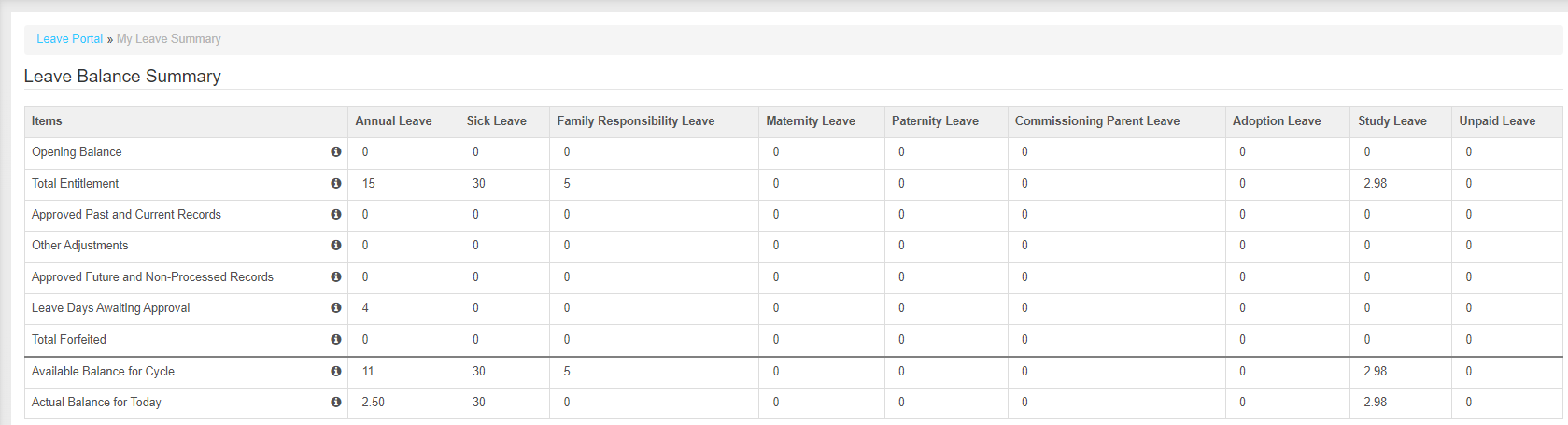
The leave balance has the available balance and balance summary for the cycle.

[![image.png](https://signature.signifyhr.co.za/uploads/images/gallery/2024-08/scaled-1680-/tQAhcPNzDaFlKwh8-image.png)](https://signature.signifyhr.co.za/uploads/images/gallery/2024-08/tQAhcPNzDaFlKwh8-image.png)
<div data-article-id="740868" data-workflow="false" id="bkmrk-when-selecting-the-i"><div data-article-id="740868" data-workflow="false"><div data-role="steps-container"><div data-step-uuid="beb5de3c-65f6-4032-bc7e-cdeec636127d"><div data-step-uuid="60c41581-801e-4eae-b8e9-062825be97ed"><div data-step-uuid="eec7569b-ff4a-4446-896b-e47eeb657801"><div data-step-uuid="58ebd11d-c1e7-4cb6-b7b3-79b28227dd4b"><div>  
</div><div>When selecting the information icon next to each *Leave Balance Summary* item, the information per item is displayed.</div><div>![](https://media.screensteps.com/image_assets/assets/003/779/640/original/11.PNG)</div></div></div></div></div></div></div></div>##### <svg aria-label="Heading anchor" enable-background="new 0 0 20 20" height="16" role="img" viewbox="0 0 20 20" width="16" xmlns="http://www.w3.org/2000/svg"></svg>2.1.2 Leave Details

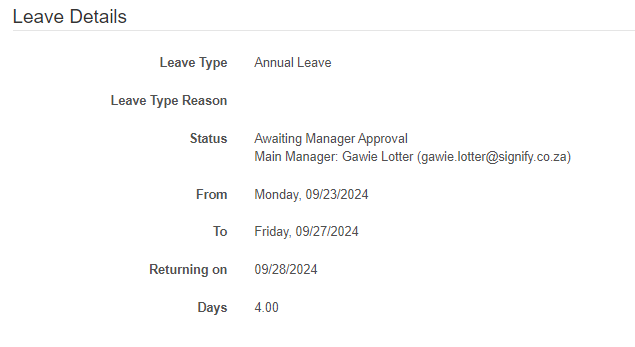
The leave details specified by the employee are displayed.

[![image.png](https://signature.signifyhr.co.za/uploads/images/gallery/2024-08/scaled-1680-/c0adlKpuusZDy3hD-image.png)](https://signature.signifyhr.co.za/uploads/images/gallery/2024-08/c0adlKpuusZDy3hD-image.png)
<div data-article-id="740868" data-workflow="false" id="bkmrk--23"><div data-article-id="740868" data-workflow="false"><div data-role="steps-container"><div data-step-uuid="beb5de3c-65f6-4032-bc7e-cdeec636127d"><div data-step-uuid="60c41581-801e-4eae-b8e9-062825be97ed"></div></div></div></div></div>##### <svg aria-label="Heading anchor" enable-background="new 0 0 20 20" height="16" role="img" viewbox="0 0 20 20" width="16" xmlns="http://www.w3.org/2000/svg"></svg>2.1.3 Request Details

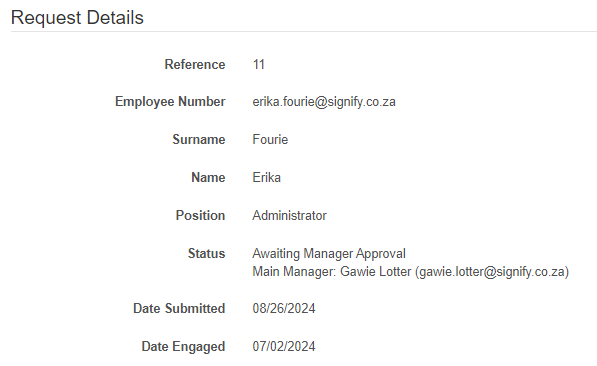
The employee's details who submitted the leave request are displayed.

[![image.png](https://signature.signifyhr.co.za/uploads/images/gallery/2024-08/scaled-1680-/QJTk5VtUhflgnsIp-image.png)](https://signature.signifyhr.co.za/uploads/images/gallery/2024-08/QJTk5VtUhflgnsIp-image.png)
<div data-article-id="740868" data-workflow="false" id="bkmrk--25"><div data-article-id="740868" data-workflow="false"><div data-role="steps-container"><div data-step-uuid="beb5de3c-65f6-4032-bc7e-cdeec636127d"><div data-step-uuid="60c41581-801e-4eae-b8e9-062825be97ed"><div data-step-uuid="eec7569b-ff4a-4446-896b-e47eeb657801">  
</div></div></div></div></div></div>##### <svg aria-label="Heading anchor" enable-background="new 0 0 20 20" height="16" role="img" viewbox="0 0 20 20" width="16" xmlns="http://www.w3.org/2000/svg"></svg>2.1.4 Supporting Documentation

Any documentation uploaded as supporting documentations are displayed.

<div data-article-id="740868" data-workflow="false" id="bkmrk--26"><div data-article-id="740868" data-workflow="false"><div data-role="steps-container"><div data-step-uuid="beb5de3c-65f6-4032-bc7e-cdeec636127d"><div data-step-uuid="60c41581-801e-4eae-b8e9-062825be97ed"><div data-step-uuid="eec7569b-ff4a-4446-896b-e47eeb657801"><div data-step-uuid="2ca72630-be6b-47c3-8496-528de3c2cd38">  
</div></div></div></div></div></div></div>##### <svg aria-label="Heading anchor" enable-background="new 0 0 20 20" height="16" role="img" viewbox="0 0 20 20" width="16" xmlns="http://www.w3.org/2000/svg"></svg>2.1.5 Approval Workflow

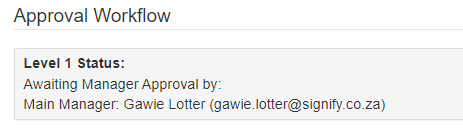
The approval details will be displayed in this section as soon as the leave approver approved the leave record.![](https://media.screensteps.com/image_assets/assets/003/779/790/original/15.PNG)

[![image.png](https://signature.signifyhr.co.za/uploads/images/gallery/2024-08/scaled-1680-/Bo2ZZubVqAdRY0Xi-image.png)](https://signature.signifyhr.co.za/uploads/images/gallery/2024-08/Bo2ZZubVqAdRY0Xi-image.png)

<div data-article-id="740868" data-workflow="false" id="bkmrk--28"><div data-article-id="740868" data-workflow="false"><div data-role="steps-container"><div data-step-uuid="beb5de3c-65f6-4032-bc7e-cdeec636127d"><div data-step-uuid="60c41581-801e-4eae-b8e9-062825be97ed"><div data-step-uuid="eec7569b-ff4a-4446-896b-e47eeb657801">  
</div></div></div></div></div></div>##### <svg aria-label="Heading anchor" enable-background="new 0 0 20 20" height="16" role="img" viewbox="0 0 20 20" width="16" xmlns="http://www.w3.org/2000/svg"></svg>2.1.6 Cancel Leave Request

The leave record can be cancelled if required.

[![image.png](https://signature.signifyhr.co.za/uploads/images/gallery/2024-08/scaled-1680-/wSuD2WhyeeFDnJjn-image.png)](https://signature.signifyhr.co.za/uploads/images/gallery/2024-08/wSuD2WhyeeFDnJjn-image.png)
#### <svg aria-label="Heading anchor" enable-background="new 0 0 20 20" height="16" role="img" viewbox="0 0 20 20" width="16" xmlns="http://www.w3.org/2000/svg"></svg>2.2 Leave History

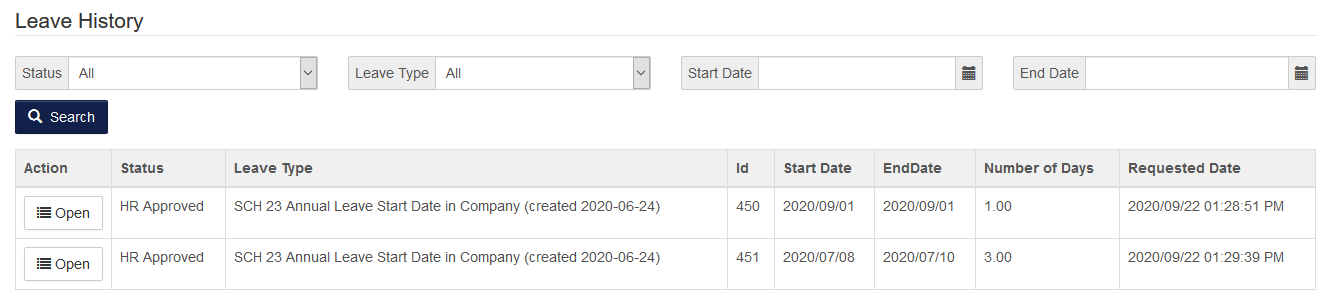
A list of all leave records submitted will be displayed in a list format. Details can be seen by opening a record.

[![image-1616935765855.png](https://signature.signifyhr.co.za/uploads/images/gallery/2021-03/scaled-1680-/ZY7mHf6AI8xXTQs3-image-1616935765855.png)](https://signature.signifyhr.co.za/uploads/images/gallery/2021-03/ZY7mHf6AI8xXTQs3-image-1616935765855.png)
<div data-article-id="740868" data-workflow="false" id="bkmrk--32"><div data-article-id="740868" data-workflow="false"><div data-role="steps-container"><div data-step-uuid="beb5de3c-65f6-4032-bc7e-cdeec636127d"><div data-step-uuid="60c41581-801e-4eae-b8e9-062825be97ed"></div></div></div></div></div>### <svg aria-label="Heading anchor" enable-background="new 0 0 20 20" height="16" role="img" viewbox="0 0 20 20" width="16" xmlns="http://www.w3.org/2000/svg"></svg>3. My Leave Summary

A summary is available for the employee in order for them to have a view of changes made to their leave balances.

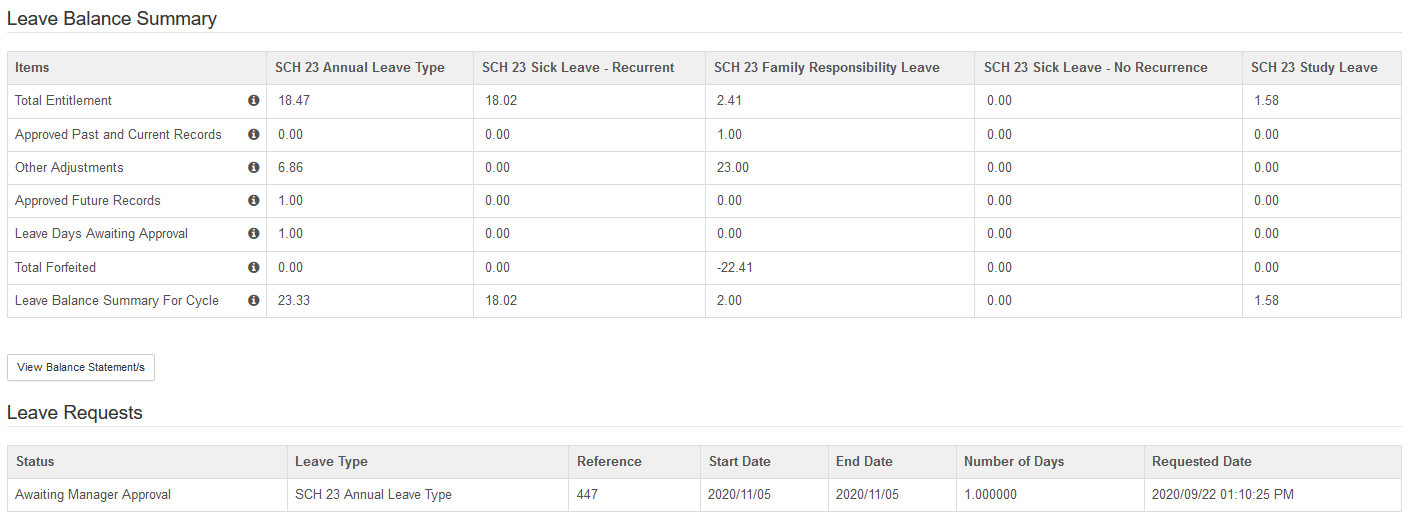
A leave balance summary for each leave type is displayed, with a description for each item when selecting the information icon:

<div data-article-id="740868" data-workflow="false" id="bkmrk-total-entitlement%3A%C2%A0t"><div data-article-id="740868" data-workflow="false"><div data-role="steps-container"><div data-step-uuid="beb5de3c-65f6-4032-bc7e-cdeec636127d"><div data-step-uuid="324c74ca-7df5-4d38-8aec-8781cf3acbcb"><div>- *Total Entitlement:* The total amount of leave an employee is entitled to for the current leave cycle. This amount is determined by the assigned leave group and its configuration.
- *Approved Past and Current Records:* This is the sum of all an employee's leave which has already taken place (today and dates in the past), and which has been approved for the current cycle. A leave record is treated as a unit and once the leave record's start date has been reached, all days in the leave record will show as approved and taken.
- *Other Adjustments:* The correction applied to an employee's leave balance for the current leave cycle. This can be a result of the manual adjustment loaded by a leave administrator or automatic adjustments created by the system according to the rules of the assigned leave group.
- *Approved Future Records:* This is the sum of all of an employee's leave which will take place on a future date, and which has already been approved for the current cycle.
- *Leave Days Awaiting Approval:  This is the sum of all of an employee's open leave requests (those which have not yet been approved), both past and future dated falling within the current cycle.
- *Total Forfeited:* The total amount of leave forfeited for the current cycle.
- *Leave Balance Summary For Cycle:* Employee's available balance for the leave type's current cycle: Available Balance = Total Entitlement + Adjustments - (Leave Approved and Already Taken + Leave Approved and Not Yet Taken + Leave Awaiting Approval)

</div><div>  
</div></div></div></div></div></div>The employee's leave balance statement can be viewed by selecting the *View Balance Statement/s* button, as discussed under the *"Your current available leave balances"* section above.

[![image-1616935775049.png](https://signature.signifyhr.co.za/uploads/images/gallery/2021-03/scaled-1680-/7ovoQkvpLr4O0tYL-image-1616935775049.png)](https://signature.signifyhr.co.za/uploads/images/gallery/2021-03/7ovoQkvpLr4O0tYL-image-1616935775049.png)
<div data-article-id="740868" data-workflow="false" id="bkmrk--35"><div data-article-id="740868" data-workflow="false"><div data-role="steps-container"><div data-step-uuid="beb5de3c-65f6-4032-bc7e-cdeec636127d"><div data-step-uuid="324c74ca-7df5-4d38-8aec-8781cf3acbcb">  
</div></div></div></div></div>### <svg aria-label="Heading anchor" enable-background="new 0 0 20 20" height="16" role="img" viewbox="0 0 20 20" width="16" xmlns="http://www.w3.org/2000/svg"></svg>4. My Leave Calendar

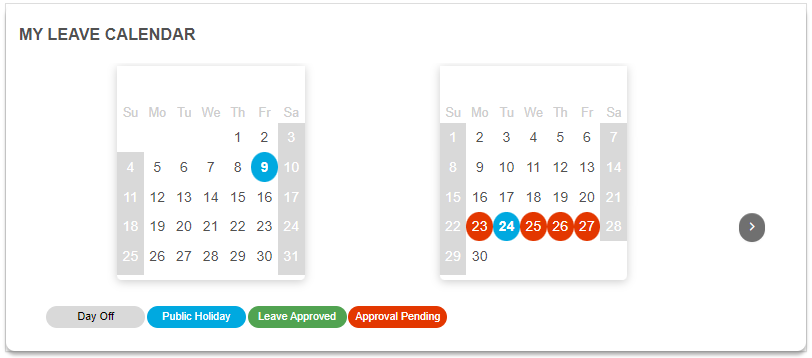
A full year calendar is available showing all public holidays and leave that are booked.

[![image.png](https://signature.signifyhr.co.za/uploads/images/gallery/2024-08/scaled-1680-/eQZh6n0a0fUud9sC-image.png)](https://signature.signifyhr.co.za/uploads/images/gallery/2024-08/eQZh6n0a0fUud9sC-image.png)
<div data-article-id="740868" data-workflow="false" id="bkmrk--36"><div data-article-id="740868" data-workflow="false"><div data-article-id="740868" data-workflow="false"><div data-role="steps-container"><div data-step-uuid="beb5de3c-65f6-4032-bc7e-cdeec636127d"><div data-step-uuid="6ba3bff2-3fe3-460a-850a-b45a1ca71eb3">  
</div></div></div></div></div></div><div data-article-id="740868" data-workflow="false" id="bkmrk--38"><div data-article-id="740868" data-workflow="false"><div data-role="steps-container"><div data-step-uuid="beb5de3c-65f6-4032-bc7e-cdeec636127d"></div></div></div></div>### <svg aria-label="Heading anchor" enable-background="new 0 0 20 20" height="16" role="img" viewbox="0 0 20 20" width="16" xmlns="http://www.w3.org/2000/svg"></svg>5. What will my balance be on...

Running future leave in order to see what the leave balance will be on a certain date.

The employee is able to run future leave in order to see what his balance will be on a specified date.

The following search criteria must be completed:

<div data-article-id="740868" data-workflow="false" id="bkmrk-leave-balances-to-be"><div data-article-id="740868" data-workflow="false"><div data-role="steps-container"><div data-step-uuid="beb5de3c-65f6-4032-bc7e-cdeec636127d"><div data-step-uuid="ff257abf-0dab-4fe4-9f6b-7f2b129f334b"><div>- Leave balances to be calculated for date
- Leave type

</div></div></div></div></div></div><div data-article-id="740868" data-workflow="false" id="bkmrk--39"><div data-article-id="740868" data-workflow="false"><div data-article-id="740868" data-workflow="false"><div data-role="steps-container"><div data-step-uuid="beb5de3c-65f6-4032-bc7e-cdeec636127d"><div data-step-uuid="ff257abf-0dab-4fe4-9f6b-7f2b129f334b"></div></div></div></div></div></div>[![image-1616935790952.png](https://signature.signifyhr.co.za/uploads/images/gallery/2021-03/scaled-1680-/svNEOAEiIbxYmu0Q-image-1616935790952.png)](https://signature.signifyhr.co.za/uploads/images/gallery/2021-03/svNEOAEiIbxYmu0Q-image-1616935790952.png)

<div data-article-id="740868" data-workflow="false" id="bkmrk--41"><div data-article-id="740868" data-workflow="false"><div data-role="steps-container"><div data-step-uuid="beb5de3c-65f6-4032-bc7e-cdeec636127d"><div data-step-uuid="ff257abf-0dab-4fe4-9f6b-7f2b129f334b"></div></div></div></div></div>The search results are displayed as follow:

<div data-article-id="740868" data-workflow="false" id="bkmrk-employee-information"><div data-article-id="740868" data-workflow="false"><div data-article-id="740868" data-workflow="false"><div data-role="steps-container"><div data-step-uuid="beb5de3c-65f6-4032-bc7e-cdeec636127d"><div data-step-uuid="ff257abf-0dab-4fe4-9f6b-7f2b129f334b"><div>- Employee information
- Active cycle: *Starting Balance, Cycle Start, Cycle End, Total Entitlement, Pending Changes*
- Future cycle: *Starting Balance, Cycle Start, Cycle End, Total Entitlement, Pending Changes*
- Balance on: *Date that was chosen*

</div></div></div></div></div></div></div>[![image-1616935797674.png](https://signature.signifyhr.co.za/uploads/images/gallery/2021-03/scaled-1680-/6iikzH5ThmDFKzOM-image-1616935797674.png)](https://signature.signifyhr.co.za/uploads/images/gallery/2021-03/6iikzH5ThmDFKzOM-image-1616935797674.png)

<div data-article-id="740868" data-workflow="false" id="bkmrk--43"><div data-article-id="740868" data-workflow="false"><div data-role="steps-container"><div data-step-uuid="beb5de3c-65f6-4032-bc7e-cdeec636127d"><div data-step-uuid="ff257abf-0dab-4fe4-9f6b-7f2b129f334b"><div></div></div></div></div></div></div>A description is provided for the following items:

<div data-article-id="740868" data-workflow="false" id="bkmrk-total-entitlement%3A%C2%A0t-0"><div data-article-id="740868" data-workflow="false"><div data-role="steps-container"><div data-step-uuid="beb5de3c-65f6-4032-bc7e-cdeec636127d"><div data-step-uuid="ff257abf-0dab-4fe4-9f6b-7f2b129f334b"><div>- *Total Entitlement:* The total amount of leave an employee is entitled to for a specific leave cycle. This amount is determined by the assigned leave group and its configuration.
- *Pending Changes:* The changes that will occur at a future date and is calculated as: Accruals + Adjustments - Leave Records + Forfeits

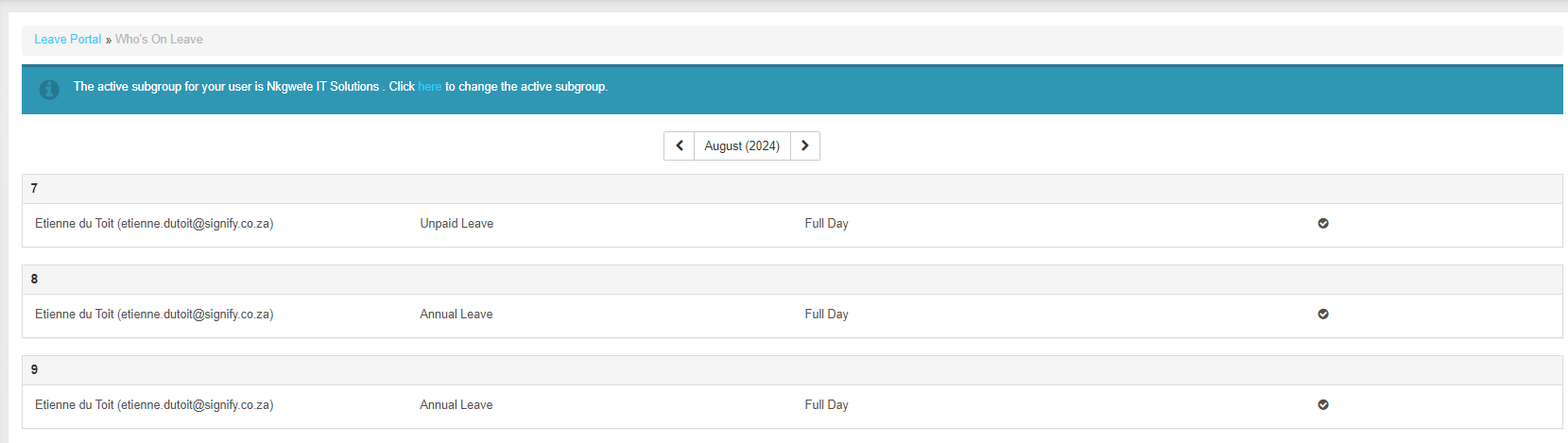
</div></div></div></div></div></div>### <svg aria-label="Heading anchor" enable-background="new 0 0 20 20" height="16" role="img" viewbox="0 0 20 20" width="16" xmlns="http://www.w3.org/2000/svg"></svg>6. Who's on leave

A view to enable an employee to see other employees who is on leave.

An employee is able to see who is on leave per month and day.

[![image.png](https://signature.signifyhr.co.za/uploads/images/gallery/2024-08/scaled-1680-/accaa4REHwesdn94-image.png)](https://signature.signifyhr.co.za/uploads/images/gallery/2024-08/accaa4REHwesdn94-image.png)
<div data-article-id="740868" data-workflow="false" id="bkmrk--44"><div data-role="steps-container"><div data-step-uuid="beb5de3c-65f6-4032-bc7e-cdeec636127d"><div data-step-uuid="43927957-3376-4a99-8aeb-2fadf84380a2"><div>  
</div><div>![](https://media.screensteps.com/image_assets/assets/001/580/150/original/17de9598-30a8-49c8-830a-7f173a98b04a.png)</div><div>  
</div></div></div></div></div>