# Chapter 4: Using the People Management Module
Once the **People Management** module is set up, users can leverage its full functionality to manage employee data and streamline HR processes. Understanding how to navigate and utilise the module effectively is key to maximising its value.
This chapter provides step-by-step guidance on how to use the module for various tasks, including adding and updating employee details, tracking employee movements, and managing access rights. It also covers common actions that managers and HR teams need to perform on a regular basis.
By learning how to use the **People Management** module efficiently, users can save time, reduce administrative burdens, and ensure that employee information is always accurate and up to date.
# Create, Update, and View the Organisational Structure
[](https://signature.signifyhr.co.za/uploads/images/gallery/2025-02/emW3hfMrZ1yIDMUv-signify-header.png)
##### Create the organisational structure
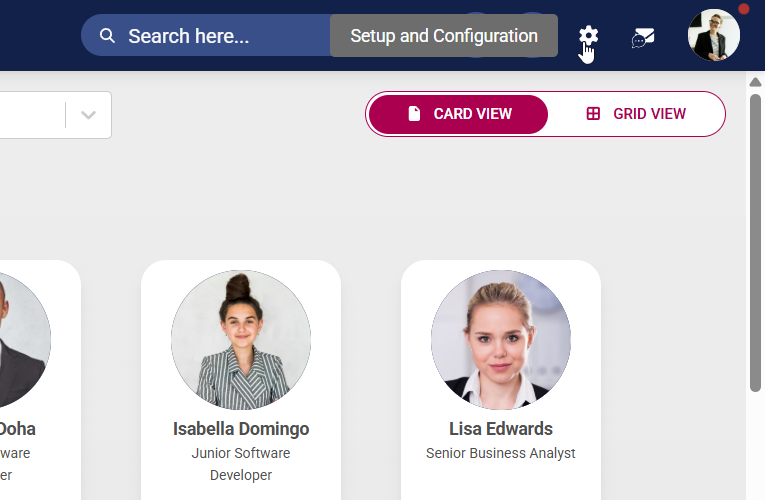
- Click the **gear icon** to access the **Setup and Configuration** menu.
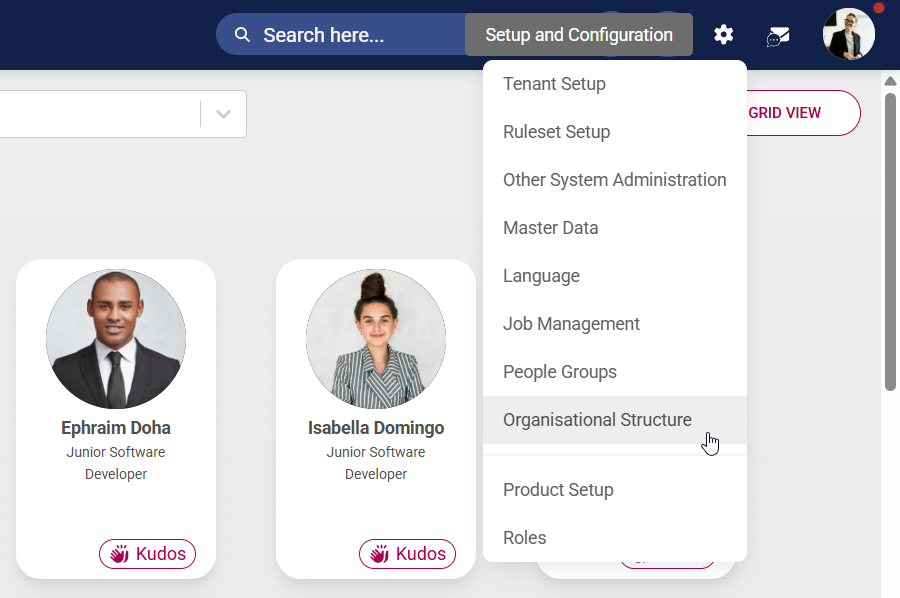
- Select **Organisational Structure** from the drop-down menu.
- Create an organisational structure based on the organisation’s size, goals, industry, and work style. Some examples of organisational structures:
- - **Hierarchical structure** – based on levels of authority and responsibility
- **Functional structure** – focuses on specialised roles or departments
- **Divisional structure** – based on product lines, geographical locations, or customer types
- **Team-based structure** – centred around project teams or cross-functional units
- **Process-based structure** – focuses on workflow and end-to-end processes
Hover over the name of a level to access the editing options. You can rearrange organisational levels by using the drag-and-drop feature.
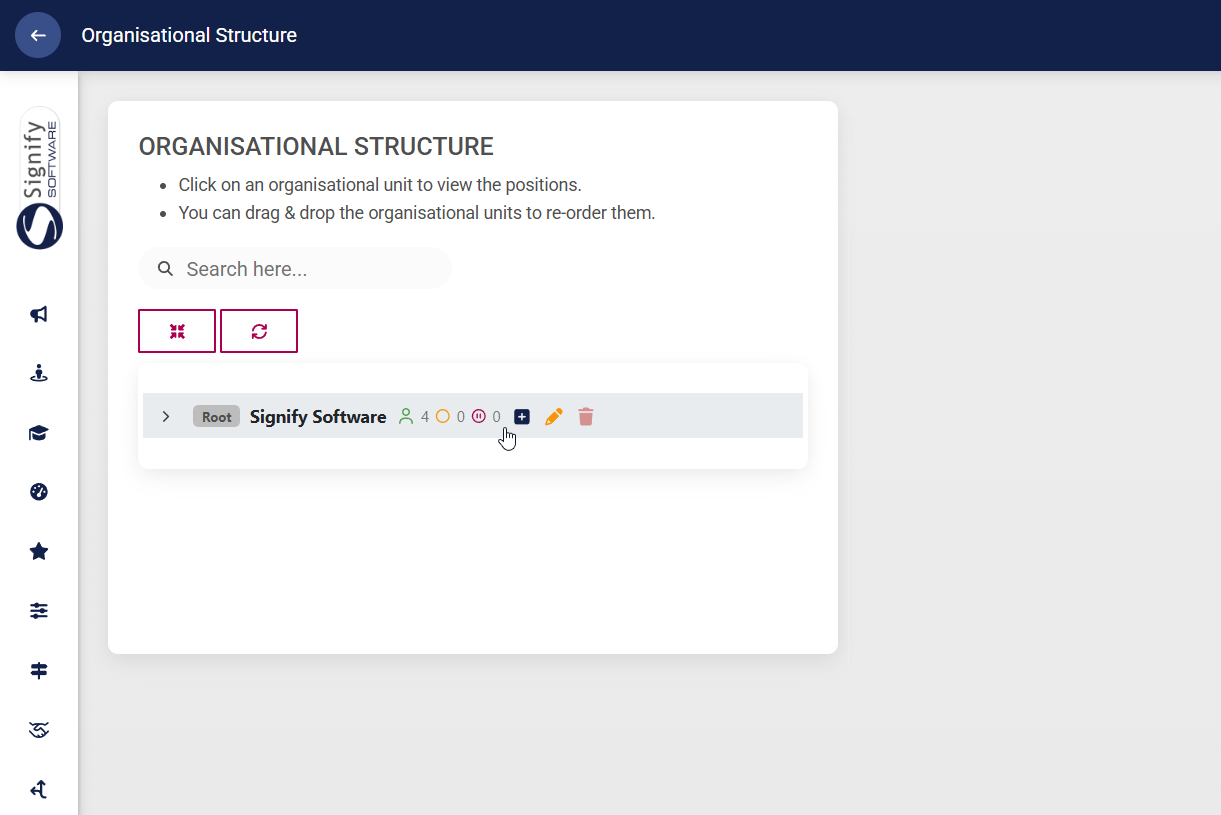
- To **add** a subordinate level, click the **plus icon** next to the relevant level name.

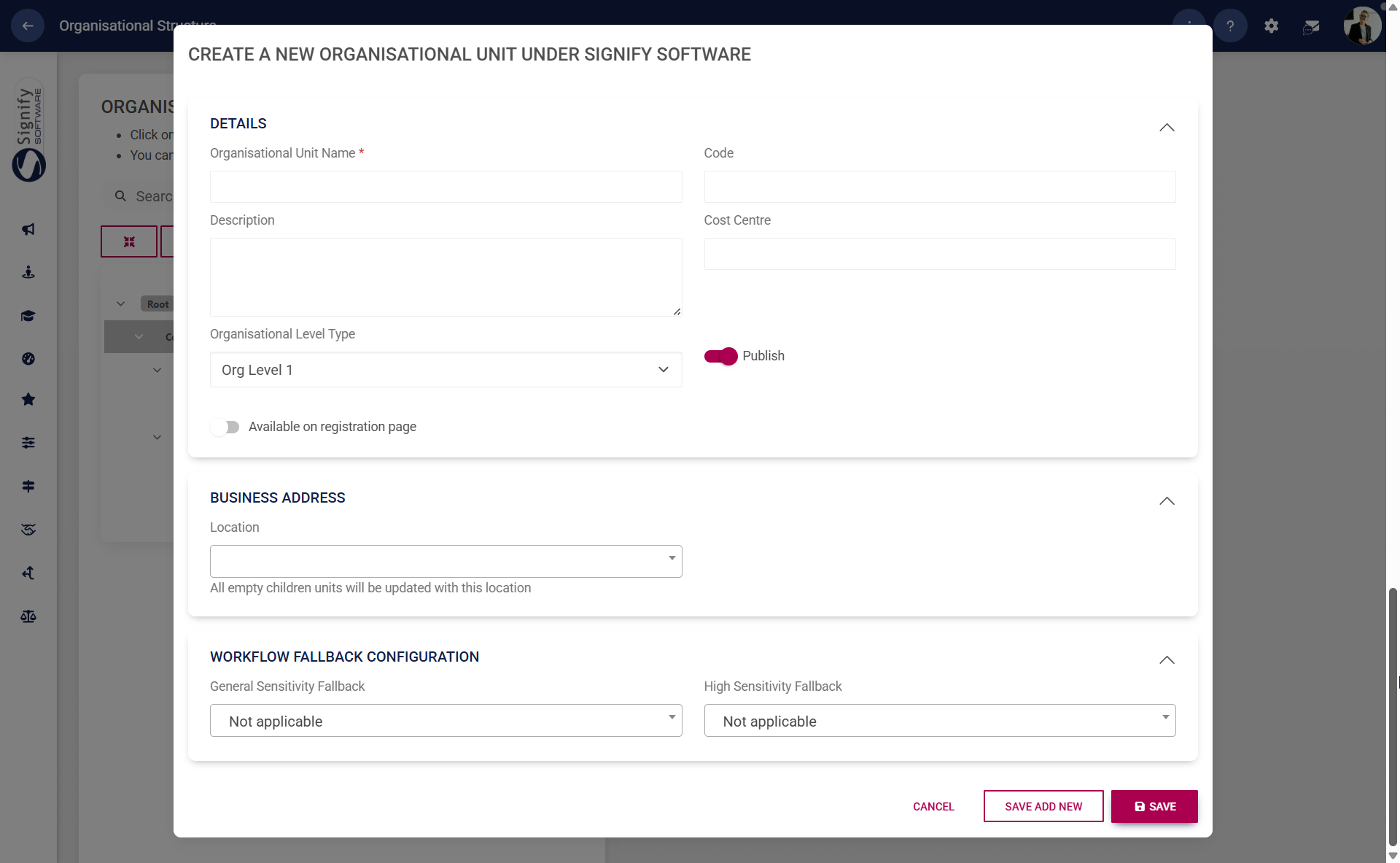
- Complete the details of the organisational unit.
- - Enter the name and code of the organisational unit.
- Choose the appropriate organisational level type from the dropdown menu.
- Toggle the **Publish** option on or off as needed.
- Toggle to enable new registrants to select this organisational unit when registering on the system.
- If configured in the **master data**, the business location can be selected. To learn more about master data, navigate to the [**Master Data Maintenance**](https://signature.signifyhr.co.za/books/people-management-d8c/page/master-data-maintenance "Master Data Maintenance") part of this chapter.
- Other additional information about the organisational unit can be added, but is not required.
Click **SAVE ADD NEW** to add another subordinate level to the same organisational unit. Click **SAVE** when finished or click **CANCEL** to discard any changes.
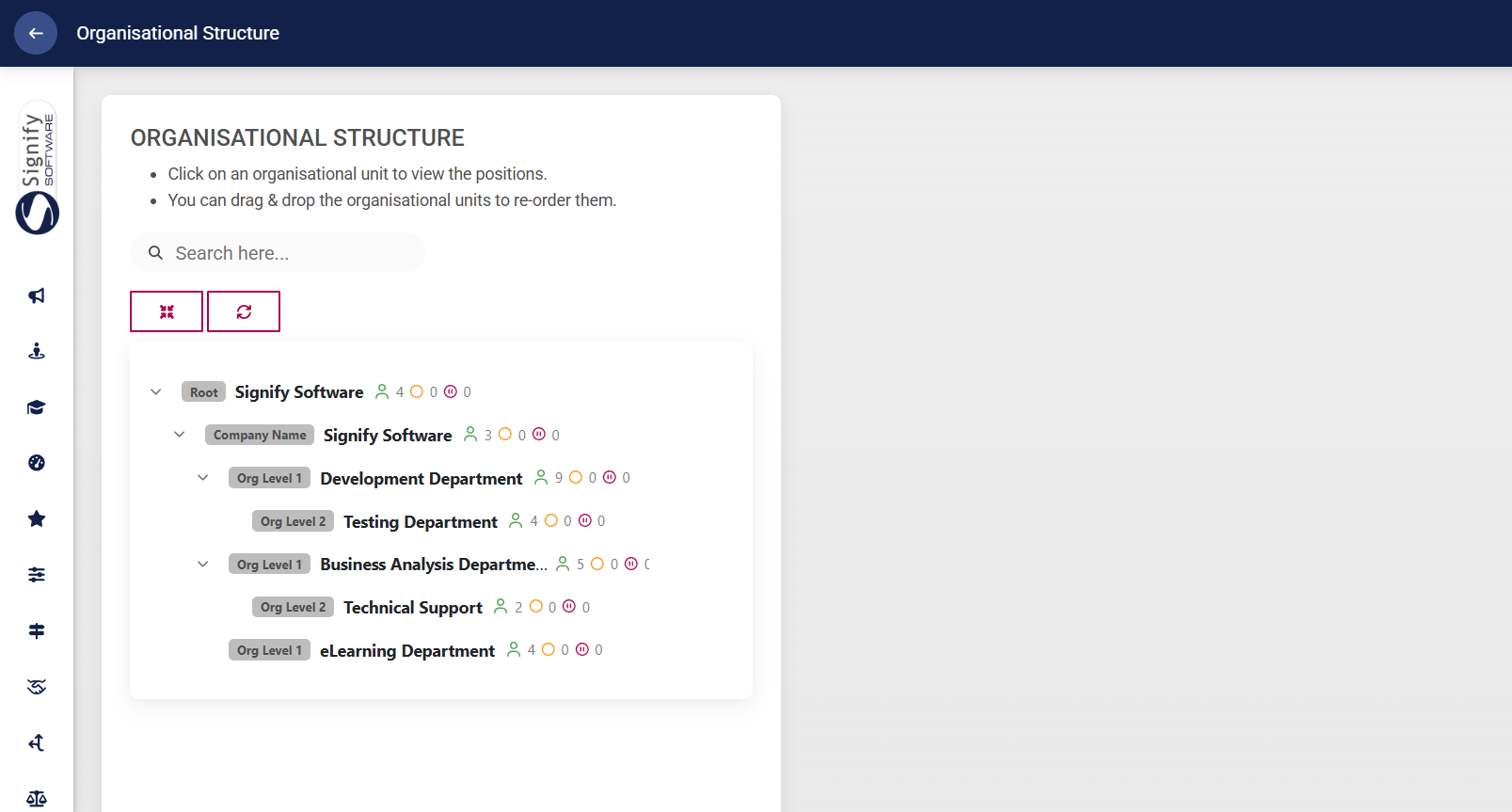
- Once you have finished creating your organisational structure, it may look similar to our example.
##### Update the organisational structure
- Click the **gear icon** to access the **Setup and Configuration** menu.

- Select **Organisational Structure** from the drop-down menu.

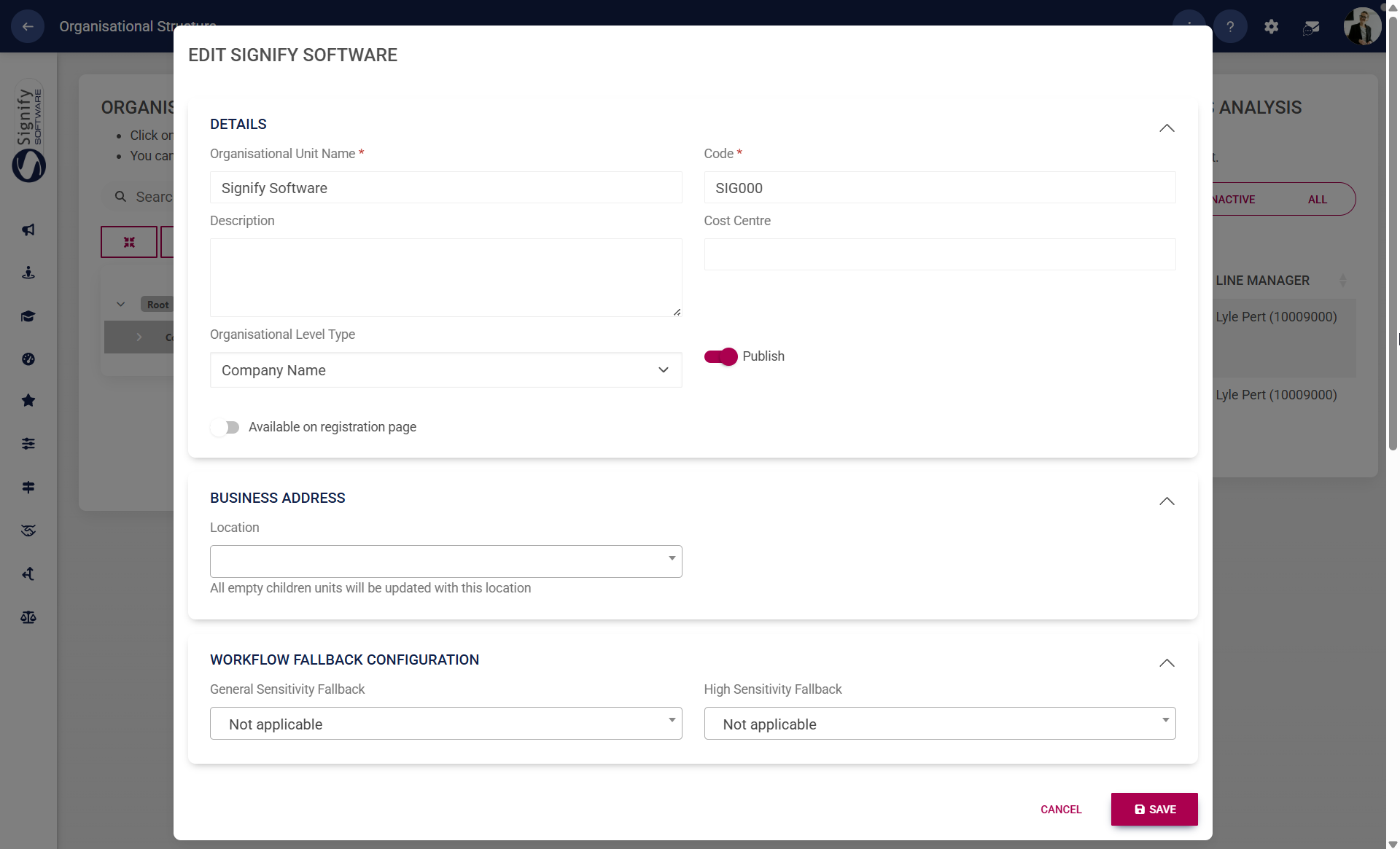
- Click the **pencil icon** next to the name of an organisational level to **edit**.

- Update the details of the organisational level. Click **SAVE** when finished or click **CANCEL** to discard any changes.
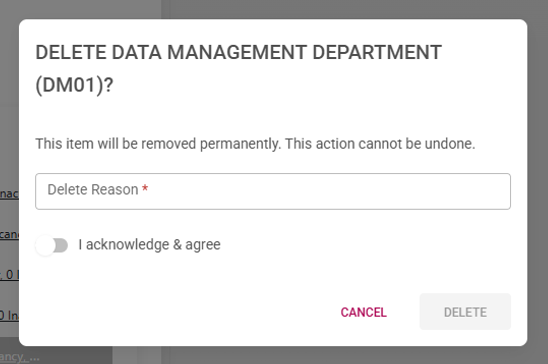
- To **delete** a level, click on the **trash bin icon** next to its name. Please note that a level cannot be deleted if it has:
- - subordinate levels,
- vacant positions, or
- active positions.

- When deleting, provide a valid reason for the deletion, confirm that you acknowledge and agree to the action, and then click **DELETE**. If you wish to cancel the operation, click **CANCEL** to discard any changes.
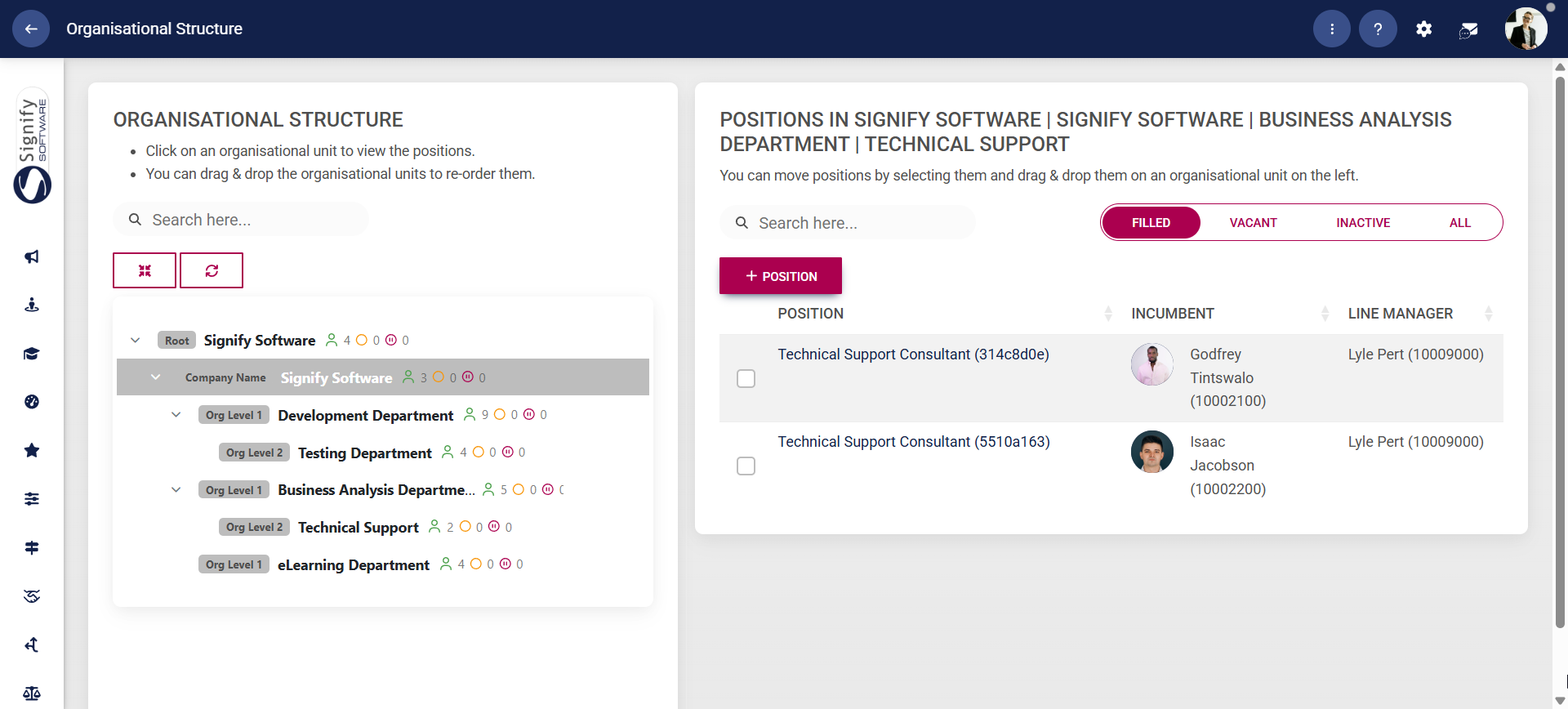
- The green, yellow, and red icons next to an organisational level's name indicate filled, vacant, and inactive job positions, respectively. In our example, there are four filled positions, and no vacant or inactive positions.

- By clicking on the organisational level's name, the filled, vacant, and inactive **job positions** can be viewed on the right.
- To move a position to another organisational unit, drag and drop it into the appropriate unit on the left.
##### View the organisational structure
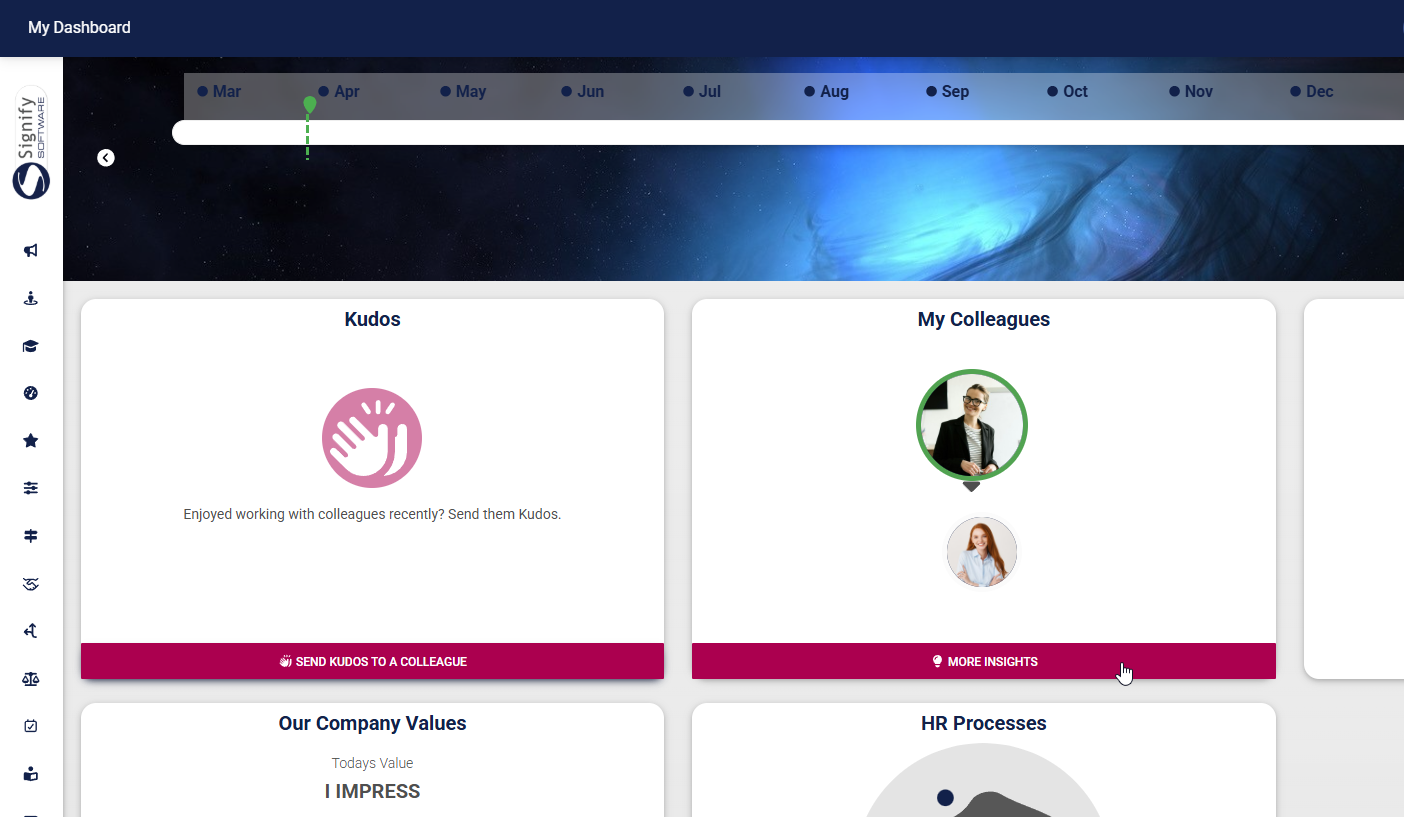
- Navigate to the **Main Dashboard**, then click **MORE INSIGHTS** on the **My Colleagues** widget.
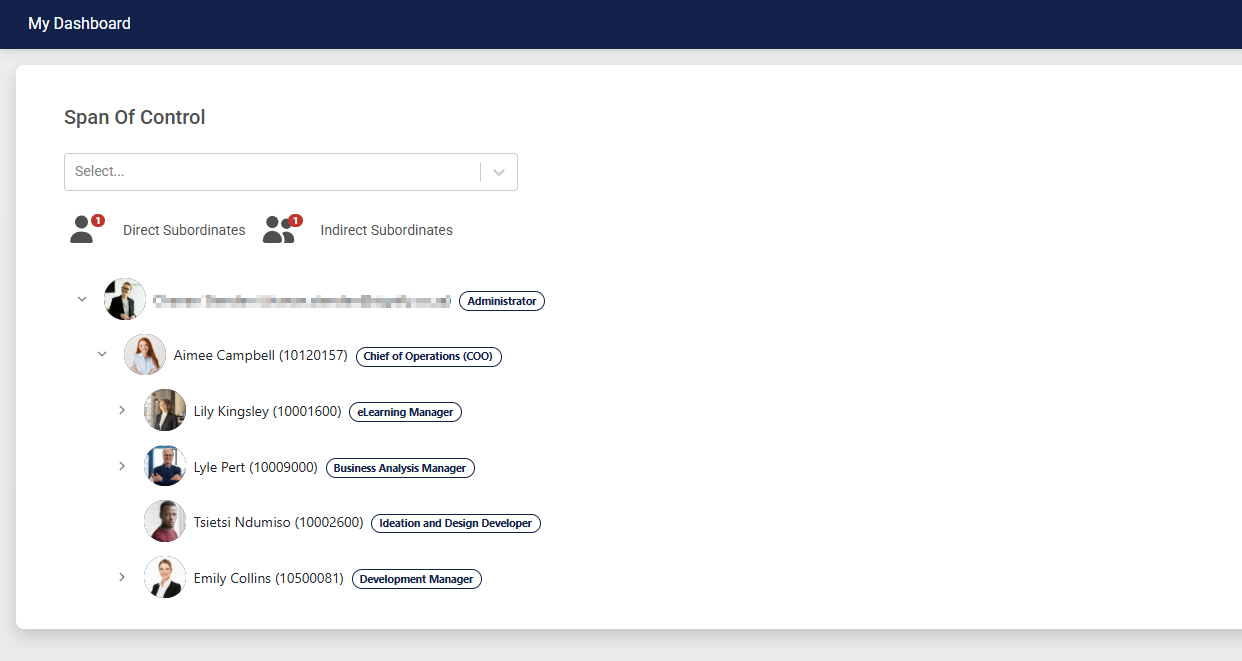
- The organisational structure will appear. You can expand the levels to view your reportees' subordinates.
[](https://signature.signifyhr.co.za/uploads/images/gallery/2025-02/ZOt8yZwhbiGx2d6U-signify-footer.png)
# Access the Job and Position Library
[](https://signature.signifyhr.co.za/uploads/images/gallery/2025-02/emW3hfMrZ1yIDMUv-signify-header.png)
After establishing the organisational structure, we can proceed with creating job titles and positions using the **Job Management** functionality.
In **People Management**, job titles, job positions, and roles serve different but connected purposes.
- A **job title** defines the type of work or function.
- A **job position** is a specific instance of that job title within the organisational structure and can be assigned to an employee. A job title can have many job positions.
- A **role** defines what a user is allowed to do in the system based on permissions and access levels.
Let us proceed with adding a job to the **Job Library**.
- Click the **gear icon** to access the **Setup and Configuration** menu.

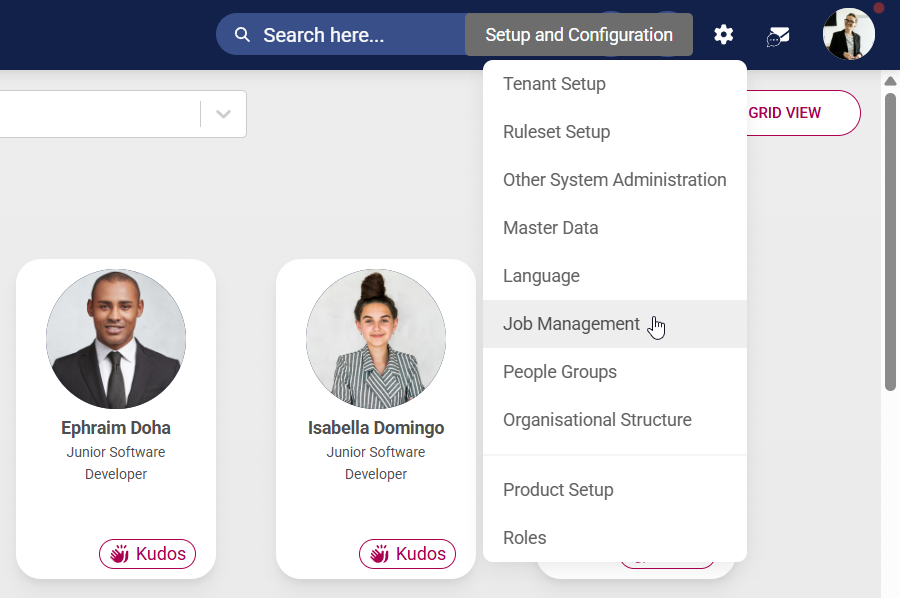
- Select **Job Management** from the drop-down menu.
- This screen shows all the job titles, positions, and vacancies within your organisation.
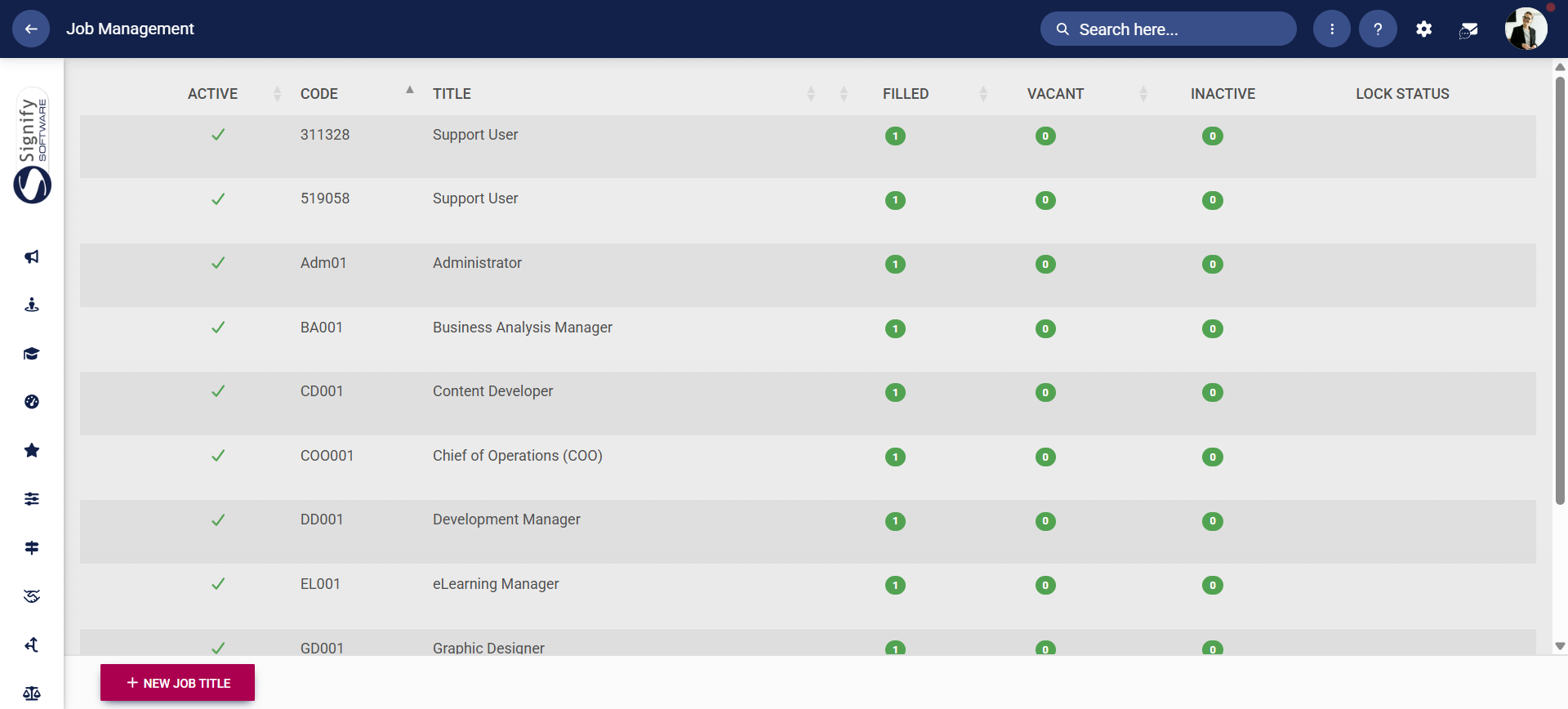
- Click **+NEW JOB TITLE** to add a new job title.
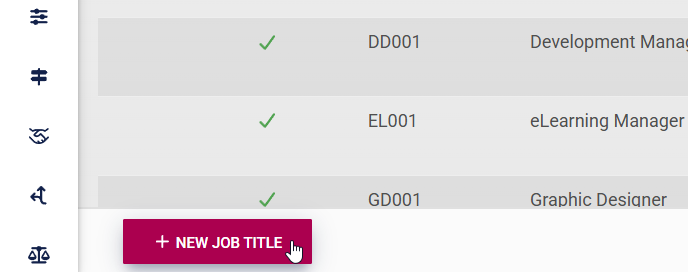
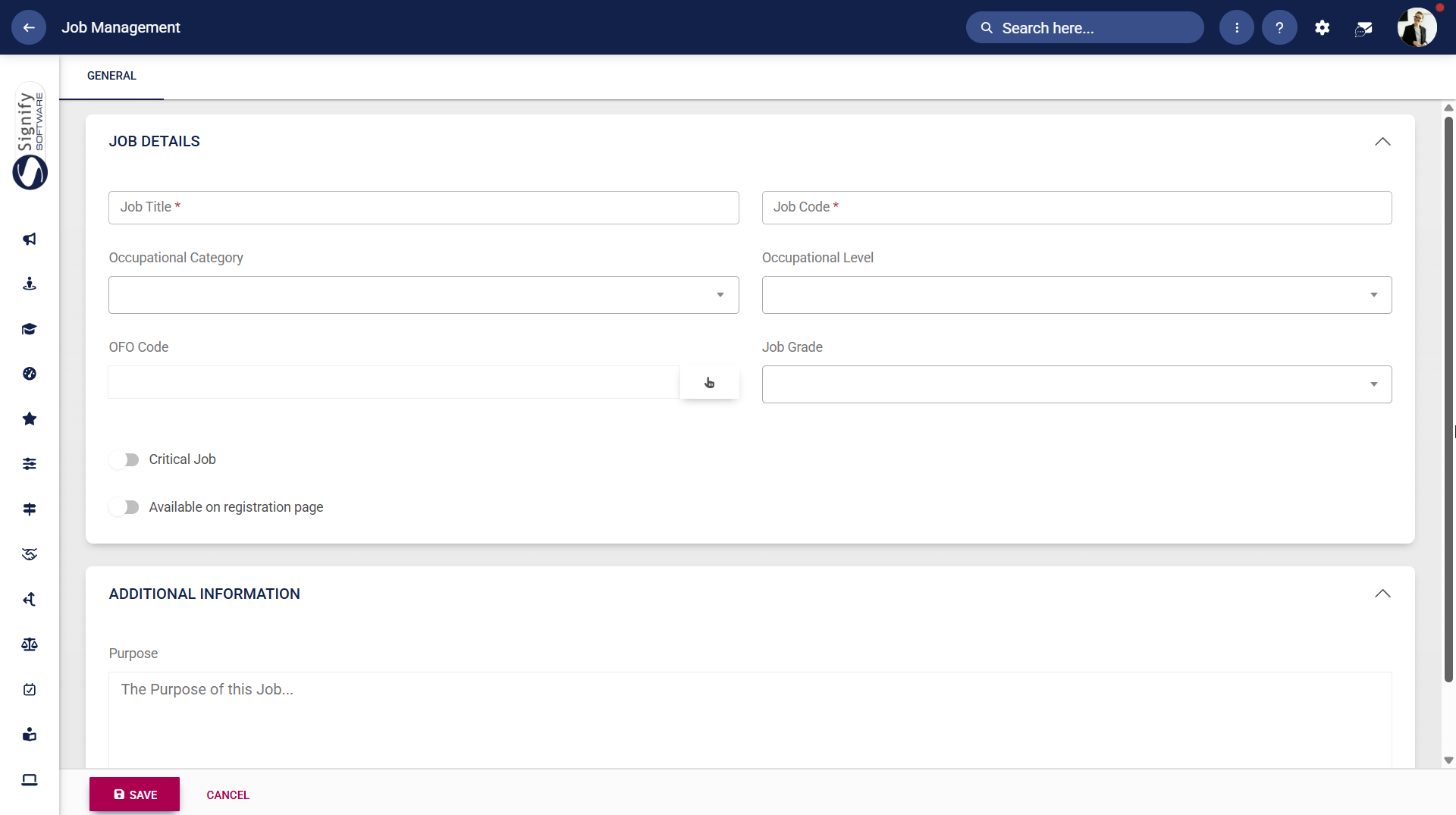
- The **Job Details** screen will appear.
- - Enter the job title and job code.
- If the **master data** for the occupational category, occupational level, OFO code, and job grade data fields has been set up, you can select the appropriate data from the drop-down menus. To learn more about master data, navigate to the [**Master Data Maintenance**](https://signature.signifyhr.co.za/books/people-management-d8c/page/master-data-maintenance "Master Data Maintenance") part of this chapter.
- You can toggle the **Critical Job** switch on and off as required.
- Toggle to enable new registrants to select this job title when registering on the system.
- Other additional information about the job title can be added, but is not required.
Click **SAVE** when you are finished or click **CANCEL** to discard your edits.
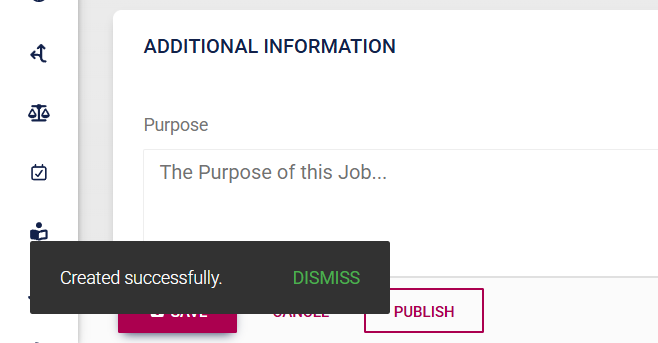
- A message will appear to confirm the successful creation of the job title.
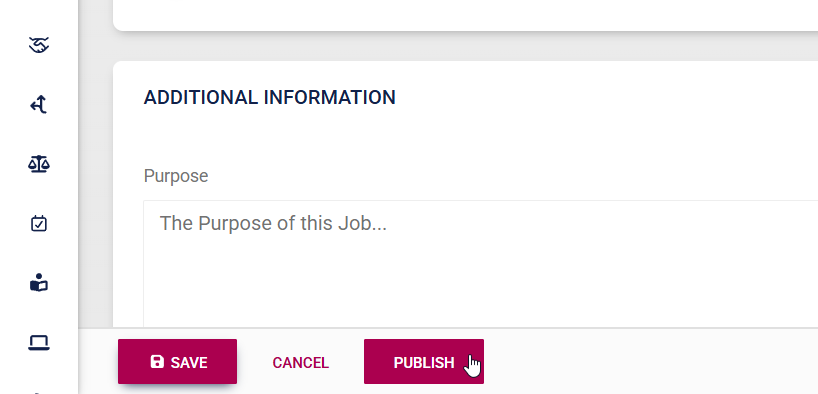
- After saving the new job title, click **PUBLISH** to finalise and share it.
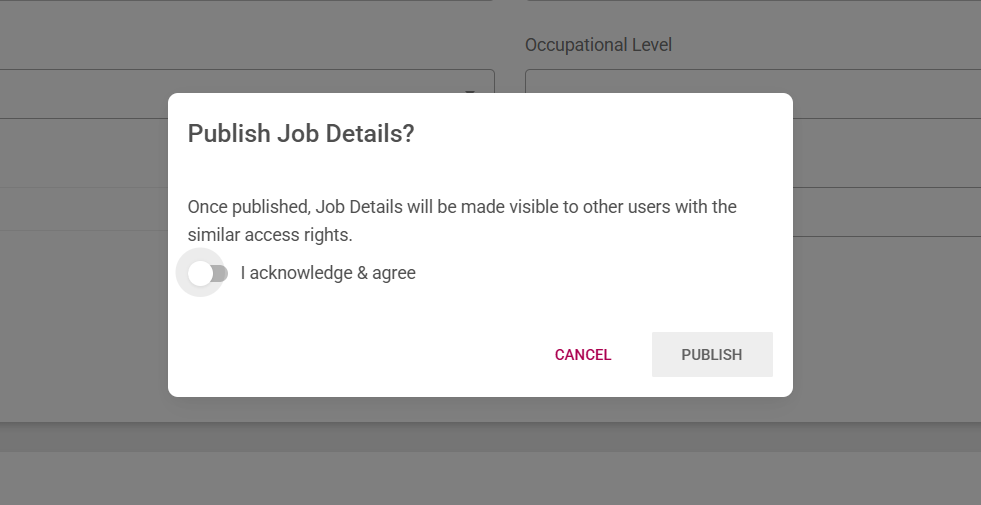
- Toggle to confirm that you acknowledge and agree to the changes, then click **PUBLISH**.
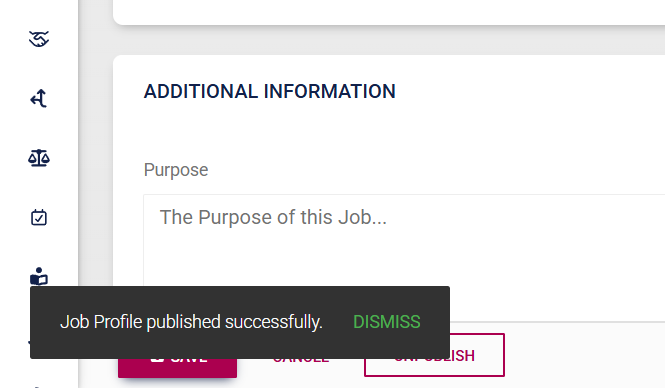
- A message will appear to confirm that the job title was published successfully.
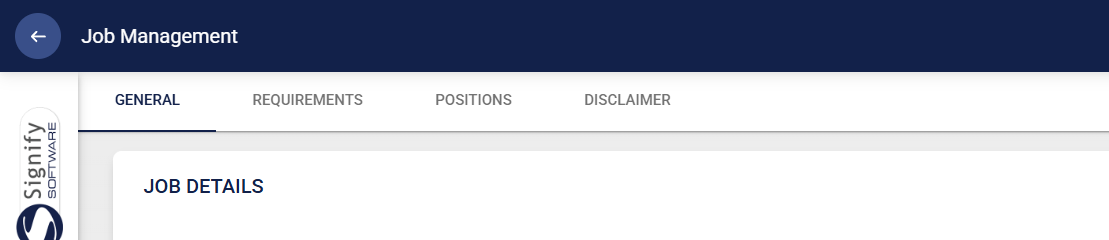
- Once the job title has been created, additional tab options will appear at the top of the screen. You can either set the **Requirements** for the role or click on the **Positions** tab to add new job positions associated with that role. Click on **Positions** to proceed.
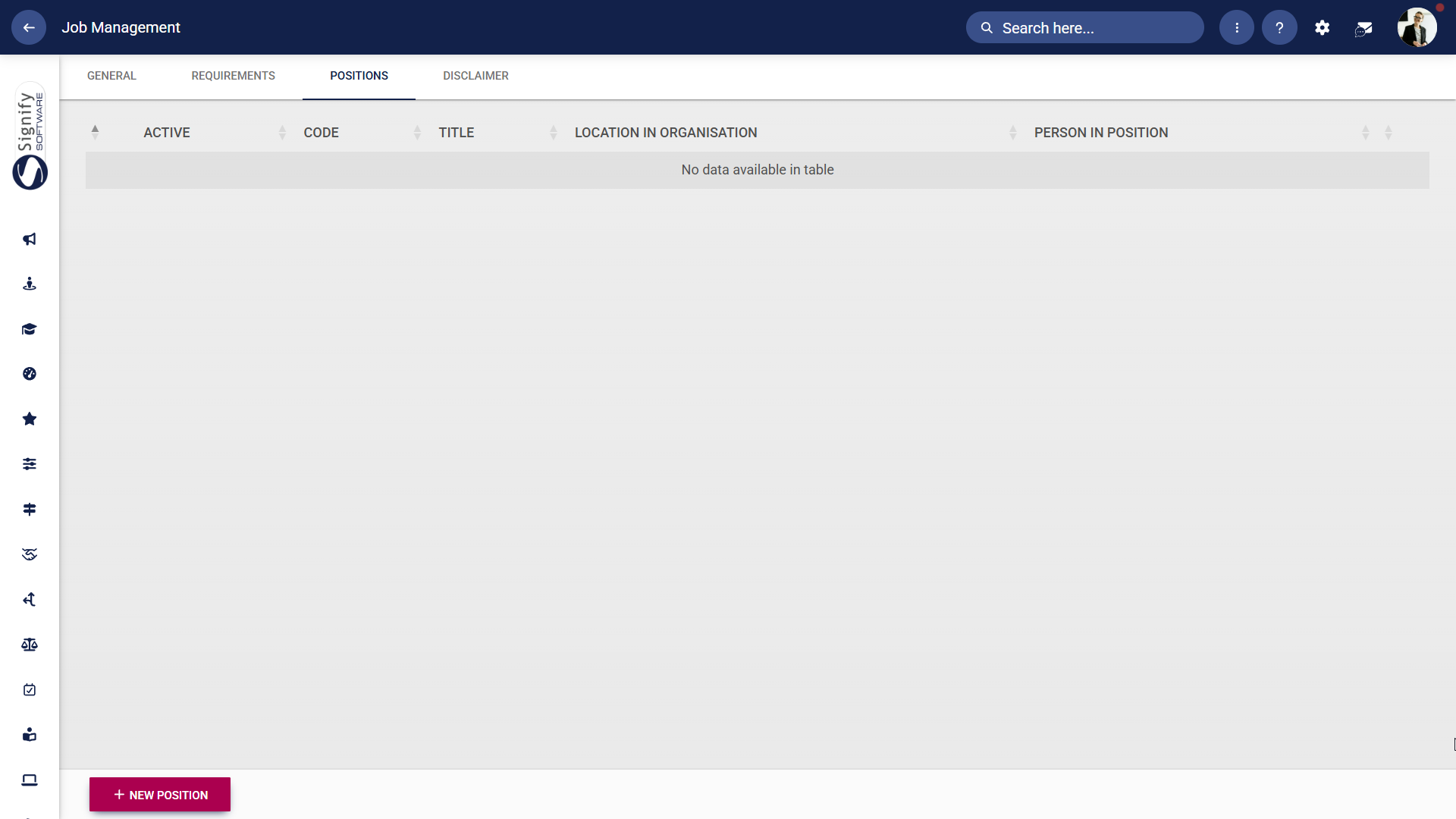
- The current positions linked to the job title will be displayed. Click **+NEW POSITION** to add a new position.
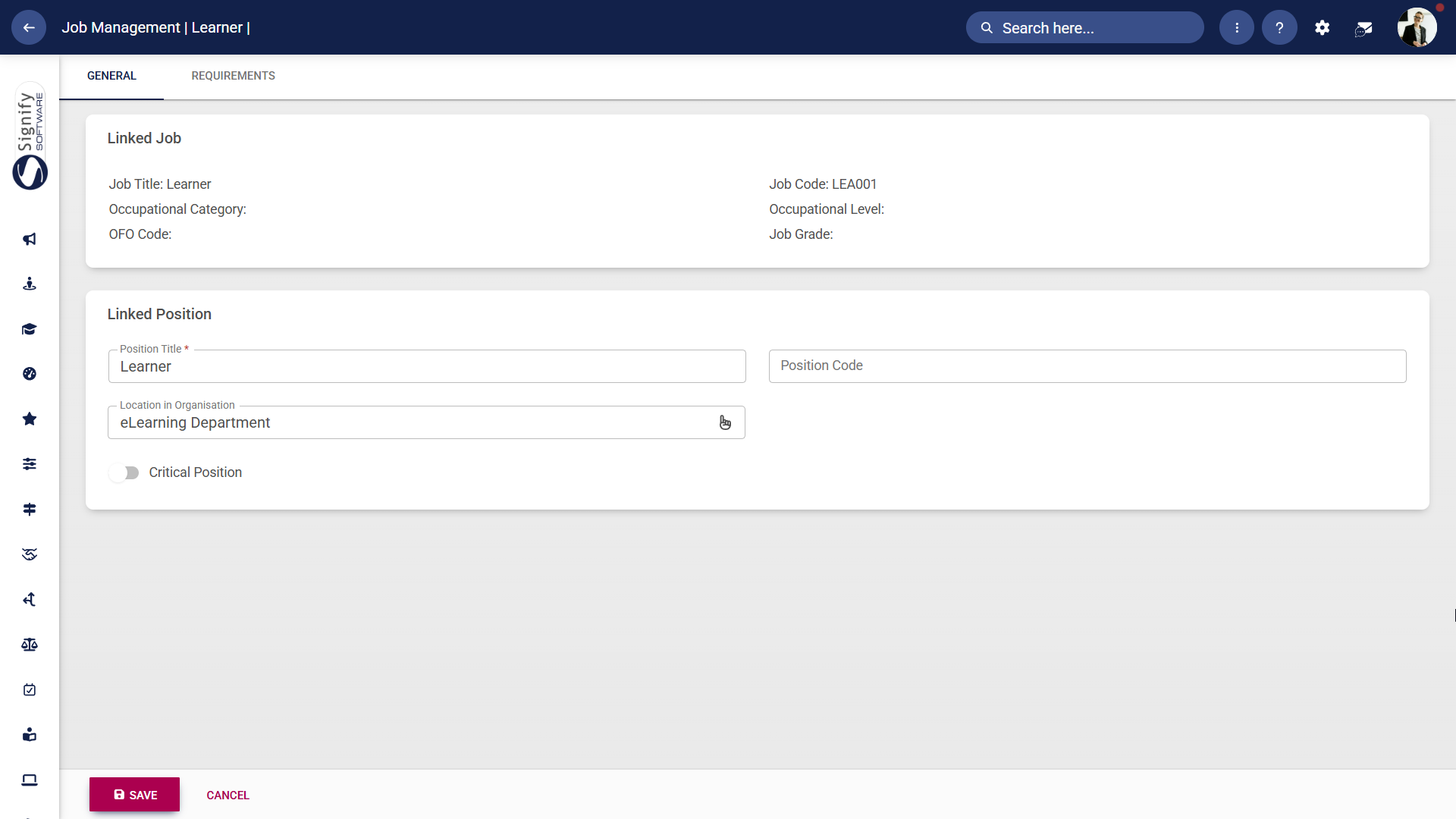
- The **Position Details** screen will appear.
- - Enter the position title. The position code will be automatically generated.
- Click the **Critical Position** toggle if required.
- Click the **hand icon** to select the location in the organisation.
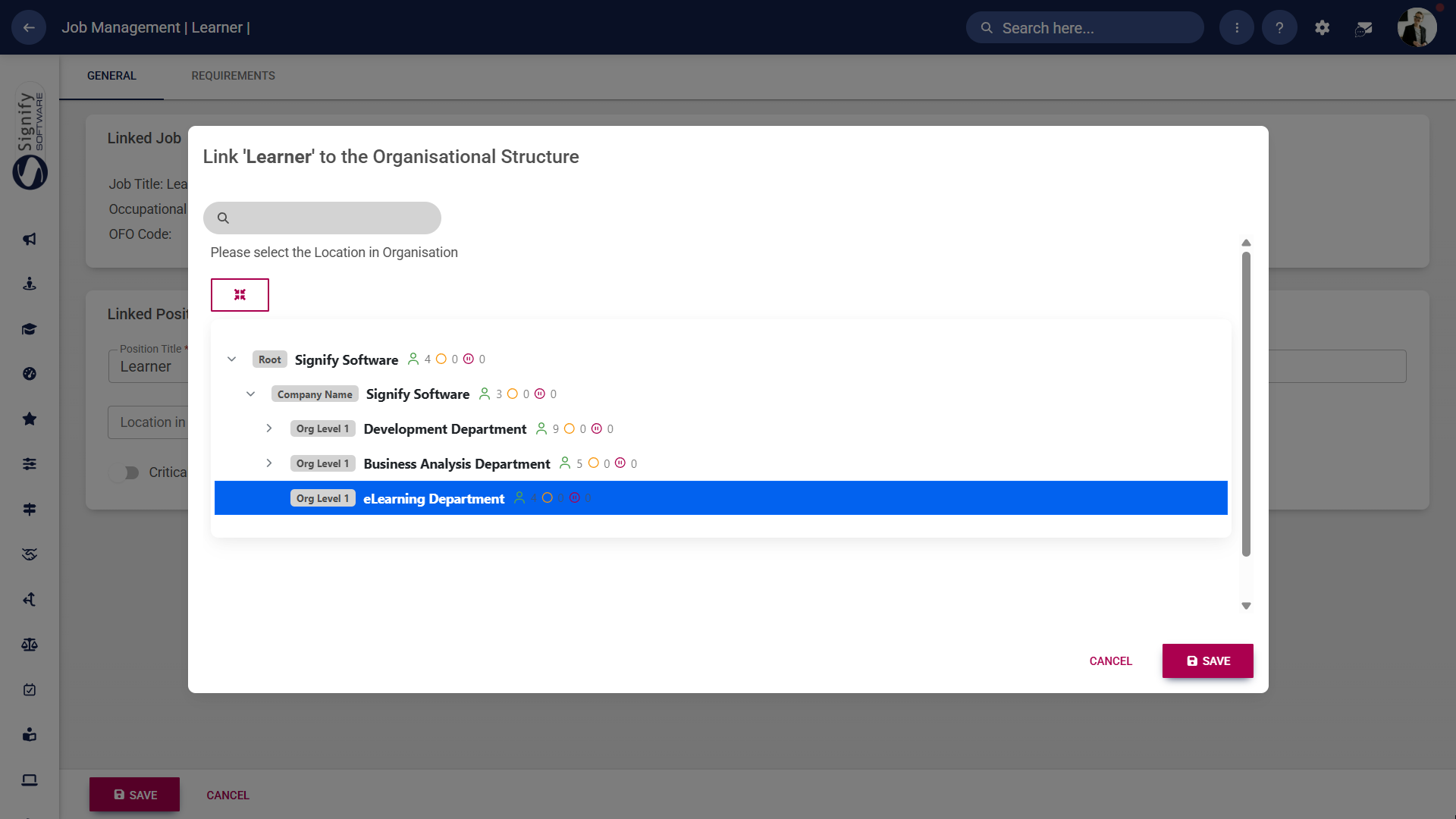
- In the pop-up window, select the location in the organisation for this position.
- Click **SAVE** when you are finished or click **CANCEL** to discard your edits.
- The pop-up window will close. Back on the **Position Details** screen, click **SAVE** to save your changes, or click **CANCEL** to discard your edits.

- You can return to **Job Management** to continue adding job titles and positions as needed.
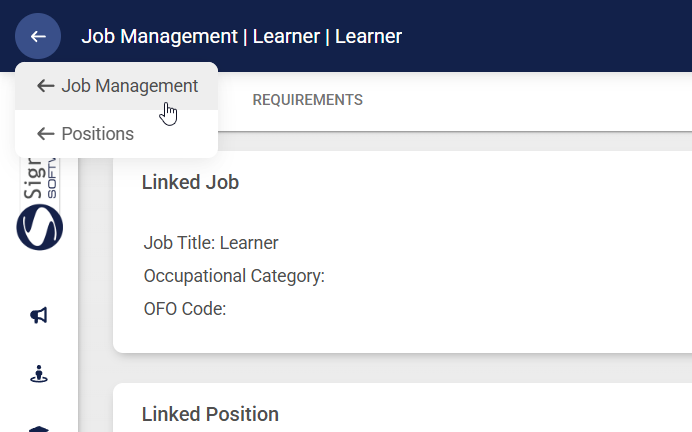
- This screen shows all the job titles, positions, and vacancies within your organisation.

[](https://signature.signifyhr.co.za/uploads/images/gallery/2025-02/ZOt8yZwhbiGx2d6U-signify-footer.png)
# User and Access Management
[](https://signature.signifyhr.co.za/uploads/images/gallery/2025-02/emW3hfMrZ1yIDMUv-signify-header.png)
#### Navigate to user and access management
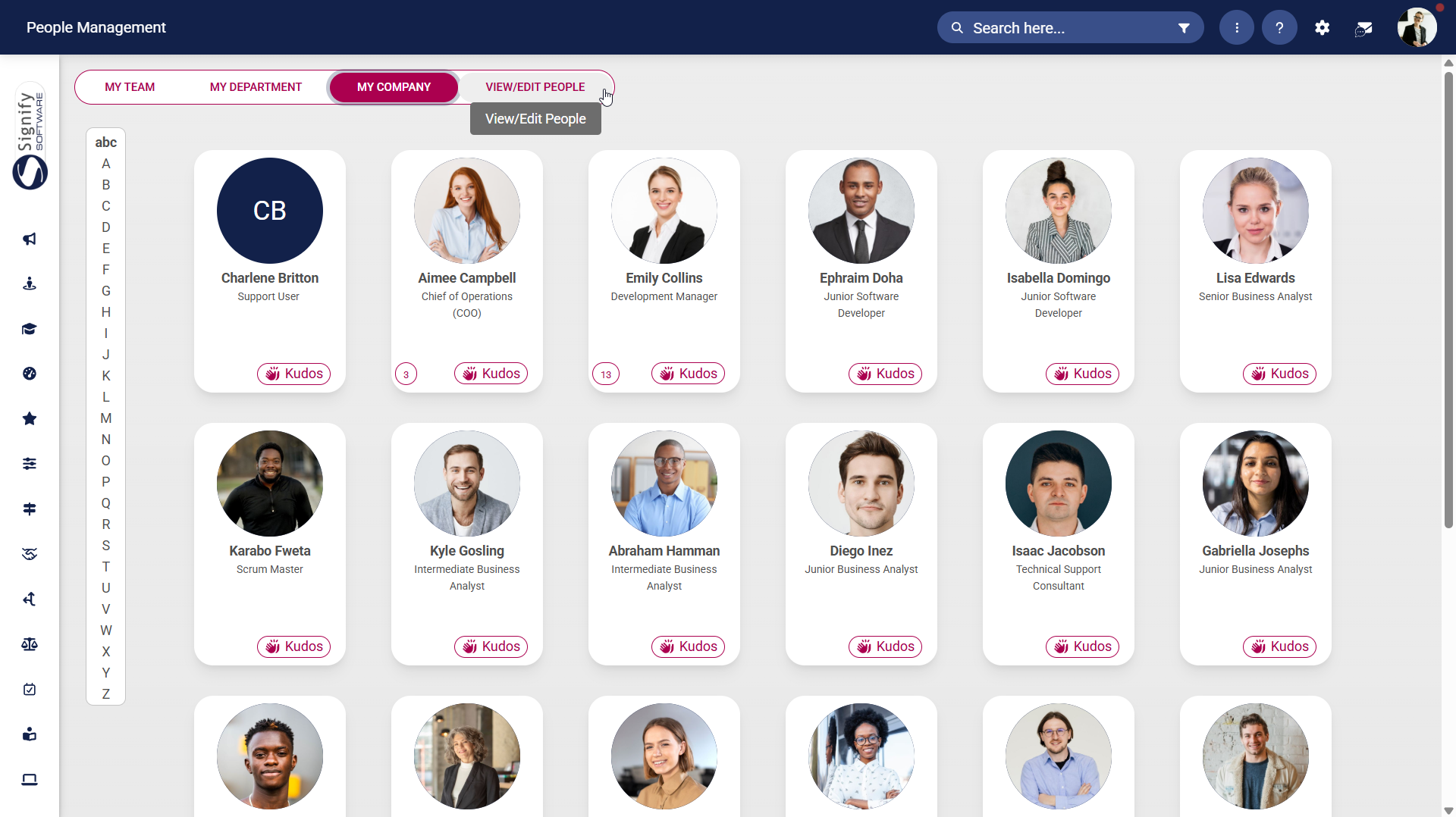
- Hover over the **sidebar menu** and click **People Management**.
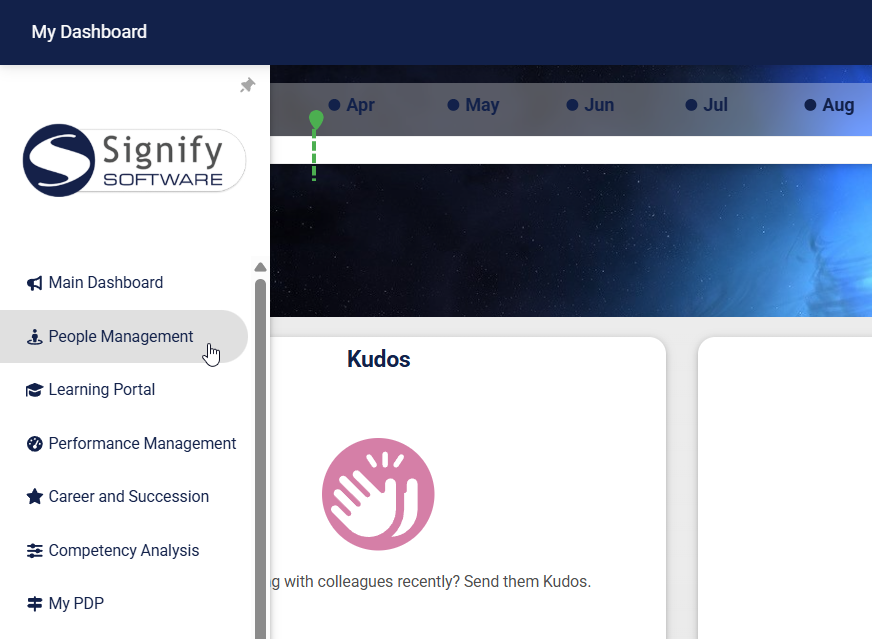
- Navigate to the **VIEW/EDIT PEOPLE** tab.
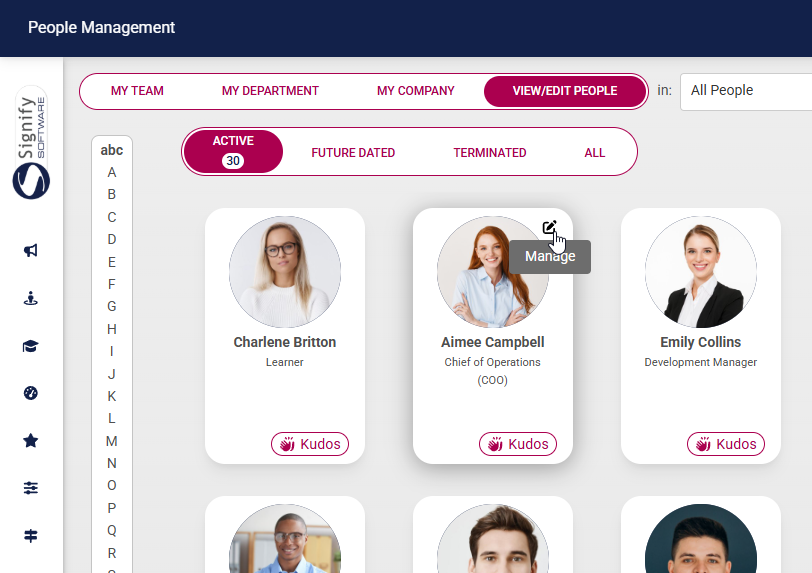
- Hover over the card of the person you would like to transfer, then click the **pencil icon** to manage their profile.
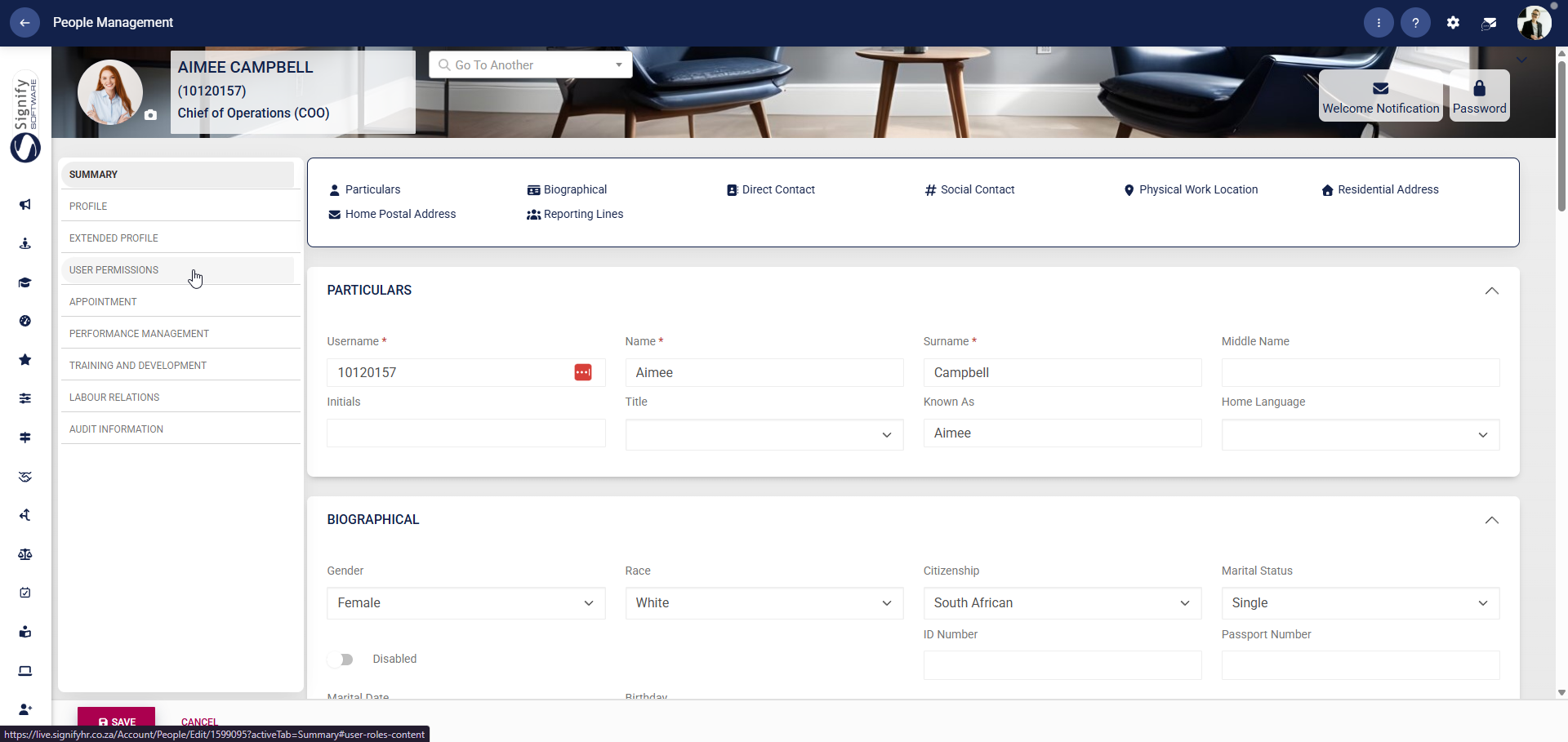
- On the **left-hand menu** on the person's profile, click on **USER PERMISSIONS**.
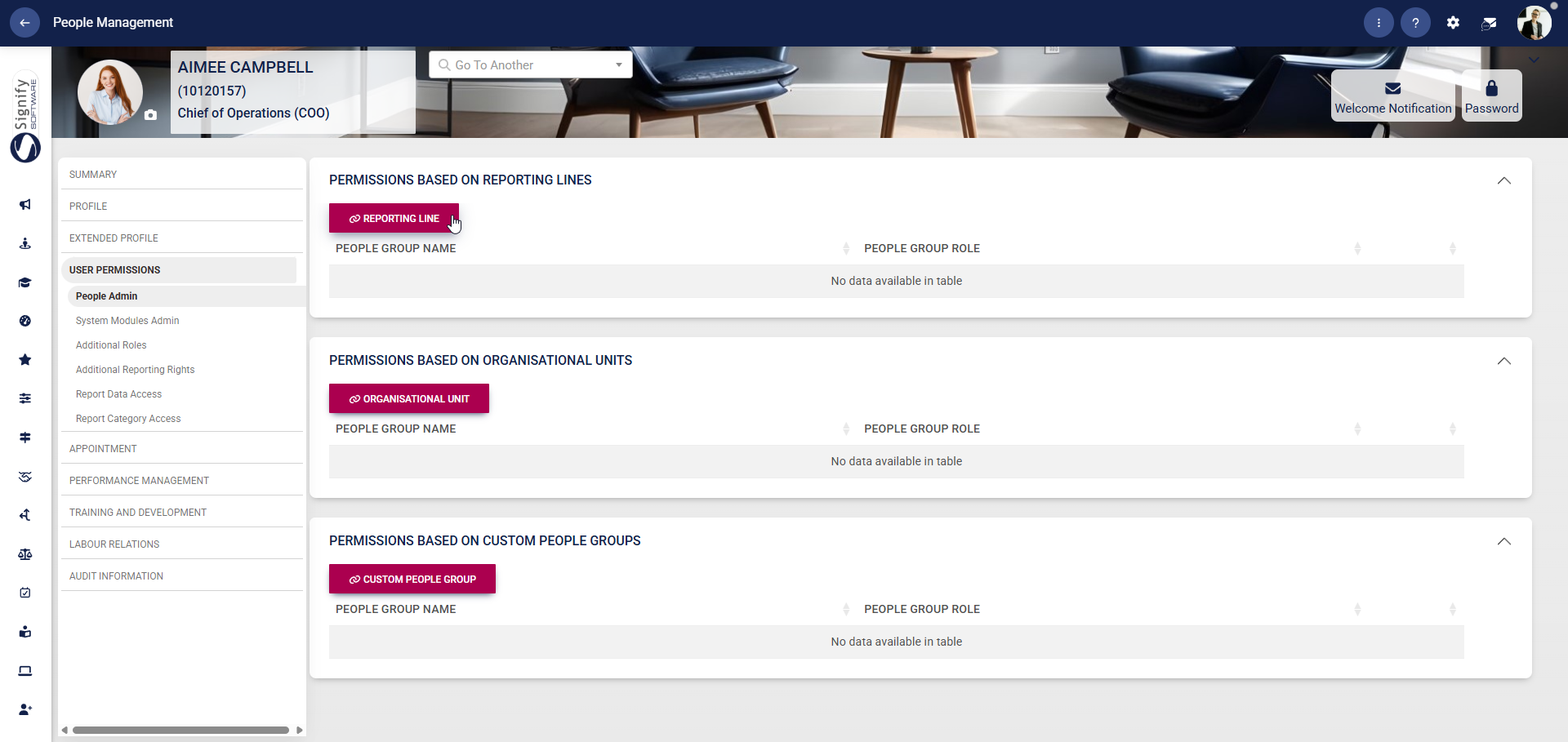
#### People Admin
Permissions specify which users can view or edit the profile information of the person whose profile you are viewing.
##### Reporting Lines
- Click **REPORTING LINE**.
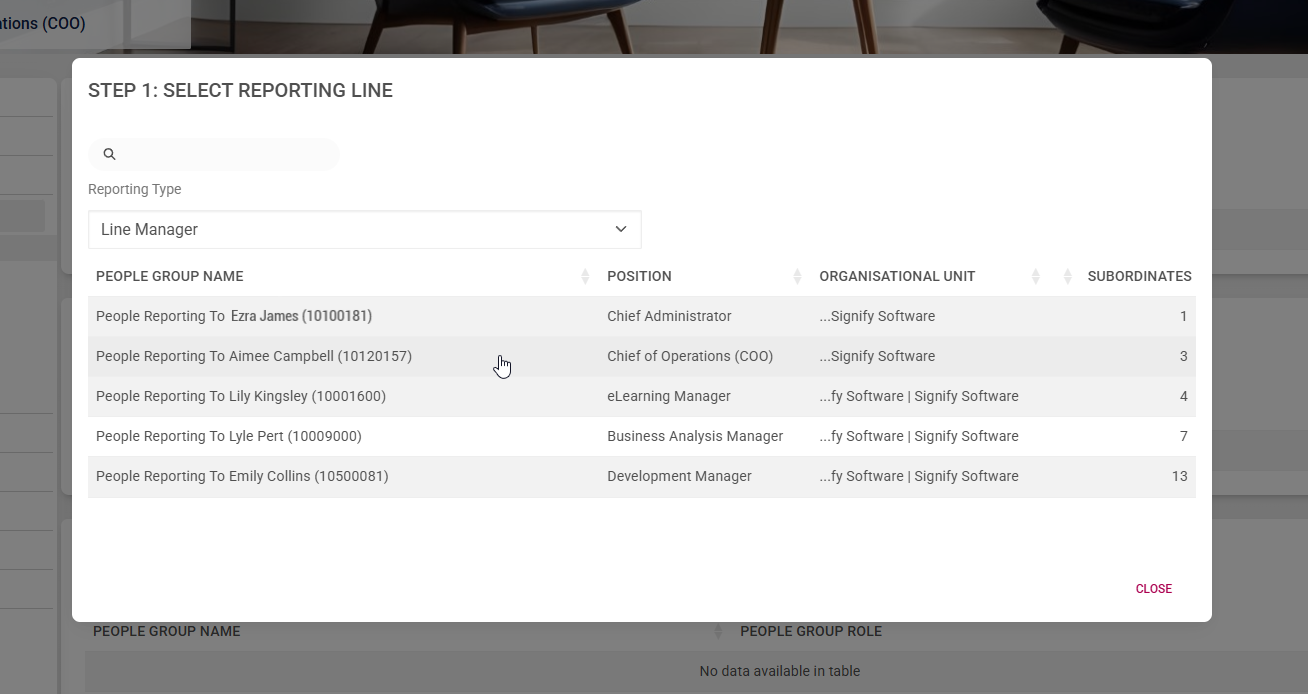
- Select the **Reporting Type** from the drop-down menu, then click on the correct reporting line. In our example, we have chosen the Line Manager reporting line.
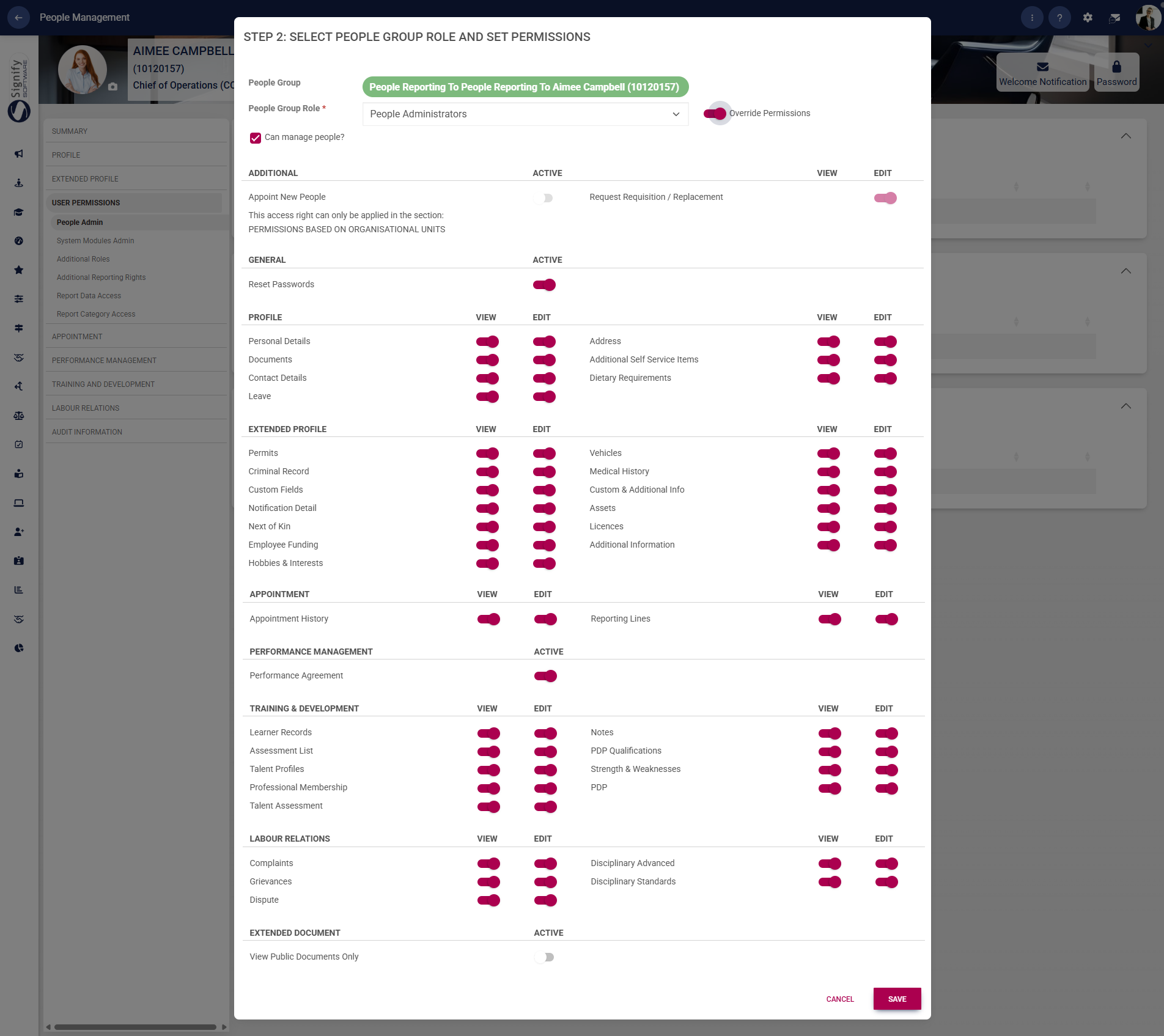
- Select **People Administrators** from the drop-down menu, and toggle to override permissions.
*Please note that for the user to appoint new people, the user must be granted access at the organisational unit level (see the next section for more information).*
- Select which fields in the **People Management** module the user may view or edit. Choose whether they may reset passwords, access users' performance agreements, or view documents. Click **SAVE** when you are finished or **CANCEL** to discard your changes.
- You have successfully assigned people admin permissions based on a reporting line.
##### Organisational Unit
- Click **ORGANISATIONAL UNIT**.
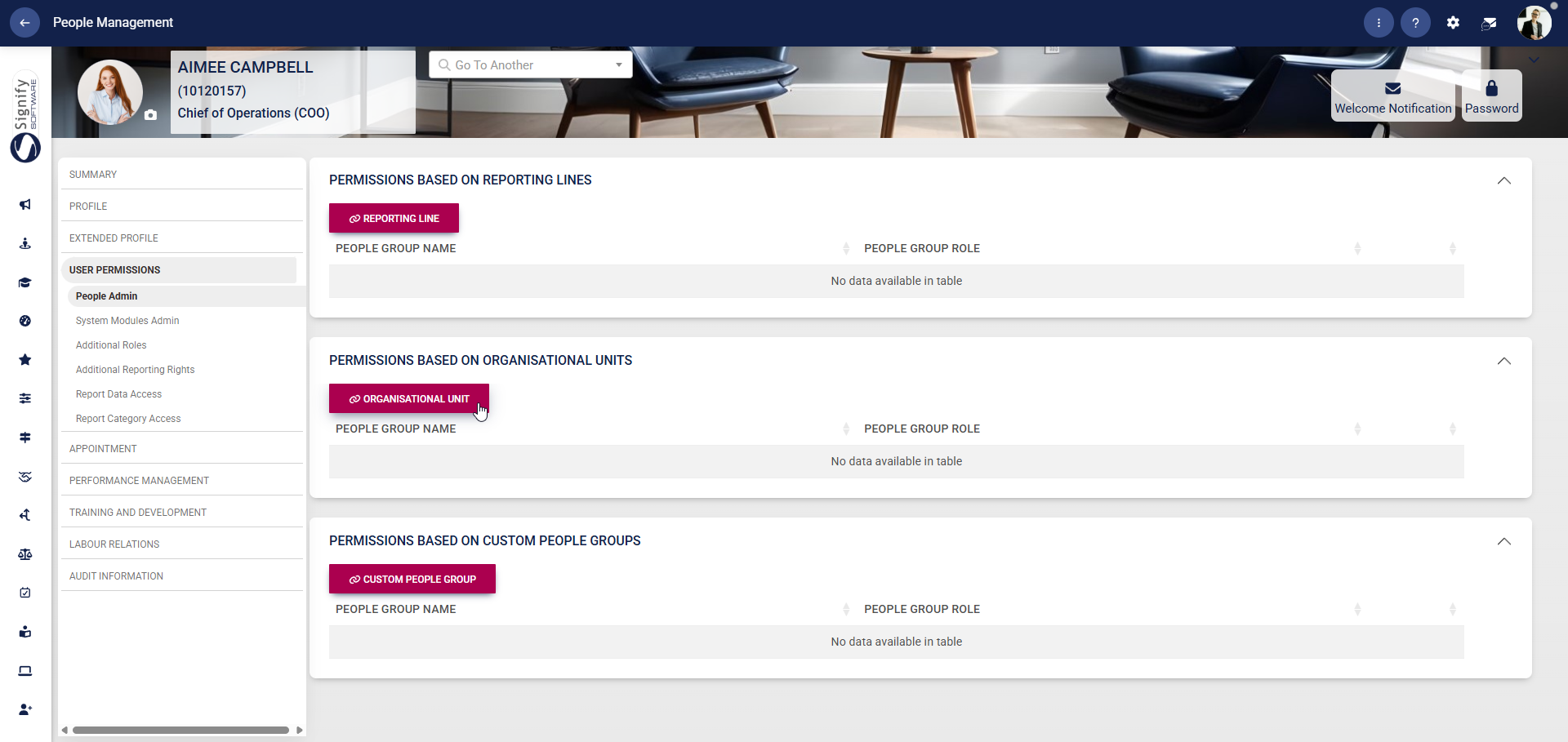
- Expand the organisational structure to find the correct organisational unit.

- Click the icon of an individual person to grant the user permission to access the data for users within that organisational unit only.

- Click the icon of a group of people to grant the user permission to access the data of users within that organisational unit and any subordinate units.

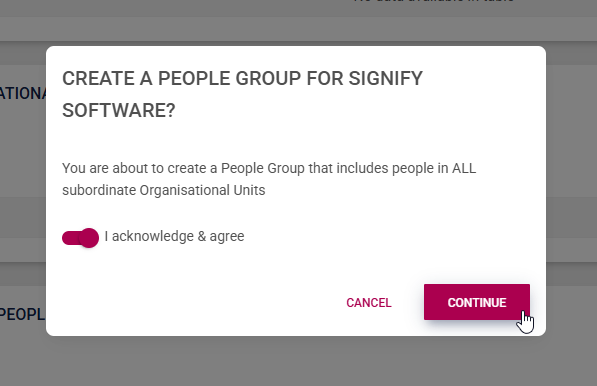
- Confirm whether you would like to create the people group, then click **CONTINUE**.
- Select **People Administrators** from the drop-down menu, and toggle to override permissions. Choose whether this user may appoint new people. Select which fields in the **People Management** module the user may view or edit. Choose whether they may reset passwords, access users' performance agreements, or view documents. Click **SAVE** when you are finished or **CANCEL** to discard your changes.

- You have successfully assigned people admin permissions based on an organisational unit.
##### Custom People Groups
This method is ideal for managing access that doesn’t align with traditional org structures or reporting lines. If an administrator should have access to all employees in the system, assign them to the “All People” group.
- Click **CUSTOM PEOPLE GROUP**.

- Select the people group from the list. For more information on creating people groups, please visit [Create People Groups](https://signature.signifyhr.co.za/books/people-management-d8c/page/create-people-groups).
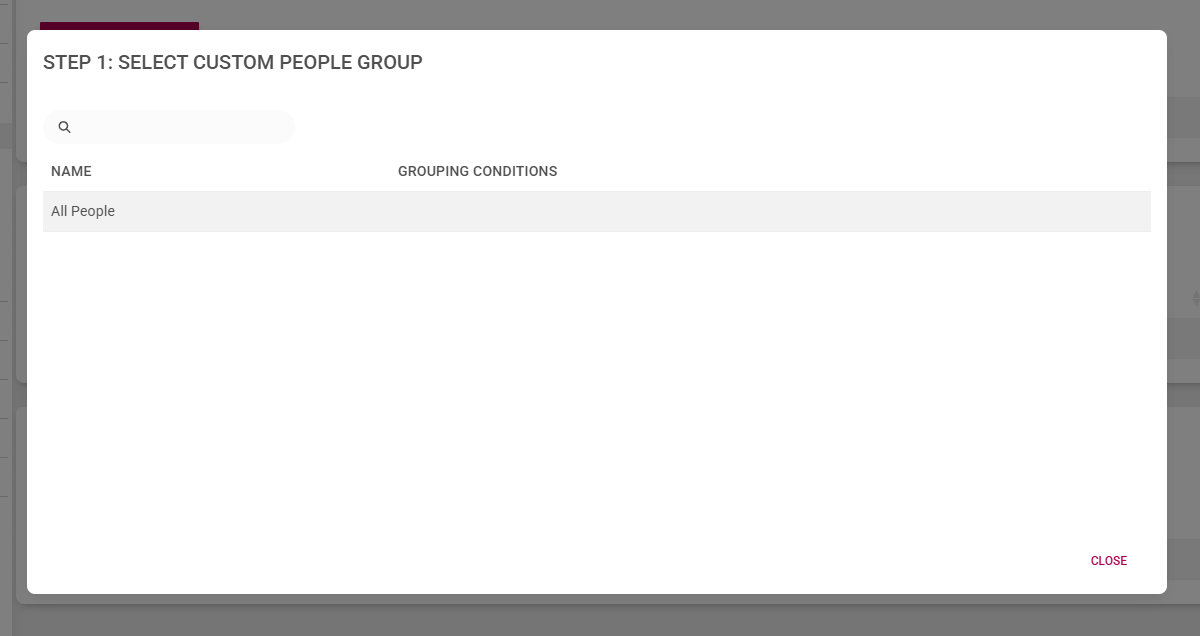
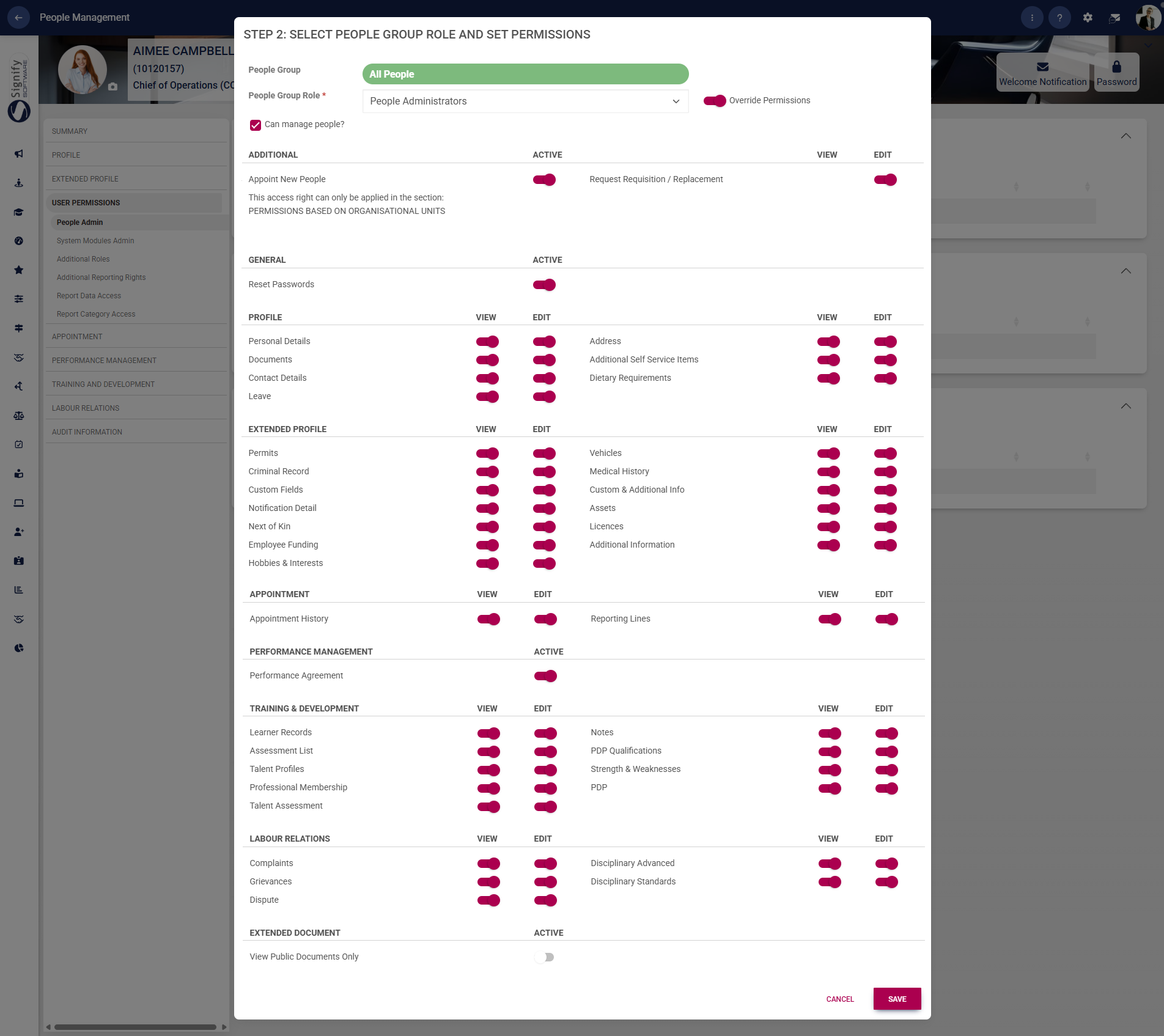
- Select **People Administrators** from the drop-down menu, and toggle to override permissions.
*Please note that for the user to appoint new people, the user must be granted access at the organisational unit level (see the previous section for more information).*
- Select which fields in the **People Management** module the user may view or edit. Choose whether they may reset passwords, access users' performance agreements, or view documents. Click **SAVE** when you are finished or **CANCEL** to discard your changes.
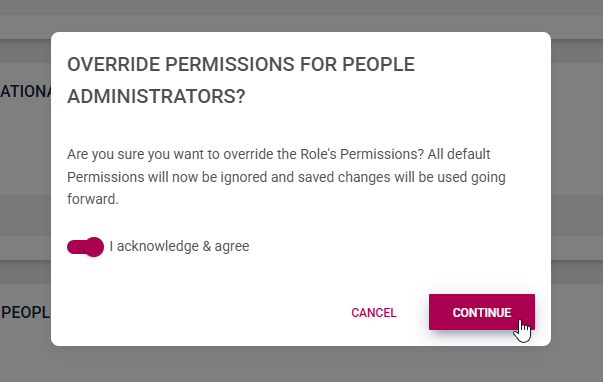
- Confirm whether you would like to override the permissions for people administrators, then click **CONTINUE**.
- You have successfully assigned people admin permissions based on a custom people group.
#### System Modules Admin
These permissions grant users administrative rights for the following modules linked to Version 9 of Signify Software:
- **Event Scheduling**
- **Job Management**
- **Translations**
- **Learning Management**
- **Organisational Structure**
- **People Management**
- **Performance Management**
- **Report Builder**
- **Ruleset Management**
- **Tenant Management**
When users are assigned permissions for these modules, they can:
- Configure settings and features within each module,
- Manage module-specific content, and
- Carry out administrative actions.
This guide will detail the features available to administrators of each of these modules.
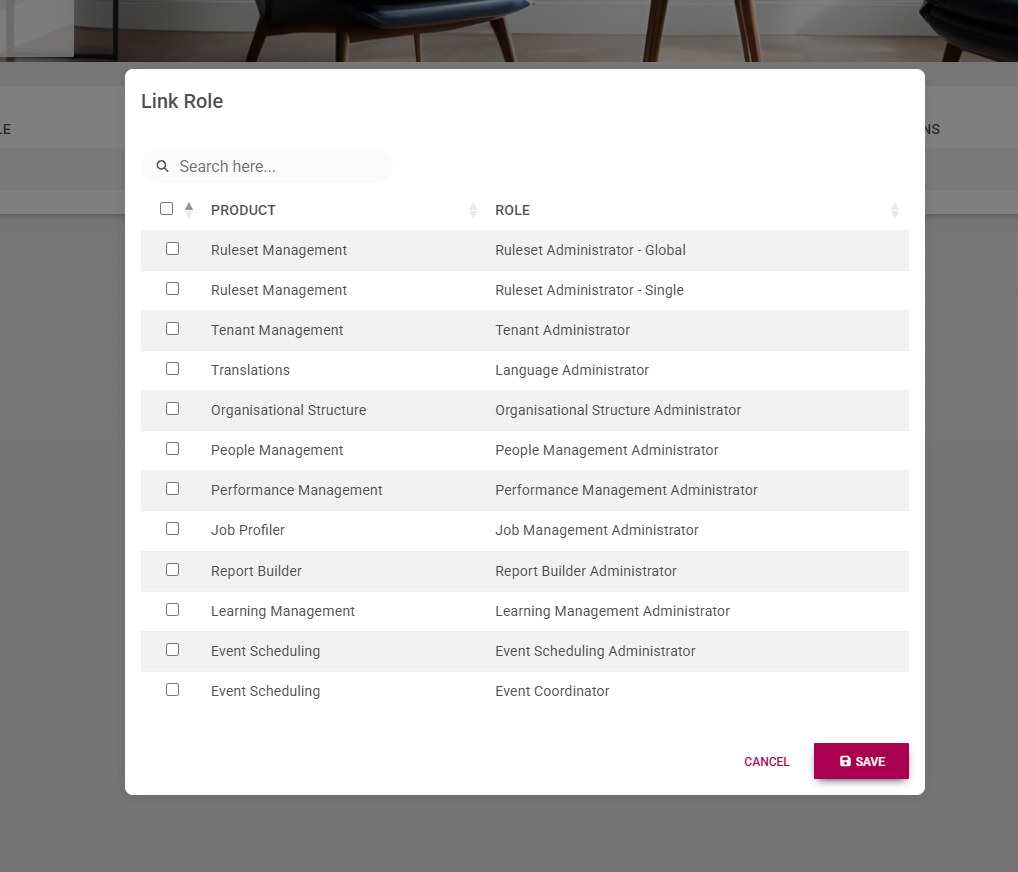
- On the **left-hand menu**, navigate to **System Modules Admin** and click **LINK ROLE**.
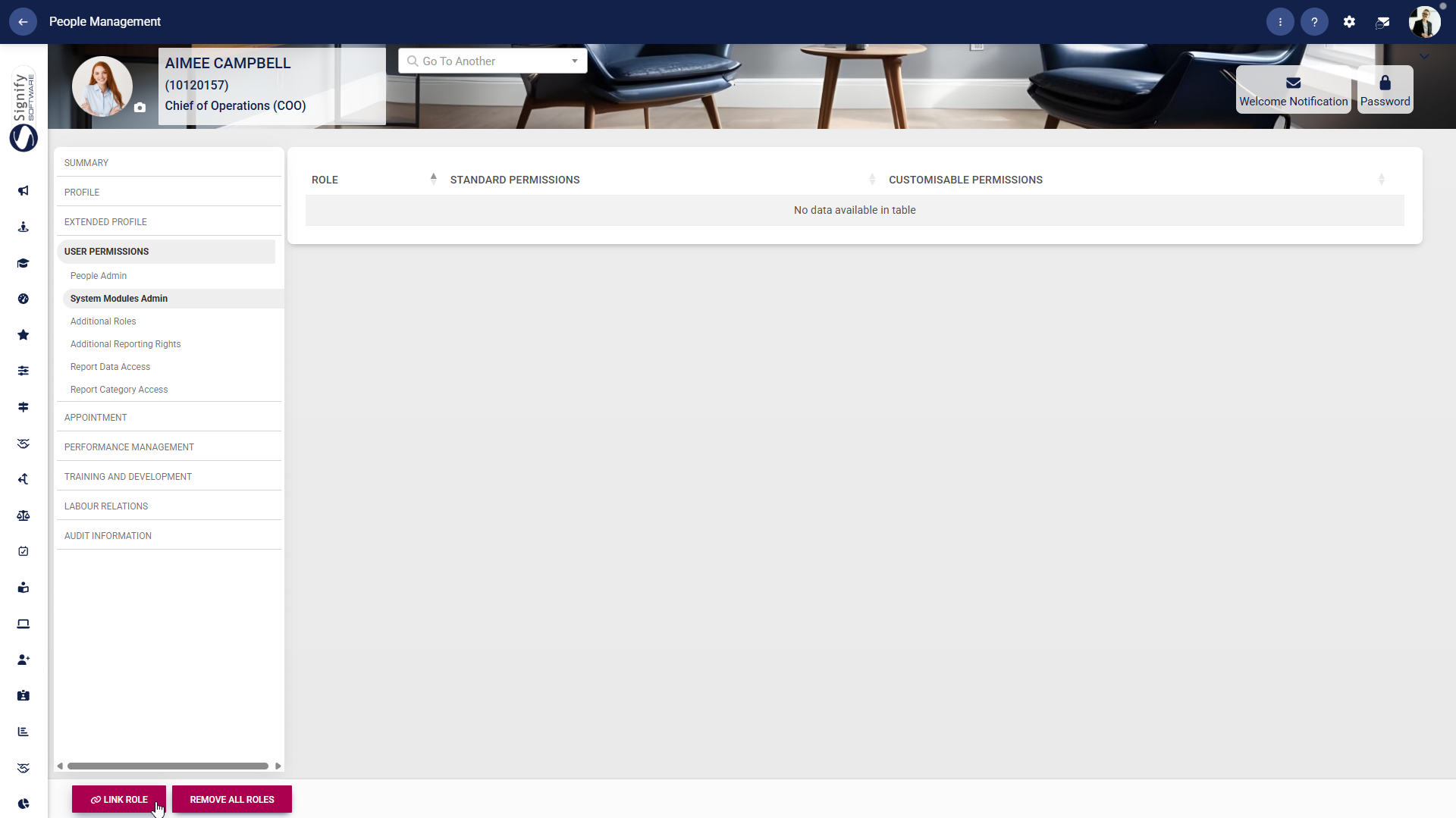
- Select which modules you would like to grant the user administrative rights to. The module names are listed on the left, and the associated roles are listed on the right. Click **SAVE** when you are finished or **CANCEL** to discard your changes.
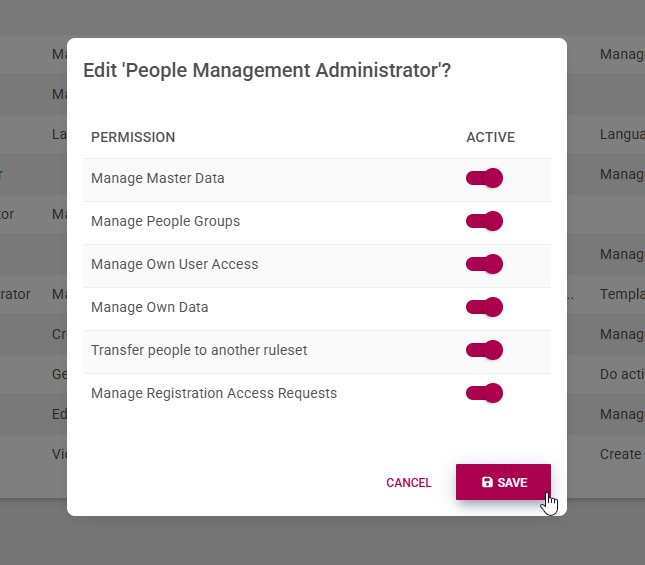
- When linking a role, note that some roles have specific responsibilities that can be toggled on and off. For example, see the tasks linked to a **Performance Management Administrator**.
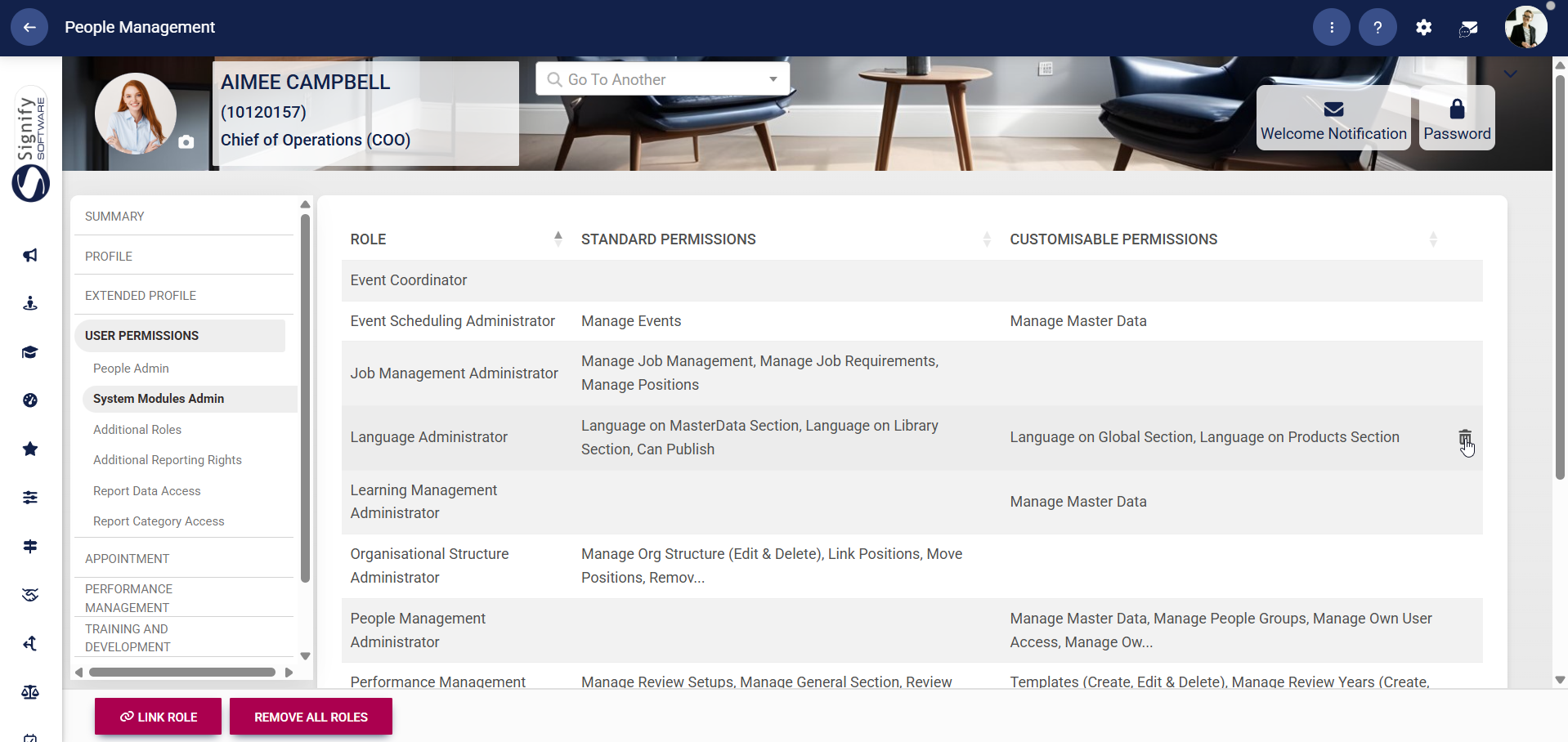
- Linked Roles can be deleted by clicking on the **dustbin icon**.
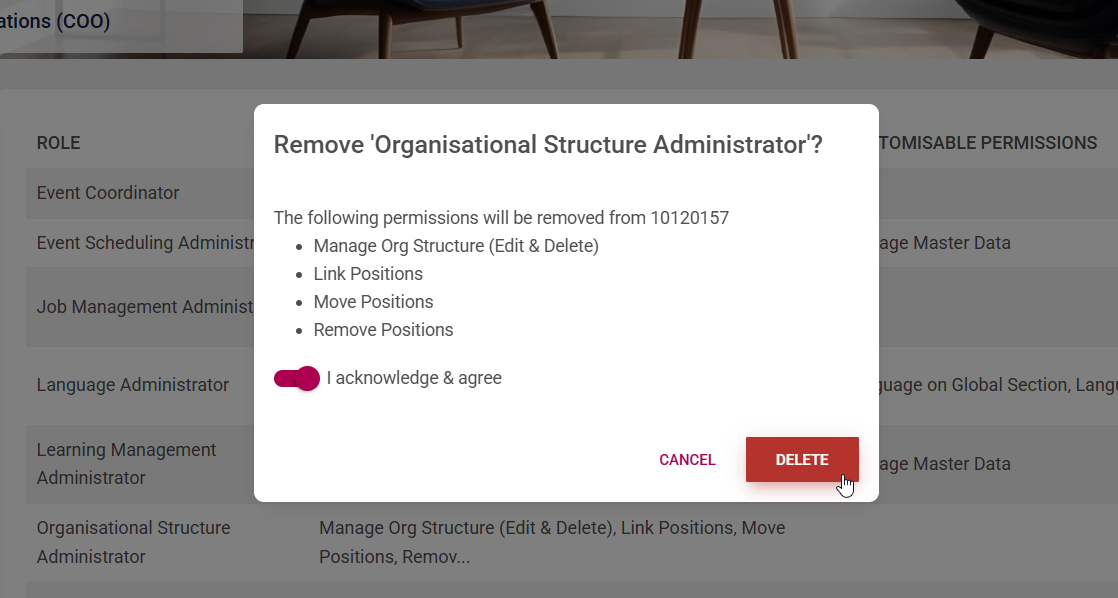
- Confirm that you would like to revoke the user's permissions, then click **DELETE**. Click **CANCEL** to discard your changes.
- The roles and their associated responsibilities are described below.
##### Ruleset Management
- A **Ruleset Administrator – Global** can do the following:
- - Do actions on the **Product** tab, excluding product setup
- Perform general management of all rulesets
- Create rulesets
- Edit all tabs
- Manage notifications
- A **Ruleset Administrator – Single** can do the following:
- - Do actions on the **Product** tab, excluding product setup
- Manage master data
- Edit all tabs
- Manage notifications
##### Tenant Management
- A **Tenant Administrator** can do the following:
- - Create new tenants
- Update tenant details
- Update subscriptions for products and licences
- Update the expiry date for subscriptions
- Delete tenants
- View the tenant list
- View details of tenants and their subscriptions
##### Translations
- A **Language Administrator** can do the following:
- - Manage languages in the Global section
- Manage languages in the Products section
- Manage languages in the Master Data section
- Manage languages in the Library section
- Can publish languages, thereby making them available on the system
##### Organisational Structure
- An **Organisational Structure Administrator** can do the following:
- - Manage the organisational structure
- - Edit organisational levels
- Delete organisational levels
- Link positions to organisational levels
- Move positions
- Delete positions
##### People Management
- A **People Management Administrator** can do the following:
- - Manage master data
- Manage people groups
- Manage their own user access
- Manage their own user data
- Transfer people to another ruleset
- Manage **Registration Access** requests
##### Performance Management
- A **Performance Management Administrator** can do the following:
- - Create, edit, and delete performance templates
- Create, edit, and delete review years
- Link review setups
- Manage **Final Scores** for performance agreements
- Perform bulk actions, such as:
- - Linking templates
- Deleting agreements
- Manage master data
- Manage a person's performance agreement
- Moderate agreements
- Perform quality assurance on performance agreements
- Manage review setups
- Manage the **General** section
- Manage review periods
- Manage review sections
##### Job Profiler
- A **Job Management Administrator** can do the following:
- - Manage job management
- Manage job requirements
- Manage positions
##### Report Builder
- A **Report Builder Administrator** can do the following:
- - Manage all reports
- Manage their own reports
- Create new reports
- Copy reports
- Run reports to retrieve data
- Manage the **Reporting Category** master data
- In order for **Report Builder** administrators to gain access to the **Report Builder** module, ensure you follow the steps listed below for **Report Data Access** and **Report Category Access**.
##### Learning Management
- A **Learning Management Administrator** can do the following:
- - Manage master data
- Build and edit pathways
- Build and edit assessments
- Send email notifications from learning journeys
- Edit the menu and image panel at the top of the LMS portal
- Manage learning master data
- Access submitted assignments
- Configure gamification and rewards
##### Event Scheduling
- An **Event Scheduling Administrator** can do the following:
- - Manage master data
- Manage events:
- - Perform setup tasks for events
- Manage templates
- Handle attendee tasks and requests
- Manage notifications
- Perform reporting on events
- An **Event Coordinator** can do the following:
- - Manage events:
- - Complete administrative tasks related to scheduling, attendance, and communication
- For more information, visit our book on the **[Event Scheduling](https://signature.signifyhr.co.za/books/event-scheduling "Event Scheduling")** module.
#### Additional Roles
These permissions grant users administrative rights for the following modules linked to Version 8 of Signify Software:
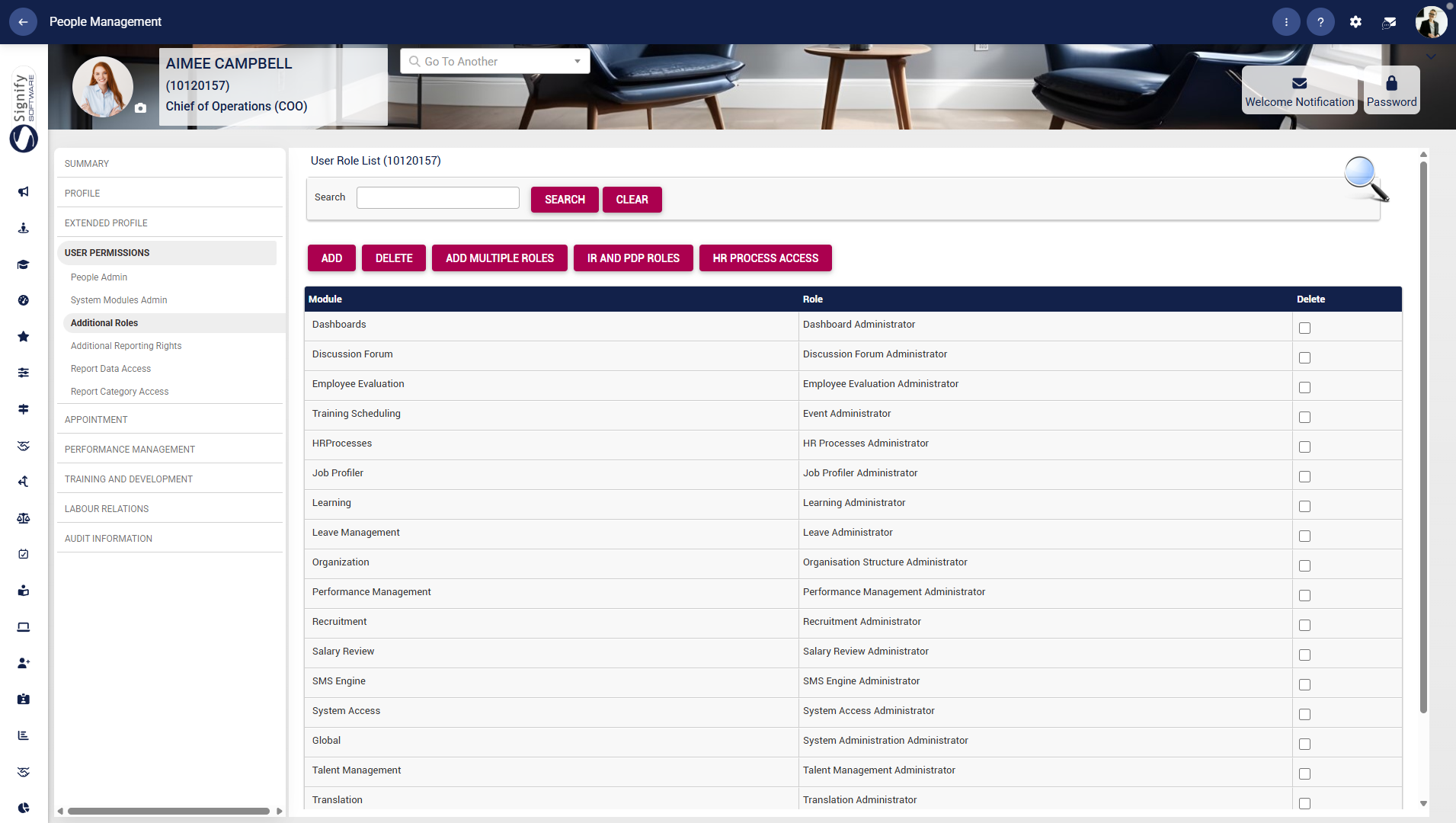
- **Dashboards**
- Discussion Forums
- Employee Evaluations
- Training Scheduling
- HR Processes
- Job Profiler
- Learning Management
- Leave Management
- Organization
- Performance Management
- Recruitment
- Salary Review
- SMS Engine
- System Access
- Talent Management
- Translations
- Workflow
When users are assigned permissions for these modules, they can:
- Configure settings and features within each module,
- Manage module-specific content, and
- Carry out administrative actions.
This guide will detail the features available to administrators of each of these modules.
- On the **left-hand menu**, navigate to **Additional Roles** and click **ADD MULTIPLE ROLES**.
- In the pop-up window, select the roles you would like to assign to the user for each module. The module names are listed on the left, and the associated roles are listed on the right. Select the correct role from the drop-down menu. Click **SAVE** when you are finished or **CLOSE** to discard your changes.
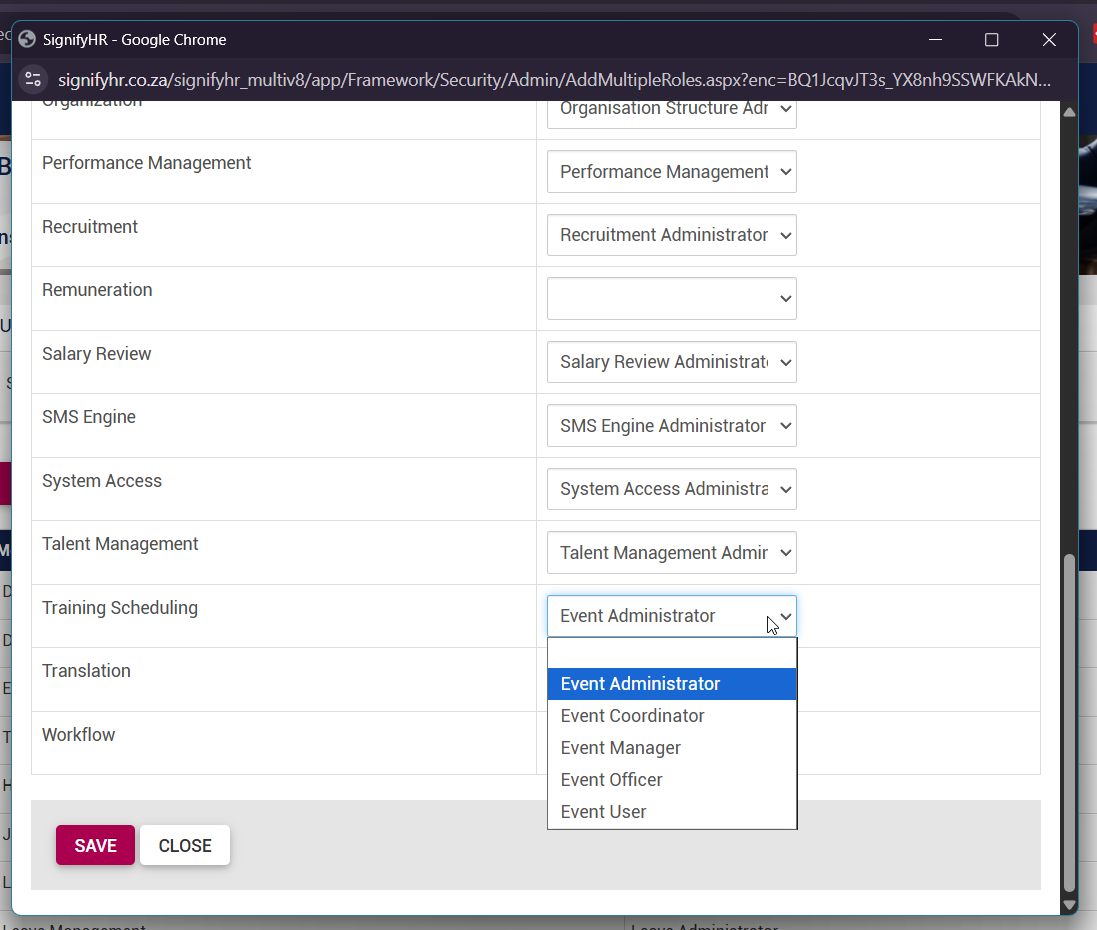
- Different roles with varying levels of access can be assigned to Version 8 modules.
- - For instance, a **Learning Administrator** has full administrative rights for the module, while a **Knowledge Administrator** or a **Learning Manager** will have limited administrative rights, depending on the specific choices made.
- The **Administrator** role will always have full administrative rights for each Version 8 module.
- The roles and their associated responsibilities are described below.
##### Dashboards
- Graphical insights and dashboards can be configured and customised to meet specific reporting and visualisation needs.
##### Employee Evaluations
- The administrator can create periods, categories, participant roles, and participant assessments, create evaluations, and add participants.
##### Training Scheduling
- This permission allows a user to fully configure and manage events within the system. It includes access to tools for event setup, templates, attendee tasks and requests, notifications, reporting, and event-related master data.
- Users can manage their own events and employees, as well as perform administrative actions related to scheduling, attendance, and communication.
##### HR Processes
- HR Processes permissions include the ability to configure workflows for processes submitted through **SigniBot**.
- This configuration is handled on the **People Management Product Setup**, under **HR Processes**.
##### Job Profiler
- Being a **Job Profiler Administrator** allows a user to manage job profiles, their associated requirements, and any linked jobs.
##### Learning
- A **Learning Management Administrator** can do the following:
- - Manage master data
- Build and edit pathways
- Build and edit assessments
- Send email notifications from learning journeys
- Edit the menu and image panel at the top of the LMS portal
- Manage learning master data
- Access submitted assignments
- Configure gamification and rewards
##### Leave Management
- Being a **Leave Administrator** allows a user to configure the Leave Management module, including setting up public holidays, leave rules, leave groups, and leave types.
- The user can also link or update leave on a person’s profile, manage related master data, and view leave requests and history.
##### Organization
- This permission allows a user to manage organisational levels and units (including editing and deleting), as well as link, move, and remove positions within jobs.
##### Performance Management
- A **Performance Management Administrator** can do the following:
- - Create, edit, and delete performance templates
- Create, edit, and delete review years
- Link review setups
- Manage **Final Scores** for performance agreements
- Perform bulk actions, such as:
- - Linking templates
- Deleting agreements
- Manage master data
- Manage a person's performance agreement
- Moderate agreements
- Perform quality assurance on performance agreements
- Manage review setups
- Manage the **General** section
- Manage review periods
- Manage review sections
##### Salary Review
- **Salary Review Administrators** can configure related master data and access employee reviews.
##### System Access
- This permission allows a user to manage registration access and fields, including related master data and the mandatory status of registration fields.
##### SMS Engine
- An administrator on the **SMS Engine** can configure the SMS setup and manage SMS templates.
##### Global
- Similar to the **Tenant** and **Ruleset Administrator** administration permissions in Version 9, the **Global Administrator** role allows a user to manage master data, perform actions on the **Product** tab, access the **Module Product Setup**, and update and manage the tenant’s configuration settings.
#### Additional Reporting Rights
Standard system reports are pre-configured, pre-deployed reports uploaded to the system that retrieve information from Version 8 modules.
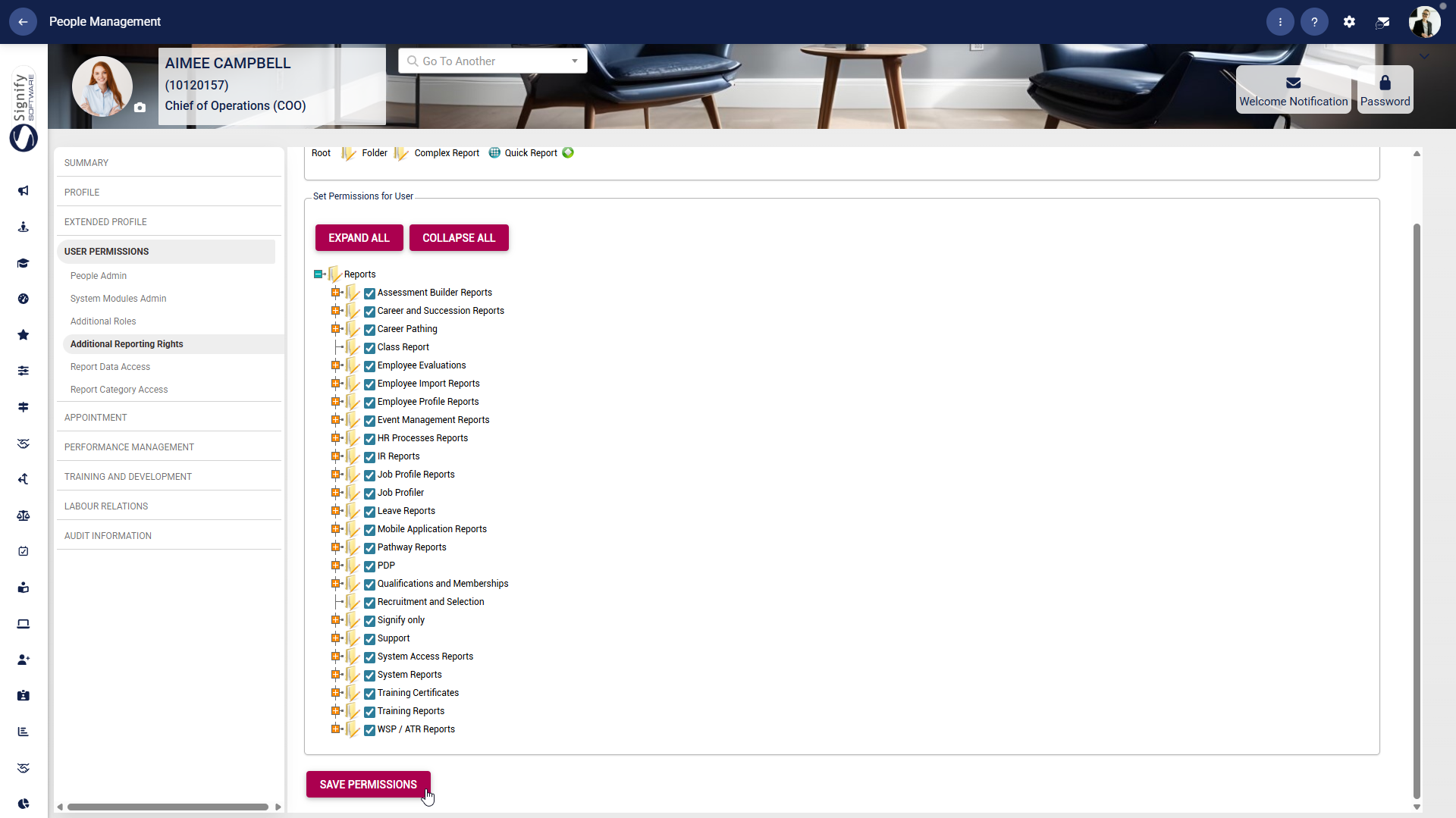
- Navigate to **Additional Reporting Rights**. Tick the report folders you would like to grant the user access to. Within each folder, complex reports and quick reports are stored.
- Expanding the cascading folders lets you grant the user access to specific reports by ticking the corresponding boxes.
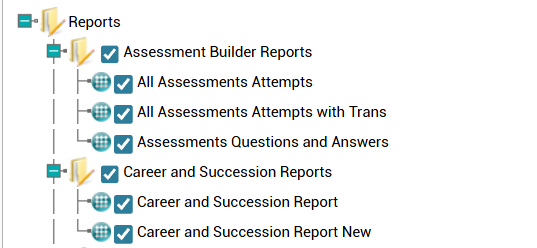
- After selecting all required reports, click **SAVE PERMISSIONS**.

#### Report Data Access
In order for **Report Builder** **Administrators** to gain access to the **Report Builder** module, ensure you follow the steps listed below.
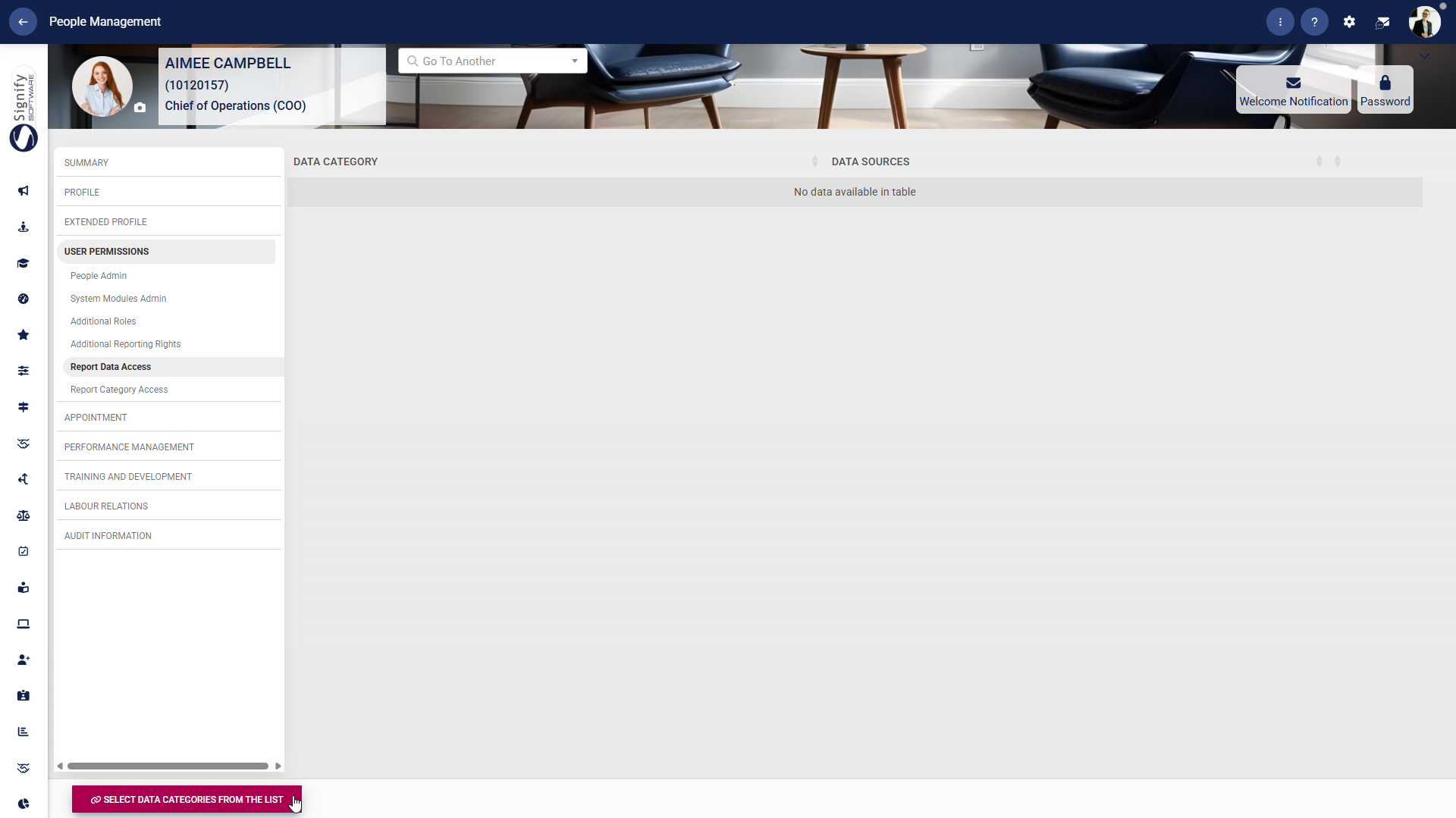
- On the **left-hand menu**, navigate to **Report Data Access** and click **SELECT DATA CATEGORIES FROM THE LIST**.
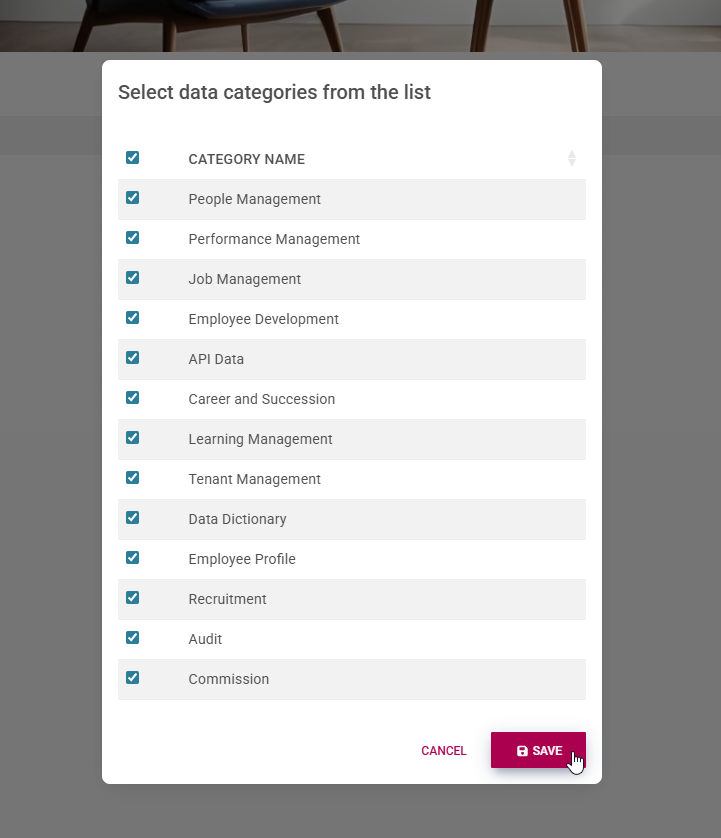
- Select which data categories you would like to grant the user access to. Click **SAVE** when you are finished or **CANCEL** to discard your changes.
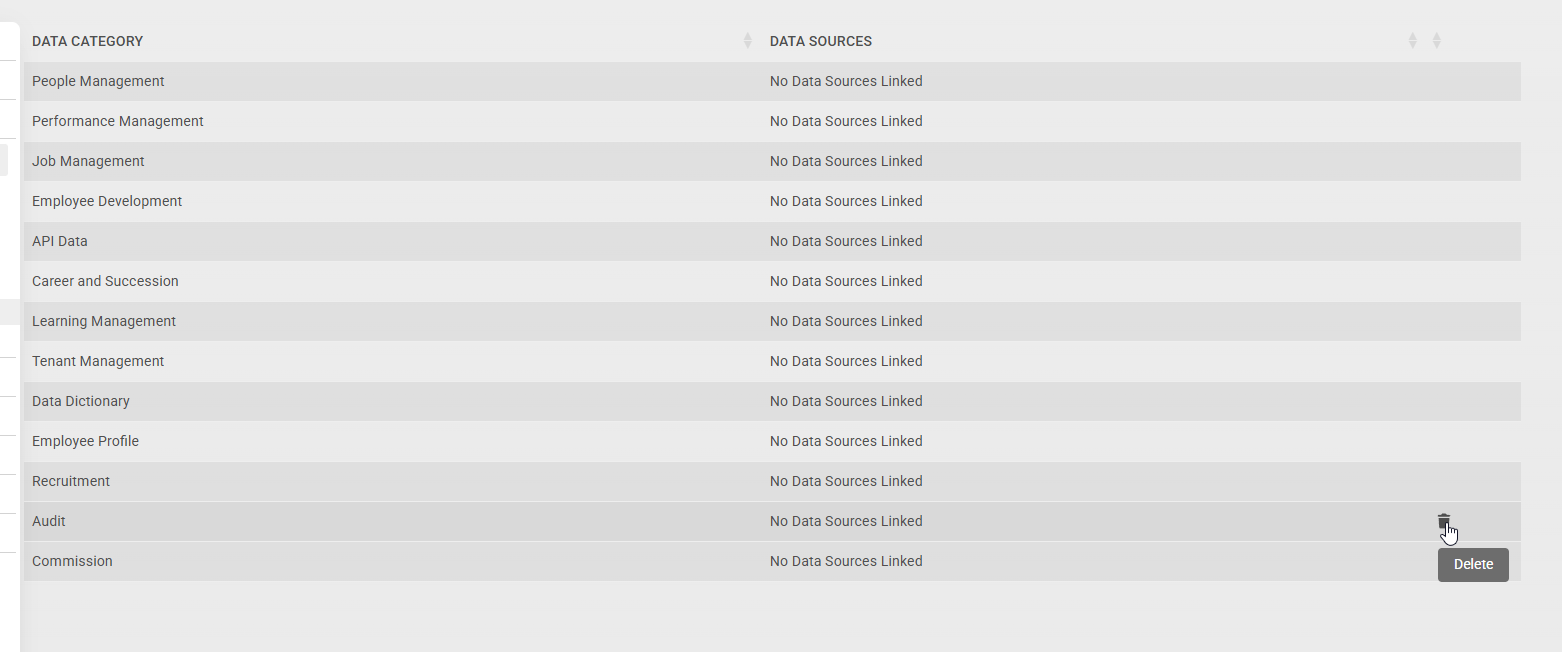
- To revoke a user's access to a report data category, click on the **dustbin icon**.
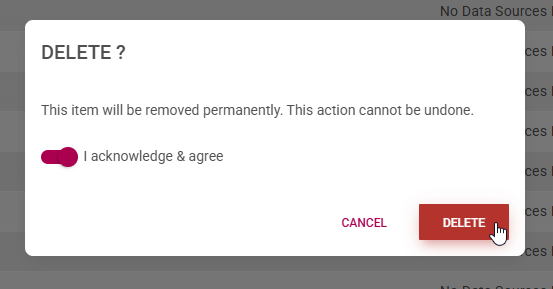
- Confirm that you would like to proceed with the deletion, then click **DELETE** to proceed, or **CLOSE** to discard your changes.
#### Report Category Access
In order for **Report Builder** **Administrators** to gain access to the **Report Builder** module, ensure you follow the steps listed below.
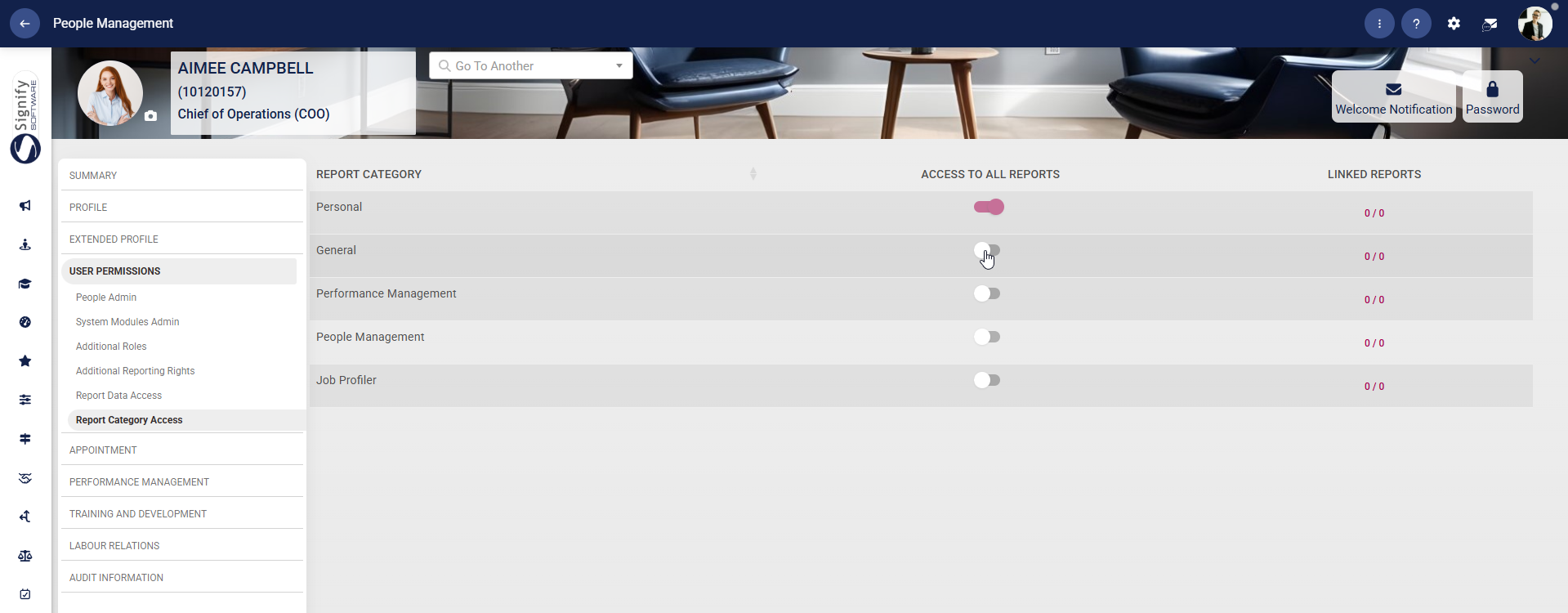
- On the **left-hand menu**, navigate to **Report Category Access**. Toggle the switches to grant users access to specific report categories.
#### User Roles
To access a quick overview of the people linked to a specific role, use the **Product Roles and Permissions** feature of the **People Management** module.
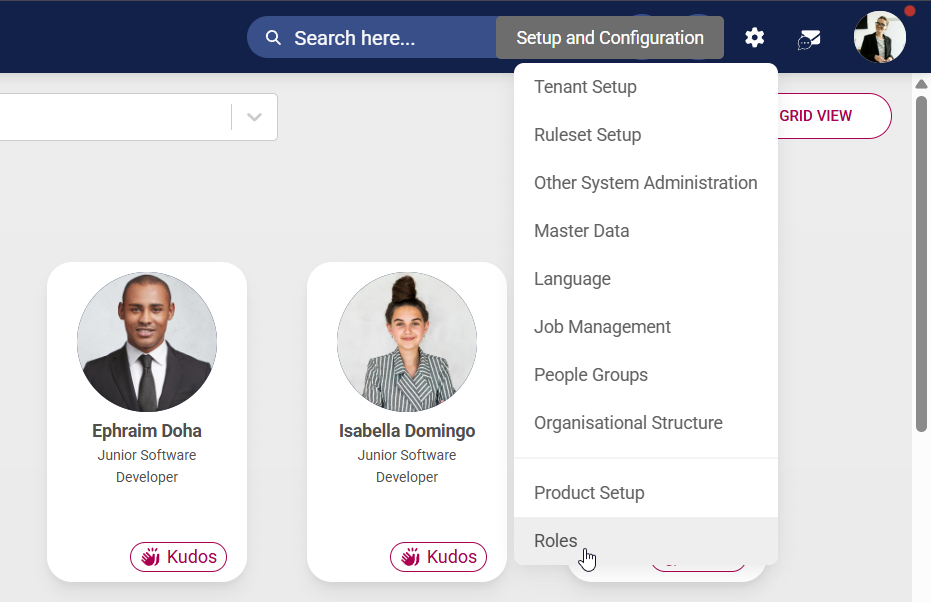
- Click the **gear icon** to access the **Setup and Configuration** menu.

- Select **Roles** from the drop-down menu.
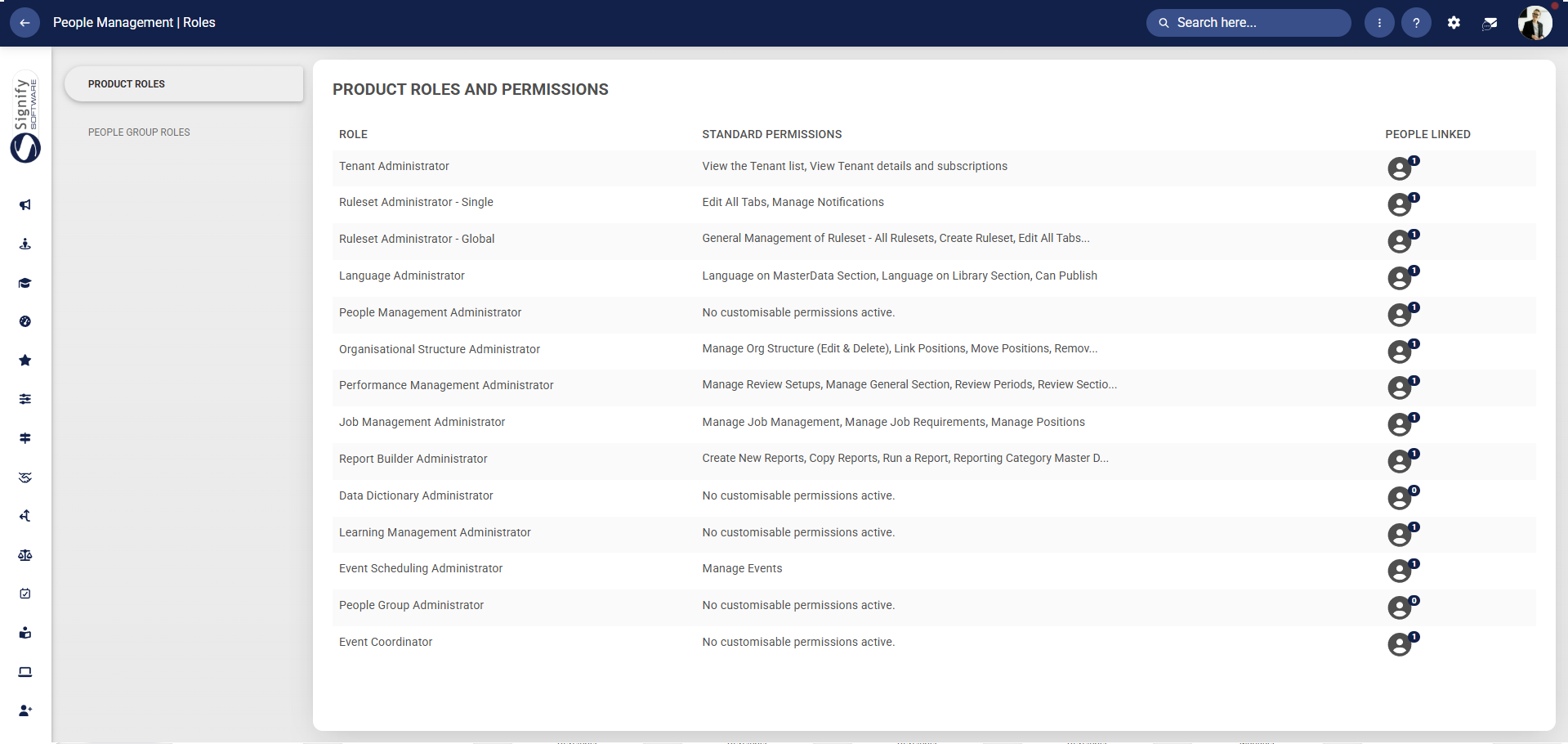
- The **Product Roles** screen will appear. The table displays the various roles in the system, the standard permissions for each role, and the number of people linked to each role.
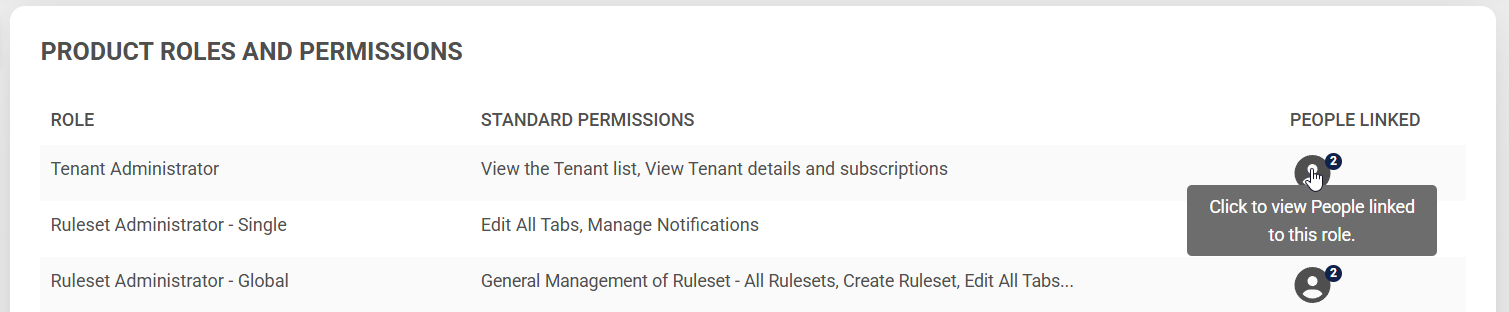
- Click to view a summary of the people linked to a specific role.
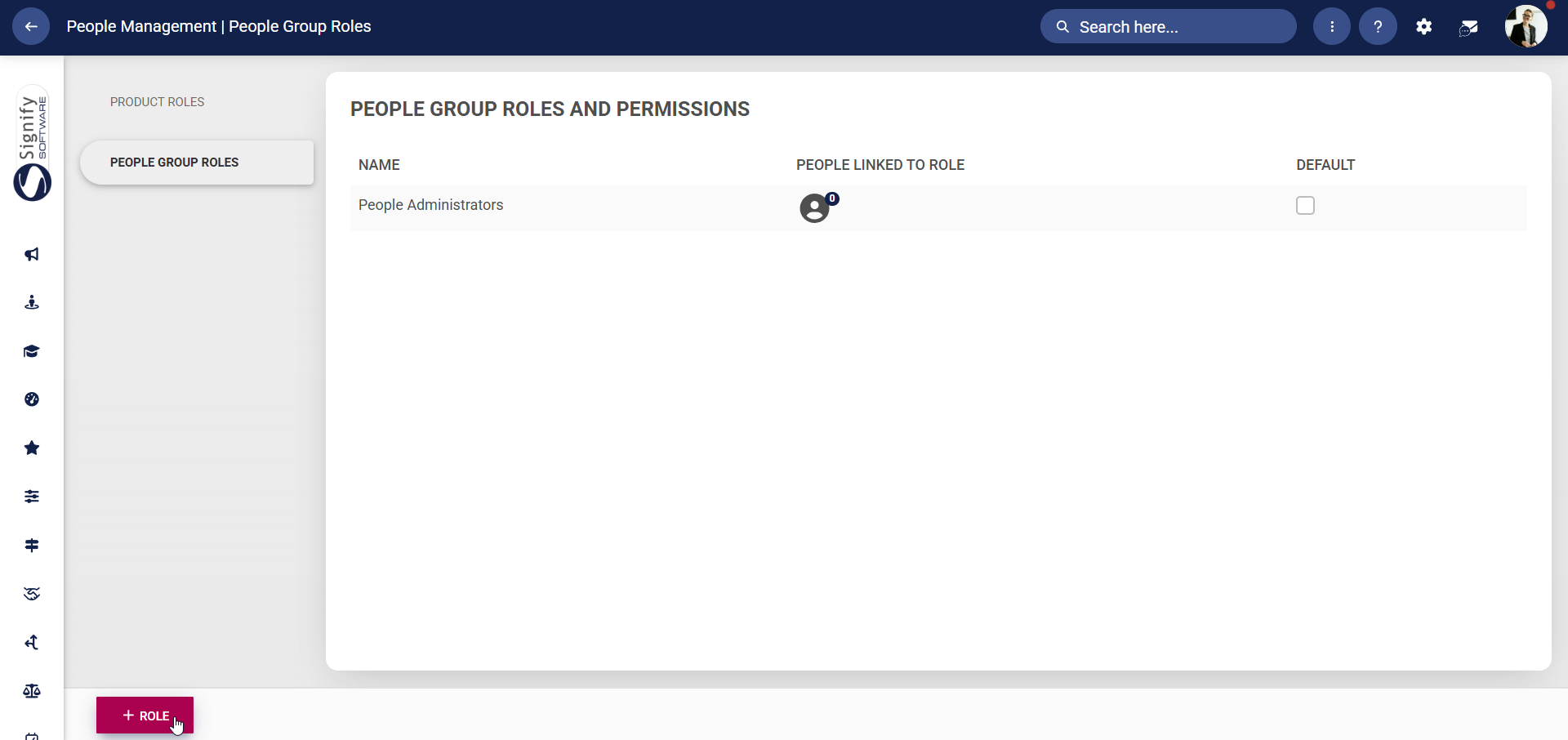
- To assign a specific role to specific people groups, navigate to **People Group Roles**. Click **+ROLE** to add a new role.
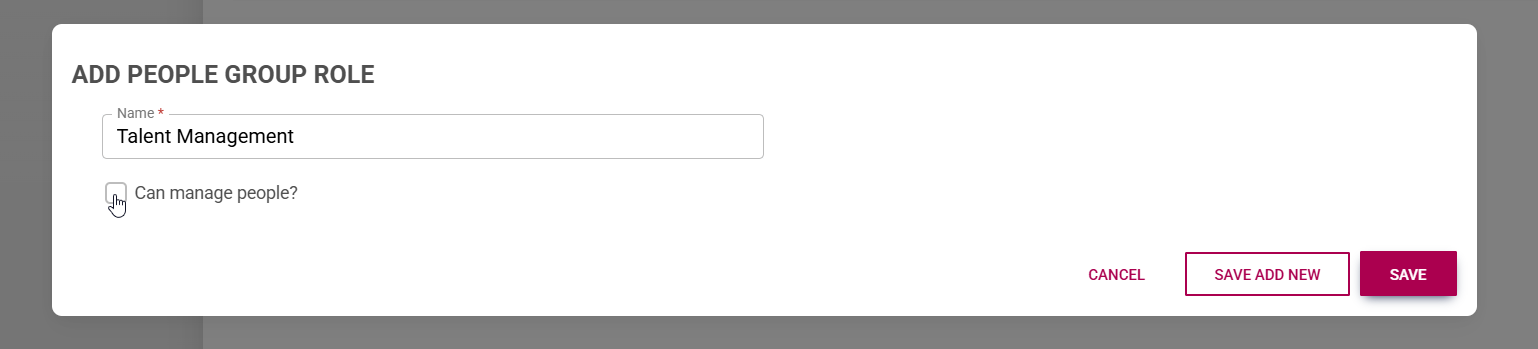
- Assign an appropriate name to this role. If the role requires managing people, tick the checkbox. Click **SAVE ADD NEW** to add another people group role, **SAVE** when finished, or **CANCEL** to discard any changes.
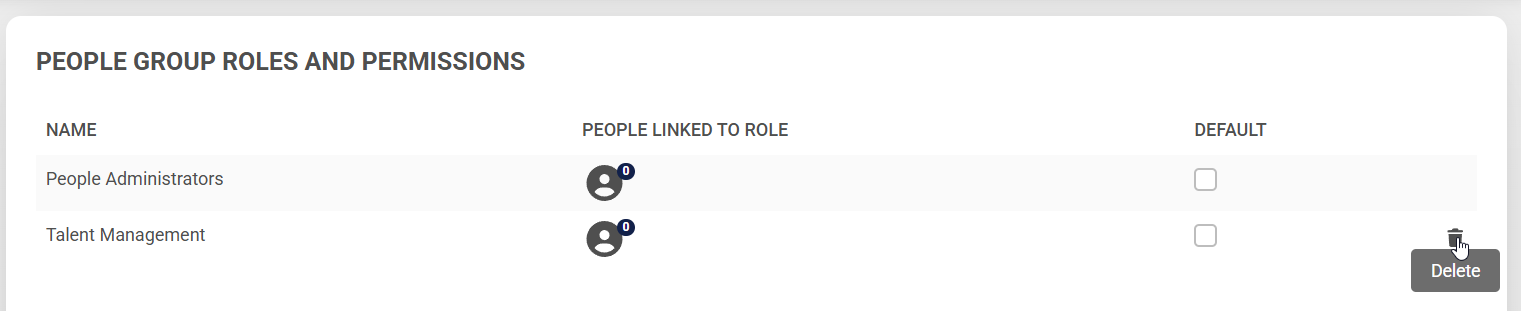
- To delete a people group role, hover over the name and click the **dustbin icon**.
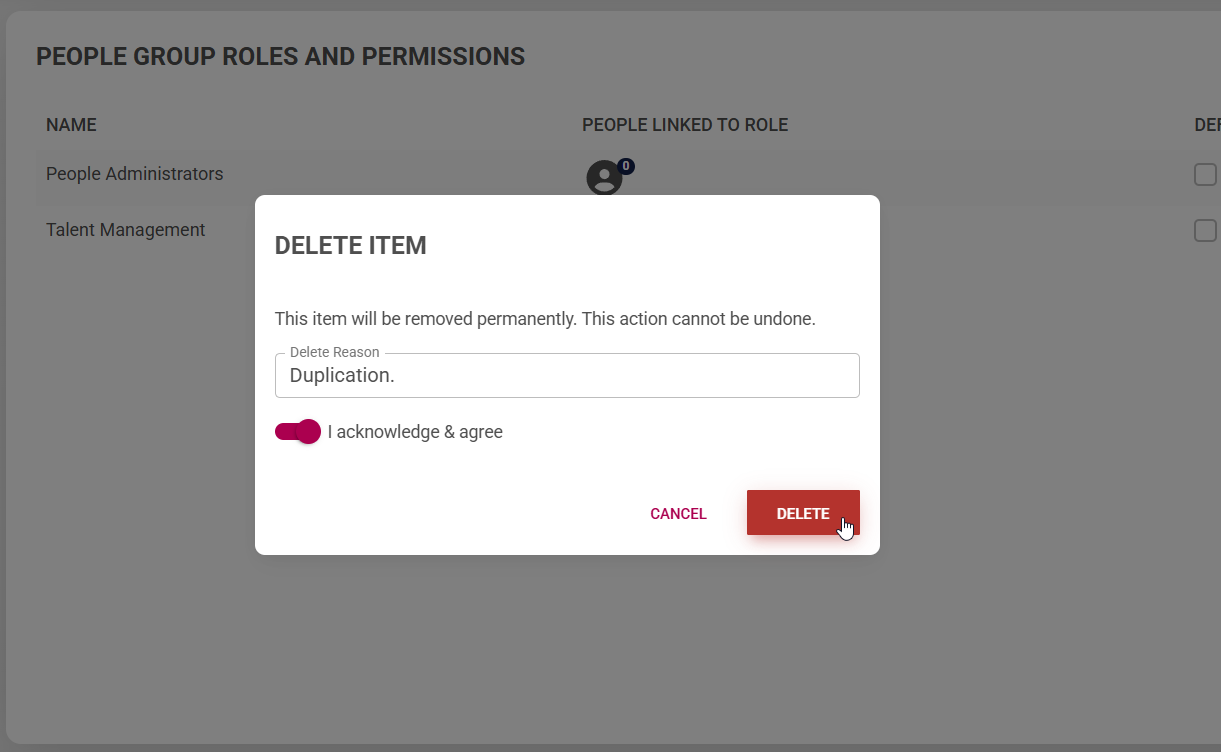
- Confirm you would like to proceed with the deletion and provide a valid reason. Click **DELETE** to remove the people group role, or **CANCEL** to discard your changes.
[](https://signature.signifyhr.co.za/uploads/images/gallery/2025-02/ZOt8yZwhbiGx2d6U-signify-footer.png)
# Master Data Maintenance
[](https://signature.signifyhr.co.za/uploads/images/gallery/2025-02/emW3hfMrZ1yIDMUv-signify-header.png)
The **Master Data Library** serves as the foundational control layer for all standardised organisational data used across the system. Its purpose is to ensure that key reference data, such as genders, job titles, locations, document categories, and disciplinary outcomes, are centrally defined, consistently applied, and tightly governed.
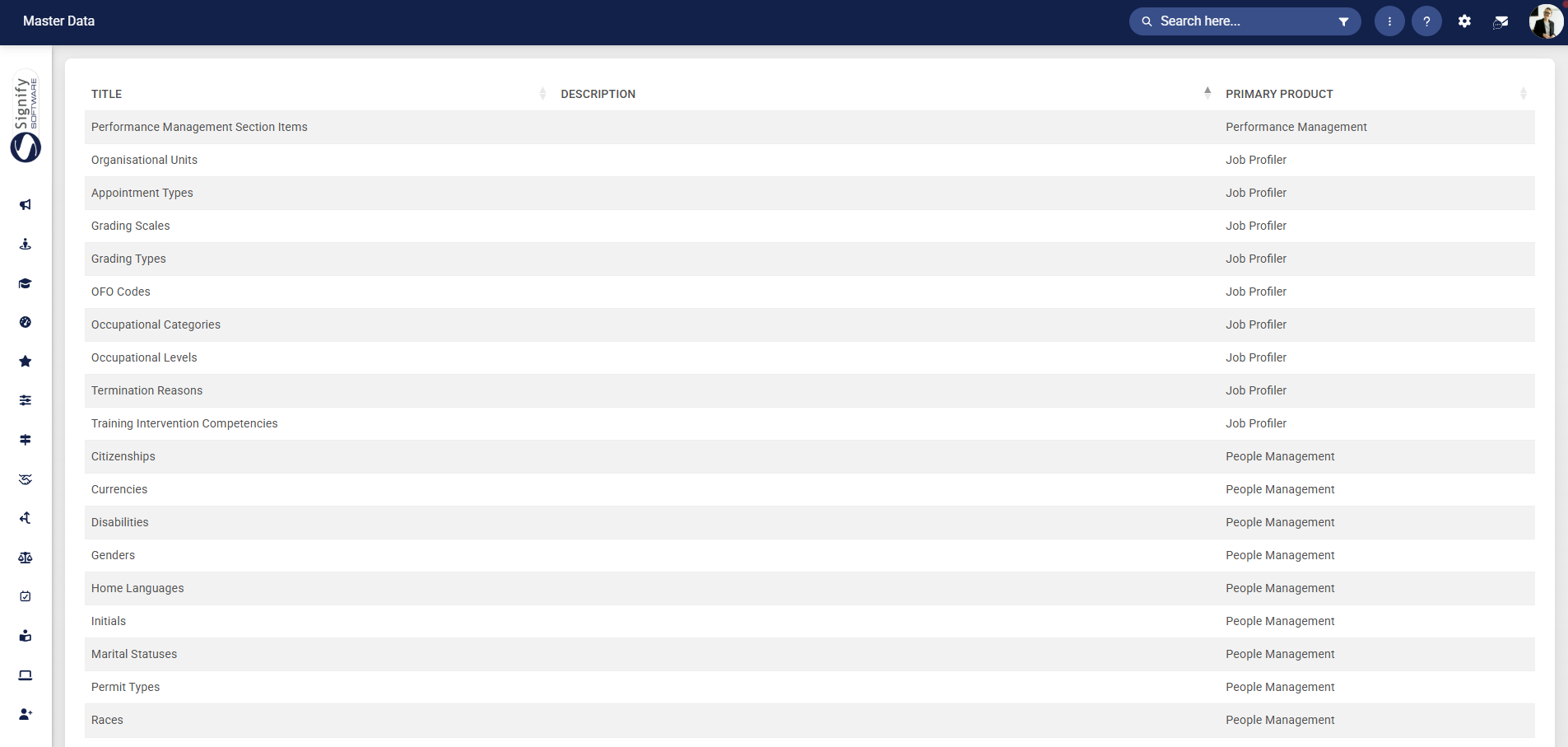
Modules such as **Performance Management**, **Learning Management**, and **People Management** rely on master data setup to optimise certain features of these modules. It acts as a **single source of truth** for all structured, repeatable data elements used within employee profiles, processes, and reporting. Instead of allowing users to manually input free-text values, the system relies on predefined lists to maintain **consistency**, **accuracy**, and **alignment** across the organisation.
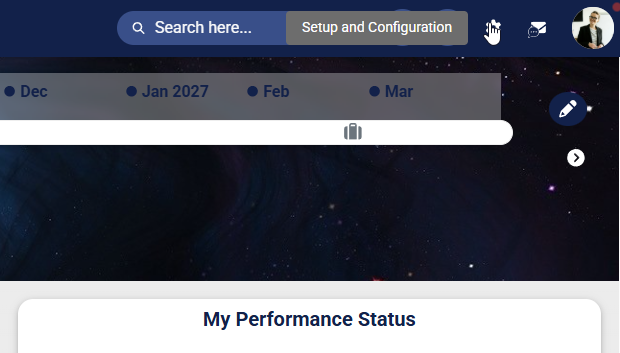
- Click the **gear icon** to access the **Setup and Configuration** menu.
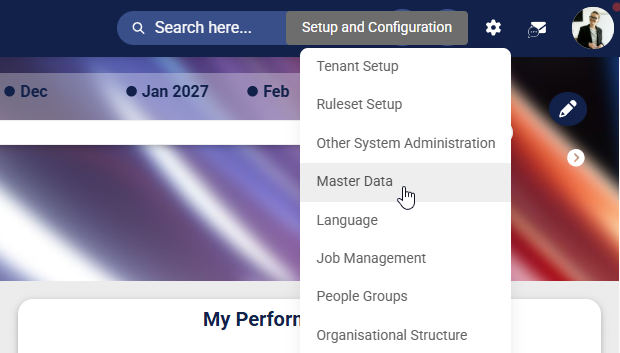
- Select **Master Data** from the drop-down menu.
- The **Master Data Library** will open.

- Use the **search bar** to filter by **People Management**.

- For our example, we will configure master data for **Assets**. Most of the master data setup follows the same process, so these steps can be applied to any master data library entry. Click on the library item you would like to update.

- The master data configuration for **Assets** will open. Each master data library is constructed in a similar way for consistency. Each row represents a **specific asset item** (e.g. *Laptop, Monitor, Hard Hat, Gloves*), along with several configuration controls.
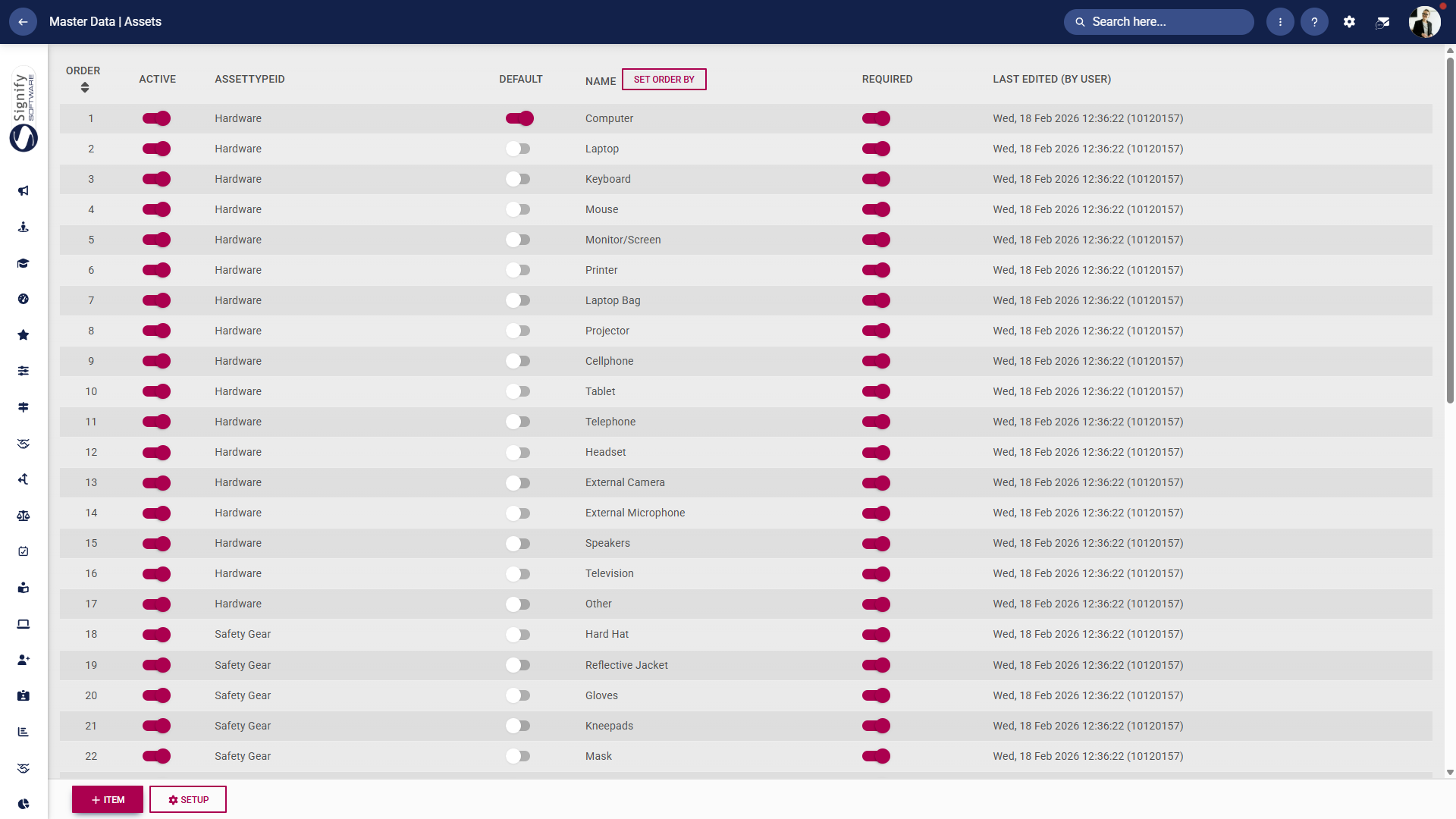
- - - **Order**
Defines the display sequence of asset items. This determines how items appear in dropdowns or selection lists elsewhere in the system.
- **Active**
Indicates whether the asset is currently available for use.
- Active items can be assigned to employees
- Inactive items are hidden but retained for historical data integrity
- **Asset Type ID**
Groups assets into categories (e.g. *Hardware*, *Safety Gear*), helping with organisation and filtering.
- **Default**
Marks whether an asset is automatically selected or prioritised in certain contexts. Only specific items may be designated as defaults.
- **Name**
The label of the asset as it will appear to users across the system.
- **Set Order By (button)**
Allows administrators to reorder the list dynamically, typically via drag-and-drop or sorting logic.
- **Required**
Determines whether this asset must be captured or assigned in relevant processes (e.g. onboarding or equipment allocation).
- **Last Edited (By User)**
Displays audit information showing when the item was last modified and by whom, supporting traceability and governance.
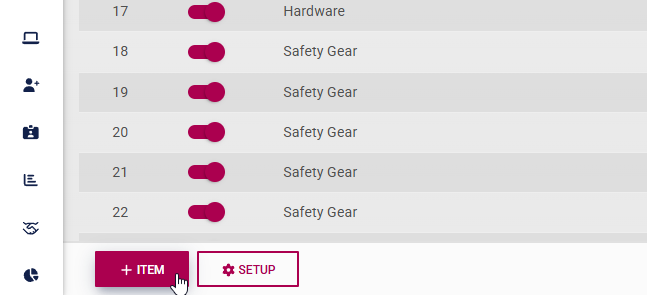
- To add a new master data entry, click **+ITEM**.
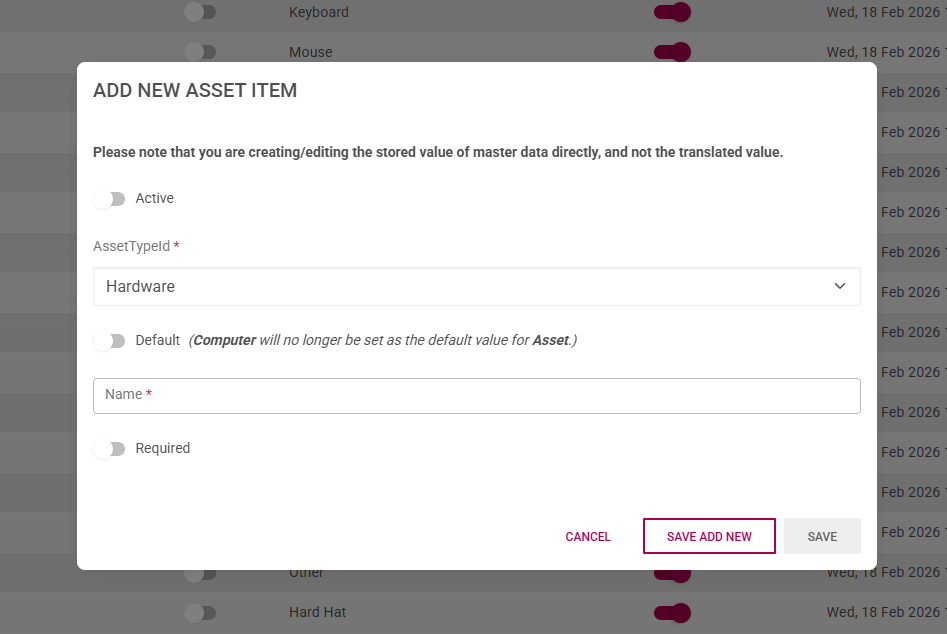
- Complete the form, noting which fields are **required** (marked by a **\***). Click **SAVE ADD NEW** to add another master data entry. Click **SAVE** when finished or click **CANCEL** to discard any changes.
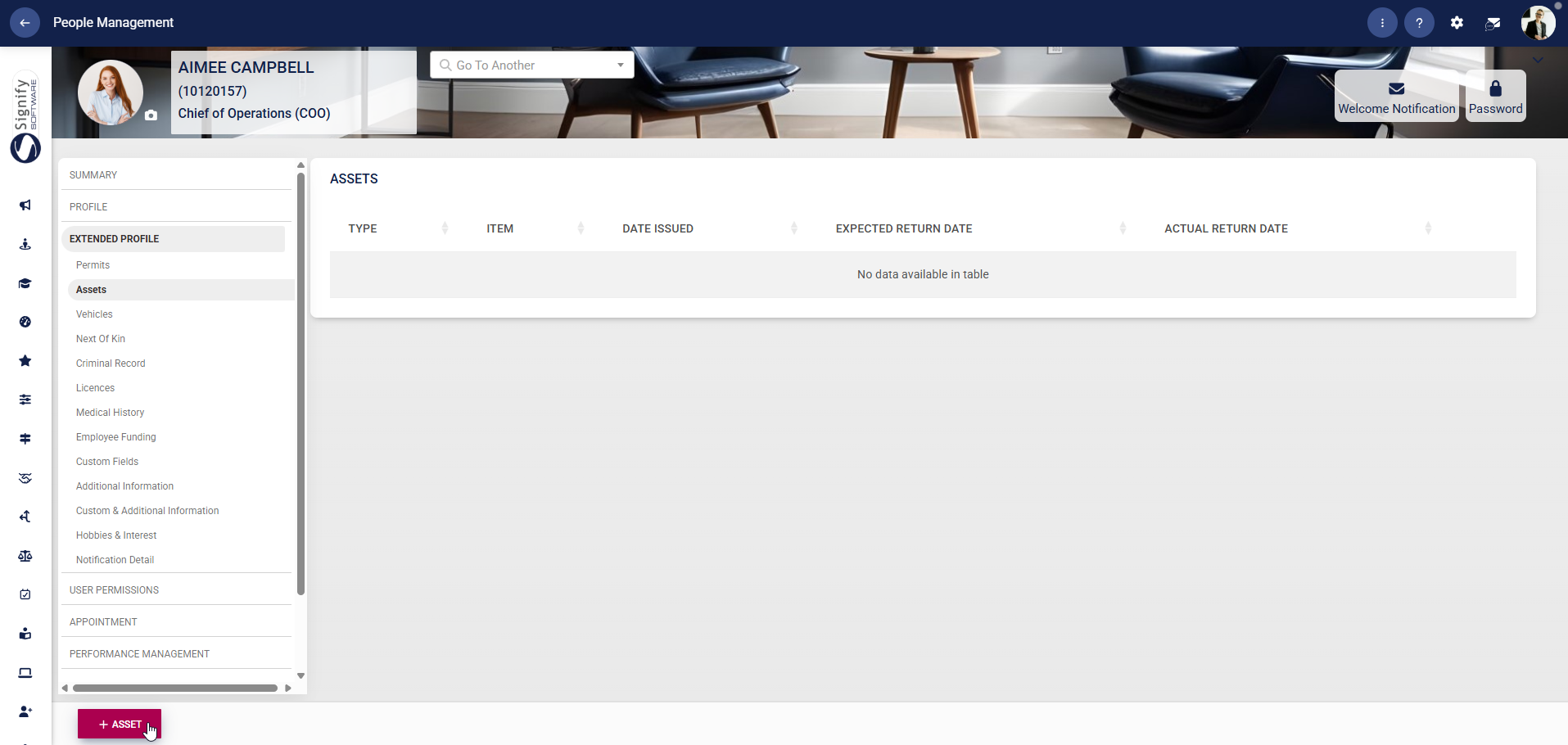
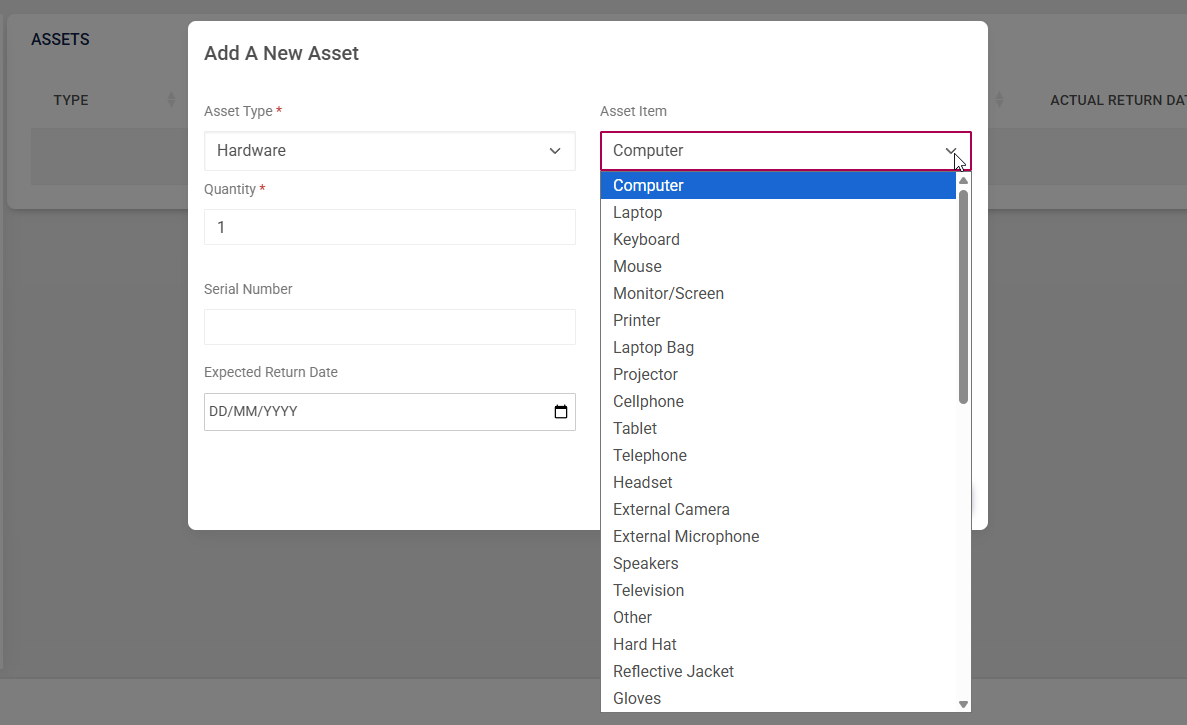
- The master data is now ready for use. In our example, we have configured master data for **Assets**. These master data library items will be used to populate the **drop-down** menus when adding an asset to a person's profile.
[](https://signature.signifyhr.co.za/uploads/images/gallery/2025-02/ZOt8yZwhbiGx2d6U-signify-footer.png)
# Bulk Additional Service Imports
[](https://signature.signifyhr.co.za/uploads/images/gallery/2025-02/emW3hfMrZ1yIDMUv-signify-header.png)
The **Integrations** page serves as a central configuration and monitoring interface for managing automated data integrations between external systems and the **People Management** platform. Its primary purpose is to enable administrators to control how data is **imported**, **synchronised**, and **processed** across various system components, ensuring that organisational data remains accurate, up to date, and aligned with external sources.
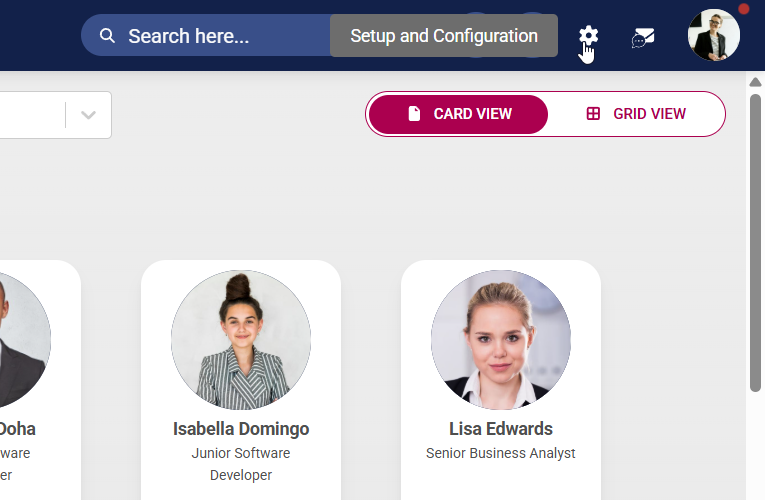
To navigate to the **Integrations** page, click the **gear icon** to access the **Setup and Configuration** menu.
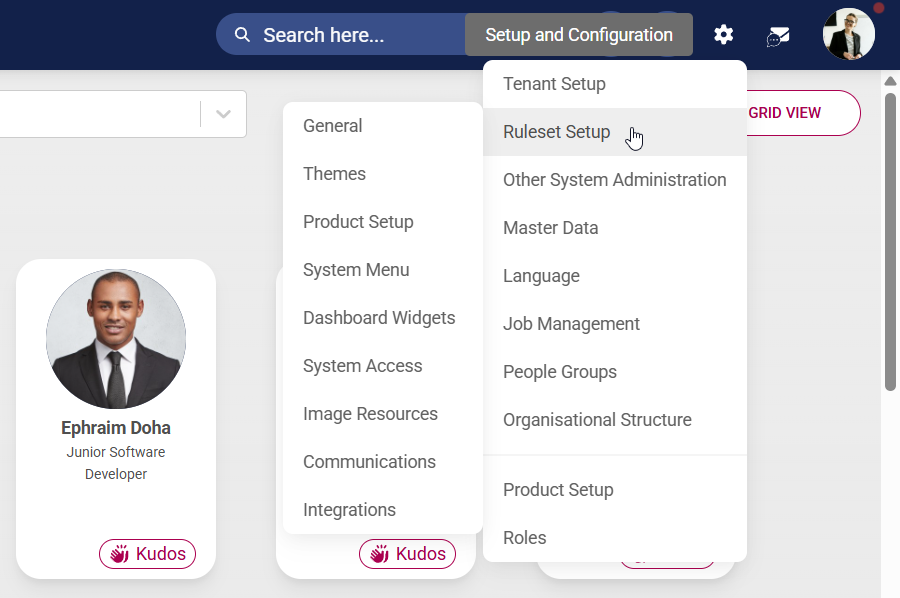
Hover over **Ruleset Setup** in the drop-down menu.
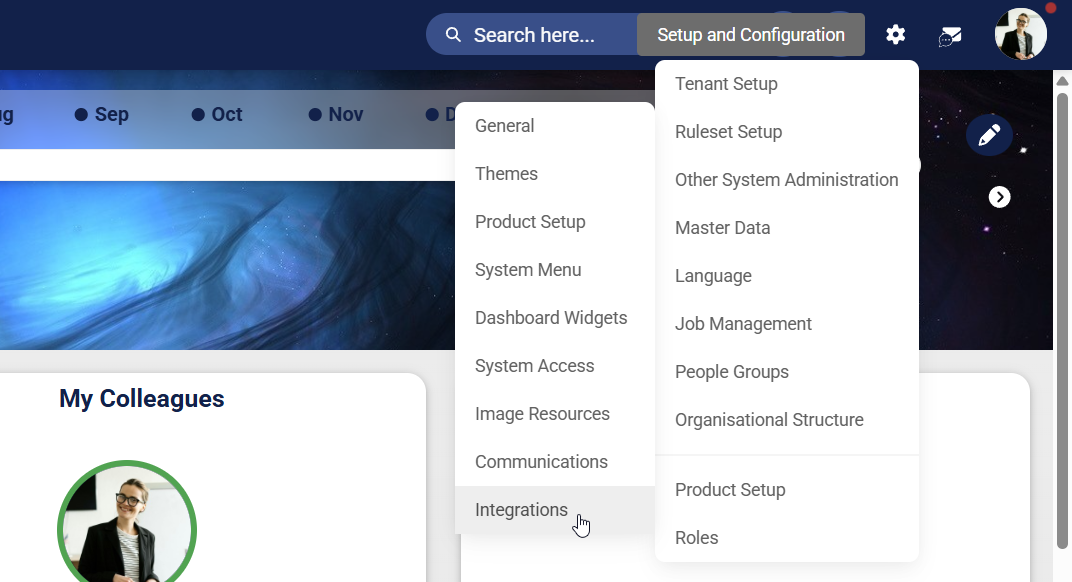
Click **Integrations**.
A significant portion of the **Integrations** page is dedicated to **Bulk Additional Service Imports**, which is divided into two key mechanisms:
- Push imports, where external systems send data into the platform.
- Pull imports, where the platform retrieves data from external sources on a scheduled basis.
For our **People Management** module functions that require syncing, we will focus on **push imports**.
Each import type is presented in a structured table displaying critical operational details, including the import name, scheduling frequency, last execution timestamp, and whether the import is currently active.
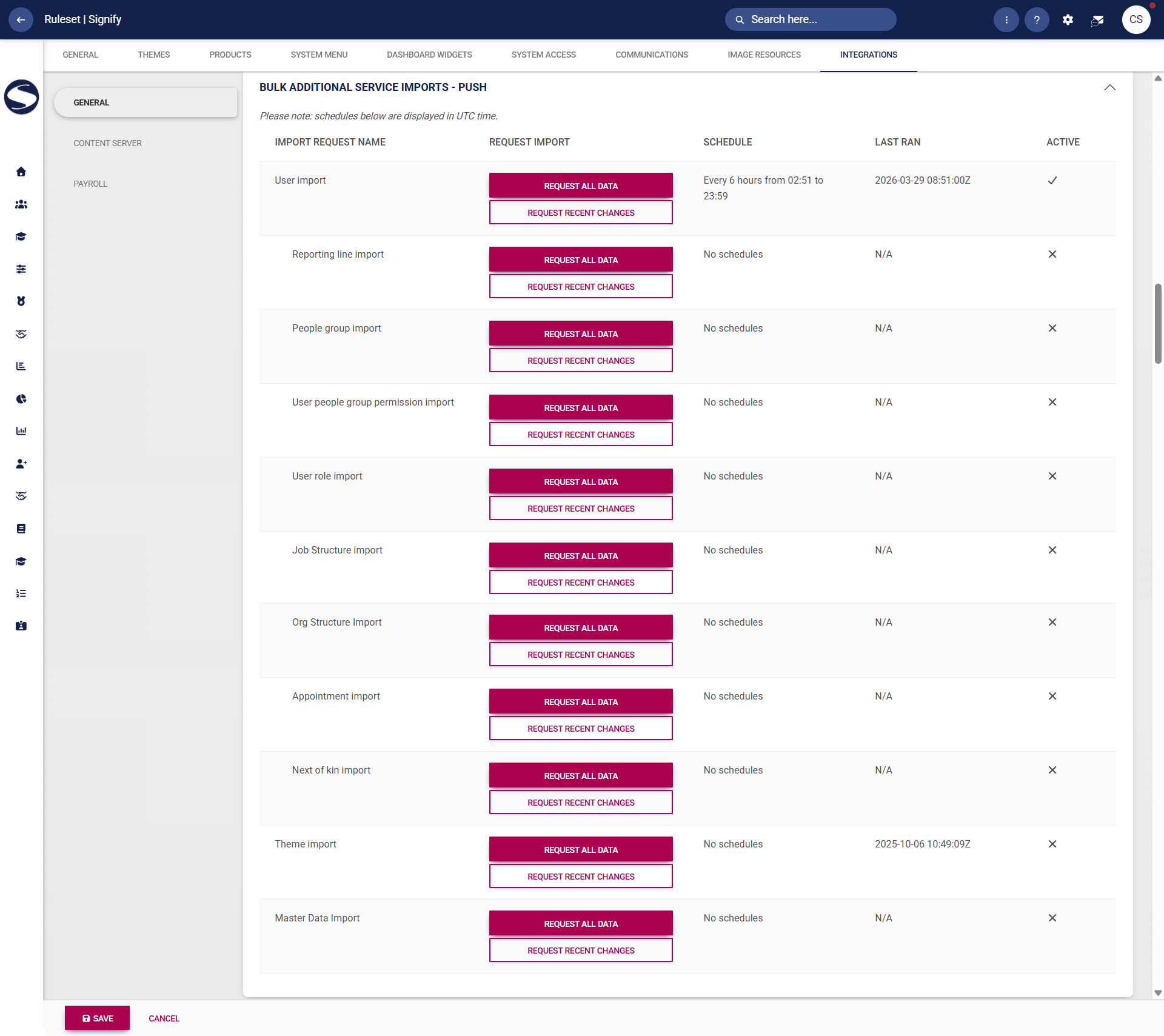
Examples of managed imports include user data, reporting lines, organisational structures, appointments, permissions, training data, and master data. This enables administrators to monitor integration health, identify inactive or unscheduled imports, and ensure that essential data flows are functioning as expected.
To kick off an ad hoc synchronisation of data, such as after completing a **People Management** import using the import sheet, creating people groups, or updating a reporting line, click **REQUEST ALL DATA** to sync the whole data set.
**For large data sets, this may take some time and may significantly affect system performance, so please use it with caution.**
However, if you would only like to sync the changes you have made recently, click **REQUEST RECENT CHANGES**.

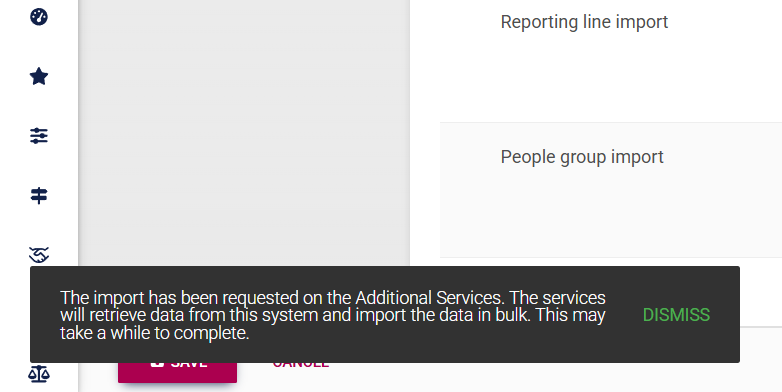
A message will appear, notifying you that the sync job has successfully staged.
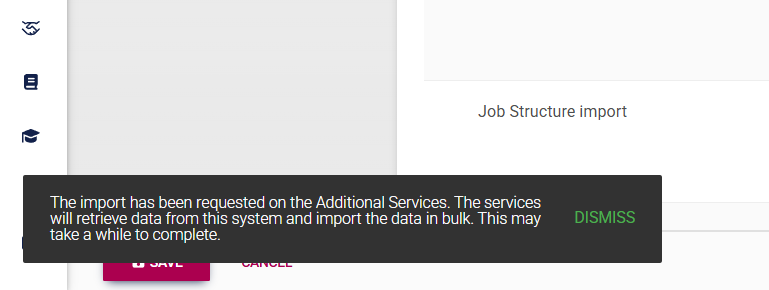
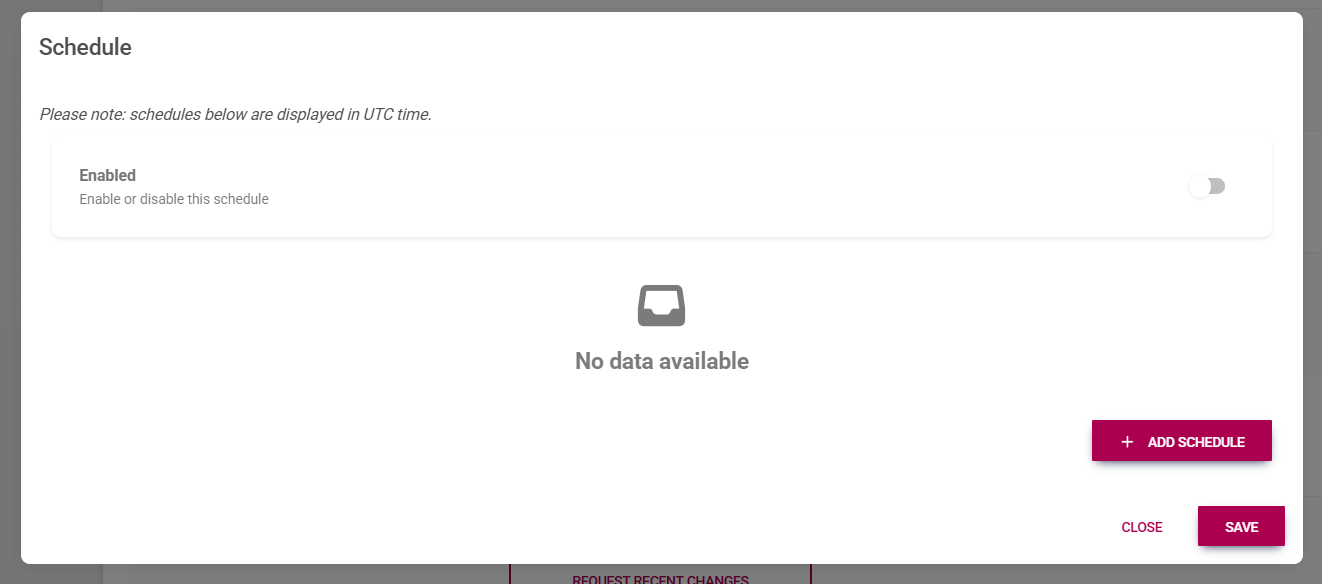
To set up a regular schedule for a sync job to run on certain data sets, such as user imports, appointment information, or master data, click the **Schedule** column.

Click to enable a schedule, then click **+ADD SCHEDULE** to create a new schedule.
Complete the schedule information. Click **SAVE** to confirm your changes, or **CLOSE** to cancel this process.
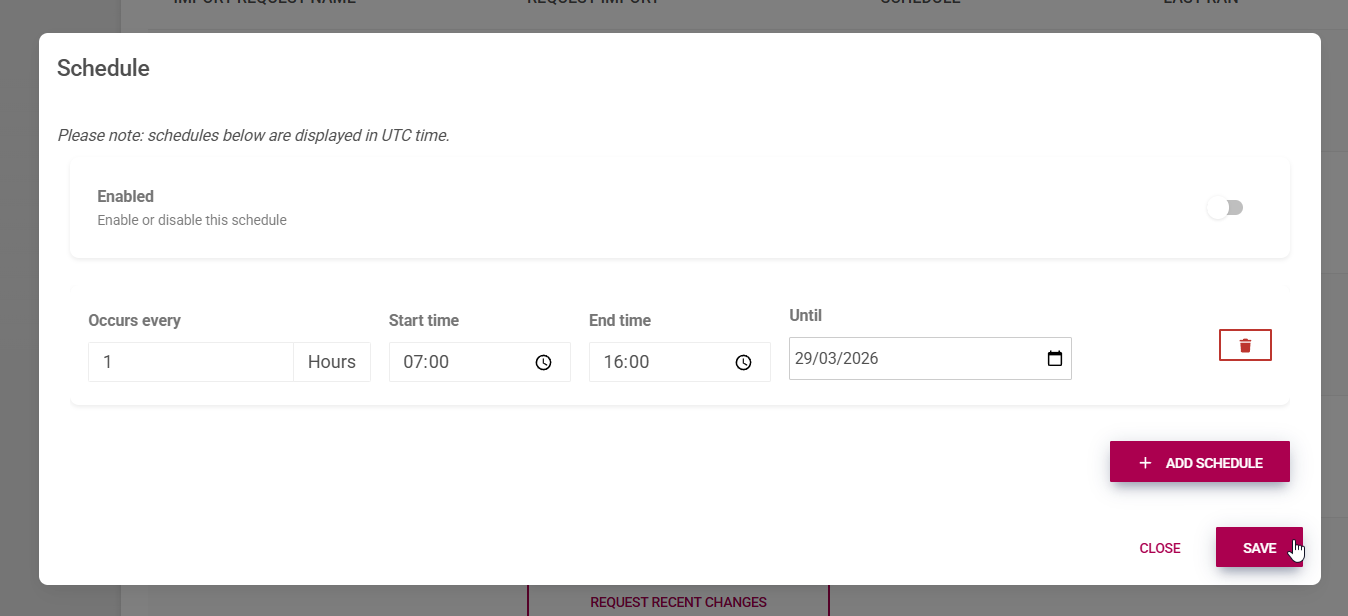
It is recommended that these tasks be scheduled outside working hours, such as early in the morning or late in the evening, to prevent the synchronisation from affecting the user's experience, data loss, or system performance.
[](https://signature.signifyhr.co.za/uploads/images/gallery/2025-02/ZOt8yZwhbiGx2d6U-signify-footer.png)
# Create People Groups
[](https://signature.signifyhr.co.za/uploads/images/gallery/2025-02/emW3hfMrZ1yIDMUv-signify-header.png)
A target audience, or a **People Group**, can be created to identify users based on specific criteria. The goal is to group users in a way that optimises processes such as:
- reporting,
- communication,
- performance tracking, and
- workforce planning.
After successfully importing users into the system, **people groups** can now be created.
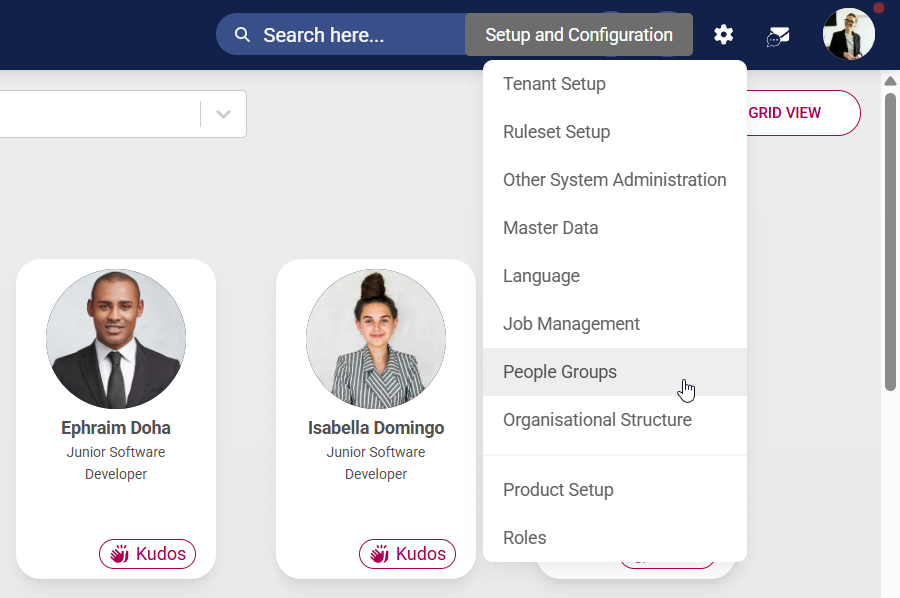
- Click the **gear icon** to access the **Setup and Configuration** menu.

- Click **People Groups** in the drop-down menu.
- You can create target audiences based on several factors. These include, but are not limited to:
- - **Organisational factors** (department, team, location, reporting lines, etc.)
- **Job-related factors** (job title, job level or grade, employment type, etc.)
- **Tenure and employment history** (length of service, start date in company, etc.)
- **Skills and competencies** (certifications and qualifications, soft skills, technical skills, etc.)
- **System-related responsibilities** (administrative rights, project involvement, etc.)
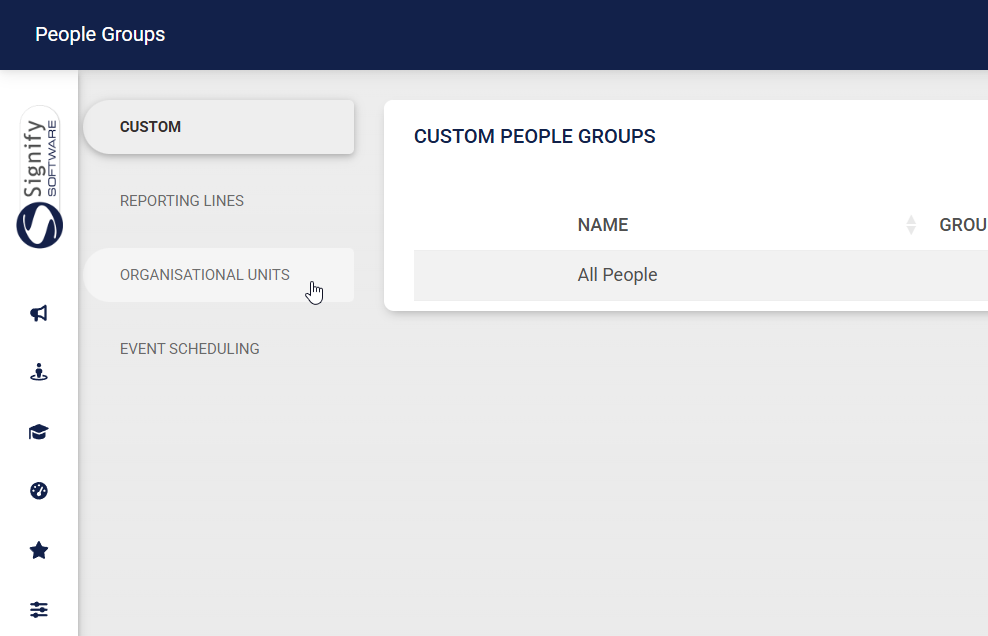
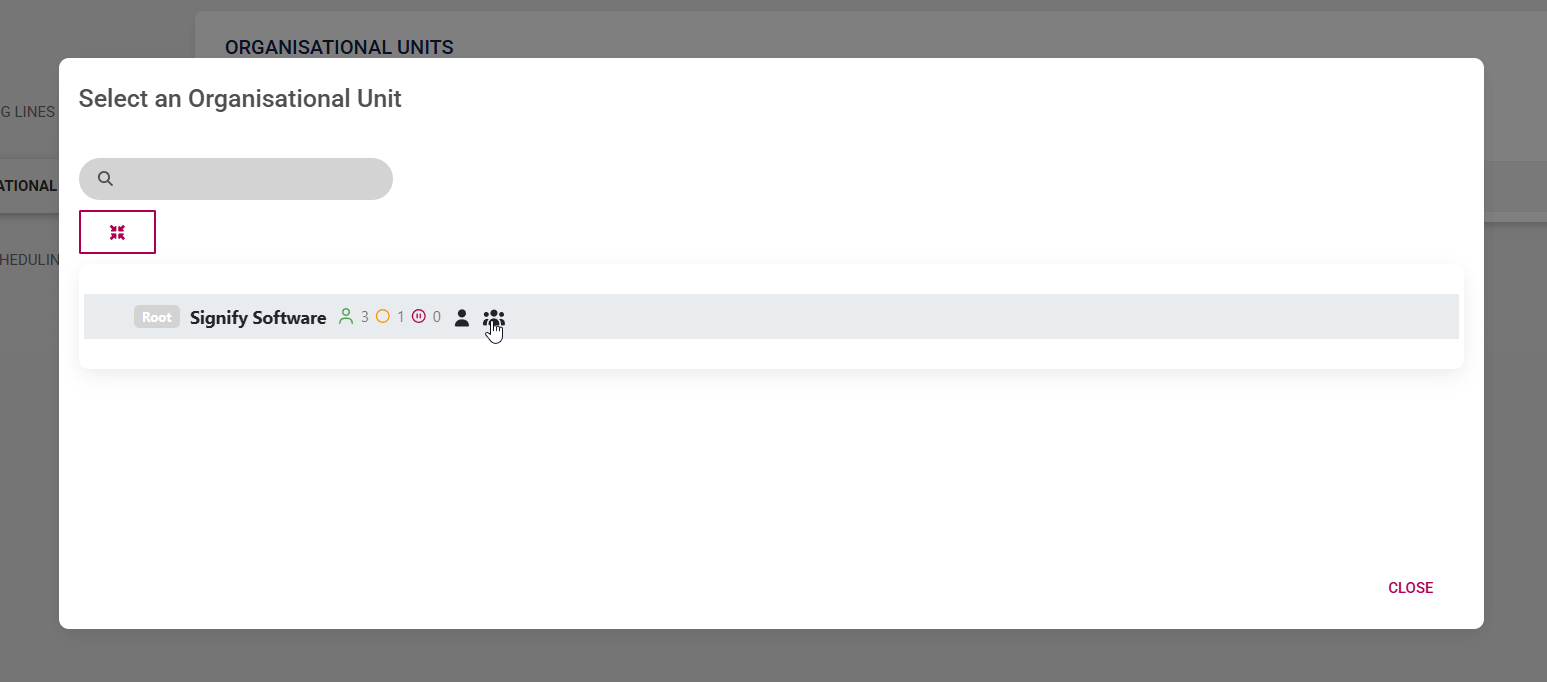
- For our example, we will be creating a people group based on an organisational unit. On the **left-hand menu**, click **Organisational Units**.
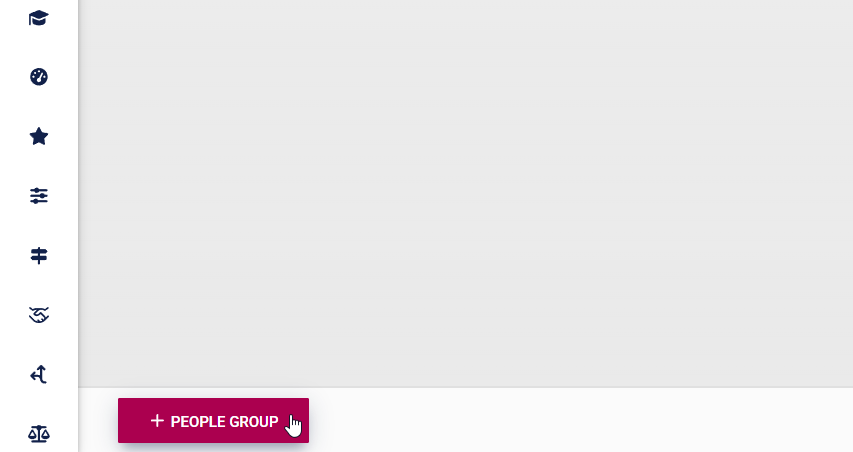
- At the bottom of the screen, click **+PEOPLE GROUP**.
- Expand the organisational structure to find the organisational level you are searching for.
- When creating a people group, you have two **inclusion options**:
- - Include people only within that organisational unit, excluding users in subordinate levels. Do this by clicking the icon of an **individual**.
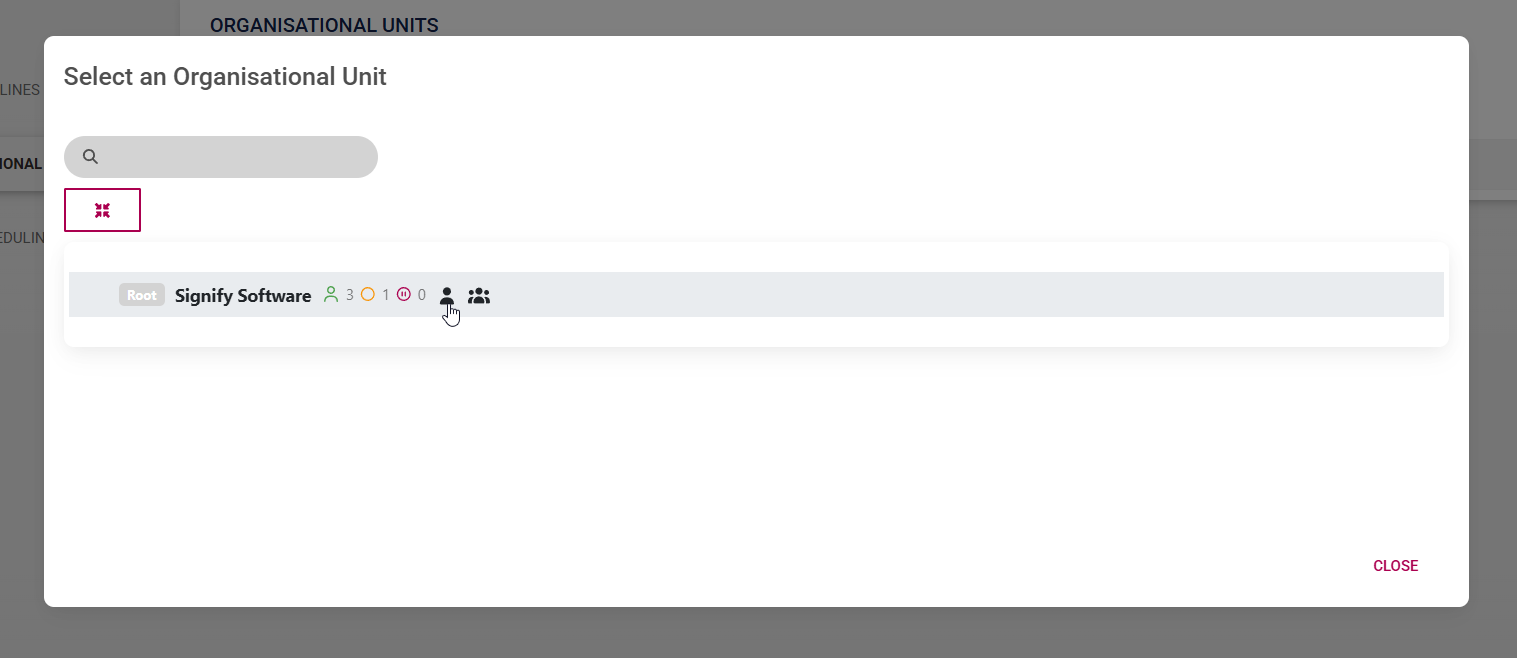
- - - Include people within that organisational unit, as well as all subordinate levels. Do this by clicking the icon of a **group of people**.
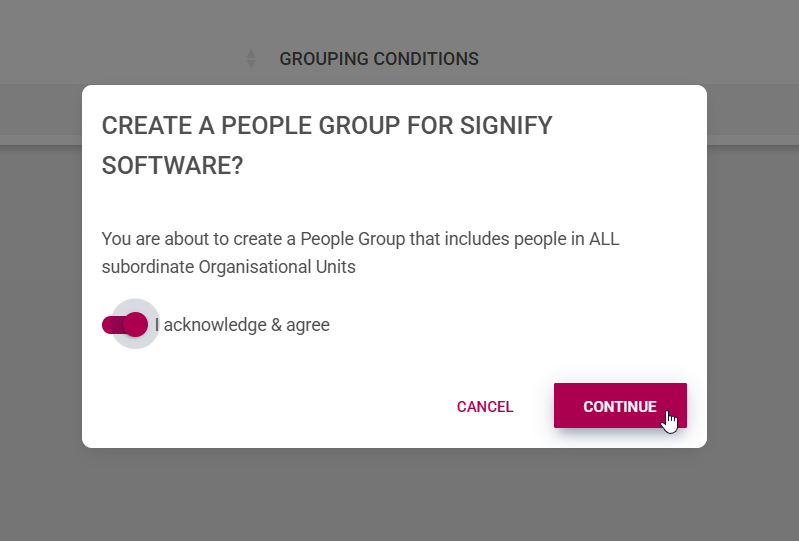
- After selecting the type of people group you would like to create, click to acknowledge and agree. Click **CONTINUE** to proceed, or **CANCEL** to discard your changes.
- After creating people groups, it may take some time for them to sync with the system. To trigger the sync manually, follow the steps outlined in the **[Bulk Additional Service Imports](https://signature.signifyhr.co.za/books/people-management-d8c/page/bulk-additional-service-imports)** section of this chapter.
[](https://signature.signifyhr.co.za/uploads/images/gallery/2025-02/ZOt8yZwhbiGx2d6U-signify-footer.png)
# Appoint, Transfer, or Terminate a Person
[](https://signature.signifyhr.co.za/uploads/images/gallery/2025-02/emW3hfMrZ1yIDMUv-signify-header.png)
This guide focuses on the **People Management** module and the features available to the administrator. By following the outlined procedures, administrators can:
- Add users manually
- - Create an organisational structure
- Define job titles and positions
- Appoint a person in a position
- Add users using an import
- Transfer a person to a different position
- Terminate a person
### Add users
Users can be added to the system in two ways:
- Manually, using the **Organisational Structure**, **Job Management**, and **View/Edit People** functionalities, or
- Using the import sheet.
This guide will show both methods.
#### Method 1: Add users manually
To add new users to the system manually, it is essential that the following **prerequisites** are established:
- The organisational structure must be developed.
- Job titles and positions should be defined in the **Job Management** module.
##### Create an organisational structure
- Click the **gear icon** to access the **Setup and Configuration** menu.

- Select **Organisational Structure** from the drop-down menu.

- Create an organisational structure based on the organisation’s size, goals, industry, and work style. Some examples of organisational structures:
- - **Hierarchical structure** – based on levels of authority and responsibility
- **Functional structure** – focuses on specialised roles or departments
- **Divisional structure** – based on product lines, geographical locations, or customer types
- **Team-based structure** – centred around project teams or cross-functional units
- **Process-based structure** – focuses on workflow and end-to-end processes
Hover over the name of a level to access the editing options. You can rearrange organisational levels by using the drag-and-drop feature.

- To **add** a subordinate level, click the **plus icon** next to the relevant level name.

- Complete the details of the organisational unit.
- - Enter the name and code of the organisational unit.
- Choose the appropriate organisational level type from the dropdown menu.
- Toggle the **Publish** option on or off as needed.
- Toggle to enable new registrants to select this organisational unit when registering on the system.
- If configured in the **master data**, the business location can be selected. To learn more about master data, navigate to the [**Master Data Maintenance**](https://signature.signifyhr.co.za/books/people-management-d8c/page/master-data-maintenance "Master Data Maintenance") part of this chapter.
- Other additional information about the organisational unit can be added, but is not required.
Click **SAVE ADD NEW** to add another subordinate level to the same organisational unit. Click **SAVE** when finished or click **CANCEL** to discard any changes.

- Click the **pencil icon** next to the name of an organisational level to **edit**.

- Update the details of the organisational level. Click **SAVE** when finished or click **CANCEL** to discard any changes.

- To **delete** a level, click on the **trash bin icon** next to its name. Please note that a level cannot be deleted if it has:
- - subordinate levels,
- vacant positions, or
- active positions.

- When deleting, provide a valid reason for the deletion, confirm that you acknowledge and agree to the action, and then click **DELETE**. If you wish to cancel the operation, click **CANCEL** to discard any changes.

- The green, yellow, and red icons next to an organisational level's name indicate filled, vacant, and inactive job positions, respectively. In our example, there are four filled positions, and no vacant or inactive positions.

- By clicking on the organisational level's name, the filled, vacant, and inactive **job positions** can be viewed on the right. To move a position to another organisational unit, drag and drop it into the appropriate unit on the left.

- Once you have finished creating your organisational structure, it may look similar to our example.

##### Define job titles and positions
After establishing the organisational structure, we can proceed with creating job titles and positions using the **Job Management** functionality.
- Click the **gear icon** to access the **Setup and Configuration** menu.

- Select **Job Management** from the drop-down menu.

- This screen shows all the job titles, positions, and vacancies within your organisation.

- Click **+NEW JOB TITLE** to add a new job title.

- The job details screen will appear.
- - Enter the job title and job code.
- If the **master data** for the occupational category, occupational level, OFO code, and job grade data fields has been set up, you can select the appropriate data from the drop-down menus. To learn more about master data, navigate to the [**Master Data Maintenance**](https://signature.signifyhr.co.za/books/people-management-d8c/page/master-data-maintenance "Master Data Maintenance") part of this chapter.
- You can toggle the **Critical Job** switch on and off as required.
- Toggle to enable new registrants to select this job title when registering on the system.
- Other additional information about the job title can be added, but is not required.
Click **SAVE** when you are finished or click **CANCEL** to discard your edits.

- A message will appear to confirm the successful creation of the job title.

- After saving the new job title, click **PUBLISH** to finalise and share it.

- Toggle to confirm that you acknowledge and agree to the changes, then click **PUBLISH**.

- A message will appear to confirm that the job title was published successfully.

- Once the job title has been created, additional tab options will appear at the top of the screen. You can either set the **Requirements** for the role or click on the **Positions** tab to add new job positions associated with that role. Click on **Positions** to proceed.

- The current positions linked to the job title will be displayed. Click **+NEW POSITION** to add a new position.

- The position details screen will appear.
- - Enter the position title. The position code will be automatically generated.
- Click the **hand icon** to select the location in the organisation.
- Click the **Critical Position** toggle if required.
Click **SAVE** when you are finished or click **CANCEL** to discard your edits.


- You can return to **Job Management** to continue adding job titles and positions as needed.

##### Appoint new users manually
Since the organisational structure and the job titles and positions have been created, we can now add a new person to the system.
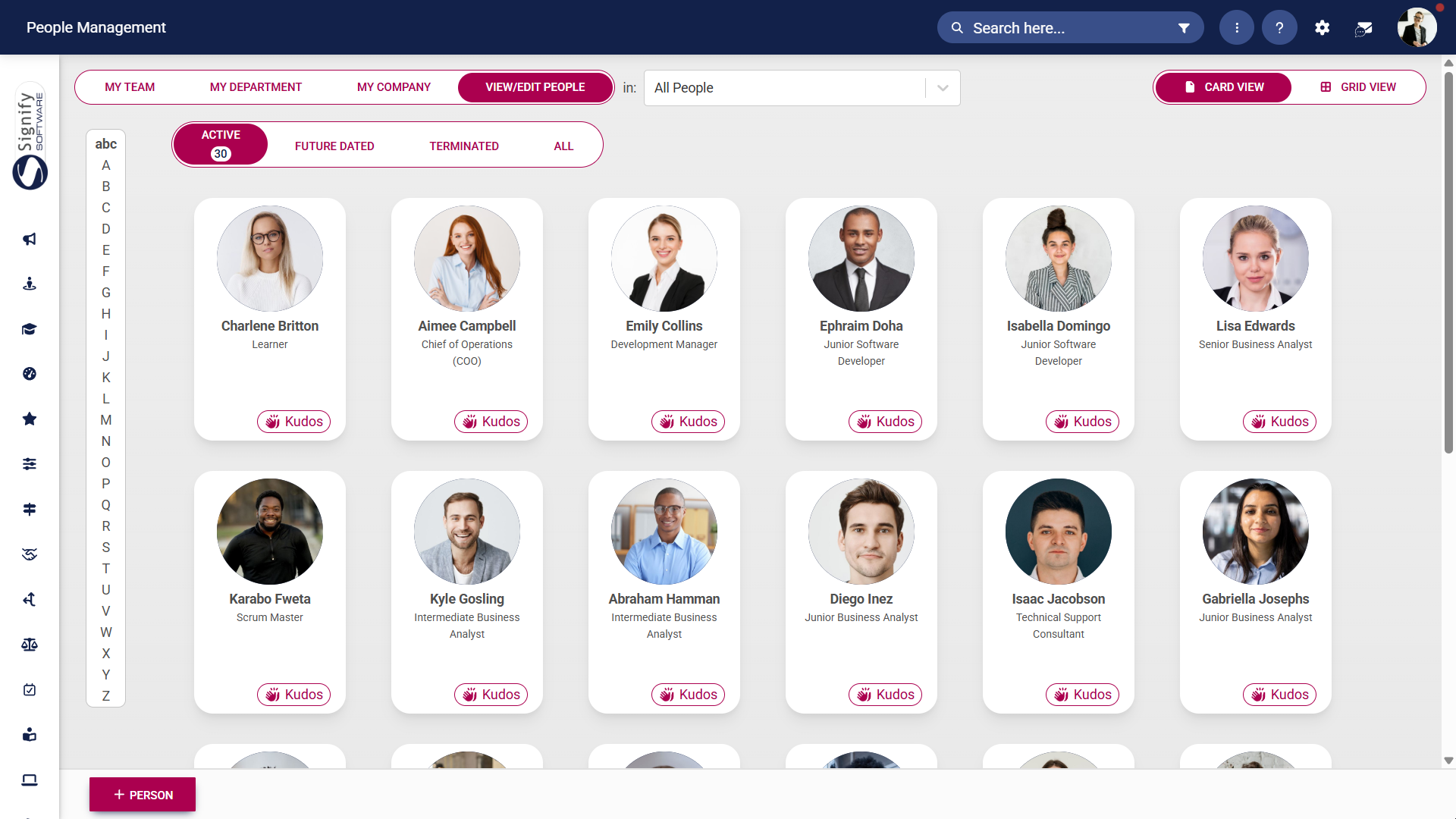
- Hover over the **sidebar menu** and click **People Management**.

- Navigate to the **VIEW/EDIT PEOPLE** tab

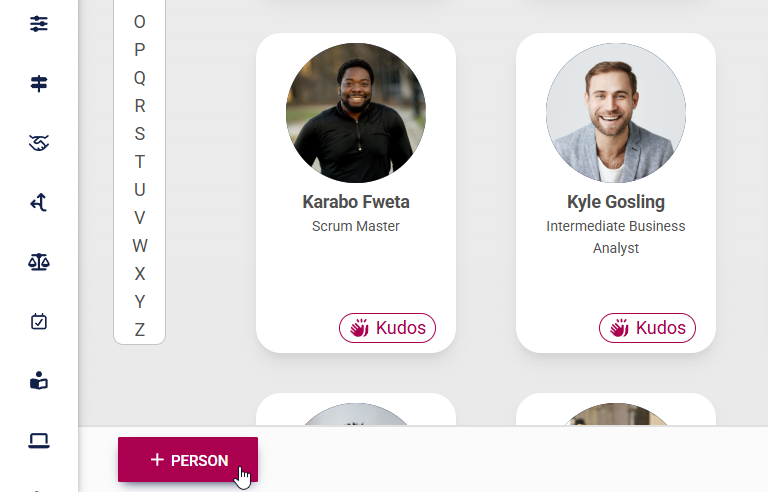
- Click **+PERSON**.
- Expand the organisational units to find the new position you have just created.
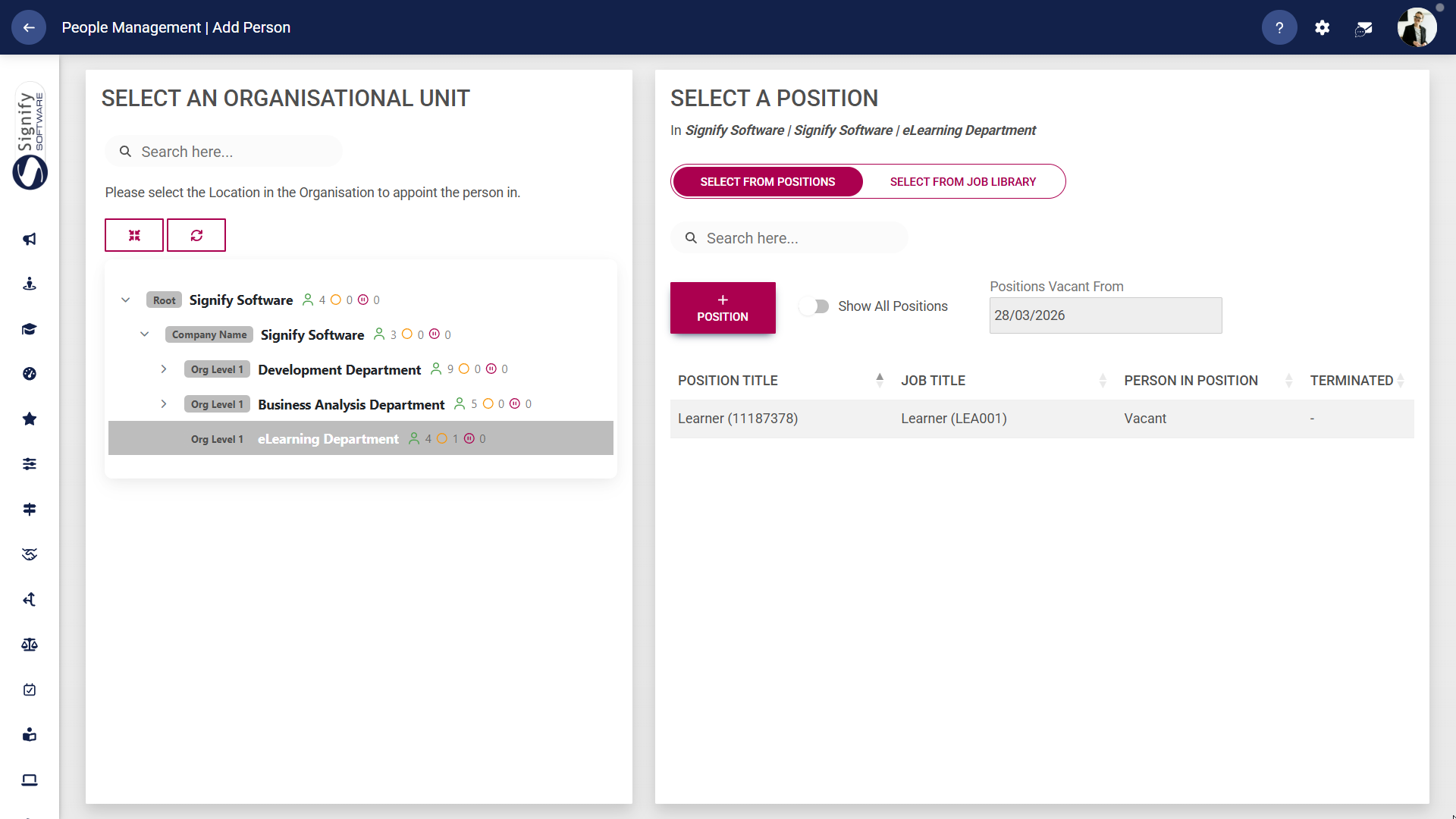
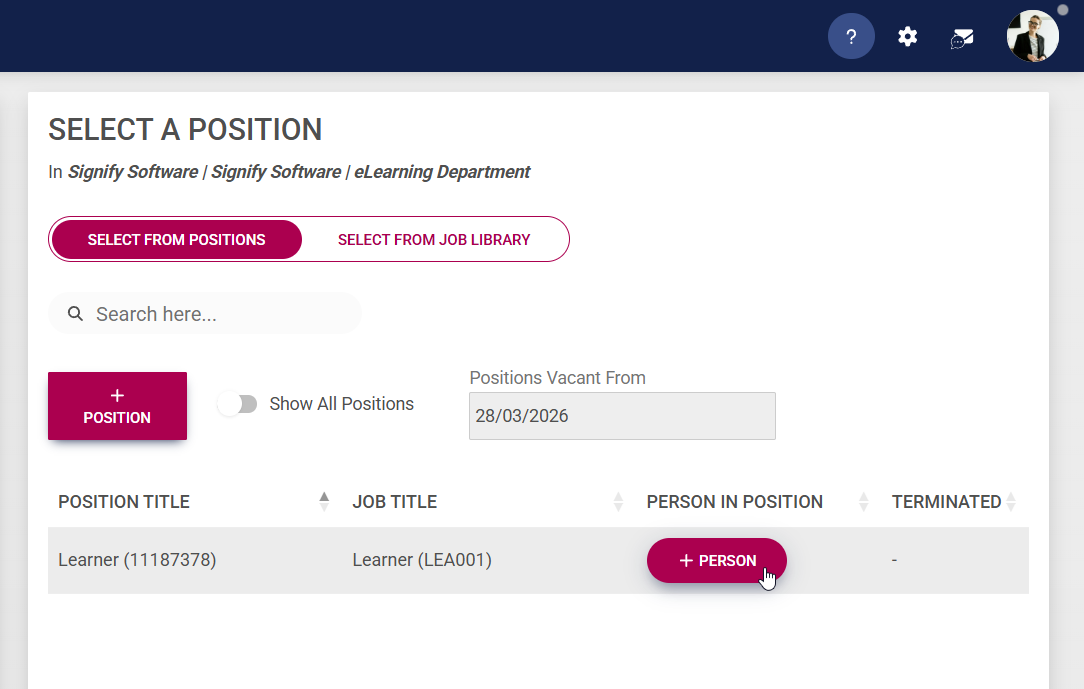
- Ensure the job title and the position title are correct, then click **+PERSON** to add a new person.
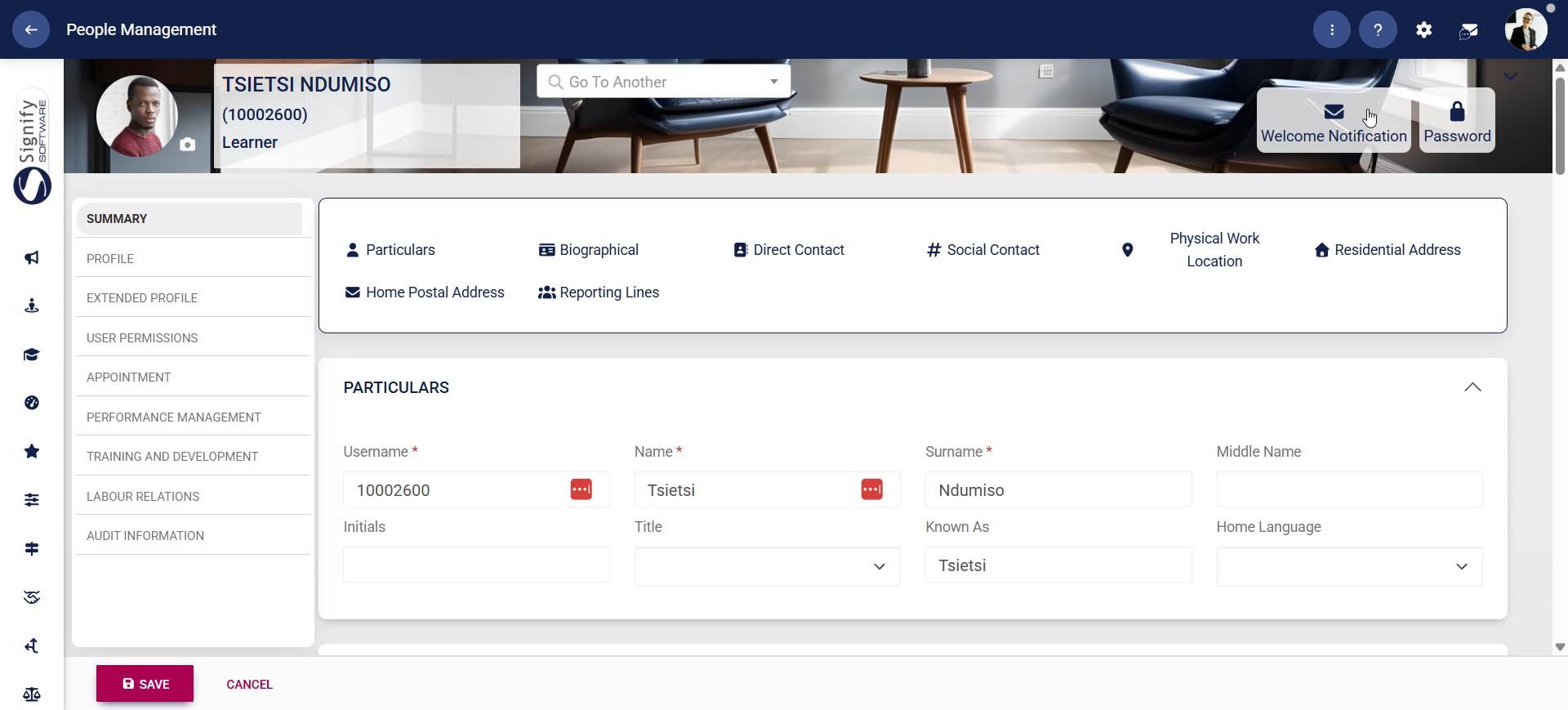
- Use the user details screen to populate the information for the new user, taking note of the required fields (marked with a **\***). Update their reporting lines by clicking on the **hand icons**, and complete their appointment information. Click **SAVE & GO TO PROFILE** to finish setting up the new user's profile, or click **SAVE ADD NEW** to continue adding new users. Click **CANCEL** to discard your edits.

- If you have selected **SAVE & GO TO PROFILE**, you will be taken to the user's profile page. Click **Welcome Notification** in the profile banner to send a welcome email to the new user.
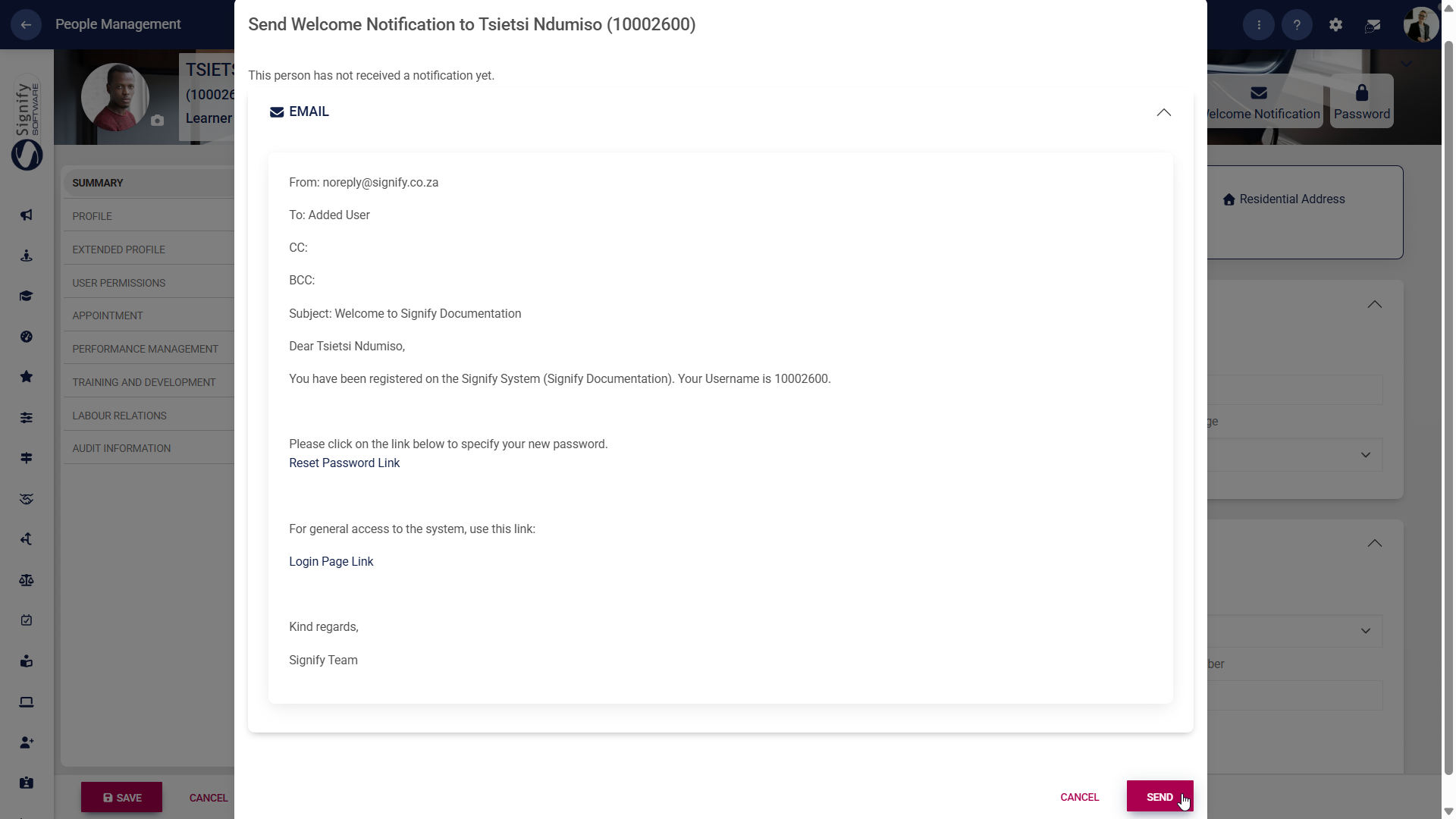
- Review the contents of the welcome email, then click **SEND**. This will send the user an email containing the system’s URL, their username, and a password reset link.
- You may further revise the user's information in their profile, including updates to biographical details, appointment history, or access rights. Click **SAVE** when you are finished or click **CANCEL** to discard your edits.
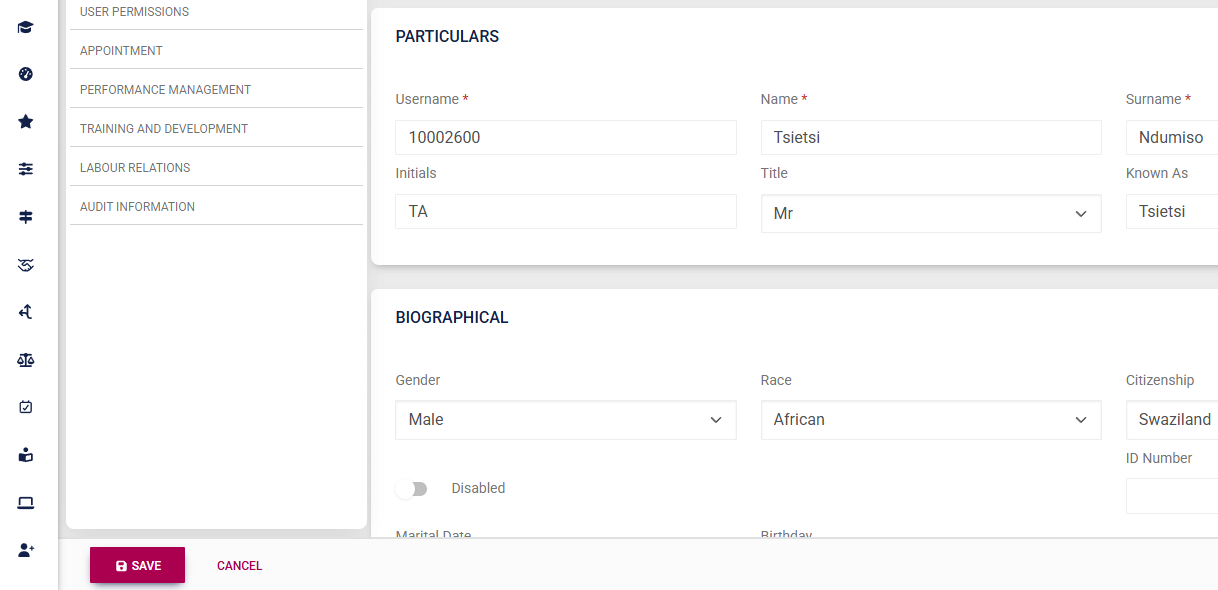
Follow the above procedure to add users manually. This method is effective for adding small numbers of users at a time. Alternatively, follow **Method 2** below if you prefer to streamline the process and add many users at a time.
#### Method 2: Add users using the import sheet
Using an import sheet, you will:
- establish the organisational structure,
- create job titles and positions,
- add new users,
- add details pertinent to each user, such as their username, gender, addresses, and contact information, and
- configure their reporting lines.
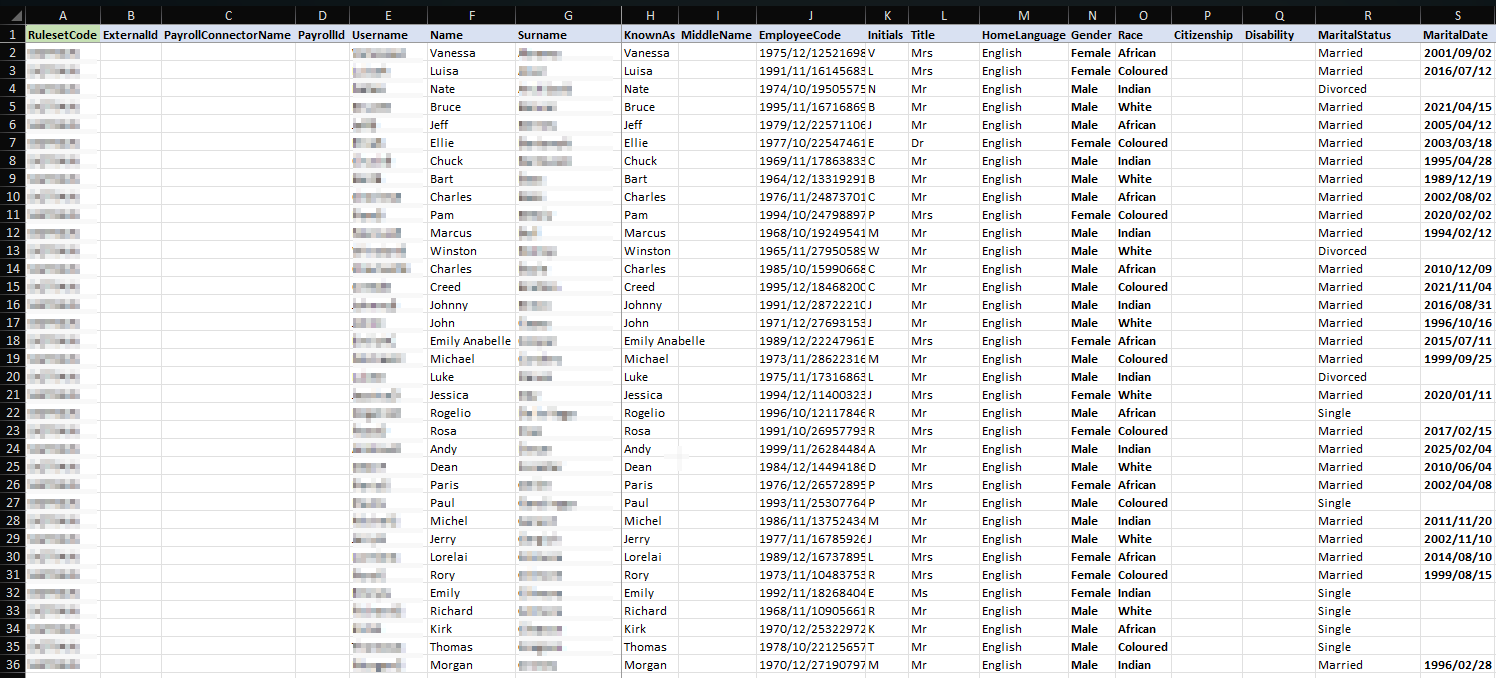
- Use the **sidebar menu** to navigate to **People Management**.

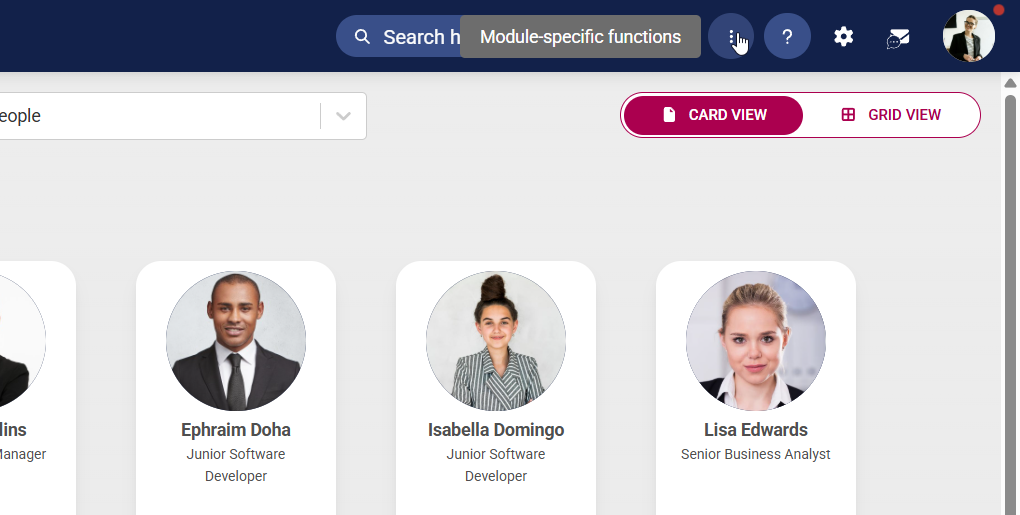
- Click this **ellipsis icon** to access the **Module-Specific Functions** menu.
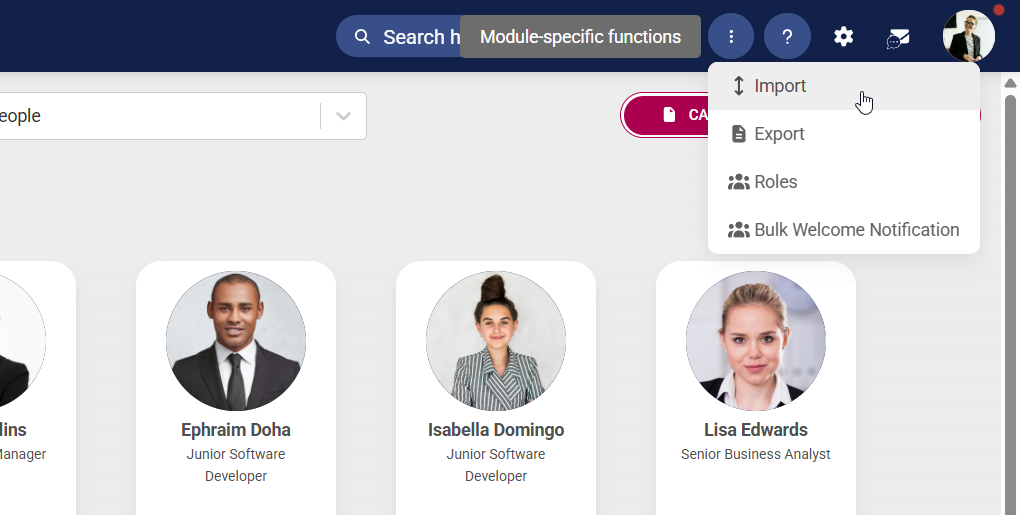
- Click **Import** on the drop-down menu.
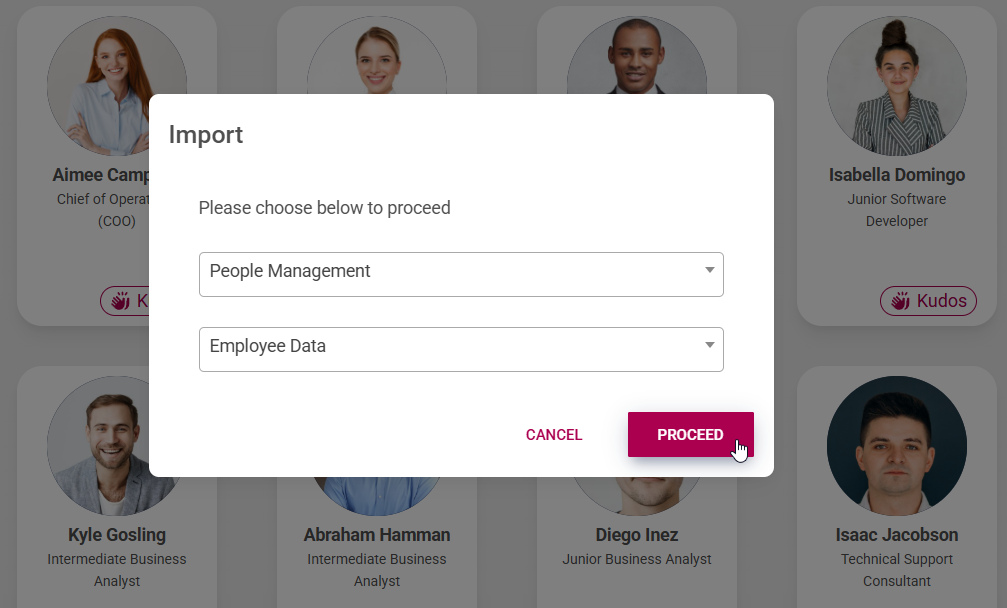
- Ensure the drop-down options are set to **People Management** and **Employee Data**. Click **PROCEED** to continue.
- To access the import sheet, click **DOWNLOAD IMPORT TEMPLATE**.
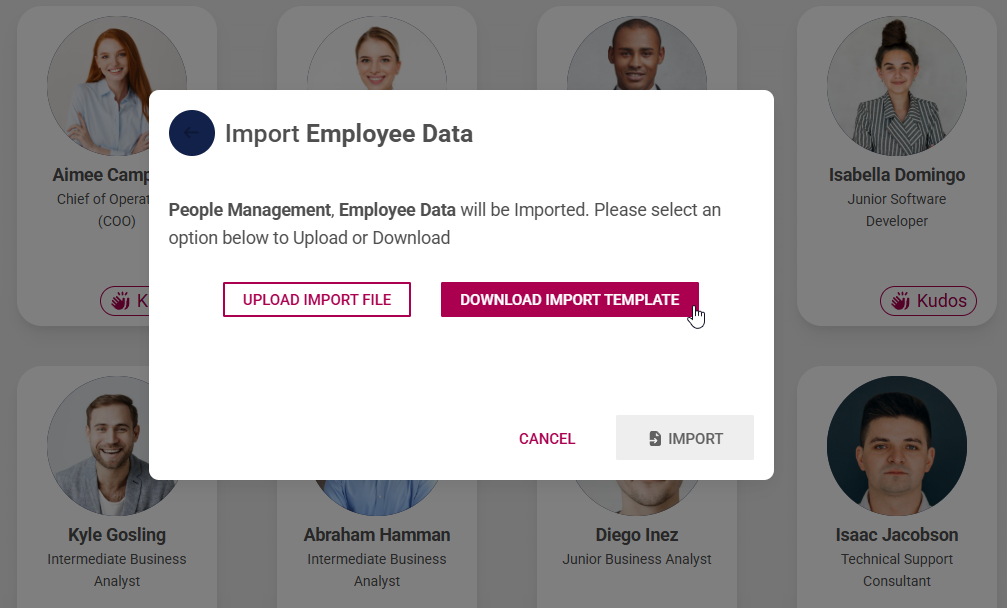
- Populate the downloaded Excel import sheet with the users' information. This procedure requires attention to detail to ensure the information on the system is accurate. Please do not hesitate to ask the Signify Consultant for assistance.

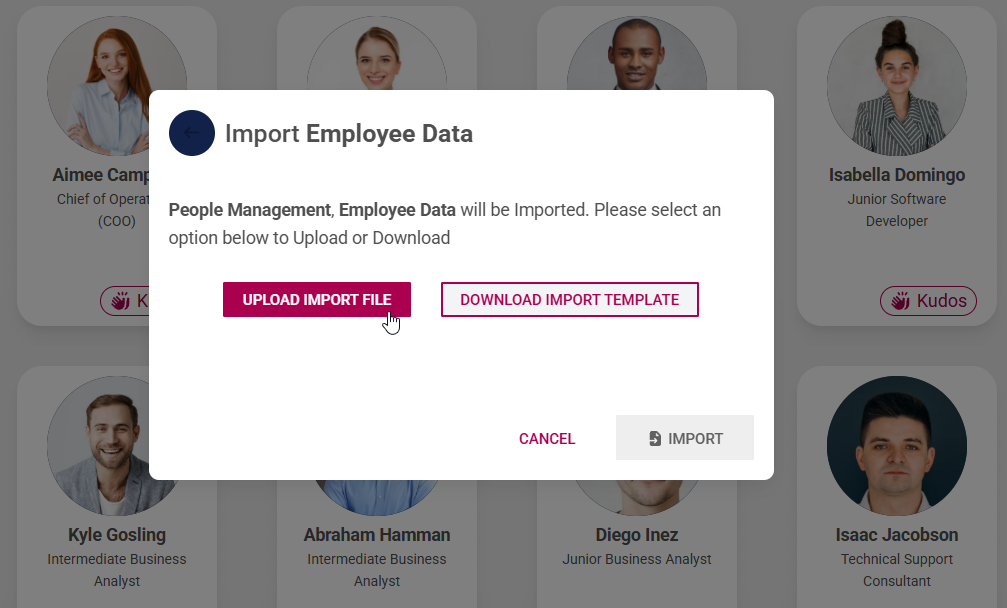
- Once the import sheet has been completed and checked for errors, click **UPLOAD IMPORT FILE**.
- Click on **IMPORT** to initiate the data validation and import processes.
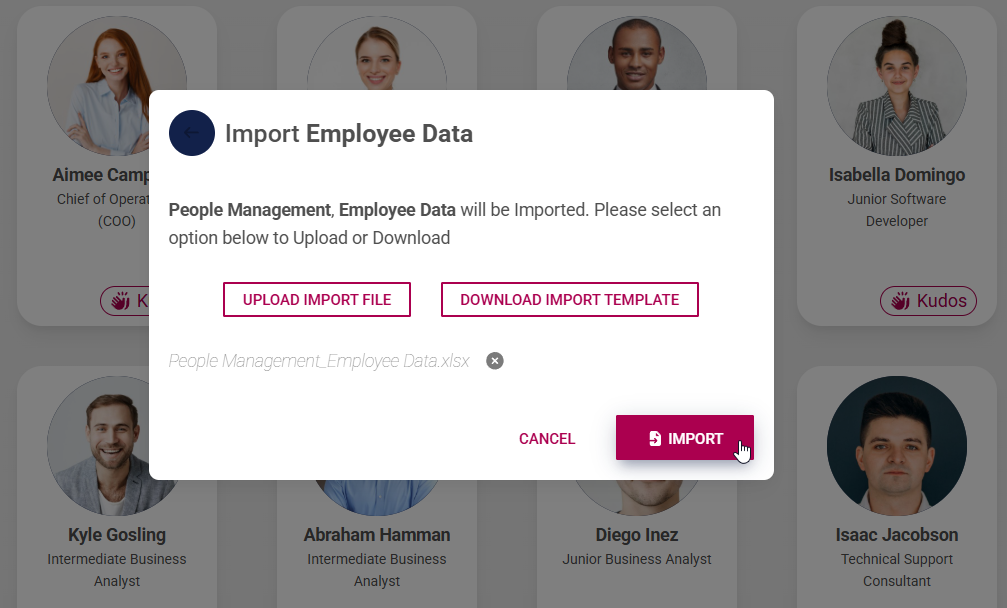
- The import will be staged and will run in the background until completed. If the rows were staged correctly, your pop-up window will look like this:
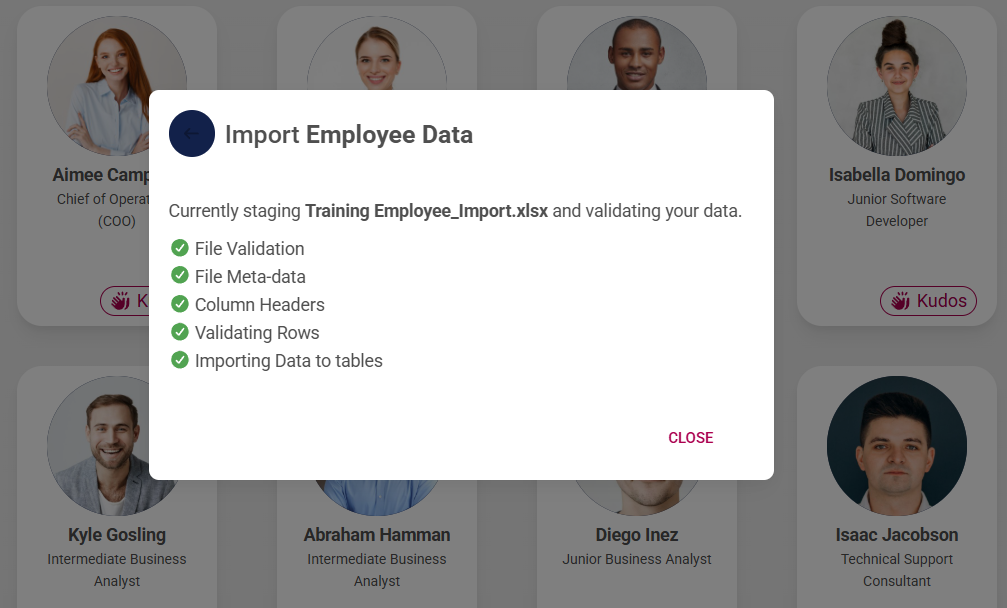
- An **automatic user import** runs daily at midnight, and your newly added users will appear in the system. However, this task can be kicked off on an ad hoc basis if required. See the **Bulk Additional Service Imports** section at the end of this chapter for more information.
### Transfer users
Once a person’s role or position in the company changes, they can be transferred using the **People Management** module.
- Hover over the **sidebar menu** and click **People Management**.

- Navigate to the **VIEW/EDIT PEOPLE** tab.

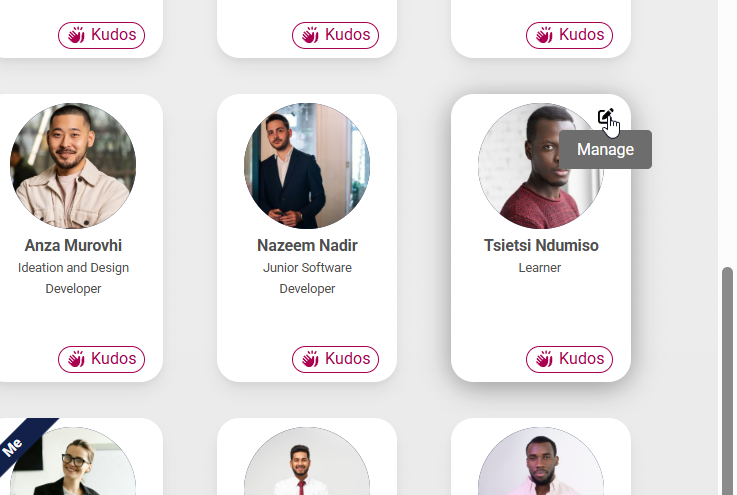
- Hover over the card of the person you would like to transfer and click on the **pencil icon** to manage their profile.
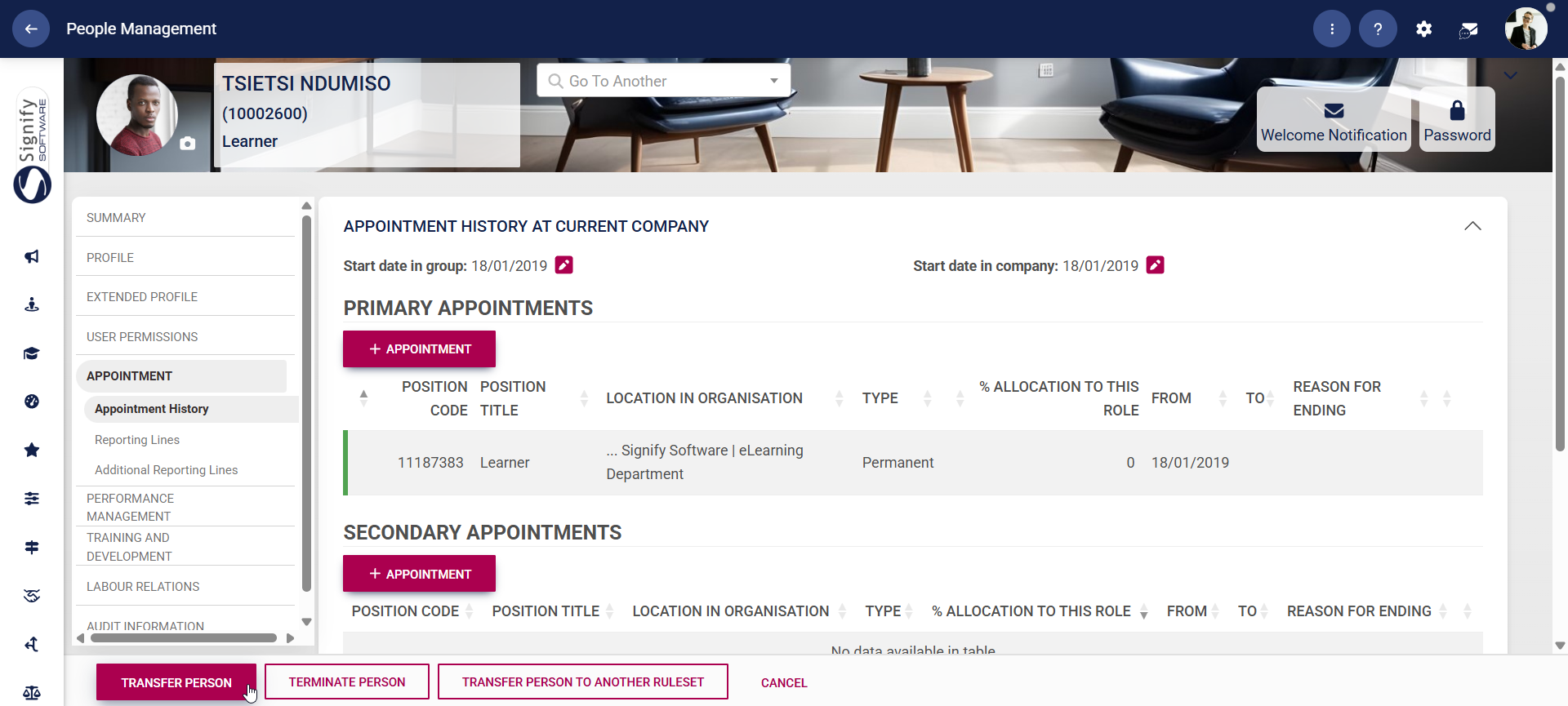
- On the left-hand menu on the person's profile, click on **APPOINTMENT**.

- At the bottom of the screen, click on **TRANSFER PERSON**.
- Expand the organisational structure to find the correct organisational unit.
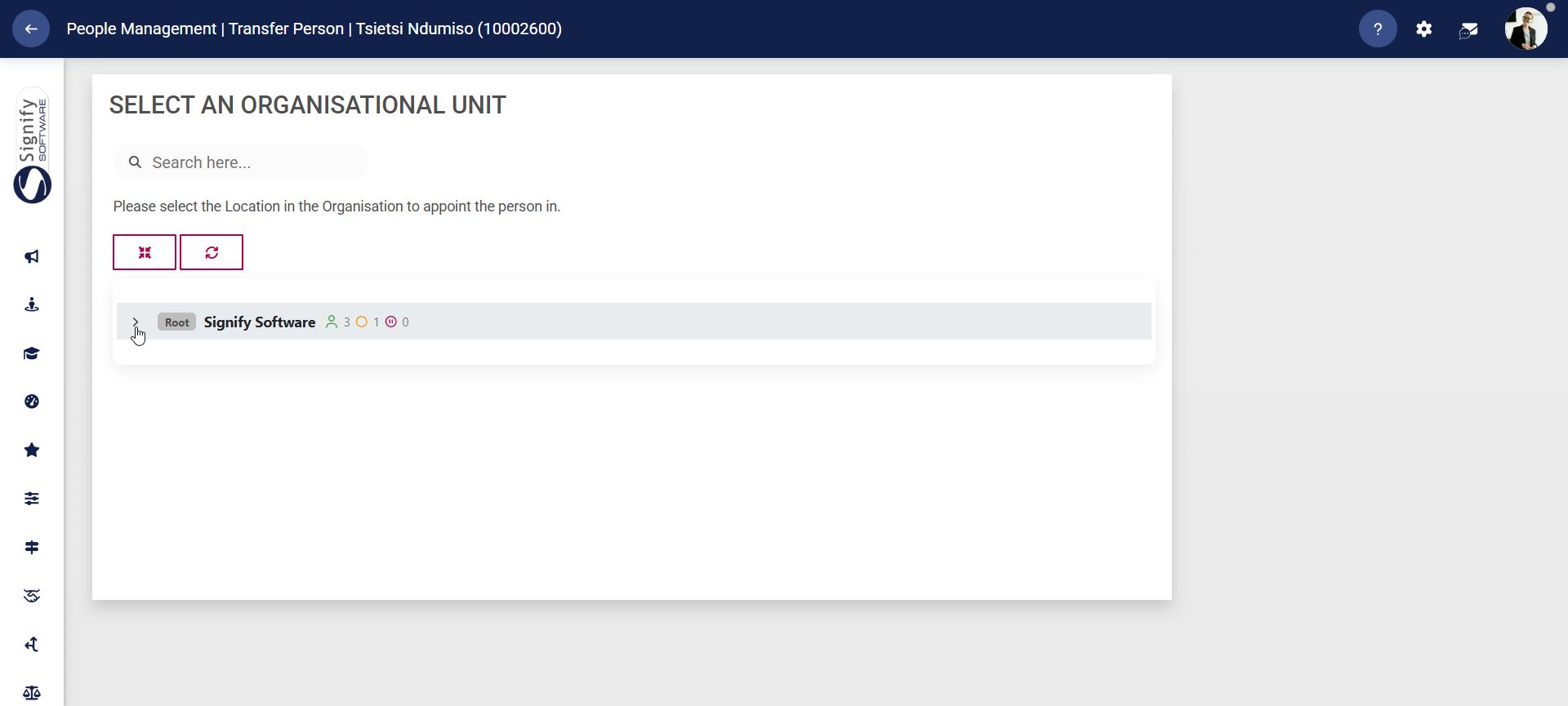
- Click the location in the organisation to which the employee is being transferred.
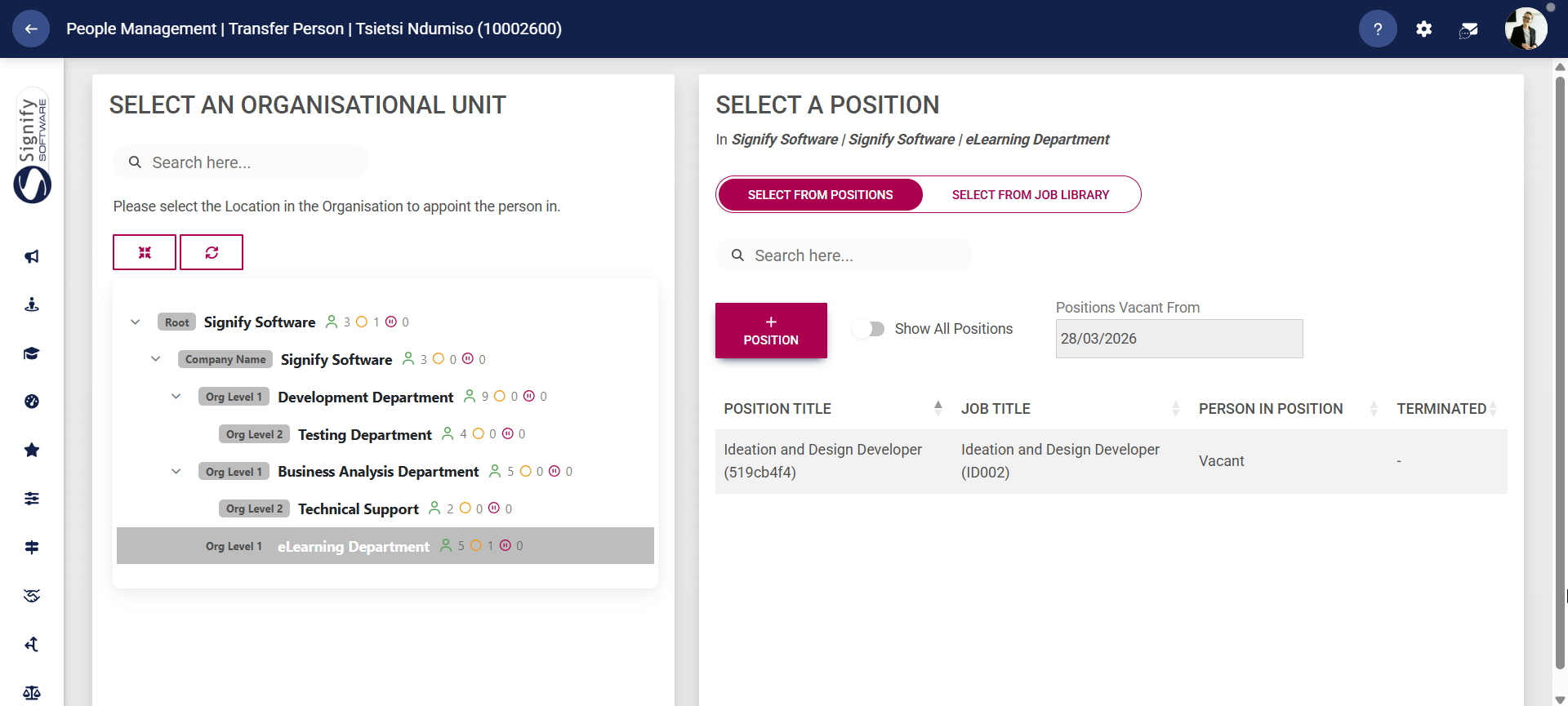
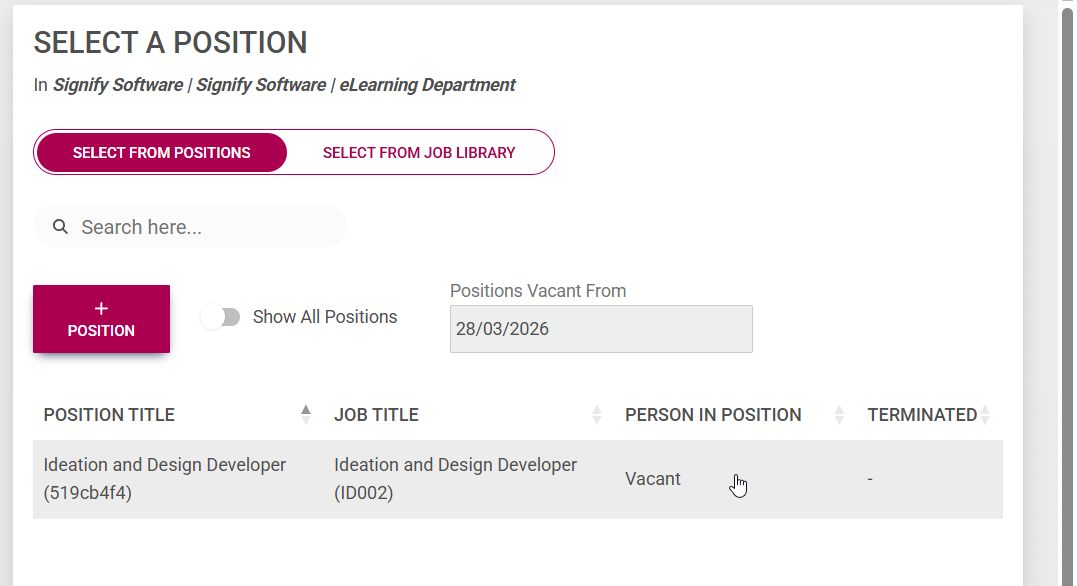
- Click on the employee’s new position on the right side of the screen. If the new position has not been created, you can do so by clicking **+POSITION**. Alternatively, you can select an existing position from the **Job Library**.
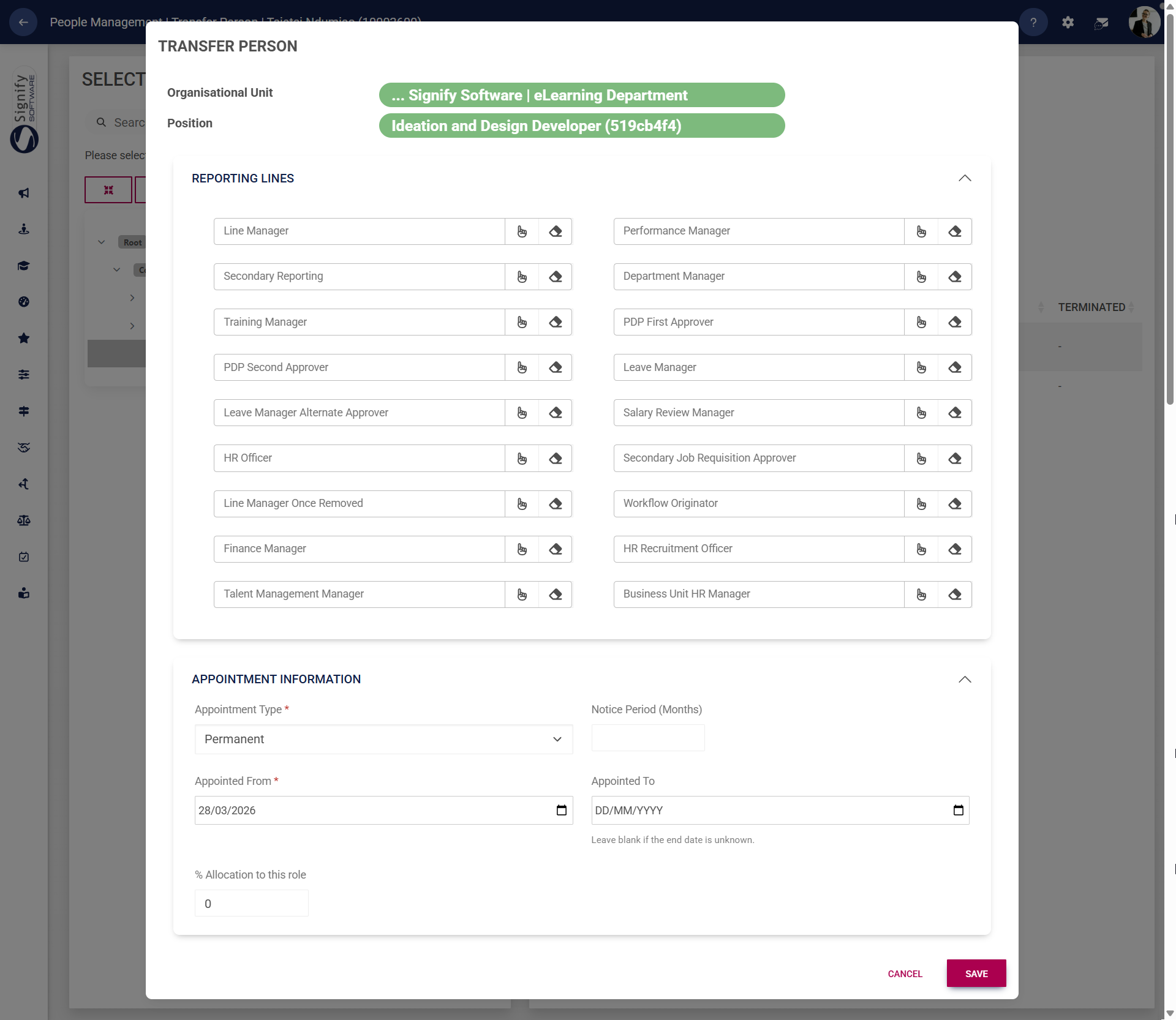
- Complete the details of the transfer, then click **SAVE** to proceed or **CANCEL** to discard your changes.
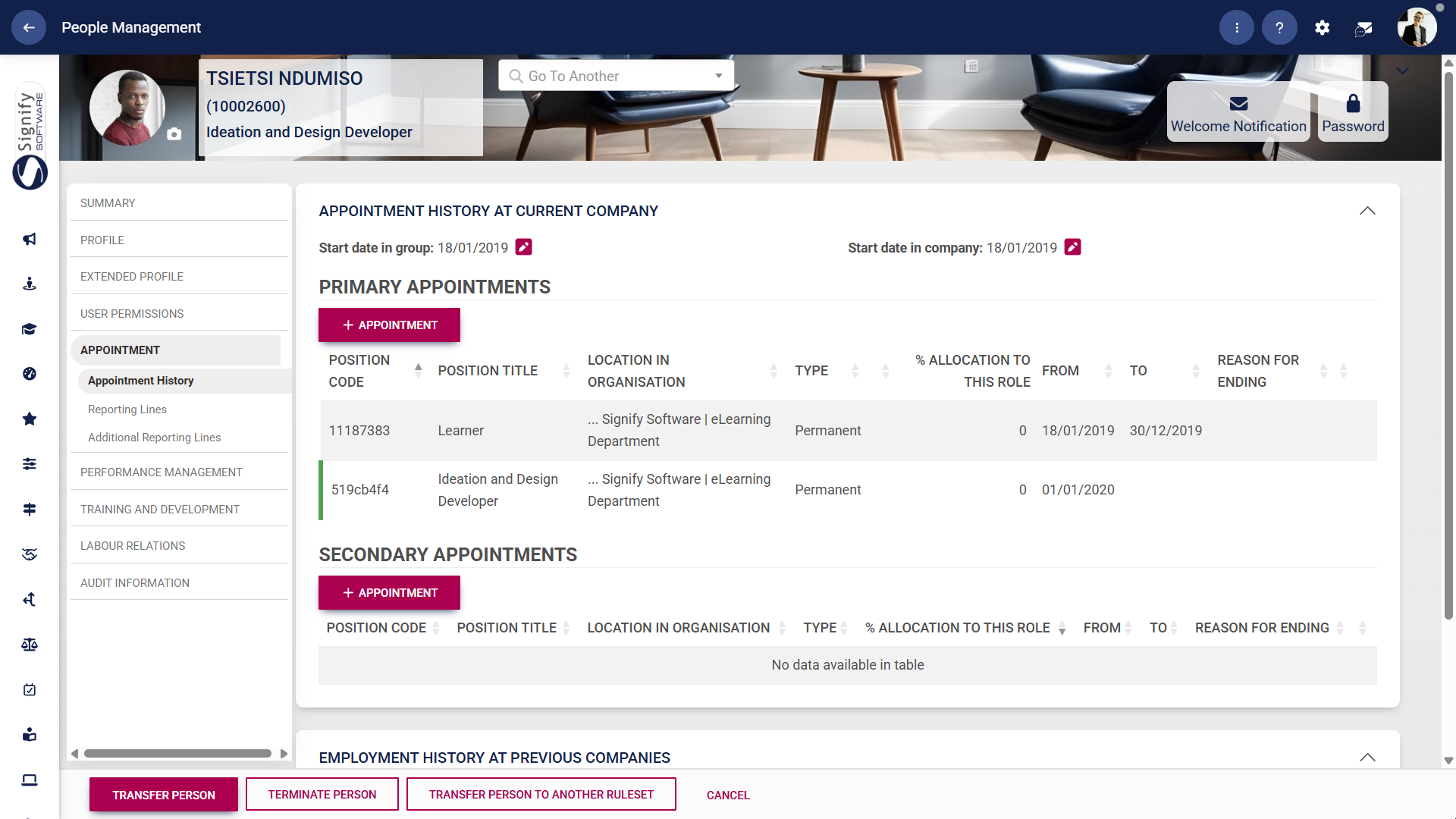
- The employee’s previous position and new role are recorded in the **Appointment History** tab on the employee's profile.
### Terminate users
When an employee's journey with a company concludes, they can be terminated using the **People Management** module.
- Hover over the **sidebar menu** and click **People Management**.

- Navigate to the **VIEW/EDIT PEOPLE** tab.

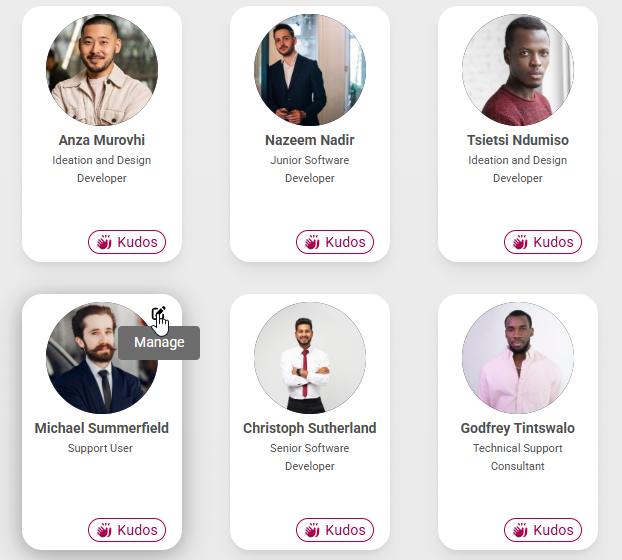
- Hover over the card of the person you would like to terminate and click on the **pencil icon** to manage their profile.
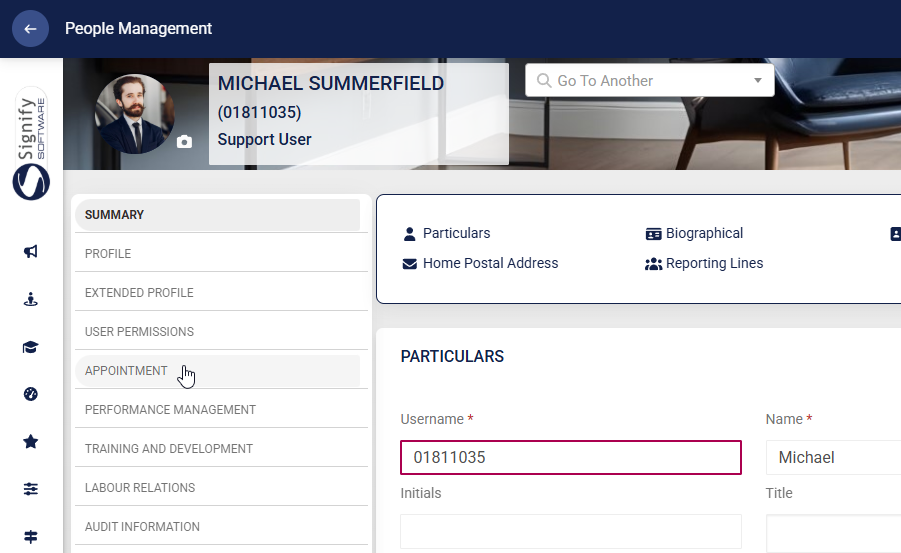
- On the **left-hand menu** on the person's profile, click on **APPOINTMENT**.
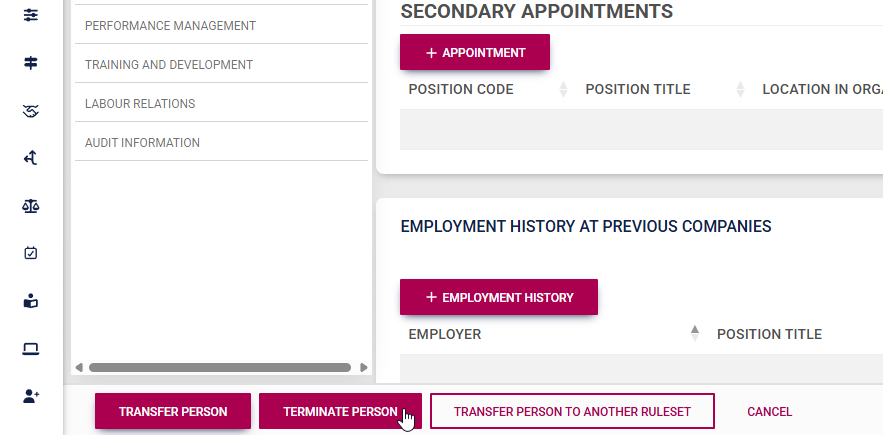
- At the bottom of the screen, click on **TERMINATE PERSON**.
- Complete the details of the termination, including their last day of service and their termination reason. Click **TERMINATE** to proceed with the termination, or click **CANCEL** to discard your edits.

- Once the termination is complete, the person's profile will reflect the details of the termination.
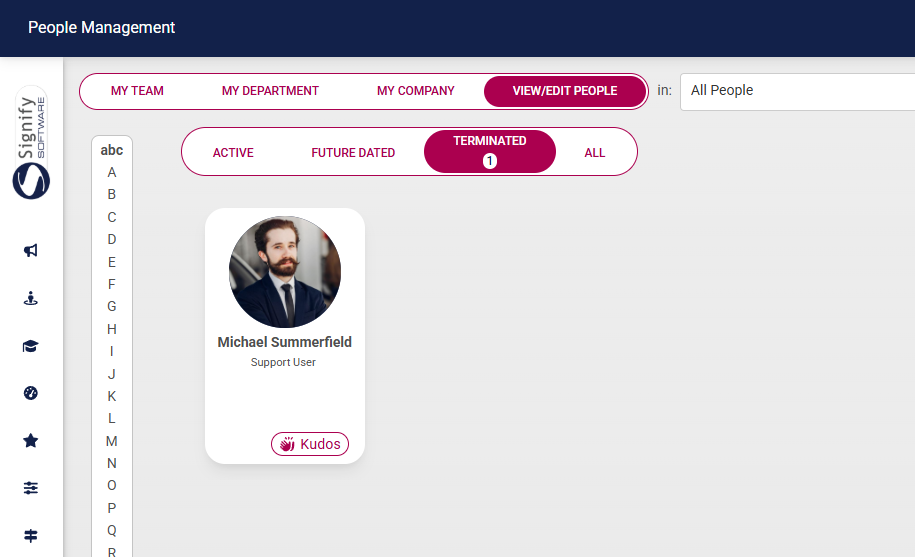
- Terminated users can be viewed by clicking on the **TERMINATED** filter on the **People Management** dashboard.
[](https://signature.signifyhr.co.za/uploads/images/gallery/2025-02/ZOt8yZwhbiGx2d6U-signify-footer.png)
# Update a Person's Profile
[](https://signature.signifyhr.co.za/uploads/images/gallery/2025-02/emW3hfMrZ1yIDMUv-signify-header.png)
### For users: Update your own profile
- Click on your **profile icon** at the top of the screen to access the **main menu**.
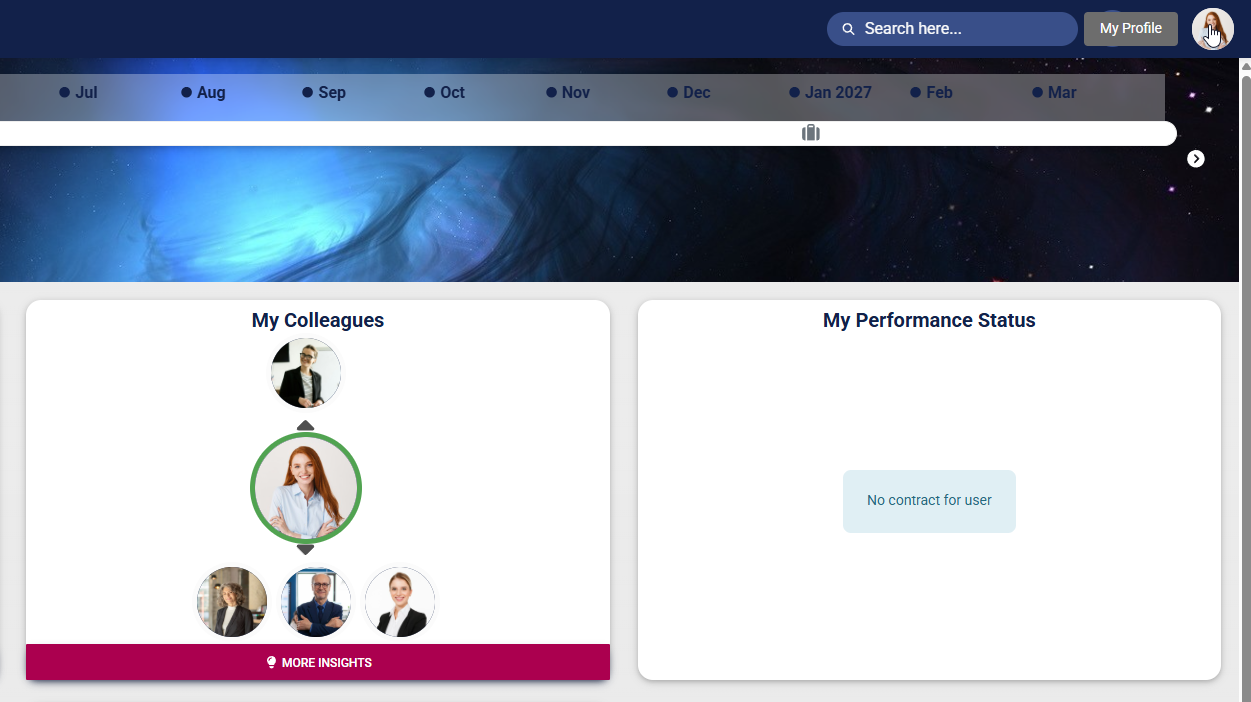
- Click **MY PROFILE** to view or edit your user profile.
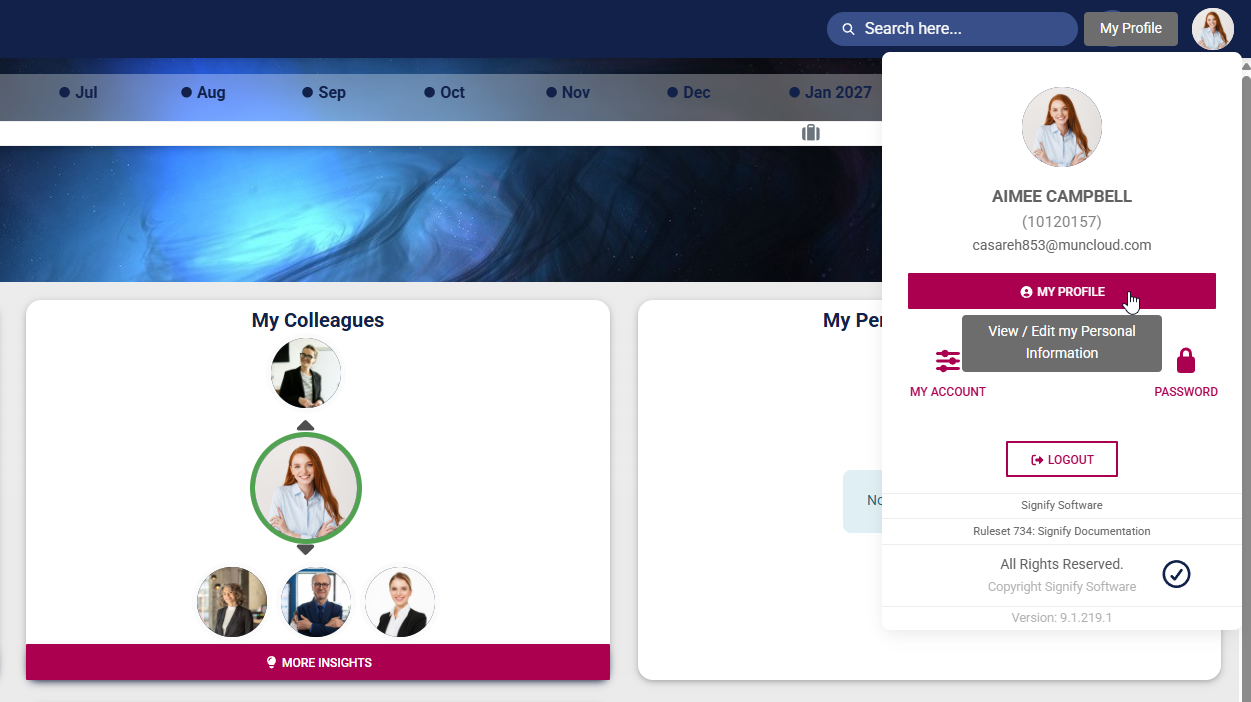
- Your profile will open. Use the **left-hand menu** to navigate to the profile section you would like to update. Fields that are not editable will be greyed out. Update your information as necessary, then click **SAVE** to update your profile, or **CANCEL** to discard your edits.
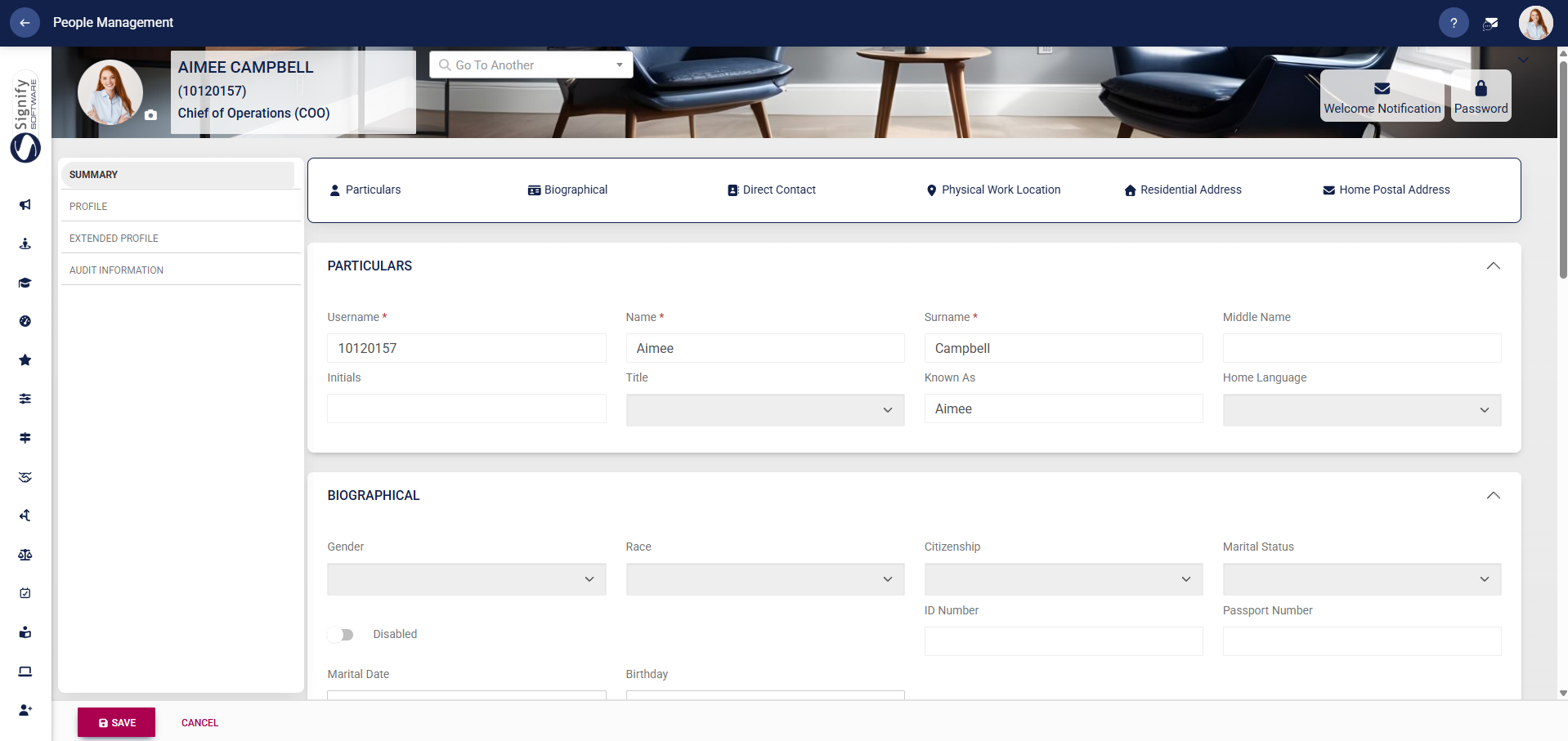
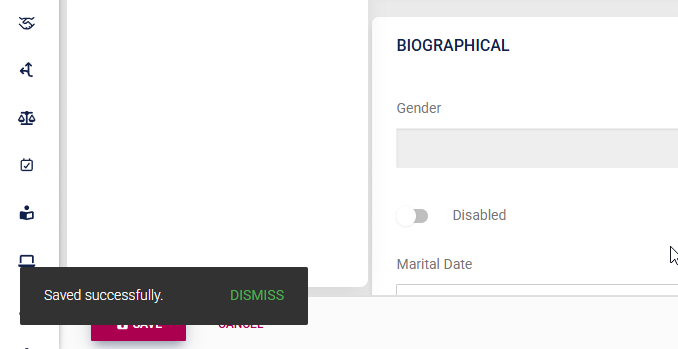
- A message will pop up to confirm that your profile's details have been updated.
- Please note that, based on your access permissions, you may not be able to view or edit some sections of your profile. If you encounter a problem, contact your system administrator to help with updating your information.
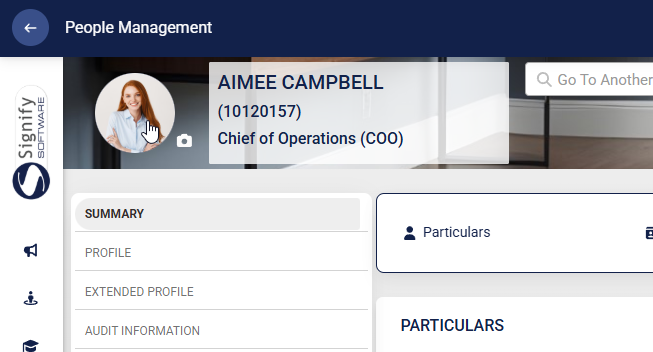
- Click on your **profile picture** on your profile banner to update your photo.
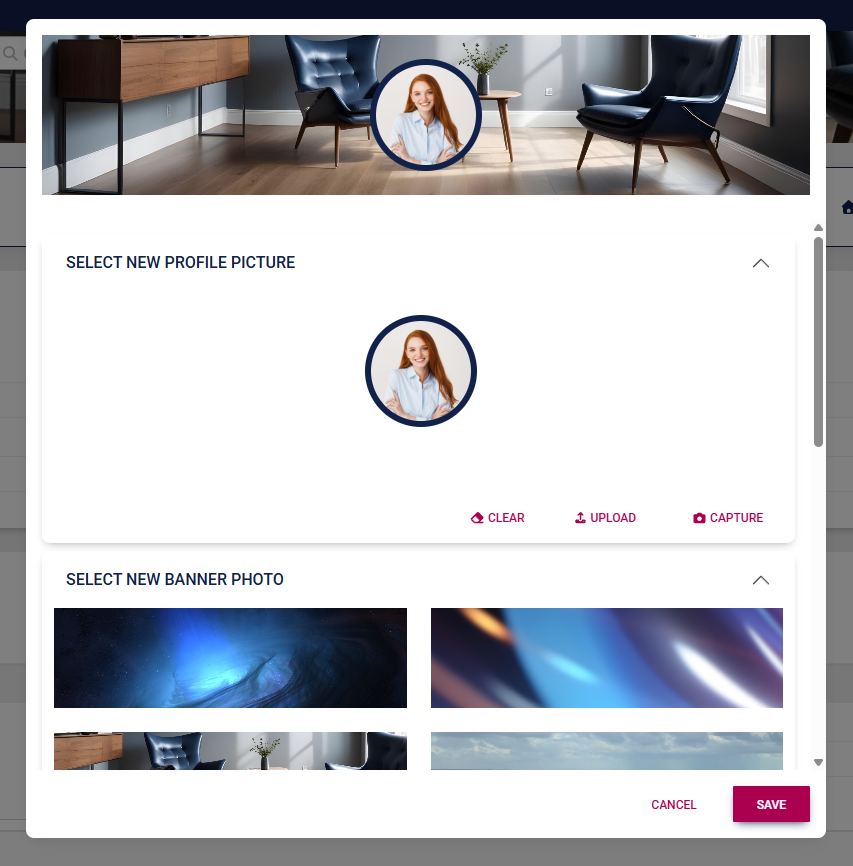
- Upload your new photo using the options provided. If enabled, you may also update your banner image. Click **SAVE** to update your profile, or click **CANCEL** to discard your edits.
### For administrators: Update a user's profile
- Use the **sidebar menu** to navigate to the **People Management** module.

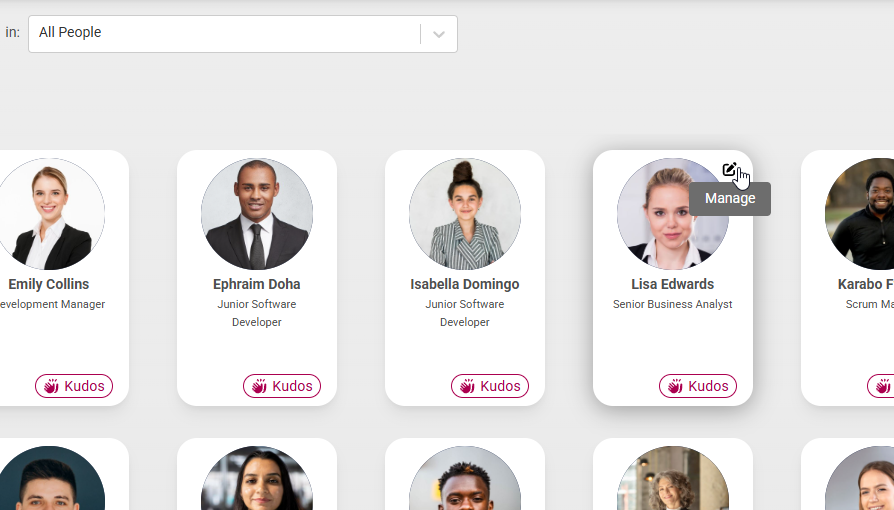
- Locate the person you would like to update, then click the **pencil icon** to manage their profile.
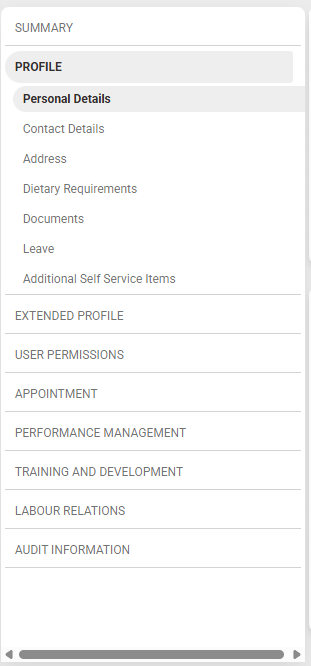
- The person's profile will open. Use the **left-hand menu** to navigate to the profile section you would like to update.
#### Summary
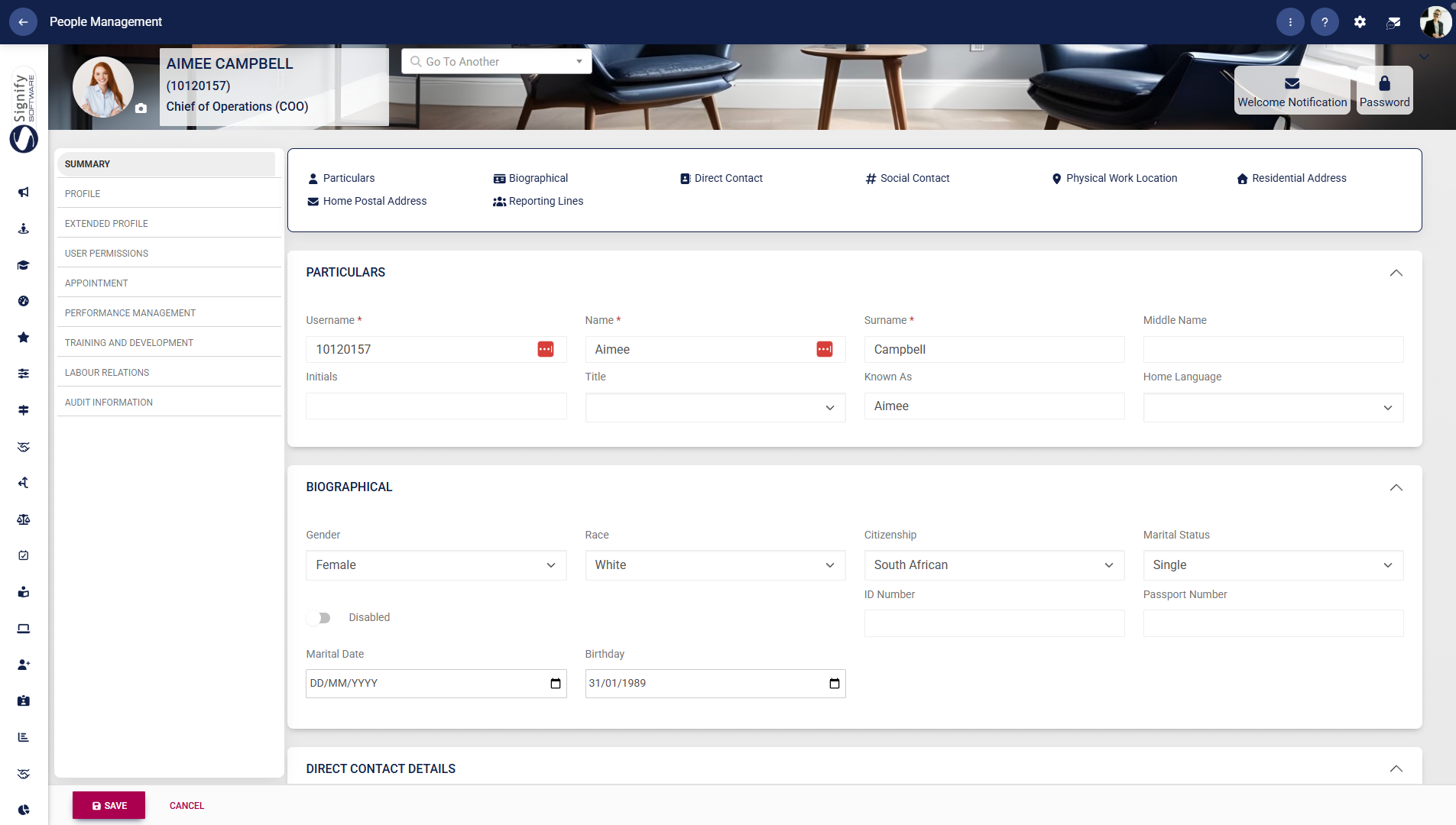
- Use the **left-hand menu** to navigate to **Summary**.
- Use this screen as a quick reference to update details in the following sections:
- - User particulars
- Biographical information
- Direct contact details
- Physical work location
- Residential address
- Home postal address
- Reporting lines
- Edits made to this screen will be reflected in the relevant profile section.
- Click **SAVE** to update the profile, or click **CANCEL** to discard your edits.
#### Profile
##### Personal details
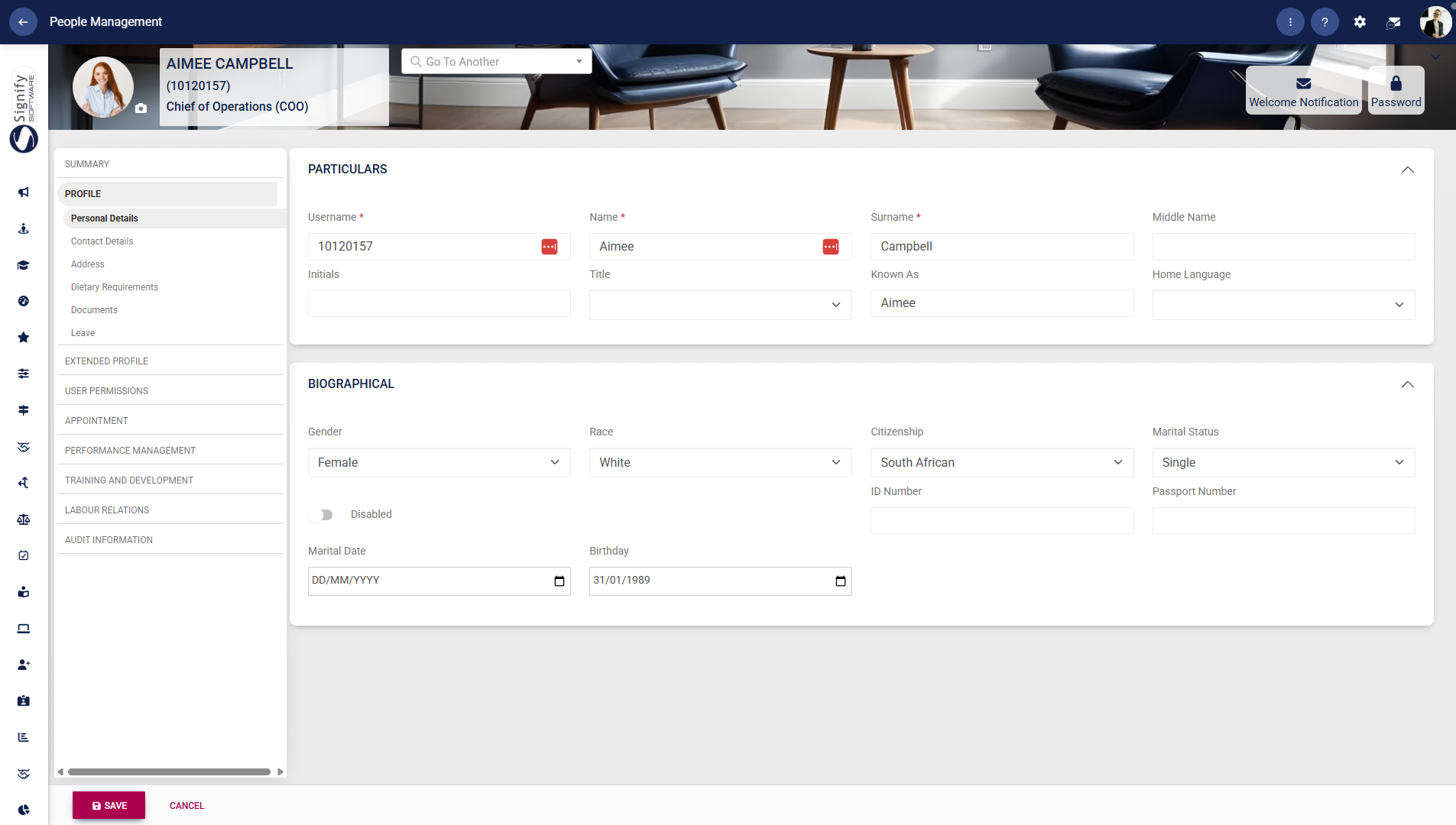
- Use the **left-hand menu** to navigate to **Personal Details**.
- Complete the fields such as username, name, surname, title, and known as. Fields marked with a red asterisk (**\***) are compulsory.
- Provide additional biographical details, including gender, citizenship, marital status, and date of birth.
- Click **SAVE** to update the profile, or click **CANCEL** to discard your edits.
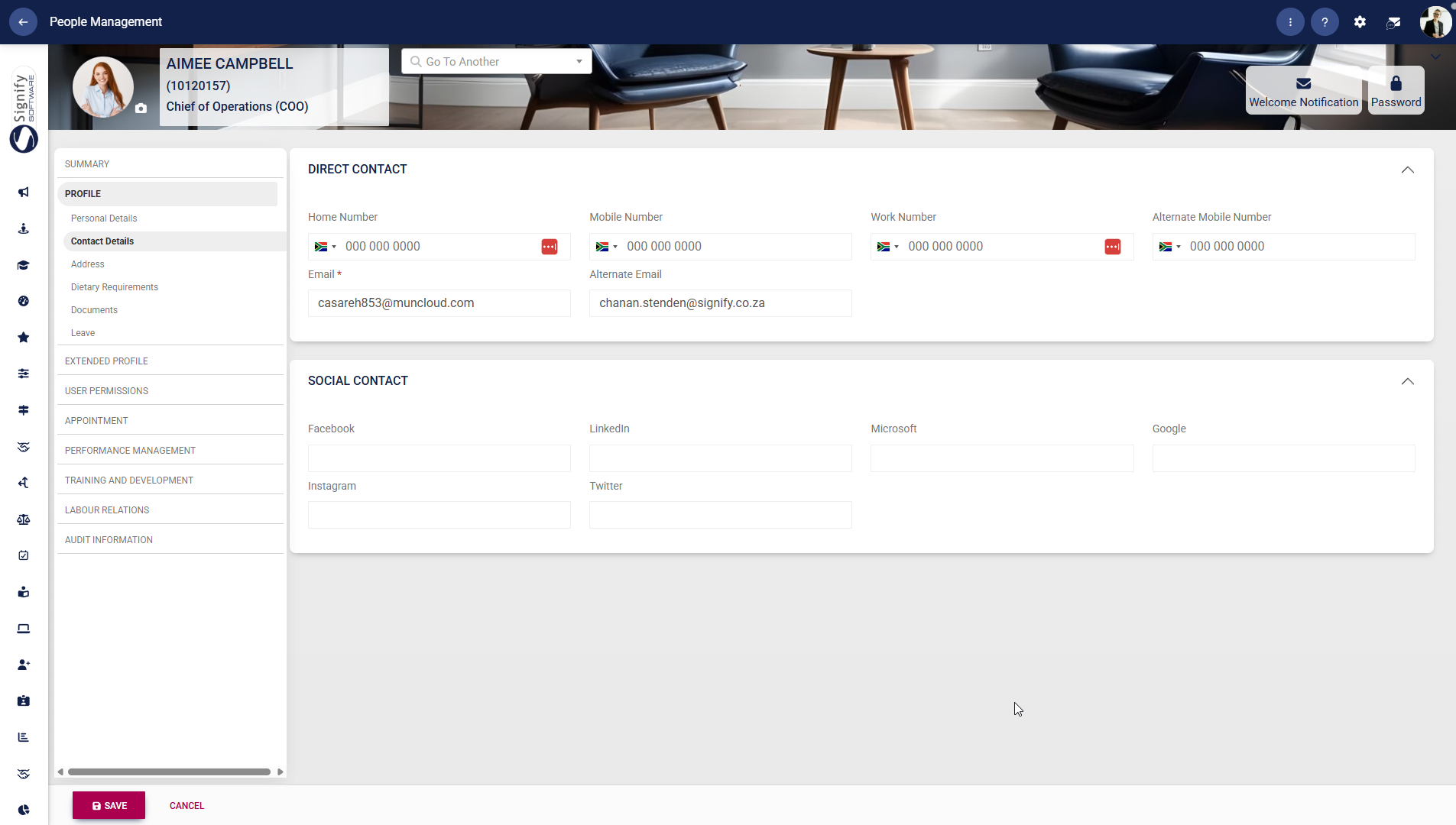
##### Contact details
- Use the **left-hand menu** to navigate to **Contact Details**.
- Enter or update phone numbers and email addresses under **Direct Contact**.
- Capture social media or platform-related details under **Social Contact**, where applicable.
- Click **SAVE** to update the profile, or click **CANCEL** to discard your edits.
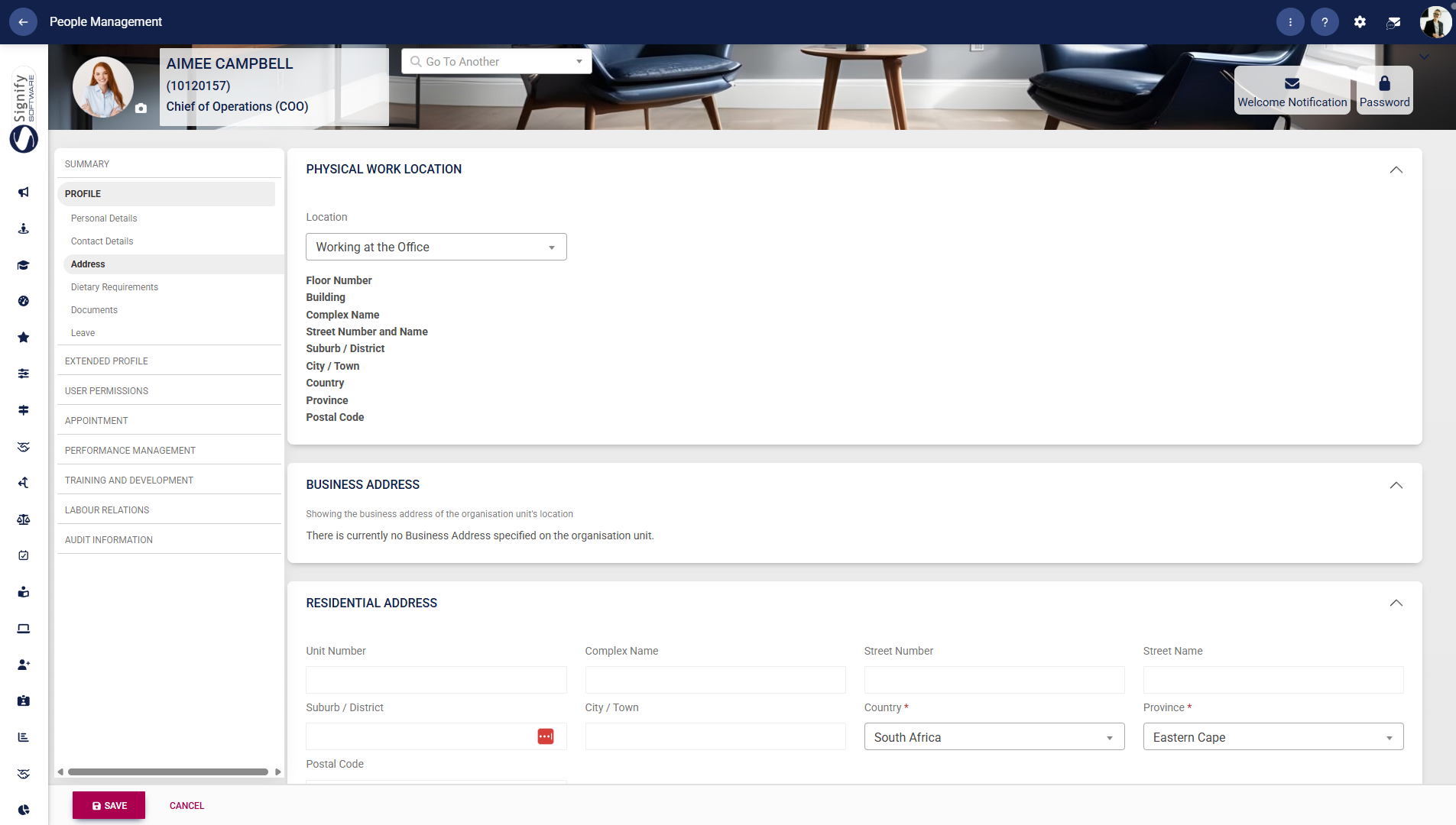
##### Address
- Use the **left-hand menu** to navigate to **Address**.
- Select the **Physical Work Location** and complete the associated address fields where required.
- Review or populate the **Business Address**, which is linked to the organisational unit.
- Enter the **Residential Address**, including suburb, city, province, country, and postal code.
- Click **SAVE** to update the profile, or click **CANCEL** to discard your edits.
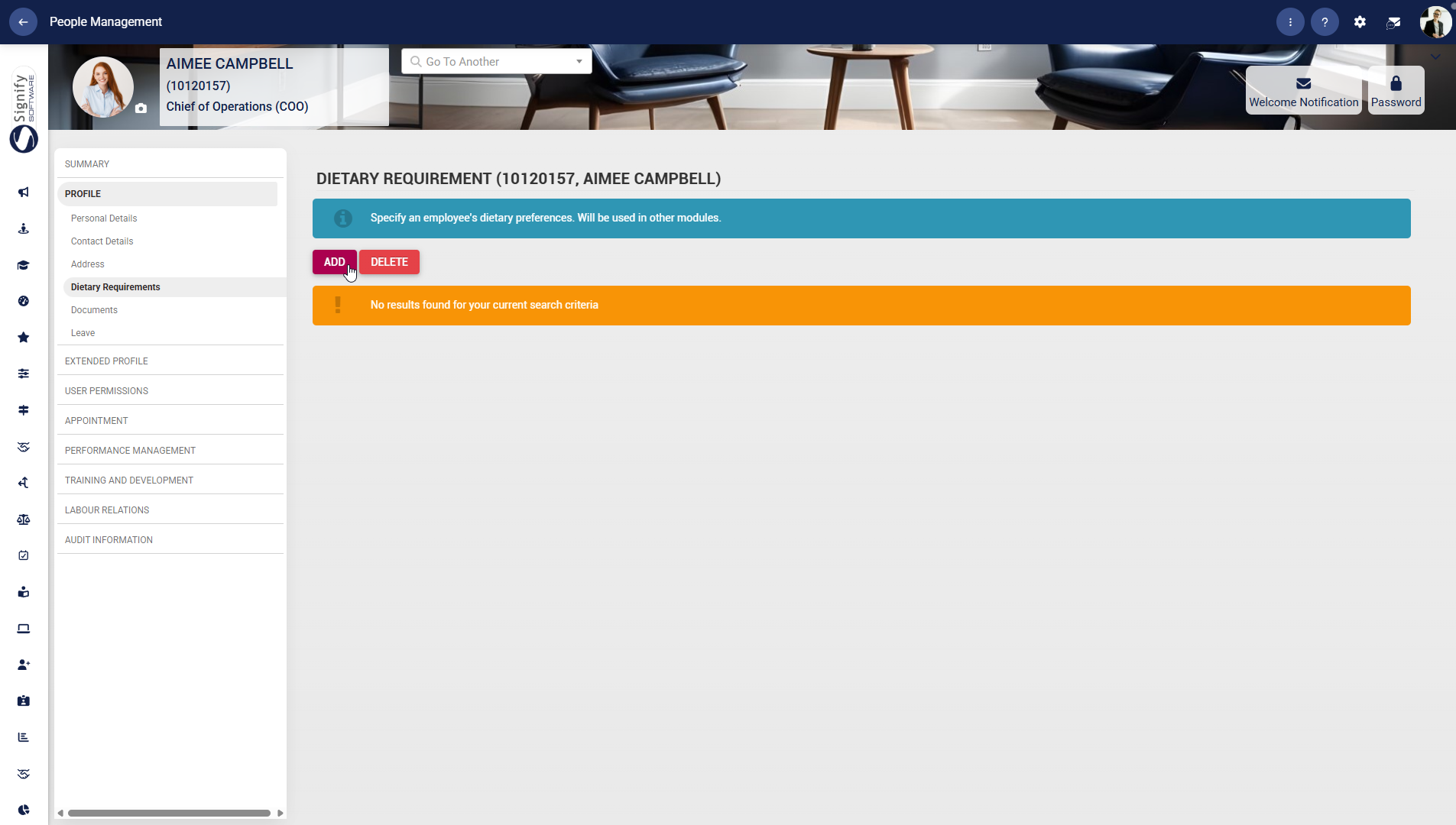
##### Dietary requirements
- Use the **left-hand menu** to navigate to **Dietary Requirements**.
- Click **ADD** to capture a new dietary requirement.
- Select and define the relevant dietary information as required.
- Use **DELETE** to remove an existing entry, if necessary.
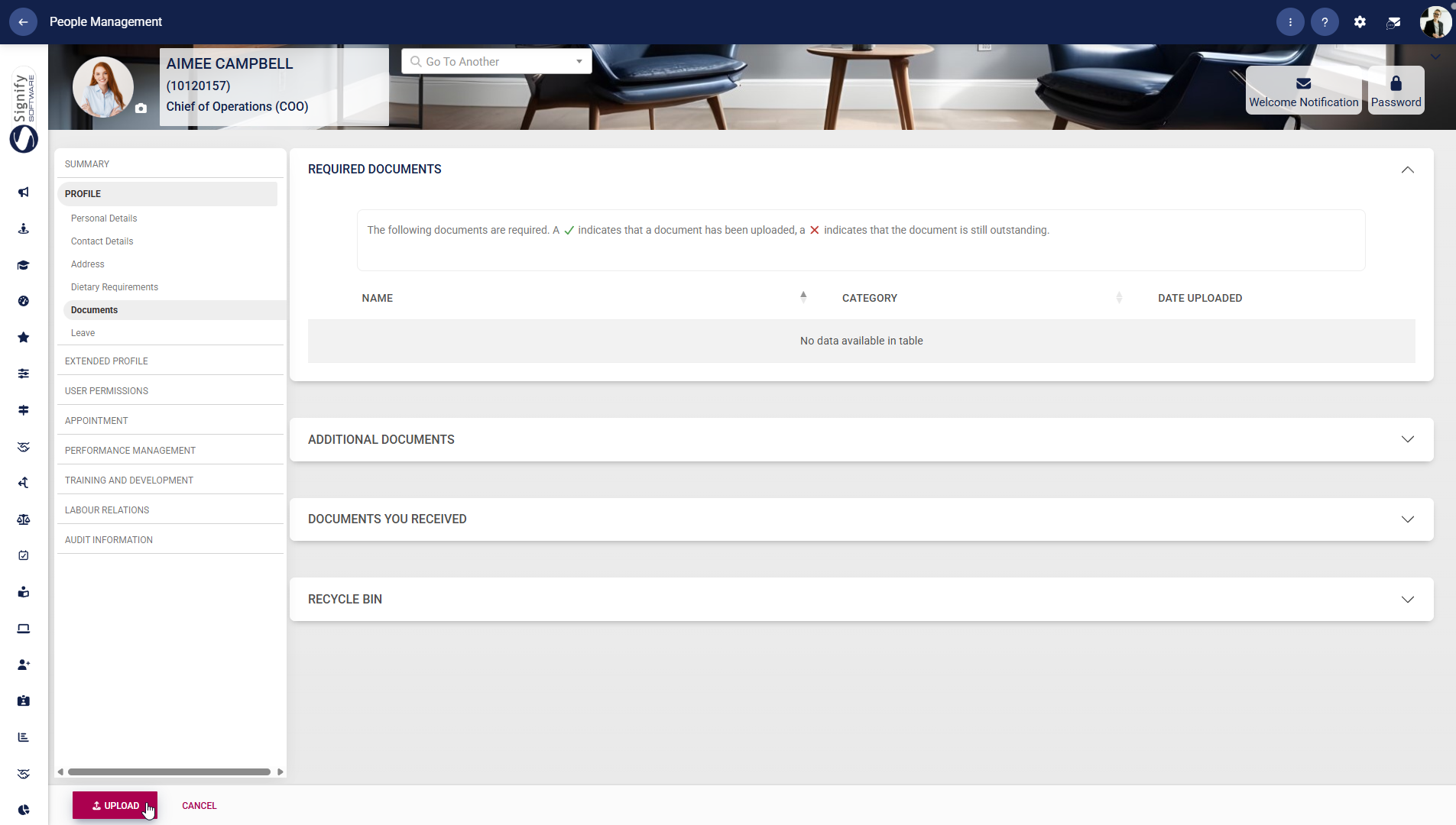
##### Documents
- Use the **left-hand menu** to navigate to **Documents**.
- Upload required documents by clicking **UPLOAD**.
- Review the document status: a **tick** indicates uploaded, and a **cross** indicates outstanding.
- Use the sections for **Additional Documents**, **Documents You Received**, and **Recycle Bin** to organise and manage files.
- Click **CANCEL** if you do not wish to proceed with uploads.
##### Leave
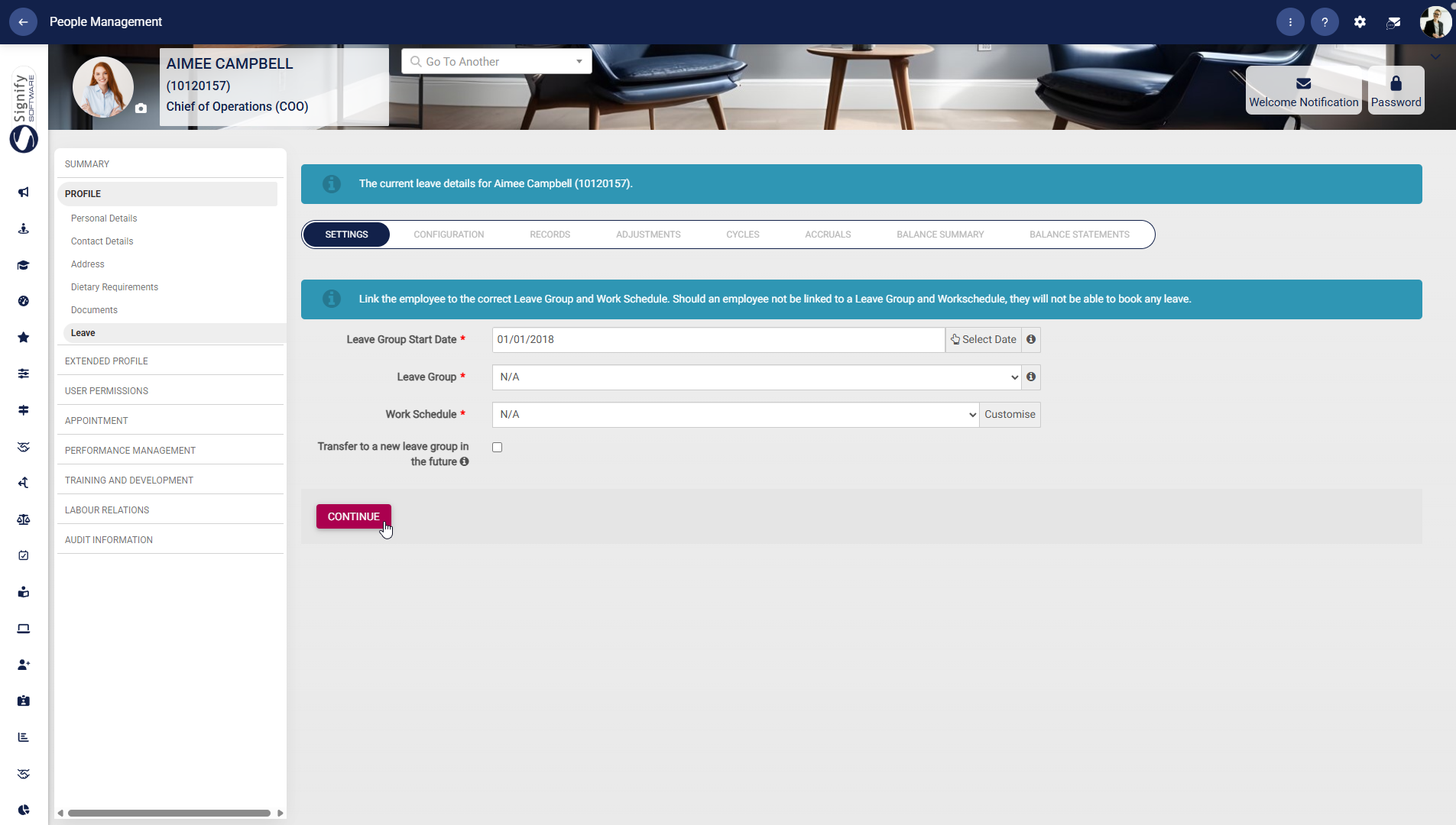
- Use the **left-hand menu** to navigate to **Leave**.
- Enter the **Leave Group Start Date** and assign the appropriate **Leave Group** and **Work Schedule**.
- Ensure the employee is linked correctly, as leave cannot be booked without these configurations.
- Click **CONTINUE** to proceed with further leave configuration.
#### Extended Profile
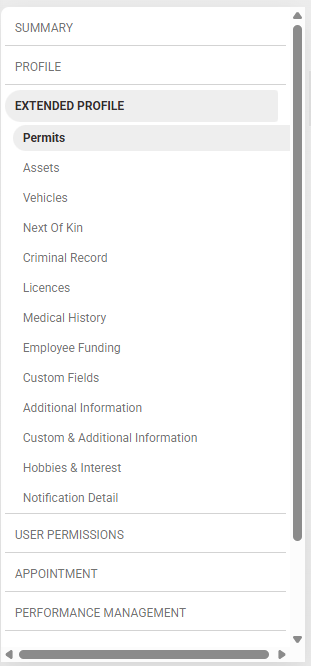
- Click on **EXTENDED PROFILE** to access the **Extended CORE** module’s advanced people management features.
##### Permits
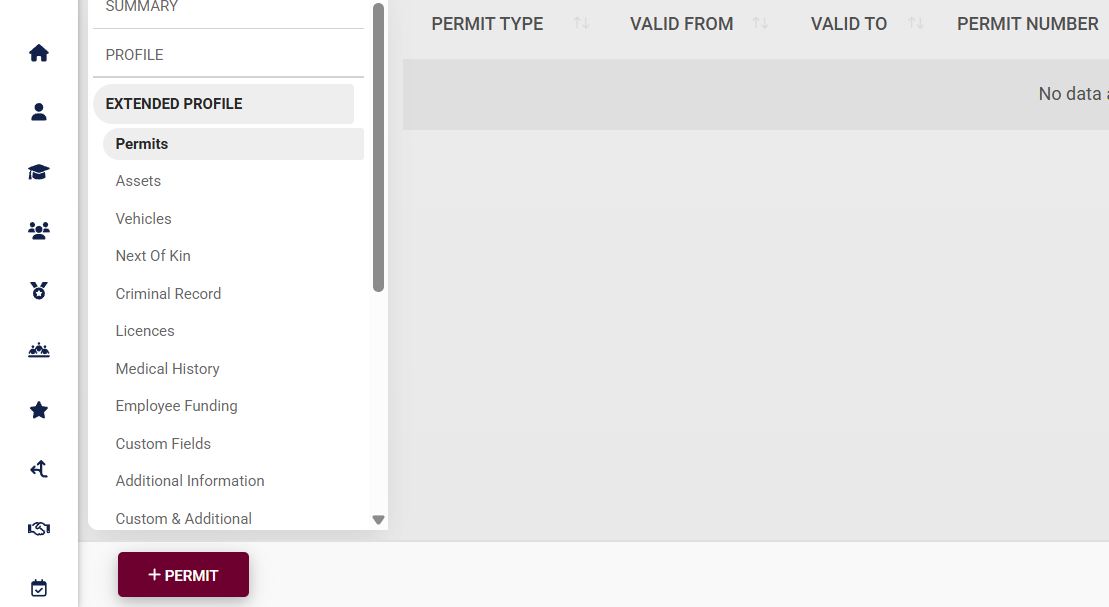
- Click to navigate to **Permits**, then click **+PERMIT** to add a new permit.
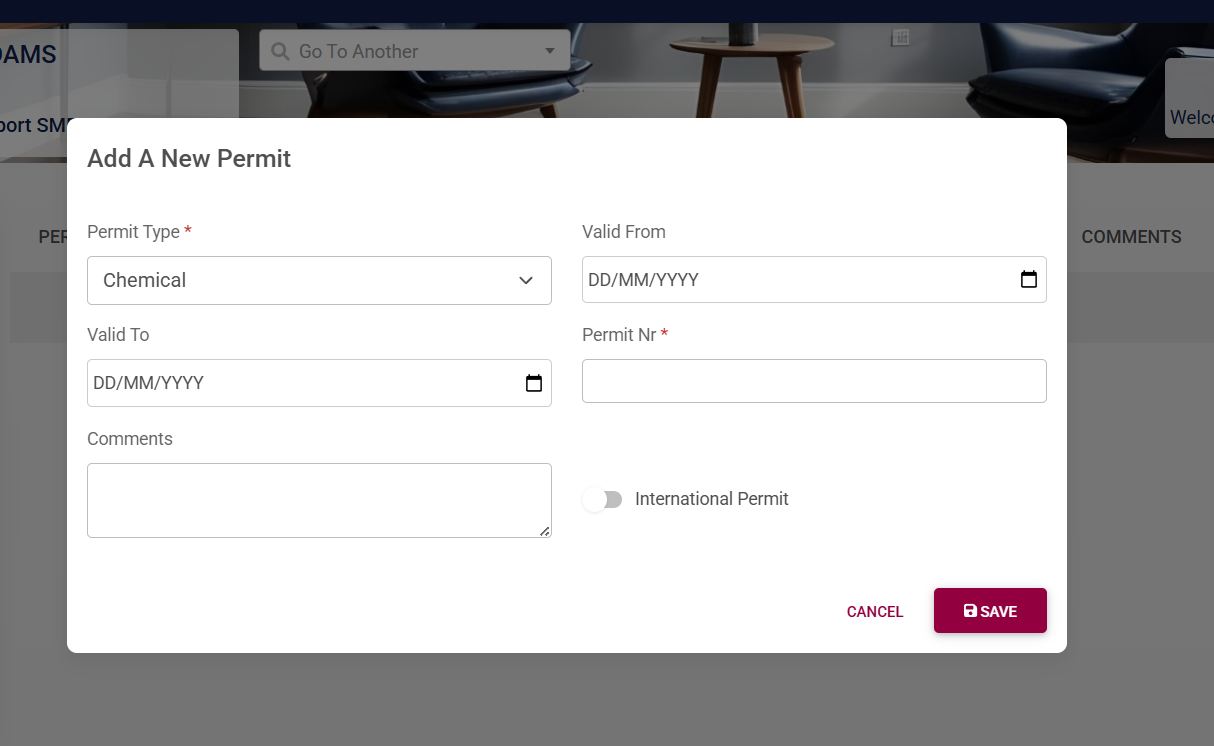
- Fill in the permit information, including the permit type, number, and validity. Please note that the fields marked with a red asterisk (**\***) are compulsory.
- - The permit type forms part of the **master data**. To configure this, please see the [**Master Data Maintenance**](https://signature.signifyhr.co.za/books/people-management-d8c/page/master-data-maintenance) section later in this chapter.
- Click **SAVE** when you are finished or click **CANCEL** to discard your edits.
##### Assets
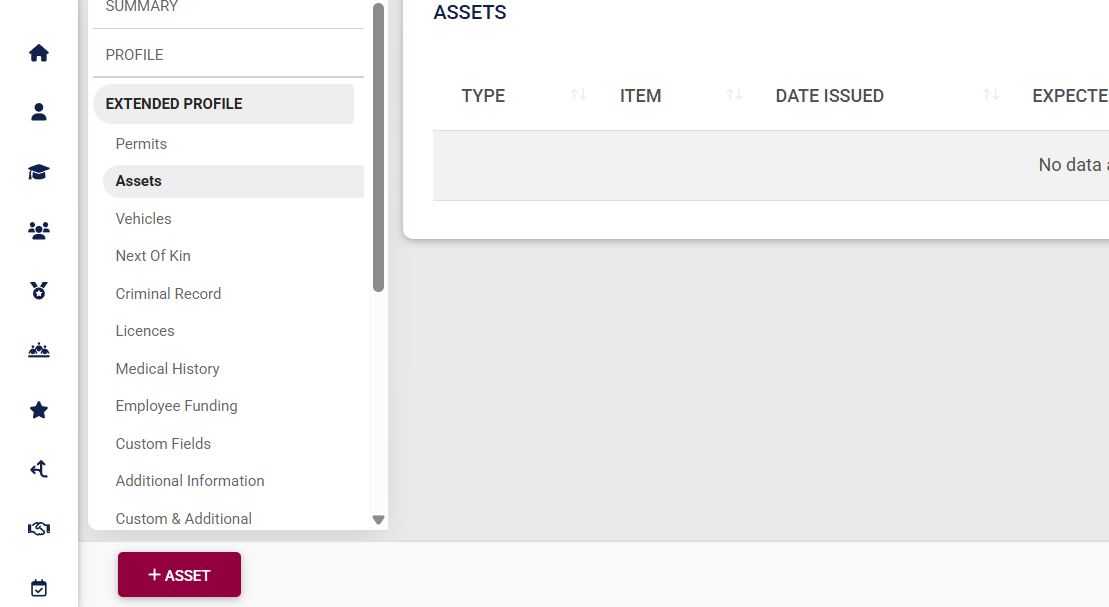
- Click to navigate to **Assets**, then click **+ASSET** to add a new asset.
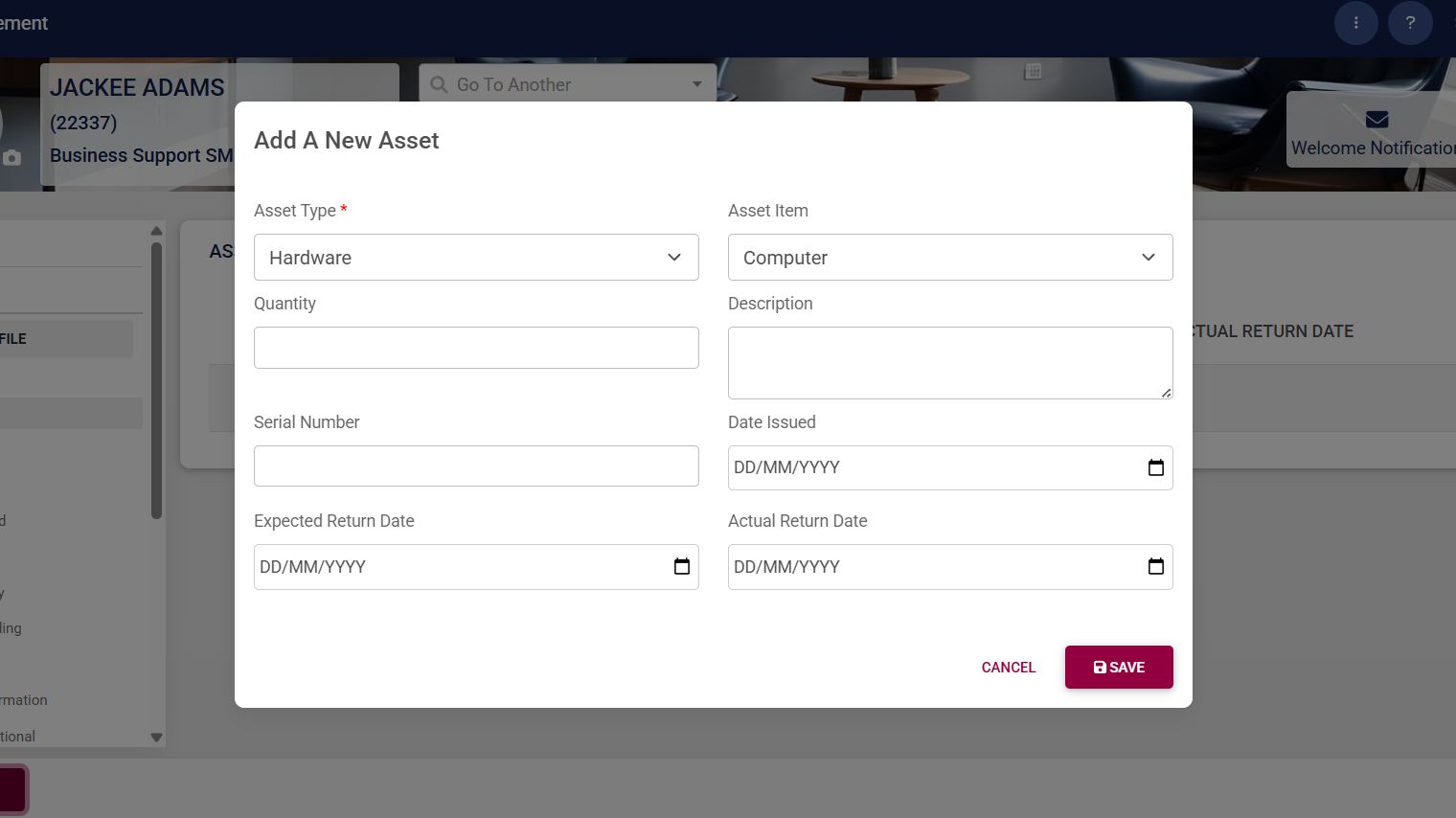
- Fill in the asset information, such as the:
- - Asset type
- Asset item
- Quantity
- Description
- Serial number
- Issued date
- Expected return date
- Actual return date
- Please note that the fields marked with a red asterisk (**\***) are compulsory.
- - The asset item and asset type form part of the **master data**. To configure this, please see the [**Master Data Maintenance**](https://signature.signifyhr.co.za/books/people-management-d8c/page/master-data-maintenance) section later in this chapter.
- Click **SAVE** when you are finished or click **CANCEL** to discard your edits.
##### Vehicles
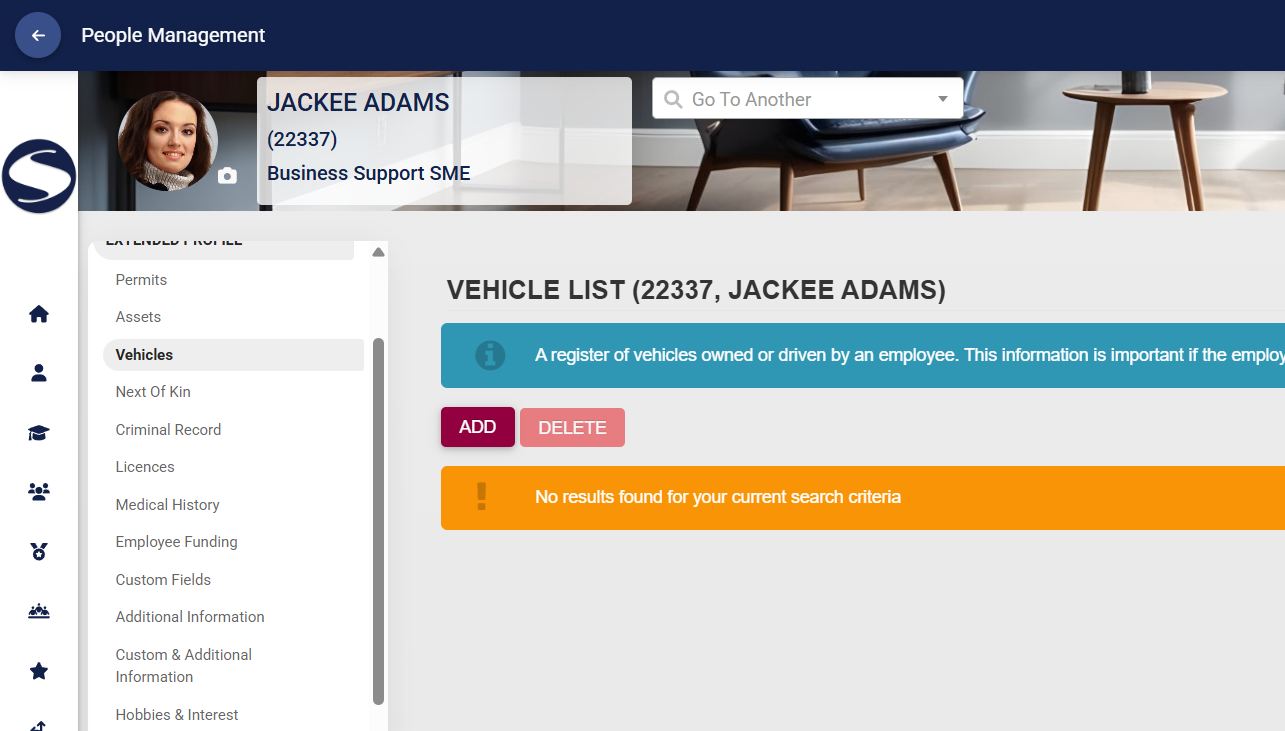
- If the employee is to bring vehicles onto the premises, the vehicle information can be captured by clicking **Vehicles**, then **ADD**.
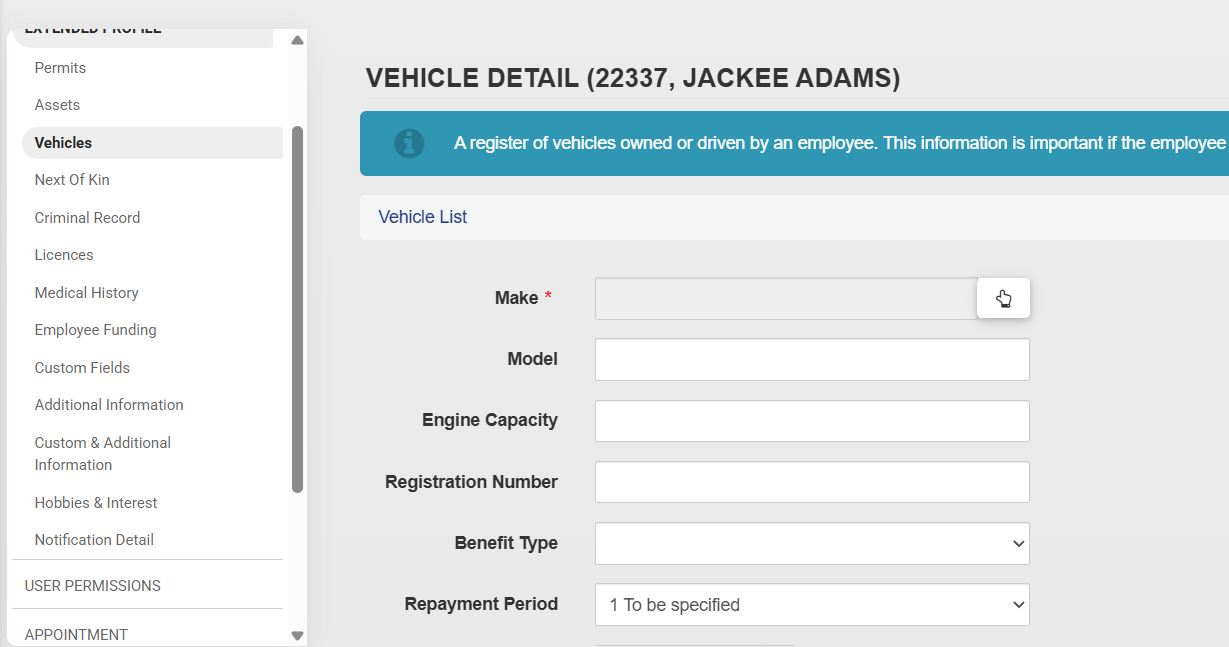
- Fill in the vehicle’s information, such as the make, model, registration number, manufacture year, benefit type, and other useful information. Please note that the fields marked with a red asterisk (**\***) are compulsory.
- Click **SAVE** when you are finished, **SAVE ADD NEW** to add another vehicle, or click **BACK TO LIST** to discard your edits.
##### Next of Kin
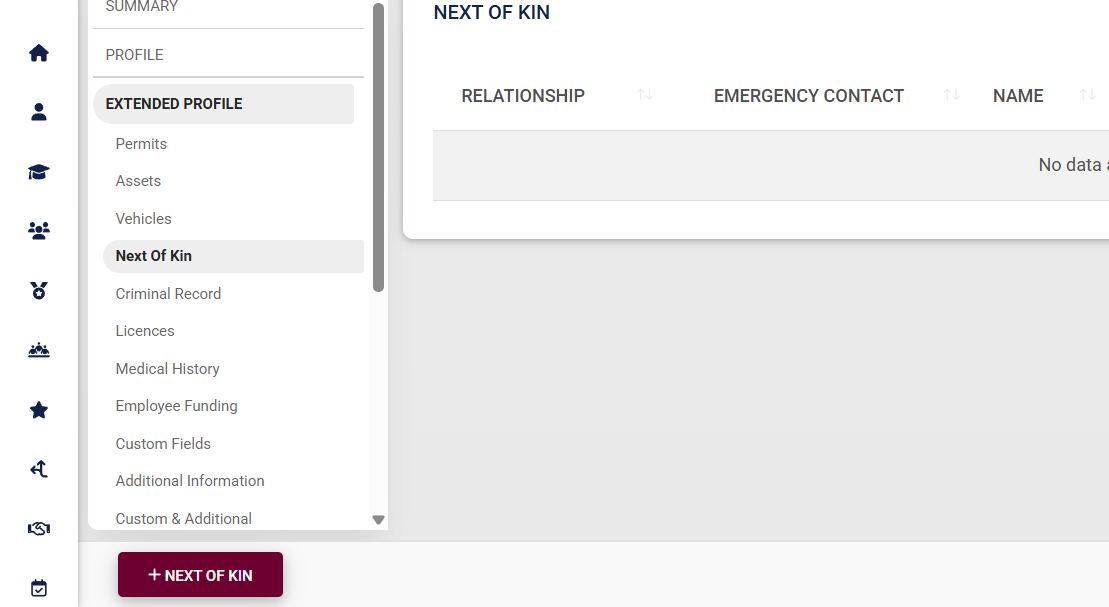
- To capture the person’s emergency contacts or dependents’ information, click **Next of Kin** and then click **+NEXT OF KIN**.
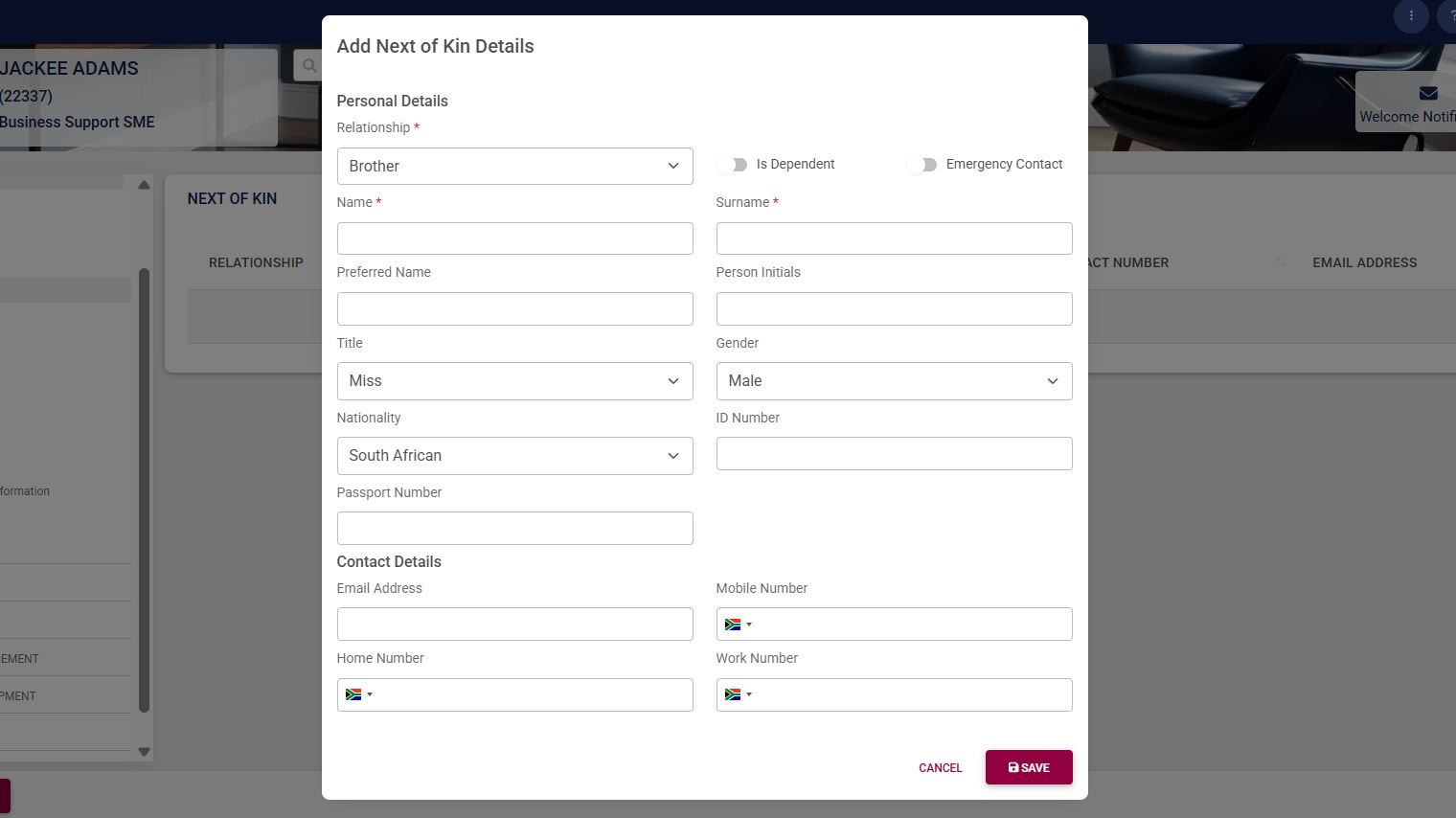
- Use the form to capture the next of kin’s contact information. Please note that the fields marked with a red asterisk (**\***) are compulsory.
- - The relationship type forms part of the **master data**. To configure this, please see the [**Master Data Maintenance**](https://signature.signifyhr.co.za/books/people-management-d8c/page/master-data-maintenance) section later in this chapter.
- Click **SAVE** when you are finished or click **CANCEL** to discard your edits.
##### Criminal Record
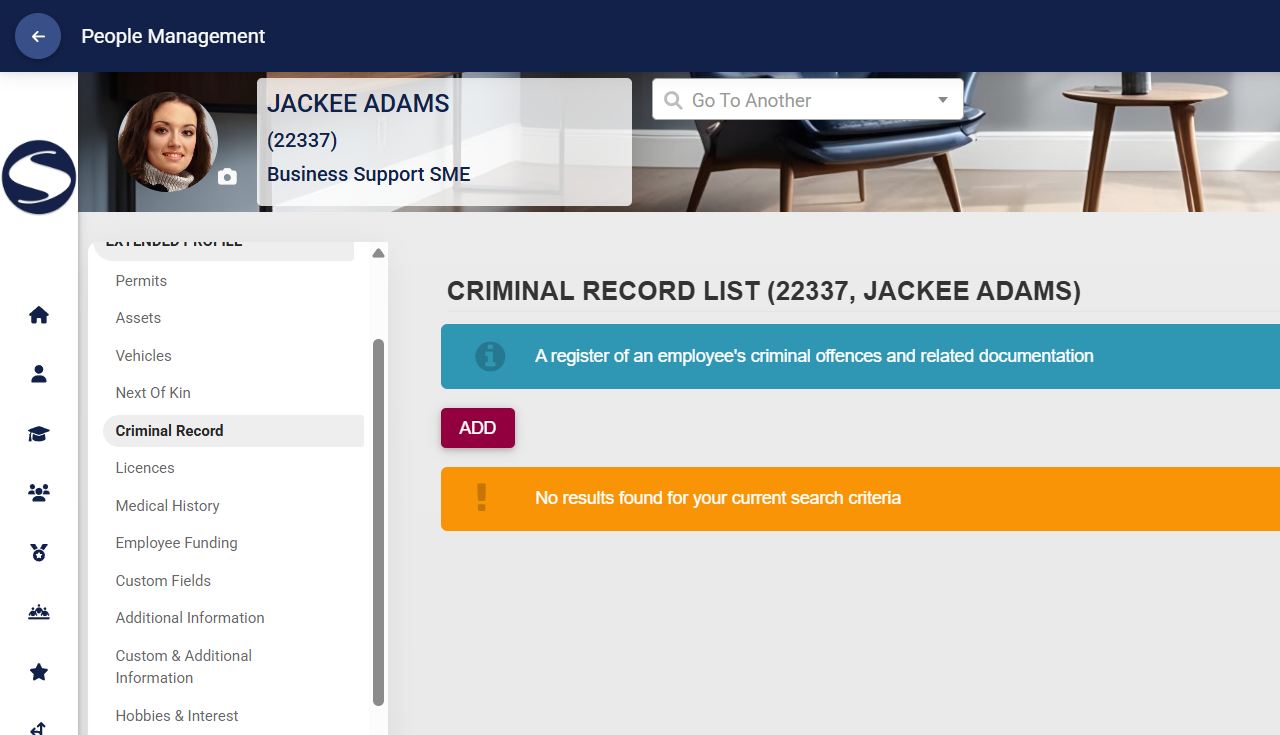
- If the employee has a criminal record, the information can be documented by clicking Criminal Record, then **ADD**.
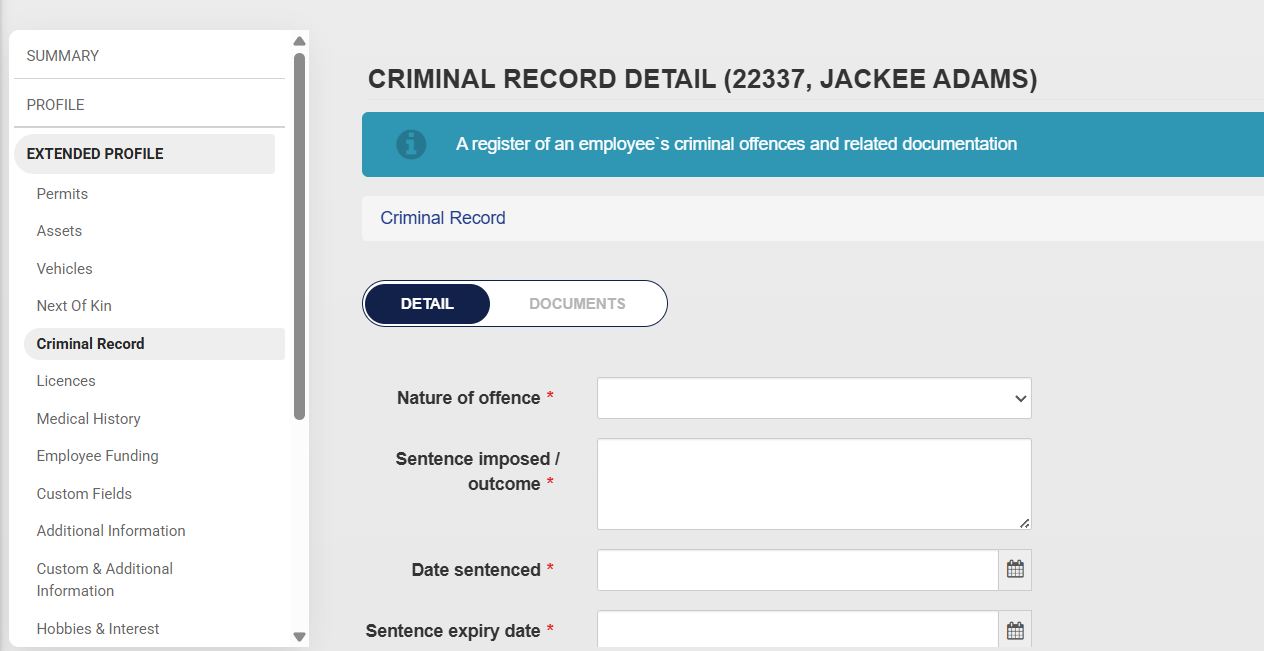
- Capture the employee’s criminal record details, such as:
- - Nature of the offence
- Sentence imposed
- Sentencing date
- Sentence expiry date
- Case number
- Police station where the case was registered
- Court name
- Please note that the fields marked with a red asterisk (**\***) are compulsory.
- - The nature of the offence forms part of the **master data**. To configure this, please see the [**Master Data Maintenance**](https://signature.signifyhr.co.za/books/people-management-d8c/page/master-data-maintenance) section later in this chapter.
- Click **SAVE** when you are finished, **SAVE ADD NEW** to add another record entry, or click **BACK TO LIST** to discard your edits.
##### Licences
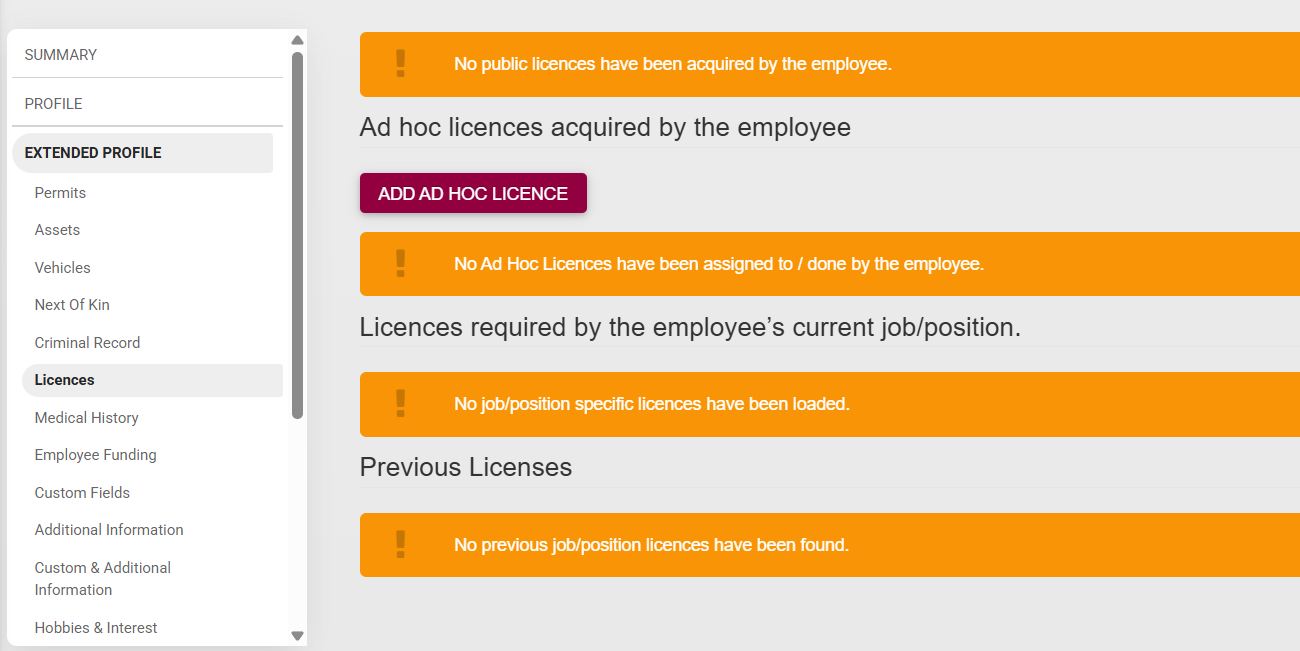
- A list of licences required for the employee’s position, as well as any other licences the employee holds, can be documented by clicking **Licences**. To add a new licence, click Add Ad Hoc Licence.
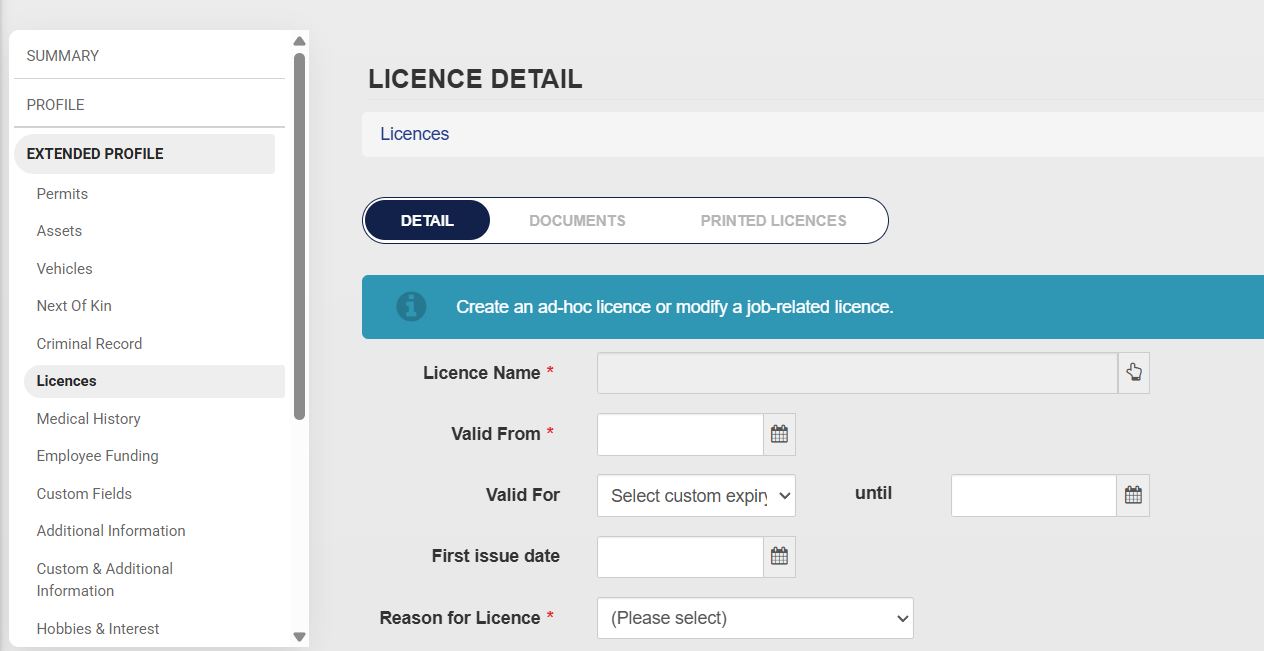
- Complete the licence detail form. Please note that the fields marked with a red asterisk (**\***) are compulsory.
- - Some of the licence detail fields can be set up in the **master data**. To configure this, please see the [**Master Data Maintenance**](https://signature.signifyhr.co.za/books/people-management-d8c/page/master-data-maintenance) section later in this chapter.
- Click **SAVE** to update the profile, or **BACK** to discard your edits.
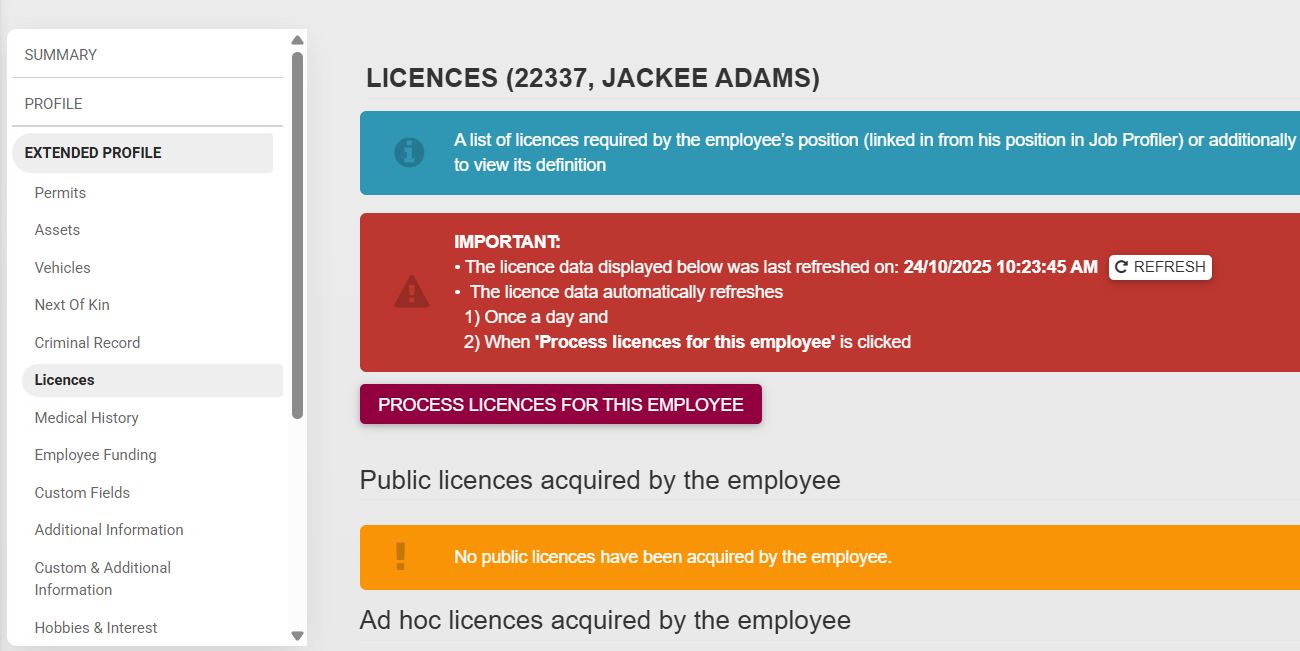
- The licence data can be refreshed by clicking on Process Licences for this Employee.
##### Medical History
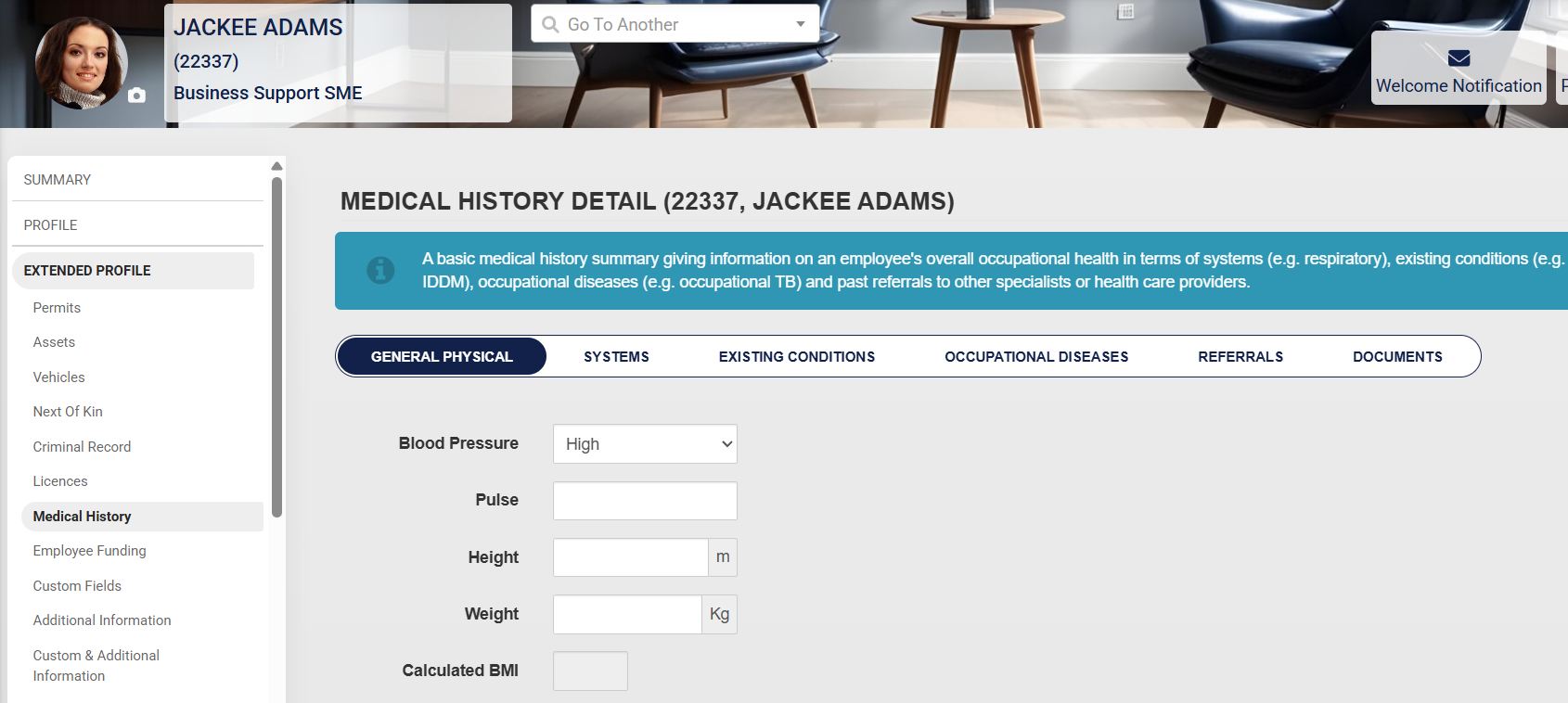
- The employee’s medical history can be documented by clicking on **Medical History**.
- Capture the relevant details of the employee’s medical history, such as:
- - General physical health
- Systems’ health
- Existing medical conditions
- Occupational diseases
- Past referrals to other specialists
- Important medical history documents
- Some of the medical history fields can be set up in the **master data**. To configure this, please see the [**Master Data Maintenance**](https://signature.signifyhr.co.za/books/people-management-d8c/page/master-data-maintenance) section later in this chapter.
##### Employee Funding
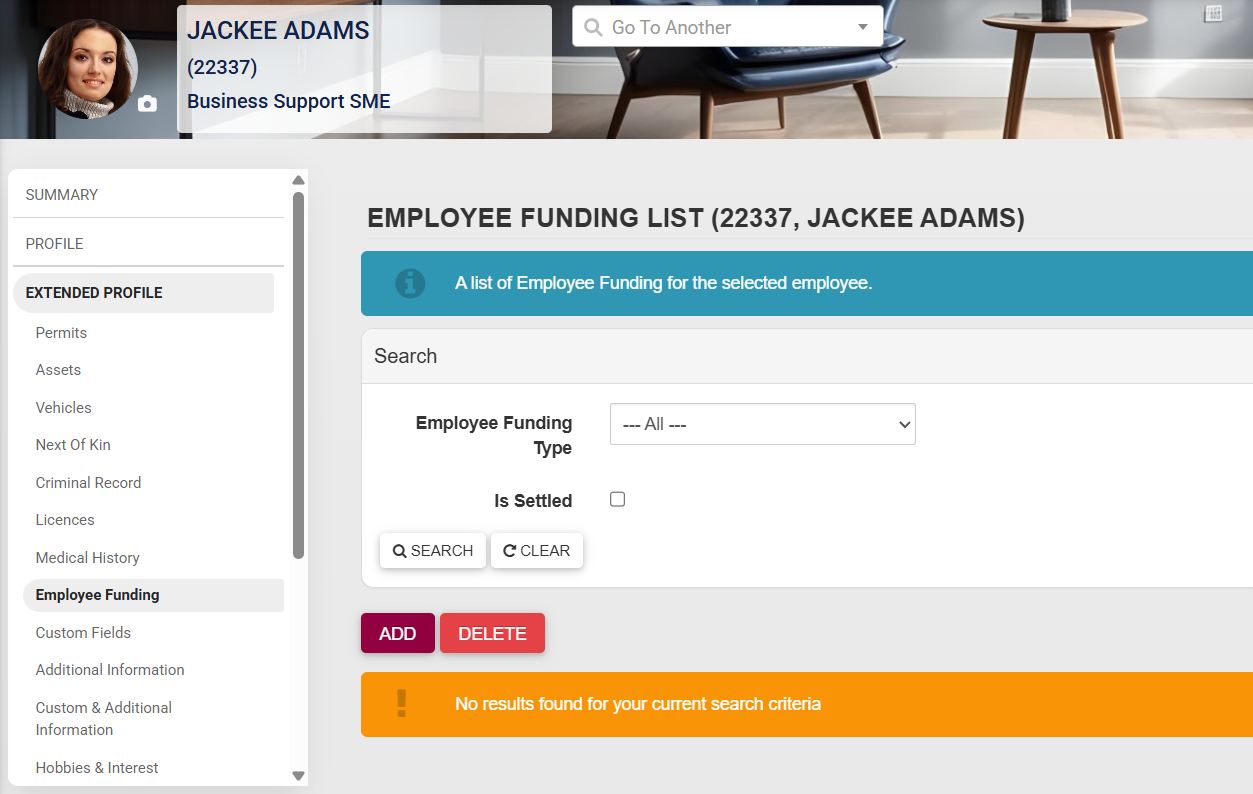
- Employee funding, such as a bursary or an employee personal loan, can be documented by clicking on **Employee Funding** and then clicking on **ADD**.
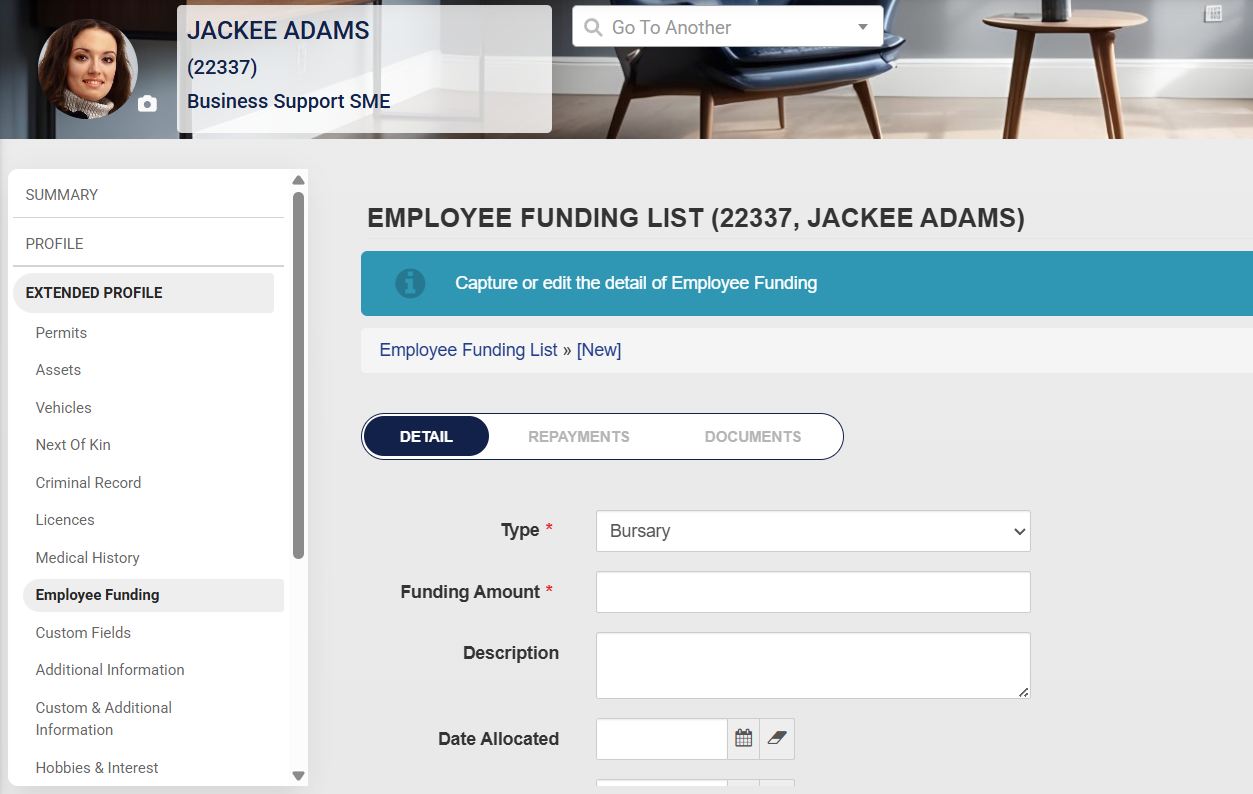
- Details of the employee’s funding can be captured by filling in the form. Please note that the fields marked with a red asterisk (**\***) are compulsory.
- - Some of the employee funding fields can be set up in the **master data**. To configure this, please see the [**Master Data Maintenance**](https://signature.signifyhr.co.za/books/people-management-d8c/page/master-data-maintenance) section later in this chapter.
- Click **SAVE** when you are finished, **SAVE ADD NEW** to add another record entry, or click **BACK** to discard your edits.
##### Custom and Additional Fields
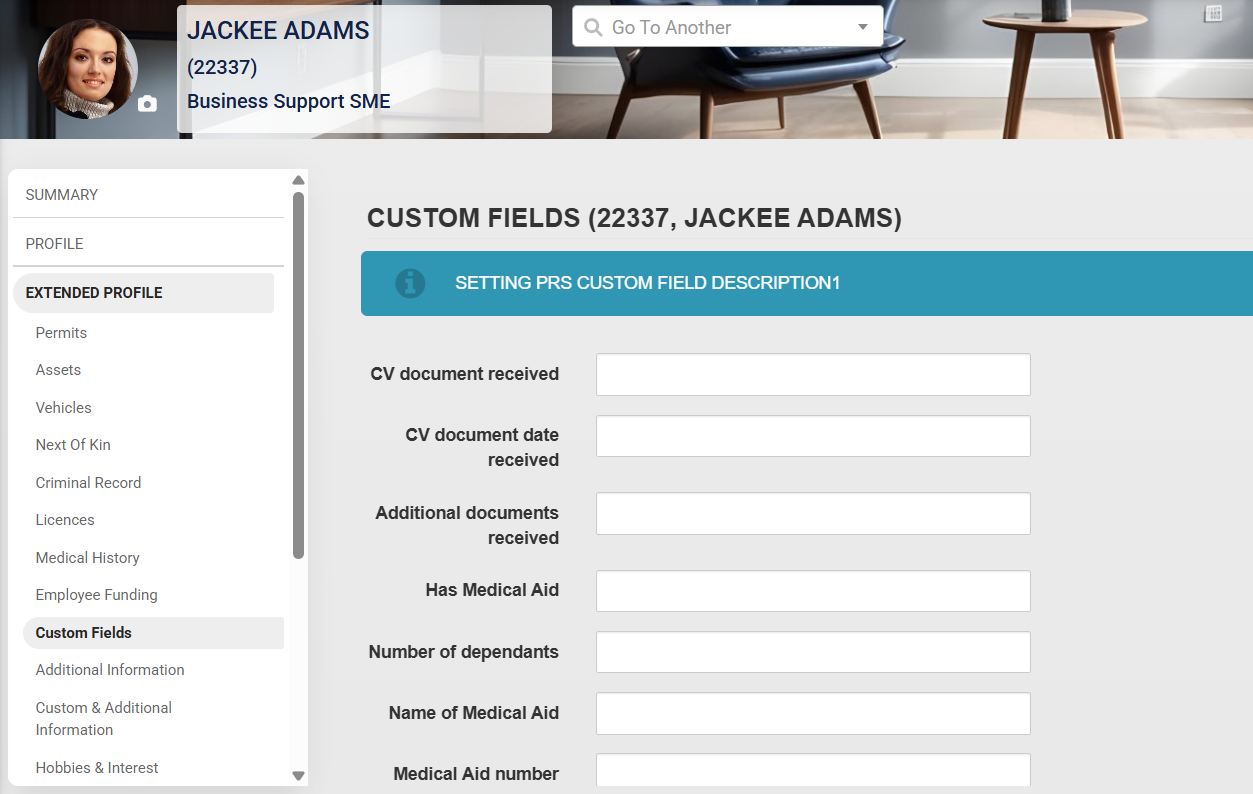
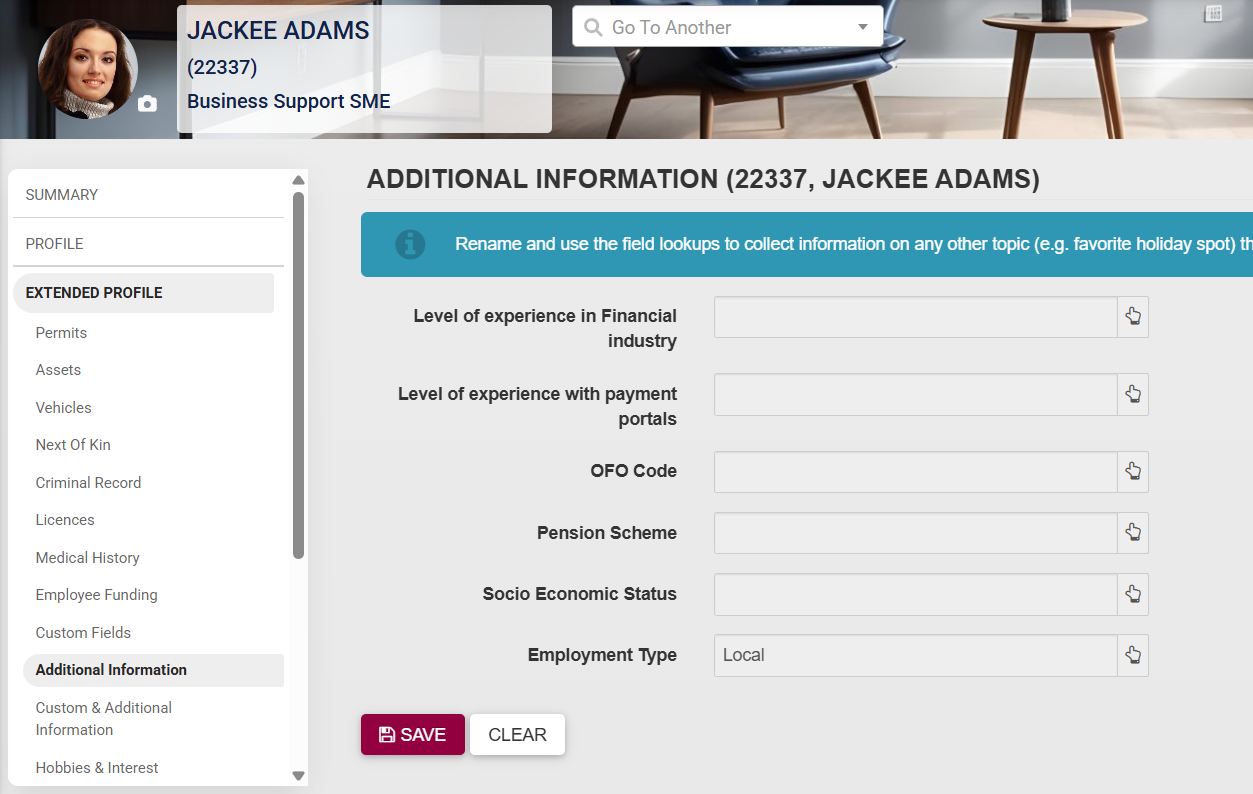
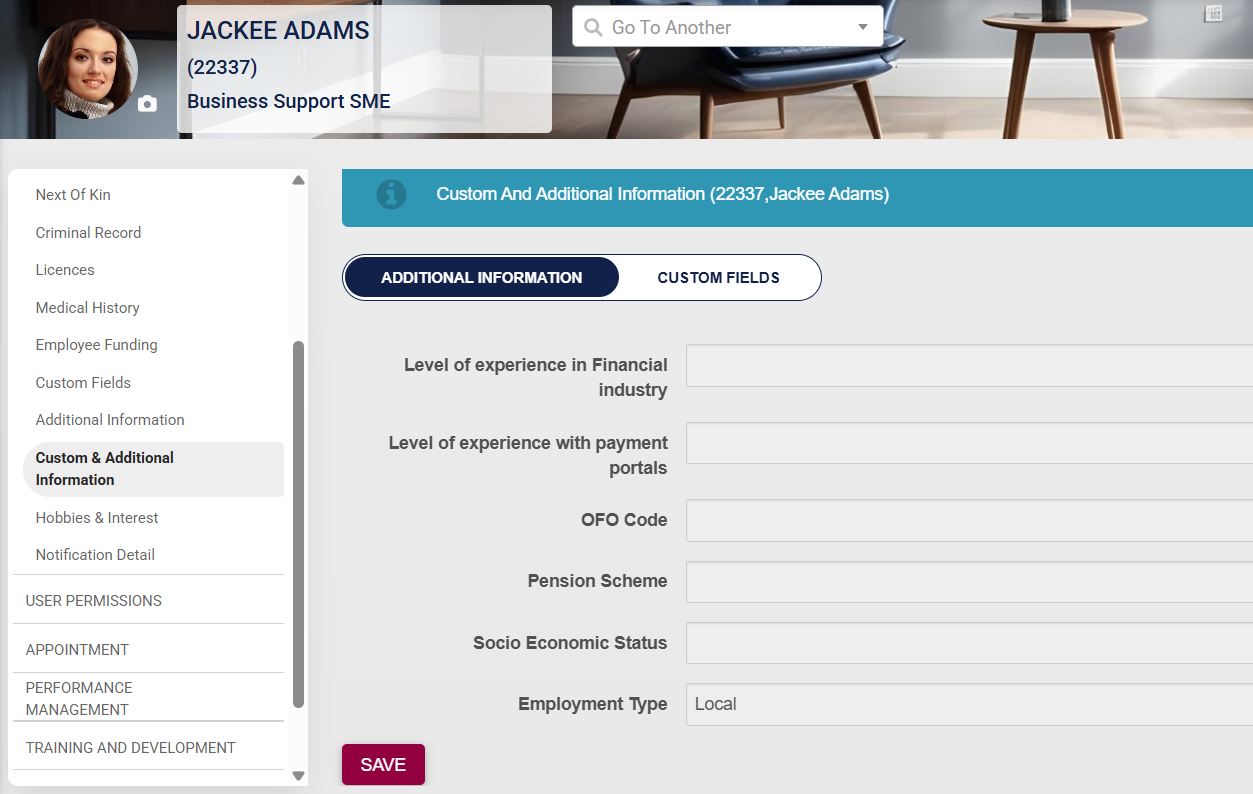
- **Custom Fields**, **Additional Information**, and **Custom and Additional Information** are menu items that can be used to document additional information about the employee. These fields can be set up in the **master data**. To configure this, please see the [**Master Data Maintenance**](https://signature.signifyhr.co.za/books/people-management-d8c/page/master-data-maintenance) section later in this chapter.
##### Hobbies and Interests
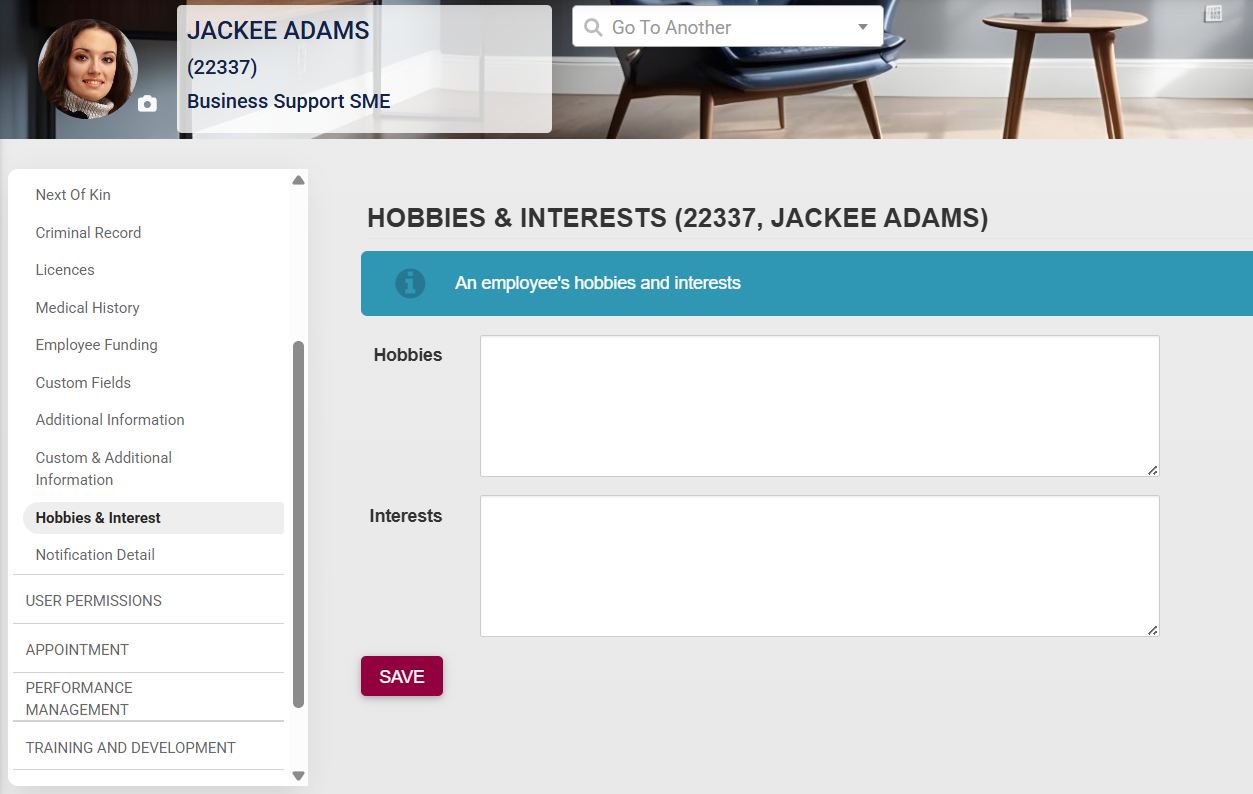
- The employee’s hobbies and interests can be noted by clicking on **Hobbies and Interests**. Fill in the details about their hobbies and interests, then click **SAVE** when you are finished.
##### Notification Detail
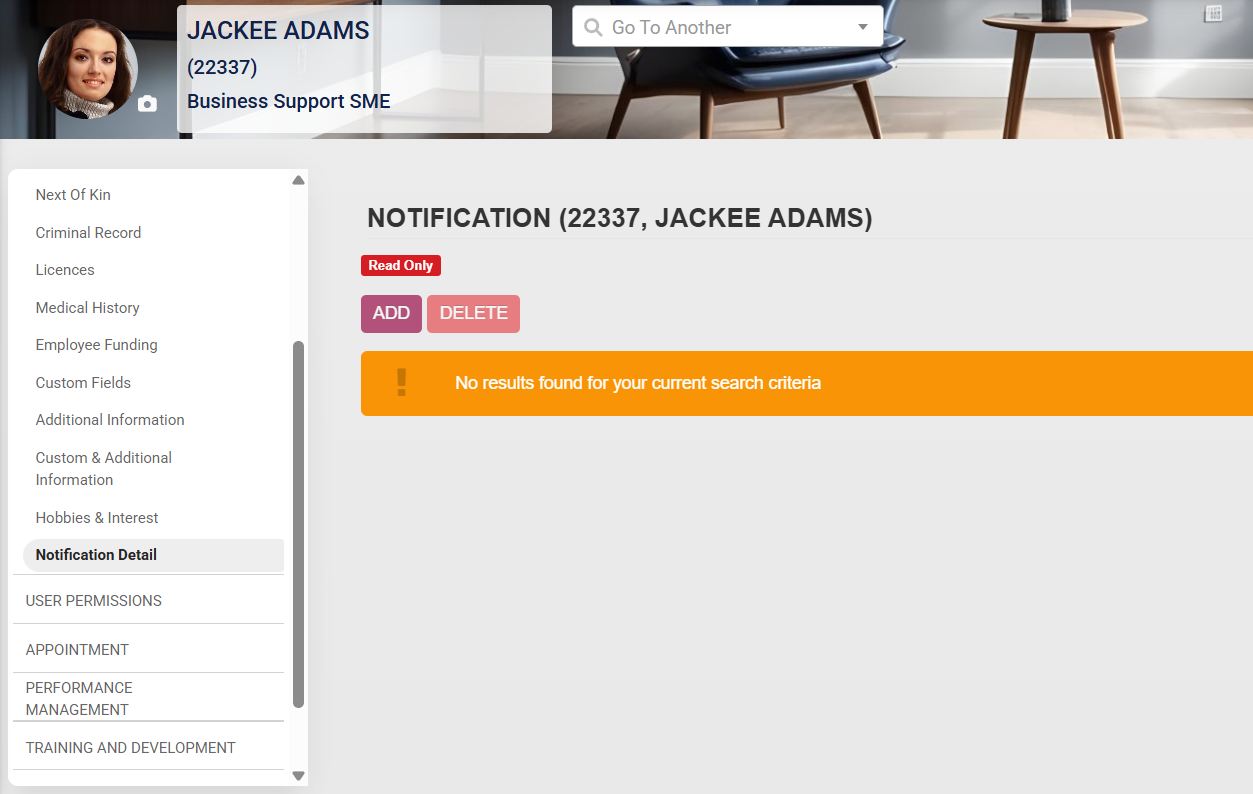
- Details about the employee’s notifications can be viewed by clicking on **Notification Detail**.
#### User Permissions
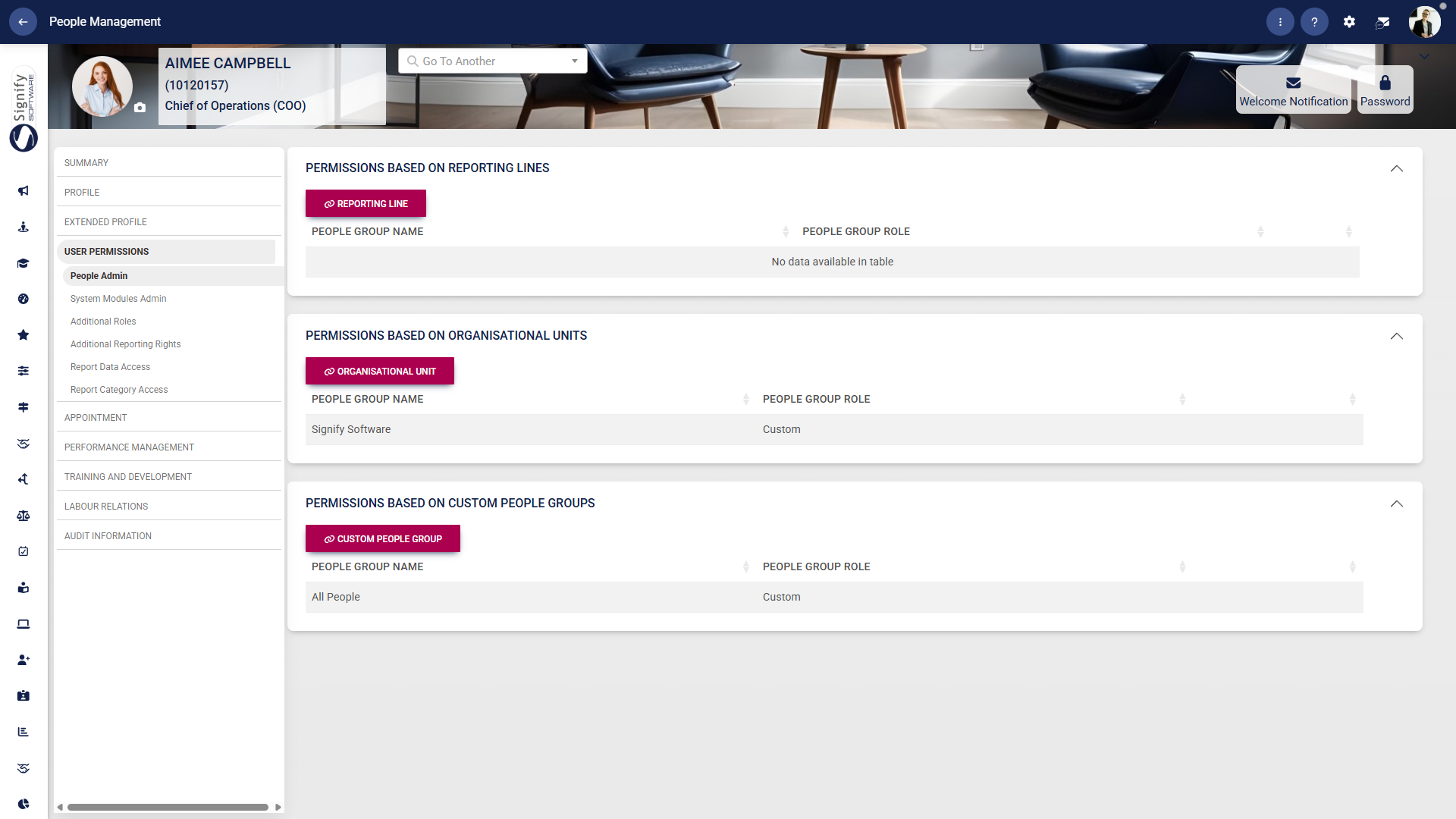
Please see the **[User and Access Management](https://signature.signifyhr.co.za/books/people-management-d8c/page/user-and-access-management "User and Access Management")** section of this chapter for more information.
#### Appointment
##### Appointment history
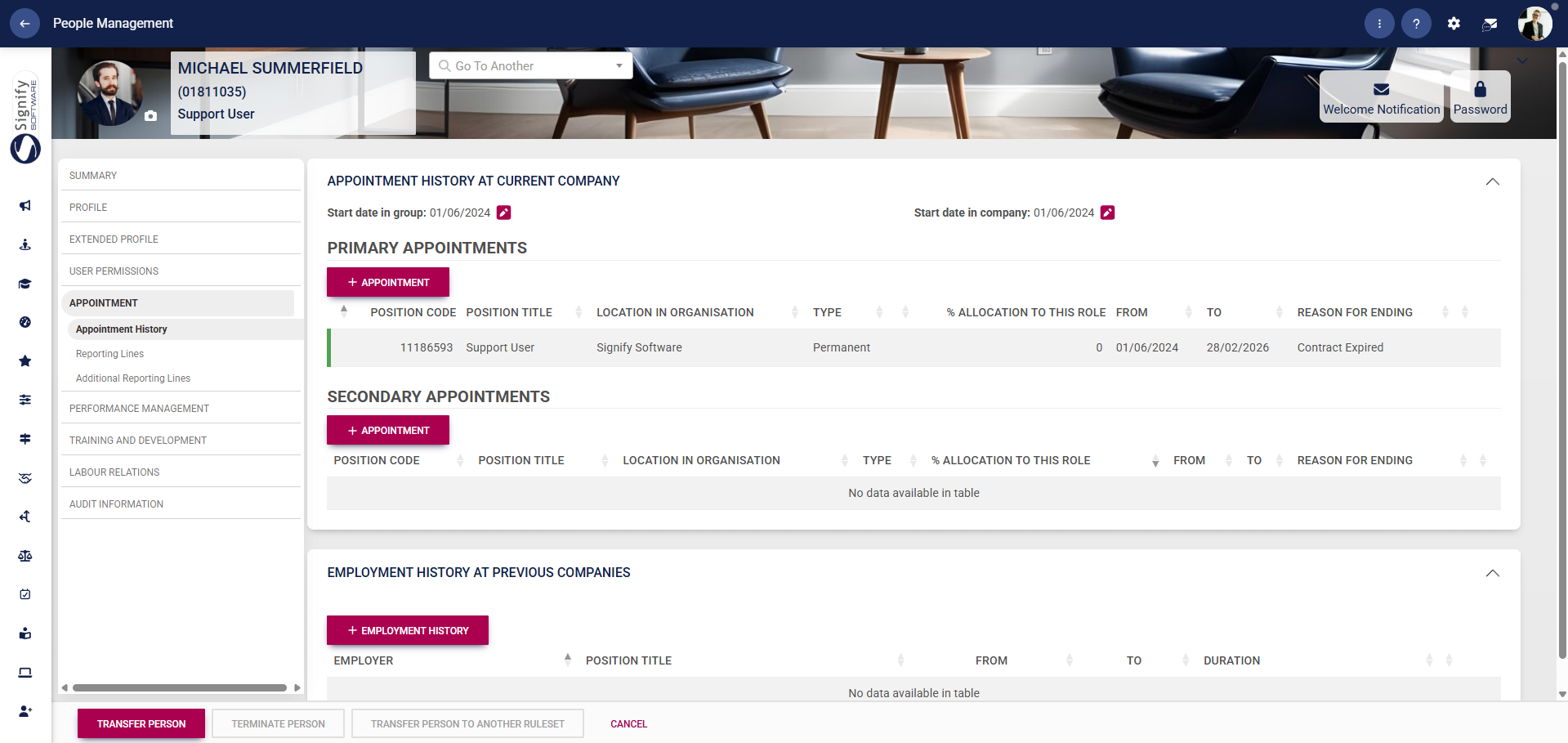
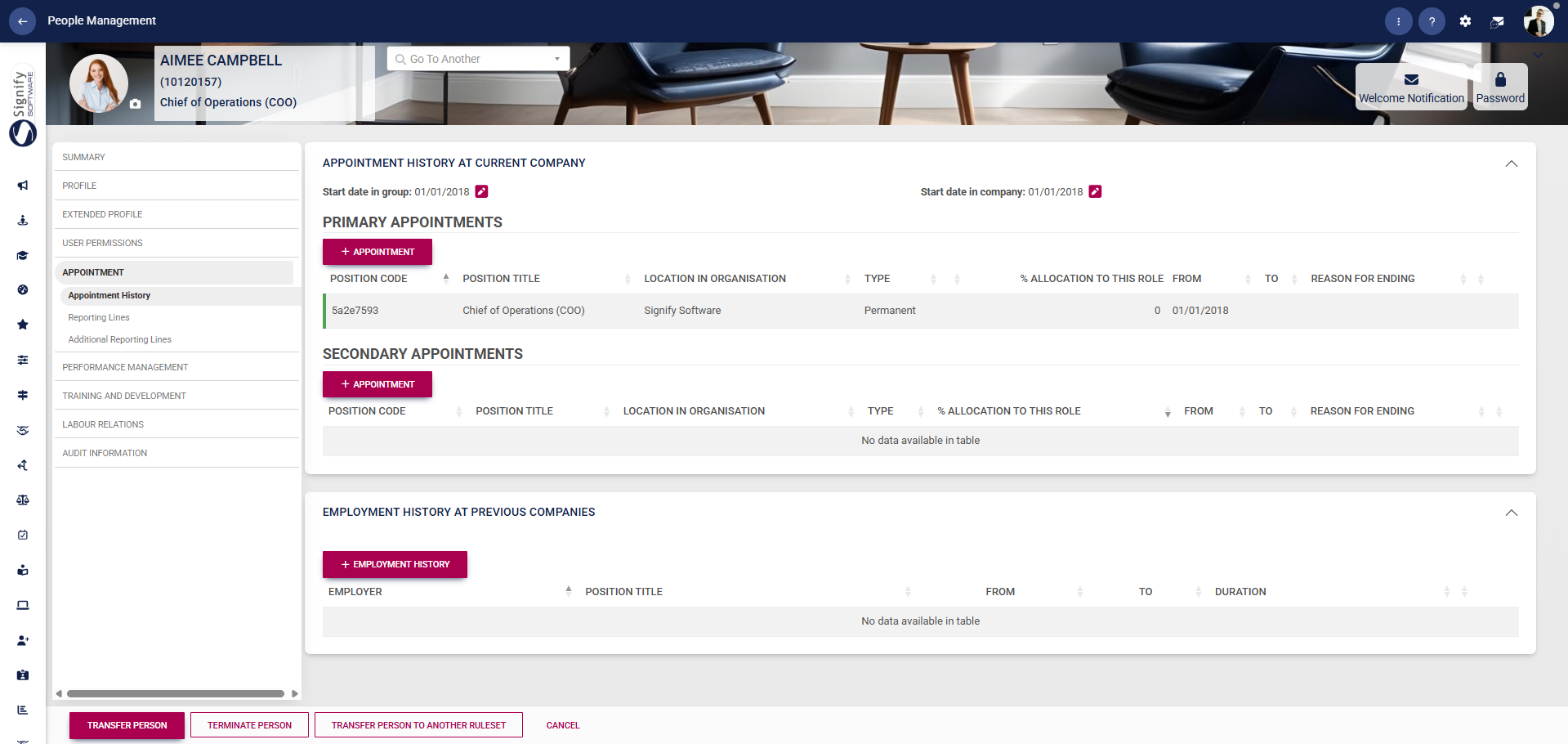
- Use the **left-hand menu** to navigate to **Appointment History** to review the employee’s current and previous appointments.
- Use **+APPOINTMENT** to add a new **Primary Appointment** or **Secondary Appointment**.
- Use **+EMPLOYMENT HISTORY** to record previous employment at another company.
- Review the **Start Date in Group** and **Start Date in Company** fields.
- Use the available action buttons at the bottom of the screen to **TRANSFER PERSON**, **TERMINATE PERSON**, or **TRANSFER PERSON TO ANOTHER RULESET** when required.
- Click **CANCEL** to exit without making changes.
##### Reporting lines
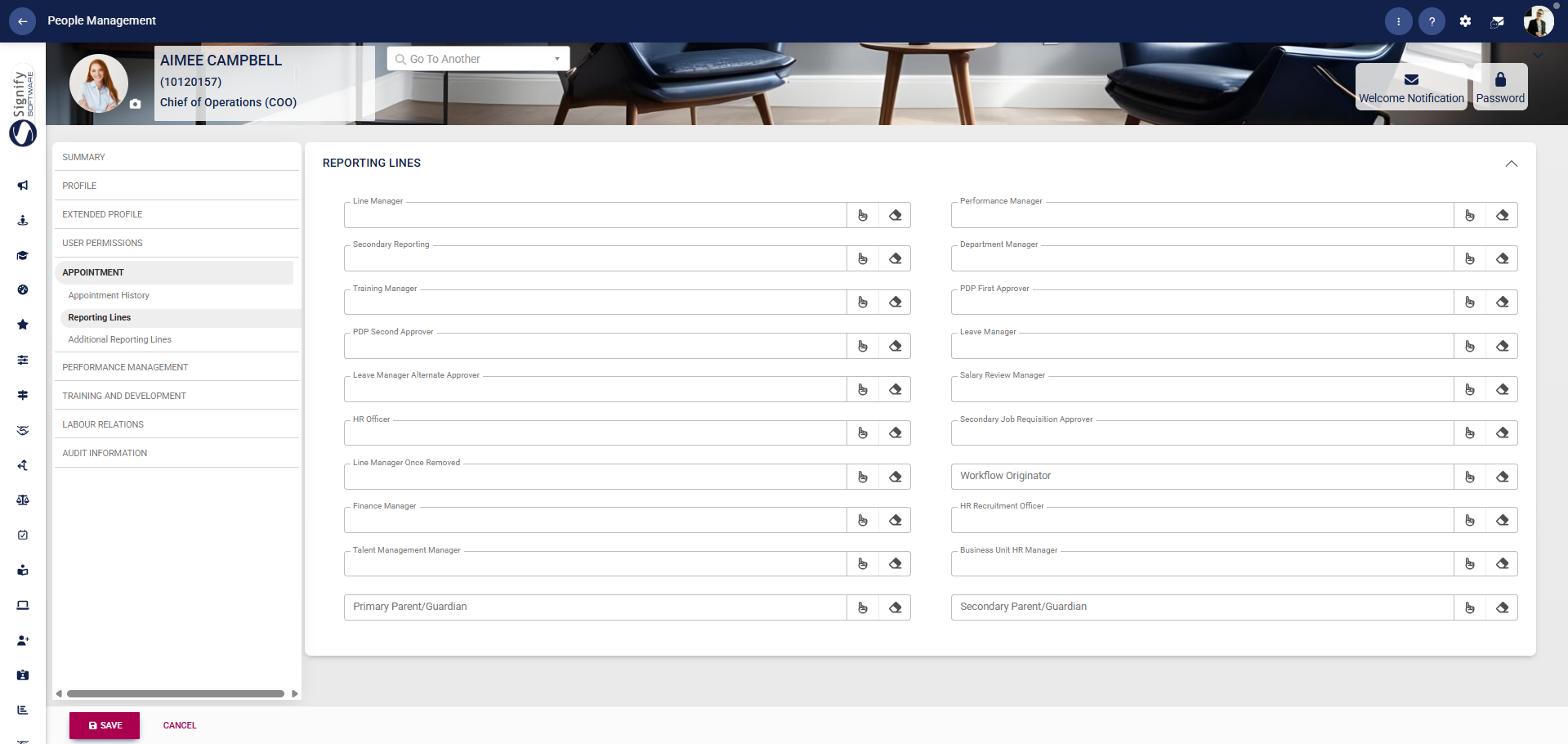
- Use the **left-hand menu** to navigate to **Reporting Lines**.
- Use the available lookup fields to assign the employee’s managers and related reporting roles.
- Complete the relevant fields, such as **Line Manager**, **Secondary Reporting**, **Training Manager**, **PDP Approvers**, **Leave Manager**, **HR Officer**, and other listed roles, as required.
- Use the search or lookup icons beside each field to select the correct person.
- Click **SAVE** when you are finished or **CANCEL** to discard your edits.
##### Additional reporting lines
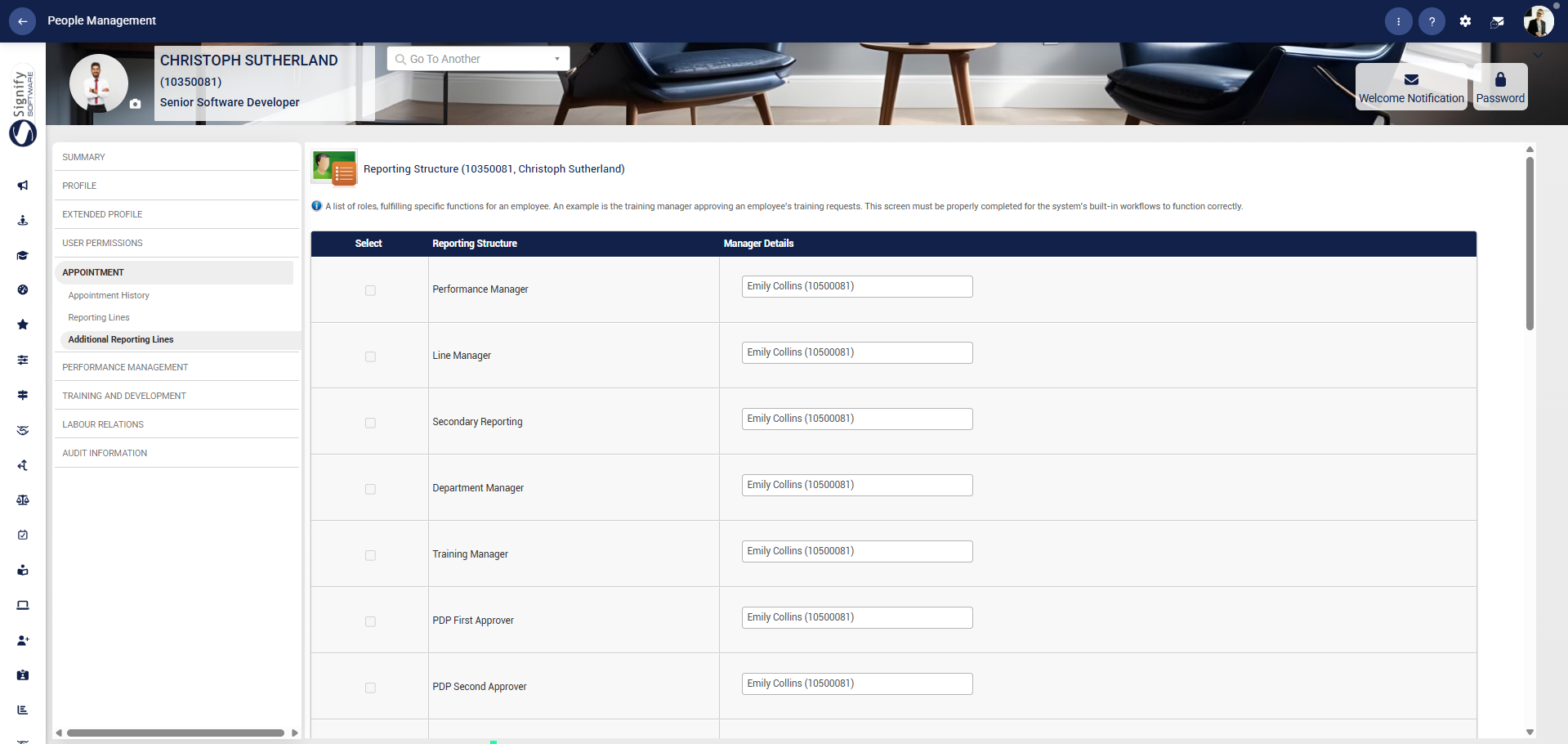
- Use the **left-hand menu** to navigate to **Additional Reporting Lines**.
- Select the required reporting structure from the list.
- Review the available roles, such as **Performance Manager**, **Line Manager**, **Department Manager**, **Training Manager**, and **PDP Approvers**, and assign the relevant manager details for each one.
- This screen supports the system’s built-in workflows, so ensure the reporting structure is completed correctly before continuing.
- Click **SAVE** when you are finished or **CANCEL** to discard your edits.
- 
#### Performance Management
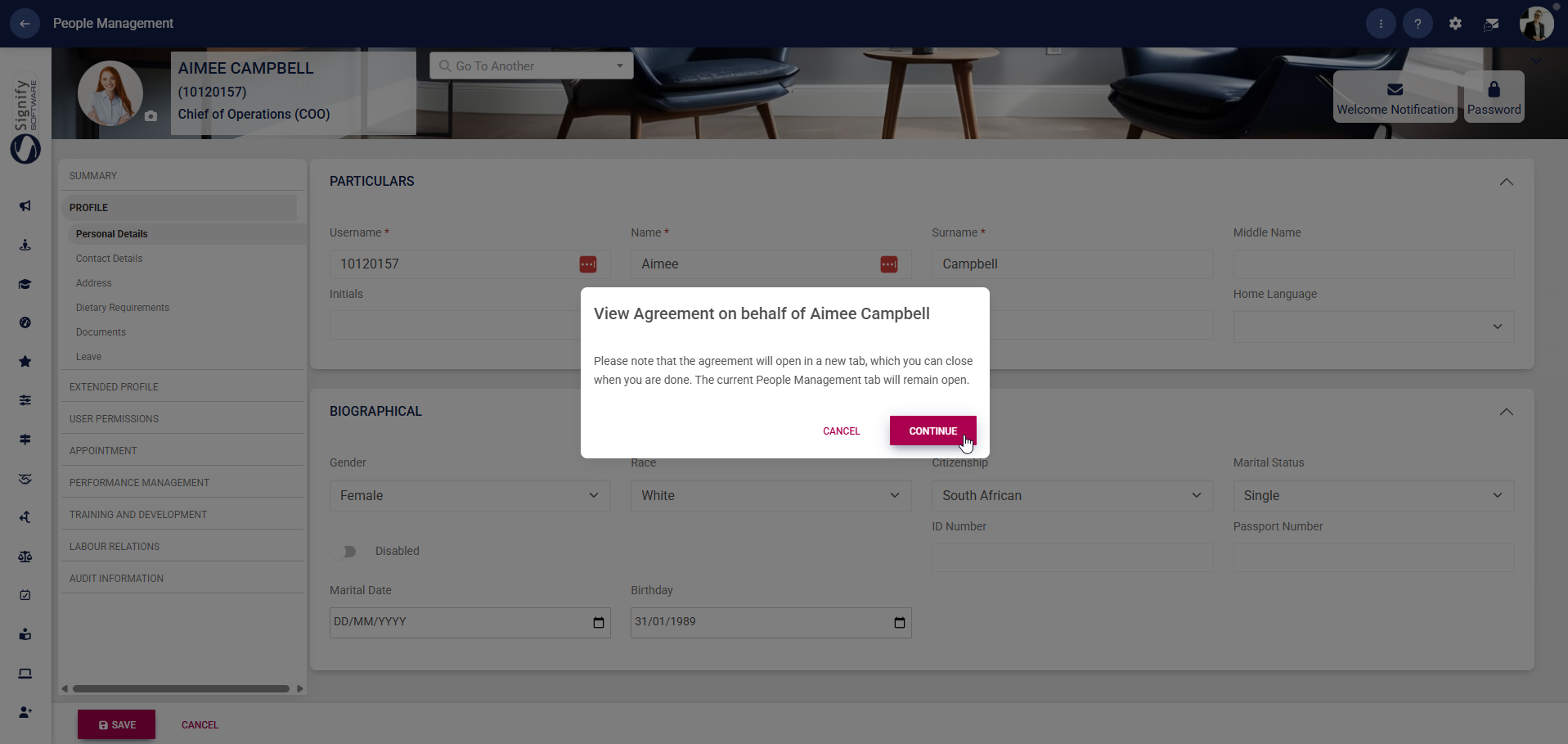
- Use the **left-hand menu** to navigate to **Performance Management**.
- This feature allows you to view the user's performance agreement on their behalf.
- Click **CONTINUE** to go to the **Performance Management** module.
#### Training and Development
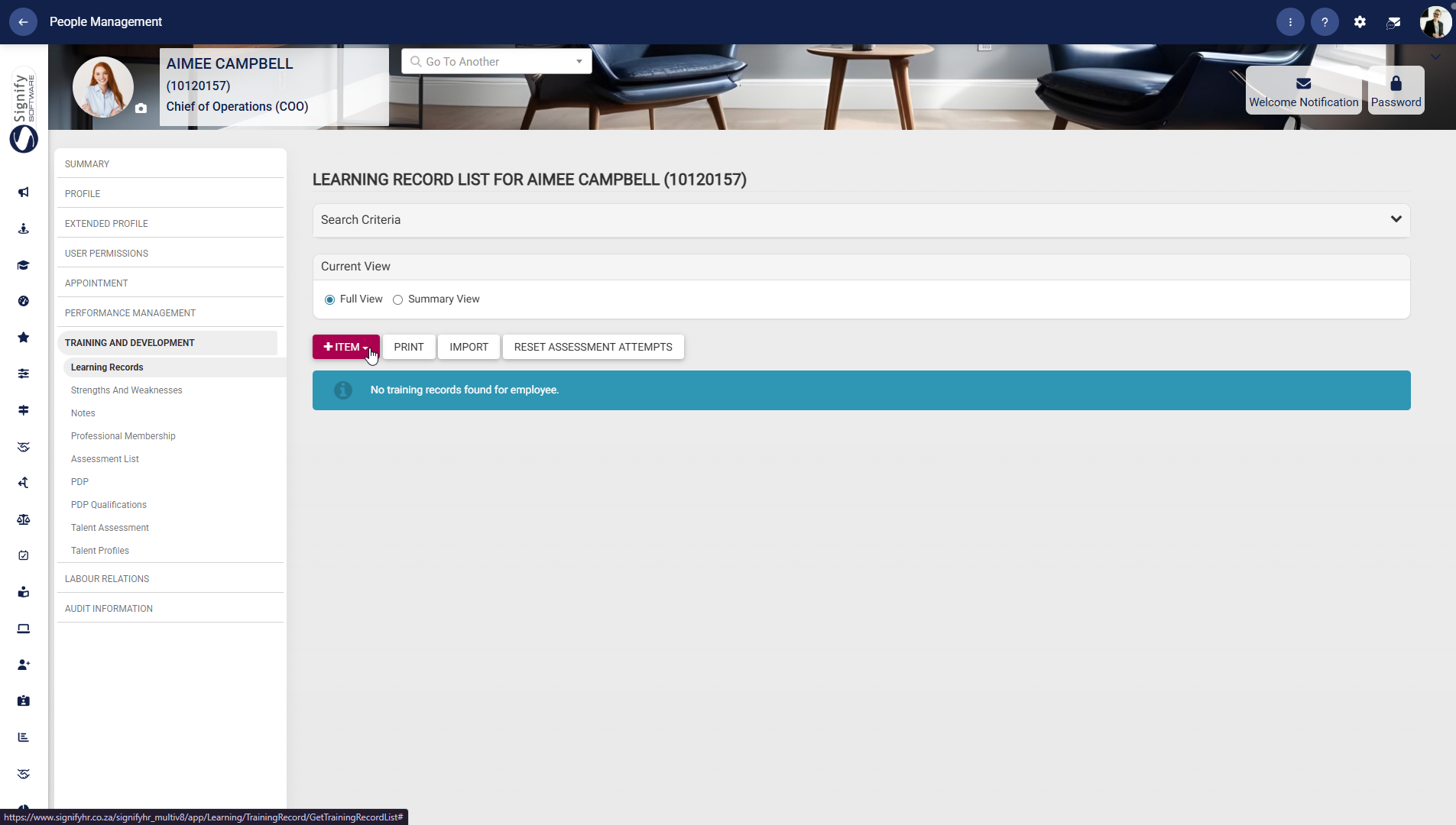
##### Learning Records
- Use the **left-hand menu** to navigate to **Learning Records** to view and manage the employee’s training history.
- Use **+ITEM** to add a new record, selecting from options such as Training, Unit, Programme, or Qualification.
- Use **PRINT** or **IMPORT** to manage records externally.
- Click **RESET ASSESSMENT ATTEMPTS** where applicable to reset training progress.
- Use the view options to switch between **Full View** and **Summary View**.
##### Strengths and Weaknesses
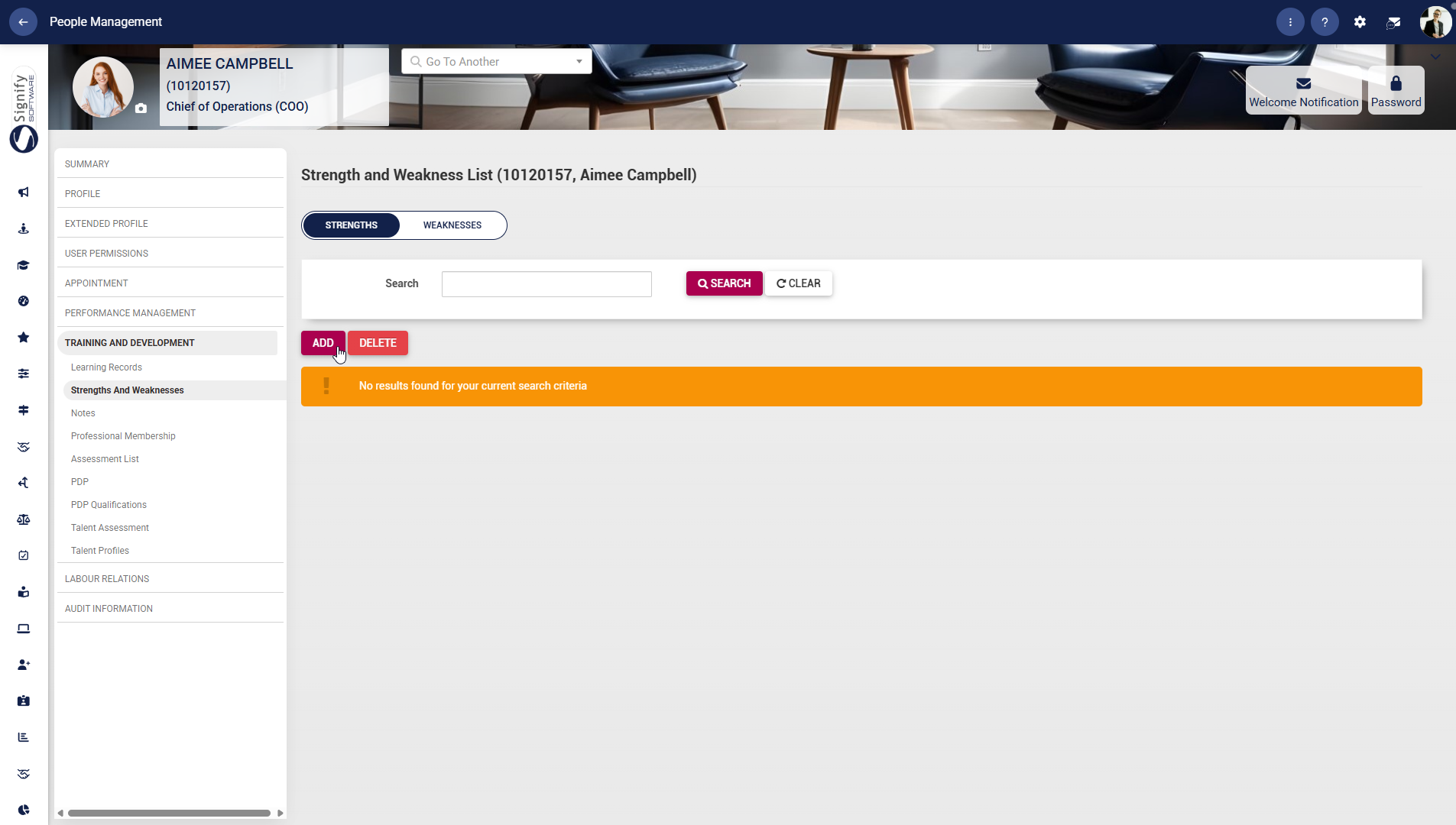
- Use the **left-hand menu** to navigate to **Strengths and Weaknesses**, then use the **Strengths** or **Weaknesses** tab to view the relevant records.
- Click **ADD** to create a new entry or **DELETE** to remove an existing one, where applicable.
##### Notes
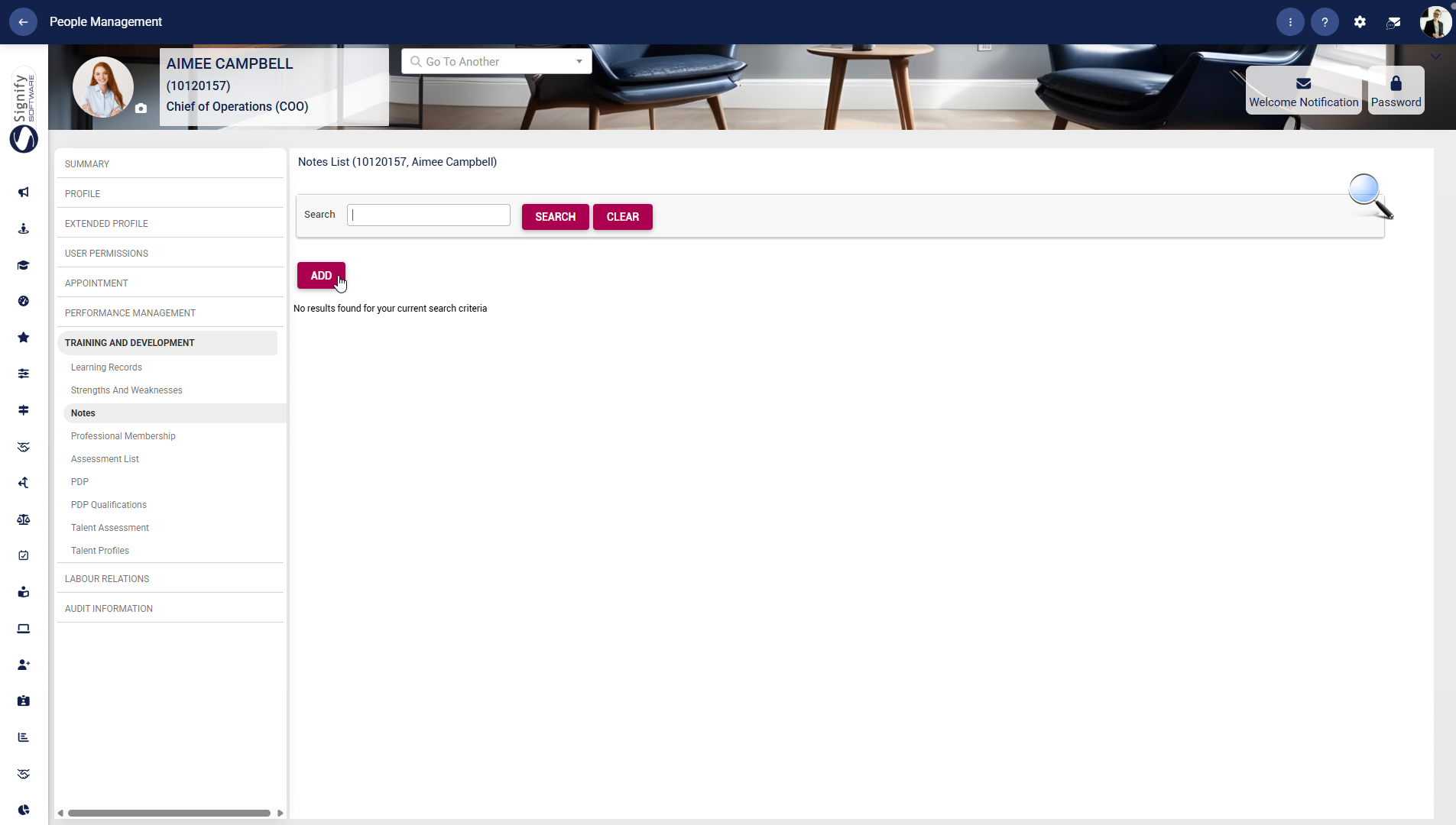
- Use the **left-hand menu** to navigate to **Notes** and use the search field to find an existing note.
- Click **ADD** to record a new note or **DELETE** to remove an existing note, where permitted.
##### Professional Membership
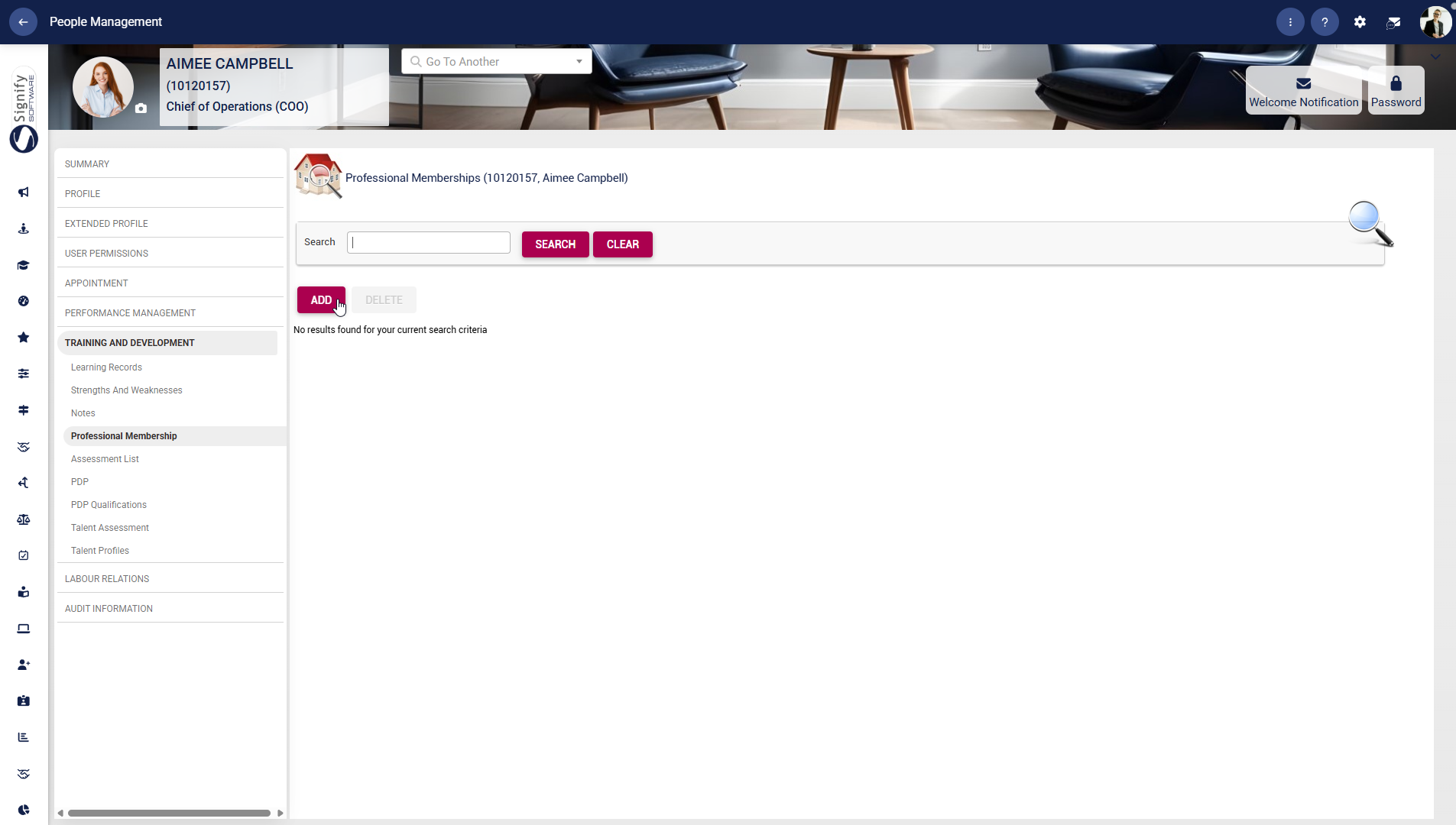
- Use the **left-hand menu** to navigate to **Professional Membership** and search for the relevant membership record.
- Click **ADD** to capture a new professional membership or **DELETE** to remove an existing one, where applicable.
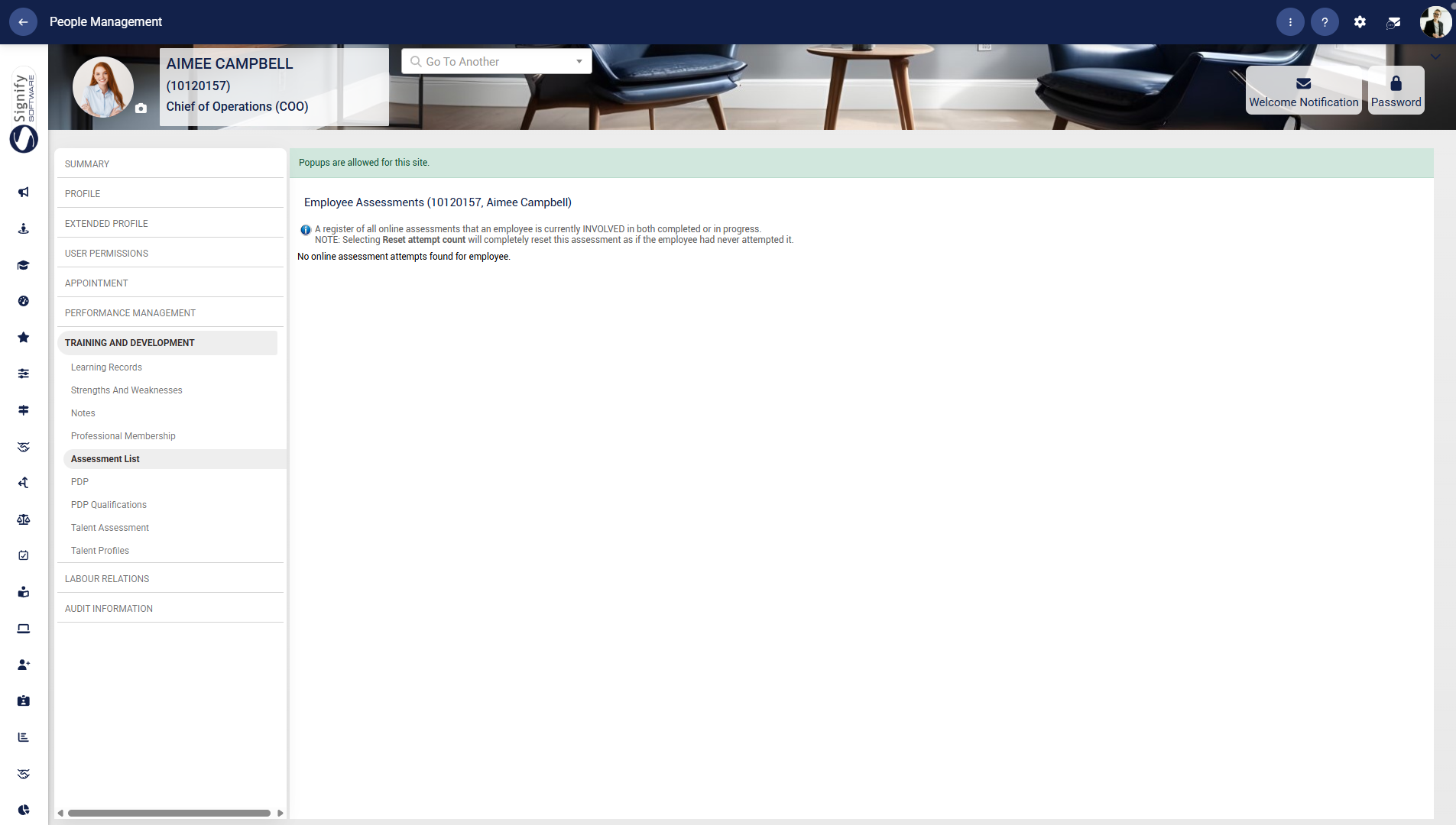
##### Assessment List
- Use the **left-hand menu** to navigate to **Assessment List** to review the employee’s online assessment information.
- Review the note on the screen carefully, as resetting assessment attempts will completely reset the assessment if the employee is involved in completed or in-progress attempts.
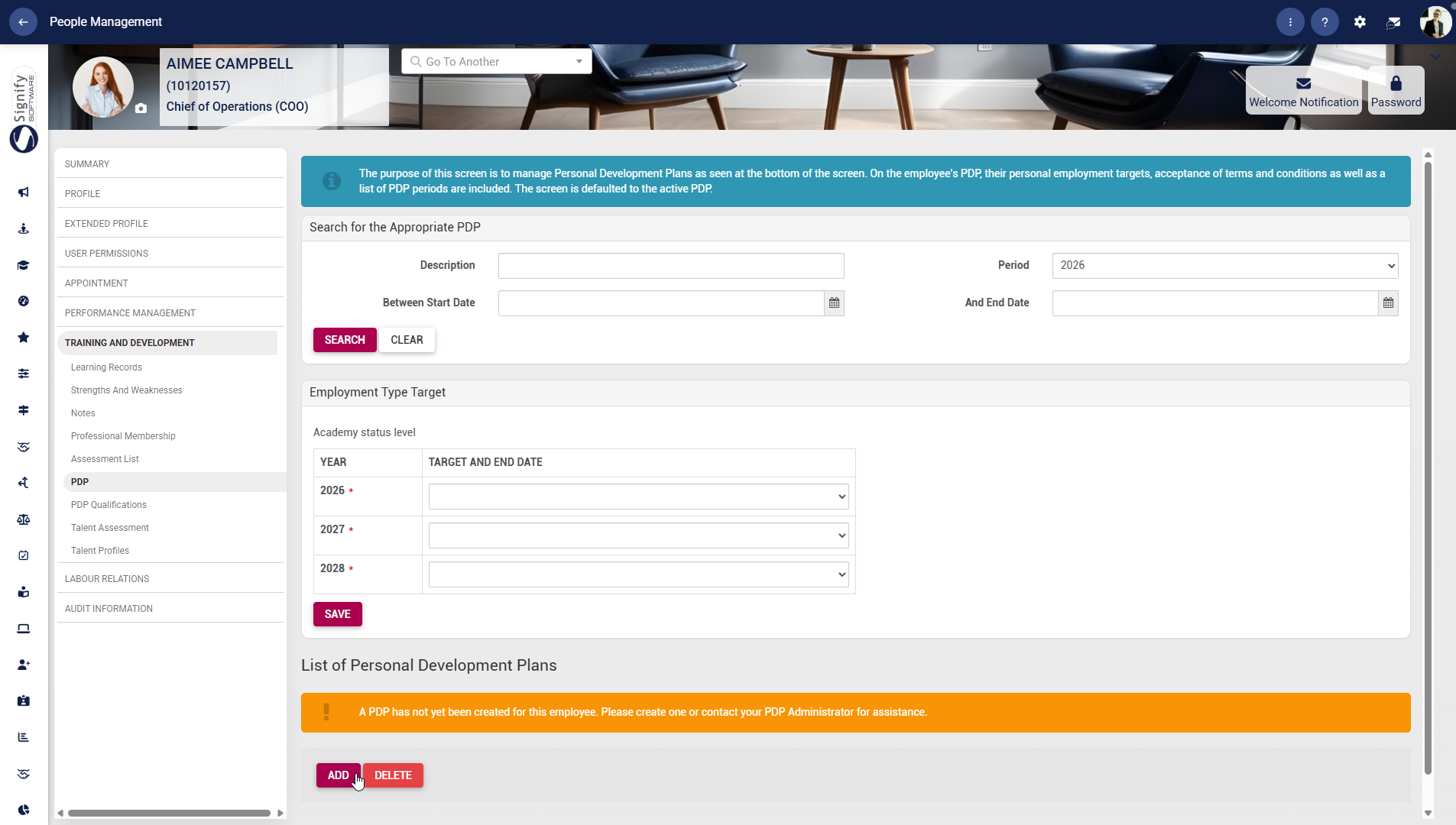
##### PDP
- Use the **left-hand menu** to navigate to **PDP**.
- Search for the appropriate personal development plan using the description, period, and date fields.
- Complete the employment type target section for each relevant year, then click **SAVE** to store your changes.
- Use **ADD** to create a new PDP or **DELETE** to remove one, where permitted.
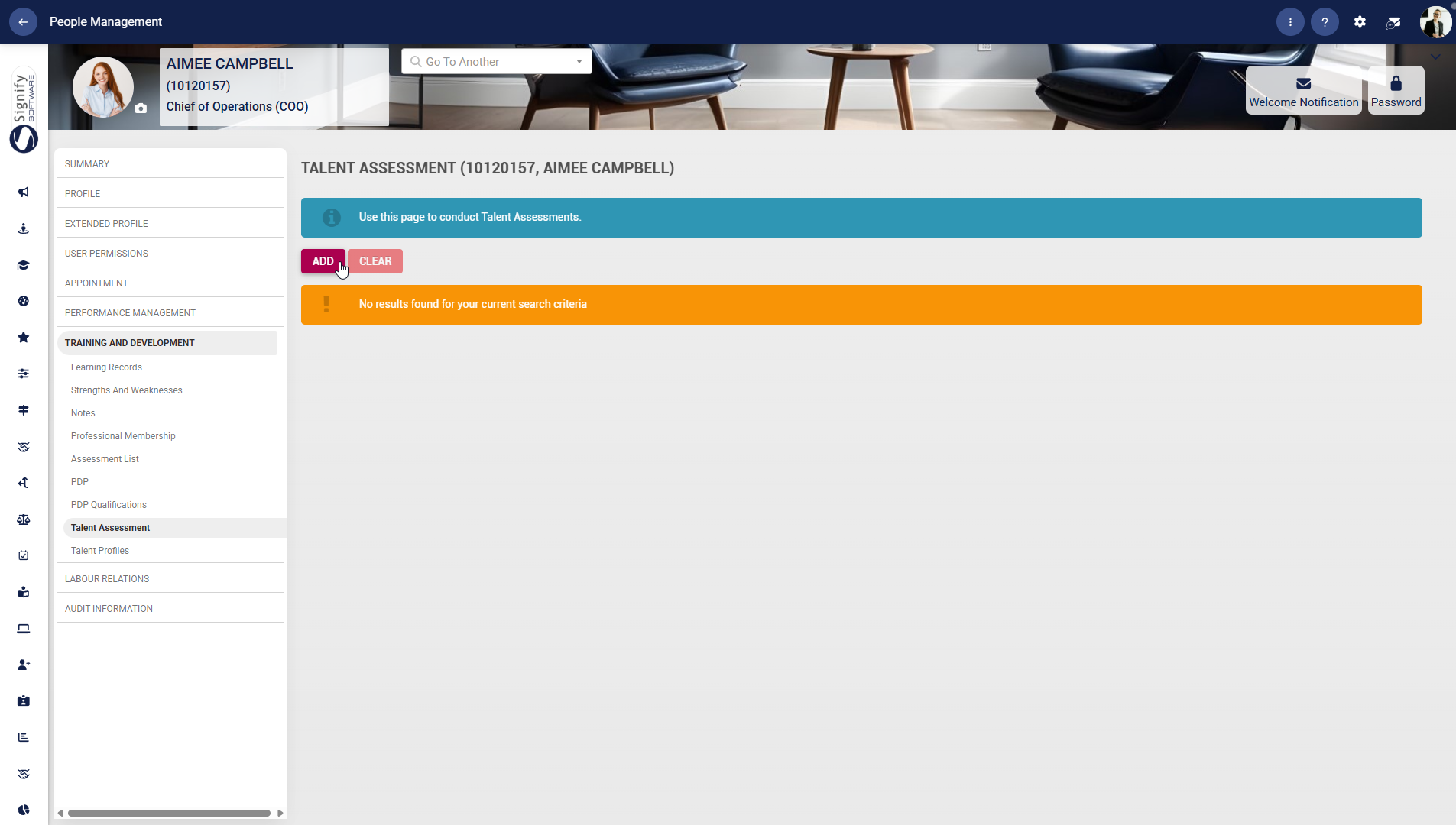
##### Talent Assessment
- Use the **left-hand menu** to navigate to **Talent Assessment**.
- Use the **ADD** button to start a new assessment.
- Use **CLEAR** to clear the current criteria or search results when needed.
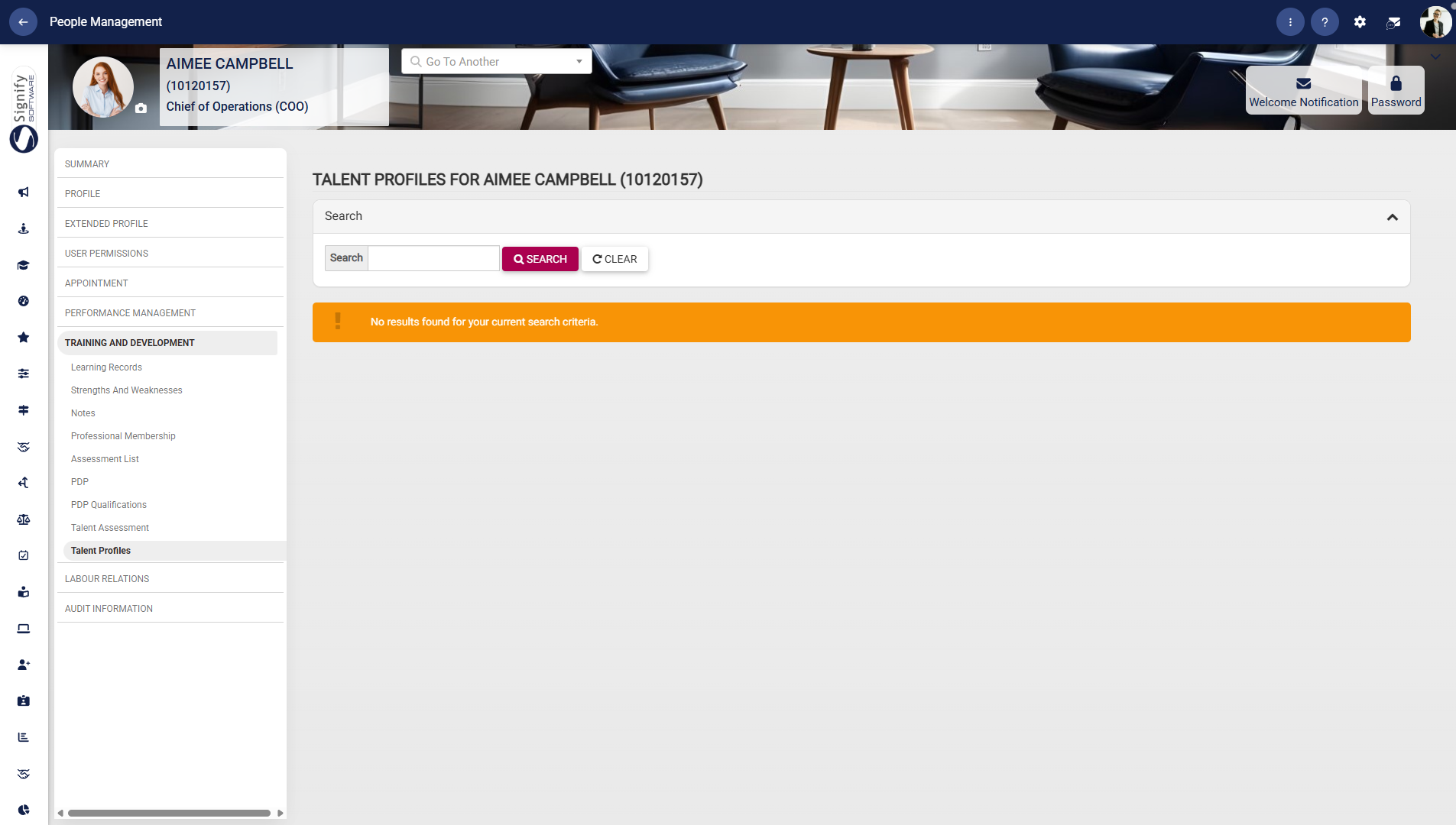
##### Talent Profiles
- Use the **left-hand menu** to navigate to **Talent Profiles**.
- Search for the required profile using the search field.
- Click **ADD** to create a new talent profile or **DELETE** to remove an entry, where applicable.
#### Labour Relations
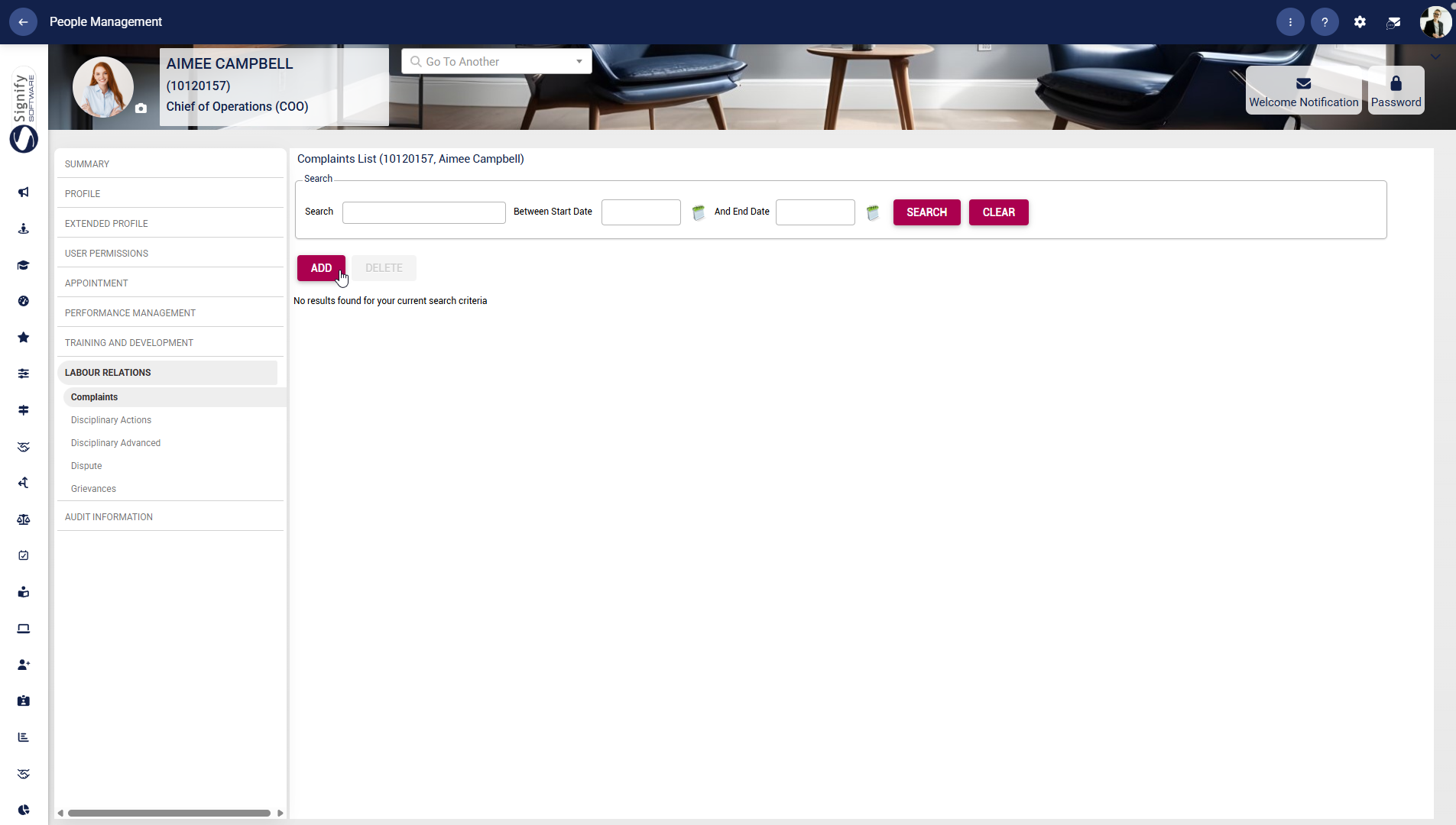
##### Complaints
- Use the **left-hand menu** to navigate to **Complaints**.
- Use the **Search** fields to find an existing record by name or date range.
- Click **ADD** to capture a new complaint or **DELETE** to remove an entry, where permitted.
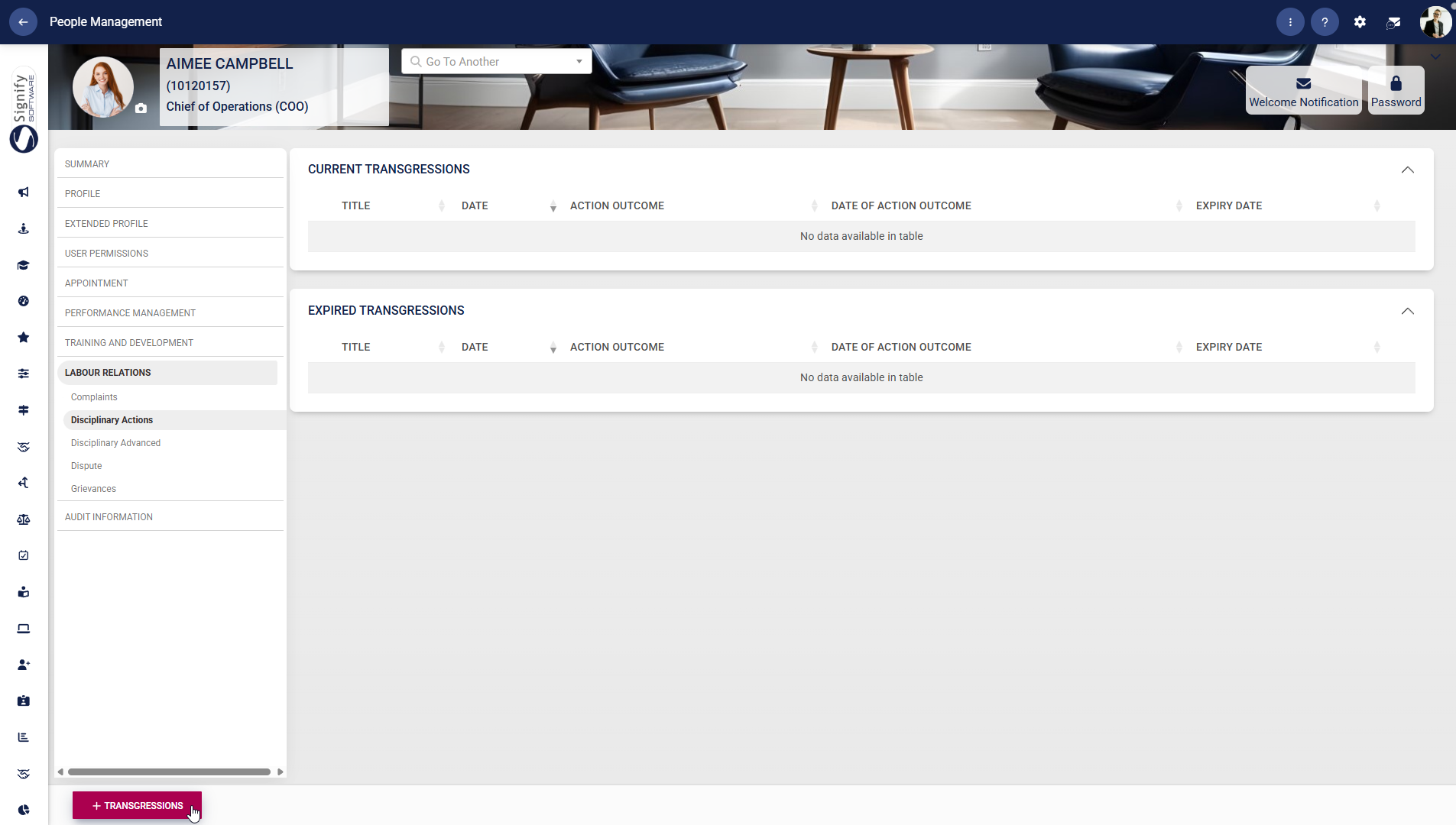
##### Disciplinary Actions
- Use the **left-hand menu** to navigate to **Disciplinary Actions**.
- Review the employee’s **Current Transgressions** and **Expired Transgressions**.
- Click **+TRANSGRESSIONS** to add a new disciplinary transgression record.
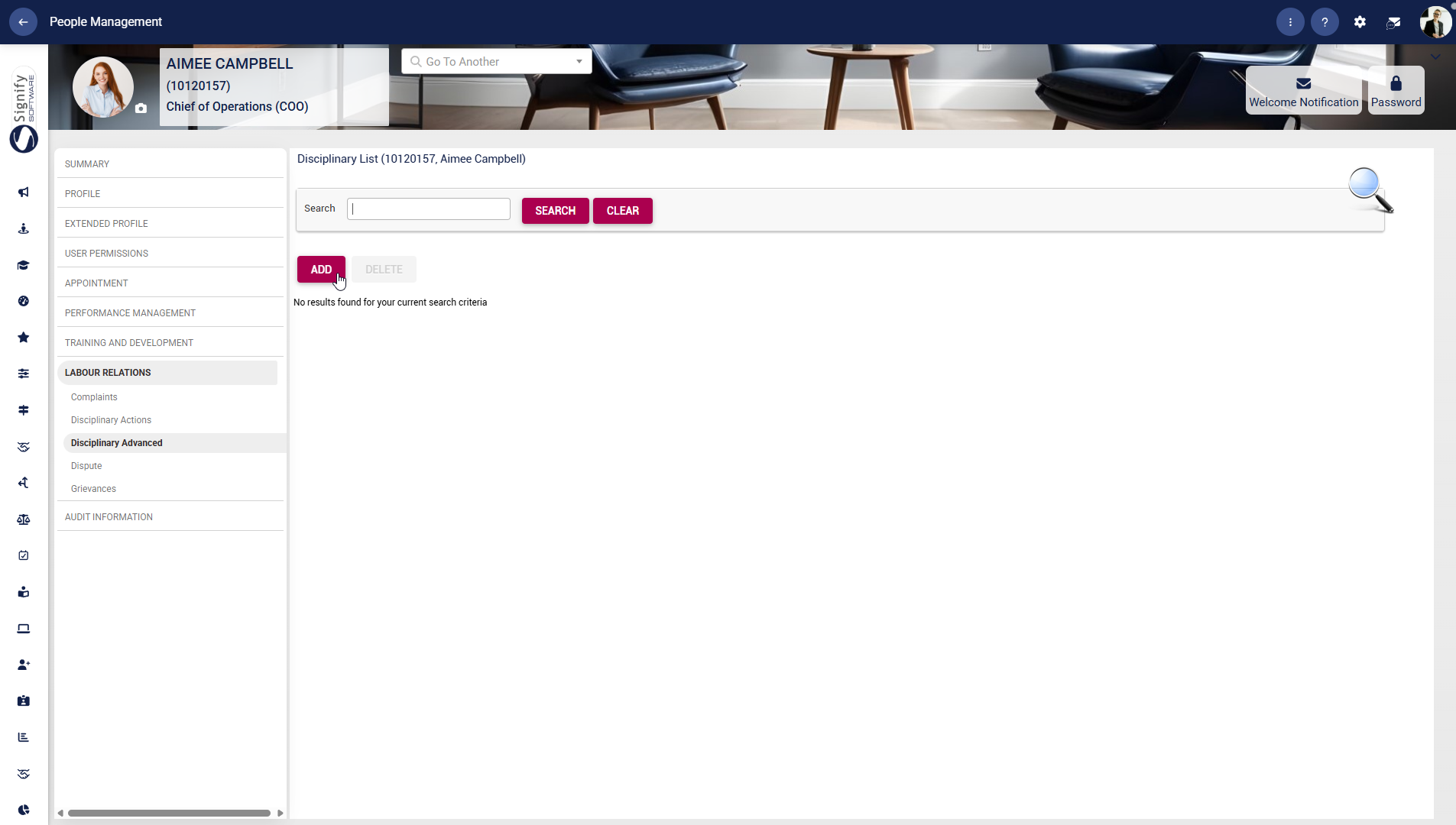
##### Disciplinary Advanced
- Use the **left-hand menu** to navigate to **Disciplinary Advanced**.
- Use the search bar to find the required disciplinary record.
- Click **ADD** to create a new disciplinary entry or **DELETE** to remove an entry, where permitted.
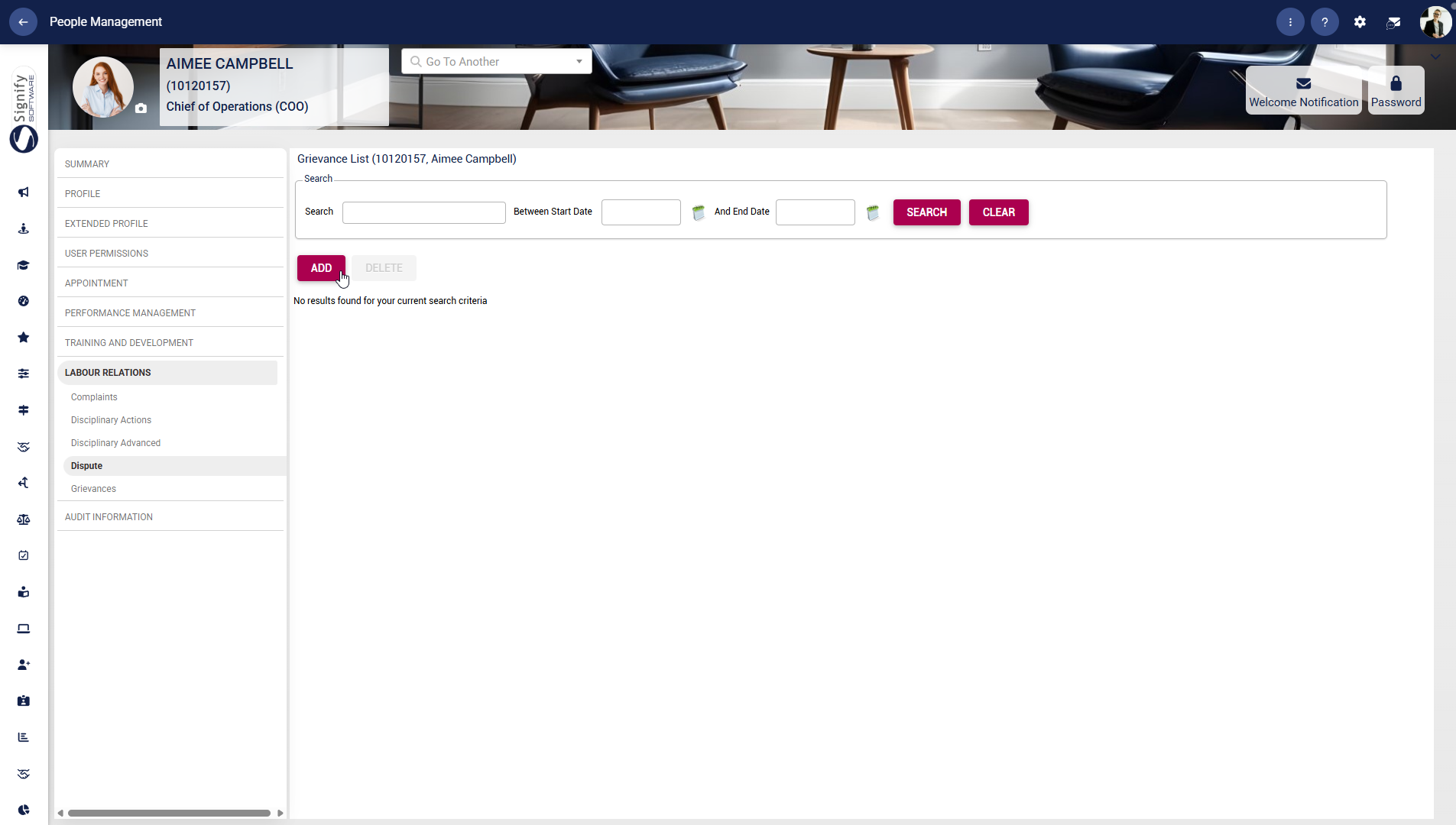
##### Dispute
- Use the **left-hand menu** to navigate to **Dispute**.
- Use the search criteria to locate the relevant dispute record.
- Click **ADD** to create a new dispute record or **DELETE** to remove an existing one, where applicable.
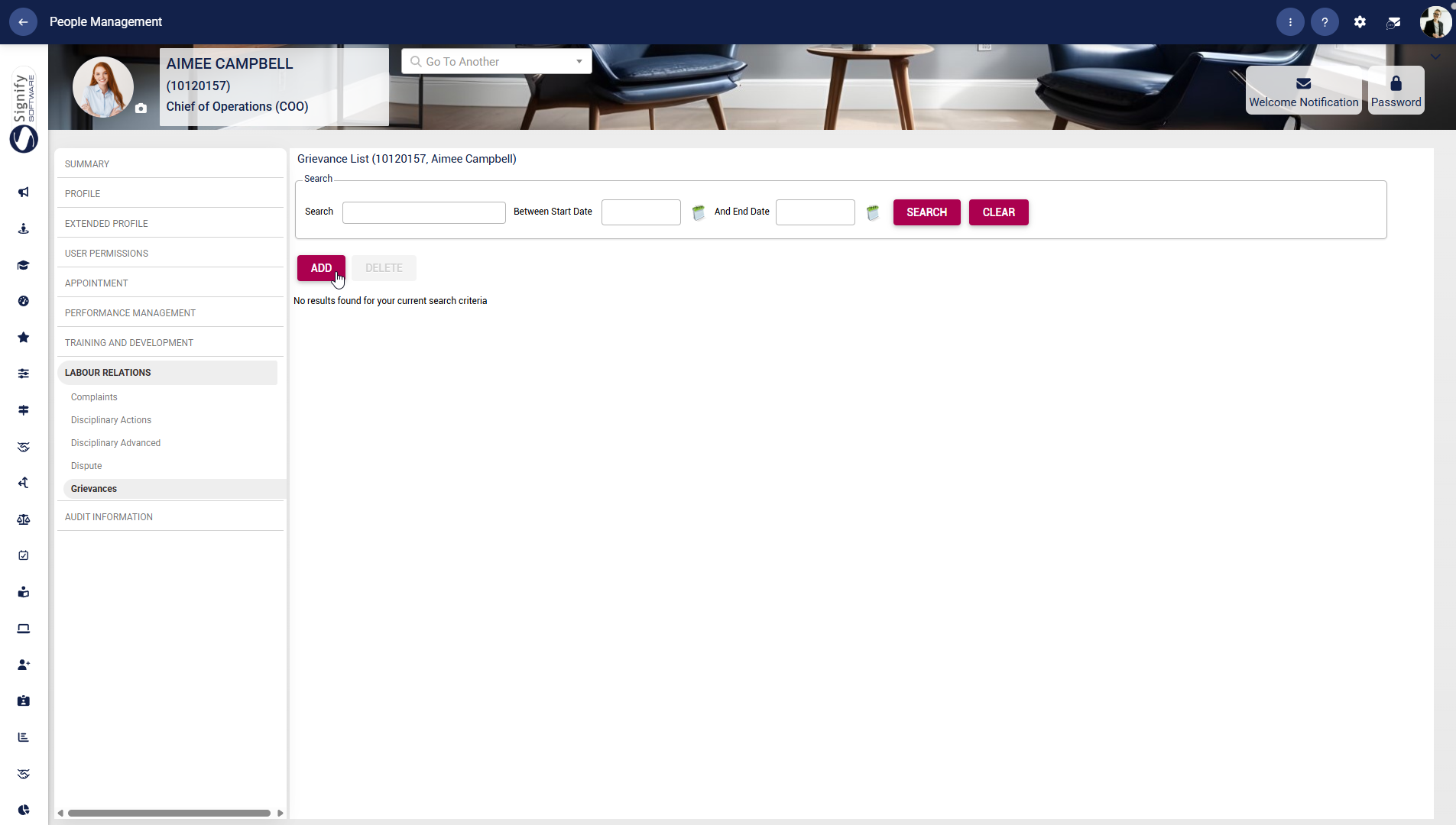
##### Grievances
- Use the **left-hand menu** to navigate to **Grievances**.
- Use the search fields to find an existing grievance record by name or date range.
- Click **ADD** to capture a new grievance or **DELETE** to remove an entry, where permitted.
#### Audit information
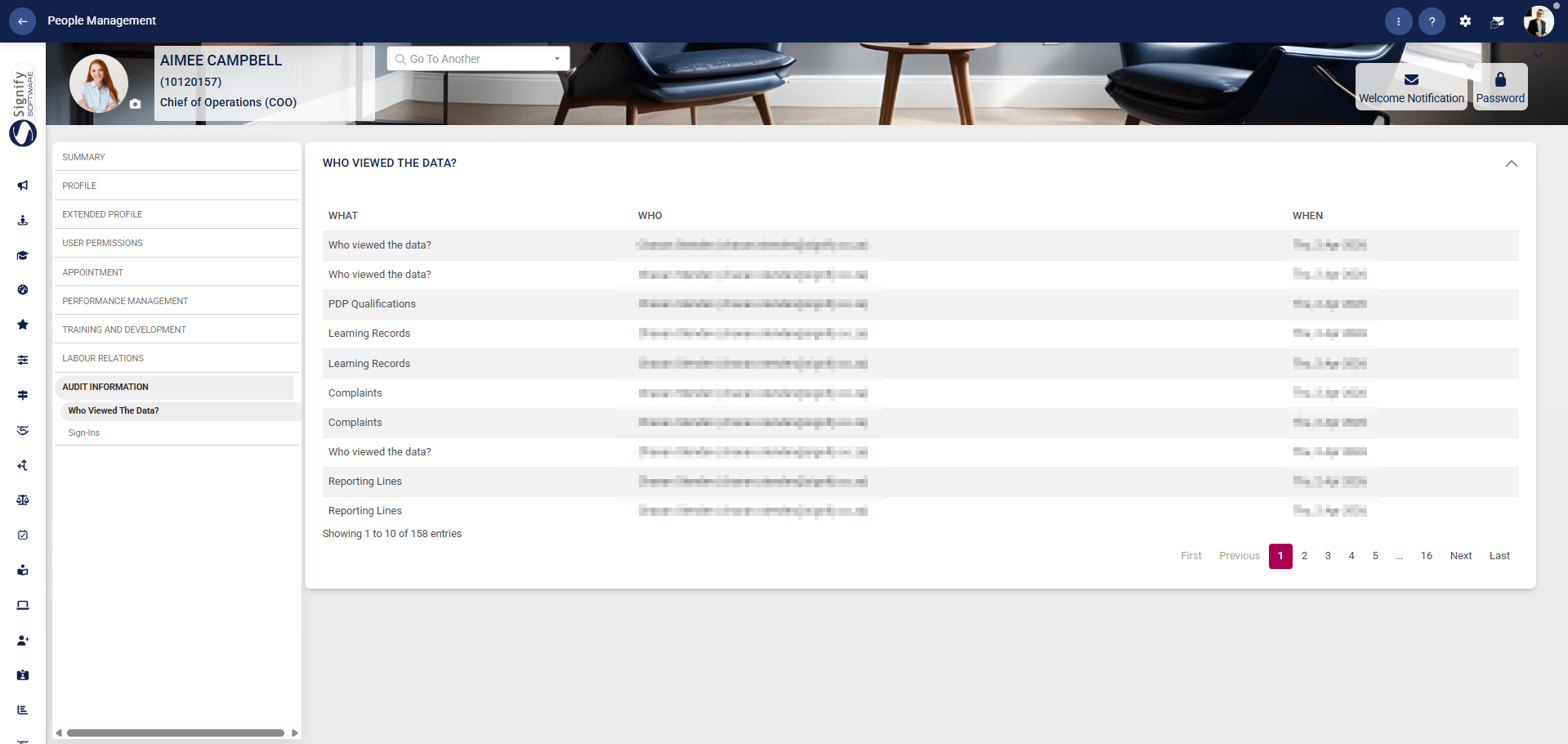
##### Who viewed the data?
Tracks access logs showing who has viewed the employee’s data, supporting transparency and compliance.
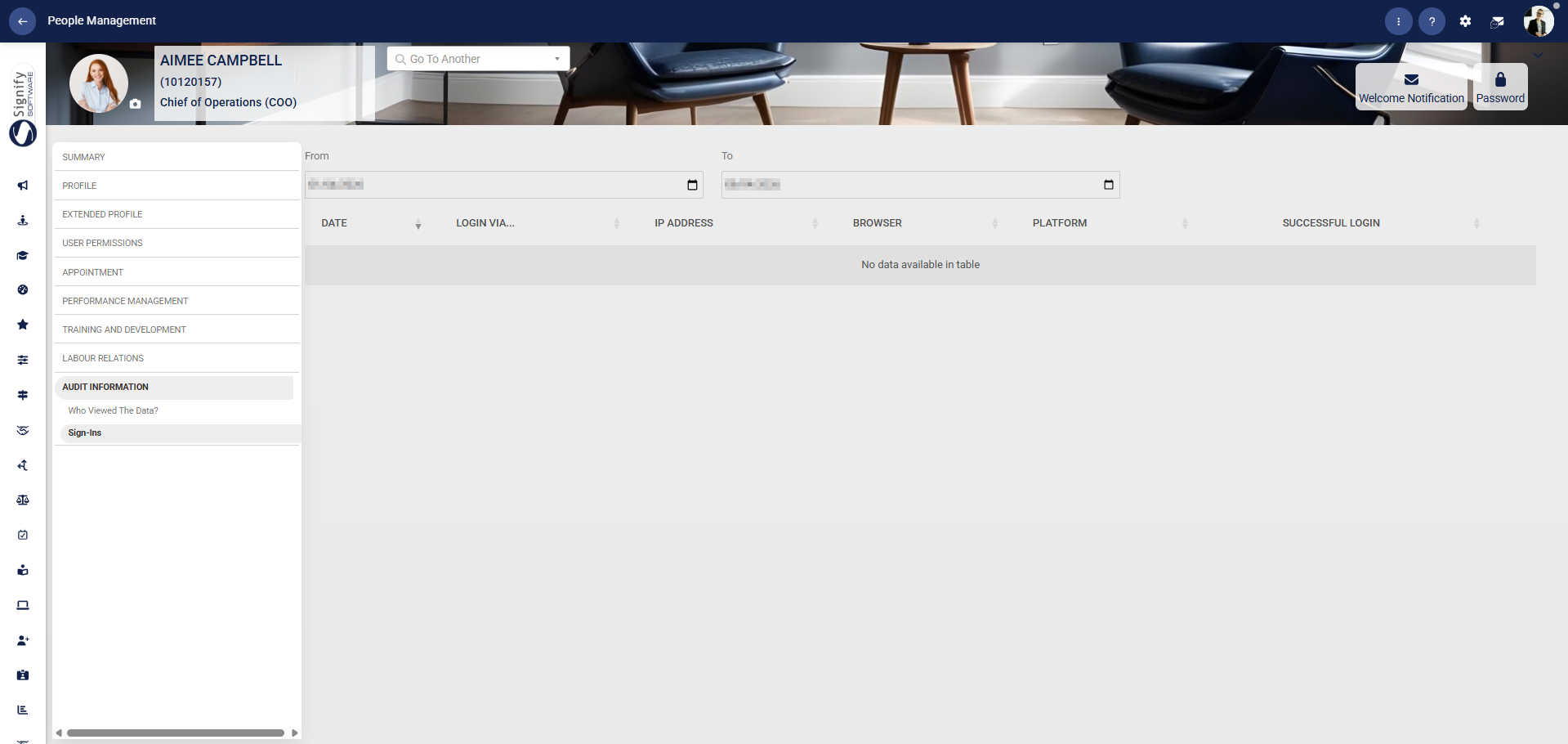
##### Sign-ins
Monitors the employee’s system access history, including login activity for security and audit purposes.
[](https://signature.signifyhr.co.za/uploads/images/gallery/2025-02/ZOt8yZwhbiGx2d6U-signify-footer.png)