# Update a Person's Profile
[](https://signature.signifyhr.co.za/uploads/images/gallery/2025-02/emW3hfMrZ1yIDMUv-signify-header.png)
### For users: Update your own profile
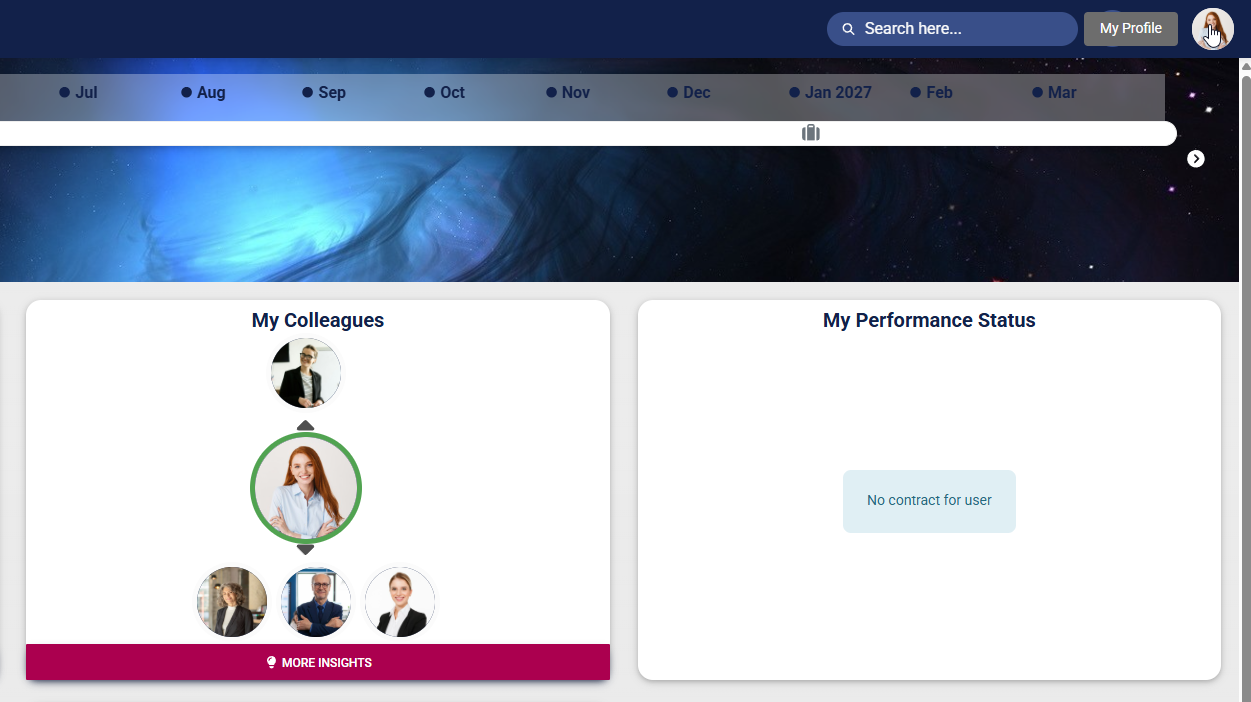
- Click on your **profile icon** at the top of the screen to access the **main menu**.
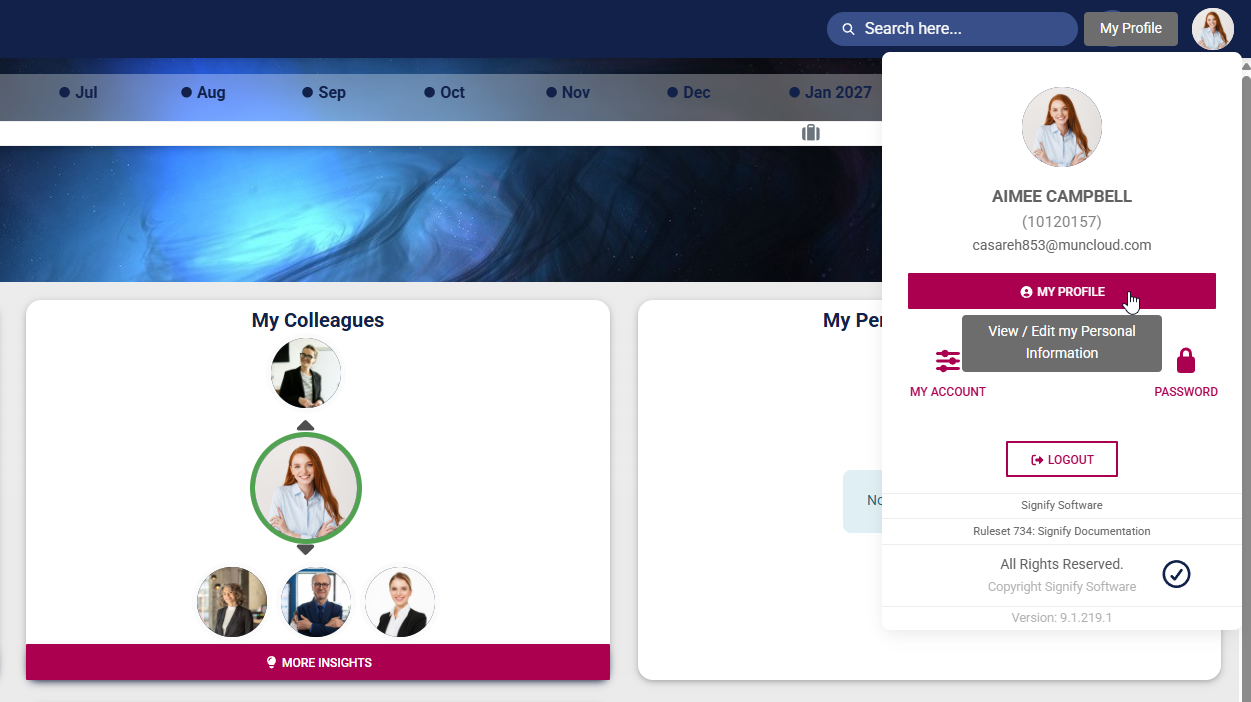
- Click **MY PROFILE** to view or edit your user profile.
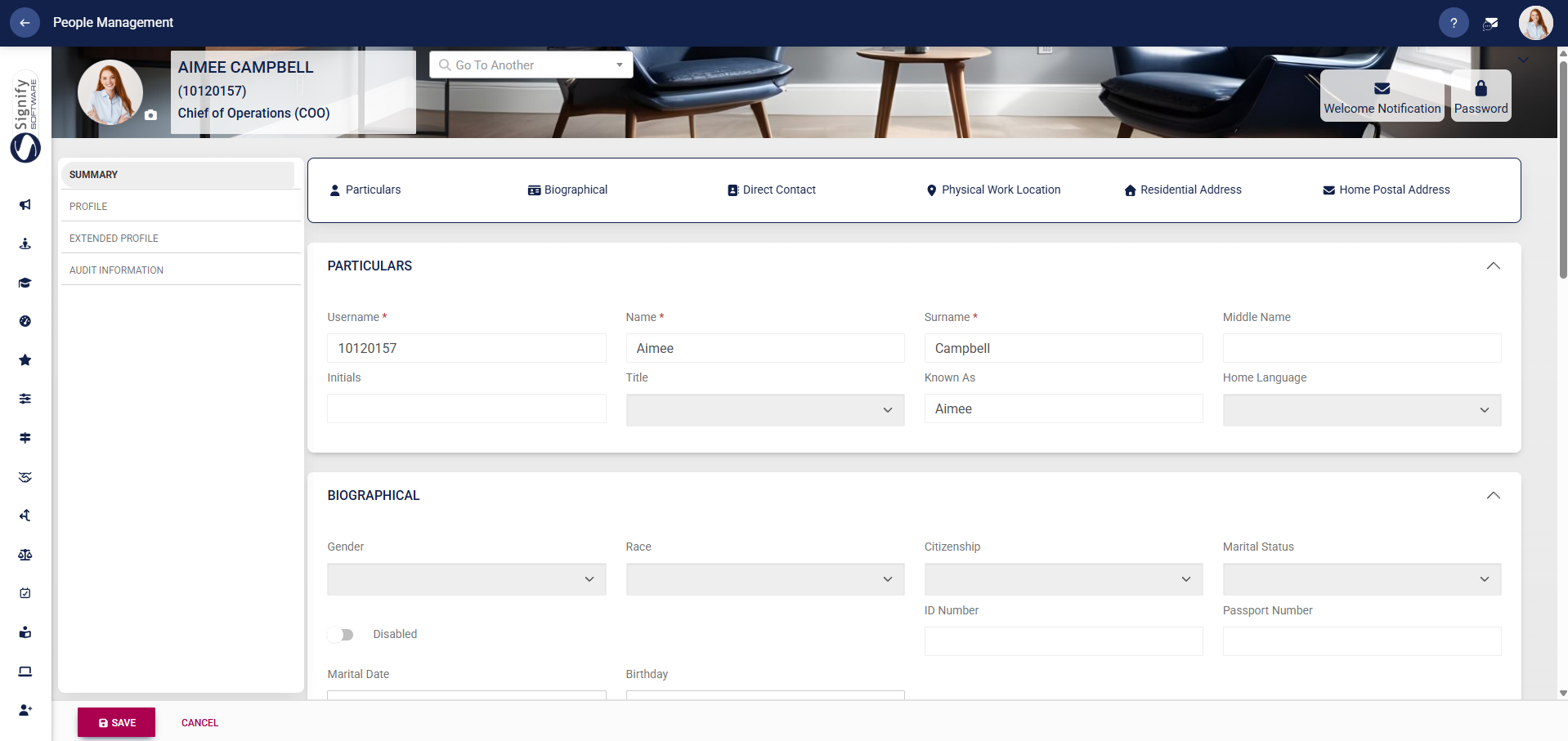
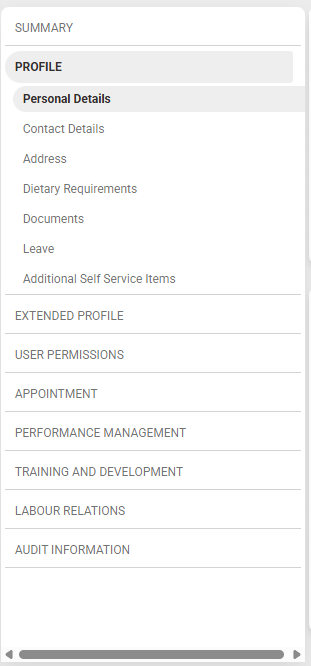
- Your profile will open. Use the **left-hand menu** to navigate to the profile section you would like to update. Fields that are not editable will be greyed out. Update your information as necessary, then click **SAVE** to update your profile, or **CANCEL** to discard your edits.
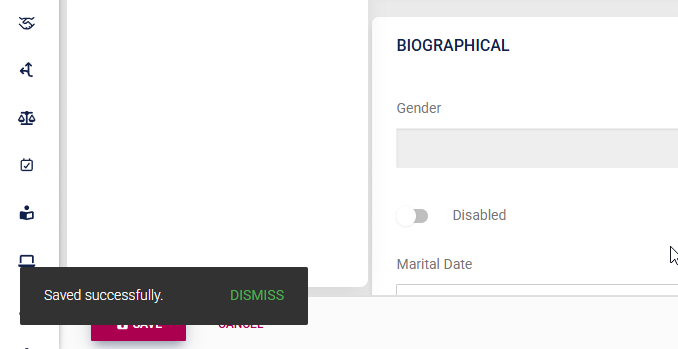
- A message will pop up to confirm that your profile's details have been updated.
- Please note that, based on your access permissions, you may not be able to view or edit some sections of your profile. If you encounter a problem, contact your system administrator to help with updating your information.
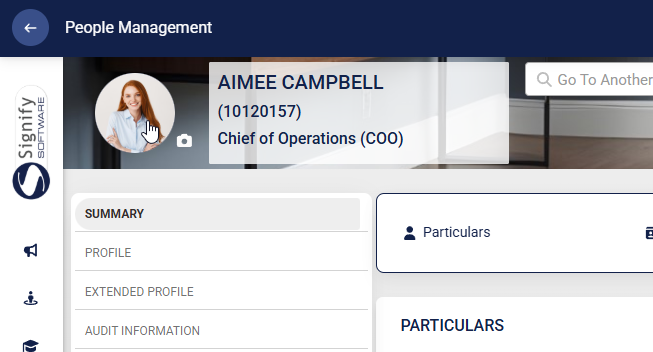
- Click on your **profile picture** on your profile banner to update your photo.
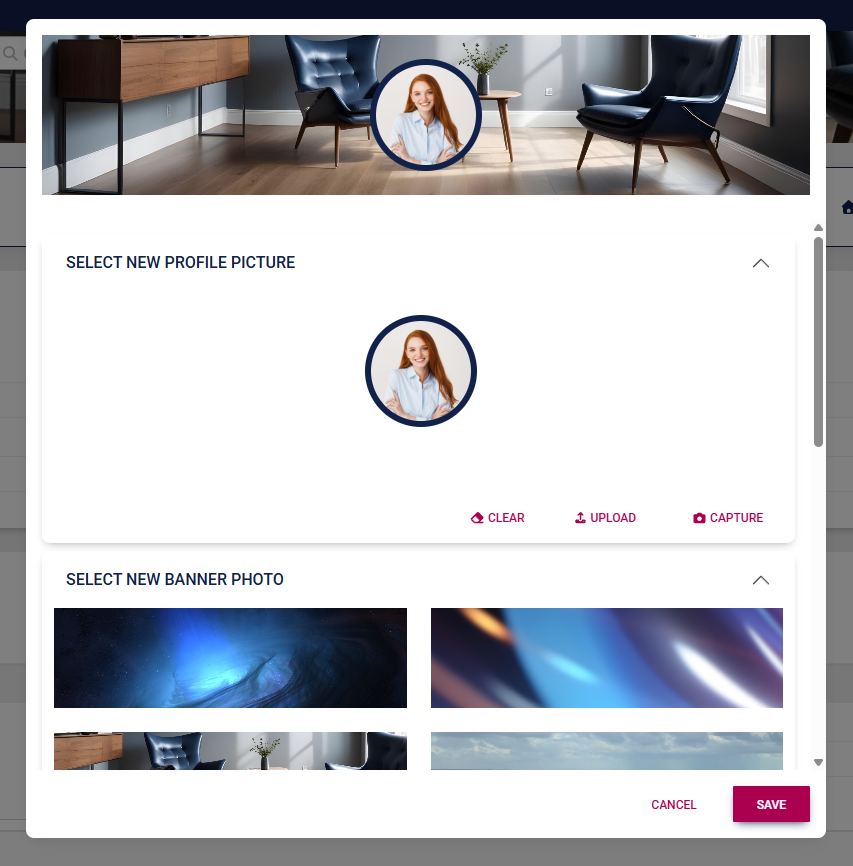
- Upload your new photo using the options provided. If enabled, you may also update your banner image. Click **SAVE** to update your profile, or click **CANCEL** to discard your edits.
### For administrators: Update a user's profile
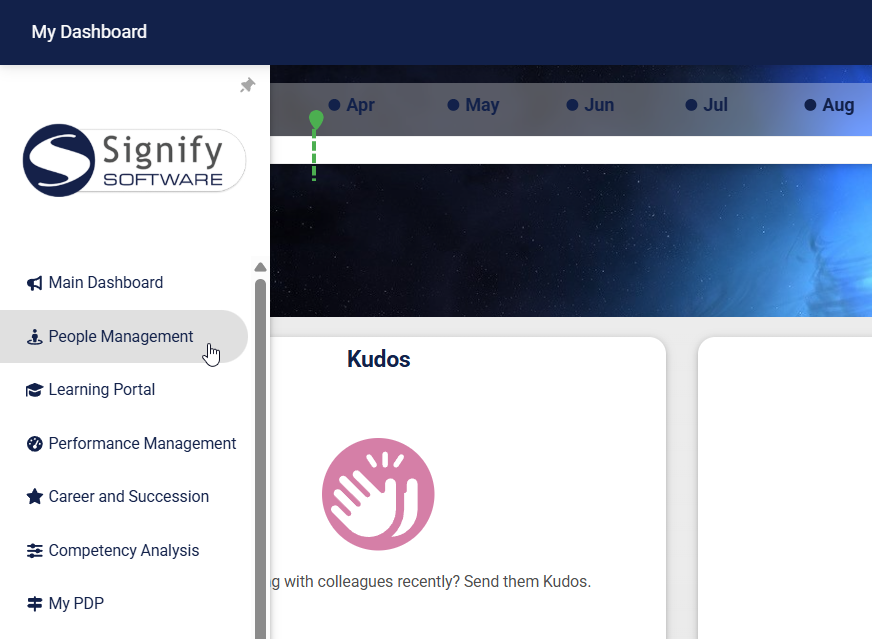
- Use the **sidebar menu** to navigate to the **People Management** module.
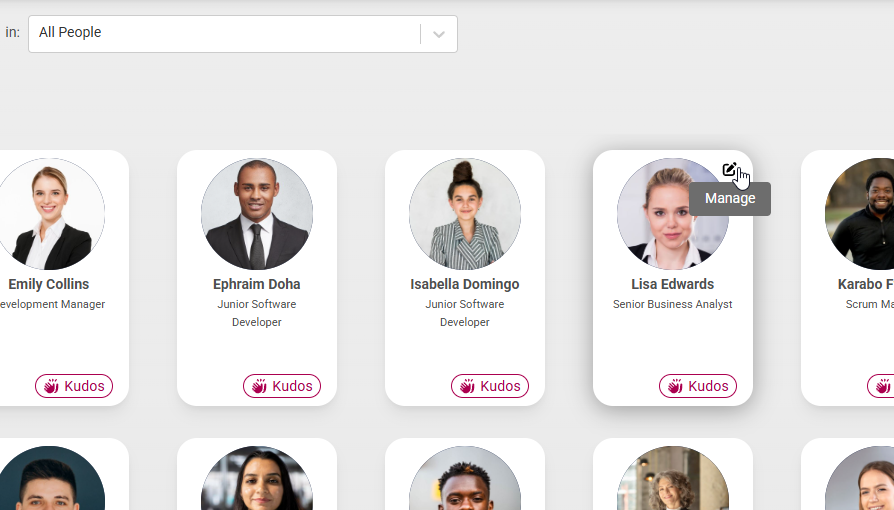
- Locate the person you would like to update, then click the **pencil icon** to manage their profile.
- The person's profile will open. Use the **left-hand menu** to navigate to the profile section you would like to update.
#### Summary
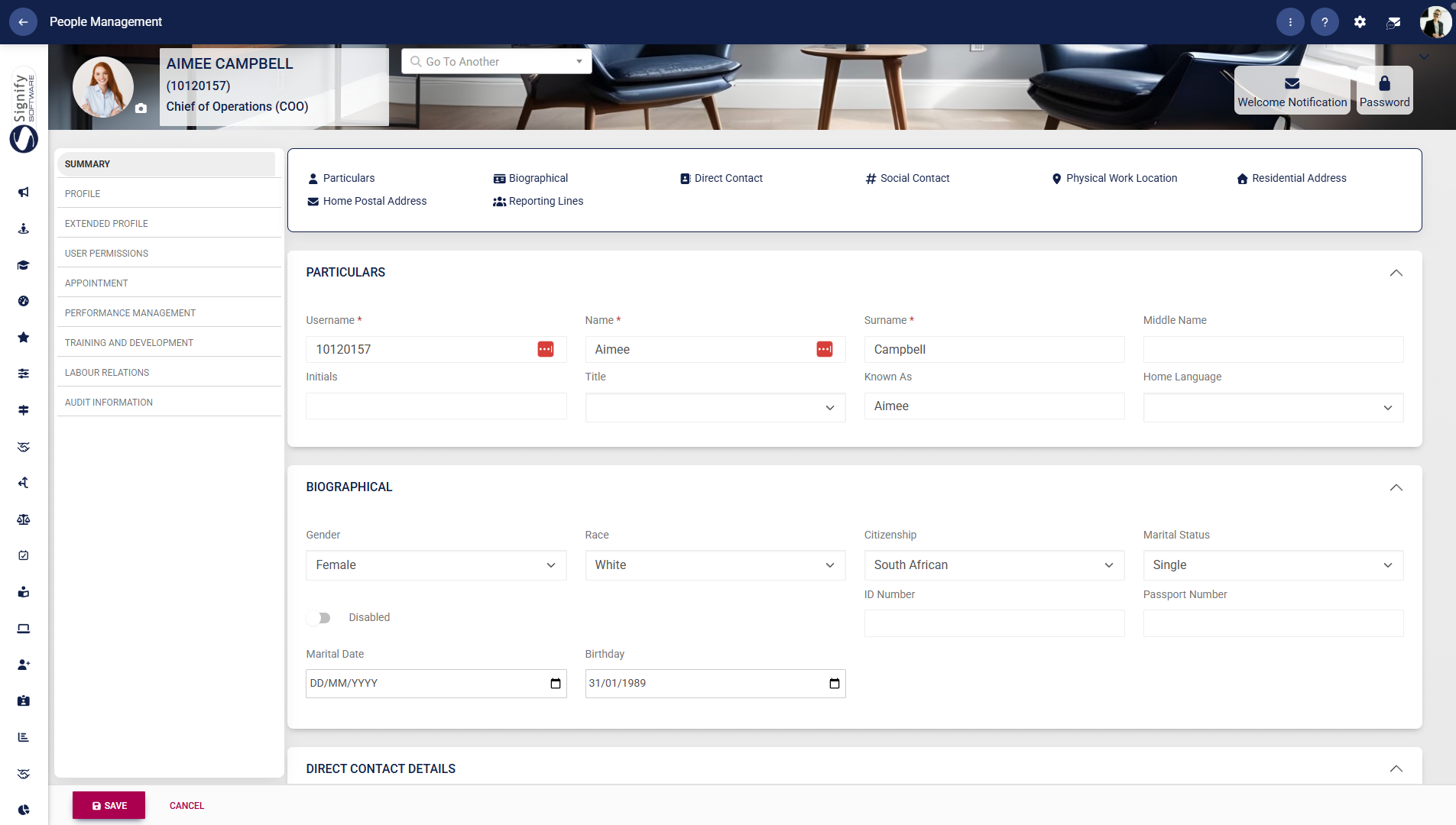
- Use the **left-hand menu** to navigate to **Summary**.
- Use this screen as a quick reference to update details in the following sections:
- - User particulars
- Biographical information
- Direct contact details
- Physical work location
- Residential address
- Home postal address
- Reporting lines
- Edits made to this screen will be reflected in the relevant profile section.
- Click **SAVE** to update the profile, or click **CANCEL** to discard your edits.
#### Profile
##### Personal details
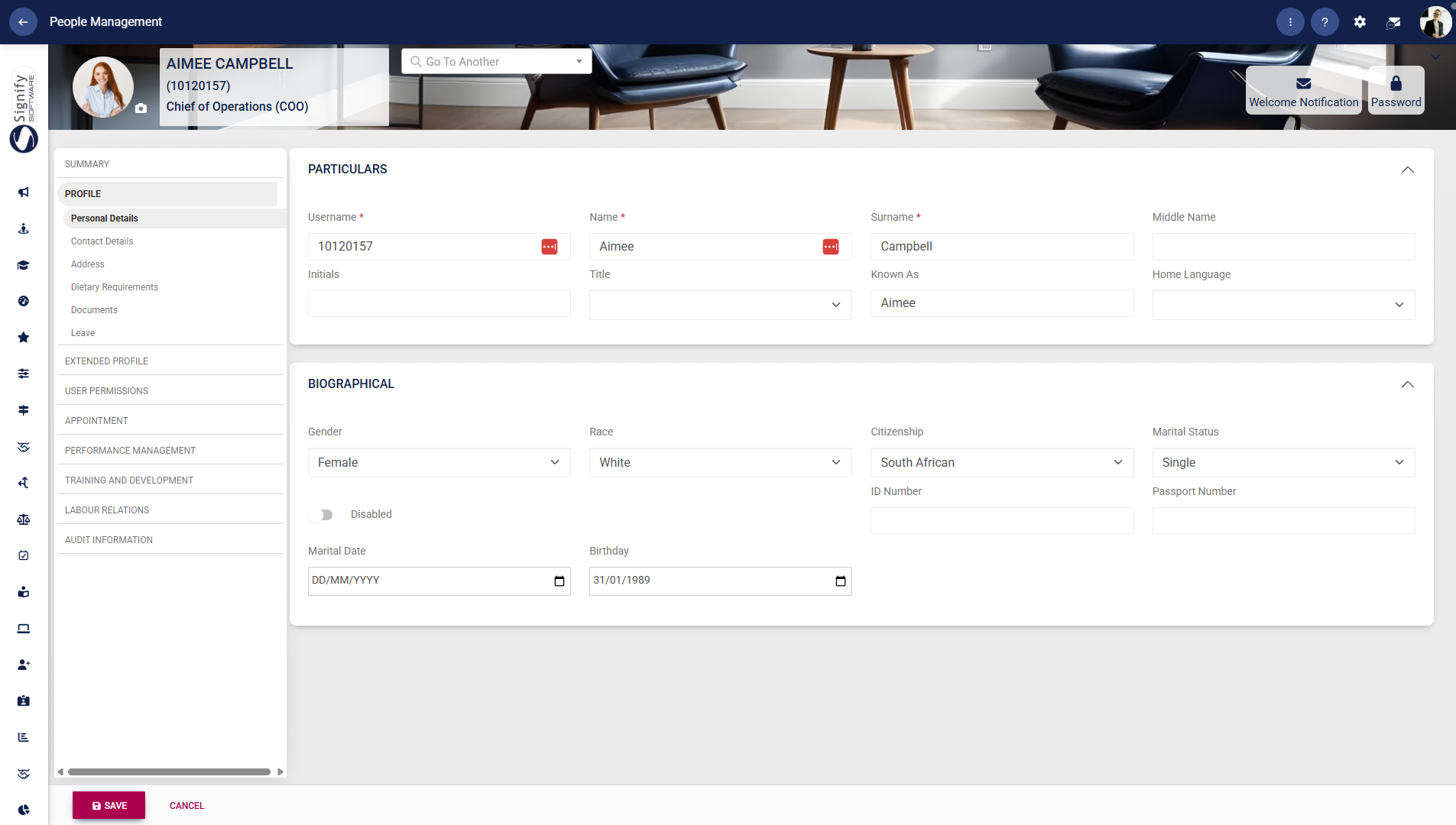
- Use the **left-hand menu** to navigate to **Personal Details**.
- Complete the fields such as username, name, surname, title, and known as. Fields marked with a red asterisk (**\***) are compulsory.
- Provide additional biographical details, including gender, citizenship, marital status, and date of birth.
- Click **SAVE** to update the profile, or click **CANCEL** to discard your edits.
##### Contact details
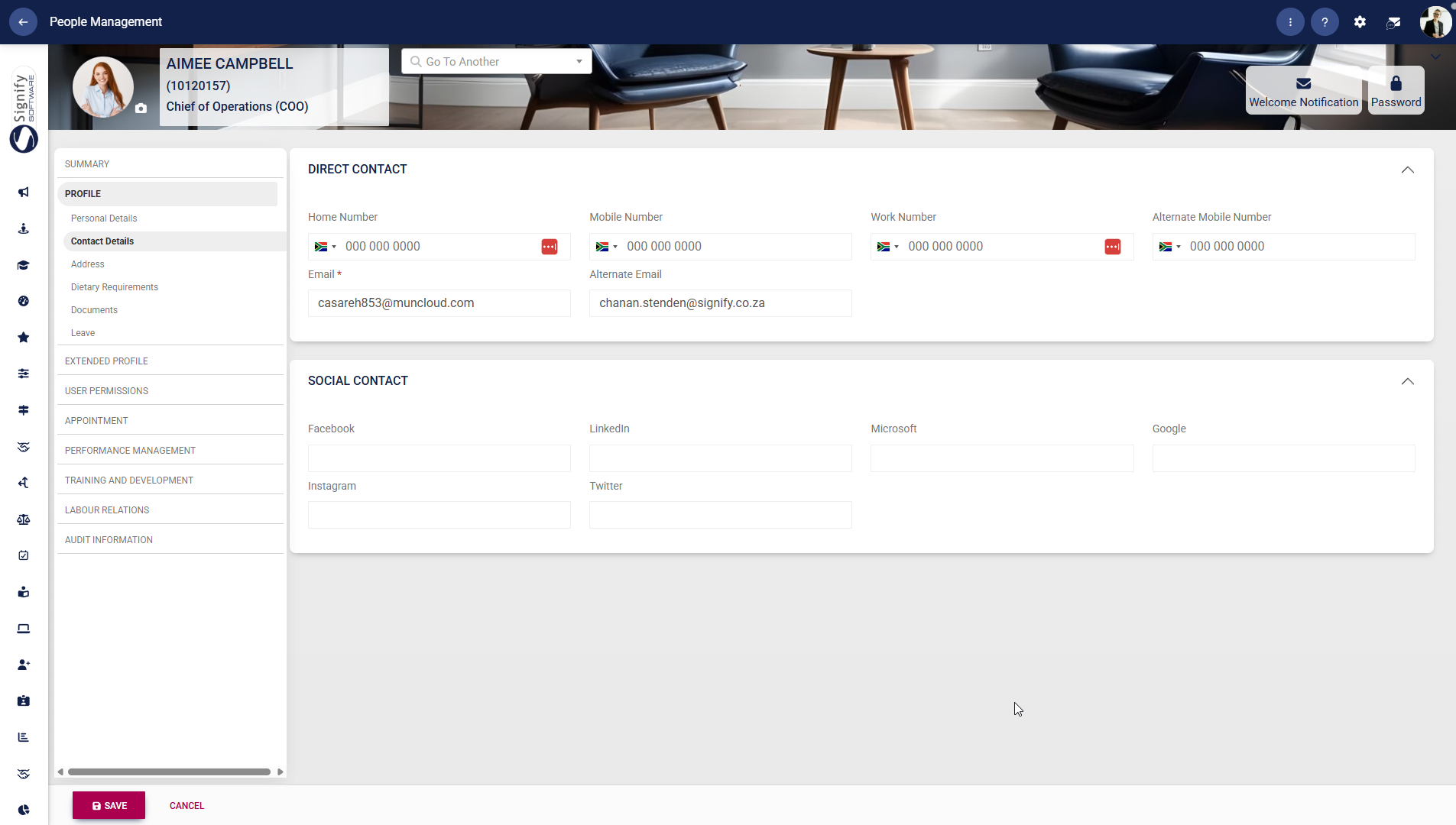
- Use the **left-hand menu** to navigate to **Contact Details**.
- Enter or update phone numbers and email addresses under **Direct Contact**.
- Capture social media or platform-related details under **Social Contact**, where applicable.
- Click **SAVE** to update the profile, or click **CANCEL** to discard your edits.
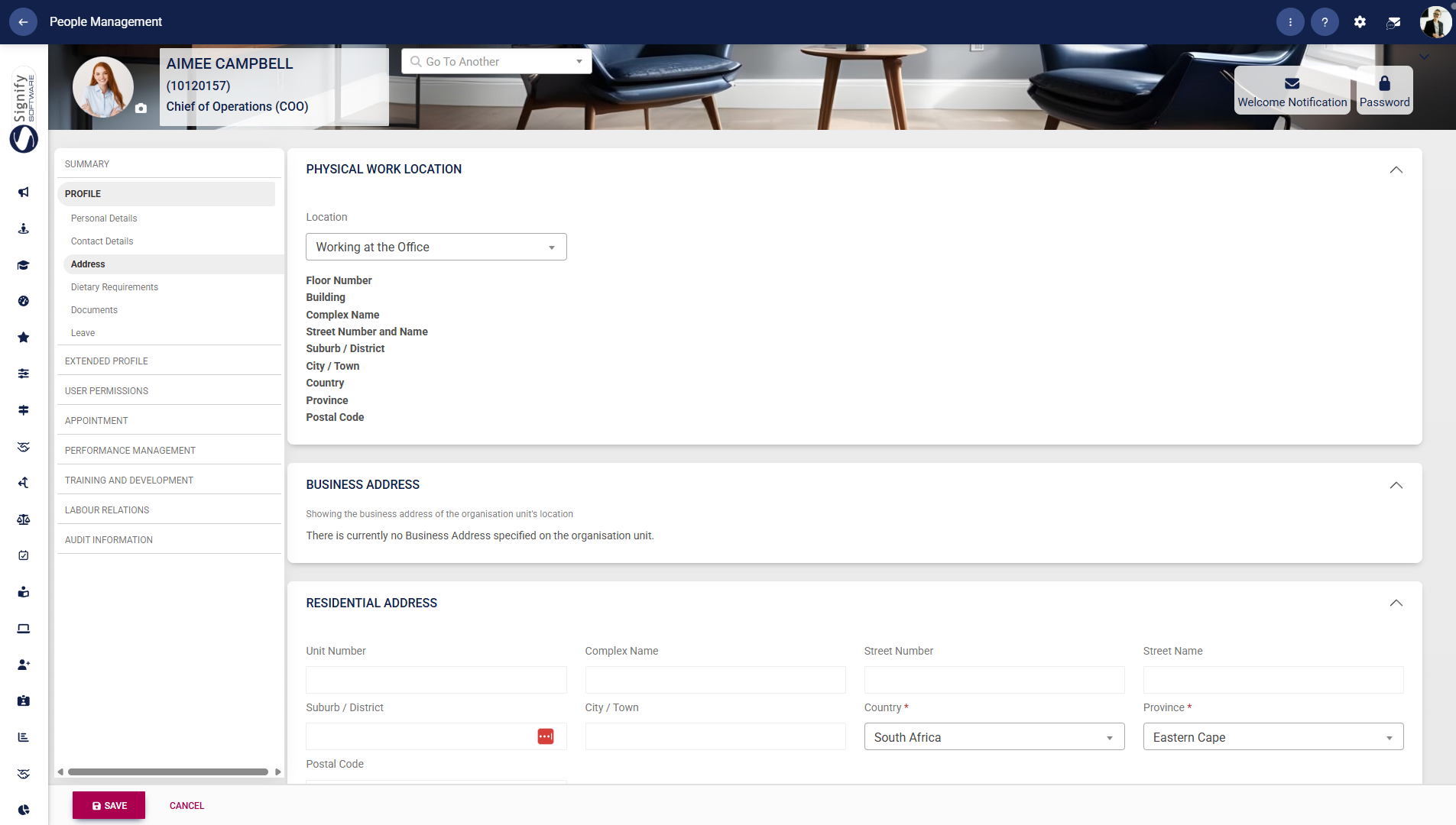
##### Address
- Use the **left-hand menu** to navigate to **Address**.
- Select the **Physical Work Location** and complete the associated address fields where required.
- Review or populate the **Business Address**, which is linked to the organisational unit.
- Enter the **Residential Address**, including suburb, city, province, country, and postal code.
- Click **SAVE** to update the profile, or click **CANCEL** to discard your edits.
##### Dietary requirements
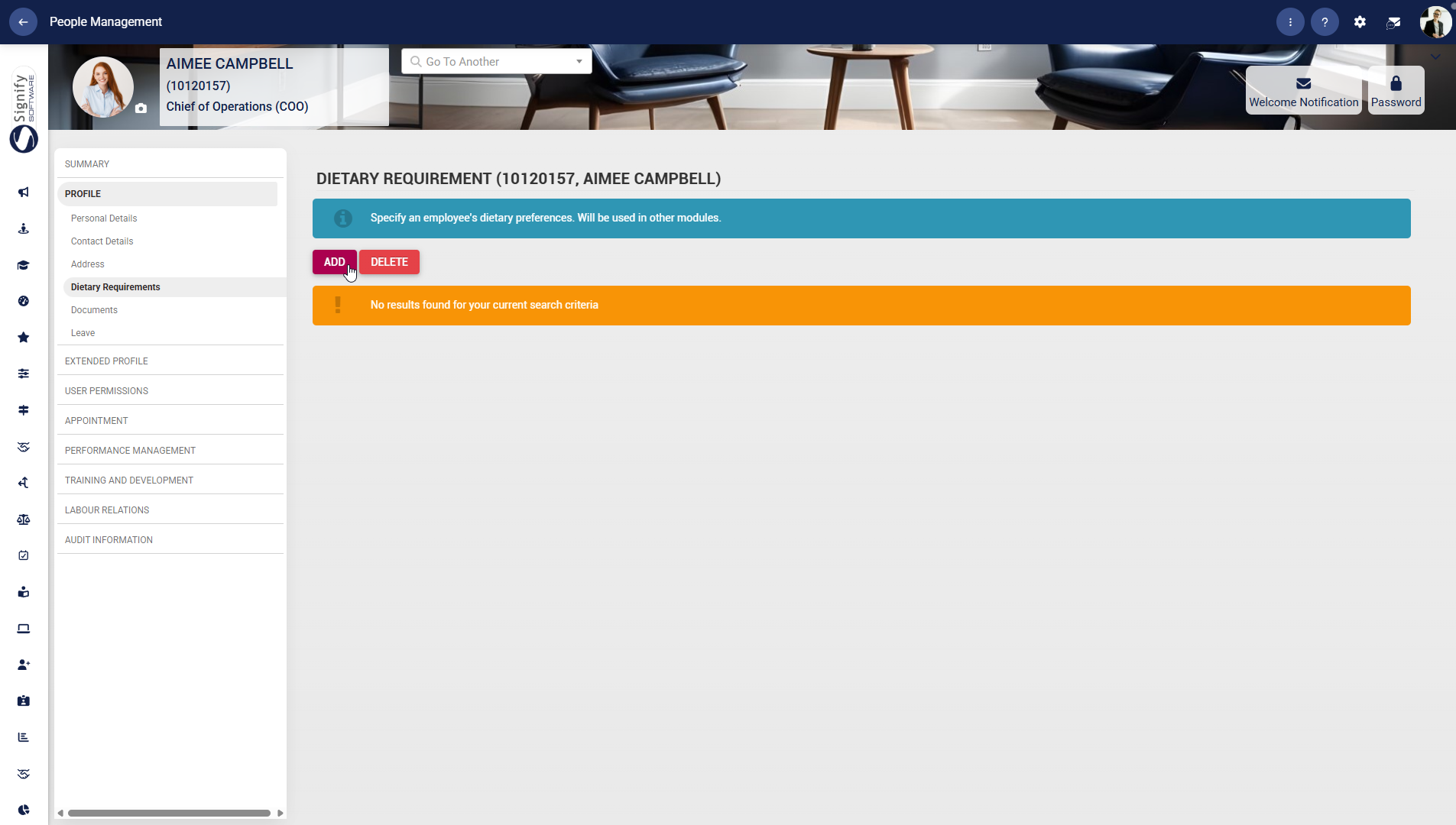
- Use the **left-hand menu** to navigate to **Dietary Requirements**.
- Click **ADD** to capture a new dietary requirement.
- Select and define the relevant dietary information as required.
- Use **DELETE** to remove an existing entry, if necessary.
##### Documents
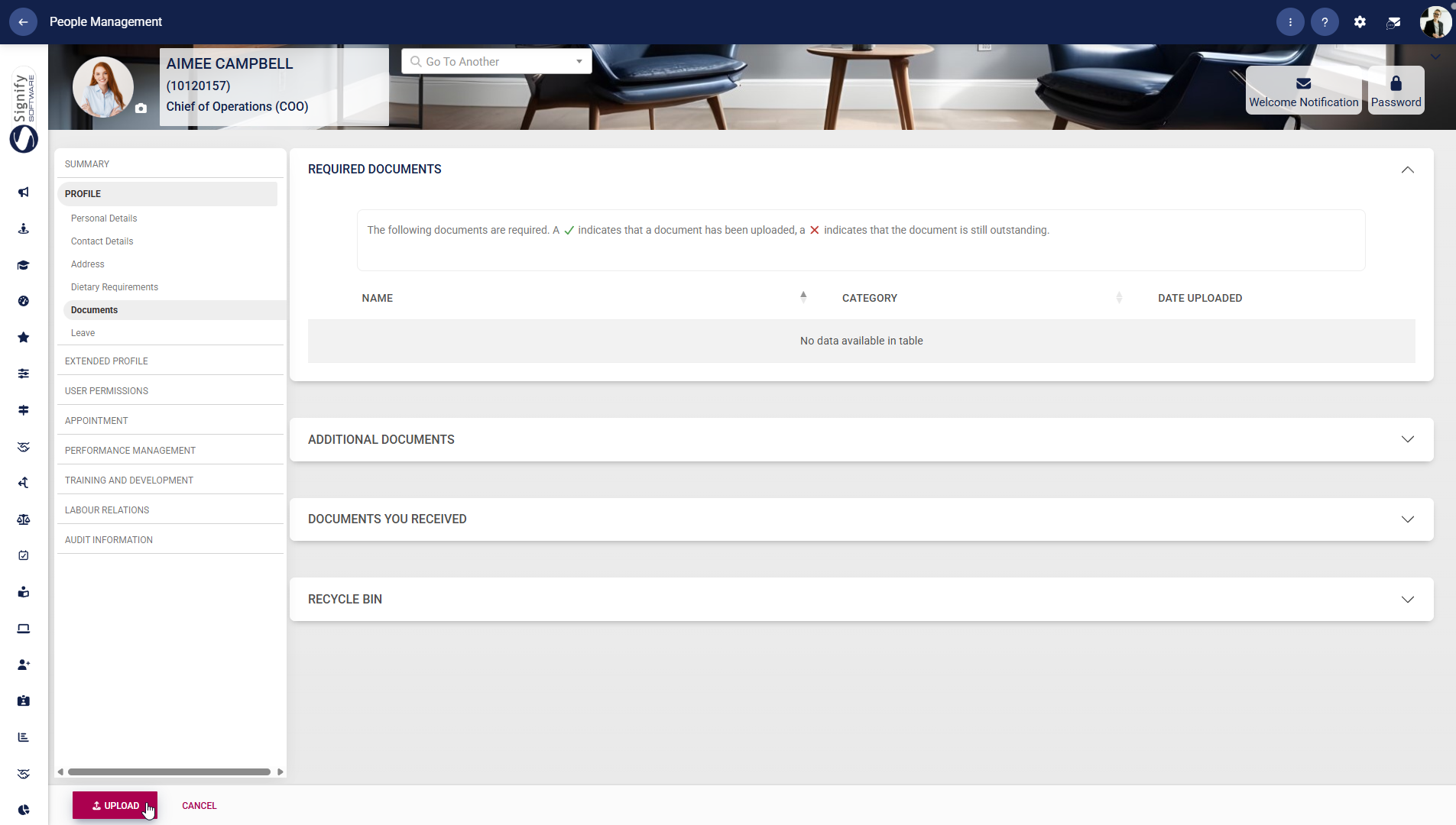
- Use the **left-hand menu** to navigate to **Documents**.
- Upload required documents by clicking **UPLOAD**.
- Review the document status: a **tick** indicates uploaded, and a **cross** indicates outstanding.
- Use the sections for **Additional Documents**, **Documents You Received**, and **Recycle Bin** to organise and manage files.
- Click **CANCEL** if you do not wish to proceed with uploads.
##### Leave
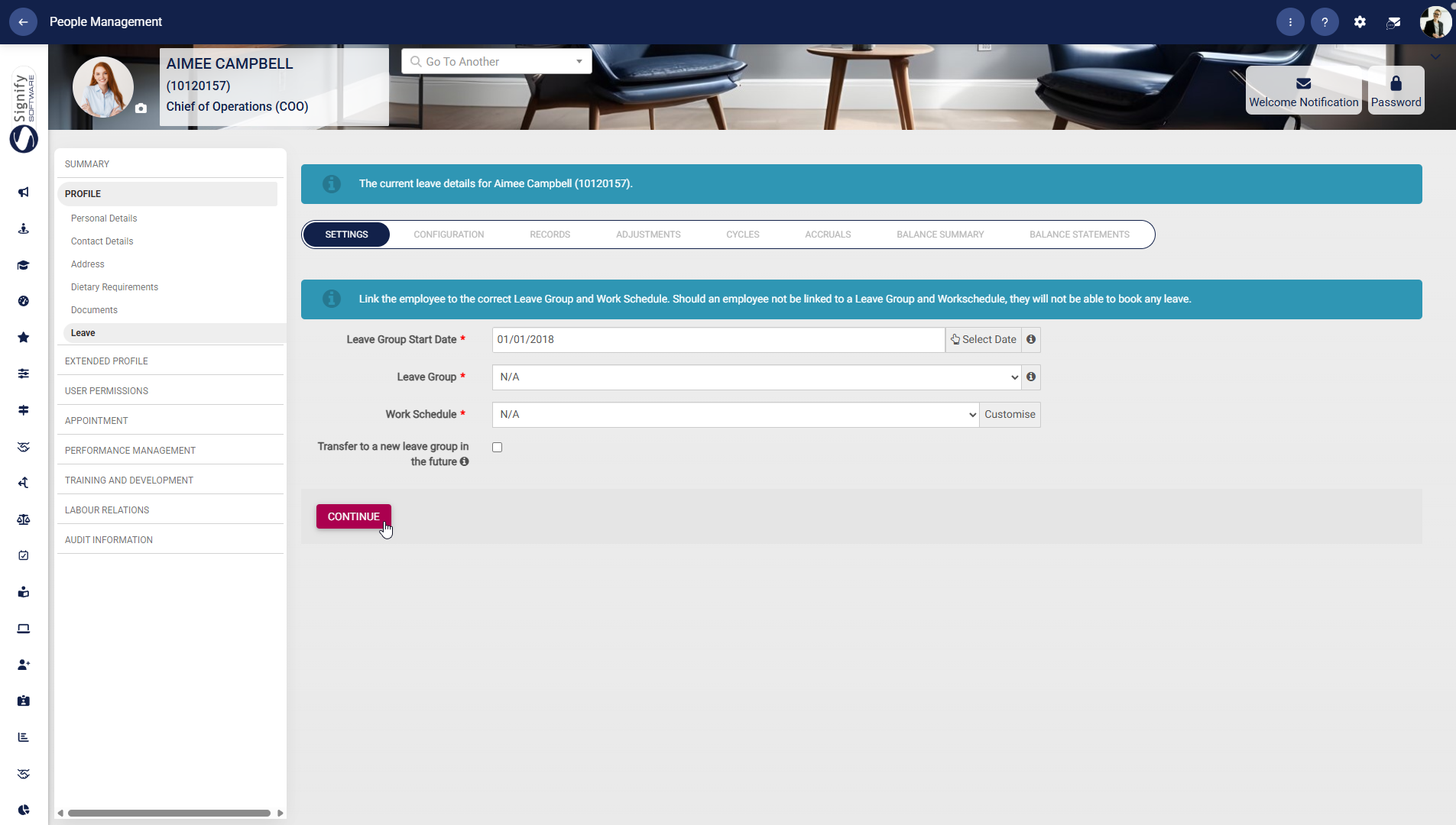
- Use the **left-hand menu** to navigate to **Leave**.
- Enter the **Leave Group Start Date** and assign the appropriate **Leave Group** and **Work Schedule**.
- Ensure the employee is linked correctly, as leave cannot be booked without these configurations.
- Click **CONTINUE** to proceed with further leave configuration.
#### Extended Profile
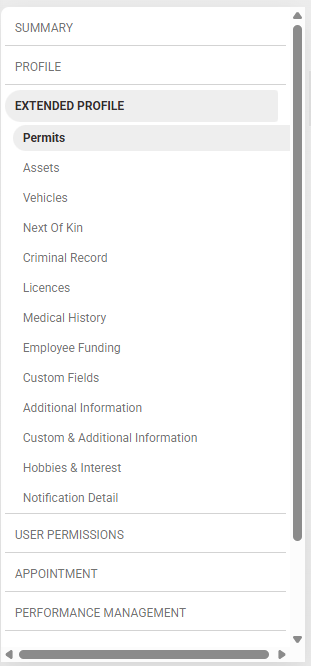
- Click on **EXTENDED PROFILE** to access the **Extended CORE** module’s advanced people management features.
##### Permits
- Click to navigate to **Permits**, then click **+PERMIT** to add a new permit.
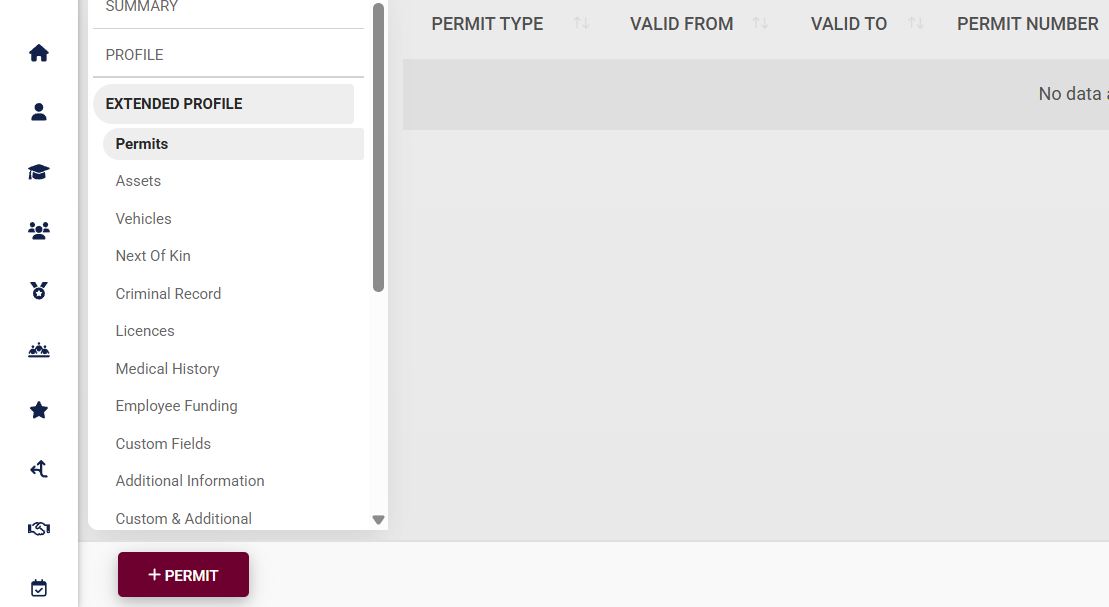
- Fill in the permit information, including the permit type, number, and validity. Please note that the fields marked with a red asterisk (**\***) are compulsory.
- - The permit type forms part of the **master data**. To configure this, please see the [**Master Data Maintenance**](https://signature.signifyhr.co.za/books/people-management-d8c/page/master-data-maintenance) section later in this chapter.
- Click **SAVE** when you are finished or click **CANCEL** to discard your edits.
##### Assets
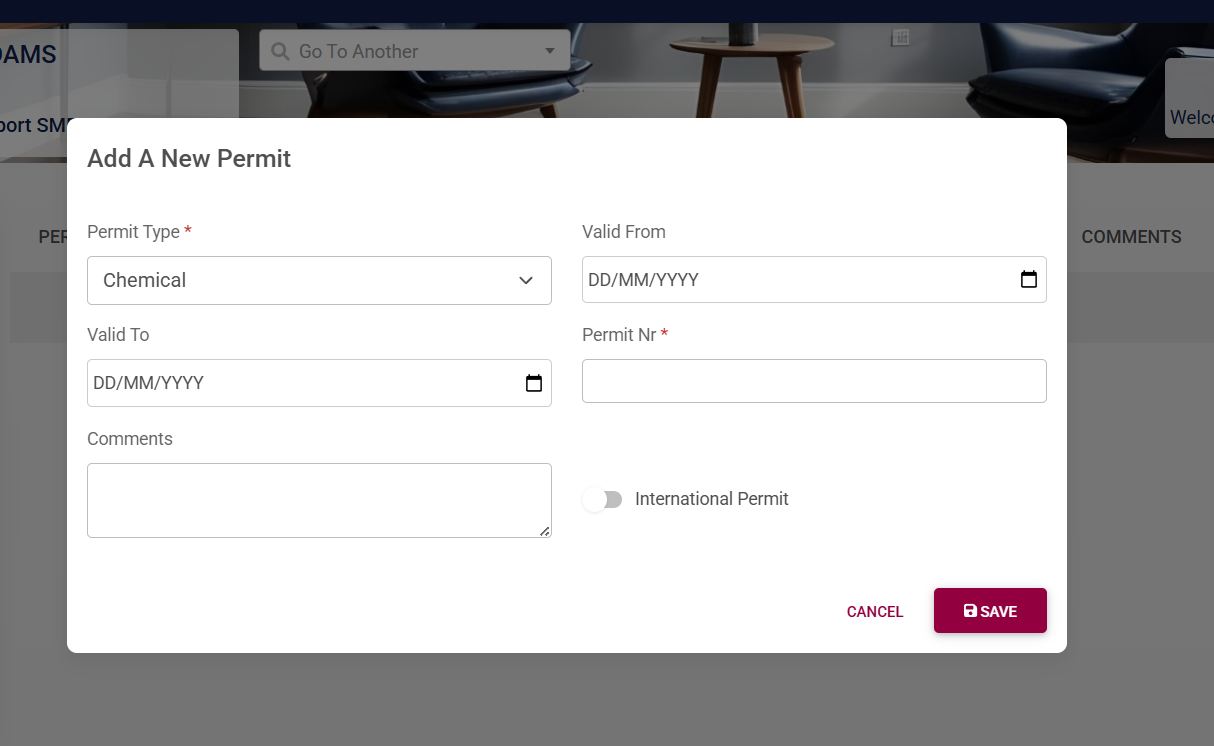
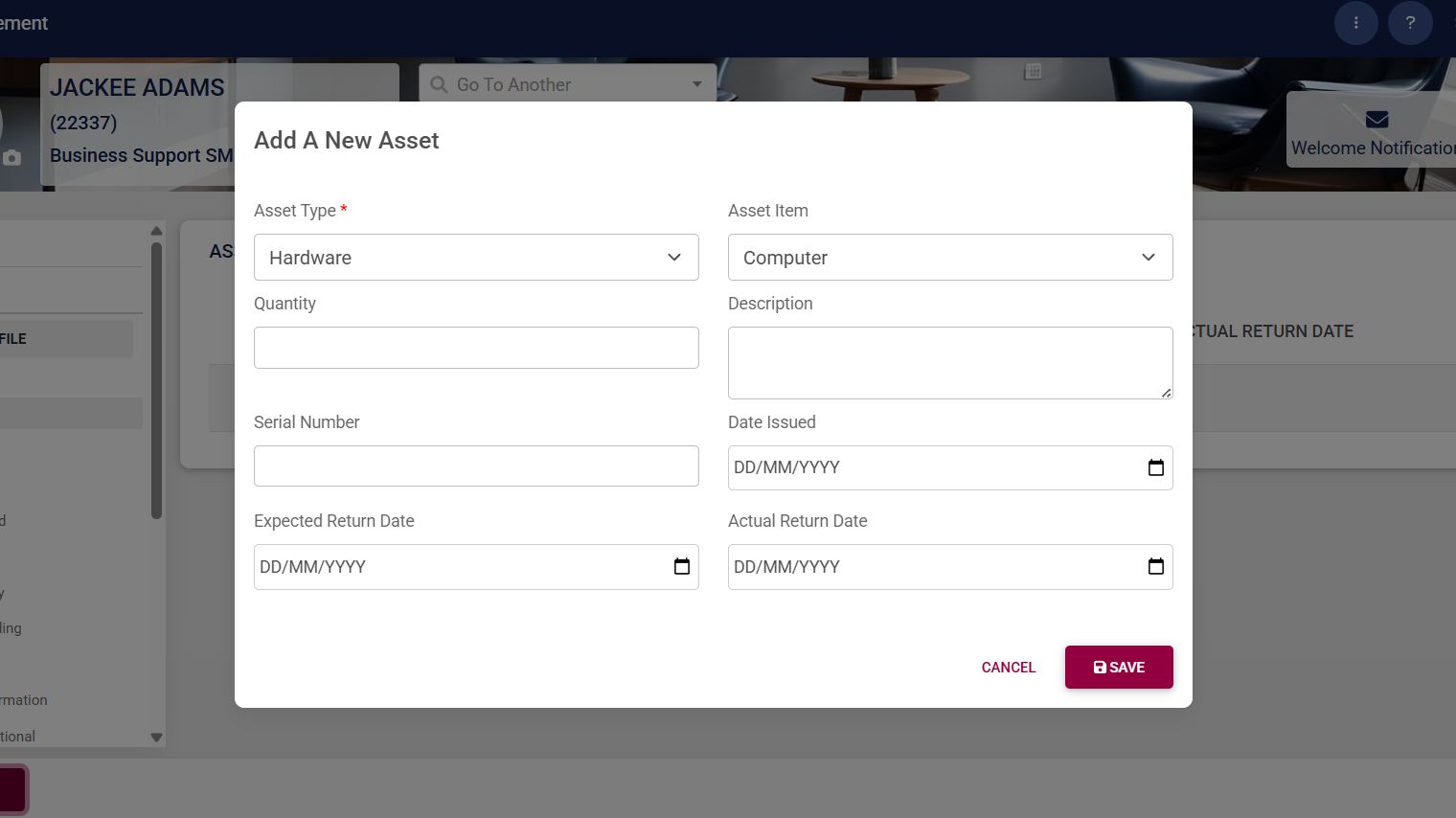
- Click to navigate to **Assets**, then click **+ASSET** to add a new asset.
- Fill in the asset information, such as the:
- - Asset type
- Asset item
- Quantity
- Description
- Serial number
- Issued date
- Expected return date
- Actual return date
- Please note that the fields marked with a red asterisk (**\***) are compulsory.
- - The asset item and asset type form part of the **master data**. To configure this, please see the [**Master Data Maintenance**](https://signature.signifyhr.co.za/books/people-management-d8c/page/master-data-maintenance) section later in this chapter.
- Click **SAVE** when you are finished or click **CANCEL** to discard your edits.
##### Vehicles
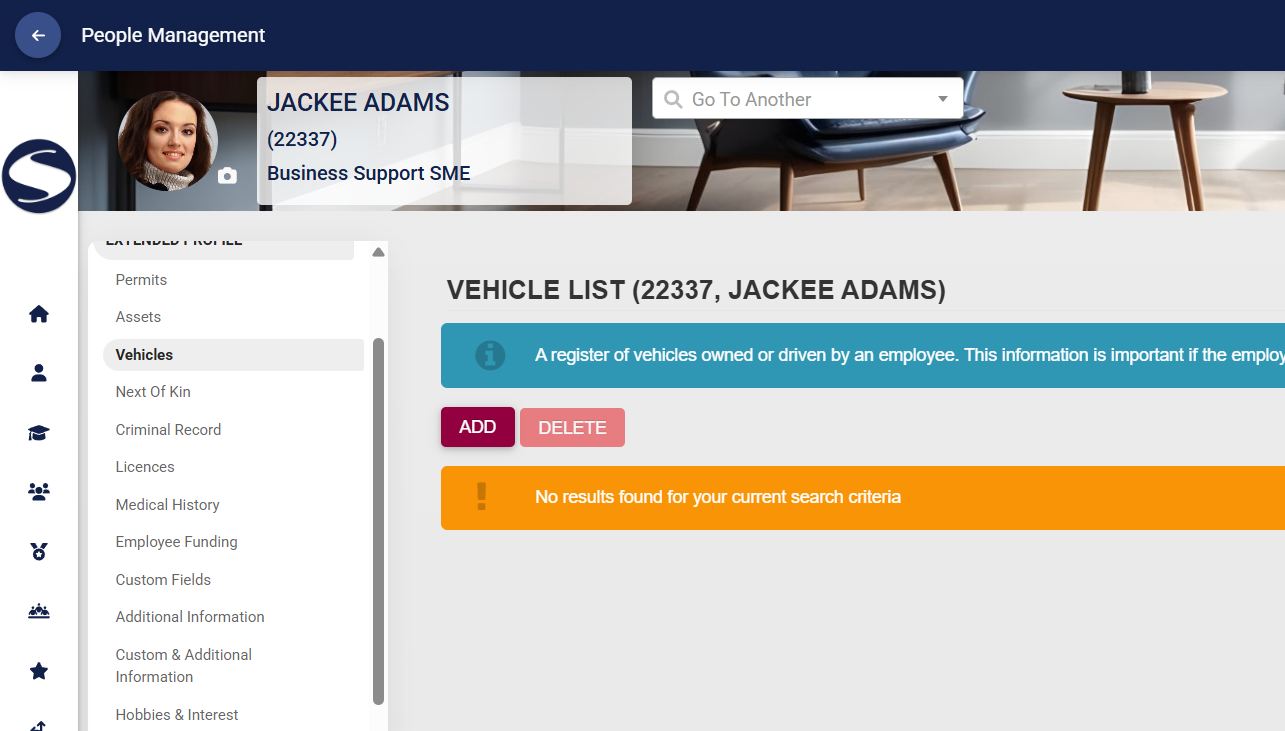
- If the employee is to bring vehicles onto the premises, the vehicle information can be captured by clicking **Vehicles**, then **ADD**.
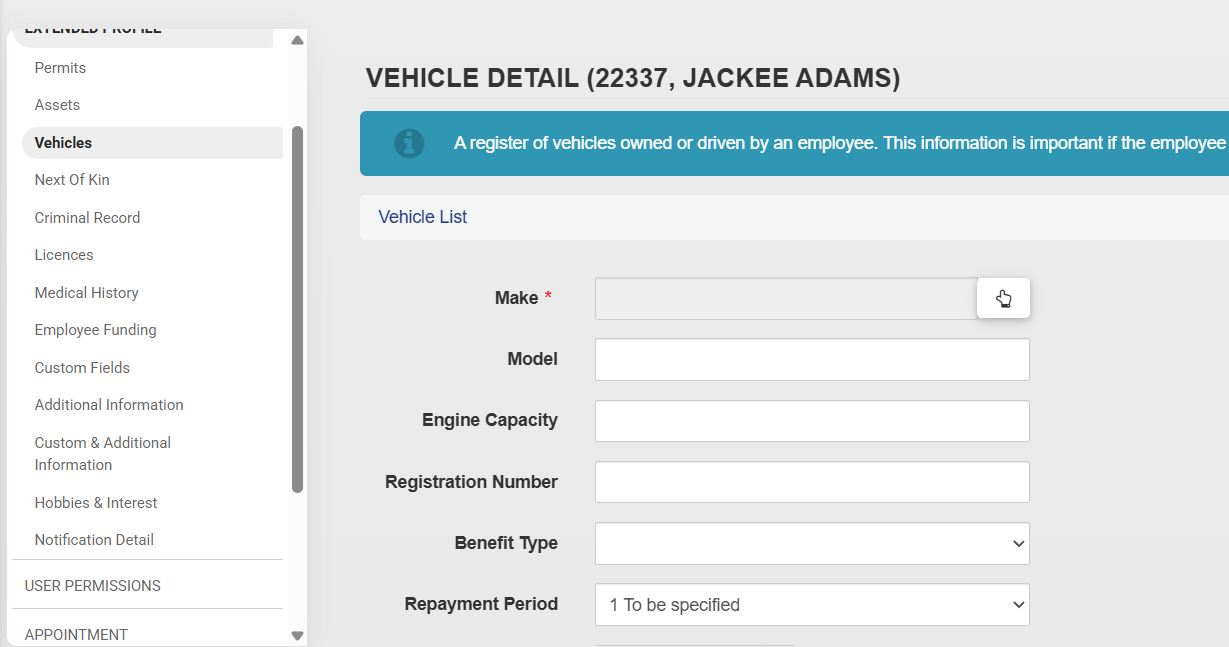
- Fill in the vehicle’s information, such as the make, model, registration number, manufacture year, benefit type, and other useful information. Please note that the fields marked with a red asterisk (**\***) are compulsory.
- Click **SAVE** when you are finished, **SAVE ADD NEW** to add another vehicle, or click **BACK TO LIST** to discard your edits.
##### Next of Kin
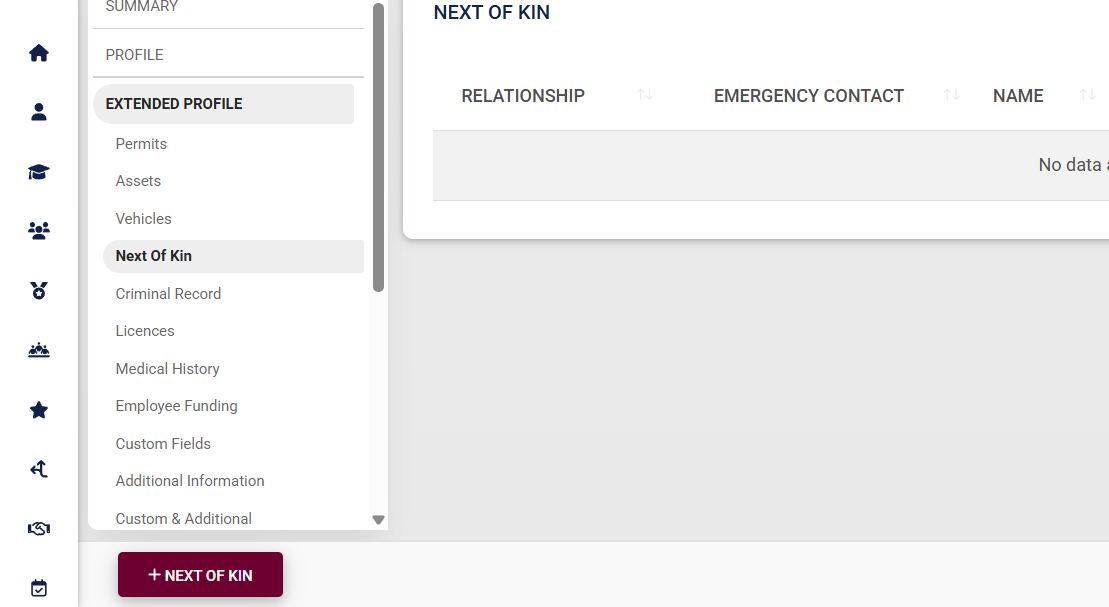
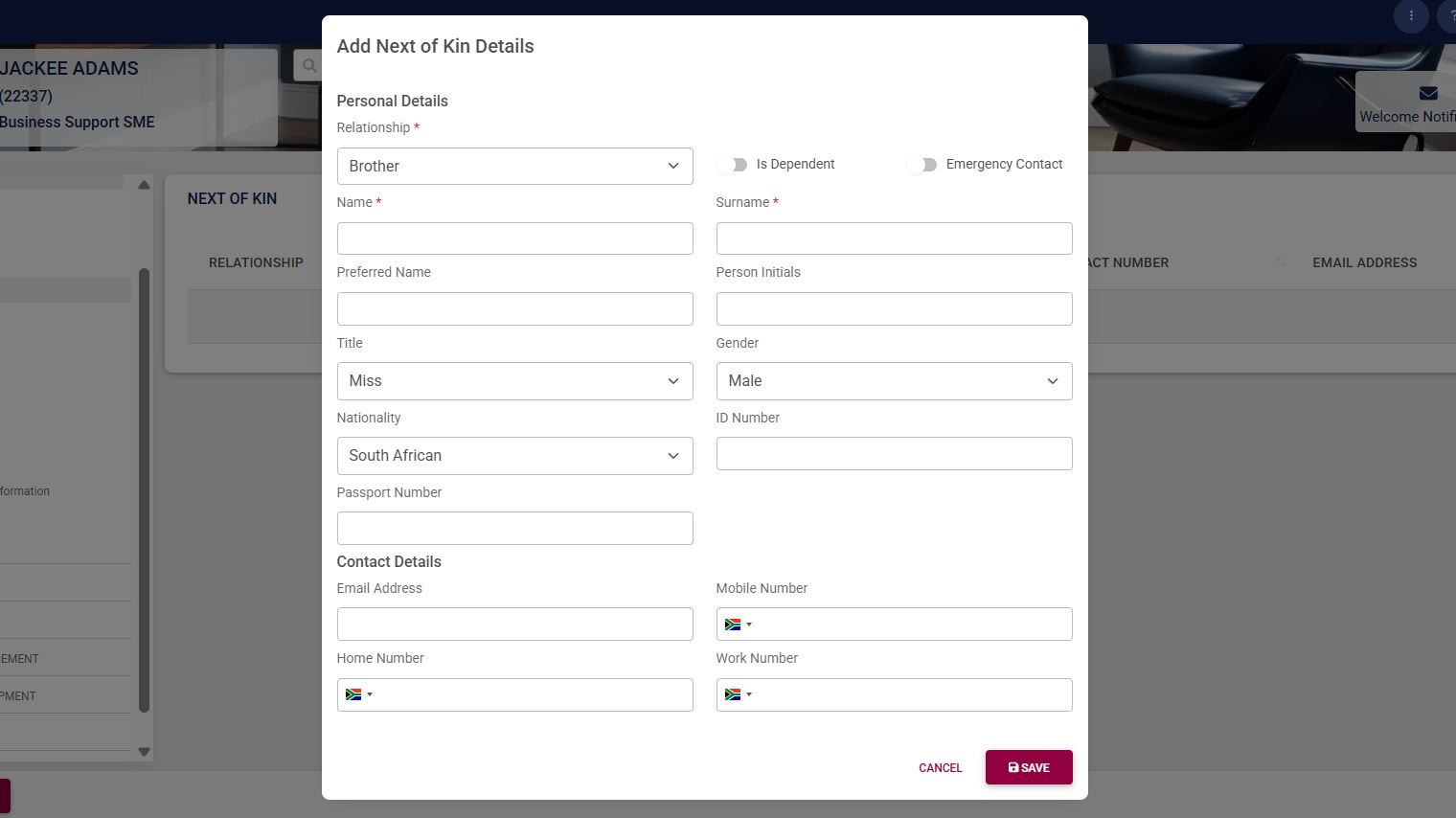
- To capture the person’s emergency contacts or dependents’ information, click **Next of Kin** and then click **+NEXT OF KIN**.
- Use the form to capture the next of kin’s contact information. Please note that the fields marked with a red asterisk (**\***) are compulsory.
- - The relationship type forms part of the **master data**. To configure this, please see the [**Master Data Maintenance**](https://signature.signifyhr.co.za/books/people-management-d8c/page/master-data-maintenance) section later in this chapter.
- Click **SAVE** when you are finished or click **CANCEL** to discard your edits.
##### Criminal Record
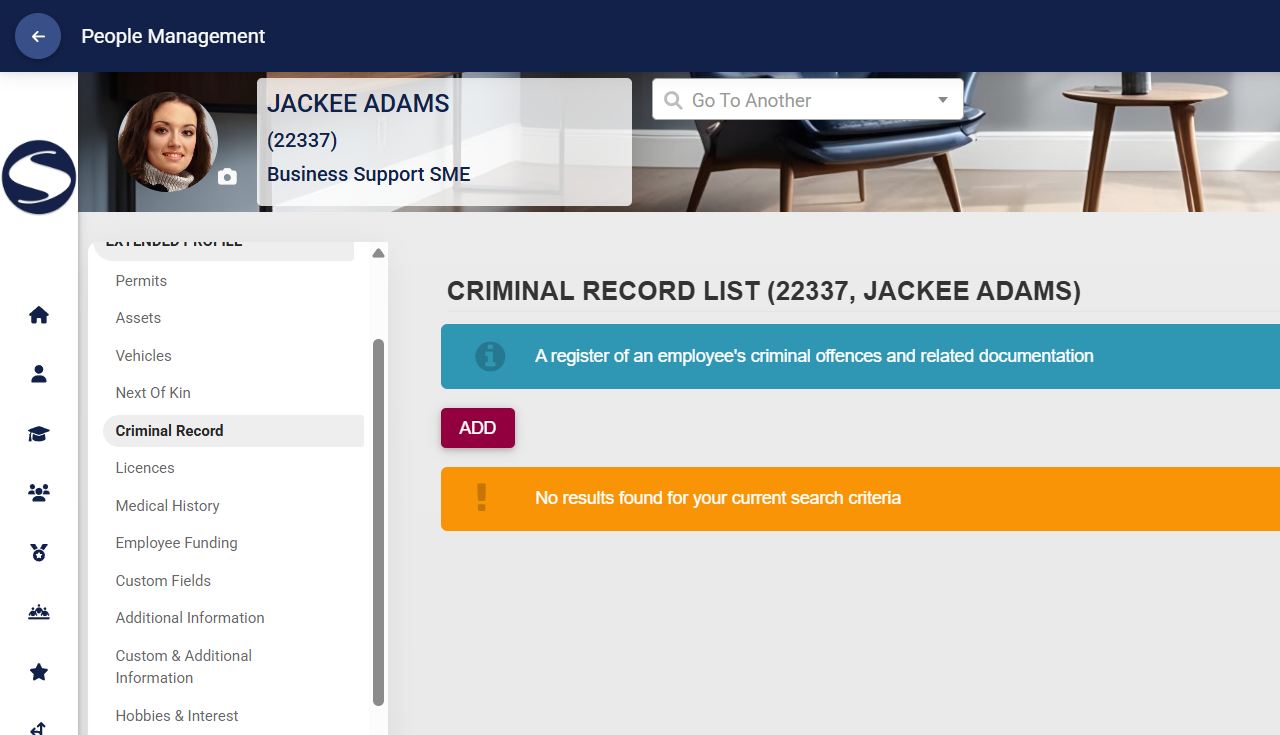
- If the employee has a criminal record, the information can be documented by clicking Criminal Record, then **ADD**.
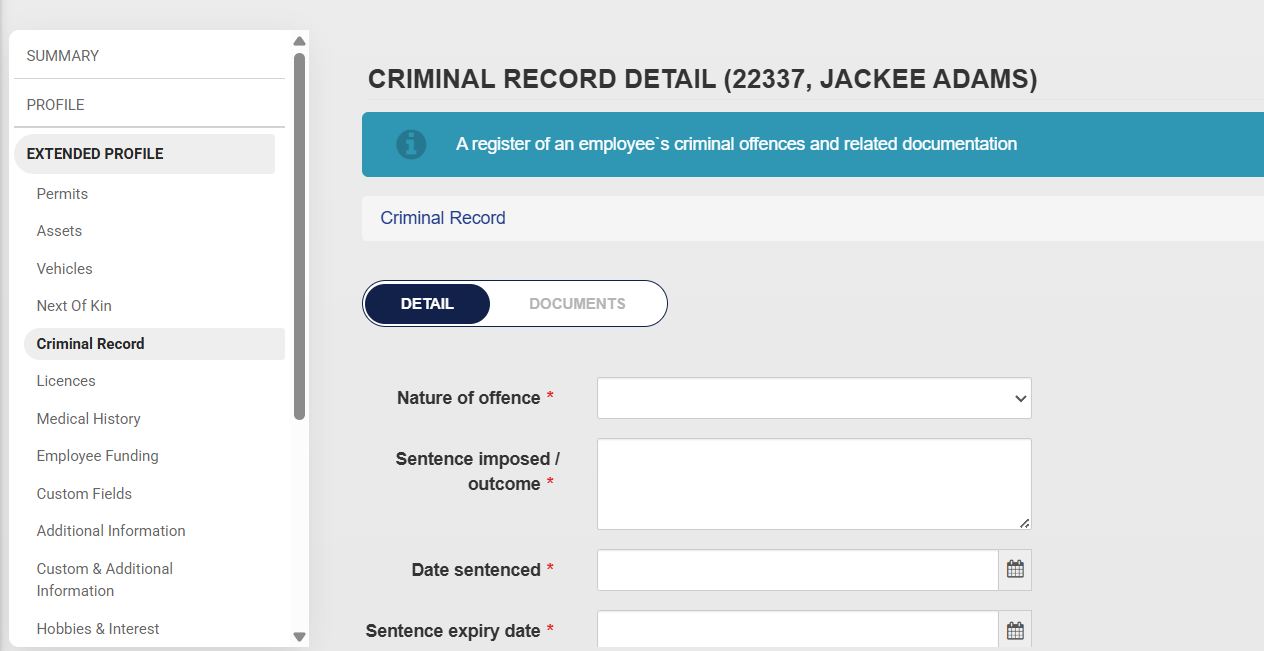
- Capture the employee’s criminal record details, such as:
- - Nature of the offence
- Sentence imposed
- Sentencing date
- Sentence expiry date
- Case number
- Police station where the case was registered
- Court name
- Please note that the fields marked with a red asterisk (**\***) are compulsory.
- - The nature of the offence forms part of the **master data**. To configure this, please see the [**Master Data Maintenance**](https://signature.signifyhr.co.za/books/people-management-d8c/page/master-data-maintenance) section later in this chapter.
- Click **SAVE** when you are finished, **SAVE ADD NEW** to add another record entry, or click **BACK TO LIST** to discard your edits.
##### Licences
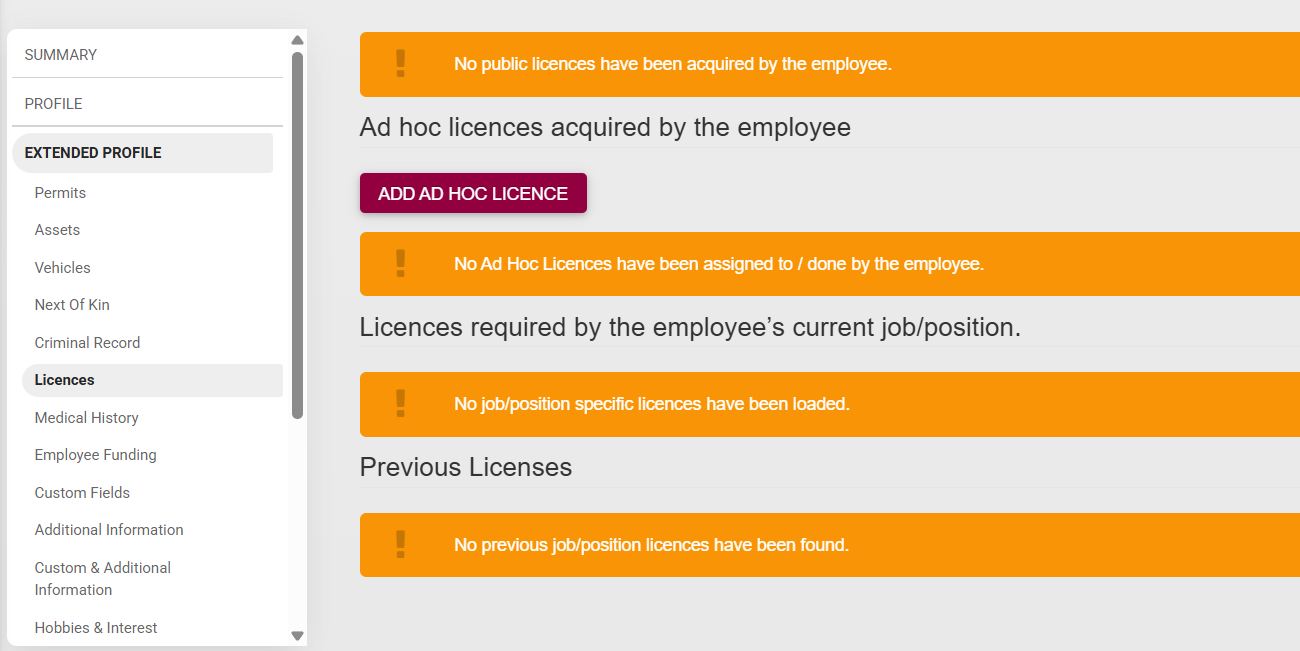
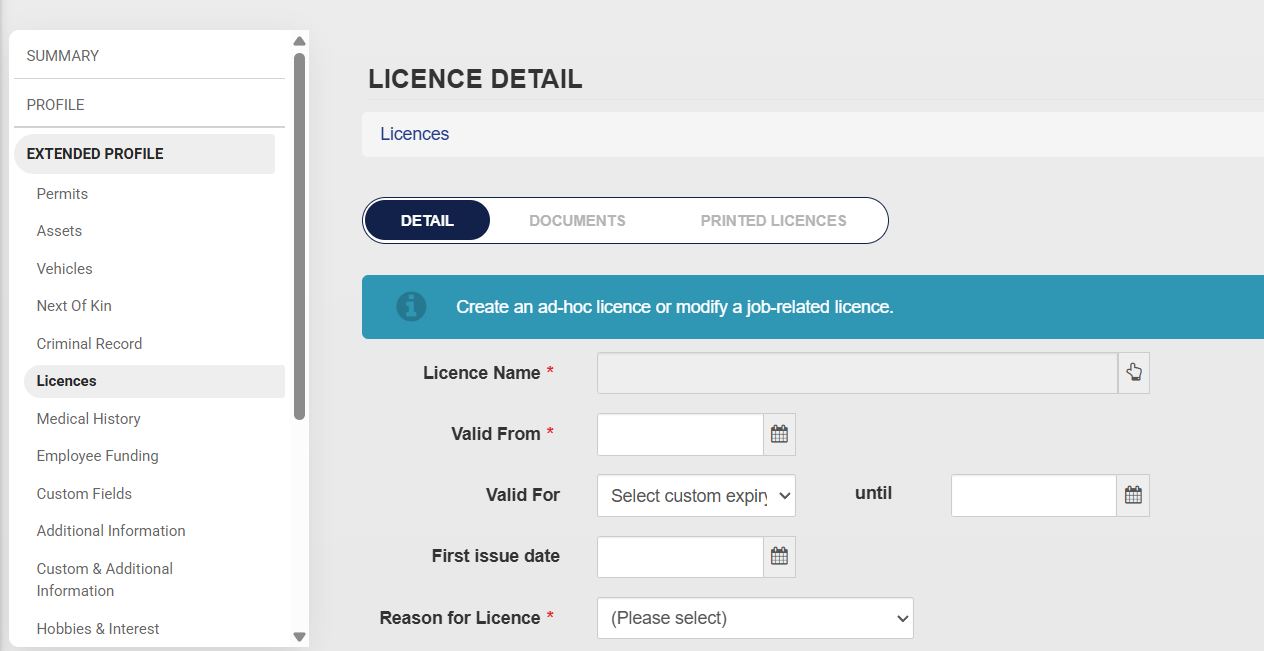
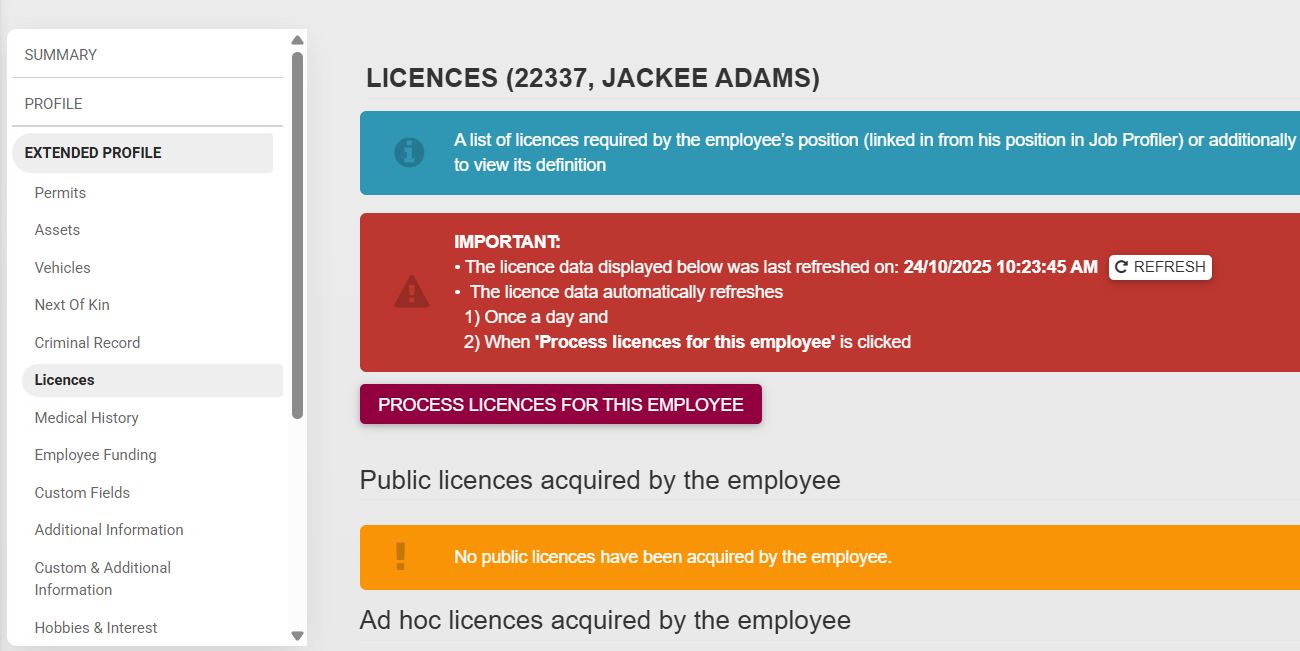
- A list of licences required for the employee’s position, as well as any other licences the employee holds, can be documented by clicking **Licences**. To add a new licence, click Add Ad Hoc Licence.
- Complete the licence detail form. Please note that the fields marked with a red asterisk (**\***) are compulsory.
- - Some of the licence detail fields can be set up in the **master data**. To configure this, please see the [**Master Data Maintenance**](https://signature.signifyhr.co.za/books/people-management-d8c/page/master-data-maintenance) section later in this chapter.
- Click **SAVE** to update the profile, or **BACK** to discard your edits.
- The licence data can be refreshed by clicking on Process Licences for this Employee.
##### Medical History
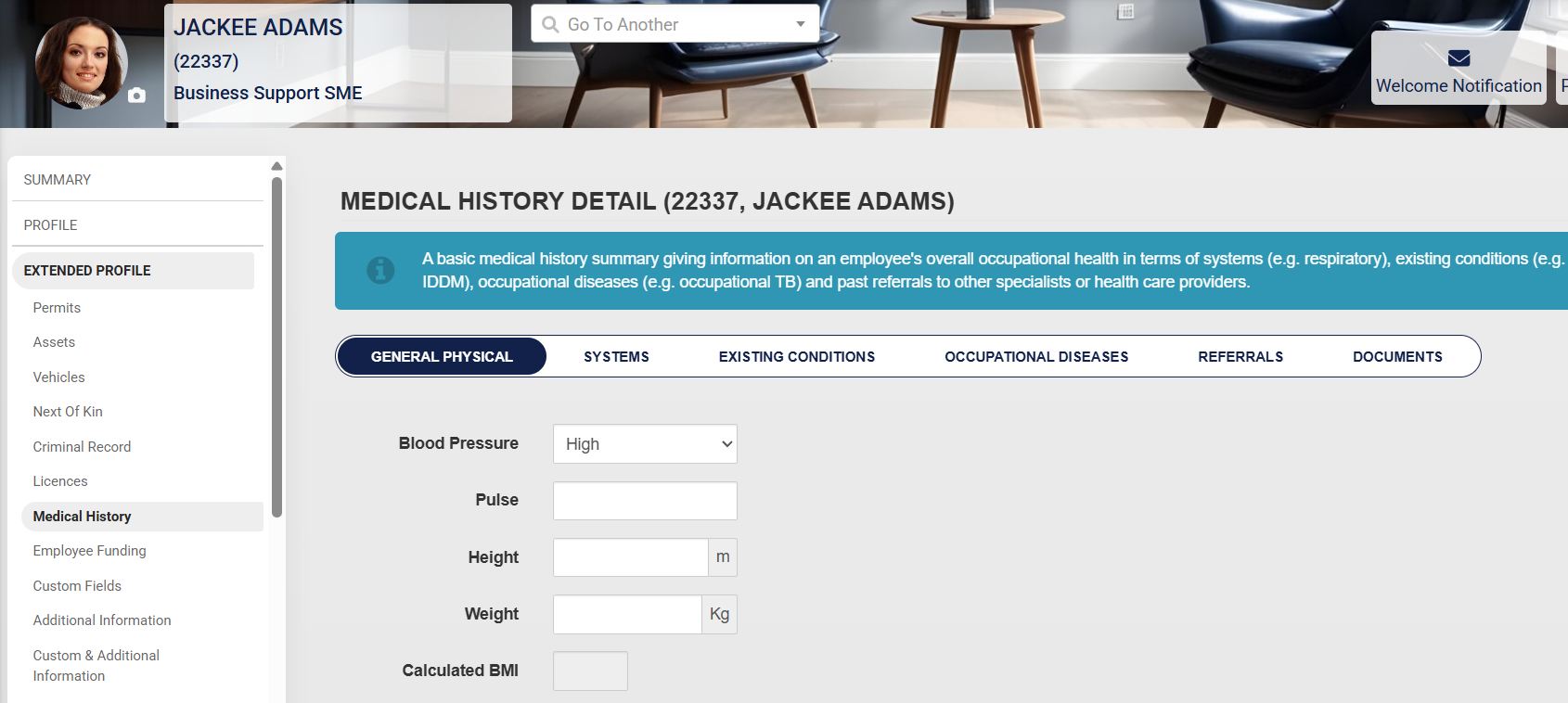
- The employee’s medical history can be documented by clicking on **Medical History**.
- Capture the relevant details of the employee’s medical history, such as:
- - General physical health
- Systems’ health
- Existing medical conditions
- Occupational diseases
- Past referrals to other specialists
- Important medical history documents
- Some of the medical history fields can be set up in the **master data**. To configure this, please see the [**Master Data Maintenance**](https://signature.signifyhr.co.za/books/people-management-d8c/page/master-data-maintenance) section later in this chapter.
##### Employee Funding
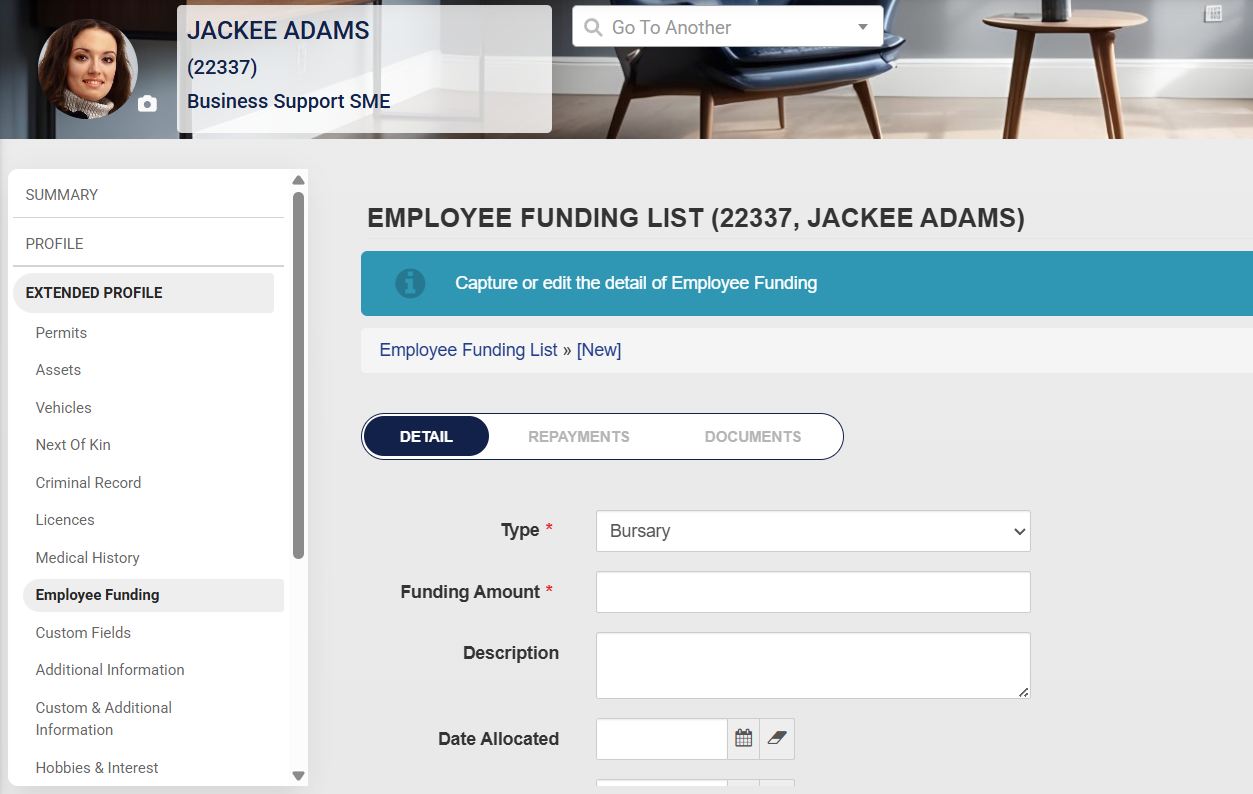
- Employee funding, such as a bursary or an employee personal loan, can be documented by clicking on **Employee Funding** and then clicking on **ADD**.
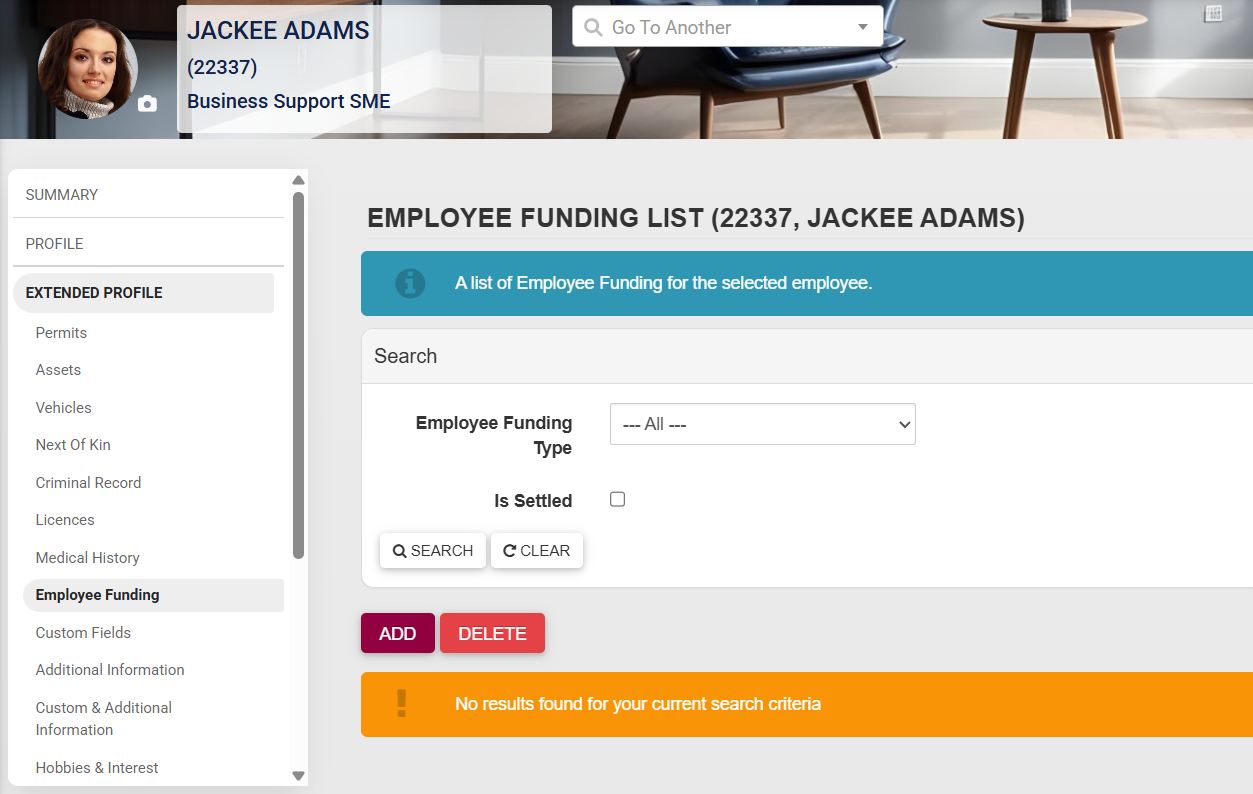
- Details of the employee’s funding can be captured by filling in the form. Please note that the fields marked with a red asterisk (**\***) are compulsory.
- - Some of the employee funding fields can be set up in the **master data**. To configure this, please see the [**Master Data Maintenance**](https://signature.signifyhr.co.za/books/people-management-d8c/page/master-data-maintenance) section later in this chapter.
- Click **SAVE** when you are finished, **SAVE ADD NEW** to add another record entry, or click **BACK** to discard your edits.
##### Custom and Additional Fields
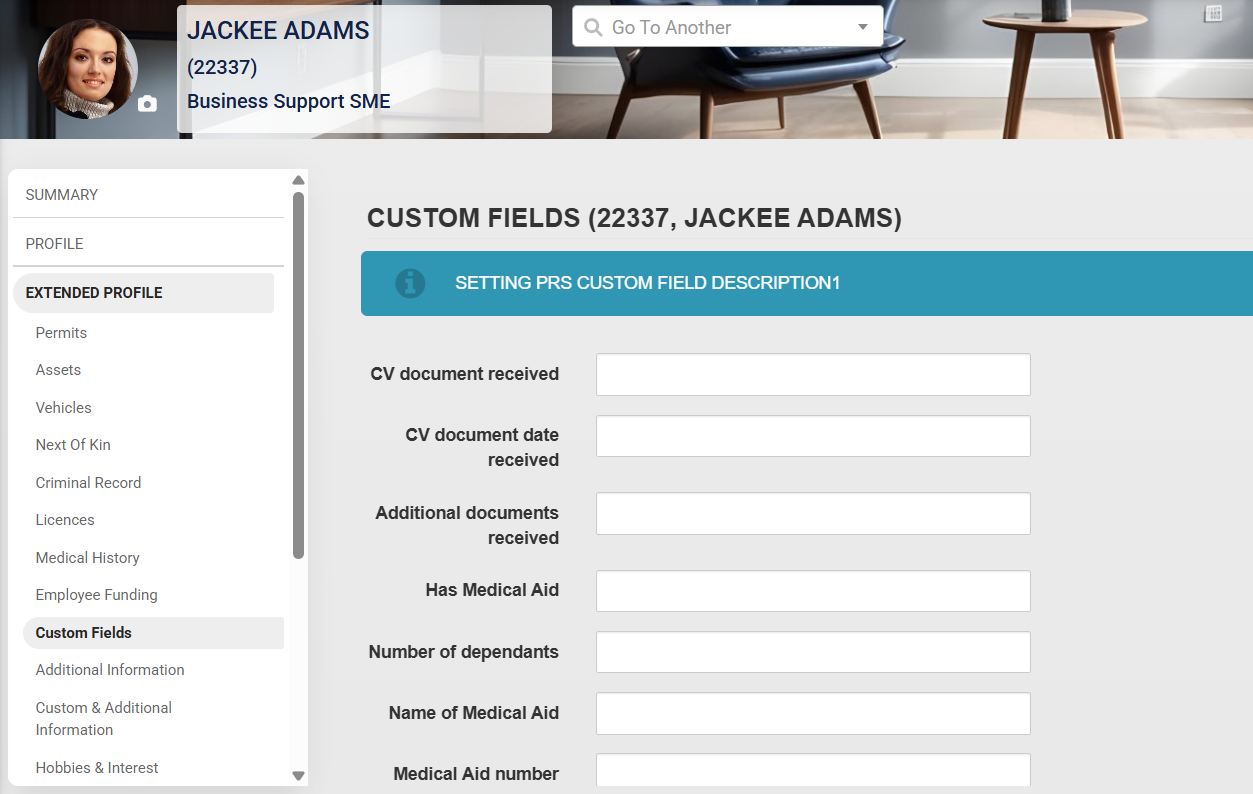
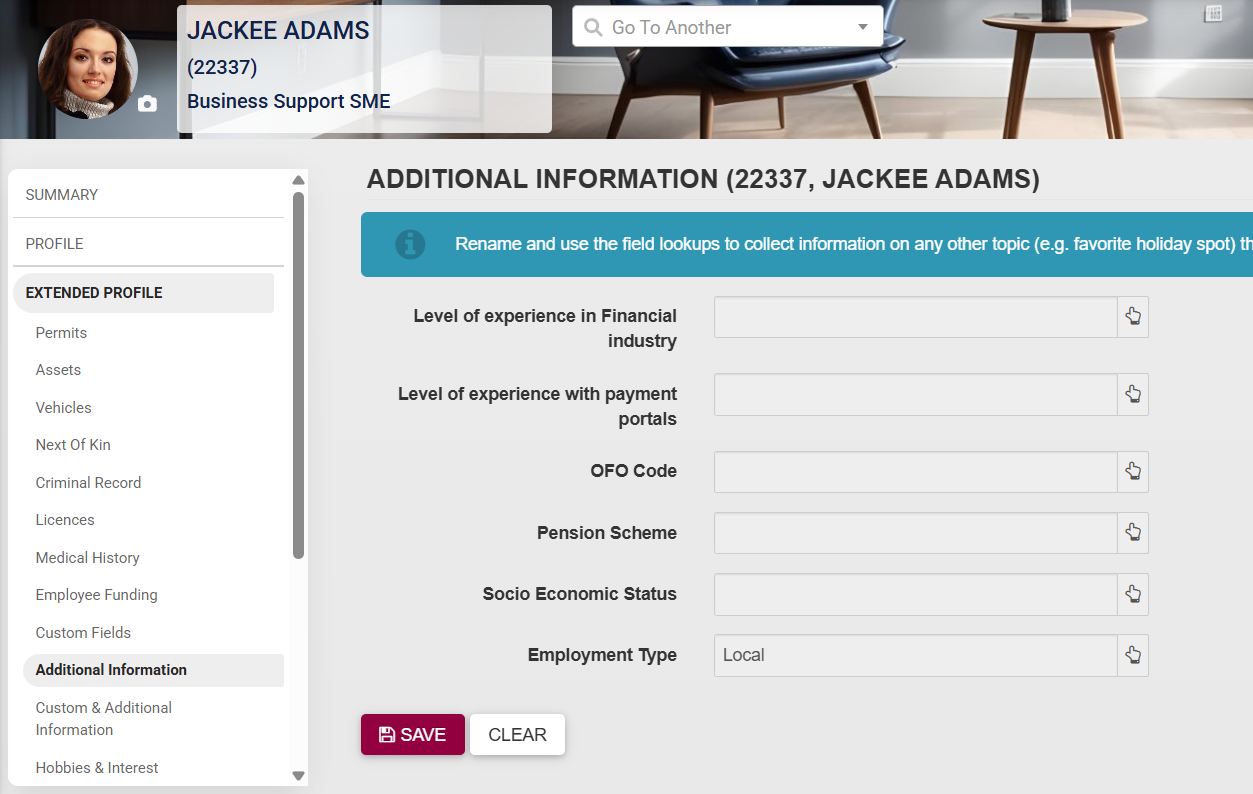
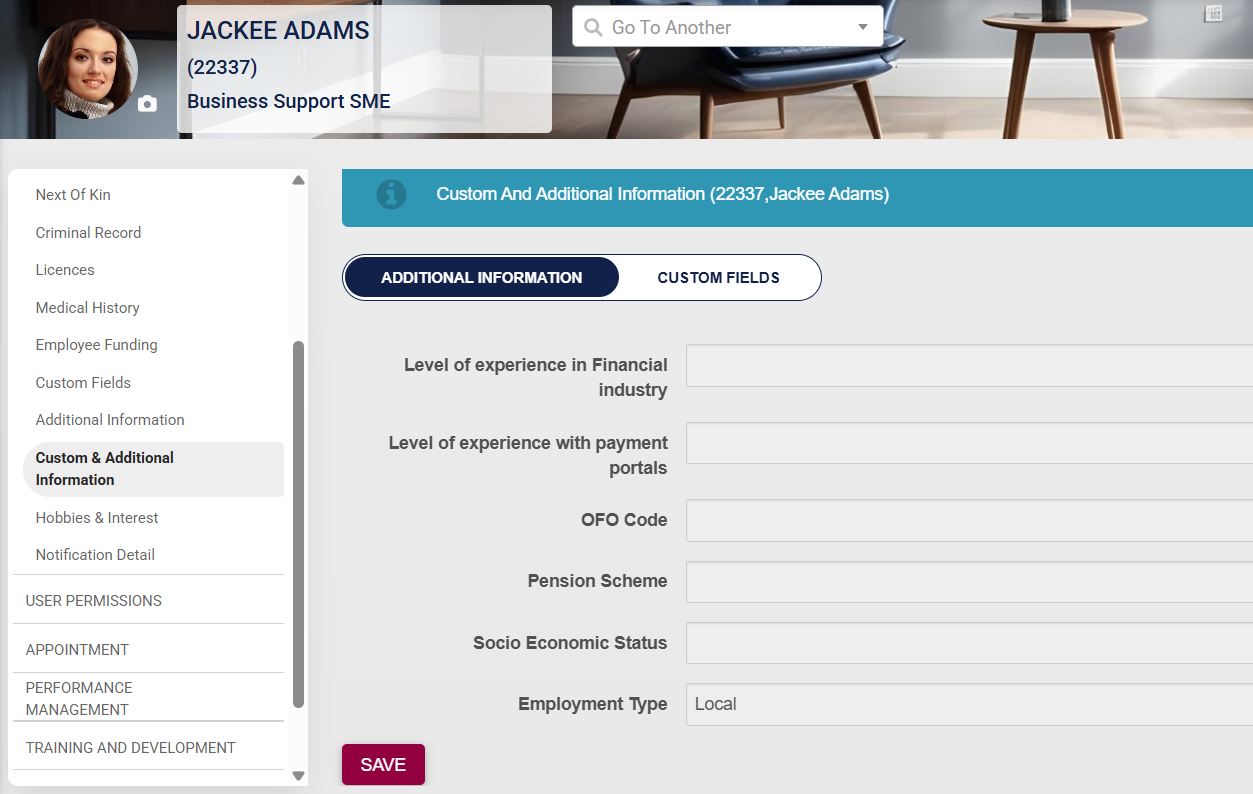
- **Custom Fields**, **Additional Information**, and **Custom and Additional Information** are menu items that can be used to document additional information about the employee. These fields can be set up in the **master data**. To configure this, please see the [**Master Data Maintenance**](https://signature.signifyhr.co.za/books/people-management-d8c/page/master-data-maintenance) section later in this chapter.
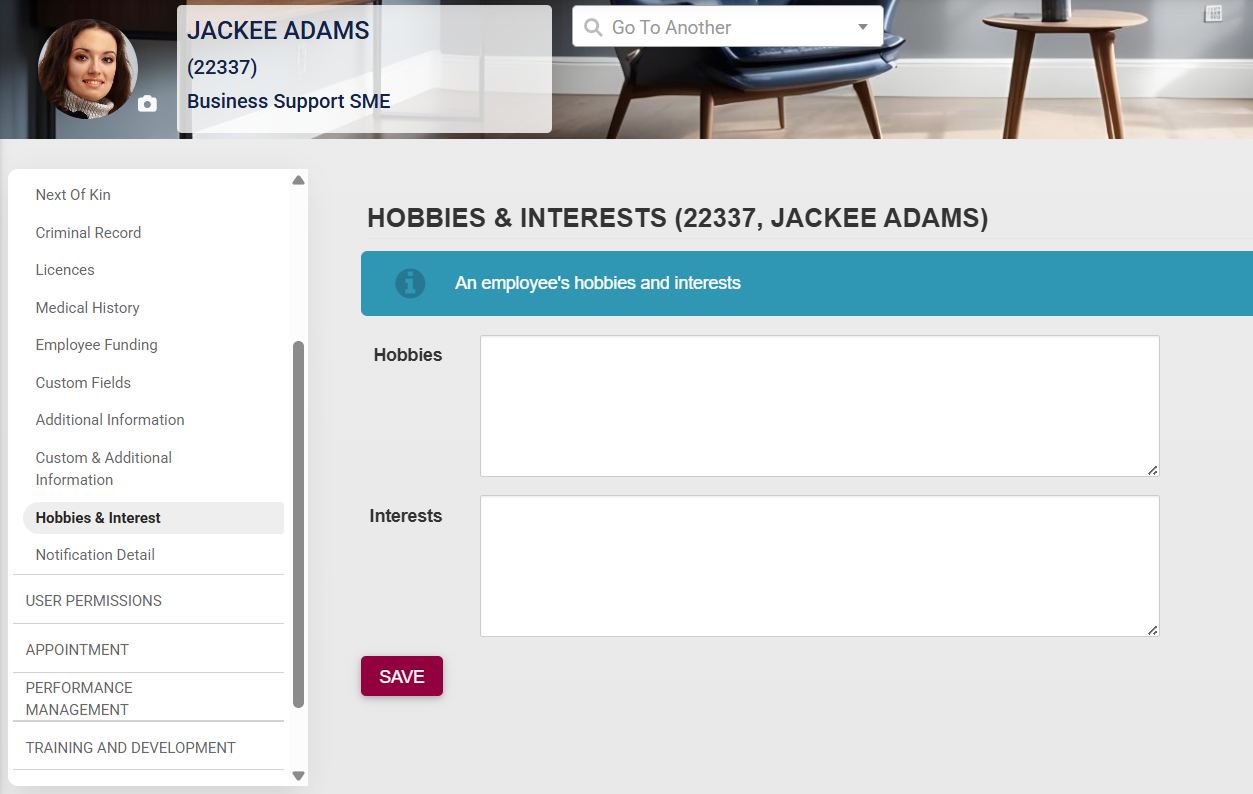
##### Hobbies and Interests
- The employee’s hobbies and interests can be noted by clicking on **Hobbies and Interests**. Fill in the details about their hobbies and interests, then click **SAVE** when you are finished.
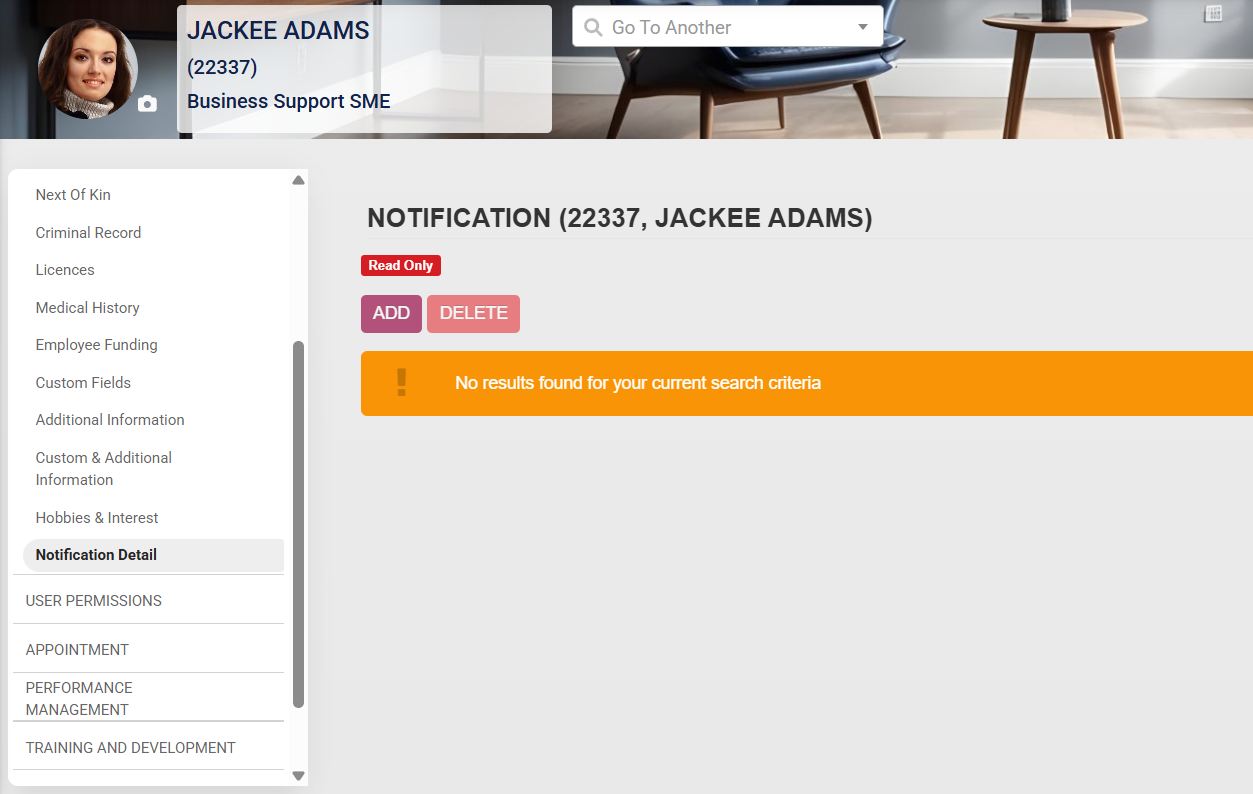
##### Notification Detail
- Details about the employee’s notifications can be viewed by clicking on **Notification Detail**.
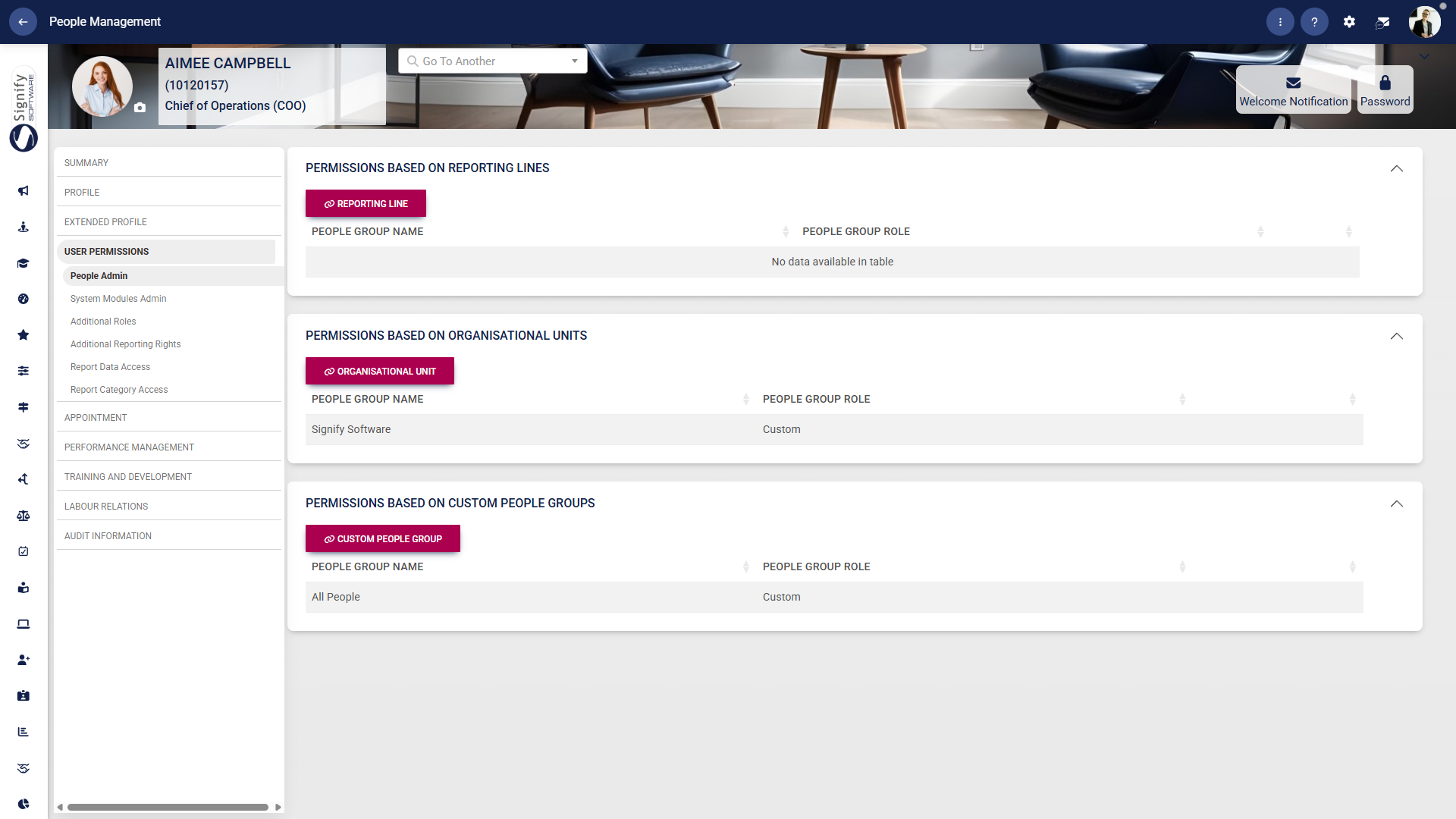
#### User Permissions
Please see the **[User and Access Management](https://signature.signifyhr.co.za/books/people-management-d8c/page/user-and-access-management "User and Access Management")** section of this chapter for more information.
#### Appointment
##### Appointment history
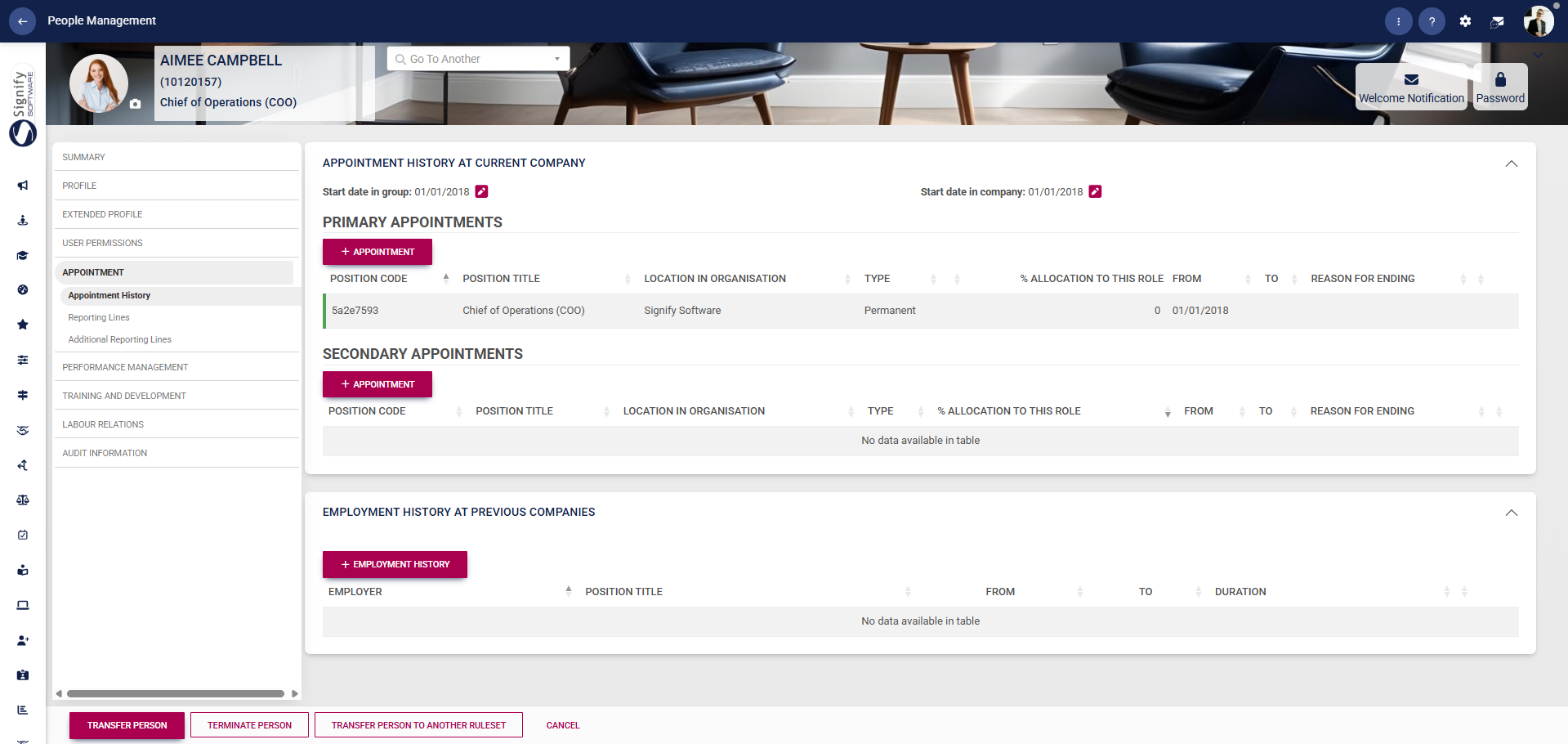
- Use the **left-hand menu** to navigate to **Appointment History** to review the employee’s current and previous appointments.
- Use **+APPOINTMENT** to add a new **Primary Appointment** or **Secondary Appointment**.
- Use **+EMPLOYMENT HISTORY** to record previous employment at another company.
- Review the **Start Date in Group** and **Start Date in Company** fields.
- Use the available action buttons at the bottom of the screen to **TRANSFER PERSON**, **TERMINATE PERSON**, or **TRANSFER PERSON TO ANOTHER RULESET** when required.
- Click **CANCEL** to exit without making changes.
##### Reporting lines
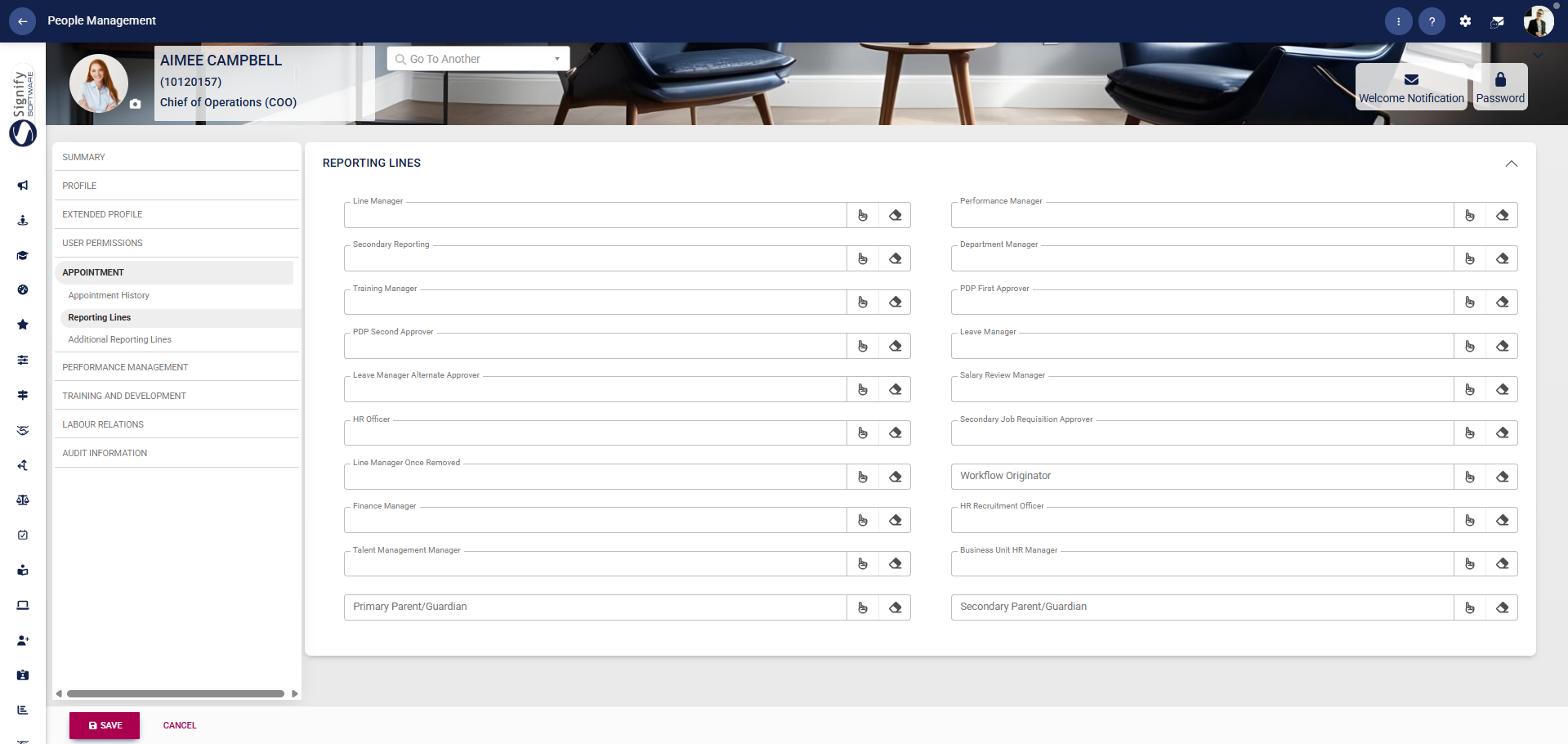
- Use the **left-hand menu** to navigate to **Reporting Lines**.
- Use the available lookup fields to assign the employee’s managers and related reporting roles.
- Complete the relevant fields, such as **Line Manager**, **Secondary Reporting**, **Training Manager**, **PDP Approvers**, **Leave Manager**, **HR Officer**, and other listed roles, as required.
- Use the search or lookup icons beside each field to select the correct person.
- Click **SAVE** when you are finished or **CANCEL** to discard your edits.
##### Additional reporting lines
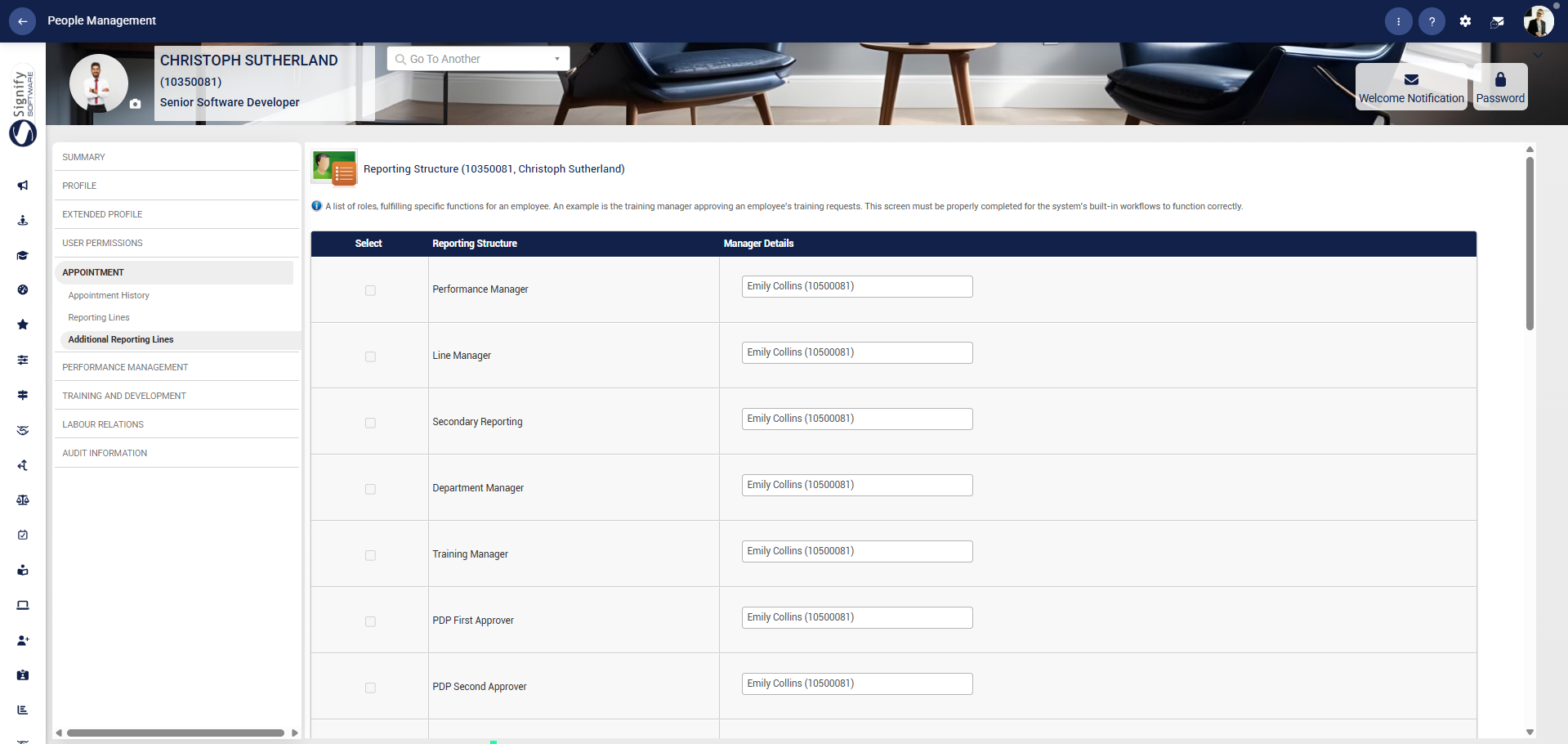
- Use the **left-hand menu** to navigate to **Additional Reporting Lines**.
- Select the required reporting structure from the list.
- Review the available roles, such as **Performance Manager**, **Line Manager**, **Department Manager**, **Training Manager**, and **PDP Approvers**, and assign the relevant manager details for each one.
- This screen supports the system’s built-in workflows, so ensure the reporting structure is completed correctly before continuing.
- Click **SAVE** when you are finished or **CANCEL** to discard your edits.
- 
#### Performance Management
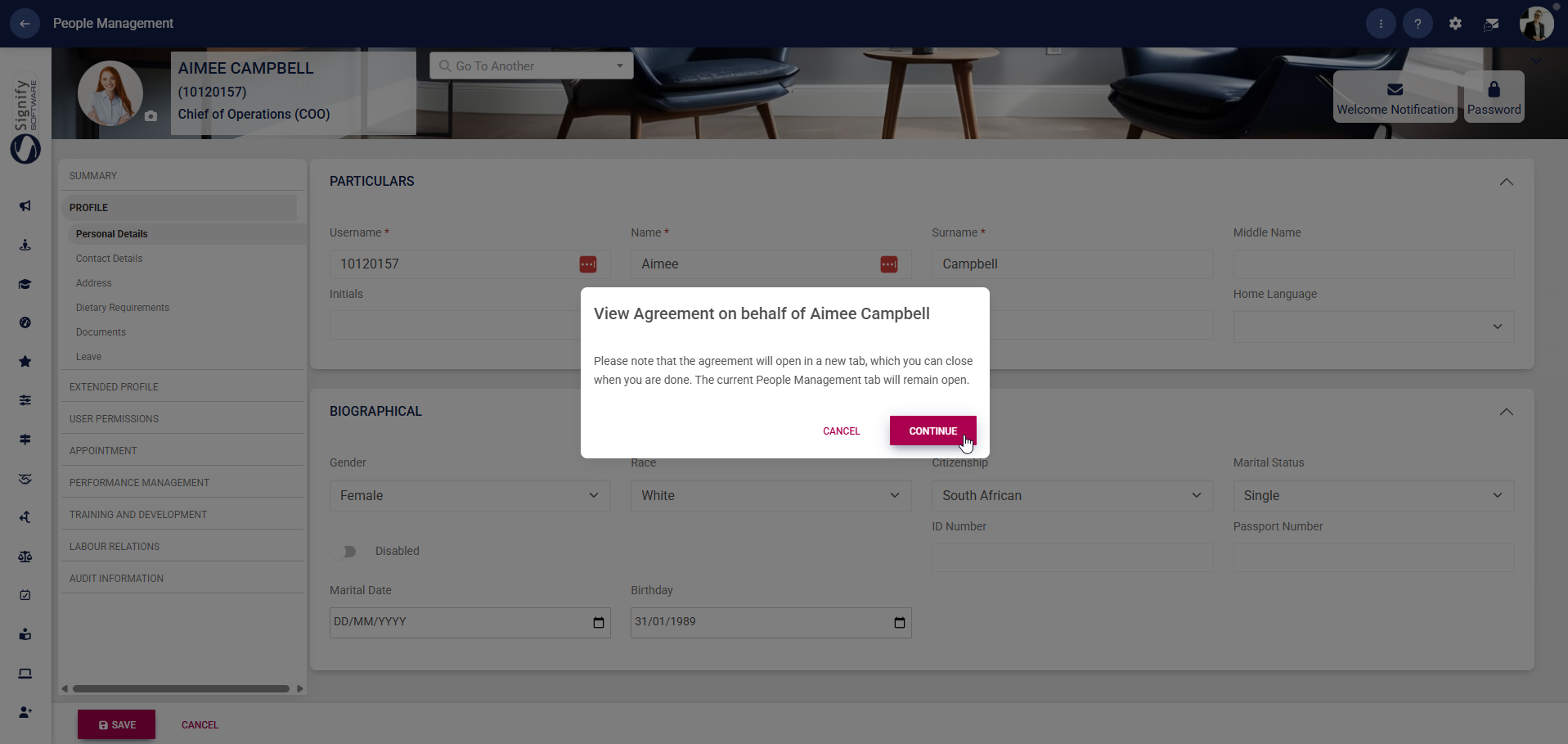
- Use the **left-hand menu** to navigate to **Performance Management**.
- This feature allows you to view the user's performance agreement on their behalf.
- Click **CONTINUE** to go to the **Performance Management** module.
#### Training and Development
##### Learning Records
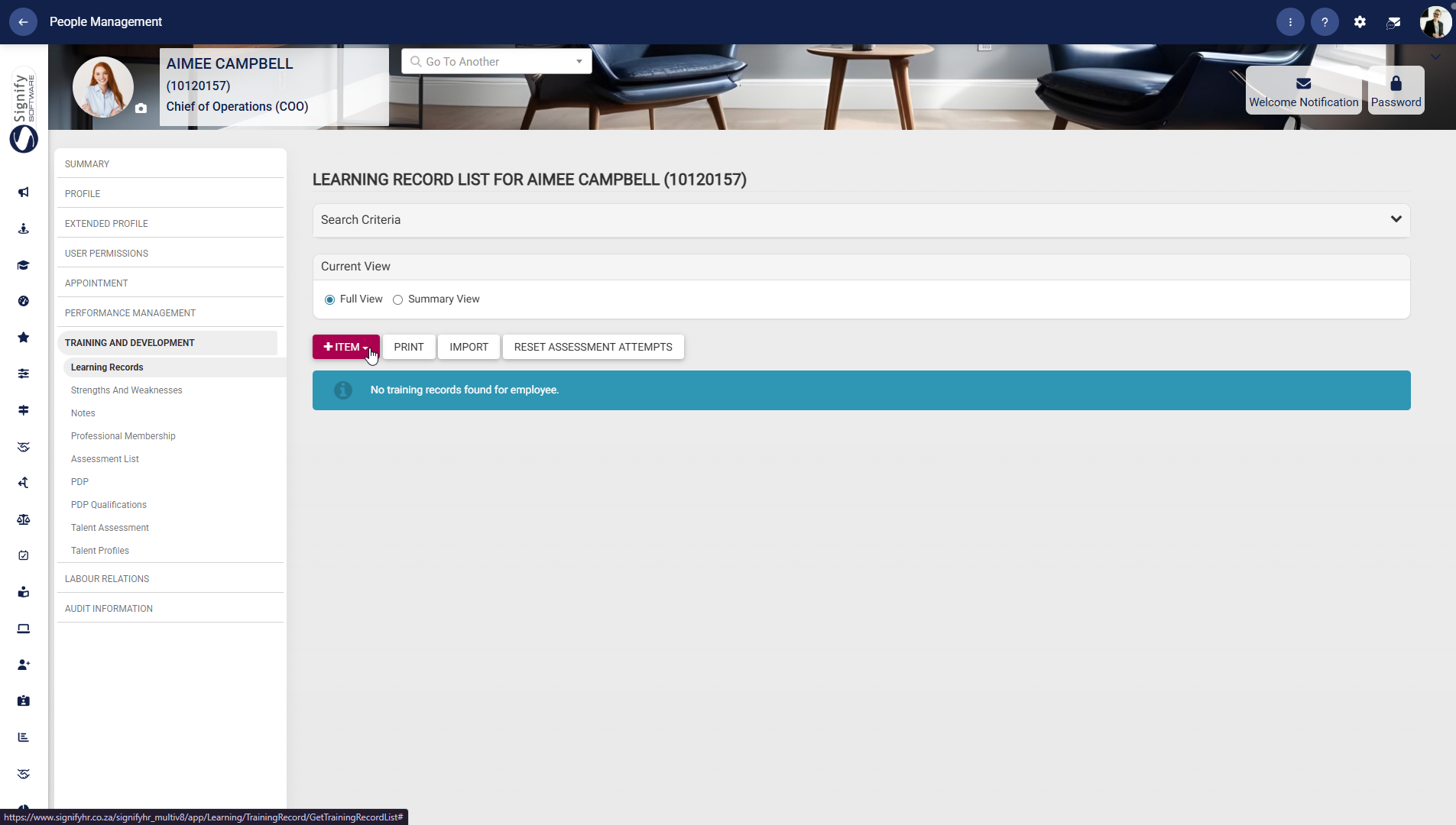
- Use the **left-hand menu** to navigate to **Learning Records** to view and manage the employee’s training history.
- Use **+ITEM** to add a new record, selecting from options such as Training, Unit, Programme, or Qualification.
- Use **PRINT** or **IMPORT** to manage records externally.
- Click **RESET ASSESSMENT ATTEMPTS** where applicable to reset training progress.
- Use the view options to switch between **Full View** and **Summary View**.
##### Strengths and Weaknesses
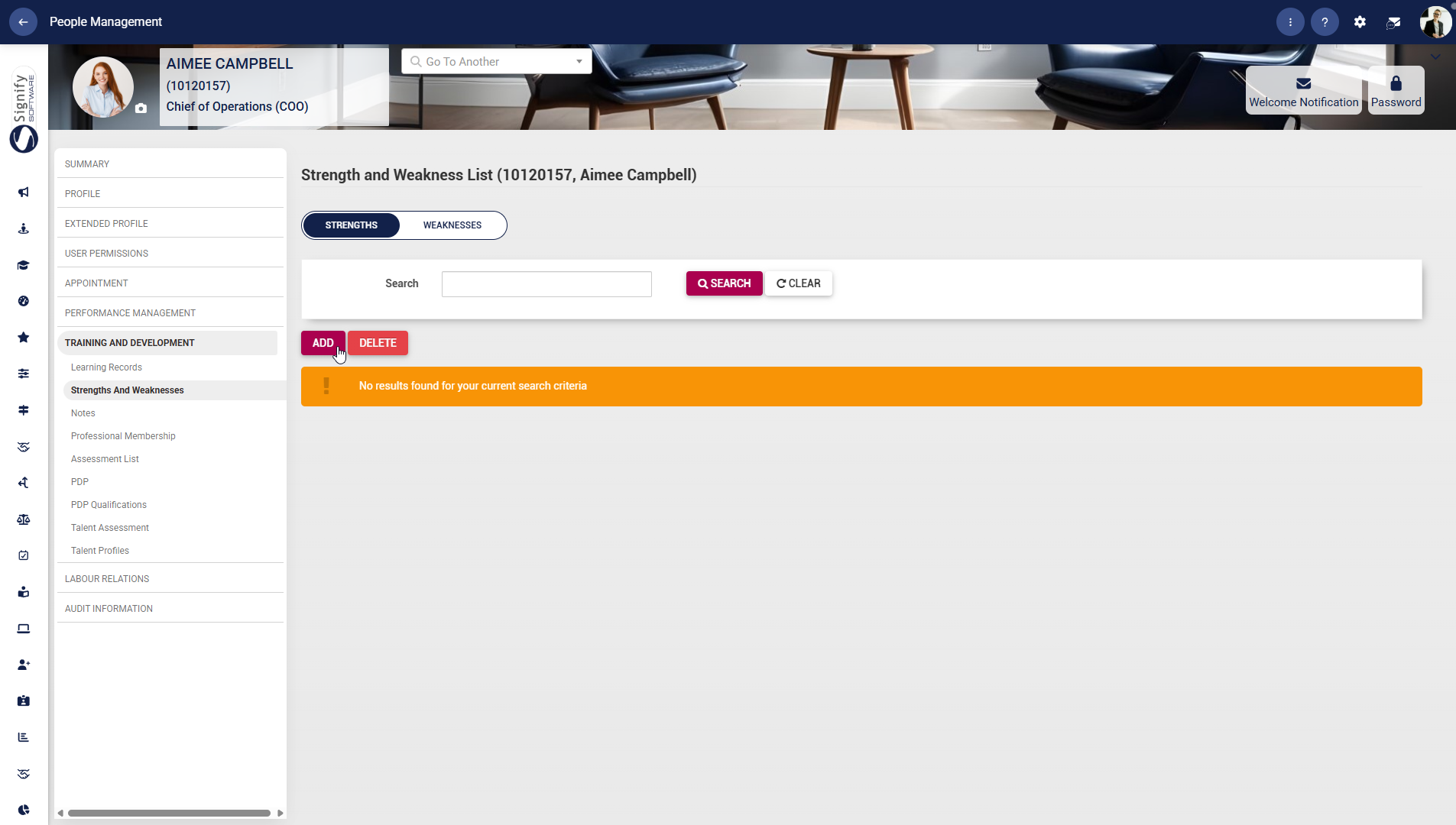
- Use the **left-hand menu** to navigate to **Strengths and Weaknesses**, then use the **Strengths** or **Weaknesses** tab to view the relevant records.
- Click **ADD** to create a new entry or **DELETE** to remove an existing one, where applicable.
##### Notes
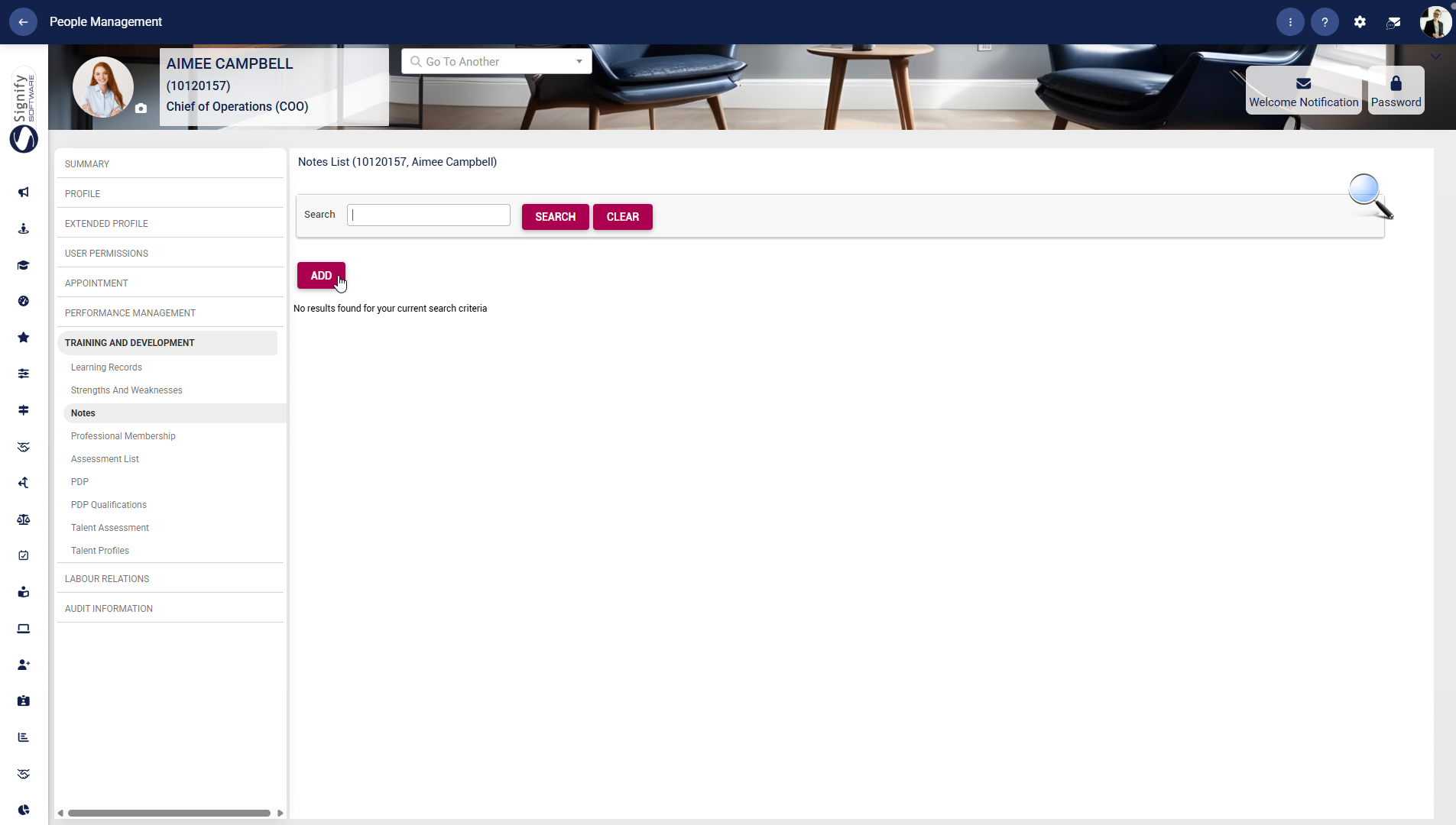
- Use the **left-hand menu** to navigate to **Notes** and use the search field to find an existing note.
- Click **ADD** to record a new note or **DELETE** to remove an existing note, where permitted.
##### Professional Membership
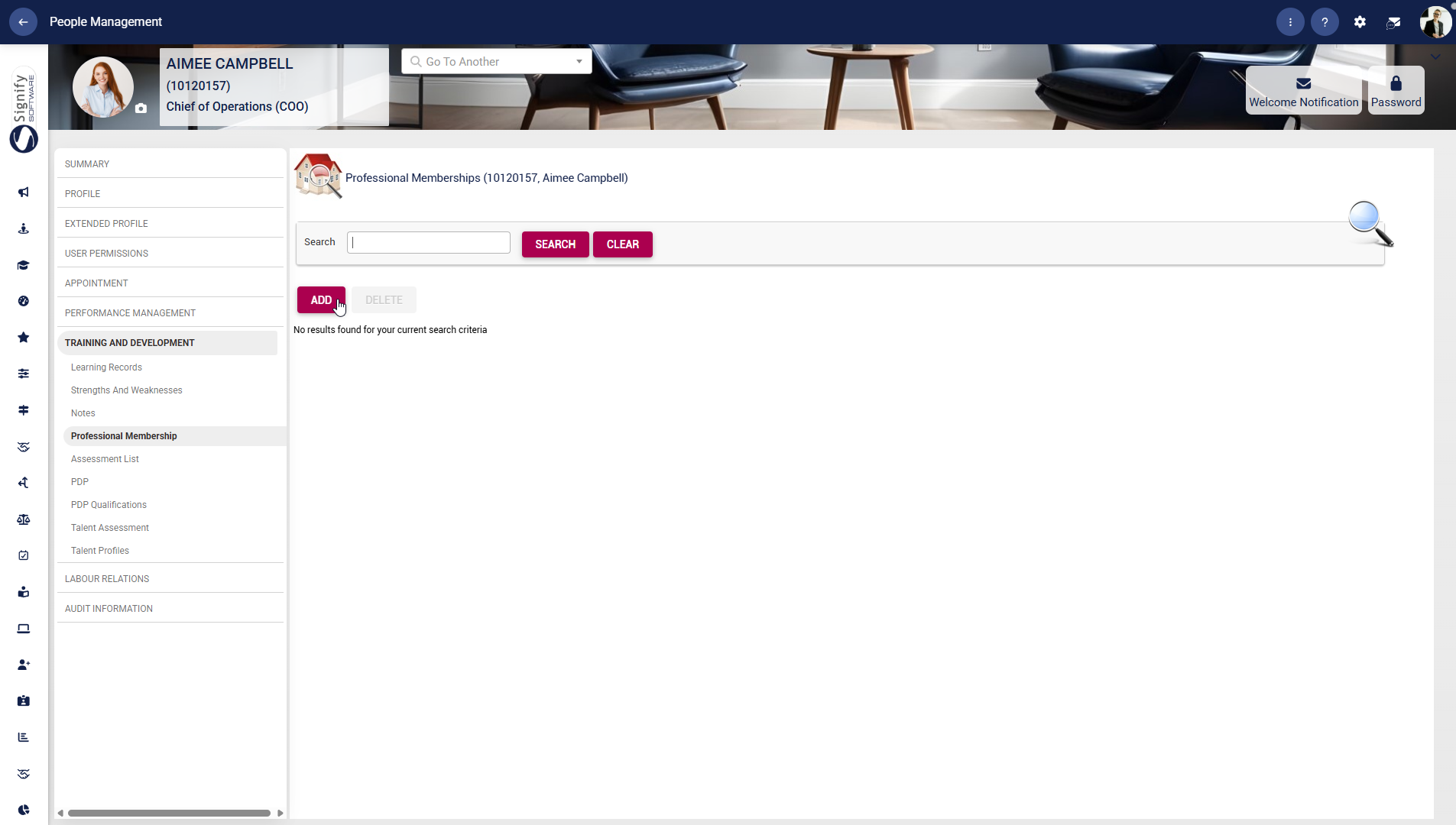
- Use the **left-hand menu** to navigate to **Professional Membership** and search for the relevant membership record.
- Click **ADD** to capture a new professional membership or **DELETE** to remove an existing one, where applicable.
##### Assessment List
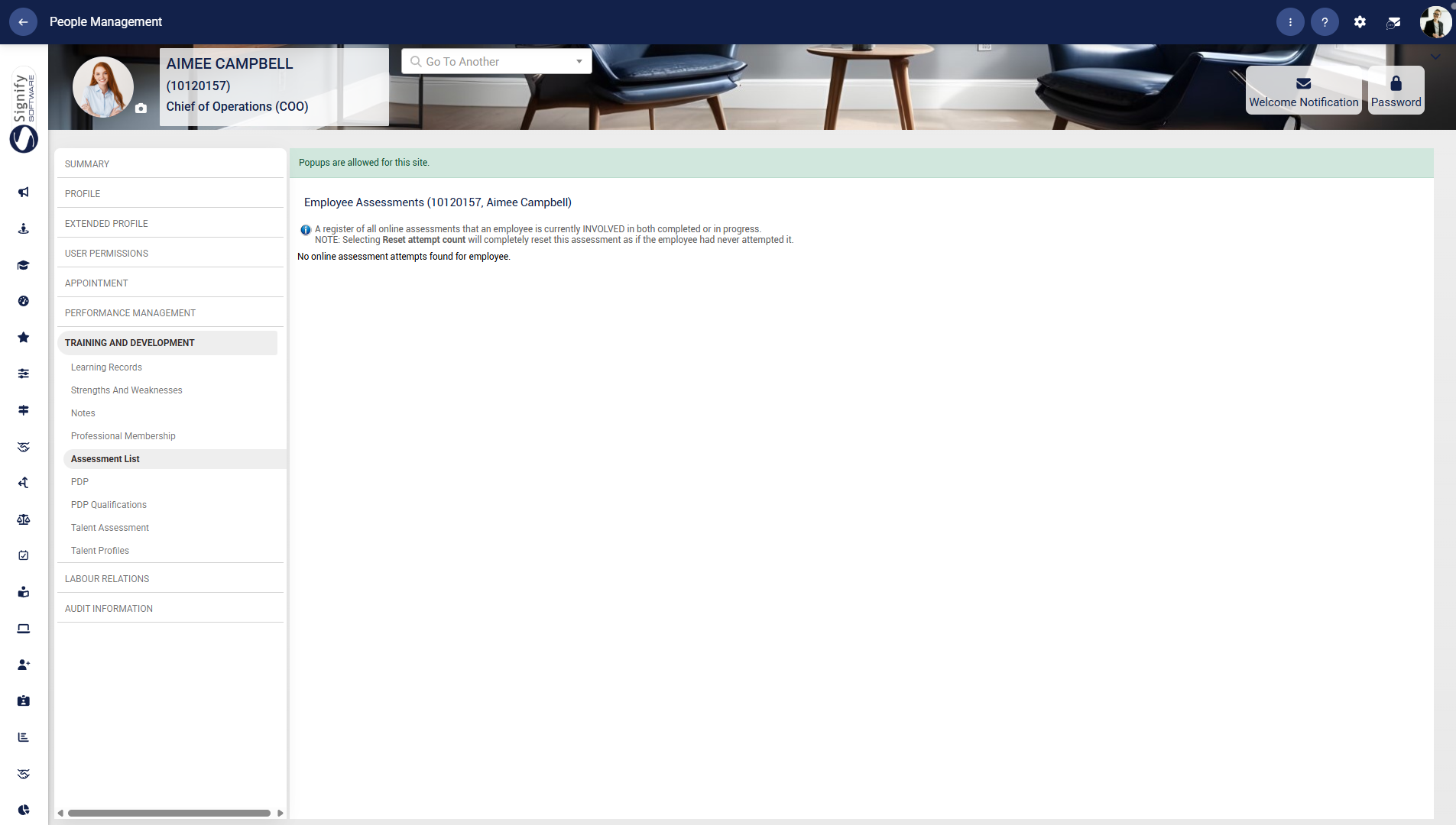
- Use the **left-hand menu** to navigate to **Assessment List** to review the employee’s online assessment information.
- Review the note on the screen carefully, as resetting assessment attempts will completely reset the assessment if the employee is involved in completed or in-progress attempts.
##### PDP
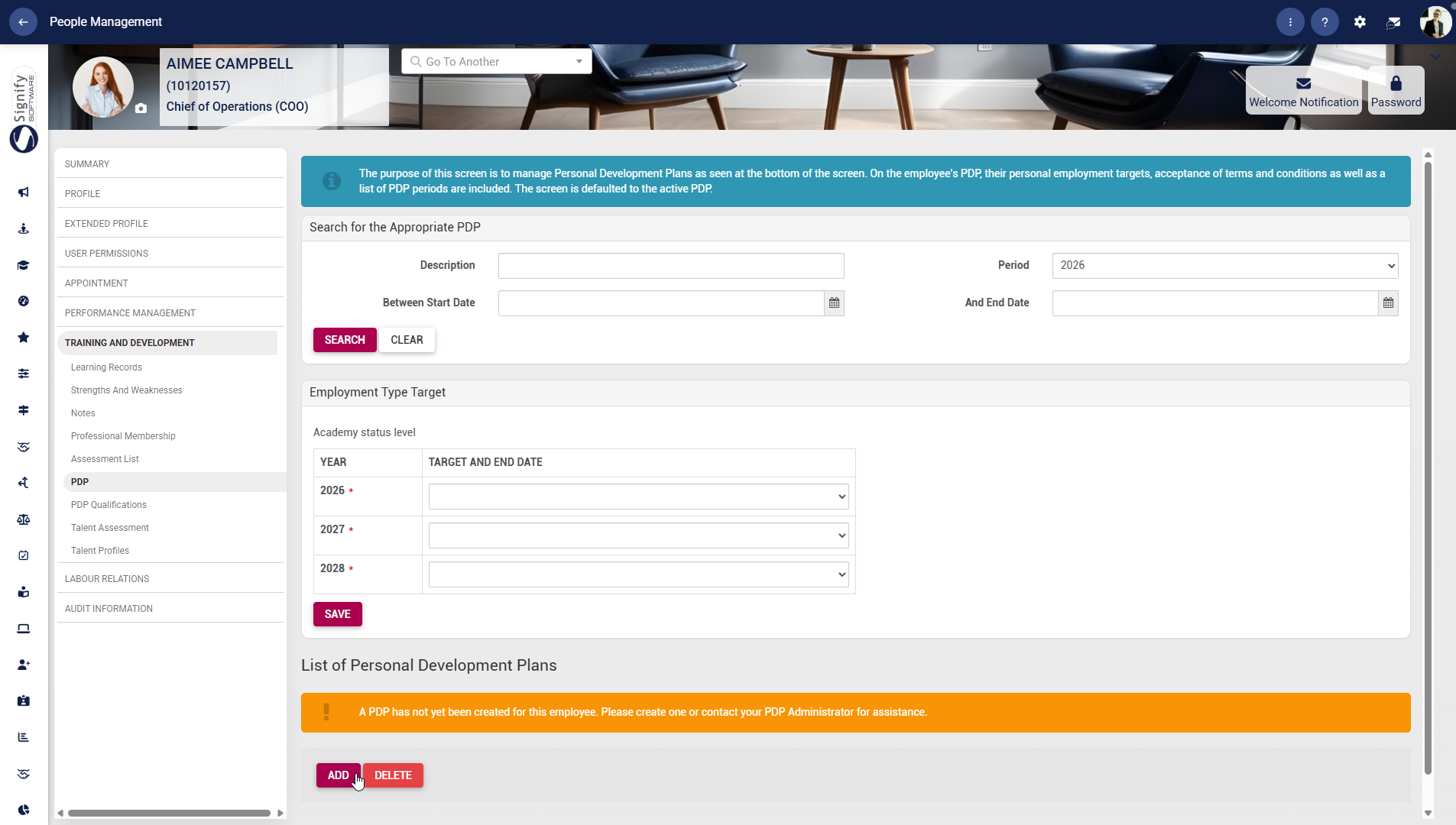
- Use the **left-hand menu** to navigate to **PDP**.
- Search for the appropriate personal development plan using the description, period, and date fields.
- Complete the employment type target section for each relevant year, then click **SAVE** to store your changes.
- Use **ADD** to create a new PDP or **DELETE** to remove one, where permitted.
##### Talent Assessment
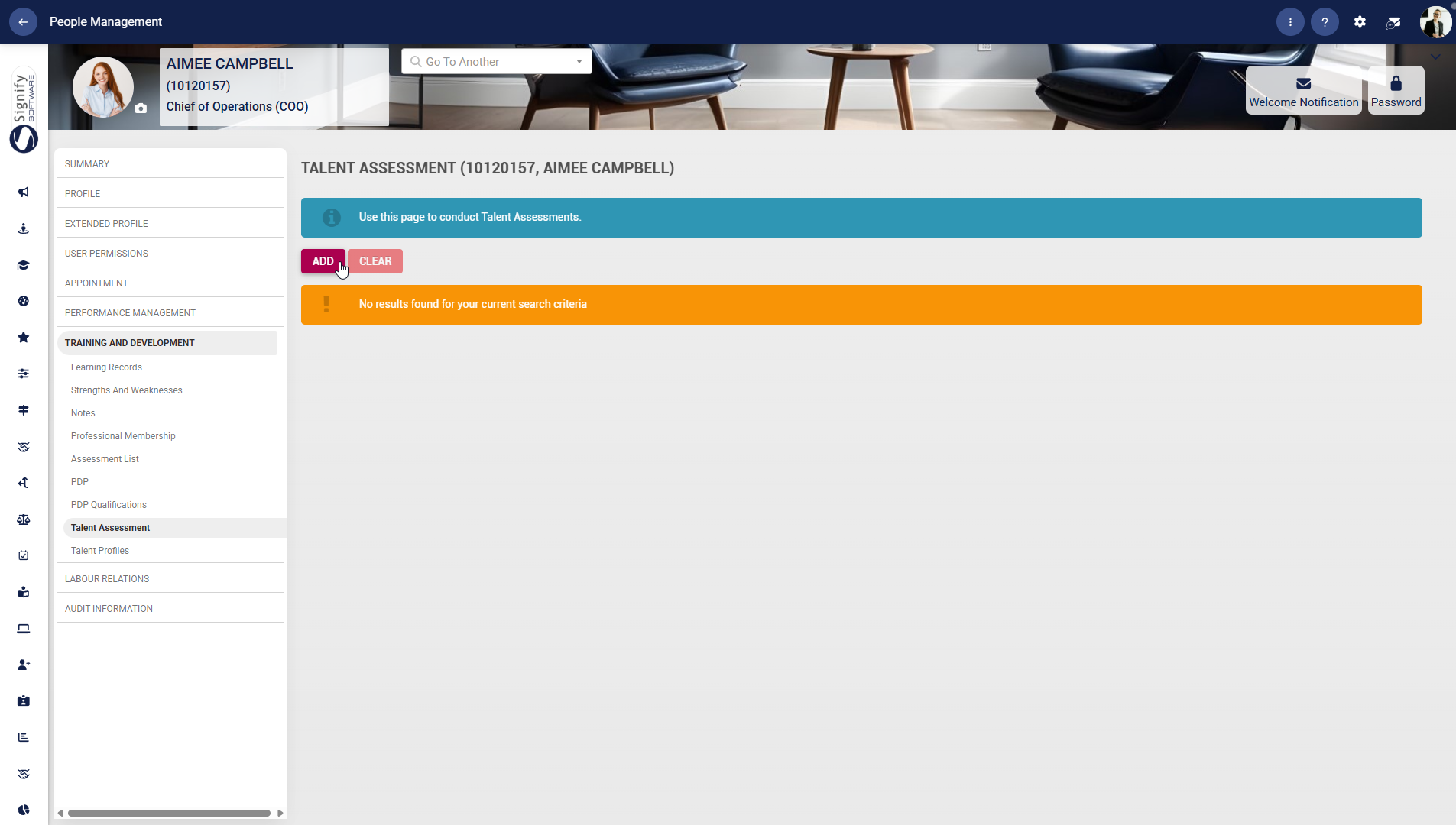
- Use the **left-hand menu** to navigate to **Talent Assessment**.
- Use the **ADD** button to start a new assessment.
- Use **CLEAR** to clear the current criteria or search results when needed.
##### Talent Profiles
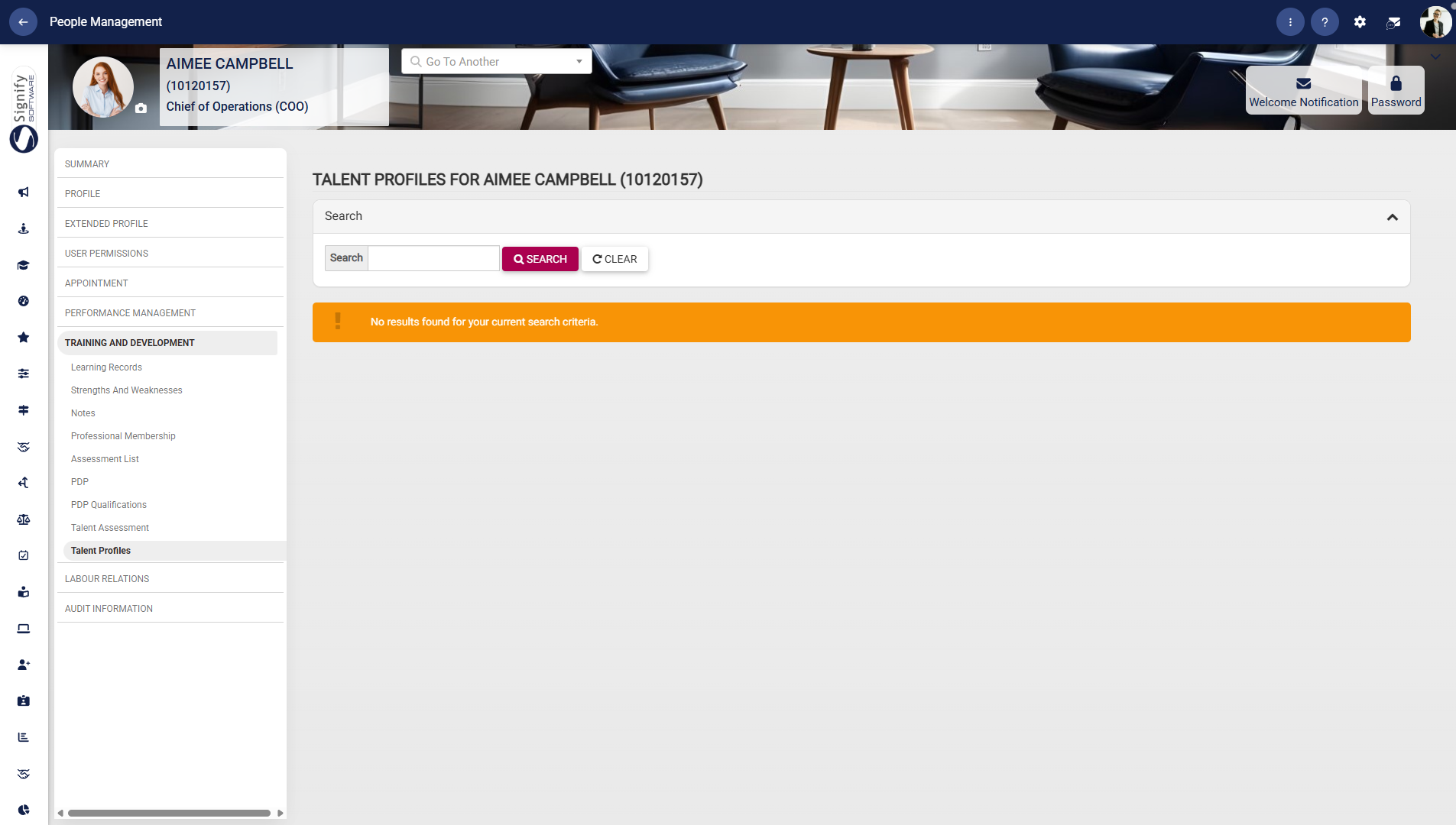
- Use the **left-hand menu** to navigate to **Talent Profiles**.
- Search for the required profile using the search field.
- Click **ADD** to create a new talent profile or **DELETE** to remove an entry, where applicable.
#### Labour Relations
##### Complaints
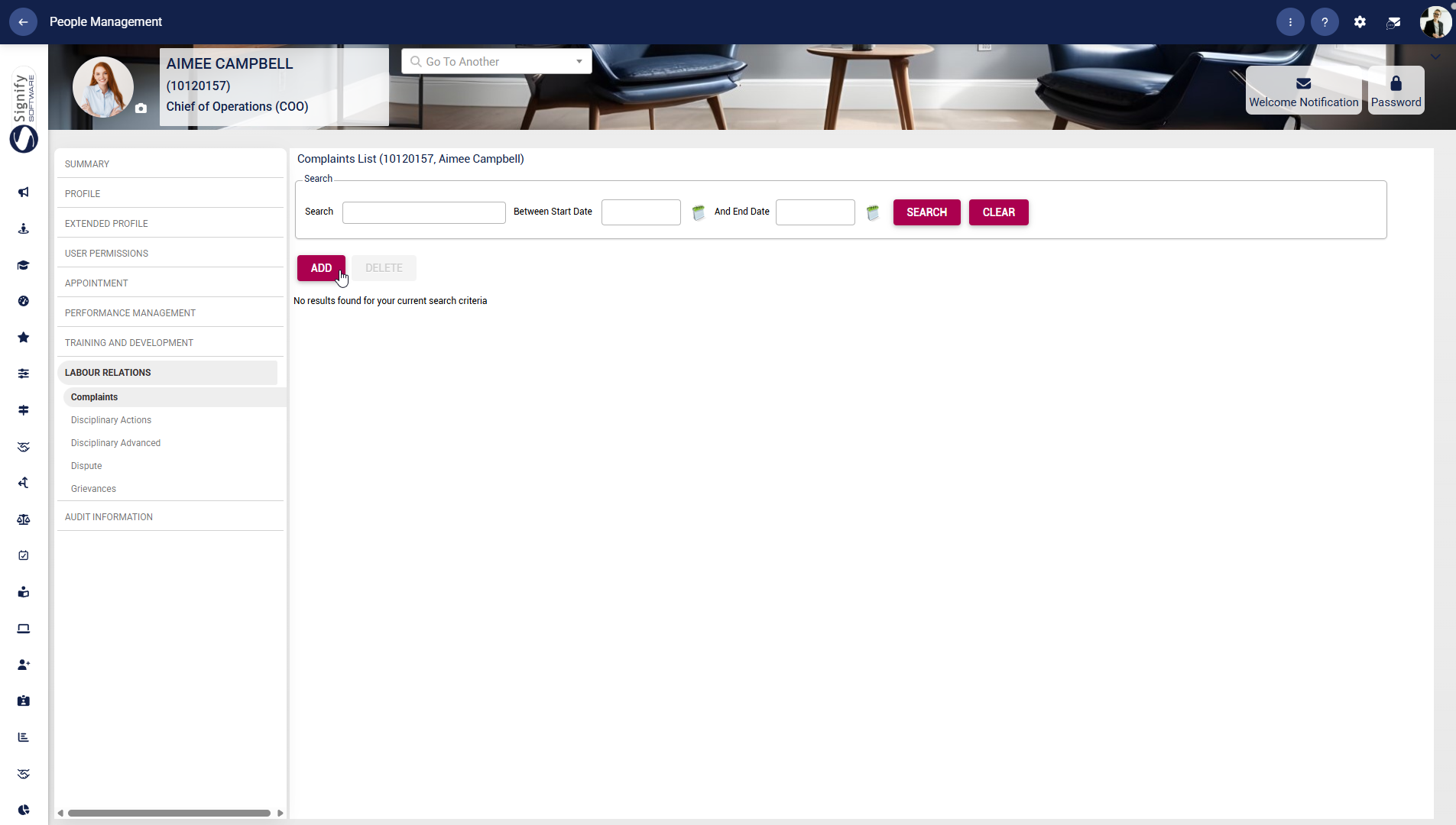
- Use the **left-hand menu** to navigate to **Complaints**.
- Use the **Search** fields to find an existing record by name or date range.
- Click **ADD** to capture a new complaint or **DELETE** to remove an entry, where permitted.
##### Disciplinary Actions
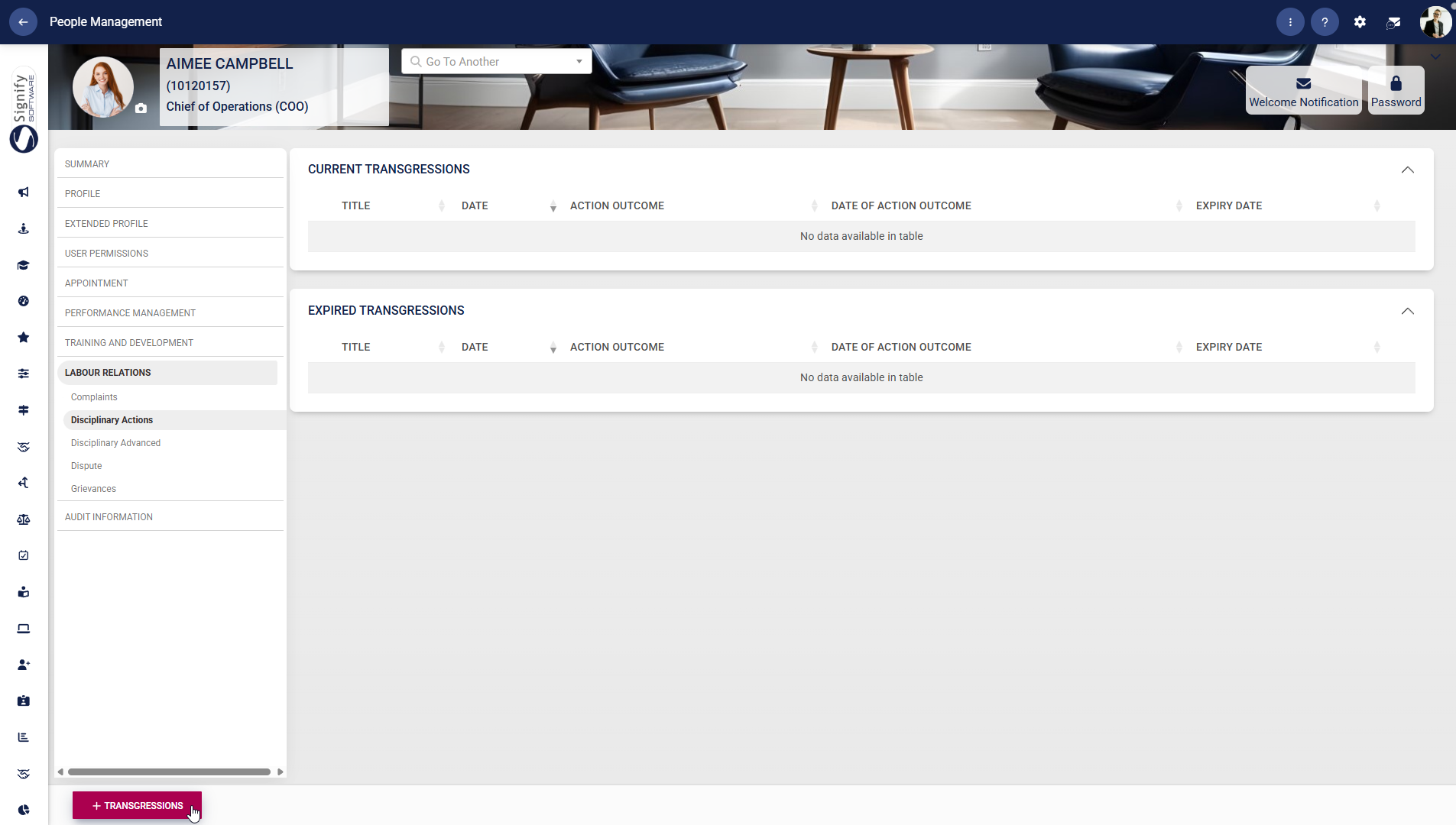
- Use the **left-hand menu** to navigate to **Disciplinary Actions**.
- Review the employee’s **Current Transgressions** and **Expired Transgressions**.
- Click **+TRANSGRESSIONS** to add a new disciplinary transgression record.
##### Disciplinary Advanced
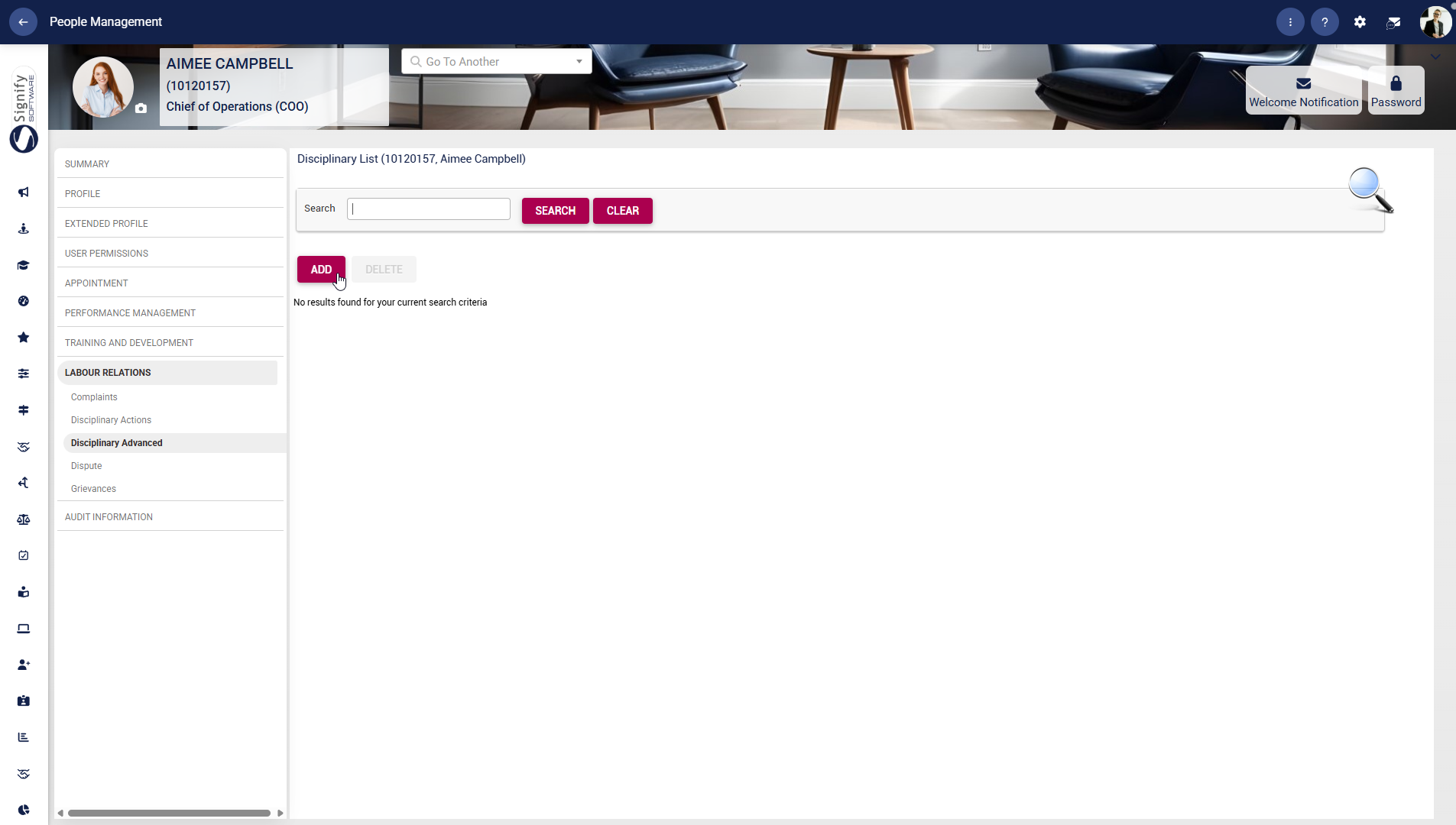
- Use the **left-hand menu** to navigate to **Disciplinary Advanced**.
- Use the search bar to find the required disciplinary record.
- Click **ADD** to create a new disciplinary entry or **DELETE** to remove an entry, where permitted.
##### Dispute
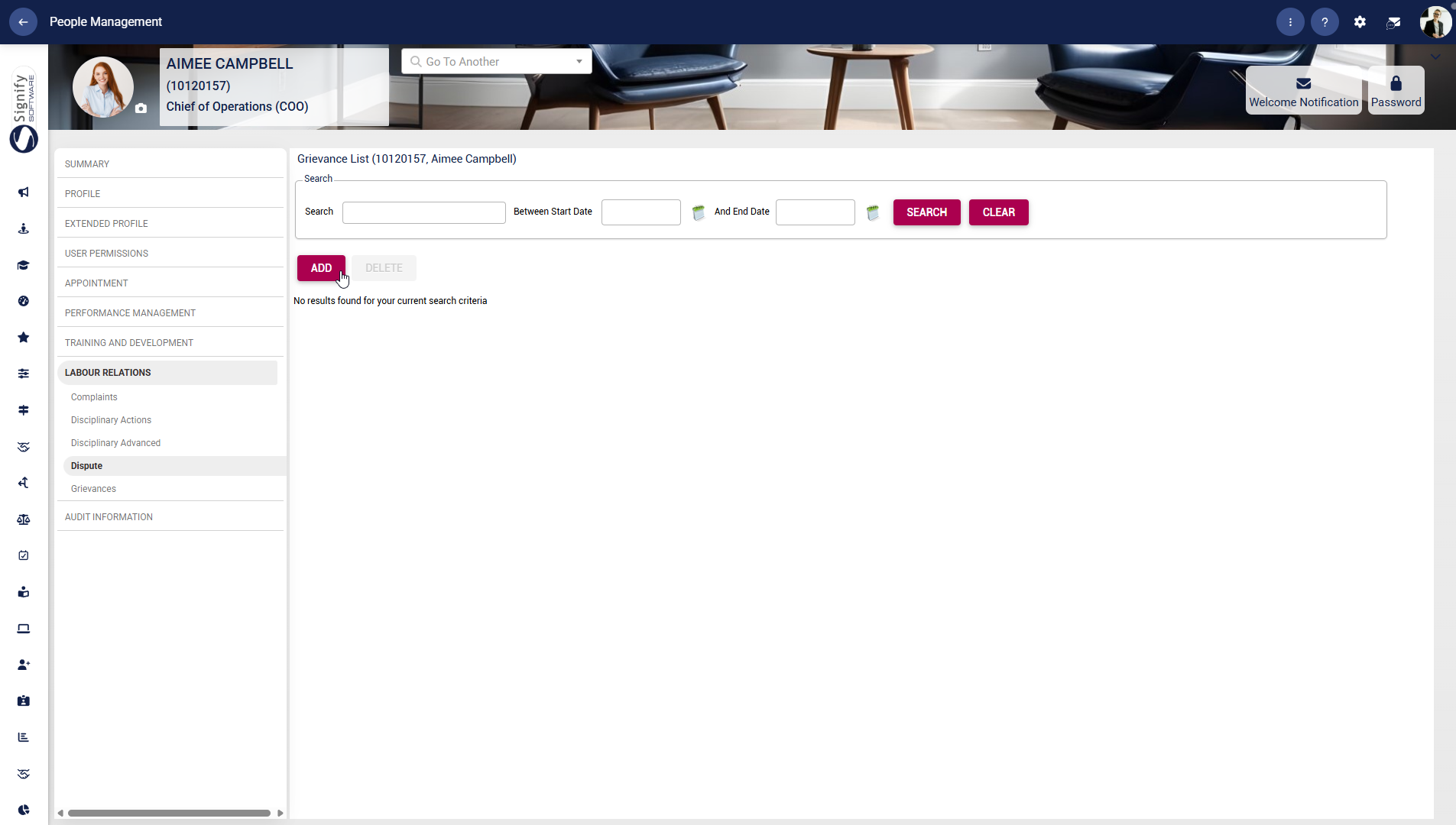
- Use the **left-hand menu** to navigate to **Dispute**.
- Use the search criteria to locate the relevant dispute record.
- Click **ADD** to create a new dispute record or **DELETE** to remove an existing one, where applicable.
##### Grievances
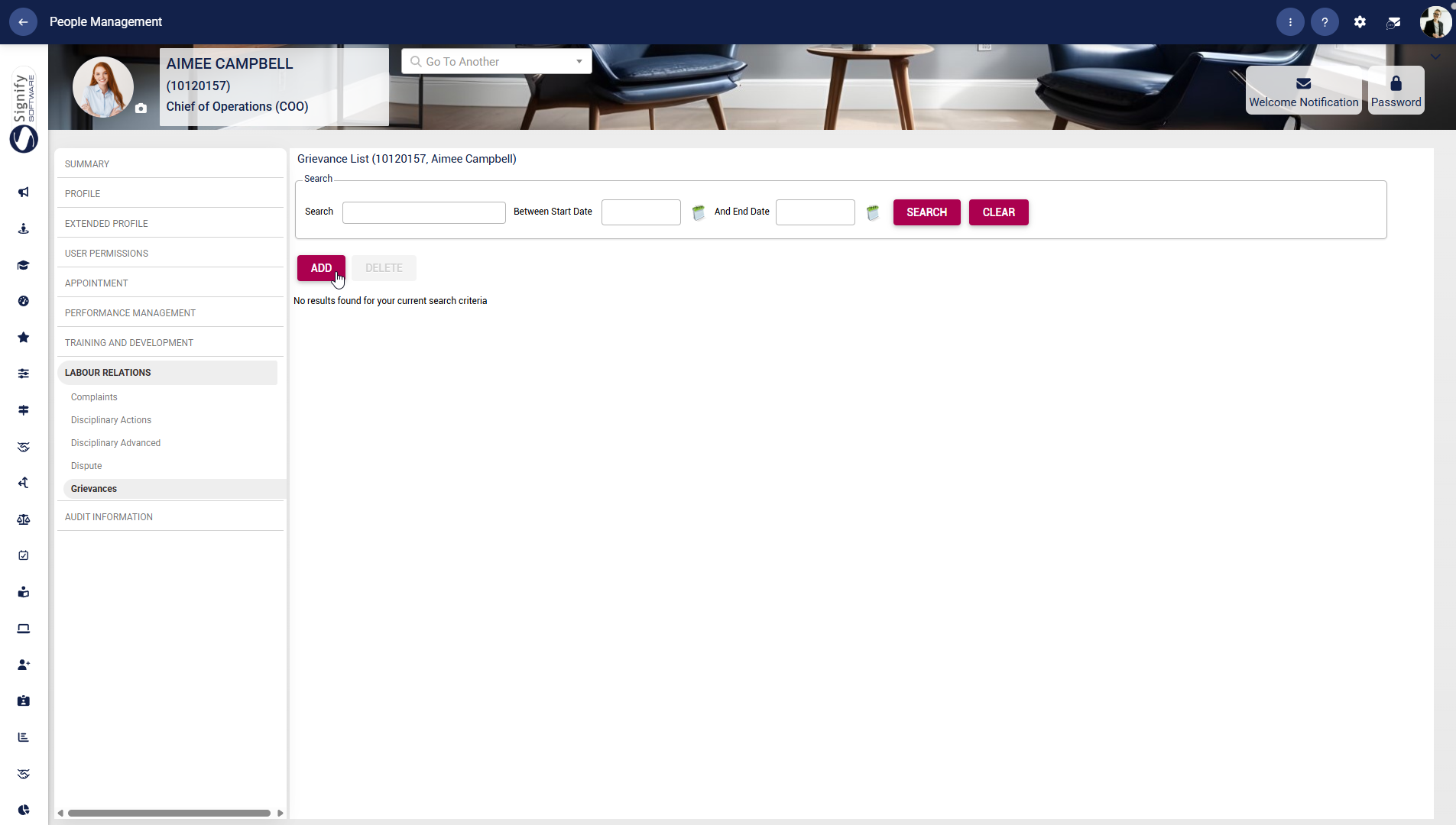
- Use the **left-hand menu** to navigate to **Grievances**.
- Use the search fields to find an existing grievance record by name or date range.
- Click **ADD** to capture a new grievance or **DELETE** to remove an entry, where permitted.
#### Audit information
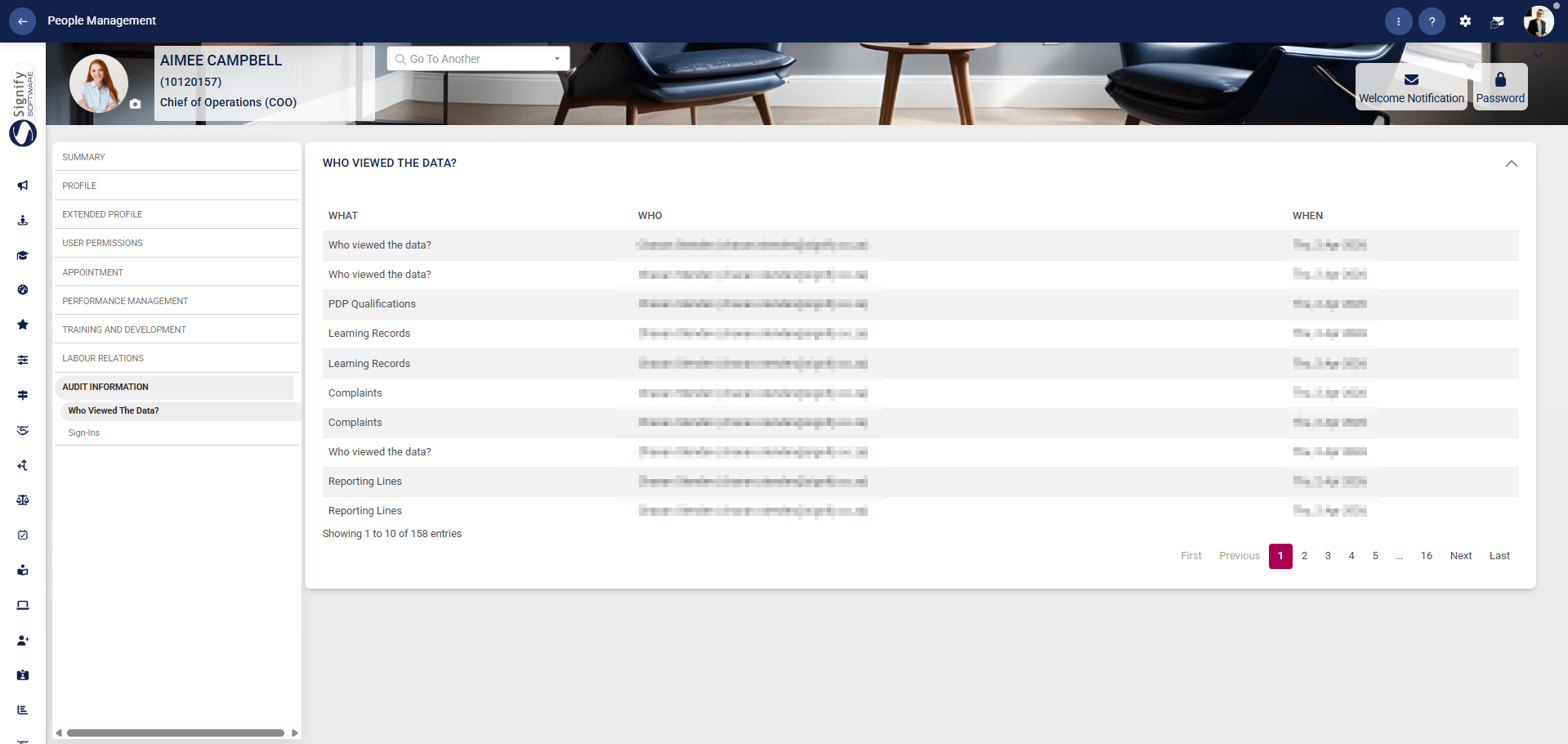
##### Who viewed the data?
Tracks access logs showing who has viewed the employee’s data, supporting transparency and compliance.
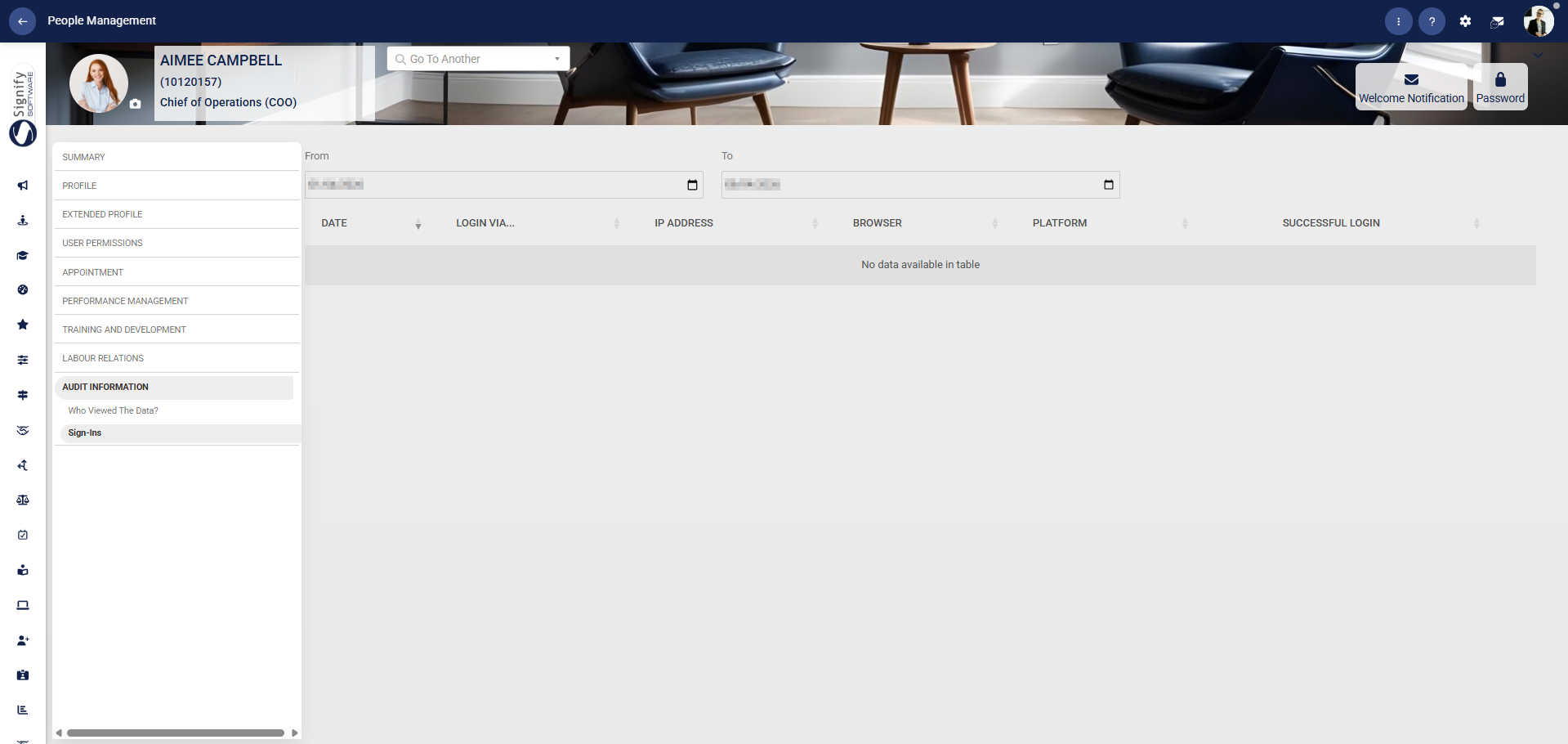
##### Sign-ins
Monitors the employee’s system access history, including login activity for security and audit purposes.
[](https://signature.signifyhr.co.za/uploads/images/gallery/2025-02/ZOt8yZwhbiGx2d6U-signify-footer.png)