Chapter 4: Using the Performance Management Module
The true value of the Performance Management module lies in how it’s used to drive individual and organisational success. This chapter offers practical guidance on the module’s key functionalities, including goal or objective setting, conducting performance reviews, and giving constructive feedback. Each section is designed to provide step-by-step instructions to help you maximise the system’s potential.
By understanding how to effectively utilise these features, you’ll empower your organisation to build a culture of continuous improvement and achieve measurable outcomes.
- Before You Start
- Creating a Performance Agreement
- Objective-Setting Phase
- Check-In Phase
- Ratings Phase
- Re-contracting Phase
- Completing the Performance Cycle
Before You Start

Before you start:
- Consider populating the Master Data Library with performance management items, which can streamline the performance management process. These library items include:
-
- Perspectives
- Key Performance Areas
- Key Performance Indicators
- Leadership Behaviours
- Values and Behaviours
- Key Competencies
-
Click here to find out how to update the Master Data Library.

- Ensure you have a clear understanding of the company goals, the employee's responsibilities and how their role fits into the overall picture.
- Base the performance objectives on SMART goals. Each objective should be:
-
- Specific
- Measurable
- Achievable
- Relevant
- Time-bound
-
- Ensure the goals support the organisational and departmental priorities.
- Select clear performance indicators.
- Finally, employees are more likely to commit to the process if they have input in setting their goals, so consider engaging in a two-way discussion.
Key elements to include:
- Performance goals and objectives
- These should be aligned with organisational priorities.
- Keep the language simple and clear.
- Avoid making goals too broad or unrealistic.
- Key Performance Indicators (KPIs)
- Select quantitative and qualitative indicators for each objective.
- Focus on the most impactful goals to avoid overloading the agreement.
- The employee's input is vital when setting targets.

- Behavioural expectations
- Include company values, as well as expected behaviours in teamwork, leadership, or communication.
- Employee support
- Consider the tools, resources, or support from management that the employee may need to succeed.
- Acknowledge that priorities may shift and that agreements should be revisited if needed.
- Think about the employee's development and their future potential.
- Review process and frequency
- Define how and when progress will be evaluated.
- Incorporate feedback loops that enable feedback to flow from the manager to the employee and vice versa.

Your feedback matters! How helpful was the support content?
Creating a Performance Agreement

The following section will guide you through creating a performance agreement. The guide assumes you do not have an existing agreement for the current performance cycle and that you wish to create one.

- Click START to create a new performance agreement.

- The Performance Management module allows a performance agreement to be created in three ways for employees.

- Managers are offered an additional option to create a performance agreement for a reportee using a template from another team member.

Click on the following tabs to expand the step-by-step instructions.
Create a blank agreement
- Click Create Blank to start creating a performance agreement from the beginning.

- Click START.

- The performance agreement screen will display, showing the different sections, though it won't include any objectives at this stage. Adding objectives is covered in the next section.

Use a performance agreement template
- Click Copy From Template to create a performance agreement based on a system template.

- Click START.

- A list of the templates currently on the system will be shown.

-
-
- Use the search bar to search for a template based on a job title or specific keywords.
-

-
-
- A tick will be displayed if the template's weights override the review setup's weights. A cross indicates that the review setup's weights will be used.
-

-
-
- To ensure you select the correct template, click the PREVIEW icon to view. The preview will open in a new tab.
-

- Choose a template you would like to copy, then click CREATE.

- The performance agreement screen will display, with the Perspective, Key Performance Area, and Key Performance Indicator fields filled in from the template.

Copy from a previous agreement
- Click Copy From Previous to create a performance agreement based on an agreement from a previous performance cycle.

- Click START.

- A list of the performance agreements from previous review periods will be shown.

-
-
- To ensure you select the correct performance agreement, click the PREVIEW icon to view. The preview will open in a new tab.
-
- Select the performance agreement you would like to copy, then click CREATE.

- The performance agreement screen will display, with the Perspective, Key Performance Area, and Key Performance Indicator fields filled in from the previous agreement.
Copy an agreement from another employee (Managers only!)
- Click Copy From Another to create a performance agreement based on another employee's agreement.

- Click START.

- A list of the other employees in your team's performance agreements will be shown. These agreements are from the current and previous review periods.

-
-
- To ensure you select the correct performance agreement, click the PREVIEW icon to view the agreement. The preview will open in a new tab.
-
- Select the performance agreement you would like to copy, then click CREATE.

- The performance agreement screen will display, with the Perspective, Key Performance Area, and Key Performance Indicator fields filled in from the other employee's performance agreement.

Your feedback matters! How helpful was the support content?
Objective-Setting Phase

The Objective-Setting Phase Explained
When creating a performance agreement, it is important to understand the WHY. Why is it important to set objectives?
The answer is simple: to bring clarity. Having a clearly outlined goal makes it easier for managers and employees alike to achieve success. For helpful tips on approaching the objective-setting phase, please visit the Before You Start page.
The following guide will help you in setting your objectives, and will assume you are using all of the following sections in a performance agreement:
- Primary Goals
- Perspectives (optional)
- Key Performance Areas
- Key Performance Indicators
- Key Performance Areas
- Perspectives (optional)
- Stretch Goals (optional)
- Perspectives (optional)
- Key Performance Areas
- Key Performance Indicators
- Key Performance Areas
- Perspectives (optional)
- Values and Behaviours (optional)
- Leadership Behaviours (optional)
- Key Competencies (optional)
The Performance Management module is modular and can be configured to suit your unique performance management processes. For examples of how different combinations of review setup settings work, or of different performance management configurations, please see the Tips and Use Cases chapter.

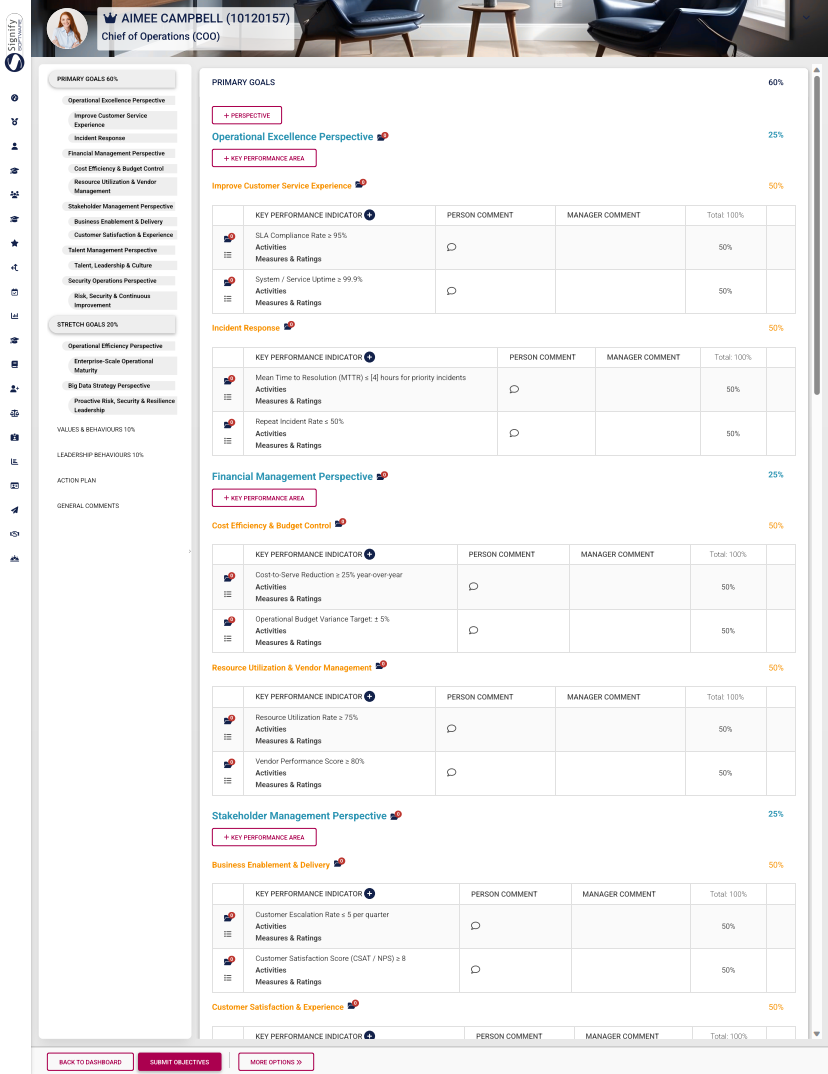
Below is an example of a complete performance agreement that uses all available sections.
- It has been populated with perspectives, KPAs, KPIs, and assigned weights.
- The side menu provides an overview of the performance agreement and allows easy navigation between its sections.
Our Example's Settings
Based on your review setup, you may be using some (or all) of the aforementioned performance agreement sections. Not all sections are mandatory. If a section (such as Stretch Goals) or a feature (such as Perspectives) does not apply to your review setup, you can skip its tutorial and proceed to the next step.
For our example, the following review setup settings have been enabled:
Additionally, the automatic distribution of item weights has been enabled for all settings:
The setting to add or delete items on a list (such as the Values and Behaviours list) has been disabled:
How to Complete the Objective-Setting Phase
Expand the following collapsible blocks to learn more.
PRIMARY GOALS
Primary Goals
Overview of the process

Add perspectives
- For this tutorial, we will assume you selected Create Blank when creating the performance agreement.
- The blank performance agreement will be populated with the sections that have been activated in the review setup's configuration. Please note, the red headings in the menu on the left show that information is missing, such as missing perspectives, KPAs, KPIs, or unbalanced weights. The weights of unbalanced sections will also flash red.
- Click +PERSPECTIVE to add a perspective.
- Select a perspective which has been loaded to the Master Data Library.
- Assign a weight to the perspective, then click SAVE ADD NEW to continue adding more perspectives.
- Once you have finished adding all the perspectives, your agreement should look something like this:
- Ensure all the perspective weights in this section add up to 100%.
- To delete a perspective, hover over its title, then click the dustbin icon.
- A perspective can be tagged for discussion with your manager by clicking the tag icon.
- Your manager will receive a message in their system inbox regarding your query.
- Documents linked to a specific performance agreement item can be viewed by clicking on the folder icon.
- Linked documents will display in the table on the Documents screen.
Add KPAs
- Click +KEY PERFORMANCE AREA to add a KPA.
- Either type your own KPA or select one from the Master Data Library.
- If using Master Data Library items, click on the hand icon to search for a KPA.
- Click on the KPA you would like to link.
- Assign a weight. Click SAVE ADD NEW to keep adding additional KPAs for this perspective, or SAVE if you are done.
- Ensure all the weights of the KPAs linked to a specific perspective add up to 100%.
- To delete a KPA, hover over its title, then click the dustbin icon.
- A KPA can be tagged for discussion with your manager by clicking the tag icon.
- Your manager will receive a message in their system inbox regarding your query.
- Documents linked to a specific KPA can be viewed by clicking on the folder icon.
- Linked documents will display in the table on the Documents screen.
Add KPIs
- Click the plus icon next to KEY PERFORMANCE INDICATOR to add a KPI.
- Either type your own KPI or select one from the Master Data Library.
- If using Master Data Library items, click on the hand icon to search for a KPI.
- Click on the KPI you would like to link.
- If the weights are automatically distributed (based on your review setup's settings), the KPI's weight will be calculated automatically.
- If this setting is switched off, you should assign a weight to this KPI. For more information on review setup settings, click here.
- If a rating scale has been configured on your review setup's settings, you can click to insert this pre-saved rating scale, or choose to construct your own. For more information on rating scales, click here.
- If interpolation has been activated for this review setup, you can choose to interpolate the scores of this KPI if required.
- For example, if the KPI requires selling more than 10 cars a month, you can use interpolation to calculate the scores of employees who sold 13, 20, 30, or 40 cars a month.
- During the Rating phase, you would enter how many cars were sold, and the system would automatically calculate a rating for this KPI.
- For more information on how this works, click here.
- Click SAVE ADD NEW to keep adding additional KPIs for this perspective, or SAVE if you are done.
- Check to ensure the KPI weights are balanced for this section. There are two possible settings for KPI weights:
- The Key Performance Indicator weights must add up to 100% per Key Performance Area setting is on, as shown in our example, and you need to adjust the weights accordingly (if the auto-distribute weights setting has been switched off).
OR
-
- The Key Performance Indicator weights must sum to 100% across the entire section setting is on, and you need to adjust the weights accordingly (if the auto-distribute weights setting has been switched off).
If you are unsure which setting is active, please contact your performance management administrator.
- To delete a KPI, hover over it and click the dustbin icon.
- A KPI can be tagged for discussion with your manager by clicking the tag icon.
- Your manager will receive a message in their system inbox regarding your comment or query.
- Hovering over a KPI will show its activities, measures, and ratings.
- Documents linked to a specific KPI can be viewed by clicking on the folder icon.
- Linked documents will display in the table on the Documents screen.
- Click UPLOAD to upload a document linked to a specific KPI.
- Click LINK DOCUMENT to link a document from an external storage location, such as Google Drive, OneDrive, or SharePoint.
- Back on the objective setting screen, click to link an action plan to a specific KPI.
- The details of the action plan can be captured on the pop-up screen.
- If training is required for this KPI, a training intervention can be linked from the Training Intervention Library.
- A comment may be added to a KPI by the manager or the employee.
-
It is important to ensure your weights for this section are correct.
-
If your weights of perspectives, KPAs, or KPIs are unbalanced, you will receive the following error message when attempting to submit your objectives:
STRETCH GOALS
Stretch Goals
Overview of the process

Add perspectives
The process for adding perspectives in the Stretch Goals section is the same as Primary Goals. Click here to jump to the tutorial.
Add KPAs
The process for adding KPAs in the Stretch Goals section is the same as Primary Goals. Click here to jump to the tutorial.
Add KPIs
The process for adding KPIs in the Stretch Goals section is the same as Primary Goals. Click here to jump to the tutorial.
For more information regarding the settings used to configure Stretch Goals, click here. Once completed, your Stretch Goals section may look similar to our example below:
VALUES AND BEHAVIOURS
Values and Behaviours
The objectives in this section are automatically populated when the performance agreement is created. For more information regarding the settings used to configure Values and Behaviours, click here.
Once completed, your Values and Behaviours section may look similar to our example below:
- If the addition or deletion of items to the list has been enabled, you may link additional items to the performance agreement. Click here to find out how to update the Master Data Library. You can hover over an item and click the dustbin icon to delete it. In our example, this setting has been disabled.
- If the auto-distribution of weights setting has been enabled, the system will automatically assign a weight to each item in the list. However, if this setting has been disabled, please ensure the weights of the items in this list add up to 100%. In our example, this setting has been enabled.
- A Values and Behaviours item can be tagged for discussion with your manager by clicking the tag icon.
- Your manager will receive a message in their system inbox regarding your comment or query.
- Documents linked to a specific Values and Behaviours item can be viewed by clicking on the folder icon.
- Linked documents will display in the table on the Documents screen.
- Click UPLOAD to upload a document.
- Click LINK DOCUMENT to link a document from an external storage location, such as Google Drive, OneDrive, or SharePoint.
- Back on the objective setting screen, click to link an action plan to a specific Values and Behaviours item.
- The details of the action plan can be captured on the pop-up screen.
- If training is required for this Values and Behaviours item, a training intervention can be linked from the Training Intervention Library.
- A comment may be added to a Value or Behaviour by the manager or the employee.
LEADERSHIP BEHAVIOURS
Leadership Behaviours
The objectives in this section are automatically populated when the performance agreement is created. For more information regarding the settings used to configure Leadership Behaviours, click here.
Once completed, your Leadership Behaviours section may look similar to our example below:
- If the addition or deletion of items to the list has been enabled, you may link additional items to the performance agreement. Click here to find out how to update the Master Data Library. You can hover over an item and click the dustbin icon to delete it. In our example, this setting has been disabled.
- If the auto-distribution of weights setting has been enabled, the system will automatically assign a weight to each item in the list. However, if this setting has been disabled, please ensure the weights of the items in this list add up to 100%. In our example, this setting has been enabled.
- A Leadership Behaviours item can be tagged for discussion with your manager by clicking the tag icon.
- Your manager will receive a message in their system inbox regarding your comment or query.
- Documents linked to a specific Leadership Behaviours item can be viewed by clicking on the folder icon.
- Linked documents will display in the table on the Documents screen.
- Click UPLOAD to upload a document.
- Click LINK DOCUMENT to link a document from an external storage location, such as Google Drive, OneDrive, or SharePoint.
- Back on the objective setting screen, click to link an action plan to a specific Leadership Behaviours item.
- The details of the action plan can be captured on the pop-up screen.
- If training is required for this Leadership Behaviours item, a training intervention can be linked from the Training Intervention Library.
- A comment may be added to a Leadership Behaviour by the manager or the employee.
KEY COMPETENCIES
Key Competencies
The settings governing the Key Competencies section is explained here.
- Click to link key competencies to the performance agreement.
- A key competency can be selected from the Master Data Library, or you can type your own.
- Add a description, appropriate measures, and a rating scale for this competency.
- Click to activate interpolation for this item.
- Click SAVE ADD NEW to add an additional item, or click SAVE if you are done.
- Once you have completed the key competencies section, your performance agreement may look something like this:
- Documents may be linked to key competency items, as well as action plans.
- A comment may be added to a Key Competency by the manager or the employee.
ACTION PLAN
Action Plan
An action plan can be linked to a performance agreement, with actionable steps and milestones to track progress.
- To create an action plan, click +ACTION. A previous action plan item may also be copied to the current performance agreement.
- The details of the action plan can be captured on the pop-up screen.
- If training is required for this action plan, a training intervention can be linked from the Training Intervention Library, or you may type your own.
GENERAL COMMENTS
General Comments
General comments, from the employee as well as the manager, can be made on the performance agreement. Click +GENERAL COMMENT to add a new comment.
Submitting Your Objectives
To ensure you are ready to submit your objectives, ask yourself the following questions:
- Have you completed all the sections of the performance agreement with suitable objectives?
- Does each objective have the correct weight assigned?
- Are the weights for each section correct?
- Have you uploaded supporting documents for your objectives where needed?
- Have you added comments to your objectives where needed?
- Have you added action plans to specific objectives where needed?
- If applicable, have you added a general action plan to the performance agreement?
- If necessary, have you added general comments to the performance agreement?
If you have gone through this list and double-checked your performance agreement, you can use the toolbar at the bottom of the screen to finalise your objectives:
- If you would like to edit the section weights of the performance agreement, click EDIT SECTION WEIGHTS.
- If you would like to view or print the performance agreement, click VIEW/PRINT. The performance agreement will open in a new tab.
- The performance agreement can be exported to Excel as a spreadsheet by clicking EXPORT.
- Save the document.
- Print the document using the print dialogue.
- Back on the performance agreement screen, click SUBMIT OBJECTIVES if you are ready to submit the performance agreement for approval.
- A confirmation message will appear, indicating that your performance manager will be notified of your submission. Click the I acknowledge & agree toggle, then click SUBMIT.
- The employee's Performance Management dashboard will indicate that they have successfully submitted their objectives.
- Upon submitting their objectives, the employee's performance manager will receive the following email automatically:
- The performance manager can review the performance agreement, make necessary edits, submit comments, initiate discussions, and adjust weights as needed.
- Once they have finished their reviews, they can click SUBMIT OBJECTIVES.
- A confirmation message will appear, indicating that the objectives will be locked for editing. Toggle the I acknowledge & agree switch to select, then click SUBMIT.
- The employee will then receive this email, indicating that the manager has approved their objectives:
- The manager's dashboard will show that the performance agreement has moved to the next phase, which is the Check-In Phase.
Editing Your Objectives
- The employee will be unable to modify their objectives unless the manager clicks MODIFY OBJECTIVES on their Performance Management dashboard. Hover over the three dots next to the employee's profile picture to access this menu.
- Modifying the objectives will unapprove them, allowing the employee to modify and resubmit them. The manager must then reapprove them. Click the I acknowledge & agree toggle, then click SUBMIT.
- The employee will also receive an email notifying them that their performance manager has modified the objective settings.
Viewing or Printing the Performance Agreement
- If you would like to view or print the performance agreement, hover over the three dots next to the employee's profile picture to access this menu. Click VIEW/PRINT.
- The performance agreement will open in a new tab.
- The performance agreement can be exported to Excel as a spreadsheet by clicking EXPORT.
- Save the document.
- Print the document using the print dialogue.
Next Steps
The next phase of the performance management process has started: the Check-In Phase. Your performance manager may contact you to discuss your performance during a check-in. Use this time wisely and ensure check-ins happen regularly. For more information, proceed to the next part of this chapter.
Check-In Phase
The Check-In Phase Explained
Once performance objectives have been submitted and approved, the Check-In Phase will start.
This is an integral part of the performance management process, as it provides time for employees to work on achieving the objectives in their performance agreements, while managers can monitor their progress and provide feedback.
The Performance Management module's check-in functionality works best when paired with one-on-one discussions between employees and managers. By digitally recording content from check-ins, employees have a reference point, and managers can efficiently track the employee's progress. However, check-ins in the Performance Management module are not mandatory and can be disabled.
Remember, a performance management process is not one-size-fits-all; it is imperative that employees and managers discuss how they will approach it.
Activating Check-Ins
- As an administrator or a person with access, navigate to the Performance Management module.
- Click on the Setup and Configuration menu.
- Click on Product Setup.
- Click on the Review Years tab.
- Click the review year to which the review setup is linked that you would like to activate check-ins for.
- The Details screen of the review year will appear. Click Review Setups in the menu on the left.
- Click on the review setup you would like to activate check-ins for.
- The review periods for the review setup will appear. Toggle the switch next to check-ins to activate or deactivate check-ins.
- Click SAVE when you are done.
Conducting a Check-In
For our example, we will assume that Emily Collins, the performance manager, will kick off the check-in phase with her reportee, Christoph Sutherland.
- The manager should navigate to the Performance Management dashboard and find the employee's contract under the My Team tab.
- Click CHECK-IN.
- The employee's performance agreement will open. At the top of the screen, the check-in statistics banner will provide the following information:
-
- The number of objectives to discuss.
- The number of objectives that were discussed during the last two weeks during a check-in.
- The number of objectives that were discussed more than two weeks ago during a check-in.
- The number of objectives for which no check-in has been done yet.
The manager does not need to review all the objectives at each check-in. Select a few objectives and provide feedback, then select another set of objectives for the next check-in.
- The centre section contains all the objectives of the performance agreement, the date of the last review, and comments from the manager and the employee.
- To add a comment on an objective during a check-in, click on the desired KPI.
- A message will confirm that the comment has been successfully saved.
- If you would like to edit a previous check-in comment, click on the KPI where you have entered the comment. When the check-in screen appears, click EDIT LAST COMMENT.
- Adjust your check-in comments as necessary, then click SAVE.
- Your historical comments will be displayed when you click on the KPI.
- Historical comments, the last check-in date, and the previous rating will display on the main check-ins screen.
Reviewing a Check-In
- From the employee's perspective, their Performance Management dashboard will notify them that their manager has conducted a check-in. The employee can click the CHECK-IN button to view their manager's comments.
- When opening their performance agreement, the employee will see the check-in statistics banner, the navigation menu, and their objectives.
- The employee can review their manager's comments and add their own comments to each objective. Click a KPI to open the check-in menu.
- Add your own comment, then click SAVE. Your comment will display on the main check-in screen.
- To edit your comment on an objective, click the KPI and then click EDIT LAST COMMENT.
- Update your comment, then click SAVE.
- Click BACK TO DASHBOARD to return to the Performance Management dashboard.
- The number of check-ins will appear in the dashboard's overall summary section.
Check-In Notification Emails
The system automatically sends the following emails for check-ins:
- For managers:
- A reminder email once the start date of the check-ins has been reached.
- For managers and employees:
- A reminder email of the check-in deadline.
- The date when this email will be sent can be configured at the same location where check-ins can be activated or deactivated.
- Managers' emails will look like this:
- A reminder email of the check-in deadline.
-
-
- Employees' emails will look like this:
-
Next Steps
The next phase of the performance management process is the Ratings Phase. For more information, proceed to the next part of this chapter.
Ratings Phase
The Ratings Phase Explained
The Ratings Phase of the performance management process focuses on evaluating the employee based on the objectives specified in their performance agreement. If the dual participation option is enabled in the review setup, both the employee and the manager will be involved in the rating process. However, if this option is disabled, only the manager will enter the details into the Performance Management module, while the employee will be able to review them.
For our example, the following review setup settings have been enabled:
For our example, we will assume that Emily Collins, the performance manager, and her reportee, Christoph Sutherland, will complete the Ratings Phase together.
Please note: since the dual participation setting has been activated for our example, we will explain both the employee's and the manager's roles in the process. If this setting does not apply to your review setup, you may skip the sections explaining the employee's involvement. Moreover, Emily can complete the manager rating and the final rating simultaneously. This means Emily can view Christoph's comments for each objective while she is rating him, but not his self-rating score.
Employee Self-Rating
- The employee will start the Ratings Phase by completing their self-rating on each of their objectives. Navigate to the Performance Management dashboard, locate the performance agreement, and click the RATE button.
- The employee's performance agreement will open. The left-hand menu may be used for navigation, and the objectives are listed in the centre. The summary banner at the top of the screen shows the person's average rating based on the weights for each KPI that has been rated.
- Click here to start a discussion with your manager about a selected objective.
- Your manager will receive a message in their system inbox.
- Click RATE to start rating an objective.
- The ratings menu will appear. Click on a rating for the KPI, and add a suitable comment.
- Scrolling down will display the historical comments from the objective-setting and check-in phases. It can be useful to review these before submitting your KPI rating.
- If you are ready to submit your rating for this KPI, click SAVE.
- Your rating and comment will appear on the main ratings screen.
- As you proceed through the self-rating process, your calculated self-rating score in the summary banner will change based on the KPI's weight in the performance agreement.
- To modify your rating for a particular objective, click CHANGE.
- Update your comment or rating, then click SAVE.
- For KPIs using interpolation, type in the actual value. The system will automatically calculate the rating for this objective, based on the configured interpolation rating scale.
- Once you have rated each objective, click APPROVE PERSON SELF-RATING.
- A warning message will appear, notifying the employee that submitting the ratings will lock the agreement for editing and notify their manager. To proceed, click to acknowledge and agree, then click SUBMIT.
- If objectives in the agreement have not been rated, the employee will not be able to submit their ratings. Please review the performance agreement carefully, ensure each objective has been rated, and resubmit the self-ratings.
- The manager will receive an automated email from the system notifying them to proceed with the manager ratings.
- The employee's dashboard will show that their performance agreement status is now completed. They can click VIEW to review their performance agreement as they wait for their manager to complete their ratings.
- Viewing the submitted performance agreement will show the rating and comment for each objective, as well as the employee's self-rating score. To modify self-ratings, click MODIFY PERSON'S SELF-RATING.
- A warning message will ask the employee to acknowledge and agree that their manager will be notified of these changes. To proceed, click to acknowledge and agree, then click SUBMIT.
- The manager will receive an automated email from the system notifying them that the employee has modified their self-ratings.
Manager Rating and Final Rating
- The manager should navigate to the Performance Management dashboard and find the employee's contract under the My Team tab. The performance agreement's status will show that the employee has submitted their self-rating, and the manager should proceed with the manager's rating.
- Click RATE next to the employee's performance agreement.
- The employee's performance agreement will open. The left-hand menu may be used for navigation, and the objectives are listed in the centre. The summary banner at the top of the screen shows the person's average rating based on the weights for each KPI that has been rated.
- Click here to start a discussion with your employee about a selected objective.
- Click RATE to start the manager's rating of an objective.
- Scrolling down will display the historical comments from the objective-setting and check-in phases. It can be useful to review these before submitting your ratings. If you are ready to submit your rating for this KPI, click SAVE.
- Your ratings and comments will appear on the main ratings screen. As you proceed through the rating process, your calculated manager rating and final rating scores in the summary banner will change based on the KPI's weight in the performance agreement.
- To modify your rating for a particular objective, click CHANGE.
- Update your comment or rating, then click SAVE.
- For KPIs using interpolation, type in the actual value. The system will automatically calculate the rating for this objective, based on the configured interpolation rating scale.
- Once you have rated each objective, click APPROVE FINAL RATING.
- A warning message will appear, notifying the manager that submitting the ratings will lock the agreement for editing. To proceed, click to acknowledge and agree, then click SUBMIT.
- If you have omitted a rating for an objective, an error message will appear. Please review the performance agreement carefully and add the missing rating(s).
- The employee will receive an automated email from the system notifying them that their manager has submitted their final ratings.
- The manager's dashboard will show that their employee's performance agreement status is now completed. They can hover over a specific review period to view the performance agreement.
- Viewing the submitted performance agreement will show the rating and comment for each objective, as well as the three scores for this review period:
- The employee's self-rating score,
- The manager's rating, and
- The final rating.
- To modify the final ratings, click MODIFY FINAL RATING.
- A warning message will ask the manager to acknowledge and agree that the performance agreement's ratings will be unapproved. To proceed, click to acknowledge and agree, then click SUBMIT.
Ratings Notification Emails
The system automatically sends the following emails for the Ratings Phase:
Next Steps
The first review period of the performance management cycle has been completed. If a second review period has been created for the review year, the next phase is the Recontracting phase. Navigate to the next section for more information.
Re-contracting Phase
The Recontracting Phase is similar to the objective-setting phase described earlier, with one key difference: a performance agreement has already been completed for the current performance year, and now a new one needs to be established. This guide assumes that you do not have an existing agreement for the current review period and that you want to create a new one.
- Click START to create a new performance agreement.
- The Performance Management module allows employees to create a performance agreement in three ways.
- Managers are offered an additional option to create a performance agreement for a reportee using a template from another team member.
Click on the following tabs to expand the step-by-step instructions.
Create a blank agreement
- Click Create Blank to start creating a performance agreement from the beginning.
- Click START.
- The performance agreement screen will display, showing the different sections, though it won't include any objectives at this stage. Adding objectives is covered in the next section.
Use a performance agreement template
- Click Copy From Template to create a performance agreement based on a system template.
- Click START.
- A list of the templates currently on the system will be shown.
-
-
- Use the search bar to search for a template based on a job title or specific keywords.
-
-
-
- A tick will be displayed if the template's weights override the review setup's weights. A cross indicates that the review setup's weights will be used.
-
-
-
- To ensure you select the correct template, you can preview it by clicking the icon. The preview will open in a new tab.
-
- Choose a template you would like to copy, then click CREATE.
- The performance agreement screen will display, with the Perspective, Key Performance Area, and Key Performance Indicator fields filled in from the template.
Copy from a previous agreement
- Click Copy From Previous to create a performance agreement based on an agreement from a previous performance cycle.
- Click START.
- A list of the performance agreements from previous review periods will be shown.

-
-
- To ensure you select the correct performance agreement, you can preview it by clicking the icon. The preview will open in a new tab.
-
- Select the performance agreement you would like to copy, then click CREATE.
- The performance agreement screen will display, with the Perspective, Key Performance Area, and Key Performance Indicator fields filled in from the previous agreement.
Copy an agreement from another employee (Managers only!)
- Click Copy From Another to create a performance agreement based on another employee's agreement.
- Click START.
- A list of the other employees in your team's performance agreements will be shown. These agreements are from the current and previous review periods.
-
-
- To ensure you select the correct performance agreement, you can preview it by clicking the icon. The preview will open in a new tab.
-
- Select the performance agreement you would like to copy, then click CREATE.
- The performance agreement screen will display, with the Perspective, Key Performance Area, and Key Performance Indicator fields filled in from the other employee's performance agreement.
Completing the Performance Cycle

Once each phase for each review period has been completed, the overall summary of the performance agreement can be used to review the performance cycle:
This summary provides several important pieces of information:
- The overall score for the first review period, which is calculated based on the employee's self-rating, the manager's rating, and the final rating.
- The number of check-ins on objectives conducted in the first review period.
- The overall score for the second review period, which is calculated based on the employee's self-rating, the manager's rating, and the final rating.
- The number of check-ins on objectives conducted in the second review period.
- The score for the review survey (if included).
- The calculated overall final score, which is based on the weights of the review periods and the review survey.