# Chapter 4: Using the Performance Management Module

The true value of the **Performance Management** module lies in how it’s used to drive individual and organisational success. This chapter offers practical guidance on the module’s key functionalities, including goal or objective setting, conducting performance reviews, and giving constructive feedback. Each section is designed to provide step-by-step instructions to help you maximise the system’s potential.

By understanding how to effectively utilise these features, you’ll empower your organisation to build a culture of continuous improvement and achieve measurable outcomes.

# Before You Start

[![Signify Header.png](https://signature.signifyhr.co.za/uploads/images/gallery/2025-02/scaled-1680-/emW3hfMrZ1yIDMUv-signify-header.png)](https://signature.signifyhr.co.za/uploads/images/gallery/2025-02/emW3hfMrZ1yIDMUv-signify-header.png)

#### Before you start:

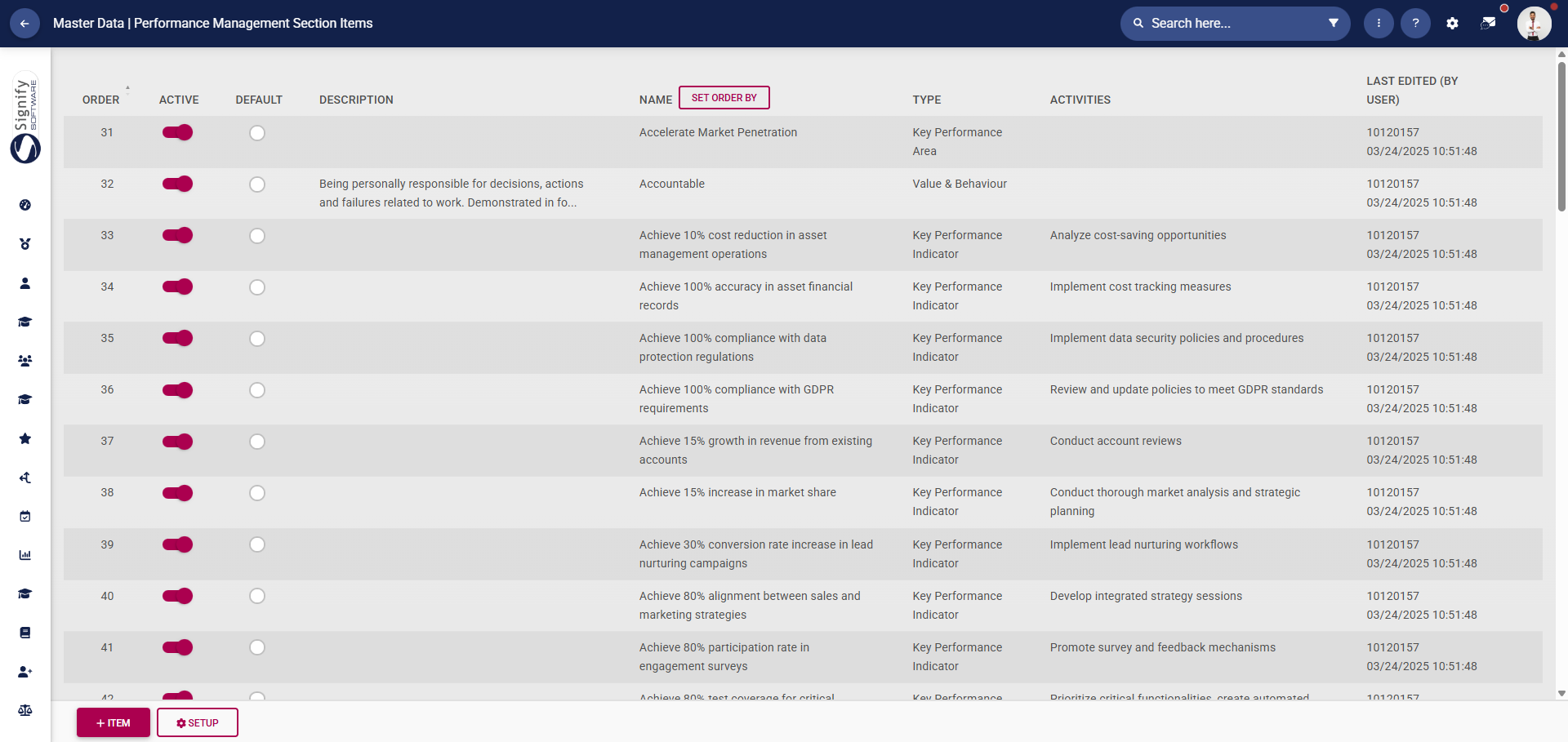
- Consider populating the **Master Data Library** with performance management items, which can streamline the performance management process. These library items include: 
    - - Perspectives
        - Key Performance Areas
        - Key Performance Indicators
        - Leadership Behaviours
        - Values and Behaviours
        - Key Competencies

Click [here](https://signature.signifyhr.co.za/link/2369#bkmrk-how-do-i-update-the- "How do I update the Master Data Library for Performance Management?") to find out how to update the **Master Data Library**.
![PM Master data library.png](https://signature.signifyhr.co.za/uploads/images/gallery/2026-01/hlvpHk91W0JzYahg-pm-master-data-library.png)

- Ensure you have a clear understanding of the employee's responsibilities, the company's goals, and how the role fits into the overall picture.
- Base the performance objectives on **SMART goals**. Each objective should be: 
    - - Specific
        - Measurable
        - Achievable
        - Relevant
        - Time-bound
- Ensure the goals support the department or organisation's priorities.
- Select clear performance indicators.
- Finally, employees are more likely to commit to the process if they have input in setting their goals, so consider engaging in a two-way discussion

#### Key elements to include:

- **Performance goals and objectives**
    - These should be aligned with organisational priorities.
    - Keep the language simple and clear.
    - Avoid making goals too broad or unrealistic.
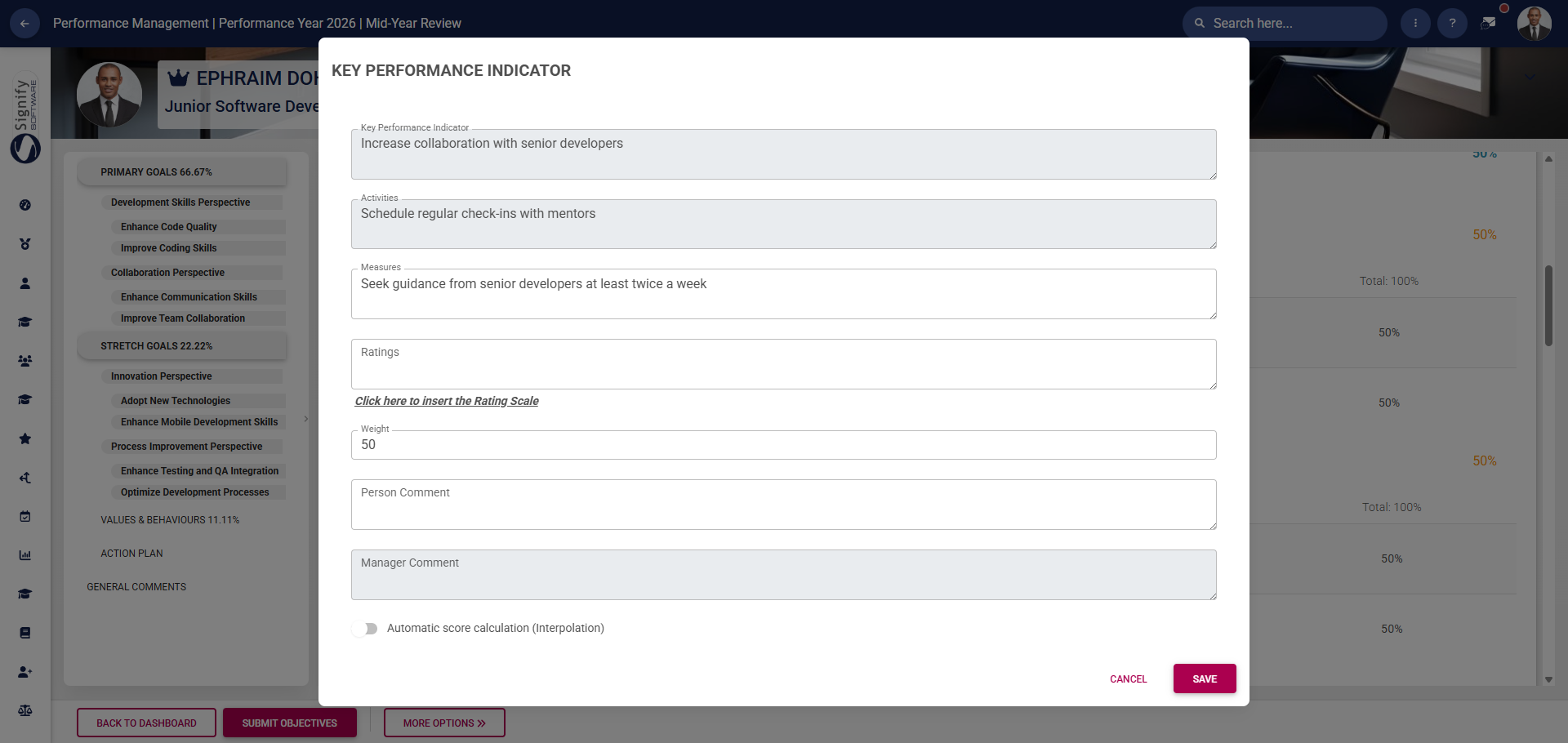
- **Key Performance Indicators (KPIs)**
    - Select quantitative and qualitative indicators for each objective.
    - Focus on the most impactful goals to avoid overloading the agreement.
    - The employee's input is vital when setting targets.
![PM Performance agreement KPI.png](https://signature.signifyhr.co.za/uploads/images/gallery/2026-01/I5aPWA52VbfiQQqg-pm-performance-agreement-kpi.png)

- **Behavioural expectations**
    - Include company values, as well as expected behaviours in teamwork, leadership, or communication.
- **Employee support**
    - Consider the tools, resources, or support from management that the employee may need to succeed.
    - Acknowledge that priorities may shift and that agreements should be revisited if needed.
    - Think about the employee's development and their future potential.
- **Review process and frequency**
    - Define how and when progress will be evaluated.
    - Incorporate feedback loops that enable feedback to flow from the manager to the employee and vice versa.

[![Signify Footer.png](https://signature.signifyhr.co.za/uploads/images/gallery/2025-02/scaled-1680-/ZOt8yZwhbiGx2d6U-signify-footer.png)](https://signature.signifyhr.co.za/uploads/images/gallery/2025-02/ZOt8yZwhbiGx2d6U-signify-footer.png)

[<span style="color: rgb(149, 165, 166);">Your feedback matters! How helpful was the support content?</span>](https://forms.office.com/r/LugDBTGaZu)

# Creating a Performance Agreement

[![Signify Header.png](https://signature.signifyhr.co.za/uploads/images/gallery/2025-02/scaled-1680-/emW3hfMrZ1yIDMUv-signify-header.png)](https://signature.signifyhr.co.za/uploads/images/gallery/2025-02/emW3hfMrZ1yIDMUv-signify-header.png)

[![PM Phases Step 1.png](https://signature.signifyhr.co.za/uploads/images/gallery/2025-11/scaled-1680-/6UQTT7OTgrgu5OYb-pm-phases-step-1.png)](https://signature.signifyhr.co.za/uploads/images/gallery/2025-11/6UQTT7OTgrgu5OYb-pm-phases-step-1.png)

The following section will guide you through creating a performance agreement. The guide assumes you do not have an existing agreement for the current performance cycle and that you wish to create one.

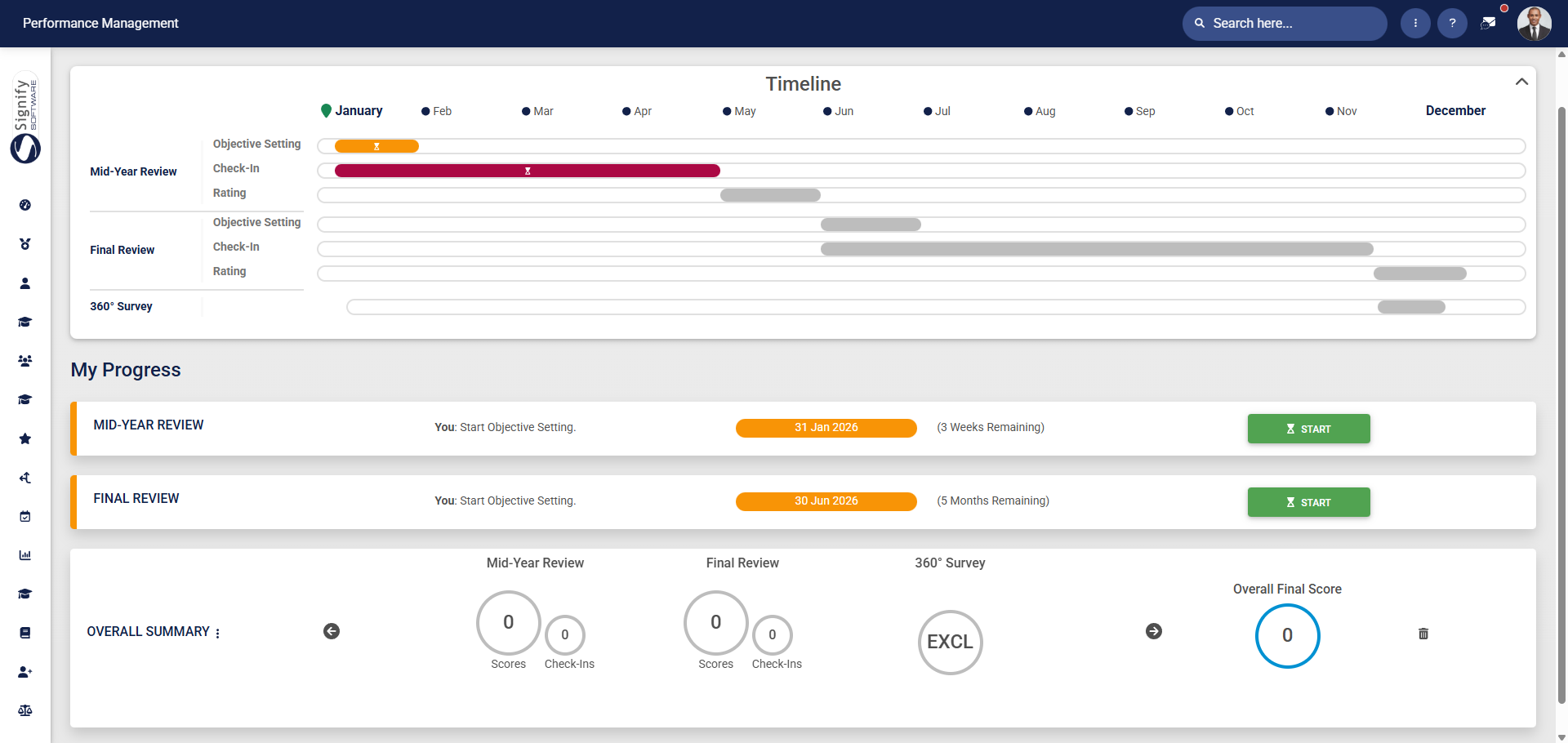
- Begin by navigating to the **Performance Management** dashboard.
![PM Dashboard (Employee).png](https://signature.signifyhr.co.za/uploads/images/gallery/2026-01/Q1hagynMO737QZsl-pm-dashboard-employee.png)

- Click **START** to create a new performance agreement.

![PM Start creating a performance agreement.png](https://signature.signifyhr.co.za/uploads/images/gallery/2026-01/UIHAMKbQP4PvM2DL-pm-start-creating-a-performance-agreement.png)

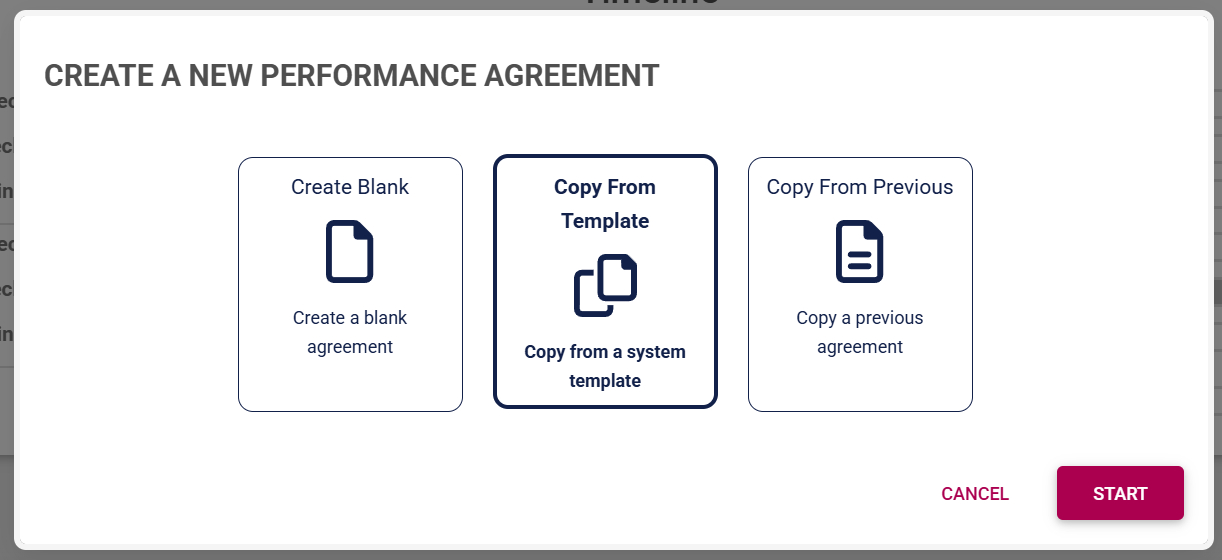
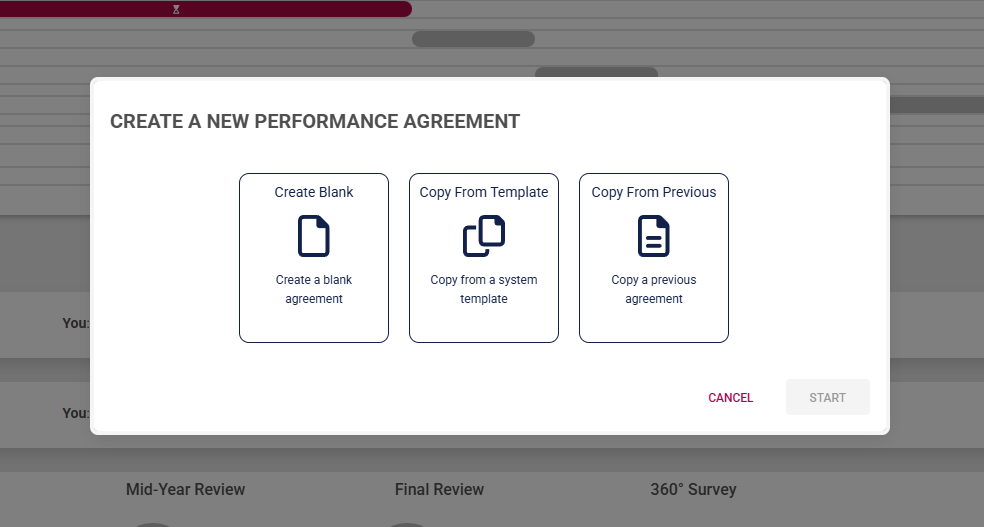
- The **Performance Management** module allows a performance agreement to be created in three ways for employees.
![PM Create PM agreement options for employees.png](https://signature.signifyhr.co.za/uploads/images/gallery/2026-01/Rx9o0GI3vWKD2g7r-pm-create-pm-agreement-options-for-employees.png)

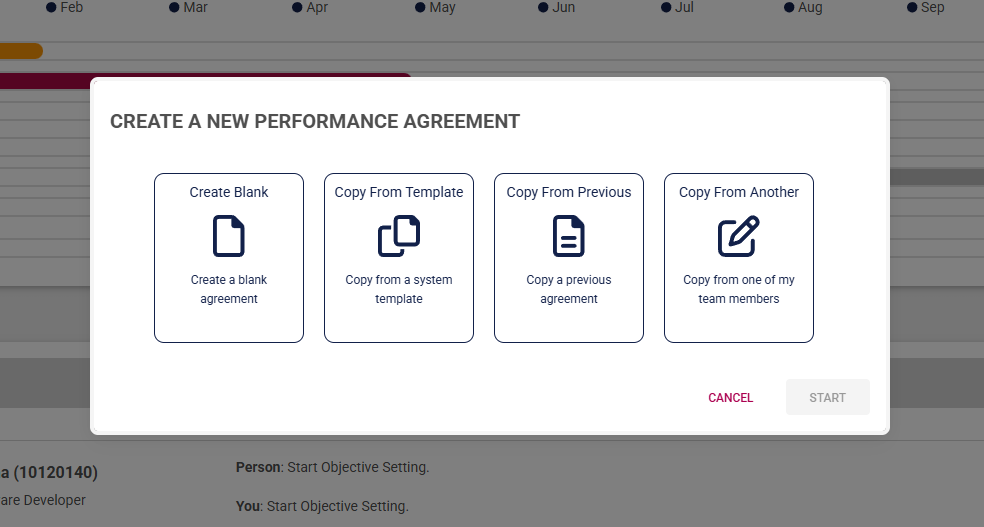
- Managers are offered an additional option to create a performance agreement for a reportee using a template from another team member.
![PM Create PM agreement options for managers.png](https://signature.signifyhr.co.za/uploads/images/gallery/2026-01/UBTyjUgcts7duwJB-pm-create-pm-agreement-options-for-managers.png)

Click on the following tabs to expand the step-by-step instructions.

<details id="bkmrk-create-a-blank-agree"><summary>Create a blank agreement</summary>

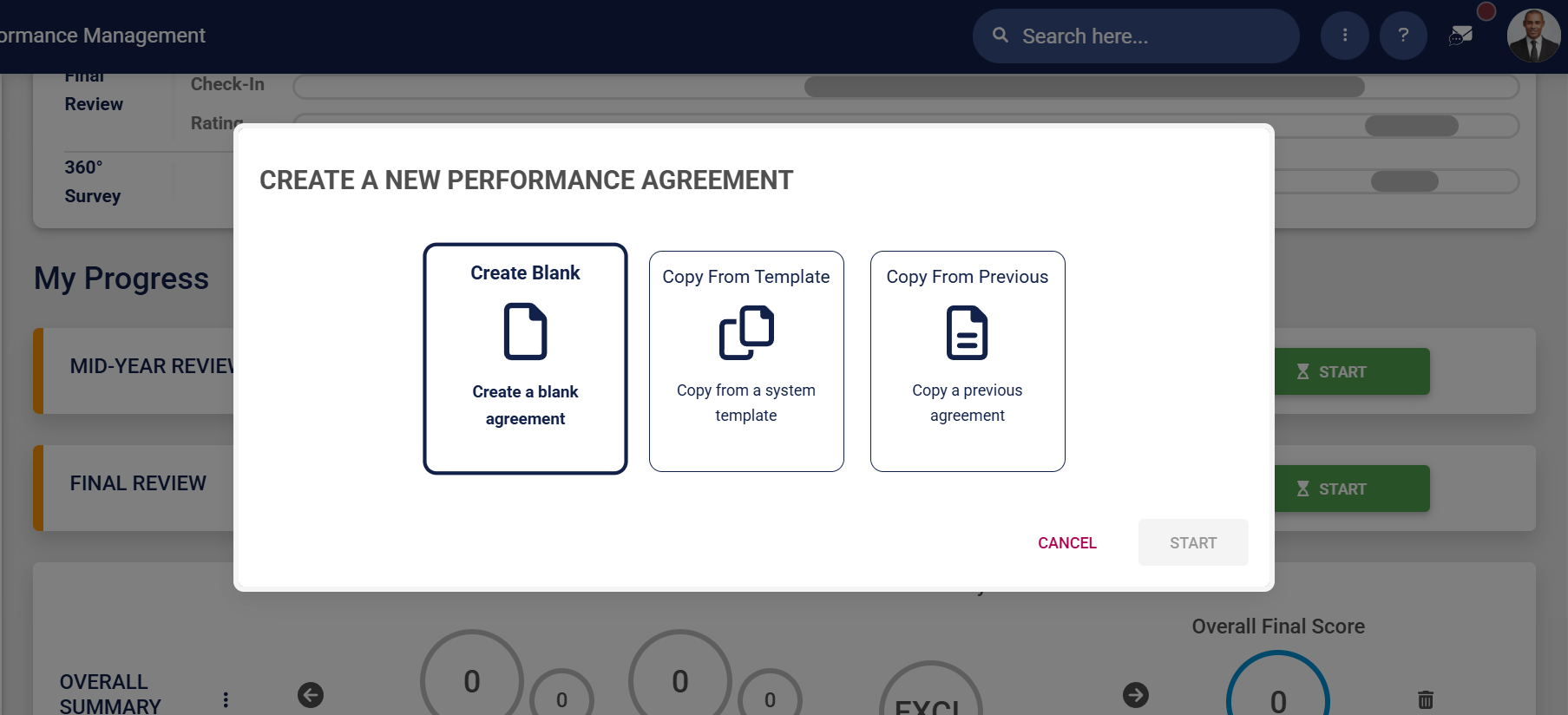
- Click **Create Blank** to start creating a performance agreement from the beginning.
![PM Create PM agreement employees – Blank.png](https://signature.signifyhr.co.za/uploads/images/gallery/2026-01/0Xwij9aR5vNCwfSS-pm-create-pm-agreement-employees-blank.png)

- Click **START**.

![PM Create PM agreement employees – Blank – Start.png](https://signature.signifyhr.co.za/uploads/images/gallery/2026-01/w6NLqkBJ2abHvZGD-pm-create-pm-agreement-employees-blank-start.png)

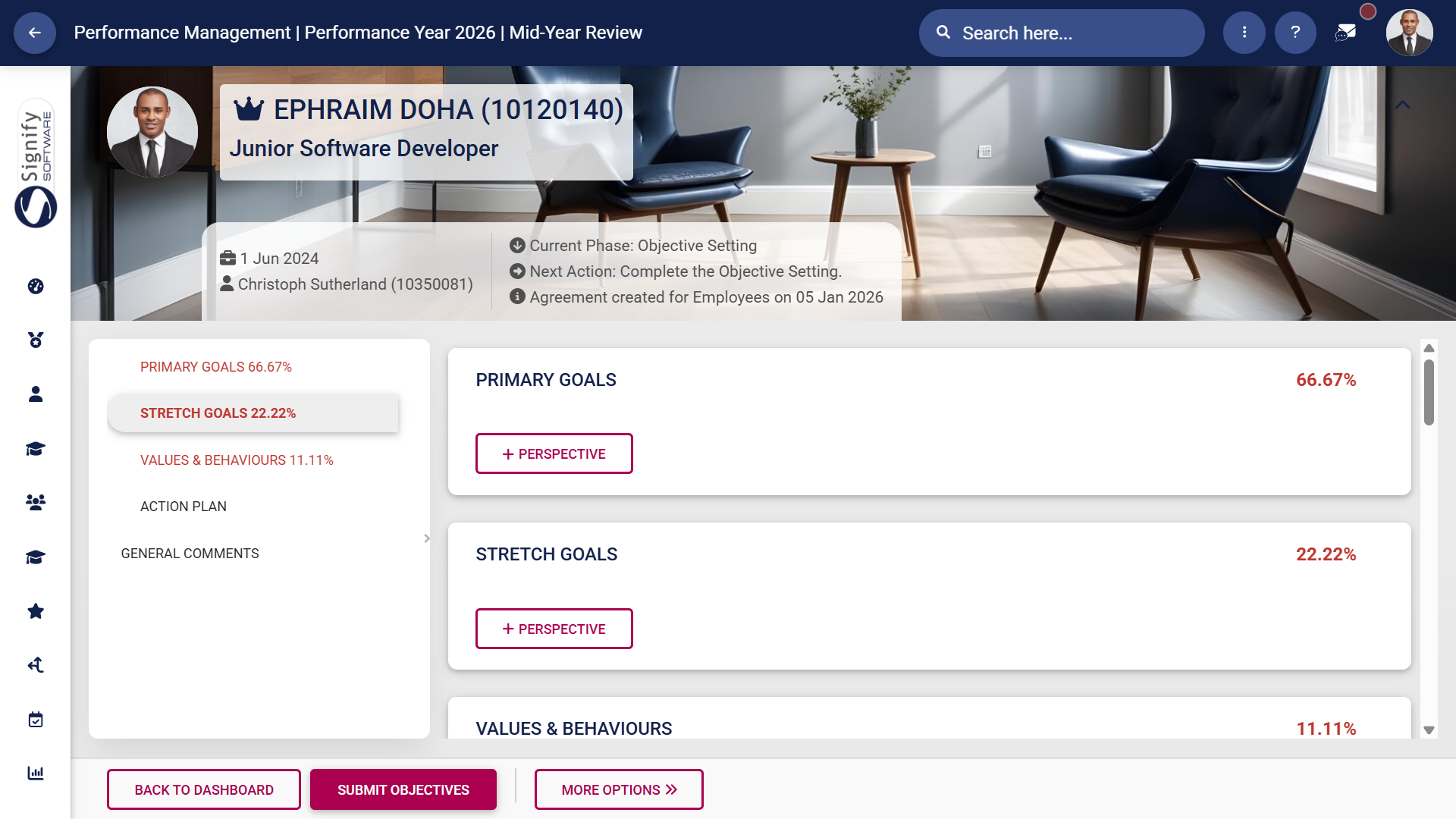
- The performance agreement screen will display, showing the different sections, though it won't include any objectives at this stage. Adding objectives is covered in the next section.
![PM Create PM agreement employees – Blank – Agreement Screen.png](https://signature.signifyhr.co.za/uploads/images/gallery/2026-01/XDGzjO45wmi1ycMO-pm-create-pm-agreement-employees-blank-agreement-screen.png)

</details><details id="bkmrk-use-a-performance-ag"><summary>Use a performance agreement template</summary>

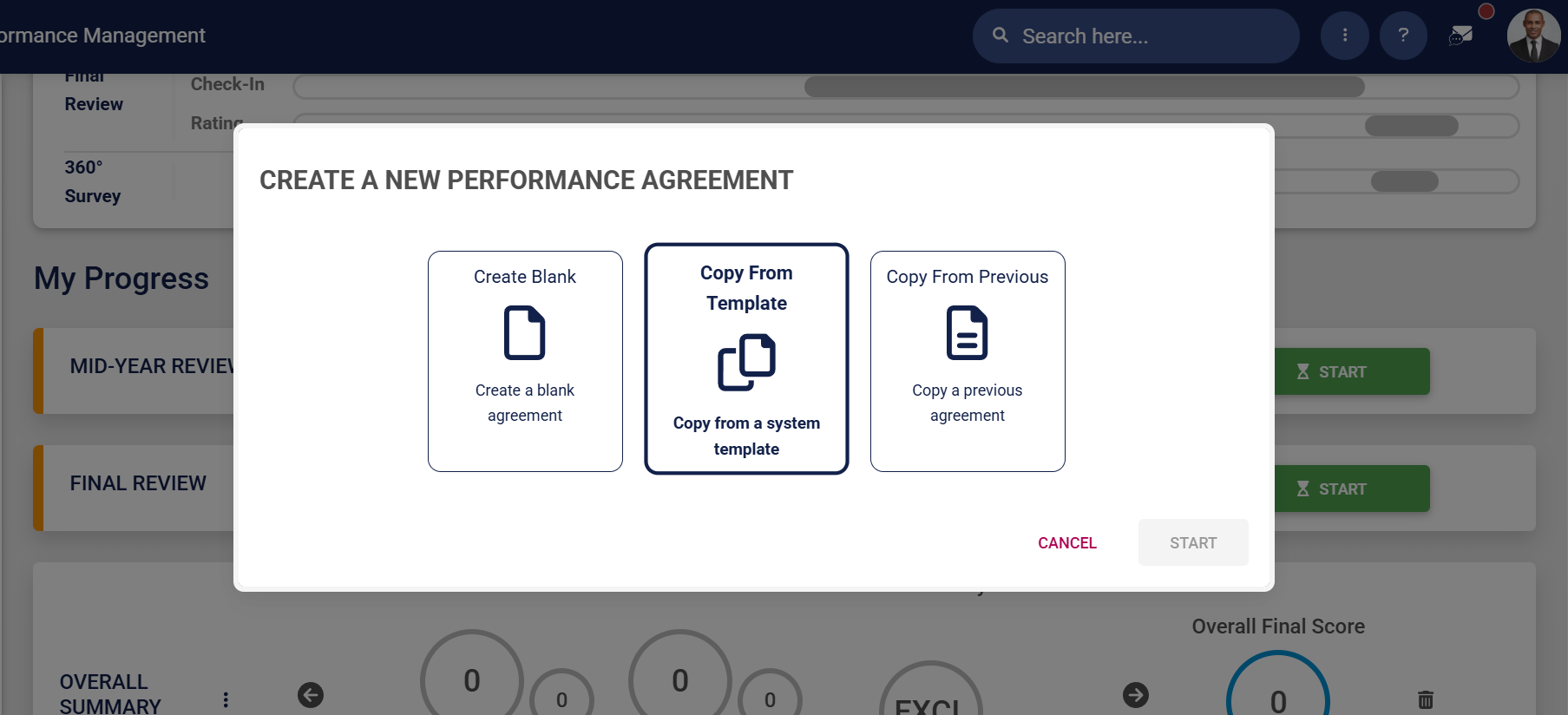
- Click **Copy From Template** to create a performance agreement based on a system template.
![PM Create PM agreement employees – Template.png](https://signature.signifyhr.co.za/uploads/images/gallery/2026-01/QmMMiriSm9KdFtKR-pm-create-pm-agreement-employees-template.png)

- Click **START**.

![PM Create PM agreement employees – Template – Start.png](https://signature.signifyhr.co.za/uploads/images/gallery/2026-01/zDSjduKEIdCRfXkx-pm-create-pm-agreement-employees-template-start.png)

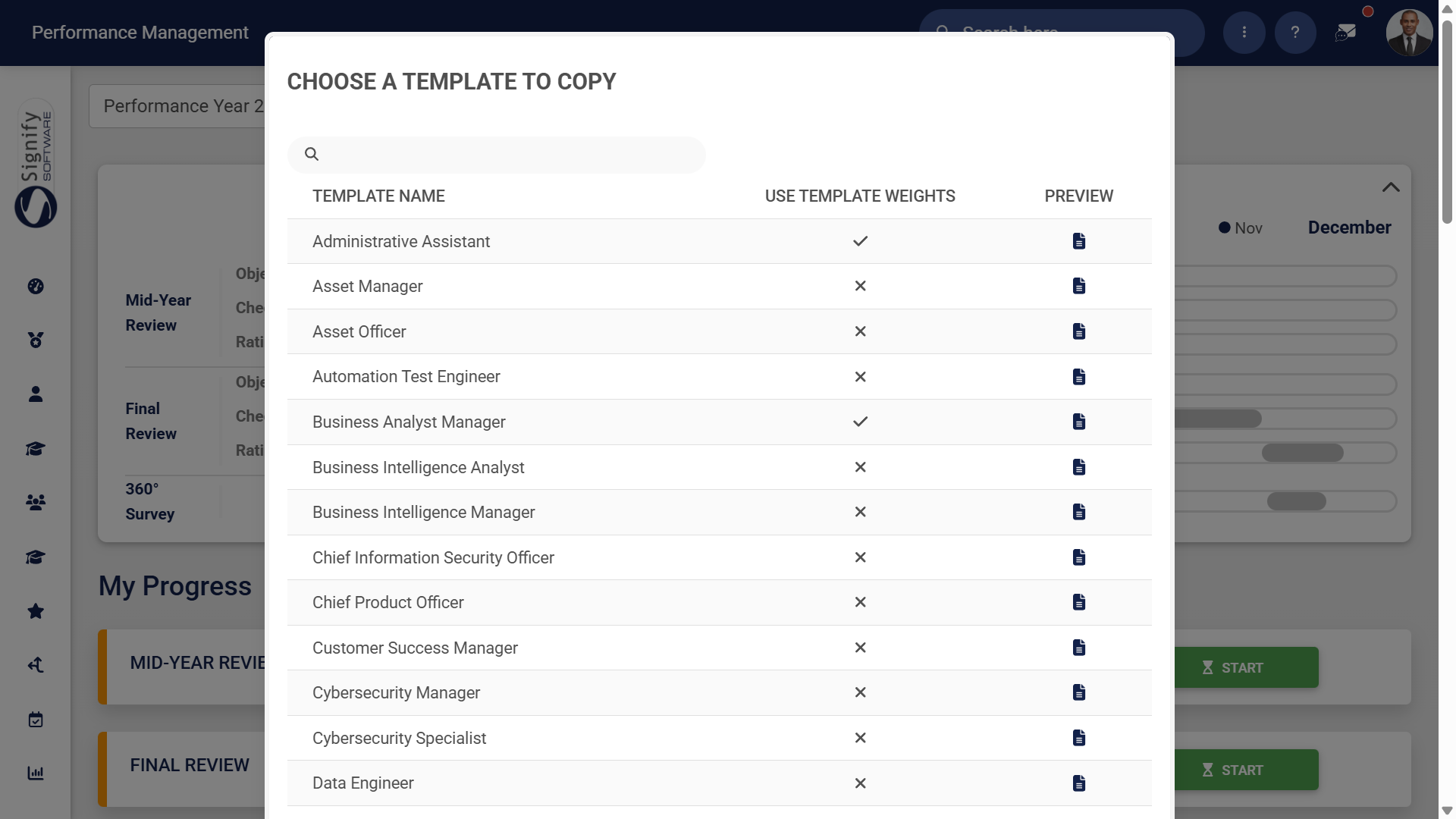
- A list of the templates currently on the system will be shown.
![PM Create PM agreement employees – Template – List.png](https://signature.signifyhr.co.za/uploads/images/gallery/2026-01/Ypf07gaxhGAnFJHk-pm-create-pm-agreement-employees-template-list.png)

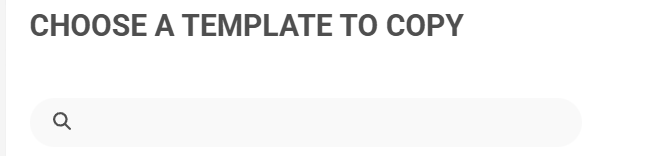
- - - Use the search bar to search for a template based on a job title or specific keywords.
![PM Create PM agreement employees – Template – Search Bar.png](https://signature.signifyhr.co.za/uploads/images/gallery/2026-01/AWqzvPY8QBQX9DrX-pm-create-pm-agreement-employees-template-search-bar.png)

- - - A **tick** will be displayed if the template's weights override the review setup's weights. A **cross** indicates that the review setup's weights will be used.

![PM Create PM agreement employees – Template – Use Template Weights.png](https://signature.signifyhr.co.za/uploads/images/gallery/2026-01/lMw8sukVaHJP4Swu-pm-create-pm-agreement-employees-template-use-template-weights.png)

- - - To ensure you select the correct template, you can preview it by clicking the icon. The preview will open in a new tab.

![PM Create PM agreement employees – Template – Preview.png](https://signature.signifyhr.co.za/uploads/images/gallery/2026-01/gactQaNiLlF6DQ0v-pm-create-pm-agreement-employees-template-preview.png)

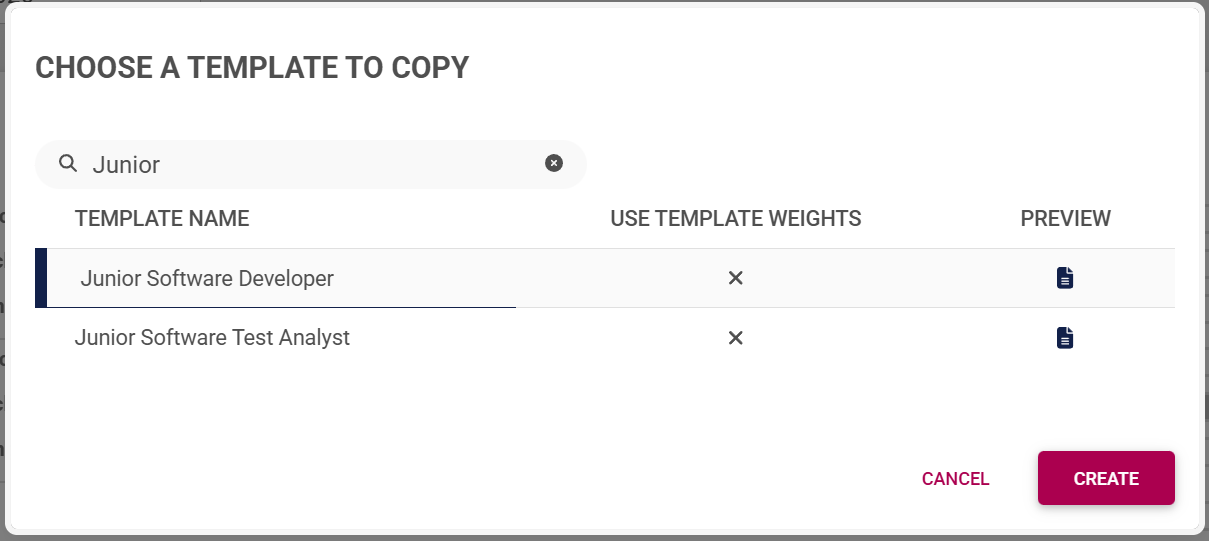
- Choose a template you would like to copy, then click **CREATE**.
![PM Create PM agreement employees – Template – Create.png](https://signature.signifyhr.co.za/uploads/images/gallery/2026-01/T3kHzyO8dtSd2lvw-pm-create-pm-agreement-employees-template-create.png)

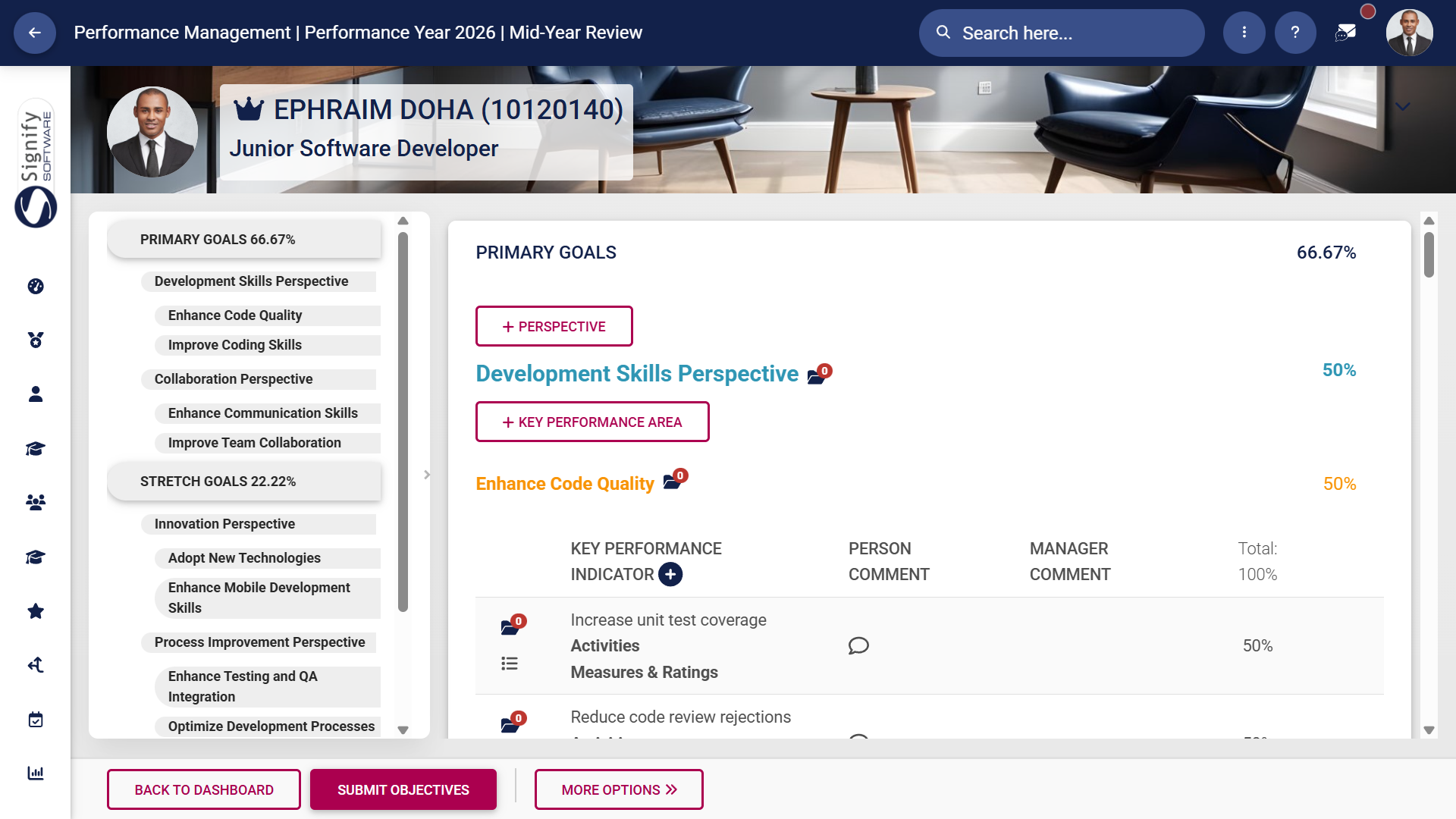
- The performance agreement screen will display, with the **Perspective**, **Key Performance Area**, and **Key Performance Indicator** fields filled in from the template.
![PM Create PM agreement employees – Template – Agreement Screen.png](https://signature.signifyhr.co.za/uploads/images/gallery/2026-01/4Gj5Dz8khGbtc7Hd-pm-create-pm-agreement-employees-template-agreement-screen.png)

</details><details id="bkmrk-copy-from-a-previous"><summary>Copy from a previous agreement</summary>

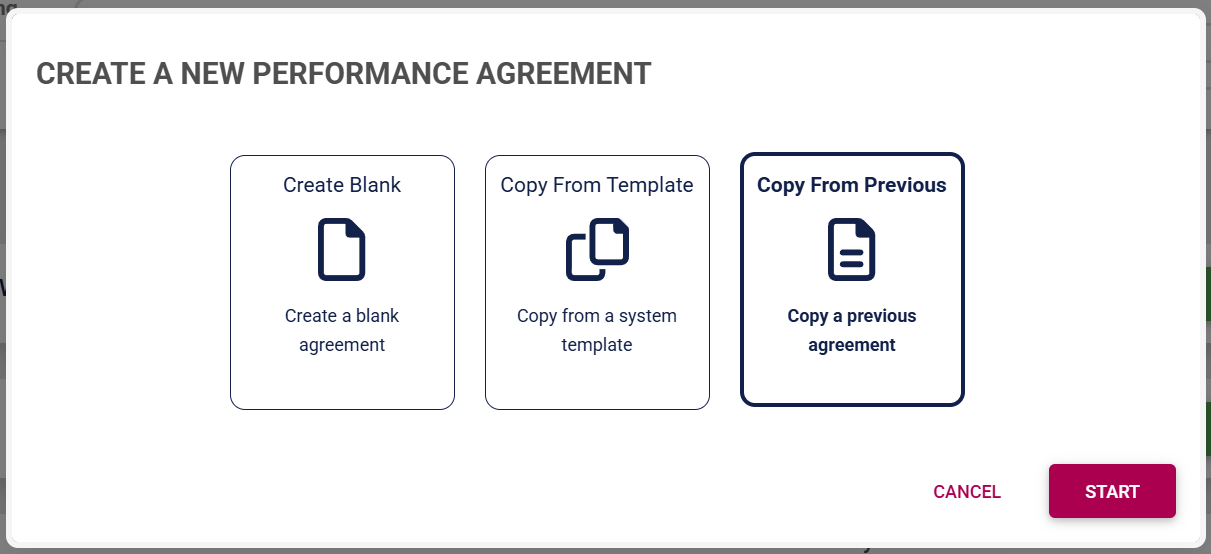
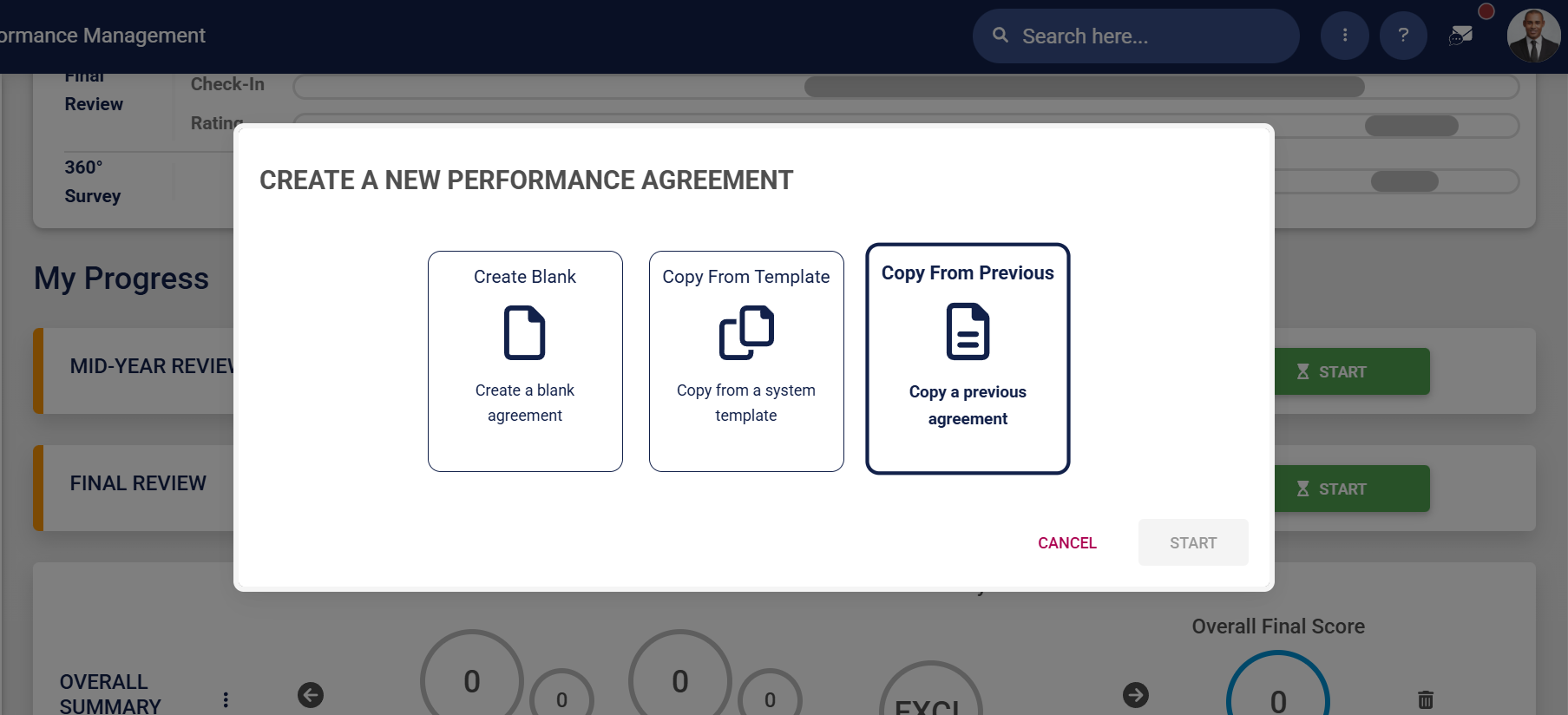
- Click **Copy From Previous** to create a performance agreement based on an agreement from a previous performance cycle.
![PM Create PM agreement employees – Previous.png](https://signature.signifyhr.co.za/uploads/images/gallery/2026-01/anF1iUHhaHJVjDz8-pm-create-pm-agreement-employees-previous.png)

- Click **START**.

![PM Create PM agreement employees – Previous – Start.png](https://signature.signifyhr.co.za/uploads/images/gallery/2026-01/Iiyt3xWZWiijd9P9-pm-create-pm-agreement-employees-previous-start.png)

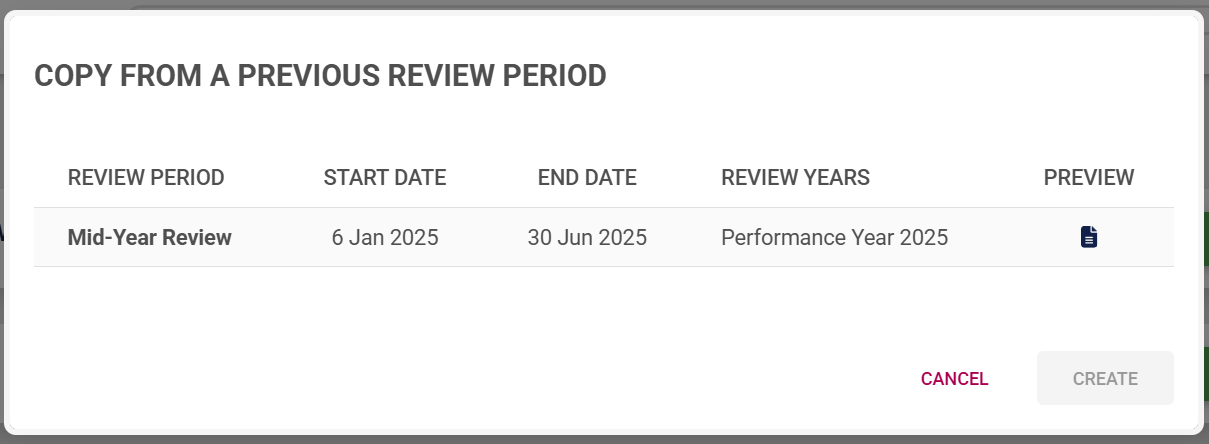
- A list of the performance agreements from previous review periods will be shown.
![PM Create PM agreement employees – Previous – Select.png](https://signature.signifyhr.co.za/uploads/images/gallery/2026-01/83AX0ELdQO0QaHmi-pm-create-pm-agreement-employees-previous-select.png)

- - - To ensure you select the correct performance agreement, you can preview it by clicking the icon. The preview will open in a new tab.

![PM Create PM agreement employees – Template – Preview.png](https://signature.signifyhr.co.za/uploads/images/gallery/2026-01/gactQaNiLlF6DQ0v-pm-create-pm-agreement-employees-template-preview.png)

- Select the performance agreement you would like to copy, then click **CREATE**.
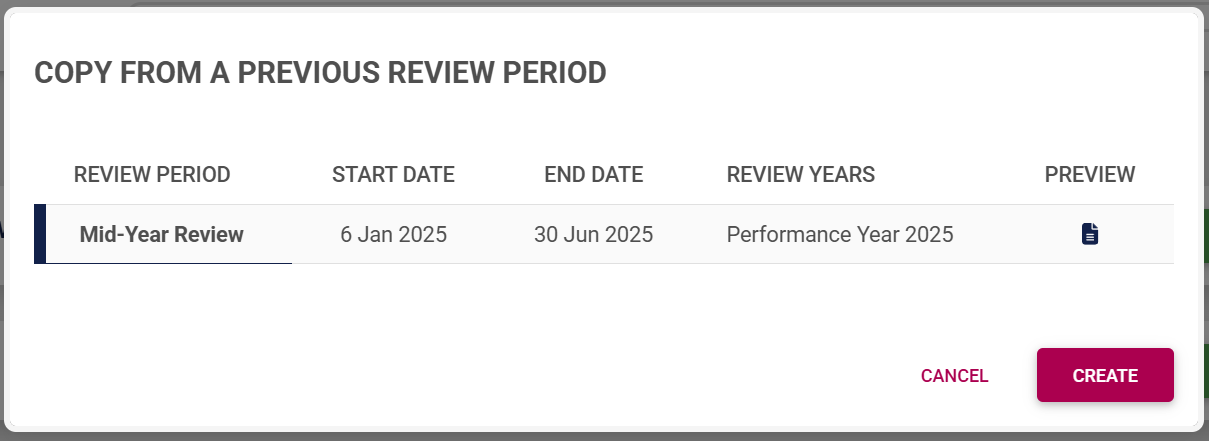
![PM Create PM agreement employees – Previous – Create.png](https://signature.signifyhr.co.za/uploads/images/gallery/2026-01/6xRnAuPpmoZzY3Jf-pm-create-pm-agreement-employees-previous-create.png)

- The performance agreement screen will display, with the **Perspective**, **Key Performance Area**, and **Key Performance Indicator** fields filled in from the previous agreement.

![PM Create PM agreement employees – Template – Agreement Screen.png](https://signature.signifyhr.co.za/uploads/images/gallery/2026-01/4Gj5Dz8khGbtc7Hd-pm-create-pm-agreement-employees-template-agreement-screen.png)

</details><details id="bkmrk-copy-an-agreement-fr"><summary>Copy an agreement from another employee (Managers only!)</summary>

- Click **Copy From Another** to create a performance agreement based on another employee's agreement.
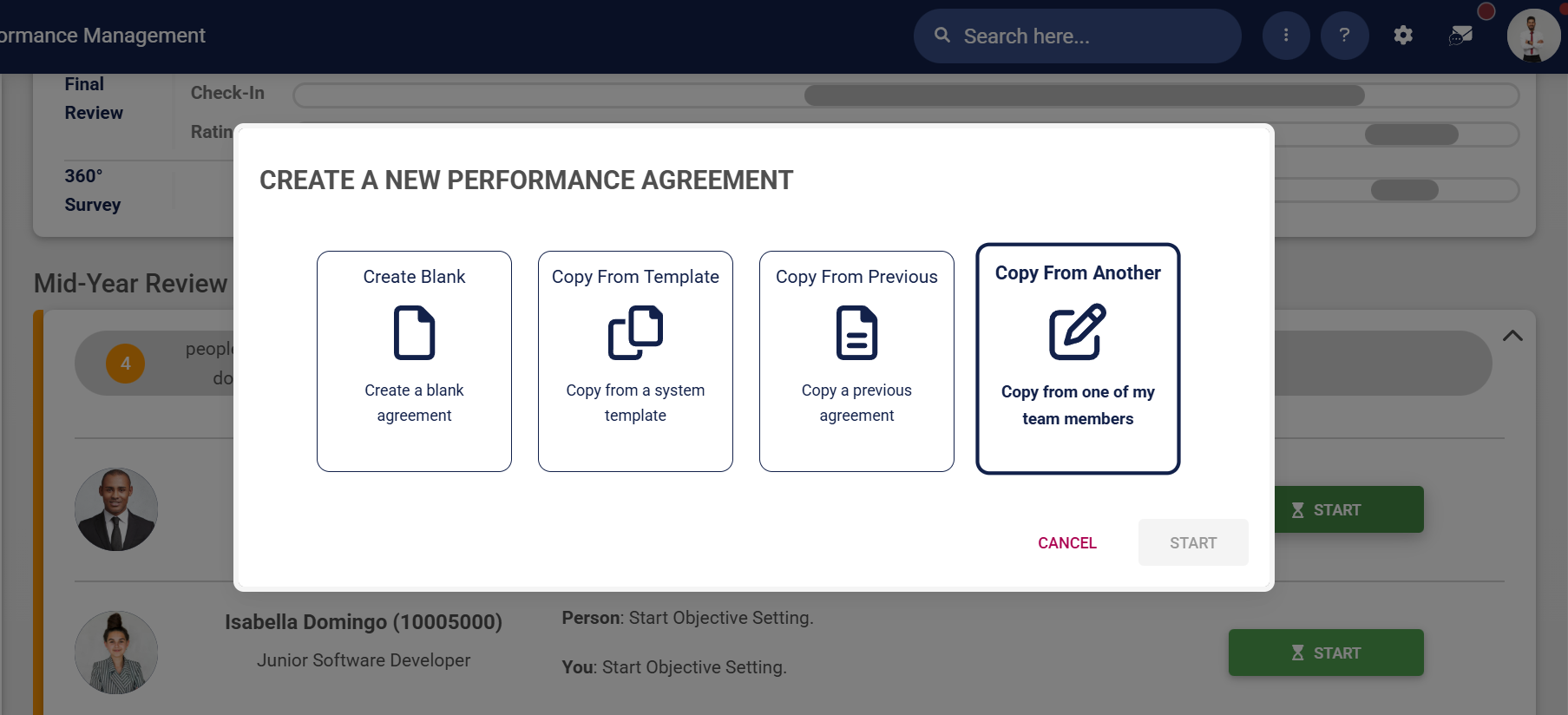
![PM Create PM agreement employees – Another.png](https://signature.signifyhr.co.za/uploads/images/gallery/2026-01/eWEihZfNM6RP4prI-pm-create-pm-agreement-employees-another.png)

- Click **START**.

![PM Create PM agreement employees – Another - Start.png](https://signature.signifyhr.co.za/uploads/images/gallery/2026-01/qVUVG72Qg6UUjDTs-pm-create-pm-agreement-employees-another-start.png)

- A list of the other employees in your team's performance agreements will be shown. These agreements are from the current and previous review periods.
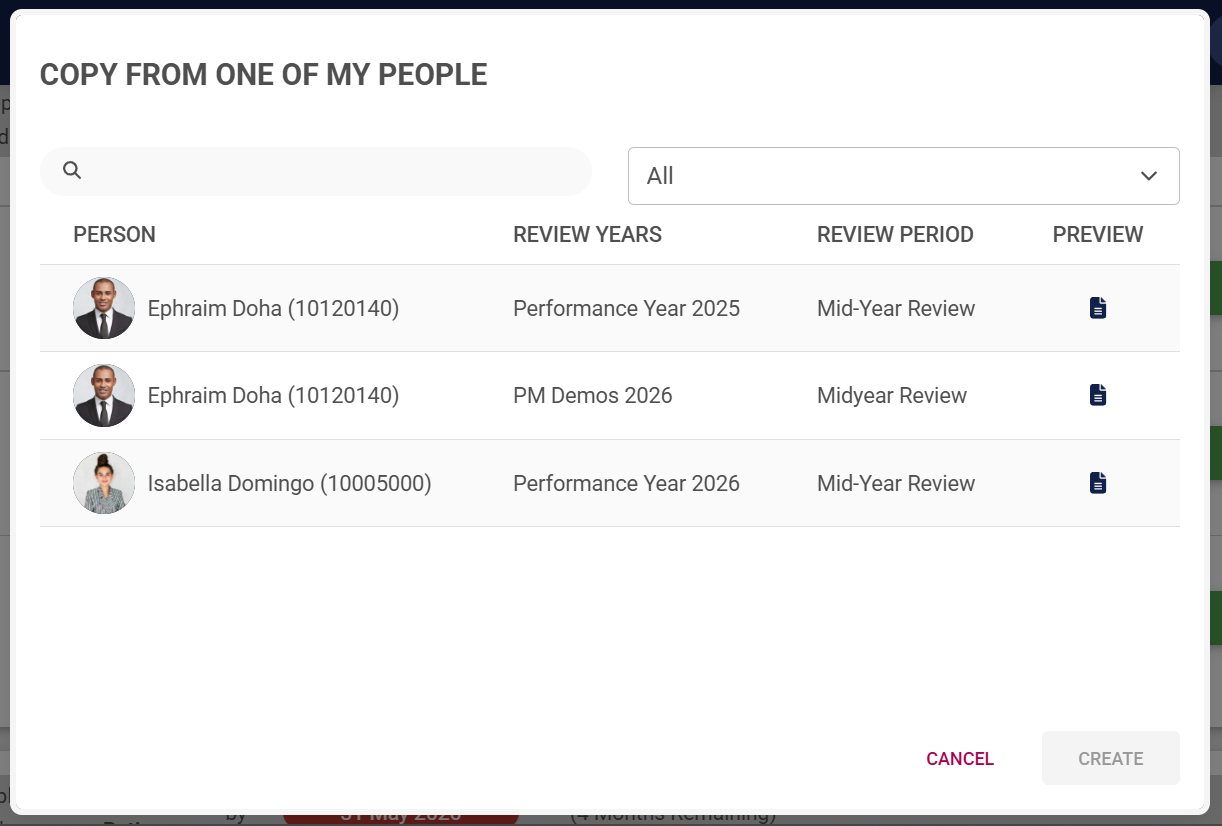
![PM Create PM agreement employees – Another - List.png](https://signature.signifyhr.co.za/uploads/images/gallery/2026-01/TRwGoBDBOVZUgWgt-pm-create-pm-agreement-employees-another-list.png)

- - - To ensure you select the correct performance agreement, you can preview it by clicking the icon. The preview will open in a new tab.

![PM Create PM agreement employees – Template – Preview.png](https://signature.signifyhr.co.za/uploads/images/gallery/2026-01/gactQaNiLlF6DQ0v-pm-create-pm-agreement-employees-template-preview.png)

- Select the performance agreement you would like to copy, then click **CREATE**.

![PM Create PM agreement employees – Another - Create.png](https://signature.signifyhr.co.za/uploads/images/gallery/2026-01/iJIGNnZ0kIx6GC42-pm-create-pm-agreement-employees-another-create.png)

- The performance agreement screen will display, with the **Perspective**, **Key Performance Area**, and **Key Performance Indicator** fields filled in from the other employee's performance agreement.
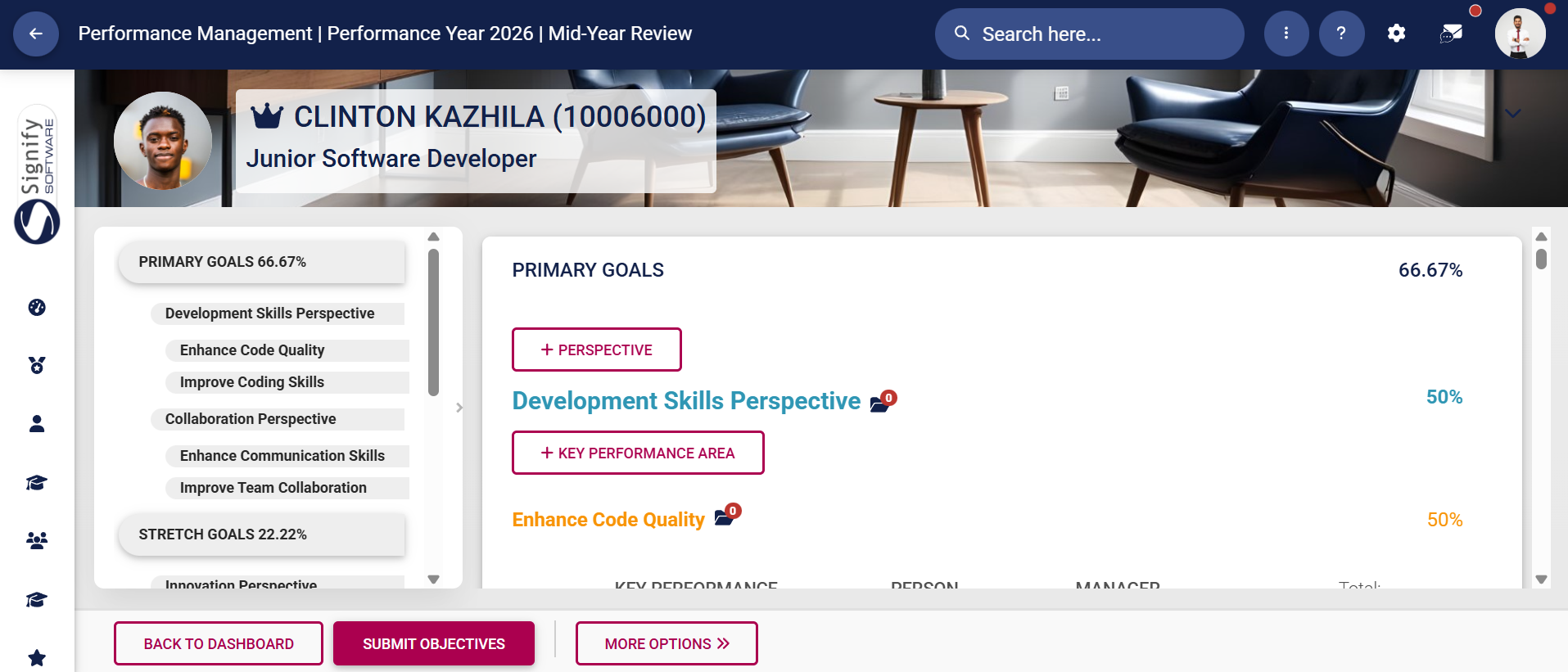
![PM Create PM agreement employees – Another - Agreement.png](https://signature.signifyhr.co.za/uploads/images/gallery/2026-01/qj3wwQ0CZJUy3ltJ-pm-create-pm-agreement-employees-another-agreement.png)

</details>[![Signify Footer.png](https://signature.signifyhr.co.za/uploads/images/gallery/2025-02/scaled-1680-/ZOt8yZwhbiGx2d6U-signify-footer.png)](https://signature.signifyhr.co.za/uploads/images/gallery/2025-02/ZOt8yZwhbiGx2d6U-signify-footer.png)

<span style="color: rgb(149, 165, 166);">[Your feedback matters! How helpful was the support content?](https://forms.office.com/r/LugDBTGaZu)</span>

# Objective-Setting Phase

[![Signify Header.png](https://signature.signifyhr.co.za/uploads/images/gallery/2025-02/scaled-1680-/emW3hfMrZ1yIDMUv-signify-header.png)](https://signature.signifyhr.co.za/uploads/images/gallery/2025-02/emW3hfMrZ1yIDMUv-signify-header.png)[![PM Phases Step 2.png](https://signature.signifyhr.co.za/uploads/images/gallery/2025-11/scaled-1680-/CohWXeeT08DADD0B-pm-phases-step-2.png)](https://signature.signifyhr.co.za/uploads/images/gallery/2025-11/CohWXeeT08DADD0B-pm-phases-step-2.png)

### The Objective-Setting Phase Explained

When creating a performance agreement, it is important to understand the **WHY**. Why is it important to set objectives?

The answer is simple: to bring **clarity**. Having a clearly outlined goal makes it easier for managers and employees alike to achieve success. For helpful tips on approaching the objective-setting phase, please visit the [<span style="text-decoration: underline;">**Before You Start**</span>](https://signature.signifyhr.co.za/books/performance-management-sq2/page/before-you-start "Before You Start") page.

The following guide will help you through setting your objectives, and will assume you are using all of the following **sections** in a performance agreement:

- **Primary Goals**
    - Perspectives (optional) 
        - Key Performance Areas 
            - Key Performance Indicators
- **Stretch Goals (optional)**
    - Perspectives (optional) 
        - Key Performance Areas 
            - Key Performance Indicators
- **Values and Behaviours (optional)**
- **Leadership Behaviours (optional)**
- **Key Competencies (optional)**

<span style="text-align: left;">The **Performance Management** module is modular and can be configured to suit your unique performance management processes. For examples of how different combinations of review setup settings work, or of different performance management configurations, please see the [**Tips and Use Cases**](https://signature.signifyhr.co.za/books/performance-management-sq2/chapter/chapter-5-tips-and-use-cases "Tips and Use Cases") chapter.</span>

[![PM Performance agreement sections.png](https://signature.signifyhr.co.za/uploads/images/gallery/2026-01/1pjhifpctqSUdh74-pm-performance-agreement-sections.png)](https://signature.signifyhr.co.za/uploads/images/gallery/2026-01/K5dWzta8nVzbzzH4-pm-performance-agreement-sections.png)

Below is an example of a complete performance agreement that uses all available sections.

- It has been populated with **perspectives**, **KPAs**, **KPIs**, and assigned **weights**.
- The **side menu** provides an overview of the performance agreement and allows easy **navigation** between its sections.

[![PM - Example of a Performance Agreement.png](https://signature.signifyhr.co.za/uploads/images/gallery/2026-01/scaled-1680-/J5SsJMMrLWd91pki-pm-example-of-a-performance-agreement.png)](https://signature.signifyhr.co.za/uploads/images/gallery/2026-01/J5SsJMMrLWd91pki-pm-example-of-a-performance-agreement.png)

### Our Example's Settings

Based on your review setup, you may be using some (or all) of the aforementioned performance agreement sections. ***Not all sections are mandatory***. If a section (such as Stretch Goals) or a feature (such as Perspectives) does not apply to your review setup, you are more than welcome to skip its tutorial and proceed to the next step.

For our example, the following review setup settings have been enabled:

[![PM Example Review Setup - Dual Participation.png](https://signature.signifyhr.co.za/uploads/images/gallery/2026-02/Y7ZiFp01ZlC5W0N7-pm-example-review-setup-dual-participation.png)](https://signature.signifyhr.co.za/uploads/images/gallery/2026-01/K5dWzta8nVzbzzH4-pm-performance-agreement-sections.png)

Additionally, the automatic distribution of item weights has been enabled for all settings:

[![PM Create Blank Agreement - Auto-distribute Weights.png](https://signature.signifyhr.co.za/uploads/images/gallery/2026-02/YpgZhXKQnhOQ8nr3-pm-create-blank-agreement-auto-distribute-weights.png)](https://signature.signifyhr.co.za/uploads/images/gallery/2026-01/K5dWzta8nVzbzzH4-pm-performance-agreement-sections.png)

The setting to add or delete items on a list (such as the Values and Behaviours list) has been disabled:

[![PM Create Blank Agreement - Add or Edit List Items.png](https://signature.signifyhr.co.za/uploads/images/gallery/2026-02/6r6dGKuAYaUbRKoA-pm-create-blank-agreement-add-or-edit-list-items.png)](https://signature.signifyhr.co.za/uploads/images/gallery/2026-01/K5dWzta8nVzbzzH4-pm-performance-agreement-sections.png)

### How to Complete the Objective-Setting Phase

Expand the following collapsible blocks to learn more.

<details id="bkmrk-primary-goals-overvi"><summary>PRIMARY GOALS</summary>

#### Primary Goals

##### Overview of the process

[![PM Objective Setting - Primary Goals overview.png](https://signature.signifyhr.co.za/uploads/images/gallery/2026-02/dblItZdqbAH0KEA4-pm-objective-setting-primary-goals-overview.png)](https://signature.signifyhr.co.za/uploads/images/gallery/2026-01/UICFVpUjpoZCwiHZ-pm-objective-setting-primary-goals-overview.png)
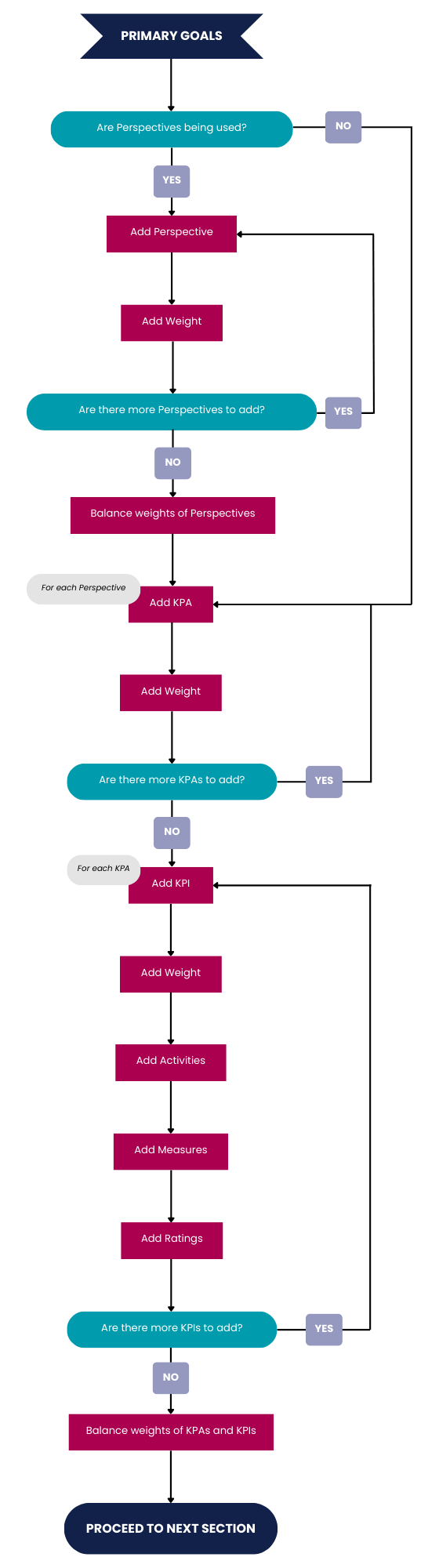
##### Add perspectives

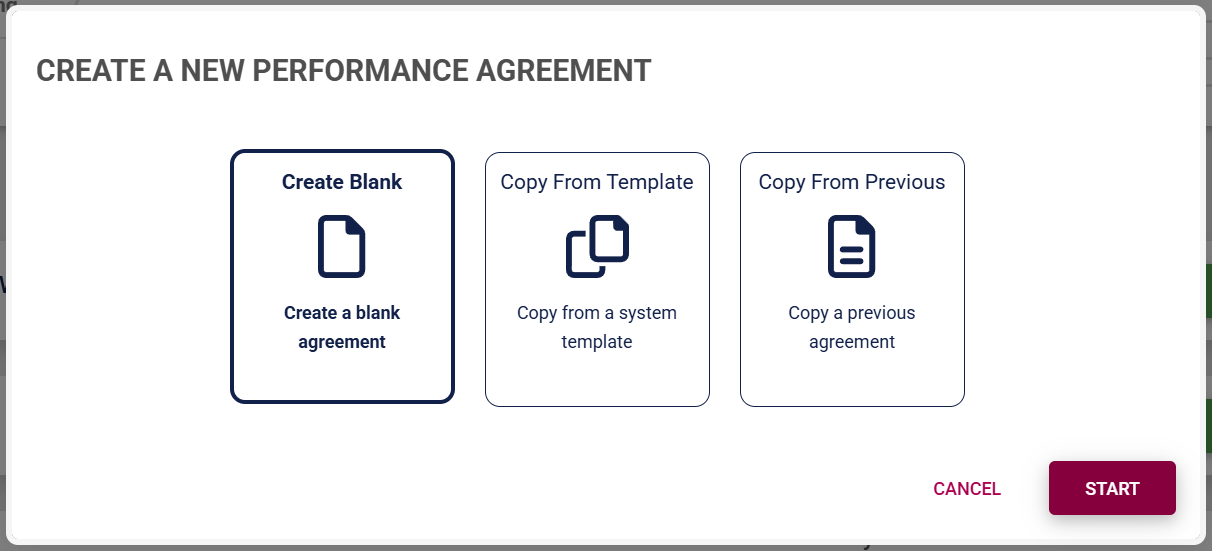
- For this tutorial, we will assume you selected **Create Blank** when creating the performance agreement.

[![PM Create PM agreement employees – Blank – Start.png](https://signature.signifyhr.co.za/uploads/images/gallery/2026-01/w6NLqkBJ2abHvZGD-pm-create-pm-agreement-employees-blank-start.png)](https://signature.signifyhr.co.za/uploads/images/gallery/2026-01/K5dWzta8nVzbzzH4-pm-performance-agreement-sections.png)
- The blank performance agreement will be populated with the sections that have been activated in the review setup's configuration. Please note, the **red headings** in the menu on the left show that information is missing, such as missing perspectives, KPAs, KPIs, or unbalanced weights. The weights of unbalanced sections will also flash red.

[![PM Create PM agreement employees – Blank – Start.png](https://media3.giphy.com/media/v1.Y2lkPTc5MGI3NjExYXV4anB6anJjd2RnbHVjNzg1aWxhcGowNjdmOTB2eHhkaHN3cWU5aiZlcD12MV9pbnRlcm5hbF9naWZfYnlfaWQmY3Q9Zw/8m9ibcg0SWuvw5JvlC/giphy.gif)](https://signature.signifyhr.co.za/uploads/images/gallery/2026-01/K5dWzta8nVzbzzH4-pm-performance-agreement-sections.png)

- Click **+PERSPECTIVE** to add a perspective.

[![PM Create Blank Agreement - Add Perspective.png](https://signature.signifyhr.co.za/uploads/images/gallery/2026-02/EVBi9a87vHnPZ99N-pm-create-blank-agreement-add-perspective.png)](https://signature.signifyhr.co.za/uploads/images/gallery/2026-01/K5dWzta8nVzbzzH4-pm-performance-agreement-sections.png)

- Select a perspective which has been loaded to the **Master Data Library**.

[![PM Create Blank Agreement - Perspective Library.png](https://signature.signifyhr.co.za/uploads/images/gallery/2026-02/CM0EVrnLXyrDvjiy-pm-create-blank-agreement-perspective-library.png)](https://signature.signifyhr.co.za/uploads/images/gallery/2026-01/K5dWzta8nVzbzzH4-pm-performance-agreement-sections.png)

- Assign a weight to the perspective, then click **SAVE ADD NEW** to continue adding more perspectives.

[![PM Create Blank Agreement - Perspective Menu.png](https://signature.signifyhr.co.za/uploads/images/gallery/2026-02/f8QdmmfHV34TFcUZ-pm-create-blank-agreement-perspective-menu.png)](https://signature.signifyhr.co.za/uploads/images/gallery/2026-01/K5dWzta8nVzbzzH4-pm-performance-agreement-sections.png)

- Once you have finished adding all the perspectives, your agreement should look something like this:

[![PM Create Blank Agreement - Perspectives Added.png](https://signature.signifyhr.co.za/uploads/images/gallery/2026-02/ACjxn6C9iznn4WAT-pm-create-blank-agreement-perspectives-added.png)](https://signature.signifyhr.co.za/uploads/images/gallery/2026-01/K5dWzta8nVzbzzH4-pm-performance-agreement-sections.png)
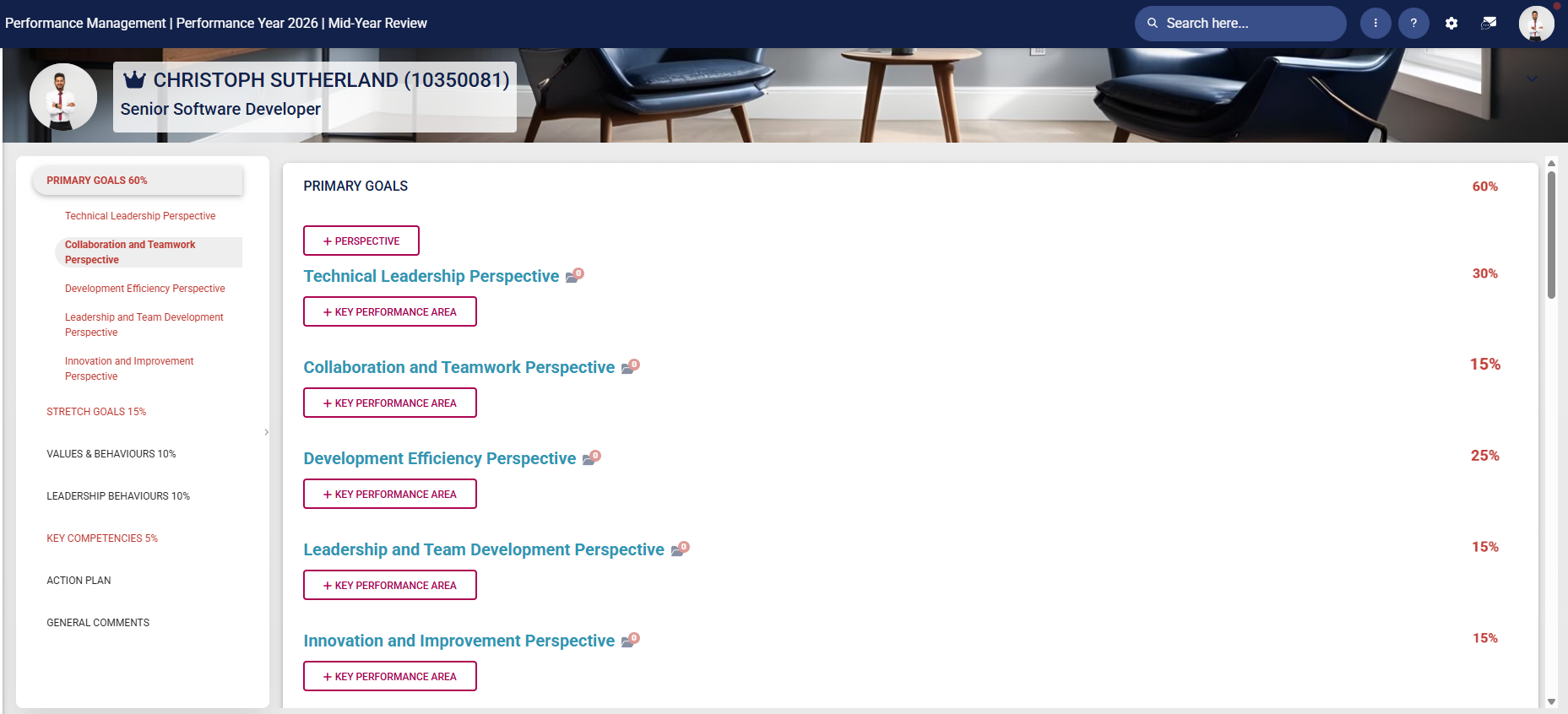
- Ensure all the perspective weights in this section add up to 100%.
- To delete a perspective, hover over its title, then click the dustbin icon.

[![PM Create Blank Agreement - Perspectives Deletion.png](https://signature.signifyhr.co.za/uploads/images/gallery/2026-02/l9QVqnMFPYueX6gD-pm-create-blank-agreement-perspectives-deletion.png)](https://signature.signifyhr.co.za/uploads/images/gallery/2026-01/K5dWzta8nVzbzzH4-pm-performance-agreement-sections.png)

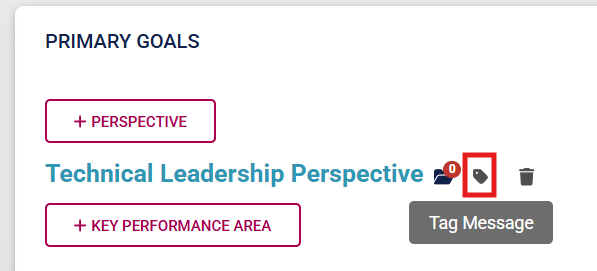
- A perspective can be tagged for discussion with your manager by clicking the tag icon.

[![PM Create Blank Agreement - Tag Message.png](https://signature.signifyhr.co.za/uploads/images/gallery/2026-02/kACYPLsi3EGbLuVN-pm-create-blank-agreement-tag-message.png)](https://signature.signifyhr.co.za/uploads/images/gallery/2026-01/K5dWzta8nVzbzzH4-pm-performance-agreement-sections.png)
- Your manager will receive a message in their system inbox regarding your query.

[![PM Create Blank Agreement - Discussion with Manager.png](https://signature.signifyhr.co.za/uploads/images/gallery/2026-02/uqu2qALCSQrE9VJk-pm-create-blank-agreement-discussion-with-manager.png)](https://signature.signifyhr.co.za/uploads/images/gallery/2026-01/K5dWzta8nVzbzzH4-pm-performance-agreement-sections.png)

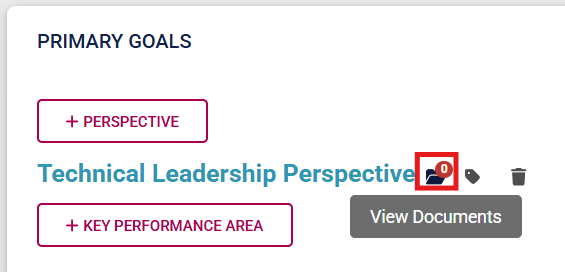
- Documents linked to a specific performance agreement item can be viewed by clicking on the folder icon.

[![PM Create Blank Agreement - View Documents.png](https://signature.signifyhr.co.za/uploads/images/gallery/2026-02/BTBJFn4sPQpGR60x-pm-create-blank-agreement-view-documents.png)](https://signature.signifyhr.co.za/uploads/images/gallery/2026-01/K5dWzta8nVzbzzH4-pm-performance-agreement-sections.png)
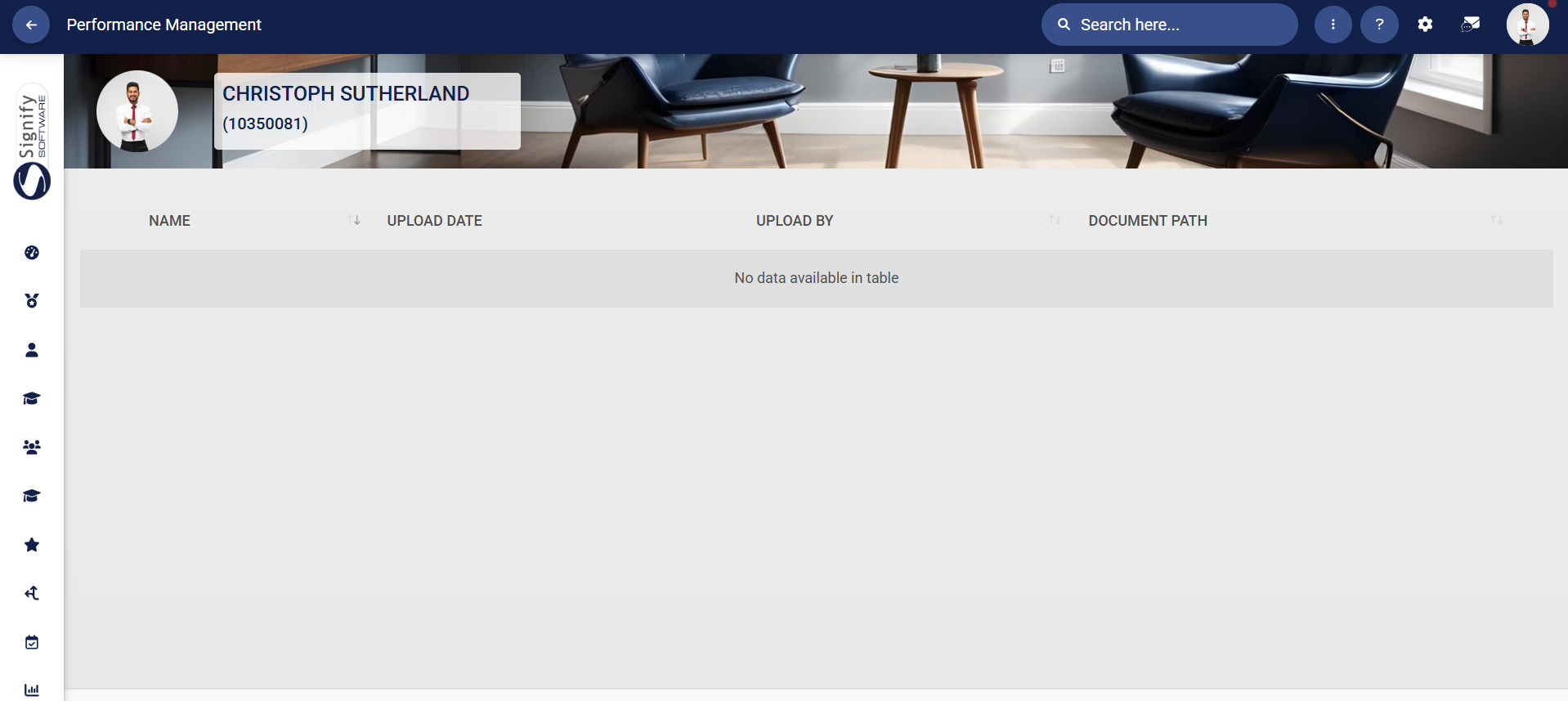
- Linked documents will display in the table on the **Documents** screen.

[![PM Create Blank Agreement - Uploaded Documents.png](https://signature.signifyhr.co.za/uploads/images/gallery/2026-02/XmhoDmPaSTHsXUEO-pm-create-blank-agreement-uploaded-documents.png)](https://signature.signifyhr.co.za/uploads/images/gallery/2026-01/K5dWzta8nVzbzzH4-pm-performance-agreement-sections.png)
##### Add KPAs

- Click **+KEY PERFORMANCE AREA** to add a KPA.

[![PM Create Blank Agreement - Add KPA.png](https://signature.signifyhr.co.za/uploads/images/gallery/2026-02/Ycf7nbv01epIQ3Ku-pm-create-blank-agreement-add-kpa.png)](https://signature.signifyhr.co.za/uploads/images/gallery/2026-01/K5dWzta8nVzbzzH4-pm-performance-agreement-sections.png)

- Either type your own KPA or select one from the **Master Data Library**.

[![PM Create Blank Agreement - KPA Menu.png](https://signature.signifyhr.co.za/uploads/images/gallery/2026-02/R8bBrfxKWirZ5Rwo-pm-create-blank-agreement-kpa-menu.png)](https://signature.signifyhr.co.za/uploads/images/gallery/2026-01/K5dWzta8nVzbzzH4-pm-performance-agreement-sections.png)

- If using **Master Data Library** items, click on the hand icon to search for a KPA.

[![PM Create Blank Agreement - KPA Library.png](https://signature.signifyhr.co.za/uploads/images/gallery/2026-02/S8yokEEzPIylybw7-pm-create-blank-agreement-kpa-library.png)](https://signature.signifyhr.co.za/uploads/images/gallery/2026-01/K5dWzta8nVzbzzH4-pm-performance-agreement-sections.png)

- Click on the KPA you would like to **link**.

[![PM Create Blank Agreement - KPA Library Menu.png](https://signature.signifyhr.co.za/uploads/images/gallery/2026-02/E1ykdJF4j1YcUEYG-pm-create-blank-agreement-kpa-library-menu.png)](https://signature.signifyhr.co.za/uploads/images/gallery/2026-01/K5dWzta8nVzbzzH4-pm-performance-agreement-sections.png)

- Assign a **weight**. Click **SAVE ADD NEW** to keep adding additional KPAs for this perspective, or **SAVE** if you are done.

[![PM Create Blank Agreement - KPA Save.png](https://signature.signifyhr.co.za/uploads/images/gallery/2026-02/LMwD5XDHoUOUeUqx-pm-create-blank-agreement-kpa-save.png)](https://signature.signifyhr.co.za/uploads/images/gallery/2026-01/K5dWzta8nVzbzzH4-pm-performance-agreement-sections.png)

- Ensure all the weights of the KPAs linked to a specific perspective add up to 100%.
- To **delete** a KPA, hover over its title, then click the dustbin icon.

[![PM Create Blank Agreement - KPA Deletion.png](https://signature.signifyhr.co.za/uploads/images/gallery/2026-02/ctHW1lz814AQ8ojX-pm-create-blank-agreement-kpa-deletion.png)](https://signature.signifyhr.co.za/uploads/images/gallery/2026-01/K5dWzta8nVzbzzH4-pm-performance-agreement-sections.png)

- A KPA can be **tagged** for discussion with your manager by clicking the tag icon.

[![PM Create Blank Agreement - KPA Tag Message.png](https://signature.signifyhr.co.za/uploads/images/gallery/2026-02/ivwDWaozN6tRoN0O-pm-create-blank-agreement-kpa-tag-message.png)](https://signature.signifyhr.co.za/uploads/images/gallery/2026-01/K5dWzta8nVzbzzH4-pm-performance-agreement-sections.png)

- Your manager will receive a message in their **system inbox** regarding your query.

[![PM Create Blank Agreement - KPA Discussion.png](https://signature.signifyhr.co.za/uploads/images/gallery/2026-02/PoeUNFBVxTf4ets9-pm-create-blank-agreement-kpa-discussion.png)](https://signature.signifyhr.co.za/uploads/images/gallery/2026-01/K5dWzta8nVzbzzH4-pm-performance-agreement-sections.png)

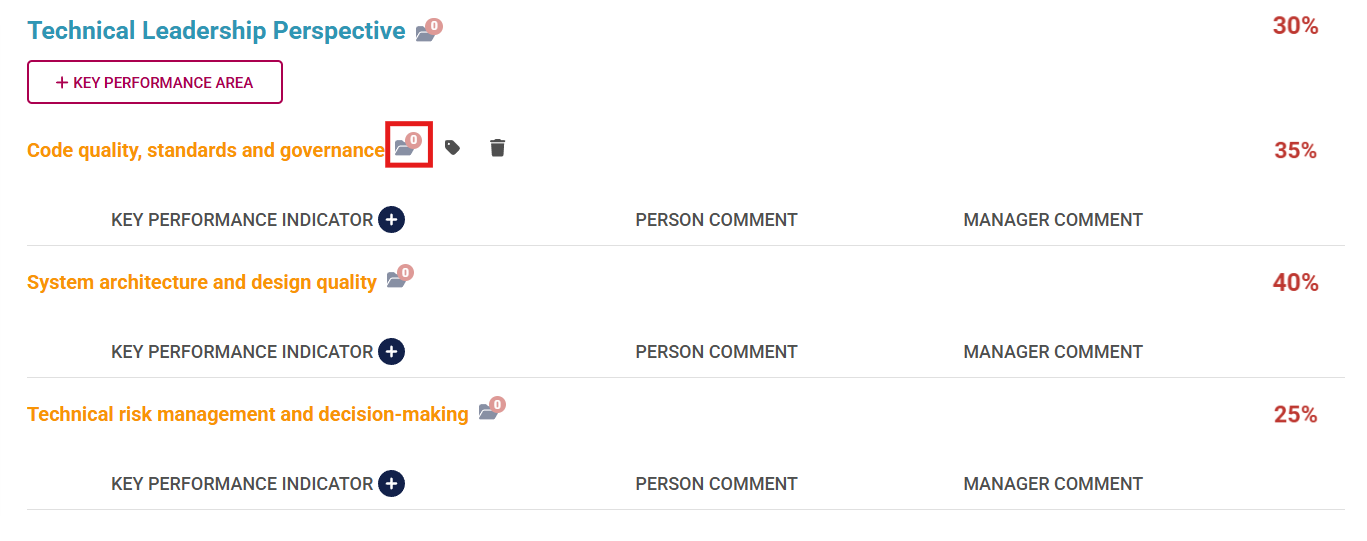
- **Documents** linked to a specific KPA can be **viewed** by clicking on the folder icon.

[![PM Create Blank Agreement - KPA View Documents.png](https://signature.signifyhr.co.za/uploads/images/gallery/2026-02/hY9UGkemRxUO6hNf-pm-create-blank-agreement-kpa-view-documents.png)](https://signature.signifyhr.co.za/uploads/images/gallery/2026-01/K5dWzta8nVzbzzH4-pm-performance-agreement-sections.png)
- Linked **documents** will **display** in the table on the **Documents** screen.

[![PM Create Blank Agreement - Uploaded Documents.png](https://signature.signifyhr.co.za/uploads/images/gallery/2026-02/XmhoDmPaSTHsXUEO-pm-create-blank-agreement-uploaded-documents.png)](https://signature.signifyhr.co.za/uploads/images/gallery/2026-01/K5dWzta8nVzbzzH4-pm-performance-agreement-sections.png)

##### Add KPIs

- Click the plus icon next to **KEY PERFORMANCE INDICATOR** to add a KPI.

[![PM Create Blank Agreement - Add KPI.png](https://signature.signifyhr.co.za/uploads/images/gallery/2026-02/f2HHGnnbPOwxzwrC-pm-create-blank-agreement-add-kpi.png)](https://signature.signifyhr.co.za/uploads/images/gallery/2026-01/K5dWzta8nVzbzzH4-pm-performance-agreement-sections.png)

- Either type your own KPI or select one from the **Master Data Library**.

[![PM Create Blank Agreement - Add KPI Menu.png](https://signature.signifyhr.co.za/uploads/images/gallery/2026-02/szKTTw38STMFklK7-pm-create-blank-agreement-add-kpi-menu.png)](https://signature.signifyhr.co.za/uploads/images/gallery/2026-01/K5dWzta8nVzbzzH4-pm-performance-agreement-sections.png)

- If using **Master Data Library** items, click on the hand icon to **search** for a KPI.

[![PM Create Blank Agreement - Add KPI from Library.png](https://signature.signifyhr.co.za/uploads/images/gallery/2026-02/FobpuMCu19vZwX65-pm-create-blank-agreement-add-kpi-from-library.png)](https://signature.signifyhr.co.za/uploads/images/gallery/2026-01/K5dWzta8nVzbzzH4-pm-performance-agreement-sections.png)
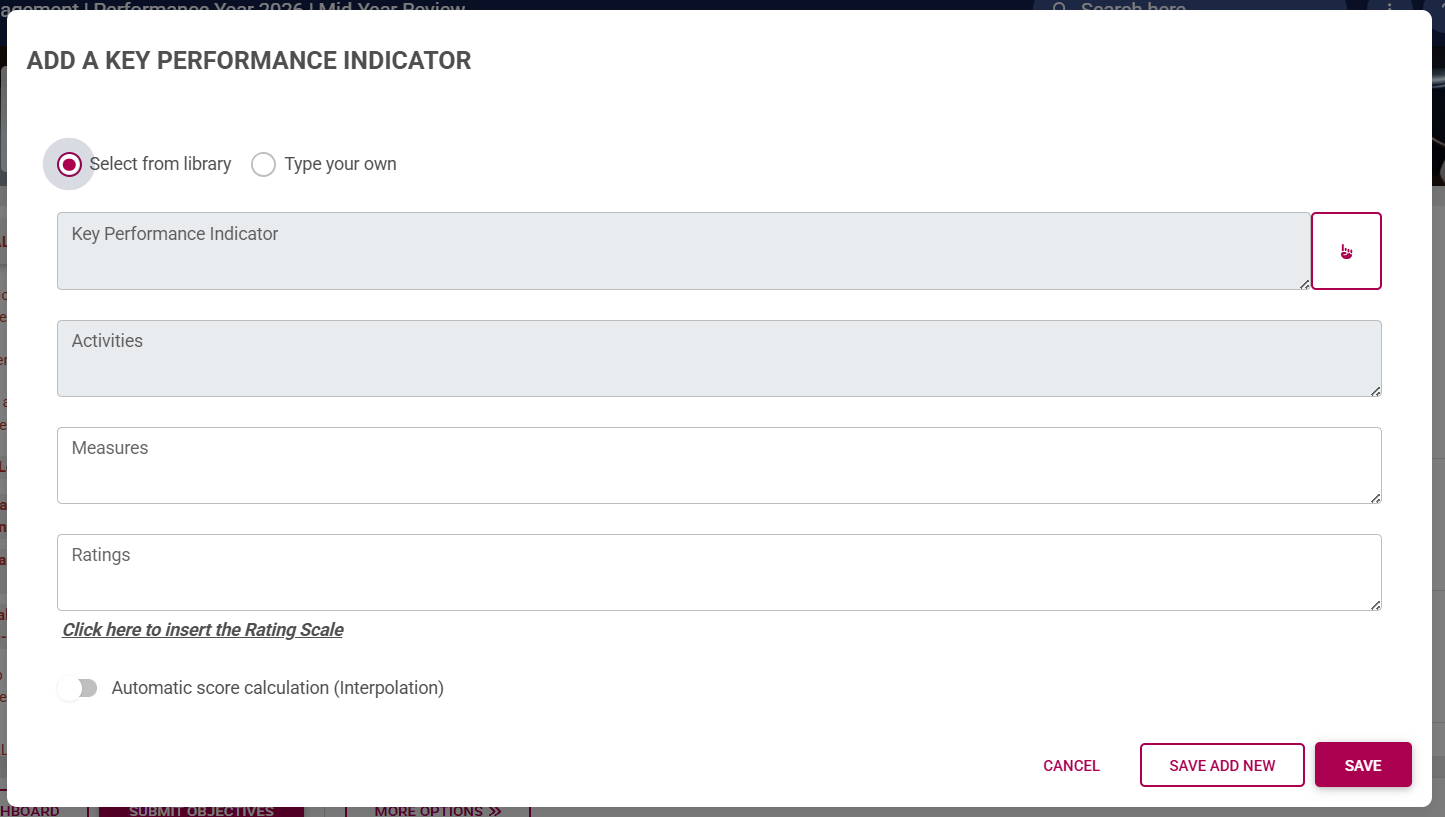
- Click on the KPI you would like to **link**.

[![PM Create Blank Agreement - Select KPI from Library.png](https://signature.signifyhr.co.za/uploads/images/gallery/2026-02/QztPDzUArnvREi2l-pm-create-blank-agreement-select-kpi-from-library.png)](https://signature.signifyhr.co.za/uploads/images/gallery/2026-01/K5dWzta8nVzbzzH4-pm-performance-agreement-sections.png)

- If the **weights are automatically distributed** (based on your review setup's settings), the KPI's weight will be calculated automatically.

[![PM Create Blank Agreement - Auto-distribute Weights.png](https://signature.signifyhr.co.za/uploads/images/gallery/2026-02/YpgZhXKQnhOQ8nr3-pm-create-blank-agreement-auto-distribute-weights.png)](https://signature.signifyhr.co.za/uploads/images/gallery/2026-01/K5dWzta8nVzbzzH4-pm-performance-agreement-sections.png)

- If this setting is switched off, you should assign a weight to this KPI. For more information on review setup settings, click [here](https://signature.signifyhr.co.za/link/2544#bkmrk-sections "Sections of a Performance Agreement").
- If a **rating scale** has been configured on your review setup's settings, you can click to insert this pre-saved rating scale, or choose to construct your own. For more information on rating scales, click [here](https://signature.signifyhr.co.za/link/2544#bkmrk-sections "Sections of a Performance Agreement").
- If **interpolation** has been activated for this review setup, you can choose to interpolate the scores of this KPI if required. 
    - For example, if the KPI requires selling more than 10 cars a month, you can use interpolation to calculate the scores of employees who sold 13, 20, 30, or 40 cars a month.
    - During the **Rating phase**, you would enter how many cars were sold, and the system would automatically calculate a rating for this KPI.
    - For more information on how this works, click [here](https://signature.signifyhr.co.za/books/performance-management-sq2/page/settings-explained-create-or-edit-review-setup#bkmrk-setting-name "Interpolation").

[![PM Create Blank Agreement - Interpolation.png](https://signature.signifyhr.co.za/uploads/images/gallery/2026-02/Fw1ZlWtAKemYl5vF-pm-create-blank-agreement-interpolation.png)](https://signature.signifyhr.co.za/uploads/images/gallery/2026-01/K5dWzta8nVzbzzH4-pm-performance-agreement-sections.png)

- Click **SAVE ADD NEW** to keep adding additional KPIs for this perspective, or **SAVE** if you are done.

[![PM Create Blank Agreement - Save KPI.png](https://signature.signifyhr.co.za/uploads/images/gallery/2026-02/gu0CfiOOtzxh4ycE-pm-create-blank-agreement-save-kpi.png)](https://signature.signifyhr.co.za/uploads/images/gallery/2026-01/K5dWzta8nVzbzzH4-pm-performance-agreement-sections.png)

- Check to ensure the KPI **weights** are **balanced** for this section. There are two possible settings for KPI weights: 
    - The **Key Performance Indicator weights must add up to 100% per Key Performance Area** setting is on, as shown in our example, and you need to adjust the weights accordingly (if the auto-distribute weights setting has been switched off).

[![PM Create Blank Agreement - Auto-distribute Weights.png](https://signature.signifyhr.co.za/uploads/images/gallery/2026-02/YpgZhXKQnhOQ8nr3-pm-create-blank-agreement-auto-distribute-weights.png)](https://signature.signifyhr.co.za/uploads/images/gallery/2026-01/K5dWzta8nVzbzzH4-pm-performance-agreement-sections.png)

***OR***

- - The **Key Performance Indicator weights must sum to 100% across the entire section** setting is on, and you need to adjust the weights accordingly (if the auto-distribute weights setting has been switched off).

***[![PM Create Blank Agreement - KPIs in Section add up to 100.png](https://signature.signifyhr.co.za/uploads/images/gallery/2026-02/54yJoQKtxG5bDMce-pm-create-blank-agreement-kpis-in-section-add-up-to-100.png)](https://signature.signifyhr.co.za/uploads/images/gallery/2026-01/K5dWzta8nVzbzzH4-pm-performance-agreement-sections.png)***

*If you are unsure which setting is active, please contact your performance management administrator.*

[![PM Create Blank Agreement - KPI Weights.png](https://signature.signifyhr.co.za/uploads/images/gallery/2026-02/IvvPtsgKvDGyli0P-pm-create-blank-agreement-kpi-weights.png)](https://signature.signifyhr.co.za/uploads/images/gallery/2026-01/K5dWzta8nVzbzzH4-pm-performance-agreement-sections.png)

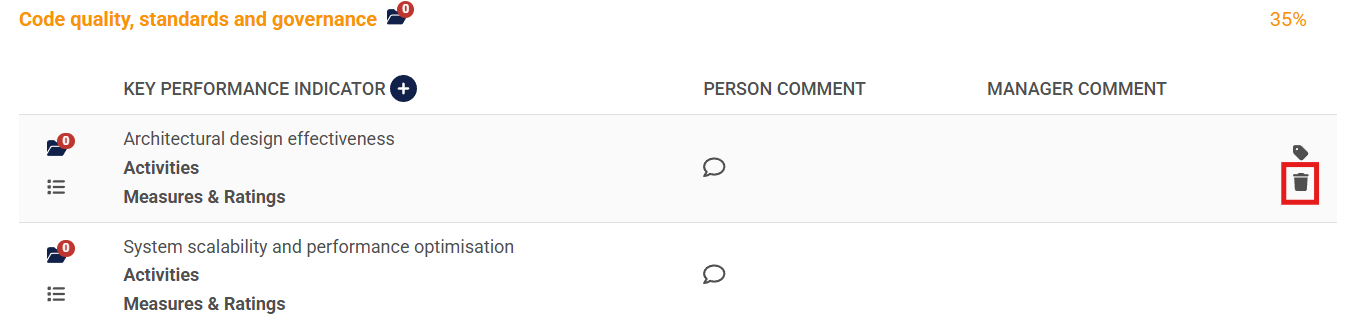
- To **delete** a KPI, hover over it and click the dustbin icon.

[![PM Create Blank Agreement - Delete KPI.png](https://signature.signifyhr.co.za/uploads/images/gallery/2026-02/MlnEJ1RnSsScDc3Z-pm-create-blank-agreement-delete-kpi.png)](https://signature.signifyhr.co.za/uploads/images/gallery/2026-01/K5dWzta8nVzbzzH4-pm-performance-agreement-sections.png)
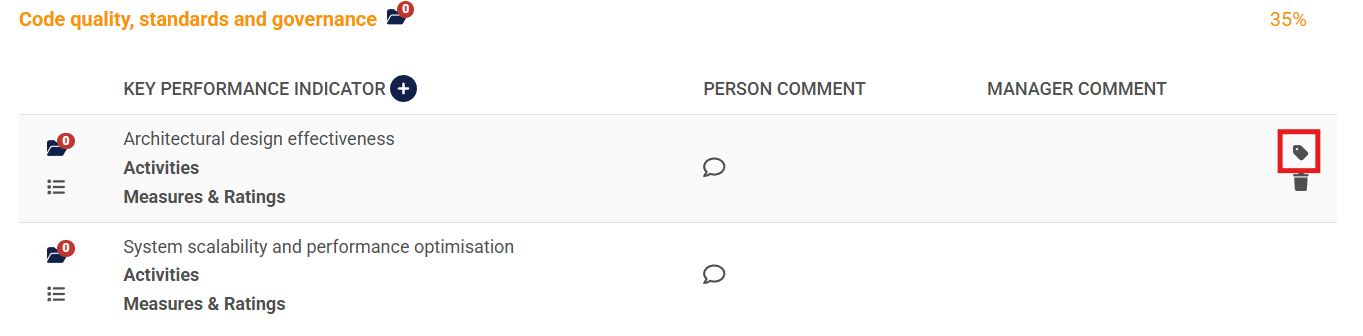
- A KPI can be **tagged** for discussion with your manager by clicking the tag icon.

[![PM Create Blank Agreement - KPI Tag Message.png](https://signature.signifyhr.co.za/uploads/images/gallery/2026-02/TMRQGCOSFUOfVYbW-pm-create-blank-agreement-kpi-tag-message.png)](https://signature.signifyhr.co.za/uploads/images/gallery/2026-01/K5dWzta8nVzbzzH4-pm-performance-agreement-sections.png)
- Your manager will receive a message in their **system inbox** regarding your comment or query.

[![PM Create Blank Agreement - KPA Discussion.png](https://signature.signifyhr.co.za/uploads/images/gallery/2026-02/PoeUNFBVxTf4ets9-pm-create-blank-agreement-kpa-discussion.png)](https://signature.signifyhr.co.za/uploads/images/gallery/2026-01/K5dWzta8nVzbzzH4-pm-performance-agreement-sections.png)

- Hovering over a KPI will show its **activities**, **measures**, and **ratings**.

[![PM Create Blank Agreement - KPI Activities, Measures, Ratings.png](https://signature.signifyhr.co.za/uploads/images/gallery/2026-02/71SbiCQzkBY8LFId-pm-create-blank-agreement-kpi-activities-measures-ratings.png)](https://signature.signifyhr.co.za/uploads/images/gallery/2026-01/K5dWzta8nVzbzzH4-pm-performance-agreement-sections.png)

- **Documents** linked to a specific KPI can be **viewed** by clicking on the folder icon.

[![PM Create Blank Agreement - KPI View Documents.png](https://signature.signifyhr.co.za/uploads/images/gallery/2026-02/LRXeTLtKGqx617pn-pm-create-blank-agreement-kpi-view-documents.png)](https://signature.signifyhr.co.za/uploads/images/gallery/2026-01/K5dWzta8nVzbzzH4-pm-performance-agreement-sections.png)

- Linked **documents** will **display** in the table on the **Documents** screen.

[![PM Create Blank Agreement - KPI View Documents Screen.png](https://signature.signifyhr.co.za/uploads/images/gallery/2026-02/d22nlAt4QdyWgVoy-pm-create-blank-agreement-kpi-view-documents-screen.png)](https://signature.signifyhr.co.za/uploads/images/gallery/2026-01/K5dWzta8nVzbzzH4-pm-performance-agreement-sections.png)
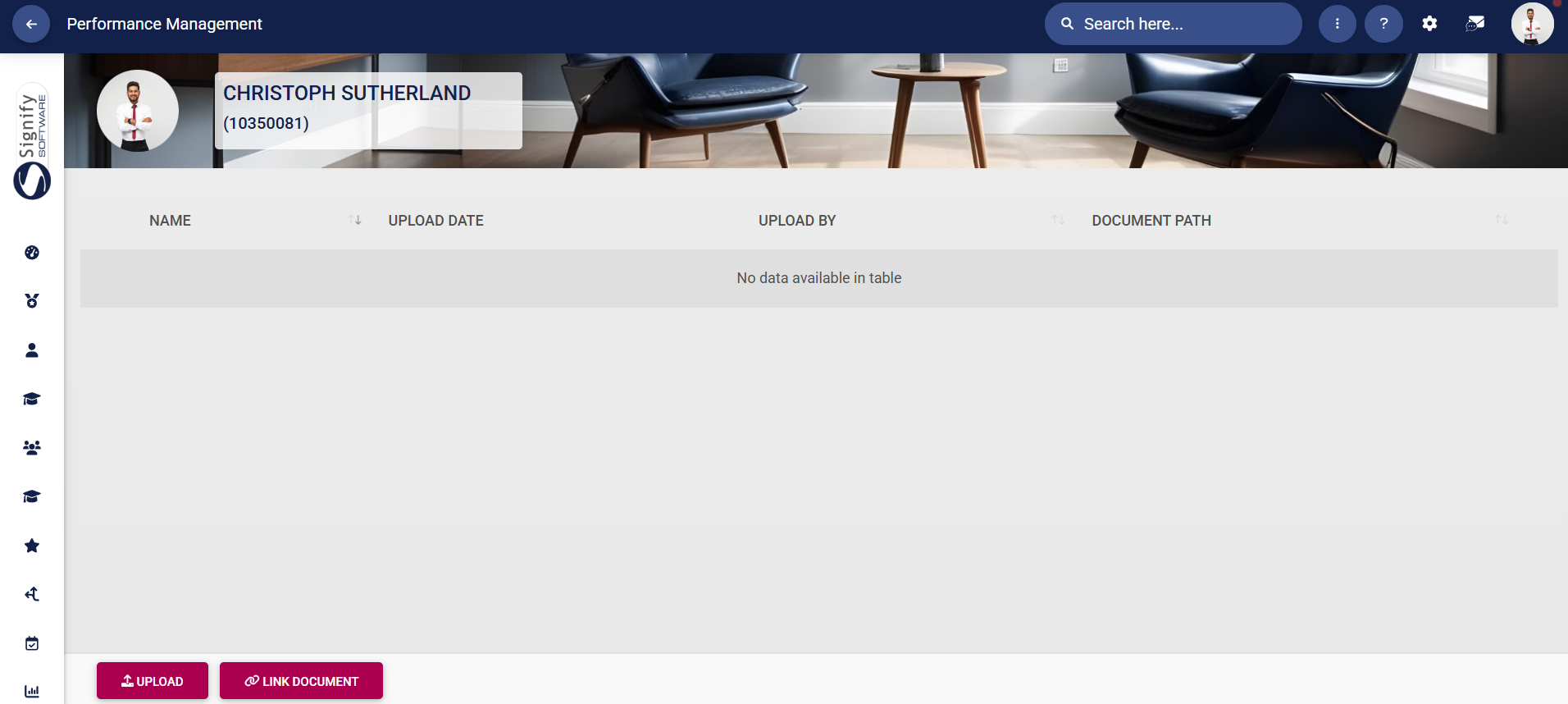
- Click **UPLOAD** to upload a document linked to a specific KPI.

[![PM Create Blank Agreement - KPI Upload Documents Screen.png](https://signature.signifyhr.co.za/uploads/images/gallery/2026-02/iDg6zRKmwDZF5rCk-pm-create-blank-agreement-kpi-upload-documents-screen.png)](https://signature.signifyhr.co.za/uploads/images/gallery/2026-01/K5dWzta8nVzbzzH4-pm-performance-agreement-sections.png)

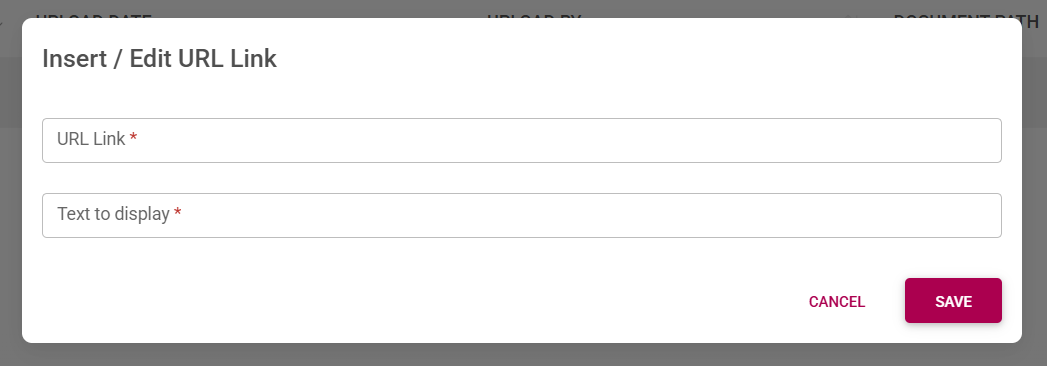
- Click **LINK DOCUMENT** to link a document from an external storage location, such as Google Drive, OneDrive, or SharePoint.

[![PM Create Blank Agreement - KPI Link Documents Screen.png](https://signature.signifyhr.co.za/uploads/images/gallery/2026-02/GmbyJfGZ6LIQthpD-pm-create-blank-agreement-kpi-link-documents-screen.png)](https://signature.signifyhr.co.za/uploads/images/gallery/2026-01/K5dWzta8nVzbzzH4-pm-performance-agreement-sections.png)
- Back on the objective setting screen, click to link an **action plan** to a specific KPI.

[![PM Create Blank Agreement - KPI Action Plan.png](https://signature.signifyhr.co.za/uploads/images/gallery/2026-02/bPpFcd8FHrVycgkr-pm-create-blank-agreement-kpi-action-plan.png)](https://signature.signifyhr.co.za/uploads/images/gallery/2026-01/K5dWzta8nVzbzzH4-pm-performance-agreement-sections.png)

- The **details** of the **action plan** can be captured on the pop-up screen.

[![PM Create Blank Agreement - KPI Action Plan Screen.png](https://signature.signifyhr.co.za/uploads/images/gallery/2026-02/ACnPEIXlLV1adKnc-pm-create-blank-agreement-kpi-action-plan-screen.png)](https://signature.signifyhr.co.za/uploads/images/gallery/2026-01/K5dWzta8nVzbzzH4-pm-performance-agreement-sections.png)

- If training is required for this KPI, a training intervention can be linked from the **Training Intervention Library**.

[![PM Create Blank Agreement - KPI Action Plan - Training Required.png](https://signature.signifyhr.co.za/uploads/images/gallery/2026-02/xNdfqB8ykko4ethp-pm-create-blank-agreement-kpi-action-plan-training-required.png)](https://signature.signifyhr.co.za/uploads/images/gallery/2026-01/K5dWzta8nVzbzzH4-pm-performance-agreement-sections.png)

- A **comment** may be added to a KPI by the manager or the employee.
- It is important to ensure your weights for this section are correct.

[![PM Performance Agreement Weights.png](https://signature.signifyhr.co.za/uploads/images/gallery/2026-03/6MXxJCerj4e8b4cY-pm-performance-agreement-weights.png)](https://signature.signifyhr.co.za/uploads/images/gallery/2026-01/K5dWzta8nVzbzzH4-pm-performance-agreement-sections.png)
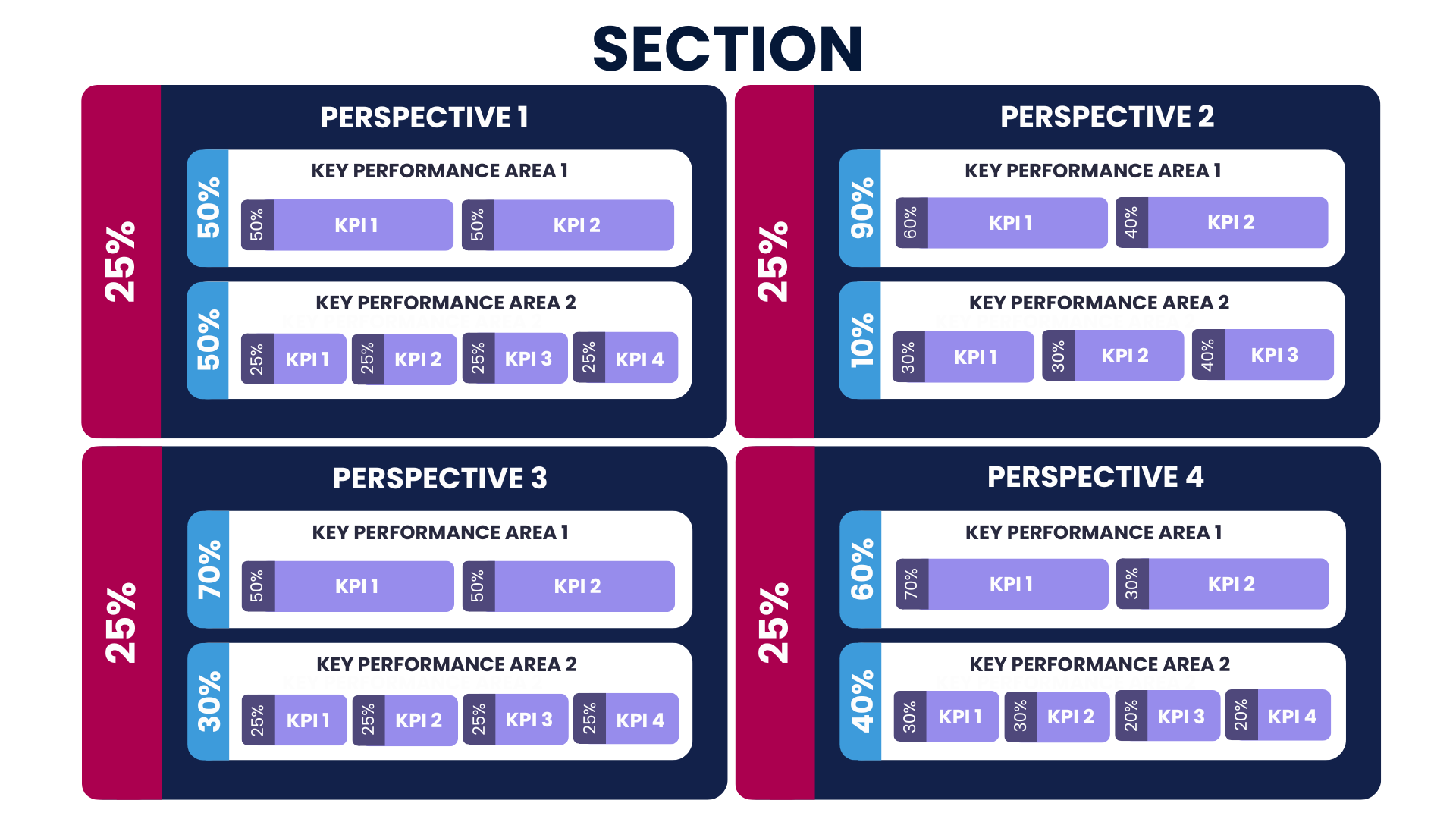
- If your weights of perspectives, KPAs, or KPIs are unbalanced, you will receive the following error message when attempting to submit your objectives:

[![PM Create Blank Agreement - Incorrect Weights at KPI or KPA level.png](https://signature.signifyhr.co.za/uploads/images/gallery/2026-02/wbnlZeU6ZKKh3sGc-pm-create-blank-agreement-incorrect-weights-at-kpi-or-kpa-level.png)](https://signature.signifyhr.co.za/uploads/images/gallery/2026-01/K5dWzta8nVzbzzH4-pm-performance-agreement-sections.png)

</details><details id="bkmrk-stretch-goals-%C2%A0"><summary>STRETCH GOALS</summary>

#### Stretch Goals

##### Overview of the process

[![PM Objective Setting - Stretch Goals overview.png](https://signature.signifyhr.co.za/uploads/images/gallery/2026-02/IKh35QjrvfGO19k4-pm-objective-setting-stretch-goals-overview.png)](https://signature.signifyhr.co.za/uploads/images/gallery/2026-01/ivWZbUVt3epHE62B-pm-objective-setting-stretch-goals-overview.png)
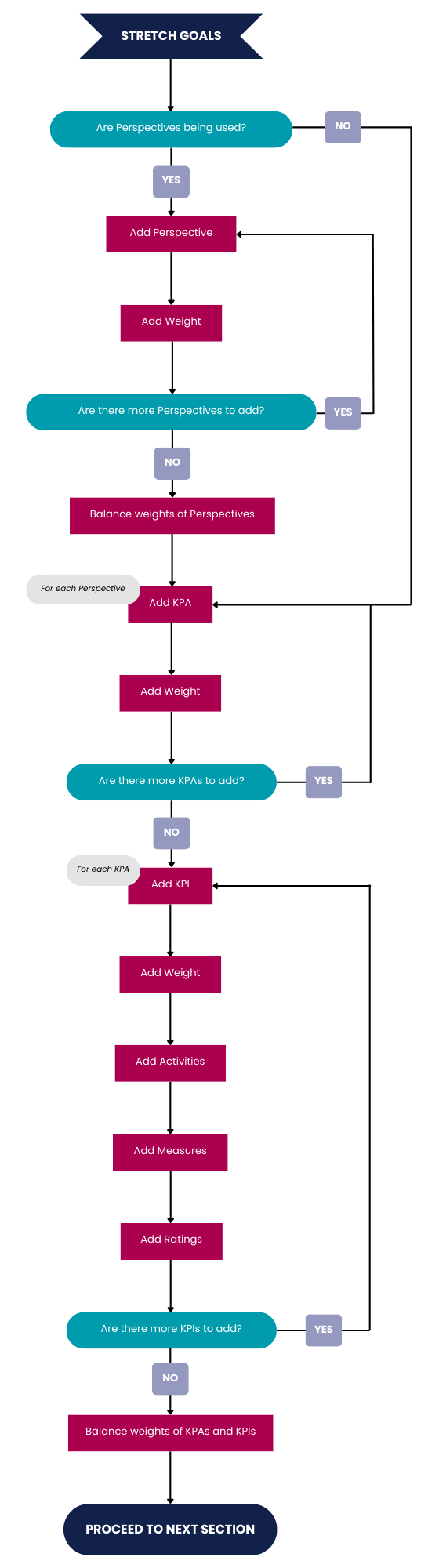
##### Add perspectives

The process for adding perspectives in the Stretch Goals section is the same as Primary Goals. Click [here](https://signature.signifyhr.co.za/books/performance-management-sq2/page/objective-setting-phase#bkmrk-add-perspectives "Add perspectives") to jump to the tutorial.

##### Add KPAs

The process for adding KPAs in the Stretch Goals section is the same as Primary Goals. Click [here](https://signature.signifyhr.co.za/books/performance-management-sq2/page/objective-setting-phase#bkmrk-add-kpas "Add KPAs") to jump to the tutorial.

##### Add KPIs

The process for adding KPIs in the Stretch Goals section is the same as Primary Goals. Click [here](https://signature.signifyhr.co.za/books/performance-management-sq2/page/objective-setting-phase#bkmrk-add-kpishttps://signature.signifyhr.co.za/books/performance-management-sq2/page/objective-setting-phase#bkmrk-add-kpis "Add KPIs") to jump to the tutorial.

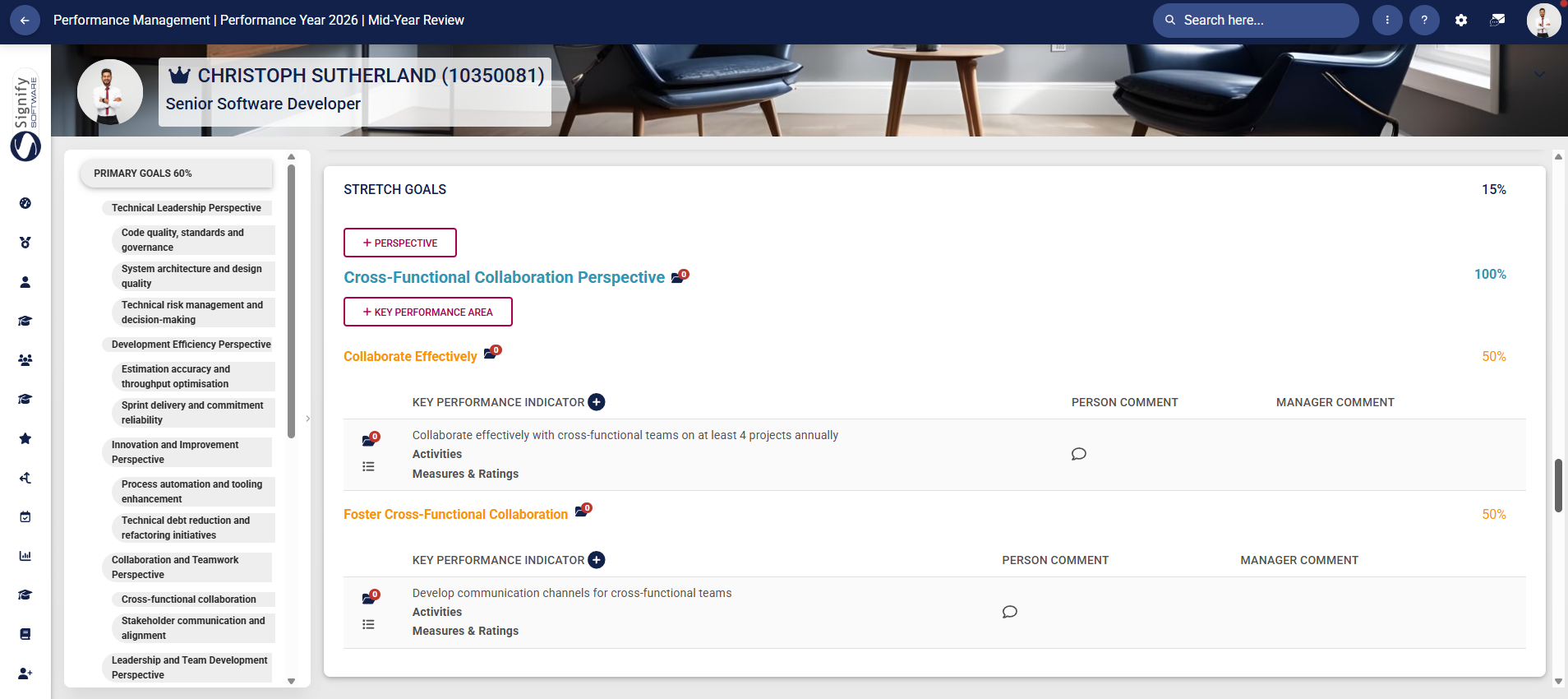
For more information regarding the settings used to configure Stretch Goals, click [here](https://signature.signifyhr.co.za/link/2544#bkmrk-stretch-goals "Stretch Goals Settings"). Once completed, your Stretch Goals section may look similar to our example below:

[![PM Create Blank Agreement - Stretch Goals.png](https://signature.signifyhr.co.za/uploads/images/gallery/2026-02/YdQnuSGFkzHEG1Pw-pm-create-blank-agreement-stretch-goals.png)](https://signature.signifyhr.co.za/uploads/images/gallery/2026-01/K5dWzta8nVzbzzH4-pm-performance-agreement-sections.png)
</details><details id="bkmrk-values-and-behaviour"><summary>VALUES AND BEHAVIOURS</summary>

#### Values and Behaviours

The objectives in this section are **automatically populated** when the performance agreement is created. For more information regarding the **settings** used to configure Values and Behaviours, click [here](https://signature.signifyhr.co.za/link/2544#bkmrk-%C2%A0-5 "Values and Behaviours Settings").

Once completed, your V**alues and Behaviours section** may look similar to our example below:

[![PM Create Blank Agreement - Values and Behaviours.png](https://signature.signifyhr.co.za/uploads/images/gallery/2026-02/3jsP7T9SwMASmqOr-pm-create-blank-agreement-values-and-behaviours.png)](https://signature.signifyhr.co.za/uploads/images/gallery/2026-01/K5dWzta8nVzbzzH4-pm-performance-agreement-sections.png)

- If the **addition or deletion** of items to the list has been enabled, you may link additional items to the performance agreement. Click [here](https://signature.signifyhr.co.za/link/2369#bkmrk-how-do-i-update-the- "How do I update the Master Data Library for Performance Management?") to find out how to update the **Master Data Library**. You can hover over an item and click the dustbin icon to **delete** it. In our example, this setting has been disabled.

[![PM Create Blank Agreement - Add or Edit List Items.png](https://signature.signifyhr.co.za/uploads/images/gallery/2026-02/6r6dGKuAYaUbRKoA-pm-create-blank-agreement-add-or-edit-list-items.png)](https://signature.signifyhr.co.za/uploads/images/gallery/2026-01/K5dWzta8nVzbzzH4-pm-performance-agreement-sections.png)

- If the **auto-distribution of weights** setting has been enabled, the system will automatically assign a weight to each item in the list. However, if this setting has been disabled, please ensure the **weights** of the items in this list add up to 100%. In our example, this setting has been enabled.

[![image.png](https://signature.signifyhr.co.za/uploads/images/gallery/2026-02/CMVERx6tfsLO65r0-image.png)](https://signature.signifyhr.co.za/uploads/images/gallery/2026-01/K5dWzta8nVzbzzH4-pm-performance-agreement-sections.png)

- A Values and Behaviours item can be **tagged** for discussion with your manager by clicking the tag icon.

[![PM Create Blank Agreement - Values and Behaviours - Tag Message.png](https://signature.signifyhr.co.za/uploads/images/gallery/2026-02/leISl0Woq4zbVkcw-pm-create-blank-agreement-values-and-behaviours-tag-message.png)](https://signature.signifyhr.co.za/uploads/images/gallery/2026-01/K5dWzta8nVzbzzH4-pm-performance-agreement-sections.png)

- Your manager will receive a message in their **system inbox** regarding your comment or query.

[![PM Create Blank Agreement - KPA Discussion.png](https://signature.signifyhr.co.za/uploads/images/gallery/2026-02/PoeUNFBVxTf4ets9-pm-create-blank-agreement-kpa-discussion.png)](https://signature.signifyhr.co.za/uploads/images/gallery/2026-01/K5dWzta8nVzbzzH4-pm-performance-agreement-sections.png)

- **Documents** linked to a specific Values and Behaviours item can be **viewed** by clicking on the folder icon.

[![PM Create Blank Agreement - Values and Behaviours - View Documents.png](https://signature.signifyhr.co.za/uploads/images/gallery/2026-02/dVm2YRdjwfHiMIFA-pm-create-blank-agreement-values-and-behaviours-view-documents.png)](https://signature.signifyhr.co.za/uploads/images/gallery/2026-01/K5dWzta8nVzbzzH4-pm-performance-agreement-sections.png)

- Linked **documents** will **display** in the table on the **Documents** screen.

[![PM Create Blank Agreement - KPI View Documents Screen.png](https://signature.signifyhr.co.za/uploads/images/gallery/2026-02/d22nlAt4QdyWgVoy-pm-create-blank-agreement-kpi-view-documents-screen.png)](https://signature.signifyhr.co.za/uploads/images/gallery/2026-01/K5dWzta8nVzbzzH4-pm-performance-agreement-sections.png)

- Click **UPLOAD** to upload a document.

[![PM Create Blank Agreement - KPI Upload Documents Screen.png](https://signature.signifyhr.co.za/uploads/images/gallery/2026-02/iDg6zRKmwDZF5rCk-pm-create-blank-agreement-kpi-upload-documents-screen.png)](https://signature.signifyhr.co.za/uploads/images/gallery/2026-01/K5dWzta8nVzbzzH4-pm-performance-agreement-sections.png)

- Click **LINK DOCUMENT** to link a document from an external storage location, such as Google Drive, OneDrive, or SharePoint.

[![PM Create Blank Agreement - KPI Link Documents Screen.png](https://signature.signifyhr.co.za/uploads/images/gallery/2026-02/GmbyJfGZ6LIQthpD-pm-create-blank-agreement-kpi-link-documents-screen.png)](https://signature.signifyhr.co.za/uploads/images/gallery/2026-01/K5dWzta8nVzbzzH4-pm-performance-agreement-sections.png)

- Back on the objective setting screen, click to link an **action plan** to a specific Values and Behaviours item.

[![PM Create Blank Agreement - Values and Behaviours - Link Action Plan.png](https://signature.signifyhr.co.za/uploads/images/gallery/2026-02/iROWsLLsg3HpTgpb-pm-create-blank-agreement-values-and-behaviours-link-action-plan.png)](https://signature.signifyhr.co.za/uploads/images/gallery/2026-01/K5dWzta8nVzbzzH4-pm-performance-agreement-sections.png)

- The **details** of the **action plan** can be captured on the pop-up screen.

[![PM Create Blank Agreement - KPI Action Plan Screen.png](https://signature.signifyhr.co.za/uploads/images/gallery/2026-02/ACnPEIXlLV1adKnc-pm-create-blank-agreement-kpi-action-plan-screen.png)](https://signature.signifyhr.co.za/uploads/images/gallery/2026-01/K5dWzta8nVzbzzH4-pm-performance-agreement-sections.png)

- If training is required for this Values and Behaviours item, a training intervention can be linked from the **Training Intervention Library**.

[![PM Create Blank Agreement - KPI Action Plan - Training Required.png](https://signature.signifyhr.co.za/uploads/images/gallery/2026-02/xNdfqB8ykko4ethp-pm-create-blank-agreement-kpi-action-plan-training-required.png)](https://signature.signifyhr.co.za/uploads/images/gallery/2026-01/K5dWzta8nVzbzzH4-pm-performance-agreement-sections.png)

- A **comment** may be added to a Value or Behaviour by the manager or the employee.

</details><details id="bkmrk-leadership-behaviour"><summary>LEADERSHIP BEHAVIOURS</summary>

#### Leadership Behaviours

The objectives in this section are **automatically populated** when the performance agreement is created. For more information regarding the **settings** used to configure Leadership Behaviours, click [here](https://signature.signifyhr.co.za/link/2544#bkmrk-leadership-behaviour "Leadership Behaviours Settings").

Once completed, your **Leadership Behaviours section** may look similar to our example below:

[![PM Create Blank Agreement - Leadership Behaviours.png](https://signature.signifyhr.co.za/uploads/images/gallery/2026-02/JQSgMRNeERKrYee6-pm-create-blank-agreement-leadership-behaviours.png)](https://signature.signifyhr.co.za/uploads/images/gallery/2026-01/K5dWzta8nVzbzzH4-pm-performance-agreement-sections.png)

- If the **addition or deletion** of items to the list has been enabled, you may link additional items to the performance agreement. Click [here](https://signature.signifyhr.co.za/link/2369#bkmrk-how-do-i-update-the- "How do I update the Master Data Library for Performance Management?") to find out how to update the **Master Data Library**. You can hover over an item and click the dustbin icon to **delete** it. In our example, this setting has been disabled.

[![PM Create Blank Agreement - Add or Edit List Items.png](https://signature.signifyhr.co.za/uploads/images/gallery/2026-02/6r6dGKuAYaUbRKoA-pm-create-blank-agreement-add-or-edit-list-items.png)](https://signature.signifyhr.co.za/uploads/images/gallery/2026-01/K5dWzta8nVzbzzH4-pm-performance-agreement-sections.png)

- If the **auto-distribution of weights** setting has been enabled, the system will automatically assign a weight to each item in the list. However, if this setting has been disabled, please ensure the **weights** of the items in this list add up to 100%. In our example, this setting has been enabled.

[![image.png](https://signature.signifyhr.co.za/uploads/images/gallery/2026-02/CMVERx6tfsLO65r0-image.png)](https://signature.signifyhr.co.za/uploads/images/gallery/2026-01/K5dWzta8nVzbzzH4-pm-performance-agreement-sections.png)

- A Leadership Behaviours item can be **tagged** for discussion with your manager by clicking the tag icon.

[![PM Create Blank Agreement - Leadership Behaviours - Tag Message.png](https://signature.signifyhr.co.za/uploads/images/gallery/2026-02/npGiLuok7a9Un1kJ-pm-create-blank-agreement-leadership-behaviours-tag-message.png)](https://signature.signifyhr.co.za/uploads/images/gallery/2026-01/K5dWzta8nVzbzzH4-pm-performance-agreement-sections.png)

- Your manager will receive a message in their **system inbox** regarding your comment or query.

[![PM Create Blank Agreement - KPA Discussion.png](https://signature.signifyhr.co.za/uploads/images/gallery/2026-02/PoeUNFBVxTf4ets9-pm-create-blank-agreement-kpa-discussion.png)](https://signature.signifyhr.co.za/uploads/images/gallery/2026-01/K5dWzta8nVzbzzH4-pm-performance-agreement-sections.png)

- **Documents** linked to a specific Leadership Behaviours item can be **viewed** by clicking on the folder icon.

[![PM Create Blank Agreement - Leadership Behaviours - View Documents.png](https://signature.signifyhr.co.za/uploads/images/gallery/2026-02/KnNpoEVVdf1pXi2F-pm-create-blank-agreement-leadership-behaviours-view-documents.png)](https://signature.signifyhr.co.za/uploads/images/gallery/2026-01/K5dWzta8nVzbzzH4-pm-performance-agreement-sections.png)

- Linked **documents** will **display** in the table on the **Documents** screen.

[![PM Create Blank Agreement - KPI View Documents Screen.png](https://signature.signifyhr.co.za/uploads/images/gallery/2026-02/d22nlAt4QdyWgVoy-pm-create-blank-agreement-kpi-view-documents-screen.png)](https://signature.signifyhr.co.za/uploads/images/gallery/2026-01/K5dWzta8nVzbzzH4-pm-performance-agreement-sections.png)

- Click **UPLOAD** to upload a document.

[![PM Create Blank Agreement - KPI Upload Documents Screen.png](https://signature.signifyhr.co.za/uploads/images/gallery/2026-02/iDg6zRKmwDZF5rCk-pm-create-blank-agreement-kpi-upload-documents-screen.png)](https://signature.signifyhr.co.za/uploads/images/gallery/2026-01/K5dWzta8nVzbzzH4-pm-performance-agreement-sections.png)

- Click **LINK DOCUMENT** to link a document from an external storage location, such as Google Drive, OneDrive, or SharePoint.

[![PM Create Blank Agreement - KPI Link Documents Screen.png](https://signature.signifyhr.co.za/uploads/images/gallery/2026-02/GmbyJfGZ6LIQthpD-pm-create-blank-agreement-kpi-link-documents-screen.png)](https://signature.signifyhr.co.za/uploads/images/gallery/2026-01/K5dWzta8nVzbzzH4-pm-performance-agreement-sections.png)

- Back on the objective setting screen, click to link an **action plan** to a specific Leadership Behaviours item.

[![PM Create Blank Agreement - Leadership Behaviours - Link Action Plan.png](https://signature.signifyhr.co.za/uploads/images/gallery/2026-02/25EPY3z4vJyhqVju-pm-create-blank-agreement-leadership-behaviours-link-action-plan.png)](https://signature.signifyhr.co.za/uploads/images/gallery/2026-01/K5dWzta8nVzbzzH4-pm-performance-agreement-sections.png)

- The **details** of the **action plan** can be captured on the pop-up screen.

[![PM Create Blank Agreement - KPI Action Plan Screen.png](https://signature.signifyhr.co.za/uploads/images/gallery/2026-02/ACnPEIXlLV1adKnc-pm-create-blank-agreement-kpi-action-plan-screen.png)](https://signature.signifyhr.co.za/uploads/images/gallery/2026-01/K5dWzta8nVzbzzH4-pm-performance-agreement-sections.png)

- If training is required for this Leadership Behaviours item, a training intervention can be linked from the **Training Intervention Library**.

[![PM Create Blank Agreement - KPI Action Plan - Training Required.png](https://signature.signifyhr.co.za/uploads/images/gallery/2026-02/xNdfqB8ykko4ethp-pm-create-blank-agreement-kpi-action-plan-training-required.png)](https://signature.signifyhr.co.za/uploads/images/gallery/2026-01/K5dWzta8nVzbzzH4-pm-performance-agreement-sections.png)

- A **comment** may be added to a Leadership Behaviour by the manager or the employee.

</details><details id="bkmrk-key-competencies-%C2%A0"><summary>KEY COMPETENCIES</summary>

#### Key Competencies

The settings governing the **Key Competencies** section is explained [here](https://signature.signifyhr.co.za/link/2544#bkmrk-key-competencies "Key Competencies Settings").

- Click to link key competencies to the performance agreement.

[![PM Create Blank Agreement - Add Key Competencies Button.png](https://signature.signifyhr.co.za/uploads/images/gallery/2026-02/OMb9FkTyCtBSxAvl-pm-create-blank-agreement-add-key-competencies-button.png)](https://signature.signifyhr.co.za/uploads/images/gallery/2026-01/K5dWzta8nVzbzzH4-pm-performance-agreement-sections.png)

- A key competency can be selected from the **Master Data Library**, or you can type your own.

[![PM Create Blank Agreement - Add Key Competencies.png](https://signature.signifyhr.co.za/uploads/images/gallery/2026-02/I9UuIKjmz29iwkj9-pm-create-blank-agreement-add-key-competencies.png)](https://signature.signifyhr.co.za/uploads/images/gallery/2026-01/K5dWzta8nVzbzzH4-pm-performance-agreement-sections.png)

- Add a **description**, appropriate **measures**, and a **rating scale** for this competency.
- Click to activate **interpolation** for this item.
- Click **SAVE ADD NEW** to add an additional item, or click **SAVE** if you are done.
- Once you have completed the key competencies section, your performance agreement may look something like this:

[![PM Create Blank Agreement - Key Competencies.png](https://signature.signifyhr.co.za/uploads/images/gallery/2026-02/nl5nJdcZH2q3j5p5-pm-create-blank-agreement-key-competencies.png)](https://signature.signifyhr.co.za/uploads/images/gallery/2026-01/K5dWzta8nVzbzzH4-pm-performance-agreement-sections.png)

- Documents may be linked to key competency items, as well as action plans.
- A comment may be added to a Key Competency by the manager or the employee.

</details><details id="bkmrk-action-plan-an-actio"><summary>ACTION PLAN</summary>

#### Action Plan

An action plan can be linked to a performance agreement, with actionable steps and milestones to track progress.

- To create an action plan, click **+ACTION.** A previous action plan item may also be copied to the current performance agreement.

[![PM Create Blank Agreement - Action Plan.png](https://signature.signifyhr.co.za/uploads/images/gallery/2026-02/ByiZOhN6JjRPykrh-pm-create-blank-agreement-action-plan.png)](https://signature.signifyhr.co.za/uploads/images/gallery/2026-01/K5dWzta8nVzbzzH4-pm-performance-agreement-sections.png)

- The **details** of the **action plan** can be captured on the pop-up screen.

[![PM Create Blank Agreement - Add Action Plan.png](https://signature.signifyhr.co.za/uploads/images/gallery/2026-02/3XXmmZdMOQtFpgSH-pm-create-blank-agreement-add-action-plan.png)](https://signature.signifyhr.co.za/uploads/images/gallery/2026-01/K5dWzta8nVzbzzH4-pm-performance-agreement-sections.png)

- If training is required for this action plan, a training intervention can be linked from the **Training Intervention Library**, or you may type your own.

[![PM Create Blank Agreement - KPI Action Plan - Training Required.png](https://signature.signifyhr.co.za/uploads/images/gallery/2026-02/xNdfqB8ykko4ethp-pm-create-blank-agreement-kpi-action-plan-training-required.png)](https://signature.signifyhr.co.za/uploads/images/gallery/2026-01/K5dWzta8nVzbzzH4-pm-performance-agreement-sections.png)

</details><details id="bkmrk-general-comments-gen"><summary>GENERAL COMMENTS</summary>

#### General Comments

General comments, from the employee as well as the manager, can be made on the performance agreement. Click **+GENERAL COMMENT** to add a new comment.

[![PM Create Blank Agreement - General Comments.png](https://signature.signifyhr.co.za/uploads/images/gallery/2026-02/BVOBSe1PPppqFuhP-pm-create-blank-agreement-general-comments.png)](https://signature.signifyhr.co.za/uploads/images/gallery/2026-01/K5dWzta8nVzbzzH4-pm-performance-agreement-sections.png)

</details>### Submitting Your Objectives

To ensure you are ready to submit your objectives, ask yourself the following questions:

- <label>  [ ]  Have you completed all the sections of the performance agreement with suitable objectives? </label>
- <label>  [ ]  Does each objective have the correct weight assigned? </label>
- <label>  [ ]  Are the weights for each section correct? </label>
- <label>  [ ]  Have you uploaded supporting documents for your objectives where needed? </label>
- <label>  [ ]  Have you added comments to your objectives where needed? </label>
- <label>  [ ]  Have you added action plans to specific objectives where needed? </label>
- <label>  [ ]  If applicable, have you added a general action plan to the performance agreement? </label>
- <label>  [ ]  If necessary, have you added general comments to the performance agreement? </label>

If you have gone through this list and double-checked your performance agreement, you can use the toolbar at the bottom of the screen to finalise your objectives:

[![PM Create Blank Agreement - Next Steps.png](https://signature.signifyhr.co.za/uploads/images/gallery/2026-02/sk3fhbd2a0Vgyrlp-pm-create-blank-agreement-next-steps.png)](https://signature.signifyhr.co.za/uploads/images/gallery/2026-01/K5dWzta8nVzbzzH4-pm-performance-agreement-sections.png)

- If you would like to edit the section weights of the performance agreement, click **EDIT SECTION WEIGHTS**.

[![PM Create Blank Agreement - Edit Section Weights.png](https://signature.signifyhr.co.za/uploads/images/gallery/2026-02/qRHZeXVkfZKhP21S-pm-create-blank-agreement-edit-section-weights.png)](https://signature.signifyhr.co.za/uploads/images/gallery/2026-01/K5dWzta8nVzbzzH4-pm-performance-agreement-sections.png)

- If you would like to view or print the performance agreement, click **VIEW/PRINT**. The performance agreement will open in a new tab.

[![PM Create Blank Agreement - View or Print.png](https://signature.signifyhr.co.za/uploads/images/gallery/2026-02/jnaj2ULHUHXMvt87-pm-create-blank-agreement-view-or-print.png)](https://signature.signifyhr.co.za/uploads/images/gallery/2026-01/K5dWzta8nVzbzzH4-pm-performance-agreement-sections.png)

- The performance agreement can be exported to Excel as a spreadsheet by clicking **EXPORT**.

[![PM Create Blank Agreement - Export to Excel.png](https://signature.signifyhr.co.za/uploads/images/gallery/2026-02/ABgalDuXidP1A6SI-pm-create-blank-agreement-export-to-excel.png)](https://signature.signifyhr.co.za/uploads/images/gallery/2026-01/K5dWzta8nVzbzzH4-pm-performance-agreement-sections.png)

- **Save** the document.

[![PM Create Blank Agreement - View or Print - Export.png](https://signature.signifyhr.co.za/uploads/images/gallery/2026-02/gafzubP1g3B01FTD-pm-create-blank-agreement-view-or-print-export.png)](https://signature.signifyhr.co.za/uploads/images/gallery/2026-01/K5dWzta8nVzbzzH4-pm-performance-agreement-sections.png)

- **Print** the document using the print dialogue.

[![PM Create Blank Agreement - Print Agreement.png](https://signature.signifyhr.co.za/uploads/images/gallery/2026-02/owOEI7daWziAtQTs-pm-create-blank-agreement-eprint-agreement.png)](https://signature.signifyhr.co.za/uploads/images/gallery/2026-01/K5dWzta8nVzbzzH4-pm-performance-agreement-sections.png)

- Back on the performance agreement screen, click **SUBMIT OBJECTIVES** if you are ready to submit the performance agreement for approval.

[![PM Create Blank Agreement - Submit Objectives.png](https://signature.signifyhr.co.za/uploads/images/gallery/2026-02/qDzUOrhsep7L6w3y-pm-create-blank-agreement-submit-objectives.png)](https://signature.signifyhr.co.za/uploads/images/gallery/2026-01/K5dWzta8nVzbzzH4-pm-performance-agreement-sections.png)

- A confirmation message will appear, indicating that your performance manager will be notified of your submission. Click the **I acknowledge &amp; agree** toggle, then click **SUBMIT**.

[![PM Create Blank Agreement - Submit Objectives Confirmation.png](https://signature.signifyhr.co.za/uploads/images/gallery/2026-02/VunOYzxtkfRVIFPD-pm-create-blank-agreement-submit-objectives-confirmation.png)](https://signature.signifyhr.co.za/uploads/images/gallery/2026-01/K5dWzta8nVzbzzH4-pm-performance-agreement-sections.png)

- The employee's **Performance Management** dashboard will indicate that they have successfully **submitted their objectives**.

[![PM Employee Dashboard](https://signature.signifyhr.co.za/uploads/images/gallery/2026-02/W4pGCOFFbrXdpQ4o-screenshot-2026-02-24-143724.png)](https://signature.signifyhr.co.za/uploads/images/gallery/2026-01/K5dWzta8nVzbzzH4-pm-performance-agreement-sections.png)

- Upon submitting their objectives, the employee's performance manager will receive the following **email** automatically:

[![PM Manager Email Received](https://signature.signifyhr.co.za/uploads/images/gallery/2026-02/es2IFuhjkViiJ9de-screenshot-2026-02-24-144252.png)](https://signature.signifyhr.co.za/uploads/images/gallery/2026-01/K5dWzta8nVzbzzH4-pm-performance-agreement-sections.png)

- If the manager navigates to their **Performance Management** dashboard, they will see that their next step is to complete the objective-setting phase. Next to the employee's performance summary, the manager can click **CONTINUE**.

[![PM Manager Dashboard](https://signature.signifyhr.co.za/uploads/images/gallery/2026-02/phA1jiUHHT9jrMD7-screenshot-2026-02-24-143805.png)](https://signature.signifyhr.co.za/uploads/images/gallery/2026-01/K5dWzta8nVzbzzH4-pm-performance-agreement-sections.png)

- The performance manager can **review** the performance agreement, make necessary edits, submit comments, initiate discussions, and adjust weights as needed.

[![PM Manager Review PM Agreement](https://signature.signifyhr.co.za/uploads/images/gallery/2026-02/HnON3w4zH7WmtqLV-screenshot-2026-02-24-143848.png)](https://signature.signifyhr.co.za/uploads/images/gallery/2026-01/K5dWzta8nVzbzzH4-pm-performance-agreement-sections.png)

- Once they have finished their reviews, they can click **SUBMIT OBJECTIVES**.

[![PM Create Blank Agreement - Submit Objectives.png](https://signature.signifyhr.co.za/uploads/images/gallery/2026-02/qDzUOrhsep7L6w3y-pm-create-blank-agreement-submit-objectives.png)](https://signature.signifyhr.co.za/uploads/images/gallery/2026-01/K5dWzta8nVzbzzH4-pm-performance-agreement-sections.png)

- A confirmation message will appear, indicating that the objectives will be locked for editing. Click the **I acknowledge &amp; agree** toggle, then click **SUBMIT**.

[![PM Manager Submit Objectives Confirmation](https://signature.signifyhr.co.za/uploads/images/gallery/2026-02/UdMjgIrWQnAztzB1-screenshot-2026-02-24-143920.png)](https://signature.signifyhr.co.za/uploads/images/gallery/2026-01/K5dWzta8nVzbzzH4-pm-performance-agreement-sections.png)

- The employee will then receive this **email**, indicating that the manager has approved their objectives:

[![PM Objectives Approved by Manager - Employee Email](https://signature.signifyhr.co.za/uploads/images/gallery/2026-02/coS40sD3cyOENQeo-screenshot-2026-02-24-144322.png)](https://signature.signifyhr.co.za/uploads/images/gallery/2026-01/K5dWzta8nVzbzzH4-pm-performance-agreement-sections.png)

- The manager's dashboard will show that the performance agreement has moved to the next phase, which is the **Check-In Phase**.

[![Screenshot 2026-02-24 152047.png](https://signature.signifyhr.co.za/uploads/images/gallery/2026-02/Aty6uBbJkqfFG4KM-screenshot-2026-02-24-152047.png)](https://signature.signifyhr.co.za/uploads/images/gallery/2026-01/K5dWzta8nVzbzzH4-pm-performance-agreement-sections.png)

### Editing Your Objectives

- The employee will be unable to **modify their objectives** unless the manager clicks **MODIFY OBJECTIVES** on their **Performance Management** dashboard. Hover over the three dots next to the employee's profile picture to access this menu.

[![PM Manager to Modify Objectives](https://signature.signifyhr.co.za/uploads/images/gallery/2026-02/OfJVWhz8077CgjWx-screenshot-2026-02-24-151650.png)](https://signature.signifyhr.co.za/uploads/images/gallery/2026-01/K5dWzta8nVzbzzH4-pm-performance-agreement-sections.png)

- Modifying the objectives will **unapprove** them, allowing the employee to **modify** and resubmit them. The manager must then **reapprove** them. Click the **I acknowledge &amp; agree** toggle, then click **SUBMIT**.

[![PM Manager to Modify Objectives Approval Screen](https://signature.signifyhr.co.za/uploads/images/gallery/2026-02/A3C2qaKEnRf4P36f-screenshot-2026-02-24-151812.png)](https://signature.signifyhr.co.za/uploads/images/gallery/2026-01/K5dWzta8nVzbzzH4-pm-performance-agreement-sections.png)

- The employee will also receive an **email** notifying them that their performance manager has modified the objective settings.

[![PM Modify Objectives Employee's Email.png](https://signature.signifyhr.co.za/uploads/images/gallery/2026-02/VpY4rcLryMgJqMJC-pm-modify-objectives-employees-email.png)](https://signature.signifyhr.co.za/uploads/images/gallery/2026-01/K5dWzta8nVzbzzH4-pm-performance-agreement-sections.png)

### Viewing or Printing the Performance Agreement

- If you would like to view or print the performance agreement, hover over the three dots next to the employee's profile picture to access this menu. Click **VIEW/PRINT**.

[![PM Manager to Modify Objectives](https://signature.signifyhr.co.za/uploads/images/gallery/2026-02/OfJVWhz8077CgjWx-screenshot-2026-02-24-151650.png)](https://signature.signifyhr.co.za/uploads/images/gallery/2026-01/K5dWzta8nVzbzzH4-pm-performance-agreement-sections.png)

- The performance agreement will open in a new tab.

[![PM Agreement - View or Print.png](https://signature.signifyhr.co.za/uploads/images/gallery/2026-02/MTfg1Ofs87wxy8o8-pm-agreement-view-or-print.png)](https://signature.signifyhr.co.za/uploads/images/gallery/2026-01/K5dWzta8nVzbzzH4-pm-performance-agreement-sections.png)

- The performance agreement can be exported to Excel as a spreadsheet by clicking **EXPORT**.

[![PM Create Blank Agreement - Export to Excel.png](https://signature.signifyhr.co.za/uploads/images/gallery/2026-02/ABgalDuXidP1A6SI-pm-create-blank-agreement-export-to-excel.png)](https://signature.signifyhr.co.za/uploads/images/gallery/2026-01/K5dWzta8nVzbzzH4-pm-performance-agreement-sections.png)

- **Save** the document.

[![PM Create Blank Agreement - View or Print - Export.png](https://signature.signifyhr.co.za/uploads/images/gallery/2026-02/gafzubP1g3B01FTD-pm-create-blank-agreement-view-or-print-export.png)](https://signature.signifyhr.co.za/uploads/images/gallery/2026-01/K5dWzta8nVzbzzH4-pm-performance-agreement-sections.png)

- **Print** the document using the print dialogue.

[![PM Create Blank Agreement - Print Agreement.png](https://signature.signifyhr.co.za/uploads/images/gallery/2026-02/owOEI7daWziAtQTs-pm-create-blank-agreement-eprint-agreement.png)](https://signature.signifyhr.co.za/uploads/images/gallery/2026-01/K5dWzta8nVzbzzH4-pm-performance-agreement-sections.png)

### Next Steps

The next phase of the performance management process has started: the **Check-In Phase**. Your performance manager may contact you to discuss your performance during a check-in. Use this time wisely and ensure check-ins happen regularly. For more information, proceed to the next part of this chapter.

[![Signify Footer.png](https://signature.signifyhr.co.za/uploads/images/gallery/2025-02/scaled-1680-/ZOt8yZwhbiGx2d6U-signify-footer.png)](https://signature.signifyhr.co.za/uploads/images/gallery/2025-02/ZOt8yZwhbiGx2d6U-signify-footer.png)

# Check-In Phase

[![Signify Header.png](https://signature.signifyhr.co.za/uploads/images/gallery/2025-02/scaled-1680-/emW3hfMrZ1yIDMUv-signify-header.png)](https://signature.signifyhr.co.za/uploads/images/gallery/2025-02/emW3hfMrZ1yIDMUv-signify-header.png)[![PM Phases Step 3.png](https://signature.signifyhr.co.za/uploads/images/gallery/2025-11/hsZbeJgl056saQDi-pm-phases-step-3.png)](https://signature.signifyhr.co.za/uploads/images/gallery/2025-11/CohWXeeT08DADD0B-pm-phases-step-2.png)

### The Check-In Phase Explained

Once performance objectives have been submitted and approved, the **Check-In Phase** will start.

This is an integral part of the performance management process, as it provides time for employees to work on achieving the objectives in their performance agreements, while managers can monitor their progress and provide feedback.

The **Performance Management** module's check-in functionality works best when paired with one-on-one discussions between employees and managers. By digitally recording content from check-ins, employees have a reference point, and managers can efficiently track the employee's progress. However, check-ins <span style="text-align: left;">in the **Performance Management** module are not mandatory and can be disabled</span>.

Remember, a performance management process is not one-size-fits-all; it is imperative that employees and managers discuss how they will approach it.

### Activating Check-Ins

- As an administrator or a person with access, navigate to the **Performance Management** module.

[![PM Performance Management Dashboard for Managers.png](https://signature.signifyhr.co.za/uploads/images/gallery/2026-02/ZYk8MrHJqLYBR1w1-pm-performance-management-dashboard-for-managers.png)](https://signature.signifyhr.co.za/uploads/images/gallery/2026-01/K5dWzta8nVzbzzH4-pm-performance-agreement-sections.png)

- Click on the **Setup and Configuration** menu.

[![PM Setup and Configuration Menu.png](https://signature.signifyhr.co.za/uploads/images/gallery/2026-02/O4sSn7Htk1P6u3t4-pm-setup-and-configuration-menu.png)](https://signature.signifyhr.co.za/uploads/images/gallery/2026-01/K5dWzta8nVzbzzH4-pm-performance-agreement-sections.png)

- Click on **Product Setup**.

[![PM Product Setup Menu.png](https://signature.signifyhr.co.za/uploads/images/gallery/2026-02/IXhcNuEaTbzGgSkh-pm-product-setup-menu.png)](https://signature.signifyhr.co.za/uploads/images/gallery/2026-01/K5dWzta8nVzbzzH4-pm-performance-agreement-sections.png)

- Click on the **Review Years** tab.

[![PM Review Years Tab.png](https://signature.signifyhr.co.za/uploads/images/gallery/2026-02/BpeasT3cy70YzAp3-pm-review-years-tab.png)](https://signature.signifyhr.co.za/uploads/images/gallery/2026-01/K5dWzta8nVzbzzH4-pm-performance-agreement-sections.png)

- Click the **review year** to which the review setup is linked that you would like to activate check-ins for.

[![PM List of Review Years on the System.png](https://signature.signifyhr.co.za/uploads/images/gallery/2026-02/R8I0rUoGsG9i8Dcz-pm-list-of-review-years-on-the-system.png)](https://signature.signifyhr.co.za/uploads/images/gallery/2026-01/K5dWzta8nVzbzzH4-pm-performance-agreement-sections.png)

- The **Details** screen of the review year will appear. Click **Review Setups** in the menu on the left.

[![PM Details of Selected Review Year.png](https://signature.signifyhr.co.za/uploads/images/gallery/2026-02/vZkokjYqUMFafbVI-pm-details-of-selected-review-year.png)](https://signature.signifyhr.co.za/uploads/images/gallery/2026-01/K5dWzta8nVzbzzH4-pm-performance-agreement-sections.png)

- Click on the **review setup** you would like to activate check-ins for.

[![PM Linked Review Setups to Review Year.png](https://signature.signifyhr.co.za/uploads/images/gallery/2026-02/MqqgmbKyZilM7lPv-pm-linked-review-setups-to-review-year.png)](https://signature.signifyhr.co.za/uploads/images/gallery/2026-01/K5dWzta8nVzbzzH4-pm-performance-agreement-sections.png)

- The **review periods** for the review setup will appear. Toggle the switch next to check-ins to activate or deactivate check-ins.

[![PM Activate Check-Ins Setting.png](https://signature.signifyhr.co.za/uploads/images/gallery/2026-02/SfQbxb8AXpXvahBk-pm-activate-check-ins-setting.png)](https://signature.signifyhr.co.za/uploads/images/gallery/2026-01/K5dWzta8nVzbzzH4-pm-performance-agreement-sections.png)

- Click **SAVE** when you are done.

[![PM Edit Review Period's Settings.png](https://signature.signifyhr.co.za/uploads/images/gallery/2026-02/ggqeze9wTYflCkKD-pm-edit-review-periods-settings.png)](https://signature.signifyhr.co.za/uploads/images/gallery/2026-01/K5dWzta8nVzbzzH4-pm-performance-agreement-sections.png)

### Conducting a Check-In

For our example, we will assume that Emily Collins, the performance manager, will kick off the check-in phase with her reportee, Christoph Sutherland.

[![Emily Collins and Christoph Sutherland PM](https://signature.signifyhr.co.za/uploads/images/gallery/2026-02/HVAk8S7UI9AmpcI3-chatgpt-image-feb-25-2026-07-24-59-am.png)](https://signature.signifyhr.co.za/uploads/images/gallery/2026-01/K5dWzta8nVzbzzH4-pm-performance-agreement-sections.png)

- The manager should navigate to the **Performance Management** dashboard and find the employee's contract under the **My Team** tab.

[![PM Performance Management Dashboard for Managers.png](https://signature.signifyhr.co.za/uploads/images/gallery/2026-02/ZYk8MrHJqLYBR1w1-pm-performance-management-dashboard-for-managers.png)](https://signature.signifyhr.co.za/uploads/images/gallery/2026-01/K5dWzta8nVzbzzH4-pm-performance-agreement-sections.png)

- Click **CHECK-IN**.

[![PM Manager Check-In Button.png](https://signature.signifyhr.co.za/uploads/images/gallery/2026-02/gRUrxhAq4LDyBmOa-pm-manager-check-in-button.png)](https://signature.signifyhr.co.za/uploads/images/gallery/2026-01/K5dWzta8nVzbzzH4-pm-performance-agreement-sections.png)

- The employee's performance agreement will open. At the top of the screen, the check-in statistics banner will provide the following information:

[![PM Check-In Statistics Banner.png](https://signature.signifyhr.co.za/uploads/images/gallery/2026-02/3G2dKKtrs9k3jlla-pm-check-in-statistics-banner.png)](https://signature.signifyhr.co.za/uploads/images/gallery/2026-01/K5dWzta8nVzbzzH4-pm-performance-agreement-sections.png)

- - The number of objectives to discuss.
    - The number of objectives that were discussed during the last two weeks during a check-in.
    - The number of objectives that were discussed more than two weeks ago during a check-in.
    - The number of objectives for which no check-in has been done yet.

***The manager does not need to review all the objectives at each check-in. Select a few objectives and provide feedback, then select another set of objectives for the next check-in.***

- The **menu** on the left can be used for navigation.

[![PM Check-In Left-hand Menu.png](https://signature.signifyhr.co.za/uploads/images/gallery/2026-02/MsAkhSNrrqTwyZ9V-pm-check-in-left-hand-menu.png)](https://signature.signifyhr.co.za/uploads/images/gallery/2026-01/K5dWzta8nVzbzzH4-pm-performance-agreement-sections.png)

- The centre section contains all the **objectives** of the performance agreement, the date of the last review, and comments from the manager and the employee.

[![PM Check-In Objectives Section.png](https://signature.signifyhr.co.za/uploads/images/gallery/2026-02/FACJ4UOKzyDTMbqb-pm-check-in-objectives-section.png)](https://signature.signifyhr.co.za/uploads/images/gallery/2026-01/K5dWzta8nVzbzzH4-pm-performance-agreement-sections.png)

- To add a **comment** on an objective during a check-in, click on the desired KPI.

[![PM Check-In Objectives to be Discussed.png](https://signature.signifyhr.co.za/uploads/images/gallery/2026-02/J6VAxgyp6MPWnzeZ-pm-check-in-objectives-to-be-discussed.png)](https://signature.signifyhr.co.za/uploads/images/gallery/2026-01/K5dWzta8nVzbzzH4-pm-performance-agreement-sections.png)

- The **check-in menu** will appear. Click to rate whether the employee is on track with this KPI, then record your comments. Once you have reviewed the feedback and you are satisfied, click **SAVE**.  
    
    - Please note that the manager may record **private comments** for their own record-keeping, which will not be displayed to the employee.

[![PM Check-In Screen.png](https://signature.signifyhr.co.za/uploads/images/gallery/2026-02/YGZKD0sTWUHmGOGt-pm-check-in-screen.png)](https://signature.signifyhr.co.za/uploads/images/gallery/2026-01/K5dWzta8nVzbzzH4-pm-performance-agreement-sections.png)

- A **message** will confirm that the comment has been successfully saved.

[![PM Check-In Successful Comments.png](https://signature.signifyhr.co.za/uploads/images/gallery/2026-02/4pdYgtzCIFUzBsTU-pm-check-in-successful-comments.png)](https://signature.signifyhr.co.za/uploads/images/gallery/2026-01/K5dWzta8nVzbzzH4-pm-performance-agreement-sections.png)

- If you would like to **edit** a previous check-in comment, click on the KPI where you have entered the comment. When the check-in screen appears, click **EDIT LAST COMMENT**.

[![PM Check-In Edit Last Comment.png](https://signature.signifyhr.co.za/uploads/images/gallery/2026-02/X7eIiPt6qLzrYynD-pm-check-in-edit-last-comment.png)](https://signature.signifyhr.co.za/uploads/images/gallery/2026-01/K5dWzta8nVzbzzH4-pm-performance-agreement-sections.png)

- Adjust your check-in comments as necessary, then click **SAVE**.

[![PM Check-In Edit and Save Comment.png](https://signature.signifyhr.co.za/uploads/images/gallery/2026-02/FH9xH2eambNzFT0U-pm-check-in-edit-and-save-comment.png)](https://signature.signifyhr.co.za/uploads/images/gallery/2026-01/K5dWzta8nVzbzzH4-pm-performance-agreement-sections.png)

- Your **historical comments** will be displayed when you click on the KPI.

[![PM Check-In Historical Comments.png](https://signature.signifyhr.co.za/uploads/images/gallery/2026-02/A26fd7Cx4k0wYsZd-pm-check-in-historical-comments.png)](https://signature.signifyhr.co.za/uploads/images/gallery/2026-01/K5dWzta8nVzbzzH4-pm-performance-agreement-sections.png)

- Historical comments, the last check-in date, and the previous rating will display on the main check-ins screen.

[![PM Check-In Main Screen.png](https://signature.signifyhr.co.za/uploads/images/gallery/2026-02/e1I6XOx36Xb3X7ze-pm-check-in-main-screen.png)](https://signature.signifyhr.co.za/uploads/images/gallery/2026-01/K5dWzta8nVzbzzH4-pm-performance-agreement-sections.png)

### Reviewing a Check-In

- From the employee's perspective, their **Performance Management** dashboard will notify them that their manager has conducted a check-in. The employee can click the **CHECK-IN** button to view their manager's comments.

[![PM Check-Ins Employee Dashboard.png](https://signature.signifyhr.co.za/uploads/images/gallery/2026-02/ixuFBYwlxkDbK8ni-pm-check-ins-employee-dashboard.png)](https://signature.signifyhr.co.za/uploads/images/gallery/2026-01/K5dWzta8nVzbzzH4-pm-performance-agreement-sections.png)

- When opening their performance agreement, the employee will see the check-in statistics banner, the navigation menu, and their objectives.

[![PM Check-In Employee Check-In Main Screen.png](https://signature.signifyhr.co.za/uploads/images/gallery/2026-02/6wwqWClHFAEyAtrD-pm-check-in-employee-check-in-main-screen.png)](https://signature.signifyhr.co.za/uploads/images/gallery/2026-01/K5dWzta8nVzbzzH4-pm-performance-agreement-sections.png)

- The employee can **review** their manager's comments and **add** their own comments to each objective. Click a KPI to open the check-in menu.

[![PM Check-In Employee Check-In Menu.png](https://signature.signifyhr.co.za/uploads/images/gallery/2026-02/NiARY0cwP0o99WGs-pm-check-in-employee-check-in-menu.png)](https://signature.signifyhr.co.za/uploads/images/gallery/2026-01/K5dWzta8nVzbzzH4-pm-performance-agreement-sections.png)

- Add your own comment, then click **SAVE**. Your comment will display on the main check-in screen.

[![PM Communications Check-In Employee's Comments.png](https://signature.signifyhr.co.za/uploads/images/gallery/2026-02/unnhYQZYIjQft9yk-pm-communications-check-in-employees-comments.png)](https://signature.signifyhr.co.za/uploads/images/gallery/2026-01/K5dWzta8nVzbzzH4-pm-performance-agreement-sections.png)

- To edit your comment on an objective, click the KPI and then click **EDIT LAST COMMENT**.

[![PM Check-In Employee Check-In Edit Last Comment.png](https://signature.signifyhr.co.za/uploads/images/gallery/2026-02/HhlGdXbOtggWTLK8-pm-check-in-employee-check-in-edit-last-comment.png)](https://signature.signifyhr.co.za/uploads/images/gallery/2026-01/K5dWzta8nVzbzzH4-pm-performance-agreement-sections.png)

- Update your comment, then click **SAVE**.
- Click **BACK TO DASHBOARD** to return to the **Performance Management** dashboard.

[![PM Communications Check-In Employee's Comments.png](https://signature.signifyhr.co.za/uploads/images/gallery/2026-02/unnhYQZYIjQft9yk-pm-communications-check-in-employees-comments.png)](https://signature.signifyhr.co.za/uploads/images/gallery/2026-01/K5dWzta8nVzbzzH4-pm-performance-agreement-sections.png)

- The number of check-ins will appear in the dashboard's **overall summary** section.

[![PM Communications Check-In in Overall Summary.png](https://signature.signifyhr.co.za/uploads/images/gallery/2026-02/2U4hdJwIBrXY0tTp-pm-communications-check-in-in-overall-summary.png)](https://signature.signifyhr.co.za/uploads/images/gallery/2026-01/K5dWzta8nVzbzzH4-pm-performance-agreement-sections.png)

### Check-In Notification Emails

The system automatically sends the following emails for check-ins:

[![PM Communications Check-In Emails.png](https://signature.signifyhr.co.za/uploads/images/gallery/2026-02/rQ1iZwPQhX9LbwmE-pm-communications-check-in-emails.png)](https://signature.signifyhr.co.za/uploads/images/gallery/2026-01/K5dWzta8nVzbzzH4-pm-performance-agreement-sections.png)

- **For managers:**
    - A reminder email once the **start date of the check-ins has been reached**.

[![PM Communications Check-In Phase Started.png](https://signature.signifyhr.co.za/uploads/images/gallery/2026-02/xIHT3r2jSYinkoWx-pm-communications-check-in-phase-started.png)](https://signature.signifyhr.co.za/uploads/images/gallery/2026-01/K5dWzta8nVzbzzH4-pm-performance-agreement-sections.png)

- **For managers and employees:**
    - A reminder email of the **check-in deadline**. 
        - The date when this email will be sent can be configured at the same location where check-ins can be activated or deactivated.
        - Managers' emails will look like this:

[![PM Communications Check-In Phase Deadline Managers.png](https://signature.signifyhr.co.za/uploads/images/gallery/2026-02/Q5sRlfvlEfhUR5Uz-pm-communications-check-in-phase-deadline-managers.png)](https://signature.signifyhr.co.za/uploads/images/gallery/2026-01/K5dWzta8nVzbzzH4-pm-performance-agreement-sections.png)

- - - Employees' emails will look like this:

[![PM Communications Check-In Phase Deadline Employees.png](https://signature.signifyhr.co.za/uploads/images/gallery/2026-02/ZDrJ4TC6aY68W9Jl-pm-communications-check-in-phase-deadline-employees.png)](https://signature.signifyhr.co.za/uploads/images/gallery/2026-01/K5dWzta8nVzbzzH4-pm-performance-agreement-sections.png)

### Next Steps

The next phase of the performance management process is the **Ratings Phase**. For more information, proceed to the next part of this chapter.

[![Signify Footer.png](https://signature.signifyhr.co.za/uploads/images/gallery/2025-02/scaled-1680-/ZOt8yZwhbiGx2d6U-signify-footer.png)](https://signature.signifyhr.co.za/uploads/images/gallery/2025-02/ZOt8yZwhbiGx2d6U-signify-footer.png)

# Ratings Phase

[![Signify Header.png](https://signature.signifyhr.co.za/uploads/images/gallery/2025-02/scaled-1680-/emW3hfMrZ1yIDMUv-signify-header.png)](https://signature.signifyhr.co.za/uploads/images/gallery/2025-02/emW3hfMrZ1yIDMUv-signify-header.png)[![PM Phases Step 4.png](https://signature.signifyhr.co.za/uploads/images/gallery/2025-11/LpTa4Q6nD0OEogrE-pm-phases-step-4.png)](https://signature.signifyhr.co.za/uploads/images/gallery/2025-11/CohWXeeT08DADD0B-pm-phases-step-2.png)

### The Ratings Phase Explained

<span style="text-align: left;">The **Ratings Phase** of the performance management process focuses on evaluating the employee based on the objectives specified in their performance agreement. If the **dual participation** option is enabled in the review setup, both the employee and the manager will be involved in the rating process. However, if this option is disabled, only the manager will </span><span style="text-align: left;">enter the details into the **Performance Management** module, while the employee will be able to review them</span><span style="text-align: left;">.</span>

For our example, the following review setup settings have been enabled:

[![PM Example Review Setup - Dual Participation.png](https://signature.signifyhr.co.za/uploads/images/gallery/2026-02/Y7ZiFp01ZlC5W0N7-pm-example-review-setup-dual-participation.png)](https://signature.signifyhr.co.za/uploads/images/gallery/2026-01/K5dWzta8nVzbzzH4-pm-performance-agreement-sections.png)

For our example, we will assume that Emily Collins, the performance manager, and her reportee, Christoph Sutherland, will complete the **Ratings Phase** together.

[![Emily Collins and Christoph Sutherland PM](https://signature.signifyhr.co.za/uploads/images/gallery/2026-02/HVAk8S7UI9AmpcI3-chatgpt-image-feb-25-2026-07-24-59-am.png)](https://signature.signifyhr.co.za/uploads/images/gallery/2026-01/K5dWzta8nVzbzzH4-pm-performance-agreement-sections.png)

<span style="text-align: left;">Please note: since the **dual participation** setting has been activated for our example, we will explain both the employee's and the manager's roles in the process. If this setting does not apply to your review setup, you may skip the sections explaining the employee's involvement. Moreover, Emily will be able to complete the manager rating and the final rating simultaneously. This means Emily will be able to view Christoph's comments for each objective while she is rating him, but not his self-rating score.</span>

### Employee Self-Rating

- The employee will start the **Ratings Phase** by completing their self-rating on each of their objectives. Navigate to the **Performance Management** dashboard, locate your performance agreement, and click the **RATE** button.

[![PM Performance Management Dashboard for Managers.png](https://signature.signifyhr.co.za/uploads/images/gallery/2026-02/ZYk8MrHJqLYBR1w1-pm-performance-management-dashboard-for-managers.png)](https://signature.signifyhr.co.za/uploads/images/gallery/2026-01/K5dWzta8nVzbzzH4-pm-performance-agreement-sections.png)

- The employee's **performance agreement** will open. The left-hand menu may be used for navigation, and the objectives are listed in the centre. The summary banner at the top of the screen shows the person's average rating based on the weights for each KPI that has been rated.

[![PM Ratings Start Employee's Self-Ratings.png](https://signature.signifyhr.co.za/uploads/images/gallery/2026-02/SWgUQM4Xe57KBK2R-pm-ratings-start-employees-self-ratings.png)](https://signature.signifyhr.co.za/uploads/images/gallery/2026-01/K5dWzta8nVzbzzH4-pm-performance-agreement-sections.png)

- Click here to start a **discussion** with your manager about a selected objective.

[![PM Ratings Start Discussion.png](https://signature.signifyhr.co.za/uploads/images/gallery/2026-02/WKgyasGmeh4cqpVq-pm-ratings-start-discussion.png)](https://signature.signifyhr.co.za/uploads/images/gallery/2026-01/K5dWzta8nVzbzzH4-pm-performance-agreement-sections.png)

- Your manager will receive a message in their **system inbox**.

[![PM Ratings Discussion with Manager.png](https://signature.signifyhr.co.za/uploads/images/gallery/2026-02/HvfM2u3idJ2KlD4Y-pm-ratings-discussion-with-manager.png)](https://signature.signifyhr.co.za/uploads/images/gallery/2026-01/K5dWzta8nVzbzzH4-pm-performance-agreement-sections.png)

- Click **RATE** to start rating an objective.

[![PM Ratings Rate Button.png](https://signature.signifyhr.co.za/uploads/images/gallery/2026-02/PaPNBVAichyRAI87-pm-ratings-rate-button.png)](https://signature.signifyhr.co.za/uploads/images/gallery/2026-01/K5dWzta8nVzbzzH4-pm-performance-agreement-sections.png)

- The **ratings menu** will appear. Click on a rating for the KPI, and add a suitable comment.

[![PM Ratings Employee Rate and Add Comment.png](https://signature.signifyhr.co.za/uploads/images/gallery/2026-02/Jl579zQVlbAwtxAF-pm-ratings-employee-rate-and-add-comment.png)](https://signature.signifyhr.co.za/uploads/images/gallery/2026-01/K5dWzta8nVzbzzH4-pm-performance-agreement-sections.png)

- Scrolling down will display the **historical comments** from the objective-setting and check-in phases. It can be useful to review these before submitting your KPI rating.

[![PM Ratings Historical Comments from Check-Ins.png](https://signature.signifyhr.co.za/uploads/images/gallery/2026-02/4ZyLCNOfujpvnSkM-pm-ratings-historical-comments-from-check-ins.png)](https://signature.signifyhr.co.za/uploads/images/gallery/2026-01/K5dWzta8nVzbzzH4-pm-performance-agreement-sections.png)

- If you are ready to submit your rating for this KPI, click **SAVE**.

[![PM Ratings Employee Save Rated KPI.png](https://signature.signifyhr.co.za/uploads/images/gallery/2026-02/PqQkNQIkPyghHnM2-pm-ratings-employee-save-rated-kpi.png)](https://signature.signifyhr.co.za/uploads/images/gallery/2026-01/K5dWzta8nVzbzzH4-pm-performance-agreement-sections.png)

- Your rating and comment will appear on the main ratings screen.

[![PM Ratings Employee Rated KPI.png](https://signature.signifyhr.co.za/uploads/images/gallery/2026-02/MnAk86jg4LnEueF9-pm-ratings-employee-rated-kpi.png)](https://signature.signifyhr.co.za/uploads/images/gallery/2026-01/K5dWzta8nVzbzzH4-pm-performance-agreement-sections.png)


- As you proceed through the self-rating process, your calculated **self-rating score** in the summary banner will change based on the KPI's weight in the performance agreement.

[![PM Ratings Summary Changes.png](https://signature.signifyhr.co.za/uploads/images/gallery/2026-02/Mep7i1qynlyRj5JR-pm-ratings-summary-changes.png)](https://signature.signifyhr.co.za/uploads/images/gallery/2026-01/K5dWzta8nVzbzzH4-pm-performance-agreement-sections.png)

- To modify your rating for a particular objective, click **CHANGE**.

[![PM Ratings Employee Change Rated KPI.png](https://signature.signifyhr.co.za/uploads/images/gallery/2026-02/GyqQ8GQ37R5l9QoM-pm-ratings-employee-change-rated-kpi.png)](https://signature.signifyhr.co.za/uploads/images/gallery/2026-01/K5dWzta8nVzbzzH4-pm-performance-agreement-sections.png)

- Update your comment or rating, then click **SAVE**.

[![PM Ratings Employee Completed Rating and Comment.png](https://signature.signifyhr.co.za/uploads/images/gallery/2026-02/HJ4UzklTq5nsB6Qm-pm-ratings-employee-completed-rating-and-comment.png)](https://signature.signifyhr.co.za/uploads/images/gallery/2026-01/K5dWzta8nVzbzzH4-pm-performance-agreement-sections.png)

- For KPIs using **interpolation**, type in the actual value. The system will automatically calculate the rating for this objective, based on the configured interpolation rating scale.

[![PM Ratings Phase Interpolation Rating.png](https://signature.signifyhr.co.za/uploads/images/gallery/2026-02/LCfiYloXHNdKgqYm-pm-ratings-phase-interpolation-rating.png)](https://signature.signifyhr.co.za/uploads/images/gallery/2026-01/K5dWzta8nVzbzzH4-pm-performance-agreement-sections.png)

- Once you have rated each objective, click **APPROVE PERSON SELF-RATING**.

[![PM Ratings Phase Approve Self-Rating.png](https://signature.signifyhr.co.za/uploads/images/gallery/2026-02/dApWcVzz6Q8I69XF-pm-ratings-phase-approve-self-rating.png)](https://signature.signifyhr.co.za/uploads/images/gallery/2026-01/K5dWzta8nVzbzzH4-pm-performance-agreement-sections.png)

- A **warning message** will appear, notifying the employee that submitting the ratings will lock the agreement for editing and notify their manager. To proceed, click to **acknowledge and agree**, then click **SUBMIT**.

[![PM Ratings Phase Employee Submit.png](https://signature.signifyhr.co.za/uploads/images/gallery/2026-02/OsRJENeOePDMQwyj-pm-ratings-phase-employee-submit.png)](https://signature.signifyhr.co.za/uploads/images/gallery/2026-01/K5dWzta8nVzbzzH4-pm-performance-agreement-sections.png)

- If objectives in the agreement have **not been rated**, the employee will not be able to submit their ratings. Please review the performance agreement carefully, ensure each objective has been rated, and resubmit the self-ratings.

[![PM Ratings Employee Skipped Objective Error Message.png](https://signature.signifyhr.co.za/uploads/images/gallery/2026-02/qtKDfHysA9lKokjH-pm-ratings-employee-skipped-objective-error-message.png)](https://signature.signifyhr.co.za/uploads/images/gallery/2026-01/K5dWzta8nVzbzzH4-pm-performance-agreement-sections.png)

- The **manager** will receive an automated **email** from the system notifying them to proceed with the **manager ratings**.

[![PM Ratings Phase Manager Email for Self-Ratings Submitted.png](https://signature.signifyhr.co.za/uploads/images/gallery/2026-02/dkCxWkSQapR5vapH-pm-ratings-phase-manager-email-for-self-ratings-submitted.png)](https://signature.signifyhr.co.za/uploads/images/gallery/2026-01/K5dWzta8nVzbzzH4-pm-performance-agreement-sections.png)

- The **employee's dashboard** will show that their performance agreement status is now completed. They can click **VIEW** to review their performance agreement as they wait for their manager to complete their ratings.

[![PM Ratings Employee Dashboard Submitted Ratings.png](https://signature.signifyhr.co.za/uploads/images/gallery/2026-02/Pkt4blWAgE95GcgN-pm-ratings-employee-dashboard-submitted-ratings.png)](https://signature.signifyhr.co.za/uploads/images/gallery/2026-01/K5dWzta8nVzbzzH4-pm-performance-agreement-sections.png)

- Viewing the submitted performance agreement will show the rating and comment for each objective, as well as the employee's self-rating score. To modify self-ratings, click **MODIFY PERSON'S SELF-RATING**.

[![PM Ratings Employee Dashboard Submitted Ratings View.png](https://signature.signifyhr.co.za/uploads/images/gallery/2026-02/hC2pkQ1MTTOW0SsZ-pm-ratings-employee-dashboard-submitted-ratings-view.png)](https://signature.signifyhr.co.za/uploads/images/gallery/2026-01/K5dWzta8nVzbzzH4-pm-performance-agreement-sections.png)

- A **warning message** will ask the employee to acknowledge and agree that their manager will be notified of these changes. To proceed, click to **acknowledge and agree**, then click **SUBMIT**.

[![PM Ratings Employee Dashboard Submitted Ratings Modify.png](https://signature.signifyhr.co.za/uploads/images/gallery/2026-02/yPeCE03ynLOizEkE-pm-ratings-employee-dashboard-submitted-ratings-modify.png)](https://signature.signifyhr.co.za/uploads/images/gallery/2026-01/K5dWzta8nVzbzzH4-pm-performance-agreement-sections.png)

- The **manager** will receive an automated **email** from the system notifying them that the employee has **modified** their self-ratings.

[![PM Ratings Phase Manager Email for Self-Ratings Modified.png](https://signature.signifyhr.co.za/uploads/images/gallery/2026-02/Y8ScoSOw2UCGhoXk-pm-ratings-phase-manager-email-for-self-ratings-modified.png)](https://signature.signifyhr.co.za/uploads/images/gallery/2026-01/K5dWzta8nVzbzzH4-pm-performance-agreement-sections.png)

### Manager Rating and Final Rating

- The manager should navigate to the **Performance Management** dashboard and find the employee's contract under the **My Team** tab. The performance agreement's status will show that the employee has submitted their self-rating, and the manager should proceed with the manager's rating.

[![PM Ratings Phase Manager Dashboard Start Ratings.png](https://signature.signifyhr.co.za/uploads/images/gallery/2026-02/QKlUVPxqMz1af6DV-pm-ratings-phase-manager-dashboard-start-ratings.png)](https://signature.signifyhr.co.za/uploads/images/gallery/2026-01/K5dWzta8nVzbzzH4-pm-performance-agreement-sections.png)

- Click **RATE** next to the employee's performance agreement.

[![PM Ratings Phase Manager Dashboard Start Ratings Rate Button.png](https://signature.signifyhr.co.za/uploads/images/gallery/2026-02/r964C7BmyKwR7kRp-pm-ratings-phase-manager-dashboard-start-ratings-rate-button.png)](https://signature.signifyhr.co.za/uploads/images/gallery/2026-01/K5dWzta8nVzbzzH4-pm-performance-agreement-sections.png)

- The employee's **performance agreement** will open. The left-hand menu may be used for navigation, and the objectives are listed in the centre. The summary banner at the top of the screen shows the person's average rating based on the weights for each KPI that has been rated.

[![PM Ratings Start Manager and Final Ratings.png](https://signature.signifyhr.co.za/uploads/images/gallery/2026-02/A4Qq3yHLQFjLQS6z-pm-ratings-start-manager-and-final-ratings.png)](https://signature.signifyhr.co.za/uploads/images/gallery/2026-01/K5dWzta8nVzbzzH4-pm-performance-agreement-sections.png)

- Click here to start a **discussion** with your employee about a selected objective.

[![PM Ratings Phase Manager Discussion Button.png](https://signature.signifyhr.co.za/uploads/images/gallery/2026-02/Hld82W3DKxvthFOj-pm-ratings-phase-manager-discussion-button.png)](https://signature.signifyhr.co.za/uploads/images/gallery/2026-01/K5dWzta8nVzbzzH4-pm-performance-agreement-sections.png)


- Click **RATE** to start the manager's rating of an objective.

[![PM Ratings Phase Manager Rating Button.png](https://signature.signifyhr.co.za/uploads/images/gallery/2026-02/Y4pAoHLVZ2fUJqo6-pm-ratings-phase-manager-rating-button.png)](https://signature.signifyhr.co.za/uploads/images/gallery/2026-01/K5dWzta8nVzbzzH4-pm-performance-agreement-sections.png)

- The **ratings menu** will appear. Since the manager's rating and the final rating will be completed simultaneously, you can select a value for each rating and then provide one overall comment. Managers can also make a private comment that will not be visible to the employee.

[![PM Ratings Phase Manager Ratings Screen.png](https://signature.signifyhr.co.za/uploads/images/gallery/2026-02/HBkjd13wul88PNcX-pm-ratings-phase-manager-ratings-screen.png)](https://signature.signifyhr.co.za/uploads/images/gallery/2026-01/K5dWzta8nVzbzzH4-pm-performance-agreement-sections.png)

- Scrolling down will display the **historical comments** from the objective-setting and check-in phases. It can be useful to review these before submitting your ratings. If you are ready to submit your rating for this KPI, click **SAVE**.

[![PM Ratings Phase Manager Historical Comments from Check-Ins.png](https://signature.signifyhr.co.za/uploads/images/gallery/2026-02/rUHLS3TG26uHyg7b-pm-ratings-phase-manager-historical-comments-from-check-ins.png)](https://signature.signifyhr.co.za/uploads/images/gallery/2026-01/K5dWzta8nVzbzzH4-pm-performance-agreement-sections.png)

- Your ratings and comments will appear on the main ratings screen. As you proceed through the rating process, your calculated **manager rating** and **final rating** **scores** in the summary banner will change based on the KPI's weight in the performance agreement.

[![PM Ratings Phase Manager Summary Changes.png](https://signature.signifyhr.co.za/uploads/images/gallery/2026-02/B33MuOHwvbzYdiIH-pm-ratings-phase-manager-summary-changes.png)](https://signature.signifyhr.co.za/uploads/images/gallery/2026-01/K5dWzta8nVzbzzH4-pm-performance-agreement-sections.png)

- To modify your rating for a particular objective, click **CHANGE**.

[![PM Ratings Phase Manager Change Rated KPI.png](https://signature.signifyhr.co.za/uploads/images/gallery/2026-02/jKKF657vTawGYs60-pm-ratings-phase-manager-change-rated-kpi.png)](https://signature.signifyhr.co.za/uploads/images/gallery/2026-01/K5dWzta8nVzbzzH4-pm-performance-agreement-sections.png)

- Update your comment or rating, then click **SAVE**.
- For KPIs using **interpolation**, type in the actual value. The system will automatically calculate the rating for this objective, based on the configured interpolation rating scale.

[![PM Ratings Phase Interpolation Rating.png](https://signature.signifyhr.co.za/uploads/images/gallery/2026-02/LCfiYloXHNdKgqYm-pm-ratings-phase-interpolation-rating.png)](https://signature.signifyhr.co.za/uploads/images/gallery/2026-01/K5dWzta8nVzbzzH4-pm-performance-agreement-sections.png)

- Once you have rated each objective, click **APPROVE FINAL RATING**.

[![PM Ratings Phase Approve Manager and Final Rating.png](https://signature.signifyhr.co.za/uploads/images/gallery/2026-02/RUpWyou2PVhe88h6-pm-ratings-phase-approve-manager-and-final-rating.png)](https://signature.signifyhr.co.za/uploads/images/gallery/2026-01/K5dWzta8nVzbzzH4-pm-performance-agreement-sections.png)


- A **warning message** will appear, notifying the manager that submitting the ratings will lock the agreement for editing. To proceed, click to **acknowledge and agree**, then click **SUBMIT**.

[![PM Ratings Phase Manager Submit Ratings Message.png](https://signature.signifyhr.co.za/uploads/images/gallery/2026-02/SJ2HbOCn5FOS3XfQ-pm-ratings-phase-manager-submit-ratings-message.png)](https://signature.signifyhr.co.za/uploads/images/gallery/2026-01/K5dWzta8nVzbzzH4-pm-performance-agreement-sections.png)

- If you have omitted a rating for an objective, an **error message** will appear. Please review the performance agreement carefully and add the missing rating(s).

[![PM Ratings Phase Manager Submit Ratings Skipped Objective Error Message.png](https://signature.signifyhr.co.za/uploads/images/gallery/2026-02/CrPvVUCjH7wAPGbK-pm-ratings-phase-manager-submit-ratings-skipped-objective-error-message.png)](https://signature.signifyhr.co.za/uploads/images/gallery/2026-01/K5dWzta8nVzbzzH4-pm-performance-agreement-sections.png)

- The **employee** will receive an automated **email** from the system notifying them that their manager has submitted their **final ratings**.

[![PM Ratings Phase Manager Submitted Final Ratings Email.png](https://signature.signifyhr.co.za/uploads/images/gallery/2026-02/ET9SHJbvEgzt1poq-pm-ratings-phase-manager-submitted-final-ratings-email.png)](https://signature.signifyhr.co.za/uploads/images/gallery/2026-01/K5dWzta8nVzbzzH4-pm-performance-agreement-sections.png)

- The **manager's dashboard** will show that their employee's performance agreement status is now completed. They can hover over a specific review period to view the performance agreement.

[![PM Ratings Phase Completed Phases.png](https://signature.signifyhr.co.za/uploads/images/gallery/2026-02/9f9WZ21FXUoZThey-pm-ratings-phase-completed-phases.png)](https://signature.signifyhr.co.za/uploads/images/gallery/2026-01/K5dWzta8nVzbzzH4-pm-performance-agreement-sections.png)

- Viewing the submitted performance agreement will show the rating and comment for each objective, as well as the three scores for this review period: 
    - The employee's self-rating score,
    - The manager's rating, and
    - The final rating.
- To modify the final ratings, click **MODIFY FINAL RATING**.

[![PM Ratings Phase Completed Phases Final Rating.png](https://signature.signifyhr.co.za/uploads/images/gallery/2026-02/Zj8p7ZoWgP7yqAIy-pm-ratings-phase-completed-phases-final-rating.png)](https://signature.signifyhr.co.za/uploads/images/gallery/2026-01/K5dWzta8nVzbzzH4-pm-performance-agreement-sections.png)

- A **warning message** will ask the manager to acknowledge and agree that the performance agreement's ratings will be unapproved. To proceed, click to **acknowledge and agree**, then click **SUBMIT**.

[![PM Ratings Manager Submitted Ratings Modify.png](https://signature.signifyhr.co.za/uploads/images/gallery/2026-02/QlOMQweZk68c9ENK-pm-ratings-manager-submitted-ratings-modify.png)](https://signature.signifyhr.co.za/uploads/images/gallery/2026-01/K5dWzta8nVzbzzH4-pm-performance-agreement-sections.png)


### Ratings Notification Emails

The system automatically sends the following emails for the **Ratings Phase**:

[![PM Ratings Auto Emails 1.png](https://signature.signifyhr.co.za/uploads/images/gallery/2026-02/atMsQaZxBL1Pmjug-pm-ratings-auto-emails-1.png)](https://signature.signifyhr.co.za/uploads/images/gallery/2026-01/K5dWzta8nVzbzzH4-pm-performance-agreement-sections.png)

**[![PM Ratings Auto Emails 2.png](https://signature.signifyhr.co.za/uploads/images/gallery/2026-02/gsSd0j9flFnhuZWQ-pm-ratings-auto-emails-2.png)](https://signature.signifyhr.co.za/uploads/images/gallery/2026-01/K5dWzta8nVzbzzH4-pm-performance-agreement-sections.png)**


### Next Steps

The first review period of the performance management cycle has been completed. If a second review period has been created for the review year, the next phase is the **Recontracting** phase. Navigate to the next section for more information.

[![Signify Footer.png](https://signature.signifyhr.co.za/uploads/images/gallery/2025-02/scaled-1680-/ZOt8yZwhbiGx2d6U-signify-footer.png)](https://signature.signifyhr.co.za/uploads/images/gallery/2025-02/ZOt8yZwhbiGx2d6U-signify-footer.png)

# Re-contracting Phase

[![Signify Header.png](https://signature.signifyhr.co.za/uploads/images/gallery/2025-02/scaled-1680-/emW3hfMrZ1yIDMUv-signify-header.png)](https://signature.signifyhr.co.za/uploads/images/gallery/2025-02/emW3hfMrZ1yIDMUv-signify-header.png)

The **Recontracting Phase** is similar to the objective-setting phase described earlier, with one key difference: a performance agreement has already been completed for the current performance year, and now a new one needs to be established. This guide assumes that you do not have an existing agreement for the current review period and that you want to create a new one.

- Begin by navigating to the **Performance Management** dashboard.

![PM Dashboard (Employee).png](https://signature.signifyhr.co.za/uploads/images/gallery/2026-01/Q1hagynMO737QZsl-pm-dashboard-employee.png)

- Click **START** to create a new performance agreement.

![PM Start creating a performance agreement.png](https://signature.signifyhr.co.za/uploads/images/gallery/2026-01/UIHAMKbQP4PvM2DL-pm-start-creating-a-performance-agreement.png)

- The **Performance Management** module allows **employees** to create a performance agreement in three ways.

![PM Create PM agreement options for employees.png](https://signature.signifyhr.co.za/uploads/images/gallery/2026-01/Rx9o0GI3vWKD2g7r-pm-create-pm-agreement-options-for-employees.png)

- **Managers** are offered an additional option to create a performance agreement for a reportee using a template from another team member.

![PM Create PM agreement options for managers.png](https://signature.signifyhr.co.za/uploads/images/gallery/2026-01/UBTyjUgcts7duwJB-pm-create-pm-agreement-options-for-managers.png)

Click on the following tabs to expand the step-by-step instructions.

<details id="bkmrk-create-a-blank-agree"><summary>Create a blank agreement</summary>

- Click **Create Blank** to start creating a performance agreement from the beginning.

![PM Create PM agreement employees – Blank.png](https://signature.signifyhr.co.za/uploads/images/gallery/2026-01/0Xwij9aR5vNCwfSS-pm-create-pm-agreement-employees-blank.png)

- Click **START**.

![PM Create PM agreement employees – Blank – Start.png](https://signature.signifyhr.co.za/uploads/images/gallery/2026-01/w6NLqkBJ2abHvZGD-pm-create-pm-agreement-employees-blank-start.png)

- The performance agreement screen will display, showing the different sections, though it won't include any objectives at this stage. Adding objectives is covered in the next section.

![PM Create PM agreement employees – Blank – Agreement Screen.png](https://signature.signifyhr.co.za/uploads/images/gallery/2026-01/XDGzjO45wmi1ycMO-pm-create-pm-agreement-employees-blank-agreement-screen.png)

</details><details id="bkmrk-use-a-performance-ag"><summary>Use a performance agreement template</summary>

- Click **Copy From Template** to create a performance agreement based on a system template.

![PM Create PM agreement employees – Template.png](https://signature.signifyhr.co.za/uploads/images/gallery/2026-01/QmMMiriSm9KdFtKR-pm-create-pm-agreement-employees-template.png)

- Click **START**.

![PM Create PM agreement employees – Template – Start.png](https://signature.signifyhr.co.za/uploads/images/gallery/2026-01/zDSjduKEIdCRfXkx-pm-create-pm-agreement-employees-template-start.png)

- A list of the templates currently on the system will be shown.

![PM Create PM agreement employees – Template – List.png](https://signature.signifyhr.co.za/uploads/images/gallery/2026-01/Ypf07gaxhGAnFJHk-pm-create-pm-agreement-employees-template-list.png)

- - - Use the search bar to search for a template based on a job title or specific keywords.

![PM Create PM agreement employees – Template – Search Bar.png](https://signature.signifyhr.co.za/uploads/images/gallery/2026-01/AWqzvPY8QBQX9DrX-pm-create-pm-agreement-employees-template-search-bar.png)

- - - A **tick** will be displayed if the template's weights override the review setup's weights. A **cross** indicates that the review setup's weights will be used.

![PM Create PM agreement employees – Template – Use Template Weights.png](https://signature.signifyhr.co.za/uploads/images/gallery/2026-01/lMw8sukVaHJP4Swu-pm-create-pm-agreement-employees-template-use-template-weights.png)

- - - To ensure you select the correct template, you can preview it by clicking the icon. The preview will open in a new tab.
![PM Create PM agreement employees – Template – Preview.png](https://signature.signifyhr.co.za/uploads/images/gallery/2026-01/gactQaNiLlF6DQ0v-pm-create-pm-agreement-employees-template-preview.png)

- Choose a template you would like to copy, then click **CREATE**.

![PM Create PM agreement employees – Template – Create.png](https://signature.signifyhr.co.za/uploads/images/gallery/2026-01/T3kHzyO8dtSd2lvw-pm-create-pm-agreement-employees-template-create.png)

- The performance agreement screen will display, with the **Perspective**, **Key Performance Area**, and **Key Performance Indicator** fields filled in from the template.

![PM Create PM agreement employees – Template – Agreement Screen.png](https://signature.signifyhr.co.za/uploads/images/gallery/2026-01/4Gj5Dz8khGbtc7Hd-pm-create-pm-agreement-employees-template-agreement-screen.png)

</details><details id="bkmrk-copy-from-a-previous"><summary>Copy from a previous agreement</summary>

- Click **Copy From Previous** to create a performance agreement based on an agreement from a previous performance cycle.

![PM Create PM agreement employees – Previous.png](https://signature.signifyhr.co.za/uploads/images/gallery/2026-01/anF1iUHhaHJVjDz8-pm-create-pm-agreement-employees-previous.png)

- Click **START**.

![PM Create PM agreement employees – Previous – Start.png](https://signature.signifyhr.co.za/uploads/images/gallery/2026-01/Iiyt3xWZWiijd9P9-pm-create-pm-agreement-employees-previous-start.png)

- A list of the performance agreements from previous review periods will be shown.

![PM Recontracting Phase Copy From Previous.png](https://signature.signifyhr.co.za/uploads/images/gallery/2026-02/VG1XRUxKo6zrz1UT-pm-recontracting-phase-copy-from-previous.png)

- - - To ensure you select the correct performance agreement, you can preview it by clicking the icon. The preview will open in a new tab.

![PM Create PM agreement employees – Template – Preview.png](https://signature.signifyhr.co.za/uploads/images/gallery/2026-01/gactQaNiLlF6DQ0v-pm-create-pm-agreement-employees-template-preview.png)

- Select the performance agreement you would like to copy, then click **CREATE**.

![PM Create PM agreement employees – Previous – Create.png](https://signature.signifyhr.co.za/uploads/images/gallery/2026-01/6xRnAuPpmoZzY3Jf-pm-create-pm-agreement-employees-previous-create.png)

- The performance agreement screen will display, with the **Perspective**, **Key Performance Area**, and **Key Performance Indicator** fields filled in from the previous agreement.

![PM Create PM agreement employees – Template – Agreement Screen.png](https://signature.signifyhr.co.za/uploads/images/gallery/2026-01/4Gj5Dz8khGbtc7Hd-pm-create-pm-agreement-employees-template-agreement-screen.png)

</details><details id="bkmrk-copy-an-agreement-fr"><summary>Copy an agreement from another employee (Managers only!)</summary>

- Click **Copy From Another** to create a performance agreement based on another employee's agreement.

![PM Create PM agreement employees – Another.png](https://signature.signifyhr.co.za/uploads/images/gallery/2026-01/eWEihZfNM6RP4prI-pm-create-pm-agreement-employees-another.png)

- Click **START**.

![PM Create PM agreement employees – Another - Start.png](https://signature.signifyhr.co.za/uploads/images/gallery/2026-01/qVUVG72Qg6UUjDTs-pm-create-pm-agreement-employees-another-start.png)

- A list of the other employees in your team's performance agreements will be shown. These agreements are from the current and previous review periods.

![PM Create PM agreement employees – Another - List.png](https://signature.signifyhr.co.za/uploads/images/gallery/2026-01/TRwGoBDBOVZUgWgt-pm-create-pm-agreement-employees-another-list.png)

- - - To ensure you select the correct performance agreement, you can preview it by clicking the icon. The preview will open in a new tab.

![PM Create PM agreement employees – Template – Preview.png](https://signature.signifyhr.co.za/uploads/images/gallery/2026-01/gactQaNiLlF6DQ0v-pm-create-pm-agreement-employees-template-preview.png)

- Select the performance agreement you would like to copy, then click **CREATE**.

![PM Create PM agreement employees – Another - Create.png](https://signature.signifyhr.co.za/uploads/images/gallery/2026-01/iJIGNnZ0kIx6GC42-pm-create-pm-agreement-employees-another-create.png)

- The performance agreement screen will display, with the **Perspective**, **Key Performance Area**, and **Key Performance Indicator** fields filled in from the other employee's performance agreement.

![PM Create PM agreement employees – Another - Agreement.png](https://signature.signifyhr.co.za/uploads/images/gallery/2026-01/qj3wwQ0CZJUy3ltJ-pm-create-pm-agreement-employees-another-agreement.png)

</details>[![Signify Footer.png](https://signature.signifyhr.co.za/uploads/images/gallery/2025-02/scaled-1680-/ZOt8yZwhbiGx2d6U-signify-footer.png)](https://signature.signifyhr.co.za/uploads/images/gallery/2025-02/ZOt8yZwhbiGx2d6U-signify-footer.png)

# Completing the Performance Cycle

[![Signify Header.png](https://signature.signifyhr.co.za/uploads/images/gallery/2025-02/scaled-1680-/emW3hfMrZ1yIDMUv-signify-header.png)](https://signature.signifyhr.co.za/uploads/images/gallery/2025-02/emW3hfMrZ1yIDMUv-signify-header.png)

[![PM Phases Final Step.png](https://signature.signifyhr.co.za/uploads/images/gallery/2025-11/scaled-1680-/ssy8SeqngYqdCnoh-pm-phases-final-step.png)](https://signature.signifyhr.co.za/uploads/images/gallery/2025-11/ssy8SeqngYqdCnoh-pm-phases-final-step.png)

Once each phase for each review period has been completed, the overall summary of the performance agreement can be used to review the performance cycle:

[![PM Completed Performance Cycle.png](https://signature.signifyhr.co.za/uploads/images/gallery/2026-02/GR6mNikTl9oZi4kg-pm-completed-performance-cycle.png)](https://signature.signifyhr.co.za/uploads/images/gallery/2026-01/K5dWzta8nVzbzzH4-pm-performance-agreement-sections.png)

This summary provides several important pieces of information:

- The overall score for the first review period, which is calculated based on the employee's self-rating, the manager's rating, and the final rating.
- The number of check-ins on objectives conducted in the first review period.
- The overall score for the second review period, which is calculated based on the employee's self-rating, the manager's rating, and the final rating.
- The number of check-ins on objectives conducted in the second review period.
- The score for the review survey (if included).
- The calculated overall final score, which is based on the weights of the review periods and the review survey.

[![Signify Footer.png](https://signature.signifyhr.co.za/uploads/images/gallery/2025-02/scaled-1680-/ZOt8yZwhbiGx2d6U-signify-footer.png)](https://signature.signifyhr.co.za/uploads/images/gallery/2025-02/ZOt8yZwhbiGx2d6U-signify-footer.png)