
Add a Training Intervention
Training Interventions are used to track a student'learner's academic progress. Each assignment and assessment will have its own training intervention. Training interventions can be created in two ways:
- Manually through the training intervention builder
- Automatically through the training intervention import
Both methods will be shown below.
METHOD 1: ADD TRAINING INTERVENTIONS MANUALLY
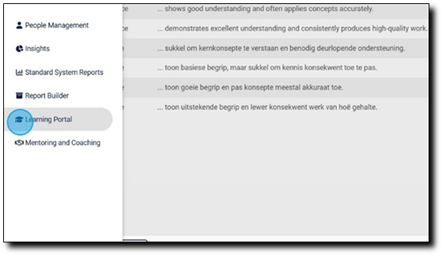
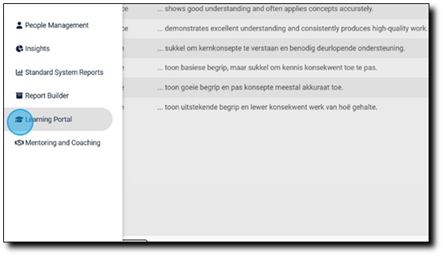
1. Click Learning Portal.
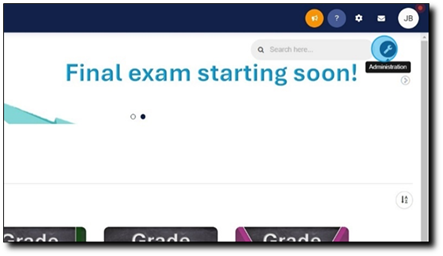
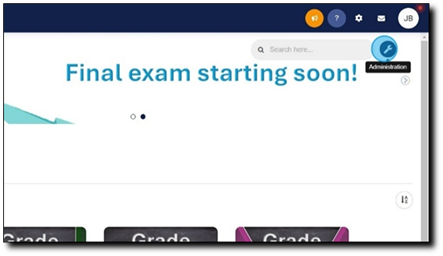
2. Click the spanner icon to access the System Administration menu.
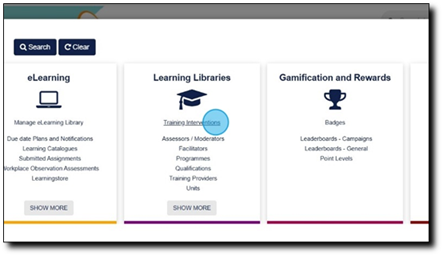
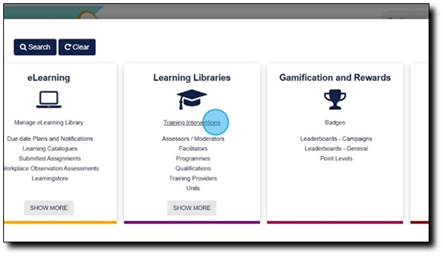
3. Click Training Interventions.
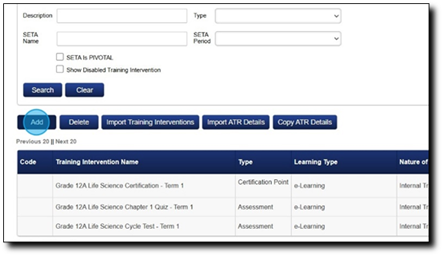
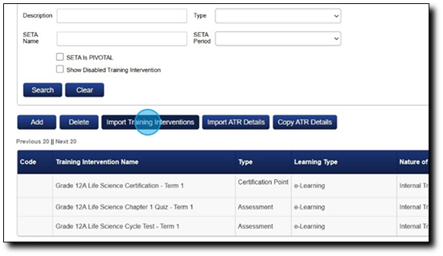
4. Click Add.
5. Add an appropriate name for the training intervention.
It is recommended to use a naming convention to standardise the training interventions in the academic reports.
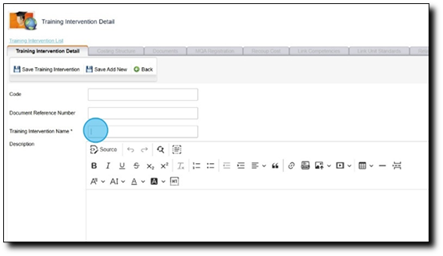
All the fields with an asterisk (*) are required.
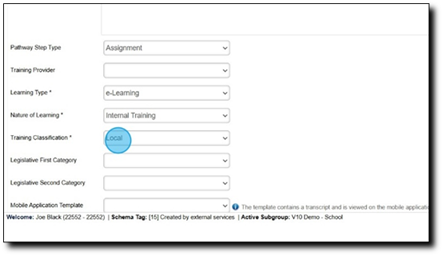
6. Select the Pathway Step Type from the dropdown menu. For example:
• Assessment for an online assessment (quiz, test, or exam)
• Assignment for an assignment that is uploaded.
• Certification Point for a certification point at the end of each term
See the Pathways guide for a detailed explanation or contact the Signify Consultant for assistance.
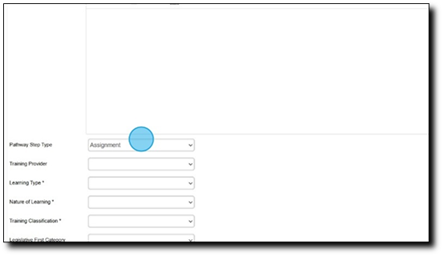
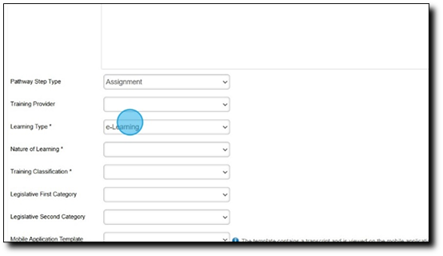
7. Select the Learning Type from the dropdown menu.
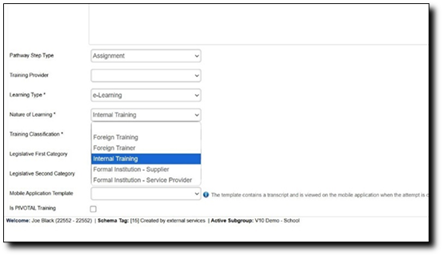
8. Select the Nature of Learning from the dropdown menu.
9. Select the Training Classification from the dropdown menu.
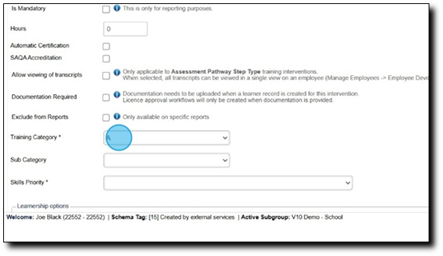
10. Select the Training Category from the dropdown menu.
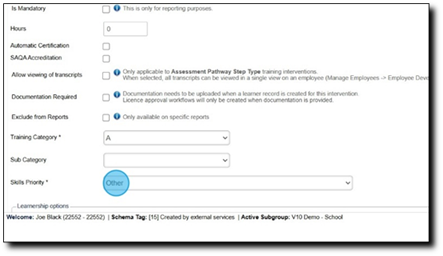
11. Select the Skills Priority from the dropdown menu.
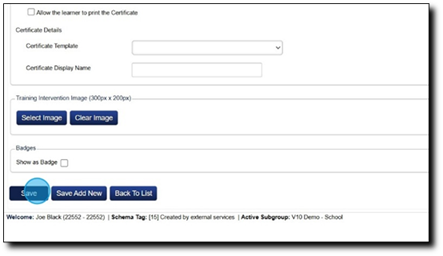
12. Click Save to save the current training intervention.
Click Save Add New to begin adding a new training intervention.
Click Back to List to navigate to the Training Intervention homepage.
METHOD 2: ADD TRAINING INTERVENTIONS USING THE IMPORT
1. Click Learning Portal.
2. Click the spanner icon to access the System Administration menu.
3. Click Training Interventions.
4. Click Import Training Interventions.
5. Click to expand the Technical Information.
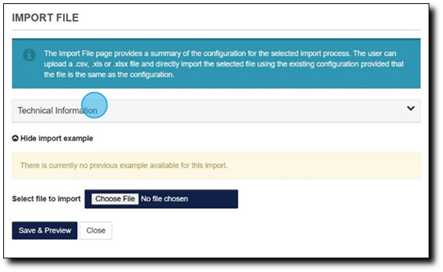
6. Take note of the column headings listed in "First row should look like". Copy the headings into a new Excel spreadsheet, then populate it with your training intervention data.
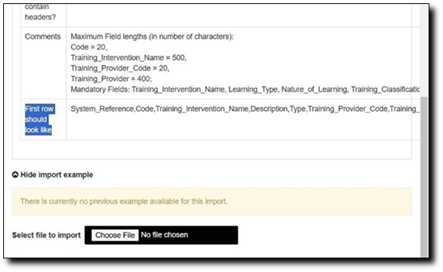
It is recommended to use a standardised naming convention for training interventions.
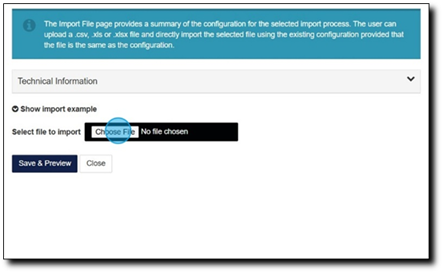
7. Once you have populated your import file, click Choose File to upload it.
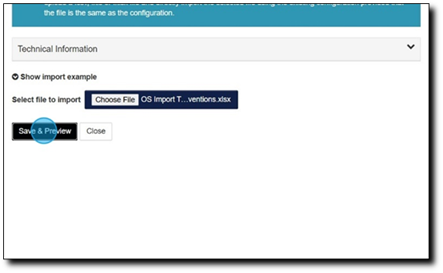
8. Click Save & Preview to see if your import file will import correctly.
9. If the preview displays the data correctly and you wish to proceed, click the I verify that the preview of the above data is correct checkbox.
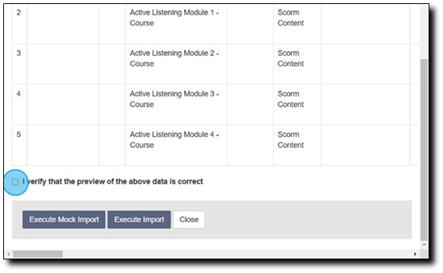
10. You can execute a Mock Import to troubleshoot and sort out erroneous data.
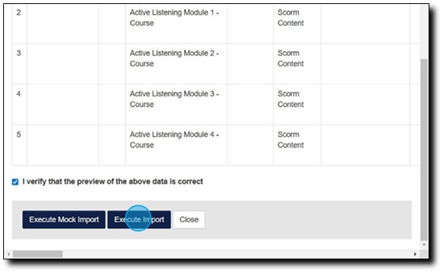
Alternatively, you can click Execute Import to import the training interventions or click Close to discard any changes.
Please note that newly added training interventions take a day to synchronise on the system.