
Add a Training Intervention

Training Interventionsinterventions are used to track a learner's academic progress. Each assignmentlearning andactivity or assessment will have its own training intervention. Training interventions can be created in two ways:
- Manually through the training intervention builder
- Automatically through the training intervention import functionality
Both methods will be shown below.
METHODMethod 1: ADDAdd TRAININGtraining INTERVENTIONSinterventions MANUALLYmanually
1.
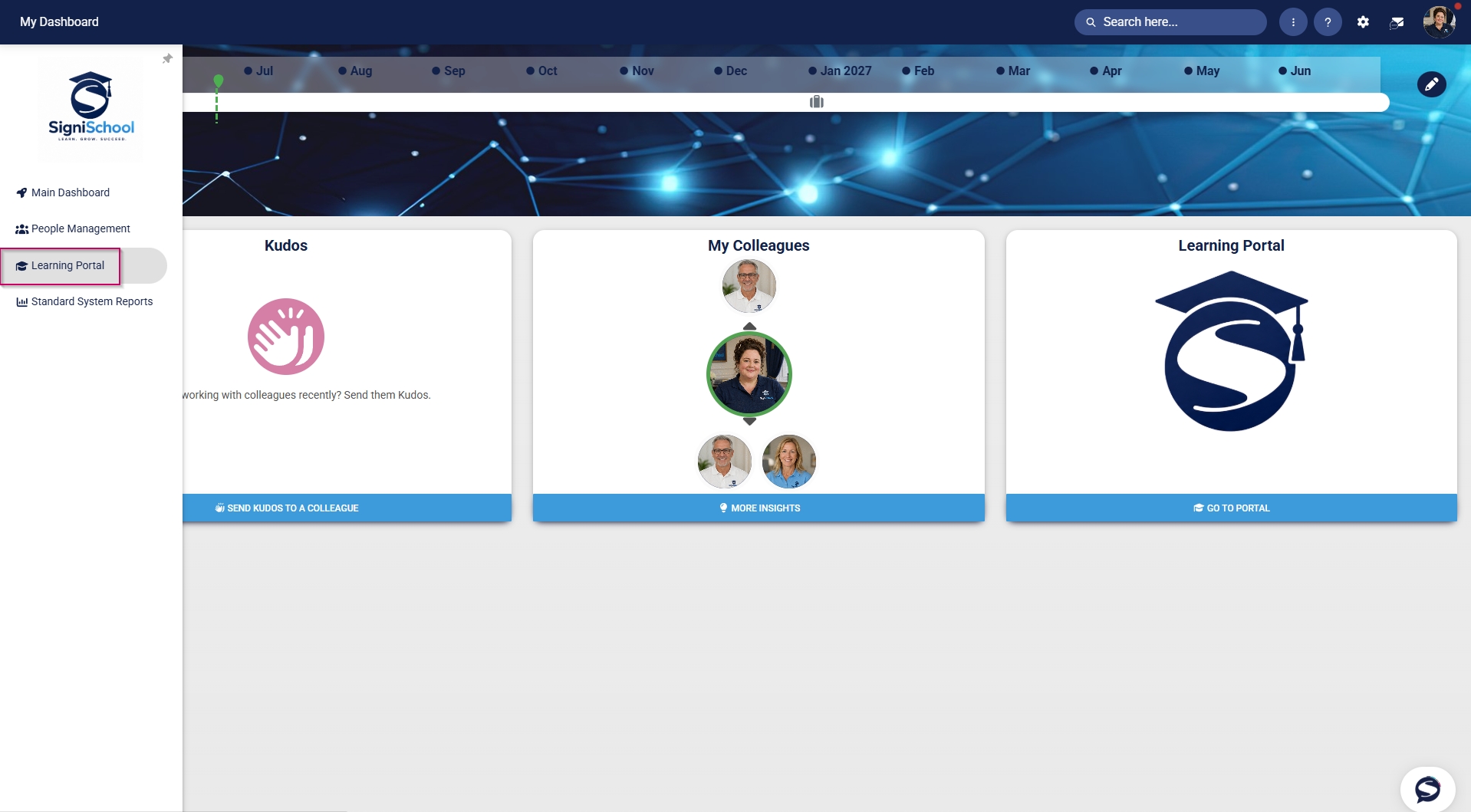
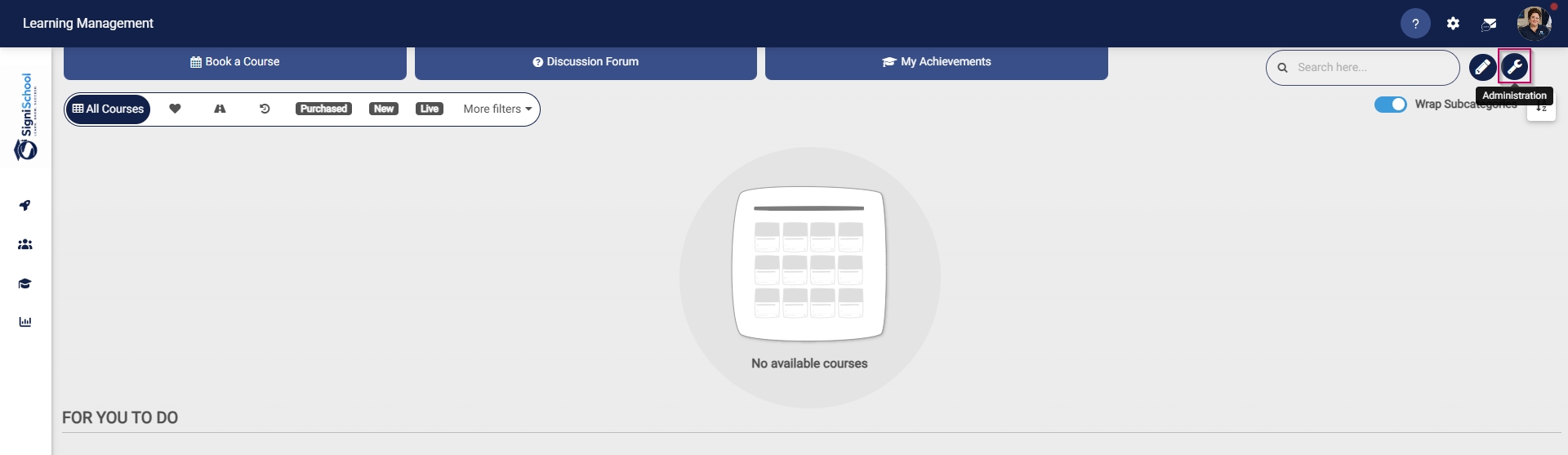
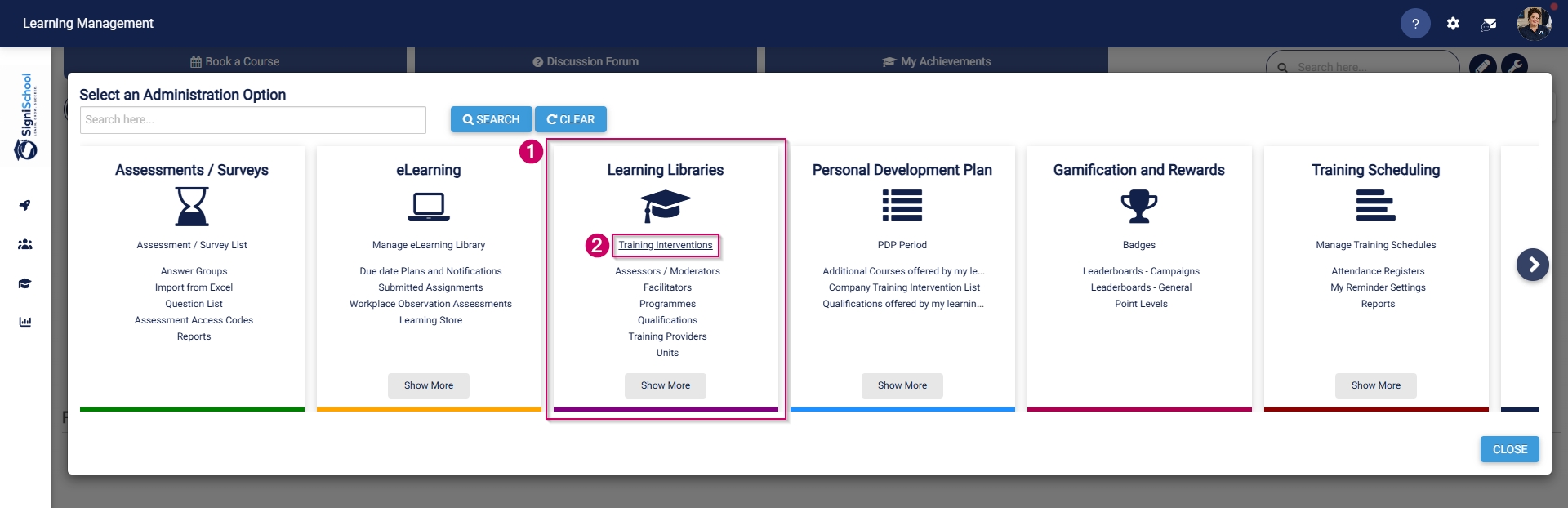
2. Click the spanner icon to access the system'sSystem Administration menu.
menu.
4.
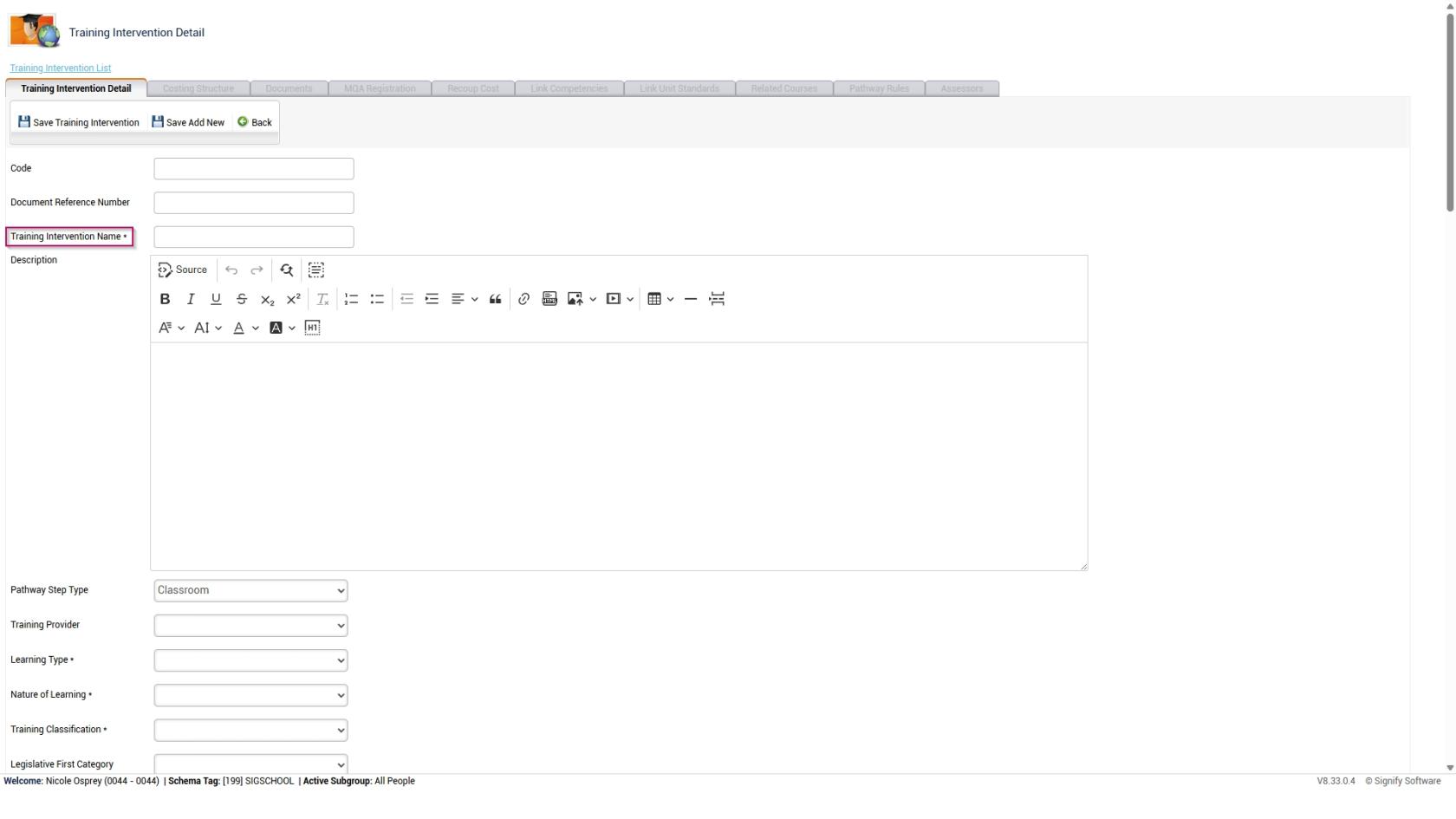
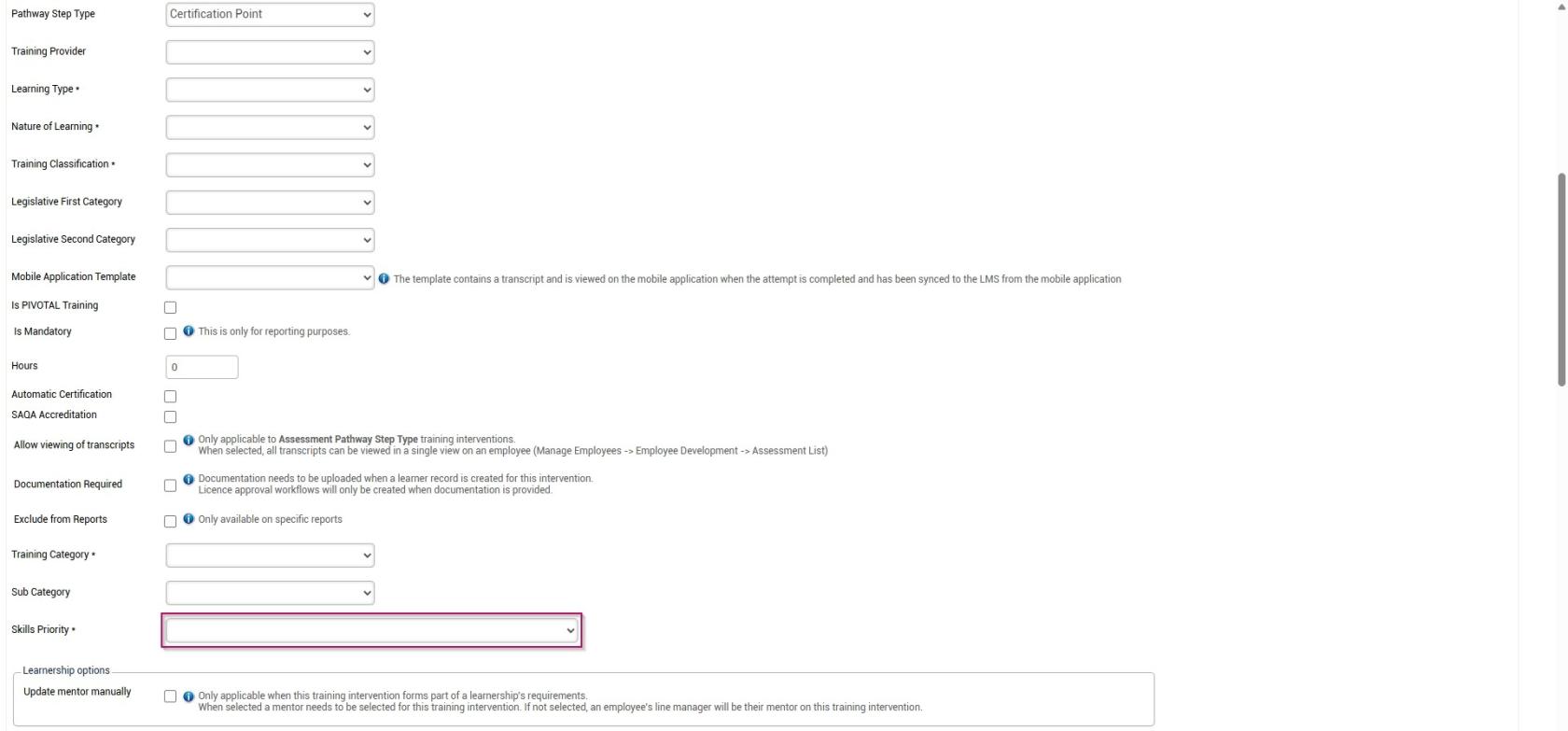
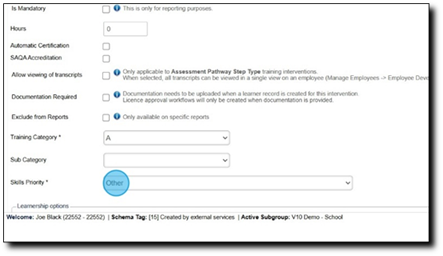
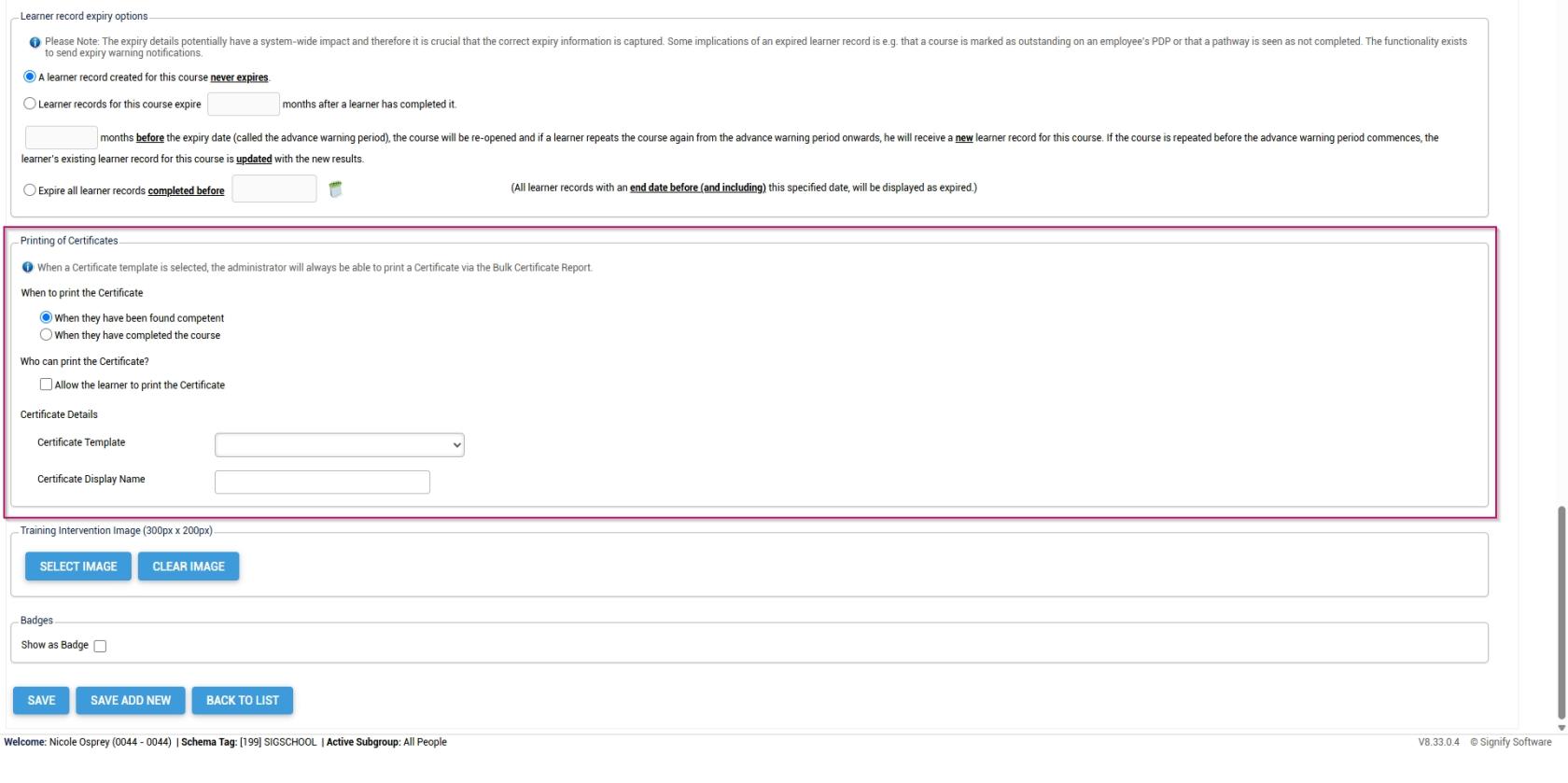
5.the Addfields marked with an appropriateasterisk name(*) forare required.
For our example, we will only fill out the trainingnecessary intervention.
It is recommended to use a naming convention to standardise the training interventionsinterventions. inThis ensures it is easy to maintain the academicdata reports.
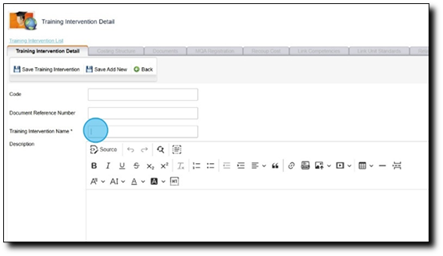
Allof the fieldsTraining withIntervention anLibrary asteriskwhile (*)also areimproving required.the quality of system report outputs.
6.
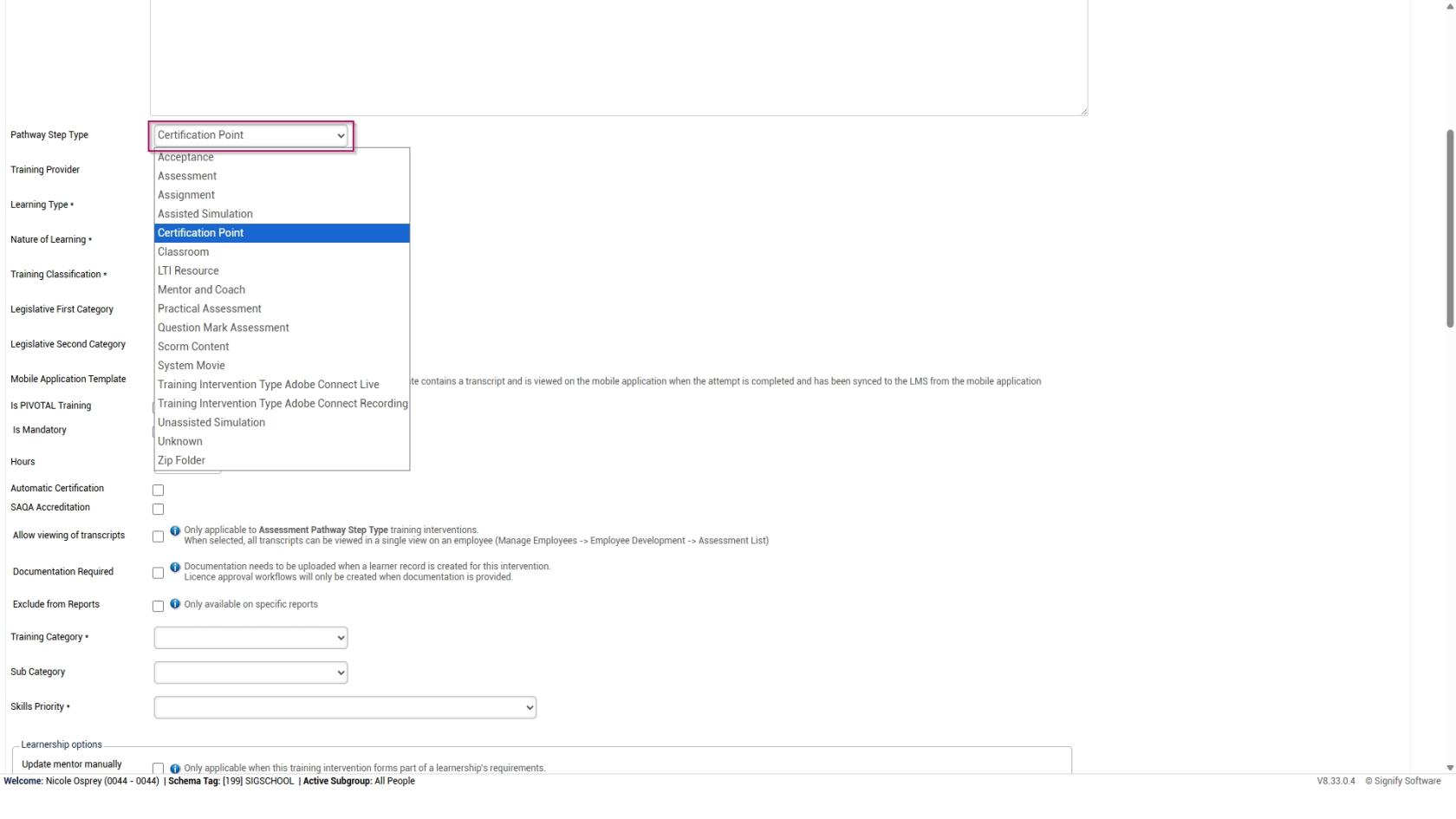
•
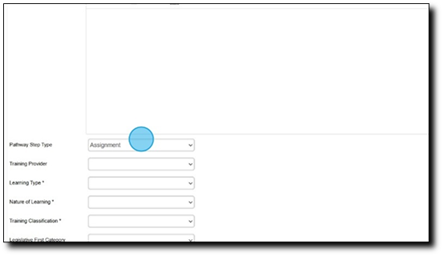
• Assignment for an assignment that is uploaded.
• Certification Point for a certification point at the end of each term
See the Pathways guide for a detailed explanation or contact the Signify Consultant for assistance.
7.
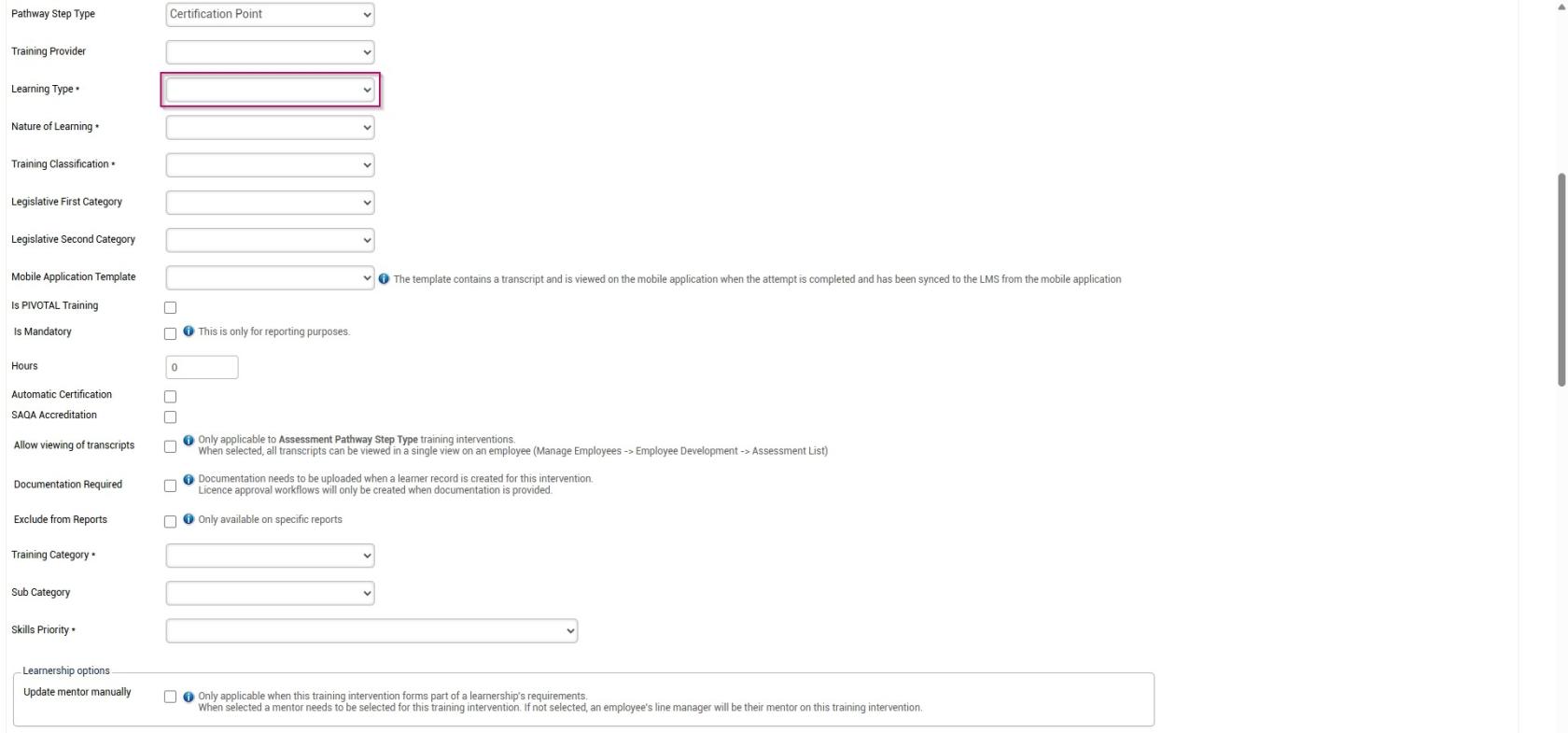
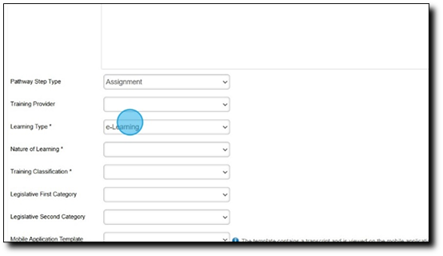
8.
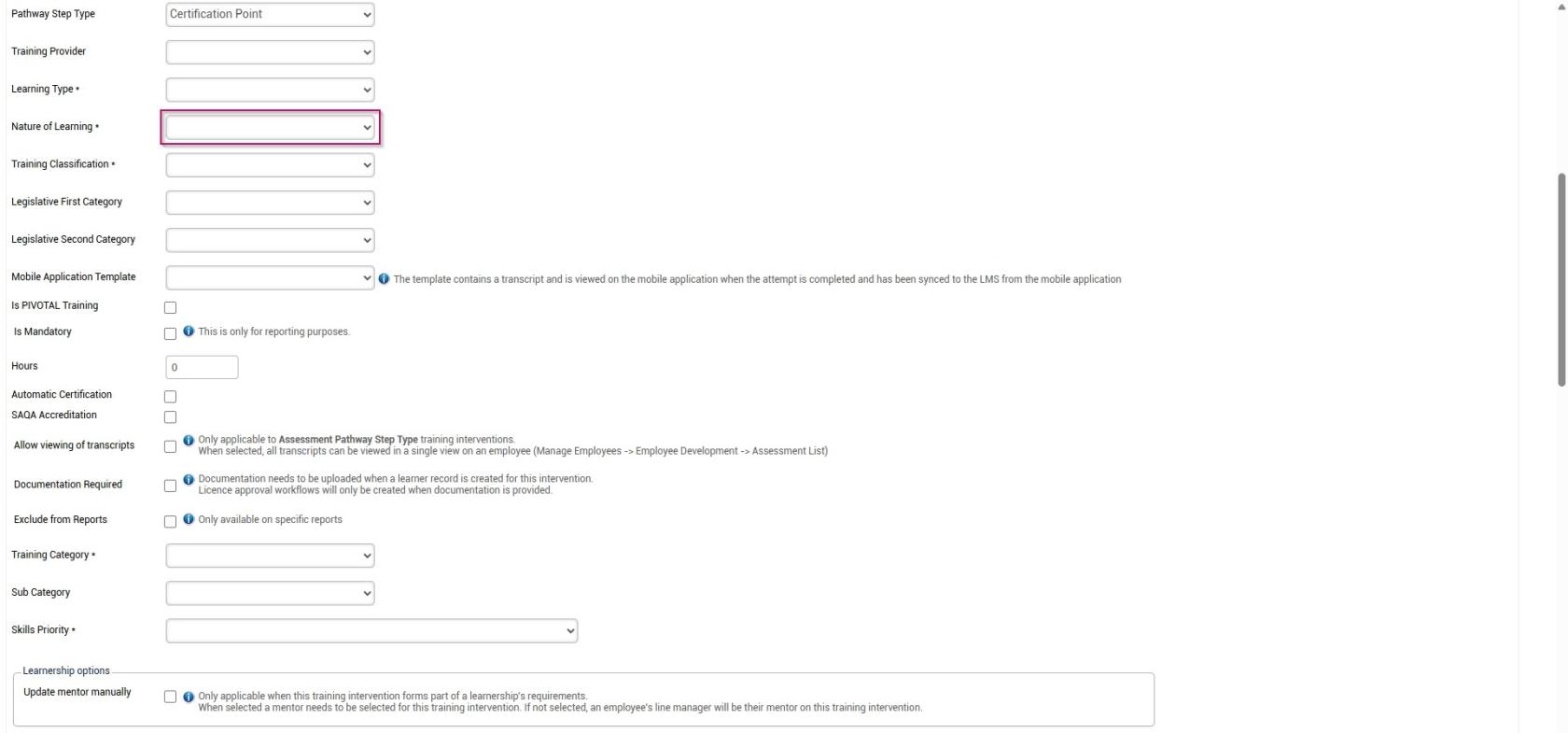
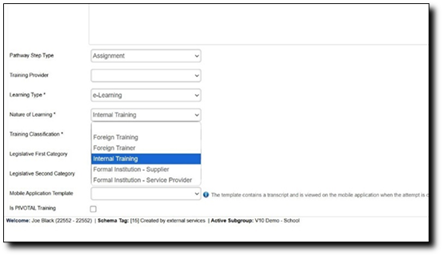
9.
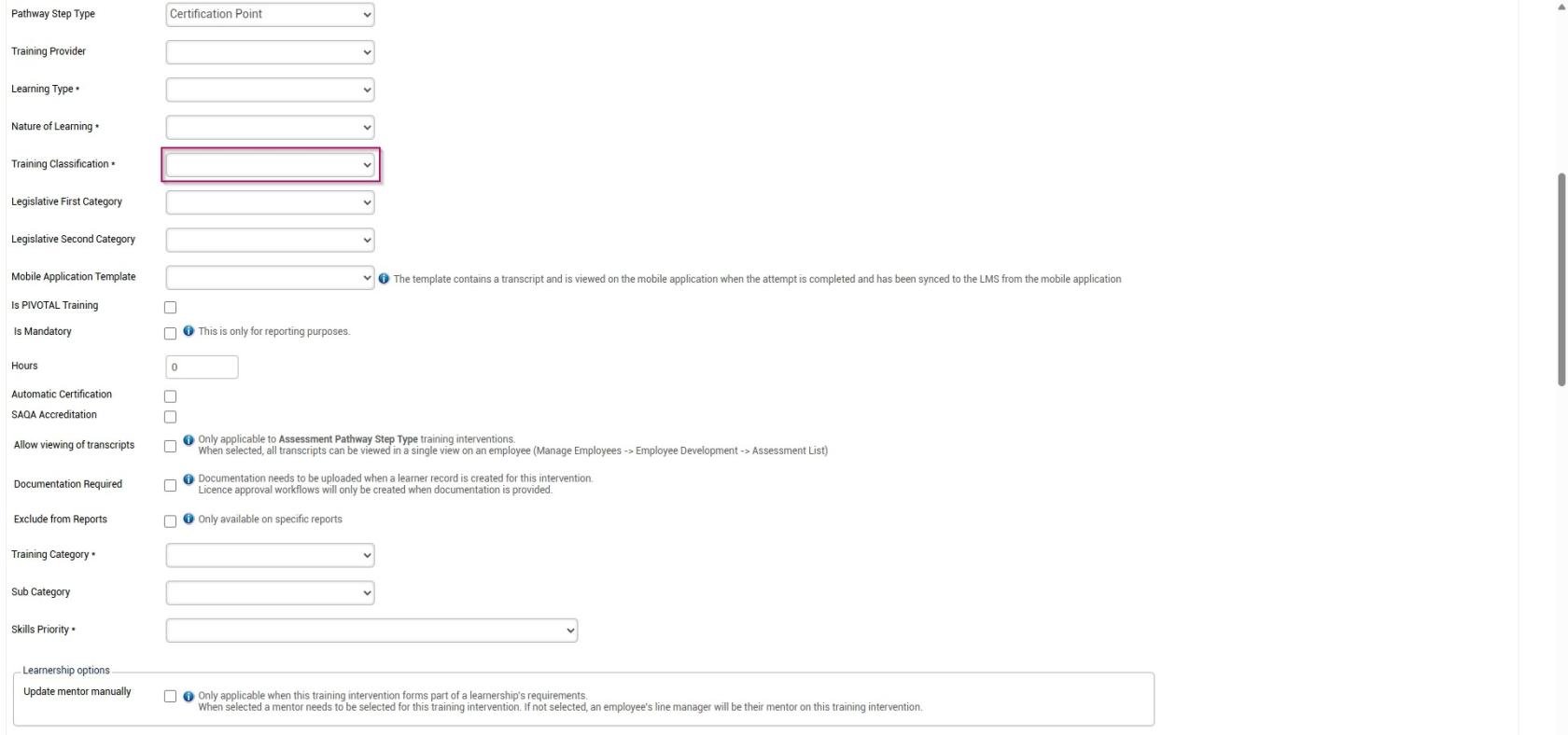
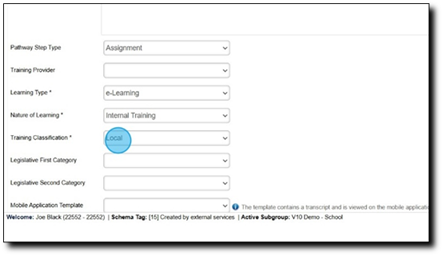
10.
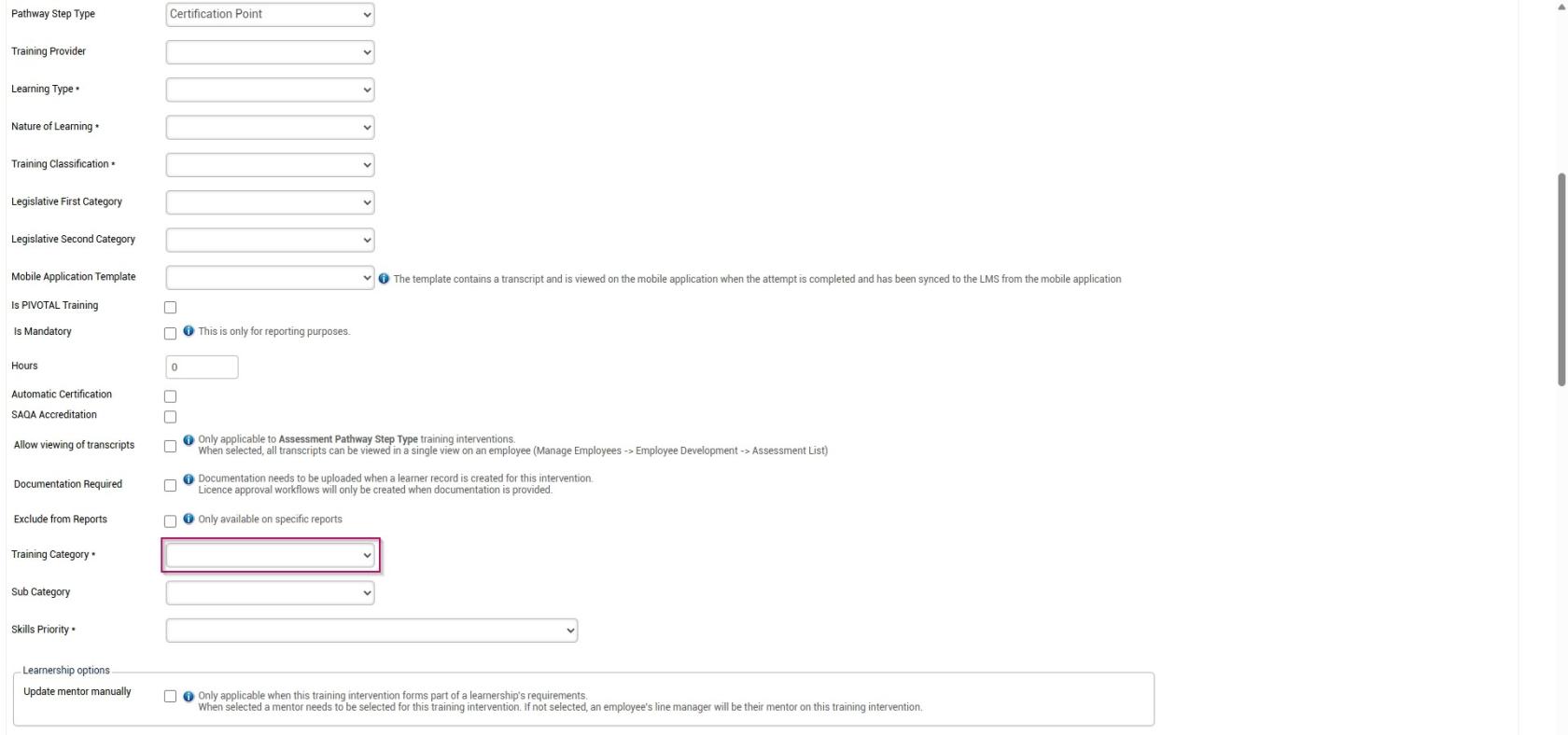
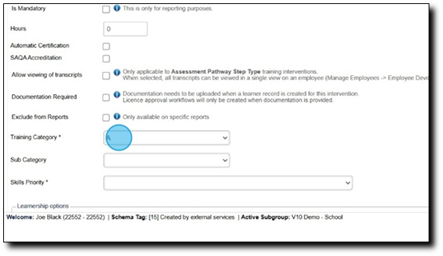
11.

12.
Method 2: Add training interventions using the currentimport
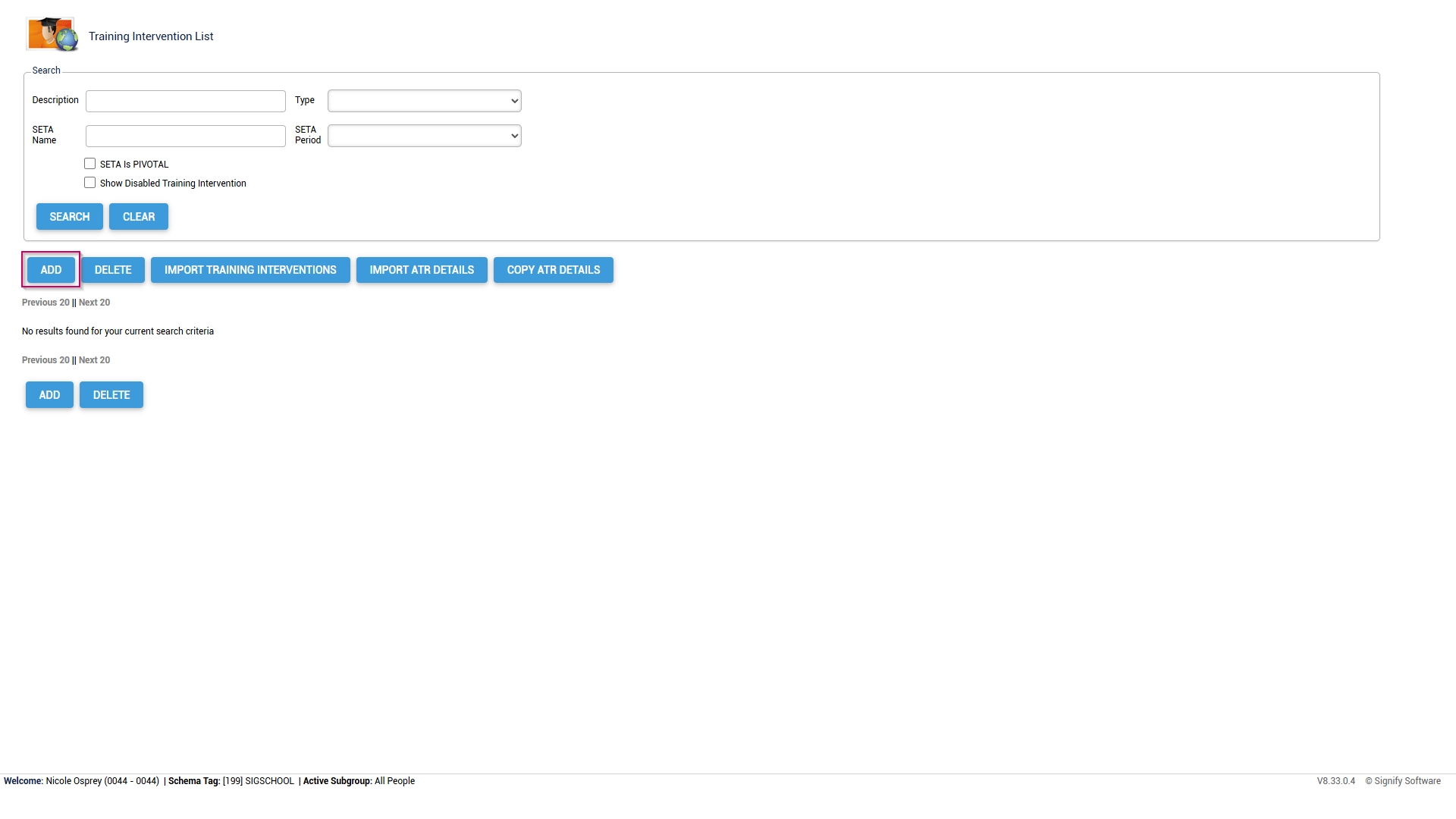
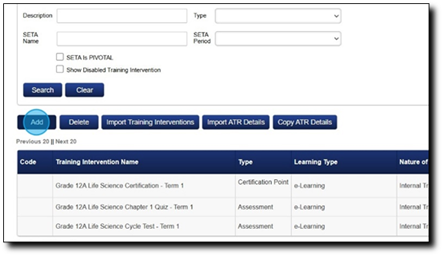
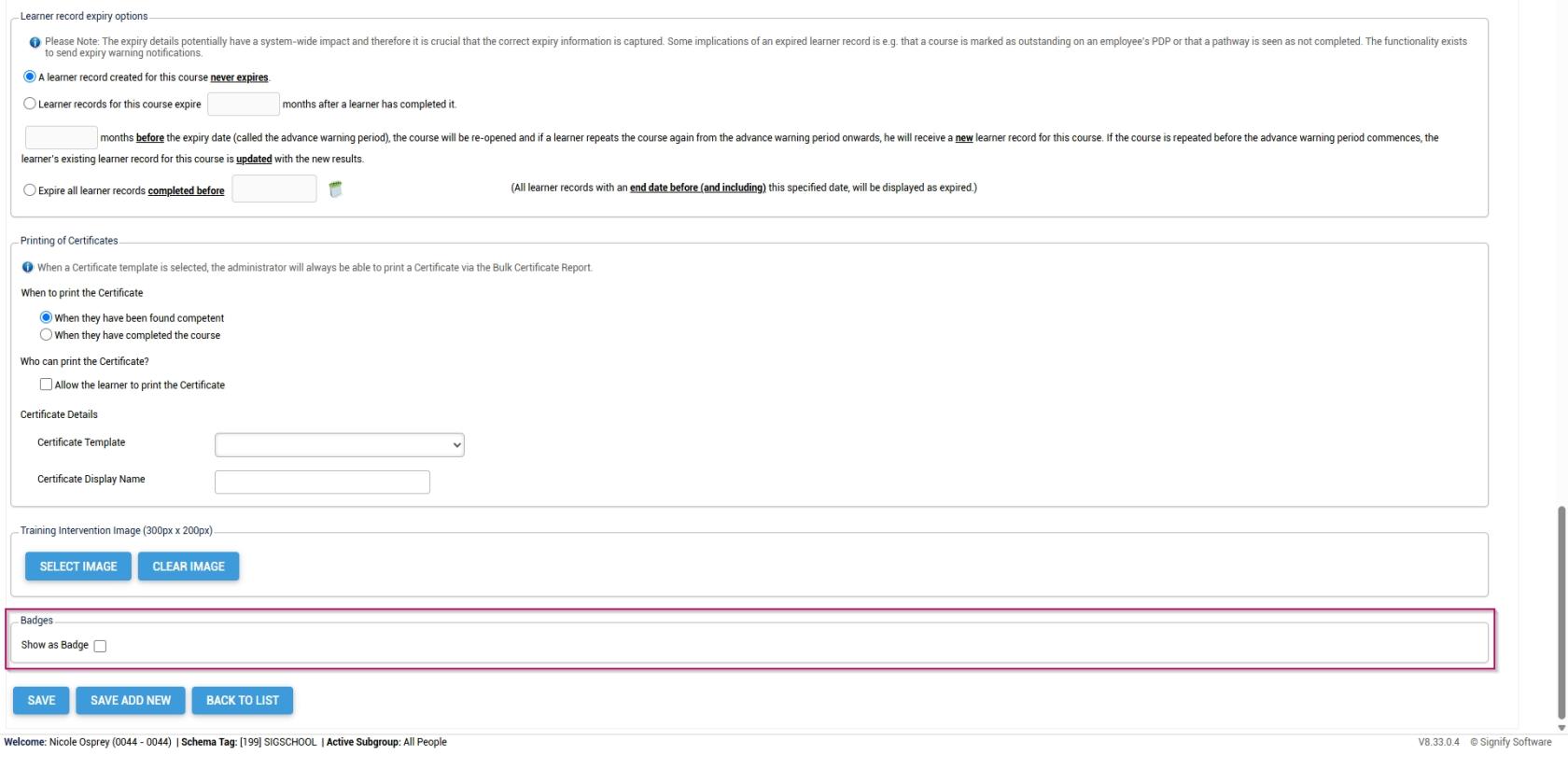
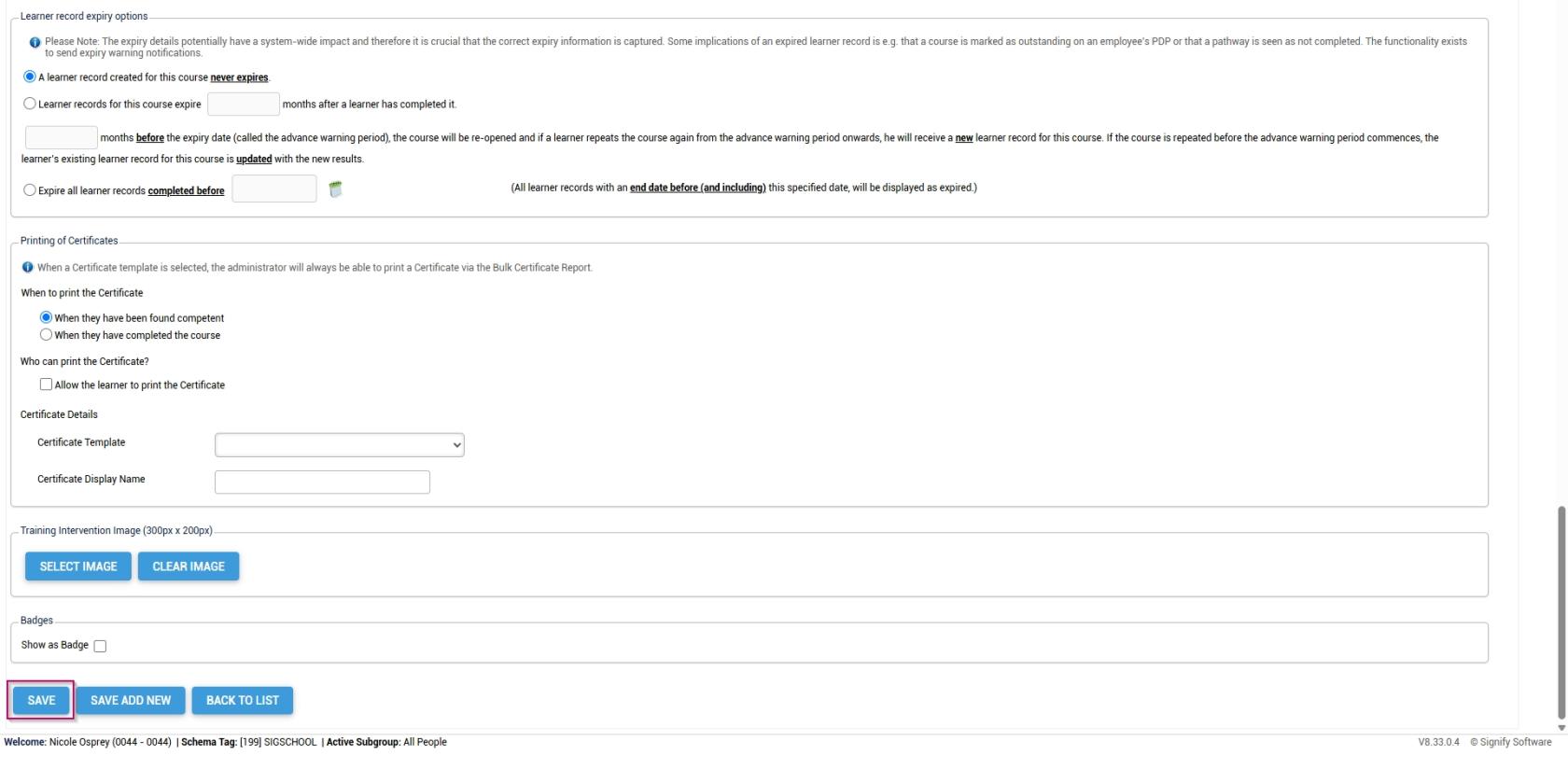
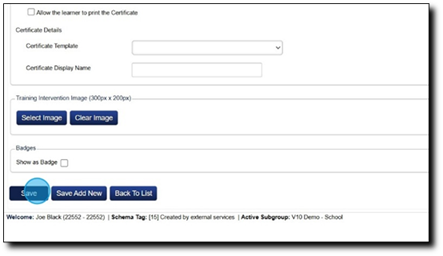
Click Save Add New to begin adding a new training intervention.
Click Back to List to navigate toover the Trainingsidebar Interventionmenu, homepage.
METHOD 2: ADD TRAINING INTERVENTIONS USING THE IMPORT
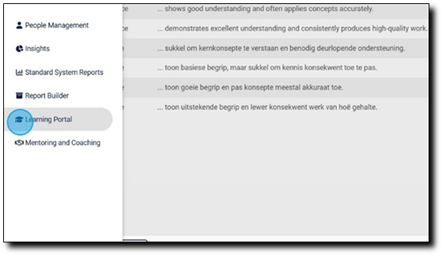
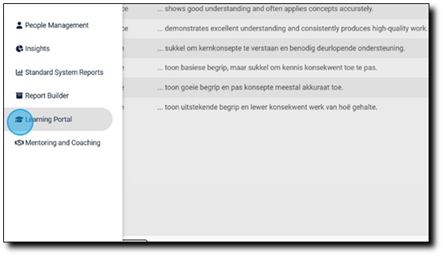
1. Clickclick Learning Portal.
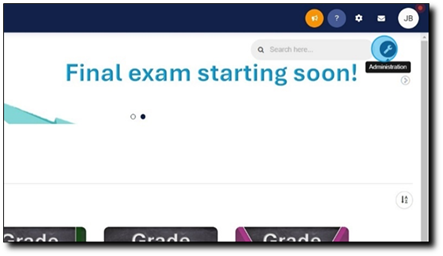
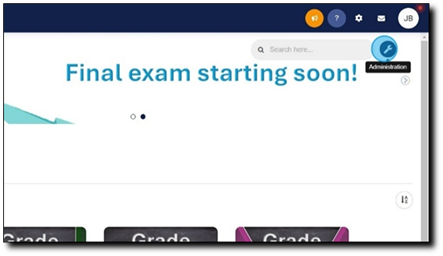
2. Click the spanner icon to access the system'sSystem Administration menu.
menu.
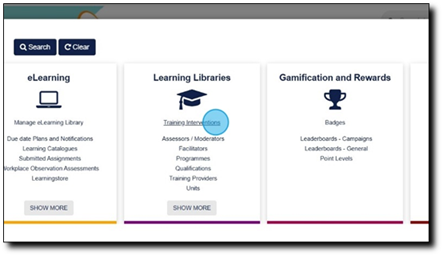
3.Learning ClickLibraries card, click Training Interventions.
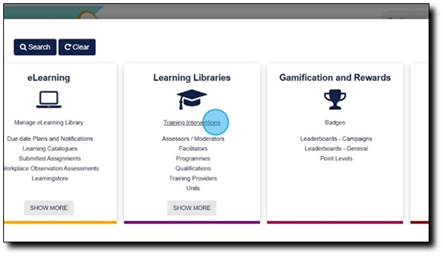
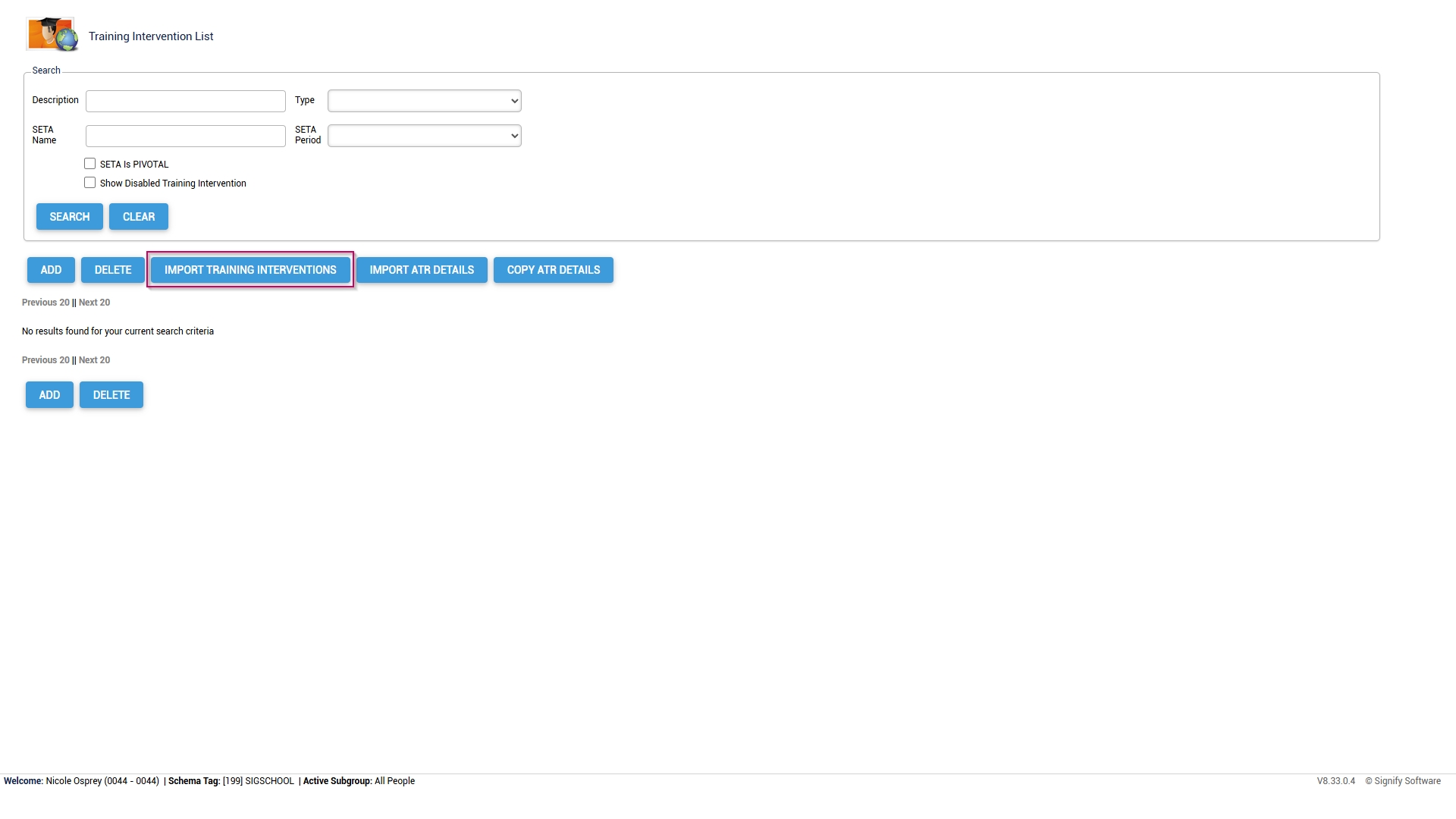
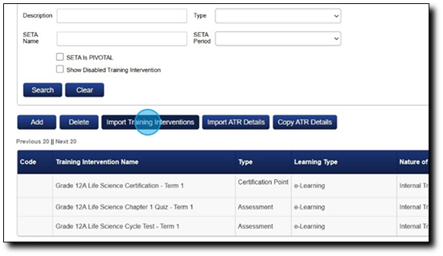
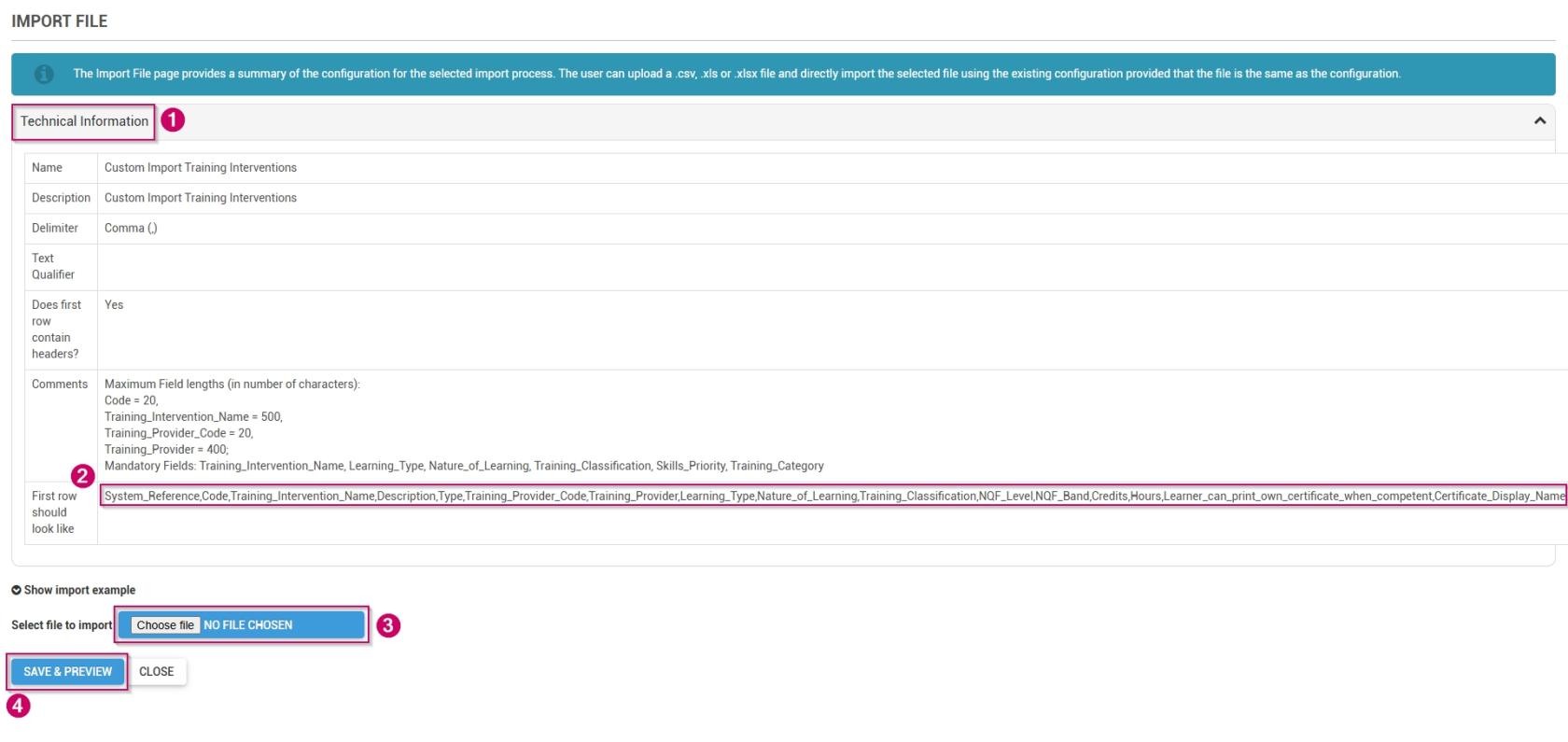
5. Click to expandon the Technical Information.
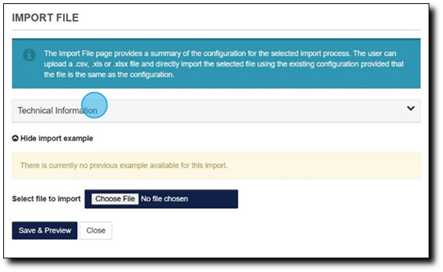
6.
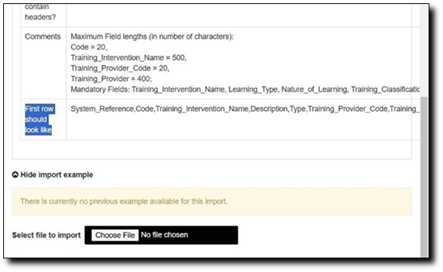
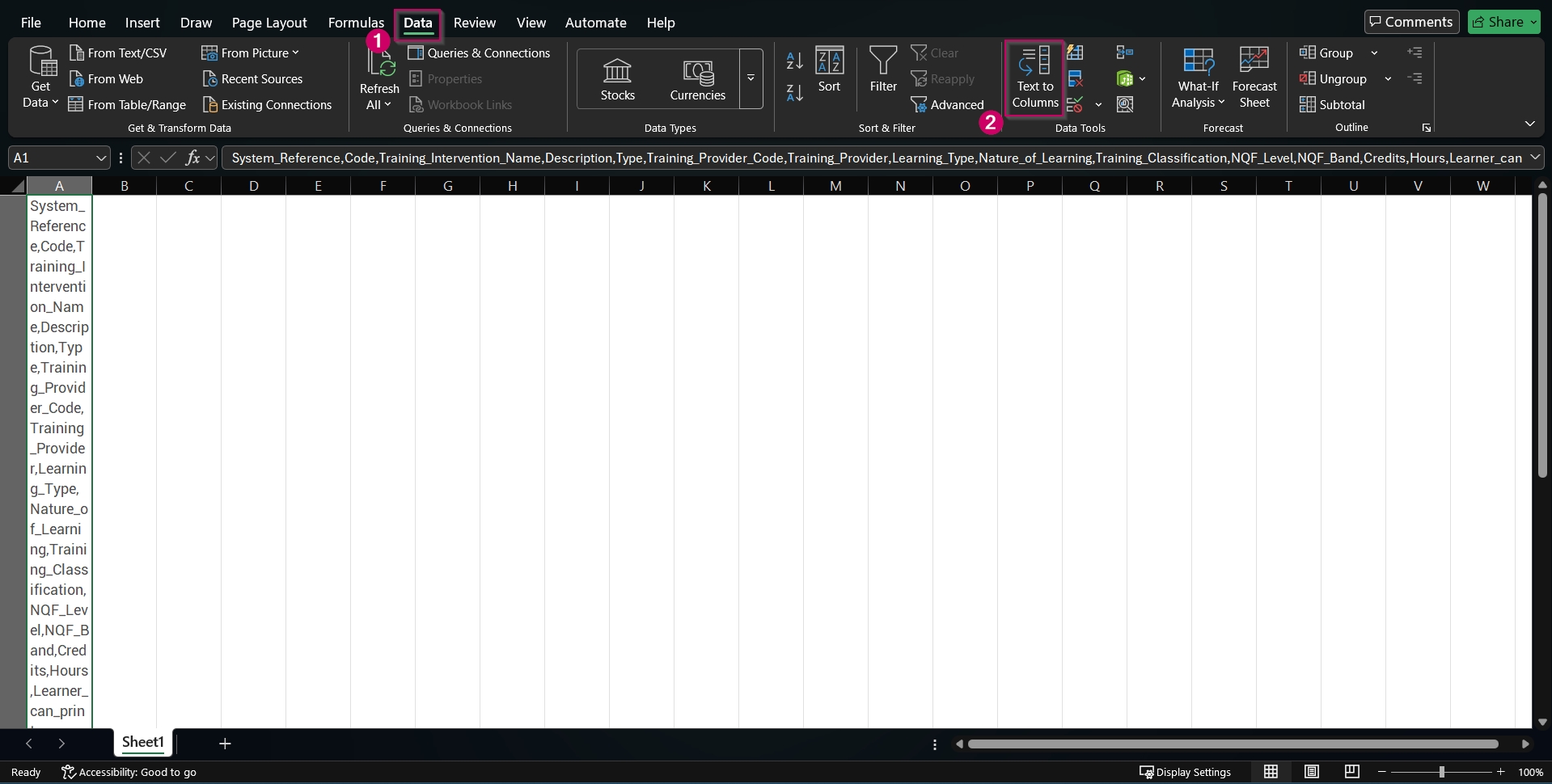
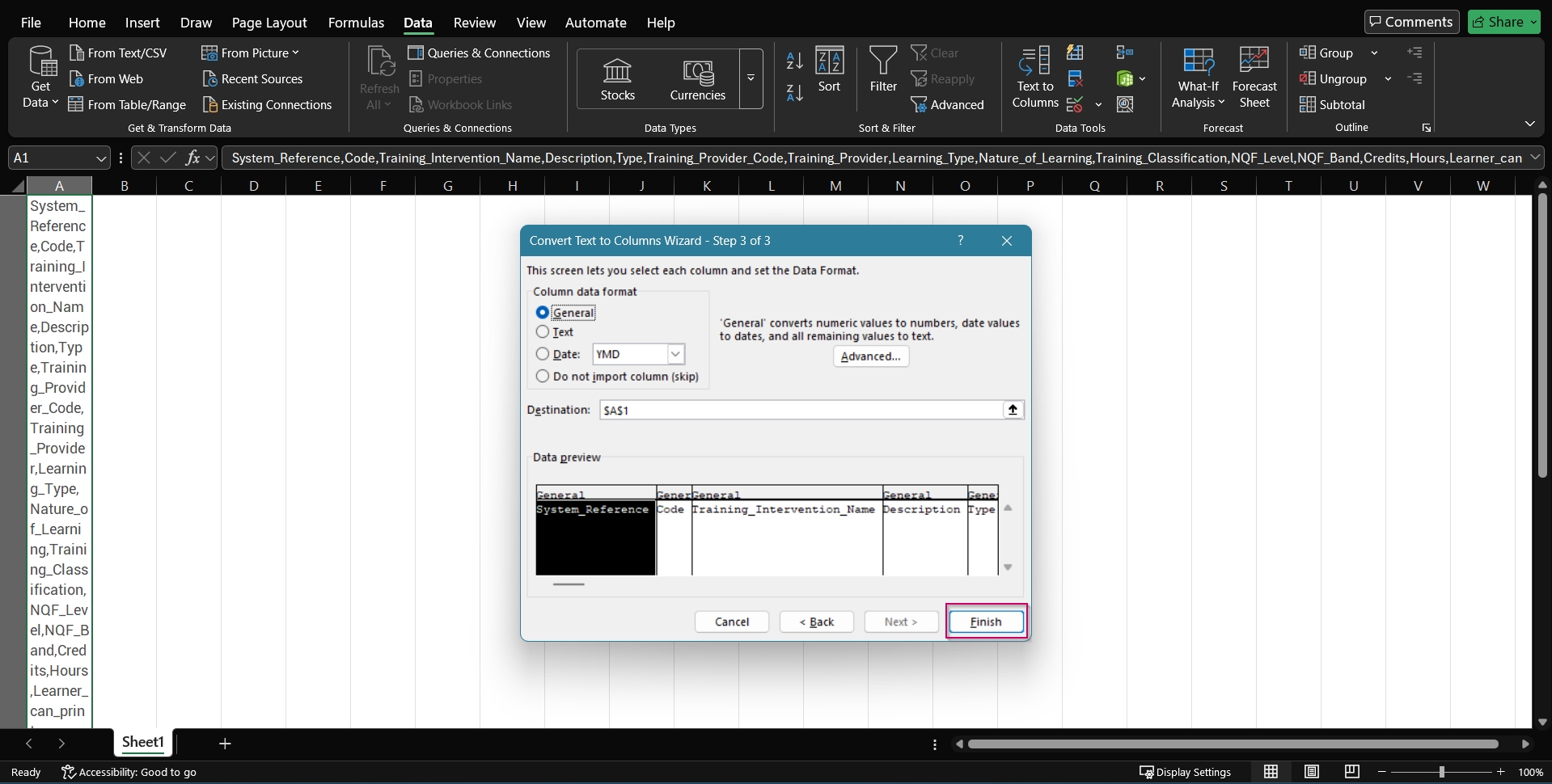
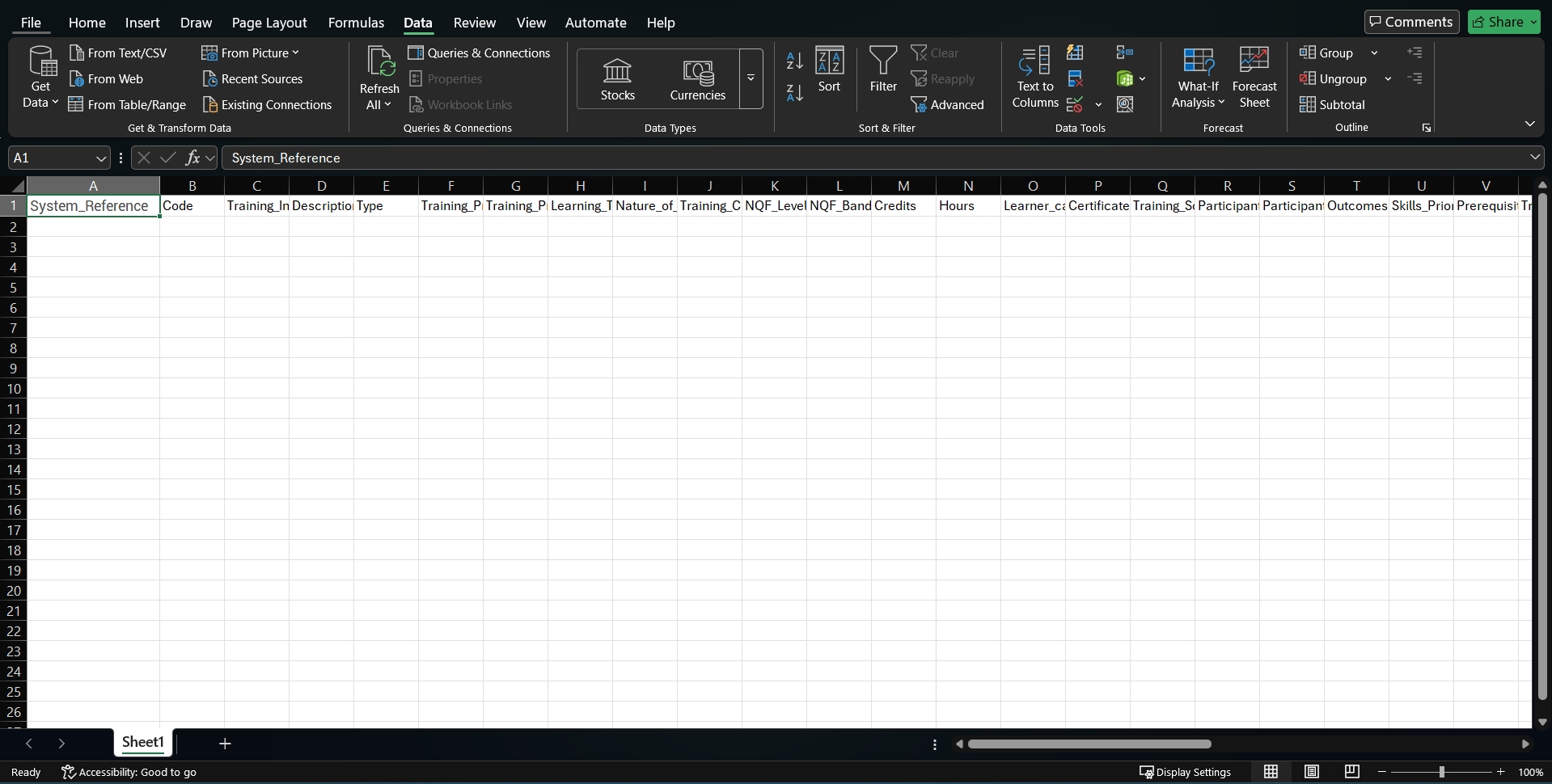
Itand isa recommendedstep-by-step guide on how to usedo this, go to the next section: Create a standardisedcustom namingTraining conventionIntervention forfile trainingin interventions.Excel
7.
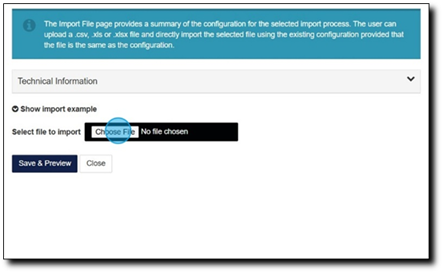
Once you have populated your importtraining file,intervention document, click ChooseCHOOSE FileFILE to upload it.
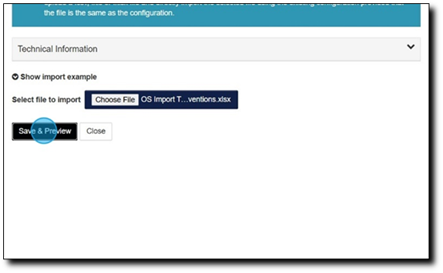
8. Click Save & Preview to see if your import file willas importa correctly..csv, .xls, or .xlsx.
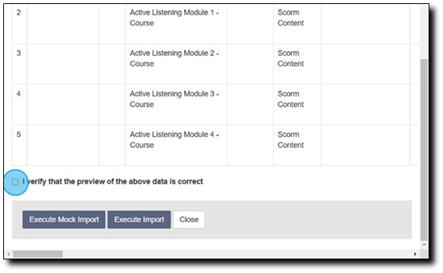
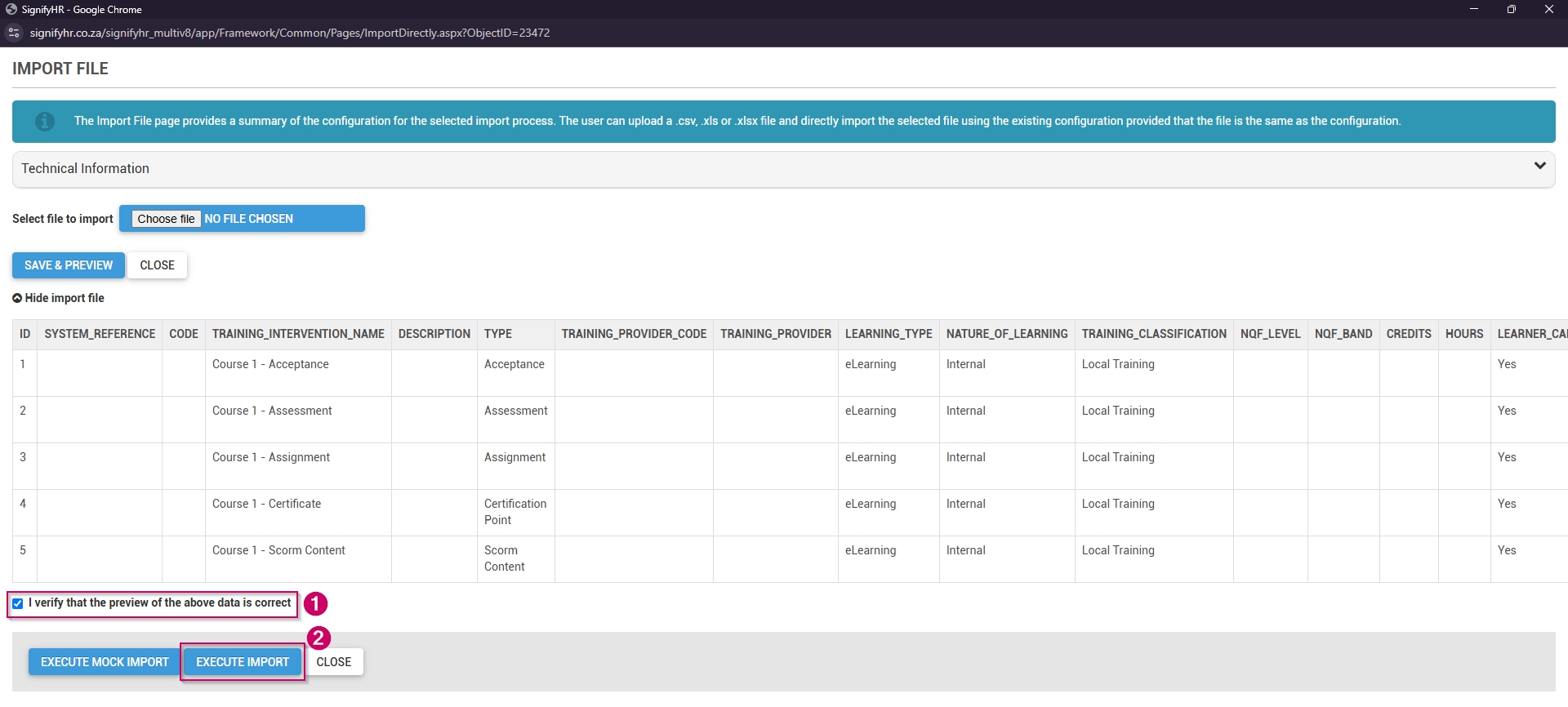
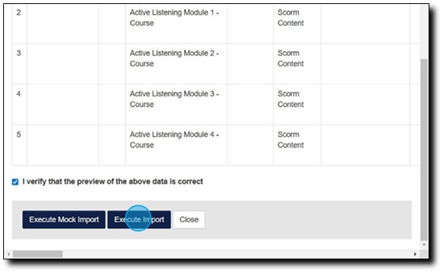
9. If the preview displays the data correctly and you wish to proceed, click the I verify thatReview the preview of the aboveyour data isimport. correctIf the data appears correct, tick the checkbox to checkbox.
10.now ready to kick off the import.
Alternatively,is yourecommended canfor very large import files. To do this, click ExecuteEXECUTE ImportMOCK IMPORT.
If the data is ready to be imported, click EXECUTE IMPORT.
Create a custom Training Intervention file in Excel
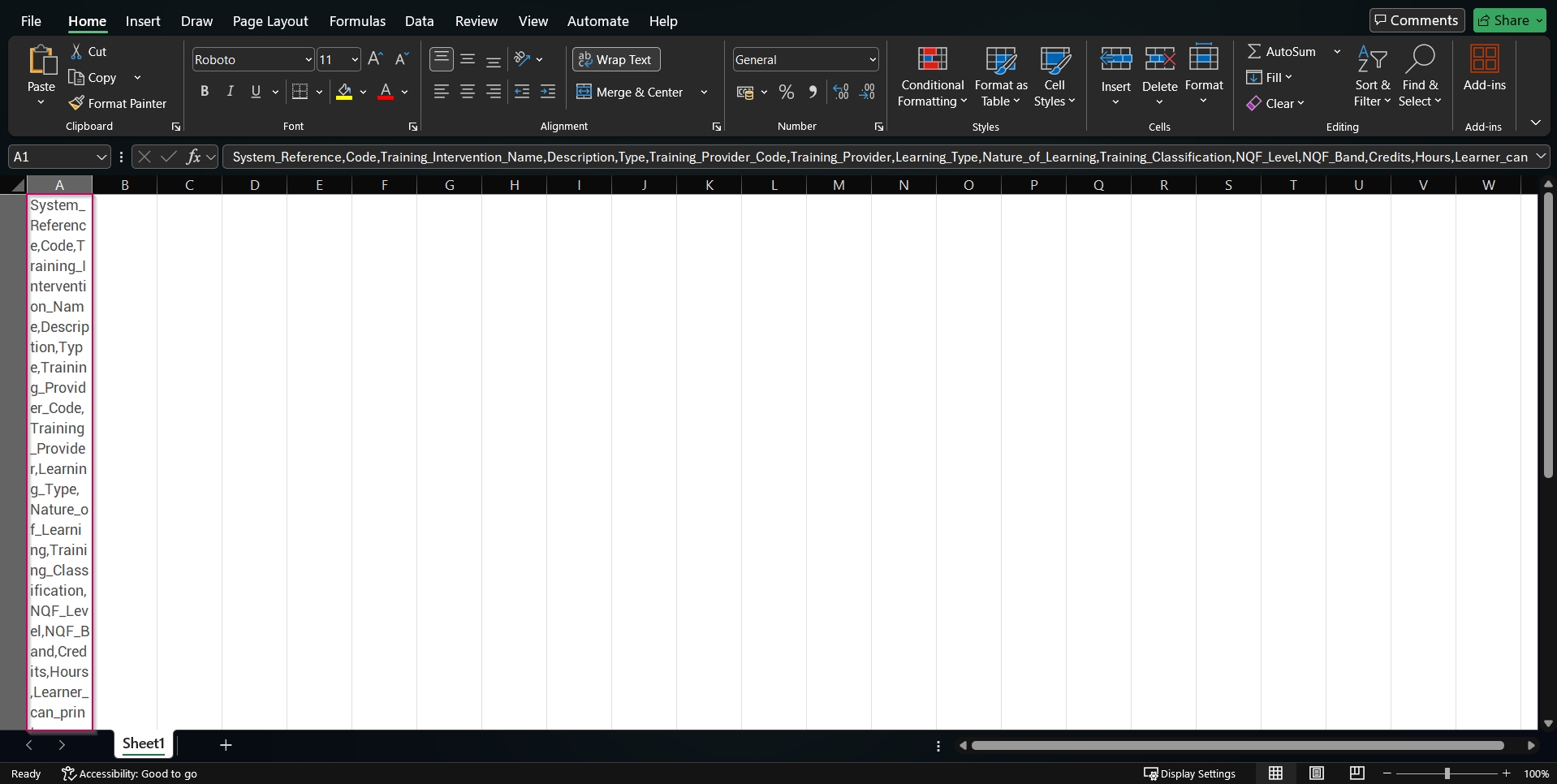
System_Reference,Code,Training_Intervention_Name,Description,Type,Training_Provider_Code,Training_Provider,Learning_Type,Nature_of_Learning,Training_Classification,NQF_Level,NQF_Band,Credits,Hours,Learner_can_print_own_certificate_when_competent,Certificate_Display_Name,Training_Scheduling_Category,Participants_Min,Participants_Max,Outcomes,Skills_Priority,Prerequisite,Training_Category,Log_to_Learner_Record,Learner_Record_Never_Expires,Advanced_Warning_Period,Expire_All_Learner_Records_Completed_Before,Learner_Records_Expiry,Exclude_From_Reports,WSP_ATR_Category,PTP_PTR_Category,DocumentationRequired,AllowViewingTranscripts,IsPivotalTraining,IsMandatory,Mobile_Application_Template,Automatic_Certification,SAQA_Accredited,Update_Mentor_Manually,ImageUrl,BadgeUrl,ShowBadgeWhen,MinPoints,MaxPoints,MinScore,MaxScore,BadgeExpiryMonths,BadgeShowScoreDistributionGraph,BadgeShowLeaderboard
Close to discard any changes.

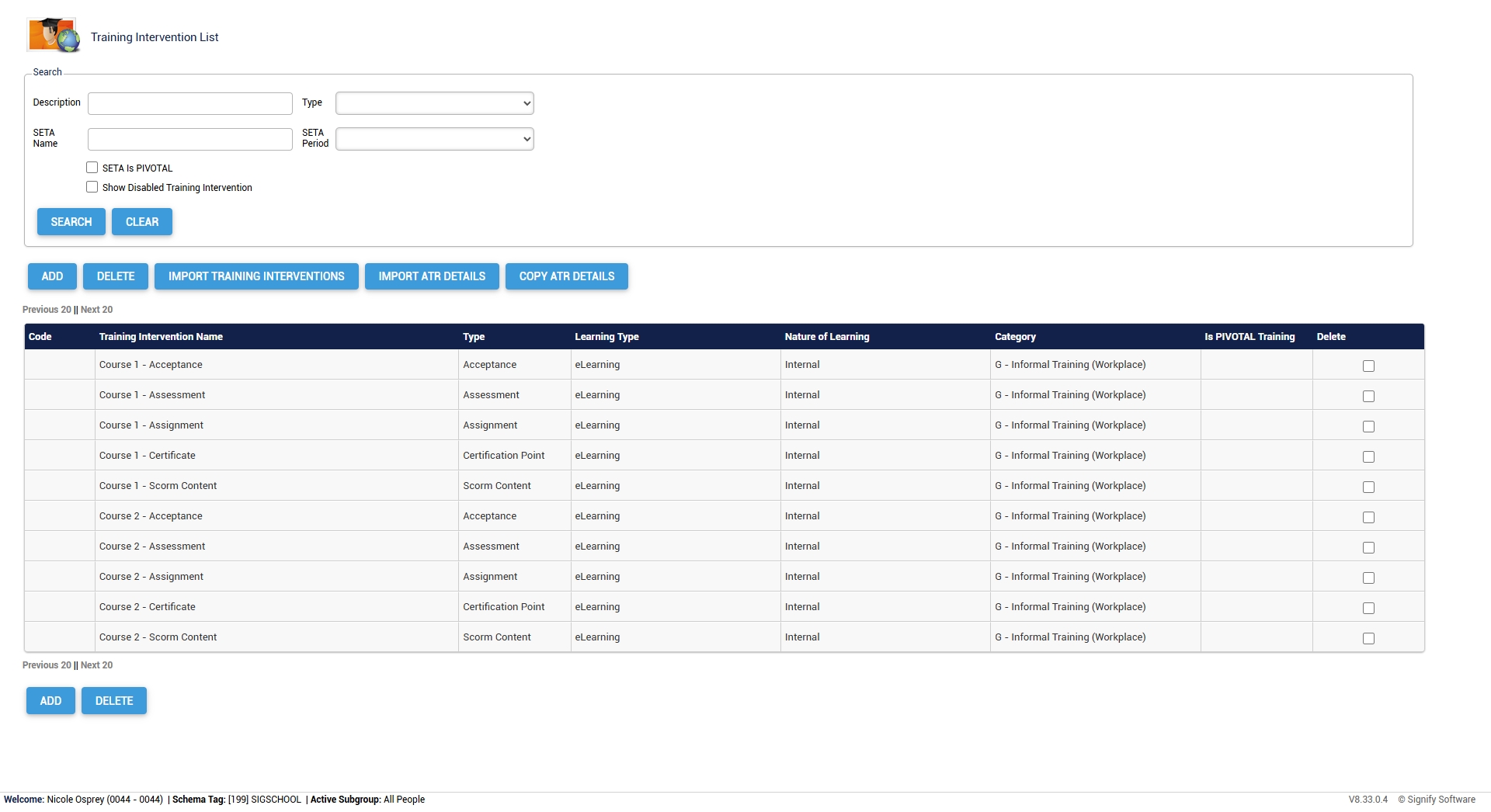
Please note that newly added training interventions take a day to synchronise on the system.