Skip to main content
Build a Pathway

Create learning pathways
Starting with pathways
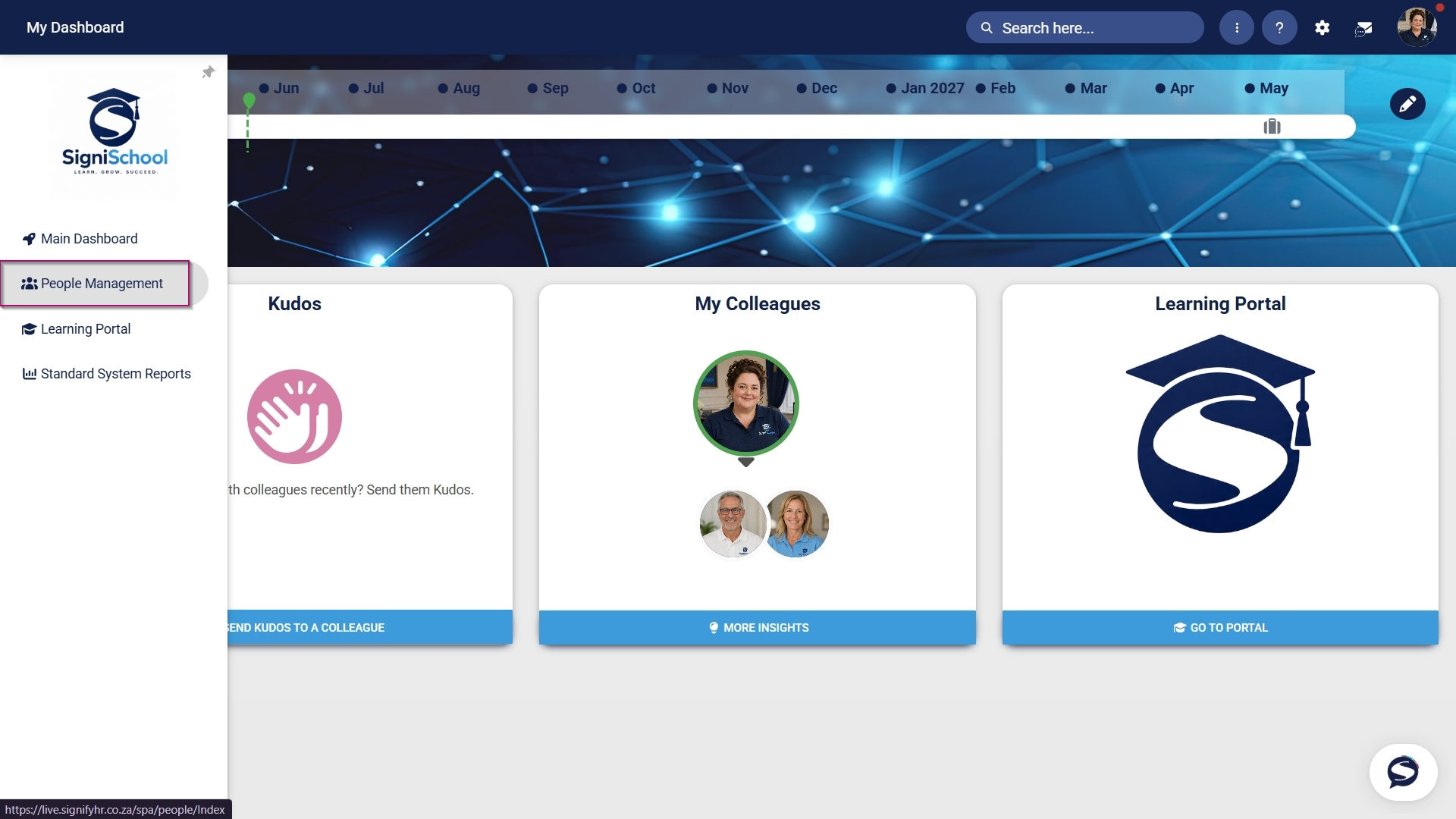
Hover over the sidebar menu, then click Learning Portal.
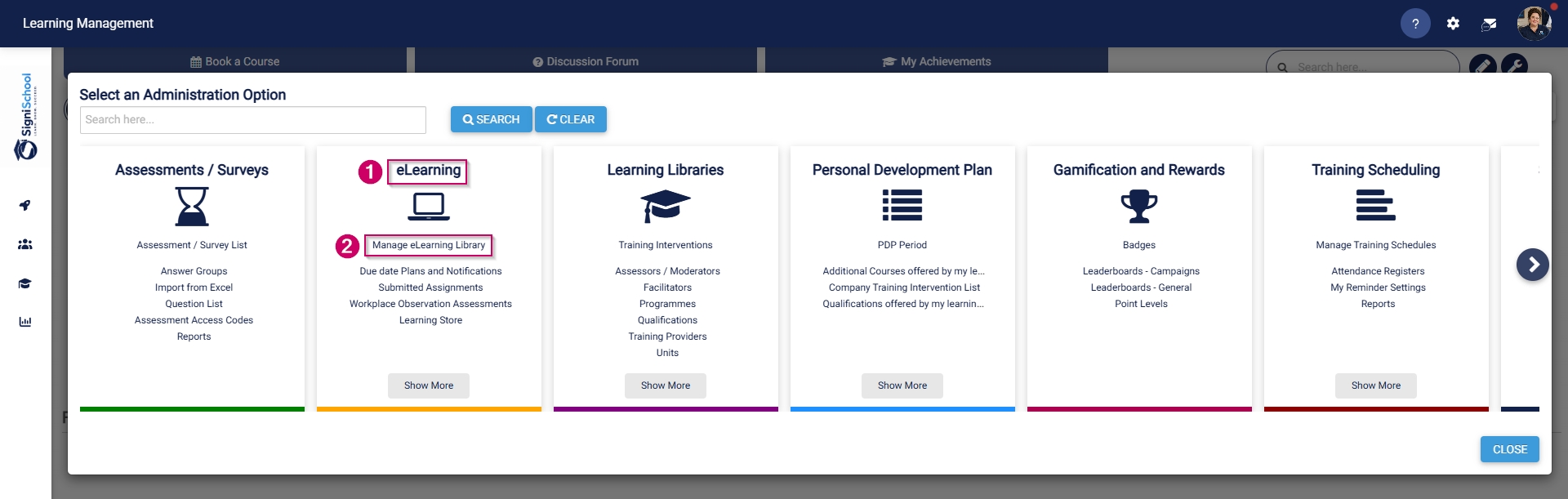
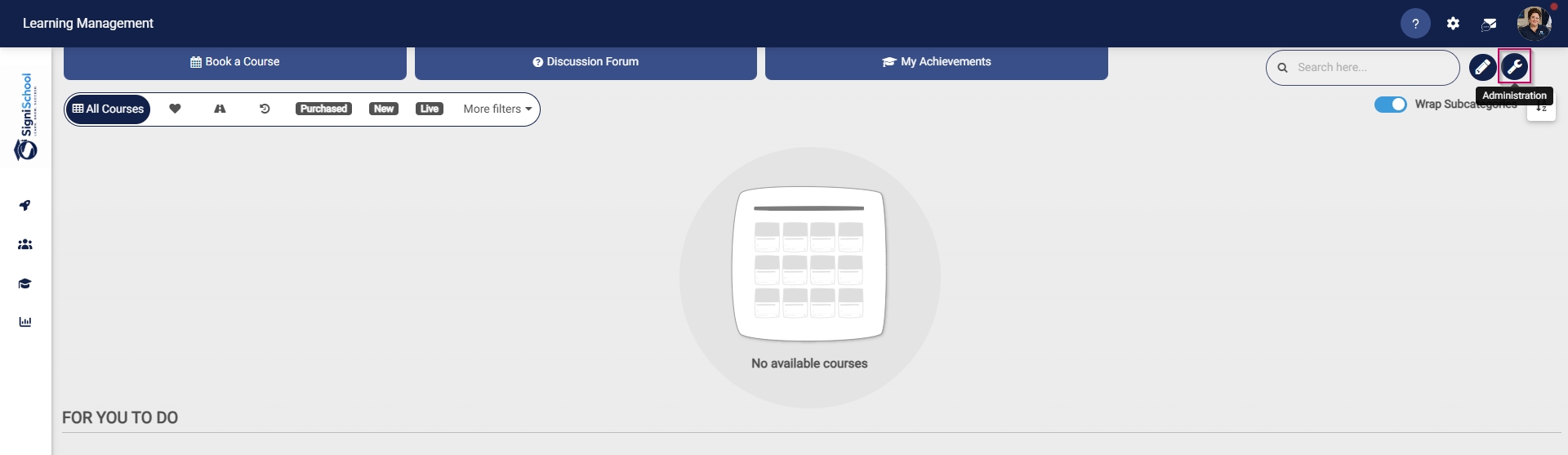
Click the spanner icon to access the system's Administration menu.
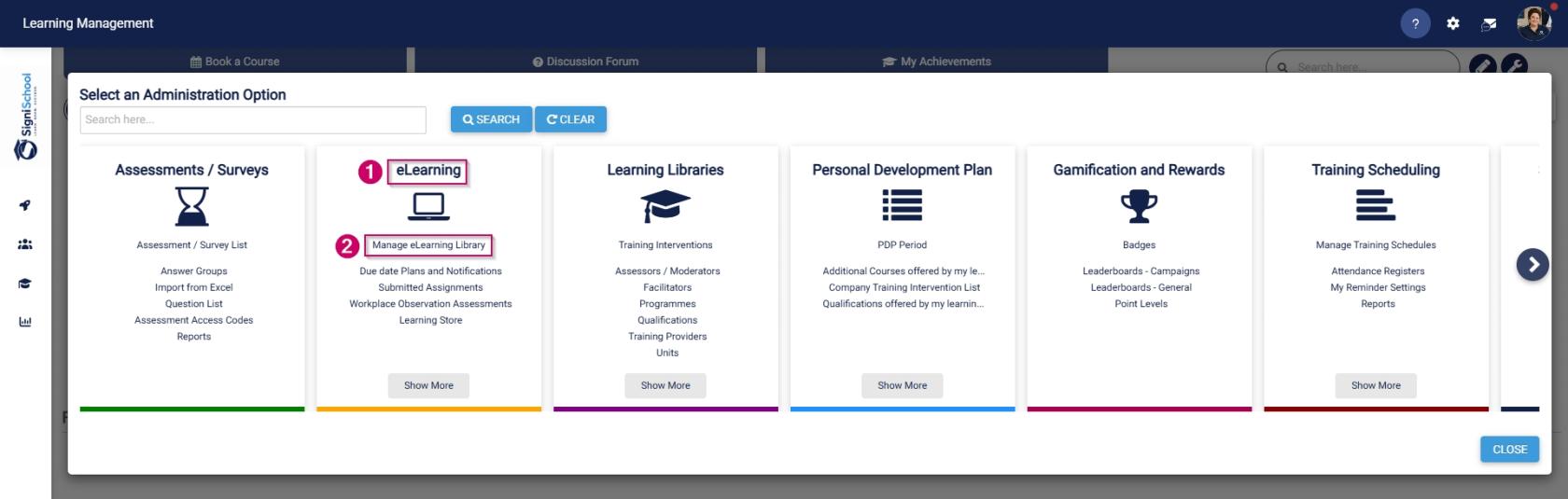
On the eLearning card, click Manage eLearning Library.
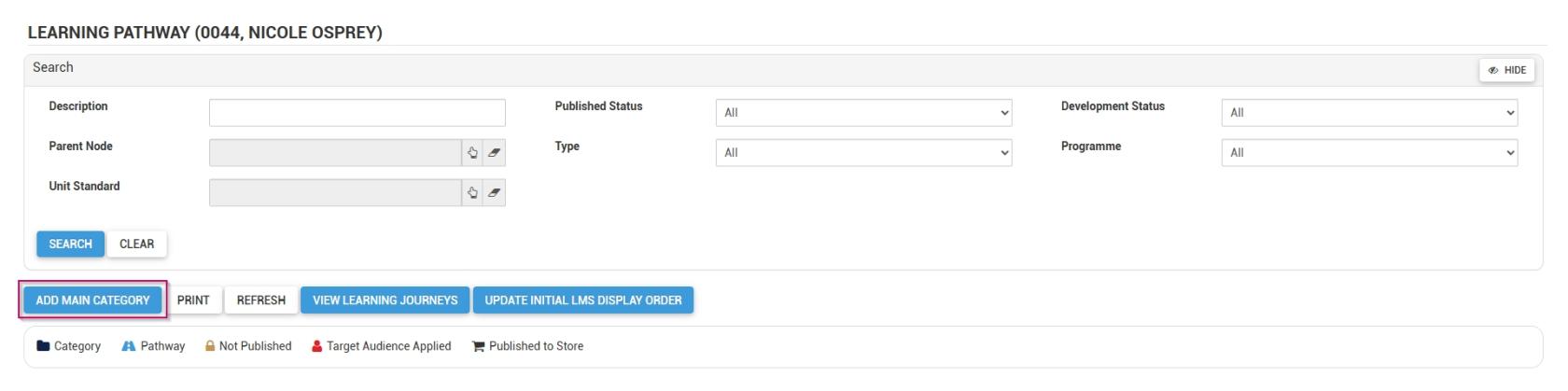
The Pathways Tree View screen will open in a new tab.
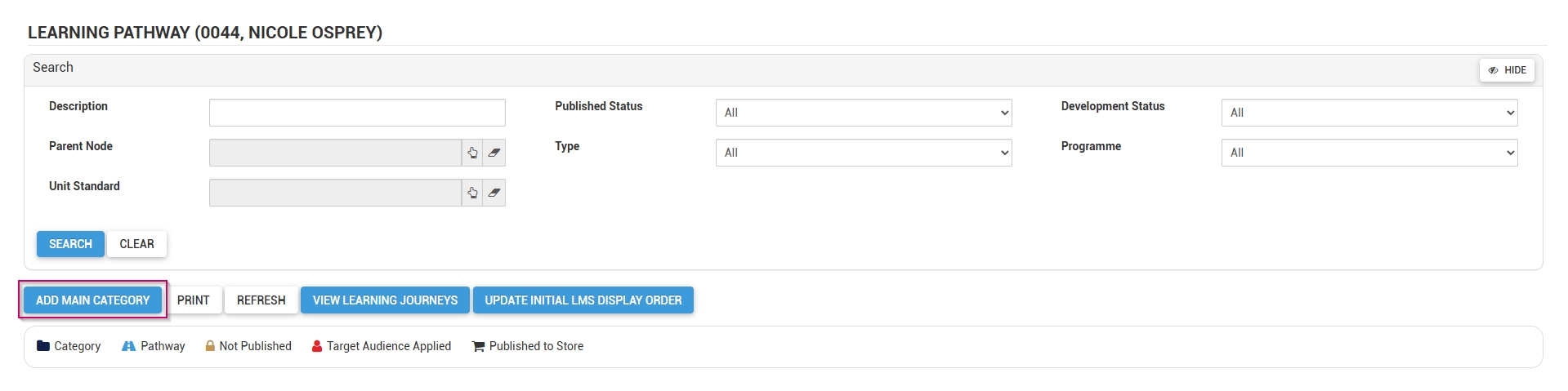
Click ADD MAIN CATEGORY.
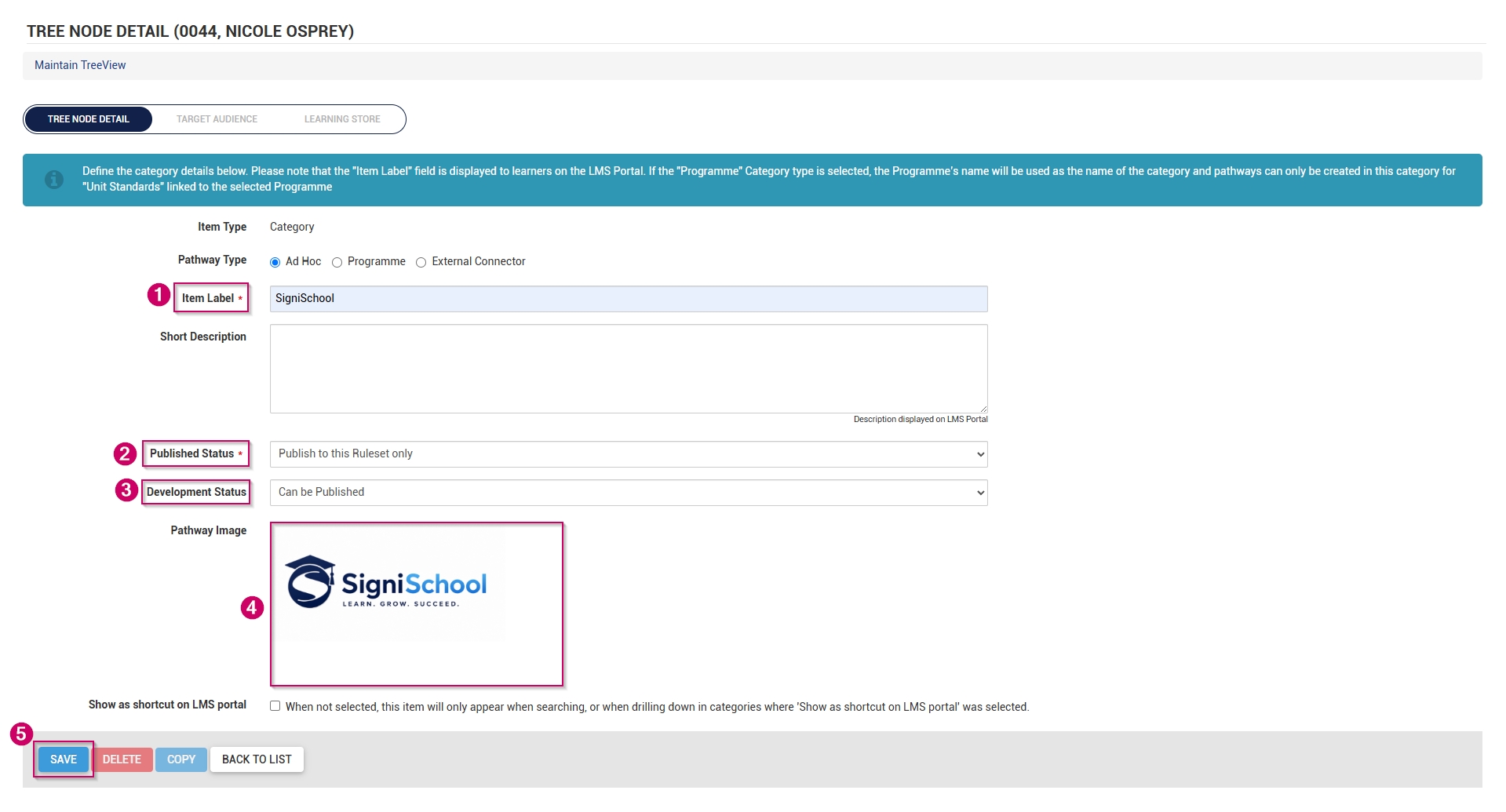
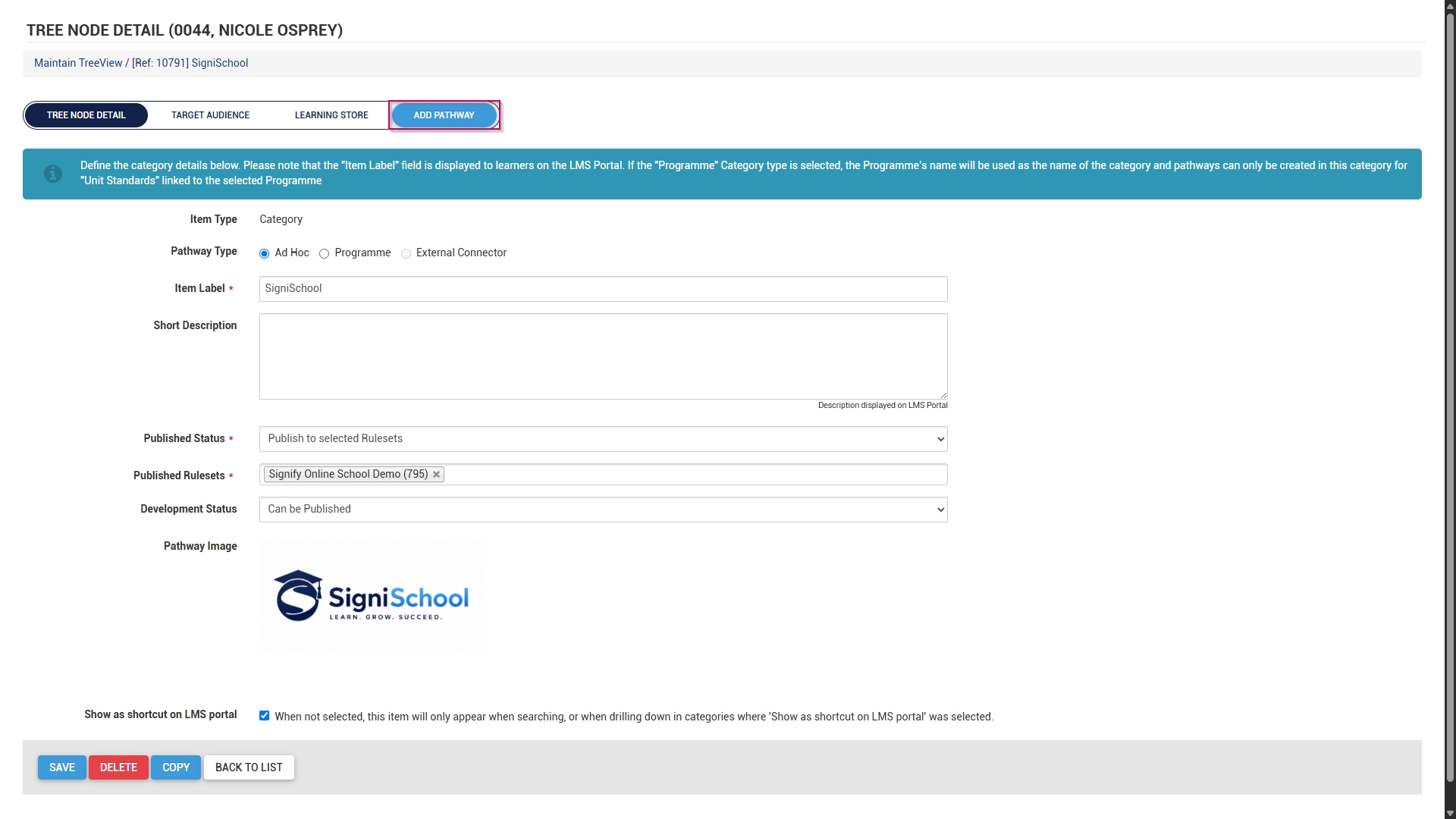
Add a name for the category.
Optionally, add a short description for the category.
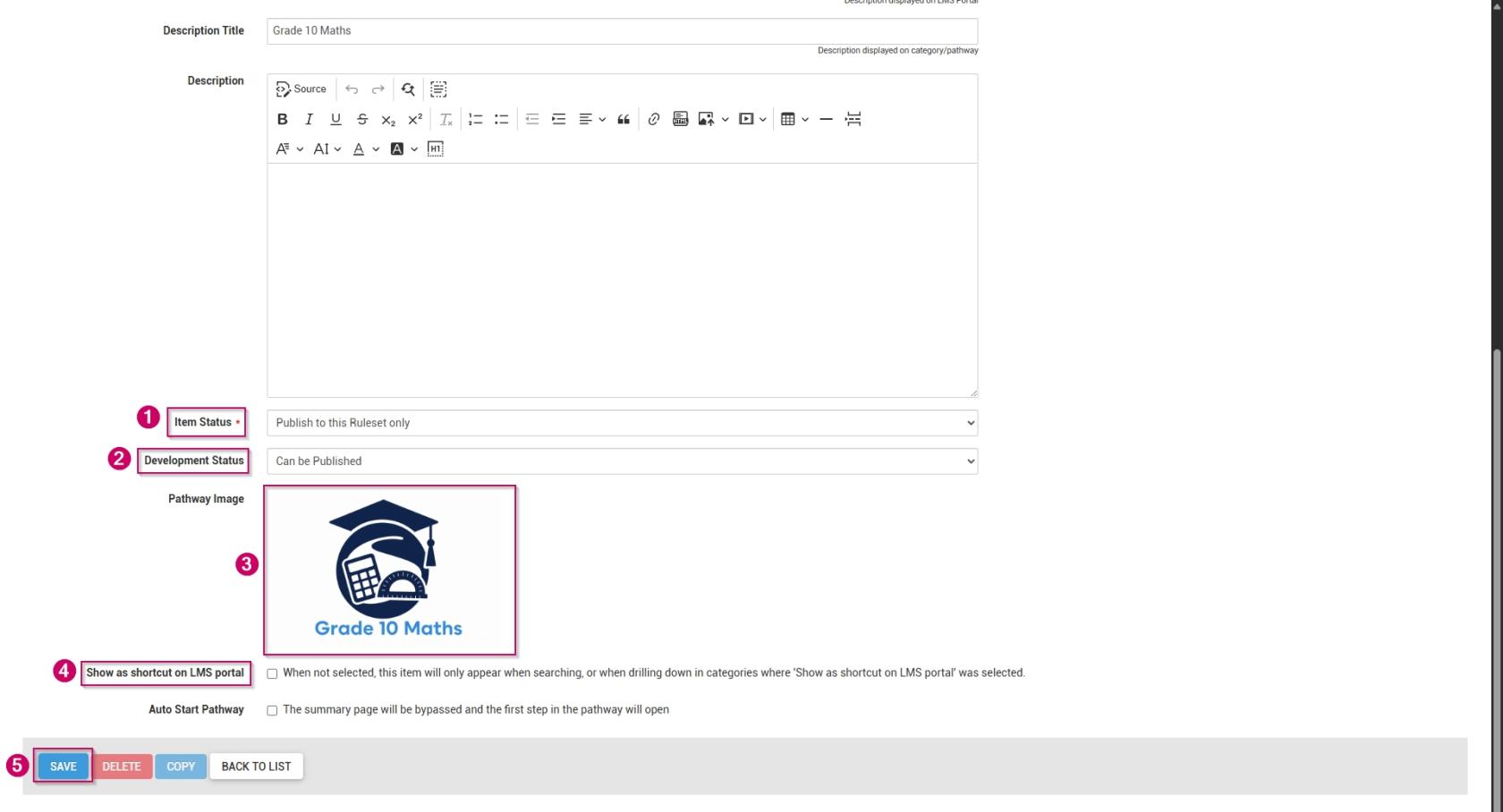
From the drop-down menu, select the published status as Publish to this Ruleset only.
From the drop-down menu, select Can be Published to set the development status.
Choose an image for the category. When adding your own image, ensure the aspect ratio is 300 by 200 px and that it is in .png, .jpg, or .gif format.
If the main category should display on the Learning Portal, tick the Show as shortcut on LMS portal checkbox.
Please be aware that selecting a main category on the Learning Portal and checking this box for related pathways in that category may lead to duplicate entries appearing on the Learning Portal screen.
If the main category appears on the Learning Portal, its pathways are accessible through the drill-down feature, so there's no need to tick this checkbox for those pathways.
It is recommended to try out this feature to determine the most effective way for you.
Click SAVE when you are finished or click BACK TO LIST to discard your edits.

A new pathway can be added to this category in two ways:
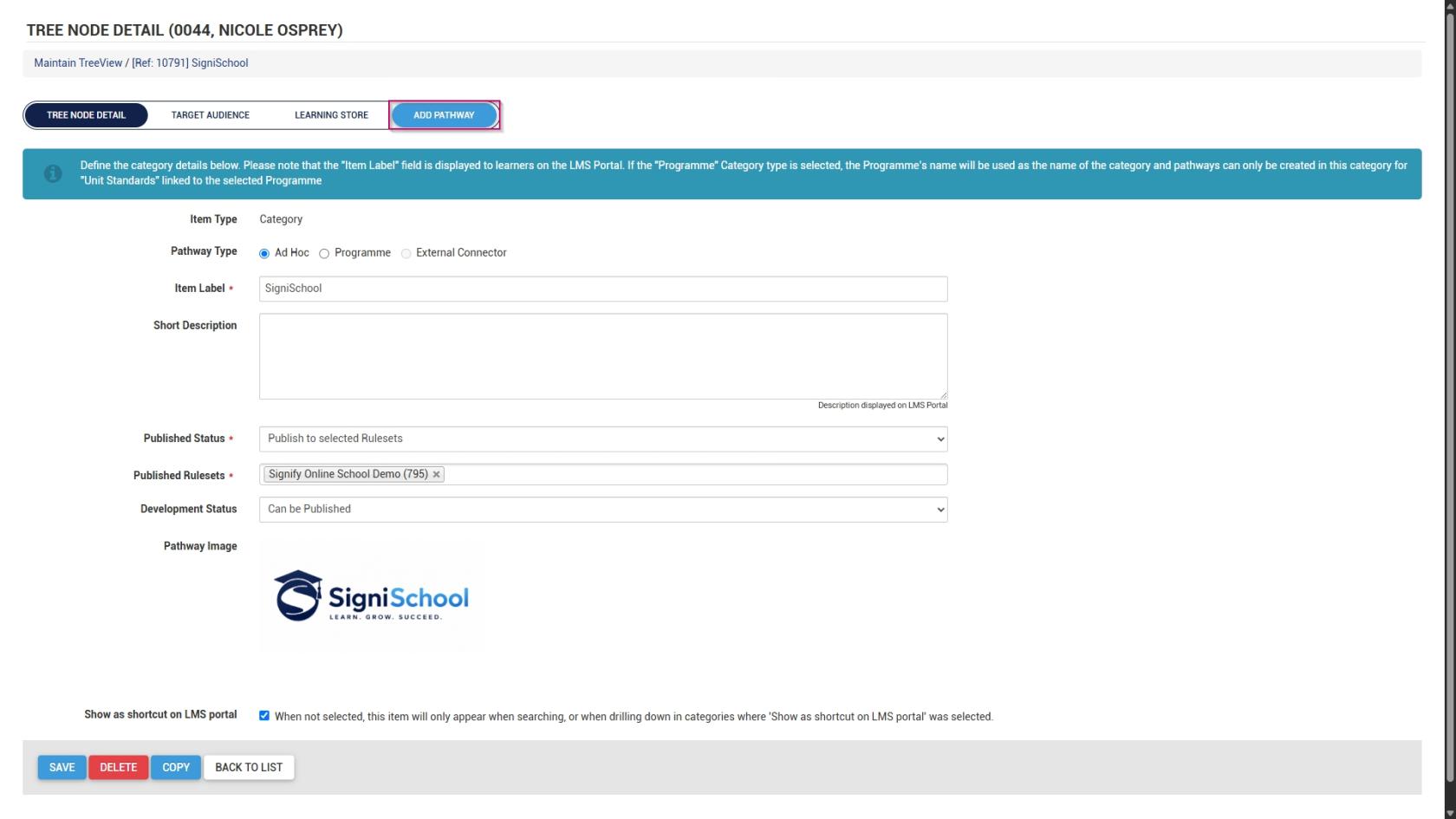
Scroll to the top of the screen after the save is complete, then click ADD PATHWAY.
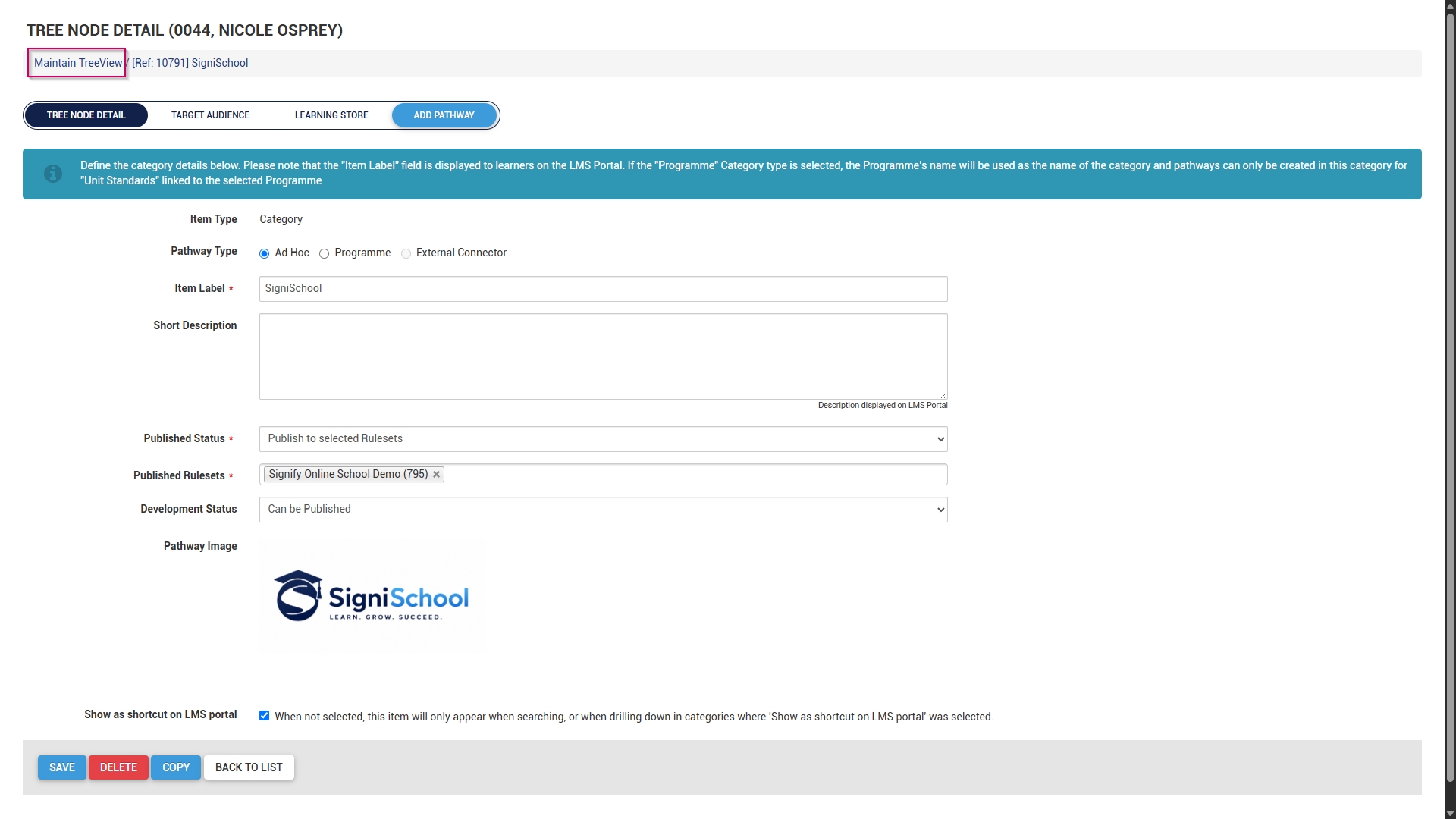
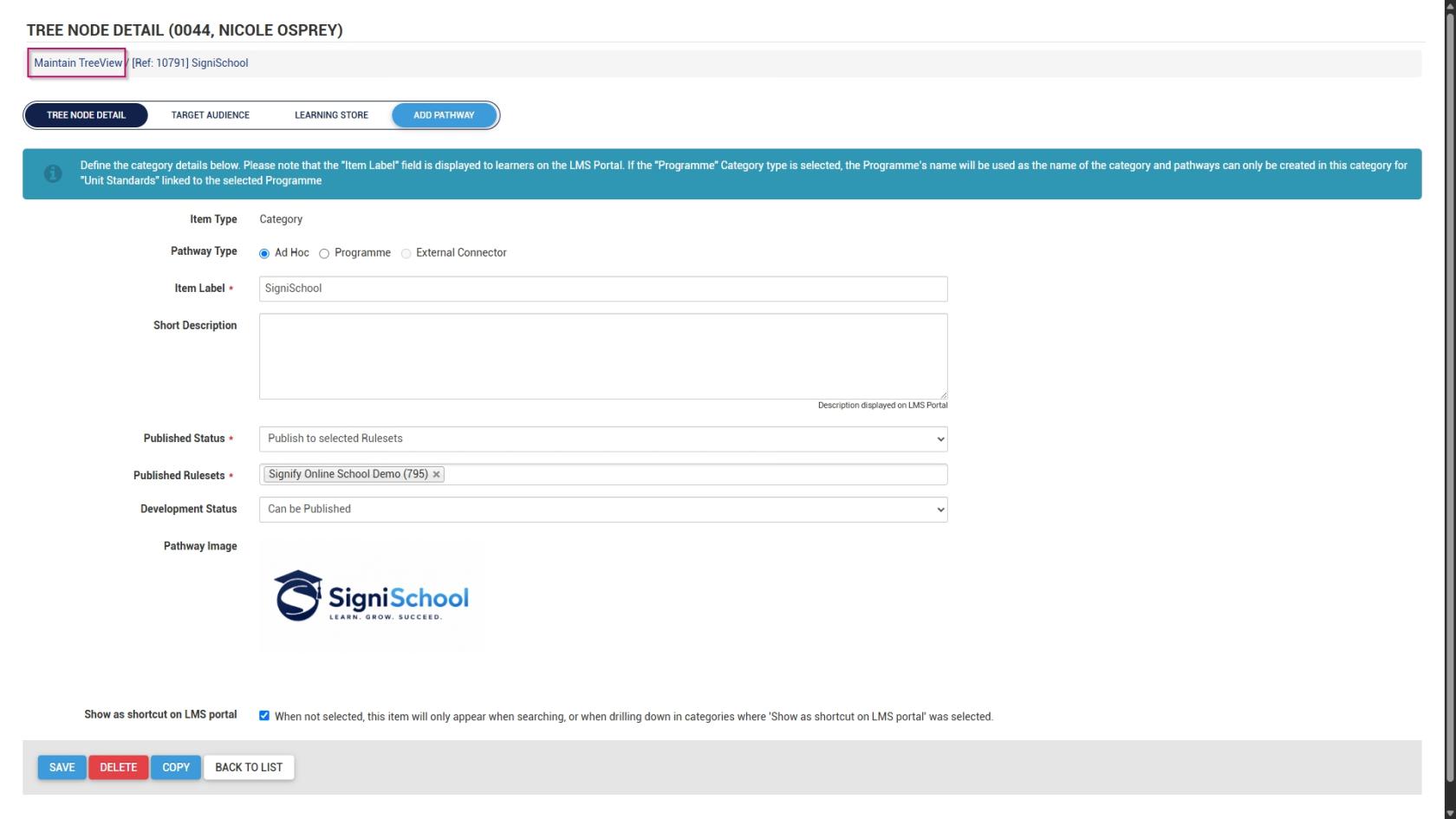
Alternatively, click Maintain TreeView at the top of the screen to return to the Pathways Tree View.
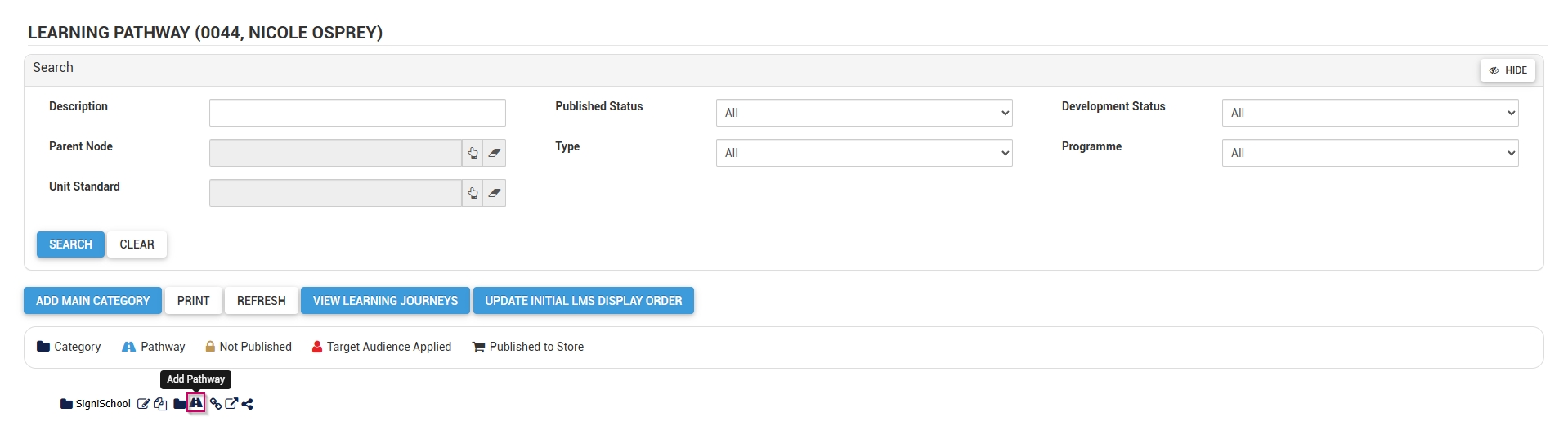
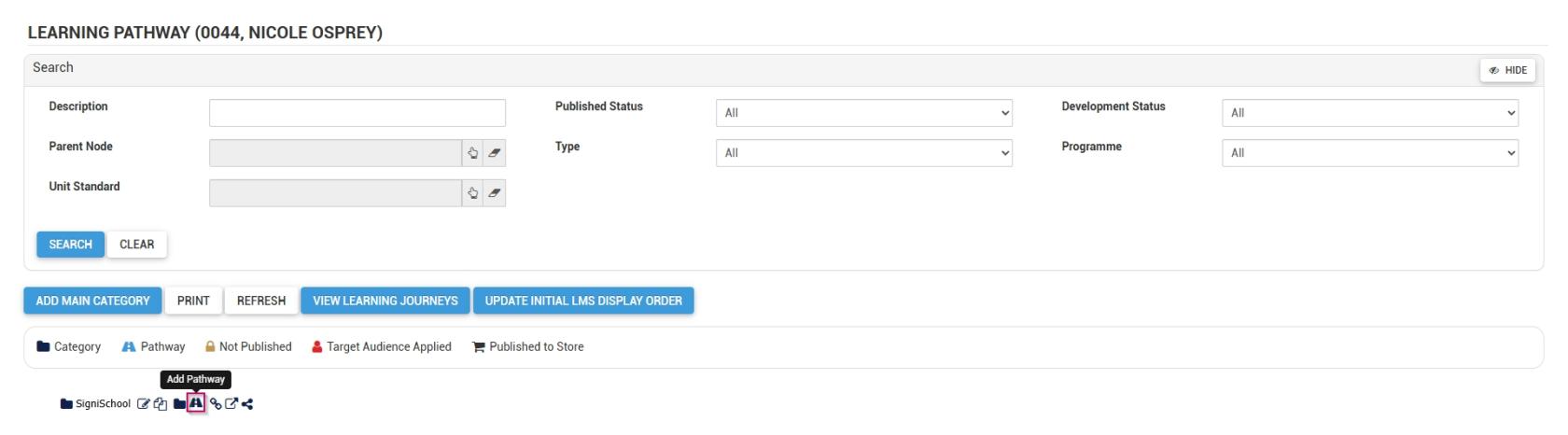
Click the pathway icon next to the main category's name to add a new pathway.
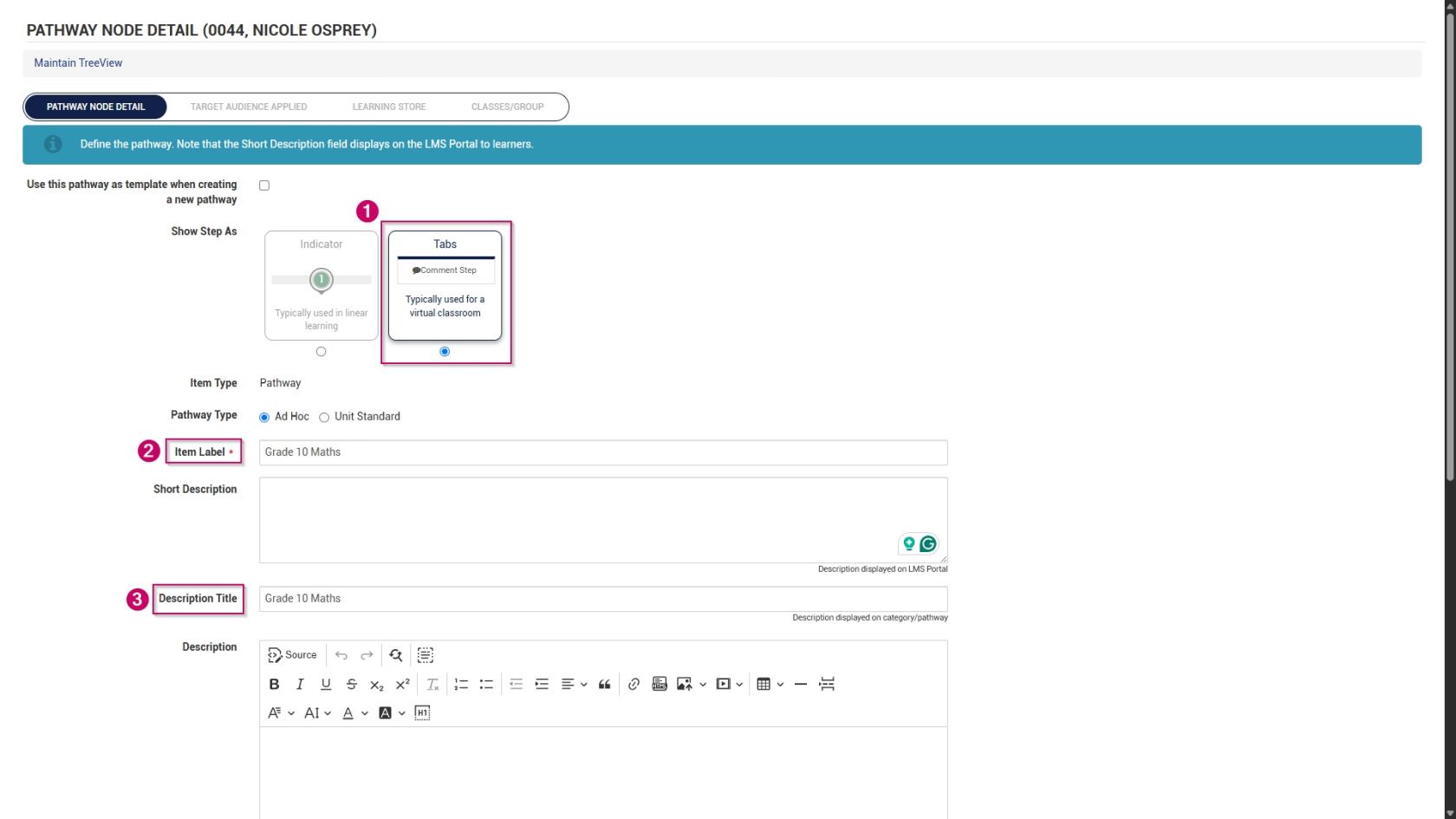
The pathway details screen will open.
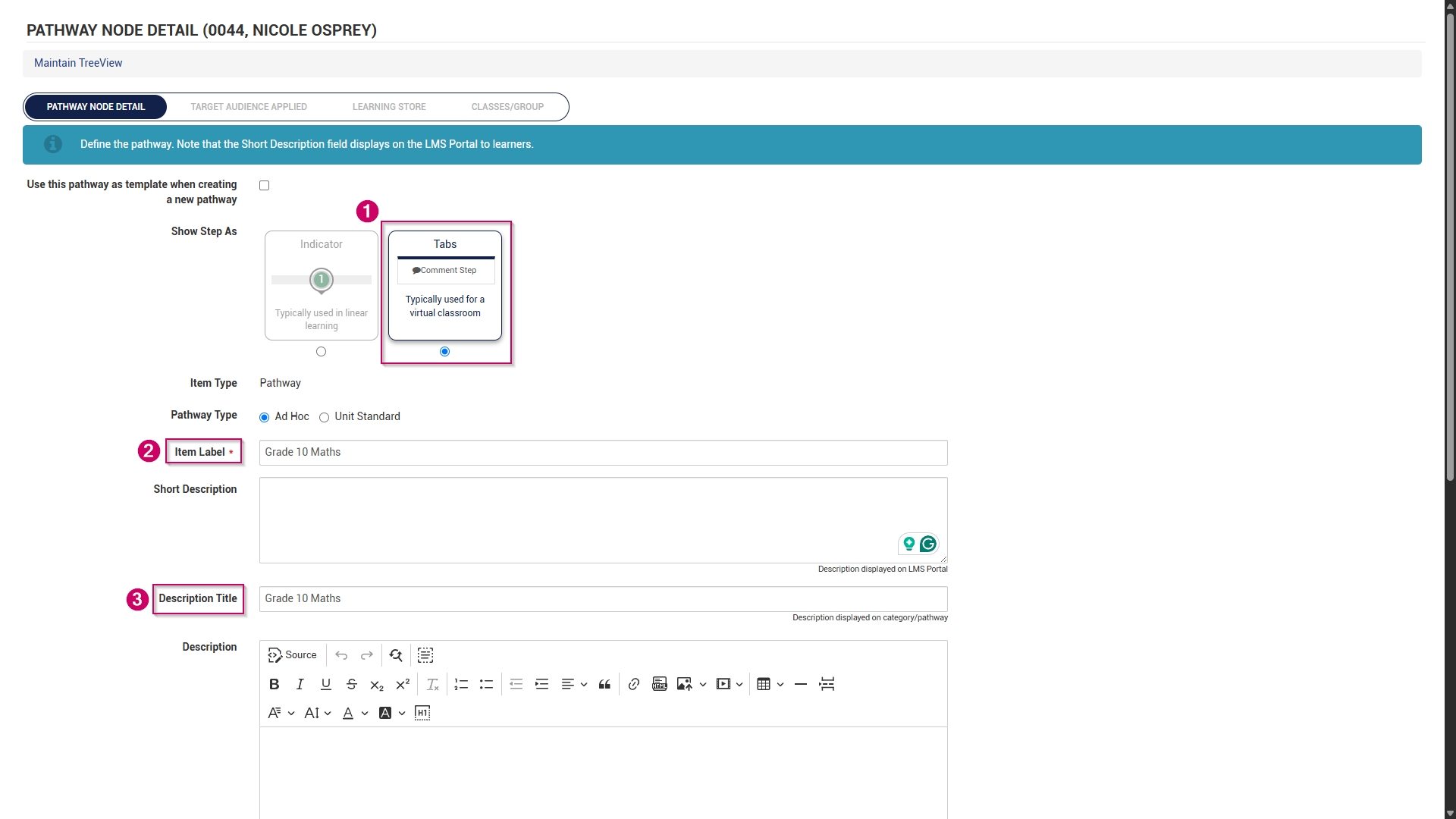
Choose how the pathway steps should be displayed:
Indicators are used for linear learning.
Tabs are ideal for a virtual classroom or online school environment.
For our example, we will be using tabs.
Add the pathway name to the item label text field.
Optionally, add a short description for the pathway.
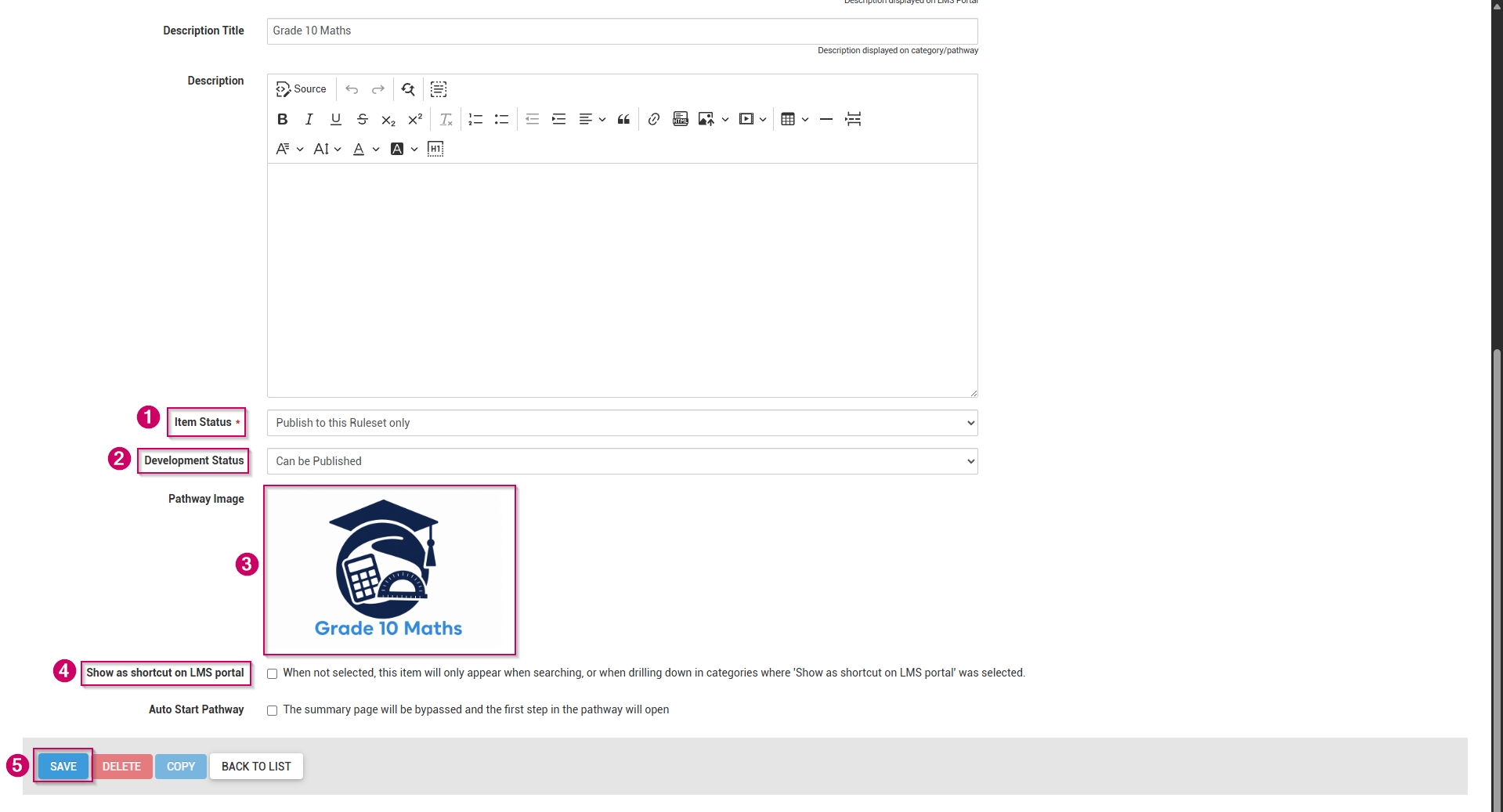
Add a description title.
Optionally, add a longer description for the pathway.
From the drop-down menu, select the item status as Publish to this Ruleset only.
From the drop-down menu, select Can be Published to set the development status.
Choose a pathway image for the pathway. When adding your own image, ensure the aspect ratio is 300 by 200 px and that it is in .png, .jpg, or .gif format.
If the main category should display on the Learning Portal, tick the Show as shortcut on LMS portal checkbox.
Optionally, tick the Auto Start Pathway checkbox to skip the summary page when learners start the pathway.
Click SAVE when you are finished or click BACK TO LIST to discard your edits.
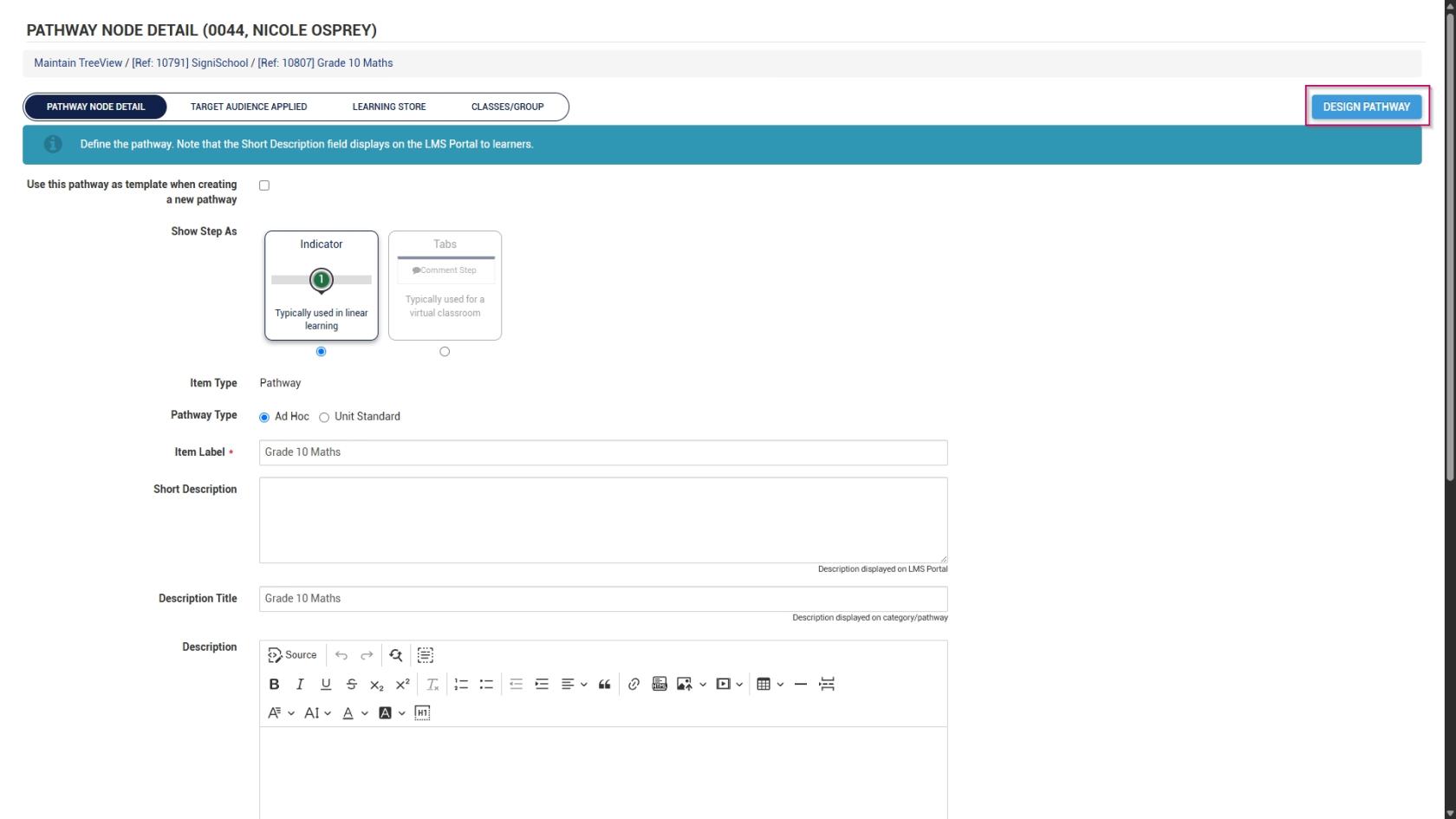
Scroll to the top of the screen after the save is complete, then click DESIGN PATHWAY.
This overview explains how to set up learning pathways for an online school. We will create the following steps, which are mainly used in an eLearning environment:
Comment
Document (Download)
Acceptance
SCORM/xAPI
Assessment (Online)
Assignment (Upload)
Certification point
Class/Group
Feel free to include any additional step types not covered in this guide.
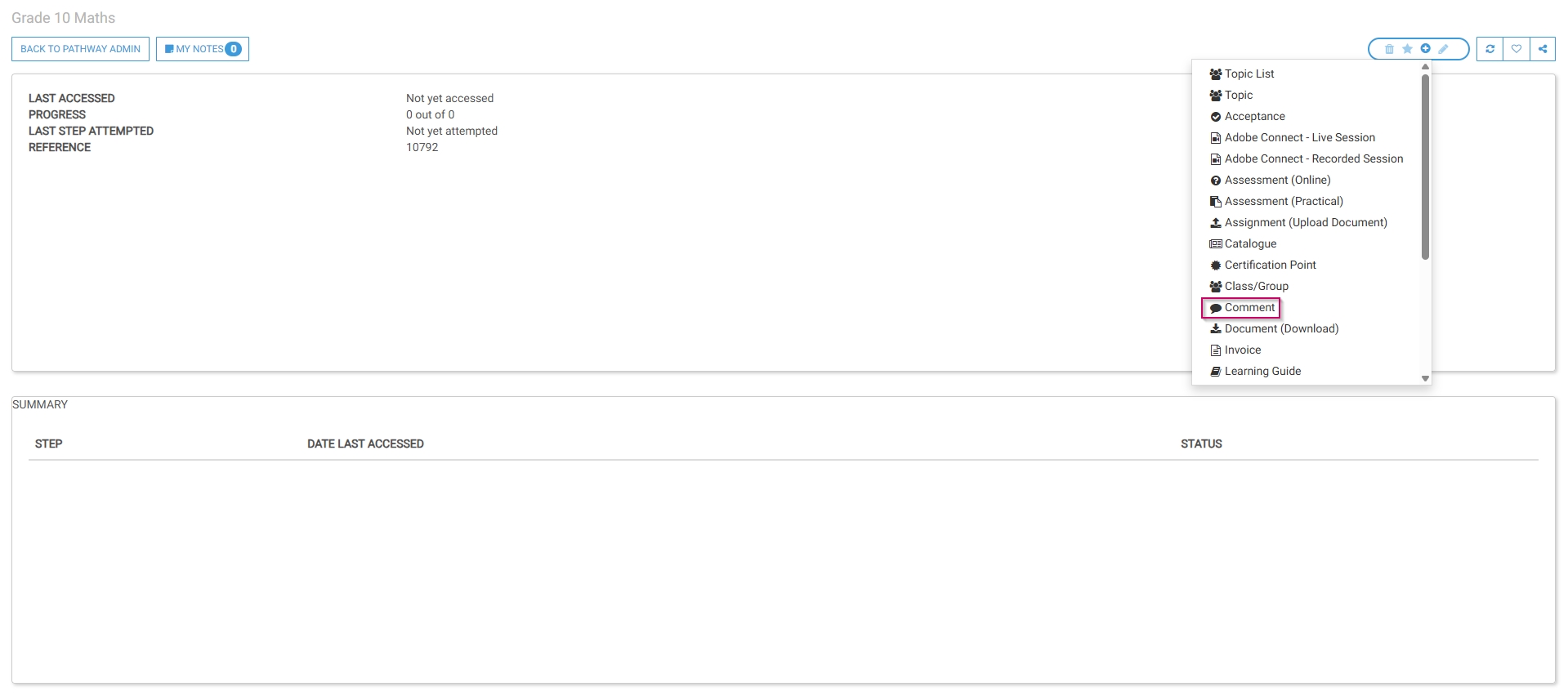
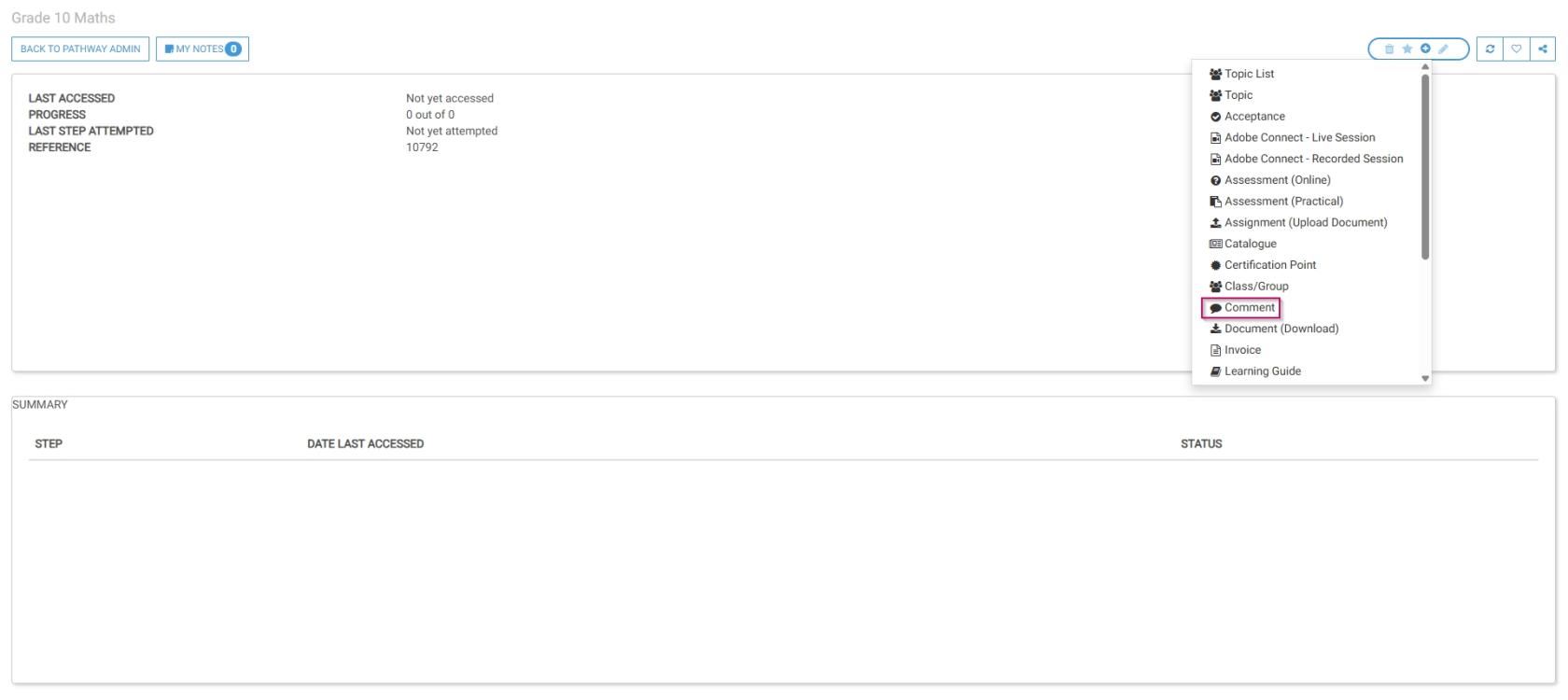
The pathway design screen will open. Select Comment from the menu.
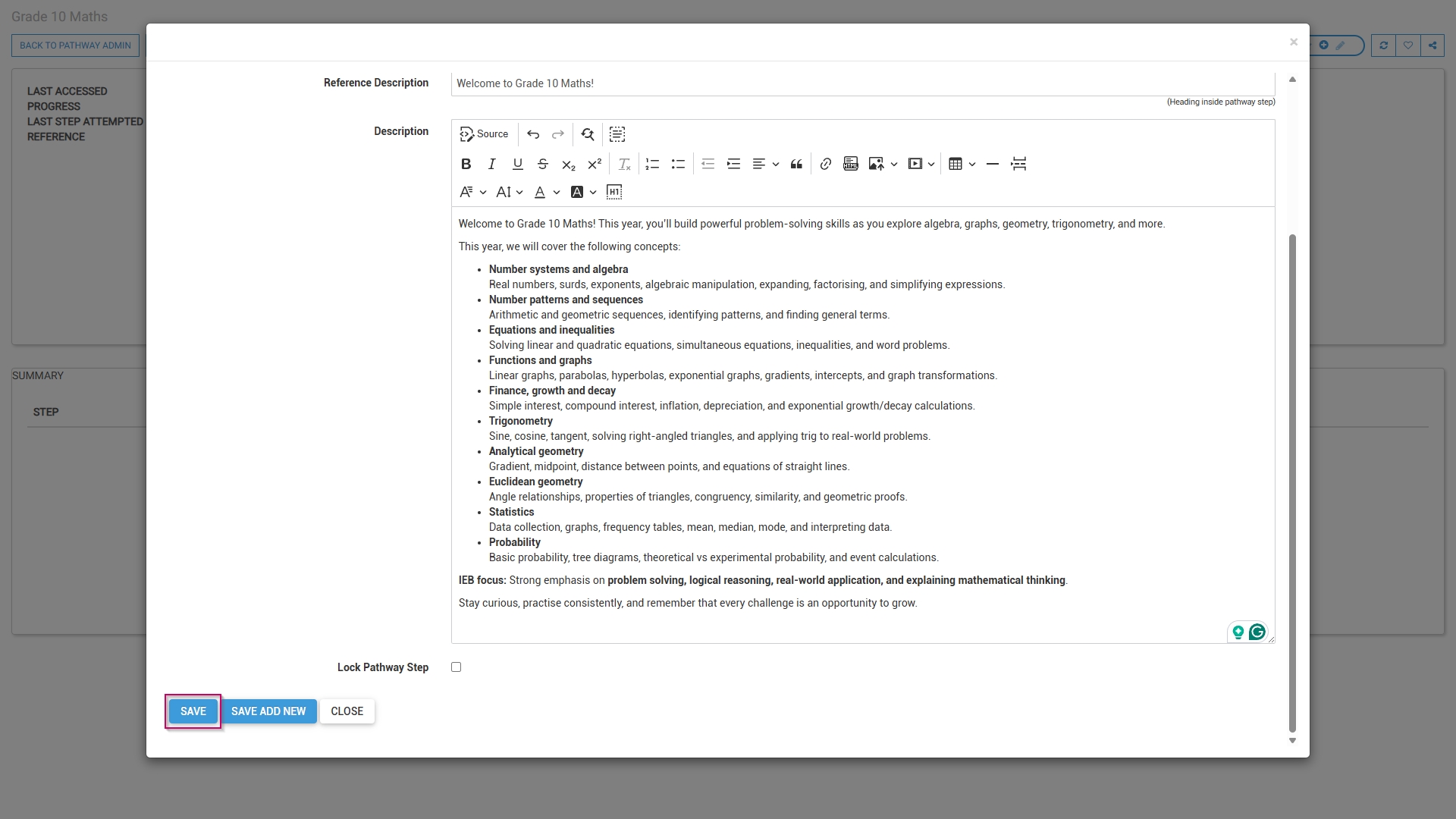
Optionally, select an image or a custom icon for your step.
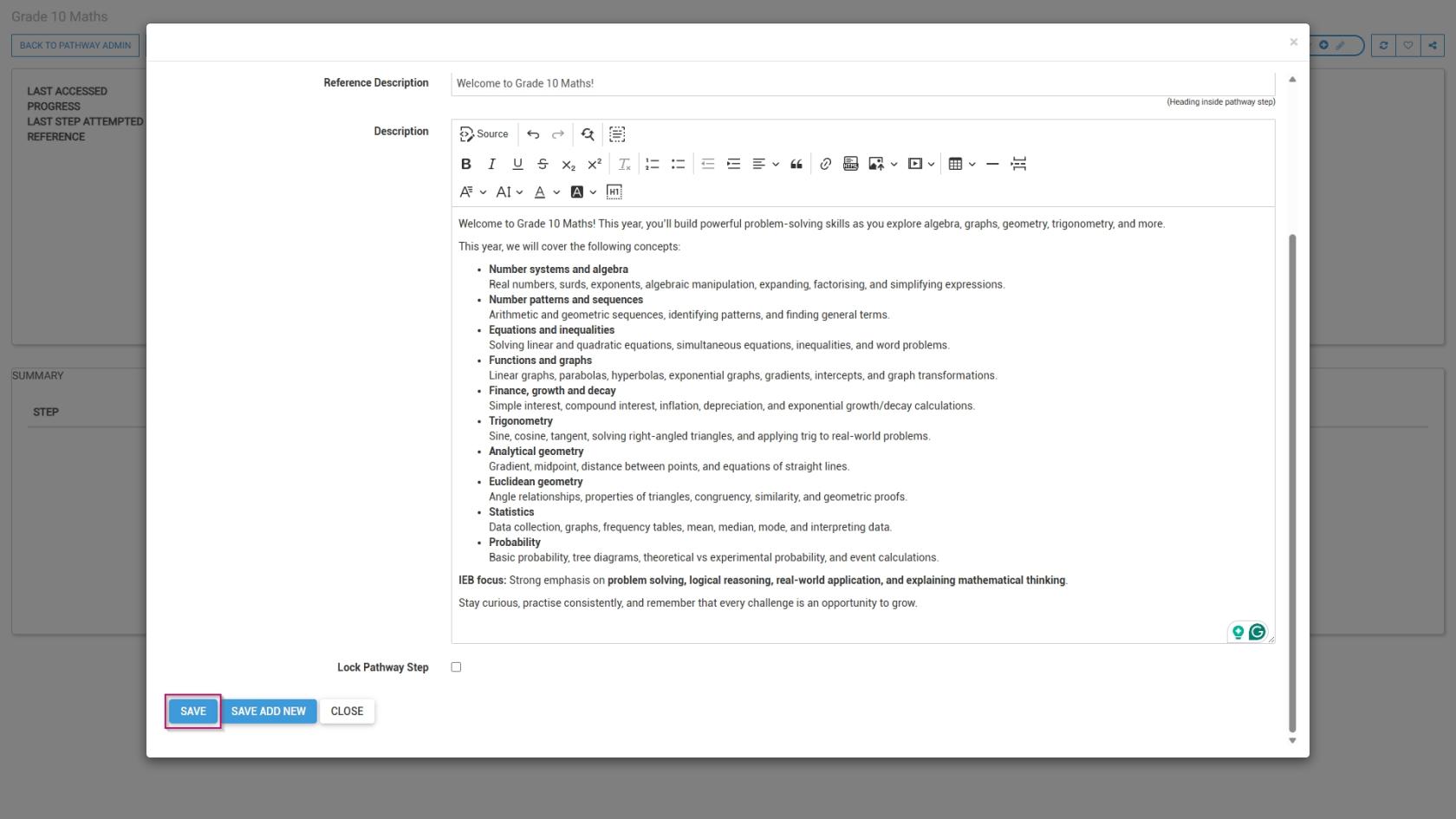
Add a main header, or title, for this step.
Add a subheading to the Reference Description field.
Add a description for this step.
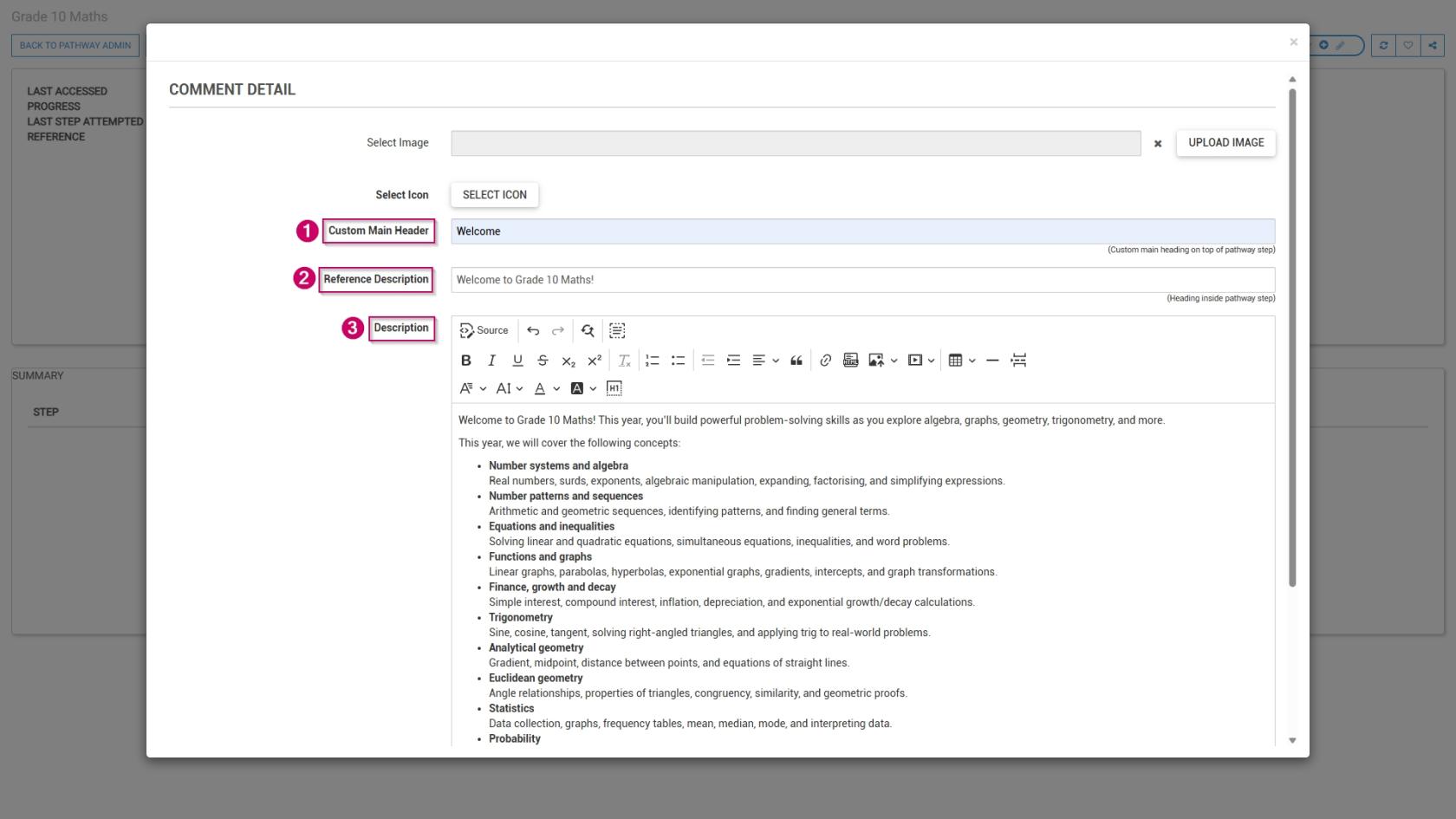
Click SAVE when you are finished, SAVE ADD NEW to add another comment step or click CANCEL to discard your edits.
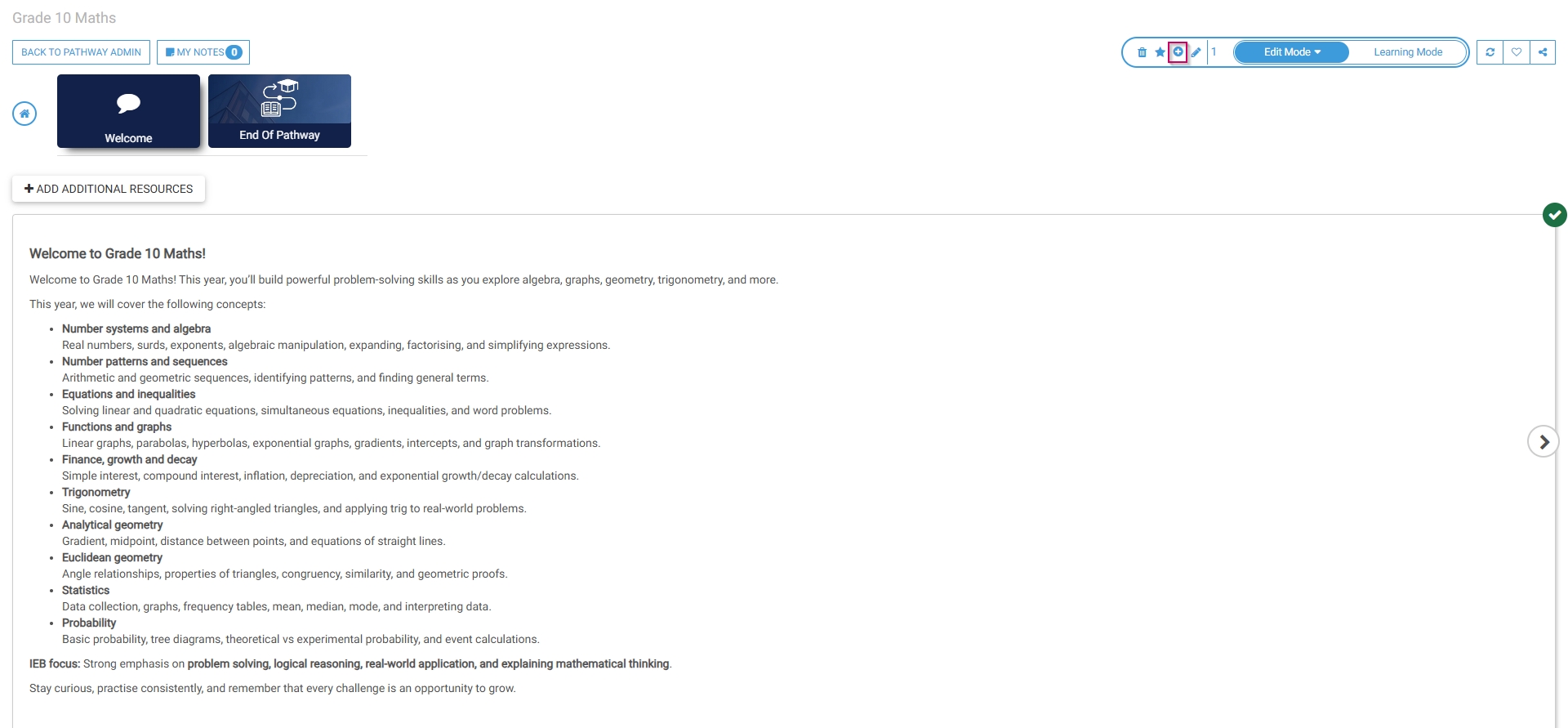
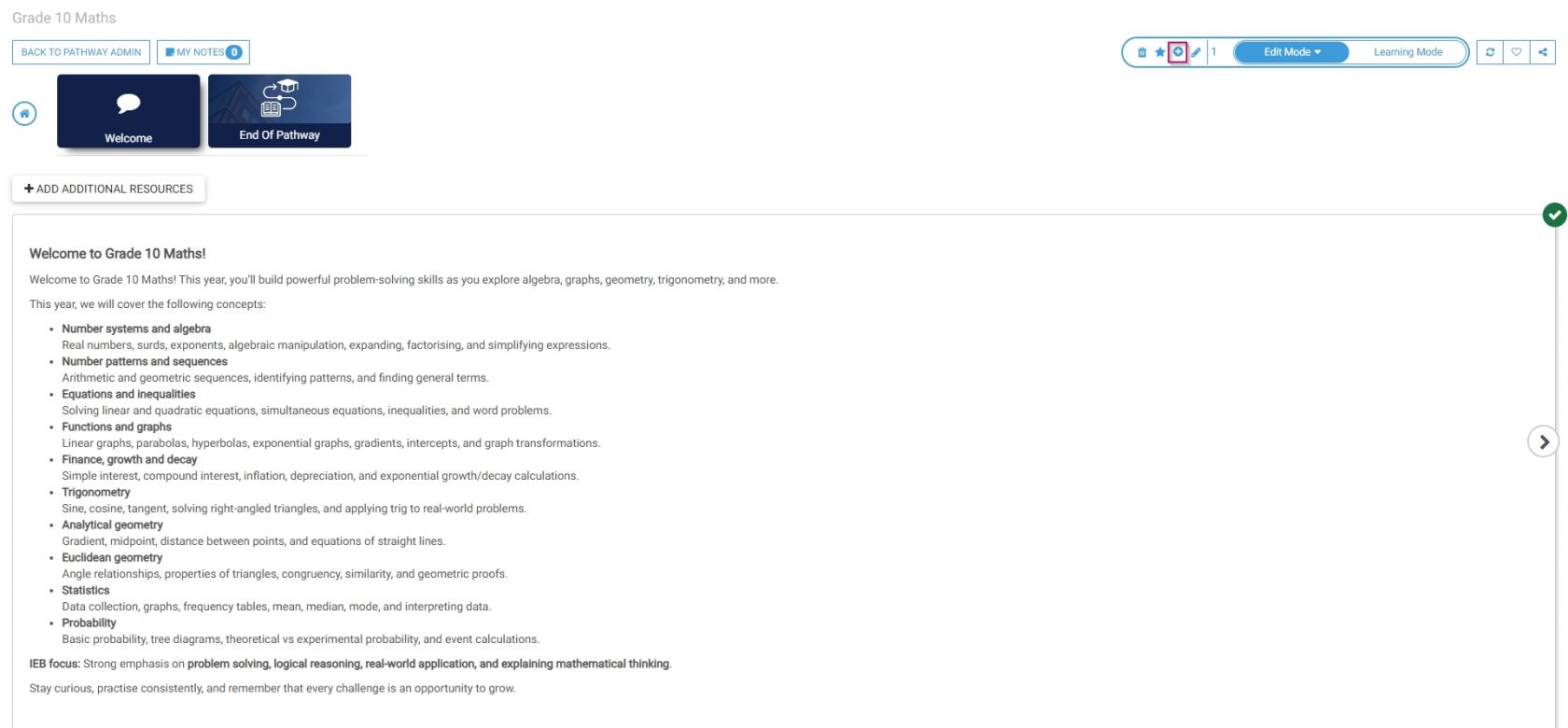
The comment step has been successfully added to the pathway.
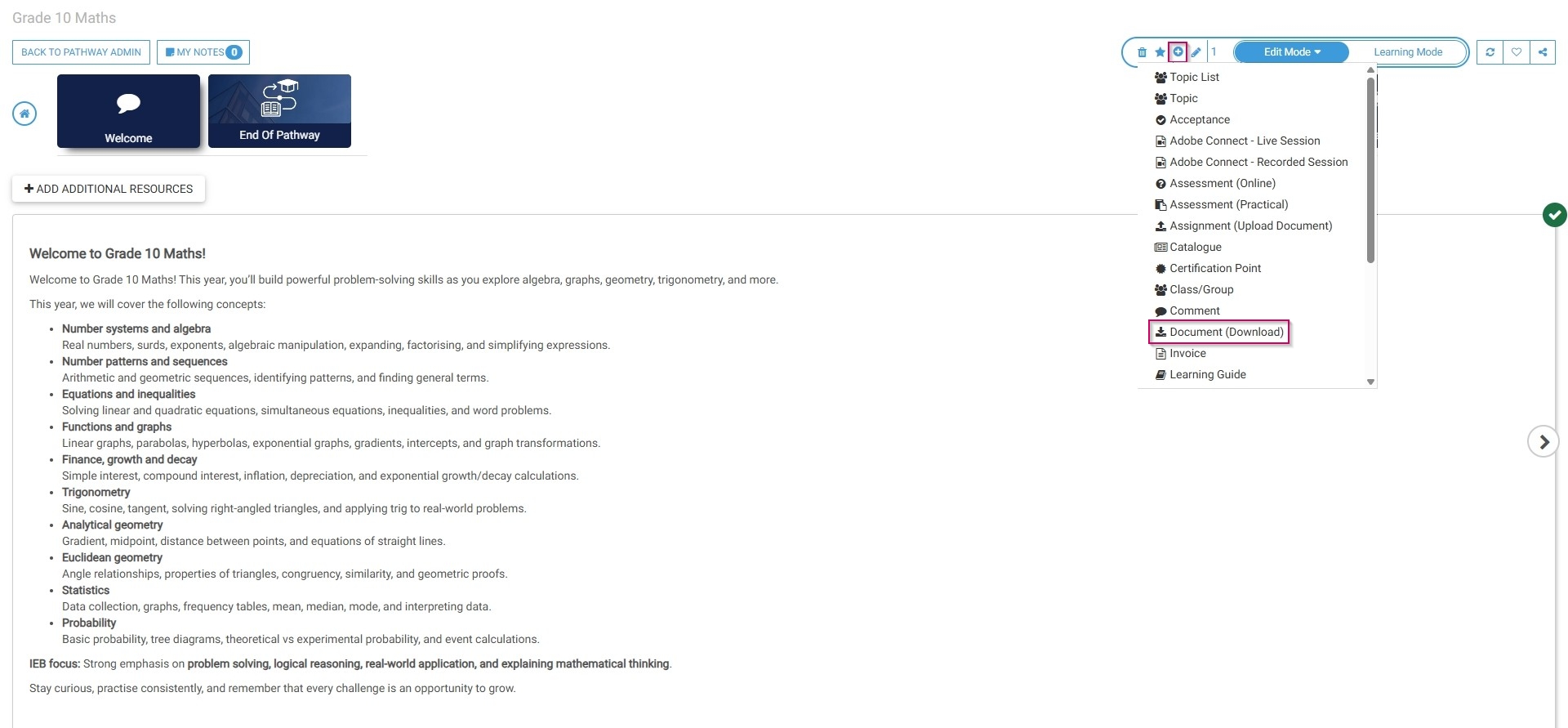
To add an additional step, click the plus icon.
Document (Download)
Select Document (Download) from the menu.
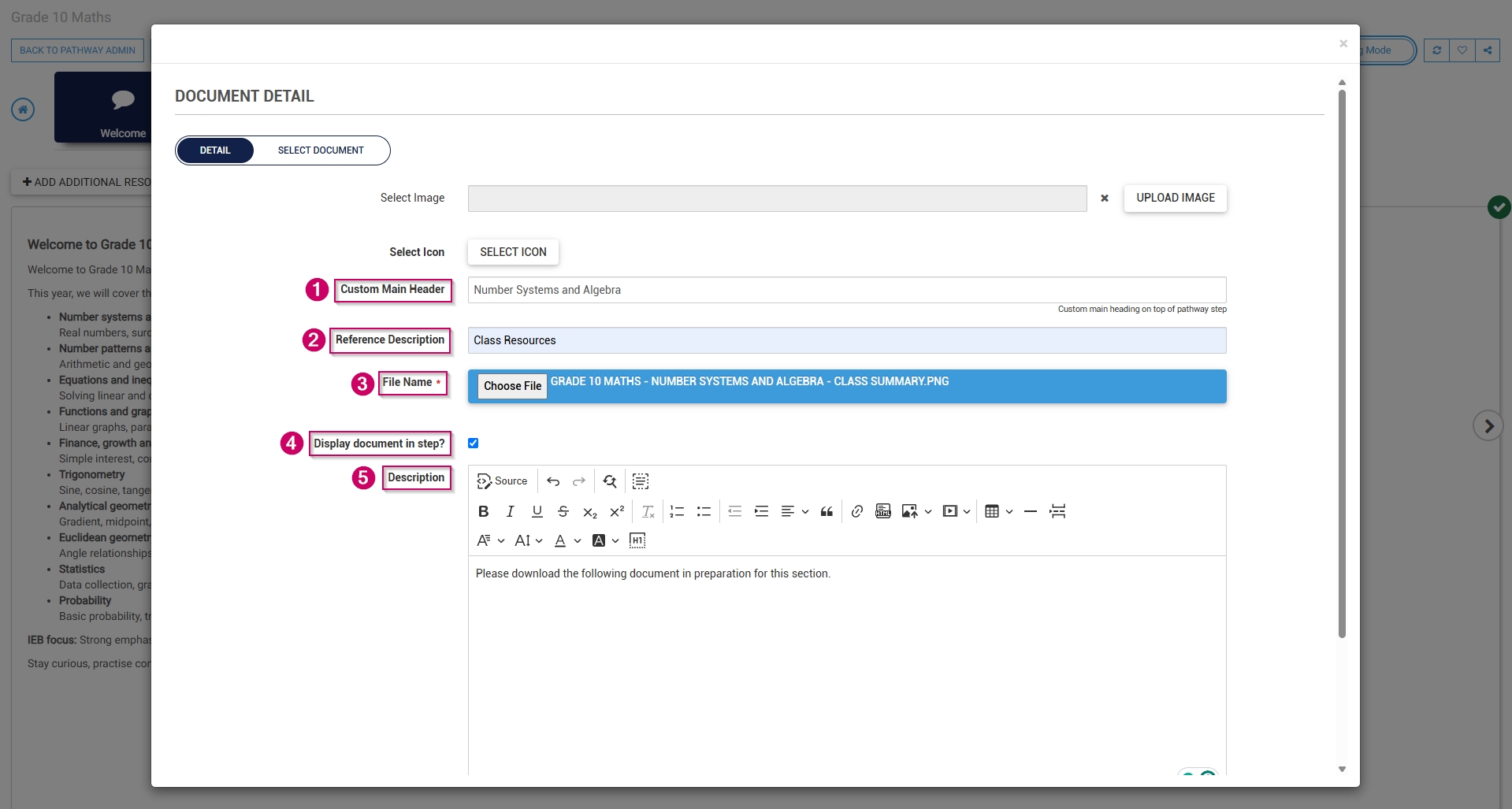
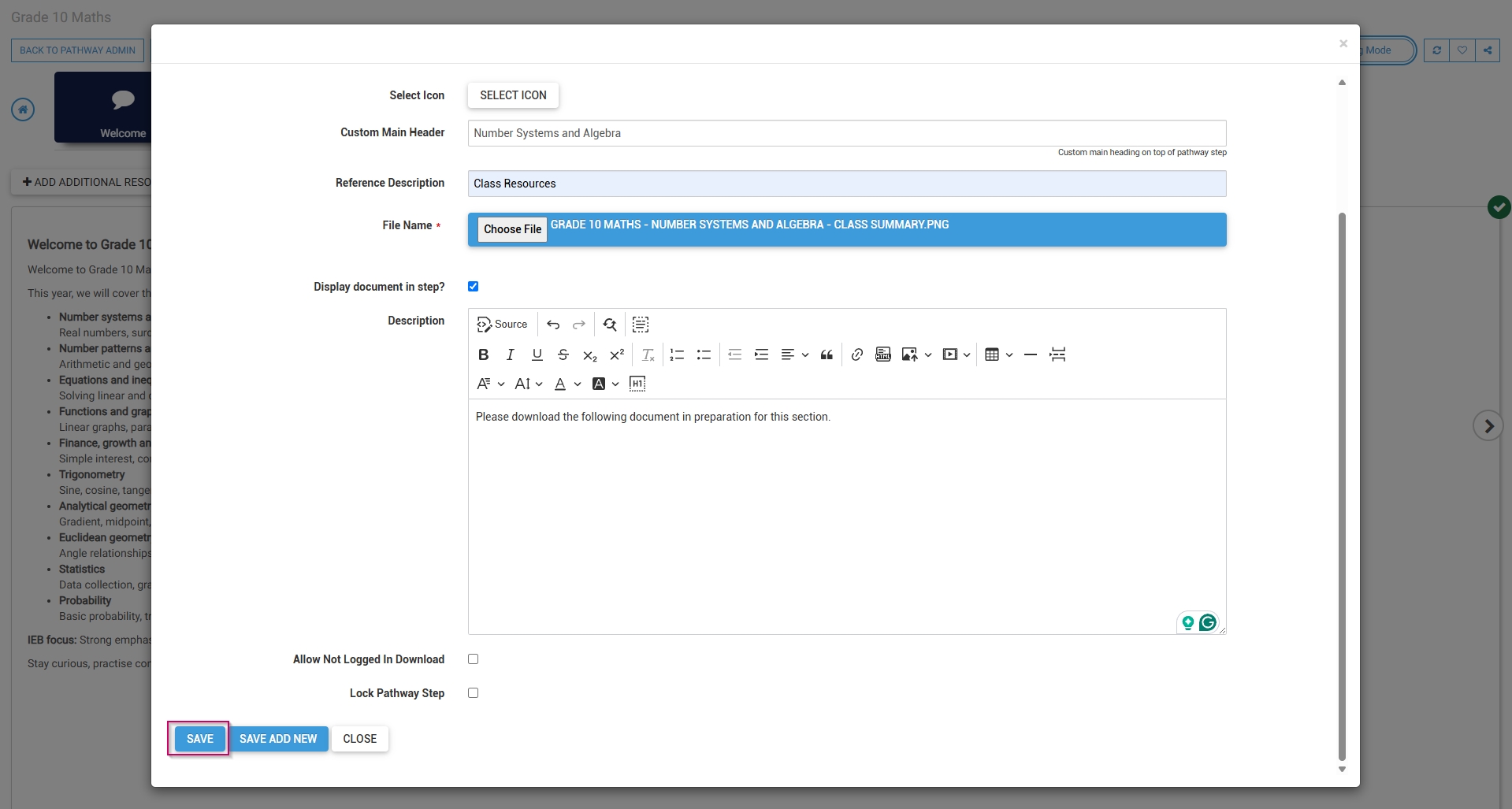
Optionally, select an image or a custom icon for your step.
Add a main header, or title, for this step.
Add a subheading to the Reference Description field.
Choose a file from your computer for users to download.
Tick the checkbox if you would like the document to appear in this step.
Add a description for this step.
Click SAVE when you are finished, SAVE ADD NEW to add another document download step or click CLOSE to discard your edits.
The document download step has been successfully added to the pathway.
Acceptance
Select Acceptance from the menu.
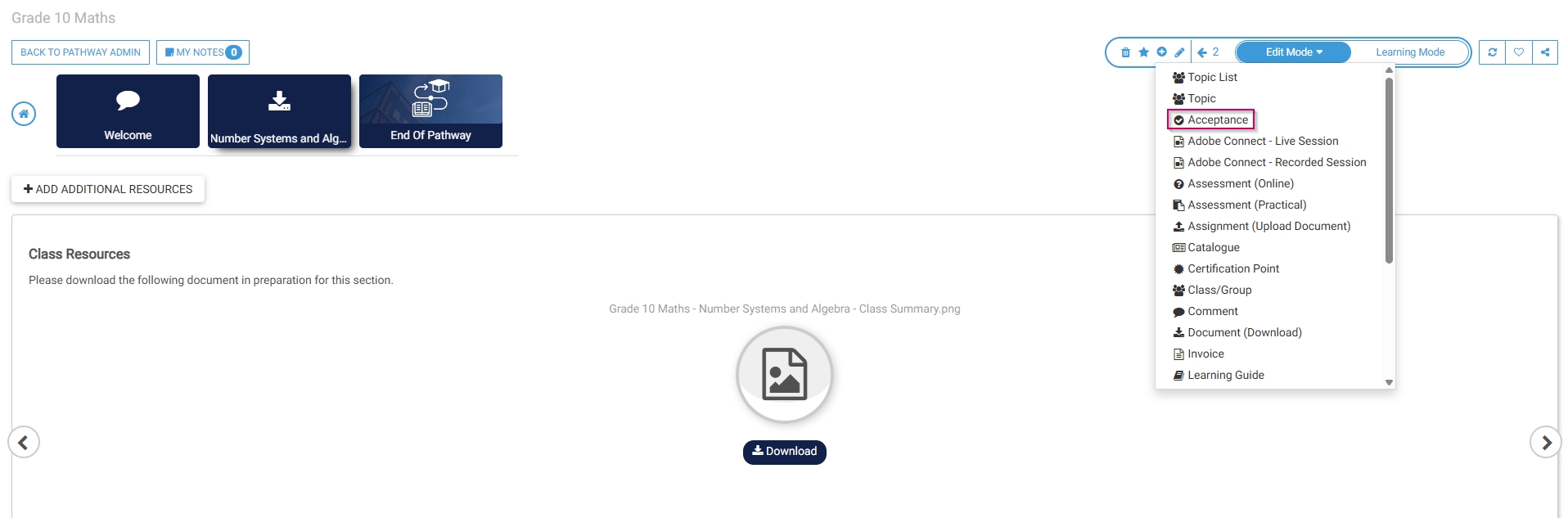
Optionally, select an image or a custom icon for your step.
Add a main header, or title, for this step.
Add a subheading to the Reference Description field.
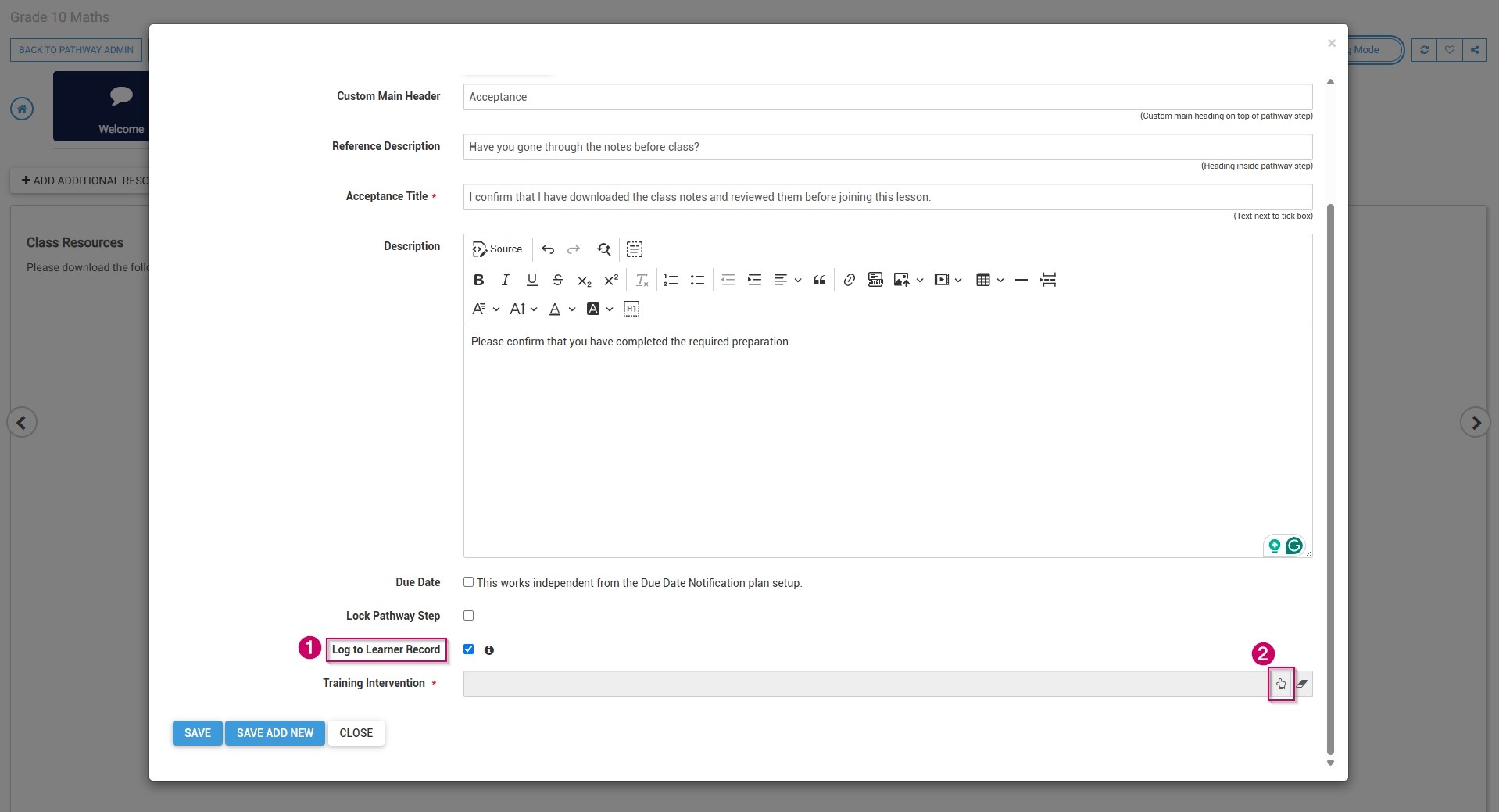
Add an acceptance title, which will display next to the tickbox learners are required to tick for this step.
Add a description for this step.
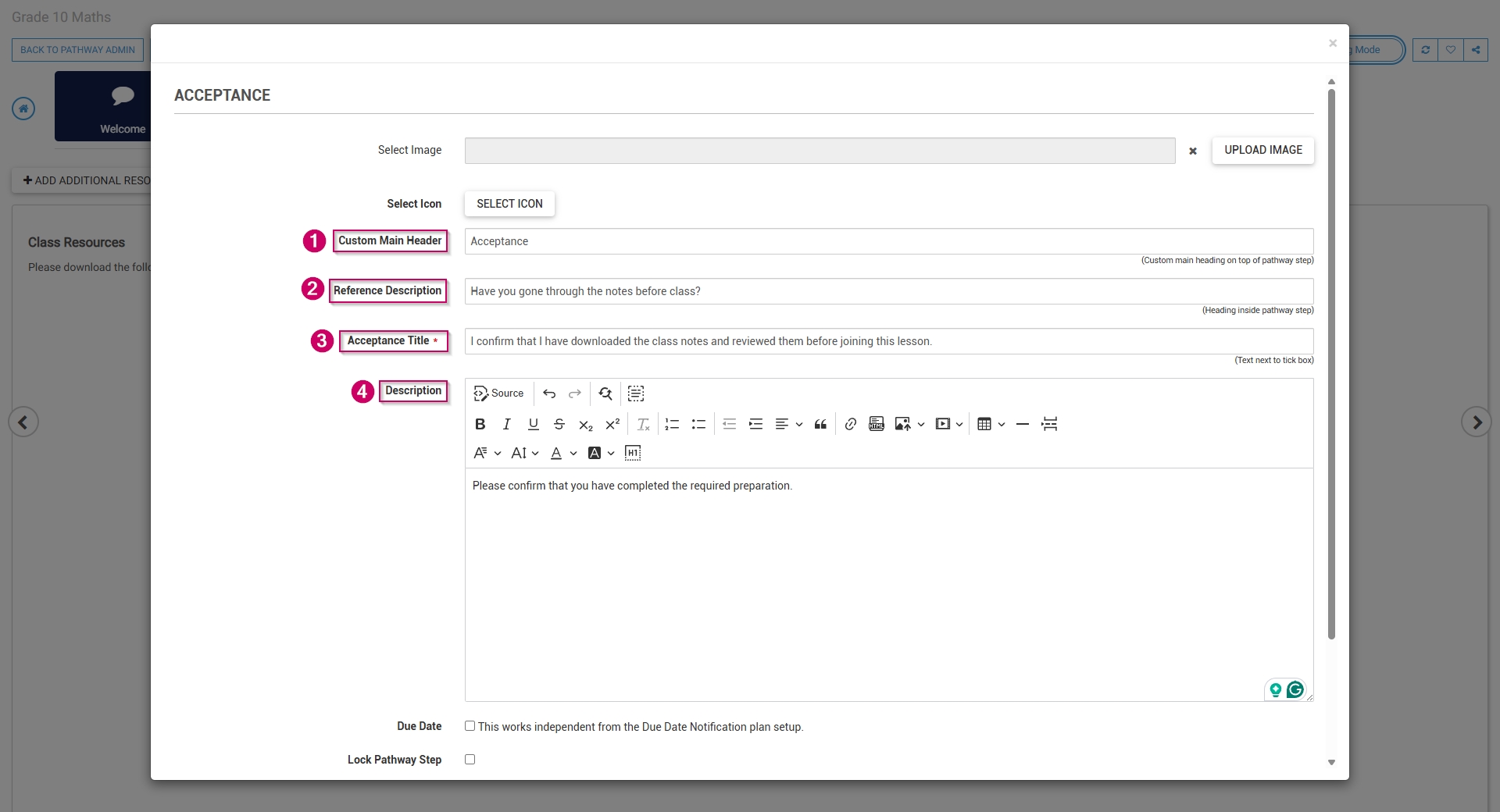
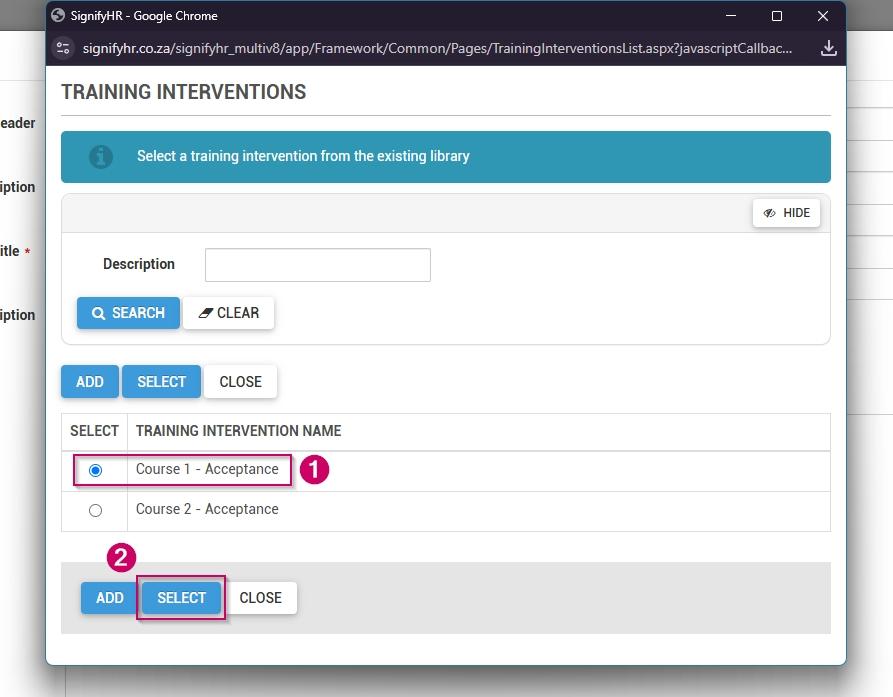
To log this step in the learner's record, check the box, then click the hand icon to select a training intervention to associate with this step.
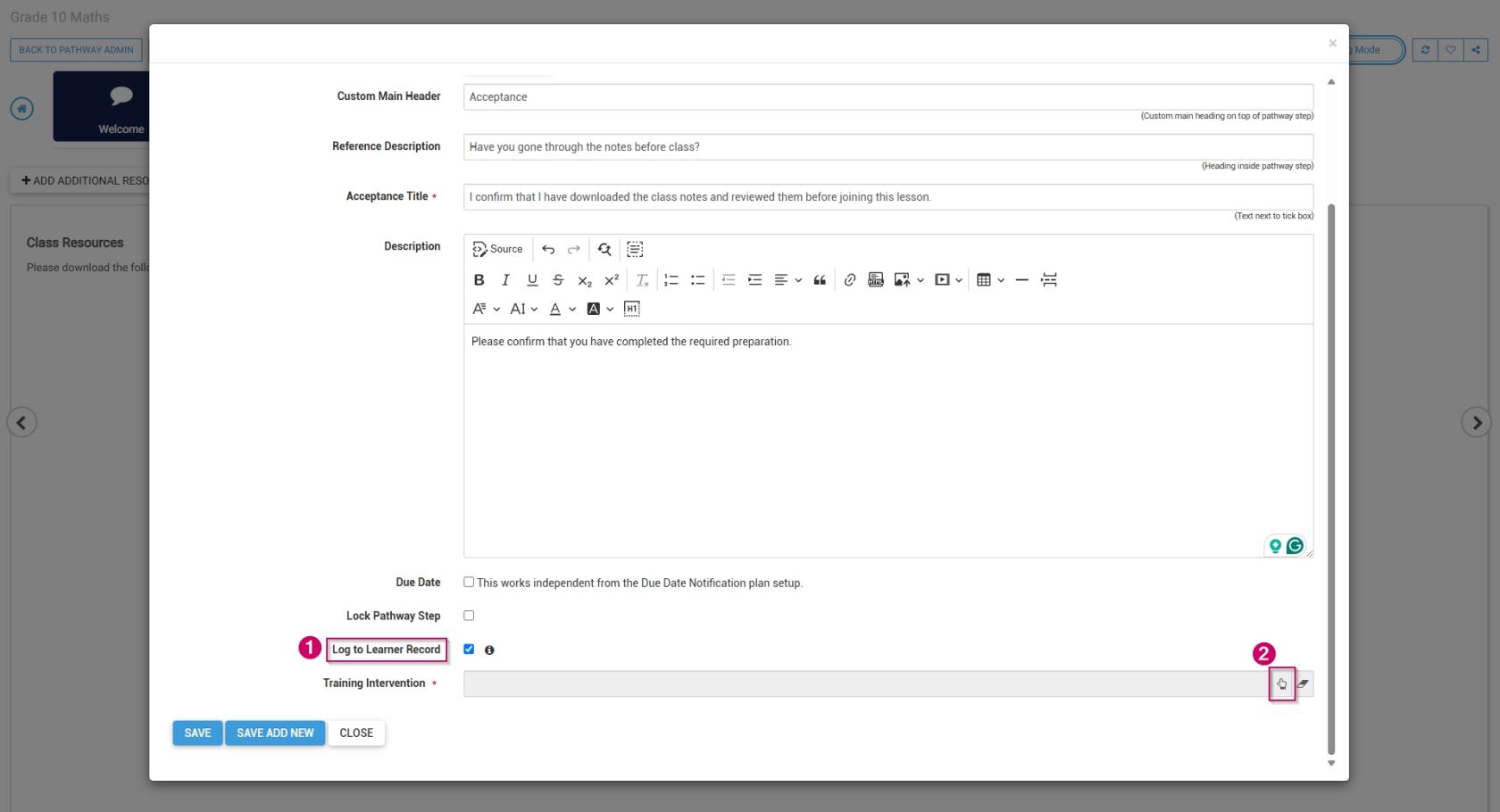
Select the training intervention, then click SELECT.
Click SAVE when you are finished, SAVE ADD NEW to add another acceptance step or click CLOSE to discard your edits.
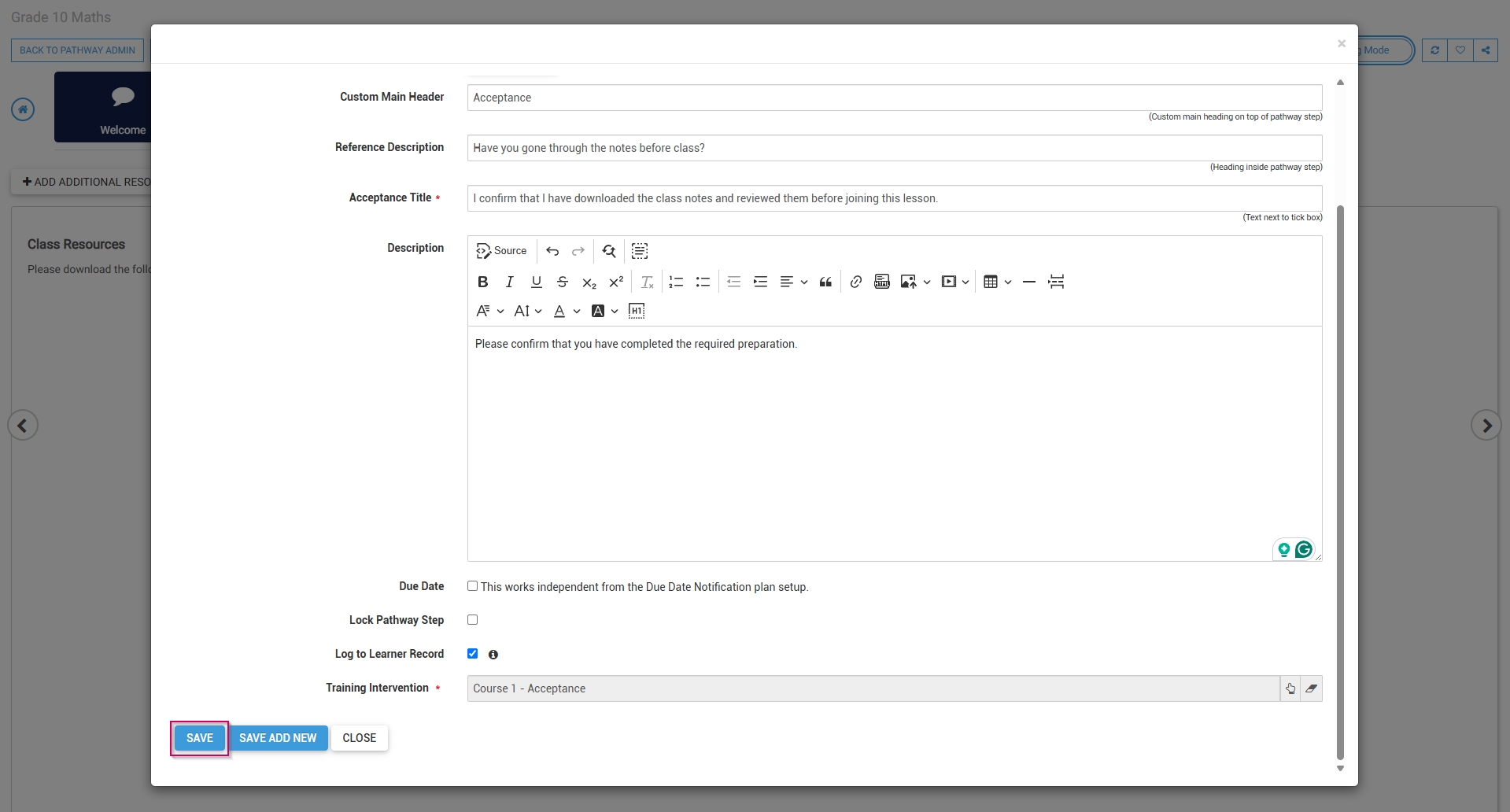
The acceptance step has been successfully added to the pathway.
SCORM/xAPI
Select SCORM/xAPI from the menu.
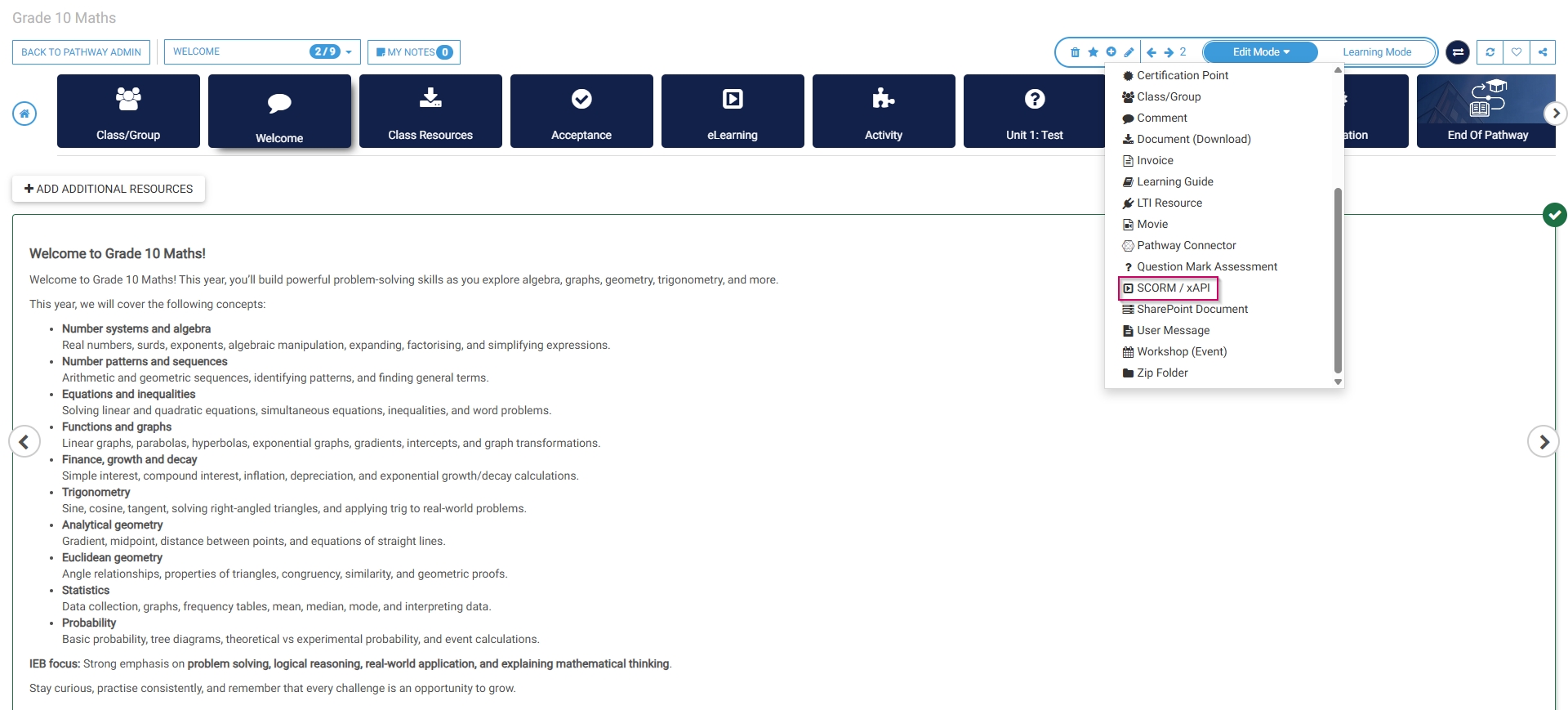
Optionally, select an image or a custom icon for your step.
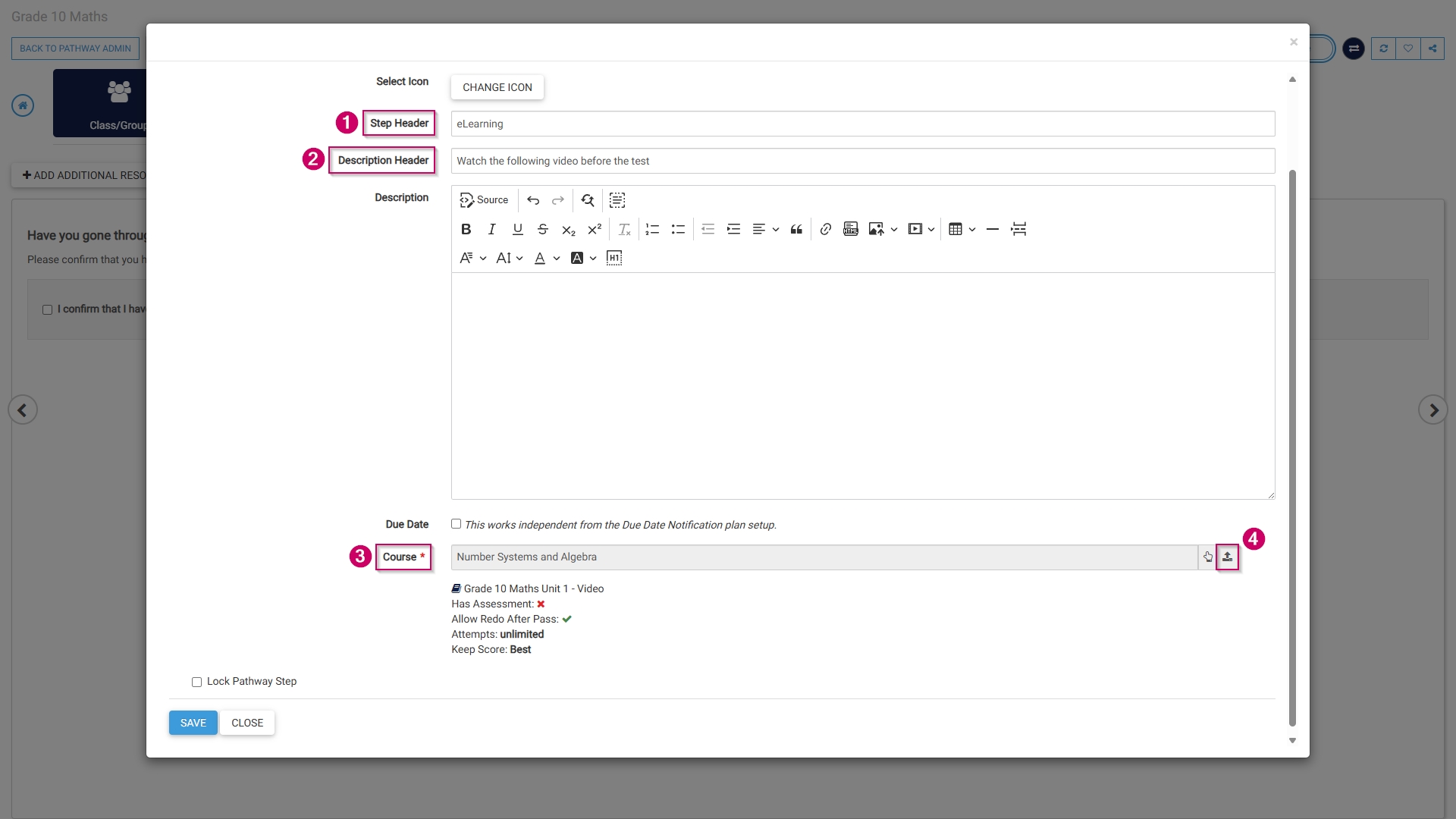
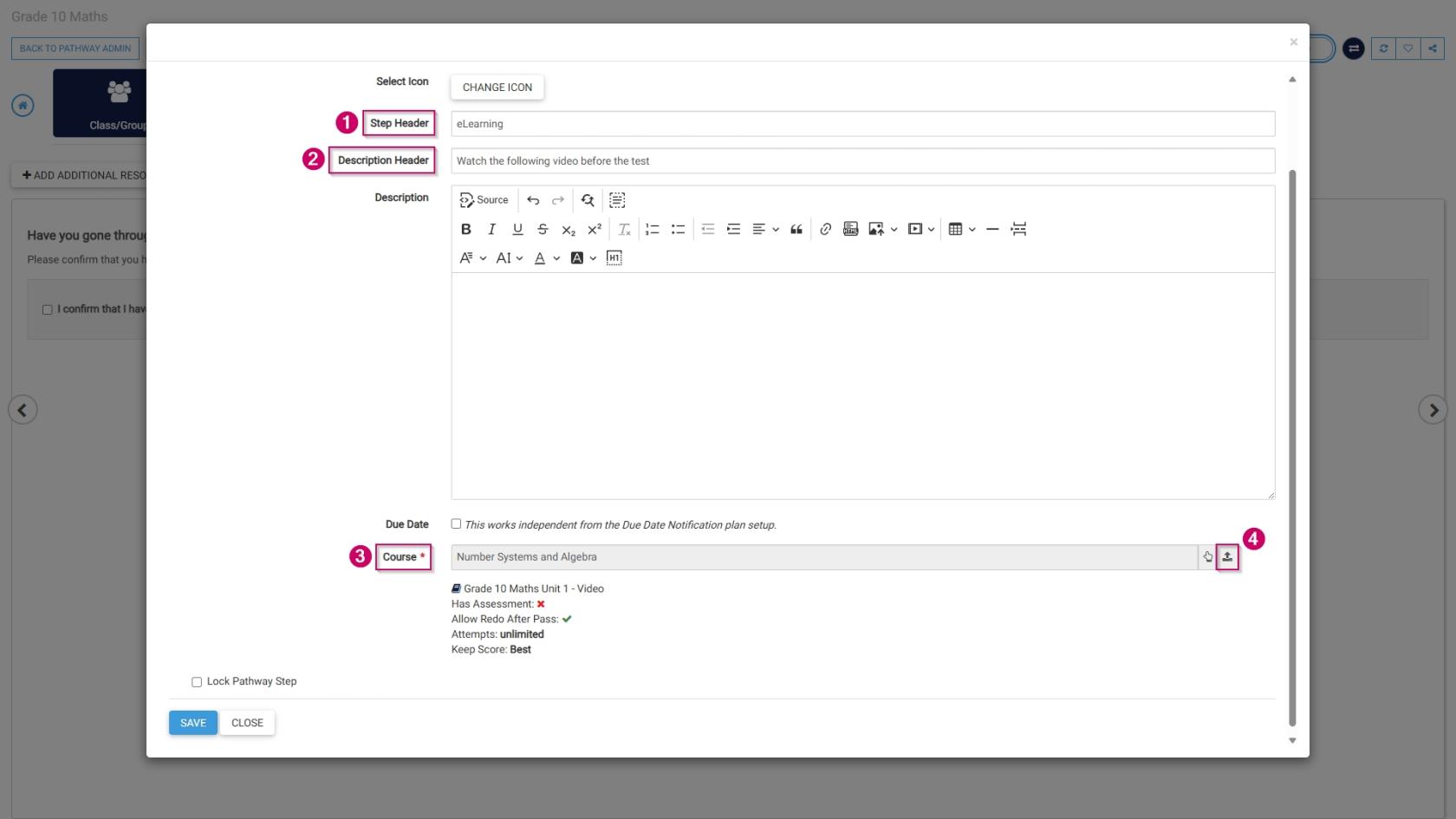
Add a name for this step in the Step Header field.
Add a description header for this step.
Optionally, add a description.
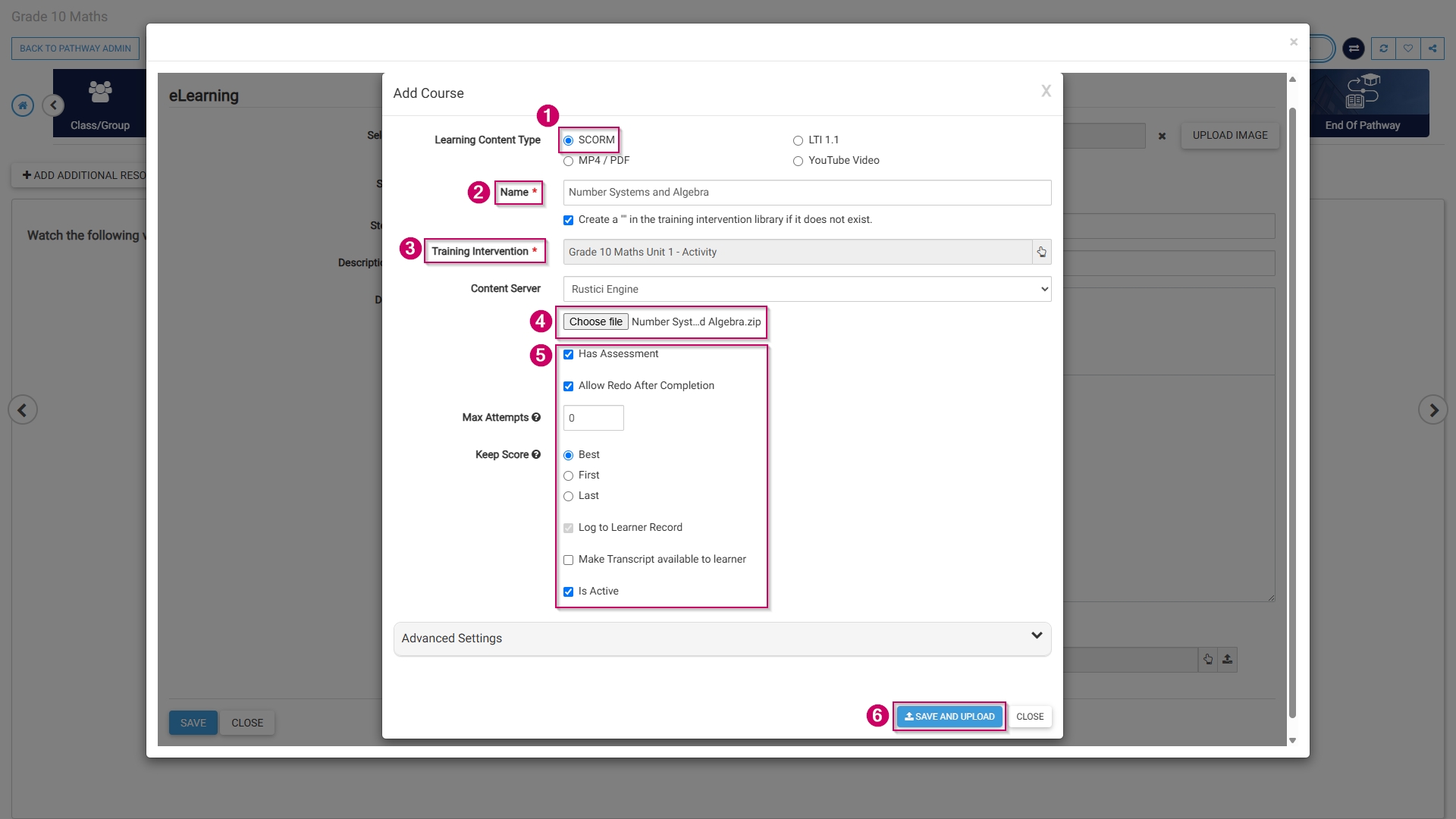
Select a SCORM file to add to this step by clicking the upload icon next to the Course field. The SCORM wizard will open.
Select the radio button next to SCORM in the Learning Content Type section.
Add a name for this step.
Select a training intervention from the Training Intervention Library using the hand icon.
Alternatively, tick the checkbox to automatically create a training intervention for this step.
If using standardised naming conventions, ensure the name field complies with those standards.
Choose a SCORM file from your computer in a .zip format.
Customise how the SCORM activity will be set up:
Tick the checkbox if the file has an assessment.
Tick the checkbox if the learner can redo the SCORM activity.
Set the maximum number of attempts.
Choose which score to keep.
Tick the checkbox if the transcript should be made available to the learner.
Tick the checkbox if the SCORM file is active and ready for publication.
Click SAVE AND UPLOAD to continue or CLOSE to discard your edits.
The SCORM step has been successfully added to the pathway.
These same steps can be used to add:
MP4 files,
PDFs, or
YouTube videos.
Assessment (Online)
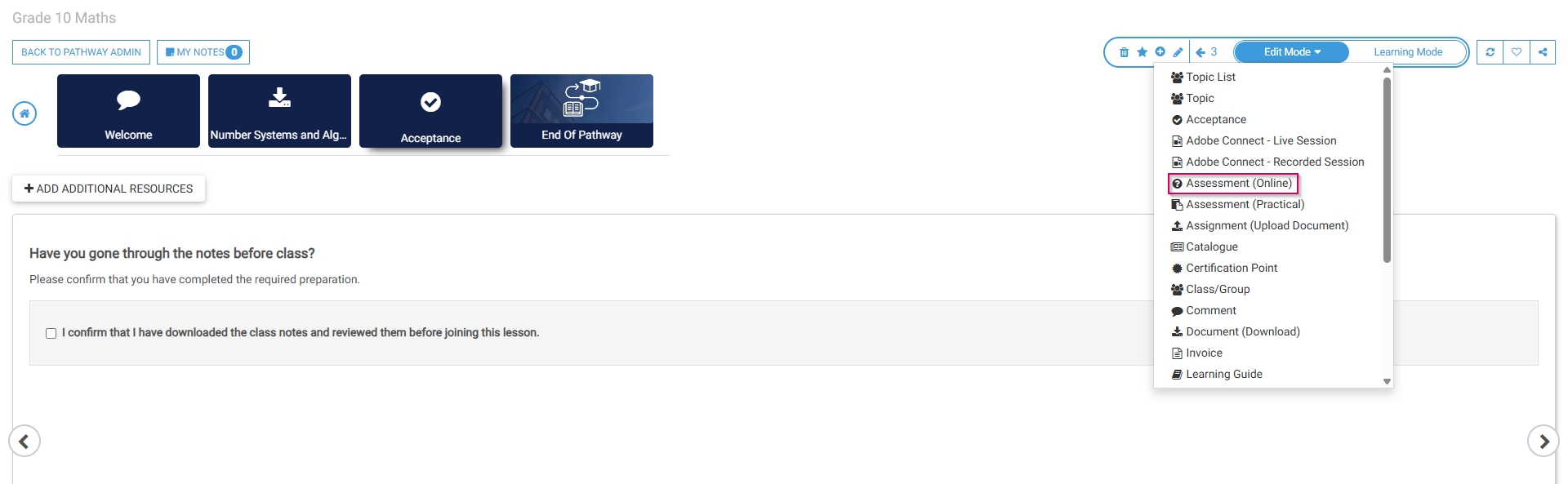
Select Assessment (Online) from the menu.
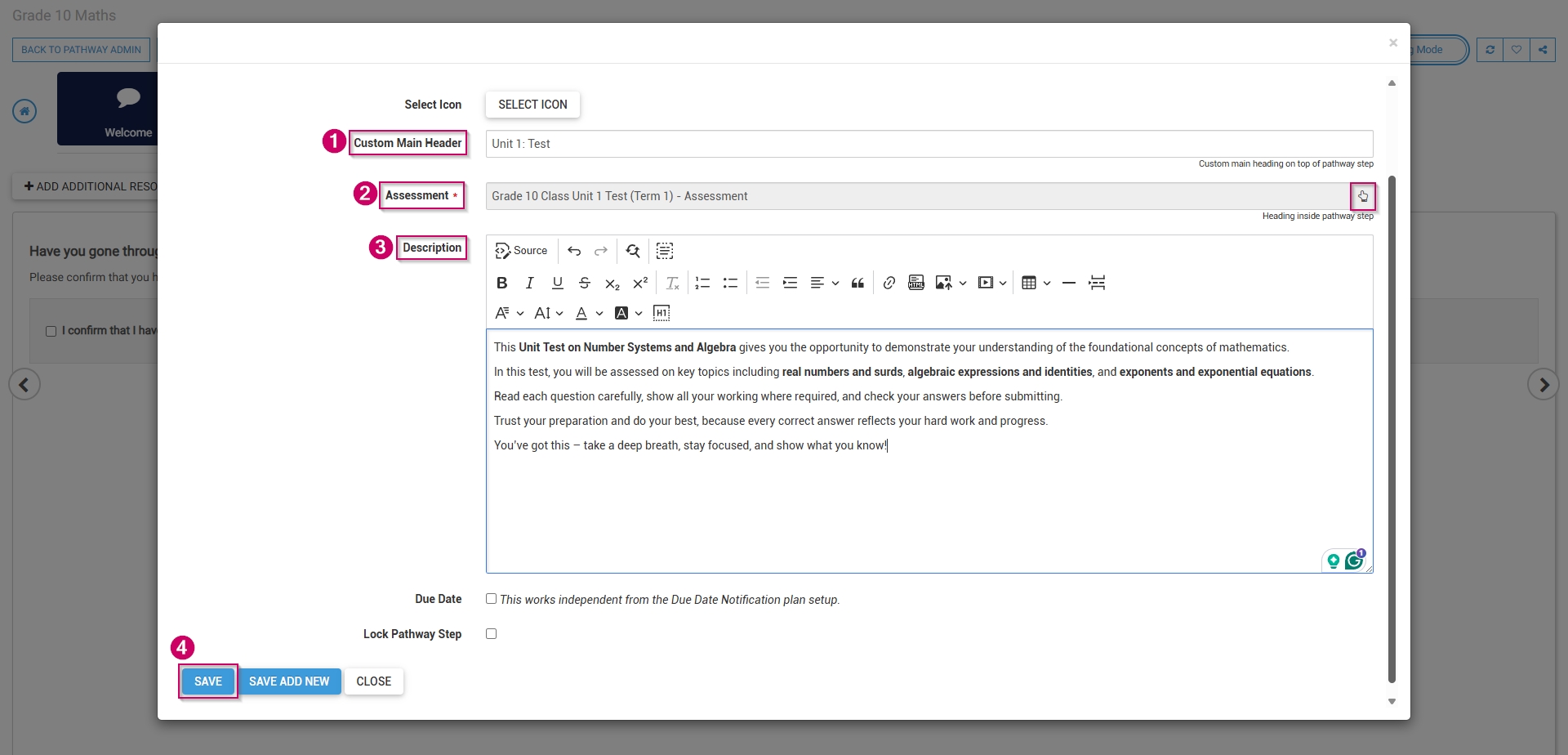
Optionally, select an image or a custom icon for your step.
Add a main header, or title, for this step.
Link a pre-loaded assessment to this step by clicking the hand icon.
Add a description for this step.
Click SAVE when you are finished, SAVE ADD NEW to add another assessment step or click CLOSE to discard your edits.
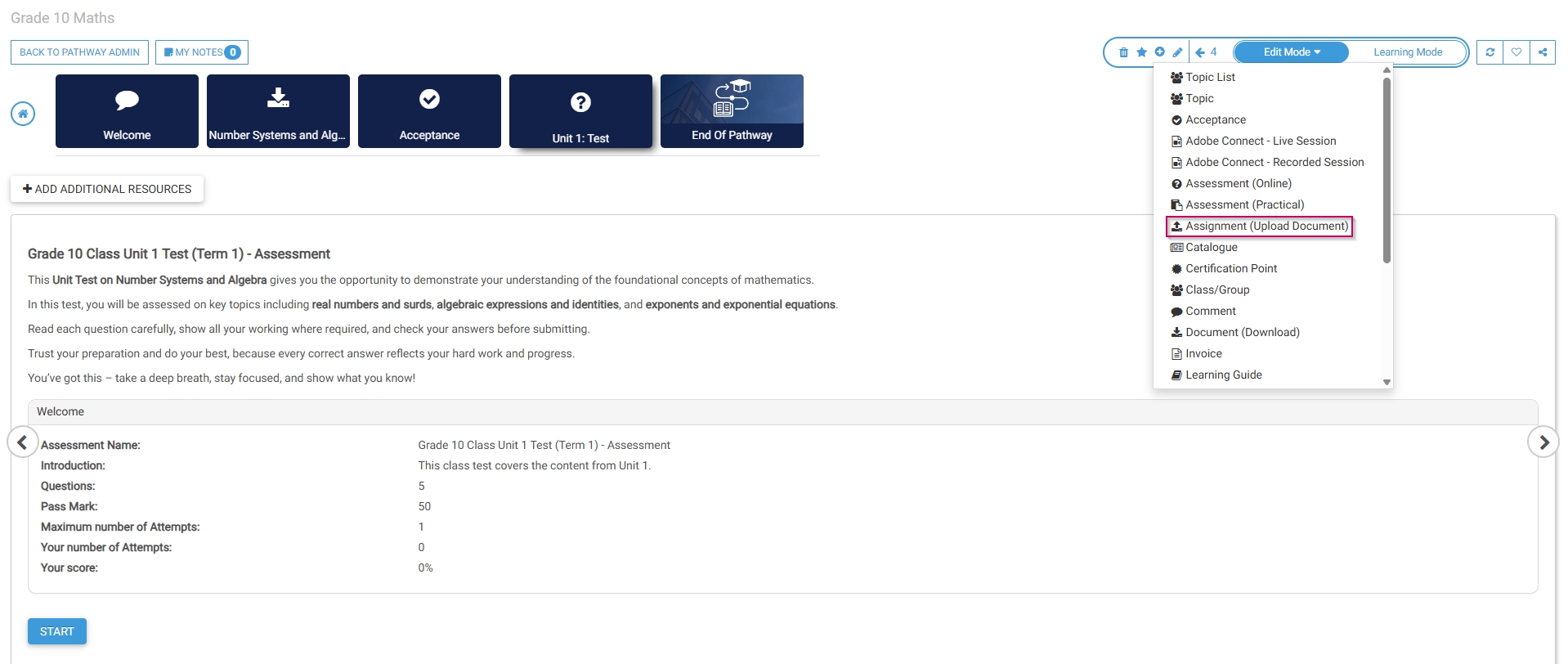
The assessment step has been successfully added to the pathway.
Assignment (Upload Document)
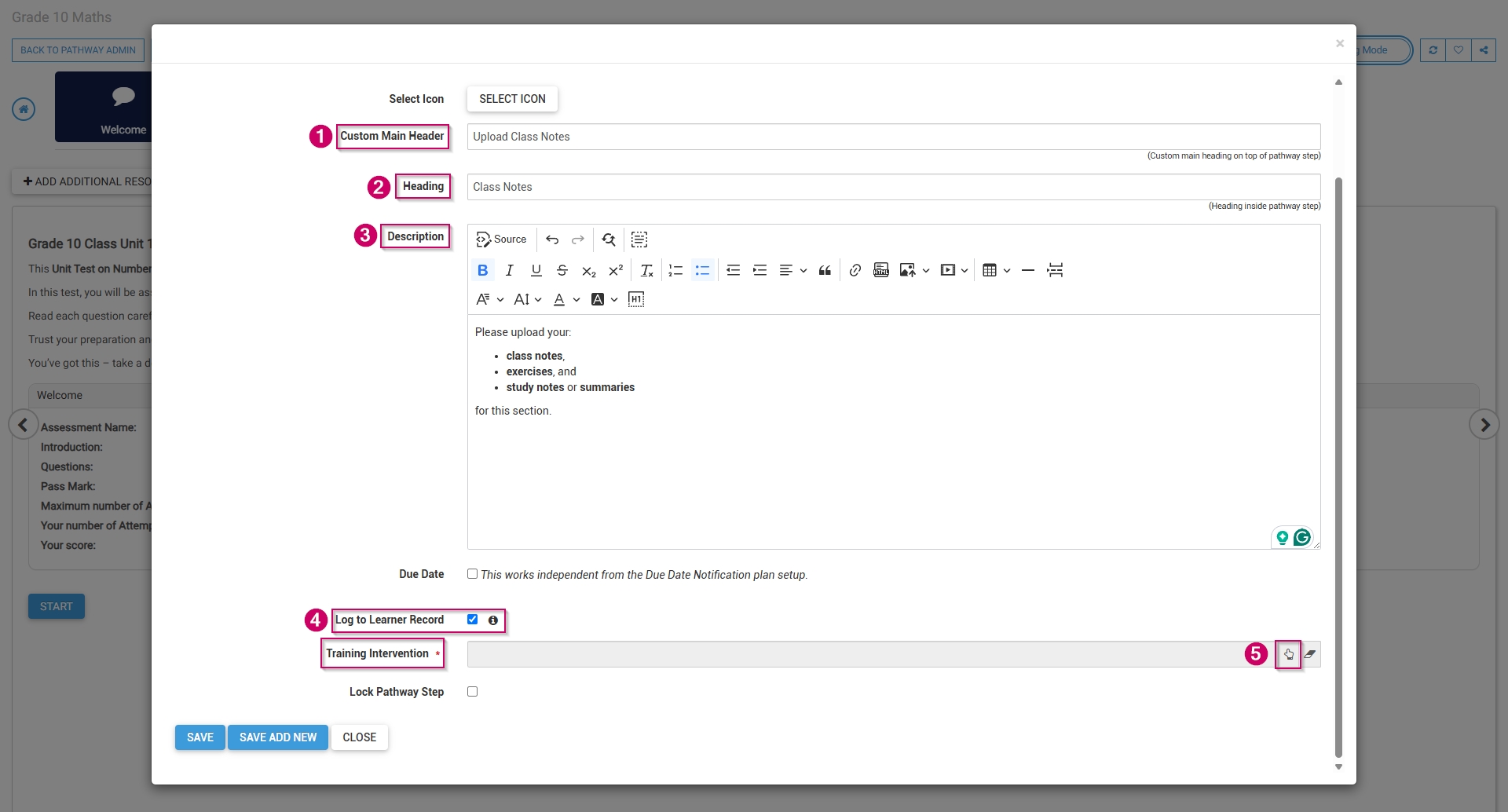
Select Assignment (Upload Document) from the menu.
Optionally, select an image or a custom icon for your step.
Add a main header, or title, for this step.
Add a heading for this step.
Add a description for this step.
To log this step in the learner's record, check the box, then click the hand icon to select a training intervention to associate with this step.
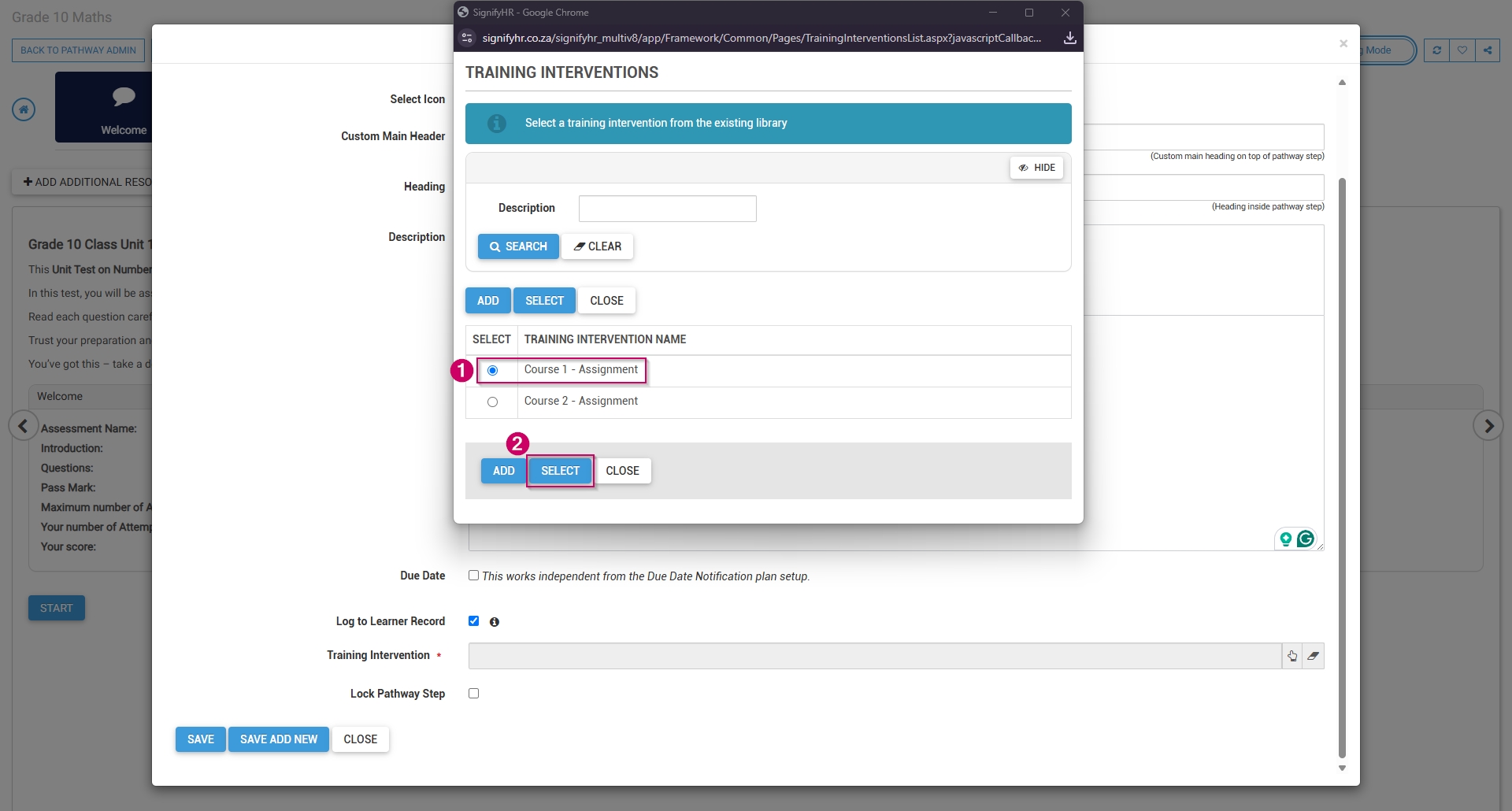
Select the training intervention, then click SELECT.
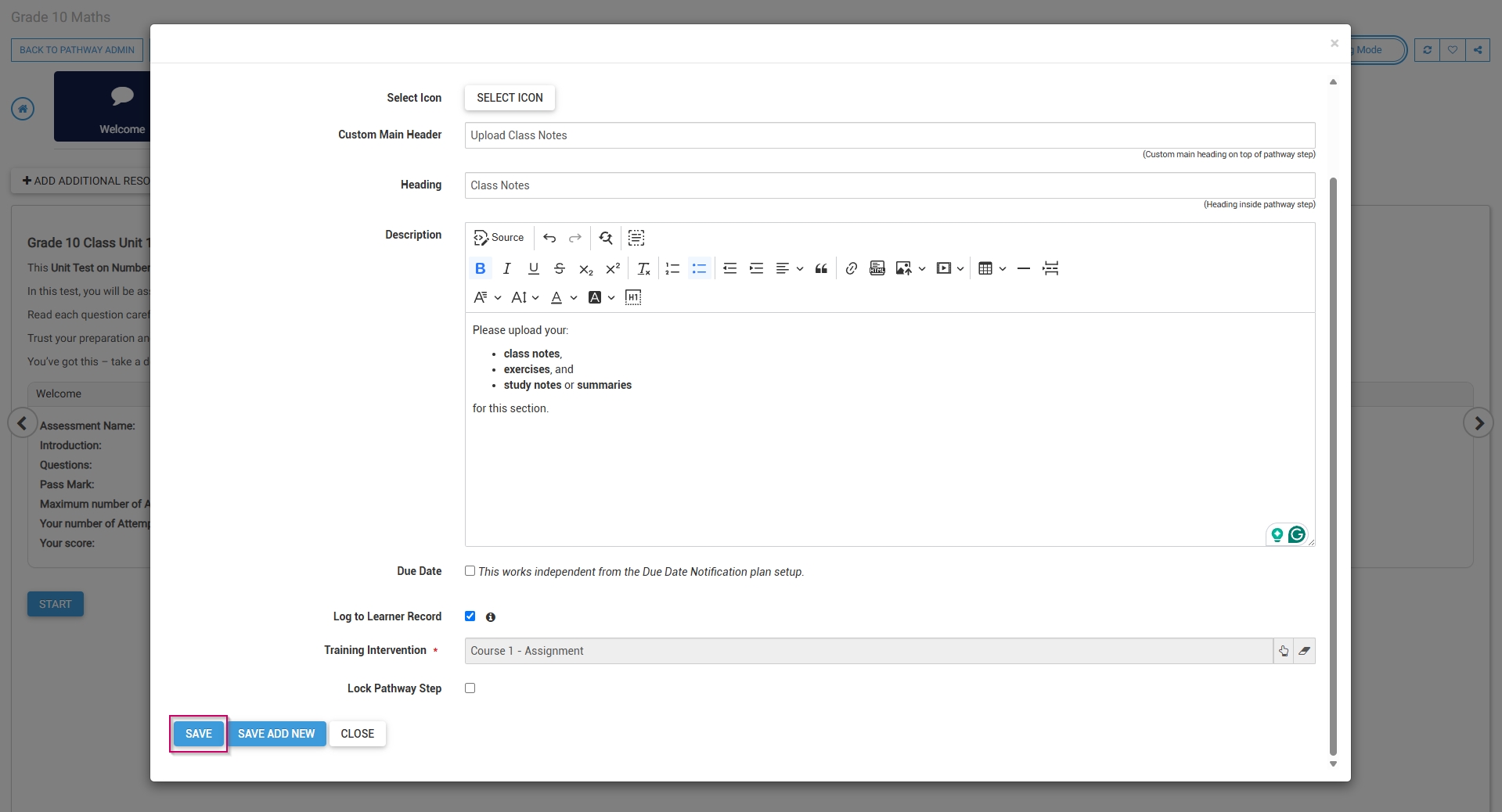
Click SAVE when you are finished, SAVE ADD NEW to add another assignment upload step or click CLOSE to discard your edits.
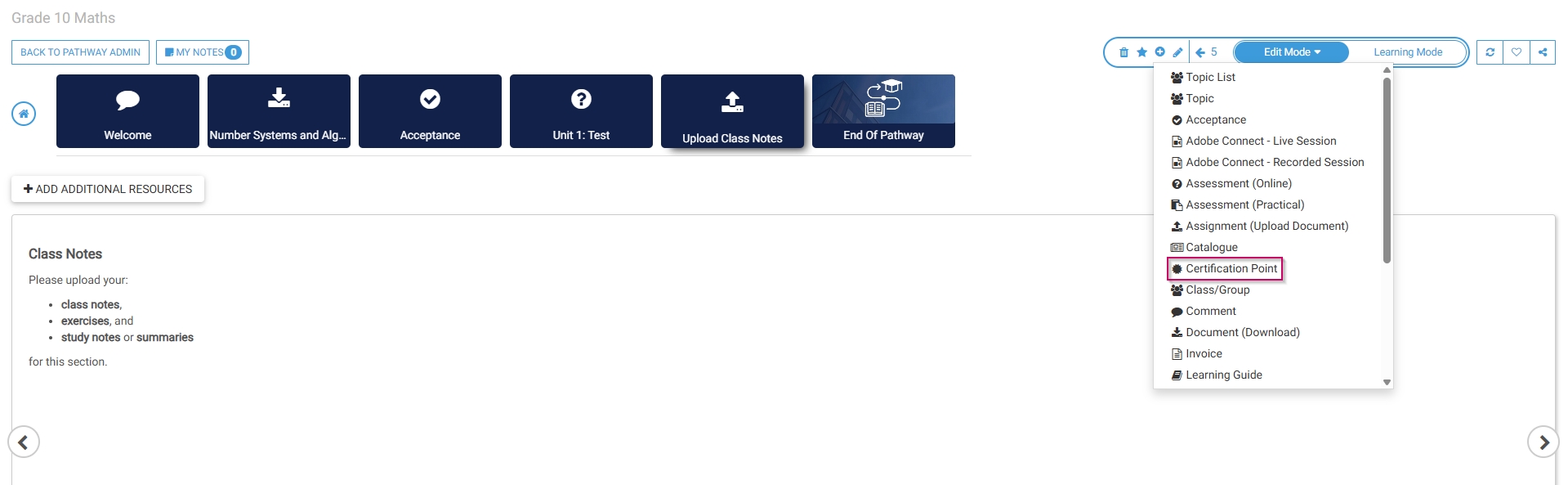
The assignment upload step has been successfully added to the pathway.
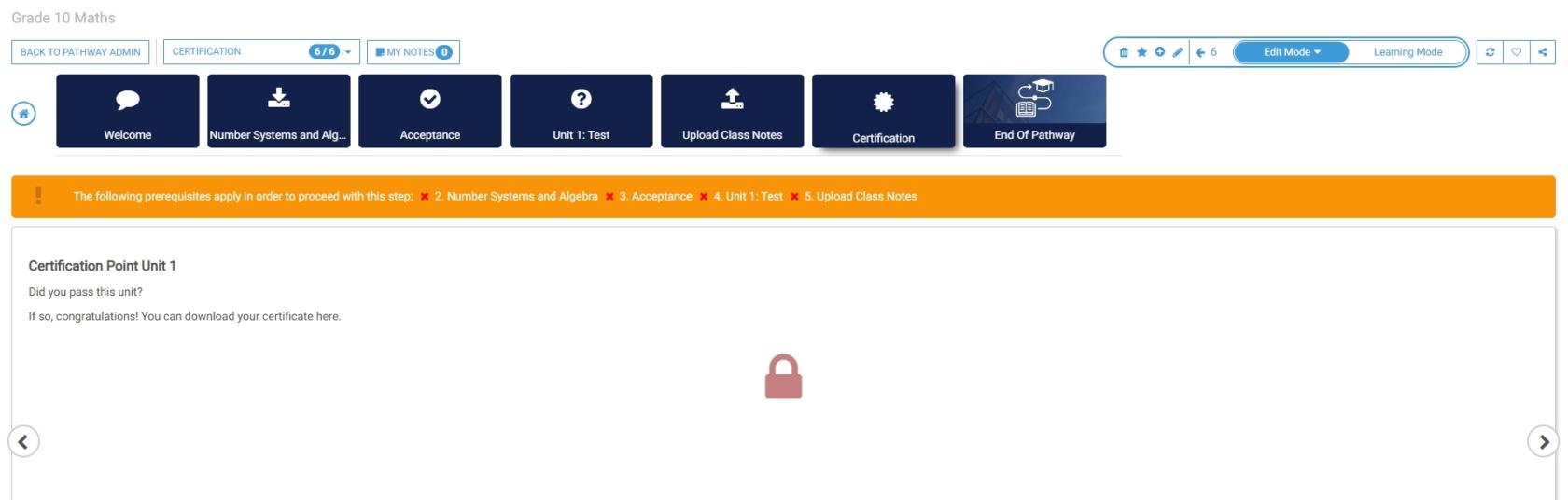
Certification point
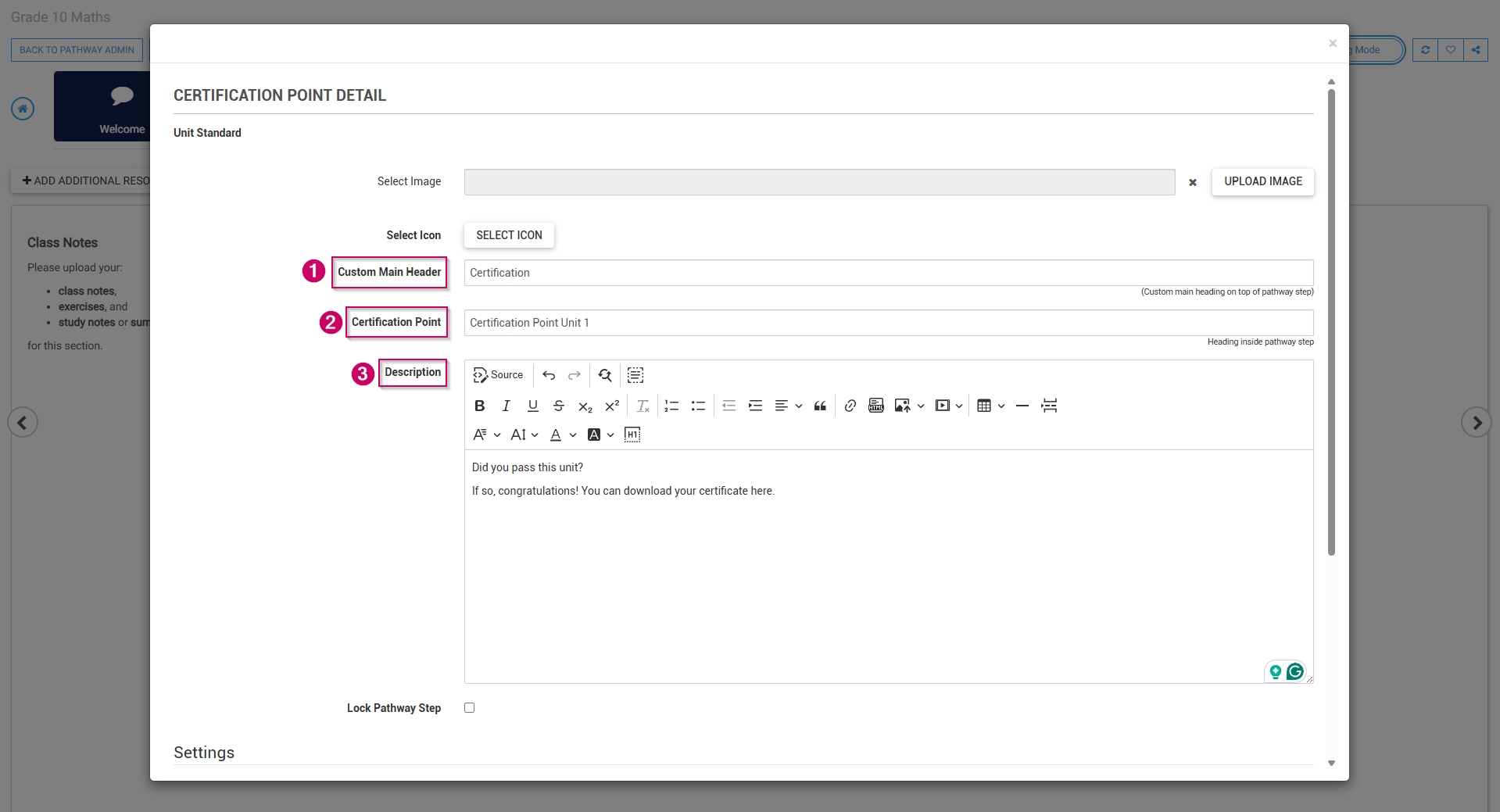
Select Certification Point from the menu.
Optionally, select an image or a custom icon for your step.
Add a main header, or title, for this step.
Add a certification point name.
Add a description for this step.
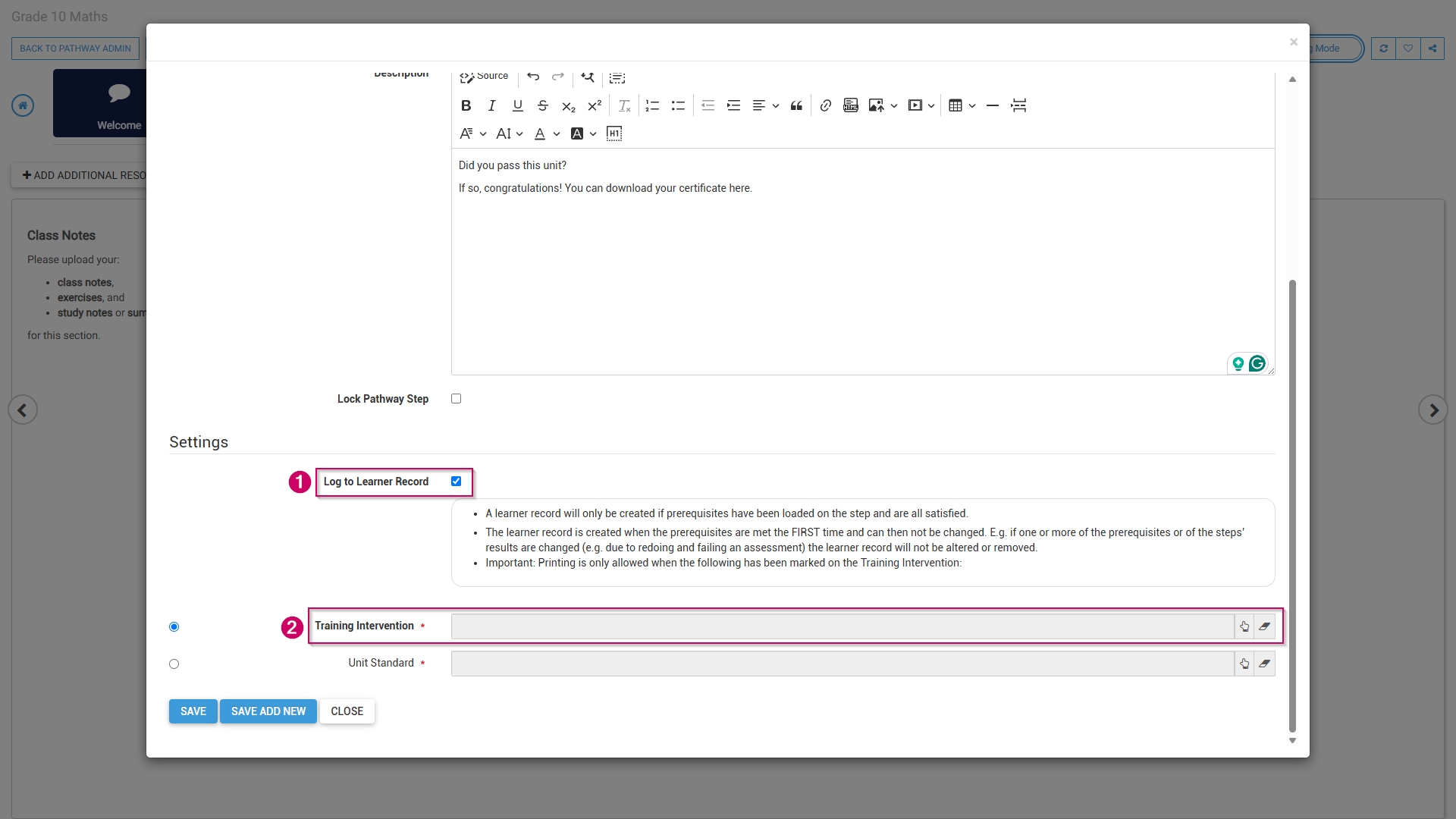
To log this step in the learner's record, check the box, then click the hand icon to select a training intervention to associate with this step.
Select the training intervention, then click SELECT.

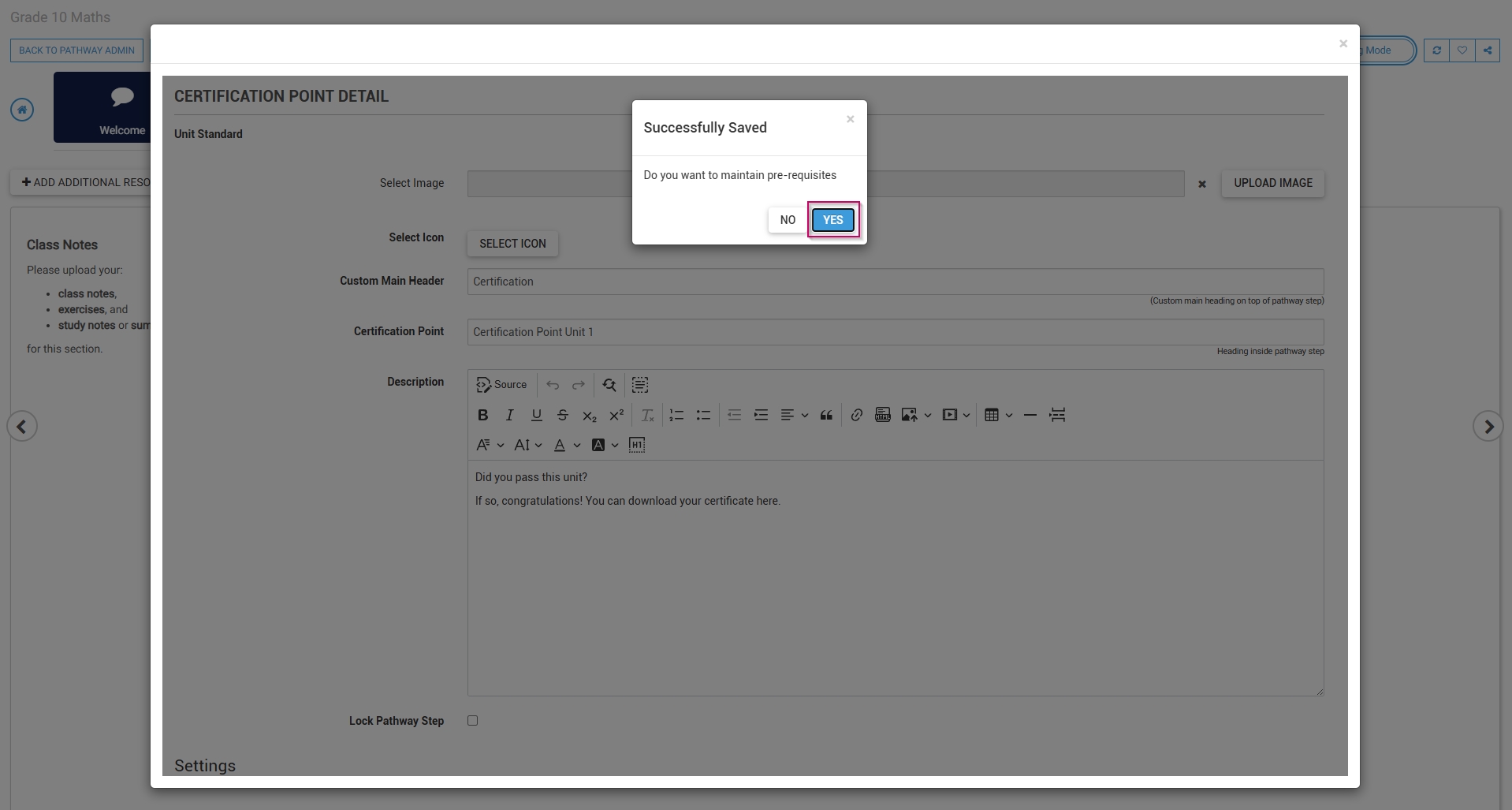
Click SAVE when you are finished, SAVE ADD NEW to add another certification point step or click CLOSE to discard your edits.
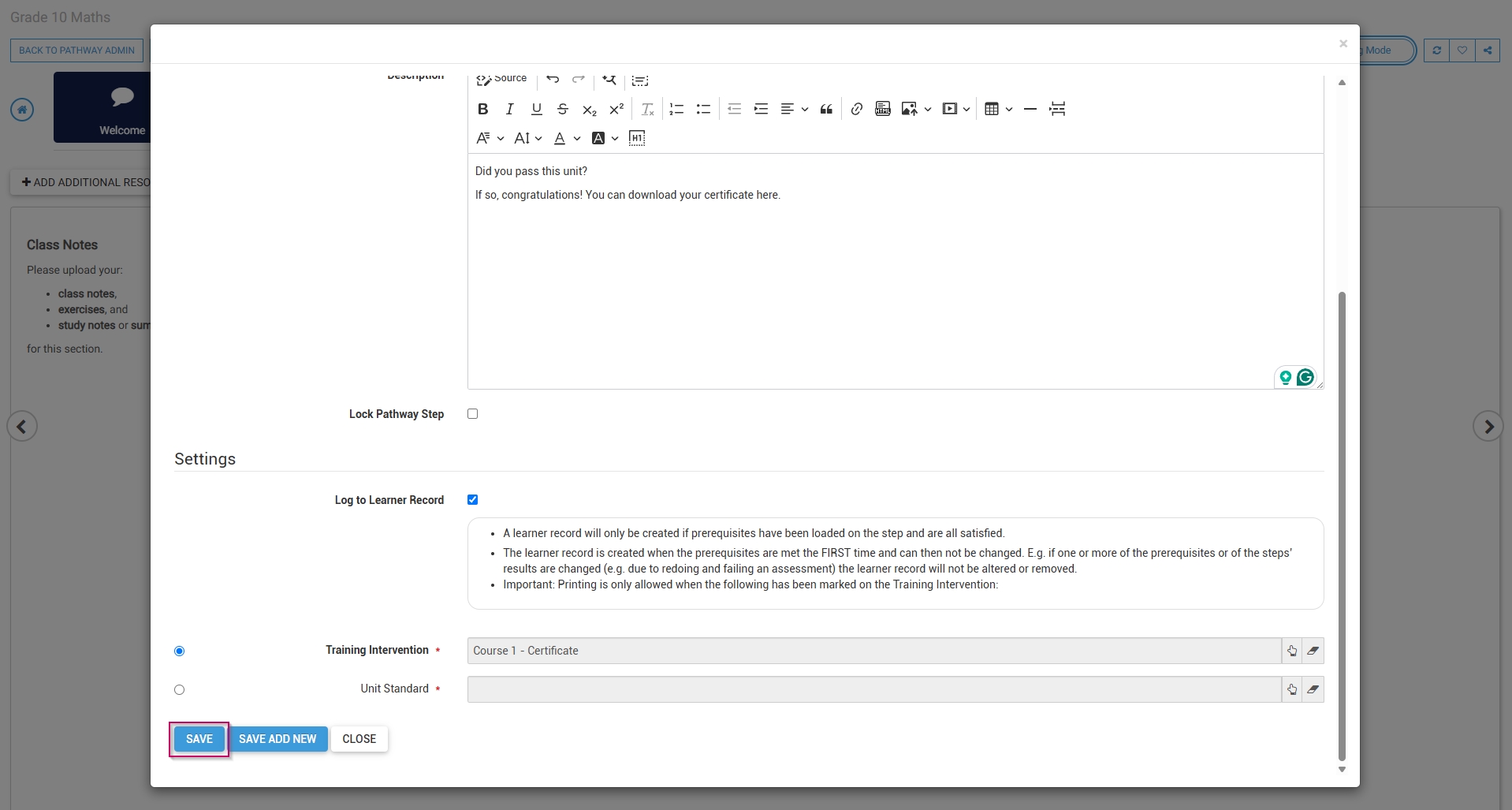
To maintain prerequisites for this certification point, click YES.
Click ADD to select steps from the pathway to add as prerequisites.
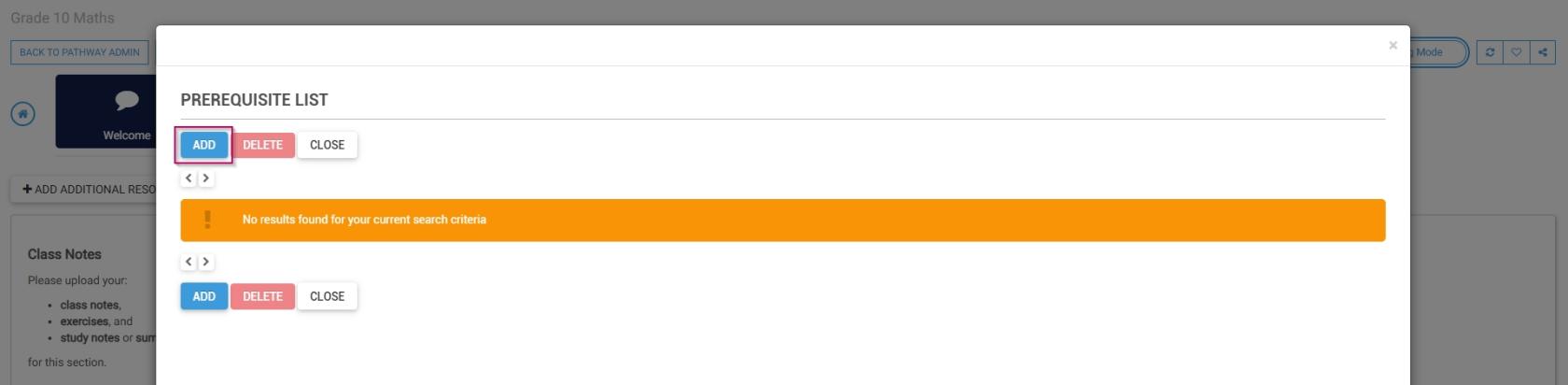
From the drop-down menu, select a pathway item.
Select the status required to achieve this prerequisite.
Click SAVE when you are finished, SAVE ADD NEW to add another prerequisite, or click CLOSE to discard your edits.
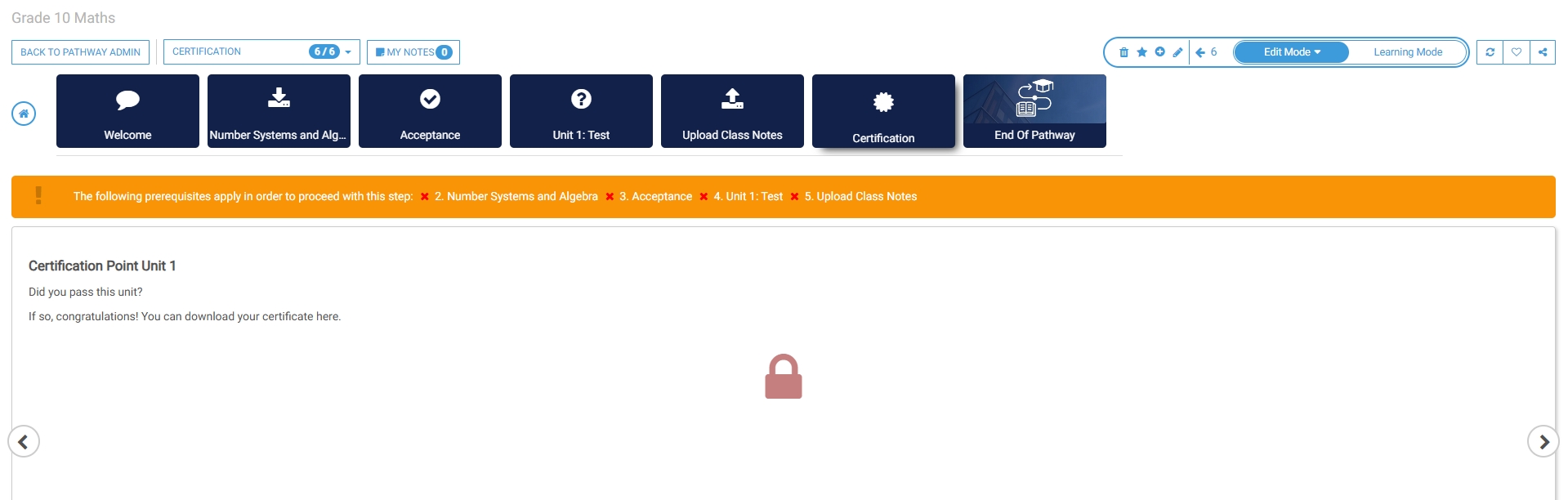
The certification point step has been successfully added to the pathway.