Skip to main content
View the Marksheet

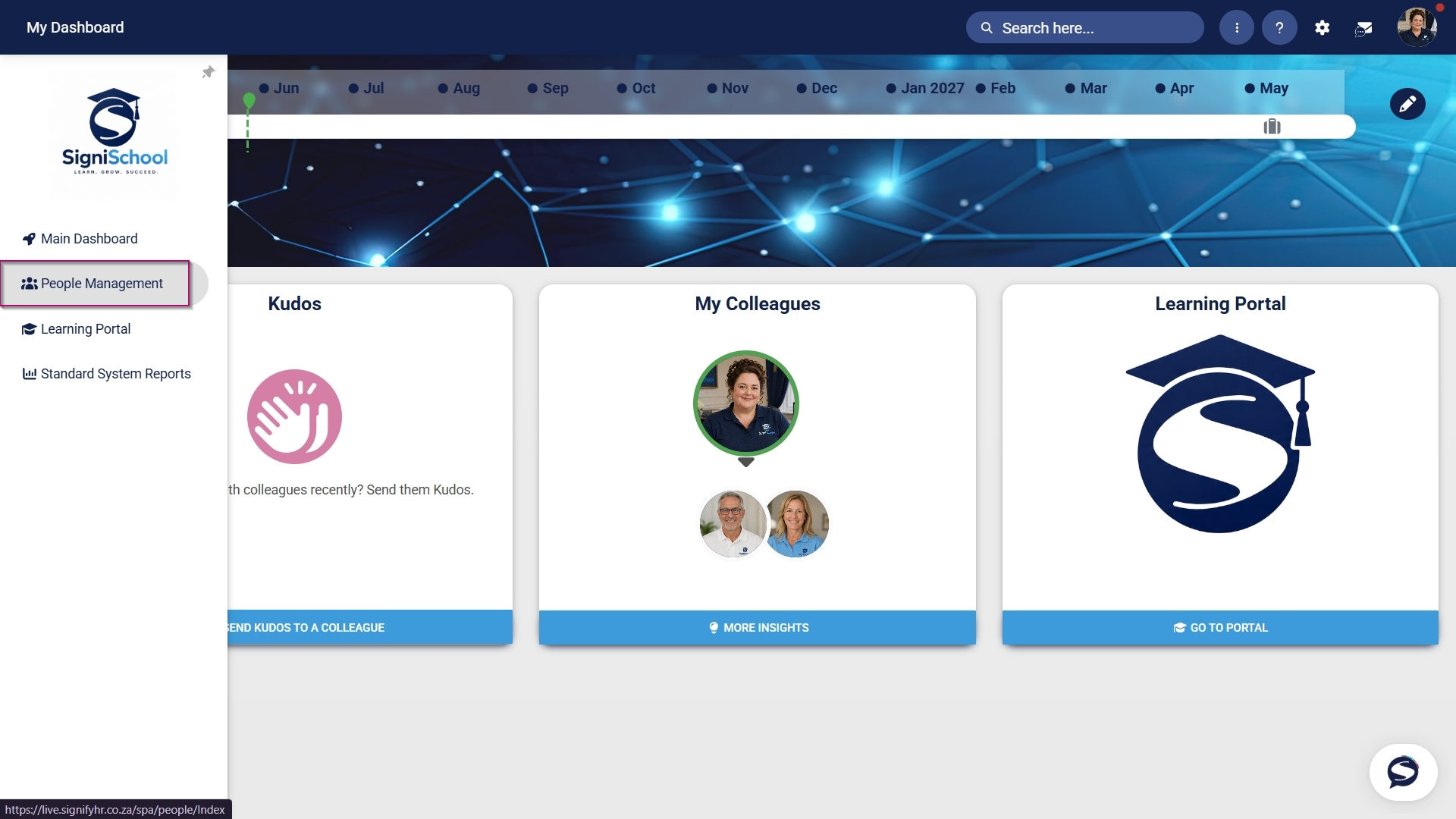
Hover over the sidebar menu, then click Learning Portal.
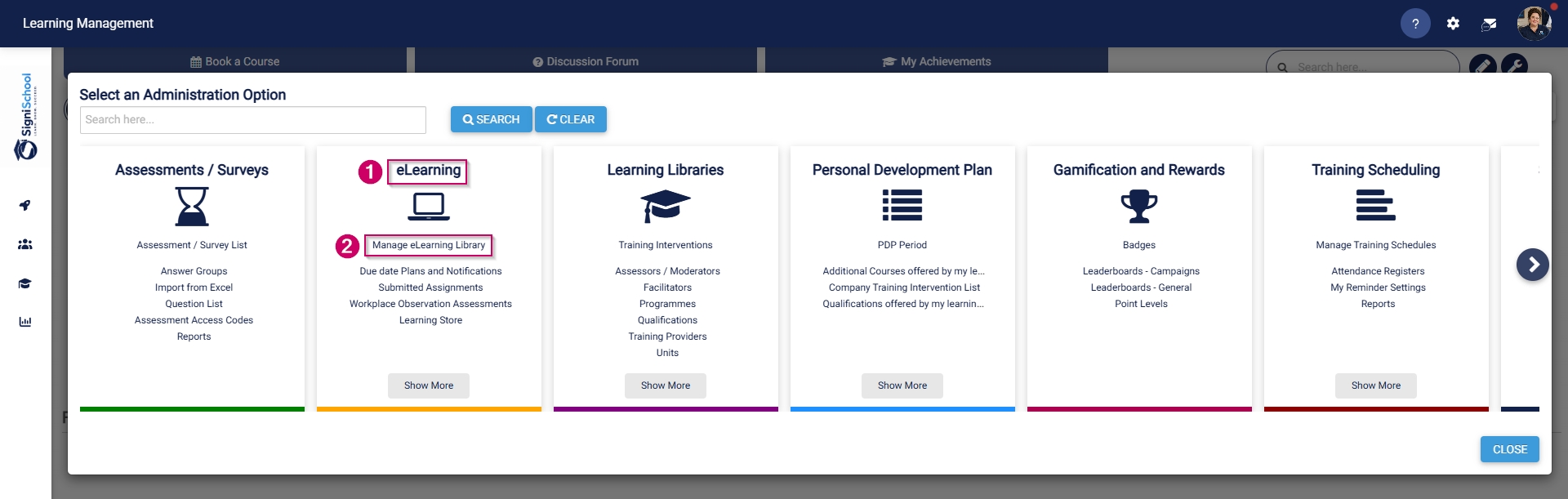
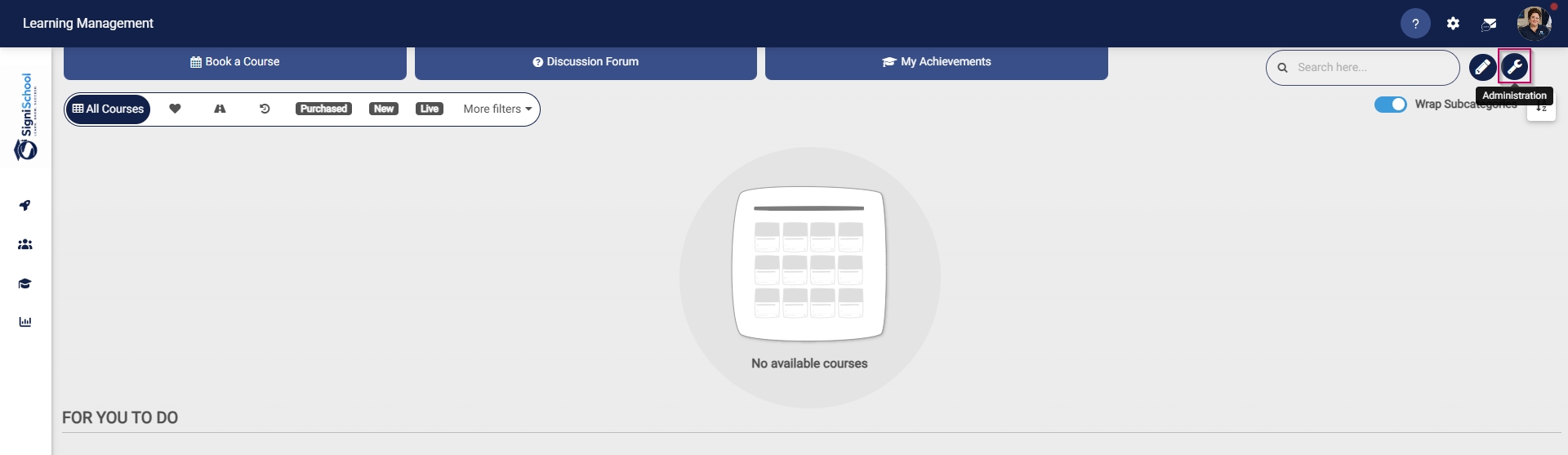
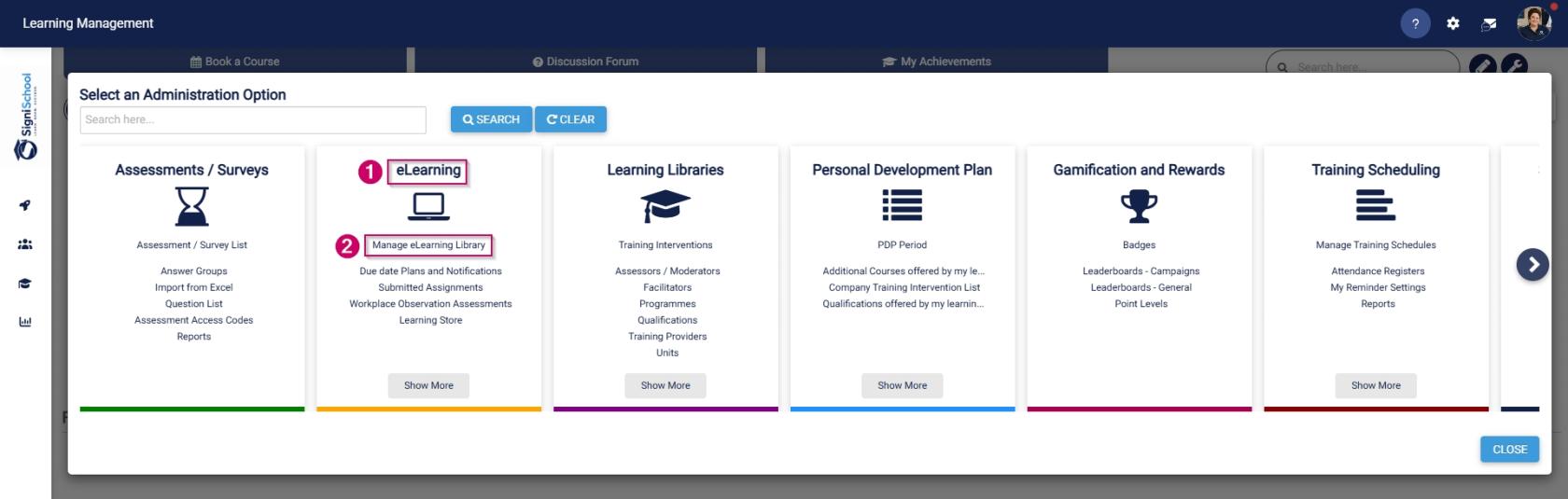
Click the spanner icon to access the system's Administration menu.
On the eLearning card, click Manage eLearning Library.
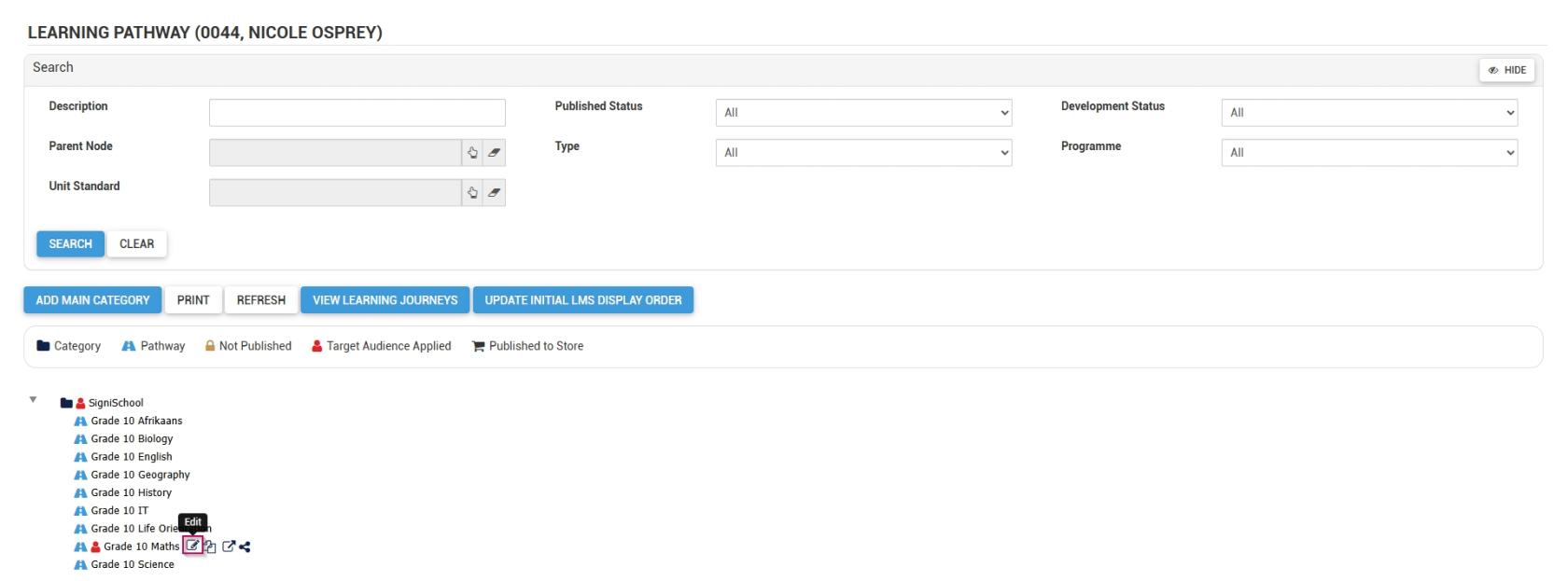
The Pathways Tree View screen will open in a new tab.
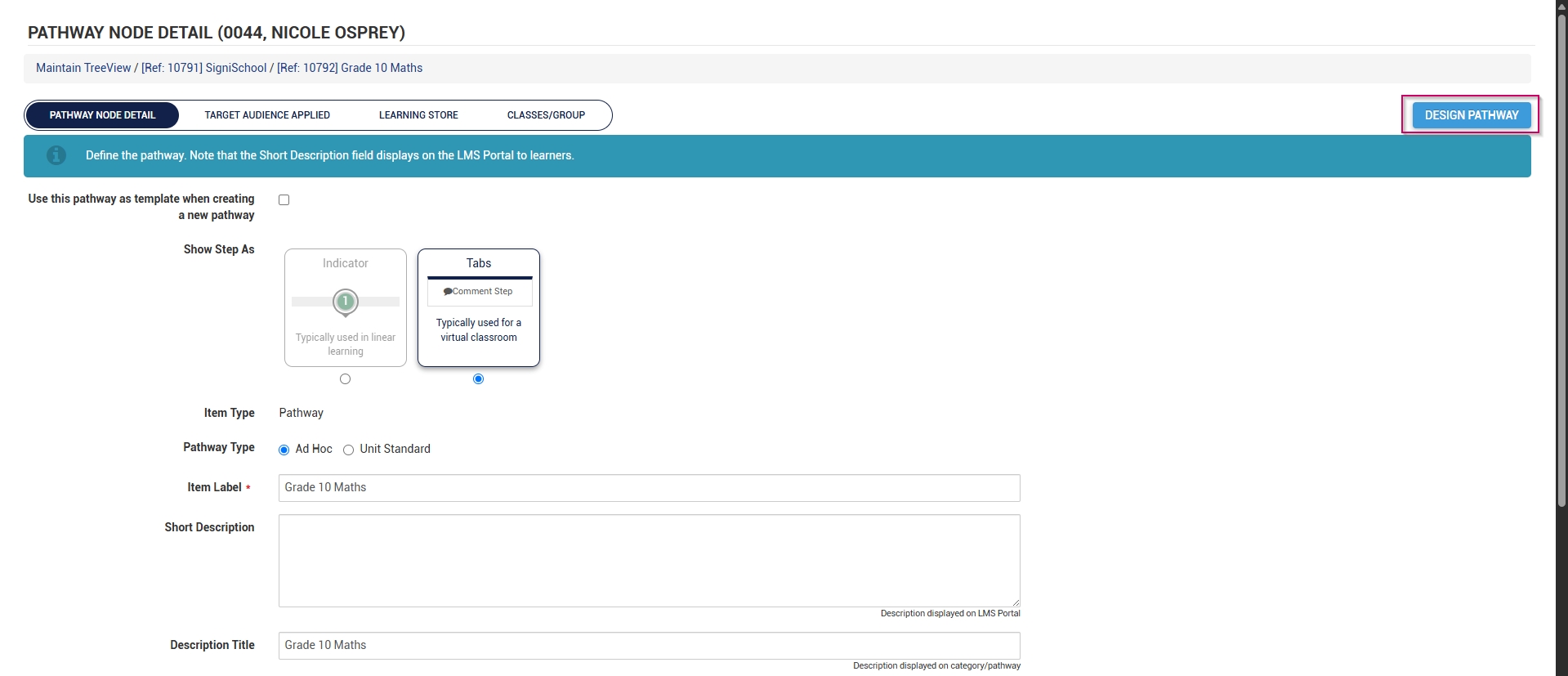
Click to edit a pathway.
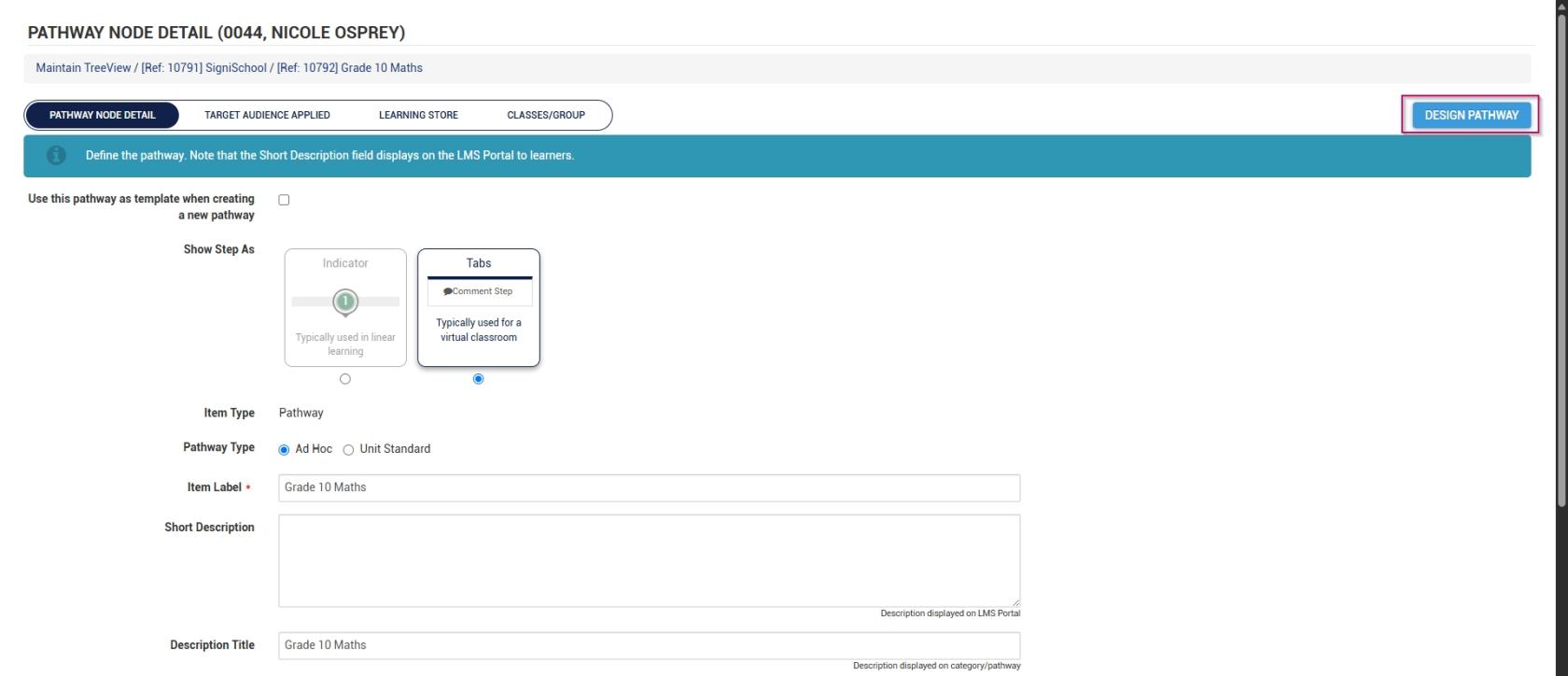
At the top of the screen, click DESIGN PATHWAY.
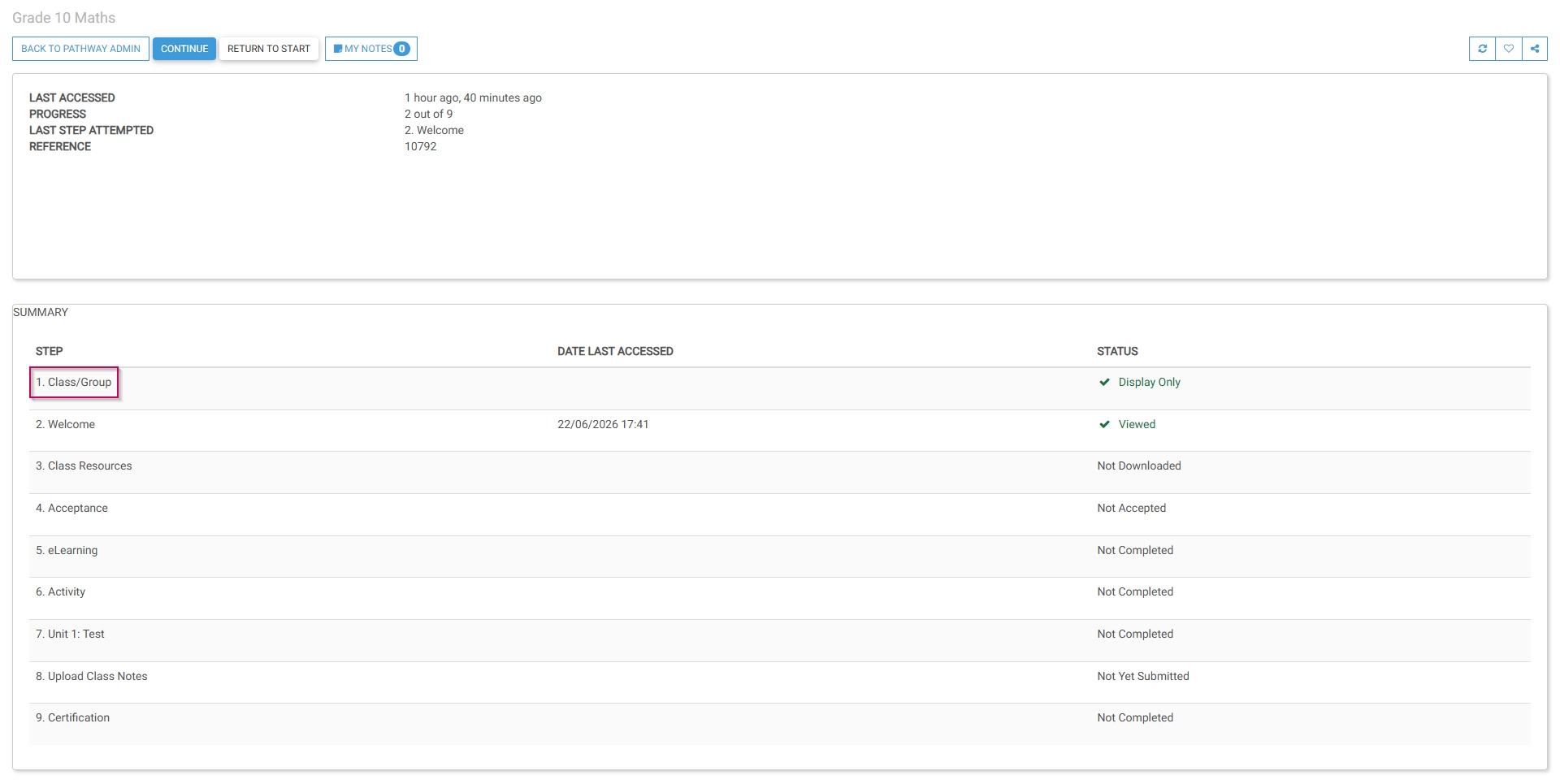
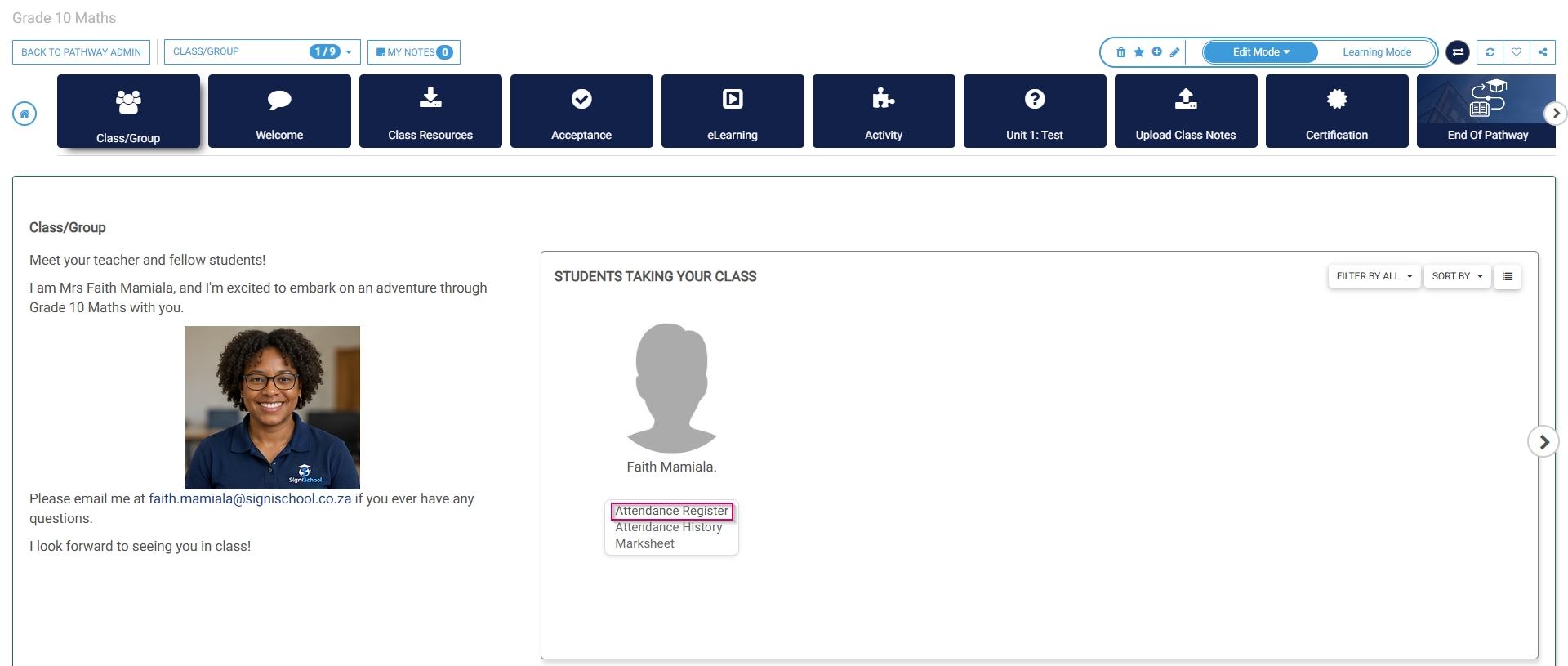
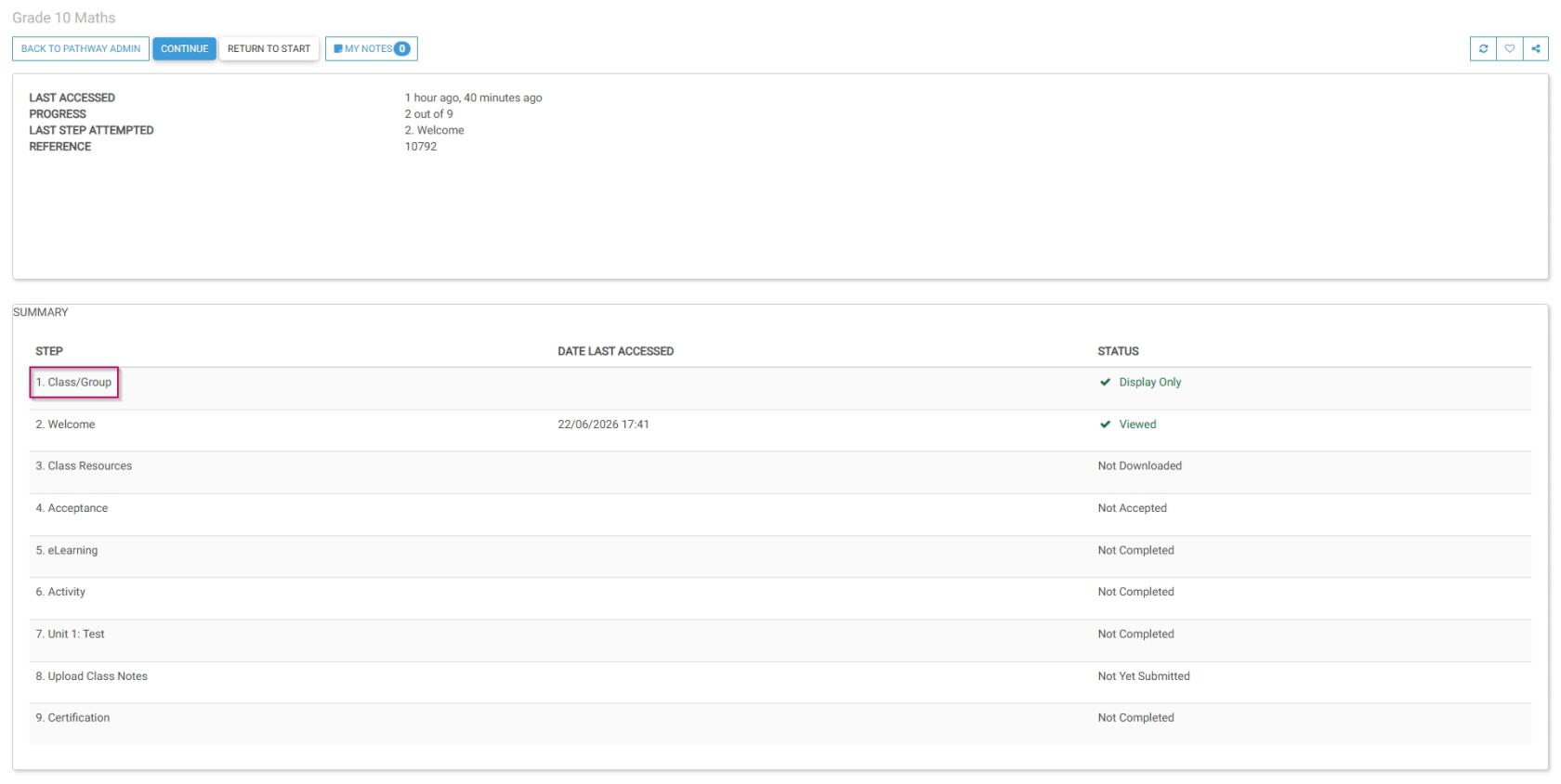
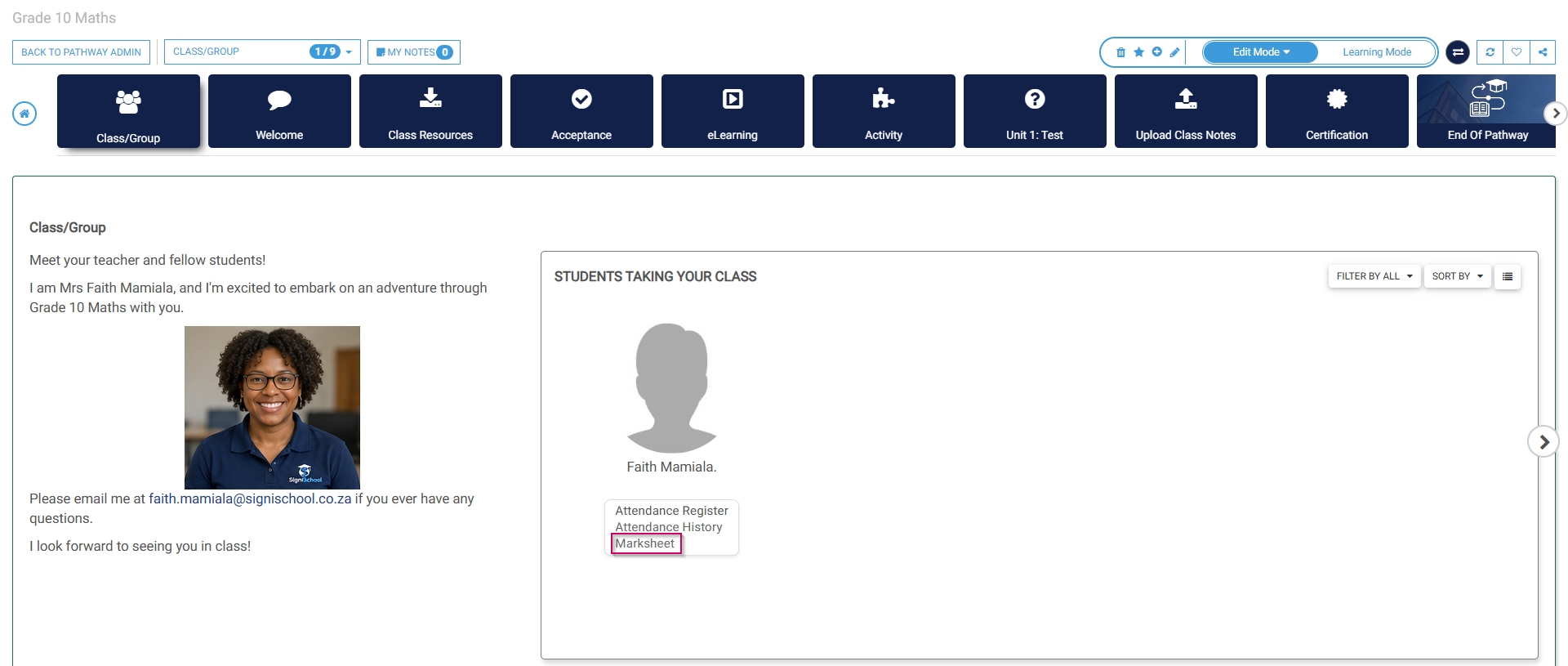
Navigate to the Class/Group step of the pathway.
Click Marksheet. The marksheet will open in a new tab.
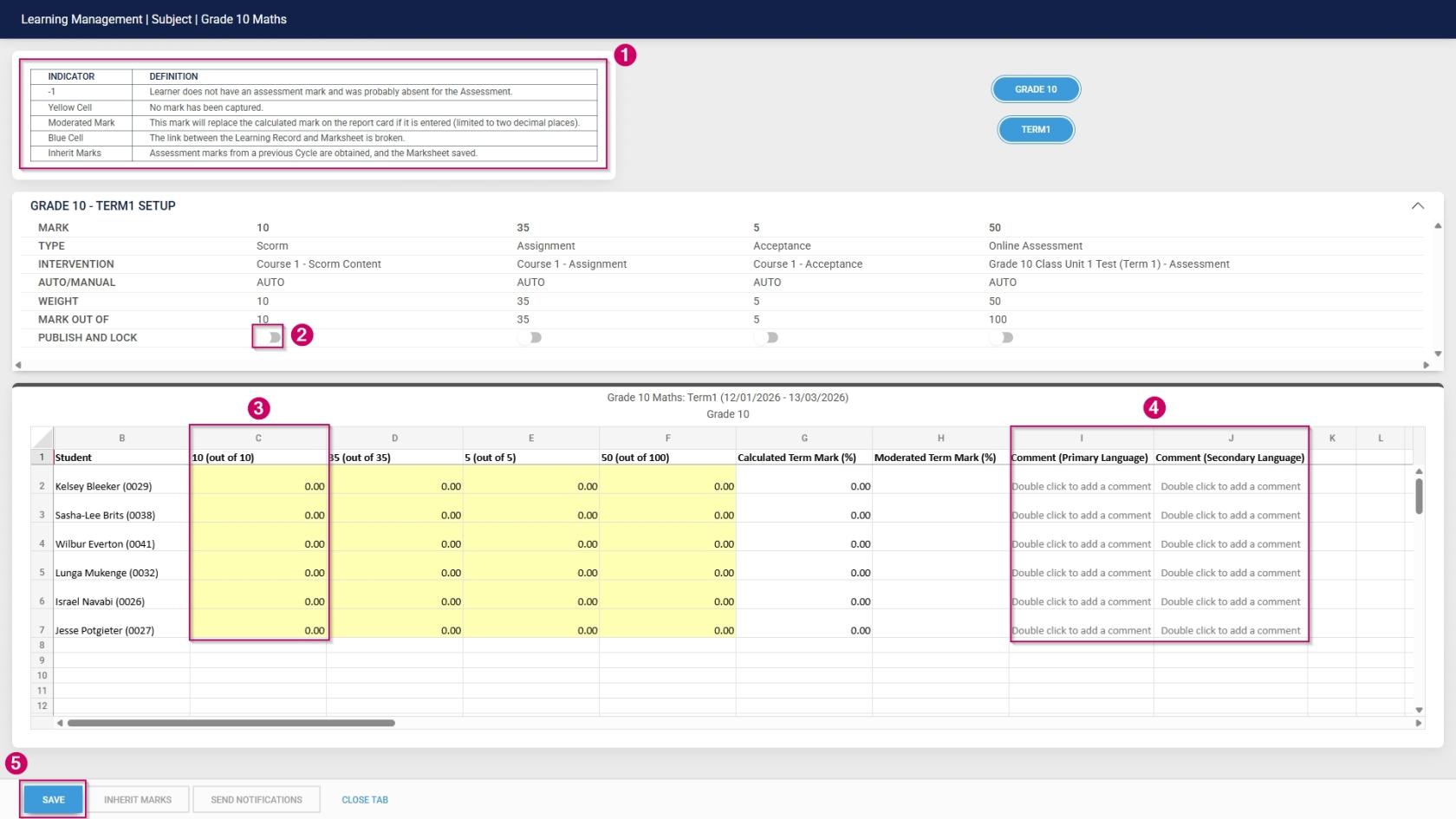
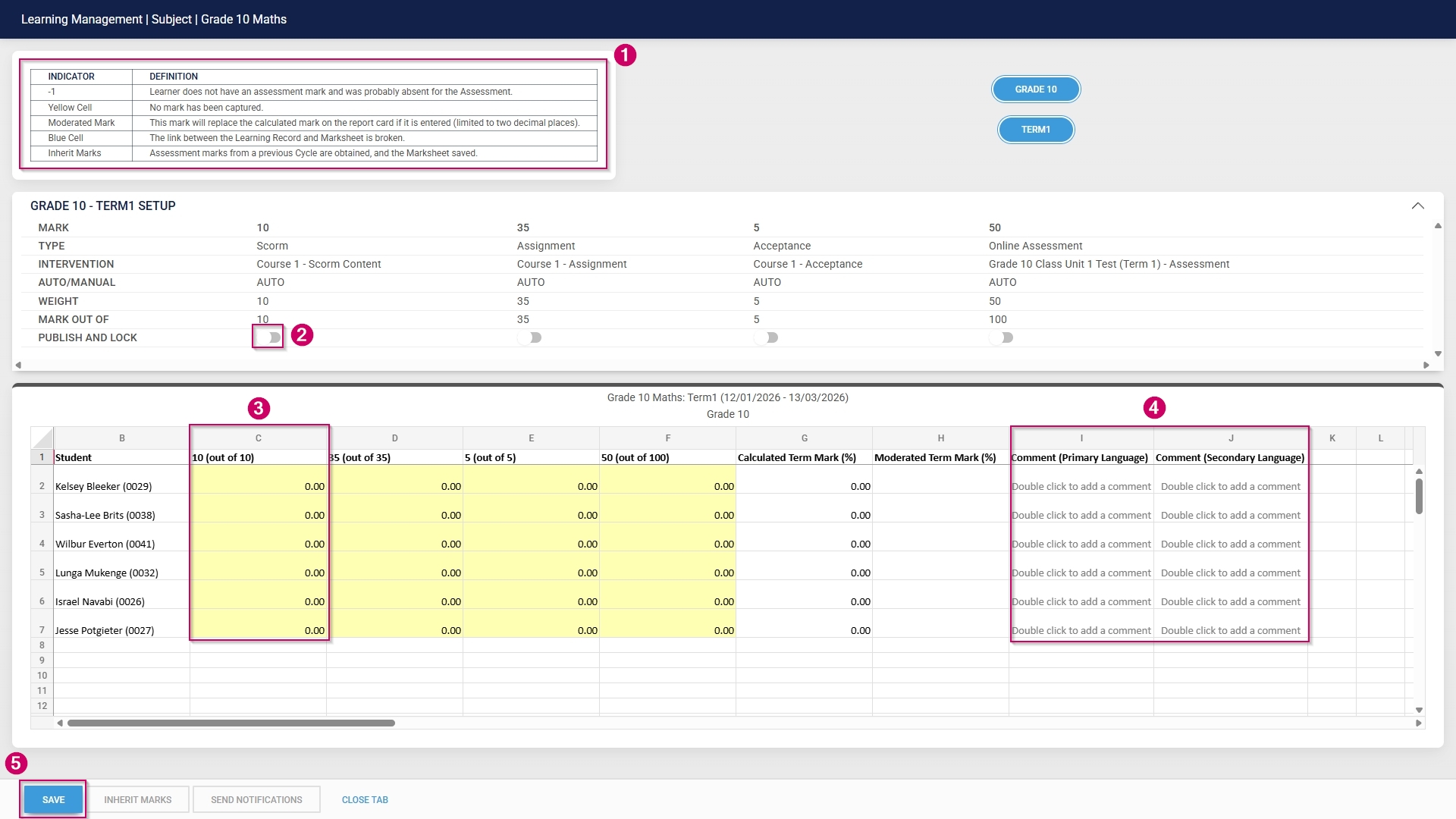
Educators can update the learner's marks using the Excel-like functionality. Take note of the legend to aid in interpreting the marksheet.
Toggle to publish the learner's marks for an academic activity and prevent further uploads.
Enter the student's mark in the columns.
Double-click to add a comment in either the primary or secondary language.
Click SAVE when you are finished.