Creating a Performance Agreement


Signify Header.png

PM Phases Step 1.png

The following section will guide you through creating a performance agreement. The guide assumes you do not have an existing agreement for the current performance cycle and that you wish to create one.
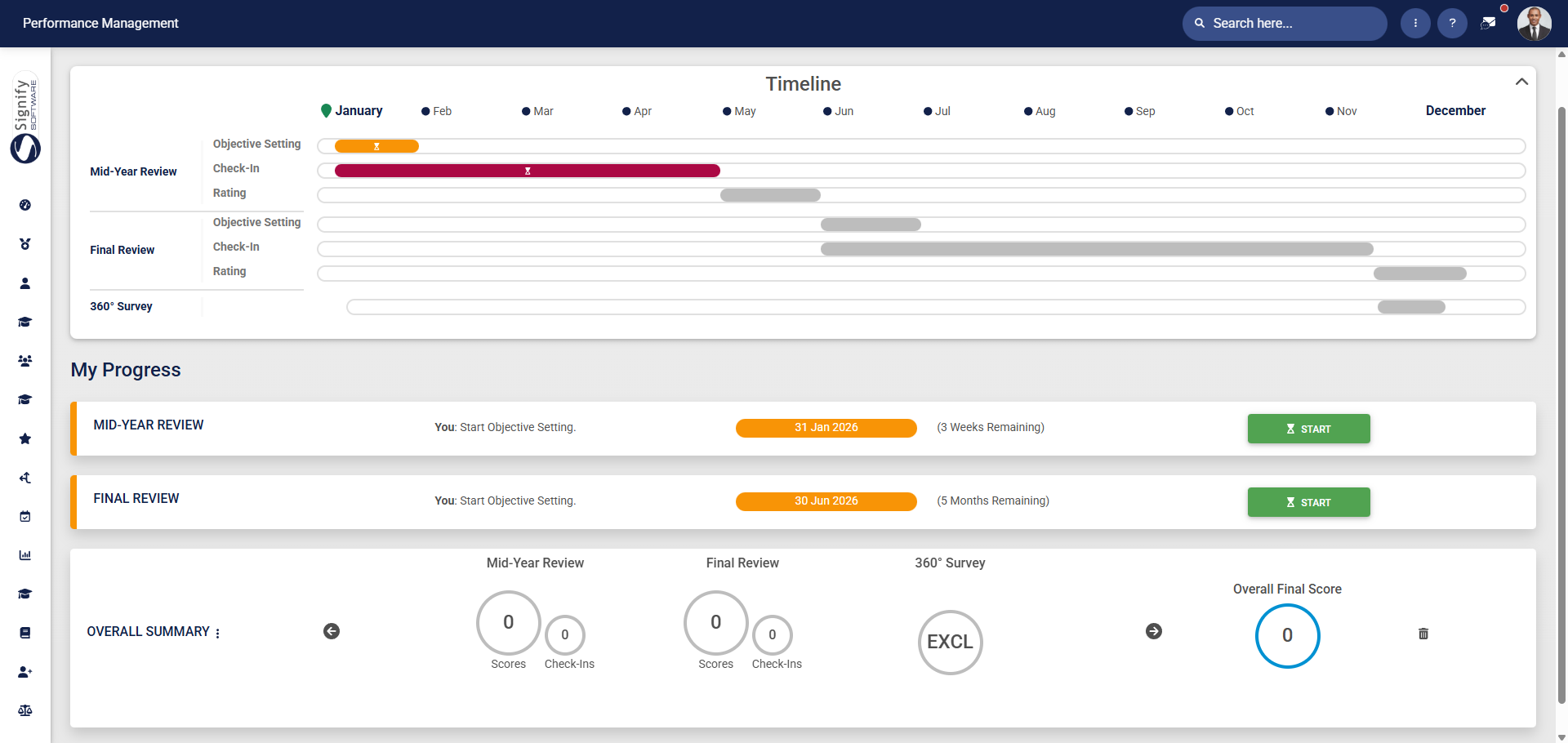
  • Begin by navigating to the Performance Management dashboard.

PM Dashboard (Employee).png

  • Click START to create a new performance agreement.

PM Start creating a performance agreement.png

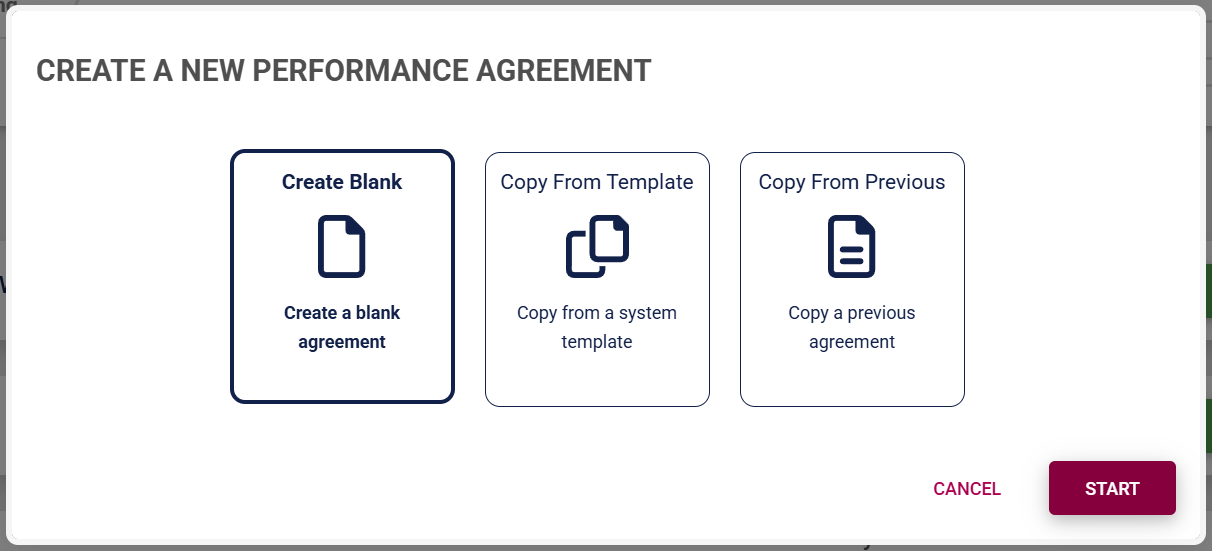
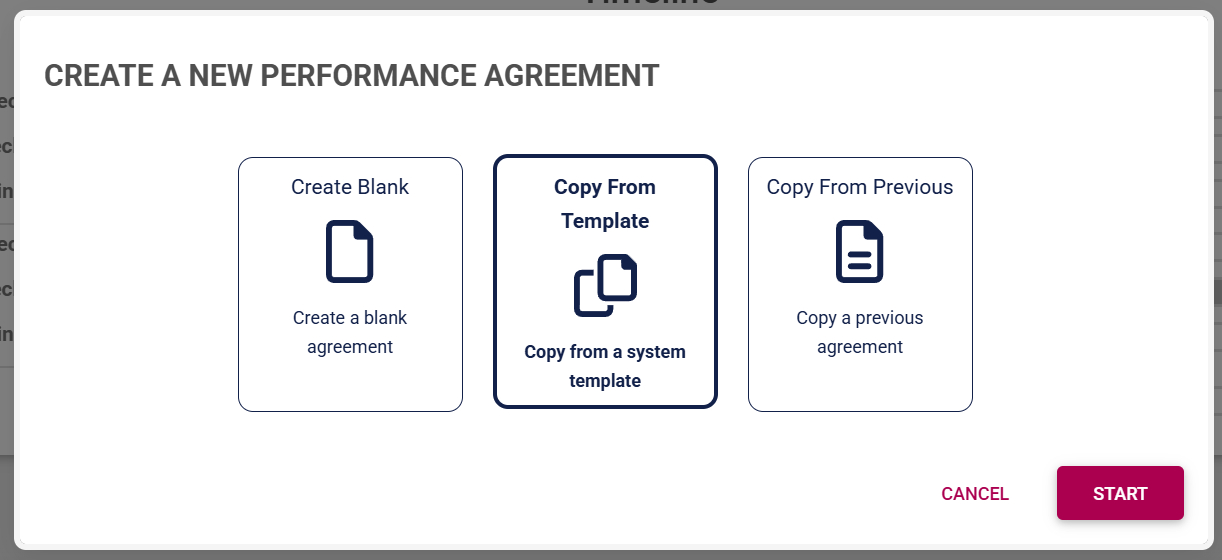
  • The Performance Management module allows a performance agreement to be created in three ways for employees.
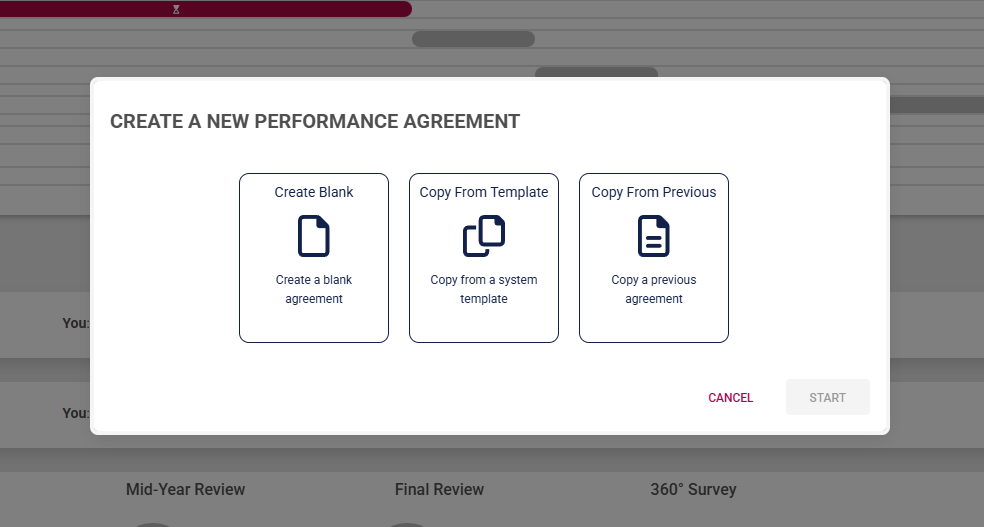
PM Create PM agreement options for employees.png

  • Managers are offered an additional option to create a performance agreement for a reportee using a template from another team member. 
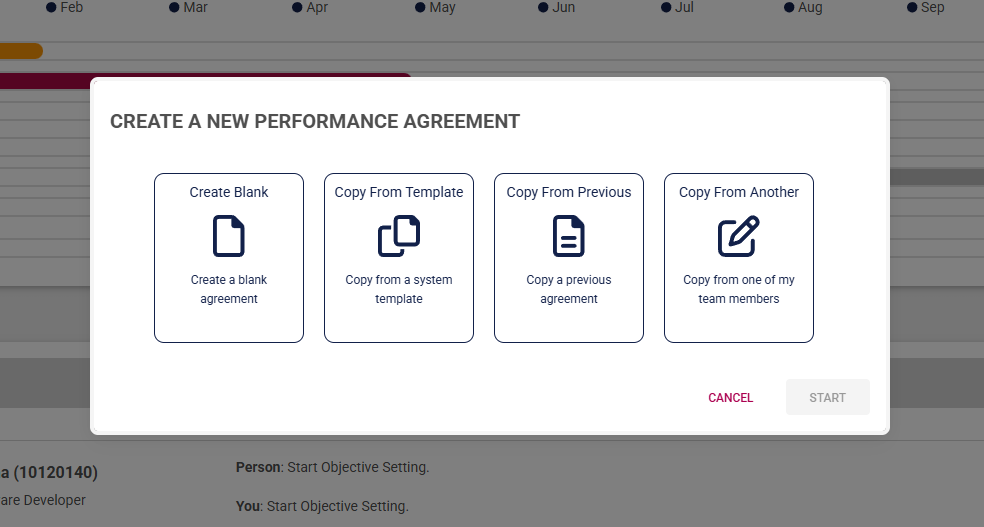
PM Create PM agreement options for managers.png

Click on the following tabs to expand the step-by-step instructions.

Create a blank agreement
  • Click Create Blank to start creating a performance agreement from the beginning.
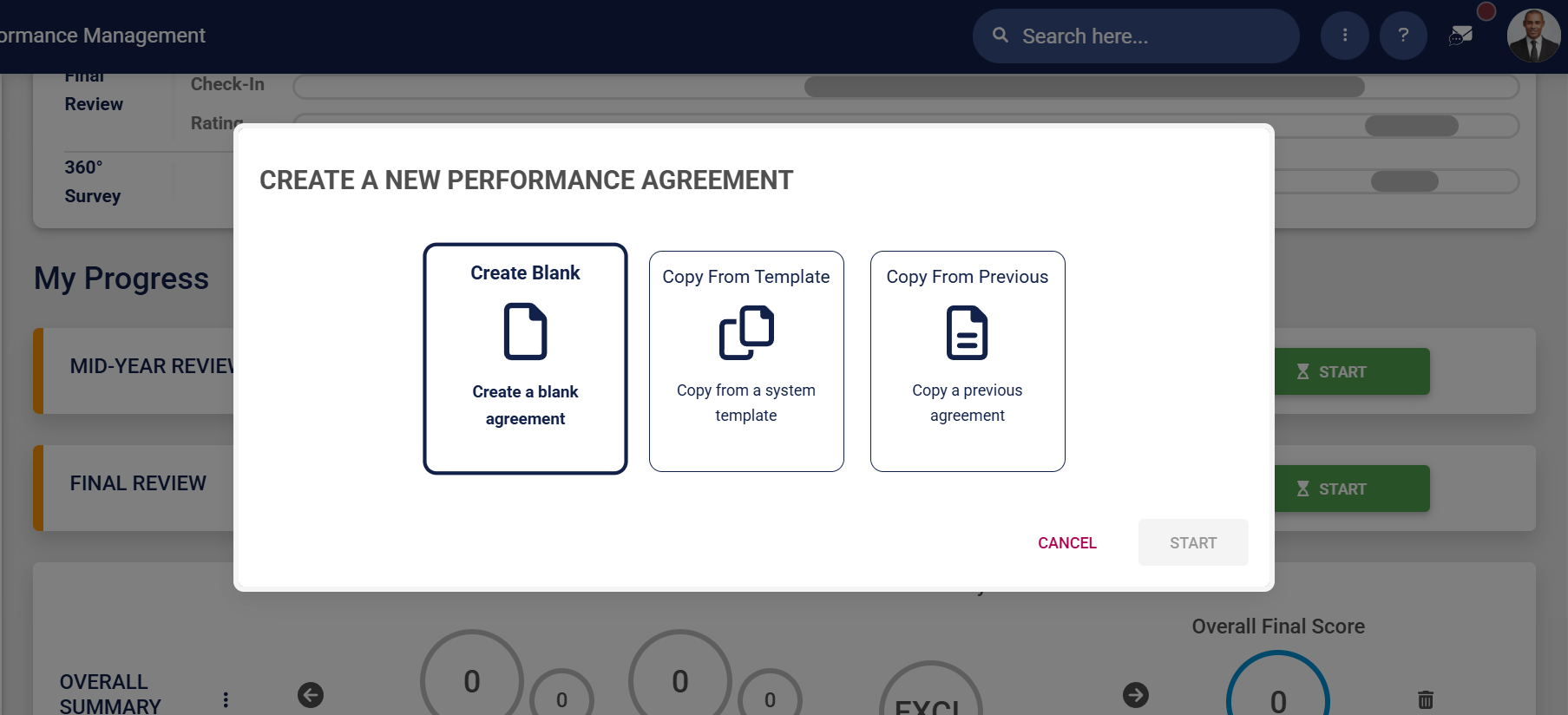
PM Create PM agreement employees – Blank.png

  • Click START.

PM Create PM agreement employees – Blank – Start.png

  • The performance agreement screen will display, showing the different sections, though it won't include any objectives at this stage. Adding objectives is covered in the next section.
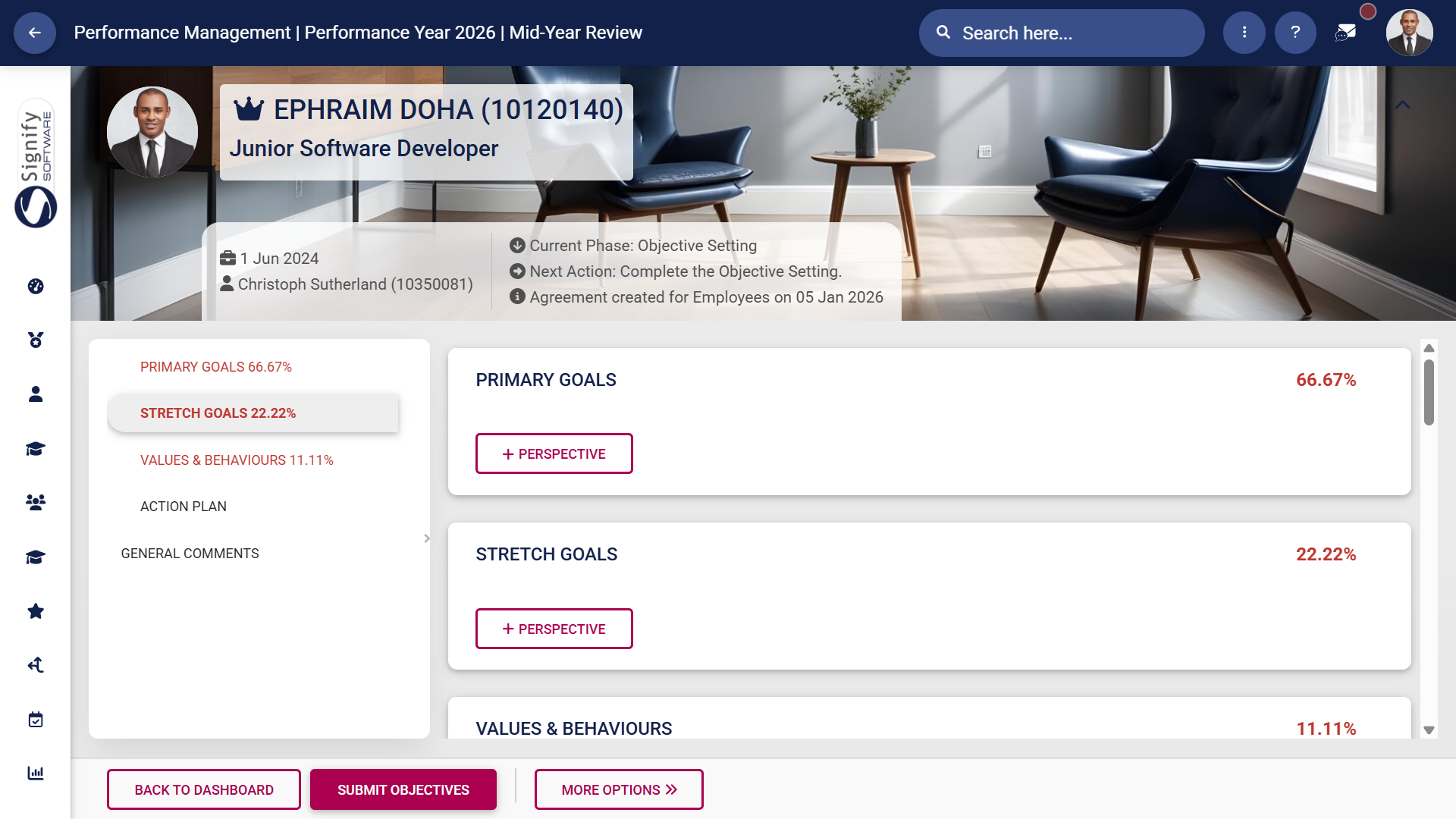
PM Create PM agreement employees – Blank – Agreement Screen.png

Use a performance agreement template
  • Click Copy From Template to create a performance agreement based on a system template.
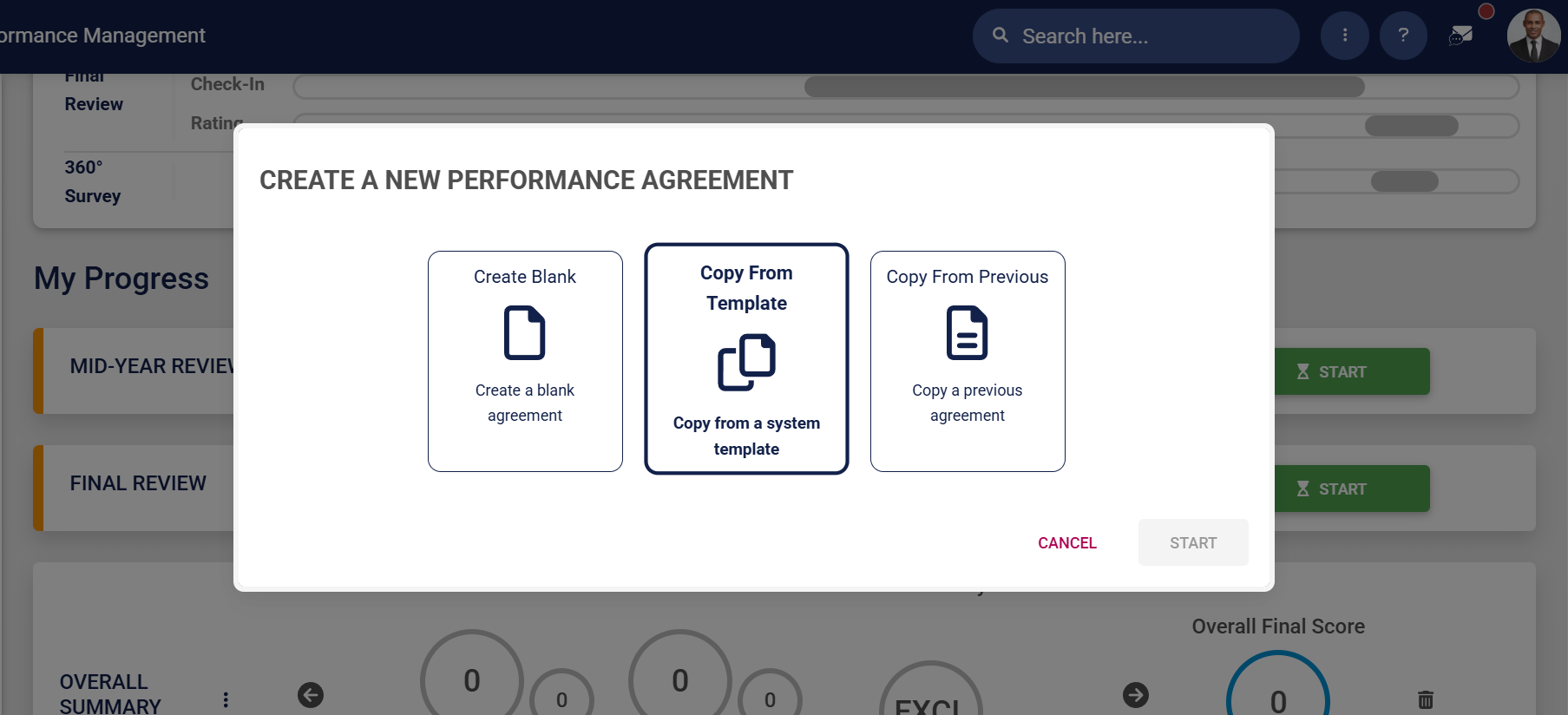
PM Create PM agreement employees – Template.png

  • Click START.

PM Create PM agreement employees – Template – Start.png

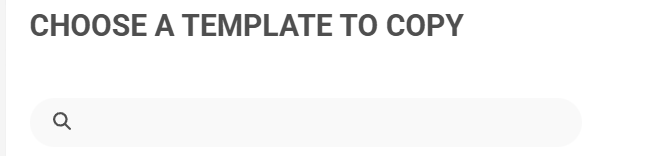
  • A list of the templates currently on the system will be shown.
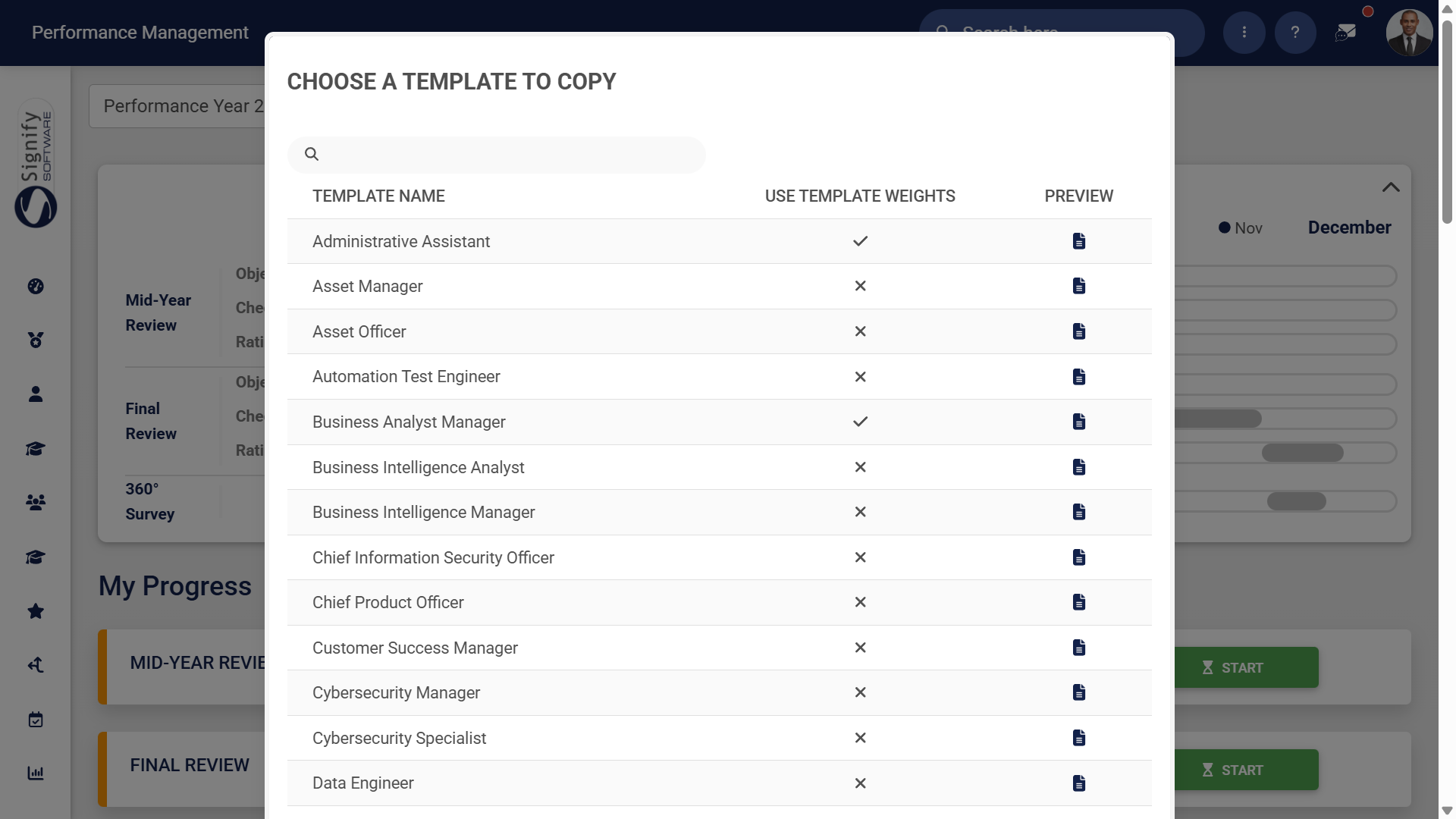
PM Create PM agreement employees – Template – List.png

      • Use the search bar to search for a template based on a job title or specific keywords. 

PM Create PM agreement employees – Template – Search Bar.png

      • A tick will be displayed if the template's weights override the review setup's weights. A cross indicates that the review setup's weights will be used.

PM Create PM agreement employees – Template – Use Template Weights.png

      • To ensure you select the correct template, you can preview it by clicking the icon. The preview will open in a new tab.

PM Create PM agreement employees – Template – Preview.png

  • Choose a template you would like to copy, then click CREATE.
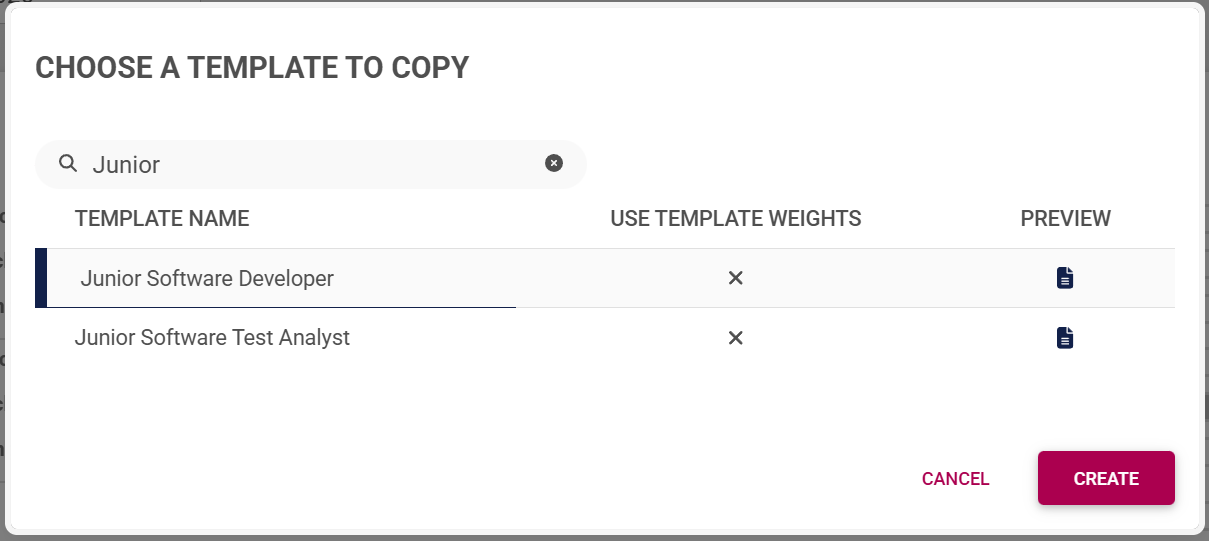
PM Create PM agreement employees – Template – Create.png

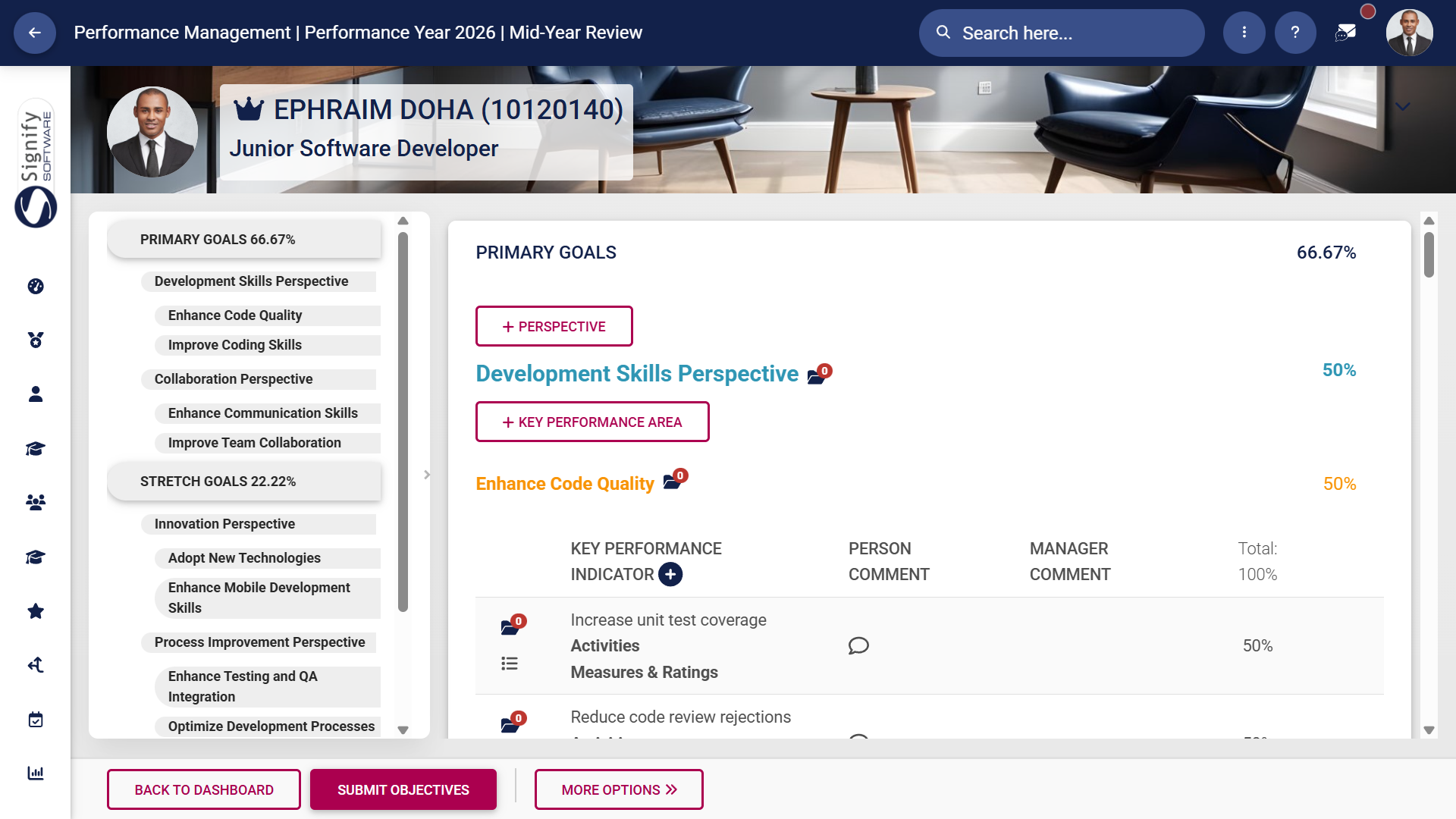
  • The performance agreement screen will display, with the Perspective, Key Performance Area, and Key Performance Indicator fields filled in from the template.
PM Create PM agreement employees – Template – Agreement Screen.png

Copy from a previous agreement
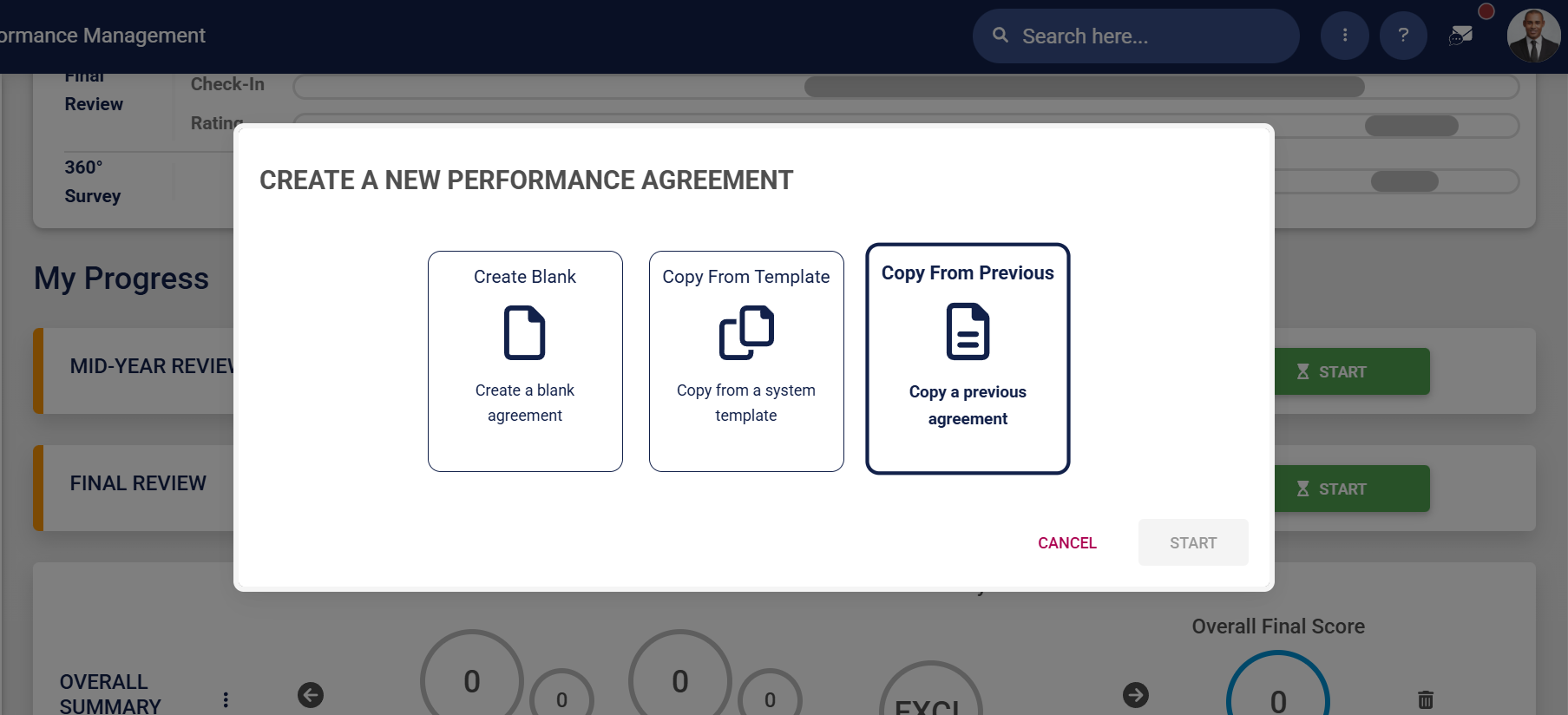
  • Click Copy From Previous to create a performance agreement based on an agreement from a previous performance cycle.

PM Create PM agreement employees – Previous.png

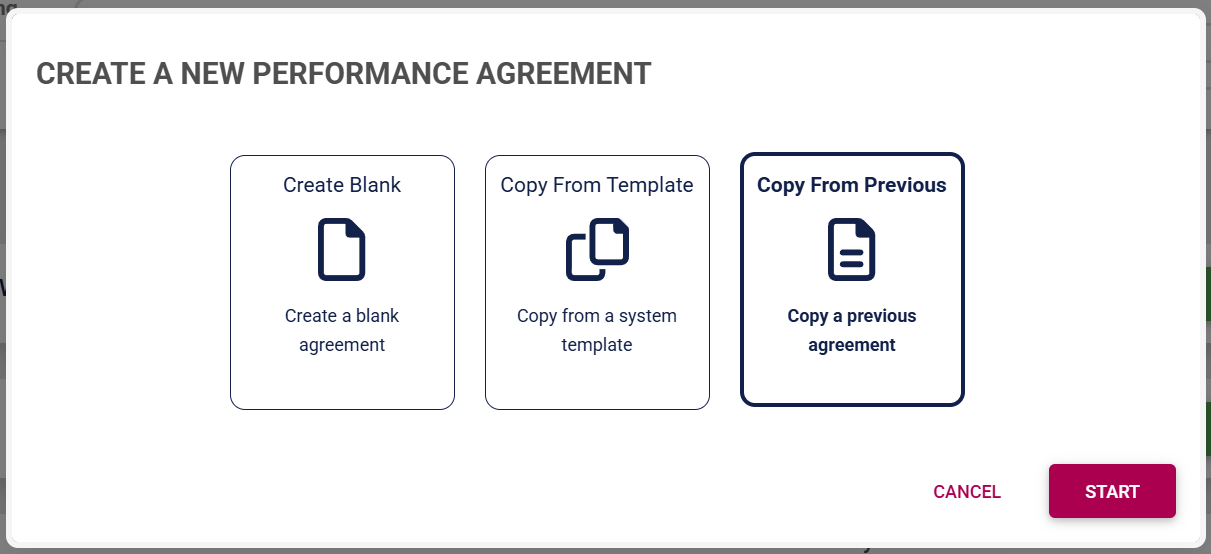
  • Click START.

PM Create PM agreement employees – Previous – Start.png

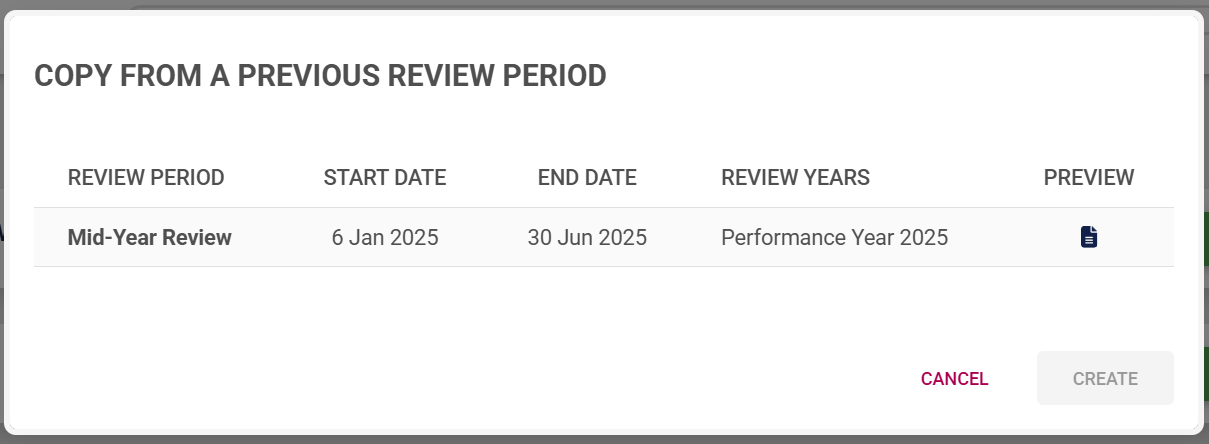
  • A list of the performance agreements from previous review periods will be shown.

PM Create PM agreement employees – Previous – Select.png

      • To ensure you select the correct performance agreement, you can preview it by clicking the icon. The preview will open in a new tab.

PM Create PM agreement employees – Template – Preview.png

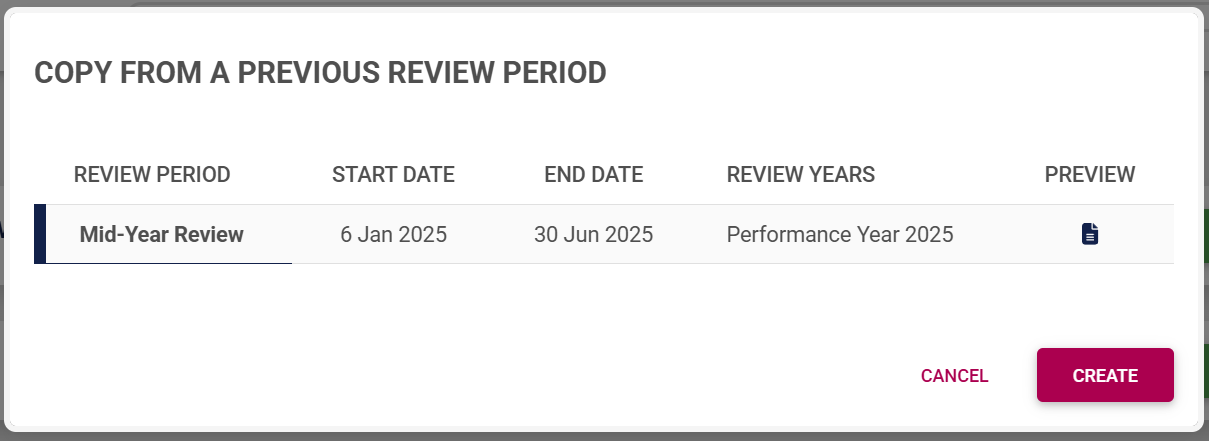
  • Select the performance agreement you would like to copy, then click CREATE.

PM Create PM agreement employees – Previous – Create.png

  • The performance agreement screen will display, with the Perspective, Key Performance Area, and Key Performance Indicator fields filled in from the previous agreement.

PM Create PM agreement employees – Template – Agreement Screen.png

Copy an agreement from another employee (Managers only!)

 

Signify Footer.png

Your feedback matters! How helpful was the support content?