
Objective-Setting Phase


When creating a performance agreement, it is important to understand the WHY. Why is it important to set objectives?
The answer is simple: to bring clarity. Having a clearly outlined goal makes it easier to achieve success, for managers and employees alike. For helpful tips on approaching the objective-setting phase, please visit the Before You Start page.
The following guide will help you through setting your objectives, and will assume you are using all of the following sections in a performance agreement:
- Primary Goals
- Perspectives (optional)
- Key Performance Areas
- Key Performance Indicators
- Key Performance Areas
- Perspectives (optional)
- Stretch Goals (optional)
- Perspectives (optional)
- Key Performance Areas
- Key Performance Indicators
- Key Performance Areas
- Perspectives (optional)
- Values and Behaviours (optional)
- Leadership Behaviours (optional)
- Key Competencies (optional)
The Performance Management module is modular and can be configured to suit your unique performance management processes. For examples of how different combinations of review setup settings work, or of different performance management configurations, please see the Tips and Use Cases chapter.

Below is an example of a complete performance agreement that uses all available sections.
- It has been populated with perspectives, KPAs, KPIs, and assigned weights.
- The side menu provides an overview of the performance agreement and allows easy navigation between its sections.
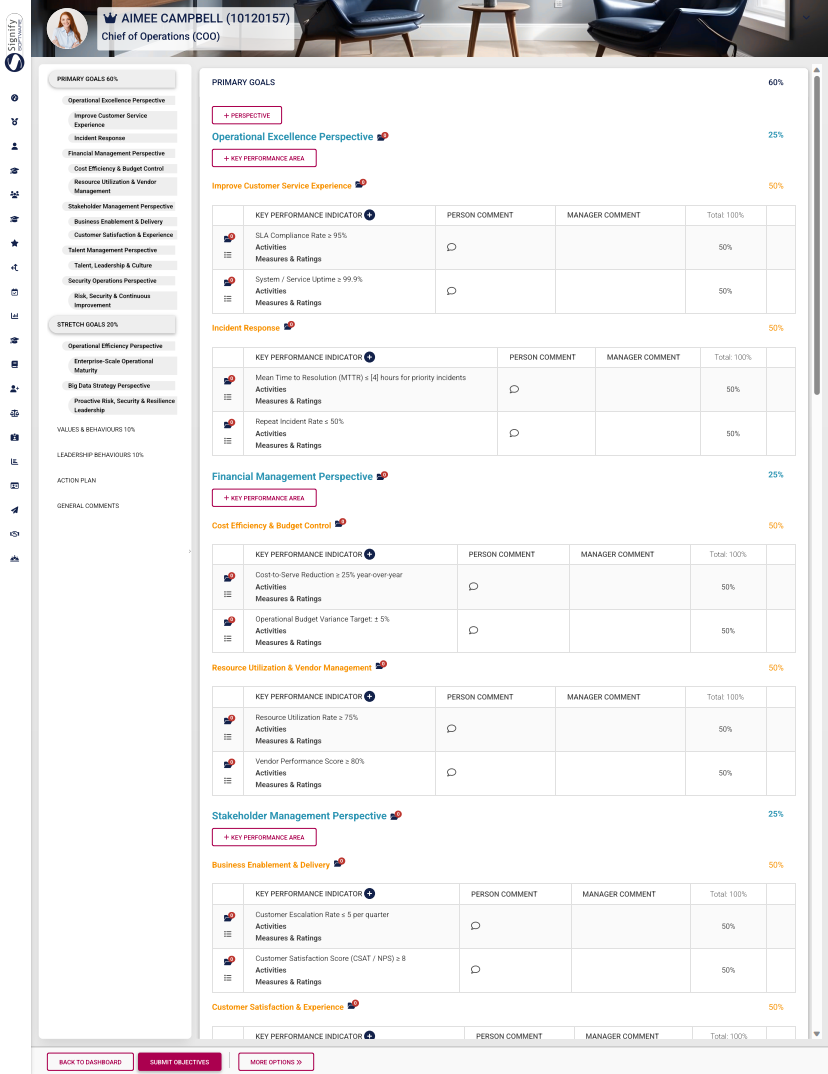
Based on your review setup, you may be using some (or all) of the aforementioned performance agreement sections. Not all sections are mandatory. If a section (such as Stretch Goals) or a feature (such as Perspectives) does not apply to your review setup, you are more than welcome to skip its tutorial and proceed to the next step.
For our example, the following review setup settings have been enabled:
Additionally, the settingautomatic thatdistribution automatically distributesof item weights has been enabled for all settings.settings:
The tutorialsetting forto eachadd sectionor ofdelete items on a list (such as the performanceValues agreementand willBehaviours includelist) anhas overviewbeen flowchartdisabled:
Expand the following collapsible blocks to learn more.
PRIMARY GOALS
Primary Goals
Overview of the process

Add perspectives
- For this tutorial, we will assume you selected Create Blank when creating the performance agreement.
- The blank performance agreement will be populated with the sections that have been activated in the review setup's configuration. Please note, the red headings in the menu on the left show that information is missing, such as missing perspectives, KPAs, KPIs, or unbalanced weights. The weights of unbalanced sections will also flash red.
- Click +PERSPECTIVE to add a perspective.
- Select a perspective which has been loaded to the Master Data Library.
- Assign a weight to the perspective, then click SAVE ADD NEW to continue adding more perspectives.
- Once you have finished adding all the perspectives, your agreement should look something like this:
- Ensure all the perspective weights in this section add up to 100%.
- To delete a perspective, hover over its title, then click the dustbin icon.
- A perspective can be tagged for discussion with your manager by clicking the tag icon.
- Your manager will receive a message in their system inbox regarding your query.
- Documents linked to a specific performance agreement item can be viewed by clicking on the folder icon.
- Linked documents will display in the table on the Documents screen.
Add KPAs
- Click +KEY PERFORMANCE AREA to add a KPA.
- Either type your own KPA or select one from the Master Data Library.
- If using Master Data Library items, click on the hand icon to search for a KPA.
- Click on the KPA you would like to
link.link.
- Assign a
weight.weight. Click SAVE ADD NEW to keep adding additional KPAs for this perspective, or SAVE if you are done.
- Ensure all the weights of the KPAs linked to a specific perspective add up to 100%.
- To delete a KPA, hover over its title, then click the dustbin icon.
- A KPA can be tagged for discussion with your manager by clicking the tag icon.
- Your manager will receive a message in their system inbox regarding your query.
- Documents linked to a specific KPA can be viewed by clicking on the folder icon.
- Linked documents will display in the table on the Documents screen.
Add KPIs
WordsClick the plus icon next to KEY PERFORMANCE INDICATOR to add a KPI.
For more information on how this works, click here.
OR
It is important to ensure your weights for this section are correct. If your weights of perspectives, KPAs , or KPIs are unbalanced, you will receive the following error message when attempting to submit your objectives:
STRETCH GOALS
Stretch Goals
Overview of the process
Overview

Add perspectives
The process for adding perspectives in the Stretch Goals section is the same as Primary Goals. Click here to jump to the tutorial.
Add KPAs
The process for adding KPAs in the Stretch Goals section is the same as Primary Goals. Click here to jump to the tutorial.
Add KPIs
The process for adding KPIs in the Stretch Goals section is the same as Primary Goals. Click here to jump to the tutorial.
For more information regarding the settings used to configure Stretch Goals, click here. Once completed, your Stretch Goals section may look similar to our example below:
VALUES AND BEHAVIOURS
The objectives in this section are automatically populated when the performance agreement is created. For more information regarding the settings used to configure Values and Behaviours, click here.
LinkOnce mastercompleted, datayour valuesValues and behavioursBehaviours section may look similar to our example below:
LEADERSHIP BEHAVIOURS
The objectives in this section are automatically populated when the performance agreement is created. For more information regarding the settings used to configure Leadership Behaviours, click here.
LinkOnce mastercompleted, datayour leadershipLeadership behavioursBehaviours section may look similar to our example below:
KEY COMPETENCIES
LinkThe mastersettings datagoverning the Key Competencies section is explained here.
ACTION PLAN
An action plan can be linked to a performance agreement, with actionable steps and milestones to track progress.
GENERAL COMMENTS
General comments, from the employee as well as the manager, can be made on the performance agreement. Click +GENERAL COMMENT to add a new comment.
