
Performance Management Implementation Guide

Activate the Performance Management module
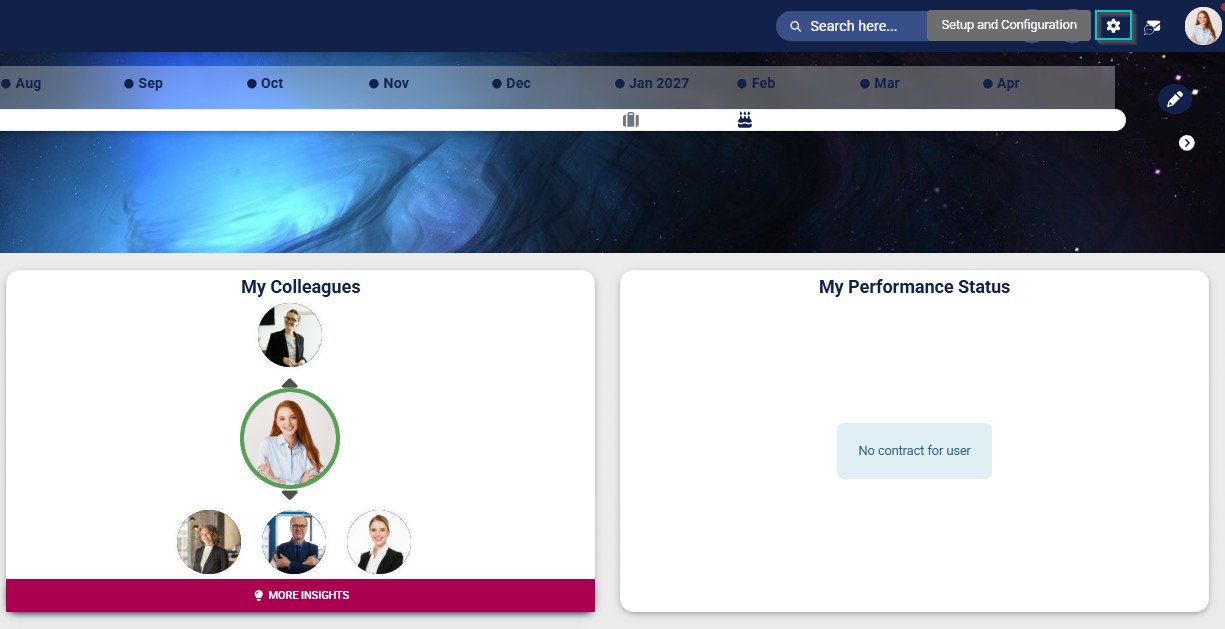
- Click the gear icon to access the Setup and Configuration menu.
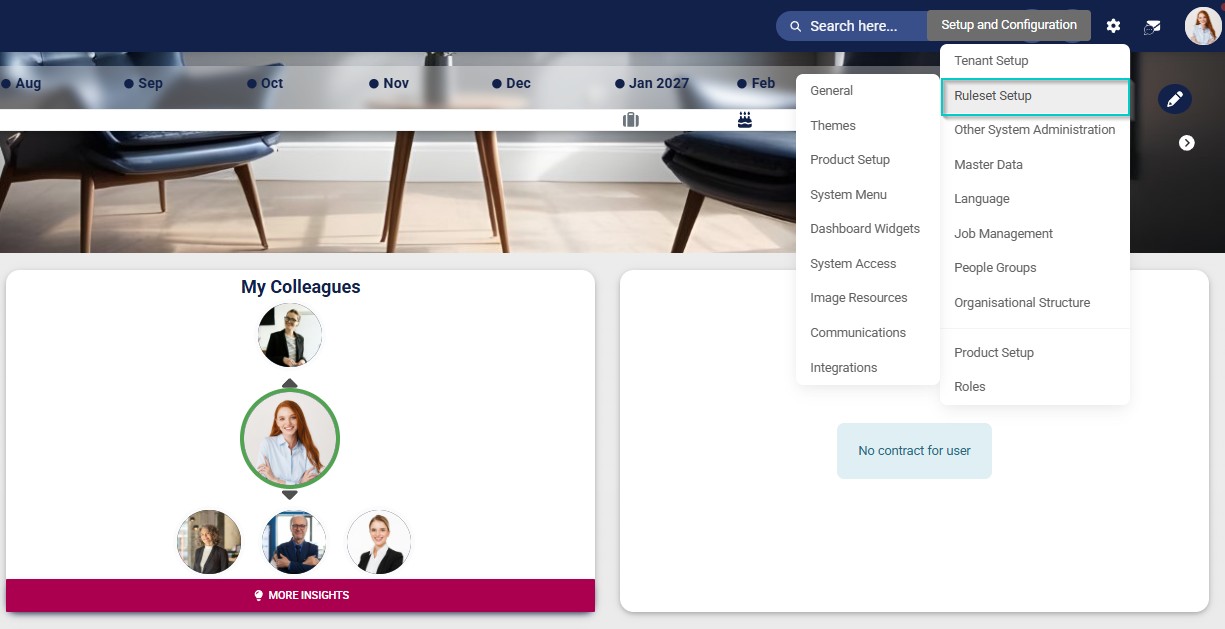
- Click Ruleset Setup.
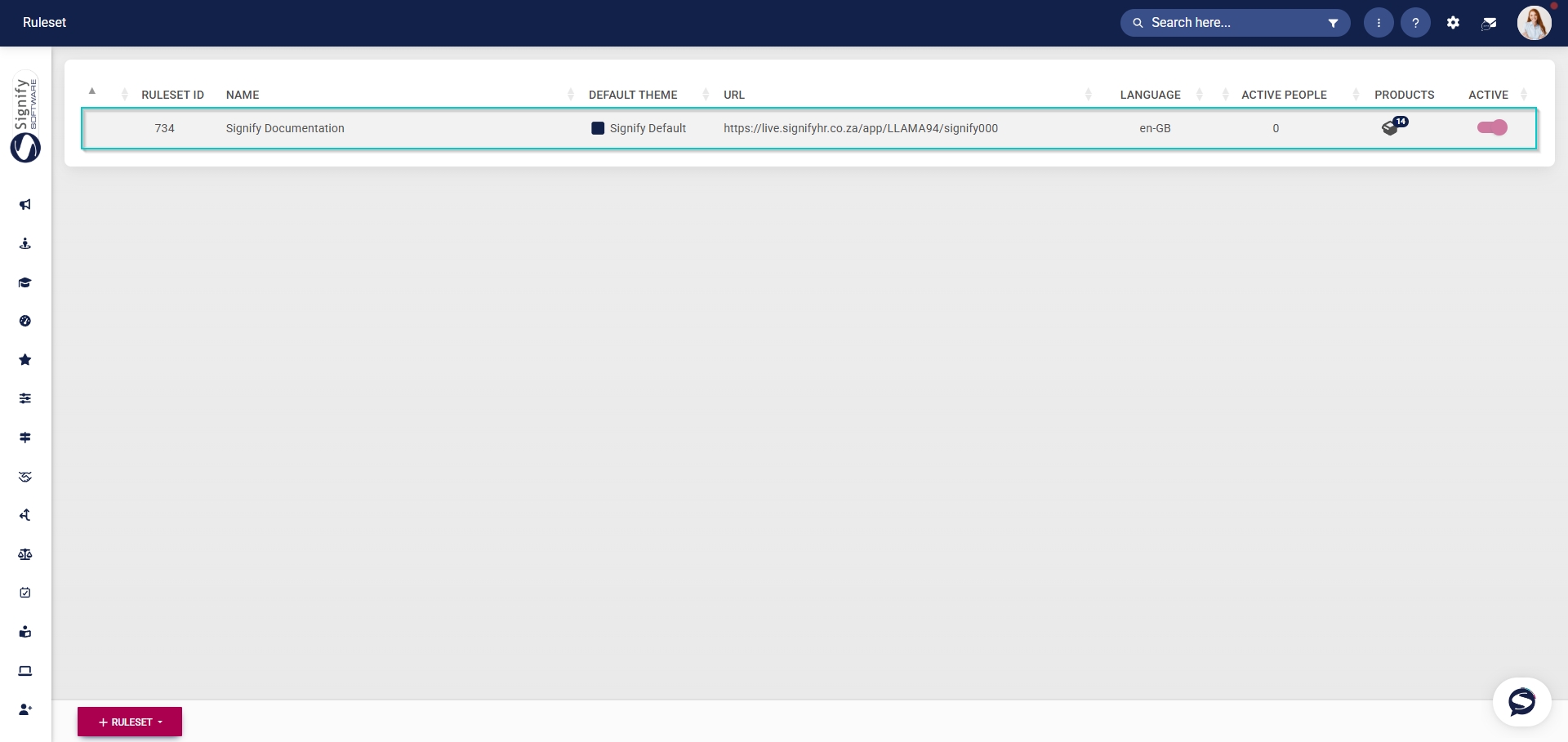
- Select the ruleset you would like to update.
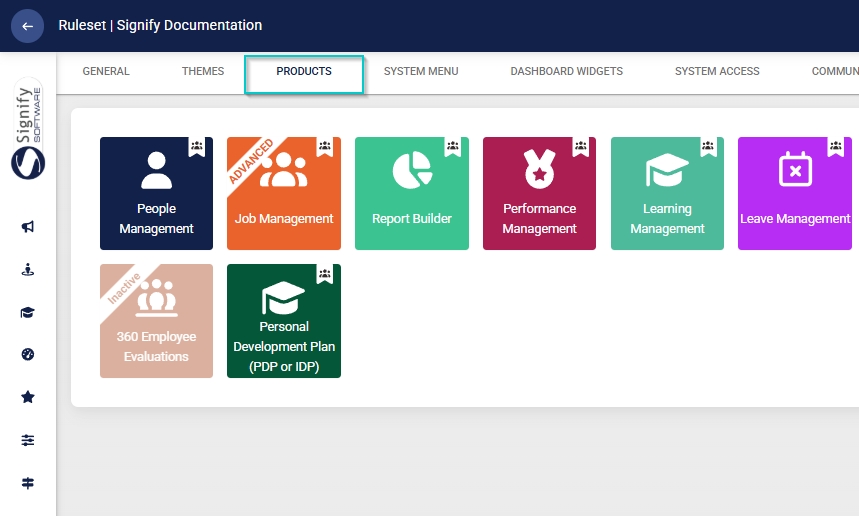
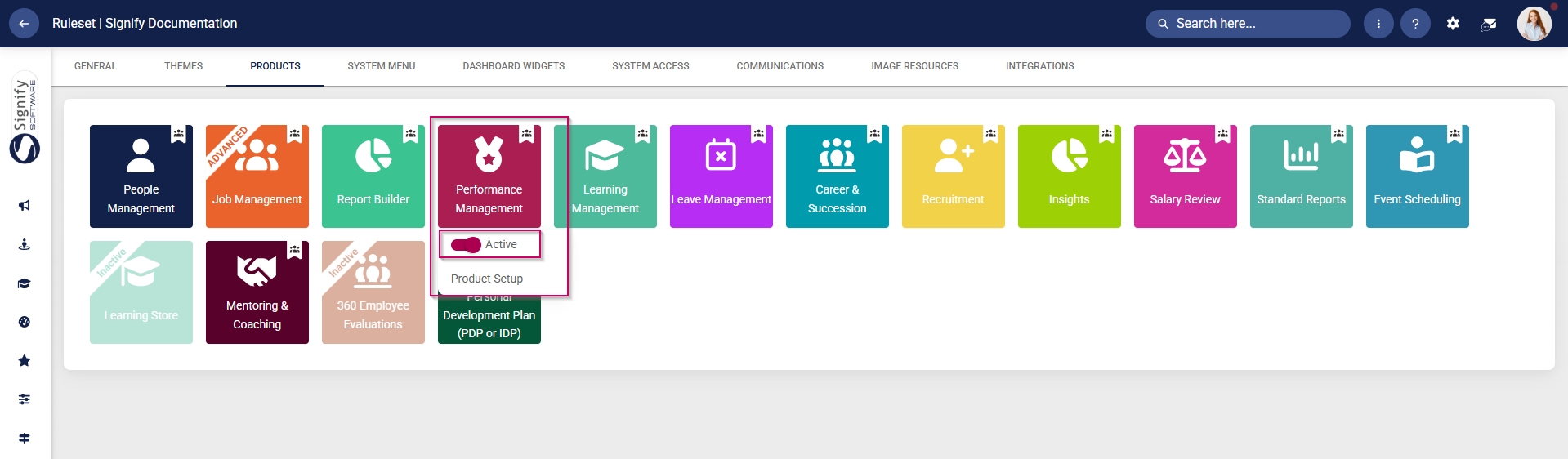
- Click on the Performance Management product card, then click the toggle button to set the product’s status to Active.
Add Performance Management to the system menu
- Click the gear icon to access the Setup and Configuration menu.
- Click Ruleset Setup.
- Select the ruleset you would like to update.
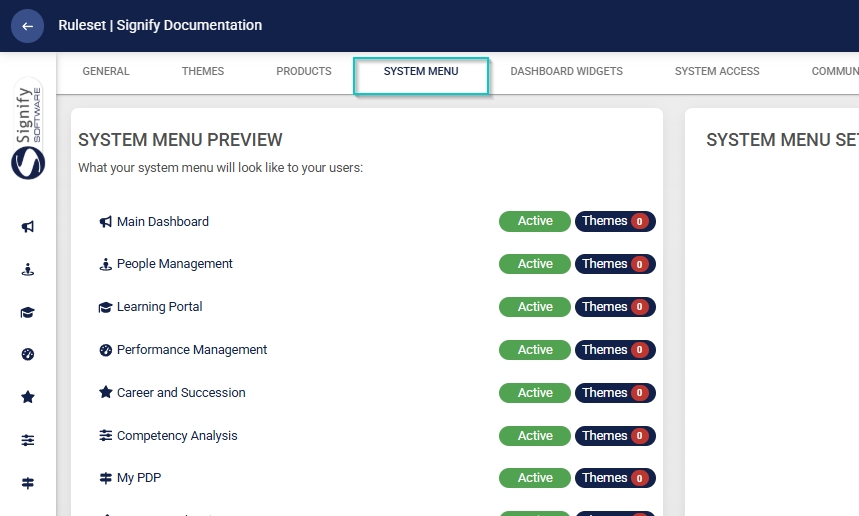
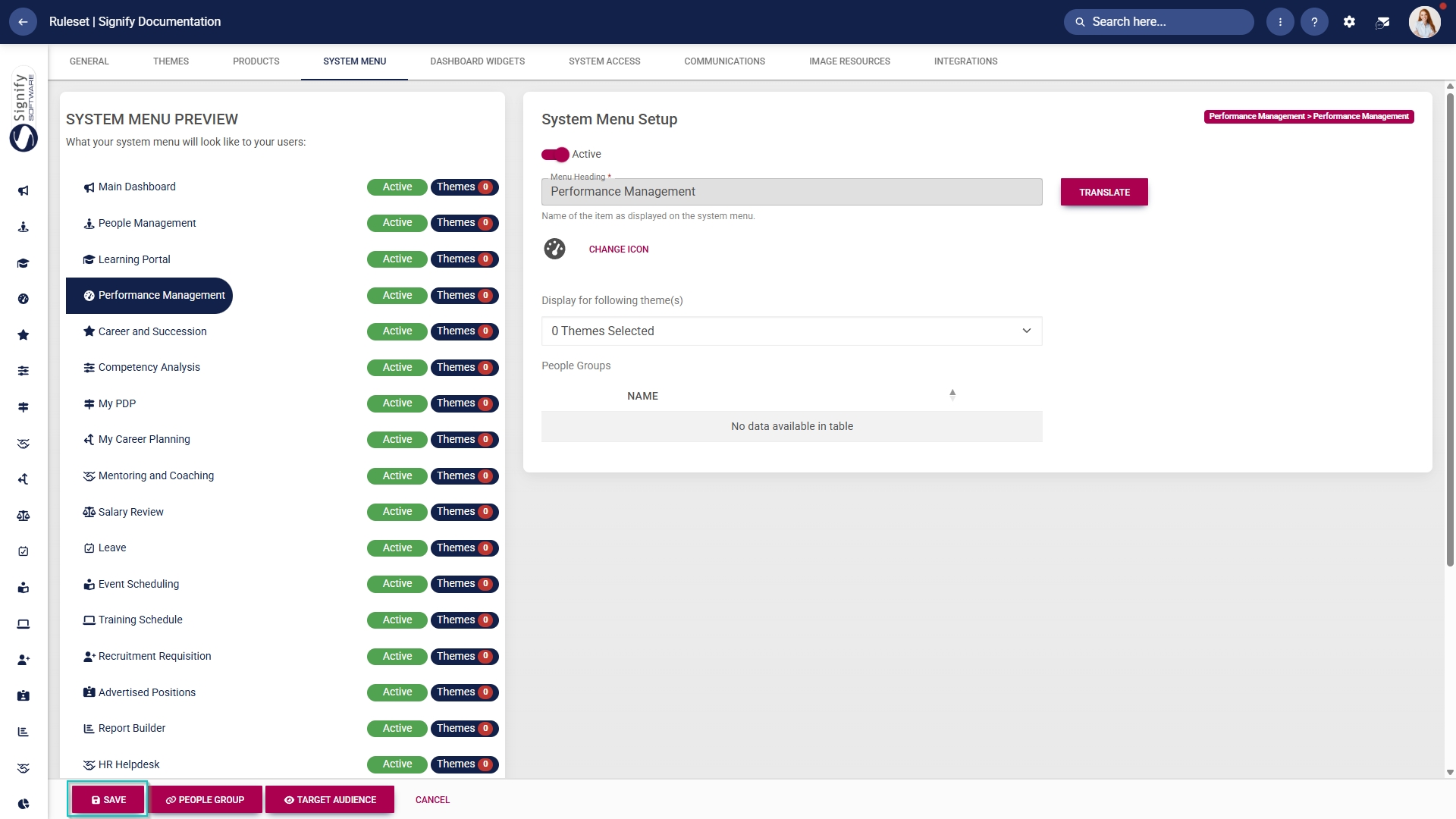
- Click the Performance Management menu item in the system menu preview.
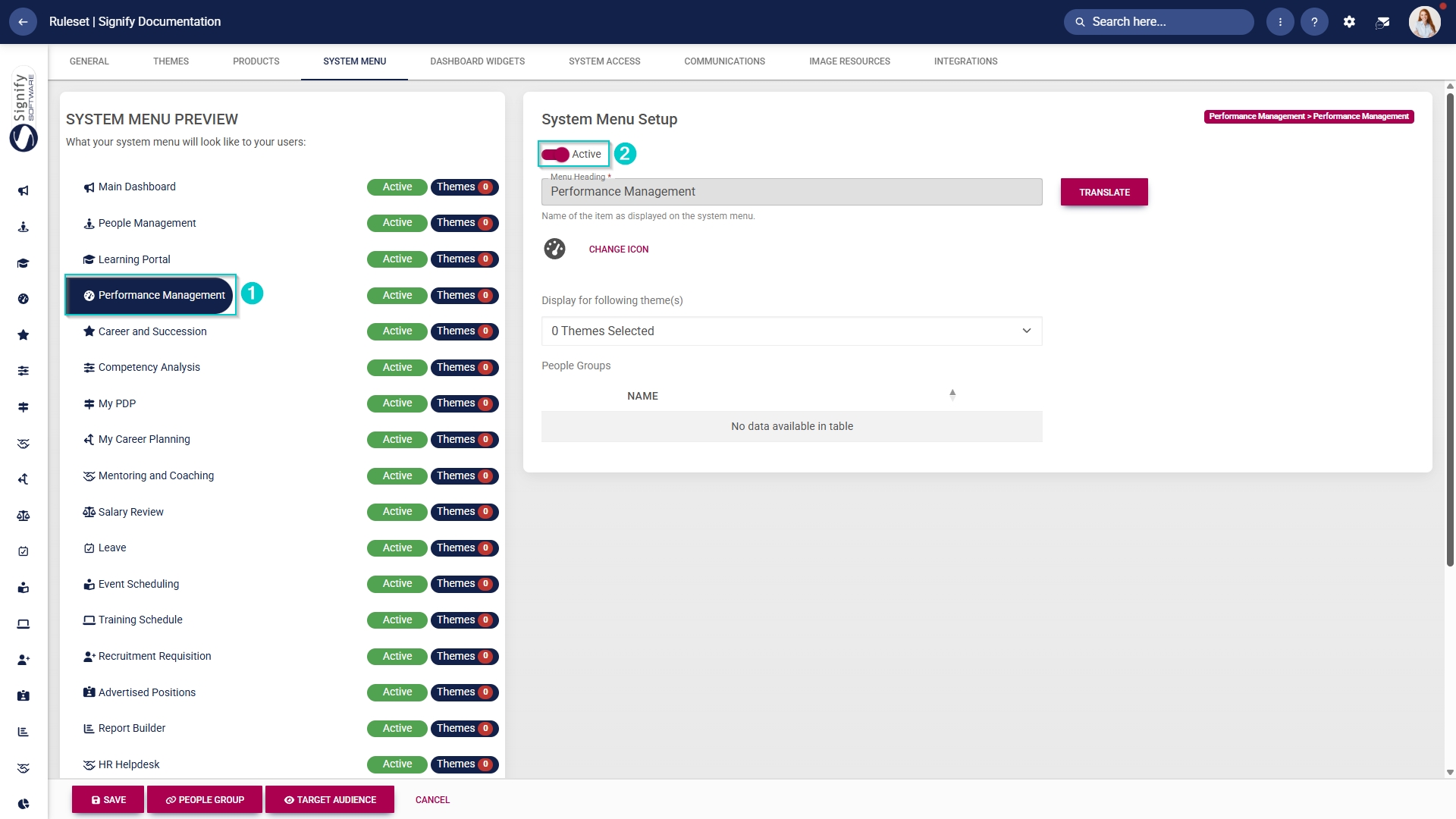
- Click the toggle button to set the system menu item’s status to Active.
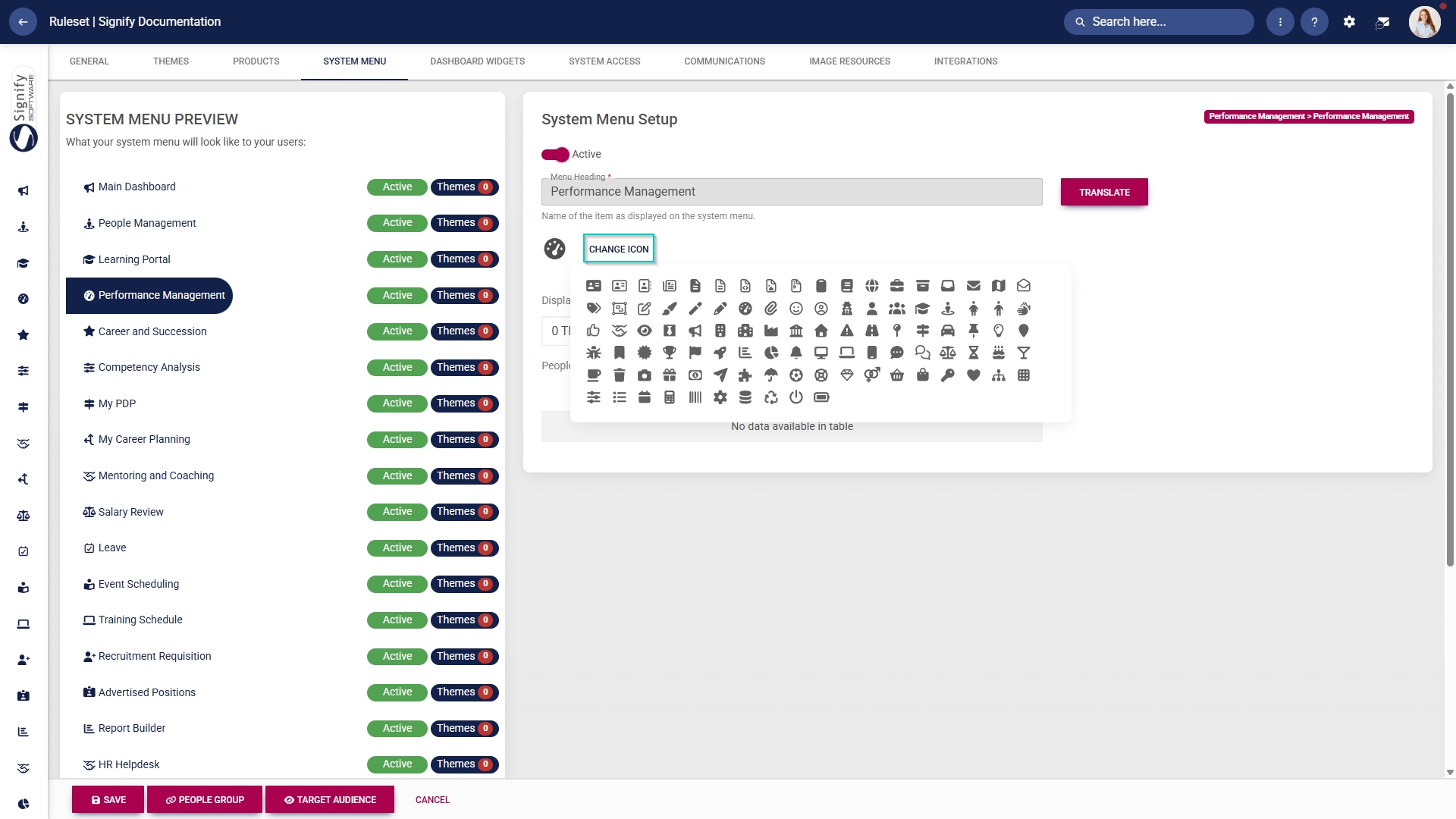
- You can select an icon for the Performance Management module by clicking CHANGE ICON.
- Click SAVE to continue or CANCEL to discard your changes.
Update the Master Data Library
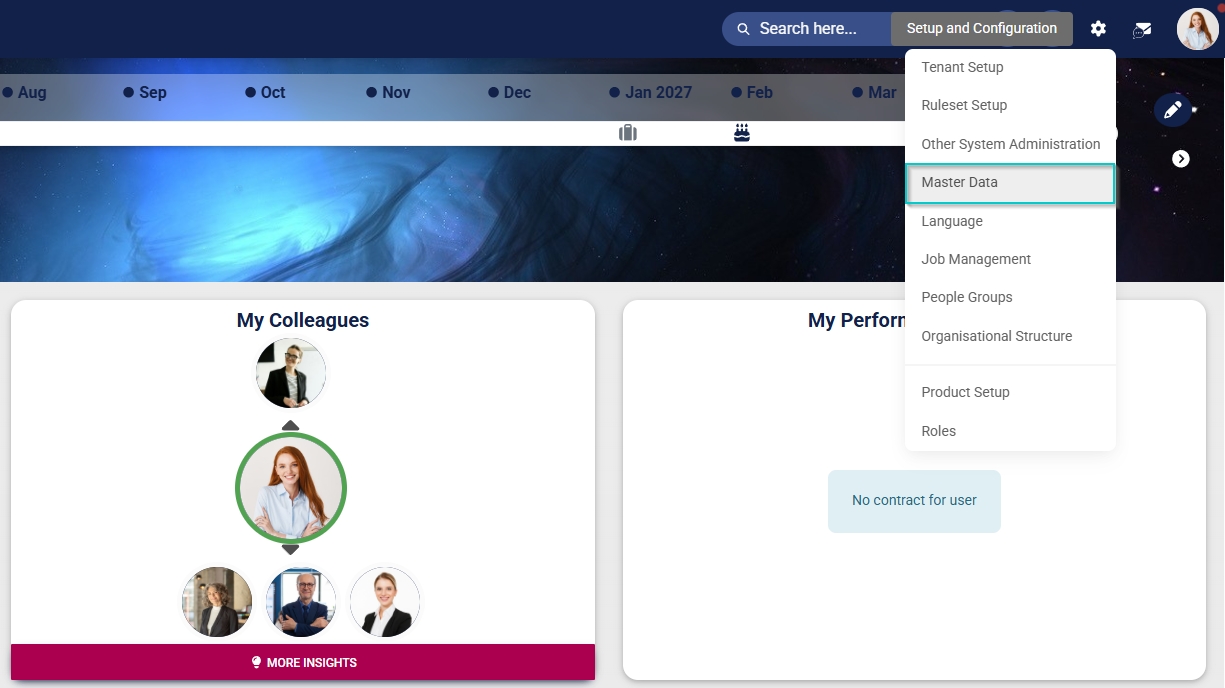
- Click the gear icon to access the Setup and Configuration menu.
- Click Master Data.
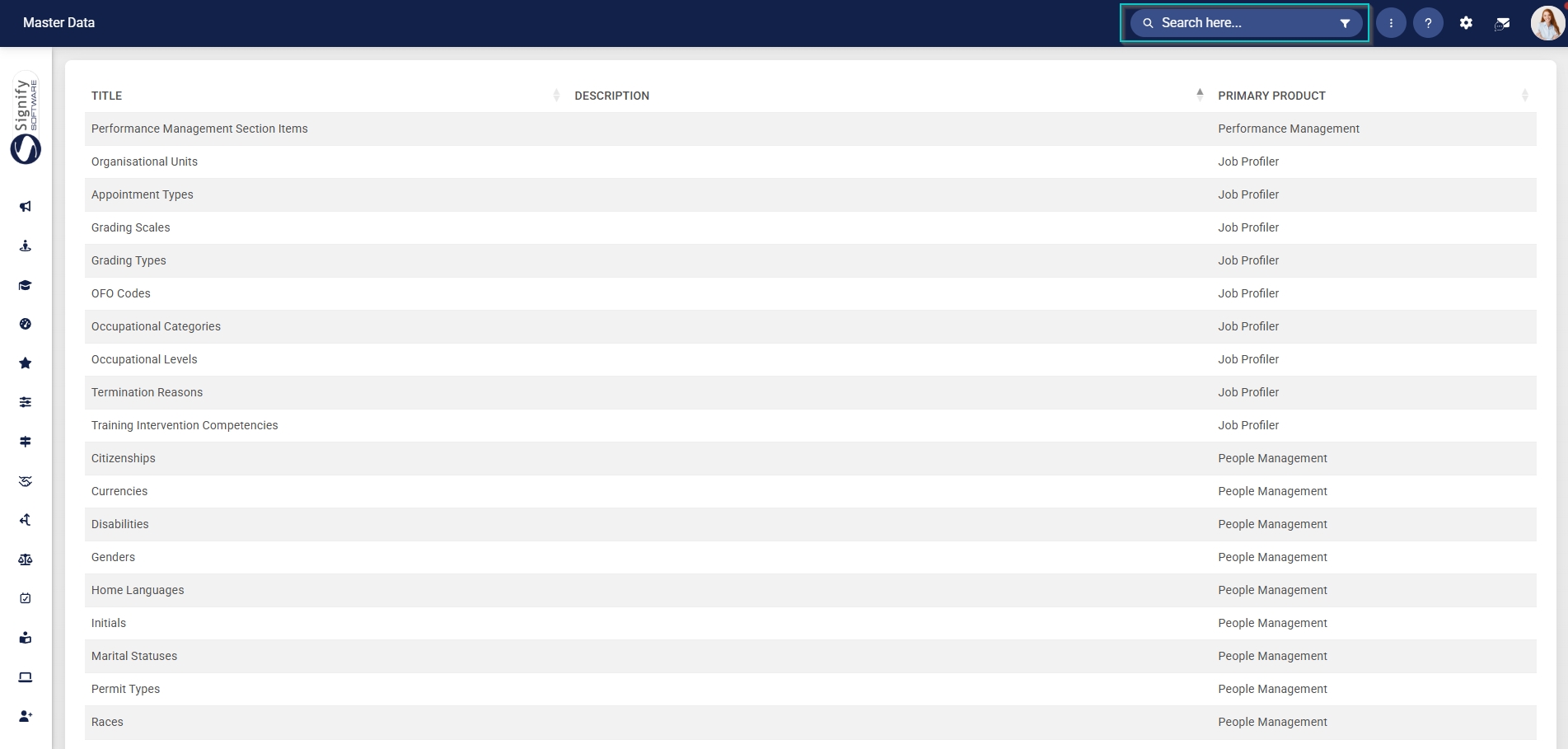
- The Master Data Library lists the categories for which administrators can create master data. Use the search bar at the top of the screen to filter the search results by Performance Management.
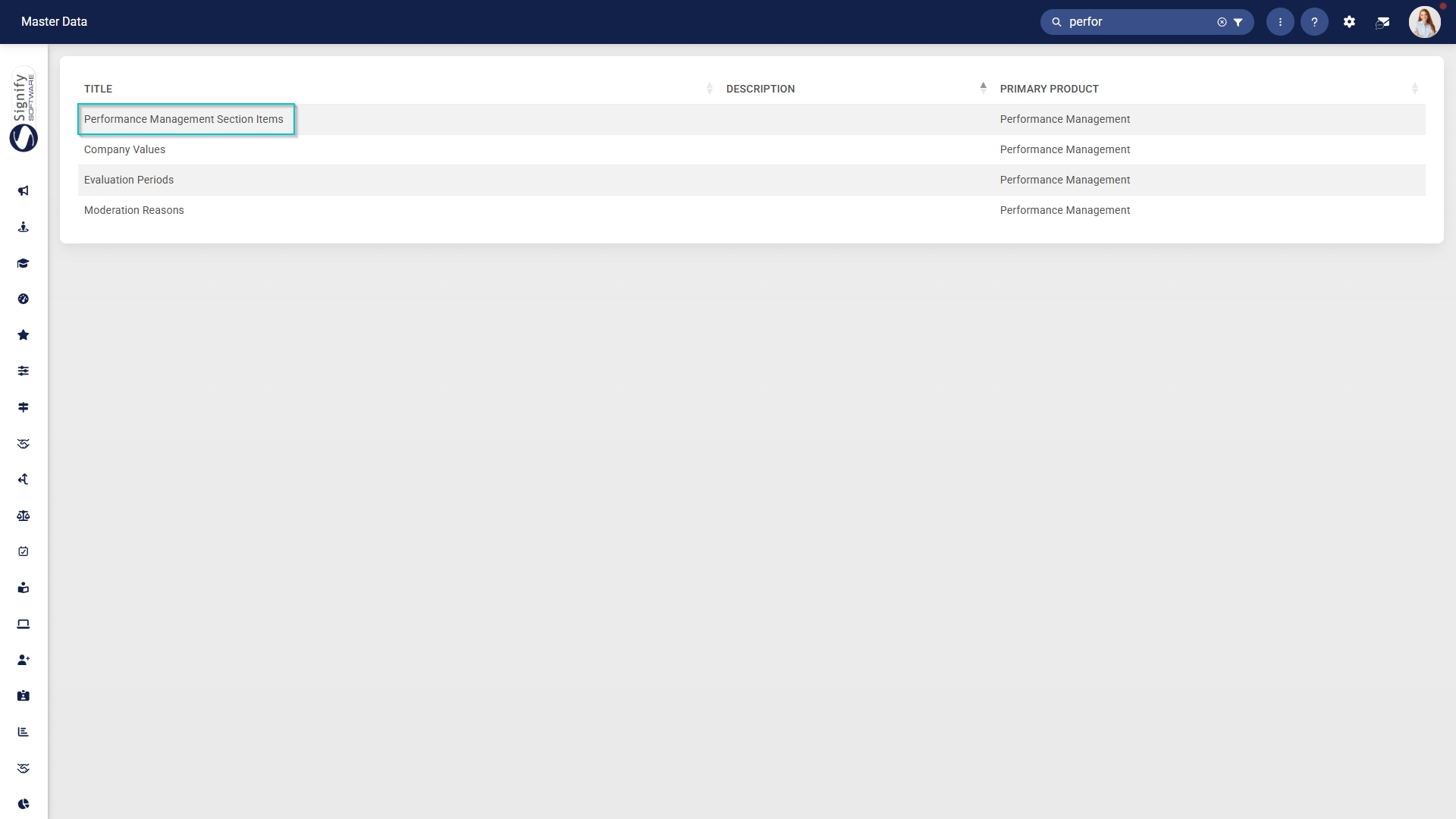
Configure Performance Management section items
- Click on the Performance Management Section Items category to continue.
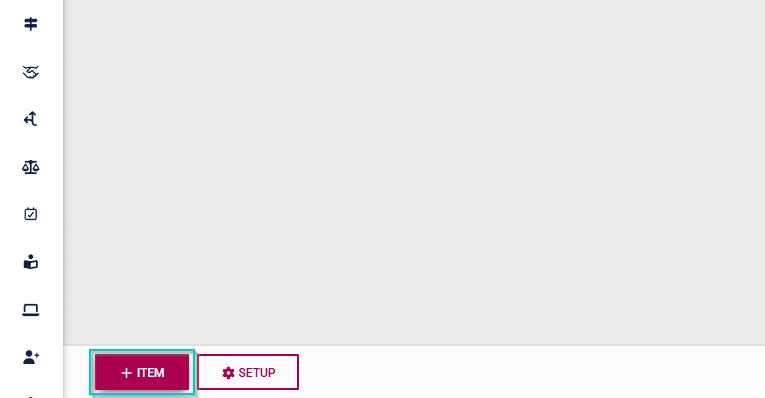
- To add a new master data item, click on +ITEM.
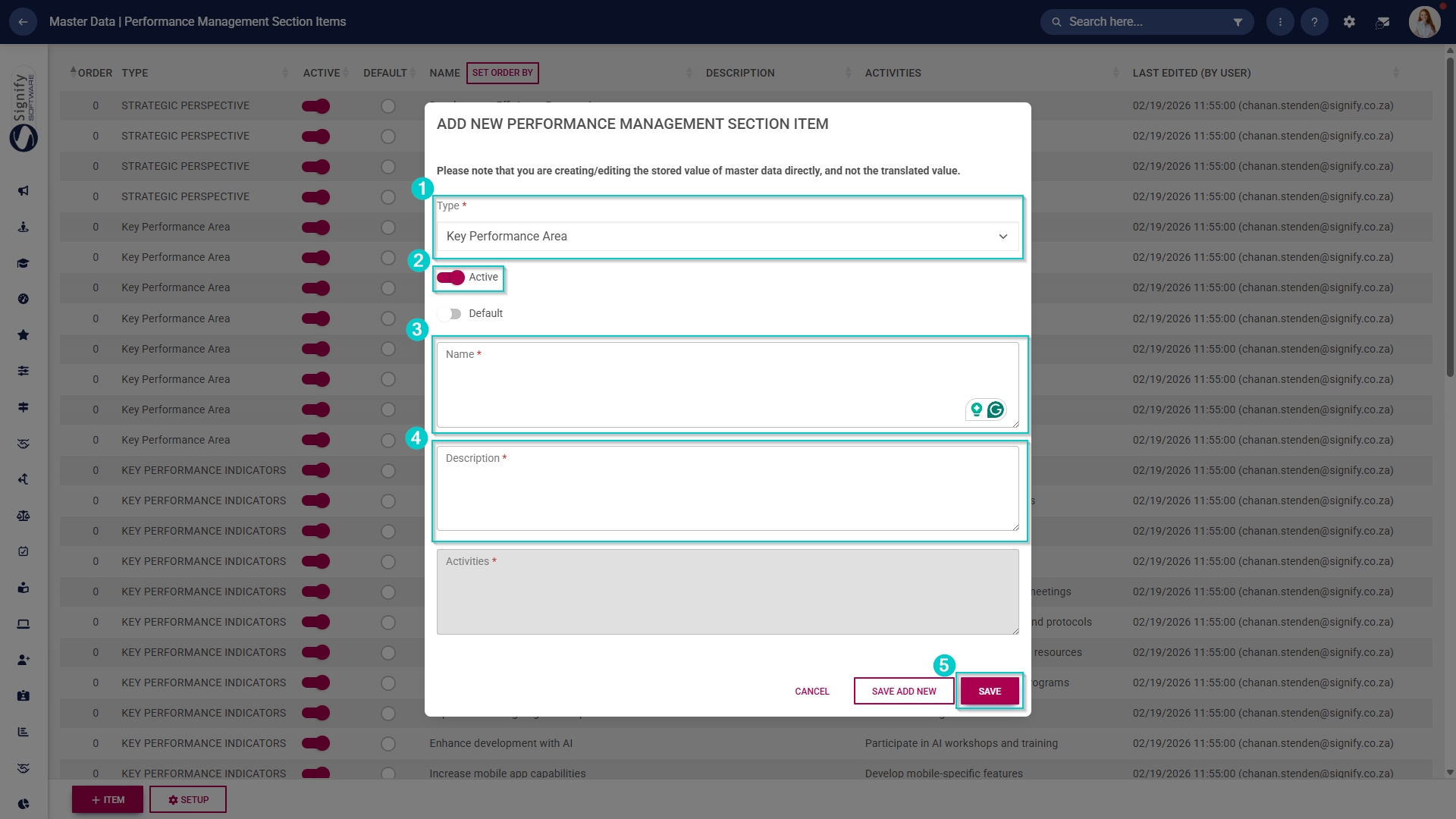
- Select the type of section item from the drop-down menu.
- Toggle the switch to set the status to active.
- Add a name for the section item.
- Add a description.
- Click SAVE when you are finished, SAVE ADD NEW to add another master data item or click CANCEL to discard your edits.
Configure evaluation periods
- Click on the Evaluation Periods category to continue.
- To add a new master data item, click on +ITEM.
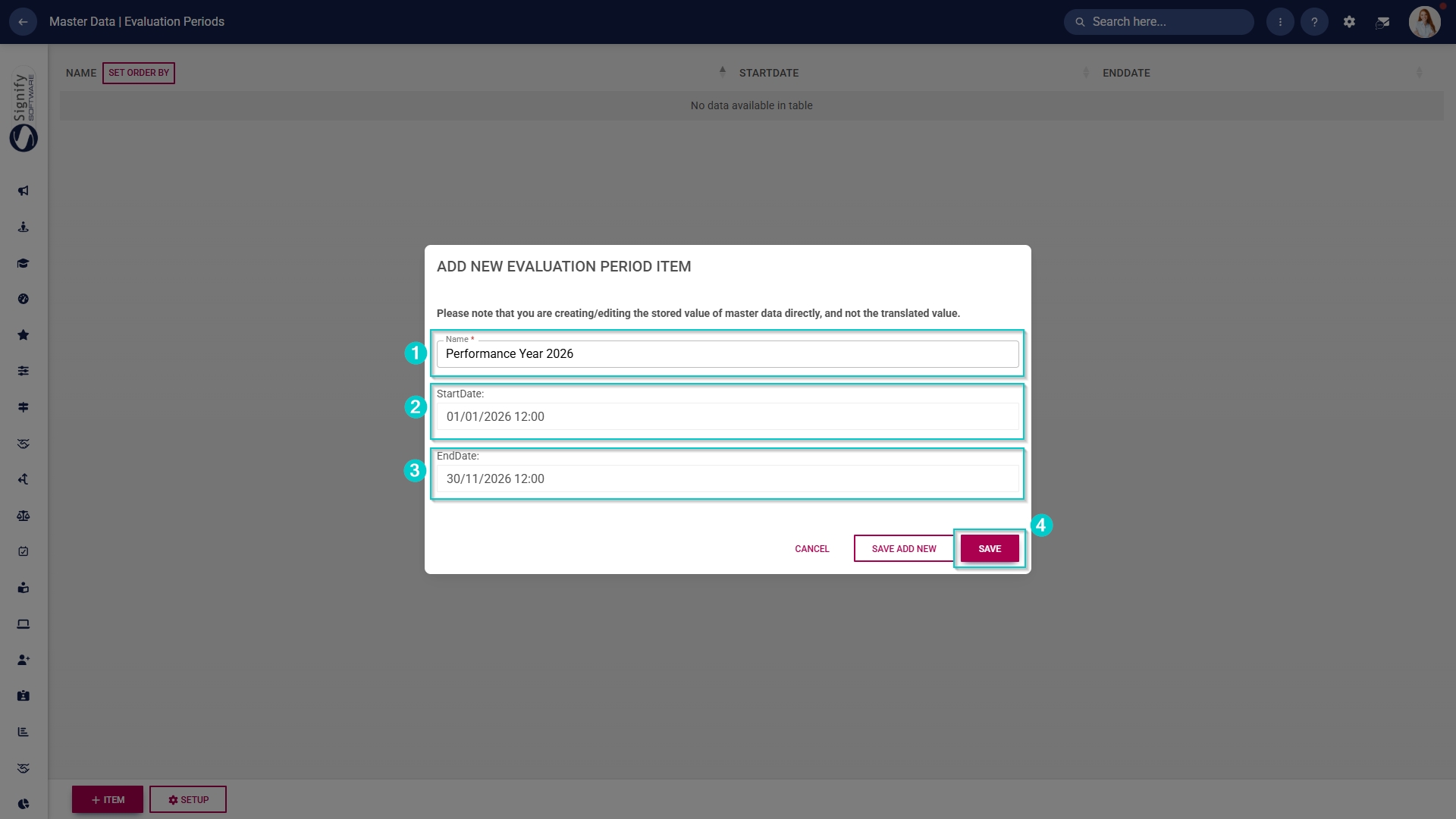
- Add a name for the evaluation period.
- Select a start date and an end date.
- Click SAVE when you are finished, SAVE ADD NEW to add another master data item or click CANCEL to discard your edits.
Performance Management product setup
- Click the gear icon to access the Setup and Configuration menu.
- Click Ruleset Setup.
- Select the ruleset you would like to update.
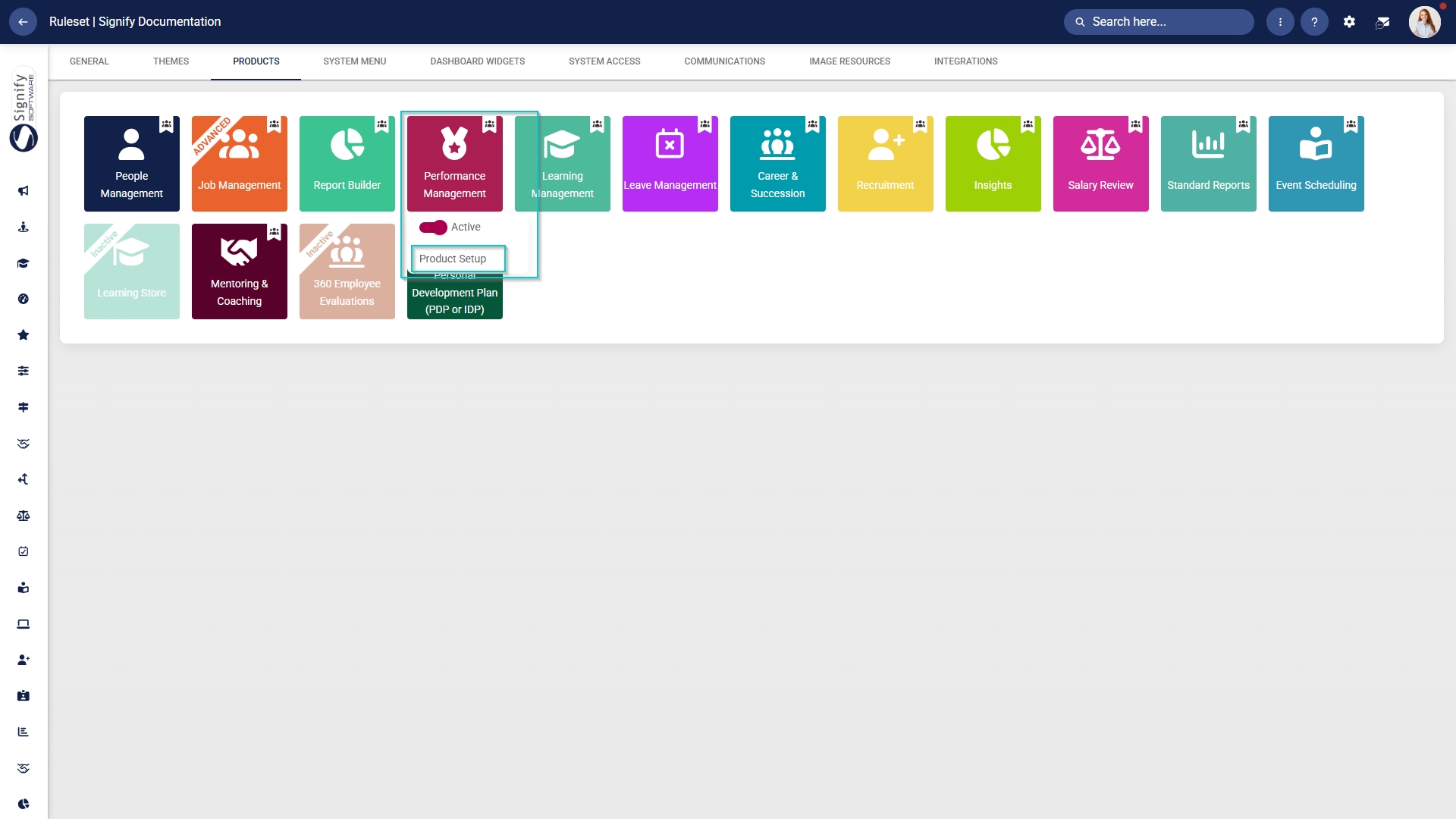
- Click on the Performance Management product card, then click Product Setup.
1. REVIEW SETUPS
WHY: A Review Setup consists of a set of rules and configuration. There can be more than one Review Setup if different sets of rules are used in a specific year.
WHERE: On the Performance Management Dashboard, navigate to the  icon and select Product Setup. The first tab is the Review Setup.
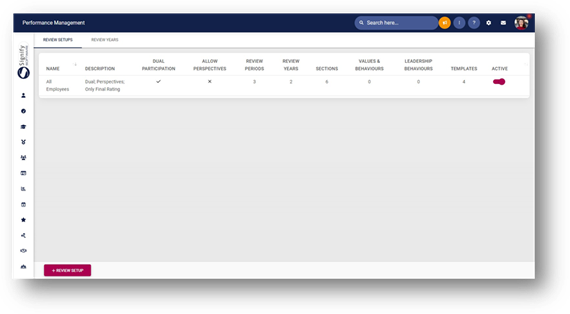
ADD A NEW REVIEW SETUP
·A Clickreview setup defines the structure and rules governing the performance review process within an organisation. It determines how performance agreements function, specifying rating permissions, the level of the employee's involvement, and approval workflows.

When you start the review setup, only the Details menu item will be accessible. However, once you have adjusted and saved the review setup settings, the other menu items will become available.
Let's examine each menu item more closely.
Details
The name, description, and configuration settings for the review setup can be edited on the 
button located in the footer of the page.screen.
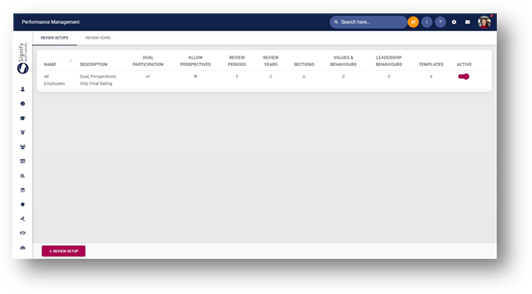
On the next page, the following sections should be completed
· Details
· Review Items
· Sections
· Templates
DETAILS
In this section, the Name and Description of the Review Setup must be completed as well as the settings the setup will use.
GENERAL SETTINGS |
SettingSETTING NameNAME
MODE
DescriptionDESCRIPTION
Dual participation -– Bothboth the employee and the manager will take partparticipate electronically. If disabled, only the manager will take
participate electronically.

Enabled: Allows employees and managers to make changes and submit the agreements
Disabled: OnlyEither the manager willor bethe ableemployee tocan makecreate
the performance agreement. The setting and submit.rating of
objectives requires the employee's participation.
Also activates the Dual Participation settings (see below).

The manager can create and approve the performance agreement and rate the objectives without the employee's participation. The employee will be allowed to view the agreement.
Also deactivates the Dual Participation settings (see below).
Allow perspectives.
Allows perspectives as the highest level of categorisation. KPAs will be added to perspectives when
creating performance agreements.
Perspectives are not required for performance
agreements, so KPAs can be added directly when
creating performance agreements.
Allow the Managermanager to edit Reviewthe Surveyreview Scores
survey scores.
Enabled: A manager will be able tocan update the Reviewreview Surveysurvey Scores scores.
Employees
canDisabled: A manager will not be able to updateview the Review Survey Scoresscores.
Allow Perspectives
(Highest level of categorisation)
The Enabled:review Allowsurvey thisscores levelcannot tobe show
Employees
andDisabled:managers Don’tcan showsee the level
The timeline will display on the Performance Management dashboard.
The timeline will not display on the Performance Management dashboard.
The next
Enabled:
Disabled: Both
Instead of displaying scores and weights, labels will
be added to the rating scales.
The scores and weights will be displayed during the Ratings phase.
Allow excluding review items.
Review items can be excluded from the overall final score.
All review items are included in the overall final score.
Auto-copy the objectives from the previous review period in the same year. The agreement status will also be copied (e.g., Approved or In Progress).
The objectives from the immediately preceding review period's agreement are automatically copied, without
needing to select the agreement.
The agreement's status will also be copied
(e.g., Approved or In Progress).
If no immediately preceding agreement is available, the pop-up menu prompts you to create one.
In this instance, it does not copy the agreement's status.
The pop-up menu with the agreement creation options will appear. Objectives from the previous review
period's agreement will not be copied.
When copying from another agreement, use the section weights from the copied agreement rather than those of the review setup. The rest of the structure is copied from the review setup's configuration.
The section weights from the copied agreement
override the section weights configured in the
review setup's settings.
The copied agreement will inherit the section
weights from the review setup's settings.
Allow other people (other than the
manager) to rate a person at the lowest level (e.g., KPI level).
Selected people (other than the manager) can evaluate
a person on a specific KPI.
Also activates the Allow Non-Manager Ratings settings
(see below).
Only the manager can rate a person at the KPI level.
Also deactivates the Allow Non-Manager Ratings
settings (see below).
Lock agreements for managers and employees.
Managers and employees can view agreements but
not edit them.
Also activates the Locked Agreements settings
(see below).
Managers and employees can view and edit agreements.
Also deactivates the Locked Agreements settings
(see below).
Allow interpolation
Interpolation is used to map actual values to the rating scales of a KPI. Actual values are entered when
rating a KPI, and these values are then mapped
to give a rating. A rating can also be excluded.
Interpolation is switched off.
Allow adding of a training intervention to PDP (when adding a new action plan).
When adding an action plan to a performance
agreement (if enabled), a training intervention can be added to a PDP.
Action plans are added to performance agreements
without linking to training interventions.
PersonDUAL PARTICIPATION SETTINGS
SETTING NAME
MODE
DESCRIPTION
The person's Self-Rating and Manager Rating must be approved before the Final Rating can be
This setting appears only when Dual Participation is enabled.
The main setting, as well as the sub-setting, determines
how this will work.
Sub-setting 1
·Show Showthe person's approved Self-Rating to the manager only once the manager has approved the Manager RatingRating.
The employee's self-rating and the manager’s rating must
be approved before the final rating can be completed.
The person’s self-rating will be visible to the manager
once their rating has been approved.
Sub-setting·Show Showthe person's approved Self-Rating to managerthe manager, regardless of the Manager Rating approval statusstatus.
The employee's self-rating and the manager’s rating must
be approved before the final rating can be completed.
The employee's approved self-rating will be shown to the manager, regardless of whether the manager's
ratings have been approved or not.
· Show the Manager Rating to the person only once the Final Rating has been approved.
This setting only shows when Dual Participation has been enabled. It has sub-settings when selected. The main setting as well as the sub-setting determines how this functionality will work.
Sub-Setting 1
The person’employee's self-rating and the manager’s rating shouldmust
be approved before the final rating can be done. The person’s self-rating will only show to the manager once the Manager Rating has been approved.completed.
Sub-Setting 2
The person’s self-rating and the manager’s rating should be approved before the final rating can be done. The person’s approved self-rating will be shown to the manager regardless of whether the manager ratings have been approved or not
Sub-Setting 3
The person’s self-rating and the manager’s rating should be approved before the final rating can be done. The manager’s rating will only be visible to the
person once the Finalfinal rating has been approved
approved.
This setting only shows when the Dual Participation
setting has been enabled.
Both the managermanager’s rating and the final rating can be completed at the same time. The final rating can only be approved whenonly once the person’s self-ratings hashave
been approved. The manager will only see the
self-ratings onceonly itafter hasthey have been approved.
The employee will see the managermanager's ratings once
they hashave been approvedapproved, and will see the final ratings
once itthese has beenare approved.
Only show the Final Rating column,column and hide the Manager Rating columncolumn.
This setting only shows when the Dual Participation
setting has been enabled.
The manager rating column is hiddenhidden, and only the
self-ratings and final ratings are needed. The final
rating can only be approved when the person’employee's
self-ratings hashave been approved.
ALLOW NON-MANAGER RATINGS SETTINGS
SETTING NAME
MODE
DESCRIPTION
Allow anonymous evaluations
Enabled:Selected Insteadpeople, ofother than the scoresmanager, displaying,can therate labelsa will show addedperson on thea ratingKPI scales.
Disabled:level. The normalevaluation scoreresults will be displayed.presented anonymously.
The main setting, as well as the sub-setting, determines
how this will work.
Allow excluding Review Items
Enabled:Selected people, other than the manager, can rate a
person on a KPI level. The Reviewcomments Itemsand canratings of
the person who performed the evaluation will be excluded from the Overall Final Score
Disabled: All Review Items are included in the Overall Final Scoreshown.
Auto-copy Objective Settings - The Objective Settings from the previous Review Period will be copied as well as the status the Review Period was in (approved or in progress)
Enabled: The objective settings from the previous review period will be automatically copied as well as the status. The pop-up will not show when clicking on the start button.
Disabled: The pop-up to select how the agreement should be created are shown.
Allow other people (apart from the manager) to also rate a person on the lowest level (Example KPI level)
Sub-setting 1
· Allow Anonymous Evaluations
Sub-setting 1.1
o Show the results anonymously (Manager and Employee will not see who submitted the ratings)
Sub-setting 1.2
o Show the results anonymously only to the Employee (Manager will see who submitted the ratings, but not the Employee)
Enabled: The ability to select people to evaluate on a specific KPI is made available
Disabled: People cannot evaluate on a KPI
Sub-setting 1
Enabled: The results of the evaluations are shown anonymously.
Disabled: The person who submitted the evaluation will be shown with the comments and ratings.
Sub-setting 1.1
This setting show when Anonymous Evaluations have been enabled. Both the manager and employee will not see who submitted the ratings).
Neither the manager nor the employee will see who submitted the ratings.
This
The evaluation summary page will not be ablevisible to
employees, but the manager can view it.
Sub-setting 4: Show the comments and ratings anonymously (the manager and employee will see the ratings and comments submitted).
The manager and employee can view the ratings and comments submitted, but will not see who
submitted them.
LOCKED AGREEMENTS SETTINGS
SETTING NAME
MODE
DESCRIPTION
Always
Managers and employees can view performance agreements, but they cannot edit them.
Only when created via a performance management API (when created manually, this rule will not apply).
Managers and employees can view performance agreements, but cannot edit them if the agreements were created using a performance management API.
REVIEW ITEMS
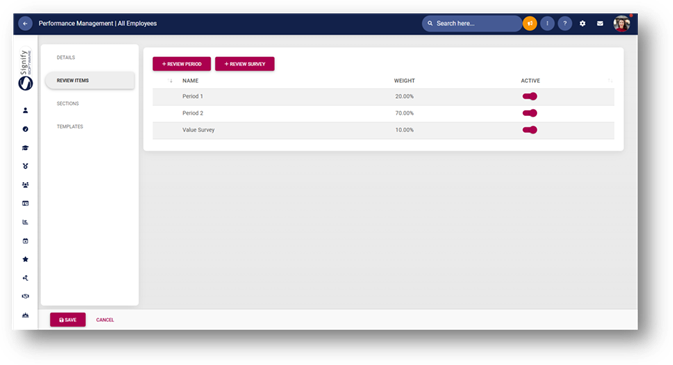
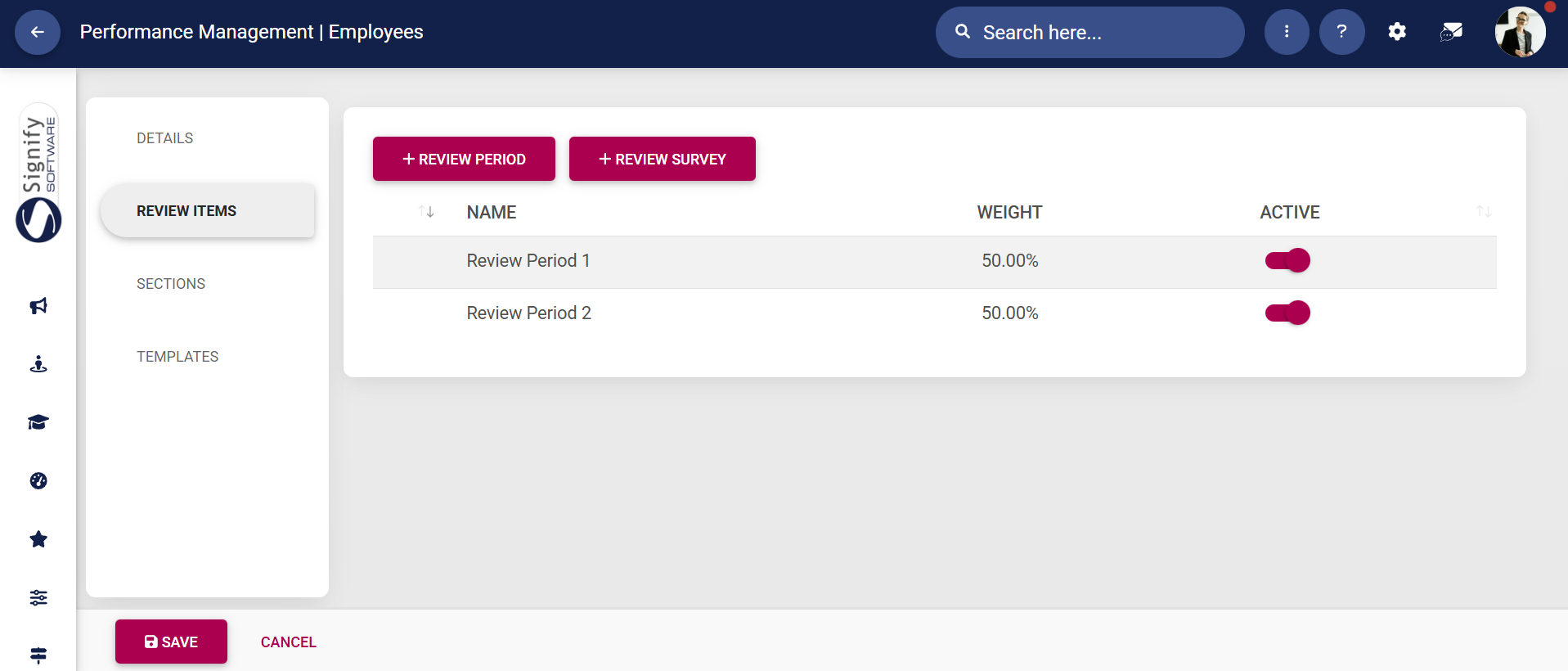
· The
Review Items are the Review Periods
o A period consists of 3 phases – Objective Settings, Check-Ins and Ratings
· New Review Periods and Review Surveys can be added
· The periods have their own weights – the total should always have a total weight of 100%
SECTIONS
· These are the Sections available on the Performance Agreement
o Primary Goals
o Stretch Goals
o Values & Behaviours
o Leadership behaviours
o Key Competencies
o Action Plan
The active sections should add up to 100%. Each section’s content is explained below.
PRIMARY GOALS
Item
Description
Weight (%)
This is the weight for this section
Active
This section cannot be switched off
Key Performance Indicator weights must total to 100% within each Key Performance Area
Sub-setting
Automatically distribute item weights
The KPI’s within each KPA should add to 100%.
Sub-setting
Instead of adding weights for each KPI, the weights are distributed equally.
Key Performance Indicator weights must total to 100% for the Section
Within the section, all KPI’s across all KPA’s should add to 100%. Example: There are 2 KPA’s. Within each KPA, there are 3 KPI’s. All 6 KPI’s should add to 100%.
Allow Section Weight Change
This allows the user to change the allocated weight.
Performance Rating Scales
These are the Rating Scales that is used when the Rating Phase is open. A rating scale can b added that is excluded from the score.
Check-in Rating Scales
These are the Rating Scales that is used when the Check-ins Phase is open.
STRETCH GOALS
Item
Description
Weight (%)
This is the weight for this section
Active
This setting determines whether the section is active or not
Key Performance Indicator weights must total to 100% within each Key Performance Area
Sub-setting
Automatically distribute item weights
The KPI’s within each KPA should add to 100%.
Sub-setting
Instead of adding weights for each KPI, the weights are distributed equally.
Key Performance Indicator weights must total to 100% for the Section
Within the section, all KPI’s across all KPA’s should add to 100%. Example: There are 2 KPA’s. Within each KPA, there are 3 KPI’s. All 6 KPI’s should add to 100%.
Allow Section Weight Change
This allows the user to change the allocated weight.
Performance Rating Scales
These are the Rating Scales that is used when the Rating Phase is open. A rating scale can b added that is excluded from the score.
Check-in Rating Scales
These are the Rating Scales that is used when the Check-ins Phase is open.
VALUES & BEHAVIOURS
Item
Description
Weight (%)
This is the weight for this section
Active
This setting determines whether the section is active or not
Allow Section Weight Change
This allows the user to change the allocated weight.
Automatically distribute item weights
Instead of adding weights for each KPI, the weights are distributed equally.
Allow the user to change the items in this list
This allows other items to be linked to this section. The linked items will display on the agreement and more can be added if this setting is enabled.
Performance Rating Scales
These are the Rating Scales that is used when the Rating Phase is open. A rating scale can b added that is excluded from the score.
Check-in Rating Scales
These are the Rating Scales that is used when the Check-ins Phase is open.
Linked Items
Values & Behaviours can be linked to this section. All agreements in this review setup will have these items display on the agreements.
LEADERSHIP BEHAVIOURS
Item
Description
Weight (%)
This is the weight for this section
Active
This setting determines whether the section is active or not
Allow Section Weight Change
This allows the user to change the allocated weight.
Automatically distribute item weights
Instead of adding weights for each KPI, the weights are distributed equally.
Allow the user to change the items in this list
This allows other items to be linked to this section. The linked items will display on the agreement and more can be added if this setting is enabled.
Performance Rating Scales
These are the Rating Scales that is used when the Rating Phase is open. A rating scale can b added that is excluded from the score.
Check-in Rating Scales
These are the Rating Scales that is used when the Check-ins Phase is open.
Linked Items
Values & Behaviours can be linked to this section. All agreements in this review setup will have these items display on the agreements.
KEY COMPETENCIES
Item
Description
Weight (%)
This is the weight for this section
Active
This setting determines whether the section is active or not
Allow Section Weight Change
This allows the user to change the allocated weight.
Automatically distribute item weights
Instead of adding weights for each KPI, the weights are distributed equally.
Allow the user to change the items in this list
This allows other items to be linked to this section. The linked items will display on the agreement and more can be added if this setting is enabled.
Performance Rating Scales
These are the Rating Scales that is used when the Rating Phase is open. A rating scale can b added that is excluded from the score.
Check-in Rating Scales
These are the Rating Scales that is used when the Check-ins Phase is open.
ACTION PLAN
Item
Description
Active
This setting determines whether the section is active or not
TEMPLATES
WHY: Templates are used when 2 or more people have the same content/objectives on their Performance Agreements.
WHERE: On the Performance Management Dashboard, navigate to the 
icon and select Product Setup. On the Review Setu tab, click to edit the Review Setup and navigate to the Templates menu. Click on the 
button in the footer of the page.
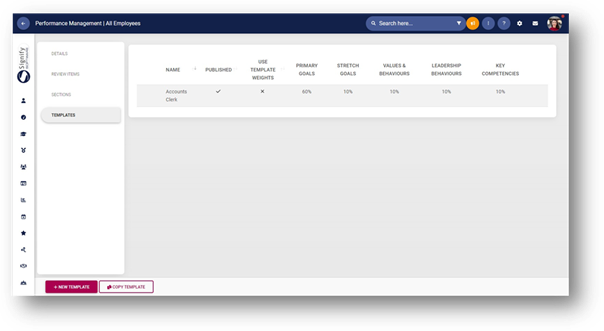
TEMPLATE DETAILS
The following details is required:
· Name
o This is the distinct name of the template to ensure that people will know what the template is
o Use names such as Job Titles for example
· Published
o When this setting is enabled, this template will be available to the people to copy from
· Use Template Weights
o The weights of the sections can be overridden when creating the templates
o If the weights of the sections should be used, disable this section
TEMPLATE CONTENT
· The sections that have been enabled is shown here
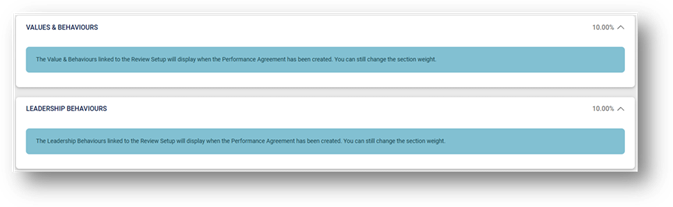
· Perspectives, Key Performance Area and Key Performance Indicators should be added for each enabled section
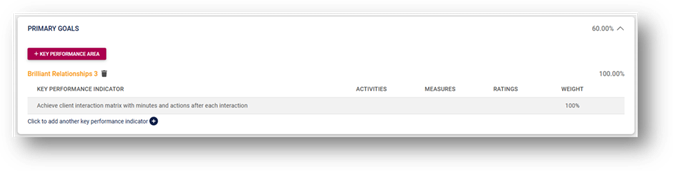
· Values & Behaviours and Leadership Behaviours that is linked to the Review Setup will display when the Performance Agreement has been created.
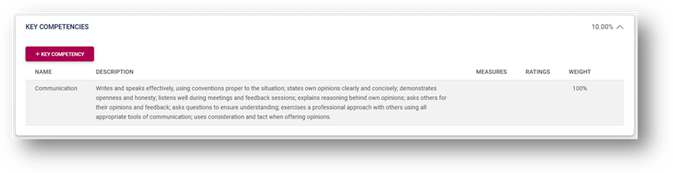
· Key Competencies should be added to the template
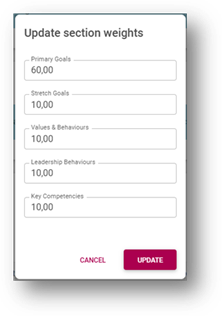
· To Update the Section weights, click on the 
button
o A pop-up will open, and the weights can be updated for each section
· Once the Template have been created, click on the 
button.
· The template is saved and available in the list
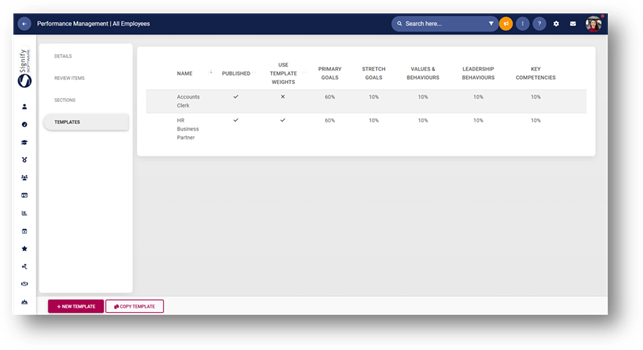
· A template can also be copied. Click on the 
button
· A list of all available templates across Review Setups are displayed
· Click on the Template that needs to be copied and click on the 
button
· The template is copied and has “Copy of…” in front of the Name which can be updated by clicking on the row
· A template can be previewed, copied and deleted by hovering on the row

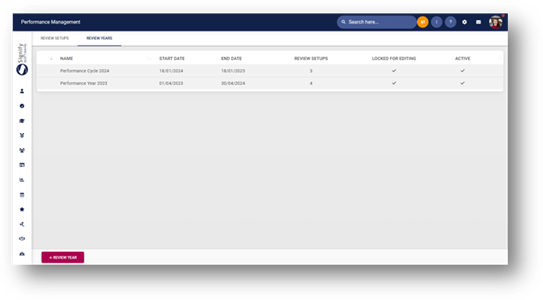
2. REVIEW YEARS
WHY: The Review Year is the cycle in which the phases are done. It consists of different setups linked and periods in which the phases should be completed. People Groups are linked to a Review Setup which is linked to the Review Year.
WHERE: On the Performance Management Dashboard, navigate to the 
icon and select Product Setup. On the Review Year tab. Click on the 
button.
DETAILS SECTION
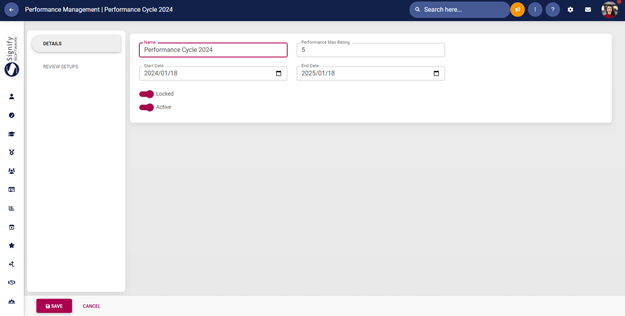
· The following fields should be completed:
o Name
o Performance Max Rating
§ The scores will be calculated according to the Max Rating
· Example: 2.59 out of 5.00
o Start Date
o End Date
o Locked
§ When this setting is enabled, the Agreements cannot be edited
o Active
§ When this setting is enabled, the end-user will see this year in the drop-down list of the dashboard
· Click on the 
button
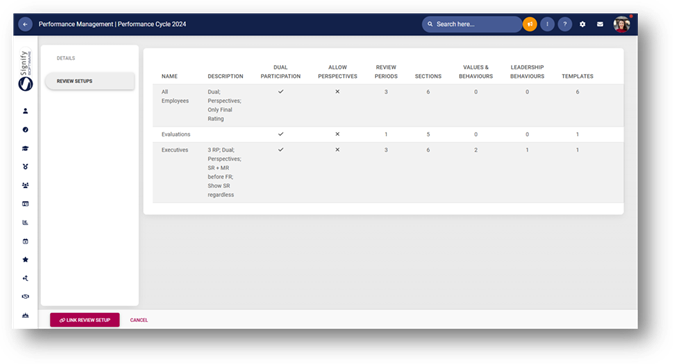
REVIEW SETUPS
· In this section, the applicable Review Setups that were created in the Review Setup tab, can be linked to the year
· To link a Review Setup, click on the 
button
· A pop-up opens with a list of all the existing Review Setups
· Click on a row to select a setup and click on the 
button
· All linked Review Setups are displayed in the list
· To complete the setup, the Review Periods and phases should be configured
· Click on the row to configure the Review Periods
REVIEW PERIOD SECTION
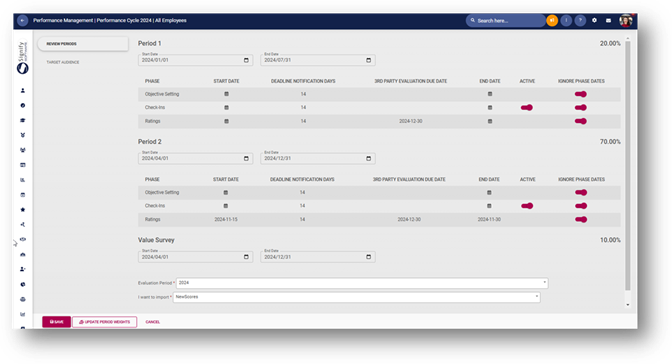
· The Review Period that was configured on the Review Setup is displayed in this section
· The start and end date should be defined as well as the phase dates
· To add a phase date, click on the start date row of the phase
· A pop-up opens to add the following dates
o Start Date of the phase
o End Date of the phase
o Deadline Notification Days
o 3rd Party Evaluation Due Date (if applicable and available only for the Ratings Phase)
· When all the dates have been configured, click on the 
button in the footer of the page
· The Review Survey has the following fields to be completed
o Start Date
o End Date
o Evaluation Period
§ Values are derived from the 360 Evaluations
o I want to import
§ Only New Scores
§ New Scores and overwrite already imported scores
TARGET AUDIENCE
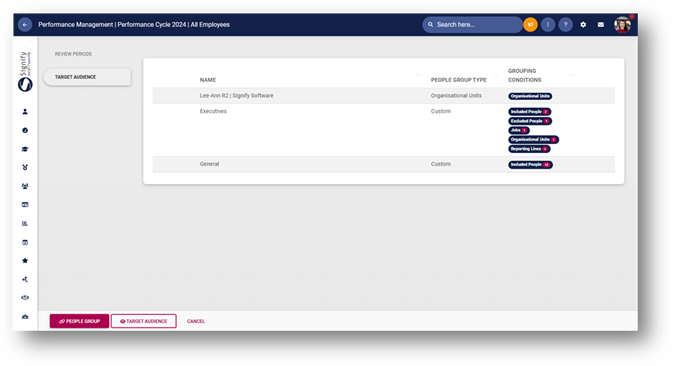
· The last of the setup is to link People Groups to the Review Setup
o These people will be using all configuration of the Review Setup that is linked to the Review Year
· Click on the 
button
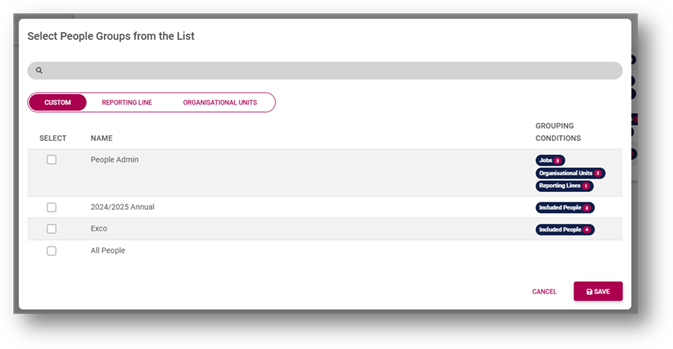
· A pop-up opens with all the created People Groups in the list
· Multiple People Groups can be selected
· Once the groups have been selected, click on the 
button
· The People Groups are now available in the list
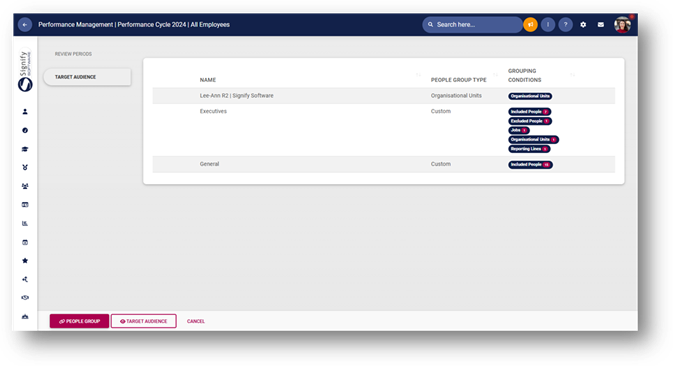
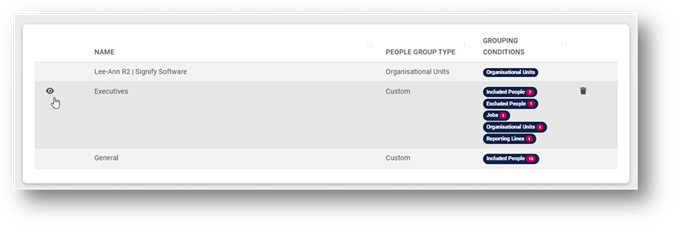
· The people linked to each group can be viewed by clicking on the view icon on the row
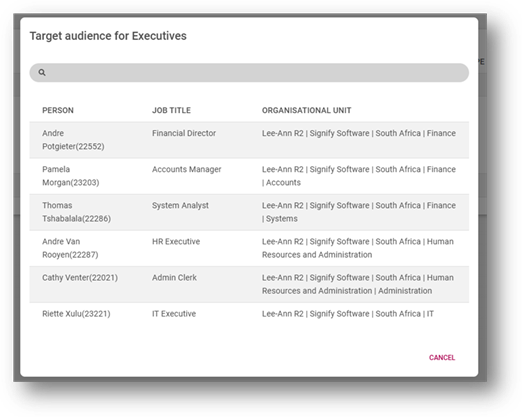
· A pop-up opens with the list of people linked to the People Group
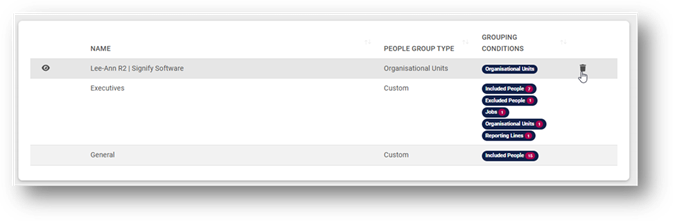
· The People Group can be removed from the Target Audience by clicking on the delete icon on the row
· The combined list of People Groups forms part of the Target Audience
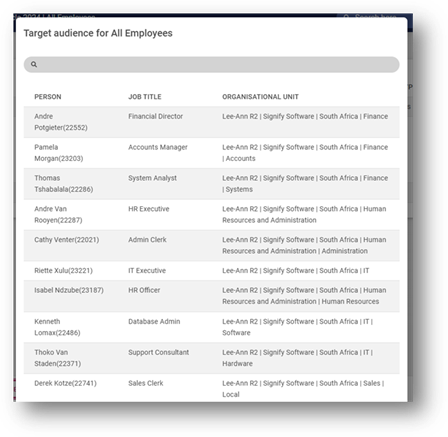
· To see the whole list, click on the 
button
· A pop-up opens with the list of people that is linked to the Review Setup for the specific Year
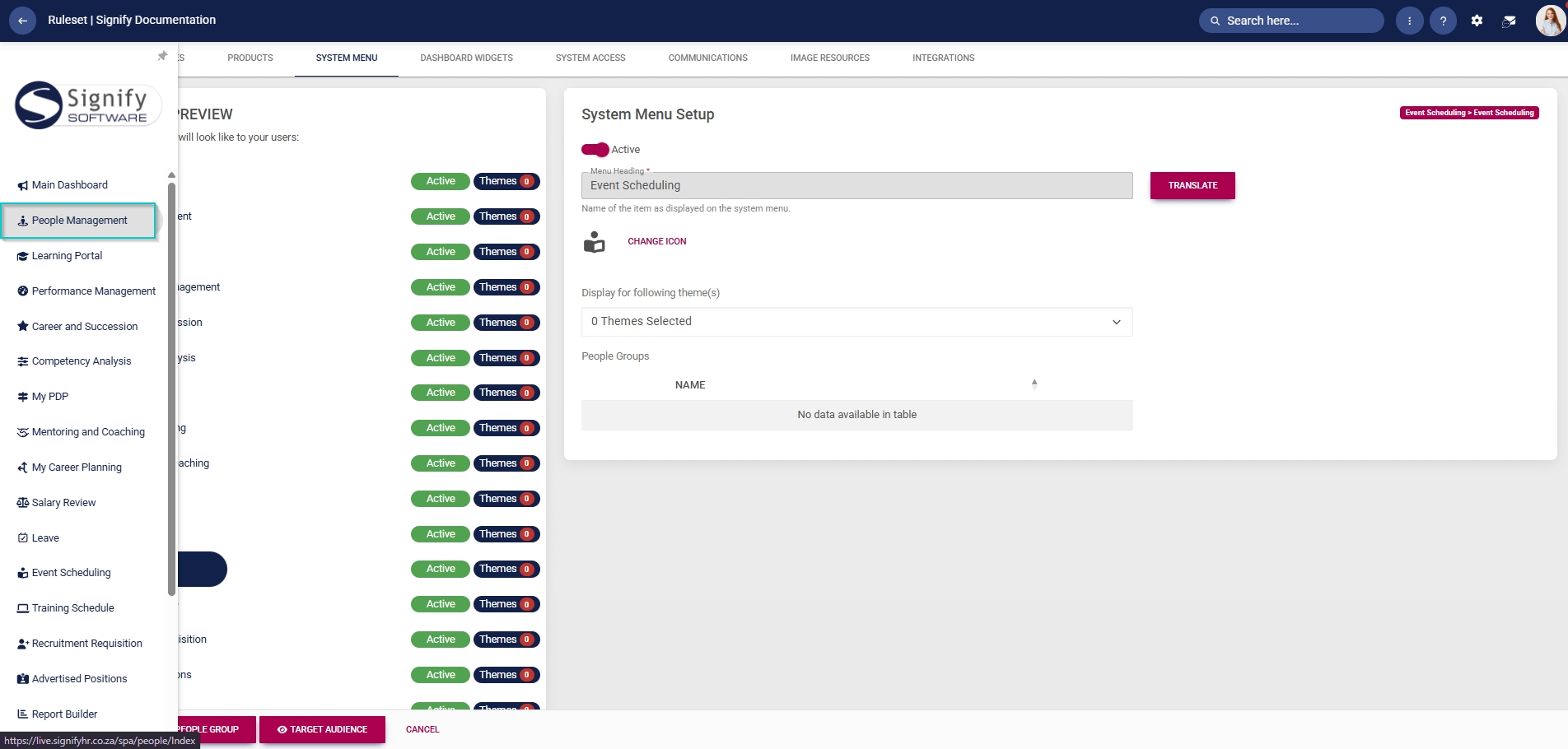
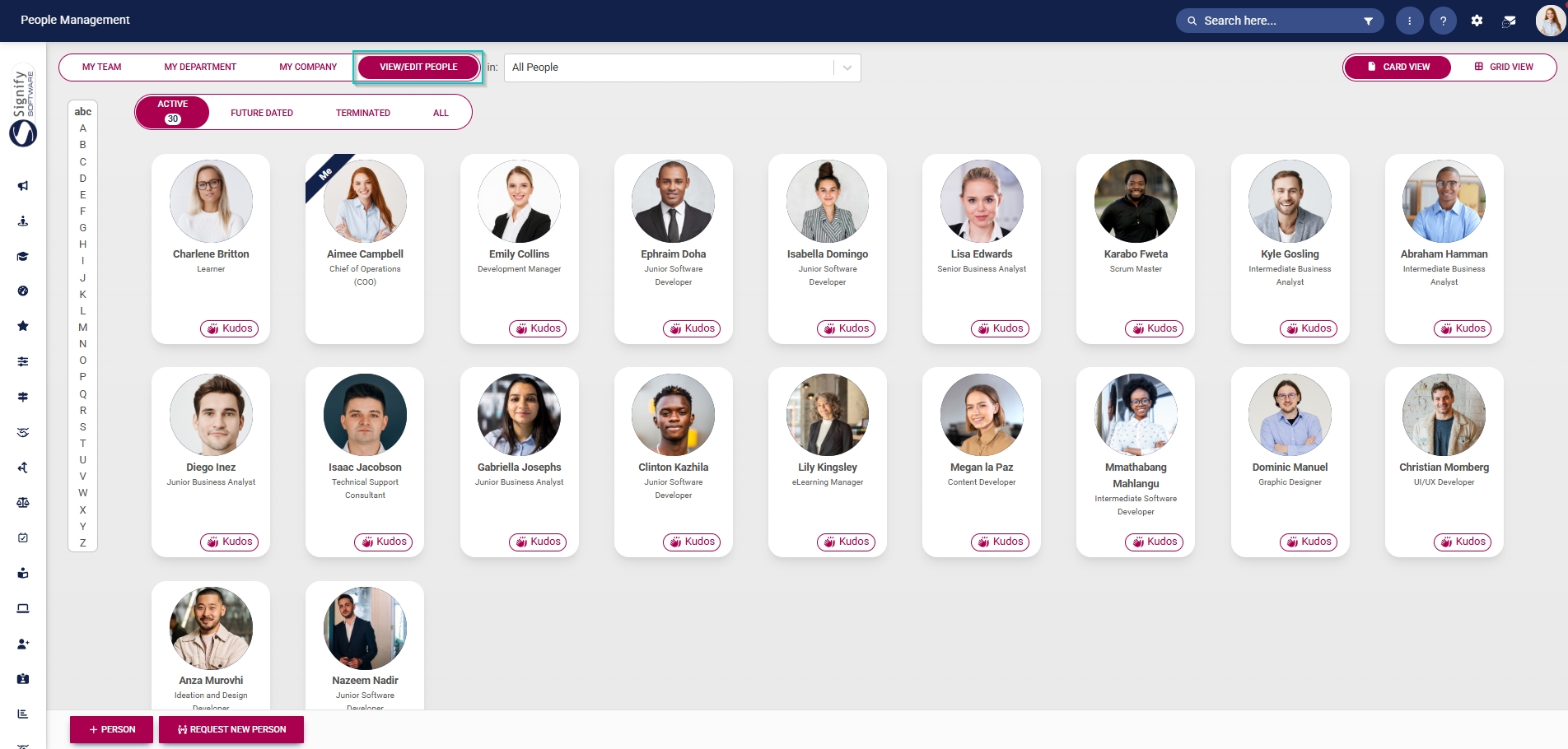
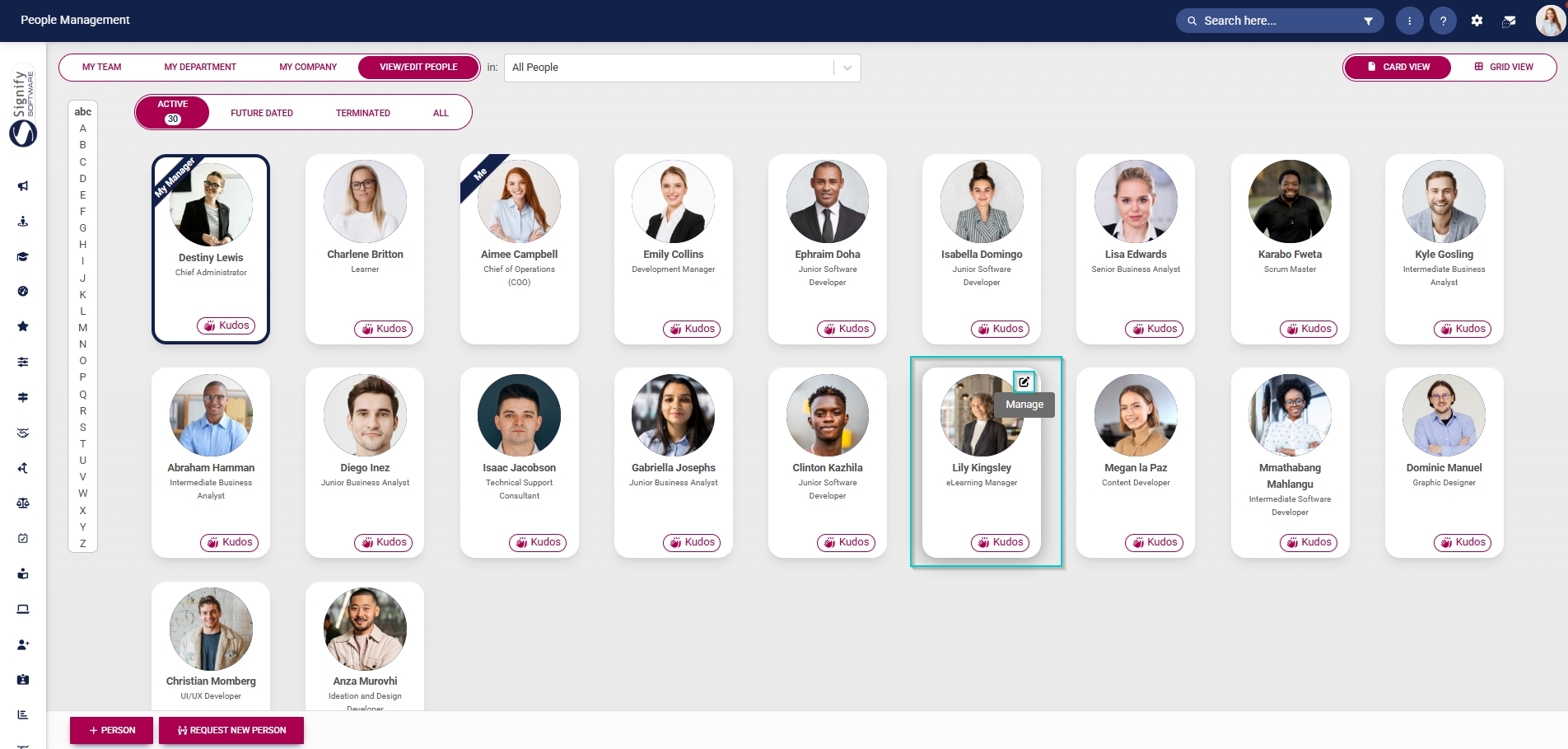
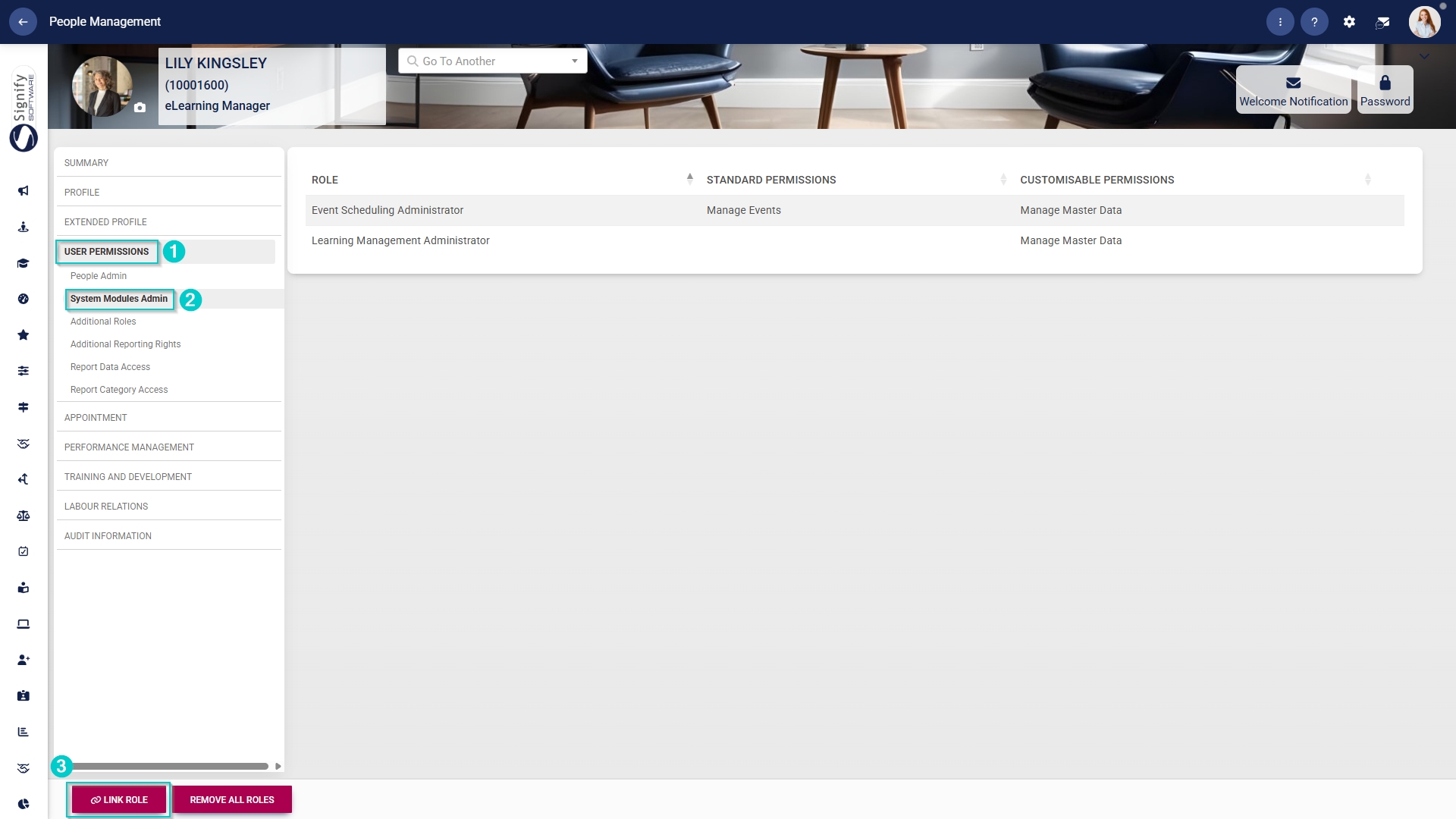
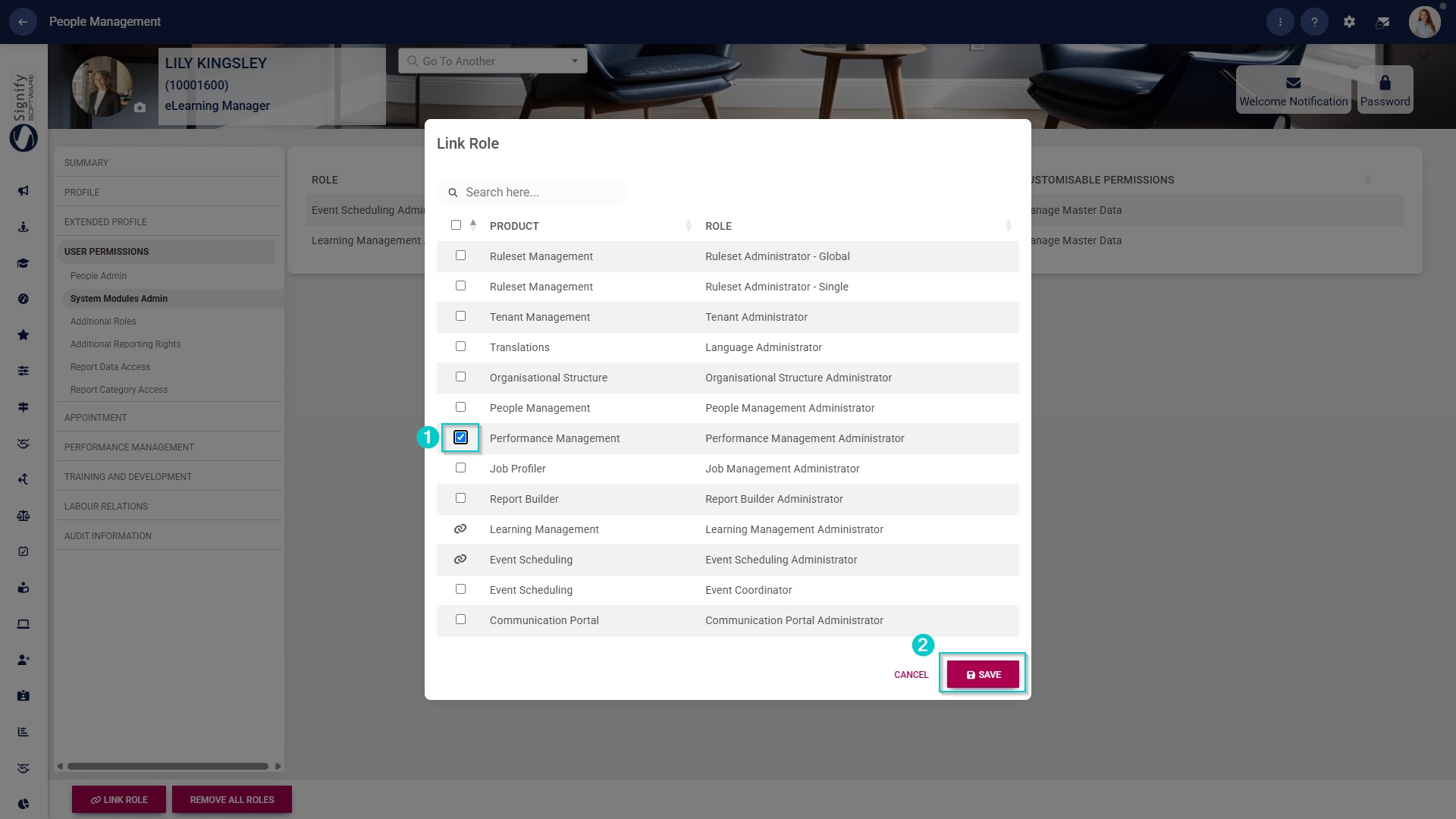
Assign the Performance Management administrator permission
Sections
The different Sections of the performance agreement can be switched on or off, assigned weights, or configured for use. The following steps will guide you through the setup and configuration of the sections of a performance agreement.
A performance agreement can consist of the following sections:
Leadership Behaviours (optional) Key Competencies (optional)
It is important to ensure your section weights add up to 100% for the performance agreement, or you may receive an error message as follows:
Let us look at the settings linked to each section of the performance agreement in more detail.
Primary Goals
Primary Goals form the core performance expectations of a role. They define what must be delivered for the organisation to function effectively and sustainably.
Since this section of a performance agreement is always enabled by default, the toggle to disable it is greyed out.
Stretch Goals
This section is an optional addition to performance agreements. Stretch Goals are intentionally ambitious and are typically linked to strategic growth, innovation or transformation rather than routine delivery.
Values and Behaviours
The Values and Behaviours section of a performance agreement supports growth beyond technical competence. Whereas the primary goals focus on what is achieved, this section focuses on how it is achieved. Evaluating this section serves several purposes:
Leadership Behaviours
Including a Leadership Behaviours section in a performance agreement is crucial to strategic governance. It not only assesses leadership effectiveness but also emphasises its direct influence on organisational culture and long-term success. At senior levels, leadership behaviours significantly shape the broader organisational environment, influencing team dynamics, decision-making, and overall performance beyond individual KPIs.
Key Competencies
Listing Key Competencies in a performance agreement ensures that capability, not only output, is formally assessed. While goals measure results, competencies evaluate the underlying skills and proficiency that enable high performance.
This section strengthens talent governance, succession planning and capability development.
Action Plan
Linking an Action Plan to a performance agreement transforms the document from a static evaluation tool into a dynamic performance management instrument. It ensures that identified gaps, risks or development areas are not merely recorded but actively addressed. In other words, this section closes the loop between assessment and improvement. Toggle to switch action plans on or off.
Templates
The final menu item when creating or editing review setups is Templates.
Creating performance agreement templates can greatly enhance the efficiency of developing performance agreements, making the process smoother and more organised. This not only ensures consistency in format but also helps minimise administrative burdens. By following this guide, you’ll be equipped to craft reusable performance agreement templates that can serve effectively across multiple performance cycles.
To begin, ensure you are on the Templates screen in the review setup's settings.
Create New Template
Add Primary Goals and Stretch Goals
The process for adding primary and stretch goals is the same for both sections. Follow the steps below to add primary goals, then repeat them for stretch goals.
Add perspectives
Add KPAs
Add KPIs
Add Values and Behaviours, Leadership Behaviours, and Key Competencies
Values and Behaviours are configured in the review setup's settings and will automatically be populated when the performance agreement is created.
The same will happen with Leadership Behaviours.
Key Competencies can be linked to the performance agreement template by either creating your own, or selecting one from the Master Data Library.
Save a created template
Import a Template
Templates can also be imported using an import sheet. The template will be populated using Excel, prepared for import into the Performance Management module, and automatically linked to a review setup.
