Ratings Phase


The Ratings Phase Explained
Once performance objectives have been submitted and approved, theThe Check-InRatings Phase will start.
This is an integral part of the performance management process,process as it provides time for employees to workfocuses on achievingevaluating the employee based on the objectives specified in their performance agreements,agreement. whileIf managersthe candual monitorparticipation theiroption progressis enabled in the review setup, both the employee and providethe feedback.
manager Thewill Performancebe Managementinvolved module's check-in functionality works best when paired with one-on-one discussions between employees and managers. By digitally recording content from check-ins, employees have a reference point, and managers can efficiently track the employee'srating progress.process. However, check-insif this option is disabled, only the manager will inenter the details into the Performance Management modulemodule, arewhile notthe mandatoryemployee and canwill be disabledable to review them.
Remember,For aour performance management process is not one-size-fits-all; it is imperative that employees and managers discuss how they will approach it.
Activating Check-Ins
As an administrator or a person with access, navigate toexample, the
Performance Management module.
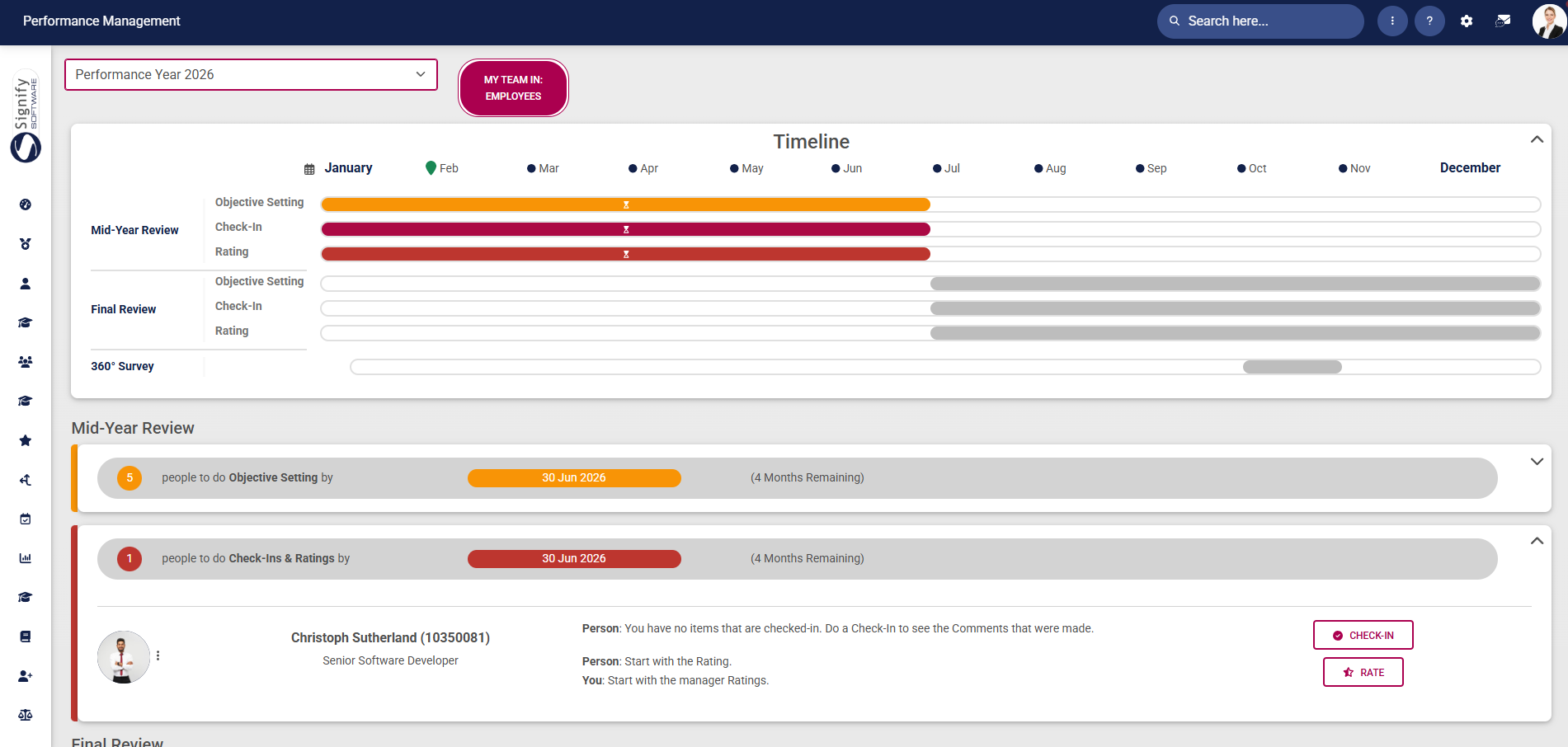
Click on the Setup and Configuration menu.
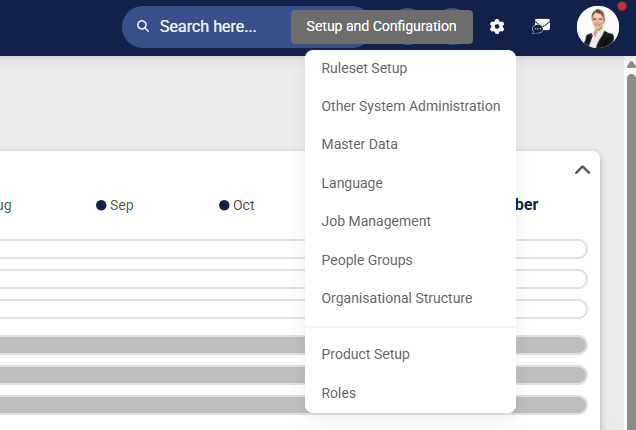
Click on Product Setup.

Click on the Review Years tab.

Click the review year to which thefollowing review setup
issettings linkedhave thatbeen you would like to activate check-ins for.
enabled:


The Details screen of the review year will appear. Click Review Setups in the menu on the left.

Click on the review setup you would like to activate check-ins for.

The review periods for the review setup will appear. Toggle the switch next to check-ins to activate or deactivate check-ins.
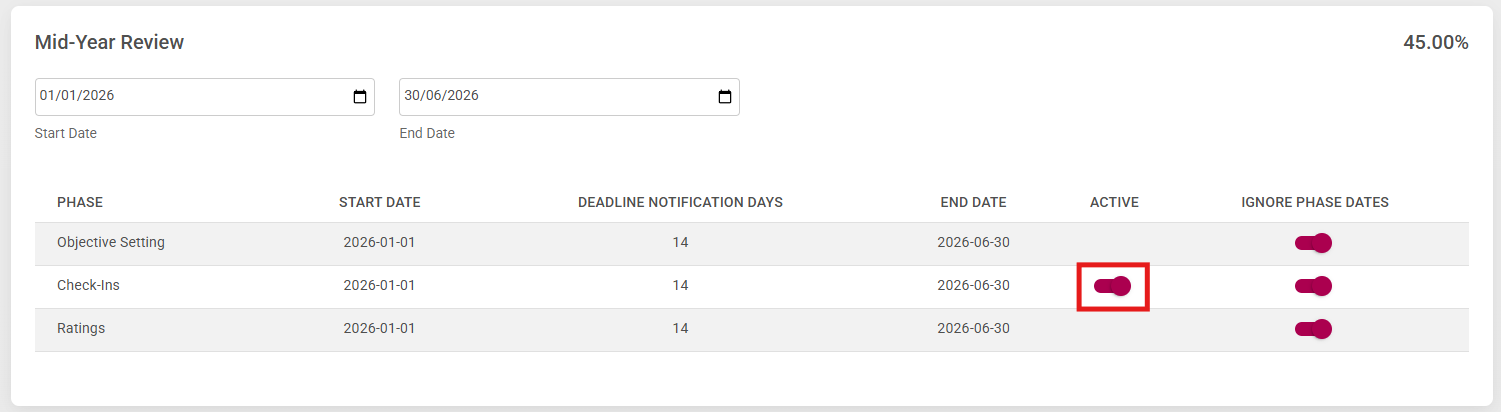
Click SAVE when you are done.

Conducting a Check-In
For our example, we will assume that Emily Collins, the performance manager, will kick off the check-in phase withand her reportee, Christoph Sutherland.Sutherland, will complete the Ratings Phase together.

Please note: since the dual participation setting has been activated for our example, we will explain both the employee's and the manager's roles in the process. If this setting does not apply to your review setup, you may skip the sections explaining the employee's involvement. Moreover, Emily will be able to complete the manager rating and the final rating simultaneously. This means Emily will be able to view Christoph's comments for each objective while she is rating him, but not his self-rating score.
Employee Self-Rating
The employee will start the Ratings Phase by completing their self-rating on each of their objectives. Navigate to the Performance Management dashboard, locate your performance agreement, and click the RATE button.
The employee's performance agreement will open. The left-hand menu may be used for navigation, and the objectives are listed in the centre. The summary banner at the top of the screen shows the person's average rating based on the weights for each KPI that has been rated.
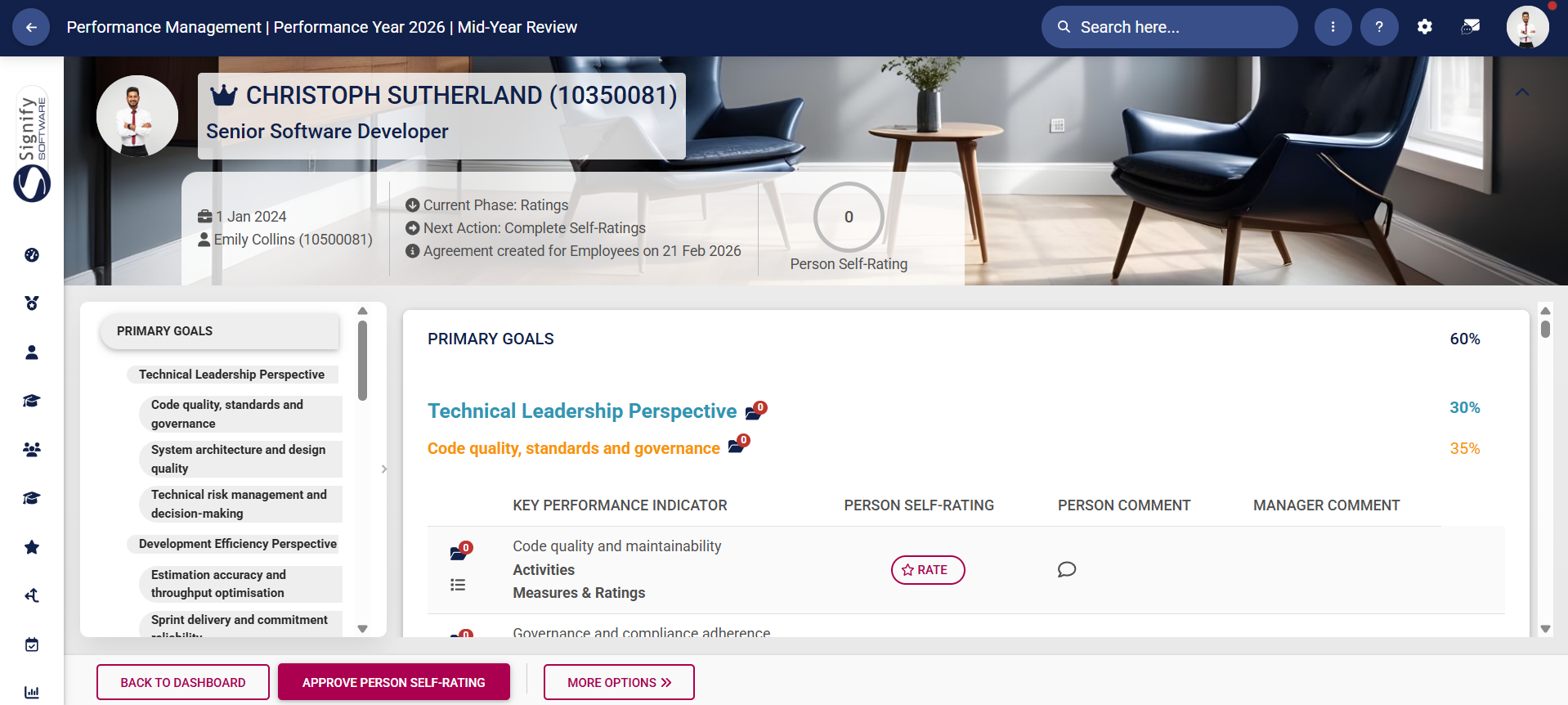
Click here to start a discussion with your manager about a selected objective.

Your manager will receive a message in their system inbox.

Click RATE to start rating an objective.

The ratings menu will appear. Click on a rating for the KPI, and add a suitable comment.

Scrolling down will display the historical comments from the objective-setting and check-in phases. It can be useful to review these before submitting your KPI rating.

If you are ready to submit your rating for this KPI, click SAVE.

Your rating and comment will appear on the main ratings screen.

As you proceed through the self-rating process, your calculated self-rating score in the summary banner will change based on the KPI's weight in the performance agreement.

To modify your rating for a particular objective, click CHANGE.

Update your comment or rating, then click SAVE.

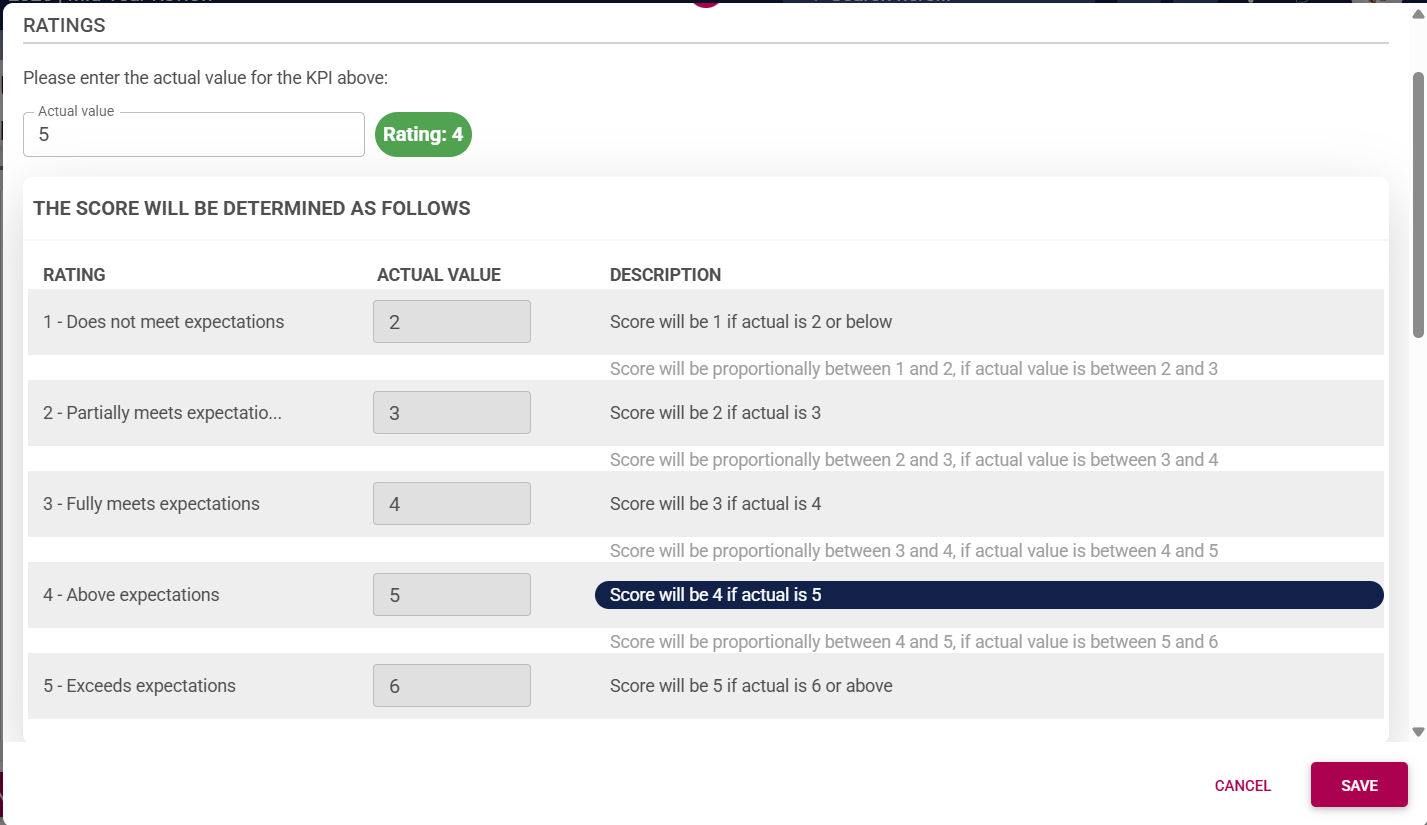
For KPIs using interpolation, type in the actual value. The system will automatically calculate the rating for this objective, based on the configured interpolation rating scale.
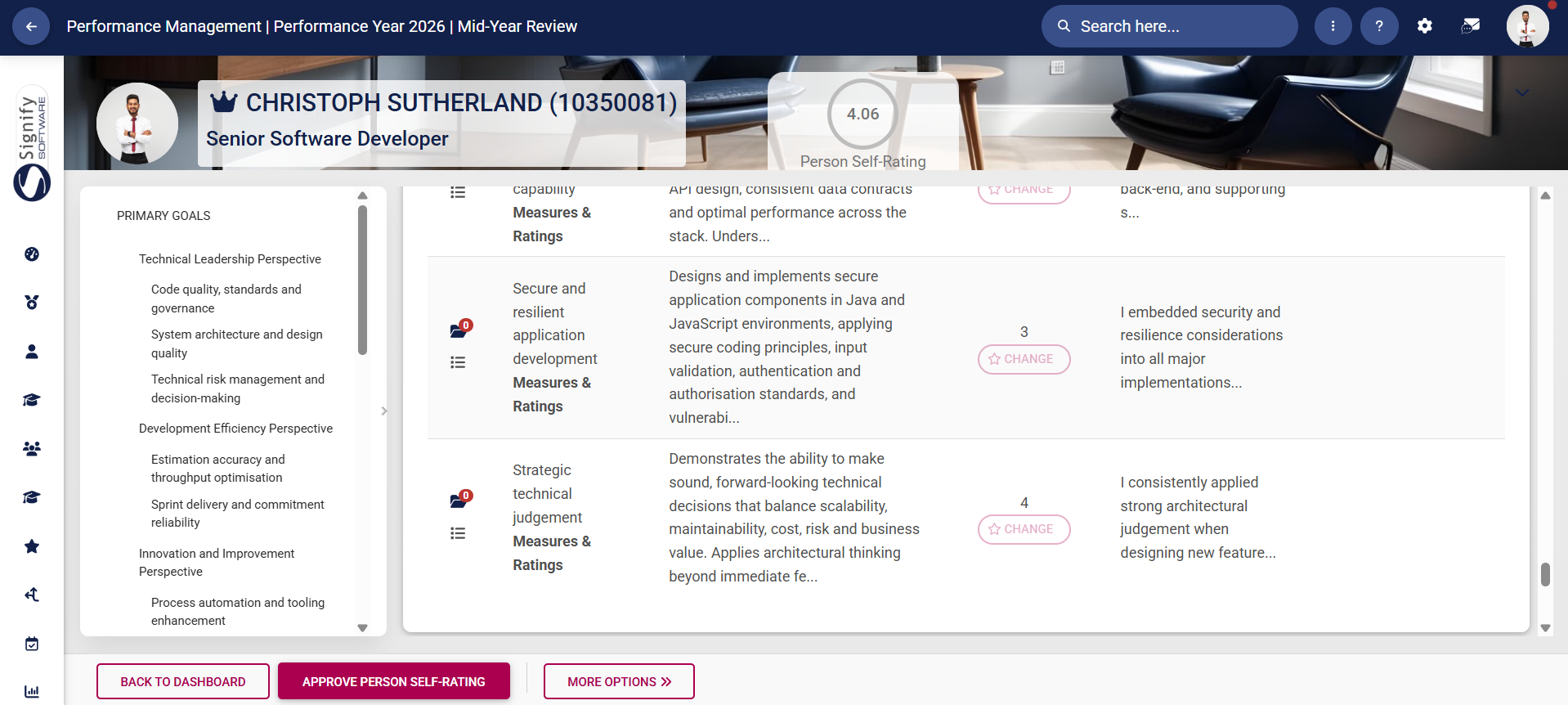
Once you have rated each objective, click APPROVE PERSON SELF-RATING.
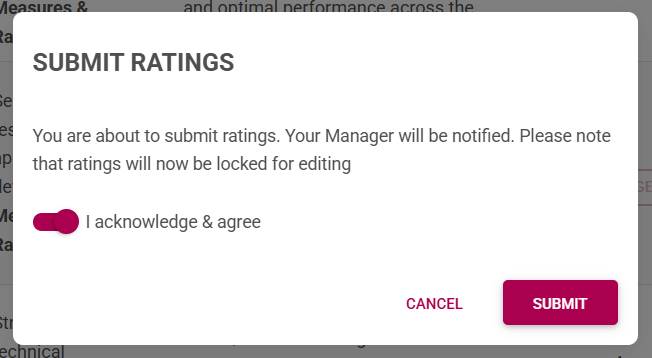
A warning message will appear, notifying the employee that submitting the ratings will lock the agreement for editing and notify their manager. To proceed, click to acknowledge and agree, then click SUBMIT.
The manager will receive an automated email from the system notifying them to proceed with the manager ratings.

The employee's dashboard will show that their performance agreement status is now completed. They can click VIEW to review their performance agreement as they wait for their manager to complete their ratings.

Viewing the submitted performance agreement will show the rating and comment for each objective, as well as the employee's self-rating score. To modify self-ratings, click MODIFY PERSON'S SELF-RATING.

A warning message will ask the employee to acknowledge and agree that their manager will be notified of these changes. To proceed, click to acknowledge and agree, then click SUBMIT.

The manager will receive an automated email from the system notifying them that the employee has modified their self-ratings.

Manager Rating and Final Rating
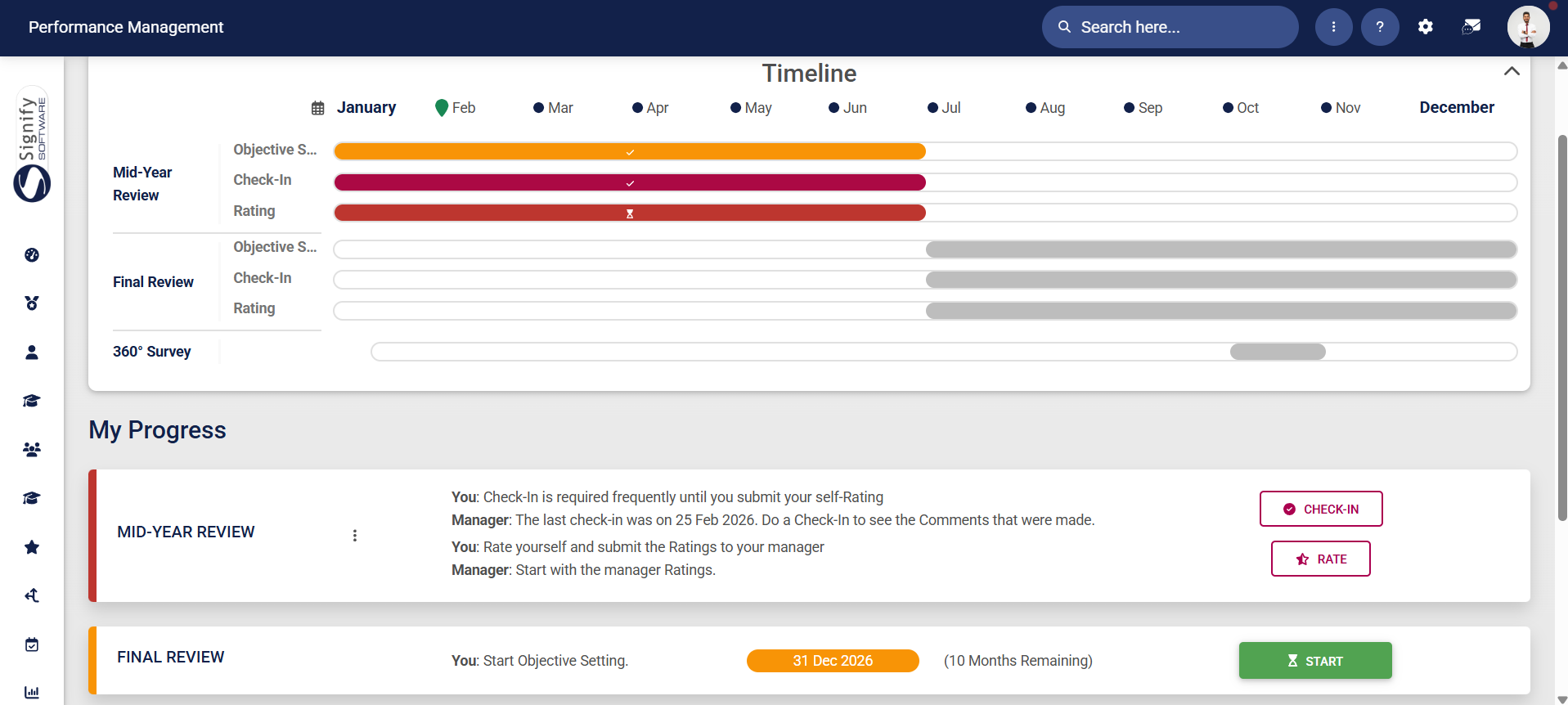
- The manager should navigate to the Performance Management dashboard and find the employee's contract under the My Team tab. The performance agreement's status will show that the employee has submitted their self-rating, and the manager should proceed with the manager's rating.

- Click
CHECK-INRATE .next to the employee's performance agreement.


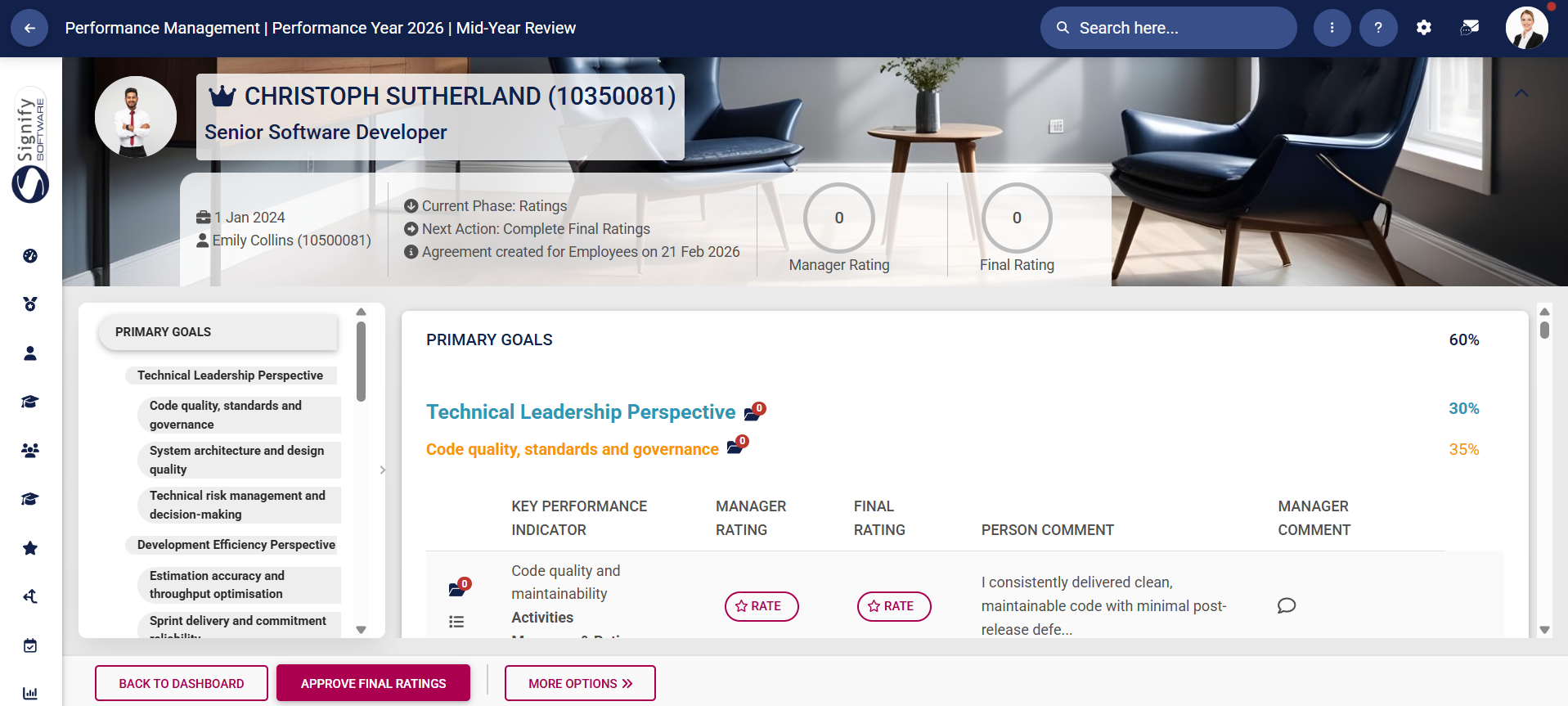
- The employee's performance agreement will open.
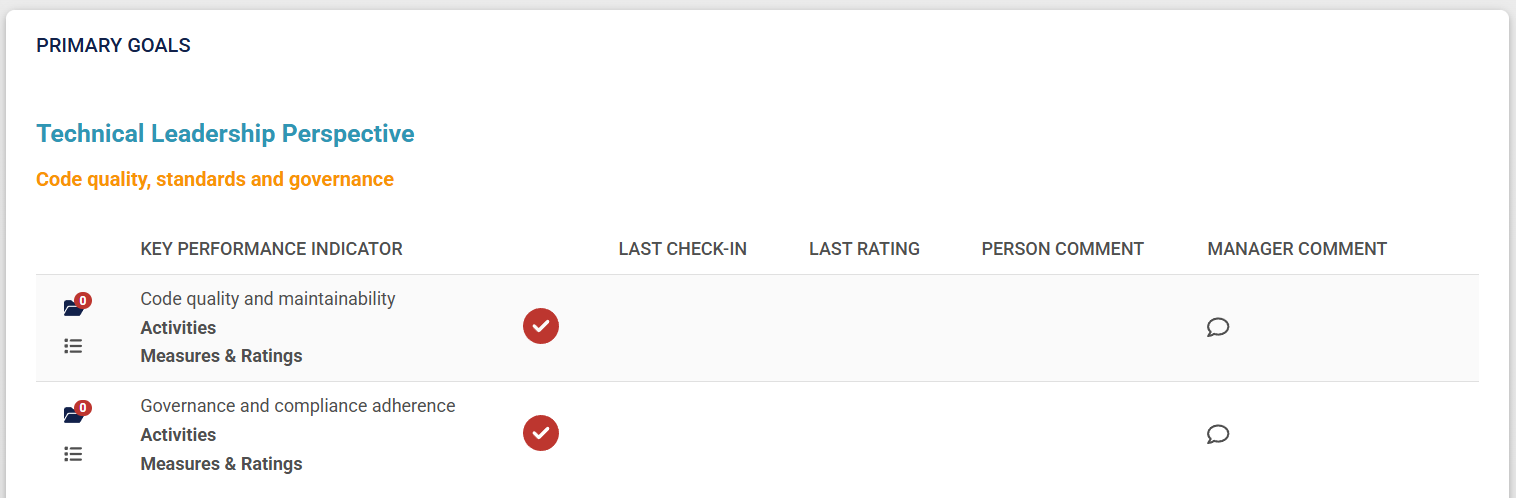
AtThe left-hand menu may be used for navigation, and the objectives are listed in the centre. The summary banner at the top of the screen,screen shows the check-inperson's statisticsaverage bannerrating willbased provideon the followingweights information:for each KPI that has been rated.

- Click
The number of objectiveshere to discuss.
The number of objectives that were discussed during the last two weeks duringstart a
check-in.discussion Thewith numberyour ofemployee objectives that were discussed more than two weeks ago duringabout a
check-in.selected
The number of objectives for which no check-in has been done yet.
objective.

Click TheRATE manager does not need to
review allstart the
objectivesmanager's at each check-in. Select a few objectives and provide feedback, then select another setrating of
objectivesan forobjective.
the
next check-in.
each

The centre section contains all the objectives of the performance agreement, the date of the last review,rating and
commentsthen fromprovide theone manageroverall andcomment. Managers can also make a private comment that will not be visible to the employee.
comments from 
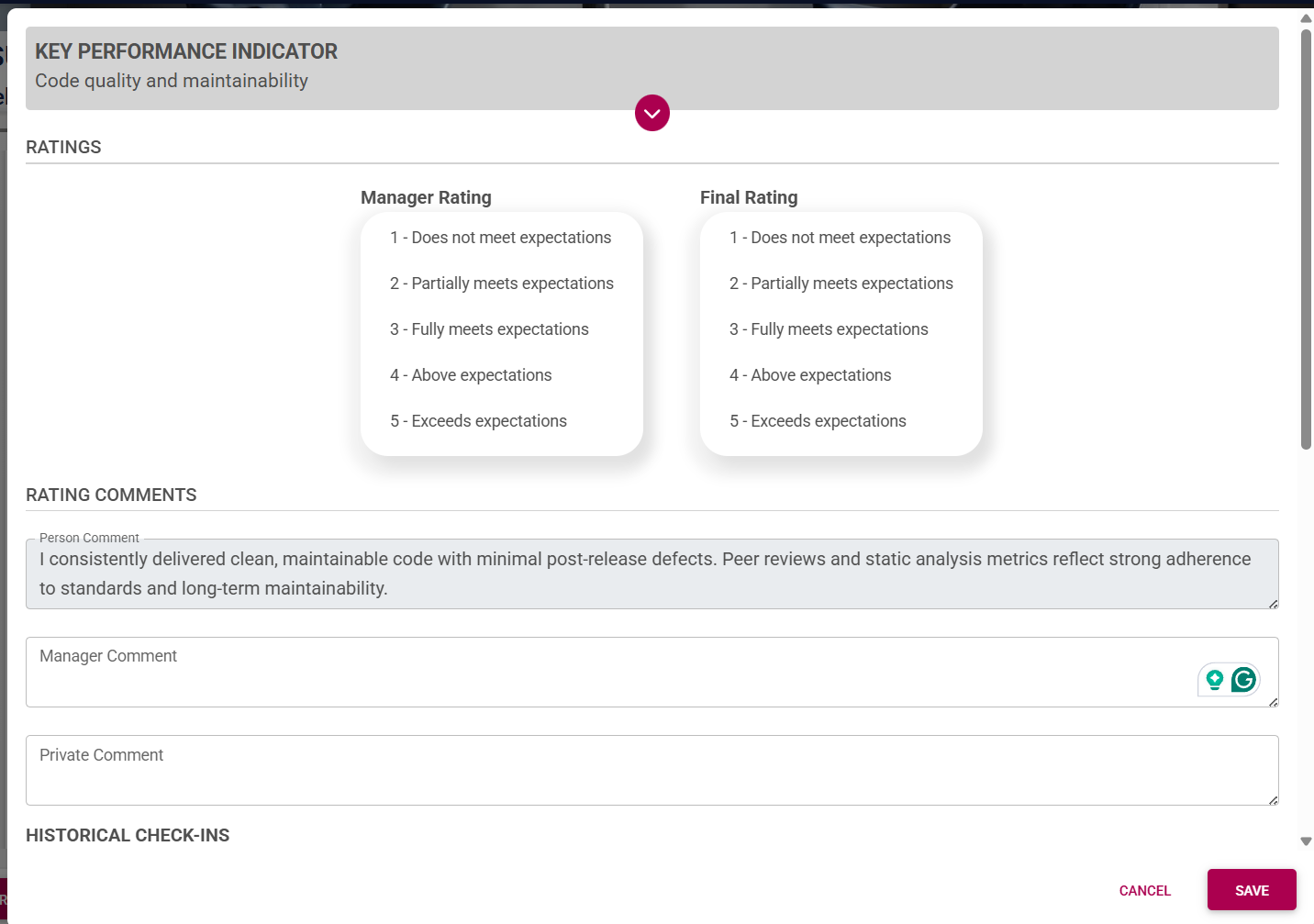
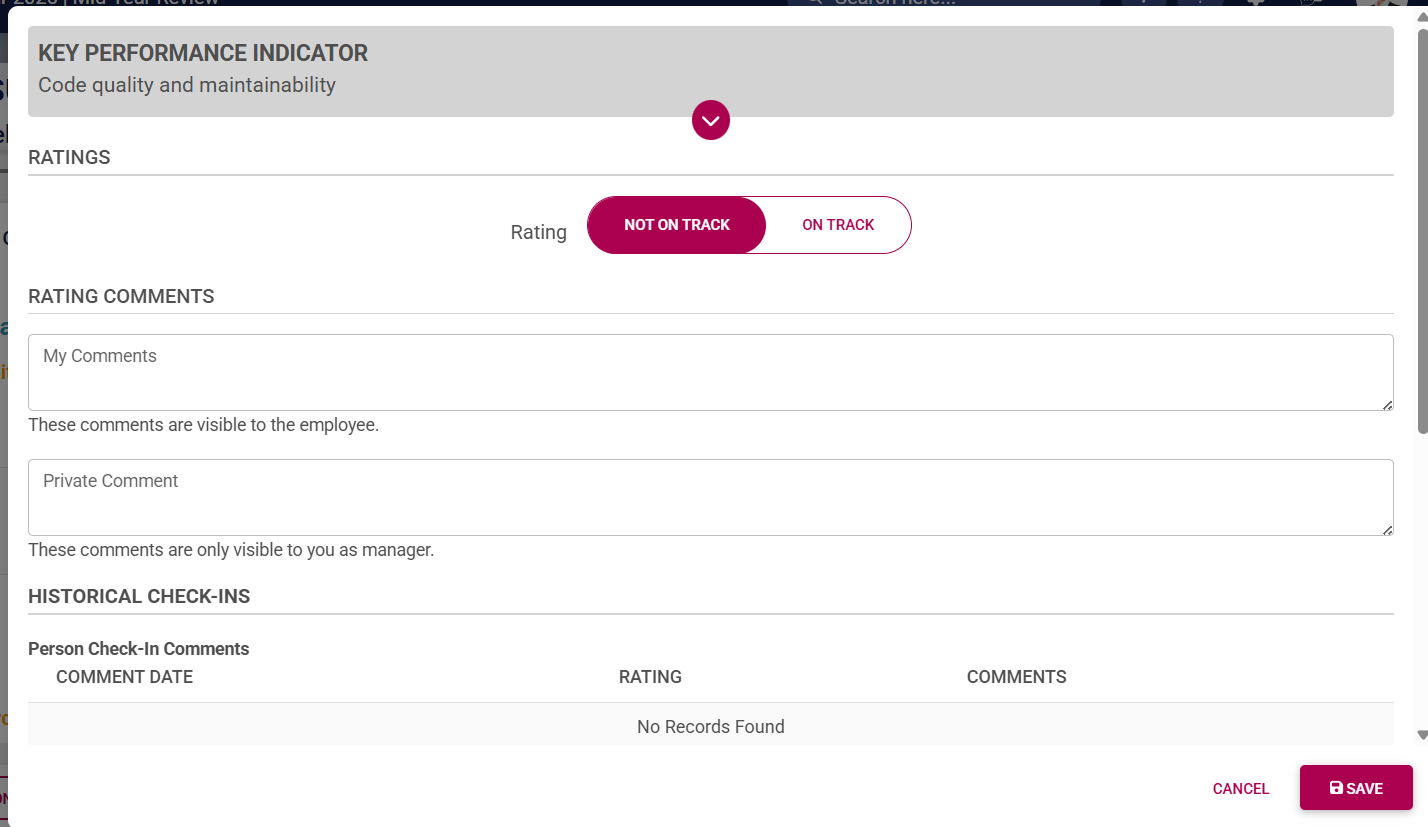
the objective-setting Theand check-in menuphases. willIt appear.can Clickbe useful to ratereview whetherthese thebefore employee is on track with this KPI, then recordsubmitting your comments.ratings. Once you have reviewed the feedback andIf you are satisfied,ready clickto SAVE.
submit your Please note that the manager may record private commentsrating for theirthis own record-keeping, which will not be displayed to the employee.
A message will confirm that the comment has been successfully saved.
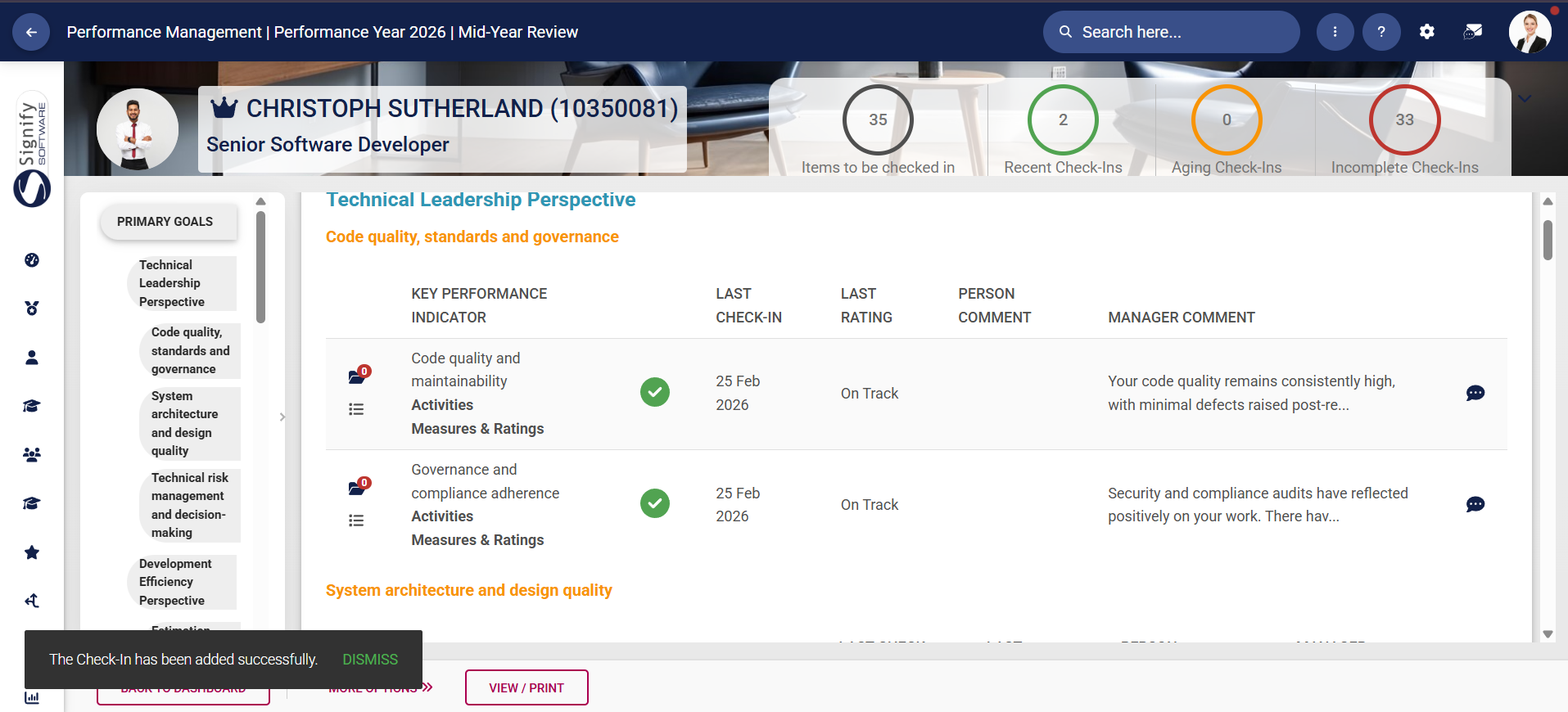
If you would like to edit a previous check-in comment, click on the KPI where you have entered the comment. When the check-in screen appears, click EDIT LAST COMMENT.

Adjust your check-in comments as necessary, thenKPI, click
SAVE.


- Your
historicalratings and comments will be displayed when you click on the KPI.

Historical comments, the last check-in date, and the previous rating will displayappear on the main
check-insratings screen.
As you proceed through the rating process, your calculated manager rating and final rating scores in the summary banner will change based on the KPI's weight in the performance agreement.


Reviewing a Check-In
FromTo modify your rating for a particular objective, click CHANGE.

Update your comment or rating, then click SAVE.
For KPIs using interpolation, type in the
employee'sactual perspective,value. theirThe Performance Management dashboardsystem will notifyautomatically calculate the rating for this objective, based on the configured interpolation rating scale.
Once you have rated each objective, click APPROVE FINAL RATING.
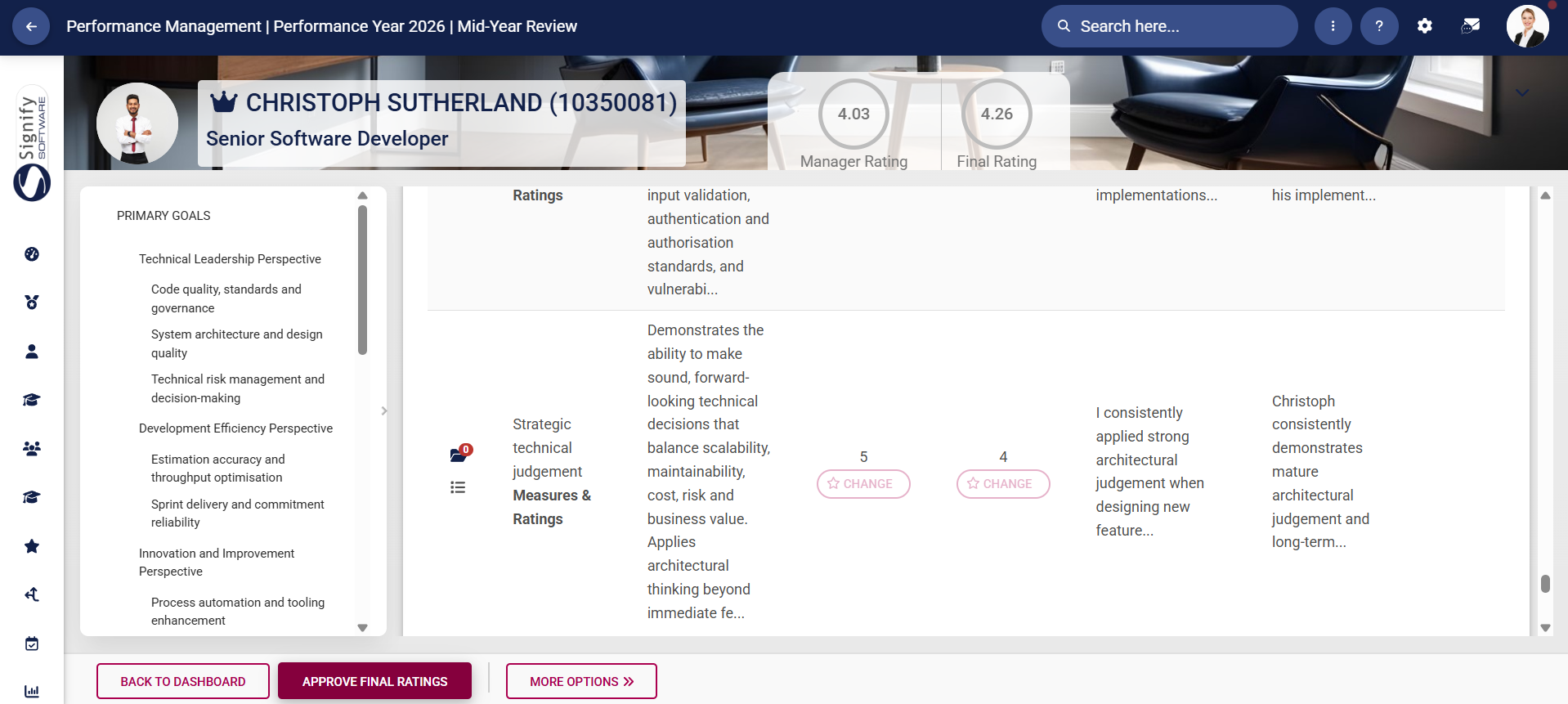
A warning message will appear, notifying the manager that submitting the ratings will lock the agreement for editing. To proceed, click to acknowledge and agree, then click SUBMIT.

If you have omitted a rating for an objective, an error message will appear. Please review the performance agreement carefully and add the missing rating(s).

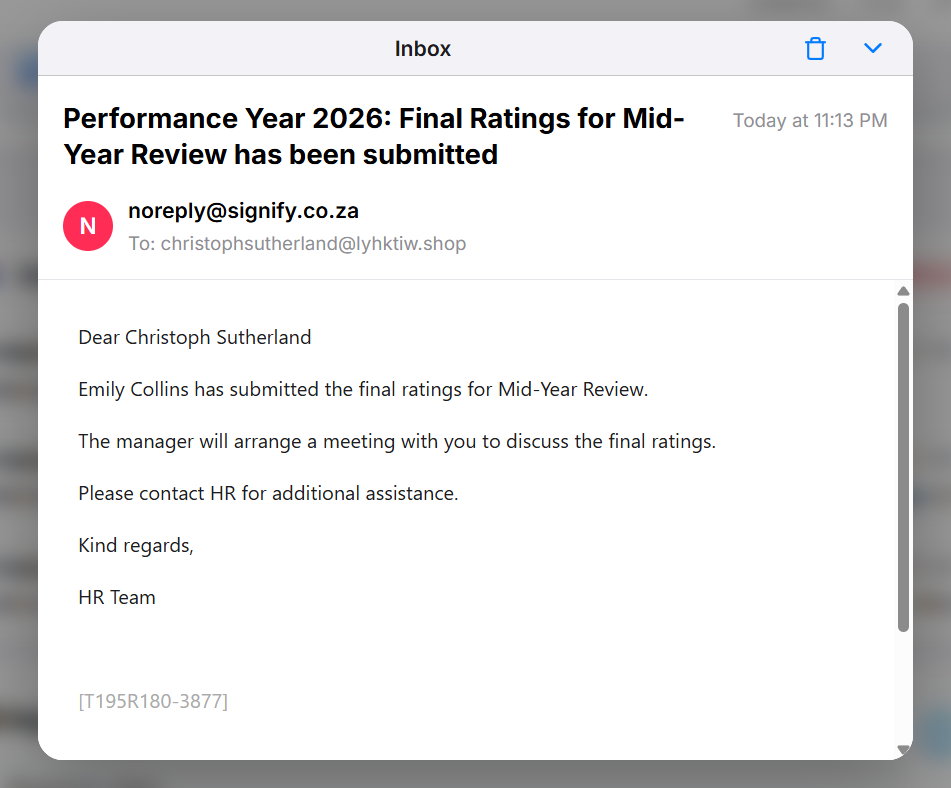
The employee will receive an automated email from the system notifying them that their manager has
conducted a check-in. The employee can click the CHECK-IN button to viewsubmitted their
manager'sfinal comments.ratings.
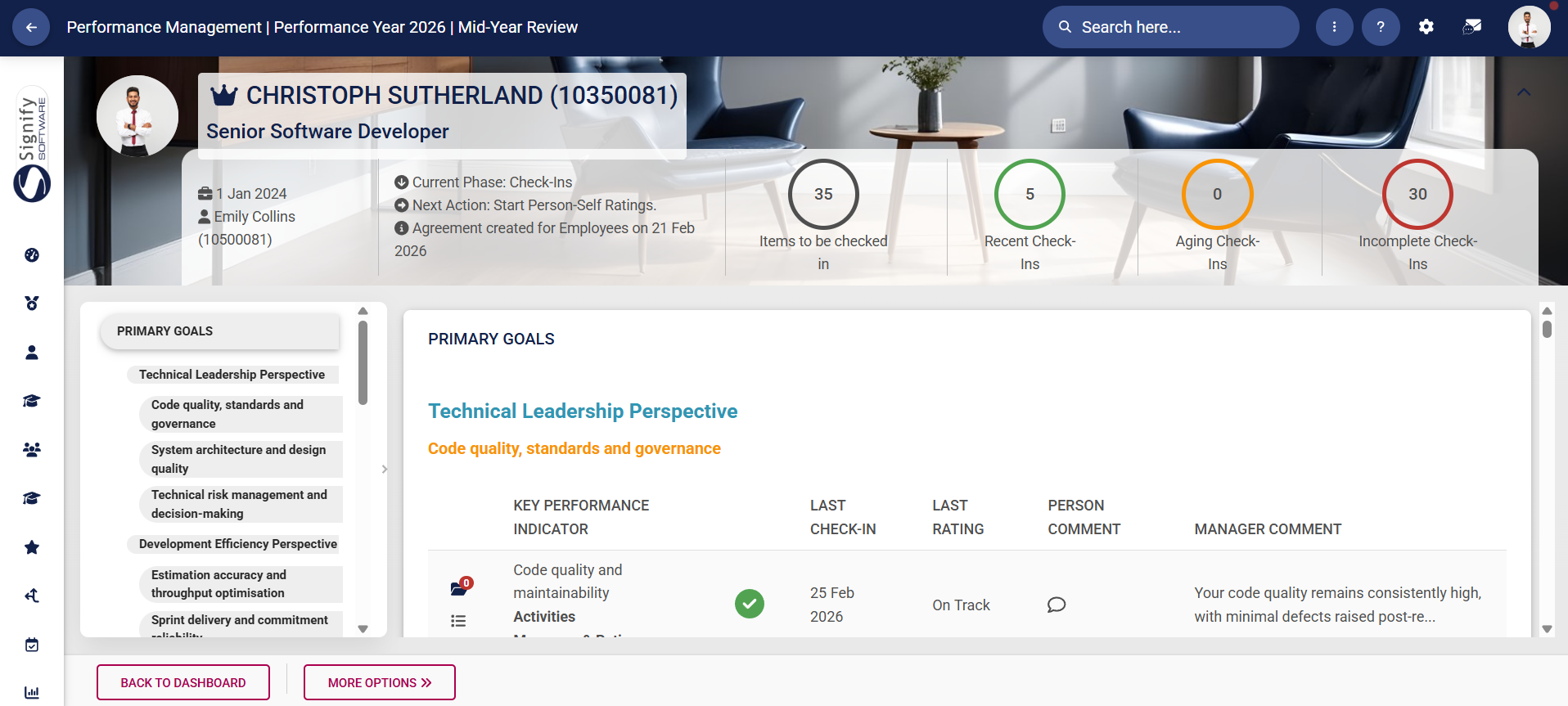
When opening their performance agreement, the employee will see the check-in statistics banner, the navigation menu, and their objectives.
- The
employeemanager's dashboard will show that their employee's performance agreement status is now completed. They can reviewhover their manager's comments and add their own comments to each objective. Clickover a KPIspecific review period to openview the check-inperformance menu.agreement.


AddViewing yourthe ownsubmitted comment,performance thenagreement will show the rating and comment for each objective, as well as the three scores for this review period:
- The employee's self-rating score,
The manager's rating, and
The final rating.
To modify the final ratings, click
SAVE.MODIFY YourFINAL comment will display on the main check-in screen.

To edit your comment on an objective, click the KPI and then click EDIT LAST COMMENTRATING.


UpdateA yourwarning comment,message will ask the manager to acknowledge and agree that the performance agreement's ratings will be unapproved. To proceed, click to acknowledge and agree, then click SAVESUBMIT.

Check-In
Ratings Notification Emails
The system automatically sends the following emails for check-ins:the Ratings Phase:
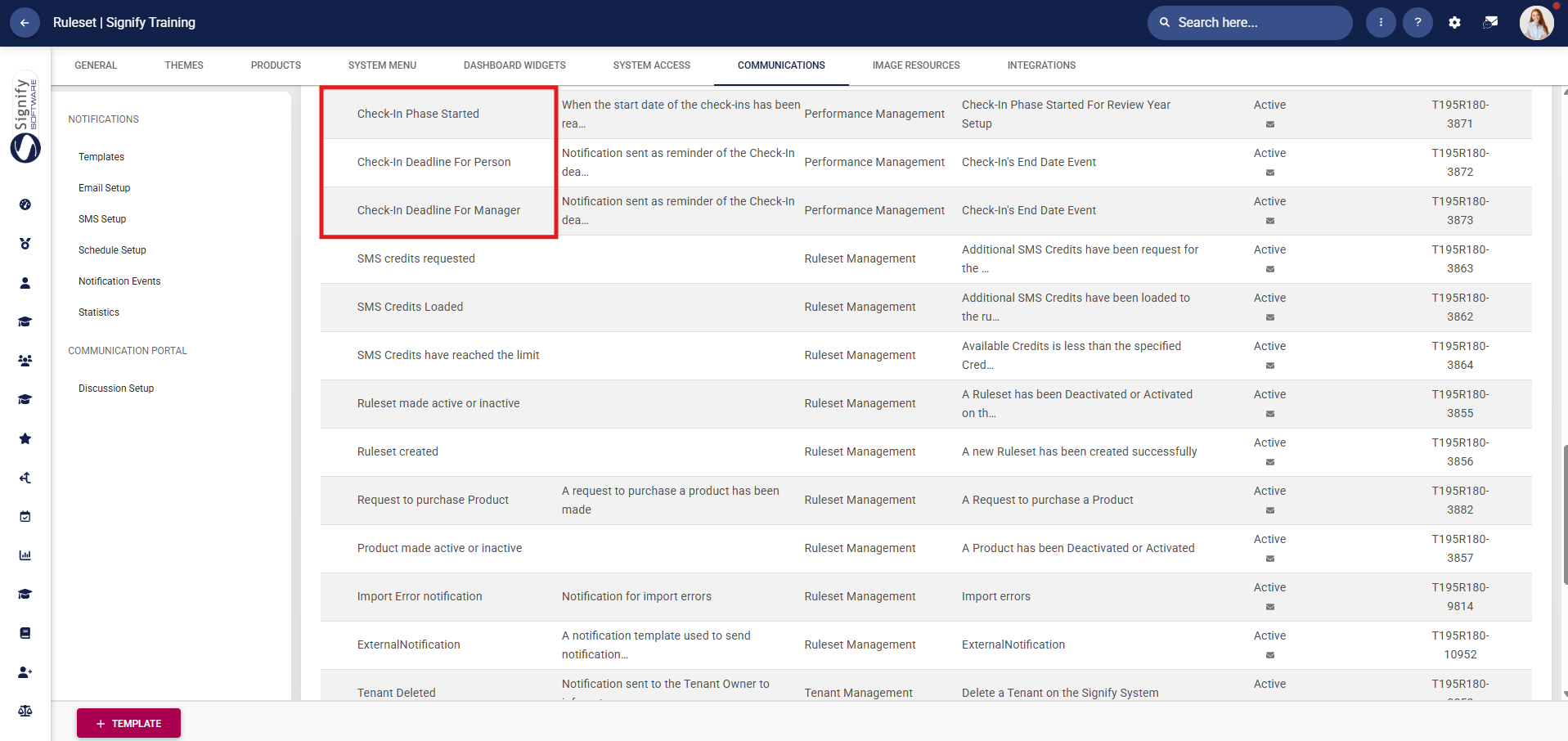

For managers:
A reminder email once the start date of the check-ins has been reached.
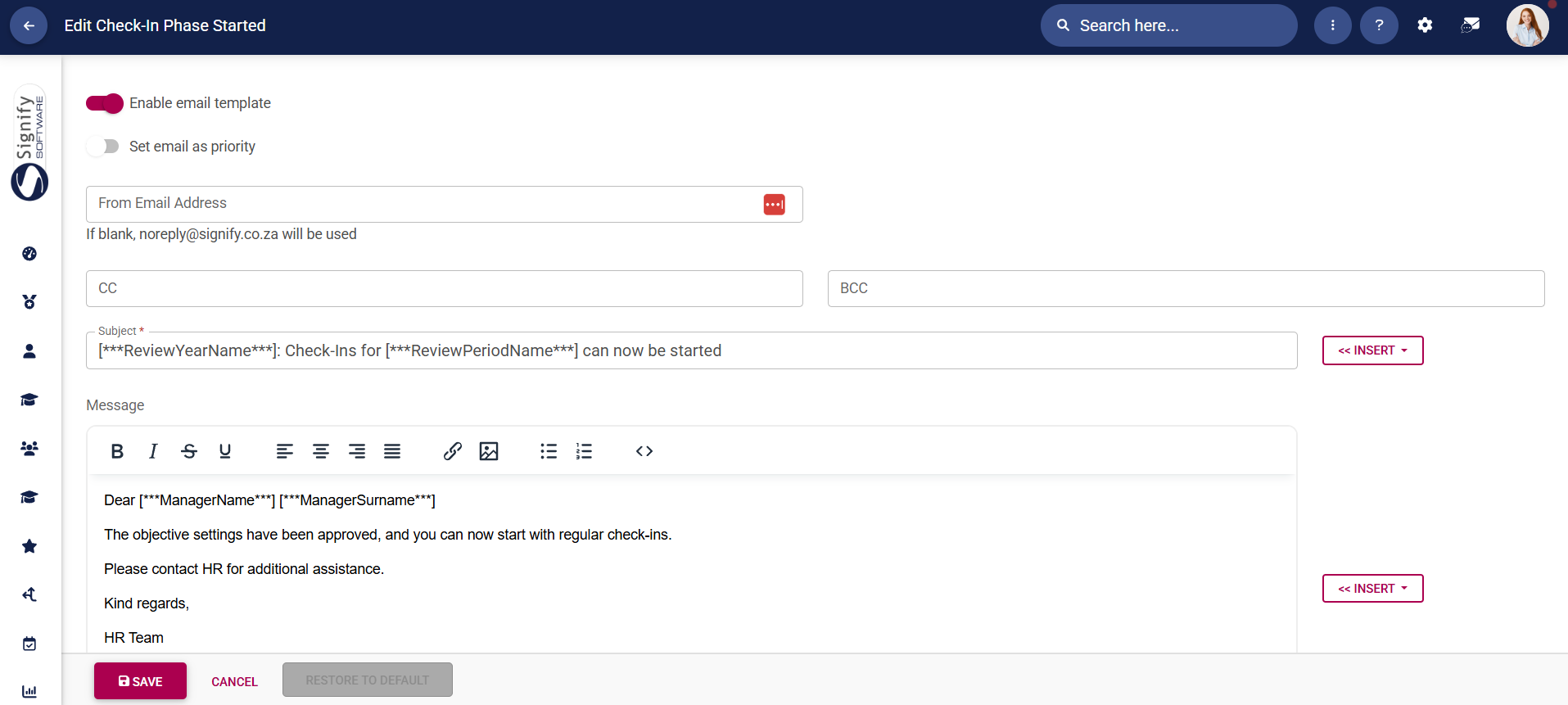
For managers and employees:
A reminder email of the check-in deadline.
The date when this email will be sent can be configured at the same location where check-ins can be activated or deactivated.
Managers' emails will look like this:

Employees' emails will look like this:

Next Steps
The nextfirst phasereview period of the performance management processcycle has been completed. If a second review period has been created for the review year, the next phase is the RatingsRecontracting Phase.phase. For more information, proceedNavigate to the next partsection offor thismore chapter.information.





