
Payspace - Payroll Connector setup
Information
The required
Yousteps will needdescribe the followingPayroll information:Connector setup.
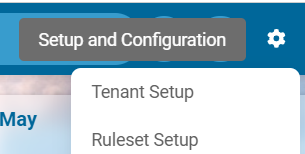
After selecting the ruleset: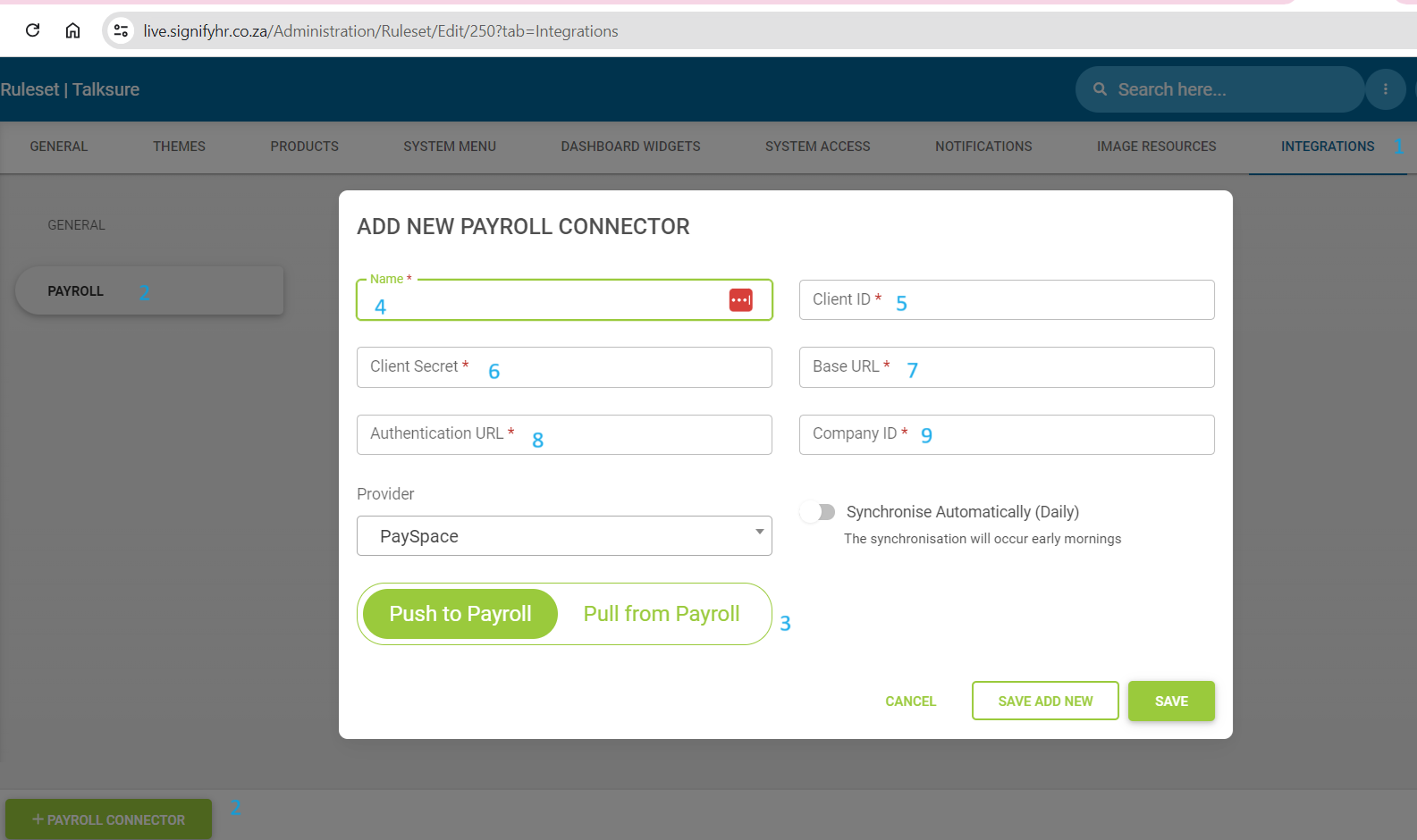
ClientSelectIdIntegrations- Select Payroll and click + Payroll Connector
>
ClientPayspace Id@ +https://identity.yourhcm.com/account/login
> ClientGo Secret
to This can be found and set up on Payspace:
Config menu | Company settings | General Company | Integration | API Credentials
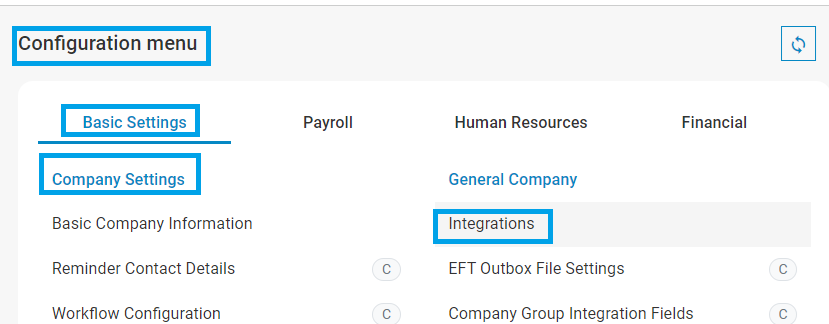
Here
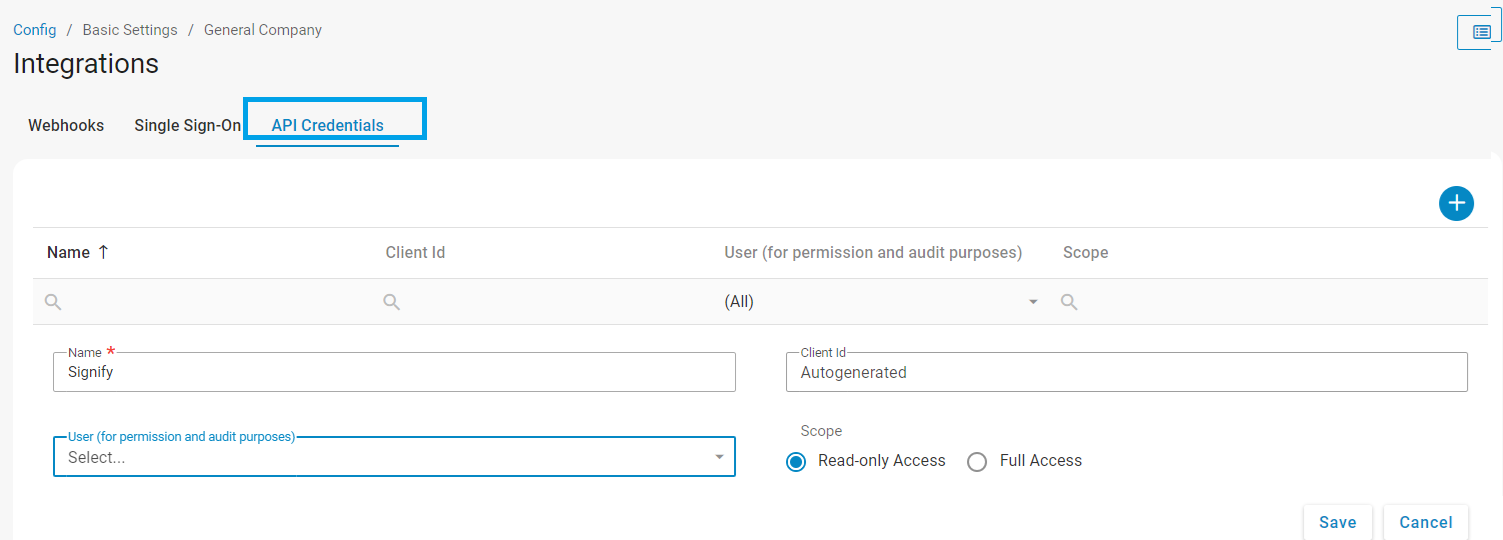
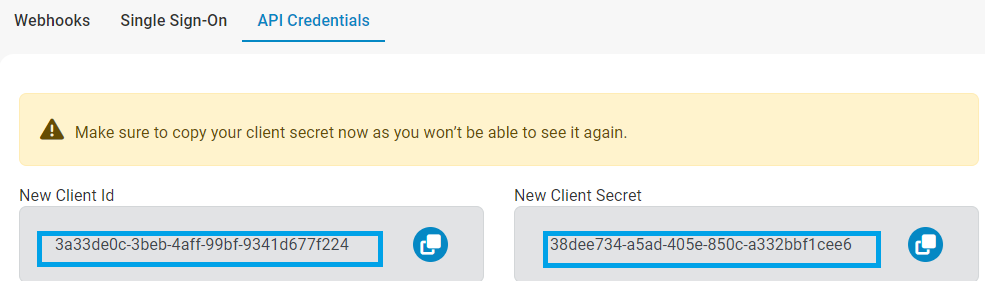
> youClick can+ setto upadd a new API credential
> Enter the requiredName, integrationleave detailsClient that will be needed. The client secret will only show onceId on setAutogenerated, upselect User to impersonate (if needed) and willleave needScope on Read-only accees and click on Save.
Base URL
- see below| Production | Testing |
| https://api.payspace.com | https://apistaging.payspace.com |
Authentication URL
- see below| Production | Testing |
| https://identity.yourhcm.com | https://staging-identity.yourhcm.com |
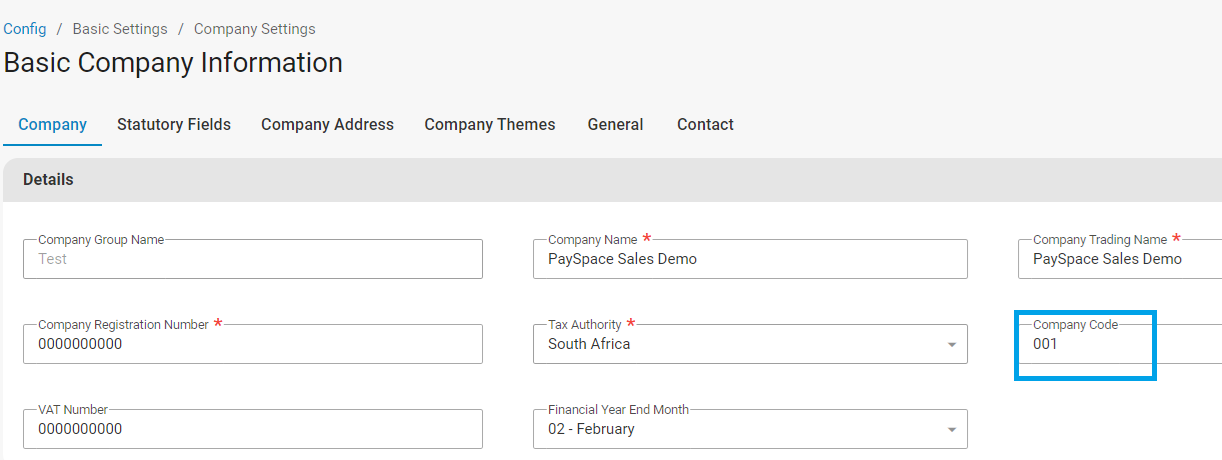
Company ID
This- canobtained befrom foundPayspace
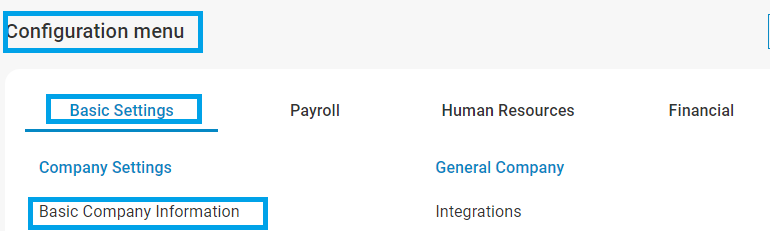
Go onto Payspace:
Config menu | Basic settingsSettings | Company settings | Basic companyCompany informationInformation | Company code
NOTE: During the Save action, the connection to Payspace will be tested and if saved successfully, means the credentials supplied are correct.
When not successful, you will be notified and the credentials, especially the Client ID, Client Secret and Company ID need to be verified carefully before trying to Save again.
