Skip to main content
Add Event Details

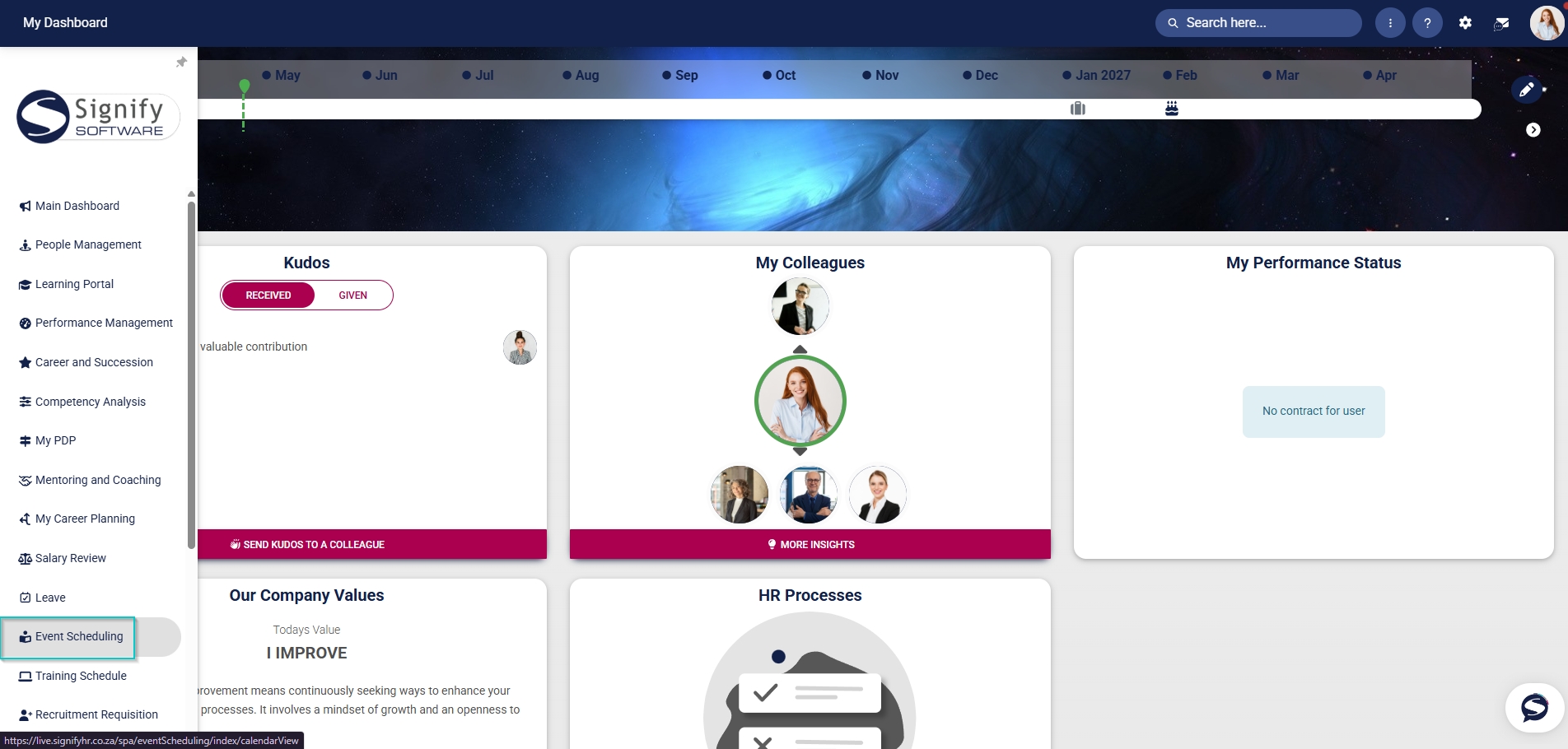
- Hover over the sidebar menu, then click Event Scheduling.
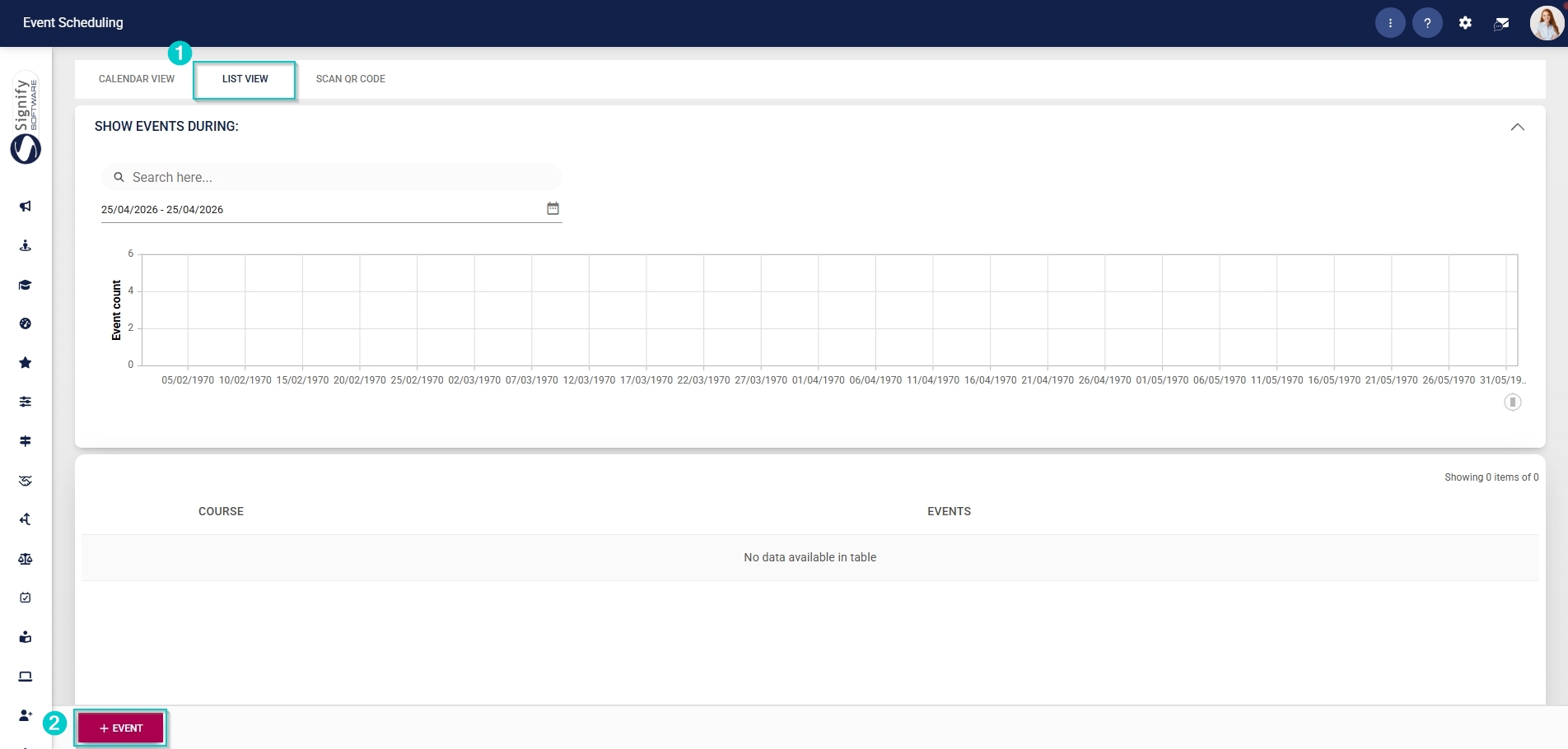
- Click to navigate to the List View tab, then click +EVENT.
- Enter a name for the event.
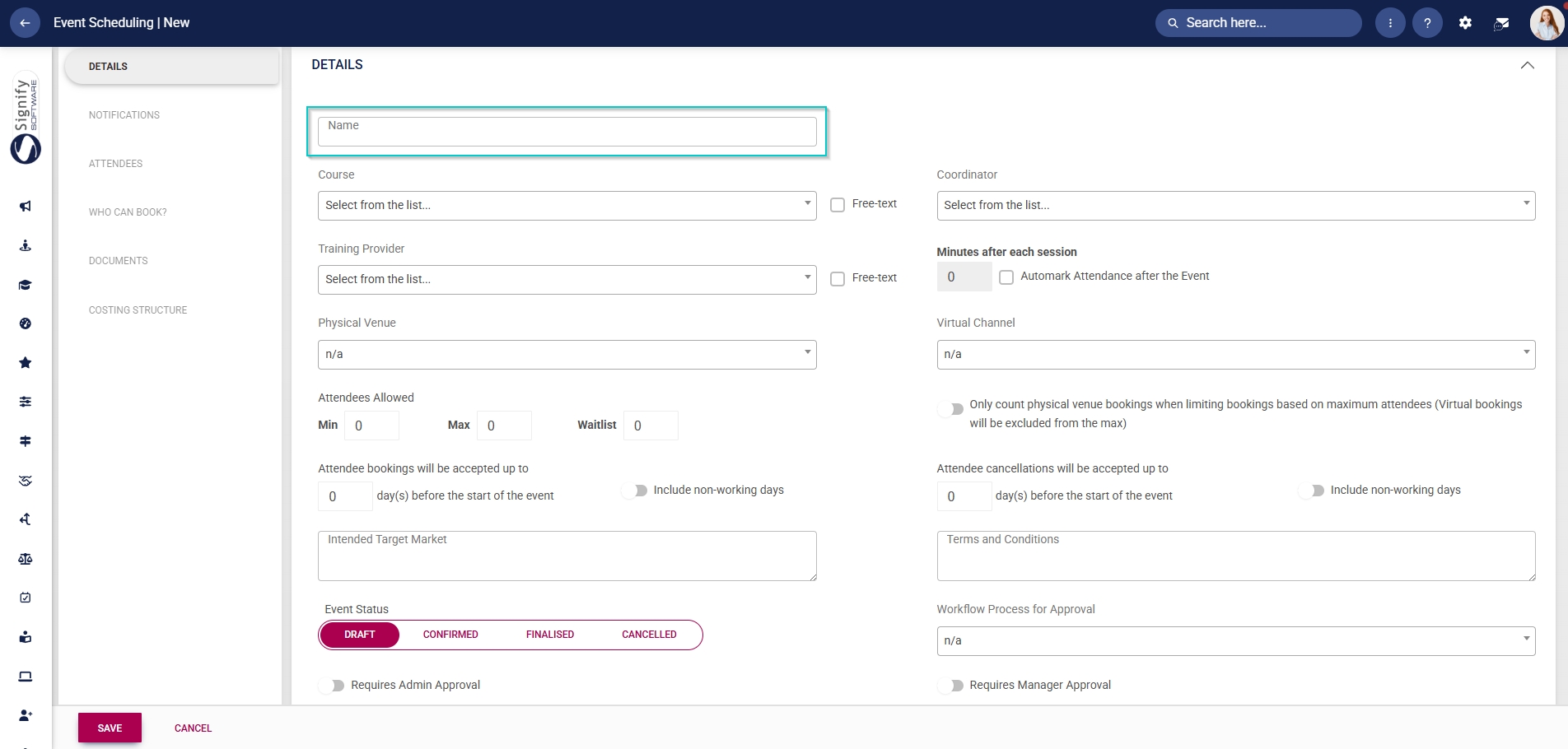
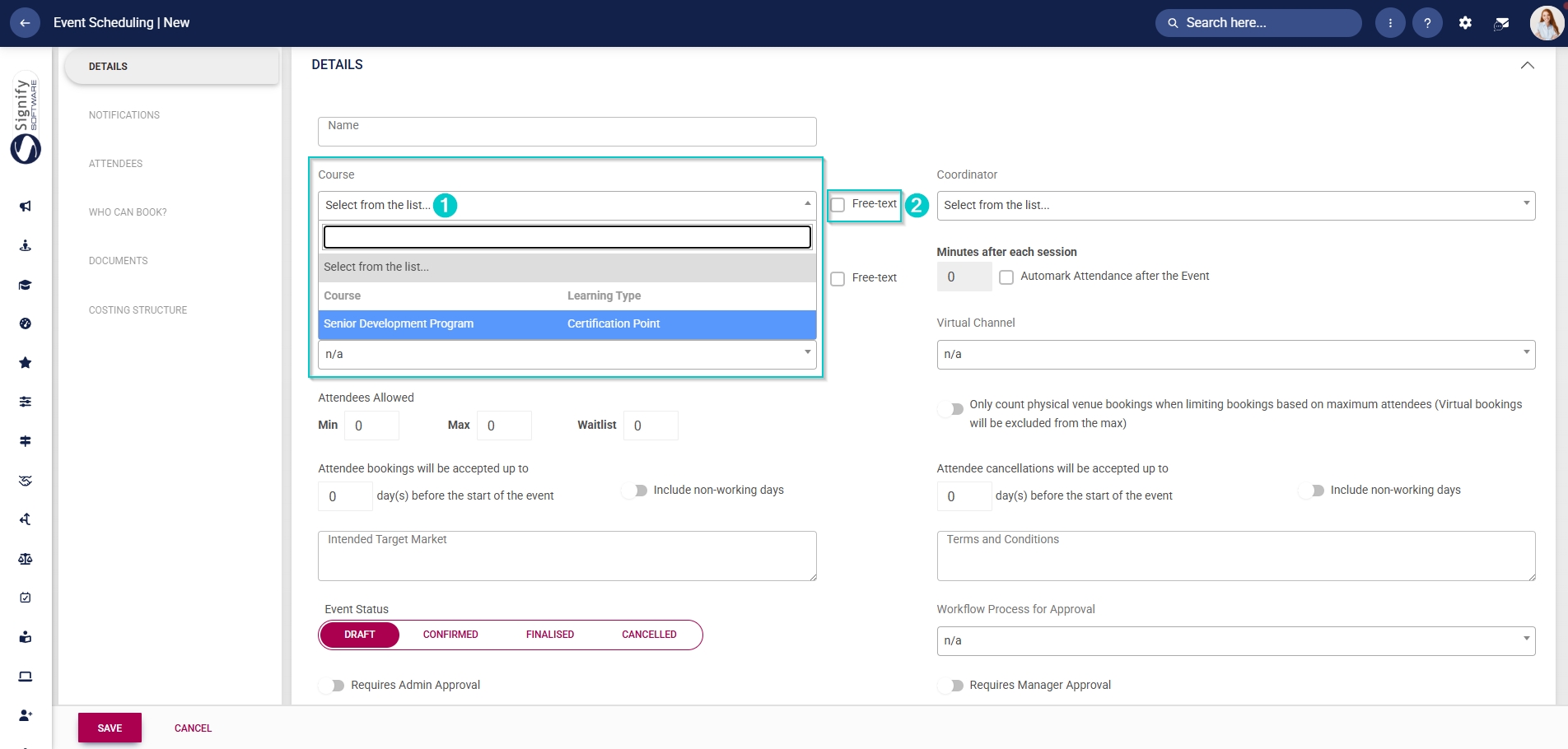
- To create a learner record for attendees, link a training intervention from the Training Intervention Library using the Course field. If a learner record should not be created, provide a name for the course and tick the Free text checkbox.
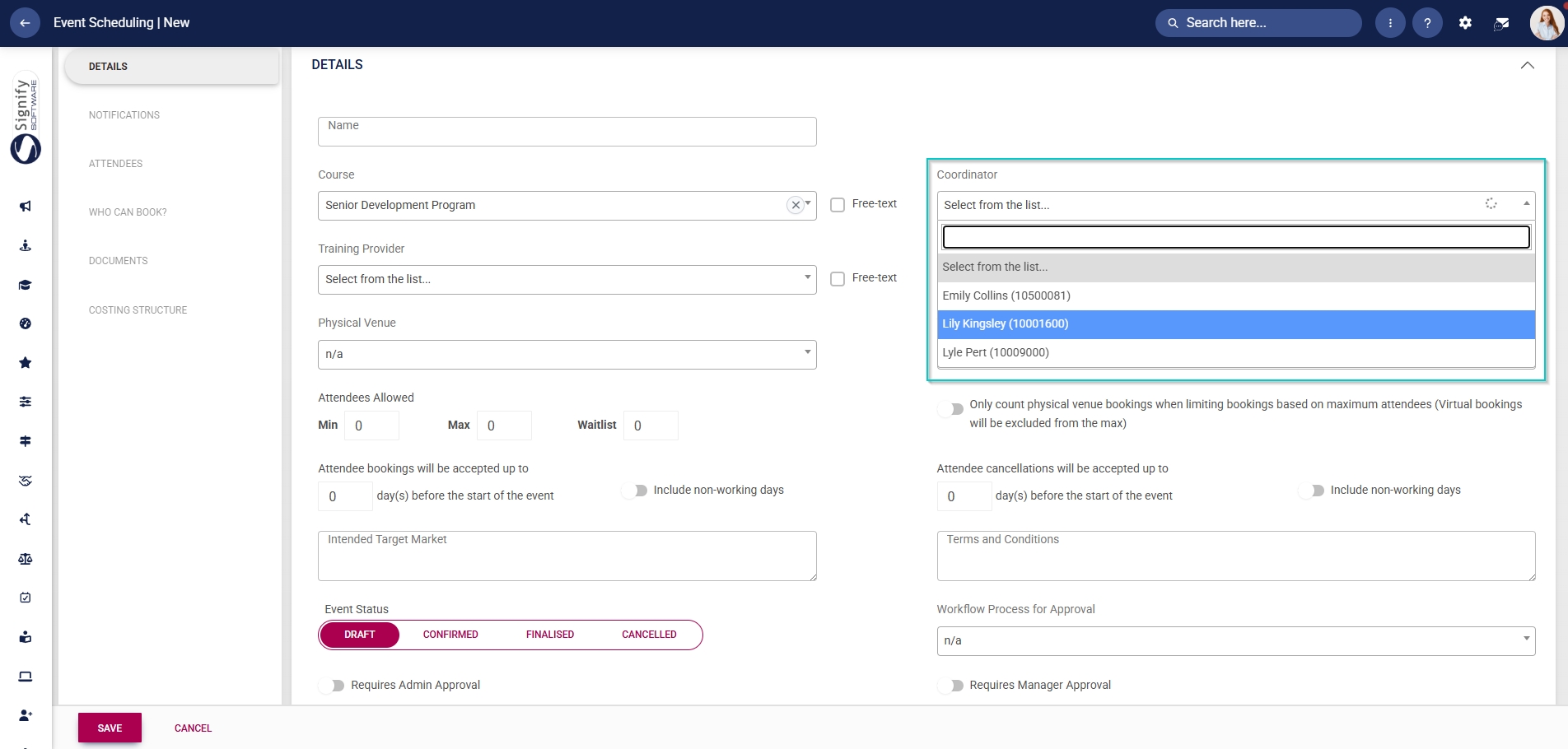
- From the dropdown menu, select the event’s coordinator.
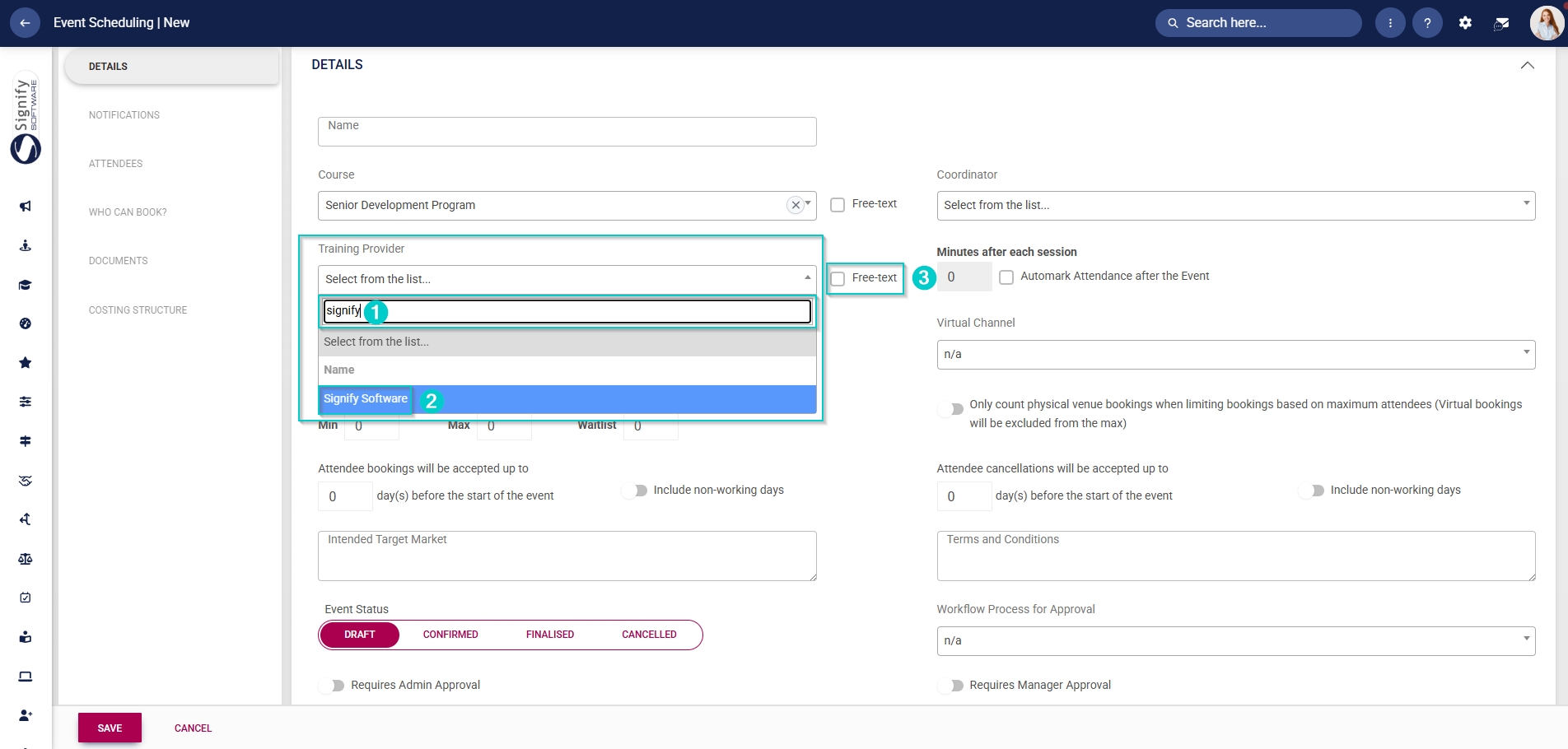
- From the
dropdowndrop-down menu, select the event’s training provider.
- Use the search bar to easily find the training provider in the list of dropdown menu items, then click on the training provider’s name.
- If the training provider is not listed in the Master Data Library, provide a name for the training provider and tick the Free text checkbox.
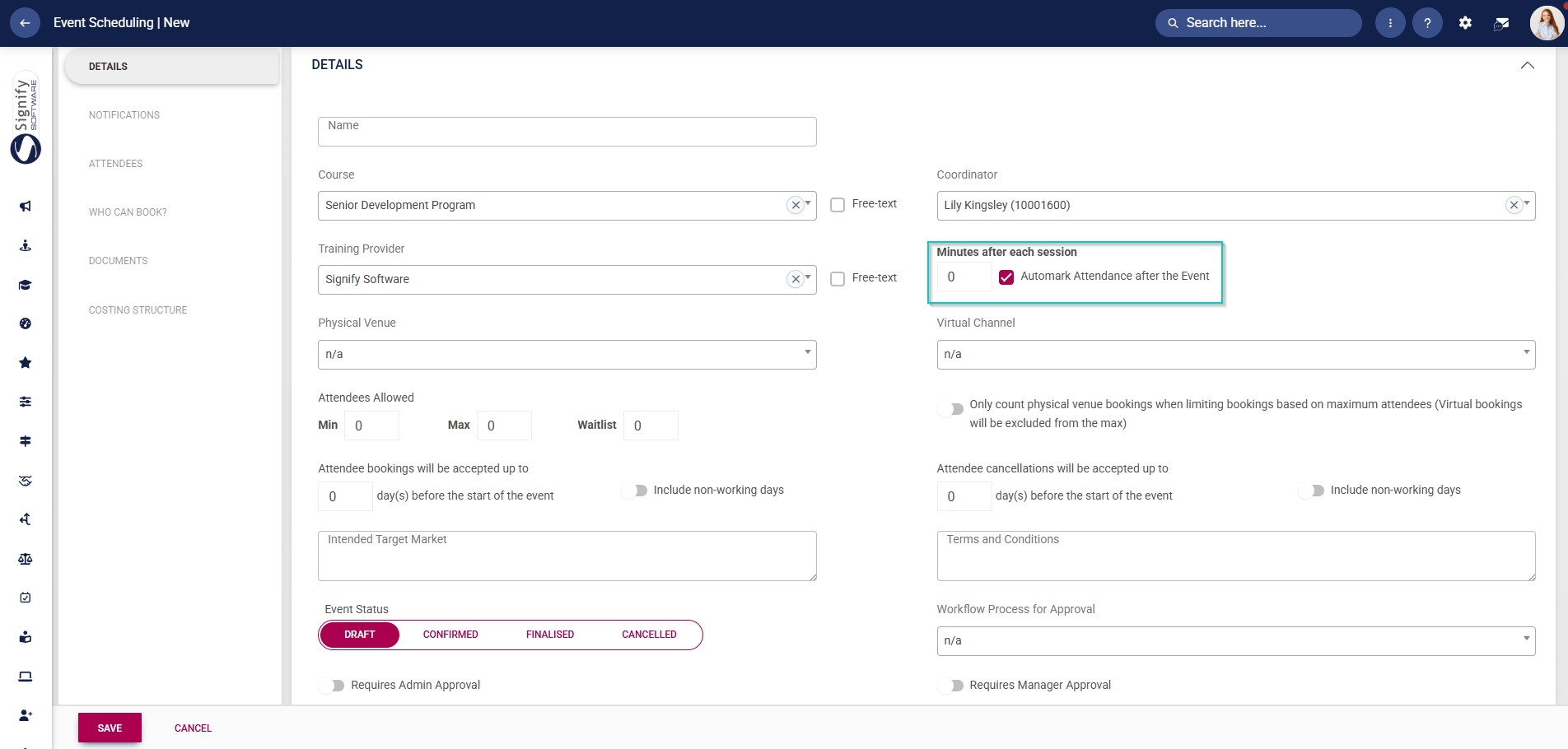
- Attendance can be automatically marked by selecting the number of minutes after each session. To do this, tick the Automark Attendance after the Event checkbox.
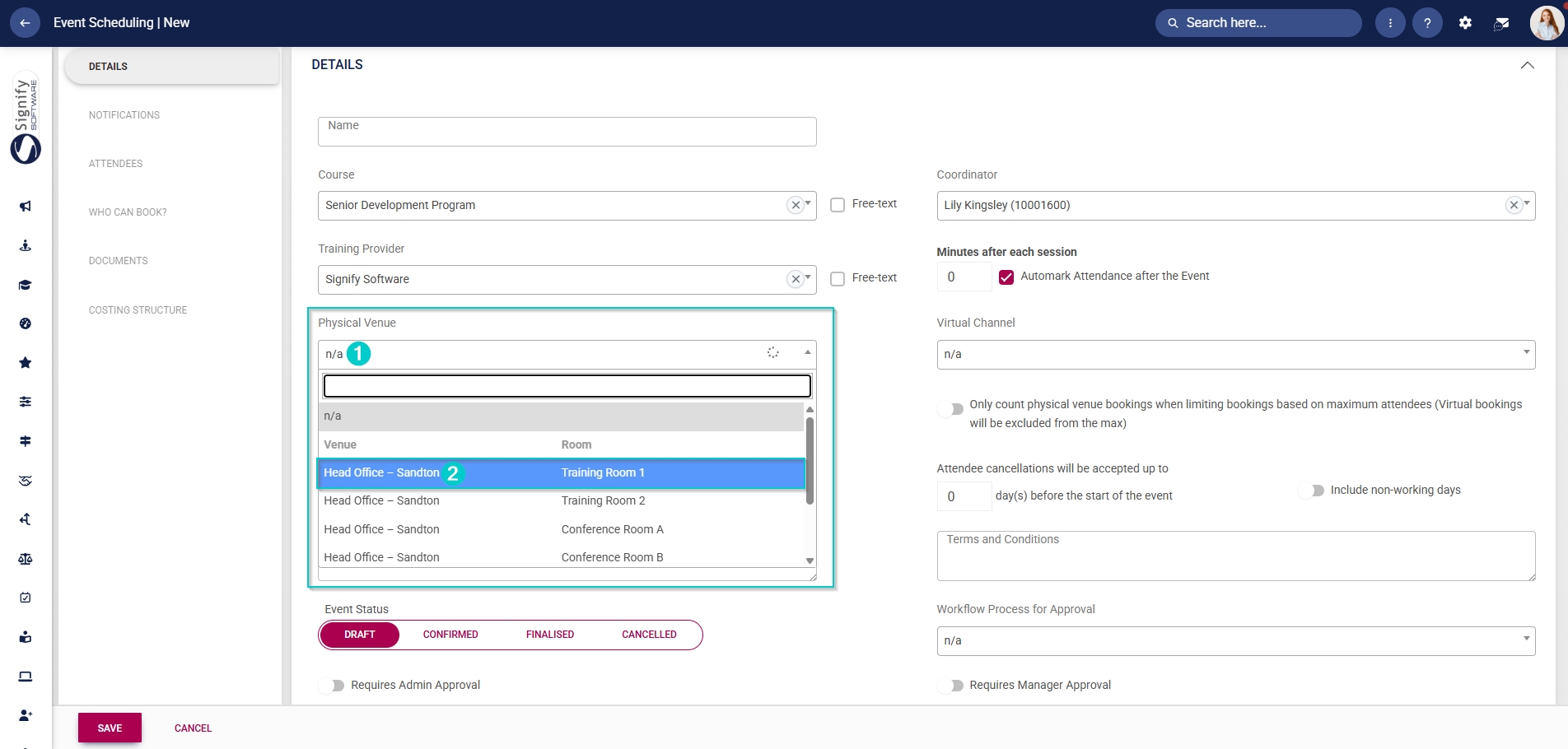
- From the dropdown menu, select the physical venue and the room.
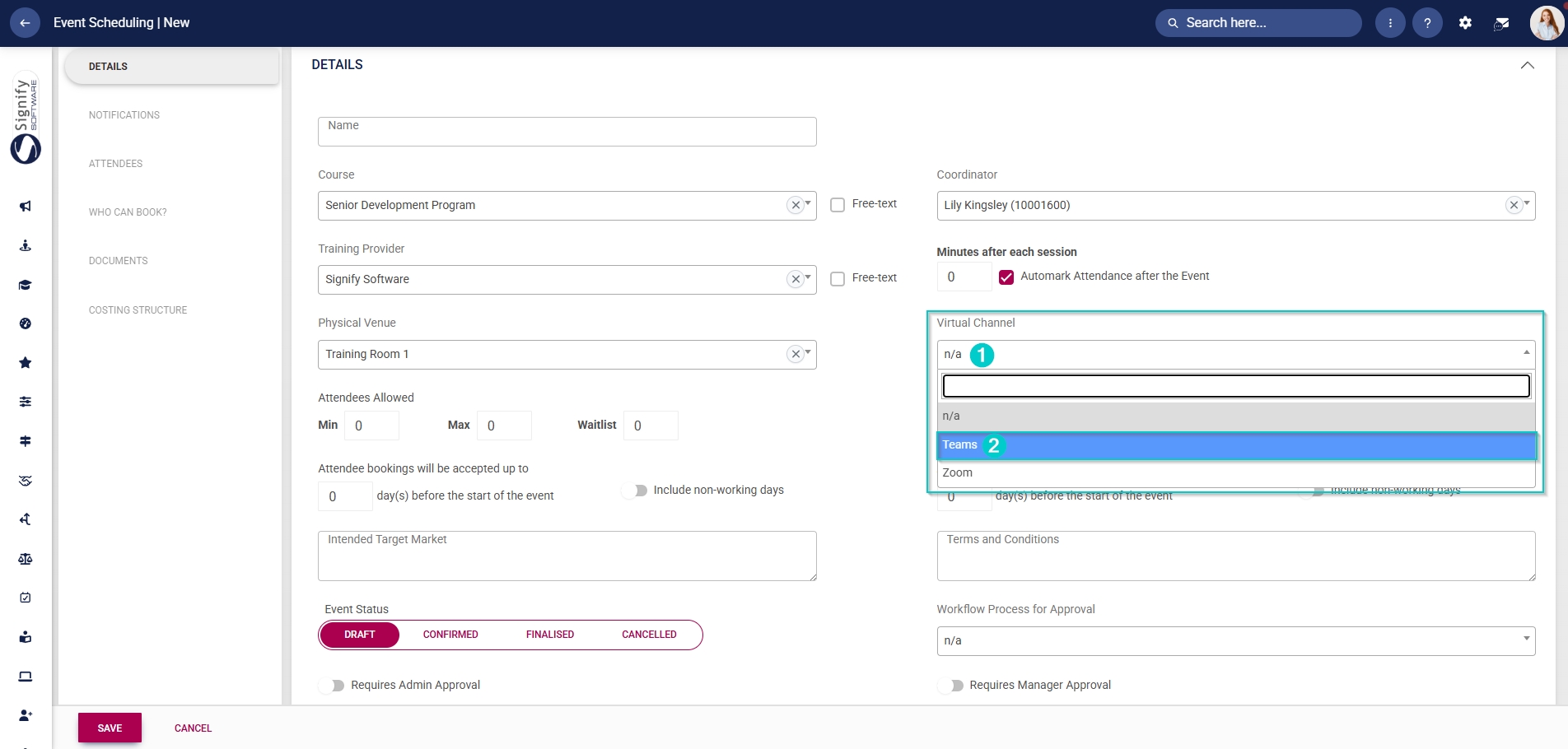
- Virtual channels, such as Teams or Zoom, can be selected from the
dropdowndrop-down menu to present this event online.
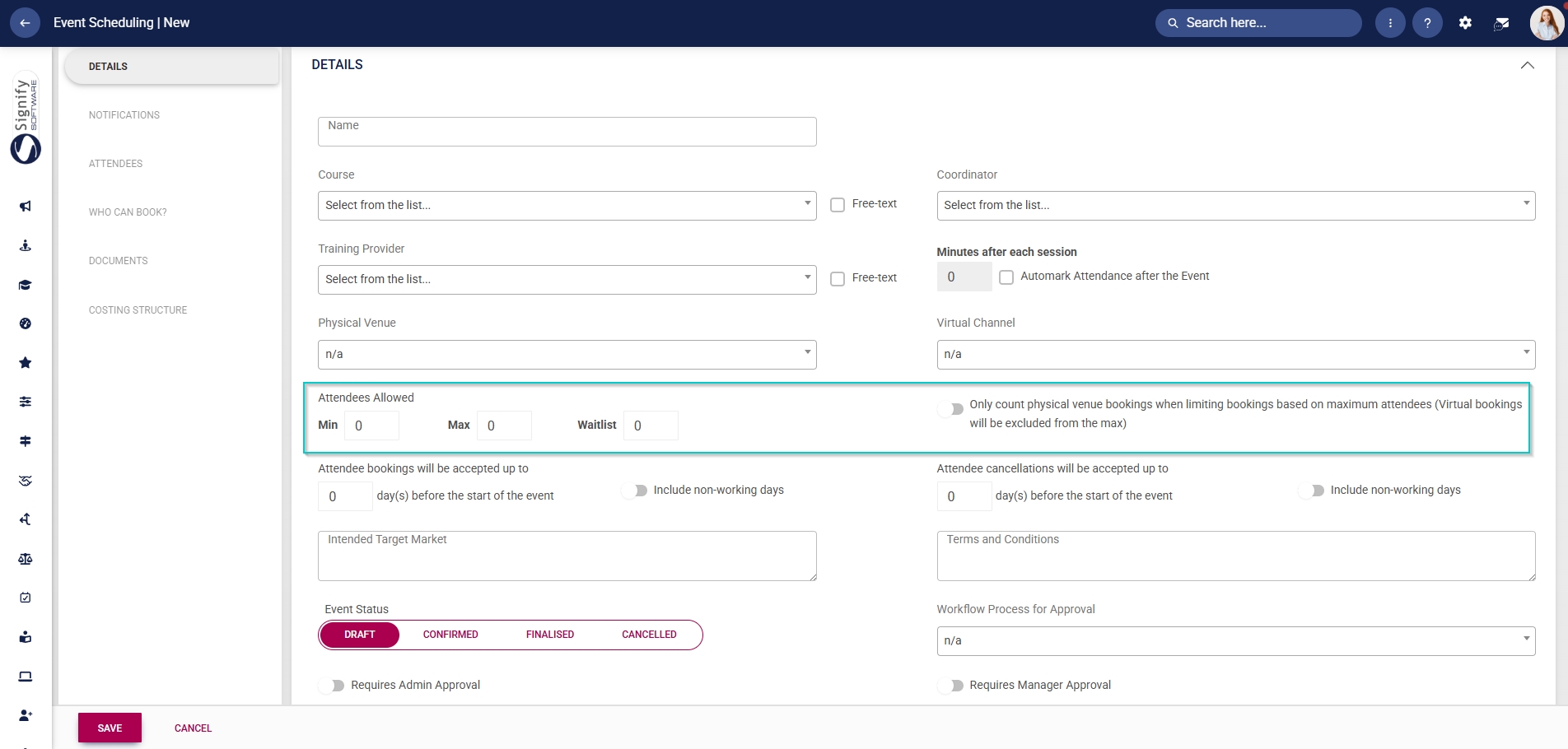
- Enter the minimum and maximum number of attendees allowed, as well as the number of waitlist spots for this event.
- Click the toggle button to count only physical venue bookings when considering booking limits for an event.
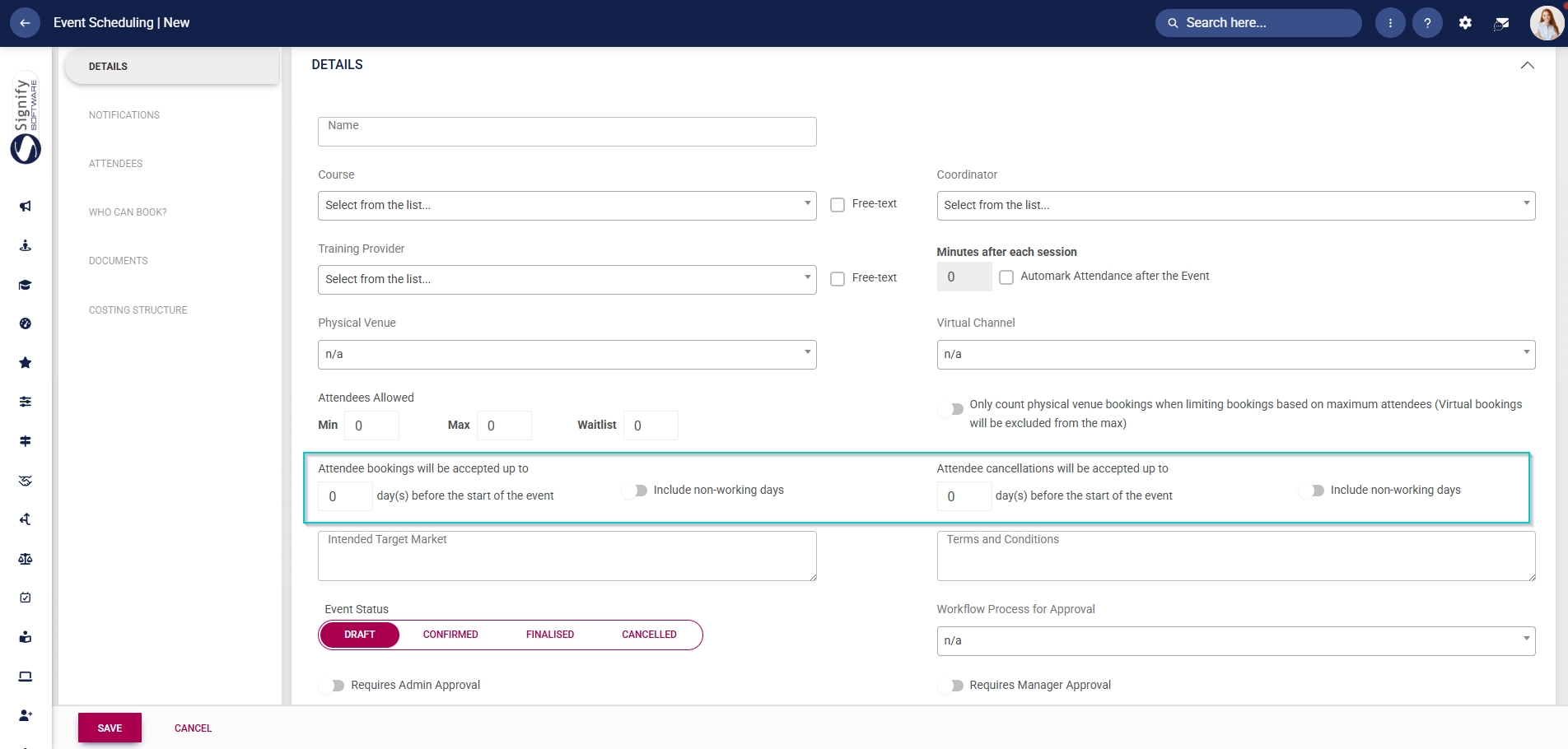
- Use the text boxes to describe the intended target market for this event and to list any terms and conditions.
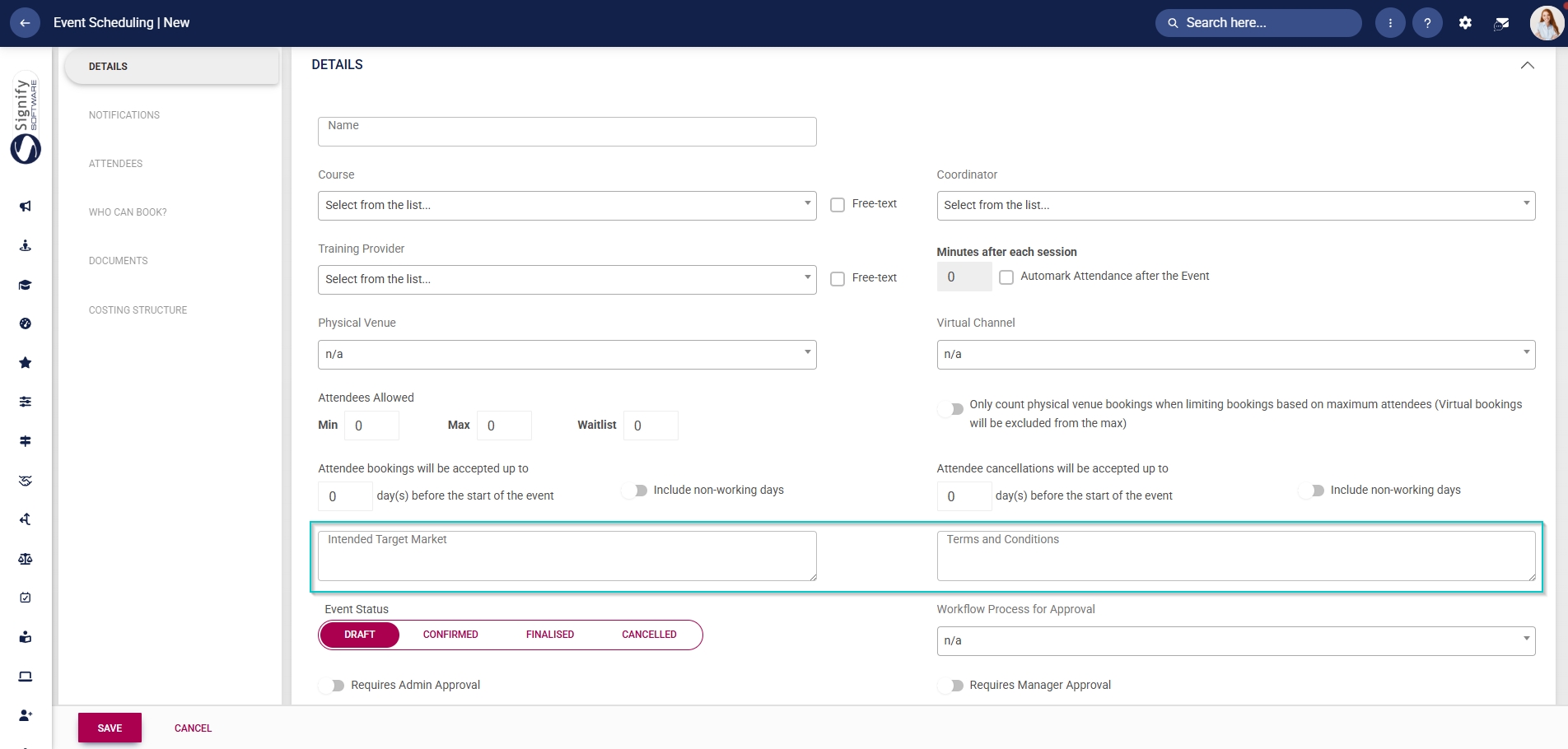
- Select the event status, such as Draft, Confirmed, Finalised, or Cancelled.
- Only confirmed events will be displayed in the Calendar view.
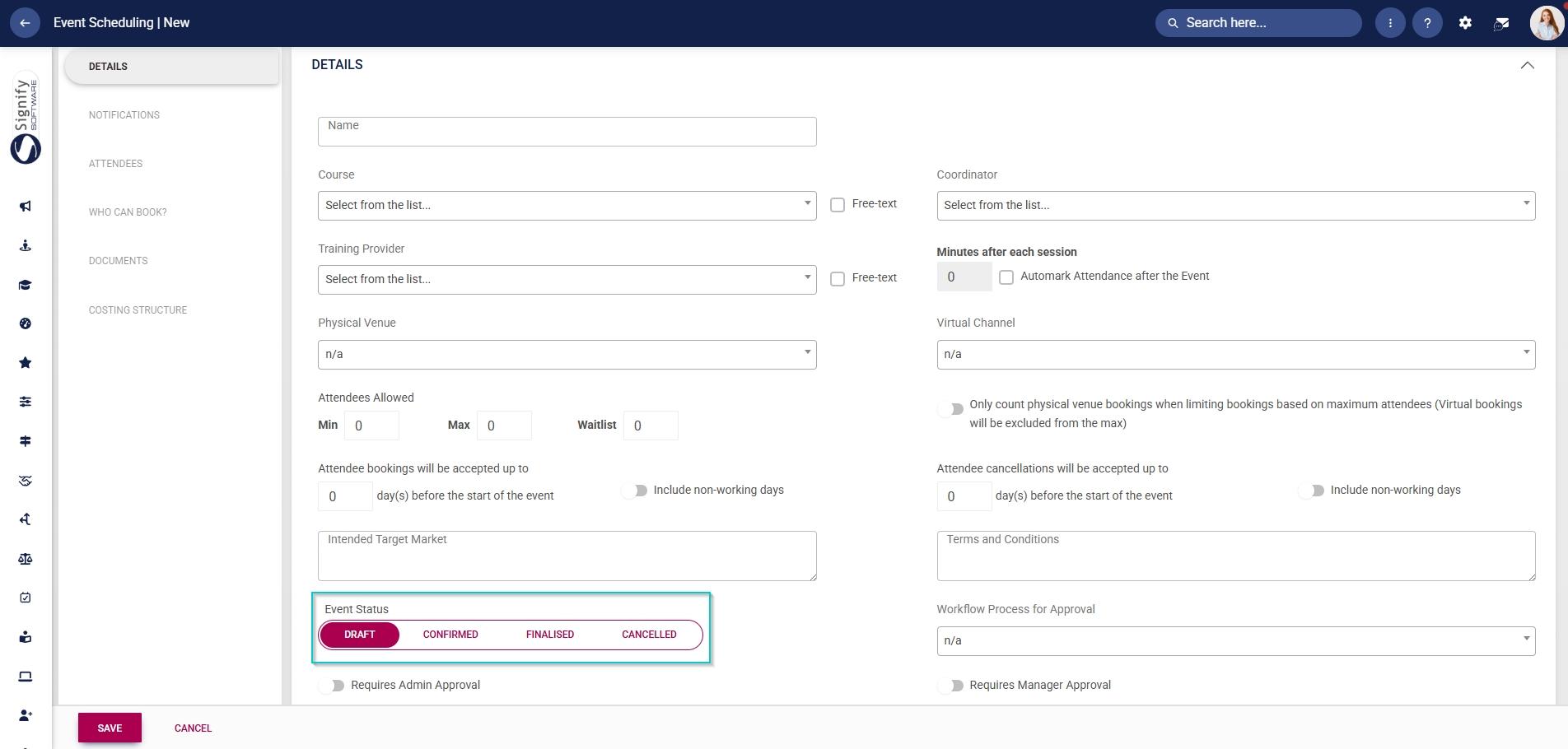
- Use the
dropdowndrop-down menu to select a pre-configured workflow process for the event’s approvals.
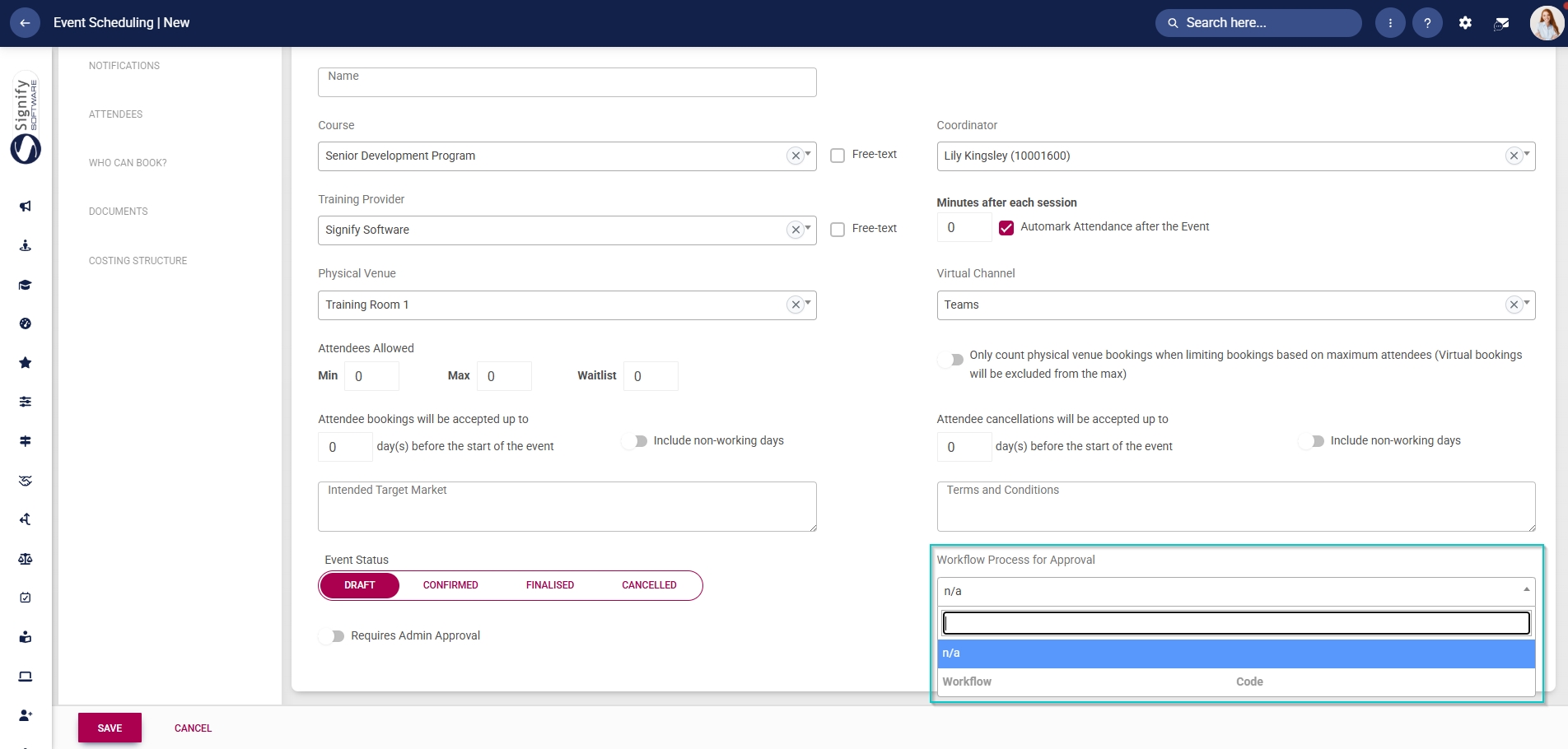
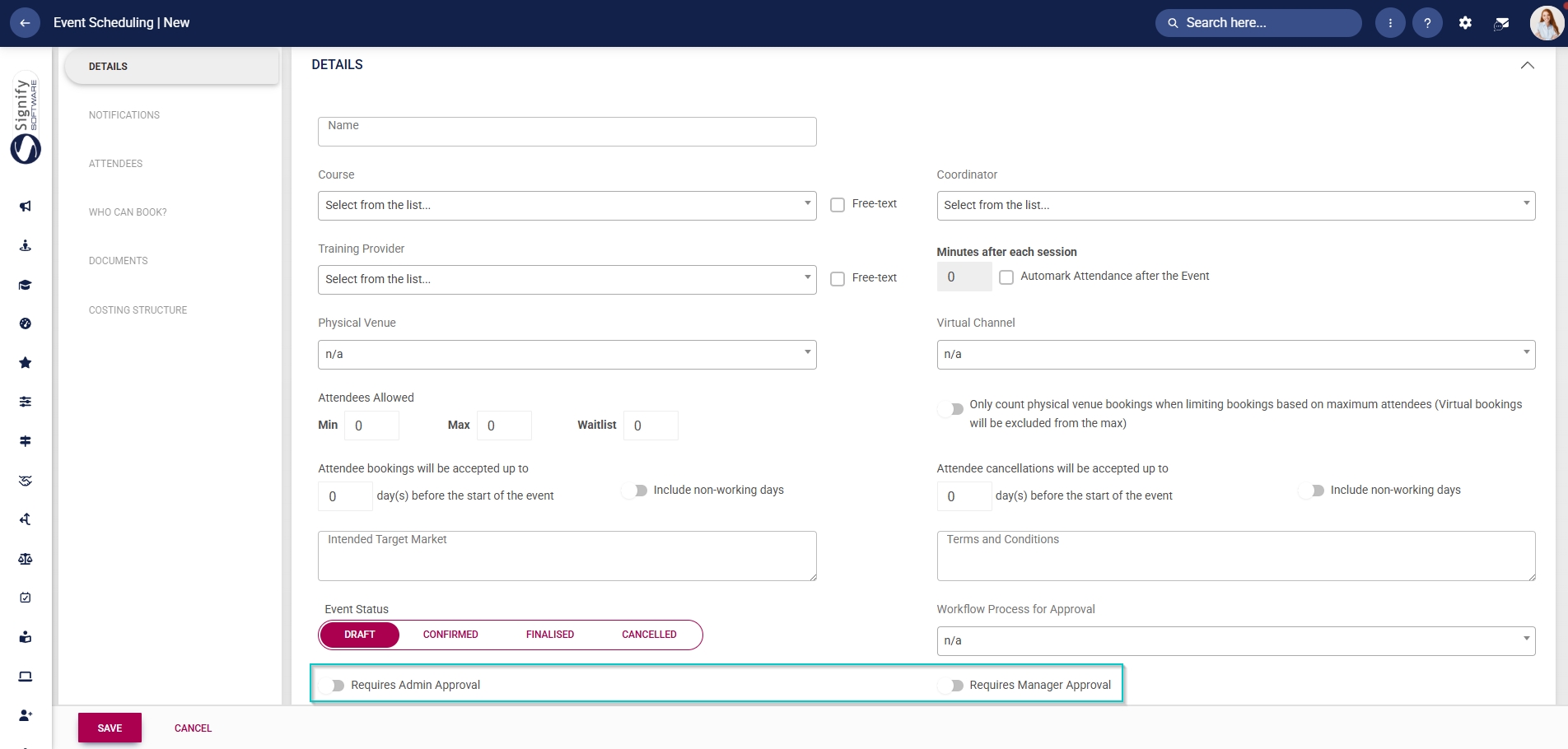
- Click the toggle button to set the status to require administrator approval.
- If an administrator’s approval is required, any event scheduling administrator can approve an attendee’s registration request.
- Click the toggle to set the status to require manager approval.
- If a manager’s approval is required, then the employee’s training manager will be notified. Event scheduling administrators can override manager approvals.
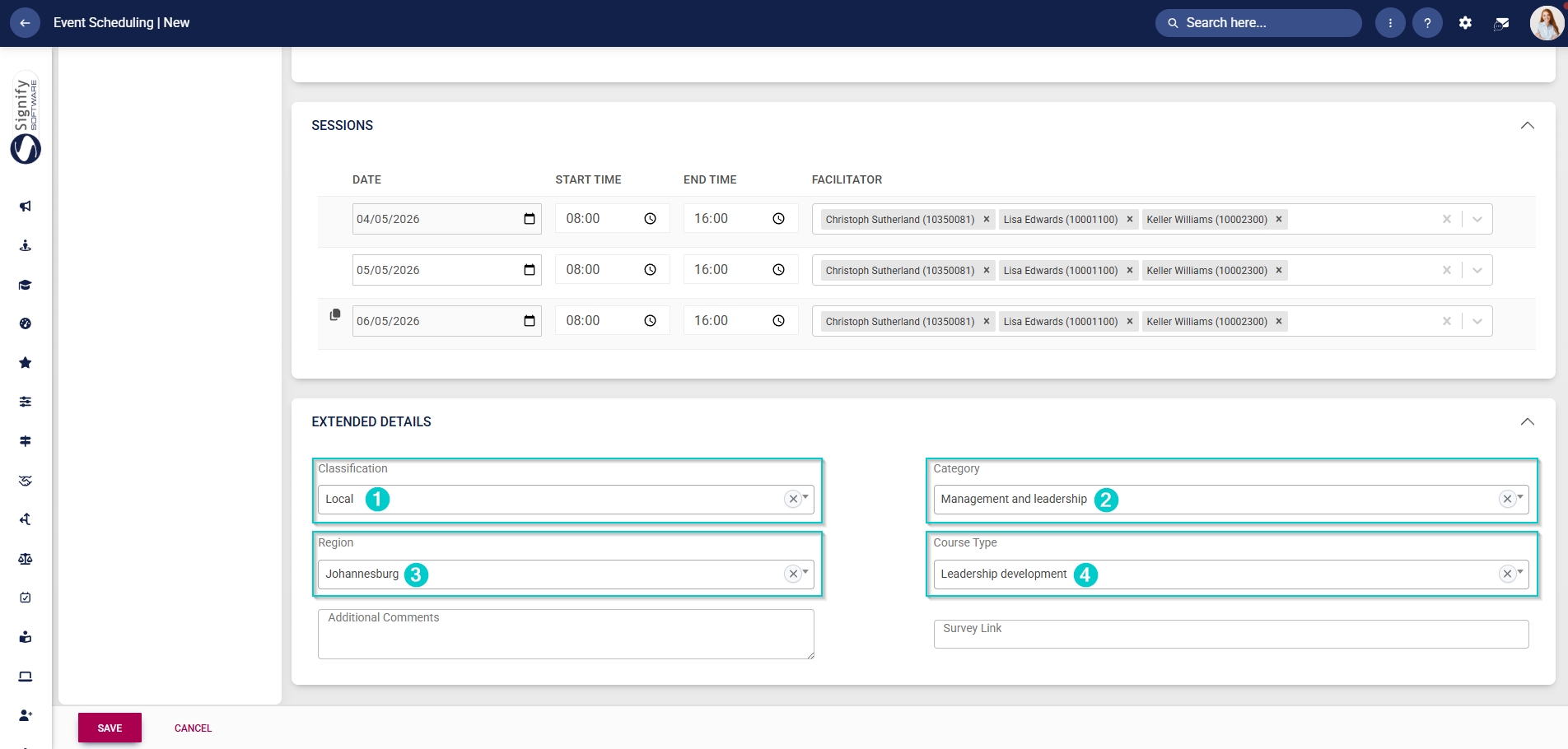
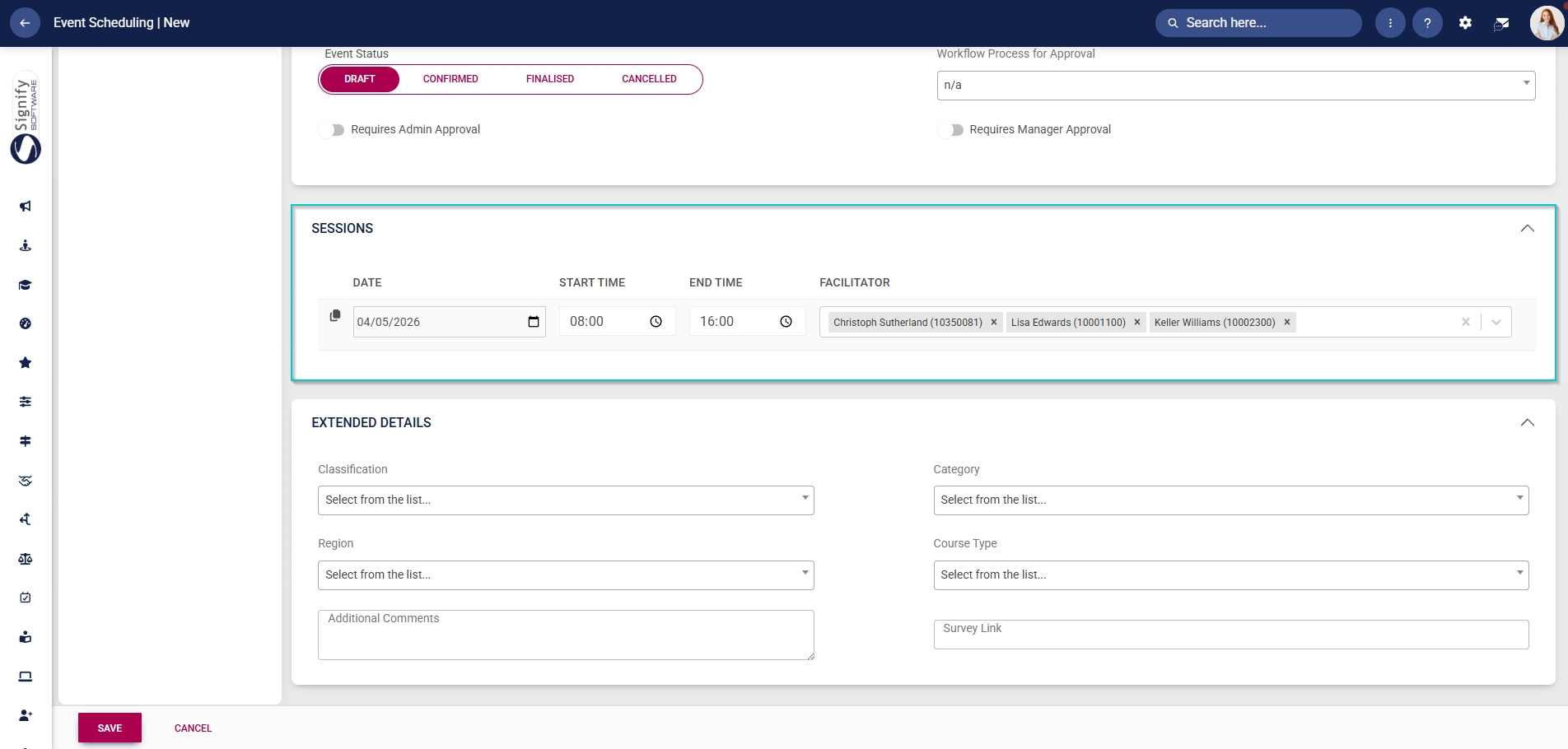
- Choose the date, time range, and facilitators for the event. Multiple facilitators can be selected for a single event.
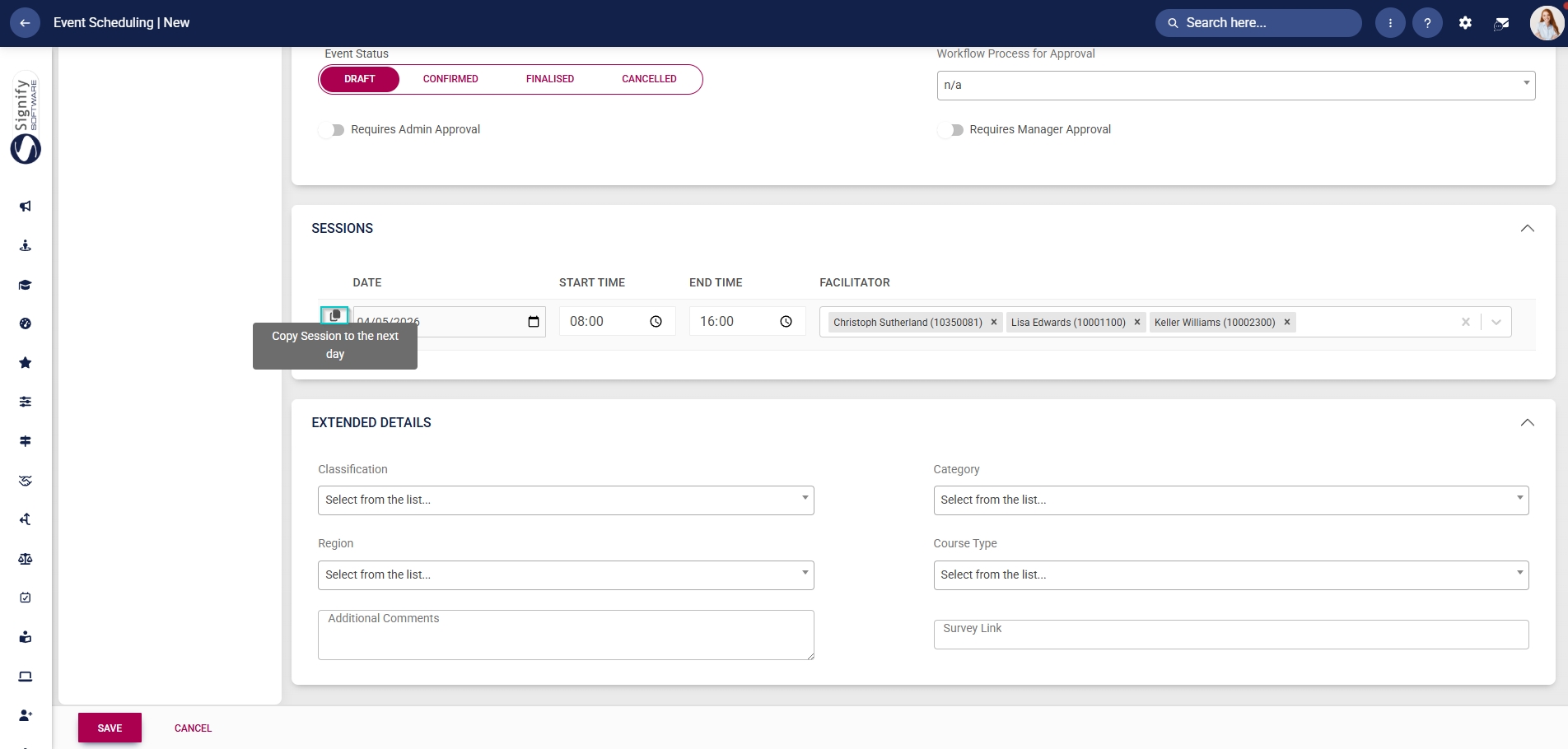
- If the event spans over multiple days, another session can be added by clicking on the copy icon.
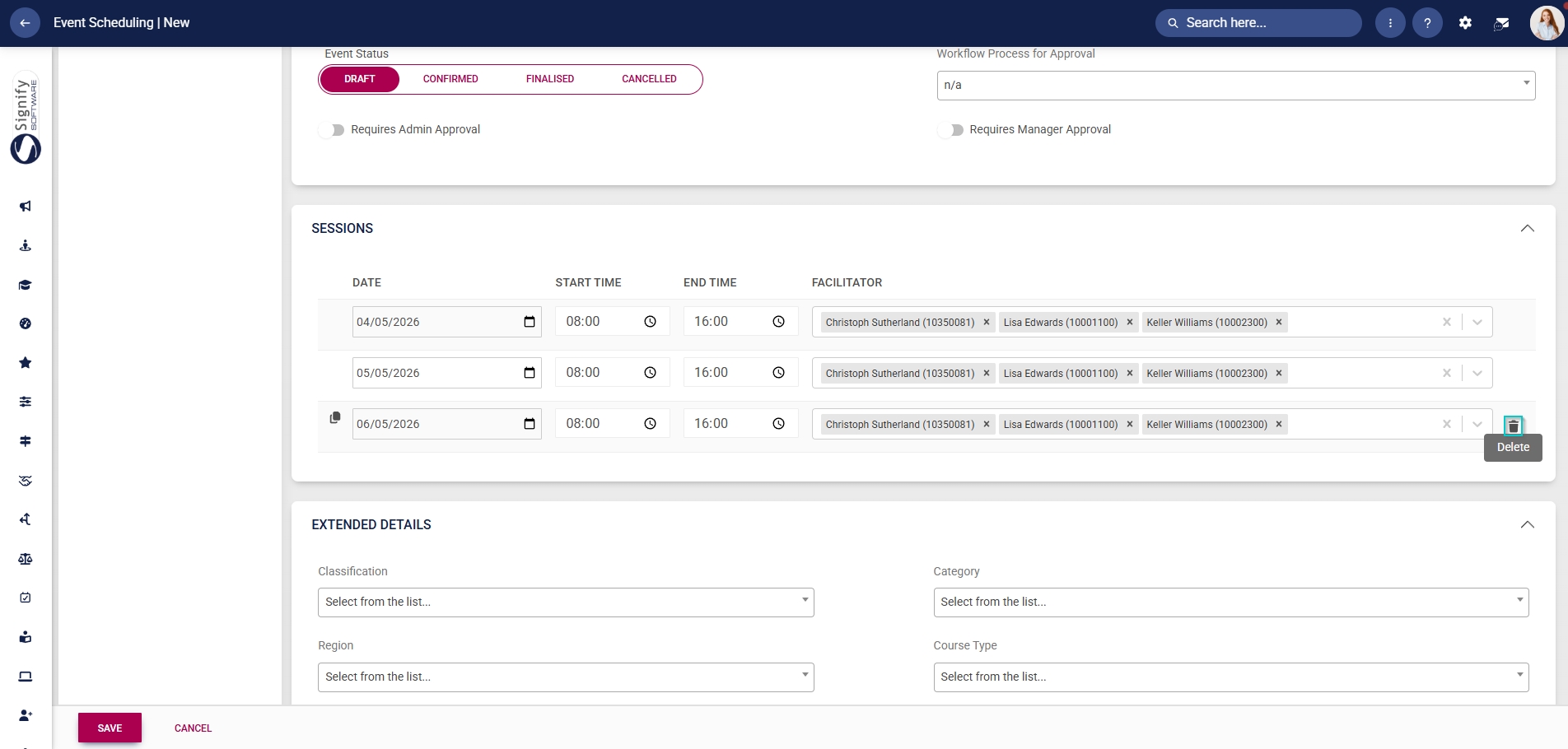
- To delete a session, click the dustbin icon.
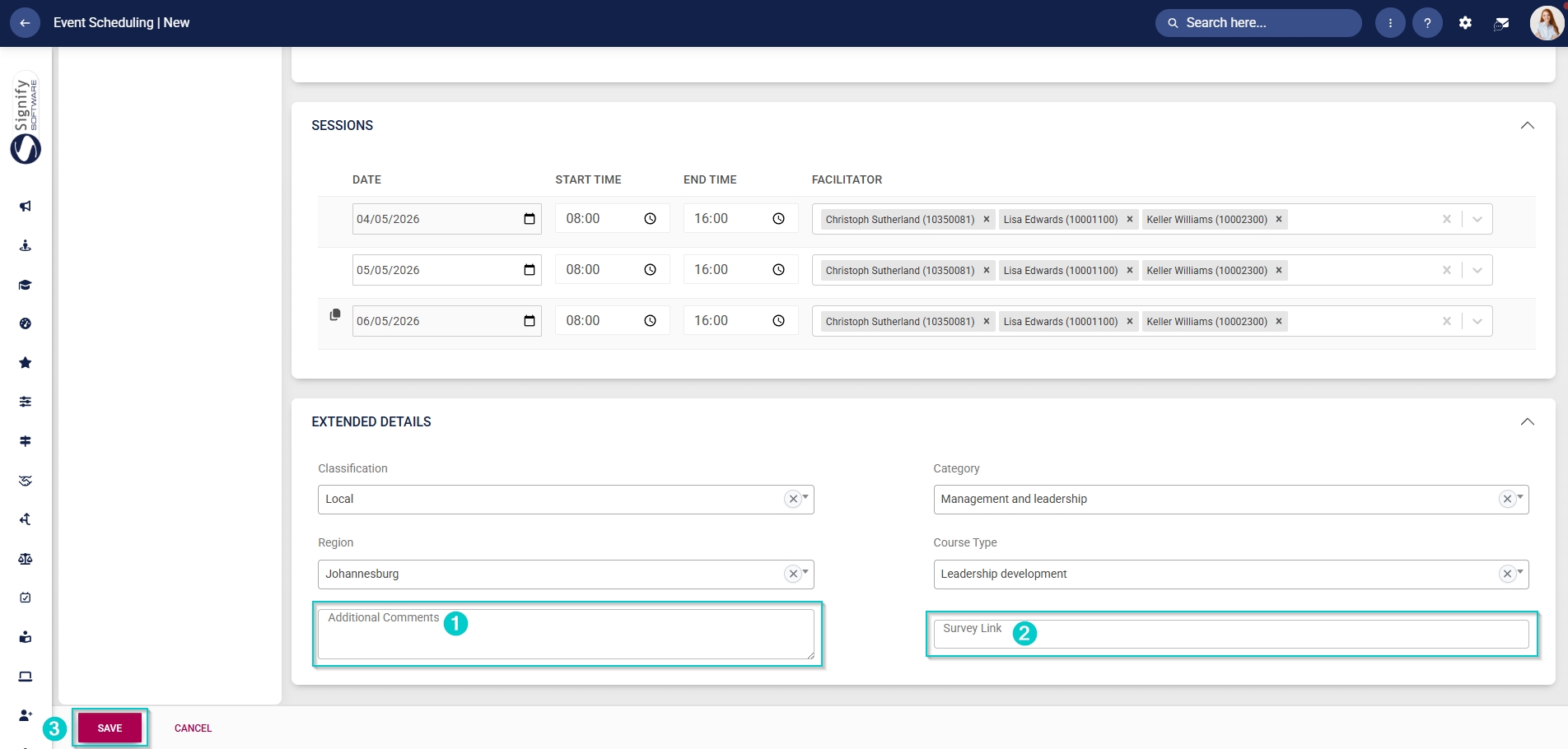
- Additional details about the event can be captured in the Extended Details section. From the
dropdowndrop-down menus, select Classification, Category, Region, and Course Type (which administrators previously configured as master data).