Skip to main content
Upload Documents to an Event

- Hover over the sidebar menu, then click Event Scheduling.

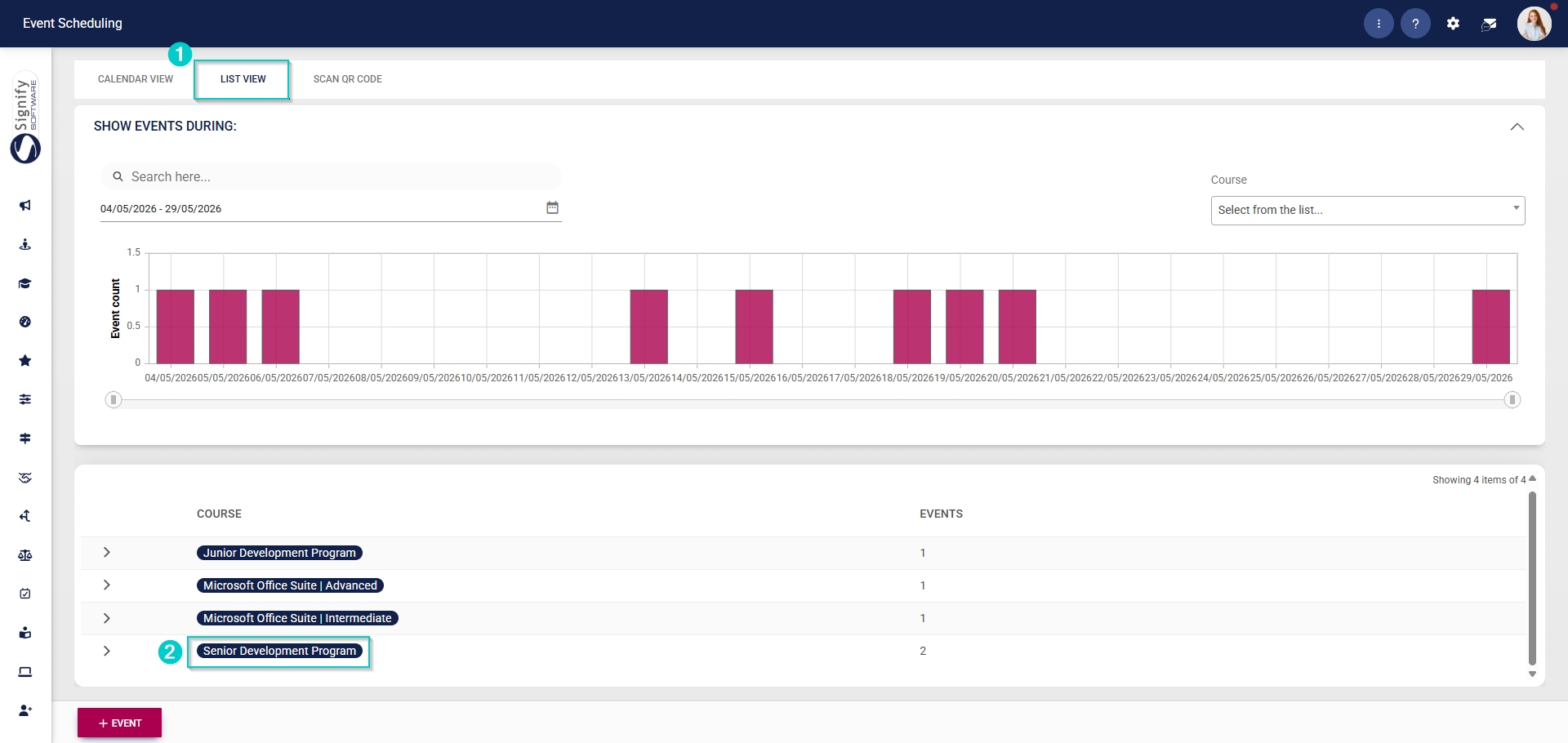
- Navigate to the List View tab and expand the course you would like to edit by clicking on its name.
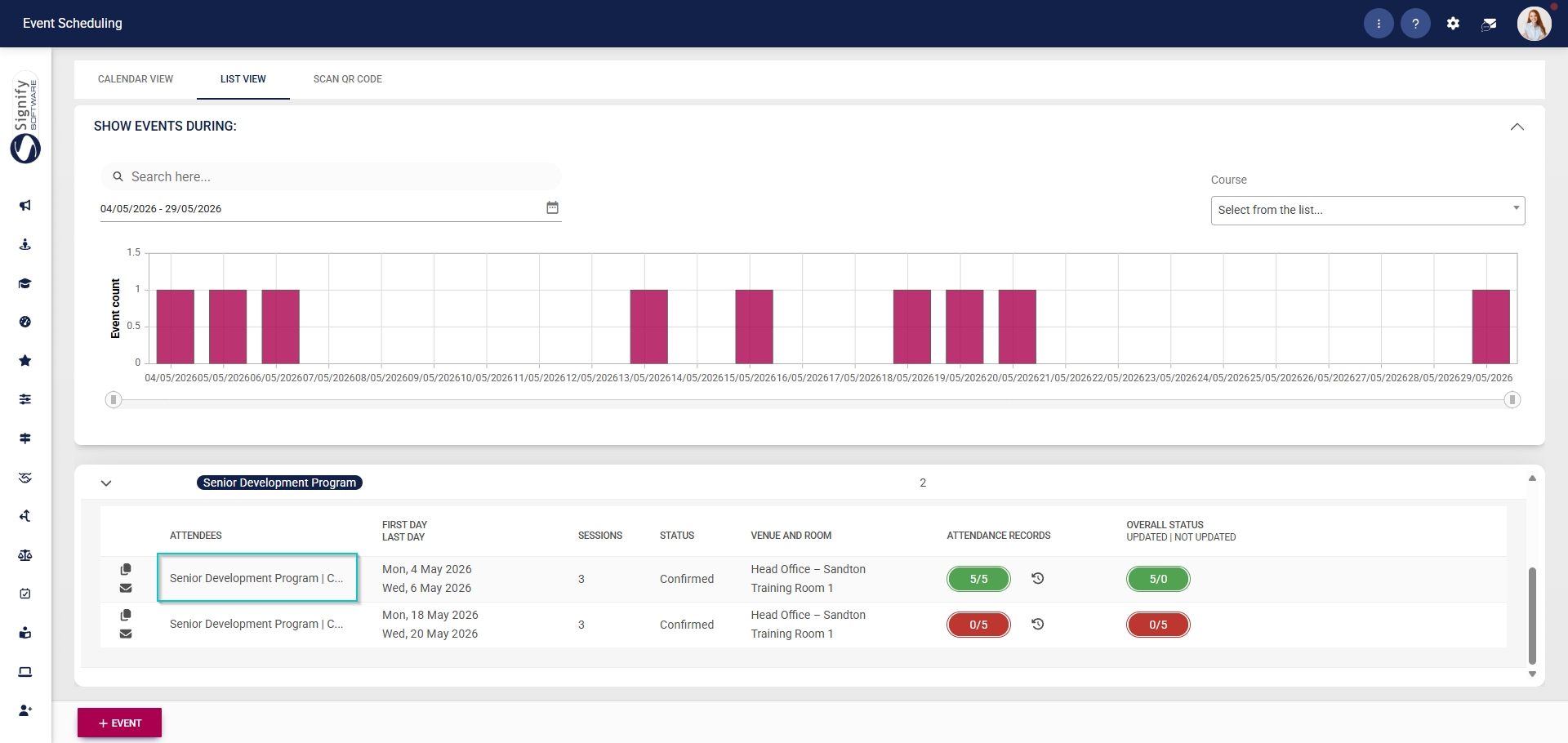
- Click on the name of the event you would like to edit.
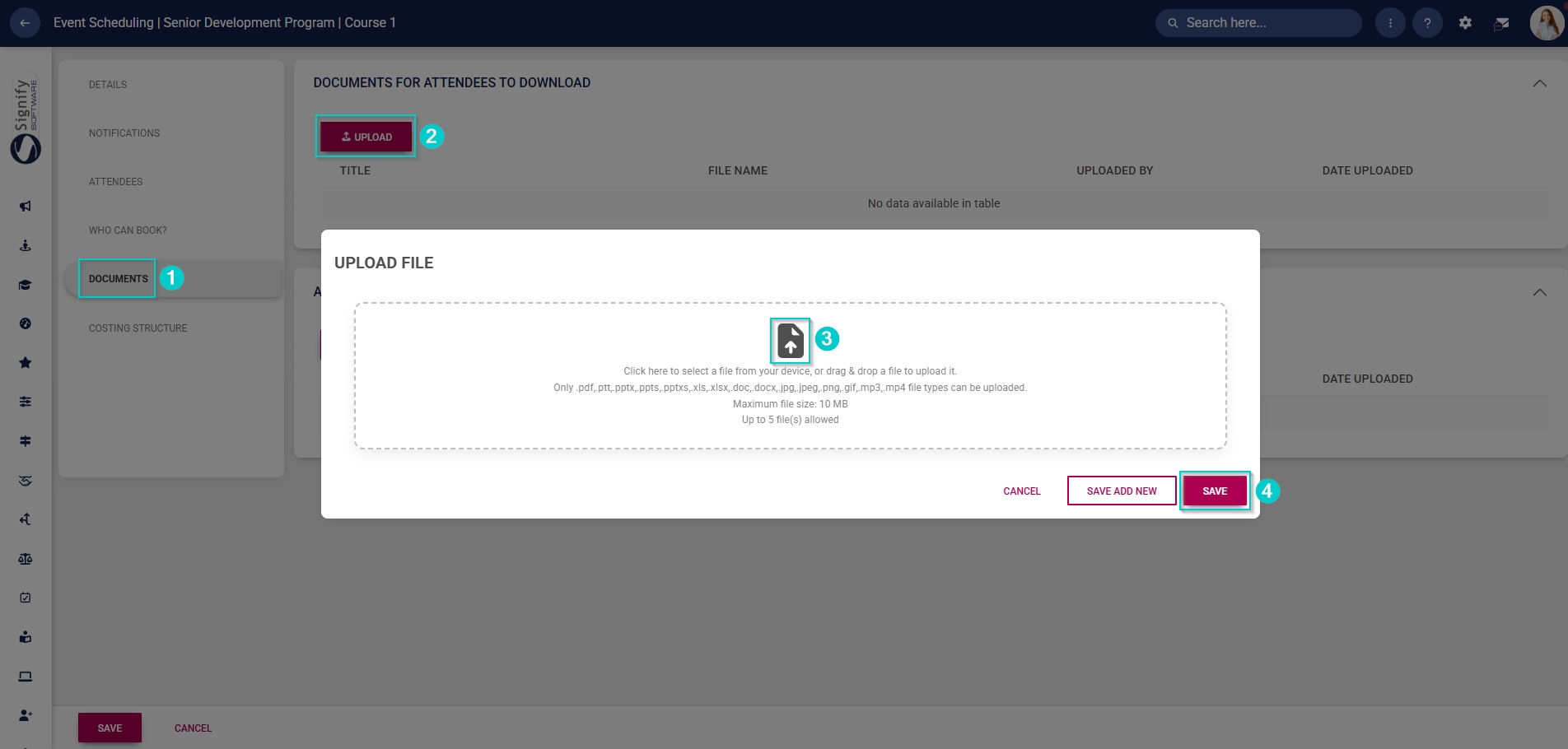
In the left-hand menu, click Documents.
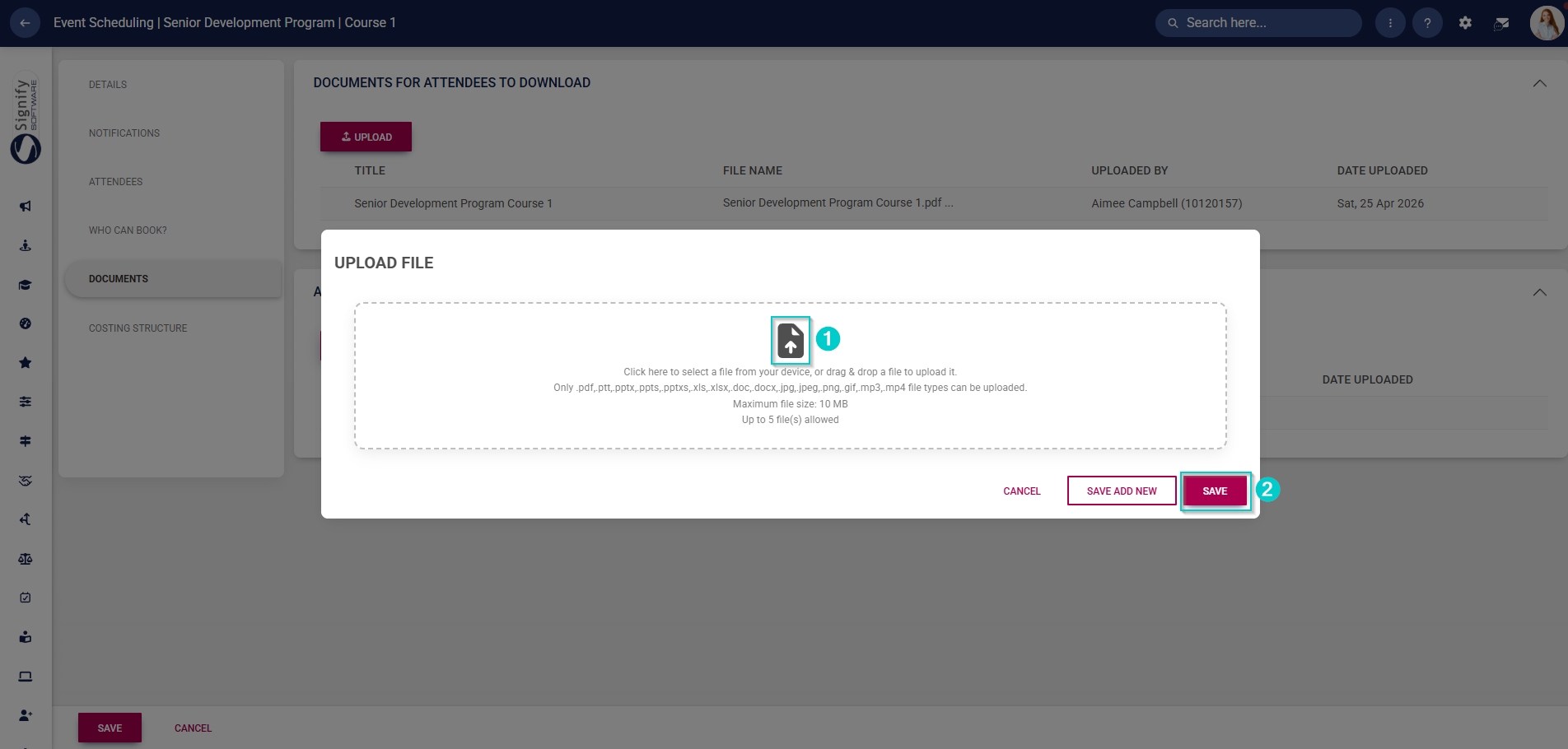
Click UPLOAD to link a file to this event so attendees can download it.
Choose the file you would like to upload.
Click SAVE when you are finished, SAVE ADD NEW to add another file (up to five files allowed) or click CANCEL to discard your edits.
Click UPLOAD to link a file to this event so facilitators or coordinators can download it. This document is not visible to attendees.
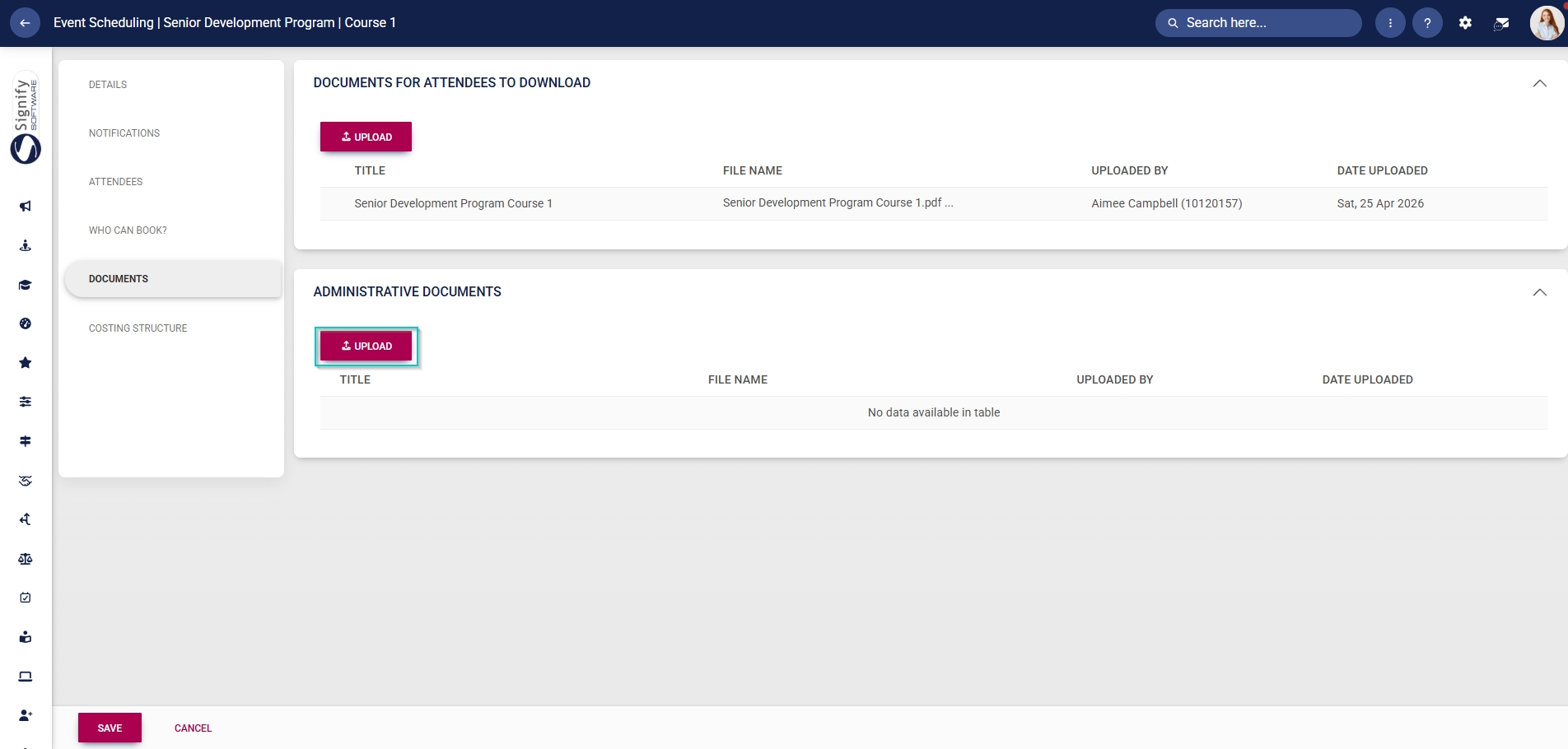
Choose the file you would like to upload. Please note that up to five files are allowed.
Click SAVE when you are finished, SAVE ADD NEW to add another file or click CANCEL to discard your edits.