
Using the Calendar View

The following section demonstrates what end users see in the Event Scheduling module.
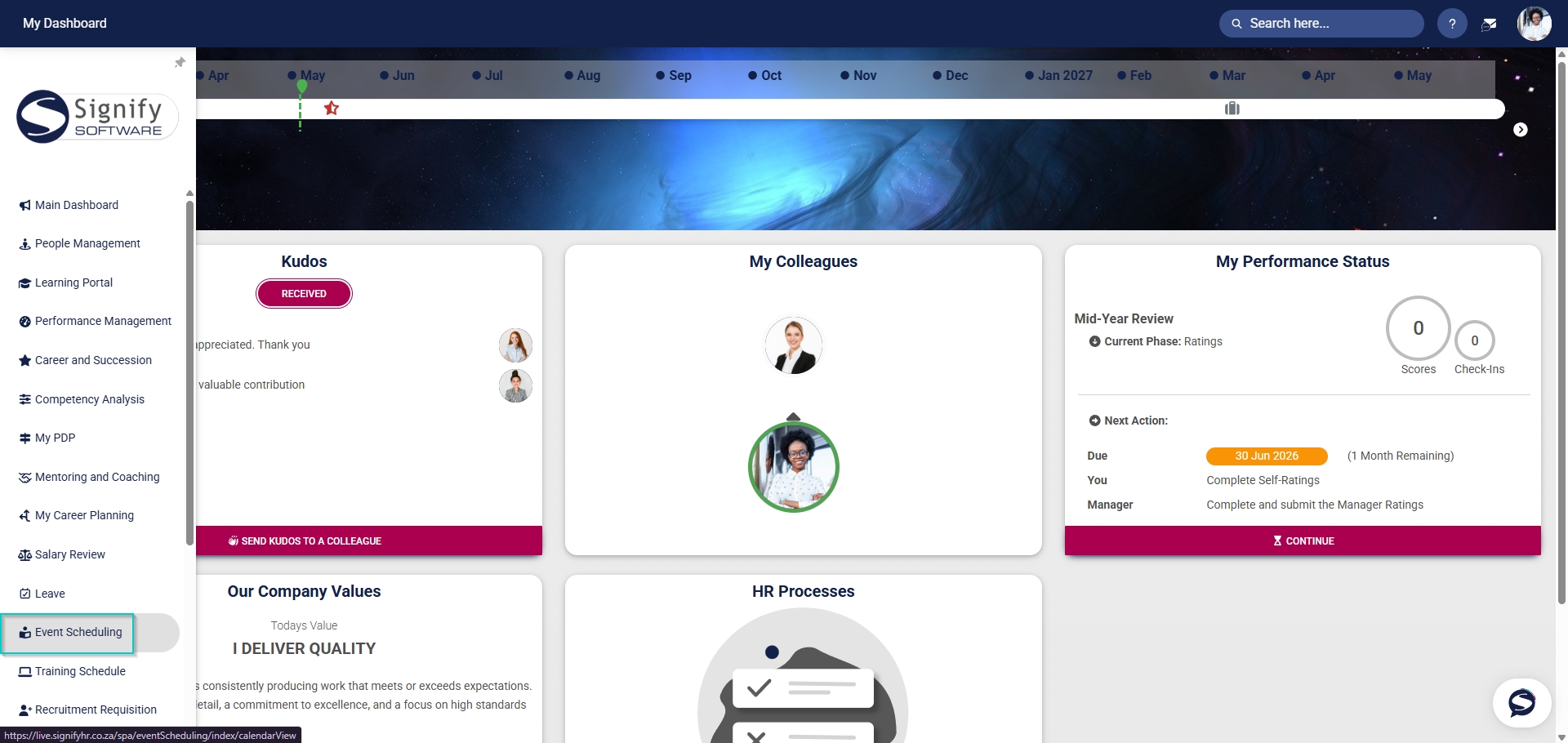
- Hover over the sidebar menu, then click Event Scheduling.
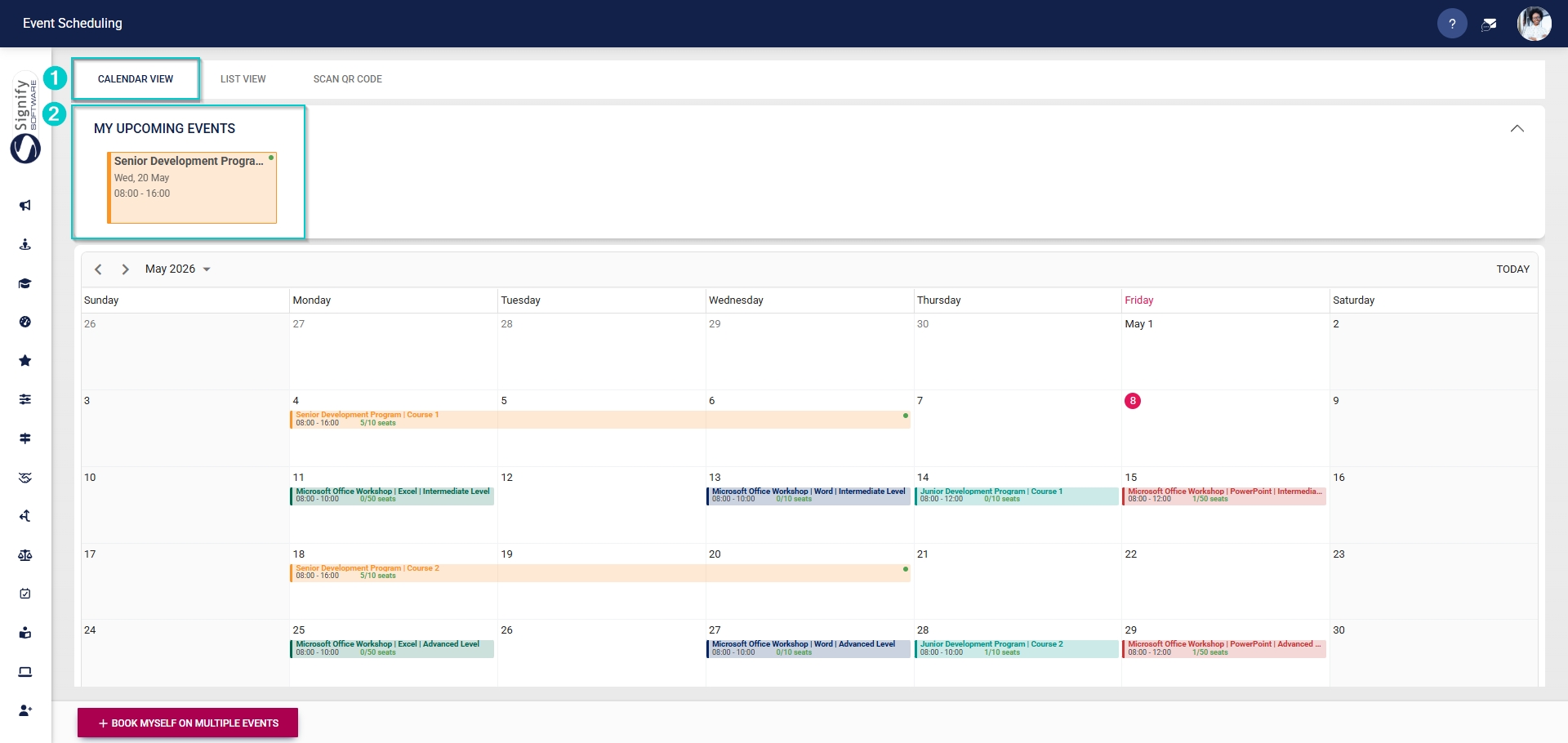
- The Calendar View tab will open. If an employee has been booked for an event, the event details will show in the My Upcoming Events section.
- Click on the event card for more information.

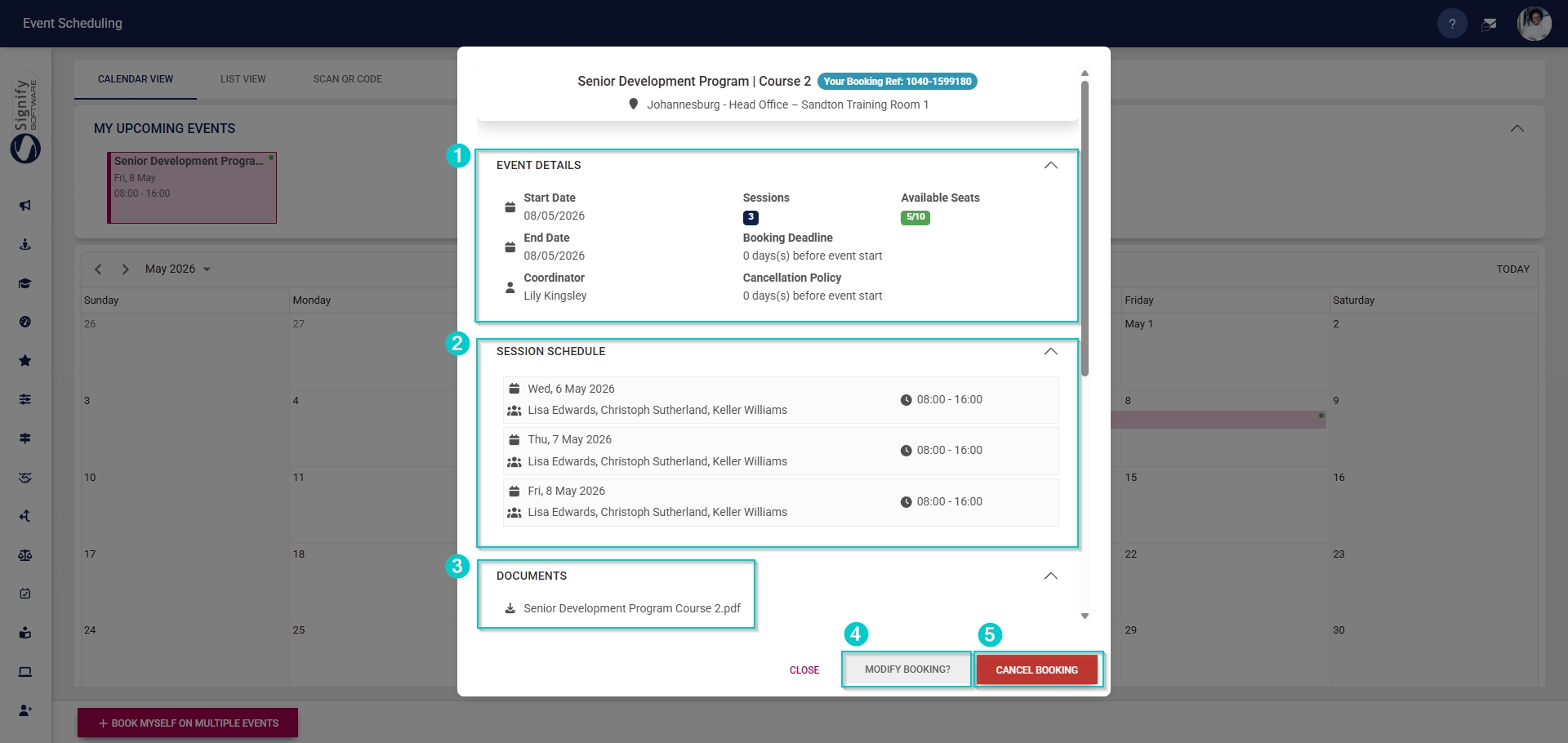
- A pop-up window will display information about the event, such as:
- Event details, including the:
- start date,
- end date,
- number of sessions,
- available seats, and
- the event coordinator’s name.
- The session schedule, including the:
- dates,
- start and end times, and
- the facilitators’ names.
- Downloadable content, such as documents, is specifically for attendees.
- Event details, including the:
- Attendees can update their booking by clicking MODIFY BOOKING.
- An event booking can be cancelled by clicking CANCEL BOOKING.
- Click CLOSE to return to the calendar.
- The left and right arrow icons, as well as the date dropdown menu, can be used to view past or future events.

