Skip to main content
Using the List View

- Hover over the sidebar menu, then click Event Scheduling.

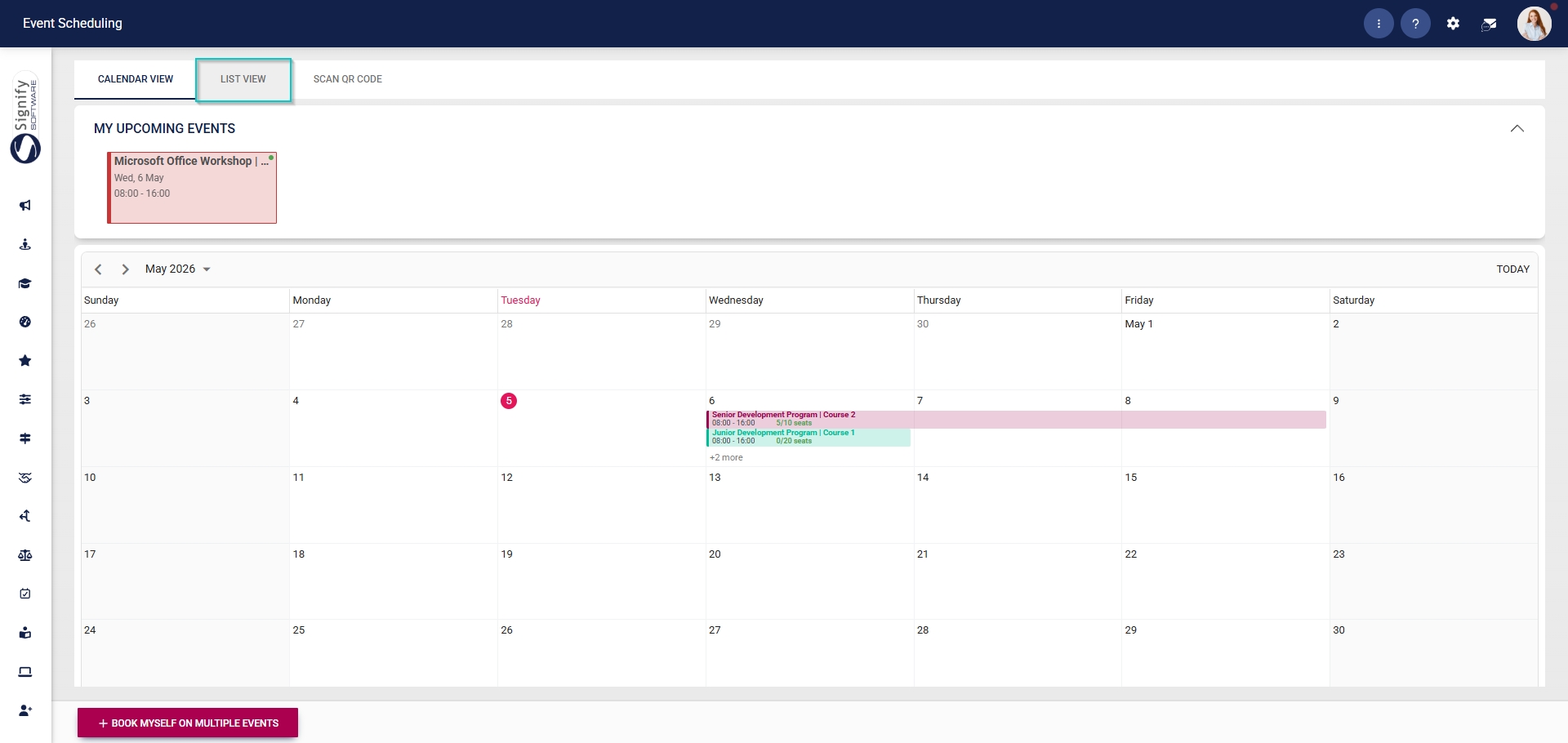
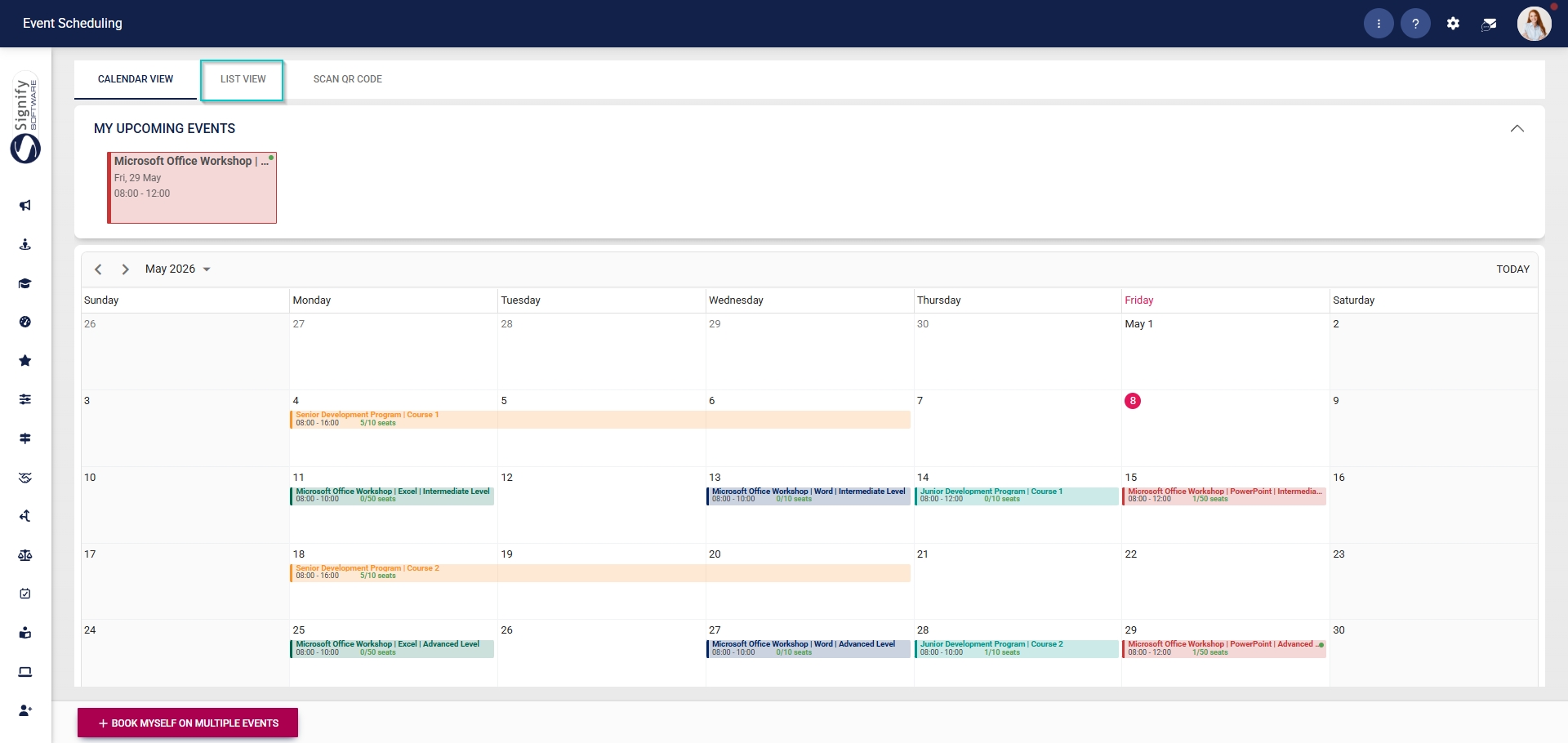
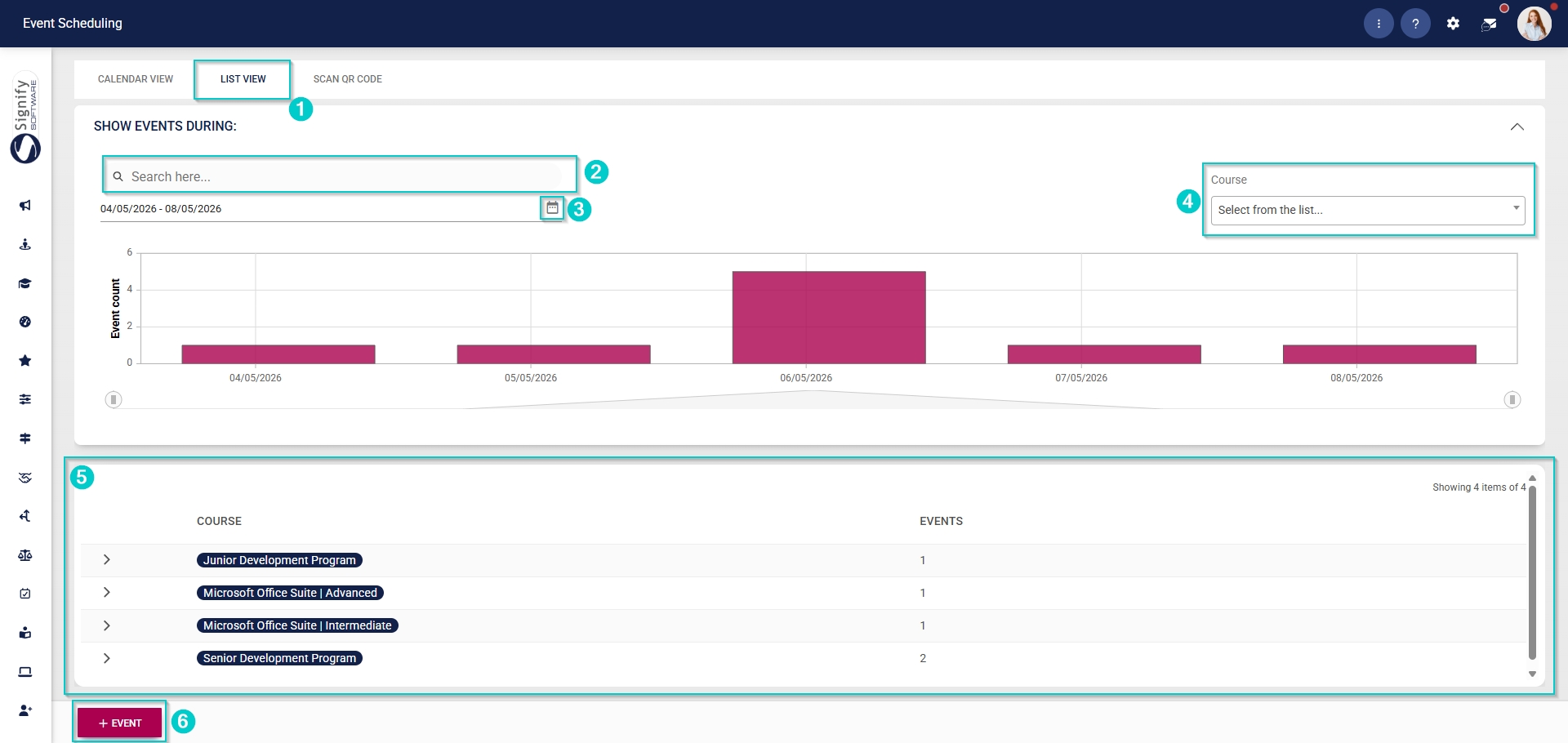
- Click to navigate to the List View tab.
- This page shows all events within your date range filter.
- Use the search bar to search for specific courses or events.
- Use the calendar icon to change the date range filter.
- Courses can be selected using the dropdown menu.
- Courses are grouped by Training Intervention name.
- The number of events linked to the training intervention is shown in the Events column.
- Administrators can click the +EVENT button to create a new event.
- Employees and non-administrators will view only the events they have been added to and free-to-book events. They are not able to create new events.