Skip to main content
Create a Subject

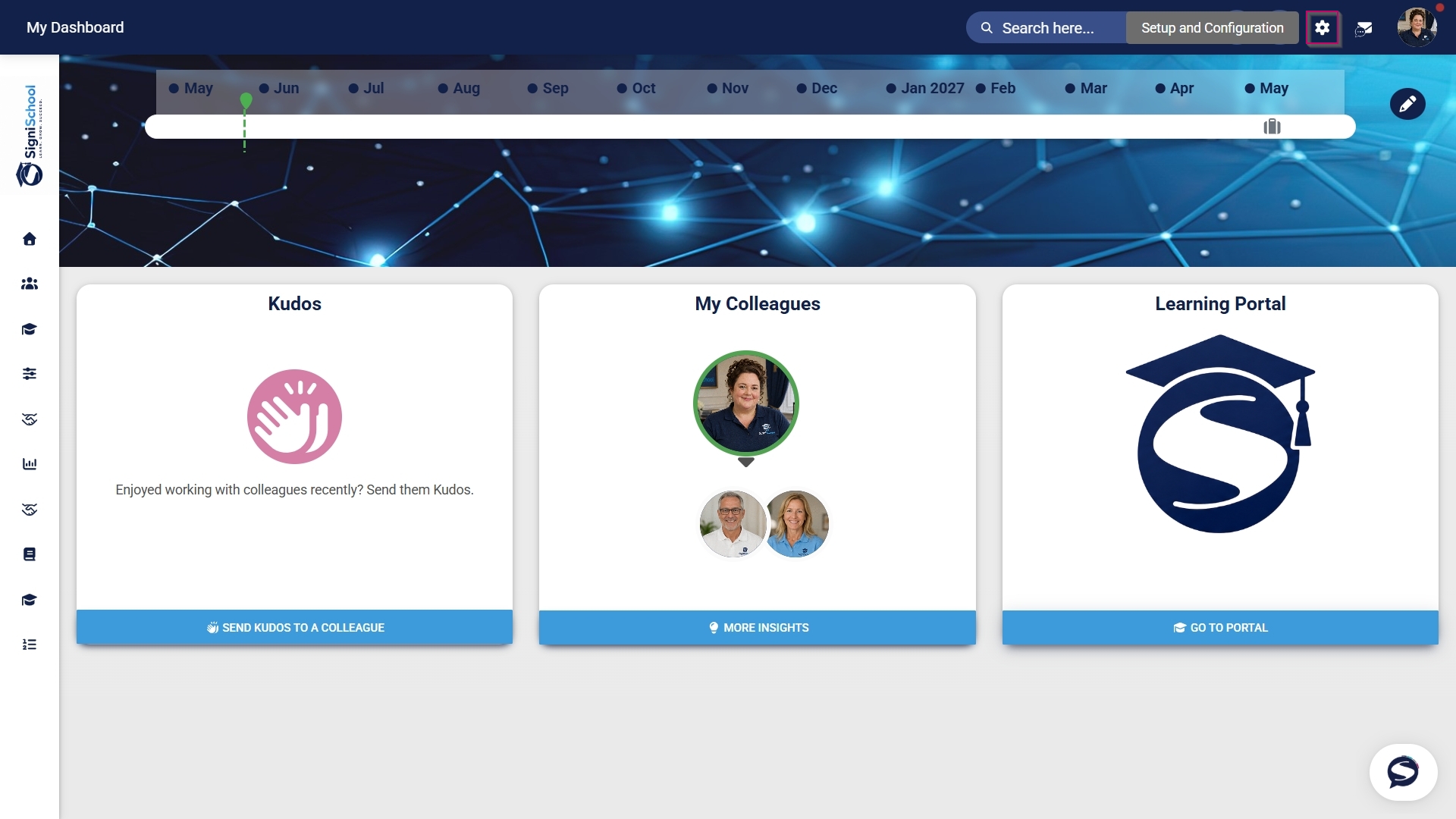
Click the gear icon to access the Setup and Configuration menu.
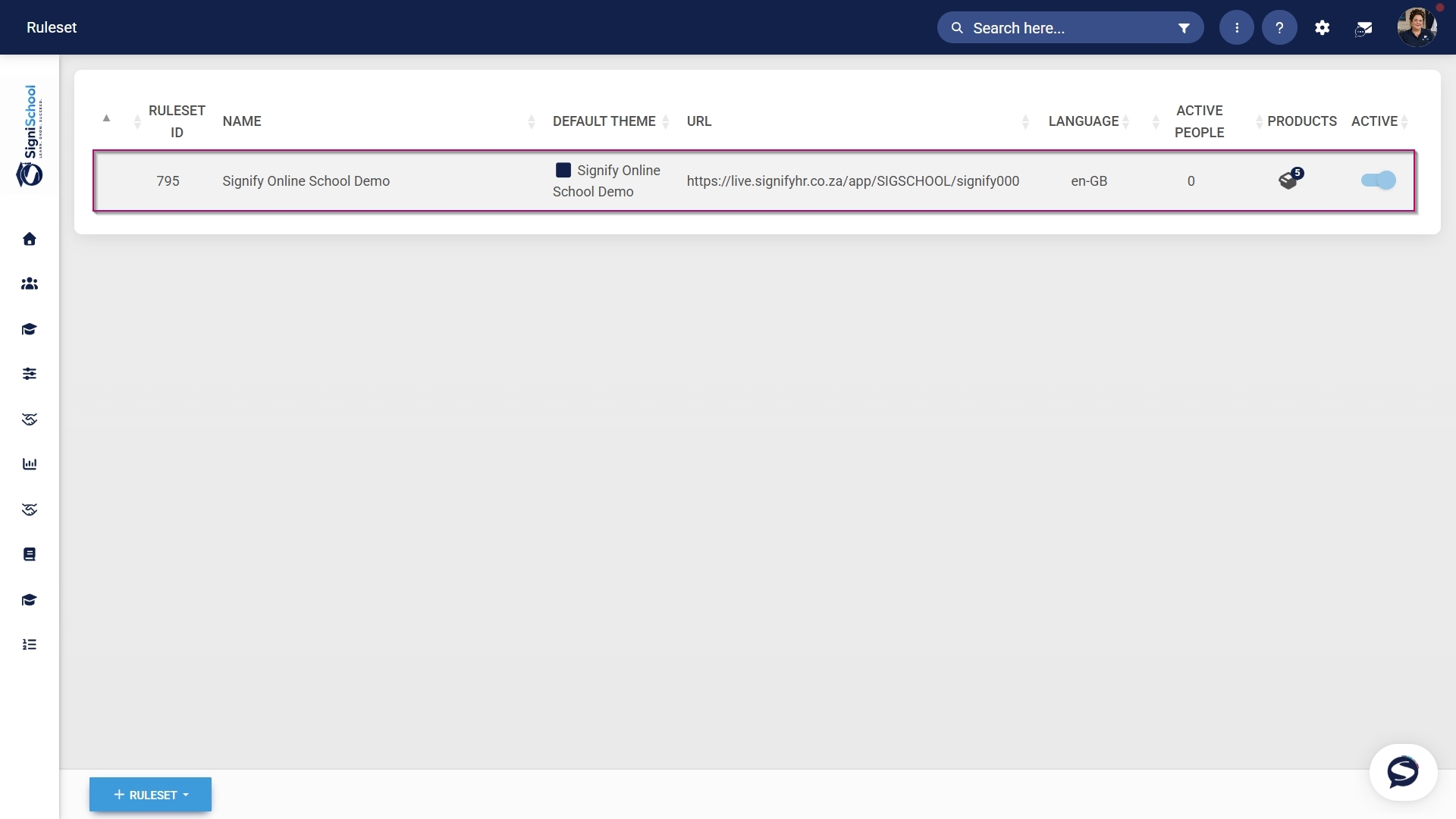
Click Ruleset Setup.

Select the ruleset you would like to update.
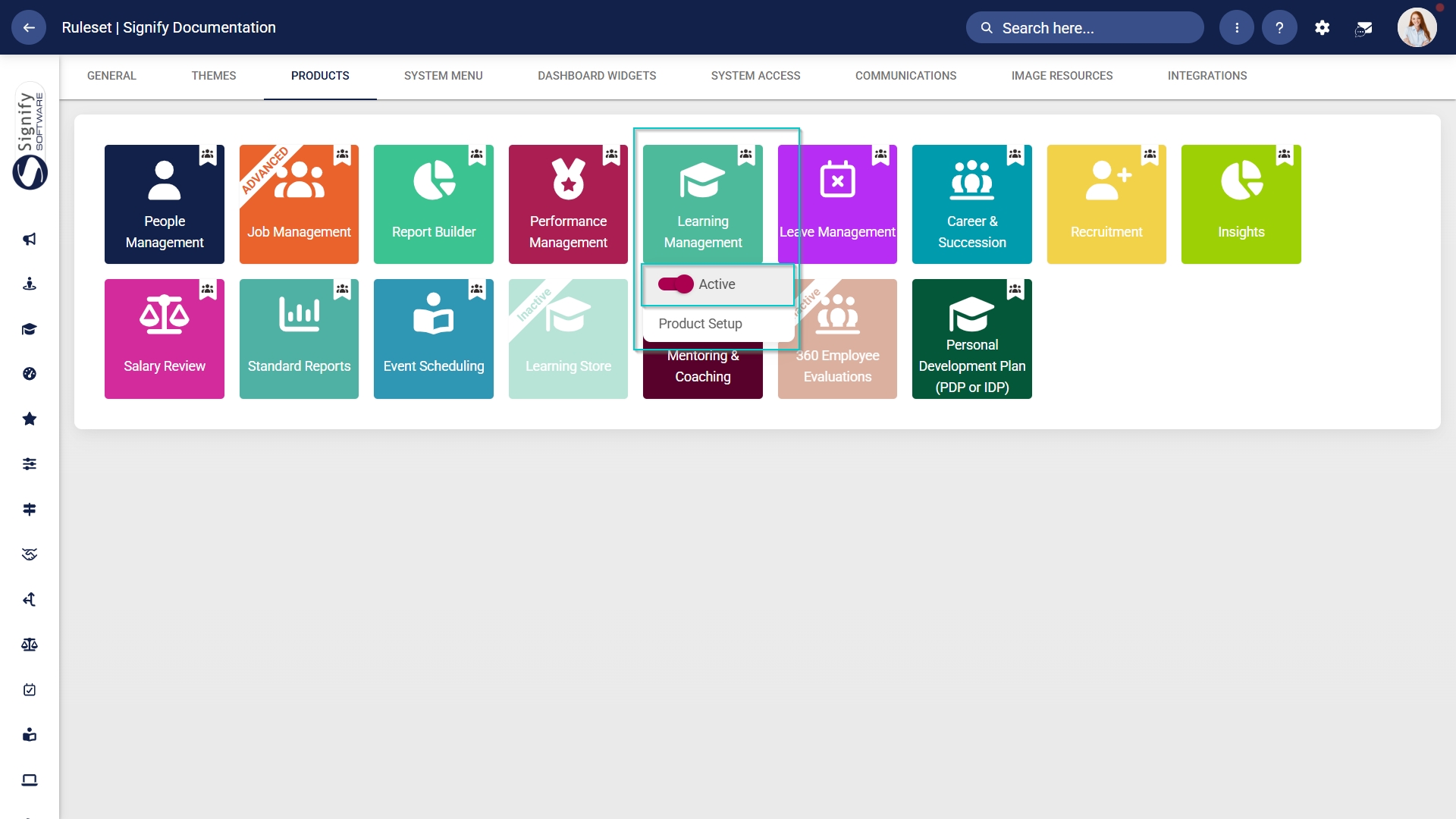
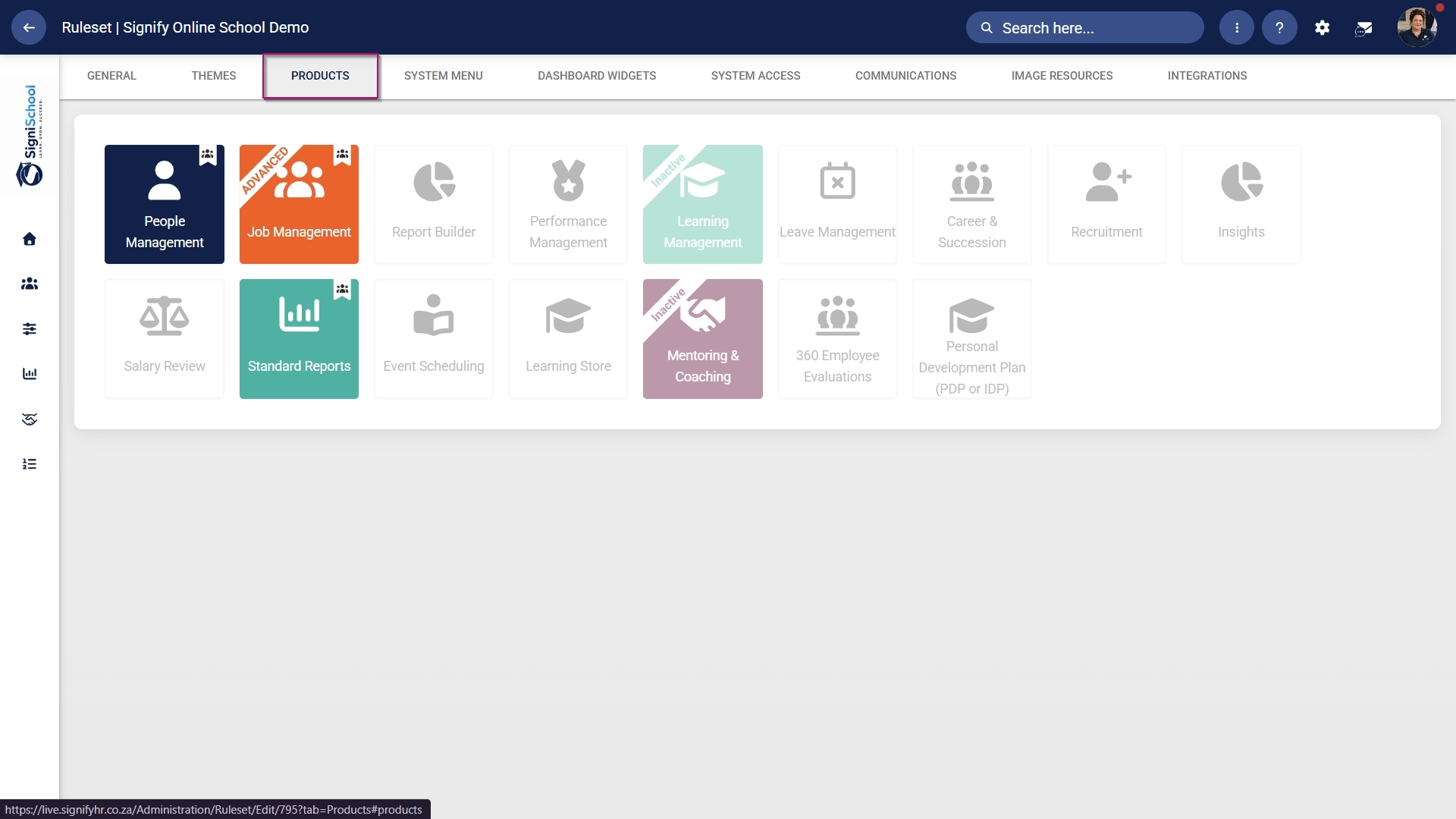
Navigate to the Products tab.
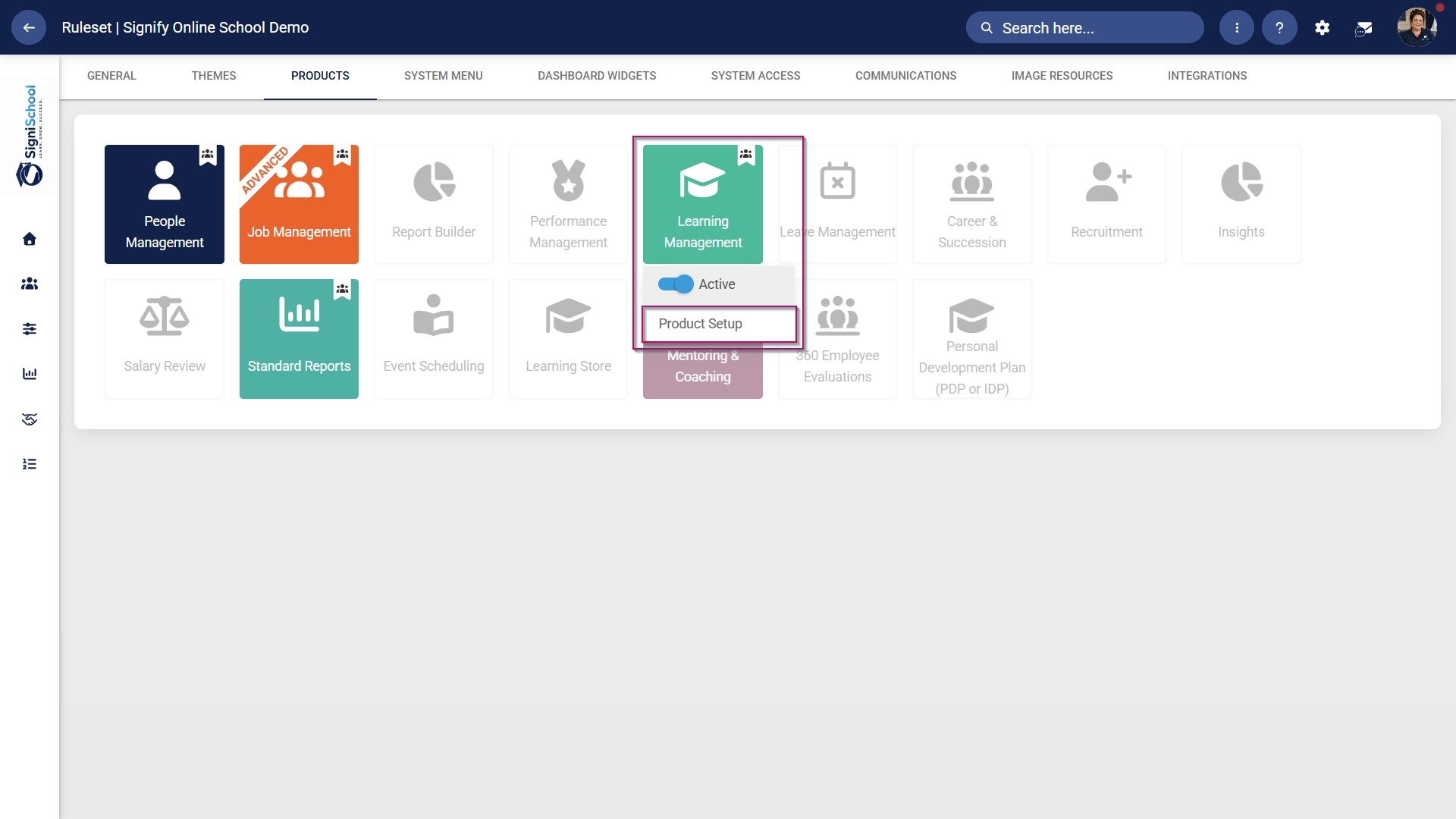
Click on the Learning Management product card, then click Product Setup.
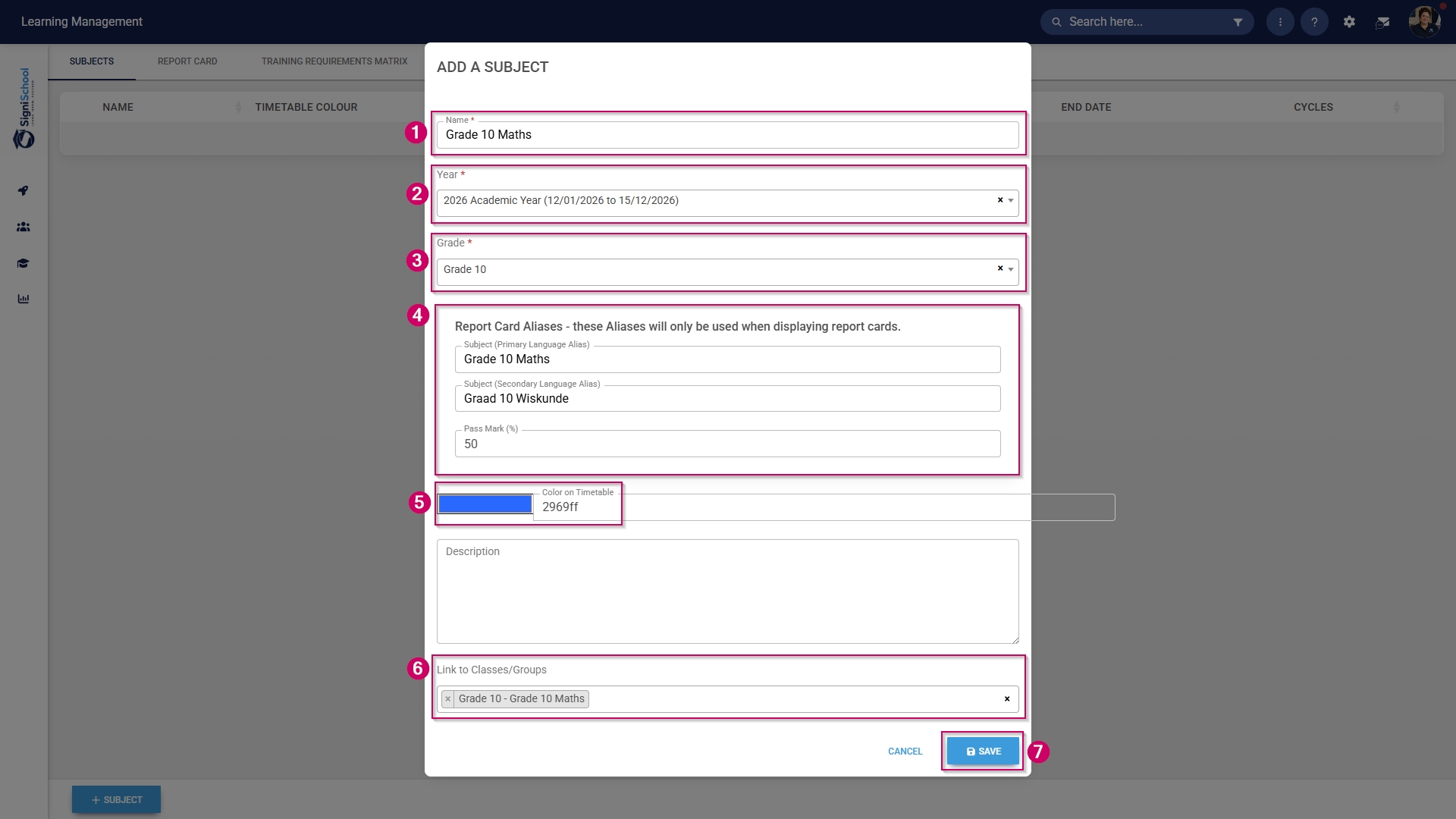
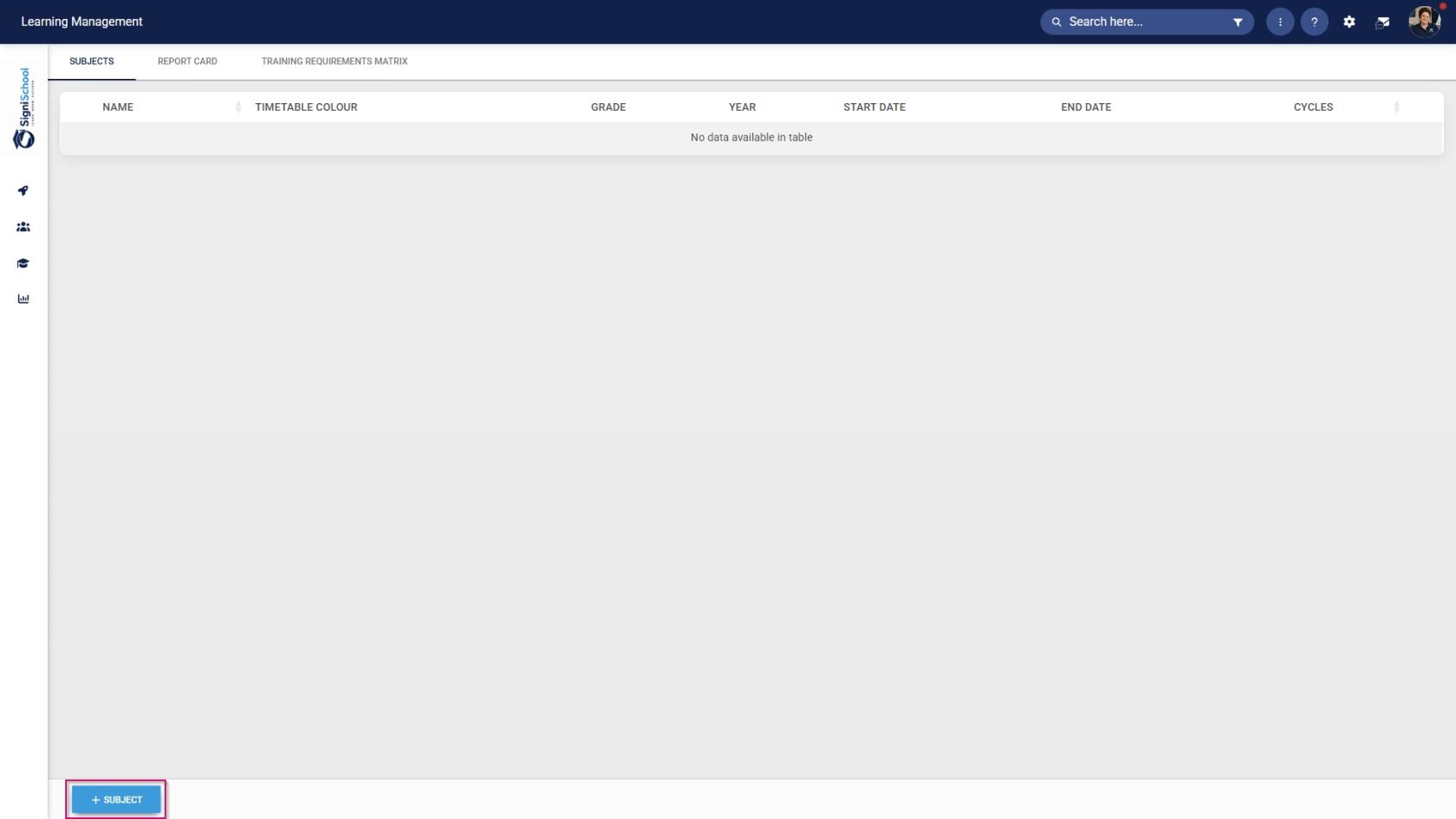
Click +SUBJECT.
Add a name for this subject.
Select the academic year from the drop-down menu.
Select the grade from the drop-down menu.
Provide a primary and secondary language alias for the subject.
Select a pass mark for the subject.
Use the colour picker to choose a colour for this subject, which will appear on the timetable.
Link the subject to a pathway's class/group.
Click SAVE when you are finished or click CANCEL to discard your edits.

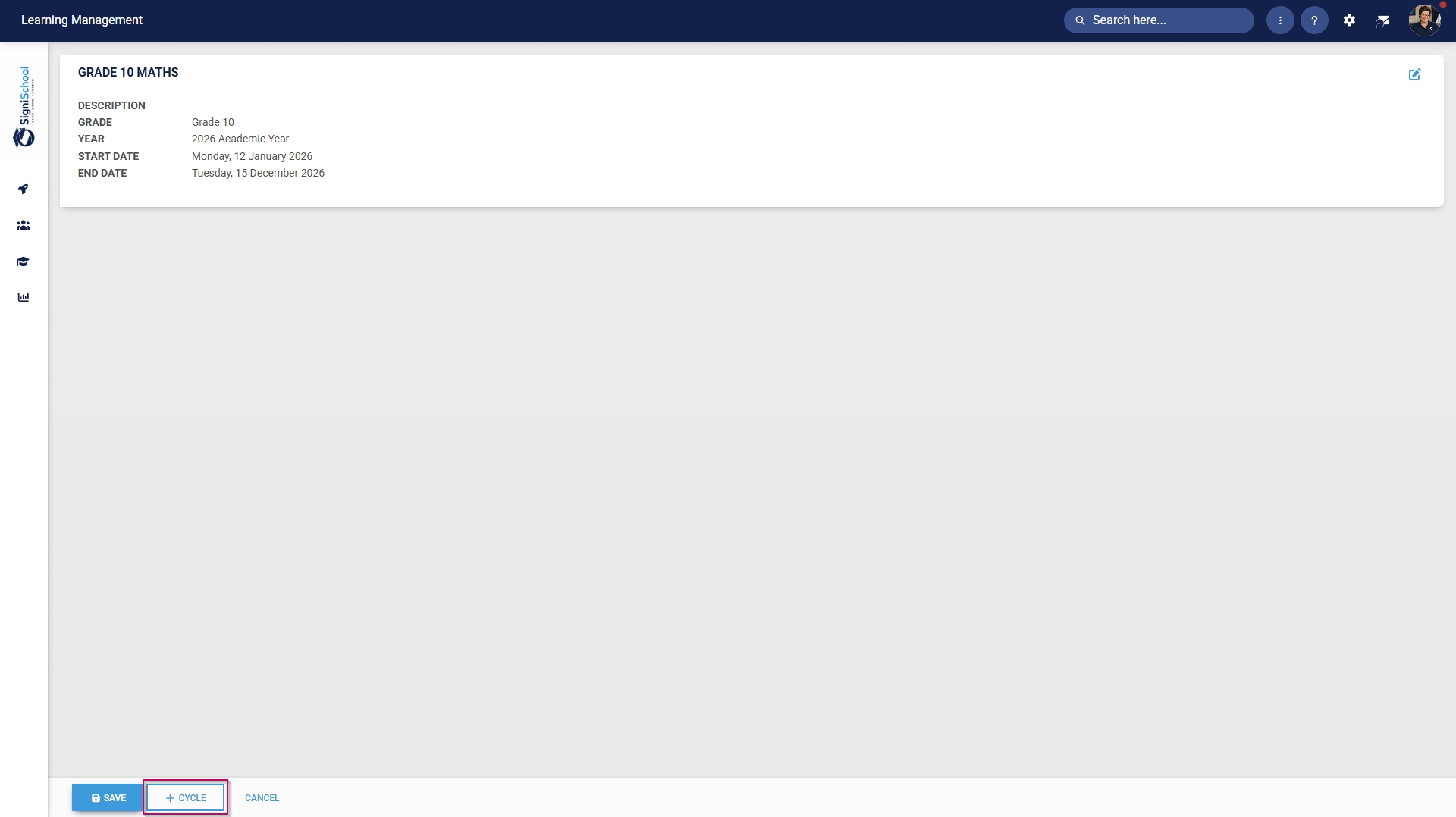
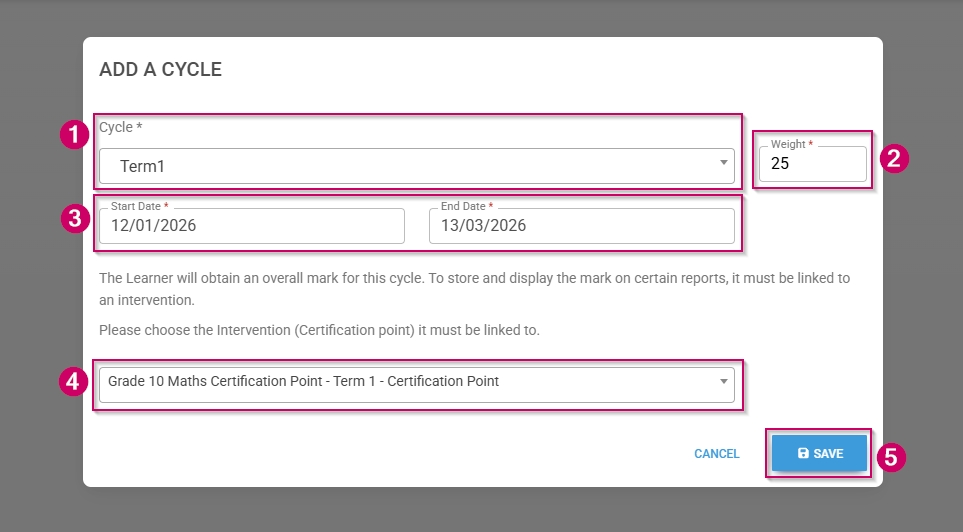
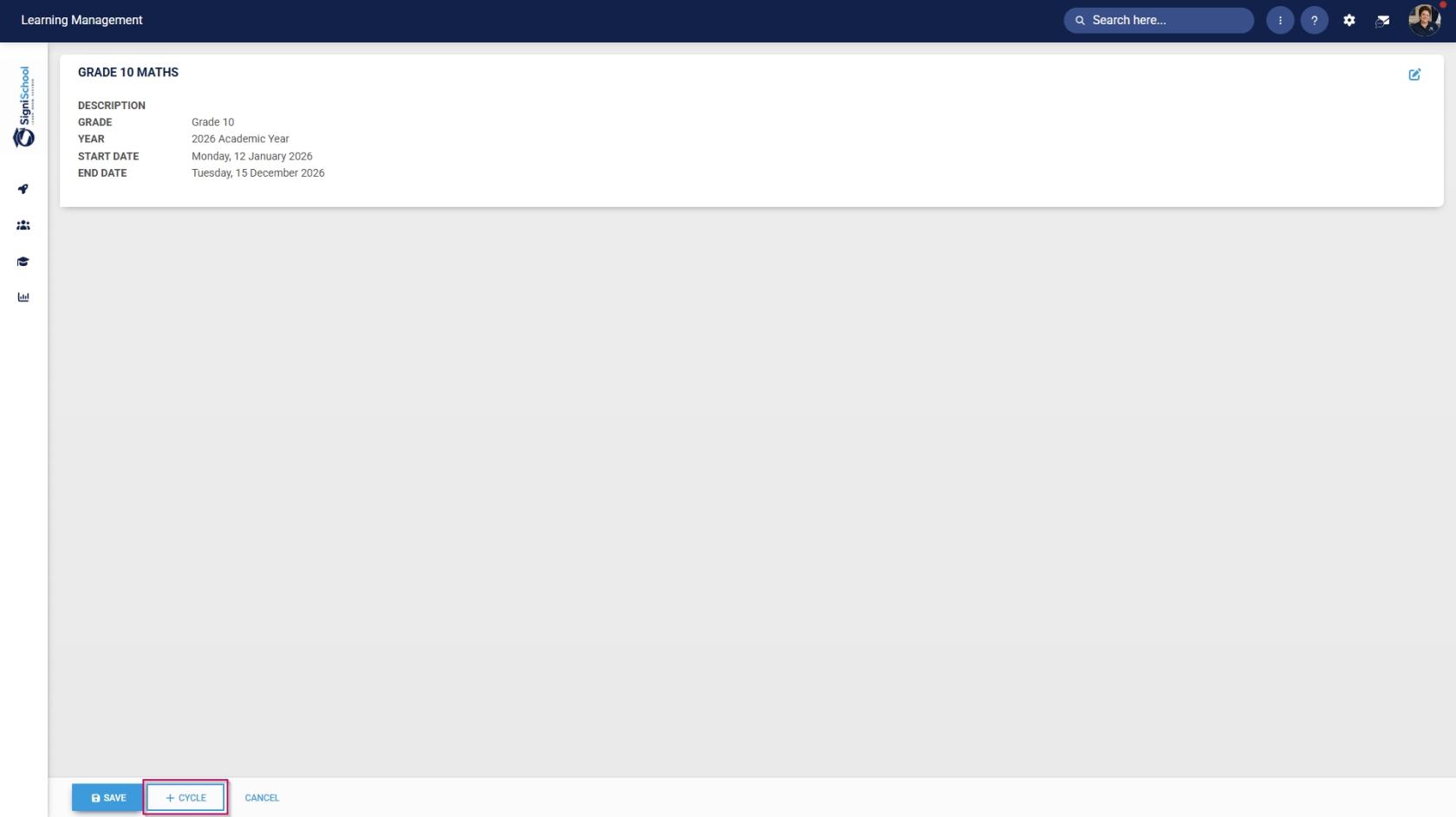
Click +CYCLE to add a new academic cycle to the subject.
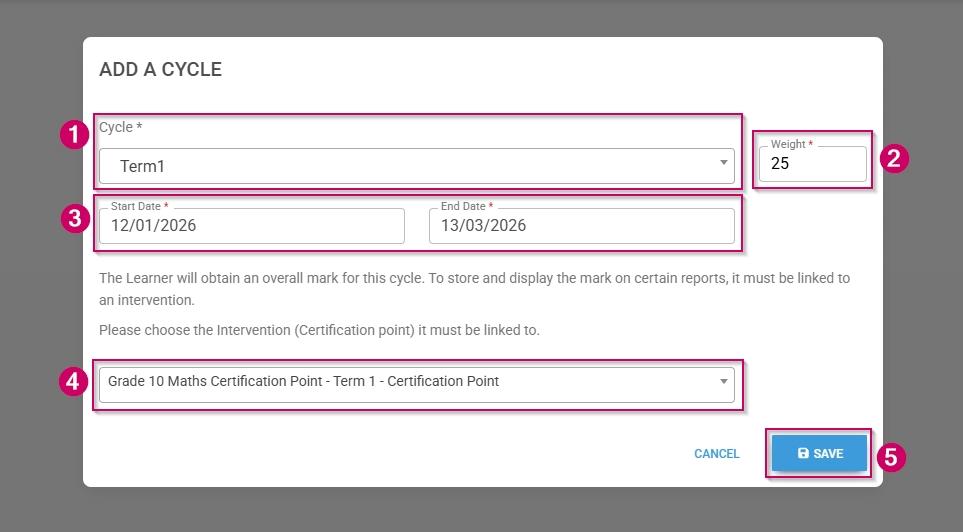
Add a name for this cycle.
Select the start and end dates for the cycle.
Provide a weight.
Use the drop-down menu to select a training intervention (it must be a certification point) to link to this term.
Click SAVE when you are finished or click CANCEL to discard your edits.
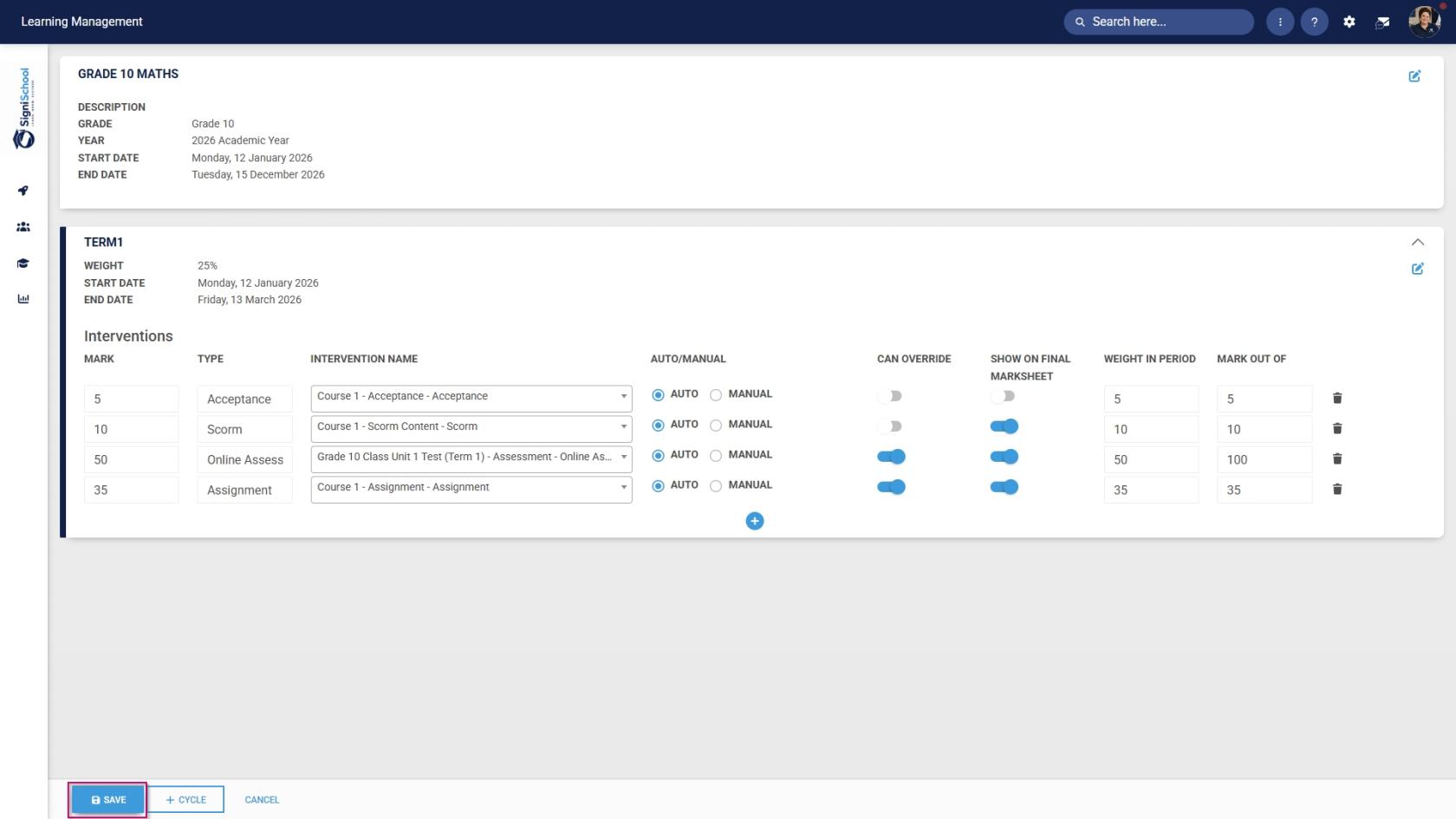
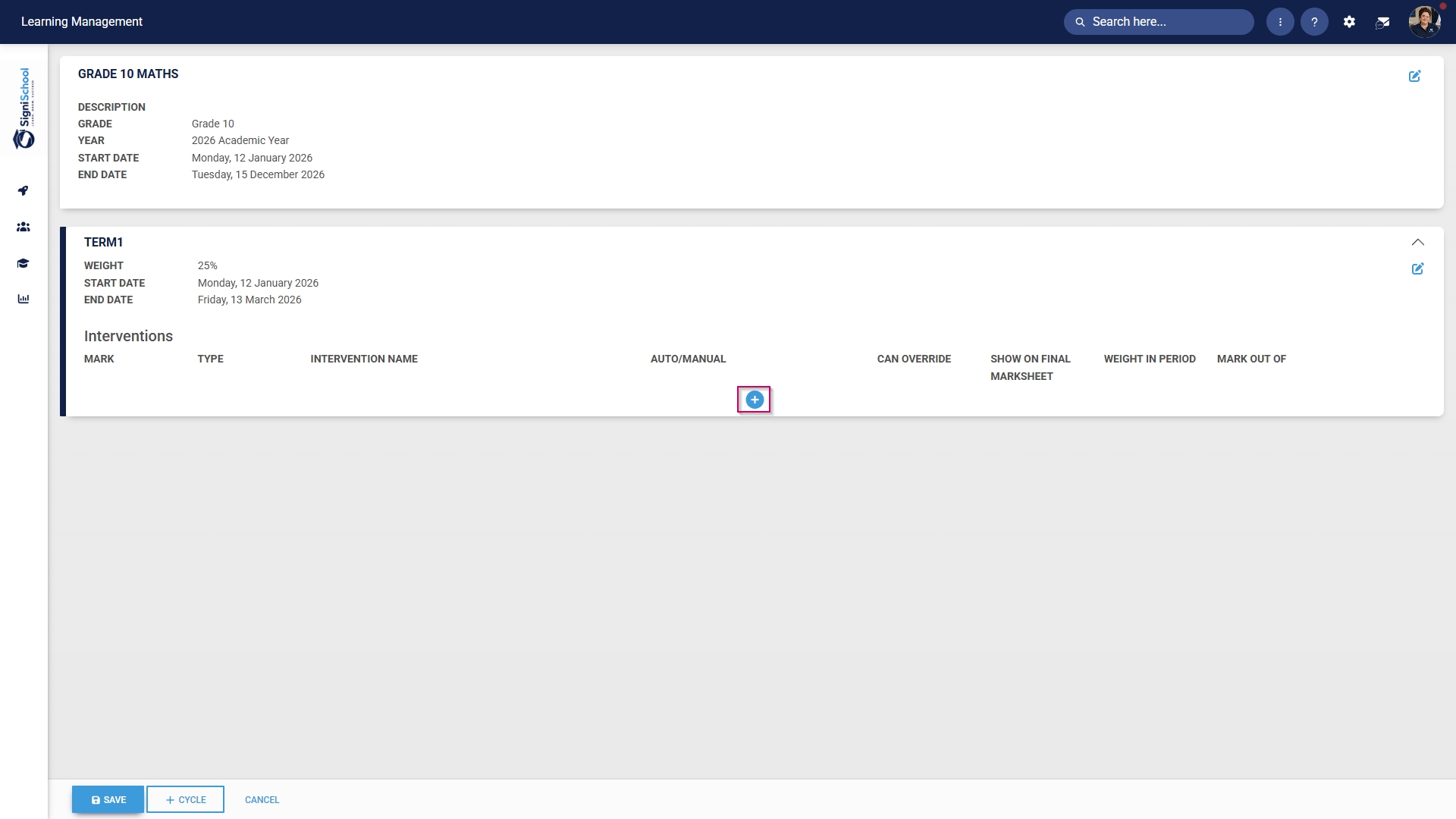
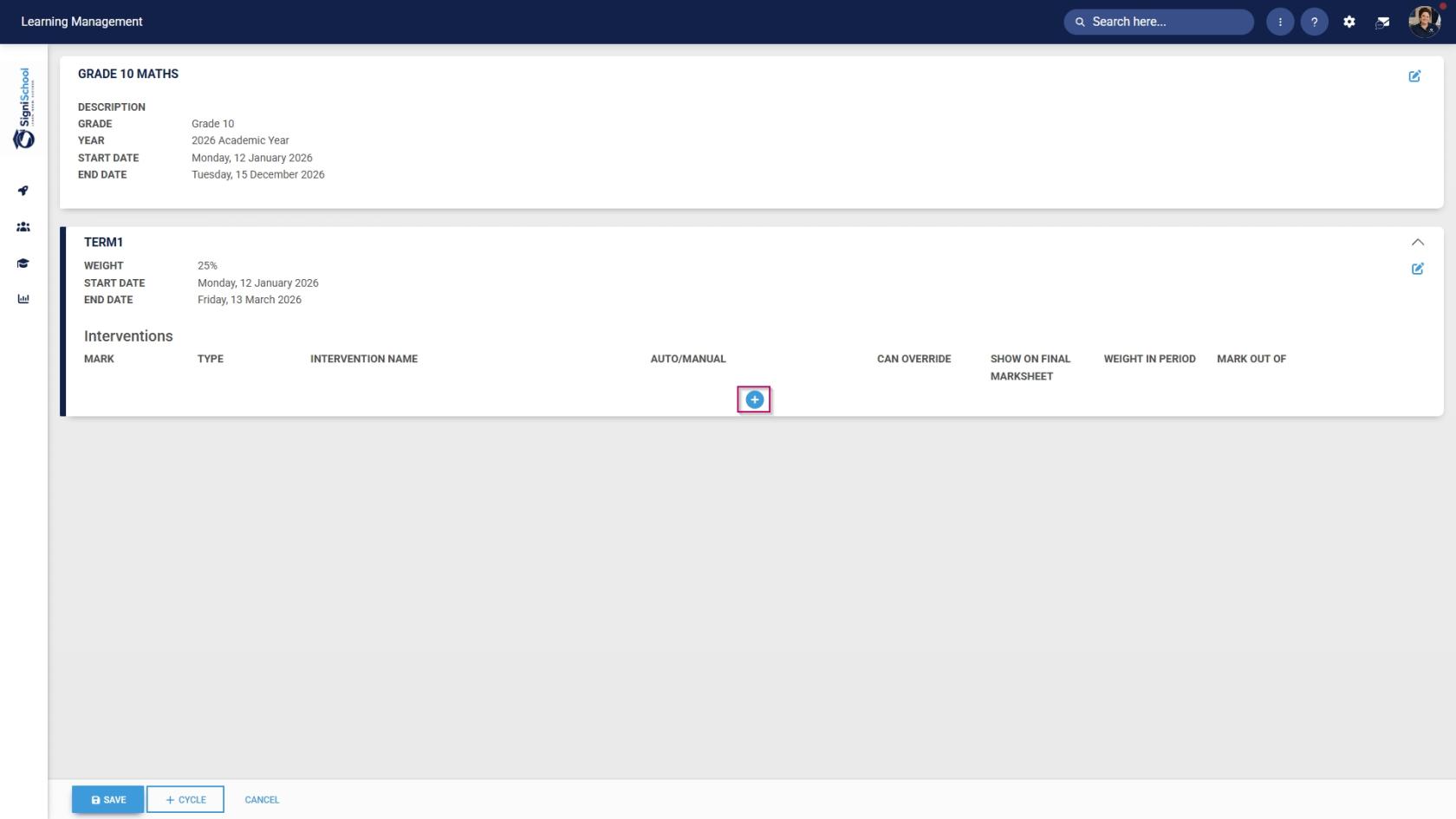
Click the plus icon to construct a subject plan for this cycle.
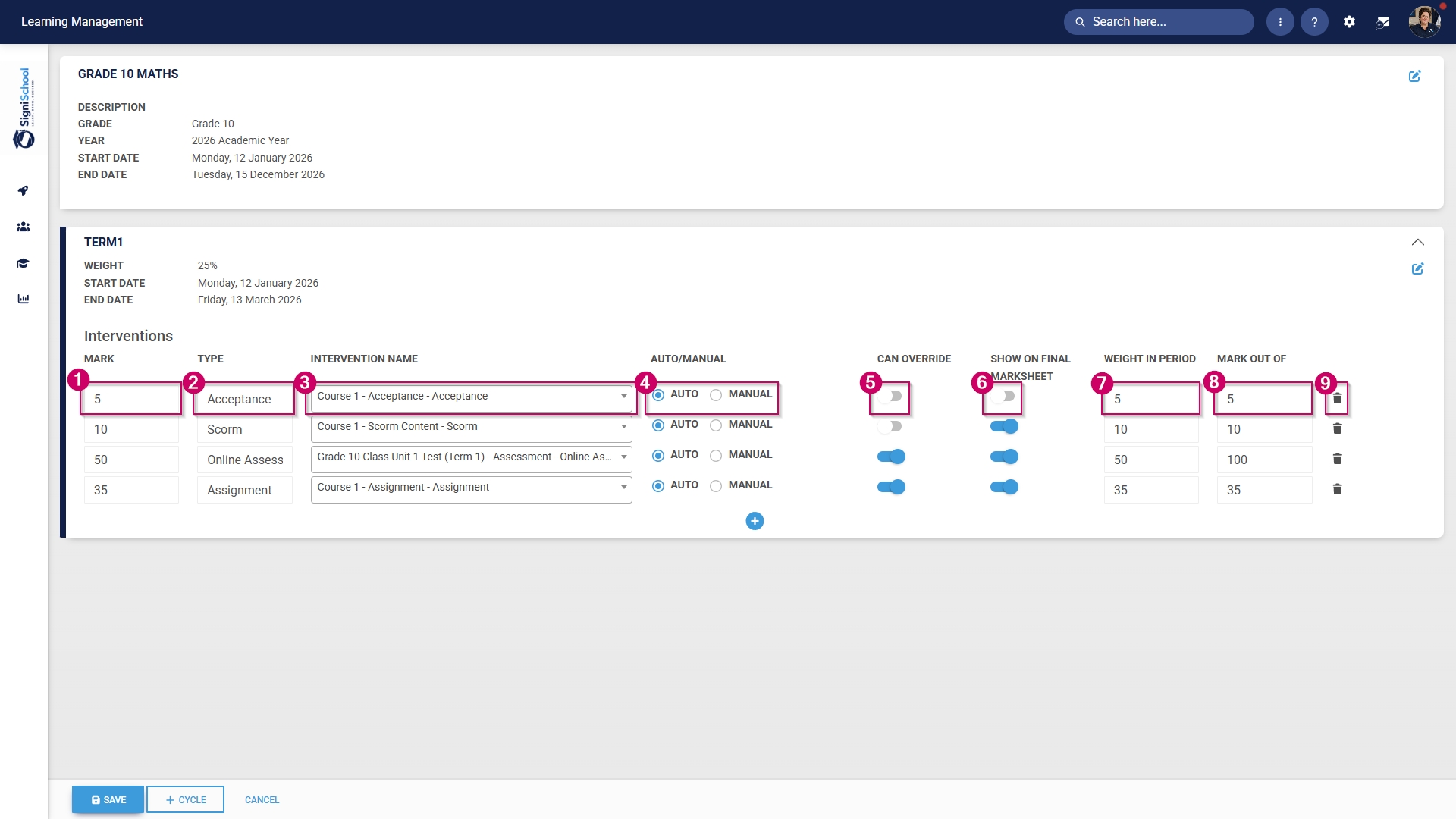
Add a mark for the academic activity.
The type will be automatically populated based on your training intervention.
Select a training intervention from the drop-down menu.
Choose whether the academic activity will be auto-marked or marked manually by a teacher or facilitator.
Choose whether administrators can override the student's mark.
Choose whether the academic activity will show on the final marksheet.
Provide a weight for the academic activity within this cycle.
Provide a mark used to grade this activity.
If you would like to remove an academic activity, click the dustbin icon.
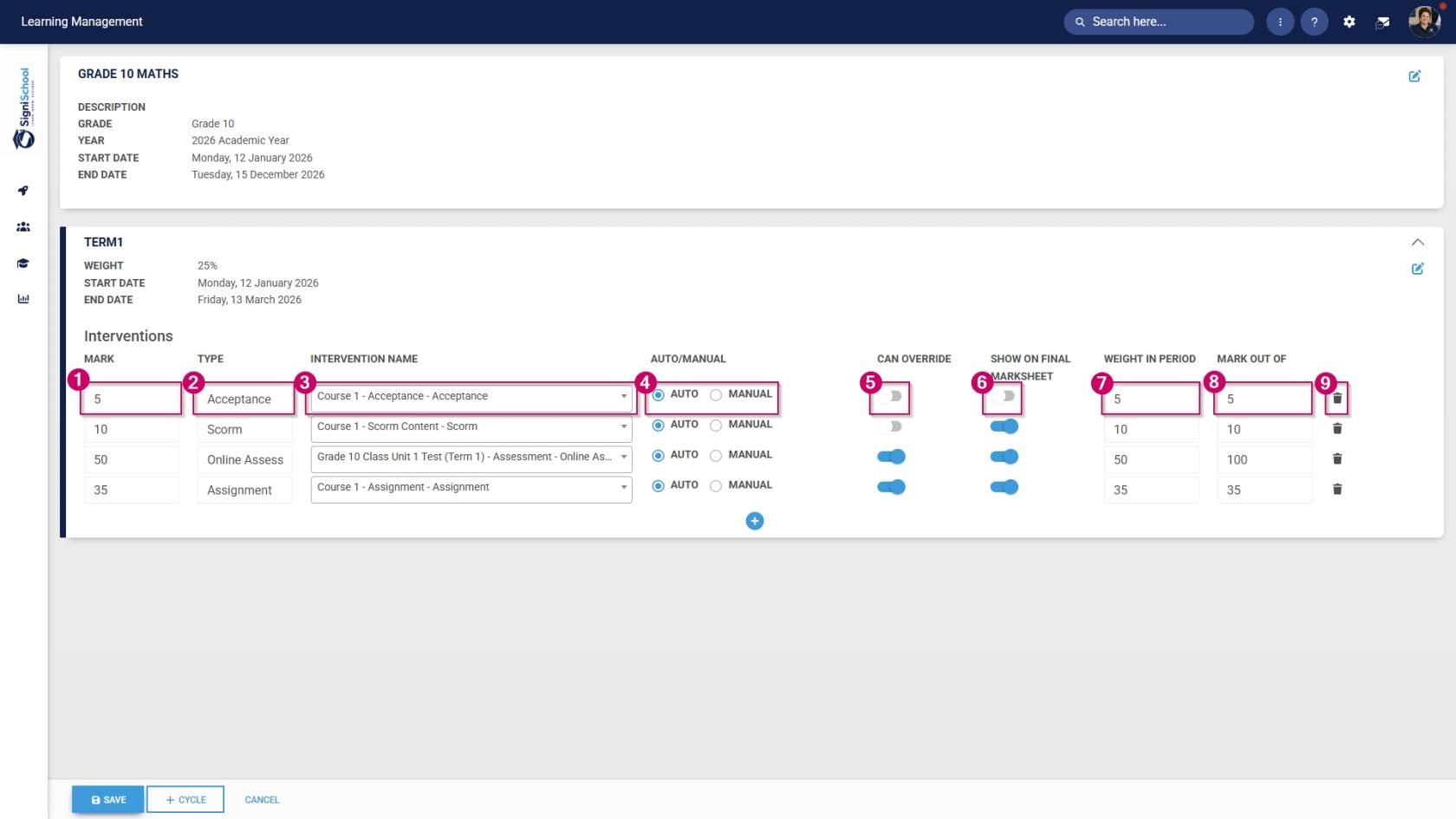
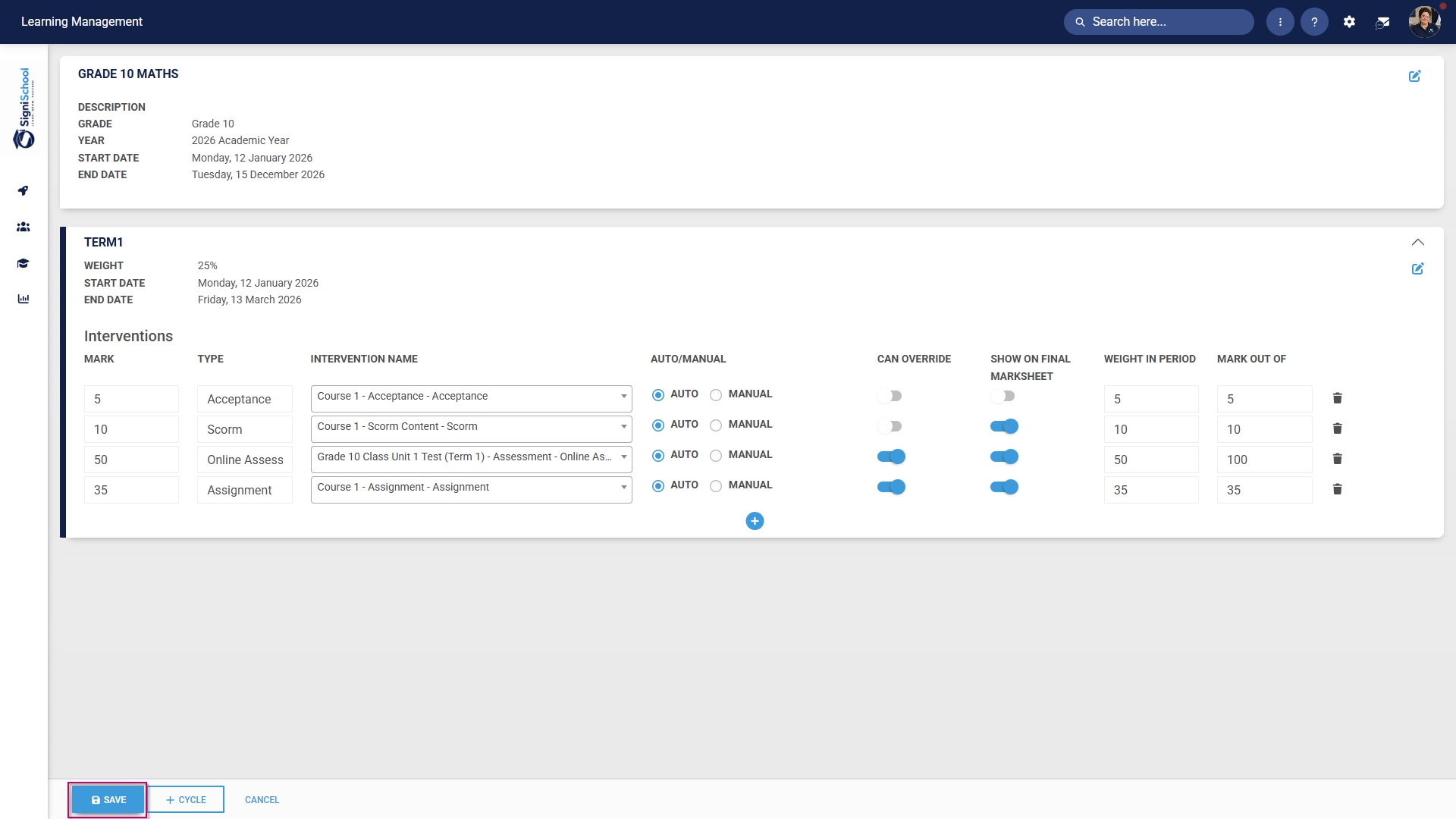
Click SAVE when you are finished, +CYCLE to add another academic term, or CANCEL to discard your changes.