
Learning Management: Online School Implementation Guide

Activate the Learning Management module
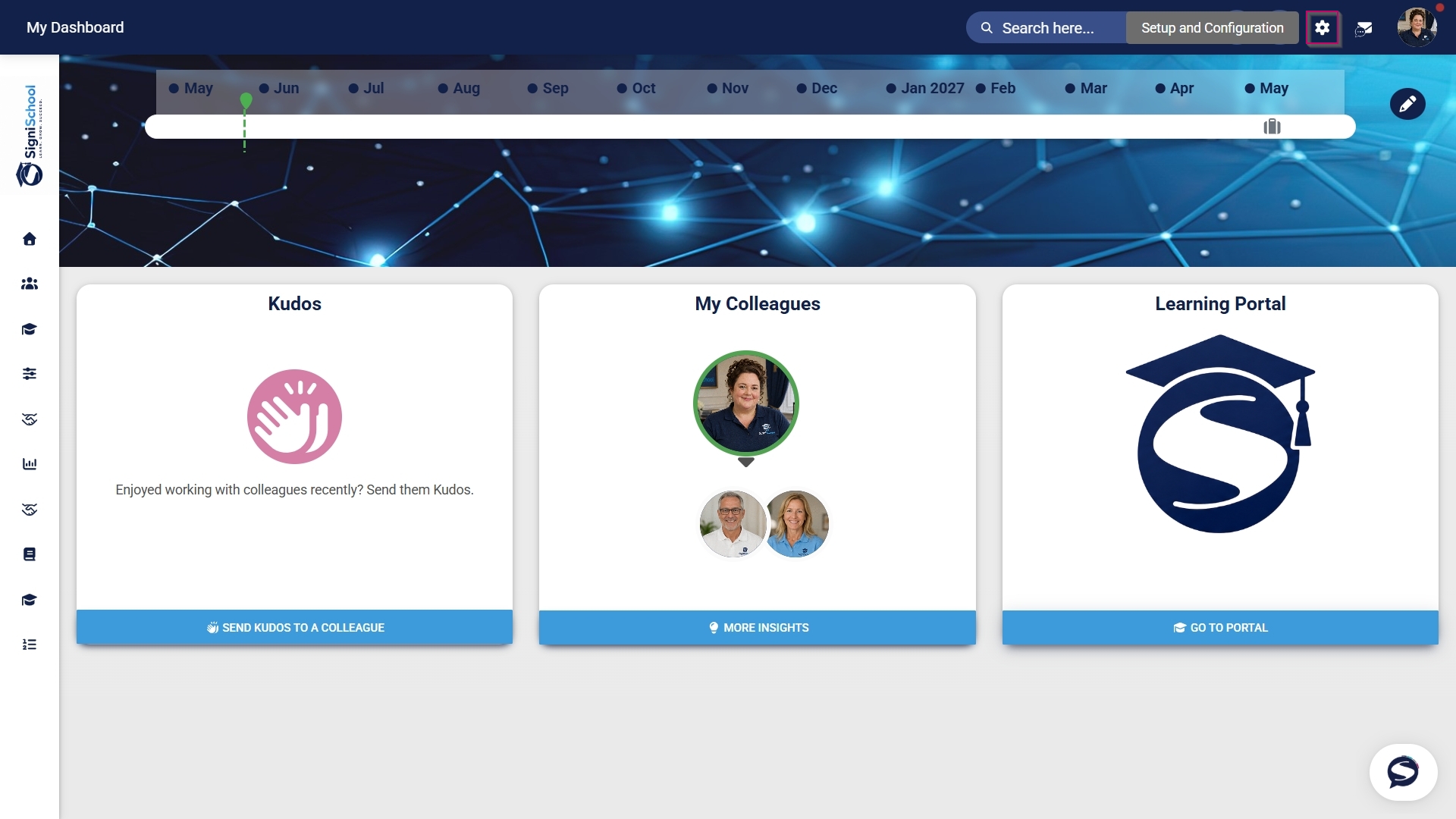
- Click the gear icon to access the Setup and Configuration menu.
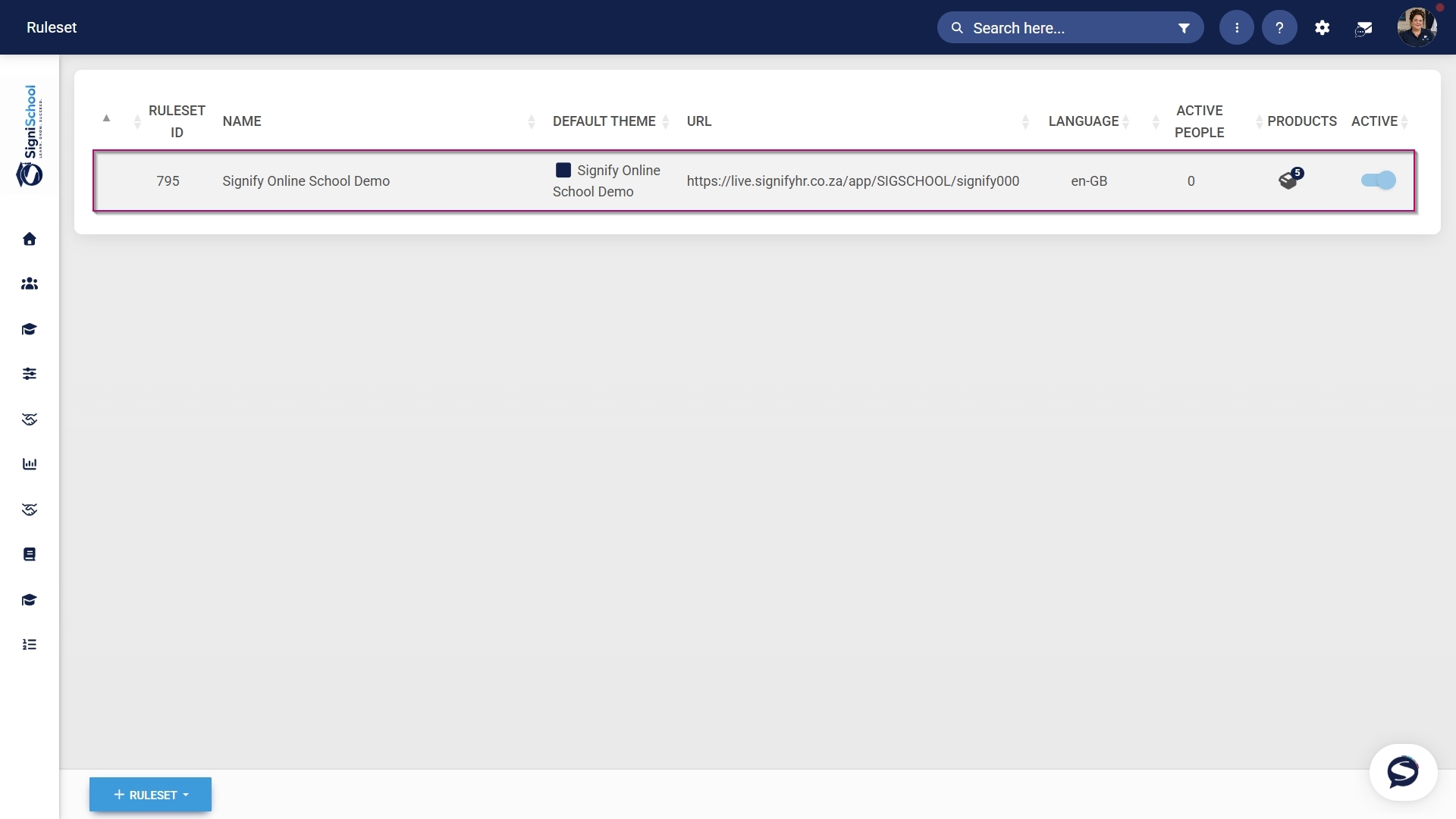
- Click Ruleset Setup.

- Select the ruleset you would like to update.
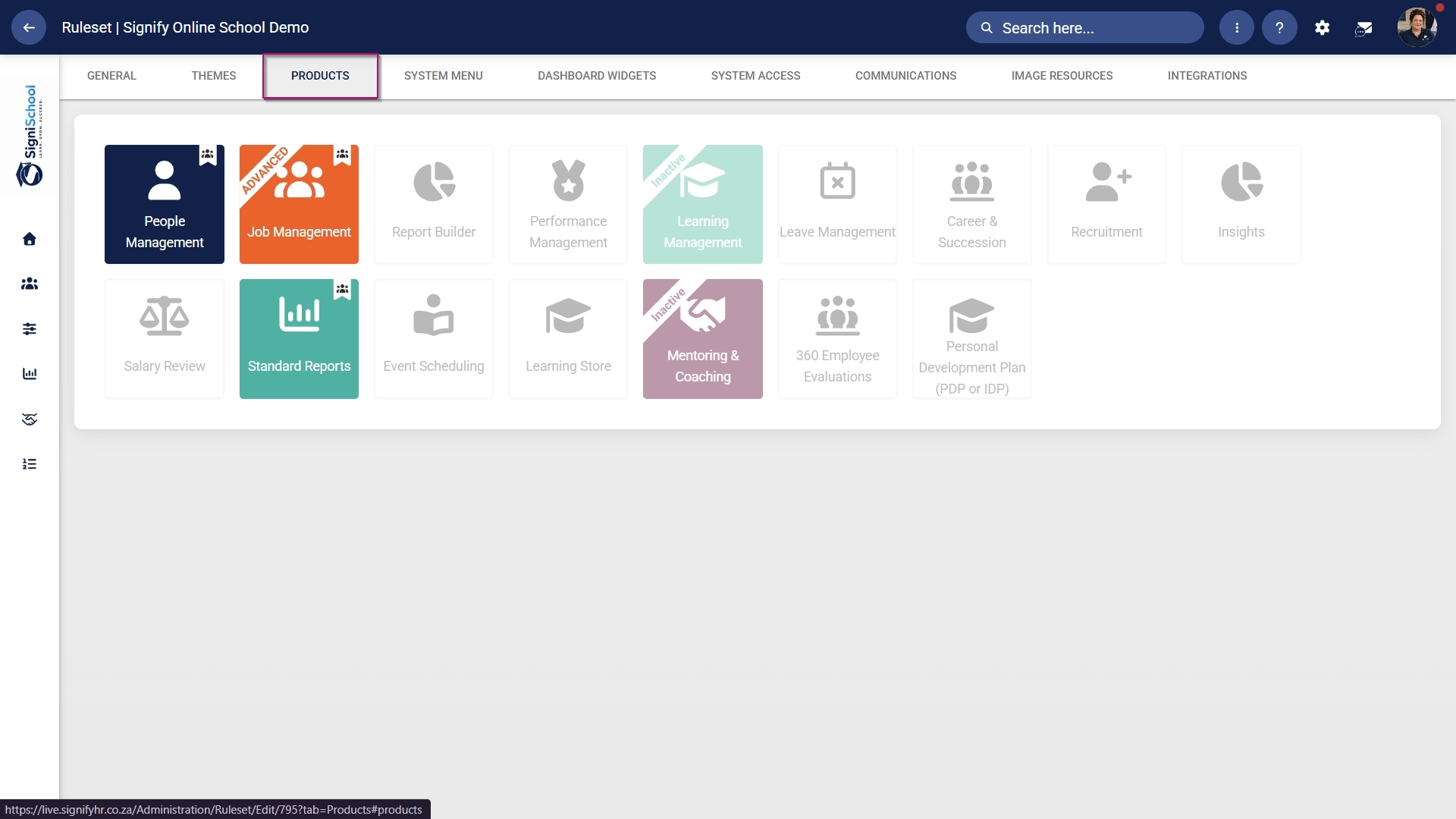
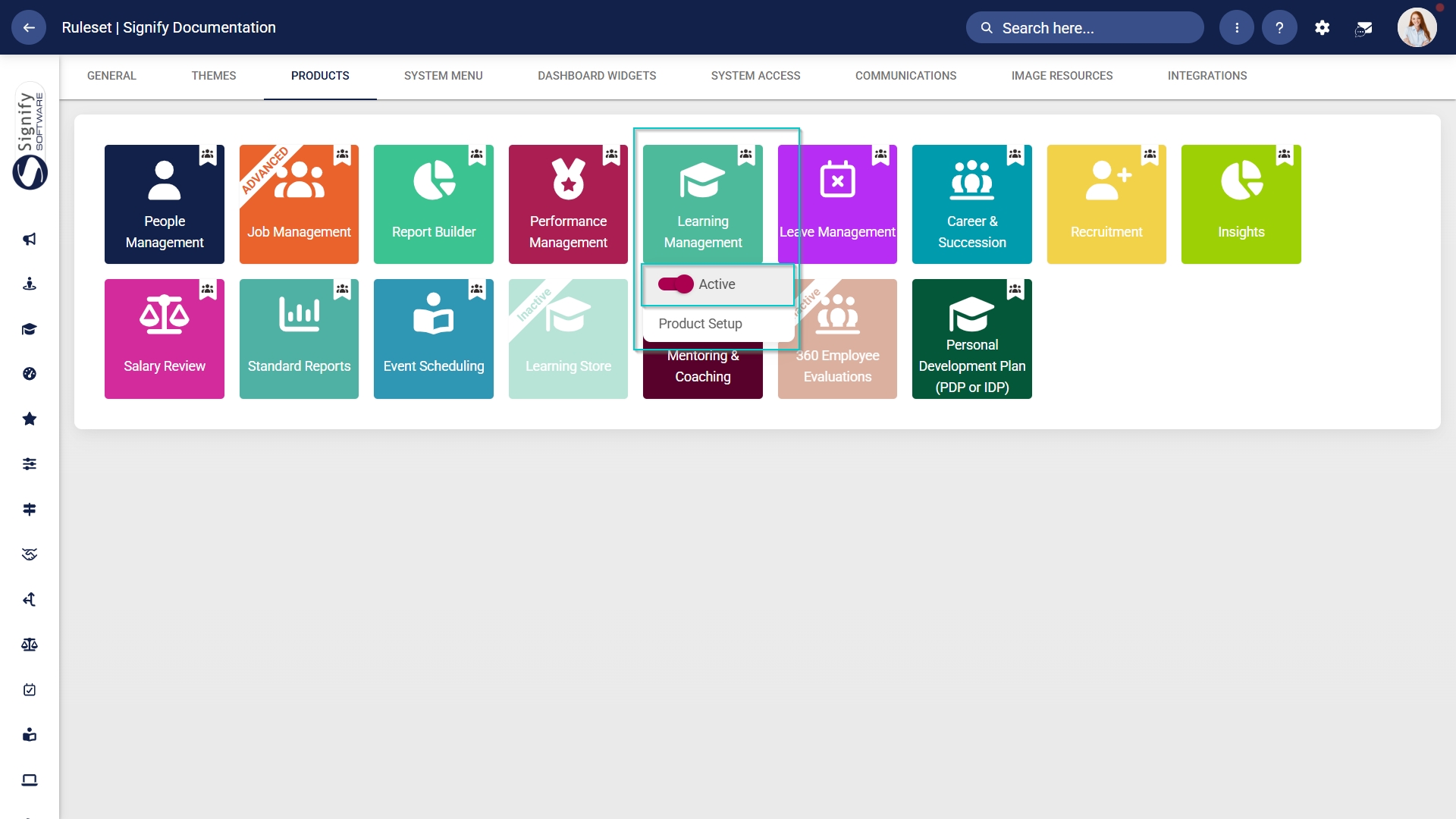
- Click on the Learning Management product card, then click the toggle button to set the product’s status to Active.
Add Learning Management to the system menu
- Click the gear icon to access the Setup and Configuration menu.
- Click Ruleset Setup.
- Select the ruleset you would like to update.
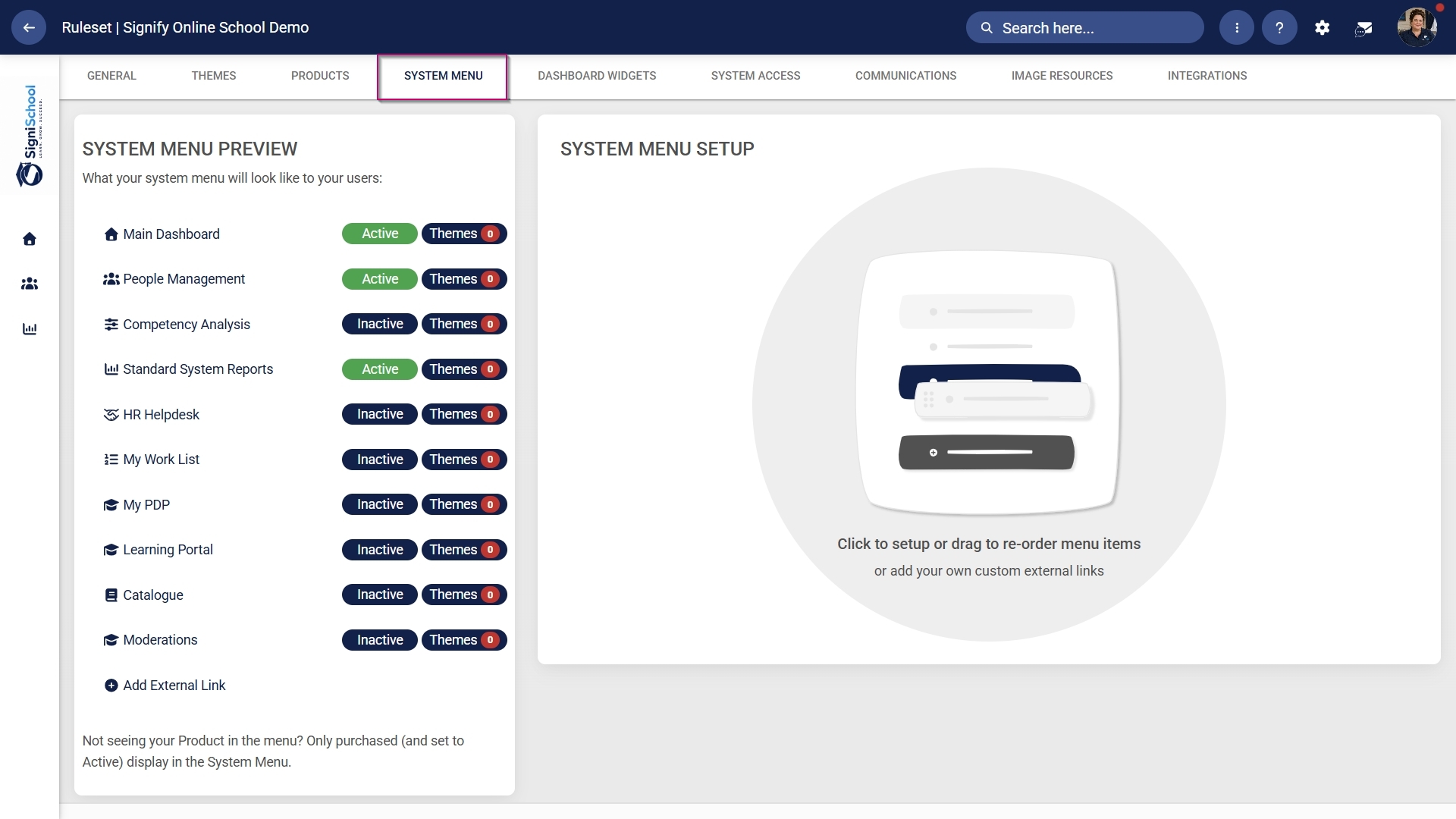
- Click the Learning Portal menu item in the system menu preview.
- Click the toggle button to set the system menu item’s status to Active.
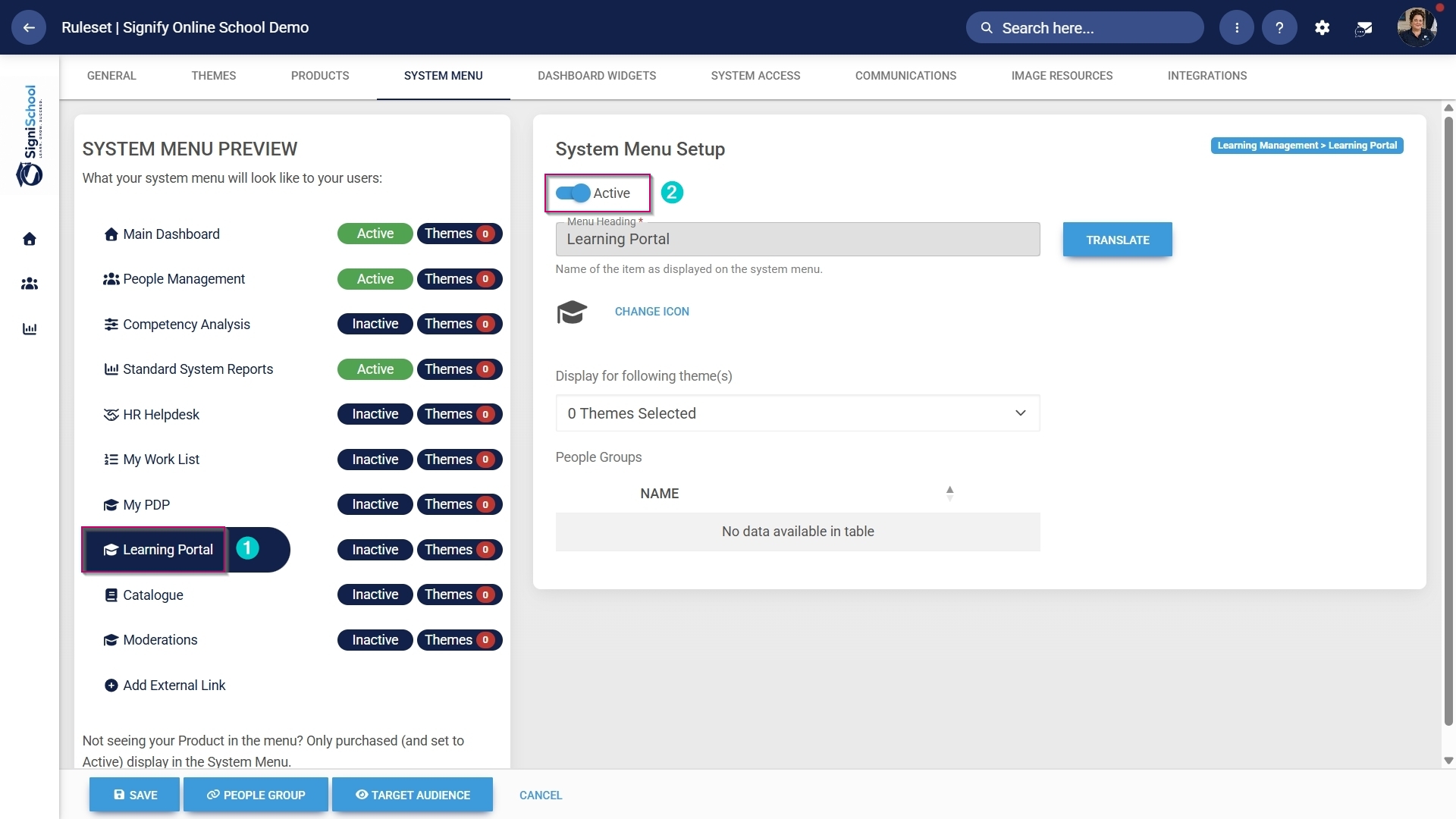
- You can select an icon for the Learning Management module by clicking CHANGE ICON.
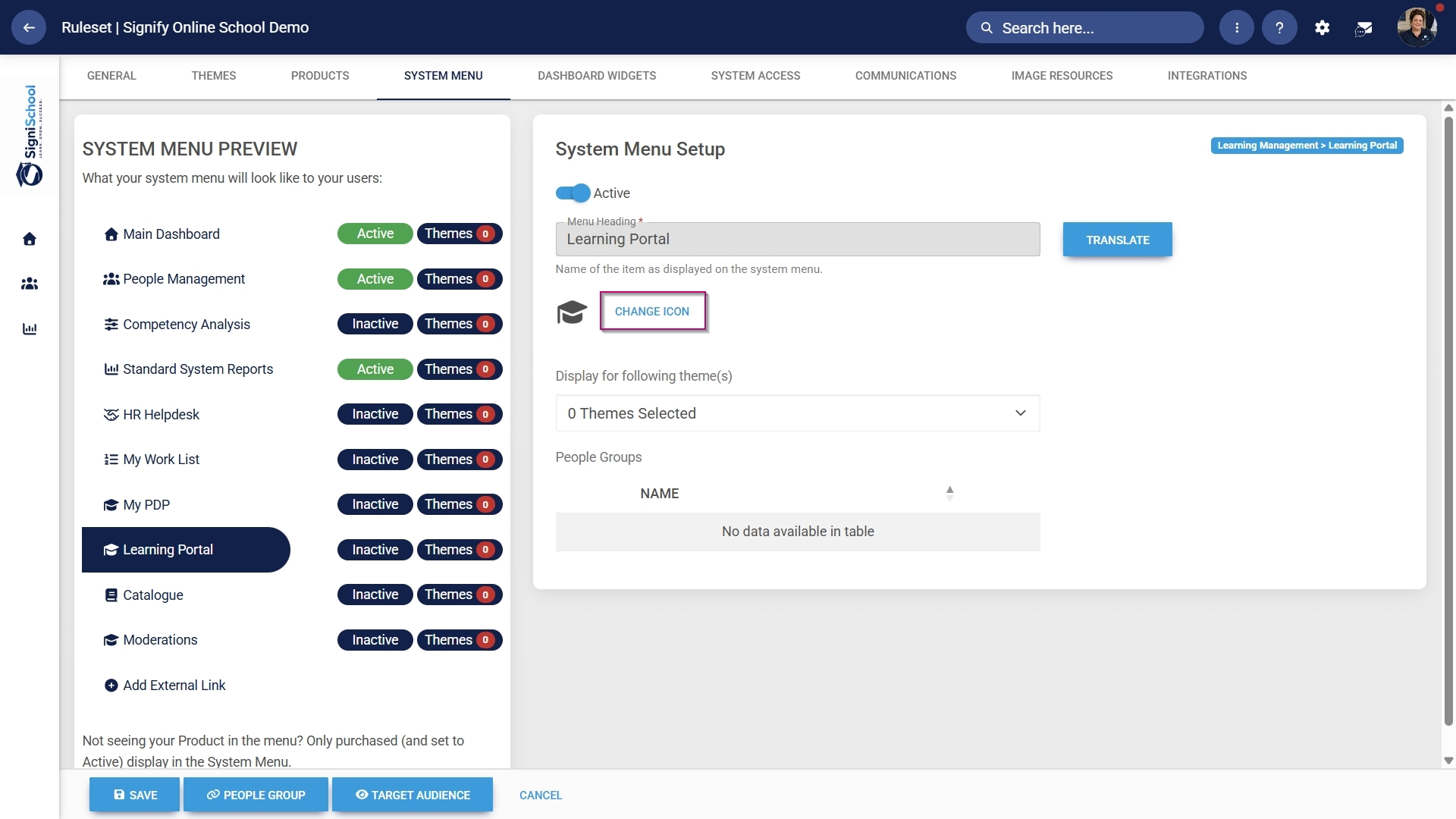
- Click SAVE to continue or CANCEL to discard your changes.
Assign the Learning Management administrator permission
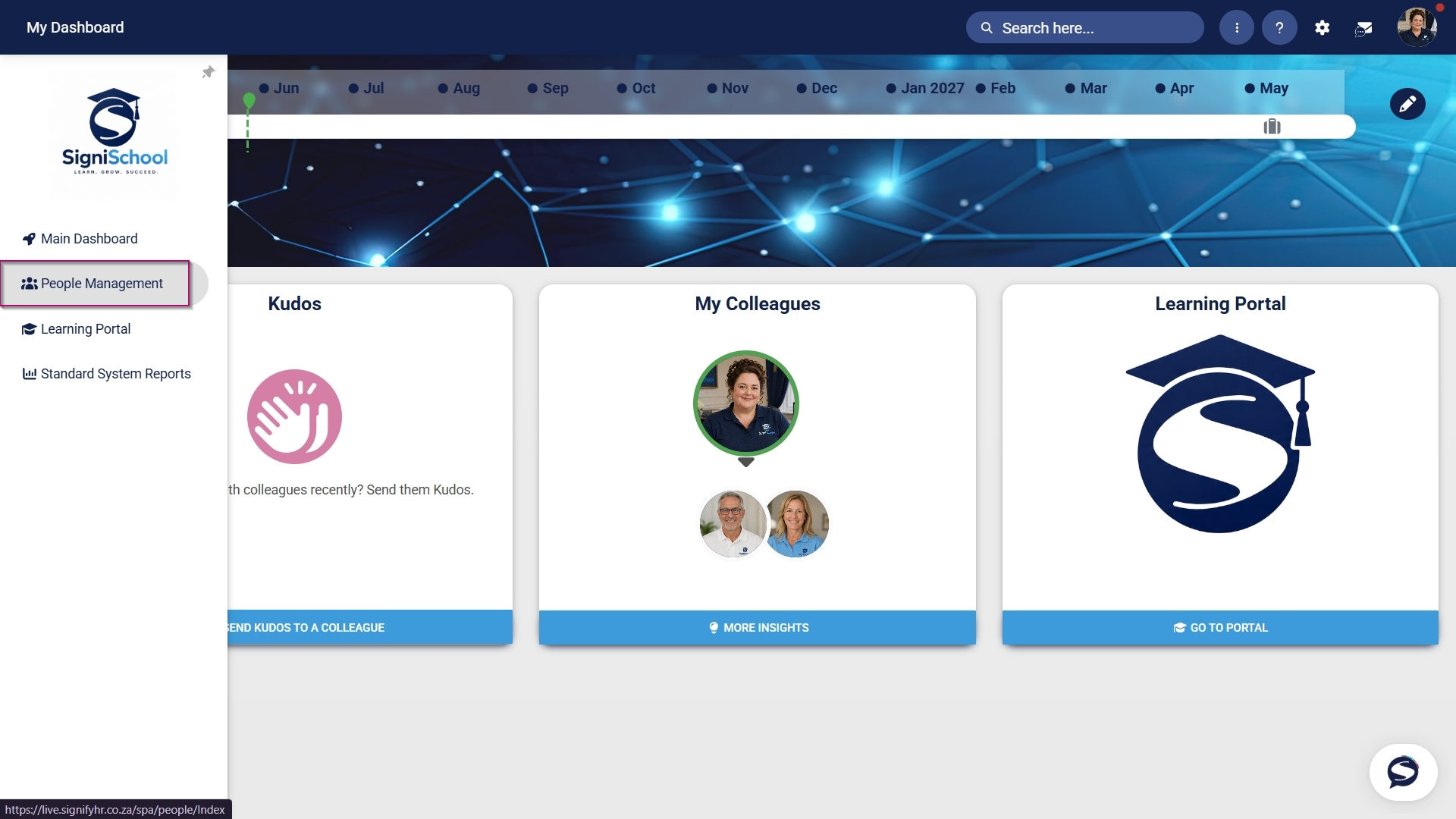
- Hover over the sidebar menu, then click People Management.
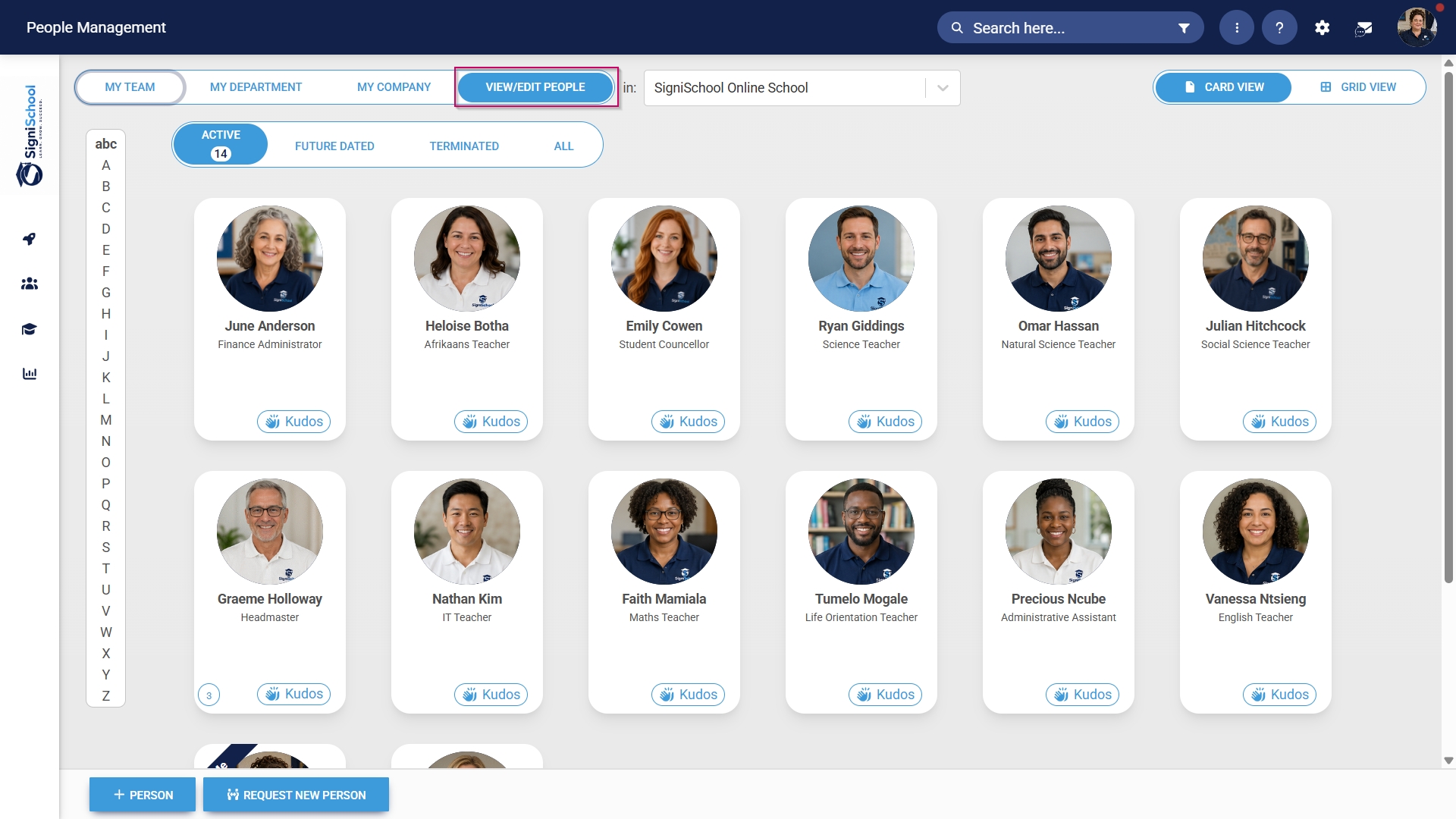
- Click the pencil icon to manage the profile of the person you want to edit.
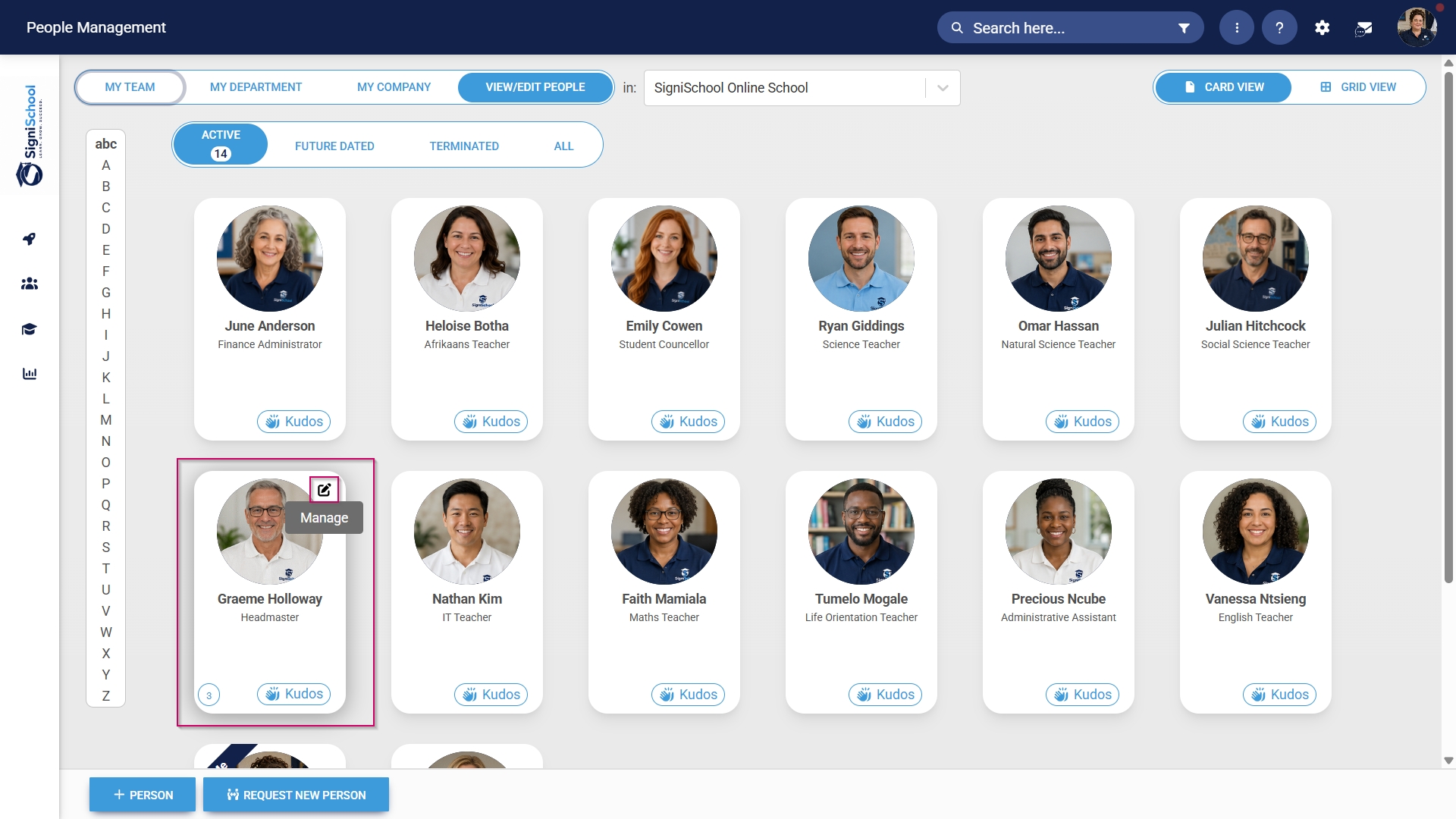
- In the left-hand menu, navigate to User Permissions, then click System Modules Admin.
- Click the LINK ROLE button.
- Tick the checkbox next to Learning Management in the table to assign the Learning Management administrator role to the user.
- Click SAVE to continue or CANCEL to discard your changes.

Enable the Import from Excel functionality
When using the Assessment Builder tool to create online assessments, the Import from Excel feature must be enabled.
- Hover over the sidebar menu, then click People Management.
- Click the pencil icon to manage the profile of the person you want to edit.
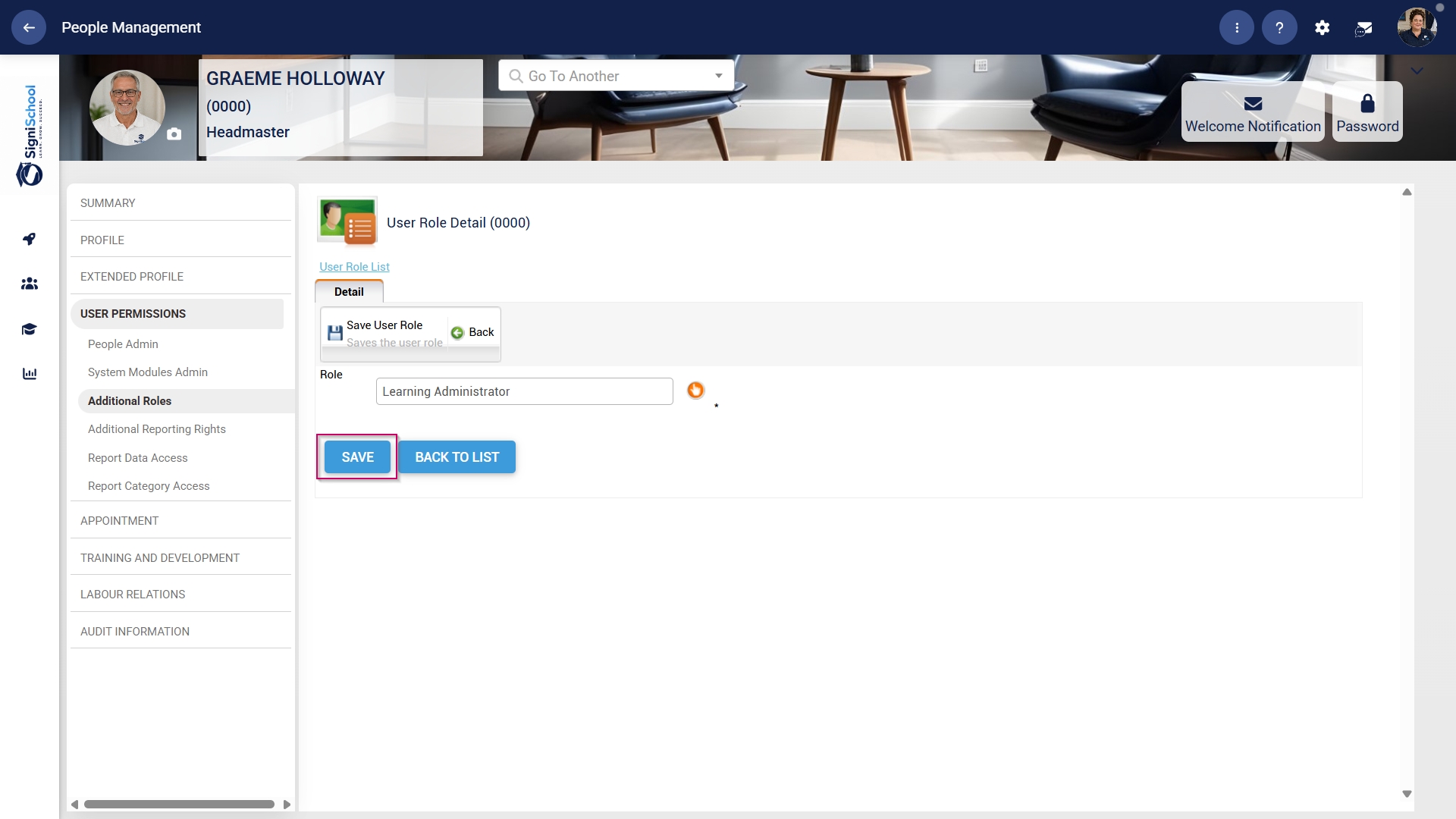
- In the left-hand menu, navigate to User Permissions, then click Additional Roles.
- Click the ADD button.
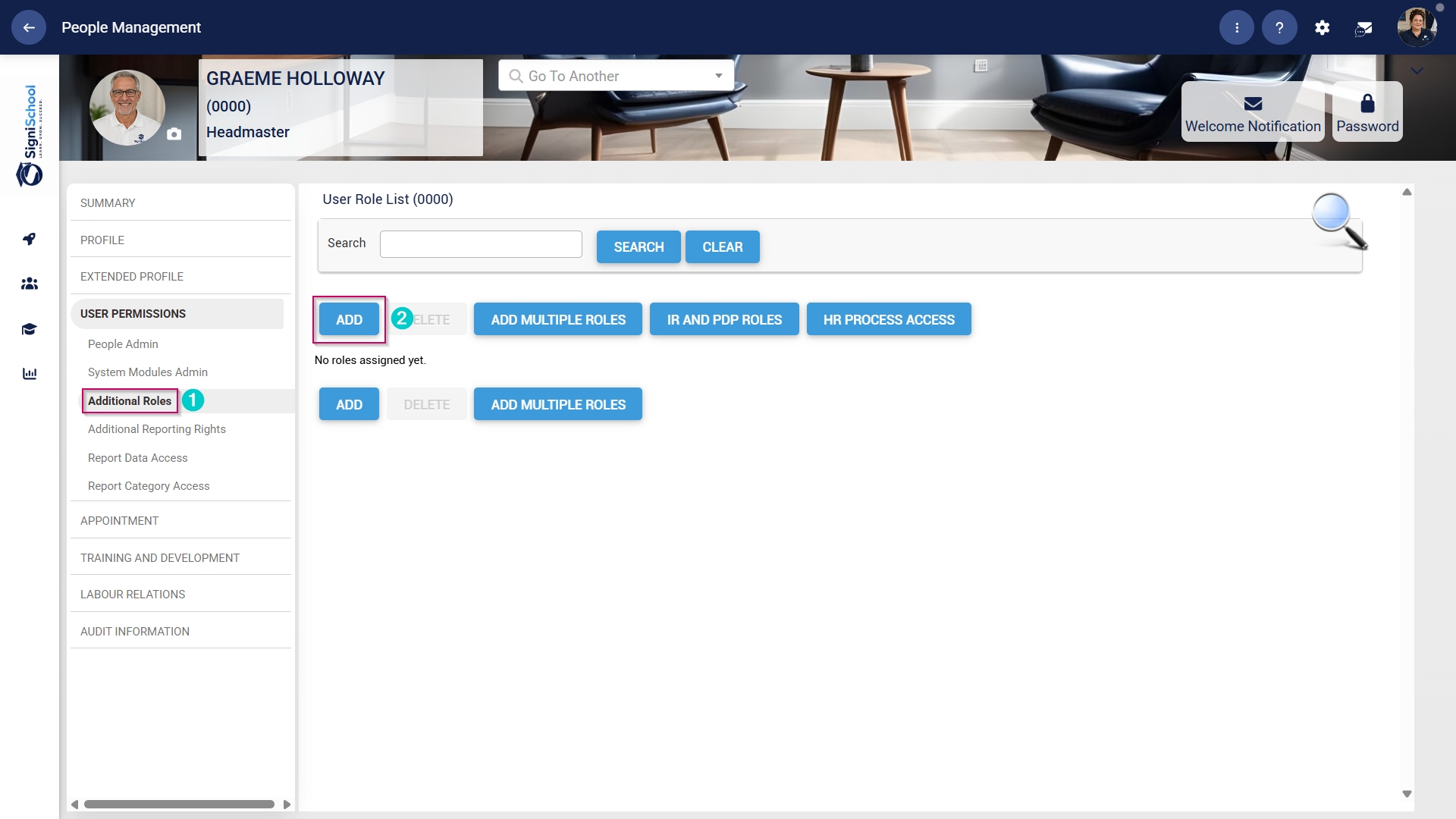
- Click the hand icon to select a role.
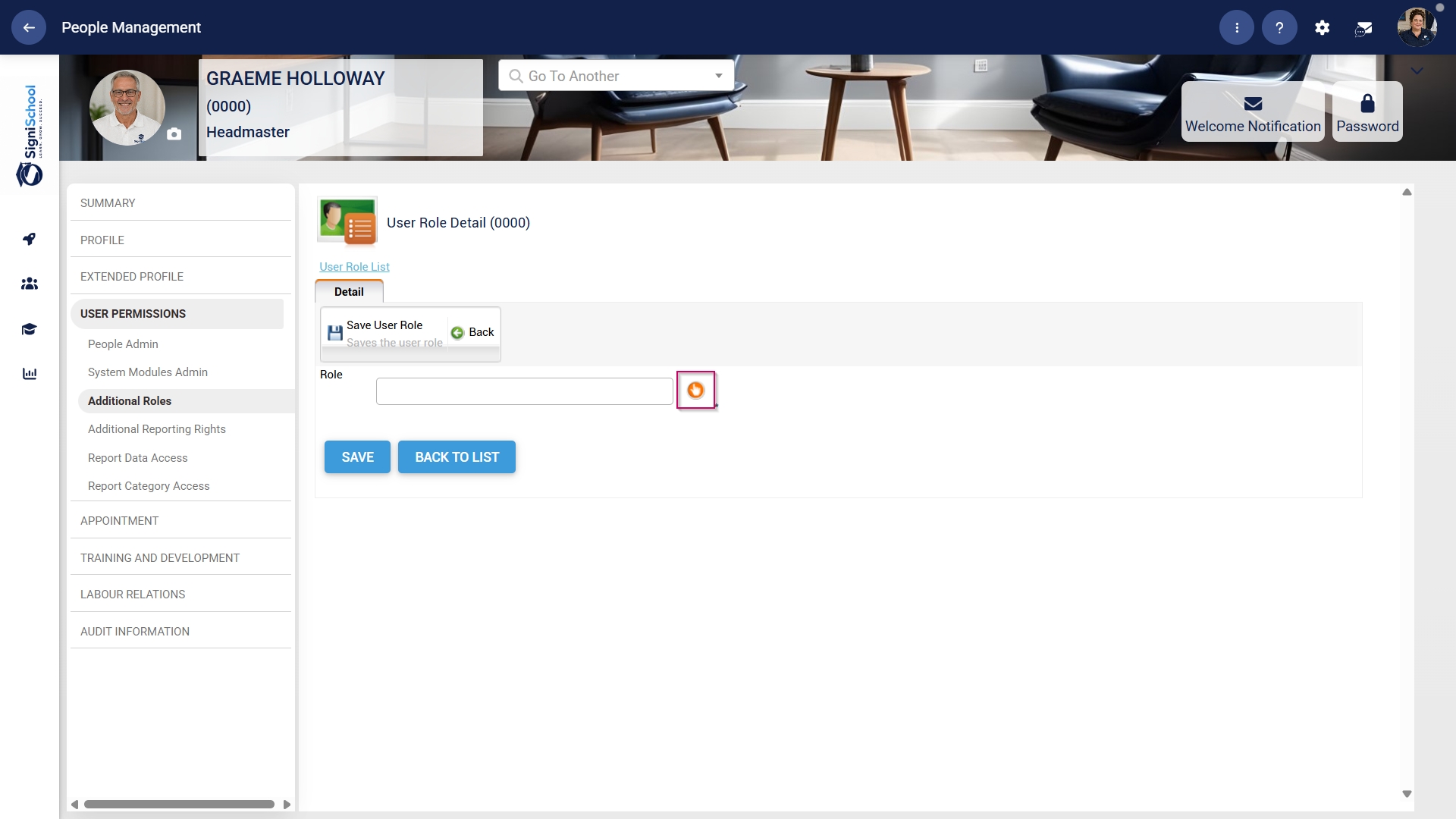
- Use the search bar to search for the Learning Administrator role.
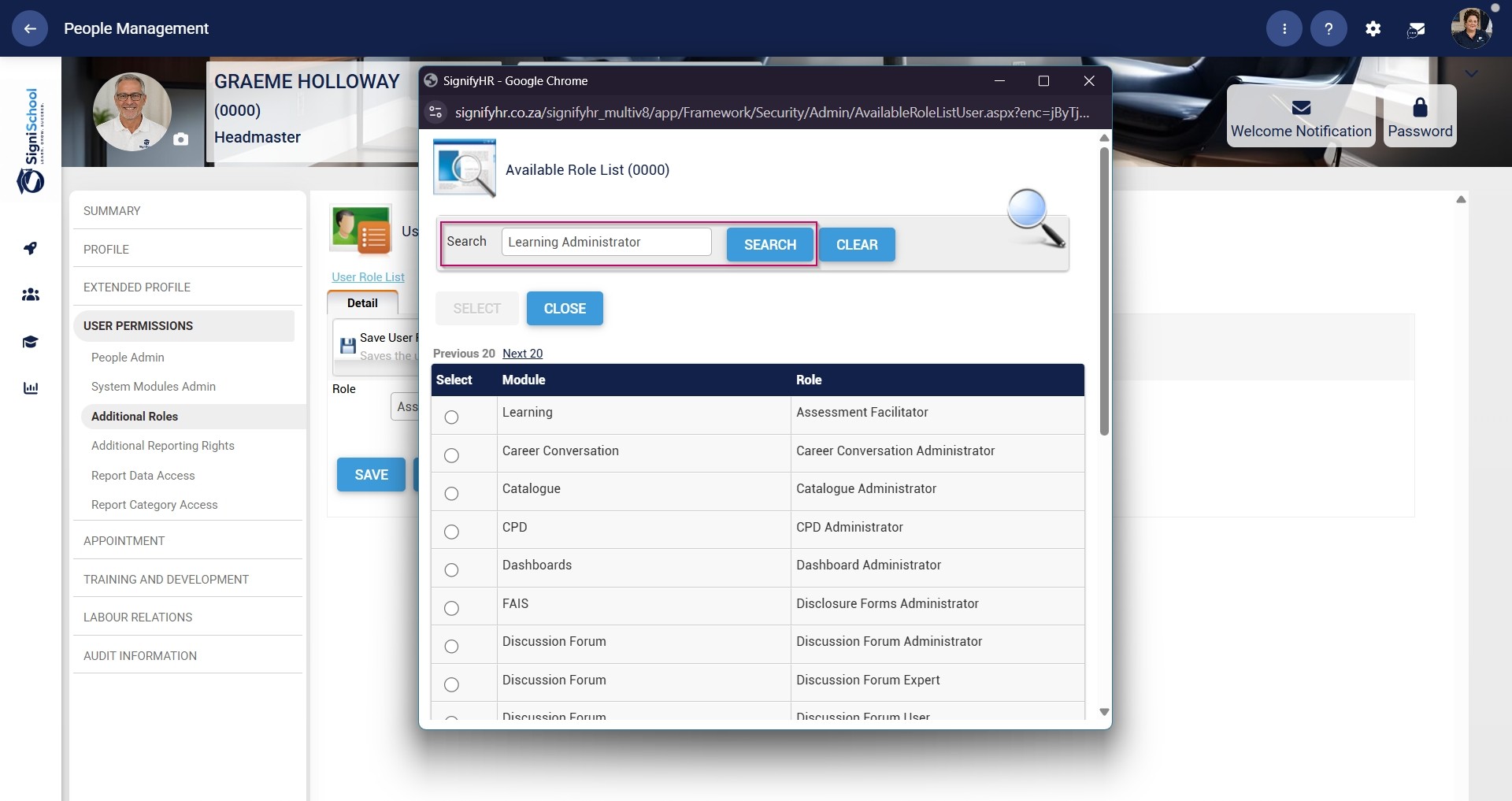
- Select the Learning Administrator role, then confirm your choice by clicking the SELECT button.
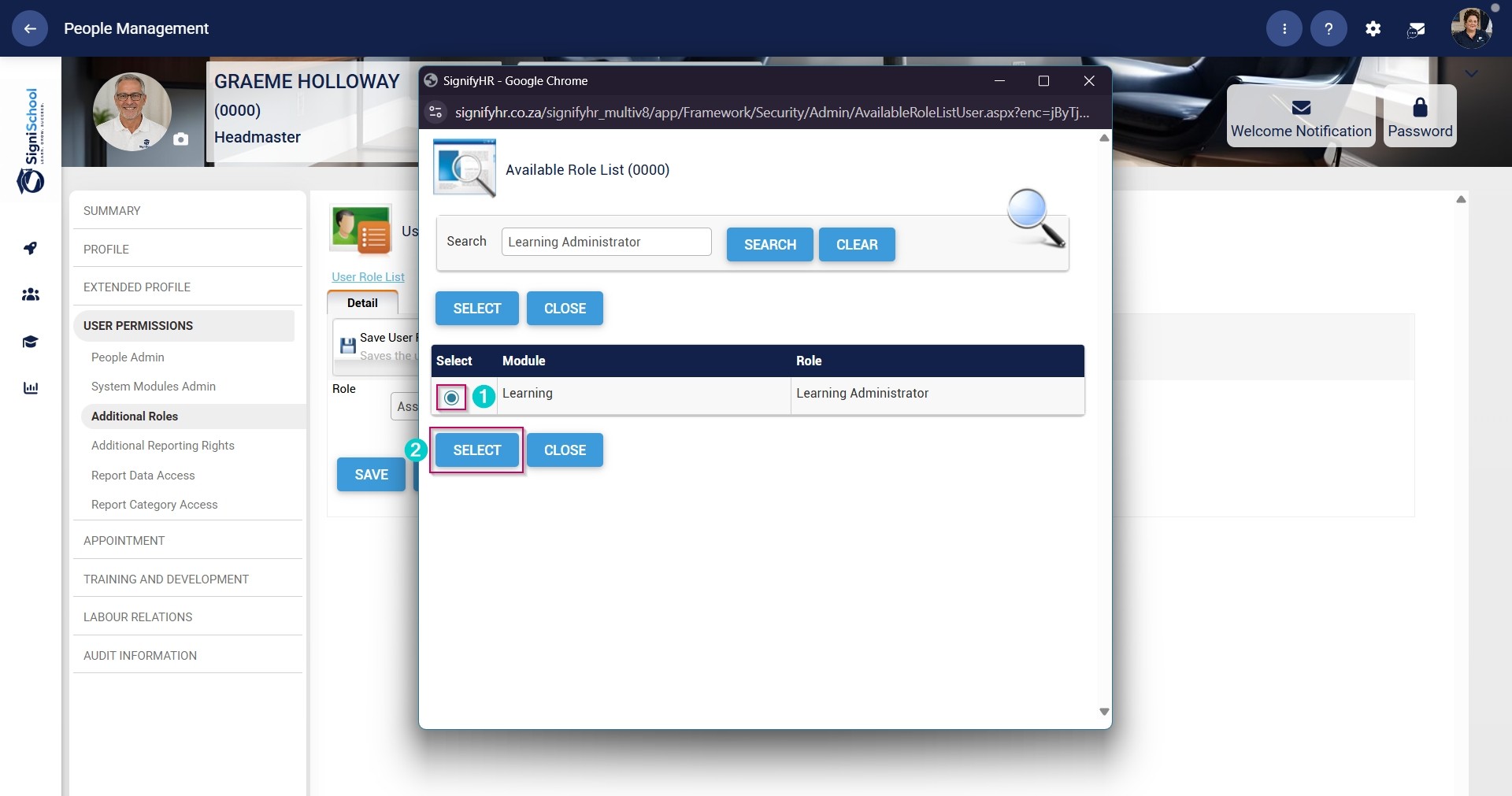
- Click the SAVE button.
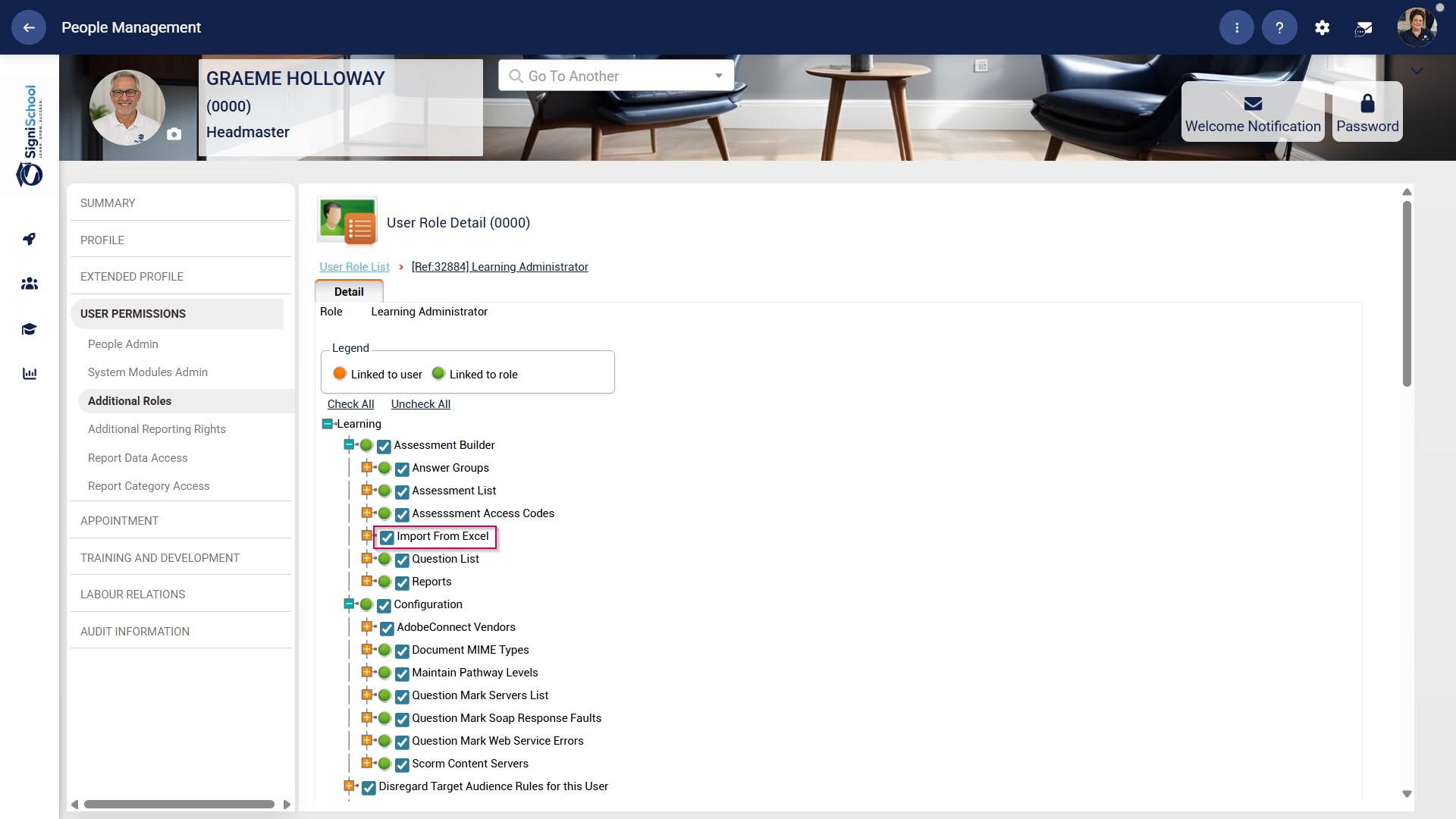
- Click CHECK ALL to assign all Learning Administrator permissions to the user.

- Ensure the checkbox next to Import From Excel is ticked.
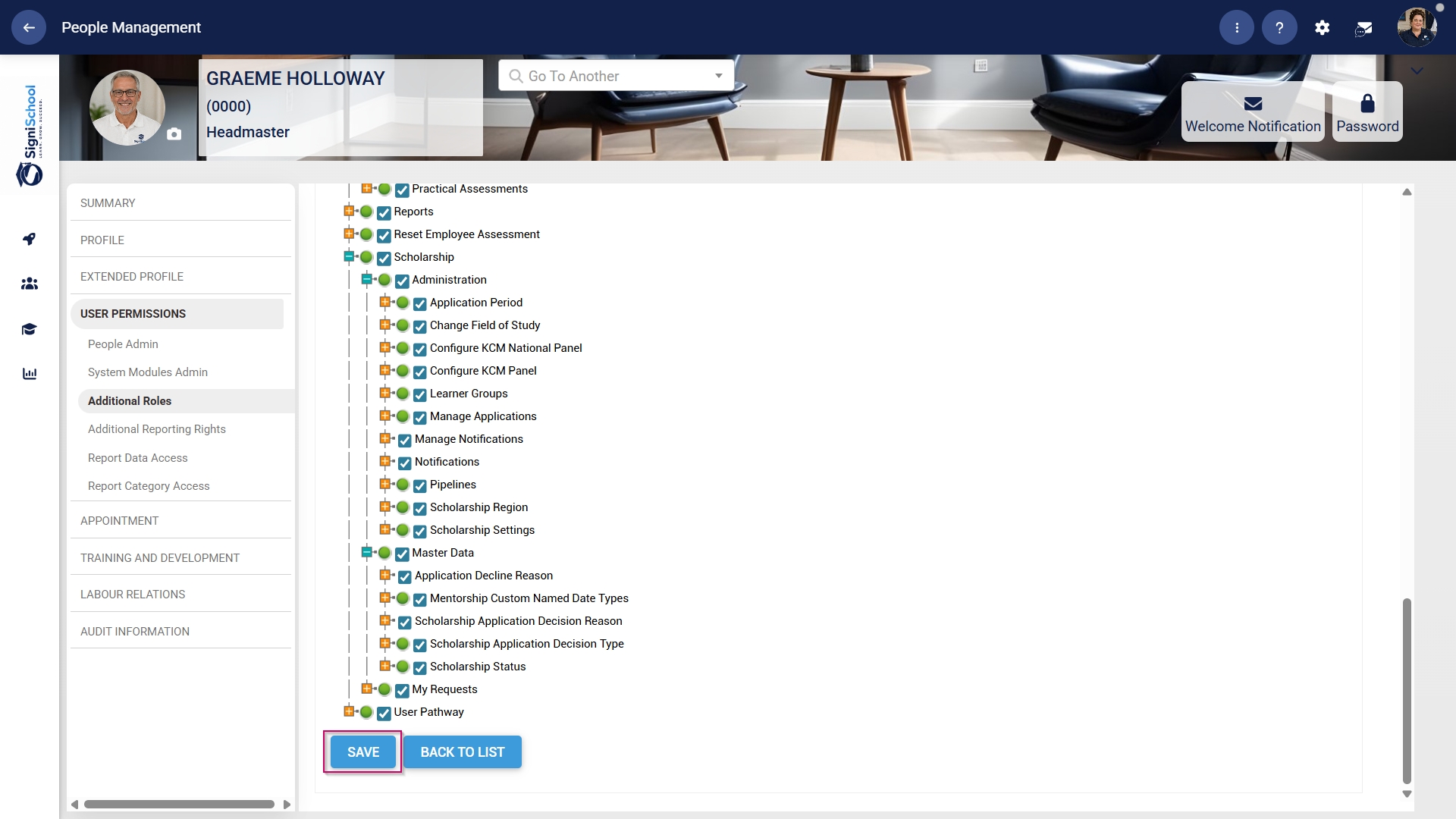
- Click SAVE to continue or BACK TO LIST to discard your changes.
Allow access to the Training Intervention Library
When building pathways, the Learning Administrator needs access to the Training Intervention Library.
- Hover over the sidebar menu, then click People Management.
- Click the pencil icon to manage the profile of the person you want to edit.
- In the left-hand menu, navigate to User Permissions, then click Additional Roles.
- Click the ADD button.
- Click the hand icon to select a role.
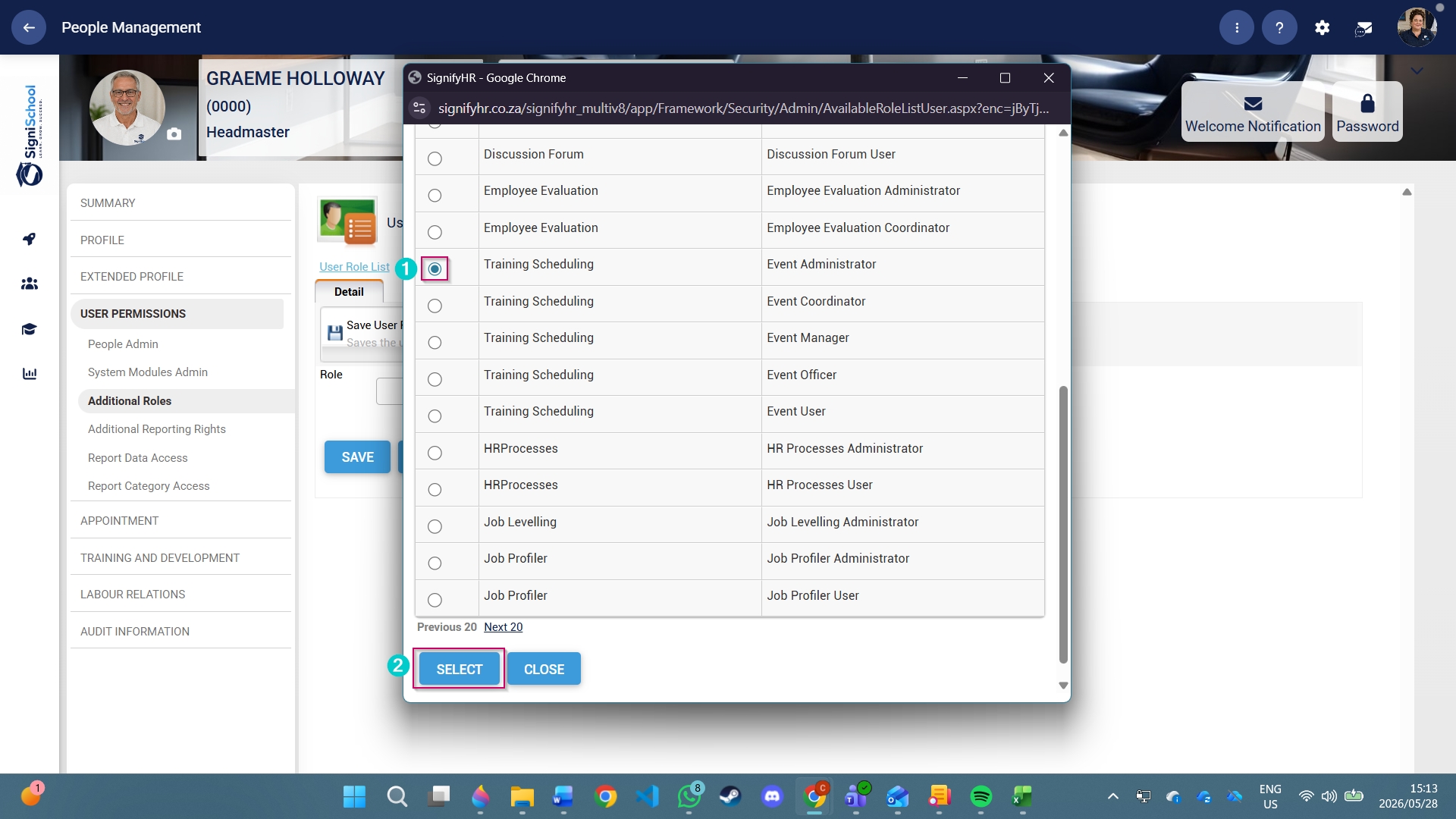
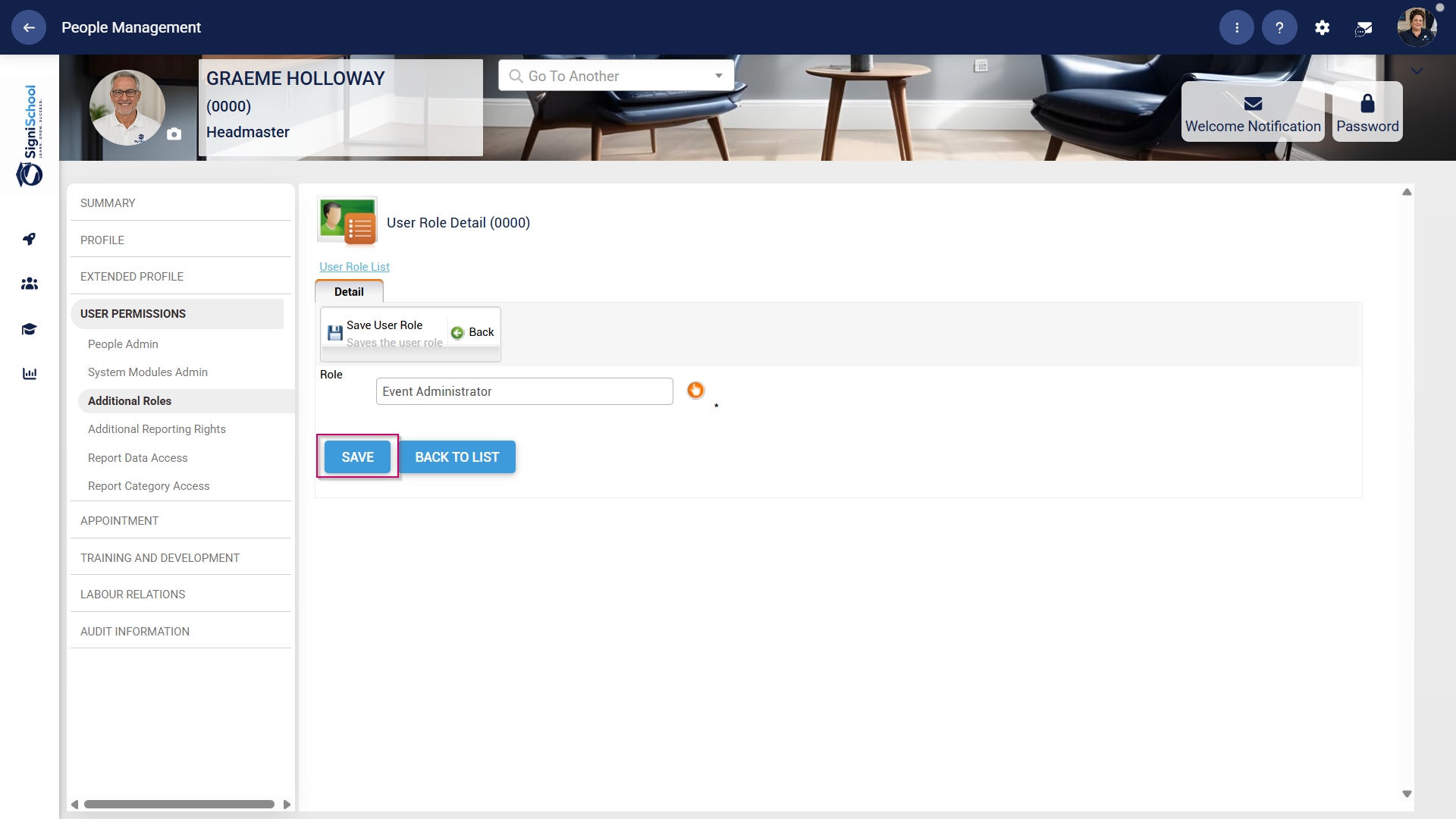
- Scroll down to the Event Administrator role and click the radio button to select it.
- Click the SELECT button.
- Click the SAVE button.
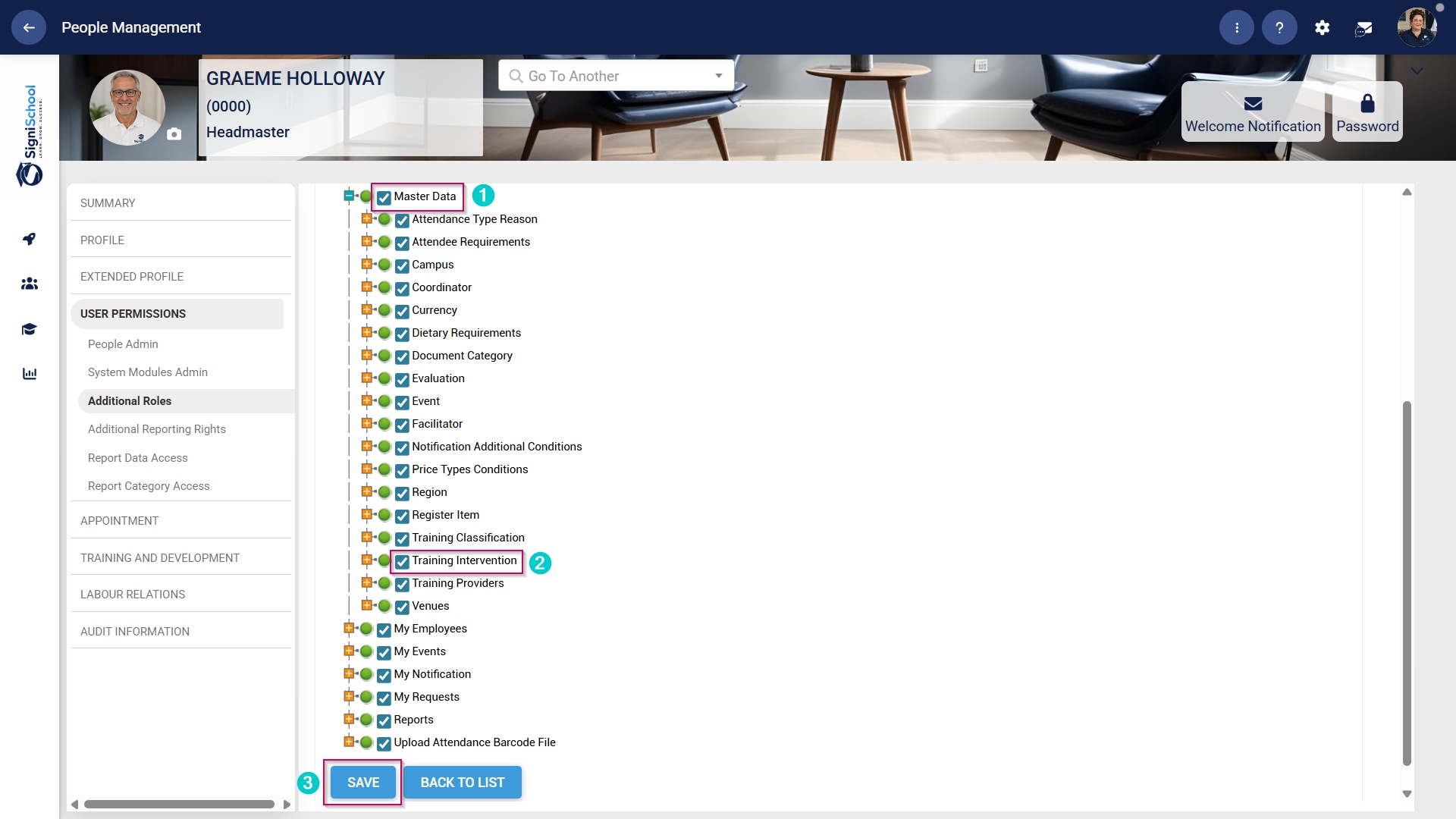
- Scroll down to the Master Data section, and ensure the checkbox next to the Training Intervention permission is ticked.
- Click SAVE to continue or BACK TO LIST to discard your changes.
Update the Master Data Library
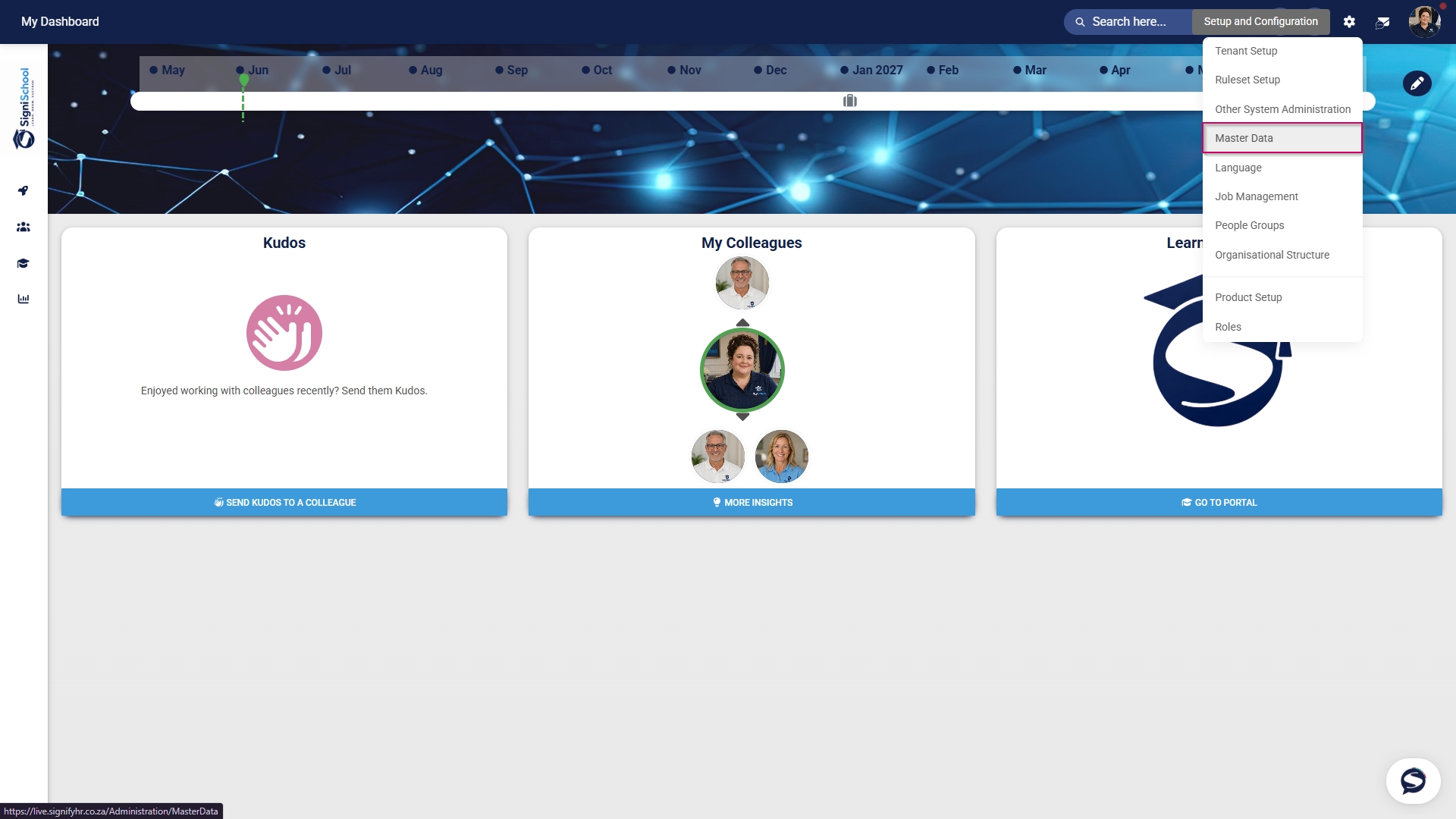
- Click the gear icon to access the Setup and Configuration menu.
- Click Master Data.
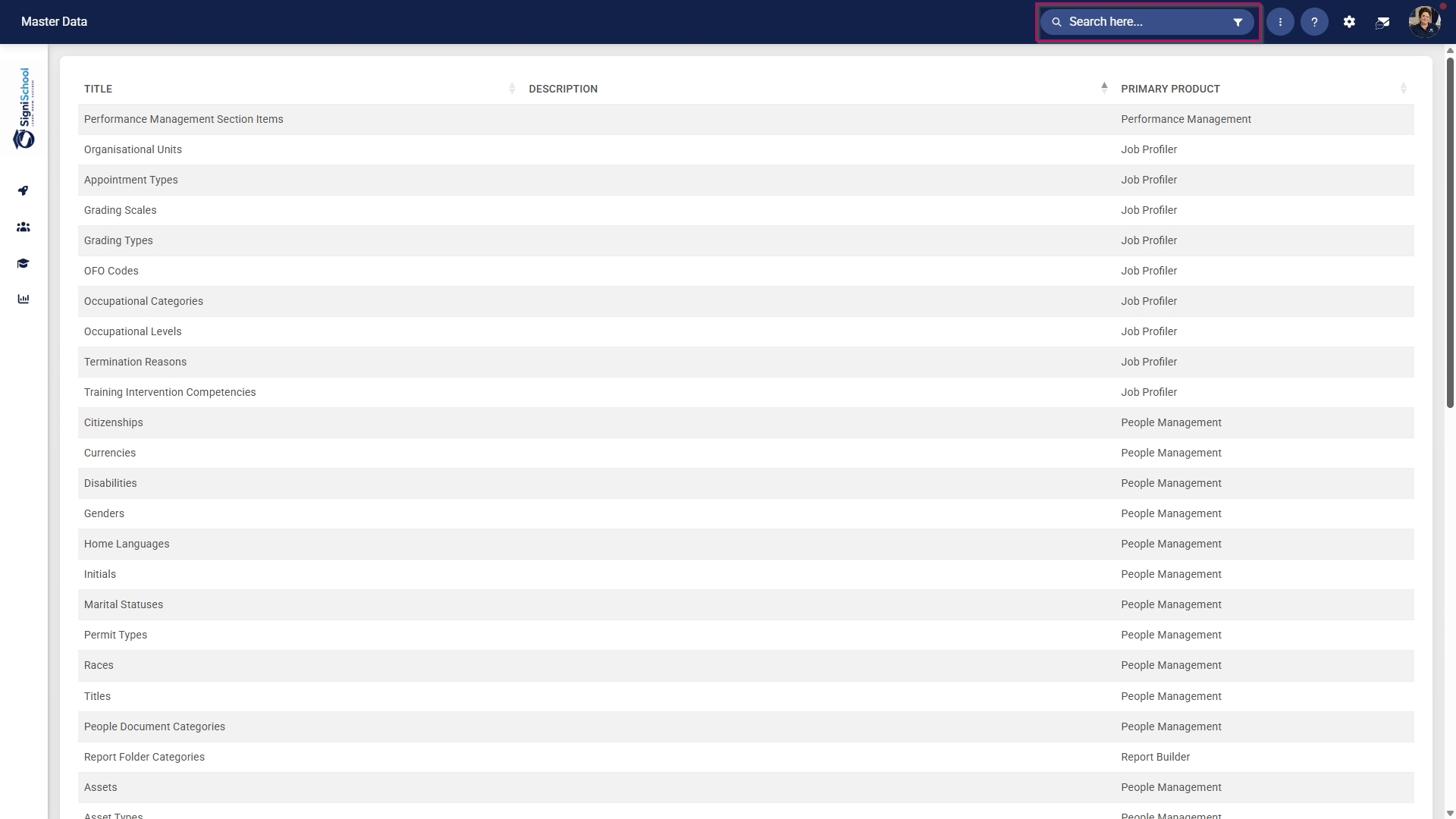
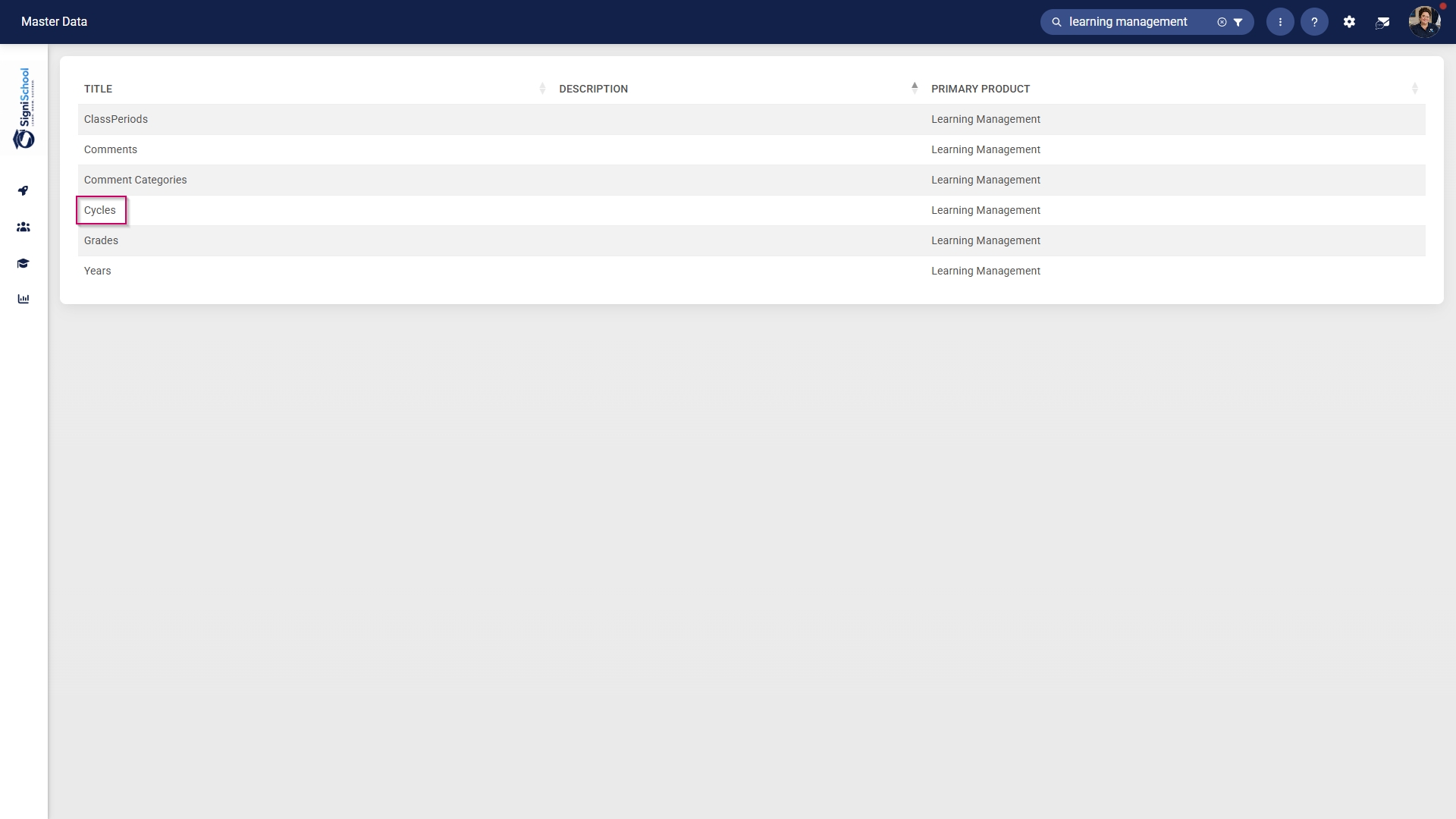
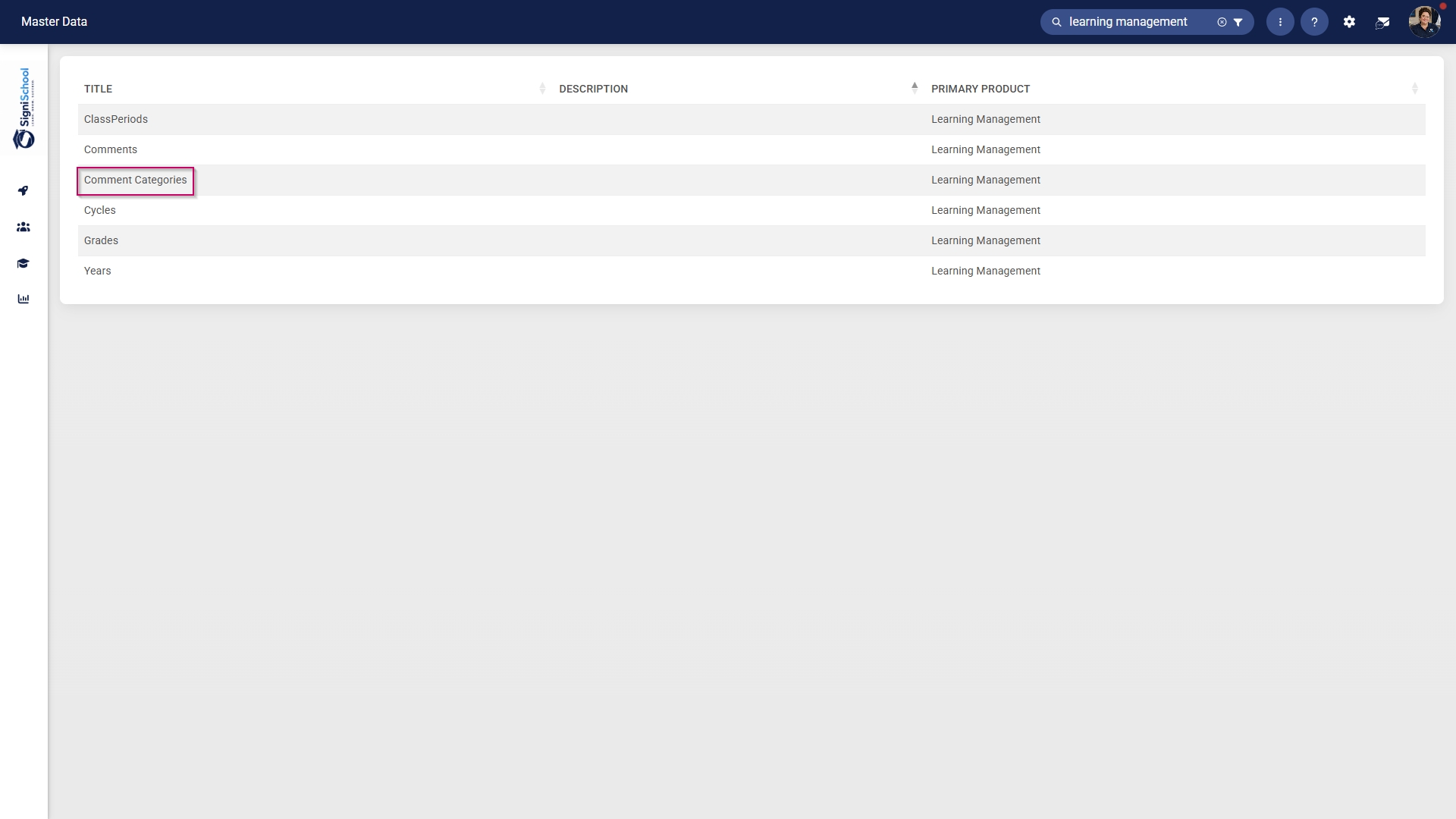
- The Master Data Library lists the categories for which administrators can create master data. Use the search bar at the top of the screen to filter the search results by Learning Management.
Configure cycles
- Click on the Cycles category to continue.
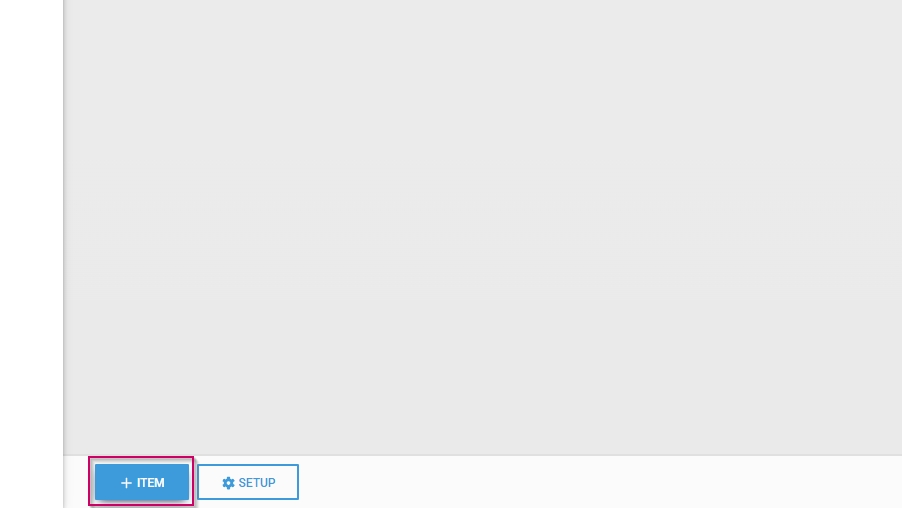
- To add a new master data item, click on +ITEM.
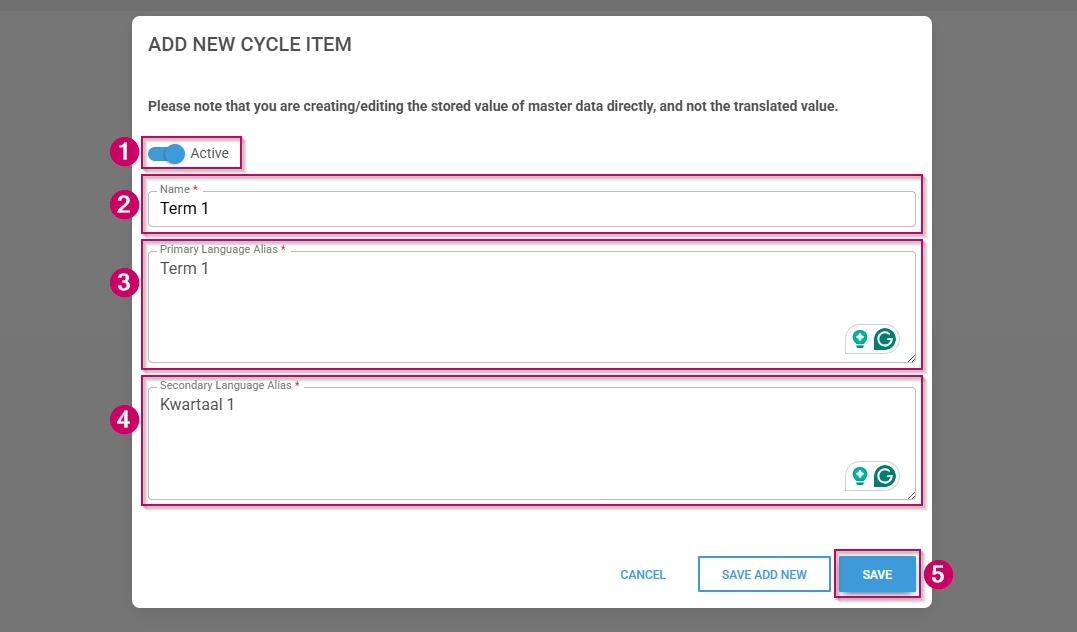
- Click the toggle button to set the cycle's status to Active.
- Enter a name for the cycle.
- Enter an alias for the cycle in the primary language.
- Enter an alias for the cycle in the secondary language.
- Click SAVE when you are finished, SAVE ADD NEW to add another master data item or click CANCEL to discard your edits.
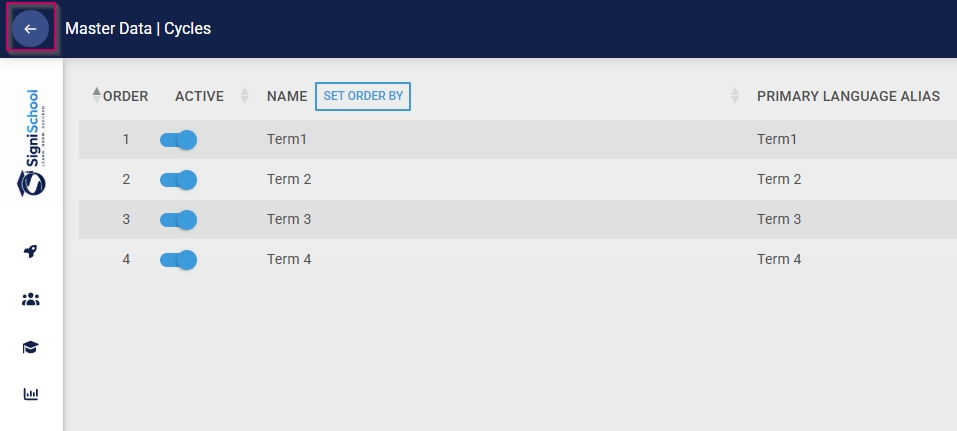
- Click the back arrow to navigate back to the Master Data Library once you are finished.
Configure grades
- Click on the Grades category to continue.
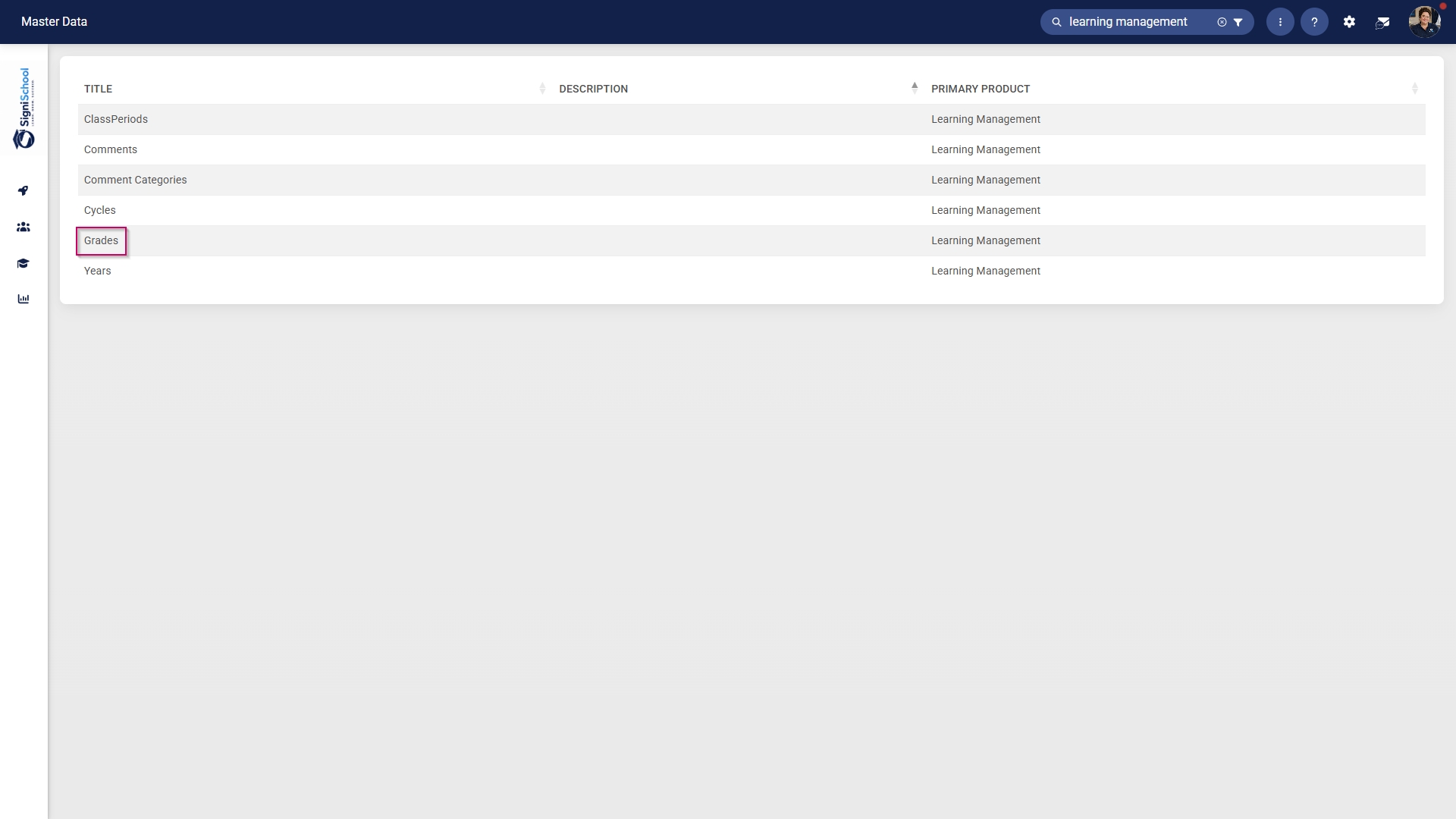
- To add a new master data item, click on +ITEM.
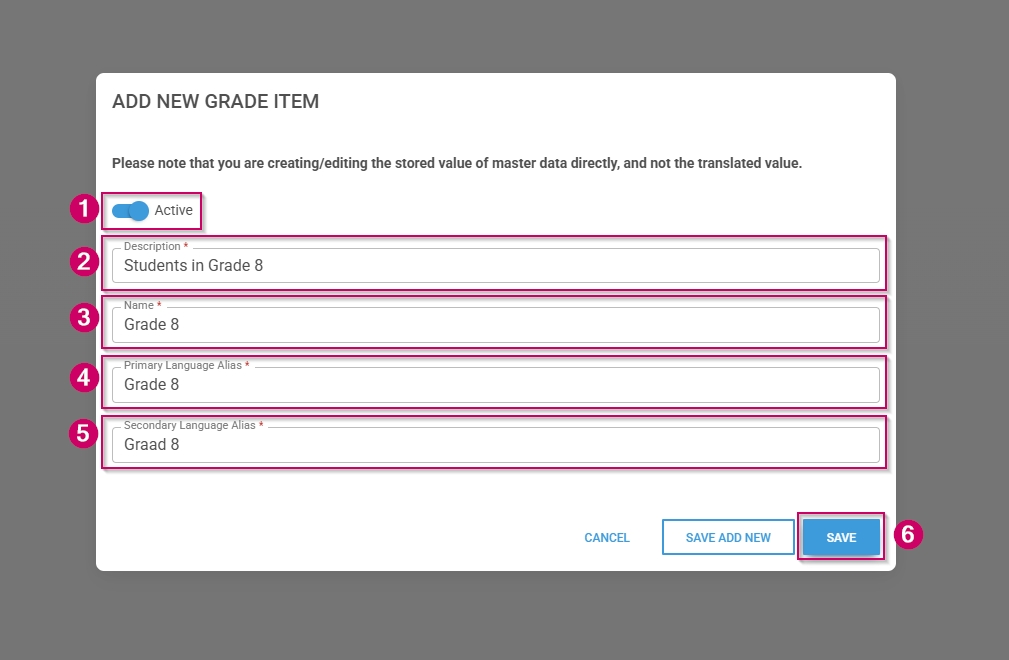
- Click the toggle button to set the grade's status to Active.
- Enter a short description for the grade.
- Enter a name for the grade.
- Enter an alias for the grade in the primary language.
- Enter an alias for the grade in the secondary language.
- Click SAVE when you are finished, SAVE ADD NEW to add another master data item or click CANCEL to discard your edits.
- Click the back arrow to navigate back to the Master Data Library once you are finished.

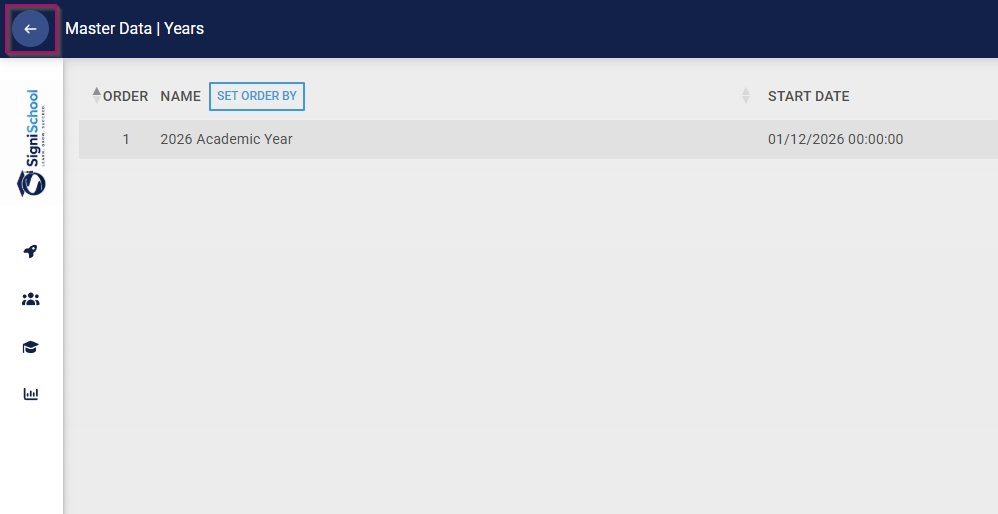
Configure years
- Click on the Years category to continue.
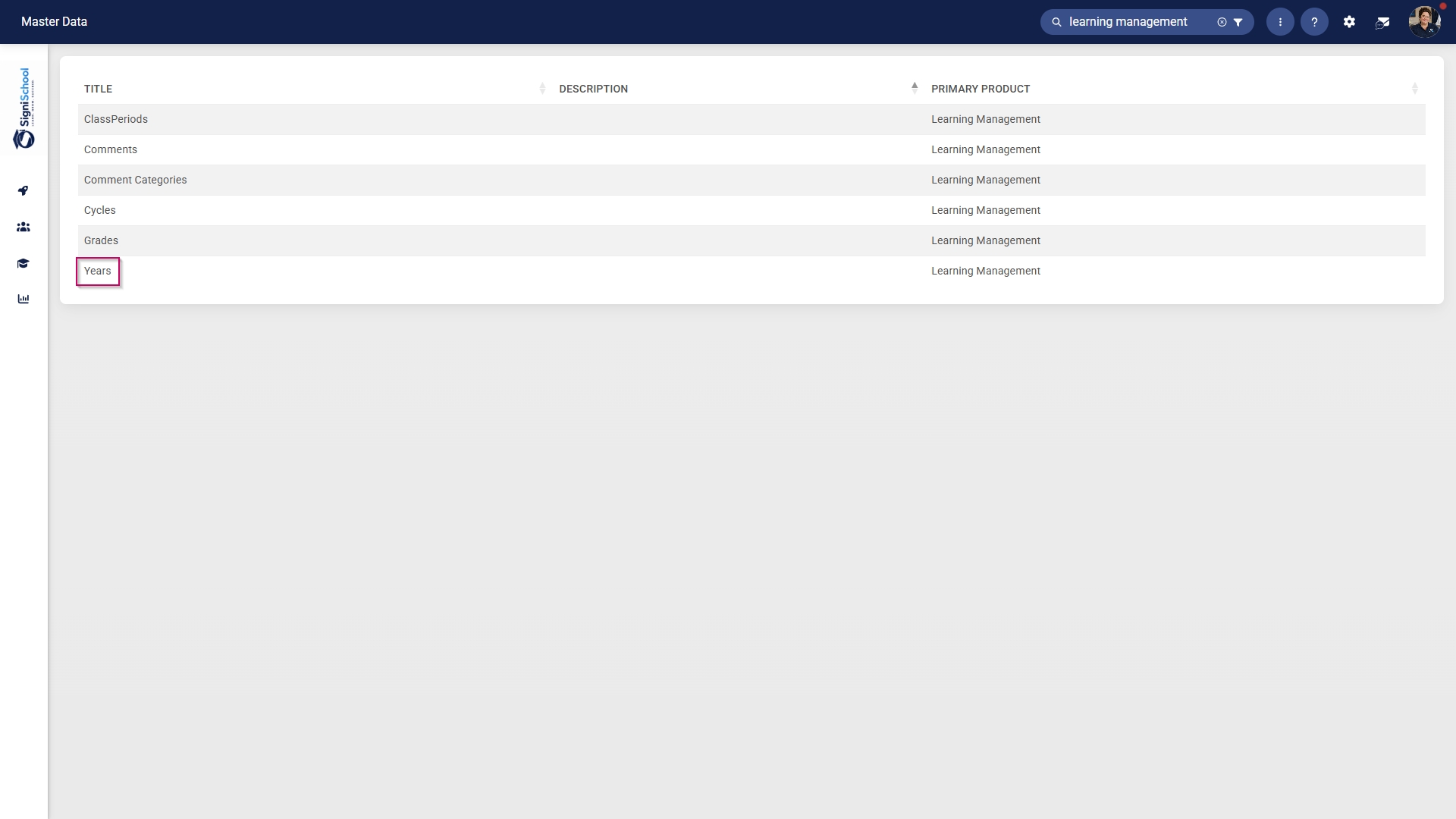
- To add a new master data item, click on +ITEM.
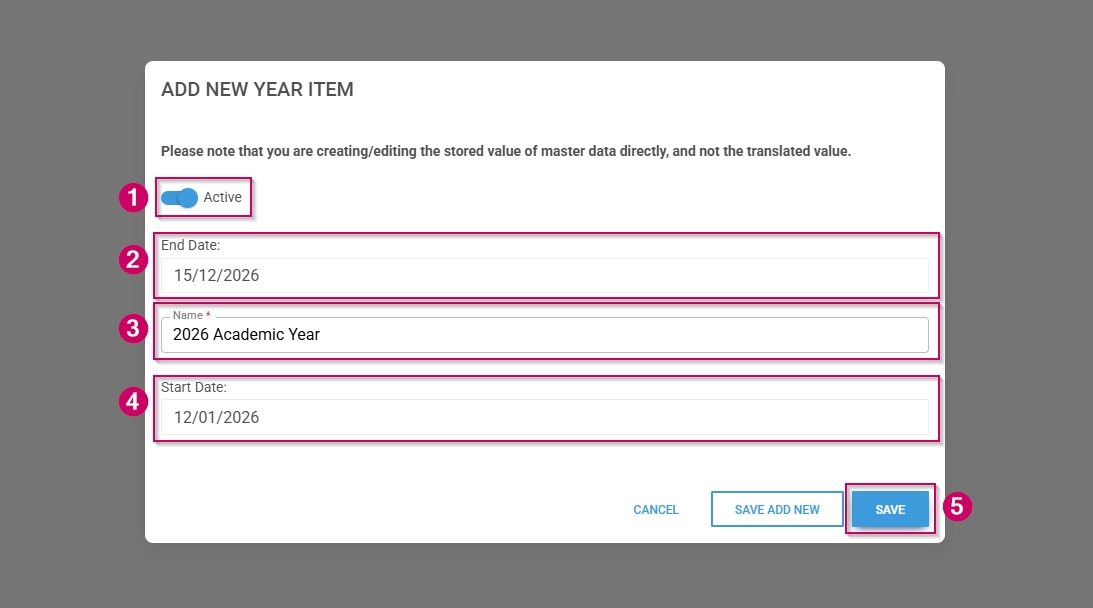
- Click the toggle button to set the year's status to Active.
- Enter an end date for the year.
- Enter a name for the year.
- Enter a start date for the year.
- Click SAVE when you are finished, SAVE ADD NEW to add another master data item or click CANCEL to discard your edits.
- Click the back arrow to navigate back to the Master Data Library once you are finished.

Configure class periods
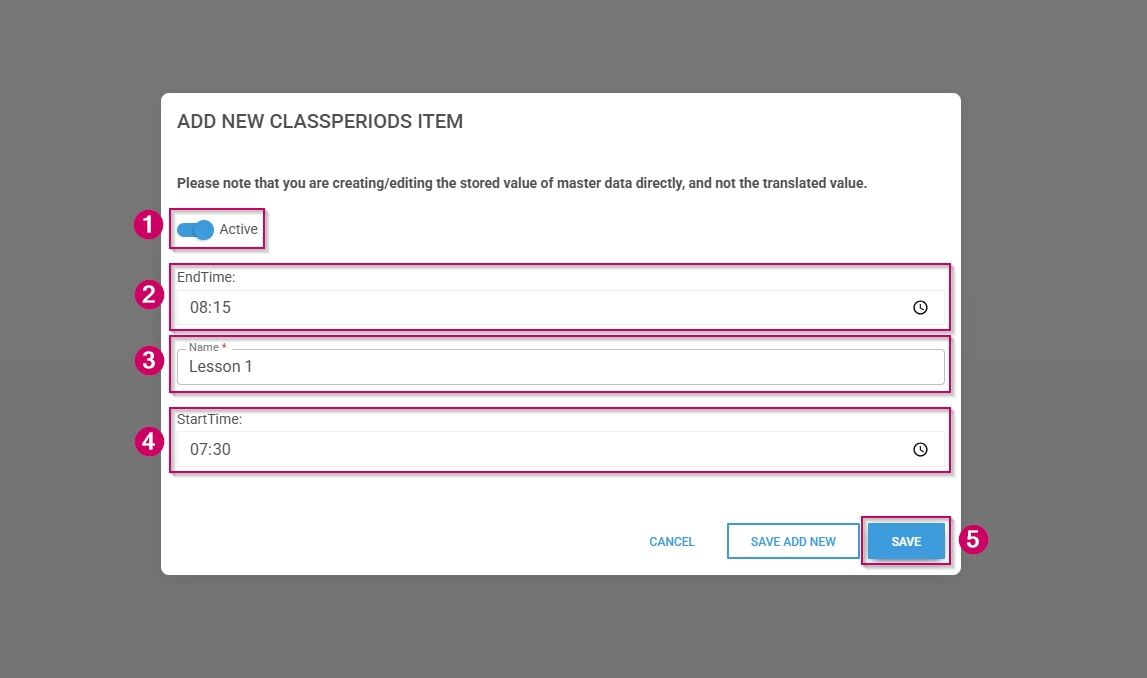
- Click on the ClassPeriods category to continue.

- To add a new master data item, click on +ITEM.
- Click the toggle button to set the class period's status to Active.
- Enter an end time for the period.
- Add a name for the period.
- Enter a start time for the period.
- Click SAVE when you are finished, SAVE ADD NEW to add another master data item or click CANCEL to discard your edits.
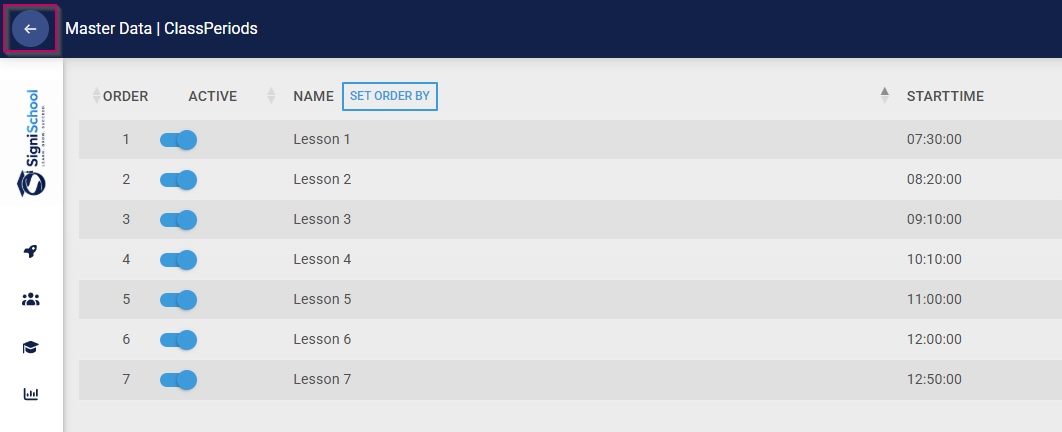
- Click the back arrow to navigate back to the Master Data Library once you are finished.
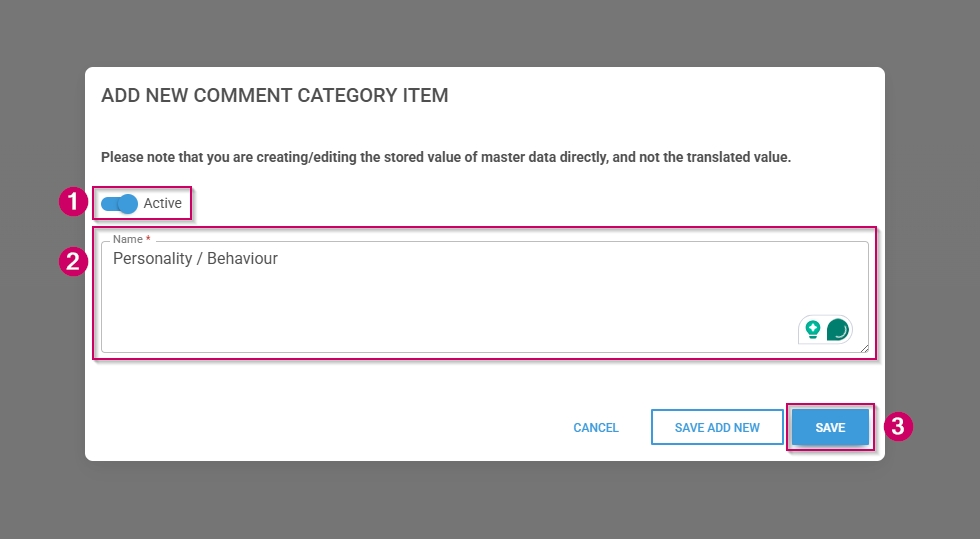
Configure comment categories
- Click on the
CyclesComment Categories category to continue.
- To add a new master data item, click on +ITEM.
- Click the toggle button to set the
cycle'comment category's status to Active. - Enter a name for the
cycle.
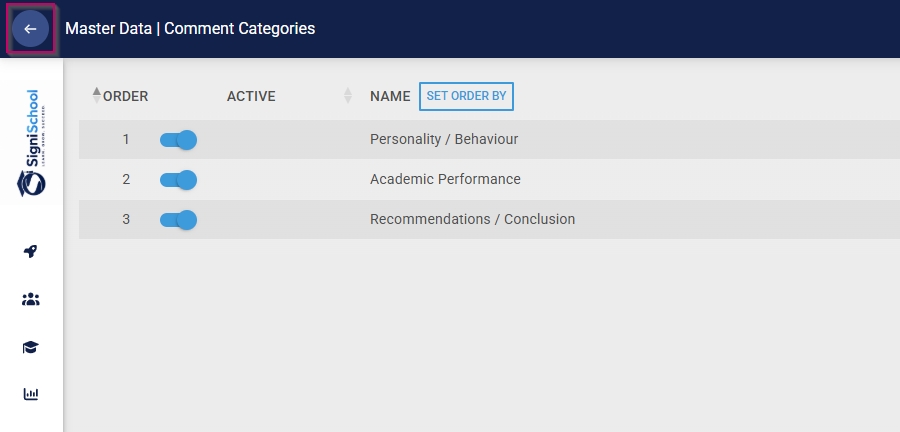
- Click the back arrow to navigate back to the Master Data Library once you are finished.
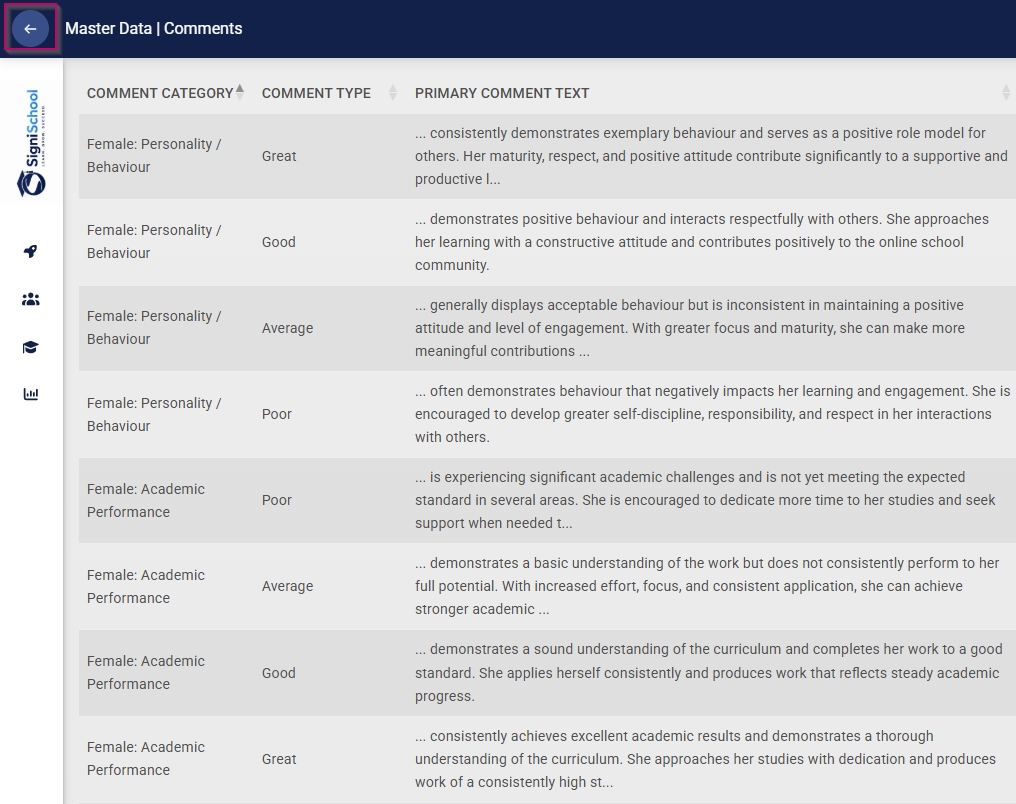
Configure academic report comments
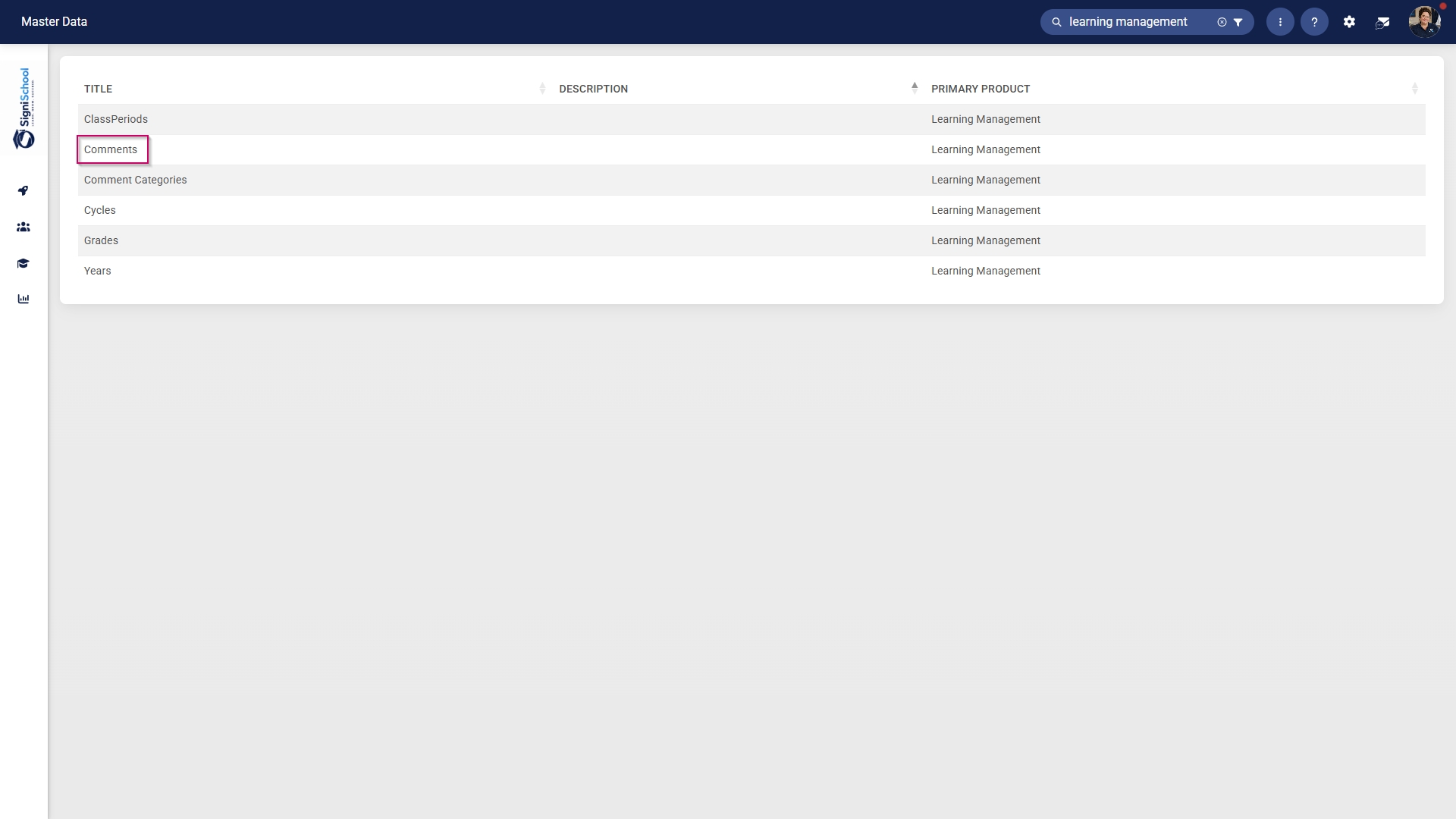
- Click on the
CyclesComments category to continue.
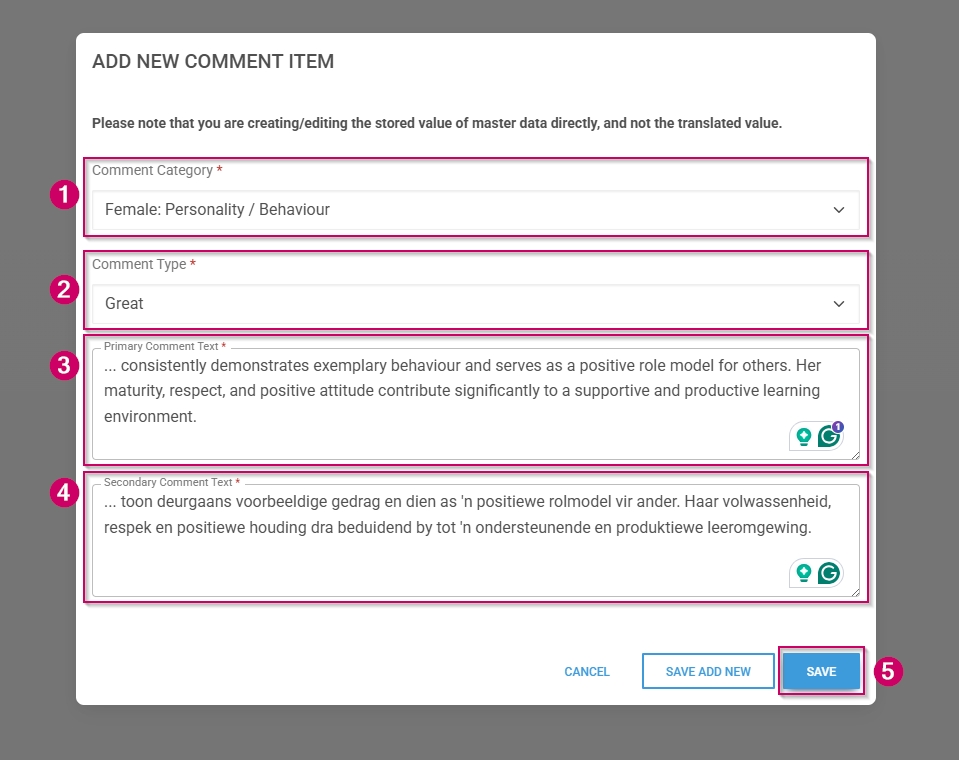
- To add a new master data item, click on +ITEM.
ClickFrom thetoggledrop-down menu,buttonto setselect thecycle'scommentstatuscategory.
Enter a
Click SAVE when you are finished, SAVE ADD NEW to add another master data item or click CANCEL to discard your edits.
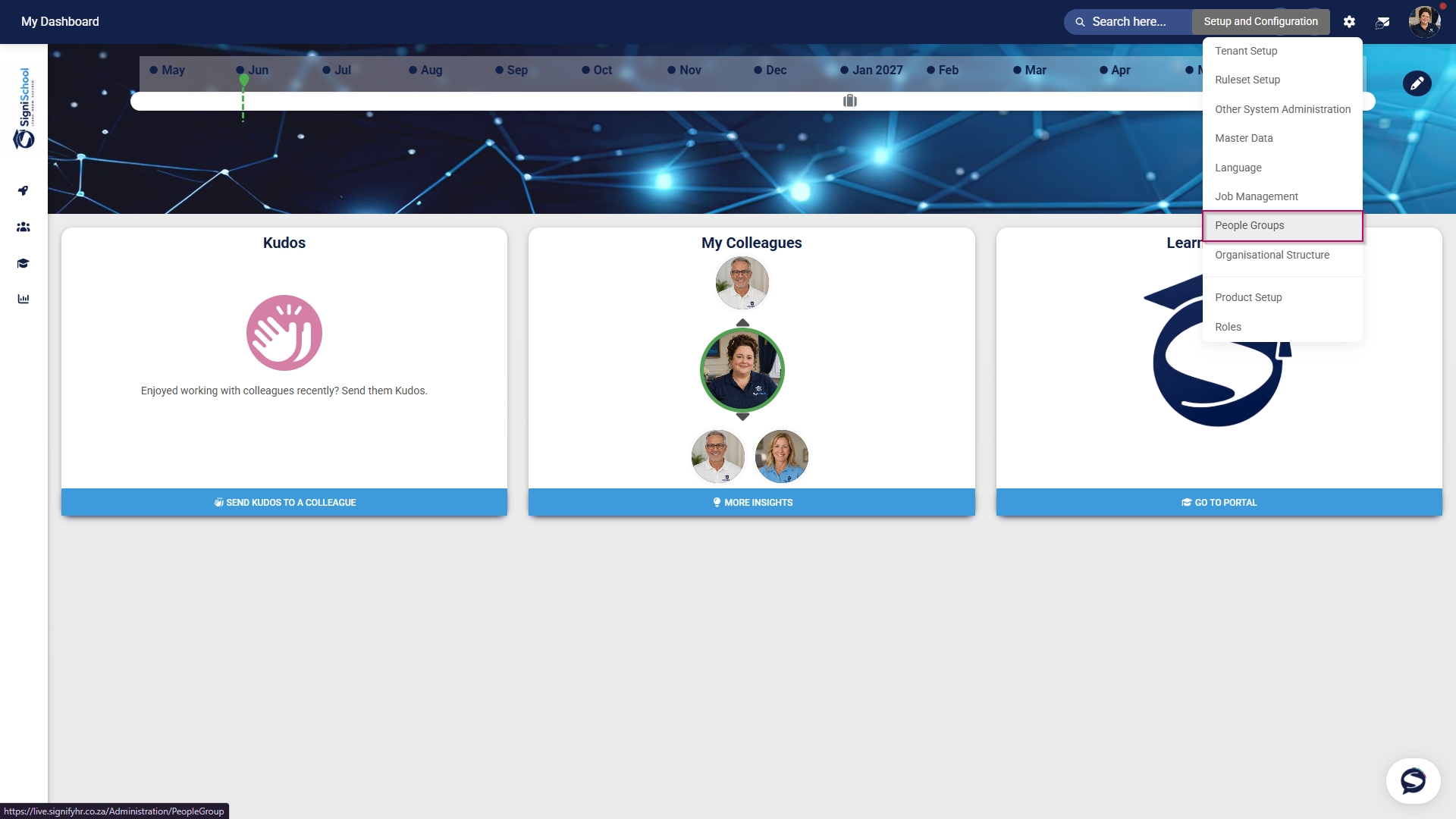
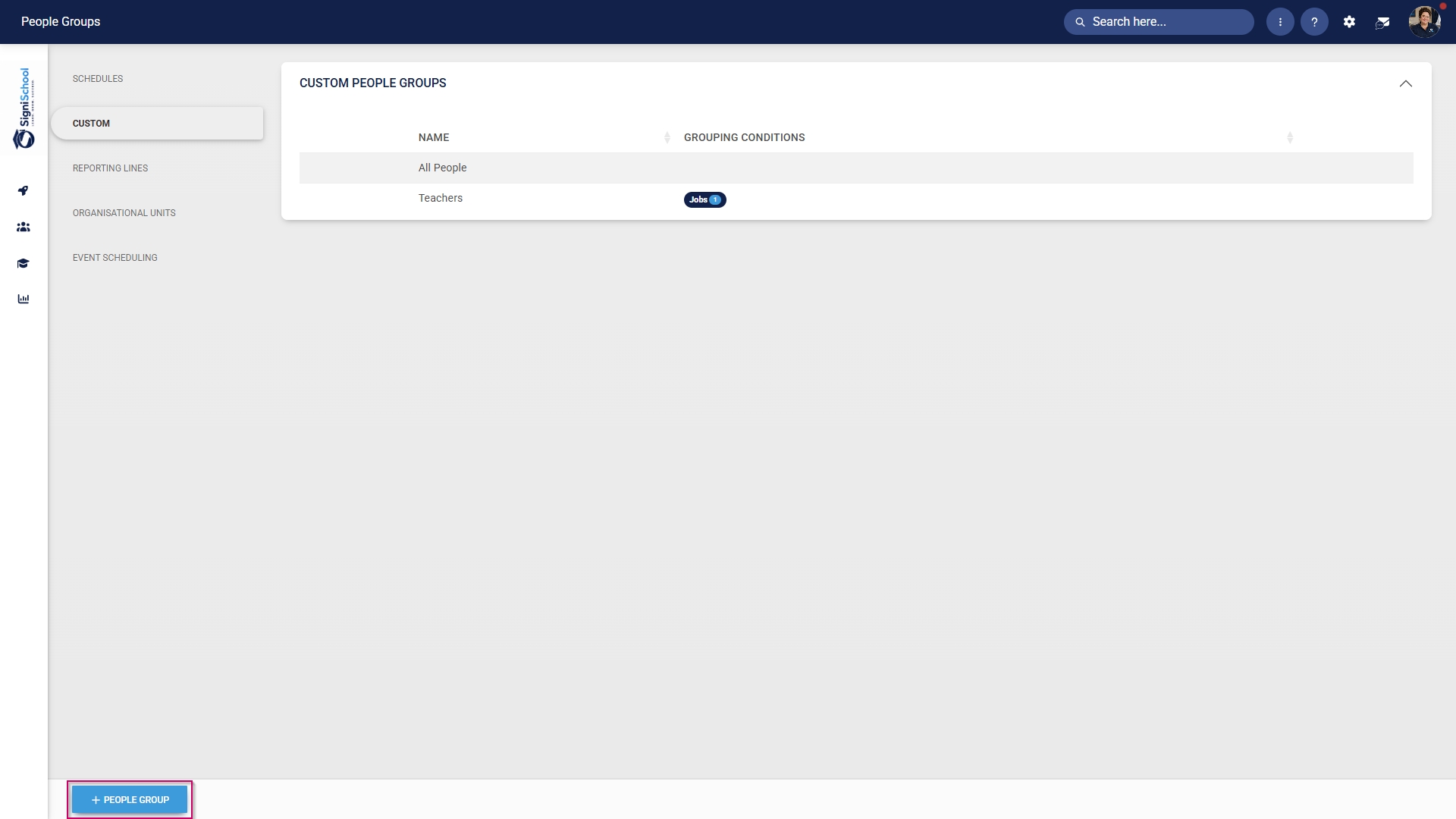
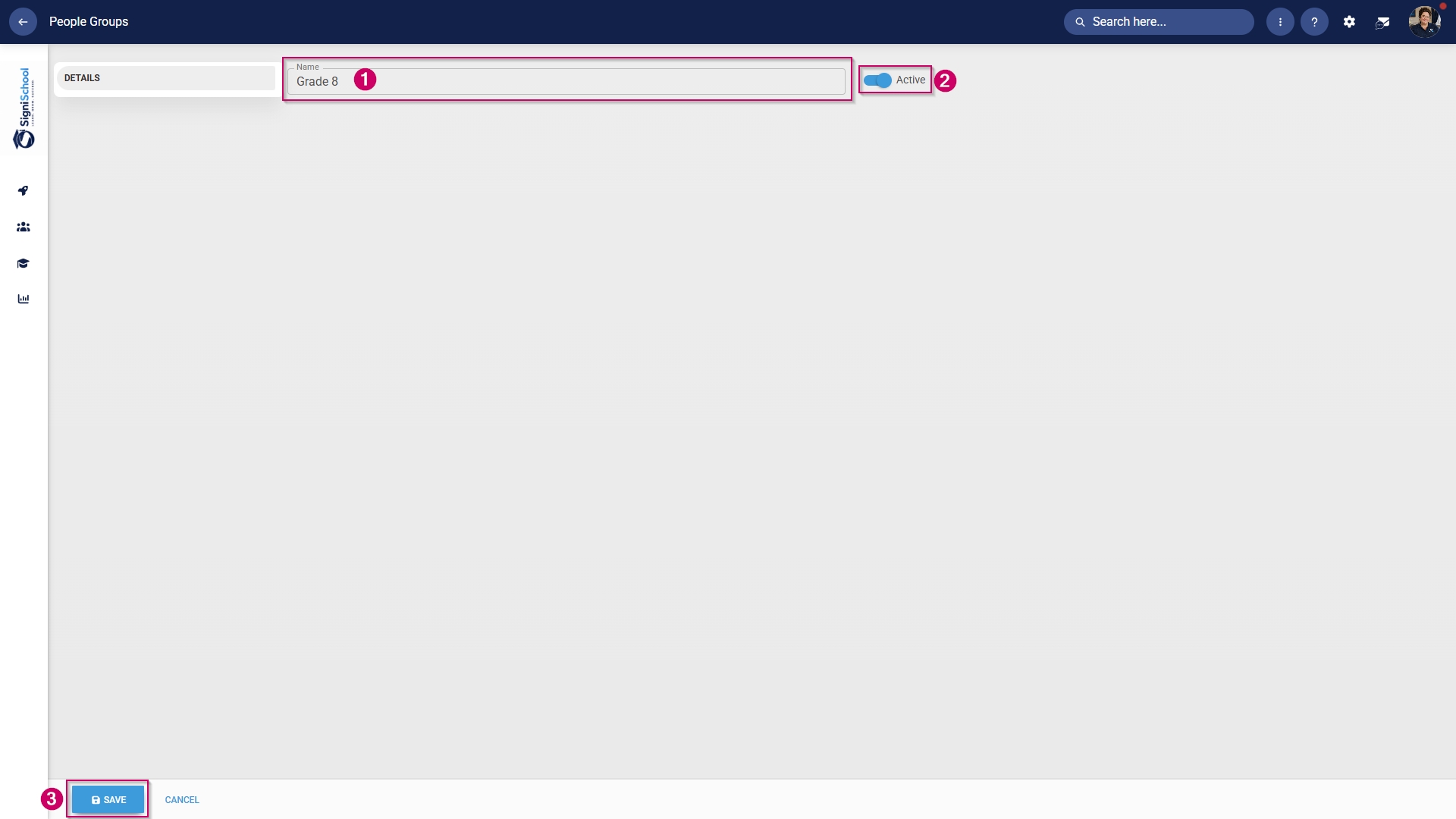
Create people groups
Included: Individuals
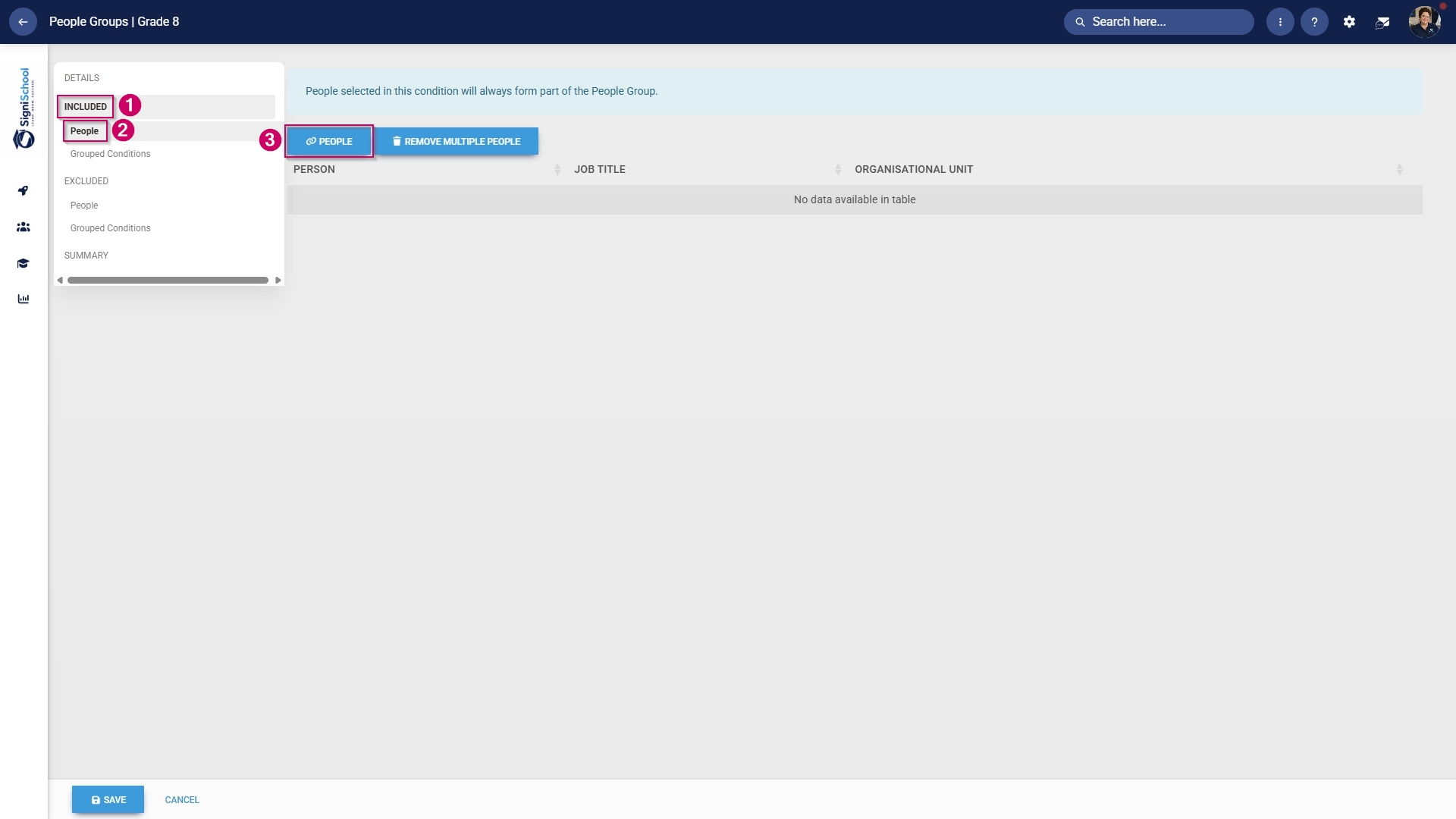

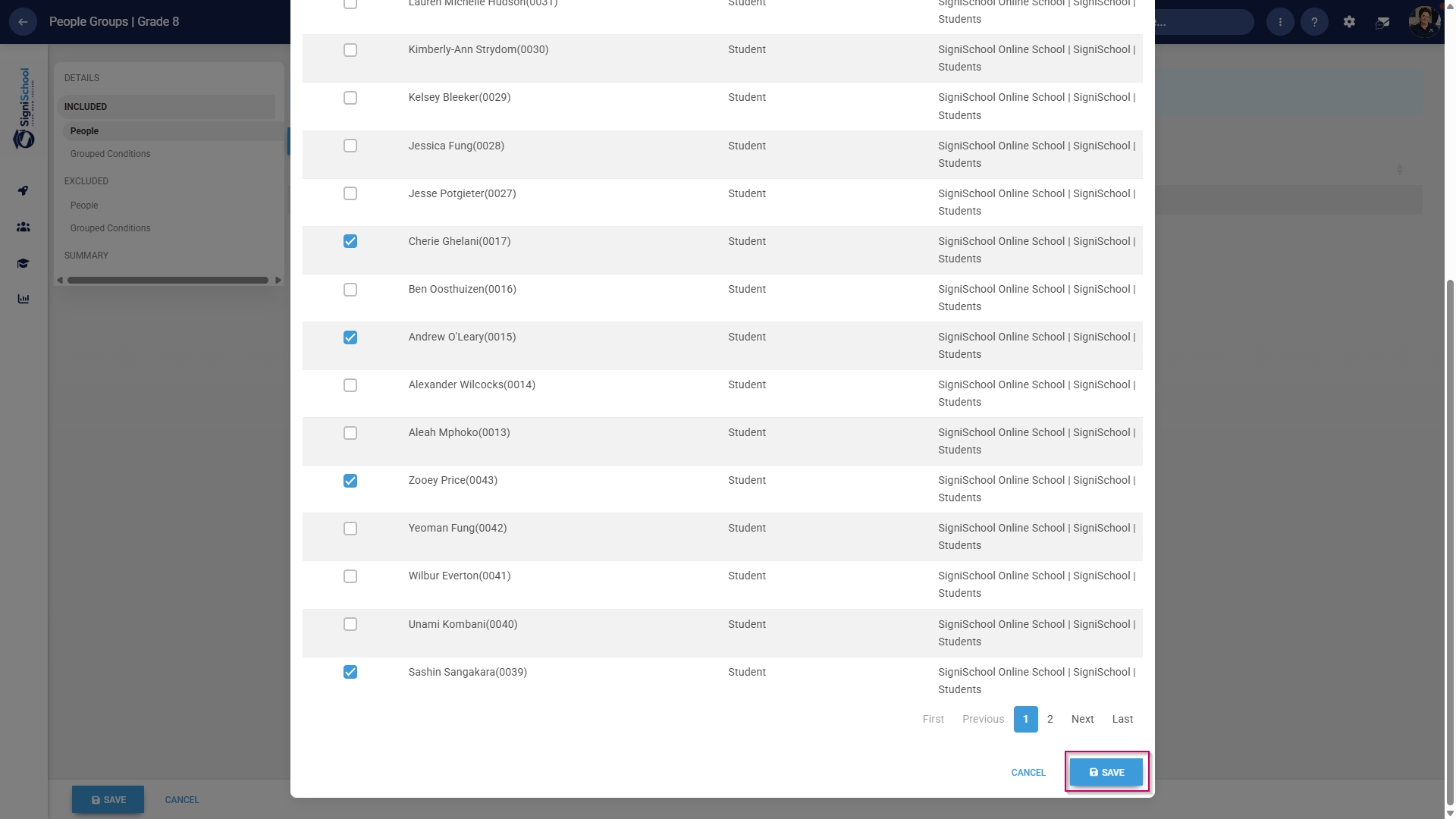
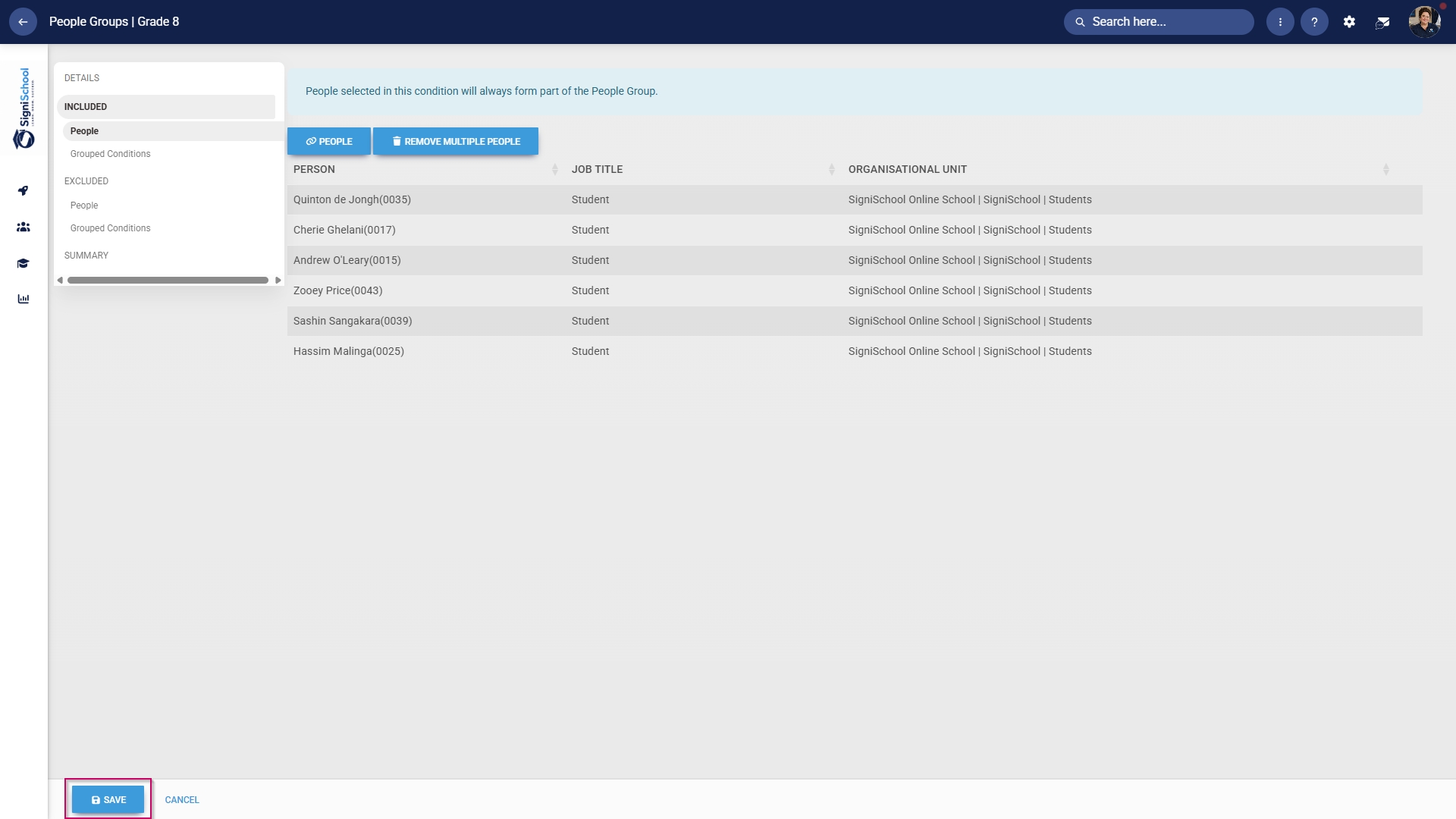
Included: Grouped conditions
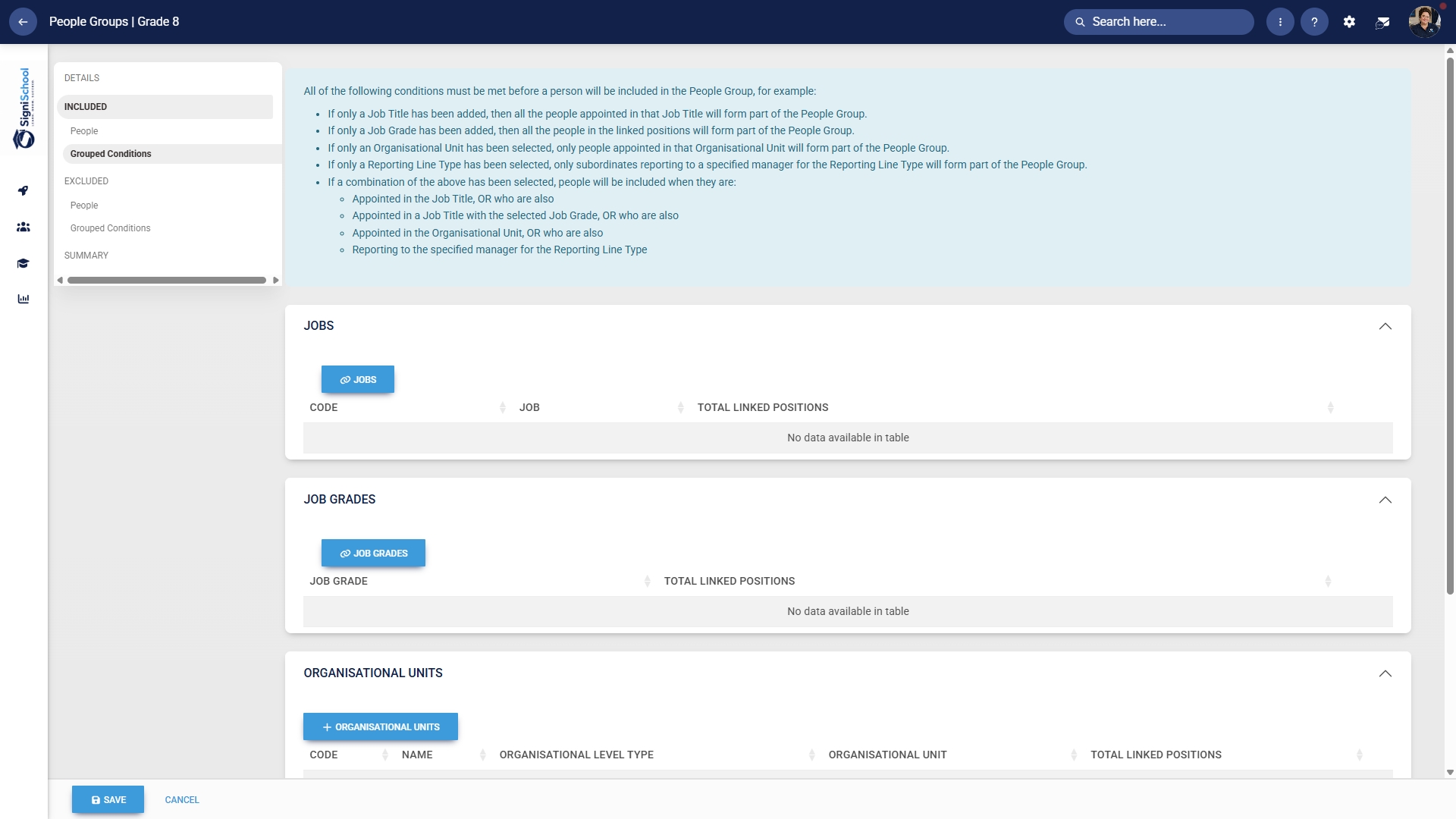
Included: Individuals

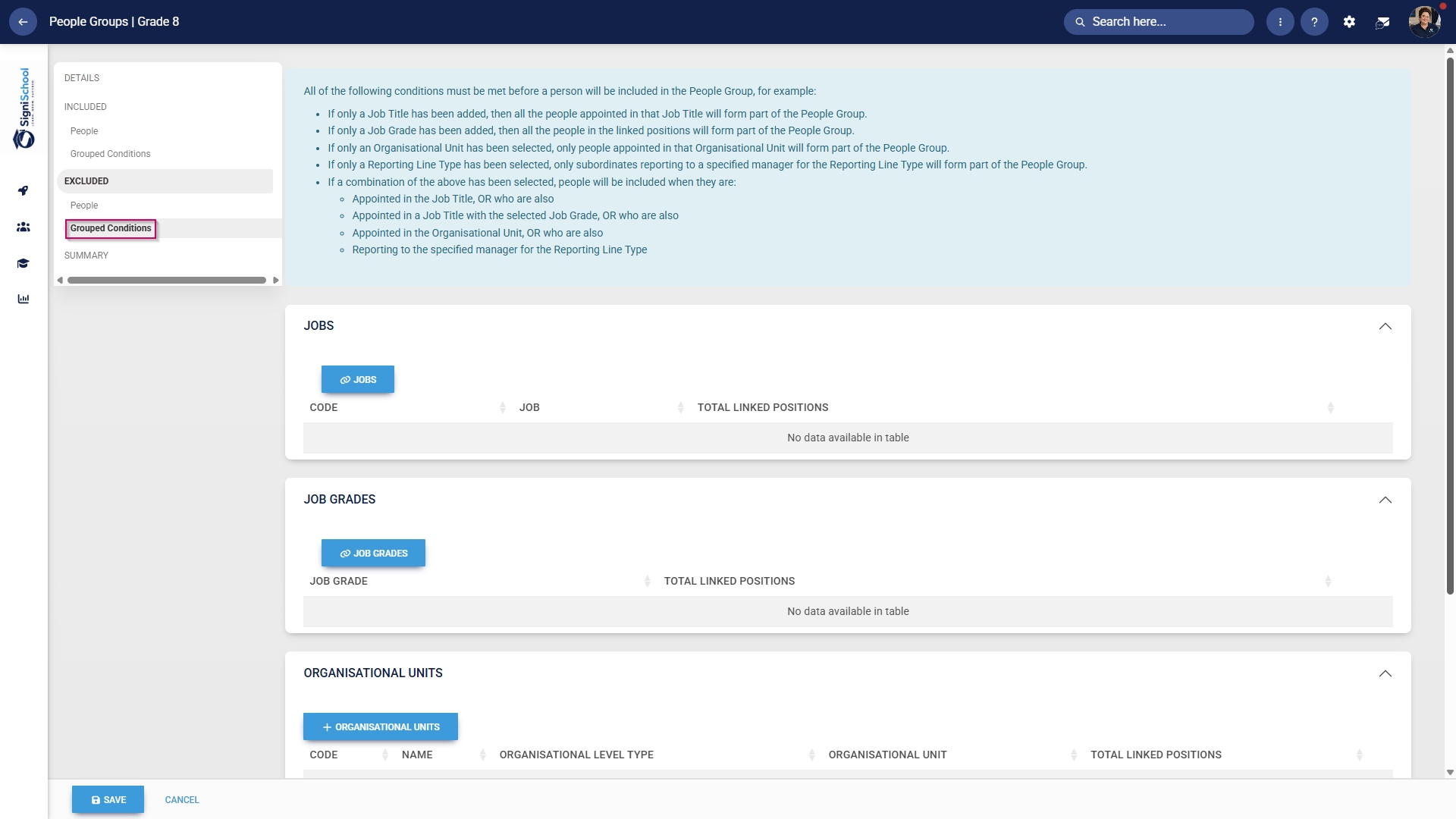
Excluded: Grouped conditions
Summary
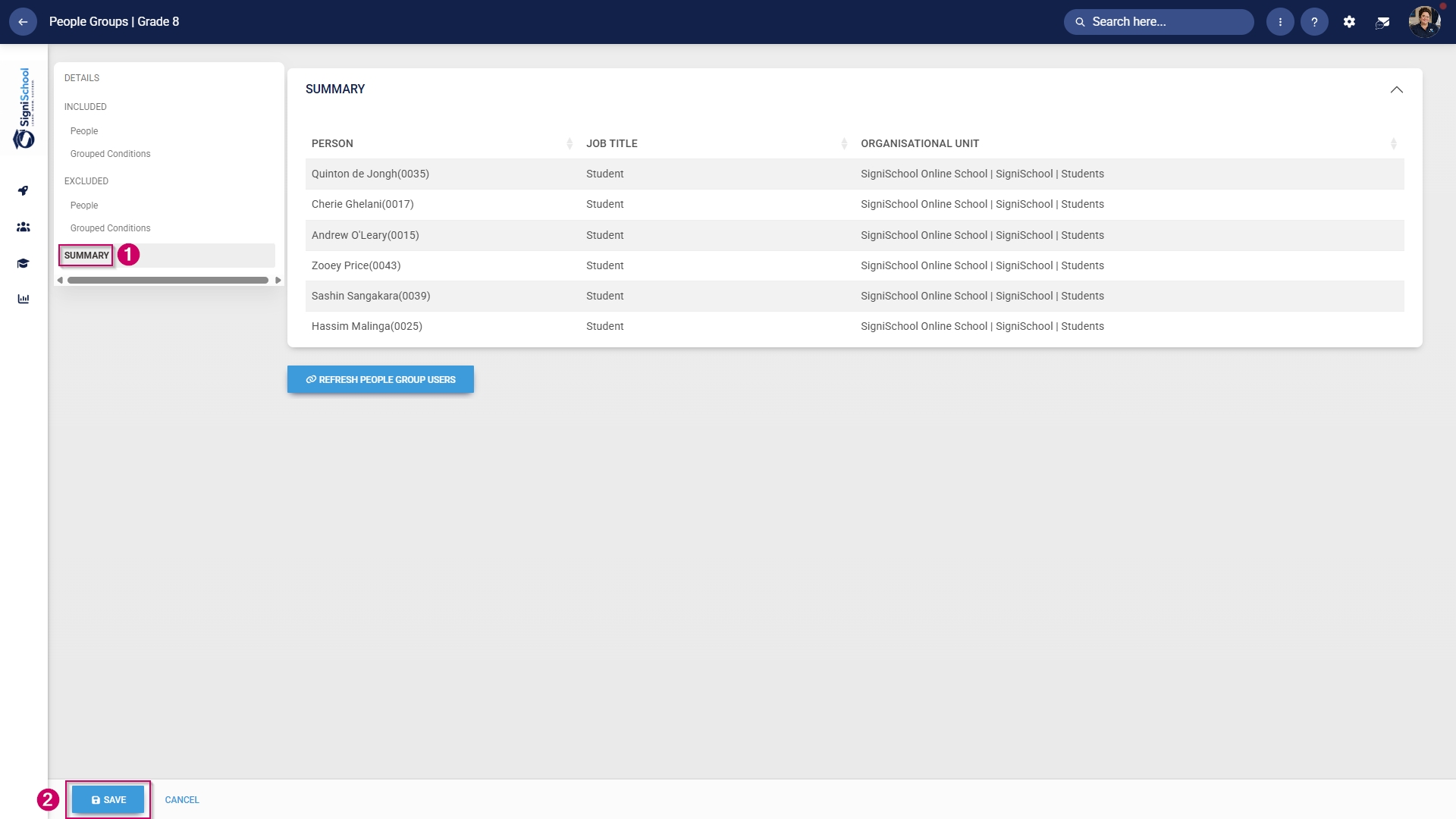
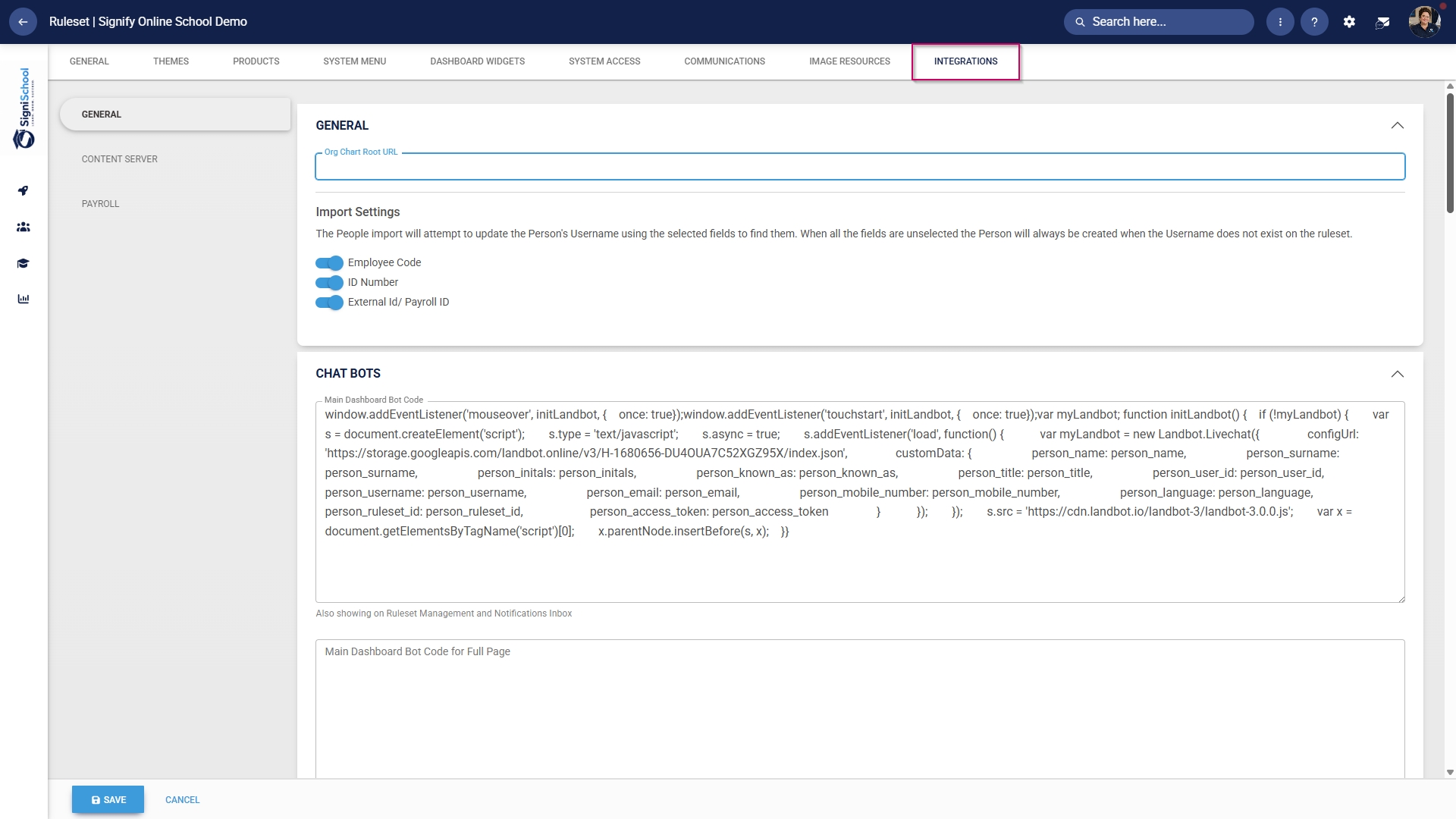
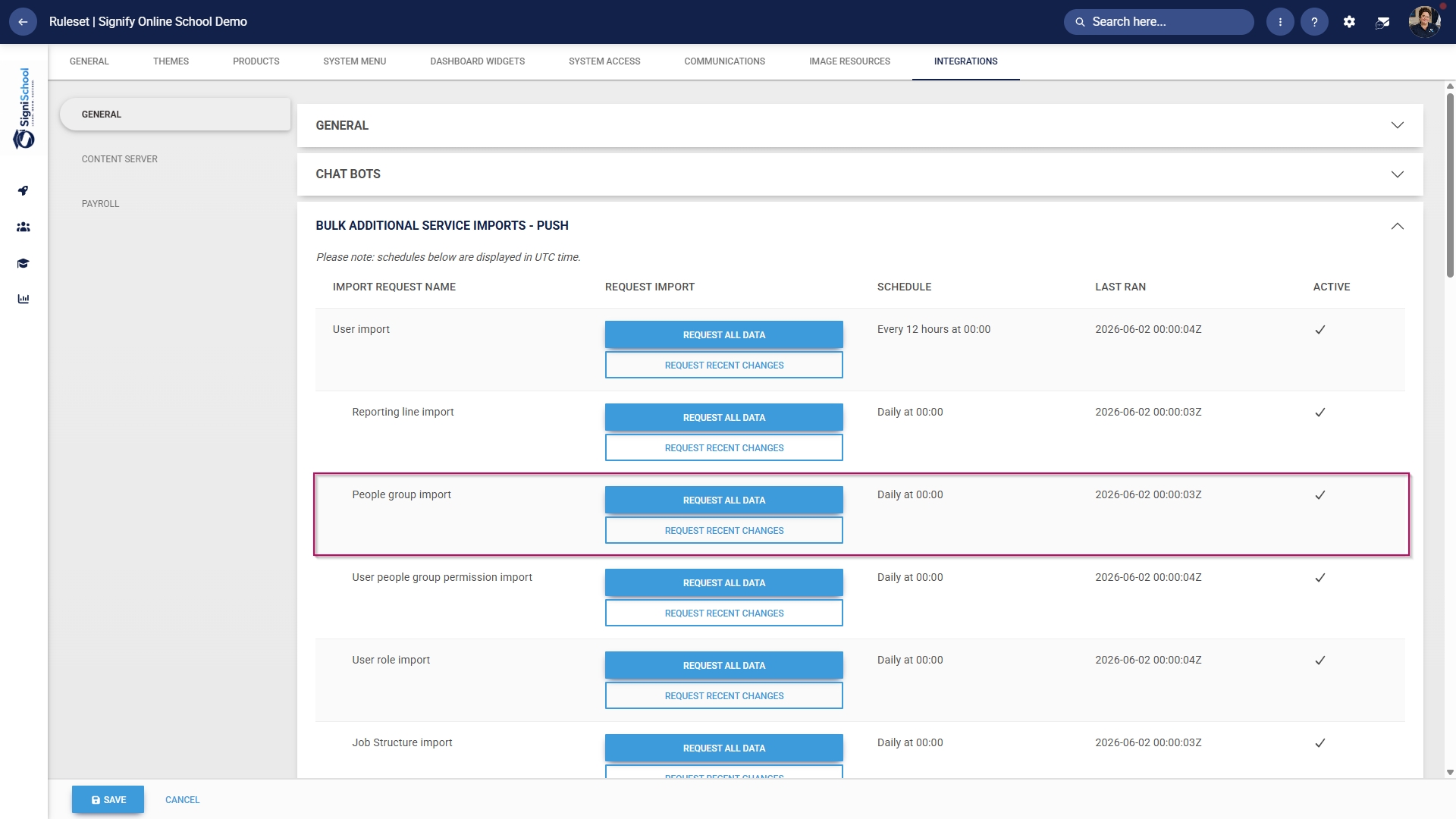
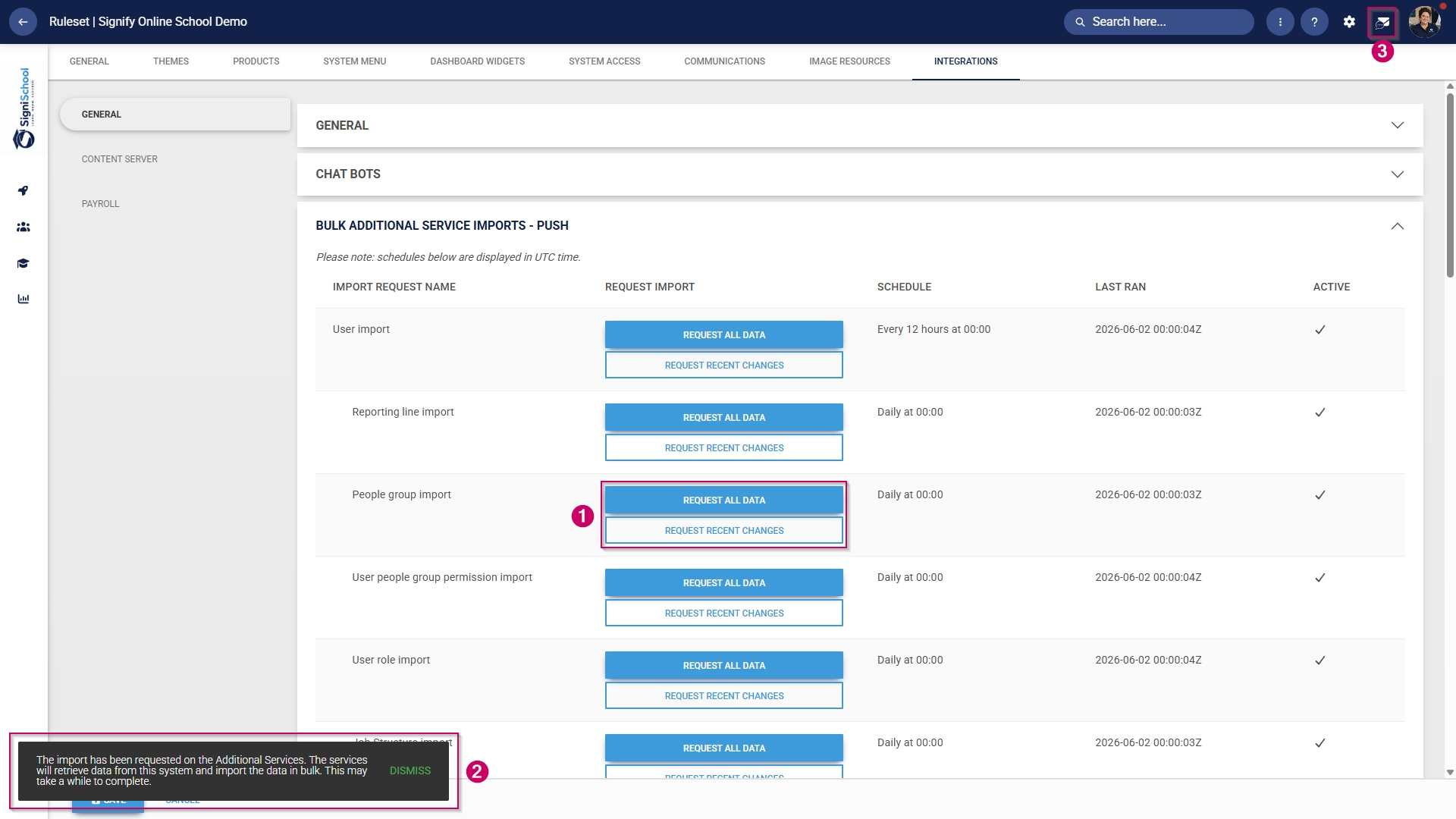
The people groups take some time to synchronise on the system once they're created. This can take anywhere from 10 minutes to 12 hours, depending on the number of changes.To synchronise the newly-created or updated people groups manually, follow the steps in the next section.
Manually syncing people groups
Create
Please be very careful when selecting this option, as it can affect system performance and speed, particularly during business hours.
Add training interventions
Method 1: Add training interventions manually
Method 2: Add training interventions using the import
Create learning pathways
Create subject
Pathway features
Learning mode
Attendance register
Marksheet
Class notes
Report card
