Learning Management: Online School Implementation Guide

Activate the Learning Management module
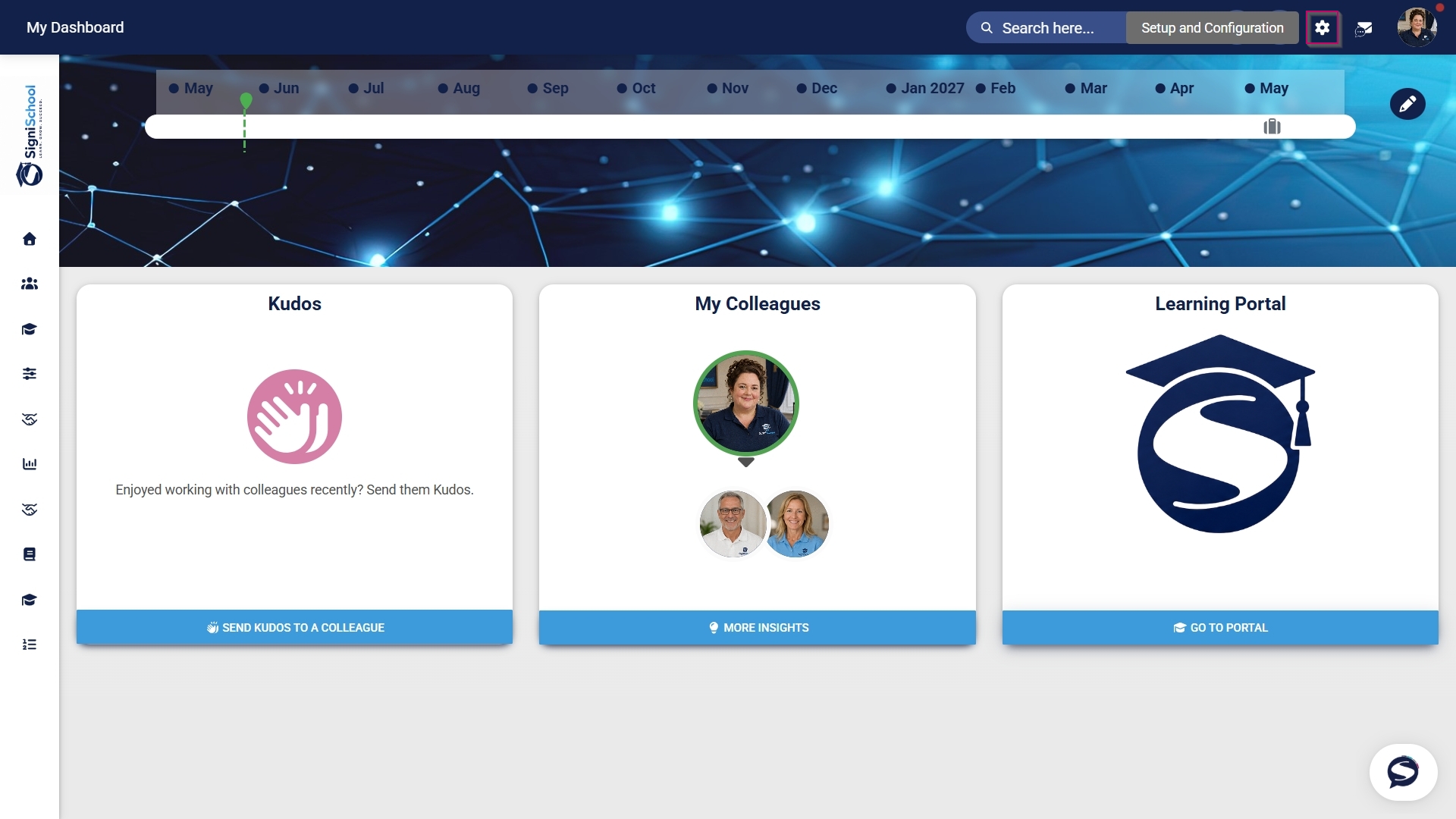
- Click the gear icon to access the Setup and Configuration menu.
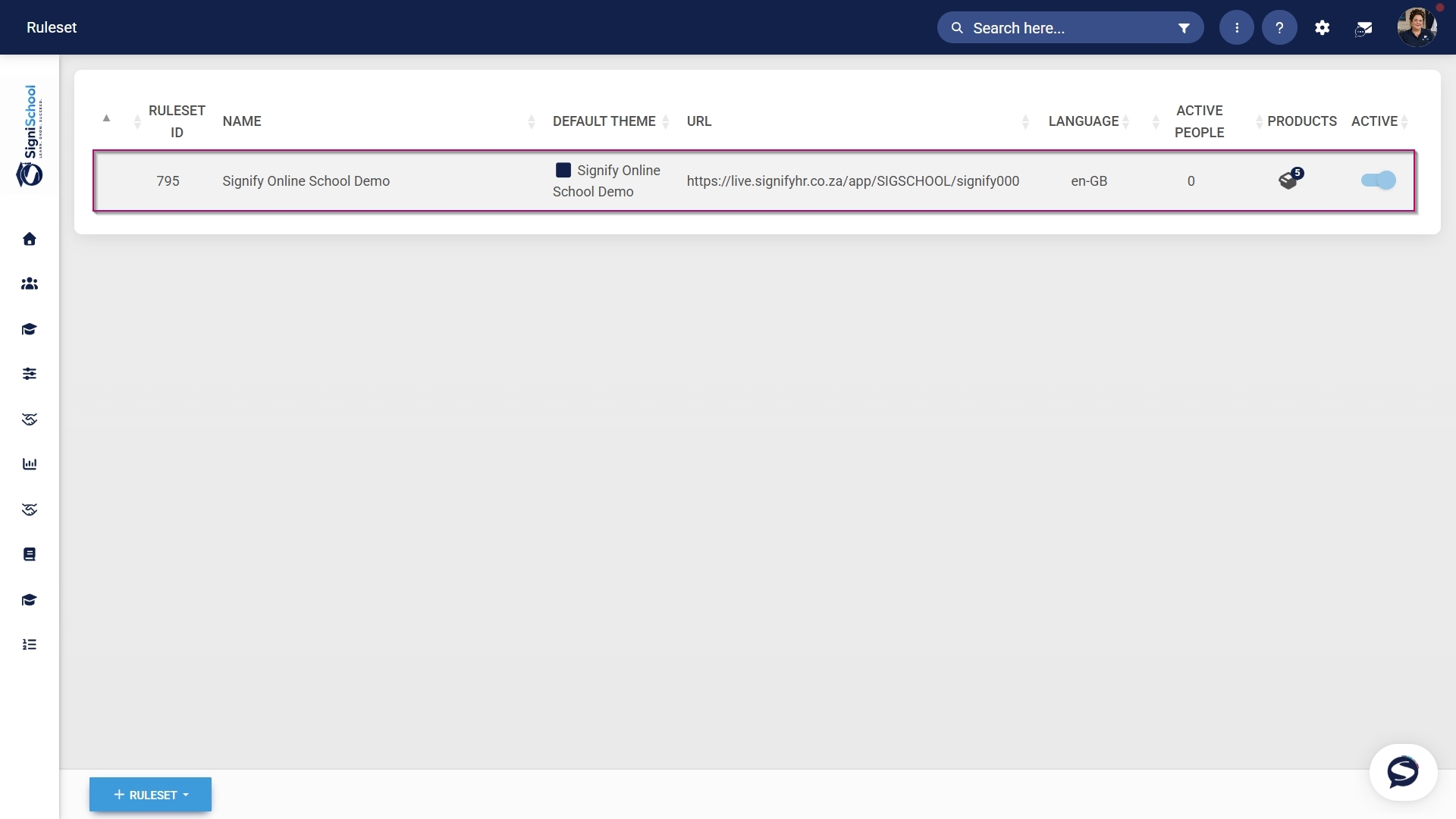
- Click Ruleset Setup.

- Select the ruleset you would like to update.
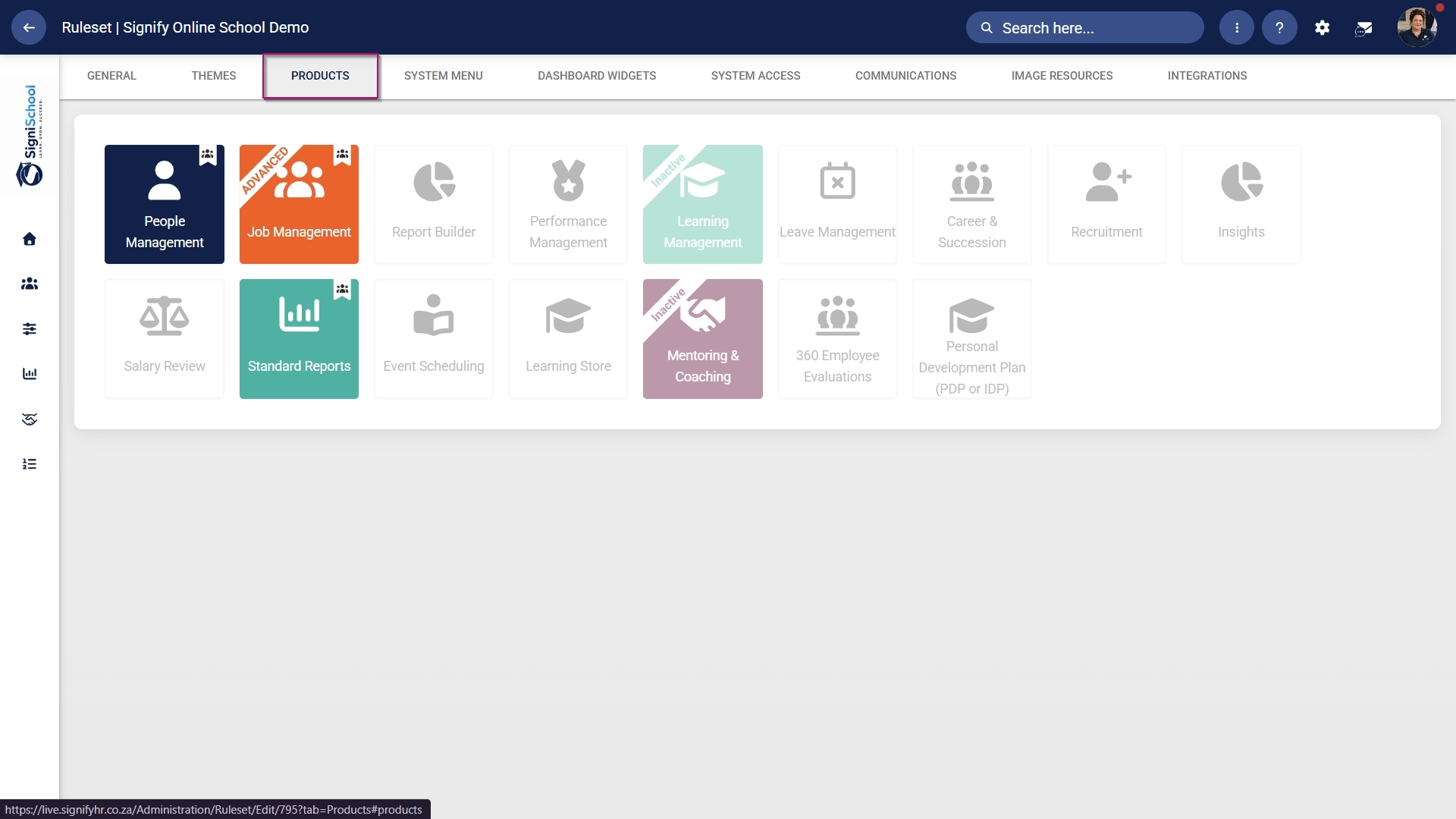
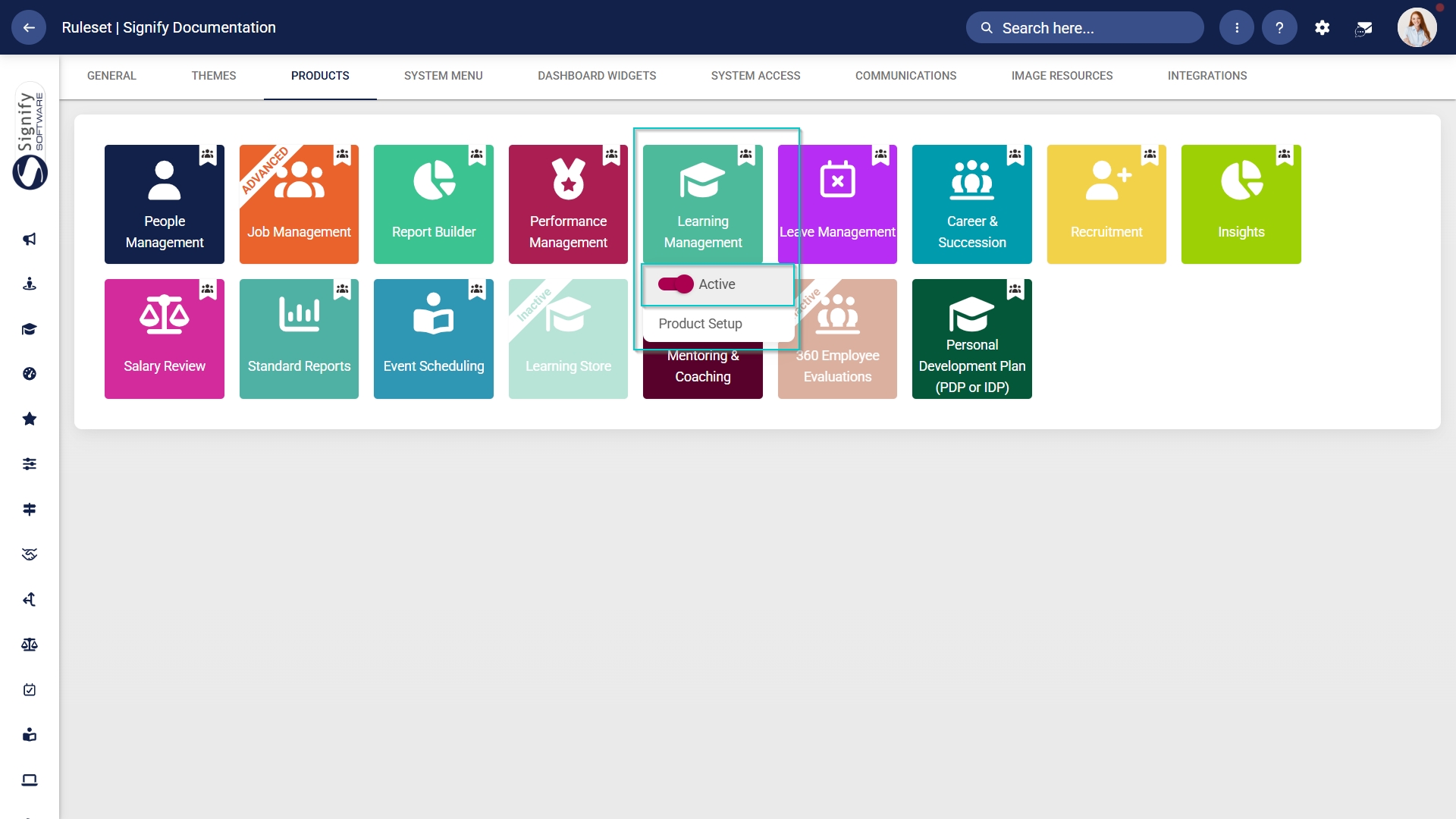
- Click on the Learning Management product card, then click the toggle button to set the product’s status to Active.
Add Learning Management to the system menu
- Click the gear icon to access the Setup and Configuration menu.
- Click Ruleset Setup.
- Select the ruleset you would like to update.
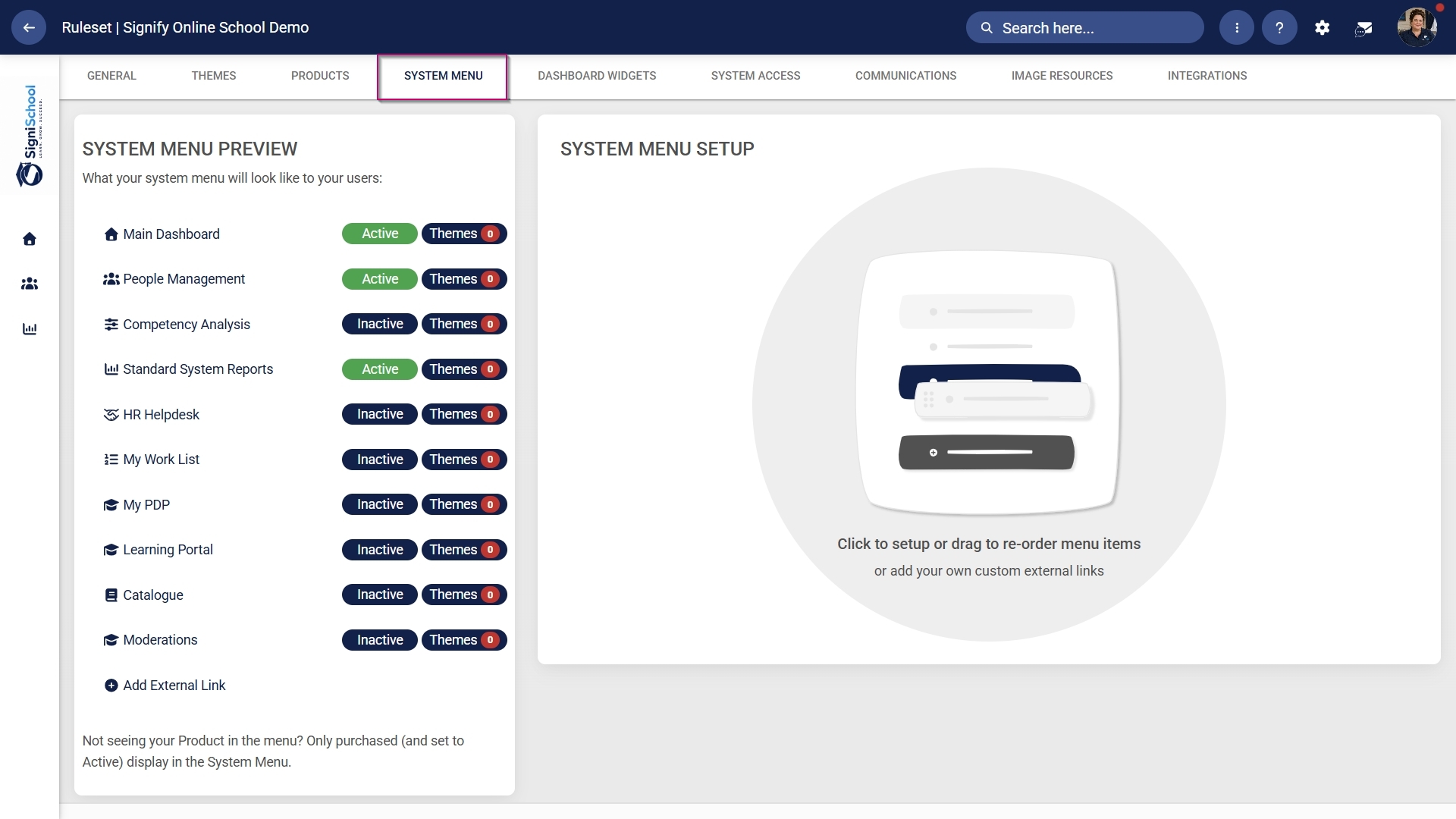
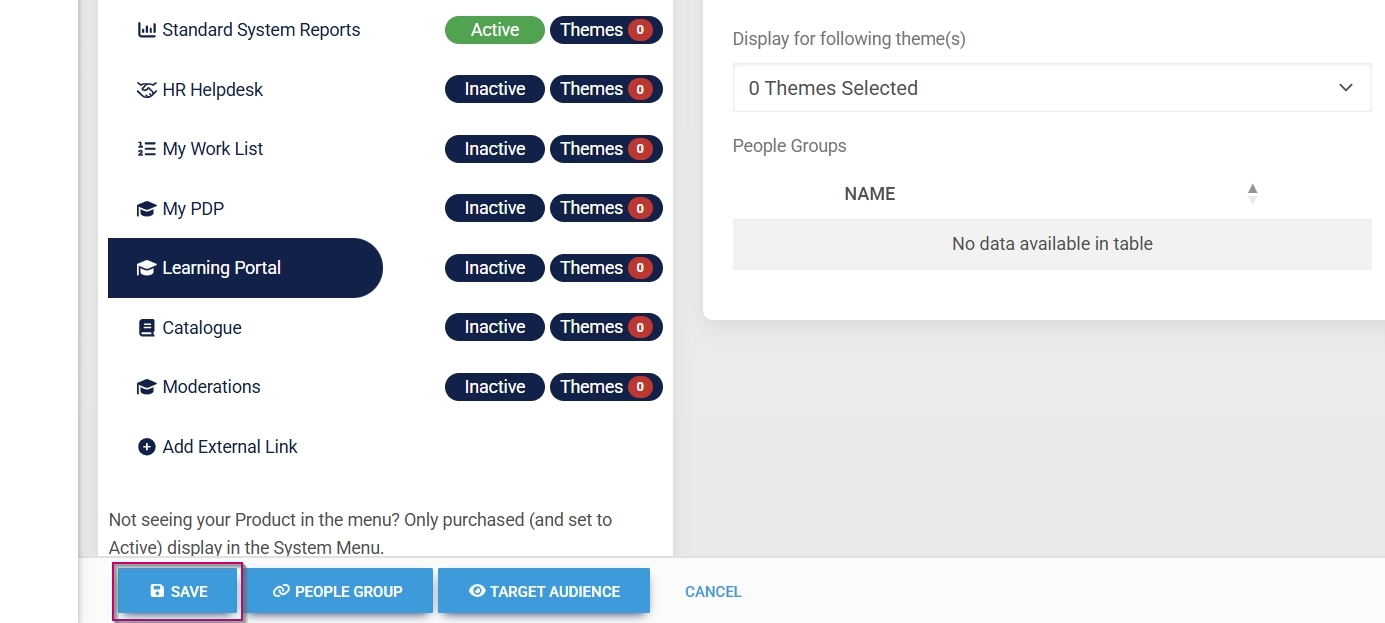
- Click the Learning Portal menu item in the system menu preview.
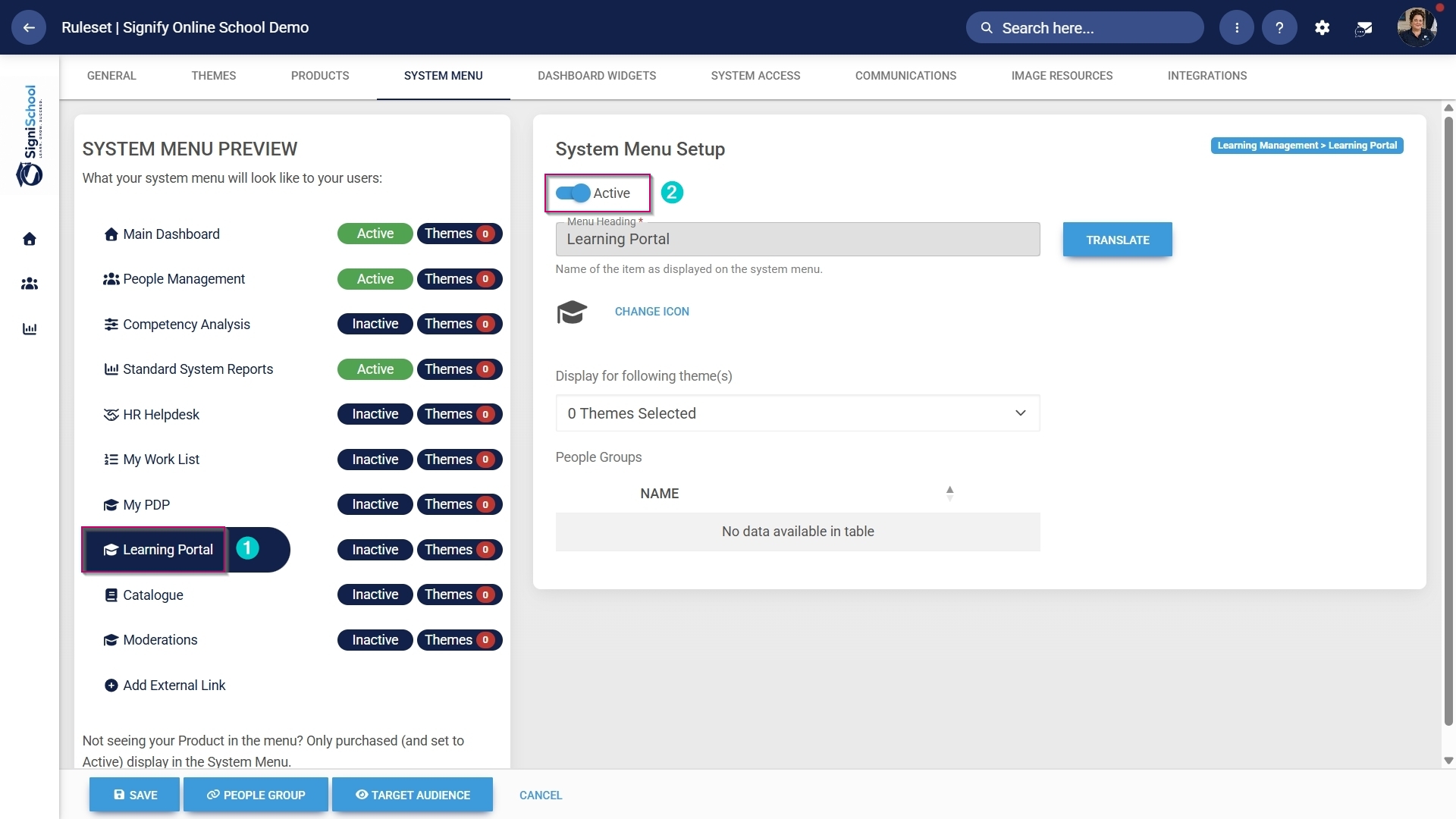
- Click the toggle button to set the system menu item’s status to Active.
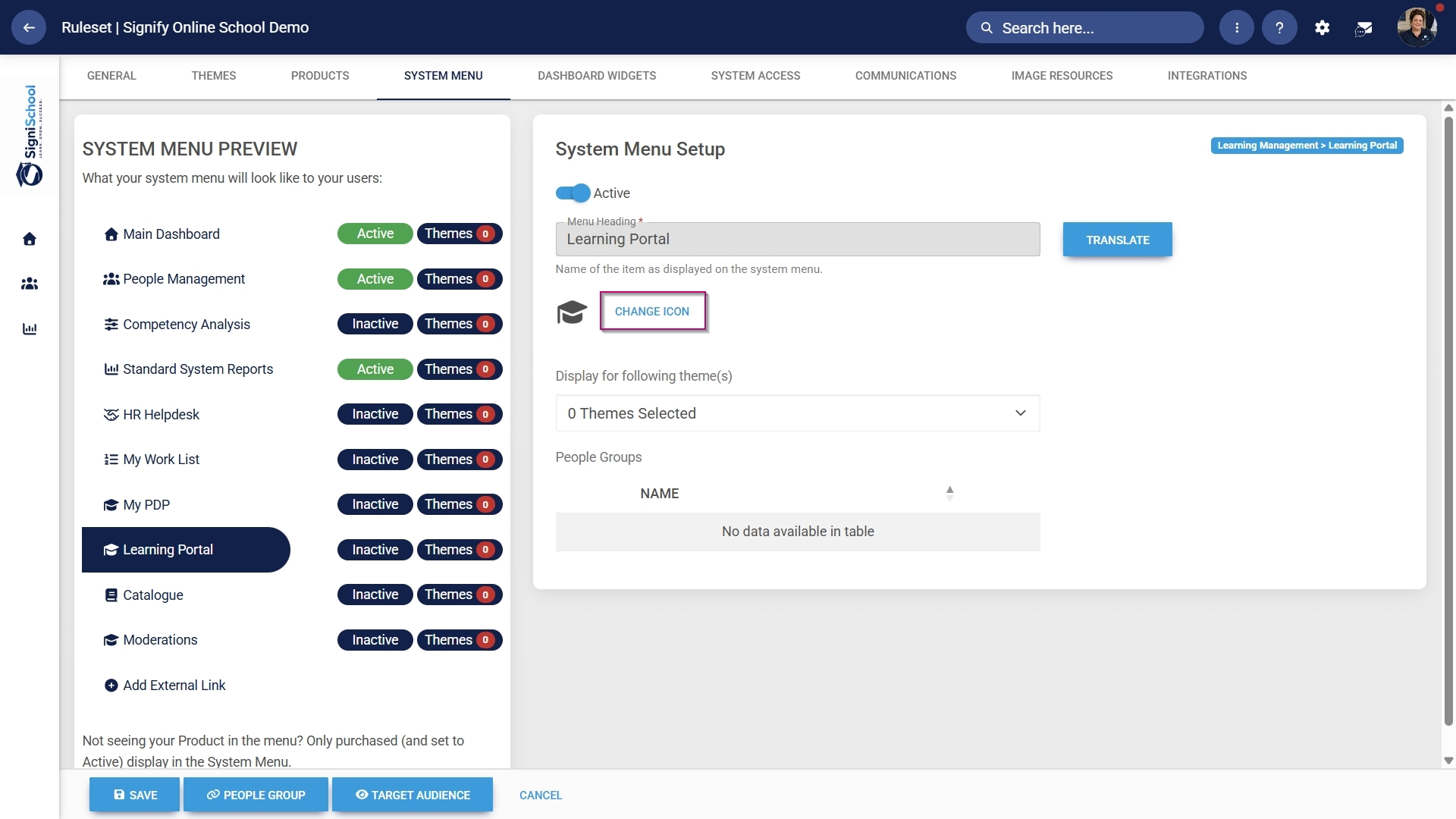
- You can select an icon for the Learning Management module by clicking CHANGE ICON.
- Click SAVE to continue or CANCEL to discard your changes.
Assign the Learning Management administrator permission
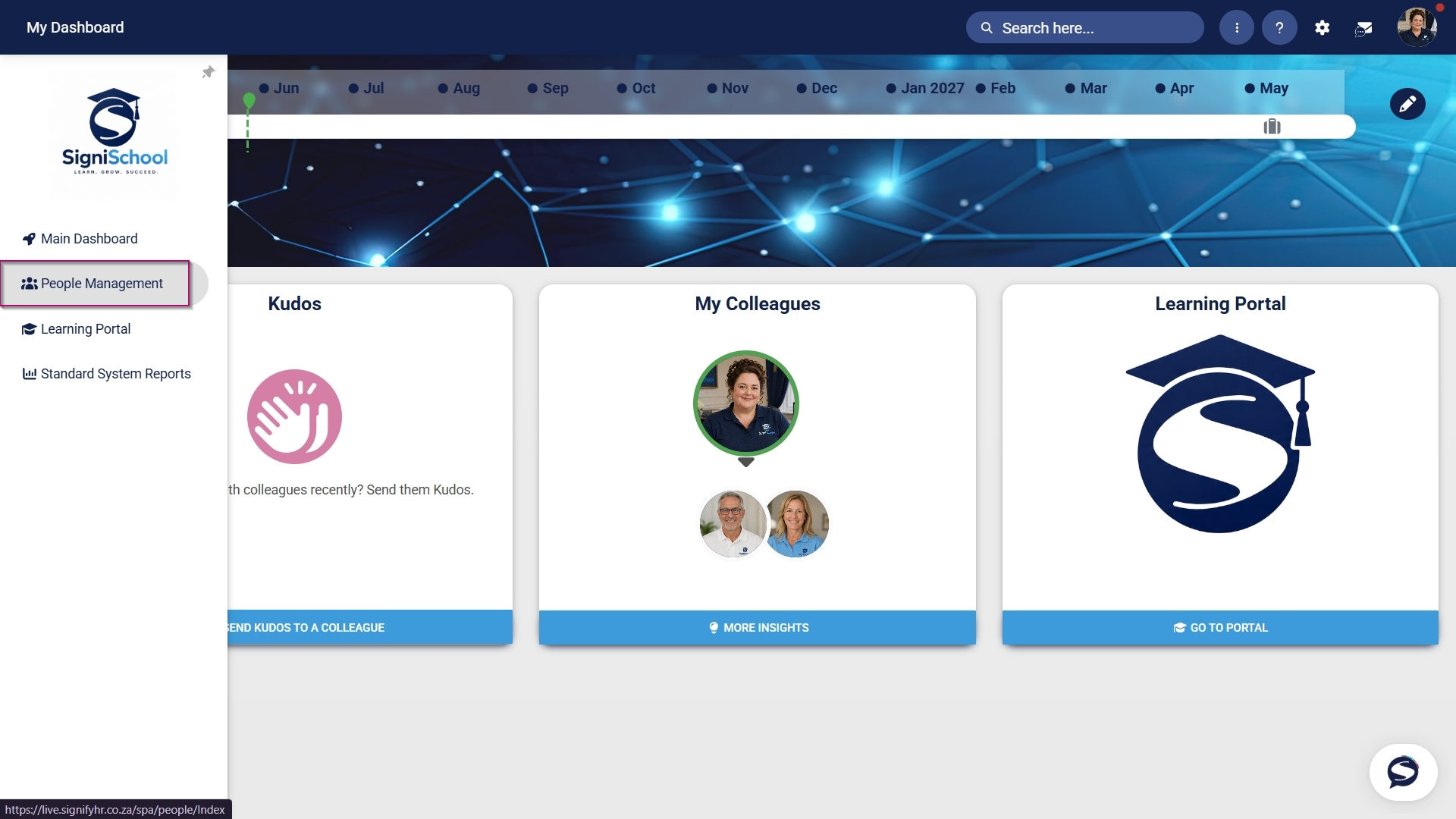
- Hover over the sidebar menu, then click People Management.
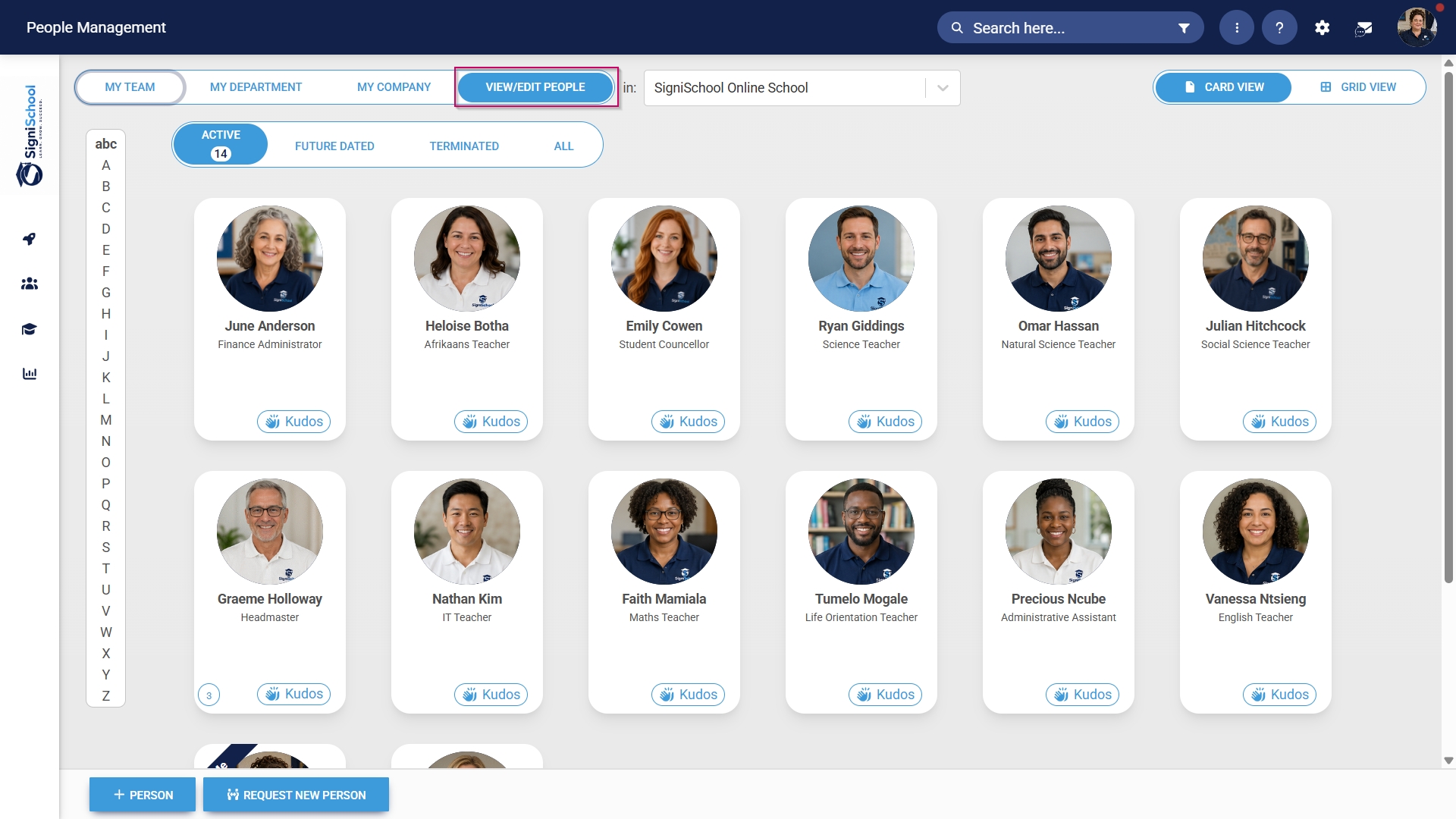
- Click the pencil icon to manage the profile of the person you want to edit.
- In the left-hand menu, navigate to User Permissions, then click System Modules Admin.
- Click the LINK ROLE button.
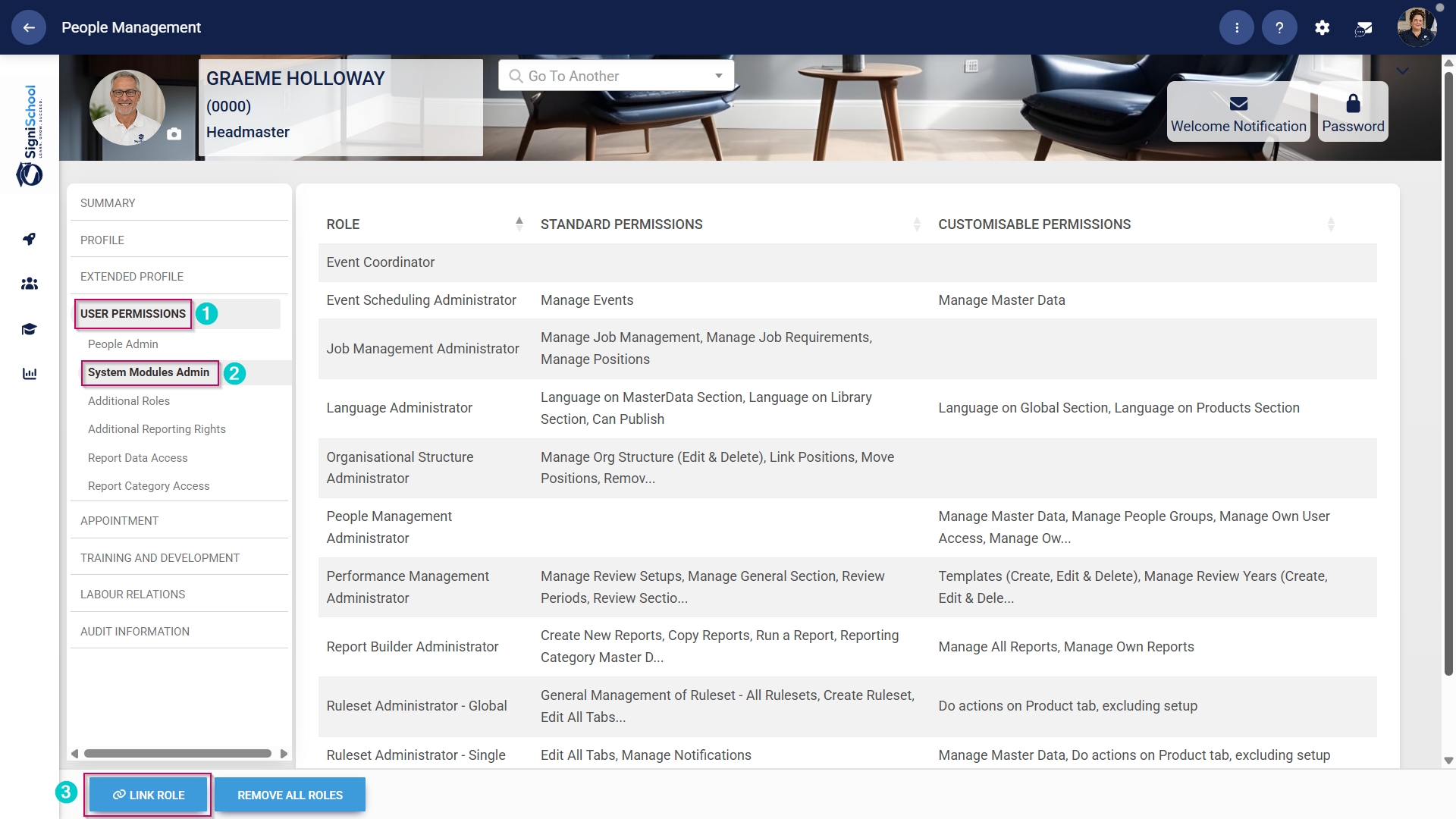
- Tick the checkbox next to Learning Management in the table to assign the Learning Management administrator role to the user.
- Click SAVE to continue or CANCEL to discard your changes.

Enable the Import from Excel functionality
When using the Assessment Builder tool to create online assessments, the Import from Excel feature must be enabled.
- Hover over the sidebar menu, then click People Management.
- Click the pencil icon to manage the profile of the person you want to edit.
- In the left-hand menu, navigate to User Permissions, then click Additional Roles.
- Click the ADD button.
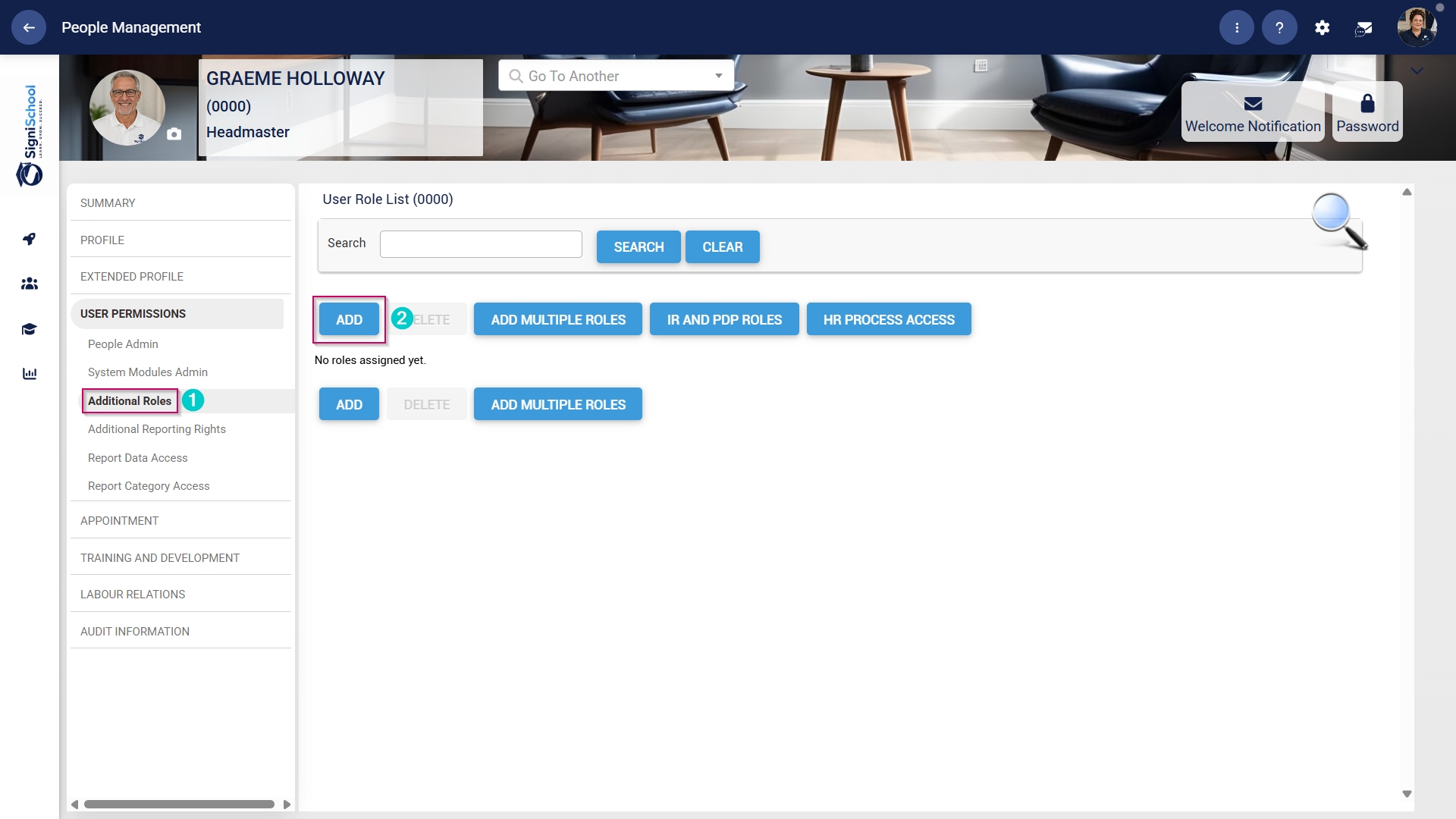
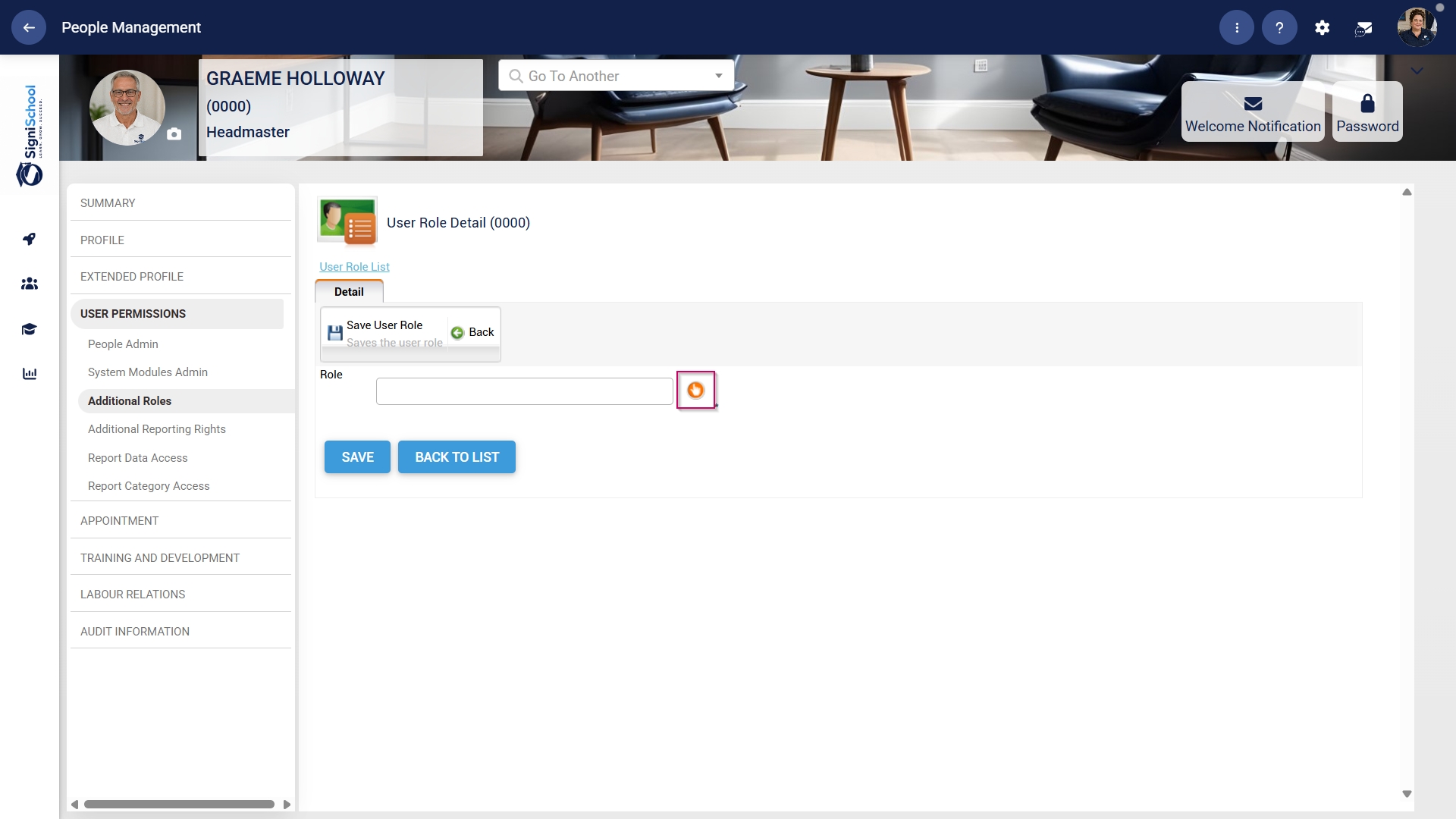
- Click the hand icon to select a role.
- Use the search bar to search for the Learning Administrator role.
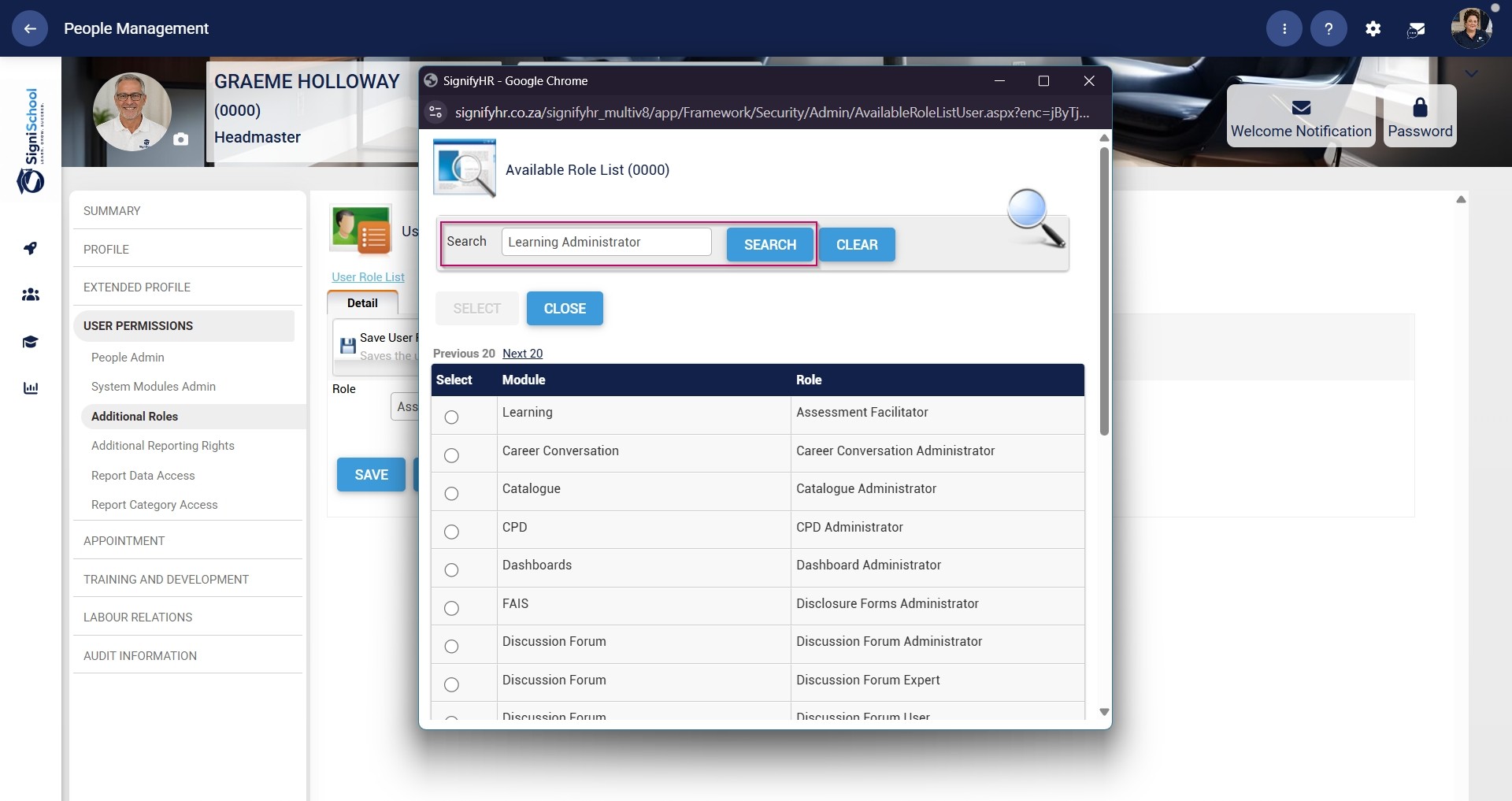
- Select the Learning Administrator role, then confirm your choice by clicking the SELECT button.
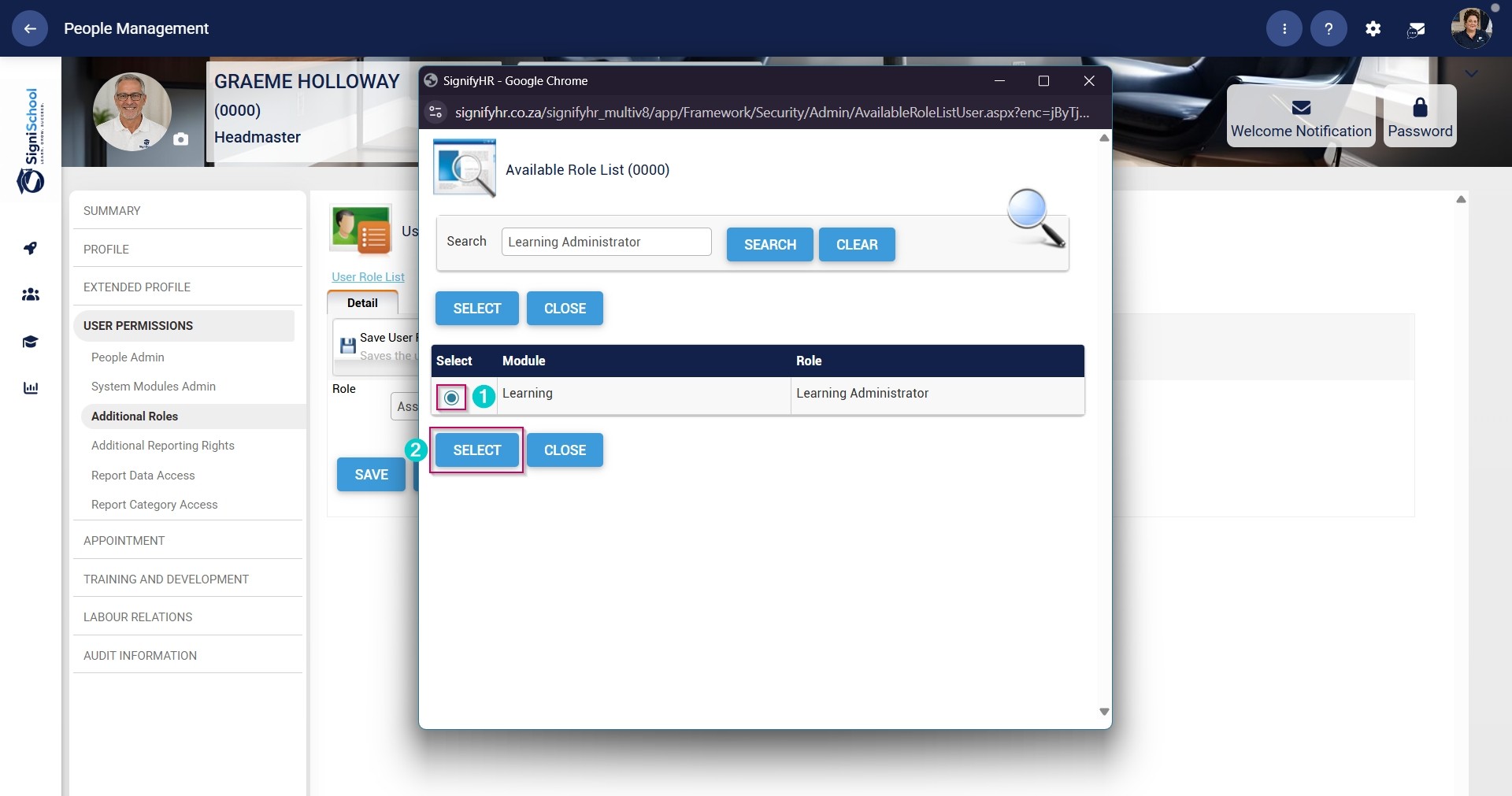
- Click the SAVE button.
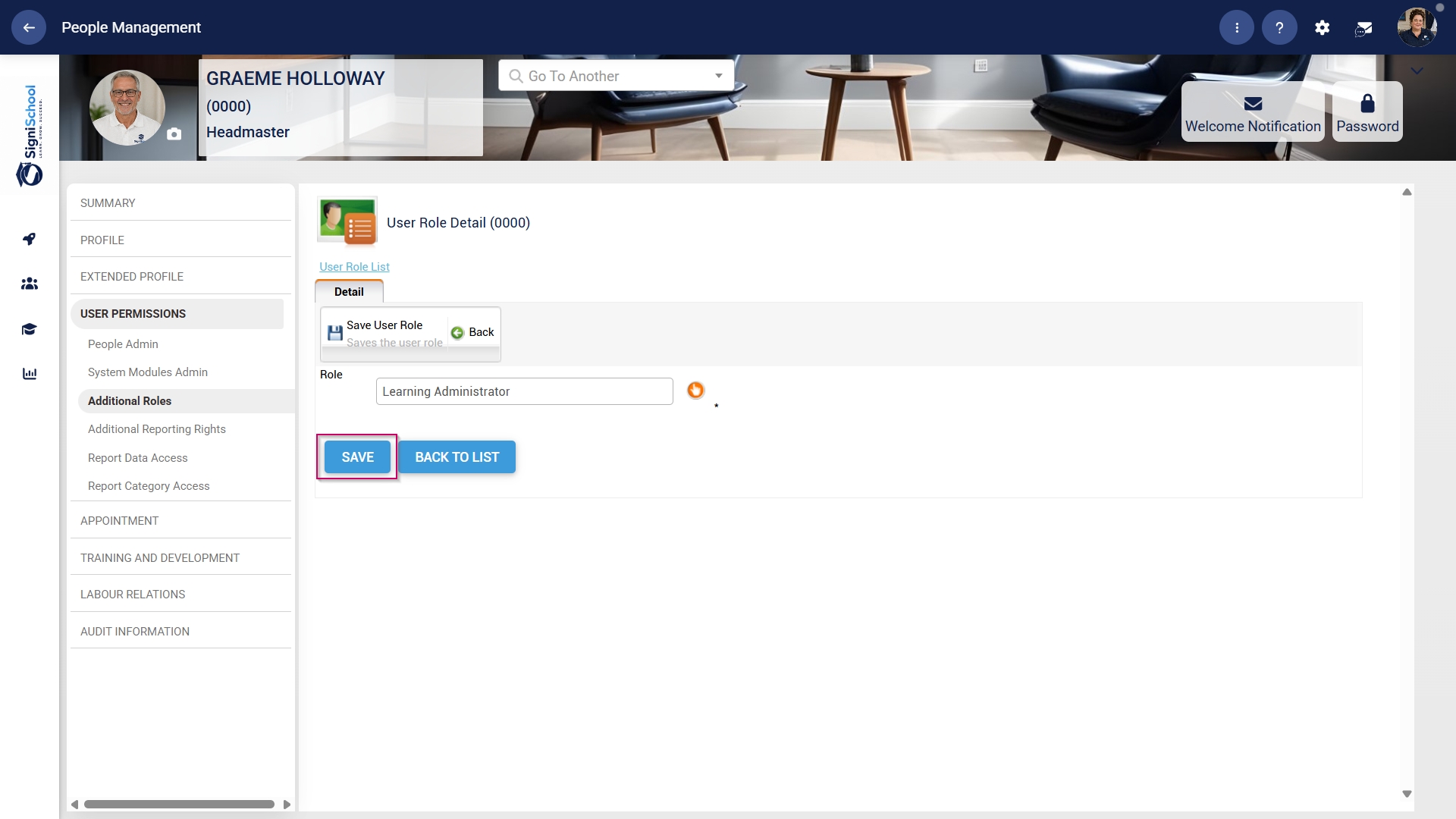
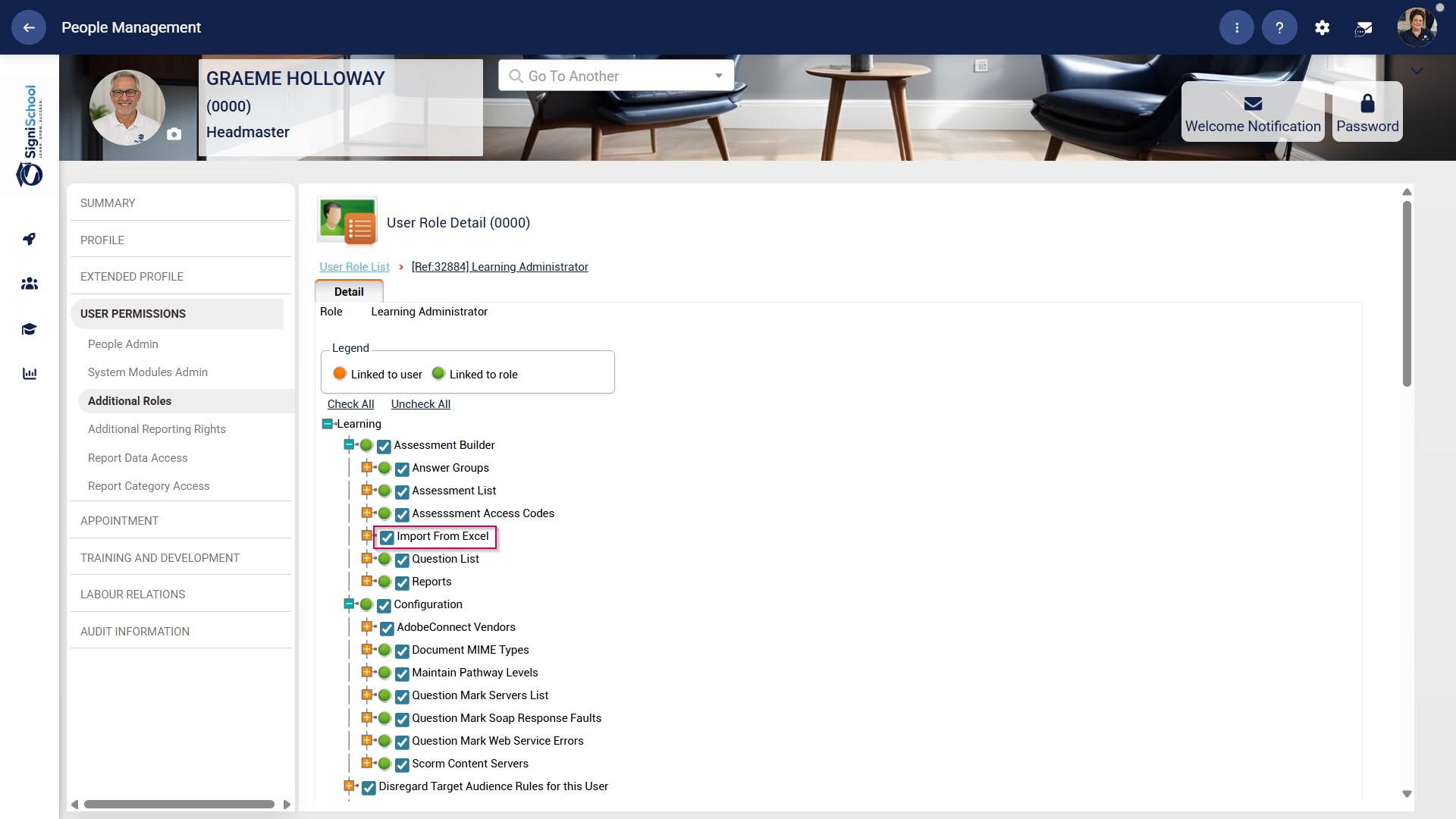
- Click CHECK ALL to assign all Learning Administrator permissions to the user.

- Ensure the checkbox next to Import From Excel is ticked.
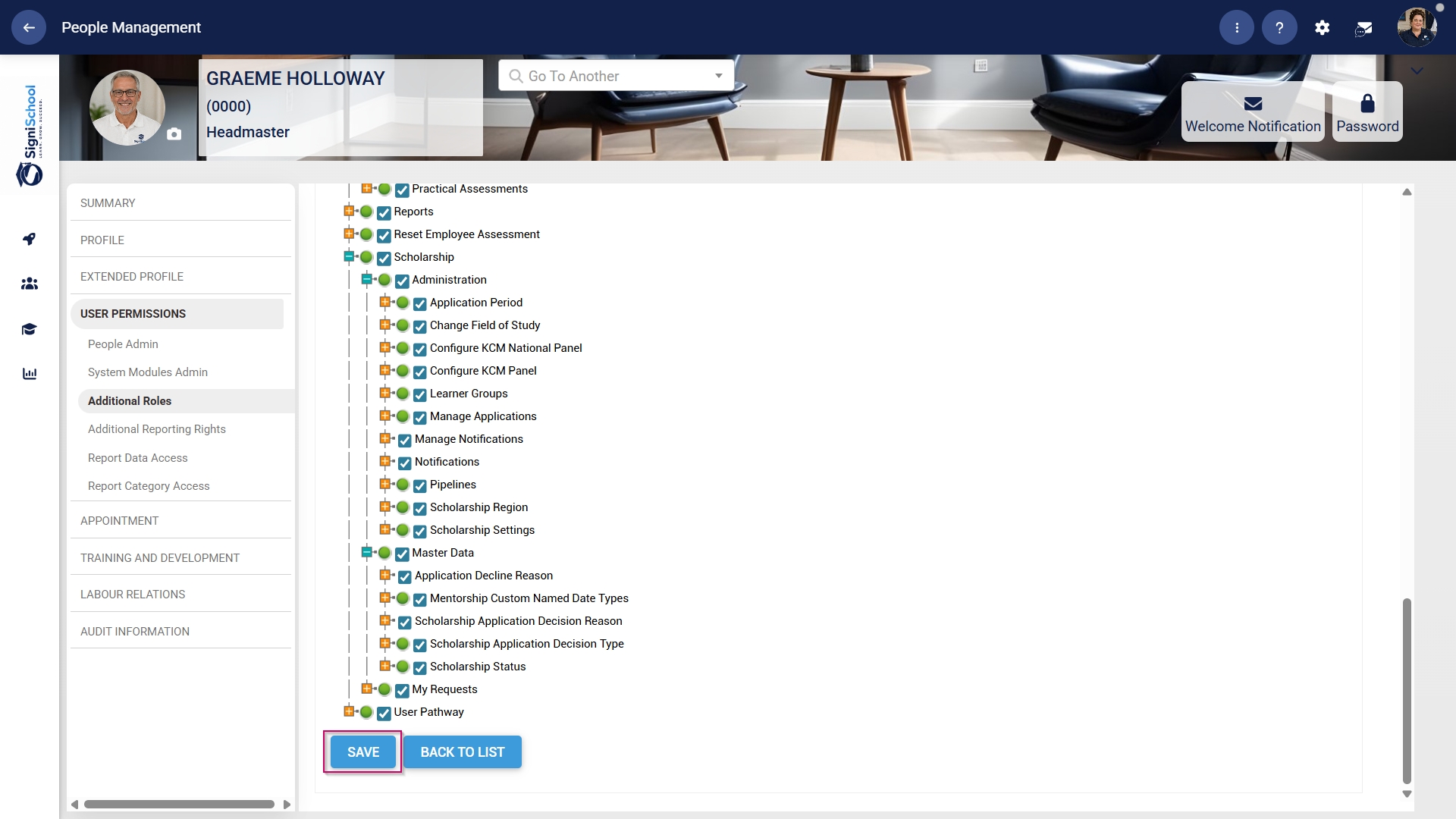
- Click SAVE to continue or BACK TO LIST to discard your changes.
Allow access to the Training Intervention Library
When building pathways, the Learning Administrator needs access to the Training Intervention Library.
- Hover over the sidebar menu, then click People Management.
- Click the pencil icon to manage the profile of the person you want to edit.
- In the left-hand menu, navigate to User Permissions, then click Additional Roles.
- Click the ADD button.
- Click the hand icon to select a role.
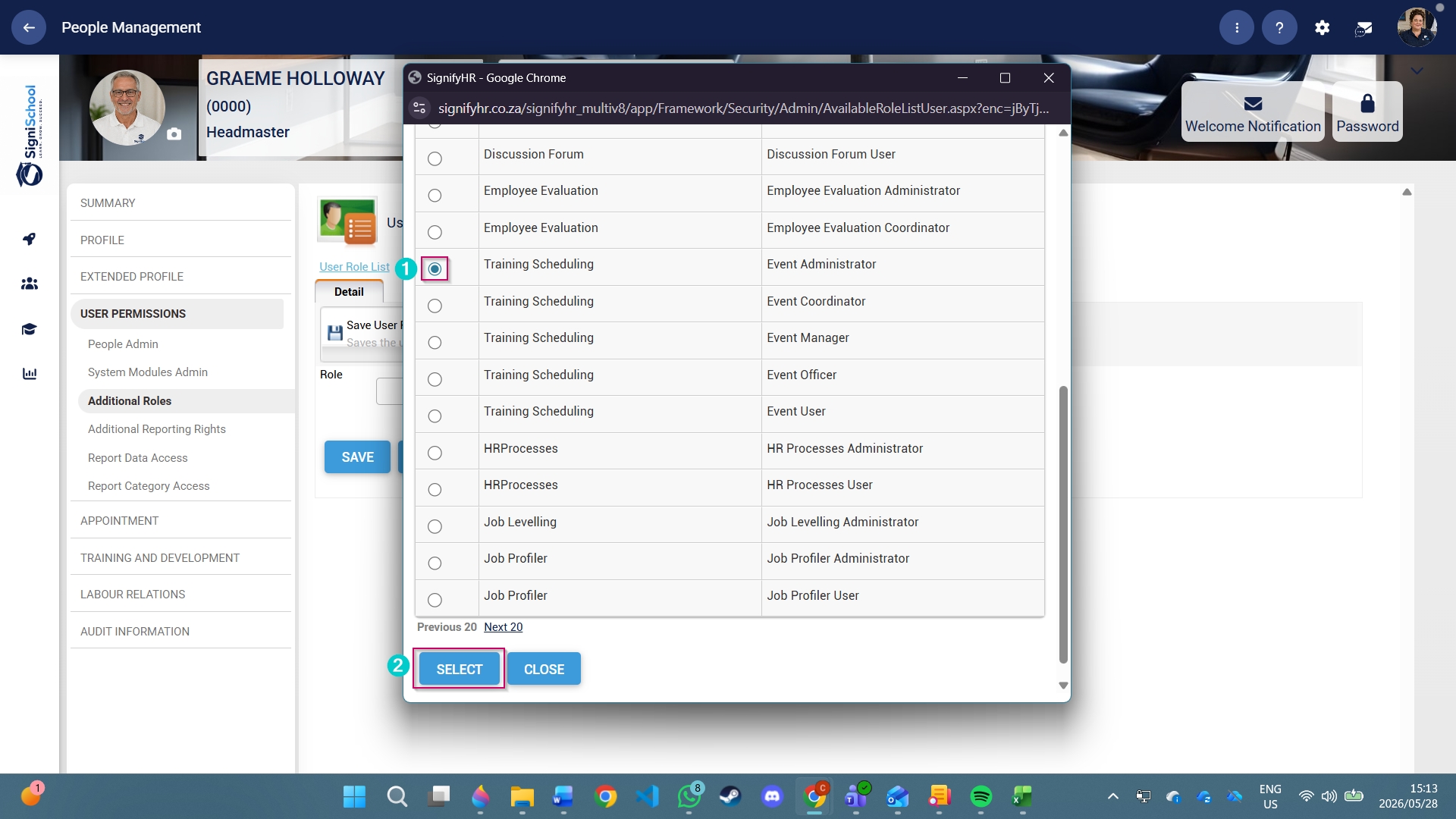
- Scroll down to the Event Administrator role and click the radio button to select it.
- Click the SELECT button.
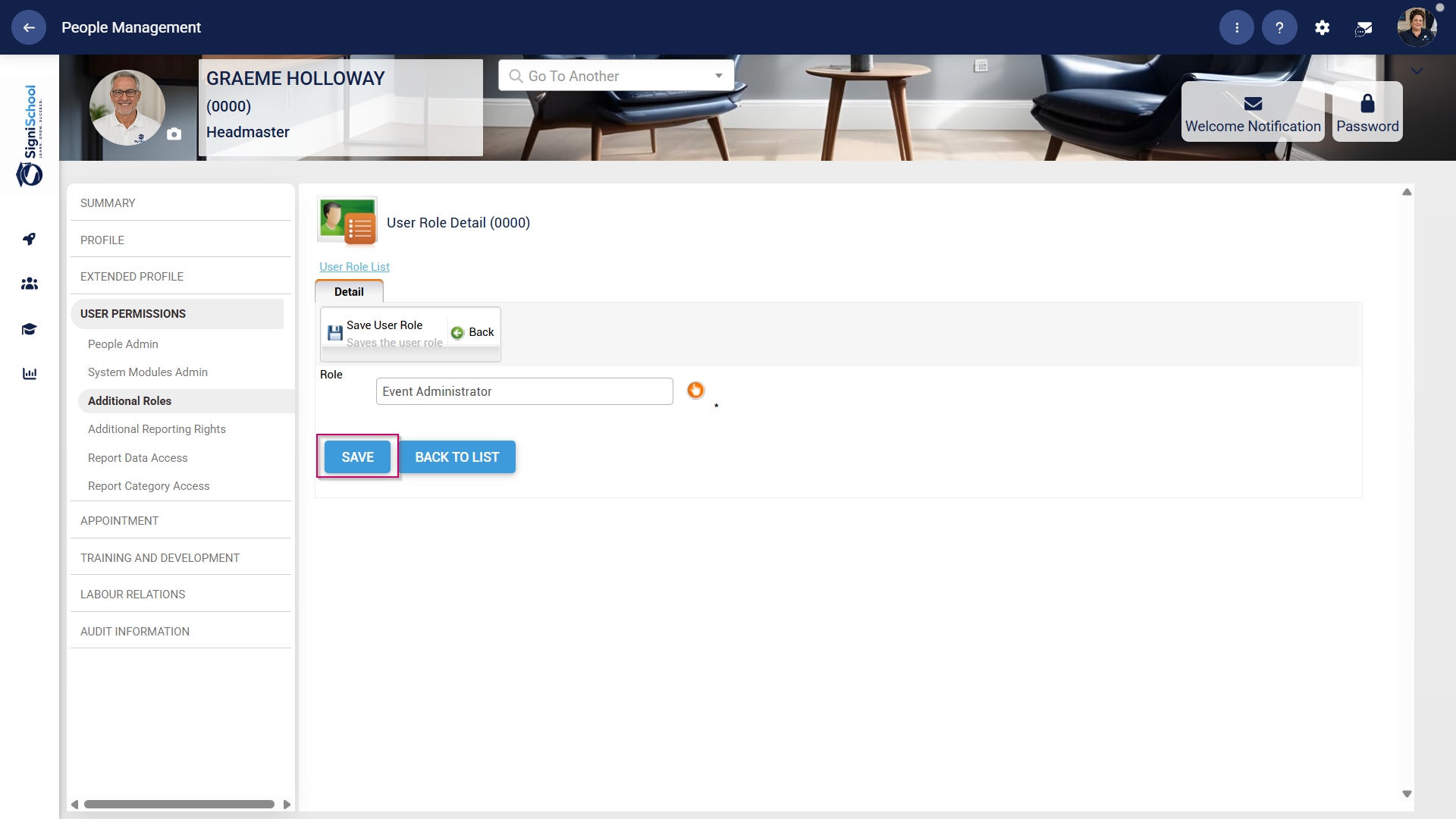
- Click the SAVE button.
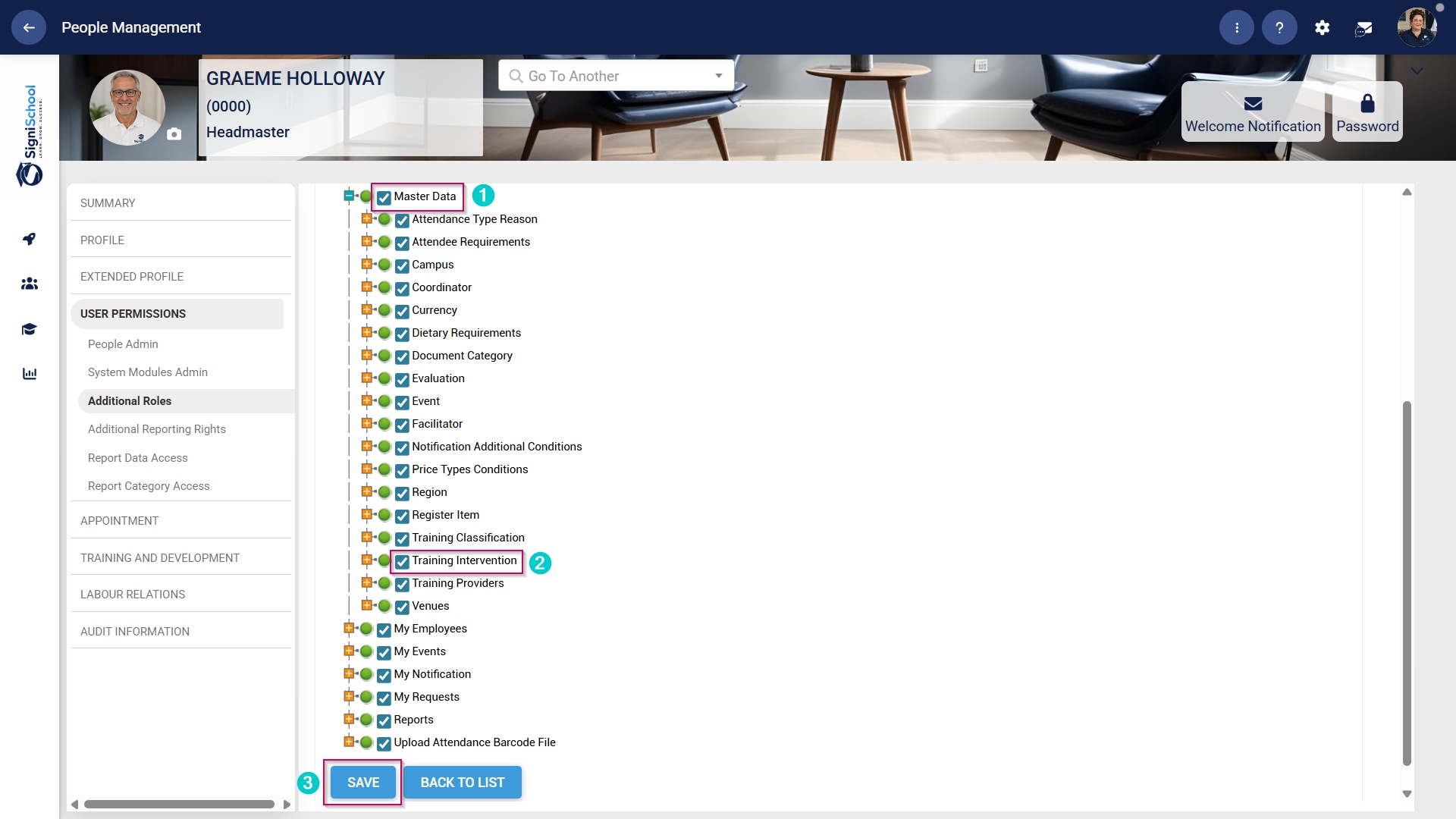
- Scroll down to the Master Data section, and ensure the checkbox next to the Training Intervention permission is ticked.
- Click SAVE to continue or BACK TO LIST to discard your changes.
Update the Master Data Library
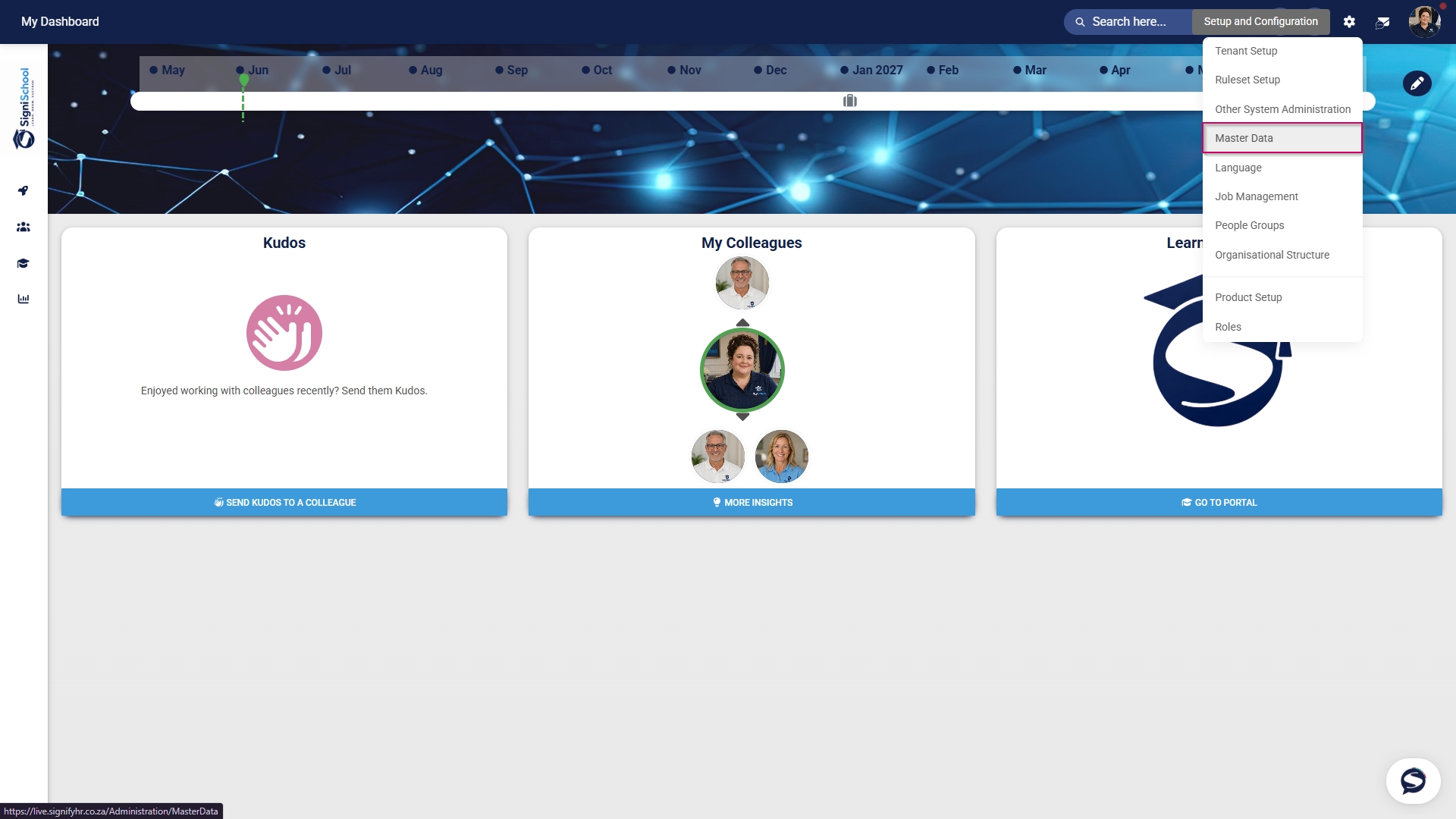
- Click the gear icon to access the Setup and Configuration menu.
- Click Master Data.
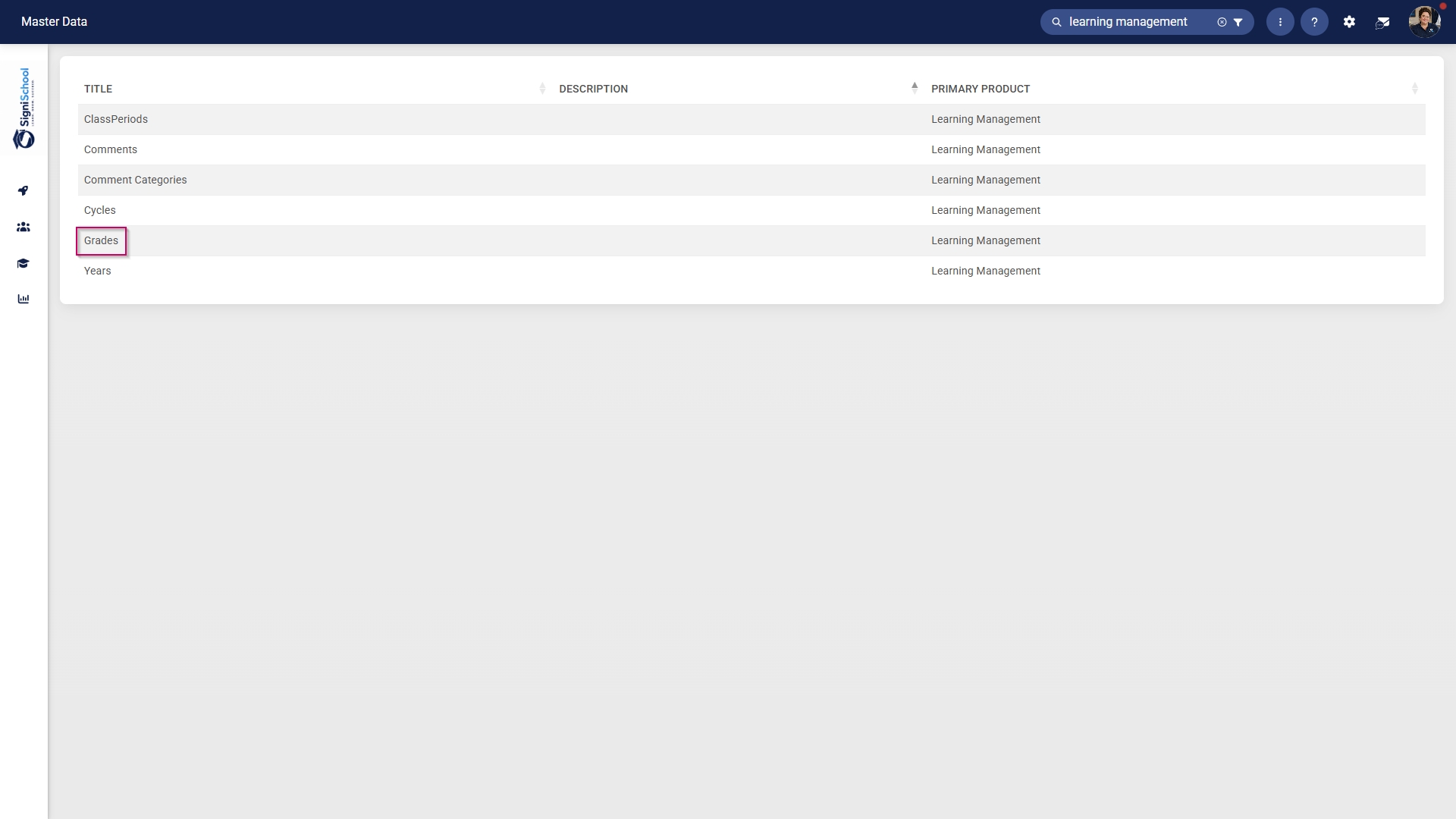
- The Master Data Library lists the categories for which administrators can create master data. Use the search bar at the top of the screen to filter the search results by Learning Management.
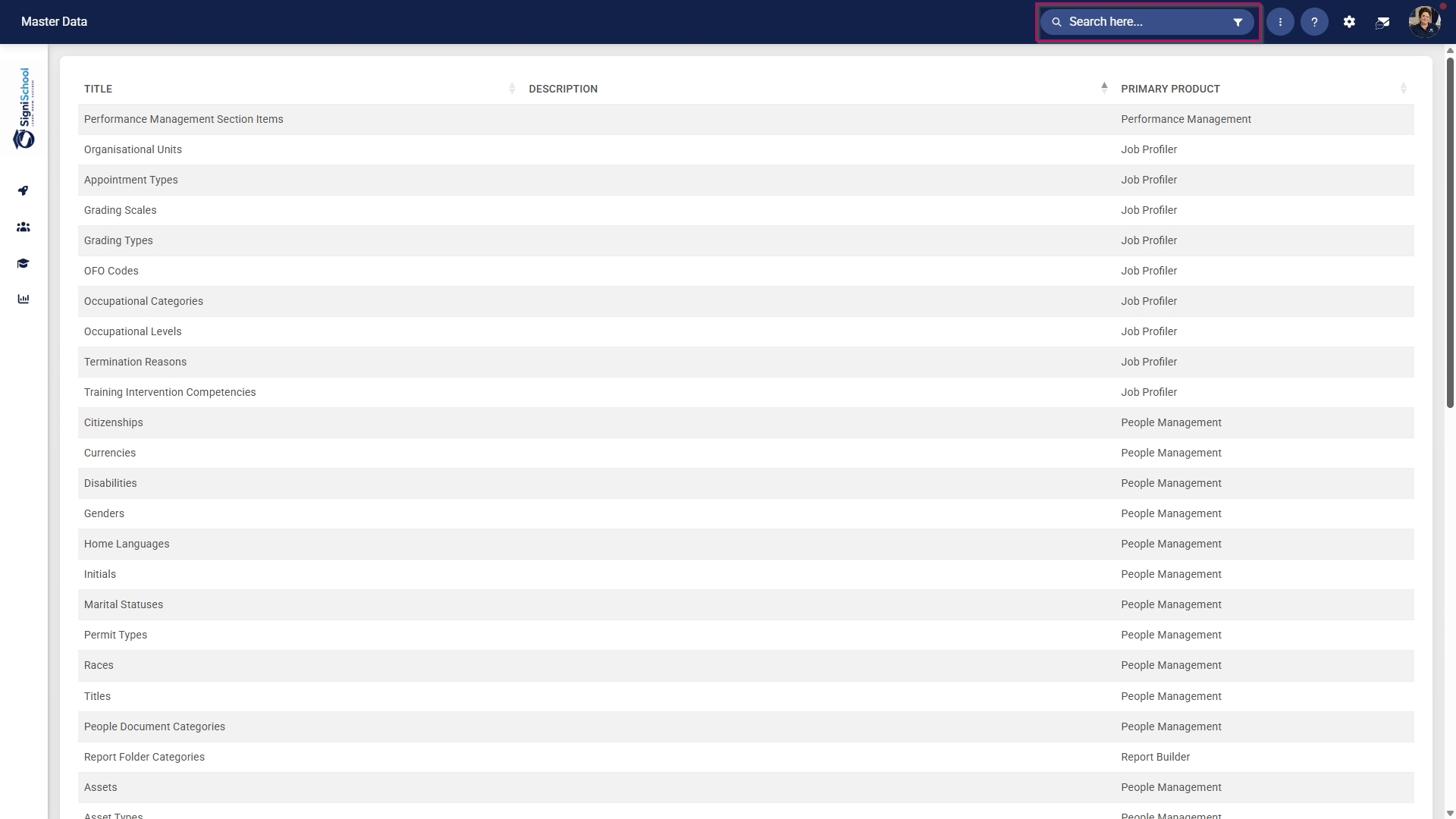
Configure cycles
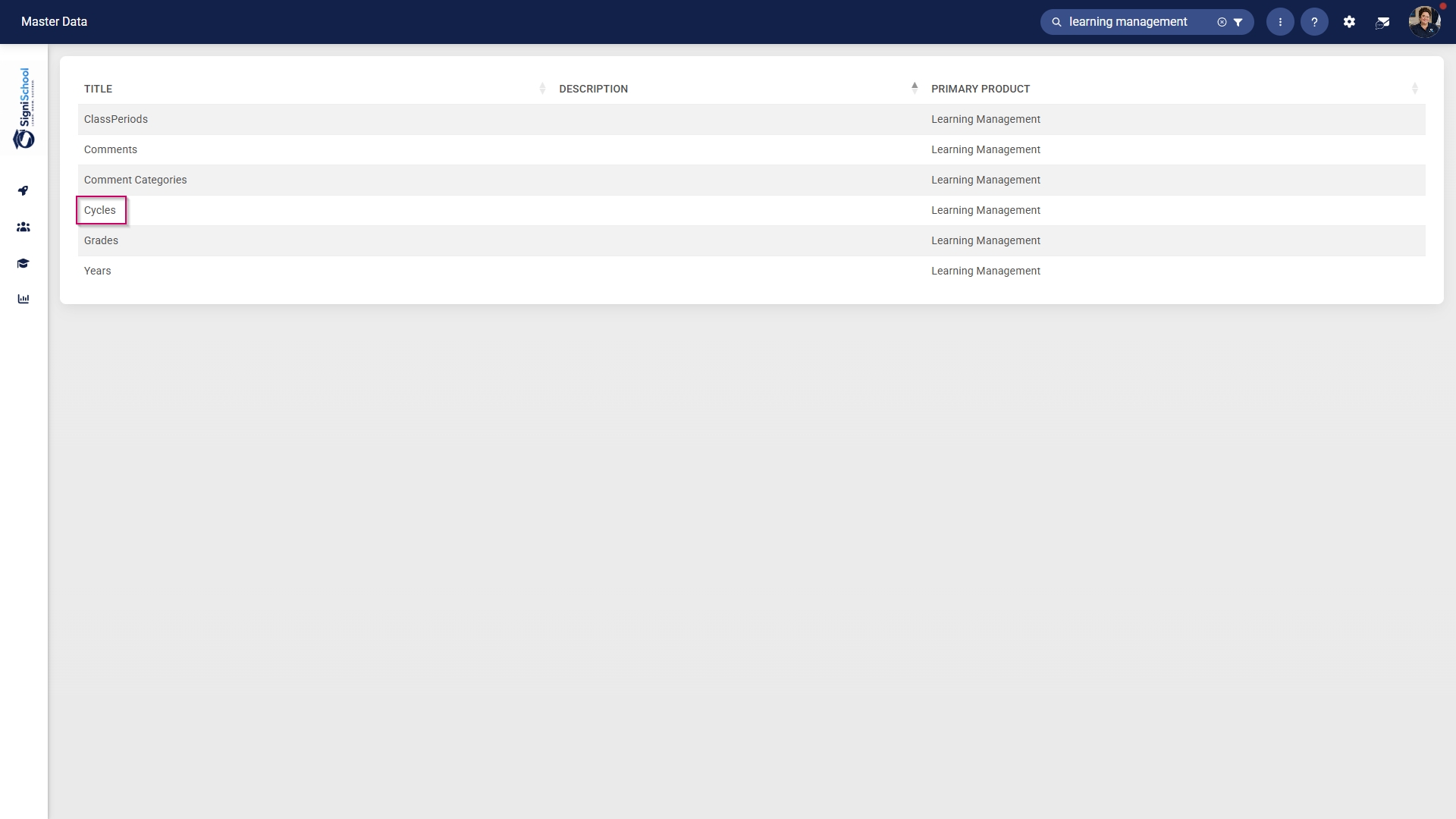
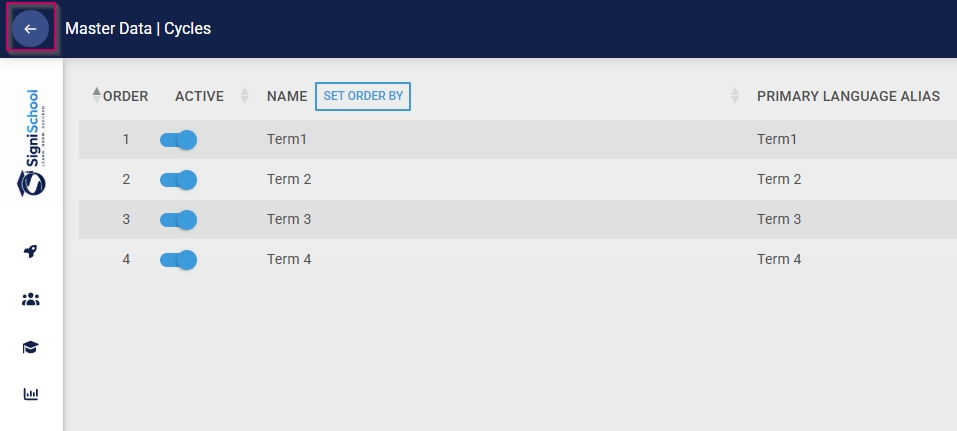
- Click on the Cycles category to continue.
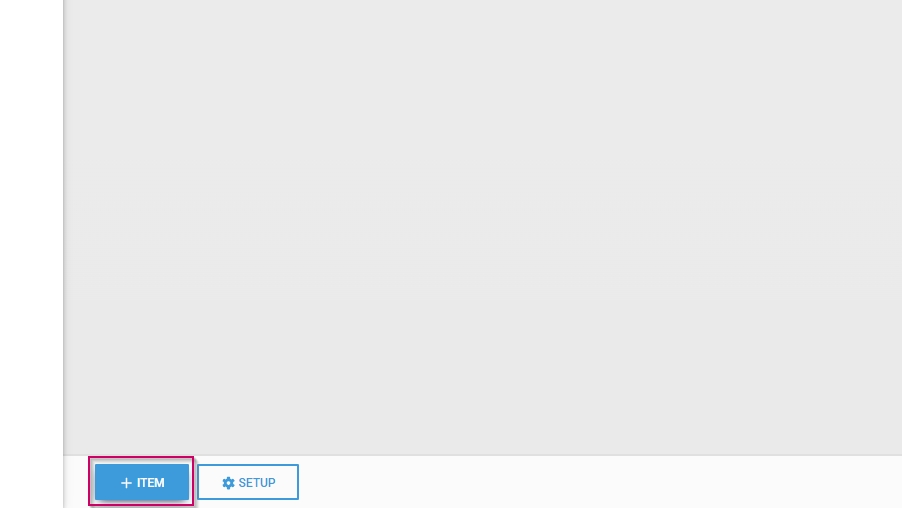
- To add a new master data item, click on +ITEM.
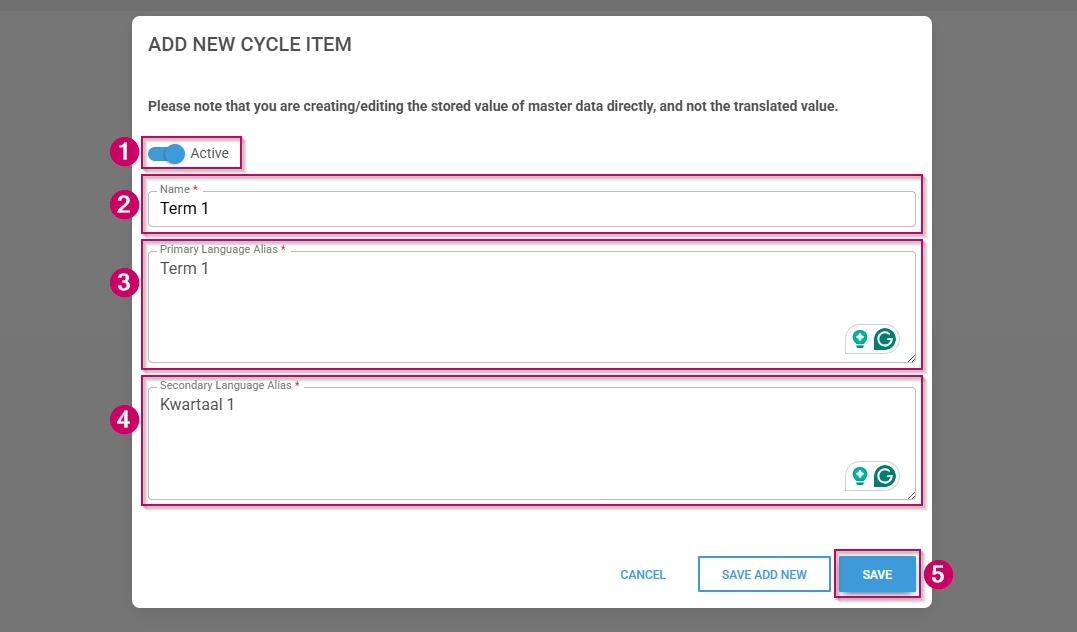
- Click the toggle button to set the cycle's status to Active.
- Enter a name for the cycle.
- Enter an alias for the cycle in the primary language.
- Enter an alias for the cycle in the secondary language.
- Click SAVE when you are finished, SAVE ADD NEW to add another master data item or click CANCEL to discard your edits.
- Click the back arrow to navigate back to the Master Data Library once you are finished.
Configure grades
- Click on the Grades category to continue.
- To add a new master data item, click on +ITEM.
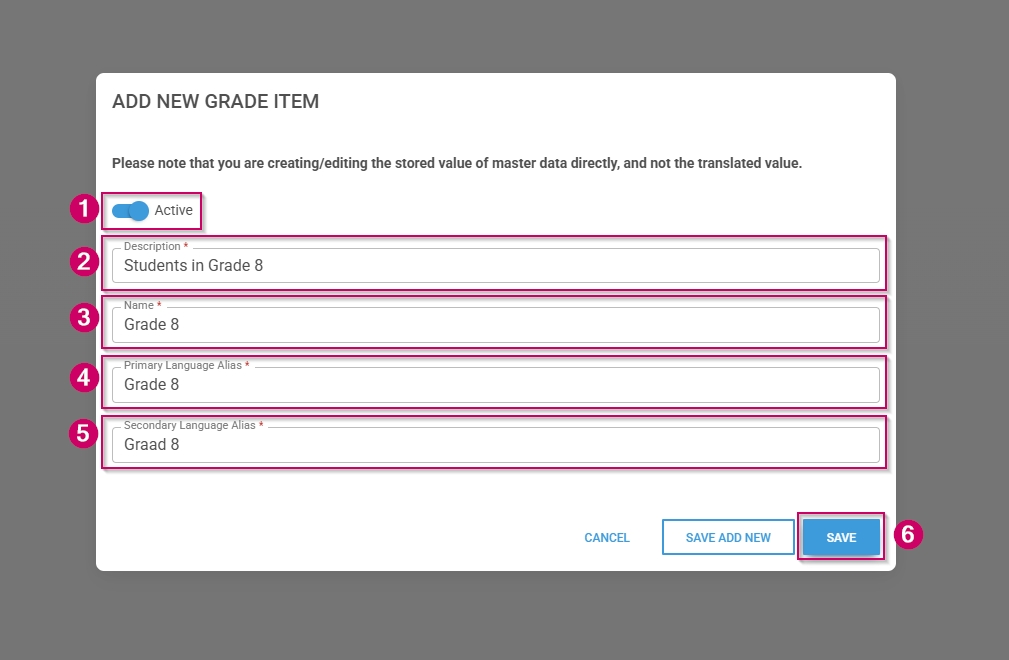
- Click the toggle button to set the grade's status to Active.
- Enter a short description for the grade.
- Enter a name for the grade.
- Enter an alias for the grade in the primary language.
- Enter an alias for the grade in the secondary language.
- Click SAVE when you are finished, SAVE ADD NEW to add another master data item or click CANCEL to discard your edits.
- Click the back arrow to navigate back to the Master Data Library once you are finished.

Configure years
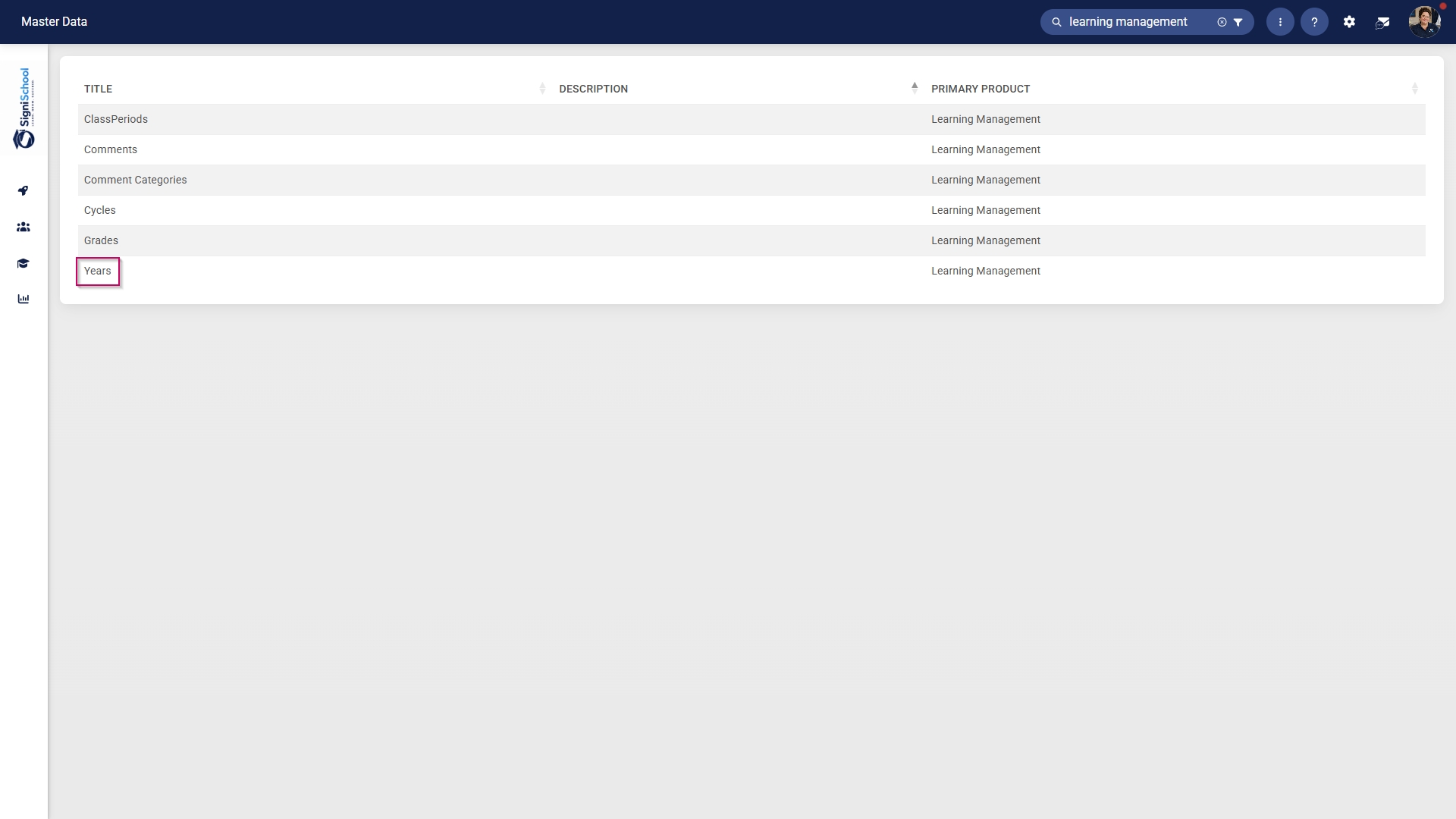
- Click on the Years category to continue.
- To add a new master data item, click on +ITEM.
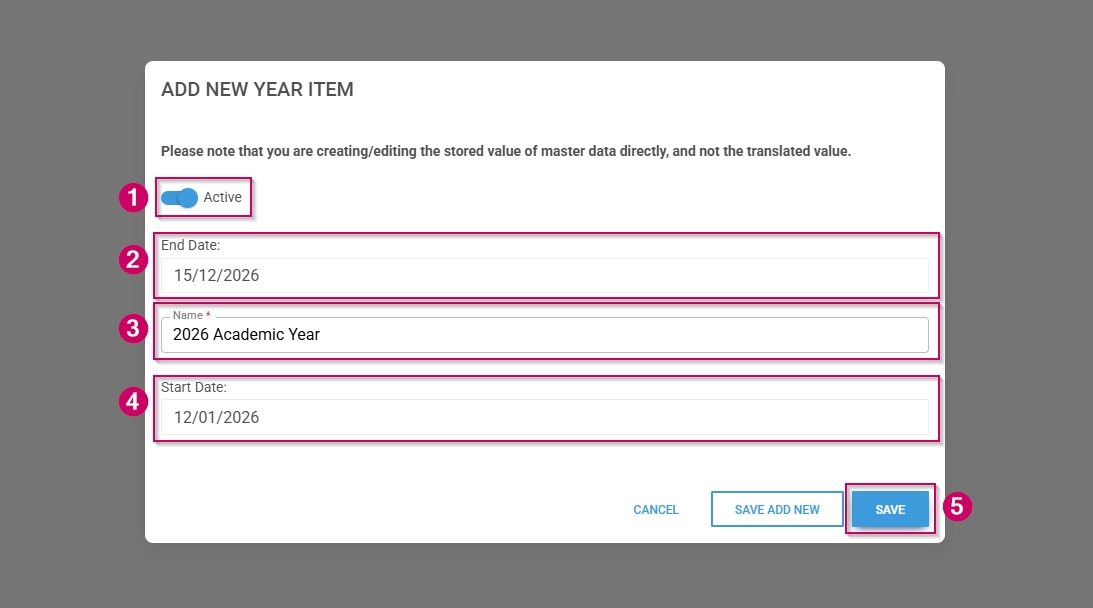
- Click the toggle button to set the year's status to Active.
- Enter an end date for the year.
- Enter a name for the year.
- Enter a start date for the year.
- Click SAVE when you are finished, SAVE ADD NEW to add another master data item or click CANCEL to discard your edits.
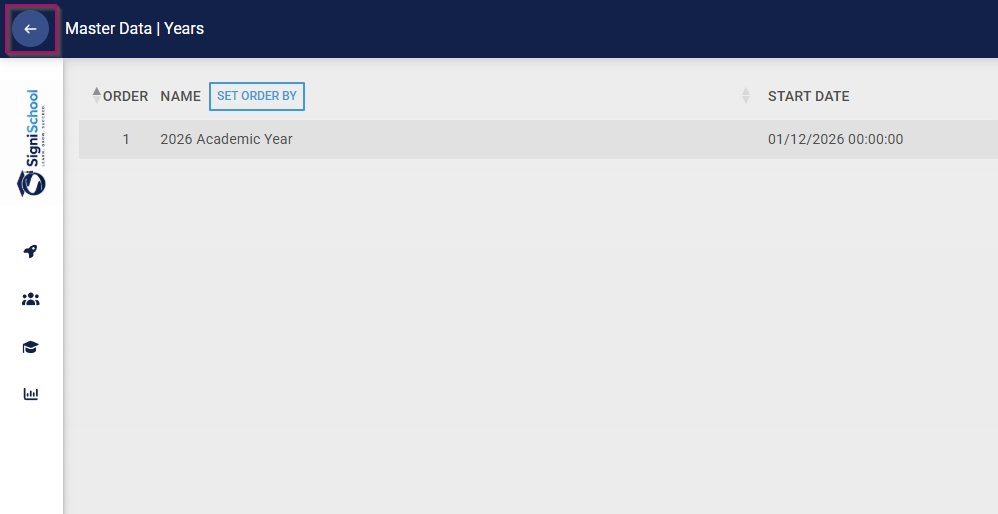
- Click the back arrow to navigate back to the Master Data Library once you are finished.
Configure class periods
- Click on the ClassPeriods category to continue.

- To add a new master data item, click on +ITEM.
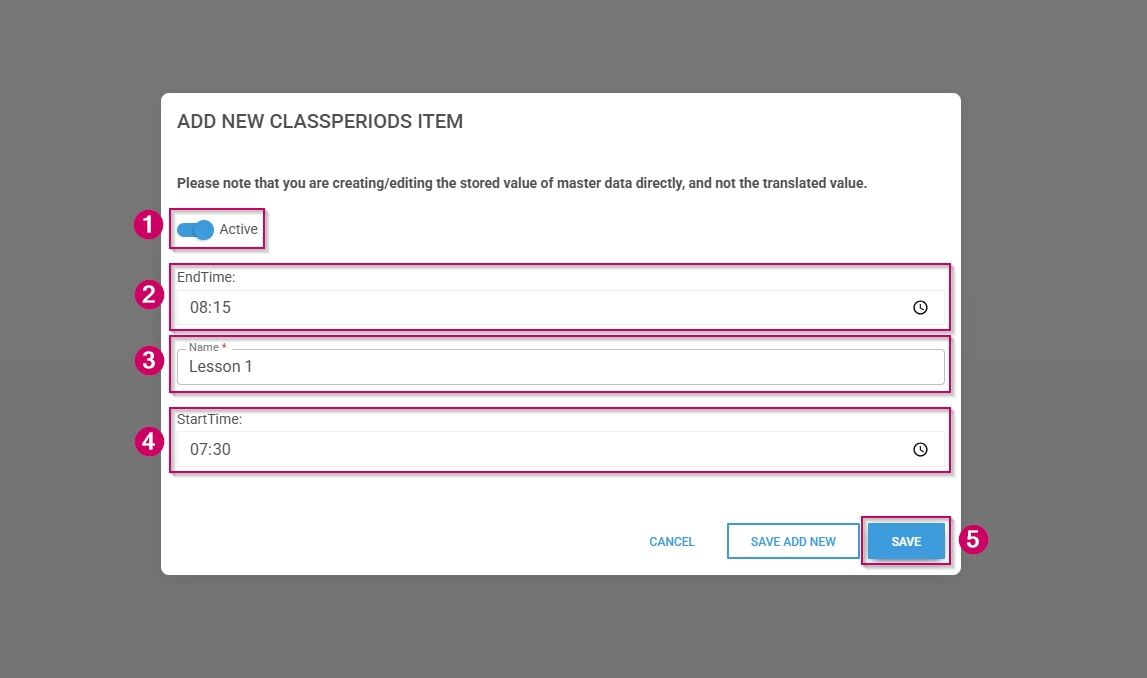
- Click the toggle button to set the class period's status to Active.
- Enter an end time for the period.
- Add a name for the period.
- Enter a start time for the period.
- Click SAVE when you are finished, SAVE ADD NEW to add another master data item or click CANCEL to discard your edits.
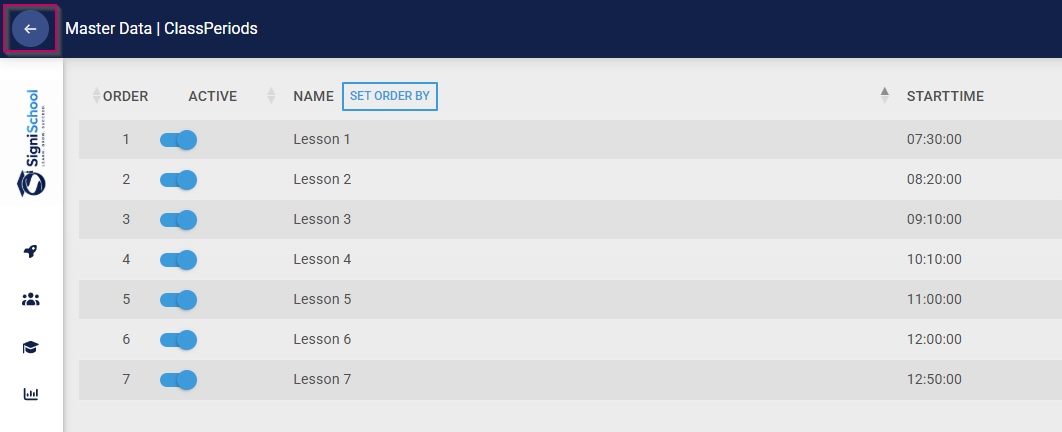
- Click the back arrow to navigate back to the Master Data Library once you are finished.
Configure comment categories
- Click on the Comment Categories category to continue.
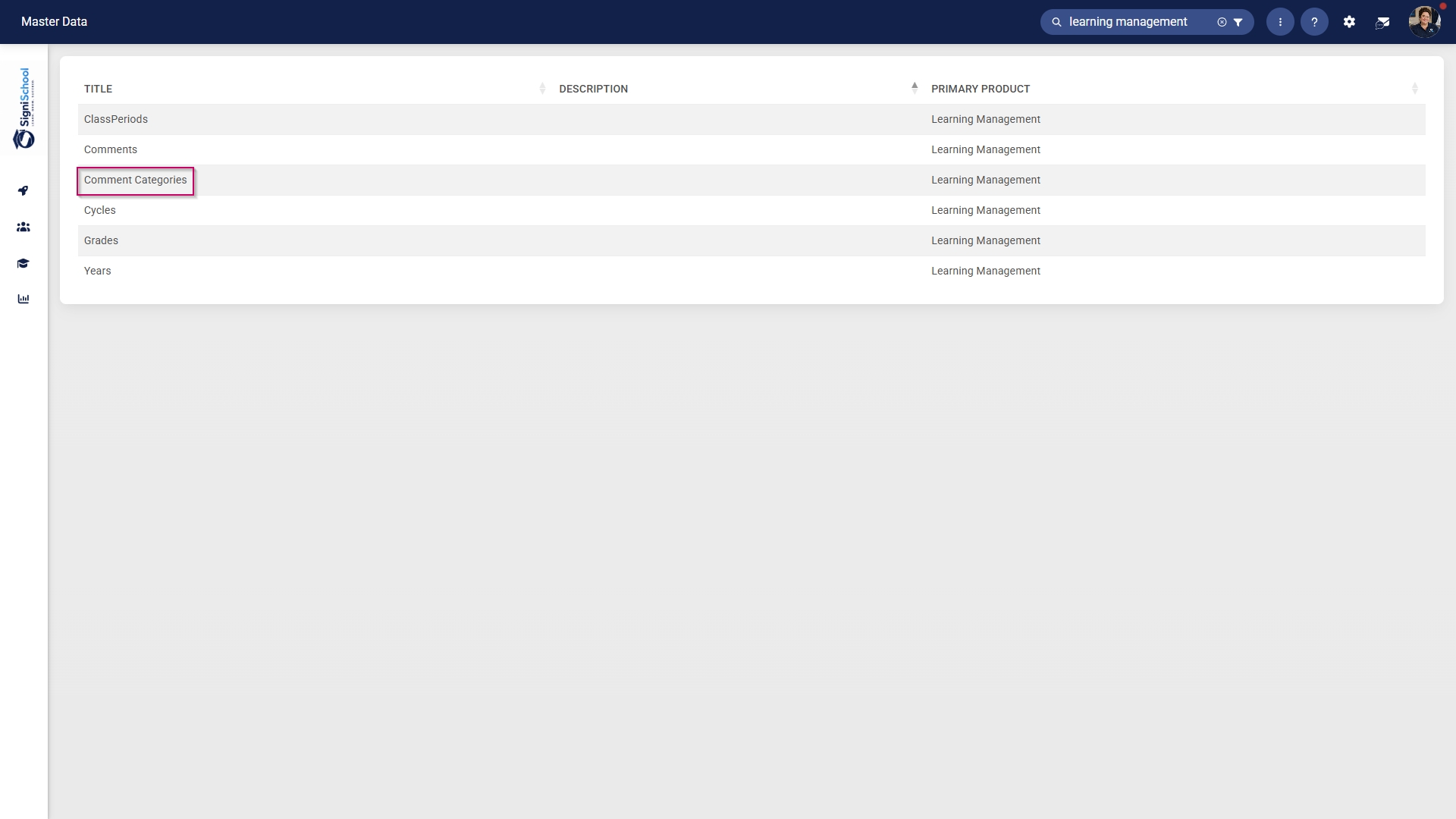
- To add a new master data item, click on +ITEM.
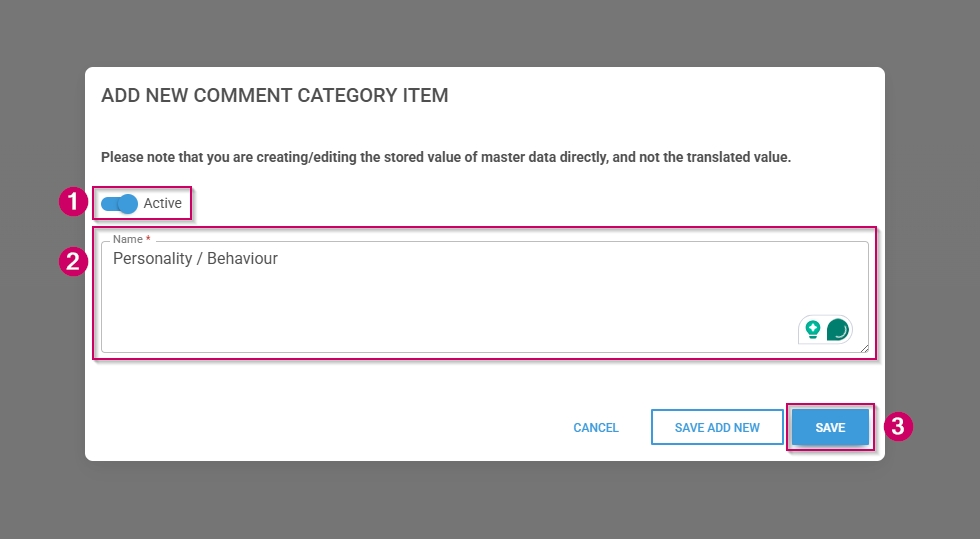
- Click the toggle button to set the comment category's status to Active.
- Enter a name for the comment category.
- Click SAVE when you are finished, SAVE ADD NEW to add another master data item or click CANCEL to discard your edits.
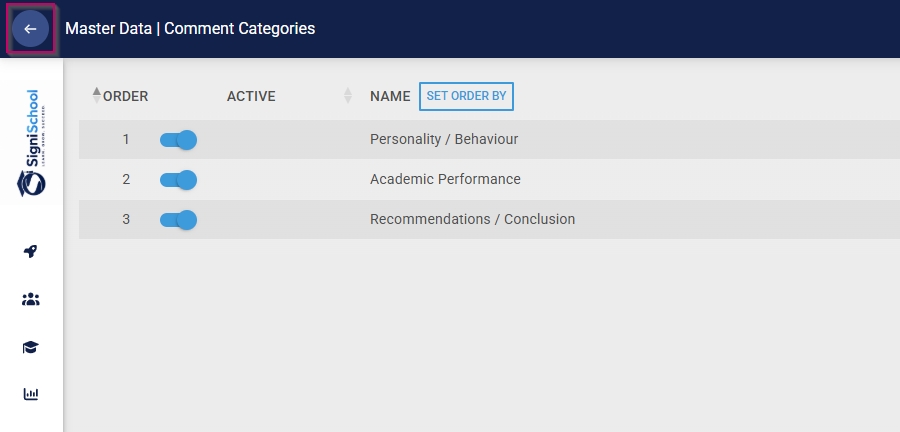
- Click the back arrow to navigate back to the Master Data Library once you are finished.
Configure academic report comments
- Click on the Comments category to continue.
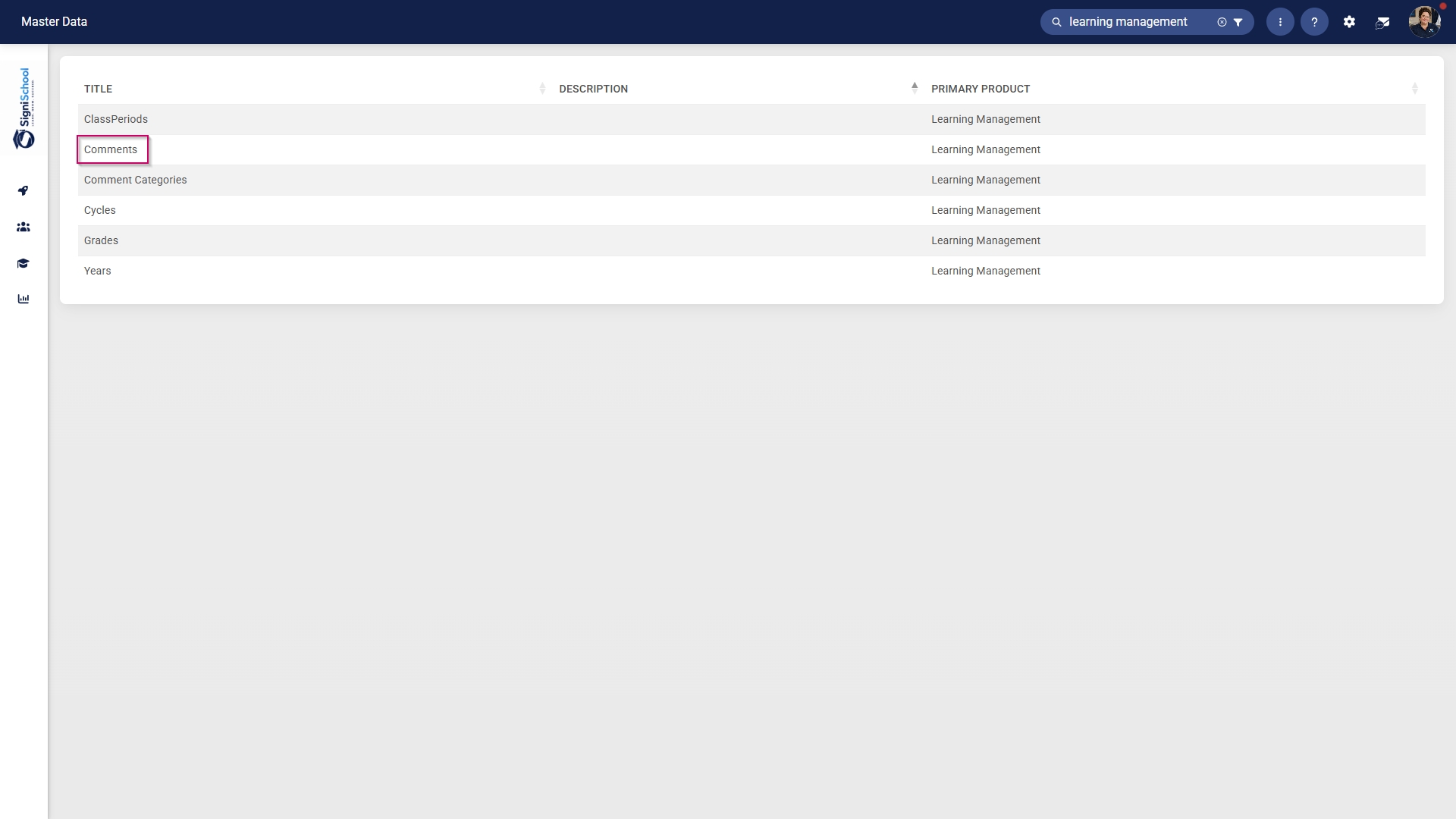
- To add a new master data item, click on +ITEM.
- From the drop-down menu, select the comment category.
- From the drop-down menu, select the comment type.
- Enter a comment in the primary language.
- Enter a comment in the secondary language.
- Click SAVE when you are finished, SAVE ADD NEW to add another master data item or click CANCEL to discard your edits.
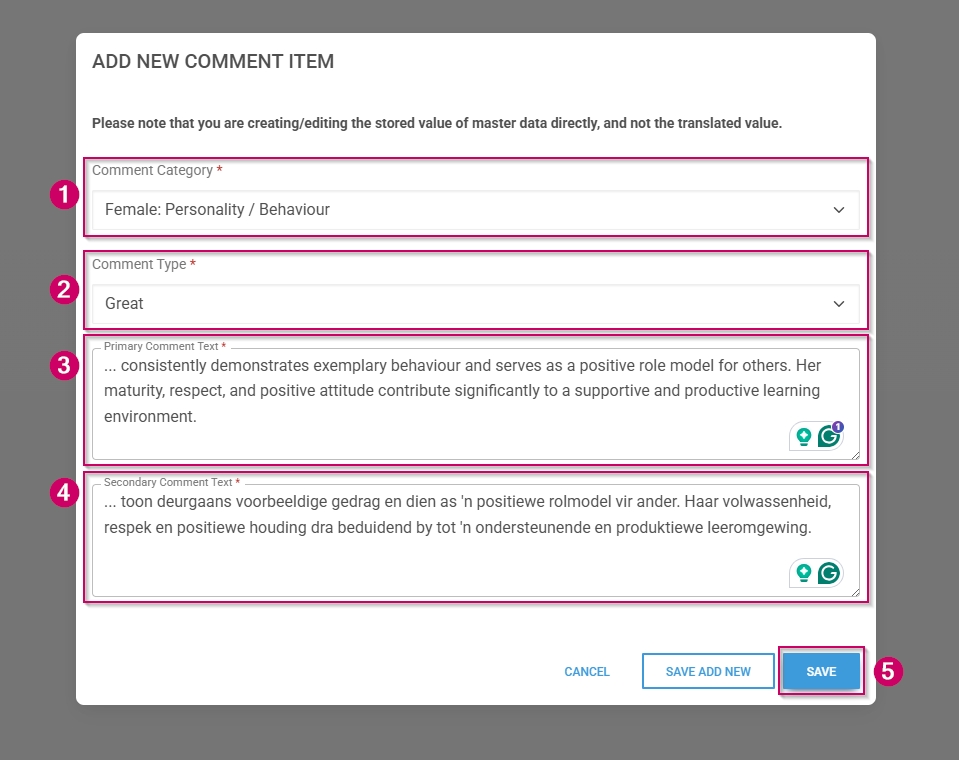
- Please note: Using an ellipsis (...) serves as a placeholder for the learner's name.
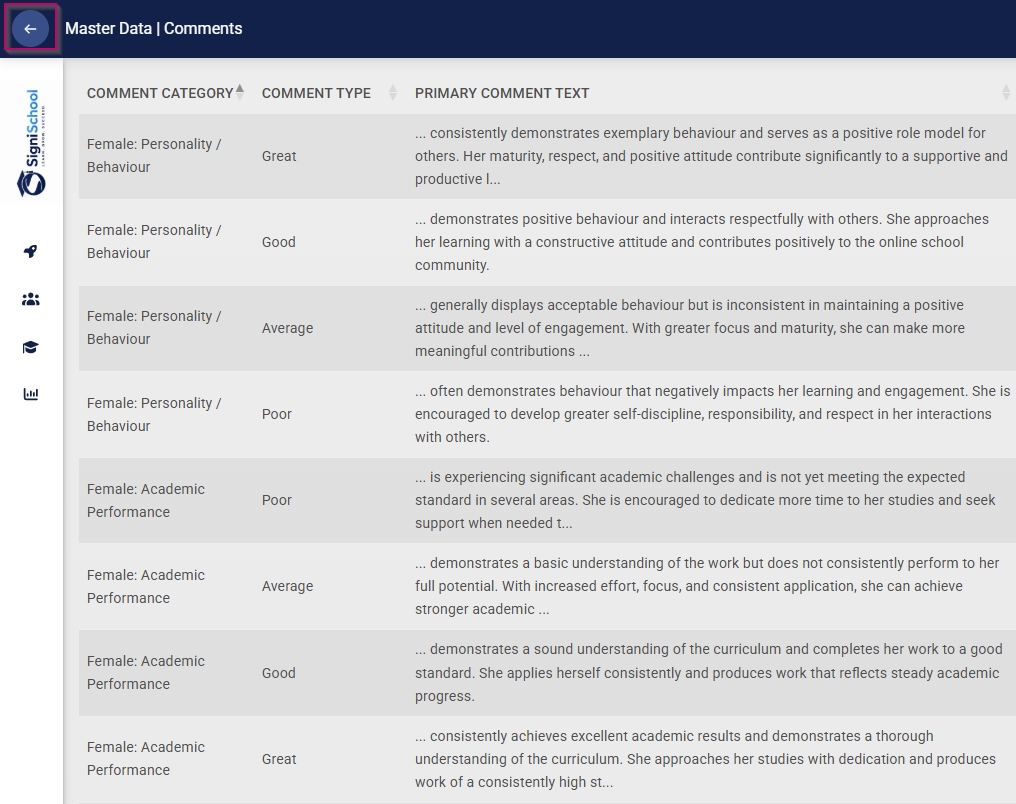
- Click the back arrow to navigate back to the Master Data Library once you are finished.
Create people groups
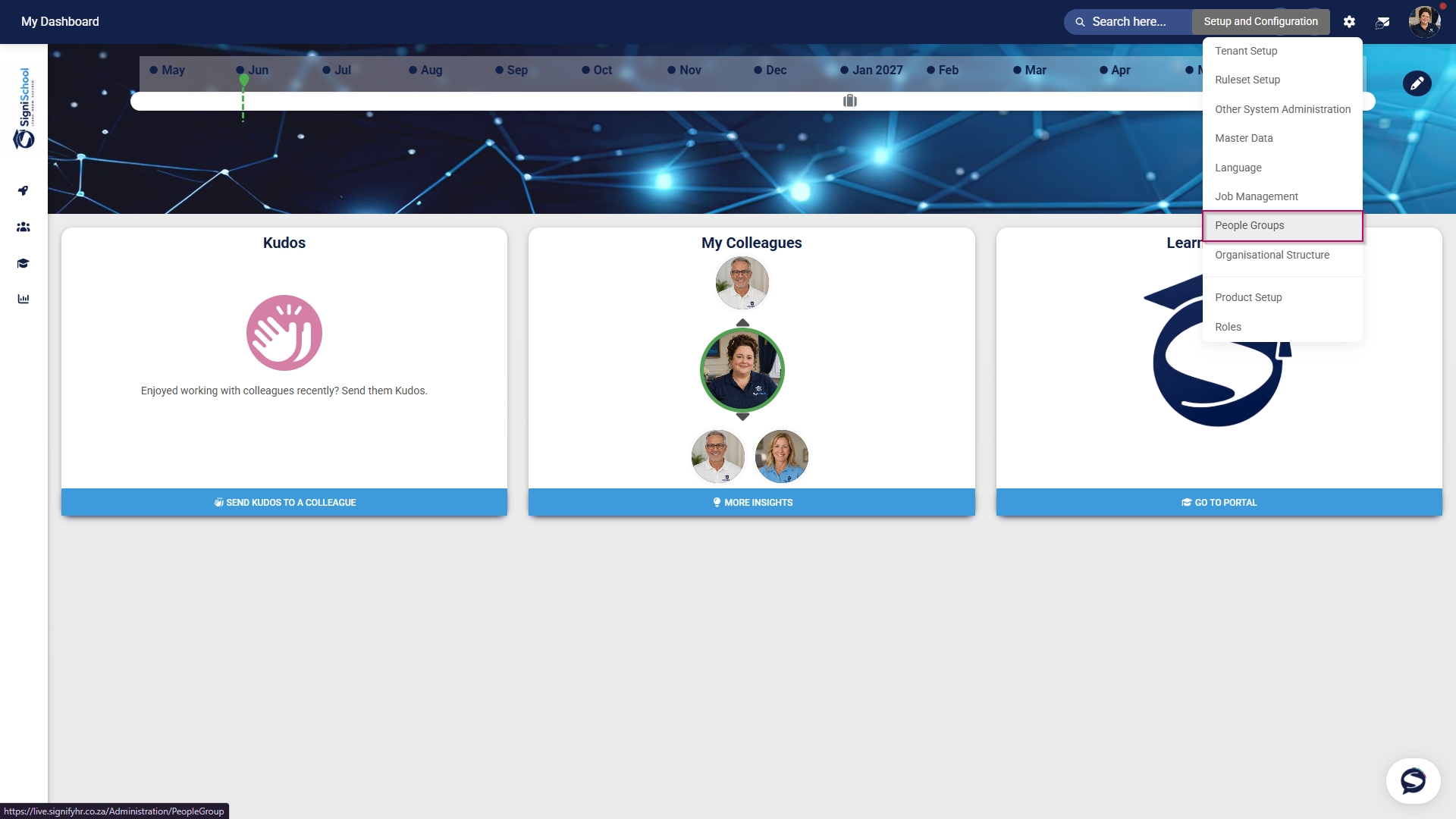
- Click the gear icon to access the Setup and Configuration menu.
- Click People Groups.
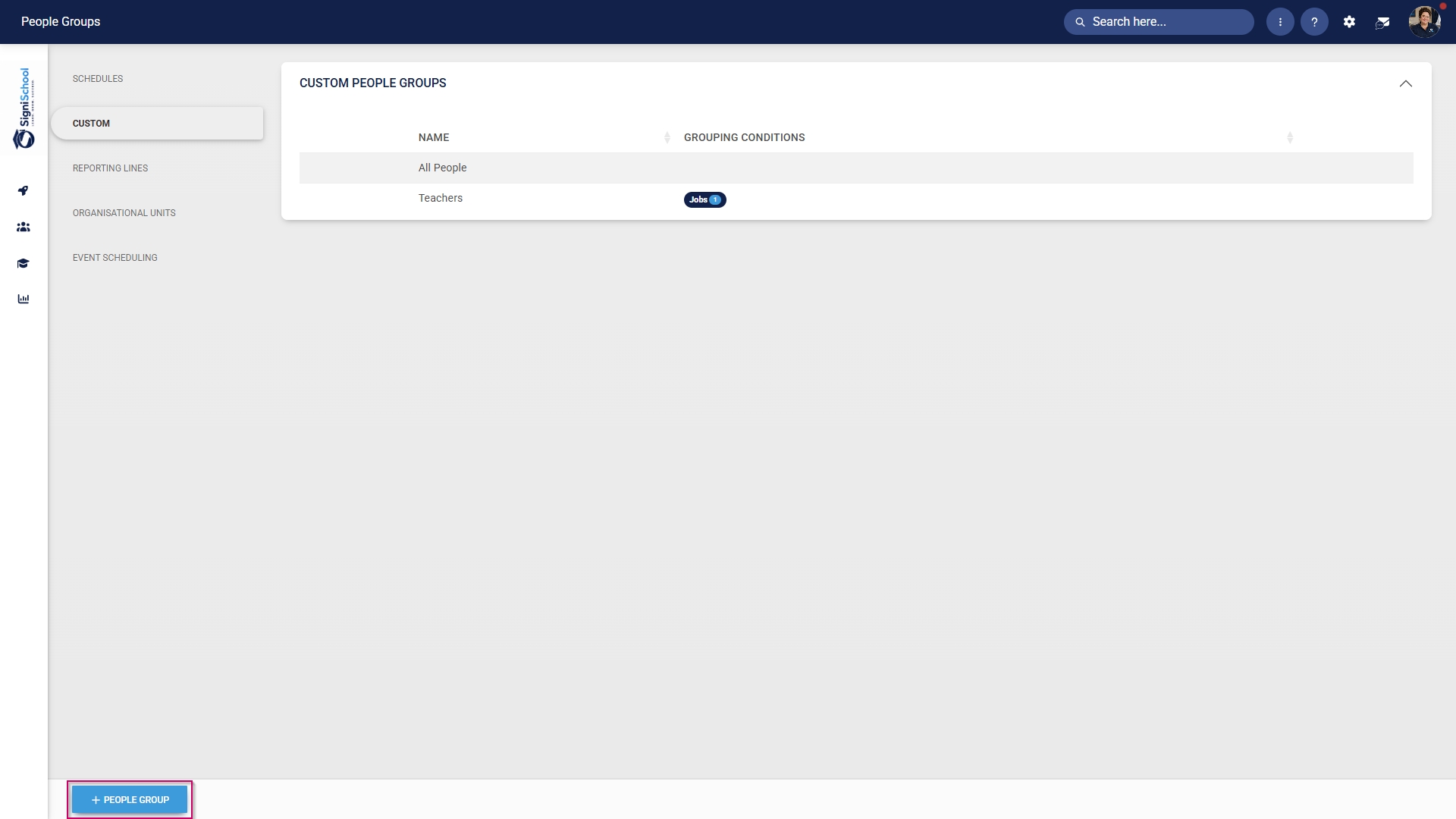
- In the left-hand menu, navigate to Custom, then click +PEOPLE GROUP.
- Enter a descriptive name for the people group.
- Click the toggle button to set the status to Active.
- Click SAVE when you are finished or click CANCEL to discard your edits.
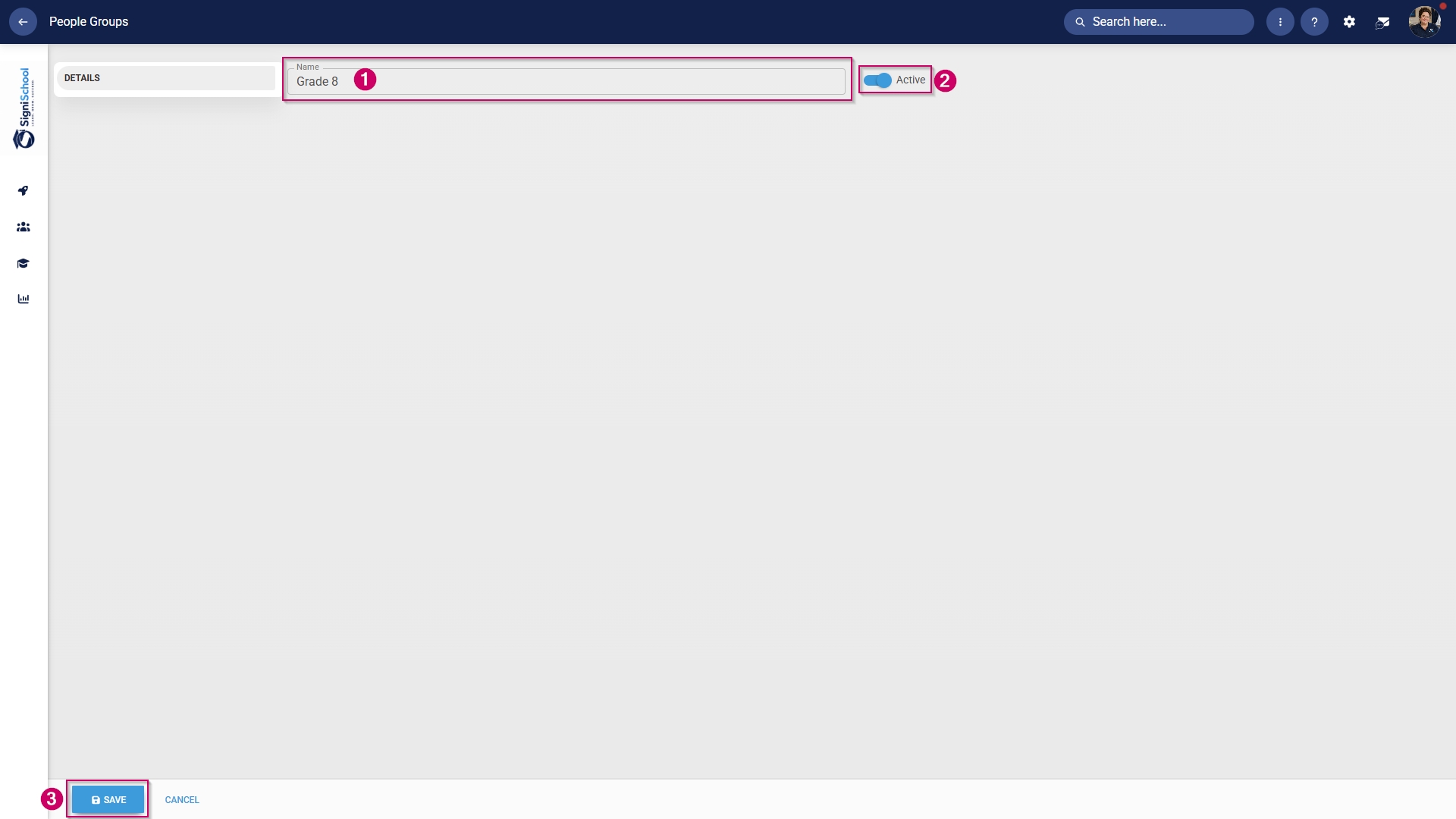
- Once the people group has been created, you can select the people to add to it.
Included: Individuals
- In the left-hand menu, click to navigate to the Included section, then click People to add individuals.
- Click the PEOPLE button.
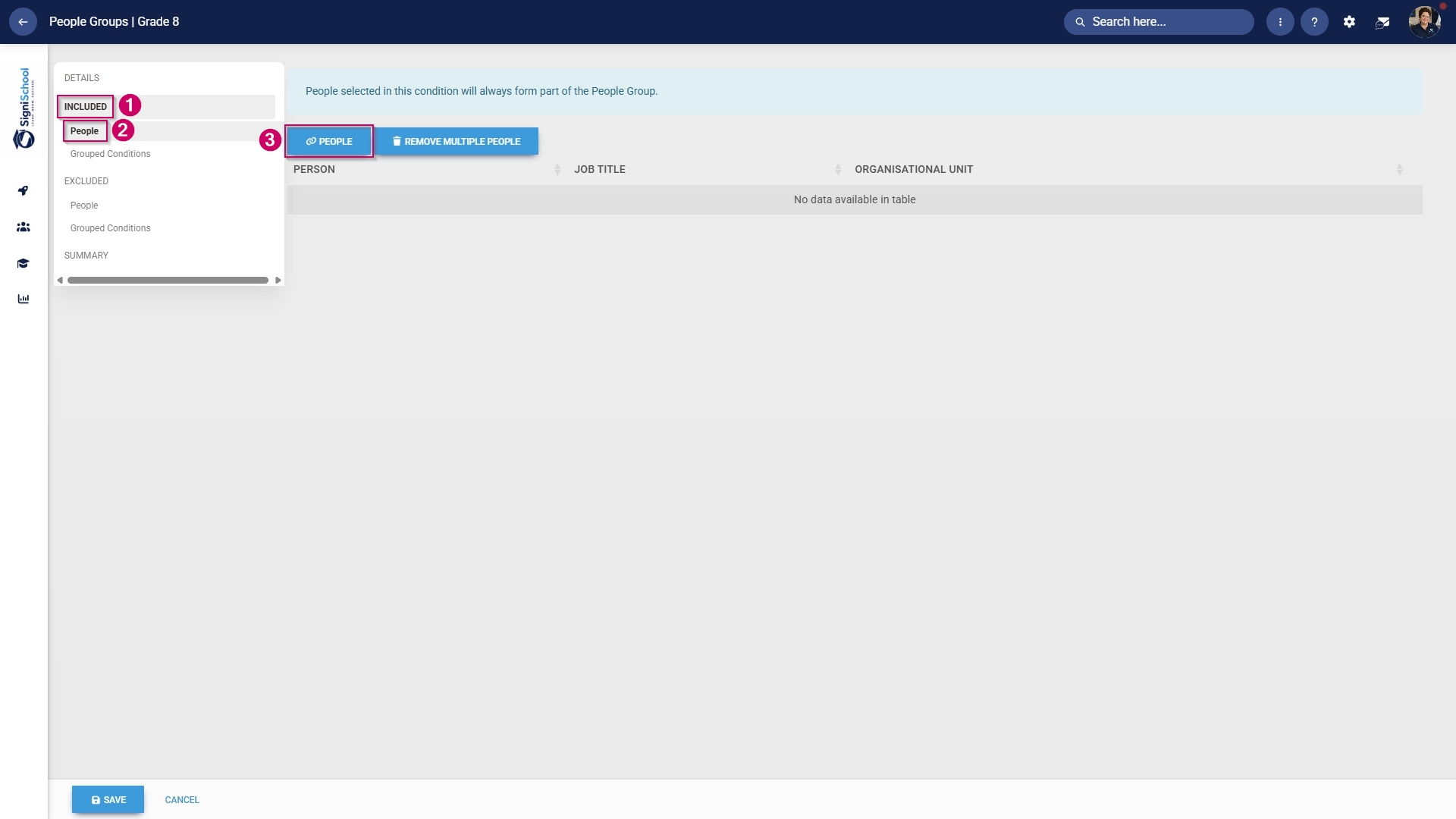
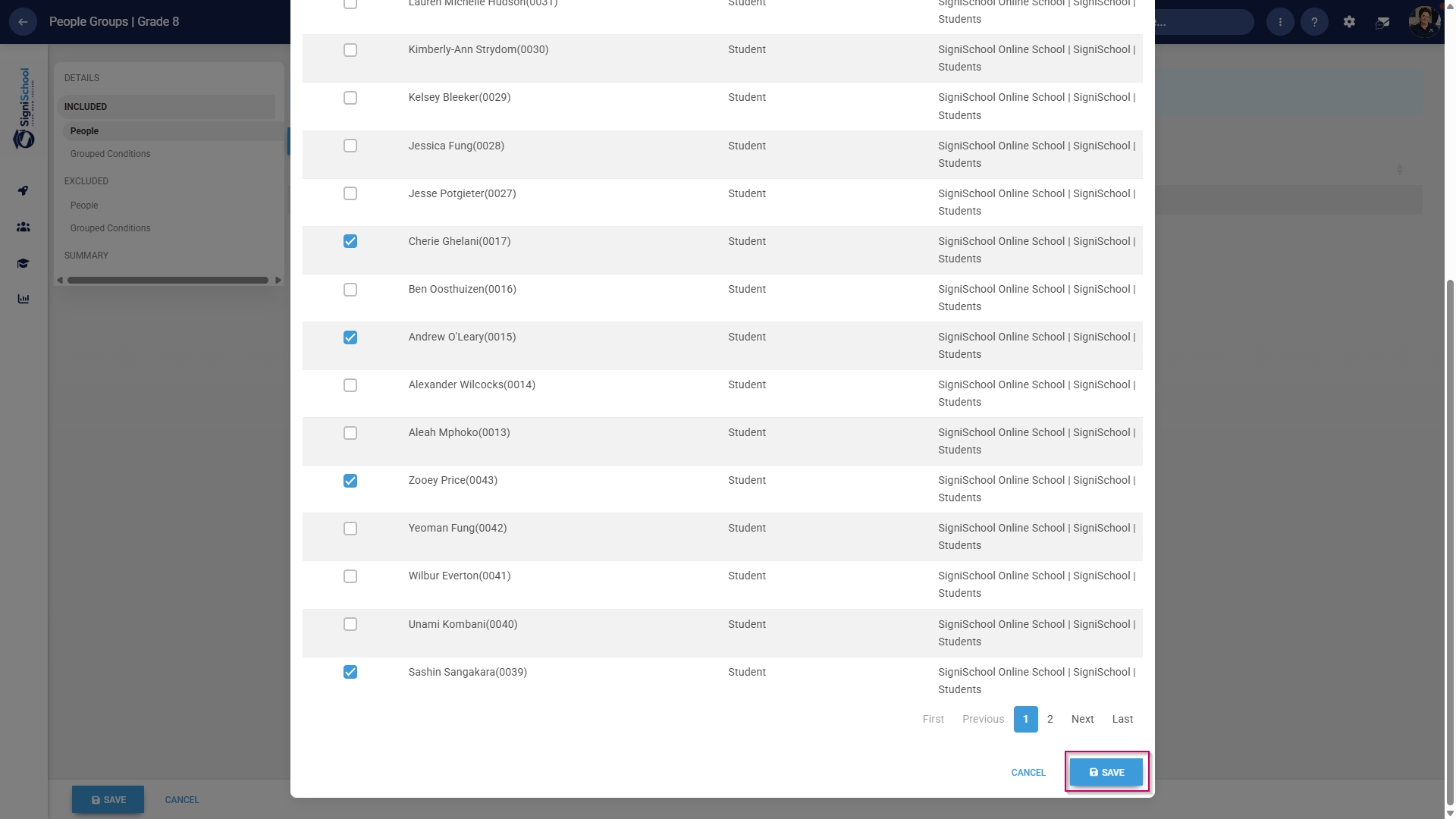
- Use the search bar to find a person based on their name, surname, username, or job title.
- Tick the checkbox to select a person.

- Click SAVE when you are finished or click CANCEL to discard your edits.
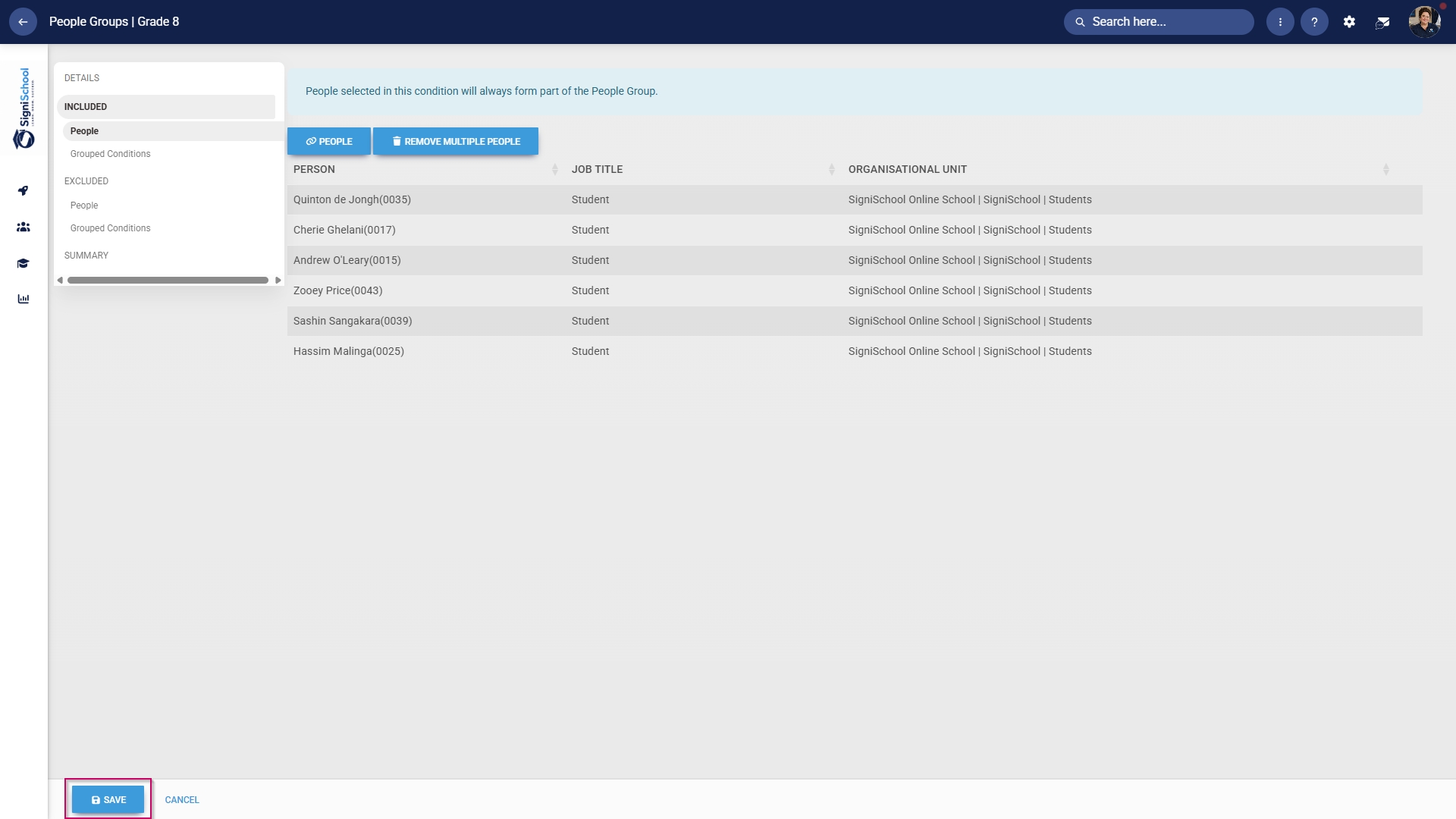
- Review the users added to your people group, then click SAVE when you are finished or click CANCEL to discard your edits.
Included: Grouped conditions
- Click Grouped Conditions to add groups of people based on criteria such as job titles, organisational nodes, etc.
- Click SAVE when you are finished or click CANCEL to discard your edits.
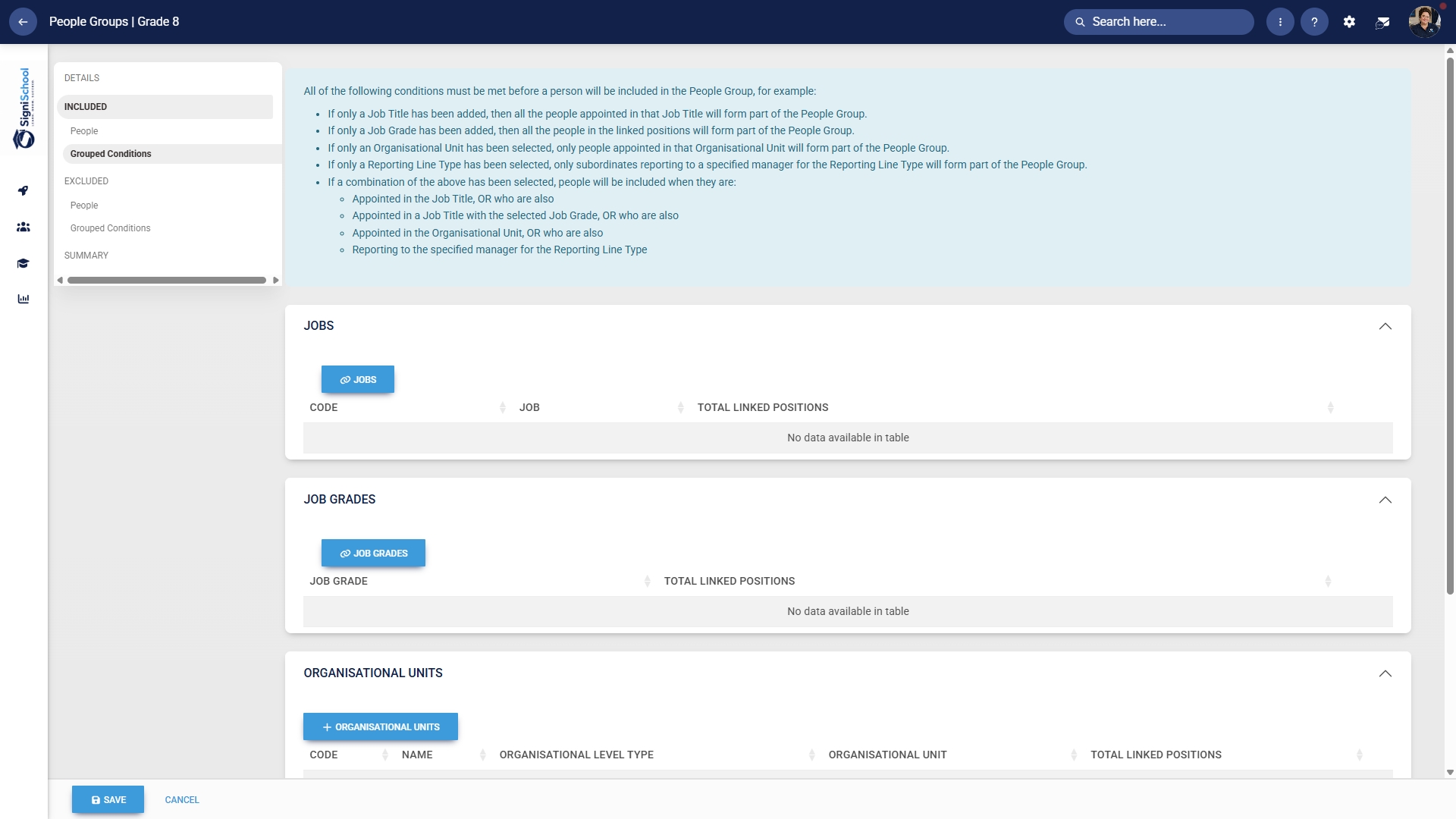
Included: Individuals
- In the left-hand menu, click to navigate to People in the Excluded section.
-
- Click the PEOPLE button.
- Select the people you would like to exclude.
- Click SAVE when you are finished or click CANCEL to discard your edits.
-

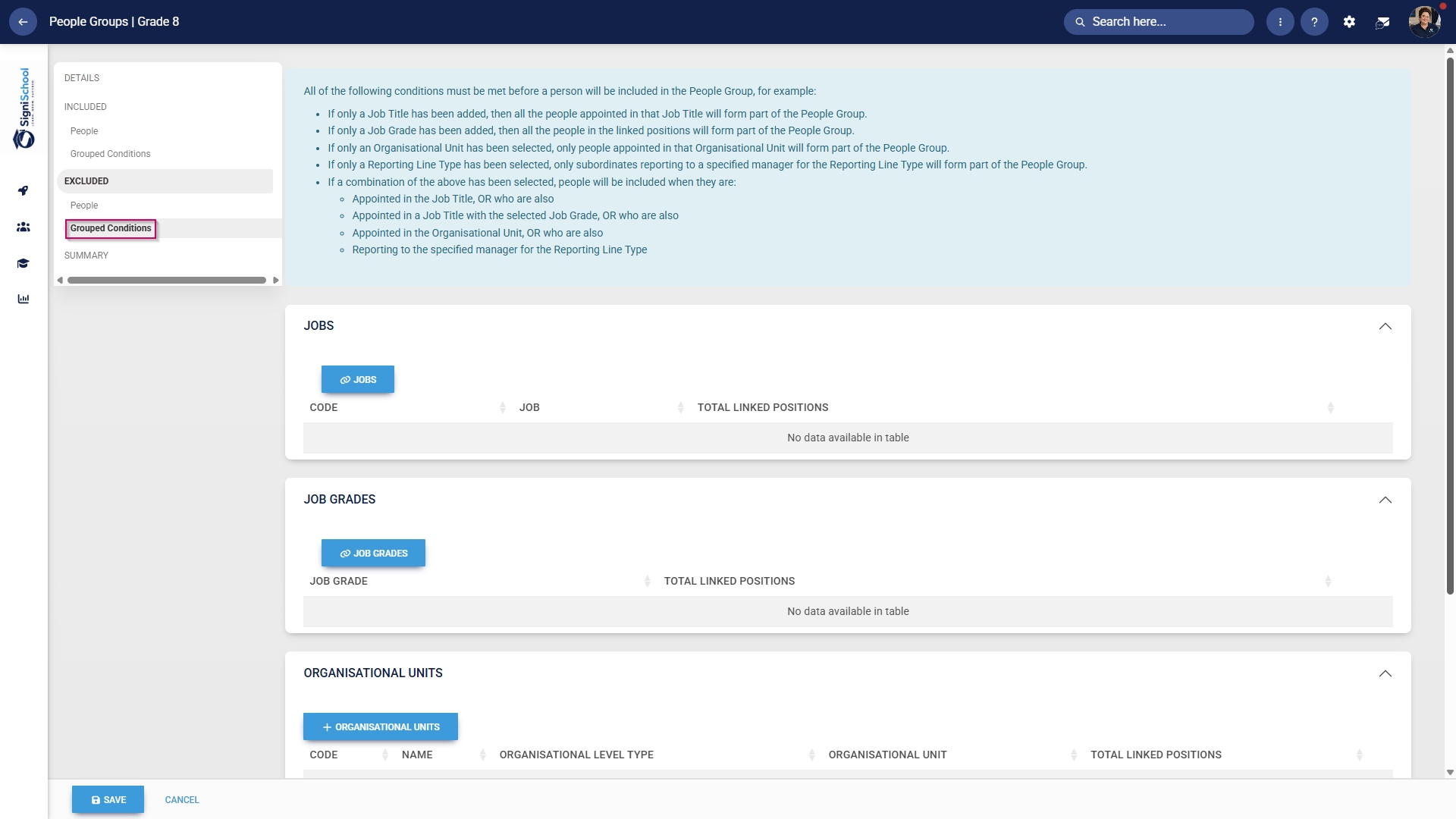
Excluded: Grouped conditions
- Click Grouped Conditions to exclude groups of people based on criteria such as job titles, organisational nodes, etc.
- Click SAVE when you are finished or click CANCEL to discard your edits.
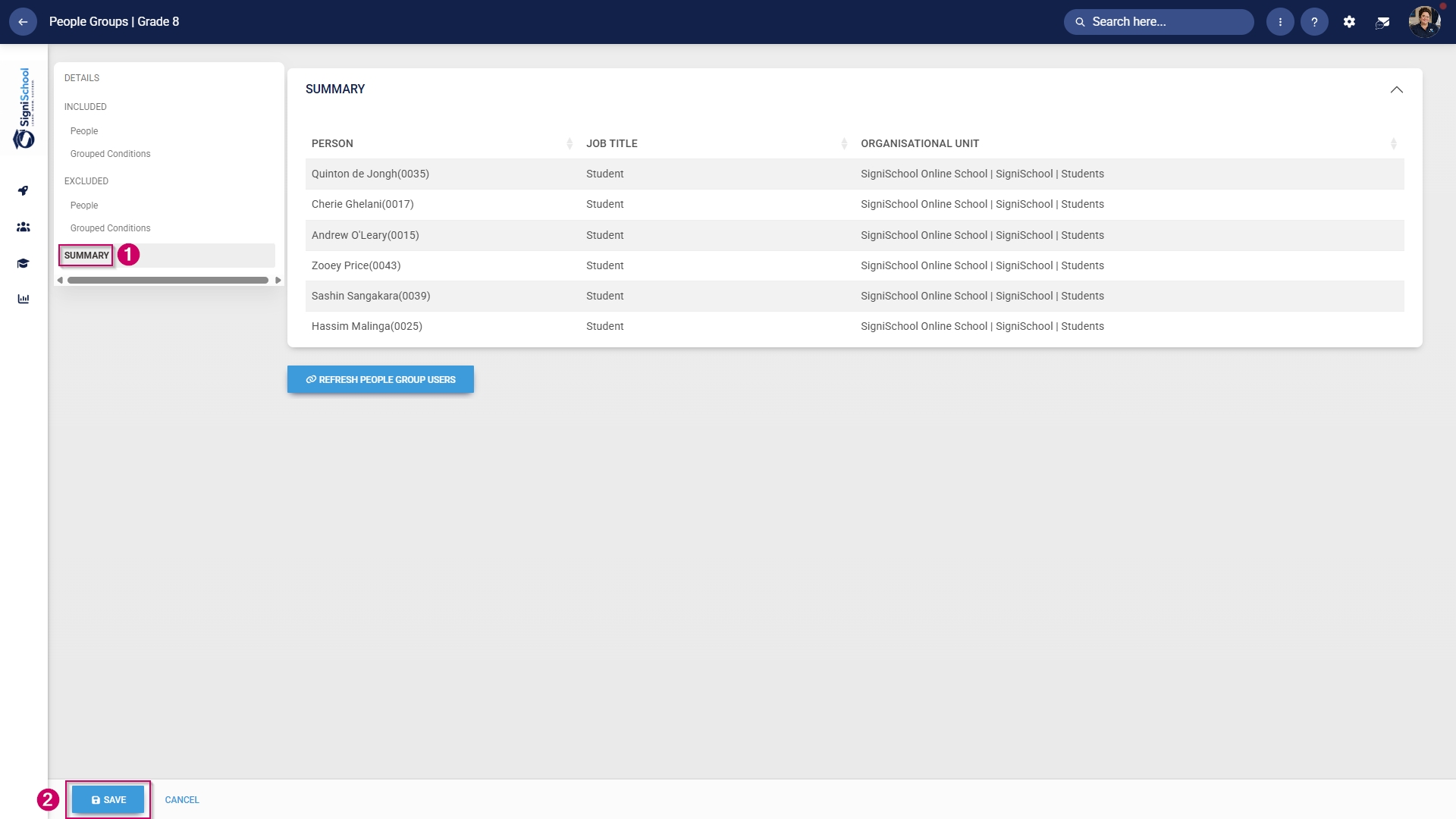
Summary
- In the left-hand menu, click Summary to view all the users included in your people group.
-
The people groups take some time to synchronise on the system once they're created. This can take anywhere from 10 minutes to 12 hours, depending on the number of changes.
- To synchronise the newly-created or updated people groups manually, follow the steps in the next section.
Manually syncing people groups
- Click the gear icon to access the Setup and Configuration menu.
- Click Ruleset Setup.
- Select the ruleset you would like to update.
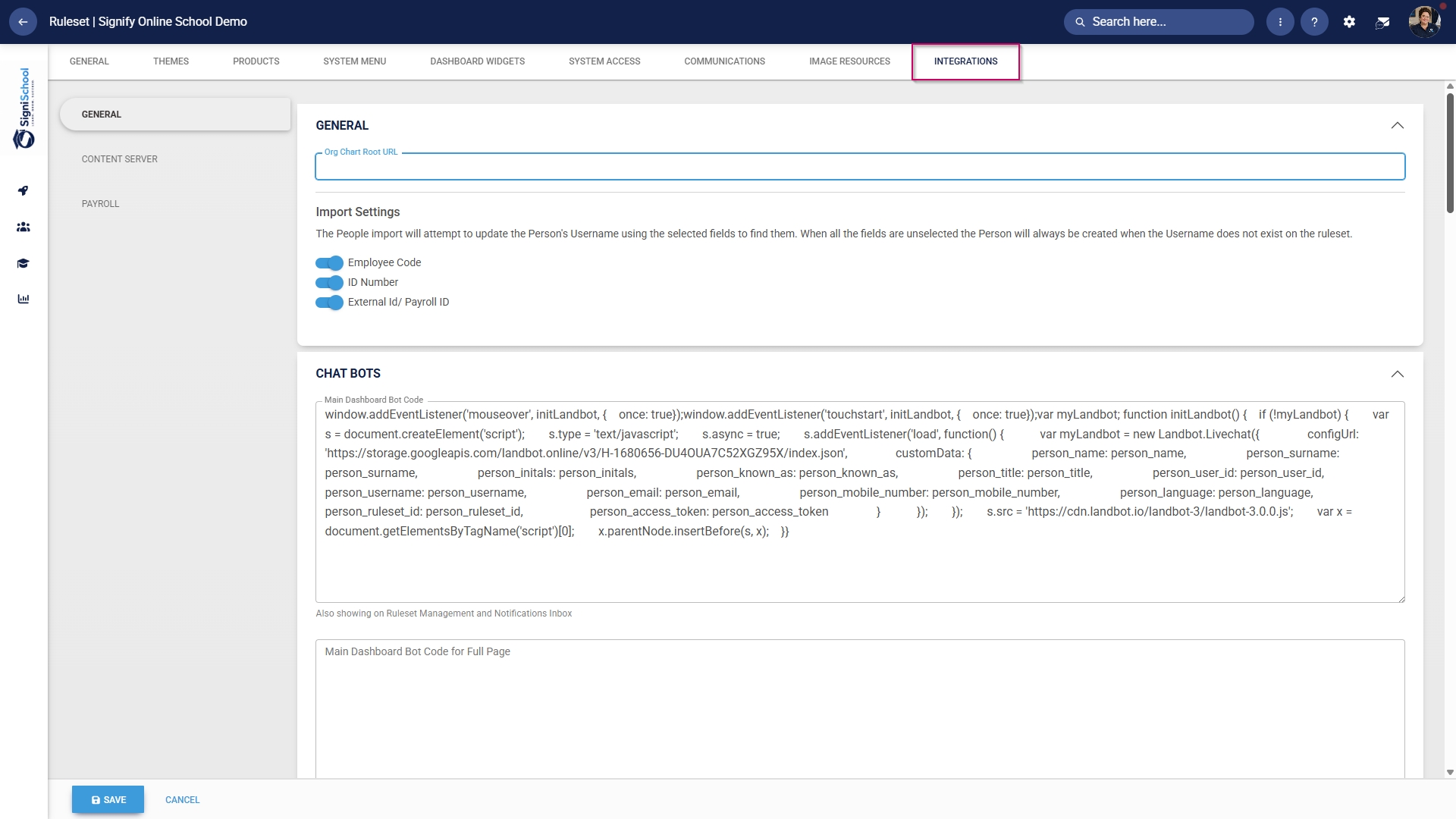
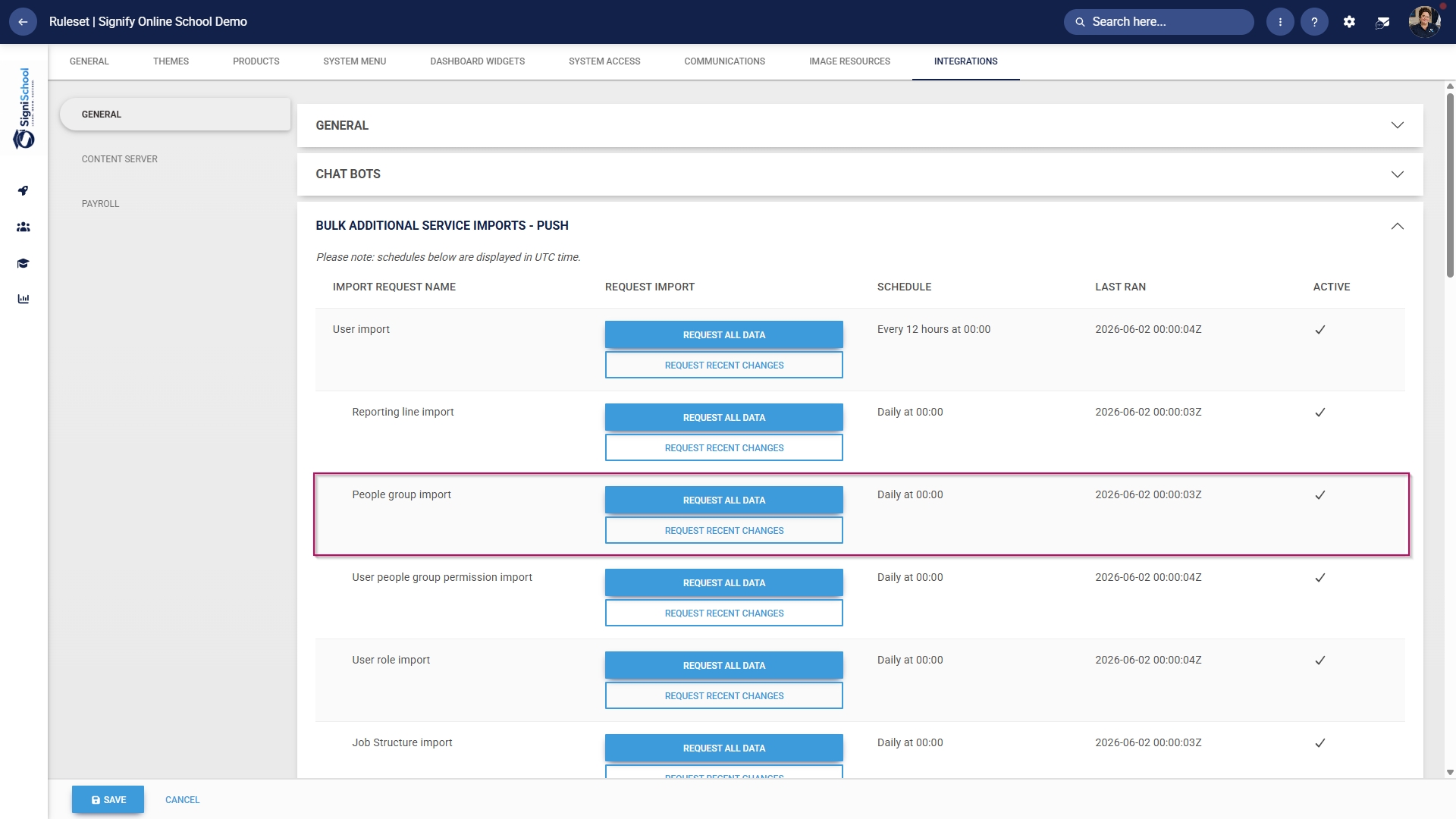
- Scroll down to the Bulk Additional Service Imports – Push section.
- For the People group import function, you have two options when synchronising manually:
-
- Click REQUEST ALL DATA to synchronise all the people groups.
-
- This is a time-consuming operation because all the people groups' data is overwritten and synchronised from scratch.
-
- Click REQUEST ALL DATA to synchronise all the people groups.
-
Please be very careful when selecting this option, as it can affect system performance and speed, particularly during business hours.
-
-
- Click REQUEST RECENT CHANGES to synchronise only recent changes to your people groups.
-
- This is a time-efficient option because only the changes are synchronised, and the previous data remains unchanged.
-
- Click REQUEST RECENT CHANGES to synchronise only recent changes to your people groups.
-
- Once you have selected a synchronisation method, a message will appear stating that the import has been requested. You can monitor the synchronisation progress by navigating to your System Inbox.
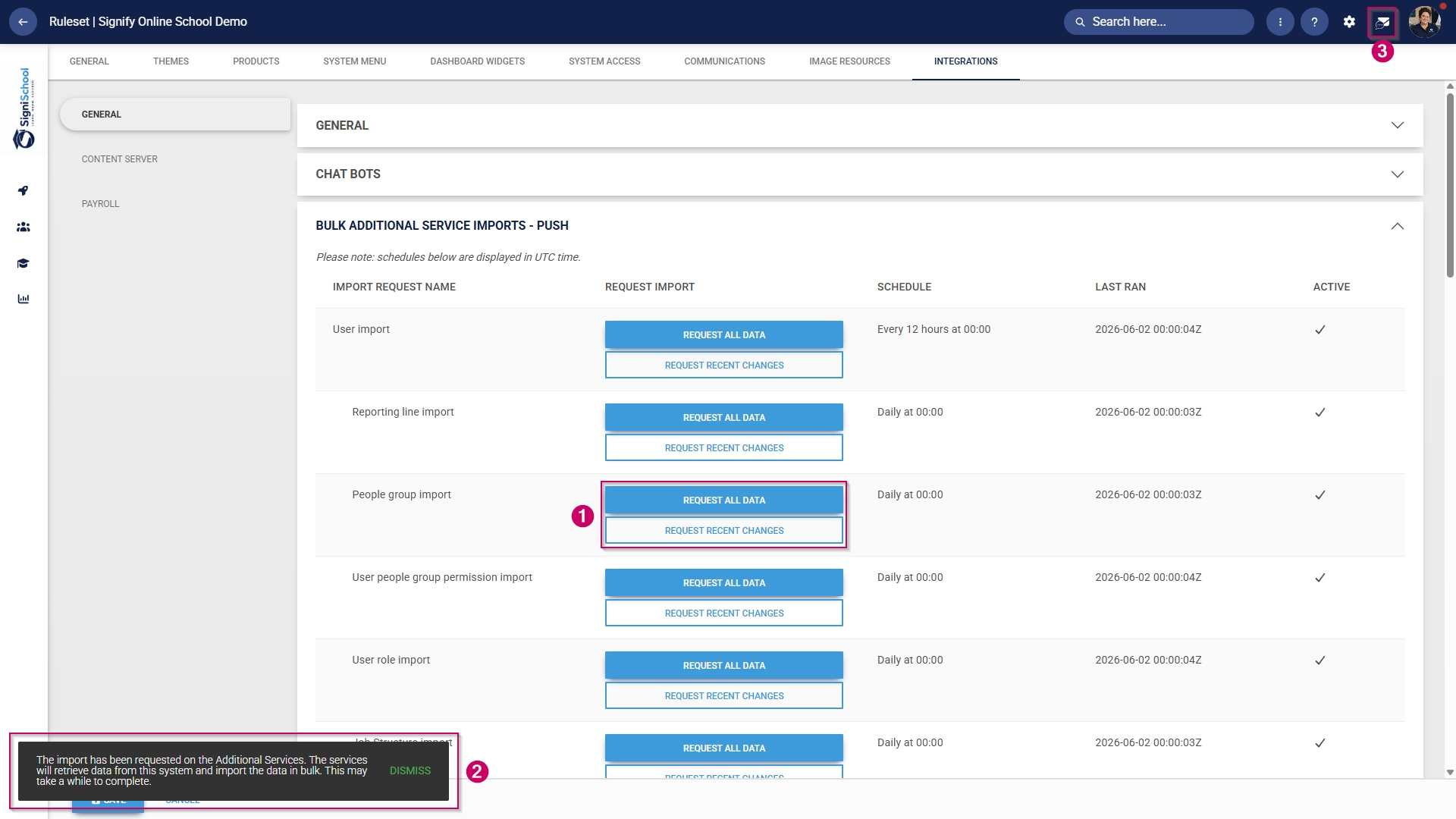
- Click the envelope icon at the top of your screen to navigate to your System Inbox, then click Imports.
- You can monitor the status of your imports and system processes here:
-
- Staged means the task has been added to the queue and will begin once the current tasks have been completed.
- Started means the task is currently running.
- Completed with Errors means the task has been completed, although only partially, due to detected errors.
- Completed means the task has been successfully executed.
- Failed means the task could not be completed.
-
- For a Completed with Errors or Failed task, you can download an Excel document with a breakdown of the errors.
-
- Click on the kebab icon next to the task.
- Click Export Errors.
- Review the errors, then re-attempt the task using the steps above.
-
Add training interventions
Training interventions are used to track a learner's academic progress. Each learning activity or assessment will have its own training intervention. Training interventions can be created in two ways:
- Manually through the training intervention builder
- Automatically through the training intervention import functionality
Both methods will be shown below.
Method 1: Add training interventions manually
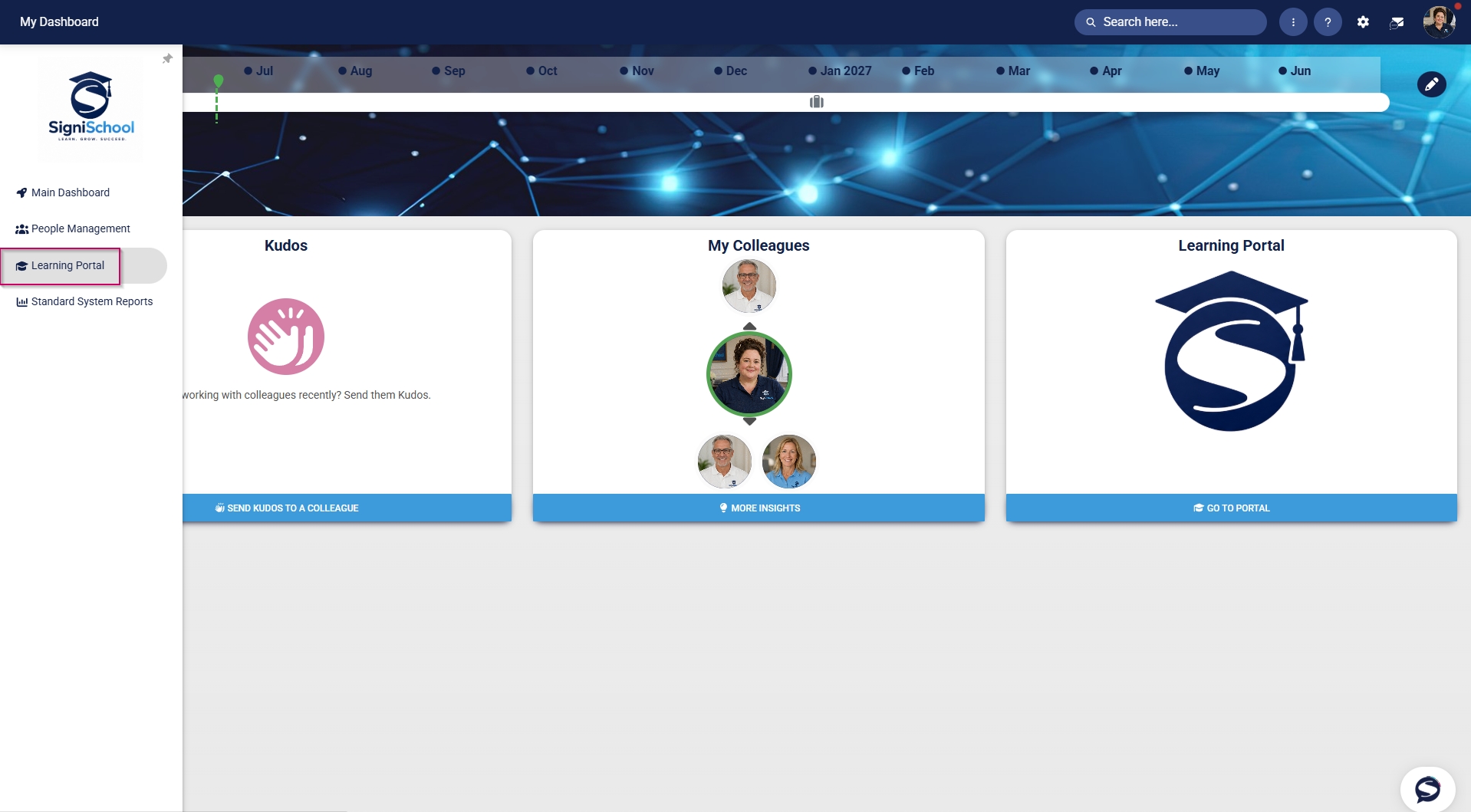
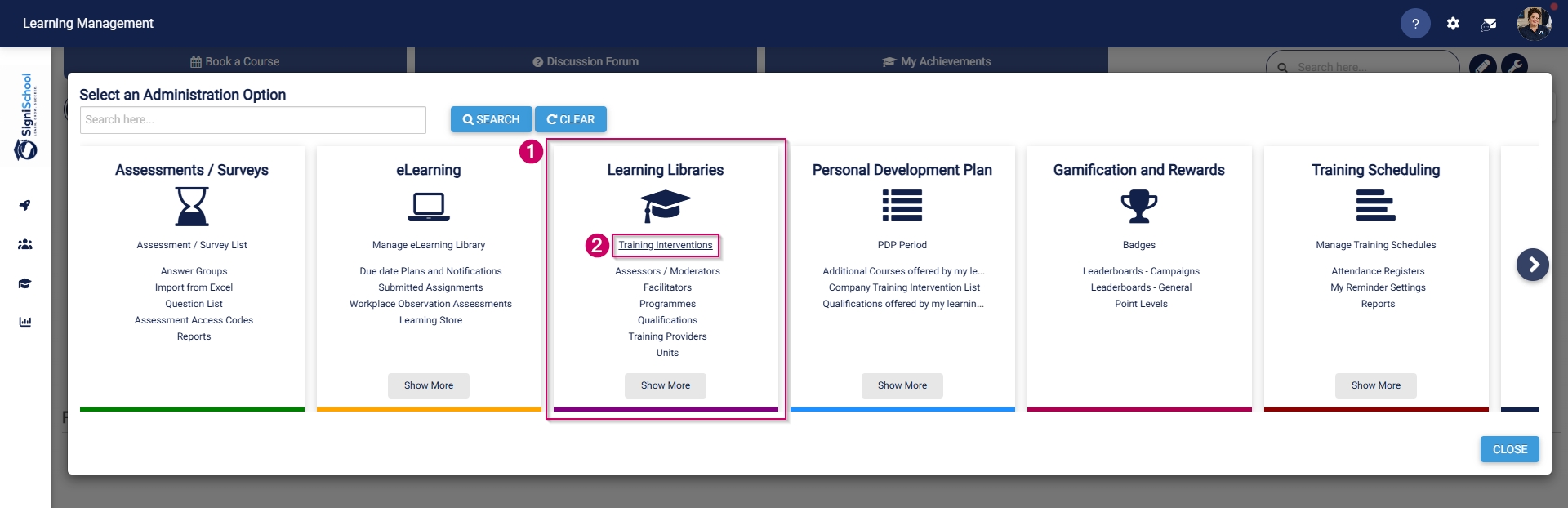
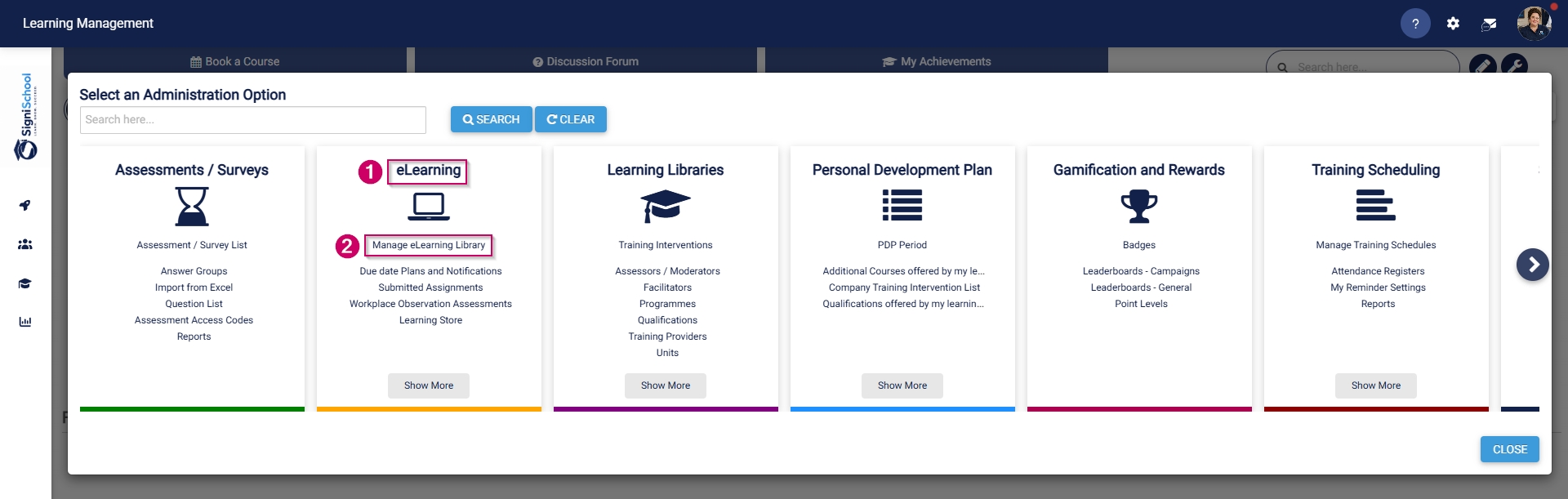
- Hover over the sidebar menu, then click Learning Portal.
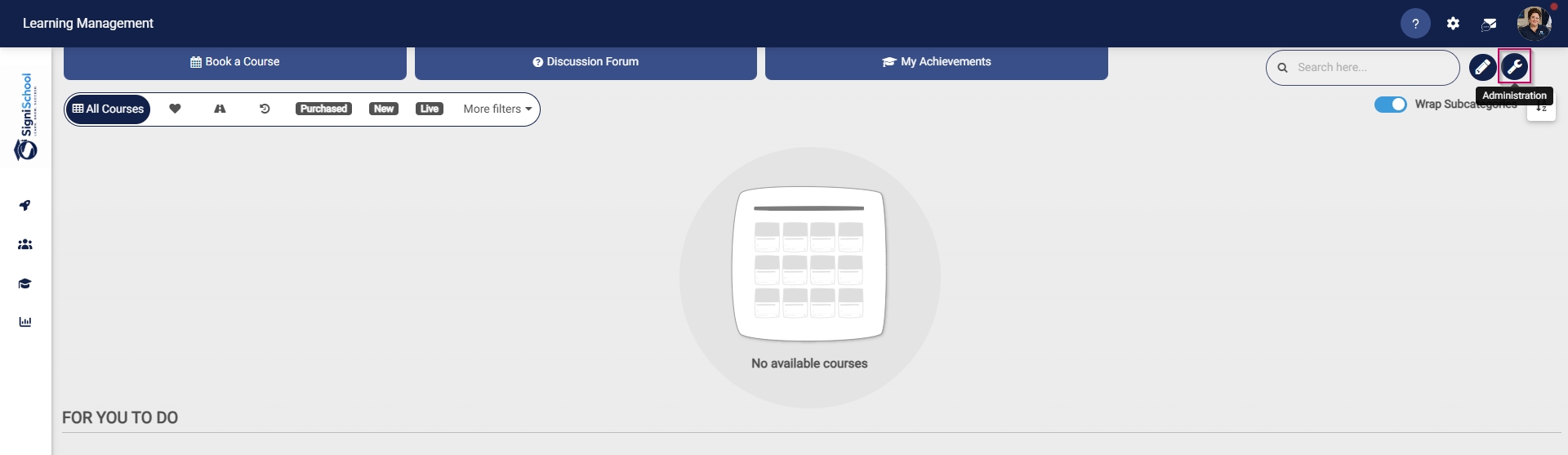
- Click the spanner icon to access the system's Administration menu.
- On the Learning Libraries card, click Training Interventions.
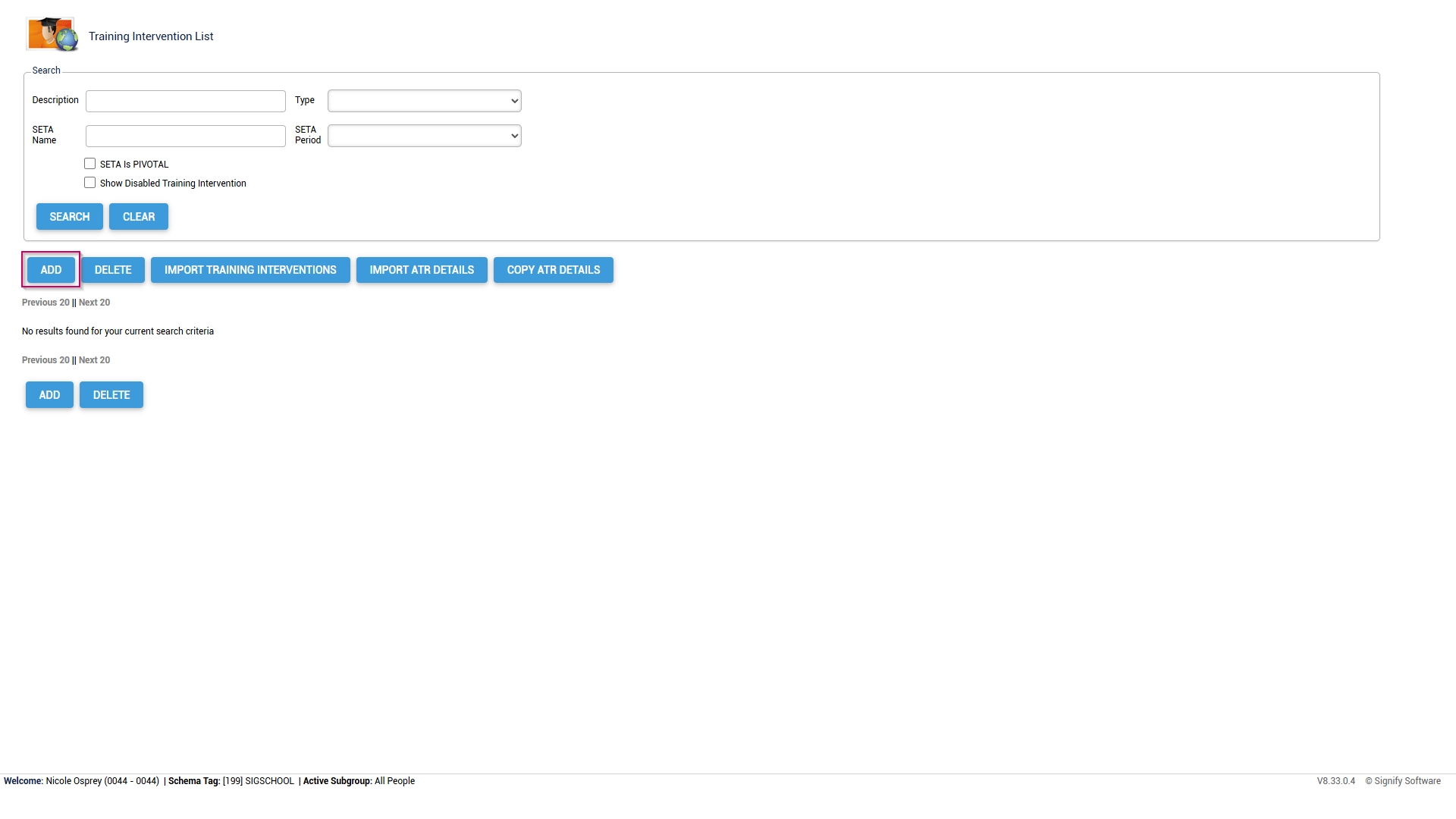
- The Training Intervention Library will open. This is where training interventions can be created, edited, or deleted. To add a new training intervention, click ADD.
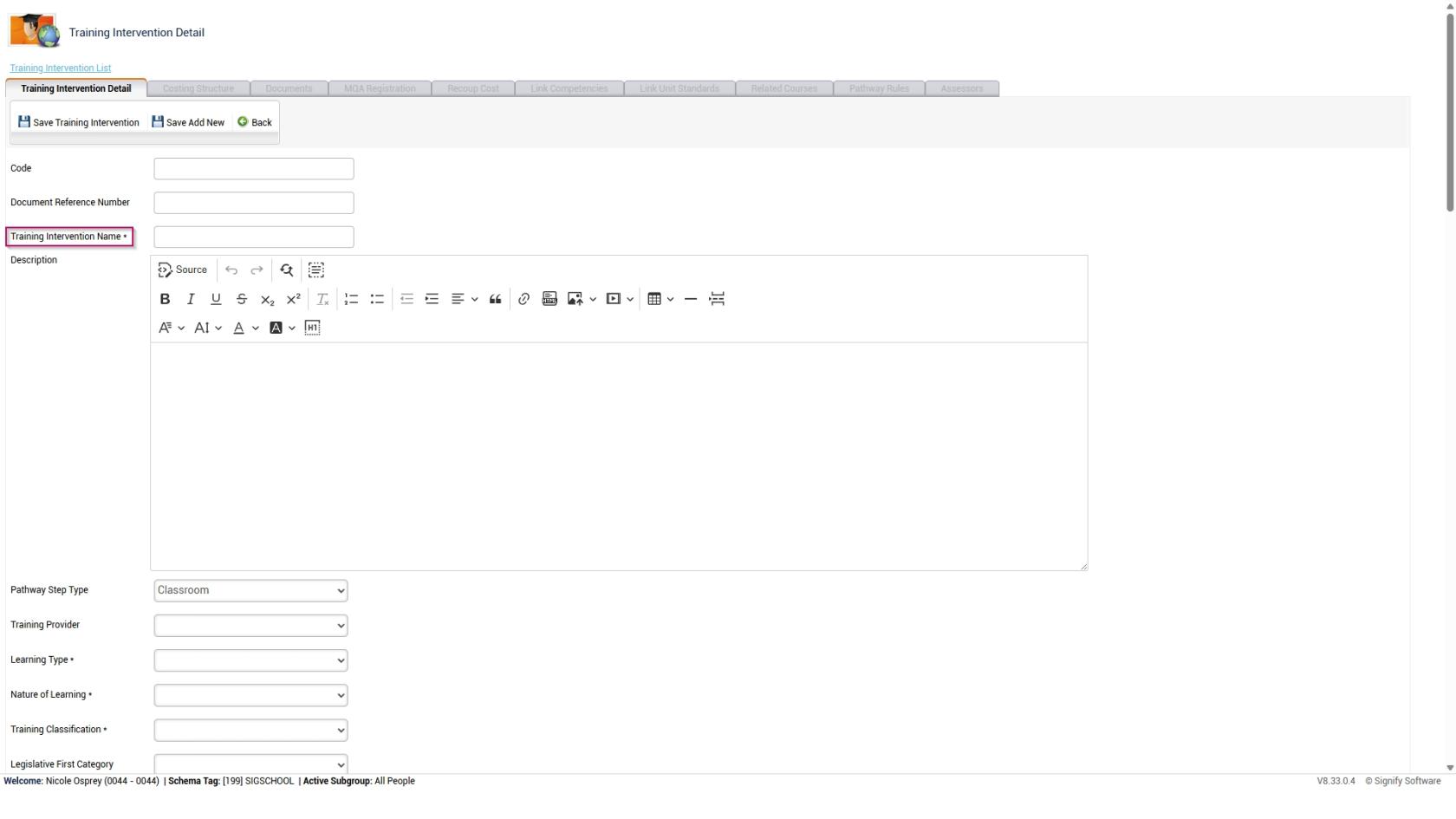
- The training intervention editing screen will open.
-
- Please note that all the fields marked with an asterisk (*) are required.
- For our example, we will only fill out the necessary fields, but you can add more details if desired.
-
It is recommended to use a naming convention to standardise the training interventions. This ensures it is easy to maintain the data integrity of the Training Intervention Library while also improving the quality of system report outputs.
- Add an appropriate name for the training intervention.
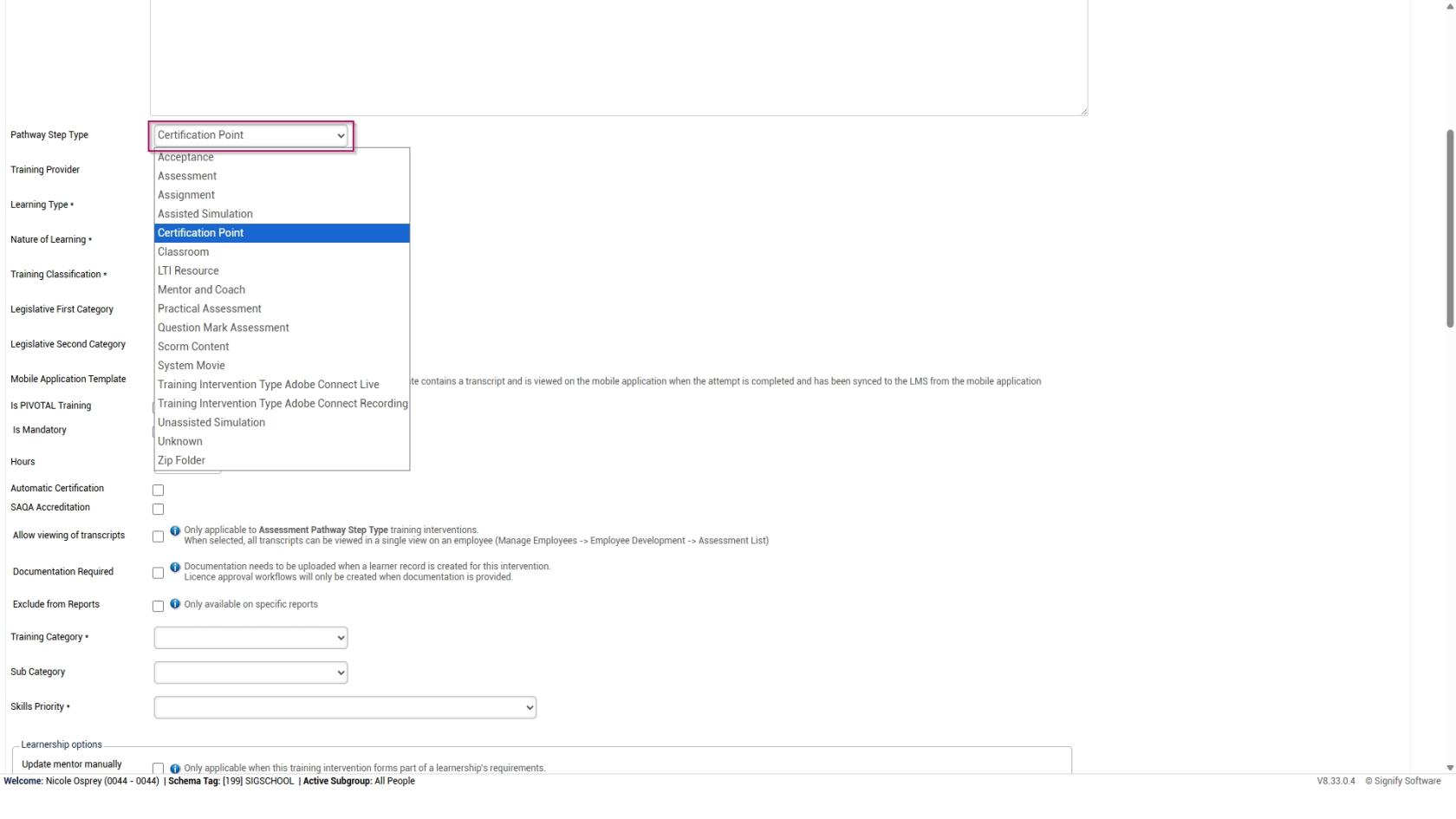
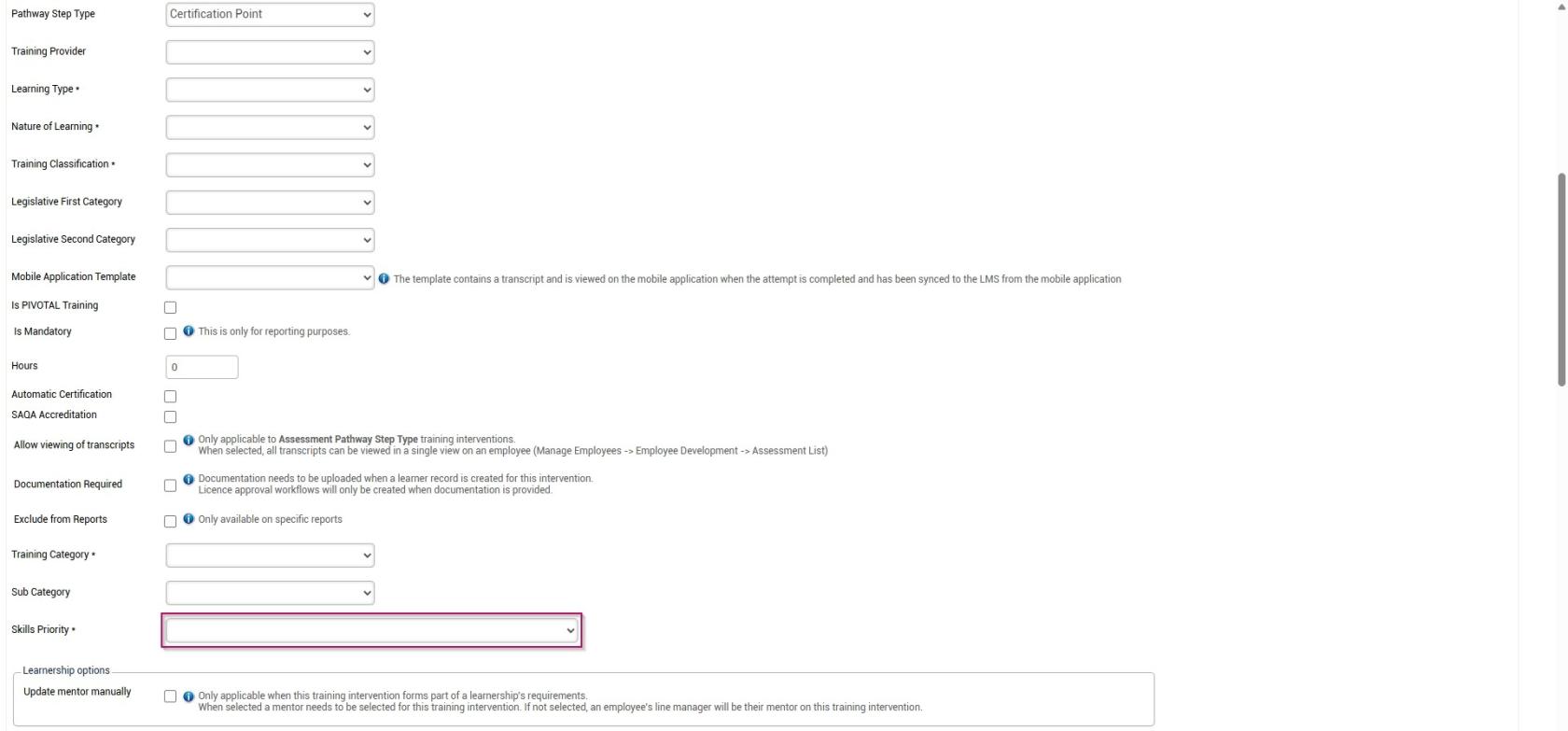
- Select the type of training intervention from the Pathway Step Type drop-down menu.
- Select the Learning Type from the drop-down menu.
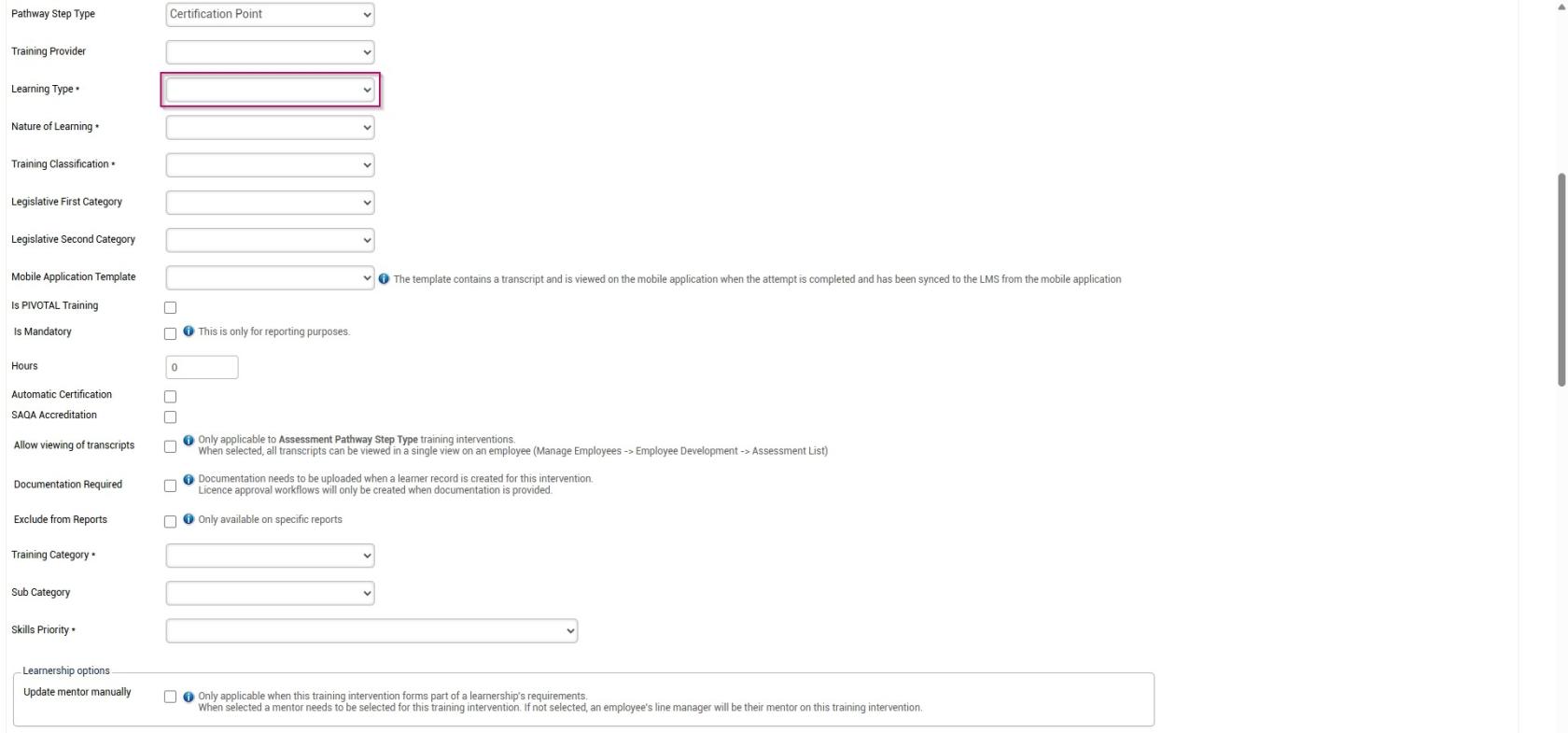
- Select the Nature of Learning from the drop-down menu.
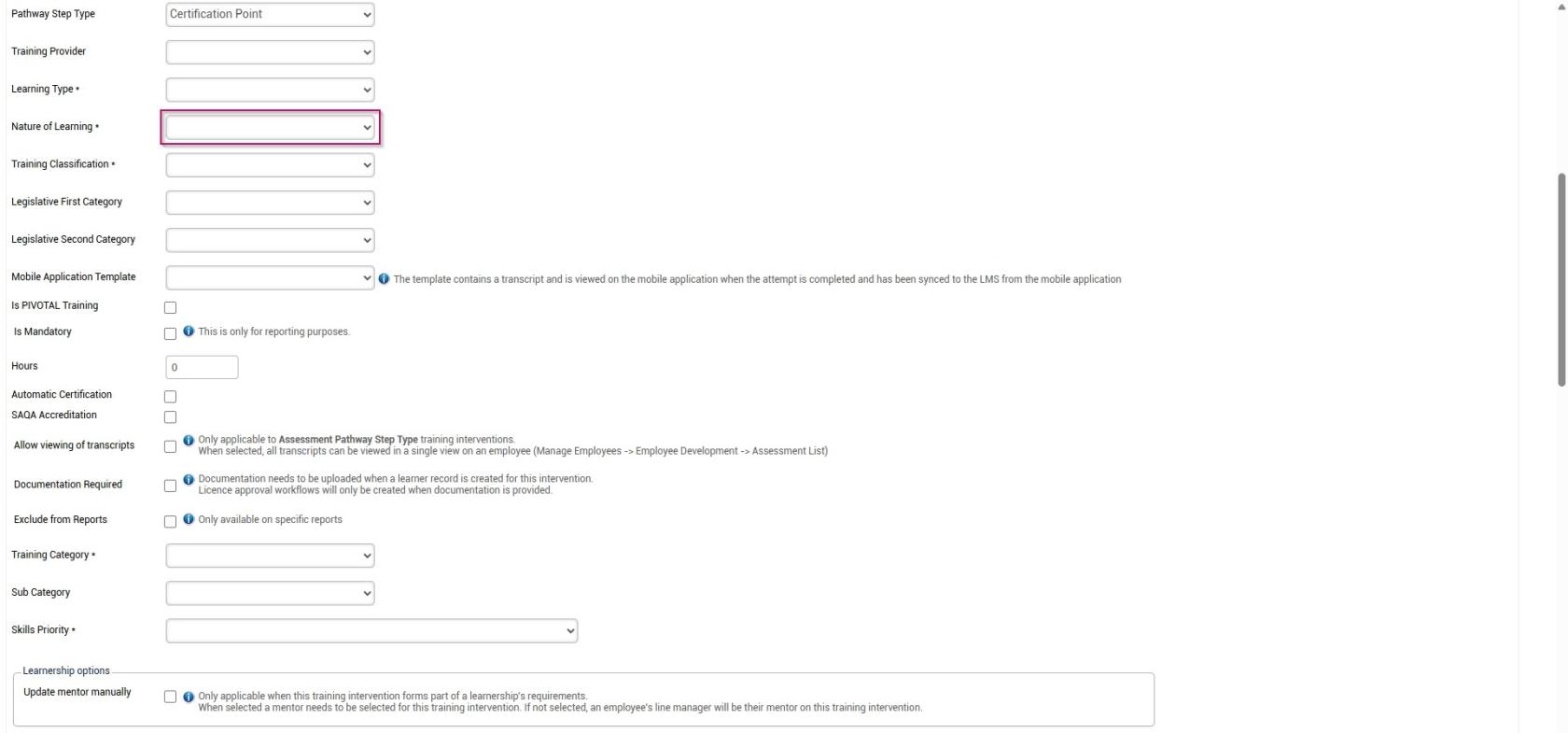
- Select the Training Classification from the drop-down menu.
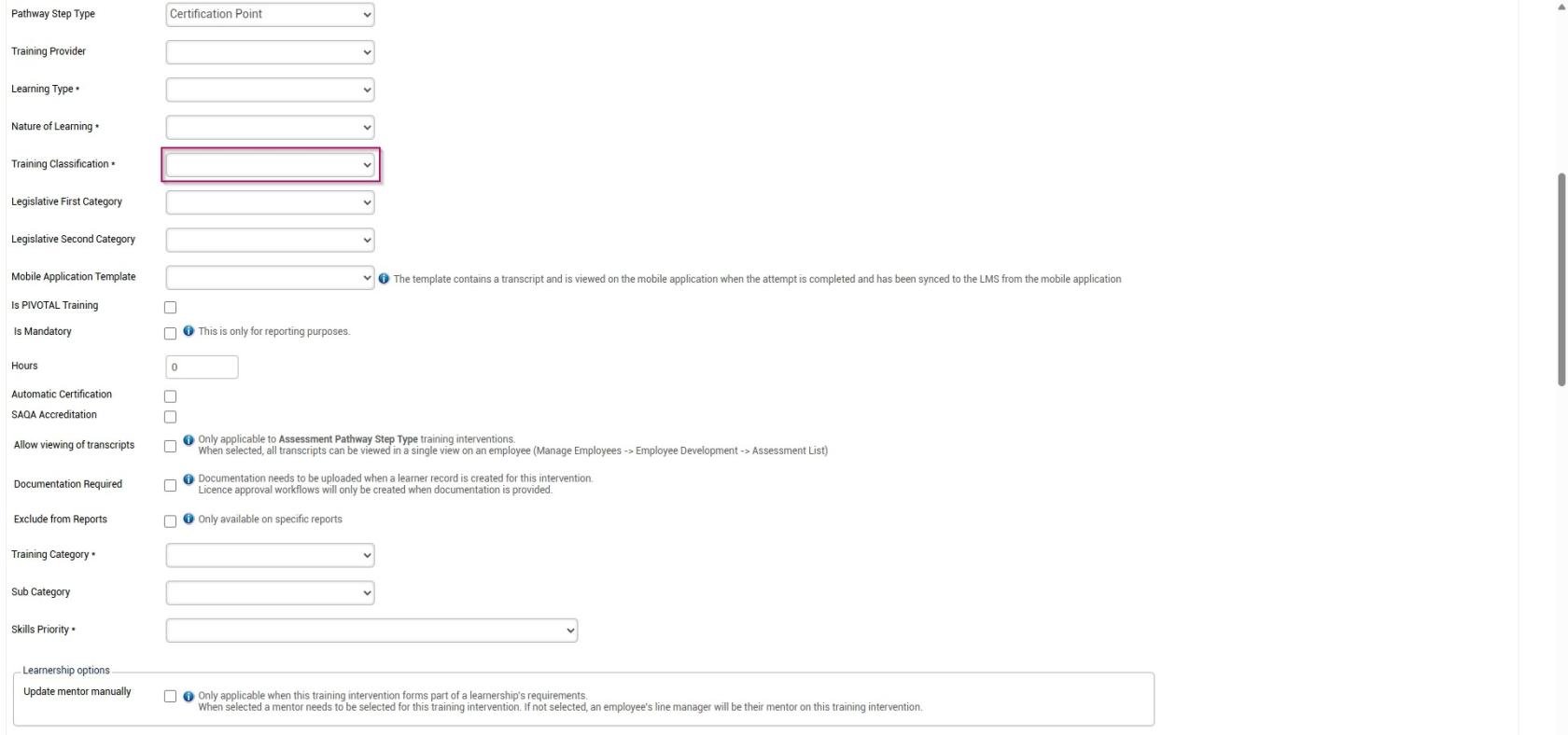
- Select the Training Category from the drop-down menu.
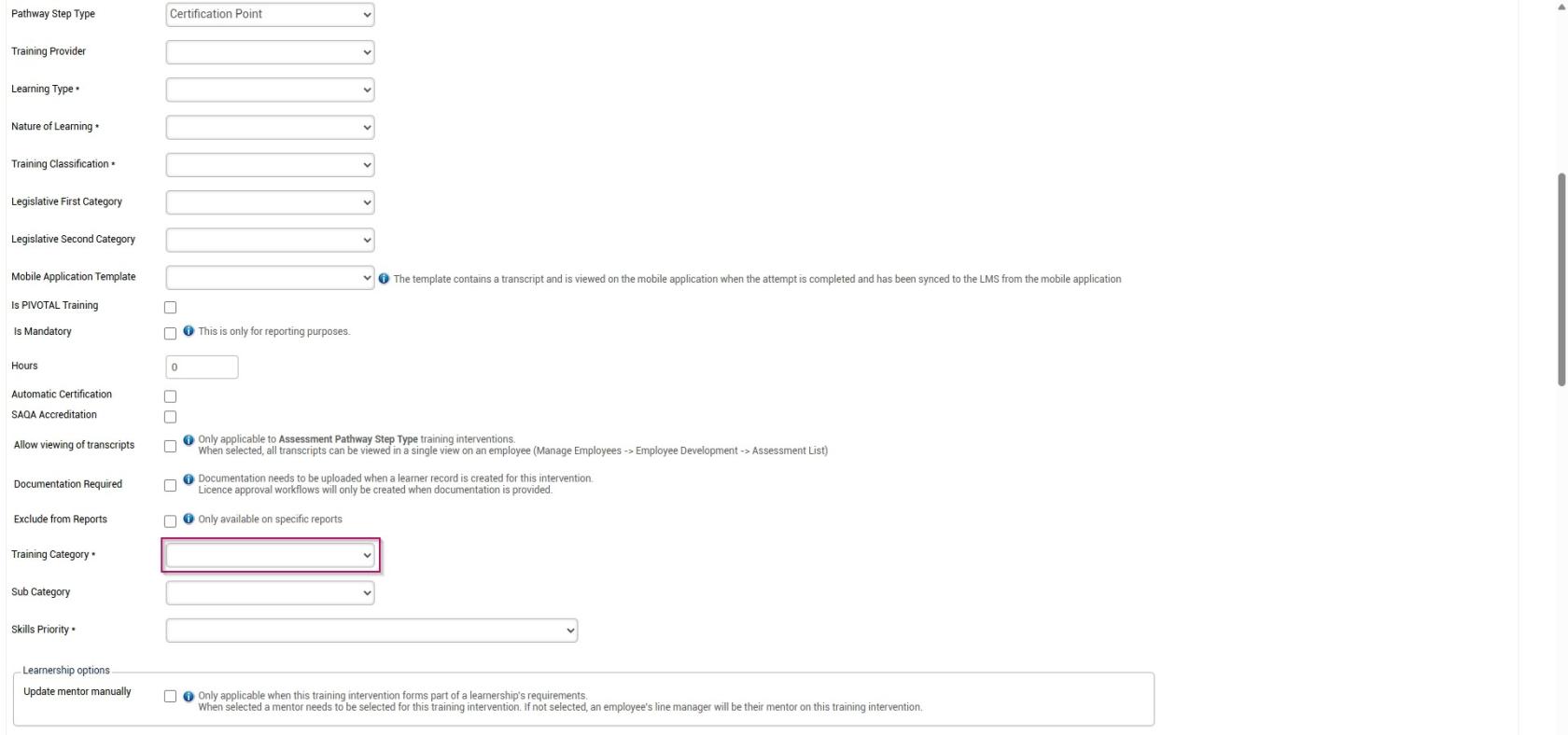
- Select the Skills Priority from the drop-down menu.
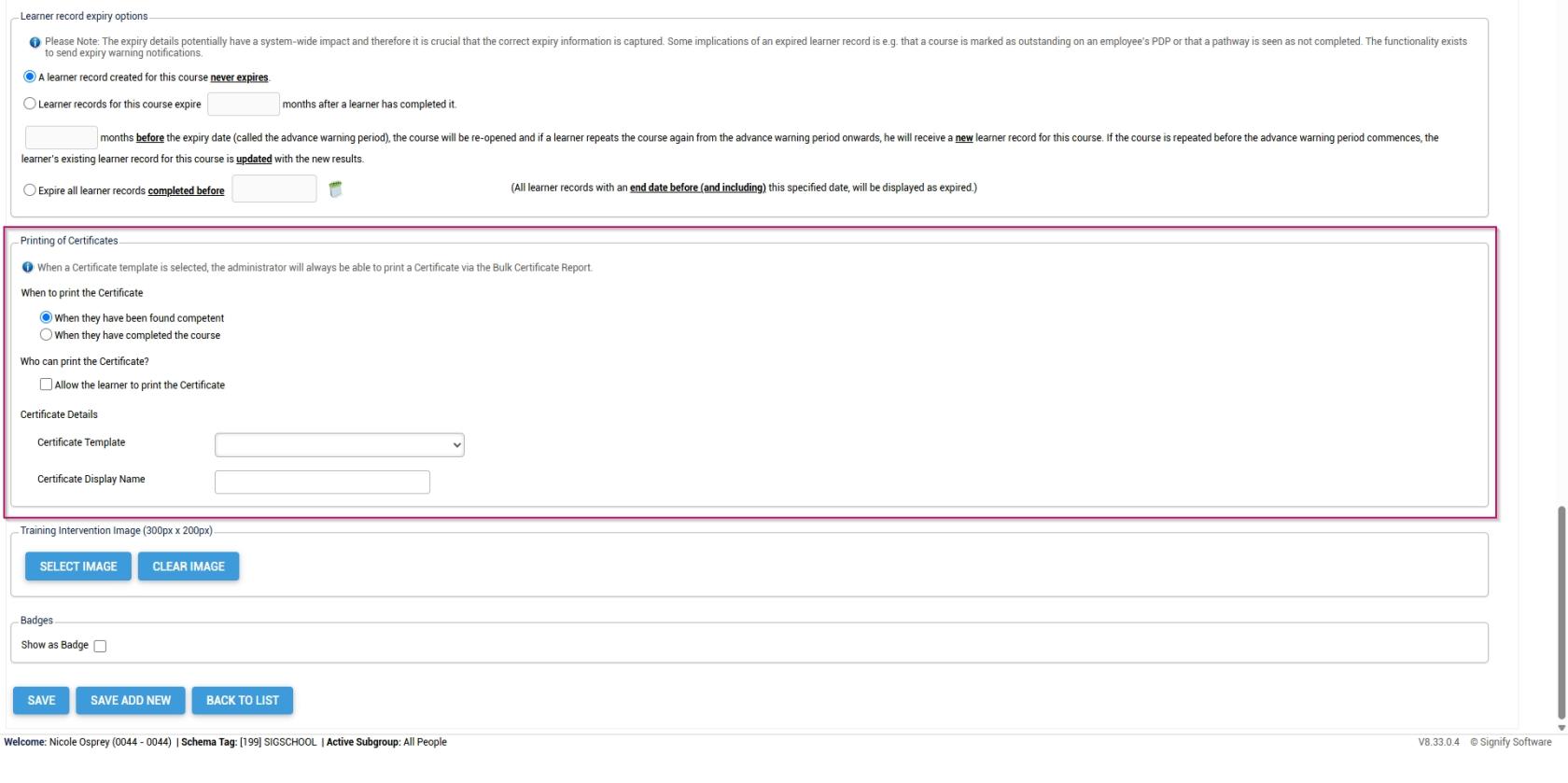
- Configure the settings for the expiry of learner records.

- Configure the settings for the printing of certificates.
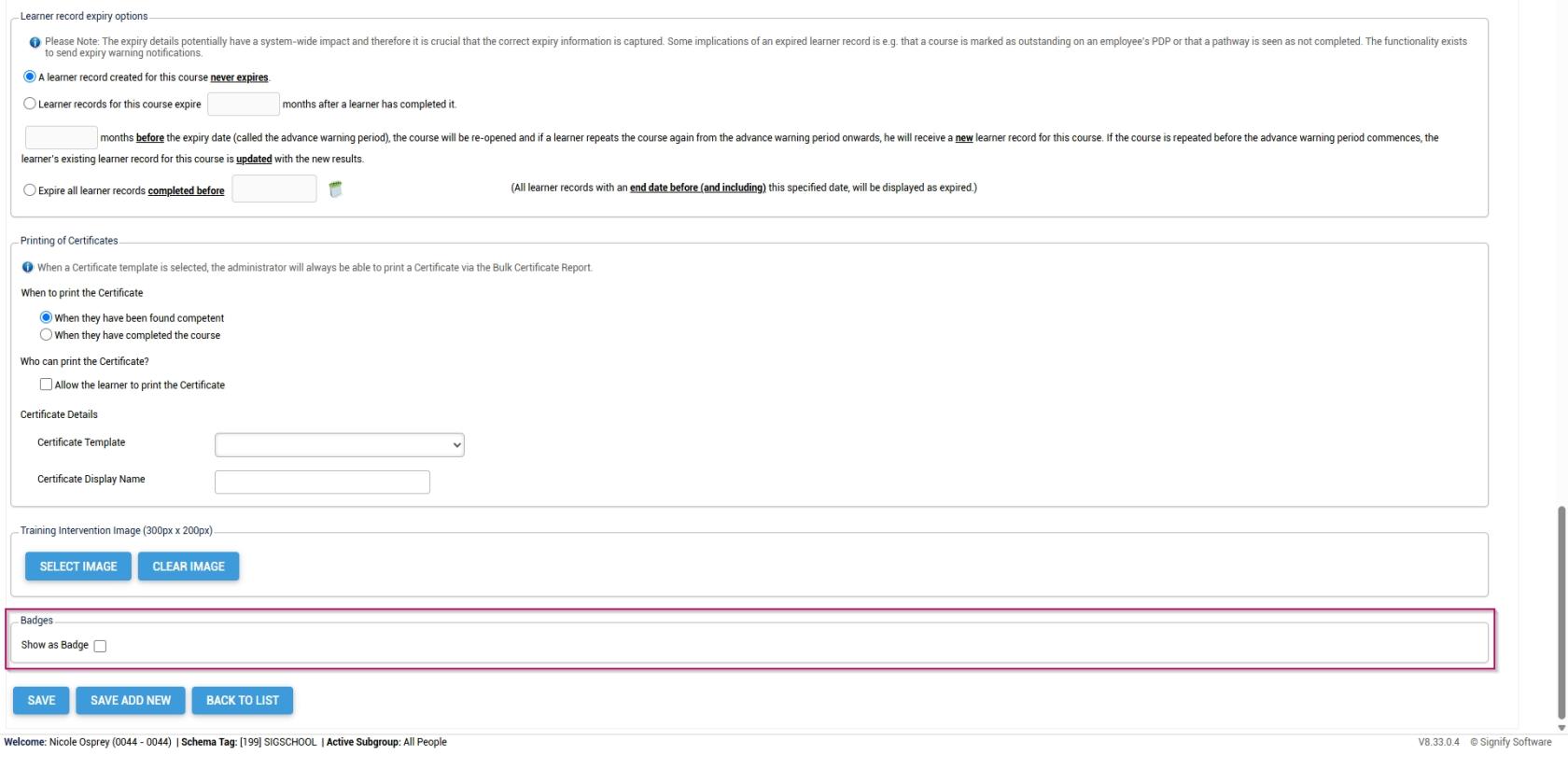
- If you employ a gamification strategy in your learning environment, you can display a completed course as a badge and assign points for leaderboard tracking.
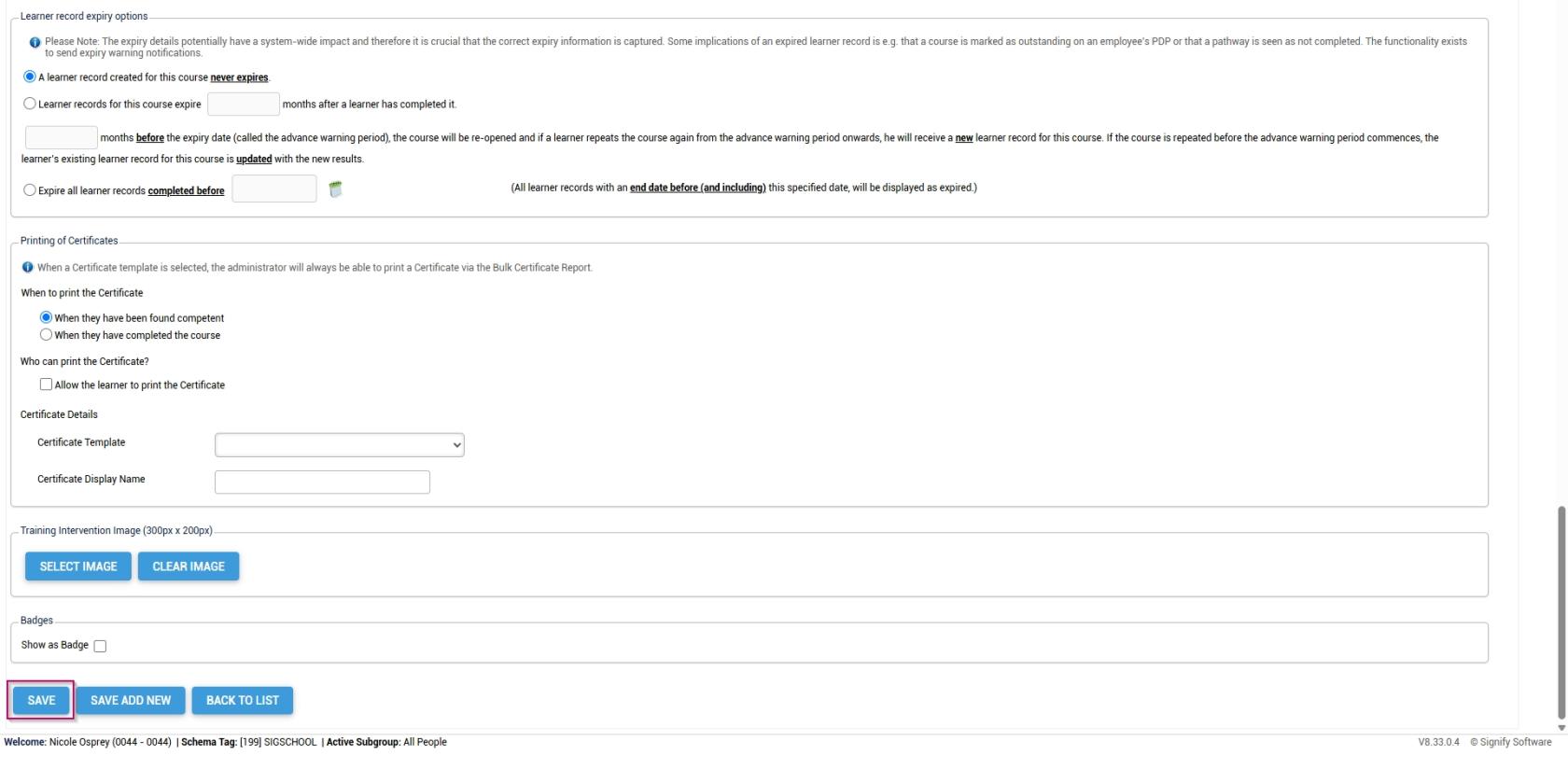
- Click SAVE when you are finished, SAVE ADD NEW to add another training intervention or click BACK TO LIST to discard your edits.
Method 2: Add training interventions using the import
- Hover over the sidebar menu, then click Learning Portal.
- Click the spanner icon to access the system's Administration menu.
- On the Learning Libraries card, click Training Interventions.
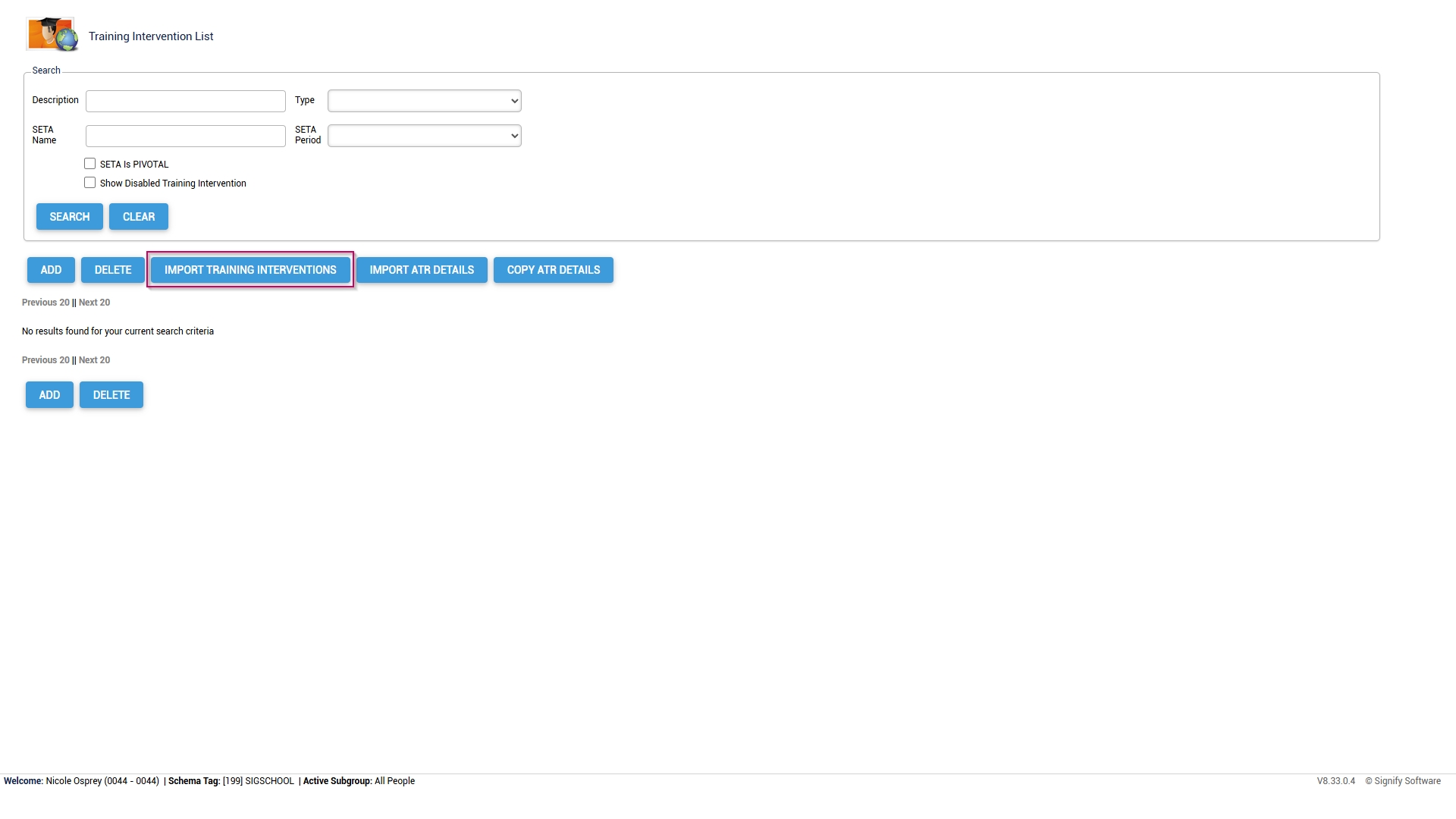
- The Training Intervention Library will open. This is where training interventions can be created, edited, or deleted. Click IMPORT TRAINING INTERVENTIONS to begin.
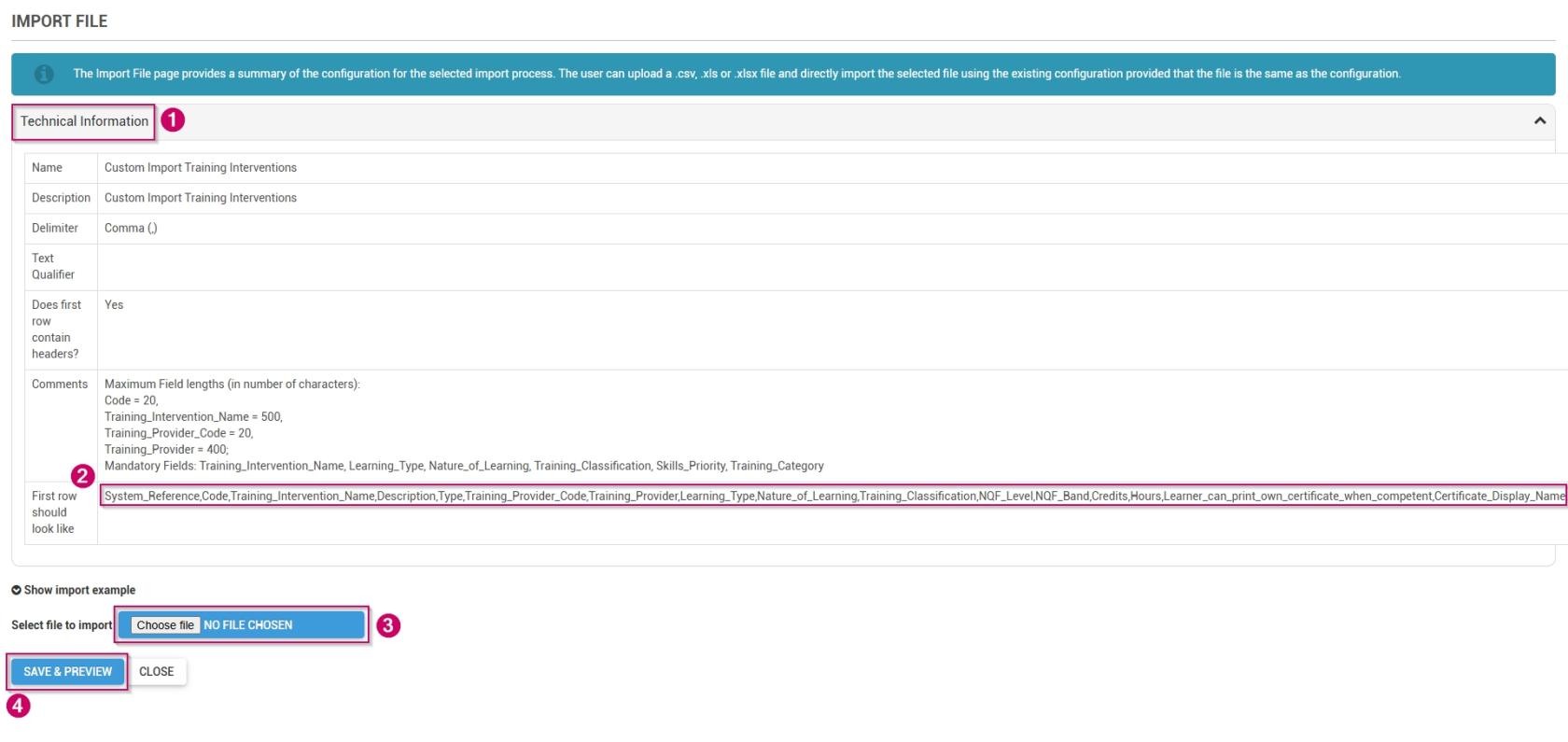
- Click on the Technical Information section.
-
- Take note of the maximum field lengths for each category.
-
- Copy the data in the section titled First row should look like.
-
- Use this data to construct a training intervention import file.
- For more information and a step-by-step guide on how to do this, go to the next section: Create a custom Training Intervention file in Excel.
-
- Once you have populated your training intervention document, click CHOOSE FILE to upload your import file as a .csv, .xls, or .xlsx.
- Click SAVE & PREVIEW.
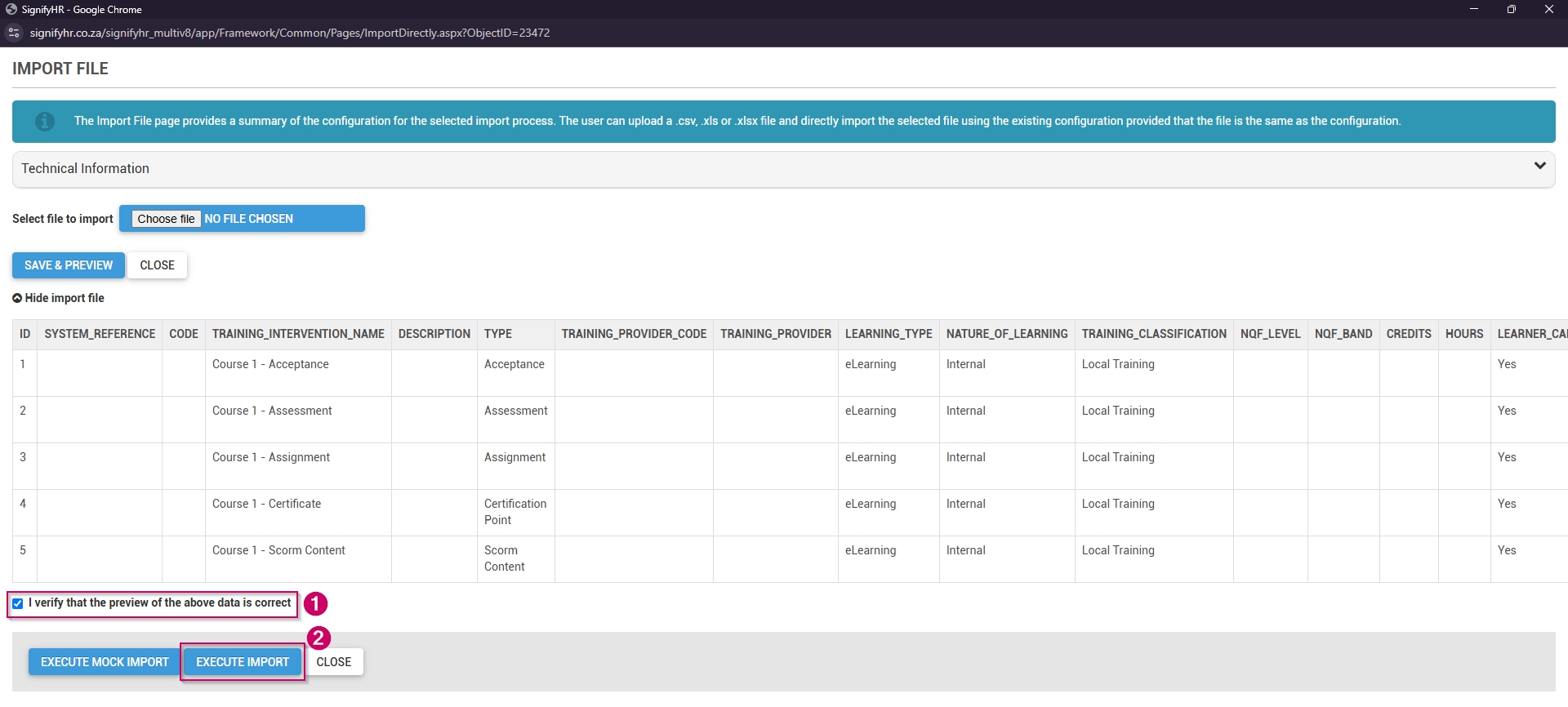
- Review the preview of your data import. If the data appears correct, tick the checkbox to confirm it.
- You are now ready to kick off the import.
-
- You can execute a mock import to ensure all the data displays correctly. This is recommended for very large import files. To do this, click EXECUTE MOCK IMPORT.
- If the data is ready to be imported, click EXECUTE IMPORT.
-
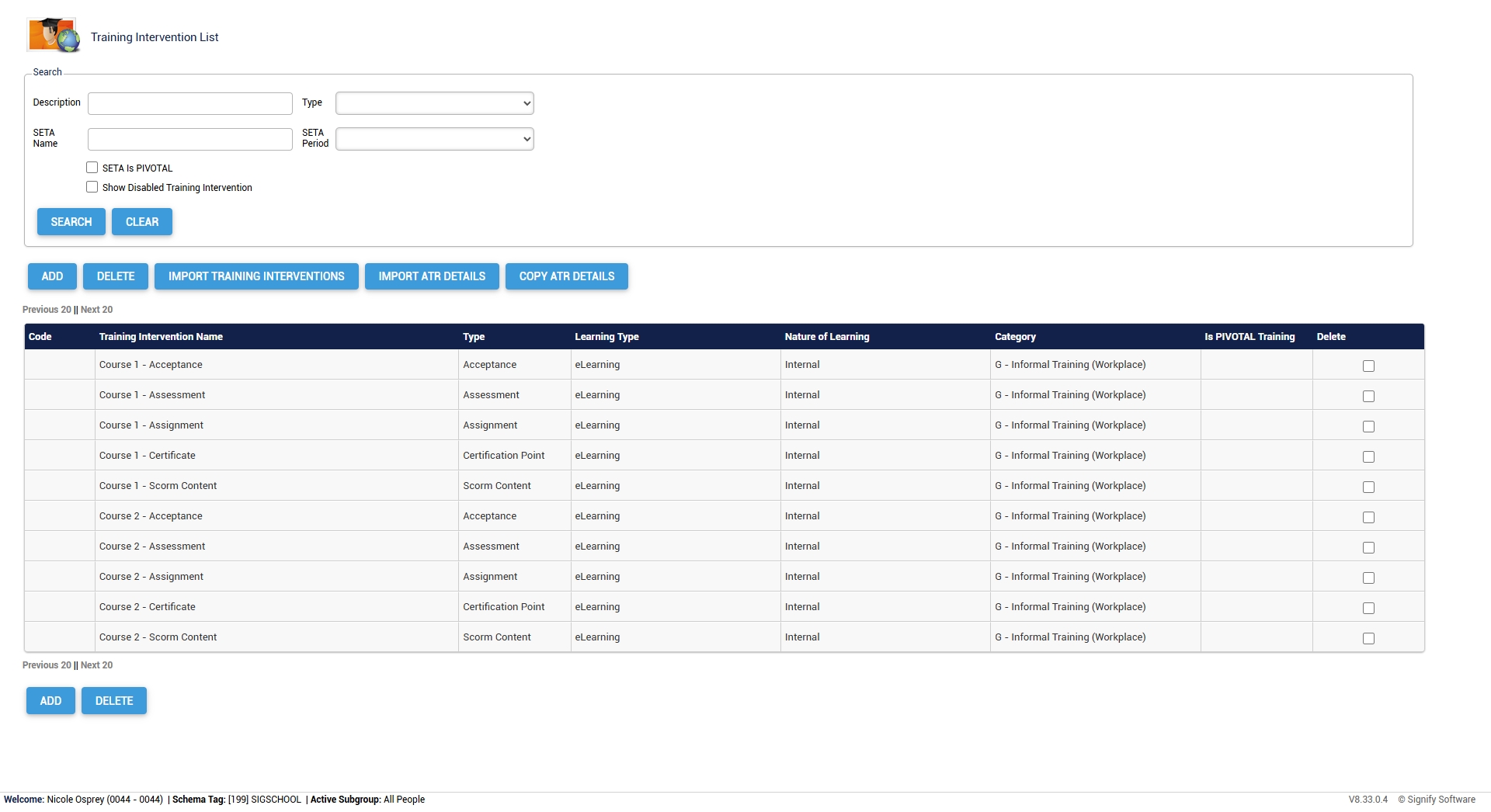
- Your Training Intervention Library is now populated with your new training interventions. If you do not see your training interventions, please refresh your browser window.
Create a custom Training Intervention file in Excel
- Copy the following information to your clipboard:
System_Reference,Code,Training_Intervention_Name,Description,Type,Training_Provider_Code,Training_Provider,Learning_Type,Nature_of_Learning,Training_Classification,NQF_Level,NQF_Band,Credits,Hours,Learner_can_print_own_certificate_when_competent,Certificate_Display_Name,Training_Scheduling_Category,Participants_Min,Participants_Max,Outcomes,Skills_Priority,Prerequisite,Training_Category,Log_to_Learner_Record,Learner_Record_Never_Expires,Advanced_Warning_Period,Expire_All_Learner_Records_Completed_Before,Learner_Records_Expiry,Exclude_From_Reports,WSP_ATR_Category,PTP_PTR_Category,DocumentationRequired,AllowViewingTranscripts,IsPivotalTraining,IsMandatory,Mobile_Application_Template,Automatic_Certification,SAQA_Accredited,Update_Mentor_Manually,ImageUrl,BadgeUrl,ShowBadgeWhen,MinPoints,MaxPoints,MinScore,MaxScore,BadgeExpiryMonths,BadgeShowScoreDistributionGraph,BadgeShowLeaderboard
- Open the Excel application and create a new workbook.
- Paste the information into the first cell of the new workbook.
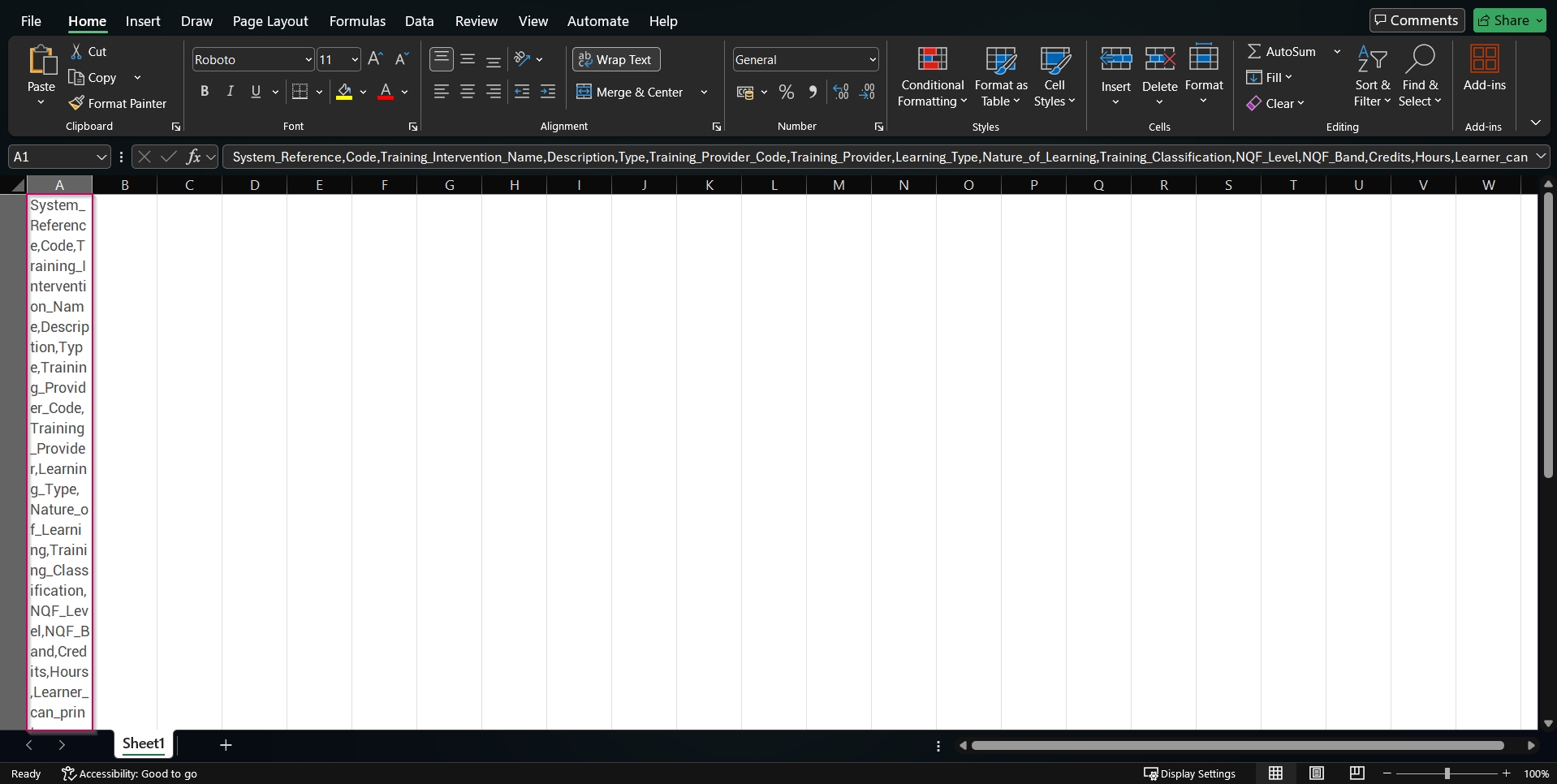
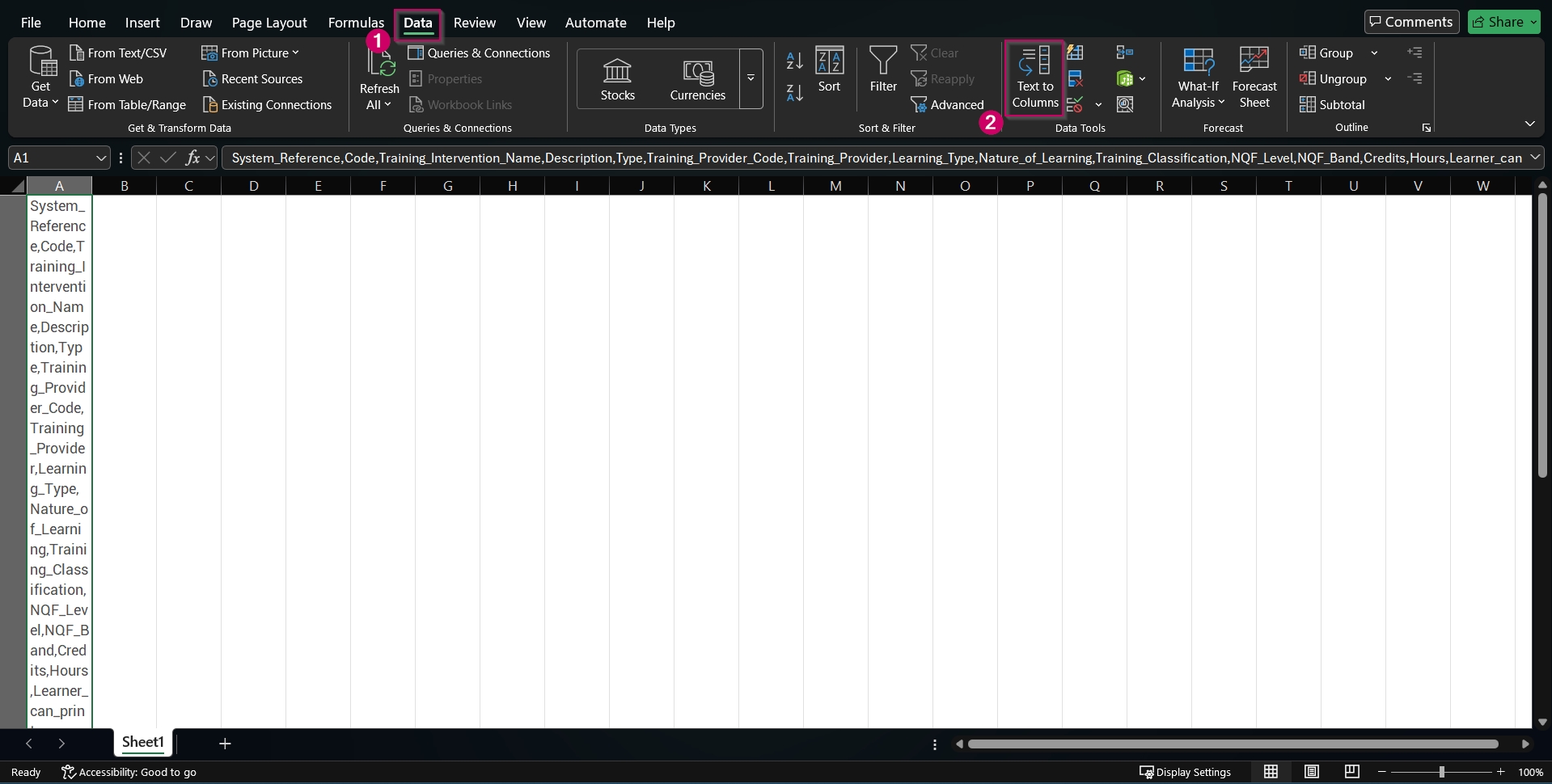
- Ensuring the first cell is selected, navigate to the Data tab. Click the Text to Columns option in the Data Tools section.
- The Convert Text to Columns Wizard will pop up. Click the Delimited radio button, then click Next.
- In the Delimiters section, ensure ONLY the Comma checkbox is ticked, then click Next.
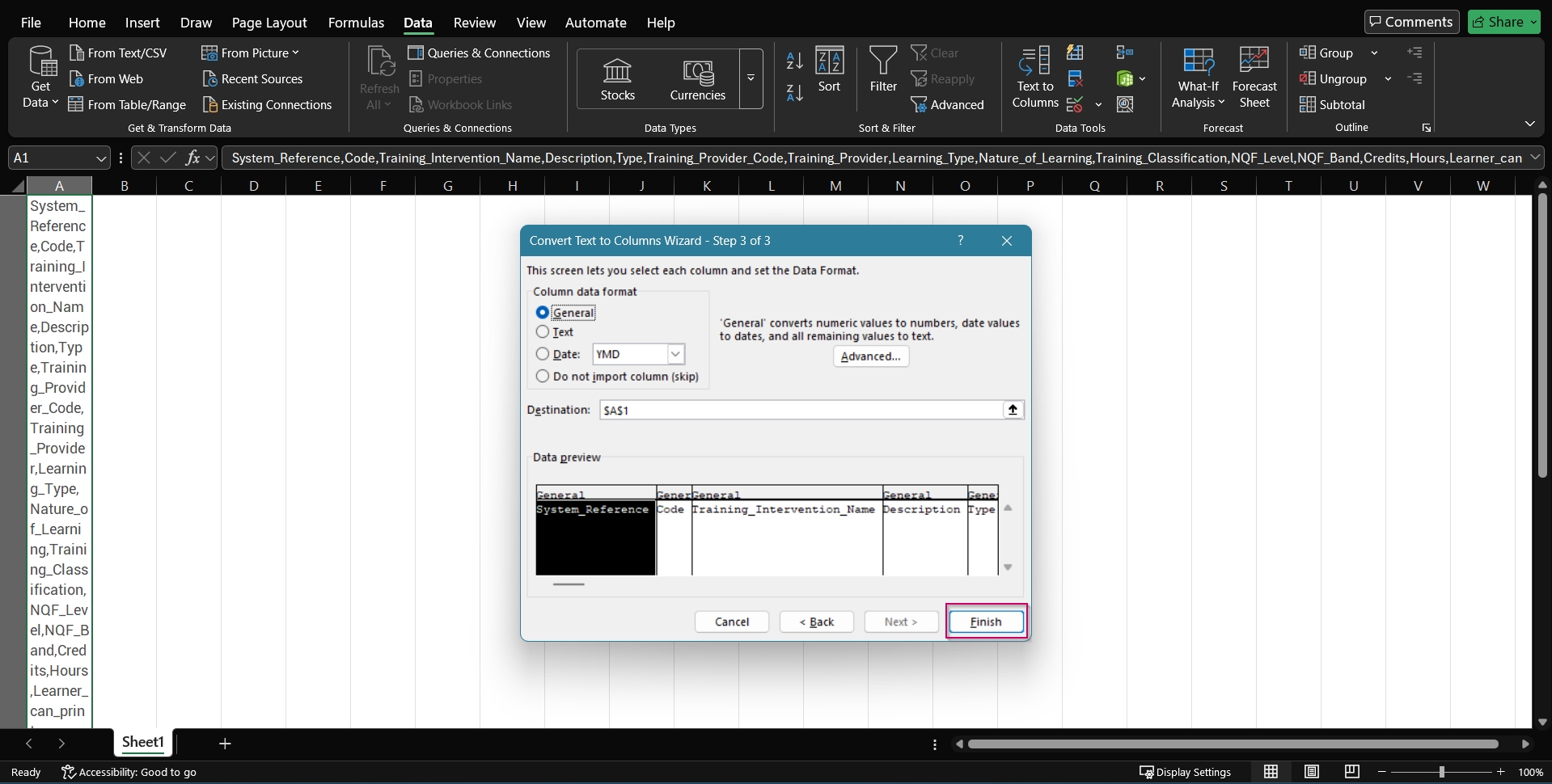
- Click Finish.
- Your file is now ready to be populated.
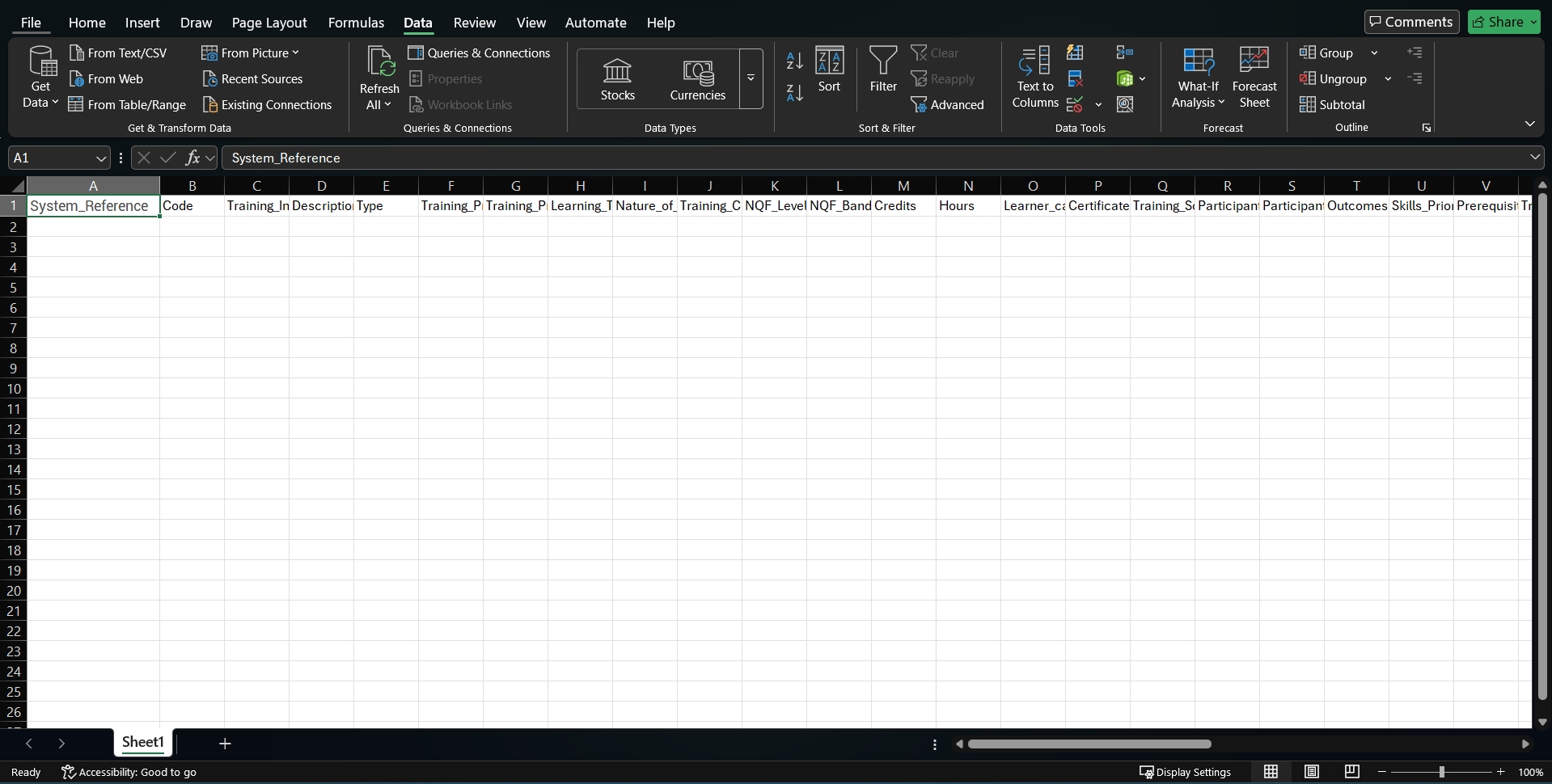
- Please do not enter any data into the System_Reference or Code columns, as these will be updated automatically.
- Save the Excel workbook as a .csv, .xls, or .xlsx file, then use it to import training interventions.
Importing assessments
For this example, we will import assessments into the system. For more information on building assessments using the Assessment Builder module, please refer to the Assessment Builder guide.
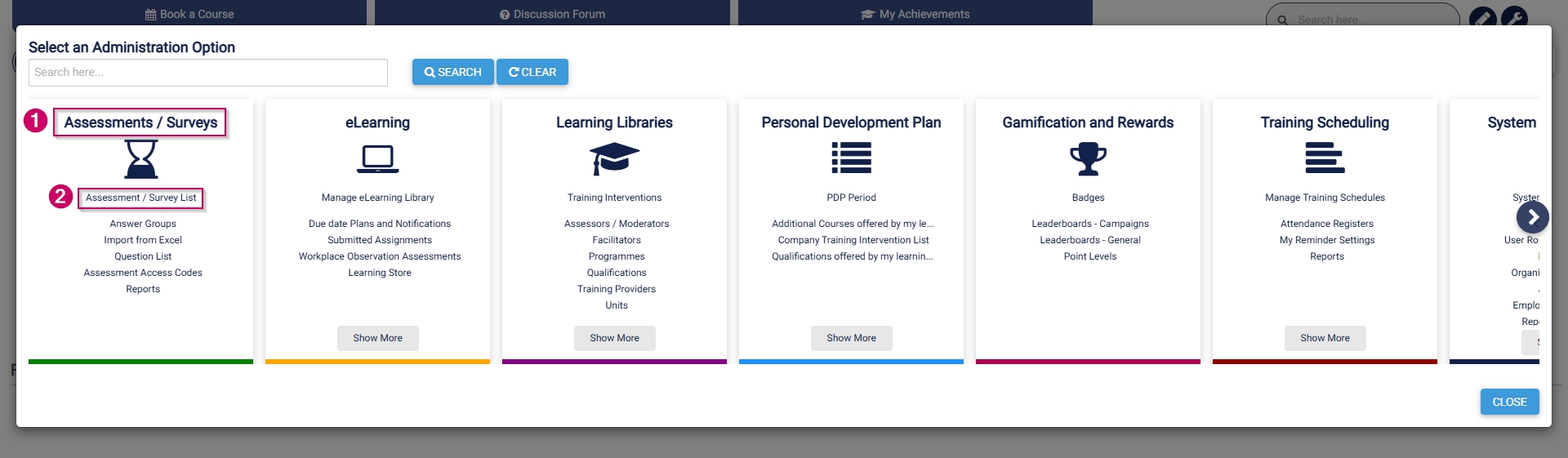
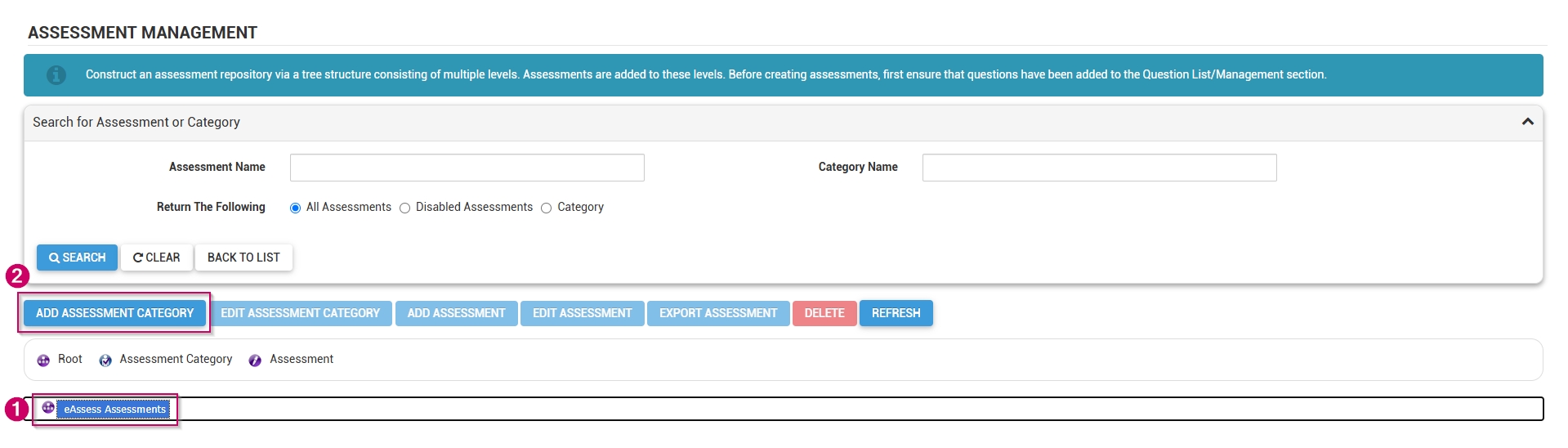
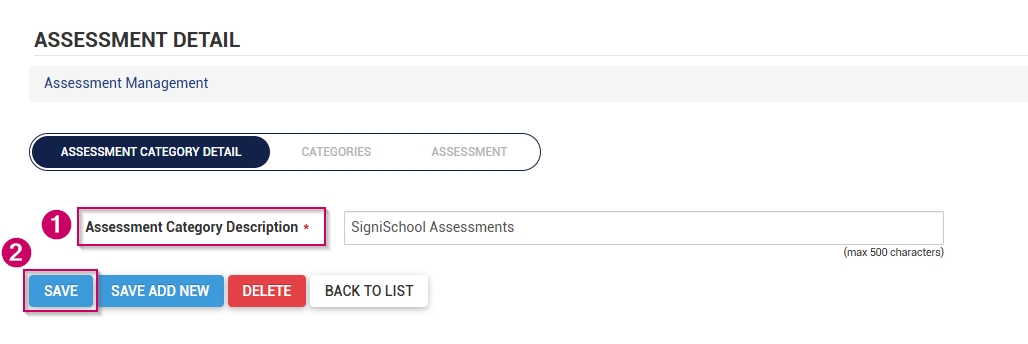
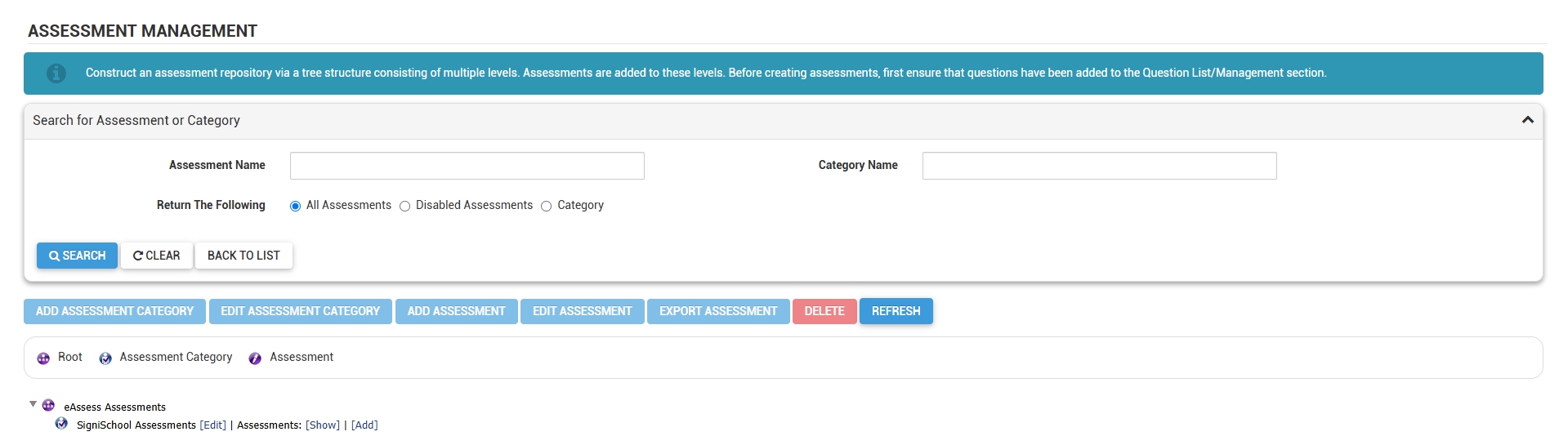
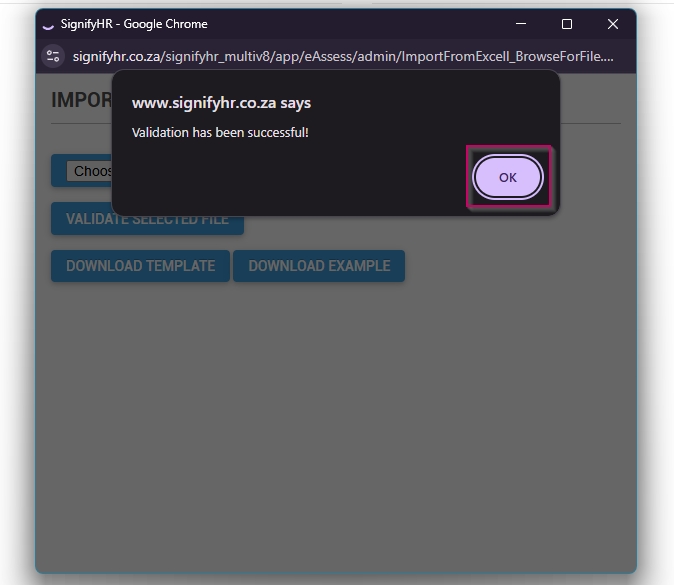
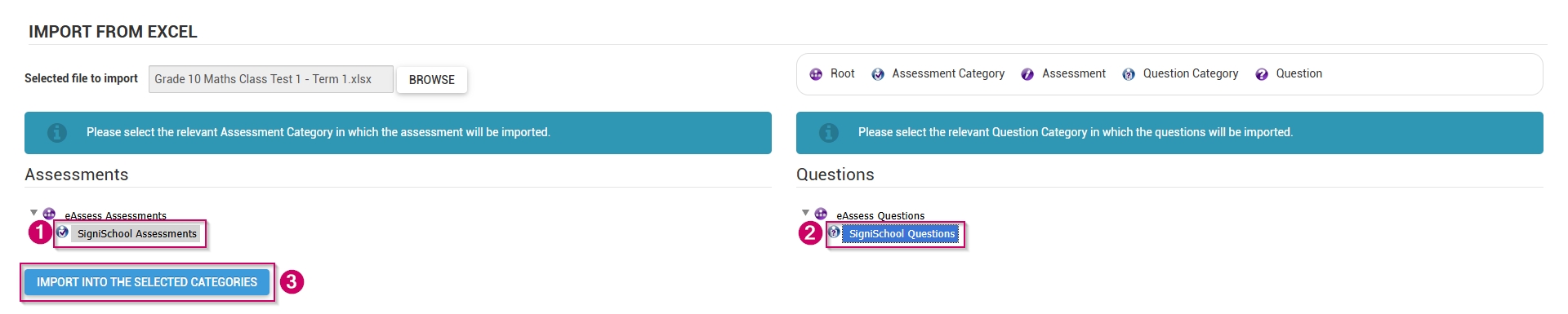
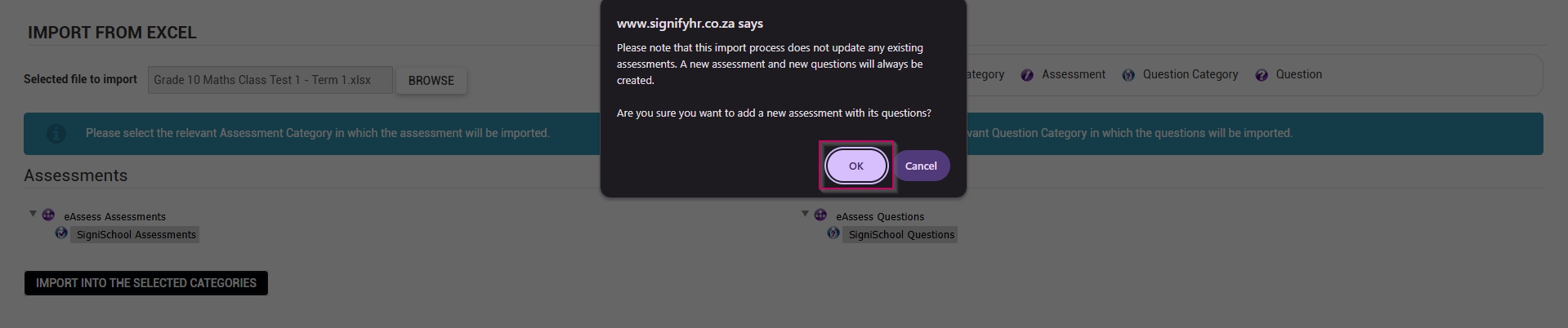
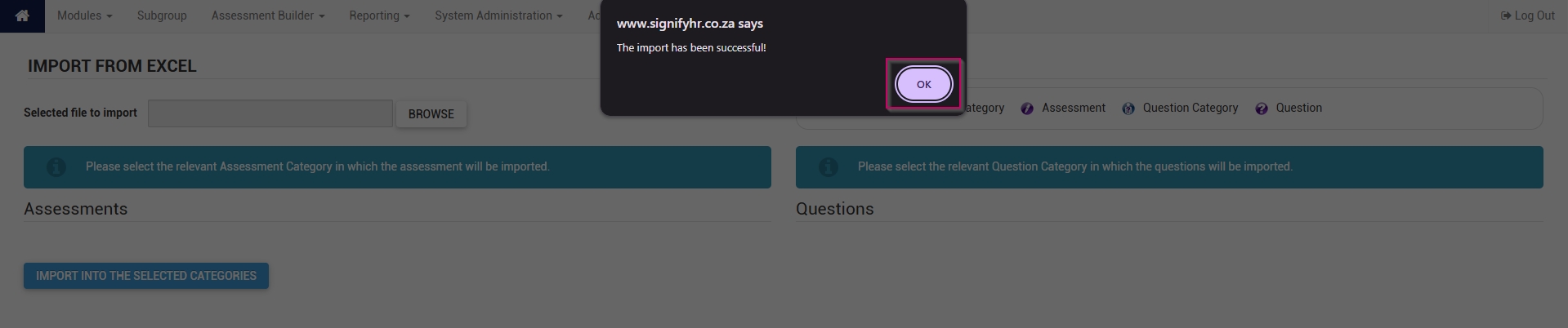
If options should be randomised, ensure the answer order for each option is 0 in column AY. When providing standard feedback (in column AV), ensure that each option has feedback. Adding feedback to one option will not apply it to the others. Should your import fail, download the error export file, and check the feedback provided in the Status column (column AZ). Follow the instructions to correct the assessment, then re-upload the file. Click CHOOSE FILE to upload your assessment, then click VALIDATE SELECTED FILE.

Create learning pathways
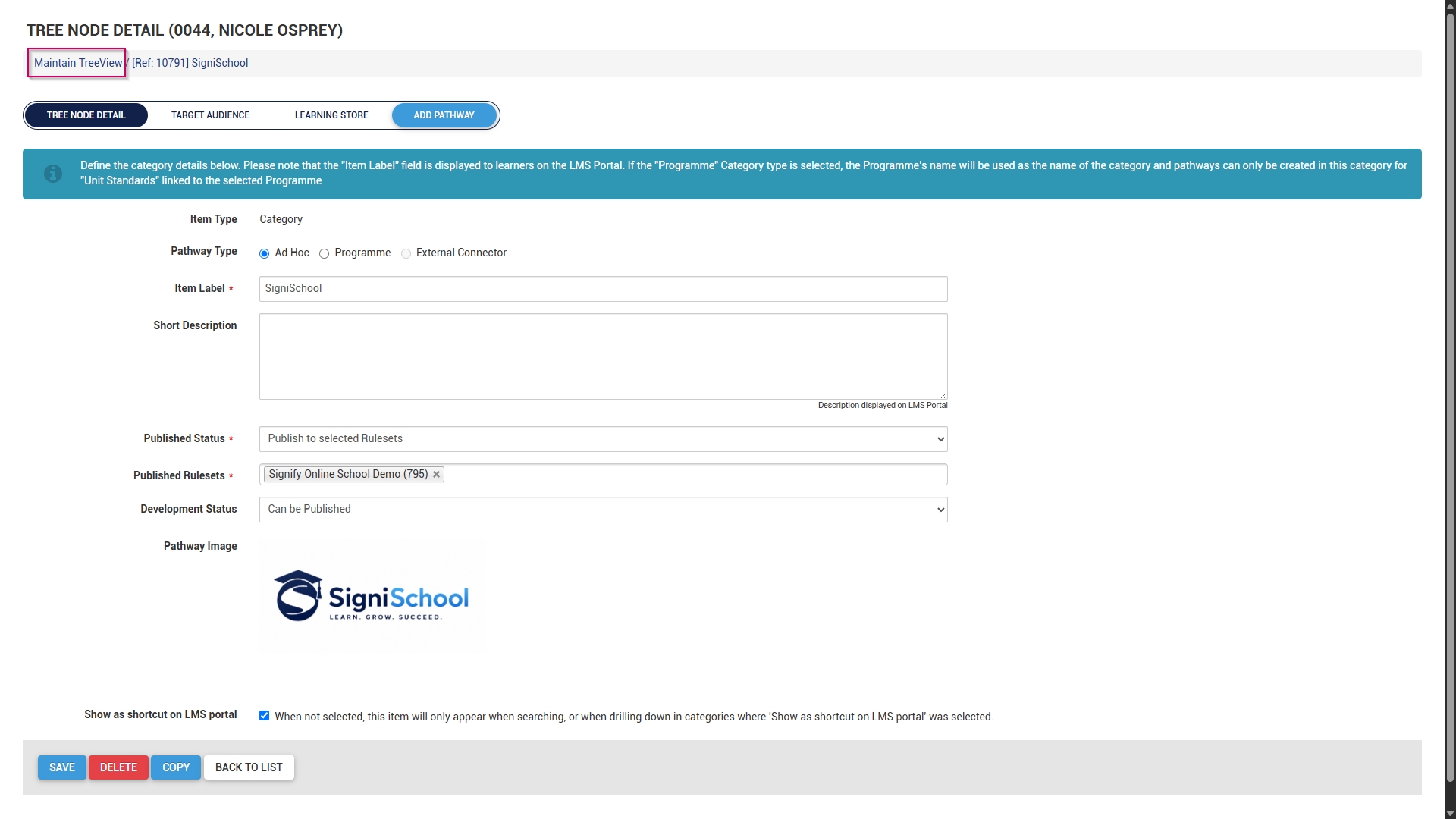
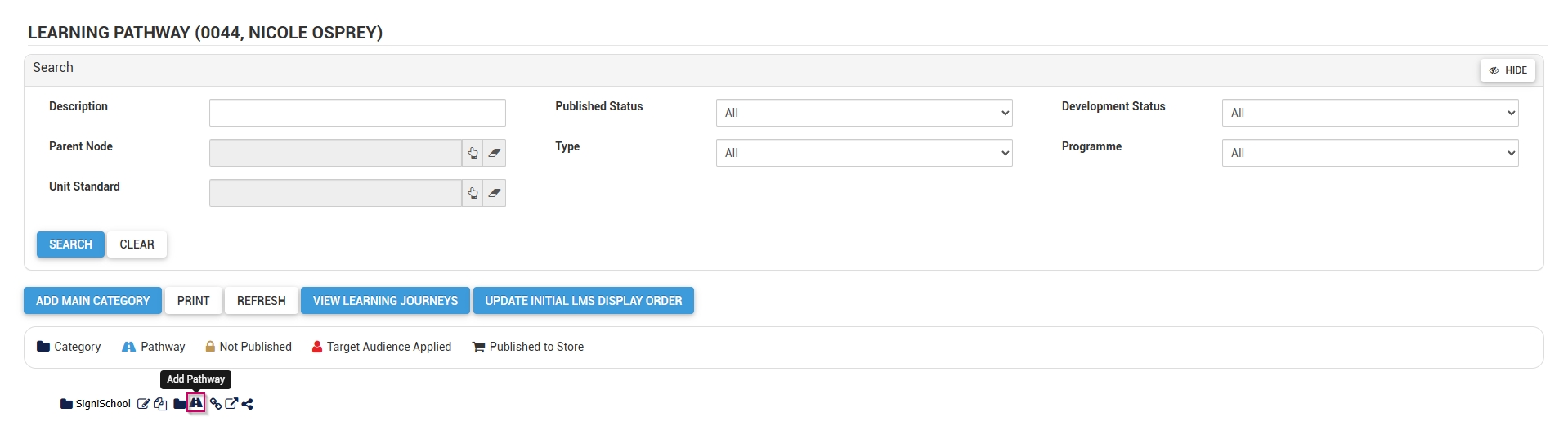
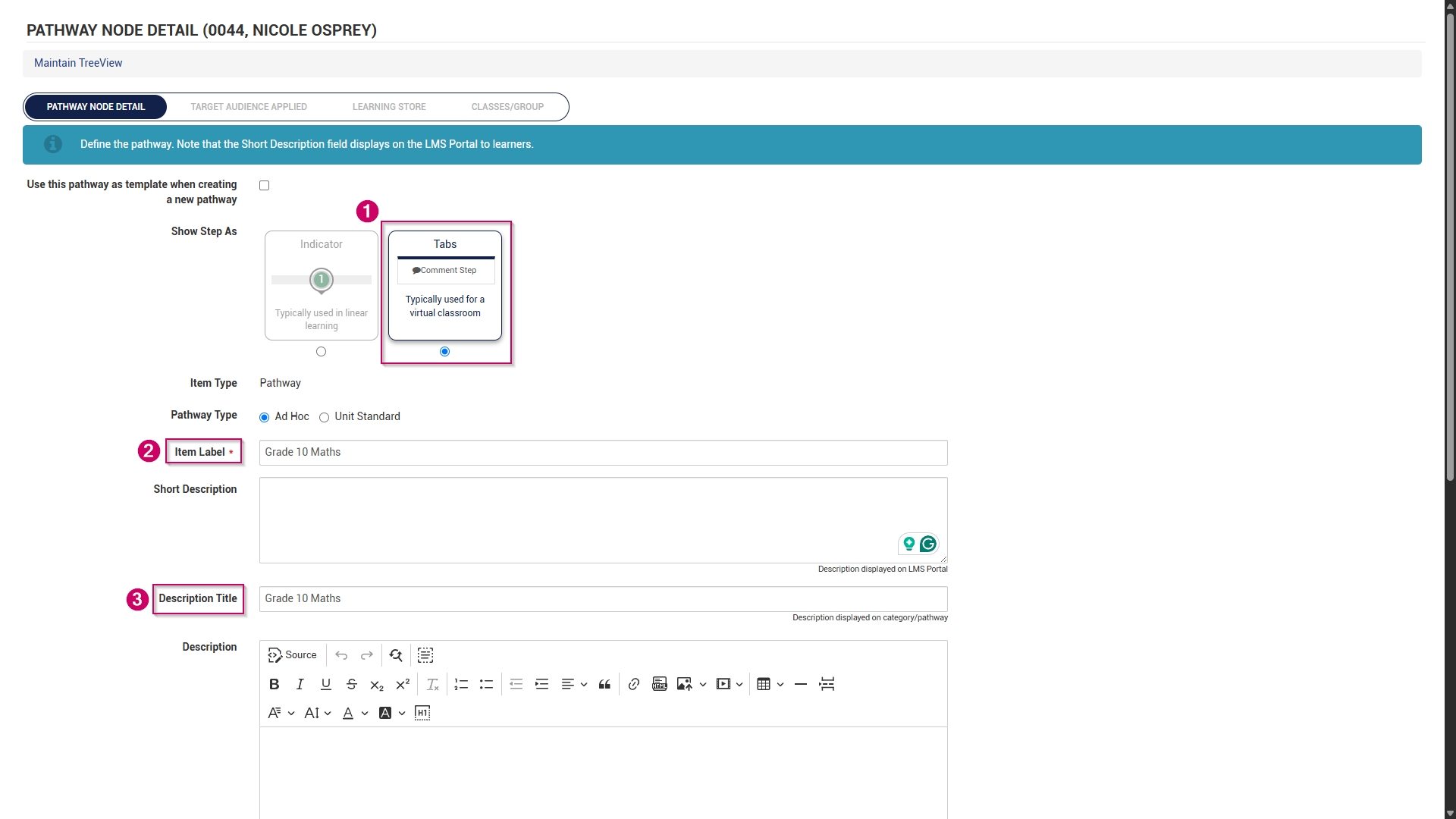
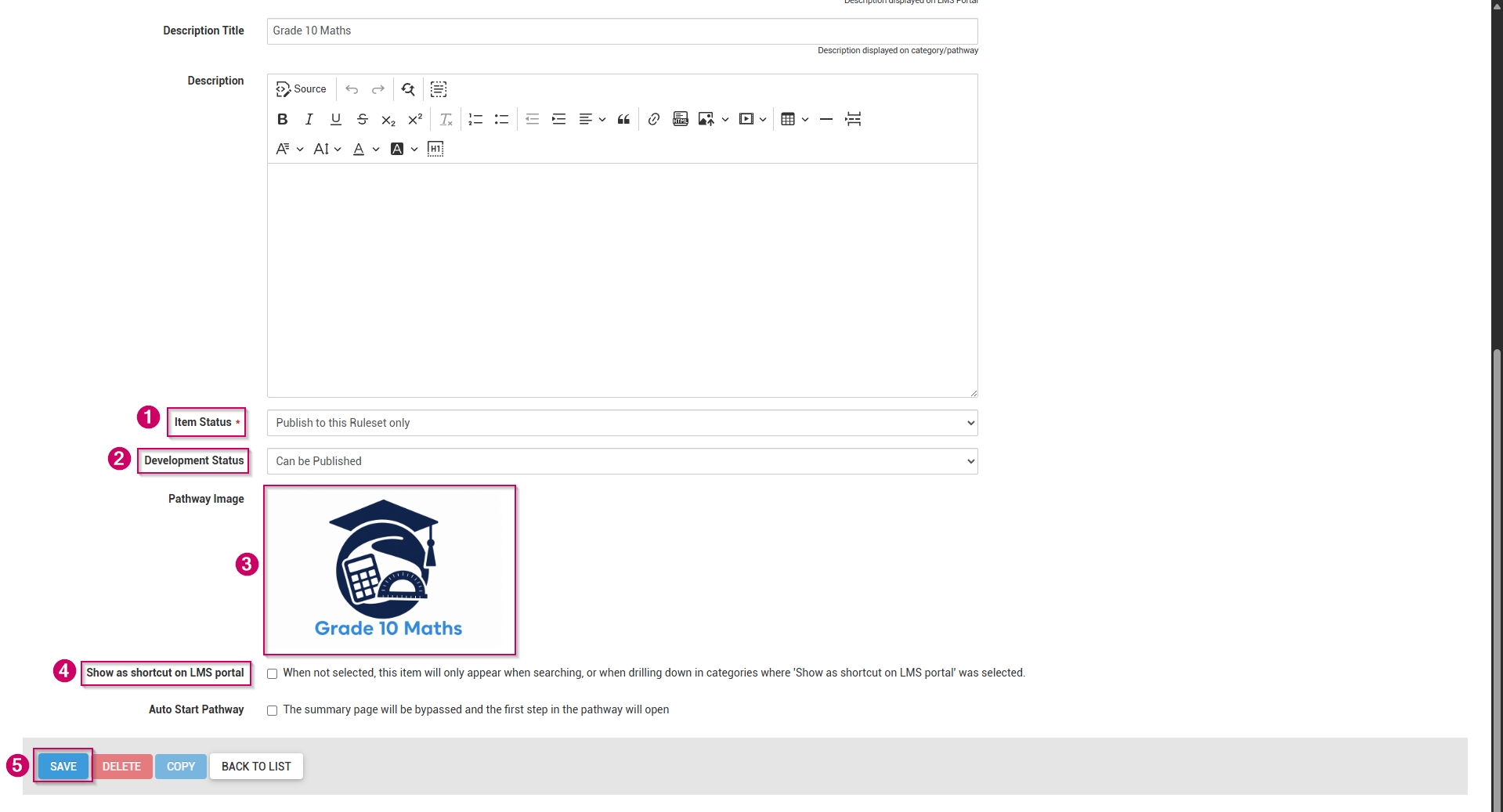
Starting with pathways

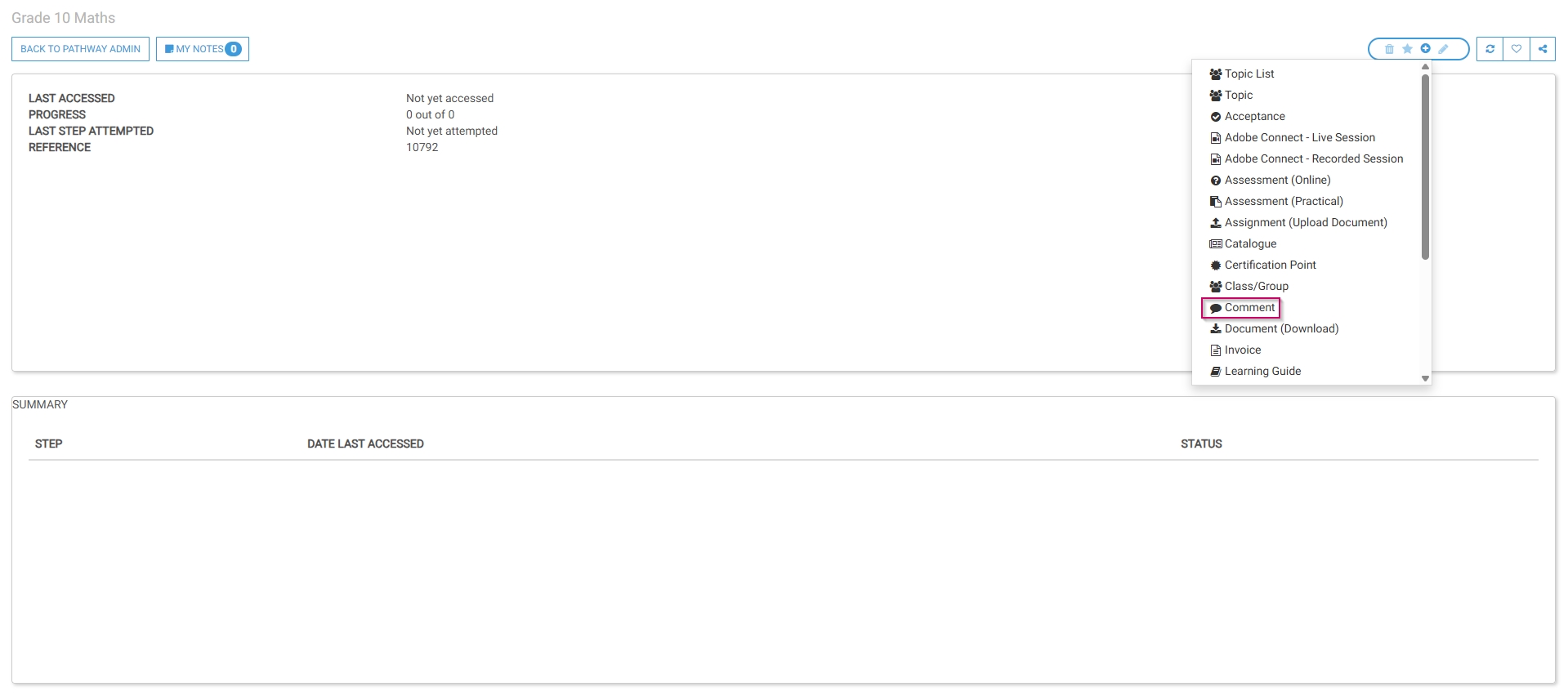
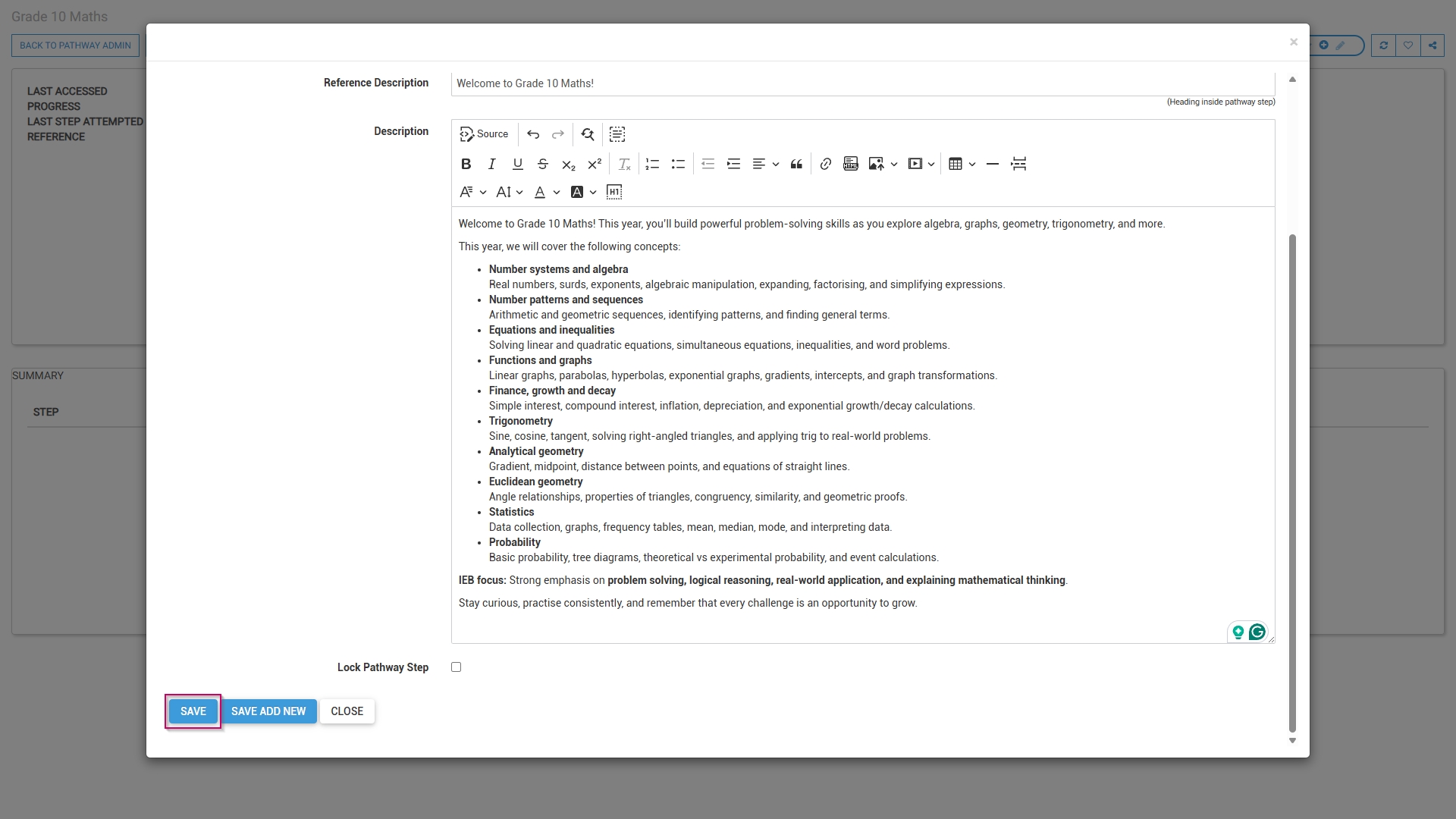
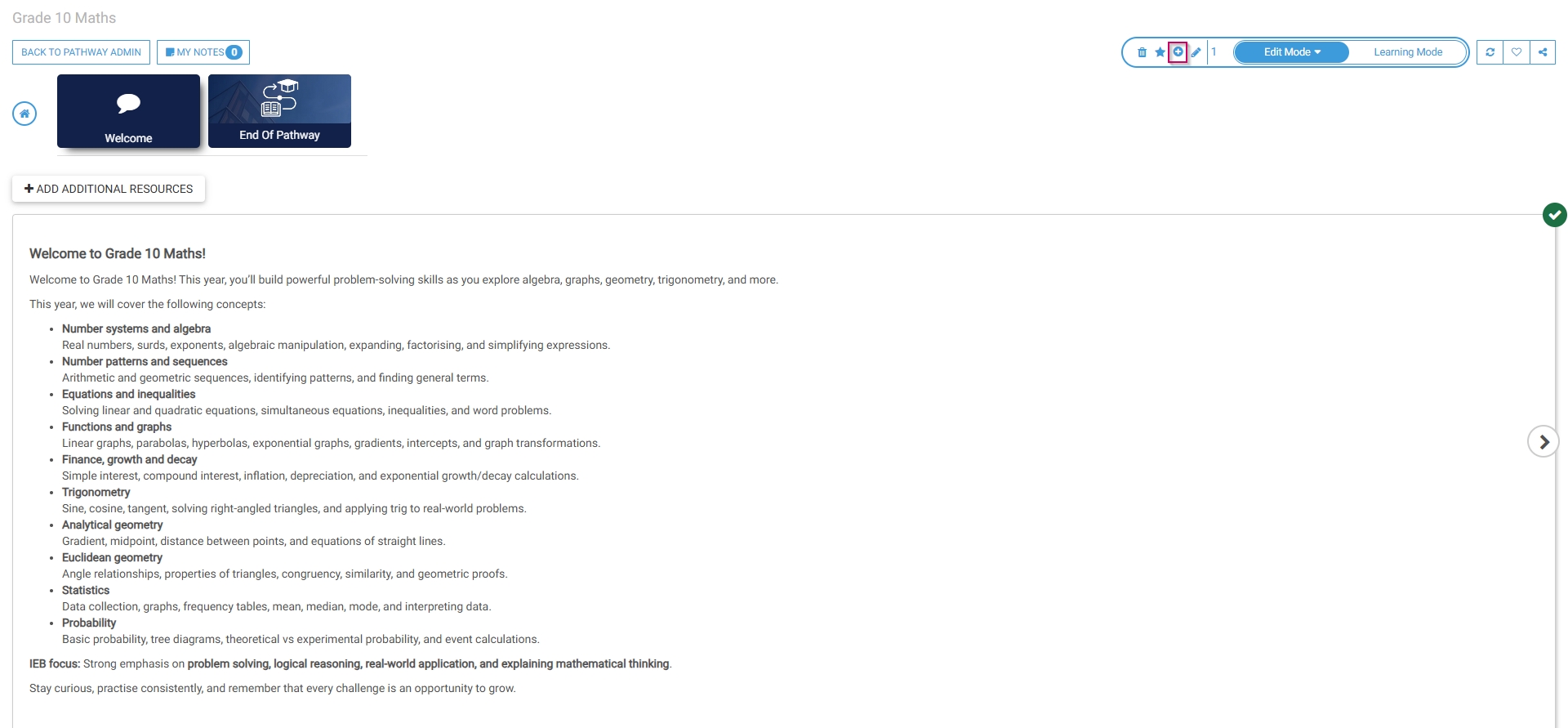
- Comment
- Document (Download)
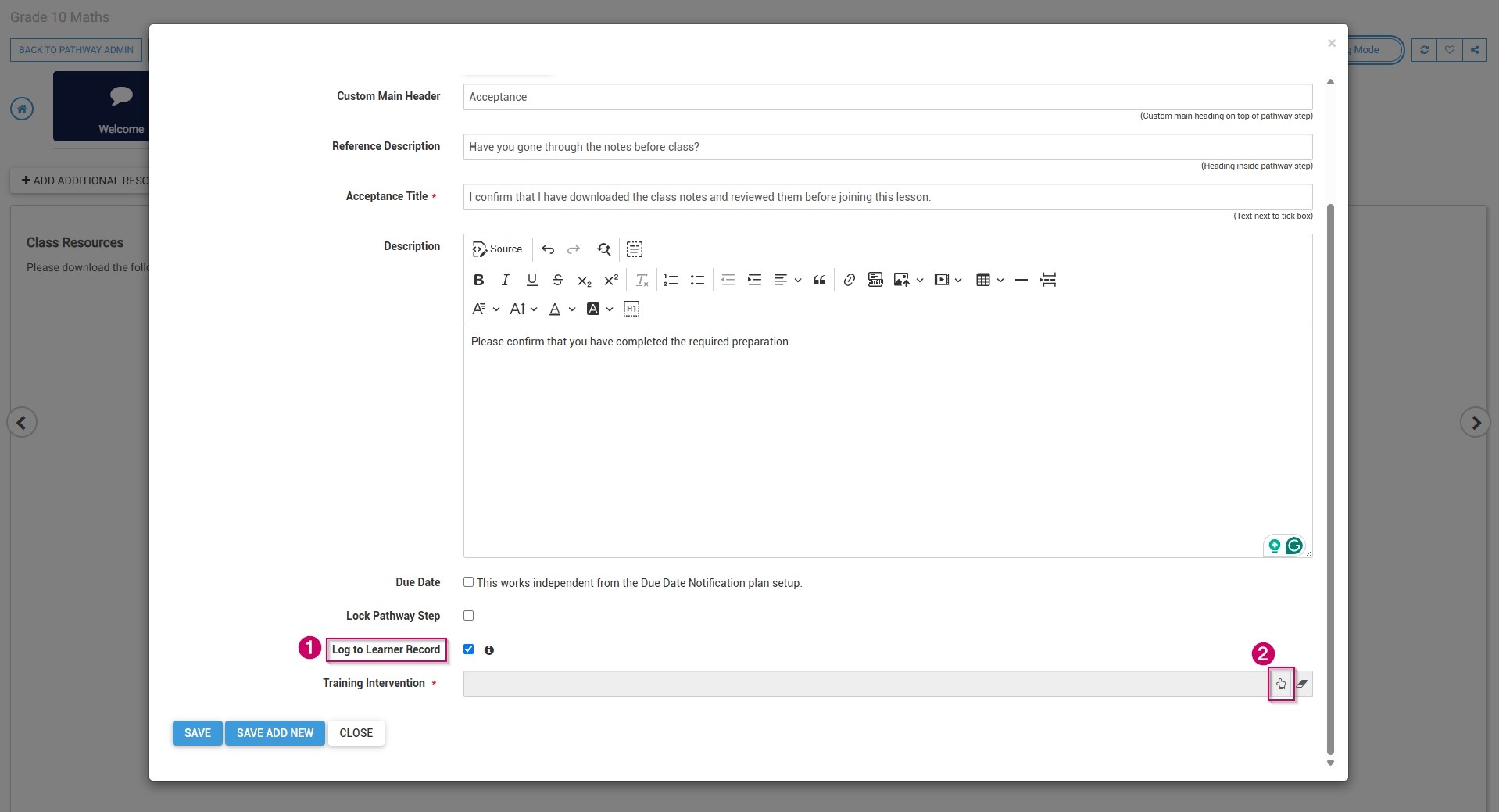
- Acceptance
- SCORM/xAPI
Assessment (Online) Assignment (Upload) Certification point Class/Group Feel free to include any additional step types not covered in this guide.
Comment

Document (Download)
Acceptance
Add a description for this step.

SCORM/xAPI
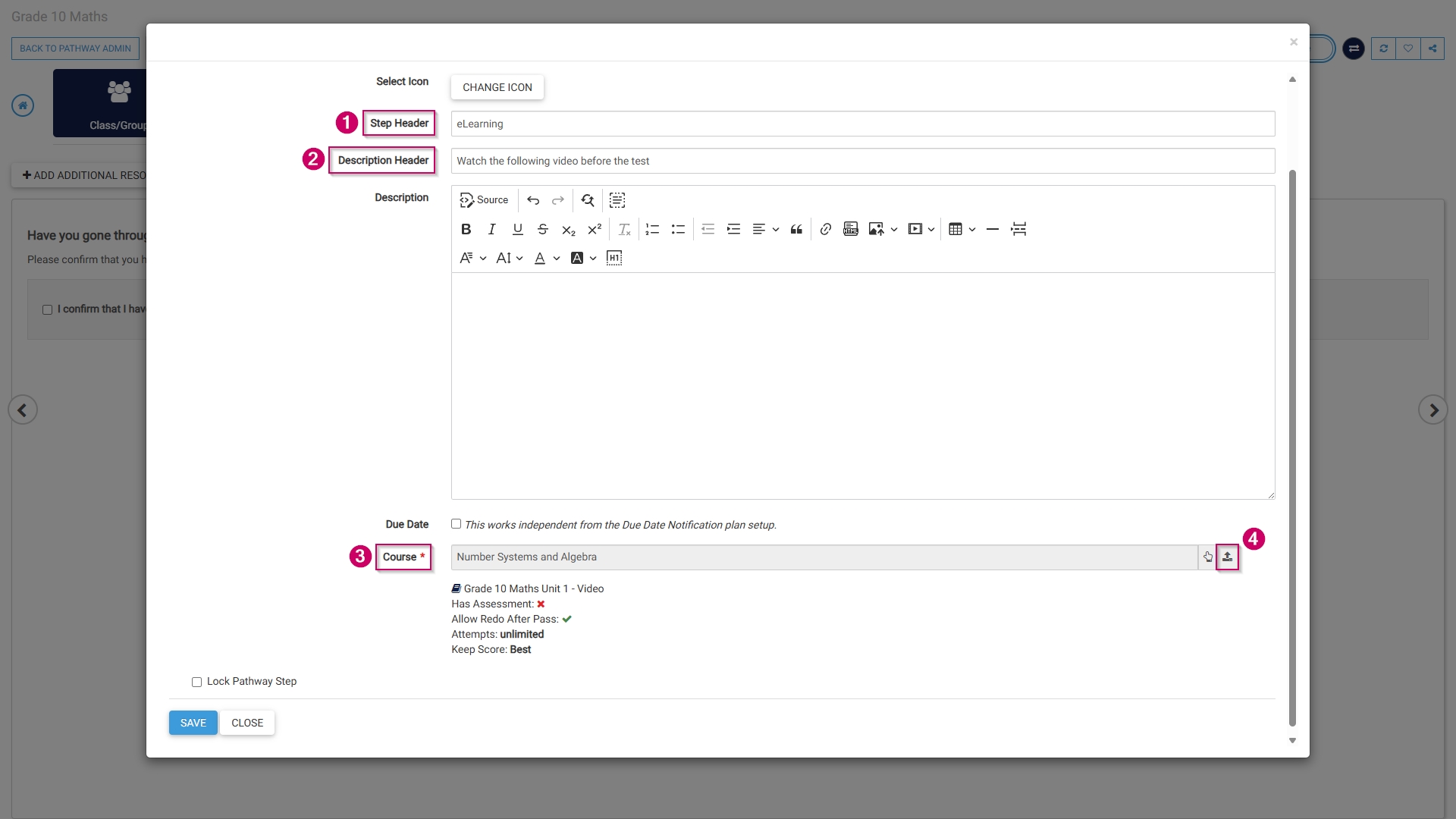
Assessment (Online)
Add a description for this step. Click SAVE when you are finished, SAVE ADD NEW to add another assessment step or click CLOSE to discard your edits.
Assignment (Upload Document)
Add a description for this step. To log this step in the learner's record, check the box, then click the hand icon to select a training intervention to associate with this step.
Certification point
Add a description for this step.
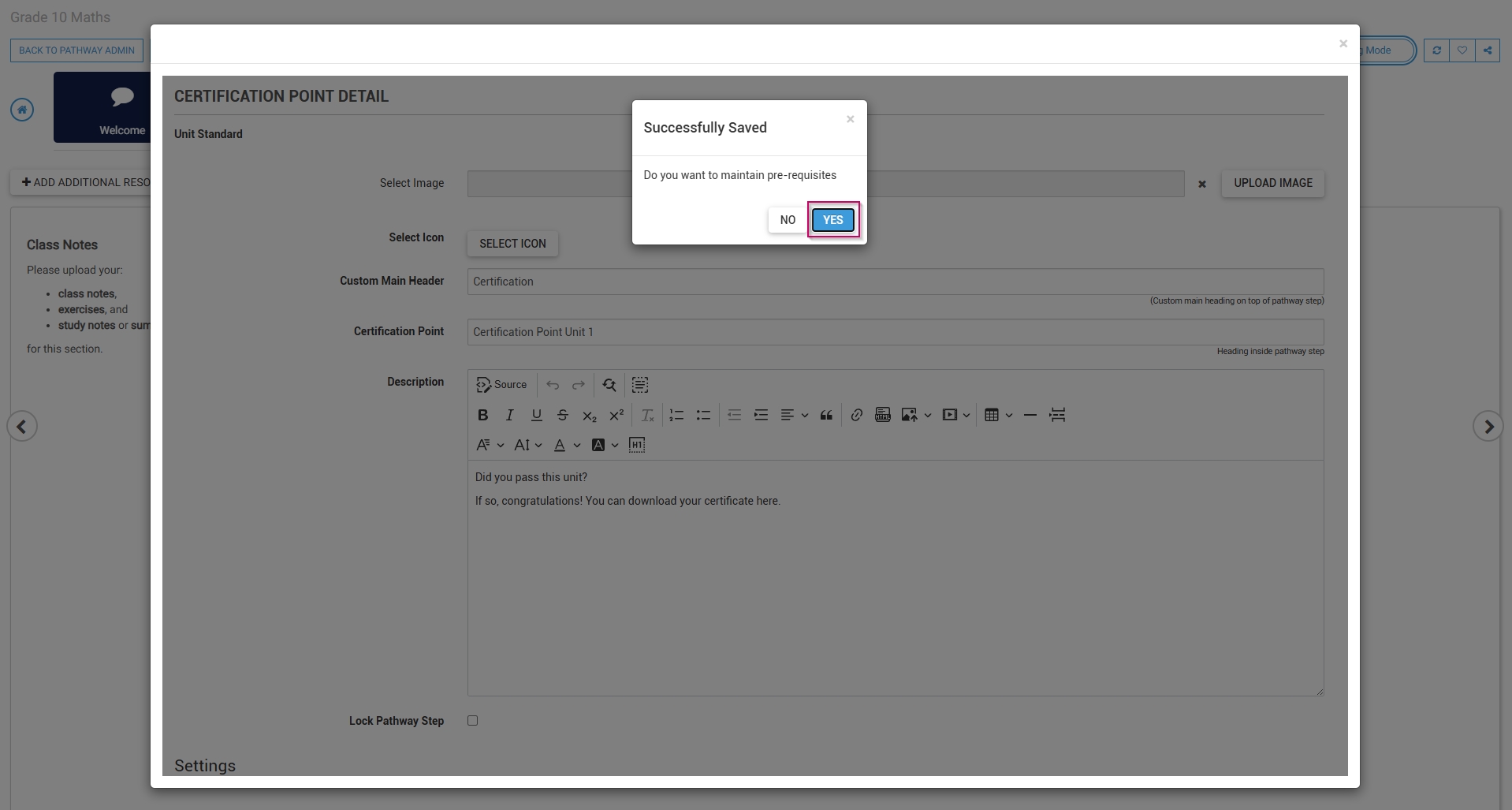

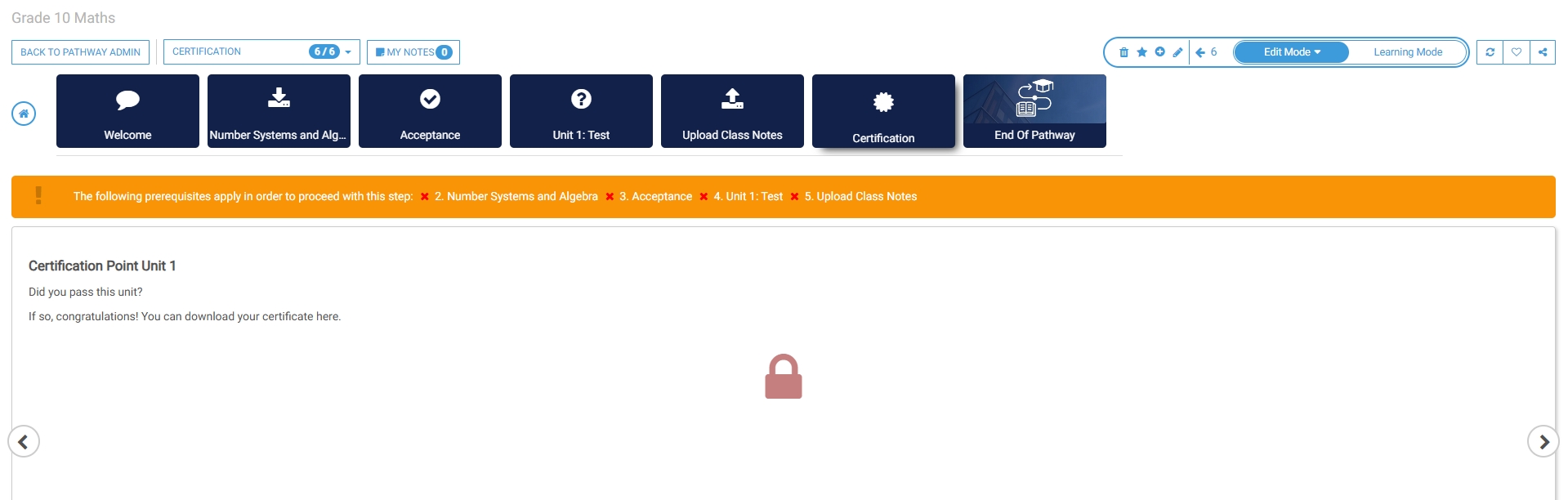
The certification point step has been successfully added to the pathway.
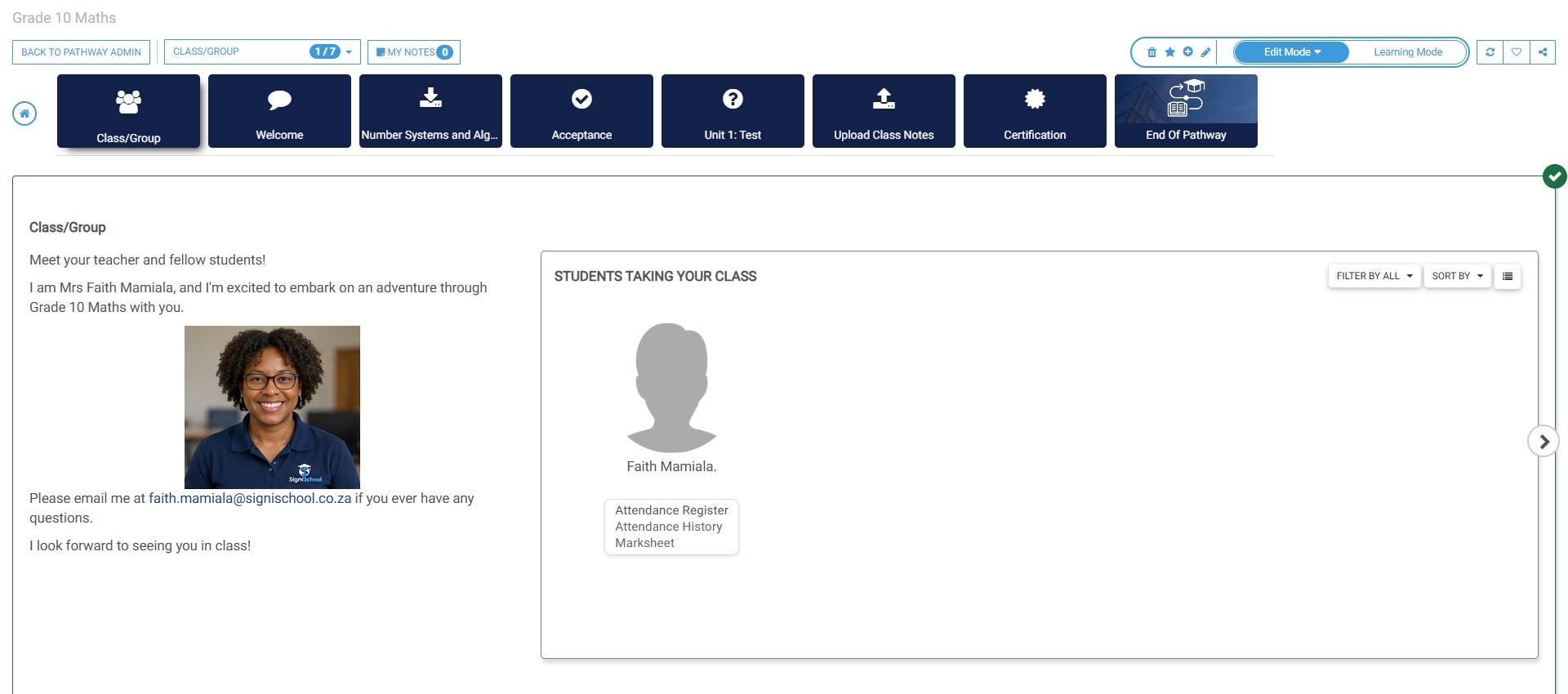
Class/Group
This step can be added only after the class or group has been linked to the pathway. Click here for a guide to implementing this before you start.
Add a description for this step. Click SAVE when you are finished or click CLOSE to discard your edits.
Add a class
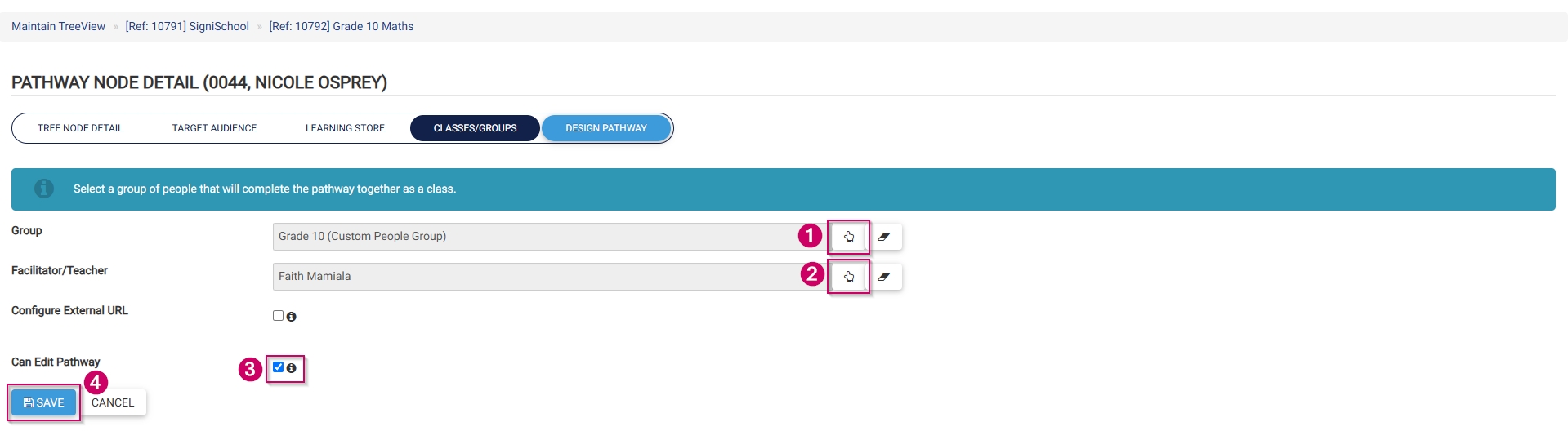
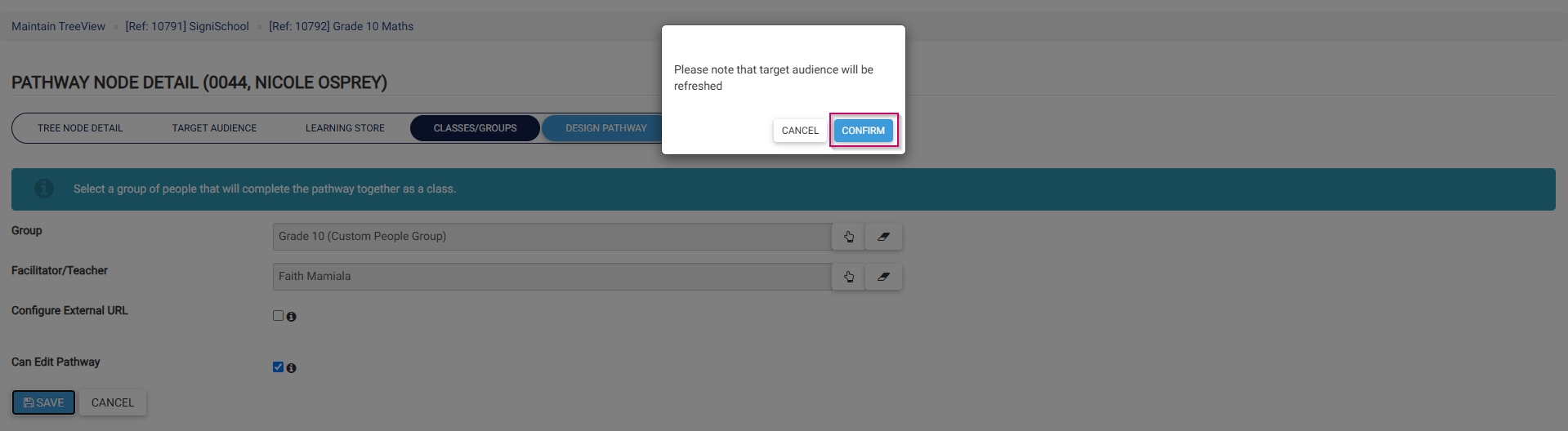
Navigate to the pathway you would like to link a class or group to. Go to the CLASSES/GROUPS tab, then click ADD.
Create subject

Pathway features
Edit mode
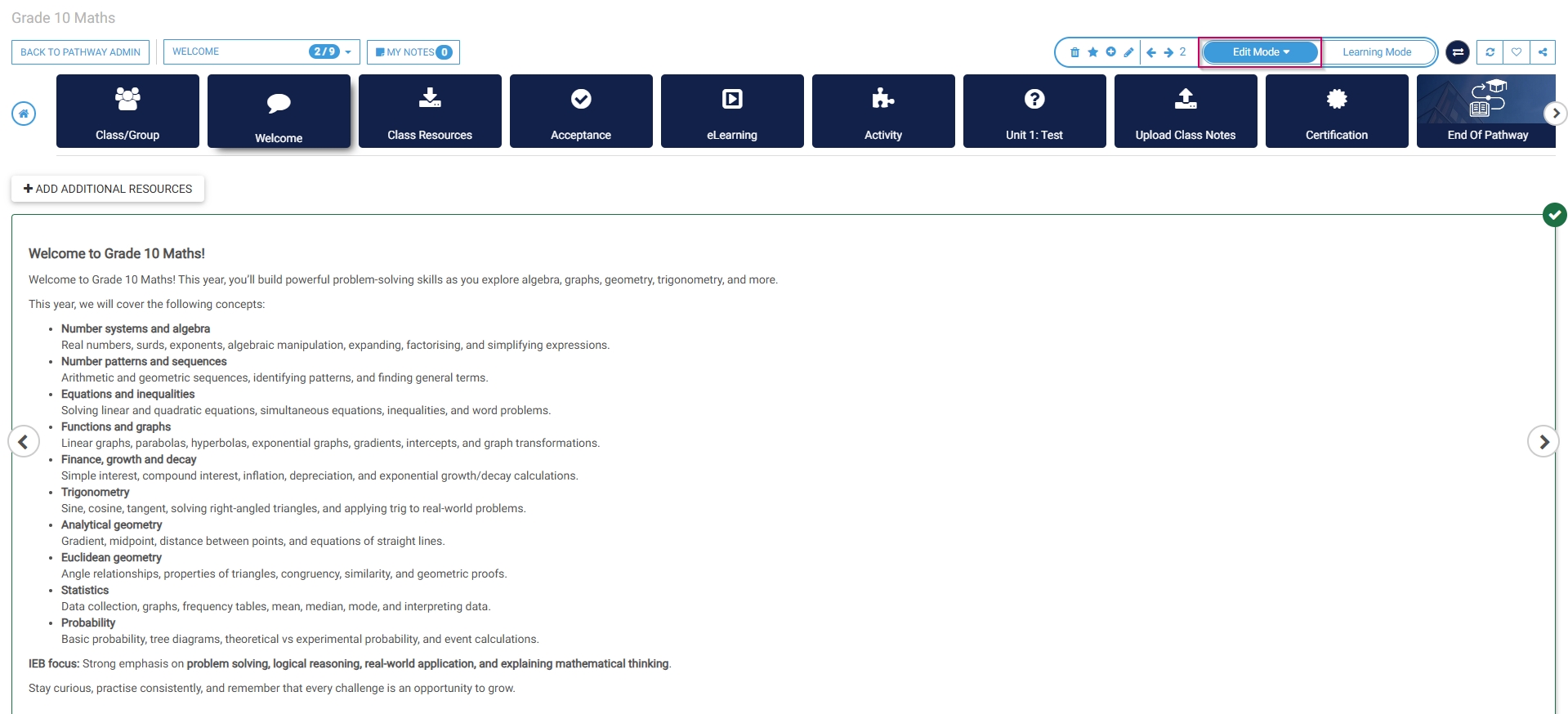
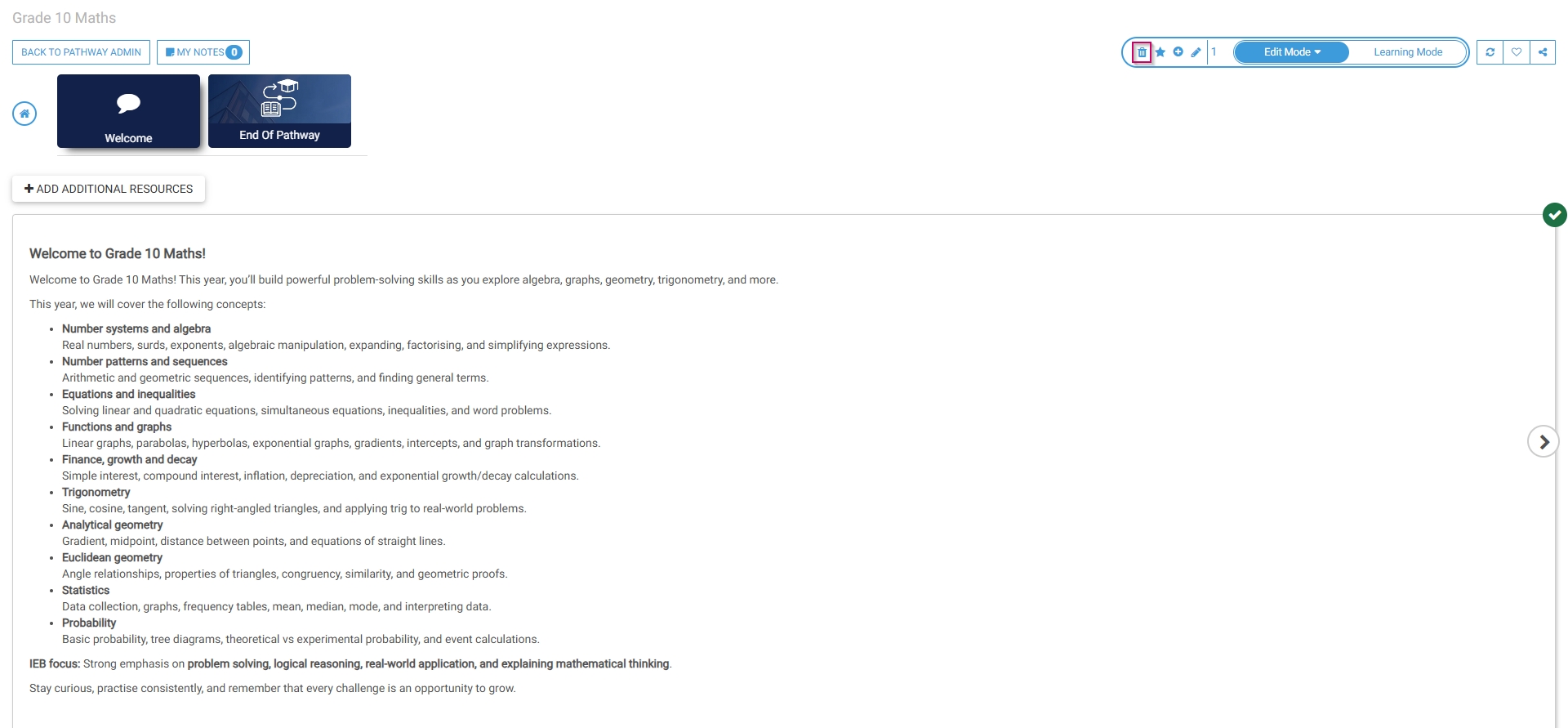
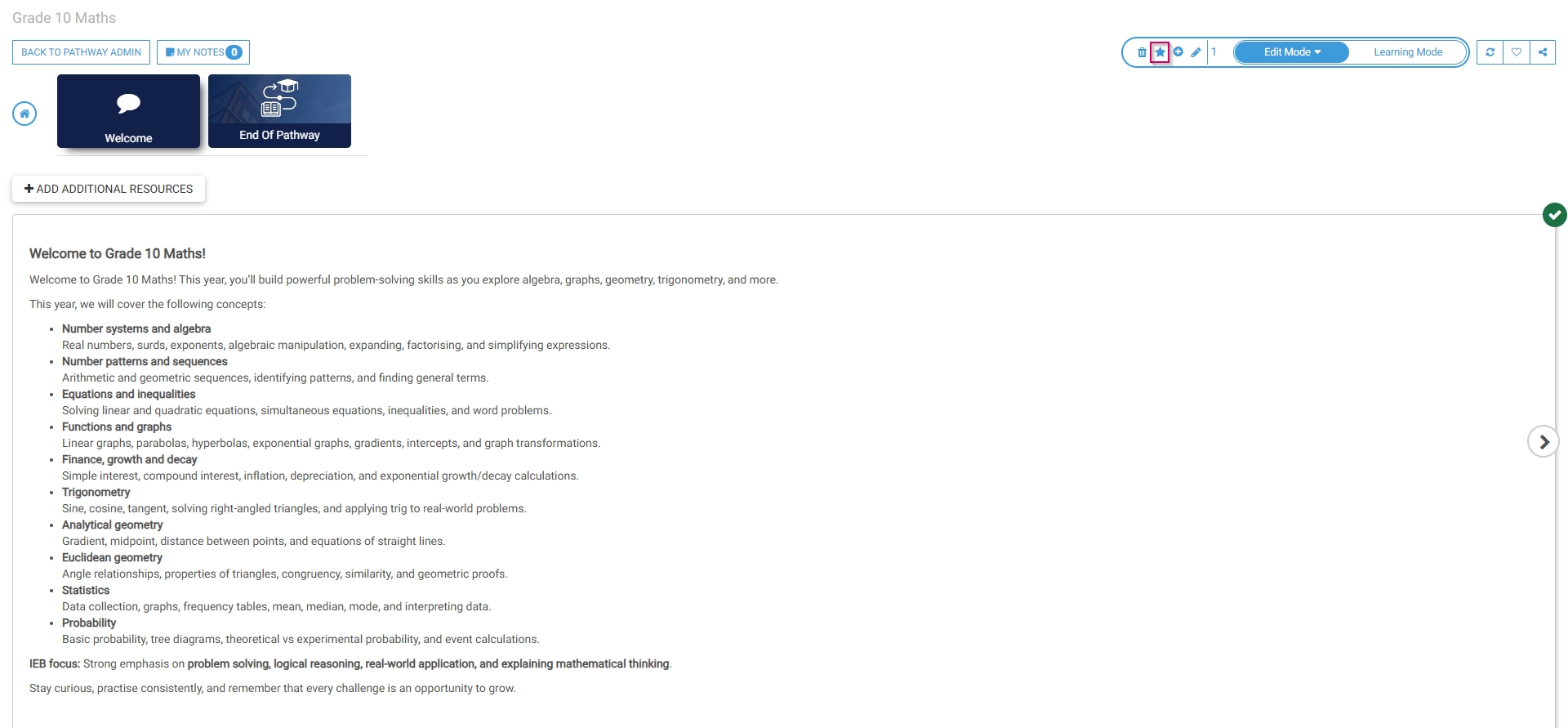
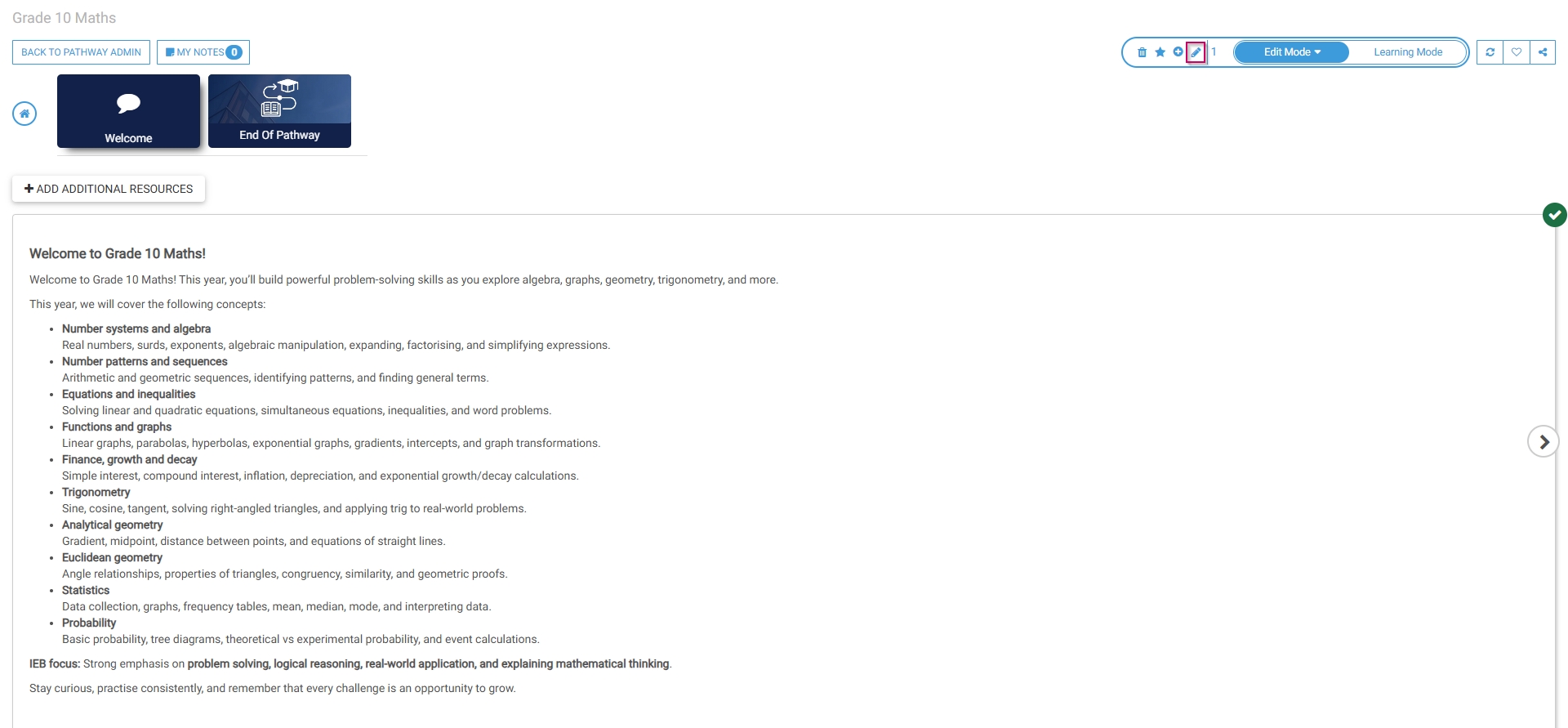
Learning mode
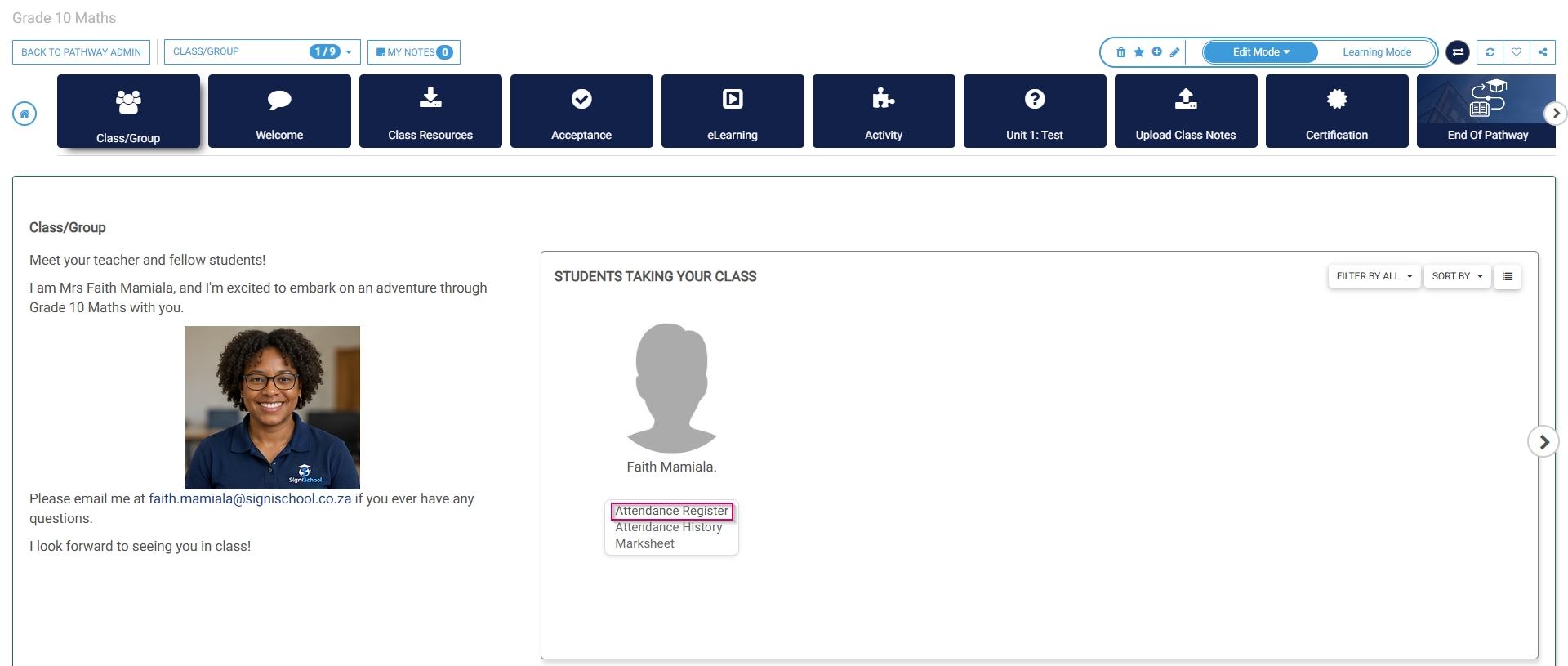
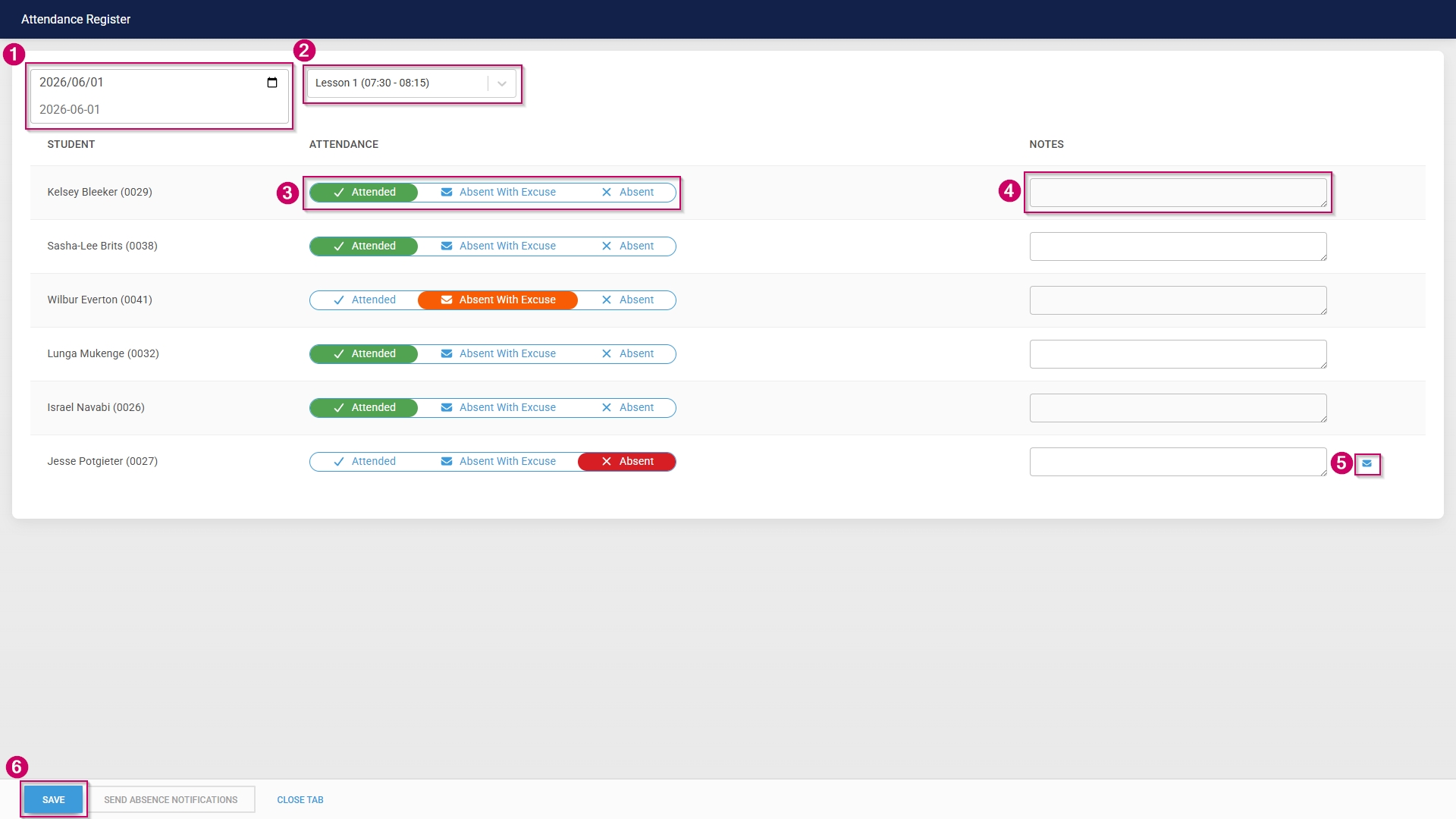
Attendance register
Navigate to the Class/Group step of the pathway.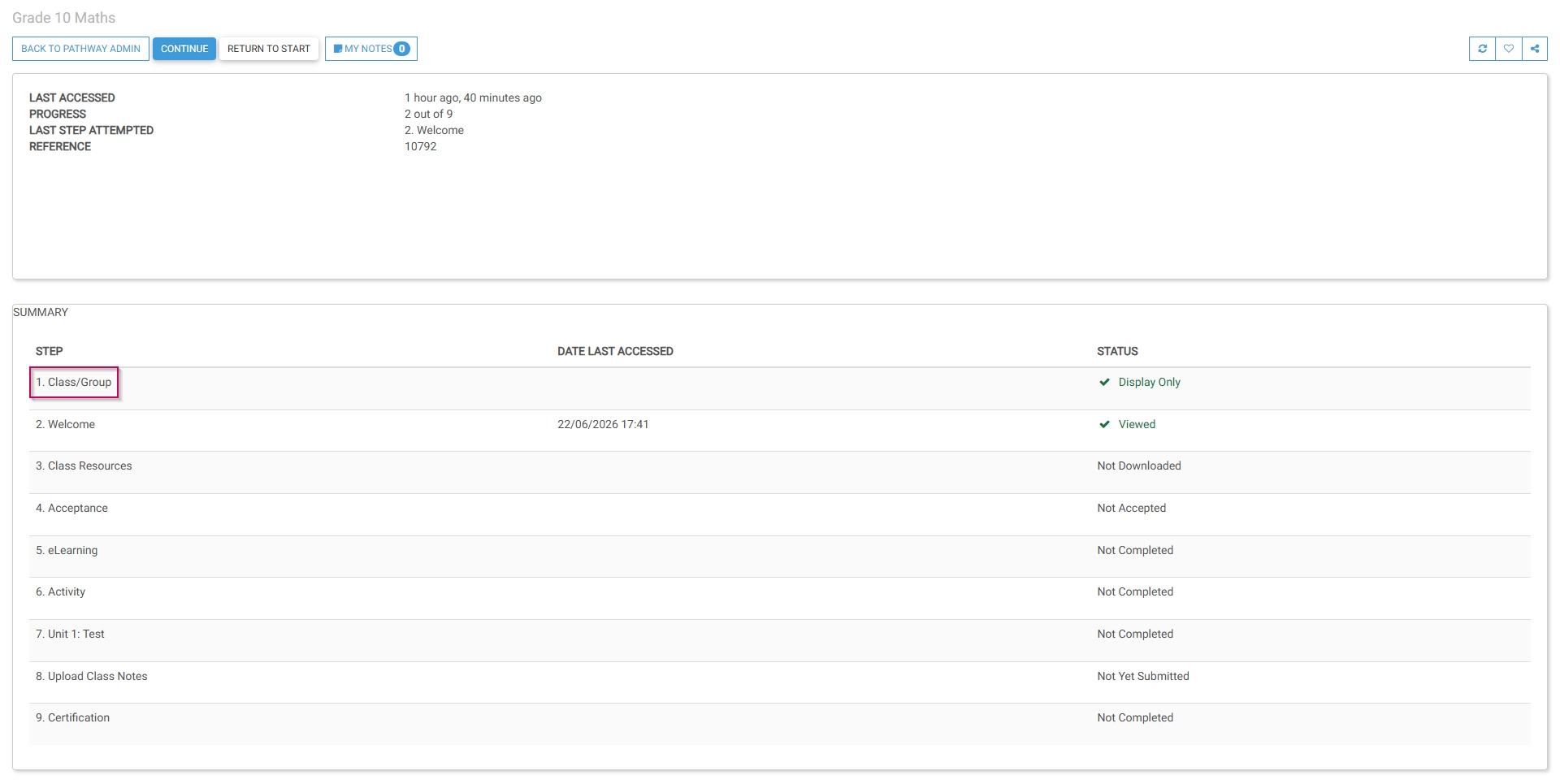
Attendance history
Navigate to the Class/Group step of the pathway.
Marksheet
Class
Reportto card
the Class/Group step of the pathway.