View the Attendance Register

Signify Header.png

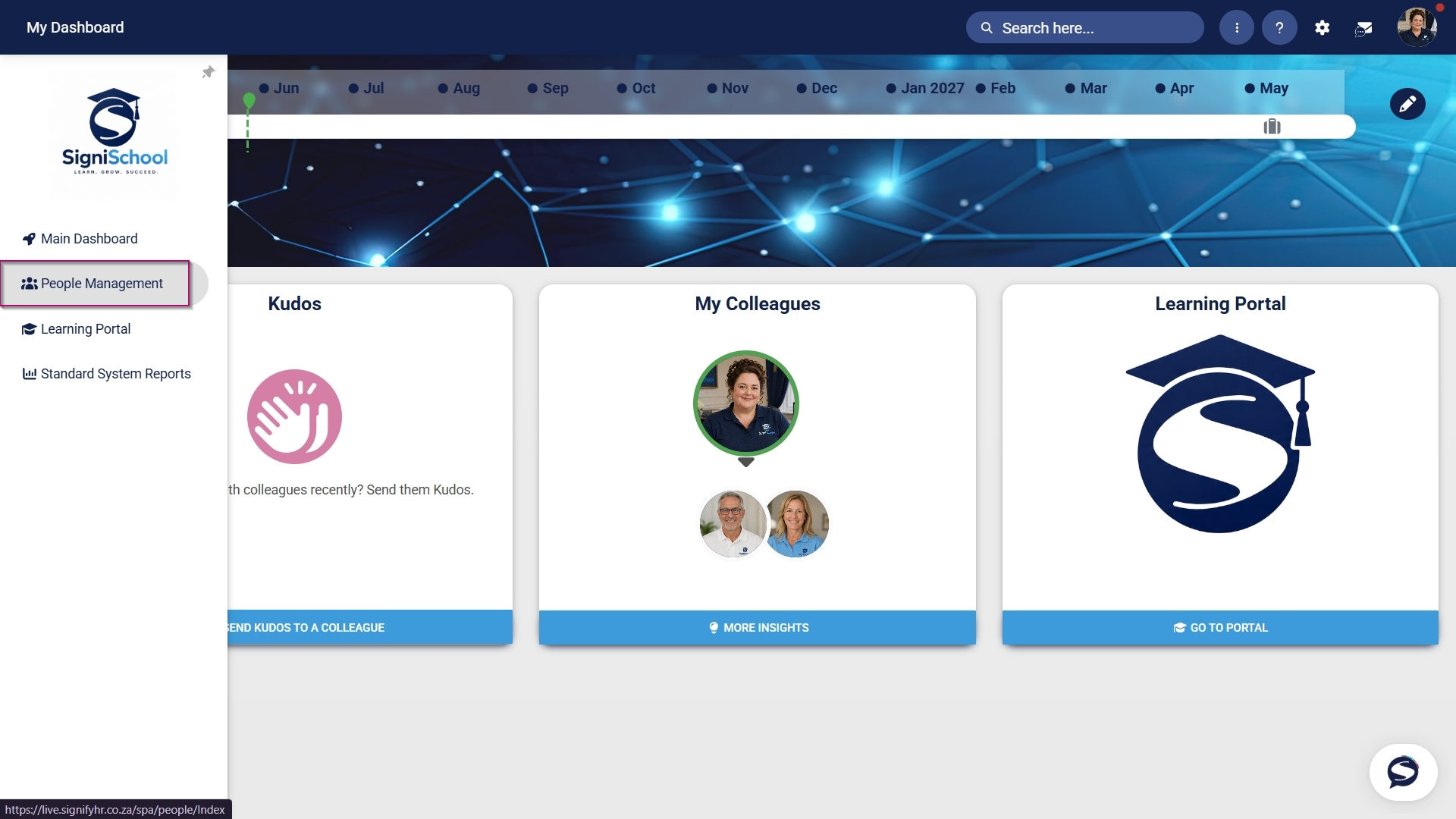
    Hover over the sidebar menu, then click Learning Portal.
    LM OS People Management Sidebar menu item.jpg

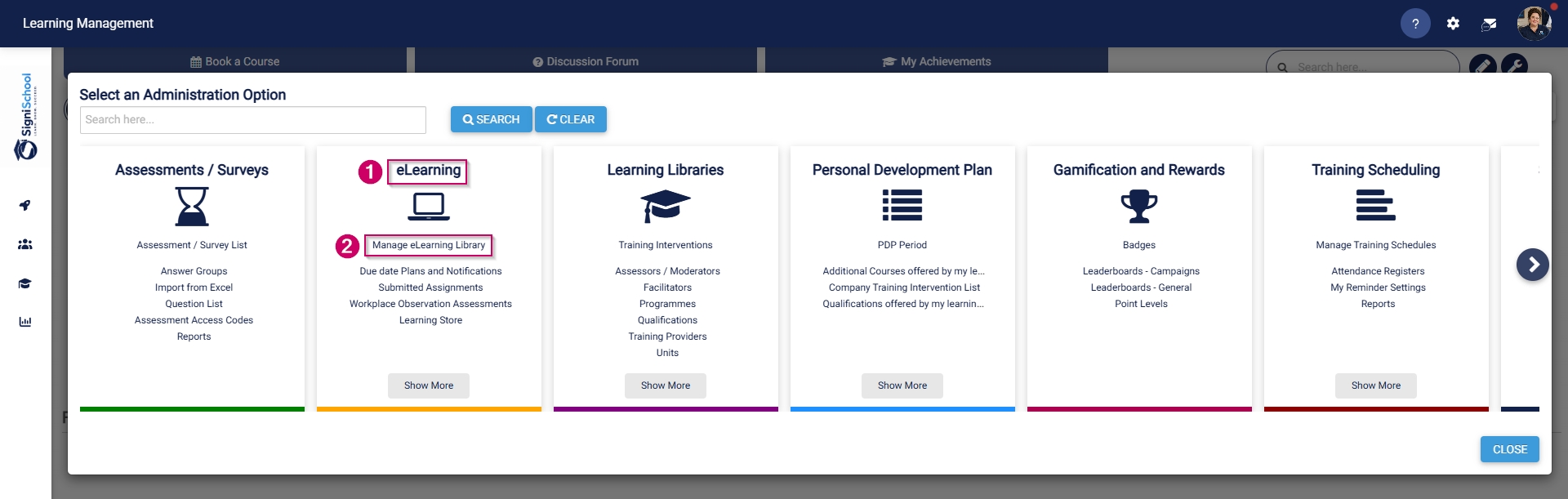
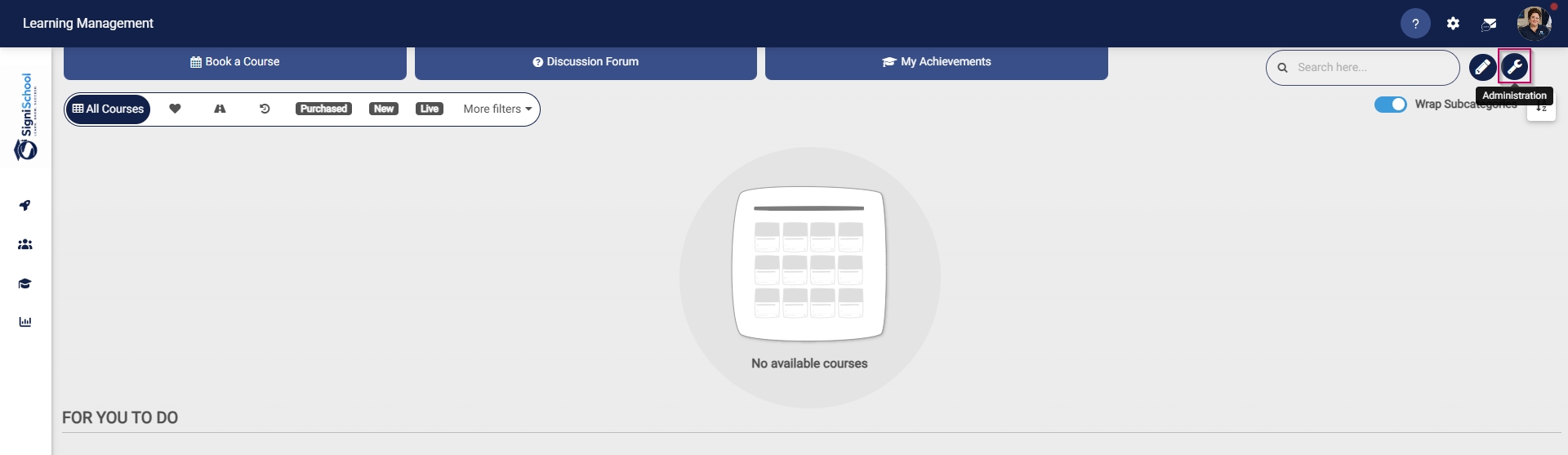
      Click the spanner icon to access the system's Administration menu.
      LM OS Training Interventions - Learning Portal - System Administration.jpg

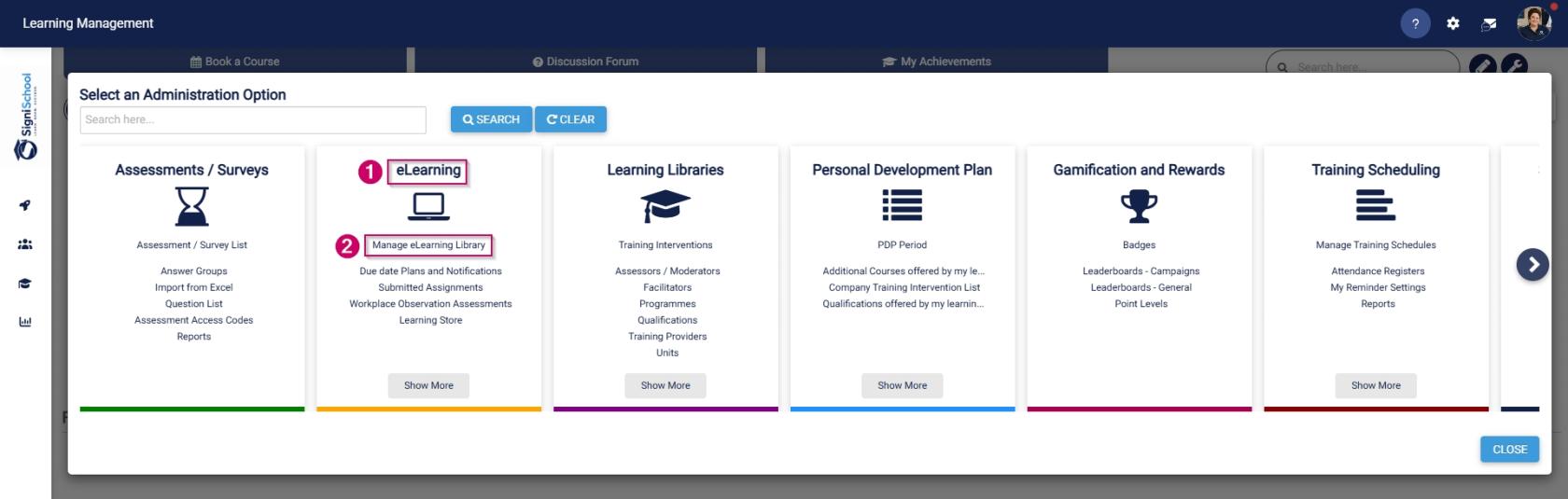
        On the eLearning card, click Manage eLearning Library.
        LM OS Build Pathways - Manage eLearning Library.jpg

          The Pathways Tree View screen will open in a new tab. Click to edit a pathway.
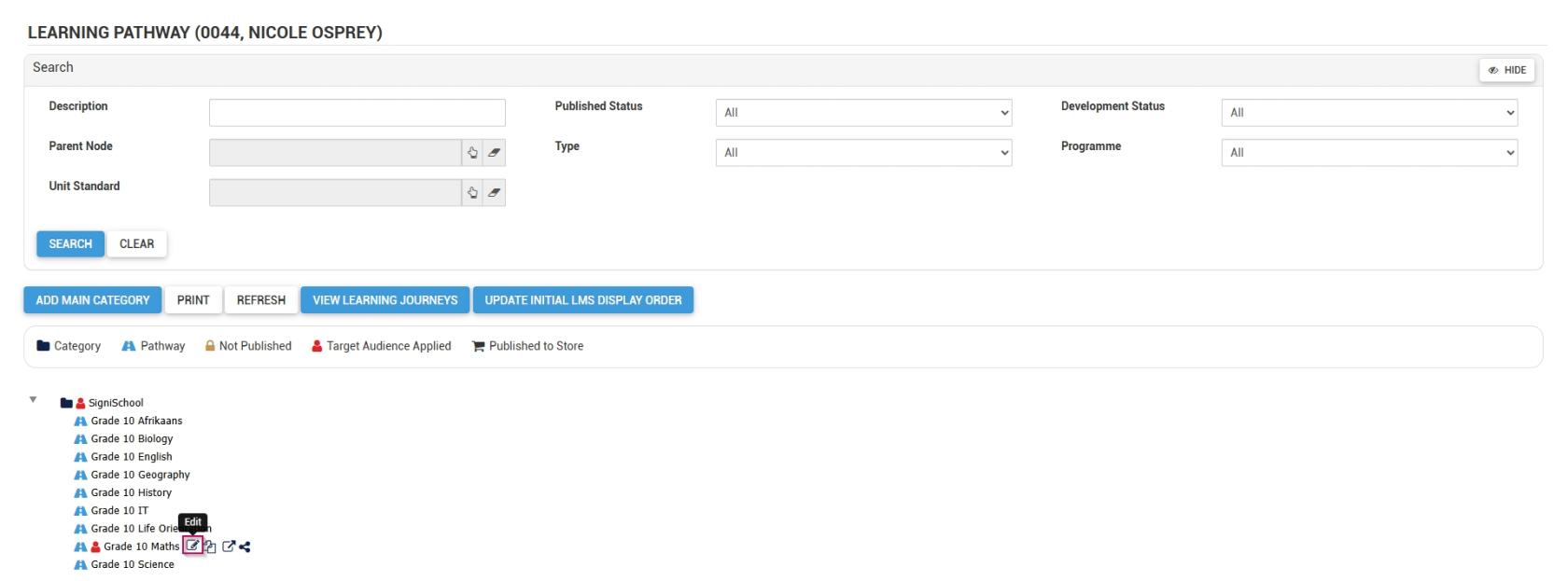
          LM OS Build Pathways - Manage eLearning Library - Edit Pathway.jpg

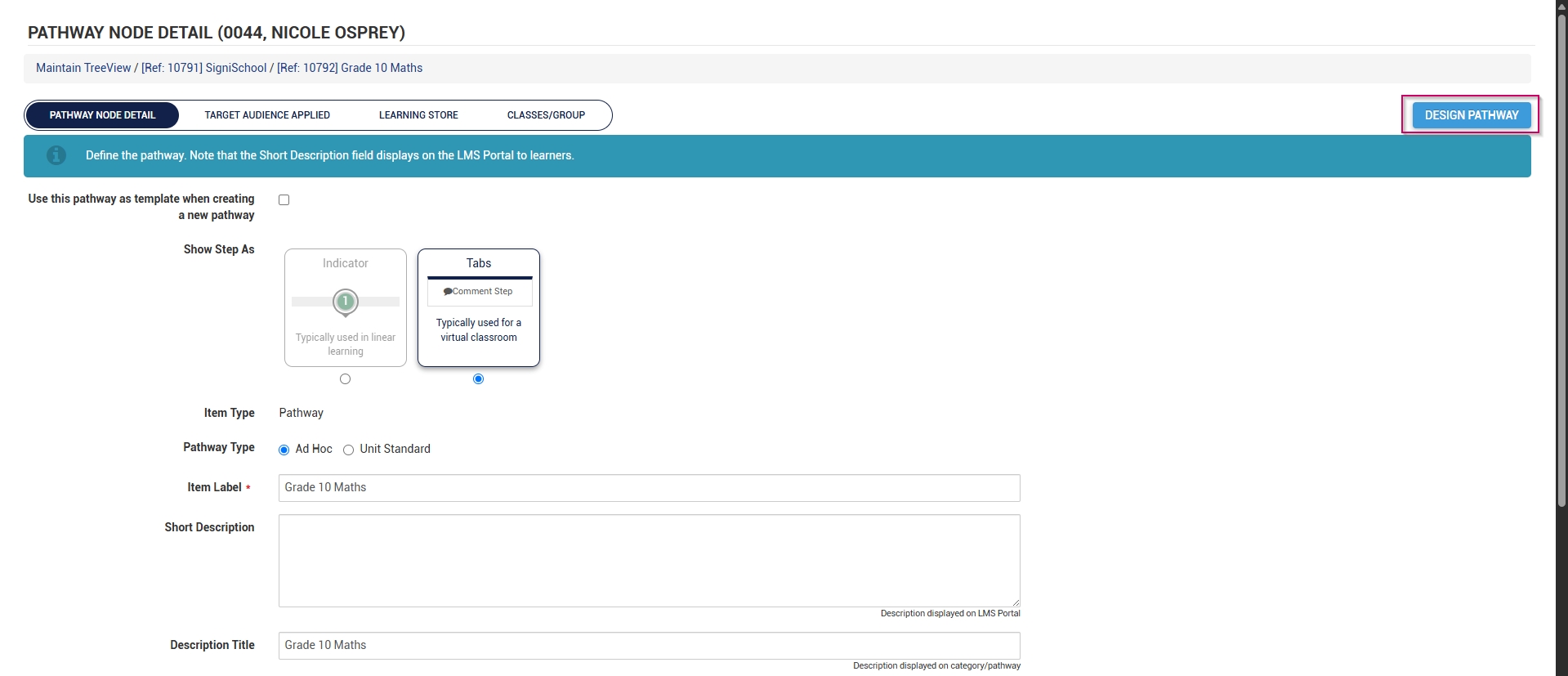
            At the top of the screen, click DESIGN PATHWAY.
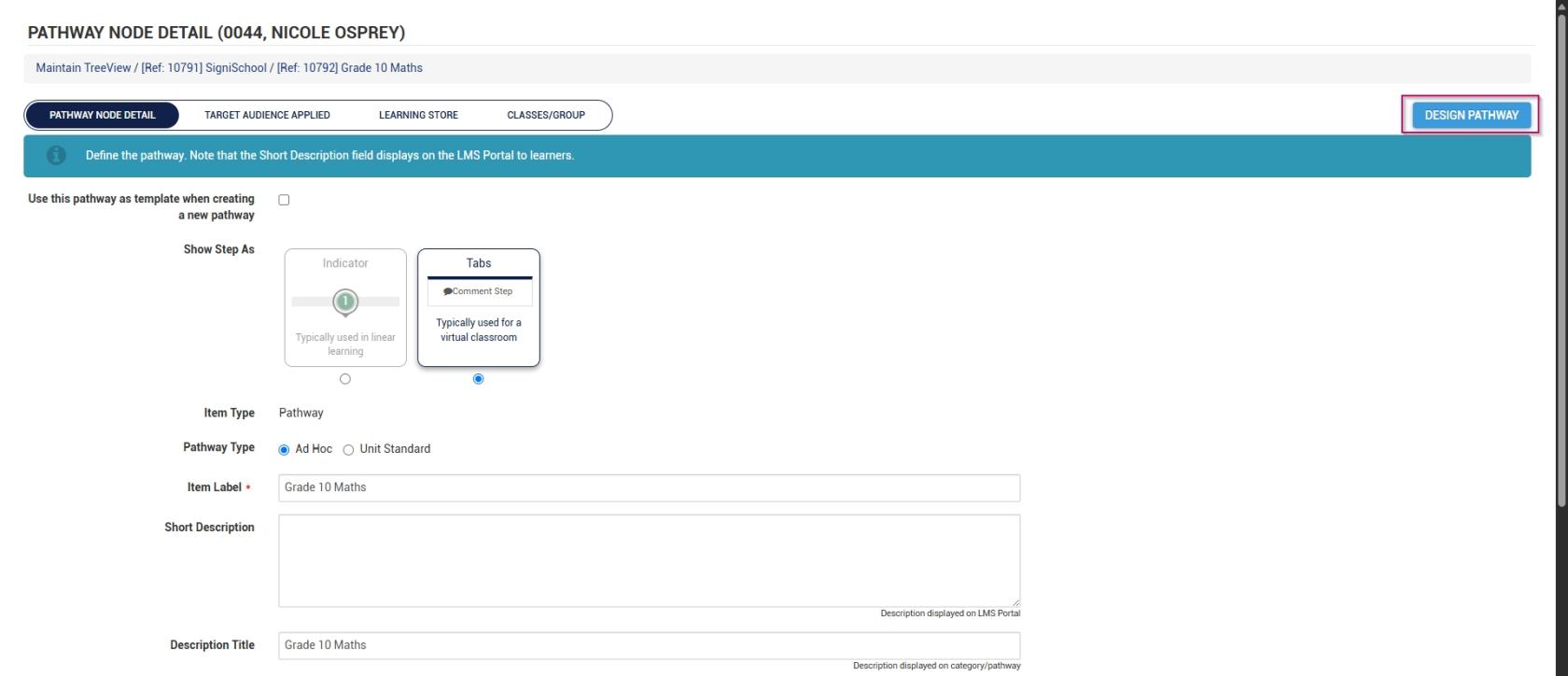
            LM OS Build Pathways - Manage eLearning Library - Edit - Design Pathway.jpg

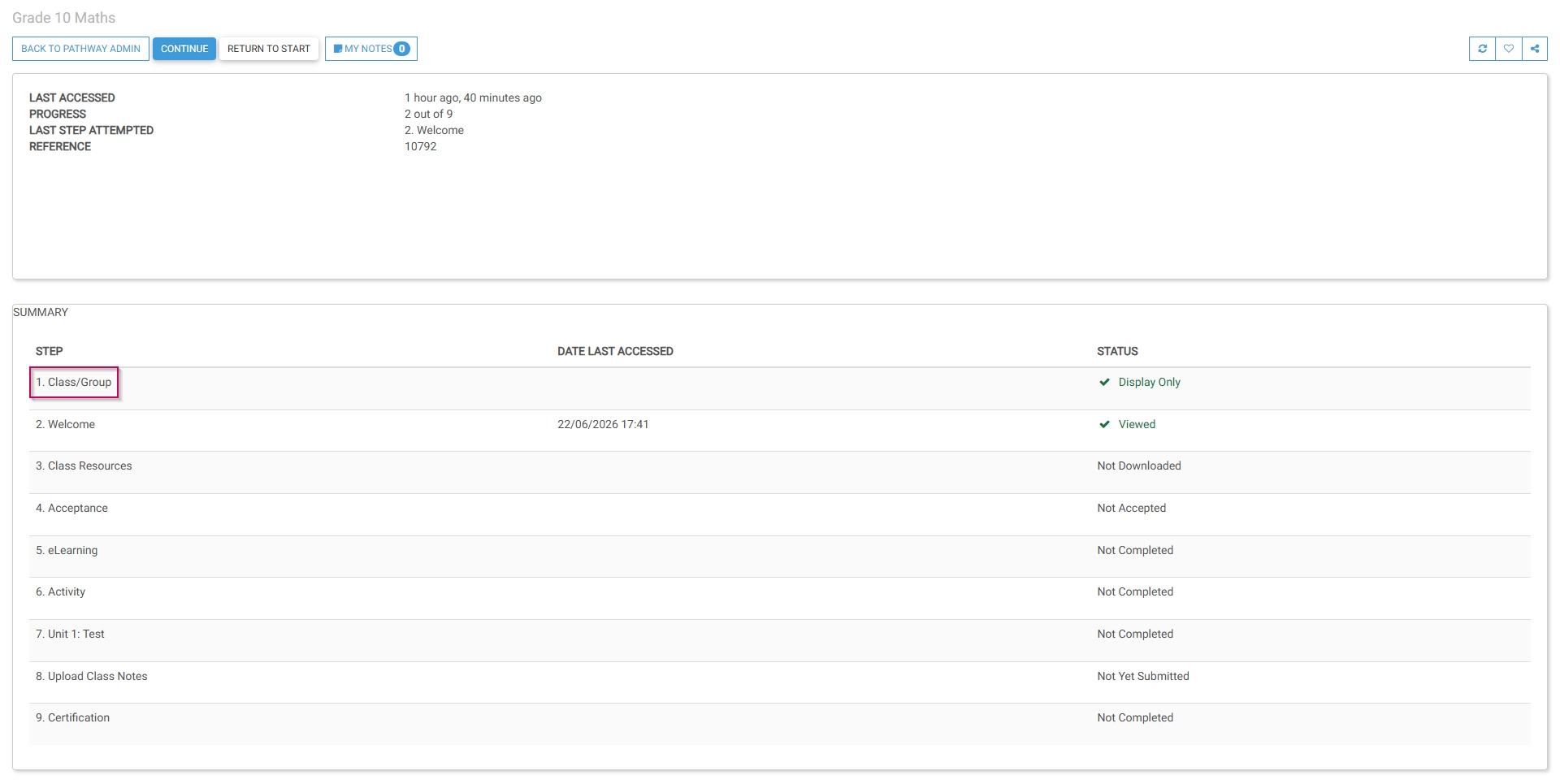
              Navigate to the Class/Group step of the pathway.
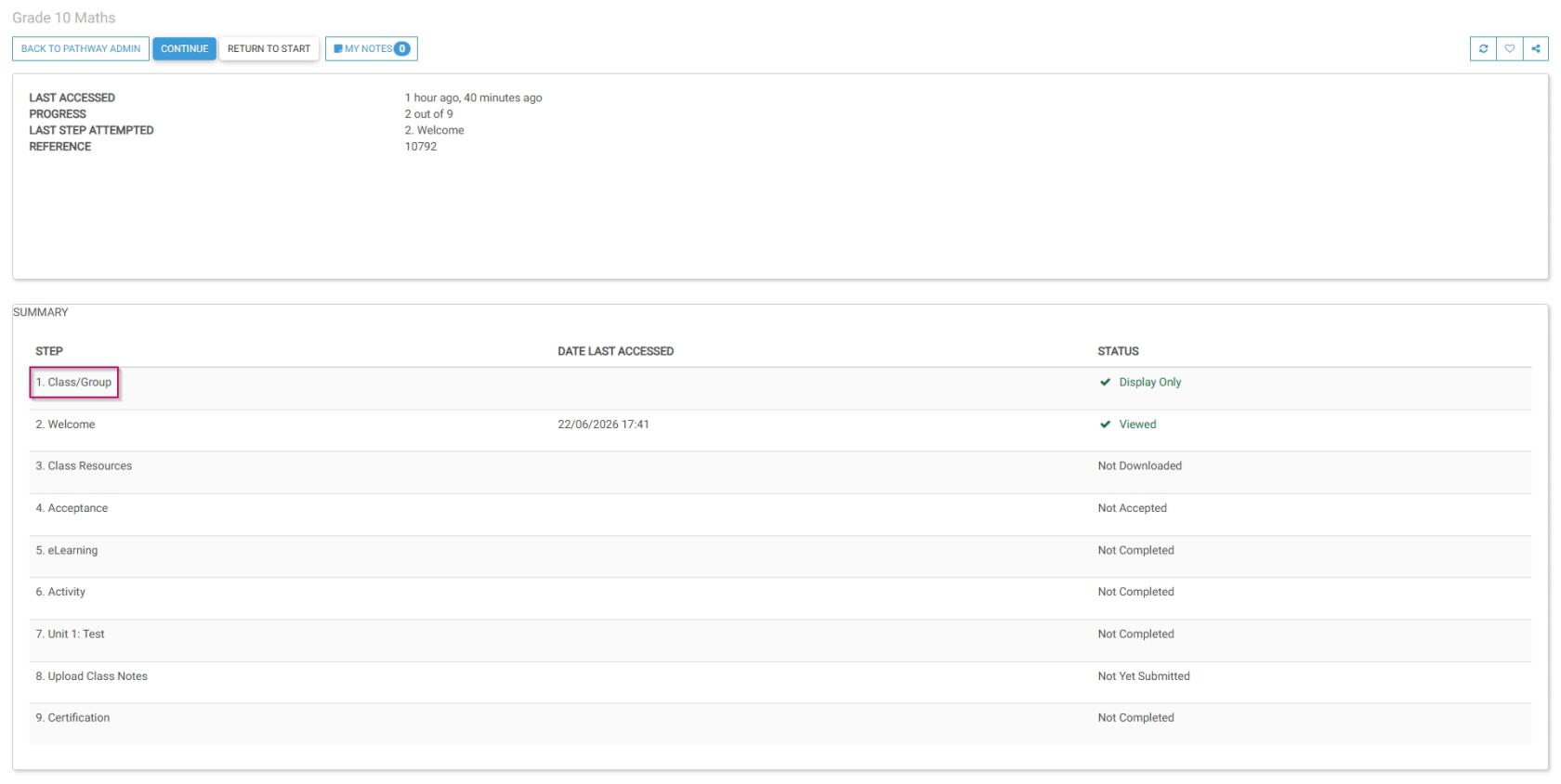
              LM OS Build Pathways - Manage eLearning Library - Design pathway - Class or Group step.jpg

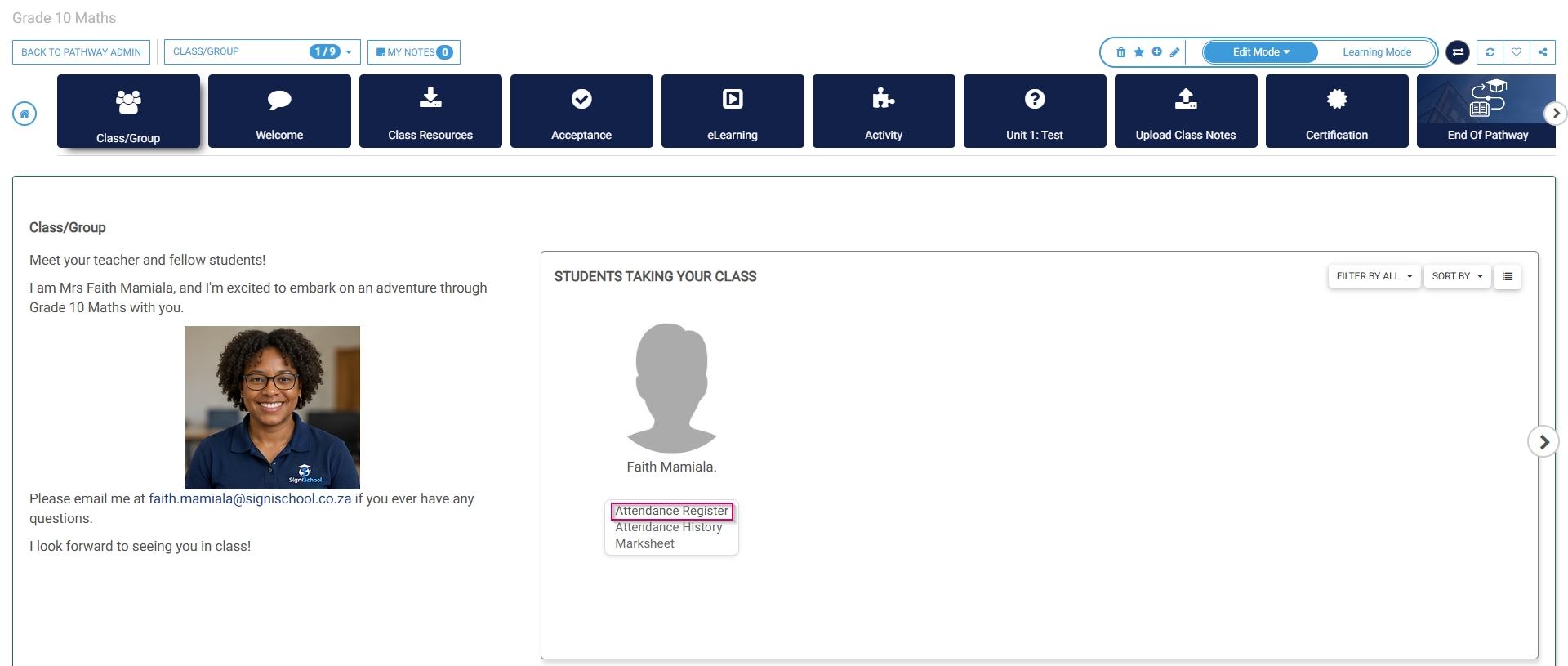
                Click Attendance Register. The attendance register will open in a new tab.
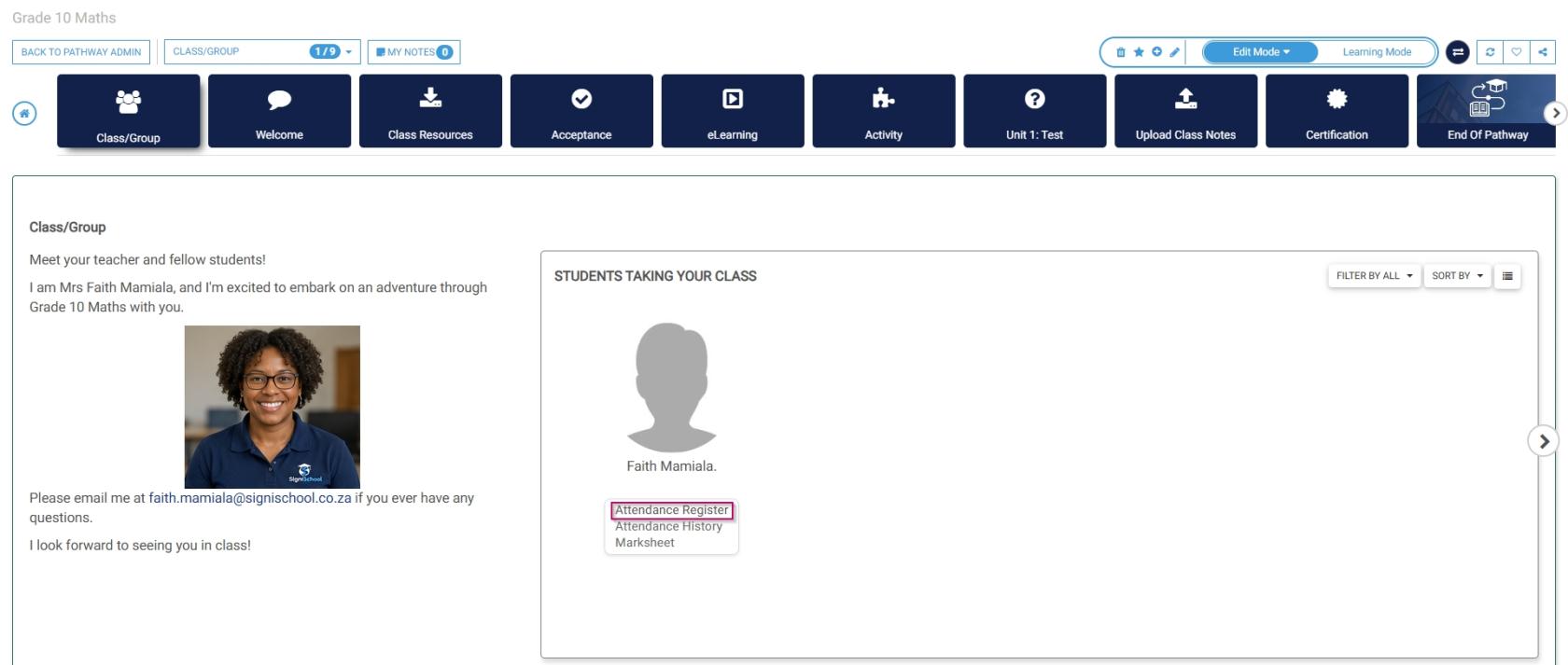
                LM OS Build Pathways - Manage eLearning Library - Design pathway - Class or Group - Attendance Register.jpg

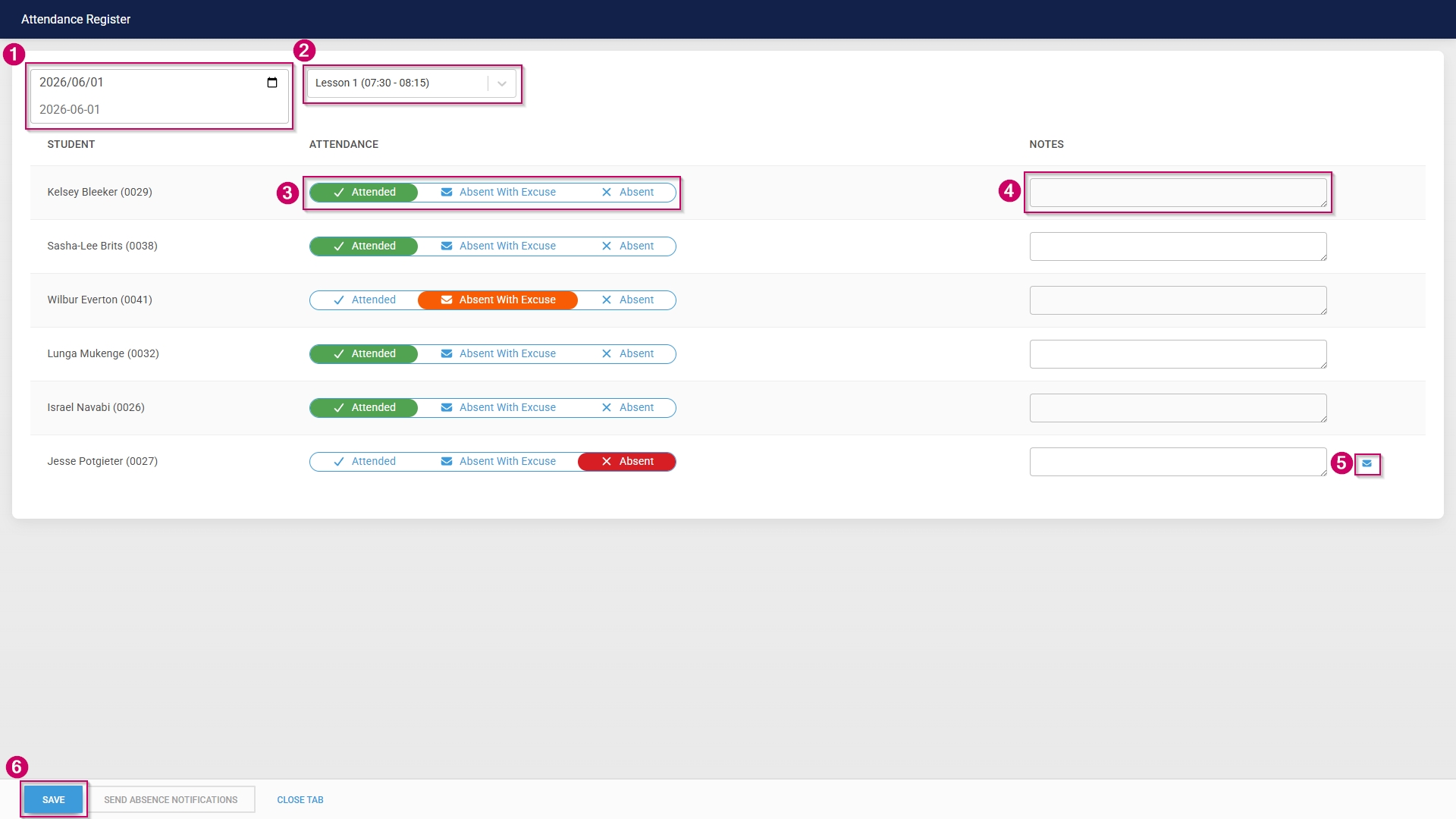
                  Select the date the class took place. Select the lesson during which the class took place. Mark students as:
                      Attended Absent With Excuse Absent Send out an absence notification by clicking the envelope icon. Click SAVE when you are finished, then click CLOSE TAB.
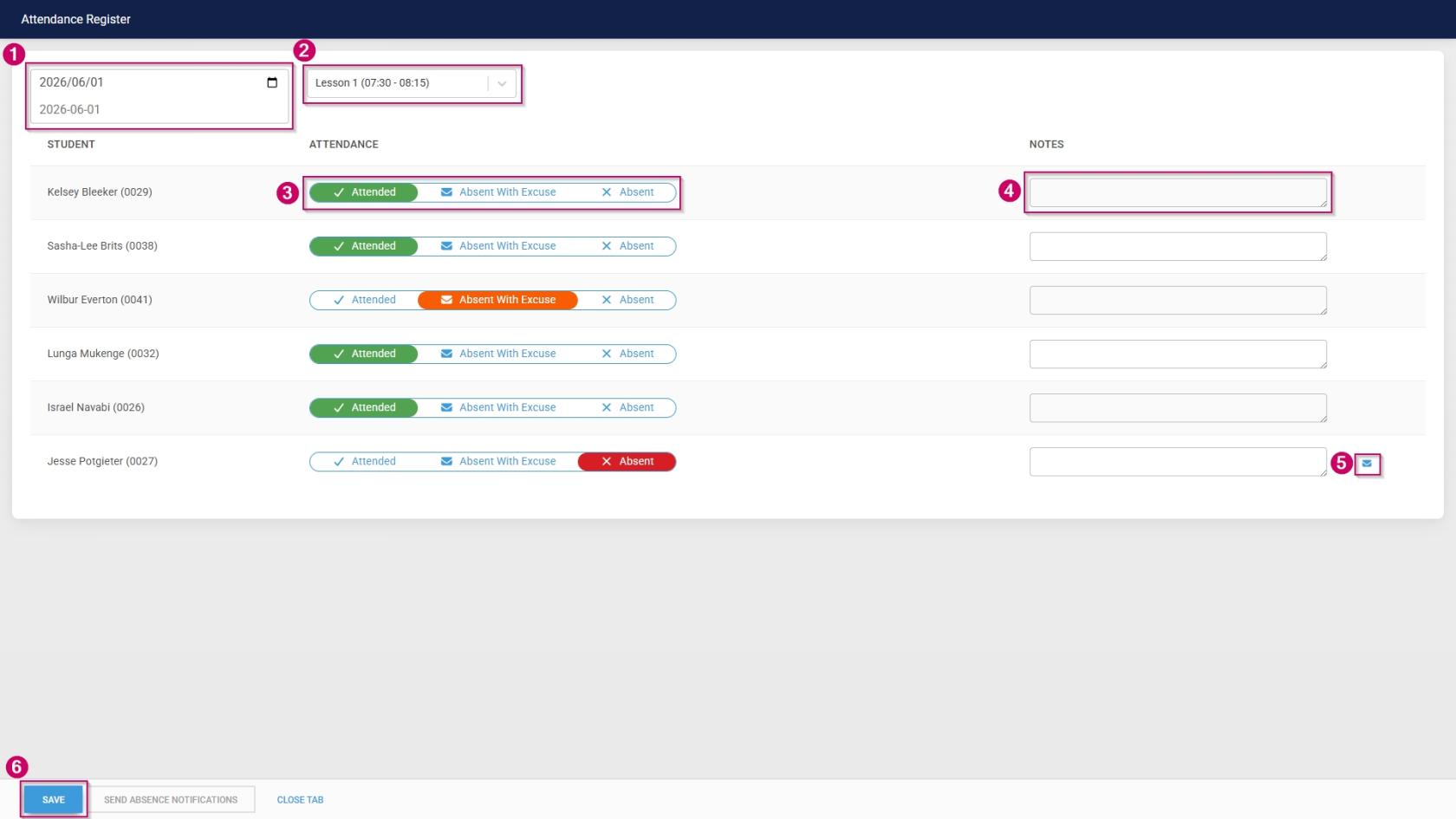
                      LM OS Attendance Register.jpg


                      Signify Footer.png