Skip to main content
View the Attendance Register

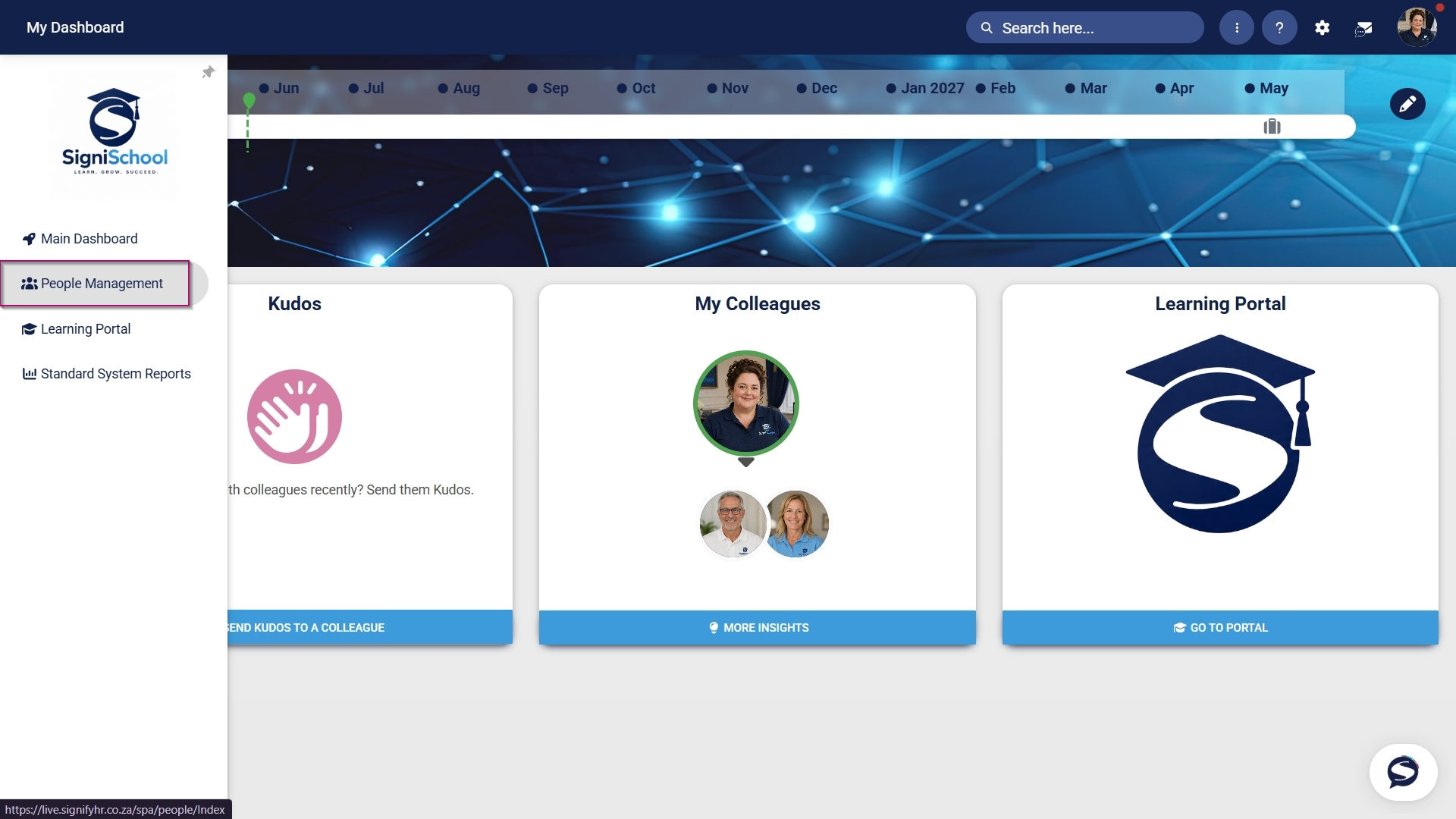
- Hover over the sidebar menu, then click Learning Portal.
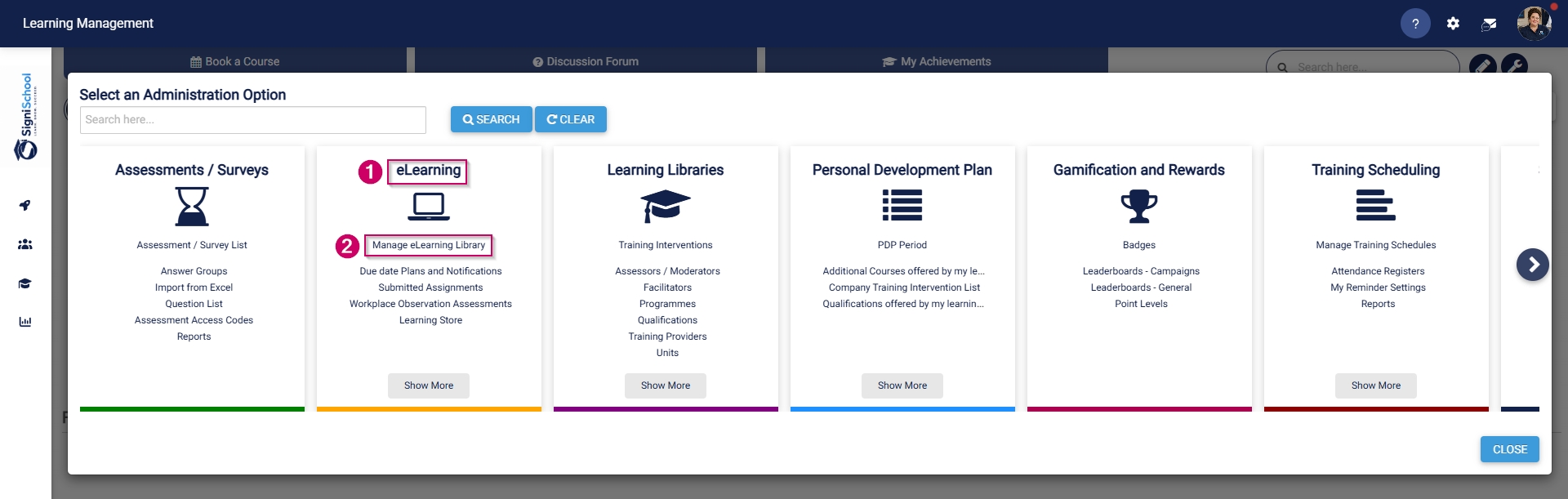
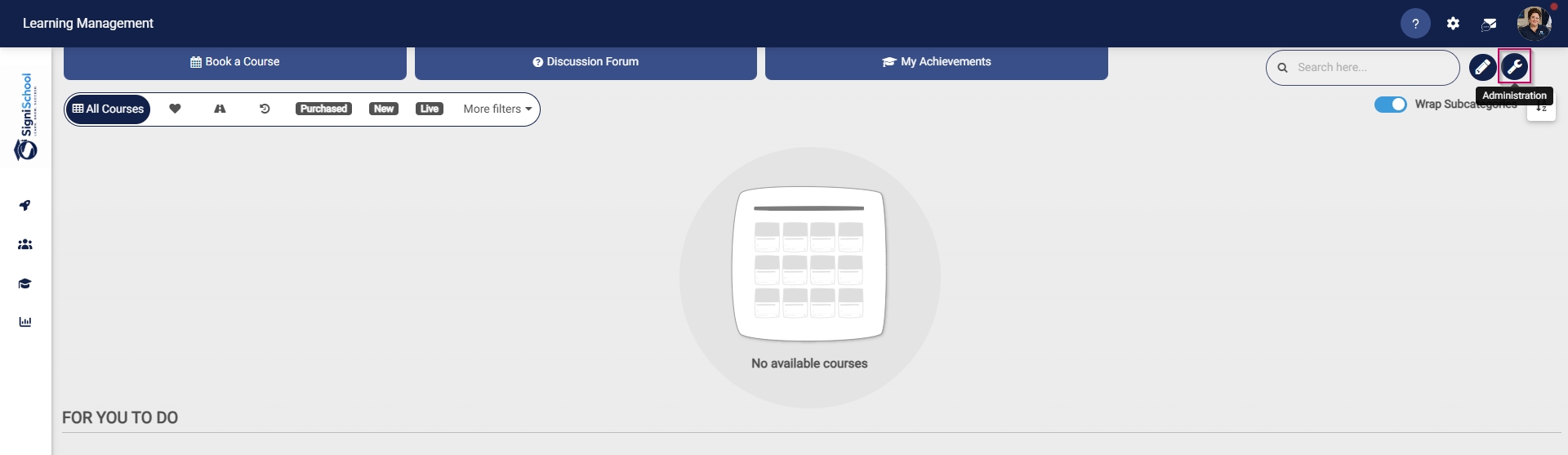
- Click the spanner icon to access the system's Administration menu.
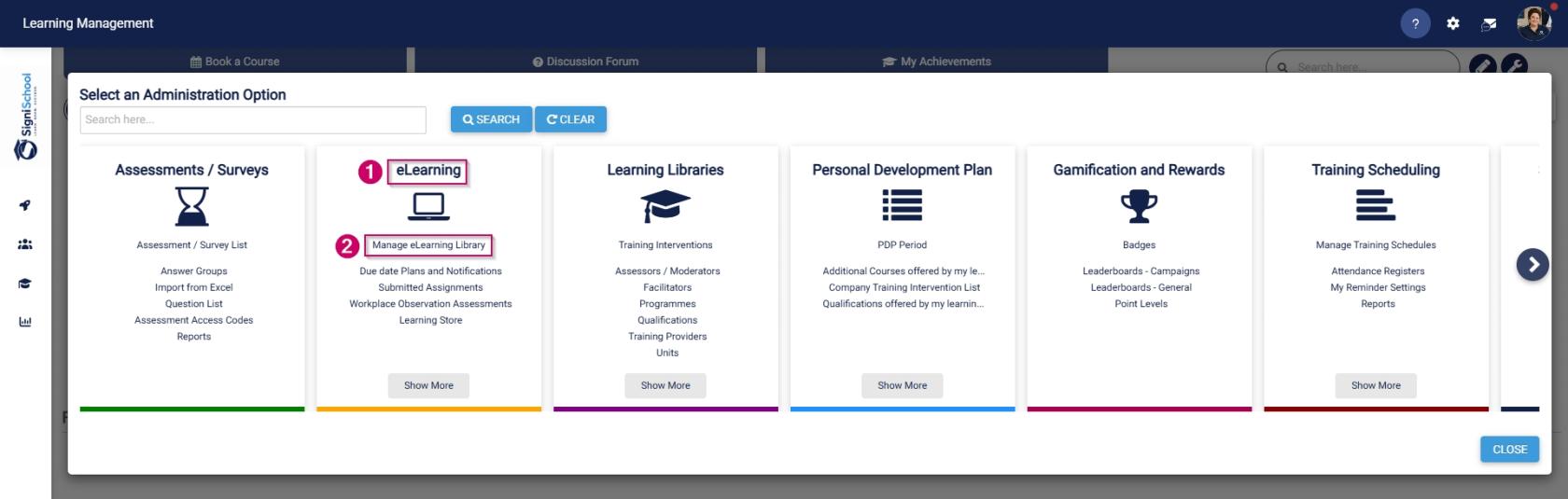
- On the eLearning card, click Manage eLearning Library.
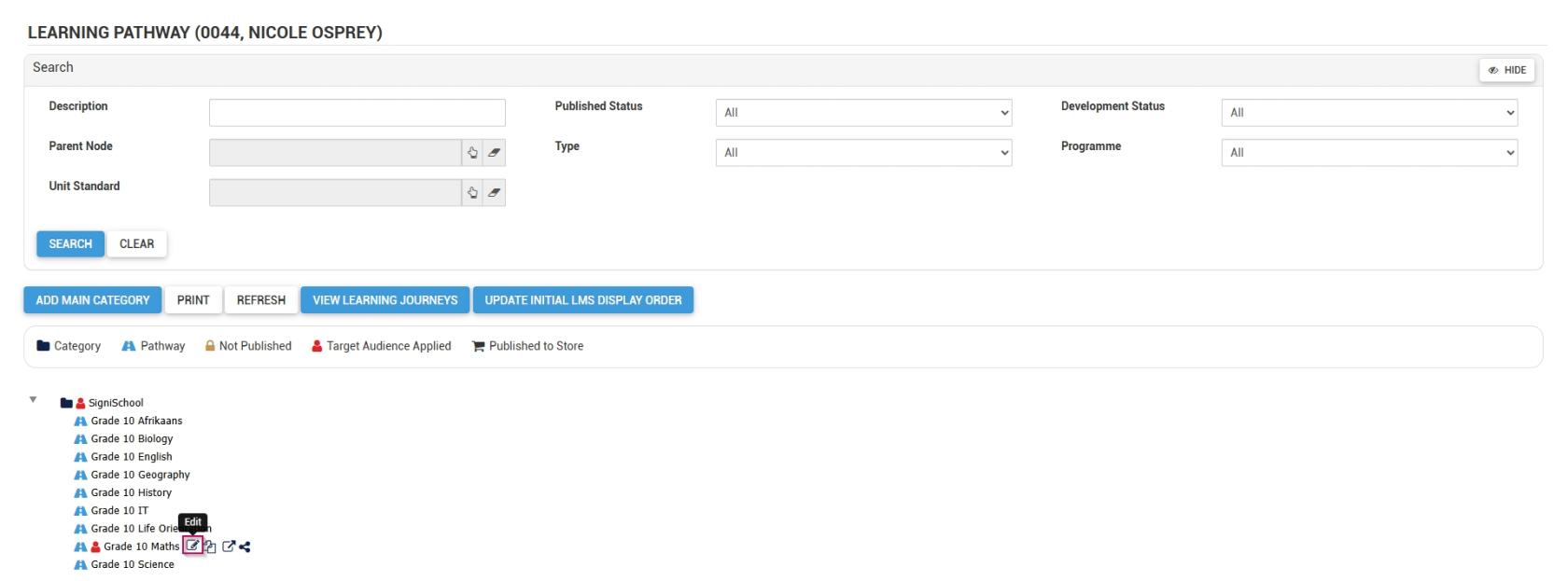
- The Pathways Tree View screen will open in a new tab.
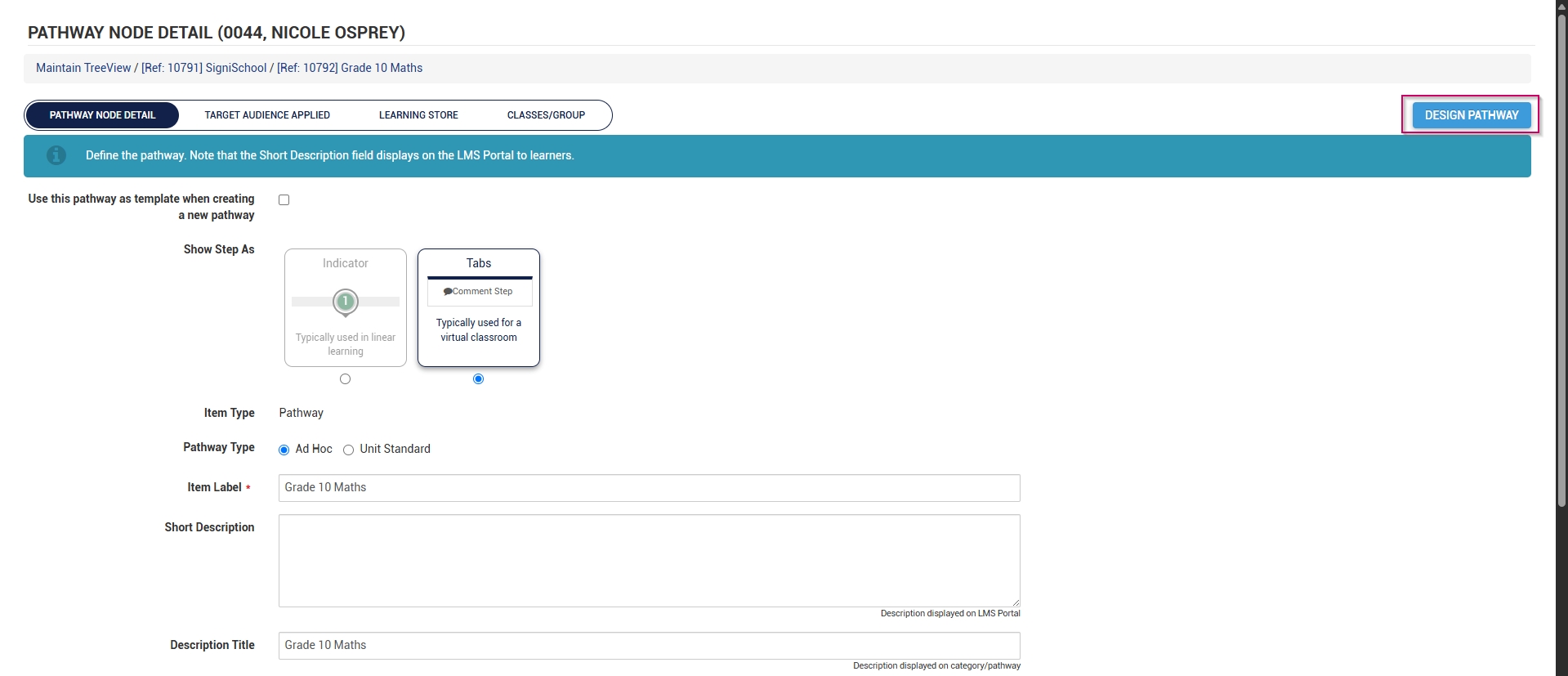
- Click to edit a pathway.
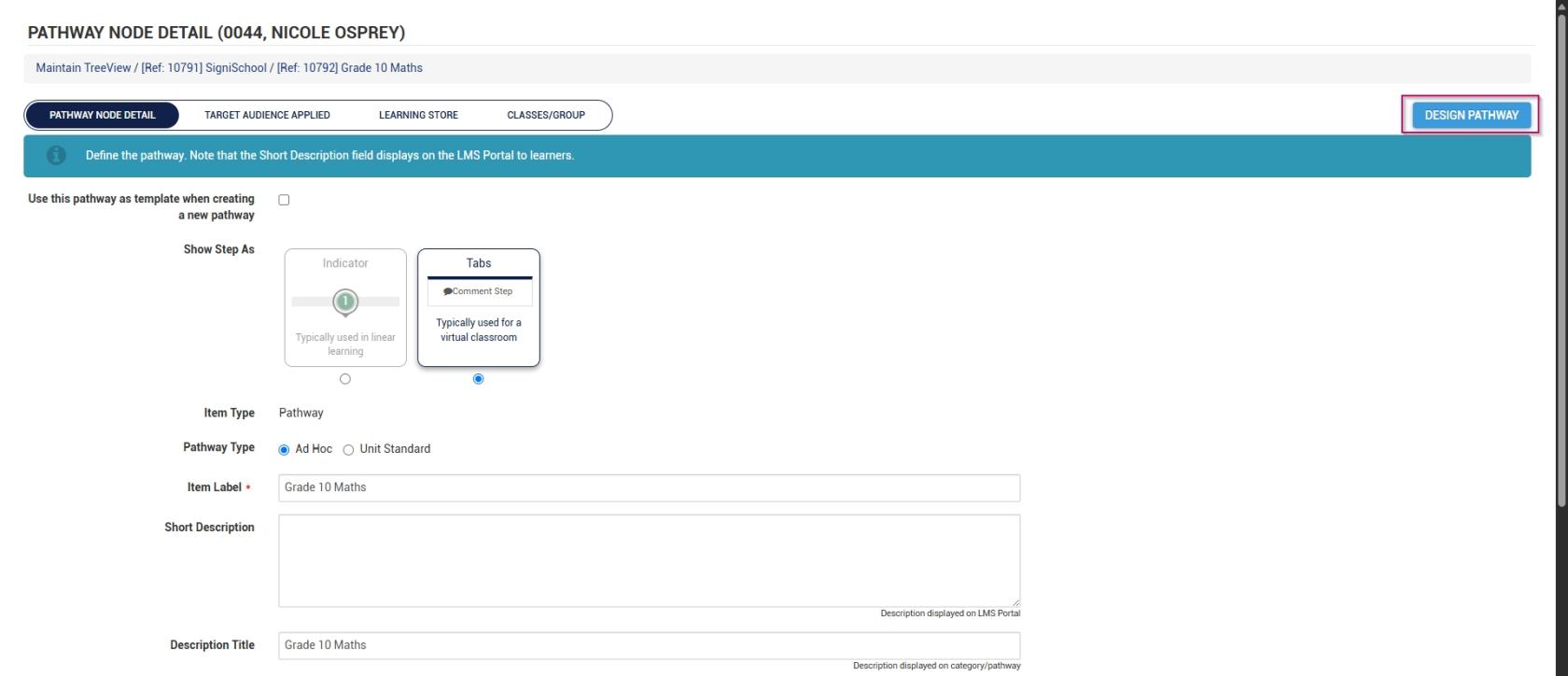
- At the top of the screen, click DESIGN PATHWAY.
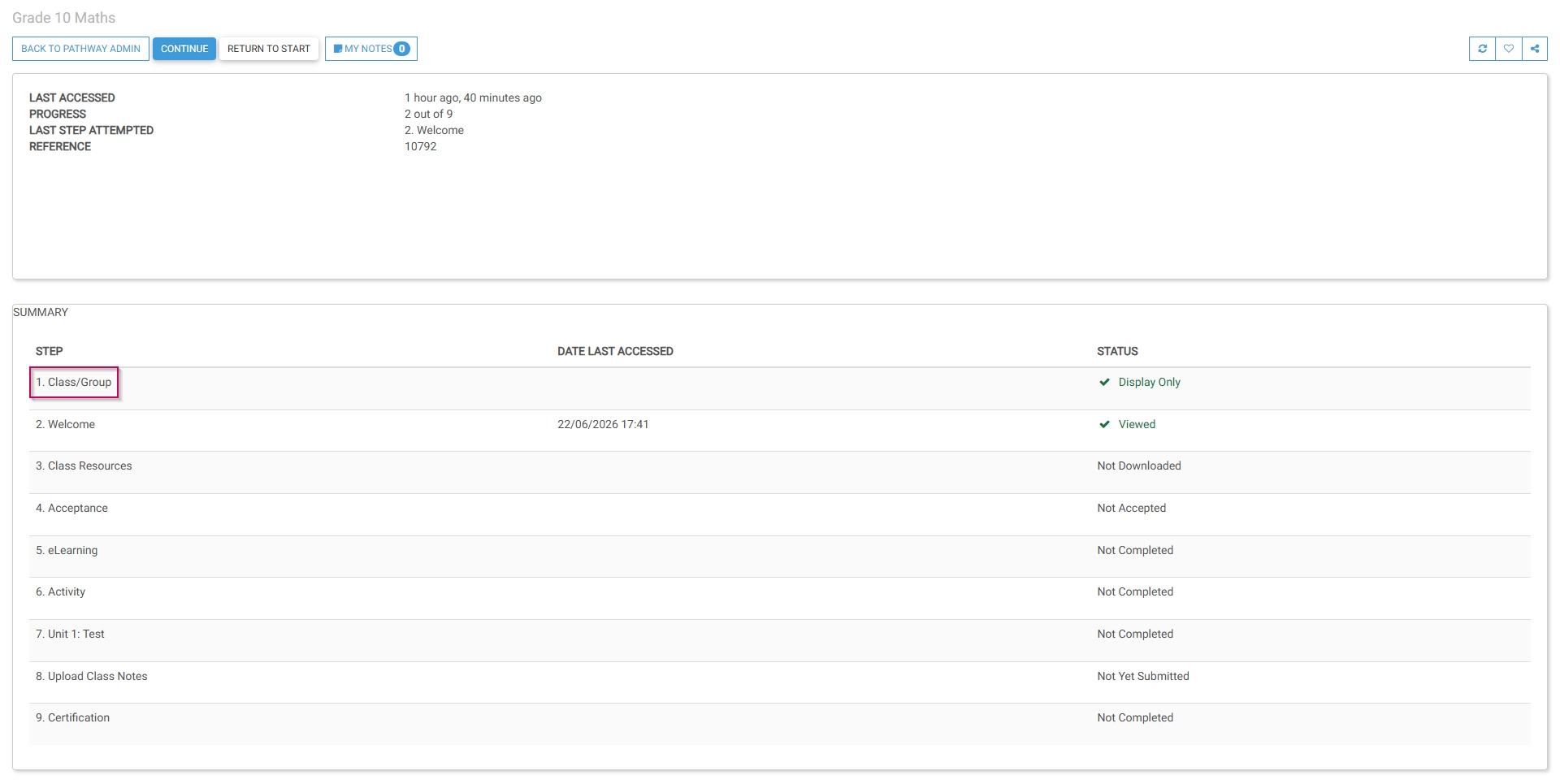
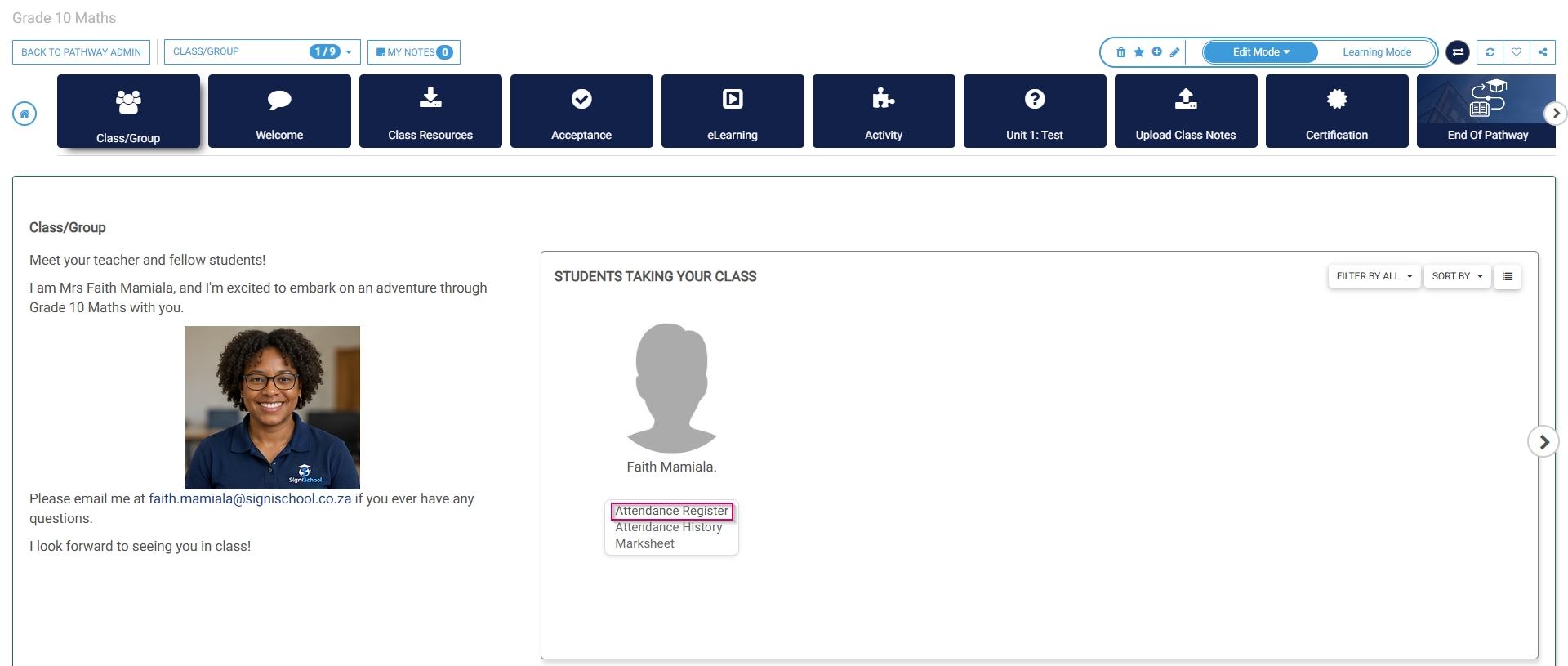
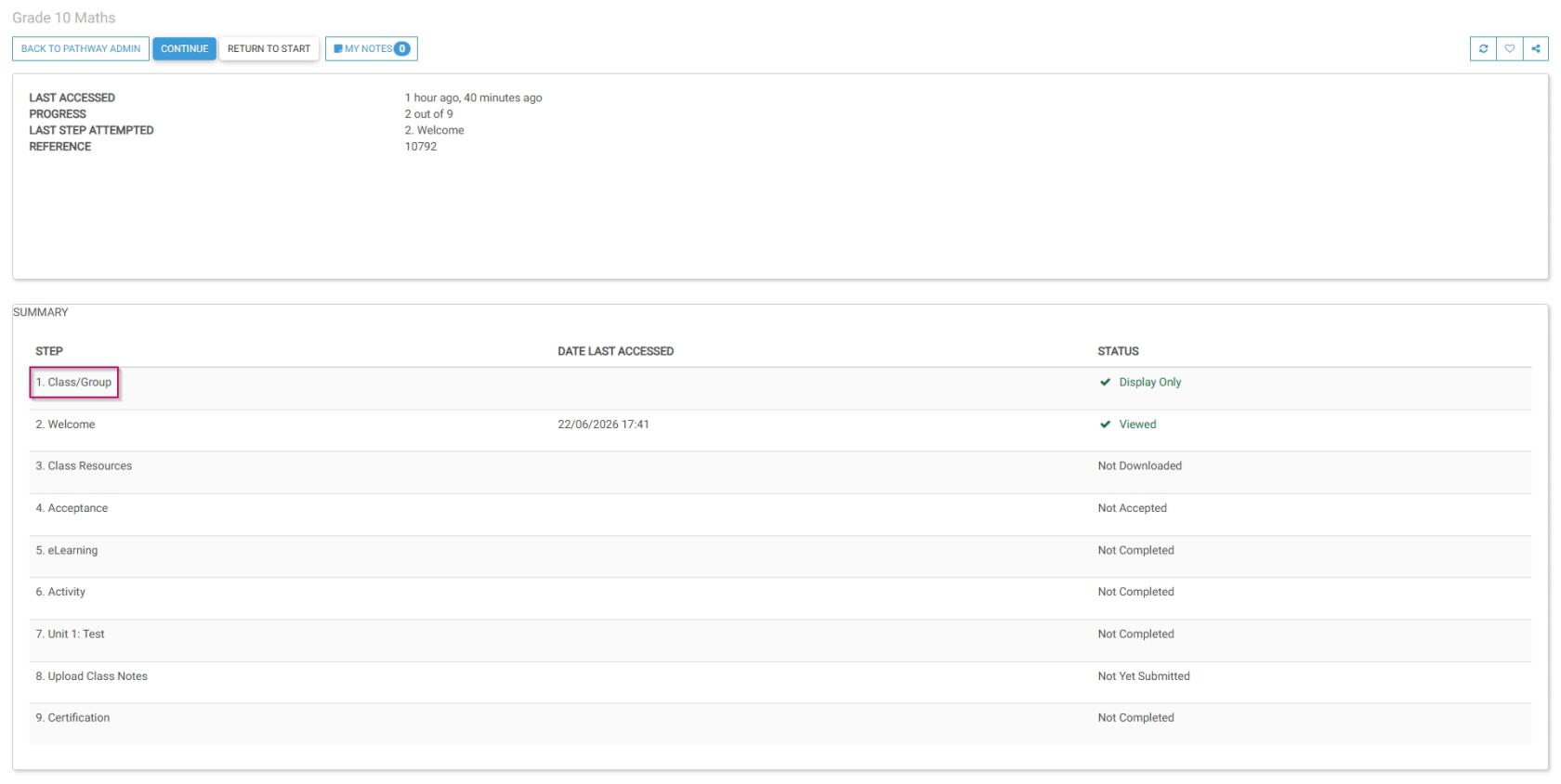
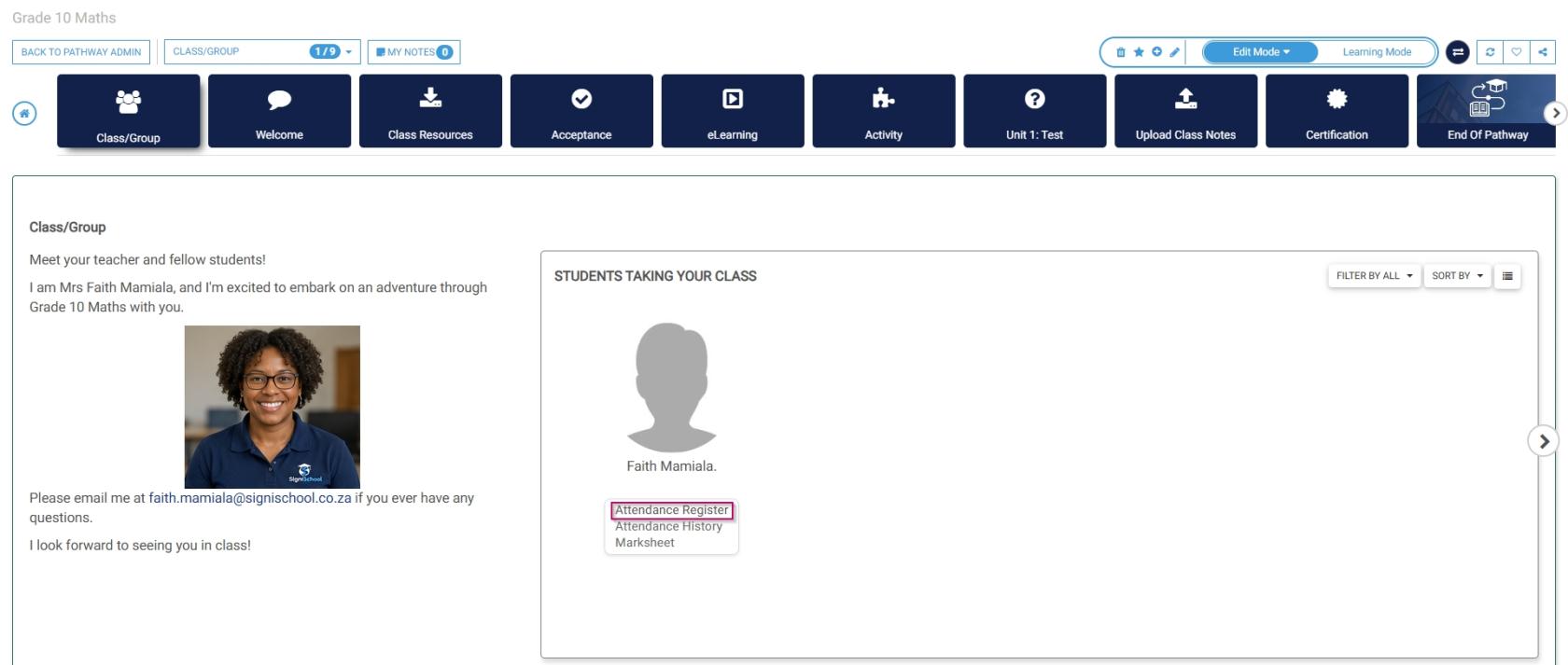
- Navigate to the Class/Group step of the pathway.
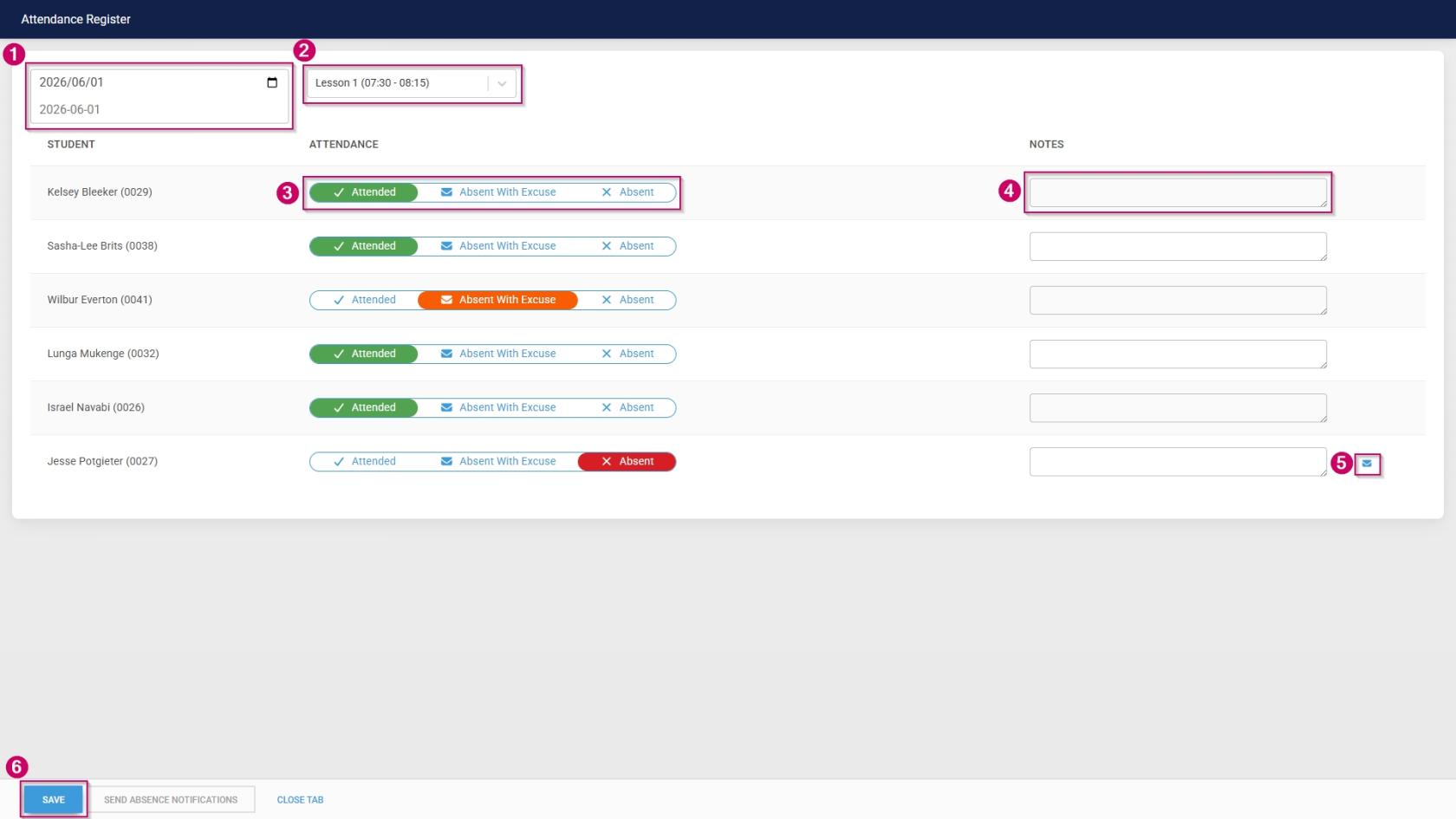
- Click Attendance Register. The attendance register will open in a new tab.
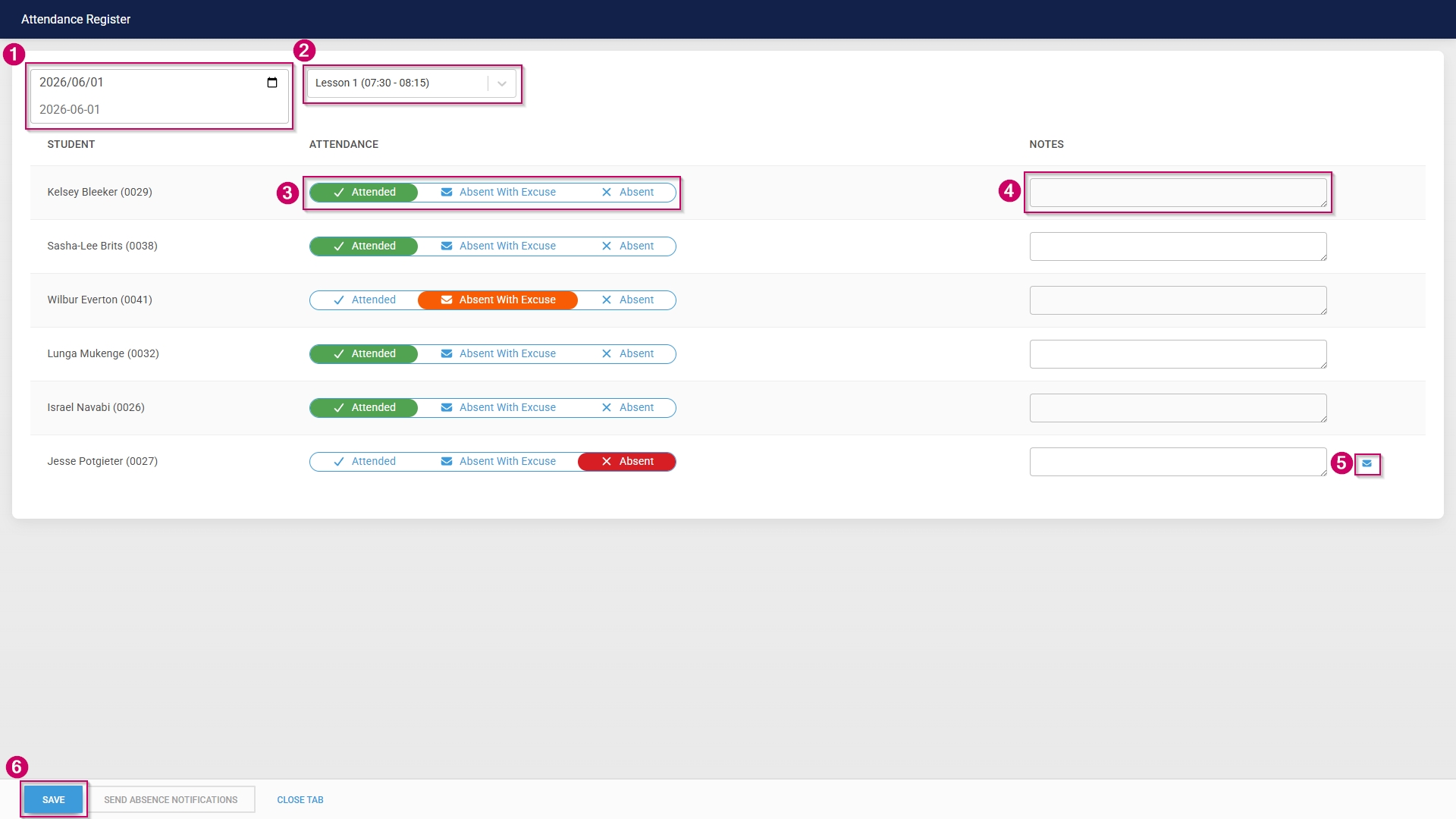
- Select the date the class took place.
- Select the lesson during which the class took place.
- Mark students as:
-
- Attended
- Absent With Excuse
- Absent
- Send out an absence notification by clicking the envelope icon.
- Click SAVE when you are finished, then click CLOSE TAB.