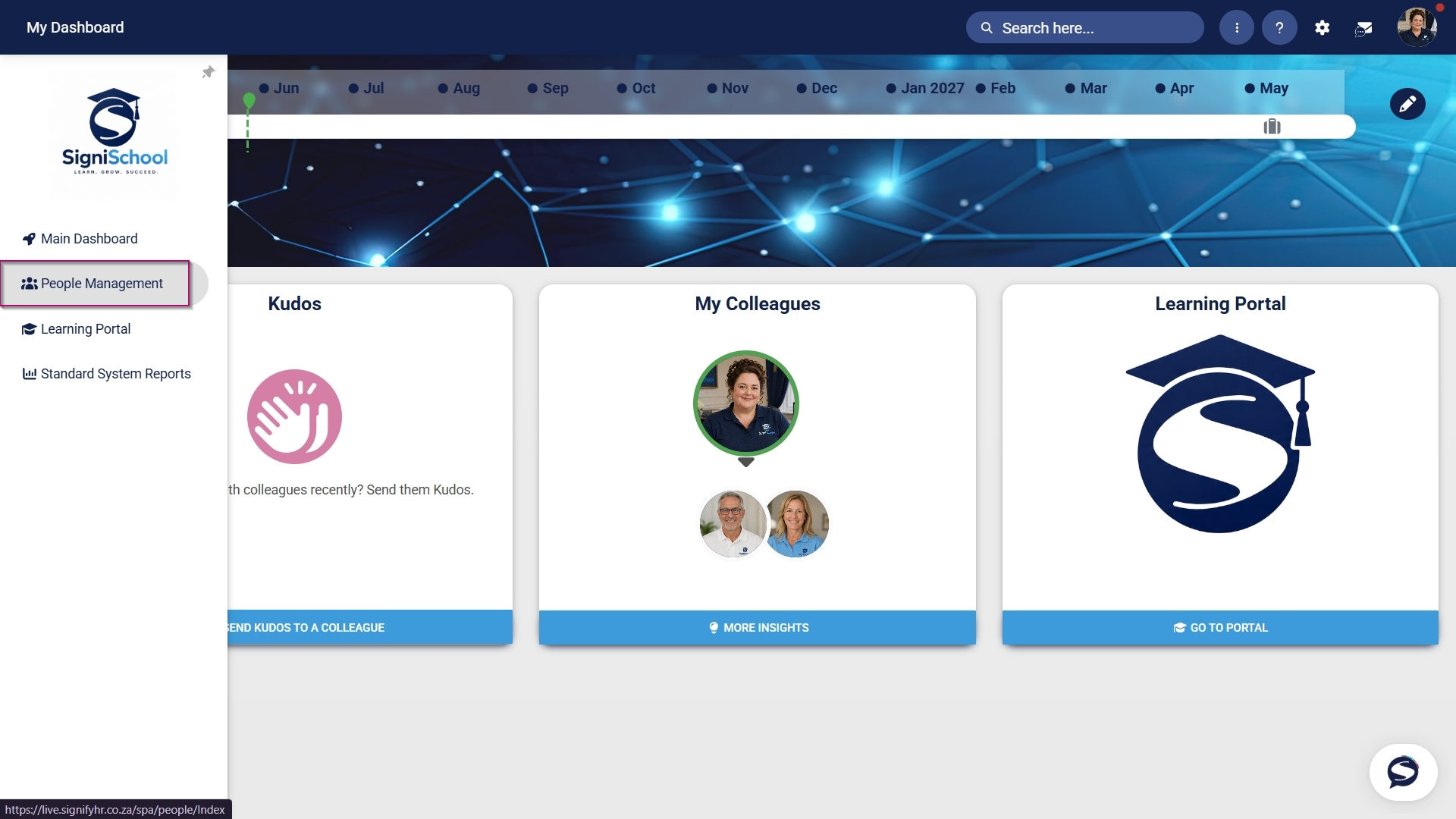
Hover over the sidebar menu, then click Learning Portal.
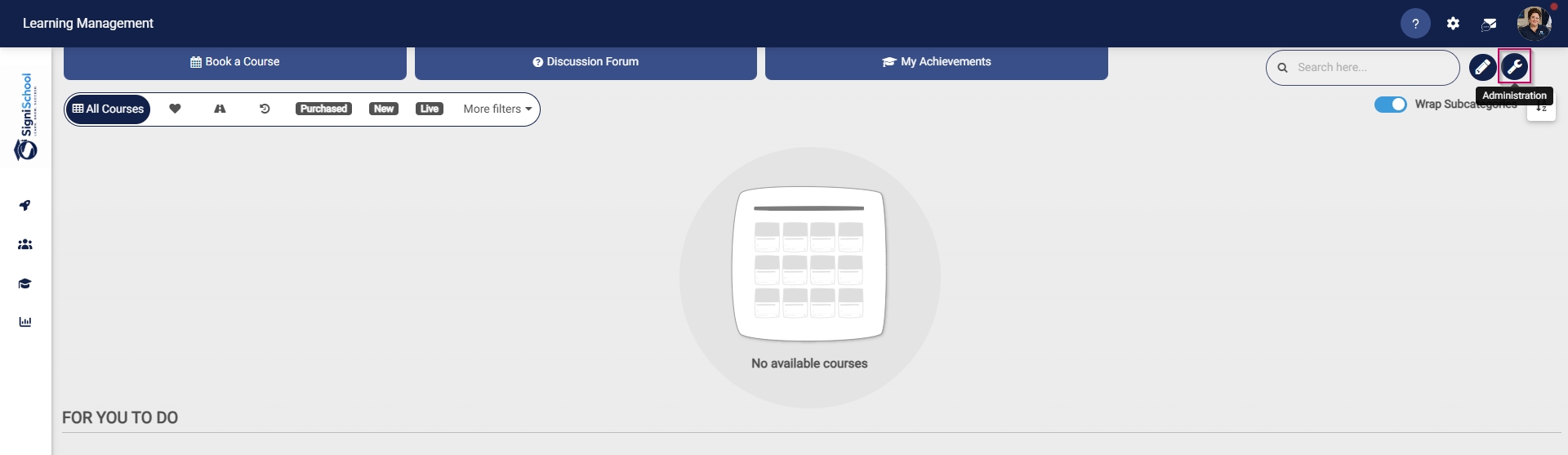
Click the spanner icon to access the system's Administration menu.
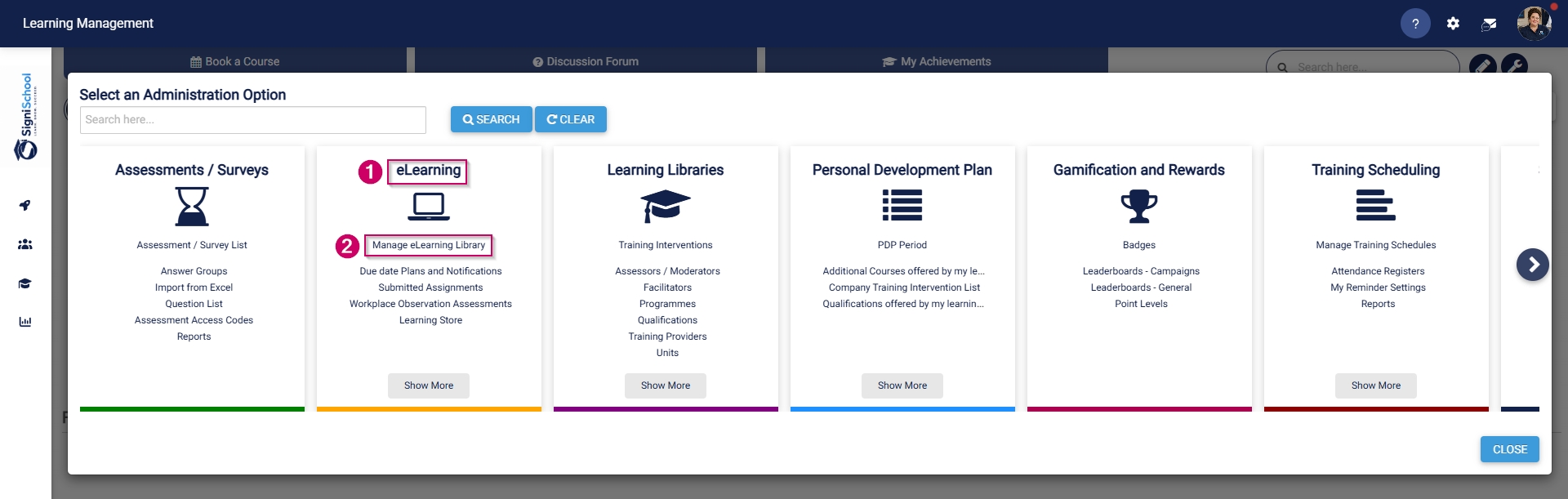
On the eLearningcard, click Manage eLearning Library.
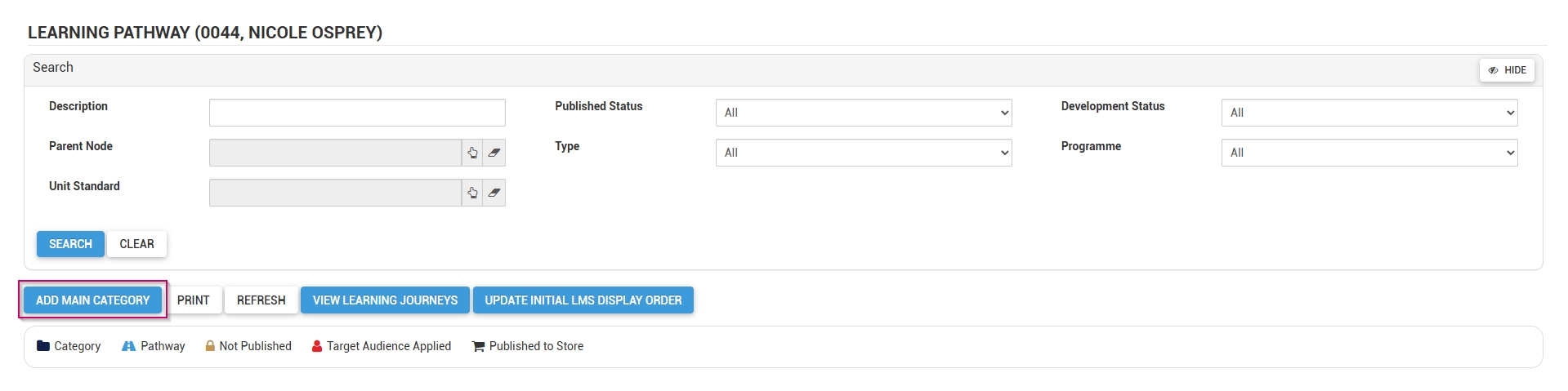
The Pathways Tree View screen will open in a new tab.
Click ADD MAIN CATEGORY.
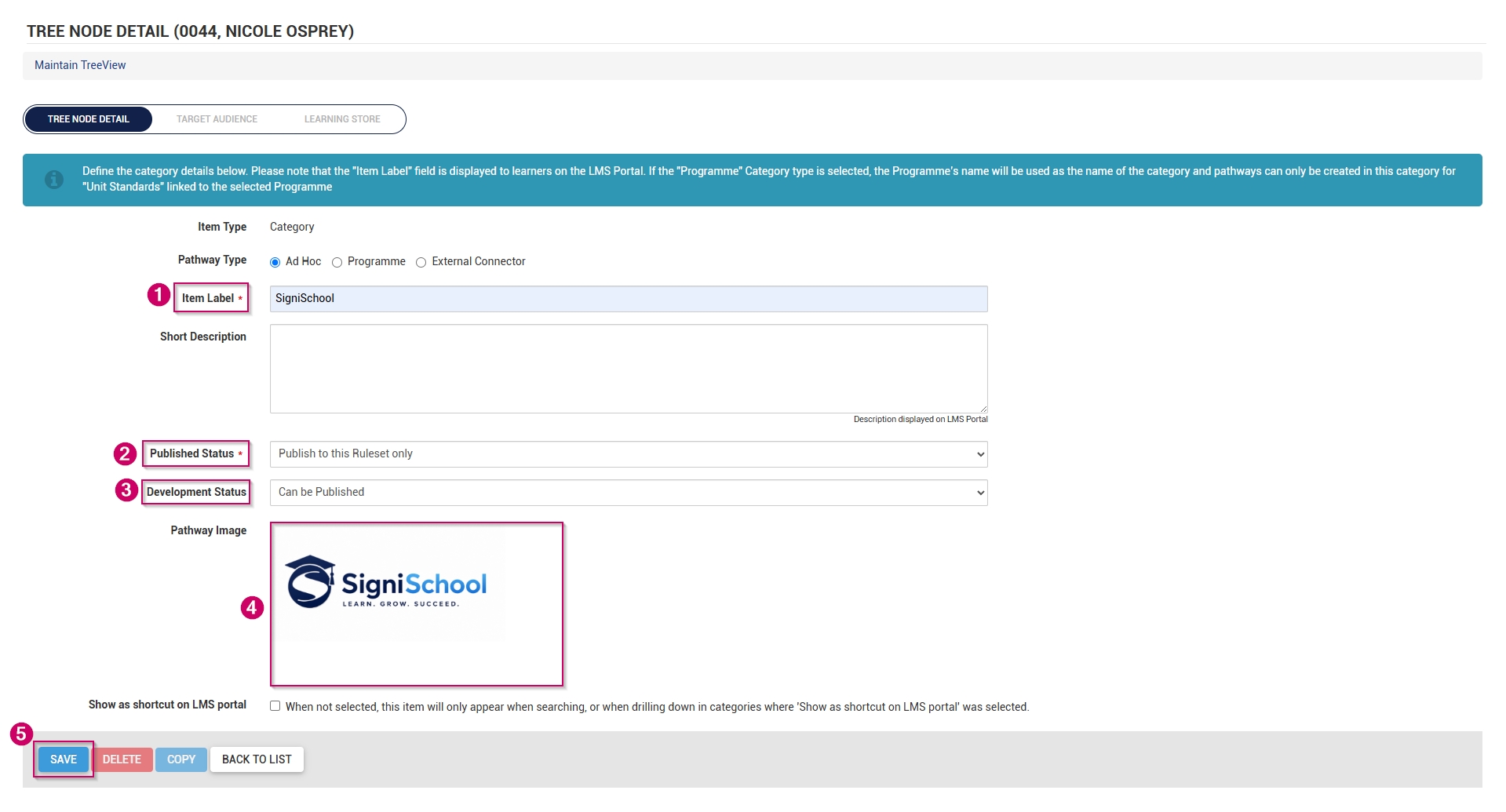
Add a name for the category.
Optionally, add a short description for the category.
From the drop-down menu, select the published status as Publish to this Ruleset only.
From the drop-down menu, select Can be Published to set the development status.
Choose an image for the category. When adding your own image, ensure the aspect ratio is 300 by 200 px and that it is in .png, .jpg, or .gif format.
If the main category should display on the Learning Portal, tick the Show as shortcut on LMS portal checkbox.
Please be aware that selecting a main category on the Learning Portal and checking this box for related pathways in that category may lead to duplicate entries appearing on the Learning Portal screen.
If the main category appears on the Learning Portal, its pathways are accessible through the drill-down feature, so there's no need to tick this checkbox for those pathways.
It is recommended to try out this feature to determine the most effective way for you.
Click SAVE when you are finished or click BACK TO LIST to discard your edits.