Access the Job and Position Library

After establishing the organisational structure, we can proceed with creating job titles and positions using the Job Management functionality.
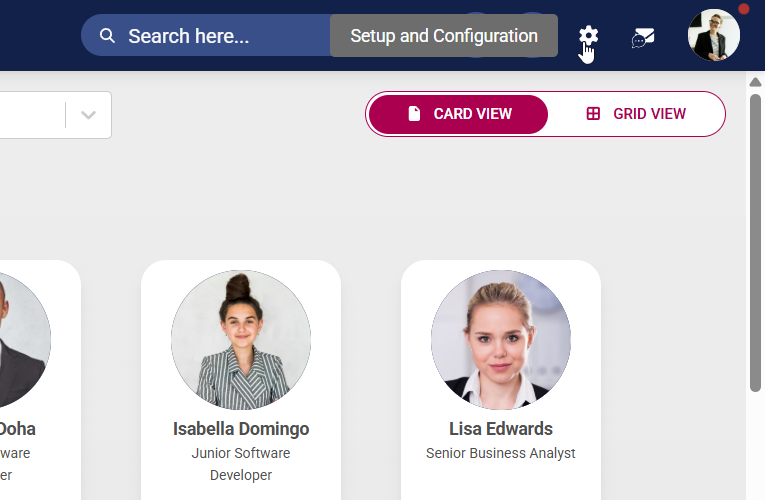
- Click the gear icon to access the Setup and Configuration menu.
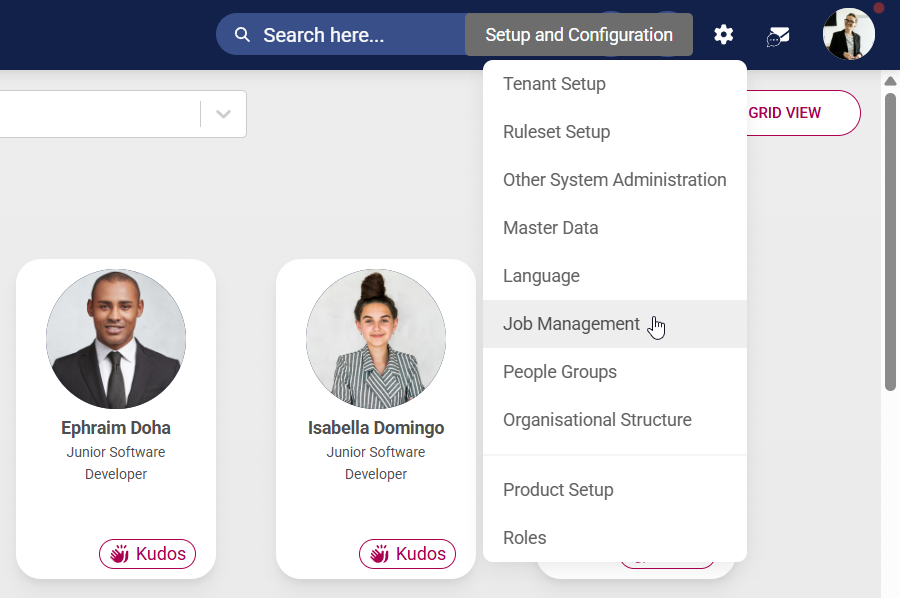
- Select Job Management from the drop-down menu.
- This screen shows all the job titles, positions, and vacancies within your organisation.
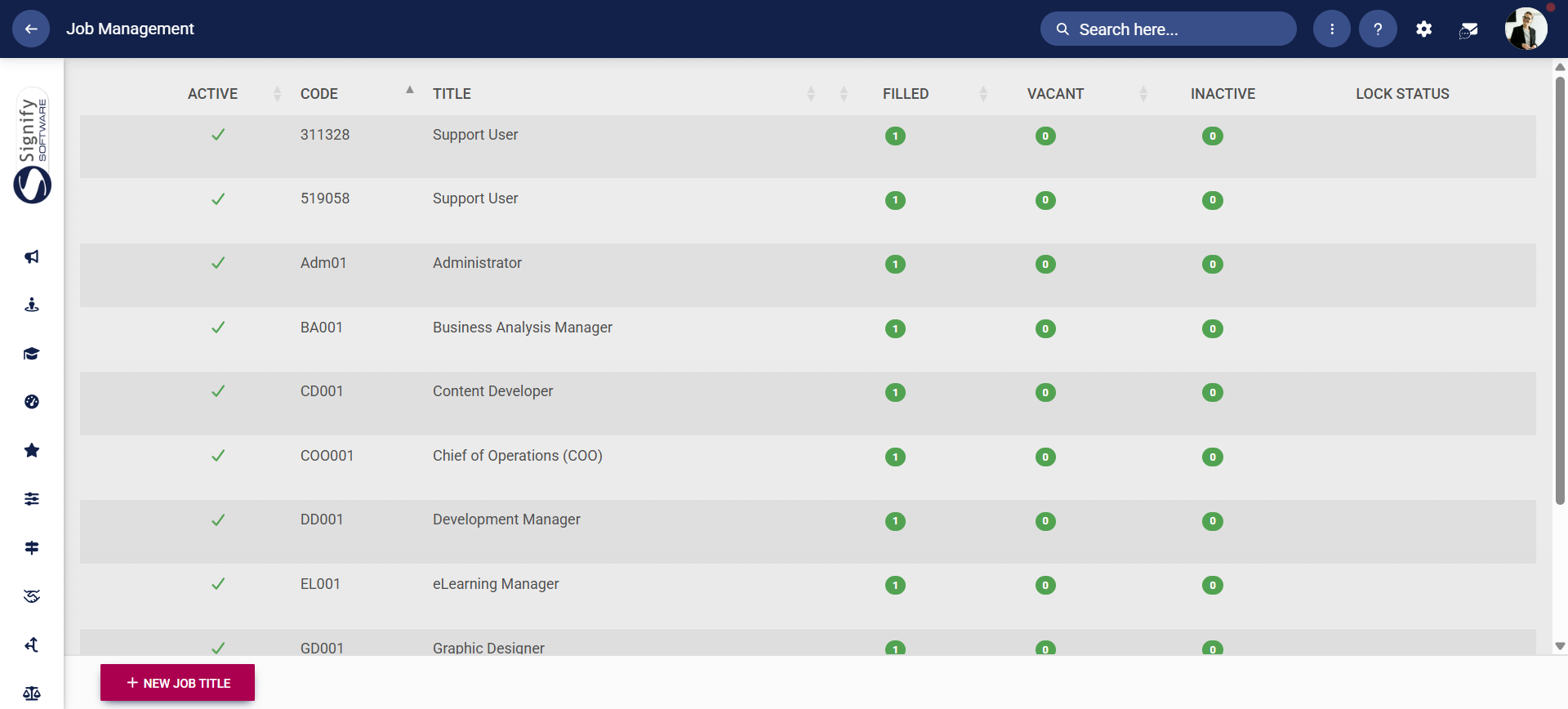
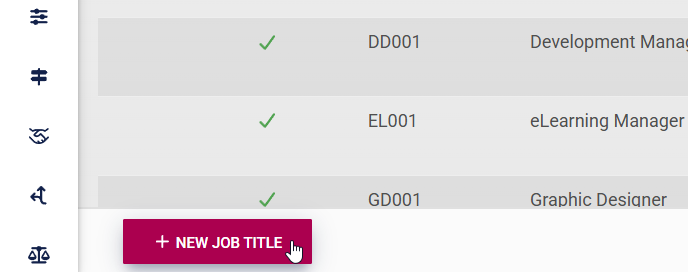
- Click +NEW JOB TITLE to add a new job title.
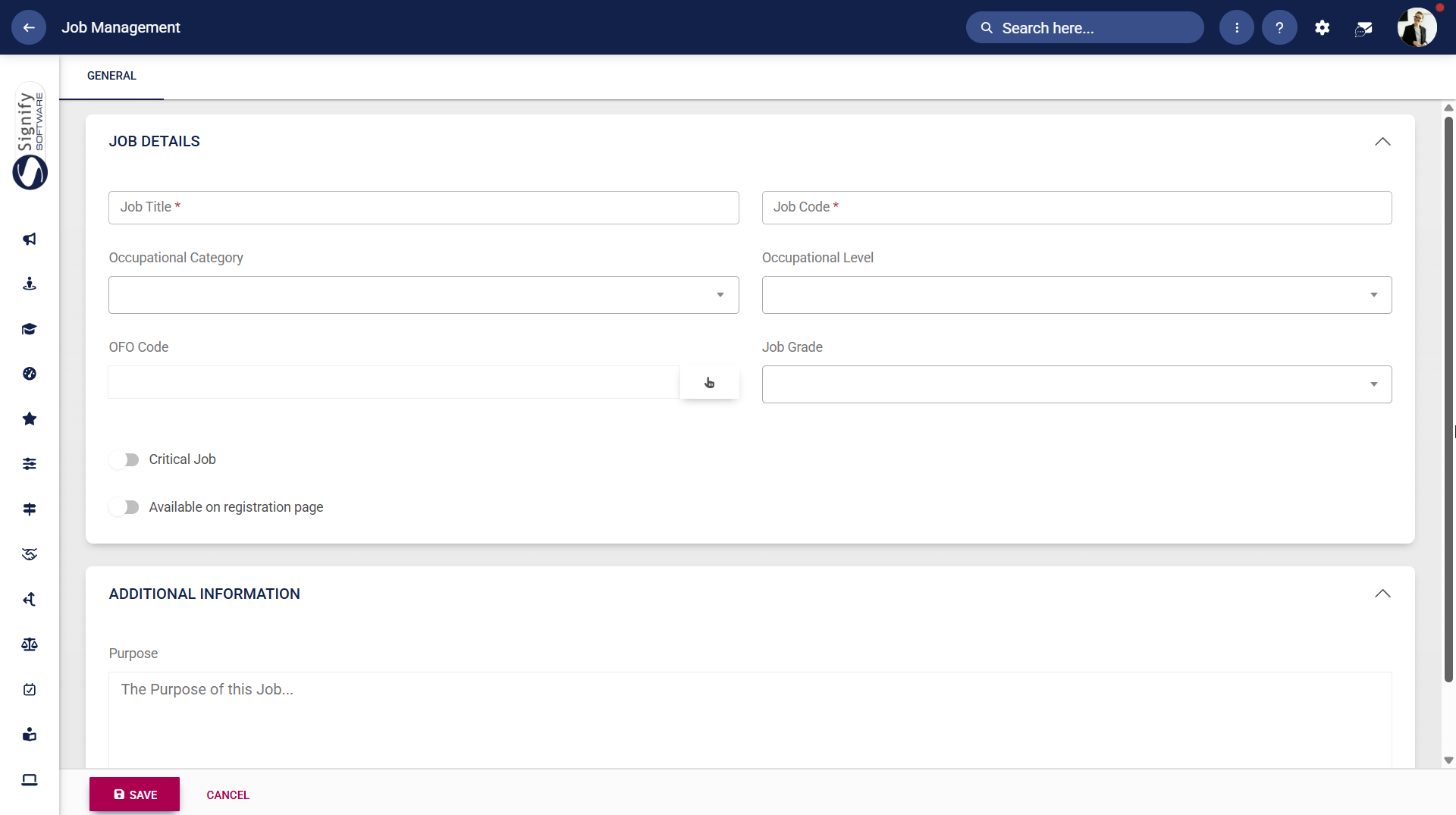
- The job details screen will appear.
-
- Enter the job title and job code.
- If the master data for the occupational category, occupational level, OFO code, and job grade data fields has been set up, you can select the appropriate data from the drop-down menus. To learn more about master data, navigate to the Master Data Maintenance part of this chapter.
- You can toggle the Critical Job switch on and off as required.
- Toggle to enable new registrants to select this job title when registering on the system.
- Other additional information about the job title can be added, but is not required.
-
Click SAVE when you are finished or click CANCEL to discard your edits.
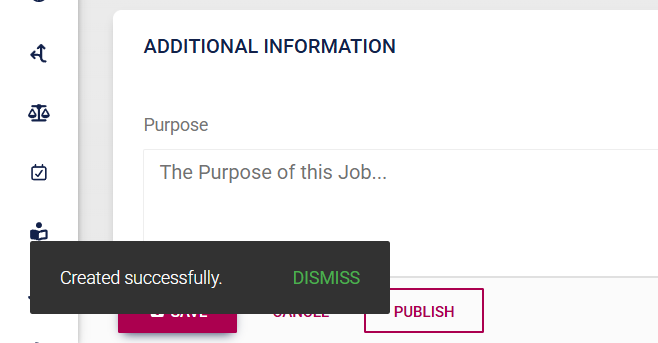
- A message will appear to confirm the successful creation of the job title.
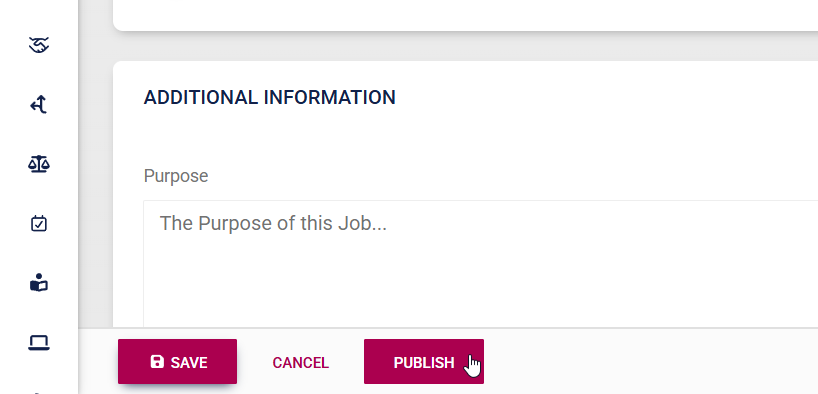
- After saving the new job title, click PUBLISH to finalise and share it.
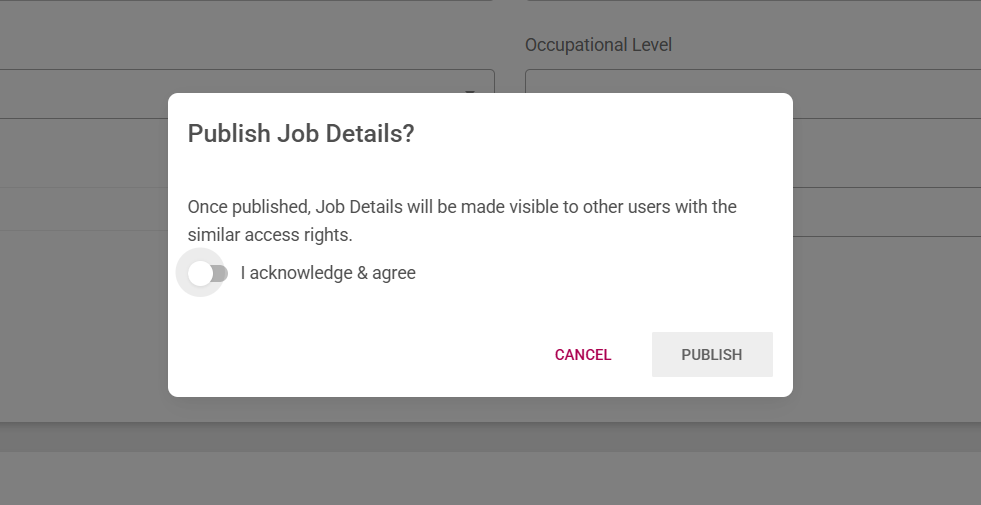
- Toggle to confirm that you acknowledge and agree to the changes, then click PUBLISH.
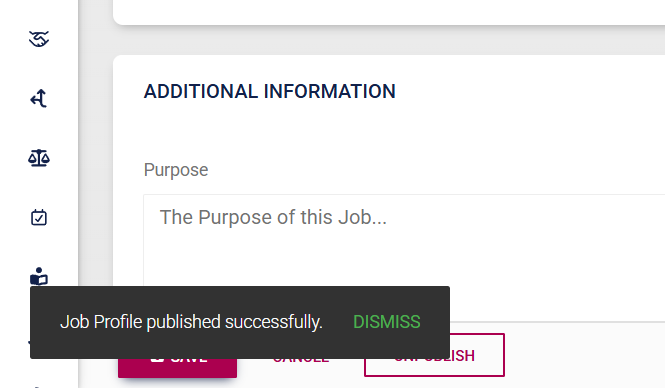
- A message will appear to confirm that the job title was published successfully.
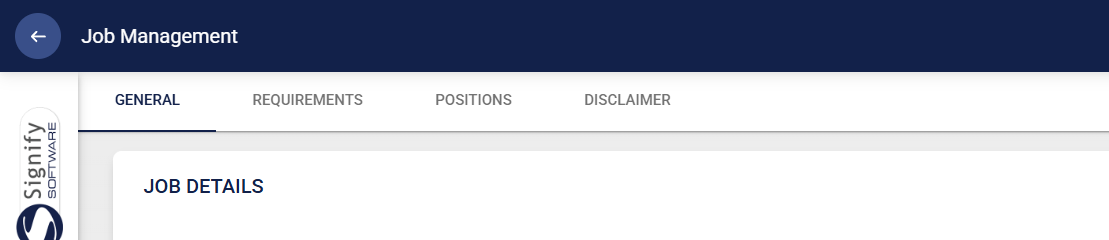
- Once the job title has been created, additional tab options will appear at the top of the screen. You can either set the Requirements for the role or click on the Positions tab to add new job positions associated with that role. Click on Positions to proceed.
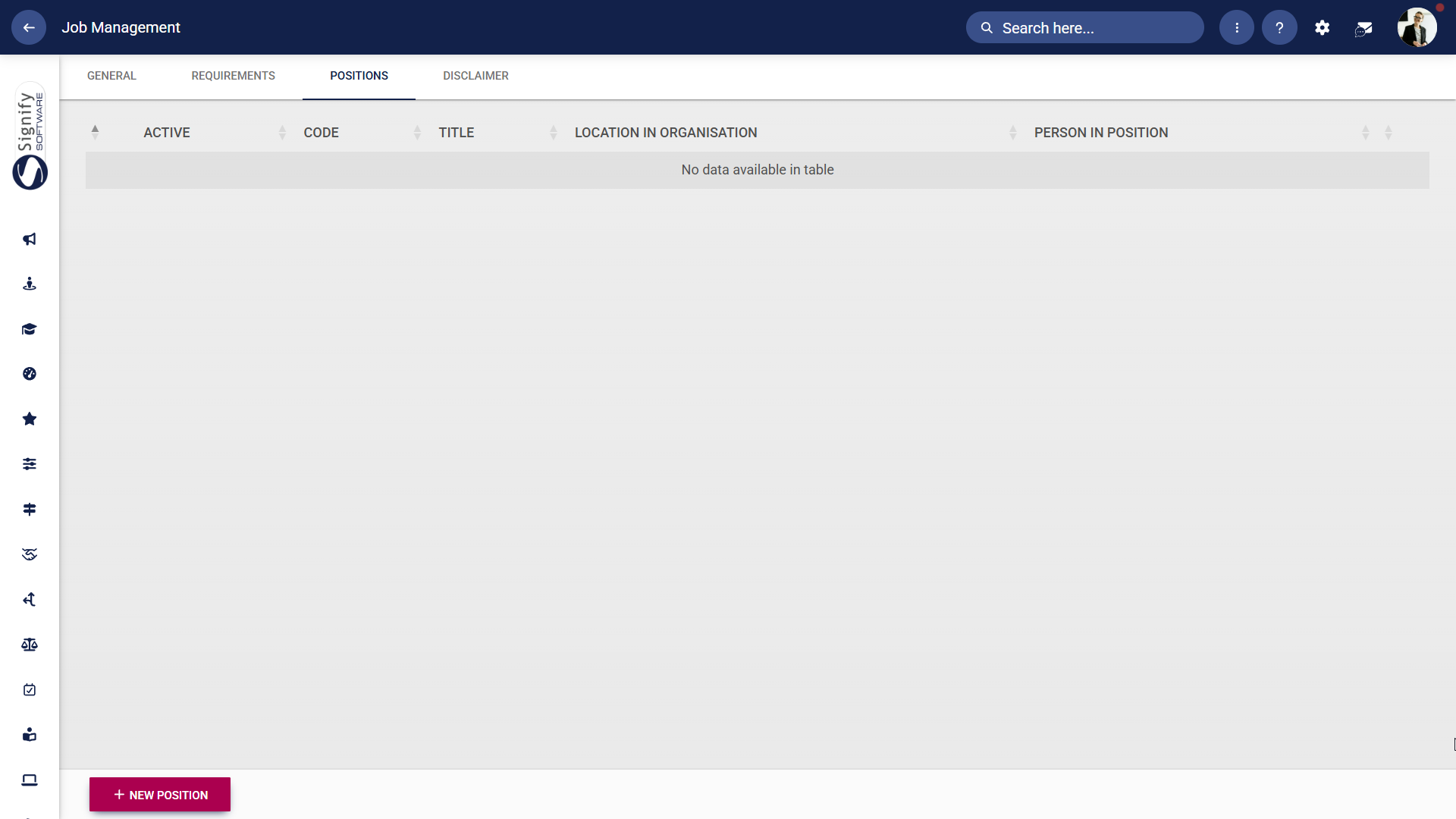
- The current positions linked to the job title will be displayed. Click +NEW POSITION to add a new position.
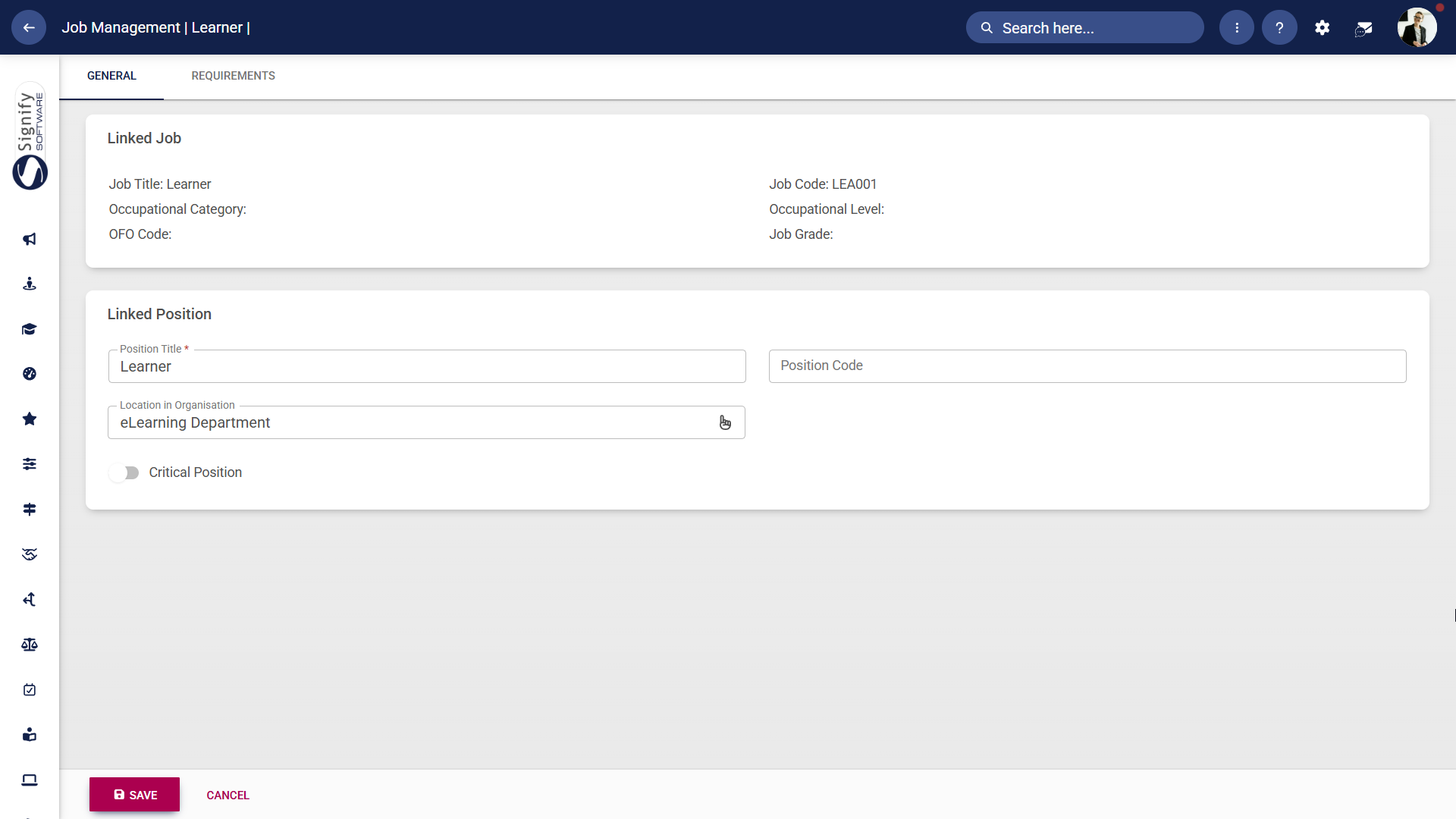
- The position details screen will appear.
-
- Enter the position title. The position code will be automatically generated.
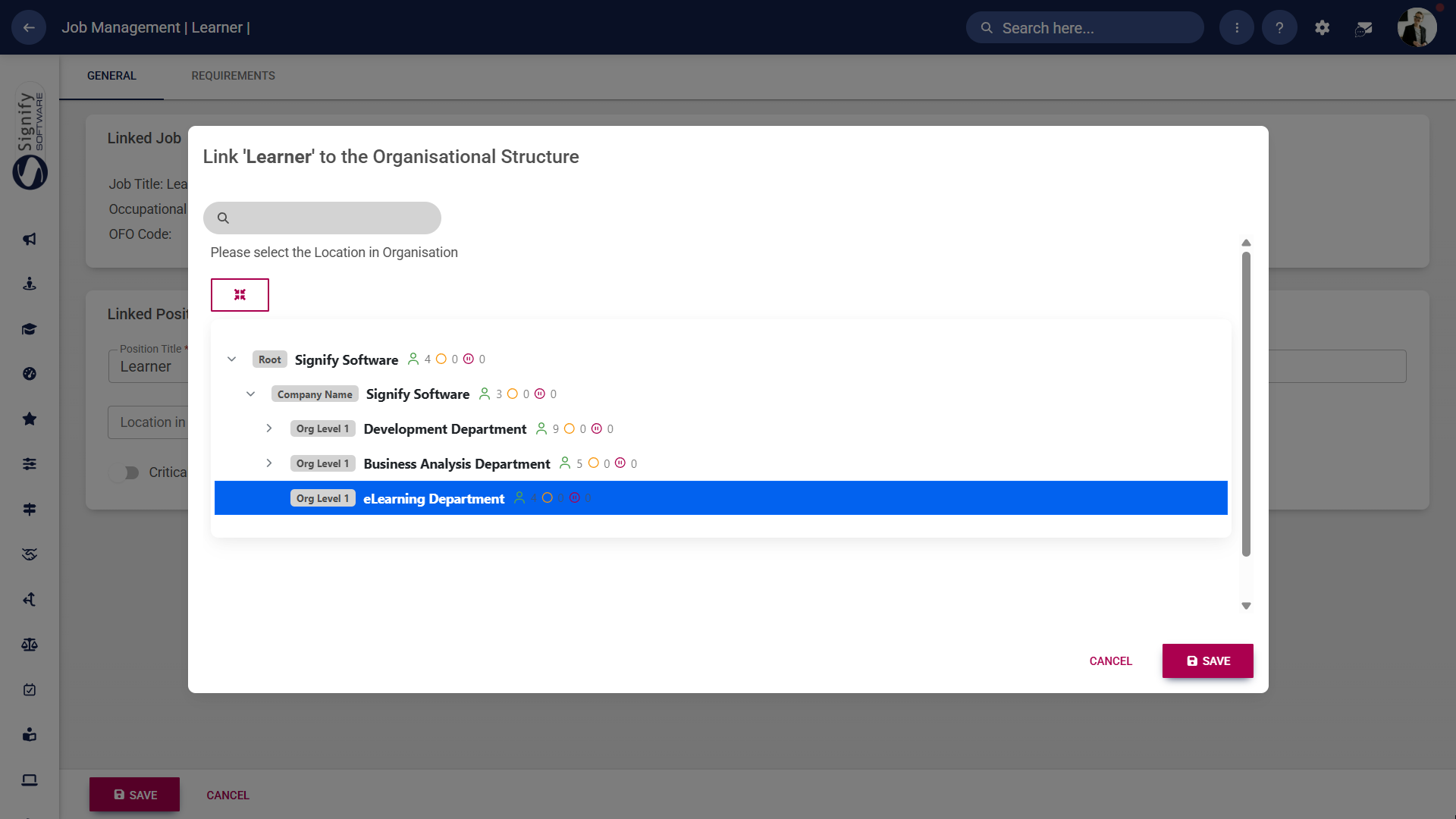
- Click the hand icon to select the location in the organisation.
- Click the Critical Position toggle if required.
-
Click SAVE when you are finished or click CANCEL to discard your edits.
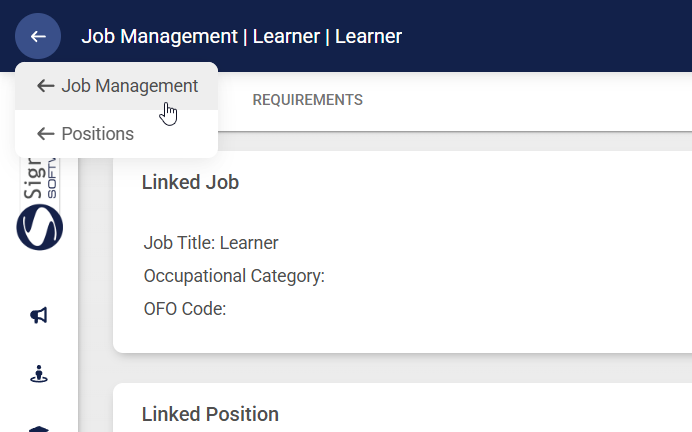
- You can return to Job Management to continue adding job titles and positions as needed.