Create People Groups

A target audience, or a People Group, can be created to identify users based on specific criteria. The goal is to group users in a way that optimises processes such as:
reporting,
communication,
performance tracking, and
workforce planning.
After successfully importing users into the system, people groups can now be created.
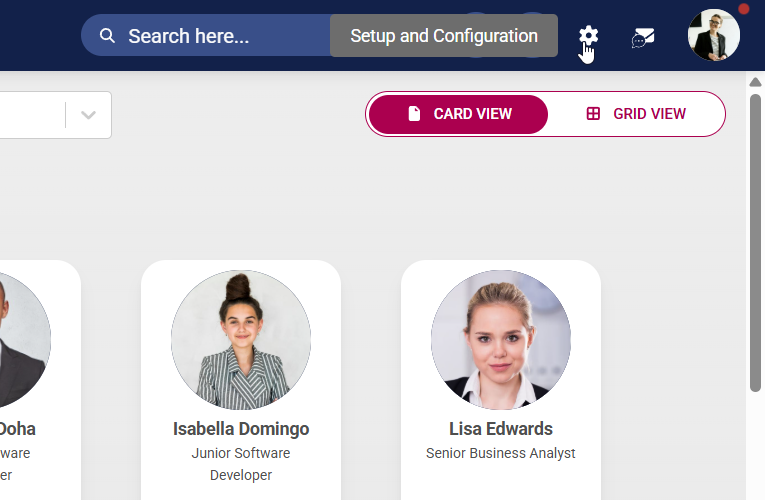
Click the gear icon to access the Setup and Configuration menu.
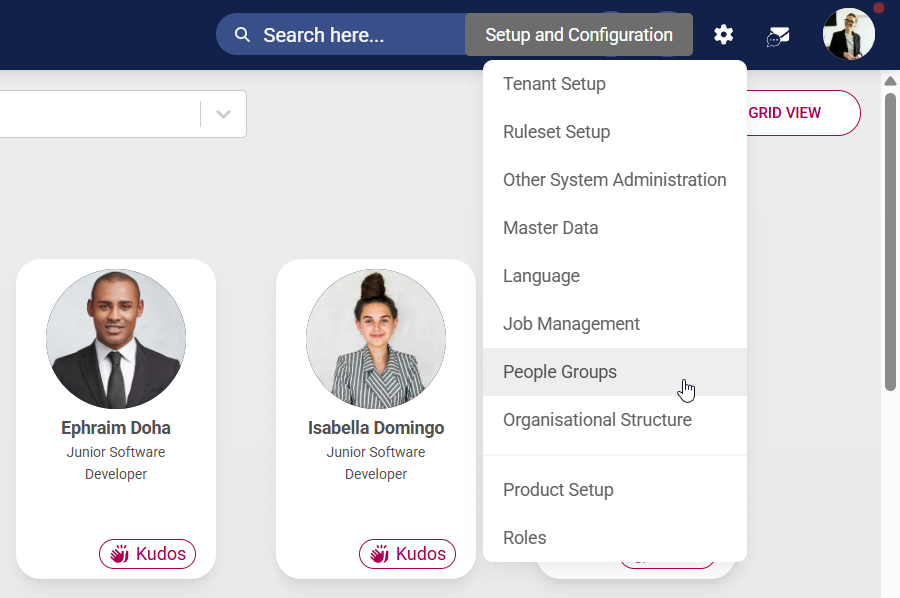
Click People Groups in the drop-down menu.
You can create target audiences based on several factors. These include, but are not limited to:
Organisational factors (department, team, location, reporting lines, etc.)
Job-related factors (job title, job level or grade, employment type, etc.)
Tenure and employment history (length of service, start date in company, etc.)
Skills and competencies (certifications and qualifications, soft skills, technical skills, etc.)
System-related responsibilities (administrative rights, project involvement, etc.)
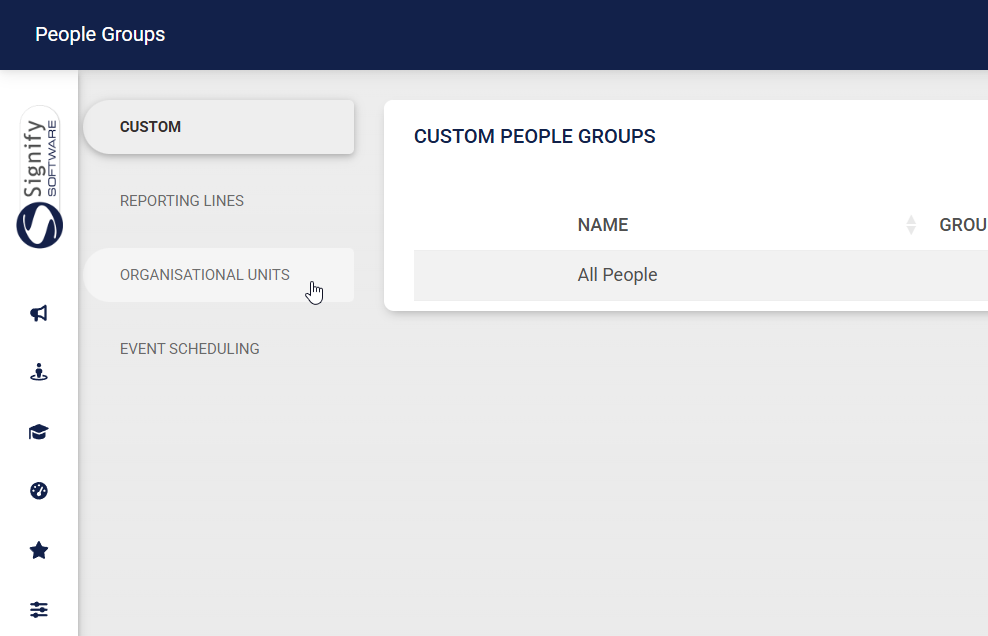
For our example, we will be creating a people group based on an organisational unit. On the left-hand menu, click Organisational Units.
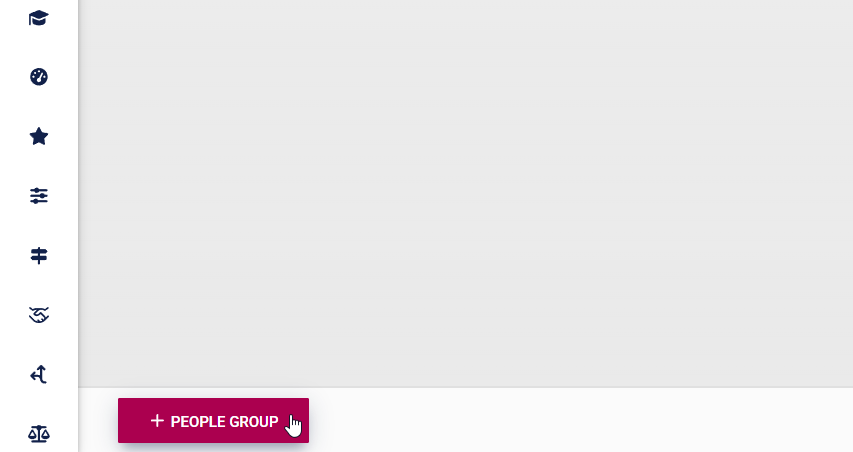
At the bottom of the screen, click +PEOPLE GROUP.
Expand the organisational structure to find the organisational level you are searching for.
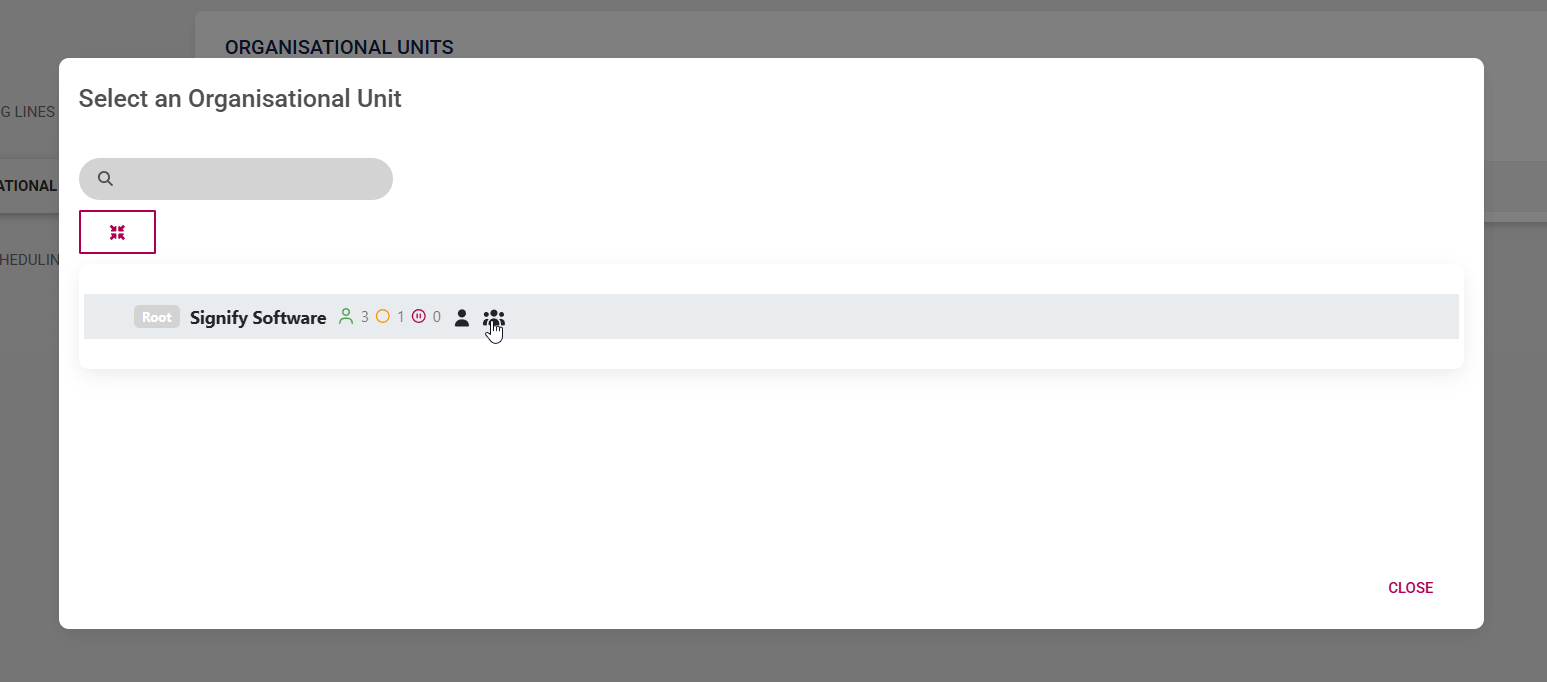
When creating a people group, you have two inclusion options:
Include people only within that organisational unit, excluding users in subordinate levels. Do this by clicking the icon of an individual.
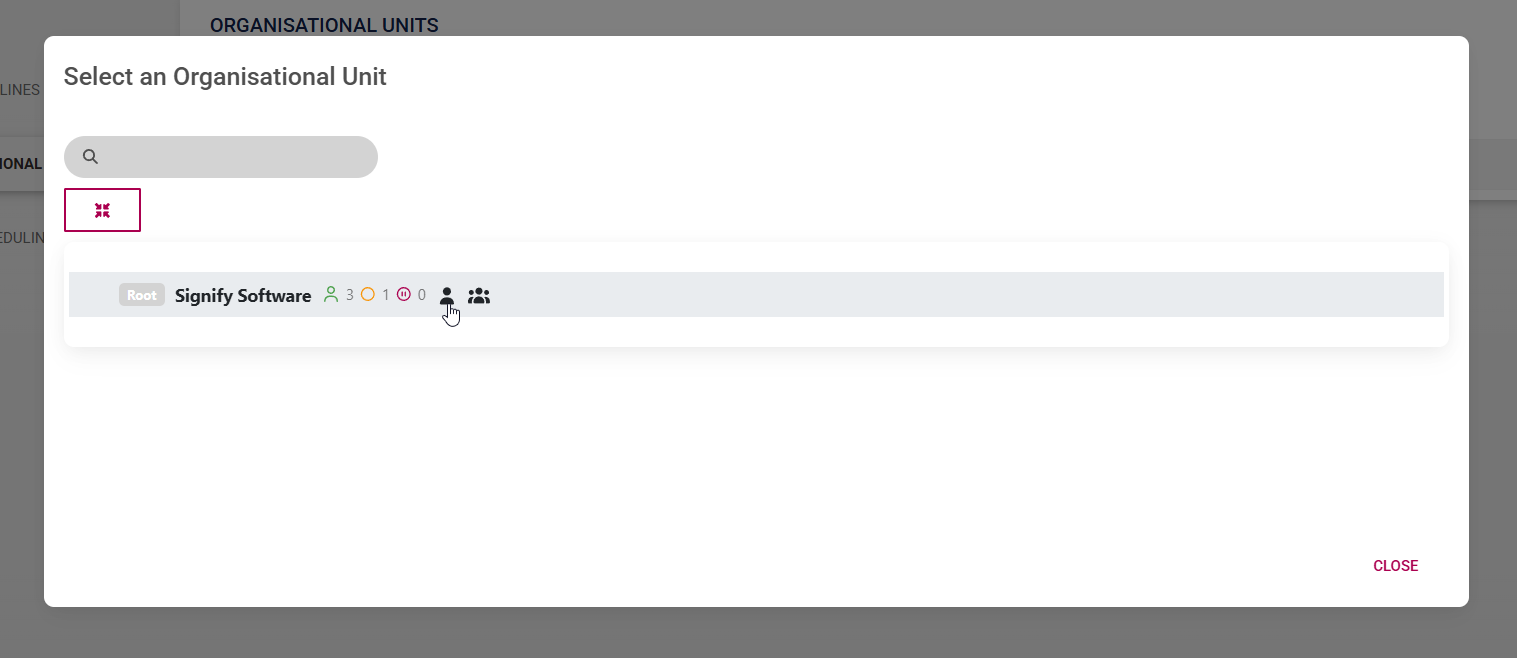
Include people within that organisational unit, as well as all subordinate levels. Do this by clicking the icon of a group of people.
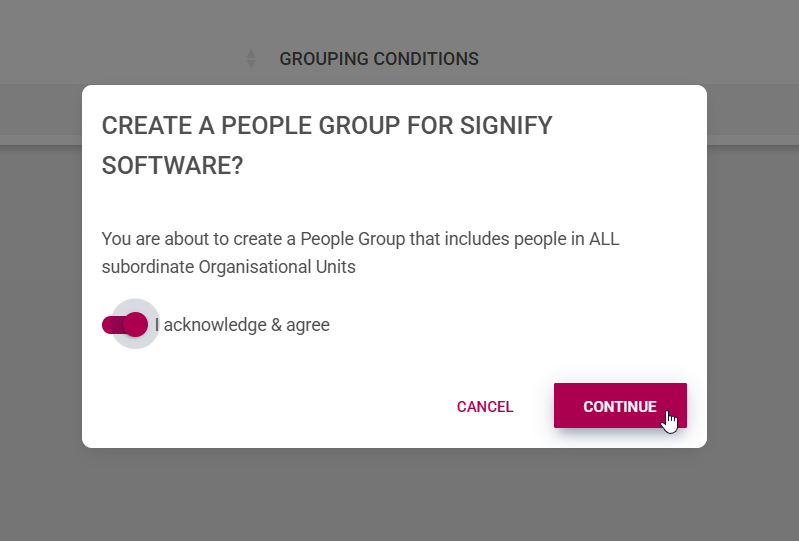
After selecting the type of people group you would like to create, click to acknowledge and agree. Click CONTINUE to proceed, or CANCEL to discard your changes.
After creating people groups, it may take some time for them to sync with the system. To trigger the sync manually, follow the steps outlined in the Bulk Additional Service Imports section of this chapter.



