View and Update the Organisation Structure

- Navigate to the Main Dashboard, then click MORE INSIGHTS on the My Colleagues widget.
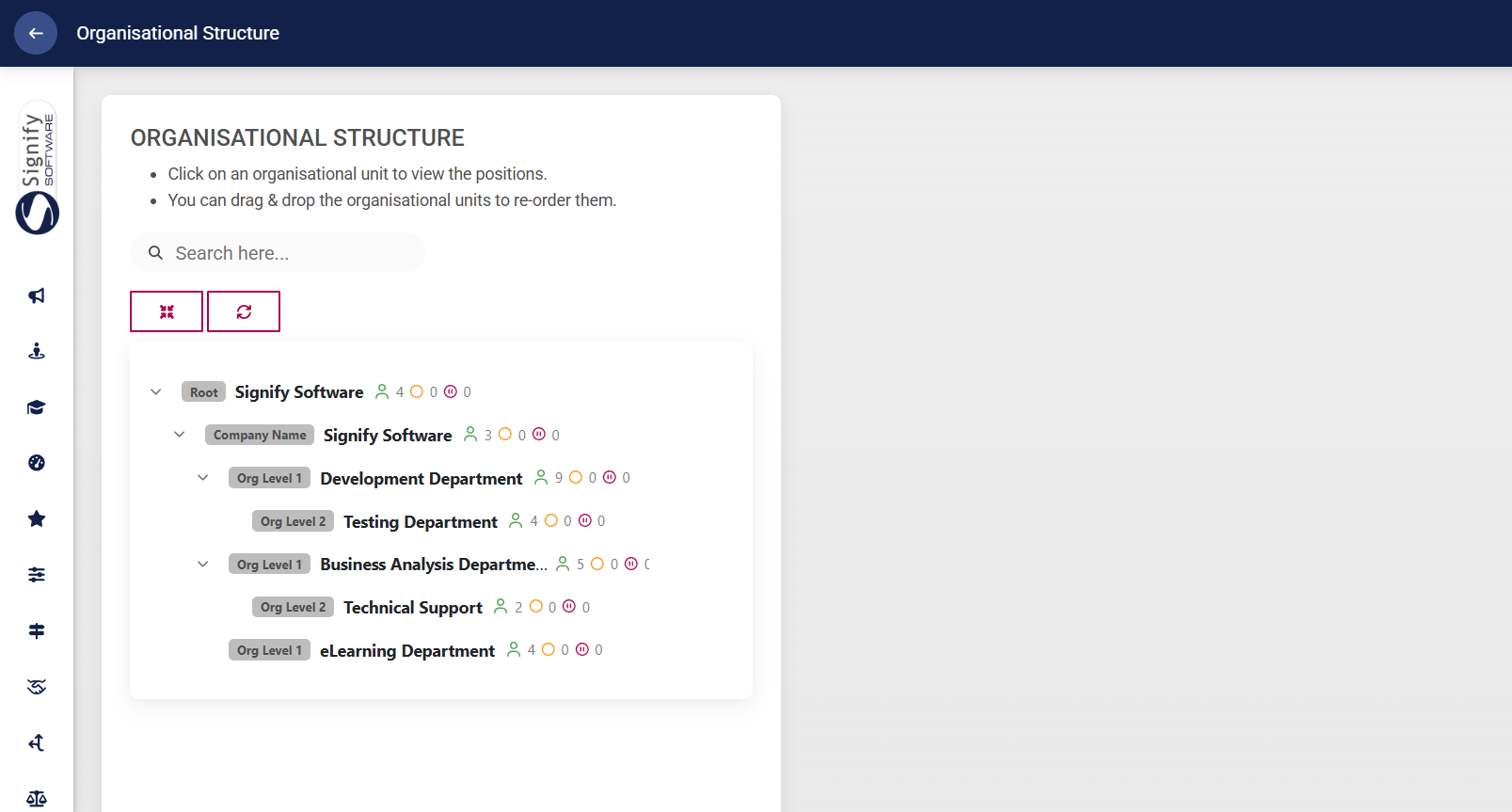
- The organisational structure will appear. You can expand the levels to view your reportees' subordinates.
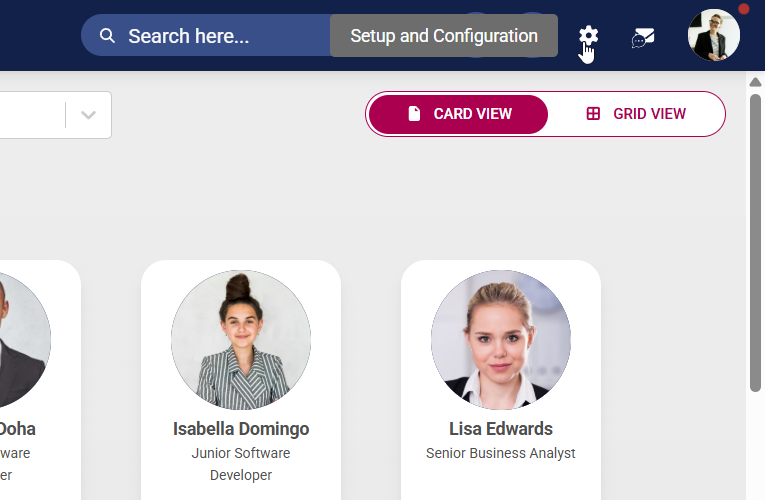
- Click the gear icon to access the Setup and Configuration menu.
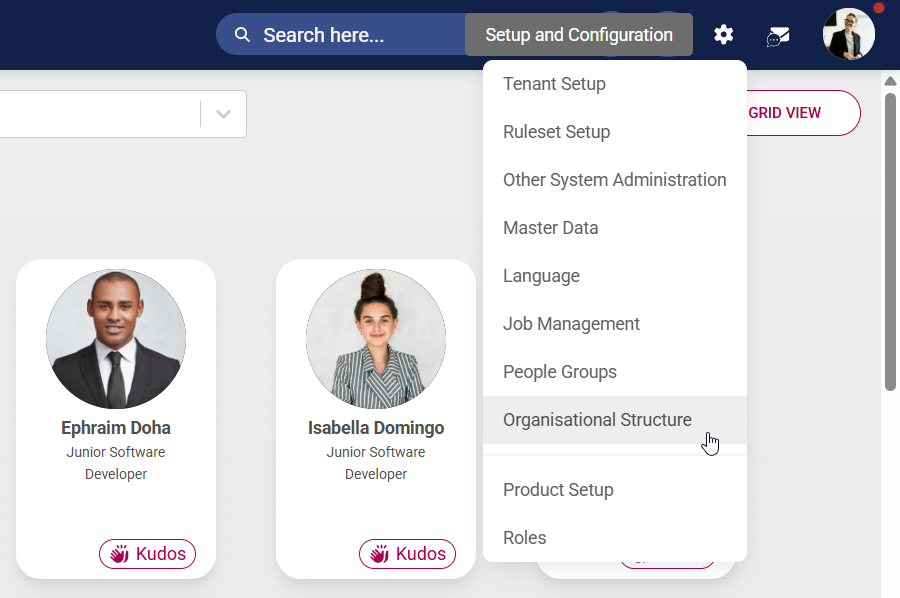
- Select Organisational Structure from the drop-down menu.
- Create an organisational structure based on the organisation’s size, goals, industry, and work style. Some examples of organisational structures:
-
- Hierarchical structure – based on levels of authority and responsibility
- Functional structure – focuses on specialised roles or departments
- Divisional structure – based on product lines, geographical locations, or customer types
- Team-based structure – centred around project teams or cross-functional units
- Process-based structure – focuses on workflow and end-to-end processes
-
Hover over the name of a level to access the editing options. You can rearrange organisational levels by using the drag-and-drop feature.
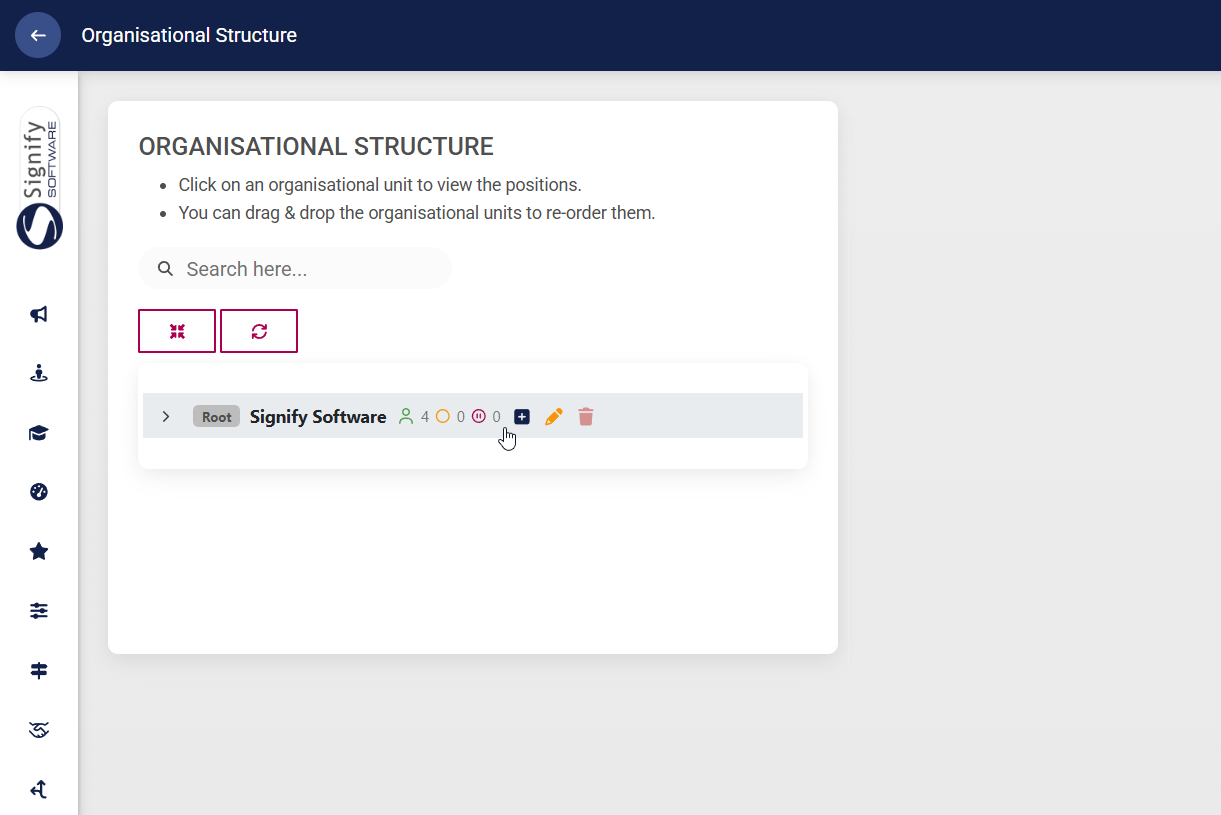
- To add a subordinate level, click the plus icon next to the relevant level name.

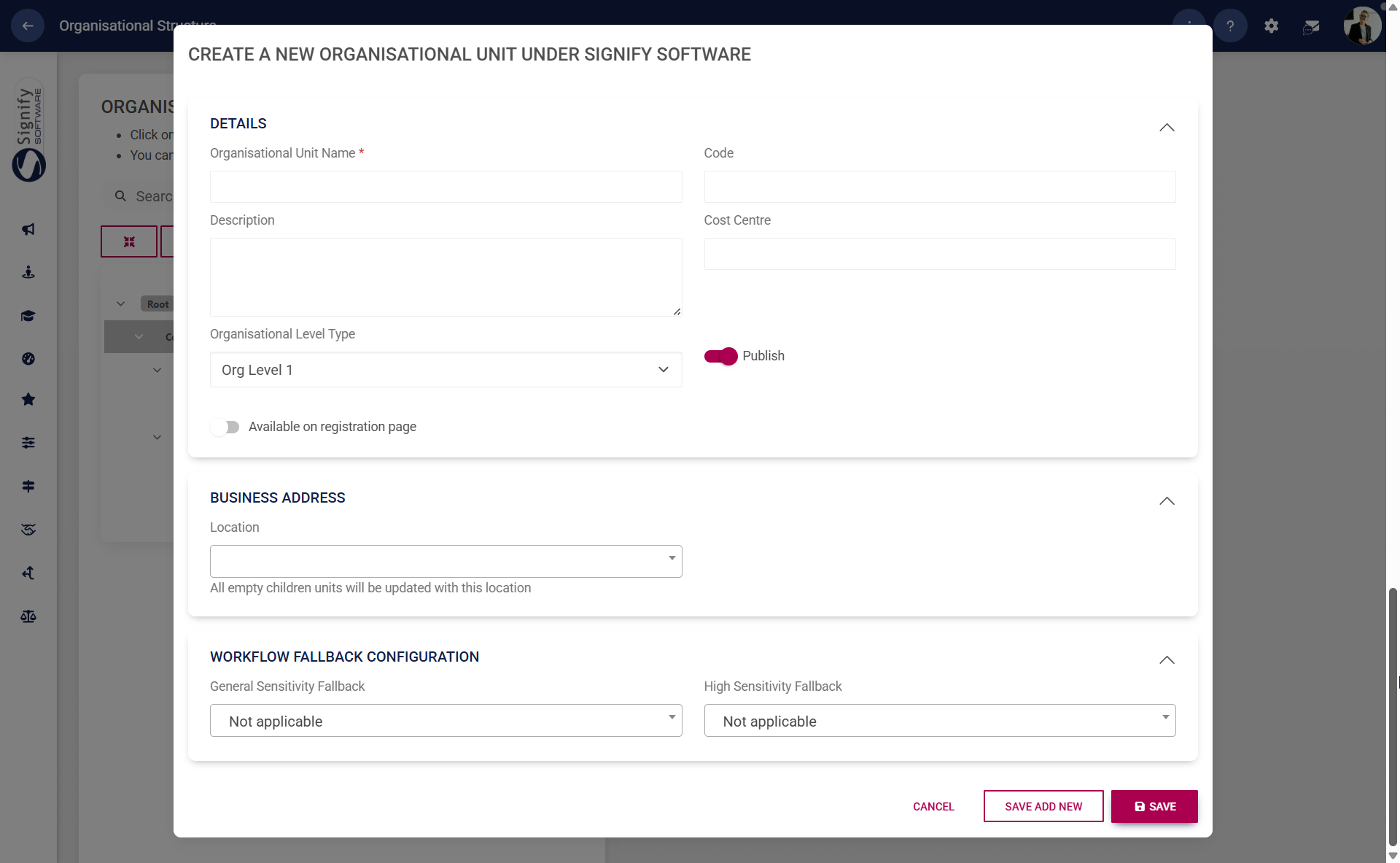
- Complete the details of the organisational unit.
-
- Enter the name and code of the organisational unit.
- Choose the appropriate organisational level type from the dropdown menu.
- Toggle the Publish option on or off as needed.
- Toggle to enable new registrants to select this organisational unit when registering on the system.
- If configured in the master data, the business location can be selected. To learn more about master data, navigate to the Master Data Maintenance part of this chapter.
- Other additional information about the organisational unit can be added, but is not required.
-
Click SAVE ADD NEW to add another subordinate level to the same organisational unit. Click SAVE when finished or click CANCEL to discard any changes.
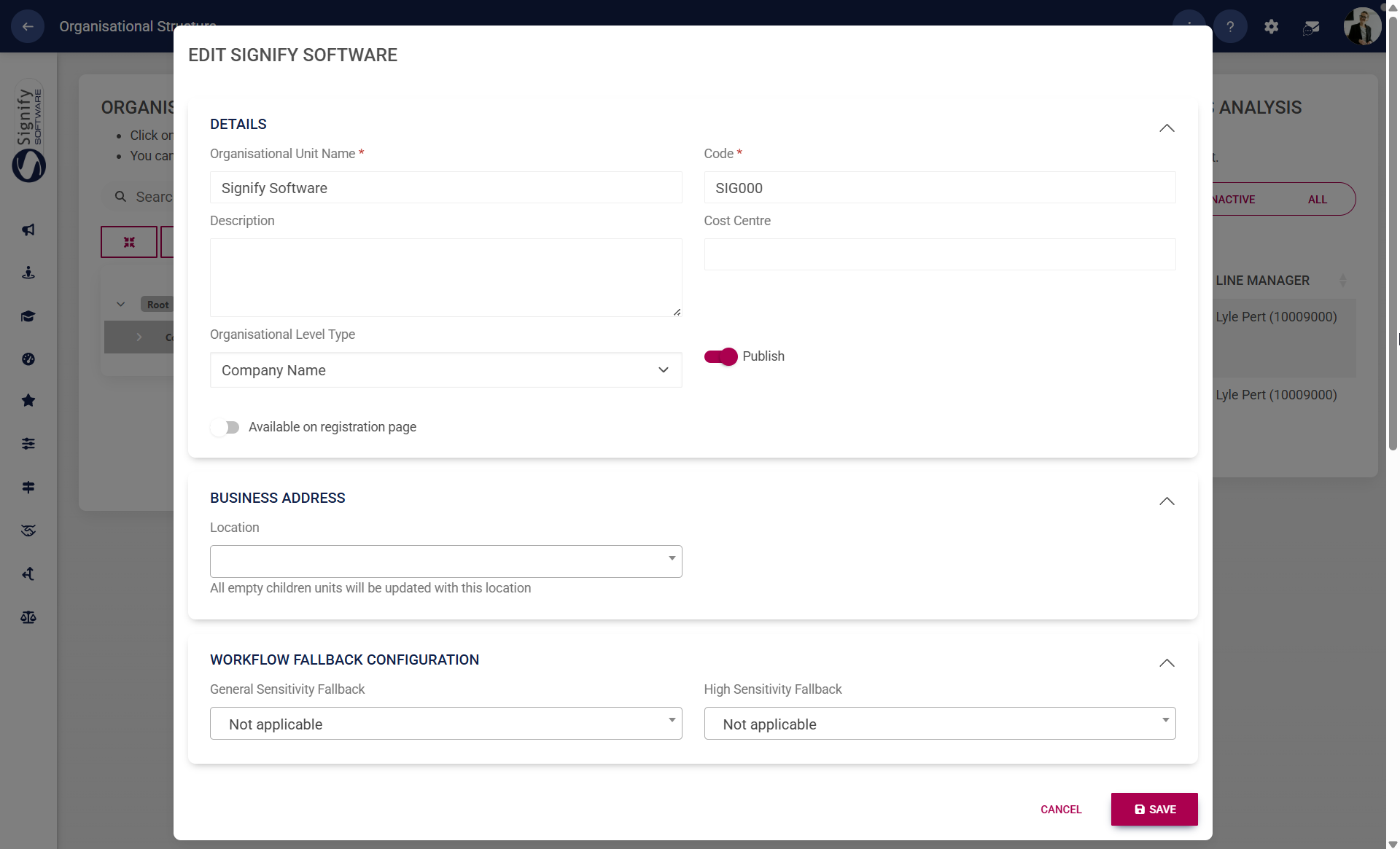
- Click the pencil icon next to the name of an organisational level to edit.
- Update the details of the organisational level. Click SAVE when finished or click CANCEL to discard any changes.
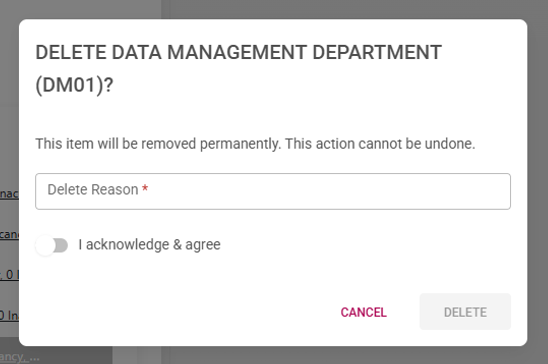
- To delete a level, click on the trash bin icon next to its name. Please note that a level cannot be deleted if it has:
-
- subordinate levels,
- vacant positions, or
- active positions.
-
- When deleting, provide a valid reason for the deletion, confirm that you acknowledge and agree to the action, and then click DELETE. If you wish to cancel the operation, click CANCEL to discard any changes.
- The green, yellow, and red icons next to an organisational level's name indicate filled, vacant, and inactive job positions, respectively. In our example, there are four filled positions, and no vacant or inactive positions.
- By clicking on the organisational level's name, the filled, vacant, and inactive job positions can be viewed on the right. To move a position to another organisational unit, drag and drop it into the appropriate unit on the left.
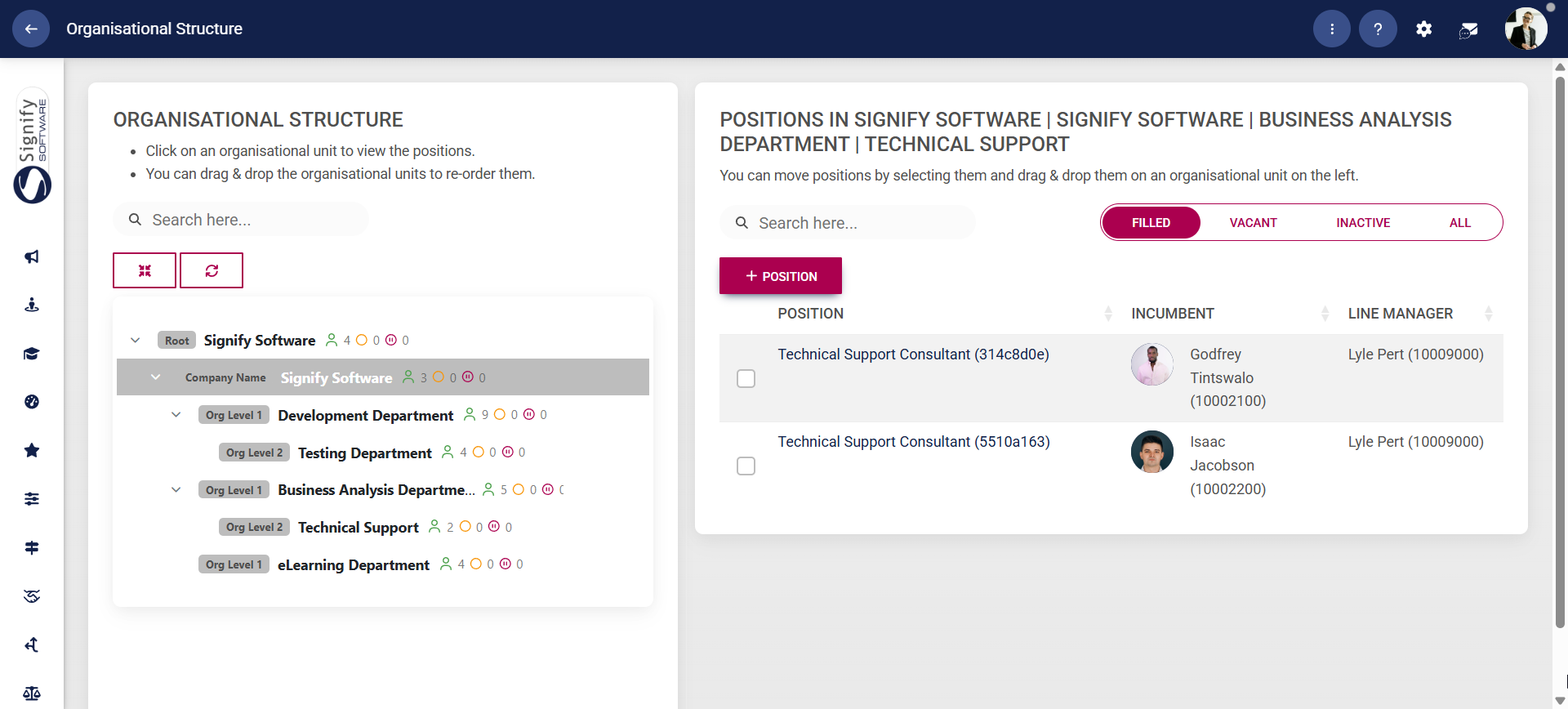
- Once you have finished creating your organisational structure, it may look similar to our example.