Master Data Maintenance

Signify Header.png

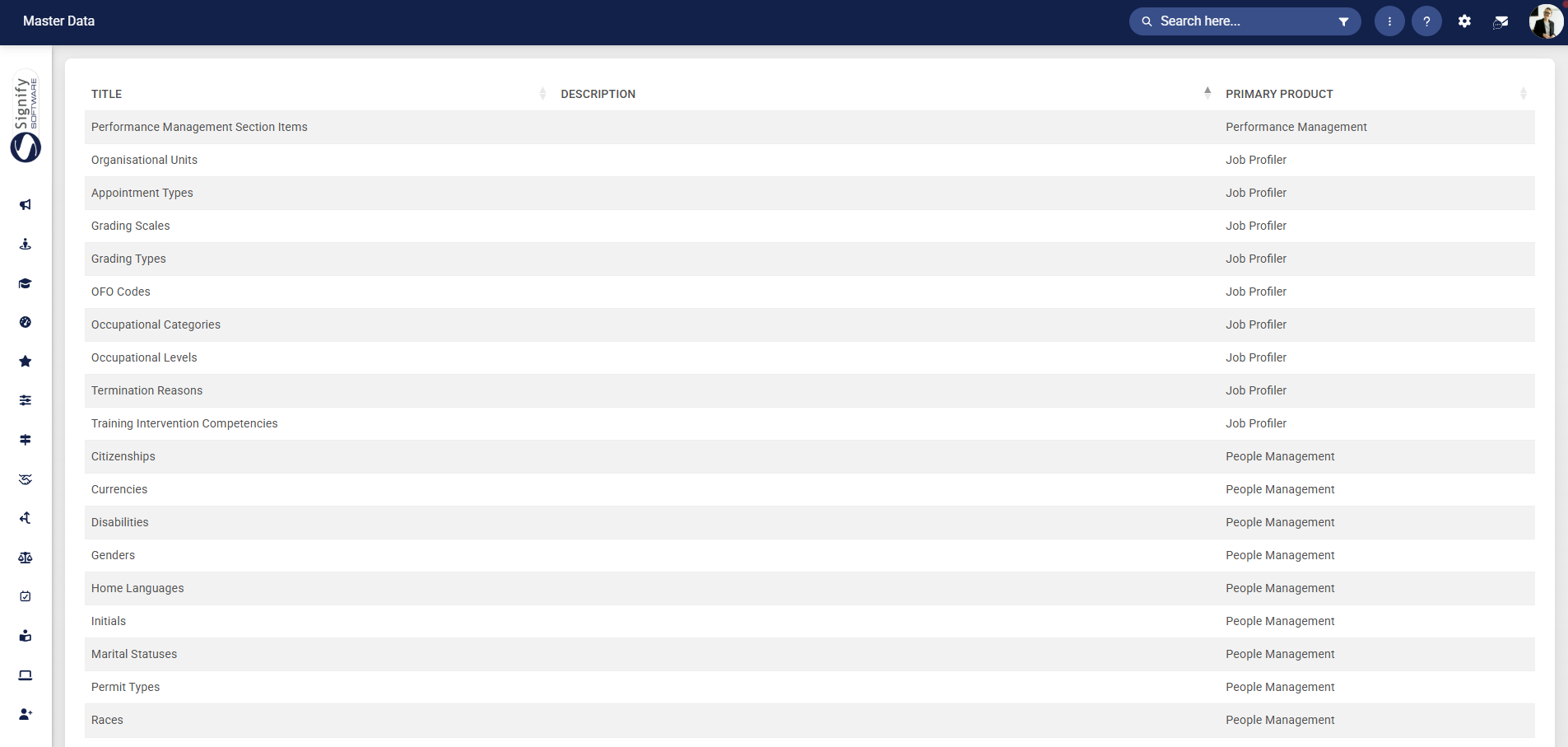
The Master Data Library serves as the foundational control layer for all standardised organisational data used across the system. Its purpose is to ensure that key reference data, such as genders, job titles, locations, document categories, and disciplinary outcomes, are centrally defined, consistently applied, and tightly governed.
People Management Master Data Library.png

Modules such as Performance ManagementLearning Management, and People Management rely on master data setup to optimise certain features of these modules. It acts as a single source of truth for all structured, repeatable data elements used within employee profiles, processes, and reporting. Instead of allowing users to manually input free-text values, the system relies on predefined lists to maintain consistency, accuracy, and alignment across the organisation.
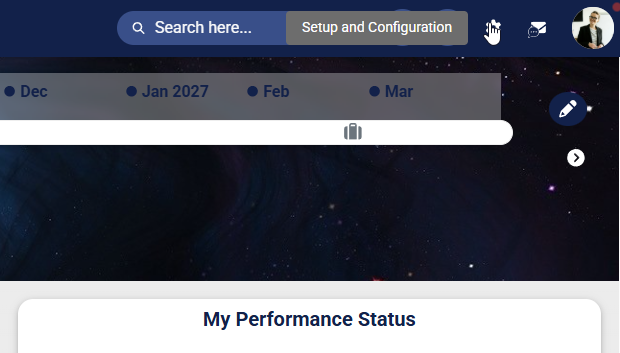
    Click the gear icon to access the Setup and Configuration menu.

    People Management Setup and Configuration Menu Main Dash.png

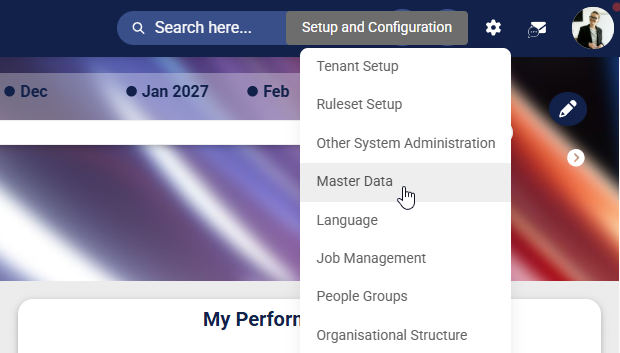
      Select Master Data from the drop-down menu.

      People Management Setup and Configuration Menu Master Data.png

        The Master Data Library will open.

        People Management Master Data Library.png

          Use the search bar to filter by People Management.

          People Management Toolbar.png

            For our example, we will configure master data for Assets. Most of the master data setup follows the same process, so these steps can be applied to any master data library entry. Click on the library item you would like to update.

            People Management Master Data Library – Assets.png

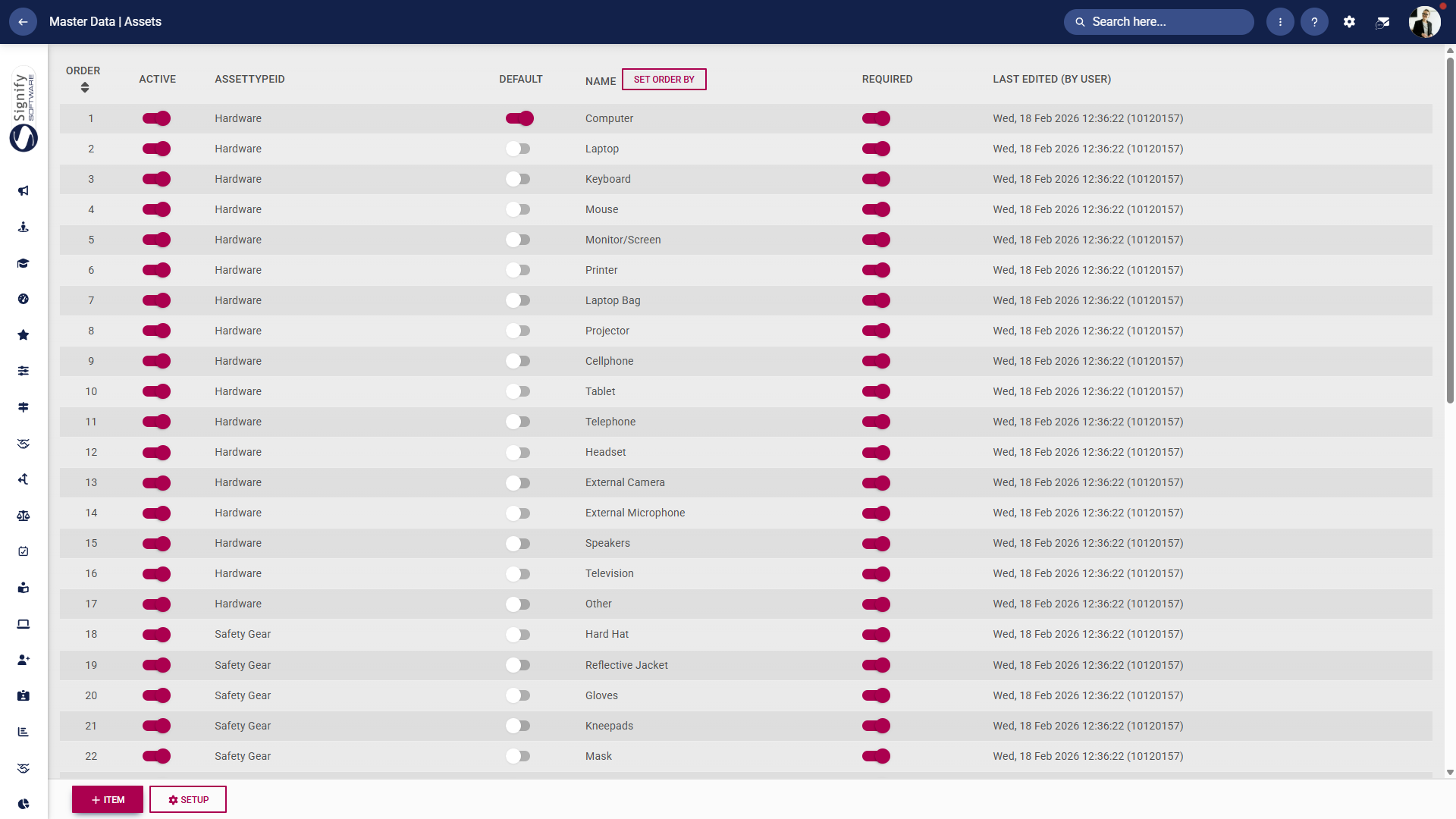
              The master data configuration for Assets will open. Each master data library is constructed in a similar way for consistency. Each row represents a specific asset item (e.g. Laptop, Monitor, Hard Hat, Gloves), along with several configuration controls.

              People Management Master Data – Assets.png

                    Order
                    Defines the display sequence of asset items. This determines how items appear in dropdowns or selection lists elsewhere in the system. Active
                    Indicates whether the asset is currently available for use.
                      Active items can be assigned to employees Inactive items are hidden but retained for historical data integrity Asset Type ID
                      Groups assets into categories (e.g. Hardware, Safety Gear), helping with organisation and filtering. Default
                      Marks whether an asset is automatically selected or prioritised in certain contexts. Only specific items may be designated as defaults. Name
                      The label of the asset as it will appear to users across the system. Set Order By (button)
                      Allows administrators to reorder the list dynamically, typically via drag-and-drop or sorting logic. Required
                      Determines whether this asset must be captured or assigned in relevant processes (e.g. onboarding or equipment allocation). Last Edited (By User)
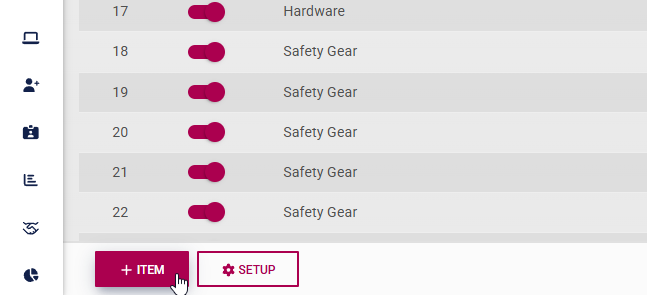
                      Displays audit information showing when the item was last modified and by whom, supporting traceability and governance. To add a new master data entry, click +ITEM.
                      People Management Master Data – Add Item.png

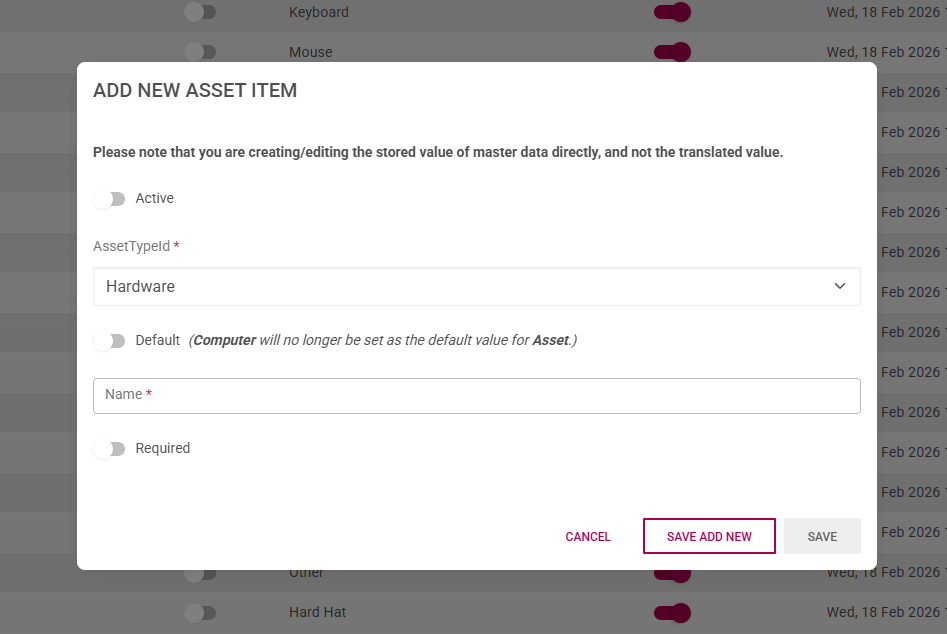
                        Complete the form, noting which fields are required (marked by a *). Click SAVE ADD NEW to add another master data entry. Click SAVE when finished or click CANCEL to discard any changes.

                        People Management Master Data – Add Item Screen.png

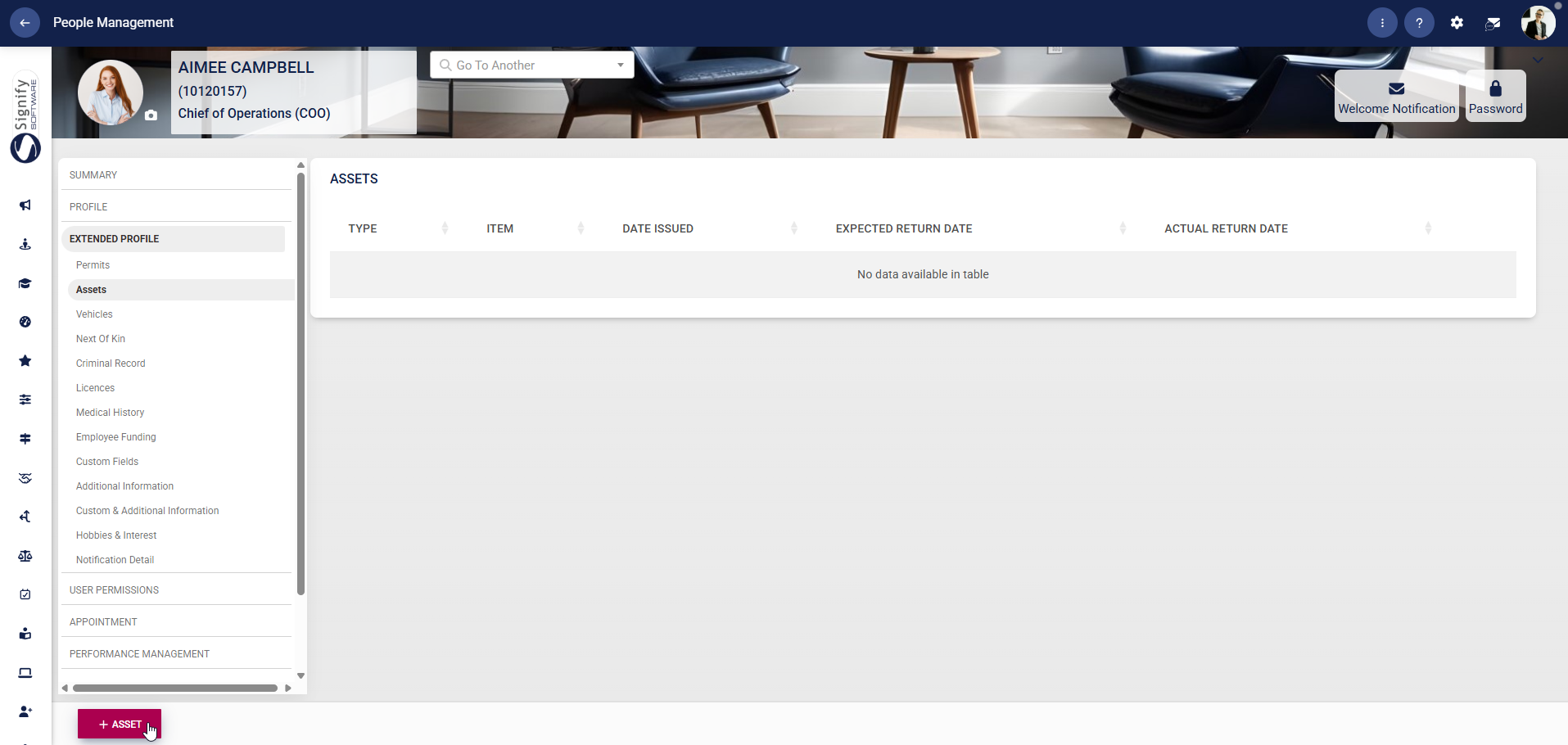
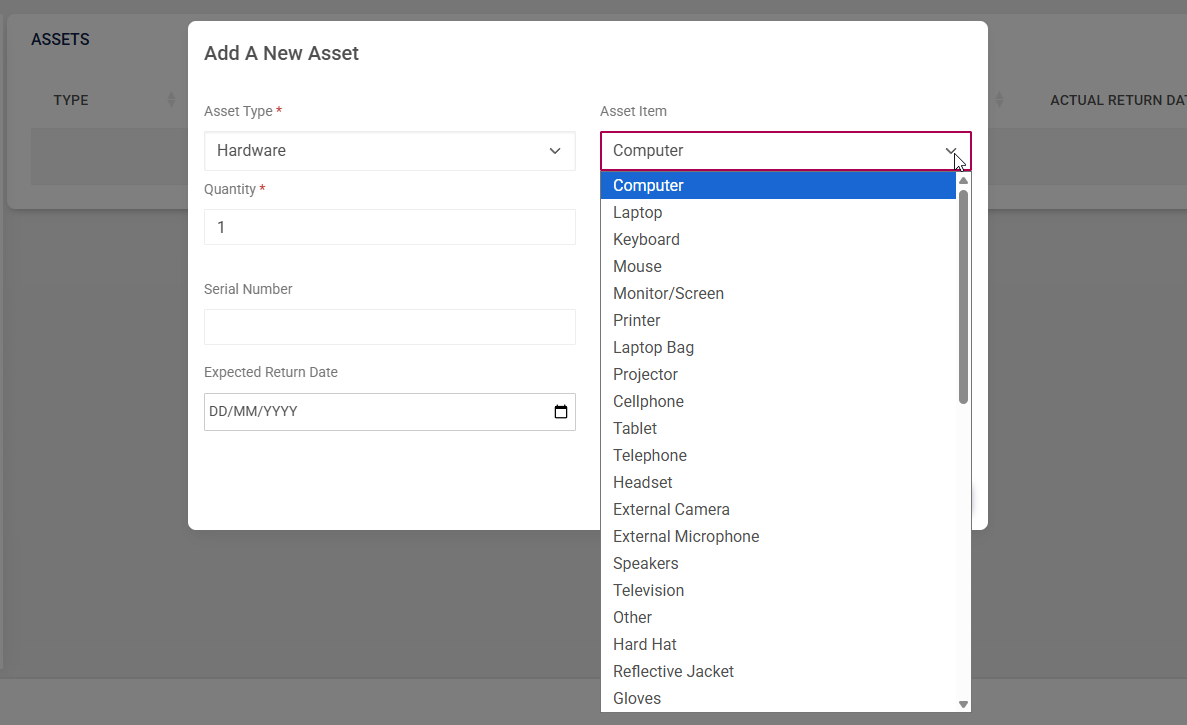
                          The master data is now ready for use. In our example, we have configured master data for Assets. These master data library items will be used to populate the drop-down menus when adding an asset to a person's profile.

                          People Management Master Data In Action – Assets.png

                          People Management Master Data In Action – Assets Menu.png


                          Signify Footer.png