User and Access Management

Navigate to user and access management
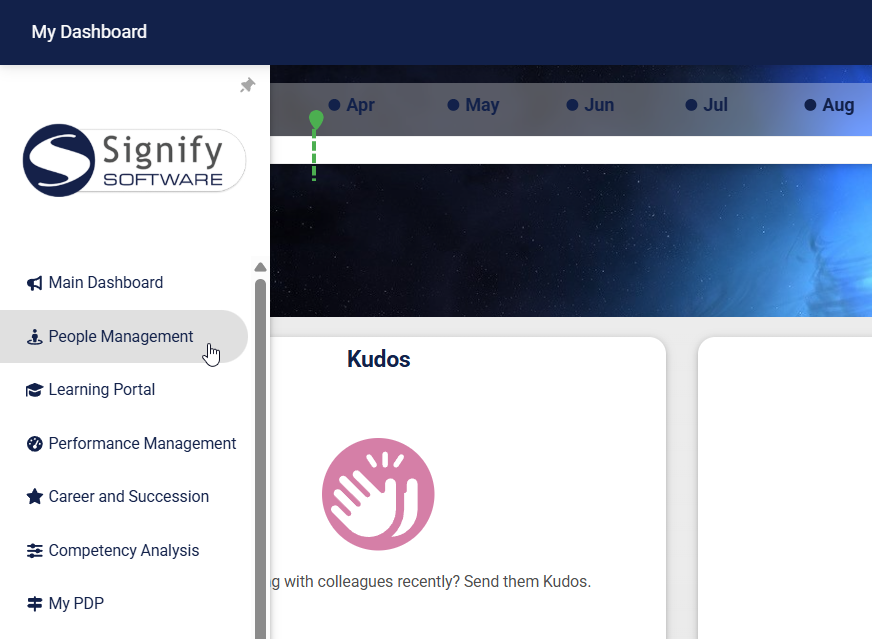
Hover over the sidebar menu and click People Management.
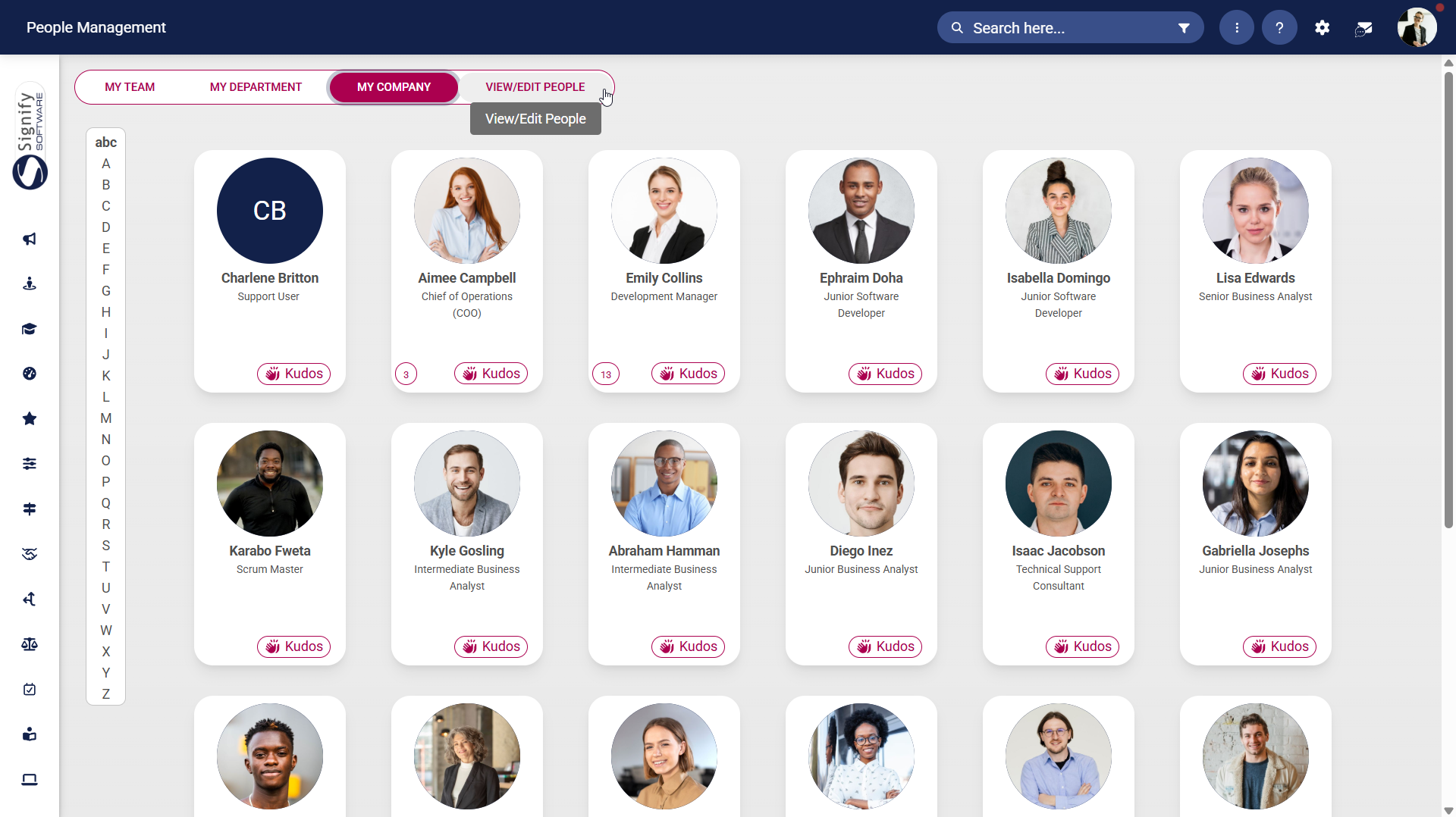
Navigate to the VIEW/EDIT PEOPLE tab.
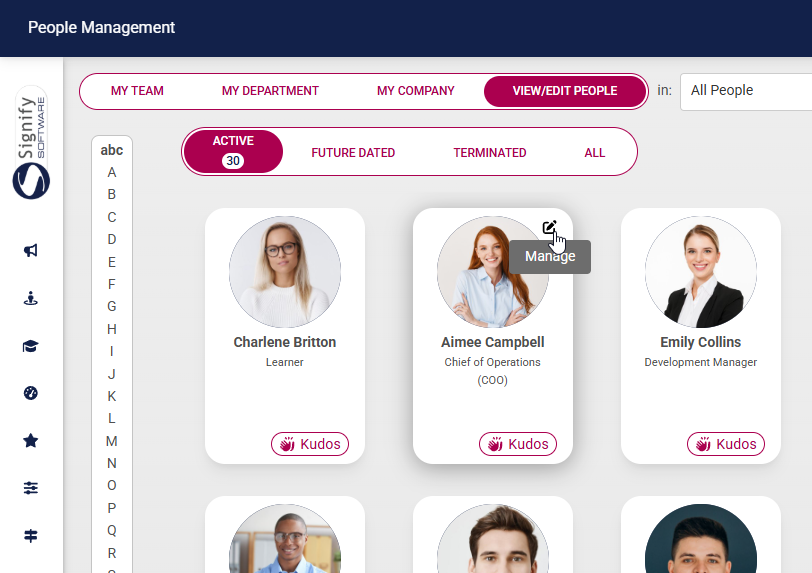
Hover over the card of the person you would like to transfer, then click the pencil icon to manage their profile.
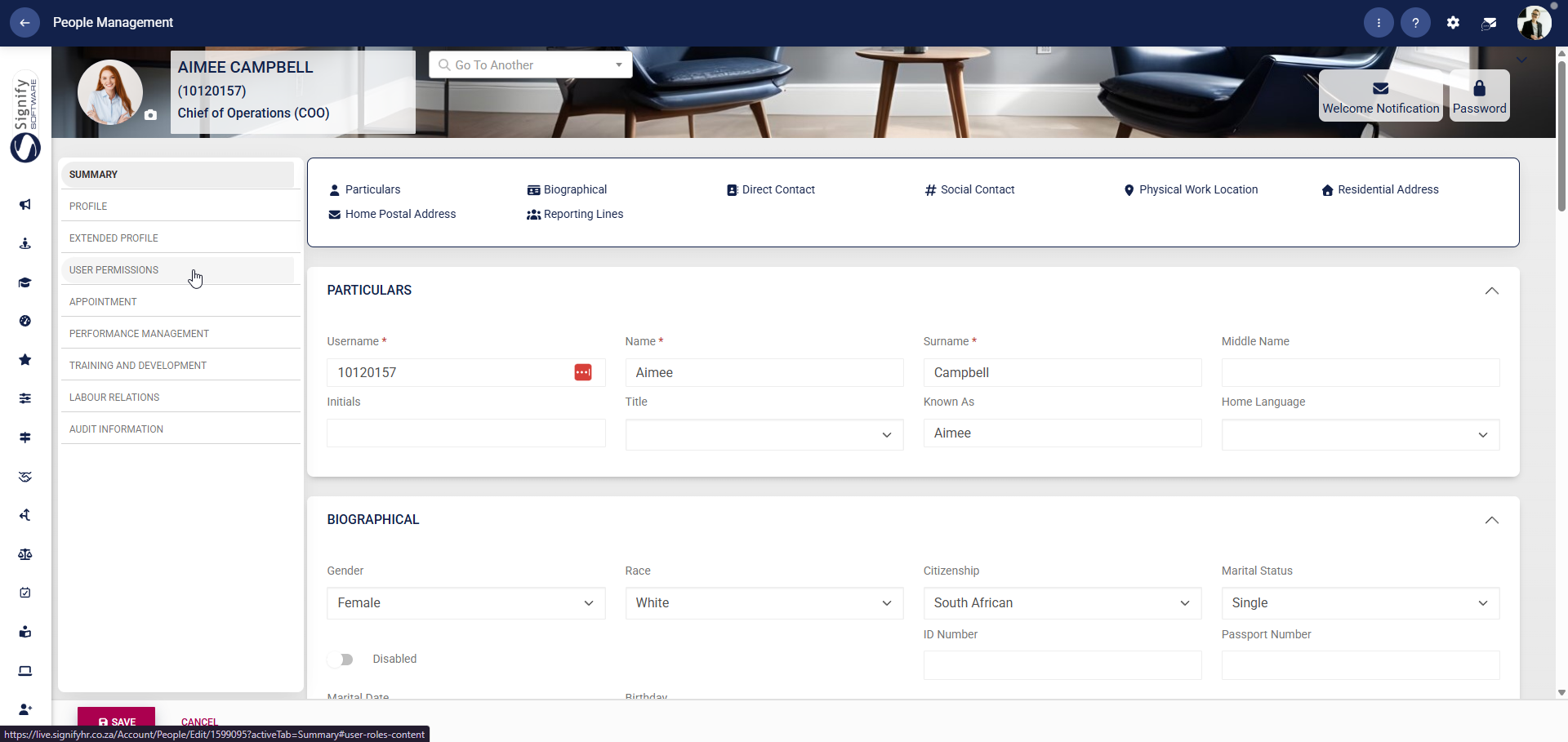
On the left-hand menu on the person's profile, click on USER PERMISSIONS.
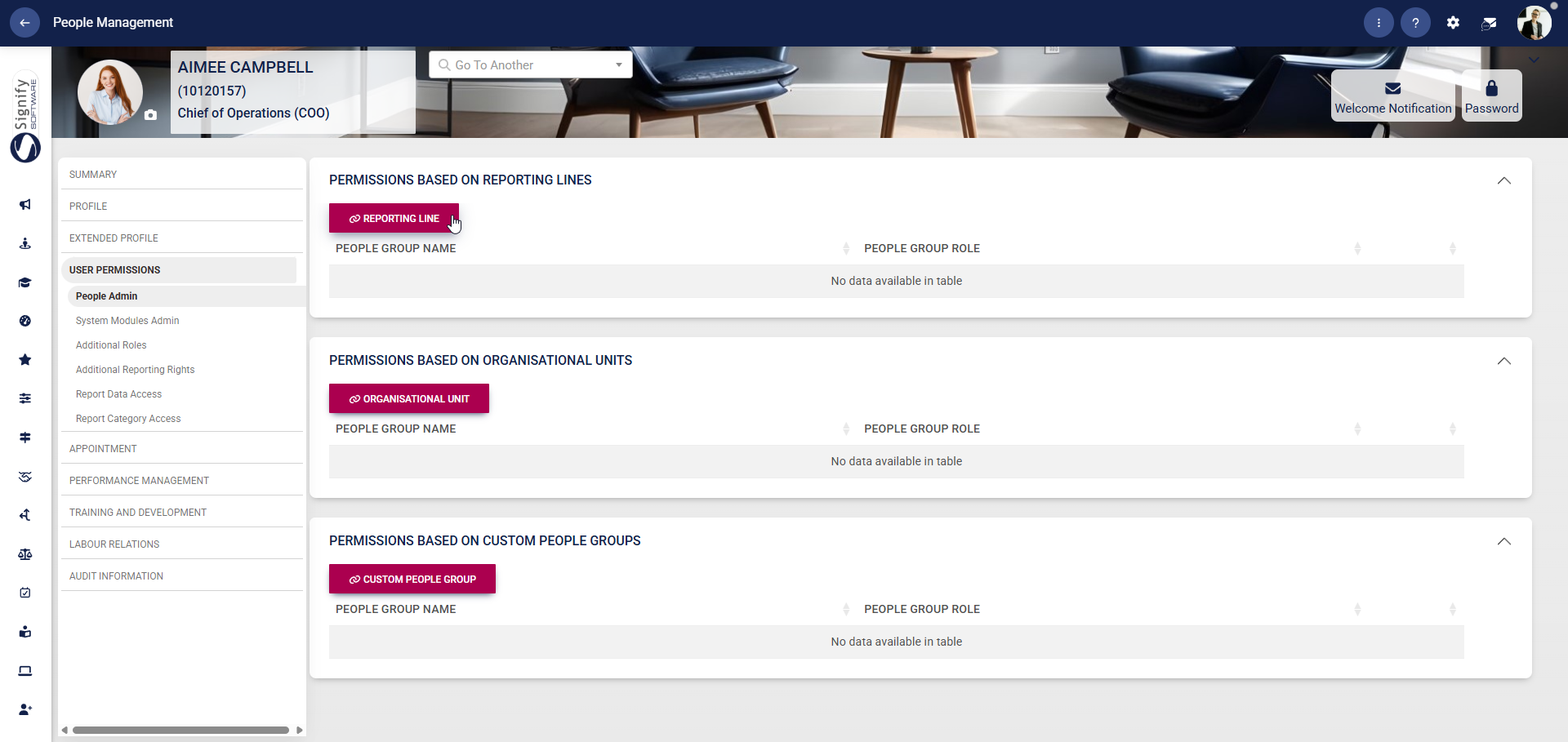
People Admin
Permissions specify which users can view or edit the profile information of the person whose profile you are viewing.
Reporting Lines
Click REPORTING LINE.
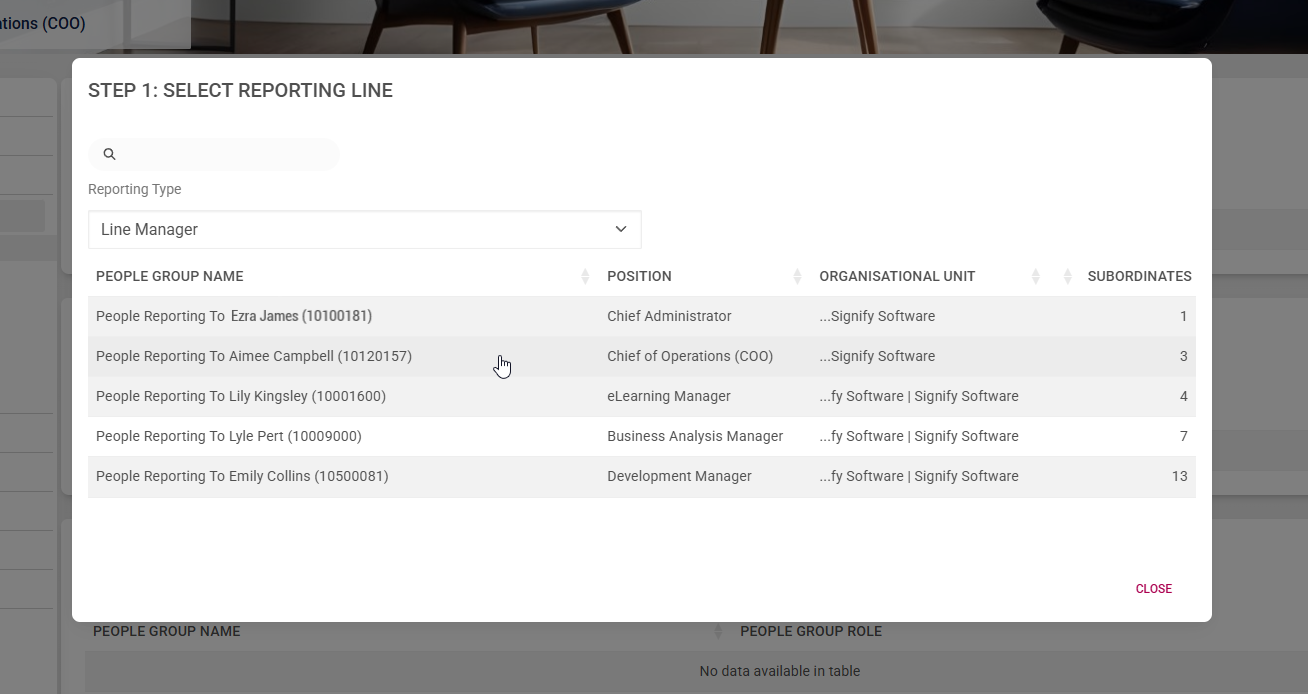
Select the Reporting Type from the drop-down menu, then click on the correct reporting line. In our example, we have chosen the Line Manager reporting line.
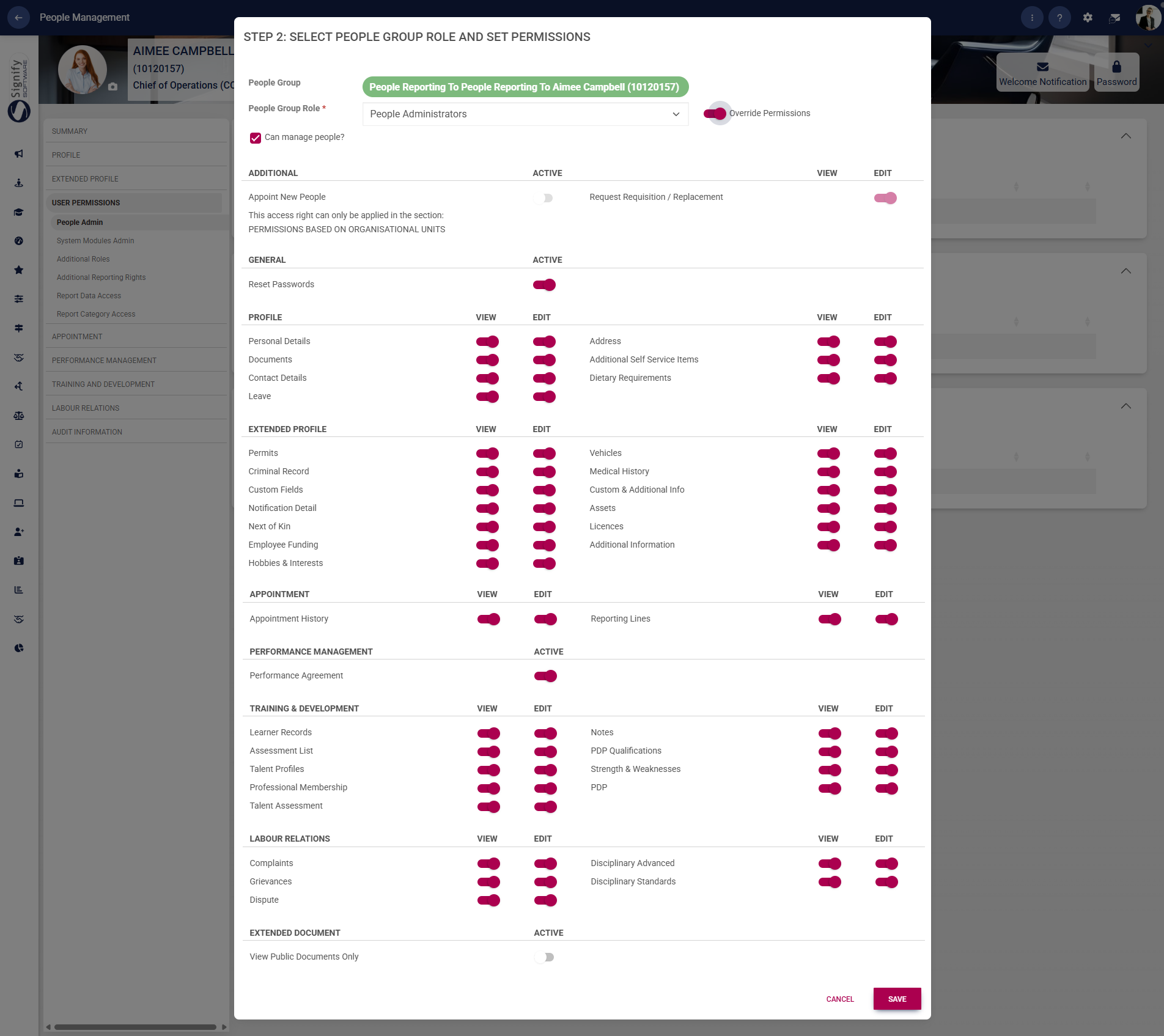
Select People Administrators from the drop-down menu, and toggle to override permissions.
Please note that for the user to appoint new people, the user must be granted access at the organisational unit level (see the next section for more information).
Select which fields in the People Management module the user may view or edit. Choose whether they may reset passwords, access users' performance agreements, or view documents. Click SAVE when you are finished or CANCEL to discard your changes.
You have successfully assigned people admin permissions based on a reporting line.
Organisational Unit
Click ORGANISATIONAL UNIT.
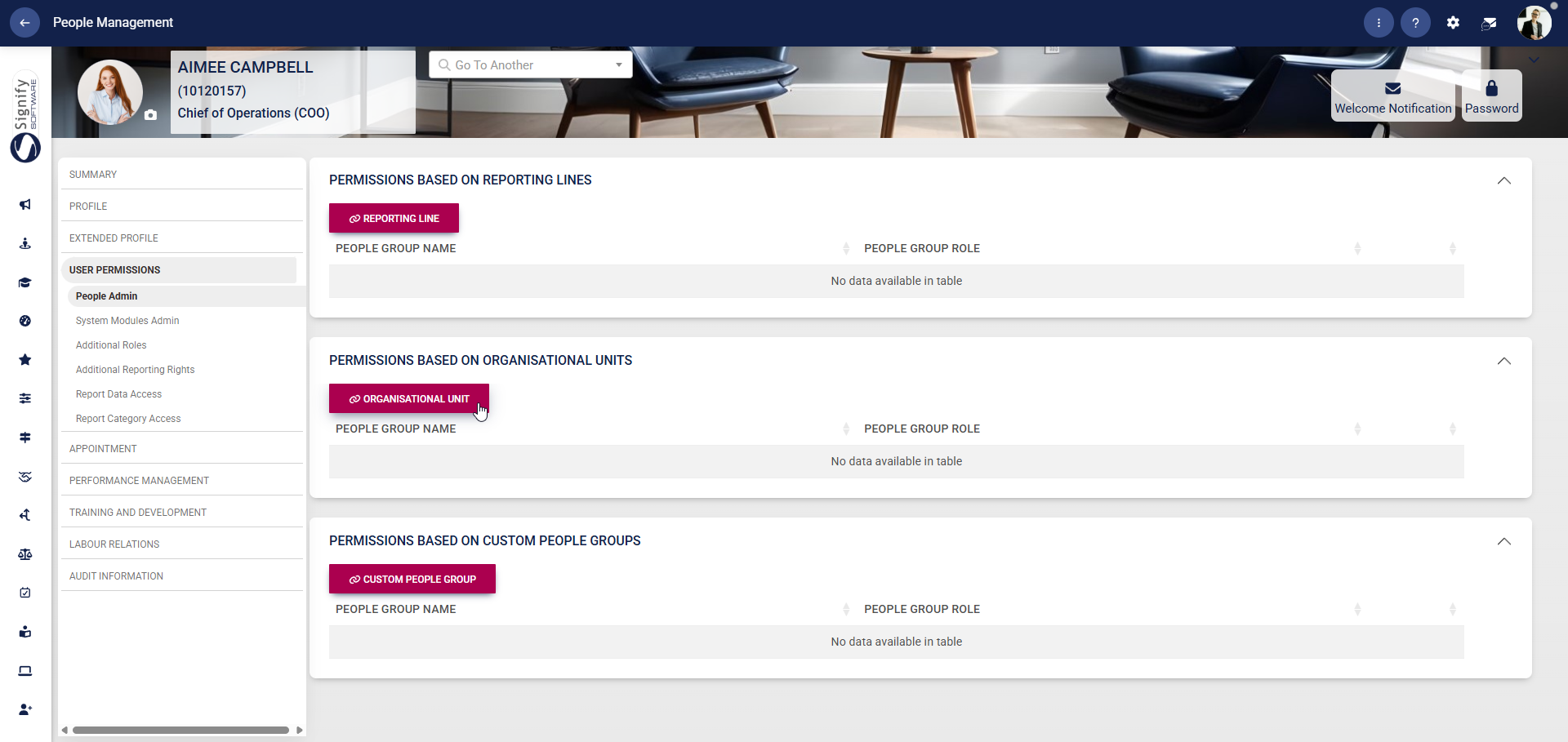
Expand the organisational structure to find the correct organisational unit.

Click the icon of an individual person to grant the user permission to access the data for users within that organisational unit only.

Click the icon of a group of people to grant the user permission to access the data of users within that organisational unit and any subordinate units.

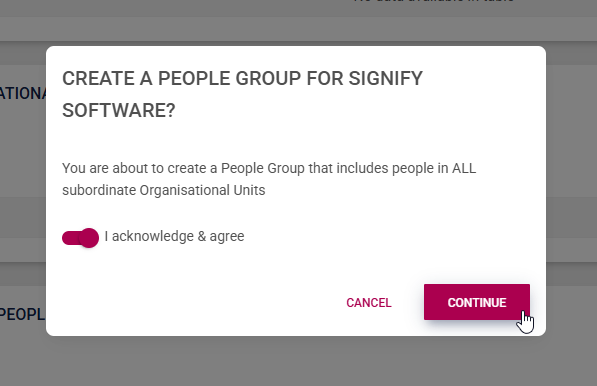
Confirm whether you would like to create the people group, then click CONTINUE.
Select People Administrators from the drop-down menu, and toggle to override permissions. Choose whether this user may appoint new people. Select which fields in the People Management module the user may view or edit. Choose whether they may reset passwords, access users' performance agreements, or view documents. Click SAVE when you are finished or CANCEL to discard your changes.

You have successfully assigned people admin permissions based on an organisational unit.
Custom People Groups
This method is ideal for managing access that doesn’t align with traditional org structures or reporting lines. If an administrator should have access to all employees in the system, assign them to the “All People” group.
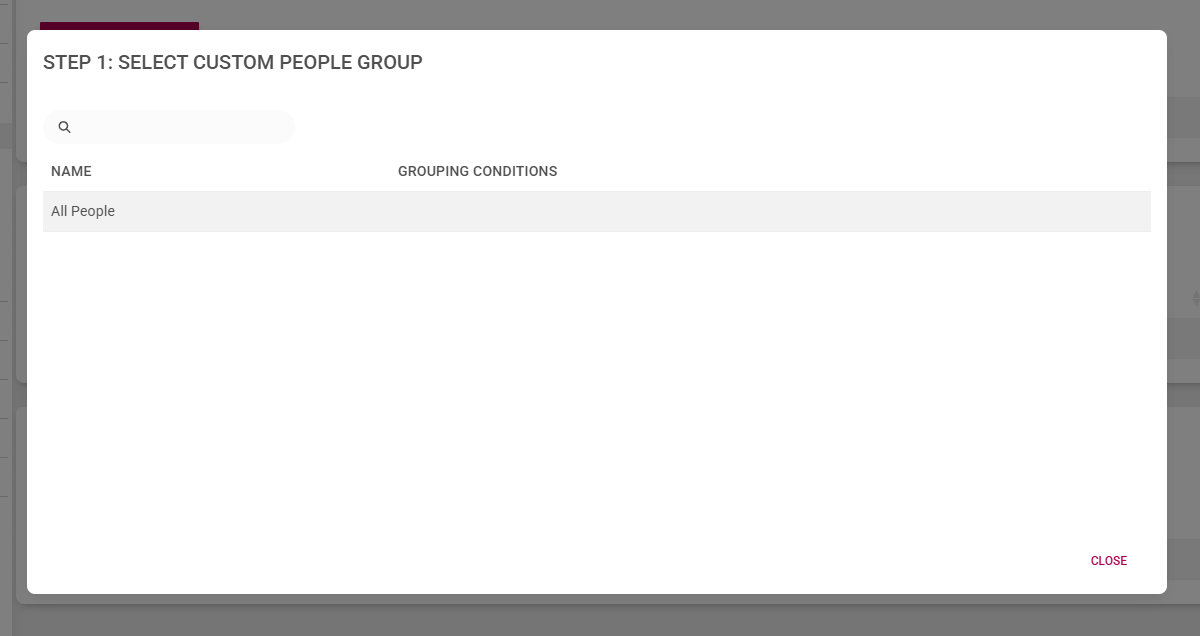
Click CUSTOM PEOPLE GROUP.

Select the people group from the list. For more information on creating people groups, please visit Create People Groups.
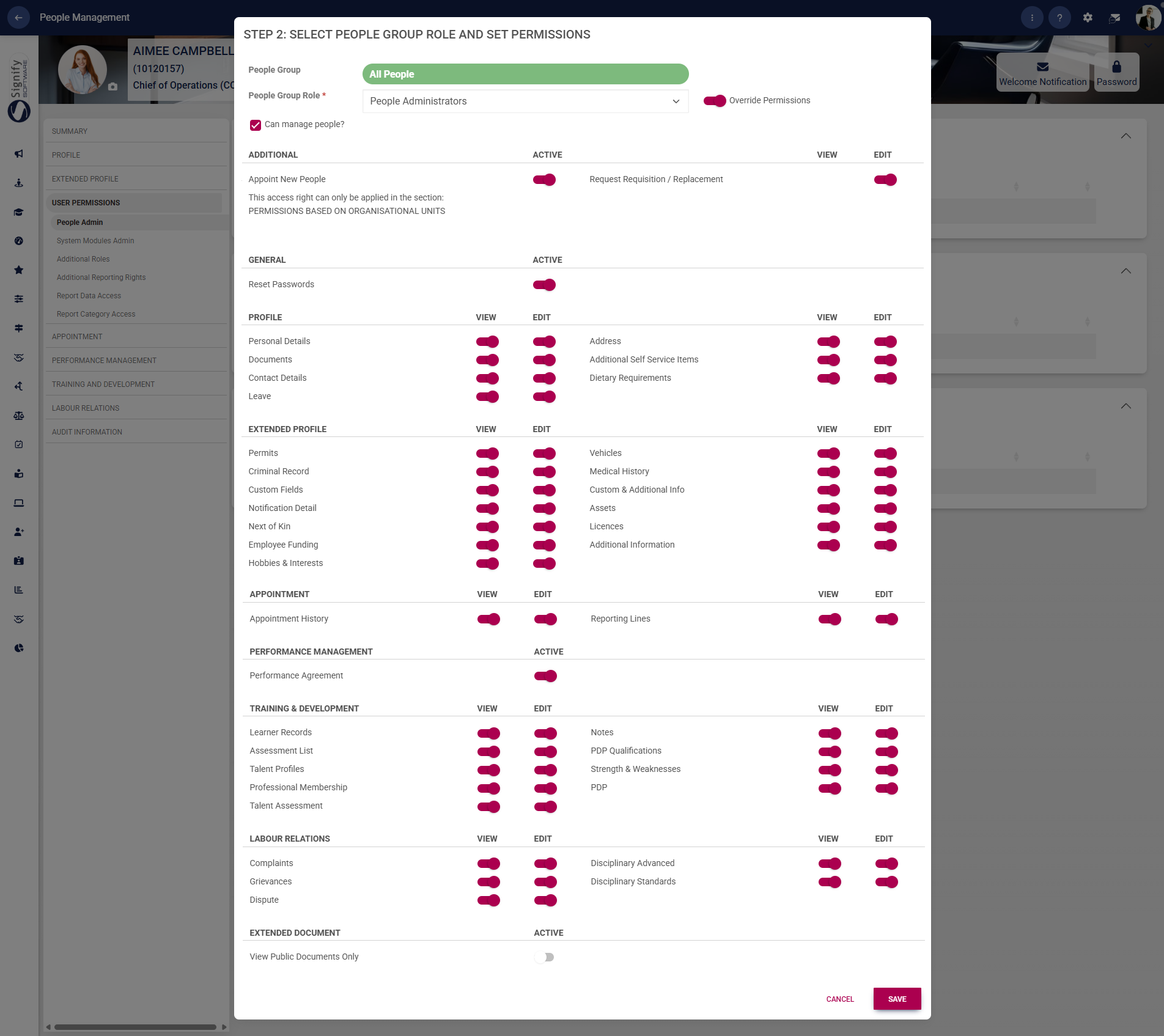
Select People Administrators from the drop-down menu, and toggle to override permissions.
Please note that for the user to appoint new people, the user must be granted access at the organisational unit level (see the previous section for more information).
Select which fields in the People Management module the user may view or edit. Choose whether they may reset passwords, access users' performance agreements, or view documents. Click SAVE when you are finished or CANCEL to discard your changes.
Confirm whether you would like to override the permissions for people administrators, then click CONTINUE.
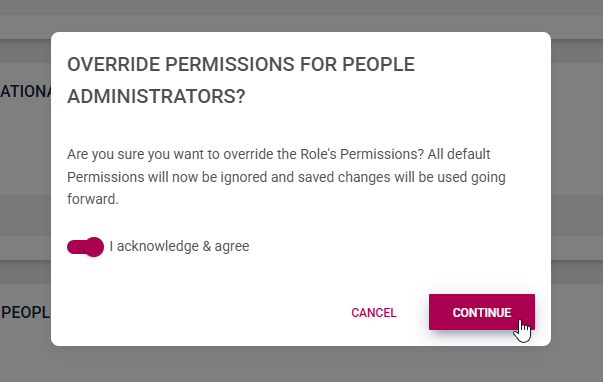
You have successfully assigned people admin permissions based on a custom people group.
System Modules Admin
These permissions grant users administrative rights for the following modules linked to Version 9 of Signify Software:
Event Scheduling
Job Management
Translations
Learning Management
Organisational Structure
People Management
Performance Management
Report Builder
Ruleset Management
Tenant Management
When users are assigned permissions for these modules, they can:
Configure settings and features within each module,
Manage module-specific content, and
Carry out administrative actions.
This guide will detail the features available to administrators of each of these modules.
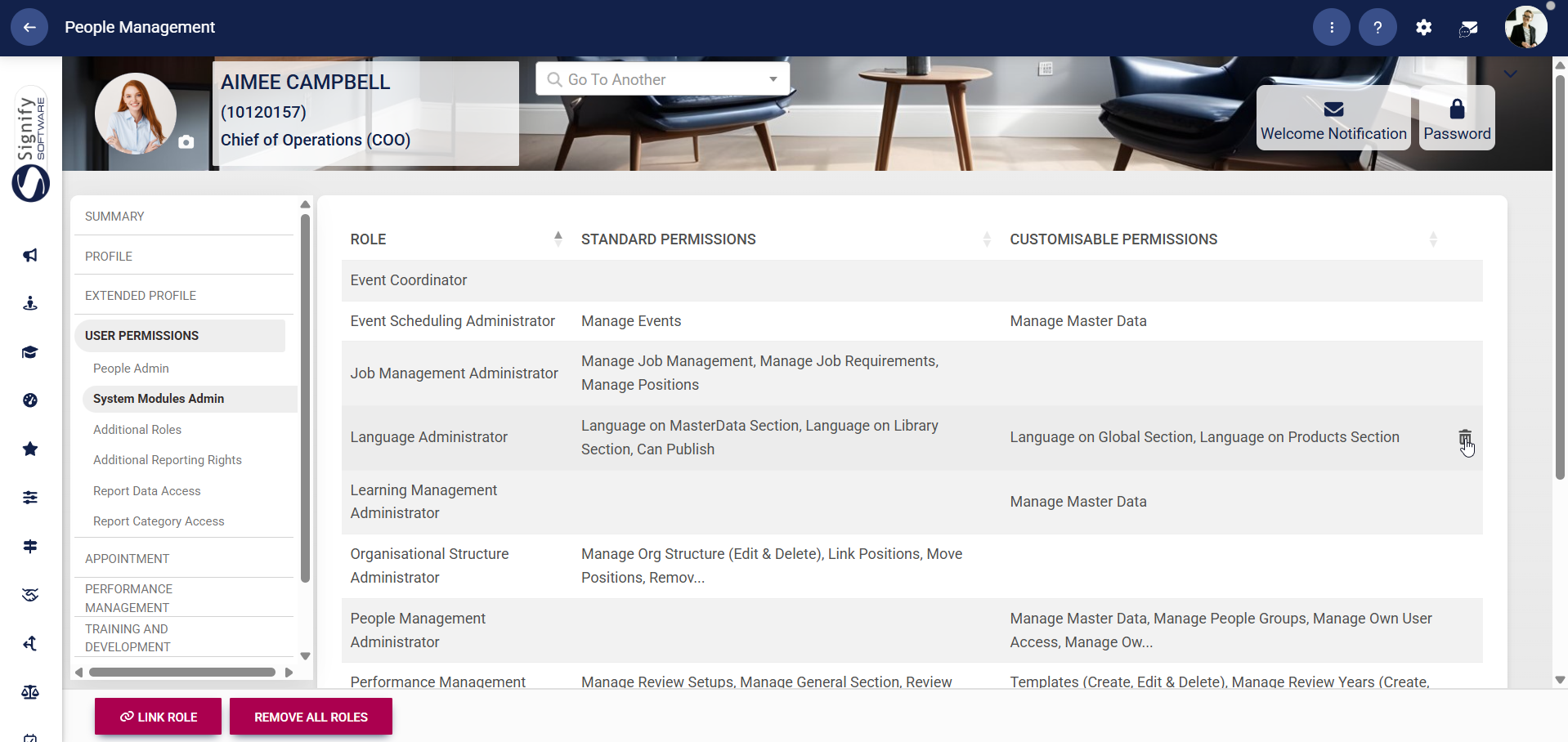
On the left-hand menu, navigate to System Modules Admin and click LINK ROLE.
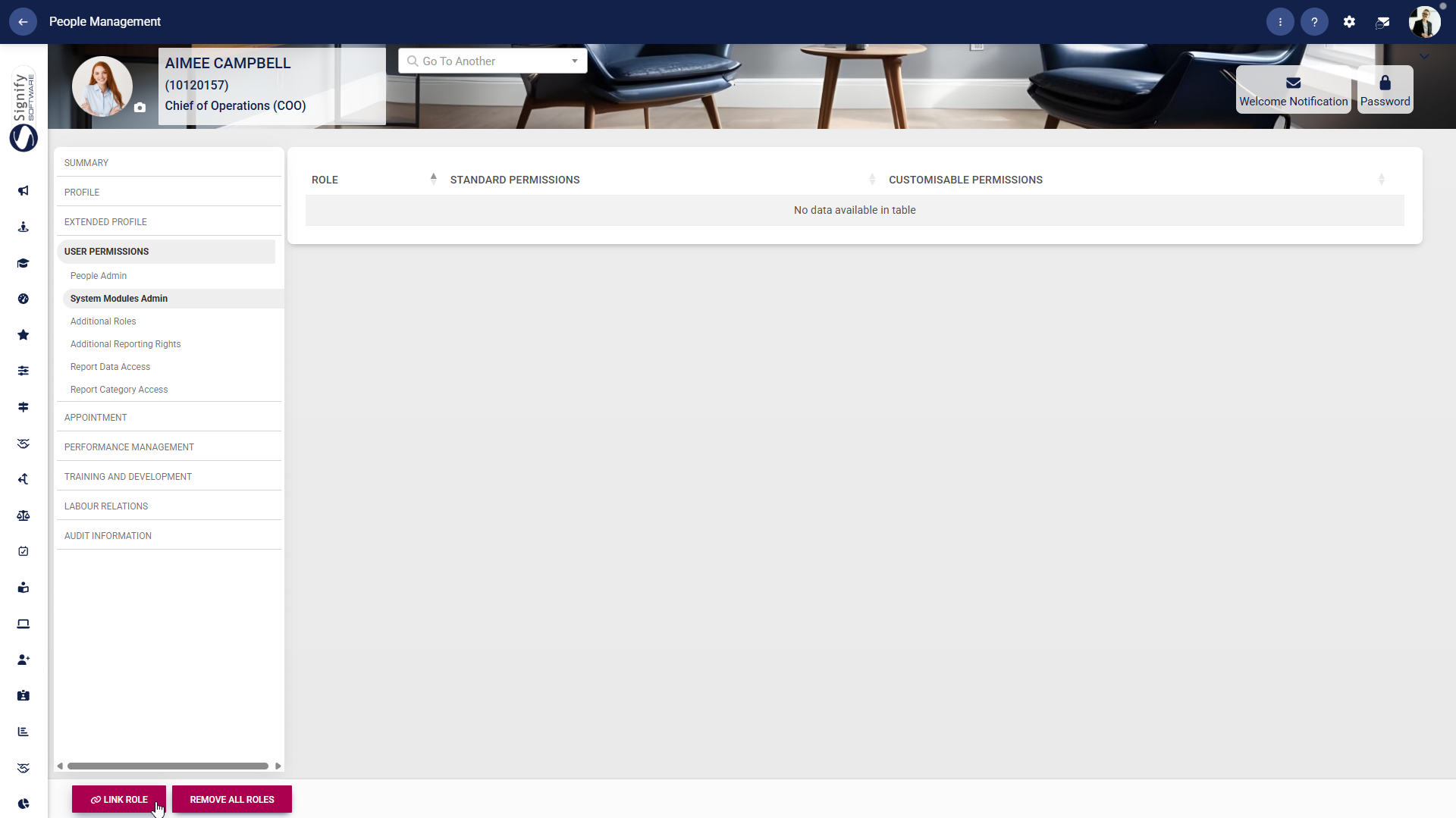
Select which modules you would like to grant the user administrative rights to. The module names are listed on the left, and the associated roles are listed on the right. Click SAVE when you are finished or CANCEL to discard your changes.
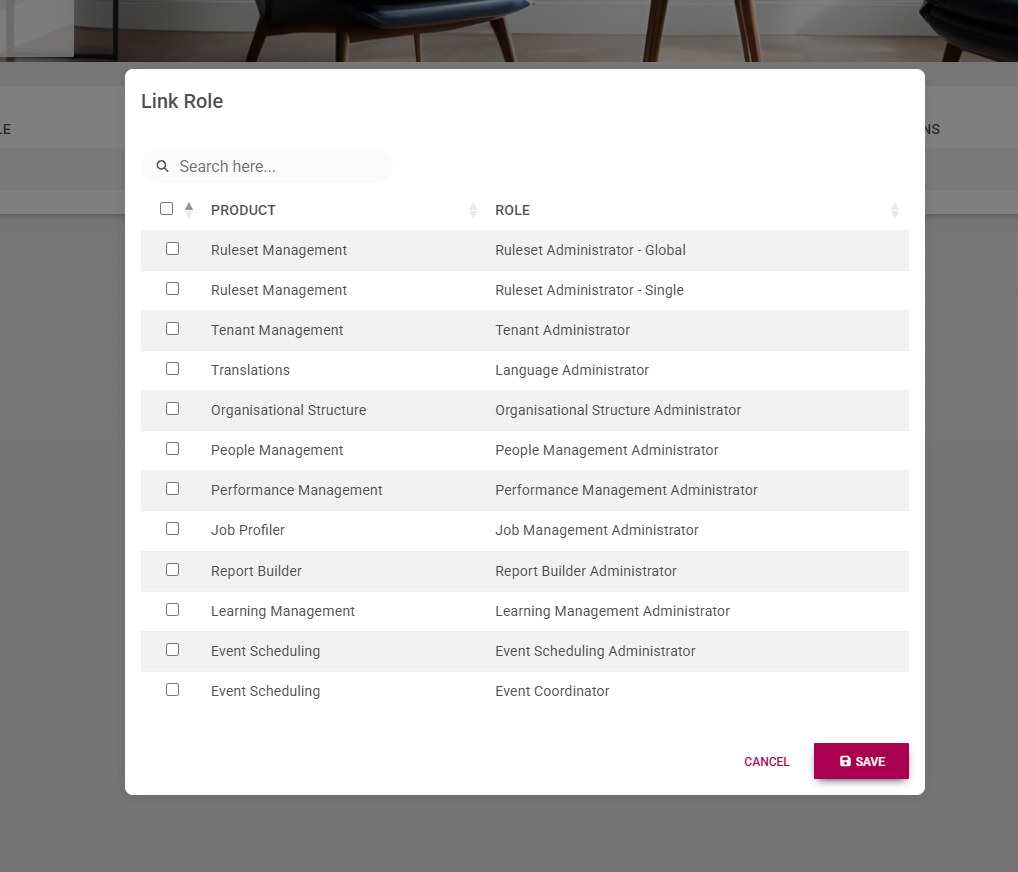
When linking a role, note that some roles have specific responsibilities that can be toggled on and off. For example, see the tasks linked to a Performance Management Administrator.
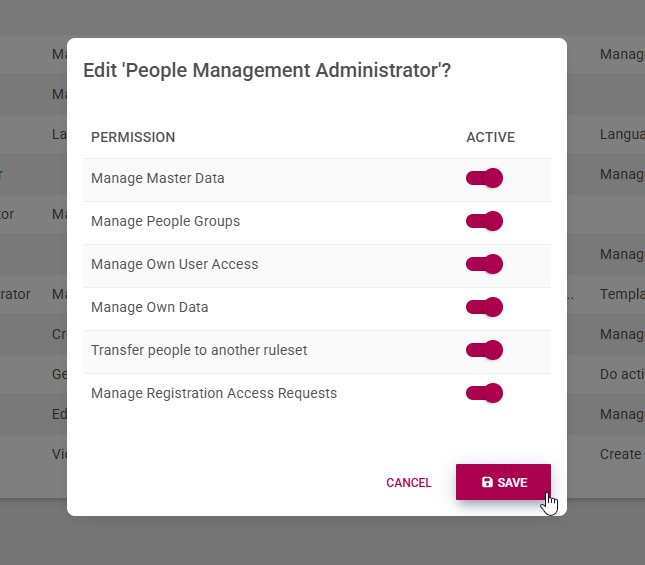
Linked Roles can be deleted by clicking on the dustbin icon.
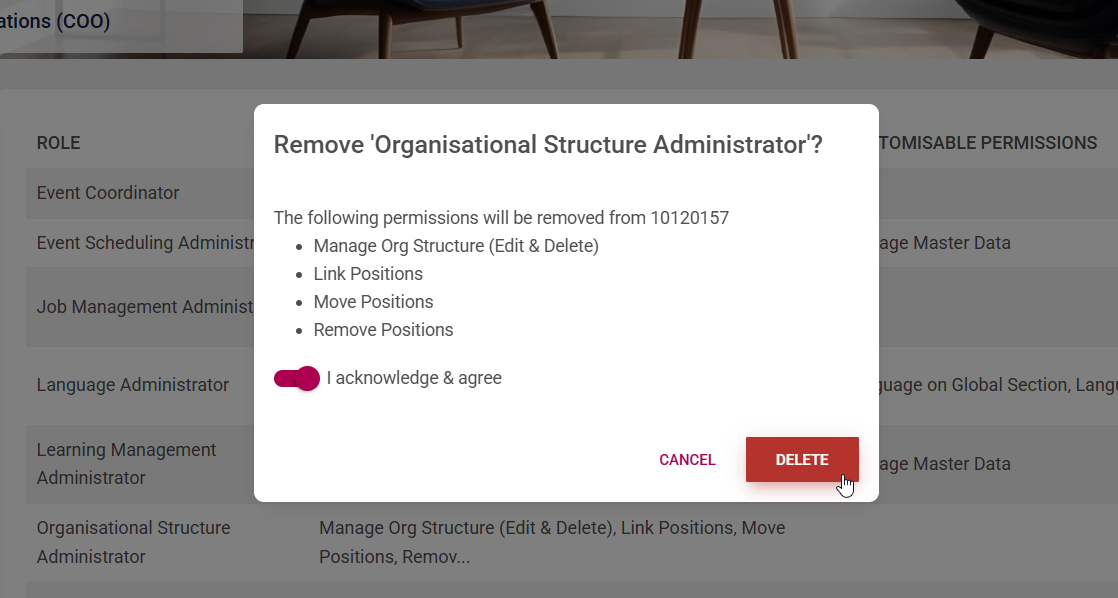
Confirm that you would like to revoke the user's permissions, then click DELETE. Click CANCEL to discard your changes.
The roles and their associated responsibilities are described below.
Ruleset Management
A Ruleset Administrator – Global can do the following:
Do actions on the Product tab, excluding product setup
Perform general management of all rulesets
Create rulesets
Edit all tabs
Manage notifications
A Ruleset Administrator – Single can do the following:
Do actions on the Product tab, excluding product setup
Manage master data
Edit all tabs
Manage notifications
Tenant Management
A Tenant Administrator can do the following:
Create new tenants
Update tenant details
Update subscriptions for products and licences
Update the expiry date for subscriptions
Delete tenants
View the tenant list
View details of tenants and their subscriptions
Translations
A Language Administrator can do the following:
Manage languages in the Global section
Manage languages in the Products section
Manage languages in the Master Data section
Manage languages in the Library section
Can publish languages, thereby making them available on the system
Organisational Structure
An Organisational Structure Administrator can do the following:
Manage the organisational structure
Edit organisational levels
Delete organisational levels
Link positions to organisational levels
Move positions
Delete positions
People Management
A People Management Administrator can do the following:
Manage master data
Manage people groups
Manage their own user access
Manage their own user data
Transfer people to another ruleset
Manage Registration Access requests
A Performance Management Administrator can do the following:
Create, edit, and delete performance templates
Create, edit, and delete review years
Link review setups
Manage Final Scores for performance agreements
Perform bulk actions, such as:
Linking templates
Deleting agreements
Manage master data
Manage a person's performance agreement
Moderate agreements
Perform quality assurance on performance agreements
Manage review setups
Manage the General section
Manage review periods
Manage review sections
Job Profiler
A Job Management Administrator can do the following:
Manage job management
Manage job requirements
Manage positions
Report Builder
A Report Builder Administrator can do the following:
Manage all reports
Manage their own reports
Create new reports
Copy reports
Run reports to retrieve data
Manage the Reporting Category master data
In order for Report Builder administrators to gain access to the Report Builder module, ensure you follow the steps listed below for Report Data Access and Report Category Access.
Learning Management
A Learning Management Administrator can do the following:
Manage master data
Build and edit pathways
Build and edit assessments
Send email notifications from learning journeys
Edit the menu and image panel at the top of the LMS portal
Manage learning master data
Access submitted assignments
Configure gamification and rewards
Event Scheduling
An Event Scheduling Administrator can do the following:
Manage master data
Manage events:
Perform setup tasks for events
Manage templates
Handle attendee tasks and requests
Manage notifications
Perform reporting on events
An Event Coordinator can do the following:
Manage events:
Complete administrative tasks related to scheduling, attendance, and communication
Additional Roles
These permissions grant users administrative rights for the following modules linked to Version 8 of Signify Software:
Dashboards
Discussion Forums
Employee Evaluations
Training Scheduling
HR Processes
Job Profiler
Learning Management
Leave Management
Organization
Performance Management
Recruitment
Salary Review
SMS Engine
System Access
Talent Management
Translations
Workflow
When users are assigned permissions for these modules, they can:
Configure settings and features within each module,
Manage module-specific content, and
Carry out administrative actions.
This guide will detail the features available to administrators of each of these modules.
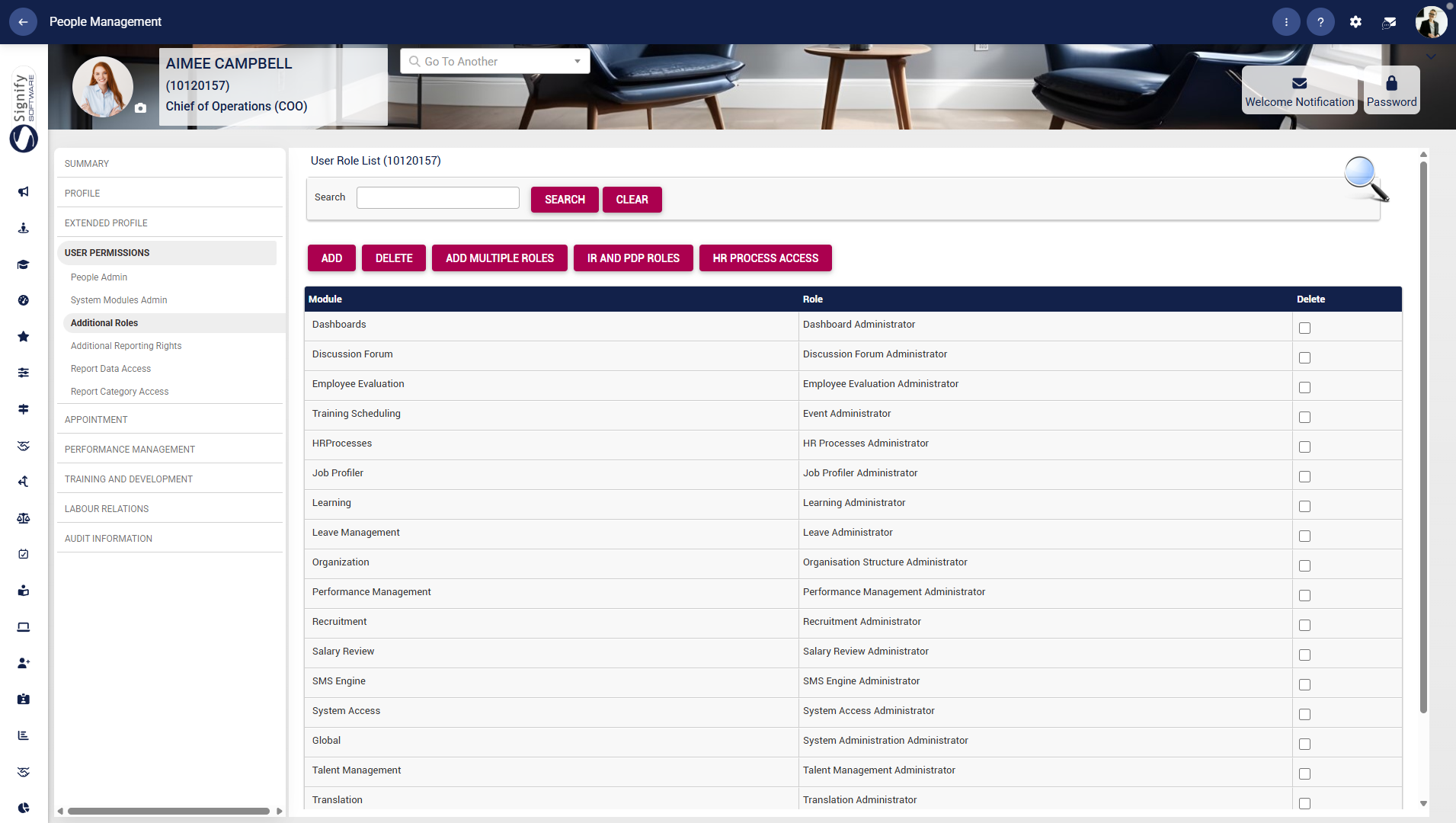
On the left-hand menu, navigate to Additional Roles and click ADD MULTIPLE ROLES.
In the pop-up window, select the roles you would like to assign to the user for each module. The module names are listed on the left, and the associated roles are listed on the right. Select the correct role from the drop-down menu. Click SAVE when you are finished or CLOSE to discard your changes.
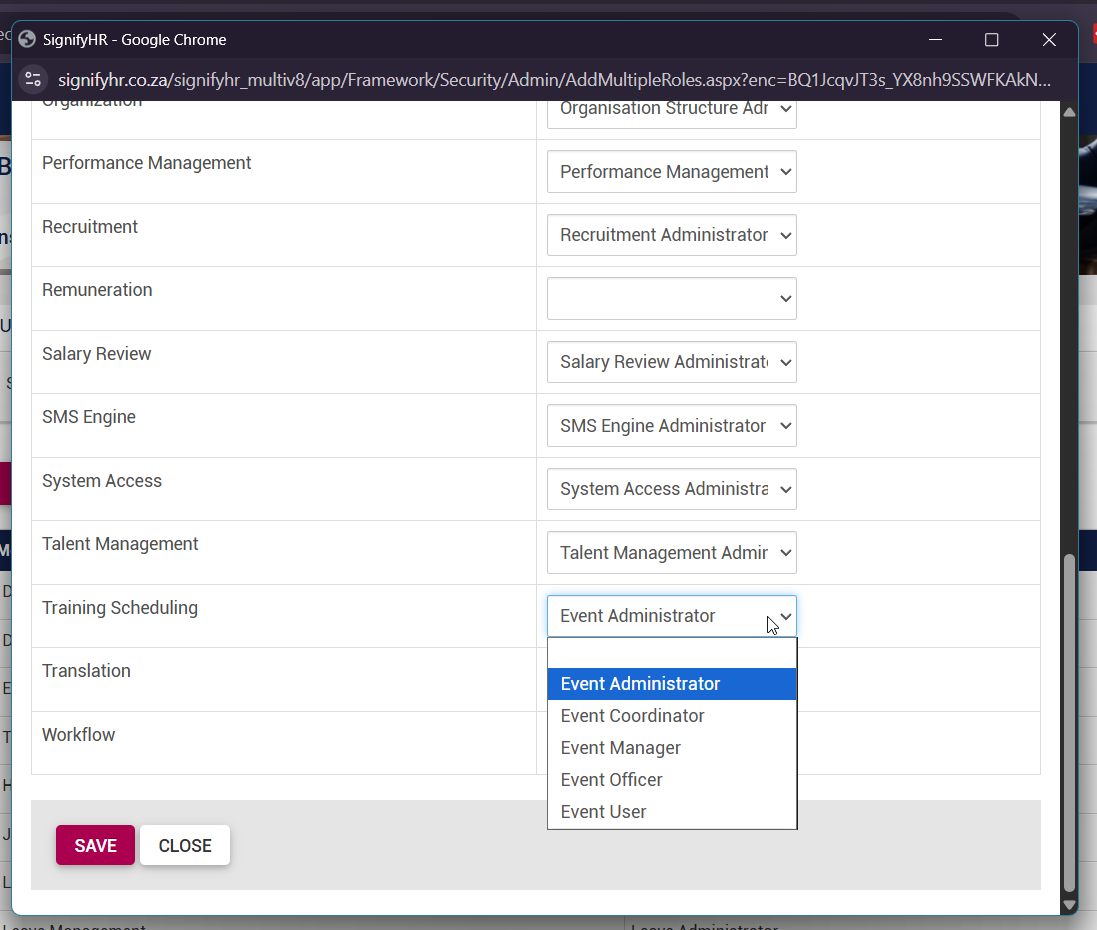
Different roles with varying levels of access can be assigned to Version 8 modules.
For instance, a Learning Administrator has full administrative rights for the module, while a Knowledge Administrator or a Learning Manager will have limited administrative rights, depending on the specific choices made.
The Administrator role will always have full administrative rights for each Version 8 module.
The roles and their associated responsibilities are described below.
Dashboards
Graphical insights and dashboards can be configured and customised to meet specific reporting and visualisation needs.
Employee Evaluations
The administrator can create periods, categories, participant roles, and participant assessments, create evaluations, and add participants.
Training Scheduling
This permission allows a user to fully configure and manage events within the system. It includes access to tools for event setup, templates, attendee tasks and requests, notifications, reporting, and event-related master data.
Users can manage their own events and employees, as well as perform administrative actions related to scheduling, attendance, and communication.
HR Processes
HR Processes permissions include the ability to configure workflows for processes submitted through SigniBot.
This configuration is handled on the People Management Product Setup, under HR Processes.
Job Profiler
Being a Job Profiler Administrator allows a user to manage job profiles, their associated requirements, and any linked jobs.
Learning
A Learning Management Administrator can do the following:
Manage master data
Build and edit pathways
Build and edit assessments
Send email notifications from learning journeys
Edit the menu and image panel at the top of the LMS portal
Manage learning master data
Access submitted assignments
Configure gamification and rewards
Leave Management
Being a Leave Administrator allows a user to configure the Leave Management module, including setting up public holidays, leave rules, leave groups, and leave types.
The user can also link or update leave on a person’s profile, manage related master data, and view leave requests and history.
Organization
This permission allows a user to manage organisational levels and units (including editing and deleting), as well as link, move, and remove positions within jobs.
A Performance Management Administrator can do the following:
Create, edit, and delete performance templates
Create, edit, and delete review years
Link review setups
Manage Final Scores for performance agreements
Perform bulk actions, such as:
Linking templates
Deleting agreements
Manage master data
Manage a person's performance agreement
Moderate agreements
Perform quality assurance on performance agreements
Manage review setups
Manage the General section
Manage review periods
Manage review sections
Salary Review
Salary Review Administrators can configure related master data and access employee reviews.
System Access
This permission allows a user to manage registration access and fields, including related master data and the mandatory status of registration fields.
SMS Engine
An administrator on the SMS Engine can configure the SMS setup and manage SMS templates.
Global
Similar to the Tenant and Ruleset Administrator administration permissions in Version 9, the Global Administrator role allows a user to manage master data, perform actions on the Product tab, access the Module Product Setup, and update and manage the tenant’s configuration settings.
Additional Reporting Rights
Standard system reports are pre-configured, pre-deployed reports uploaded to the system that retrieve information from Version 8 modules.
Navigate to Additional Reporting Rights. Tick the report folders you would like to grant the user access to. Within each folder, complex reports and quick reports are stored.
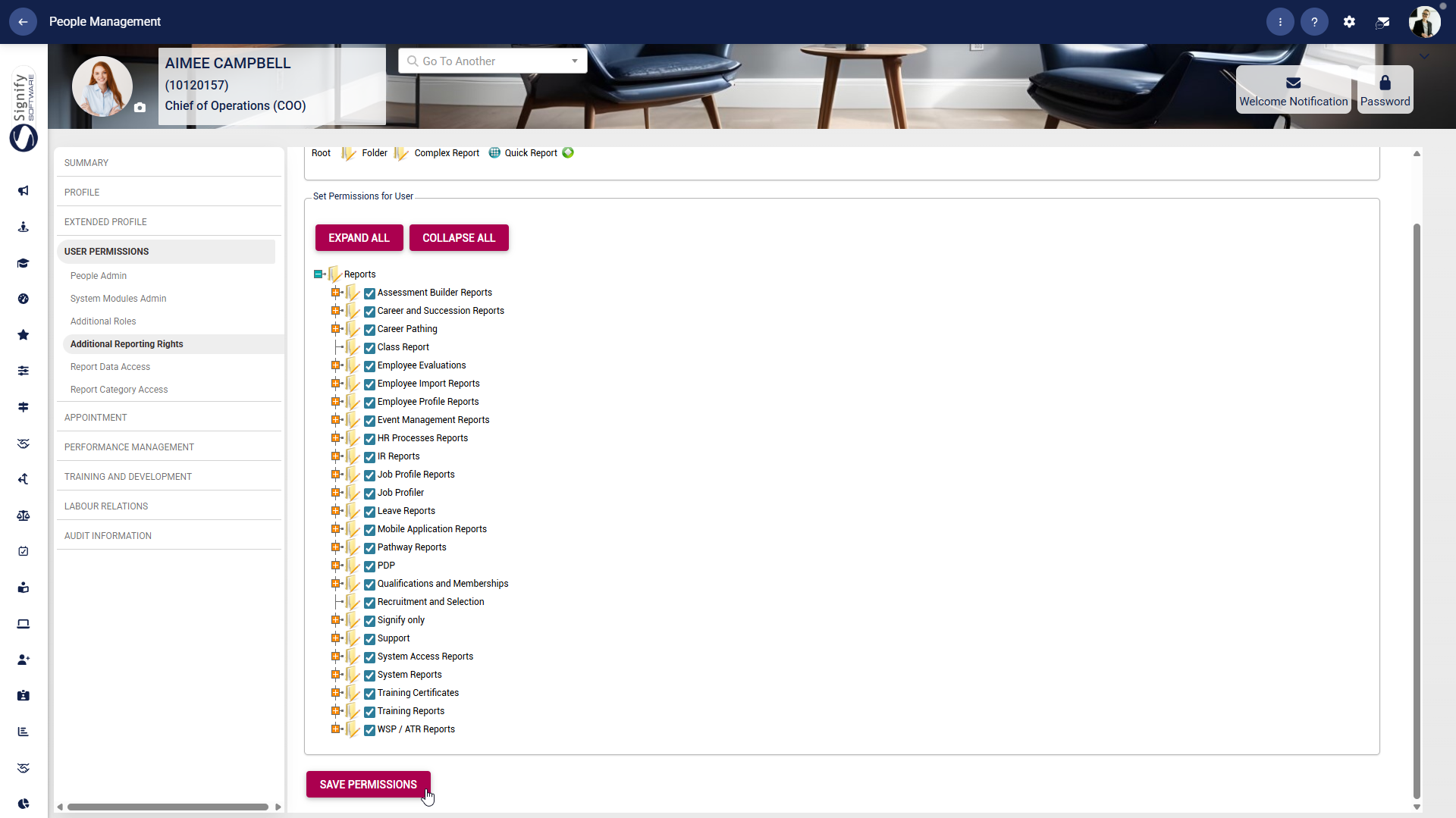
Expanding the cascading folders lets you grant the user access to specific reports by ticking the corresponding boxes.
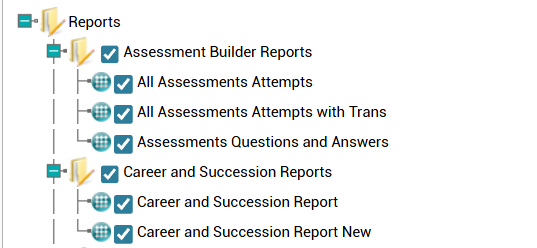
After selecting all required reports, click SAVE PERMISSIONS.
Report Data Access
In order for Report Builder Administrators to gain access to the Report Builder module, ensure you follow the steps listed below.
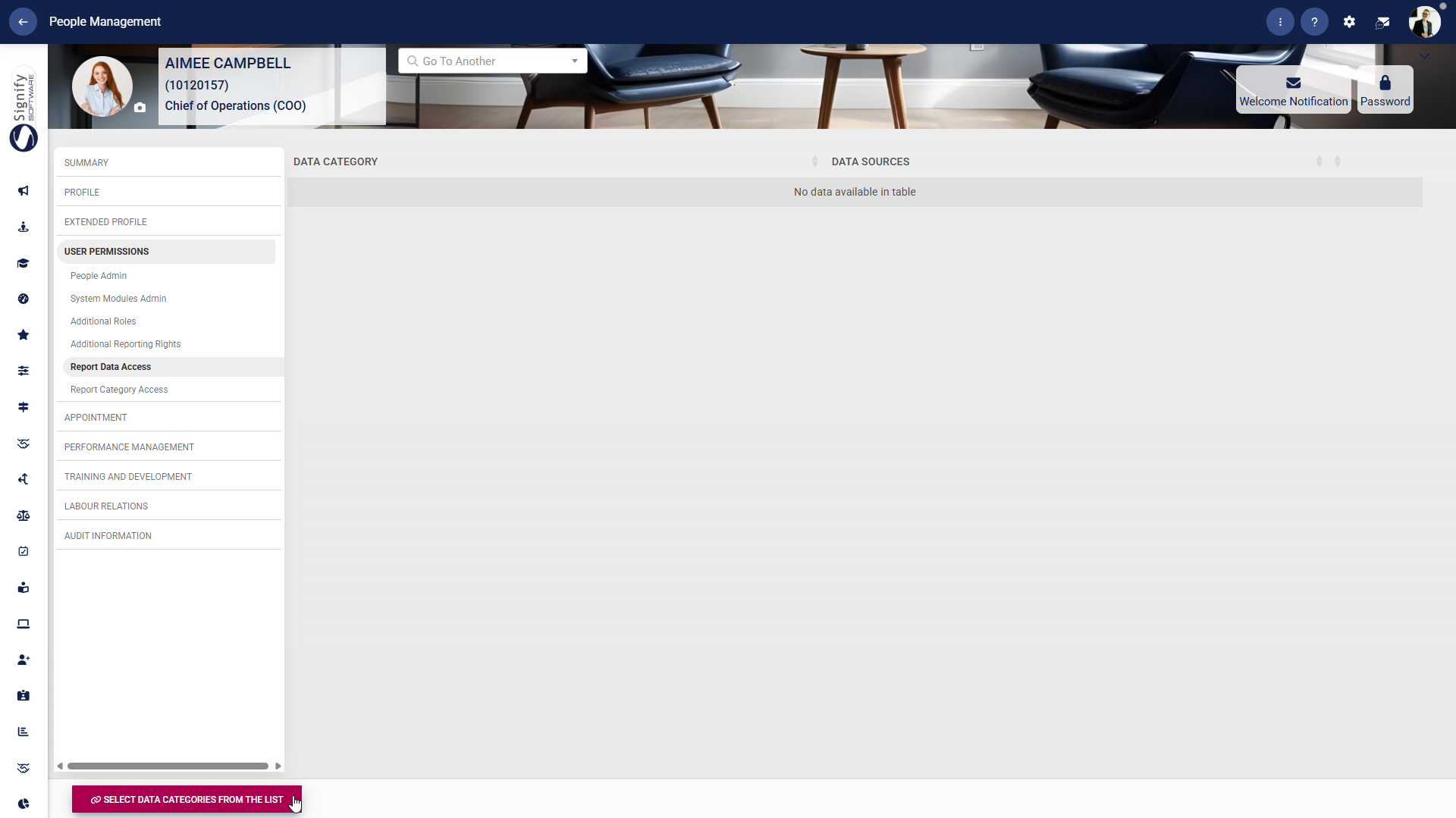
On the left-hand menu, navigate to Report Data Access and click SELECT DATA CATEGORIES FROM THE LIST.
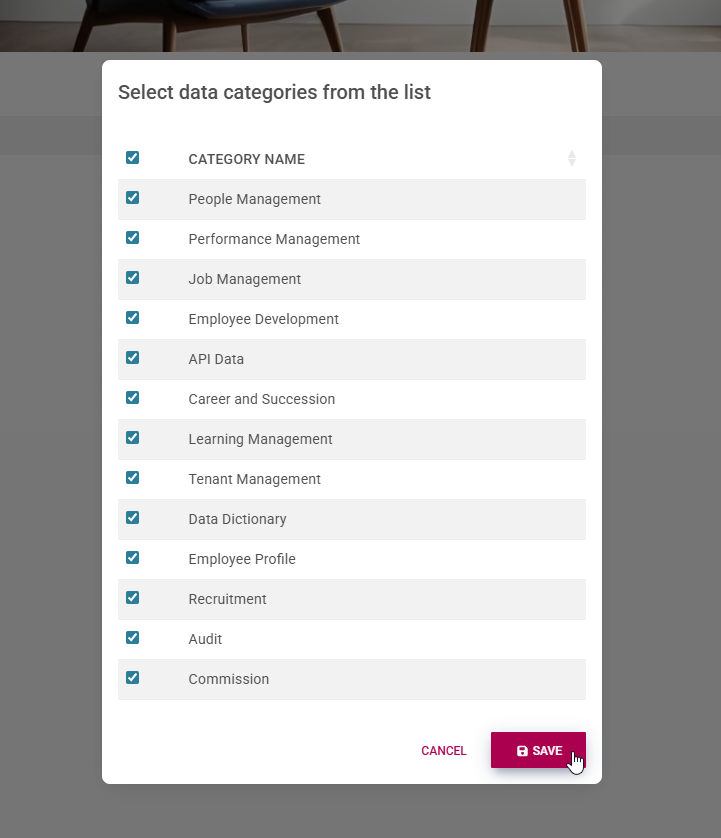
Select which data categories you would like to grant the user access to. Click SAVE when you are finished or CANCEL to discard your changes.
To revoke a user's access to a report data category, click on the dustbin icon.
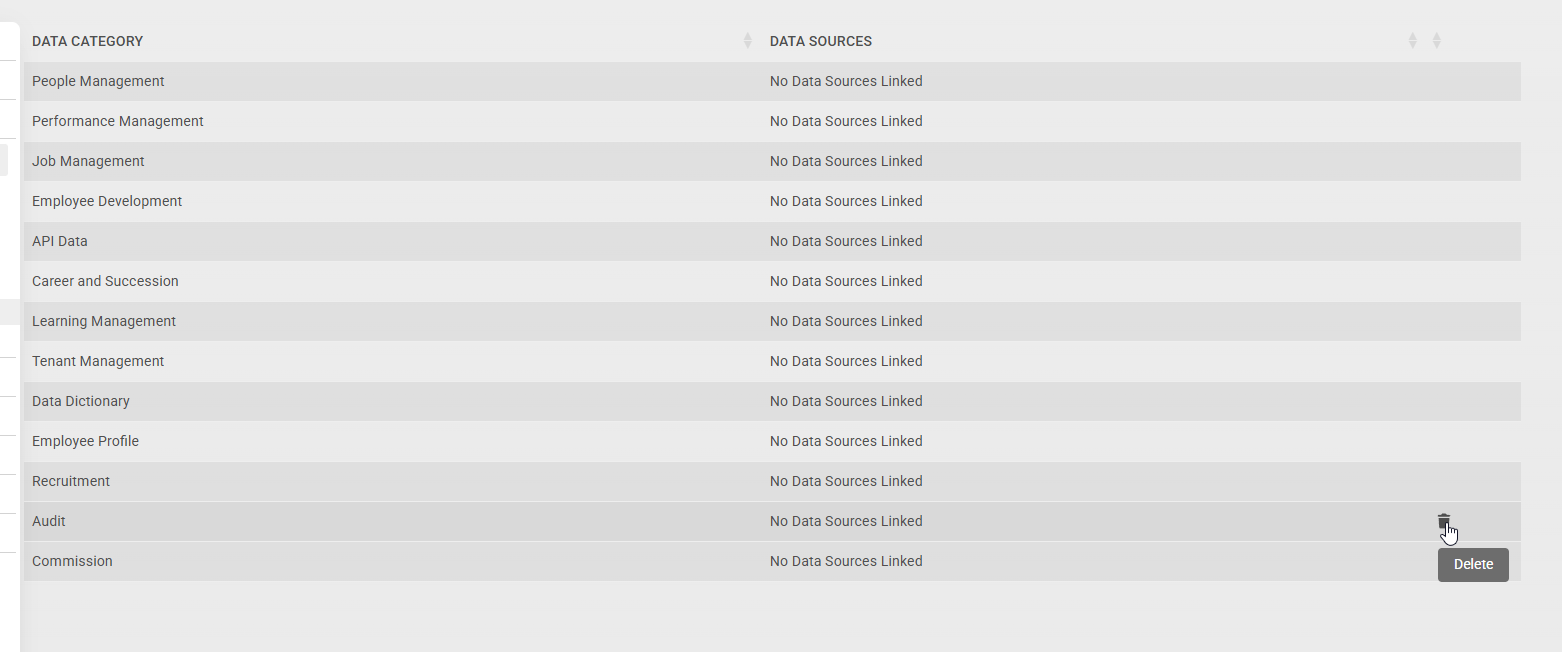
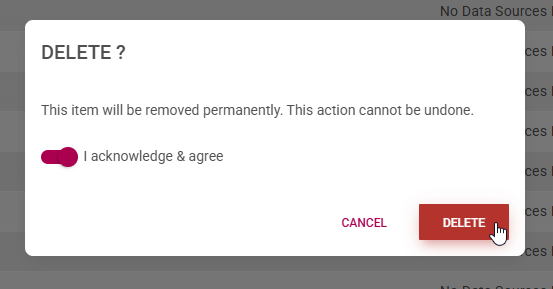
Confirm that you would like to proceed with the deletion, then click DELETE to proceed, or CLOSE to discard your changes.
Report Category Access
In order for Report Builder Administrators to gain access to the Report Builder module, ensure you follow the steps listed below.
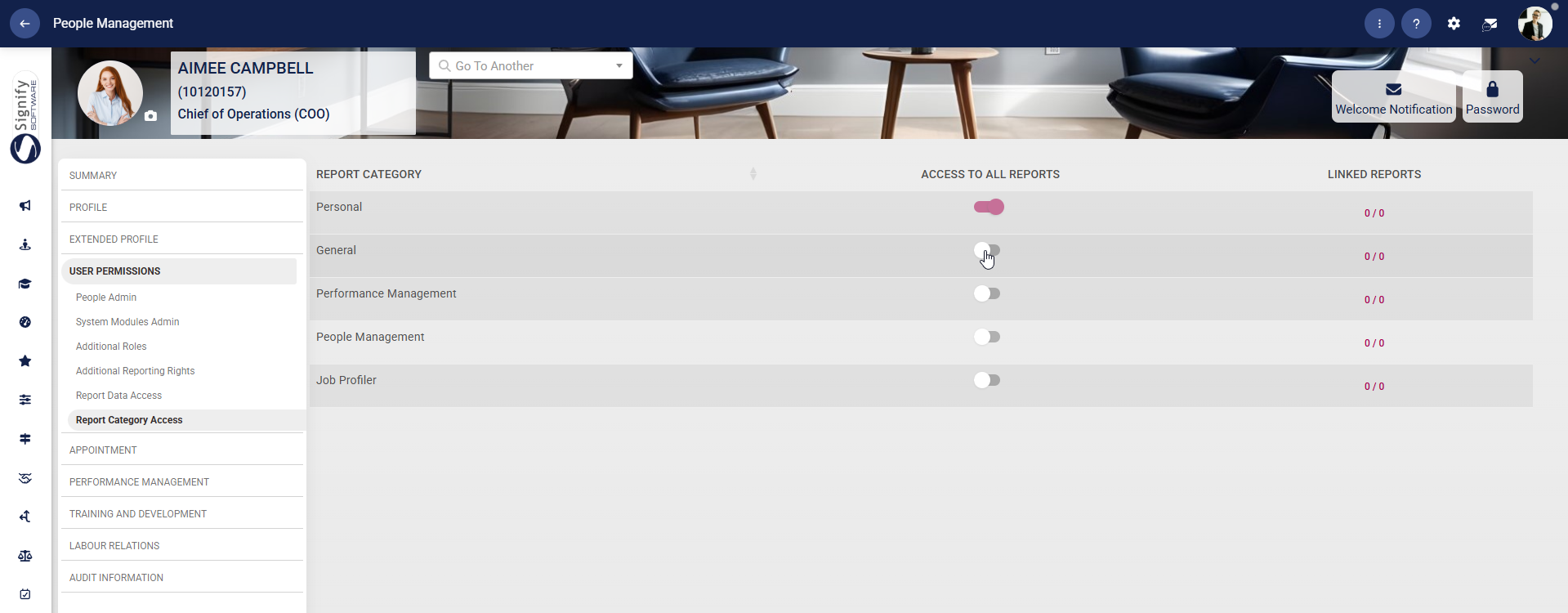
On the left-hand menu, navigate to Report Category Access. Toggle the switches to grant users access to specific report categories.
User Roles
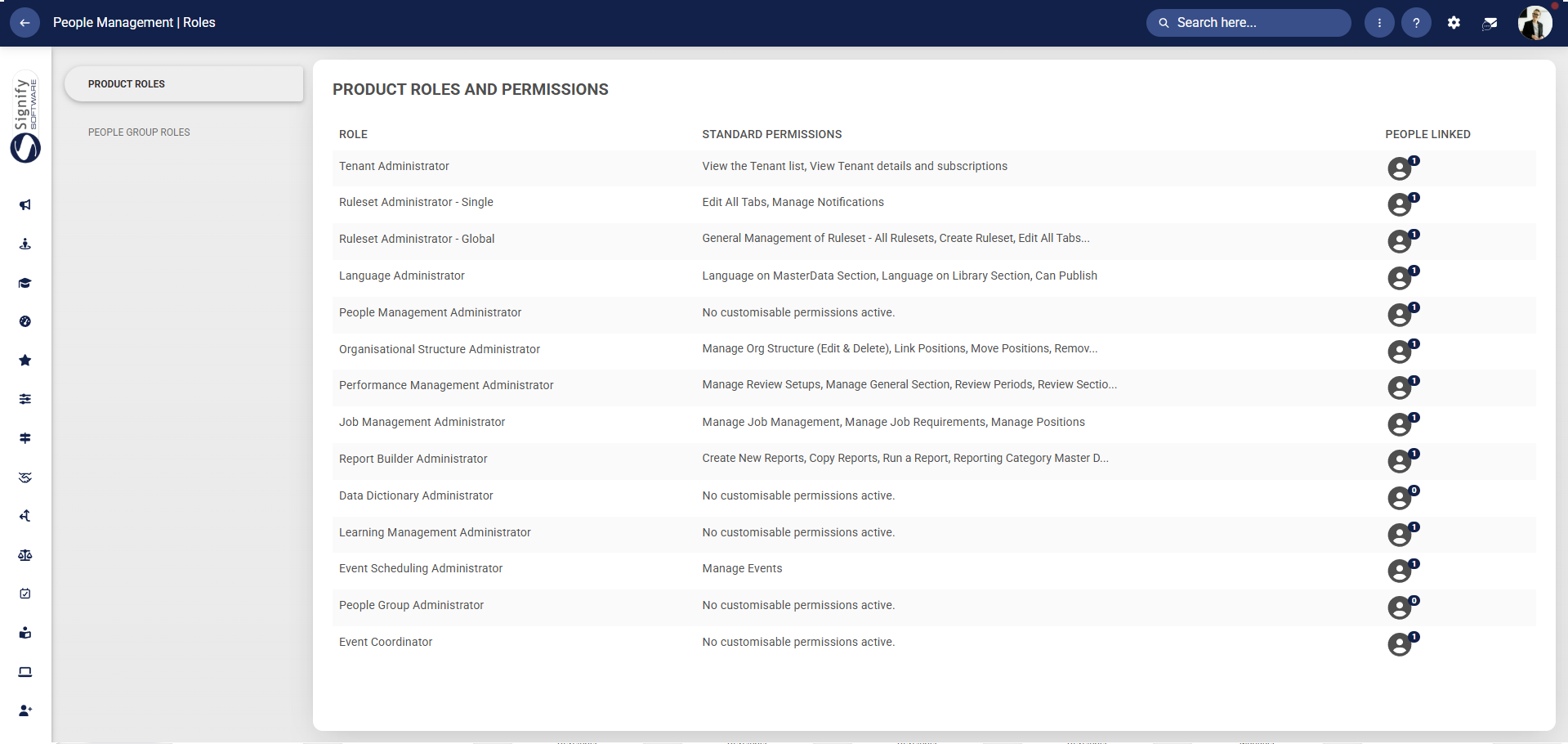
To access a quick overview of the people linked to a specific role, use the Product Roles and Permissions feature of the People Management module.
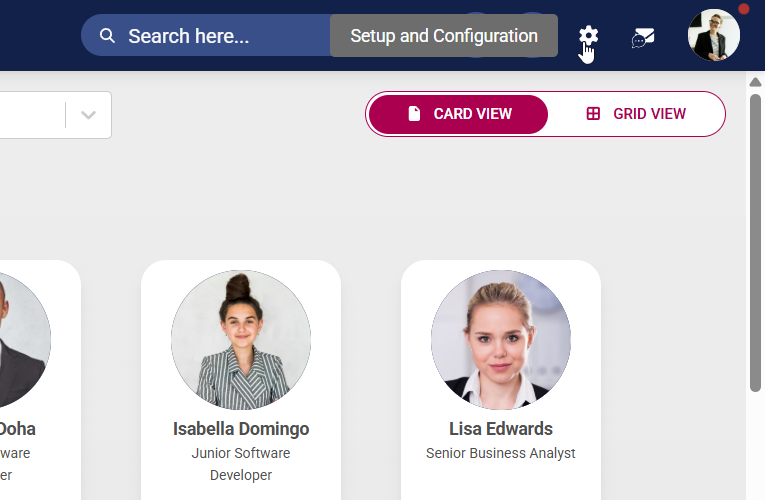
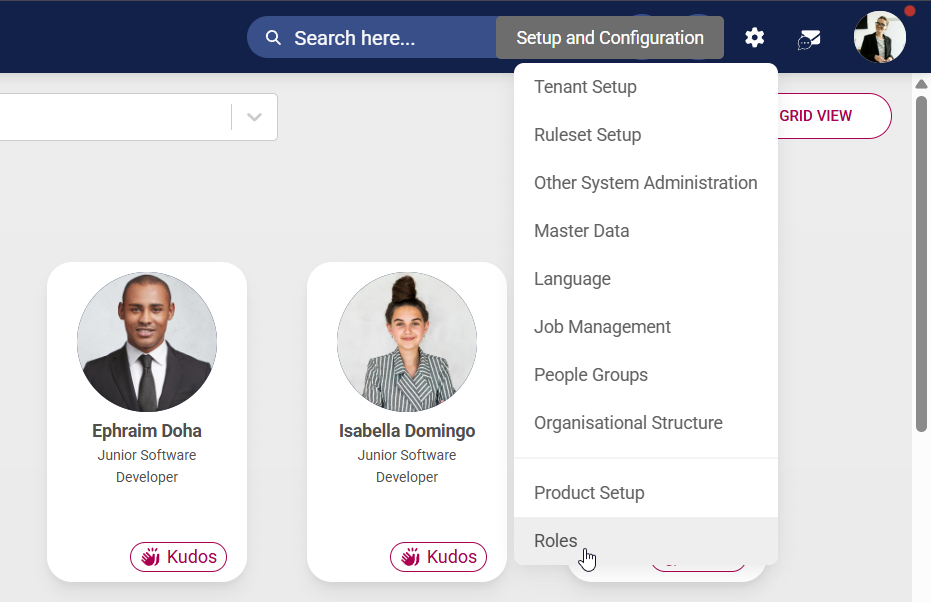
Click the gear icon to access the Setup and Configuration menu.
Select Roles from the drop-down menu.
The Product Roles screen will appear. The table displays the various roles in the system, the standard permissions for each role, and the number of people linked to each role.
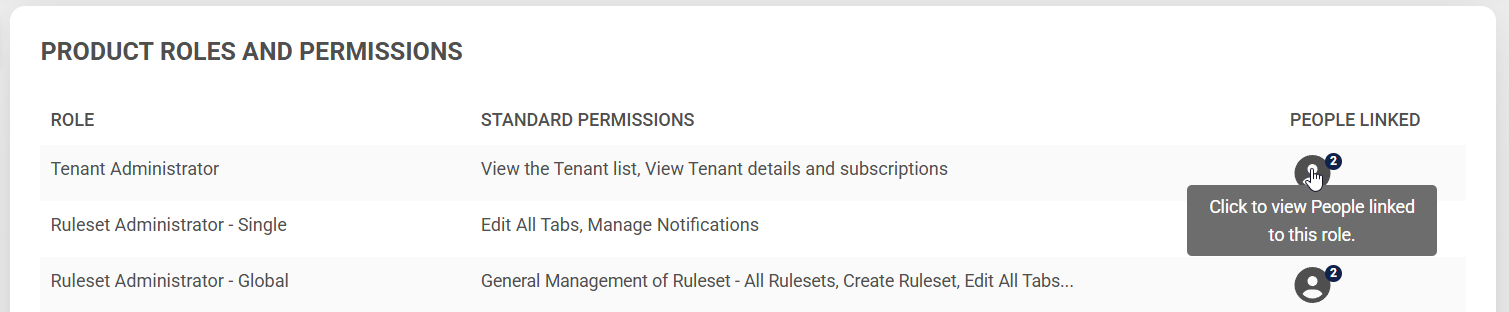
Click to view a summary of the people linked to a specific role.
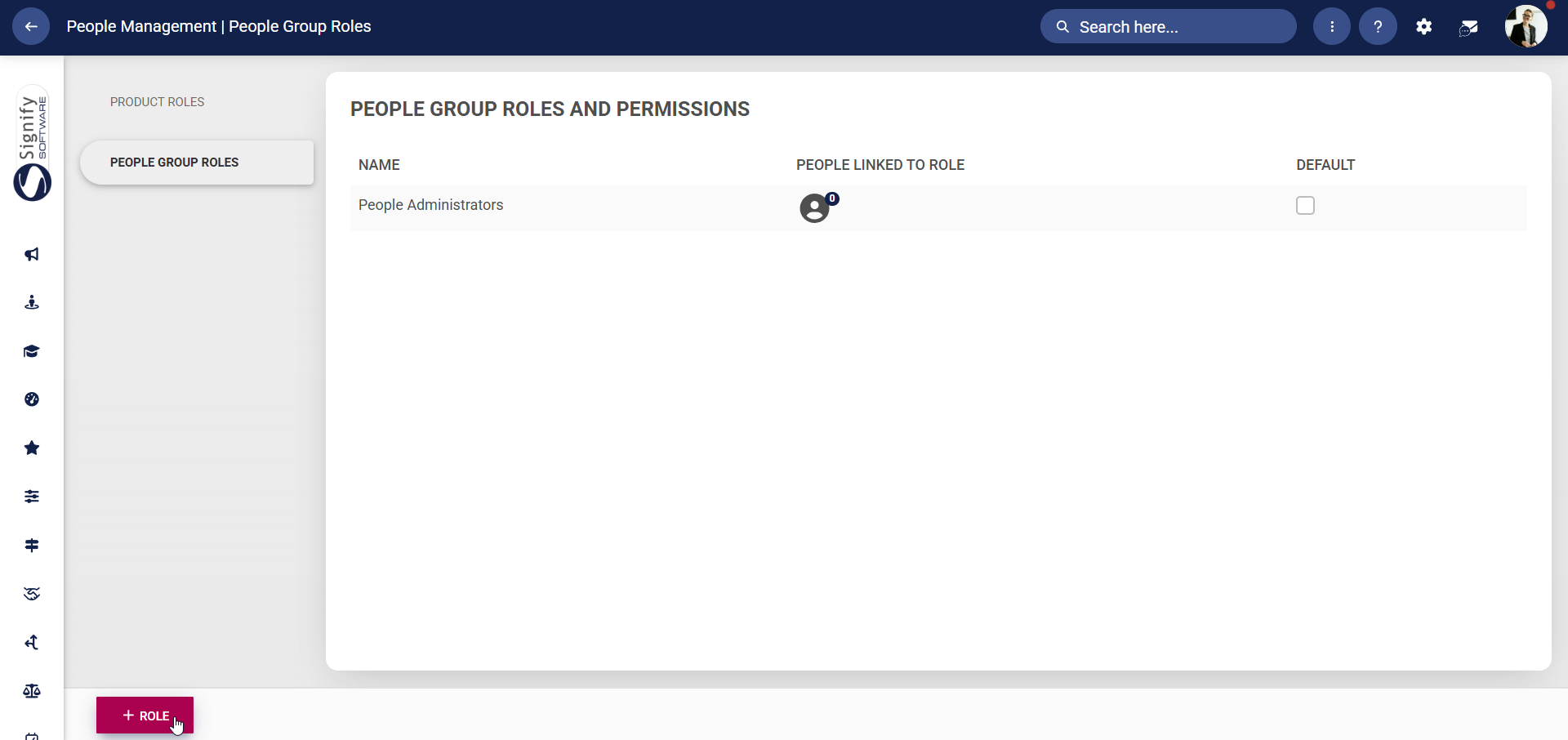
To assign a specific role to specific people groups, navigate to People Group Roles. Click +ROLE to add a new role.
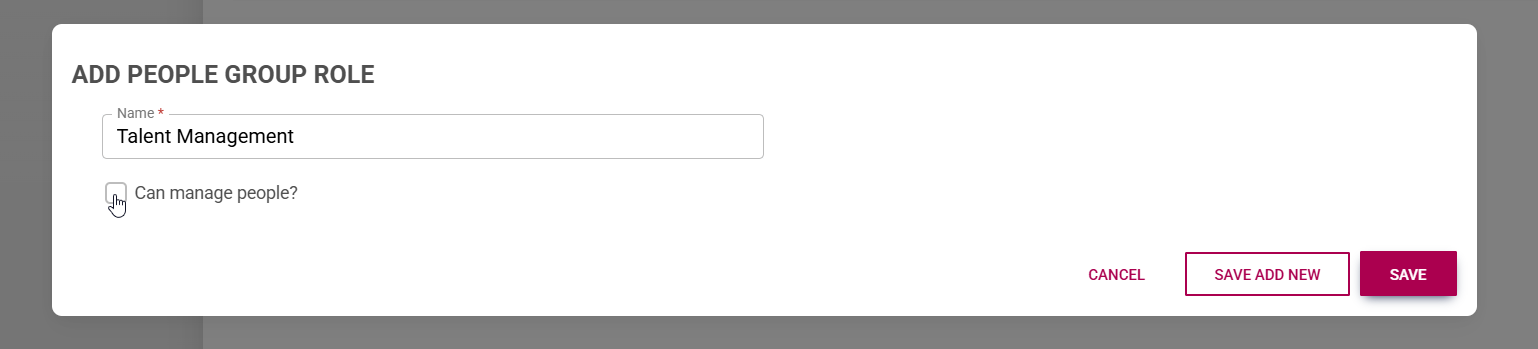
Assign an appropriate name to this role. If the role requires managing people, tick the checkbox. Click SAVE ADD NEW to add another people group role, SAVE when finished, or CANCEL to discard any changes.
To delete a people group role, hover over the name and click the dustbin icon.
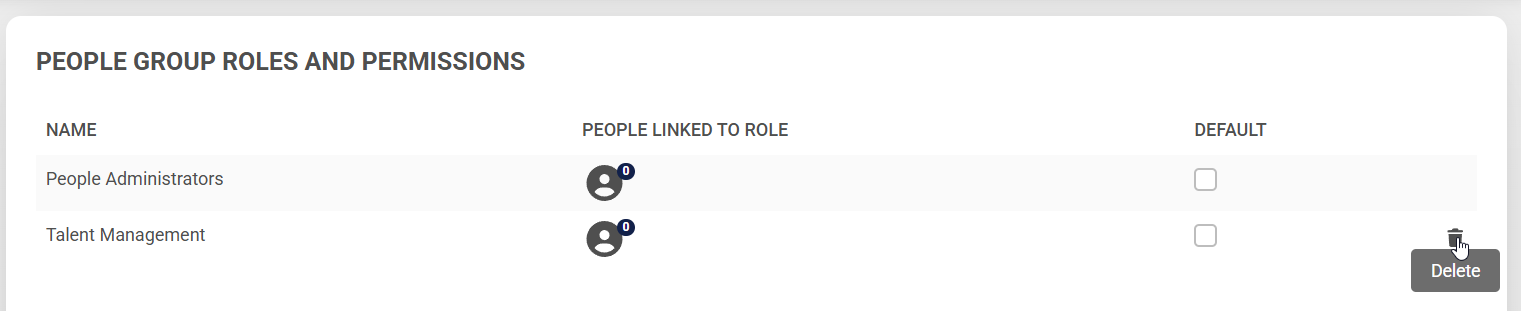
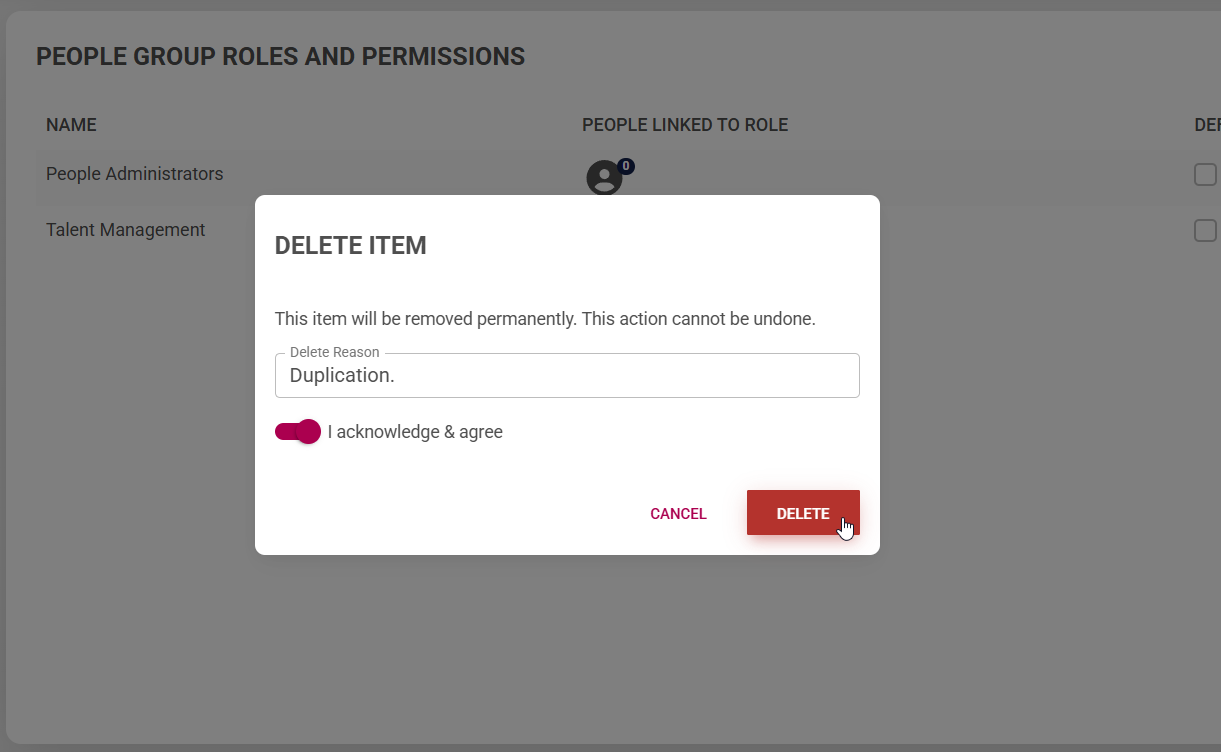
Confirm you would like to proceed with the deletion and provide a valid reason. Click DELETE to remove the people group role, or CANCEL to discard your changes.