Update Attendance for Events

Attendance can be updated for each attendee at each event.
Hover over the sidebar menu, then click Event Scheduling.

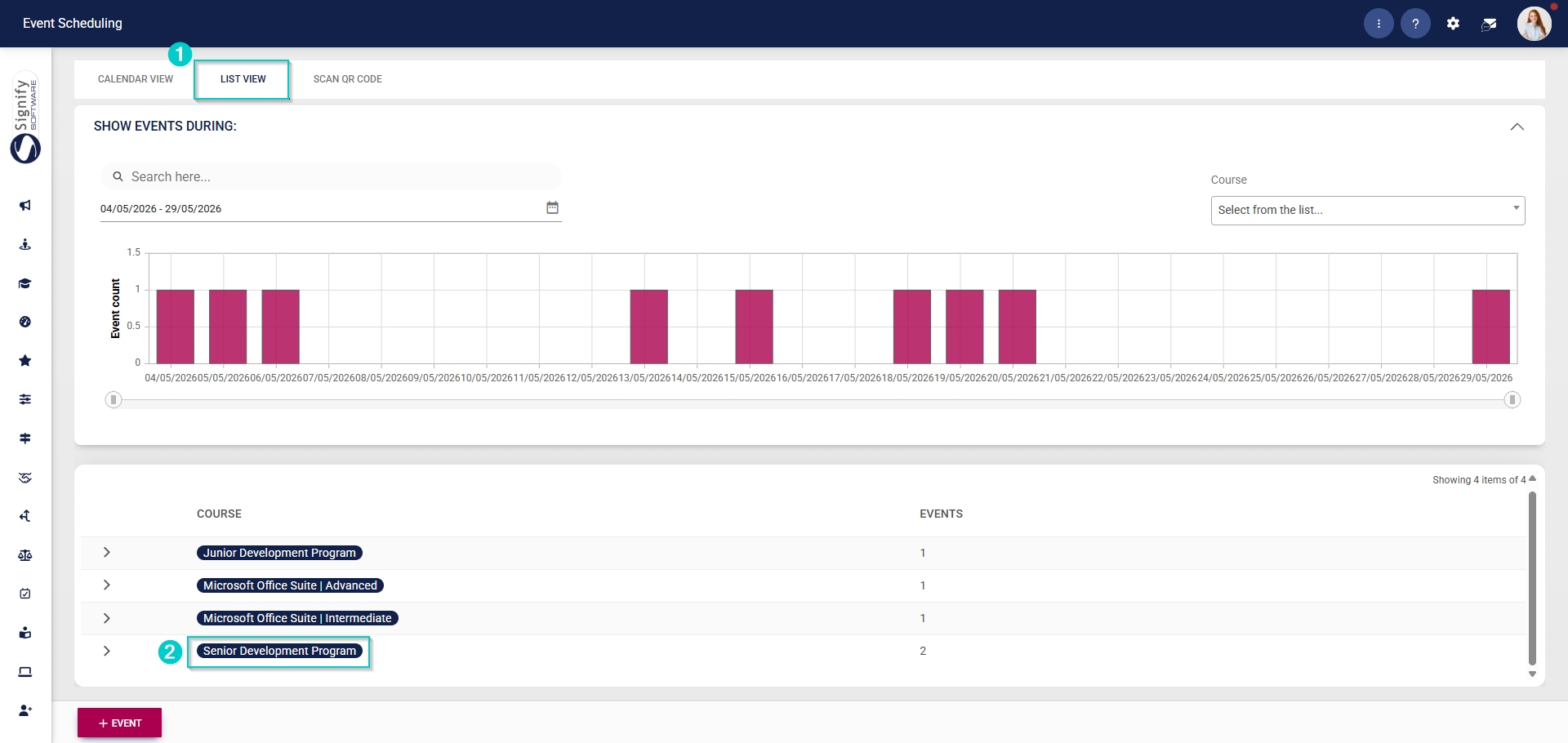
Navigate to the List View tab.
Expand the event for which you would like to update attendance.
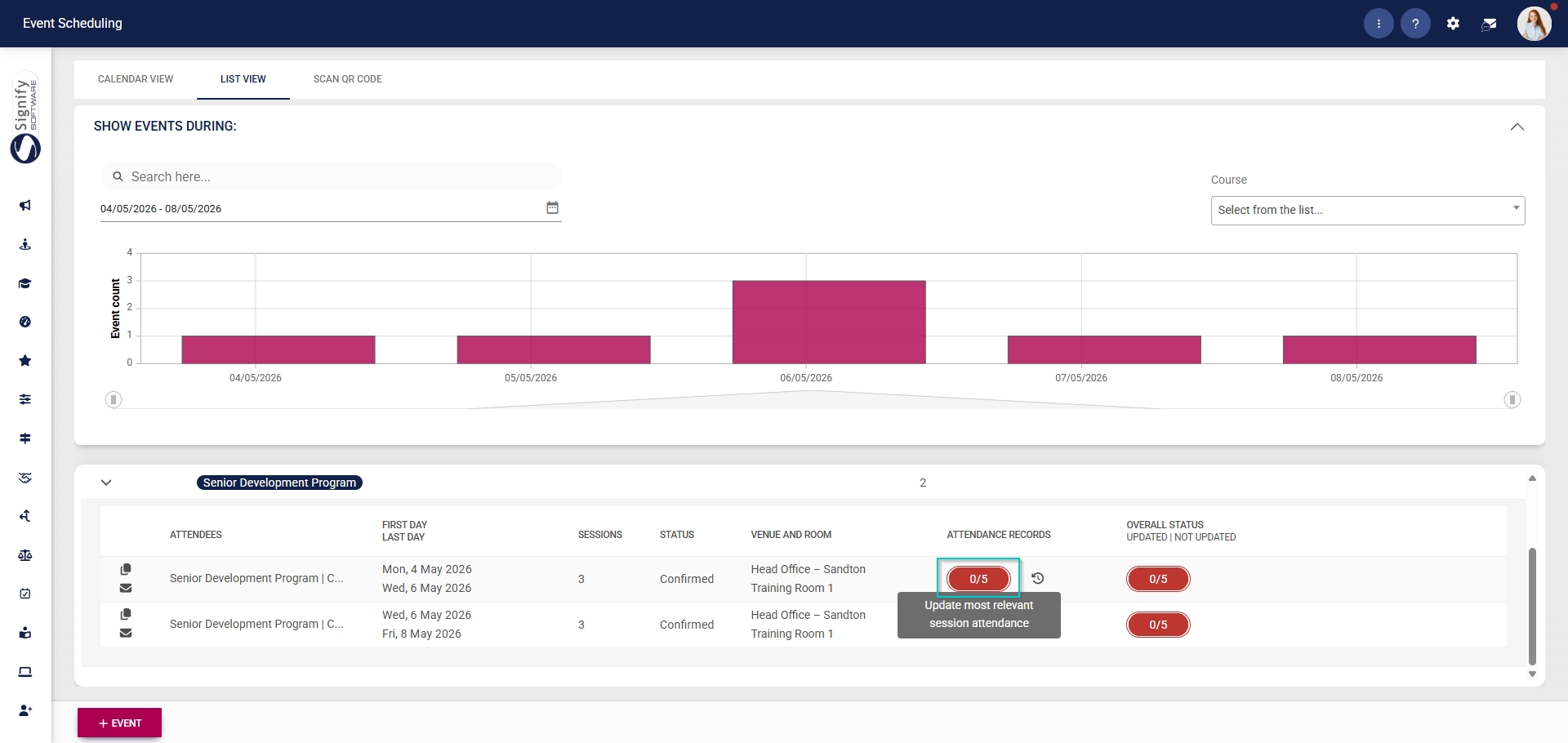
Click to access the attendance records for the event.
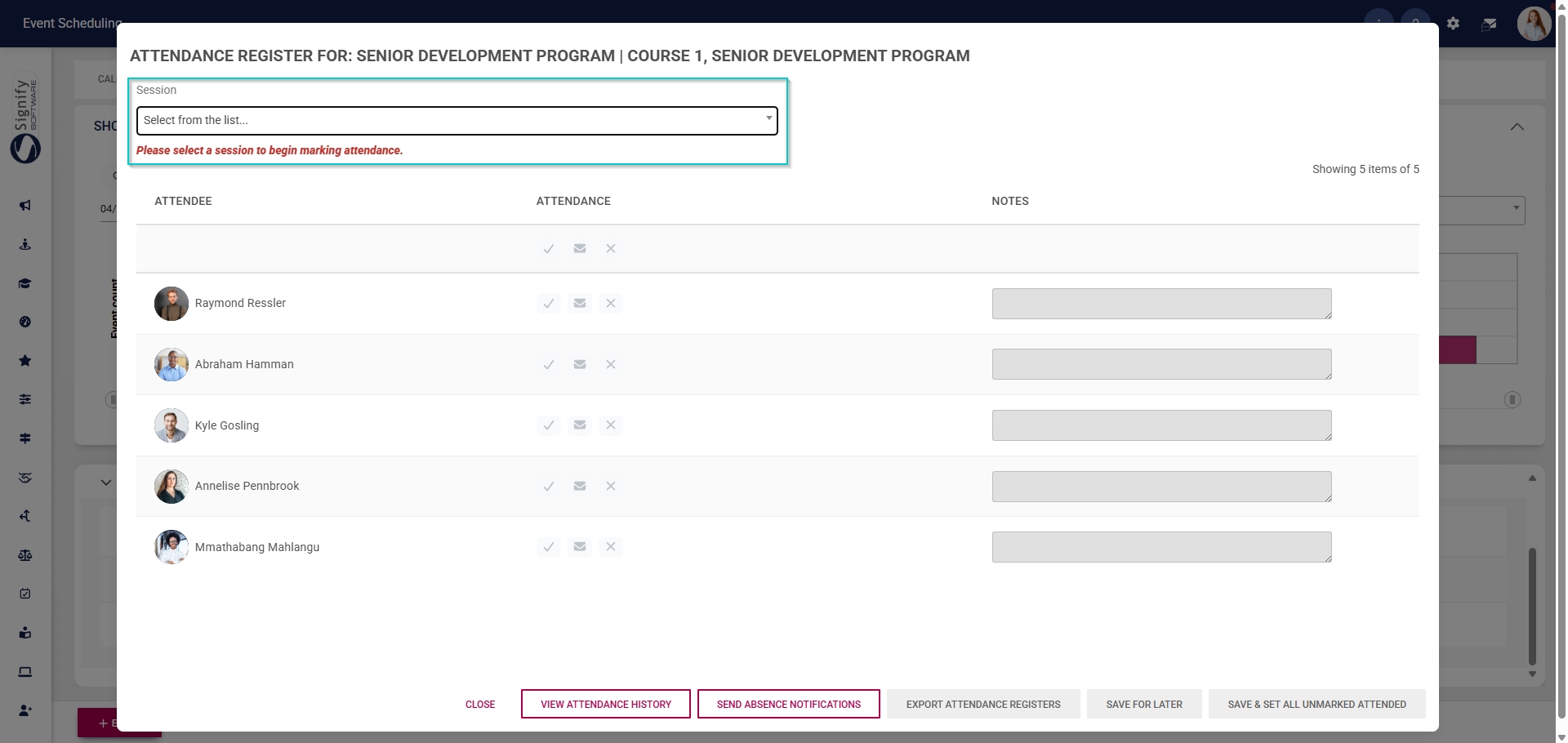
From the pop-up window, select the session from the dropdown menu.
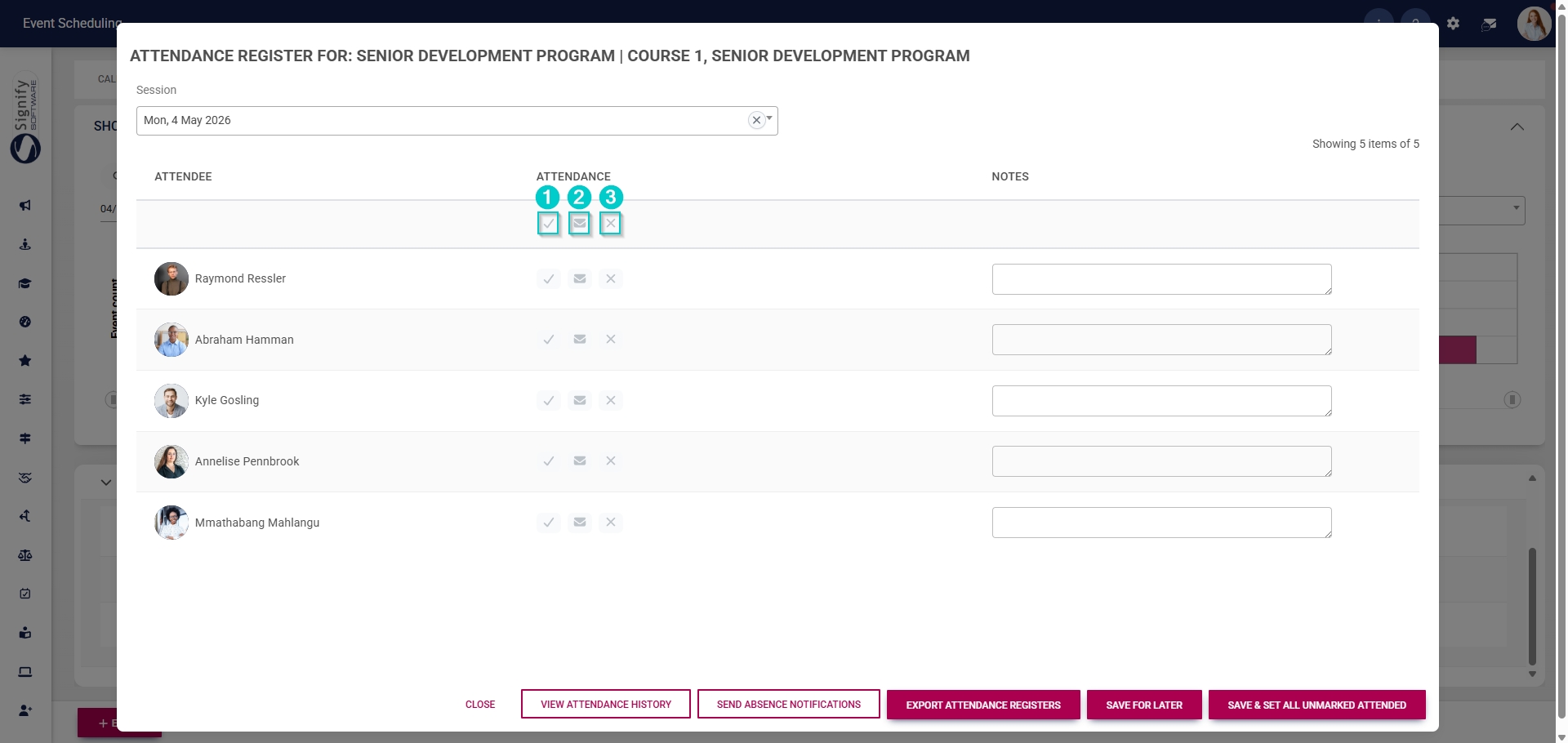
Use the icons below the Attendance heading to update attendance for all attendees.
Click the tick icon to mark all attendees as Attended.
Click the envelope icon to mark all attendees as Absent with an excuse.
Click the cross icon to mark all attendees as Absent.
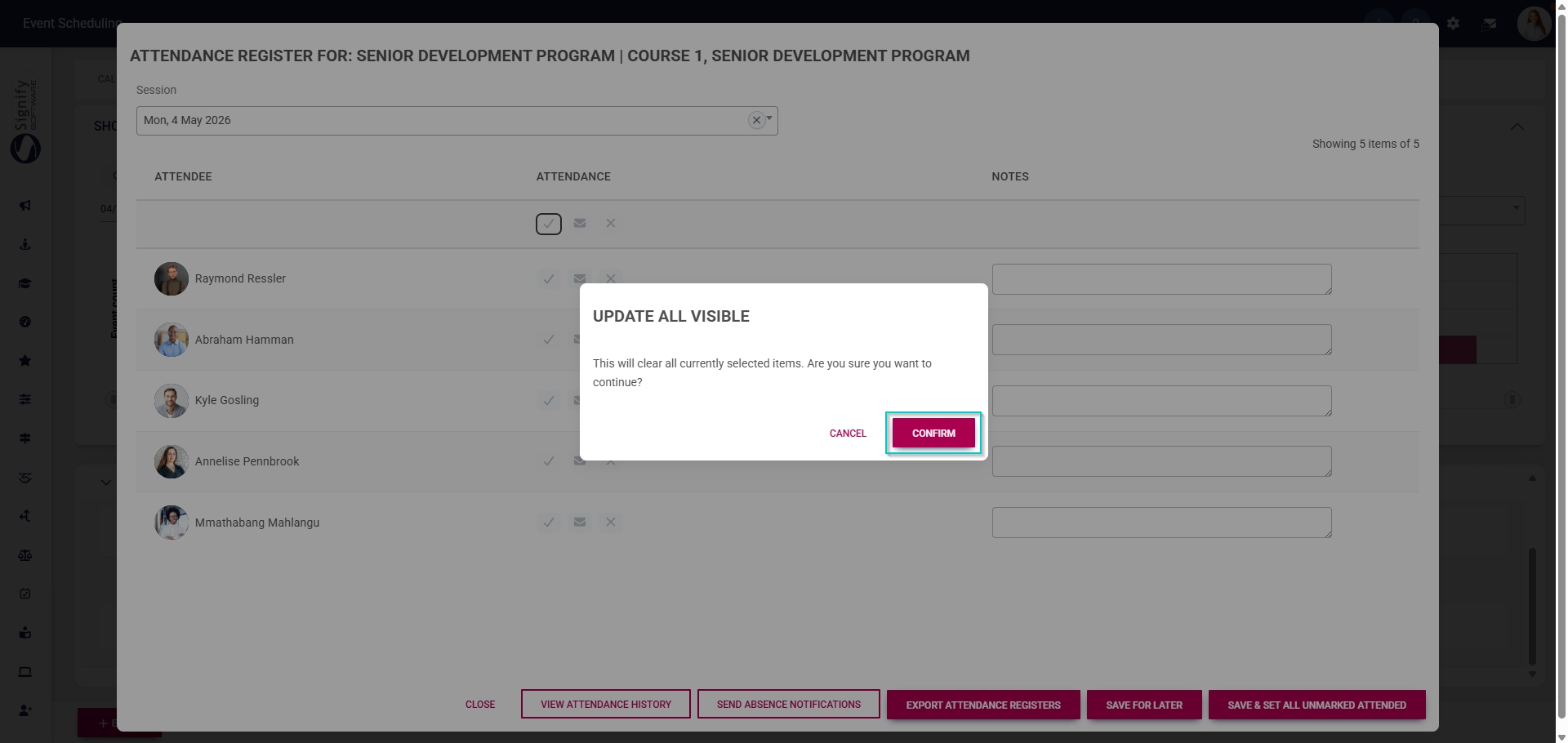
Click CONFIRM to proceed or CANCEL to discard your changes.
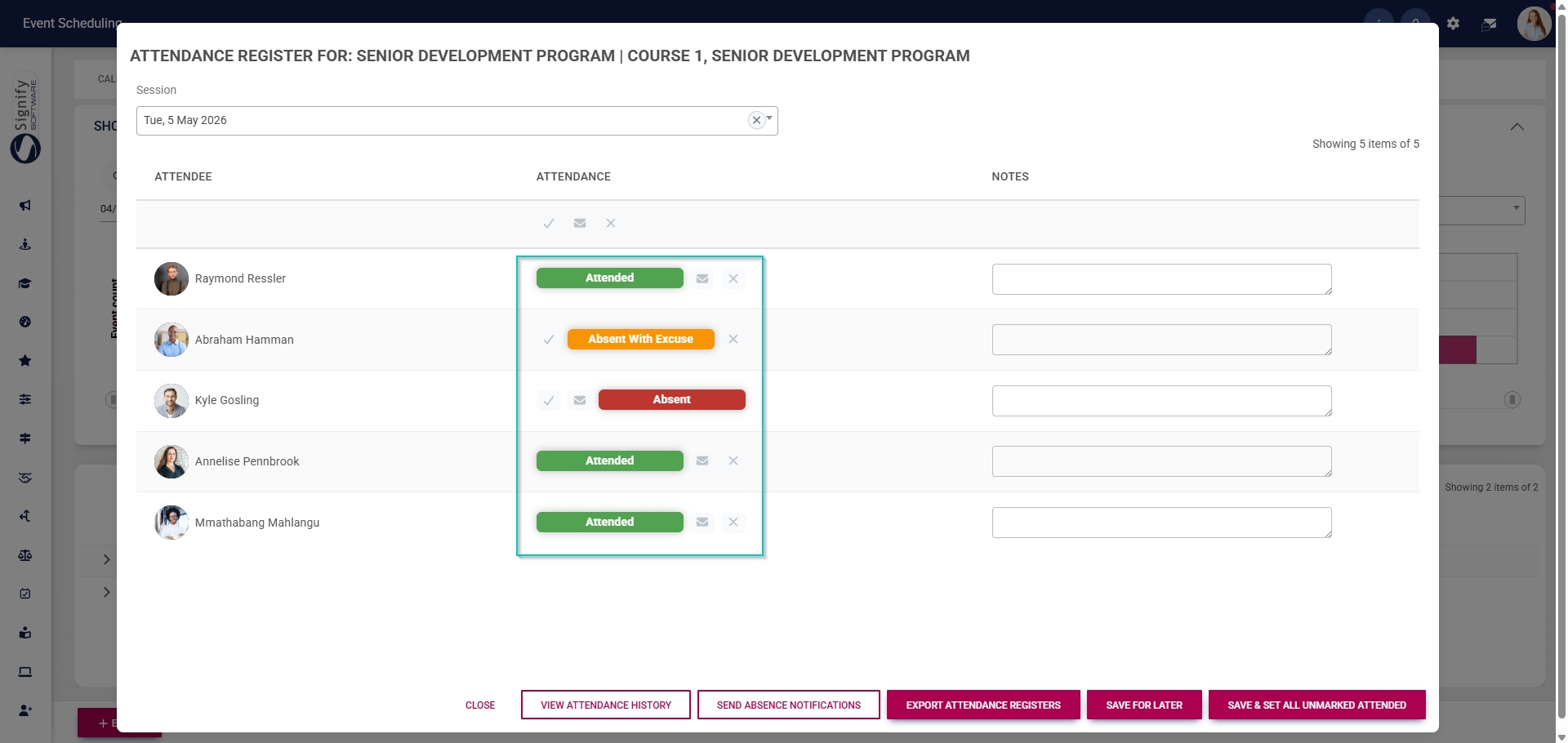
Alternatively, update each attendee’s attendance status individually by clicking the icons in the Attendance column next to their name.
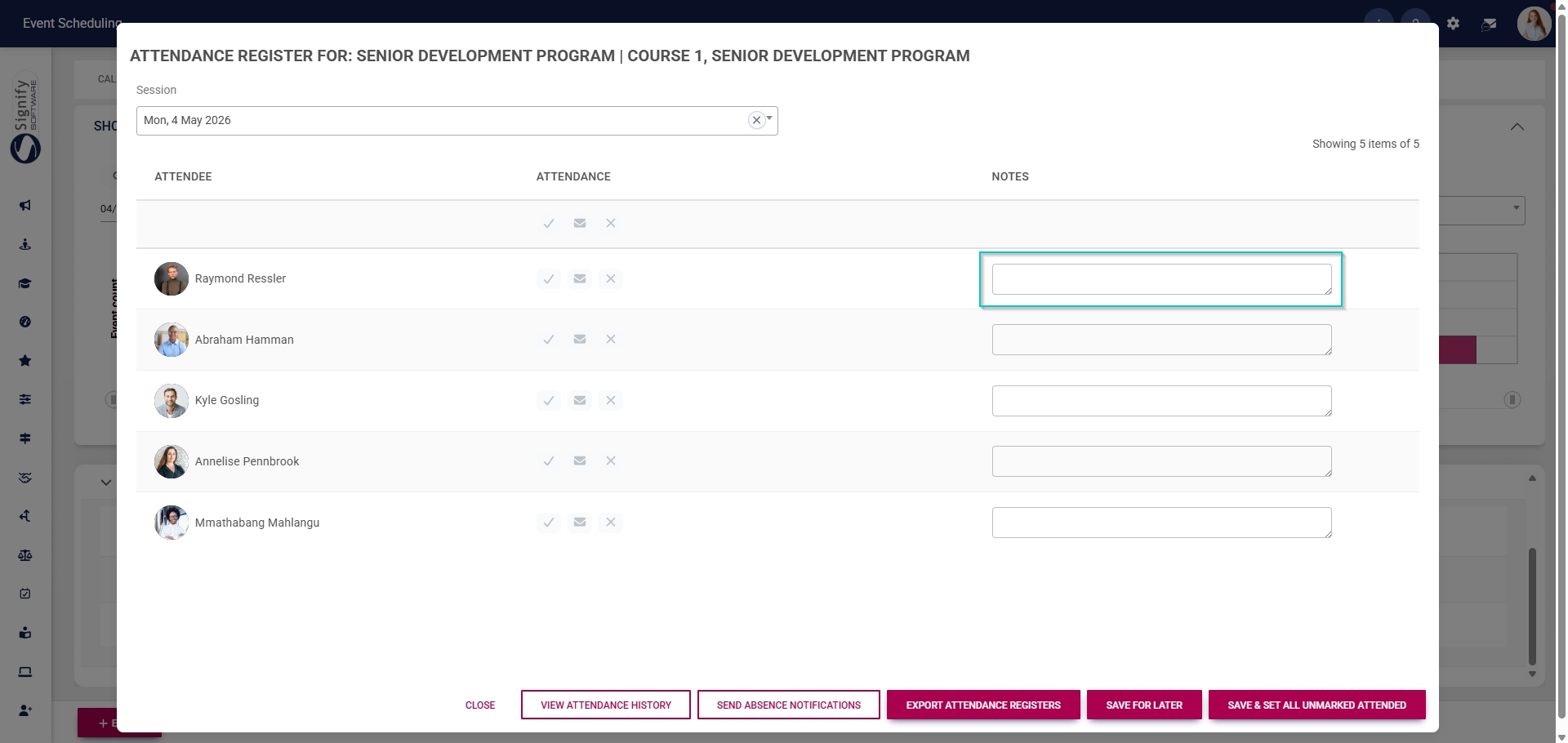
Optionally, notes about the session can be added for each attendee.
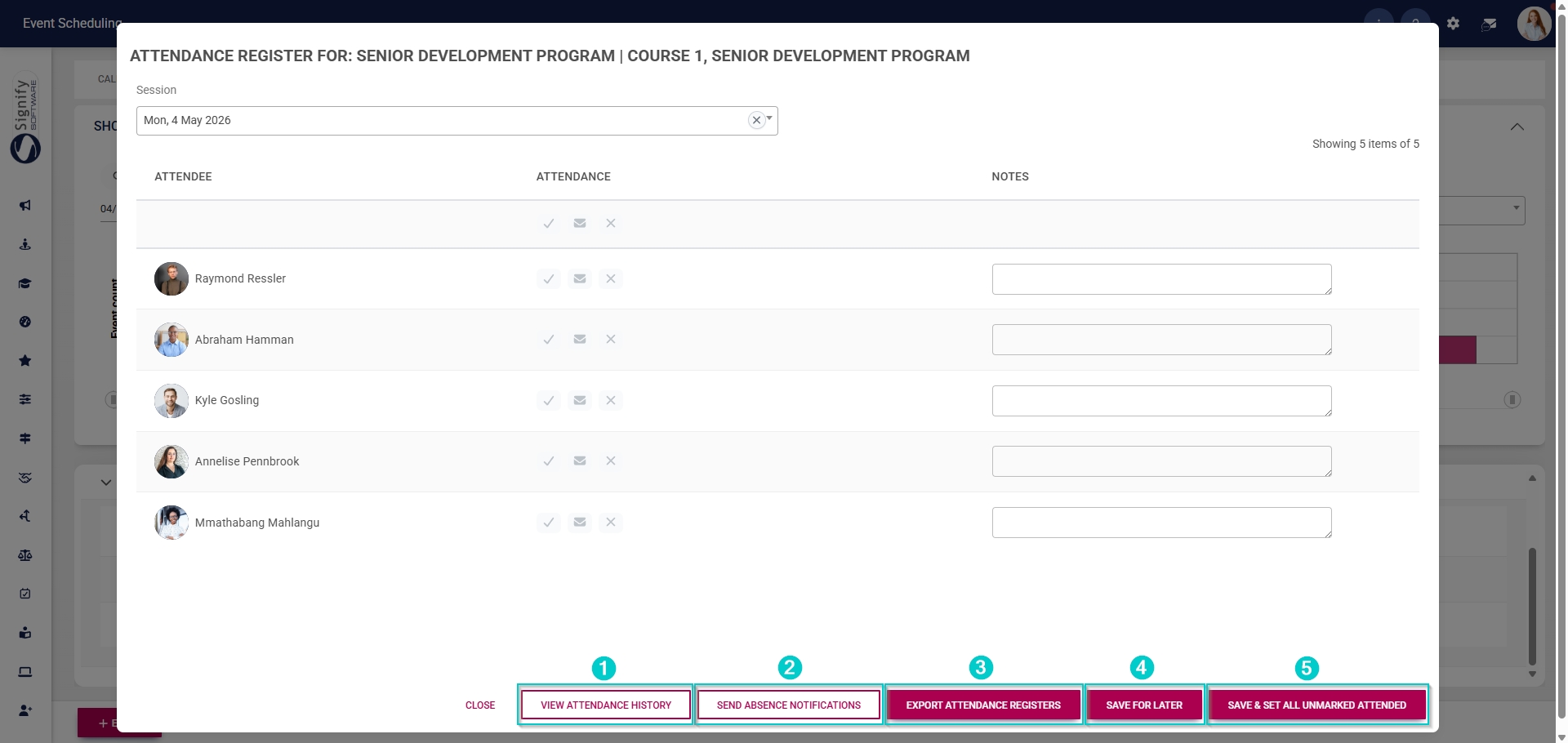
The buttons at the bottom of the pop-up window have the following functions:
Click VIEW ATTENDANCE HISTORY to view the attendance register for each session in the event.
Click SEND ABSENCE NOTIFICATIONS to notify absent attendees of missed sessions.
Click EXPORT ATTENDANCE REGISTERS to export attendance registers to an Excel document.
Click SAVE FOR LATER to save your changes.
Click SAVE & SET ALL UNMARKED ATTENDED to save your changes and set all unmarked records to Attended.