Update Attendance for Events

Signify Header.png

Attendance can be updated for each attendee at each event.

  • Hover over the sidebar menu, then click Event Scheduling.

AA ES ES Sidebar menu item.jpg

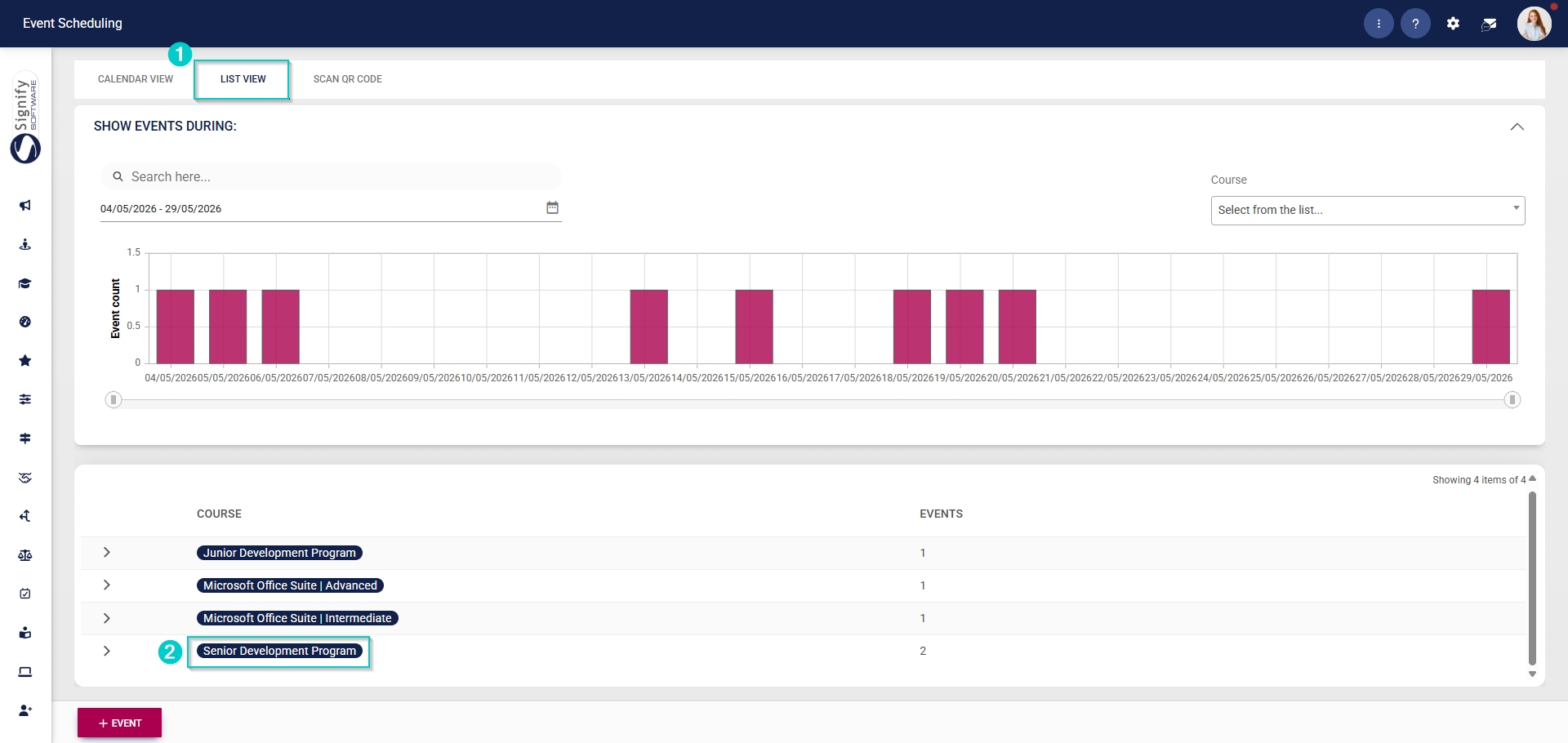
  • Navigate to the List View tab. 
  • Expand the event for which you would like to update attendance.

ES Create Event - Navigate to Event.jpg

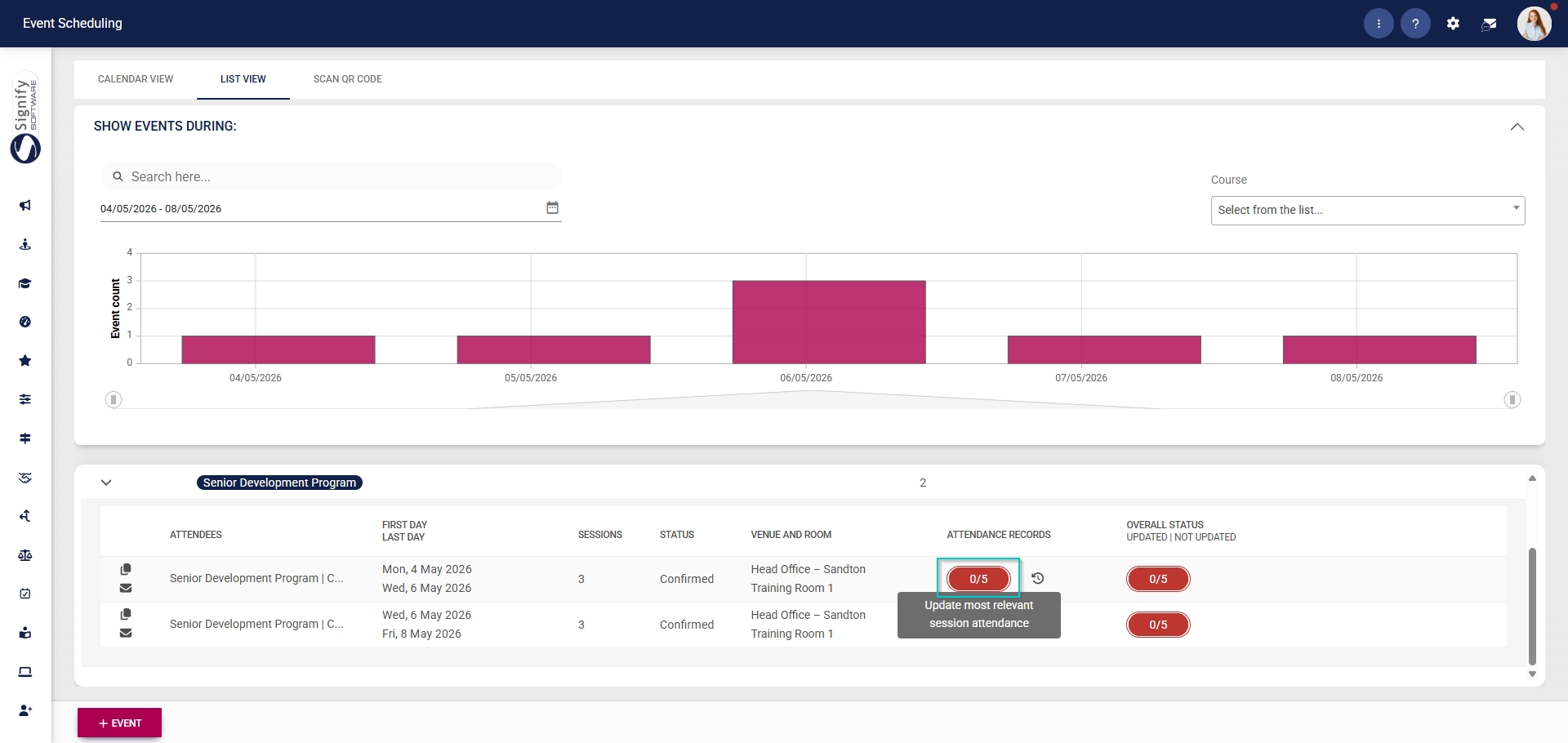
  • Click to access the attendance records for the event.
ES ES Click attendance records for an eventcard.jpg

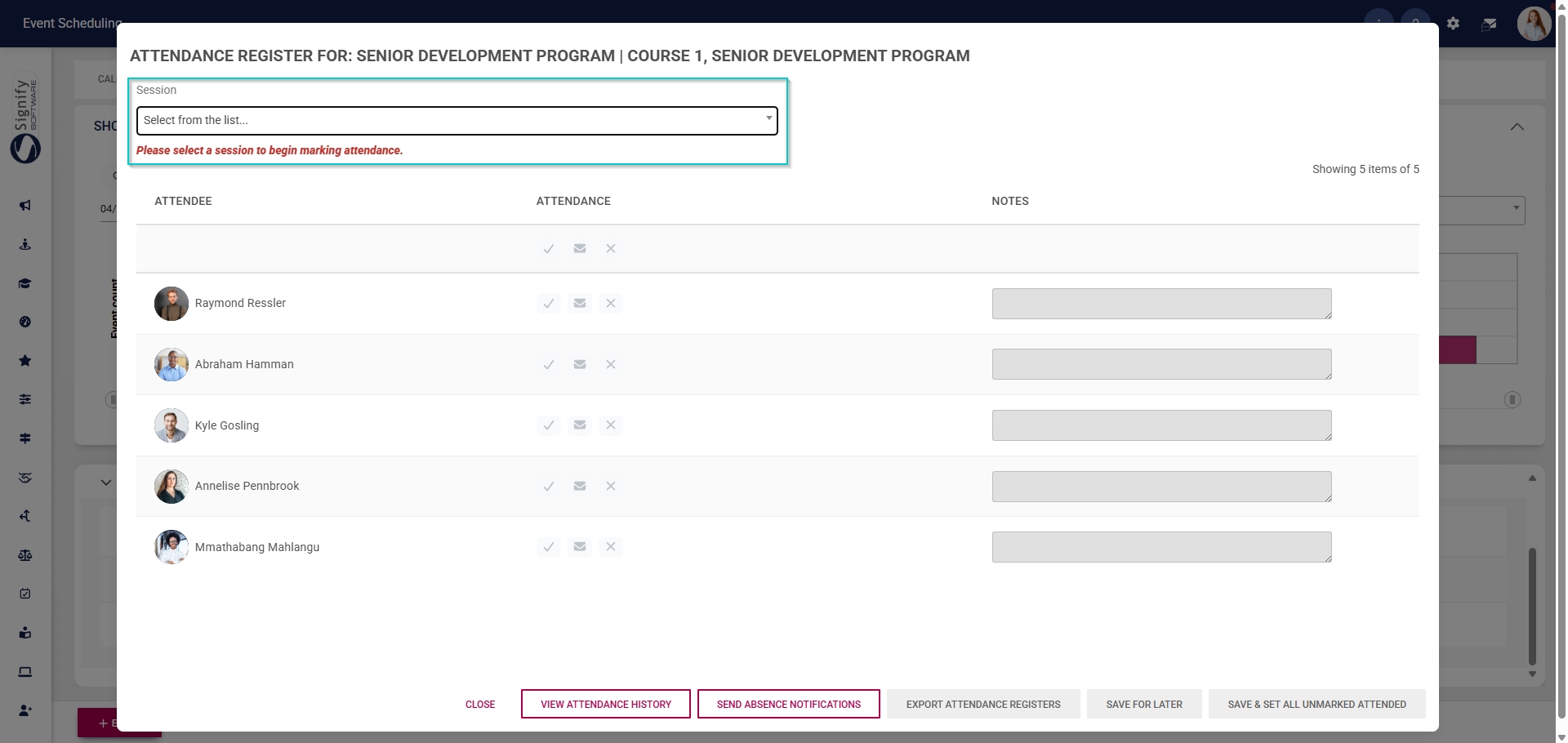
  • From the pop-up window, select the session from the dropdown menu.
ES ES Update attendance - Select session.jpg

  • Use the icons below the Attendance heading to update attendance for all attendees.
    • Click the tick icon to mark all attendees as Attended.
    • Click the envelope icon to mark all attendees as Absent with an excuse.
    • Click the cross icon to mark all attendees as Absent.
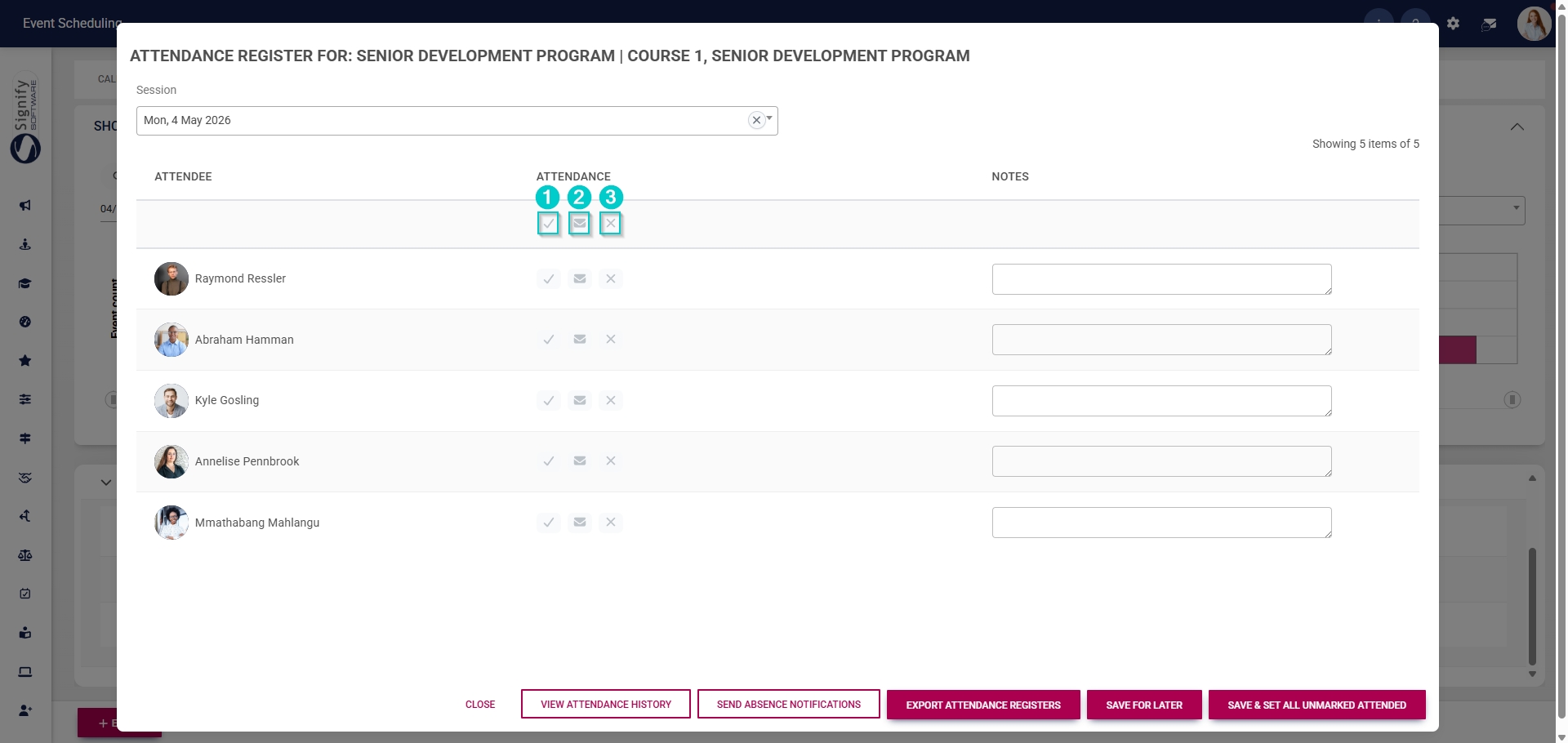
ES ES Update attendance - Update for all attendees.jpg

  • Click CONFIRM to proceed or CANCEL to discard your changes.
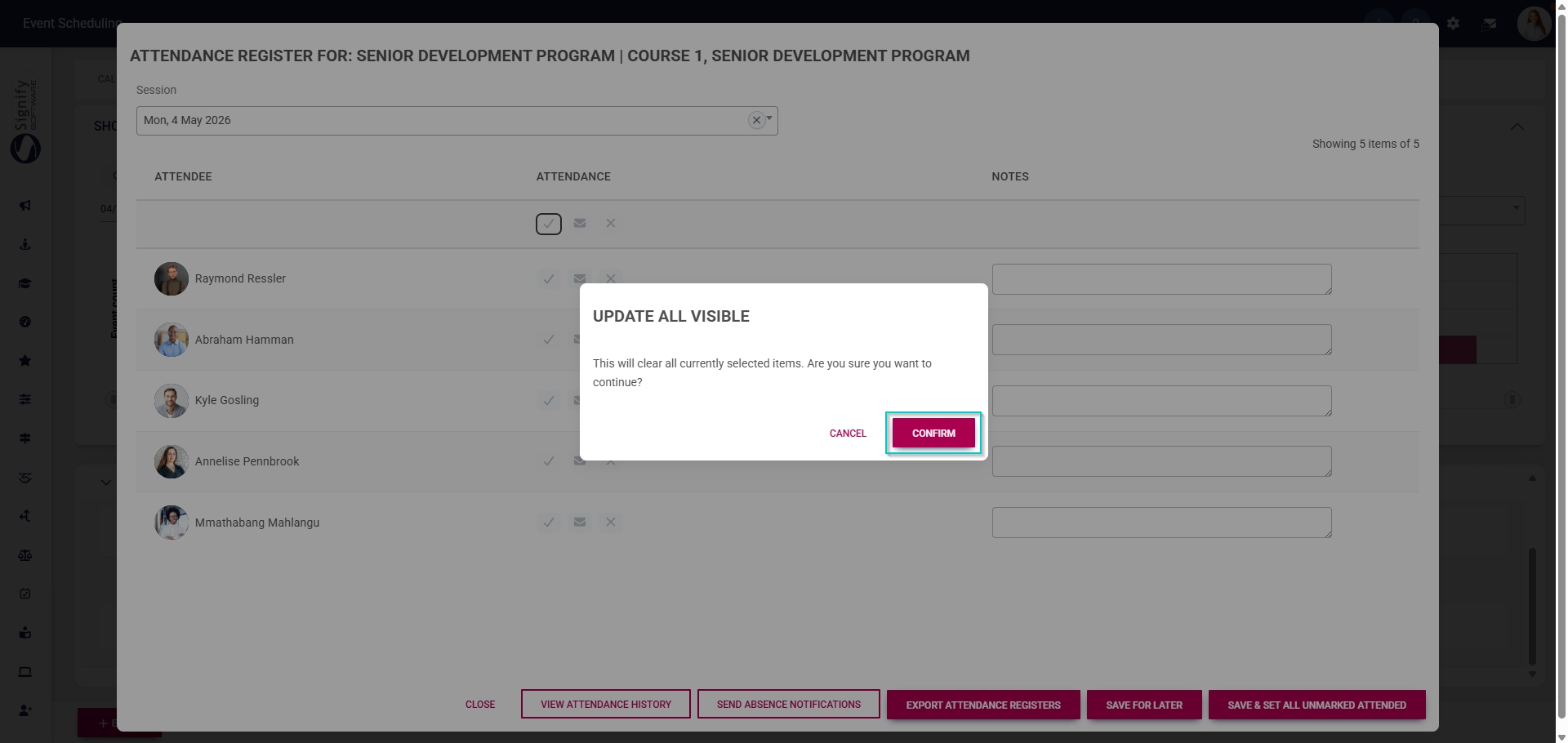
ES ES Update attendance - Update for all attendees - Confirm.jpg

  • Alternatively, update each attendee’s attendance status individually by clicking the icons in the Attendance column next to their name.
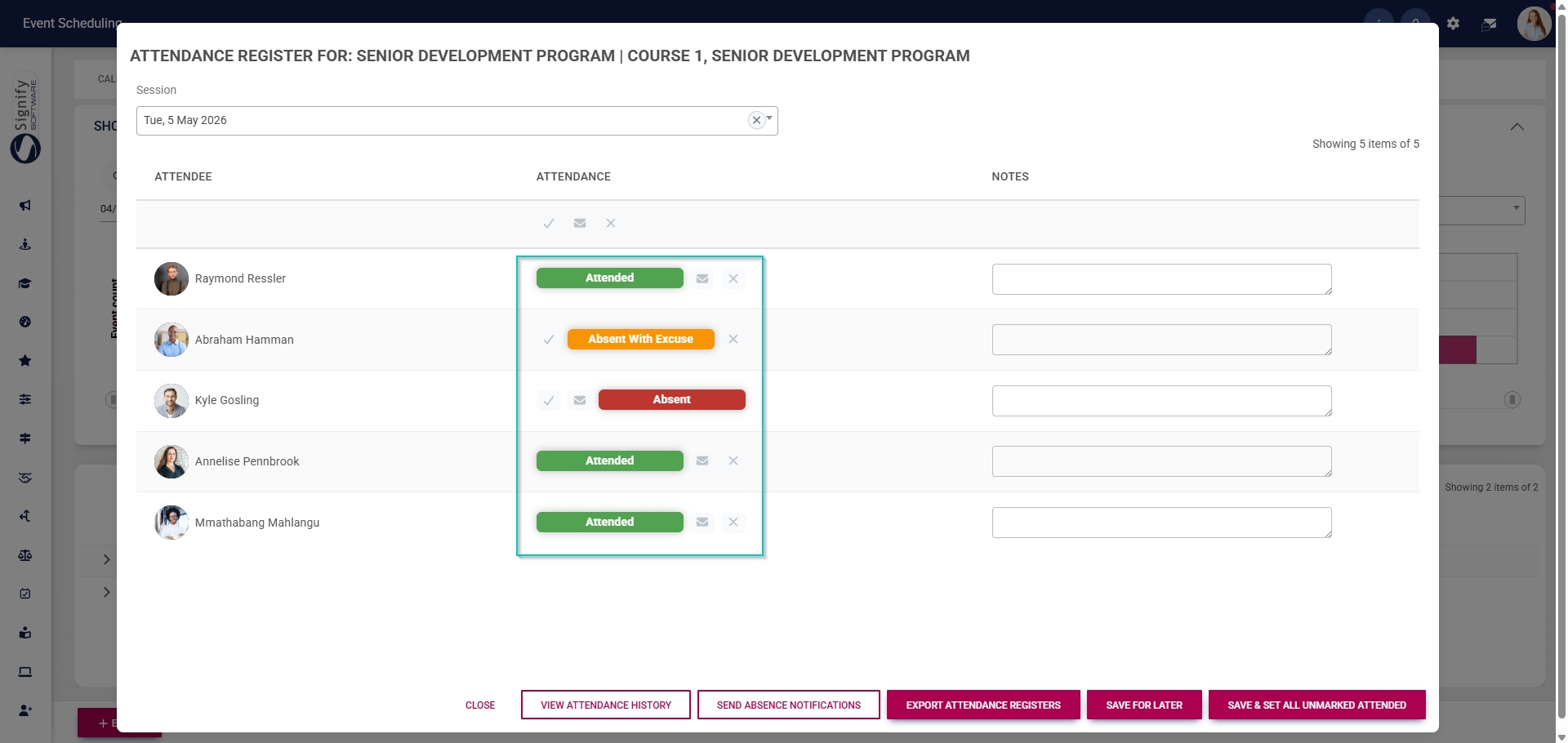
ES ES Update attendance - Update for individual attendees.jpg

  • Optionally, notes about the session can be added for each attendee.
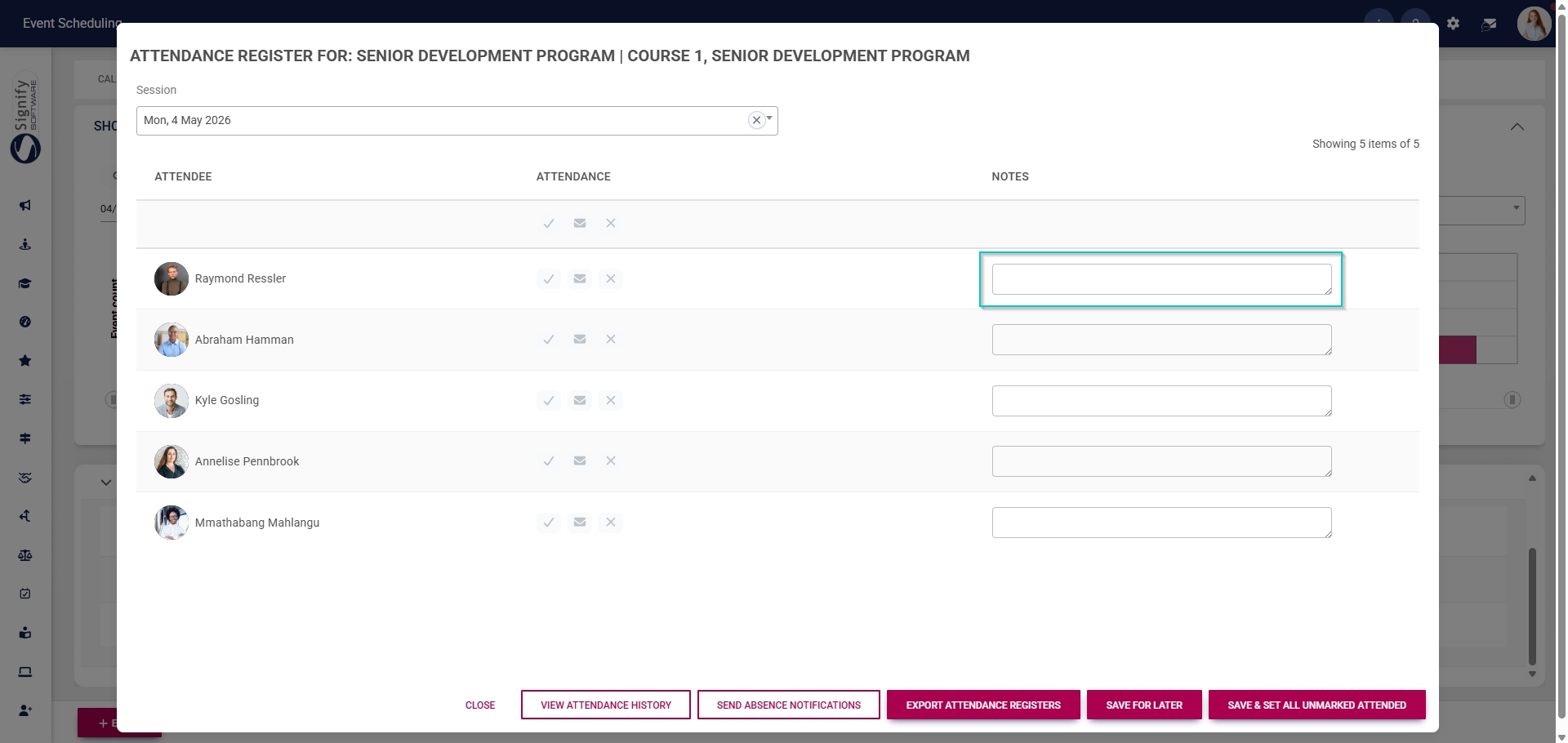
ES ES Update attendance - Update for individual attendees - Notes.jpg

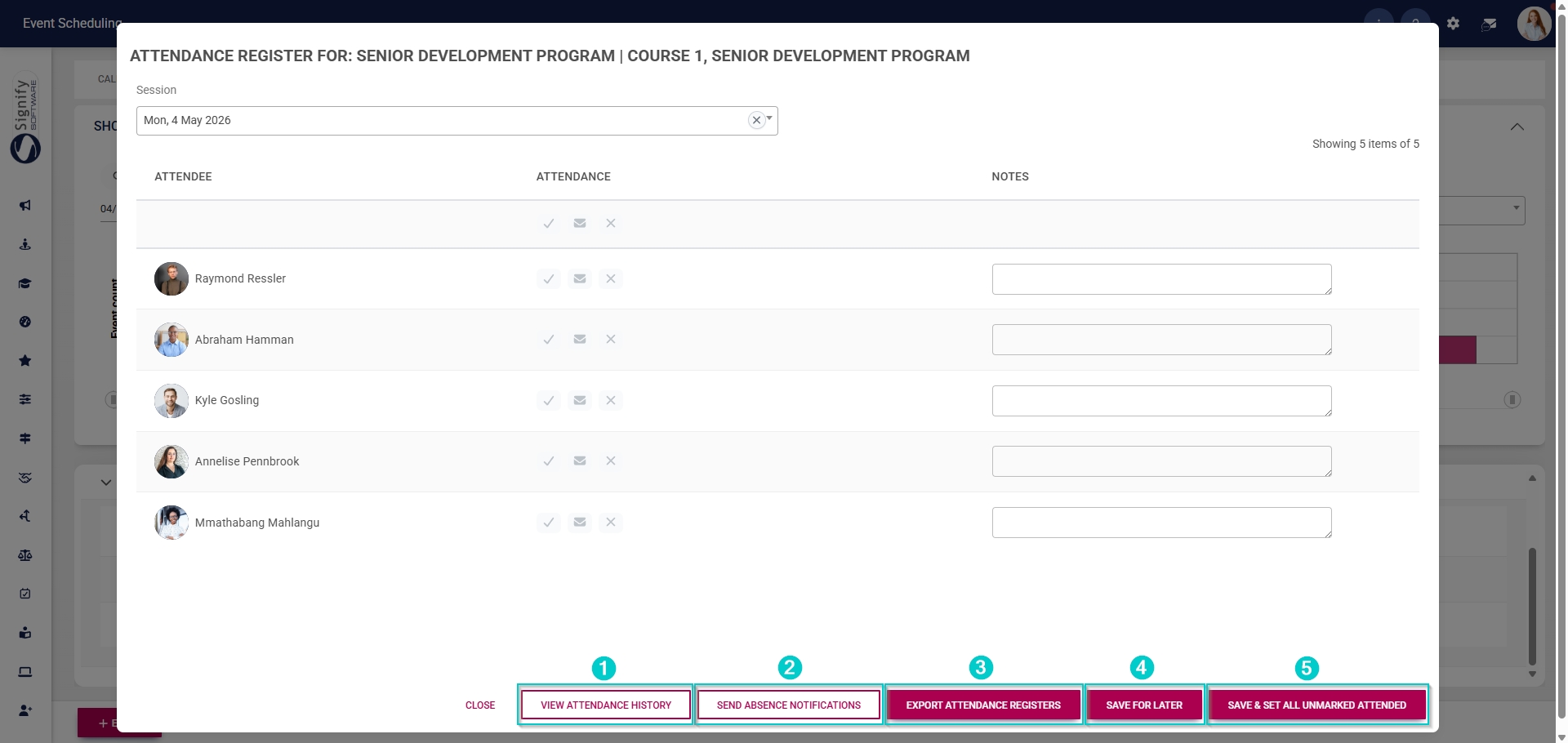
  • The buttons at the bottom of the pop-up window have the following functions:
    • Click VIEW ATTENDANCE HISTORY to view the attendance register for each session in the event.
    • Click SEND ABSENCE NOTIFICATIONS to notify absent attendees of missed sessions.
    • Click EXPORT ATTENDANCE REGISTERS to export attendance registers to an Excel document.
    • Click SAVE FOR LATER to save your changes.
    • Click SAVE & SET ALL UNMARKED ATTENDED to save your changes and set all unmarked records to Attended.

ES ES Update attendance - Buttons.jpg

Signify Footer.png