How to Book Myself on an Event

Employees can use the self-booking service to book themselves on open events.
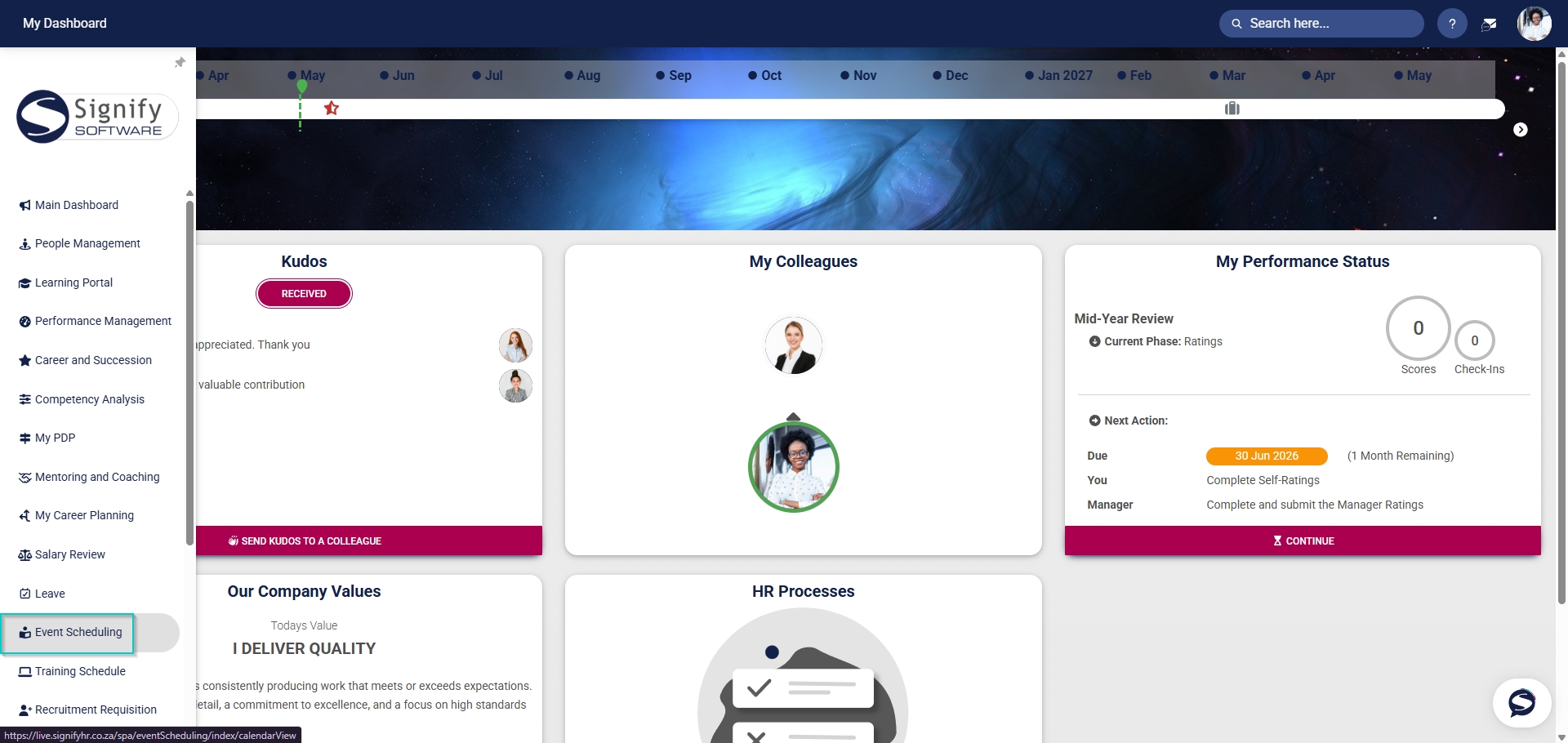
- Hover over the sidebar menu, then click Event Scheduling.
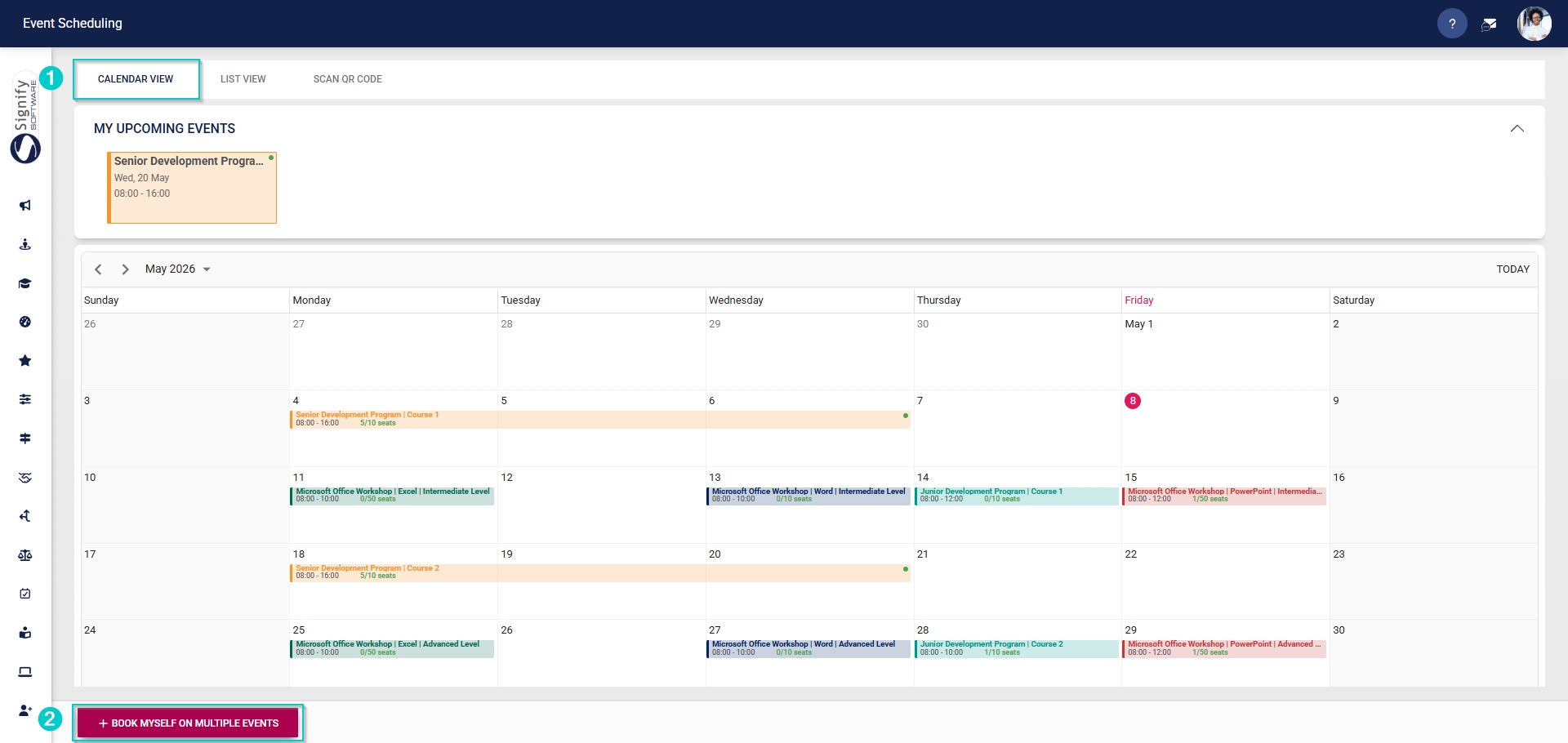
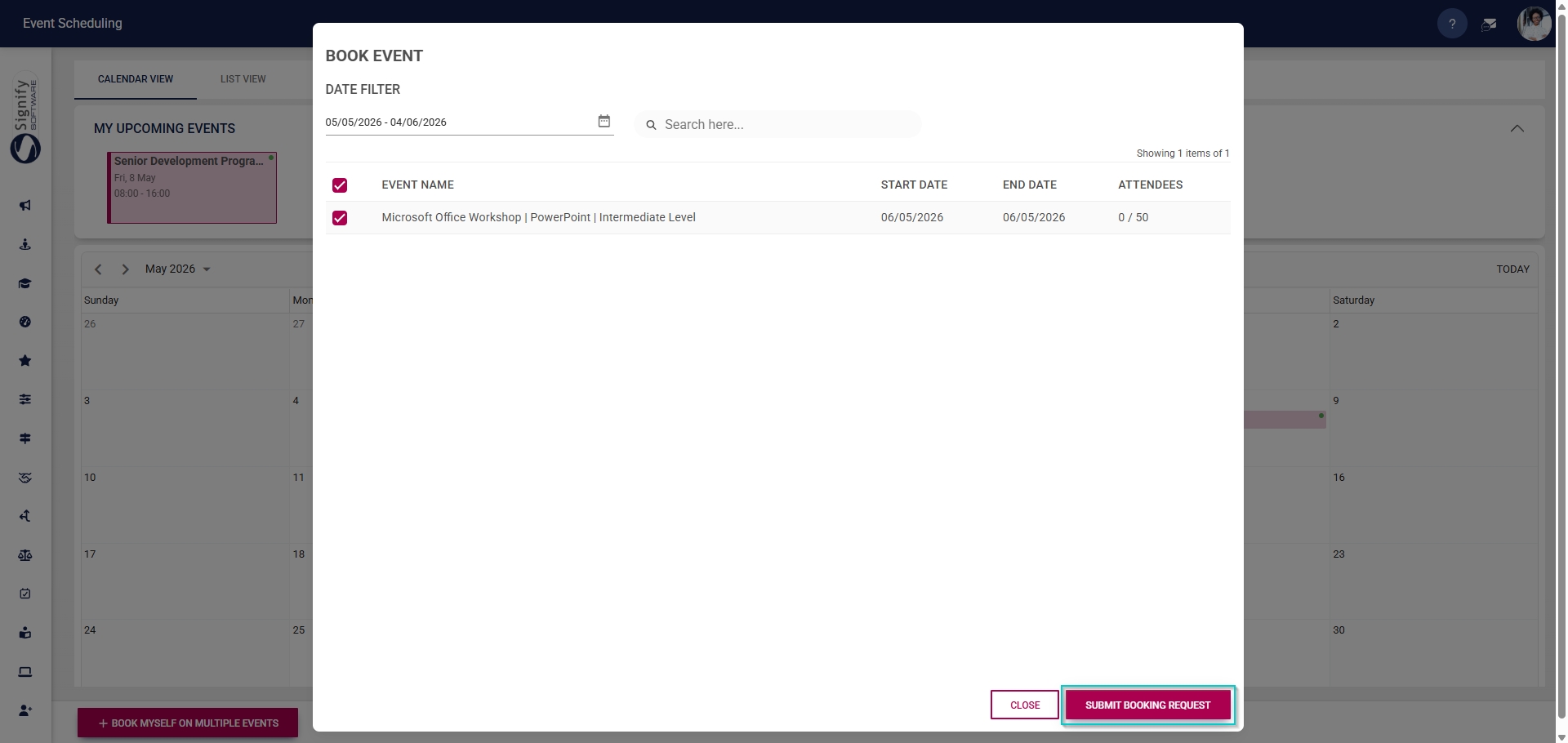
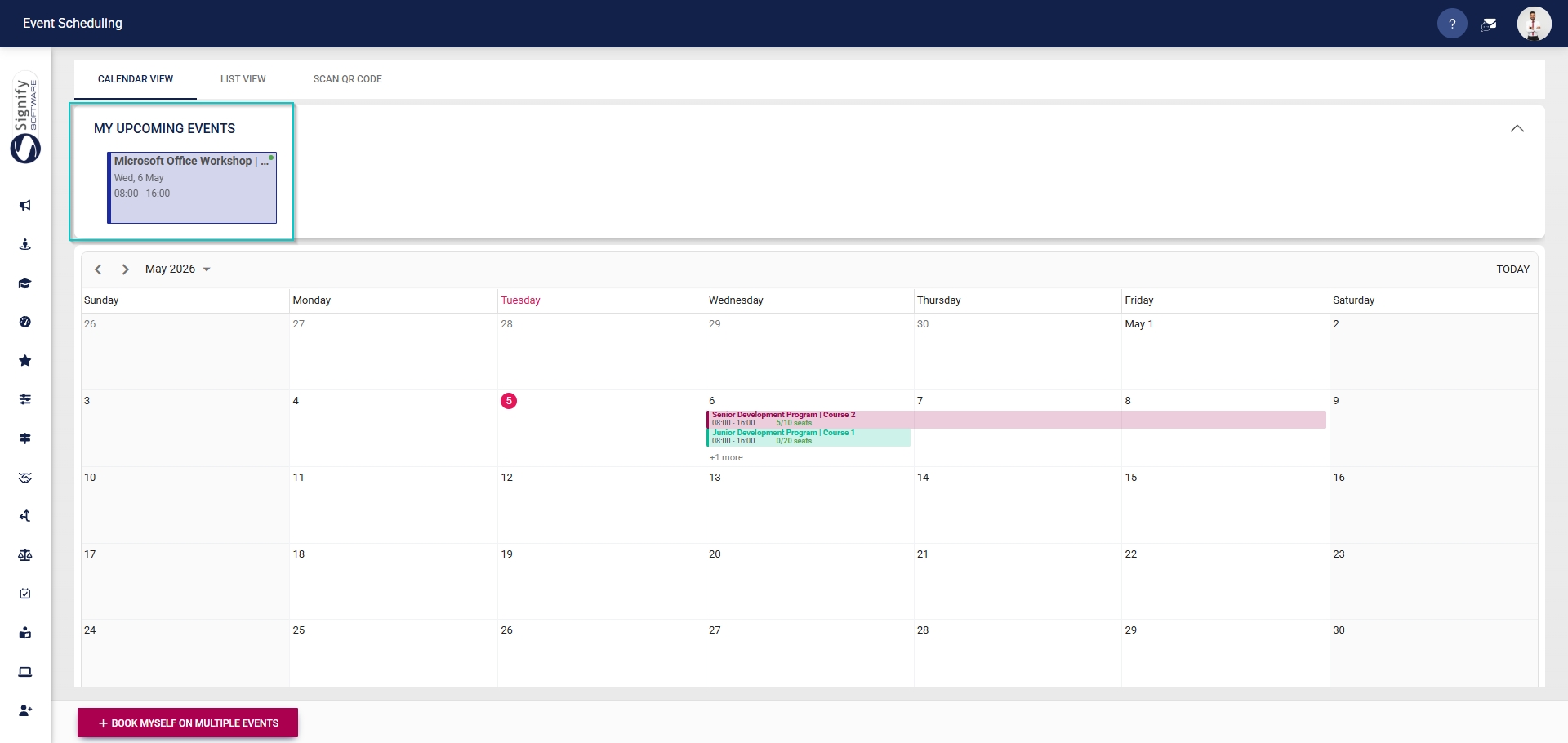
- When on the Calendar View tab, click +BOOK MYSELF ON MULTIPLE EVENTS.
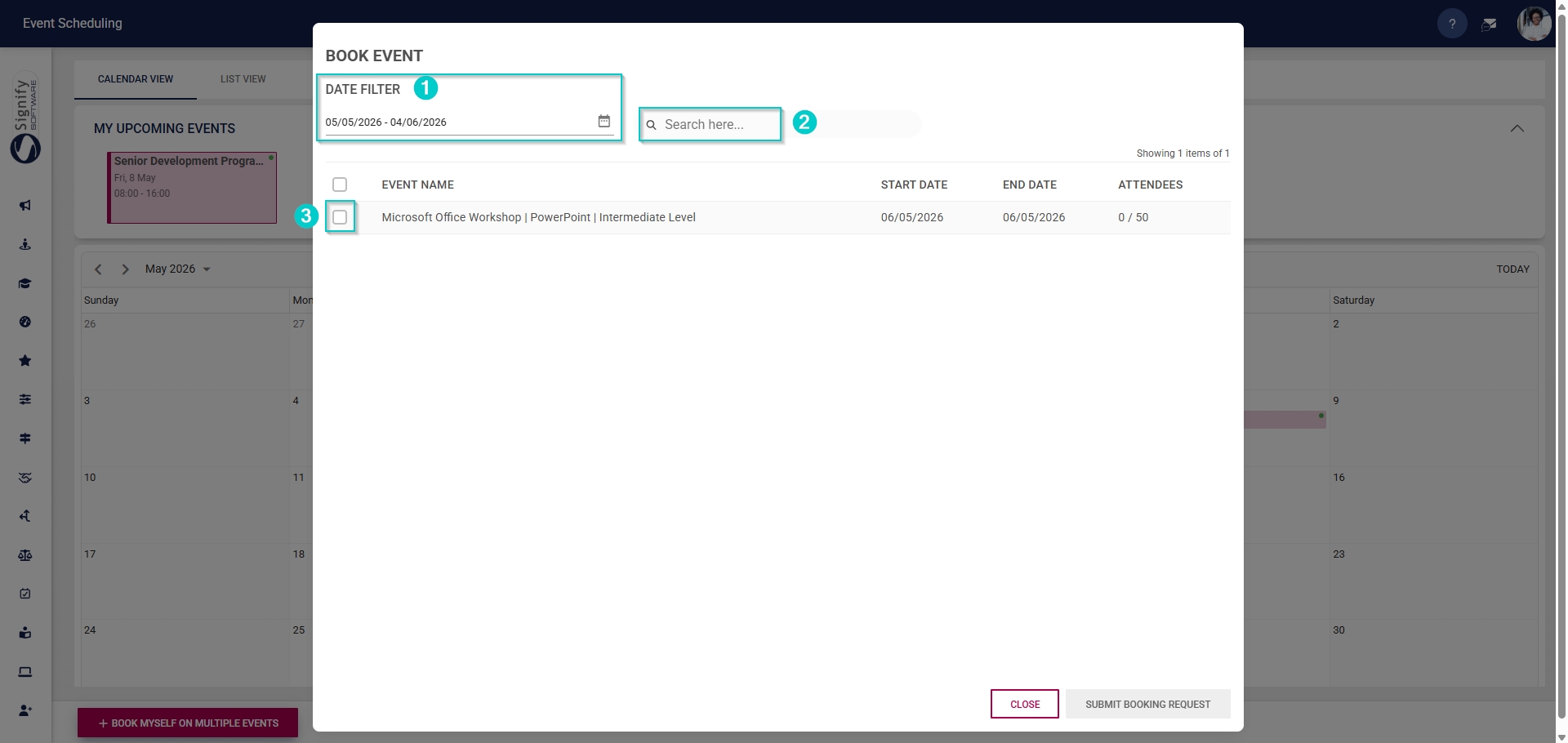
- Use the date filter to view events within a specific date range. Click the calendar icon to change the date range.
- Use the search bar to search for a specific event by name.
- Tick the checkbox next to an event to book yourself on that event.
- Once an event has been selected, click SUBMIT BOOKING REQUEST to continue.
- If the employee has a conflicting booking, the system will display a pop-up window warning them of the overlap.
- To proceed with registering for the new event, first cancel the existing booking or choose a different timeslot.
- Click CONTINUE to proceed.

- If the employee has no conflicting bookings, the booking motivation pop-up window will appear.
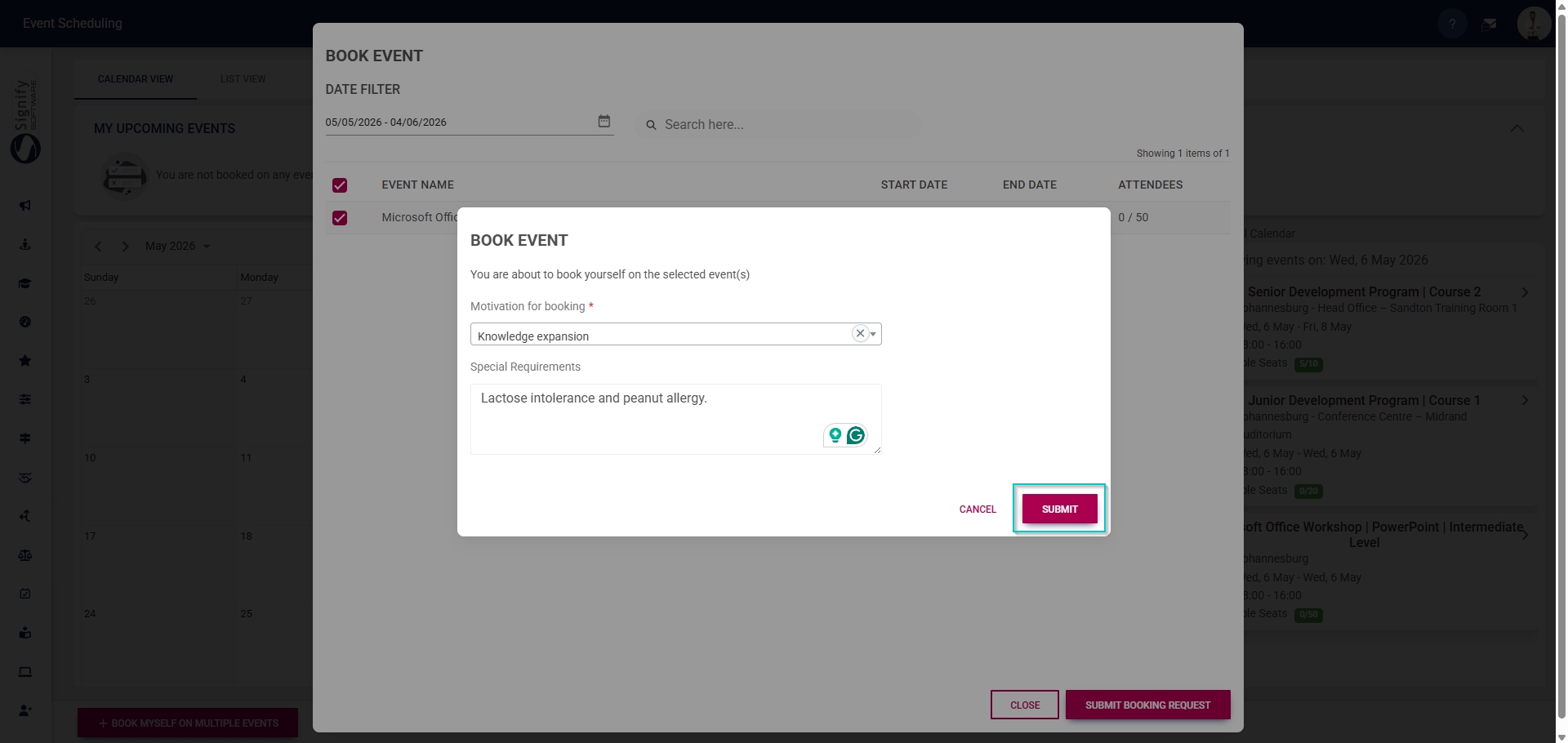
- Select the motivation for booking from the dropdown menu and fill in any special requirements.
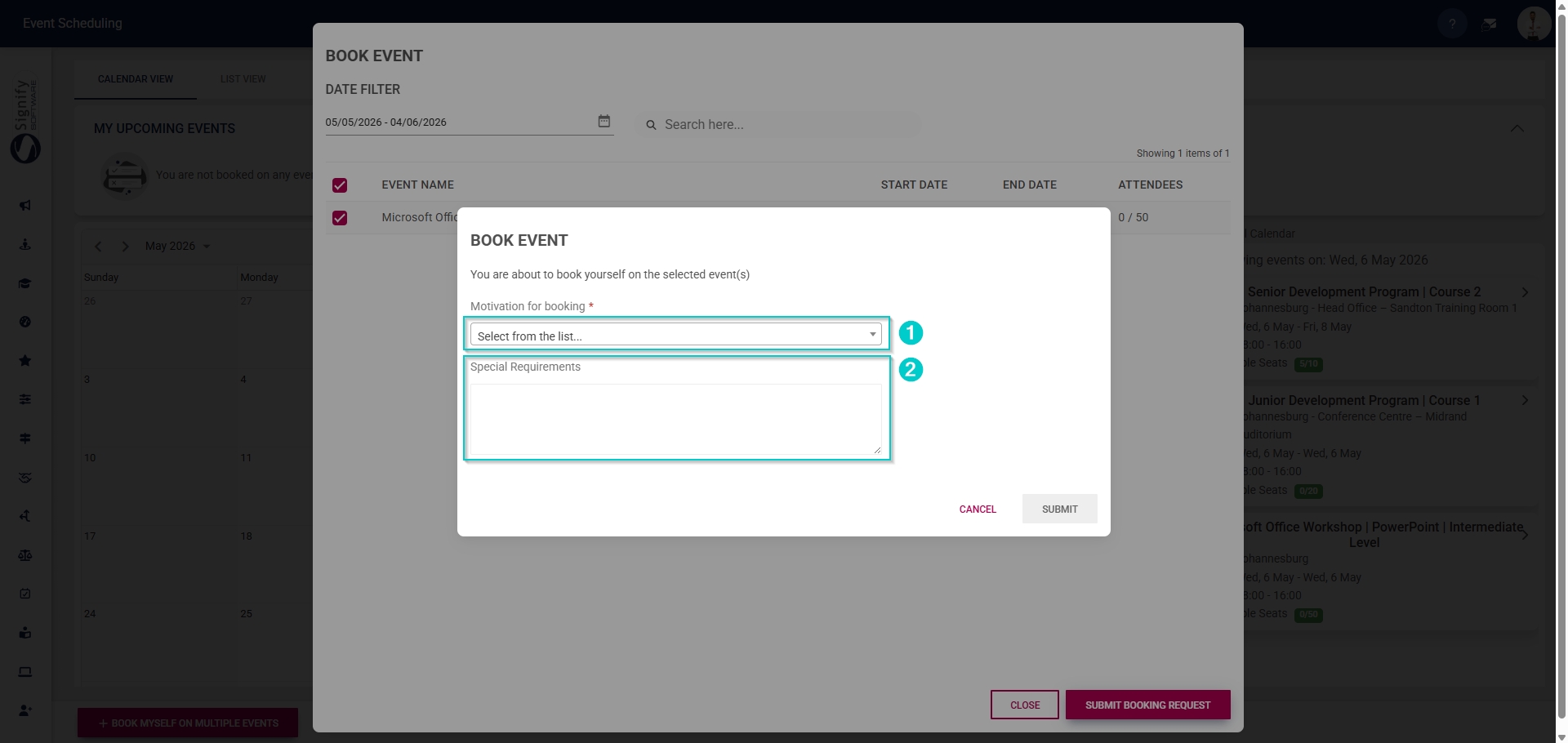
- Click SUBMIT when you are finished or click CANCEL to discard your edits.
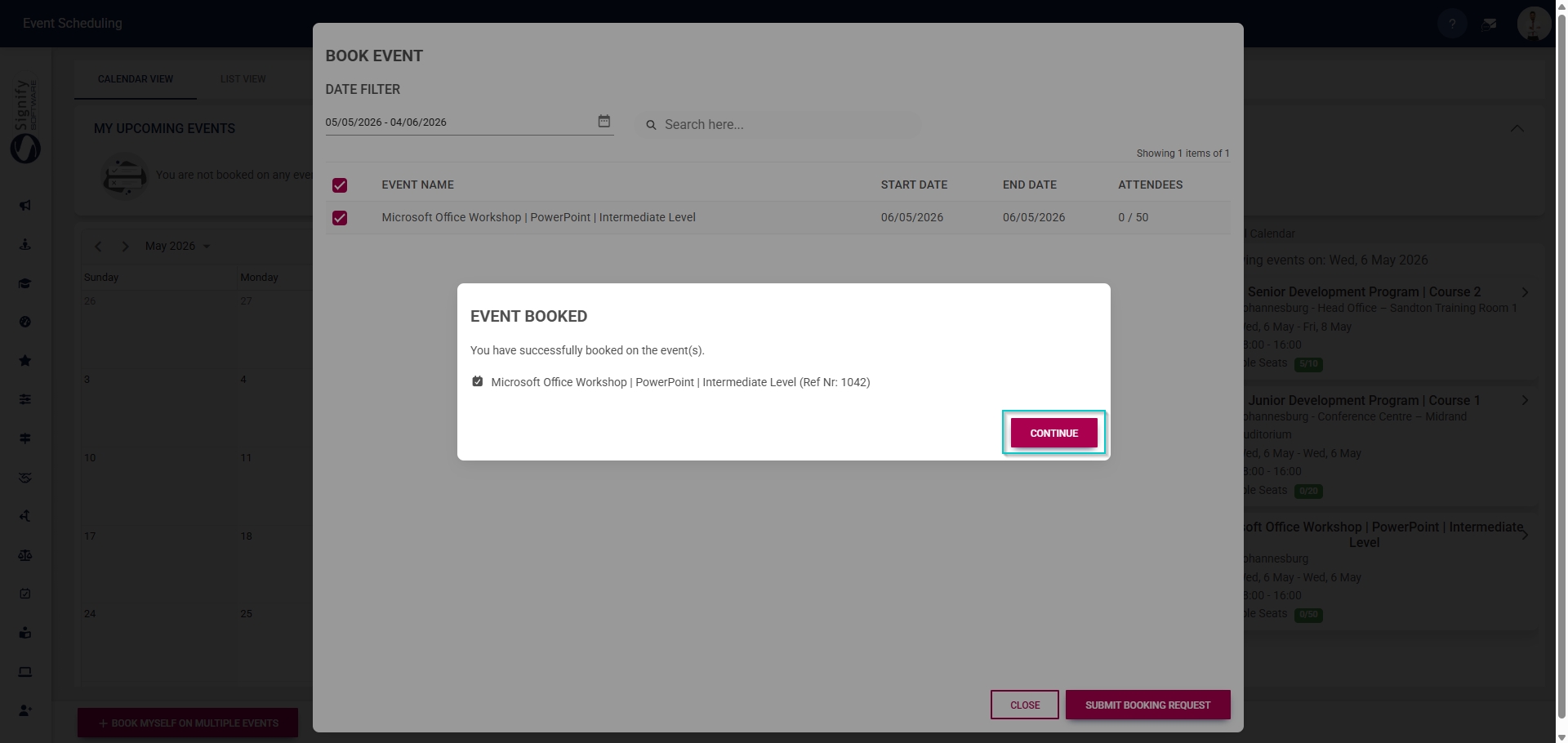
- A pop-up message will confirm that you have successfully booked yourself for the event.
- Click CONTINUE to proceed.
- The new event will show in the My Upcoming Events section.
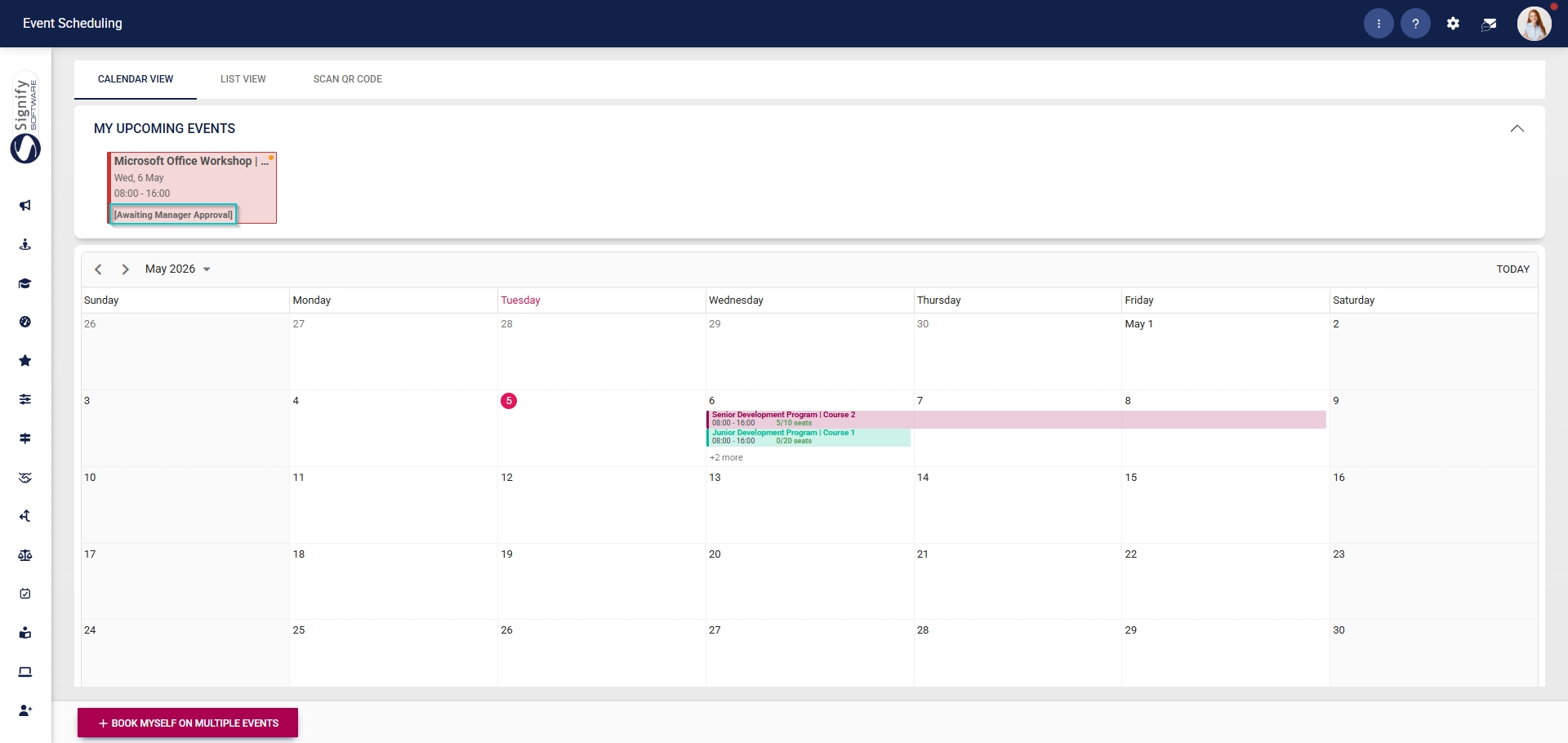
- If an employee has requested to attend an event that requires approval, the event card will show the system as Awaiting Manager Approval.