How to do Approvals

Manager approvals
Some events require manager approval for attendees.
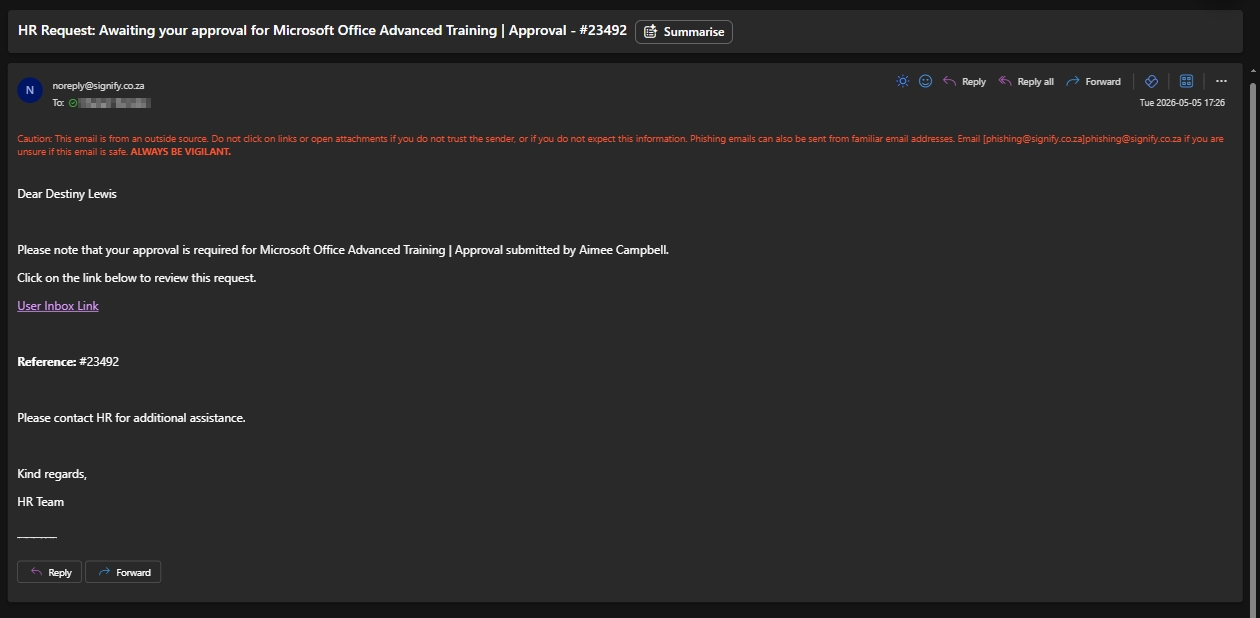
- Upon submitting a request to attend an event, the attendee’s manager will be notified by email.
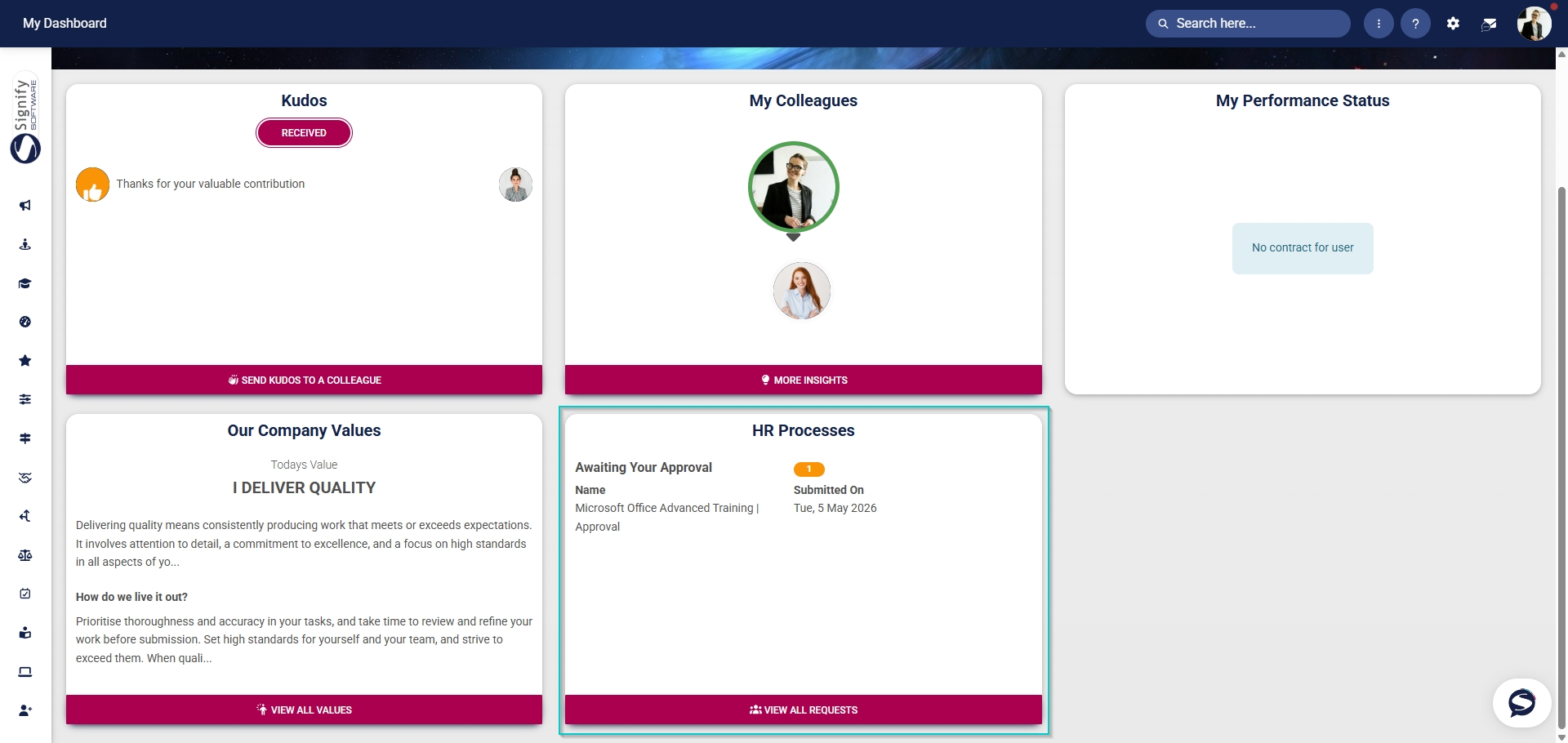
- Additionally, when navigating to the Dashboard, the manager will see a new request on the HR Processes widget if it has been enabled.
- Click VIEW ALL REQUESTS to proceed.
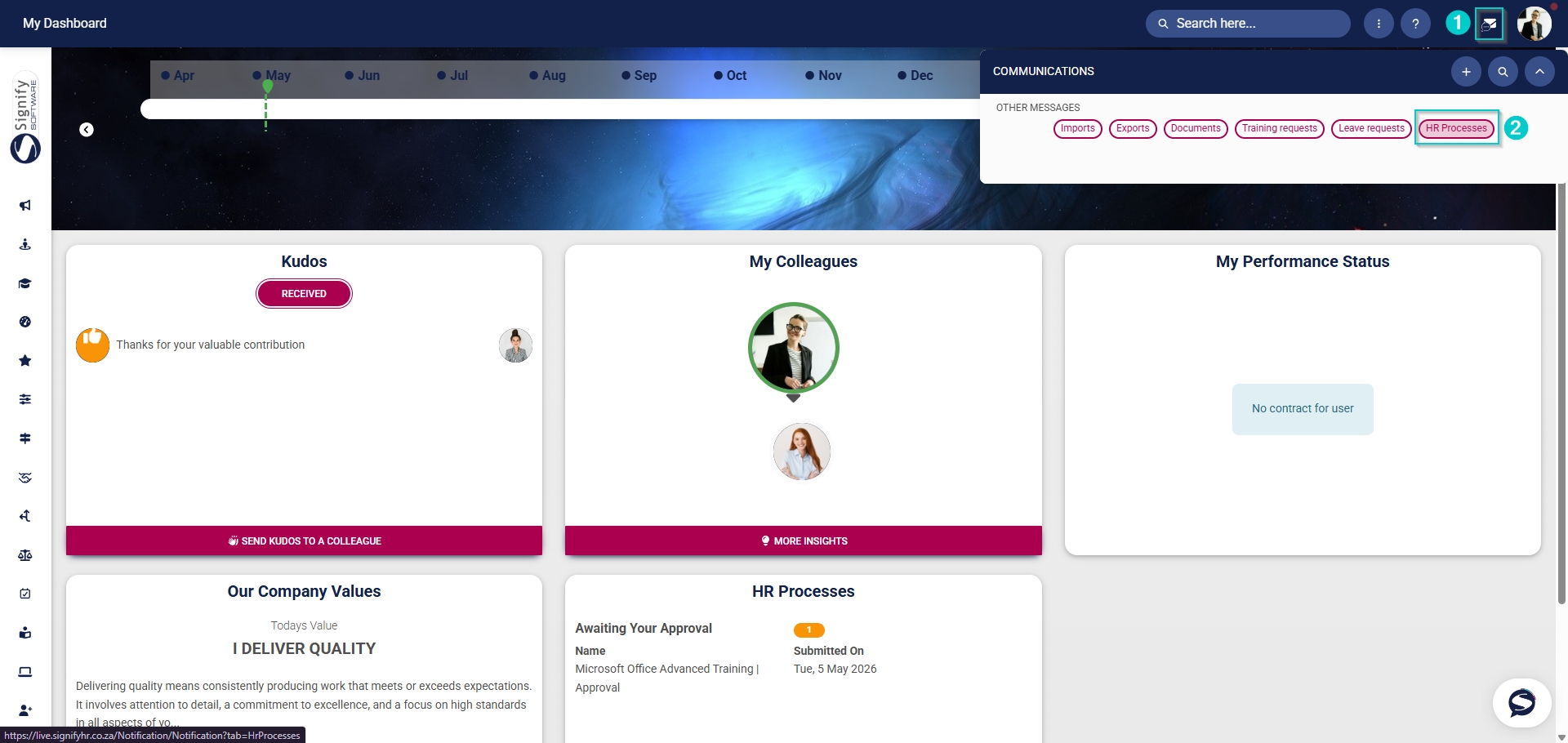
- Alternatively, the manager can access training requests by clicking the envelope icon to open their System Inbox.
- Click on HR Processes to continue.
- The HR Processes feature of the System Inbox will open.
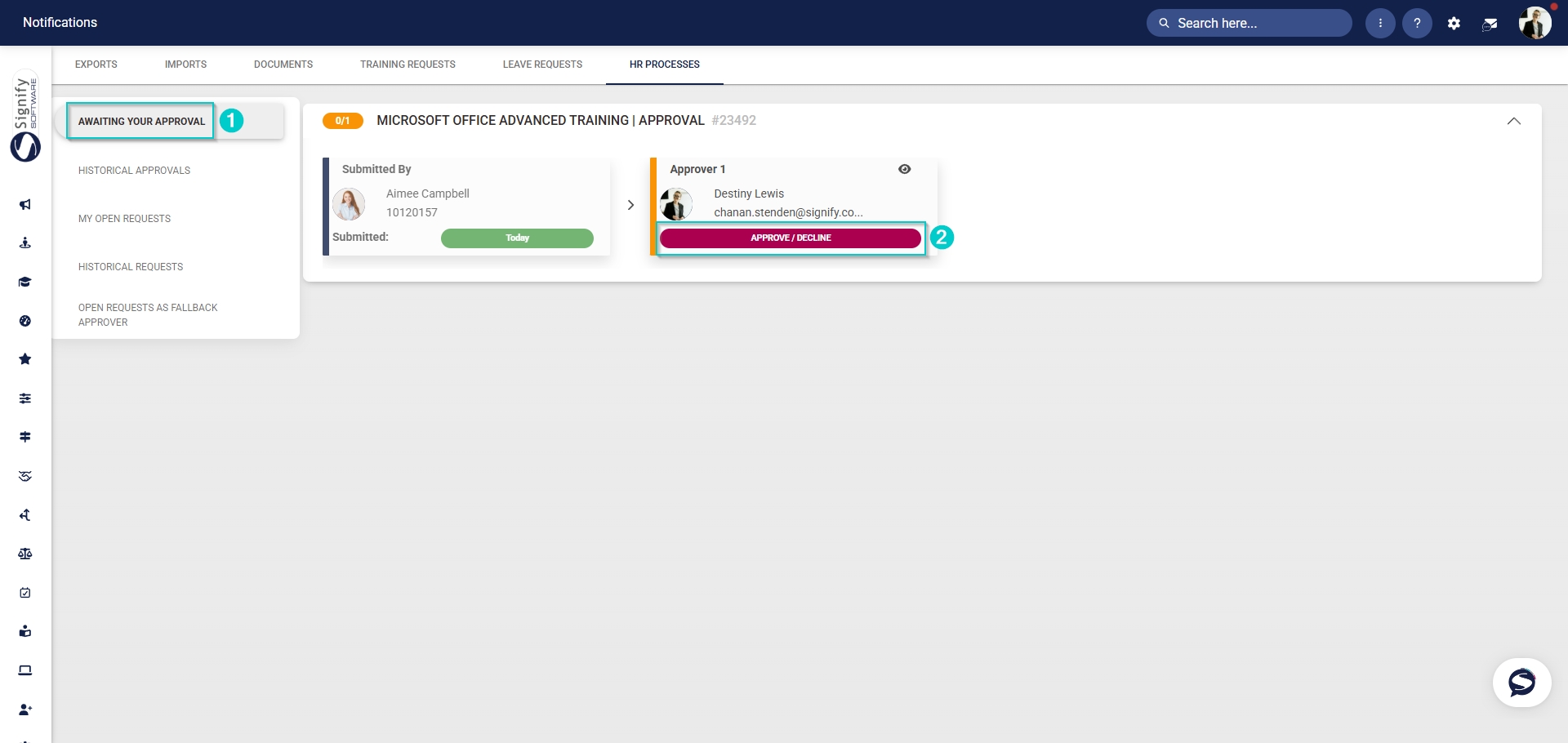
- In the left-hand menu, click AWAITING YOUR APPROVAL to view open requests.
- Find the employee’s training request, then click APPROVE/DECLINE.
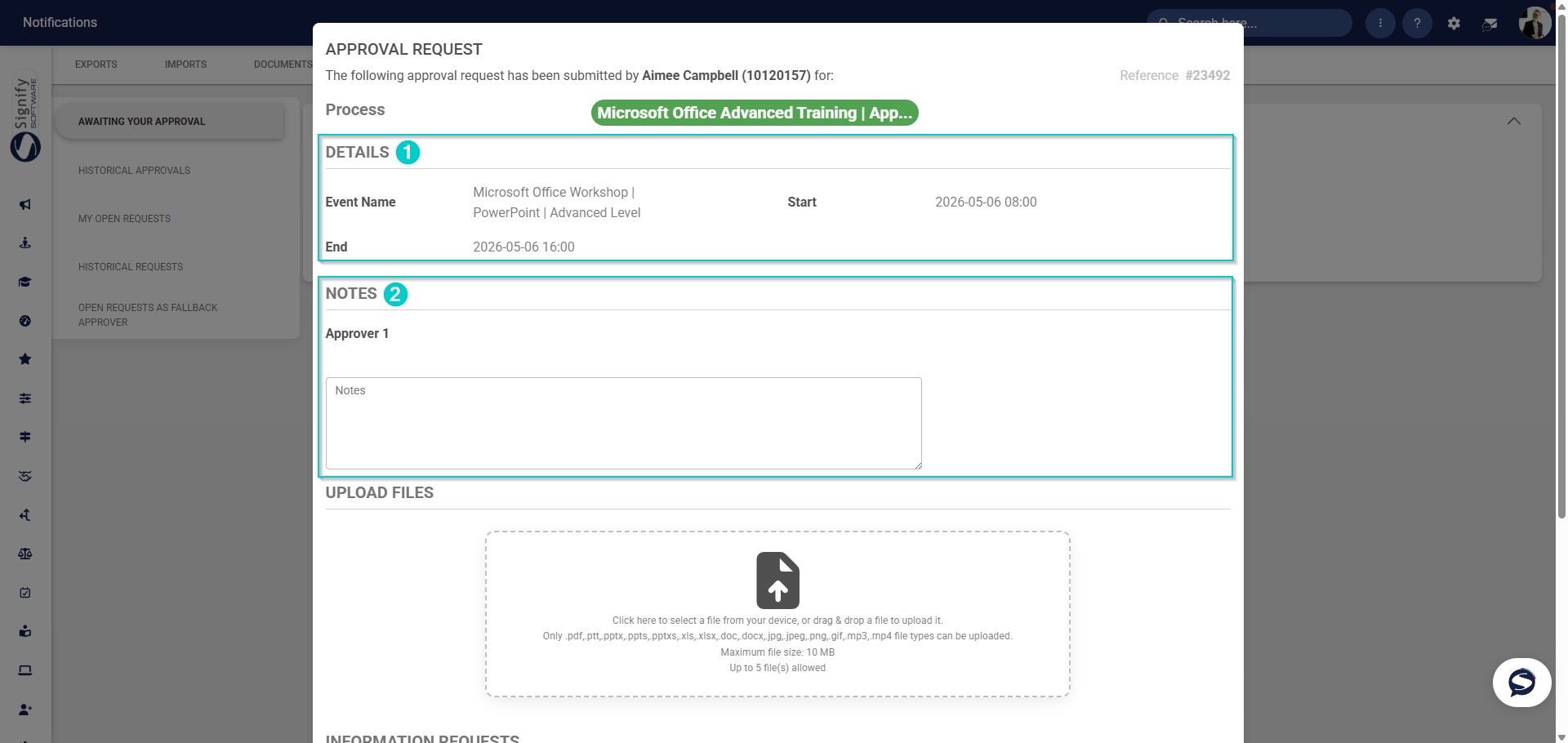
- In the pop-up window, the request details will appear.
- The event details will display, including the event name and start and end dates.
- The manager can add notes about the request.
-
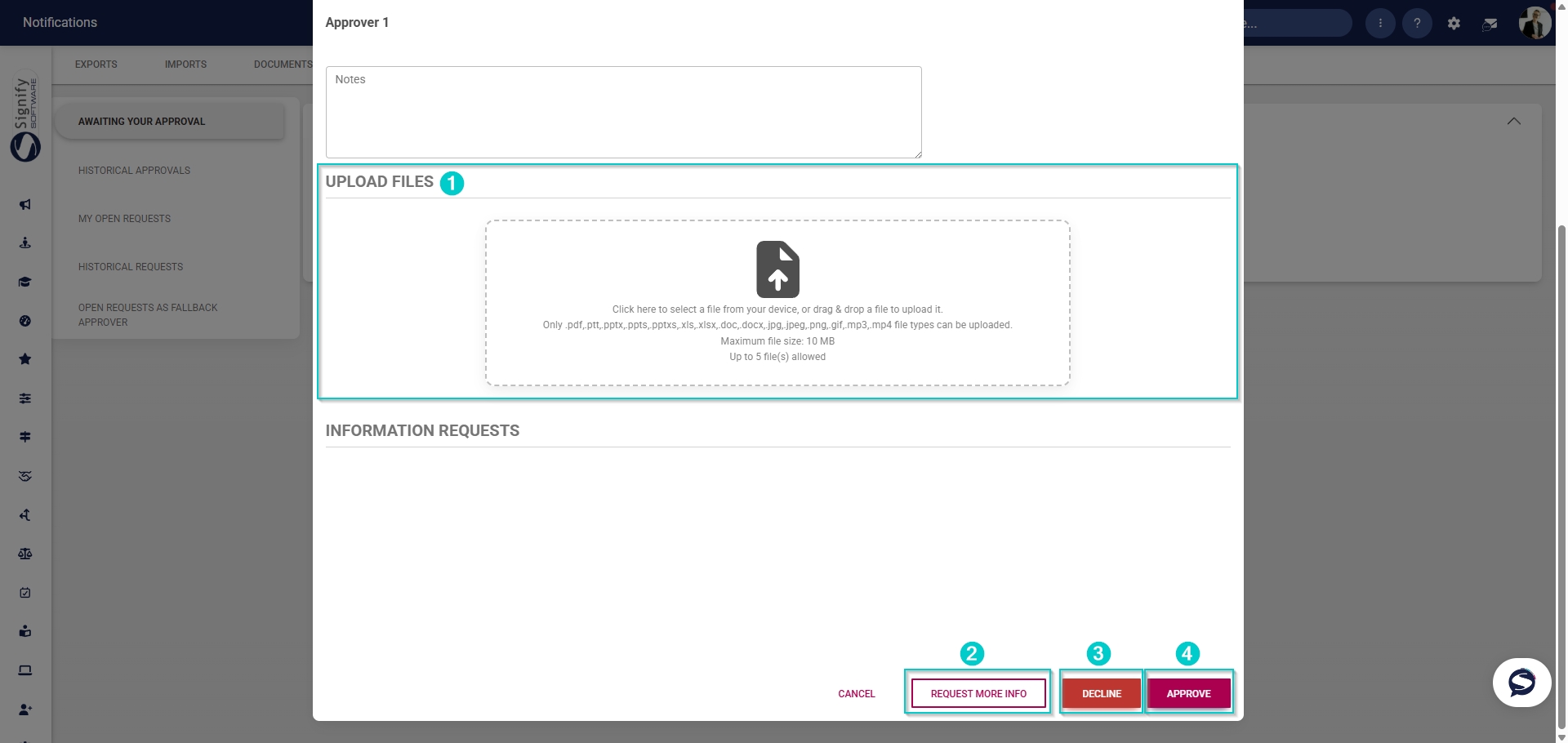
- The manager can upload files from their device.
- Using the buttons at the bottom of the pop-up window, the manager can:
- Click REQUEST MORE INFO to obtain more information about the training request from the employee.
- Click DECLINE to deny the employee’s training request.
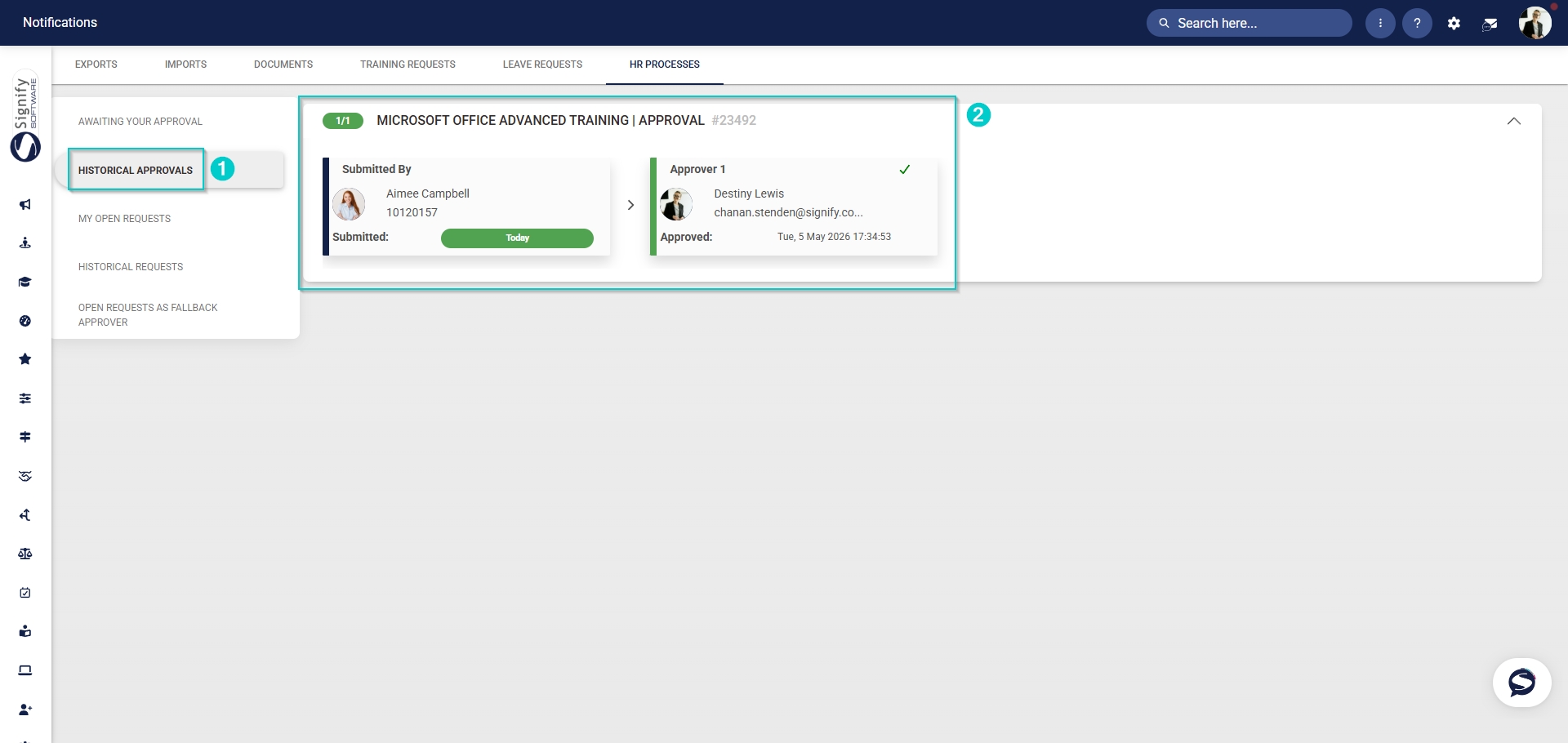
- Click APPROVE to allow the employee to attend the event.
Administrator approvals
Some events require an event administrator's approval for attendees.
- Hover over the sidebar menu, then click Event Scheduling.

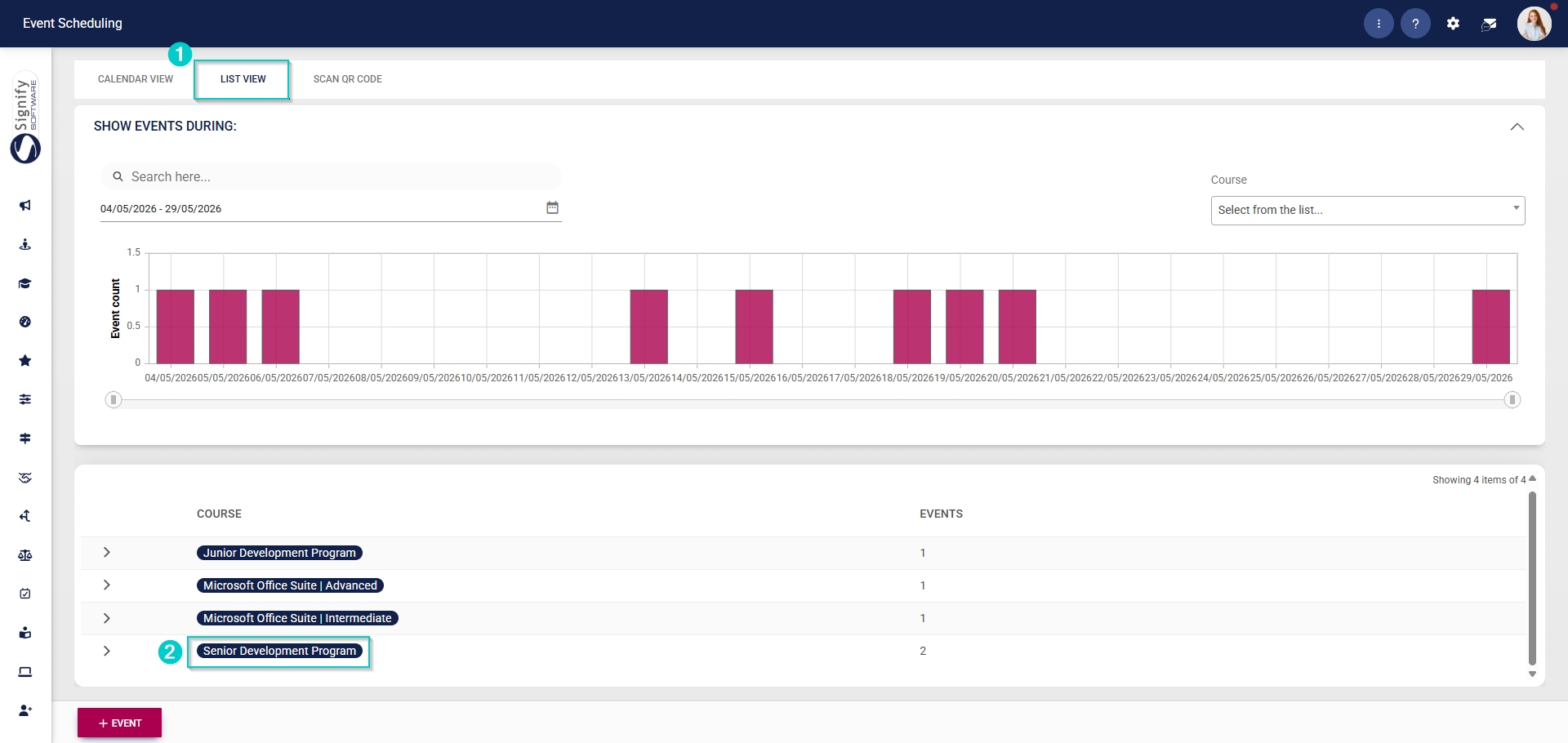
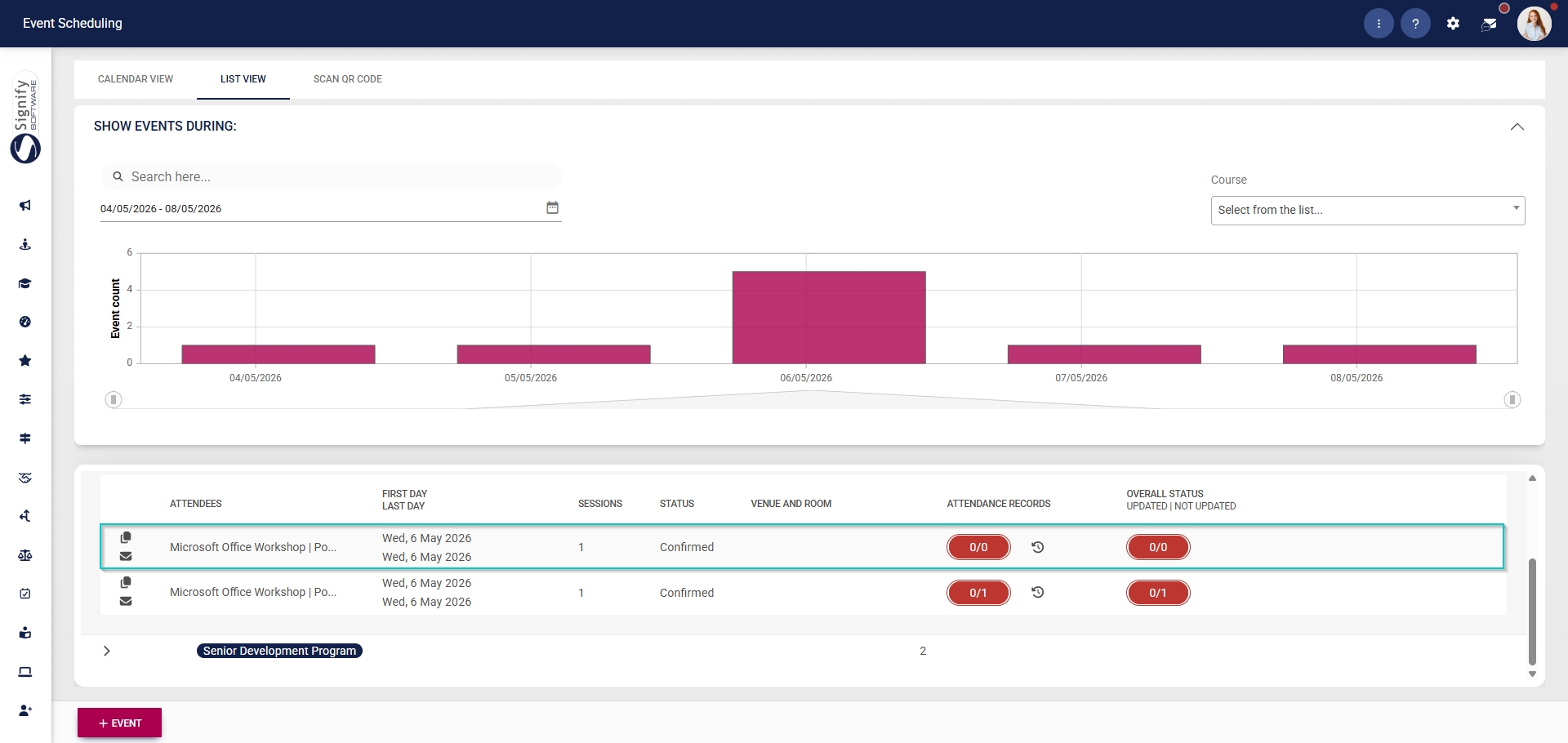
- Click on the event’s name to navigate to its configuration settings.
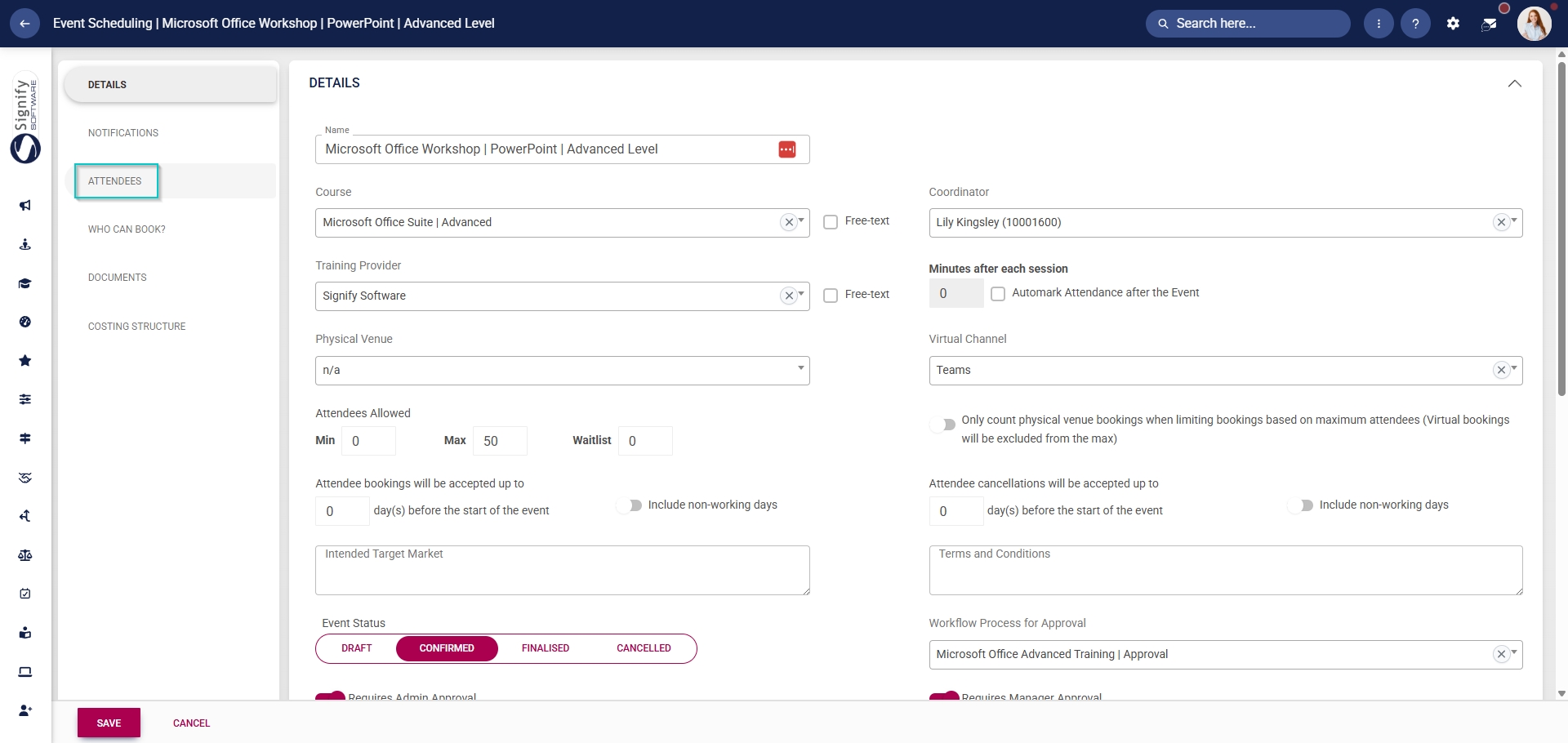
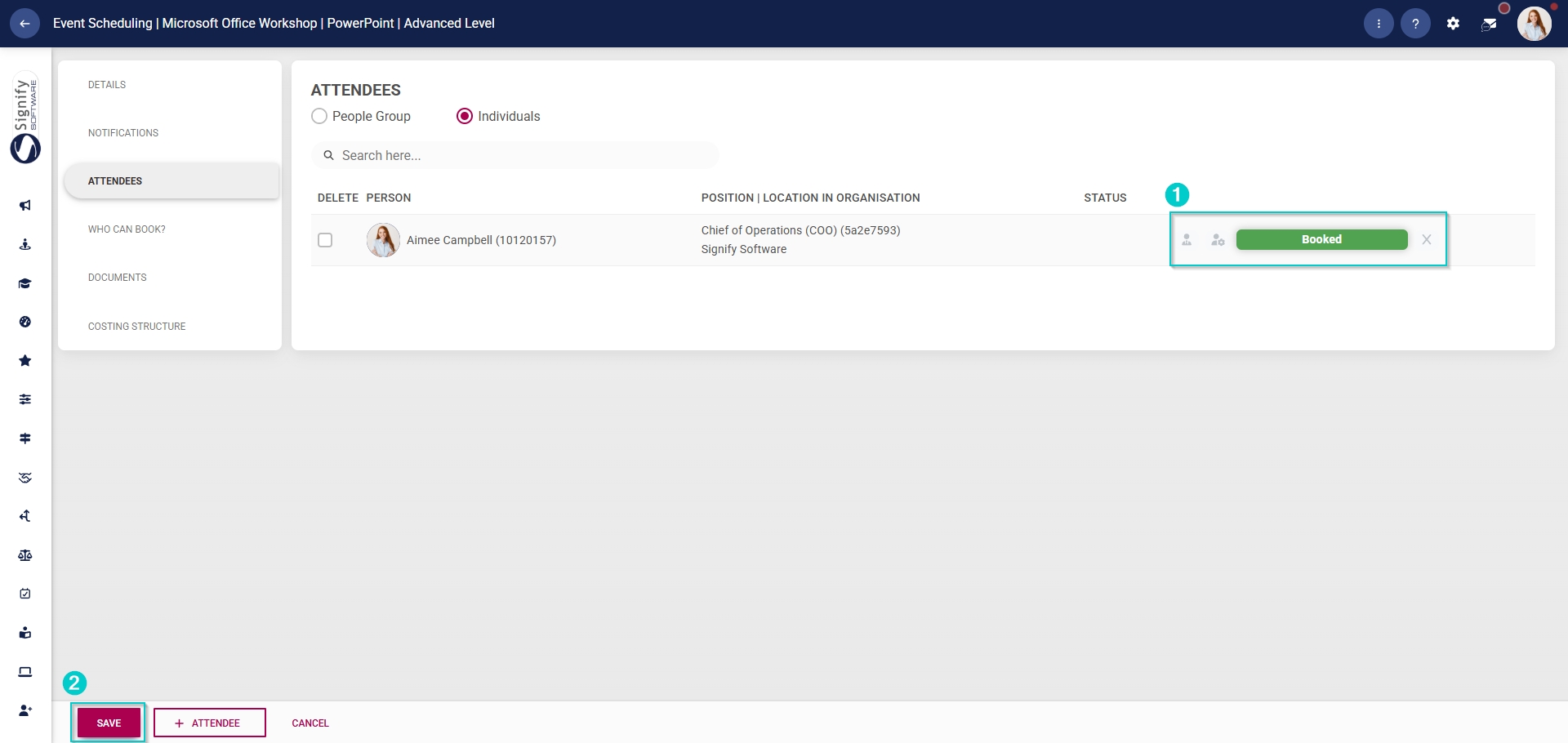
- In the left-hand menu, click Attendees.
- The status of the attendee will show Awaiting Admin approval.
- Click the tick icon to approve the employee’s request.
- Click the cross icons to decline this request.
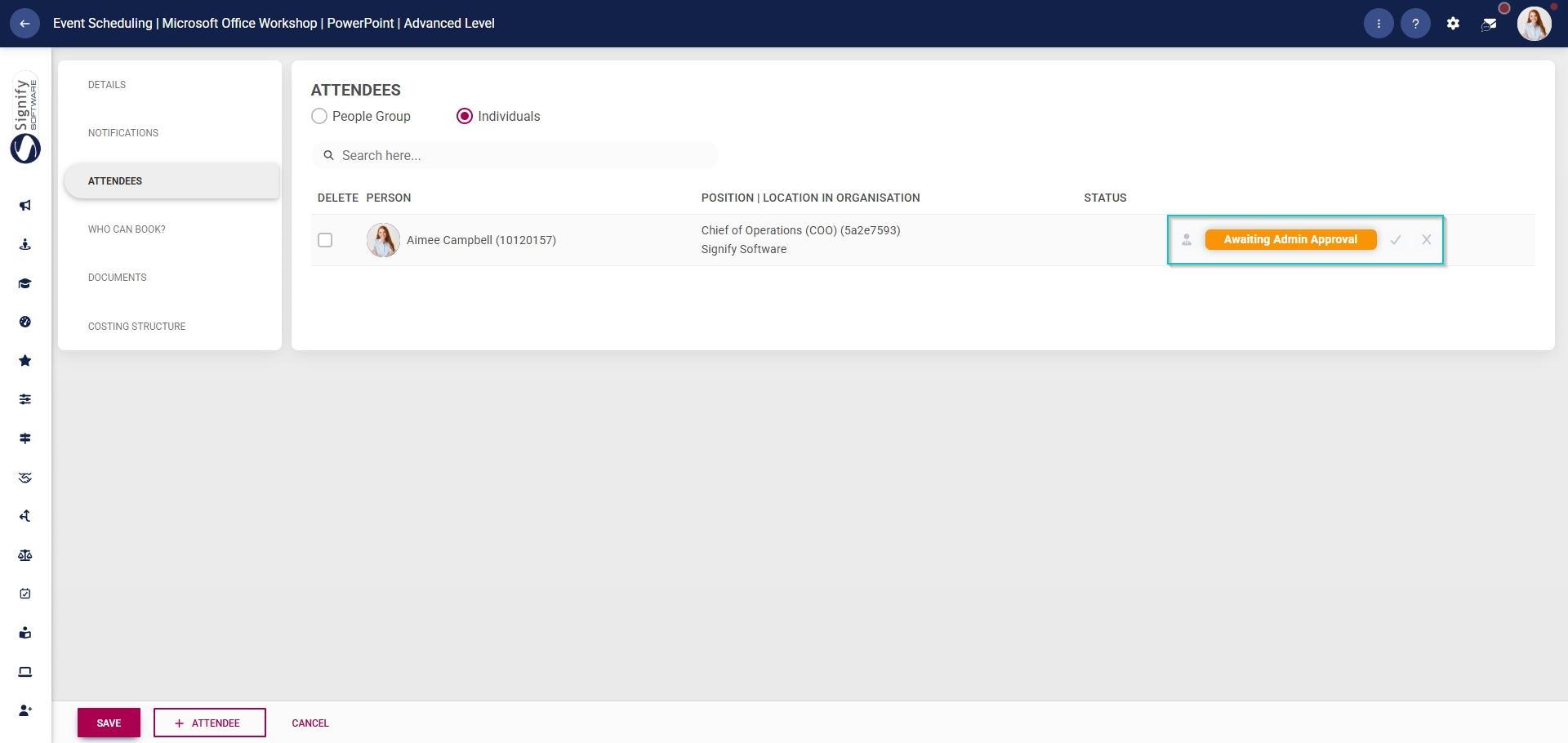
- The attendee’s status will change depending on the icon you click.
- To proceed, click SAVE.
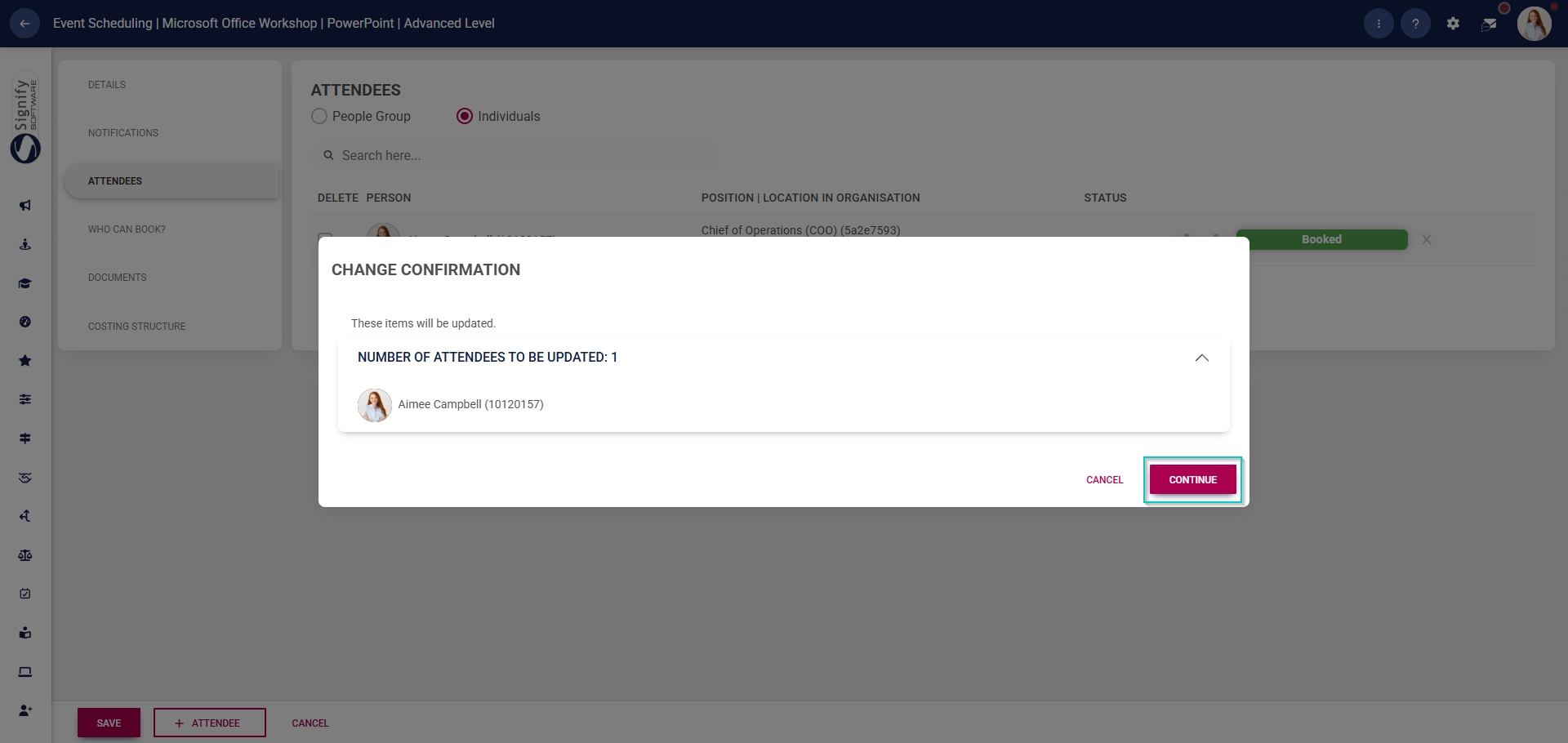
- A pop-up message will ask you to confirm these changes. Click CONTINUE to proceed or click CANCEL to discard your changes.