Update Attendees' Overall Completion Status

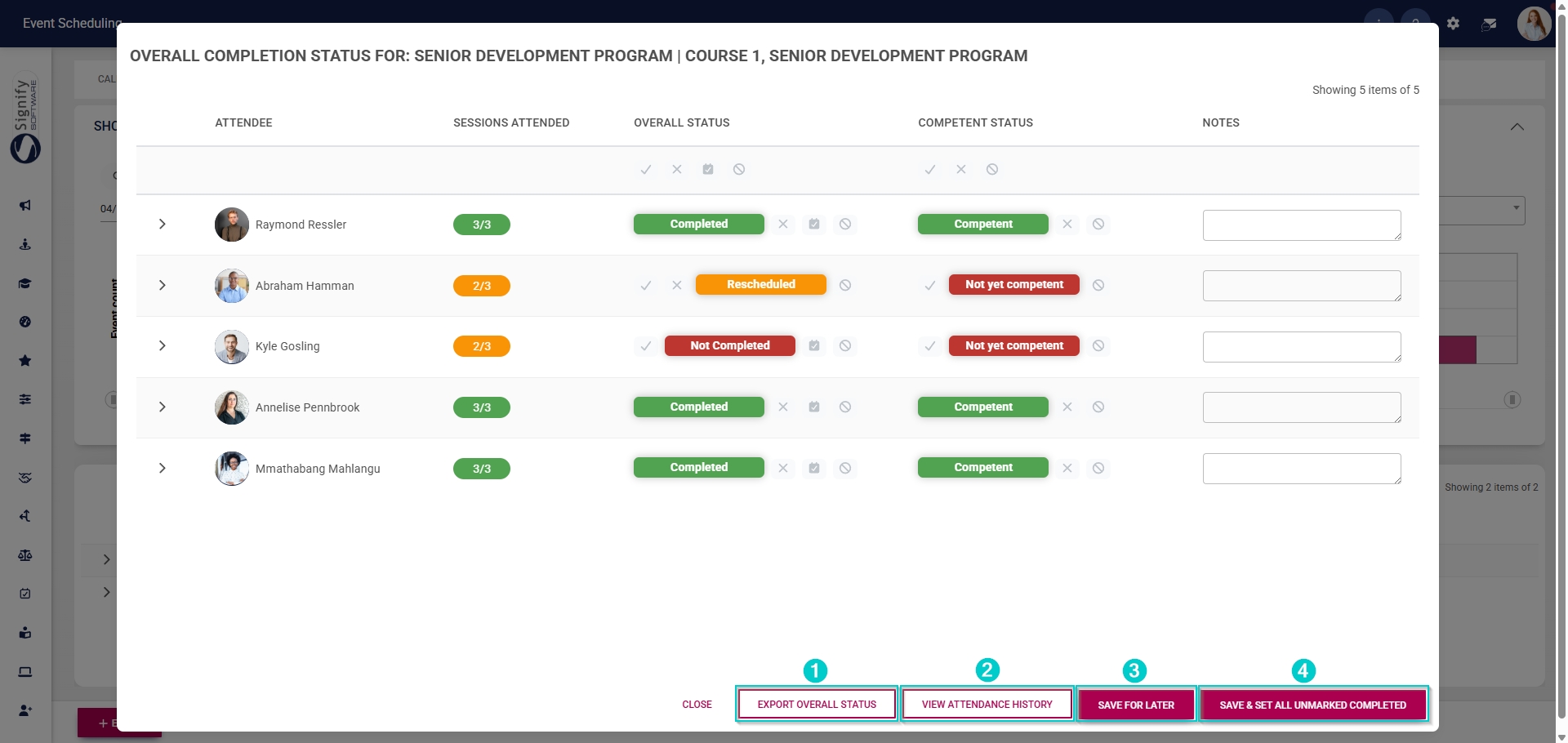
Attendees’ overall completion status can be updated for each event.
- Hover over the sidebar menu, then click Event Scheduling.

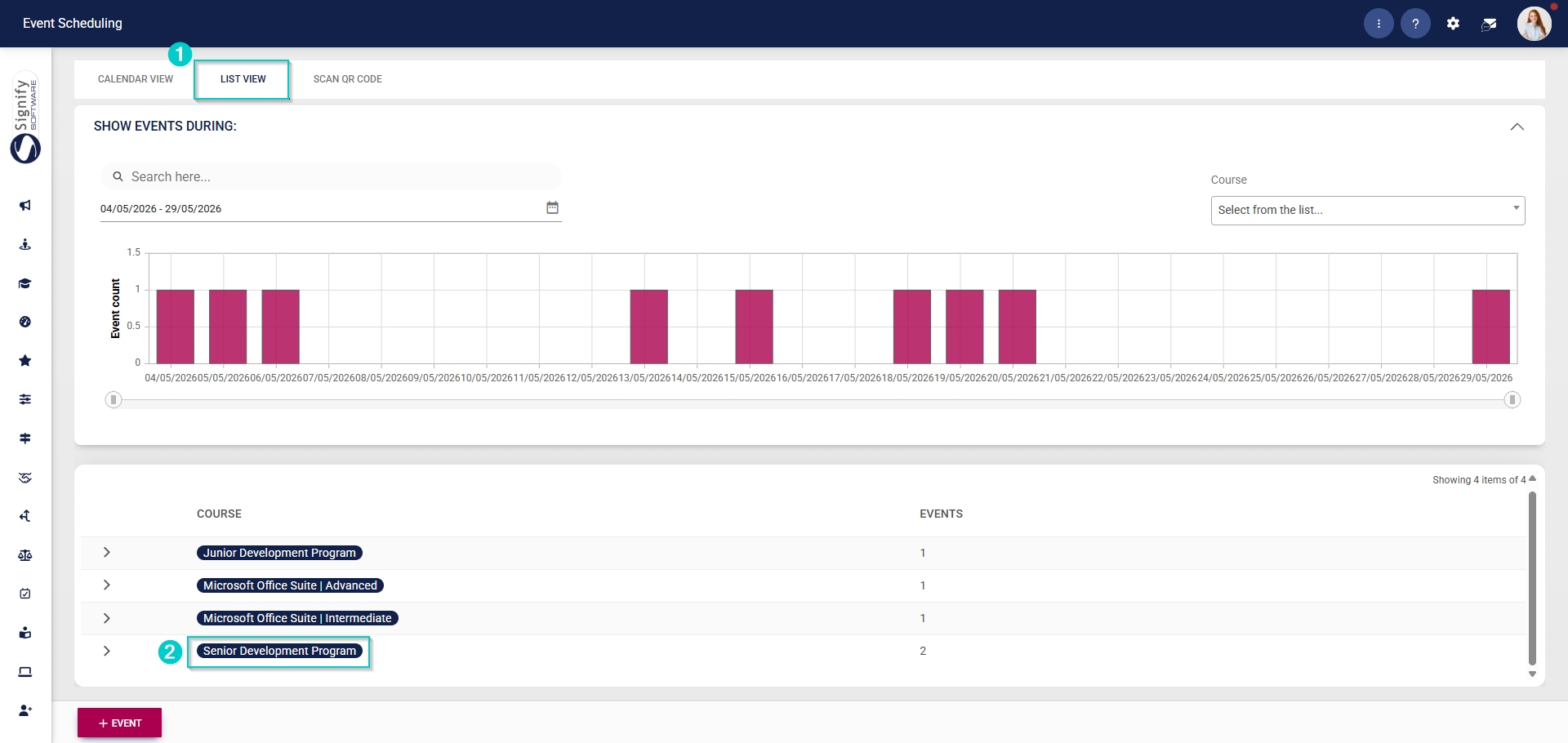
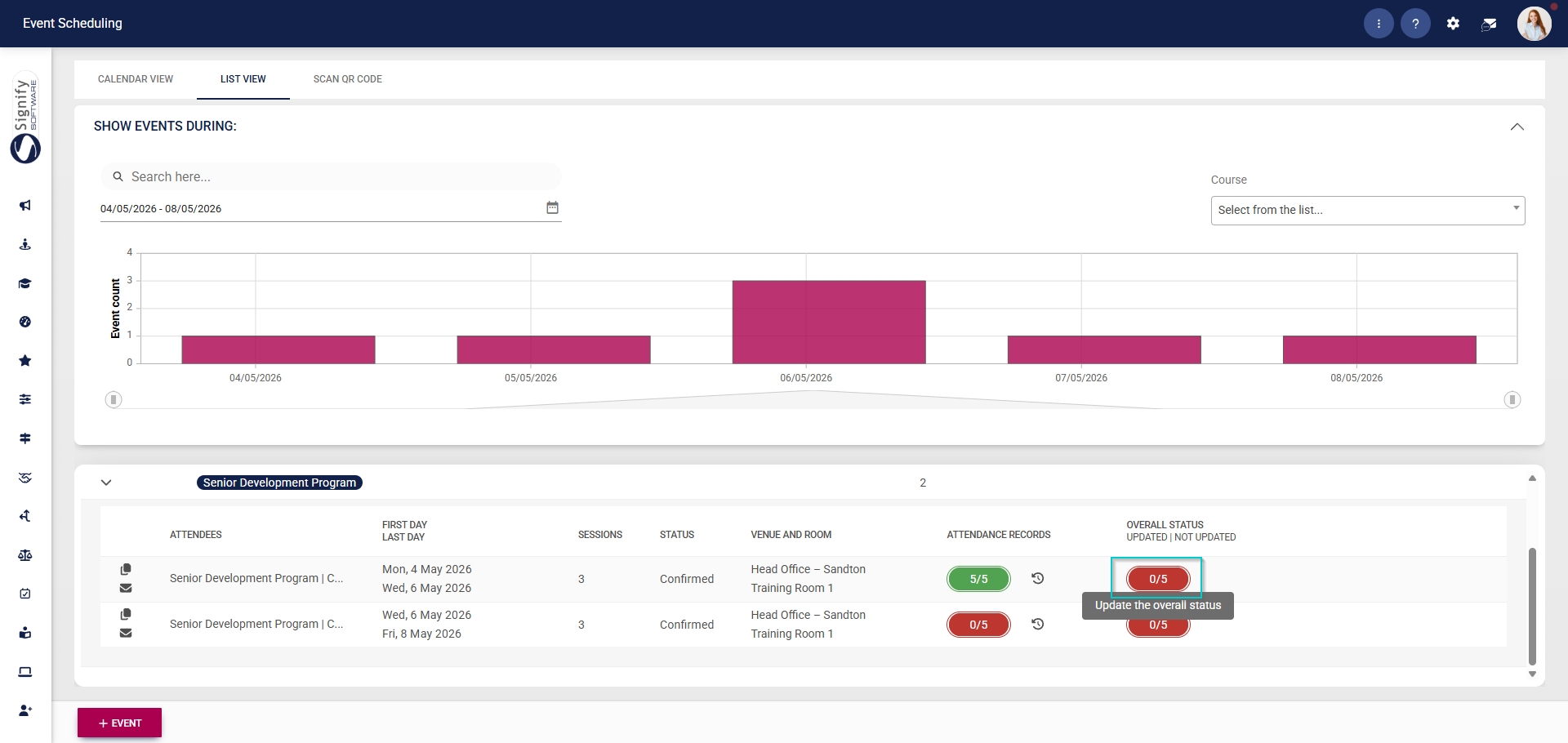
- Click to access the overall status for the event.
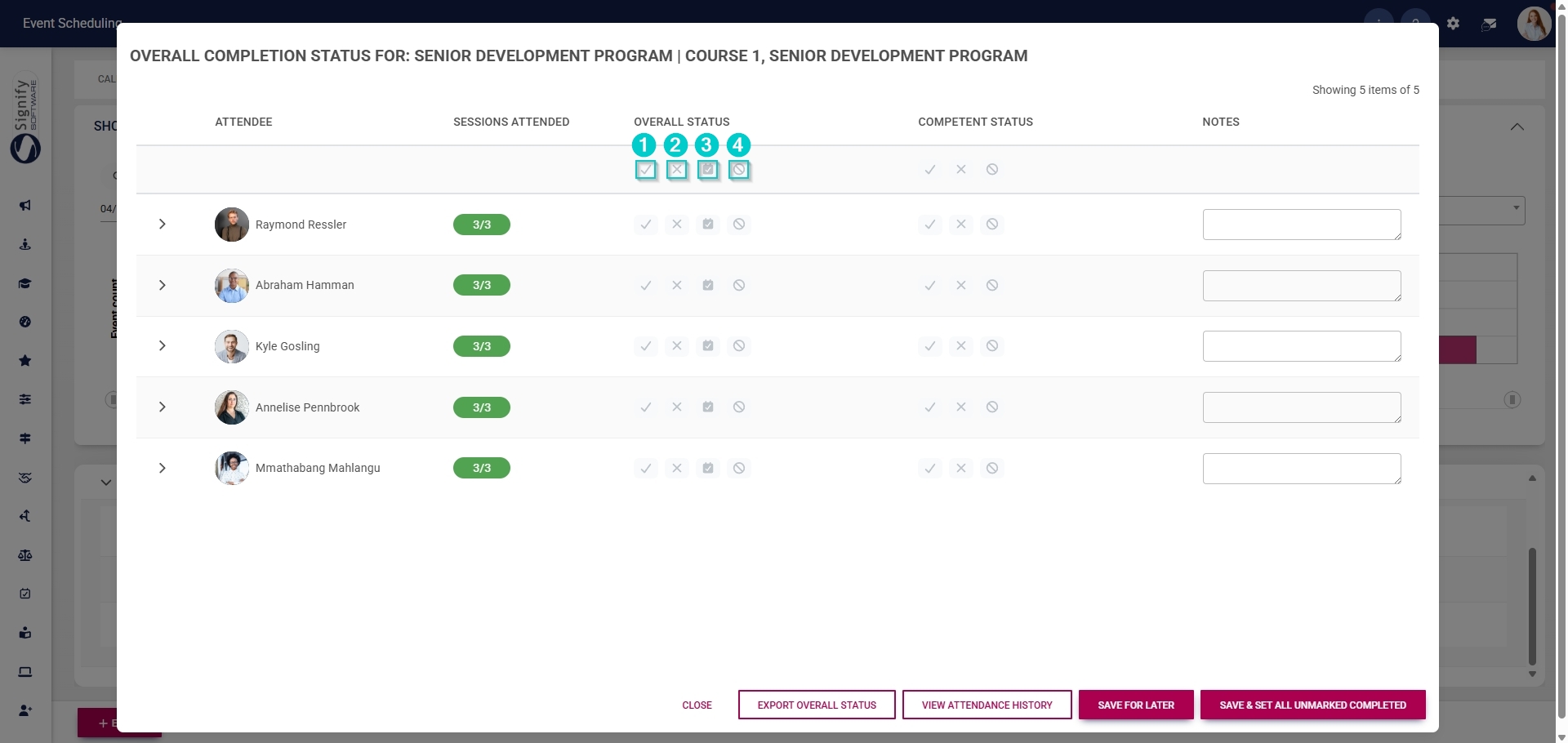
- Use the icons under the Overall Status heading to update the status for all the attendees.
- Click the tick icon to mark all attendees’ statuses as Completed.
- Click the cross icon to mark all attendees’ statuses as Not Completed.
- Click the calendar icon to mark all attendees’ statuses as Rescheduled.
- Click the cancel icon to mark all attendees’ statuses as Cancelled.
- Click CONFIRM to proceed or CANCEL to discard your changes.
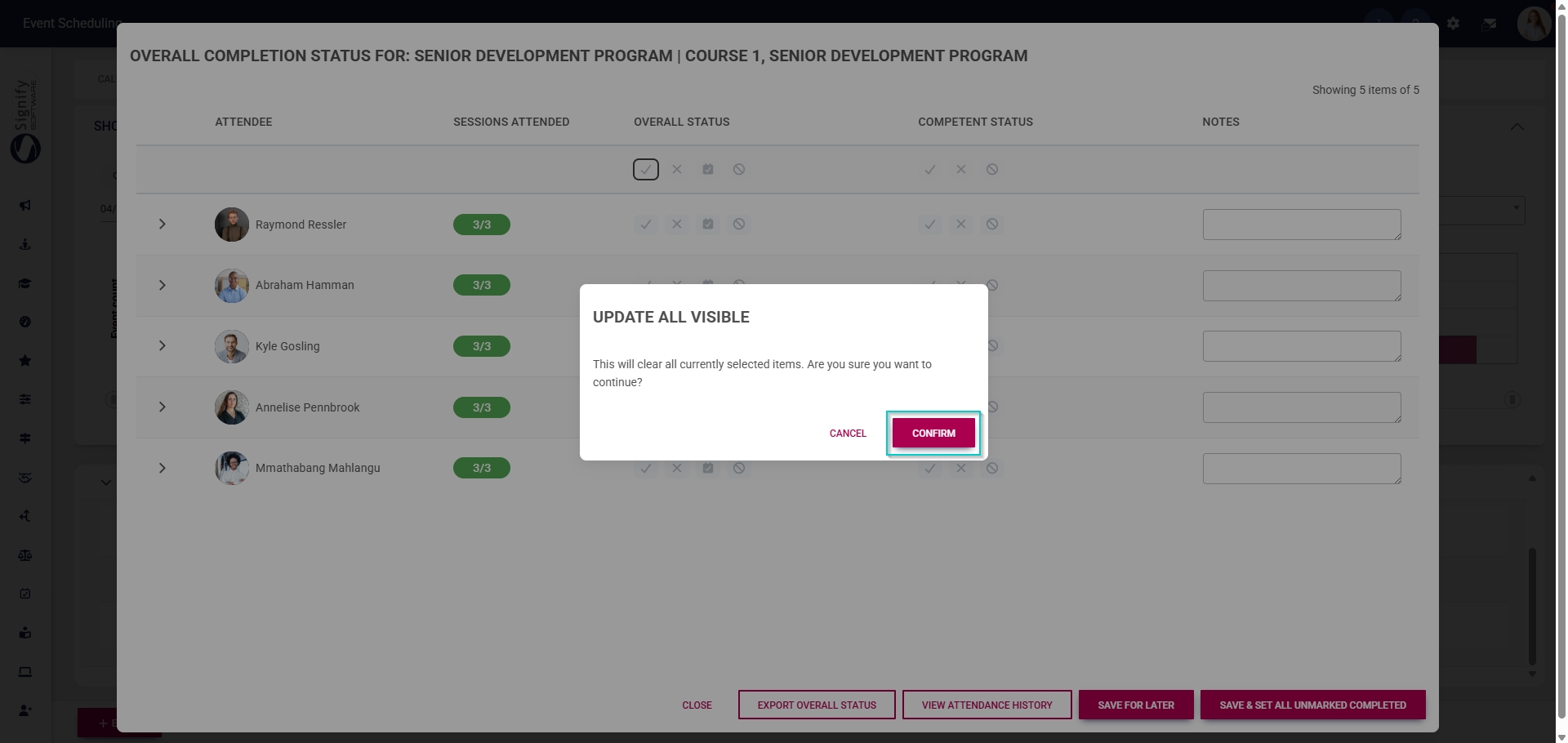
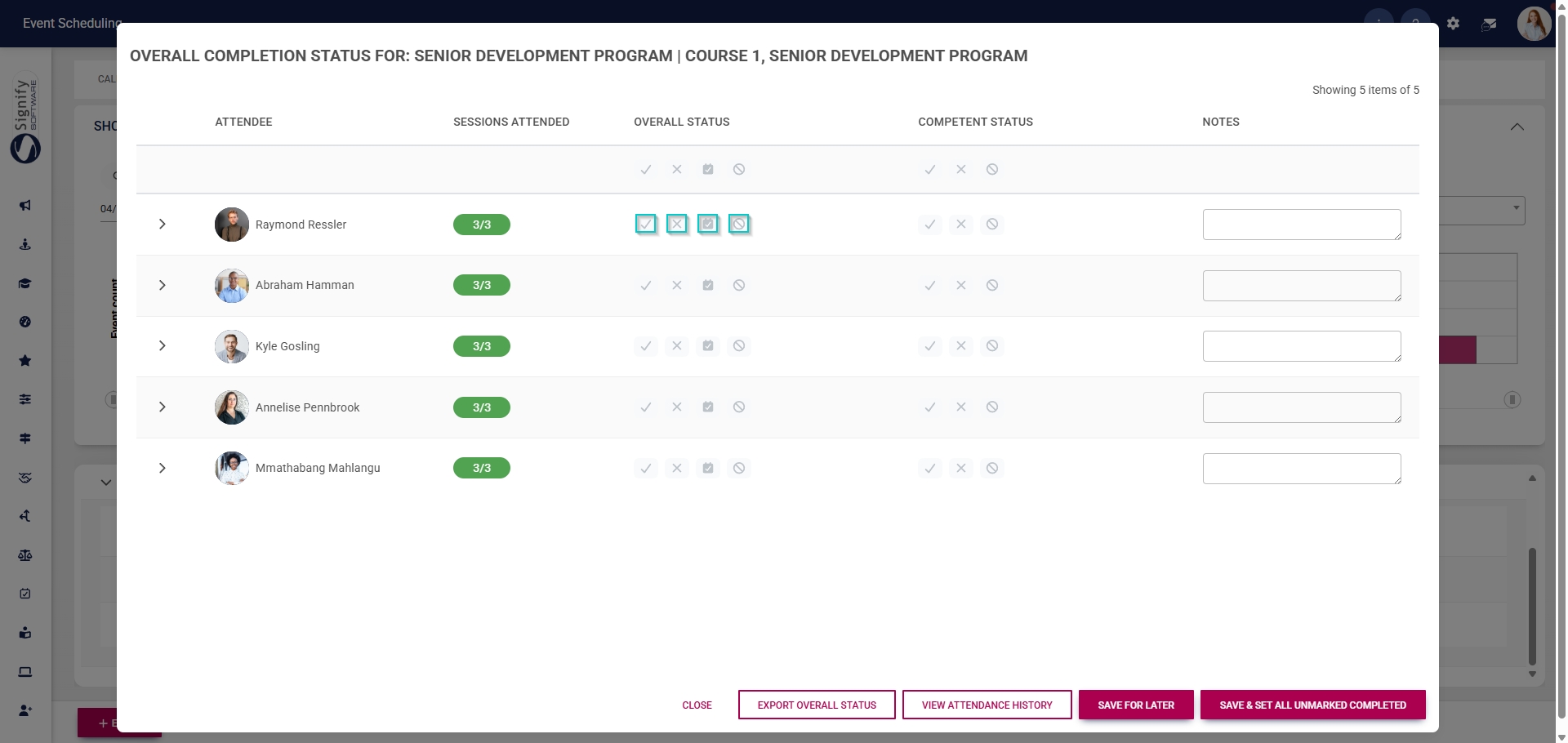
- Alternatively, update each attendee’s overall completion status individually by clicking the icons in the Overall Status column next to their name.
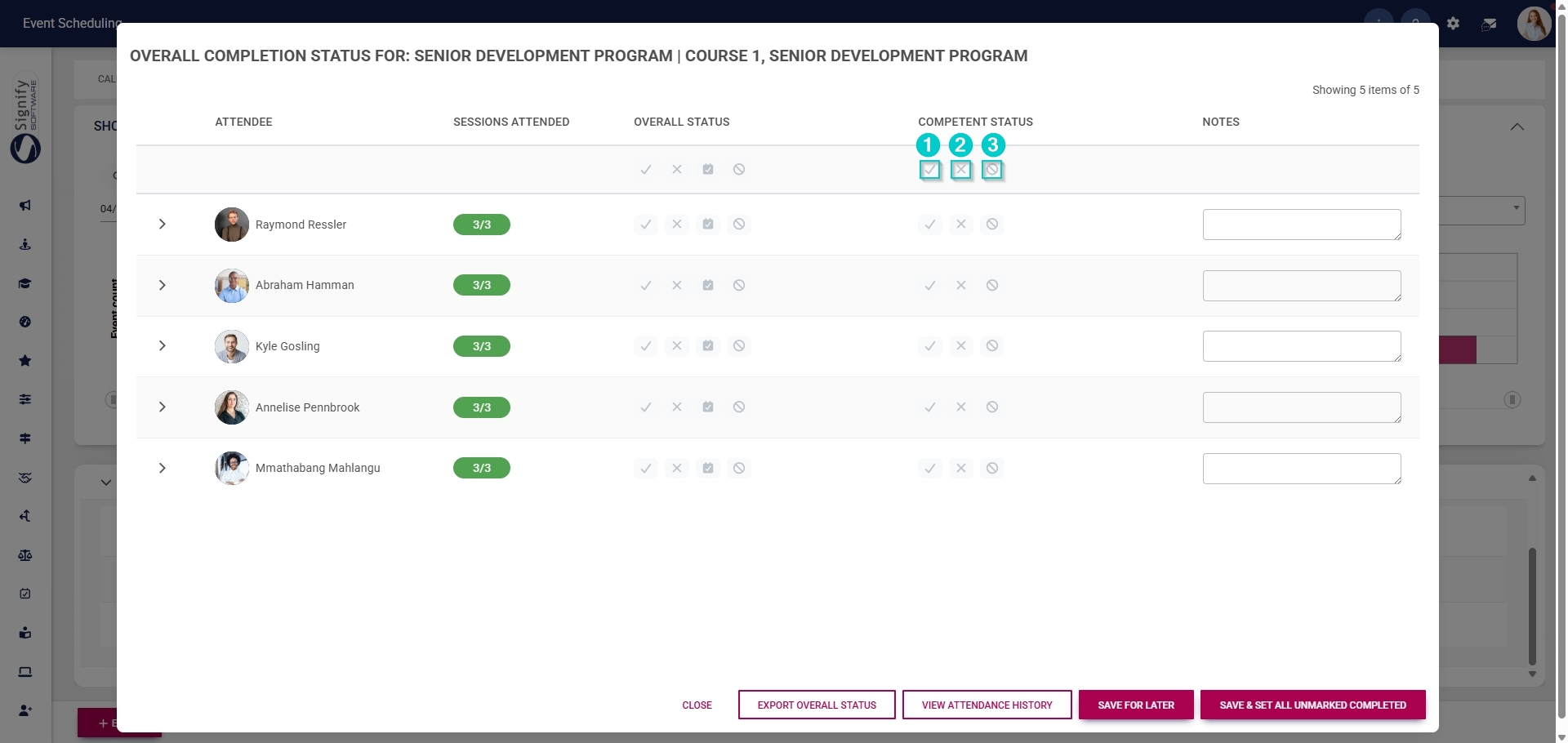
- Use the icons under the Competent Status heading to update the competency for all the attendees.
- Click the tick icon to mark all attendees’ statuses as Competent.
- Click the cross icon to mark all attendees’ statuses as Not Yet Competent.
- Click the cancel icon to mark all attendees’ statuses as Not Applicable.
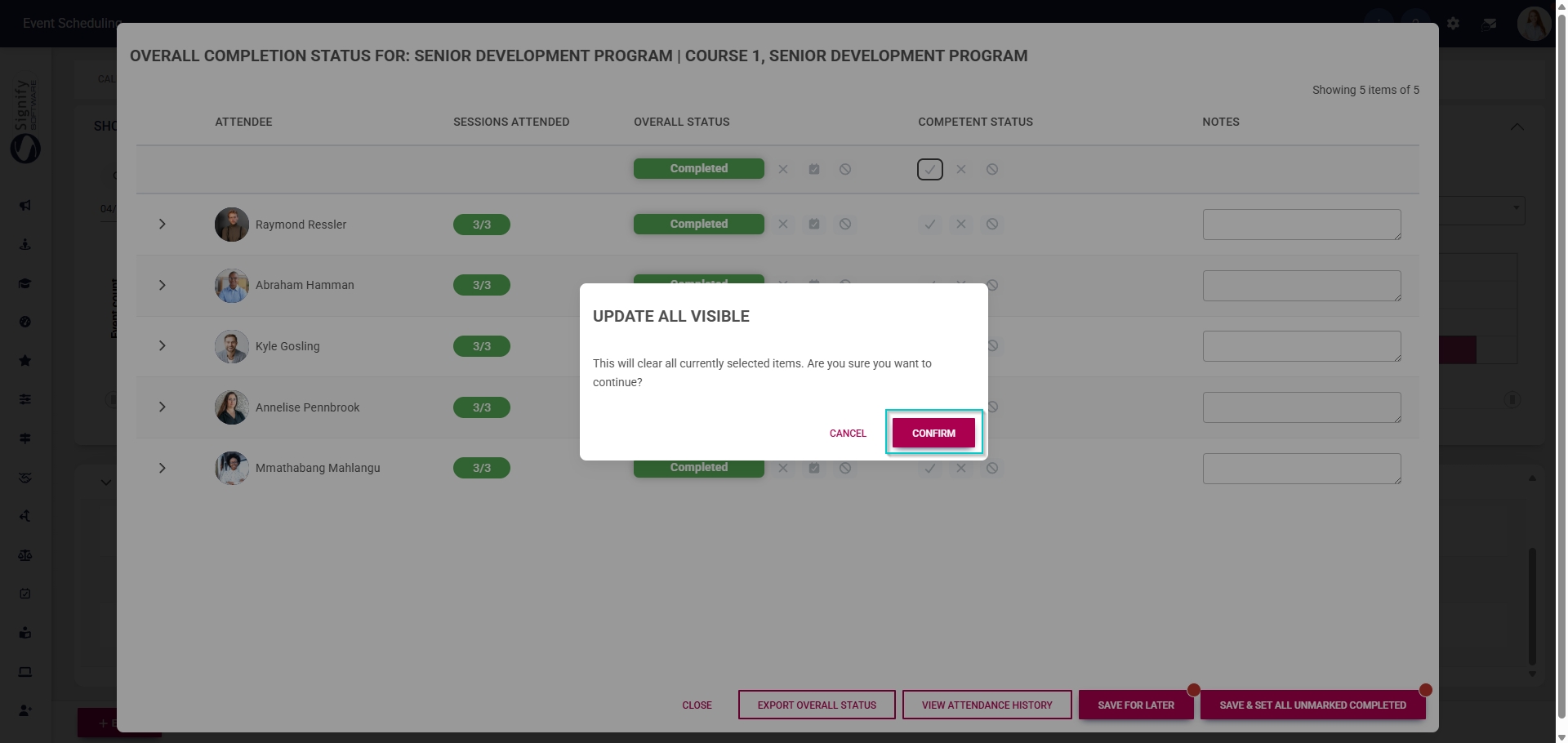
- Click CONFIRM to proceed or CANCEL to discard your changes.
- Optionally, notes about the event can be added for each attendee.