Skip to main content
View Historical Attendance

- Hover over the sidebar menu, then click Event Scheduling.

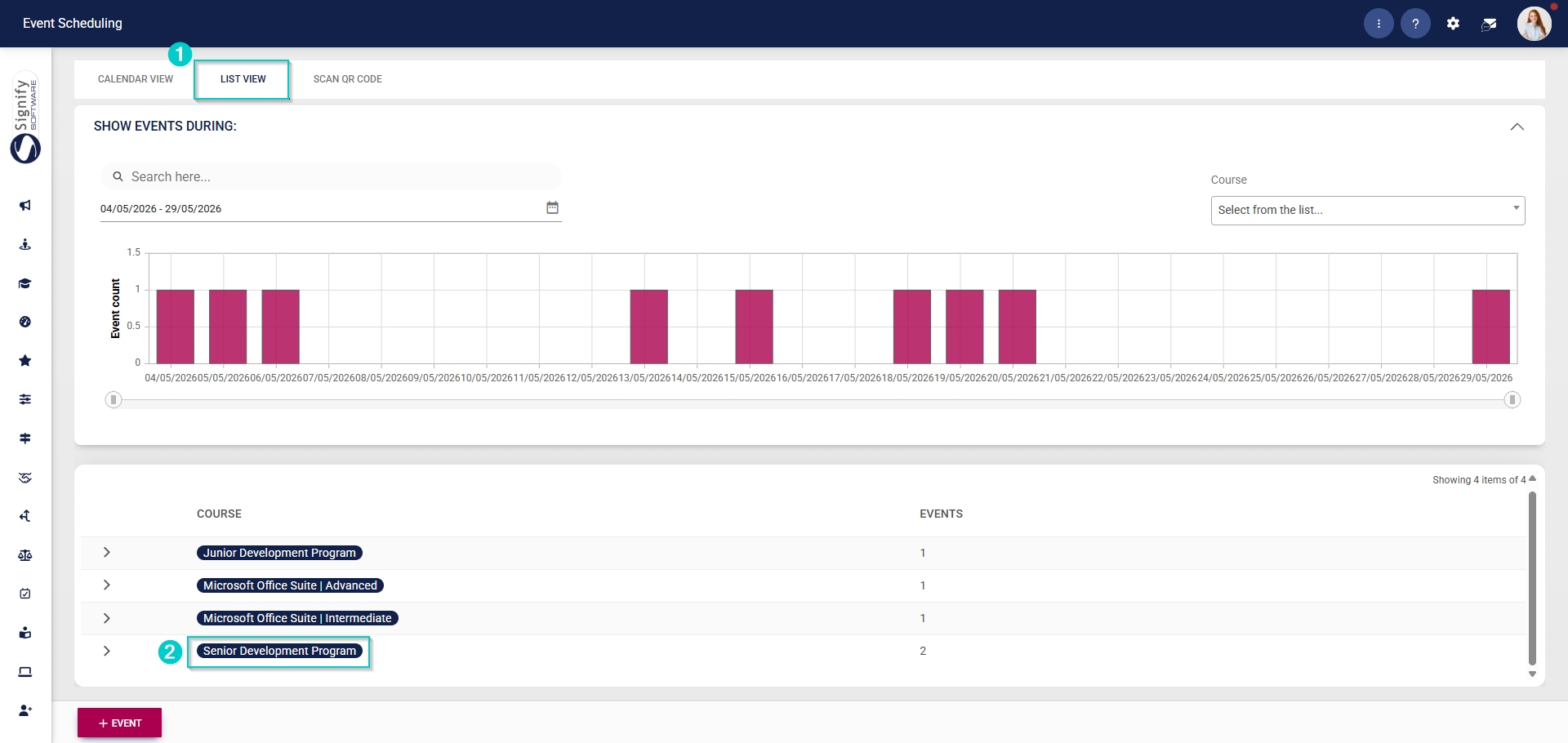
- Navigate to the List View tab.
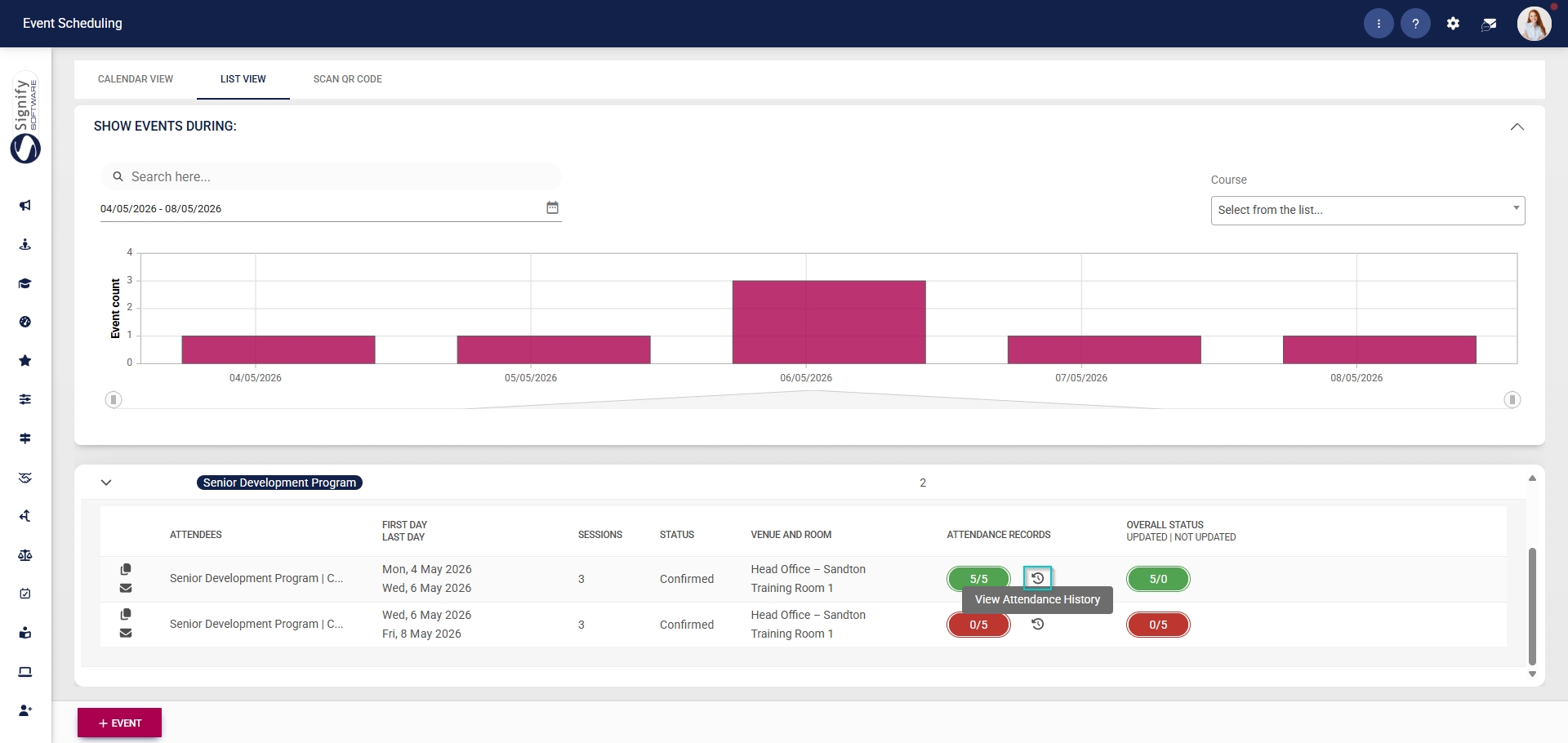
- Expand the event you would like to view the attendance history for.
- Click the history icon to view the event's attendance history.
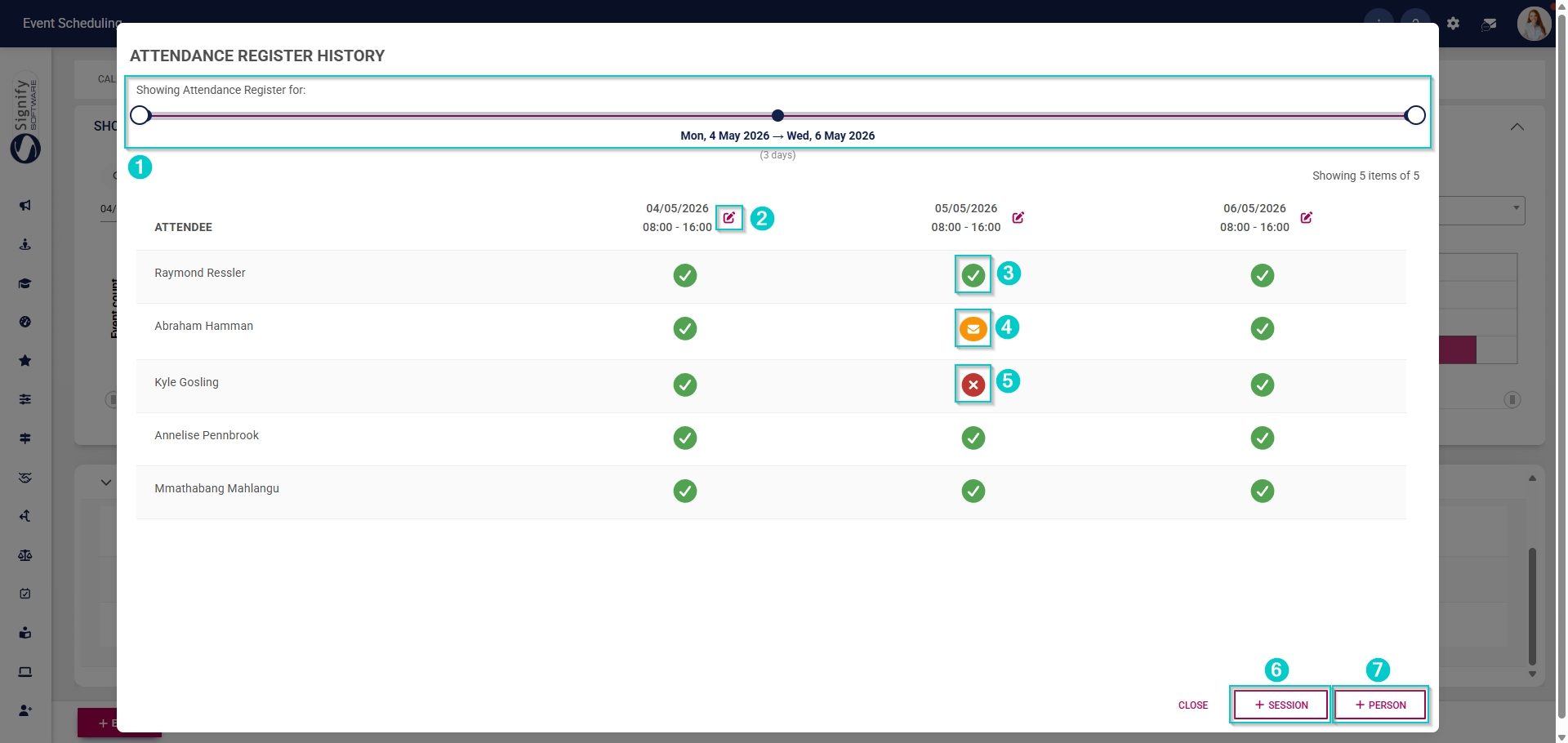
- The pop-up window displays the attendance history for the event, with the following features:
- Use the sliders at the top of the window to filter the attendance history by dates.
- Click on the pencil icon to edit the attendance for a specific session.
- Attendees who attended the event are marked with a green tick icon.
- Attendees who were absent with an excuse are marked with a yellow tick icon.
- Attendees who were absent without an excuse are marked with a red tick icon.
- Click +SESSION to navigate to the event configuration screen, where you can add another session.
- Click +ATTENDEE to navigate to the attendee list, where you can add more attendees.