Skip to main content
Learning Management: eLearning Implementation Guide

Activate the Learning Management module
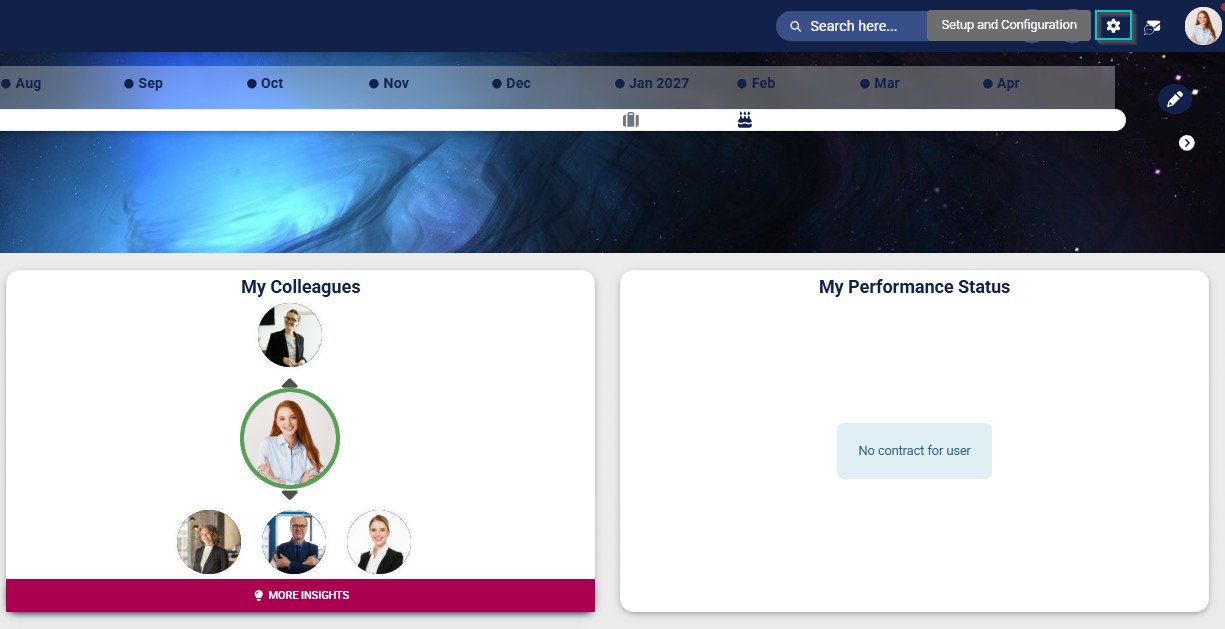
- Click the gear icon to access the Setup and Configuration menu.
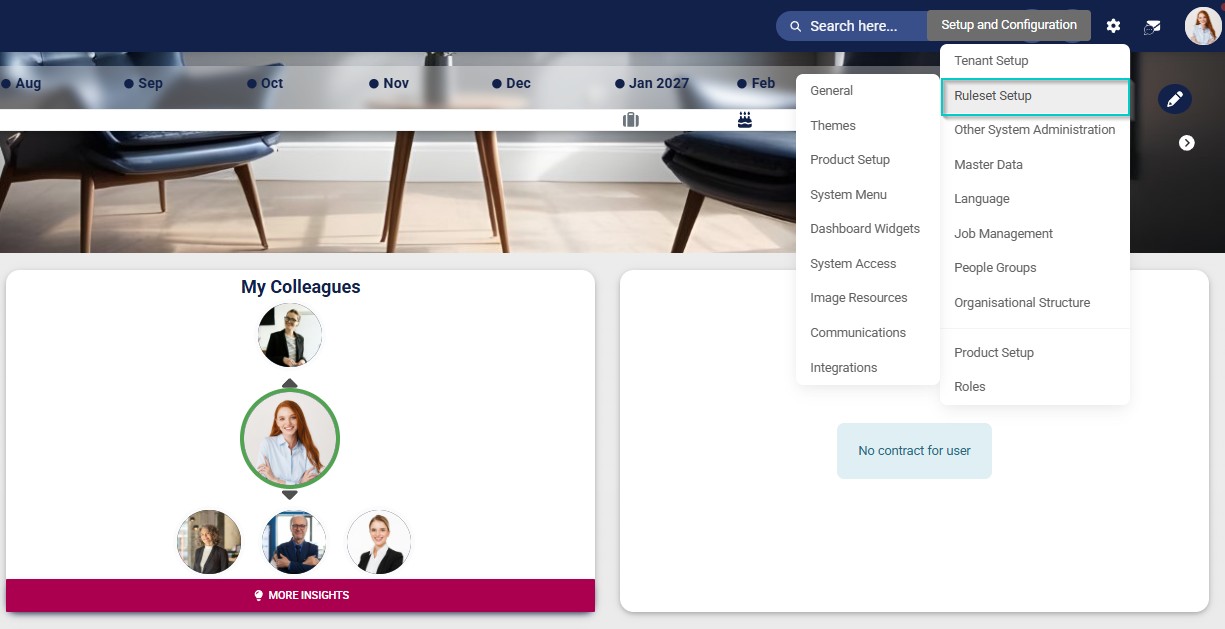
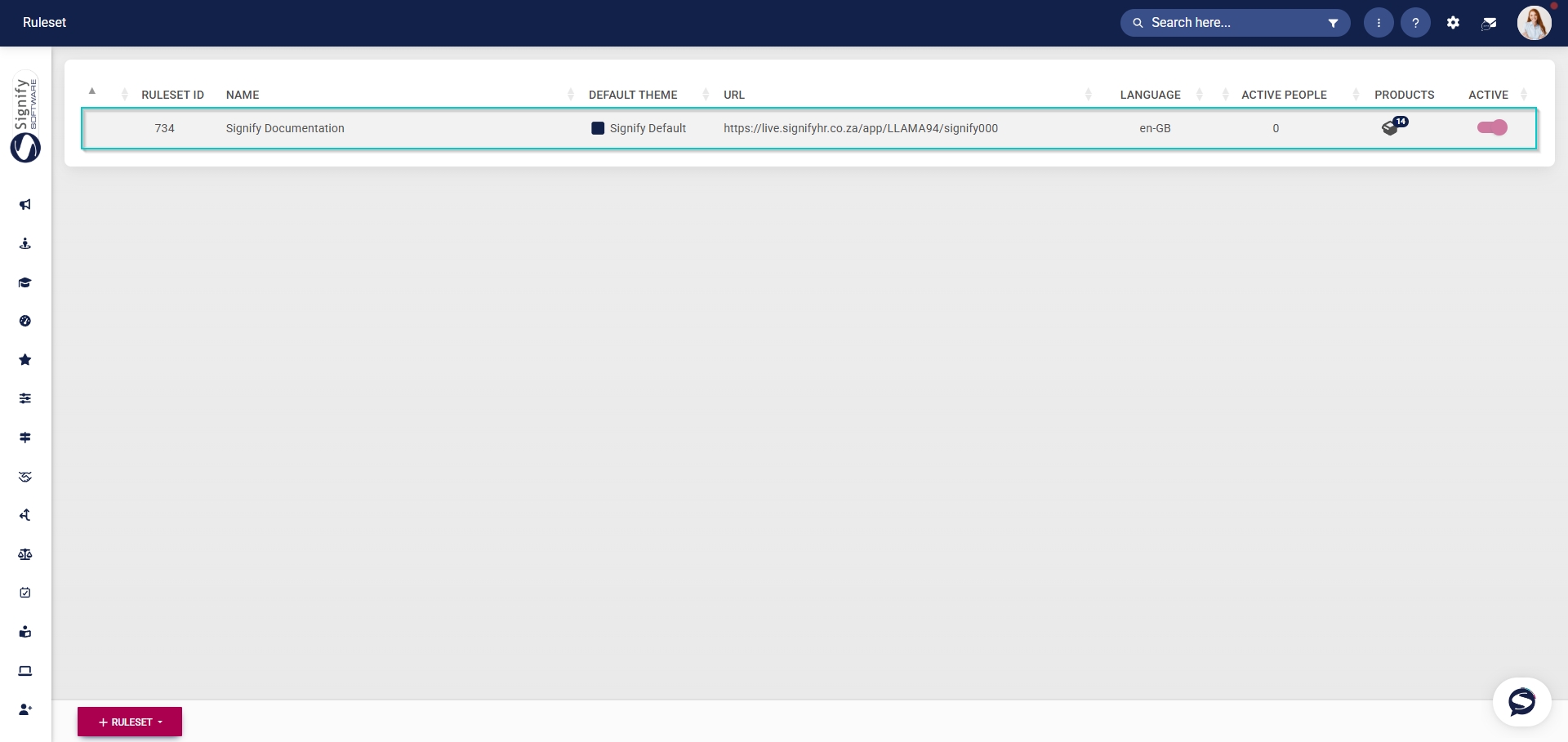
- Select the ruleset you would like to update.
- Navigate to the Products tab.
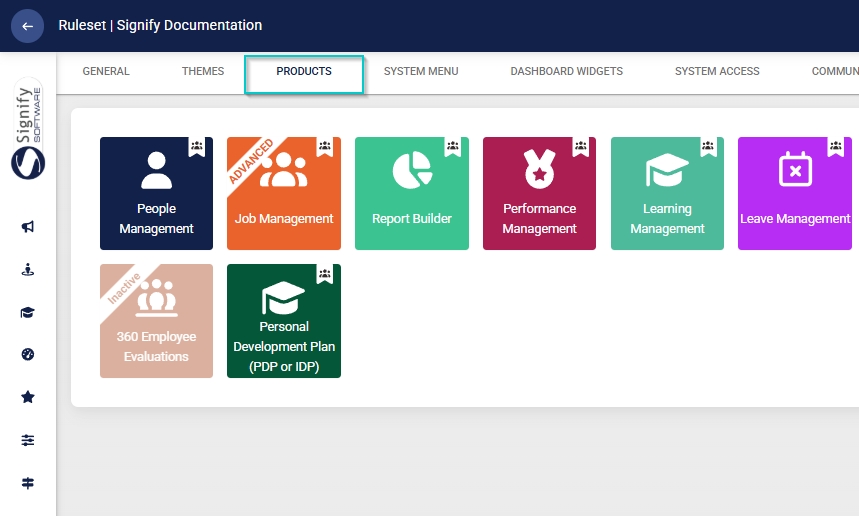
- Click on the Learning Management product card, then click the toggle button to set the product’s status to Active.
- Click the gear icon to access the Setup and Configuration menu.
- Select the ruleset you would like to update.
- Navigate to the System Menu tab.
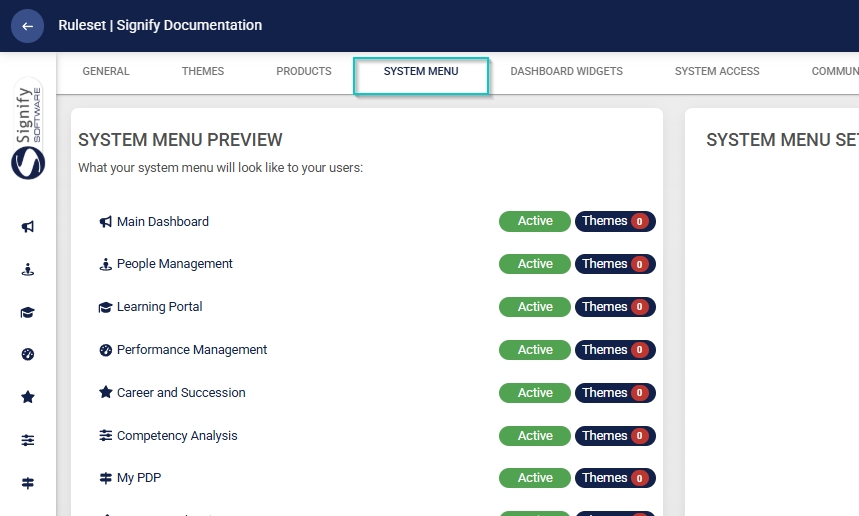
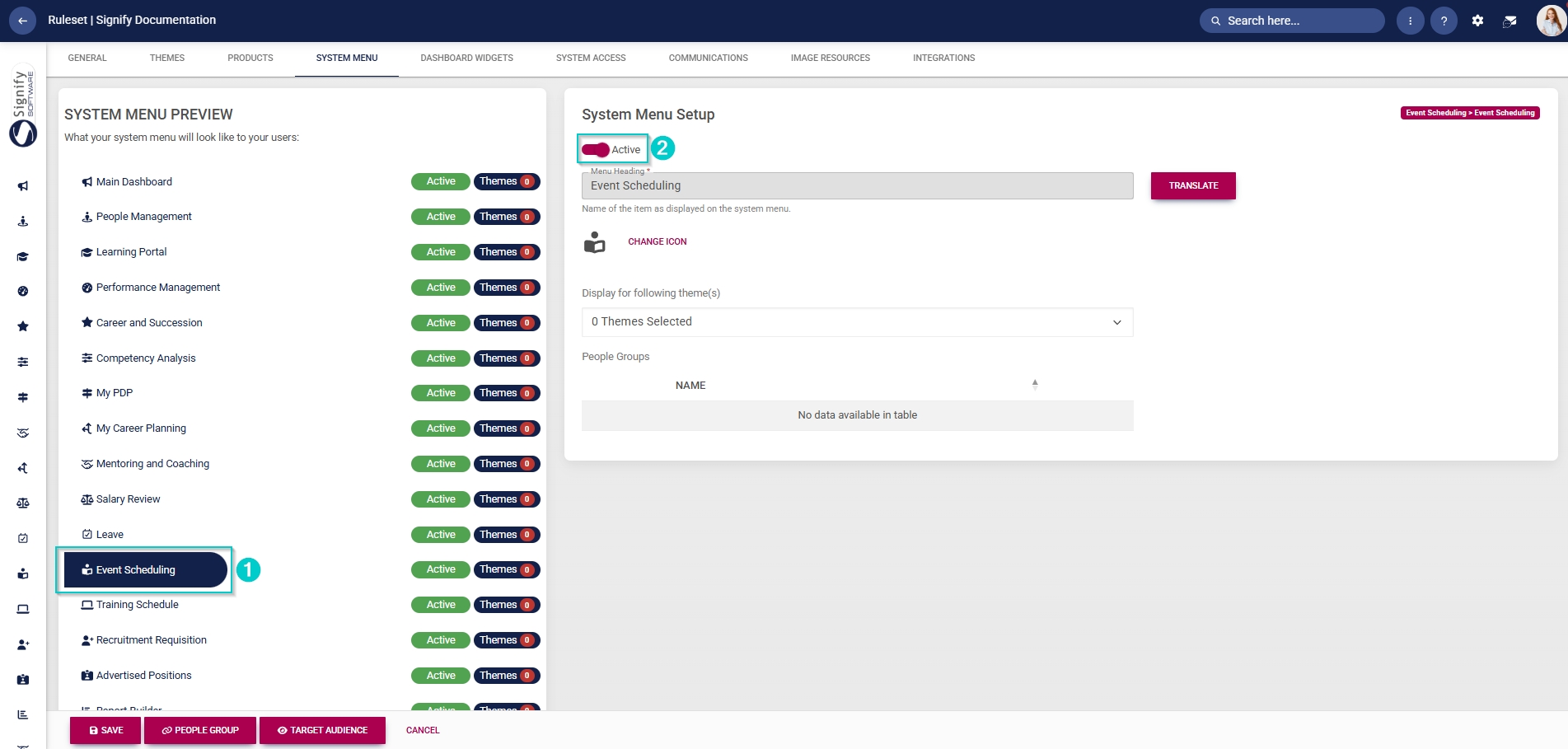
- Click the Event Scheduling menu item in the system menu preview.
- Click the toggle button to set the system menu item’s status to Active.
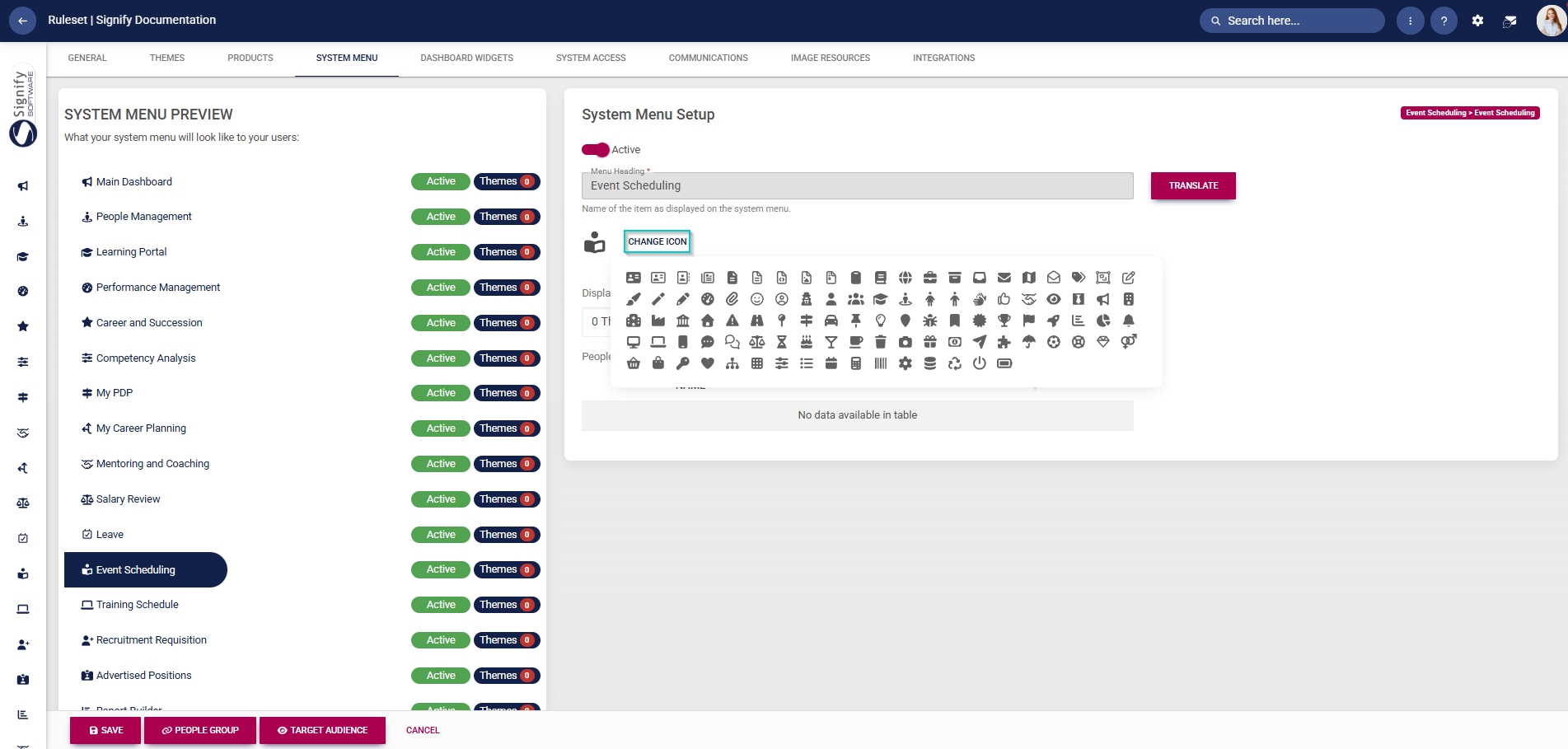
- You can select an icon for the Event Scheduling module by clicking CHANGE ICON.
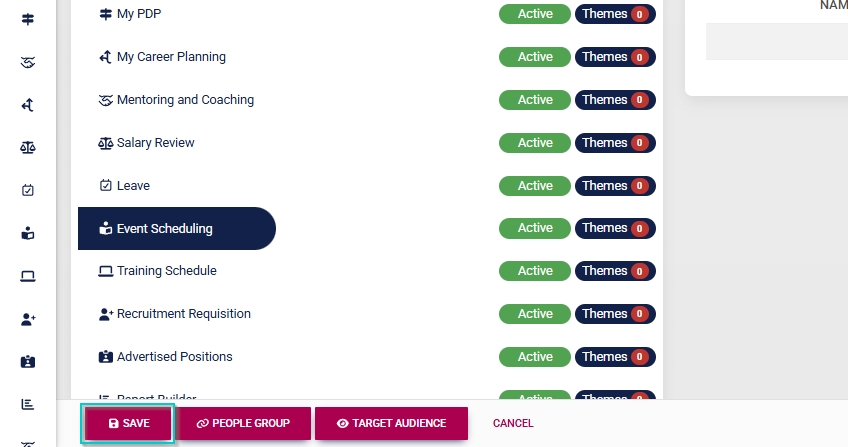
- Click SAVE to continue or CANCEL to discard your changes.
Assign the Event Scheduling administrator permission
- Hover over the sidebar menu, then click People Management.
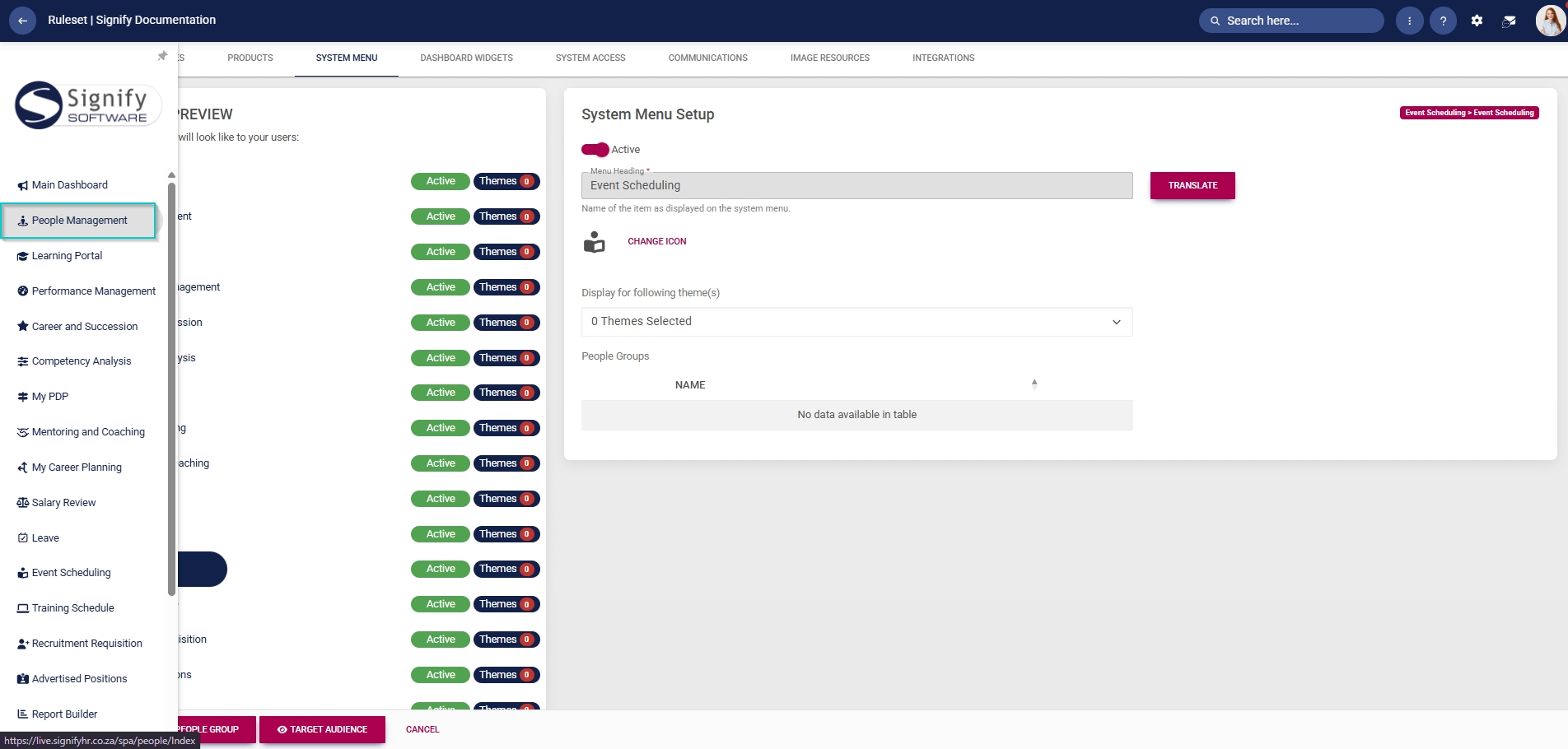
- Click to navigate to the View/Edit People tab.
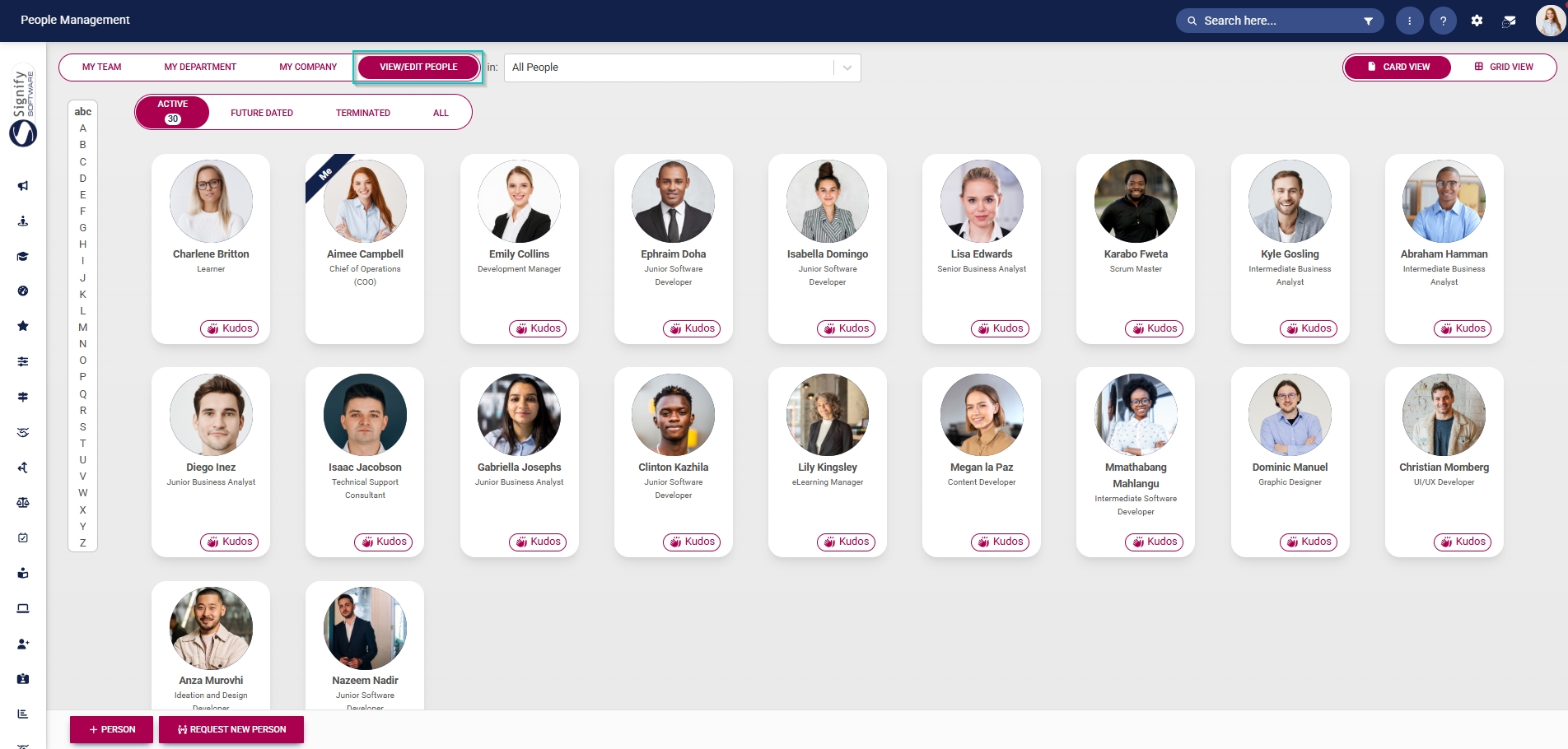
- Click the pencil icon to manage the person whose profile you want to edit.
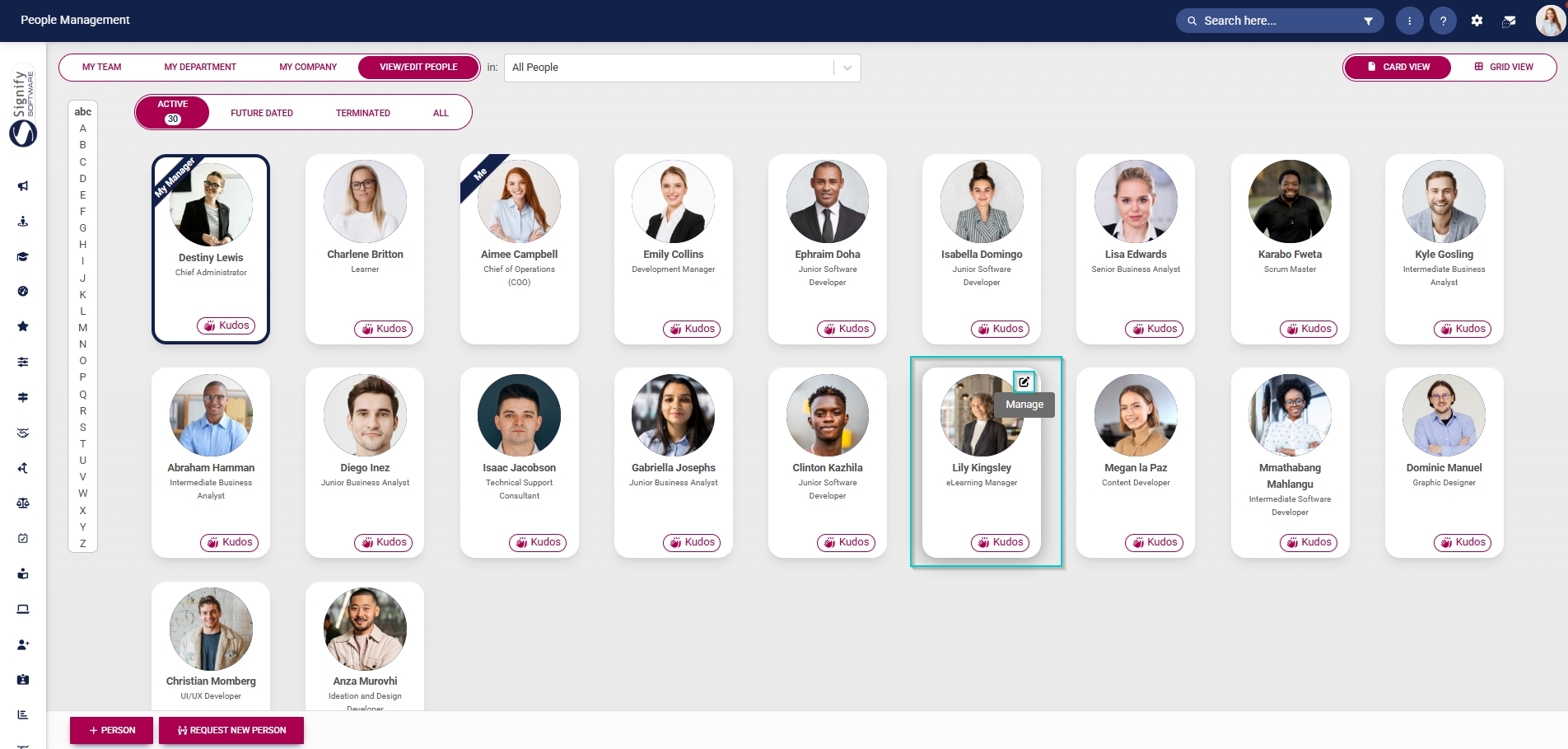
- In the left-hand menu, navigate to User Permissions, then click System Modules Admin.
- Click the LINK ROLE button.

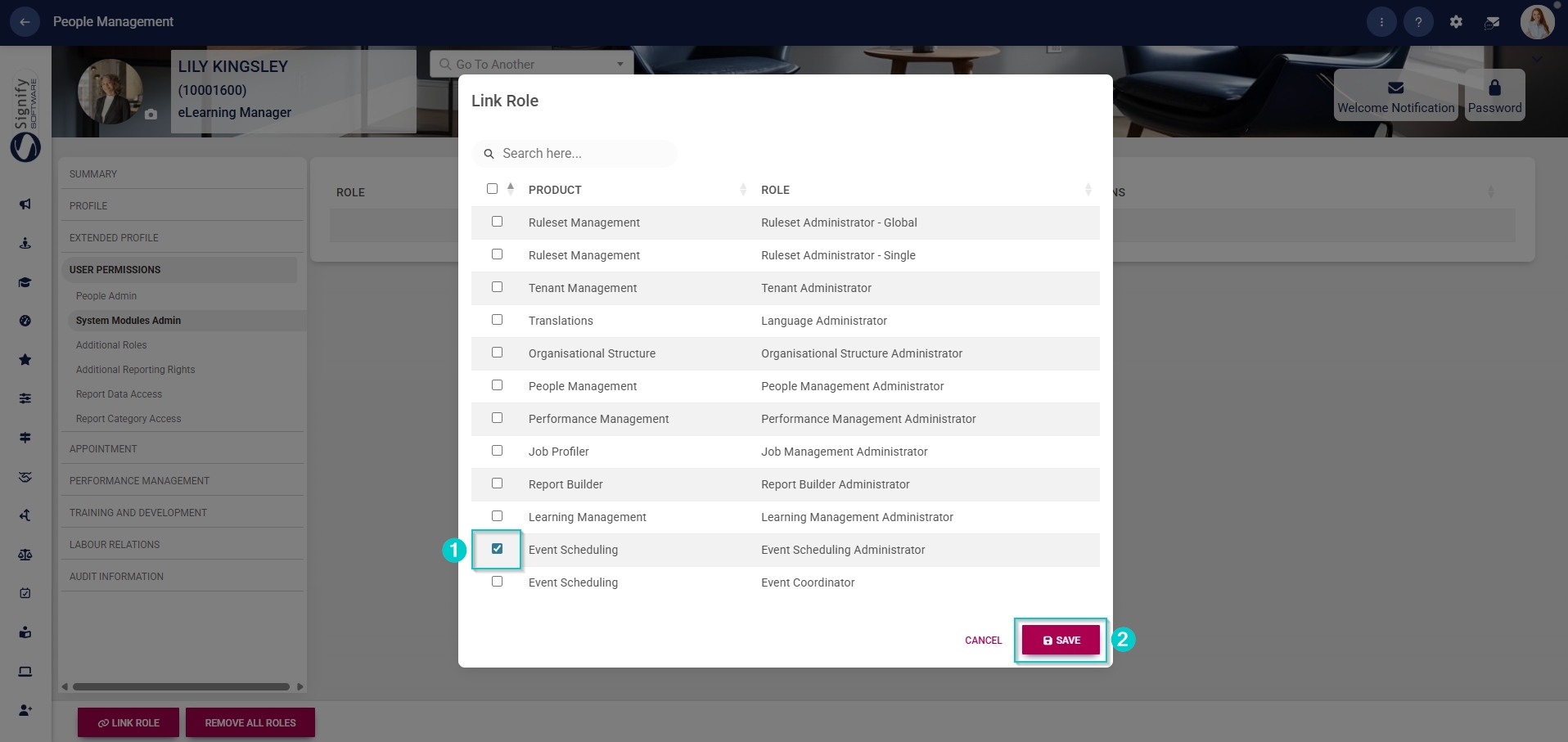
- Tick the checkbox next to Event Scheduling in the table to assign the Event Scheduling administrator role to the user.
- Click SAVE to continue or CANCEL to discard your changes.
Create people groups
Manually syncing people groups
Create learning pathways
Add training interventions
Method 1: Add training interventions manually
Method 2: Add training interventions using the import
Pathway features
Learning mode



