
Learning Management: eLearning Implementation Guide

Activate the Learning Management module
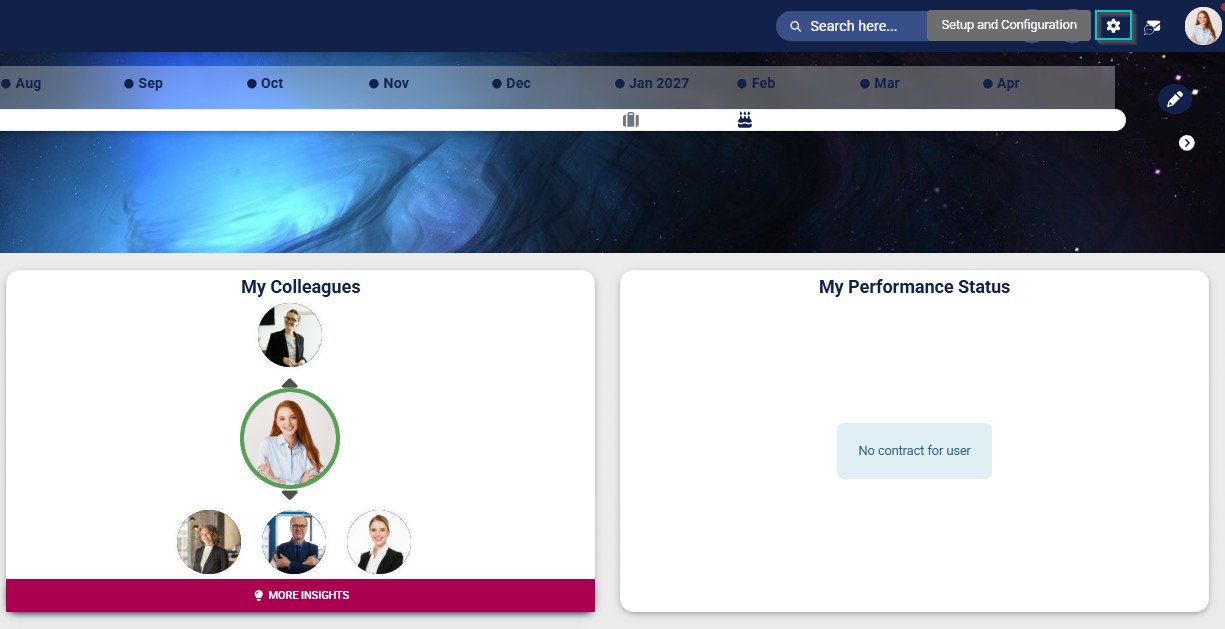
- Click the gear icon to access the Setup and Configuration menu.
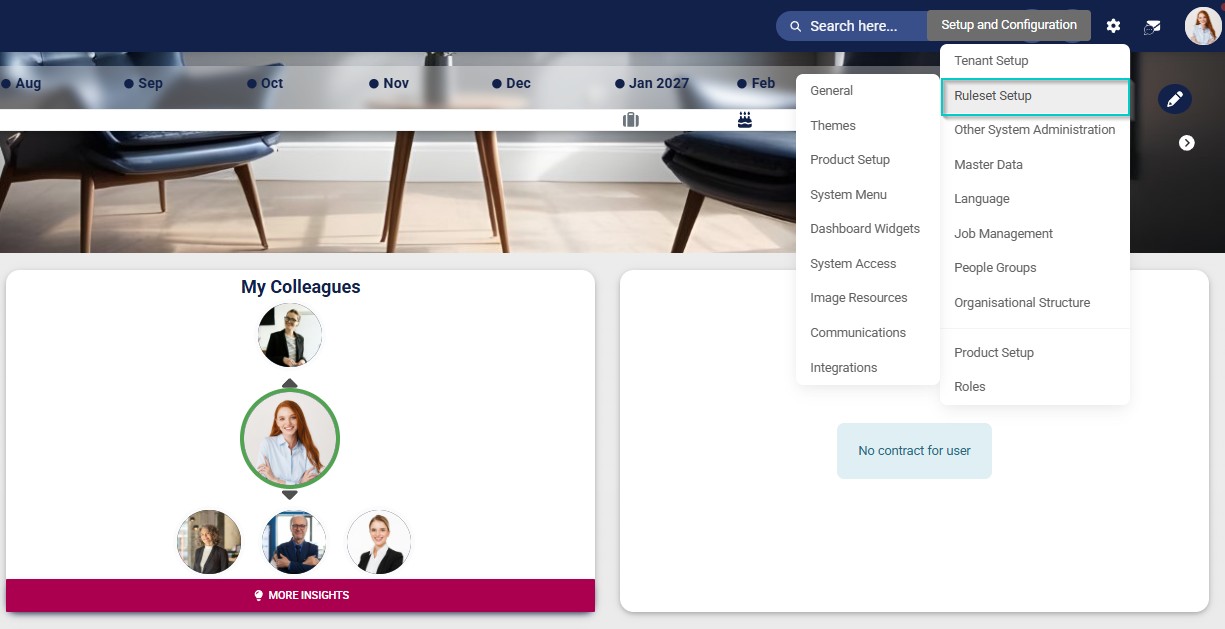
- Click Ruleset Setup.
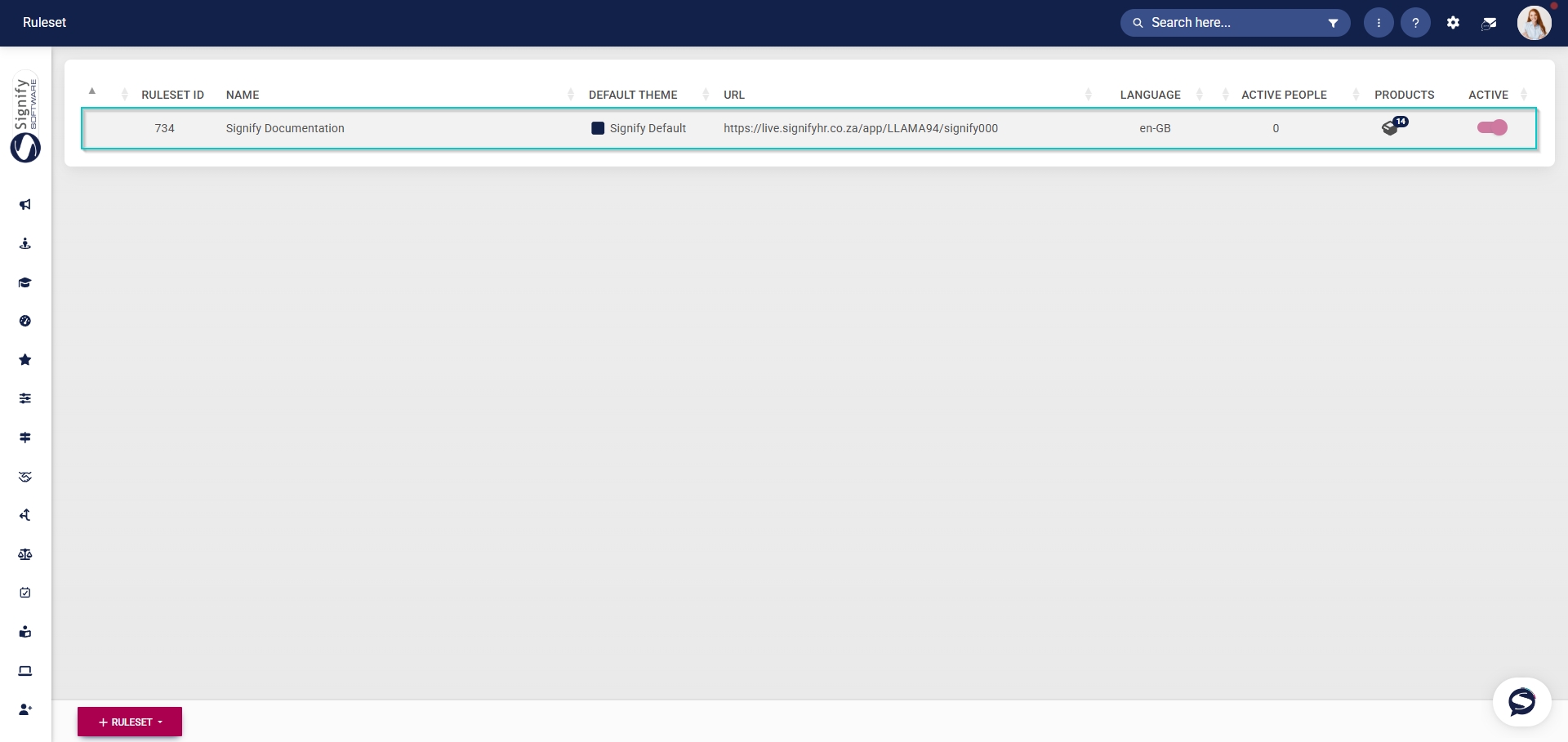
- Select the ruleset you would like to update.
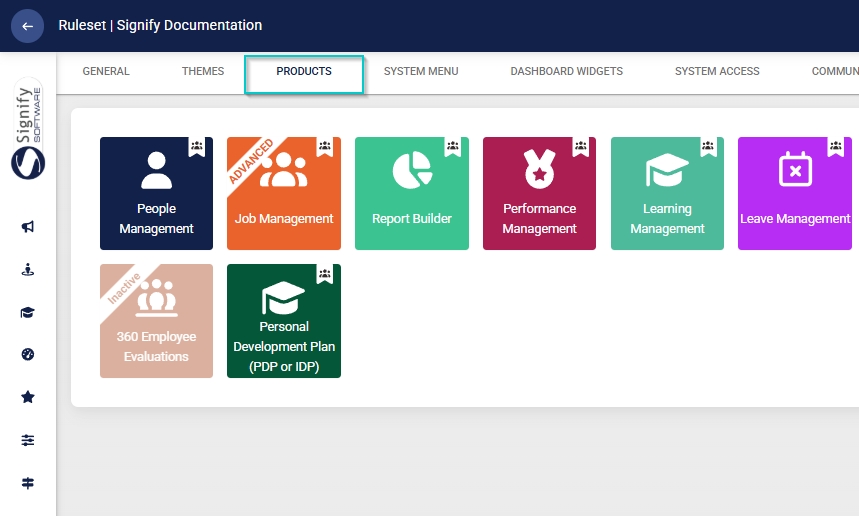
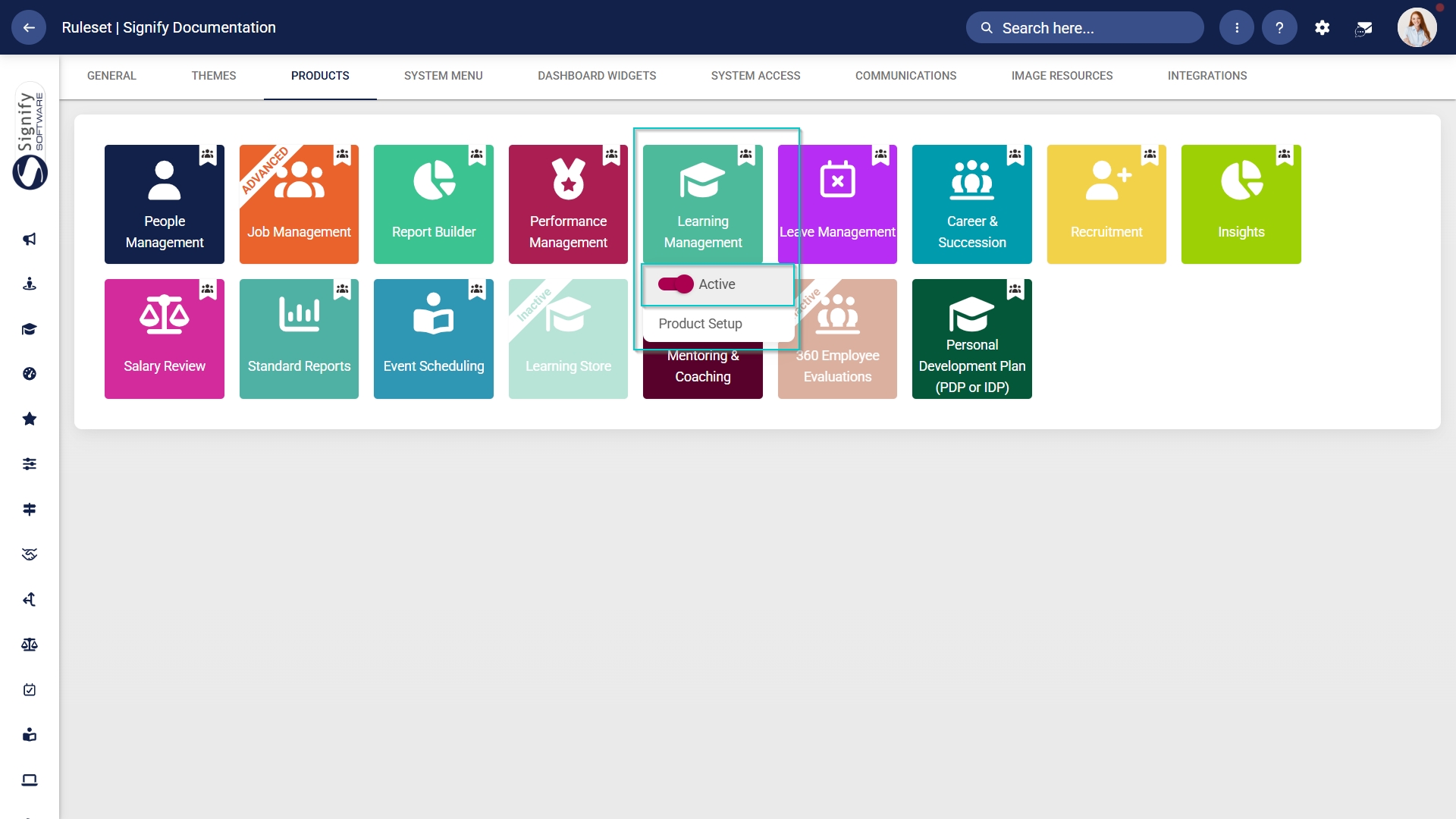
- Click on the Learning Management product card, then click the toggle button to set the product’s status to Active.
Add Learning Management to the system menu
- Click the gear icon to access the Setup and Configuration menu.
- Click Ruleset Setup.
- Select the ruleset you would like to update.
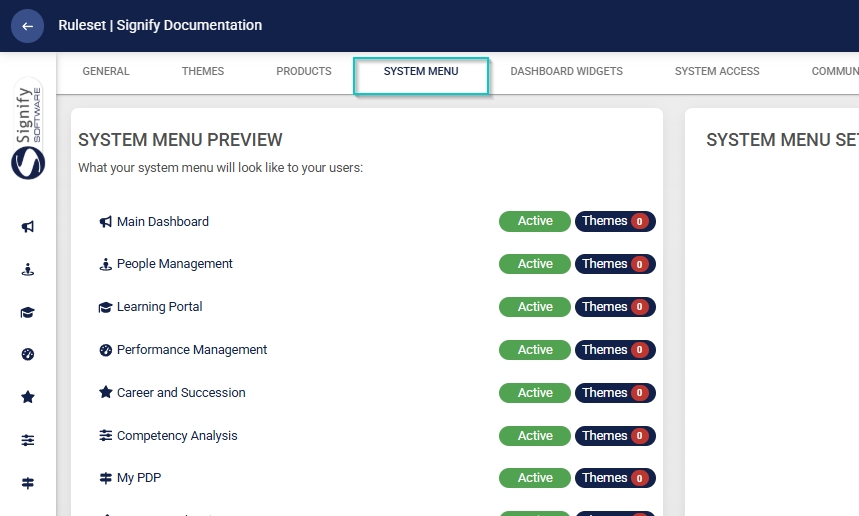
- Click the Learning Portal menu item in the system menu preview.
- Click the toggle button to set the system menu item’s status to Active.

- You can select an icon for the Learning Management module by clicking CHANGE ICON.
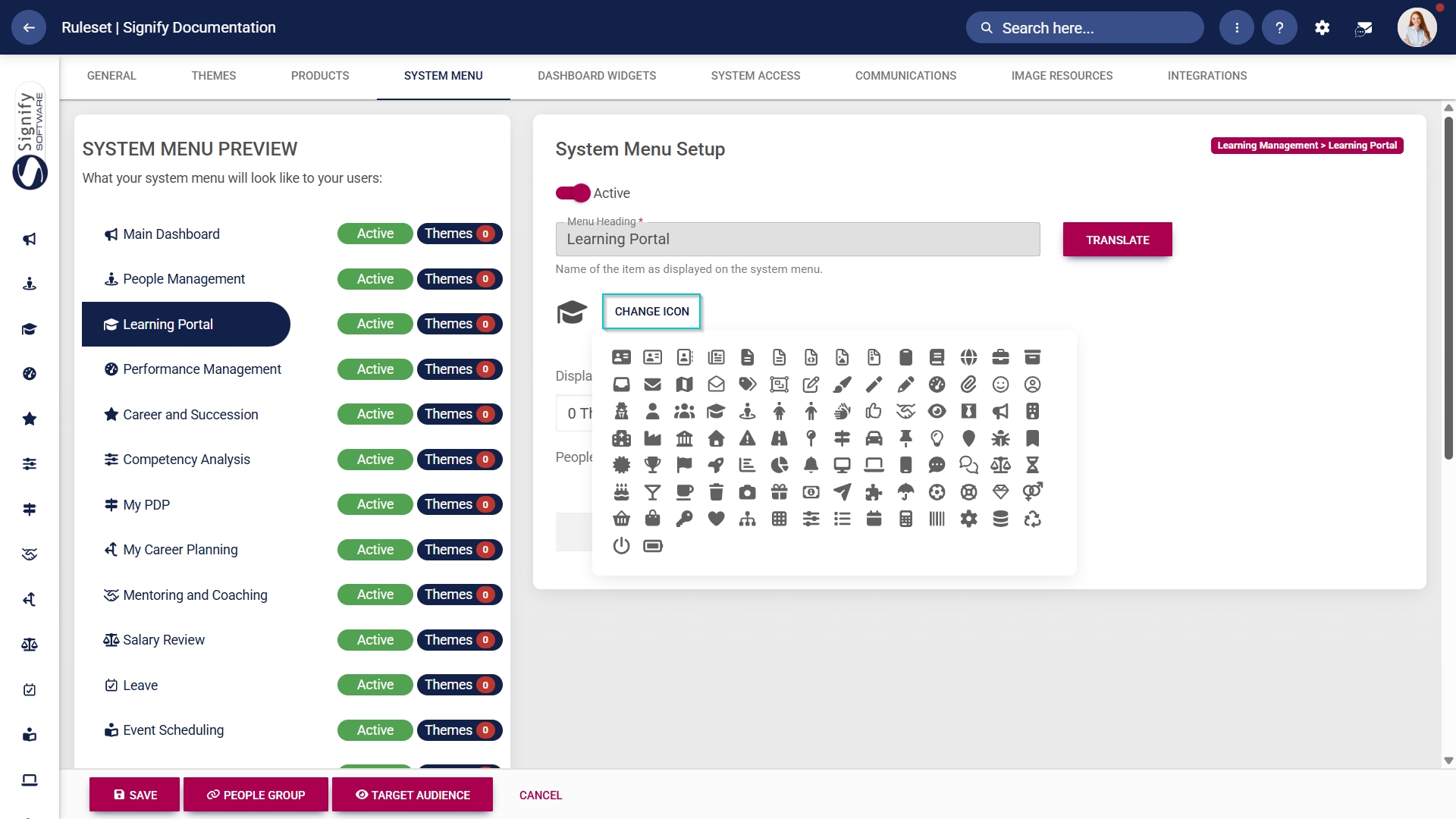
- Click SAVE to continue or CANCEL to discard your changes.

Assign the Learning Management administrator permission
- Hover over the sidebar menu, then click People Management.
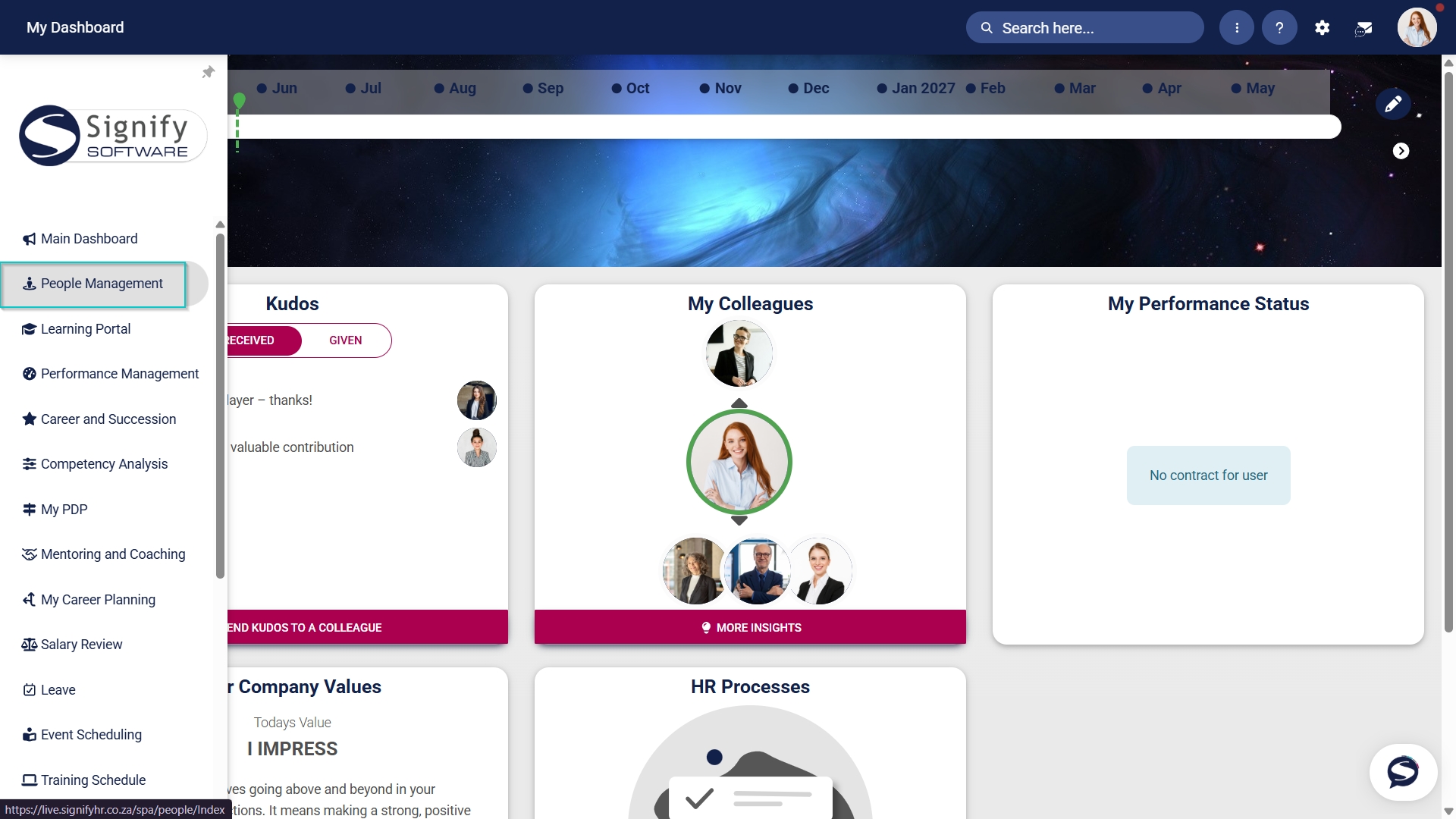
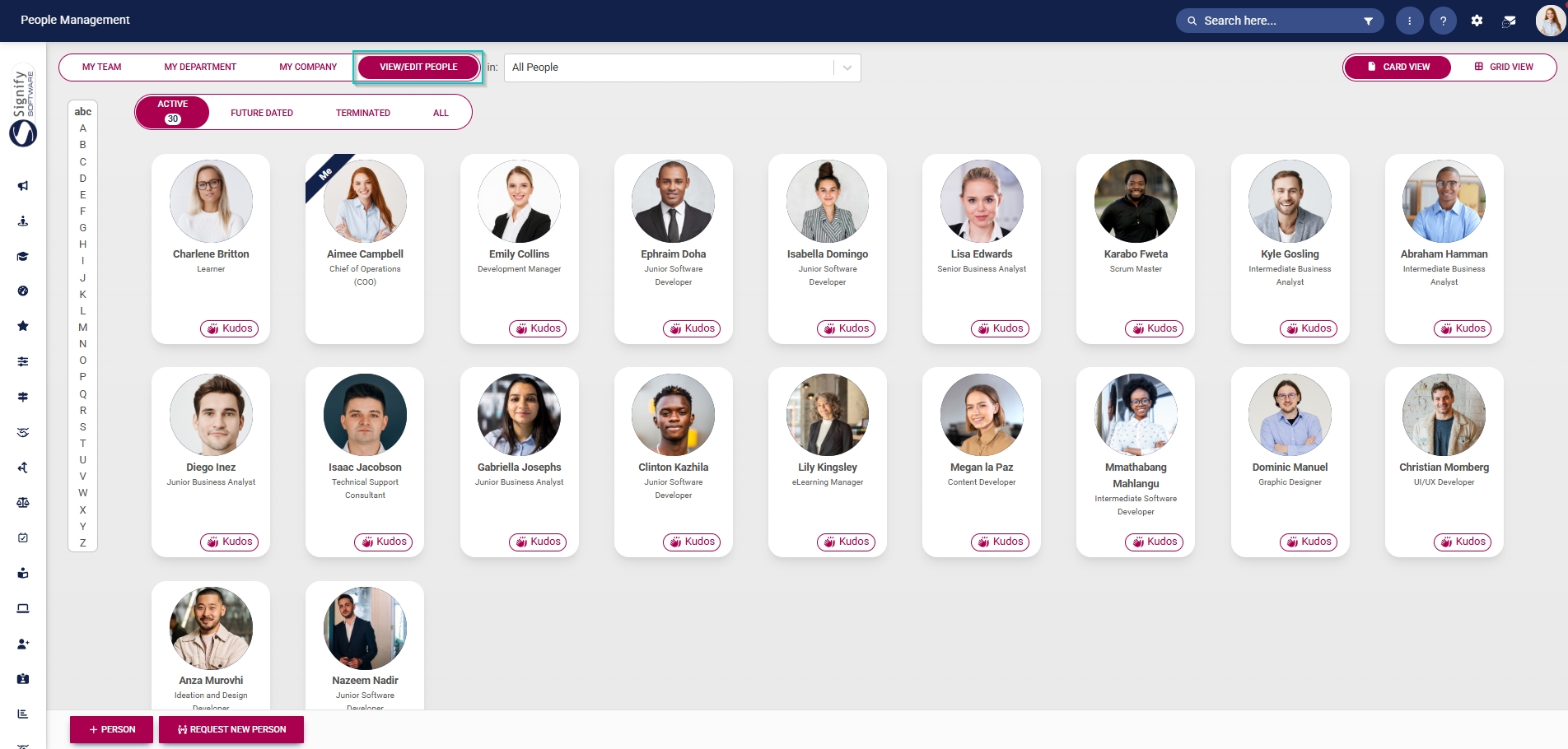
- Click the pencil icon to manage the profile of the person you want to edit.
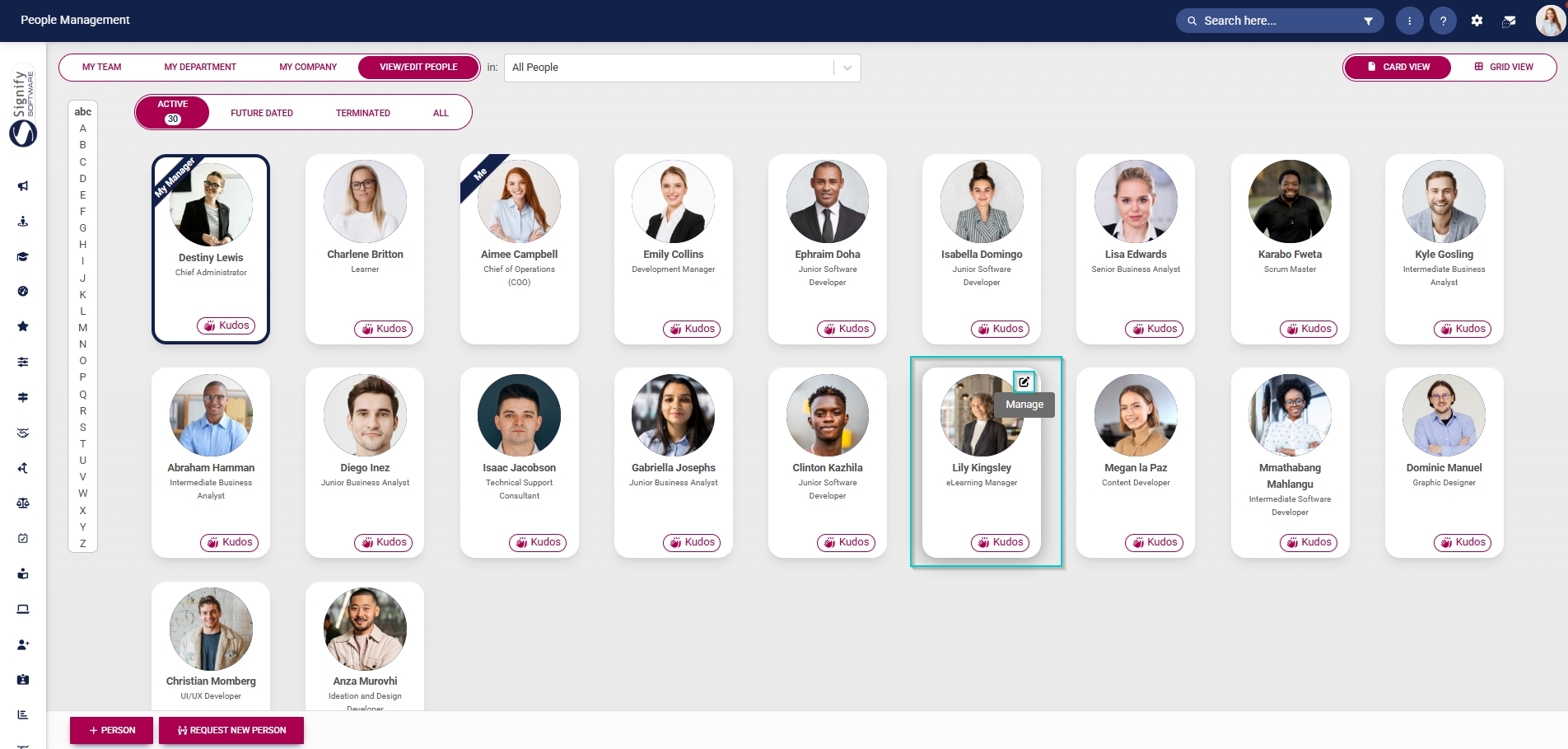
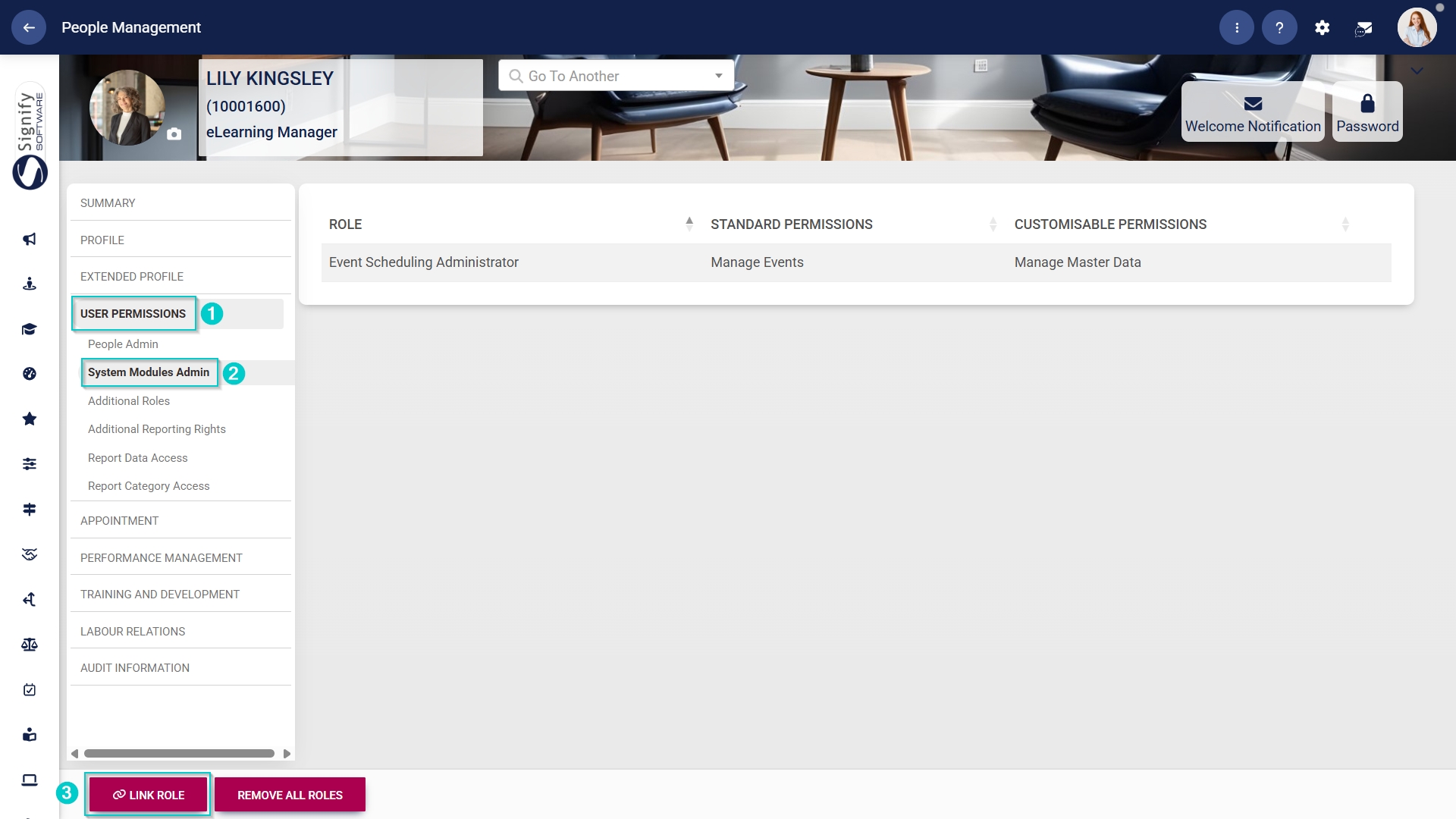
- In the left-hand menu, navigate to User Permissions, then click System Modules Admin.
- Click the LINK ROLE button.
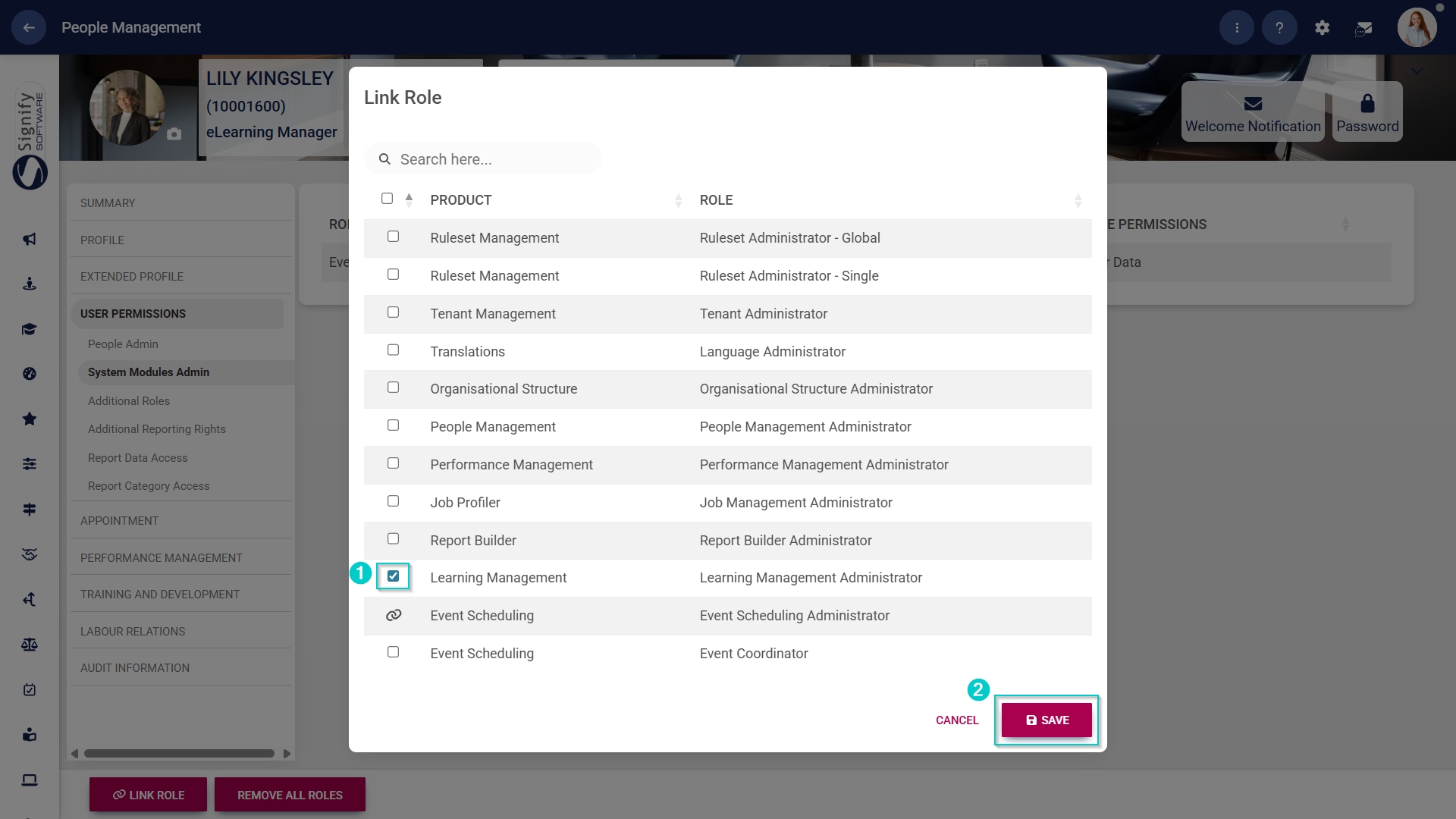
- Tick the checkbox next to Learning Management in the table to assign the Learning Management administrator role to the user.
- Click SAVE to continue or CANCEL to discard your changes.
Update the Master Data Library
Assessors / Moderators
Facilitators
Programmes
Qualifications
Training Providers
Units
Qualification Types
SETA Formats
SETA Periods
SETAs
Legislative First Category
Legislative Second Category
Event Training Category
Training Classification
Nature of Learning
Learning Type
Training Category
Training Sub Category
Cost Description
Report to Structure
Training Role
NQF Level
NQF Band
Priority Skills
Create people groups
Manually syncing people groups
Add training interventions
Method 1: Add training interventions manually
Method 2: Add training interventions using the import
Create learning pathways
Pathway features
Learning mode
Manage content libraries
Document Repository
Learning Content Administration (SCORM / xAPI)
Gamification and Rewards
Badges
Leaderboards - Campaigns
Leaderboards - General
Point Levels
