Skip to main content
Update a Person's Profile

For users: Update your own profile
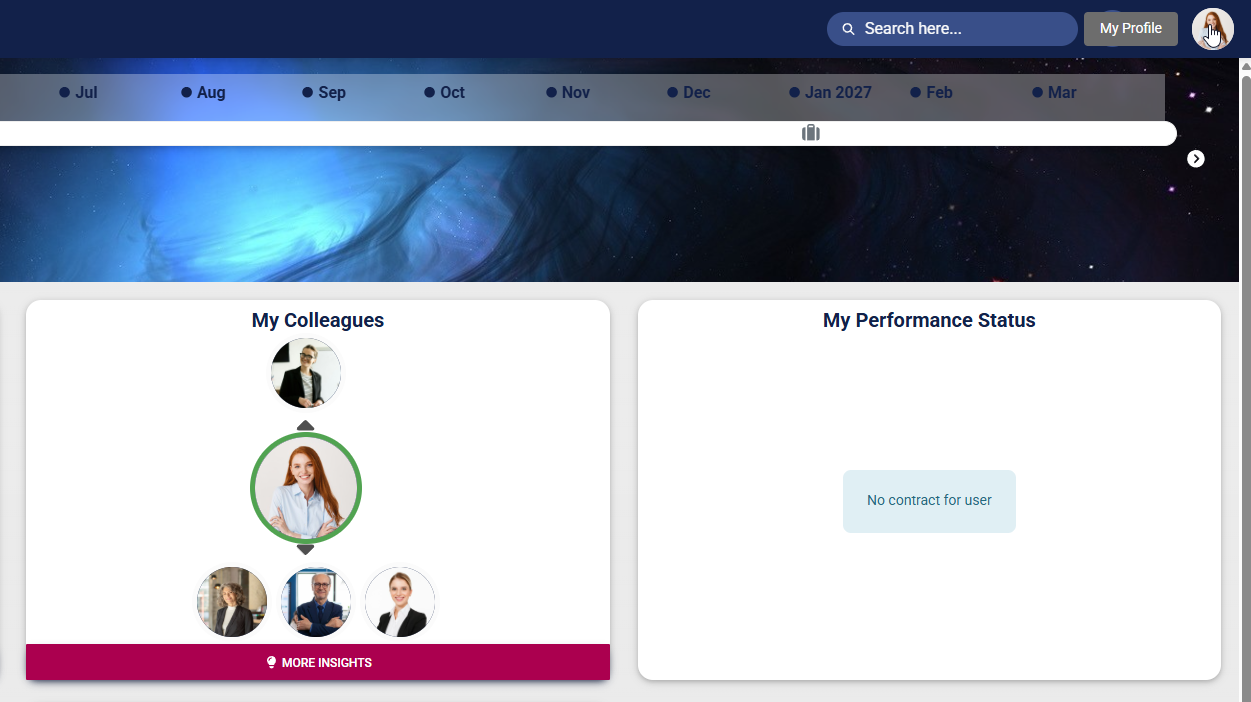
- Click on your profile icon at the top of the screen to access the main menu.
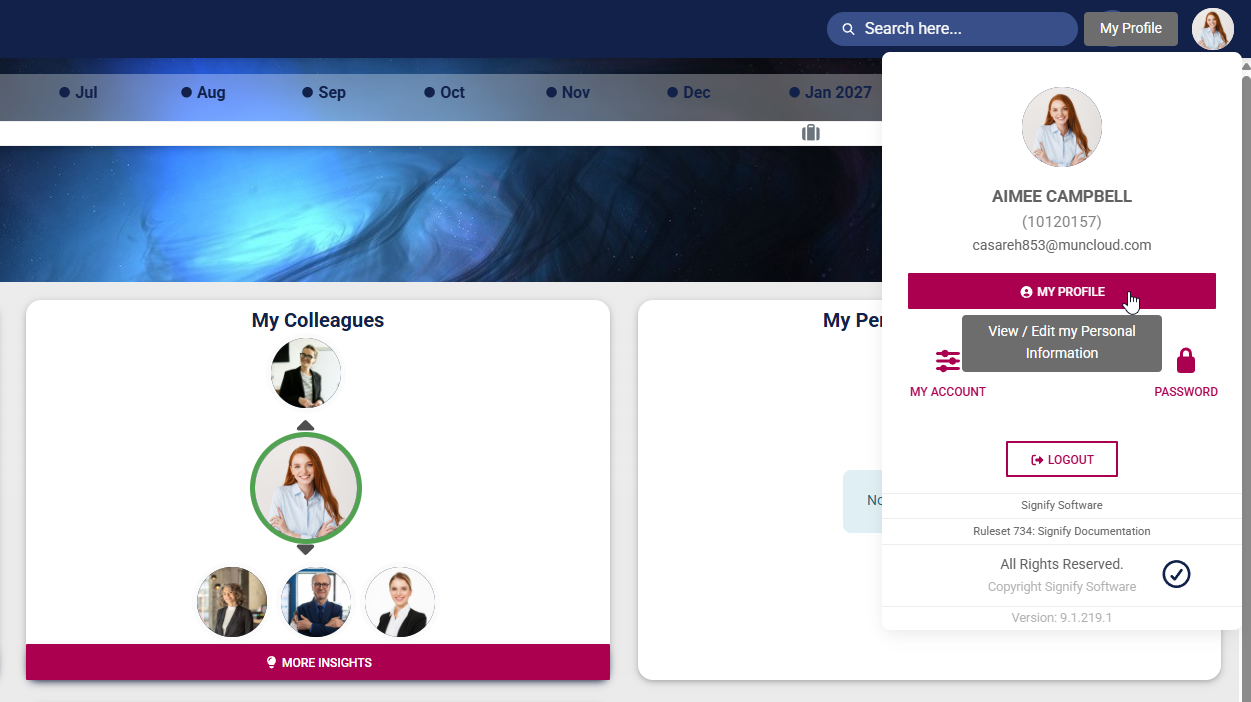
- Click MY PROFILE to view or edit your user profile.
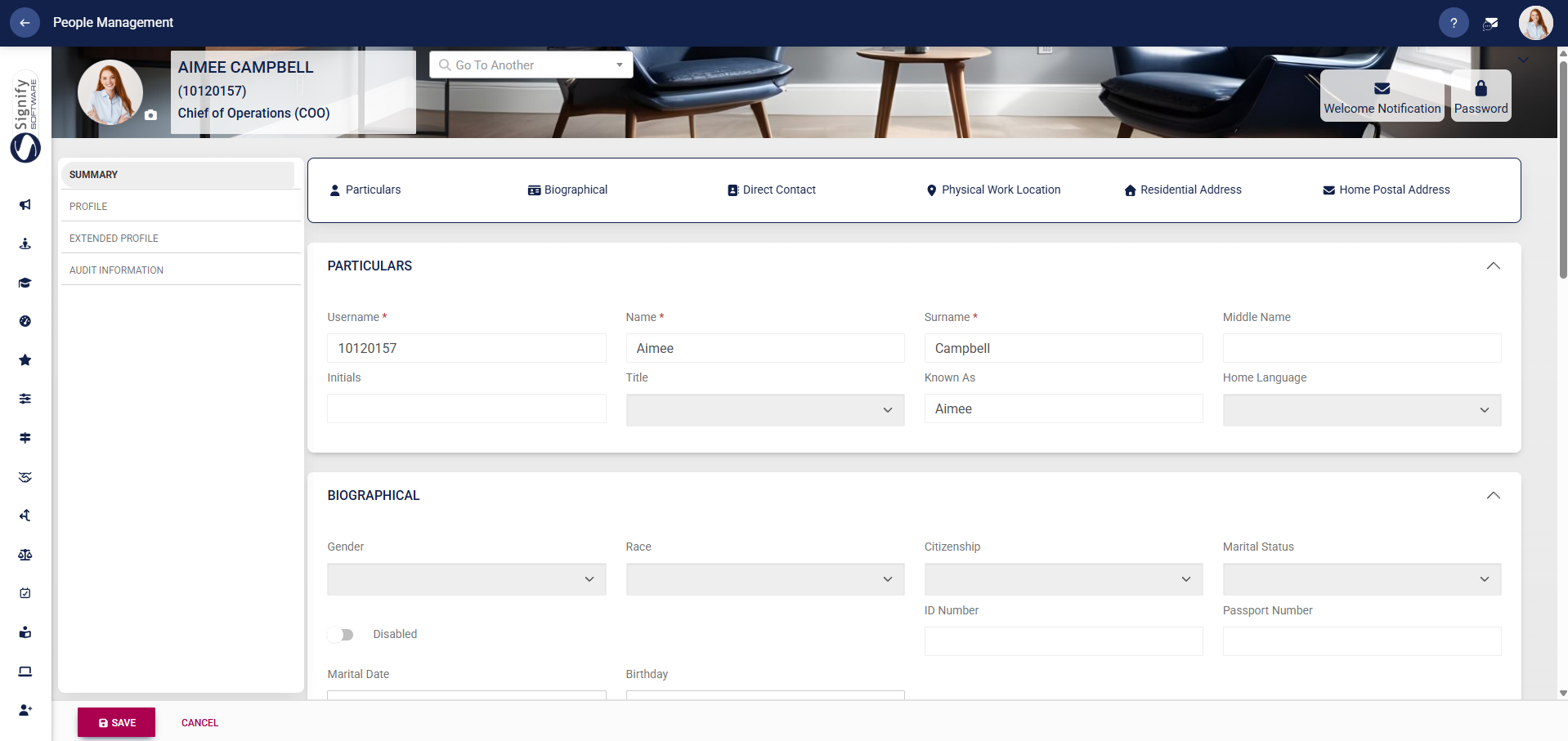
- Your profile will open. Use the left-hand menu to navigate to the profile section you would like to update. Fields that are not editable will be greyed out. Update your information as necessary, then click SAVE to update your profile, or CANCEL to discard your edits.
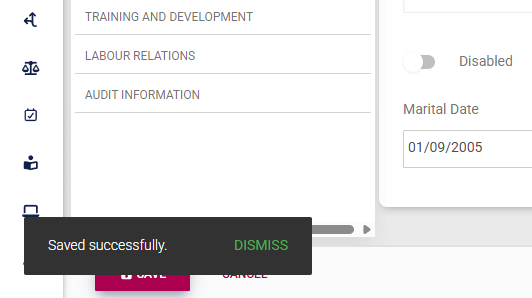
- A message will pop up to confirm that your profile's details have been updated.
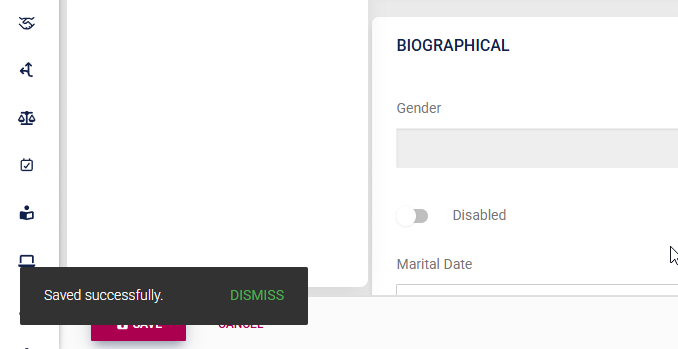
- Please note that, based on your access permissions, you may not be able to view or edit some sections of your profile. If you encounter a problem, contact your system administrator to help with updating your information.
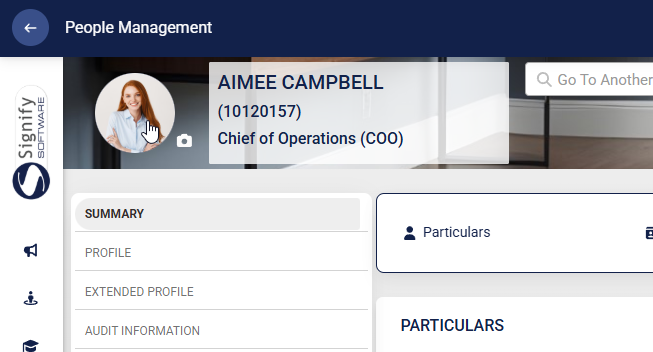
- Click on your profile picture on your profile banner to update your photo.
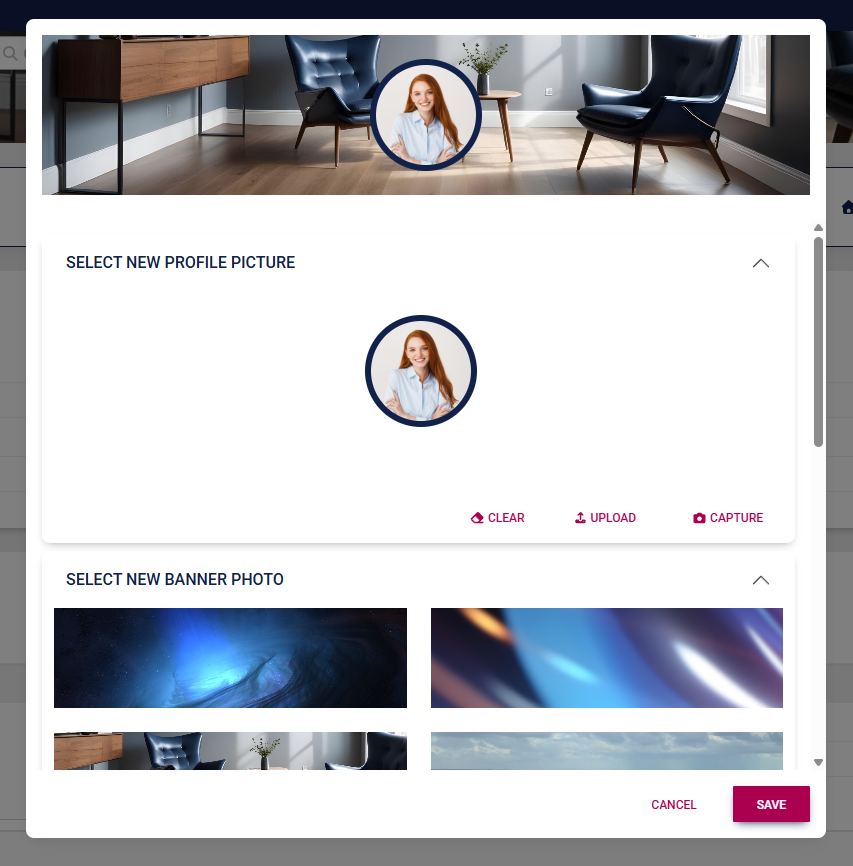
- Upload your new photo using the options provided. If enabled, you may also update your banner image. Click SAVE to update your profile, or click CANCEL to discard your edits.
For administrators: Update a user's profile
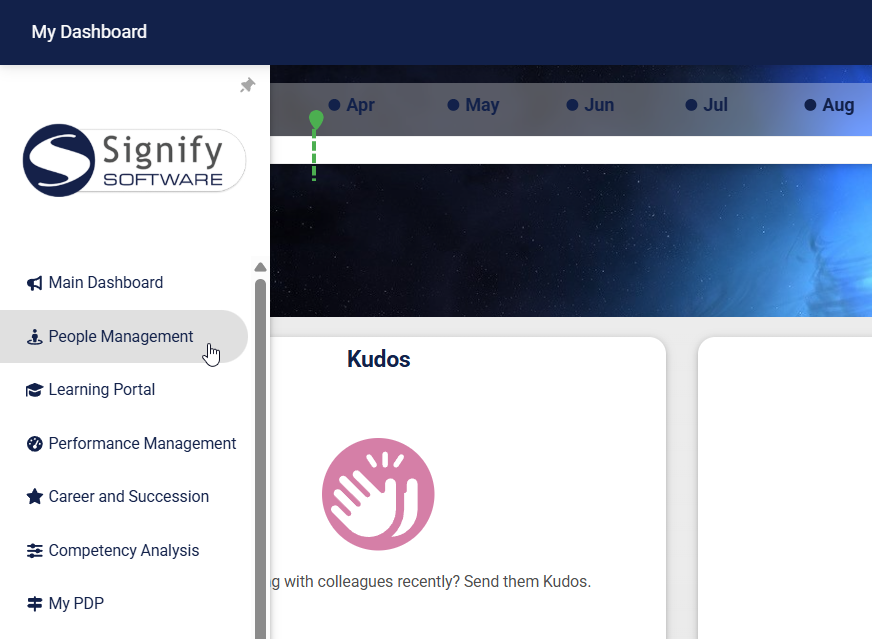
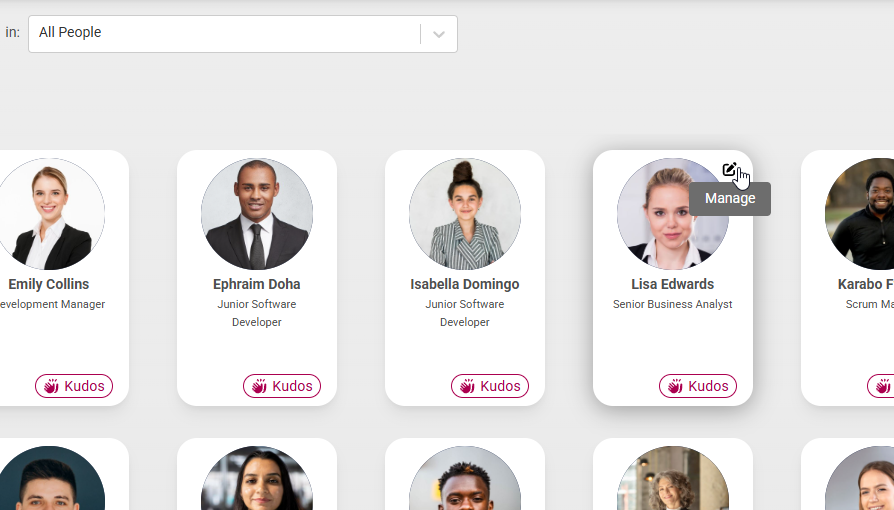
- Locate the person you would like to update, then click the pencil icon to manage their profile.
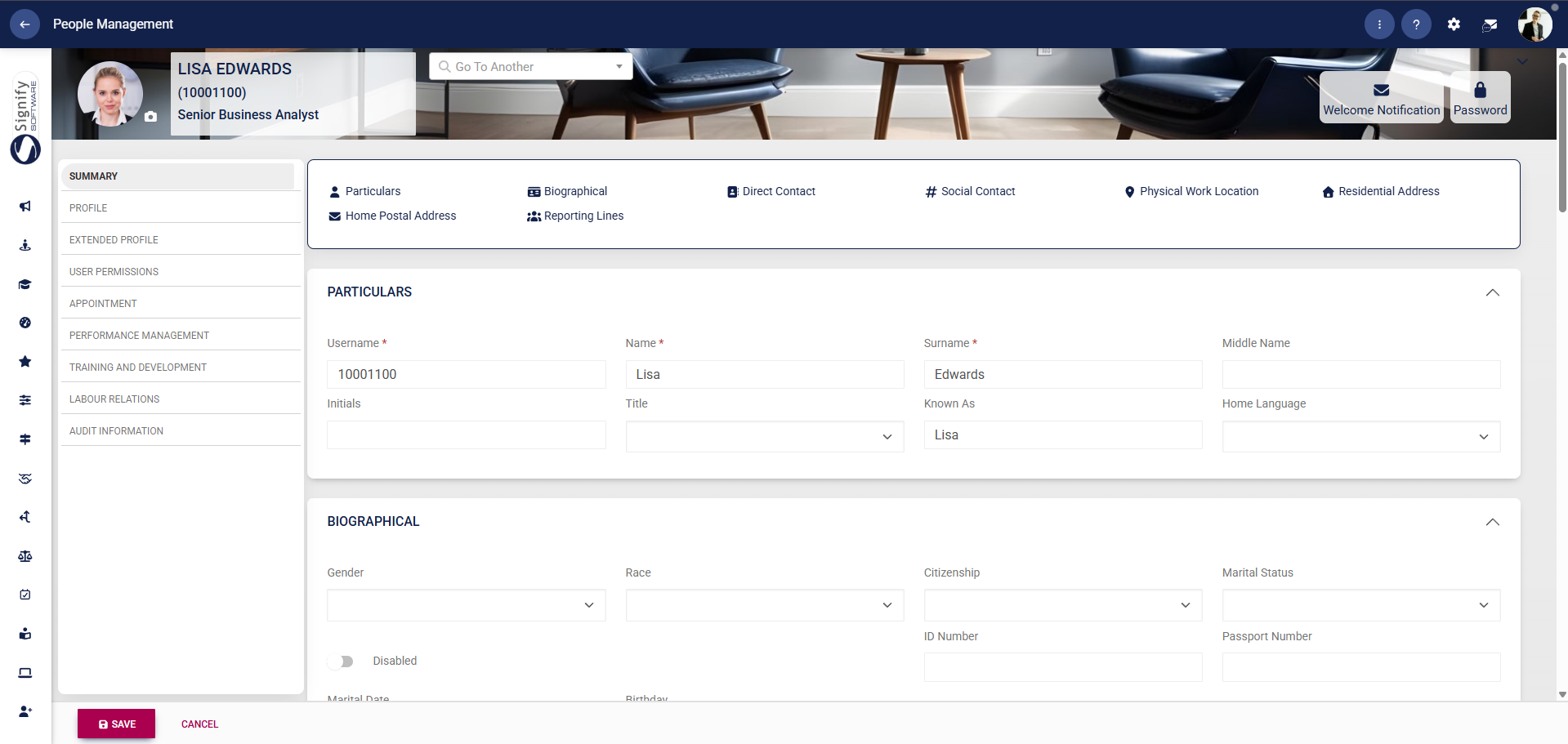
- The person's profile will open. Use the left-hand menu to navigate to the profile section you would like to update.
- Complete the person's details, then click SAVE to update the profile, or CANCEL to discard your edits.
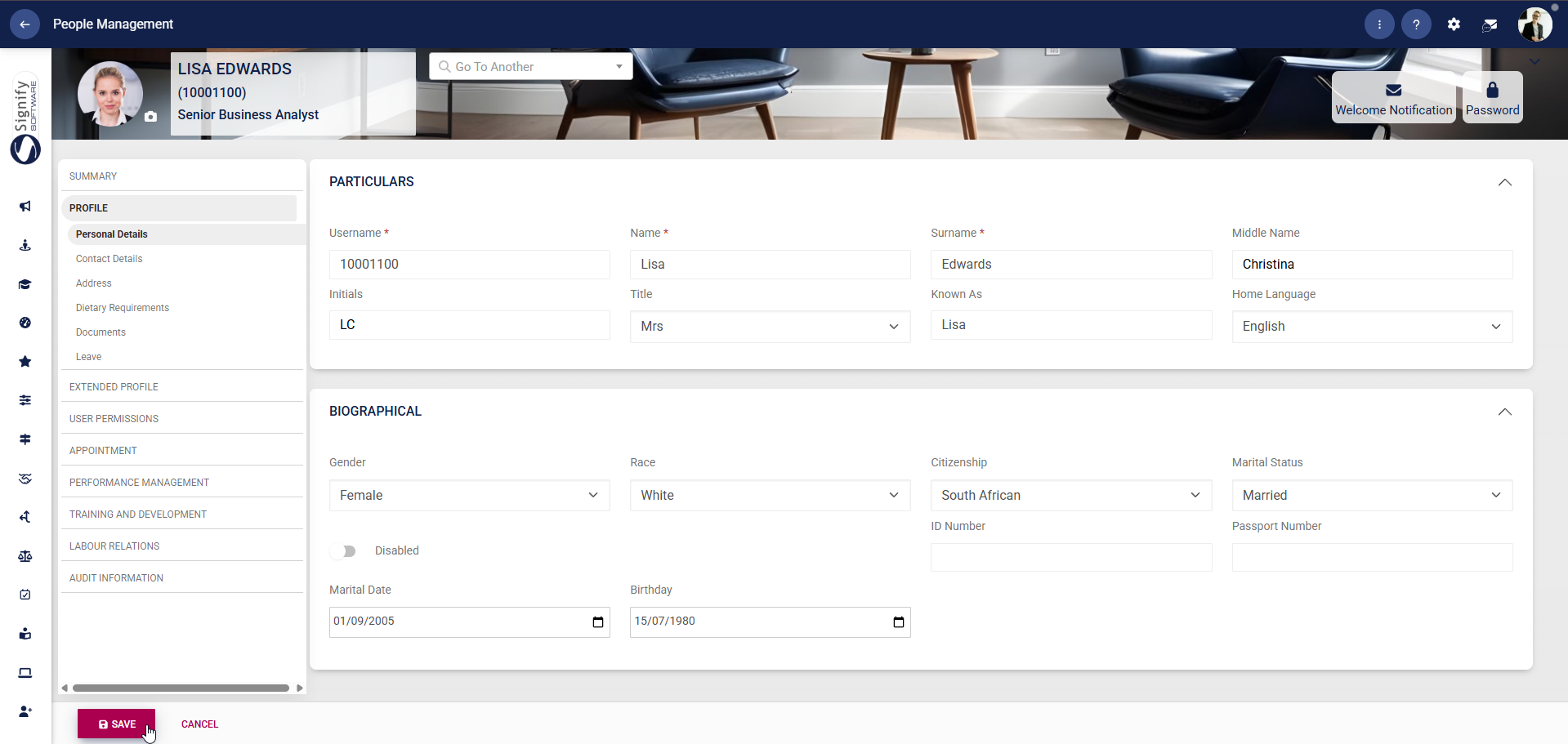
- A message will pop up to confirm that the profile's details have been updated.