
Update a Person's Profile

For users: Update your own profile
- Click on your profile icon at the top of the screen to access the main menu.
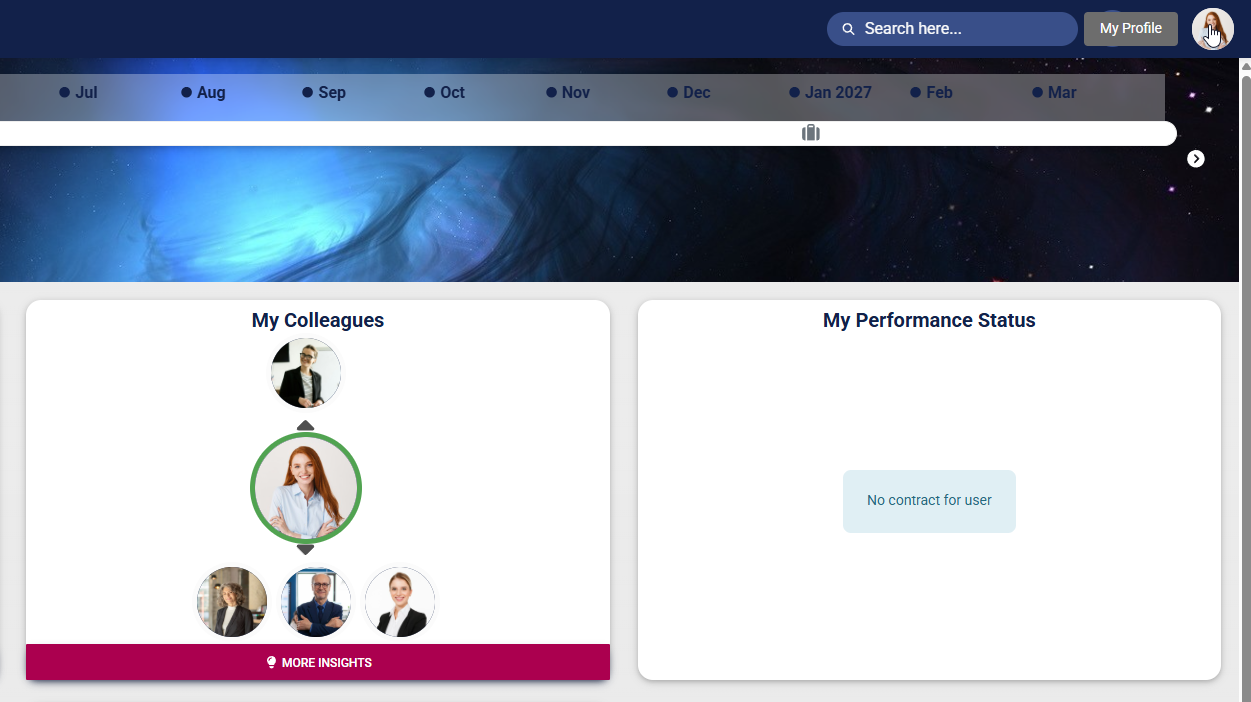
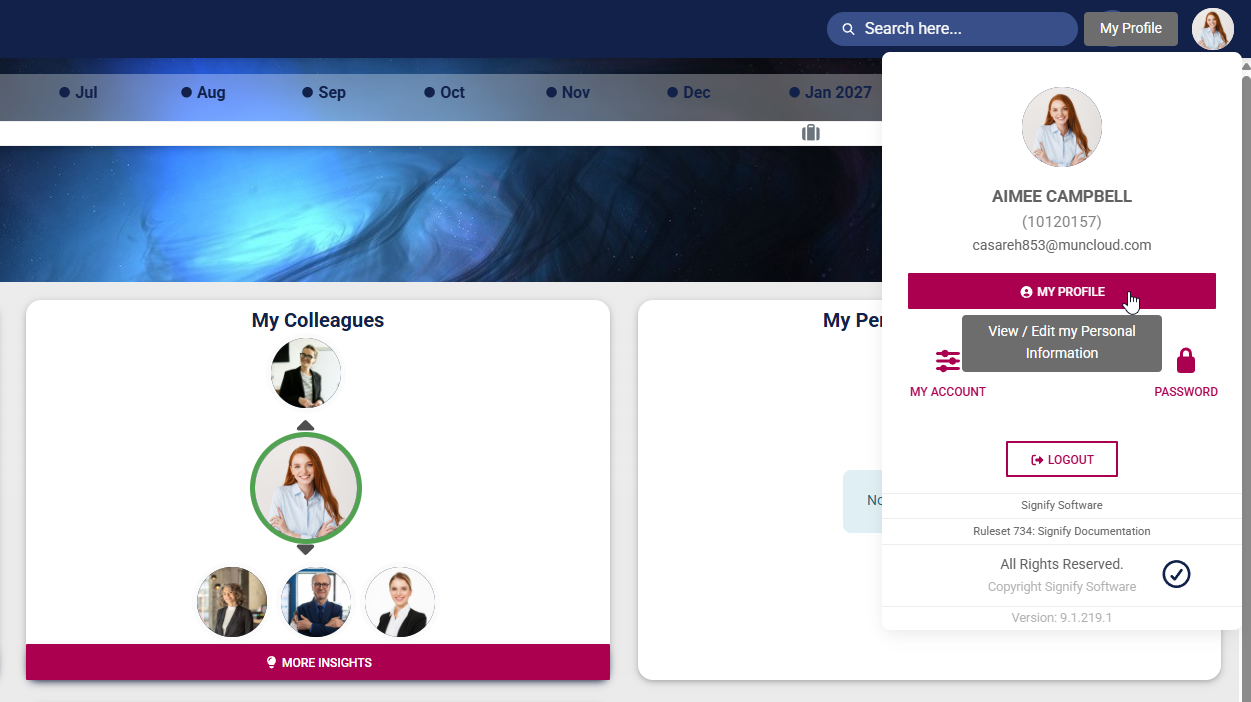
- Click MY PROFILE to view or edit your user profile.
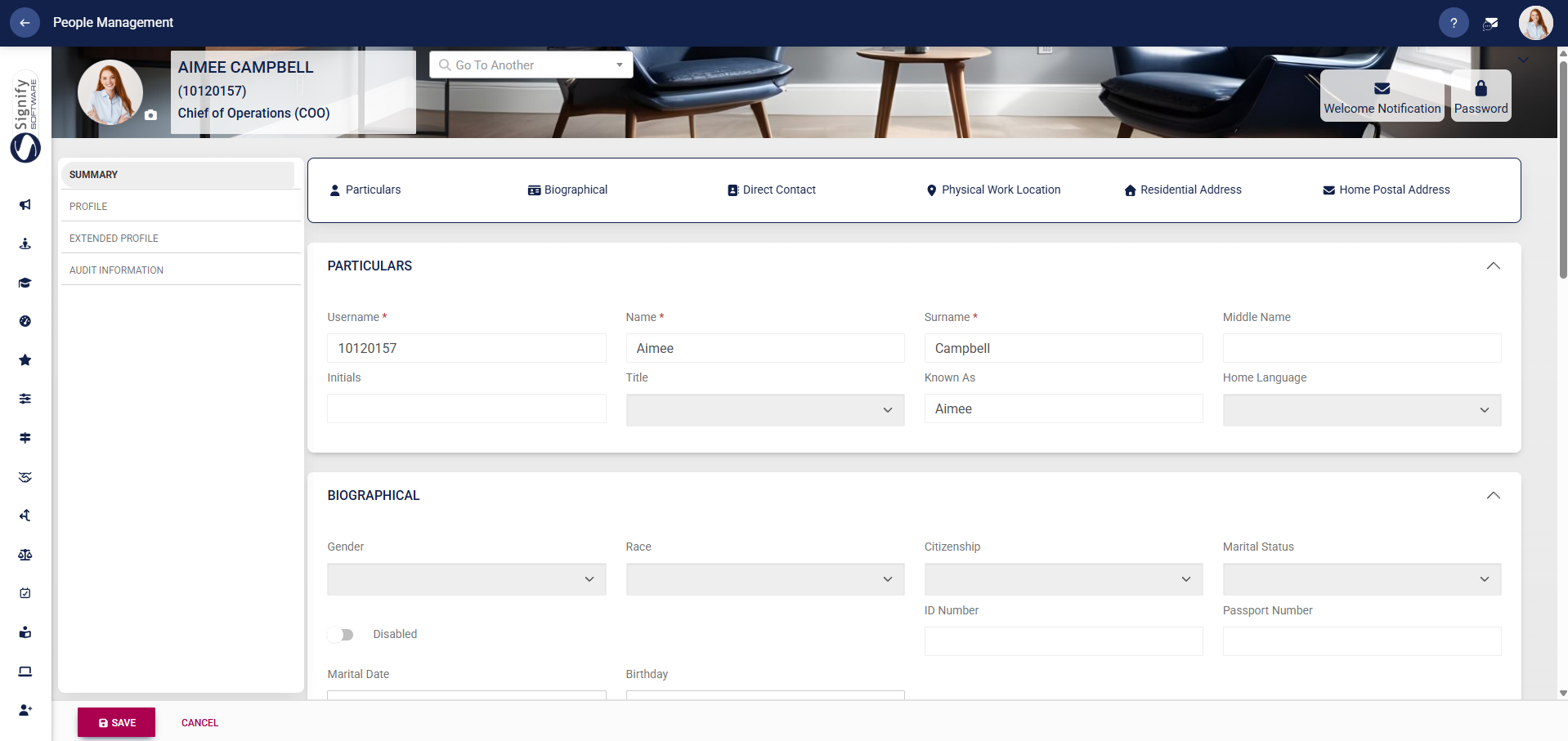
- Your profile will open. Use the left-hand menu to navigate to the profile section you would like to update. Fields that are not editable will be greyed out. Update your information as necessary, then click SAVE to update your profile, or CANCEL to discard your edits.
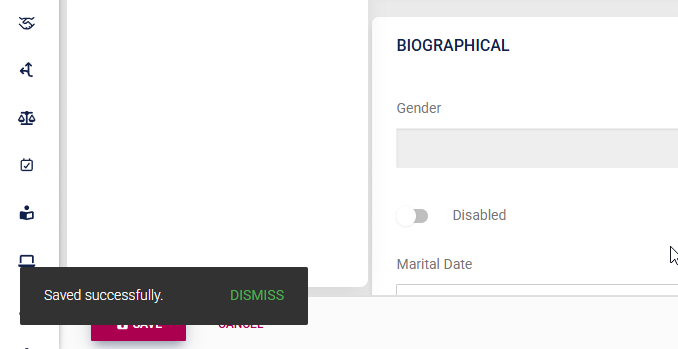
- A message will pop up to confirm that your profile's details have been updated.
- Please note that, based on your access permissions, you may not be able to view or edit some sections of your profile. If you encounter a problem, contact your system administrator to help with updating your information.
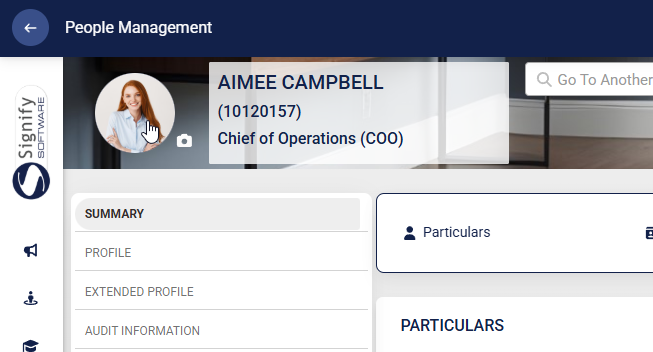
- Click on your profile picture on your profile banner to update your photo.
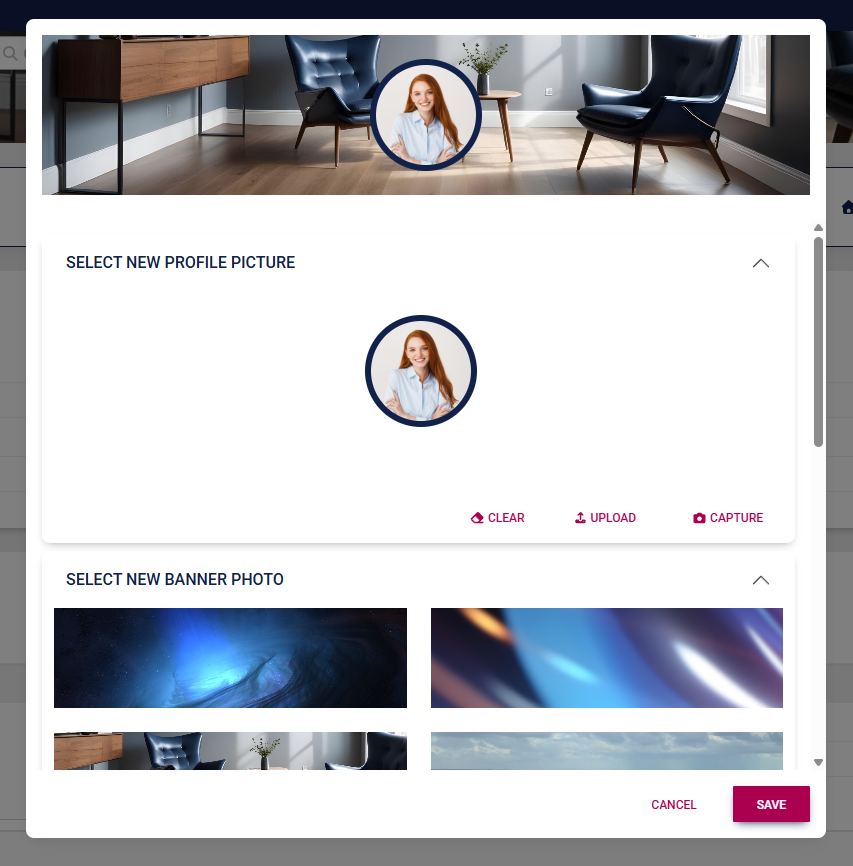
- Upload your new photo using the options provided. If enabled, you may also update your banner image. Click SAVE to update your profile, or click CANCEL to discard your edits.
For administrators: Update a user's profile
Basic people management (CORE)
Basic people management is included in the CORE module. This allows administrators to maintain sections of users' profiles, such as:
-
-
- personal details,
- contact details,
- addresses,
- dietary requirements,
- documents,
- leave, and
- reporting lines.
-
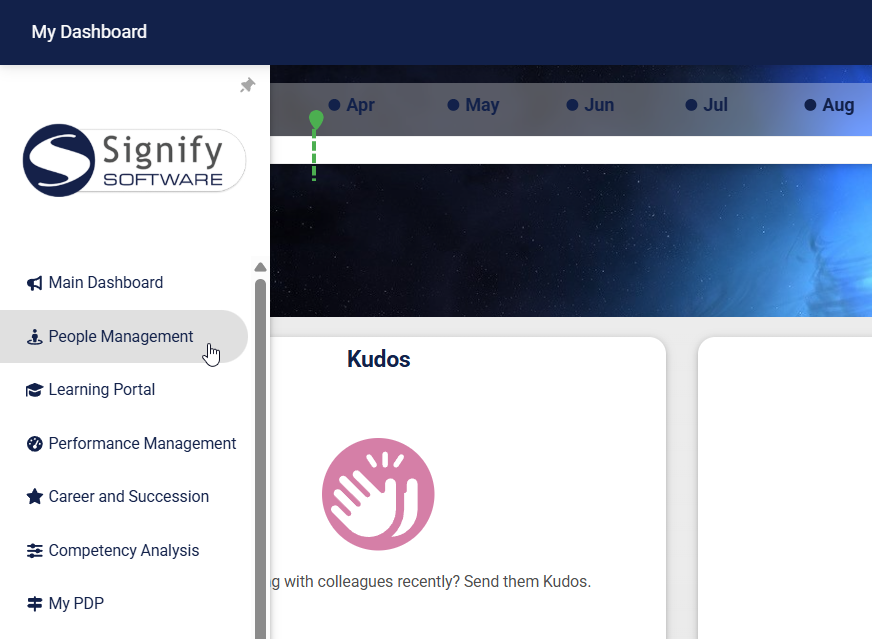
- Locate the person you would like to update, then click the pencil icon to manage their profile.
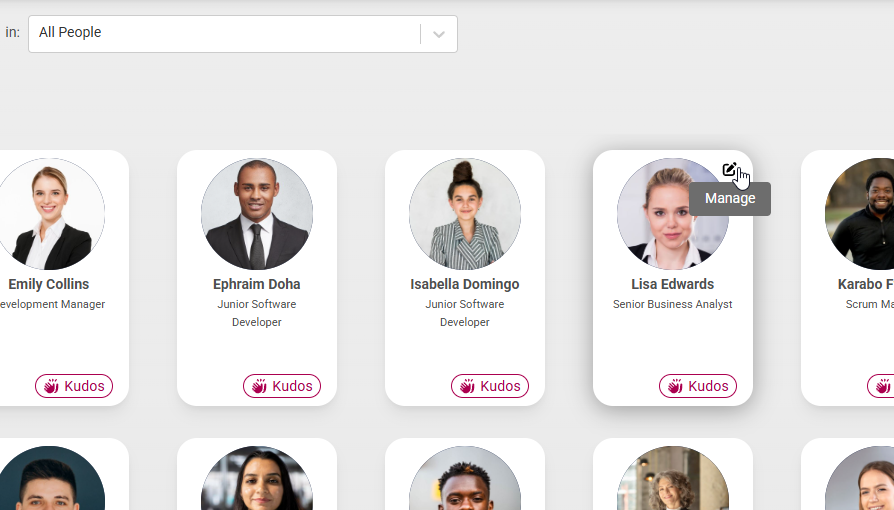
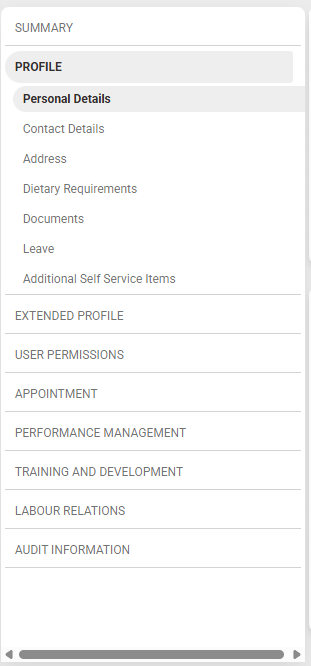
- The person's profile will open. Use the left-hand menu to navigate to the profile section you would like to update.
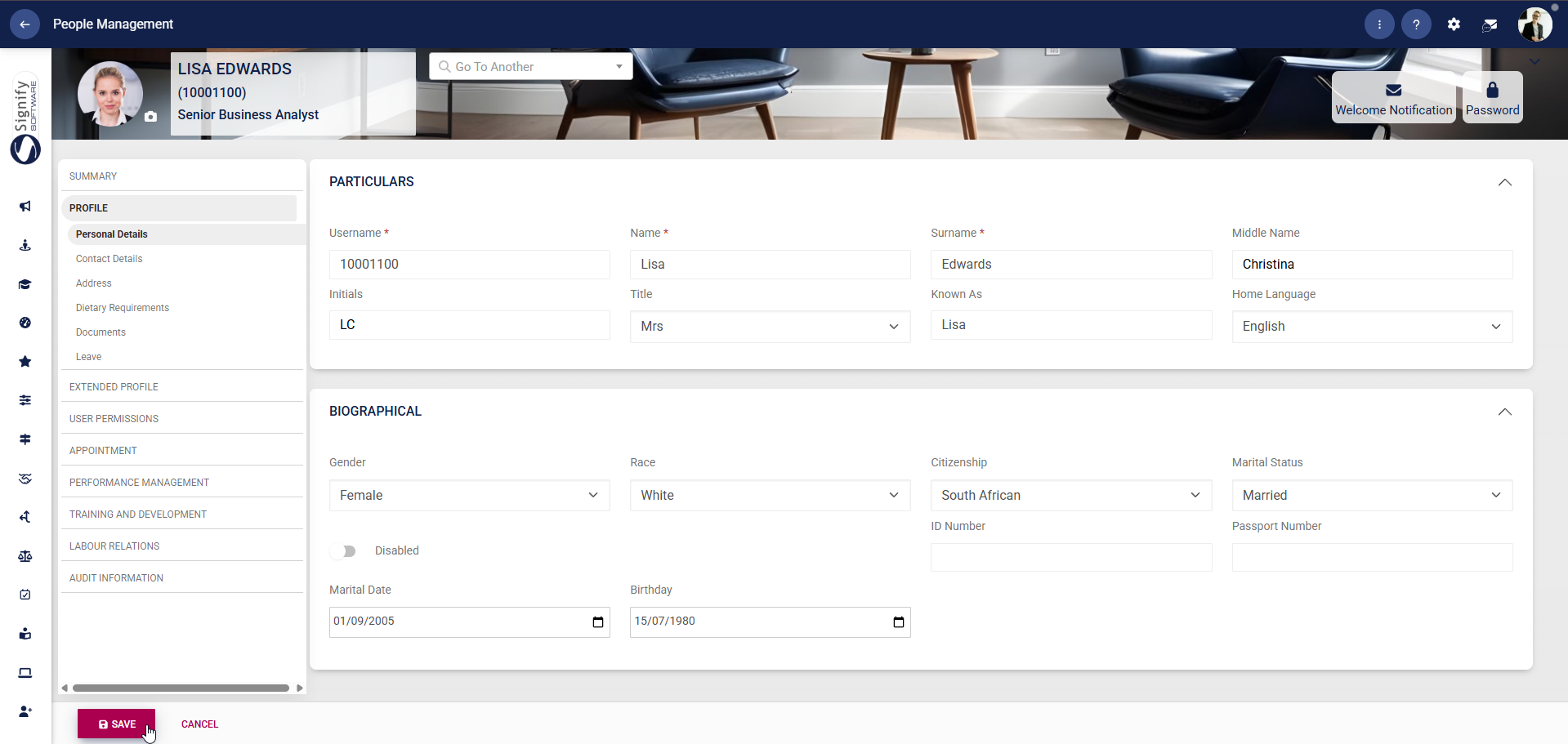
- Complete the person's details, then click SAVE to update the profile, or CANCEL to discard your edits.
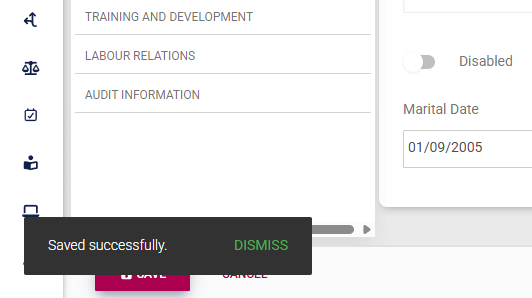
- A message will pop up to confirm that the profile's details have been updated.
Summary
Click to navigate to Summary to view a consolidated overview of the employee’s information, including personal, contact, and organisational details. Use this screen as a quick reference to update details in the following sections: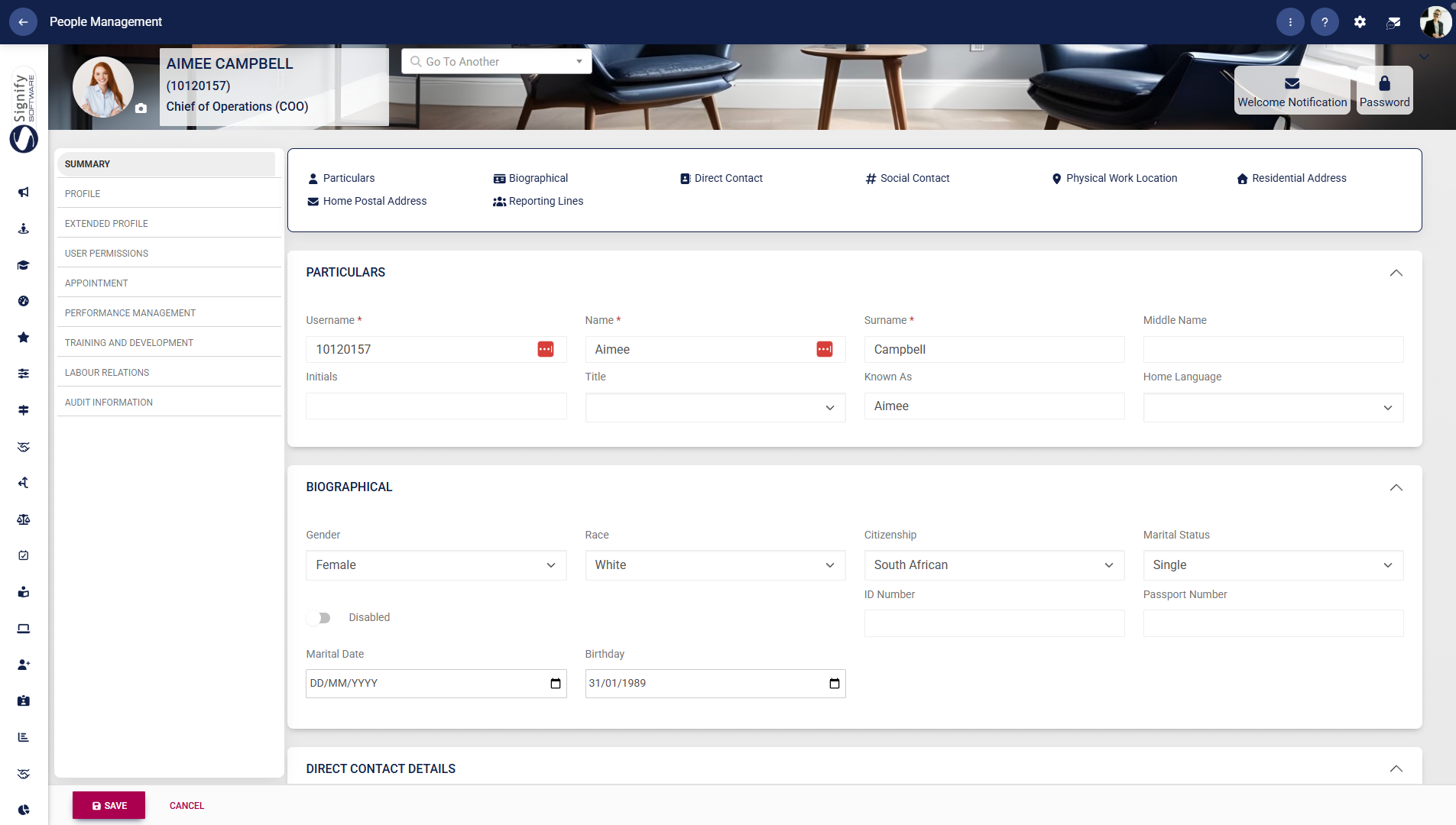
Personal details
Click to navigate to Personal Details to capture or update the employee’s core personal information. Complete the fields such as username, name, surname, title, and known as. Fields marked with a red asterisk (*) are compulsory. Provide additional biographical details, including gender, citizenship, marital status, and date of birth. Click SAVE to store changes or CANCEL to discard them.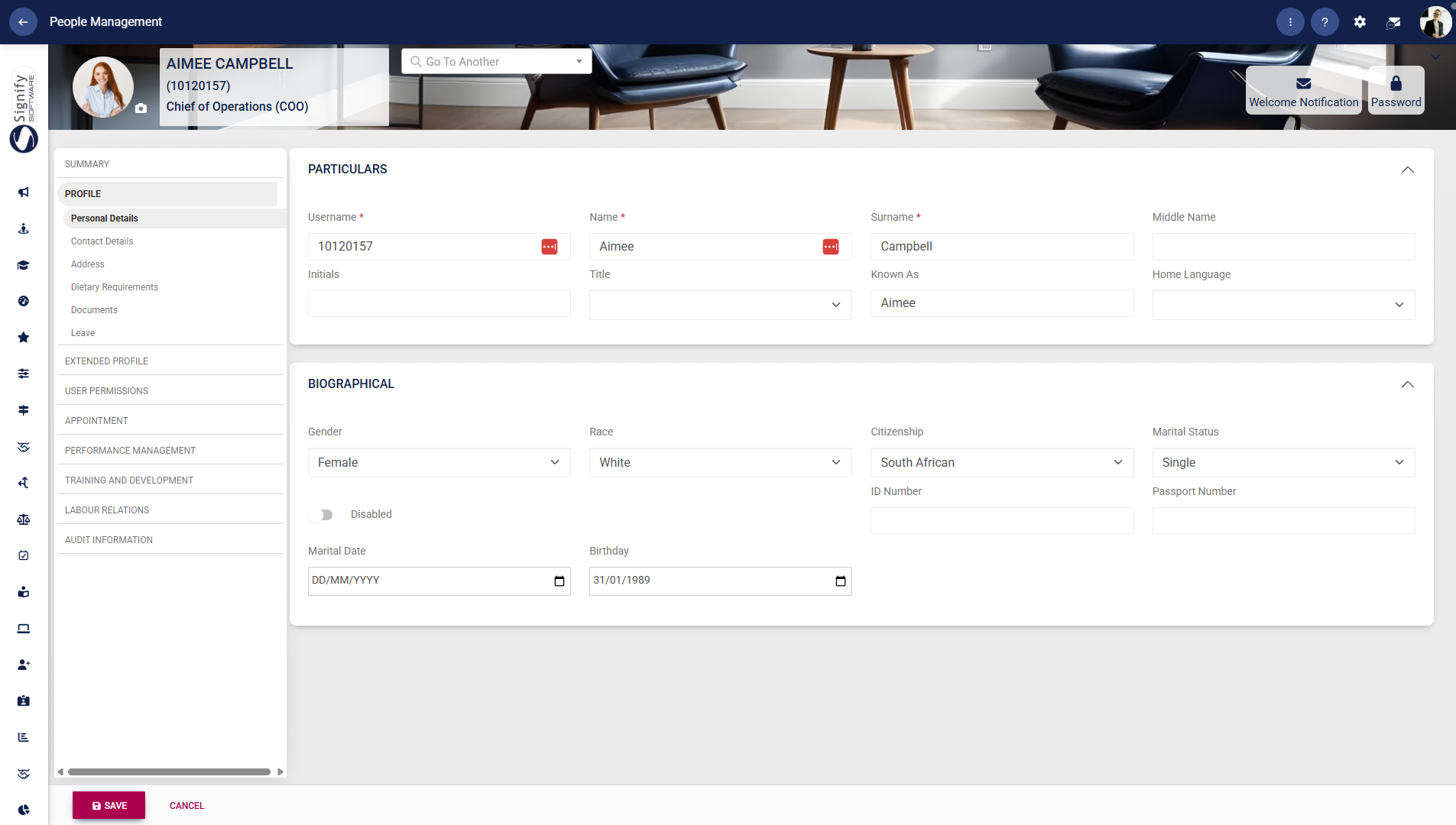
Contact details
Click to navigate to Contact Details to manage the employee’s communication information. Enter or update phone numbers and email addresses under Direct Contact. Capture social media or platform-related details under Social Contact, where applicable. Click SAVE to apply changes or CANCEL to discard them.Address
Click to navigate to Address to manage the employee’s location information. Select the Physical Work Location and complete the associated address fields where required. Review or populate the Business Address, which is linked to the organisational unit. Enter the Residential Address, including suburb, city, province, country, and postal code. Click SAVE to confirm or CANCEL to discard changes.Dietary requirements
Click to navigate to Dietary Requirements to record the employee’s dietary preferences or restrictions. Click ADD to capture a new dietary requirement. Select and define the relevant dietary information as required. Use DELETE to remove an existing entry, if necessary.Documents
Click to navigate to Documents to manage employee-related documentation. Upload required documents by clicking UPLOAD. Review document status, where a tick indicates uploaded and a cross indicates outstanding. Use the sections for Additional Documents, Documents You Received, and Recycle Bin to organise and manage files. Click CANCEL if you do not wish to proceed with uploads.Leave
Click to navigate to Leave to configure the employee’s leave settings. Enter the Leave Group Start Date and assign the appropriate Leave Group and Work Schedule. Ensure the employee is linked correctly, as leave cannot be booked without these configurations. Click CONTINUE to proceed with further leave configuration.Additional Self-Service Items
Extended people management (Extended CORE)
The Extended CORE module includes extended people management, enabling administrators to access advanced tools to support and oversee user management.
- Click on EXTENDED PROFILE to access the Extended CORE module’s advanced people management features.
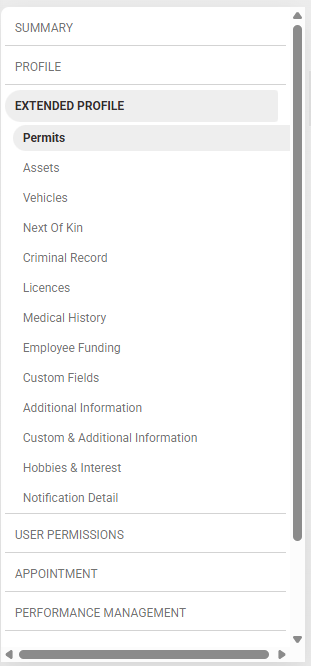
Permits
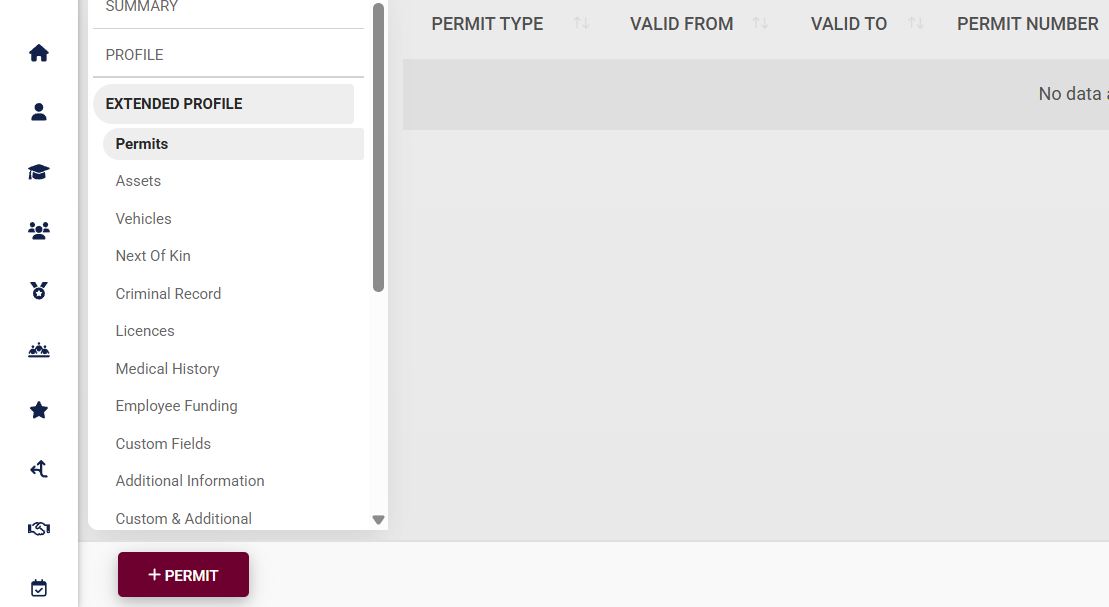
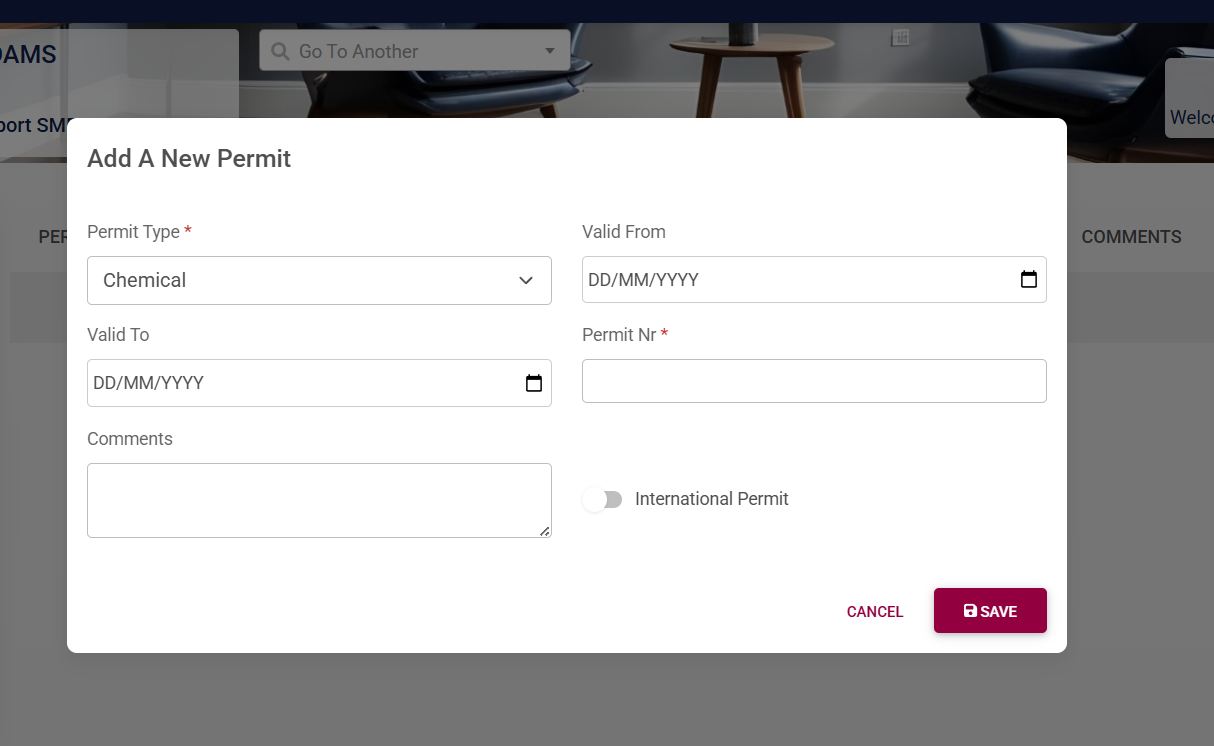
- Fill in the permit information, including the permit type, number, and validity. Please note that the fields marked with a red asterisk (*) are compulsory.
-
- The permit type forms part of the master data. To configure this, please see the Master Data Maintenance section later in this chapter.
-
- Click SAVE when you are finished or click CANCEL to discard your edits.
Assets
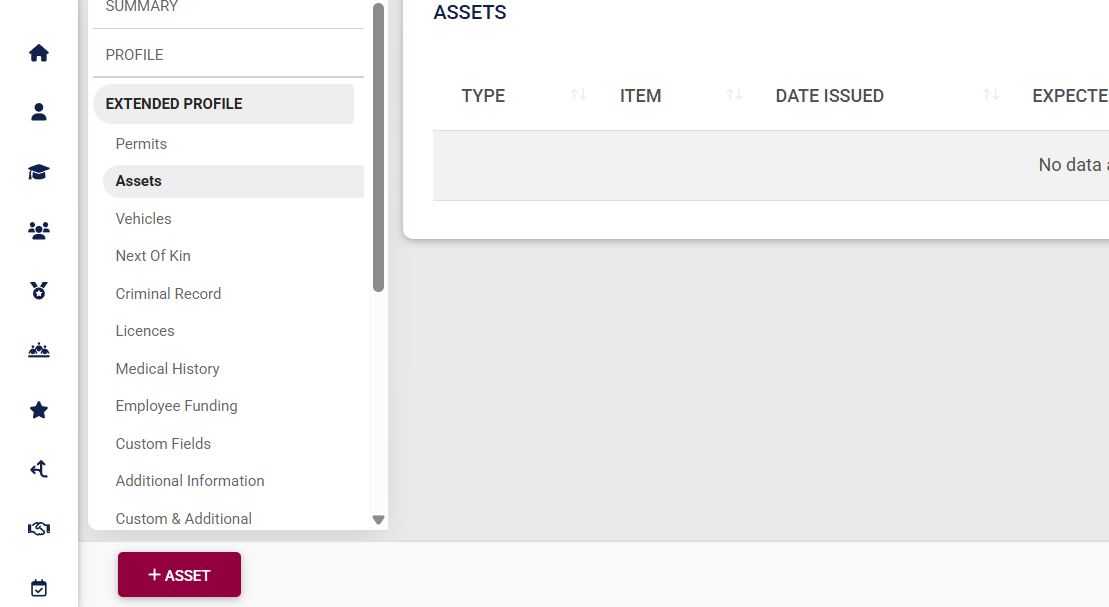
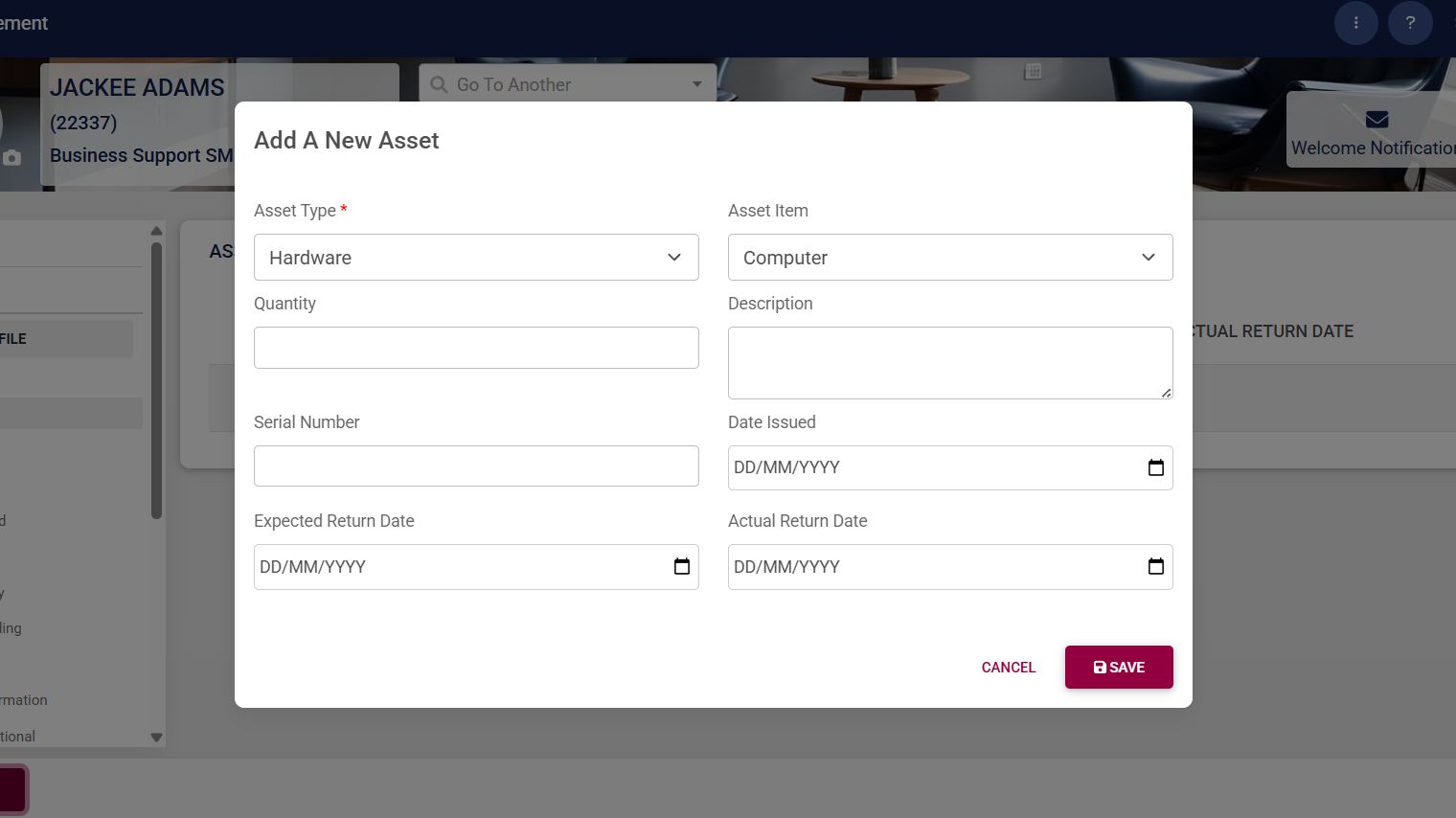
- Fill in the asset information, such as the:
-
- Asset type
- Asset item
- Quantity
- Description
- Serial number
- Issued date
- Expected return date
- Actual return date
-
- Please note that the fields marked with a red asterisk (*) are compulsory.
-
- The asset item and asset type form part of the master data. To configure this, please see the Master Data Maintenance section later in this chapter.
-
- Click SAVE when you are finished or click CANCEL to discard your edits.
Vehicles
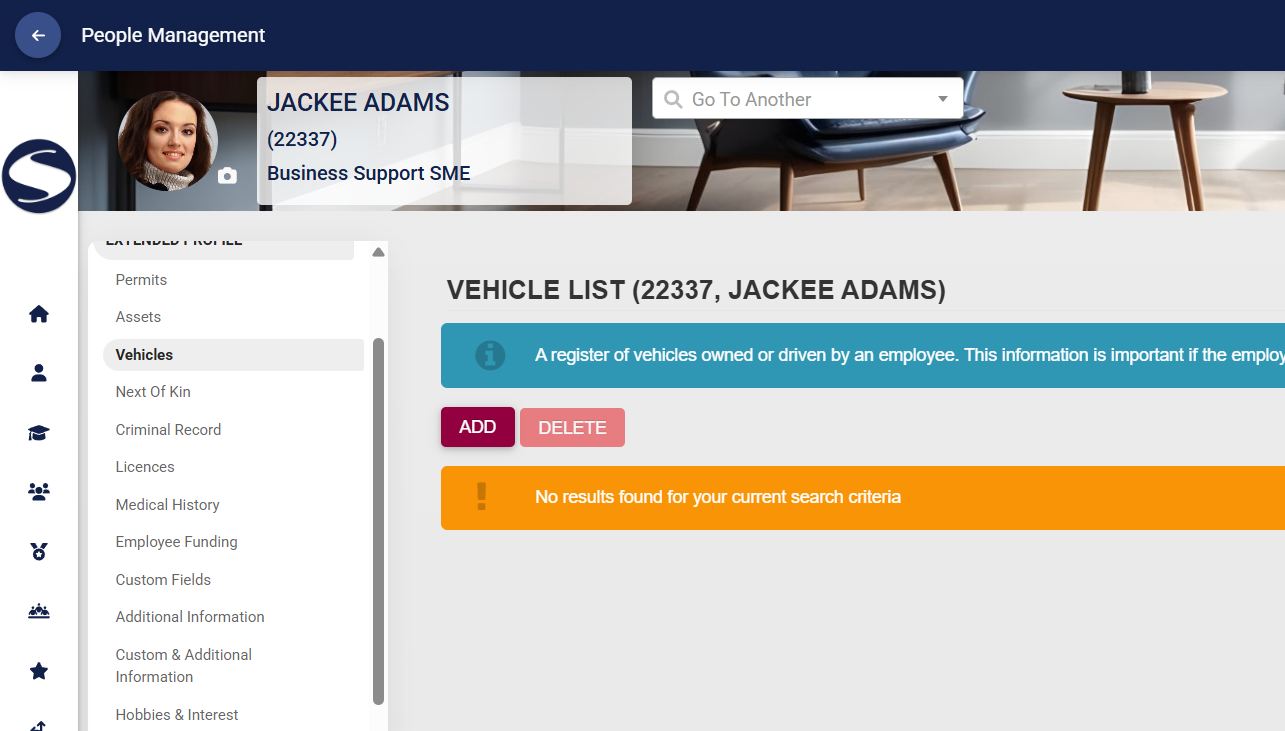
- If the employee is to bring vehicles onto the premises, the vehicle information can be captured by clicking Vehicles, then ADD.
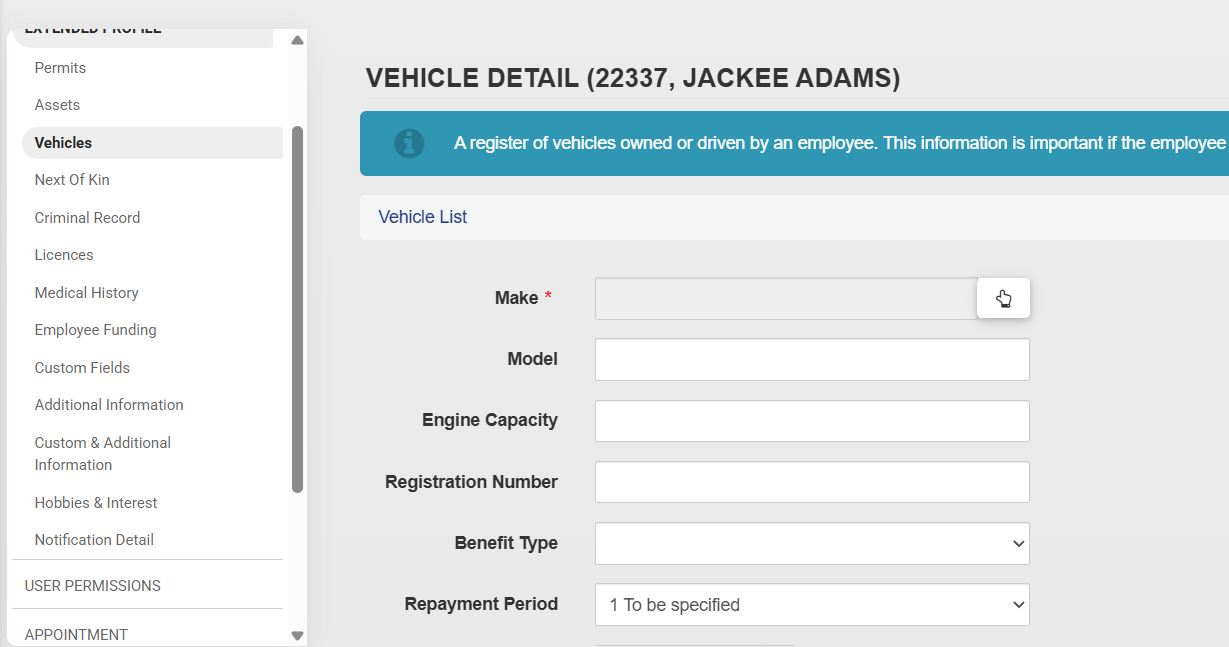
- Fill in the vehicle’s information, such as the make, model, registration number, manufacture year, benefit type, and other useful information. Please note that the fields marked with a red asterisk (*) are compulsory.
- Click SAVE when you are finished, SAVE ADD NEW to add another vehicle, or click BACK TO LIST to discard your edits.
Next of Kin
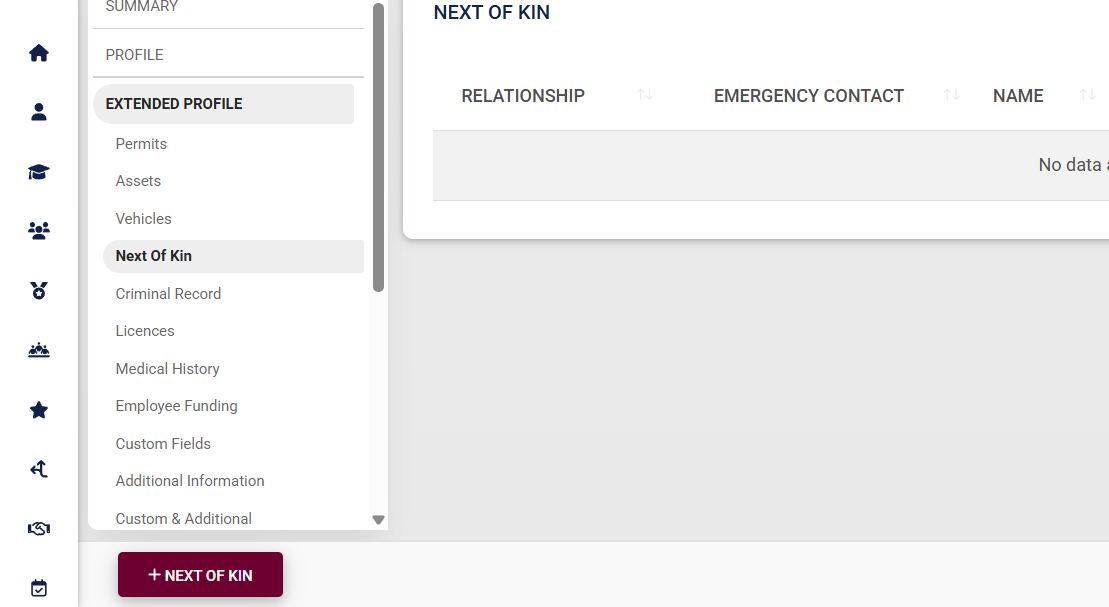
- To capture the person’s emergency contacts or dependents’ information, click Next of Kin and then click +NEXT OF KIN.
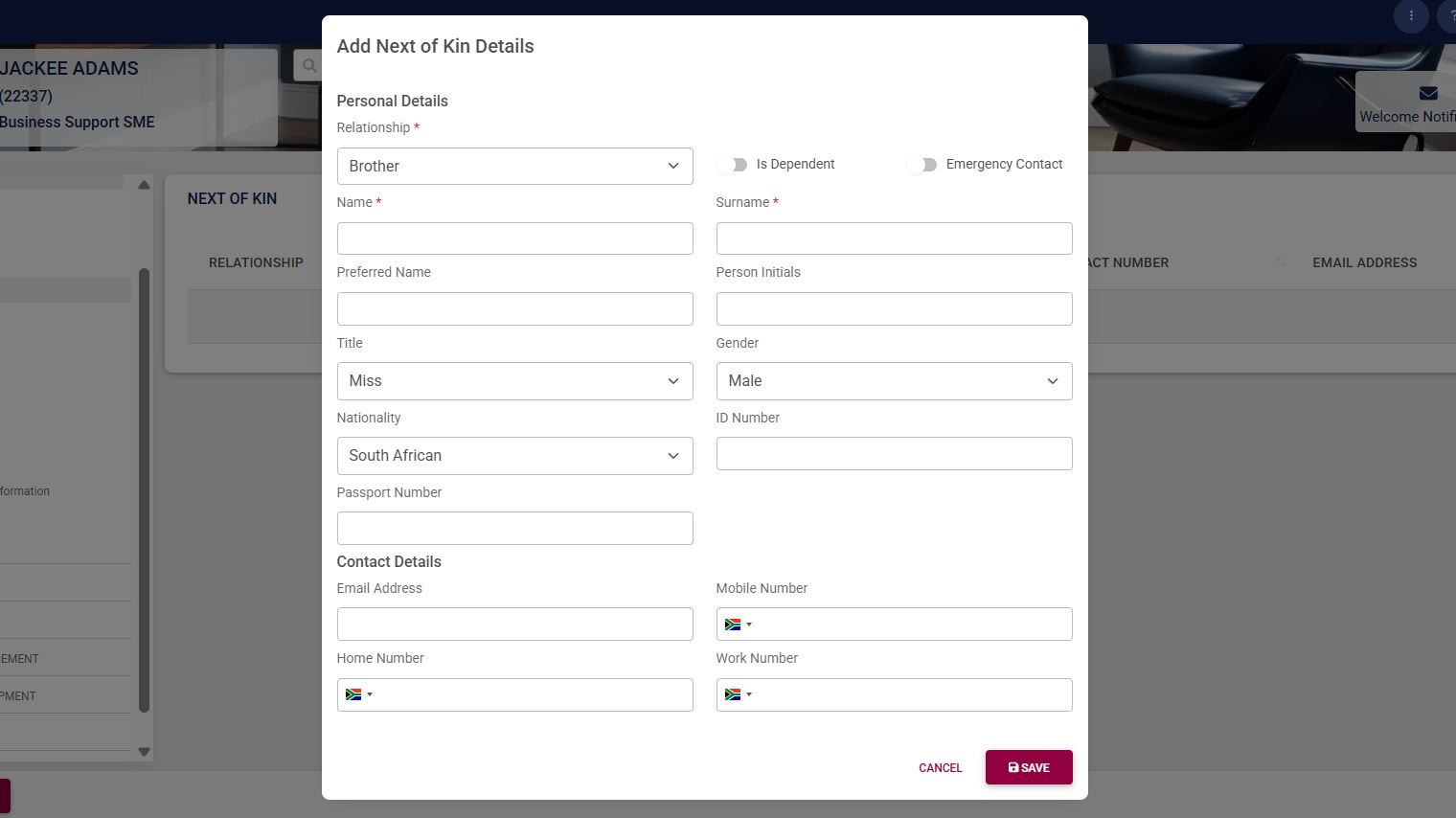
- Use the form to capture the next of kin’s contact information. Please note that the fields marked with a red asterisk (*) are compulsory.
-
- The relationship type forms part of the master data. To configure this, please see the Master Data Maintenance section later in this chapter.
-
- Click SAVE when you are finished or click CANCEL to discard your edits.
Criminal Record
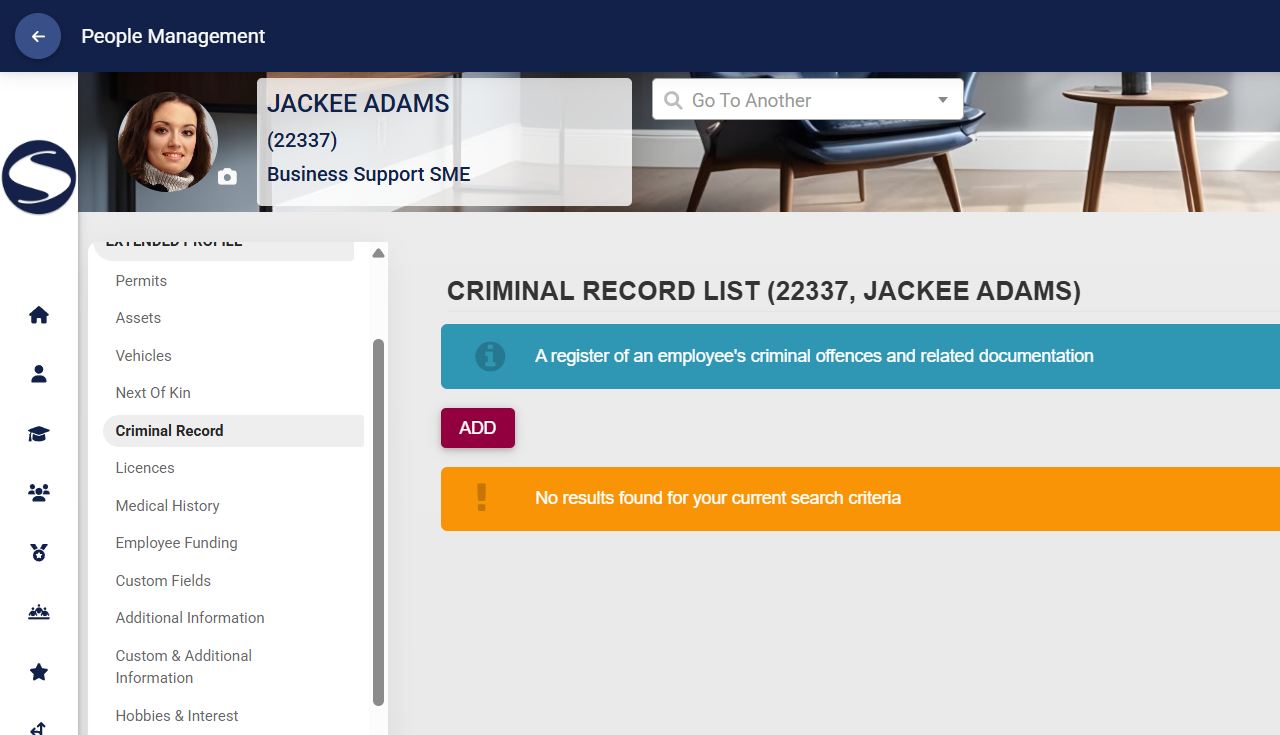
- If the employee has a criminal record, the information can be documented by clicking Criminal Record, then ADD.
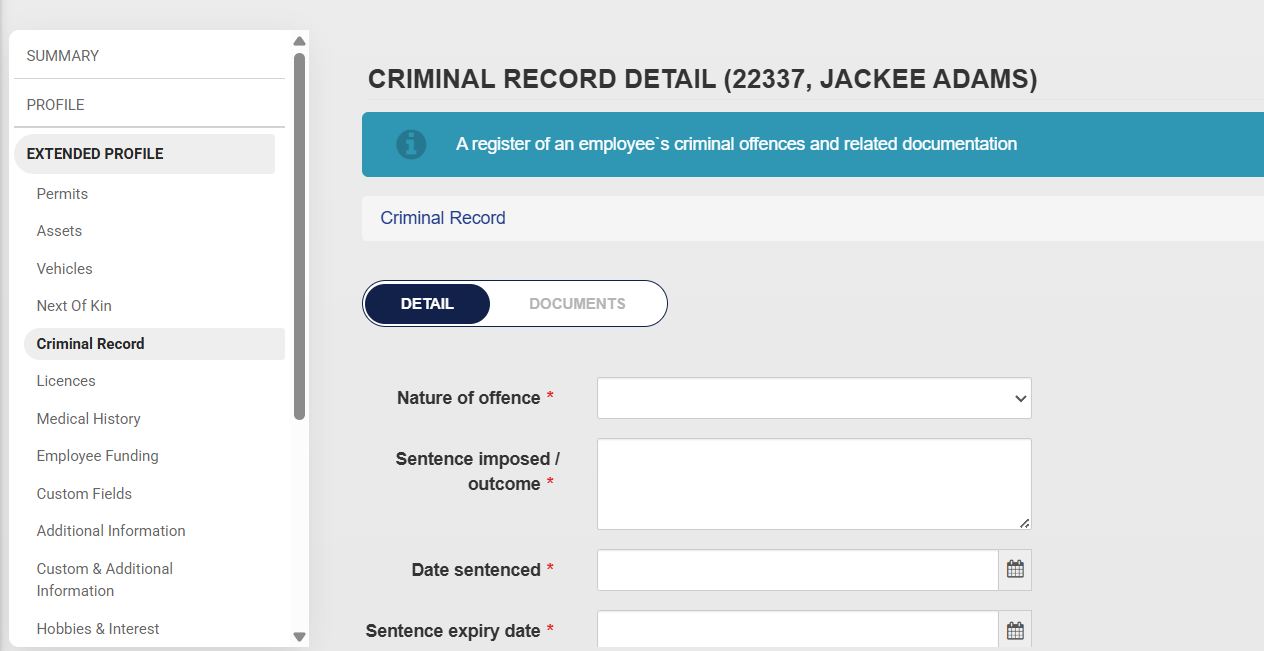
- Capture the employee’s criminal record details, such as:
-
- Nature of the offence
- Sentence imposed
- Sentencing date
- Sentence expiry date
- Case number
- Police station where the case was registered
- Court name
-
- Please note that the fields marked with a red asterisk (*) are compulsory.
-
- The nature of the offence forms part of the master data. To configure this, please see the Master Data Maintenance section later in this chapter.
-
- Click SAVE when you are finished, SAVE ADD NEW to add another record entry, or click BACK TO LIST to discard your edits.
Licences
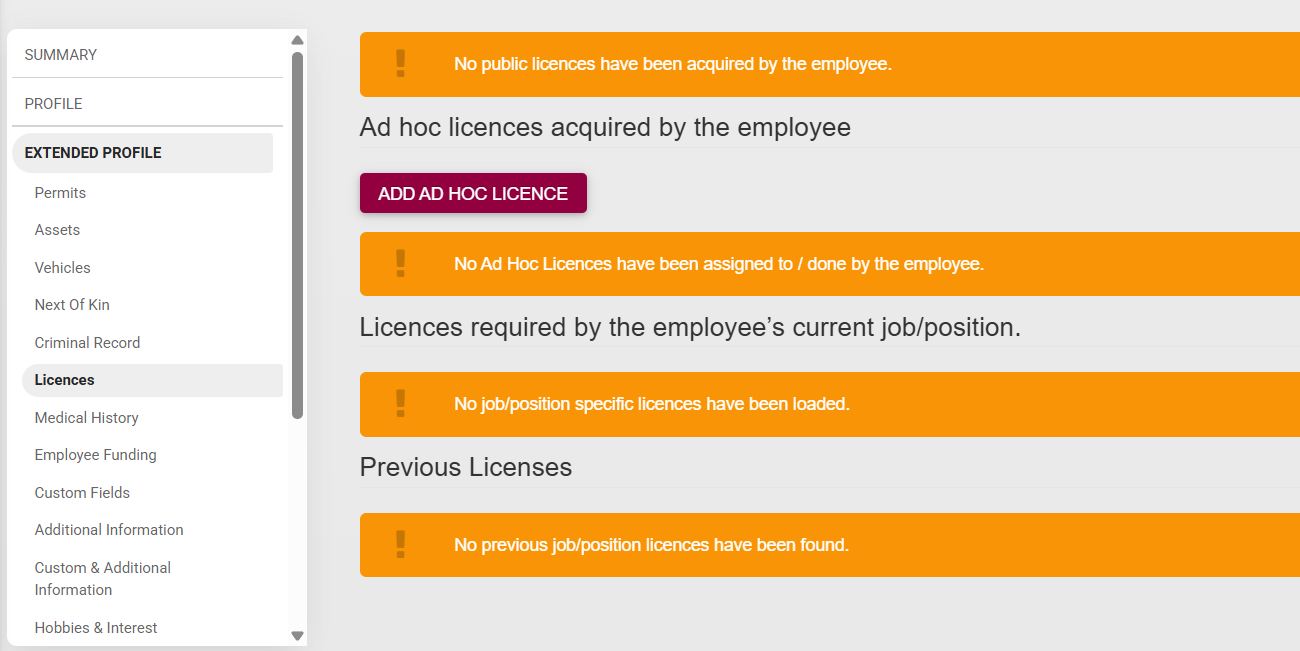
- A list of licences required for the employee’s position, as well as any other licences the employee holds, can be documented by clicking Licences. To add a new licence, click Add Ad Hoc Licence.
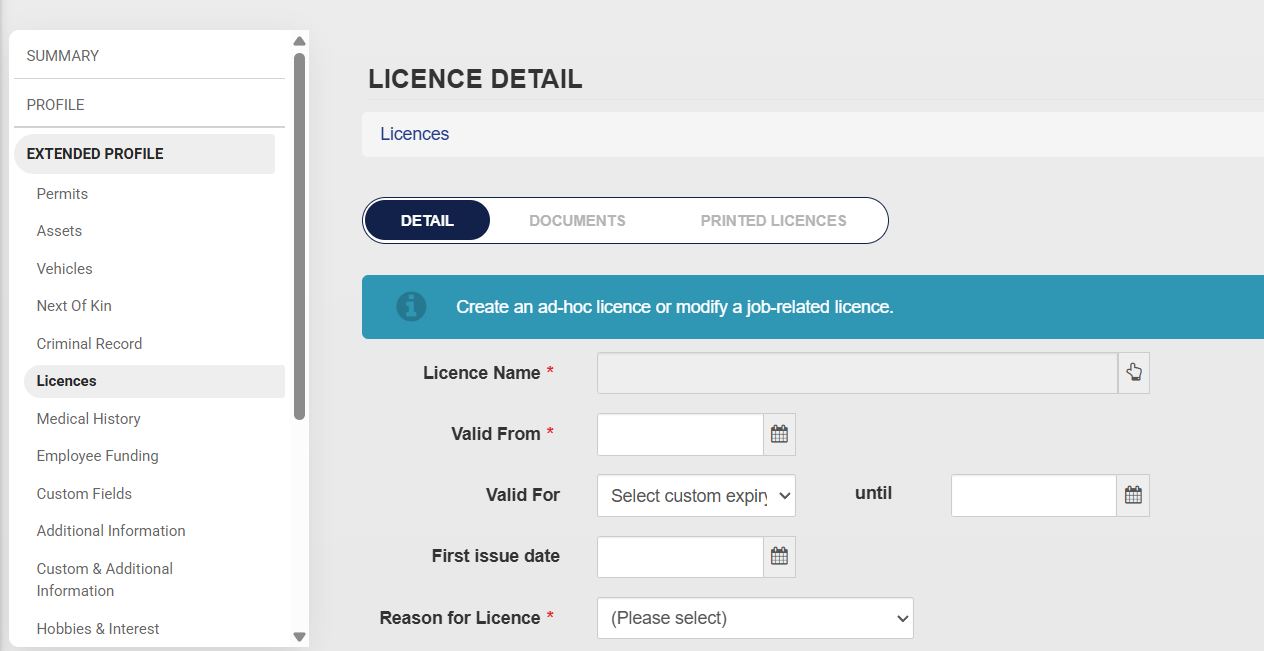
- Complete the licence detail form. Please note that the fields marked with a red asterisk (*) are compulsory.
-
- Some of the licence detail fields can be set up in the master data. To configure this, please see the Master Data Maintenance section later in this chapter.
-
- Click SAVE when you are finished or click BACK to discard your edits.
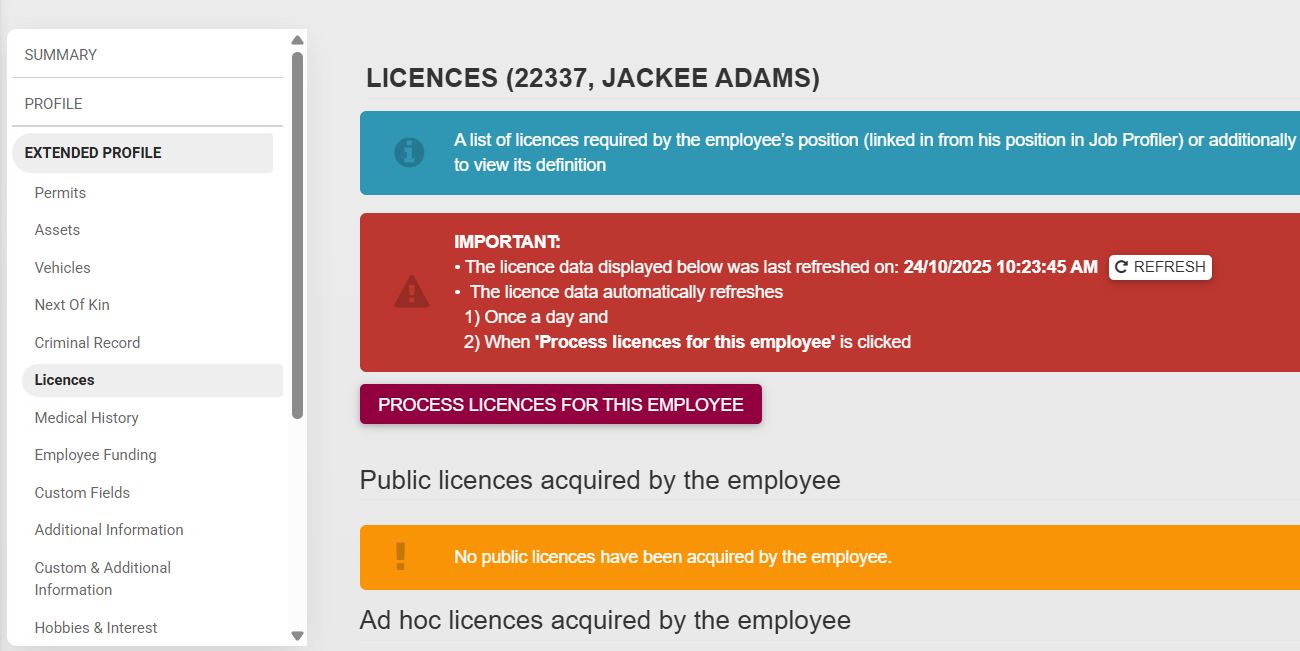
- The licence data can be refreshed by clicking on Process Licences for this Employee.
Medical History
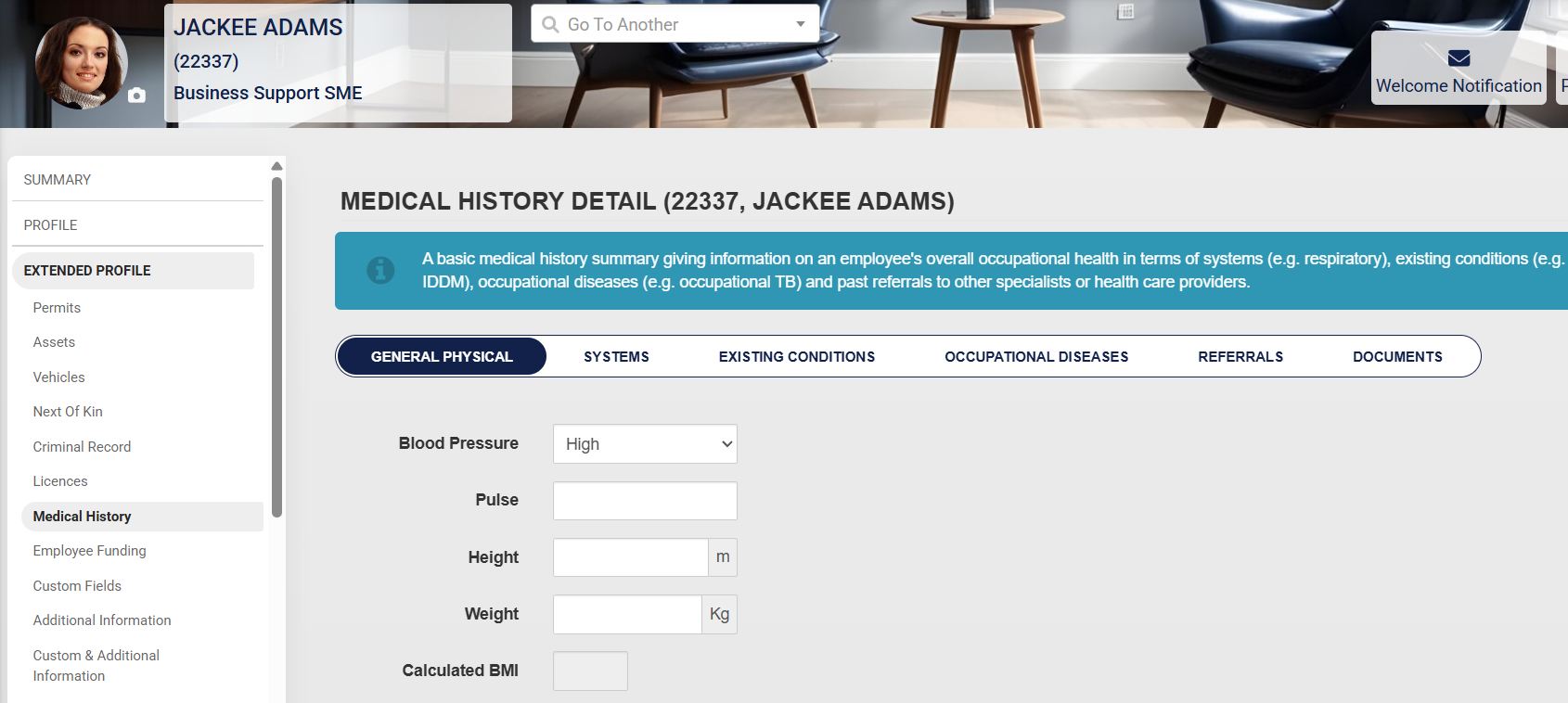
- The employee’s medical history can be documented by clicking on Medical History.
- Capture the relevant details of the employee’s medical history, such as:
-
- General physical health
- Systems’ health
- Existing medical conditions
- Occupational diseases
- Past referrals to other specialists
- Important medical history documents
-
- Some of the medical history fields can be set up in the master data. To configure this, please see the Master Data Maintenance section later in this chapter.
Employee Funding
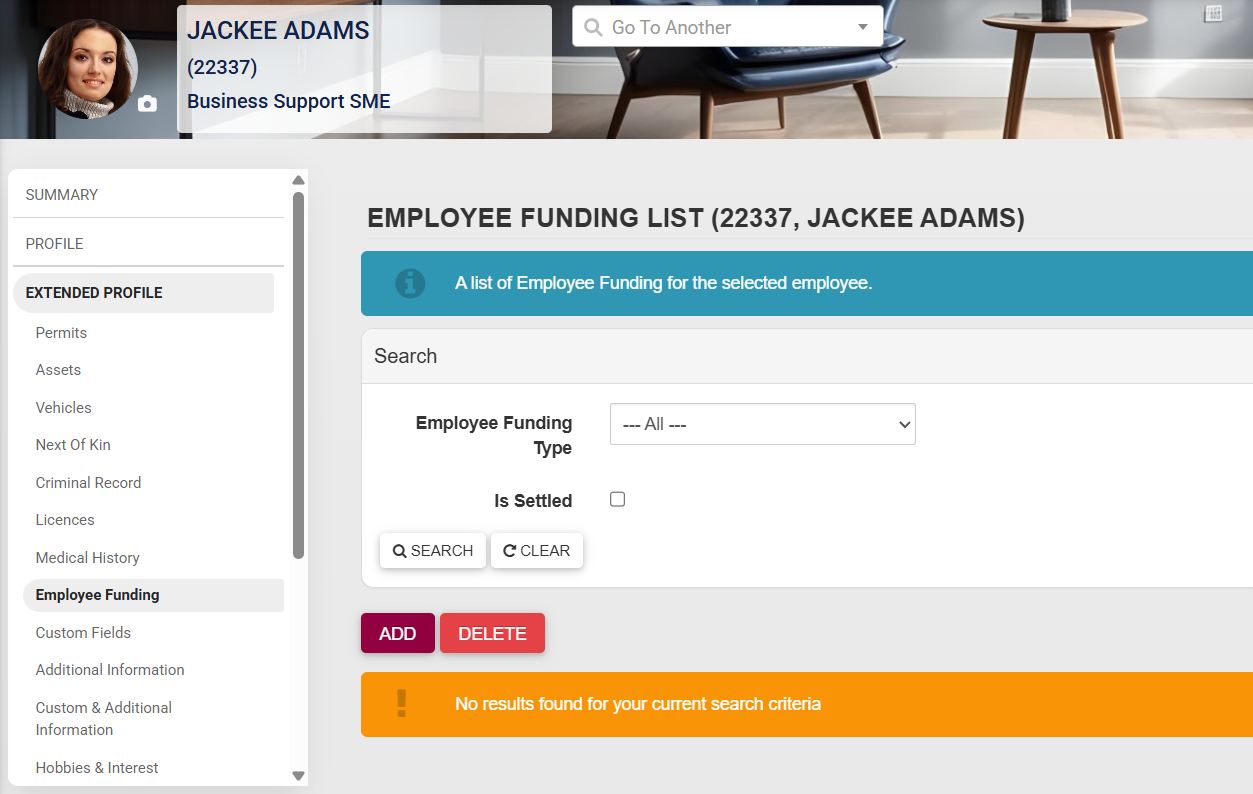
- Employee funding, such as a bursary or an employee personal loan, can be documented by clicking on Employee Funding and then clicking on ADD.
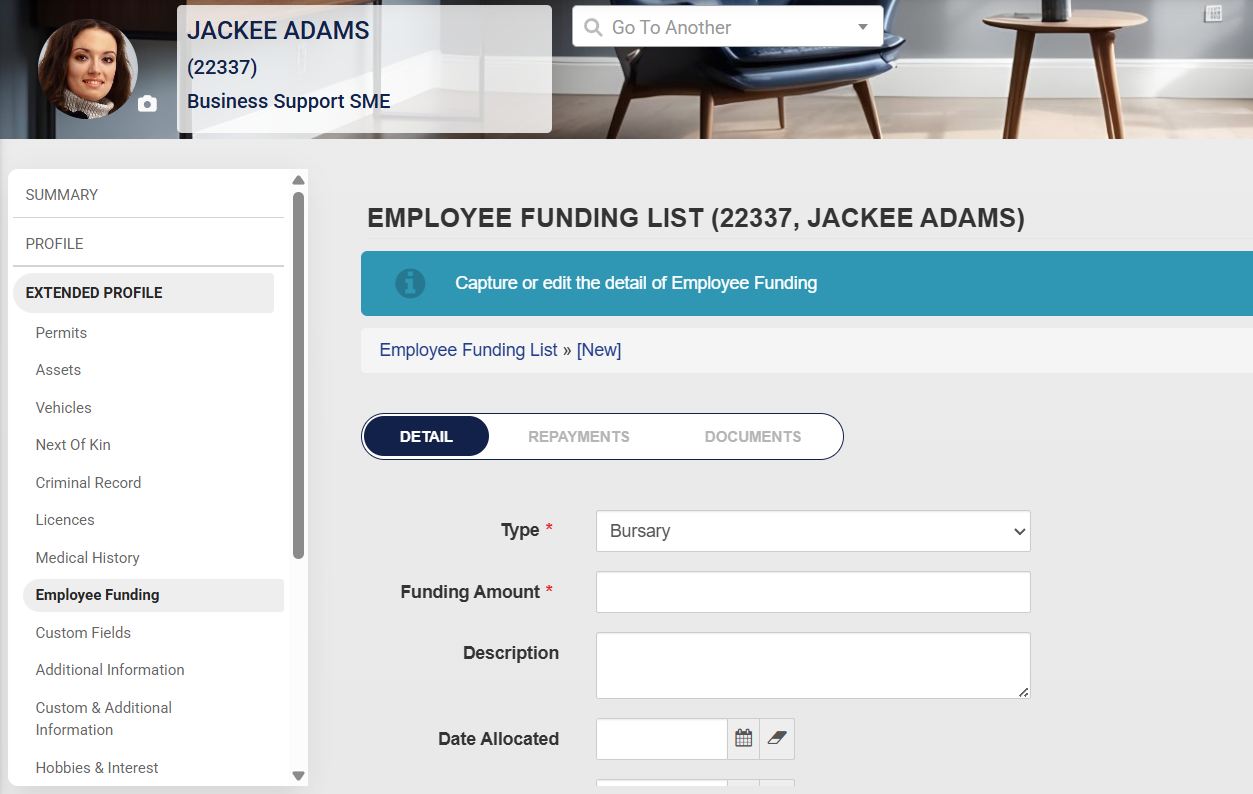
- Details of the employee’s funding can be captured by filling in the form. Please note that the fields marked with a red asterisk (*) are compulsory.
-
- Some of the employee funding fields can be set up in the master data. To configure this, please see the Master Data Maintenance section later in this chapter.
-
- Click SAVE when you are finished, SAVE ADD NEW to add another record entry, or click BACK to discard your edits.
Custom and Additional Fields
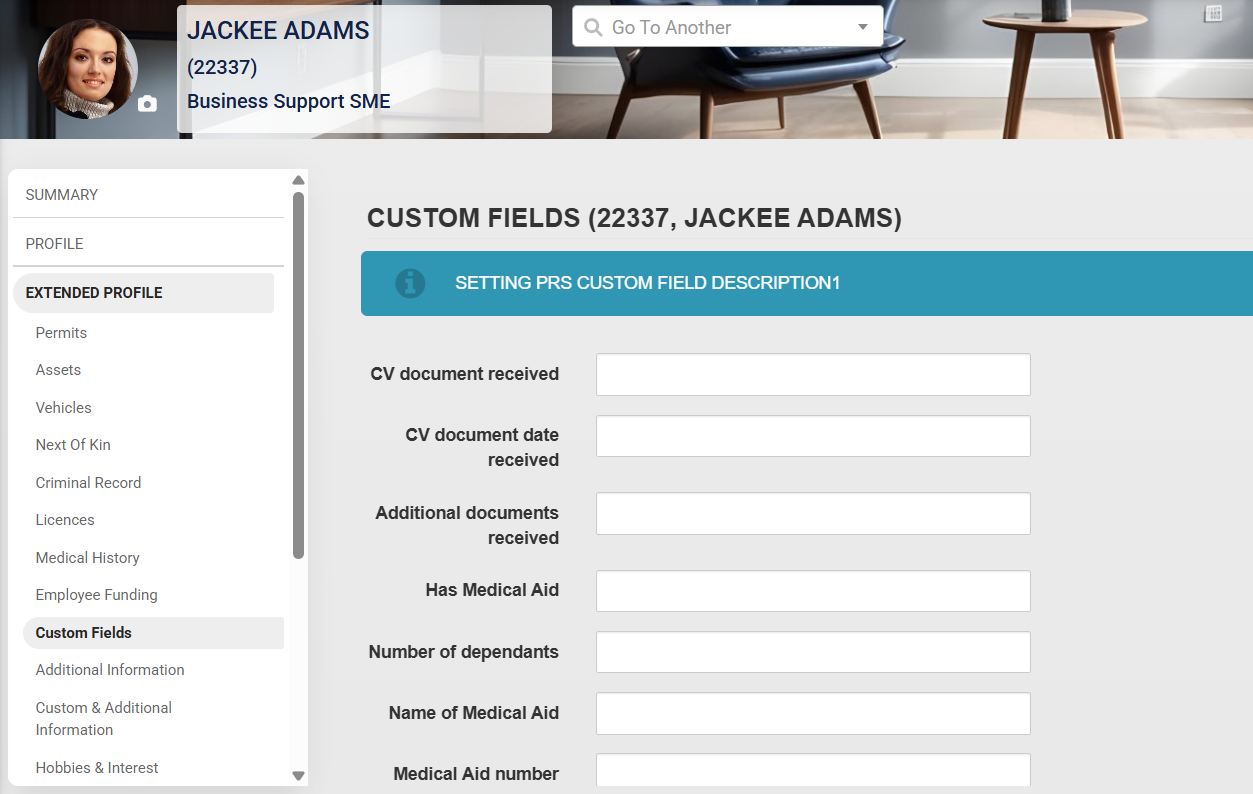
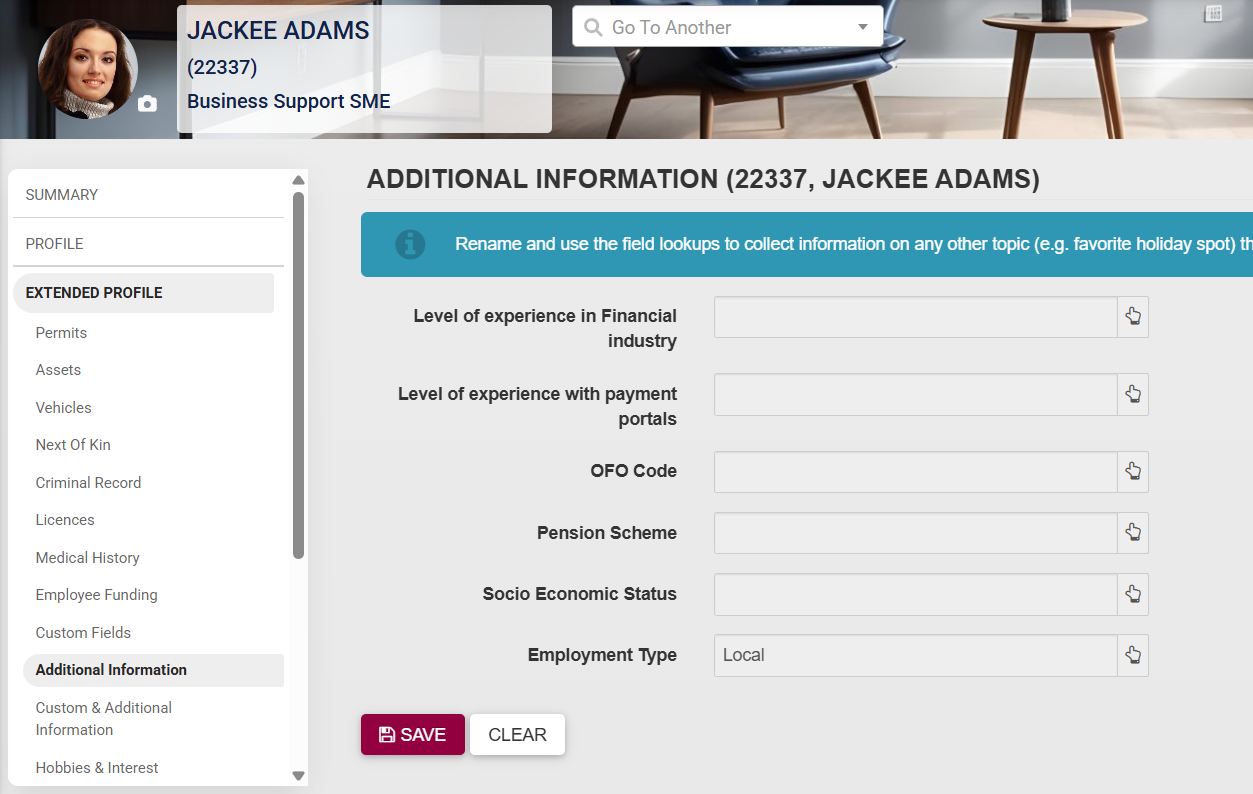
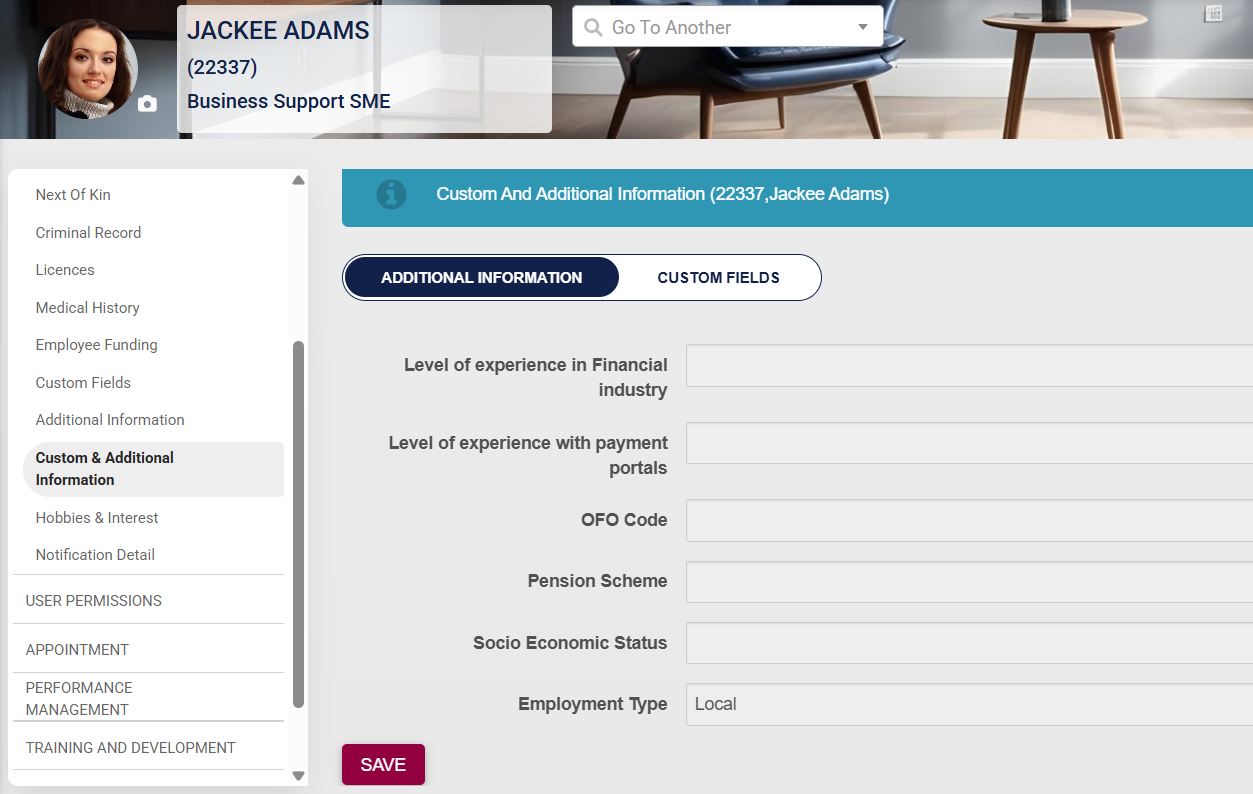
- Custom Fields, Additional Information, and Custom and Additional Information are menu items that can be used to document additional information about the employee. These fields can be set up in the master data. To configure this, please see the Master Data Maintenance section later in this chapter.
Hobbies and Interests
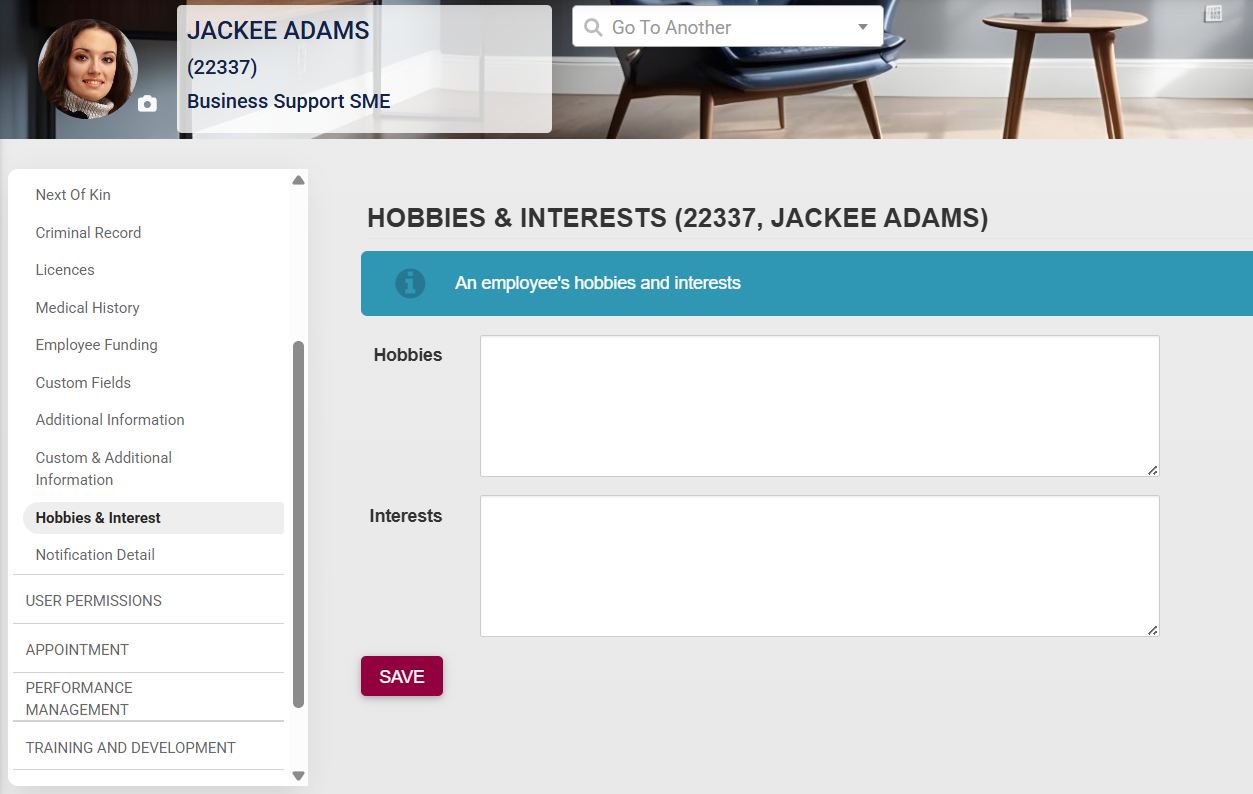
- The employee’s hobbies and interests can be noted by clicking on Hobbies and Interests. Fill in the details about their hobbies and interests, then click SAVE when you are finished.
Notification Detail
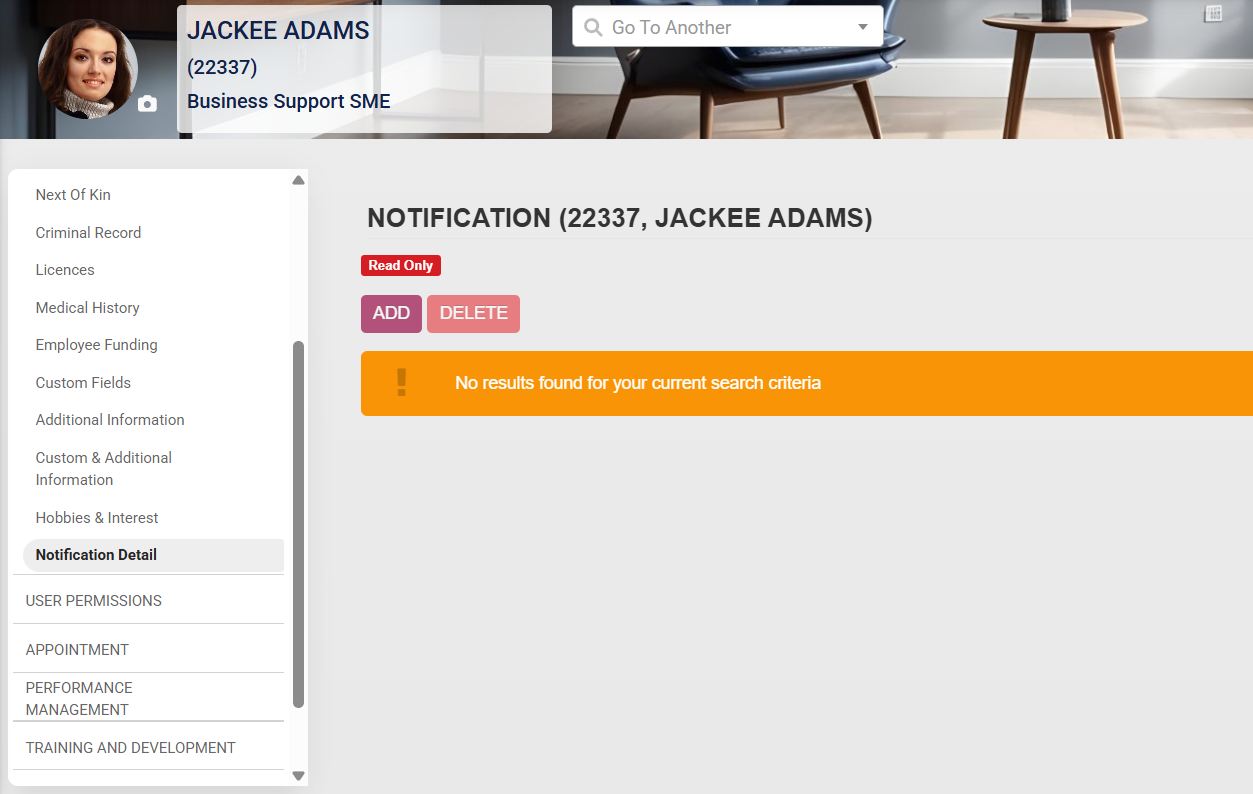
- Details about the employee’s notifications can be viewed by clicking on Notification Detail.
User Permissions
Please see the User and Access Management section of this chapter for more information.
Appointment
Appointment History
Reporting Lines
Additional Reporting Lines
Performance Management
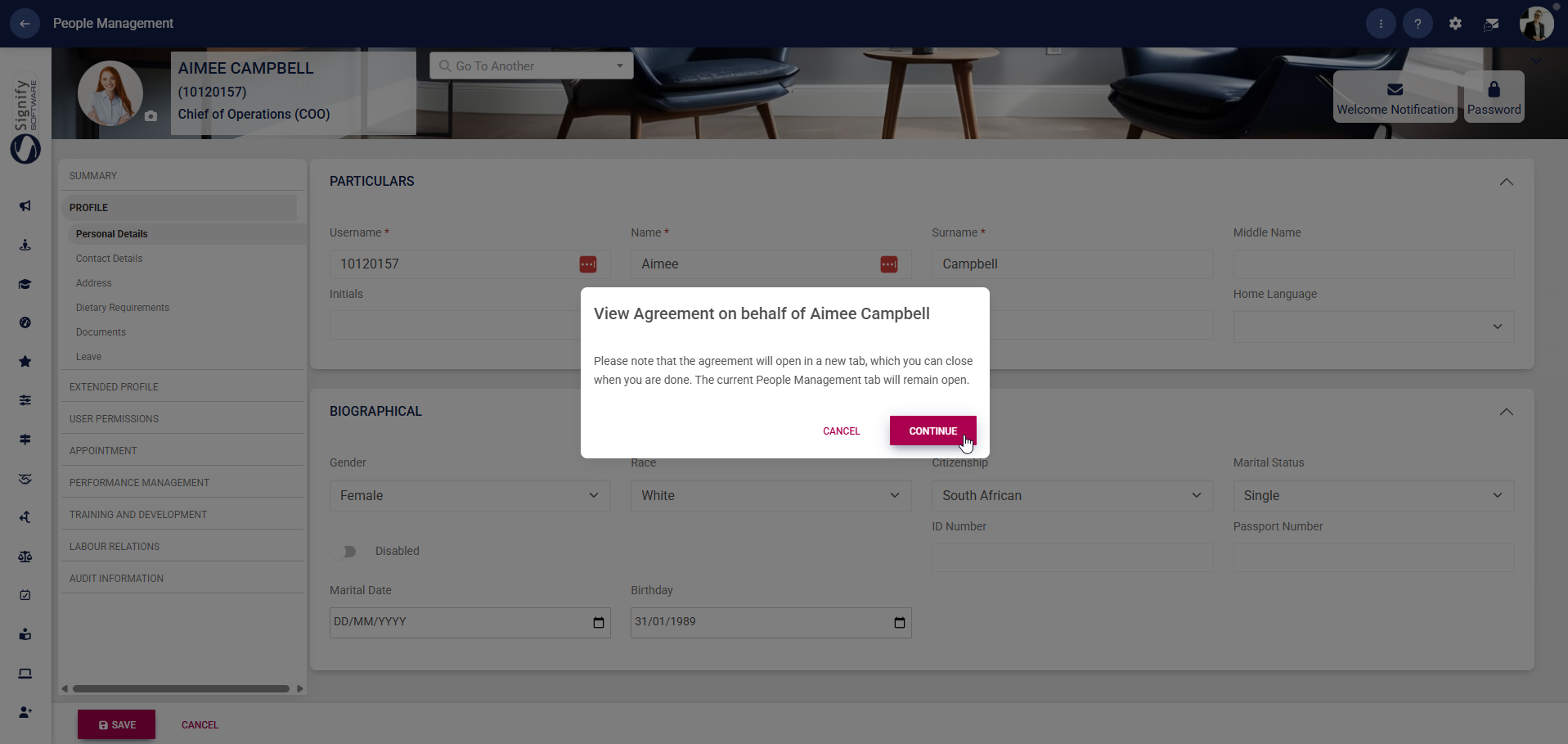
Clicking Performance Management in the left-hand menu allows you to view the user's performance agreement on their behalf. Click CONTINUE to go to the Performance Management module.
Training and Development
Learning records
Click to navigate to Learning Records to view and manage the employee’s training history. Use +ITEM to add a new record, selecting from options such as Training, Unit, Programme, or Qualification. Use PRINT or IMPORT to manage records externally. Click RESET ASSESSMENT ATTEMPTS where applicable to reset training progress. Use the view options to switch between Full View and Summary View.Strengths and Weaknesses
Notes
Professional Membership
Assessment List
PDP
PDP Qualifications
Talent Assessment
Talent Profiles
Labour Relations
Complaints
Disciplinary Advanced
Disputes
Grievances
